What is Windows 10 Cost and Can You Get it For Free

Switching to the new operating system comes with a price, and many are wondering how much Windows 10 costs.

In today’s guide, we going to take a closer look at different editions of Windows and let you know the price of each one.

How much does a Windows 10 cost?

The cost of Windows 10 depends on the edition that you’re planning to install:

Windows 10 HomeWindows 10 Pro
Download$129.99$199.00
USB$99.99$119.00
OEM Disc$89.00$99.00
Upgrade$99.00

What is the cheapest version of Windows 10?

The most affordable version of Windows 10 is the OEM edition of Windows.

Although it’s most affordable, it comes with limitations that all OEM versions have.

Can you get Windows 10 for free?

Yes, it’s possible to get Windows 10 for free, right from Microsoft’s website. However, even though you can use this version, it won’t be licensed and you’ll often get a message asking you to activate it.

If you want to use the full version, you can try upgrading Windows 7 to Windows 10 for free as a workaround.

How can I get Windows 10 forever for free?

You can’t get a licensed copy for free, but you can use an unactivated version almost without restrictions as long as you like.

If you already own a previous edition of Windows, you might be able to activate Windows 10 with Windows 7 or 8 key.

What is the difference between free Windows 10 and paid?

  1. The unactivated version has a watermark in the bottom right corner asking you to activate it.
  2. You will often get a nagging screen asking you to activate.
  3. Customization options aren’t available unless the system is activated.
  4. Unactivated Windows can only be used by personal users.

We hope that you now understand better how much different Windows 10 versions cost. Do keep in mind that Microsoft isn’t selling Windows 10 anymore, so you can only get it from retailers.

This is no surprise with the release of Windows 11, and if you’re thinking about upgrading, you might want to learn more about Windows 11 costs.

Are you still looking to buy Windows 10 or are you switching to Windows 11? Let us know in the comments below!

Windows 7 end support scheduled for January 2020

It’s official: the countdown to Windows 7‘s demise has begun. Microsoft will end official Windows 7 support on January 2020. You may want to upgrade to the latest version of Windows 10 in order to avoid continued support fees.

There are many potential security threats and costs incurred in continuing to use Windows 7 just after the tech giant officially ends support for the OS.

Are you planning to upgrade?

There are many Windows 7 users and even IT departments unaware of the approaching end of support deadline. Some are aware of the deadline but have not yet planned to migrate to other platforms.

Some IT professionals will even have to be pay Microsoft for extended support beyond January 14, 2020. Not to mention that large companies might end up losing million of  dollars per year because their systems will be vulnerable to potential cyber attacks.

Notably, Microsoft ended support for Windows Vista and Windows XP around more than three years ago but 16% of the IT professionals have admitted using these outdated OS even today.

Challenges restricting large organizations

One of the major challenges that are faced by large enterprises is updating thousands of machines that are being used by their employees all over the world. In some cases, the complete transition from Windows XP might take months. It is highly recommended that IT managers regularly update their operating systems.

Another challenge faced by large enterprises is the resistance to change to the latest version of Windows 10. Most of the employees have been using Windows 7 for years. They are familiar with working on the OS to an extent that they don’t want to give up on it.

Others might simply want to avoid the whole migration process as it takes a lot of time. IT managers need to create awareness regarding the implications of migration to ensure an easier migration process. Since the process has been streamlined, users will now be facing fewer disruptions and the apps will not fail to migrate during the migration process.

Keep in mind the one-year deadline announced by the Microsoft for ending support for Windows 7. You can still upgrade to Windows 10 for free.

RELATED STORIES YOU NEED TO CHECK OUT

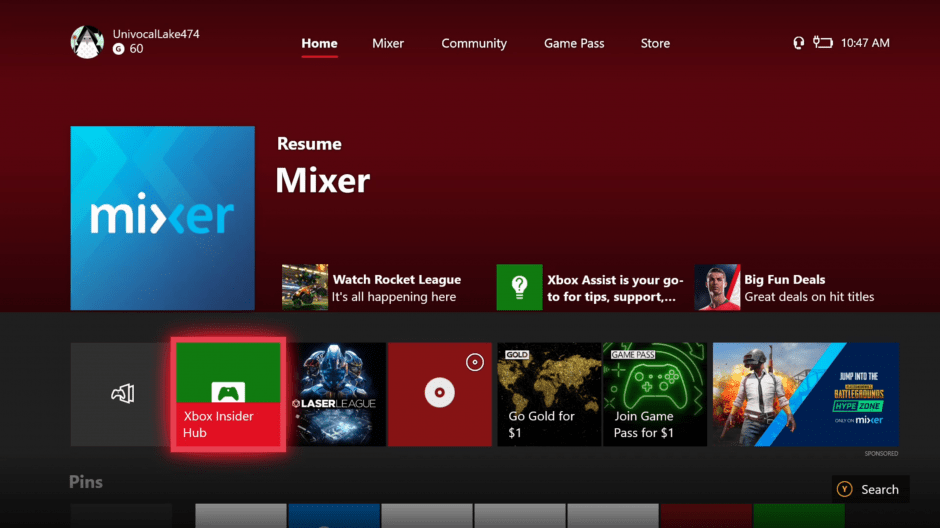
New Xbox One 1904 preview build introduces floating mini keyboard

It’s been quite some time since we last saw something interesting in Xbox Insider builds, but the latest 1904 flight for Preview Alpha Skip Ahead & Alpha Ring members is a welcome change. Indeed, this new build introduces a floating keyboard that should automatically position itself around text boxes.

While the Xbox team didn’t provide an image of the mini keyboard in the release notes, you can see how it looks in the tweet below:

This latest 1904 build also addresses some issues causing blank tabs in the dashboard, as well as Home crashes when system sounds played. Going forward, all new 1904 preview builds will ship to both Skip Ahead and Preview Alpha Insiders, but Microsoft is also testing the Xbox 1902 update with Preview Beta and Delta Insiders.

To be clear, the Xbox 1902 update is expected to ship in February, and the 1904 update will likely follow in April. So far, 1902 preview builds only brought under the hood changes, including framework changes to the mouse feature set for future work, but no new features. It’s pretty much the same story so far with 1904 builds, except for this new virtual mini keyboard. We hope the team will start testing new features with Insiders in the coming weeks.

Satya Nadella opens up about Project xCloud, the upcoming Xbox “Netflix for games”

Perhaps, priming the pump of journalism around the Microsoft 2019 news cycle, CEO Satya Nadella spoke with journalists at in invitational editors meeting about the company’s ambitious gaming endeavors.

While various company executives throughout the past couple of years have waxed poetic about how much gaming means to Microsoft; it’s only in rare instances and normally in front of a developer crowd, that Nadella has addressed the degree to which developments in gaming will play out in the company’s grander scheme.

Business Insider is reporting on the company’s CEO speaking with journalists the other day, Nadella offered some candid information about Microsoft’s secret game streaming project, Project xCloud.

“We describe it as, shorthand, ‘Netflix for games.”

As has been reported, the premise is that Microsoft’s push into cloud computing will aid in propelling a high fidelity, low latency gaming experience run mostly, if not entirely from the cloud, thus shifting the gaming landscape from a dependency on peridocial console releases. An additional benefit of unclasping the gaming experience from the traditional big box console is that it would free developers to market their experiences on newer, non-traditional gaming devices such as phones, Smart TV’s or ‘streaming sticks’.

The idea of game streaming isn’t new nor is it exclusive to Microsoft’s brand. Microsoft is in good company with both gaming studios and major tech companies such as Sony, Electronic Arts, Google, Apple, Amazon, Activision, and others when it comes to creating a streaming alternative.

However, the devil is in the details, like most attempts at a high-quality game streaming service all run into logistical quagmires attempting to solve the low latency issue combined with reliable enough internet access for gaming.

To that, Nadella believes that, while not fully resolved at this moment, Microsoft is in a better position than others to tackle the aforementioned issues with game streaming.

“We have as much a shot to build a subscription service as anybody else.”We have as much a shot to build a subscription service as anybody else,”

He also made reference to Microsoft’s dual pillar enterprise and gaming businesses that allows the company to leverage several advantages that singularly focused companies are not afforded.

For instance, “We have a huge back catalog, which is we have our own games,” which is something Apple, Google and Amazon lack at the moment when attempting to court the more affluent hardcore gaming crowd, and they also possess a massive cloud infrastructure to push beyond console limits that its major competitor in Sony, does not yet have established.

“We have a structural position in that we have both a console business as well as a PC business, which happens to be bigger than the console business when it comes to gaming.”

Linking Microsoft’s current despot efforts is its Xbox Live and its related services such as Play Anywhere library and Game Pass which will undoubtedly play larger roles in the company’s streaming future.

Nadella’s discussion with journalists earlier this week is yet another formalization of the concept laid forth by company VP of gaming Phil Spencer, wherein, console-quality gaming should be accessible by all and Microsoft is going to be among, if not, the company to deliver those experiences.

Windows Insider preview 18317 highlight changes to Display Settings and S Mode among other fixes and ‘Known Issues’

Another Windows 10 Insider preview build is up for release to Fast Ring testers. The new Windows 10 preview release today is 18317 and comes with the standard list of General changes, improvements, and fixes for PC as with most releases.

Here is a list of what’s been fixed and what testers need to be on the look out when using this build.

  • We fixed an issue resulting in File Explorer unexpectedly having a lock on USBs when trying to safely eject them.
  • We fixed an issue resulting in frequent bugchecks (GSODs) in the last two flights, citing an error with bindflt.sys.
  • We fixed an issue resulting in frequent bugchecks (GSODs) in the last flight, citing error KERNEL_LOCK_ENTRY_LEAKED_ON_THREAD_TERMINATION.
  • We fixed an issue resulting in not being able to connect to VMs using Hyper-V console after upgrading to recent flights. This issue also impeded the ability to connect to VMs with Enhanced Sessions enabled.
  • We fixed an issue resulting in some full screen games showing a black screen in recent flights even though they worked in windowed mode.
  • We fixed an issue resulting in CDP User Service periodically unexpectedly using a high amount of CPU in recent flights.
  • We fixed an issue causing text in the Windows Security app to be incorrect or potentially missing altogether.
  • We fixed an issue from recent flights where clicking the network button on the sign-in screen didn’t work.
  • We fixed an issue resulting in certain devices not being able to wake from hibernation recently. There were two possible symptoms on wake if you were impacted – one was a black screen, one was a screen that continued to say “hibernating…”.
  • We fixed an issue resulting in Display Settings crashing in recent builds. If you were impacted, this would have also had the symptom that clicking System or Ease of Access from the main Settings page may crash Settings.
  • We fixed an issue with certain touch keyboard languages where pressing AltGr + [any key] on the full layout would dismiss the touch keyboard.
    We fixed an issue where Windows Sandbox wouldn’t launch on PCs with multiple GPUs.
  • When Scan Mode is on and Narrator is on a slider, the left and right arrows will decrease and increase the slider. Up and down arrows will continue to navigate to the previous or next paragraph or item. Home and End will move the slider to the beginning or the end.
  • The Narrator list of headings command now works as expected in Chrome.
  • We improved Narrator support for Microsoft Teams.
    For cursor and pointer, fixed returning to the right mouse pointers when changing back to the original size and colors.
  • We fixed an issue where some devices would fail to install an update with error code If you are updating from 18309 or newer this issue will be fixed for this update, if you are updating from a build prior to 18309 it will be fixed for the next update.

And here are the Known Issues that the Windows team are highlighting in this build.

  • The Windows Security app may show an unknown status for the Virus & threat protection area, or not refresh properly. This may occur after upgrade, restart, or settings changes.
  • Launching games that use anti-cheat software may trigger a bugcheck (GSOD).
  • Clicking your account in Cortana Permissions doesn’t bringing up the UI to sign out from Cortana (if you were already signed in) for some users in this build.
  • Creative X-Fi sound cards are not functioning properly. We are partnering with Creative to resolve this issue.
  • When attempting to update this build some S Mode devices will download and restart but fail the update.
  • Night light functionality is impacted by a bug in this build. We’re working on a fix, and it will be included in an upcoming build.
  • When you open Action Center the quick actions section may be missing.
  • Windows feature update may fail but show up as a successful update in Windows Update history page. If this happens you will see more than one successful install for the same update in the history page.
  • When performing Reset this PC and selecting Keep my files on a device that has Reserved Storage enabled the user will need to initiate an extra reboot to ensure Reserved Storage is working again properly.
  • There is an issue impacting a small number of users enrolled in Microsoft Intune where they may not receive policies. Those policies are not applied and left in a “pending“ state on the server. The workaround is to go to Settings/Accounts/Access work or school and “Disconnect” your Azure AD account and then re-enroll.
  • Some Realtek SD card readers are not functioning properly. We are investigating the issue.
  • Update Orchestrator Service stops working periodically. A fix will be included in an upcoming build. As a result of this issue, you may see an error on Windows Update Settings saying that the update failed to restart. If you see this, restarting using the power menu in Start (“Update and restart”) should work, although there’s a chance that it won’t.
  • Closing the lid to a laptop and re-opening can cause icons in the task bar to appear blank. To fix this open task manager and restart explorer.exe or reboot.
  • If you download a theme from Microsoft Store, it won’t appear in Themes Settings.

Known issues for Developers

  • If you install any of the recent builds from the Fast ring and switch to the Slow ring – optional content such as enabling developer mode will fail. You will have to remain in the Fast ring to add/install/enable optional content. This is because optional content will only install on builds approved for specific rings.

n addition to growing list of known issues and fixes, there are other new items for Insiders to be on the lookout for such as Bing Insider stuff, Bug Bash reminders, Windows Console Updates, and more.

If you’re an Insider, build 18317 is definitely a release worth checking out this week.

Windows 10 19H1 build 18317 is out, splits up Windows Search and Cortana, adds better Start reliability

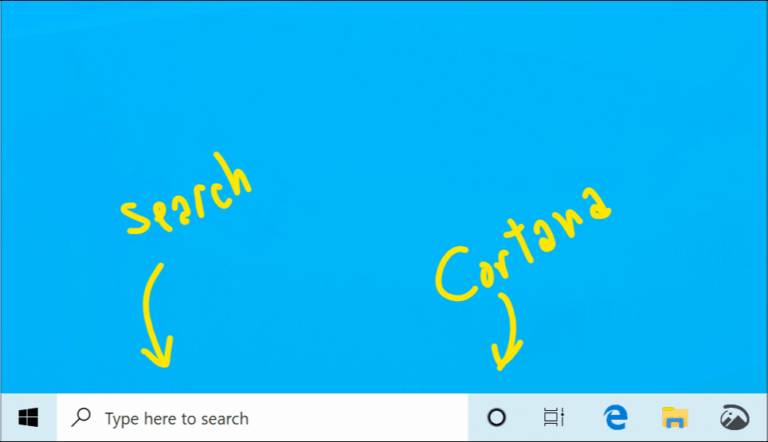
Microsoft is rolling out today the Windows 10 19H1 build 18317 to Windows Insiders in the Fast Ring. After some testing with select Insiders in recent weeks, this new build finally separates Cortana from Windows Search in the task bar. “This will enable each experience to innovate independently to best serve their target audiences and use cases,” the Windows Insider team explained today.

This new build brings other significant updates, including some background changes to make the Start Menu more reliable than before. The Windows 10 Settings app has also been updated with A Better Font management experience and a revamped Windows Insider Settings page. You can find more details about all these changes below:

Separating Search and Cortana

Going forward, we’ll be decoupling Search and Cortana in the taskbar. This will enable each experience to innovate independently to best serve their target audiences and use cases. Some Insiders have had this update for a few weeks now, and we appreciate all the feedback we’ve received about it so far! For those new to this update, when it rolls out to you, you’ll find clicking the search box in the taskbar now launches our experience focused on giving you the best in house search experience and clicking the Cortana icon will launch you straight into our voice-first digital assistant experience.

Other available Search and Cortana settings have also now been split between the two, along with the familiar group policies.

This change is one of several we’ve made throughout this release to improve your experience in this space, including updating the search landing page design, enhancing your search results, and integrating Microsoft To-Do with Cortana. If you have any further feedback, please don’t hesitate to share it with us here.

Note: Cortana is currently only available in supported markets.

The next step in improving Start reliability

As some of you may already know, up until now Start in Windows 10 has been hosted by something called ShellExperienceHost.exe. In order to provide you the best possible Start experience, we’re separating it into its own process, called StartMenuExperienceHost.exe. This has a number of benefits, including simplifying debugging and insulating Start from potential issues impacting other surfaces. This has been running as an experiment for a few weeks now and we’ve seen measurable improvements in the reliability amongst those that have the change, so we’re rolling it out to everyone.

We’re also making a change so that Start no longer suspends, which improves launch time.

A Better Font management experience in Settings

Insiders today can now drag and drop font files from File Explorer into the modern Settings > Fonts page to install them. After installation, click on the font in the Font page, to view the different font faces associated with the font and all the details of the font. You can also uninstall the font from this font details page. Drag and drop font installation by default is installed as a per-user font which does not require elevation, hence it will not be available for other users. To install the font for all users in the device, use the “Install for all Users” option by right clicking the font on file explorer.

A simpler Windows Insider Program Settings page

We are introducing a simplified Windows Insider Program Settings page via Settings > Update & Security > Windows Insider Program with Build 18317. The goal is to make the end-to-end experience of signing up for the Windows Insider Program and setting up your PC to take new builds much easier by simplifying the experience and removing some of the clutter. You’ll find that all the same functionality is still there.

New simplified Windows Insider Program Settings page via Settings > Update & Security > Windows Insider Program.

Under “Pick your Insider settings” is where you can change your Insider ring on your PC.

Windows Console Updates

We’ve made several fixes & improvements in Windows Console in and leading up to build 18317, including:

  • Fixed spurious text artifacts being displayed when running cscope in a Linux VM via ssh
  • Fixed GitHub issue 296 where the incorrect mouse button ID was being reported when a mouse button was released, resulting in an “unexpected mouse-drag behavior” regression
  • Fixed GitHub Issue 313, enabling colors above index #15 to be set via VT OSC 4
    • Colors <= 99 fixed in this build
    • Colors > 99 fixed in up-coming build
  • Corrected sizing issues for Linux alt-buffer apps (e.g. vim, emacs, etc.) resulting in more reliable resizing
  • Fixed some issues with Consoles growing in height if scroll-forward is disabled
  • Fixed ConPTY, enabling underline VT sequences to now pass correctly, allowing ConPTY-enabled apps (e.g. VSCode’s integrated terminal) to correctly receive and display underlined text
  • Made ConPTY flush its output buffer before terminating ensuring apps receive all input and display correct output
  • When running Tmux, correctly restore state after Win + D, resulting in Tmux’s last line of text rendering correctly
  • Fixed Console to preserve a Console window’s currently colored text when executing Cmd.exe
  • If using raster fonts, Console now correctly preserves the user’s font after running .NET Core code (which defaults to UTF-8 codepage 65001)
  • Correct how Console scrolls text region, fixing how text is rendered in Linux’ `screen`
  • Significantly improved performance of ConPTY – perf now very close to “raw pipe”

Overall, Cortana being separated from Windows Search is pretty big news, and this should give more room to other digital assistants like Alexa (now available as a Microsoft Store app). Cortana has been a part of Windows Search since the launch of Windows 10, but the company seems to have come to the conclusion that this wasn’t such a good idea. In the preview build 18309 released earlier this month, Microsoft also removed the Cortana voice-over when you clean install Pro, Enterprise, or Education editions of Windows. Cortana will still have its place in the Windows 10 task bar going forward, but it no longer seems to be a core functionality of Windows 10.

As usual, the preview build 18317 also fixes a long list of bugs, and it also includes the three issues that were fixed in the cumulative update build 18312.1007 released yesterday. You can learn more about the general fixes and known issues in the build 18317 in our separate post.

Shadow of the Tomb Raider’s The Nightmare DLC launches on Xbox One next week

Square Enix is releasing The Nightmare DLC for Xbox One next week. The expansion will deliver seven new missions, which the developers are calling “Paths” for Lara Croft to explore. Each path will offer its own set of missions, and Lara can earn new outfits, weapons, and skills with each one. Here’s a list of what’s new in the DLC:

Survive and Thrive: Master the jungle to survive. Explore underwater environments filled with crevasses and deep tunnel systems.

Become One With the Jungle: Lara must use the jungle to her advantage to strike suddenly and disappear like a jaguar, instilling fear in her enemies.

Discover Brutal Tombs: Terrifying tombs, filled with deadly puzzles, require advanced traversal techniques to be accessed.

Uncover Living History: Discover a hidden city and explore the biggest Tomb Raider hub ever.

Shadow of the Tomb Raider is the latest installment of the Tomb Raider series, taking off from the Rise of the Tomb Raider hit that saw its way to the Xbox One. The Nightmare is the third DLC to become available for the game.

The content will be available for those who whish to purchase this Tuesday, January 22. If you’ve never played before, the developers are offering a free seven-day trial for anyone on Xbox One, Windows 10, and PS4. So now might be a good time to jump on the bandwagon and try the game out.

Microsoft expands M12 investment fund to include India, announces first startup investment

Microsoft will be investing in yet another Indian company. The company’s venture fund, M12, will invest in various startups, with Innovaccer being among the first of recent companies to receive funding from the tech giant. According to Microsoft, Innovaccer is a startup that aims to solve problems with data interoperability in health care, and improve outcomes for health systems. In the words of the company’s global head of M12, Nagraj Kashyap:

“We are thrilled to broaden M12’s reach to include India. India is a market rich with entrepreneurs creating world-class startups that are poised for success on a global scale. In working with these innovative startups, we believe together we will help disrupt enterprises and industries ripe for digital transformation.“

The company’s M12 startup has already made investments to other prior startups, as well. Microsoft explains that these range from “cybersecurity and artificial intelligence to business SaaS and industrial drones.” For those unfamiliar, M12, formerly known as Microsoft Ventures, is a cooperate venture fund which invests in startups, which Microsoft serving as a strategic partner as the companies grow.

Investments to an Indian startup like this is not surprising. The company cites the country’s business-to-business increased equity funding up to $3.08 billion in 2018, a 28% increase from the previous year. Microsoft’s own CEO Satya Nadella is a fellow Indian American himself, so it seems only logical for his company to have familiarity with those businesses.

How to get dark theme title bars in Windows 10, without changing your accent colour

Windows 10’s dark theme has been undergoing further development in recent Insider builds, integrating it more deeply into the interface. More shell components and apps now support dark theme, including the console scrollbars and title bar. However, it is already possible to get dark title bars for every window – provided you’re comfortable using a registry hack.

Even with dark theme enabled, Windows 10 uses white title bars for desktop apps by default. You can change this by using a dark accent colour and choosing to show the accent colour on title bars in Settings. This method is limited though – Windows prevents you from using extremely dark shades, and in any case you may want to retain your current accent colour. If you want black title bars with a blue accent colour, you’re out of luck.

Prerequisites

To achieve this effect, you’ll first need to head to the “Settings” app. Open the “Personalisation” category and click to the “Colours” page. Make sure the “Title bars” checkbox is ticked under “Show the accent colour on the following surfaces” section. You should also make sure you’ve selected your desired accent colour – if you change it later, you will need to repeat this procedure to reinstate your black title bars.

Finding the registry node

Next, search for “regedit” in the Start menu and hit enter to launch it. At this point, it’s time for our routine reminder – registry edits can have unforeseen consequences for your system and are not supported by Microsoft. This trick may break or stop working in the future and you use it at your own risk.

Navigate to the following key:

HKEY_CURRENT_USER\SOFTWARE\Microsoft\Windows\DWM

If you have a recent build of Windows 10, you can copy and paste the key directly into the registry editor’s address bar. Otherwise, you’ll need to drill down through the registry nodes yourself using the tree view in the Registry Editor’s left pane.

Before we get editing, one word of warning: it’s possible some of the keys mentioned in the next section don’t yet exist on your system. If you can’t see a mentioned key, create it by right-clicking the Registry Editor window and selecting “New”, then “DWORD (32-bit value)”. Name the key according to the instructions given below.

Black title bars with an accent colour

In the right pane, displaying the values in the registry node, double click the “ColorPrevalence” key to edit its value. Set it to “1” (without the quotes) and click OK.

Next, double click the “AccentColor” key and change its value to “0d0d0d” – this is the hexadecimal colour code to use for the title bars. Unfortunately, extremely dark values appear to be rejected by Windows, so a simple “000000” for a full black doesn’t work. You can try different colour codes to fine tune your results.

Finally, edit the “AccentColorInactive” key and set its value to your chosen colour code. This defines the title bar colour of apps which are inactive and in the background on your desktop. You’re free to use a different shade here if you’d prefer to make inactive apps more visually distinct from the foreground app.

That’s all there is to it! The changes should apply immediately once you select or open windows on your desktop. You’ll now have black title bars while preserving your regular accent colour used in the Start menu, Action Centre and other areas of the interface.

You can finetune the title bar effect to suit your taste using the AccentColor and AccentColorInactive registry keys. Just remember that if you change your system accent colour in settings, you may need to run through these steps again to restore your black title bars.

Attribution: Reddit user BatDogOnBatMobile was the first to publish these steps.

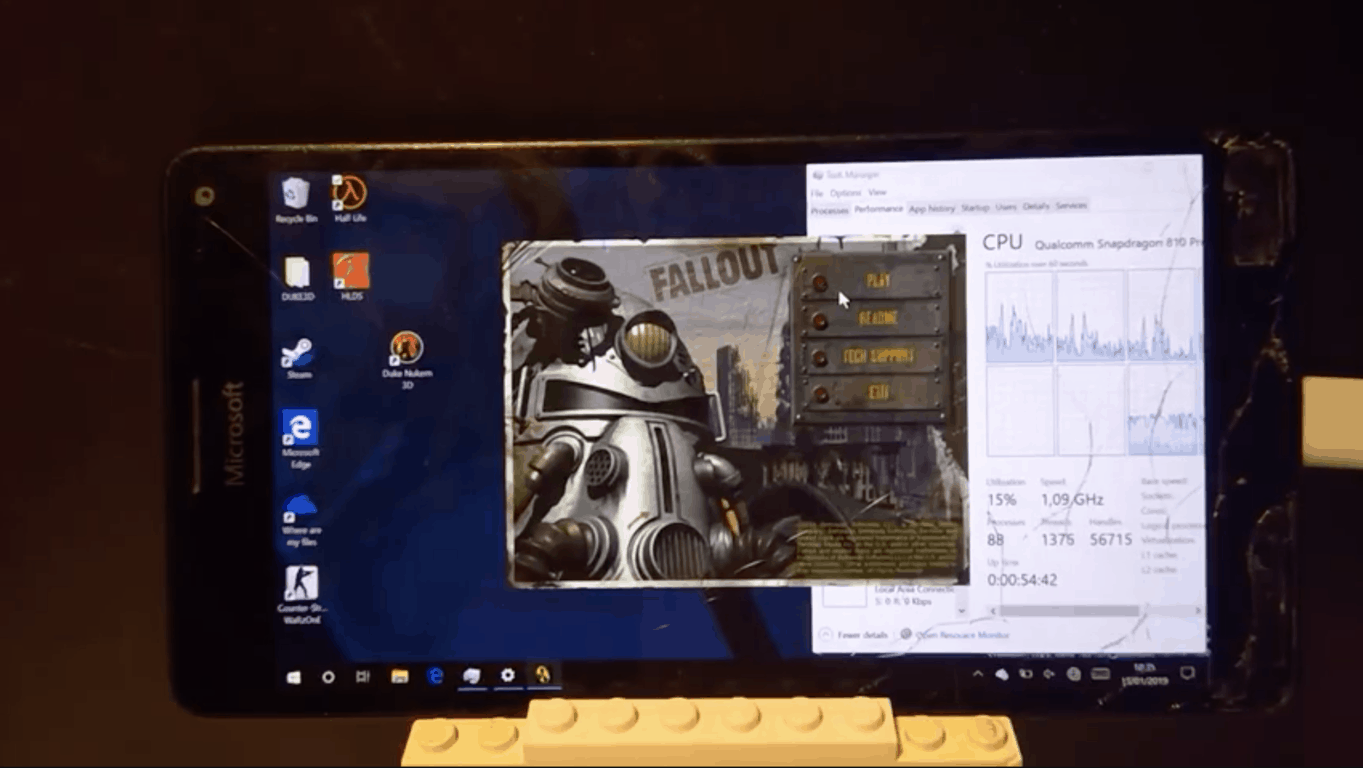
Hacker plays original Fallout PC game on Lumia 950XL running Windows 10 on ARM

Since Microsoft announced that Windows 10 Mobile will no longer be supported after December 2019, some adventurous hackers have been trying to breathe new life into Windows phones. The most interesting experiments revolve around installing Windows 10 on ARM on these devices to replace Windows 10 Mobile, and get access to the huge library of legacy Windows apps.

Of course, running full Windows 10 on such small-screened devices isn’t really a great experience, and in addition to various driver issues, you’ll also lose phone capabilities as Windows 10 doesn’t have a phone stack. Still, that hasn’t stop hackers from continuing to experiment with Windows 10 on ARM on old Windows phones. Yesterday, Reddit user Wall_SoGB posted a video of a Lumia 950XL with Windows 10 on ARM running the original Fallout PC game from 1997. While this is a very old game, it actually runs through emulation on Windows 10 on ARM which causes quite a bit of lag, even on a device with an octa-core Snapdragon 810 SoC.

In the Reddit thread, Wall_SoGB shared that he tried running other PC games like Duke Nukem 3D which ran at 15 FPS, while the more recent Fallout 3 ran at a sad 1 FPS. “Weirdly cpu usage is low, often below 50%, maybe because of the way emulation works,” the hacker noted.

This is still an impressive demo, and it’s hard not to think about all the possibilities Windows 10 on ARM could offer on pocketable devices like Microsoft’s rumored Andromeda project. However, the company’s new game streaming technology codenamed Project xCloud could well be a much better alternative to Win32 app emulation on mobile processors. If you can stream modern games on your iOS or Android phone (in addition to millions of mobile apps and games), maybe having full Windows on a pocketable device won’t seem so exciting for the majority of consumers.

Microsoft’s Desktop App Assure initiative is now available globally

With 2019 being the last full year of support for the Windows 7 operating system, many companies are running out of time to upgrade to Microsoft’s latest Windows 10 operating system. However, one of the main reasons many people and businesses continue to use the older versions is because of the fear of an application no longer being able to run on the upgraded computer.

Microsoft is confident that the vast, vast majority of software should run fine, however they do acknowledge the fact that sometimes API changes can break things. While the company works hard to best insure these issues don’t arise, sometimes that isn’t quite enough for businesses to bite. To help combat this, the company is rolling out their new Desktop App Assure service, which will help in the unlikely event the application does fail to run after the upgrade.

According to ZDNet’s Mary Jo Foley, users will be able to file a support ticket with Microsoft’s FastTrack program, after which an engineer will work with them until all compatibility issues are resolved. The service is free for anyone deploying Windows 10 and Office ProPlus with an eligible Microsoft 365 Enterprise or Education subscription. The company is able to offer the service without charge because, according to their statistics, engineers evaluated 7,000 out of 41,000 applications, with only 49 of which required work to fix. The company is providing the following assistance to make sure the following Windows 7 apps will work for Windows 10:

  • Customer-developed apps targeting a supported version of Windows 10.
  • Third-party independent software vendor (ISV) apps targeting a supported version of Windows 10.
  • Office 365 ProPlus targeting a supported version of Windows 10, including macros and add-ins.
  • Microsoft products and services targeting a supported version of Windows 10.
  • Windows 10 desktop and web apps.

However, the company will now offer assistance to test compatibility for those apps to insure they work. Other services not offered by the program include:

  • App inventory and testing to determine what does and doesn’t work on Windows 10. For more information, see Customer Request for Modern Desktop Assessment.
  • Researching third-party ISV apps for Windows 10 compatibility and support statements. For more information, see Ready for Windows.
  • App packaging-only services. However, the Desktop App Assure team packages apps that we have remediated for Windows 10 to ensure they can be deployed in the customer’s environment.

As it stands, Microsoft is readying its discontinuration of Windows 10 which, which will occur on January 14, 2020. With Windows 10 being pegged as the last version of Windows, developers only need to upgrade once and will never have to worry about upgrading again in the future.


Skype’s latest Insider build introduces new Quick Access Menu

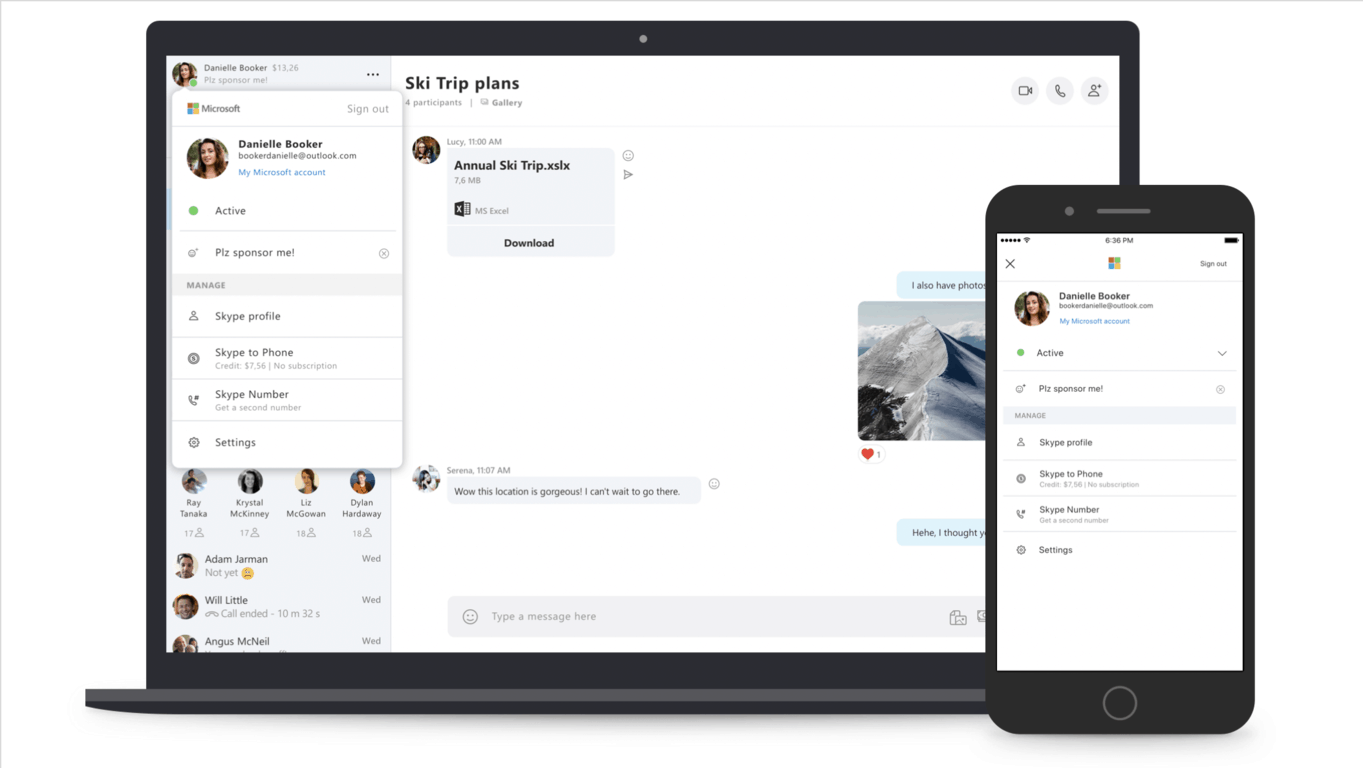
Microsoft has started testing a new Quick Access Menu in its Skype Insider app. In the preview version 8.37.76.92 that is now available on all platforms, you can access this Quick Access Menu by clicking on your Avatar in the top left corner of the app.

The Quick Access menu replaces the much bigger pop up window that previously showed up when you clicked on your Avatar, though the core functionality isn’t that different. “With the Quick access menu, your profile, associated Microsoft Account, Skype number and Settings are just a click away. From the Quick access menu you can review your Skype credits & subscriptions as well as update your profile picture and mood message,” the Skype team explained.

After announcing that the “Away” status would be coming back to this new cross-platform Skype app, the team is apparently not done polishing the UI of the new client. This apparently doesn’t go very well with some users, as the first comments on the post announcing the new Quick Access Menu are pretty negative. “No new features should be worked on for Skype until you bring the laundry list of old features back or let us use Skype Classic again,” said one user.

If you want to check out this new Quick Access Menu, the easiest way to access this latest preview build is the new web app available on preview.web.skype.com. Otherwise, you can download the standalone desktop app on this page.

Windows 10 Slack app updates and squashes several frustrating bugs

The Windows 10 Slack app updated to Version 3.3.4 earlier this week with a host of bug fixes for a variety of problems.

According to the patch notes, the bugs fixed include one that was showing users the same message twice when logging in (amusingly mentioned twice in the notes), another that made it hard to highlight text, and another that listed the incorrect keyboard shortcut for going full screen.

Here’s the full release notes:

  • Users signing in with Single Sign-On would see the same message twice when logging in.
  • Users signing in with Single Sign-On would see the same message twice when logging in. This will not happen any more.
  • When trying to select a portion of a code-formatted block of text (text formatted with ` or “` at either end), some characters were proving slippery and hard to select. You can now copy and paste to your heart’s content.
  • Several random, rare crashes — on launch and at other times — have been eliminated. More random and rare crashes inevitably exist, of course, and as soon as we know what they are, we’ll eliminate those too.
  • The full screen shortcut was mistakenly listed as ‘Ctrl+F’ instead of ‘Ctrl+Shift+F’ in the “View” menu. We both apologize for this and hope that, because of it, someone out there discovered ‘Ctrl+F’ as a useful shortcut for searching the channel that you’re in. Always look on the bright side of bugs.

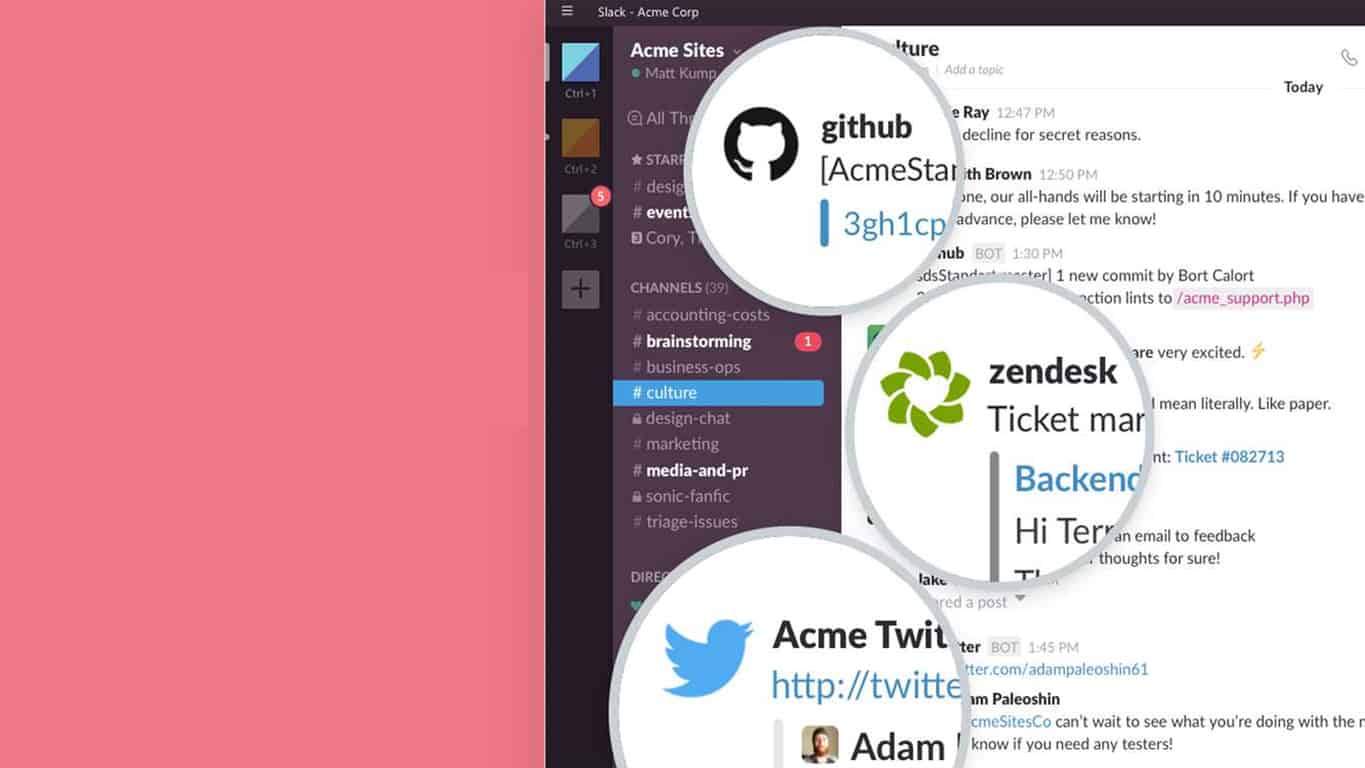
Slack is a popular team messaging app that allows users to communicate with each other and send files to team members. It used to be king of this particular app niche, however, it’s recently encountered stiff competition from Microsoft Teams.

Do you still use Slack or have you made the switch to Teams? Let us know in the comments below and then follow us on Pinterest for more app content.

Slack
Slack
Price:
Free

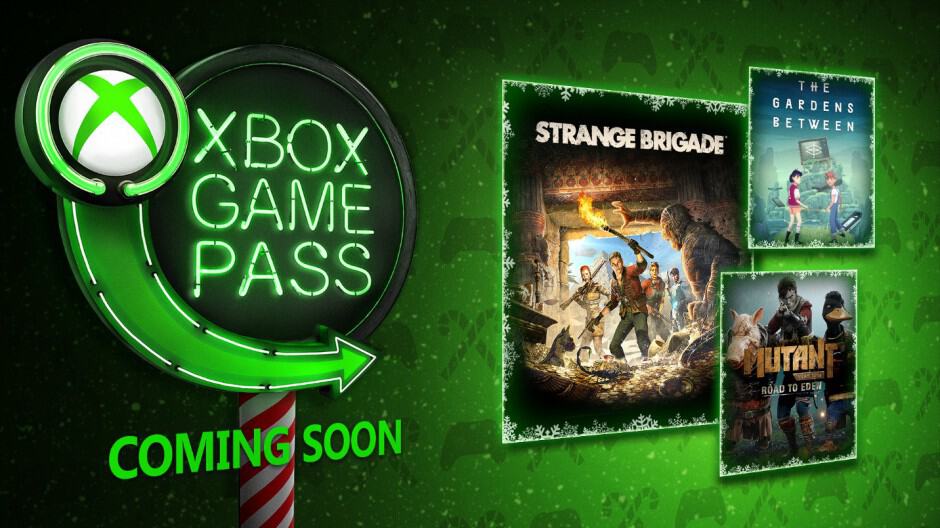
We Happy Few, LEGO Movie, and more coming to Xbox Game Pass this month

The official Xbox Game Pass Twitter account shared a preview of several new video games that are set to join the subscription service before the end of the month.

While pixelated, it seems as if the upcoming games are We Happy Few, The LEGO Movie: The Video Game, Middle Earth: Shadow of Mordor, and Saint’s Row: The Third. Some contact information was also censored in the tweet but it’s probably best not to try and work out what that is.

We Happy Few isn’t too much of a surprise given that Microsoft purchased the studio behind it, Compulsion Games, last year. The LEGO Movie: The Video Game’s addition is probably a smart marketing move to get people hooked on this game before its sequel comes out later next month while Shadow of Mordor should please people who were disappointed by the recent removal of several Lord of the Rings games from the Microsoft Store. Saint’s Row: The Third was incredibly popular when it launched so it’s generally just a positive thing to see major titles such as this come to the Xbox Game Pass program.

Are you an Xbox Game Pass subscriber and are you happy to see these games be added to the library? Share your thoughts with the community in the comments below and then follow us on Pinterest for more Xbox gaming content.

Update: it’s official, We Happy Few and The Lego Movie Videogame will join the Xbox Game Pass catalog on January 17, while Middle-earth: Shadow of Mordor and Saints Row: The Third will be added on January 24.

How to fix corrupted Excel cells in 4 quick steps


4 solutions to fix corrupted Excel cells

  1. Automatic procedure
  2. Manual procedure
  3. Recover your data
  4. Copy the file in Wordpad

Microsoft Excel is one of the best and commonly used tools to analyse data. This office program is crucial for the day to day work of millions of people around the world. Nevertheless, several errors can sometimes slow down processes and decrease the efficiency of users.

One of the possible annoying situations, while working in Microsoft Excel, is when one or more cells of the workbook are corrupted. If you face this trouble, do not worry: — this article provides you with a solution for this problem.

QUICK FIX: Move the File

Before starting any procedure to recover your workbook, it can be better carrying out two attempts to check if the file is really corrupted.

  • Move the file: to do so, you can move the file to another folder, server or drive and check if you can open the Excel file.
  • Open the file with another software: the cause of the file problem could be the software. You can try Calc, the Excel twin software in the OpenOffice Suite. If you do not have the OpenOffice Suite, you can download it online for free.

How can I fix corrupted Excel cells?

Solution 1 – Automatic procedure

If the file or workbook is really corrupted, you can start trusting first Microsoft Excel’s automatic procedure. Sometimes Microsoft Excel can detect a corrupted cell or workbook, when the file is open.

In this case, the software activates automatically a File Recovery Mode. The latter will make an attempt to solve a potential problem, without any user intervention.

Solution 2 – Manual procedure

In other cases, Excel is not able to detect the problem, especially if this regards just few cells or if the software version is not the most advanced. If so, you can act to solve the problem. Here, in few steps how you can fix the problem manually.

STEP 1 – Select the File, click on it and, then, Open

STEP 2 – Select the location and folder that contains the workbook that is corrupted

STEP 3 – In the Open box, pick the corrupted workbook

STEP 4 – Select the little downward-facing arrow next to the Open button and a menu will appear.open and repair excel windows 10STEP 5 – Click on the Open and Repair option. If this option seems to be impossible to open, do not worry, just check that you have selected the Excel file.

STEP 6 – Click on Repair if you wish to recover most of the workbook data.

Pay attention that you could not have the Repair option. If this is the case, click on Extract Data and pick Convert to Values or Recover Formulas to extract values and formulas from the workbook. In this way, no matter what, you will keep your data.

— RELATED: Excel Online won’t calculate/ open [Best Solutions]

Solution 3 – Recover your data

You may need to recover your data while the corrupted workbook is open. Besides extracting the data, you could go with another procedure in order to recover as much data as you can. Doing that, the corrupted cells will not damage the entire work.

The software should have saved automatically from time to time your work in Excel. Normally, you should have saved as well from time to time your work (Never forget to do so). So, you can take advantage of it, switching back to the last saved version.

STEP 1 – Click on File and Open

STEP 2 – Click two times the workbook you keep open in Excel

STEP 3 – Select Yes to open again the workbook.

The workbook should open without any changes that could have caused the corruption of your cells or of the entire workbook.

Solution 4 – Copy the file in WordPad

If none of the previous solutions worked, there is another option to try to save the data: open the workbook in WordPad. The latter will transform the Excel into text, so no formulas will be recovered.

Nevertheless, WordPad will keep the macros. Wordpad is preferable to Microsoft Word. In fact, if you convert the file in Word, you could find limitation to your data recovering process.

Conclusion

The cell or workbook corruption problem can ruin your day. We hoped this article have solved your problem. Let us know if this was useful by leaving a comment in the space below.

RELATED GUIDES YOU NEED TO CHECK OUT:

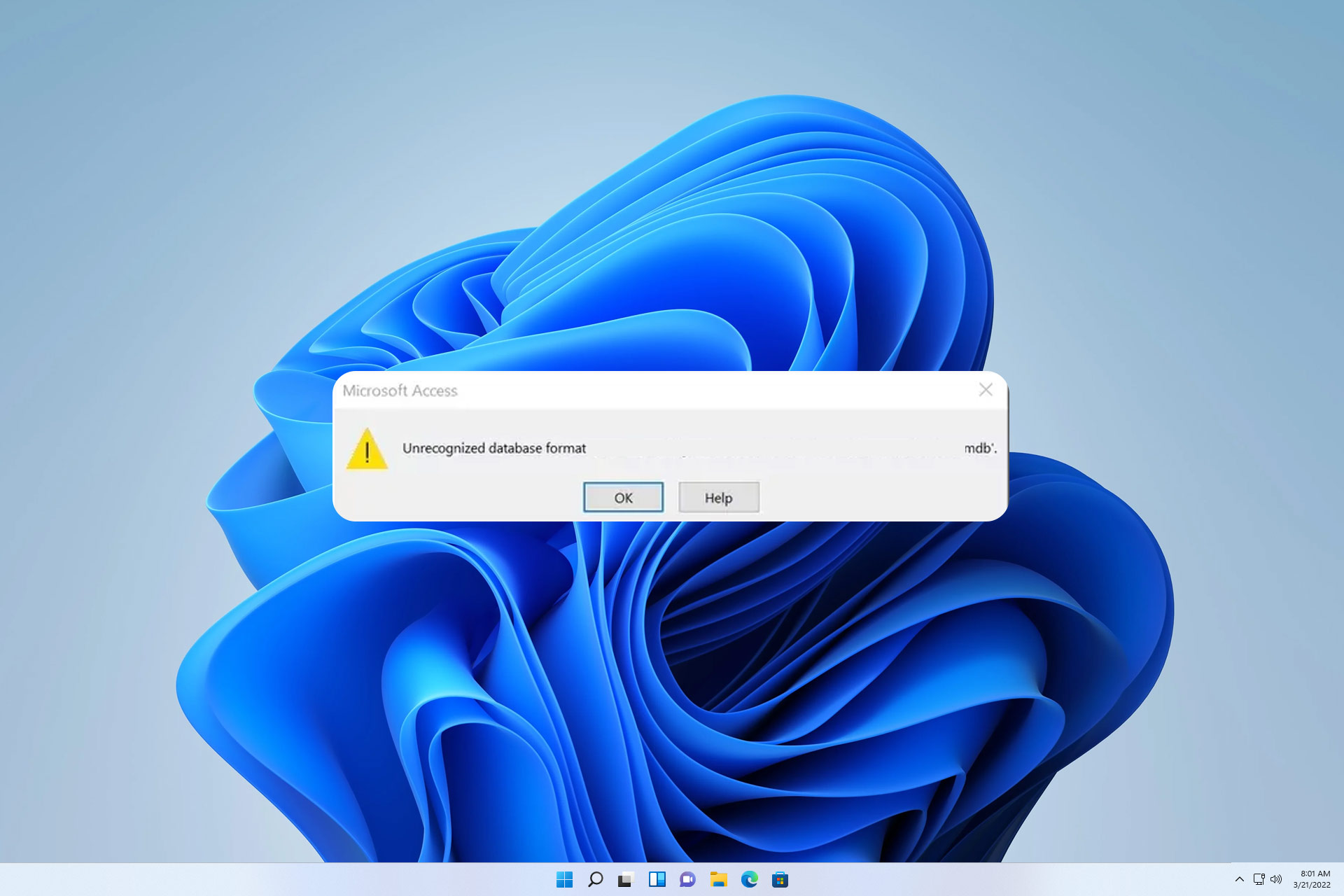
Unrecognized Database Format MDB: How to Repair it

If you’re getting the error Unrecognized database format MDB when trying to access your Microsoft Access databases, we got your back.

This is just one of many Microsoft Office issues you can encounter, but we assure you that this problem can be easily solved.

So join us while we take a closer look at this problem and see what are the best fixes for it.

Why am I getting Unrecognized database format mdb error?

  • Corrupted Microsoft Access database is one of the most common causes of this issue.
  • Using columns that have more than 32 characters.
  • You’re using unsupported format.
  • Recently installed Windows updates.

What app opens MDB file?

MDB file format is a database file associated with Microsoft Access. It’s safe to say that Microsoft Access is the best option to open this file type.

There are other similar applications that can open this file, such as LibreOffice Base for example. This software is a part of LibreOffice suite, and if you want to try it, we have a great guide on how to download LibreOffice, so be sure to visit it.

How can I fix Unrecognized database format mdb error?

Before we start, there are few checks that you might want to try the following:

  • Edit columns and make sure they have no more than 30 characters.
  • Convert the file to .accdb format using Access 2010.

1. Use the auto-repair option

  1. Launch Access and go to Database Tools.
  2. Select the Compact and Repair Database option.Repair Database access
  3. A new window will open. Select the database file that you want to repair (the file triggering this error code).
  4. Hit the Compact button to launch the repair process.

Additionally, you may also want to check out our guide on how to fix Microsoft Access file corruption issues. Hopefully, some of the fixes listed in that guide will work for you.

2. Uninstall recent updates

  1. Press Windows key + I to open the Settings app.
  2. Go to Windows Update and select Update history.
  3. Select Uninstall updates.
  4. Now double-click the update you want to remove.

Once you remove the recent update, the problem should be gone.

Now that you’ve fixed this error, you might be interested in our guide on how to add tables to Microsoft Access.

If you come across other solutions to fix Unrecognized database format mdb, let us know in the comments below.

Download KB4487345 to fix the bugs caused by KB4480970

Many Windows 7 users wish they hadn’t installed KB4480970. This update brought more issues than fixes. If you want to learn more about the bugs and errors triggered by KB4480970, you can read our in-depth report.

Following user complaints, Microsoft rolled out a new update (KB4487345) aimed at fixing some of the issues triggered by KB4480970. More specifically, KB4487345 fixes the bug that’s preventing users from accessing shares on Windows 7 and Windows Server 2018 remotely.

Here’s the official changelog:

This update resolves the issue where local users who are part of the local “Administrators“ group may not be able to remotely access shares on Windows 7 SP1 and Windows Server 2008 R2 machines after installing the January 8th, 2019 security updates. This does not affect domain accounts in the local “Administrators” group.

Download KB4487345

If you go to Windows Update and hit the ‘Check for updates‘ button, you won’t find this update. You can only download it manually from the Microsoft Update Catalog website.

If you’re wondering whether or not you should download KB4487345, the answer is ‘Yes’. This hotfix is safe to download. There have been no issue reports after users installed it. This means that the download and install processes should go smoothly and you should not encounter any bugs afterwards.

Microsoft will release new hotfixes for KB4480970

Regarding the ‘Unrecognized Database Format’ errors on Microsoft Access triggered by the same problematic update, the company promised to deliver a hotfix early February. So, if you’re affected by this problem, you can use the workarounds provided by Microsoft on this support page.

Of course, the quickest way to solve all the problems caused by KB4480970 is to simply uninstall the update.

How has your KB4480970 experience been so far? Let us know in the comments below.

RELATED GUIDES YOU NEED TO CHECK OUT:

Xbox One, PS4, & Nintendo Switch cross-play goes live for Rocket League

Rocket League is now available for cross-platform play on Xbox One, Nintendo Switch, and PS4. Psyonix made the announcement yesterday in a post on the Rocket League blog. Sony allowed Rocket League to play with other platforms via the Playstation Cross-Play Beta program. Here are the instructions as noted in the blog post:

“Players on PlayStation 4, Nintendo Switch, Xbox One, and Steam can now randomly matchmake with or against each other in all Online match types (i.e. Casual, Competitive, and Extra Modes). To make sure that Cross-Platform play is enabled (it is by default), head to the “Main Menu,” select “Options” and then make sure the “Cross-Platform Play” box is checked in the “Gameplay” tab. And that’s all there is to it. You are now ready to play against gamers on other platforms across the world!”

Coming soon, Psyonix will release an update to Rocket League, introducing their cross-play platform party system to allow players to team up with their friends on any supported platform. For now, you can still play with your friends by creating or joining a private match in Rocket League. Psyonix hopes to give Rocket League players full cross-platform support by adding more platforms in the future.

Microsoft seeks to deliver “Intellegent Retail,” introducing new Teams features at NRF Big Show this week

Microsoft continues to bolster its retail partnerships as the company headed to the National Retail Federation (NRF) Big Show to showcase its intelligent cloud services at the largest retail conference anywhere.

With an arsenal of technologies such as Artificial Intelligence, Machine Learning, IoT support, and hybrid server solutions, Microsoft CVP of Retail and Consumer Goods Industries Shelly Bransten have never been better equipped to deliver the company’s promise of ‘Intelligent Retail,” to businesses and customers.

“From using AI to create transformative customer and employee experiences, to embracing IoT to leverage their supply chains for maximum customer impact, to using cloud-based business applications to manage everything from the customer journey to operations. In an industry experiencing accelerating change, Microsoft and its partners are creating the solutions to help our customers keep up.”

Announced just ahead of the conference were some new capabilities of Microsoft’s holistic intelligent retail package that included a newly customizable mobile Teams experience, Teams API connects supporting workforce management systems, and a new Praise Tool to help encourage a positive work culture and teamwork. Microsoft held a significant presence with its 20 solution demos, as well as Bransten’s Big Ideas session and company colleagues Alysa Taylor, CVP for Business Applications and Industry Marketing and CMO Chris Capossela leading other sessions.

The new Teams additions along with the Praise Tool should be rolling out to the general public over the next few weeks with big-name retail partners such as Kroger, Starbucks, craft store chain Michaels, Goodwill of Central and Northern Arizona (GCNA), Stefano Ricci, BevMo!, and Polarn O Pyret undoubtedly testing some if not all of the features now.

Walgreens teams with Microsoft on “digital health corners,” move 380K workers to Microsoft 365

The Walgreens Boots Alliance (WBA), Walgreen’s global “pharmacy led health and well-being enterprise,” has partnered with Microsoft to provide the pharmaceutical company access to the tech giant’s Azure cloud computing software, which will help them “develop new health care delivery models, technology and retail innovations to advance and improve the future of health care,” according to Microsoft. Additionally, the deal will give the pharmacy company’s 380,000 employees access to Microsoft 365’s suite which includes Windows 10, Office 365, and the Enterprise Mobility + Security software.

The companies will also commit to a multiyear investment to research and build health care solutions and help reduce costs for the services. The investment includes funding, tools, and healthcare experts, although no financial details have been shared. Additionally, Walgreens will open its “digital health corners” in 12 stores, which will focus on selling merchandise and health care related equipment and devices. In a statement, WBA’s CEO and executive vice chairman, Stefano Pessina, stated that:

“Our strategic partnership with Microsoft demonstrates our strong commitment to creating integrated, next-generation, digitally enabled health care delivery solutions for our customers, transforming our stores into modern neighborhood health destinations and expanding customer offerings. WBA will work with Microsoft to harness the information that exists between payors and health care providers to leverage, in the interest of patients and with their consent, our extraordinary network of accessible and convenient locations to deliver new innovations, greater value and better health outcomes in health care systems across the world.”

The deal marks the second major deal Microsoft had made with a retailer in the first month of the new year. The company also made a deal with Kroger, giving the supermarket access to Azure services and build tools to improve customer experience.

This Xbox 2 console concept didn’t get the best reaction from gamers. Do you like it?

A fan concept for Microsoft’s upcoming follow-up to the Xbox One console was uploaded to Reddit earlier today (see above image) and it didn’t exactly get the positive response the poster was likely expecting.

Designed by Darpan Bajaj, this design for the new console, named here the Xbox 2, features a base that’s dramatically slimmer than all previous Xbox consoles and a controller that abandons physical buttons for, what looks like, a programmable touchscreen.

Reddit commenters were quick to mention that casual and pro gamers both prefer physical buttons when playing games and that very few people enjoy using virtual touchscreen controls which are frequently used on smartphone and tablet games.

The console itself also has its faults as most early Xbox loyalists would likely prefer a smaller size for the next Xbox console that takes up less real estate around the TV while this one looks as wide as the original Xbox One despite its thinness. Other issues raised were its breakability, the number of lights, and complete lack of USB slots.

“None of it is practical,” Reddit user, Congragumumlations, wrote, summing up his thoughts on the design. “The creator should have taken into consideration making it practical first and foremost. There is no good ideas coming out of this thing to be honest. I’m sorry but this is a no-go.”

What do you think about this concept for the next Xbox console? Would you buy it? Share your thoughts with the community in the comments below and then follow us on Pinterest for more Xbox content.

Digital pre-orders open for DiRT Rally 2.0 on Xbox One ahead of release

DiRT Rally 2.0 is now available to digitally pre-order on Xbox One ahead of its February 26th release date.

DiRT Rally 2.0 is the sequel to the original DiRT Rally racing video game and supports online matches with up to eight players and features HDR10 and 4K Ultra HD when played on Microsoft’s Xbox One X console.

The game is available in two version; a regular version and a Digital Deluxe Edition that comes with the base game, early access (from February 22nd), and a variety of in-game downloadable content such as cars, upgrades, and tracks.

Here’s the official game description and trailer:

DiRT Rally 2.0 dares you to carve your way through a selection of iconic rally locations from Argentina to new Zealand, in some of the most iconic off-road vehicles ever made, knowing that the smallest mistake could end your stage. You will need to rely on your instincts with the most immersive and truly focused off-road experience yet, including a new authentic handling model, tyre choice and surface degragation. Power your rally car through real-life off-road environments in New Zealand, Argentina, Spain, Poland, Australia and the USA, with only your co-driver and instincts to guide you.

Race on eight official circuits from the FIA World Rallycross championship, complete with licensed Supercars and support series. Develop your team and cars around race strategies, and progress through a varied selection of Events and Championships in both a single player Career Campaign and a competitive online environment. The Porsche 911 RGT Rally Spec can be used at all rally locations.

Are you a fan of DiRT Rally or do you prefer other Xbox One racing games such as WRC 6? Share your thoughts with the community in the comments below and then follow us on Pinterest for more Xbox gaming content.


Far Cry 2 and WRC 6 video games now free to download and play on Xbox One

The video games, Far Cry 2 and WRC 6 FIA World Rally Championship, are now both free to download and play on Microsoft’s Xbox One consoles as part of January’s Games With Gold promotion for Xbox Live Gold subscribers.

Far Cry 2 originally came out on the Xbox 360 back in 2010 and is now playable on both the Xbox 360 and Xbox One due to its new backwards compatibility. The game takes, what has since become, the popular video game franchise to Africa and boasts the large open-world play area that fans have come to expect.

WRC 6 FIA World Rally launched on the Xbox One in 2017 and is a racing game that supports local and online matches for up to eight players.

New games are made available to Xbox Live Gold subscribers to claim at the beginning and around the middle of each month. The 2D platformer, Celeste, is also currently available to grab until January 31st. Both Far Cry 2 and WRC 6 FIA World Rally Championship will remain listed until mid-February.

Are you excited to play Far Cry 2 and WRC 6 FIA World Rally Championship? Let us know which one you’ll be playing this month in the comments below and then follow us on Pinterest for more Xbox gaming content.

Far Cry® 2
Far Cry® 2
Developer:
UbiSoft
Price:
$19.99


How to change Skype themes on Windows 10

Skype is a product developed for voice and video calls and chat. You can use it on computers, tablets, smartphones and smartwatches, even the Xbox One console. Through Skype, you can send and receive images, text and video files.

First released in 2003, Skype was bought in 2011 by Microsoft. And shortly after the purchase, Skype was integrated with Microsoft products. Furthermore, Microsoft suspended two previous products (Windows Live Messenger and Lync) and started recommending Skype.

In 2016, Microsoft released build 14342 for Windows 10, that included a new updated Skype UWP Preview. The highlight of this update was the ability to set up a dark theme. This mode was enabled when the settings were made within the operating system’s theme.

But there was no option to enable or disable the dark mode just for Skype. Recently in 2018, Microsoft released a new version of the tool, Skype version 8. With this update, Microsoft added a dedicated dark theme for Skype.

Steps to change Skype theme on Windows 10

1. Select your profile picture or the three dots on the right.


2. Select Settings and then Appearance. You can access the Themes menu directly from the main Skype screen, by using Ctrl+T keyboard shortcut.
3. Select Light or Dark from Modes. And from Color, you can choose a different appearance.

The settings take effect the moment you set the theme (color, modes, accessible modes). To restore the settings, you can easily use the button Reverse top right.

Useful tips for Skype users

  •  Use Ctrl + comma – to open the Settings menu.
  • From Calling menu, you can select showing subtitles for voice and video calls.
  • Click on Advanced to set up “Answer incoming calls automatically”.
  • From the Messaging menu, you can adjust the text size or set up the folder where you save the file that you receive. If you are during an audio or video call, select the + button to turn subtitles on.

  • Alt+V – to open the View menu to Zoom in/ Zoom out
  • Ctrl + N- to open a new chat window
  • Ctrl + Alt + M – to reveal the microphone status during a call and Ctrl + Shift + Alt + K – for video status during a call.

You can download Skype for desktop from Microsoft.

RELATED GUIDES YOU NEED TO CHECK OUT:

Here’s the first Microsoft Andromeda foldable phone concept of 2019

Microsoft seems to be all set to join the game of the foldable smartphones in the mobile phone industry with its Andromeda foldable device.

A new idea of the Microsoft’s foldable Surface phone has been revealed by a popular YouTube channel called ConceptCreator. Codenamed Andromeda, Microsoft is reportedly working on this elusive smartphone for many years.

The handset follows a clamshell design, and there are no buttons on it. The concocted design can be folded into a complete tablet.

The users will be seeing a lot of similarities in the smartphone to the established line of Surface devices. It is also expected to have a stylus that is almost similar to the one users found on Surface Laptop and Surface Pro.

Microsoft has not made any official statement regarding the product, so it is just a matter of time to see that to what extent these predictions are true.

The news about the mysterious Andromeda foldable device first surfaced in July last year. The smartphone/tablet hybrid becomes a phone by folding into half. At the same time, it also provides the functionality of the tablet by folding out.

The tech giant is also reported to be experimenting with ARM processors, but it is yet to be revealed whether the final device will have Qualcomm or Intel processors.

Will Microsoft win the foldable smartphone war?

Microsoft has expended its ecosystem and diversified its business with its evolution from a software company into a hardware one. During the last quarter, the commercial cloud business has recently observed a 47% rise annually with the addition of more consumers and companies to the ecosystem. The investors can take advantage of the situation by keeping a track of the recent launches in 2019.

The recent reports revealed that the leading smartphone companies Apple, LG, and Huawei are also working on the foldable handsets. These smartphones are expected to hit the stores in the next two or three years.

We can predict from these major developments that the future of smartphones is undeniably going to be foldable. The various patents logged by Microsoft were used by this YouTube channel to create a three-dimensional model of the phone.

With this new product category, it is the perfect time for Microsoft to beat its rivals with its Surface brand.

LEARN MORE ABOUT THE SURFACE PHONE:

This product key cannot be used to convert SharePoint server trial [FIX]

SharePoint is a go-to collaborative tool for so many different enterprises. It greatly supplements Windows Server and makes the organization workflow simple.

Even though licensing should be a simple task, some governing users weren’t able to license their SharePoint and were stopped by the “This product key cannot be used to convert SharePoint Server Trial” error.

How to upgrade SharePoint from Trial to Licensed version

Microsoft SharePoint is one of those collaborative intranet tools which uses a subscription-based plan. However, older iterations of SharePoint, just like Microsoft Office, required one-time purchase licensing in order to use them. Users could go with the Trial version for the limited period and after that had to upgrade to a licensed version.

This should be a walk in a park as long as you have a proper license. Just access the central administration menu and open Upgrade and Migration. Once there, just enter the product key and wait for some time until the activation completes. The server must be online and this action won’t cause any downtime.

On the other hand, if you’re met with the “This product key cannot be used to convert SharePoint Server Trial” error, try again and look for improvements.

You can also test the activation process by using an Enterprise Trial key and then try upgrading the product with the purchased one afterward. The Enterprise Trial key differs based on the version of SharePoint you’re running.

If you’re still stuck with the error at hand, make sure to contact Microsoft Support and ask for the resolution. These issues are luckily not as common so we’re sure they’ll resolve it in no time. That’s a wrap. Don’t forget to post your two cents in the comments section below.

RELATED STORIES YOU SHOULD CHECK OUT:

Microsoft President Brad Smith posts his top 10 tech issues for 2019

In a post on LinkedIn, Microsoft President Brad Smith takes stock of the issues that faced the tech industry in 2018 and looks ahead listing the top 10 issues that the tech industry will need to address for 2019. Here’s a look at the top 10 tech issues and developments to look out for in 2019, as referenced by Microsoft’s Smith:

  1. PRIVACY

  2. DISINFORMATION

  3. PROTECTIONISM IN THE PACIFIC

  4. DIGITAL DIPLOMACY

  5. ETHICS CHALLENGES FOR AI

  6. AI AND THE ECONOMY

  7. THE PEOPLE SIDE OF TECHNOLOGY

  8. RURAL BROADBAND

  9. SOVEREIGNTY, HUMAN RIGHTS AND THE CLOUD

  10. TECH GROWTH AND COMMUNITIES

While Smith’s top 10 list is far from the only important issues tech faces, it doesn’t offer solutions. This list could easily be a list of required courses for a degree in Digital Business Management. It seems as if there is a new privacy leak or issue on an almost daily basis. Recently, Amazon and Ring doorbells are once such alarming privacy example.

Artificial intelligence and machine learning are just beginning to show what they can do to reap benefits for the technology world. With and without proper governance by the tech industry of these technologies, AI, machine learning, and other emerging technologies can bring big positives as well as unforeseen negatives on people and the world as a whole.

Windows OneCore – WCoS mentions, more begin showing up on BuildFeed, what does it mean?

BuildFeed is a popular 3rd party Twitter account and website that does one thing, scours the internet (we think, or who-knows-where) for the latest Microsoft build numbers. These largely unreleased build numbers don’t have much if any other information about them, but it can be an interesting source of conjecture as to the next Windows Insider or Xbox Insider build number, for example, and can sometimes shed some new light as to what’s going on behind closed doors at Microsoft.

Over the weekend, BuildFeed has posted a number of new numbers with some interesting new information. For the first time to our knowledge, has included some builds marked with OneCore and WCOS, the Windows Core Operating System naming that Microsoft is reportedly working on to power “Andromeda,” or what at one time was known as Surface Phone, the Surface Hub 2, possibly HoloLens v2, and perhaps a lot more.

BuildFeed has also recently posted some other interesting info, along with what appear to be old build numbers, perhaps newly captured, including a build referring to “shell devices foldable,” a 19H1 version, and even something called “rs_fun_pkg”

Having these builds show up on BuildFeed is interesting, but it may not be much more than that. For one thing, we don’t have any reliable information as to the source of these posted build numbers, it could be that BuildFeed has just gained new access to what internally is an ongoing series of OneCore and other builds (and we suspect this is the case). Still, having the builds in the 19H1 numbering sequence is noteworthy, and expectations are to hear a lot more about OneCore in the coming year. Whether this is just a peek through a keyhole or an important new development is unclear at this point, but we’ll be keeping a close watch on BuildFeed and beyond, so stay tuned to OnMSFT.com.

Microsoft plans big presence at Bett education conference in UK next week

Microsoft is coming back to the Bett 2019 education conference in London next week, where the company will showcase its latest tools for empowering students and educators. Before the first sessions kick off on Wednesday, January 23, the Redmond giant will publish a special Bett episode of its “What’s New in EDU” video series on January 22.

“Microsoft, as a worldwide partner of Bett, will be hosting a wide array of sessions and hands-on demonstrations on the show floor, along with inspirational talks to support educators looking for new ways to engage and empower their students,” the Microsoft Education team explained today. You’ll be able to watch the different livestream events using the links below:

Last year, Microsoft used the annual Bett conference to announce new Windows 10 devices for the education market, Office 365 features, as well as the Chemistry update for Minecraft: Education Edition. It’s safe to expect that the company plans to make many new education-related announcements next week, so stay tuned to OnMSFT if you don’t want to miss the news.

Windows 7 begins its last year of free-support life as time marches on

Windows 7 was introduced to the world in January of 2009, the successor to a fairly disastrous Windows Vista release, and over time became a favorite of enterprise and consumers alike for its fresh new look and no-nonsense approach. Vista had unleashed a number of problems to the Windows ecosystem, including an overbearing User Account Control (UAC) that had users needing to elevate security privileges for just about everything, a focus on new hardware that left a lot of legacy hardware without working device drivers, and mainly because of those two issues, a bad reputation among Windows users and the tech press.

Microsoft moved Steven Sinofsky from Office to “get the trains running on time,” which he largely did, fixing most of the problems of Vista, re-focusing the marketing on Windows 7 as something new and different, as opposed to Windows Vista R2, which is what it really was.

But time moves on, and after Sinofsky created a debacle of his own with Windows 8, and another reset, Microsoft has settled on Windows 10. In one year from today, Microsoft will end free support for Windows 7, with any enterprise stragglers needing to pay to continue to get security updates. Mary Jo Foley has all the details on what that support will look like after January 14, 2020, but for most consumer users, and a large swath of business users, the option to continue support by finally moving to Windows 10 may make the most sense.

We put up a poll on Twitter this morning, asking for your favorite operating system, and early results in this decidedly Windows Insider-centric crowd has Windows 10 leading by a large margin, but with Windows 7 at a solid #2:

Were you a Windows 7 fan? Are you hanging on still, like some 11% of our readers using Windows are? Is it time to say goodbye to Windows 7 and look toward the next big thing? Let us know in the comments below.

3 solutions to fix Device Error Code 43 on PC

There’s hardly anything worse than an error pop appearing on a basic plug-and-play USB device. And, in my experience, this tends to happen even with mice or keyboards, external hard drives and a plethora of other devices. The device isn’t recognized or the “Windows has stopped this device because it has reported problems” suddenly appears.

A headache to say the least. The infamous Error Code 43 is almost certainly a driver issue and thus the resolution is quite simple. Check it out below.

How to fix device error code 43 on Windows 10/8.1/7

  1. Unplug and plug in the device
  2. Reinstall drivers
  3. Install official drivers

Solution 1 – Unplug and plug in the device

As you’re probably aware, the “Windows has stopped this device because it has reported problems” comes with the Error Code 43. The reason for such occurrence mostly lies in faulty drivers. However, for starters, unplug your device and plug it in again. If that doesn’t help, we suggest rebooting your PC and looking for changes.

Test out device or navigate to Device Manager and look for Device Status under Properties. Just right-click on the Start menu and open Device Manager. Right-click on the affected device and open Properties. There you should see whether the Error Code 43 is still at hand or the issue is gone.

If this won’t work, we’ll obviously need to move to drivers as they’re the probable cause of the device malfunction.

Solution 2 – Reinstall drivers (disable network)

If you’re experiencing the Error Code 43 with GPU or Network adapter, we suggest moving to the solution 3 right away. On the other hand, if we’re looking at the malfunctioning USB device, you can try this out first.

The Windows Update feature provides users with drivers automatically, as soon as the system boots for the first time. However, these are not always the best-fitted drivers, even though they are seemingly latest versions.

What you can do is uninstall the driver and disable network. This will prevent Windows Update from installing the nonfunctional version and the driver will be installed from a local source.

This worked for me on multiple occasions, especially on Windows 7. Here’s what you need to do:

  1. Right-click on Start and open Device Manager (or search for Device Manager in the Search bar).
  2. Right-click on the affected device and choose Uninstall device.device manager uninstall device inverted colors
  3. Unplug the device, disable network temporarily, and restart your PC.
  4. Plug in the device and wait for the system to install its driver.

Solution 3 – Install official drivers

Finally, if you’re still stuck with the Error Code 43, we suggest navigating to an official support website and downloading official drivers digitally assigned to your device. This is of utmost importance for users who are unable to get Display adapters working. Once you’ve got the official driver, install it and reboot your PC.

The error should be resolved and your device ready to use. With that said, we can wrap this up. Don’t forget to share your thoughts with us. We look forward to alternative solutions or questions, and you can post them in the comments section below.

RELATED STORIES YOU SHOULD CHECK OUT:

Windows Loader Unsupported Partition Table: How to Fix it

If you’ve dealt with Windows Loader, we can safely assume your tech guys are pirating the OS. There’s no other need to use this tool except for the activation for Windows.

We don’t support pirating Windows. Besides intellectual property theft, it might result in lots of issues, like Windows loader unsupported partition table error on Windows 7, and deprive you of valuable updates. 

What is an unsupported partition table error in Windows Loader?

Windows Loader is a common tool that is a part of MSToolkit software specifically made to activate Microsoft products, like Windows or Microsoft Office. It basically uses a string of BIOS-emulating actions to ‘trick’ Windows into activating.

However, some users who tried to run it were met with the Unsupported partition table error. This means WAT (Windows Activation Technology) detected it and prevented it from executing.

Below are some of the other potential causes of this issue:

  • Pirated Windows version – If you pirated Windows 7 to avoid activation, you are likely to get this error message. And that’s hardly uncommon, as a lot of users got used to some of the third-party tools to avoid Windows Activation or apply license keys.
  • Corrupted partition drive – In some cases, this issue might not just be down to pirating Windows 7 alone. It can also be caused by issues with the partition drive.
  • Disk format is not supported – At times, you can get this error because your disk format is not supported. This is especially through if your disk is formatted in NTFS and ReFS, which is not supported in older operating systems like Windows 7.

How do I fix the Windows Loader unsupported partition table error?

We won’t provide you with any links, but since you have gotten this error, you probably know about the RemoveWAT tool.

While this tool, will help you clear this error message, it is highly suspicious, and we do not support its activities.

There is always a possible malware presence in all those pre-activated Windows 7 variations circulating online. Add possible system corruption after update installation, and you’ll think twice before going for it.

With that in mind, most software pirates will install a standard version, skip the activation, and use either Windows Loader or RemoveWAT tools to activate Windows 7.

Keep in mind that these tools are usually full of adware and come from suspicious sources, to say the least. With this tool, you should be able to activate Windows 7. Again, there’s a good chance that something will go wrong, so act of your own volition.

The safest approach is to use a genuine Windows OS version.

With that said, we can conclude this article. In case you have additional questions, feel free to tell us in the comments section below.

Windows 10 news recap: Windows 10 to begin reserving 7GB of disk space for updates, Samsung announces new laptops, and more

Welcome back to our Windows 10 news recap, where we go over the top stories of the past week in the world of Microsoft’s flagship operating system.

Windows 10 version 1903 to reserve 7GB of disk space for updates

From version 1903, Windows 10 will begin reserving 7GB of disk space to use for future updates. The aim behind the disk space reservation is to reduce the number of issues during the update process and helps alleviate some users having to free up disk space themselves before updating.

Samsung announced two new Windows 10 laptops at CES 2019

At CES 2019, Samsung has unveiled its 2019 lineup of devices, which includes two new Windows 10 laptops, the Samsung Notebook 9 Pro and the Samsung Notebook Flash, an Always Connected PC.

Firefox nightly builds are now available for Windows 10 on ARM

Mozilla is working on bringing Firefox to Windows 10 on ARM, with its ARM64 version being available as a nightly release, though users should expect bugs as these versions have not gone through automated testing like regular releases.

CES 2019: Asus unveils Surface Pro-like ROG Mothership gaming PC

Alongside Samsung, Asus has also unveiled its latest devices at CES 2019. Asus came in with its new Surface Pro-like gaming PC, the ROG Mothership. It offers a 17.3-inch display, a kickstand, and a detachable keyboard with wireless operation.

That’s it for this week. We’ll be back next week with more Windows 10 news!

MMC.exe Application Error: 7 Easy Fixes for This Problem

Microsoft Management Console is a vital part of Windows and is used to access system and storage tools, along with making critical changes to the PC. However, many users reported getting the mmc.exe Application Error when opening the Device Manager or other tools linked to it.

This makes users tricky since they cannot update the drivers, manage the disks, enable/disable services, or sometimes even check the error logs in Windows. So, let’s walk you through the underlying triggers and the solutions that worked for others.

What causes the MMC.exe Application error?

Here are a few reasons you might be getting the error:

  • Corrupt system files: When the system files are corrupt, you are likely to come across The program mmc.exe stopped interacting with Windows and was closed message, along with other errors.
  • Issues with the disk: Even problems with the disk that render vital files unaccessible could trigger the error.
  • Missing permissions: Users require a range of permissions to access several built-in tools, and if these are not granted, you might get the mmc.exe Application Error.

How can I fix MMC.exe error?

Before we head to the slightly complex solutions, here are a few quick ones to try:

  • Restart the computer. This should always be the primary approach when troubleshooting an error on any device.
  • Check for Windows updates and install any that are pending.
  • If you have third-party antivirus installed, disable it, and check whether the problem is fixed. In case it does the trick, we recommend you switch to a more reliable and Windows-friendly antivirus.
  • Make sure you are logged in with an administrator account. Some apps won’t run unless users have administrative privileges.

If none work, move to the fixes listed next.

1. Launch the app from an elevated Command Prompt

  1. Press Windows + S to open Search, type Command Prompt, and click on the relevant search result.command prompt
  2. Now, type one of the following commands and hit Enter to open the linked utility:
    • Device Manager: devgmgmt.msc
    • Local Group Policy Editor: gpedit.msc
    • Event Viewer: eventvwr
    • Task Scheduler: taskschd.msc
    • Disk Management: diskmgmt.msc

If you can’t open Device Manager and get mmc.exe Application Error, try opening the desired utility from the Command Prompt.

2. Run the DISM, SFC, and Check Disk scans

  1. Press Windows + R to open Run, type cmd, and hit Ctrl + Shift + Enter.cmd
  2. Click Yes in the UAC prompt.
  3. Paste the following commands individually and hit Enter after each to run the DISM tool:DISM /Online /Cleanup-Image /CheckHealth DISM /Online /Cleanup-Image /ScanHealth DISM /Online /Cleanup-Image /RestoreHealth
  4. Next, run the following command to perform an SFC scan:sfc /scannowsfc scan to fix mmc.exe error
  5. Now, execute the following command to run the Check Disk utility:chkdsk /rcheck disk
  6. When asked to schedule a scan, press Y, then hit Enter, and finally, restart the computer.confirm

Running the DISM tool, SFC scan, and Check Disk utility helps fix issues with Windows installation, repairs corrupt system files, and tries to reduce the damage caused by bad sectors respectively.

Run all three in the same sequence, restart the computer once done, and check whether the mmc.exe Application Error is fixed.

3. Modify the Local Security Policy

  1. Press Windows + R to open Run, type secpol.msc, and click OK.secpol.msc
  2. Expand Local Policies in the navigation pane, select Security Options under it, and then double-click on User Account Control: Run all administrators in Admin Approval Mode to open its Properties.local policies
  3. Select Disabled, and then click on Apply and OK to save the changes.disable to fix mmc.exe error

4. Disable UAC

  1. Press Windows + S to open Search, type Change User Account Control settings, and click on the relevant result.change user account control settings
  2. Drag the slider to the bottom, i.e., Never notify, and then click OK to save the changes.disable UAC to fix mmc.exe error
  3. Click Yes in the prompt to confirm the change.

In some cases, it was problems with the UAC (User Account Control) settings that triggered the mmc.exe Application Error and prevented any of the linked consoles from running. Make sure you use this as a temporary measure and revert UAC settings to their previous configuration.

5. Repair Microsoft Visual C++ Redistributable

  1. Press Windows + R to open Run, type appwiz.cpl in the text field, and click OK.appwiz.cpl
  2. Now, locate all Microsoft Visual C++ Redistributable entries, select them individually, and click on Change.change
  3. Now, click Repair.repair to fix mmc.exe error
  4. Wait for the process to complete.repair

6. Uninstall the recent Windows update

  1. Press Windows + I to open Settings, and click on Update & Security.update & security
  2. Click on View update history on the right.view update history
  3. Now, click on Uninstall updates.uninstall updates to fix mmc.exe error
  4. Select the last installed update after the error first appeared, and click Uninstall.uninstall to fix mmc.exe error
  5. Click Yes in the confirmation prompt.yes
  6. Restart the computer once done for the changes to come into effect.

For many users who reported that mmc.exe Application Error started appearing after an update, removing the latest version and reverting to the previous stable one did the trick. An OS update can often mess up the PC, and uninstalling the update is the best way to go.

7. Perform an in-place upgrade

  1. Go to Microsoft’s official website, and click on the Download tool now button to get the Media Creation Tool for Windows 10.download tool now
  2. Once downloaded, run the setup, and click Yes in the prompt.
  3. Wait for the setup to ready things.getting things
  4. Click Accept to agree to the license terms and conditions.license terms
  5. Select Upgrade this PC now, and click on Next to continue.upgrade this PC now to fix mmc.exe error
  6. Wait for the download to complete and follow the on-screen instructions to complete the process.in-place upgrade to fix mmc.exe error

If nothing previously worked, an in-place upgrade can be used as a last resort to fix the mmc.exe Applications Error. It will replace all corrupt files and eliminate other issues triggering the error, though your files and apps remain safe.

Once you have the PC up and running, do check some quick tips to improve Windows performance. And for other problems, such as the CredentialUIBroker.exe error, feel free to check out our helpful guide.

For any queries or to share a solution we missed, drop a comment in the section below.

Create professional product mockups on PC with this software

While it’s usually easier to share photos and videos of your products with others through popular social networking sites like Facebook or LinkedIn, your creation still needs a special place such as a dedicated website. But it can be challenging  to design a product prototype that’s optimized for a website. Many professionals resort to mockup tools to meet that challenge, one of which is Mockuuups Studio.

The program is a drag-and-drop tool for Windows and Mac computers users can create app previews and marketing materials with.

Create mockups with Mockuuups Studio for Windows

With Mockuuups Studio, you will be able to make a product mockup. You can then use this mockup to display your design on multiple devices including PCs, tablets, smartphones or smartwatches. If you have not undergone a proper training in graphic design before, there is nothing to worry about as the tool requires no advanced design skills.

Also, Mockuuups Studio does not need you to have advanced Photoshop skills, either. Simply import your screenshots to the program and choose from more than 250 mockups which are grouped according to their type and function. You must double-click a certain image to get a larger view of it and export the mockup in its original or standard resolution.

How it works

The program automatically crops and rotates the file you imported to suit the mockup templates. Mockuuups Studio then displays your product mockup in large thumbnails for preview. Mockuuups Studio also lets you sort the list according to device, image content, and orientation.

You can get 22 templates free of charge once you download the software. The free templates are designed for select devices and orientation such as iPhones, watches, and a landscape orientation.

The tool is also free to use for personal purposes, though you can’t use its full suite of features. A premium version is available for $9 per month. You can download the Windows version of Mockuuups Studio now.

UPDATE: Mockuuups Studio now offers you over 300 templates that you can choose from. We’re sure you’ll find the right templates for your marketing needs.

There is also a Mac version available just in case you’re working on a team-based project and some of your colleagues use a different OS.

RELATED GUIDES YOU NEED TO CHECK OUT:

Xbox One’s Red Dead Redemption 2 launches its new battle royale mode

Red Dead Redemption 2 released its own version of battle royale yesterday on Xbox One. As noted in a post on the Rockstar Games’ blog, a new Red Dead Redemption 2 Online Beta update introduced “Gun Rush,” its own version of battle royale, along with a few other bug fixes and performance updates.

Gun Rush puts “your survival instincts to the test, gathering weapons and ammunition while the play area shrinks in this new mode for up to 32 players. Available to play now in Free-for-all and Team variations, where the last one standing wins.”

Rockstar promises more updates are on the way, including new Races and Showdown Modes, as well as new weapons, clothing, emotes, and new missions available to build on your character’s story. Rockstar used player feedback to come up with other Red Dead Redemption 2 Online Beta gameplay refinements:

  • Daily Challenges: Tackle new challenges each day covering every aspect of the game, from sharpshooting to evading the law.
  • Law and Bounty Upgrades: Some changes are coming to the way the Law and Bounty systems work in Red Dead Online to reduce the enticements for griefing. Soon, players will get a bounty for committing crimes and will be incentivized to pay them off within an allotted time. Wait too long and bounty hunters from each of the states will track the player forcing them to either pay up or escape.
  • Parley Changes: We’re making the Parley system easier to trigger so that you can avoid aggressive players more quickly. In addition, it will be easier to trigger Feuds, Posse Feuds and Leader Feuds to take on attacking players in structured competition.
  • Proximity-Based Player Blips: Player location blips will soon appear only over short distances, reducing the range at which you are visible to others, decreasing the likelihood of being targeted by another player across large areas.

Right now, Xbox One players can use the Red Chestnut Arabian Horse, Alligator Skin Ranch Cutter Saddle, and the High Roller Double-Action Revolver in the Red Dead Online Beta. Give Rockstar feedback on any in-game bugs, issues or features you would like to see in a future Red Dead Redemption 2 Online Beta content update.

Red Dead Redemption 2 is available starting at $59.99 on Xbox One and PS4 via Amazon or the Microsoft Store. Buy it today!

Red Dead Redemption 2
Developer:
Rockstar Games
Price:
Free