Spring into April with savings on Surface Pro i5, Surface accessories at Microsoft Store

The cold frosts of winter are finally thawing, and what better way to warm up into the new season than with a new Surface? Indeed, you can now save $200 on Surface Pro i5 models and also save on other Surface accessories at the Microsoft Store as part of a spring savings event.

This latest sale brings the price of an Intel Core i5 Surface Pro with 4GB RAM and 128GB SSD down from $999 to $799. It also covers the other Intel Core i5 Surface Pro with 8GB RAM and a 256GB SSD, bringing that price down from $1,299 to $1,099. A visit to the Surface Deals page also shows savings on Certified Refurbished Surface Pro and $800 discounts on the refurbished versions of the original Surface Book.

Surface Pro Deal

Finally, can find some small discounts on Surface-branded accessories, including the Surface Arc Mouse, Microsoft Arc Mouse, Surface Precision Mouse, and Surface Mouse. These are definitely some nice deals, especially since it puts the Core i5 Surface Pro on the same price level as the entry Core m3 Surface Pro, which is definitely not as powerful as the i5 variant. It is also not clear when the sale will end, so as always, it is best to act fast.

Microsoft announces April 3 registration date for Ignite conference

Microsoft today announced registration for their annual Ignite conference will open up on April 3rd. The company promises attendees can learn more about the future of business tech, quantum computing, AI, and more during the September 24-28 event in Orlando, Florida.

Those interested in attending can sign up for event updates now, and get email alerts for when registration opens up on April 3rd. Microsoft points to the following top trends which will likely be discussed at Ignite 2018.

  • Tackling unsolvable problems with quantum computing:  Microsoft is developing a quantum computer, unique cryogenic control plane, and software stack for programming that others can harness for problem-solving.
  • Increasing understanding with AI-assisted language translation: When paired with additional data, a type of AI called long short-term memory for speech recognition can increase the quality of translations significantly. Learn more at Microsoft Ignite.
  • Exploring superpowers with mixed reality: At Microsoft Ignite, we’ll explore how mixed reality is redefining how work gets done. Across a diverse array of industries—manufacturing, architecture and engineering, healthcare, defense, retail, and education

Last year Ignite was also held in Orlando and went on as planned despite the devastation left behind by Hurricane Irma. Ignite was exciting last year as we got an official Office 2019 announcement, and heard more about Windows 10 S devices. As always, we will be bringing you all the news live from Orlando come September, so be sure to keep tuned for more!

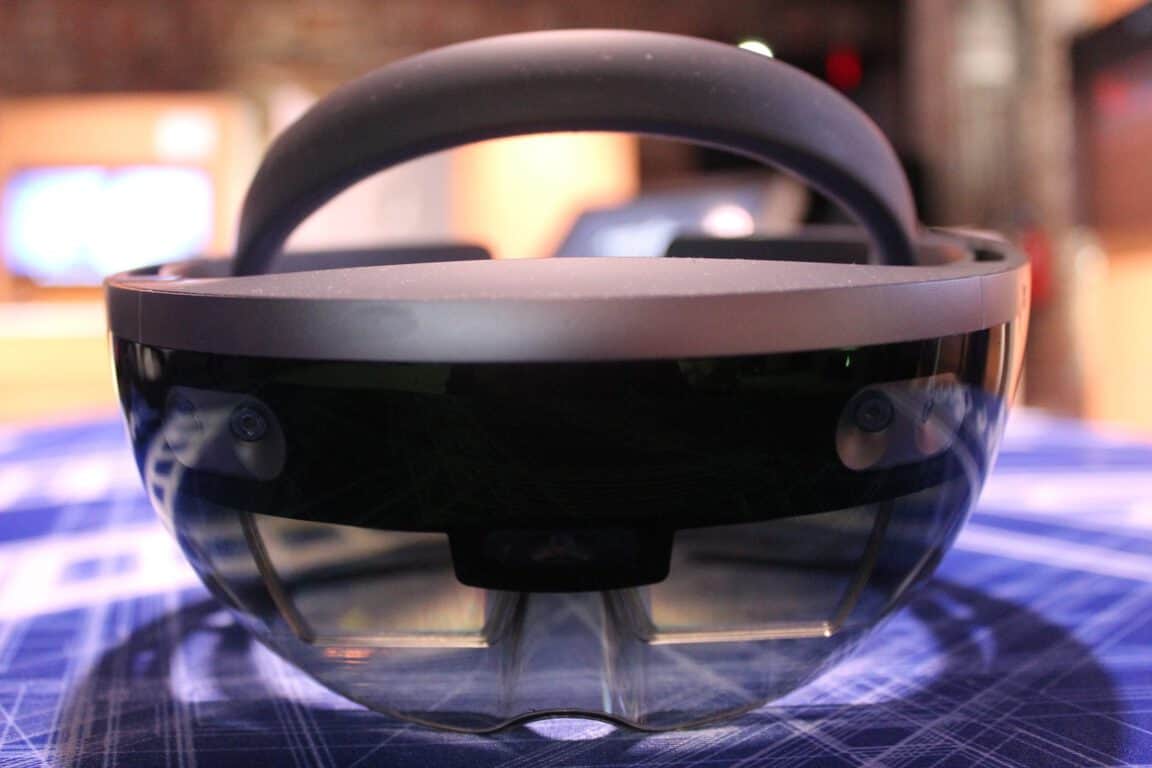
Microsoft finally releases a new build for HoloLens, RS4 build 17123

HoloLens last saw a Windows 10 featured update over two years ago with the Anniversary Update, but Microsoft just changed that. Noted on the Windows Mixed Reality Developer Forum (via Windows Central,) HoloLens owners can now install a preview build of the upcoming Windows 10 Redstone 4 update. The preview comes with many new features, including expanded voice command support, expanded audio immersion, the introduction of File Explorer, and more.

Unlike with Windows 10 PC where installing builds is easy as visiting Windows Update, installing preview builds to HoloLens is a bit more complicated. HoloLens owners will need to first opt into preview builds, download the Windows Device Recovery Tool, and then download and flash the Redstone 4 preview build to the headset via the tool. All content from HoloLens will be erased as part of the update, and Microsoft has some more detailed instructions on the update process here.

Anyway, have a look below to see what is generally new with this Redstone 4 build. The full changelog with changes for developers is also available here if you so happen to want to dive into the technical details.

  • Auto-placement of 2D and 3D content on launch
  • Move, resize, and rotate 2D and 3D content without having to enter “Adjust” mode
  • Make a 2D UWP app wider in aspect ratio to see more app content. For example, making the Mail app wide enough to show the Preview Pane
  • You can do more simply using your voice
  • Updated Holograms app with new holograms. Updated Photos app
  • Improved mixed reality capture
  • You can now hear HoloLens better in noisy environments, and experience more lifelike sound from applications as their sound will be obscured by real walls detected by the device
  • You can use the File Explorer app to move and delete files from within HoloLens
  • MTP (Media Transfer Protocol) support Enables your desktop PC to access your libraries (photos, videos, documents) on HoloLens for easy transfer
  • You can now set up your HoloLens on a guest network at hotels, conference centers, retail shops, or businesses that use captive portal

Interestingly, this build is numbered as 17123, which is older than the most recent Redstone 4 Windows 10 PC insider builds. That said, you can expect for Microsoft to work on Feedback from those who have installed this new HoloLens build, and release newer versions soon. Let us know if you’re lucky enough to have a HoloLens and try out this new build by dropping us a comment below.

Watch rapper Desiigner play Far Cry 5 during new Xbox Live Sessions today

Microsoft has announced the next Xbox Live Sessions for today, March 27th, with American rapper Desiigner scheduled to guest star in the interactive livestream show. He will be playing the newly released game, Far Cry 5, starting at 2 PM PT, and you’re invited to watch it on Mixer.

As always, those watching the show will have the chance to submit questions to Desiigner and also try their luck at winning special prizes. Today’s episode will be hosted by Microsoft Studios Community Manager, Rukari Austin, and you can also expect to see Desiigner check out all the new gameplay features in Far Cry 5.

This is the first Xbox Live Sessions in about a month, and the last episode featured Chandler Riggs and Brendan Greene playing PUBG on Xbox One. Previous guests included Patriots star Rob Gronkowski, Modern Family’s Nolan Gould, and Star Wars’ John Boyega. Do you normally watch these star-studded Xbox Live Sessions? Let us know your thoughts in the comments below.

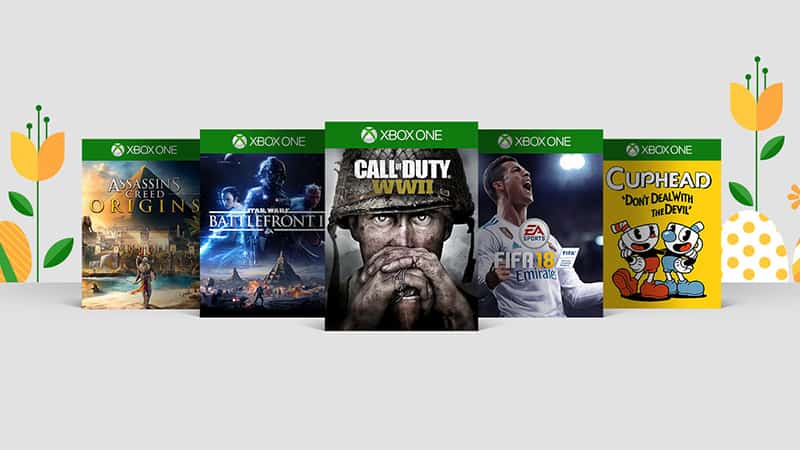
Save big on Assassin’s Creed Unity, Call of Duty: WW2 and more during Microsoft’s Xbox Spring Sale

Microsoft has just kicked off a massive Xbox Spring Sale today, which will end in two weeks on April 9. During that time, everyone can save up to 67% on digital games, while Xbox Live Gold members can save up to 85%. The list of games include many blockbuster games released last year including Assassin’s Creed Unity, Call of Duty:WW2, Star Wars Battlefront II, and more.

We invite you to check the full list of games on Major Nelson’s blog, but We’ve listed some of the most interesting deals below:

Microsoft also announced new Deals with Gold today, but there are only seven Xbox One games in the list including Lords of the Fallen, Hand of Fate and the Xbox Play Anywhere title A Walk in the Dark. All discounts can also be seen on Major Nelson’s blog.

How to Fix Frequent Sea of Thieves Bugs on PC and Xbox

Sea of Thieves is one of the hottest games of the year. This adventure video game is available on both Windows 10 and Xbox consoles and challenges you to become the world’s most feared pirate.

Unfortunately, the gaming experience hasn’t been that smooth for all players. Sea of Thieves is affected by a bevy of bugs, ranging from install issues to low FPS and crashes.

Sea of Thieves reported bugs and possible fixes

1. Players get kicked out of the game

Playing Sea of Thieves and remaining connected is a difficult task in itself. Many players complained about getting disconnected from the game servers and losing all their progress.

i just got like 7 chests and 3 skulls and then i got kicked out of the server and everything that i found is gone, it happens to me every time i play this game like every 30 minutes, can someone please help me i cant progress the game if it will keep on kicking me.. (playing on the pc)

There are several solutions that you can use to fix this problem:

  1. Disable Teredo – Many gamers confirmed that disabling Teredo fixed the problem. As a matter of fact, this is not the first time that users have run into issues with the Teredo Adapter.
  2. Deactivate the IPv6 connection and run on IPv4 only.
  3. Make sure your NAT Type is Open.

2. Game won’t launch/crashes

Many players still can’t play Sea of Thieves because the game crashes on launch.

The game crashed immediately upon launch. At first a grey screen would pop up for a fraction of a second than disappear. After trying all of the fixes (minus the local account fix), nothing worked. I’ve also re-installed the game a dozen times.

The following solutions may help you fix Sea of Thieves crashes:

  1. Install the latest Windows updates, and especially update KB4088776.
  2. Login with a local Microsoft account.
  3. Sign in to the Microsoft Store using the email account linked to the game’s purchase. Now, download any free app from the Store and install it. Launch Sea of Thieves from the Windows 10 Store Library page to see if it works.
  4. Run the following PowerShell command: Get-AppXPackage | Foreach {Add-AppxPackage -DisableDevelopmentMode -Register “$($_.InstallLocation)AppXManifest.xml”}

We hope something works.

3. Players can’t get a second weapon

Having strong weapons at your disposal is essential for staying alive. However, many gamers can only have a sword and they can’t get a second weapon.

Fortunately, you can quickly fix this bug by quitting the game and switching servers. You can also try switching weapons and then put the weapon you like in the first slot.

Another solution is to simply kill your character. But first, go into the armory, and make sure there is a weapon selected on both slots. Then, commit suicide while you still have only one weapon. When you revive, you should have access to both weapons.

Unfortunately, these solutions don’t always work, so the game needs a hotfix for this problem as soon as possible.

4. Game lags

Anyone else have drastic lag issues when boarding their ship? Im fine when on land but on the ship my game is completely unplayable.

If you’re also experiencing game lags, you’re not the only one. This is quite a common problem among gamers and fixing it is a time-consuming task.

To start with, you can try to direct your computer resources to the game by disabling background apps and Game DVR. If the issue persists, check your graphics settings and make sure they are adapted to the game you’re running.

Also, if you installed a VPN software, temporarily disable the tool. Sometimes, VPN tools slow down your Internet connection, so you may also want to try a new VPN and see if this changes anything.

5. Players can’t exit particular views

When I pick up items, raise the anchor, get behind a cannon,etc. I can’t exit the view/drop the items. I’m practically stuck. I’ve restarted my Xbox one x, and tried quitting and rejoining games.

Many SOT players often get stuck in particular game views and they can’t exit to resume playing. Unfortunately, although this is a widespread issue, there is no workaround available. So, the best approach is to simply contact SOT support and report this issue in order to convince the team to prioritize solving this problem.

These are the most common Sea of Thieves issues reported by players. Of course, the list of bugs doesn’t end here, we just listed the most frequent ones. Speaking of which, we recently covered the Alabasterbeard error in Sea of Thieves, so don’t miss our guide on it.

If you encountered other SOT issues, tell us more about your experience in the comments below and we’ll try to find a solution as soon as possible.

Posted in PC

KB4089848 triggers install loops, printing issues and freezes PCs

Judging by the recent update pattern, it seems that Microsoft started rolling out new patches every week, not just on Patch Tuesday. Windows 10 Fall Creators Update KB4089848 is the latest addition.

This update brings a series of bug fixes and improvements, including fixes for credential issues, file transfer errors, several bugs related to Group Policy processing, PDF rendering issues on the Edge browser, and more. You can check out the complete change log on Microsoft’s Support page.

Microsoft listed only one bug on the list of known issues, but user reports suggest otherwise. In this post, we’ll quickly list the most frequent KB4089848 bugs reported by users.

KB4089848 issues

1. Install fails

KB4089848 issues

Well, if you can’t install the latest Windows 10 v1709 patches on your computer, you’re not the only one. Many users are still struggling to install KB4089848 but the download and install process often fails.

On ~3/21/18 I attempted to install a later update: Windows 10 update 2018-3 KB4089848. I was able to download and it did install, but on restart the update still says it is awaiting a restart.

If you can’t install KB4089848, follow the instructions available in these troubleshooting guides to fix the problem:

2. Printing fails

Update KB4089848 also breaks printers. Judging by user reports, it seems that this problem is prevalent for HP printers.

I installed the latest Windows 10 update – KB4089848 […]. The update prevents my HP printer from printing. I deinstalled the update, and my printer started working again. If you are reading this, Microsoft, please correct this promptly.

If the printing issues persist after uninstalling the update, the following guides can help you fix them:

3. Computers suddenly freeze

The first two issues are not that severe, but when your computer regularly freezes after installing the latest updates, you really wish you hadn’t hit the update button.

After installing the update Windows almost freeze (network connections goes to zero, cpu load goes to zero) for 4-5 seconds really often. Everything worked fine before this update

4. KB4089848 clears the update history

Windows 10 v1709 users also complained that this update wipes the entire update history leaving them unable to restore it.

Update installed successfully (verified in Programs and Features); however, since it was installed, all information has been wiped from the installed update history from Windows Update.

5. Other issues

Unfortunately, the list of issues triggered by the latest Windows 10 Fall Creators Update patch doesn’t end here. Other bugs include:

  • The search function in Outlook is broken
  • The application icon in the taskbar is unresponsive
  • The update breaks the Homegroup and undoes all sharing choices for all folders.

As you can see, KB4089848 is pretty buggy. For this reason, many users decided to block the patch from installing hoping that Microsoft will have fixed all these issues by the next Patch Tuesday release.

Use the comment section below to tell us more about your KB4089848 update experience.

RELATED STORIES TO CHECK OUT:

Developers can now sideload custom Linux distributions to the Windows 10 Subsystem for Linux

Microsoft today announced developers can now sideload custom Linux distributions to the Windows 10 Subsystem for Linux (WSL.) The company has open sourced a WSL sample for Linux distribution partners, which now can be found on GitHub.

Microsoft is playing nice with Linux distributions, and says it would like to bring WSL closer to the OSS community. The company hopes that the open source project will help increase community engagement, and bring more Linux distributions to the store. It should be noted, however, that personally created custom packages cannot be distributed through the Microsoft Store unless submitted as a distribution maintainer and approved by Microsoft.

Many popular Linux distributions are already available on the Windows Store as part of the WSL. Just last month, Microsoft added both Kali Linux and Debian Linux to the Store. Developers can visit the Distro Launcher repo to start creating distro packages for WSL today and check here to learn more about the process.

Watch this lucky guy unbox his 24-karat gold-plated Xbox One X

Last month, Microsoft was running a Game Pass promotion where one lucky gamer could have the chance to win a 24-karat gold-plated Xbox One X. Well, the winner has finally come out on the internet, and you can now see him unbox his very special (and very expensive) gold-plated Xbox One X console (via Reddit.)

The winner, who is going by the name of Anthony Stewart, just uploaded the unboxing video to YouTube. He apparently just received the special gold-plated Xbox One X today, after getting an email from 3 weeks ago to inform him that he won. Oddly enough, the email went to his spam box, so he almost missed out on this incredible opportunity.

Microsoft did not publish photos or videos of the special console during the initial promotion, so this is the first time we’ve actually seen it in real life. The box is otherwise standard, but included is a special handwritten note from the Xbox team. You can also tell how shiny the console and controller actually are, and how heavy it appears to be.

This is a pretty cool unboxing video, if not one of the most golden videos on YouTube. It also isn’t the only golden news of the day since Microsoft just announced the French team “Herr Crew” won the Sea of Thieves golden bananas quest. We congratulate Anthony on winning this very special Xbox and invite you to let us know what you think of this console by dropping us a comment below.

Windows 10 now has more than 600 million monthly active users

The growth of Windows 10 seems to have slowed down quite a bit since last year. Last week, Microsoft announced without fanfare that there are now 600 million monthly active devices running Windows 10, which is a new milestone for the company. In case you forgot, Microsoft announced 500M devices almost a year ago during Build 2017, and 400M devices back in September 2016.

As usual, these numbers include PCs, tablets, phones, Xbox One consoles and now Windows Mixed Reality headsets. According to Microsoft’s own telemetry data, 48% of Windows 10 PCs were running Windows 10 in February (it’s 39% for Windows 7).

“With Windows 10 adoption growing and the introduction of S mode, there’s never been a better time to build for Windows and distribute via the Microsoft Store,” the company wrote on the Windows blog. The Redmond giant also shared the following trends about the Microsoft Store:

  • For apps, the “Entertainment” category is the leader in overall percentage of downloads and revenue worldwide.
  • For games, the “Action and adventure” category is the front-runner for overall percentage of revenue and downloads worldwide.
  • For apps, nearly 2/3 of the overall revenue mix on Microsoft Store comes from download-to-own (DTO) products.
  • For games, nearly 2/3 of the overall revenue mix on Microsoft Store comes from add-ons or in-app purchases (IAP).

If you’re interested, you can get official data about Windows usage and Microsoft Store trends on this page. If you regularly look at Steam’s monthly hardware survey, there is a lot of similar data about the most popular screen resolutions, processor CPU cores, VRAM and more, and you can even filter the data by region.

How to Fix Font Bugs in Windows 10/11

Windows 10 is a great operating system, yet from time to time there will be bugs here and there. Some of these bugs are just annoying, while others are more severe. Today, we’re going to explain to you how to fix font bugs in Windows 10.

What kind of Windows 10 font bug issues can I encounter?

Font bugs can be rather annoying, and speaking of font bugs and Windows 10, many users reported the following problems:

  • Windows 10 Arial font corrupted – This is one of the most common font problems that can happen on Windows 10. However, this issue can be easily resolved by using one of our solutions.
  • Reinstall Arial font (Windows 10) – If the Arial font is corrupted, you can quickly fix the problem by reinstalling it. Simply open the font and click the Install button.
  • Fonts missing after Windows update – This is another problem that can occur with Windows 10. To fix this problem, you need to find and remove the problematic update from your PC.
  • Windows 10 fonts are missing/corrupted – This is another relatively common issue with Windows 10 and fonts. If your fonts are corrupted or missing, you need to reinstall them in order to fix this problem.
  • Font is blurry in Windows 10 – Sometimes, your fonts can become blurry. This is an annoying problem, and we already covered how to fix blurry fonts in Windows in one of our older articles, so be sure to check it out for more instructions.

How can I fix font bugs in Windows 10?

1. Check your language settings

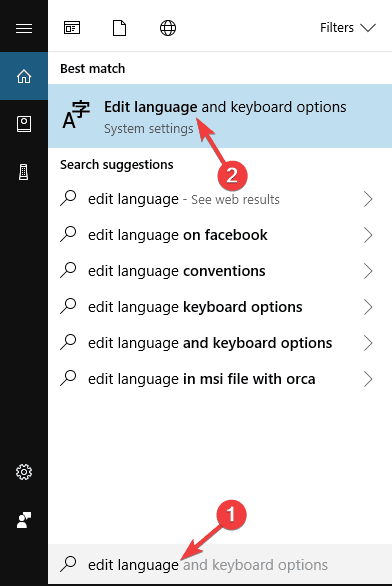
  1. Type edit language in Cortana. Then click on option Edit language and keyboard options.
    Reinstall Arial font Windows 10
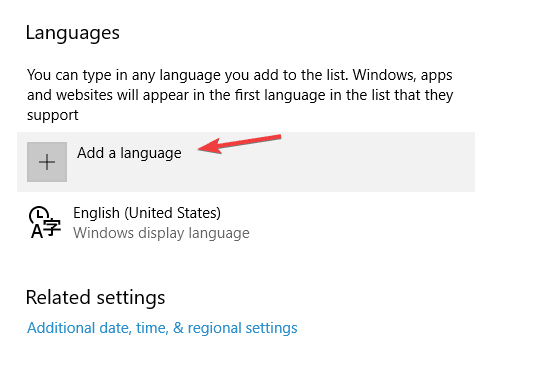
  2. Find Language option and check what language is set as default.
  3. If you want to set a different language, you can change it by clicking Add a language option.
    Fonts missing after Windows update
  4. Choose your preferred language and click Set as default.

This isn’t the best solution, but it might help if English is not set as your predefined language, so it’s worth checking out.

2. Reinstall the font

If you have upgraded to Windows 10 from Windows 7, it might happen that your font wasn’t installed properly so you need to reinstall it manually.

If this sounds complicated, don’t worry, it’s simpler than it sounds. To do this:

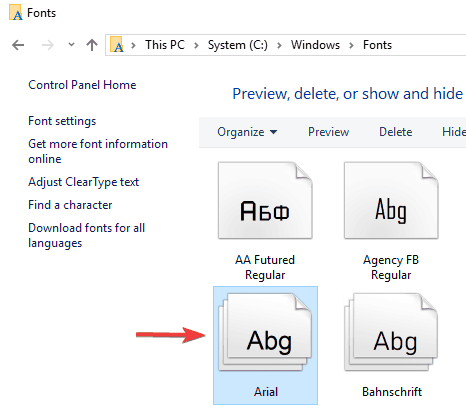
  1. Go to C:WindowsFonts if you did a clean install of Windows 10. If you have upgraded from Windows 7 or Windows 8 you need to go to C:Windows.oldWindowsFonts.
  2. Now you need to find the font that is giving you trouble. In most cases, it’s Arial or Mingliu. Find the font file and open it to preview the font.
    Font Windows 10 blurry
  3. In the preview window click Install on the top right corner and you’ll reinstall the font manually.
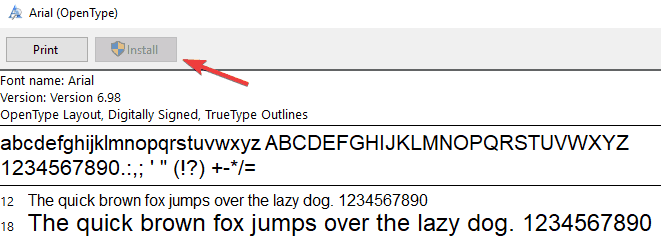
    Windows 10 Arial font corrupted
  4. If for some reason these fonts are missing you can always download or copy them from another PC.

You can also install the missing font using the Command Prompt. This method is intended for advanced users, but it’s also faster than the previous method. To install the missing font, just do the following:

  1. Press Windows Key + X to open Win + X menu. Now select Command Prompt (Admin) from the list. If the Command Prompt isn’t available, you can also use PowerShell (Admin).
  2. When Command Prompt opens, enter C:WindowsFontsArial.ttf and press Enter.

    Windows 10 fonts corrupted
  3. The font preview window will now appear. Click on the Install button to install the font.

Keep in mind that you need to repeat these methods for all missing fonts.

As you can see, this method is useful if you’re missing just one or two fonts, but if you’re missing more fonts, you might want to try a different method.

3. Disable scaling on high DPI settings

Sometimes, font bugs are caused by high DPI displays, so the solution is to disable high DPI settings. Do the following:

  1. Right-click the executable file that has font bugs. Select Properties from the context menu.
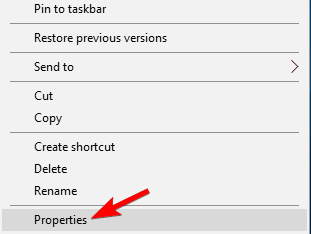
    Font Windows 10 blurry
  2. Then go to the Compatibility tab. Disable Display scaling on high DPI settings and click Apply and OK to save changes.
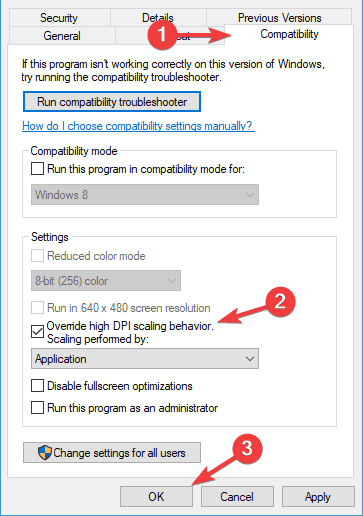
    Windows 10 Arial font corrupted

Save the changes and restart your application to see if the problems were fixed.

We have to warn you that this solution might cause your fonts in the application to be smaller, so you might have to adjust their size manually.

Also, if several applications are giving you problems, you need to repeat this step for each one of them.

4. Modify your registry

If you’re having font bugs on Windows 10, the issue might be caused by your registry. Sometimes certain problems can appear if your registry values aren’t correct, and in order to fix that, you need to change them manually.

To do that, follow these steps:

  1. Press Windows Key + R and enter regedit. Press Enter or click OK.
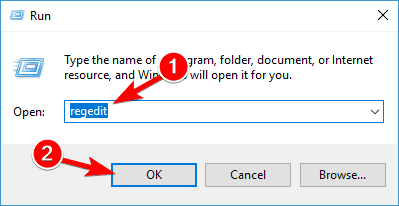
    Reinstall Arial font Windows 10
  2. Optional: Modifying the registry is potentially dangerous, so in order to avoid any future problems, it’s advised to export your registry and create a backup. To do that, just click on File > Export.
    Fonts missing after Windows updateSet Export range as All and enter the desired file name. Choose a save location and click on Save.
    Windows 10 Arial font corruptedAfter doing that, you’ll have a backup of your registry. If anything goes wrong after making the changes, simply run the exported file to restore your registry to the original state.
  3. In the left pane, navigate to HKEY_LOCAL_MACHINESOFTWAREMicrosoftWindows NTCurrentVersionGRE_Initialize and double click DisableFontBootCache in the left pane.
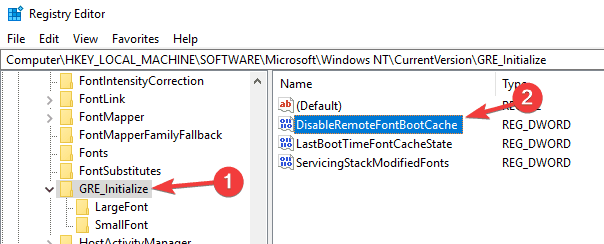
    Font Windows 10 blurry
  4. Set Value data to 1 and click on OK to save changes.
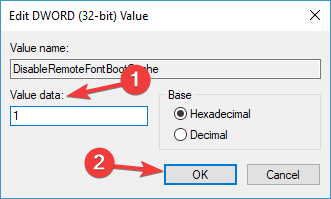
    Windows 10 Arial font corrupted
  5. Close Registry Editor and restart your PC.

After doing that, the problem with fonts should be completely resolved. It’s worth mentioning that using this method might cause a slower boot, so don’t be surprised if your PC is booting slower than usual.

In case you need an easier method that doesn’t require technical knowledge, there is all-in-one repair software with Registry technology to help you fix the issue with Windows 10 font bugs.

5. Remove the problematic update

If you’re having font bugs on your PC, the problem might be related to a specific update. Sometimes an update can cause this problem to appear, and the only way to fix it is to find and remove the problematic update.

This is relatively simple, and you can do it by following these steps:

  1. Open the Settings app and navigate to Update & Security.
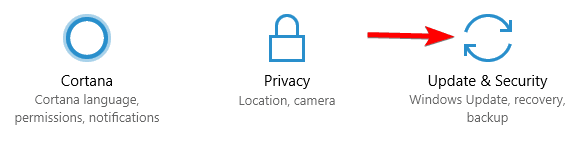
    Fonts missing after Windows update
  2. Now choose View installed update history from the menu on the right.
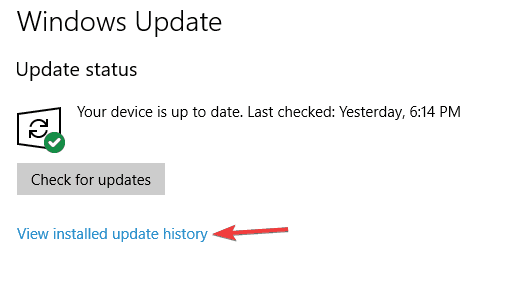
    Windows 10 Arial font corrupted
  3. Select Uninstall updates.
    Reinstall Arial font Windows 10
  4. A list of recent updates will now appear. Double click update to remove it.
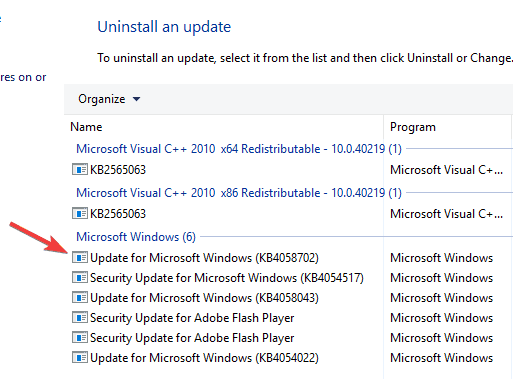
    Fonts missing after Windows update

Once you remove the update, check whether the issue is still there. It’s worth mentioning that Windows 10 will automatically install the missing updates causing the problem to reoccur.

To prevent this update from installing, be sure to check our guide on how to block automatic Windows updates for detailed instructions.

6. Use the FontReg tool to register your fonts

Several users reported that they fixed font bugs on Windows 10 by using the FontReg tool.

This is a freeware application that allows you to install missing fonts on your PC. The application is simple to use, and after using it, the font problems should be completely resolved.

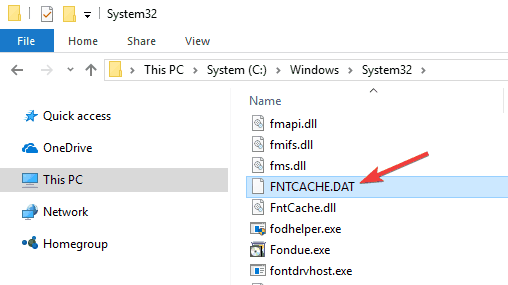
7. Delete FNTCACHE.DAT file

Font bugs can be rather annoying, but users found a useful workaround that you might want to try. According to them, you can fix this problem simply by deleting the FNTCACHE.DAT file.

Windows 10 fonts missing

To do that, just go to C:WindowsSystem32 directory and locate FNTCACHE.DAT. Delete that file, and restart your PC and the problem should be resolved.

Keep in mind that this is just a workaround, so you’ll need to repeat it every time before you turn off or restart your PC.

8. Rebuild the font cache

Sometimes, font bugs can appear due to font cache corruption. To fix that, you need to delete temporary files in order to rebuild your cache. This is rather simple and you can do it by following these steps:

  1. Press Windows Key + R and enter services.msc. Now press Enter or click OK.
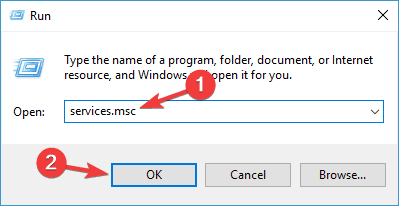
    Windows 10 fonts missing
  2. When the Services window opens, locate Windows Presentation Foundation Font Cache 3.0.0.0 service and stop it. To do that quickly, just right-click the service and choose Stop from the menu. If the service is already stopped, move to the next step.
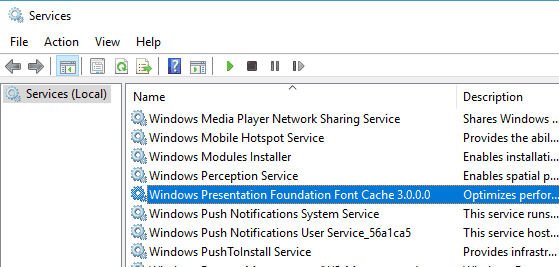
    Font Windows 10 blurry
  3. Press Windows Key + R and enter %windir%ServiceProfilesLocalServiceAppData. Press Enter or click OK. If you get a warning dialog, just click on Continue.
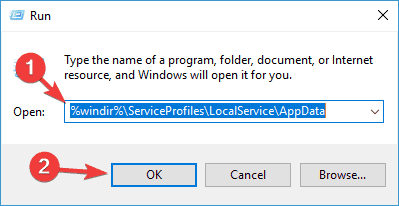
    Windows 10 Arial font corrupted
  4. Navigate to the Local directory. Now locate any files that have ~FontCache- prefix and delete them. If you can find any of these files in the Local directory, go to the FontCache directory. Now delete all files with ~FontCache- prefix.
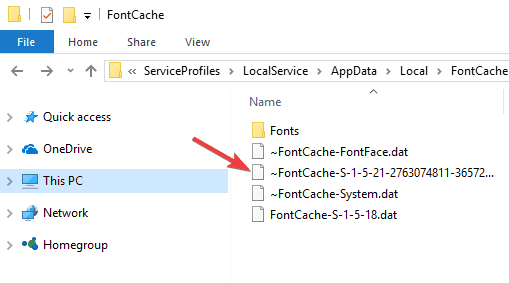
    Reinstall Arial font Windows 10

After deleting these files, the issue should be resolved, and your fonts should start working again. Font bugs can be rather annoying, but you should be able to fix them using one of our solutions.

If you have any other Windows 10-related issues, you can check for the solution in our Windows 10 Fix section.

Sets on Windows 10 could become an excellent time saving multi-tasking feature

With Microsoft recently adding in the Sets feature for all Windows Insiders running Redstone 5 (Skip Ahead) builds, I figured I’d opt my Insider PC into Skip Ahead and try it out for myself. Though obviously still in the development phase, I’ve found that the Sets feature comes with plenty of promise for improving Windows 10 multi-tasking. Have a read below for more on my thoughts on the Sets experience.

Combine your web browsing with your UWPs or PWAs

Some people might see Sets as another way of Microsoft forcing you into using Edge, but for me, it has become the most convenient part of Windows 10. On any given workday, I’m usually working with both Edge and with several UWP apps, with a lot of back and forth to do between the two. Sets changed that workflow.

The Sets feature in Redstone 5 allows me to combine my UWP apps and my web browsing into one single experience. I no longer have to keep pressing ALT+Tab or click on the taskbar to switch between open UWP apps and Edge. I now can enjoy everything I want from a single window, with the following keyboard shortcuts to switch between open tabs.

  • Ctrl + Win + Tab – switch to next tab.
  • Ctrl + Win + Shift + Tab – switch to previous tab.
  • Ctrl + Win + T – open a new tab.
  • Ctrl + Win + W – close current tab.

Though not directly a restore feature, I also can enjoy Sets across devices, since Windows Timeline allows me to restore compatible UWPs when a project has multiple activities associated with it. It is all a bit of a small feature, yes, but it eventually adds up and saves me time in my long work day.

For instance, I usually start my workday by opening the UWP NextGen reader app, then opening Twitter separately in Edge to check on my feeds. Now with Sets, I can open NextGen reader, Twitter, and then the OnMSFT backend right from one window, without having to go back to the Start Menu. It puts all my content front and center, helping me switch between everything and keep an eye on everything I want.

A typical instance of me using Sets

For some, it is hard to (get) Sets

Sets may be great for the Windows pro (like me) but using it currently takes a bit of thinking for those who are not exactly familiar with Windows 10. For instance, one of my colleagues (who happens to be a MacOS user) first tried out the experience, not knowing he could open UWP apps from the new tab page in Sets.

The current problem with Sets is “Search the web and Windows” on the new tab page does not at all suggest that you can open up UWP apps within Sets. And, since it might not always open a new instance of what the app you’re already working on, some might be frustrated with the experience. In fact, some may even argue the tabs feature in MacOS the experience is cleaner, just allowing you to open an instance only of the same app (or an instance of Finder) with no intrusions from Safari. But bear in mind Sets is fueled by Edge, which already powers UWP apps.

Tabs on my MacBook

At the end of the day, Microsoft should update the Sets experience to make it more clear that you CAN open UWP apps from the new tab menu in Sets. A person who has long used Windows 10 (and maybe even Cortana) might know that “search Windows” refers to apps, but the newbie might not. The company could also consider integrating the new tab search bar with the address bar (since having two search bars is a bit messy of a UI.)

A voice search feature and an icon to show you when sound is playing in a tab would also be nice, especially since Cortana and the sound playing icon in Edge are already so integrated with Windows 10. Finally, I also would like to see a more direct restore feature not linked to Windows Timeline, just for those moments when I accidentally close a Set. (Yes, I know the button for this feature is currently present, but I could not get it to work.)

Search the web and Windows is not exactly clear

It is a long way from done

Sets presently is in beta, and it is a far way from being done. It is very limited in this first release, and you can’t do some necessary things like dragging or re-ordering tabs. Switching between tabs is also laggy, and there are flashes when switching between content within a set. Lastly, display scaling creates problems with Sets, and when it is set higher than 100% touch interactions won’t work.

As usual, you can expect for Microsoft to improve the Sets feature over time. Development of Redstone 5 just started, and the function has a long way to go. So if you’re in the Skip Ahead ring, it is best to try out Sets now and let Microsoft know your thoughts by submitting feedback via the Windows 10 Feedback hub.

Cities: Skyline, Robocraft Infinity and six more games come to Xbox Games Pass in April

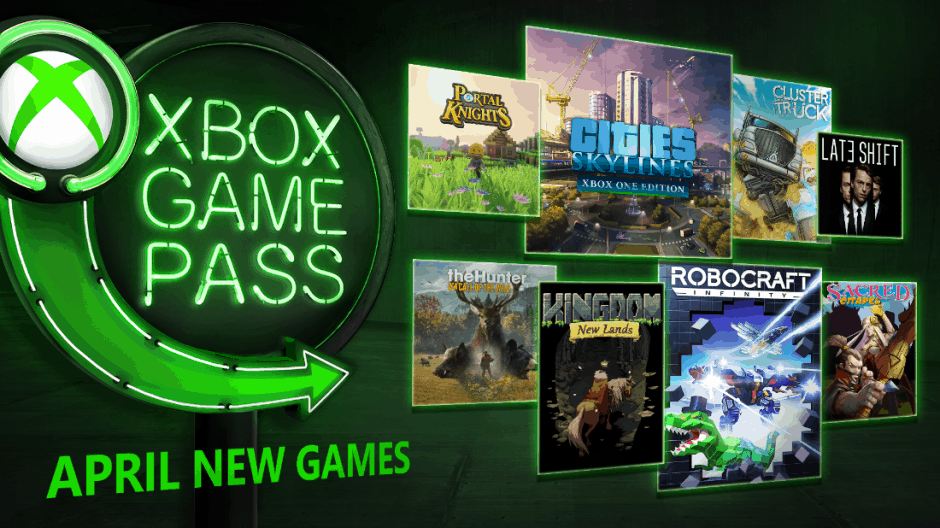
Microsoft has just announced that eight new games will join Xbox Games Pass in April, including an upcoming ID@Xbox title that will be available in the catalog on the same day its debuts on Xbox One. This one is Robocraft Infinity, an online third-person robot combat game that will officially launch on April 11.

For those unfamiliar, Robocraft Inifinity is a port of the PC game Robocraft, which originally launched back in 2013 on Windows. Developer Freejam Games held an open beta for Xbox insiders a couple of weeks ago, and the robot fighting game will be Xbox One X Enhanced with support for 4K graphics at 60FPS.

The other big game coming to Xbox Games Pass next month is Cities: Skylines, a city-building game which was also released first on Windows. The Xbox One version has been optimized for the Xbox controller it and received positive reviews when it launched last year.

Six other games will join the catalog next month, and these are theHunter: Call of the Wild, Kingdom: New Lands, Portal Knights, ClusterTruck, Sacred Citadel and the live-action crime thriller Late Shift. Xbox Games Pass lets you play more than 100 Xbox One and Xbox 360 games for just $9.99 month, and the inclusion of fresh new releases such as Robocraft Infinity or Sea of Thieves makes the subscription service increasingly interesting. However, games cycle in and out of Game Pass every month, and nine games will leave the catalog at the end of March.

Microsoft inaugurates The Garage in India, the newest location in its global expansion

Microsoft today formally inaugurated The Garage in India at its Microsoft India Development Center campus in Hyderabad. The Garage serves as a hub for Microsoft to engage its workforce, with facilities and programs optimized for hacking, ideation, and collaboration accelerating experimentation and innovation in the local context.

In India, The Garage is led by Reena Dayal Yadav who dons the title of Director for The Garage – India. Some of the projects that got their start in The Garage in India and have now progressed into products have been SMS Organizer and Kaizala.

In Hyderabad, The Garage is equipped with state of the art and modern facilities in a 8000 sq ft space and has three dedicated lab sections – a hub for hackathons and workshops, a Makerspace and an Advanced Makerspace with a Reality Room dedicated to working in the space of virtual reality, augmented reality, and mixed reality applications, and a dedicated space and equipment for doing work on Deep Learning.

MIcrosoft Garage - India

make action GIFs like this at MakeaGif

The Garage enables employees to bring to life innovative ideas and solutions. The Garage program in India will be a connector to bring together people across roles, skills, and experience to lend their passion to create solutions unique to this market.

– Anil Bhansali, Corporate Vice President, Cloud & Enterprise & Managing Director, Microsoft India (R&D) Private Limited

First started in 2009 at the Redmond headquarters, Hyderabad is now the seventh Garage location across the world. The other spaces are in Silicon Valley, New England, Vancouver, Israel, and Beijing. On the sidelines of the launch, Microsoft also shared that another Garage will be coming to Bangalore within this calendar year.

Cortana Show Me app helps you navigate Windows 10 Settings

For users who are not quite sure about some of Windows 10’s features and settings, thankfully the web is filled with lots of helpful guides.

Despite this, Microsoft decided that it’s time to launch a new app that the company has been working on that’s called Cortana Show Me and it’s created for the very same purpose – helping users and guiding them through Windows 10 settings.

Microsoft rolled out Cortana Show Me in the latest Redstone 4 build (17128)

The company just rolled out a new Redstone 4 build (17128) to Fast Ring Insiders, and the Windows Insider team took advantage of this opportunity to reveal a brand new Cortana-powered app that helps you navigate Windows 10 Settings. The application is only available in English (both US and UK) and German for the moment, but Microsoft will probably broaden the language options palette. According to the Windows Insider team, in the preview app, Cortana is set to show you the exact steps pf changing settings.

The first version of the app includes 15 guides

The first version of Cortana Show Me comes with 15 guides that allow users to change various types of settings or to check basics such as your current version of the operating system. More than likely, Microsoft will include even more guides shortly, but until then, here are the ones that are already included in this app:

  • Update Windows
  • Check if an app is installed
  • Uninstall an app
  • Change your desktop background
  • Use Airplane Mode
  • Change your display brightness
  • Add nearby printers or scanners
  • Change your default programs
  • Change your screen resolution
  • Turn off Windows Defender Security Center
  • Run a security scan
  • Change Wi-Fi settings
  • Change your power settings
  • Discover Bluetooth devices
  • Check your version of Windows

The Windows Insider team also stated that the company knows very well that this is not precisely insider material, and the experience is not specifically designed for them, but all friends and families that they have and need a pointer will definitely enjoy the app. The app will respond to voice commands, and you can also launch the guides from the homepage. Cortana Show Me is currently rolling out all over the world, so don’t worry if you can’t download it yet because it will surely be available at a later time.

You can download Cortana Show Me app and give it a try.

RELATED STORIES TO CHECK OUT:

Windows 10 news recap: classic Skype returns, Microsoft Store adds “Devices” tab, and more

Welcome back to our Windows 10 news recap, where we go over the top stories of the past week in the world of Microsoft’s flagship operating system.

Microsoft Store on Windows 10 gains new “Devices” tab dedicated to Windows PCs and hardware

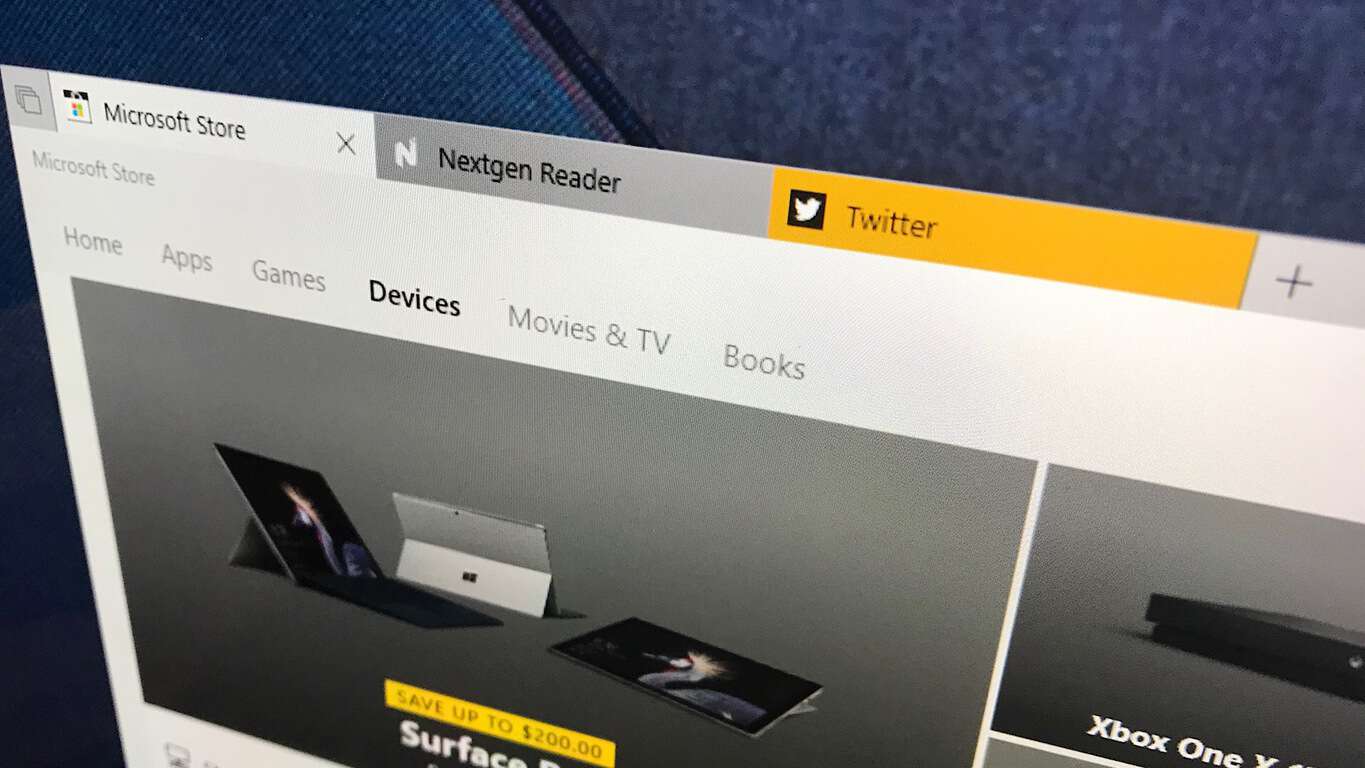
To help users on Windows 10 discover new Windows PCs and hardware, as well as make it easier to purchase and pre-order, Microsoft has added a new “Devices” tab to the Microsoft Store app on Windows 10.

Microsoft Store - Devices - Windows 10

Twitter app for Windows 10 is back from the dead, and is now a PWA

While many have seen how Twitter’s official app on Windows 10 had become abandoned, it seems that Twitter has come back with a vengeance. It has released a whole new version of the app that is a Progressive Web App (PWA). The only downside is that it has no dark mode, something that many relished when Twitter first released it to the web edition of the social network.

Skype “classic” for Windows desktop is once again available to download

After removing the classic version of Skype last month due to a security issue, Microsoft has now brought it back again and it is now available to download, coming in at version 7.41.

Microsoft reduces “offline time” for Windows 10 featured updates to an average of 30 minutes

To reduce downtime during Windows 10 updates, Microsoft has made a number of improvements which has seen the average time that a user cannot use their Windows 10 machine during updates down to 30 minutes.

Windows 10 Logo Generic Featured Image Hero

That’s it for this week. We’ll be back next week with more Windows 10 news!

Xbox Insider update: New build in the Alpha ring, focused on bug fixes

The Xbox team have released a new build to those on the Xbox Preview Program in the Alpha ring. Coming in with build 1804.180321-1920, the latest build brings a number of bug fixes and known issues, but no new features this time around.

Delivering a smoother experience all-round, here are the bug fixes:

Home

  • We have resolved the issue in which some users encountered a Black screen on boot and were unable to recover the console.

My Games and Apps

  1. We resolved an issue in which some games and apps are missing from your collection.  You will no longer see the tabs in your My Games and Apps show  a spinning circle/no titles/and or some titles missing in your (1) Game Pass collection and (2) EA Access collection.
  2. Users will no longer see install progress reports over 100% when installing game titles.
  3. Resolved an issue in which some users when launching various games and apps would result in the app or game not successfully starting.

System

  • Resolved an issue in which some users had been experiencing the console shutdown after you turn it on or an experience of taking a long time to shut down the console.

Mixer – Games UWP Games

  • We have resolved the issue with broadcasting UWP Games.

Cortana

  • Fixed an issue in which users had trouble launching games with Cortana and then Cortana showing up as a game.

4K Game Crashes

  • We resolved an issue when resuming a 4K HDR game after watching captured 4K screenshots and gamedvr clips would result in the game never starting again or result in crashes.

Microsoft Edge

  • Resolved an issue with videos playing no audio in Microsoft Edge.

Audio

  1. Resolved an issue in which some Audio receivers would lose spatial sound.
  2. Users of Spatial Audio will no longer experience loss of center channel audio / voices.  This fix also addresses the lower Amazon audio relative to other apps.
  3. Resolved an issue in which some games would fail to play audio or loss of audio would crash the game.

Family Timer

  • Resolved issues in which some families with multiple Xboxes or multiple shared Windows PC’s, who use Microsoft Accounts with their family.  This fix resolves time limits across devices to behave in an consistent way.

Settings

  • We have released a new version of Upload studio to resolve issues in which some users had been unable to navigate to “Allow game captures” in settings.

Virtual Keyboard

  1. Resolved the issue to enable the Chinese virtual keyboard.
  2. The virtual keyboard will no longer disappear randomly when inputting text.

Miscellaneous

  • Miscellaneous fixes and improvements.

In addition to the bug fixes, a handful of known issues remain, so keep an eye out for any of these:

Pi-hole

  • Pi-hole users may encounter issues signing in, creating, or recovering accounts upon downloading the 1804 update. This is due to a new configuration file which is downloaded from a URL Pi-hole blocks by default.
  • Workaround: Add clientconfig.passport.net to the Pi-hole allowed IP address list.

Netflix

  • Netflix on Monitor only works at 1080p and does not support 1440p – Netflix is aware of the issue.  Workaround : If watching Netflix on a Monitor/LCD please set the display output to 1080p.

HDR Issues

  • Some users are discovering that some games are not showing in HDR – Please file feedback when you encounter this to help in the investigation.

Spotify Search

  • Some users are discovering that the search function in Spotify is not working. Please file feedback when you encounter this to help in the investigation. Workaround – Type in a search hit enter and nothing happens. Click the left stick twice and it searches properly.

Controller sharing/ Co-pilot vibration issues

  • Some users may experience a problem with a controller vibrating non-stop when using the share controller or the co-pilot feature.

Those in the Alpha ring will receive this update automatically and be prompted to update before connecting to Xbox Live.

CD Games won’t Play on Windows 10/11: How to Fix it

Many game developers are using all sorts of copy-protection methods in order to protect their products. Although such protection is necessary, it seems that Windows 10 users are having some problems with it.

SafeDisc and SecuROM are copy protection programs used by game developers in order to prevent any unauthorized copying of their games. These tools were used heavily in the past decade, and now only older games tend to use SafeDisc and SecuROM.

According to Microsoft, SafeDisc and SecuROM aren’t supported by Windows 10. Therefore, many users won’t be able to run their favorite older games, including CD games. Fortunately, there are ways to circumvent this to play your CD games on Windows 10.

What can I do if CD games won’t play on Windows 10?

1. Check the developer’s website for the latest patches

Many developers updated their games so they don’t require SafeDisc or SecuROM in order to work, and if you can’t run a specific game on Windows 10, make sure to visit the developer’s website and download the latest update.

Bear in mind that not all older games have been patched, and a certain number of games still require SecuROM or SafeDisc in order to run properly.

2. Use dual-boot

If you want to play older games on your PC, perhaps you should install an older version of Windows alongside Windows 10. In order to do that, you’ll need to create a new partition using Disk Manager and install the previous version of Windows on it.

After installing the older version of Windows, you can use that version to run any older games without problems. This might be the best solution if you have enough hard drive space for two versions of Windows.

3 Use a virtual machine

If you don’t want to use dual-boot on your computer, you can run an older version of Windows from a virtual machine. Just download tools such as VirtualBox and follow the instructions to create a virtual machine.

We have to point out that virtual machines will run from Windows 10, thus requiring a lot of hardware power to work properly. If you’re planning to run a virtual machine on Windows 10, make sure you have enough hard drive space and RAM.

4. Buy a digital version of the game

If you want to run a specific older game on Windows 10 but don’t want to use a dual-boot or virtual machine, you might have to buy the digital version of that game. Many old games are available on Steam or GOG, so make sure to check them out.

It has been confirmed that older games from GOG will work with Windows 10, so you might want to head over to GOG and download a digital version of the games that won’t run on Windows 10.

5. Add SafeDisc driver manually

  1. Download the Driver Signature Enforcement Overrider tool from here.
    overrider
  2. Download SECDRV.SYS file or copy it from any older version of Windows. In older versions of Windows, this file can be located in the folder below: C:\windows\system32\drivers
  3. Move SECDRV.SYS file to the folder below on your Windows 10 computer: C:\windows\system32\drivers
  4. Right-click Driver Signature Enforcement Overrider and choose Run as administrator.
  5. Choose Enable Test Mode and click Next.
  6. Select Sign a System File, navigate to the path below: C:\windows\system32\drivers
  7. Choose the SECDRV.SYS file.
  8. Click OK and restart your computer.
  9. When your computer restarts, start Driver Signature Enforcement Overrider again and turn on Test Mode. After you’ve done that, you should be able to run old games once again on Windows 10.

We have to mention this solution can cause system instability and potential security issues, so use it at your own risk.

Problems with CD games that won’t play on Windows 10 are caused by the lack of support for SecuROM and SafeDisc, but you can easily fix these problems by using some of our solutions.

We also did a guide on how to play old games on Windows 10, so feel free to check it out if you need more information.

FIX: Windows 10/11 update error 0x800ffff

Windows 10 updates are mandatorily distributed, which implies that you can pause them but not avoid them permanently. Along with that, they’re prone to various malfunctions which comes in large array of errors.

One of the common update errors goes by the code 0x800ffff.

When this error occurs, users are unable to download and install latest updates, starting with cumulative minor patches and reaching to major updates.

In case you’re experiencing this error in Windows 10, make sure to check the steps we provided below and address it properly.


Solving these Windows update issues is too complicated? Choose an easier way with these tools!


How to fix Windows Update error 0x800ffff in Windows 10

Table of contents:

  1. Run Update troubleshooter
  2. Temporarily disable antivirus
  3. Run SFC scan
  4. Use DISM
  5. Reset Update services
  6. Install update manually

Solution 1 – Run Update troubleshooter

First things first. When something like this occurs, the initial step should be running the dedicated Update Troubleshooter. And the simplest one, for that matter.

Only once you concur that the update issue isn’t resolved this way, you can turn to additional steps.

The aforementioned troubleshooter should reset the update halt by resetting some of the update-related processes. Here’s how to run it in a few simple steps:

  1. Go to the Settings app.
  2. Head over to Updates & Security > Troubleshooting.
  3. Find Windows Update and click it.
  4. Now, go to Run the troubleshooter.
  5. Follow further on-screen instructions and let the wizard find any issues.
  6. Restart your computer.

Looking for the best troubleshooting tool? Here are our top picks.


Solution 2 – Temporarily disable antivirus

In the modern state of the internet, an antivirus is a must. However, there are a lot of reports about an antivirus solution blocking the Windows Update feature for certain users.

The main suspects are McAfee and Norton, but that tends to change since most of the other antimalware solutions can inflict the same issues.

We wouldn’t advise removing the antivirus completely, but rather disabling it for the time being until the updates are successfully distributed and installed.


Why you should disable McAfee before updating Windows 10? Find out from our handy guide!


Solution 3 – Run SFC scan

Due to the corruption of the essential system files, the updates (which are an inclusive part of the latest Windows iteration) will get blocked.

In order to address this and fix possible faults in the system integrity, you should run SFC. System File Checker is the right tool for the job and here’s how to run it:

    1. In the Windows Search bar, type CMD.
    2. Right-click on Command Prompt and run it as an administrator.
    3. In the command box, type the following command and press Enter:
      • sfc/scannow
    4. Wait for the scanning procedure to end and retry updating.

Solution 4 – Use DISM

When SFC falls short, the DISM should take its place. The ”Deployment Image Servicing and Management” tool is, just like SFC, run through the elevated command console.

Once you run it, it’ll check for the corruption of the system files and restore them to their default values. By doing so, it’ll fix your update error.

Here’s how to run DISM in the Command Prompt:

  1. Type cmd in Search, right-click on the Command Prompt and run it as an administrator.
  2. In the command line, copy-paste these lines one by one and press Enter after each:
    • DISM /online /Cleanup-Image / ScanHealth
    • DISM /Online /Cleanup-Image /RestoreHealth
  3. Wait until the procedure ends (it might take up to 10 minutes).
  4. Restart your PC.

Epic guide alert! Everything you need to know about working with DISM.


Solution 5 – Reset Update services

Resetting update services can be done in various ways but we reckon that the one which includes batch script is the most rewarding. It’s simple to run and it’ll save you a lot of time, additionally.

If you want to get accustomed to creating this batch script on your own, make sure to check the steps provided in this article.

Solution 6 – Install update manually

Finally, if none of the previous steps fixed the ”0x800ffff” error, there’s still an alternative.

Namely, if you’re certain which exact update is causing the issue, you can acquire it manually and avoid the error at hand.

Follow these instructions to download and install the troublesome update and fix the issue:

  1. Copy the name of the troubled update file.
  2. Go to Microsoft Catalogue here.
  3. Paste the name in the dedicated search box.
  4. Download the file. Make sure that it responds to your system architecture (x86 or x64).
  5. Install the update file.
  6. Restart your PC.

What to do if Windows update won’t install? Check out our handy guide!


That’s it. Don’t forget to share alternative solutions or questions regarding the ones presented in the comments section below. We look forward to hearing from you.

RELATED STORIES YOU SHOULD CHECK OUT:

Google’s upcoming Chrome 66 brings automatic autoplay muting

Google will shortly release Chrome 66 that will come with a much-awaited feature, automatic autoplay muting. This means that the future version of Chrome will not play audio from a website if some conditions are not checked. This will stop the frustrating noise made but random tabs when you least expect it.

There also another change included in the new version of the browser and it refers to the fact that Chrome will expose more data about the media decoding capabilities of the host PC, but this features did not attract too much interest from users.

Chrome’s target is improved user experience

Google has been improving Chrome’s way of handling user interruptions. For instance, Chrome 64 offered users the ability to permanently mute particular websites, and this handy features also persisted across multiple browser sessions. Back in February, Google also launched a new built-in ad blocker that turned out to be extremely useful. It’s true that previous versions of Chrome were able to mute entire tabs, but this new autoplay block feature is more complex, attempting to understand whether the user wants autoplay to function or not.

How automatic autoplay muting features works

Here’s how the new feature will work. Autoplay will only be allowed under the following conditions:

  • If the video has no sound
  • If the user clicked or tapped on the website in order to interact with it
  • If the user added the website to the Home Screen
  • If the user showed previous interest in the media included in that particular website

Users’ interest in media is measured by Media Engagement Index

The MEI explanatory document presents relevant autoplay criteria more in-depth. First of all, media must be significant, with a minimum frame-size, playback time and audio track.

Videos that don’t meet all these criteria are not counted for the purpose of determining whether users are interested in autoplay video. If the video meets all the requirements, the user must choose to interact with it and must have visited the website for at least five times before the autoplay function will be enabled. The final MEI score is reached by dividing the number of video playbacks by the total number of visits. If the score is higher than 0.7, the website will be allowed to autoplay video.

According to Google, the MEI score will help media heavy websites such as YouTube or Netflix to rely on autoplay for their core experiences.

RELATED STORIES TO CHECK OUT:

Microsoft Store on Windows 10 gains new “Devices” tab dedicated to Windows PCs and hardware

As Microsoft continues to converge its various store offerings into the Microsoft Store across Windows 10, online, and physical stores, the Microsoft Store app on Windows 10 has picked up a new update that adds a whole new tab (via Windows Central).

The new tab, named “Devices”, is a place for users to go if they’re on the look out for new Windows-based PCs and hardware. Upon visiting the new section, you are presented with a range of choices, such as Surface devices, gaming PCs, Xbox, accessories, and more.

Microsoft Store - Devices - Windows 10

This new area of the Microsoft Store makes it even easier for people on Windows 10 to pick up new devices, as well as see what’s coming up, with the option to pre-order some items.

Have you seen the new Devices tab in the Microsoft Store?

Microsoft’s foldable Windows 10 Andromeda is also reffered to as Project AND

We know that Microsoft has been working for quite a while at one of its latest projects, the Andromeda device (Surface Phone/Journal). More news popped up, and it does nothing else but confirm the existence of this device. The company usually provides all kinds of code names to the devices that it’s working on. As you may know, the Xbox One x used to be called Project Scorpio for instance. Now, latest reports say that Andromeda is also called Project AND.
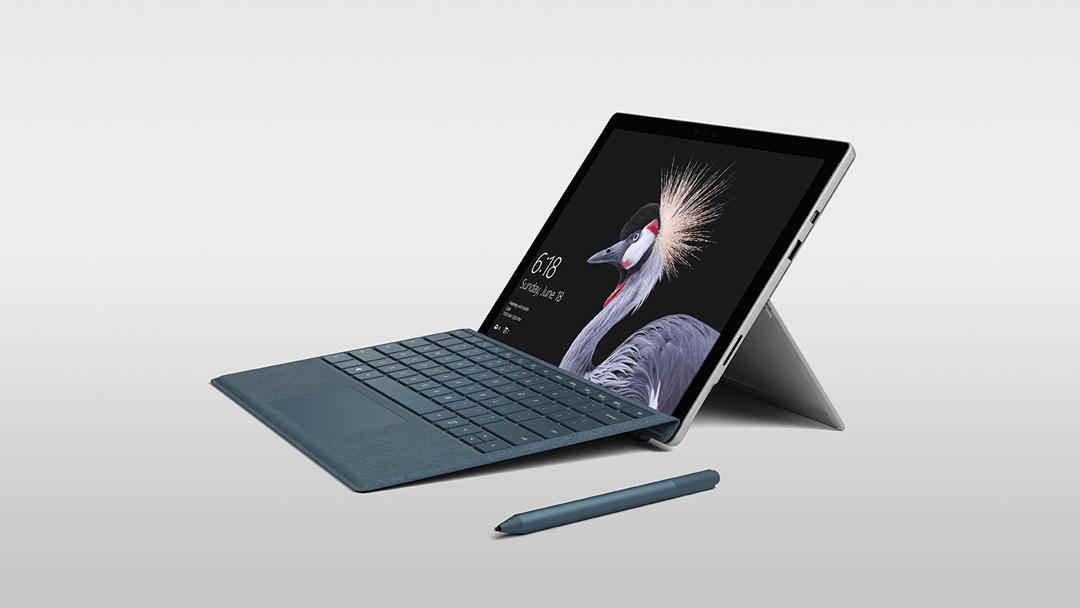
The Andromeda device is set to create a new category for mobile computing

WalkingCat was the user who tweeted the news. The AND in the Project AND may be referring to Andromeda or something else, but we’ll have to wait some more before we find out exactly what the letters stand for.  The Andromeda device is also called the Surface Phone, and it’s set to create a new category for mobile computing. Microsoft has always envisioned a portable PC with telephony implemented. Such a device could easily adapt to various situations. Microsoft seems to be working on making the PC more mobile.

Microsoft has over 90% market share in the PC area

Even if this company has such a huge market share in the PC category, the problem is that people work on their PCs in their offices or homes. They don’t carry their computers wherever they go. Considering that mobile processors are becoming more powerful, smartphones are receiving more PC-like features as well.

This may be considered bad news for Microsoft because it might lead users away from their PCs. This is the moment when always-connected PCs step in. PCs with mobile connectivity can be naturally used anywhere. On the other hand, they’re still not pocketable devices such as smartphones. People believe that Microsoft is currently trying to solve the issue with its Andromeda or Surface Phone.

Andromeda is expected to be a foldable device

More people believe that the Andromeda device or the Surface Phone will be foldable, in other words, pocketable. It will also be productive when it’s unfolded while, pocketable when folded. The device is also said to have telephony enabled, and this means that it could very well serve as a replacement for smartphones and tablets as well, this way, creating a brand new category.

Surface Pro gets March 2018 update for LTE and non-LTE models

Microsoft has just released the latest update for the Surface Pro (2017) both LTE (model 1807) and non-LTE (model 1796) variants. Each one of these two models will receive a set of different firmware updates. This update manages to patch your devices from potential security vulnerabilities, fixing a few security issues that were revolving around Microsoft Edge and it also improves battery life and reliability. Check out all the details below.

Updates and fixes targeted at LTE Surface Pro (2017)

Here’s the changelog for the LTE devices:

  • The Surface System Aggregator Firmware – Firmware – 234.2110.770.0 fixes the potential security vulnerabilities that also include Microsoft security advisory 180002.
  • The Surface System Aggregator – Firmware – 234.2110.1.0 enhances the battery reliability, and it’s also important to note the fact that Surface System Aggregator Firmware v233.2102.1.0 is required to install this update.

Fixes and updates for non-LTE Surface Pro (2017) devices

READ ALSO: What to do when your Surface Pro 4 screen vibrates

Here’s the changelog for these non-LTE devices:

  • The Surface UEFI – Firmware – 233.2110.770.0 fixes the potential security flaws that also include Microsoft security advisory 180002.
  • The Surface System Aggregator Firmware – Firmware – 233.2111.256.0 enhances battery reliability.

Getting the Surface Pro (2017) March 2018 Firmware Update

You will be able to download Microsoft’s Surface updates from the Windows Update via Settings. All you have to do is follow these steps below:

  • Head over to Start – Settings – Update & Security – Windows Update
  • Click on Check for Updates

If your Surface Pro (2017) system has not yet installed the update, it should become displayed in the Windows Update right now. You also have the ability to download the cumulative and current firmware and drivers as well as the Surface Pro (2017) from Microsoft’s official website. There you’ll also be able to check out more details on system requirements, installation instructions and more.

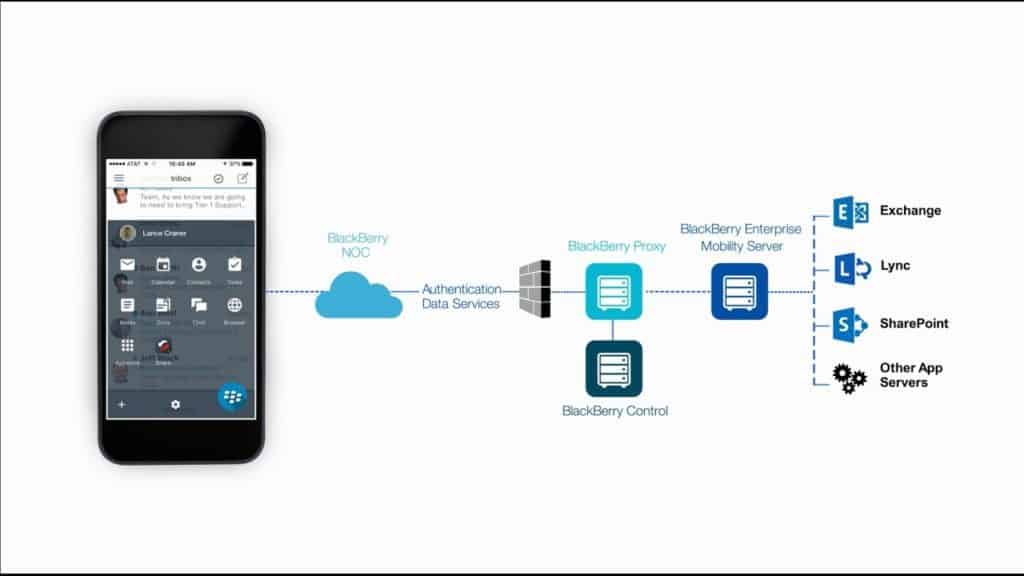
Microsoft teams up with BlackBerry to offer Office mobile apps via BlackBerry Dynamics

Microsoft just announced that the company is teaming up with BlackBerry to provide a brand new solution called BlackBerry Enterprise Bridge. The solution comes in handy because, until this decision, enterprise users had to edit their Microsoft Office files outside of their organization’s secure managed app environment. Through the solution offered by Microsoft and BlackBerry, they will be able to seamlessly use native Microsoft mobile apps via BlackBerry Dynamics apps such as BlackBerry Work for instance.

BlackBerry Enterprise Bridge’s advantages

BlackBerry Enterprise Bridge is a BlackBerry Dynamics enabled app while at the same time Microsoft Intune protected. While using it, users will get the chance to share documents while document fidelity and data encryption remain preserved. It’s also important to note that data leakage policies will be applied.

Crating a hyper-secure way for joint customers to use native Office 365 apps

Carl Wiese, the president of Global Sales at BlackBerry stated that the company has always led the market with various innovative ways of protecting corporate data on mobile devices. Now, the company understood that there is a high need for a super secure way for joint customers to use native Office 365 mobile apps.

READ ALSO: How to install BBM app (Blackberry Messenger) on Windows

The solution is BlackBerry Enterprise Bridge, and it mirrors an excellent example of how both companies continue to enable workforces to be more productive in the connected world that we live in. All of this will be secured as highly as possible.

Customers are looking for trustworthy partners

Judson Althoff, executive vice president of Worldwide Commercial Business at Microsoft believes that in today’s digital era, everyone is looking for trusted partners. Customers choose Microsoft 365 for enhanced productivity and collab tools deliver powerful innovation in a secure way. The partnership with BlackBerrry will take all of this to the next level and provide enterprises with new high standards for more secure productivity according to Althoff.

This partnership will probably trigger high interest from banks, law firms, healthcare providers, central governments and more.

Sea of Thieves now available on Windows 10 and Xbox One

Sea of Thieves, one of the most hotly anticipated multiplayer games of 2018, has finally arrived on both the Xbox One and Windows 10. Rare, the game’s developer, first announced Sea of Thieves at E3 2015, which was supposed to launch last year. However, the game has finally sailed out on Windows 10 and the Xbox One this March. This is a new swashbuckling multiplayer extravaganza in which players embark on pirate quests to plunder loot and treasure stowed away on deserted islands.

Sea of Thieves has been under development for a few years with Rare launching an Insider Programme to get some player feedback for it. Mr Neate, the executive producer at Rare, stated: “We’ve taken a unique approach with Sea of Thieves, from launching our Insider Programme in December 2016, where we invited our first 1,000 players into the first Technical Alpha, through a series of Alpha tests, our Closed Beta and Scale Tests, to the recent Final Beta where everyone was given the opportunity to play. We have worked with our community throughout this process.”

Now Sea of Thieves is finally out, you can engage in some swashbuckling action in both player vs. player and co-operative game modes. Players can select to play solo or in crews of two to four pirates that navigate through choppy seas to islands where they can plunder the loot. Thus, the multiplayer battles take place on both land and sea.

https://www.youtube.com/watch?time_continue=63&v=-HEQTG3QSFA

The game is retailing at $59.99 for both Windows 10 and Xbox One. Note that this is a Xbox Play Anywhere title, which means you can play it on both Xbox One and Windows 10 with a digital purchase. Furthermore, multiplayer battles are not just restricted to their respective platforms either; so you can take on Windows 10 players while playing Sea of Thieves on Xbox One.

Microsoft Studios has also released a Xbox One S Sea of Thieves Bundle and limited edition game controller.The Sea of Thieves bundle packages the Xbox One S with a copy of the game. In addition, the bundle includes one-month Xbox Live Gold subscription and Xbox Pass trial. A limited edition Sea of Thieves styled controller is also available at$74.99.

To celebrate the game’s release, Microsoft Studios launched The Quest for Golden Bananas competition. The contest began on March 19 and includes a series of riddles for teams. The crews that solve the riddles first get entered into grand final with the winners winning 18-carat gold bananas.

The jury is now out on whether Sea of Thieves lives up to its hype. However, this is still one of most exciting Rare titles since Microsoft acquired the developer. You can check out the Sea of Thieves website for further game details.

Google Chrome now supports Windows 10 Action Center notifications

The Action Center is a part of Windows 10 that displays UWP app notifications. Yet, Google declined to update its flagship browser with support for Action Center notification when Windows 10 first launched. Thus, Chrome has relied on its own notification system to display website and app notifications within the browser. However, the times are changing, and Google has just released an update for Chrome Canary to support Win 10 Action Center notifications.

Chrome users have requested that Google update its browser to support Action Center notifications since 2015. However, a Chrome support moderator initially stated: “Thanks for the input and ideas! We’ve discussed this quite a bit and decided not to integrate with the system level notification at this time… Maybe we can revisit it in a few years when most users are on Win 10.”

That same support moderator also stated: “On Win 10, using the native notification system would mean that all notifications could show briefly before disappearing but they could also not show, depending on a user setting. All notifications would show as coming from Chrome. They would not be actionable, and so on.”

Things have changed, and Google is now whistling a very different tune. The search engine giant is now testing support for Windows 10 notifications within Chrome Canary. Canary is an experimental version of Chrome primarily for developers that Google tries out its latest browser innovations on. As such, the company has not implemented support for Action Center notifications in the stable version of the browser as of yet. Google has not even announced when we can expect Chrome stable to include Win 10 notification support.

When Chrome stable does support Windows 10 notifications, users will get Chrome notifications in the Action Center much the same as UWP apps. For example, you could get new Gmail email notifications in the Action Center. Google will initially implement its browser’s Action Center notifications as a flag that you can toggle on or off via the flags page. A Chromium engineer explained, “This allows the user to manually opt into using Windows native notifications instead of Chrome’s version of the notifications.”

It is not entirely surprising that Google delayed Win 10 notification support for its flagship browser. After all, Google does not release apps for its services on the Windows Store or on Windows Phone. The company even ditched support for Exchange ActiveSync, which Windows Phone users needed for syncing their mobiles with Google services. Thus, Google usually holds back support for Microsoft products.

It might still be some time before Chrome notifications arrive on Windows 10. Still, Chrome support for Windows 10 notifications is better late than never. If you can’t wait for Chrome‘s Action Center notifications, press the Download Chrome Canary button on this website page. Alternatively, browse with Edge that already sends notifications to the Action Center.

Microsoft inks deal with ClearSky Data for Server Message Block (SMB) technology

Microsoft announced today a licensing agreement with enterprise storage company ClearSky Data. With the new partnership, ClearSky will be able to leverage Microsoft’s Server Message Block (SMB) file transport technology for its cloud-based storage solutions.

By licensing its SMB intellectual property to ClearSky, Microsoft is making it possible for users to seamlessly move data between ClearSky’s service and Windows tools. “This agreement demonstrates Microsoft’s commitment to licensing our SMB intellectual property to enable innovative cloud solutions that integrate with the Windows ecosystem,” said Micky Minhas, head of Microsoft Technology Licensing.

In the press release, ClearSky CTO and co-founder Laz Vekiarides said that “our partnership with Microsoft offers ClearSky Data the opportunity to provide a more robust network file sharing protocol for our enterprise customers moving to the cloud. This will help our customers get to the cloud seamlessly and more easily access their programs and efficiently manage their data, which is key to the success of their cloud operations.”

Pocket Casts podcast app launches in Windows Store in beta

Roughly nine months ago, I wrote about the state of podcasting, or lack thereof, on the Windows platform. My general thesis was that Microsoft should do a bit more to promote the vibrant community of podcasters through some software frameworks that would encourage listeners while also putting dollars in the pockets of niche content creators, all the while bolstering discovery and use of its nascent music app, Groove.

Fast forward nine months and Microsoft has shuttered its music app, shipped its small user base to Spotify and have shown no interest in providing an ecosystem driven solution for Windows users for podcast discovery.

Fortunately, Windows developers haven’t given up on users and the folks behind the multiplatform podcast app Pocket Casts has brought its ware to the Windows Store for auditory entertainment deprived users. Pocket Casts developers Shifty Jelly has launched a beta version of their podcast app in the Windows Store, that brings listening tracker and stats, variable speed controls, multi-device progression tracking, fluid resizing and OS based dark theme support.

Unfortunately, all of the listed features of Pocket Casts beta for Windows 10 is held behind a paywall for what equates to the use of a polished web app. To become a beneficiary of all of the app’s features, users need to have paid account, and the $3.99 some Windows Phone users paid back in 2015 does not apply. Users will need to have to or have had shelled out the $9.00 USD from the browser-based version of Pocket Casts to enjoy the subset of features offered on other platforms on their Windows 10 device.

Perhaps, Shift Jelly is paving the way for a PWA future where its app works on Windows 10 S devices, or maybe they saw an easy cash grab from a podcast starved platform full of potential users, either way, Windows 10 users now have the option to sync their podcast lists and listens across their smartphone and desktop finally.

Pocket Casts Desktop
Developer:
Shifty Jelly
Price:
Free

Xbox Insider Hub adds links to Feedback and Insider Blog

Microsoft yesterday announced some new enhancements for the Xbox Insider Hub. There are now new links to Xbox Feedback and the Insider blog, helping ensure Insiders never miss out any new content.

Though a bit of a small feature (seen below) it should be much appreciated for those who are looking to keep up with Xbox related builds and news via the Xbox Insider Blog. It also makes it easier for Insiders to access Xbox Feedback, which is the go-to place to suggest new features and improvements for Xbox and the Xbox mobile apps.

It is nice to see that Microsoft is making things easier for Xbox Insiders, who just like Windows Insiders, frequently install new builds and are always on the lookout for new content. You can learn more about The Xbox Insider program here, and check our previous post on how the Xbox Insider team collects your feedback.
Telstra Calling for Office 365 announced for mid-2018 Australia launch

Telstra, Australia’s largest telecommunications company, has just signed a major deal with Microsoft that will allow them to be the exclusive service provider for Office 365’s phone call functionality.

The company will be launching a new product called, Telstra Calling for Office 365, in the middle of this year which will allow clients to make traditional telephone calls from within Office 365 apps such as Skype for Business and Microsoft Teams. Telstra Calling for Office 365 is said to be a standalone product, not bundled with any other Telstra service.

“Launching a product like this caters for, not just the large enterprises, but more importantly the hundreds and hundreds of thousands of Australian organisations that will need to re-plumb and rewire their communications and collaborations environment ahead of a number of things changing in the market like the NBN,” said Telstra’s executive director of global products, Michelle Bendschneider, in an interview with the Financial Review. “We’re going after opportunity that is close to the core of the business we know and understand deeply, but also embraces technology that is close to the type of business that we know how to serve really, really well.”

Future Windows Updates will be fast, silent and won’t affect your work

Windows updates usually come twice a year and are completely free of charge. But, as many users have noticed, the offline time spent to reboot was way too long and it’s annoying when your PC takes too long to update.

For the next major Update, Windows Fundamentals team officially announced to include a much faster reboot phase. An improvement of 38% has been made last October dropping the average time for the Fall Creator’s Update to 51 minutes. The improvements will continue by moving portions of the work done during the offline phase and placing it in the online phase.

A reduction of 63% from the Creators Update

All of the offline time will be reduced to an average of 30 minutes in the upcoming Windows 10 Update release. This basically means that Windows Updates will be fast, silent and won’t affect your work – until you’ll be prompted to restart.

Microsoft posted on their official blog a detailed comparison of the old feature update installation process versus the new installation model and the changes done since the release of Fall Creator’s Update:

windows 10 update time comparison table

In the previous Creators Update, the offline phase was completed in an average time of 82 minutes. The Fall Creators Update improved to about half of that time. This time, the major update of Windows 10 should include an offline phase of just 30 minutes. But, how will that affect your system performance?

The upside is the shorter offline period — the other side is the update might actually take longer overall. You can continue your work as Microsoft moved part of his work into the online phase, but keep in mind the extra load your system carries along in the background when it’s time to update. Afterward, a reboot will be done to complete the update and you’ll be able to enjoy the fresh new features.

Being aware of the Windows 10 Spring Creators Update coming, it’s a good idea to set your restart schedule. You can set a specific time for the Windows Update Restart Scheduler in three simple steps:

  1. Open the Settings menu and click Update & recovery
  2. Go to Windows Update and click Check for updates
  3. Click Restart options and schedule a convenient time you want the restart to apply new updates

Windows Update is known for causing countless glitches and technical errors. Here at WindowsReport, we’ve written about quite a few of them, so check them out:

Windows 10 build 16299.334 is out is fixes for Bluetooth, PDF rendering and more

Microsoft has just released a second cumulative update for Windows 10 version 1709 this month. This one is the build 16299.334, and it follows the build 16299.334 which was released last week as this month’s Patch Tuesday Update.

This latest patch should appear as “KB4089848” in Windows Update, and it comes with a pretty long list of quality improvements. Among highlights, Microsoft mentioned a fix for an issue where Bluetooth devices no longer work after a restart, and there is also another fix for a PDF rendering issue in Microsoft Edge. The full changelog can be seen below:

  • Addresses issue with a GDI handle leak in the Windows Ribbon control.
  • Addresses issue where users can’t select OK after entering credentials in command line on Windows Server version 1709.
  • Addresses issues where Bluetooth devices fail to receive data after a restart.
  • Addresses issue where, during BitLocker decryption or encryption of a drive, files protected with the Encrypting File System (EFS) may become corrupted.
  • Addresses issue where the server may occasionally encounter an error during file transfer. The error is “Stop D1 in tcpip!TcpSegmentTcbSend”.
  • Addresses issue where an iSCSI RESET might trigger a cluster failover.
  • Addresses issue in MPIO where pass-through SCSI requests might lead to a stop error if the disk is pending removal.
  • Addresses issue where processing of group policies may fail, and policies may be removed as a result. This occurs if the length of the Windows Defender Firewall policy rule exceeds 260 characters.
  • Addresses issue caused by a new privilege in Windows Server 2016 and Windows 10 version 1709 named “Obtain an impersonation token for another user in the same session”. When applied using Group Policy to those computers, gpresult /h fails to generate reporting data for any setting configured by the Security Configuration Engine (SCE) extension. The error message is “Requested value ‘SeDelegateSessionUserImpersonatePrivilege’ was not found”. The Group Policy Management Console fails to show the privilege in the Settings tab for a GPO where the setting has been configured.
  • Addresses issue where errors may occur when accessing WebDAV files or folders on a SharePoint site if the file or folder name contains multibyte characters.
  • Addresses issue where the Remote Desktop License report gets corrupted when it exceeds the 4 KB size limit.
  • Addresses issue where an Azure point-to-site VPN connection that uses IKEv2 may fail when the user’s device contains a large number of trusted root certificates.
  • Addresses rendering issue in Microsoft Edge for PDF documents with backgrounds created using various third-party publishing tools.
  • Addresses issue where a media platform stops responding when changing cameras rapidly on a device.
  • Addresses issue where a media platform stops responding, which affects media playback in Microsoft Edge, Internet Explorer, and Microsoft PowerPoint.
  • Addresses issue with spatial audio when used in connection to Dolby Atmos for Headphones.
  • Addresses issue where a credential prompt that requires administrative privileges appears when a standard user account performs the first logon to a Windows 10 device that has been deployed using Windows Autopilot.
  • Addresses issue where tiles in the Start menu aren’t preserved when upgrading from Windows 10 version 1607 to Windows 10 version 1709.
  • Addresses issue with Spell Check and custom dictionaries.
  • Addresses issue with the press and hold feature when using a pen in Tablet mode.
  • Addresses issue with editing web password fields using a touch keyboard.
  • Addresses issue where some Bluetooth card readers don’t work after a restart.

It’s quite unusual for Microsoft to push a new update just a week after Patch Tuesday, especially with so many additional fixes. Anyway, you’re welcome to download this new patch now and let us know in the comments if you notice some improvements thereafter.

Plex News brings 190 video news sources to Xbox One consoles

The Xbox One Plex app has just added the new Plex News feature which allows users to view video content from 190 different news sources.

Some of the news providers include major brands such as AP, IGN, Reuters, and The Financial Times however over 100 of them are smaller local channels. Plex News is available to view for free by anyone with the Plex app installed on their Xbox One. A Premium subscription isn’t required as the news content is supported by ads.

Plex users can customize their own news sources so those who might want less Vox and more Sky News should have little to worry about.

The Xbox One Plex app can already be used to watch live TV, movies, and TV shows and the addition of Plex News makes it even more feature-packed. Are you a Plex user? Let us know how you use the app in the comments below.

Plex
Plex
Developer:
Plex
Price:
Free

Grab Hitman Spring Pack for free on Xbox One for a limited time

The Hitman Spring Pack is now available to download for free on Xbox One consoles. This limited edition download essentially allows gamers to play a selection of content from the main Hitman video game for free. This isn’t just a demo though as it comes with 24 Xbox Achievements and a large amount of playable content. Here’s the official description.

Welcome to sunny Sapienza! Download the HITMAN Spring Pack and experience everything from Episode 2: Sapienza. Take on the ‘World of Tomorrow’ campaign mission, complete 20 levels of location mastery to earn new gear, unlock more items from Challenge Packs and test your skills in Escalation Contracts – plus get access to Contracts Mode and future Elusive Targets in Sapienza. Downloading the HITMAN Spring Pack will also give full access to everything included in the ‘ICA Facility’ location.

The Spring Pack includes: 3 Campaign missions, including all cut-scenes, 12 Escalation Contracts, 120+ Challenges, and 24 Achievements.

The Hitman Spring Pack will be available to download until April 3rd.

HITMAN™ - Spring Pack

Microsoft Learning Tools, with 10 million monthly active users, adds new features to Immersive Reader

Microsoft recently announced that Microsoft Learnings Tools surpassed 10 million monthly active users, and today the company detailed some new features for the free toolset. Indeed, those using the free reading and writing tools can now enjoy new features in Immersive Reader such as Picture Dictionary, Custom Parts of Speech Colors, and Roaming Settings.

With the new Picture Dictionary in the Immersive Reader, Microsoft partnered with Tobii Dynavox to allow students to click on a word and immediately see a related picture. They’ll also have the ability to “Read Aloud” as many times as they would like in order to better comprehend the material. See it in action below.

Finally, with Custom Colors for Parts of Speech, students can use colors to see representations of nouns, verbs, and adjectives. This is meant to be used with the Roaming settings, allowing for a student to roam with the Immersive Reader across various platforms and apps.

These are some pretty useful teaching and learning features, and it is great to see Microsoft empowering educators to achieve more. All features are rolling out today to Word Online, OneNote Online, OneNote for Windows 10, OneNote iPad, Outlook on the Web, and Outlook.com. You can learn more by checking here.

Nivaura launches blockchain-based investment product, the world’s first, built on Azure

A new company, Nivaura, has created the world’s first blockchain-based investment product built using Azure, Microsoft’s cloud technology. As noted in a Microsoft News Center UK blog post, Nivaura is competing with IBM to deliver their product. In this 2016 video, Nivaura CEO and CPA (Chief Product Architect) Avtar Sehra, a quantum physicist, explains what Nivaura was able to do to build up their product using blockchain with Microsoft Azure in under a year.

More people are directing their focus on blockchain technology. In case you need a refresher, blockchain is a peer-to-peer distributed registry. Blockchain cannot be modified in any way, which makes it more secure, but you can add elements to it to suit your needs. Blockchain is the basis for cryptocurrencies such as Bitcoin.

In November 2017, Nivaura launched the world’s first automated bond issuance using their blockchain platform technology with help from Microsoft Azure. Nivaura’s blockchain technology automated all the necessary financial documentation needed for the transaction and everything was done using the Ethereum public blockchain network. At launch, Sehra reinterated what Nivaura can do for large investment companies like JPMorgan:

“What we’re showing is you can use open public infrastructure for regulated financial instruments, which is a very critical step, because from the earliest stages we’ve always believed public infrastructure is a viable way forward for particular instruments that don’t necessarily have high volume secondary markets.

As cryptocurrencies or tokenised fiat-currencies become a more accepted form of payment mechanism it will lead to an increasing uptake in using public blockchain infrastructure for registration, clearing and settlement of the securities.”

Only time will tell if more financial companies will make the jump towards using blockchain for automating financial transactions. Stay tuned.