Windows 10 Instagram app gains new Collections feature

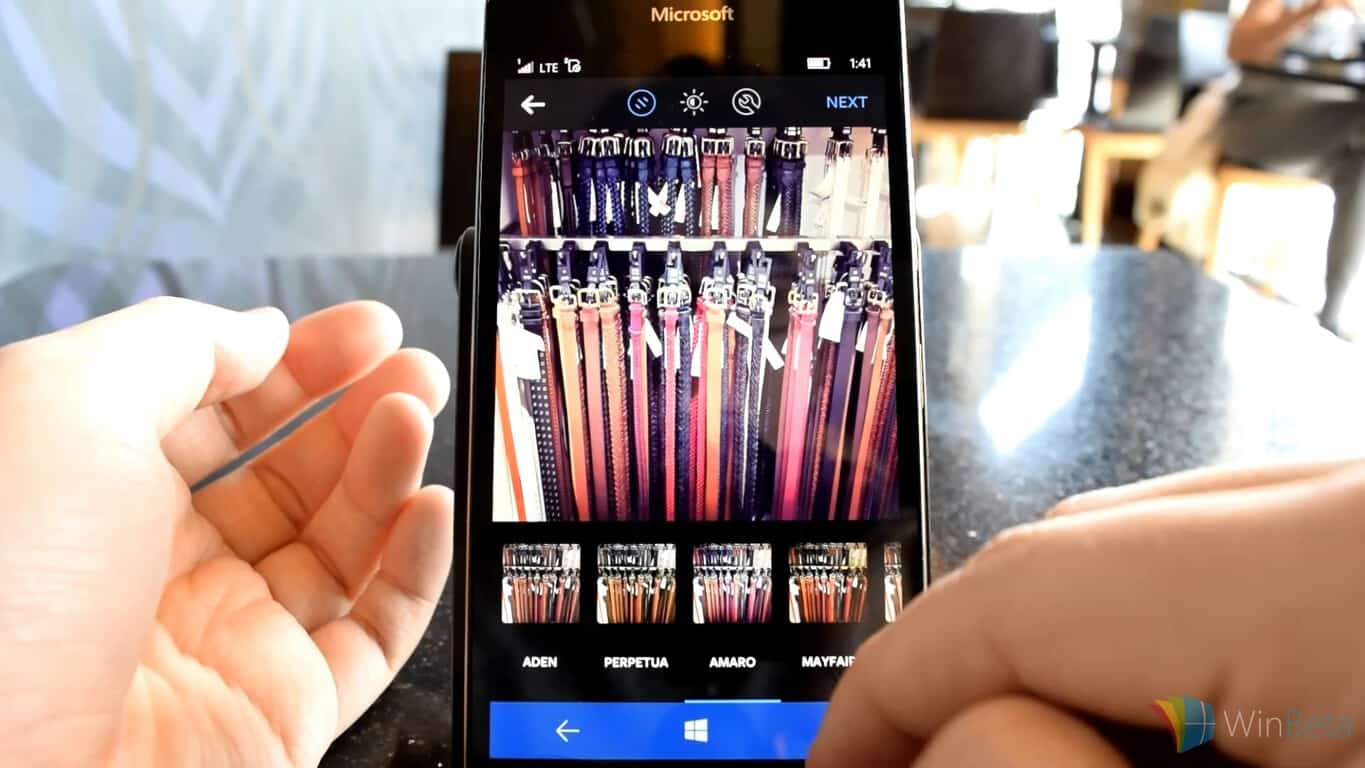
The official Instagram app has updated on Windows 10 and Windows 10 Mobile devices and now features app parity with its iOS and Android counterparts.

This latest Instagram update adds the ability to save posts into specific Collections (folders). The save ability was added a while ago but now Instagrammers can organize their favorite photos taken by other users in a sub-menu located on their own profile screens.

“Since we introduced the ability to save posts last December, 46 percent of Instagrammers have saved at least one post,” the official feature announcement reads. “Whether you want to plan your next day trip, revisit your favorite artists’ illustrations or always have some animal videos on hand, collections can help you keep track of the posts you want to remember.”

Have you tried saving images to an Instagram Collection yet? Let us know in the comments below.

Instagram
Instagram
Developer:
Instagram
Price:
Free

Windows 10 Creators Update lets you enable Spatial Sound for a 3D Sound Effect

The Windows 10 Creators Update brings a new feature called Spatial Sound, perfect for listening to audio through your headphones.

When you enable the feature, you’re going to feel the audio like it’s playing all around you and not only through your headphones. It offers a 3D sound experience or a surround sound.

The feature is disabled by default and here’s what you have to do to enable it:

  • Right-click the sound icon in the notification area.
  • In the context menu, go to “Playback devices”.
  • Select the playback device from the list and click on Properties.
  • Go to the Spatial Sound tab and select the spatial sound format (it includes Windows Sonic for Headphones and Dolby Atmos for Headphones).

Windows Sonic

This is Microsoft’s audio platform for surround sound. It includes integrated spatial sound for Windows and Xbox, supporting both surround and elevation audio cues. The user is able to select the output format: speakers, headphones, and home theater receivers.

Dolby Atmos

This is a surround sound technology from 2012 that can create a highly dynamic sound environment. During the playback process, every audio system renders the audio objects in real-time. This way, each sound will come from its dedicated spot.

Compared to this, the traditional multichannel technology essentially burns all the source audio tracks into a fixed number of channels during the post-production.

The addition of audio objects offers more creativity to the mixer.

In order to use Dolby Atmos, you’ll need a special app from the Windows Store. Choosing this option will lead to the installation of the Dolby Access software which is based on the Universal Windows Platform. The app supports better sound for your headphones and also the sound enhancement for the Home Theater device.

As you can see, Windows 10 makes spatial sound possible by combining a driver with special apps and headphones or other sound devices. This cool technology will especially enhance the sound quality of your headphones.

RELATED STORIES TO CHECK OUT:

Here’s how to free up to 20GB space after Windows 10 Creators Update

The Creators Update for Windows 10 is here, and it brings with it a bevy of bug and security fixes on top of new tools that help enhance your Windows experience. However, installing the update also fills up your drive additional gigabytes because it retains data from the old Windows version.

New versions of Windows store information from their predecessor to help users downgrade should problems arise with the updates. But if you are satisfied with what the Creators Update serves up, you might want to free up a few extra gigabytes on your drive.

Disk Cleanup

Windows 10 has an option that allows you to clean stored files from the previous version of Windows. By doing that, you’ll be able to free up a significant amount of space from your drive. To free Up to 20GB of space after installing the Windows 10 Creators Update, follow these steps:

  1. Open This PC/My Computer.
  2. Right click on your drive where Windows is installed.
  3. Select Properties.
  4. Click the Disk Cleanup button.
  5. Select Clean up system files in the Disk Cleanup window.
  6. Check the Previous Windows Installations box and all other items you want to delete.
  7. Click Ok to complete the cleanup.

The disk cleanup process frees up as much as 20 GB of space on your hard drive. And some extra space will definitely come in handy.

Do you know of other methods to clean up space on your drive after the Creators Update? Let us know in the comments section below!

RELATED STORIES YOU NEED TO CHECK OUT:

Microsoft and Datakind are using data science to drive down traffic deaths

Have you ever felt you waited too long at a traffic light? Well, it seems your wait may have been part of a heavily calculated and intricately craft risk assessment profile run by your city and low profile data crunching firms.

DataKind just happens to be one of those low profile data crunching firms using next level data science to help cities plan out the complexities of reduced driving visibility in certain areas, speed zones and much more.

However, DataKind doesn’t always work alone, the non-profit company recently partnered with Microsoft to tackle three of America’s highly traffic congested cities such as New York, Seattle, and New Orleans.

In Seattle, the city focused on bicycle and pedestrian safety issues. The team’s models identified collision patterns and factors that contributed to higher levels of injury severity, including whether a motor vehicle is making a right turn or left turn, the variation in time of the year and the effectiveness of crosswalks in reducing crash severity. They also identified key variables affecting the likelihood of accidents taking place on particular stretches of road, including traffic volume, land use, number of traffic lanes, street width and pedestrian concentration.  Seattle recently passed a levy to fund multi-modal transportation improvements citywide. The results from this project, along with additional safety studies, will help guide more than $300 million in Vision Zero investments over the next nine years.

In New York and New Orleans, DataKind was able to create and offer a new exposure model capability that should help the city of New York avoid injuries and fatalities as well as a new Impact Assessment tool for New Orleans that compare locations for advanced street treatment.

While Microsoft is no stranger to combining data science and civic programs, the partnership with DataKind demonstrates a concerted effort to give machine learning real and life-saving applications.

As Microsoft typically does, it has made the case study available for anyone interested in learning about the various safety models used by the company and DataKind.

Ditch ads in the Windows 10 Creators Update with these instructions

In an effort to get as many users to upgrade to Windows 10, Microsoft uses ads all over the operating system – taskbar, Start menu, and apps. Now with the Creators Update’s recent release to the public, you might want to disable ads in Windows 10 again.

Start Menu Ads

The Start menu is often your first stop when opening an app, depending on how you use Windows 10. You can disable ads from the Start Menu by typing Start Settings in search or go to Windows Settings > Personalization > Start. Switch off the “Occasionally show suggestions in Start” option five toggles below.

File Explorer Ads

Even in the File Explorer, ads are not off-limits. To disable ads from showing up in File Explorer, launch it from the taskbar and select View > Options > Change folder and search options. Then select the View tab, uncheck the “Show sync provider notifications” checkbox, and click Apply/OK.

Action Center Ads

Another place you’ll find ads in Windows 10 is in the Action Center, where you can disable them by searching for Notifications & actions settings from Start and turning off the top toggle labeled “Get notifications from apps and other senders.”

Lock Screen Ads

Ads can show up on the Lock Screen as well. This display is the first that you’ll see before logging in to your PC, so you’ll definitely not like to see ads there. For that, type Lock Screen Settings in the Start menu or open up Windows Settings and go to Personalization > Lock Screen. Click on either Picture or Slideshow in the dropdown menu under Background. Turn off a toggle labeled “Get fun facts, tips, and more from Windows and Cortana on your lock screen.”

Windows Ink Ads

The Windows Ink workspace has its own suggested apps., which means it can display more ads. To disable the ads in Windows Ink, select Windows Settings > Devices > Pen & Windows Ink and switch off a toggle labeled “Show recommended app suggestions.”

Share Dialog Ads

Microsoft introduced a new Share pane to File Explorer in the Creators Update. To prevent ads there, launch the File Explorer and click on the Share tab. Highlight a file and locate the Share button in the upper left corner. Click on the Share button and right-click one of the apps and uncheck “Show apps suggestions.”

Office and Other App Ads

Microsoft may tell you every now and then to subscribe to Office 365. But you can stop the company from doing so by visiting Windows Settings > System > Notifications & Actions and turning off the option labeled “Get notifications from these senders.”

RELATED STORIES YOU NEED TO CHECK OUT:

Windows 10 Creators Update installs all by itself for some users [FIX]

While others have to manually download and install the Creators Update for Windows 10, some users are taken aback when all at once they found their PCs upgraded to the latest version of Windows. One user took to Reddit to shed light on what really occurred:

“So this morning I get to work and my boss comes talk to me, “Hey we got creators update!” and I got surprised because we have a WSUS and the “Feature Update to Windows 10 <Insert version here>” is in the state of “not approved”.

Maybe I messed up with the Windows Update Policy? [I checked] the policy settings, nothing changed, GP Update and RSOP.MSC says the policy is updated and applied.

Checked the registry to my machine under “HKEY_LOCAL_MACHINE\SOFTWARE\Policies\Microsoft\Windows\WindowsUpdate” and “HKEY_LOCAL_MACHINE\SOFTWARE\Policies\Microsoft\Windows\WindowsUpdate\AU” and everything is alright.

As a bonus, our VPN Client from Check Point is not compatible.”

The further explains that the issue could be due to Dual Scanning which takes place when the Configure Automatic Updates option is enabled and the Defer Upgrades and Updates option is disabled. When the Defer Upgrades and Updates configuration is turned off, Windows tends to skip Windows Server Update Services and scans for updates in Windows Updates sites, in the process bypassing WSUS approvals. That is because using the client side options to schedule upgrades and feature updates switches the client to Windows Update for Business.

Solution

To solve the issue, the user offered the following solution (under Computer Configuration > Administrative Templates > Windows Components > Windows Update):

  • Enable “Configure Automatic Updates” option
  • Enable “Do not connect to any Windows Update Internet locations”
  • Leave the “Defer Upgrades and Updates” as “Not Configured”

Note, however, that enabling the “Do not connect to any Windows Update Internet locations” policy affects the Windows Store and other modern apps.

The configuration blocks Windows from contacting the Windows Update public servers and hides the option “Check Microsoft for Updates” from the Windows Update Client in Windows 10. So, keep this in mind while performing the workaround.

RELATED STORIES YOU NEED TO CHECK OUT:

Samsung computers compatible with Windows 10 Creators Update

If you own a Samsung computer and you’re planning to upgrade to the Creators Update, don’t forget to check if your device is compatible with the OS. If your computer doesn’t support the latest Windows 10 version, you may encounter severe technical issues.

In this article, we’re going to list all the Samsung computers that have been tested for the Windows 10 Creators Update and can be used with the update. Bear in mind that the computer models not included in the list below may not support the Windows 10 Creators Update.

Samsung computers supporting the Creators Update

Samsung laptops

  • 940Z5L, 930Z5L,
  • 940X3K, 940X3L,
  • 900X3K, 900X3L, 901X3L, 900X3M, 901X3M,
  • 900X5L, 901X5L, 900X5M, 901X5M,
  • 930X2K,
  • 910S5K, 911S5K,
  • 910S3K, 911S3K, 9310SK, 905S3K, 910S3L, 911S3L,
  • 9310SL,
  • 500R5H, 501R5H, 5500RH, 500R5K, 501R5K,
  • 500R5L, 501R5L,
  • 500R4K, 501R4K, 500R4L, 501R4L,
  • 380E5J, 370E5J, 371B5J, 370E5L, 371B5L,
  • 370E4K, 370E4J,
  • 300E5K, 301E3K, 3500EK,
  • 270E5K, 271E5K, 2570EK,
  • 110S1K

Samsung convertibles

  • 940X3L,
  • 740U3L, 740U5L

Samsung 2-in-1 devices

  • W700, W703, W707, W708

Samsung All in One PCs

  •  700A7K, 700A7L,
  • 700A4K, 701A4K,
  • 500A2J, 501A2J, 500A2L, 501A2L

Samsung Desktop

  •  700C6A

Once you’ve upgraded your Samsung computer to the Creators Update, don’t forget to download and install the latest software, hardware, driver and firmware for the update. As a quick reminder, both NVIDIA and AMD have released dedicated driver updates that support the Windows 10 Creators Update.

Speaking of Samsung, the company recently confirmed that it is considering installing Windows 10 on many more tablets over the coming years. As a matter of fact, the tech giant recently unveiled 3 new tablets, two of which are running Windows 10: the 10- and 12-inch models of the Samsung Galaxy Book.

RELATED STORIES YOU NEED TO CHECK OUT:

The Upgrade Advisor App for Windows phones is available again

Just a while ago, Microsoft made the sad announcement that it’s would only support an even fewer number of Windows 10 Mobile devices with its latest Creators Update. The tech-giant also took the necessary steps to temporarily terminate one of the official upgrade paths from Windows Phone 8.1 to Windows 10 Mobile.

Users can easily upgrade from an older version of Windows Phone using the Upgrade Advisor app. Unfortunately, the app was unavailable for a couple of days.

It was still possible to download the application from the Store, but you would only find out that it did not actually allow your device to be upgraded. It is only going to show you the following message: “The Windows 10 upgrade isn’t available for your phone right now. We’re trying to determine if your phone can support Windows 10”. The good news is that users confirm that the Upgrade Advisor app works again.

However, it’s still unclear what Microsoft is going to do with the app. After all, there are only 13 devices still eligible for the Windows 10 Creators Update, including Lumia 640 and Lumia 640XL.

If you want to upgrade your phone to Windows 10 Creators Update, you can also use the Windows Insider Program and you can set it to the Production Ring. But unfortunately, it seems that this option is not going to be around much longer, either: Microsoft keeps cutting the number of devices it’s willing to offer support to for the mobile OS.

RELATED STORIES TO CHECK OUT:

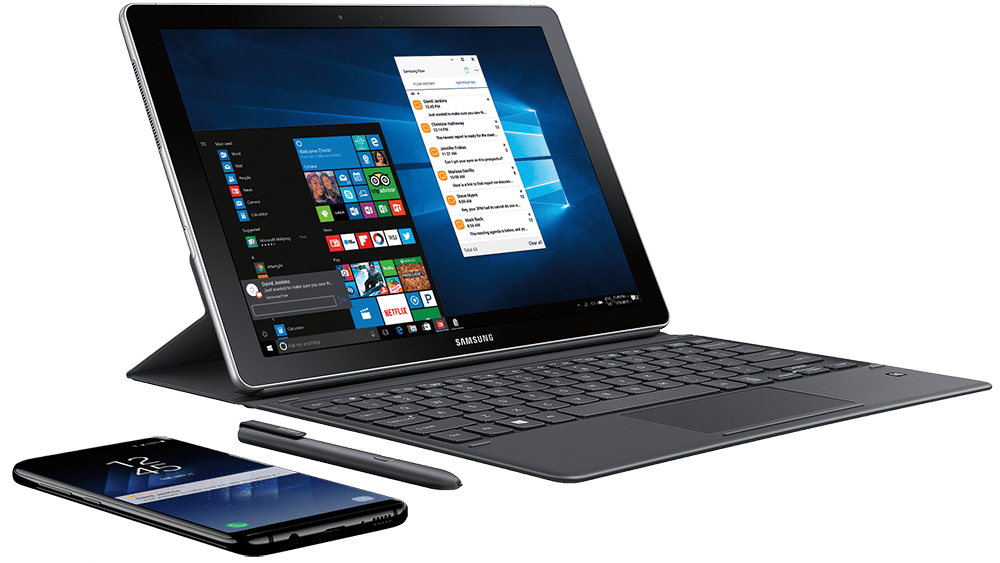
Pricing on Samsung’s Windows 10 Galaxy Book revealed; will you buy one?

Two months ago at Mobile World Congress (MWC), Samsung revealed the Samsung Galaxy Book running Windows 10. The Surface-like device was exhibiting Windows 10 as a 2-in-1 with support for S Pen. Yet, we still knew little about the device in full. Today, Samsung’s press release has brought much of the details to light.

As Neowin reports, the Samsung Galaxy Book with Windows 10 will be available in two sizes: 12-inch and 10.6-inch. Here are the specifications:


Galaxy Book 10.6” Galaxy Book 12”
Display 10.6″ TFT
Full HD (1920x1280px)
12″ Super AMOLED
Full HD (2160x1440px)
Chipset 7th Gen Intel Core m3
Dual Core 2.6GHz
7th Gen Intel Core i5 7200U
LTE support n/a LTE Cat.6 (300Mbps)
Memory 4GB + 64GB eMMC
4GB + 128GB eMMC
LTE
– 4GB + 128GB SSD
Wi-Fi:
– 4GB + 128GB SSD
– 8GB + 256GB SSD
Camera 5MP fixed-focus 13MP with autofocus
5MP
Ports USB 3.1(Type-C)
microSD (up to 256GB)
2 x USB 3.1(Type-C)
microSD (up to 256GB)
Sensors Accelerometer
Hall
Light
Accelerometer
Hall
Light
Wireless Wi-Fi 802.11 a/b/g/n/ac
2X2 MIMO
Bluetooth 4.1 BLE
Wi-Fi 802.11 a/b/g/n/ac
2X2 MIMO
Bluetooth 4.1 BLE
GPS GPS + GLONASS GPS + GLONASS
Dimensions 261.2 x 179.1 x 8.9 mm
648g
291.3×199.8×7.4mm
754g
Battery 30.4W / up to 9hrs
Fast Charging
39.04W / up to 11hrs
Fast Charging
OS Windows 10 Windows 10
Samsung services/apps Samsung Notes
Air Command
Samsung Flow
Samsung Notes
Air Command
Samsung Flow
Video Recording: 1080p@30fps
Playback (output): 4K@60fps
Recording: 1080p@30fps
Playback (output): 4K@60fps

The smaller of the two will be starting at $629.99. What really sets the 12-inch model apart is the availability as an LTE device. The added capability to connect to wireless networks places it slightly more expensive at $1,299.99 whereas the Wi-Fi model will be sold for $1,129.99.

Galaxy Book LTE will officially be available at Verizon Wireless locations starting April 21. Similarly, the Wi-Fi version will begin pre-orders the same day with a global release on May 21.

Here is how you can use HoloLens and Kinect to build a telepresence app

Looking to start working on your own mixed reality project? While they aren’t about to give you a full crash course on the details for creating holograms, the Windows Apps Team has put together a blog post that explains just how you can get started. It’s chock full of the important fundamental concepts, lots of code, and all of that good stuff that you need to get started with your adventure in the world of mixed reality.

While the post doesn’t go terribly in-depth into the technical details necessary to get cracking, it reveals a few good resources that aspiring HoloLens developers can look to. Even if you don’t think you’ll be tinkering with mixed reality in the near future, it’s a pretty nice read. Invoking the holographic inspiration that Star Wars gave to kids back in 1977, the piece gets to the heart of why we’re all so excited to go on this journey in the new frontier of technology.

Readers will mostly be taught about “Telepresence” apps – the sort of things that you’d use a Kinect for, which interface with movements being made in front of a camera. It goes over how to integrate Kinect with Unity, getting used to things like the HoloLens-Kinect project, and quaternions – something that is, apparently, extremely important to 3d programming. (They’re likened to Midichlorians in Star Wars. “They  are essential, they are poorly understood, and when someone tries to explain what they are, it just makes everyone else unhappy.”)

If you’re interested in being a part of the future of mixed reality apps, give it a read. It’s never been a better time to get into this tech.

Not an Xbox Insider? You can still upload a custom avatar

As an Xbox Insider, gamers have access to loads of features that other Xbox fans don’t. The idea is to test these features and provide feedback so that the Xbox team can tweak them. But when it comes to custom avatars, the long outcry has transcended the opt-in requisite.

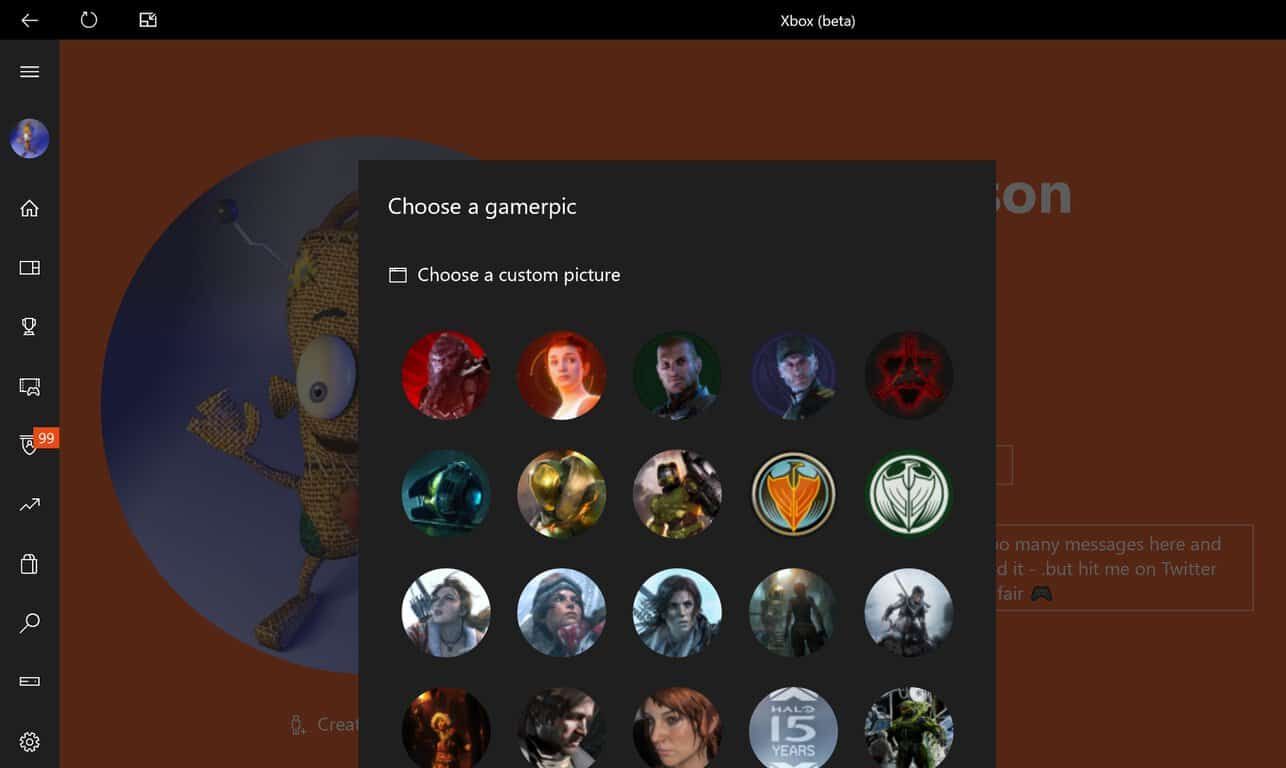
Today, Larry Hyrub a.k.a. Major Nelson pointed out that Xbox fans could upload their own custom avatars without being an Insider. With just the Xbox beta app from the Windows 10 Store, users are capable of submitting pictures that they want to be attached to their Gamertag.

To do so, open up the Xbox beta app and navigate to your profile. Click on Customize, then hover over your current avatar to edit it, as you would normally. At the top left, there will be a button to ‘Choose a Custom Picture’ that lets you upload from your own files.

The only restriction so far seems to be that the image must be over 1080 x 1080 pixels large. Both PNG and JPG work, even so much as allowing you a transparent image. After submitting, a brief message will pop up reminding the player that they’ll see the image once it has been verified. Currently, the process seems to go pretty fast as the image almost immediately appeared on the profile.

It’s worth noting that this feature is also available through the app on mobile too. So if you aren’t an Xbox Insider but want to add custom profile pics and prompt all your less informed gaming friends to ask how you did it, now you can.

Microsoft announces SQL Server 2017, Azure Analysis Services at Data Amp

Geared towards teaching developers how data can impact their apps and services, the Microsoft Data Amp event hosted today tossed in a bit of news of its own. The free online webinar showcased the future of machine learning, including announcing SQL Server 2017, releasing the Cognitive Services: Face API to developers, and the general availability of Azure Analysis Services as of today.

The SQL Server 2017 is the next step for developers to get their hands on machine learning functions. It includes Python support (including Python/R) and has the ability to take on data intensive computing. The SQL Server 2017 Community Technology Preview (CTP) 2.0 release can be downloaded as of today for Windows, Linux, and Docker.

But that wasn’t the only big announcement for developers. Another included the release of Azure Analysis Services into general availability today, making complex data into actionable insights. Furthermore, the Cognitive Services Team released the Face API, Computer Vision API, and Content Moderator tools to developers as well.

  • Face API detects human faces and compares similar ones, organizes people into groups according to visual similarity, and identifies previously tagged people and their emotions in images.

  • Computer Vision API gives you the tools to understand the contents of any image. It creates tags that identify objects, beings like celebrities, or actions in an image, and crafts coherent sentences to describe it. You can now detect landmarks and handwriting in images. Handwriting detection remains in preview.

  • Content Moderator provides machine assisted moderation of text and images, augmented with human review tools. Video moderation is available in preview as part of Azure Media Services.

This is the same API that online adult services have already adopted. The porn industry was quick to pick up on using the same face tracker, offering to search for ‘lookalike’ matches for their customers. But that isn’t the only use for the Face API. Now it is able to collect the emotion of the facial image ranging in decimal probabilities from anger, contempt, disgust, fear, happiness, neutral, sadness, and surprise. This is on top of collecting an estimated age, gender (mostly assumed by facial hair attributes), facial points, and head pose.

A new release of the Microsoft R Server 9.1 was also highlighted during the Data Amp event. The pre-trained neural network models support Sparkly R, SparkETL, and Sparks SQL as well as CPU support for neutral networks. Web management was also made more secure with better permissions for admins to distribute.

All in all, today was a victory for developers that no doubt are excited to get their hands on these tools from Microsoft. If you’re a developer, we’d love to hear about which announcement excited you more. The full video replay is available on MSDN.

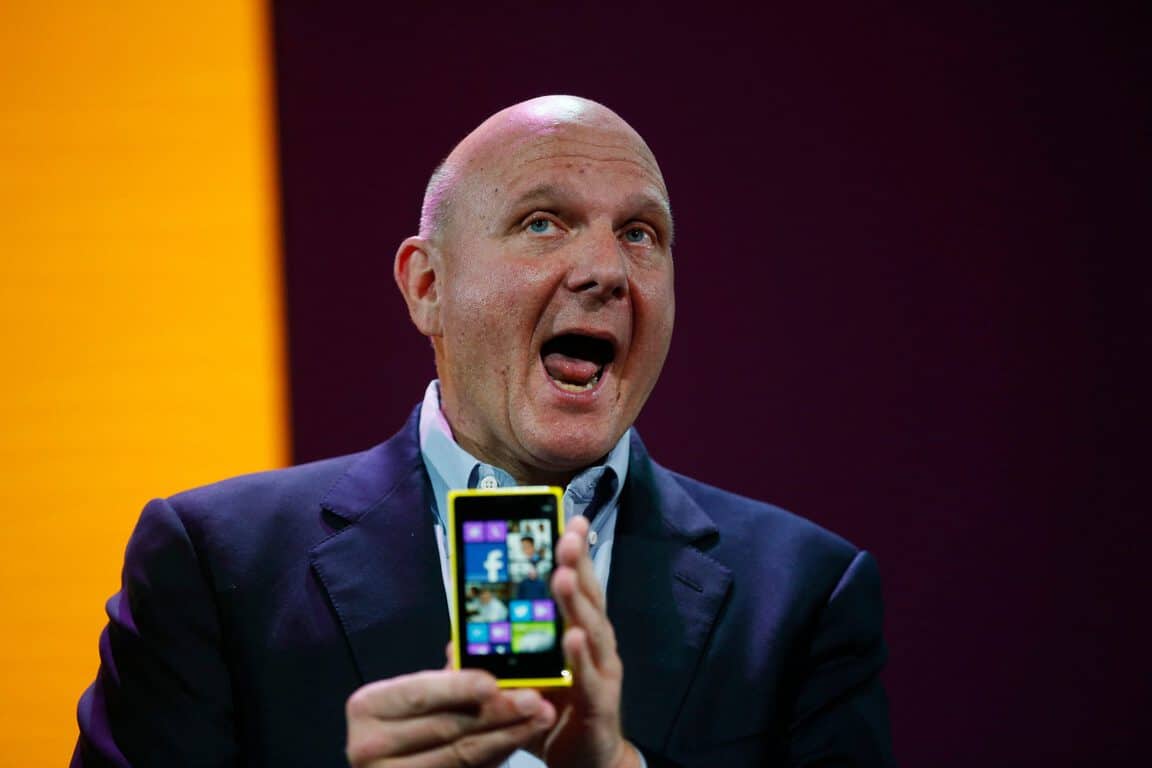
Steve Ballmer says Azure has “a lot of work to do,” fires off Skype bug reports to Satya Nadella

Microsoft is well known for its consumer products, including Surface and Xbox, but the company also is into big data and cloud computing thanks to its Azure web services. In fact, the cloud division of Microsoft has seen some heavy growth with current CEO Satya Nadella, bringing the company $6.9 billion in revenue in the second quarter of this year. Even with this so, former Microsoft CEO Steve Ballmer believes that Azure has “a lot of work to do,” but is still in good position to take on Amazon’s cloud computing services (via CNBC.com)

In an interview with CNBC on Tuesday, the former Microsoft CEO discussed Microsoft’s Azure services, saying that “with Office 365 and Azure, the company’s got a real shot but not a birthright.”  His other comments in regards to Azure can be seen in the excerpt below.

“I think the company is well-positioned, on the other hand (there is) a lot of work to do…I  think that on the cloud side with Office 365 and Azure, the company’s got a real shot but not a birthright. They are going to have to push very hard with Azure versus Amazon Web Services… With Amazon Web Services, Azure is the challenger, it has only one way to go, which is up. With Office 365 there is more upside than downside, and that’s a Google risk. “

Interestingly, the former Microsoft CEO also remarked that he is “most pleased” with Surface, saying that the Microsoft Surface hardware division “progressed nicely.”

He even revealed to CNBC that he keeps in touch with Current CEO Satya Nadella and “fires off essentially product feedback” in Skype or “one of the other products.” And, since Ballmer still holds major shares in Microsoft he also revealed that he is “delighted” with the place of Microsoft stock, though he did make “some adjustments” to help with this philanthropic efforts.


Windows 10 Creators Update causes high CPU temperature [Fix]

It’s already been more than a week since the Windows 10 Creators Update rolled out of the Microsoft’s factory. It seems that opinions are divided. Feature-wise, this may be the best update yet. However, when it comes to all-around stability, there are some arguments against the latest update.

Now, software-related issues are problematic but solvable. However, what if some of the components of the Creators Update heat up your CPU for no apparent reason? Well, then you can be in all kinds of trouble. Over time, the overheating can cause critical PC damage and, eventually, lead to a CPU malfunction. Even though the CPU is a quite resistible component, it’s not fireproof.

Since we can’t be sure what causes the hardware load, there are some generic workarounds you may use to relieve the CPU of the pressure. So, in case you’ve run into overheating issues after the Creators Update, check the solutions below.

How to resolve high CPU temperatures in Windows 10 Creators Update

Check the fan

First things first. In order to exclude the hardware, you’ll need to check your cooling fan and the thermal paste. The dust or the small bits of fleece can heavily affect the cooling fan performance. That way it’ll have a hard time cooling down your CPU. Make sure to clean it properly and then check for temperature changes.

Another thing you should do is checking the thermal paste. The thermal paste is placed on the CPU and it protects it from overheating. In case you haven’t applied the fresh thermal paste in a while, your CPU may show gradually higher temperatures.

Update BIOS

If everything is on point within the hardware department, we can move on to software tweaks. The next on the list is BIOS update. Updating your BIOS is not exactly hard but it can also lead to a lot of issues if the procedure is unexpectedly interrupted. After you found out that there’s a new version available, you can move on to flashing. There are two ways to upgrade your BIOS:

  1. Within the BIOS. The option should be available for modern motherboards.
  2. With third-party tools for older motherboards.

Either way, don’t turn the power while the procedure is running. Since the procedure depends on your motherboard, you should search for the additional information before the update.

Turn off integrated GPU in BIOS

For those with dual-GPU, the problem is often caused by the integrated GPU. Namely, since the integrated GPUs temperature is measured by the motherboard, on some occasions the readings can get mixed up. So, if you’re not in need of using the integrated graphics card, you may as well disable it.

Some users tried to do so within the system, but that will only relieve you of software support, and not completely shut down the GPU usage. So, you’ll need to do it within the BIOS settings. Since the procedure differentiates from PC to PC, you can look up for the steps online for your respective configuration.

Check for memory leaks

There’s a chance that some app or program causes memory leaks in your system. Memory leaks usually affect your computer’s performance, by slowing it down. However, it can play a big role in CPU overheating, as well. We have a huge article about memory leaks and how to deal with them, so make sure to check it out, to eliminate them from the list of possible issue-triggers.

Perform a clean reinstallation of Windows 10

At the end, if the problem is persistent, you should wipe out everything and perform a clean reinstallation. There’s a chance that something went wrong with the previous installation or some background process isn’t working as intended. Anyway, you can easily perform reinstallation with the Windows Media Creation tool that can be obtained here. Still, if you’re not sure how to do so, you can find the detailed explanation in this article.

That should do it. In case you have an alternative way to sort this out, or a question related to the subject, make sure to tell us in the comments section below.

RELATED STORIES YOU NEED TO CHECK OUT:

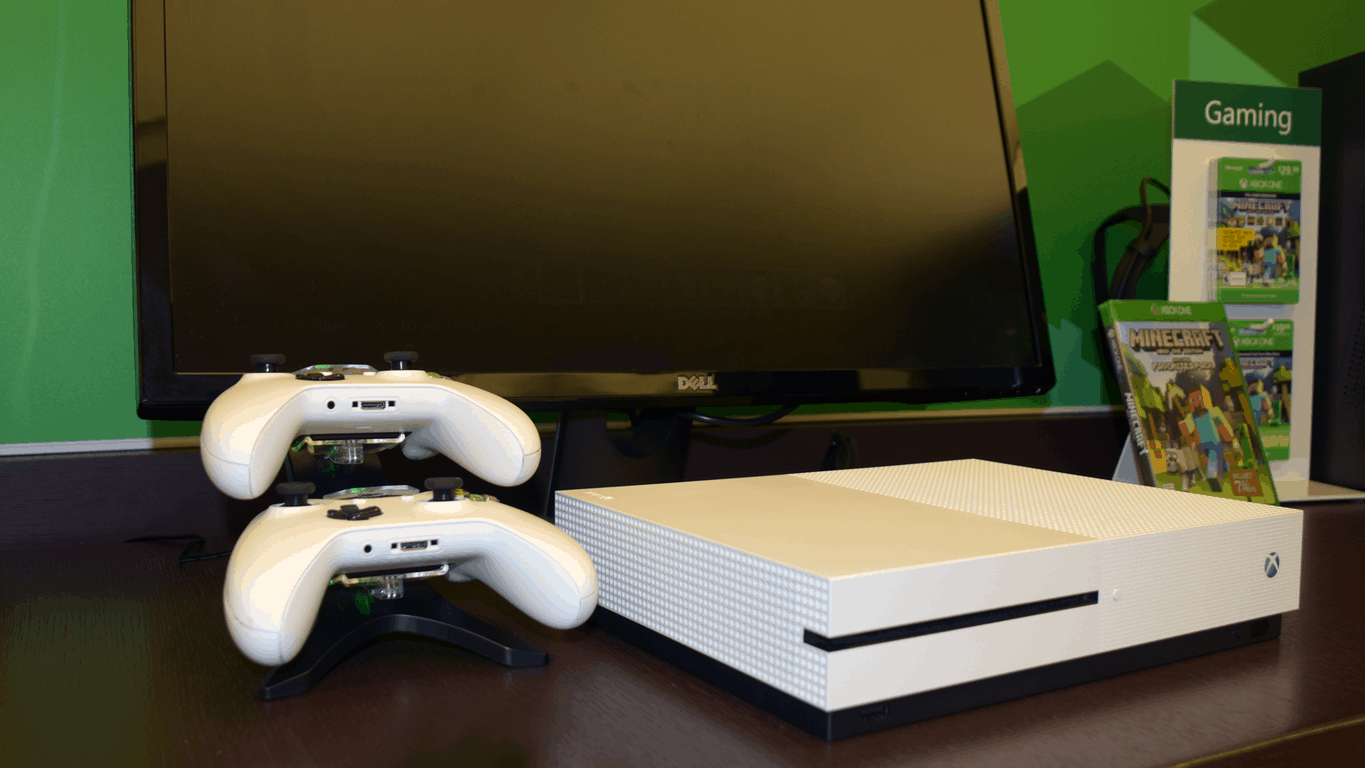
Xbox One S bundle sees its cheapest deal of the year already

Want an Xbox One? Not sure? Well, you’d better make a decision quickly – because possibly the biggest deal on the console to come out so far this year is going away very quickly. The deal on offer from Dell is an Xbox One S 500GB, bundled with Minecraft. The price? Just $220. That shaves off well over $100 from the average price you’d be paying for this bundle.

As of the writing of this article, the deal is 84% claimed, so it’s going fast. If you’ve been dying to get your hands on an Xbox One, you ought to see if you can take advantage of this sale. You probably won’t get a better opportunity for quite a while.

Microsoft Introduces “Power Throttling” function for Windows 10 Insiders, helps save battery

Microsoft today announced a “Power Throttling” feature for Windows 10 Insiders running build 16176. The feature leverages “modern silicon capabilities” and helps Windows “run background work in a power-efficient manner,” enhancing battery life significantly while still giving access to the much-beloved multitasking capabilities of the OS.

According to Microsoft, “Power Throttling” is currently available only for processors with Intel’s Speed Shift technology, such as Intel’s 6th-gen (and beyond) Core processors. The company is working on expanding support to other processors as well in the coming months. Here is a look at how the feature works.

To give great performance to the apps you’re using, while at the same time power throttling background work, we built a sophisticated detection system into Windows. The OS identifies work that is important to you (apps in the foreground, apps playing music, as well as other categories of important work we infer from the demands of running apps and the apps the user interacts with). While this detection works well for most apps, if you happen to notice an app that is negatively impacted by Power Throttling, we really want to know!!

As noted in the flight notes for build 15014, the feature works by using a Power Slider. Microsoft notes that “Windows will keep the processor in its efficient ranges when you’ve selected “Battery Saver” or “Recommended” and turns off completely when you’ve selected “Best Performance.” You also can opt individual apps out from “Power Throttling” by doing the following.

  • Go to Battery Settings (Settings > System > Battery).
  • Click on “Battery Usage by App”.
  • Select your app.
  • Toggle “Managed by Windows” to “Off”.
  • Uncheck the “Reduce work app does when in background” checkbox.

This news comes after the company announced experimental battery life improvements in Windows 10 build 15002 back in January of this year. According to Microsoft, “Power Throttling” was part of the experiment in build 15002, and showed “up to 11% savings in CPU power consumption for some of the most strenuous use cases.” The Redmond giant is also “hard at work” making improvements on the feature, and invites you to provide feedback by running the Feedback Hub and file feedback under the Power and Battery > Throttled Applications category.

How to stream via Beam in Windows 10 Creators Update

Streaming any game via Beam on Windows PC has never been easier courtesy of the Windows 10 Creators Update. In order to start streaming, you simply have to log into a few apps, launch a game, and click the broadcast option.

Prior to starting a game broadcast, check if the app works in the game bar. It is compatible with any game that runs in windowed mode, UWP titles, and a few Win32 games. To check a game’s compatibility, press Win+G and open the game bar. Everything should work fine if it shows up. To start streaming, follow these steps:

  1. Visit your Xbox privacy settings and enable broadcasting. To do that, sign in to your Xbox account, go to the Xbox One/Windows 10 tab, and search for the “broadcast gameplay” option.
  2. Open a game and click the Windows key and G together to launch the game bar. You can also push the Xbox guide button on your controller.
  3. Click the broadcasting icon and agree to the terms and conditions for Beam.
  4. Make your own configurations, if you so choose, and click “Start stream.”

Beam is of value mostly to gamers, allowing other people to watch them as they’re playing. Perhaps Microsoft will extend the functionality of this feature to other areas in the future.

Are you using Beam in the Creators Update now? What is your experience so far? Let us know!

RELATED STORIES YOU NEED TO CHECK OUT:

Microsoft buys another 10 million DNA strands for digital data storage testing

Not so long ago, you may remember that Microsoft promised Office 365 customers that they would get unlimited cloud storage on its OneDrive service. Unfortunately, the company later backtracked on this promise, explaining that it needed to guarantee its customer that it could “sustainably operate OneDrive in the future.”

Yes, data storage is expensive, and Microsoft is actively trying to find ways to do this more effenciently. And as it turns out, the next technological  breakthrough in this field could well be using DNA for digital data storage, which is something that Microsoft is very interested in. Indeed, the company partenered last year with the University of Washington and Twist Bioscience, a company that produces “synthetic DNA” that can store digital data very efficiently.

The Redmond giant seems to be excited by the results so far, as Twist Bioscience announced yesterday that Microsoft had just purchased another 10 million DNA strands to pursue its research (via ZDNet). “After working together for over a year, the organizations have improved storage density, thereby reducing the cost of DNA digital data storage by encoding more data per strand and increasing the throughput of DNA production,” explained Twist Bioscience in the press release. Storing data on synthetic DNA may well sound very abstract to you, but Luis Ceze, Professor of computer science and engineering at the University of Washington’s explained that its much more efficient than current storage technologies:

Importantly, not only does DNA provide a high density, very long-term solution to digital data storage, it requires very little energy at rest compared to today’s storage technologies. In addition, DNA will never become obsolete as an information storage medium, since we will always care about reading DNA. No more migration from disk to tape to denser tape.

Last year, the research led to a first breakthrough after Microsoft announced in July that it had succeeded to store 200 megabytes of data on synthetic DNA strand “much smaller than the tip of a pencil.” However, the company is well aware that the research is still at early stages. “There are still many challenges in making DNA storage mainstream, though we are encouraged by the work we have completed to date,” said Karin Strauss, Ph.D. and Senior Researcher at Microsoft. “Demand for data storage has been growing at break-neck pace. Organizations and consumers who need to store a lot of data – for example, medical data or personal video footage – will benefit from a new long term storage solution. We believe DNA may provide that answer,” she added.

Verizon extends Microsoft partnership to provide Azure-based CDN

Verizon today announced that they will be extending their partnership with Microsoft to provide Azure-based CDN. Under the partnership, Azure Storage will be available to all Verizon Digital Media Services Edgecast Content Delivery Network (CDN) users, providing “resilient, infinitely scalable object storage that is ideal for media and metadata” (via marketwired.)

According to the press release, Edgecast CDN customers can “take advantage of Azure Storage as part of one single solution from only one vendor.” With this one easy-to-manage contract and support system, content providers will be able to, “maximize the impact of their technology and spend with confidence in the quality and performance of both their storage and content delivery network.” In a statement, Kyle Okamoto, chief network officer for Verizon Digital Media Services remarked on the extended partnership.

“We are pleased to work with Microsoft to now give our Edgecast CDN customers streamlined access to a trusted and exceptionally robust cloud storage service… We value Microsoft’s continued investment and innovation in cloud technology, which complements our commitment to providing our customers with optimized solutions that meet the increasing demands of today’s media landscape.”

Verizon Digital Media Services and Microsoft have customized application programming interfaces within each other’s platforms, as well as some highly integrated network interconnections.  A number of Microsoft services including Xbox and Skype, utilize the Edgecast CDN. In the words of Tad Brockway, general manager, Azure Storage at Microsoft Corp:

We have enjoyed a mutually beneficial relationship with Verizon Digital Media Services throughout the years and are delighted to expand upon our effort… Offering access to Azure Storage on the Edgecast CDN brings fast, dependable and easy-to-manage solutions to even more content owners and providers

Interested parties can learn more about the extended partnership by visiting this website. Once you’ve checked it out, let us know your thoughts in the comments below!

Microsoft to acquire team productivity company Intentional Software, Charles Simonyi to return

Not too far back in Microsoft’s past, a man named Charles Simonyi was the head of Microsoft’s application software group. One of his jobs was to oversee the development of Office suite favorites such as Excel and Word. Fifteen years after splintering off to his own company Intentional Software in 2002, Microsoft has signed an agreement to acquire it, and bring Simonyi back to the company.

Simonyi originally led a Microsoft Research project exploring how to develop with ‘intentional programming’. The software, in theory, would use source code that detected the intentions of the user, making it easier to create and maintain computer programs with a modular code.

However, Microsoft took a different route with their developments. The paradigm was so important to Simonyi that he eventually left the Redmond giant to respectfully pursue it alone. Now, Microsoft is welcoming back the former lead employee along with the purchase of his company.

According to the announcement, Microsoft intends to use the acquired productivity software to develop on their own further.

This acquisition will build on the work we’re already doing to deliver the tools necessary to be productive in an information-rich world. Intentional Software’s technology and talent will enhance our existing capabilities and strengthen our ability to add new tools and services to Microsoft’s robust productivity offering.

Charles Simonyi himself described himself as “excited, stoked, amped, and elated to join forces again with Microsoft” in his press statement. He also noted that the deal had already been a collaboration two years in the making and that much of his team at Intentional Software will be joining him in the transition.

Microsoft’s renewed interest in intentional programming will have applications that we can’t possibly foresee yet. However, one example is the development of pen computing in which Simonyi described as interacting with the documents instead of the apps with implied ontology. “It will amount to reinviting productivity itself,” he explained, citing new capabilities such as machine learning and knowledge representation that weren’t available over a decade ago.


Microsoft partners with CHOICE to create Accent, a digital literacy program running on Edge

Microsoft Edge, the new web browser that ships with all Windows 10 PCs, is clearly much better than its predecessor, the often criticized Internet Explorer. However, after nearly two years in the market Edge still remains a young browser which has yet to be massively embraced by Windows 10 users: last week, Microsoft exec Joe Belfiore acknowledged that “in the browser scheme of things, we have room to grow.”

If improving Edge is certainly a big focus for Microsoft right now, the company also wants you to know that its new browser is already a great platform to build web-based tools. Indeed, the Redmond giant announced today that it has partnered with CHOICE Humanitarian to create Accent, a browser-based solution to learn to read and write Spanish. The non-profit organization is currently testing Accent with the Q’eqchi’ women of Guatemala, who can’t read and write in their own native language but want to learn Spanish to improve their economic opportunities.

The app leverages some of Microsoft Edge’s unique features that allow Q’eqchi’ women to draw on web pages and drag and drop letters objects very easily. More importantly, CHOICE Humanitarian’s Francesca Perkins describes Accent as an “open-source, scalable solution to literacy” that works both online and offline. Divya Kumar, Microsoft Edge Product Marketing shared some additional details:

Working with CHOICE, we utilized the native support for touch and inking in Microsoft Edge to build an interactive curriculum for their literacy program and helped them deploy the platform for the first time to the women in underprivileged regions in Guatemala. We worked very closely with CHOICE to create a solution that empowers their mentors to continue to expand and scale Accent with new courses, new languages and new skills without needing programming expertise. We are extremely excited to contribute to the CHOICE work to eradicate poverty through literacy worldwide.

In the future, CHOICE Humanitarian plans to use Accent in all seven countries where it operates. “We are also thrilled that other NGOs can use this tool to support their own literacy goals,” added Leah Barker, CHOICE Humanitarian CEO. Microsoft Edge may not be the most popular web browser out there, but it’s still nice to see that it can help Microsoft succeed in its goal to empower everyone to achieve more.

Steve Ballmer launches USAFacts, a financial report for government

A few months ago, some rumors showed that Steve Ballmer was working on a project aimed at helping the general public get a better consensus of government spending. Those rumors can now finally be put to the side, as the former Microsoft CEO has officially launched USAFacts, the non-profit initiative which releases financial reports on how the government is being run (via GeekWire.)

According to the website, USAFacts was inspired by a conversation Steve Ballmer had with his wife. She had wanted him to get more involved in philanthropic work, and he thought it made sense to first find out what government does with the money it raises. Ballmer then searched for solid, reliable, impartial numbers to tell the story, eventually putting together a small team of economists, writers, researchers to get his project up and running.

We soon discovered that dealing with something as big and complex as government – with its more than 90,000 jurisdictions and 23 million employees – required an organizing framework. What better place to look than the Constitution, and, more specifically, the preamble to the Constitution? It lays out four missions: “Establish justice, ensure domestic tranquility;  provide for the common defense;  promote the general welfare; and  secure the blessings of liberty to ourselves and our posterity.” While we don’t make judgments about policy, we all agree on the broad purposes of government as laid out in the preamble to the Constitution.


Based solely on government data, the interactive USAFacts website includes a 291-page slide deck, a 58-page summary document and also a report on governmental operations. The team which compiles the data for USAFacts reports includes academic institutions and experts. Stanford Institute for Economic Policy Research (SIEPR), the Penn Wharton Budget Model, and Lynchburg College all contribute. According to reports, the USAFacts team is composed of more than 30 people, some of which are lawyers and accountants who used to compiled Microsoft’s financial reports. Ballmer remarked on his project (which is being financed with his own money) in an interview with GeekWire.

I don’t buy that we’re in a post-fact world… People talk about alternate facts, they talk about fake news … but the numbers are what they are. They tell us about the past. They give us the ability to judge the forecast that we all have for the future… There are a lot of reasons why people believe what they believe about issues of government and politics… But at least you have to ground those proposals in a real understanding of what has happened, and what the numerical outcomes have been in the past. And I don’t really think that’s going to change.


USAFacts

Ballmer was Microsoft’s CEO from 2000 to 2014, and admits to GeekWire that he is “surprised by some of the data uncovered by the project, including improvements in crime, emissions, traffic fatalities.” You can learn more about USAFacts by visiting the website here, so be sure to check it out and let us know your thoughts in the comments below.

Xbox Insider Preview Alpha Ring gets its first 1705 build

Yesterday, the Xbox team explained that several new features would roll out to Xbox Insiders later this month including a new Party overlay, Arena and Xbox Live and more. Following this announcement, the team has also released a new preview build for Preview Alpha members to kick off the gradual rollout of these new features.

Please note that the following changelog doesn’t reveal which new features are included in this build:

DETAILS

OS version released: rs2_release_xbox_1705.170411-1700
Available: 6:00PM PDT 4/17 (1:00AM GMT 18/4)

NEW FEATURES:

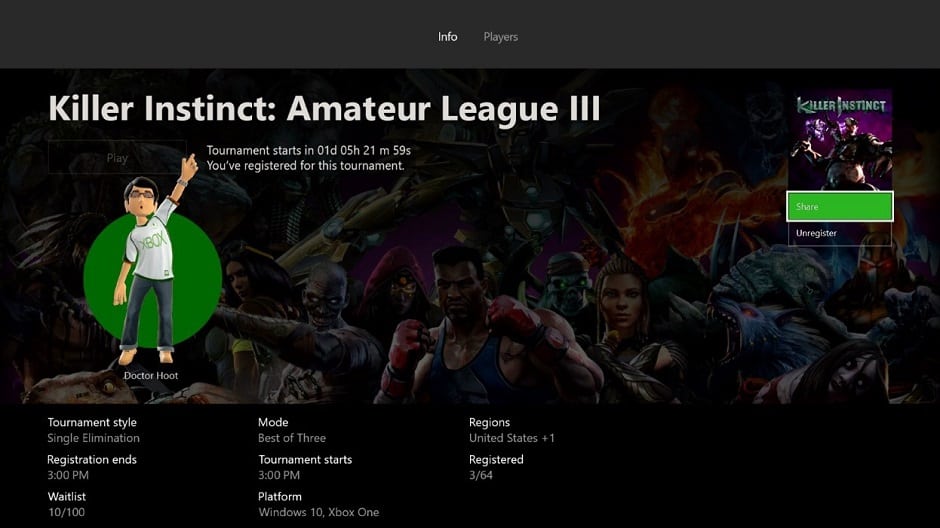
Welcome to 1705 on Xbox One! This month we’re rolling out a new party overlay, more fan-requested improvements, and later this month…Killer Instinct and World of Tanks tournaments powered by Arena on Xbox Live!
You can read more about the features coming in this update on the Xbox News Wire.

NOTE: Not all planned features for this update are available at this time

Overall, it’s been a busy past couple of weeks for the Xbox team: the Xbox One March Update rolled out to everyone in late March, followed by a new feature update just last week. And as you can see, this first 1705 preview build suggests that all the new features announced yesterday should be ready for everyone in May.

Web browsers don’t work after installing Windows 10 Creators Update [Fix]

Windows 10 Creators Update was released last week. Initial impressions are mostly positive, as it seems that the features that were neglected in the previous patches now look significantly better and more user-friendly than before.

However, the Creators Update isn’t flawless, to say the least. Users around the world are reporting all kinds of issues that occurred after the update. One of those is related to browsers, especially Edge. Namely, even though the native browser received buffs of all sorts, some users experienced problems while browsing. To make the things even worse, that goes for various 3rd-party web browsers, as well.

Because of that, we enlisted solutions that should help you to resolve any browser-related issues in Windows 10 Creators Update. If you have any issues after the upgrade, you can find the possible workarounds below.

How to resolve browser issues in Windows 10 Creators Update

Check your connection settings

The slow or unstable connection can often cause browsing problems. Most of the time, the problems are related to the update itself, but the connection settings are also worth investigating.

The first thing you should check before moving on to internal problems is the connection. You should thoroughly inspect your modem/router. This is something you should check initially to remove all doubts.

The detailed explanation of the step-by-step troubleshooting can be found here.

Clear browsing data

Once we removed external suspects, let’s move to the browser itself. It doesn’t matter if you’re using a native browser like Edge or a 3rd-party browser, clearing data should speed things up. And, hopefully, resolve any browser-related issues.

You should have an easy time finding appropriate settings on different browsers, including Edge. But, in honor of remodeled, improved Edge, we’ll show you how to do it. To clear browsing data on the successor of atrocious Internet Explorer, follow these steps:

  1. Open Edge, click on the 3-dot menu and choose Settings.
  2. Click on Clear browsing data and select what you want to clear.
  3. Check all the boxes you want to delete and click Clear. The columns that you should take into consideration are ‘Cookies and saved website data’ and ‘Cached data and files’.
  4. Restart Edge and try again.

However, in case this wasn’t sufficient and you are still experiencing issues with the browser, move down to the other solutions.

Disable Adobe Flash Player

Most of the (if not all) mainstream browsers have integrated Flash player that substitutes earlier versions with external Adobe Flash Player. However, there’s a catch. With some browsers, the integrated Flash Player extension can cause a few issues now and then. One of those that is closely related to Windows 10 Creators Update, slows down or even completely stops the browser.

Some users have managed to resolve the browser issue by disabling the Flash Player on their respective browsers. Now it goes the same with browsing data: you should easily find the Flash Player extension and disable it. But, since Edge is a beloved child of Microsoft, we decided to show you how to disable Flash Player within Edge. Follow the instructions below:

  1. Open Microsoft Edge.
  2. Click on 3-dot menu and open Settings.
  3. Open Advanced settings.
  4. Uncheck the box under ‘Use Adobe Flash Player’.
  5. Restart Edge and check for improvements.

Reinstall browser/Reset Edge

If the previous steps failed, you should turn to other solutions. One of those is browser reinstallation. Namely, if you have installed a browser before the system upgrade, there’s a chance that something went wrong. The best solution for that is complete, clean reinstallation of the browser. You can find the complete reinstallation procedure for your browser online.

However, since the Edge is built-in Windows 10 browser, it can’t be uninstalled. You can only reset it to default settings. This isn’t as simplistic as you would expect since it’s performed trough PowerShell, so follow these instructions and give it a go:

  1. Create a restore point in case something goes wrong.
  2. Navigate to C:\Users\Your Username\AppData\Local\Packages\Microsoft.MicrosoftEdge_8wekyb3d8bbwe and delete everything within this folder. You need to enable Hidden folders to access this folder.
  3. Now, right-click the Start and run Microsoft PowerShell (Admin).
  4. Copy-paste the following code and press Enter:
    • Get-AppXPackage -AllUsers -Name Microsoft.MicrosoftEdge | Foreach {Add-AppxPackage -DisableDevelopmentMode -Register “$($_.InstallLocation)\AppXManifest.xml” -Verbose}
  5. This should re-register Edge, clear bugs, and posibly resolve your issue.

However, if the problem is still there, you may check 2 remaining solutions.

Use SFC to scan for corruption

The last step you should take is the universal fix for all kinds of corruption within Microsoft’s operating systems. And that’s the System File Checker or shortly SFC. This tool’s purpose is to check for incomplete or corrupted system files that may lead to a lot of malfunctions and system instability.

Additionally, if there’s a broken file, this tool will fix all of the issues and get you going.

This is how to use it:

  1. Right-click Start and open Command Prompt (Admin).
  2. In the command line type sfc/scannow and press Enter.
  3. After the process is finished, your system should be repaired.
  4. Restart the PC and check browser again.

That should be enough to relief you of all browser-related issues in Windows 10 after installing the Creators Update. And don’t forget to share your questions or suggestions in the comments section below.

RELATED STORIES YOU NEED TO CHECK OUT:

Bayonetta bugs: FPS drops, crashes, controller won’t work, and more

Bayonetta is an action game that follows the story of the last survivor of an ancient witch clan who keeps the balance between light, dark and chaos. The main character of the game, Bayonetta is discovered and revived after 500 years. Her revival triggers a series of events with cataclysmic consequences.

The only problem is that she doesn’t remember anything about her past. With a single clue available, she goes on a quest to discover who she really is. This process also involves fighting off hordes of enemies.

Bayonetta players also report that the game is affected y various technical issues, limiting the gaming experience. In this article, we’re going to list the most common issues reported by players.

Bayonetta reported bugs

  • FPS drops 

I run this game at the lowest settings possible, and I get 5-10fps. My PC was high end when i bought it. Surely tech doesn’t advance that fast? I am lost really… please give advice. I played this game with “Family Sharing.”

  • Game minimizes itself

If you’re experiencing this issue, update your graphics drivers and this should fix the problem.

When I launch the game, it minimizes itself. If I click on it, it minimizes itself again after one second, so I’m not able to change any configuration. I already checked the integrity of the cache.

  • Bayonetta won’t save

What is going on with this game? I can’t save it. When I go to the save game menu it won’t let me select a save slot. When I exit the game, I have to start from the beginning again. I can’t even find the chapter menu to select the chapter I was up too. Can anyone help?

  • Game crashes

[…] upon launch i see a window open and close instantly, I have checked the game files and validated but no luck…. If anyone is willing to help that would be great […]

  • Double screen in cinematics

I have a problem in cinematics with fixed images, I see a small screen in the upper left part, any know any solution for this error

  • Controller doesn’t work

I’ve got a Logitech wireless gamepad (F710). It works fine in Windows and in other games, but Bayonetta apparently only wants to accept keyboard and mouse input. The controller won’t navigate menus, select options, control the character, or really do anything at all.

These are the most frequent Bayonetta issues reported by gamers. If you’ve come across other bugs, use this Steam discussion page to provide the game’s developers with more details about the issues that you’ve encountered.

RELATED STORIES YOU NEED TO CHECK OUT:

MBR2GPT to Convert MBR to GPT: How to Do It

Windows introduced a new console tool called MBR2GPT, which lets you convert an MBR disk (Master Boot Record) to a GPT disk (GUID Partition Table) without data loss or modification.

MBR is an old method of partitioning disks that uses a special boot sector at the beginning of the partitioned storage to identify the location of the bootable operating system.

PCs with BIOS used to have MBR before the newer UEFI standard, which gave rise to GPT. It refers to the standard layout for partition tables using globally unique identifiers (GUIDs). But what’s the need for MBR2GPT? Let’s find out!

Why do I need the MBR2GPT command?

Earlier, users had to choose between MBR or GPT at the time of formatting the disk. That means changing the partition table style would erase data on the disk.

But with MBR2GPT released later, users can now convert an existing MBR disk to a GPT disk without deleting it. MBR2GPT.exe runs from a Windows Preinstallation Environment command prompt and a regular Windows 10 copy.

For those wondering where MBR2GPT is stored, its executable file can be found in the System32 folder. If the file is not there, repair the corrupt system files or perform an in-place upgrade.

How do I use Windows MBR2GPT?

Use Command Prompt

  1. Press Windows + R to open Run, type cmd, and then hit Ctrl + Shift + Enter.
  2. Click Yes in the UAC prompt.
  3. Now, paste the following command and then hit Enter:MBR2GPT /validate|convert [/disk:] [/logs:] [/map:=] [/allowFullOS]command

The command line parameters are described as follows:

  • /validate: Instructs MBR2GPT.exe to perform only the disk validation steps and report whether the disk is eligible for conversion.
  • /convert: Instructs MBR2GPT.exe to perform the disk validation and to proceed with the conversion if all validation tests pass.
  • /disk: Specifies the disk number of the disk to be converted to GPT. If not specified, then the system disk is used. The mechanism used is the same as that used by the diskpart.exe tool’s SELECT DISK SYSTEM command.
  • /logs: Specifies the directory where MBR2GPT.exe logs should be written. If not specified, %windir% is used. If specified, then the directory must already exist. It will not be automatically created or overwritten.
  • /map: Specifies additional partition type mappings between MBR and GPT. The MBR partition number is specified in decimal notation, not hexadecimal. The GPT GUID can contain brackets, for example, /map:42={af9b60a0-1431-4f62-bc68-3311714a69ad}. Multiple /map options can be specified if required.
  • /allowFullOS: By default, MBR2GPT.exe is blocked unless it is run from Windows PE. This option overrides this block and then enables disk conversion while running in the full Windows environment.

That’s all! You can now easily convert the partition style from MBR to GPT with the MBR2GPT command. This is useful technique, especially if you want to access the GPT protective partition without file loss.

If you find the process a little tricky, there are several other ways to convert MBR to GPT. Use one that seems straightforward and quick.

To learn more, we have a great guide that answers the question if Windows 11 can run on MBR partition, so don’t miss it. If you’re not sure if you want to switch to GPT, we have a great guide on MBR vs GPT that might change your mind.

For any queries or to share whether the method worked for you, drop a comment below.

Xbox Insiders to see Killer Instinct arena tournaments, fan requested features rolling out this month

Xbox fans have been excited about the new Arena feature since last year at E3. Today, Xbox Wire announced that select Insiders will be seeing the next installment of Arena on Xbox Live.

Starting sometime this month, Xbox Insiders will be seeing more and more tournaments cropping up. Club owners and admins will be able to create, host, and register Arena tournaments through the beta Xbox Live app on Windows 10. These will also include an invitation to guests of the club, making open public tournaments for available games.

Currently, this list of games is extremely limited. However, Killer Instinct, Halo Wars 2, Smite, and World of Tanks look to be on the rollout for participating titles. In fact, the first public arena-powered prized tournament will be hosted at the Microsoft Store in New York. The Killer Instinct Battle for New York will pit eight players against each other for cash and prizes valued at $10k.

Of course, the Arena feature isn’t the only interesting addition of note. Xbox Wire also mentions the new Party Overlay, a transparent view of who is using voice chat in the party. It can be placed anywhere on the screen and conveniently altered how visible it is.

Other features coming to Xbox Live include:

  • Share your Looking for Group post on the Activity Feed or through a message.
  • Unfollow a Club or Game Hub directly from your Activity Feed.
  • Your profile will display your Arena tournament history and upcoming tournaments.
  • For Beam and Twitch broadcasts, you will now have an option in the Guide for your Kinect to locate you automatically.
  • Captive Portal support for wireless internet is coming to Xbox One, which allows for Wi-Fi authentication through a browser. Great for colleges, hotels, or public Wi-Fi locations.
  • Filter posts on your Activity Feed on the Xbox app for iOS and Android.
  • On the Xbox app for Windows 10, we’re adding the option to select the audio input and output sources for Party chat.

To check out these features in action, you’ll need to be an Xbox Insider. Even then, some features are restricted to select participants. To opt-in, download the Xbox Insider Hub and enable the preview ring that you want.

Let us know what you think about the upcoming Xbox Live features in the comments below, or tweet us @OnMSFT what you’d like to see next.

The UXStyle software causes Windows 10 Creators Update crashes

If you’ve experienced various technical issues after upgrading to the Windows 10 Creators Update, the UXStyle software may be the culprit. This program enables third-party theme customization on Windows computers.

According to recent user reports, this tool sometimes causes a series of severe bugs, including BSODs, random driver crashes, as well as Windows Explorer issues.

How to fix Creators Update issues caused by UXStyle

The good news is that the UXStyle software is compatible with the Creators Update OS as long as you install it after you’ve upgraded your computer. Indeed, users confirm that the issues listed above occur only if you install the latest Windows 10 version whilst this software is installed.

In order to avoid these issues, you need to first uninstall the UXStyle software before you hit the upgrade button. Once the Creators Update has been installed on your computer, you can download and install the UXStyle software again.

Here’s how one user describes this whole situation:

If you are using the UXStyle software that allows you to install custom themes, UNINSTALL IT right now. If your system updates to the latest build of Windows whilst this software is installed, it will effectively brick your installation with random BSODs, random driver crashes and a lack of a working Windows Explorer. This happened to me on 3 computers, all of them I have had to reinstall the OS on.

Please share this around so others don’t fall into the pit that I did.

Have you reinstalled the UXStyle software after upgrading to Windows 10 Creators Update? Did you encounter any other issues or is everything running smoothly on your computer?

RELATED STORIES YOU NEED TO CHECK OUT:

Today is the last day of the Windows Store Spring Sale

Last week, Microsoft brought back its annual Spring Sale with plenty of discounts across the Microsoft Store, the Xbox Store, and the Windows 10 Store. The seven-day sale ends today, April 17, so now is a good time to check all the games, apps, albums and movies & TV shows that are still being discounted.

First of all, PC gamers may take a look at the great discounts on select Xbox Play Anywhere titles such as Halo Wars 2, Gears of War 4, Forza Horizon 3 and Recore. Microsoft is also offering up to 75% off popular productivity apps such as Adobe Photoshop Elements 15, Drawboard PDF and Grapholite, but you may also check the versatile recipe organizer app Recipe Keeper Pro or the Djing app edjing Pro.

Lastly, you can take save up to 50% off top movie and TV shows, including cool discounts on Star Wars, Harry Potter bundles. You can check all deals on this dedicated page or right in the Windows Store app.

Microsoft announces E3 Xbox FanFest, running Sunday June 11 through Tuesday June 13

Microsoft today announced the 2017 E3 Xbox FanFest, running from Sunday, June 11 through Tuesday, June 13. Just as in years past,  the experience will give 500 lucky fans a one-of-a-kind, up-close-and-personal experience to the gaming industry’s biggest showcase.

To participate, you’ll need to be the age of 21 and have an Xbox Live gamertag. You’ll also need to have a ticket, which unlike years past, will become an online registration process. Based on fan feedback from previous events, Microsoft has come up with the following method for locking in attendance to FanFest.

Here’s how it’ll work: 400 of the 500 tickets will be available first-come, first-serve starting this Wednesday, April 19. Tickets will be released in drops throughout the day, with the first drop starting at 6 AM PT. Stay glued to #XboxFanFest and @Xbox on Twitter for when those drops occur! Please note that you will need to have a credit card to hold the ticket. There is no charge to reserve a ticket but cancelation fees will apply. The remaining 100 tickets will be distributed through a variety of other promotions/giveaways. Follow #XboxFanFest on Twitter for when some of those promotions start. Be sure to hit the official Xbox FanFest: E3 2017 page for complete details and an FAQ.

The 500 lucky fans who receive tickets will be able to enter into the Xbox E3 2017 Briefing on Sunday, June 11, at 2:00 PM PT,  as well as a custom-built backpack full of gaming swag. As an added bonus, attendees will also get “Early Access” to Xbox’s hottest exclusives, Project Scorpio, and the biggest blockbuster games at a private event on Monday evening, June 12th. If you’re not lucky enough to attend, you can still tune into the Xbox Daily: LIVE @ E3 news show on Monday, June 12th by watching on Xbox One, Xbox.com, Xbox 360, and on the Xbox Twitch Channel.

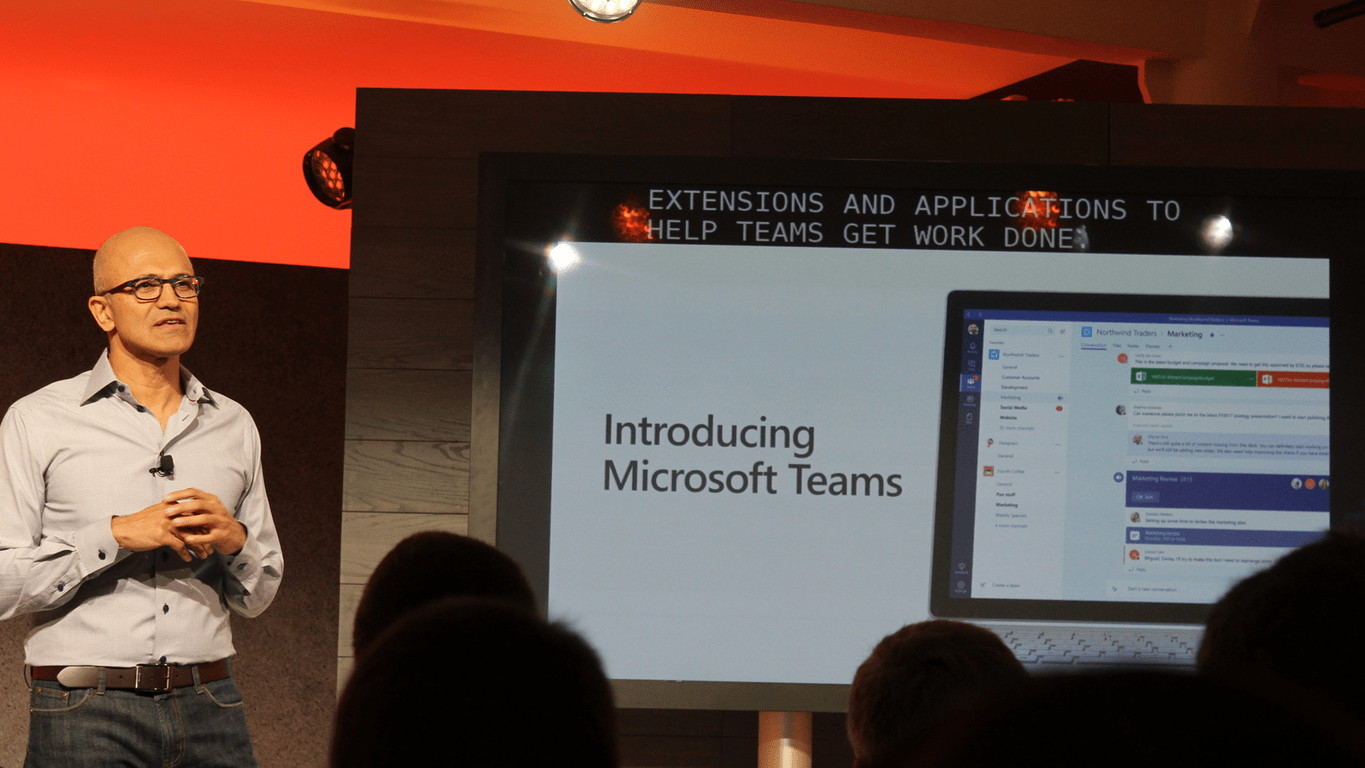
My Life On Microsoft: Teams is what I need, but I want more

As you probably know by now, OnMSFT has switched over to Microsoft Office 365 and in doing so, we’ve adopted Microsoft Teams as our primary source of communication and workflow. But not all of us are taking the change easily. In fact, I could argue that the stapled together HipChat/Trello flow we used to have ran so much smoother than Teams/Planner in many regards. But I’m getting ahead of myself.

When our Senior Editor Kip Kniskern told me that we were switching over to Office 365 fully, I was ecstatic. After reading and writing about Microsoft Teams so much, it was a big moment to get my hands on the actual product.

At first glance, Teams is such an appealing option. The user interface is smooth and who doesn’t like threaded conversations to keep chat on topic? But even deeper, I love the idea of integrating all of our organization such as work email, alerts, newsletters, calendar events, schedules, requested time off, and deadlines all into one place. For me, I believed Microsoft Teams would be the ultimate work organizer.

What I Need

The most important part of any work organizer is exactly that, to be able to put together each integration into a coherent manner that will be easily adaptable. At the barebones, our writers needed to be able to work seamlessly with breaking news and features, aware of who is covering which story, and to chat efficiently.

We needed a replacement for the Trello system, where we would move stories that are constantly rolling in, updating on the fly who is taking care of which one, and quickly communicating this information through chat. How handy it was that Hipchat’s Trello integration would indicate when a task was moved and by whom, a goal that we sought to re-enact with a similar Planner setup integrated into Microsoft Teams.

What I Got

Microsoft Teams has plenty of features that make collaborating easier, many of which were new and exciting to discover. The most noticeable of which were the threaded conversations. I can’t tell you how many times I’ve lost track of a conversation in HipChat, and these threaded and focused chats made working on individual stories so much more organized. The feature alone could be praised as a reason to convert, which may be why other competitors felt the heat to add them. Furthermore, these are topped with an Activity Feed with notifications that keep you up to date in real time even through your phone.

Digging further into the functionality of this collaborative software, the fun yet professional communication tools have already stolen my heart. Not only can I use fun gifs and make my own custom memes, which admittedly I use a little too much, but the compose box transforms the standard chat text into significant content. Users are able to create a header, fill in paragraphs of text, write lists, and mark it as important with a bright red exclamation mark. Perfect for Team announcements or newsletters!

Of course, what Teams really excels in is integrating with other Microsoft Office 365 software. I know that’s no surprise, but it’s worth mentioning. Connectors let our team schedule upcoming events, share files, scour the newsfeeds, and even toy with bots if we so desire, even if the selection of bots are extremely limited.

But Microsoft Teams is not fully what I wanted it to be, at least not yet. For a software that was supposedly developed by a team that used it daily, Teams is lacking some essential features.

One of the features I’ve used a lot in the past is @here in chat. With a job where people come and go online, it’s hard to keep track of who is currently online. In Teams, the list of online members is already hidden in the background where you have to right click the team’s name to view it. Even then, members aren’t filtered by availability. You can organize by name, location, title, and role, but when it comes to wanting to contact someone that is immediately available, Teams is lacking.

What I Want

After about a month to play around with Microsoft Teams, I’ve got a list of complaints that I could go on and on about. Granted, the same could be said for praises. To minimize the amount of ranting, I’ve decided on three focus points that I want to see improved the most.

Minimal UI – The current Teams software is clunky. Much like other Windows 10 software, it loves its square tiles and bold headers. This might make it easier to navigate, but as time goes by, it tends to get in the way more than it helps. I’d like to see a compact version that minimizes the amount of dead space, makes icons smaller and looks more professional. Teams should be a quick and efficient to use software for businesses, and some of us work better without the bells and whistles. Currently, this idea needs feedback on UserVoice.

Sub-teams/Roles – In Microsoft Teams, you have few options for customizing your workplace. When a team is made, there is one role that controls all of those sub-channels. This also means that it is limited to tagging that one team, essentially as an @all feature. What I want to see is a way to have a single team, and within those channels be able to tag @Admins, @Editors, @Writers. Currently, this potential feature hasn’t been addressed as of yet. Instead, it seems users are encouraged to make private teams. But this is a different monster entirely. These private teams cannot be mentioned in another team’s conversation threads, rendering them useless. Sub-teams and roles would also fix another requested feature on UserVoice: more efficient permission handling.

Full Planner Integration – This is obviously a personal vendetta of my own. After all, not every business is going to use Planner as their main integration hub. However, for our setup, Planner is nearly essential even if it is lacking. Described as “Planner Lite” by other UserVoice members, this integration has performance issues between its web interface and Teams. It lacks the features that Planners has, can be unreliable, and cannot even be accessed unless you use a link from the tab in Teams to access the web interface. This feature has been ‘Planned’ in UserVoice since last November.

The switch to Microsoft Teams takes some of getting used to, that is for certain. We’re still just getting started though, poking and prodding at what we can do in the software to improve our behind the scenes writing. While I fully believe in the longevity of Office 365 products, there’s a part of me that is pining for the features in the previous OnMSFT setup. Until then, I’ve found my soapbox on the easily accessible UserVoice feedback forums, conveniently placed as a big square button in Teams, and I refuse to relent!

Unable to download Windows 10 Creators Update [Fix]

Windows 10 Creators Update is finally up and running. We can expect a lot of positive changes as it seems that Microsoft finally addressed some of the lackluster features from the previous release. However, for some users, it’s impossible to catch the glimpse of the latest upgrade since they’re unable to download it.

This is not an uncommon issue when it comes to Windows 10 major updates. Namely, all of the previous updates had the download issues, especially in the first couple of days after release. Since the Creators Update, just like its predecessors, was released in waves you may not get it within the initial release. Moreover, the servers can easily get overrun because of the number of active users eagerly clicking on that ‘Check for updates’ link.

Nonetheless, if we exclude those universal factors, you may have an individual, specific issue that’s blocking the update. For that purpose, we conducted a list of probable workarounds so you can resolve any update-related issues with your upgrade process. You can find them below.

How to fix Creators Update download issues

Disable Defer Upgrades option

The first step you should take is to check the Defer Upgrade option. Namely, when enabled, this feature will prevent a major upgrade from installation. And, since the Creators Update is a major update, ‘Defer Upgrades’ will most certainly block it. This is how you can disable it:

  1. Open Settings.
  2. Click Update & Security.
  3. Click Windows Update.
  4. Open Advanced options.
  5. Uncheck the Defer Updates box.
  6. Get back to Windows Update window and click ‘Check for updates’.

If the problem is non-related to Defer Upgrades, move on to the additional workarounds.

Check your storage

In order to install updates, especially the major one like Creators Update, you’ll have to provide enough free space on your system partition. Namely, you’ll need to have at least 16 GB of free space for the 32-bit architecture, and at least 20 GB for the 64-bit architecture.

You can manually relieve your hard disk of unused files by deleting or transferring data to the alternative partition. Furthermore, you can use built-in Disk Cleanup tool to gain more free space by deleting the temporary files.

  1. In the Search Windows, type Disk Cleanup and click on the Disk Cleanup icon.
  2. Under Files to delete select Temporary files and click OK.
  3. Additionally, you can clean the system files, as well. Just click on Clean up system files and click OK.

That should make enough space for Creators Update to be downloaded and installed.

Upgrade later

Have in mind that the Windows Update server may be overcrowded, especially in the first few days after the release. So, if you’re sure that every other aspect is on point, you should try updating later.

Disable metered connection

In addition, you should disable metered connection. The Metered connection is there to prevent additional expenses and to restrain Windows Update from hogging on your bandwidth. Simply put, when this feature is enabled, you won’t be able to download and install any updates.

So, make sure to disable it before downloading any updates. This is how you can do that.

  1. Open Settings.
  2. Click on ‘Network & Internet’.
  3. Open Advanced options.
  4. Toggle off Metered connection option.
  5. Try updating.

However, in order to avoid extra charges from your ISP, you should enable the metered connection after the Creators Update is downloaded.

Turn off Antivirus and Firewall

It’s a known fact that the 3rd-party antimalware solutions and Windows 10 are not exactly the best combination. Namely, antivirus software can prevent updates or block some of their features that later leads to errors and a nervous breakdown of users around the world. So, for your own good, try disabling your antivirus prior to updating via Windows Update. Moreover, you can disable Windows Defender, as well. And this is how:

  1. Open the Windows Defender from the Notification area.
  2. Click on Settings.
  3. Toggle off Real-time protection.
  4. Check for updates.

In addition, you may want to disable Windows Firewall temporarily. It goes the same as with the antimalware solutions: even the built-in Firewall will prevent updates occasionally. So, follow these steps to disable the Windows Firewall.

  1. Navigate to Control Panel.
  2. Click System and Security.
  3. Click on the Windows Firewall.
  4. Select Turn Windows Firewall on or off from the left side.
  5. Turn off Windows Firewall for both Private and Public networks and click OK.
  6. Try updating again.

Nonetheless, this is an important security feature so it’s advised to enable Firewall again once your upgrades are downloaded and installed.

Check for certain error code within our site

In addition, if you’re prompted with the specific error code, you can look out for solutions within our site article base. There you should find appropriate solutions for any issues regarding Windows Update.

Just type the alphanumeric code in the search bar and press Enter. Choose the suitable article and perform the given workarounds until you resolve the error code.

Use ISO file to install Creators Update

Moreover, if standard update procedure failed and you’re still having troubles downloading and installing the Creators Update, you can use the ISO file and install the update manually. Besides that, you can download Media Creation Tool and check for updates with it. Media Creation Tool can be found here. And the ISO of the Creators Update is here.

That should do it. In case you have any additional workarounds, please share them with other readers in the comments section. We’ll greatly appreciate it.

RELATED STORIES YOU NEED TO CHECK OUT:

Acer computers compatible with the Creators Update

If you own an Acer computer and you’re planning to upgrade to the Creators Update, don’t forget to check if your device is compatible with the OS.

Acer recently published a list of all its laptops, desktops and tablets that have been tested as being suitable with theCreators Update. If your product model is not listed below, Acer has not tested it and the drivers have not been updated for that model.

You can run the Creators Update on the following Acer computers

Acer Notebooks

Acer Aspire

  • AO1-131
  • AO1-131M
  • AO1-431
  • AO1-431M
  • Aspire E5-422
  • Aspire E5-422G
  • Aspire E5-452
  • Aspire E5-452G
  • Aspire E5-473
  • Aspire E5-473
  • Aspire E5-473G
  • Aspire E5-473T
  • Aspire E5-474
  • Aspire E5-521
  • Aspire E5-521G
  • Aspire E5-521P
  • Aspire E5-521PG
  • Aspire E5-531
  • Aspire E5-531G
  • Aspire E5-531P
  • Aspire E5-551
  • Aspire E5-551G
  • Aspire E5-551P
  • Aspire E5-551PG
  • Aspire E5-571
  • Aspire E5-571G
  • Aspire E5-571P
  • Aspire E5-571PG
  • Aspire E5-572G
  • Aspire ES1-420
  • Aspire ES1-421
  • Aspire ES1-422
  • Aspire ES1-433
  • Aspire ES1-520,
  • Aspire ES1-521,
  • Aspire ES1-522,
  • Aspire ES1-533
  • Aspire ES1-732
  • Aspire K4000
  • Aspire R5-431T
  • Aspire R5-471T
  • Aspire R5-571T
  • Aspire R5-571TG
  • Aspire R7-370T
  • Aspire R7-372T
  • Aspire S5-371
  • Aspire S5-371T
  • Aspire SW3-013
  • Aspire SW3-013P
  • Aspire SW3-016
  • Aspire SW3-016P
  • Aspire SW5-012
  • Aspire SW5-012P
  • Aspire SW5-014
  • Aspire SW5-014P
  • Aspire SW5-015
  • Aspire SW5-015P
  • Aspire SW5-173
  • Aspire SW5-173P
  • Aspire V3-532
  • Aspire V3-532G
  • Aspire V3-572
  • Aspire V3-572G
  • Aspire V3-572PAspire V3-572PG
  • Aspire VX5-591G
  • Aspire Z5-501MT-G
  • E5-491
  • E5-491G
  • EK-571G
  • ES1-523
  • ES1-524
  • ES1-572
  • SW1-011
  • SW5-017
  • SW5-017P
  • SW512-52
  • SW512-52P
  • Switch A20-10
  • Switch SA5-271
  • Switch SA5-271P

Acer Swift

  • SF114-31
  • Swift SF314-51
  • Swift SF514-51

Acer Spin

  • Spin SP315-51

Acer One

  • L1410
  • S1001
  • S1002
  • S1002P
  • S1003
  • Z1402

Acer Extensa

  • Extensa 2540

Acer TravelMate

  • TMB113-E
  • TMP645-S
  • TMP645-SG
  • TravelMate P248-M
  • TravelMate P248-MG
  • TravelMate P449-M
  • TravelMate P449-MG
  • TravelMate P459-M
  • TravelMate P459-MG
  • TravelMate P648-G2-M
  • TravelMate P648-G2-MG
  • TravelMate P648-M
  • TravelMate P648-MG
  • TravelMate P658-M
  • TravelMate P658-MG
  • TravelMate X349-M

Acer Predator

  • Predator G5-793
  • Predator G7-793
  • Predator G9000
  • Predator G9100
  • Predator G9-591
  • Predator G9-591R
  • Predator G9-592
  • Predator G9-592R
  • Predator G9-593Predator G9-791
  • Predator G9-792
  • Predator G9-793
  • Predator GX21-71
  • Predator GX-791
  • Predator GX-792

Acer Desktop Series

Acer Aspire

  • Aspire C20-220
  • Aspire C20-720
  • Aspire C22-720
  • Aspire C22-760
  • Aspire C24-760
  • Aspire GX-781
  • Aspire GX-785
  • Aspire T3-710_W
  • Aspire T3-715
  • Aspire T3-780
  • Aspire TC-217
  • Aspire TC-220
  • Aspire TC-230 (TC3)
  • Aspire TC-280 (TC3)
  • Aspire TC-704
  • Aspire TC-707
  • Aspire TC-708
  • Aspire TC-730 (TC3)
  • Aspire TC-760 (China)
  • Aspire TC-780
  • Aspire TC-780 (TC3) (KBL)
  • Aspire U5-710_Wtdw
  • Aspire U5-710_Wtuw
  • Aspire X3-710_W
  • Aspire X3-780
  • Aspire X3-780 (KBL)
  • Aspire XC-217
  • Aspire XC-230
  • Aspire XC-730 (XC3)
  • Aspire XC-780 (XC3)
  • Aspire XC-780 (XC3) (KBL)
  • Aspire Z1-211
  • Aspire Z1-601
  • Aspire Z1-602
  • Aspire Z1-612
  • Aspire Z20-730
  • Aspire Z22-780
  • Aspire Z3-700
  • Aspire Z3-705
  • Aspire Z3-711
  • Aspire Z3-715
  • Aspire Z3-715 (KBL)
  • Aspire ZC-700
  • AZ3-613_WDBJ1900
  • AZ3-710
  • S1-600
  • U27-880
  • Z24-88

Acer Extensa

  • Extensa M2610
  • Extensa M2710
  • Extensa M2711
  • Extensa X2610
  • Extensa X2710
  • Extensa X2711

Acer Veriton

  • Veriton M2632
  • Veriton M2632G
  • Veriton M2640
  • Veriton M2640 (KBL)
  • Veriton M2640G
  • Veriton M2640G (KBL)
  • Veriton M4640G
  • Veriton M4640G (KBL)
  • Veriton M6640G
  • Veriton M6641G
  • Veriton N2510G
  • Veriton N4630G
  • Veriton N4640G
  • Veriton N4640G
  • Veriton N6640G
  • Veriton N6640G
  • Veriton X2121
  • Veriton X2121G
  • Veriton X2632
  • Veriton X2632G
  • Veriton X2640
  • Veriton X2640 (KBL)
  • Veriton X2640G
  • Veriton X2640G (KBL)
  • Veriton X4110G
  • Veriton X4640G
  • Veriton X4640G (KBL)
  • Veriton X6640G
  • Veriton Z4640G
  • Veriton Z4640G (KBL)
  • Veriton Z4710G
  • Veriton Z4720G
  • Veriton Z4720G (KBL)
  • Veriton Z4820G
  • Veriton Z4820G (KBL)
  • Veriton Z6820G
  • Veriton Z6820G (KBL)
  • VeritonA420
  • VeritonA425
  • VeritonA450
  • VeritonA450
  • VeritonB430
  • VeritonB430
  • VeritonB830
  • VeritonC650
  • VeritonC650
  • VeritonD430
  • VeritonD430
  • VeritonD630
  • VeritonD730
  • VeritonE430
  • VeritonE430
  • VeritonE430
  • VeritonT430
  • VeritonT430
  • VeritonT630
  • VeritonT830

Acer Predator

  • AG3-605
  • Predator G3-710
  • Predator G3-710 (KBL)
  • Predator G6-710
  • Predator G6-710 (KBL)
  • Predator G6-720

Acer Revo

  • RL85
  • RN66

How to change system font size in Windows 10 Creators Update

Microsoft brought dozens of changes for Windows 10 with its Creators Update. The company added many new options, features, and tons of improvements, but also removed a number of features from the OS, tpp.

No more font changing in Windows?

One feature that was removed from Windows 10 Creators Update is the ability to change the font size for menus, title bars, message boxes, and tooltips. In other words, you might have noticed that you’re not going to be able to change the fonts for these things anymore without the hassle of manually editing the Registry. Before this decision, you could easily access these setting from under Display anytime you wanted. This seems quite a bummer.

Microsoft’s solution: The System Font Changer

As a replacement, a new program was revealed by Microsoft in order to help you change the font size of all the areas in Windows 10 that we have mentioned above.

System Font Changer is a free program that helps you change the font size of title bars, palette titles, menus, icons, tooltips and message boxes. The program creates a backup the moment you use it for the first time on your PC, and this will allow you to easily restore the original font size anytime you like. System Font Changer will also make sure that you can even export all these settings.

The best thing about System Font Changer is the fact that it’s free and a standalone utility, meaning that the program does not require to be installed. Download the newest version of System Font Changer now and give it a go!

RELATED STORIES TO CHECK OUT:

Windows 10 build 16176 bugs: Install fails, GSOD, USB scanners don’t work, and more

The second Windows 10 Redstone 3 PC build brings two new features to the table as well as a series of bug fixes. More specifically, Windows 10 build 16176 adds serial device support to Windows Subsystem for Linux and allows users to trigger a bug check by holding the power button for 7 seconds.

As expected, build 16176 also brings issues of its own. In this article, we’re going to list the most common Windows 10 build 16176 bugs reported by Insiders.

Windows 10 build 16176 reported issues

Install issues

If you’ve experienced install issues, you’re not the only one. Many Insiders report that they can’t install Windows 10 build 16176 because their computers revert to the previous build. Others say that after the first restart, they are requested to either troubleshoot their PCs or shut them down.

Just tried to install build 16176 Goes through the whole process and after restart I’m presented with a blue screen with 2 options:  troubleshoot or turn off PC.  I turn off PC then restart and goes back to build 16170. Has anyone else seen this issue?

Build 16176 crashes

Insiders who managed to install Windows 10 build 16176 report that they can’t use their computers due to frequent crashes. Fortunately, one resourceful Insider found out how to fix this issue: it appears that disabling the Intel SGX AESM service fixes the problem.

For me after a clean boot and install, I have found that need to keep disabling this service: Intel® SGX AESM

otherwise it would always crash the build 16176.

Green Screen of Death

It appears that the new Game Mode is causing GSOD issues on build 16176. Gamers report that their computers crash as soon as they hit the play button. Turning off Game Mode seems to fix the problem.

So just updated to 16176. Starting up Diablo 3 crashes to the green screen of death. NVidia drivers on GTX 970. No problems with previous build. Happens every time.

NVIDIA drivers won’t install

It appears that there is some sort of incompatibility between the Windows 10 build 16176 and NVIDIA’s drivers.

Can’t install any Nvidia driver using build 16176.rs_prerelease.170410-1642. Installer is freeze at checking system stage.

USB scanners won’t work

If you own a USB scanner and actually use it quite frequently, you should avoid installing build 16176. Insiders report that USB scanners won’t work on this build.

Build 16170 and 16176 – USB scanners don’t work

My Epson and Fujitsu scanners don’t work with these builds. The Epson driver reports that it cannot find the necessary files and requests a reinstall, which still doesn’t work. No error messages from the Fujitsu scanner but it doesn’t work. PC detects devices being attached and they show up in the device manager.

These are the most common Windows 10 build 16176 bugs reported by users. If you’ve come across other issues, tell us more about your experience in the comment section below.

RELATED STORIES YOU NEED TO CHECK OUT:

Disabling Cortana in Creators Update breaks the Search box

Cortana is Microsoft’s digital assistant and can be used to complete a number of tasks on the computer using vocal input alone. Acting as a true personal assistant, Cortana has been around for quite some time now and the Windows community has grown to like her but also get more accustomed to her. Unfortunately, the new Creators Update has gotten Cortana to act out and misbehave if anyone tries to shut her down.

User okinawanwarrior on Reddit took the time to warn their fellow Windows 10 Creators Update users about the dangers of disabling Cortana through either Powershell or group policies. Here is their comment about the situation and why taking the aforementioned actions is a bad idea.

Since I made this post I was trying to find a method to disable Cortana which I do not have so much of use. Disabling Cortana through group policy will always break the Search in my VMs and my Laptop in every installation. So yeah I had to do many writes in my SSD to figure this out.

If you want to disable Cortana always disable it from the registry or follow this guide here. You don’t need to apply the other tweaks if you are not interested in. I consistently not breaking my Search when I apply the registry modification.

I really want to know what other people have to say. Did you disable Cortana through Group Policies and break your Search (i.e Can’t locate newly installed apps)?

This seems to be just one of the many problems that have surfaced since Microsoft brought out the Creators Update. It is yet unknown how many total problems have occurred since the update, but the community is certainly not pleased with the increasing number so far.

RELATED STORIES TO CHECK OUT: