You can mass delete files/directories with CMD or Powershell, but there are faster options

In Windows, there are ways to mass delete files/directories using all kinds of third-party software, like the ones we tested in our 2024 list.

However, the operating system is versatile enough to let users mass delete files and directories using CMD commands or Powershell commands to do so. For instance, this Reddit user knows this, and they developed two commands, one for CMD, and one for Powershell, that do the job.

If you want to try them, here they are.

The CMD command is this:

del /f /s /q “%USERPROFILE%\AppData\Local\Temp\*.*” >nul 2>&1

for /d %%x in (“%USERPROFILE%\AppData\Local\Temp*.*”) do @rd /s /q “%%x”

The Powershell command is this:

Get-ChildItem -Path “$env:USERPROFILE\AppData\Local\Temp” -Force | Remove-Item -Force -Recurse -ErrorAction SilentlyContinue

Reddit user

However, the user wondered if there are faster options, as these commands don’t do the job fast enough. Needless to say, other users had a lot to say, and we gathered up some of the most popular responses. But if you’re curious about all of them, take a look at the Reddit thread.

The fastest way by far to mass delete files/folders is robocopy, which can be run using cmd.exe (may launch a second or two faster, execution time will be the same):

mkdir “%USERPROFILE%\empty” robocopy “%USERPROFILE%\empty” “%USERPROFILE%\AppData\Local\Temp” /mir rmdir “%USERPROFILE%\empty”

Or run using powershell.exe or pwsh.exe although it does not sound like PowerShell is needed here:

mkdir “$ENV:USERPROFILE\empty” & robocopy “$ENV:USERPROFILE\empty” “$ENV:USERPROFILE\AppData\Local\Temp” /mir rmdir “$ENV:USERPROFILE\empty”

Now, you might run into issues here due to files being in use

Reddit user

However, someone quickly added that using robocopy can be risky:

Be very careful with robocopy using /mir. Witnessed my partner in crime mirroring a large production file server one day to its new home on a schedule that had been running for a couple of weeks. He cut over to the new home over and deleted the source. Robocopy deleted all of production instantly. He turned white right before my eyes as he realised what had happened. Thank God we had shadow copies running. Fastest major recovery I have ever witnessed. Within 5 (or less) minutes all production was back. We never spoke of this again. But I am super careful with robocopy and the /mir switch.

Reddit user

Others were also successful in mass deleting files on Windows using dotnet:

I looked at deleting some huge folders (12Gb, 75k files, 7k folders) from a script a couple of years ago and settled on this dotnet call.

[System.IO.Directory]::Delete( $Folder.Fullname, $true )

It’s fast on a remote machine since it doesn’t enumerate locally. I’m not sure how it fits your use case. It does delete the base folder. You might be able to recreate it, or it might autocreate when used. Also, temp folders can have open files, not sure what happens there.

Reddit user

Others had other ideas:

Without putting it all in a scriptblock for Measure-Command, I do not know.

I do know the directory you give is 

$env:TEMP or %TEMP% 99% of the time. It is located in %LOCALAPPDATA% or $env:LOCALAPPDATA.

I also know you don’t need to get-childitem. You could just 

Remove-Item "$($env:TEMP)\*" -Recurse -Force or del /f /s /q %TEMP%

Also, /s takes care of all the subdirectories so you don’t need but the one command to do the same thing as bot commands and the loop.

Reddit user

And, ultimately, someone also used this:

Script C would be faster

Cd /d “%USERPROFILE%\AppData\Local\Temp\” rd /s /q .

This gets rid of the extra enumerations that the for loop you have in the command prompt version. It will throw an error at the end because you cannot delete the folder you are in. Command prompt will always be faster than powershell cmdlets because you have to build a file object as there is no native cmdlet that just builds a file path as a string. It takes time getting the added info like file size, creation date, etc. and creating said object. You will definitely see a difference if the number of files are in the five digits or higher. I use to maintain folders and files that needed deletion/archiving on a daily basis that were in the high 6 low 7 digits and this was usually the deletion solution that was fastest.

Reddit user

Once again, make sure to check the Reddit thread for other answers, as the post was made only hours ago, so there is a good chance more users will contribute to it.

Get ready for Acer Swift Edge 16 and Swift Go 14 AI laptops

Acer brings out Swift Edge 16 and Swift Go 14, two stunning laptops compatible with AI. On top of that, they are light and performant.

Additionally, they have similar features, such as Copilot in Windows, Acer PurifiedView, and Acer PurifiedVoice. However, their specifications are different, and we will showcase them later. In addition, the two laptops are affordable. The lowest price for Acer Swift Go 14 is $800, while the lowest price for Acer Edge 16 is $1000.

With Acer Swift Edge 16 and Swift Go 14 you will achieve more

One of the best features of Swift Edge 16 and Swift Go 14 is that they can improve the overall potential of AI by 60%. Thus, you will be able to complete tasks with the help of AI much faster. On top of that, you can use Copilot for Windows 11 more efficiently. Also, you will have the Copilot button available, which further increases its accessibility.

In addition, Acer’s PurifiedView and PurifiedVoice are great additions to any video call. After all, the PurifiedView enhances background blur, focuses better, and features haze correction. On top of that, the PurifiedVoice uses AI to suppress unwanted background noise.

Aside from the AI capabilities, the two laptops weigh around 1.2kg. Thus, you can carry them anywhere without worrying too much. In addition, they both have Wi-Fi 7 for a better internet connection while you travel. Moreover, they both have the Microsoft Pluton technology. Thus, they protect you data at a hardware level. Furthermore, their battery life is outstanding, lasting up to 12 hours. However, we suggest you don’t take the battery life for granted.

Edge 16 and Go 14 Specifications

Swift Edge 16Swift Go 14
CPUAMD Ryzen 7 Octa CoreIntel Core Ultra 5 Tetradeca Core
GPUAMD Radeon Graphics shared memoryIntel Iris Xe Graphics shared memory
Weight1.21.25
Resolution3200 x 2000 (120 Hz)2880 x 1800 (60 Hz)
Display16″14″

As you can see from their specifications, there are some differences between Acer Swift Edge 16 and Swift Go 14. Yet, while the Go 14 is not as performant as the Edge 16, it is cheaper. On top of that, Edge 16 uses AMD technology, while Go 14 uses Intel. Also, Go 14 has touchscreen

There are a few negative aspects. One of them is their design. To make them lightweight, Acer used magnesium-aluminum alloy chassis. So, you should always be careful with them. Moreover, their keyboard is narrow, and you might press the wrong buttons until you get used to it. Also, the Power button is above backspace, and you might close your laptop multiple times.

Ultimately, if you want a budget laptop for gaming, we recommend Acer Swift Edge 16. However, if you are looking for an office laptop, pick Acer Swift Go 14. Also, don’t forget that they both have the same AI features. Furthermore, for the best AI features, consider getting Copilot Pro.

What are your thoughts? Are you going to get any of them? Let us know in the comments.

You can get a Gold Pass for free with only 5 minutes of your daily time. Here’s how

Now that Microsoft announced Diablo IV is coming to Xbox Game Pass, it is time to buckle up and get that subscription going on for you. You can pay $16 a month for the Xbox Gold Game Pass, or you can get it for free by only spending 5 minutes of your daily time.

How? By using Microsoft Rewards. This Reddit user, for instance, tried it and they were able to get the subscription for free, and even buy games that were not on the game pass, by using rewards points rather than real money.

The thing with Microsoft Rewards is that the program is generally available everywhere, and by completing daily tasks (which don’t take a lot of your time, too), you can actually gather enough points to not only pay for a Gold Pass subscription but buy an Xbox console, as well.

You can complete various tasks, from quizzes, searching on Bing, or simply browsing the Internet on Microsoft Edge, instead of another browser, which can get you Rewards points.

If you already own an Xbox, the program will reward you with daily points just by playing games, as well. Microsoft Rewards also has weekly quests that you can complete on Xbox for extra points.

Overall, the maximum points that you can get daily are around 250-280, depending on the quests that are available that day.

In 10 days, you can get to 2500 points, while in 100 days (roughly three months), you can get enough points to allow you to pay the price of 2 months of the subscription, and still have some thousands left.

This won’t pay off at the beginning, but in 3 months, you’ll be able to pay the Xbox Gold Pass subscription using only Microsoft rewards points, so effectively, you’ll be getting it for free.

What do you have to do? 5-15 minutes daily on the regular Microsoft Rewards program, and just make sure you follow the Xbox weekly quests of the program, as well, as there you can get points by playing games.

The best thing about the program is that it’s designed in a way that feels as if you’re playing a game. And, when browsing Microsoft Edge, you won’t even notice that Microsoft will reward you.

However, if you actively seek to complete the daily quests, then you should follow our guide on how to get the maximum points daily on Microsoft Rewards.

You shouldn’t worry too much about Microsoft Edge, though. The browser is as fast (if not faster than) as Chrome, and it has several capabilities, including Copilot, which makes it very easy and useful when browsing the Internet.

All you have to do is log into your Microsoft account and complete the daily tasks. In less than 3 months, you will be able to have the Xbox Gold Pass for free.

Anatsa banking malware is targeting Europeans via Google Play

Cybercriminals target Europeans by infecting their Android devices with the Anatsa banking trojan. Unfortunately, if you are not careful, you might download it directly from the Google Play. After all, the malware hides in common apps. As a result, it has more than 150,000 downloads.

By the way, if you are from one of the following countries: UK, Germany, Spain, Slovakia, Slovenia, and the Czech Republic, your chances of getting the malware are higher.

What is Anatsa?

The Anatsa banking trojan is a malware that steals your financial data. In addition, you can get it by downloading apps from Google Play. Thus, some of your devices might be at a higher risk. It mostly operates as a dropper malware.

In some cases the Anatsa banking trojan dropper works like a normal application. For example, if you get the phone cleaner, you might have a few options to delete files or to hibernate battery draining apps. Unfortunately, by pressing on them, you will allow the malware to infect your phone. Below, you can find some removed apps.

  1. Phone Cleaner – File Explorer
  2. PDF Viewer – File Explorer
  3. PDF Reader – Viewer & Editor
  4. Phone Cleaner: File Explorer
  5. PDF Reader: File Manager

To protect yourself from the Anatsa banking trojan, you should always check the developer of the application you are trying to get. Also, verify the reviews, especially the negative ones. In addition, always check for companies with a good reputation. On top of that, check the list of permissions new apps use and verify anything suspicious on the internet. After all, there is no point in giving a voice recording app access to your photos.

In a nutshell, there are many ways in which threat actors can use the Anatsa banking trojan. Thus, you should always be extra cautious when you install new apps from Google Play or other stores. Also, keep in mind to always check the permissions required by apps. In addition, by reporting the suspicious applications, you will help Google remove them.

Unfortunately, there are various malware affecting devices, such as TicTacToe, DarkMe, Akira Ransomware and Ov3r_Stealer. Also, check the following article to learn more about the Anatsa banking trojan as reported by Bleeping Computer.

What are your thoughts? Did you install any of the applications mentioned? Let us know in the comments.

How to Turn On Microsoft Word Dark Mode

You don’t have to be a night owl to use dark mode so we bring you easy steps to turn on this feature on your Microsoft Word app.

How do I turn on dark mode on Microsoft Word?

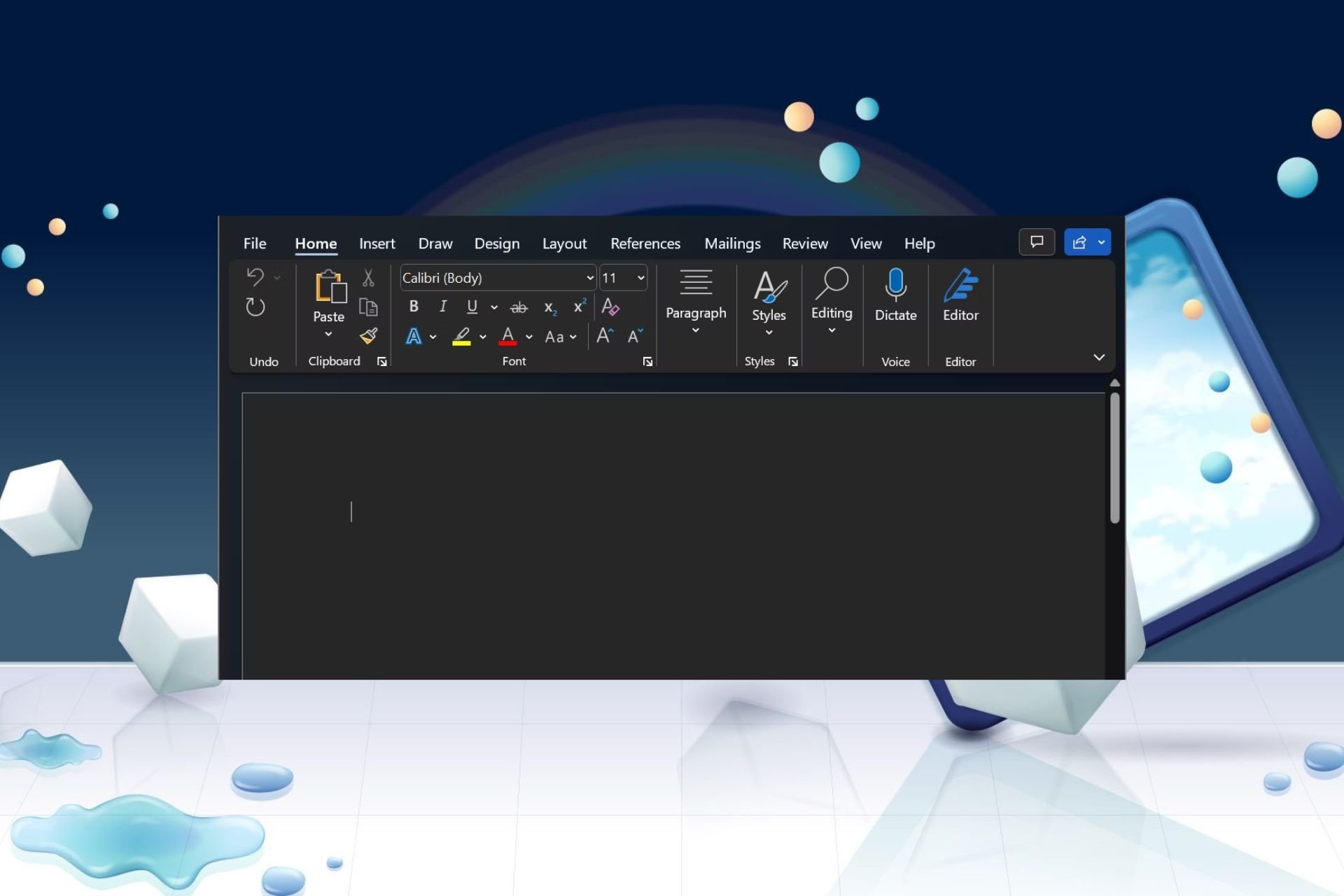
  1. Launch Microsoft Word.
  2. Next, navigate to File > Account > Office Theme.
  3. In the drop-down menu under Office Theme, select Black.
  4. If your system theme is dark, you can select Use system setting.

To turn on light mode in Microsoft Word, simply reverse engineer the steps above and set the Office Theme as White.

In the dark mode theme, you can further tweak the configurations to customize it to your preferences. For instance, you can change or keep the page color as is.

Pros and cons of using dark mode in Word

Benefits

  • Aesthetic appeal – We can all agree dark mode makes things look visually appealing. If you can enable dark mode on Windows 11, you should also enjoy it on all programs, including Word.
  • Reduces eye strain – Apart from visually appealing aesthetics, dark mode on Word helps reduce the amount of blue light emitted, especially if you’re on your PC for long periods.
  • Enhanced readability – While this may be debatable, dark mode does make it easier on the eyes to read content displayed on the screen.

Disadvantages

  • Limited compatibility – Unfortunately, the dark mode setting may not work once your document is shared and opened on other platforms or OSes.
  • Inconsistencies with add-ins – Enabling certain add-ins in Word could affect the display of the document in dark mode. The receiver may have to turn the feature on or off to read the document.
  • Visual adaptation – Some components like textboxes and charts may not map to dark mode as expected. Copied text may also appear on a black background with white text or vice versa.

All in all, dark mode when enabled whether system-wide or on program-basis, it’s a great step to switch things up. It could even be a booster to make you work efficiently.

If you’re interested in going dark, we have a couple of guides on how to enable dark mode on YouTube or even make your Control Panel in Windows 11 dark. And if the built-in dark mode themes don’t do it for you, we have a library of other dark themes you can try out.

Do you prefer to have the lights on or off on your Microsoft Word? Let us know in the comment section below.

Still on Windows 11 21H2 or 22H2? Microsoft to auto-install version 23H2 on your PC

If you have been hesitant about installing the latest version of Windows 11 and avoided it all these years, there aren’t many options left!

Microsoft, in a note on the official website, confirmed that they will start to automatically update eligible Windows 11 devices to version 23H2, the latest stable version.

Windows 11, version 23H2, also known as the Windows 11 2023 Update, is now entering a new rollout phase. We are starting to update eligible Windows 11 devices automatically to version 23H2.

This automatic update targets Windows 11 devices that have reached or are approaching end of servicing and it follows the machine learning-based (ML) training we have utilized so far. We will continue to train our intelligent ML model to safely roll out this new Windows version in phases to deliver a smooth update experience.

So, the update primarily targets devices running Windows 11 versions that are past End of Life (EoL) or will soon reach it.

VersionEnd of Life (EoL)
Windows 11 21H2October 10, 2023
Windows 11 22H2October 8, 2024

Since it’s a phased rollout, the update will be available to individual users at different times (through Windows Update), based on region and device. Though, you can always manually download Windows 11 23H2 and install it!

Windows Update settings

At present, Microsoft hasn’t shared a way to opt out of the forced update, and we don’t think it will!

But if you don’t want to install Windows 11 23H2, permanently disabling Windows updates should do the trick. This puts the PC at risk since it will also be missing the latest security updates. So, make sure to use an effective antivirus solution for complete protection!

What do you think of Microsoft’s decision to force-install Windows 11 23H2? Share with our readers in the comments section.

Malware using Microsoft installers has started spreading through Google Cloud Run outside the LATAM region

15 LATAM countries have been targeted in recent months by malware distribution campaigns that use Microsoft installers and Google Cloud Run to infect devices with banking trojans that steal sensitive information, such as banking credentials.

While they have been initially targeting LATAM countries, these campaigns are now spreading to several European countries using the same method: phishing emails containing Microsoft installer links that are distributed through Google Cloud Run, or Google Cloud storage bucket.

Cisco Talos, one of the largest cybersecurity companies in the world, recently released a report detailing these malware distribution campaigns which include the banking trojans such as Astaroth (aka Guildma), Mekotio, and Ousaban.

Victims usually receive phishing emails containing corrupted links that can easily compromise devices once accessed. These phishing emails make it seem as if they are sent by official institutions and can be easily mistaken if those targeted are not paying attention.

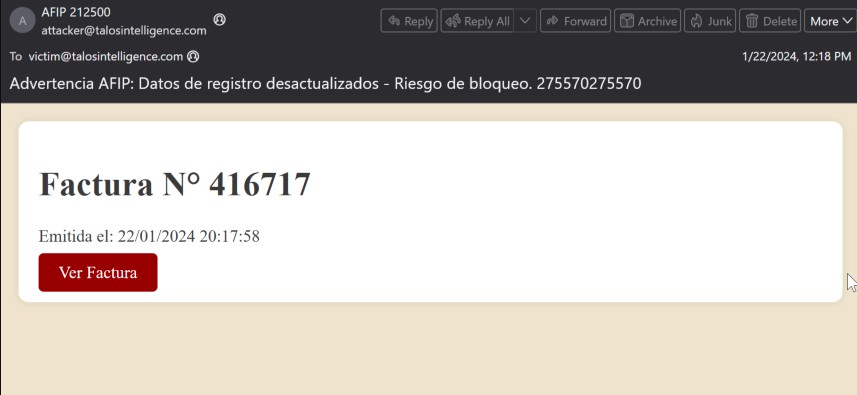
In most cases, these emails are being sent using themes related to invoices or financial and tax documents, and sometimes pose as being sent from the local government tax agency in the country being targeted. In the example below, the email purports to be from Administración Federal de Ingresos Públicos (AFIP), the local government tax agency in Argentina, a country frequently targeted by recent malspam campaigns.google cloud run malware

Cisco Talos

The threat actors use a combination of Google Cloud Run and Microsoft installer tools to make sure the malware reaches its targets, as Cisco explains:

When victims access these hyperlinks, they are redirected to the Cloud Run web services deployed by the threat actors and delivered the components necessary to initiate the infection process. As previously stated, we have observed Astaroth and Mekotio being distributed in this manner in the form of malicious Microsoft Installers (MSI) files as the Stage 1 payload to begin the infection process. We’ve observed two recent variations in the way the MSI files are being delivered. In many cases, the MSI file is being delivered directly from the Google Cloud Run web service deployed by the adversary as shown in the case of Mekotio below.

Cisco Talos

According to the cybersecurity company, the threat actors have already infiltrated the European market, as several European institutions noticed suspecting emails written in Spanish or Italian. Those European institutions that are affected by it, should take immediate action, and for good reason too. Cisco says the Astaroth variant already caused damage to over 300 institutions across 15 Latin American countries.

Google and Microsoft haven’t released any official statements on the matter, but Microsoft recently updated its Copilot for Security to assess the new AI-based cyber threats that are starting to become popular and efficient.

However, the classic phishing-based attacks are just as dangerous.

You can read the full report here.

Another step towards crypto adoption, Microsoft to accept LiteCoin for payments

During these turbulent times, when the blockchain space has suffered massive setbacks in the last few years, Microsoft’s decision to accept LiteCoin for payments comes as a relief to the community.

The announcement was first made by BitPay, the cryptocurrency payments service provider, in a post on X (formerly Twitter).

At that point, the LiteCoin prices increased by 5% but have since fallen regularly.

Also, there’s a catch!

First, Microsoft is not directly accepting LiteCoin but only through BitPay, the payment platform. BitPay also supports a range of other cryptocurrencies, including BitCoin, Ethereum, Dogecoin, and USD Coin (USDC).

Secondly, Microsoft does not directly accept cryptocurrency. BitPay will first convert your LiteCoin into fiat currency at the current exchange rate, which is then transferred to Microsoft.

So, while this may sound like a paradigm shift in the approach of tech giants, it’s a step aimed at offering more payment options to consumers.

Are we headed towards mass crypto adoption?

While crypto adoption has increased amongst users, companies and authorities still remain hesitant, given the lack of governing bodies in the world of blockchain. To counter this, states have passed laws to regulate cryptocurrencies, and some have even imposed taxes on profits.

A report by Crypto.com states that cryptocurrency holders have increased worldwide by 34% in 2023. A similar trend was witnessed when taking into account Bitcoin (33% increase) or Ethereum (39% increase).

But, for mass adoption, there’s still a long way to go! Self-regulated governance models like DAO (Decentralized Autonomous Organizations) only serve to a certain point.

Crypto is still in the early stages, and it will take a few years before we see major corporations like Microsoft, Amazon, and Netflix directly accepting cryptocurrency as a payment option.

Until then, you can continue using Bitcoin mining software to accumulate more. Though it’s getting harder by the day!

What’s your take on the future of crypto? Let us know in the comments section.

If you still own an original Xbox, you can now hack it with only a memory card

The original Xbox can now be hacked with only a memory card, according to an exploit that was discovered and published on the Xbox Dev GitHub page.

The exploit, which is suggestively called Endgame, doesn’t require a game or a functional DVD, and it can be easily deployed using a memory card. It is compatible with all the versions of the original Xbox Dashboard, so you can now hack your console with it if you still have it around.

ENDGAME is a universal dashboard exploit for the original Microsoft Xbox. This exploit has been carefully engineered to be compatible across all retail kernel and dashboard versions released for the original Xbox. It does not require a game, or even a working DVD drive — only a memory card.

XboxDev

What does this mean exactly? Well, you could use the exploit to hack your original Xbox and make it compatible with modern softmod solutions. This means you could make your original Xbox run all sort of old-school games on it.

XboxDev says the exploit in itself is not enough to provide a soft mod experience, but coupled with other methods, it will make it easier to mod the console.

No, by itself, ENDGAME is not a softmod. But it will make softmodding significantly more accessible as the community integrates it into existing softmod solutions.

XboxDev

The developers have also left a guide on how to implement this exploit, and you’ll only need a memory card to do it. So, if you have one to spare, you can try this now. After you run the exploit, you’ll obtain arbitrary code execution and you’ll be able to make it easier to change the behavior of the console.

The exploit targets an integer overflow in the dashboard’s handling of savegame images. When the dash attempts to parse the specially crafted images on the memory card, ENDGAME obtains arbitrary code execution.

XboxDev

However, you should also be aware that you could potentially lose all the data from the original Xbox in question, so you have to consider the risk before implementing the exploit.

Check out the full blog post here (it includes the guide on how to deploy this exploit on the original Xbox using memory cards).

YouTube player’s weird size issue affects multiple browsers now, not only Chrome

Recently, a Reddit user complained about the unusual size of the YouTube player in Google Chrome, stating:

Help!! I tried resizing youtube.com in Chrome (Ctrl + + and Ctrl + -) . After which it broke. Doesn’t change post uninstall or in guest account. Using Windows 11, Laptop, 1920×1080 at 150% scaling. Edge works fine.

After the post was uploaded, other users also reported the same issue on Chrome and even Firefox. Some attempted using Chrome in incognito mode or even opening YouTube in Microsoft Edge to check if the problem persisted there. The results were mixed, leaving them more confused.

A user, SuperVegito559, on Reddit posted:

Looks like YouTube was working on something and broke the alignment. Just have to wait for YouTube to correct it.

He also mentioned that when he later tried to watch a video on YouTube on Edge, he faced the same issue there as well.

Another user LunaTechMark, also noticed the same issue on Firefox, leading to confusion among users whether the issue was related to the browser or if it was something related to YouTube, which was wrong.

Meanwhile, mihemihe, a user on Reddit, suggested the following fix, which helped a few people:

  1. Launch your browser; here, we are taking the example of Chrome, as most people are facing issues with this browser.
  2. Locate & click the three-dot icon, and select Settings.
  3. Go to Privacy & security, then click Third-party cookies.
  4. Click the See all site data and permissions.
  5. Type YouTube in the search bar, locate it, and click the Delete icon next to it.YouTube player's weird size issue affects multiple browsers now, not only Chrome
  6. Close Chrome, then launch it again.

However, some still faced the issue, and even removing add-ins, adding ad blockers, or reinstalling the browser didn’t fix the problem.

As of now, this workaround has proven effective for some people, but others are still waiting for YouTube to fix the issue.

Did this workaround fix the problem for you? If yes, share your experience in the comments section below.

Can the Windows 12 Mobile concept revive the OS for mobiles?

While we have talked about Windows 12 for PC for a long time, the imagined OS on mobile is even more aesthetically pleasing and user-oriented! But, will it take Microsoft back to its days of glory in the mobile space?

AR 4789, a concept creator who previously gave us a peek into what Windows 12 would be like, has now come up with another video envisioning Windows 12 on mobile. If we were to describe the imagined OS in one word, it’s tempting!

A refreshing concept, at par with Android and iOS

In our opinion, the concept for Windows 12 Mobile is loosely based on Windows 11. The Settings app and File Explorer resemble the ones on the current iteration. But having it on a mobile certainly is both visually appealing and user-friendly!

The concept features Microsoft Copilot, Microsoft Store, Media Player, Microsoft Photos, Microsoft 365 (previously Microsoft Office), Notepad, Paint, and several other apps that are a part of the Windows ecosystem.

Many have already requested Microsoft to revive Windows phones and introduce one with Windows 12. This highlights an undisputed fact. Even though Windows phones failed, they had a massive following, and the community still has its hopes up!

Will there be a Windows 12 Mobile?

While there was speculation from several quarters about the release of Windows 12, Microsoft instead came up with an update for the latest iteration, Windows 11 24H2. This means, there will be no Windows 12, at least in 2024!

So, it seems unlikely that Microsoft is planning a Windows 12 mobile. Besides, after the debacle of Windows-based phones and their subsequent discontinuation in 2019, Microsoft will surely take more time to reinvent a device that can compete with Android and iOS, if that’s ever the case.

But the concept by AR 4789 has surely got us excited! Almost all comments on the video were positive and people wanted Windows 12 Mobile to be an actual thing, powered by Microsoft.

Now I want to have a Windows 12 smartphone with the GUI you created. Great work. When will Microsoft listen to you and make you the boss of the design department?

Quite honestly, we do hope Microsoft listens to the community and releases a Windows 12 mobile. There are surely millions of takers for it!

Would you buy a Windows 12 mobile if Microsoft releases one? Tell us in the comments section.

Microsoft now refers to Windows 11 24H2 as the 2026 Update and it only means one thing

Many believed Windows 11 24H2 wasn’t going to happen due to Microsoft reportedly releasing the next Windows version (Windows 12) in 2024, so the company wouldn’t put itself in the situation where it needed to focus on two major releases.

However, Windows 11 24H2 is going to happen after, and according to Microsoft (but spotted by Windows enthusiast, @XenoPanther), it will referred to as the Windows 11 2024 Update.Windows 11 2024 update

The first hints of the Windows 11 2024 Update were revealed in the latest builds to the Dev and Canary channels, and so far we have seen the release of many interesting features: we have more options for Copilot, there is the Auto Super Resolution, there is also a Pointer Indicator and many more.

Windows 11 2024 Update will be released, most probably, at the end of 2024, with Septemeber or October being the best candidates. Until then, Microsoft is going to tease us with its features in the Windows Insider Program, where the Dev and the Canary channels currently share the same builds (however, it’s only temporary).

What to expect from this update? Well, a lot of things, but mostly AI features, and improvements to existing capabilities. This summer, Qualcomm is set to make its debut on the CPU market, and the tech giant released a hint on the upcoming Windows AI PCs, so the next Windows 11 patch might have more AI features than we initially expected.

This is also natural, considering that with the release of the new patch, the only thing is clear: Windows 12 won’t happen this year. Despite being speculated that it would be released this year, the next Windows version, which is reportedly very AI-centered, won’t see the light of day this year.

But it’s not entirely a bad thing, though most Windows users are not yet ready to deal with AI daily, so they wouldn’t be prepared to interact with it on an operating system that would ask them to do so for almost everything.

We’re currently made to believe that Windows 12 is all about AI in everything, making users’ lives easier and the experience of navigating Windows richer. But the truth is we’re not there yet. Our last survey shows that less than 50% of Windows users use Copilot daily.

Would an AI-based Windows change that? Well, sure, because in a way users would be forced. But then the operating system would end up being despised, despite its useful features.

That’s why Microsoft chose to delay the release of the next Windows version, to give itself time to come up with a plan that would make Windows users naturally adopt AI. And the Redmond-based tech giant might actually achieve it with these annual updates.

How to Put Microsoft Word Header on First Page Only

While headers are great on Word documents, sometimes you only need it on the first page.

How do I make the Header only on the first page?

  1. Launch your Word document.
  2. Click on Insert then navigate to the Header section.
  3. Next, click on the Edit header.
  4. Check the Different First Page box.
  5. Now type in your first-page header and other headers on the 2nd page then save your document.

Note that you’ll need to configure this setting for every document you open if you want a different first-page header.

Additional tips for effective use of headers in Microsoft Word documents

  • Design – The header is the first thing you see on a Word document because it’s at the very top. Your choice of design should therefore be appealing but also not too distracting or over-the-top.
  • Alignment – Depending on your formatting, your header should be aligned with the margins. It should be properly spaced and not over the place.
  • Uniformity – The font size, style and spacing should be uniform for all your headers throughout the document. This makes the document look complete and put together.
  • Style – Word has built-in header styles you can choose from to communicate whatever message you’re trying to put across.
  • Conciseness – Whereas headers tell you a little about the document in question, they shouldn’t be overbearing. Keep it short but still communicate the message.

There you have it! A quick and easy way to have a different first-page header in your Microsoft Word document. There’s still so much more you can do with this Office tool such as remove page breaks or even set Word to default settings if you want to get rid of any configurations.

Other customizations you may find interesting include switching off autonumbering. If you’re just a basic user, don’t shy away from learning more about the Microsoft Word features. You may learn a thing or two about something new that could help ease your tasks.

Another useful formatting trick is learning how to adjust page orientation for specific sections. For example, you can follow this guide on how to make one page landscape in Word to rotate just a single page without affecting the rest of your document.

Have you been able to set a different first page header on Word? Let us know how easy it was on a scale of 1-10 in the comment section below.

Microsoft reacts to the new NIS2 EU security requirements

EU issued a new Network and Information Security Directive 2 (NIS2) which expands the baseline of cybersecurity risk management measures. Now, it includes new reporting obligations for more sectors and critical organizations.

There are not simple recommendations as NIS2 introduces more strict reporting obligations and more severe sanctions and penalties. Organizations have until October 17, 2024, to comply to the requirements of NIS2.

On this line, Microsoft is preparing their products, and especially the cloud-oriented tools for this move and issued a guide for IT leadership to help them in preparing for NIS2.

Our team at Microsoft is excited to lead the charge in decoding and navigating this new regulation—especially its impact on compliance and how cloud technology can help organizations adapt. In this blog, we’ll share the key features of NIS2 for security professionals, how your organization can prepare, and how Microsoft Security solutions can help. And for business leaders, check out our downloadable guide for high-level insights into the people, plans, and partners that can help shape effective NIS2 compliance strategies.  

Microsoft Blog

What are the main guidelines for NIS2?

According to Microsoft, there are three main principles for NIS2 preparation: educating all the workforce inside the organization, building a plan for incident prevention and response and teaming up with a cybersecurity partner that will help you protect your organization.

By downloading the Microsoft guide, you will have the necessary insights on how to transform your organization to comply with the NIS2 regulations.

Looking at the most recent Azure vulnerability, we’re not sure that Microsoft cloud services are the most secure in the world, but the Redmont giant is definitely taking some serious steps towards NIS2 compliance.

In the blog post about NIS2, Microsoft emphasizes the need for a fully integrated approach to protection and streamlined threat investigation and response and it also mentions their leading threat prevention systems:

  • Microsoft Sentinel – Gain visibility and manage threats across your entire digital estate with a modern security information and event management (SIEM). 
  • Microsoft XDR – Stop attacks and coordinate response across assets with extended detection and response (XDR) built into Microsoft 365 and Azure. 
  • Microsoft Defender Threat Intelligence – Expose and eliminate modern threats using dynamic cyberthreat intelligence. 

If you’re an IT manager working for an EU business, Microsoft’s guide will certainly provide you with the right insights on how to comply to new NIS2 regulations so you should definitely give it a read.

Did you hear about the new NIS2 requirements? Is your organization prepared? Let’s discuss that in the comments section below.

Microsoft ends partnership with NVIDIA, plans to develop own network hardware for Maia AI

Microsoft is collaborating with various hardware manufacturers, but it seems that might change in the future.

The company is distancing itself from NVIDIA and it will develop its network hardware moving forward. Here’s what we know so far.

NVIDIA will no longer work on Microsoft’s network hardware

According to the MSPowerUser, Microsoft is developing a new network card that will be able to handle its new Maia AI server chip. This also means that the company is severing ties with NVIDIA.

According to reports, Microsoft is developing hardware that is similar to NVIDIA’s ConnectX-7 card, while offering better performance.

We expect this hardware to benefit OpenAI and its services and improve the performance of Microsoft Azure. This change will also reduce the training time and cost for all language models that are running on Microsoft servers.

With Microsoft’s plans to invest in Spain’s AI infrastructure and focus more on AI, dropping NVIDIA as a partner doesn’t come as a surprise.

Sadly, no information is available regarding the release of this hardware, but we expect that it will take more than a year before we see it in action.

Adobe launches AI Assistant, a Copilot for PDF documents

According to Adobe’s press release, there are around 3 billion PDF files right now in the world and AI is a much needed addition.

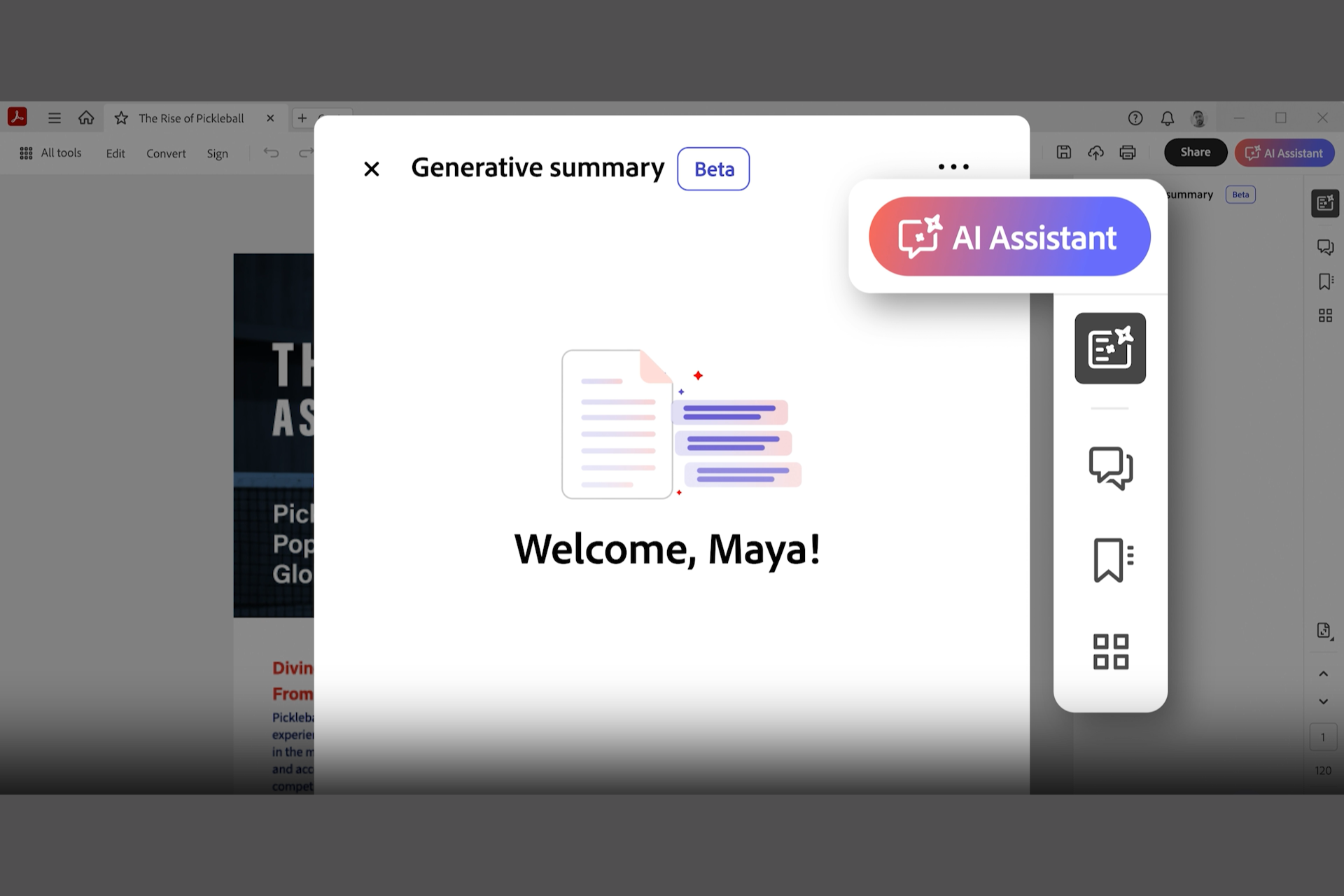
The company launched a new AI Assistant tool for Adobe Reader and Adobe Acrobat in beta version to offer summarizing and insights for faster document creation.

Adobe’s AI Assistant is based on the Liquid Mode LLM for mobiles and it also offers text formatting, for presentations and emails, based on information it finds on your PDFs.

What is Adobe AI Assistant all about?

Apart from helping the huge pool of users around the world, the AI Assistant covers a field where Open AI and Anthropic could have easily stepped in and get the crown.

Generative AI offers the promise of more intelligent document experiences by transforming the information inside PDFs into actionable, knowledge and professional-looking content.

Abhigyan Modi, senior vice president, Document Cloud

So, AI Assistant is like Copilot for Microsoft 365, and it will help you create more knowledgeable and better looking documents, extract meaningful information from your documents and create content for reports and emails. It is a tool that will boost your overall productivity and work a lot faster if used properly.

How can I use Adobe AI Assistant?

You don’t have to do anything complicated. Just make sure you update Adobe Acrobat and Reader, then open the app and click on the AI Assistant button and ask it what you want to do.

The tool will also pop in to offer text formatting suggestions, corrections and more.

Here are the new features of AI Assistant as highlighted by Adobe in the press release:

  • AI Assistant: AI Assistant recommends questions based on a PDF’s content and answers questions about what’s in the document – all through an intuitive conversational interface.
  • Generative summary: Get a quick understanding of the content inside long documents with short overviews in easy-to-read formats.
  • Intelligent citations: Adobe’s custom attribution engine and proprietary AI generate citations so customers can easily verify the source of AI Assistant’s answers.
  • Easy navigation: Clickable links help customers quickly find what they need in long documents so they can focus their time exploring and actioning the most important information.
  • Formatted output: Ask AI Assistant to consolidate and format information into top takeaways, text for emails, presentations, reports and more. A “copy” button makes it easy to cut, paste and pass along.
  • Respect for customer data: AI Assistant features in Reader and Acrobat are governed by data security protocols and no customer document content is stored or used for training AI Assistant without their consent.
  • Beyond PDF: Customers can use AI Assistant with all kinds of document formats (Word, PowerPoint, meeting transcripts, etc.)

Another interesting thing to mention is that Ai Assistant will also include features from Firefly and Adobe Express to help you in document creation.

According to Adobe, the AI Assistant is available in beta for Acrobat Standard and Pro Individual and Teams subscription plans on desktop and web in English.

The features will come to Reader desktop app over the next few weeks, and there will be no additional cost. Also, a private beta version is available for enterprise customers.

What do you think about the new AI Assistant from Adobe? Leave your thoughts in the comments section below.

Warhammer 40,000: Chaos Gate – Daemonhunters, the award-nominated RPG, is now available on Xbox One, X/S

Warhammers lovers everywhere, we have some good news for you: Warhammer 40000 Chaos Gate – Daemonhunters is now available on Xbox One, Xbox Series X, and S.

The game comes in editions, each with a different price, and different perks, and you can find all of them on Xbox Store, now. These editions are:

  • The Standard Edition – £34.99 / $44.99 / €44.99
  • The Purifier Edition – £39.99 / $49.99 / €49.99
  • The Bundle Edition – £64.99 / $74.99 / €74.99

The game is a tactical turn-based RPG that will allow gamers to highly customize their characters with unique class abilities, armors, stats, and so on, and the story will take the player across galaxies to find the root of the so-called Bloom, a plague that threatens the balance of the universe.

Warhammer 40000 Chaos Gate Daemonhunters was developed by Frontier Developments and Games Workshop® and the video game was released almost 2 years ago, in 2022, to Windows PCs.

The game was very well received by critics and gamers alike, and it was nominated for several awards back when it was released. Now, the developers released it on different platforms, including Xbox, and PlayStation.

It’s worth mentioning that the Purifier editions come with several items and characters to recruit: players will be able to get the Black Blade of Antwyr, along with the possibility of recruiting Castellan Garran Crowe. However, they can also be purchased separately for $7,99.

The Bundle edition will come with the Realms of Ruin, a unique campaign of brutal conquest set in the Warhammer Age of the Sigmar universe. The Bundle can be purchased for $74.99, but the Realms of Ruin can only be accessed on Xbox Series X, and S, for now.

The game is a well-earned break from the popular Palworld, which everyone on Xbox seems to be playing right now. Will you play it?

Edge allows PC users to upload files from mobile, and it’s hassle-free

We previously reported that Edge for desktop is testing a new upload feature, and it’s finally here!

You can now directly upload files to Edge on the PC from your mobile, and the connection will be facilitated by Microsoft Edge. The feature, called Upload from mobile, will be integrated into the upload box on Edge across websites. The best part is that it supports all file formats!

Since the feature is new, some of you may experience a few glitches. But it will be addressed in future updates. As of now, we have found the pairing and upload process to be seamless and hassle-free, except for a few trivial issues!

How do I upload files from a mobile to Edge for PC?

  1. Go to the website where you want to load the files, and click the Upload or equivalent option. We used it with Gmail.
  2. Click on Upload from mobile.upload from mobile
  3. Open the phone’s camera, scan the QR code, and proceed with the connection. Make sure both the PC and the mobile phone are on the same Wi-Fi network.
  4. In a few seconds, the phone will ask you to confirm the connection on the computer.pair
  5. Click Confirm on the PC to proceed.confirm
  6. On the phone, click on Upload files, and select the ones you want to add.upload files
  7. Finally, click Confirm on the PC. You can also see how many files are being uploaded.confirm

Any files you upload from the mobile using Edge will be saved in a dedicated, UploadFromMobile, folder in Downloads. The path for the backup folder is (replace Username with your active user account): C:\Users\Username\Downloads\UploadFromMobile

UploadFromMobile folder

While this is a great feature, there are a few apparent flaws. The connection between the PC and mobile drops if that latter locks due to inactivity. Also, you can’t upload more than 10 files (it was 3 during testing), in all, without installing Edge on the mobile.

This can be seen as another push by Microsoft for mass adoption of its native browser. As per Statcounter, Edge has a 5.35% market share, while Google Chrome, the market leader, commands 64.38%.

Edge still has a long way to go, but features like this will surely get more users to switch to Microsoft’s native browser!

Have you uploaded files to Edge from mobile? Tell us if you faced any issues in the comments section.

The Power Automate plugin + these new capabilities will make you want to use Windows Copilot

Microsoft updated the 26058 build to the Canary and Dev insider channels, with new and useful features for Windows Copilot, including the addition of the Power Automate plugin, effectively allowing users to use Copilot for Excel, PDF manipulation, and file management.

The Power Automate plugin can now be downloaded from the Microsoft Store, and you’ll need to be logged in with a Microsoft account to be able to use it on Windows Copilot. It’s worth mentioning that, for now, the Power Automate is only available in the Windows Insider Channel.

Microsoft says users should be able to task Copilot with a lot of new requests, and the Redmond-based tech giant offered some examples:

  • Write an email to my team wishing everyone a happy weekend.
  • List the top 5 highest mountains in the world in an Excel file.
  • Rename all PDF files in a folder to add the word final at the end.
  • Move all Word documents to another folder.
  • I need to split a PDF by the first page. Can you help?

Aside from the Power Automate, Microsoft also updated Copilot with more built-in features, and for these, users won’t have to install any external plugins. However, it is recommended they should install the latest Dev and Canary updates.

The new built-in features will transform Copilot into a valuable Windows assistant, and users won’t have to manually go through Windows’ Settings page to set options up. Microsoft provided Copilot with new requests that will turn on the battery saver, empty the recycle bin, show the available networks, and so on. Here’s the complete list, according to the official blog post:

New with this update:

  • Ask for available wireless networks.
  • Ask for system or device information.
  • Ask for battery information.
  • Ask to clean storage.
  • Ask to empty recycle bin.
  • Ask to toggle battery saver.
  • Ask to show startup apps.
  • Ask for your IP address.
  • Ask for system, device, or storage information.

Try accessibility features:

  • Ask to turn on narrator.
  • Ask to open voice access.
  • Ask to turn on magnifier.
  • Ask to change text size.
  • Ask to start live captions.
  • Ask to turn on high-contrast.
  • Ask to start voice typing.

Already live, now on the new runtime:

  • Ask to toggle dark/light theme.
  • Ask to toggle Bluetooth.
  • Ask to toggle do not disturb.
  • Ask to add a device.
  • Ask to take a screenshot.
  • Ask to cast your screen to another monitor.
  • Ask to change your background image.
  • Ask to set volume, change volume, or mute/unmute volume.
  • Ask to launch an application.
  • State that certain parts of your PC aren’t working: Audio, Windows Update, Camera, Bluetooth, Printer, Network, others.
  • Ask to snap a window.
  • Ask to start a focus session.

Not all Insiders are getting these updates right away, as they are gradually rolling out.

CEO confirms, Xbox has no plans to ditch physical discs for now

A few days ago, there were countless reports that physical Xbox games might go obsolete since their demand has subsided in the recent past, and they aren’t as profitable now. To dispel these rumours, Microsoft Gaming’s CEO, Phil Spencer, confirmed that physical discs are not going anywhere.

In an interview with GameFile, Spencer stated,

I will say our strategy does not hinge on people moving all-digital. And getting rid of physical, that’s not a strategic thing for us.

Though he did raise the fact that gaming consoles are the last of the consumer devices that still come with a disc drive. And given the fall in both demand and supply, the prices will go up, which remains a concern.

Also, Spencer did substantiate the fact that digital game sales are at an all-time high.

We ship games physically and digitally, and we’re really just following what the customers are doing. And I think our job in running Xbox is to deliver on the things that a majority of the customers want. And right now, a majority of our customers are buying games digitally.

When pressed about the recent layoffs in Microsoft, primarily roles linked to the physical discs space, Spencer said that the move was aimed at aligning teams across ZeniMax, Activision and Xbox.

Spencer confirms that Microsoft still has teams that deal with the retail of physical games, and it’s not going anywhere, at least anytime soon.

Xbox Series S

But Xbox’s push for digital games is evident. It released Xbox Series S, a digital-only console that doesn’t feature a disc drive. It does make sense, given that 90% of game sales last year were digital downloads.

While Phil Spencer’s recent comments put to rest all rumours about Xbox going digital, it remains to be seen how long Microsoft will support physical discs. Because the future is digital!

How long do you think physical discs will remain viable for Xbox? Share with our readers in the comments section.

Microsoft is developing a secret spy camera technology that uses AI to fix broken images

But no, the spy camera wouldn’t actually spy on you. It’s a bit of a different technology that would place cameras behind your screen, capture images, and then use AI to fix the broken ones.

The technology called Image Restoration for Thorugh Display Imaging was detailed by Microsoft researchers in a recently published patent and despite the fancy title, the secret cameras would actually be cameras implanted behind the screen that would serve an image restoration application at users’ consent.

This camera system sits behind a display screen and it could be added to any device, computer, or mobile phone. The camera would be hidden, so the images it captures would be a bit blurry or noisy.

However, the system would also employ AI (the paper mentions it as a machine learning model) to fix these blurry images. Here is how the technology would work:

  1. The camera captures degraded images.
  2. They use a machine learning model to fix these blurry images.

They train the model using pairs of images. One image is clear (like a regular photo). The other image is the degraded version (as seen by the hidden camera).

The model learns from these pairs and figures out what’s missing in the blurry images. It’s like teaching the model to see through the camera’s eyes and fill in the gaps. In other words, the system helps improve the quality of images taken by that sneaky behind-display camera.

The applications for this technology would range from personal use to professional use. In the case of mobile phones, cameras would automatically be able to correct the images taken in blurry situations (for instance, selfies with too much light), while in desktop situations, this feature would greatly enhance the web camera, and assert it to perfect conditions in teleconferencing.

The patent can be read in its entirety here, and it will most likely be released as an essential Windows feature in the next few years. Remember that Microsoft is set to release an AI-based Windows in the future, and while we don’t know many details about it, we know for sure that it’s going to be groundbreaking, as reports agreed.

Could Microsoft include technology that uses a secret spy camera and AI to improve images? Most likely, yes, but it could be in a different form.

PlayStation Portal Error 105 [Solved]

The PlayStation Portal has been a success, given the massive number of initial orders, but it’s far from perfect. When many of us first turned on the handheld console, set it up and let the updates download, the PlayStation Portal returned error 105.

The error is seen on the Sign in to PlayStation Network screen on both new and old consoles, and the message reads, Something went wrong. Try again later. Given that PlayStation Portal is still in its infancy, not much information is available from official sources or on Sony’s website.

How do I fix PlayStation Portal error 105?

1. Wait for 24-48 hours

From initial reports, this appears to be a server issue, as we couldn’t access remote play from the PC as well.

Also, many have already reported that the error has been fixed by Sony in the latest update, and they can use their PlayStation Portal now. We confirmed this with users from Germany and Canada.

If you are still getting PlayStation Portal error 105, we recommend waiting for 24-48 hours. This is the maximum time it would take Sony to fix things!

2. Perform a hard reset

Press the Power button for 15-20 seconds, wait for the screen to go black and then display the PlayStation logo. At this point, you can let go of the Power button.

This helped us fix PlayStation Portal error 105, at least, that’s what it appears to be. But it could just as well have been the update deployed by Sony.

3. Contact PlayStation Support

If nothing works, the last option is to contact PlayStation support. While we didn’t do it personally, others who did claim that Sony acknowledged the problem and was working on a fix.

Reach out to support only if others are able to use the PlayStation Portal while you are still stuck with error 105. Because, in 24-48 hours, it should most certainly be fixed!

Now that you have the PlayStation Portal up and running, discover the best PS4 emulators for PC, and get one today. This will, in the meantime, keep you hooked to gaming on the PC!

For any queries or to share what worked for you, drop a comment below.

A new version of SwiftKey will bring Copilot DALL-E 3 Designer to Android

Microsoft uses a new version of SwiftKey on Android, which lets you use Copilot instead of the Bing Chat. In addition, with it, you can turn on Chat GPT 4 turbo. Moreover, Google allows us to use the new emojis as well. On top of that, we will be able to generate images using the Copilot DALL-E 3 Designer feature.

How to use Copilot DALL-E 3 Designer with SwiftKey on Android?

The first things you need to do is to install SwiftKey Keyboard on your Android to access the new designer option. Thus, after you get the application, follow the instructions to enable SwiftKey and some options to change the default keyboard settings.

After you finish the setup process, you can open WhatsApp, Telegram, Instagram, or another similar application. Then, from the SwiftKey menu, click on Emoji and select Microsoft Designer. Afterward, sign into your Microsoft account. Furthermore, you can use the application by simply giving it a prompt about what you want to generate. After that, Copilot DALL-E 3 Designer will generate a few options for you.

SwiftKey Copilot DALL-E 3 Designer

In addition, the SwiftKey already supports Copilot and other Microsoft related features such as Bing search and tone. Moreover, you can use the Copilot DALL-E 3 Designer option to create memes for your friends and to show them things they don’t know about. On top of this, if you have Copilot Pro, you can access ChatGPT-4 turbo.

GPT-4 Turbo option from SwiftKey

Ultimately, we are finally getting a great assistant for our phones thanks to the SwiftKey feature. So, we are eager to try out the Copilot DALL-E 3 Designer feature. Also, it’s great to have the AI available whenever we need it instead of having to switch between applications. Furthermore, we can’t wait to see what else Microsoft is going to add to Copilot in the future.

What do you think? Are you going to use the SwiftKey feature? Let us know in the comments.

Google might soon release Gemini Business and Gemini Enterprise

Google is slowly entering its Gemini Workspace era by converting the Duet AI. In addition, there will be two versions of AI, Gemini Business and Enterprise. However, the company will keep some features named after Duet AI.

Duet AI will change into Gemini Business and Gemini Enterprise

According to a chatlog leak from X, Gemini Enterprise and Gemini Business use enterprise-level data protection, and Ultra 1.0 is the most capable version of AI. On top of that, Google claims that they won’t use the data to train their language models. However, you might still want to keep your sensitive information from anything AI-related. 

In addition, Google might be bringing more features to improve the Gemini Workspace, especially for companies. Also, the plans for Gemini Enterprise and Gemini Business are optimized in English for more than 100 countries and territories.

The subscription price could be 30$ per user monthly, similar to the one of Duet AI. However, there could be additional costs depending on the features of each version. Unfortunately, the leaked changelogs don’t disclose any features of the two AI models. So, we will have to wait for some official statements.

In addition, Gemini Advanced will be capable of running and editing Python code. Furthermore, this feature will allow you to use the code snippets directly into Bard’s user interface and see if the code works as it should. In addition it is a great feature if you are a student or a developer because it eases up your work.

Ultimately, both Gemini Business and Gemini enterprise models sound like a new way to diversify the Google Workshop and to make it more accessible. Also, Gemini Advanced will be even more useful with the Python update. So, we hope to see even more features added in the future, especially if they facilitate learning code.

What are your thoughts? Are you going to use Gemini Workshop? Let us know in the comments.

Microsoft and Google charge the same price for different amounts of cloud storage

Google Workspaces and Microsoft 365 are both very popular productivity platforms used by organizations and even governments. Both offer a plethora of tools, such as Google Docs, Word, Copilot, Gemini, etc, to help people everywhere get work done.

However, the platforms charge the same price for different amounts of cloud storage, and the culprit is not Google, but Microsoft.

Google currently asks users $9,99/month for 2TB cloud storage as part of the Premium plan, while Microsoft asks the same price for 1TB cloud storage, as part of the Microsoft 365 Family plan, however, one person only gets 1TB of storage.

Google might also be a better choice for users because the company will only ask for $2,49 in the first 3 months of the Premium plan. Microsoft doesn’t do it.

It’s true: the Microsoft 365 Family plan comes with a plethora of tools. Users have access to all Microsoft 365 apps, including Word, PowerPoint, Excel, OneNote, Defender, Teams, Clipchamp, Outlook and OneDrive. Copilot was also recently added to the plan, and that means users get access to GPT-4-based AI that is capable of summarisation, content creation, and so on.

But while the family plan includes up to 6 TB of storage, one person only gets 1TB of storage. If you’re not part of a family, and you want to choose a personal Microsoft 365 plan, you will get 1 TB of storage and access to Microsoft 365 apps for $6,99/month.

Plus, not all Microsoft 365 subscribers use Outlook, or Defender, which is already on Windows, for free.

Google, on the other side, gives you access to all of the Suite apps, Gemini AI, and 2 TB of cloud storage for $9,99, with the first 3 months being only $2,49. If you want to access the AI plan (which includes Gemini Pro), Google will ask you for $20/month.

Microsoft, on the other hand, will ask you for $29/month (it includes the $9.99 Family plan + the $20 Copilot Pro, because, yes, that’s paid separately).

So, in the end, Microsoft asks more than Google, but it provides less than the company. Should it change its ways? You be the judge.

You’ll love the new Fortnite Midas Xbox controller, even if you hate Fortnite

PowerA partnered up with EpicGames to announce a new Fornite-branded Xbox controller, among other several Fortnite-inspired accessories, and it looks incredible.

If you’re looking to add this gorgeous controller to your collection, you should know that it features mappable Advanced Gaming Buttons, 3-Way Trigger Locks, a 10ft USB-C cable, and it’s officially licensed by Xbox too. But it has so many other features, all of which you can find here.

The best news? It only costs $40, and it comes with a 2-year warranty, so if anything happens to it, you have it covered.

PowerA decided to put Fortnite’s Midas on the Xbox controller, while another character from the universe, Peely appears on Nintendo accessories. So if you’re a Fortnite fan, now you have new items to collect.

If you’re not, but you already use Xbox: the Fortnite Midas Xbox controller is a must. It is compatible with Windows, Xbox One, and Xbox Series S, and X.

Speaking about collecting Xbox controllers, we also have some suggestions here, here, and here, but again, the new Fortnite Midas Xbox controller kind of surpasses them all.

It looks great: the black and gold palette makes it look as if it’s straight out of a serious dark fantasy game (you know which one, and it ends with a ring), rather than the battle royale Fortnite. So, even if you’re not a fan of the game (and we get it), this controller makes up for it.

You can find more details about its capabilities, price, and availability (and you should probably hurry, if you want to get it) here.

This is the reason Microsoft and Google place AI in their advertising content

Microsoft and Google are companies that frequently mention AI in their advertising content especially if it’s about AI, while other companies, such as Crowdstrike and Esty, prefer to be subtle about mentioning AI in their ads for AI products, in a pattern noticed by Chris Matyszczyk at ZDNEt.

Earlier this month, at the Super Bowl, one of the US’ most watched televised events of the year, Microsoft sort of stole the show with a Copilot-centered ad, making people aware of the AI tool once again.

Google also introduced its Pixel 8, earlier this month, although not at SuperBowl, with a commercial on YouTube that has surpassed 50 million views. And guess what? The company highlights the utility of AI for visually impaired people trying to capture photos with loved ones. By all means, it’s an emotional ad. And it mentions AI.

On the other hand, Crowdstrike, a leading AI-native cybersecurity platform, released an ad for its AI-based security services without mentioning AI.

Etsy’s latest ad follows the same pattern. The company’s one of the most popular features, Gift Mode, uses AI to suggest gift recommendations, however, in the ad, the company chooses not to highlight it at all. It goes in the opposite direction, as you can see in the video below.

AI in advertising: Here’s what we think

While there are opinions agreeing that AI ads are more interesting if they don’t mention or feature AI at all, Microsoft and Google have a clear goal for their doing it: mass adoption of AI.

Earlier we said that the Copilot ad at the SuperBowl would make people aware of the AI tool, once again, as if Microsoft hasn’t mentioned it every time it got the chance.

But the thing is, the Super Bowl was the moment a big bunch of people heard about Copilot for the first time. And this is important, because the majority of people are not tech nerds, following tech news, or being interested in tech in the first place.

No. Even though tech journalists are accustomed to hearing about Copilot so much that they revel in AI-less ad commercials about AI, the majority of people don’t know about Copilot, and don’t care enough for it to become an everyday technology.

There is proof for it: even though Microsoft kept talking about Copilot every chance it got in 2023, the Redmond-based tech giant still needed to release it to Windows 10, even though it was touted as a Windows 11 exclusive feature. And then, even though there are 75 million Windows Copilot users out there, our last survey shows that less than 50% actually use the tool daily.

Even though AI is capable of really useful abilities, such as streamlining work, editing and summarising text, books, articles, and so many more, people are not aware of it, nor its capabilities.

Would AI-less commercial ads about AI make people more aware of this technology? Well, chances are not.

But when AI is featured as a life-changing technology in commercials, people might actually give it a chance. Look at the history: iPhones, while being miles behind Android devices, are still successfully commercial and adopted by people everywhere, because Apple advertises them directly, showcasing them in everyday situations.

So, no, releasing AI-less commercials about AI is not the solution, despite its apparent elegance. Directly showcasing and displaying AI in advertising is probably the only chance for this technology to gain popular ground. Otherwise, it’s only going to be for tech nerds.

Which is not a bad thing, but it’s not viable, from a business perspective. And both Google and Microsoft mean business.

Windows Presentation Foundation applications will run perfectly on reduced memory, according to a new roadmap

A new roadmap detailing the future of the Windows Presentation Foundation platform was released to GitHub, detailing all the new features and capabilities coming to the open-source application framework.

Microsoft will not only release enhancements that will make the Windows Presentation Foundation applications run perfectly on reduced memory, but the Redmond-based tech giant will also update the platform to follow Windows 11’s design theme.

Bringing Windows 11 look and feel for majority of WPF controls. Support for Win11 features such as snap layout, rounded corners for controls and newer color schemes would bring enhanced experience for WPF applications.

Microsoft

It’s been a while since WPF received any design updates, so the new Windows 11 theme should give it a modern look and bring it close to the overall look of the Visual Studio platform. Users should not worry, though, as the design will not impact the way Windows Presentation Foundation works, and the way applications on the platform are developed.

In fact, the roadmap reveals that they will be capable of running perfectly even on lower memory, as there will be enhancements to improve their performance.

Enhancing the performance of WPF apps both in terms of reduced memory usage, improved startup times and better rendering will ensure that WPF customers continue to derive great value. Accessibility is a key aspect of our work, and we aim to provide better support for our users with different abilities.

Microsoft

Many other improvements are coming to the platform, including nullability annotations that will increase the quality of code, and time spent on debugging it.

This should not come as a surprise, as recently, Microsoft recently announced .NET9 will be coming this year too, so developers will have new tools and new ways to develop apps, including new AI tools to help them streamline their work.

While Windows Presentation Foundation is not getting any AI features (for now) the new design should make developers excited.

You can check the entire roadmap here.

AI-powered Xbox Series S console shelved by Microsoft

Last week Microsoft executives took to the Xbox podcast to explain a new cross-platform publishing strategy alongside the tease of new gaming hardware. A week later reports are surfacing and clarifying the details of Microsoft’s proposed console releases for 2024.

According to reputable YouTube RedGamingTech, Microsoft had planned to release an artificially intelligent powered Xbox Series S console as part of a mid-generation refresh to the current generation Xbox Series lineup.

RedGamingTech details that a proposed AI-led Xbox Series S would have been built with an RDNA 3-based GPU, expanded RAM support and a machine learning platform for speed and graphical upscaling akin to the current Xbox Series X level of performance.

However, the new Accelerated Processing Unit (APU) that would have been highlighted in the new console ran into some technical difficulties when Microsoft attempted to scale the entire project.

Rather than delay its internal roadmaps and delivery projections, Microsoft is opting to go with its less ambitious alternative for a 2024 release, codename Ellewood.

Microsoft’s Ellewood project has been circling the gaming sector for a few months now following a treasure trove of leaked Xbox decks that surfaced during the appeal phase of a Federal Trade Commission injunction on the company’s acquisition of Activision Blizzard.

Based on the Ellewood specific slide that was leaked, details of the hardware include expanded storage capacity of up to 1TB, upgraded Wi-Fi support, a new southbridge for modernized I/O, a new Bluetooth 5.2 radio, and an upgraded controller experience all for $299.99 USD.

While Ellewood may feel like a throttling of Xbox ambitions for console gaming in 2024, Microsoft hasn’t taken its foot of the AI gas, and gamers should expect the next console coming from the company’s gaming division to be AI centric.

Xbox executives hinted at groundbreaking technological advancements in console gaming were upcoming that could include AI-powered resolution scaling, asset rendering, and fidelity improvements, all of which could be part of a neural processing unit (NPU) initiative present in the next piece of hardware from the Xbox team.

2 Ways to Login to Microsoft Teams Admin Center

If you want to log in to your Microsoft Teams Admin Center, this guide can help you with the step-by-step instructions.

To enter the Microsoft Teams admin center, you need to remember the ID and password for your Microsoft account.

How can I log in to the Microsoft Teams Admin Center?

1. Access Microsoft Teams Admin Center directly

  1. Go to the Microsoft Teams Admin Center using this link.
  2. You will be prompted to enter your Microsoft email account, enter the email address, and click Next.Sign in
  3. Enter your password and click Sign in.Enter password - Login to Microsoft Teams Admin Center
  4. In case you have any 2FA in place, approve the sign-in. Once done, you will be directed to the Microsoft Teams admin center dashboard.

In case you are not able to access Microsoft Teams Admin Center, it could be due to permissions or network connectivity issues; read this guide to learn more.

2. Use the Microsoft 365 admin center

  1. Go to the Microsoft 365 admin center.
  2. On the Sign in page, enter your Microsoft email address and click Next.
  3. On the following page, enter the password and click Sign in.
  4. You will get the Microsoft 365 admin center dashboard.
  5. From the left pane, click Show all to view all apps and services available.Show all - - Login to Microsoft Teams Admin Center
  6. Locate Admin centers, and click Teams to access the Microsoft Teams Admin Center dashboard.Click teams

FAQ

What is Microsoft Teams Admin Center?

The Microsoft Teams Admin Center is a web-based dashboard that lets administrators manage Teams settings, policies, and user activity across the organization.

How do I access the Teams Admin Center?

You can access it by signing in at admin.teams.microsoft.com with your Microsoft 365 admin credentials.

What can I manage in the Teams Admin Center?

Admins can manage users, assign roles, configure meeting and messaging policies, monitor usage reports, and set up devices or voice features.

Who has access to the Teams Admin Center?

Only users with admin roles such as Global Admin, Teams Admin, or Communications Admin can access and configure settings.

Is the Teams Admin Center available on mobile devices?

It is optimized for web browsers and works best on desktop, but you can also access it via mobile browsers with limited functionality.

This is how you can access your Teams Admin Center dashboard, in case you are not able to access it, try another browser, clear cookies on your browser, and ensure you have a stable internet connection.

Once you are on the Teams Admin center dashboard, you can manage teams, add or remove Teams templates, & messaging policies, manage apps, external & guest access, and make changes to Teams settings of users in your organization.

If you want to learn more about creating & managing teams in Microsoft Teams for a company, read this guide.

You can also enable or disable Microsoft Teams for a device that comes under your organization without going physically to the system. Read this to learn how.

If you’re a beginner, we also have a great guide on how to use Microsoft Teams, so don’t miss it to learn the basics.

If you have any questions or suggestions on the subject, feel free to mention them in the comments section below.

Microsoft: On Your Data lets users create personalized copilots specific to work-related situations

Microsoft just released the On Your Data capability to AzureOpenAI service, and this hotly-anticipated feature will give the means to developers, and customers to build their copilots that are personalized to specific work environments.

It will use the power of the new OpenAI models, such as GTP-4, to understand context and build copilots specific to certain tasks using data provided by customers, and IT departments.

It would potentially change the way AI is adopted and used in organizational infrastructures, as the tool promises to provide an efficient way to streamline work and optimize processes.

We’re thrilled to announce the much-anticipated Azure OpenAI Service On Your Data is now generally available! The groundbreaking feature empowers you to leverage the power of OpenAI models, such as GPT-4, and incorporates the advanced capabilities of RAG (Retrieval Augmented Generation) model, directly on your data with enterprise-grade security on Azure. This cutting-edge capability transforms the way you connect, interact, and ground your data, with greater accuracy and speed through a user-friendly conversational experience. You can rapidly create personalized copilots with your data to enhance user comprehension, expedite task completion, and aid decision-making.

Microsoft

On Your Data is now generally available, and it comes with multiple features at launch, including:

  • Enhanced Security for Enterprise: Access your private Azure resources on both Azure OpenAI Studio and APIs with private endpoints and VPN enabled for Azure AI Search, Azure OpenAI, and Azure Blob Storage (preview). With document-level access control, responses can be generated based on the documents a user can access.
  • Expanded Data Sources: Connect to your data from Azure AI Search and Azure Cosmos DB for MongoDB vCore, as well as the data sources in preview, including Azure Blob Storage, local files, URL/web address, etc. Stay tuned for more additions to the general availability list.
  • Incorporate RAG (Retrieval-Augmented Generation) for Intelligent Information Retrieval: Utilize the advanced capabilities of the RAG model to enhance the quality and relevance of information retrieval, enabling more context-aware and precise responses in your conversational experiences.
  • Customizable Responses and Parameters: Tailor your chat experience by limiting response and custom parameters, such as the strictness and number of documents retrieved.
  • Azure AI Vector and Hybrid Search: Achieve more precise data retrieval with vector or hybrid search  from Azure AI Search, refining the insights you gather from your data.
  • Semantic Search as a Default: Enjoy more context-aware and relevant results using the Semantic Search by default.
  • OpenAI Models Availability: Get access to OpenAI GPT-35-Turbo, GPT-35-Turbo-16k, GPT-4, GPT-4-32k models.
  • Private Endpoints & VPNs:
  • Document-level Access Control: Boost security by limiting access to documents based on Microsoft Entra ID when generating responses.
  • Effortless and Swift Deployment: Seamless and rapid deployment to a web application or a copilot in the Copilot Studio (preview).
  • Search Filter (API): Customize your searches and add context with the retrieval augmented generation (RAG) model on specific parts of our API.
  • Updated SDK: Streamline integration with your systems using our improved SDK, harnessing the power of Azure OpenAI On Your Data.
  • Supported File Types: .txt., .pdf, .docx, .pptx, .md, .HTMLMicrosoft On Your Data

Microsoft says On Your Data can be used to achieve multiple benefits, and the Redmond-based tech giant also provided customers with a list of potential use cases for this capability.

Use CasesDetails
Automated Customer AssistanceProvide quick responses to frequently asked questions and guide users through common troubleshooting steps based on the customers’ data.
Real-time Document SearchProvide real-time support to product specifications and guide users through common troubleshooting steps based on product manuals
Citizen ServiceProvide quick responses to frequently asked public service questions and guide users through specific steps based on citizen service support
Learning AssistantOffer explanations and examples to help users understand academic concepts or learn new skills based on specific curricula
Legal ReviewQuick access to legal insights from existing and upcoming legislation to properly advise clients
Marketing InsightsTap into internal and external resources to respond to internal and external marketing inquiries
Software DevelopmentGenerate sample code based on the customer’s needs
HR SupportProvide quick responses to frequently asked HR questions based on the customers’ HR policy
Industry/Competitive InsightsTap into publicly available resources to gain insights on the industry and competitors 
Health AdviceProvide general information on symptoms, first aid, or healthy living.
Predictive MaintenanceProvide predictive maintenance and customer support based on customer’s historic data

The capability was expected by a lot of users, especially after Microsoft announced the Azure OpenAI Service would integrate the newer AI tools, such as GPT-4 Turbo, and GPT-3.5 Turbo, at the end of last year.

Microsoft kept its promise and now On Your Data is here!

Sea of Thieves new update is so big it could be a game on its own, but you have to install it

Sea of Thieves’ latest update is gigantic, huge, big, and, to make a very inspired joke, almost Starfield, because, well, it is that big. For example, it will occupy a fifth of your Xbox Series S storage, and we could say it is a game on its own.

More specifically, the download size of the update is the following, according to Rare’s official blog post:

  • Xbox Series X: 88.36 GB
  • Xbox Series S: 90.15 GB
  • Xbox One X: 88.36 GB
  • Xbox One: 90.15 GB
  • Microsoft Store: 102 GB
  • Steam: 10.49 GB

Ironically, the Xbox Series S, which is known for its small storage units (around 512 GB, although the new Ellewood version will reportedly sport a 1 TB storage unit), is getting the beefier update.

However, fortunately, this update will make the game operate on the Xbox Game Development Kit (GDK), meaning from now on, updates will be much smaller than this one.

Unfortunately, you’ll have to install the update to continue playing the game, so buckle up, free some of your space (if you’re playing it on your Xbox console), and make time to download and install the gigantic update.

The update brings many many features with it, including multiple features that will greatly improve the experience of playing this game. Some of the most important are DirectX 11, and DirectX 12 support, which will be automatically selected, as well as major improvements for PC players of the game.

Here are all the game improvements coming with this update:

  • Sea of Thieves now operates on the latest Xbox GDK (Game Development Kit). Players on PC are encouraged to update to the latest graphics drivers to ensure the best compatibility and performance.
  • Sea of Thieves now supports DirectX 11 and DirectX 12 where supported by the hardware. While the title will now auto-detect and optimise the experience, players can also choose within the game settings.
  • General client performance improvements should be seen throughout the experience, with PC players seeing the largest improvements.
  • While players on console and the Microsoft Store will experience a large initial download, regular game updates moving forwards will now be considerably smaller.
  • The Microsoft Store experience on PC is now improved, with the client signalling the need for an update and the ability for players to set the install location when using the Xbox app.
  • Players on PC using the Windows Store may be required to take further steps to initiate the download. Please head to the official Sea of Thieves Support site if any assistance is needed.

In moments like these, it would be useful if Xbox had a faster connection to the Internet. But wait, in the following weeks, Xbox users will be able to download gigantic updates like these 10x faster.

Unfortunately, we’ll have to wait a bit more. However, while you wait for the update to download and install, you can go over the full list of features coming to the game with the patch.

Beware, it’s big.

Exciting Presidents’ Day Deals: Discounts on consoles, games, and more!

Whether you are looking for a new console, search for grabbing exclusive game titles or seeking to elevate your gaming setup with accessories, this Presidents’ Day, you can get your hands on the console, accessories or games at a heavy discount. Let’s explore the exciting deals available.

Microsoft Xbox Series X consoles

Product NameCondition or Included accessoriesOriginal Price Discount Price
Microsoft Xbox Series XRenewed$450$408
Microsoft Xbox Series XNew$500$450
Microsoft Xbox Series XWith  Extra Xbox Wireless Controller$600$490
Microsoft Xbox Series X Diablo IV Bundle$560$495
Microsoft Xbox Series X Seagate 2TB Expansion Card$900$700

Xbox Series X exclusive games

GameOriginal PriceDiscount Price
Halo Infinite$33$28
Grand Theft Auto V: Premium Edition$40$10
Lego 2K Drive$50$30
NBA 2K24: Kobe Bryant Edition$70$25
AEW: Fight Forever$60$39
Assassin’s Creed Mirage$50$30
Mortal Kombat 1$70$56
Star Wars Jedi: Survivor$70$46
Suicide Squad: Kill the Justice League $70$61
Hogwarts Legacy$60$40

Best Xbox Series X accessory

Accessory NameOriginal PriceDiscount Price
PowerA Enhanced Wired Controller$38$20
Xbox Wireless Headset$100$90
Xbox Wireless Controller$60$50
SteelSeries Arctis 9X Wireless Gaming Headset$200$130
Seagate Game Drive for Xbox Dual Pack$249$199

These unbeatable prices are available on Best Buy, and Amazon. Don’t miss out the chance to level up your gaming setup and experience.

Which offer is irresistible for you? Share your thoughts in the comments section below.

Microsoft brings AI to Europe, as it invests billions in Spain’s AI and cloud infrastructure

As the Microsoft AI tour continues, the Redmond-based tech continues to announce AI and cloud investments in Europe, with Spain being another European country that will receive billions from the company.

Last week, Microsoft announced that it would help Germany update its infrastructure with AI and cloud technologies, sparking a hope that Copilot could finally be available to Europe. Now, that spark becomes a flame, as Spain will also get around $2.1 billion in investments from Microsoft – the country will use these investments to set up and update its infrastructure with AI and cloud technologies, as well.

Brad Smith, Microsoft’s vice president announced it on X (formerly known as Twitter), and Satya Nadella confirmed it.

I’m thrilled to announce that we will expand our AI and cloud infrastructure in Spain by $2.1B USD in the next two years. Our investment is beyond just building data centers, it’s a testament to our 37-year commitment to Spain, its security, and development and digital transformation of its government, businesses, and people.

Brad Smith

Today we announced our plans to expand our investments in Spain, as we continue partnering to promote responsible AI across the public and private sectors.

Satya Nadella

While there aren’t many details about the partnership between Spain and Microsoft, the company will most likely help the country update its infrastructure with modern technology.

Could this mean Copilot is finally coming to Europe? Well, as we previously stated, it could be possible. Germany and Spain are both influential countries within the European Union, and they could lobby AI to the other European states within the Union.

As you might know, Microsoft is currently blacklisted in the region, after the EU decided that it could monopolize the market. The Redmond-based tech giant has started to update Windows to be more EEA-compliant, and by that, the operating system will be released with special features only available in the region.

Ultimately, Copilot might be released to the region under EEA policies, but for now, it’s not available.

Microsoft Teams now has a New Maybelline Beauty app

Post-pandemic, the working world has seen a major shift, and organizations have been leaning toward remote or hybrid work.

With this, the reliability of video conferencing apps like Zoom, Slack, Google Meet, and Microsoft Teams has increased, and these apps have been going through constant changes to facilitate the shift, making the entire experience seamless and effective.

This time, Microsoft Teams has come up with a new app, Maybelline Beauty App, which allows you to try on 12 different facial filters before or during a meeting. You can select from various digital makeup colors and blur effects, preview them, and click Apply to get the look.

According to Microsoft:

The Maybelline Beauty app in Teams uses AI-powered functionality enabled by Modiface, an augmented reality technology for the beauty industry owned by Maybelline parent company L’Oreal. Modiface AI identifies over 70 points of the users face to create a “virtual map” that enables the seamless application of the digital filters.

Earlier, the Maybelline app was available in the preview, but now it has been rolled out to Microsoft Teams enterprise customers.

How to use the Maybelline app in Microsoft Teams?

Before the meeting –

  1. Click on Join meeting.
  2. Select Video Effects.
  3. Click More Video Effects, now locate the Filters category from the right pane, and choose Maybelline.
  4. Locate View all and choose your favorite look.
  5. Click Join now to enter the meeting.

In the meeting:

  1. At the top of the meeting screen, click More.
  2. Click Video Effects.
  3. Now locate the Filters category from the right pane and choose Maybelline.
  4. Select View all, and choose the look you like.
  5. Click Preview to see the look, then click Apply to get your favorite look.

Have you used the Maybelline app in Microsoft Teams? If yes, share your thoughts in the comments section below.

The 34-year-old original preview edition of Microsoft OS/2 2.0 was sold at just $650, but you can still get it

The original preview edition of the Microsoft OS/2 2.0 was recently sold on eBay at a staggeringly low price of $650, from its initial price of $2600. Described as being ultra-rare, this edition of the Microsoft operating system would make every Microsoft (and technology) collector proud and excited.

Even if you wouldn’t pay $600 for it (not to mention the initial $2600), plenty of individuals in the world would do it, as the preview edition of Microsoft OS/2 2.0 is no longer available.

The operating system was sold with multiple documents and developing kits such as dozens of floppy disks. It would not be installable, of course, as you would need a PC from 1990 for this to work, however, sold as a history artifact, in time, this could become far more valuable than it is now.

Microsoft co-developed the OS/2 2.0 together with IBM, and according to reports, it didn’t sell well, and it was not commercially successful.

In 1990, the Redmond-based tech giant would go on to develop Windows 3 on its own, and let the OS/2 2.0 behind. Windows 3 proved to be commercially successful, selling over 10 million copies, and 34 years after its release, the operating system is still used in the world, believe it or not.

The OS/2 2.0 was soon forgotten for a while, and IBM ended up delaying its release in 1992. However, there were dozens of preview versions of this operating system, with this one being one of them.

The seller on eBay bid it at an initial $2600, but the price eventually got lowered to $600, and the operating system was sold. However, eBay users agree that the seller is a genuine individual, so it might have access to other rare preview editions of old and forgotten Microsoft operating systems. If you’re a collector, it would be worth it to follow him.

Other than that, you can also get this operating system for free, right from the Internet Archives website, here.