A new roadmap detailing the future of the Windows Presentation Foundation platform was released to GitHub, detailing all the new features and capabilities coming to the open-source application framework.
Microsoft will not only release enhancements that will make the Windows Presentation Foundation applications run perfectly on reduced memory, but the Redmond-based tech giant will also update the platform to follow Windows 11’s design theme.
Bringing Windows 11 look and feel for majority of WPF controls. Support for Win11 features such as snap layout, rounded corners for controls and newer color schemes would bring enhanced experience for WPF applications.
Microsoft
It’s been a while since WPF received any design updates, so the new Windows 11 theme should give it a modern look and bring it close to the overall look of the Visual Studio platform. Users should not worry, though, as the design will not impact the way Windows Presentation Foundation works, and the way applications on the platform are developed.
In fact, the roadmap reveals that they will be capable of running perfectly even on lower memory, as there will be enhancements to improve their performance.
Enhancing the performance of WPF apps both in terms of reduced memory usage, improved startup times and better rendering will ensure that WPF customers continue to derive great value. Accessibility is a key aspect of our work, and we aim to provide better support for our users with different abilities.
Microsoft
Many other improvements are coming to the platform, including nullability annotations that will increase the quality of code, and time spent on debugging it.
This should not come as a surprise, as recently, Microsoft recently announced .NET9 will be coming this year too, so developers will have new tools and new ways to develop apps, including new AI tools to help them streamline their work.
While Windows Presentation Foundation is not getting any AI features (for now) the new design should make developers excited.
Last week Microsoft executives took to the Xbox podcast to explain a new cross-platform publishing strategy alongside the tease of new gaming hardware. A week later reports are surfacing and clarifying the details of Microsoft’s proposed console releases for 2024.
According to reputable YouTube RedGamingTech, Microsoft had planned to release an artificially intelligent powered Xbox Series S console as part of a mid-generation refresh to the current generation Xbox Series lineup.
RedGamingTech details that a proposed AI-led Xbox Series S would have been built with an RDNA 3-based GPU, expanded RAM support and a machine learning platform for speed and graphical upscaling akin to the current Xbox Series X level of performance.
However, the new Accelerated Processing Unit (APU) that would have been highlighted in the new console ran into some technical difficulties when Microsoft attempted to scale the entire project.
Rather than delay its internal roadmaps and delivery projections, Microsoft is opting to go with its less ambitious alternative for a 2024 release, codename Ellewood.
Microsoft’s Ellewood project has been circling the gaming sector for a few months now following a treasure trove of leaked Xbox decks that surfaced during the appeal phase of a Federal Trade Commission injunction on the company’s acquisition of Activision Blizzard.
Based on the Ellewood specific slide that was leaked, details of the hardware include expanded storage capacity of up to 1TB, upgraded Wi-Fi support, a new southbridge for modernized I/O, a new Bluetooth 5.2 radio, and an upgraded controller experience all for $299.99 USD.
While Ellewood may feel like a throttling of Xbox ambitions for console gaming in 2024, Microsoft hasn’t taken its foot of the AI gas, and gamers should expect the next console coming from the company’s gaming division to be AI centric.
Xbox executives hinted at groundbreaking technological advancements in console gaming were upcoming that could include AI-powered resolution scaling, asset rendering, and fidelity improvements, all of which could be part of a neural processing unit (NPU) initiative present in the next piece of hardware from the Xbox team.
On the Sign in page, enter your Microsoft email address and click Next.
On the following page, enter the password and click Sign in.
You will get the Microsoft 365 admin center dashboard.
From the left pane, click Show all to view all apps and services available.
Locate Admin centers, and click Teams to access the Microsoft Teams Admin Center dashboard.
FAQ
What is Microsoft Teams Admin Center?
The Microsoft Teams Admin Center is a web-based dashboard that lets administrators manage Teams settings, policies, and user activity across the organization.
How do I access the Teams Admin Center?
You can access it by signing in at admin.teams.microsoft.com with your Microsoft 365 admin credentials.
What can I manage in the Teams Admin Center?
Admins can manage users, assign roles, configure meeting and messaging policies, monitor usage reports, and set up devices or voice features.
Who has access to the Teams Admin Center?
Only users with admin roles such as Global Admin, Teams Admin, or Communications Admin can access and configure settings.
Is the Teams Admin Center available on mobile devices?
It is optimized for web browsers and works best on desktop, but you can also access it via mobile browsers with limited functionality.
This is how you can access your Teams Admin Center dashboard, in case you are not able to access it, try another browser, clear cookies on your browser, and ensure you have a stable internet connection.
Once you are on the Teams Admin center dashboard, you can manage teams, add or remove Teams templates, & messaging policies, manage apps, external & guest access, and make changes to Teams settings of users in your organization.
Microsoft just released the On Your Data capability to AzureOpenAI service, and this hotly-anticipated feature will give the means to developers, and customers to build their copilots that are personalized to specific work environments.
It will use the power of the new OpenAI models, such as GTP-4, to understand context and build copilots specific to certain tasks using data provided by customers, and IT departments.
It would potentially change the way AI is adopted and used in organizational infrastructures, as the tool promises to provide an efficient way to streamline work and optimize processes.
We’re thrilled to announce the much-anticipated Azure OpenAI ServiceOn Your Data is now generally available! The groundbreaking feature empowers you to leverage the power of OpenAI models, such as GPT-4, and incorporates the advanced capabilities of RAG (Retrieval Augmented Generation) model, directly on your data with enterprise-grade security on Azure. This cutting-edge capability transforms the way you connect, interact, and ground your data, with greater accuracy and speed through a user-friendly conversational experience. You can rapidly create personalized copilots with your data to enhance user comprehension, expedite task completion, and aid decision-making.
Microsoft
On Your Data is now generally available, and it comes with multiple features at launch, including:
Enhanced Security for Enterprise: Access your private Azure resources on both Azure OpenAI Studio and APIs with private endpoints and VPN enabled for Azure AI Search, Azure OpenAI, and Azure Blob Storage (preview). With document-level access control, responses can be generated based on the documents a user can access.
Expanded Data Sources: Connect to your data from Azure AI Search and Azure Cosmos DB for MongoDB vCore, as well as the data sources in preview, including Azure Blob Storage, local files, URL/web address, etc. Stay tuned for more additions to the general availability list.
Incorporate RAG (Retrieval-Augmented Generation) for Intelligent Information Retrieval: Utilize the advanced capabilities of the RAG model to enhance the quality and relevance of information retrieval, enabling more context-aware and precise responses in your conversational experiences.
Customizable Responses and Parameters: Tailor your chat experience by limiting response and custom parameters, such as the strictness and number of documents retrieved.
Azure AI Vector and Hybrid Search: Achieve more precise data retrieval with vector or hybrid search from Azure AI Search, refining the insights you gather from your data.
Semantic Search as a Default: Enjoy more context-aware and relevant results using the Semantic Search by default.
OpenAI Models Availability: Get access to OpenAI GPT-35-Turbo, GPT-35-Turbo-16k, GPT-4, GPT-4-32k models.
Private Endpoints & VPNs:
Document-level Access Control: Boost security by limiting access to documents based on Microsoft Entra ID when generating responses.
Effortless and Swift Deployment: Seamless and rapid deployment to a web application or a copilot in the Copilot Studio (preview).
Search Filter (API): Customize your searches and add context with the retrieval augmented generation (RAG) model on specific parts of our API.
Updated SDK: Streamline integration with your systems using our improved SDK, harnessing the power of Azure OpenAI On Your Data.
Microsoft says On Your Data can be used to achieve multiple benefits, and the Redmond-based tech giant also provided customers with a list of potential use cases for this capability.
Use Cases
Details
Automated Customer Assistance
Provide quick responses to frequently asked questions and guide users through common troubleshooting steps based on the customers’ data.
Real-time Document Search
Provide real-time support to product specifications and guide users through common troubleshooting steps based on product manuals
Citizen Service
Provide quick responses to frequently asked public service questions and guide users through specific steps based on citizen service support
Learning Assistant
Offer explanations and examples to help users understand academic concepts or learn new skills based on specific curricula
Legal Review
Quick access to legal insights from existing and upcoming legislation to properly advise clients
Marketing Insights
Tap into internal and external resources to respond to internal and external marketing inquiries
Software Development
Generate sample code based on the customer’s needs
HR Support
Provide quick responses to frequently asked HR questions based on the customers’ HR policy
Industry/Competitive Insights
Tap into publicly available resources to gain insights on the industry and competitors
Health Advice
Provide general information on symptoms, first aid, or healthy living.
Predictive Maintenance
Provide predictive maintenance and customer support based on customer’s historic data
The capability was expected by a lot of users, especially after Microsoft announced the Azure OpenAI Service would integrate the newer AI tools, such as GPT-4 Turbo, and GPT-3.5 Turbo, at the end of last year.
Microsoft kept its promise and now On Your Data is here!
Sea of Thieves’ latest update is gigantic, huge, big, and, to make a very inspired joke, almost Starfield, because, well, it is that big. For example, it will occupy a fifth of your Xbox Series S storage, and we could say it is a game on its own.
More specifically, the download size of the update is the following, according to Rare’s official blog post:
Xbox Series X: 88.36 GB
Xbox Series S: 90.15 GB
Xbox One X: 88.36 GB
Xbox One: 90.15 GB
Microsoft Store: 102 GB
Steam: 10.49 GB
Ironically, the Xbox Series S, which is known for its small storage units (around 512 GB, although the new Ellewood version will reportedly sport a 1 TB storage unit), is getting the beefier update.
However, fortunately, this update will make the game operate on the Xbox Game Development Kit (GDK), meaning from now on, updates will be much smaller than this one.
Unfortunately, you’ll have to install the update to continue playing the game, so buckle up, free some of your space (if you’re playing it on your Xbox console), and make time to download and install the gigantic update.
The update brings many many features with it, including multiple features that will greatly improve the experience of playing this game. Some of the most important are DirectX 11, and DirectX 12 support, which will be automatically selected, as well as major improvements for PC players of the game.
Here are all the game improvements coming with this update:
Sea of Thieves now operates on the latest Xbox GDK (Game Development Kit). Players on PC are encouraged to update to the latest graphics drivers to ensure the best compatibility and performance.
Sea of Thieves now supports DirectX 11 and DirectX 12 where supported by the hardware. While the title will now auto-detect and optimise the experience, players can also choose within the game settings.
General client performance improvements should be seen throughout the experience, with PC players seeing the largest improvements.
While players on console and the Microsoft Store will experience a large initial download, regular game updates moving forwards will now be considerably smaller.
The Microsoft Store experience on PC is now improved, with the client signalling the need for an update and the ability for players to set the install location when using the Xbox app.
Players on PC using the Windows Store may be required to take further steps to initiate the download. Please head to the official Sea of Thieves Support site if any assistance is needed.
In moments like these, it would be useful if Xbox had a faster connection to the Internet. But wait, in the following weeks, Xbox users will be able to download gigantic updates like these 10x faster.
Unfortunately, we’ll have to wait a bit more. However, while you wait for the update to download and install, you can go over the full list of features coming to the game with the patch.
Whether you are looking for a new console, search for grabbing exclusive game titles or seeking to elevate your gaming setup with accessories, this Presidents’ Day, you can get your hands on the console, accessories or games at a heavy discount. Let’s explore the exciting deals available.
Microsoft Xbox Series X consoles
Product Name
Condition or Included accessories
Original Price
Discount Price
Microsoft Xbox Series X
Renewed
$450
$408
Microsoft Xbox Series X
New
$500
$450
Microsoft Xbox Series X
With Extra Xbox Wireless Controller
$600
$490
Microsoft Xbox Series X
Diablo IV Bundle
$560
$495
Microsoft Xbox Series X
Seagate 2TB Expansion Card
$900
$700
Xbox Series X exclusive games
Game
Original Price
Discount Price
Halo Infinite
$33
$28
Grand Theft Auto V: Premium Edition
$40
$10
Lego 2K Drive
$50
$30
NBA 2K24: Kobe Bryant Edition
$70
$25
AEW: Fight Forever
$60
$39
Assassin’s Creed Mirage
$50
$30
Mortal Kombat 1
$70
$56
Star Wars Jedi: Survivor
$70
$46
Suicide Squad: Kill the Justice League
$70
$61
Hogwarts Legacy
$60
$40
Best Xbox Series X accessory
Accessory Name
Original Price
Discount Price
PowerA Enhanced Wired Controller
$38
$20
Xbox Wireless Headset
$100
$90
Xbox Wireless Controller
$60
$50
SteelSeries Arctis 9X Wireless Gaming Headset
$200
$130
Seagate Game Drive for Xbox Dual Pack
$249
$199
These unbeatable prices are available on Best Buy, and Amazon. Don’t miss out the chance to level up your gaming setup and experience.
Which offer is irresistible for you? Share your thoughts in the comments section below.
As the Microsoft AI tour continues, the Redmond-based tech continues to announce AI and cloud investments in Europe, with Spain being another European country that will receive billions from the company.
Last week, Microsoft announced that it would help Germany update its infrastructure with AI and cloud technologies, sparking a hope that Copilot could finally be available to Europe. Now, that spark becomes a flame, as Spain will also get around $2.1 billion in investments from Microsoft – the country will use these investments to set up and update its infrastructure with AI and cloud technologies, as well.
Brad Smith, Microsoft’s vice president announced it on X (formerly known as Twitter), and Satya Nadella confirmed it.
I’m thrilled to announce that we will expand our AI and cloud infrastructure in Spain by $2.1B USD in the next two years. Our investment is beyond just building data centers, it’s a testament to our 37-year commitment to Spain, its security, and development and digital transformation of its government, businesses, and people.
Brad Smith
Today we announced our plans to expand our investments in Spain, as we continue partnering to promote responsible AI across the public and private sectors.
Satya Nadella
While there aren’t many details about the partnership between Spain and Microsoft, the company will most likely help the country update its infrastructure with modern technology.
Could this mean Copilot is finally coming to Europe? Well, as we previously stated, it could be possible. Germany and Spain are both influential countries within the European Union, and they could lobby AI to the other European states within the Union.
As you might know, Microsoft is currently blacklisted in the region, after the EU decided that it could monopolize the market. The Redmond-based tech giant has started to update Windows to be more EEA-compliant, and by that, the operating system will be released with special features only available in the region.
Ultimately, Copilot might be released to the region under EEA policies, but for now, it’s not available.
Post-pandemic, the working world has seen a major shift, and organizations have been leaning toward remote or hybrid work.
With this, the reliability of video conferencing apps like Zoom, Slack, Google Meet, and Microsoft Teams has increased, and these apps have been going through constant changes to facilitate the shift, making the entire experience seamless and effective.
This time, Microsoft Teams has come up with a new app, Maybelline Beauty App, which allows you to try on 12 different facial filters before or during a meeting. You can select from various digital makeup colors and blur effects, preview them, and click Apply to get the look.
According to Microsoft:
The Maybelline Beauty app in Teams uses AI-powered functionality enabled by Modiface, an augmented reality technology for the beauty industry owned by Maybelline parent company L’Oreal. Modiface AI identifies over 70 points of the users face to create a “virtual map” that enables the seamless application of the digital filters.
Earlier, the Maybelline app was available in the preview, but now it has been rolled out to Microsoft Teams enterprise customers.
How to use the Maybelline app in Microsoft Teams?
Before the meeting –
Click on Join meeting.
Select Video Effects.
Click More Video Effects, now locate the Filters category from the right pane, and choose Maybelline.
Locate View all and choose your favorite look.
Click Join now to enter the meeting.
In the meeting:
At the top of the meeting screen, click More.
Click Video Effects.
Now locate the Filters category from the right pane and choose Maybelline.
Select View all, and choose the look you like.
Click Preview to see the look, then click Apply to get your favorite look.
Have you used the Maybelline app in Microsoft Teams? If yes, share your thoughts in the comments section below.
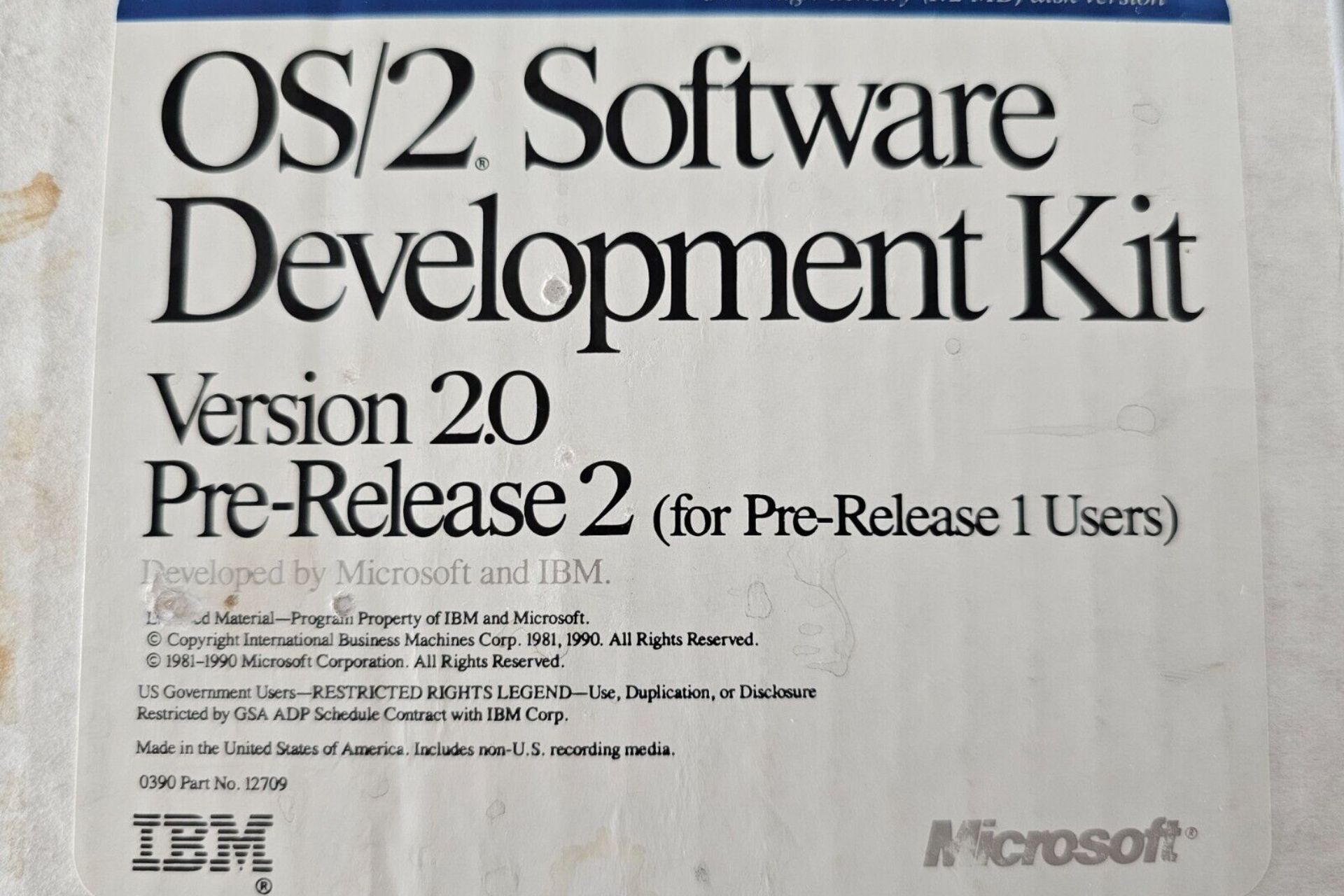
The original preview edition of the Microsoft OS/2 2.0 was recently sold on eBay at a staggeringly low price of $650, from its initial price of $2600. Described as being ultra-rare, this edition of the Microsoft operating system would make every Microsoft (and technology) collector proud and excited.
Even if you wouldn’t pay $600 for it (not to mention the initial $2600), plenty of individuals in the world would do it, as the preview edition of Microsoft OS/2 2.0 is no longer available.
The operating system was sold with multiple documents and developing kits such as dozens of floppy disks. It would not be installable, of course, as you would need a PC from 1990 for this to work, however, sold as a history artifact, in time, this could become far more valuable than it is now.
Microsoft co-developed the OS/2 2.0 together with IBM, and according to reports, it didn’t sell well, and it was not commercially successful.
In 1990, the Redmond-based tech giant would go on to develop Windows 3 on its own, and let the OS/2 2.0 behind. Windows 3 proved to be commercially successful, selling over 10 million copies, and 34 years after its release, the operating system is still used in the world, believe it or not.
The OS/2 2.0 was soon forgotten for a while, and IBM ended up delaying its release in 1992. However, there were dozens of preview versions of this operating system, with this one being one of them.
The seller on eBay bid it at an initial $2600, but the price eventually got lowered to $600, and the operating system was sold. However, eBay users agree that the seller is a genuine individual, so it might have access to other rare preview editions of old and forgotten Microsoft operating systems. If you’re a collector, it would be worth it to follow him.
Other than that, you can also get this operating system for free, right from the Internet Archives website, here.
Microsoft is working hard on Copilot, and even though it’s a revolutionary tool, it’s not without its flaws.
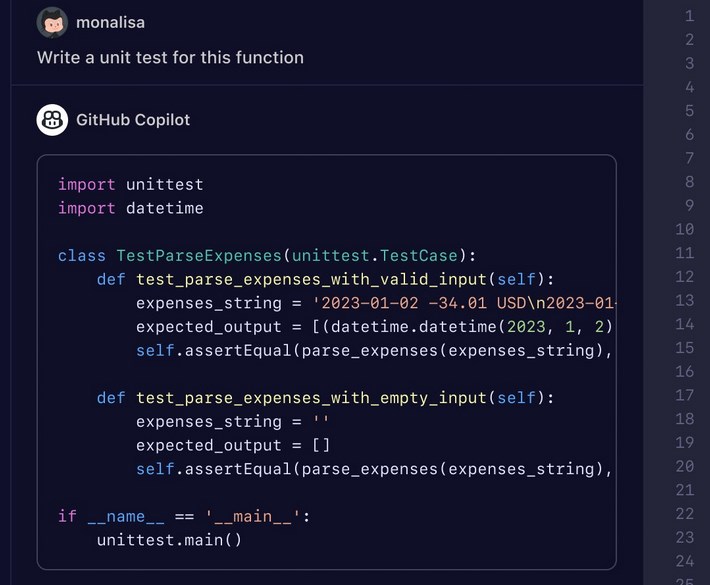
According to the latest reports, code that is generated by GitHub Copilot might not be as safe as you think.
42% of applications have long-term security flaws
According to Help Net Security, 42% of applications and 71% of organizations suffer from security flaws that haven’t been addressed in more than a year.
To make matters worse, 46% of organizations have critical security debt that can put both businesses and users at risk.
As for app developers, 63% of apps have flaws in their code, while 70% of third-party libraries have security flaws.
Despite these alarming numbers, there is some good news on the horizon. According to research, the number of serious critical flaws has dropped 50% since 2016.
AI is also a huge contributor, and many developers use it daily. However, 36% of code written by GitHub Copilot contains security flaws which is concerning.
It’s worth mentioning that 64% of applications have the resources to fix security flaws in a year, while the majority of developers despite having the capacity to do so, are ignoring security flaws.
Out of all the security flaws, only 3% are considered critical, so things aren’t as bleak as they seem in terms of security.
Hopefully, the developers will utilize the AI to more efficiently address long-term as well as emerging issues.
Along with the snapshot, the team apprised players and enthusiasts of the progress made in the recent while,
We have made good progress on the A380X in the last few weeks, namely an integration of our custom made FMS together with the appropriate pilot interface in the multi function display (MFD), the integration of the Onboard Airport Navigation System (OANS), and various improvements on all instruments. Keep an eye on our YouTube for a progress update soon
If you are eagerly waiting for the A380X, there’s another good news! Something you can get your hands on right now.
NEW AGE SCENERY has released the Barbacena airport, located in the Campo das Vertentes region.
As per the description available on the official page,
Its function is to support the Preparatory School of Air Cadets, a high school institution of the Brazilian Air Force. The airport’s security and defense are provided by the troops of GSD-BQ, while medical care for its troops is carried out by GSAU-BQ. In addition to its military and civilian operations, Barbacena Airport has also been the venue for various aeronautical events and aviation-related activities, contributing to the development and promotion of aviation in the region.
Source: SimMarket
Sized 323.94 MB, the product is available for $6.47. Since it’s based on the simInstaller technology, you will need its app as well.
Recently, we had the Dune expansion pack in MFS, and now we have this exciting release. If history tells us anything, there’s much more on the way!
What do you think of A380X and the Barbacena airport? Share with our readers in the comments section.
Microsoft Teams has become the go-to video-conferencing tool for meetings, so testing your call and ensuring it sounds as expected makes sense.
How do I test a call on Microsoft Teams?
NOTE
You can only test a call on Microsoft Teams if you’re on a work/school account that is part of the Microsoft 365 plan.
Launch your Teams app, click the three ellipses at the top right corner next to your profile picture, and select Settings.
Click on Devices>Make a test call.
The test call will now begin. Follow the cues where you’ll be asked to speak after a sound and end after another.
Teams will playback the recording and here you can examine the quality of the audio.
The test call results will be displayed and if you’re satisfied, click on hang up.
Another caveat to testing your calls on Microsoft Teams is that you must use the desktop app since it’s unavailable on the web or Android app. It’s also only available in English, so check your language settings if you can’t find this option.
If you’re on a personal plan and you still wish to test the quality of your Microsoft Teams call, you can create a meeting and join with another device to check for any issues.
You might need another person to verify whether they can hear you, but this is generally the closest you can get to testing the quality of your call.
Other ways to test your call is to perform individual tests. For instance, Windows 11 users can perfom a mic test or use mic test tools. For your camera, you can use the webcam test tools to make sure you’re in focus.
Undetected mic/camera – If your microphone or camera cannot be detected, ensure you’ve enabled access permissions for Teams. Also, update device drivers or try other devices to check for damages.
Frequent disconnection – This may be an app issue so ensure you have the latest version of Microsoft Teams or run the app troubleshooter to check for any issues. Also, close superfluous apps and processes that may be eating up the RAM.
When it comes to testing, you’re never sure what component will let you down, but more often than not, it’s your microphone. In such cases, you can easily boost your audio quality or switch to your Teams mobile app and use your PC as a mic on your phone.
Do you find the test call feature on Microsoft Teams useful, and should it be brought back to personal accounts? Let us know in the comment section below.
To get the best performance, many are removing bloatware on Windows 11. This is pretty simple to do, and it can make your old PC snappy again or give you a performance boost.
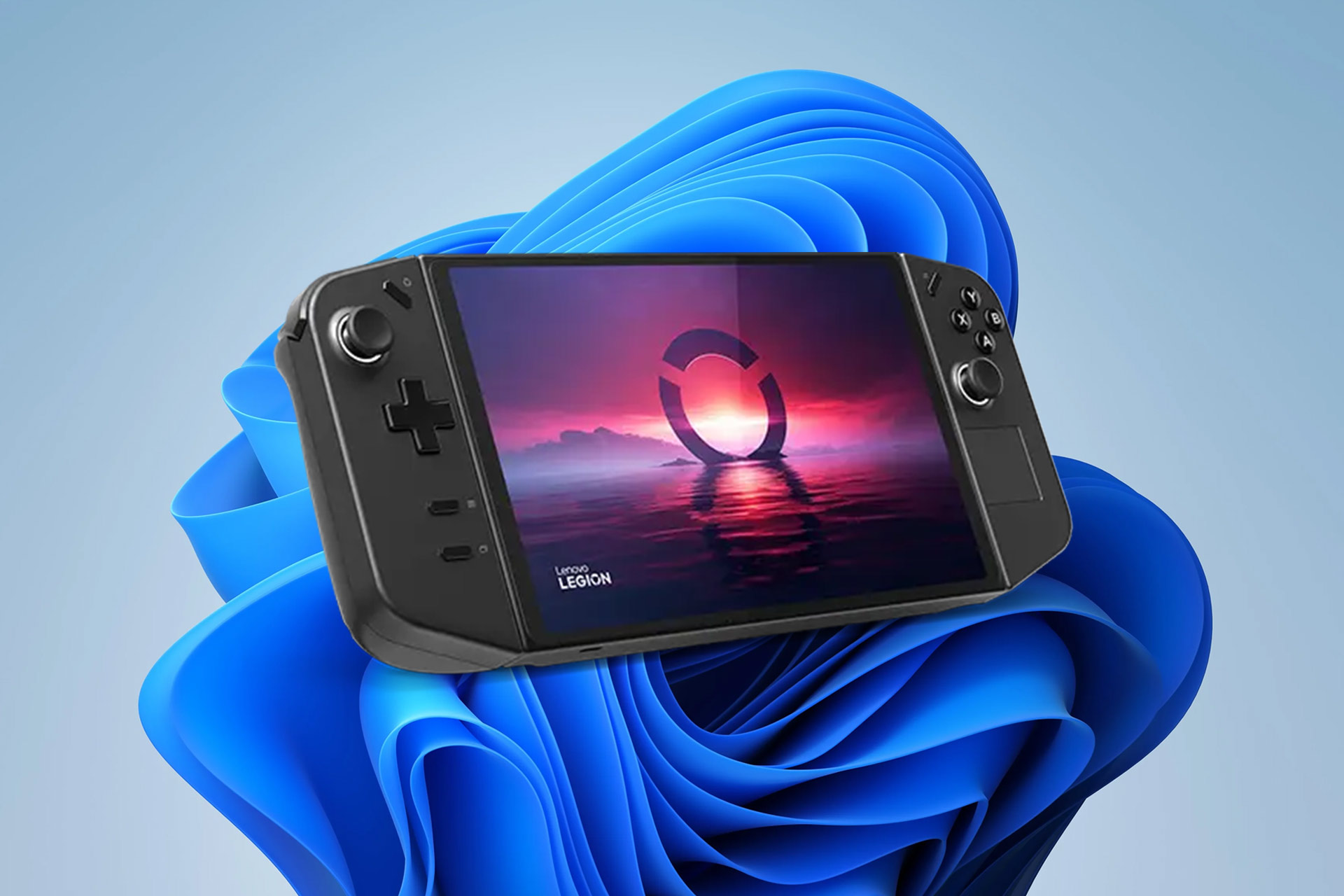
But what about handheld devices? Many are using debloaters on Legion GO, but the question remains, what is the best one to use? Hopefully, this guide will answer that question for you.
Tiny11 or Bloatynosy on Legion GO, what’s the best option for gamers?
But which one should you use? This has sparked a debate on Reddit, and one user reported that installing Tiny11 drastically freed up his resources and lowered RAM usage:
It only takes 20GB on the SSD and blocks only 2GB of Ram. Furthermore every bloatware by microsoft is removed.
However, many users are concerned since Tiny11 uses a modified Windows 11 ISO, and it can come with hidden malware.
Just know that by installing some modified os from the internet you are exposing yourself to malware possibly being installed along with it.
The safe bet, and it runs just fine, is to just let it install the win version it comes with and run bloatynosy to manually remove useless bloatware.
However, others claim that Tiny11 is safe since it’s built with NTDEV which seems to be a credible tool. If needed, you can also use NTDEV to manually optimize your Windows 11 ISO and create your own version of Tiny11 if you have any privacy concerns.
Yes i agree but NTDEV has a good reputation among the OS Modders. You can build tiny11 from an original iso with his builder.
On the other hand, others are skeptical about Bloatynosy, and they speculate that such tool can be used to spread malware as well.
The same malware could come along with debloaters like bloatynosy
Ntdev is pretty trustable in the community and tiny11 is an awesome project, i dont even consider the possibility of installing windows any other way
Others are boasting Tiny11 for up to 15-40% fps boost. This is achieved by freeing up RAM, and Tiny11 does just that by removing unnecessary services:
On heavier titles I’ve seen as much as a 15-40% boost in frames using de-bloated windows 10/11 a very simple reason. Ram.
According to users, Windows on Legion GO uses 6.6GB of RAM while Tiny11 uses only 2.1GB. This leaves less VRAM for the games and forces the device to use storage space as RAM, thus impacting performance.
While the performance boost sounds impressive, there are a few downsides to using Tiny11 most notably, missing features.
Not worth in my opinion, you always going to ended up needing something that will not be available on this modded version and these versions always crashes or give some kind of bugs
One of my co workers installed Tiny11 about 5 months ago…. Realized he couldn’t use Gamepass as Live services was disabled and or not included in that “debloating of the OS”.
Lastly, it’s also possible for OS updates to break your system, which can be a problem.
Users also forgot to mention that Tiny11 creates an ISO, so if you want to use it, you need to reinstall the system. On the other hand, Bloatnosy will modify your current installation without having to reinstall it.
It’s worth mentioning that with Bloatnosy you might be able to restore missing features, while that’s not the case with Tiny11.
Regarding security, both are open-source projects and are available on GitHub, so the community can easily detect any potential wrongdoing by the developers.
If we had to choose, we’d go for Bloatnosy, since it doesn’t require you to reinstall your system, but let us know what’s your pick in the comments below!
Whether you have larger hands or prefer a bulkier design, you might feel the standard Xbox controller is a bit small for you. In this article, we have compiled a list of XL controllers that can help you enjoy your gaming session to the fullest.
What are the XL alternatives to the Xbox controller?
The Hyperkin Duke Wired controller is an Xbox 20th Anniversary Limited Edition and is compatible with Xbox Series X/S, Xbox One, and Windows 10.
As it is designed to commemorate the two decades of gaming, it features the original Xbox startup animation played inside the Xbox button on the controller.
For better control, the controller incorporates precision analog triggers, bumpers that mirror the functions of White and Black buttons, and even a Share button & Type C port, providing responsive and accurate gameplay.
To cater to individual needs, the controller comes in four different sizes: Small, Medium, Large, and Extra Large. You can choose any of the sizes for better comfort and stability.
Additional features include a 3.5 mm headset jack, vibration feedback for a realistic experience, and a detachable Type C cable for better flexibility.
The Razer Wolverine V2 Chroma is another great Xbox controller XL alternative, offering a secure and natural hold with its non-slip rubber grips, which puts control and customization at your fingertips.
In addition to the remappable buttons, the controller comes with Razer Chroma RGB lighting, and a swappable thumbstick, so you can tailor your gaming experience the way you want.
The controller boasts Razer Mecha-Tactile Action Buttons and a D-Pad inspired by gaming mice technology. These buttons provide hyper-responsive actuation with a cushioned touch, delivering unparalleled precision and tactile feedback during gaming sessions.
With Razer Chroma RGB lighting, you can customize the controller’s aesthetic, adding a dynamic visual element to your gaming setup.
With easily swapped-out thumbstick caps, you can choose the perfect tool according to your playstyle to enjoy a natural and precise analog motion.
If you are looking for a professional gamepad, the Thrustmaster Eswap series is the perfect choice. It is officially licensed for Xbox Series X/S and features next-gen modules, which ensure precision and adaptability for a wide range of games & gaming styles.
Featuring new-generation analog mini-sticks with improved durability, The ESWAP X PRO CONTROLLER provides better physical resistance and an increased lifespan compared to its predecessors.
The instant remapping feature enables you to customize any regular button or function by assigning it to the four additional buttons on the back of the controller, increasing versatility for various games and hand sizes.
You can also just position the modules before or during the gameplay according to your gaming needs, catering to diverse genres such as combat, FPS, Battle Royale, Sports, or RPG.
With the ThrustmapperX software, you can adjust the essential settings and create presets for optimized gaming ergonomics.
Another officially licensed Xbox product, the Scuf Instinct Pro, is a high-performance Xbox controller that offers you the unique ability to choose a graphical design for your controller or design one from scratch.
The remappable paddles are placed strategically to provide a natural feel, resulting in faster response times, and allowing you to assign actions to optimize gameplay.
You can save up to three different paddle remapping configurations and switch between them according to the game style and type of game whenever you want with the help of a button.
The controller has textured thumbsticks designed to improve grip, accuracy, and precision, thereby making it better for comfort and optimized performance.
Featuring instant triggers for swift transitions from standard triggers to mouse-click actions, Scuf Instinct is compatible with Xbox Series X/S, Xbox One, Windows 11/10, macOS Catalina & above, iOS 10 & above, and Android 9 & above.
While it may not be a controller itself, C2Grips Xbox Gripz is a pistol grip that is designed to attach to your existing Xbox controllers, providing a better grip on the controller with great comfort for a superior gaming experience.
Xbox Gripz easily fits onto your controller, offering complete control, and it is compatible with both Xbox One and Xbox Series X/ S.
C2 Gripz revolutionizes gameplay by placing your thumbs on top of the analog stick, providing precision, thereby redefining the way you play.
With four available sizes: Small (3.1 inches), Medium(3.1-3.6 inches), Large(3.6-4.2 inches), and Extra Large(4.2+ inches), you can select the perfect Gripz size customized for a comfortable fit.
This is a gaming accessory that makes sure you get a personalized experience with comfort and stability while reducing fatigue in your hands & fingers during longer gaming sessions.
This concludes the list of best XL alternatives for Xbox controllers recommended by our WR gaming experts. You can pick any one of them that suits your preference and gaming style.
In case you don’t want to spend lots of money on a controller, you can buy C2Grips Xbox Gripz and attach them to your existing Xbox controller for better control.
However, if you are looking for a massive but comfortable design controller, go for Hyperkin Duke. For customization with remappable button, RGB lighting, and swappable thumbsticks attract you, your choice should be Razer Wolverine V2 Chroma.
If you are a professional gamer and looking for next-gen modules for precision, the Thrustmaster Eswap series can be a good choice; however, with Scuf Instinct Pro, you can design your controller and customize it the way you want for a wide range of gaming styles.
Which one would you choose? Share your favorite controller in the comments section below.
We reported earlier that Microsoft will discontinue Windows Mixed Reality from Windows 11, version 24H2, and the feature will reach End of Life (EoL) in Nov’26. It now appears that the decision wasn’t well received by the community.
There’s a petition on Change.org doing rounds urging Microsoft to make the Windows Mixed Reality VR Platform an open-source project to let developers improve the functionality and keep it alive!
The petition states two critical reasons for making Windows Mixed Reality open-sourced:
It will maintain a healthy diversity in the market.
Significant amount of electronic waste will be generated in the form of discarded WMR devices. A similar concern is raised regarding Microsoft dropping support for Windows 10.
Created on February 14, 2024, the petition has already garnered 629 signatures at the time of writing and has an initial goal of 1000.
The number is expected to increase in the coming days, given that many who invested in WMR-supported devices are enraged with the decision. We came across multiple Reddit threads where users shared similar concerns.
Existing Windows Mixed Reality devices will continue to work with Steam through November 2026, if users remain on their current released version of Windows 11, version 23H2. After November 2026, Windows Mixed Reality will no longer receive security updates, nonsecurity updates, bug fixes, technical support, or online technical content updates.
So, to continue using your WMR devices with Steam until Nov’26, you will have to permanently disable Windows updates and stay with the currently installed version.
This does put the PC at risk, given that it wouldn’t receive any updates in the time frame. It’s something Microsoft should address!
After Nov’26, when Microsoft stops releasing security updates for Windows Mixed Reality, it will become vulnerable and prone to threats, and you will have to be a lot more cautious.
Coming to whether this or any other similar petition will make Microsoft change its decision, the chances are bleak. Windows Mixed Reality wasn’t a profitable venture and offered limited capabilities.
The decision to deprecate WMR doesn’t affect HoloLens. Microsoft remains committed to it.
If you, too, want Windows Mixed Reality to remain available, sign the petition and show your support! And do not forget to share your thoughts on the decision in the comments section.
Helldivers 2 is the current gamers’ obsession, but it’s proving a headache with a black screen on launch. Too many people are trying to play the game simultaneously, and the server is over capacity.
How do I fix the Helldivers 2 black screen on launch?
1. Launch the game from its executable file
Go to the Helldivers 2 location. (This will differ depending on your OS): C:\Program Files (x86)\Steam\steamapps\common\Helldivers 2\bin
Search for Helldivers, right-click on it, and select Run as administrator.
Helldivers 2 may be failing to launch because of required permissions. Launching it directly from its executable file allows you to bypass these restrictions and access any other files needed during launch.
2. Verify the integrity of game files
Launch Steam, and go to the Library from the top.
Now, right-click on Palworld and select Properties from the context menu.
Go to the Installed Files tab, and click on Verify integrity of game files.
Once the process is complete and all missing files are replaced, relaunch Helldivers 2 and check whether the login error is fixed.
Locate the Video tab, and choose Display mode as Borderless Window.
Next, change the Aspect ratio to 4:3 & 5:4 and adjust the Resolution to 1280 x 980.
Save the changes and check if this resolves the issue.
If you’re having issues with Helldivers 2 launching a black screen on launch, switching to borderless window mode may help with display issues.
Some games have compatibility issues with specific hardware configurations, and switching your display mode may resolve the issue.
4. Roll back to a previous display driver version
NOTE
This step is for NVIDIA graphic cards. If your graphics card is from another manufacturer, visit the corresponding manufacturer’s site.
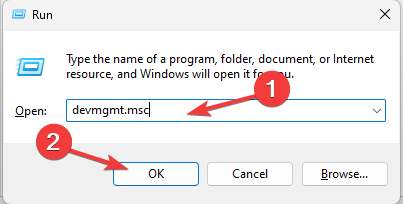
Press Windows + R to open the Run dialog box.
Type devmgmt.msc and click OK to open the Device Manager.
Locate and click Display adapters to expand it.
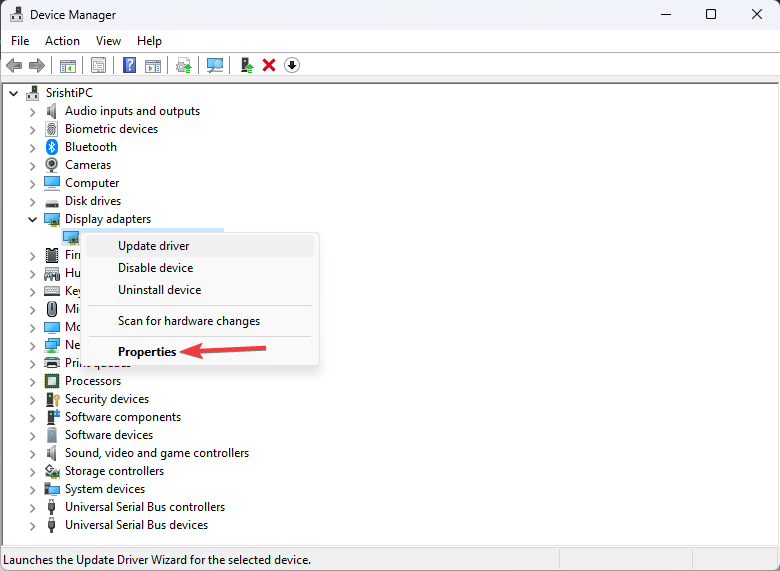
Right-click the NVIDIA driver and choose Properties.
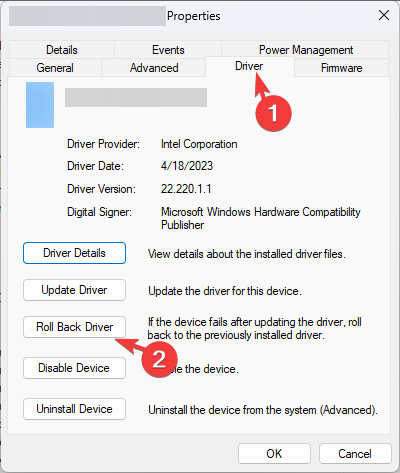
Go to the Driver tab, and select the Roll Back Driver option.
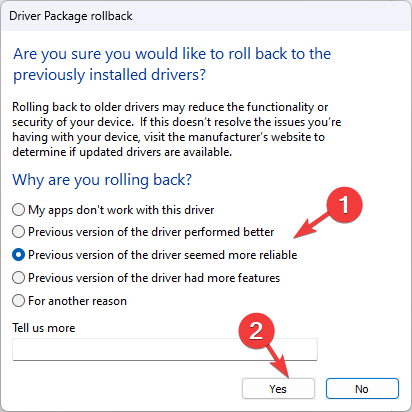
On the Driver Package rollback page, select the reason for the rollback and click Yes.
Restart your computer to complete the process.
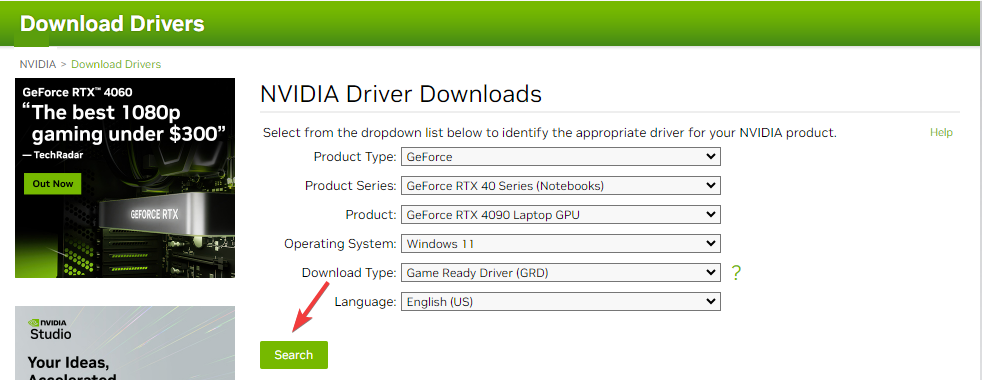
If the roll back driver option is greyed out, you can download a previous version from NVIDIA’s site:
Go to the NVIDIA official website and download the desired version of the NVIDIA driver at the desired location.
Press Windows + R to open the Run dialog box.
Type devmgmt.msc and click OK to open the Device Manager.
Locate and click Display adapters to expand it.
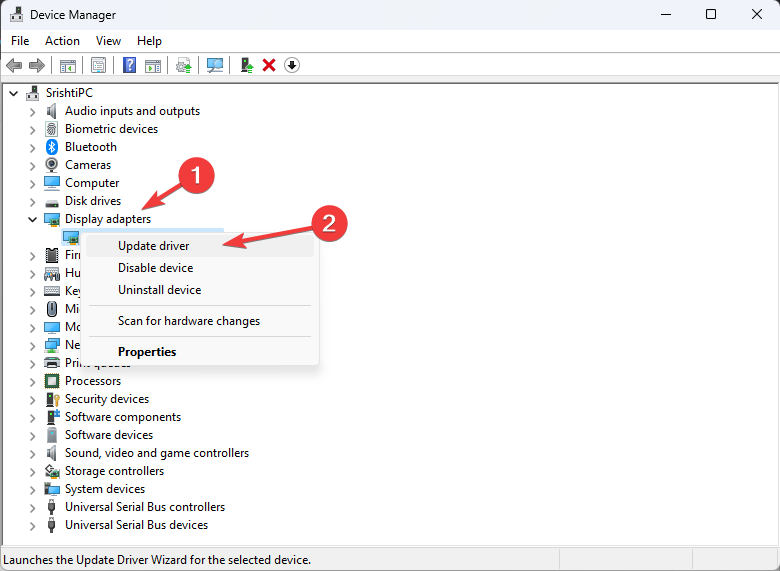
Right-click the NVIDIA driver and choose Update driver.
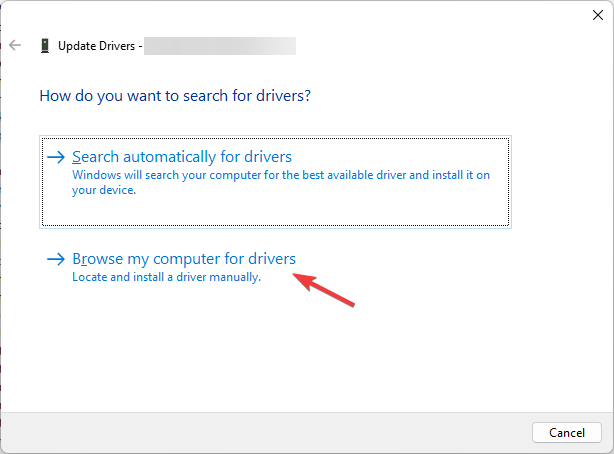
Click Browse my computer for drivers.
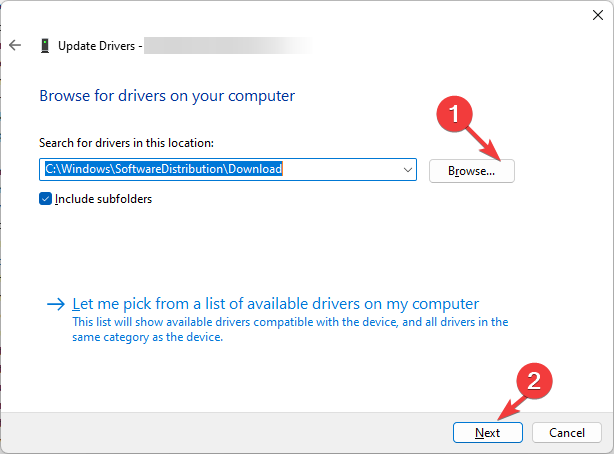
On the Update drivers window, click Browse, navigate to the folder where you saved the downloaded file, and click Next.
Follow the onscreen instructions to complete the process.
Driver errors are in plenty and since Helldivers 2 is fairly new, there may be a driver compatibility issue. Further, older drivers tend to be more stable so try it and see if this resolves the issue.
If you prefer a quicker alternative, you can use dedicated software to automate the driver updating process by scanning and updating your drivers in a matter of minutes, plus it can be used for long-term maintenance so you can make sure your drivers never go out of date again.
Paste the following in the address bar: Users/User/AppData/Roaming/ArrowHead/Helldivers2
Locate the User_Settings.config file and rename it to test.
Try launching Helldivers 2 and see if the black screen on the launch error persists.
The user config file stores your game’s display settings alongside other configurations. If it becomes corrupted or conflicts with other display settings, you may experience a black screen when launching certain programs.
Renaming it will reset any custom settings and reconfigure it to default settings, which may resolve this issue.
Helldivers 2 black screen on launch is not so bad compared to error code 10002038, which locks you out of the game. They’re both server-related issues, but at least with the former, one of the above solutions can be a quick fix.
A little waiting may also bear fruits, and you can play the game. For a new game, Helldivers 2 is surely going through many obstacles. But the crossplay support in Helldivers 2 will surely be a treat to users!
The servers may be overwhelmed and can’t handle the unusual traffic, but hopefully, this won’t last long. You can contact support for further assistance, too. Alternatively, you can opt to play during off-peak hours.
It may not be ideal, but at least you’ll enjoy the game uninterrupted. If you have tried any other tricks you think may benefit from bypassing this black screen, do let us know in the comment section below.
With almost everything coming with a subscription fee these days, it always feels good when frequently used programs have a free version. For those of you who don’t know, our go-to editor suite, Microsoft 365 (previously Microsoft Office), is also available for free!
Microsoft 365 Online is the web version of our favourite editor apps, Word, PowerPoint, Excel, and OneNote, allowing easy access to everyone who needs just the basic features or doesn’t yet want to purchase a paid subscription.
The web version of Microsoft 365 is very similar to the desktop version, so you don’t spend any time adjusting to it. Let’s get straight to using Microsoft 365 Online!
How do I use Microsoft 365 online?
1. Sign-in and interface
Go to the Microsoft 365 sign-in page. If you already have a Microsoft account, select Sign in and enter your login credentials. Otherwise, click on Sign up for the free version of Microsoft 365 and create a new account.
Once signed in, at the top, you will find the OneDrive storage status and the various available Microsoft 365 apps (also listed in the navigation pane). Click on any of the latter to open the app in a new tab and start working.
At the bottom, you have recently opened documents, presentations, and spreadsheets.
2. Working with Word, PowerPoint, and Excel
Once you open a Microsoft 365 app, be it Word, PowerPoint, or Excel, the interface is similar to the desktop version, though not exactly the same.
You have every menu at the top, the toolbar under it, the different modes (Editing, Reviewing, and Viewing) at the top right, and the Share option beside it.
Word in Microsoft 365 Online
At the top left, you will find the sync status, which will state that the file is stored on OneDrive. Every file that you work on in Microsoft 365 Online gets automatically stored in OneDrive, along with all the changes. That’s why the Save button is missing!
If you want to make advanced changes to a file that are not available in Microsoft 365 Online, directly open it in the desktop app. To do that, click the Editing button (or another, depending on the mode) near the top right > choose Open in Desktop app.
Opening an online Microsoft 365 file in the desktop app
Microsoft 365 Online also allows you to change the zoom level, add the ruler in Word and PowerPoint, and insert additional spreadsheets in Excel, including more basic functionality available in the desktop apps.
To download an offline copy of the file, click the File menu > select Save as > choose Download a Copy.
Downloading a copy of the file
The additional downloadable file formats depend on the app you are working with. For instance, with Word, you will get the option to download as PDF and ODT. For Excel, it’s limited to ODS. For PowerPoint, the options are PDF, ODP, and JPEG images.
What are the pros and cons of Microsoft 365 Online?
Pros
Cons
It’s free! A paid version, on the other hand, costs $69.99 for a single user.
You can’t use Macros in Excel and Excel.
Best for users who only need the basic functionality of Microsoft 365.
You can’t add watermarks or themes.
No download is required. Helps save storage space on the PC.
It needs access to the Internet throughout, unlike the desktop apps that support offline work.
Due to its online nature, consumes fewer resources.
A limited number of drawing tools in Excel.
Accessible across operating systems, be it Windows, Mac, Android, or iOS.
Unable to import audio or charts
If you are confused between a paid subscription and Microsoft 365 Online, we recommend trying the latter for a while and see if it fulfils your requirements. In case not, there’s always the option to subscribe to a paid plan!
Cybercriminals are using Akira ransomware to target the vulnerabilities of Cisco AnyConnect. Furthermore, with it, they are getting access to your network. Also, with Akira ransomware, they can gather your data and install malware or execute other potentially malicious activities.
What is Akira ransomware?
Akira ransomware is a new threat that leaks stolen data encrypts files on your system. In addition, threat actors can use it to steal your username and passwords. Also, this type of malware tries to prevent you from recovering files by deleting their copies from your system. On top of that, it spreads fast across your network.
Moreover, cybercriminals could request ransom to remove the Akira ransomware from your system. However, nobody guarantees that they won’t come back. After all, they might be targeting your sensitive data to sell it to another company.
The research by Truesec shows that one of the main entry points for Akira ransomware is, in fact, the Cisco Anyconnect SSL VPN. The malware exploits it by using the CVE-2020-3259 vulnerability. Unfortunately, if you used the VPN in the past, even if you updated it constantly, there might already be some security problems regarding your data.
If you think that your data might be at risk, the best thing to do is to change your passwords. In addition, you could get an anti malware application featuring a ransomware detector to get rid of Akira. Furthermore, you could start moving to another email using a new device. However, that’s a bit of a last resort method.
In a nutshell, if you’ve been using Cisco Anyconnect VPN, use anti-malware on your device to protect your data. Afterward, change your password. Also, know that the Akira ransomware doesn’t affect just the Cisco VPN. It could target multiple VPN applications. Thus, you might want to always use a different password for your accounts and a different account for your VPN services.
What do you think? Are you going to change your VPN? Let us know in the comments.
Ten years ago, I’ve had a lot of fun with an iPad 2, with hundreds of games from the App Store. Now, I’m fiddling with a Microsoft Surface tablet and the old kid in me wants to play, but there’s literally nothing in the store to enjoy.
Yes, I know that the Surface tablets were mainly created for business and productivity, but what do I do in the few breaks I take? There are just a few touchscreen games to enjoy, and the most notable of them is Civilization. The others are just simple arcade or match games. Why aren’t there more?
Why are there so few touchscreen games for Windows?
Apparently, it all comes down to sheer numbers. First of all, Windows is installed on less than 3% of touchscreen devices. Developers wouldn’t move a muscle on that kind of market, and the result is obvious.
Furthermore, Windows gamers are much more competitive; they want something other than the touchscreen interaction. They want precision mice for that perfect shot, a high-quality display with 60 FPS and over 120 Hz refresh and mechanical keyboards with programmable keys, not unreliable capacitive contact.
Gamers have been incentivized to play in professional competitions, even televised and watched by millions. And the prizes offered in these competitions have also become huge. Touchscreen gaming is the definition of casual gaming, defined by short bursts of fun, and there’s no competition around them, except those with friends, of course.
Lastly, you can still enjoy tablet games on Microsoft Surface thanks to the Windows Subsystem for Android. And that’s what I did. I installed the app available in the Microsoft Store and played my favorite Android titles happily on my touchscreen.
So, to sum it all up, gamers don’t want tablet games, so the developers don’t create them. There is no trend for them, therefore, no one cares.
Handheld gaming consoles? That’s a different story because they combine a great screen with powerful processing and reliable gamepad controls. Microsoft is preparing a new handheld gaming console and we can’t wait to see what is like.
In the meantime, Surface tablets are for productivity. Get the gaming fun to the tablet from Android!
Would you like more touchscreen games for Windows? What games would those be? Tell us all about that in the comments section below.
The inevitable has happened! Open AI has unveiled Sora AI, a new model that creates video from text, and the results are stunning.
Don’t panic just yet because the new LLM is only making one minute clips, but the developer is testing it right now.
Specifically, we train text-conditional diffusion models jointly on videos and images of variable durations, resolutions and aspect ratios. We leverage a transformer architecture that operates on spacetime patches of video and image latent codes. Our largest model, Sora, is capable of generating a minute of high fidelity video. Our results suggest that scaling video generation models is a promising path towards building general purpose simulators of the physical world.
Open AI
How does Sora AI work?
The technical report from Open AI is a specialized read, but basically, Sora AI is turning visual data of all types into a unified representation that enables large-scale training of generative models.
If you see the video above, you definitely can’t tell that it’s AI-generated. All the textures, skin, and face look natural, even though the clip is flooded with detail and objects.
Open AI uses video patches instead of text tokens to train their LLM:
At a high level, we turn videos into patches by first compressing videos into a lower-dimensional latent space, and subsequently decomposing the representation into spacetime patches.
Open AI
Training an LLM with video requires large amounts of data to process. They are trying to reduce the dimensionality of the visual data while the network gets the raw video input and outputs a compressed video both temporally and spatially.
From the results, we understand that Sora AI is more than capable of delivering high-quality video. As we mentioned in the beginning, although now it’s limited to one-minute clips, in time, it will clearly be able to create commercials and, why not? whole episodes of your favorite show.
How will Sora AI change the industry?
It’s easy to see why Sora AI is met with excitement and anticipation, but many professionals working in the video industry are frowning right now, and for good reason.
As a marketing specialist, why would you spend a considerable budget to film a commercial in an exotic spot when you can create it on the computer in a couple of hours?
The advertising industry is a monster worth billions of dollars annually. Still, it feeds everyone in the video industry, including the copywriters, the filming crew, the director, the set, and many, many more specialized crews that we don’t even know are involved in the process.
The commercial/ads industry will probably change in time, but in the near future, the first who will be affected will be the royalty free video content providers.
Who will want to buy a short clip when they could create it in a few minutes with Sora AI?
Relax, the future is not that grim
Now, everyone said that AI will replace the journalists and content writers, but that turned out to be a mess. Microsoft is creating its ow news reel, but they will use AI to train the journalists and provide them with more information, not write the news directly.
Right now, search engines are trying to identify and exclude AI-generated content because many times it turned out to be inaccurate and hallucinating. You still need human journalists to discern right from wrong, to make the correct connections and write a piece like this one.
That’s probably going to happen with the videos as well. But right now, text-to-video and Sora AI are in their infancy and facing some real conceptual problems.
For instance, if a generated character bites from a cookie, there is a chance that the cookie remains intact. That’s not because Sora AI doesn’t know what a bitten cookie should look like but because it doesn’t correctly understand the matter subtraction.
Sora AI has a long way to go until it delivers the right results, and Open AI hasn’t released it to everyone yet. It’s in a limited tested preview for specialists from the industry and the developer didn’t announce any date for its public release.
What do you think about Sora AI and text to video? Let’s discuss it in the comments section below.
Microsoft’s approach with the native browser, Edge, has been criticized over the years. Be it the push as the default browser or Edge stealing tabs from Chrome, it often made news for the wrong reasons. But this time around, it seems like Edge is become more user-oriented!
Microsoft is reportedly testing a new feature in Edge Canary (the preview version of the browser), which will allow you to manage search engines and use different ones in the same window.
Called Show additional search box in the toolbar, the feature lets you configure the preferred search engine and set different ones for the search box.
First reported by Leopeva64 in a post on X(formerly Twitter), the feature is still in the early stages and will soon be released for all. Though there’s no specified timeline.
Since the Manage search engines page is not working in Edge, as reported by Leopeva64, it’s likely that Microsoft is implementing some major changes to simplify searches.
The feature is expected to be Microsoft’s response to the Digital Market Act (DMA) in the EU, which facilitates healthy market competition. Chrome, too, recently made a similar change and allowed you to switch between search engines easily.
Whether this will affect Microsoft Edge’s user base, only time will tell. At present, Edge lags behind Chrome by a considerable margin. According to Statcounter, while Chrome commands a 64.38% market share, Edge stands at 5.35%.
PlayStation’s Yellow Light of Death, or YLoD, has been present for years, but we still don’t know much about it, unlike issues with other similar devices. This has left many concerned about whether you can get the PlayStation to work after the problem.
Though not widespread, we have come across reports of Yellow Light of Death from over ten years ago.
We also came across more recent reports. The good news is that it’s still a rare occurrence. But Sony’s unclear response doesn’t help, and you are often forced to take the console to a certified service center. Is there something you can do to fix PlayStation’s Yellow Light of Death?
What is PlayStation’s Yellow Light of Death?
Tip
Do not open the console or replace any components unless you are absolutely sure of the process. Also, this may void the warranty.
It basically indicates a hardware problem with one of the components, and this is, more often than not, caused by overheating. A PlayStation should be kept in a well-ventilated environment for effective heat dissipation, and the fan’s side shouldn’t be covered.
Your primary approach should be to let the console cool down, and it should automatically get things up and running. If that’s indeed the reason, replace the thermal paste and check for issues with the console fan. For the latter, replacement is the best course.
Also, clean the internal components and get rid of any dust accumulation.
Besides, there’s a high possibility of issues with BGA or problems with the solder ball connections from the motherboard to the CPU/GPU.
In some models, Sony used lead-free solders, which, though environmentally friendly, do not perform well under thermal stress and are often the reason behind YLoD.
Previously, many have used a blower to heat up the motherboard so that the loose components melt back into it. This is not the right approach, but if you have already given up on the console, heating it won’t be such a bad idea!
Experts recommend that you perform a few basic checks related to overheating, and if the Yellow Light of Death persists, contact Sony support for more help.
Tips to prevent YLoD from appearing
Place the PlayStation in a ventilated space and make sure it’s not covered from any side.
Keep the console away from dust.
Turn off the console when not in use.
If the fan makes too much noise even when not playing games, get the console inspected.
Even though your options are limited when faced with PlayStation’s Yellow Light of Death, taking good care of the console will prevent the situation from arising in the first place.
If the console is beyond repair, you can always use an effective PS3 emulator to play the same games on a PC.
Did you manage to fix PS3’s YLoD? Tell us in the comments section.
After desktop, Mozilla is working on bringing the ability for Firefox to translate webpages on Android. The Firefox translations feature, which is currently working in the Nightly version of Android, has been spotted by us.
For Windows, Mac and Linux, Mozilla Firefox introduced native in-browser translations with version 118 released in December 2023. This means you can translate web pages directly within the browser in real-time, without needing external extensions.
Translations happen locally on your device, ensuring privacy and security. Currently supported languages include Spanish, English, German, Bulgarian, Portuguese, Italian, French, Polish, and Dutch, with more languages coming to Firefox in future versions.
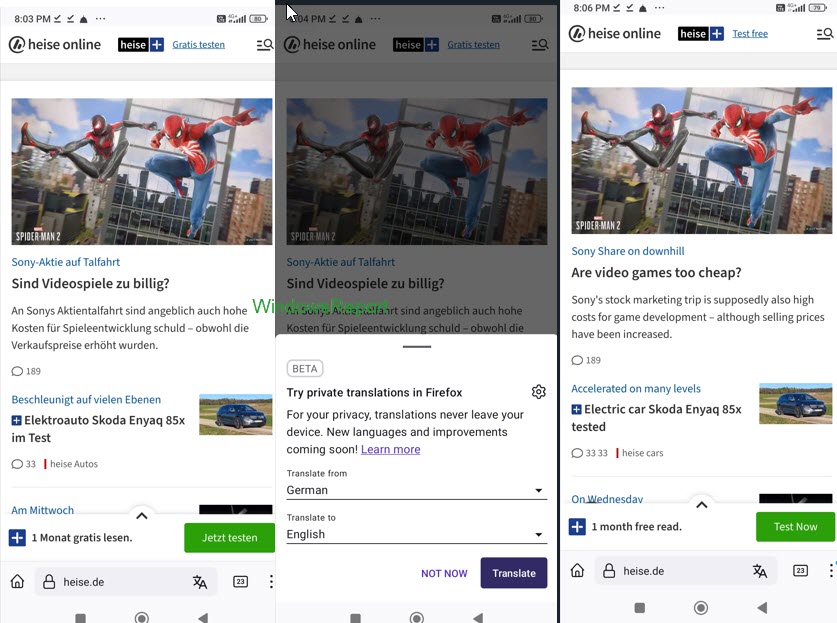
Unfortunately, native translations are not yet available on the Android version of Firefox. However, Mozilla is actively functioning on adding this feature to the browser on Android platforms. Here’s our first look at it.
Firefox’s native Translation feature is coming to Android
Unlike Google Translate or the translation feature in Microsoft Edge, Firefox language packs are downloaded onto the user’s device, and translations are done locally. This means Mozilla doesn’t know or record what webpages you translate.
When you come across a page that’s not in your spoken language, similar to the desktop version, Firefox will show a translate icon in the address bar on Android. Just tap it, choose a language from and a language to translate the website into, and tap Translate. Firefox will handle the rest.
Firefox Android translate options and Settings
Firefox offers translation options that include toggles for:
Always offer translate option
Always or never translate a particular language
Never translate that specific site
The translation settings include:
Offer to translate when possible
Always download languages in data-saving mode
Translation Preferences:
Automatic translation: Select a language to manage ‘always translate’ and ‘never translate’ preferences.
Never translate these sites: [List of specific sites to exclude from translation]
Private translation in Firefox for Android is currently in Beta. For your privacy, translations never leave your device, according to Mozilla’s claims through the translate banner. The banner also promises support for new languages and improvements soon.
What’s your take on Firefox’s built-in webpage translation feature on Android? Let us know your thoughts in the comments below.
Soon, you will be able to mute/unmute yourself from your AirPods on Microsoft Teams for Mac. This feature isn’t new. After all, it was available on iPhone XS and XR and older models since iOS 17. Thus, if you are an iPhone user, you might know how it works already.
How to mute/unmute yourself on Microsoft Teams with AirPods?
To mute or unmute yourself by using AirPods on Microsoft Teams for Mac after the update, you will need to tap the control on the stem. So, once Microsoft implements the feature, you will no longer need to mute and unmute manually.
This feature is useful, especially if you have someone causing background nosie or if you switch places during a meeting. In addition, according to the Microsoft 365 Roadmap, this option is coming to us this March. Another important thing you should know is that the feature works only on Mac models running macOS Sonoma.
Furthermore, Microsoft and Apple are starting to work together to bring users even more quality of life updates and better apps. For example, Apple split iTunes into three other applications to make it work better. However, you will still need iTunes to allow the new apps access its library.
All things considered, we are eager to see more features and applications from Apple and Microsoft. In addition, we can’t wait for the mute/unmute feature for Microsoft Teams to be available on Mac while using AirPods. After all, it will be a great help, especially when someone starts making a lot of noise in the background.
Additionally, you might want to learn how to move your content from iTunes for Windows to the other applications. However, keep in mind that the applications are still a work in progress.
What are your thoughts? Do you consider this feature useful? Let us know in the comments.
A new feature coming to Microsoft Outlook will allow you to set your work hours and location. Thus, if you are a remote or hybrid worker, you will most likely enjoy it.
In addition, the feature might help Copilot set up your meetings better than before. Also, this work hours and location feature will be available on Windows and Mac.
When will the work hours and location feature be available on Outlook?
The new feature will arrive next month on preview builds. Yet, Microsoft could delay it if there are any issues. After all, Copilot might schedule your future meetings using this feature. On top of that, it is crucial to function properly, especially if you keep traveling while working. Otherwise, unwanted situations could happen. In addition, this location and working hours feature will be available only on desktops.
Fortunately, you will have to set the work hours and location manually. So, you don’t need to worry about security breaches or bring tracked.
To use this feature, you will need to:
Open Outlook and to go to Settings or press on the Cog Wheel.
Go to the Calendar tab and click on Work Hours and Location.
Customize your calendar and click Save.
Ultimately, this feature is more of an upgrade to the Outlook calendar. Furthermore, we find it quite useful, and we think that it could fix some delays and some problems if it used correctly. Although, you should be careful about your location at times. After all, if something urgent comes up, you might need to switch places, and it might confuse some team members.
Unfortunately, we don’t know if the option will become available on mobile devices. Thus, if it becomes a success, Microsoft might consider it.
What do you think? Are you going to use this feature? Let us know in the comments.
TicTacToe is a new malware dropper that targets Windows users. Moreover, it delivers final-payloads in malicious attachments like mails. Unfortunately, TicTacToe comes with different malware to steal your data. In addition, this malware is difficult to detect because it changes the final-payloads.
What does a dropper malware do?
A dropper malware installs malicious files into your computer. Furthermore, they could be used to steal your information and to damage your system. In addition, this type of malware can hide itself from antivirus programs. Moreover, you might find the TicTacToe malware dropper in phishing emails as an .iso file. Once executed, it will start adding DLL files into your memory.
Unfortunately, the malware seems to be in development because it has multiple strings. Also, researchers think that groups of threat actors use the malware. So, they alter it according to their needs. On top of that, they believe that cybercriminals trade the tool actively as a service. In addition, cybercriminals are using the TicTacToe malware dropper to deliver the following final-payloads Leonem, AgentTesla, SnakeLogger, RemLoader, Sabsik, LokiBot, Taskun, Androm, Upatre and Remcos.
The name TicTacToe comes from Kolko_i_krzyzyk, a common Polish language string encountered by researchers during earlier stages.
To protect yourself and your organization from the TicTacToe malware dropper, you will need to run hash based detections. Thus, you will need a behavior-based endpoint security application, especially since the malware keeps changing. In addition, you could consider getting the FortiEDR. After all, the tool comes from the researchers who managed to identify earlier versions of the TicTacToe dropper.
Ultimately, we recommend you don’t download any suspicious files from unknown users. In addition, keep in mind that the TicTacToe malware dropper is commonly hiding in emails. So, make sure to check the source or to verify on the internet if the file could possibly have malware.
What are your thoughts? Are you ready to deal with malware attacks? Let us know in the comments.
Skype Preview was released last week, which brings the version to 8.113.76.207, and the Skype camera got a significant upgrade. Along with the transcription of voice messages and a new reaction picker, it now has 25 new AR lenses powered by Snap, including Mad Scientist and Glossy Smile.
In an official announcement on X (formerly known as Twitter), Skype Insider announced:
? Hi Skype Insiders! Discover AR magic! ?✨
Switch up your look in real-time with new AR Lenses powered by Snap.?
In the official release notes on the Skype Insiders says:
Skype’s camera just got a major upgrade with a treasure trove of over 25 new AR lenses powered by Snap! Now, your chats can be as expressive and animated as you are.
? Snap & Transform: Access the new array of lenses with a tap on the smiley icon, and pick your new virtual look.
? Switch & Snap: Easily flip the camera to center stage and find your best angle.
? Lenses Galore: From ‘Glossy Smile’ to ‘Mad Scientist’, choose from a variety of creative lenses that best match your mood or message.
? Record with Flair: Hold down the record button to capture your personalized video message.
? Share the Fun: Send your lens-enhanced videos to friends and family for an extra burst of joy in your conversations.
? Avatar Makeover: Tap the smiley to sprinkle some Snap magic when updating your Skype avatar too!
Dive into Skype’s playful side with Snap lenses on mobile platforms and add a dash of flair to every call and message! ??
These AR lenses are available on Skype 8.113.76.207 for Android and iOS platforms. If you are an Android user, you can download the app from the Skype official website. However, iOS users can only access the Skype beta version if they have an invitation from Microsoft.
Have you tried the new AR lenses? If yes, then share your experience in the comments section below.
Microsoft has rolled out an update for Skype Preview, bringing it to version 8.113.76.207. You can download it on all compatible platforms.
With this, it now has the feature to transcribe voice messages into text. Moreover, the release includes a reaction picker with more emojis and improved sorting for a better user experience.
Voice transcription is a valuable feature when you are not able to listen to voice messages or don’t prefer to. You can tap on the Pencil button; then Skype will process and transform the message into readable text, adding convenience and flexibility. Furthermore, this feature can serve as assistive technology for people with disability.
On SkypeInsider Release Note, Microsoft introduced Skype’s Audio transcription feature and stated:
Enhance your audio messaging with Skype’s latest feature – Audio Transcription! Building on our recent UI improvements, we’re excited to unveil an addition that transforms how you interact with voice messages.
?Transcribe on Tap: Discover the power of clarity with a single click. Activate the audio transcription by tapping the “A with a pencil” icon and watch your voice messages convert into text in real time.
? Seamless Integration: Our transcription feature is seamlessly integrated into the refreshed audio messages UI, ensuring a harmonious and intuitive user experience.
? Visual and Textual Harmony: Experience the best of both worlds as the waveform and text transcription coexist. Engage with audio messages either by listening or reading, or both!
? Instant Understanding: Don’t miss a beat with immediate transcriptions that help you grasp the essence of messages faster, perfect for quick reviews or when you’re in a noisy environment.
? Enhanced Accessibility: Skype’s commitment to inclusivity shines brighter with audio transcriptions, making audio messages accessible to everyone, including those with hearing impairments.
Dive into a comprehensive audio chat experience across all platforms, where every voice message is not just heard but also seen and understood. Welcome to the next level of communication on Skype!
Another significant change can be noticed in the reaction picker. Microsoft explained all the changes made:
Dive into Skype’s Enhanced Reactions Navigation! ??
Introducing a more intuitive and efficient way to express your feelings in Skype chats on mobile with our latest update to the message reactions screen!
? Top Menu Selector: Elevate your chatting experience with our innovative menu selector, now positioned at the top for effortless navigation. Simply long press a message, tap the ‘+’, and glide through the new menu to explore a broader spectrum of emotions.
? Easy Navigation: Say goodbye to endless scrolling! Our top menu selector allows you to swiftly jump between categories like Love, Celebrations, and Agreement, making it a breeze to find your desired reaction.
? User-Friendly Design: Enjoy a seamless interaction with our refined interface. The top menu selector enhances usability, ensuring your favorite reactions are always at your fingertips.
? Expanded Emoticon Library: Discover even more ways to express yourself with additional emoticons and GIFs neatly categorized for quick access.
Prepare for an upgraded, smoother, and more joyful reacting experience in your Skype chats! ??✨
The update also introduced 25 new AR lenses powered by Snap and a bug fix related to multiple missed call messages showing up in chats.
Microsoft is extensively working on integrating AI into its products, and now, the tech giant is introducing Help me create to Microsoft 365 web, the online version of Word, PowerPoint, Excel, and OneNote.
According to information available on Microsoft 365 Roadmap, Help me create is powered by Copilot and is developed keeping in mind, security, privacy and compliance.
Surprisingly, it has been available since October’23 in preview and will be finally rolled out for everyone in February’24 for Microsoft 365 Web.
At present, Microsoft hasn’t shared much information about the feature set of Help me create or its primary functions. But based on the description, it will, more or less, have to do with creating content, summarizing documents, assessing the tone, or making quick modifications.
Whether the web version will have a similar dedicated Help me create panel, as is the case with Copilot, will only be evident once the feature is rolled out in the coming days.
No matter what, we are excited, and so should you! Because, Microsoft 365 Online, the free version, is getting a Copilot-like AI integration.
What do you think Help me create? Let us know in the comments section.
Remember Chatpad for Xbox? That little keyboard addition to your Xbox controller that would let you chat with your Xbox friends more easily?
It seems Xbox users fondly remember the tool, and many of them are asking if it’s ever going to come back. On Reddit, there are dozens of comments on the utility and versatility of the Chatpad, with many noting that it was so useful.
Can anyone tell me why Microsoft stopped making thier OEM chat pad for their controllers?!?! This is very up setting because when I sold my Xbox one many years ago I sold my chat pad with it thinking I wouldn’t buy an xbox again. Now I have a series x and was looking to get a chatpad to go with it and they haven’t made any new ones since the xbox one days causing the old ones to inflate to well over 100$ CAD! A very unreasonable price.
The third party chat pads aren’t good and I don’t want to have to plug a keyboard into my xbox.
Am I missing something here? Why don’t they make these anymore? And am I missing a third party chatpad that is actually good? I doubt it.
Reddit user
Honestly it was a product ahead of its time. Now we are getting games that promote chat functions with mmos and even battle royales having chat windows. Honestly I think they would sell way better if they came out today. I’m also looking for one, but not at $100+
Reddit user
Well, officially, Xbox discontinued it a while ago, but if you have a Chatpad that doesn’t work, you might get help in fixing it by following these solutions here. However, if parts of it are broken, then it’s an end road, as Xbox says there are no replacements available:
Manufacturing of the Xbox One Chatpad has been discontinued. If your chatpad is not working, a replacement option might not be available through Xbox Support.
Xbox
There aren’t any official reasons why Microsoft discontinued this useful piece of gear, but many believe there wasn’t enough demand to justify manufacturing official Chatpads. The question even popped up on official Xbox forums, which is a good sign that these items are very well missed by Xbox users.
Long story short: there is a good chance the Xbox Chatpads were underperforming, from a sales perspective.
While the official Chatpad would not work with the new Xbox Series S and X (you can still use your phone as a keyboard for these consoles, if you want to chat faster with your friends), they work with Xbox One.
There are also several alternatives to the official Xbox Chatpad, including third-party items that you can easily find on Amazon, that work on Xbox Series S, and X consoles, and a simple search on the platform comes with dozens of affordable chatpads.
On GameStop, you can also find even more affordable chatpad plugins that resemble the original ones very much. However, these ones are only supported on Xbox One.
So, there are a lot of options you can choose from, even though the original ones are no longer being manufactured. Either way, you should remember that you can always use another kind of alternative, such as your phone.
Recently, a bunch of users noticed a quirky glitch when they initiated a Bing chat with What do you mean phrase; the Copilot responded,
I apologize if my previous response was unclear. Let me clarify:
When I mentioned that Mount Everest is approximately 29,031.7 feet high, I meant that its elevation above sea level reaches that impressive height. It’s the tallest mountain on our planet! ?️
If you have any more questions or need further clarification, feel free to ask! ?
So, I also tried to ask the same question and got this response. This doesn’t only happen when you type what you mean for the first time. Every time I typed what do you mean in Bing chat, it showed the same result, blurting information about Mount Everest.
The response is hilarious and a bit weird because I never had a conversation about Mount Everest on Bing Chat, just like the other users complaining about it on Reddit.
This seems to be a bug and is only limited to the chat initiated on Microsoft Edge, as when I initiated the chat on Copilot by clicking the icon from the rightmost side of my desktop screen and asked the same question, it responded:
I’m sorry, I don’t understand your question. What do you mean by “what do you mean?” ?
I am Copilot, an AI companion that can help you with various tasks and topics. You can ask me anything, such as trivia, jokes, poems, stories, code, etc. I can also chat with you about your interests, hobbies, feelings, etc. ?
If you want to know more about me and my capabilities, you can type “help” or “about” and I will provide you with some information. I hope you enjoy chatting with me! ?
Some users think that it is part of an internal prompt as a sample question and answer template for Copilot to answer.
Anyway, it seems like a head-scratcher, and nobody knows what’s going on and when this will be fixed. Have you tried this on Copilot yet? If so, then share your experience in the comments section below.
It seems that AMD NPUs might get better Windows support soon. Here’s what we know so far.
After Intel, AMD NPUs are finally getting Windows integration
According to Neowin, AMD is working alongside Microsoft to bring better support for NPU hardware on Windows.
Currently, only Intel NPUs work with Windows thanks to the compatibility with Microsoft’s DirectML API. That’s about the change with the upcoming support for Microsoft Compute Driver Model infrastructure.
Using this infrastructure, NPUs will get access to various features, such as scheduling, power management, memory management, and Task Manager support.
By being able to track resource usage, users will be able to prolong battery life, while developers will be able to optimize NPU-powered applications.
Currently, only the Ryzen 8040 Series is getting this feature, but that will surely change as more and more NPU devices become available on the market.
Sadly, no information on when we can expect to see these changes, but we hope we won’t have to wait too long.
If you are using a Surface Laptop 5 and have had problems such as intermittent boot to Windows logo or battery error messages, the latest February 2024 update will fix things!
Every few months, Microsoft releases an update that resolves current issues and introduces a set of improvements. This time around, you will find three major changes as listed on Microsoft’s official page:
Resolves intermittent boot to Windows logo
Address battery error message in the Surface App
Improves the stability of Surface Thunderbolt 4 Dock
The latest February’24 update can only be installed on systems running Windows 10, Version 22H2 or later. To get it, you can download the update from Microsoft’s official website.
Surface 5’s update download page
The update also installs the following two additional components, depending on the device’s configuration:
Surface – Firmware – 15.104.139.0 – For Surface System Aggregator – Firmware
Surface – Firmware – 2.26.7.0 – For Microsoft Surface Thunderbolt(TM) 4 Dock Firmware Update – Firmware
Since the latest version contains firmware updates, it’s imperative to highlight that these can’t be uninstalled or rolled back to a previous version. So, we recommend you back up the files to prevent data loss.
So far, we haven’t seen any issues with the February’24 Surface Laptop 5 update. But if you come across any, share with us in the comments section.
Microsoft scrapped a refreshed version of the Xbox Series S that would have had power-upscaling AI capabilities, according to RedGamingTech, a vlogger known to have insights on Xbox consoles.
Xbox wanted to release a refreshed version of the Xbox Series S with many capabilities, including improved specs, more RAM, machine learning features, and even an RDNA 3-based GPU, but the project was ultimately canceled due to several reasons.
The vlogger says the system’s APU wasn’t working, and that version’s capabilities would have made it a much stronger console than initially expected, and it would have been difficult to deal with such a product, from a marketing perspective.
The now-scrapped Xbox Series S would’ve not only had AI capabilities, but the overall improvements would have brought it very close to the existing Xbox Series X, so marketing the product would have created issues for the Redmond-based tech giant.
However, it’s worth mentioning that neither Microsoft nor Xbox confirmed these rumors, so at this point, we don’t know for sure if this version of the Xbox even existed in theory. But given the fact that Microsoft is indeed releasing a new version of the Xbox Series S, most likely, AI-powered Xbox was a conceivable notion at some point.
Xbox will release the new Xbox Series S version, Ellewood, sometime later this year, but this one won’t be much of an upgrade to the existing Series S, though. It won’t have AI capabilities, but it will come out with a bigger storage of 1TB and it will cost around $299.
However, the recent Xbox Business Update event, which took place last week, announced several important news for the future of Xbox: not only the Xbox exclusives will be released to other platforms, but Microsoft is set to unveil the next-gen Xbox soon, and it promises it will be the largest technological leap ever seen in gaming consoles, so the expectations were placed.
Now we only have to wait.
What to expect from the next Xbox console?
While we don’t know any details about the next-gen Xbox, it will most likely have several AI features. Windows 11, for example, recently got the new Auto Super Resolution, which is an AI-based feature that greatly improves the gaming experience.
Windows 11 will also sport the new 24H2 patch later this year, which is going to embrace the new NPU set to be released this summer. The next Xbox console will most likely be assembled with NPU as well.
Aside from this, there is not much speculation going on, but we’ll most likely find out more in the following months.
If you don’t want websites to collect or share your browsing data, Windows 11 has a Do Not Track feature available, which can be enabled on all popular browsers, including Google Chrome, Microsoft Edge, Mozilla Firefox, and Brave.
Before knowing how to enable it, let us know why browsers collect data and how the feature can help.
When you open a web browser, the websites and services you visit or use track your online activities for several purposes. The tracking involves cookies, web beacons, and fingerprinting to collect data related to your preferences and browsing habits.
However, third-party tracking is used to collect information so that they can show you targeted ads. Some also use advanced techniques like Fingerprinting (gathers information about you to create a unique identifier), behavioral tracking, and IP tracking.
When the Do Not Track privacy feature is enabled, the browser notifies every website and service that you don’t want to be tracked online by sending a Do Not Track header with each web request.
However, since the websites are not legally bound to comply with your request, some of the websites respect your preference, but some choose to ignore it. Therefore, the plan is not entirely infallible.
Another important thing to remember is that the Do Not Track or DNT feature primarily targets third-party trackers and not the websites you browse directly. This means these websites can still collect your browsing history within their domain.
I understand that, at this point, you might be wondering why bother, but while it is not a foolproof solution to protect yourselves online, it provides a certain level of protection against third-party tracking. Let’s see how you can enable it on Edge, Chrome, and Firefox.
Microsoft Edge
Launch Microsoft Edge, click the More button from the rightmost corner, and select Settings.
Go to Privacy, search and services, then toggle on the switch for Send Do Not Track requests to enable DNT.
Click Send request to confirm.
Google Chrome
Launch Google Chrome, click the three dots icon, and select Settings.
Go to Privacy and security, then click Third-party cookies.
Toggle on the switch for Send a Do Not Track request with your browsing traffic.
Click Confirm.
Mozilla Firefox
Launch Mozilla Firefox, click the three horizontal lines and select Settings.
Go to Privacy & Security, locate Website Privacy Preferences, and place a checkmark next to Send Websites a Do Not Track request.