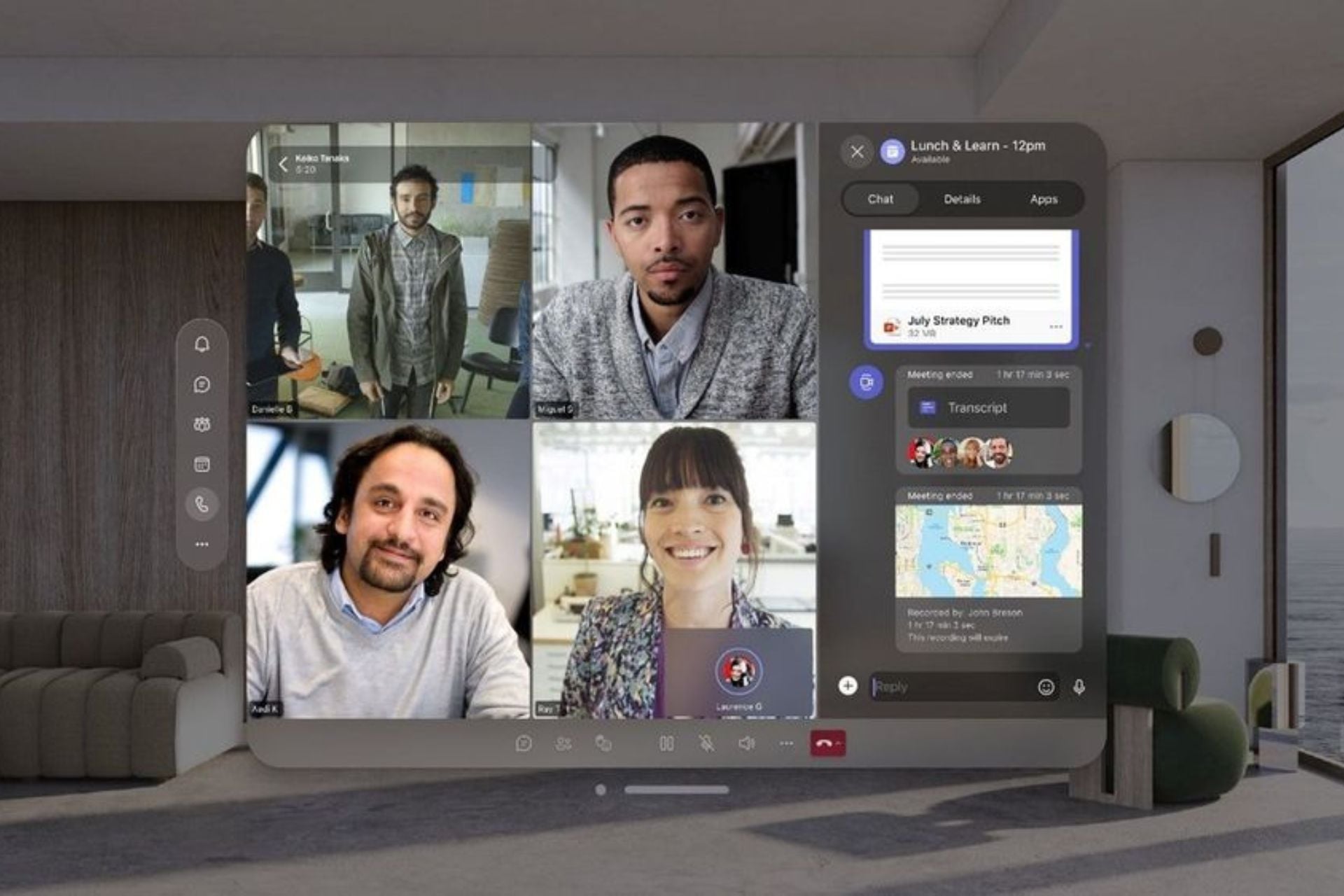
Microsoft 365 Chat is being replaced with the new Copilot experience in Microsoft Teams, as announced by the Redmond-based tech giant earlier today. The AI tool was released to the platform in November 2023, as a way for Teams users to communicate with.
Similarly to Bing, and Copilot for Windows, Microsoft 365 Chat provided solutions for tasks requested by users, and virtually it was no different from them.
However, it was quite clear that Microsoft wanted to rename all of its AI tools under a single name, so eventually Bing Chat became Copilot, and now Microsoft 365 Chat becomes Copilot, as well.
Microsoft says users should worry: the functionalities, as we mentioned, will stay the same, however, Teams will now display the Copilot icon on the platform.
The new Copilot experience is an improved version of the Copilot app in Teams that you may have used before (formerly known as Microsoft 365 Chat). It offers the same functionality and content access as the current app, but with additional benefits.
Microsoft
And yes, the new Copilot experience in Teams, also comes with benefits, including:
Better prompts, including details specific to you like the people you work with, your meetings, and your files.
Ability to see your Copilot chat history.
Access to a library of prompts via Copilot Lab.
The new benefits include the ability to see the entire Copilot chat history, but it will be interesting to see if Teams users will be able to access the Copilot chat history on Windows devices, for example.
We’re saying this because a while ago, Microsoft said that Windows Copilot would soon become the hub for all Microsoft Copilots out there, including Copilot for Microsoft 365.
We don’t know if this includes Copilot for Teams, as well, but most likely Teams users won’t be able to access the chat history for their Windows Copilot, and vice-versa, as sensitive information can be at risk.
However, it might be interesting to see if Microsoft thinks about it this way.
Microsoft introduced the ability to allow users to join Teams meetings with their own personal Microsoft accounts, according to the latest blog post made by the Redmond-based tech giant.
When using your personal Teams account to join a meeting that originated from a Work or School Teams account, you previously had to join as a guest, often causing your meeting to open in a web browser with limited functionality. Now you can join as your signed-in personal Microsoft account from within the Teams app on Windows 11, providing a better meeting experience for all parties.
Microsoft
You will be able to join a work or school Teams meeting from the Teams platform, by tapping a Teams for work or school meeting link in a chat or community within Teams free. You will then join the meeting with your credentials, as you can see in the image below.
For now, the feature is only available in Teams Insider, so if you’re not enlisted in the Teams Insider Program, you can’t use this functionality just yet. However, based on insiders react to it, the feature will most probably be released to the stable version of Teams in the next weeks.
Microsoft has prepared a few intriguing and useful features for Teams that are slated for April, so this feature might also be coming to the general public, by then. We’re talking about shorter meeting URLs, and joining a Teams meeting by scanning a QR code.
These features will effectively make it easier for Teams users to join meetings without any constraints, or back-and-forth between personal and professional Teams accounts.
Despite the quick access, this feature might not be used by all users, as some prefer to have a clear line between professional and personal accounts, and understandably so.
What do you think about these new features? Do you think it is right to connect to professional meetings using your personal Teams account?
Microsoft unveiled the Copilot key a while ago, with the Redmond-based tech giant saying that it will usher in a new era of AI PCs. Manufacturers everywhere said they would release devices with the new Copilot key starting in March-April, and the key will help Windows users access Copilot with a single click.
While Lenovo has yet to add the new Copilot key to its devices, the new ThinkPad X1 Carbon (Gen 12) Windows laptops finally fix an old frustrating arrangement of the Ctrl/Fn keys, and we believe it might be due to integration of the Copilot key in future Lenovo laptops.
The arrangement was quite frustrating for a lot of Lenovo lovers out there, and they were complaining everywhere about it: on Reddit, or the official website.
My brand new laptop from the IT department has this and I’ve been cursing it all week! And then I just found out they gave me the wrong one and I get a new one tomorrow!
Lenovo user
Some even went as far as asking others how to swap the keys.
You can change the Fn key to function as the ctrl key and vice versa in the BIOS settings.
The Fn key, which stands for function, usually stands on the right side of the left-right arrangement on Windows devices, and it can be activated in Windows 11 to use for accessing special commands.
However, the Lenovo ThinkPad went the other way around: the Fn key was found on the left side, and for users who are used to this key being on the right side, it turned out to be frustrating.
But ThinkPad enthusiasts will love the new device from the Lenovo series: the new ThinkPad X1 Carbon has apparently fixed this problem. The tech giant fixed the arrangement, and the Ctrl/Fn keys are now positioned correctly.
While X1 Carbon doesn’t have the Copilot key yet, future devices might probably sport the new key, and with it, there is a huge chance the Fn/Ctrl arrangement will go on this way, from now on.
But we’ll have to wait and see: while the new transparent laptop Lenovo is working on (which we exclusively reported about) has a fixed Ctrl/Fn arrangement, some of the laptops from the ThinkPad series don’t have it.
So, only time will tell if Lenovo decides to entirely fix the frustrating arrangement. Until then, those who are in love with the Lenovo laptops can choose to purchase the ones that have the correct, and standard Ctrl/Fn key arrangement.
Copilot has been around for some time, but Microsoft only recently integrated the AI tool within Microsoft 365, Microsoft Teams, Viva, and so on.
Now, today Microsoft announced the release of the Microsoft Copilot Dashboard, a special platform, where companies can now gain useful insights on how employees feel about working with the AI tool.
We are excited to announce the Microsoft Copilot template, now available in both Viva Pulse and Viva Glint! With this research-backed template, leaders and IT admins can gain insight into how Copilot and AI tools impact their workforce. With this research-backed template, leaders and IT admins can gain insight into how Copilot and AI tools impact their workforce.
Microsoft
The Microsoft Copilot Dashboard will be available in Viva Pulse and Viva Glint, and admins can even deploy a survey to employees under the Recurring survey program within these platforms.
Microsoft says companies will be able to find out information and insights on Copilot from employees in terms of:
User insights: Copilot will likely be leveraged differently across employee roles. Gathering user feedback helps to refine implementations and ensure enablement efforts are aligned with the real-world needs of your workforce.
Employee empowerment opportunities: Surveys help empower employees by giving them a voice to share their experiences. This empowerment fosters a sense of ownership and responsibility, which can lead to more active engagement with – and adoption of – AI technologies.
Copilot impact: Items in this survey help establish the overall impact of Copilot usage. The items show established relationships with Copilot use and general work patterns based on Microsoft research.
Success stories: Collecting feedback from employees on their use of Copilot early and often can uncover success stories, best practices, and tips to share across your organization.
Microsoft
The survey will also be focused on two important areas, according to the Redmond-based tech giant.
Core survey items – asks employees to reflect on the task or work-oriented benefits they experience from using Copilot. Survey results provide insights on how Copilot impacts employee experience and productivity.
Additional survey items – evaluates the relevance of Copilot, organizational processes, and enablement practices to help leaders better understand how their rollout of Copilot is progressing and where additional support may be needed.
Plus, by CY24 Q2, Microsoft will implement the option for companies to capture Copilot sentiment data in the Microsoft Copilot Dashboard. Here’s how the dashboard will look, according to an image shared by Microsoft.
Copilot has been on the rise recently, and there are more than 75 million Copilot users on Windows alone. Microsoft also announced Copilot for Sales, and the tech company promises it will be a game-changer for the industry.
However, this dashboard will be able to tell companies, and Microsoft, if Copilot is truly of use to employees everywhere.
Framework Computer, Inc., one of the first US-based companies to propose the electronic right to repair movement has built a prototype of a functional homemade handheld using laptop parts, called FrameDeck, in a node to Steam Deck, and a rival to it, as well.
Touted as The World’s First Open Sourced Framework Powered Handheld, the console is fully functional, and it runs the Windows 10 operating system, so far. However, the console is not yet finished, and there is still work to be done on the design, operability, and buttons.
The company captured the development of the FrameDeck handheld console, and you can watch it below. There are two parts, so take your time.
The handheld was built by Steven B., and all the documentation, including the 3D design, as well as a complete guide with step-by-step instructions are now available to check out on GitHub.
The DIY approach allowed Steven to build FrameDeck using laptop parts, especially the mainboard and battery of a Framework 13 Laptop. If you’re curious about this little beast, here are the components that it is made of, according to the GitHub documentation:
The result is a handheld console that is heavier than its corporate rivals weighing 952g, while Steam Deck is 669g, and ROG Ally is 608g. However, it’s closer to Lenovo Go, when that console has its attached parts (854g), so if you’re already using it, you could basically use FrameDeck.
Why is FrameDeck important and why it could be a game changer?
Well, the company behind this cute handheld, Framework Computer, Inc., is all about sustainability, modularity, durability, and the right to repair. So, this means, that instead of buying a new device, you can just replace the parts that don’t work on your current device. It’s cheaper, kinder to the environment, and far more durable.
Plus, the company is also about improving existing devices by manufacturing and developing them in a way that they can be easily repaired, and replaced.
If the motherboard of a Framework laptop doesn’t work, customers will only have to replace the motherboard, and not the entire laptop, which is essentially cheaper. In addition, the Frameworks laptops are developed in such as way that parts of them can be replaced with newer, more powerful ones.
And the company is all about making it easier for customers to do these things on their own.
With FrameDeck being built with these points in mind, customers can easily improve it by just replacing older parts with newer ones, without the necessity of purchasing a new device. And, since FrameDeck is open-source project, it can be improved by users for users, with specific features in mind, designed to make the console better for all.
It could potentially be a game changer, and lots of people, especially those on a tight budget would be able to enjoy this console, as well.
What do you think? Do you see yourself building your own FrameDeck?
While Windows 11 is slowly but surely becoming the preferred operating system for PC gamers, according to the latest Steam survey, there is also a special category of gamers that prefer none other than the Linux OS to play games on.
While Linux in itself might not be the right choice, as it doesn’t support many PC games, gamers are inventive: they have found a way to install Windows games on Linux, and to the surprise of many, they actually run pretty smoothly.
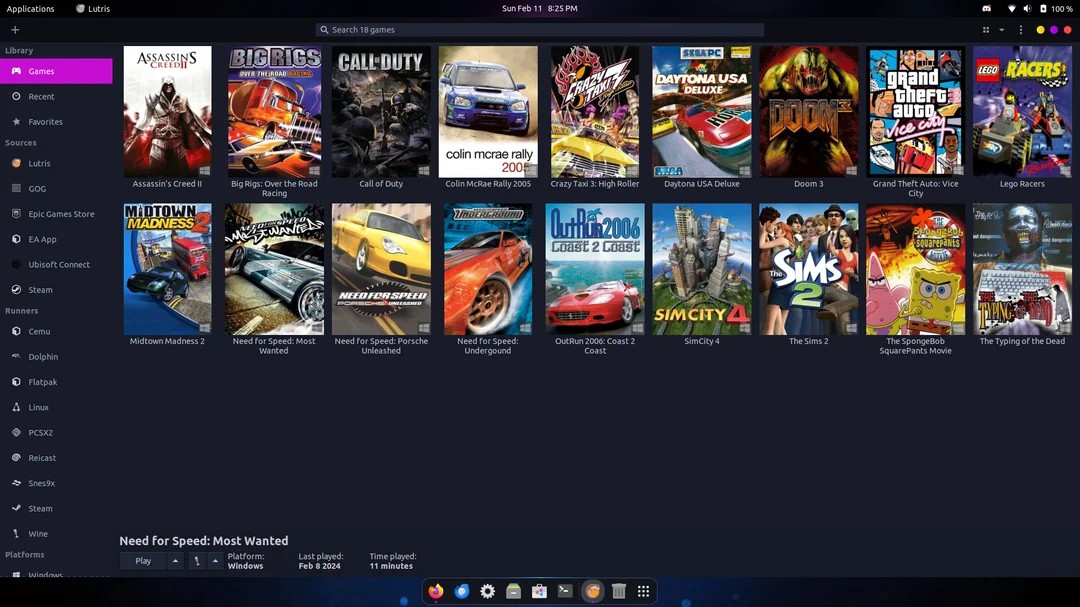
I’m simply awestruck at how much launchers like Lutris simplify the process of installing Windows games on Linux. My work laptop (Running Ubuntu 22.04) is able to run these games more easily than my Windows 10 desktop.
Reddit
The secret: they’re running an emulator that is capable of installing Windows games on Linux, and running them without any issue. The emulator in question is Lutris, which can be downloaded and installed from here. The emulator basically accesses the most important PC gaming platforms, such as Steam, GOG.com, Epic Games, or Humble Bundle, and automatically syncs with them.
It’s especially done for the Linux operating system, so those wanting to play Windows games on Linux, have a means to do it now.
However, as many other users pointed out, the process is not exactly easier, but it’s stable, so far.
I wouldn’t say it’s always “more easily” since adding games that aren’t from Itch, GoG, EGS, and Amazon games (like the ones you can get from Gamejolt) have a multi-step routine where you define their folder and their prefix, but that’s not hard at all after you’ve done it a few times.
Reddit user
“more easily” I doubt its able to run it more easily since its not a one click install unless you use port-proton. But its easy enough to be pretty much seamless.
Reddit user
Others believe Linux is a better operating system than Windows when it comes to gaming performance.
Its gotten to a point where Linux is arguably the better option for gaming the fact that Microsoft first party games work better on my linux partition than Windows alone is enough for me !
Reddit user
This is arguable, though. It’s well known Windows 11 is the best operating system for gaming, as it intelligently uses CPU and GPU resources in a way that doesn’t drain the system. Plus, Microsoft added a bunch of exciting features meant to improve the quality of video game sessions, such as Auto Super Resolution.
But if Linux is your thing, now it’s safe to say you can play Windows games on it.
Office 365 A1 license customers will be limited to 100GB of OneDrive space for personal profiles and 100TB of OneDrive space for entire tenants, with the change rolling out effectively over this month, according to Microsoft’s latest blog post.
Effective February 2024, users of Office 365 A1 license (free subscription) will be limited to a maximum of 100GB for OneDrive strage, within the 100TB of pooled storage for the school tenant. IT Admins have the flexibility to set a lower limit for A1 users.
Microsoft
It is quite the downgrade considering, that OneDrive was (and still is, until the change is implemented effectively) providing Microsoft 365 A1 users with a space of 1TB, according to Microsoft, and now the Redmond-based tech giant cut down to 10% of that storage.
Microsoft says the change is necessary to increase the security of the platform.
Some of the benefits we expect to see include helping institutions reduce some of the security risks associated with legacy storage and data sprawl, a top concern for most chief risk officers, while also reducing our shared environmental footprint.
Microsoft
However, some users are not happy with decision, and many of them complained that Microsoft hasn’t issued a clear warning that their OneDrive space will be reduces.
No notifications have been sent. I asked the support engineer and he was like “Um, not I believe there was no prior warning. I got a lot of tickets regarding this so I believe there was no prior notice”. WTF?! We got close to 1000 users (staff and students). I only got to know this because a user complained about her OneDrive showing a 100GB limit (instead of the usual 1TB). This is rolling out as we speak! I don’t believe this!
Reddit user
However, Microsoft made it clear last summer that these changes were going to be implemented, and we also reported it, back then.
But the new changes might not be suitable for large communities, such as faculties with thousands of students, as one Reddit user notes:
Let’s say you’re an organization that purchases 4,000 A3 for Faculty licenses. Let’s say you have 20,000 students. That would give you a 300TB pooled storage quota that is shared across Exchange Online and SharePoint Online. That means Microsoft is only giving an average of 12.5GB for everything they need to store in their Exchange mailbox and personal OneDrive, plus any usage they would put into Teams/SharePoint sites and shared Exchange mailboxes/resources.
Reddit user
It’s worth mentioning that the limiting will only be affecting the A1 license users, as A3 and A5 still have 1 TB of OneDrive storage. However, many users in the Reddit threads believe this could be the end for Microsoft cloud services, unless the Redmond-based tech giant comes with another solution.
Launched in May 2018, Google One has finally hit the 100 million subscriber target, a massive feat!
In a post on X(formerly Twitter), Google’s CEO, Sundar Pichai, made the announcement while also highlighting the company’s latest offering, Google One Premium AI.
We just crossed 100M Google One subscribers! Looking forward to building on that momentum with our new AI Premium Plan (launched yesterday) offering AI features like Gemini Advanced, plus Gemini in Gmail, Docs + more coming soon. https://t.co/m7zAVop7P6pic.twitter.com/sMdwJeq0iU
This clearly tells us that Google’s efforts to get users to shell out a few bucks for its services have paid off. In 2021, Google set a limit on free storage offered by Google Photos, which was previously unlimited. It’s now clubbed with the Google account, and you get 15 GB of free space.
So, Google One plans, starting at $2 per month, did seem like a steal deal to many, especially for those far too dependent on Google’s cloud storage.
Besides, these offered access to Google experts, VPN services, additional editing features in Google Photos, and monitored the dark web to identify if your personal information has been leaked.
Recently, Google’s other paid service, YouTube Premium, hit the 100 million subscribers mark.
Google launches the AI Premium plan
To keep up with the massive popularity and tap into the growing user base of AI (Artificial Intelligence), the tech giant has introduced the Google One AI Premium plan.
Priced at $19.99, the AI Premium plan includes all the benefits of the Premium plan, along with access to Gemini Advanced and the soon-to-be-released Gemini in Gmail, Docs and more. You get 2 TB of storage with the AI Premium plan.
With the release of Windows 11 Insider Preview Build 26052, Sudo was introduced to Windows 11, and the user with this version and higher can use it to run commands as an administrator. In this guide, we discuss how to enable, configure and use Sudo in Windows.
How can I use Sudo for Windows?
1. Enable Sudo
Press Windows + I to open the Settings app.
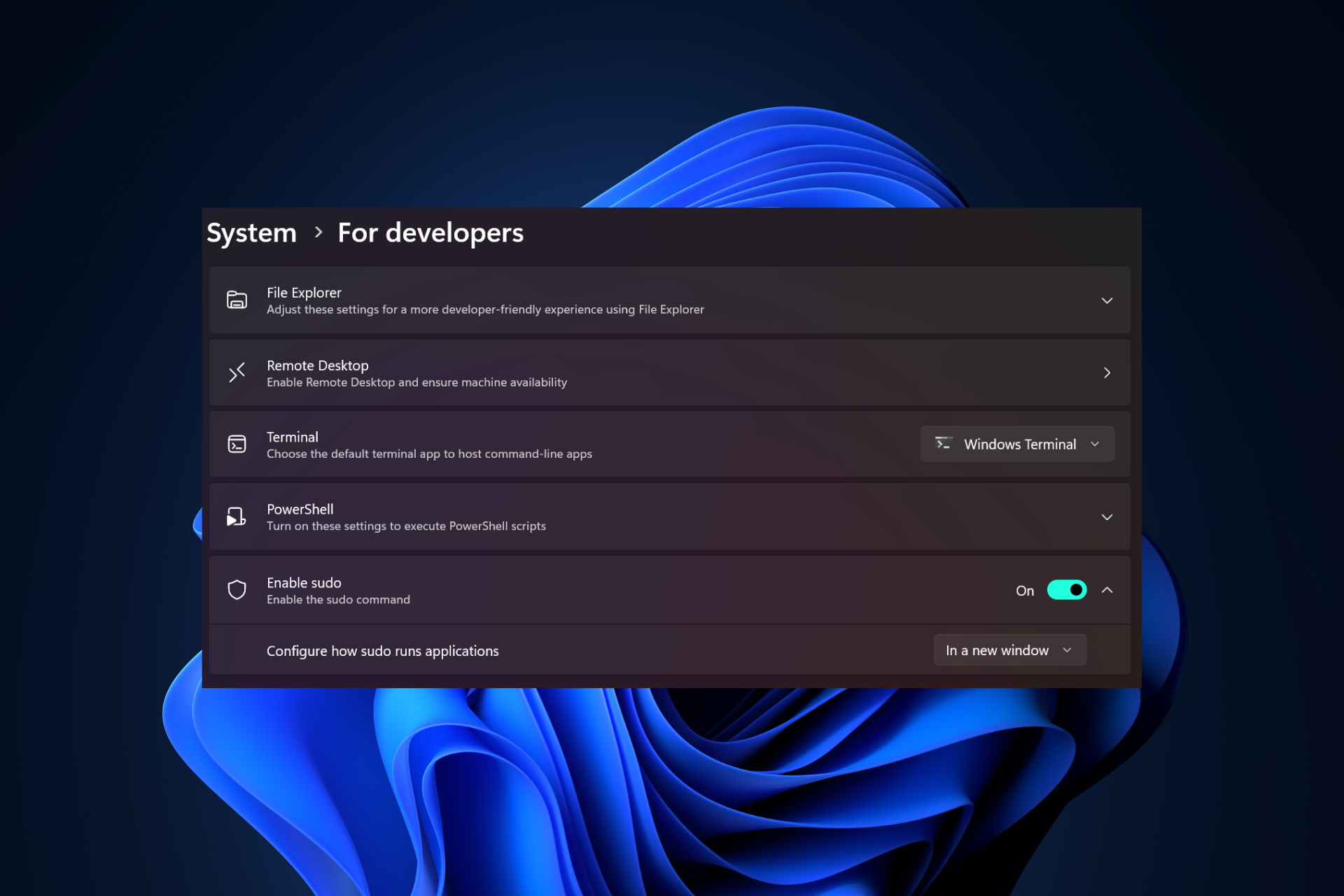
Go to System, then For Developers.
Locate the Enable Sudo, and toggle the switch to turn it on.
Click Yes to confirm the action.
2. Configure Sudo for Windows
The default configuration option for Sudo for Windows is In a new window, however, you can configure it accordingly as well.
Press Windows + I to open the Settings app.
Go to System, then For Developers.
Locate Enable sudo, then locate Configure how sudo runs applications, and choose from In a new window (forceNewWindow), Input closed (disableInput) or Inline (normal) from the drop-down menu.
Alternatively, you can also open elevated command line, and type the following command after replacing <configuration_option> with forceNewWindow, disableInput, or normal, then hit Enter: sudo config --enable <configuration_option>
In case if you are not sure about the configuration optons, make sure you set it as In a new window.
Press the Windows key, type cmd and click Run as administrator.
Now use sudo before any of the commands you want to use, let us say you want to check the active network connection, you can use the following command: sudo netstat -ab
In conclusion, to use sudo in Windows, you need to first enable, and configure Sudo on your device, then run commands on the elevated mode.
While this command is now natively available, you can use other commands, and we have a great guide on what is rsync in Windows, so don’t miss it if you want to learn more about command line tools.
If you have any questions or suggestions about how to use Sudo in Windows; feel free to mention them in the comments section below.
Looking to buy Xbox Series X? Here’s what you should know
On a recent Reddit thread, a user asked if this was the right time to get an Xbox series X, and the community was quick to share its experience with the console.
Got one last week aswell with 17 months left of warranty but like my usual luck with controllers, this one seems to have some problems with the left trigger that make it sound like an electric shaver that’s very low on battery. The right one is fine but the whole controller buzzes with a high pitch noise when i hold the Home button to turn off the controller.
Although this sparked a massive controversy, many users are pleased to see that Xbox gamers will get those games first.
I don’t see why not. Even if every single game goes to ps5 (probably won’t), you get them day one with game pass. I still see a lot of value in the platform
However, for some day-one access comes with certain issues and it’s not worth getting:
Day one access is more akin to early access or beta testing. Forza Motorsport is still a buggy barebone game, months after release. Redfall was clearly not finished. Starfield had several features missing and still need to be patched in.
For many gamers, the UI and affordability of the games is what’s making them stick with Xbox:
Yea I prefer the Xbox UI and games are cheaper + I really like GamePass.
At $17/month you wind up averaging about 3 AAA games worth of money for the year, and you have hundreds of games you can download and delete at will. You can’t beat that deal at all.
Many are parsing online experience as a selling point of Xbox, simply because other platforms don’t have something similar to offer:
Xbox has an LFG feature, Microsoft Points which you can use to buy gift cards as well as a social media-like hub where you can see what your friends are up to
Many are also concerned about the future of Xbox following the news that some exclusives will be coming to PS5, however many aren’t concerned:
Don’t listen to these alarmists. Xbox isn’t going anywhere. If you find it at a good price, go for it.
If you recently saw the viral TikTok post, Your console is banned related to Xbox, it’s fake!
Many talked about it on TikTok, social network platforms, and on forums like Reddit. Since there was no reliable information or credible sources discrediting the post, we decided to debunk it!
We analyzed the post, compared the language/tone with other Xbox error messages, and came to the conclusion that it’s been digitally created to fool users. Here’s why:
The provided link doesn’t exist: If you try to visit the link mentioned in the error message, the website reads, Page not found. An Xbox-triggered error would never have an incorrect link.
Grammatical errors: The glaring grammatical errors (ie. instead of i.e.) make it amply clear that the message is fake.
Xbox hardly bans consoles: While Xbox does ban devices, it’s done in extreme situations. Say if you tamper with the console to run illegitimate software or commit fraud. For unauthorized hardware, Xbox only warns users and then bans the hardware after two weeks.
There’s simply too much information: When Xbox does issue a suspension, the error message won’t have this much information, say, list the unauthorized devices. This is inconsistent with the Xbox’s style of errors.
On previous occasions, there was a lack of certainty since Microsoft never released an official statement. We may have one when Microsoft shares the vision for Xbox.
But this time around, we can confirm the viral Xbox console ban TikTok post is fake, and you shouldn’t be concerned about it. Follow the right practices and conform to the platform’s guidelines, and your Xbox experience should remain unhampered!
What’s your take on the viral Xbox console ban post? Do share in the comments section.
Space is crucial for any Windows user, so it would only make sense to download WinDirStat, to keep up with how disk space is being utilized.
WinDirStat, also known as Windows Directory Statistics is a utility compatible with most Windows versions and comes in handy in all things storage on your PC. While there are built-in tools like File Explorer, Disk Cleanup, and Storage Sense that can do this job as well, they only offer basic disk space analysis capabilities.
What is WinDirStat used for?
1. Storage analysis
At times, your system may be running low on disk space but you don’t exactly know what’s consuming it or whether your PC has sufficient space. WinDirStat can help you analyze how your disk space is being used.
This tool presents a sorted list of file extensions based on usage, making it easy to identify the types of files that are consuming the most disk space.
You can then decide how to manage these files and folders, whether it’s deleting unnecessary ones, moving them to an external storage device, or organizing them more efficiently.
2. Visualization
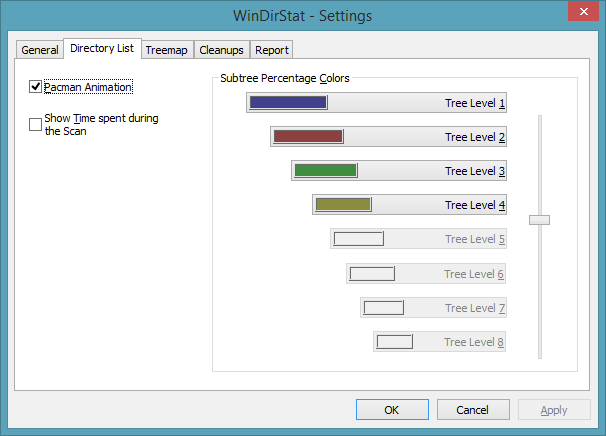
It provides a visual representation of disk space utilization through a sub-tree view and a treemap display. This allows you to easily identify files and folders that consume the most disk space.
Although you can do the same with the built-in Windows tool, with a visual representation, you can quickly identify large files or folders that may be taking up excess space on their storage devices.
You can easily view the sizes of folders and files on your hard drive, as well as the percentage of space each one takes up.
While WinDirStat may not directly optimize the system, it provides you with the requisite information to identify the pain points in your system. This information in turn can be useful to help you clear out your storage which can improve system performance and stability.
You can navigate to your browser and download WinDirStat for Windows 11. Next, you’ll locate the executable file in your downloads file, launch it, and follow the prompts to install it. Thereafter, you can open it and start cleaning up your drive.
Overall, WinDirSat is a great tool for your system. Given how much RAM Windows 11 consumes, you’ll never know when you’ll need to limit your RAM usage. And if your tasks are resource-intensive, you may need to upgrade your RAM.
Nevertheless, keeping your PC free from unnecessary files and regular cleanup will help your device run efficiently and avoid random crashes. You also don’t necessarily have to use WinDirStat.
There are lots of disk space analyzers that do an equally good or even better job so whatever your poison is, go with it.
That’s all we had about the WinDirStat tool and how to download it. We’re curious to know your thoughts on this open-source program. Would you download it? Leave your thoughts in the comment section.
After playing CS2, the GPU drivers crash with no proper logs or such. Nothing in Event Manager outside of “Display driver crashed”. I had these issues last year, but the system was completely stable for multiple months before the latest CS2 update which changed how smokes and such work.
And, he further mentioned that he tried to update drivers, cleared CMOS, and even reinstalled Windows 11, but there was no luck.
Some users claimed that by disabling NVIDIA & Discord In-Game Overlay, not using Low Latency mode, reinstalling all games related to drivers, or reinstalling Windows 11 without removing everything, the game crashes were reduced to a minimum.
The issue is not exclusive to users with AMD graphics cards, as some users with Intel and NVIDIA drivers also reported the issue on multiple forums, like the Intel community, NVIDIA, and GitHub.
SKYTRIXSHA then finally updated that they fixed the issue by limiting the GPU maximum clock to 2500mHz via Adrenaline while leaving the other settings, including Power Limit, to default.
He also emphasized setting the -Vulkan launch option to fix the problem but warned that you could get bad frame times and random stutters while using it.
A lot of users have also responded that applying these settings helped them fix the problem with the game, while some insisted that with these fixes, a user might also have to reinstall Windows to resolve the issue.
A user on Steam, Trevics with an AMD processor, mentioned that by disabling the AMD FidelityFX Super Resolution feature.
So far, users on multiple forums and threads are testing different solutions to fix the problem, but CS2 has not commented on the issue and has not offered any resolution.
Did any of the fixes mentioned here help you stop the game from crashing? If yes, then share your experience and also mention if you have found another way to fix the problem.
CERT-in (Indian Computer Emergency Response Team) recently released an advisory highlighting critical security vulnerabilities in Google’s ChromeOS.
The government’s cybersecurity watchdog has designated a High severity rating to the security alert, CIVN-2024-0031, and recommends that these be addressed at the earliest.
On the official website, CERT-in highlights that all Google’s ChromeOS LTS channel versions prior to 114.0.5735.350(Platform version: 15437.90.0) are affected. It states that the vulnerabilities exist in Use after free in Side Panel Search and insufficient data validation in the extensions.
These allow hackers to remotely gain administrative privileges, execute arbitrary code, bypass security features, and deploy a Denial of Service (DoS) attack on any system running the affected ChromeOS version.
All this can be achieved by tricking you into visiting a webpage specifically designed for deploying the attack.
Updating ChromeOS
CERT-in recommends that you update to the latest LTS channel, 114.0.5735.350, for ChromeOS devices to avert the possibility of an attack or the data being compromised. The official Chrome Releases page also states that the vulnerabilities have been eliminated in the update.
There’s no reason to be concerned. Such vulnerabilities are identified from time to time and patch is released in the latest versions. This is the standard practice!
Microsoft 365 Status: We’re performing manual reboots of the affected components and monitoring service telemetry to ensure it is improving service availability. For more information, please see PL715162 in the admin center.
Microsoft 365 Status:We’ve identified a recent change as the potential root cause. We’re rolling back the change and monitoring the deployment as it progresses throughout the affected infrastructure. For more information, please see PL715162 in the admin center.
Microsoft 365 Status: The incident communicated under PL715162 will be continued under PL715245 due to an issue affecting the visibility of the service incident detail. For the most recent information, please see PL715245 in the admin center.
Microsoft 365 Status: We’re continuing to monitor the rollback as it progresses. In parallel, we’re investigating an unexpected increase in errors, and we’re conducting additional reboots to remediate impact. For more information, please see PL715245 in the admin center.
The admin panel in Microsoft admin states that this is an incident and currently we have no additional information regarding the issue.
Users reported the following:
Update 1: Now getting a web error: Service Unavailable HTTP Error 503. The service is unavailable.
Update 2: Microsoft Support: The Planner is temporarily down. We have involved our engineering team on this, and they are working on it. The next update will be after 2 hours.
Although this is a major issue, Microsoft is aware of it, and they are working actively to fix it, so expect the service to be back in a few hours.
For some users, it’s working, for others, it’s not. However, Microsoft 365 Status hasn’t posted anything yet. We’ll update you as soon as we hear from them.
Is this another attack like the recent Midnight Blizzard attack? We’re keeping our eyes out for the latest information.
Ever since Microsoft Edge got revamped, a lot of features were introduced, making it one of the best contenders among the mainstream browsers while providing the best browsing experience.
However, there is always scope for more, and it looks like Microsoft has stepped in the right direction. By enabling Profile-Guided Optimizations (PGO) for Mac with M2 processors, Edge is now 20% faster. PGO is a compiler optimization technique that is used to improve program runtime performance.
This step was taken as Microsoft treats the performance at which the browser renders webpages as the most important parameter.
After enabling PGO, Microsoft tested the browser speed over Speedometer 2.1; the score was more than 500 on Mac machines with M2, which was earlier under 450.
Upon using MotionMark, another performance benchmark tool for web pages full of animations and graphics, the score was significantly improved; take a look at the graph:
Upon running JetStream to measure how quickly browsers can start and run code, and to measure the responsiveness of a browser with code-intensive sites, again, there was a significant improvement:
Edge also made this move on Windows in 2020 and increased the speed by 13%. It is not the only one making this move. Other mainstream browsers, including Google Chrome, enabled the PGO eight years ago in version 53, which increased page load time by 5.9% and startup time by 16.8% approx.
Do you use Microsoft Edge on your Silicon Apple Mac device? If yes, tell us if you see any differences in speed and performance in the comments section below.
Errors like code 3002 on Paramount Plus are common when there’s a sudden surge in traffic like a Super Bowl game on the streaming site. However, built-up cache, poor connection, or server outages may also cause the problem.
How do I fix error code 3003 on Paramount Plus?
Start by checking the Paramount Plus’ server status and check your internet connection speeds. If possible, switch from WiFi to Ethernet for a better connection. And if you still have no luck, keep reading:
1. Force restart the Paramount Plus app
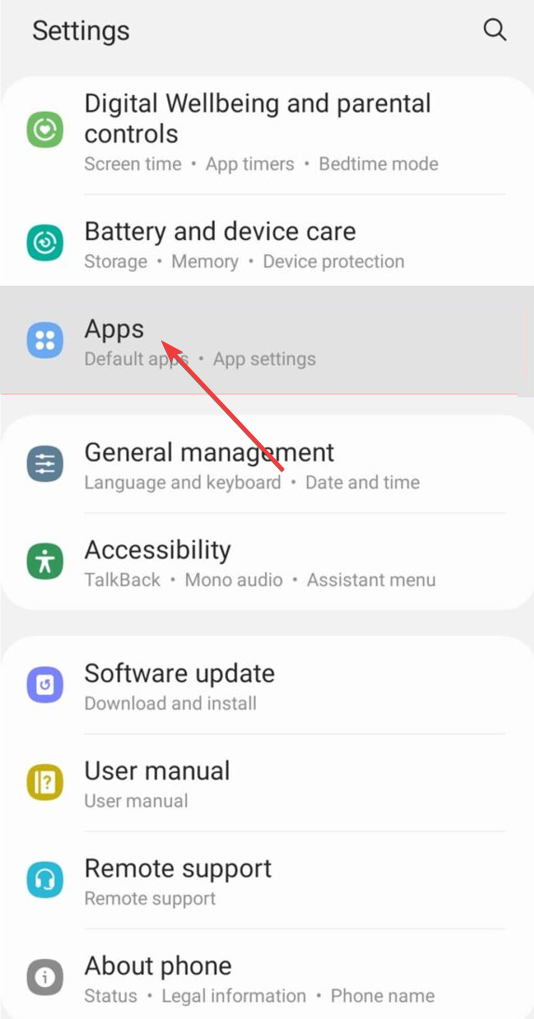
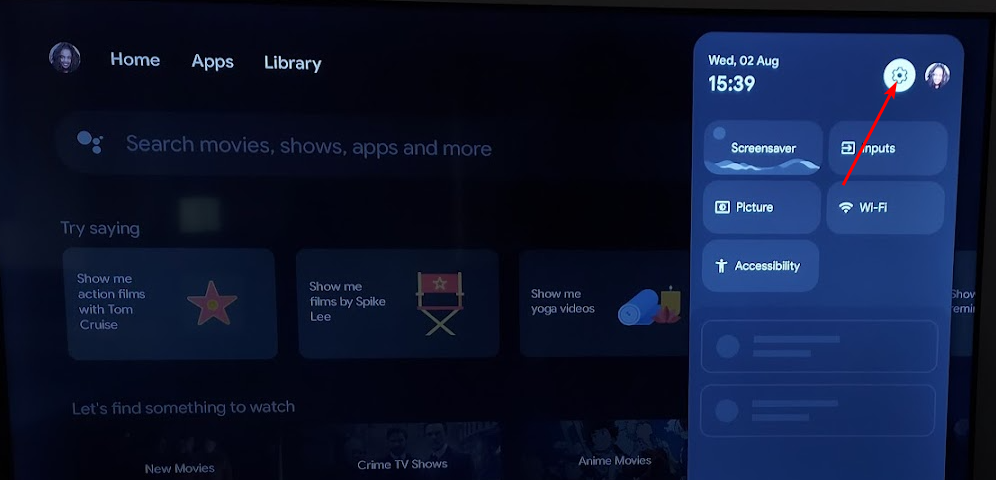
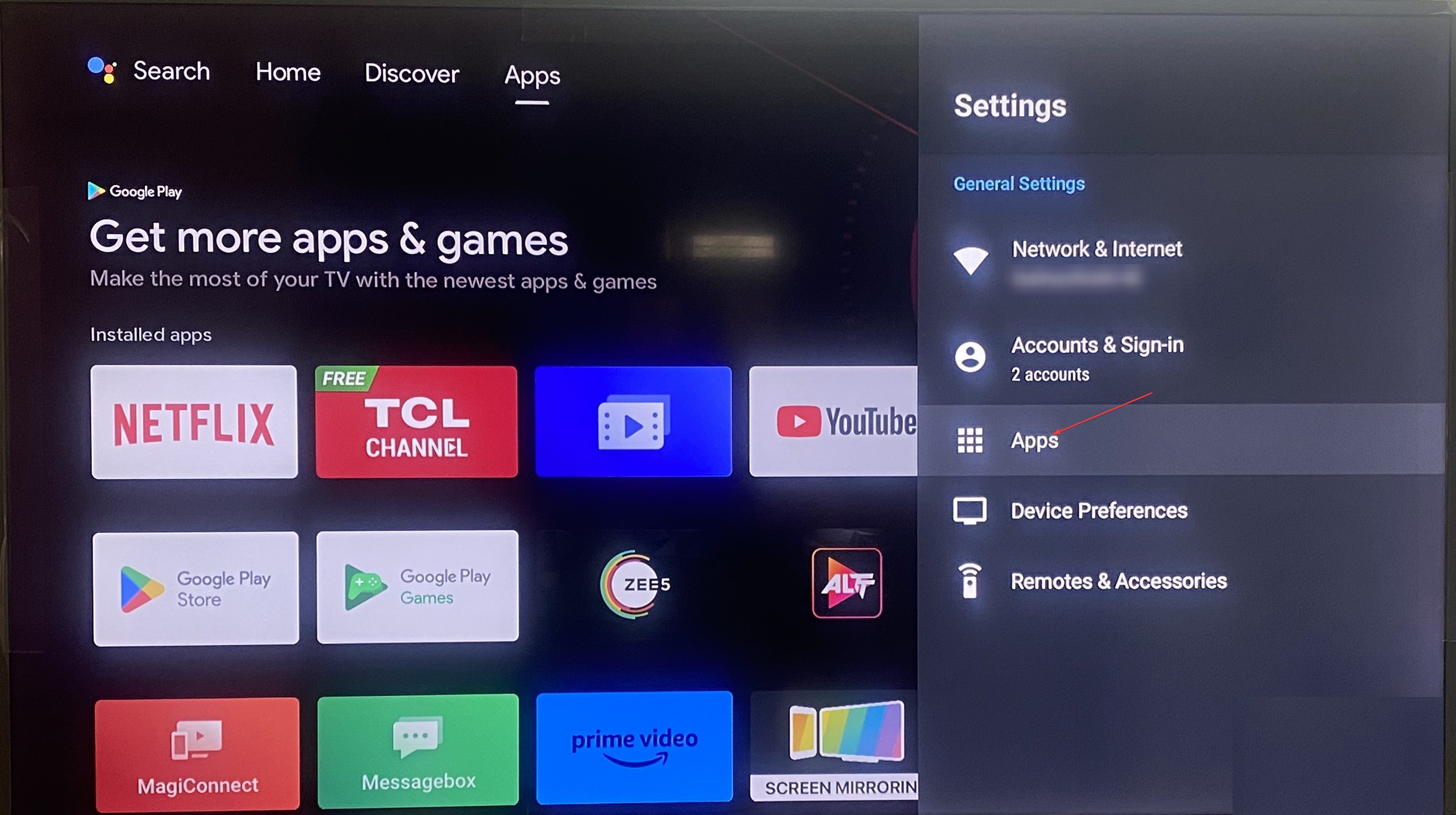
Open the Settings app on your phone or your Android TV.
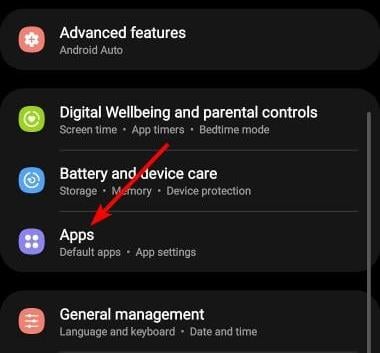
Select Apps.
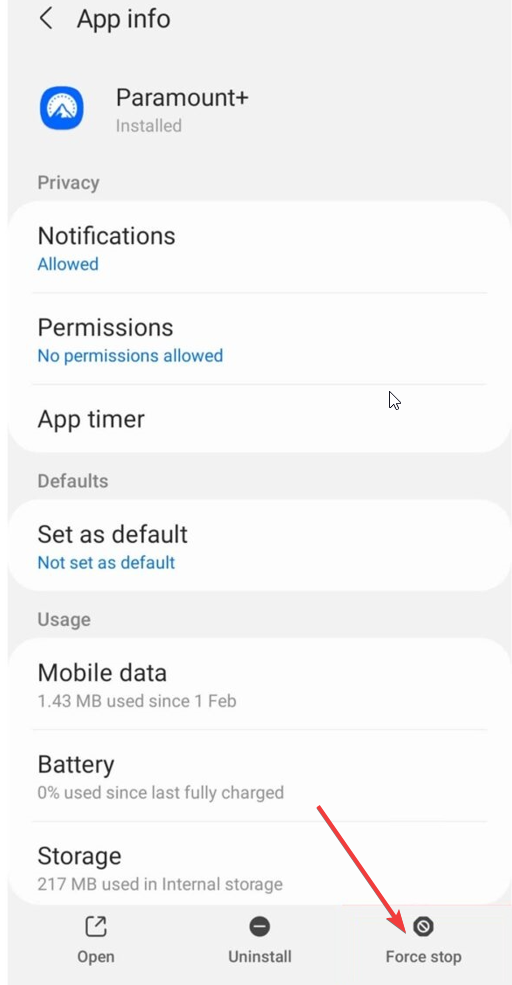
Locate the Paramount+ app and tap to open it.
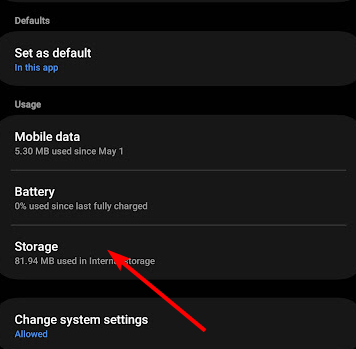
Select Force stop button.
Launch the Paramount Plus app on your phone and check if this resolves the issue.
2. Use a VPN
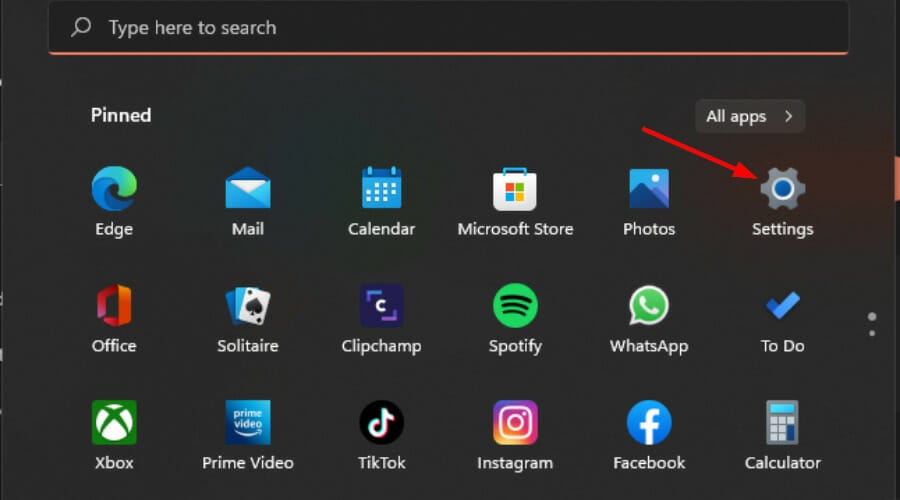
Press the Windows key and select Settings.
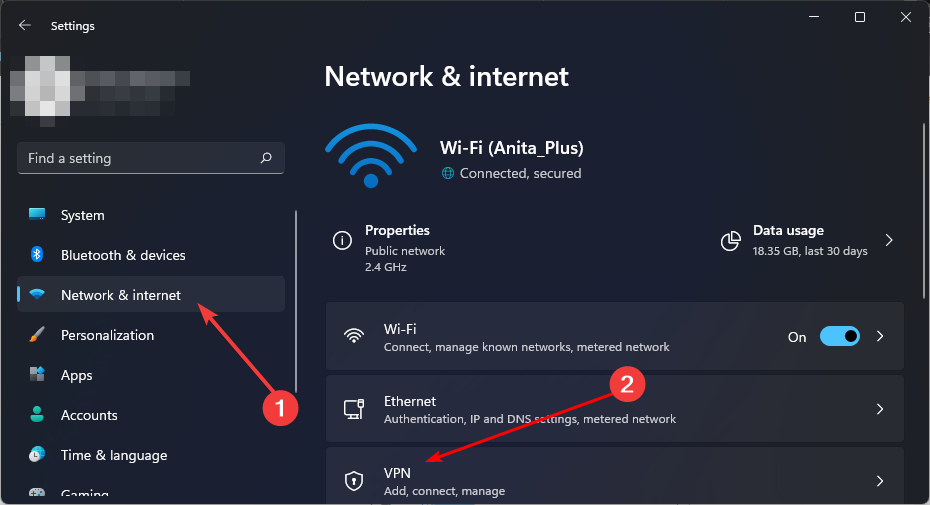
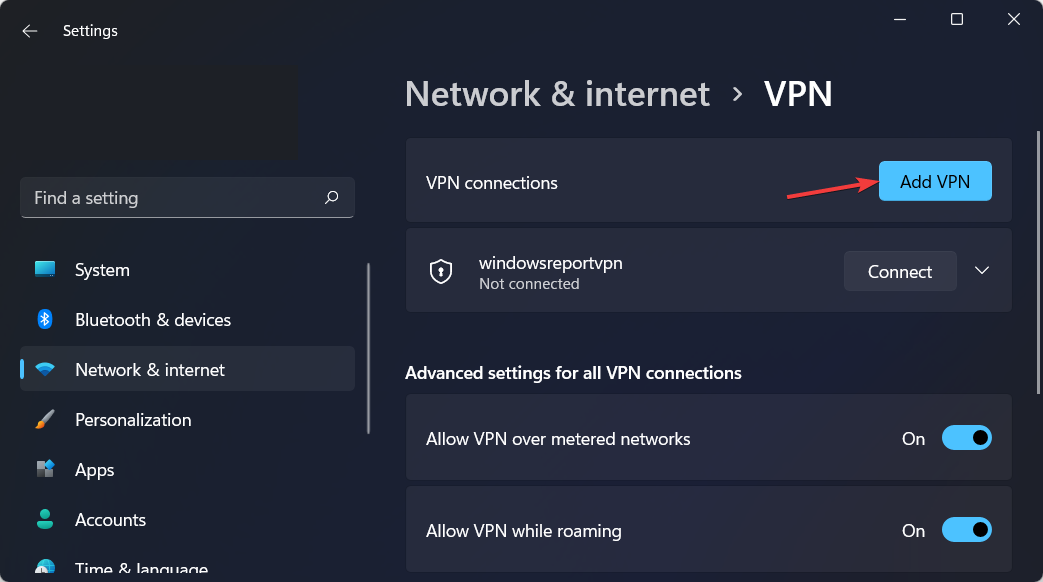
Next, select Network & internet and click on VPN in the right-side menu.
Click on Add VPN to start the manual setup.
Enter your VPN settings, such as encryption type, server IP address, and other connection options, and click on Save.
If you’re using a VPN to stream a show on Paramount Plus, your current server may be crowded. Try changing to a different one and see if the error code 3002 disappears.
For instance, ExpressVPN is much more powerful than the built-in function from Windows because it comes with extra security features and a very large number of servers you can connect through, so if one doesn’t seem to work you can just pick a different one.
Launch your browser, and for this step, we shall be using Google Chrome.
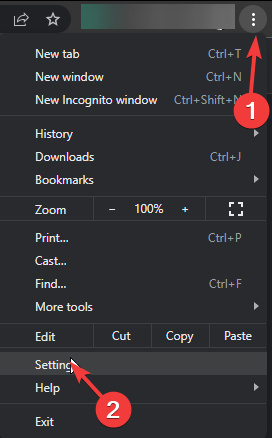
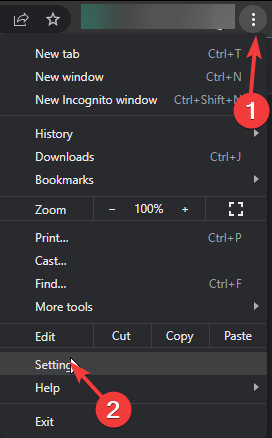
Click the three horizontal dots and select Settings.
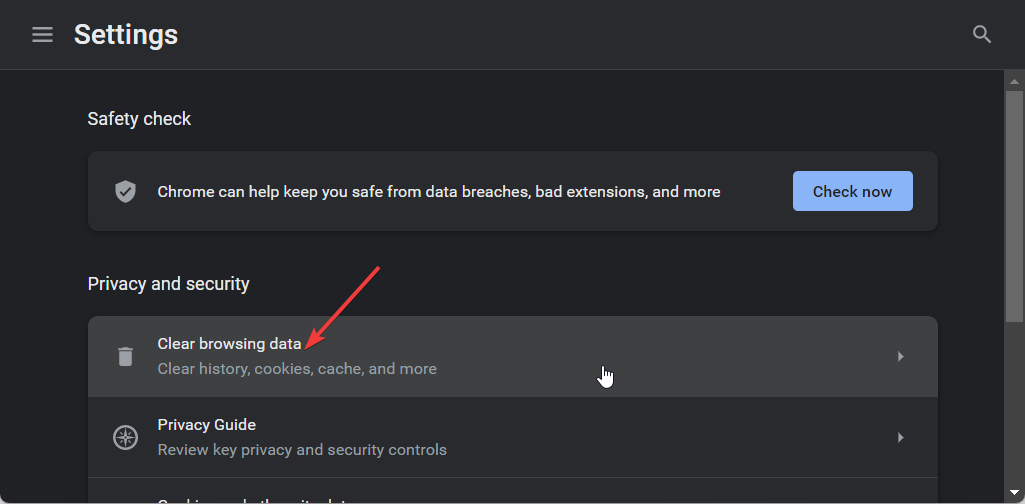
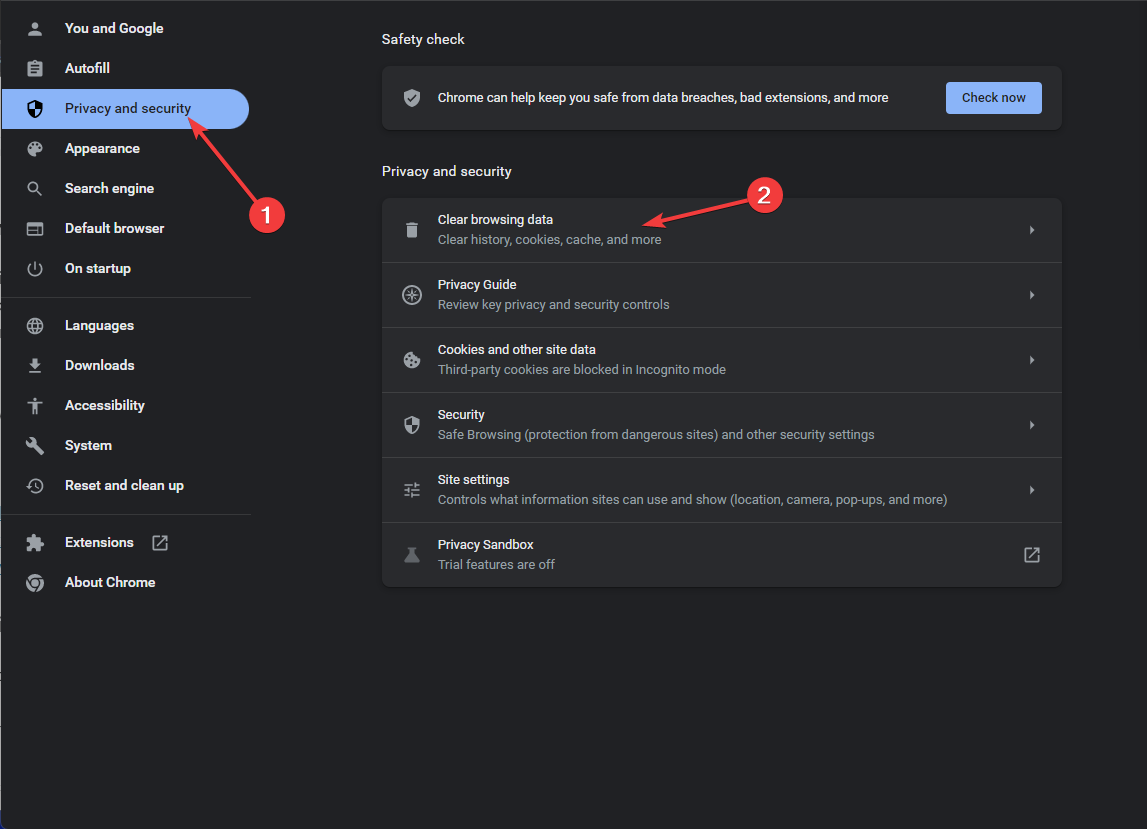
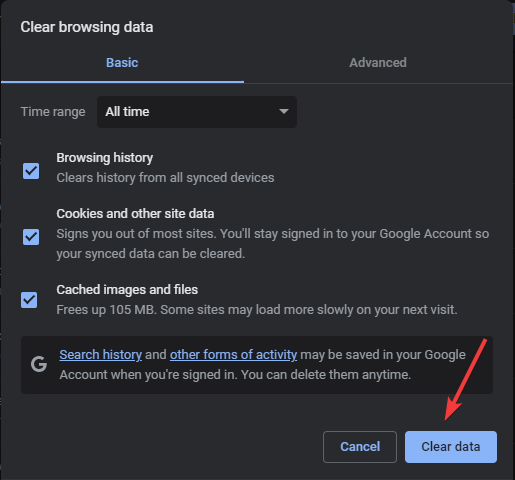
Go to Privacy and security and click Clear browsing data.
Select Browsing history, Cookies and other site data, & Cached images and files, then click Clear data.
4. Reinstall the app
Open the Settings app on your Android TV.
Select Apps.
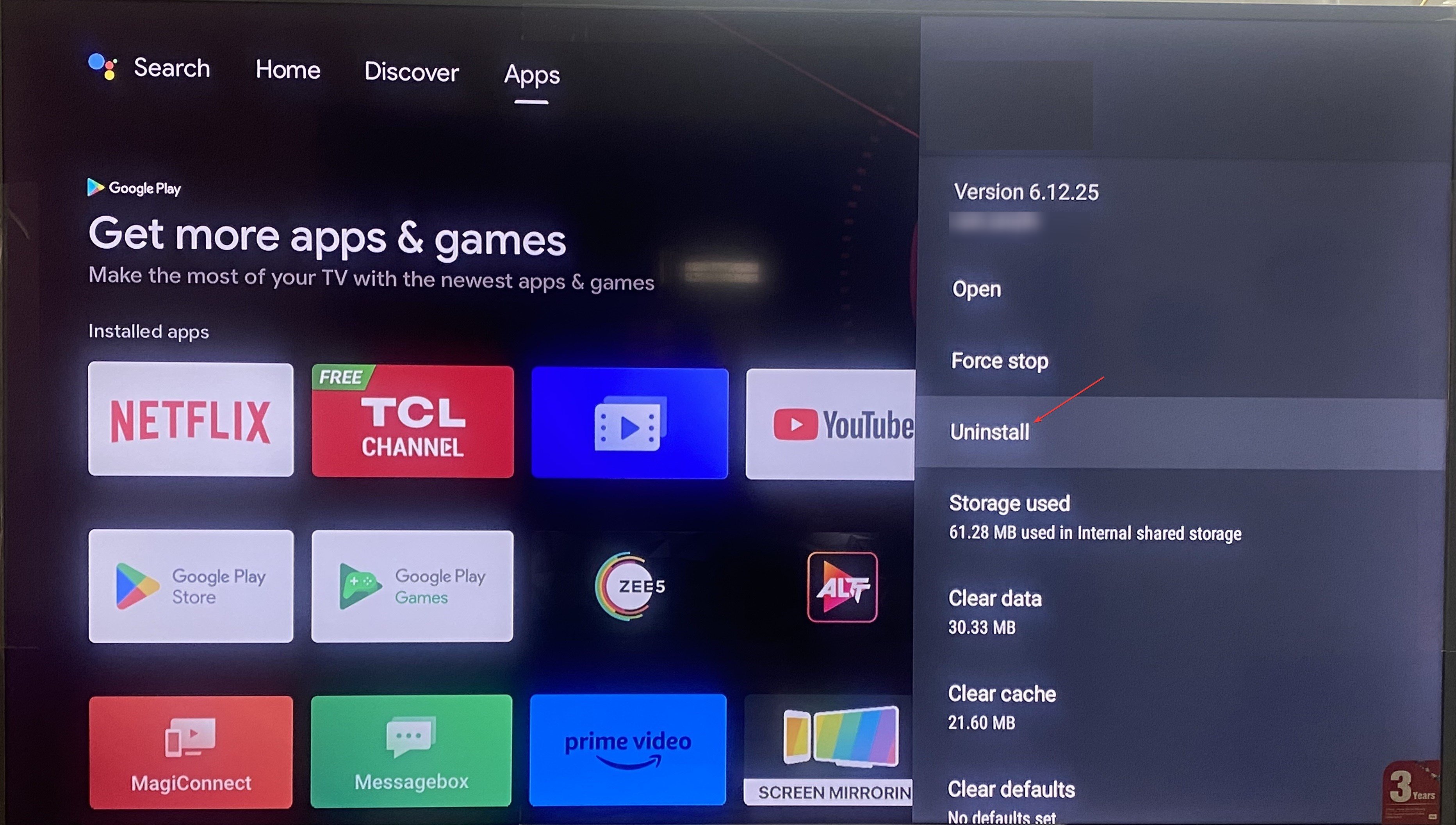
Locate the Paramount Plus app and open it.
Choose the Uninstall option.
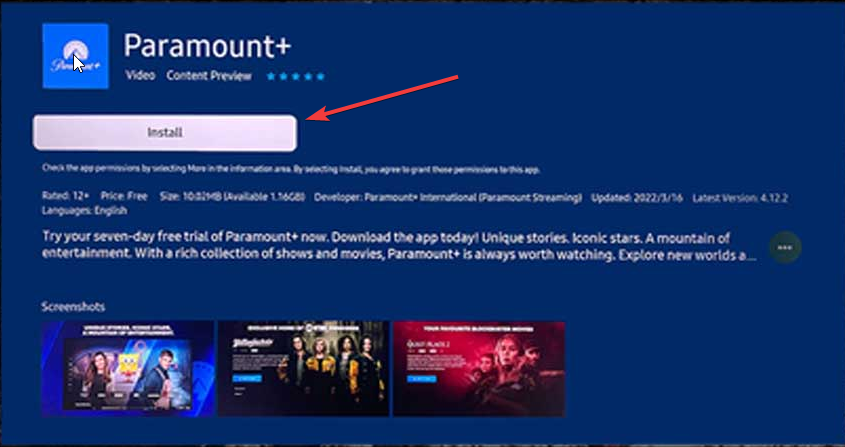
After the uninstallation completes, go to the app store, search for Paramount Plus, and install it.
Finally, if none of the above steps have helped resolve the error code 3002, contact Paramount Plus support for assistance. In such times when the servers are bombarded with unusual traffic, it may be difficult to get a prompt response.
As such we’d recommend you turn to other Paramount Plus alternatives to catch up on your favorite shows. And if you’re not about all the hype to watch the live Super Bowl game, you can always catch it later on other sites like NFL+ uninterrupted.
Windows 11 came with a new set of requirements, mostly in the CPU department, and while it was possible to circumvent these requirements, that might not be the case anymore.
Keen users have noticed that newer builds or Windows 11 aren’t working on older CPUs. This can be a problem for some users on legacy hardware, so here’s what you should know.
Windows 11 won’t work on legacy CPUs, here’s what you should know
Users on Reddit reported that since Windows 11 Build 25905, the system isn’t booting if the CPU lacks POPCNT instructions.
Users also managed to find a list of files that require POPCNT instruction, and as you can see, the list includes many essential system files.
Although this sounds daunting, it’s important to note that these are all older CPUs that aren’t officially supported by Windows 11. A few users pointed out exactly what models are affected:
You need a relatively old CPU that doesn’t have SSE4….
It requires a CPU with SSE4a (AMD Barcelona or newer) or SSE4.2 (Intel Nehalem or newer). So even later Core 2 CPUs (Penryn) won’t work because they max out at SSE4.1.
Note that these are CPUs that are more than a decade old, and some even don’t support Windows 10.
Yes just as I said. Relatively old CPUs which are not at all supported even with Windows 10.
Only affects unsupported PCs made before 2010 basically. Surprisingly there’s still some unofficially unsupported Windows 11 users hanging onto their old PCs from 2007.
As you can see, while this issue is serious, it only affects older and unsupported CPUs. Microsoft already stated that it can’t guarantee compatibility with legacy hardware, so issues like these are expected.
In a bid to capture the rapidly expanding market and cement its place as the leader, NVIDIA is setting up a new unit to deliver custom-made chips to Microsoft, Google, Meta, and OpenAI, amongst others, as reported by Reuters.
The new unit is also focused on cloud computing firms, but the primary target remains AI (Artificial Intelligence) processors, a sector where NVIDIA is facing competition from Broadcom and Marvell Technology.
At present, NVIDIA commands a market share of 80% in this sector, and its present market capitalization stands at $1.78 trillion.
To ensure that it doesn’t lose on potential clients, NVIDIA will start producing dedicated chips for specific needs, given that the currently popular options, H100 and A100, are an all-purpose solution. The custom-made chips will help companies reduce cost, effort, and time.
As per reports, NVIDIA is already in talks with Microsoft, Google, Meta, and OpenAI, though there has been no official confirmation from any of the parties.
If these reports are true, it will further increase NVIDIA’s market share and shoot the stock’s value higher than ever before!
The last few weeks witnessed a series of rumours regarding Xbox. Speculations were recently rife that Xbox is going digital and that physical games would go obsolete in a few years. A few also claimed that Xbox may stop making consoles altogether and focus on publishing games.
If you are a fan of Xbox consoles, we have good news! According to journalist Shannon Liao in her Substack newsletter, Microsoft’s gaming division CEO, Phil Spencer, in an internal townhall with Xbox executives, shared that the company has no plans to stop making consoles.
Liao also reported that Xboxes would continue to be part of a strategy that involves multiple kinds of devices.
Xbox fans can heave a sigh of relief!
The change may be a result of the major backlash faced by Xbox developers within the gaming community. Several Xbox users have, in the recent past, criticized the tech giant for its approach towards the console.
However, there has been no official confirmation from Microsoft so far on this or other rumours going around. But given how things are, we can expect some changes to be implemented.
Microsoft released a critical security update for Windows 10 version 1507 to address a local elevation of privilege (LPE) flaw, which could be exploited through a Group Policy flaw exploitation.
The patch is deployed through an update to Remote Server Administration Tools (RSAT) for Windows Server 2016. RSAT is a remote server management tool for system administrators that can be controlled from a Windows 10 PC.
According to the Common Vulnerability Scoring System (CVSS), the security vulnerability is given a score of 7.0/10 in terms of its severity and 6.1 in terms of its temporary score and is identified as CVE-2024-20657.
In the support document, Microsoft states:
KB5035238: Security update for Windows 10, version 1507 and Windows Server 2016 for RSAT: January 31, 2024
Summary
This article describes a security update for Windows 10, version 1507 and Windows Server 2016 for Remote Server Administration Tools (RSAT). This update resolves the security issues that are described in the following article:
CVE-2024-20657 | Windows Group Policy Elevation of Privilege Vulnerability
Just like other updates, this security update will be installed automatically via Windows Update under the Settings app.
You can also get your hands on the update to RSAT from the Microsoft Download Center website. The file size for the 64-bit version is 54.2 MB, and the 32-bit version is 33 MB.
If you face any issues while downloading the update on your Windows 10 PC, feel free to mention them in the comments section below.
To avoid these types of problems, it’s always good to know if your hardware is supported, and you can do that, with this tool.
First spotted by Neowin, this little tool comes from Bob Pony on Twitter. He has used Windows 11 Build 26052 to create a Windows PE environment.
Are you wondering if Windows 11 Version 24H2 will WORK on your old PC?
I've just made a Windows PE, based off Windows 11 Build 26052. It's simple to use, if it BOOTS into the environment then your PC supports Windows 11 24H2!
To use it, simply download the tool and follow the instructions to boot your PC into it. If your computer manages to boot, it means that your PC is compatible with Windows 11 24H2.
What’s interesting is the fact that Bob managed to boot this environment on a Core i7-3770 which isn’t officially supported. This means that even if your CPU isn’t on the list of compatible devices, you might be able to run this build.
Overall, this is a small but incredibly useful tool that can save you from headaches when installing this build, so you might want to give it a try.
Windows version 24h2 will no longer support the Mixed Reality headsets. Furthermore, Microsoft put the Windows Mixed Reality on top of their deprecated features list. Thus, if you own a headset you might soon need to forget about it on a shelf.
What happened to Windows Mixed Reality headsets?
The windows mixed reality headsets might soon have no reason to function. In addition, Microsoft stopped working on the function, and they will end it on 1st November 2026 for Windows Home and Pro users. However, if you are using Windows Commercial, the service will end on 1st November 2027.
In the meantime, if there are any errors or issues with the service or the headset, Microsoft won’t help you anymore. Furthermore, the company will no longer add fixes and updates for them.
There are several factors why Microsoft is giving up on Windows Mixed Reality. The first reason is the fact that they are not profitable enough. In addition, the headset is somewhat limited compared to its competitors. On top of that, there aren’t too many apps available for it. Moreover, Microsoft fired some of its VR teams back in 2023.
However, if you want to keep your headset after the end of service, you will have to either use Windows 10 or a previous version of Windows 11 that still supports the feature. Also, you might still be able to use them on some platforms if there are going to be independent developers working on them.
Ultimately, we hope Windows Mixed Reality headsets won’t end as electronic waste. However, it appears that Microsoft is making various changes lately, especially towards AI. So, unfortunately, the future of the headsets looks bleak. Furthermore, if you are still looking for a VR headset, try searching for ones available on most platforms.
What are your thoughts? Are you going to sell your WMR headset before the service ends officially? Let us know in the comments.
Intel might build a semi-custom APU for the next Xbox console. After all, Xbox didn’t sign a new contract with AMD. On top of that, the Windows 11 DirectML developer preview already supports the Intel Core Ultra CPU with an NPU. Thus, there’s nothing stopping the next Xbox console from also using Intel hardware.
Is Xbox making a new system?
Xbox will release a newer version of the series X console this year. Furthermore, the next-gen Xbox console is said to arrive by 2028. So, the new version might have an Intel APU featuring a chip with CPU, GPU, and NPU.
The next-gen Xbox console could be the first one on the market to use AI tiles as a result of having an Intel APU chip. After all, the NPU built by Intel can improve the overall performance of a device, and other functions as well, such as power control. Thus, it could eventually lead to performance differences between the next-gen Xbox console and PS 6.
If you are wondering what AMD is working on, know that they signed contracts with Sony. Thus, they will be making PS 6 and the next PS portable console.
However, as nothing is yet set in stone, Xbox might still sign a contract with AMD and there are rumors about them discussing with Nvidia too. As a result, the whole Intel contract might be just a way to get a better deal from AMD.
In a nutshell, if Xbox signs a contract with Intel, the next-gen console will be a powerhouse with an AI APU. Furthermore, we can’t wait for some news and leaks about it. In addition, we will come back with more details after some official announcements, so stay tuned.
By the way, if you didn’t know, the first Xbox consoles have an Intel CPU. Moreover, Intel is capable of developing consoles and the MSI Claw is the proof.
What are your thoughts? Do you think that the new gen Xbox console will rival PS6? Let us know in the comments.
It seems Lenovo is working on its own AI operating system, and we might see it sooner than we think!
Lenovo’s AI-powered operating system is coming this year
According to TechRadar, it appears that Lenovo is developing an AI-powered operating system. This was hinted at during CES 2024, by Lenovo’s executive vice president Liu Jun.
This move comes as no surprise since Lenovo has announced its plan for full-stack intelligence in the past.
According to Liu Jun, this new OS will be built around multi-terminal products, and it will focus on AI PCs and personal agents.
The company is planning to release AI PCs in the first half of this year, and these devices will have multi-modal natural language interaction capabilities.
There are also plans for AI-powered smart terminals, and we expect to see them soon as well.
While this is exciting news, it remains to be seen how will this new operating system compare to Windows.
Microsoft releasing the Windows 11 Insider Preview Build 26052 got us excited because it was a confirmation that Windows 11 24H2 will be available later this year. But the insider build seems to have more issues than any of us expected!
Now, it appears that you will have to back up any Dev Drives if rolling back on Build 26052. In a post on X (formerly Twitter), the Windows Insider Program’s handle confirmed that rolling back may break the Dev Drive and lead to data loss.
We added a very important known issue for Dev Drive users on Build 26052: Insiders who have Dev Drives and might need to rollback will need to back up their Dev Drives BEFORE rolling back as rolling back will cause Dev Drives to break and data on them to be lost. ^BLB https://t.co/IZTK8PmspG
The information was also added to the official blog post under Known Issues, and a fix for it is yet to be released. So, if you are on Windows 11 Insider Preview Build 26052, do not perform a rollback if using a Dev Drive or get an effective backup solution to keep the data safe.
While it’s expected that Windows Insider Builds will have some problems, such glaring issues can affect your productivity and the system’s stability.
Be it video streaming issues in Microsoft Store apps or a black screen when waking the PC from sleep. Though for the latter, resetting the graphics card using the Ctrl + Shift + B shortcut works.
If you are facing other issues on Build 26052, let us know in the comments section below!
Anyone who runs a server has, at some point, tried to figure out ways to reduce the power consumption and, in turn, the costs. But these efforts often go in vain, given the lack of reliable information or due to the fear of affecting performance and stability.
Also, when working on limiting the idle power usage for a server, it’s imperative to understand that you are likely to achieve a 5-30% reduction. Anything higher can be detrimental. Besides, be prepared to initially shell out on the hardware to save on the power consumption.
How do I reduce the idle power usage on the server?
1. Check the power consumption of each component
Your primary approach should be to check the overall power consumption of the server and that of individual components, both in the active and idle state.
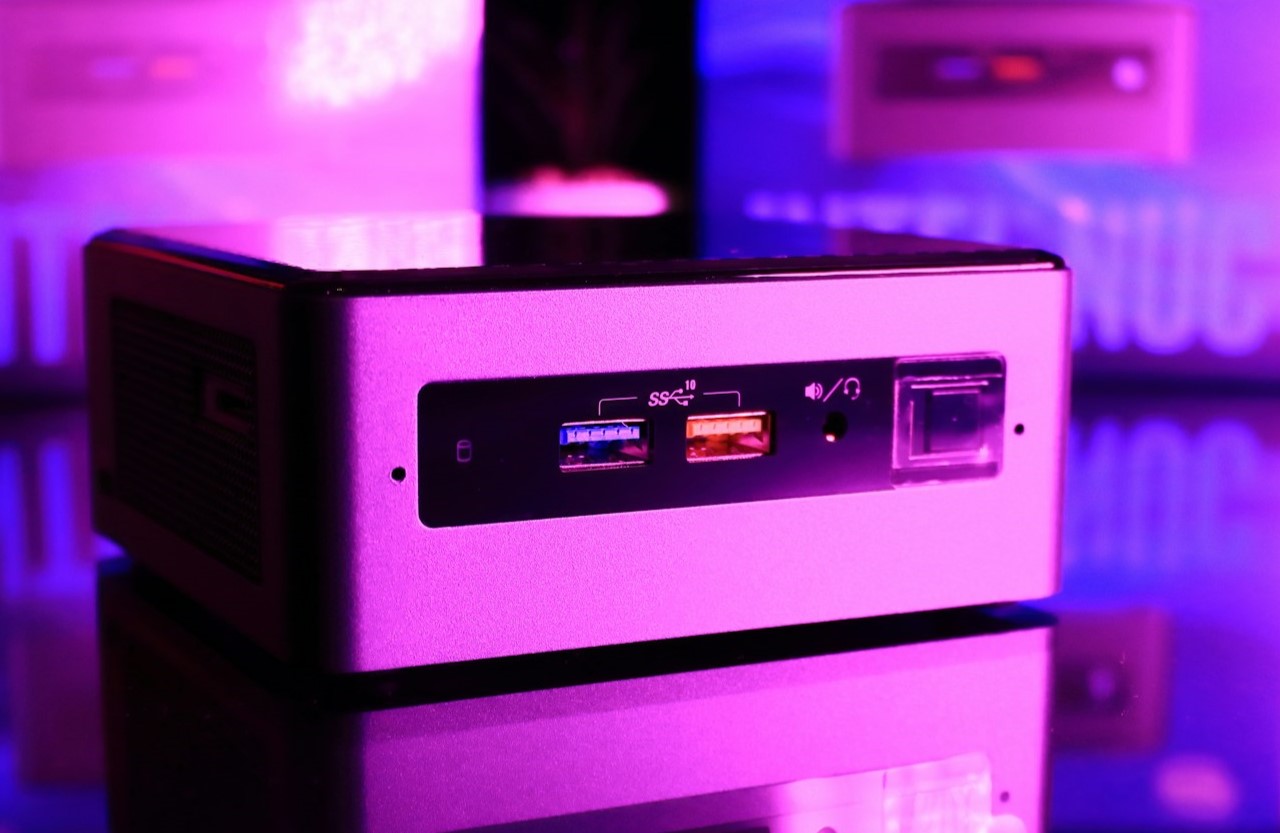
If something seems off, especially when idle, check the connections. In our experience, plugging a drive or hardware into the Thunderbolt port of an NUC, if it features one, can increase the idle power usage by 2-7 W. So, only connect devices to the Thunderbolt port when absolutely necessary.
You can also identify the components that consume high power and replace them with more efficient alternatives. It requires both effort and an initial investment but helps save big in the long run.
Also, when we talked to experts, a common opinion emerged that laptop hardware is more efficient than a desktop when it comes to power consumption on a server. So, if you are still in the process of setting up one, go with an Intel NUC instead.
A server consists of several components, including RAM, CPU, PSU, storage devices, network adapters and more. But not all are critical at every point, and removing them won’t adversely affect the performance or stability of the server.
For instance, if the server has more than enough storage or memory, disconnecting a few drives or RAM will help. The same applies to the CPU and PSU. Of course, while doing so, be careful. If the server was set up by a professional, it’s best that you let them handle the task.
RAM modules
Something you can easily do is optimize the power consumption of the RAM by freeing up slots. For this, simply reduce the number of RAM modules. Say, if you have 8×16 GB RAM, go with 4×32 GB modules instead. This way, you can free up two slots and reduce the power consumption.
3. Use SSDs to store frequently used data
SSDs (Solid State Drives) are more power efficient than HDDs (Hard Disk Drives). As a result, it’s wise to use them to store frequently accessed data because you would want the more active drive to consume less power.
SSD
You don’t necessarily have to replace all the HDDs with SSDs. The existing HDDs can be used to store other non-critical data on the server.
4. Set up efficient cooling
Cooling doesn’t play much of a role on small servers, but if you are looking to maximize power savings, it’s surely an aspect to look at.
For larger setups, review the airflow, identify any hotspots, and take the necessary measures. Often, high-efficiency coolants come in handy in such cases.
For smaller setups, make sure the cooling fans are running at the optimal speeds. When higher, they will consume more power, and at lower speeds, the heat won’t be dissipated effectively. So, you may manually control it or replace the fan.
5. Switch to a cost-efficient power supply
Lastly, you can always switch to a more cost-efficient and environment-friendly power supply source. It will also help reduce the carbon footprint of your server setup.
You must identify other power sources in the region and switch to one that reduces the overall cost. Though easier said than done, it’s still an option you should consider!
With these tips, your server should be much more cost-effective without making any drastic changes and help reduce the power bill. Also, you could reconfigure the BIOS settings for optimal performance.
This week, Microsoft released a significant update to the Canary and Dev channels with build 26052. This update introduces various enhancements, including improvements in Registry Editor, Hearing Aid Support, and the addition of Sudo for Windows.
According to reports, we will get another feature update for Windows 11 within the next month.
Talks about the Windows 11 24H2 initially surfaced within a DMSA Group Policy at the end of last year, and then recently, official Microsoft documentation also confirmed it.
This news excited the Insiders as they are eager to explore the first preview of 24H2 and the latest new features it will bring to Windows 11.
However, with the new build, we are bound to have issues. With this build, users have encountered installation issues.
Neowin noticed that their long-time forum member, theXfile commented, that they were facing installation issues with the build. They were not alone; other forum members, Xab and Tantawi, also faced similar issues.
Several Insiders also reported the same problem on Feedback Hub. One of the complaints was:
Trying to upgrade to Build 26052 on my PC failed and rolled back with error code 0XC1900101
According to the comments on the thread, the additional information that came to light was that the installation is failing with error code 0XC1900101, and some are encountering Green Screen of Death (GSOD) with an error message GSOD SYSTEM_PTE_MISUSE.
Some comments also indicated potential Sysprep compatibility issues with an error code 0xC1900101 – 0x30018, and The installation failed in the FIRST_BOOT phase with an error during the SYSPREP_SPECIALIZE operation message.
As of now, there is no resolution for this issue, and we are yet to get official confirmation from Microsoft about a resolution of the installation issue.
Have you faced the same issue? If yes, then mention your experience in the comments section below.
In a recent development in the ongoing rumors about Microsoft’s gaming strategy, a well-known leaker, NateTheHate, first made the claim that Starfield is all set to come to PlayStation 5.
The claim brought excitement to a lot of game enthusiasts. However, the latter left Xbox and PlayStation fans bewildered.
Now gamers are wondering whether the space-faring RPG will remain exclusive to Xbox or if Bethesda’s highly anticipated title will be available on multiple platforms, including PlayStation.
The possibility of Starfield going multi-platform started circulating in early February when a lot of important insiders claimed that several Xbox games would soon be made available on different platforms.
NateTheHate also emphasized that even though he wasn’t sure which game titles would be included in the move, but we can still expect some Xbox console exclusives going multi-platform.
He also mentioned that we can expect announcements regarding these titles to happen in an upcoming business update event, which is focused on ongoing Xbox multi-platform discussions.
Microsoft’s apparent reluctance to promptly dismiss the early February rumors might indicate that the assertions related to the console exclusives going multi-platform have some reality. However, no one can anticipate the extent of such a move remains unclear.
Even if we accept NateTheHate’s most recent update at face value, it is still unclear whether Starfield was ever under consideration for a PS5 release after the official cancellation of its PlayStation port in 2021.
Now, the gaming community is eagerly waiting for an official announcement from Xbox head Phil Spencer, and until then, the future of Xbox’s gaming strategy remains uncertain.
What do you think which titles would be included in the move? Share your thoughts in the comments section below.
The Office Customization Tool creates configuration files that can be utilized to set up and customize Office software in large organizations.
Using these configuration files, you can fully control an Office installation, from the applications and languages to be installed to how apps should be updated and their preferences.
How can I create a configuration file using the Office Customization Tool?
Under Deployment settings, look for Products and releases.
For Architecture, select either 32-bit or 64-bit.
Next, under Products, select the products and applications you want to deploy.
For the Update channel section, choose the channel to determine how frequently you want the client devices to be updated with new features.
Under the Apps section, you will get a list of apps, toggle on or off the switch next to the app that you want to include or exclude.
Click Next.
2. Language
In the Language section, choose the preferred language from the drop-down menu.
If you want to add any other languages, click the drop-down menu, choose Full, Partial, or Proofing, then choose the language and click Add. Do the same for the Select additional proofing tools section.
Under Installation, then Installation options, choose either Office Content Delivery Network (CDN), Microsoft Endpoint Configuration Manager or Local source, depending on your preferences.
Now, toggle on the switch for Show installation to the user.
Click Next.
4. Update and upgrade
Under the Update and upgrade category, go to the Update and upgrade options, and choose the source from CDN, Local source, or Microsoft Endpoint Configuration Manager.
You can also toggle on the switch for the Automatically check for updates option.
Under the Upgrade options section, toggle on or off the switch for Uninstall Visio, Uninstall Project, or other options, depending on your choice.
Click Next.
5. Licensing and activation
Go to the Licensing and activation category, toggle on or off the switch for Automatically accept the EULA.
Under the Product key section, enter the product keys for the products you want to install.
For Product activation, choose either User based, Shared computer or Device based.
Click Next.
6. General & Application preferences
Under the General category, enter your organization name and add description if you want.
Click Next.
In the Application preferences section, select the preferences you want to apply while deploying Office. You can look for settings manually, filter the preferences by Office app, and check the description of each setting to understand it better.
Once done, review all the settings and click Finish.
Next, click Export.
Select the Default format and click OK.
Accept the terms of the license agreement, name the configuration file, and then choose Export.
Click Sign in and enter your Microsoft credentials.
On the Microsoft 365 Apps Admin Center page, locate Device Configuration.
Click the Go to Office Customization Tool button.
Next, click Create, name the configuration file, and enter all the details that you filled in when creating a configuration file. Once done, choose Done. This will save the file automatically to the cloud as part of your tenant.
If you want to edit an existing file, double-click the file, make the changes, and select Done.
If you want to access it on another device or use it as a reference, click Get Link, then select Copy to save the link. Remember that the link is valid for only two years.
To conclude, the Office Customization Tool allows you to control how an Office application is installed, updated, and more on a device. Should you encounter issues with installation, you can rely on the Microsoft Support and Recovery Assistant tool.
If you have encountered Dev error 12744 in Call of Duty Modern Warfare 3(MW3), this guide can help! To fix it, exit the multi-player mode & restart your game, then power cycle the console, check for app updates, verify the game files, use the Scan and Repair option, reset your internet connection, or reinstall the game.
The Dev Error 12744 in MW3 is a technical error code that appears when starting different playlists, such as Mosh-pit in multiplayer or split-screen, so ensure you disable the split-screen feature.
How can I fix Dev Error 12744 in MW3?
NOTE
The solutions here are for a Windows PC, but the solutions remain the same for those playing the game on Xbox or PlayStation.
1. Power cycle your router
Remove the router and modem plug from the power outlet.
Now, wait for 15-30 seconds, then plug the modem and router back into a power outlet.
Wait for 2-3 minutes, then turn on the power.
In case you are using the console to play this game, try power cycling your console and then try playing it.
2. End all processes related to the game
Press Ctrl + Shift + Esc to open Task Manager.
Navigate to the Processes tab and look for a process related to either Steam or Battle.net, depending on your client.
Once located, right-click the process and select End task from the context menu.
Also, look for other game-related processes and follow the same steps to close them, then restart the game to check if the issue persists.
Closing all the processes related to the game can help you fix other issues like Dev error 841; read this guide to learn more.
3. Run MW3 as an administrator
Locate the game shortcut from the desktop, right-click it, and select Properties.
Now, go to the Compatibility tab, and under Settings, place a checkmark next to Run this program as an administrator.
Click Apply, then OK to save the changes.
4. Repair the game files
Steam
Press the Windows key, type steam or in the search box, and click Open.
Go to Library, right-click the game, then select Properties from the context menu.
From the left pane, click Installed files, then click Verify Integrity of Game Files.
The scan will start, and all the missing or damaged game files will be replaced with healthy files.
Verifying the game files can also help you fix the MW3 reset rank error; read this guide to learn more about the issue.
Battle.net
Press the Windows key, type battlenet in the search box, and click Open.
Go to the Games tab, select Call of Duty, and click the Settings button located next to the Play button.
Now choose Scan and Repair.
Click Begin scan and wait for the process to complete. This scan will repair the damaged game files, and it may take some time.
Press the Guide button on your console controller.
Go to Settings and choose System Settings.
Click on Storage.
Select a storage device, press the Y button on your controller to get Device Options.
Click on Clear System Cache under the Device Options screen.
Now click Yes to confirm when you see the storage device maintenance prompt.
Clearing system cache can also help you fix the MW3 error code 14515; read this guide to learn more about the issue.
6. Display overlays
Press the Windows key, type steam or in the search box, and click Open.
Locate & click Steam from the top left corner, then select Steam Settings.
From the left pane, select the In-Game tab and toggle off the switch for Enable the Steam Overlay while in-game.
7. Reinstall the game and game launcher
Press Windows + I to open the Settings app.
Go to Apps, then click Installed apps.
Locate the game, click the three dots icon and select Uninstall.
Click Uninstall again.
Now locate the game launcher Steam or Battle.net and remove it too.
Go to the official website of Steam or Battle.net and click Download to get the exe file.
Double-click the file and follow the on-screen instructions to complete the process.
Once done, launch the game launcher, locate Library, locate the game, and click Install.
In conclusion, to fix the Dev Error 12744 in MW3, exit the multiplayer mode, restart the game, and ensure you have a stable internet connection.
Next, check if the game is up to date, then verify the integrity of game files on Steam; if using Battle.net, try using the Scan and Repair option instead to repair the game.
If nothing worked for you, you need to reinstall the game and the game launcher for a fresh start. In case the issue persists, try contacting Activision support and explain to them the issue & steps taken for further assistance.
Before you leave, don’t miss our latest guide on Dev error 12502 and learn how to fix it.
If you have questions or suggestions about the subject, feel free to mention them in the comments section below.
Many users have reported getting the EA Play Trial error on Madden 24 error on their computer or console while launching Madden NFL 24. To fix it, try logging into another account, then logout & log back to the main account, ending all processes of the game, checking for updates, restarting your device or console, or reinstalling the game.
How can I fix the EA Play Trial Error on Madden 24?
NOTE
The solutions mostly here are for a Windows PC, but the solutions remain the same for those playing the game on Xbox or PlayStation.
1. End all processes related to the game
Press Ctrl + Shift + Esc to open Task Manager.
Navigate to the Processes tab and look for a process related to Electronic Arts and Madden 24.
Once located, right-click the process and select End task from the context menu.
Also, look for other game-related processes and follow the same steps to close them. Now, restart the game to check if the issue persists.
2. Clear the system cache (for console users)
Press the Guide button on your Xbox/ PS controller.
Go to Settings and select System Settings.
Choose Storage.
Select a storage device, and press the Y button on your controller to open Device Options.
Click on Clear System Cache under the Device Options screen.
Now click Yes to confirm when you see the storage device maintenance pop-up.
Go to My Game Library, right-click Madden 24, and choose Check for Update or Update Game.
If there is an update available, follow the on-screen instructions to install it.
4. Reinstall the game and game launcher
Press Windows + I to open the Settings app.
Go to Apps, then click Installed apps.
Locate the Madden 24 game, click the three dots icon, and select Uninstall.
Click Uninstall again.
Now locate the Electronic Arts game launcher and delete it, too, using the same steps.
Go to the official website of Electronic Arts and click Download the EA app to get the .exe file.
Double-click the file and follow the on-screen instructions to complete the process.
Once done, launch the game launcher, locate Library, locate the game, and click Install.
If nothing worked for you, you need to contact the Electronic Arts support team and explain to them the issue, & steps taken to fix it for further assistance.
For a more in-depth guide on how to open ports for MaddenNFL 20, visit this helpful guide.
In conclusion, to fix the EA Play trial error on Madden 24, use another account on EA, close all processes related to the game, then restart it.
Next, check the game for updates, restart your computer, clear the system cache of the console if using, or reinstall the game.
In case you are facing other issues while playing Madden NFL, here is the list of common issues of the game with their solutions; check it out! You can also check out our detailed guide on controller mapping issues.
Before you go, we have a great guide on how to get EA Play early access, so don’t hesitate to check it out.
If you have any questions or suggestions about the subject, feel free to mention them in the comments section below.
In a significant leap forward for Windows 11 on ARM PCs, Brave browser announced that it is now optimized for ARM64, ensuring better performance on your devices.
This also means that apart from Chrome and Edge, you can now use Brave for a better browsing experience.
There is no perfect time for this news to come out, as there is a surge of interest in ARM computing due to Qualcomm’s upcoming Snapdragon X Elite processor, redefining the landscape of ARM computing in 2024.
ARM64 Brave on Windows is now stable and offers native performance. You also get to enjoy the same features we offer on x64/x86 like Widevine, IPFS, Tor.
Last month, Google also released a native ARM64 version of Chrome, but Brave has stolen a march as this version of Chrome is still being tested in Canary.
You can download the ARM64-optimized Brave browser from GitHub, the Microsoft Store, or Brave’s official website.
Is Qualcomm’s Snapdragon X Elite a game changer for Windows 11 on ARM?
2024 looks promising for Windows 11 on ARM PCs, all thanks to Qualcomm’s Snapdragon X Elite processor.
Microsoft is busy refining Windows’ ARM version, and this latest Qualcomm could help bridge the gap with competitors like Apple.
Qualcomm claims that Snapdragon X Elite can outperform Intel’s Core i9-13980HX and Apple’s M2 Max, and there are leaked benchmarks that support the assertions.
With a neural processing unit (NPU) optimized for local AI processing, the Snapdragon X Elite could help build a powerful Windows 11 on an ARM PC.
The advantages of this processor include powerful computing capabilities, long-lasting battery life, lightweight design, seamless cellular integration, and efficient local AI processing.
Windows 11 on ARM Gaining Mainstream Support
Apart from Qualcomm’s flagship processor, major players like Google have released an ARM-based Chrome browser, showing its support and acceptance of Windows 11 on ARM.
People are eagerly waiting for Snapdragon X Elite’s mid-2024 launch and envision a collective effort among chip manufacturers and developers to optimize apps for Windows 11 on ARM.
With the powerful companies coming forward to support and the mighty processor, Windows 11 on ARM could be a competition for Macbooks and Windows 11 PCs with Intel/AMD processors
Do you think this could affect the computing landscape? Share your thoughts in the comments section below.
According to the rumors circulating in the gaming community, the next-generation Xbox console may follow in the footsteps of the PS5.
In order to make it slim, the console is ditching the built-in disc drive, which means users will have to buy it separately.
This move aligns with Microsoft’s mission for an all-digital Xbox future, with an affordable Series S with no disc drive and an Xbox Game Pass subscription service expanding its library.
According to sources from MAGG
The next-gen Xbox console will be an all-digital console
Looks like Microsoft is taking a page from Sony’s PS5 playbook and will have an external panel for attaching/removing the hard drive, which means you can get your hands on the console at a lower price.
Microsoft used the dual-console approach with the current Xbox generation with the cheaper Series S and mighty Series X.
However, this time, the Redmond tech giant will release a single console with no hard disk in a strategic move to lower the price without compromising on power.
If we talk about the current Xbox generation, the Series S is undoubtedly easier on the pocket, but as it has lower power, the developers faced challenges, causing delays in projects like the Xbox port of Baldur’s Gate 3.
Therefore, releasing one powerful console can help streamline game development, offering a robust platform for developers.
However, Xbox’s commitment to backward compatibility, which lets users play classic hits from previous-generation consoles, might not be possible in the next-generation Xbox, lacking a disc drive. This is because a disc drive is necessary for gamers with physical game collections to access their old libraries on the next-gen console.
In spite of all these factors, if the next-gen Xbox does not have a disc drive, then it is indeed a step towards an all-digital future.
This will be convenient and affordable for many and has an aesthetic appeal to it, but physical media is important for preserving games.
Therefore, no matter how revolutionary this decision could be, Microsoft might face backlash from some people from the gaming community.
What do you think about an Xbox without a disc drive? Share your thoughts in the comments section below.
Games crash all the time, but lately, Palworld keeps crashing frequently, especially on PCs. If this is the case with you, it’s likely because of the new update.
Aside from a faulty patch update, insufficient hardware resources, graphic settings and, corrupt game files all contribute to Palworld crashing.
How do I fix Palworld if it keeps crashing on my PC?
1. Launch the game from its executable file
Start by disabling multi-player mode off.
Go to the Palworld location. (This will differ depending on your OS): C:\Program Files (x86)\Steam\steamapps\common\Palworld
Search for Palworld-Win64-Shipping, right-click on it, and select Run as administrator.
Now turn back on multi-player mode.
2. Disable Vsync
NOTE
This step only applies to users with an NVIDIA graphics card.
Click on Start and search for Nvidia Control Panel, then hit Enter.
Under 3D Settings, click on Manage 3D Settings.
Under Global Settings, scroll until you find Vertical Sync.
Click on the dropdown menu and change to Off.
VSync, although known for improving your graphics, it may be counter-productive if your game already has stability issues. You can turn it off and observe if there are any improvements.
However, if Palworld keeps crashing on your PC when VSync is turned off, you need to explore other troubleshooting options.
3. Force DirectX11
Go to your Steam Library.
Find the game and right-click it, then select Properties.
Under the General Tab, click Set Launch Options and a dialog box will appear.
Type in the dialog box at the end of the target string -force-d3d11 and click OK.
Close the Properties window.
Run the Palworld game.
If DirectX11 doesn’t work, try switching to DirectX12 provided your PC meets the system requirements. The DirectX feature is known for introducing stability and performance to games running on older hardware.
If Palworld was crashing because of compatibility issues, forcing DirectX could even out the playing field.
4. Update graphic drivers
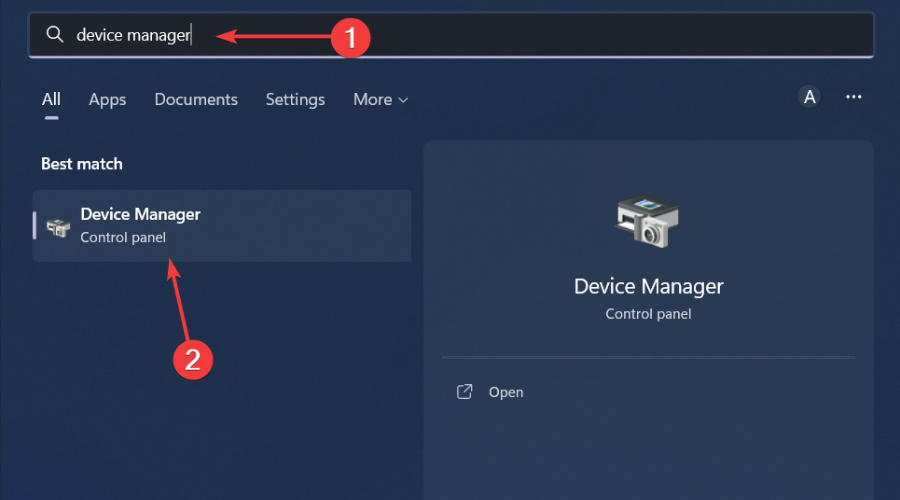
Hit the Windows key, type Device Manager in the search bar, and click Open.
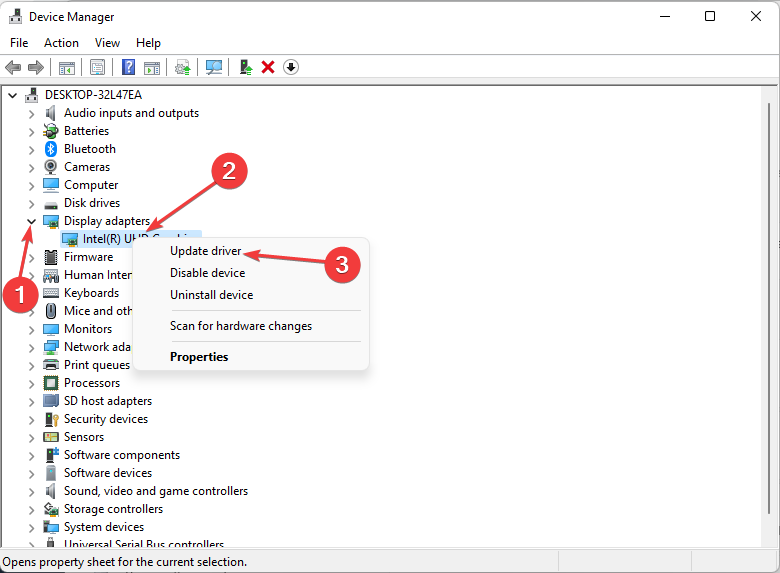
Navigate to Display adapters to expand, right-click on your graphics card, and select Update driver.
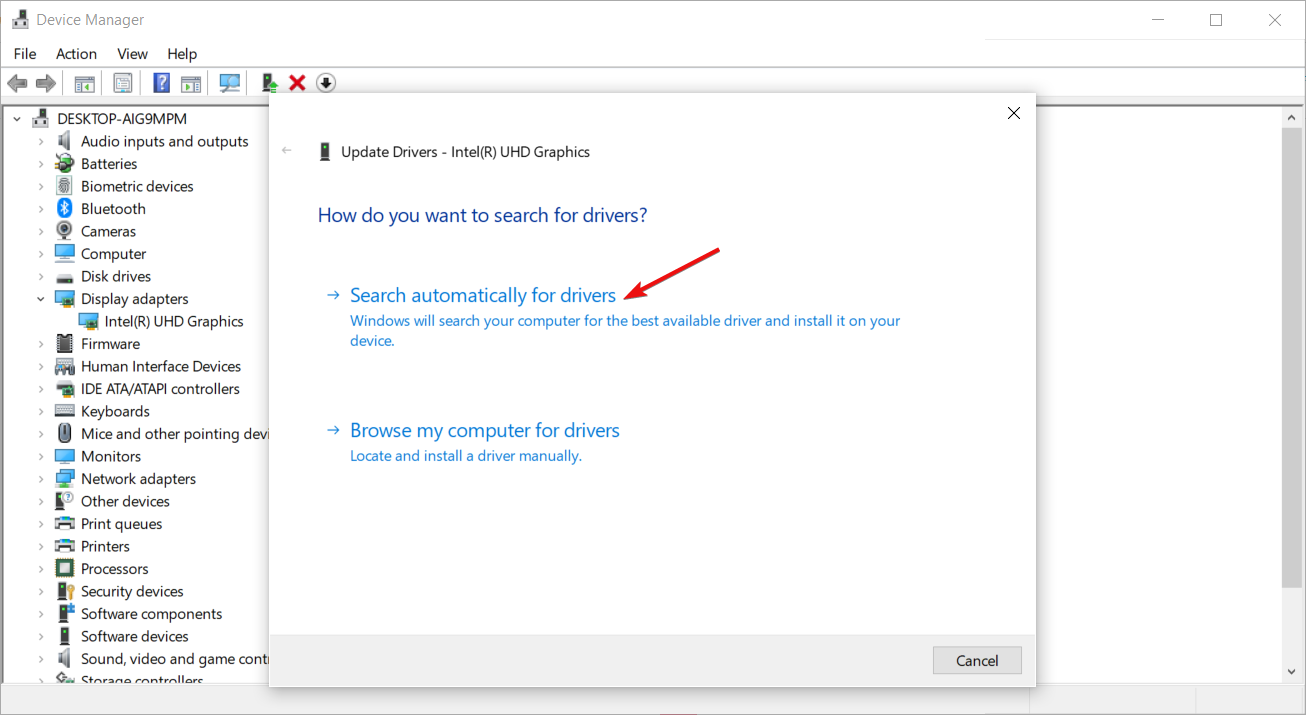
Select Search automatically for drivers.
Also, updating drivers can be an easy task if you go for a dedicated driver updating software because it can help you scan your computer and update all your drivers in just a few minutes, with minimum effort.
Press the Windows key, type Windows Memory Diagnostic, and click Open.
Click Restart now and check for problems.
The computer will restart and the tool will run the memory test.
You can change the test options by pressing F1.
Once the scan is complete, you can check for errors under Event Viewer.
Memory leaks, faulty RAM sticks or even overclocking your CPU can all lead to Palworld crashing frequently on your PC. Ensure you also disable overclocking then relaunch the game.
7. Reinstall Palworld
Launch Steam and click the Library tab at the top.
Right-click the problematic game and select Manage > Uninstall.
Now, confirm your action by selecting Uninstall.
Finally, go to the Steam Store to redownload the game.
Overall, Palworld has had its own fair of issues since its launch. From login errors to disk write errors, the list seems to be endless. It begs the question whether it will be able to stand the test of time.
However, we can cut the developers some slack as it is fairly a new game. What we can do as players of the game is to make prompt reports whenever an issue occurs to get the developers on it as soon as possible.
This way, improvements can be made gradually until the game reaches a stable position.
The game has issues on other platforms, and we recently wrote about Palworld save error on Xbox, so don’t miss that guide.
Have you experienced a Palworld crash recently? What troubleshooting solutions did you apply? We’d like to know. Drop us a line below.
Microsoft announced Windows 11 Insider Preview Build 22635.3140 (KB5034851) to the Beta Channel; many changes, improvements, and fixes will be introduced. Here are the changes you will see:
Copilot in Windows
To enhance the accessibility of Copilot in Windows, Microsoft has relocated its icon to the right side of the system tray on the taskbar.
Also, the Show Desktop option, which is present in the far-right corner of the taskbar, will be turned off by default.
Start menu
In the Start menu, recently added apps will be grouped into a folder under the Recommended section, but the feature is being rolled out to select Windows Insiders in the Dev Channel.
Furthermore, people with Microsoft Entra ID accounts logged into Windows 11 Pro or Enterprise editions can now view and join upcoming Microsoft Teams meetings directly from the Start Menu.
The next upcoming online Teams meeting will come up as a Recommended item five minutes before it begins, and you can click the meeting recommendation to open the join meeting flow in Teams.
Microsoft also informed that from now on, the Redmond giant will categorize changes in Beta Channel builds into two buckets: features, improvements, and fixes slowly rolled out for those who have turned on the feature to get the latest updates, then new features, improvements, and fixes available to everyone in the Beta Channel.
Another thing that Microsoft stressed was that the updates & features rolled out with this build will not be available to all the Insider in the Beta Channel instantly.
In case you want to join the Insider Program on your Windows 11 computer or download an Insider Preview to get new features and updates as they release, read this guide.
What do you think about new features and updates by Microsoft? Share your thoughts in the comments section below.