Software to Reduce File Size: 4 Best to Use in 2026

Filesize reducing tools are highly useful programs that compress files so that they take up less data on HDD or SDD. There are also other reasons users would want to compress files.

For instance, compression software not only increases the available amount of space in your hard disk, but it also allows for faster file transfer. Having smaller files means that users can send more items through size-restricted sharing services.

To help you look for the ideal filesize size-reducing software for Windows 10, we compiled an up-to-date list of the best compression software currently available.

These applications earn their place in the spotlight for their flexibility, reliability, features, and more.

Which are the best filesize reducing programs for Windows 10?

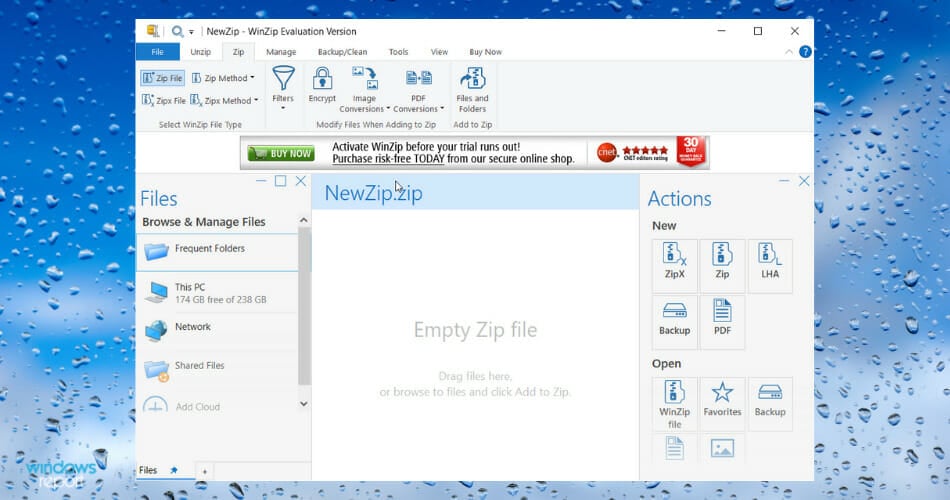
WinZip – Best filesize reducing program

Perhaps the most popular compression tool for Windows 10 is WinZip. It currently has more than one billion active users.

This tool is more than a simple compression tool as it also allows users to share, manage, password-protect, and backup files.

Furthermore, WinZip unzips all compression major formats, such as Zip, Zipx, RAR, 7z, TAR, GZIP, VHD, XZ, and more.

Other features include finding, opening, editing, moving, and sharing the files stored on PCs, networks, or cloud services. Not to mention the convenient integrations it has with Dropbox, G-Suite, or OneDrive.

WinZip also encrypts files to secure information and data and can create read-only PDFs and add watermarks to deter copying.

WinZip

Try WinZip to reduce the size of your most important large files so you can easily share or store them
Free Trial Visit Website

WinRAR – Popular option

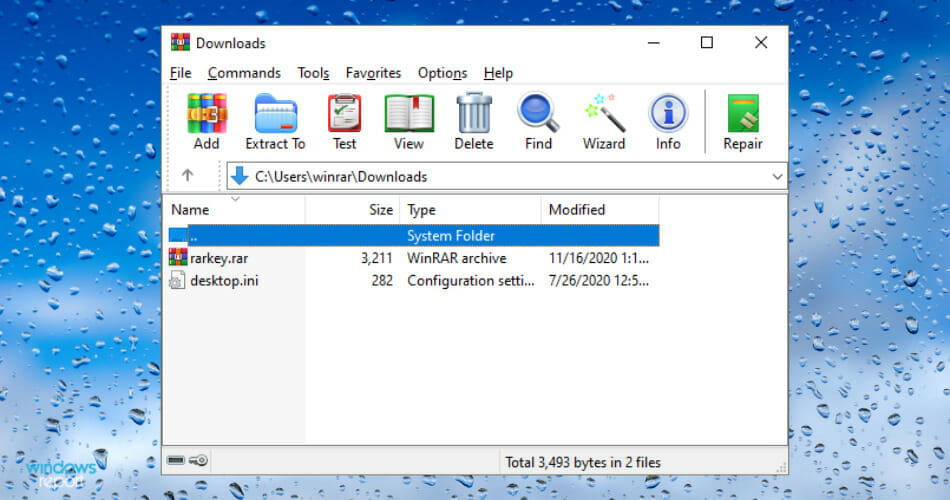
WinRAR is another highly popular compression software that has been around for a couple of decades.

It offers numerous features, but perhaps its most distinctive feature is its ability to create files in the RAR format. RAR is a powerful type of format that allows files to be compressed at extremely high levels.

WinRAR is the only official software that is capable of producing RAR files, but most compression software is capable of extracting RAR archives.

Besides, WinRAR can extract the following formats: ZIP, CAB, ARJ, ISO, 7-ZIP, UUE, GZIP, LZH, ACE, TAR, and much more.

Users will also be able to secure files with 256-bit encryption and password-protect them. WinRAR utilizes a unique algorithm to significantly increase the speed of the compression process.

As for its interface, WinRAR does not offer anything special. Yet, despite not being especially attractive, its interface is easy to use.

WinRAR

Files may be compressed to their minimum size with high-level encryption and safe sharing.

7-Zip – Highly flexible

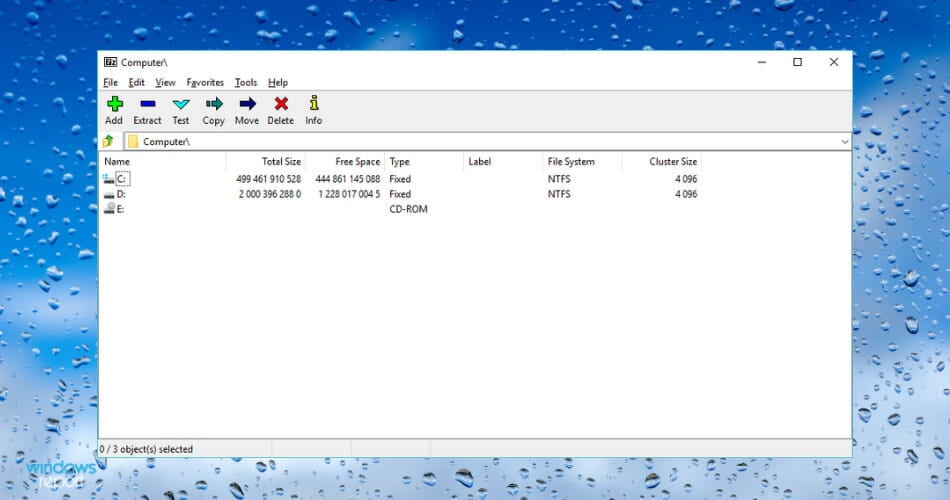
Users will be glad to know that 7-Zip is completely free, which makes it ideal for individuals on a budget. Despite being freeware, 7-Zip is still packed with features and has an outstanding reputation.

7-Zip is a highly flexible program, as it is capable of handling pretty much any type of compression format.

Furthermore, the file size reducer software offers its own compression format called 7z. This format is unique as it is specifically built to be able to handle massively sized files. According to its developers, 7z is capable of compressing files up to 16 billion gigabytes.

Unfortunately, the rate at which files are compressed or decompressed is rather slow compared to other popular file size reducer software for Windows 10. Thus, users with time-sensitive projects may not find this software to be ideal.

Aesthetically speaking, 7-Zip is definitely on the less attractive end of the spectrum. Nevertheless, reliability and efficiency are key when it comes to size-reducing software, and 7-zip is steady as a rock.

⇒ Get 7-Zip

Hamstersoft ZIP Archiver – Modern-looking

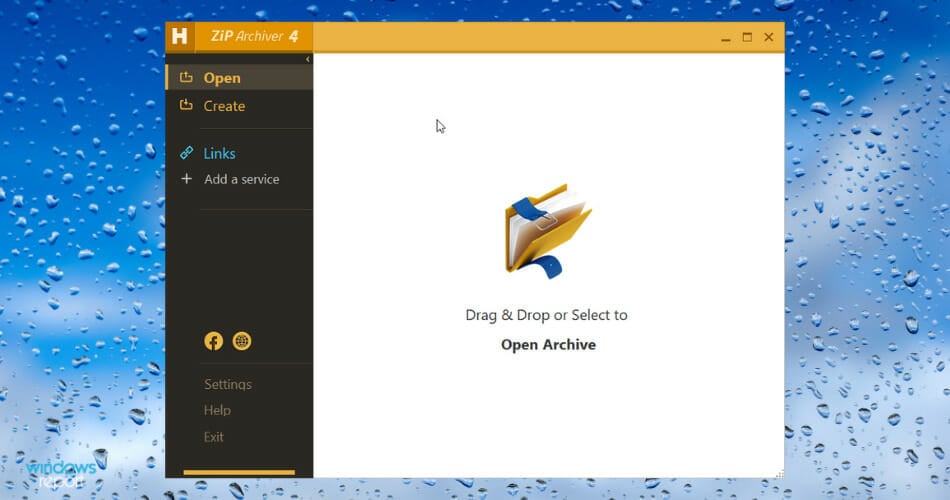
What sets this filesize reducer software apart from the crowd is that it has a modern-looking interface that is also user-friendly. Furthermore, the software can handle a wide variety of compressed file formats and is completely free.

Almost all compression formats are supported by Hamster Free ZIP Archiver, including RAR, ZIP, 7Z, ARJ, and ISO, as well as the lesser-known IHA, IZH, BZ, and CAB formats.

The most intriguing features are the compression levels, password security, and the ability to divide files.

The unique thing about Hamstersoft is it has cloud support. Users can compress a file, upload it to a cloud service like OneDrive, Dropbox, and more, and create a link to share all in one move.

Convenience and ease of use are what make Hamstersoft a top file-compressing software.

⇒ Get Hamstersoft ZIP Archiver

So these four filesize reducer software for Windows 10 are all outstanding in their unique way. They are specifically selected from a multitude of software as they are simply the best.

Want to see more similar tools? Check out our recommendations on the File Compression page, and in the File Management Hub, you’ll find everything you need to know about file management software.

And if you’re a developer, you may find our article on software size estimation intriguing.

As always, if you’ve already used one of the tools listed above, you can tell us more about your experience in the comment section below.

Windows 11 TPM: Is it Required And What’s it Used For?

Since the Windows 11 leak and installation tests, TPM (Trusted Platform Module) stole a bit from the center stage and became the no.1 enemy for early adopters.

So what is TPM and how does it work? In this guide, we’ll find that out!

What is TPM and how is it related to Windows 11?

What is TPM 2.0?

The Trusted Platform Module is a little chip that can be embedded on a motherboard or a code that runs on your CPU.

In a computer, this chip is there to supply a cryptographic key to unlock your PC. If your device was stolen and the wrongdoer is trying to steal the data from your encrypted drive, the key won’t work and the PC won’t boot.

TPM types and uses

TPM is usually used for boot protection, but it can be used by email clients for encryption or key signing.

There are two types available:

  • Physical TPMs that are embedded in the motherboard.
  • fTPM that runs a code on your CPU.
  • Virtual TPM that runs on your device, but it’s not as safe as the previous two.

What do I need to do to check if my computer has TPM 2.0?

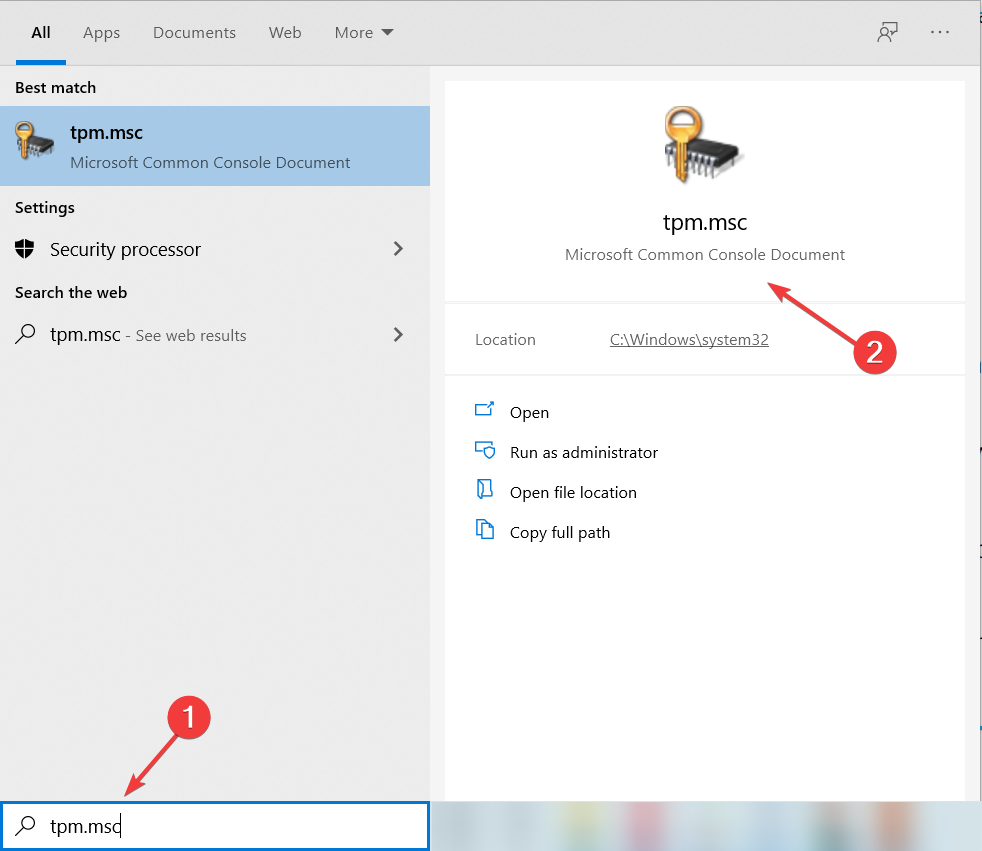
  1. Type tpm.msc in Windows search and click on the app from the results.
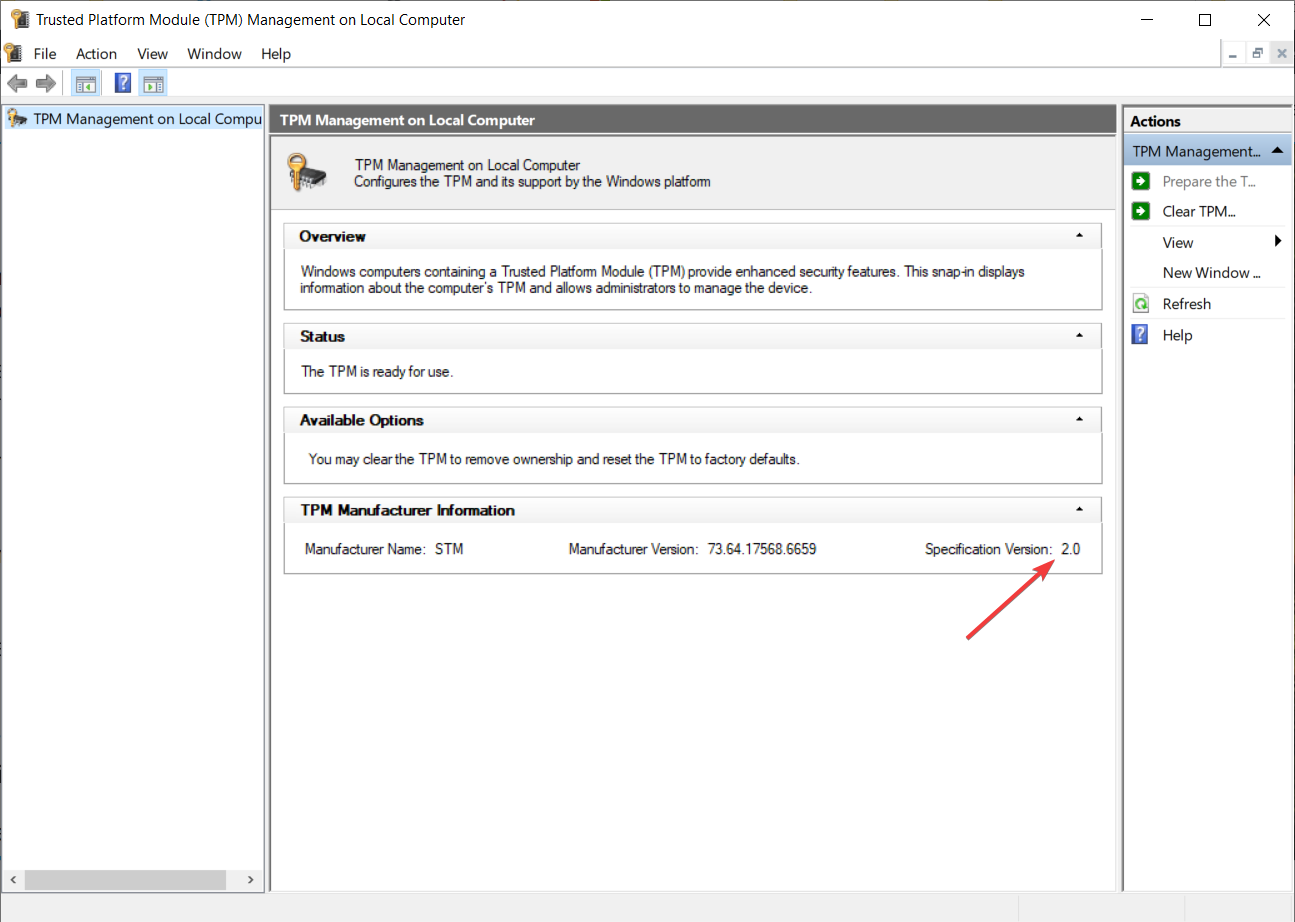
  2. Now, look at the specification version from the bottom right corner of the screen. If it says 2.0, you’re fine.

Yes, Windows 11 needs TPM 2.0 to install on your PC but before jumping to any conclusions or make any purchases, do a Windows 11 TPM check by performing the steps above.

However, there are many issues why your PC might not be able to run Windows 11. If you want to make sure that you can, run the PC Health Check app.

Turn on TPM 2.0

  1. Type tpm.msc in Windows search and click on the app from the results, just like we did in the solution above.
  2. Click on the Action tab and select Turn on TPM.

If your TPM is malfunctioning for some reason, you can also check out our expert guide to fix that problem quickly.

We also have a guide on how to enable TPM without BIOS, so don’t miss it.

What do I do if I don’t have TPM 2.0?

You can install Windows 11 without TPM 2.0

If you don’t have TPM on your PC, there’s a way to perform a Windows 11 TPM 2.0 bypass.

This Windows 11 TPM workaround is, however, a temporary solution and we don’t know if Microsoft will decide to do something against it or not.

Buy a TPM chip

For a more reliable solution, we have a nice guide about TPM chips, where to buy them from, and even a price comparison so you will know exactly what to do.

Although TPM is a requirement, some Windows 11 systems will run without TPM 2.0, but in most cases, the PC must support TPM 2.0 to run Windows 11.

Before you go, don’t miss our guide on the differences between TPM 1.2 and 2.0 to learn more.

Dell Inspiron 14 2-in-1 review (AMD): A well performing all-rounder laptop for school & beyond

There’s no doubt that Dell offers a lot of laptops in its lineup. At the top is the all-expensive XPS, for businesses there is the Latitude series, and then there are gaming laptops from the Alienware lineup. But if you’re a student or parent or someone just wants a no-nonsense laptop that takes a little bit from all three lineups but without going too over the top, then the Inspiron series is what you want to look at.

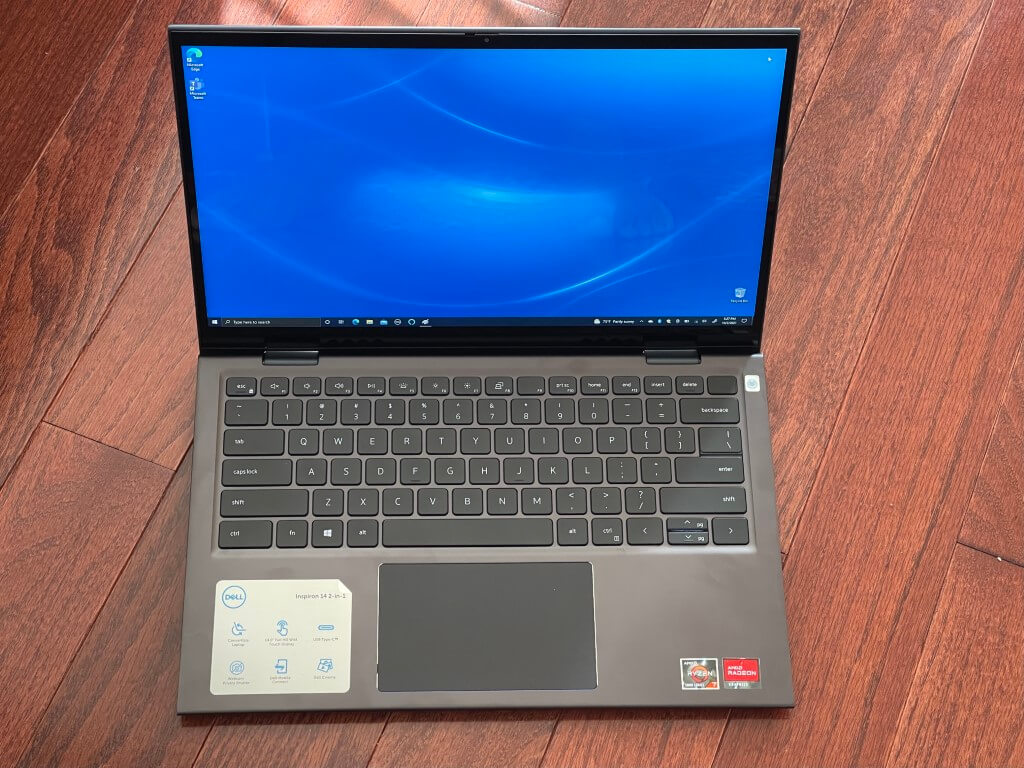
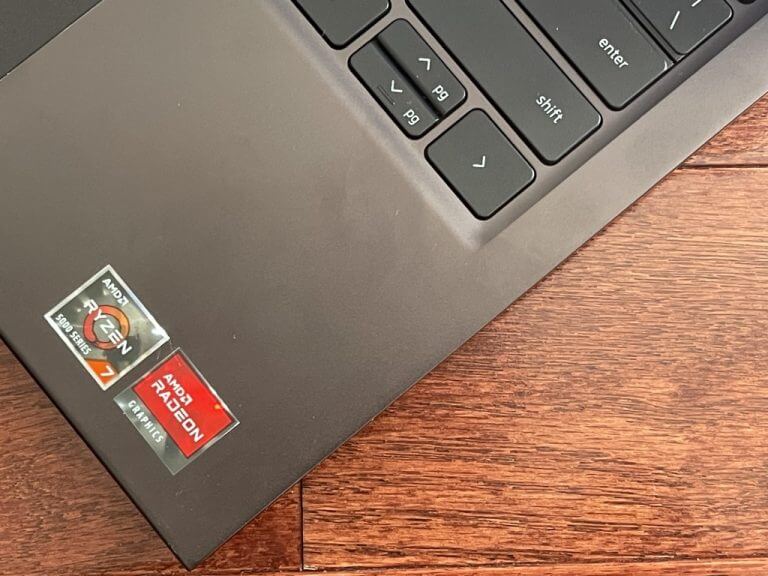
Inspiron laptops are designed with budgets in mind, and the new Inspiron 14 2-in-1 is no different. With an AMD Ryzen 7 5700U processor under the hood and a slim-bezel screen, this laptop is perfect as a general day-to-day machine for web browsing, light photo editing, and your daily Teams or Zoom calls. We were provided one for review, and after using it, here’s why we think it’s a well-performing laptop for students, or anyone else.

Specs & Price

Dell 2-in-1 Windows Laptop

Our review unit comes configured with the AMD Ryzen 7 5700U processor, 16GB of RAM, and a 512GB SSD. It also has a 14-inch touch screen, coming in at the resolution of 1920 x 1080. Our specific configuration is one of the higher-end models. It retails for $1,059. Without our upgrades, you can get a base model with the Ryzen 5 5500U, 8GB RAM, and a 256GB SSD for $860. When on sale, the difference in upgrading is just $100, making this an interesting buy.

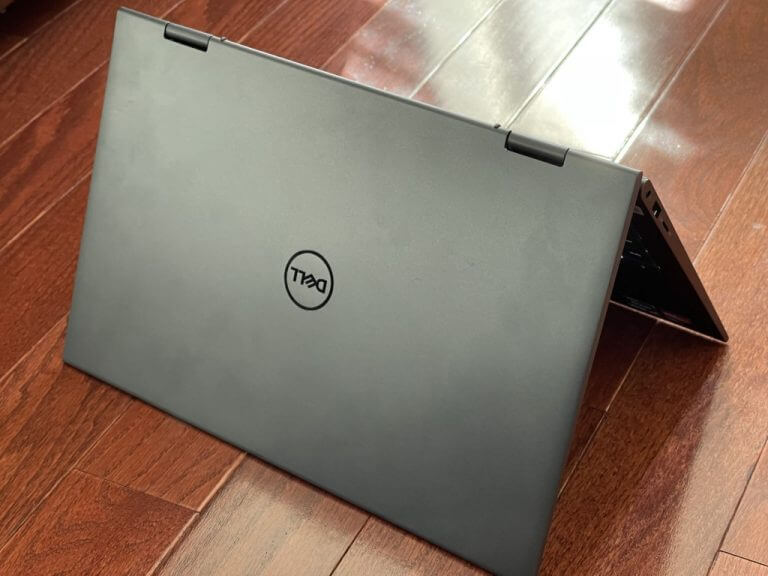
All AMD Ryzen units also come in the “Mist Blue” color. Dell is using sustainable waterborne paint to get that color, and it helps make the device environmentally responsible.

Design

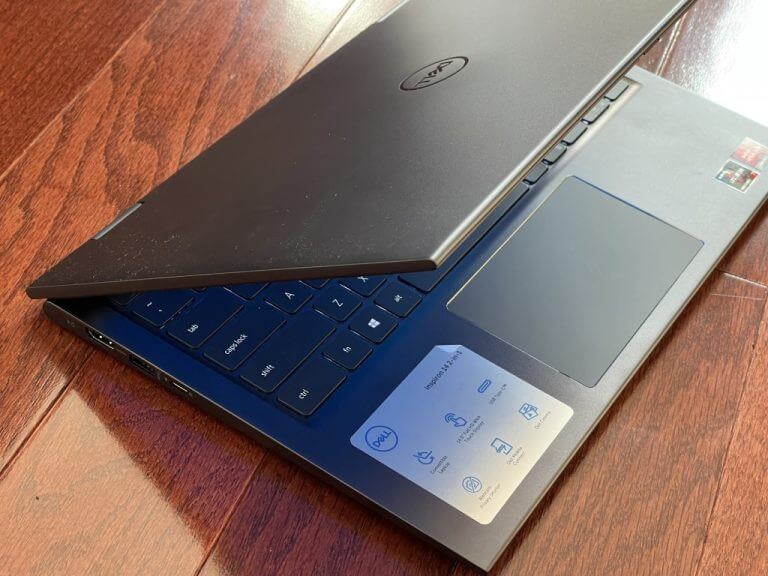
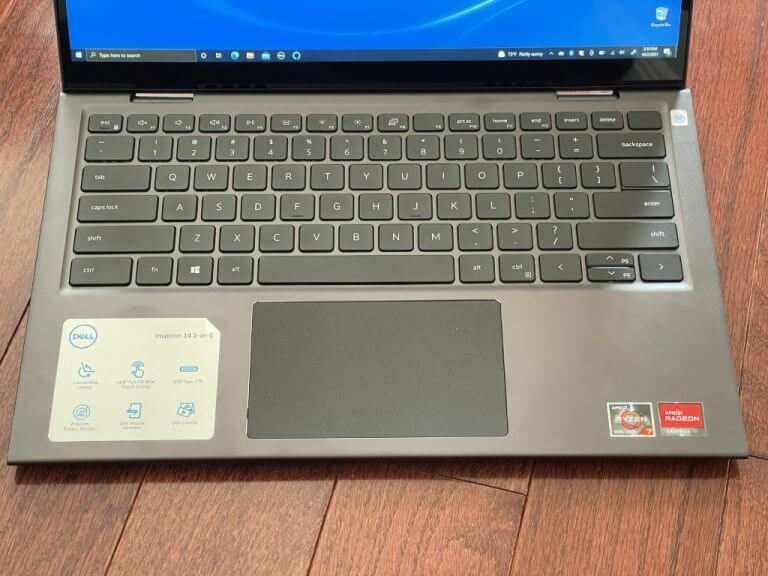
Dell Inspiron 14 2-in-1 design

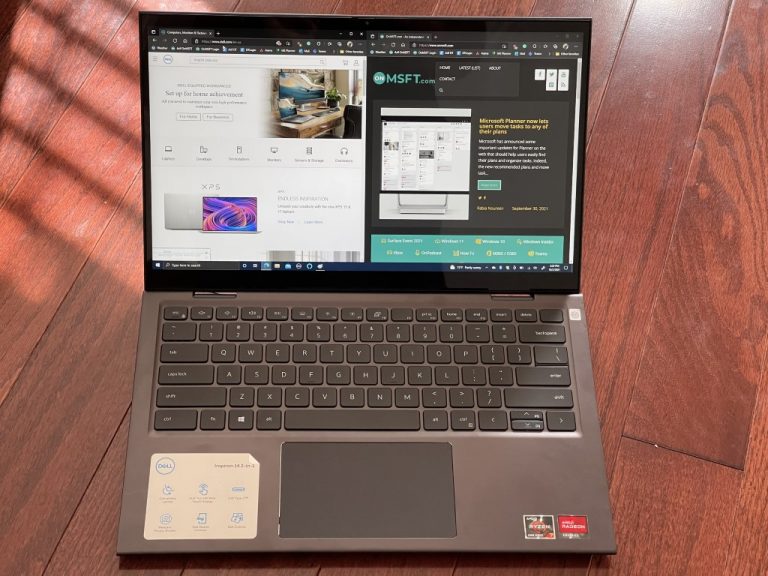
Any laptop intended for school and prolonged use needs to be tough, and the Inspiron doesn’t disappoint there. This device sports an aluminum and plastic design, which feels very premium. The lid barely flexes, and the keyboard deck is very strong. Combined with the “Mist Blue” color, it also looks very appealing to the eyes, setting it apart from the gray or black 2-in-1s that usually dominate the market. Note that there’s also an Intel version of this, too, but it comes in silver.

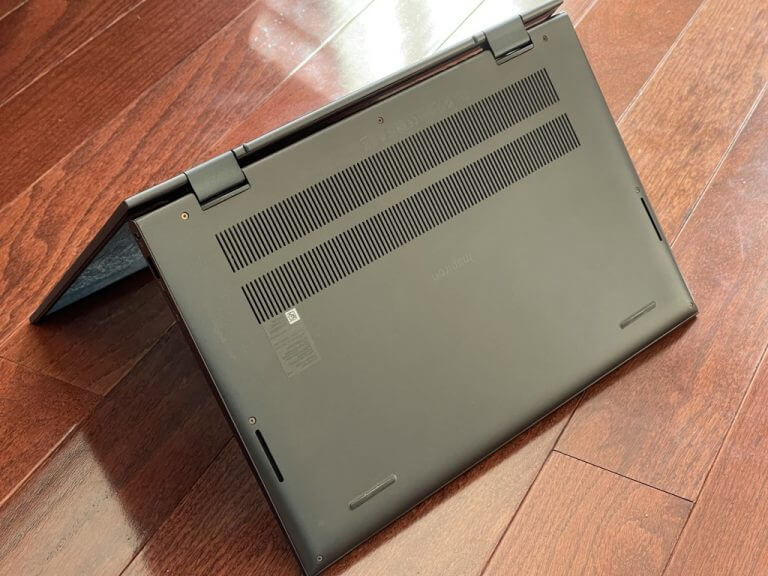
Since this is a 2-in1, I also will mention the hinges. In a cycle of opening, closing, and moving the Inspiron around into its four modes, it stayed strong with each one of my movements. The hinge supports the laptop at all the angles I tested it at. Like most other devices in this class, the base of the laptop will also lift up when the lid is opened up, to raise the keyboard up to a comfortable angle.

That base has some ventilation holes, and there are also some hidden vent grills in the rear of the keyboard portion (that’s the side facing the screen.) Dell also mentioned to me that it tested the hinges by opening up the device and closing it up to 20,000 times. This is a device that’s bound to last.

In terms of weight, the Inspiron is manageable. It comes in at close to 3 pounds, and measures just under half an inch thick. This is common for laptops in this price range, as is the “sloped” design, where the laptop is thick ad the rear and thin to the front. Dell though rounds off the corners on the laptop to make it look a bit more unique. It says this can help you move the device more easily.

Ports & Security

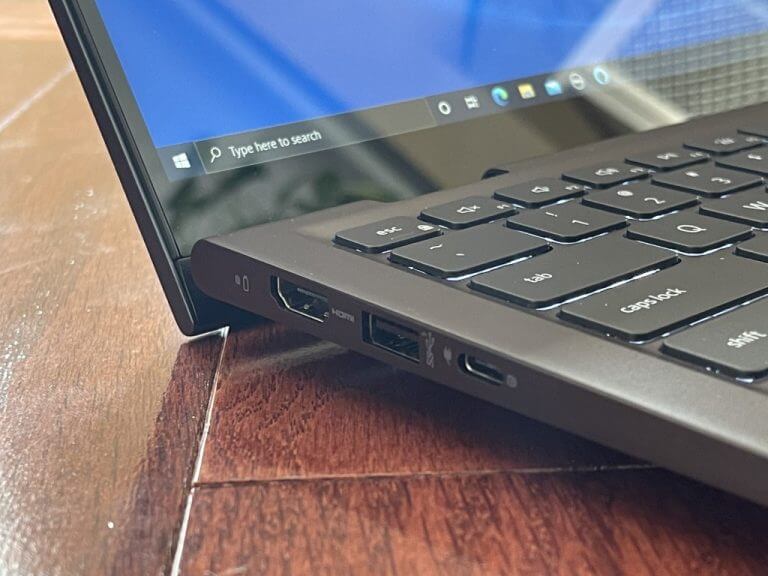
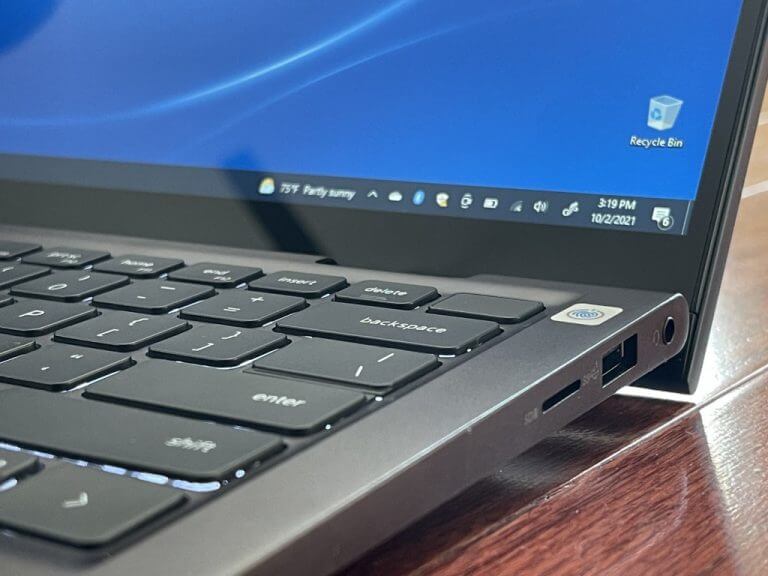
These days it seems like laptop makers take away ports rather than add them. But on the Inspiron line, Dell doesn’t. This Inspiron 14 2-in-1 has every port you might need as a student, parent, or worker. The ports include an HDMI port, 2 USB 3.2 Gen 1 Type-A ports, a USB 3.2 Gen 1 Type-C port, and a 3.5 mm headphone jack. There’s even a microSD card reader on board, too.

Since this is an AMD system. there is no Thunderbolt support. But the USB-C port can be used for juicing up the laptop with the stock charger. It’s nice to see this feature, as most other laptop makers might bundle in a barrelled charger instead of USB-C. Note that the USB-C port can also be used for external displays if you prefer it over HDMI.

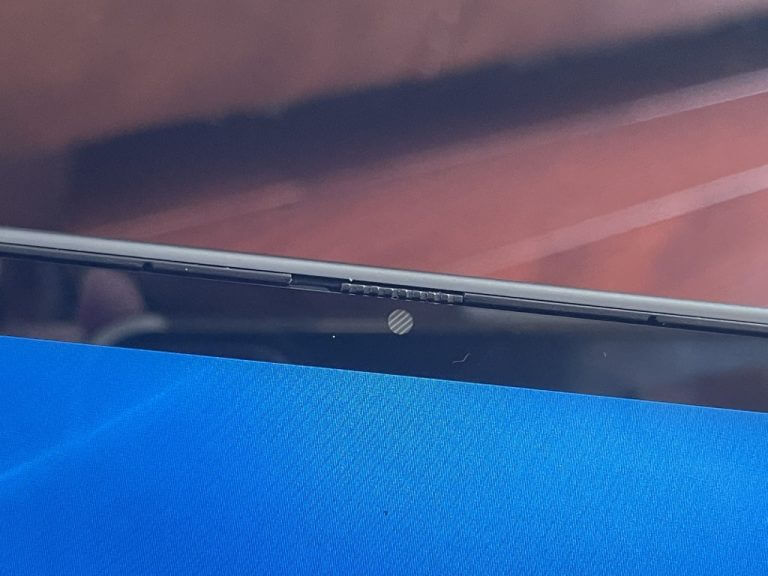
As far as security, the Inspiron takes inspiration (pun intended) from Lenovo. You can slide a shutter over the webcam to cover it when not in use. It’s a nice little trick that should be useful for students who are always using sticky notes to cover that webcam. There’s also a fingerprint reader built into the power button, so you can secure your account and go passwordless in Windows 10.

Display & Webcam

Looking at the display, for general web browsing, and multimedia, the Inspiron makes the grade. The brightness can get up to 270 nits in our testing. It also comes in with 63% of the sRGB spectrum, and 44% Adobe RGB coverage. Compared to an XPS, these aren’t great numbers, but you’ll have to remember that this is a budget-oriented laptop. Yes, the screen could be brighter and more vivid, but for basic day-to-day use, it’s just fine. Again, the numbers are close to what you get in other budget laptops, like the Lenovo IdeaPad Flex 5.

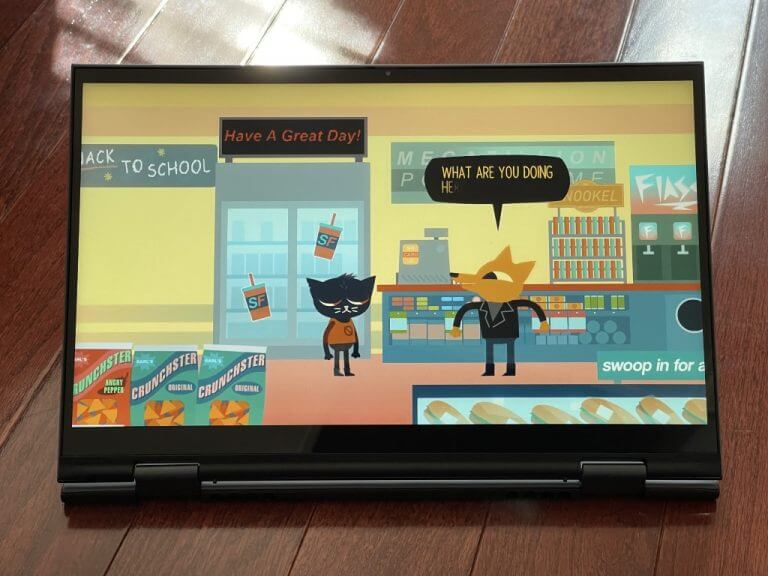
In one situation, I used my Inspiron to watch walkthrough guides on YouTube for the game Night in the Woods. This is a dark-looking game, but at 70% brightness the Inspiron well represented the red in Mae’s eyes, and the black in her fur. For work, meanwhile, I stacked my browser windows side by side.

The Inspiron has some slim side bezels, which means you get a little more vertical space. This takes inspiration from the XPS lineup, but do note it’s not a true bezel-less experience as you’ll still get thick bezels on the bottom. But those bezels help you use the device in tablet mode, where you might want some space to grip onto something.

And about this, my review unit does work with a pen! I used the Dell Active Pen from my XPS 13 2-in-1, and the display registered it just fine. Dell tells me that it does mention pen support on the Inspiron 14 product page, so if you need it, you can buy it as an extra.

I’ll end this section by touching on the webcam. The webcam is 720p, which is fine for most situations. However, considering that most laptop makers have moved to 1080p in 2021, I do hope that can change in next year’s model. 720p is fine for my web calls and my colleagues didn’t say I looked like a potato when I used the Inspiron’s webcam, but 1080p adds extra details that make a huge difference.

Performance

AMD Ryzen Chips

We’ve talked about the AMD vs Intel rivalry before, and since this is an AMD system, you should expect some amazing performance on the Inspiron 14 2-in-1. The AMD Ryzen 7 5700U is no joke. And the Ryzen 5 option isn’t either. With 8 cores and 16 threads, this Ryzen 7 can push the Inspiron quite far.

In our tests, the Inspiron came home with an 1139 Single-Core score, and a 5985 Multi-Core Score. I also used the Inspiron for light video editing and putting together my “tour of WIndows 11” video, and it finished encoding the 10-minute 1080p movie in Filmora in about 8 minutes, which isn’t all too bad considering the integrated graphics.

As for gaming, Fortnite played just fine on the system at low settings, netting around 30 frames, and closer to 20 on medium. GTA V, meanwhile, played close to 23 on high settings, and 30 on medium settings. You could get some light gaming down on this device, but I wouldn’t bet too much on it. Settings would need to be tuned down. This is more of a productivity laptop.

Outside of those demanding tasks, the Inspiron does well for web browsing and day-to-day work. My usual workflow of 10+ tabs in Edge didn’t cause the device to cough, and tabs never froze or reloaded. This really is a well-performing laptop for the fundamentals.

Keyboard & Trackpad

Since this laptop is going to be used by students or at home by parents, then a strong keyboard and trackpad are a must, and this is where the Inspiron excels. Dell says this new Inspiron offers a full-sized keyboard with 9% larger keys than the previous generation.

I like the bigger keys as they give my fingers more room to glide as I speed type. I also liked how quiet the keyboard is, as it’s one of the softest and quietest I’ve ever typed on. As for the trackpad, it feels pretty thin, but it is pretty smooth. It’s also well-sized and supports all the Windows 10 gestures. I wish it felt a bit more solid, but that’s just me.

Battery life

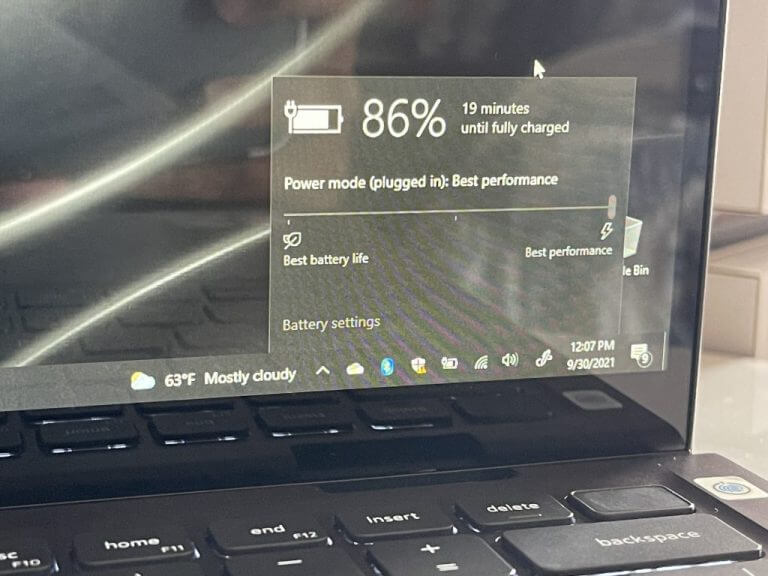
I love laptops where the battery can last the entire day, and this one can be added to that mix. From my 8 AM-4 PM workday, the Latitude went from 100% close to 30% battery with brightness set at medium, and the battery slide on recommended. In the video streaming test, where I lopped the same video, it went on for about 11 hours on the same settings. That said, you easily can expect to get around 8-11 hours of battery life on the Latitude.

Dell software

Dell’s Inspiron laptops come pre-installed with some extra Dell software. You’ll get Dell Mobile Connect, and Dell Cinema Color all pre-installed (just to name a few.) Dell Mobile Connect can help connect your phone to your PC so you can get text photos, and more on your PC. Cinema Color, meanwhile, tweaks the display for various multimedia. I like this extra software, as it adds value to your PC.

Worth it for the price

Priced at just under $1,000, the Dell Inspiron 14 2-in-1 is a good all-rounder laptop. With AMD Ryzen chips under the hood, it works great as a general day-to-day machine for web browsing, light photo editing, and your daily Teams or Zoom calls.

Skype gets a modernized UI with latest Insider update

Last week, Microsoft’s Skype team promised big things were coming to the platform as its newer more publicized cousin Teams continued to hog the company’s conferencing and chat services spotlight. According to a recent press release, Skype users can expect to see performance improvements, UI updates and new features come to both desktop and mobile applications for the service.

Today marks the first step in a long hike for the company as it begins to deliver on some of its promises. A new Skype Insider preview build rolls out today to users with minor tweaks to the platform.

Tempering expectations, Skype Insiders can grab the latest updates now that includes:

  • Modernized UI improvements: new notifications/activity tab look, new look for the header and footer on Desktop and Mobile
  • Video rendering improvements: on Android, iPhone and iPad
  • Group Profile screen to support new avatar selection options from the MeetNow creation board: emoticon or sticker on colorful background + uploading photo (which already is there)
  • Bug fixes and stability improvements

Anecdotally, when I tested this version out it was hard to spot the changes initially, but they are there.

Last week, the Skype team promised a fanciful number of changes to its aging platform, and while today’s update feels like breadcrumbs to its pie in the sky ambitions, it’s a least a start.

At the last minute, Microsoft provides a path to upgrading unsupported hardware to Windows 11

One of the biggest controversies with Windows 11 is the minimum hardware requirements. Officially, Windows 11 only installs on PCs that have a TPM 2.0 chip, an Intel 8th gen or Ryzen 2000 series or newer processor. Turns out, though, that you can, in fact, install Windows 11 on any hardware, but with the caveat of (possibly) not getting security updates. So, did Microsoft back off the hardware requirements for Windows 11? We did some digging to find out.

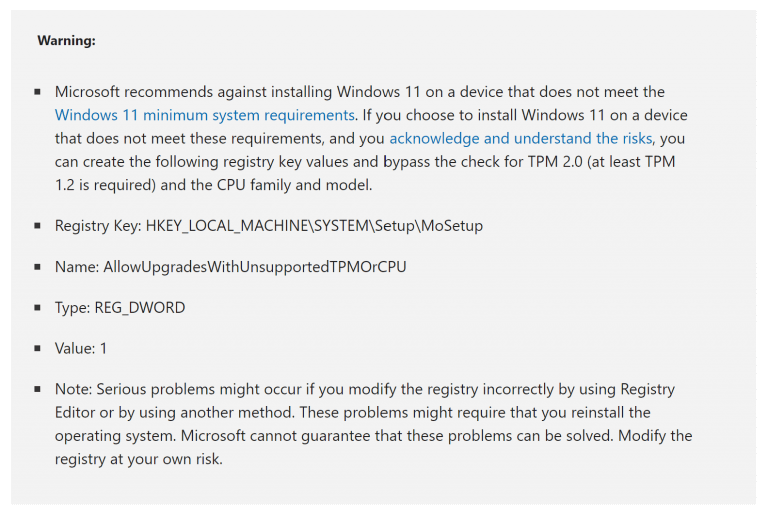
First off, we want to talk about some support pages. On the new “Ways to install Windows 11″ support page, Microsoft mentions installing Windows 11 on a device that does not meet the minimum system requirements. It highlights how you can use a registry hack (and actually provides the registry settings) to bypass the TPM and CPU checks in the Windows 11 Installation Assistant:

This makes it clear that it is, in fact, possible to run Windows 11 on any hardware. Yet, a second support page also explains what might happen if you do so. It explains that it is not recommended, and the device might malfunction. Microsoft also makes it clear that “devices that do not meet these system requirements will no longer be guaranteed to receive updates,” So there it is.

We tested this out for ourselves. We pulled out a 13-year-old ThinkPad X200 running Windows 7, downloaded the Windows 11 Media Creation Tool (NOT the Installation Assistant), and saved a Windows 11 ISO File to our system. After mounting it, we launched the setup.exe file, and Windows 7 upgraded to Windows 11 (but didn’t properly activate, since there’s no official upgrade path this way.) We also were able to find some driver updates, as well as definition updates for Microsoft Defender.

Previously, when we tried to update this very same laptop to Windows 11 using Microsoft’s own Windows Insider Windows 11 ISO files, it was blocked for the lack of TPM, as well as the CPU being too outdated. The new ISO file from the Media Creation Tool seems to have removed the block.

Using the Media Creation Tool, and the ISO file it downloads, Windows 11 installed fine. We didn’t We didn’t have to tweak the registry, etc, but we did get a warning about not meeting requirements. See our above thread for the full details. A fellow Twitter user also replied to us, indicating that he did the same on his newer “unsupported” ThinkPad running Windows 10, and everything worked fine after — so we’re not alone in our journey.

Based on our experience, and these support pages, it just as well seems as though Microsoft did back off the hardware requirements for Windows 11, with the listed caveat of not getting security updates. As far as what this means for running Windows on a Mac, we’re going to test that out at a later point and will update this post accordingly.

Have you tried updating unsupported devices to Windows 11? Tell us about how it went for you in the comments below.

Ninja Turtles, SpongeBob, the Rugrats and more fight it out on Xbox consoles today

Nickelodeon All-Star Brawl is now live on Microsoft’s Xbox Series X and Xbox One console families. This family-friendly multiplayer title brings together a variety of popular kids cartoons, ranging from the Teenage Mutant Ninja Turtles and The Wild Thornberrys to Hey Arnold! and Rugrats, to create a chaotic fighting game in the vein of Nintendo’s hit Smash Bros series.

Nickelodeon All-Star Brawl supports up to four players in both online and local multiplayer matches and features 4K Ultra HD visuals with over 60 frames per second when played on an Xbox Series X console. The game also supports cross-buy and cross-play between the Xbox One and Xbox Series X (and S) versions which means that buying it on one console generation will unlock it on the other and players on both can play with each other.

Here’s the official game description and trailer:

Brawl it out as your favorite Nickelodeon characters in bombastic platform battles! With a power-packed cast of heroes from the Nickelodeon universe, face-off with all-stars from SpongeBob Squarepants, Teenage Mutant Ninja Turtles, The Loud House, Danny Phantom, Aaahh!!! Real Monsters, The Wild Thornberrys, Hey Arnold!, Rugrats, and more to determine ultimate animation dominance. With unique move sets and attacks inspired by their personalities, each character has an individual style of play enabling endless action for Nickelodeon’s legion of fans. Select your favorite and then let the intense brawls begin with online and local multiplayer action.

Nickelodeon All-Star Brawl is currently on sale with a 20% discount which brings its price down from $49.99 to $39.99.

Want more Xbox gaming news? Follow us on Pinterest, Facebook, and Twitter.

The Epic Games Store is now available in the Windows 11 Microsoft Store

Following on from the recent arrival of Opera and Discord to the Windows 11 (and 10 if you’re old-school) Microsoft Store app store, the Epic Games Store is now available to download alongside all of the other native store apps.

The Epic Games Store app is basically the same one that can be downloaded from the official Epic Games website with its updates being managed by Epic instead of the Microsoft Store.

While the addition of an app store to an app store may seem a little strange at first, it makes a lot more sense when taking into account that the aim is to make app discover easier for casual Windows users. Now, instead of opening a browser and searching for the Epic Games Store installation web page, and potentially being tricked into downloading a fake version infected with malware, users can simply open the Microsoft Store app and download it from there.

It should be noted that downloading the Epic Games Store app from the Microsoft Store doesn’t offer any more benefits than grabbing it from the official website so there’s no need for those who already have it installed to download it again.

The Epic Games Store app is the online storefront for the Epic Games digital video game store where users can download a wide variety of PC video games from Fortnite to the latest Battlefield title. If you can’t find a PC video game you’re after in the Microsoft Store, it can likely be found in the Epic Games Store.

Want more Windows news? Follow us on Twitter and Facebook.

You can now remove annoying followers on the Windows Twitter app and web

The Twitter web experience and the official Twitter app for Windows 11 and Windows 10 devices have begun rolling out the new Twitter Communities feature and the ability to manage followers from either their profile or an account’s Followers page.

The new Follower functionality is actually rather useful as not only does it allow users to manage their followers from one location (the Followers page) but it also lets them force an account to unfollow them.

Previously, Twitter users would have to block and then unblock an account to stealthily force them to unfollow but now this can be done with one quick click on the new Remove this follower option which is available via the ellipsis menu next to a user’s name on the Followers list.

Twitter’s new Communities feature is curious as it lets admins invite other users to participate in conversations posted in a community but all of the posts by community members will still be viewable by the general public, like most posts on Twitter.

Right now, participation in Twitter Communities is invite only but the functionality does appear to be live on both the Windows app and the web.

Here’s the full release notes for all of the major changes made to the Twitter web and Windows app over the past month or so:

New

  • Communities: We’re beginning to roll out Communities, a way to connect with others about an interest on Twitter. Communities are invite-only for now as we build and update based on your feedback. Learn more from @HiCommunities here!
  • Followers Management: We’re experimenting with giving you more tools to manage your followers. In the Followers screen for your account, there’s a new context menu which allows you to mute, block, report, share a profile, or remove the follower.
  • New Tweets Bar: You may notice a new Tweets bar at the top of your home timeline when new Tweets come in. We’ve also been tweaking how we insert new Tweets into the timeline to prevent the Tweets you’re viewing from shifting around.
  • Search: When using search, you may be presented with a dialog to let us know whether you found what you’re looking for. This helps us further improve search results.
  • Spaces: The end screen for a Space will now show additional information including hosts, co-hosts, and speakers from the Space, allowing you to follow their accounts.

Updated

  • Accessibility: Improved color contrast of Spaces captions when the increased color contrast setting is enabled.
  • Popovers: Most popover menus will now automatically dismiss when scrolling.
  • Spaces: We’ve improved how we represent the number of other listeners currently within a Space.
  • Settings: The SMS notifications preference has been removed.
  • Tweets: You’ll no longer see the reply context on focal Tweets within the Tweet detail when viewing your own thread.

Fixed

  • Accessibility: Updated color contrast for links when using the default blue display color with increased color contrast enabled.
  • Accessibility: The social context for Tweets will now be properly read as part of the Tweet content by screen readers.
  • Accessibility: Labels on the profile page are no longer classified as buttons instead of text elements.
  • Carousels: Resolved an issue where clicking on video within carousels would open the Tweet media viewer.
  • Login: You should no longer be occasionally shown an error dialog when selecting “Forgot Password” on the login menu.
  • Modals: Corrected issues where refreshing the page from a modal screen would cause the incorrect background page to be loaded.
  • Profile: We no longer render the pending state button if you’ve sent a follow request to someone previously, and their account is no longer protected.
  • Settings: Attempting to use a suggested name when changing your username should no longer show you a duplicate name error.
  • Settings: Newly muted accounts will properly show in the muted accounts settings screen without needing to refresh the current session.
  • Sign Up: When cancelling the sign up flow after opening from the home screen, you’ll now be properly taken back to the home screen.
  • Spaces: Clicking on an avatar with a Space presence ring will no longer open the profile page on certain devices.
  • Spaces: The dock will no longer block the composer when attempting to Tweet a link to a Space on mobile devices.
  • Spaces: Clicking the “Set reminder” button on the Space detail screen will now properly set a reminder.
  • Video: Fixed issues with certain labels on videos rendering with black text on a dark background in dim or lights out mode.
  • Video: We’ve improved video uploads on iOS Safari where videos could be uploaded in an improper format.
  • Voice Tweets: The captions toggle will now only apply to the currently playing Tweet, and not other voice Tweets which may be visible.

Have you used any of Twitter’s new features yet? Let us know what you thought of them in the comments below and then follow us on Twitter for more Windows app news.

Twitter
Twitter
Developer:
Twitter Inc.
Price:
Free

Windows Mixed Reality is Not Installing? Here’s What to do

Windows Mixed Reality allows users to experience virtual reality with a compatible headset. The latter is a critical requirement, but users experienced issues even with a headset. More often than not, Windows Mixed Reality was not installing.

The error message read, Couldn’t install Windows Mixed Reality, and a reboot didn’t fix the problem. You can’t be certain whether it’s issues with the installation process or another reason to blame, given the lack of error codes.

Why is Windows Mixed Reality not installing?

  • Your PC doesn’t meet the minimum system requirements for the Mixed Reality Portal.
  • A bug in the installed version of the Windows.
  • The installed driver or Mixed Reality headsets are not compatible.
  • Corrupt system files.

What can I do if Windows Mixed Reality can’t be installed?

Before we start with the slightly complex solutions, try these quick ones first:

  • Make sure your PC meets the minimum system requirements if you face frequent Windows Mixed Reality issues.
  • Check for an unstable Internet connection. If that’s the case, switch to Ethernet instead of Wi-Fi or vice-versa when Windows Mixed Reality won’t install after update
  • Plug the headset into another compatible USB 3.0 port.
  • When getting the error message, unplug the headset, retry the installation without closing the error message, and check whether Windows Mixed Reality is still not installing.

If none work, move to the fixes listed next.

1. Update Windows

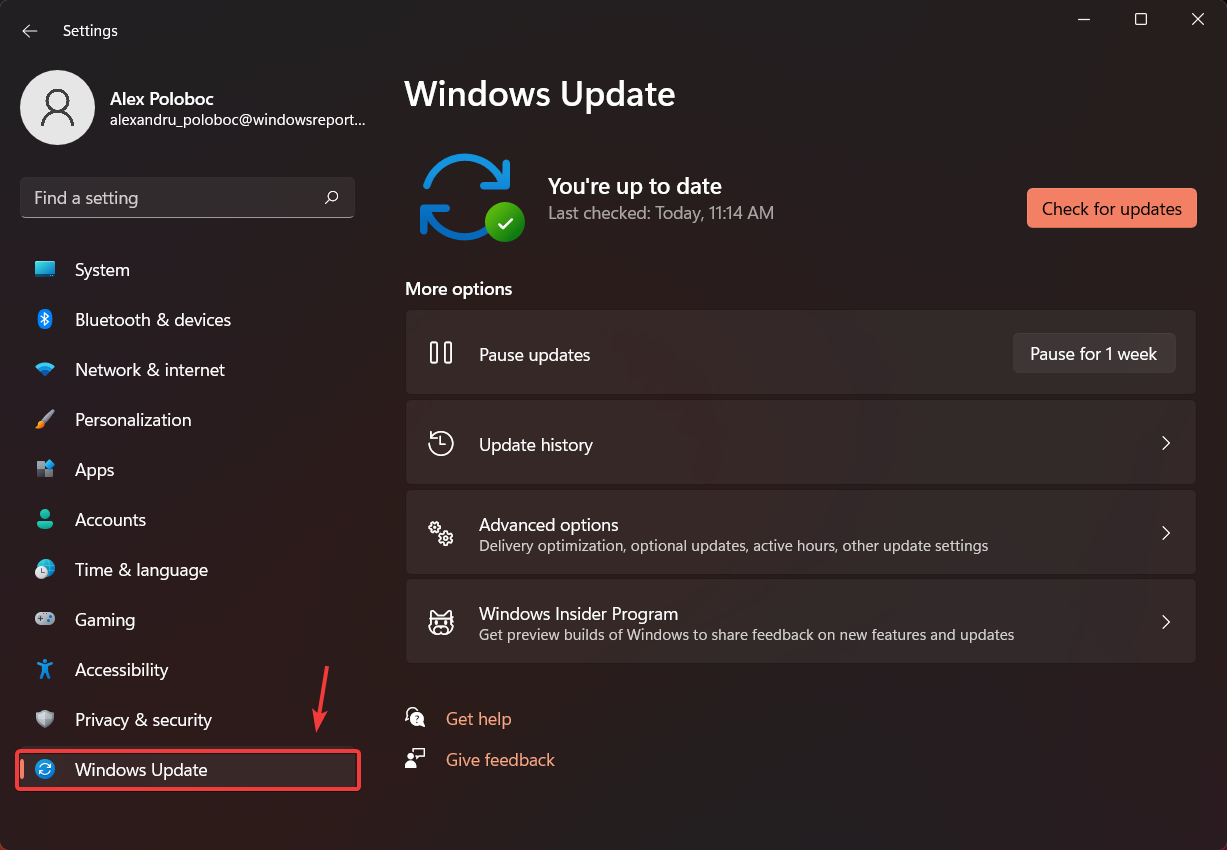
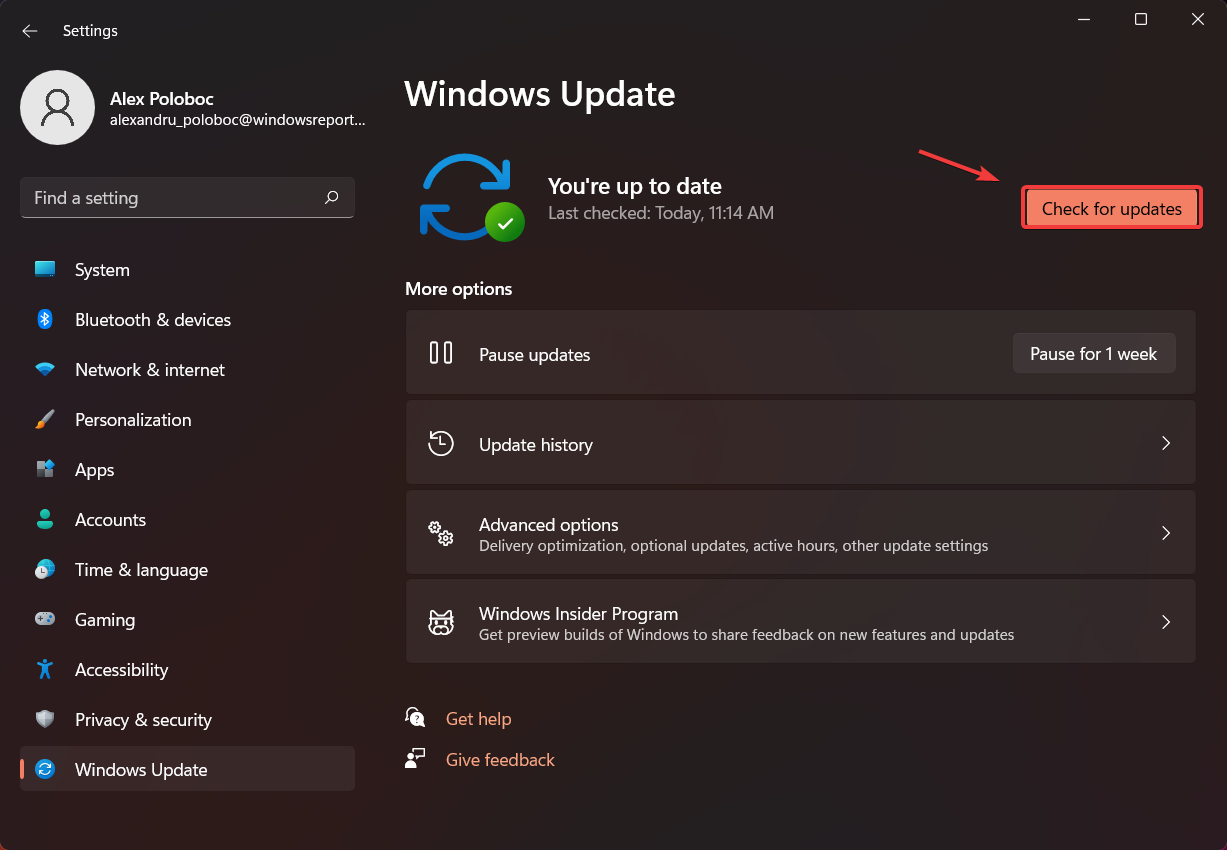
  1. Press Windows + I to open Settings, go to Windows Update from the navigation pane, and click on Check for updates.update to fix windows mixed reality not installing
  2. If an update is listed after the scan, click on Download & install.
  3. Now, click on Advanced options.advanced options
  4. Click Optional updates under Additional options. 
  5. Expand all the entries here, tick the checkboxes for available updates, and click Download & install.optional updates

2. Install the latest drivers

  1. Press Windows + X to open the Power User menu, and select Device Manager from the list.
  2. Expand the Display adapters entry, right-click on the graphics adapter, and select Update driver.update drivers to fix windows mixed reality not installing
  3. Choose Search automatically for drivers and let Windows find the best driver available locally and install it.search automatically
  4. Finally, restart the computer and try setting up Windows Mixed Reality.

Often, an outdated driver may trigger issues and be the reason Windows Mixed Reality is not installing. In this case, update the graphics driver.

If Windows can’t find a newer version, head to the manufacturer’s website, locate the latest version, and manually install the driver. Similarly, you should update the headset drivers as well.

3. Repair the corrupt system files

  1. Press Windows + R to open Run, type cmd, and hit Ctrl + Shift + Enter.cmd
  2. Click Yes in the UAC prompt.
  3. Now, paste the following commands individually and hit Enter after each: DISM /Online /Cleanup-Image /CheckHealth DISM /Online /Cleanup-Image /ScanHealth DISM /Online /Cleanup-Image /RestoreHealth
  4. Execute the following command to run the SFC scan: sfc /scannowsfc scan to fix windows mixed reality not installing
  5. Finally, reboot the PC.

Corrupt system files could be why you couldn’t install Windows Mixed Reality, and it says, needs an update, even when running the latest version of the OS. Simply run the DISM commands and the SFC scan to fix things.

4. Reinstall the Mixed Reality software

  1. Press Windows + I to open Settings, go to Apps from the left pane, and click on Installed apps.installed apps
  2. Click the ellipsis next to Mixed Reality Portal, and select Uninstall.uninstall to fix windows mixed reality not installing
  3. Again, click Uninstall in the confirmation prompt.
  4. Now, open the Microsoft Store, search for Windows Mixed Reality, and click on the Get button to install it.mixed reality portal

5. Reinstall the Analog.Holographic capability

  1. Unplug the HMD (Head Mounted Device). 
  2. Press Windows + S to open Search, type Command Prompt in the text field, right-click on the relevant search result, and select Run as administrator.
  3. Click Yes in the prompt.
  4. Now, paste the following command and hit Enter: dism /online /remove-capability /capabilityname:Analog.Holographic.Desktop~~~~0.0.1.0dism
  5. Finally, check for Windows updates and install any available components.

6. Make changes to the registry

Tip icon Tip
Modifying the Registry is tricky, and any experimental changes can severely harm the PC. Make sure you follow the steps as it is and do not modify any other keys or DWORDs. To be safe, create a restore point beforehand.
  1. Disconnect the HMD.
  2. Press Windows + R to open Run, type regedit in the text field, and hit Enter.
  3. Click Yes in the confirmation prompt.
  4. Paste the following path in the address bar and hit Enter or navigate to it: HKEY_CURRENT_USER/Software/Microsoft/Windows/CurrentVersion/Holographiclem_with/path
  5. Now, double-click the FirstRunSucceeded key, change its Value data to 1, and click OK to save the changes.change to fix windows mixed reality not installing
  6. Right-click on the empty portion, hover the cursor over New, select DWORD (32-bit) Value, and name it AllowFailedSystemChecks (if it doesn’t already exist).new DWORD
  7. Double-click the newly created DWORD and set its Value data to 1.
  8. Similarly, create the OnDeviceLearningCompleted DWORD (if it doesn’t already exist) and set the Value data to 1. 
  9. Now, reboot the PC, reinstall WMR, connect the Head Mounted Device, and it should work properly without throwing any errors.

7. Perform an in-place upgrade

  1. Go to Microsoft’s official website, choose the OS edition and product language, and then download the Windows 11 ISO.
  2. Run the ISO file and click Open in the confirmation box.
  3. Double-click the setup.exe file.setup.exe
  4. Click Yes in the confirmation box.
  5. Click Next in the Windows 11 setup.proceed
  6. Read Microsoft’s license terms, and click Accept to agree to these.
  7. Verify that the setup reads, Keep personal files and apps, and then click Install.in-place upgrade to fix windows mixed reality not installing
  8. Wait for the repair upgrade to complete.

An in-place upgrade can fix things when Windows Mixed Reality is not installing, and you don’t lose any files or apps, as is the case with a reinstall using a bootable USB. And you should now be able to use the reality portal.

What do you need for Windows Mixed Reality?

Tip icon Tip
The minimum system requirements listed here are for Windows Mixed Reality 90Hz PC. They are slightly different for 60Hz and when using a high-resolution reality device like HP Reverb G2.
  • OS: Windows 10 version 20H2 or newer ( All editions except the N version and Windows Pro in S mode).
  • Processor: Intel Core i5 4590 (4th generation, quad-core or better), AMD Ryzen 5 1400 3.4Ghz (quad-core or better)
  • Storage space: 10 GB or more
  • RAM: 8 GB DDR3
  • Graphics driver: WDDM (Windows Display Driver Model) 2.2
  • Graphics card: NVIDIA GTX 1060 (or better) DX12-capable discrete GPU, AMD RX 470/570 (or better) DX12-capable discrete GPU
  • Display: Integrated or external VGA (800 x 600 or better)
  • Graphics display port: HDMI 2.0 or DP (DisplayPort) 1.2
  • Bluetooth version: Bluetooth 4.0
  • USB: USB 3.0
  • Headset framerate: 90 Hz 

Once you have fixed things that lead to Windows Mixed Reality not installing, learn how to use the Mixed Reality Portal.

And if you find Mixed Reality USB 3.0 not working after the installation, updating the OS will do the trick!

For any queries or to share what worked for you, drop a comment below.

Hubris game preview: A VR Sci-Fi adventure with AAA-quality visuals

Hubris is an upcoming VR action-adventure game with stunning graphic quality which is set in an all-new Sci-Fi universe including a mini-series called Terra-former. It’s currently in development by Cyborn, a Belgian studio with years of experience in 3D animation.

Before we get started, here is their Hubris announcement trailer, which will help you understand the game we’ll be talking about today:

Because they were nominated for the “Most Promising Game” award in the Belgian Game Awards 2021, I had the honor of being one of the select few to have an early taste of Hubris. I first tested the roughly 1-hour demo in their stunning-looking offices and later got access to an even more polished build.

Speaking of their office building, the location in the center of Antwerp, Belgium, is truly impressive! They even have their own theatre:

Spider-Man says hi!

A VR adventure in a Sci-Fi universe

You might have noticed the three-dotted design in the key art above or on the suit of the character below. This is the emblem of the OOO or the Order-Of-Objectivity. This order governs the rules in this Sci-Fi universe and with their treaties, they aim to prevent war between the different planets and factions.

OOO, what do we have here?

As the player, you take on the role of a recruit in training to become an OOO agent. Together with a more experienced pilot called Lucia, you are sent to the planetoid belt around a twin-planet system and you’re tasked with searching for the mysterious agent Cyanha.

From the get-go, it’s clear that a lot of thought went into this universe and its characters and it feels like you set foot in a plotline that has been spinning tales for centuries.

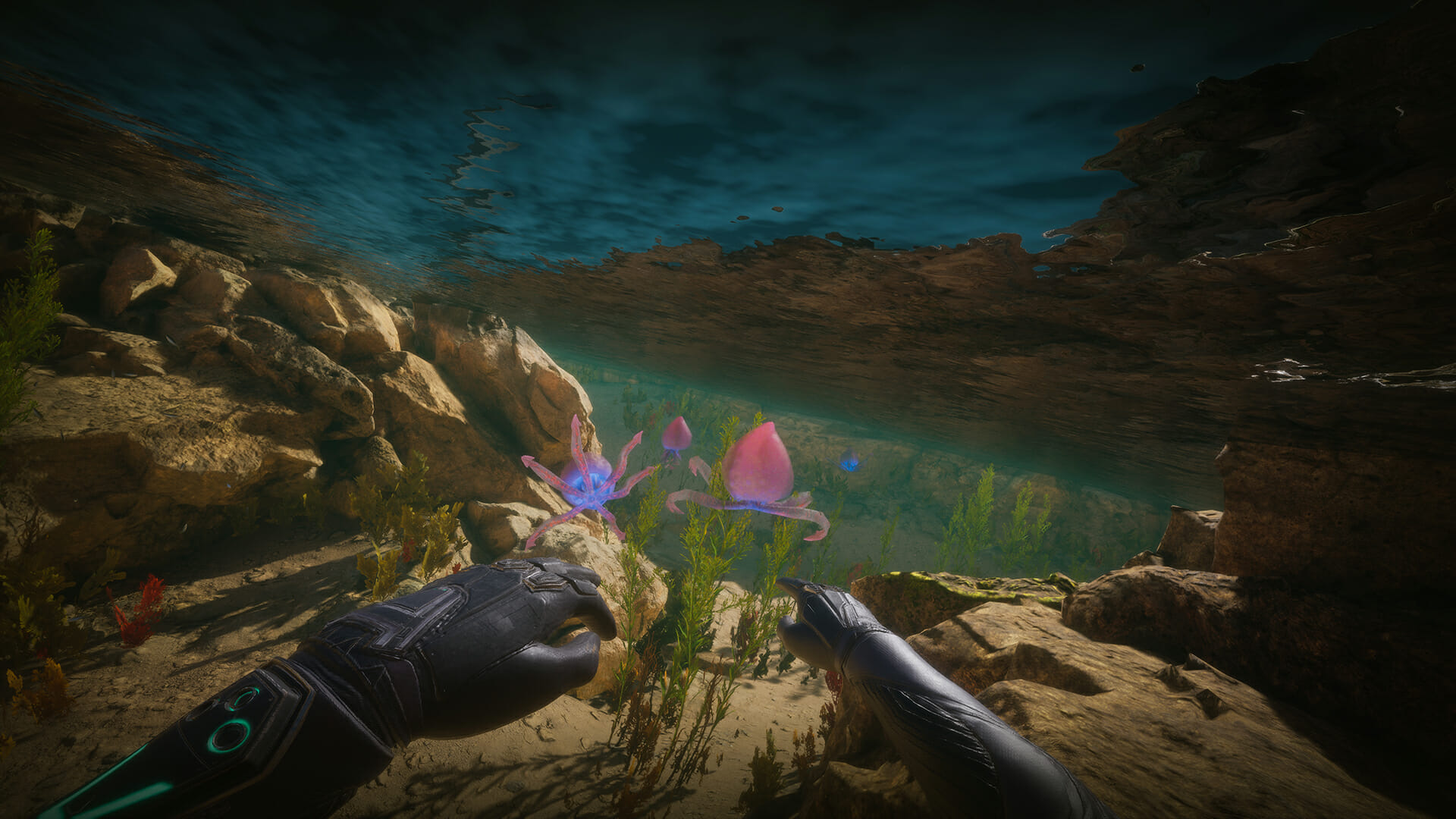
The demo I played takes place at the start of the game where you land on an alien planet with lots of aquatic locations and the accompanying wildlife swimming around in them.

Squids are truly ink-redible creatures!

AAA quality visuals

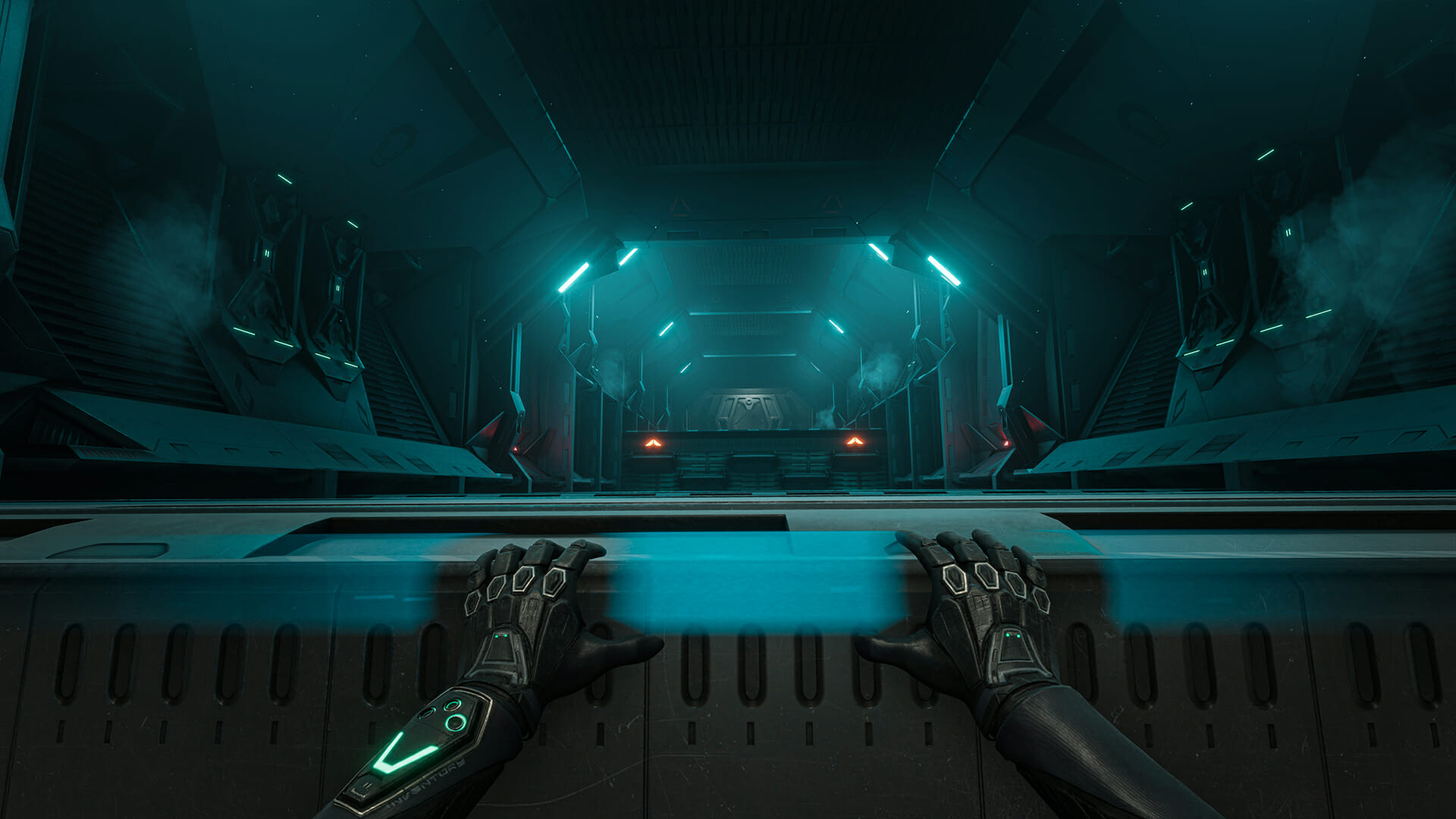
What’s immediately apparent is how great the game looks for a VR title. Recently, most Virtual Reality games have been aiming at stand-alone models like the Oculus Quest 2, which can’t run graphics as detailed as what I was able to behold here. With Hubris’ focus on the more high-end VR market, it’s able to showcase some truly impressive textures and details.*

*Hubris will release on all major VR headsets, including the Oculus Quest, but playing the PC VR version will result in vastly improved visual quality.

The 3D animation roots of the studio also showed themselves during my playthrough, with great-looking models, credible facial expressions, and lifelike animations made possible through motion capture. Looking at the game, it’s evident why this is one the biggest production budgets to ever come out of a Belgian videogame studio.

“Hair goes nothing”

Interesting gameplay

VR games often offer a teleportation mechanic but in Hubris you’ll have 1:1 movement through the analog sticks and your actual body moving around in real space. VR motion sickness is a constant concern for such titles and this became quickly apparent as my colleague who joined me for the initial test couldn’t stomach the demo for very long.

For those not very familiar with VR titles, motion sickness is a hurdle every game needs to cross and this game having actual running + jumping in it will make people who are sensitive to it struggle. VR legs are a thing though and playing more does make you more resistant to the phenomenon.

Giddy up!

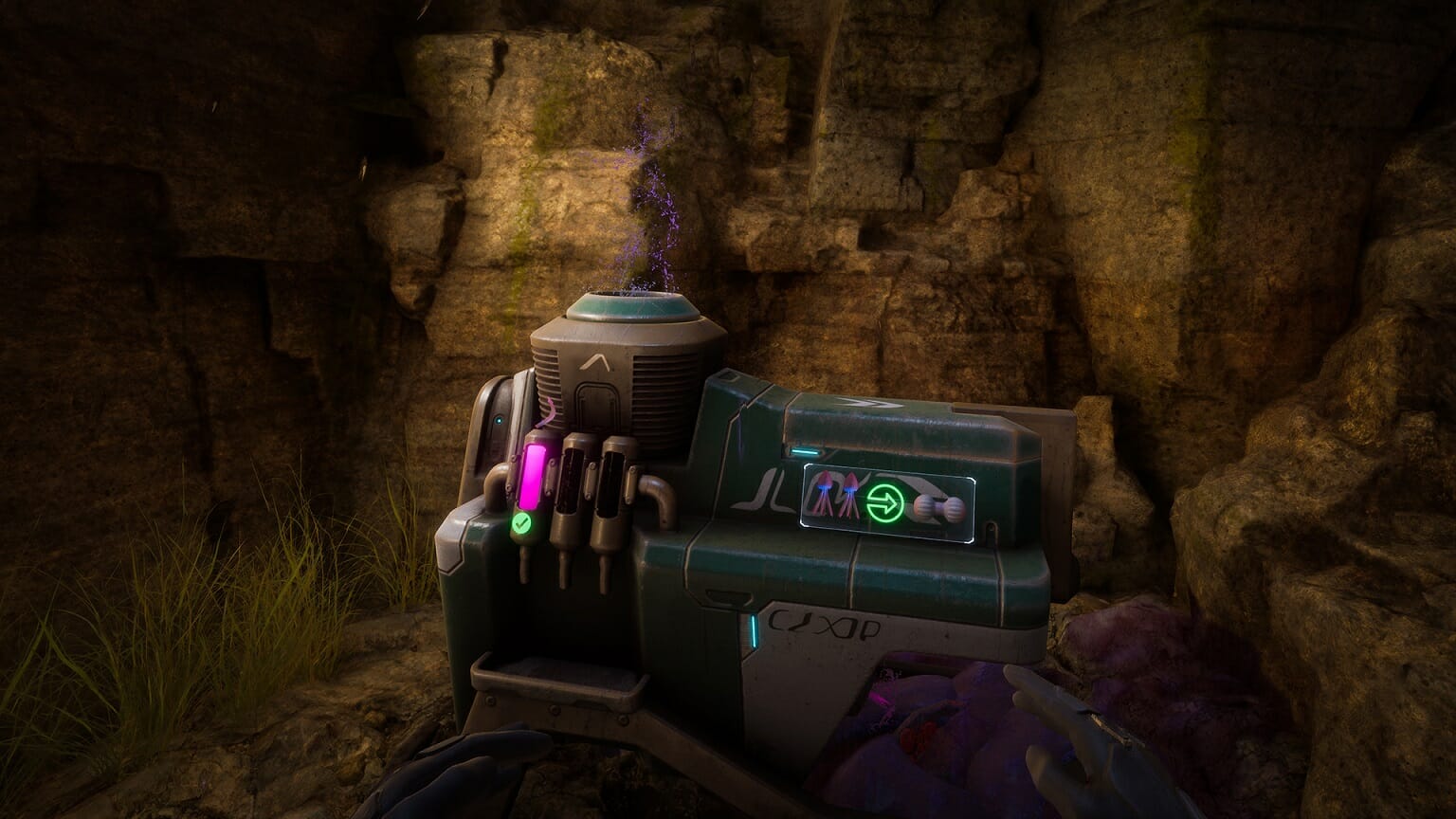
The main way Hubris tries to combat this is by making the player perform physical activities. Like many other VR adventures, you’ll be climbing a lot of surfaces, from ledges to ladders. You’ll even be hanging from alien tentacles that you fabricate and shoot across gaps.

Yes really. You’ll have to hunt down the squids from before, grab their tentacles and mix them in a machine to make an elastic alien rope that you can use to cross large crevices. Fun fact: this rope behaved very realistically and could be stretched as far as you could manage, it reminded me of the famous electricity chord video that was going around when The Last of Us Part II was released.

1. Insert alien Squid tentacles | 2. ??? | 3. Profit!

What I’ve never experienced before however, was the swimming mechanics. As stated before, this planet has a lot of water and you’ll be swimming through small pools of water and submerging yourself through tunnels. You move around by making swimming motions with your hands and this felt really awesome to do in VR.

Not combat ready

While there was a lot of exploration and typical VR motion controls, the opening hour of the game doesn’t have a lot of combat in it. You first unlock an underwater gun to shoot at the squid creatures and near the end, you’ll be shooting giant tick-like bugs with another weapon, but the real combat against humans wasn’t present in this build. And the existing opposition all went down with a single well-aimed shot.

Water pistols are standard OOO agent equipment!

The trailer did promise a lot of humanoid shootouts though, so I’m anxious to try that out and also see how the story unfolds. The worldbuilding here is masterful and I’d like to explore the planet even more. I didn’t get to hear a lot of dialogue in the game yet and most of the story was told to me by the developers in a brief session before playing.

Early thoughts on Hubris

What I’ve played made me really excited for the full release, and Hubris certainly will not disappoint in the graphical department. Few other VR titles reach this level of detail with perhaps only Valve’s own Half-Life: Alyx doing better.

The exploration gameplay was fun and engaging, but the opening hour left me a little bit hungry for more action, something I’m sure we’ll get to see more of in the near future. It’s definitely a title to keep an eye on and one I’m eager to review. If you need more info, you can find out more about Hubris on their Website, Steam, or Twitter.

*Disclaimer: Preview copy played on Oculus Quest 2 with an Oculus Link cable, running on a Desktop computer. Hubris will release in the first half of 2022 on all major VR platforms.

Blu-Ray Creator Software: 8 Best to use in 2026

Blu-ray is, without doubt, the most powerful video content hub today, which is a marked improvement to the preceding DVD medium.

However, its convenience of usage on PC is less ideal compared to that of the DVD medium. Nevertheless, you can still enjoy top-quality videos (from various storage sources) in Blu-Ray formats.

This can be done simply by creating, or in more explicit terms – burning – high-quality videos (from various sources) on Blu-Ray discs. Hence, in this piece, we will be bringing you some of the most reliable Blu-Ray creator software out there.

Decades ago, the CD was the dominant video storage medium. Later on, DVDs took over. And now we have Blu-Ray, which is available in three basic variants – disc, ISO image file, and folders.

To create quality videos in any of these variants, you’ll need a special kind of computer software, technically tagged Blu-ray creator software. The final step during post-production is the DVD authoring process.

It is the process of taking video and combining it with images, artwork, user menus, chapter points, text, music, overdubs, commentary, animation, autoplay, repeat settings, and more.

Therefore, for your convenience, we’ll be looking at six of the best blu-ray creator and DVD authoring software. Any of which you can easily employ to create videos in Blu-ray formats.

What are the best Blu-ray creator tools for PC?

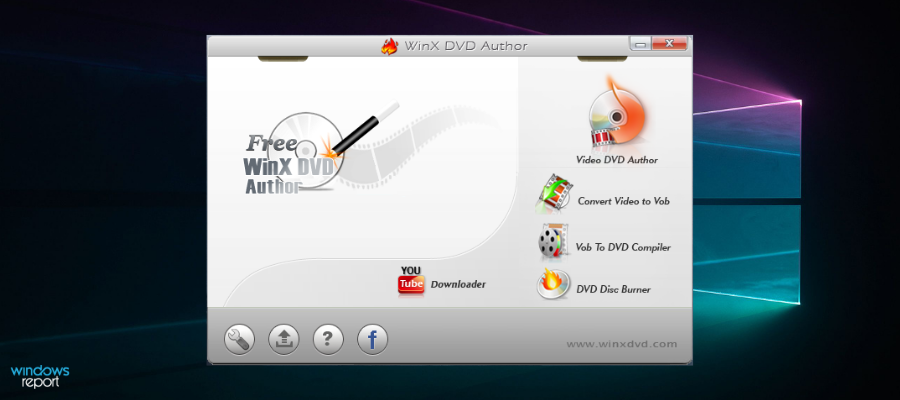
WinX DVD Author

WinX is the best Free DVD Author software you can find to make personalized DVDs.

This package also includes WinX DVD Ripper Platinum and WinX HD Video Converter Deluxe. Together makes a complete DVD authoring package deal.

Unlike other free DVD burners that support only one or restricted inputs only, WinX accepts almost all your videos. Furthermore, it features an inbuilt option to cut off unpleasant segments without hassle.

Additionally,  it permits you to add (*.srt) subtitles to make the Blu-ray DVD disc look more professional and intelligible.

Other key features include:

  • Built-in YouTube downloader
  • Menu creator
  • Aspect ratio settings

The best about WinX is its clean and intuitive multilingual interface, where you won’t see any ads. The installer does not contain any extras bundled, which makes this software easy to install and use.

WinX DVD Author

WinX DVD Author

Fast speed and easy to use, it helps you to create personalized and high-quality Blu-ray DVDs.
Check priceVisit website

NCH Express Burn

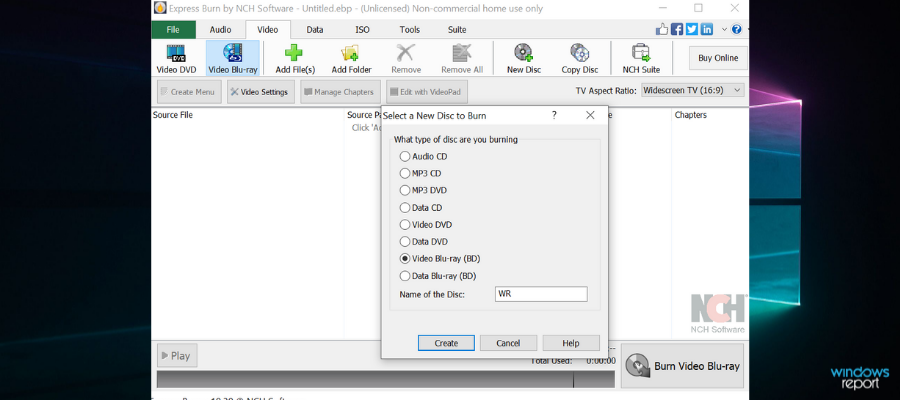
NCH Express Burn is an optical disc authoring program for  Windows and  Mac. It allows you to burn audio, data, and video discs to CD, DVD, or Blu-Ray disc formats.

The software supports all types of CD, CD-R, or CD-RW so you can easily create data, MP3, or audio CDs. Additionally, you can burn audio, video, or data to DVDs or Blu-ray formats.

It features all the DVD authoring toolbox that will help you to create your own menus, choose from templates or add custom images to any template.

The application is easy to use, you just drag and drop files directly into the application and the software does the rest.

It is compatible with all 64 bit Windows versions, starting with Windows XP until the latest Windows 10. It can also be installed and used on Mac OS X 10.5 or above.

The most important features of NCH Express Burn include:

  • Burn data discs as ISO/Joliet, UDF or Hybrid
  • Burn Blu-ray data and video discs
  • Supports dual layer DVD/Blu-ray burning
  • Command line operation for automation and integration with other programs
  • Includes menu and button templates for DVD authoring
  • Create and manage chapters on DVD and Blu-ray discs
NCH Express Burn

NCH Express Burn

Burn Blu-ray disc easy and fast, with menu and button templates for DVD authoring.
Check priceVisit website

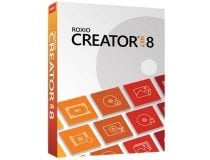
Roxio Creator NXT 8

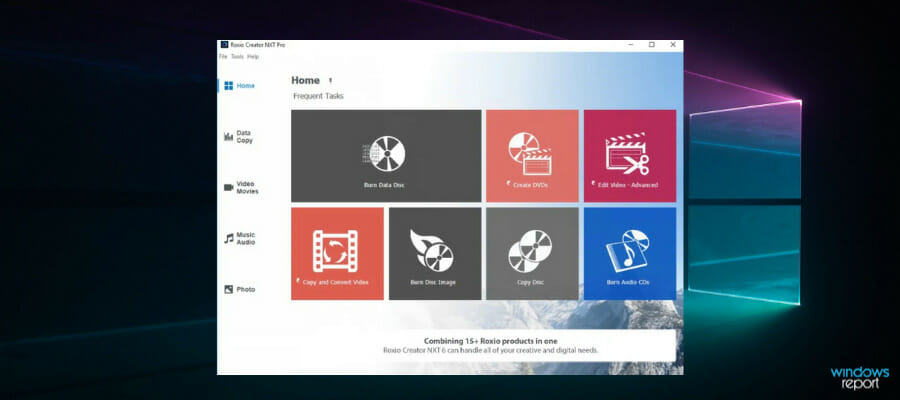
Roxio Creator NXT 8 is a complete multimedia suite for video and audio files. 

It is another great choice for burning to Blu-Ray formats without losing quality. It can actually help you improve the quality with its integrated video editor and audio file enhancer.

To start working on your media files, you just have to insert them into the workspace with drag-and-drop.

Roxio provides several editing options that can help you create professional projects. You get to add menus, select from multiple templates, and more. 

If you need more advanced editing options, you can use the Roxio VideoWave editor integrated into this suite. 

The burning software can also help you create physical disc labels. You get to create fully polished projects and keep your media content organized.

Other key features of Roxio DVD Creator include:

  • Webcam and screen recording
  • Burn multiple CDs, DVDs, and Blu-rays at the same time
  • Can copy most files types
  • Encryption feature

Roxio Creator NXT 8 is a licensed-based product. If you are not satisfied with its features, you can get your money back in 30 days.

Roxio Creator NXT 8

Roxio Creator NXT 8

Create professional-level Blu-rays with multiple templates, audio quality enhancer, chapter creator, security features, and many more.
Check priceVisit website

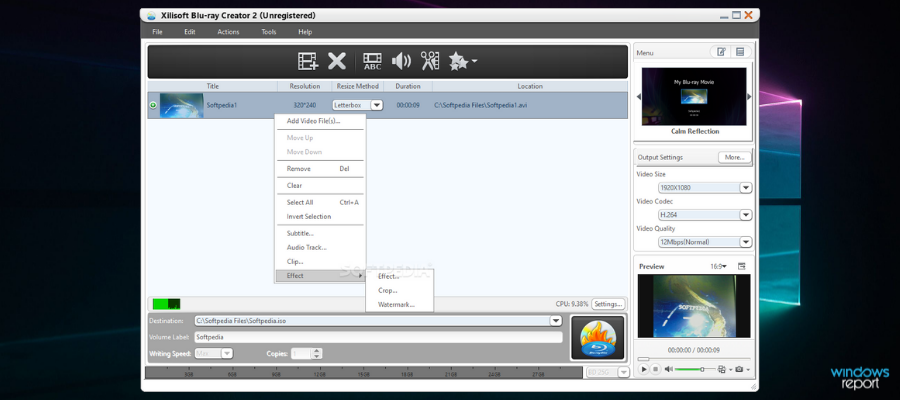
Xilisoft Blu-ray Creator

Xilisoft Blu-ray Creator rounds up our list of top Blu-ray creator software. It is one of the most popular programs, widely employed for creating Blu-ray movies/videos on Windows PC.

It is specially designed for Windows, and it is compatible with virtually all known Windows computers, basically Windows 10/8.1/8/7/Vista/XP.

The software is equipped to convert all known video formats to Blu-ray (or DVD). And its output is also multi-format, with support for BD-50, BD-25, BD-R and BD-RE, ISO image, DVD disc, and more.

With this wide range of support, Xilisoft comfortably stands out as one of the best choices for converting Camcorder/ Camera/Phone/Downloaded videos to Blu-ray format(s) videos.

Xilisoft Blu Ray Creator also offers you the tools to customize your videos. You can trim and clip, add various effects, watermarks, insert pictures, and more.

You can easily compare before and after videos in real-time since the software allows you to play them side by side.

Some of the noteworthy features of Xilisoft include:

  • Multi-core CPU support
  • Multi-format input & output support
  • Optimized video conversion rate
  • Subtitles and audio file import
  • Multiple HD resolutions support

Xilisoft has a free version and a licensed version with a 30-day money-back guarantee. 

Xilisoft Blu-ray Creator

Xilisoft Blu-ray Creator

Convert any video to Blue-ray with XiliSoft’s multiple HD resolutions support and optimized video conversion rate.
Check price Visit website

DVDFab Blu-ray

DVDFab is arguably the leading developer in the aspect of DVD/Blu-ray solutions. The software enables its users to burn virtually all forms of videos (including HD and UHD videos) on Blu-ray discs.

You can also convert such videos to Blu-ray ISO files or Blu-ray folders, before backing it up on your PC. With this, you can enjoy an unmatched Blu-ray experience, on movies (or videos), which, originally, were not.

Besides, DVDFab Blu ray creator software is specially designed for Windows and Mac PCs. For Windows, the software is compatible with modern Windows OS, from Win7 to Win10.

Furthermore, it supports all notable Blu ray output formats, including BD-R, BD-RE, BD-50, BD-25, BD-5, and BD-9. Essentially, to play created Blu-ray videos on your computer, you must have a Blu-ray drive connected to your system.

Key features of DVDFab Blu-ray creator software include multi-format support (for MKV, MP4, FLV, WMA, 3GP, and many more), ISO backup support, Intel Quick Sync support, an automatic shut down, progress monitoring/review, intuitive and customizable UI, preview window and more.

Creating HD and UHD Blu ray from normal videos is quite easy; it involves only four consecutive steps. To create the video from an HD video using this creator software, follow the steps below:

  • Launch DVDFab Blu ray Creator.
  • Load the source video.
  • Select output quality and size.
  • Initiate the creation process.
DVD Fab Blu Ray Creator

DVD Fab Blu Ray Creator

Create Blu-Ray media files from all types of input formats and keep them secure with DVD Fab’s backup support.
Free trialVisit website

Wondershare DVD Creator

Wondershare DVD Creator is a lightweight software that can burn media files of various formats to DVD and Blu-Ray discs.

The Blu-Ray burn feature is only available to Windows users. Wondershare promises a high success rate and a fast process due to advanced, error-preventing technologies.

You can upload ready-made videos and proceed directly to the burn process, or you can edit your video before that. Wondershare has various editing options like trim, crop, brightness adjustments, or special effects.

You can also make your videos easier to follow by using the pre-made templates for chapters and titles. Wondershare also allows to insert and edit subtitles.


The software also helps you create video materials from scratch. You can merge multiple videos together, insert images and create slideshows, combine multiple media files, and more.

Other key features of Wondershare DVD Creator include:

  • Burn multiple videos at the same time
  • CD 
  • Customizable background images/music
  • Thumbnail creator
  • Watermark creator

Wondershare DVD Creator is a licensed product with 3 different versions. It also has a trial version that includes most of the premium functionalities but places a watermark on all your output files.

Wondershare DVD Creator

Wondershare DVD Creator

Enjoy premium quality videos guaranteed by this fast and easy tool with a high success rate!
Free trial Visit website

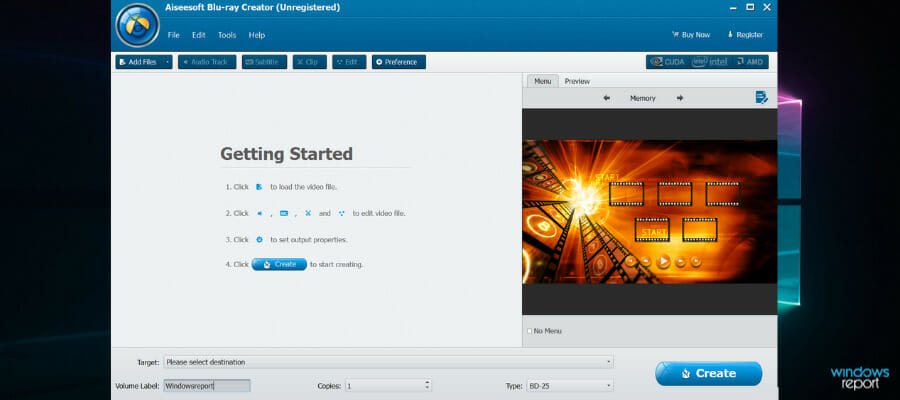
Aiseesoft Blu-ray Creator

Aiseesoft Blu-ray Creator is one of the most widely used programs for creating Blu-ray discs, ISO files, and folders from standard videos. In terms of system (Windows) compatibility, Aiseesoft is probably the best Blu-ray creator software out there.

The software is compatible with virtually all Windows operating systems, from the newest Windows 10 all the way down to Windows XP SP2.

In addition, Aiseesoft doesn’t require any top-end system specification to function properly: Once your system is equipped with – RAM of >1GB, >1 GHz 64-bit processor, and >200MB hard disk space – you are good to go.

Notable features of Aiseesoft Blu-ray Creator include multi-format video support, Video to ISO conversion, external subtitles & audio tracks (customizable), BD-50/BD-25 output formats, customizable template/interface, video editing (clip, watermarks, crop, and the likes), video preview (during conversion and edition), batch burning and many more.

Aiseesoft creator software hosts a highly intuitive user interface, which can easily be navigated by anyone to create Blu-ray videos.

To do this, follow the simple guidelines below:

  • Attach a Blu-ray drive to your desktop/laptop.
  • Slot-in an empty Blu-ray disc.
  • Launch Aiseesoft Blu-ray Creator on your PC.
  • Load video from source, by clicking Add Files on the menu.
  • Customize your settings (add audio/subtitles).
  • Start the conversion process, by clicking Create.
Aiseesoft Blu-ray Creator

Aiseesoft Blu-ray Creator

The best video to Blu-ray creating software which enables you to create Blu-ray disc/folder/ISO file with any video.
Check priceVisit website

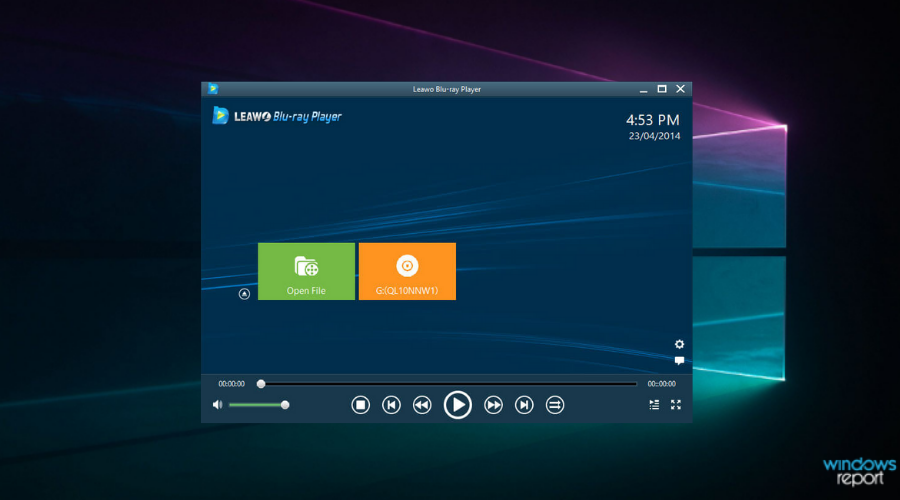
Leawo Blu-ray Creator

Leawo Blu-ray Creator is another popular Blu-ray creator software. It can be employed to convert virtually all formats of videos into Blu-ray. Aside creation of Blu-ray videos, this software can also be used to burn photo slideshows or screenshots on DVD discs.

Leawo Blu-ray Creator is supported on Windows OS (and macOS), and it is compatible with notable Windows versions, from Windows Vista to Windows 10. Also, it’s flexible enough to support over 180 different video/image formats, including MKV, MP4, VOB, MPEG (image), MOV, JPG (image), BMP (image), PNG (image), and many more.

Furthermore, Leawo Blu-ray creator software can create Blu ray videos/images from downloaded HD videos, camcorder videos, screenshots, and phone/web cam-recorded videos among other sources. Supported output formats are typically BD-50 and BD-25 (as well as DVD 5/9).

Key features of Leawo Blu ray creator software include :

  • 40+ preset disc options
  • Multiple video/image formats
  • Slideshow/photo editor
  • Powerful video editor
  • Inbuilt Blu ray media player
  • 4K support
  • Batch file conversion (to Blu-ray)
Leawo Blu-ray Creator

Leawo Blu-ray Creator

Create and convert high-quality videos, create slideshows, edit photos, and play all your media files using just this one software.

The above-outlined Blu-ray creator software is the best option you can get if you are looking to create a Blu-ray disc, ISO image, and/or folder from camcorders, cameras, webcams, online videos, and so on.

By adopting any of the aforementioned software, you can easily create/burn/convert and back up your favorite movies in Blu-ray format(s), without stress.

If you need software that can perform authoring as well as editing, visit our DVD authoring hub.

For more related video editing software, don’t hesitate to visit our Video editing section.

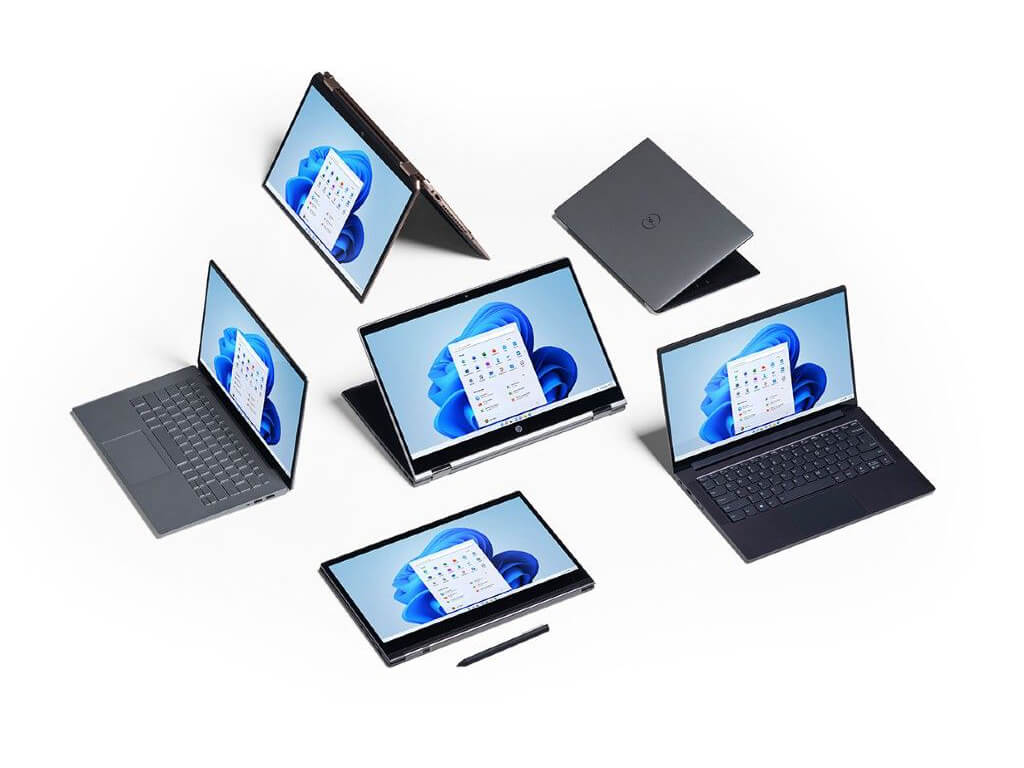
Here are some of the best new PCs that ship with Windows 11

Today is Windows 11 day and that means Microsoft is highlighting the new PCs shipping with the latest and greatest Windows operating system pre-installed. Obviously, Microsoft would like to tout its own Windows 11 integration efforts with its own Surface hardware, but there are other PCs available for purchase from its partners, too. We have a recap of some of these PCs if you’re hoping to buy one soon.

Surface devices

Two weeks ago, Microsoft unveiled a handful of new Surface devices that will come preinstalled with Windows 11 such as the Surface Laptop Studio, Surface Pro 8, Surface Go 3, and Surface Pro X.

For Surface devices, Windows 11 integration involves haptics both on the screens as well as synchronizing with the new Surface Slim Pen 2 to provide even more granular drawing, writing, and sketching experiences. Windows 11 also comes with support for variable refresh rates for up to 120Hz on screen.

Asus

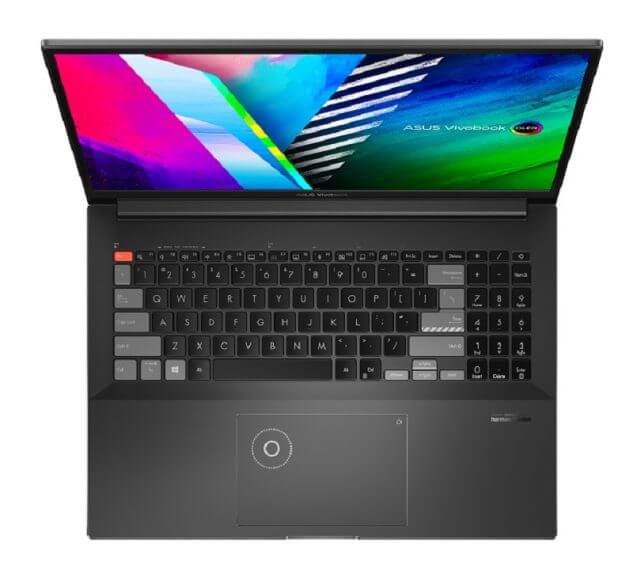
Asus revealed its Windows 11 powered PC lineup a few weeks ago to include the ProArt Studiobook 16 and 16 Pro with OLED, Vivobook Pro 14 and 16X, and Zenbook 14X with OLED. Unlike Microsoft, Asus is experimenting with AMD as well as Intel for its lineup and has put an AMD Ryzen 5000 Series in its ProArt Studiobook Pro 16 OLED as well as a 3rd Generation Intel Xeon workstation processor option. The ProArt Studio will also come with an NVIDIA RTX A5000 or A2000 graphics processor and 16:10 display. All five devices will come with Windows 11 out of the box.

HP

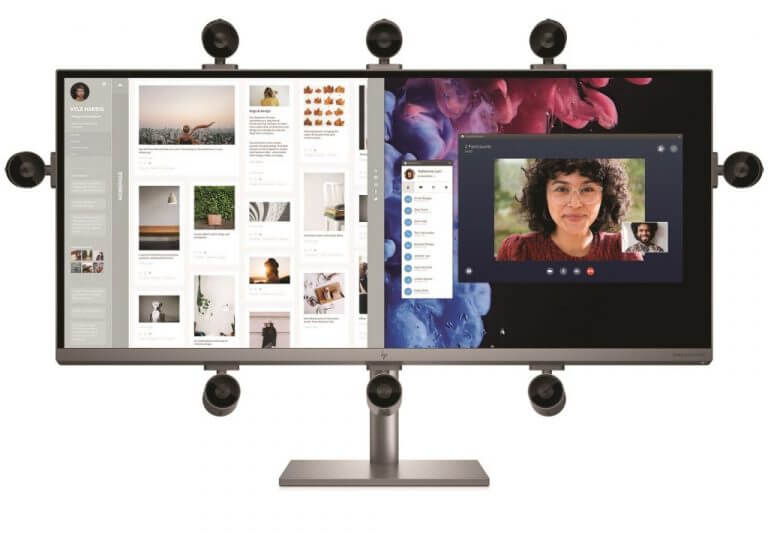
Meanwhile, HP is touting its HP Spectre x360 16 as well as HP ENVY 34 All-in-One PC and its multi-placement webcam feature as well as the HP 11-inch Tablet PC HP 14-inch, HP Pavilion All-in-One desktop PC, and the All-in-One Desktop PC with the last two packing AMD Ryzen 5000 series processors or Intel’s latest.

Lenovo

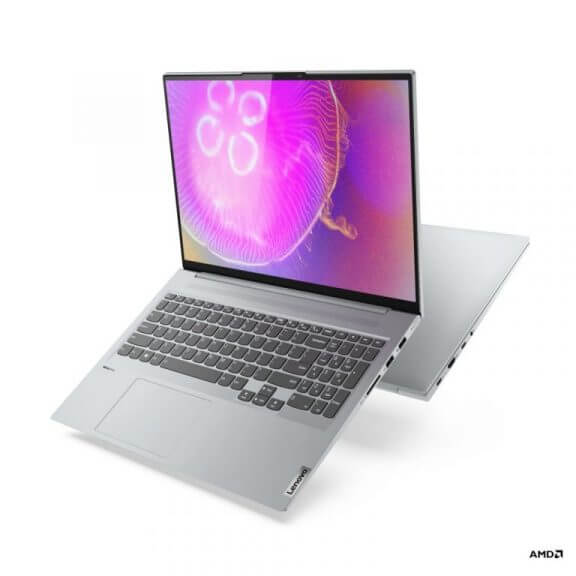
Lenovo brings its Yoga Slim Carbon weighing just 2.37 pounds, Yoga Slim Pro, and with a 16-inch QHD In-Plan Switching (IPS) touch 16:10 QHD display to the Windows 11 launch party.

Once again, Lenovo is giving users configuration options between AMD Ryzen 7 5800U and H-Series Mobile processors as well as NVIDIA GeForce RTX  3050 Laptop level GPUs and GeForce MX450.

While neither of the previous two companies have said their displays will support Windows 11 120 Hz refresh rates, Lenovo is offering 90Hz for Yoga Slim Carbon. Lenovo’s devices claim to have better cooling brighter screens, and 100% sRGB color gamut’s.

Acer

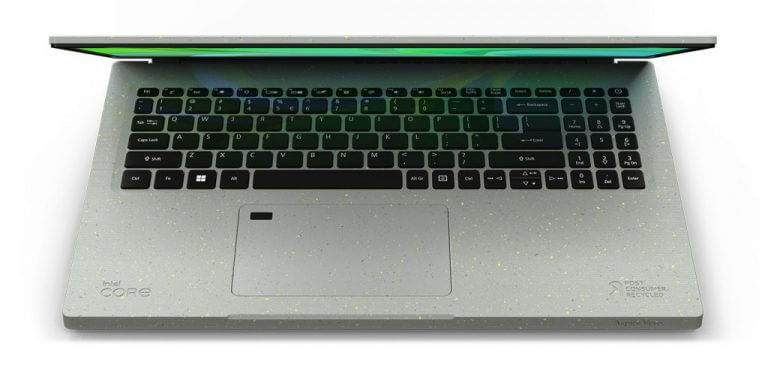
Acer is introducing its Aspire Vero which is a PC made from recycled plastics. The company describes this new WIndows laptop over on its website:

Thoughtfully designed to adapt to the planet’s needs, we use 30% PCR1 plastic in the chassis saving around 21% in CO2 emissions.2 Further your eco goals with easy disassembling, perfect for quick repairs, upgrades, and recycling to make your green mark.

In addition to VeroSense which helps to manage the energy efficiency of the laptop with options that range from Eco+, Eco, Balanced, and Performance Acer is also looking durability with its new 15.6 FHD IPS display design.

If you’re out of luck and can’t upgrade your existing PC or laptop to Windows 11, then these laptops, tablets, and All-in-Ones are a good choice. Pricing, availability vary based on the manufacturer, so best to check the laptop maker’s website for more. information.

How to install Windows 11 today

The wait for the final version of Windows 11 ends today. Microsoft has taken the wraps off its latest operating system, and anyone interested in a softer UI design, animations, drop shadows, updated ribbons, improved security, new iconography, fonts, snap layouts, sounds, and more, can read below on how to get started.

Step 1: Ask yourself if you have the time for the upgrade?

To begin, you need to consider this: to upgrade to Windows 11 and receive official support from Microsoft, Microsoft is requiring that devices have TPM 2.0 enabled prior to upgrading.  You also need to check and see if your PC has a compatible processor, too. Windows 11 only works with PCs that have an Intel 8th generation or newer processor, or an AMD Ryzen 2000 series or newer processor. Of course, select PCs with Qualcomm processors are eligible too. That processor list is here.

To some fortunate degree, Microsoft does provide a tool at least to get the ball going on whether or not a Windows PC is capable of upgrading to Windows 11. We have more on that in the next section. Otherwise, continue below for some of the other minimum specs suggested by Microsoft. These are not very different from Windows 10’s.

  • CPU: a 1 GHz or faster dual-core or higher processor on a compatible 64-bit processor or System on a Chip
  • Memory: 4 GB RAM
  • Storage: 64 GB
  • TPM: Trusted Platform Module (TPM) version 2.0
  • Graphics card: DirectX 12 compatible graphics / WDDM 2.x
  • Display: A display 9 inches or larger, with a resolution of 720p or higher

Once you confirm that you can move on to the second step. This is where the action truly begins and when you can start downloading the new operating system.

Note that if you’re on an unsupported system that don’t meet these requirements, skip to the end of this piece. We have an important note for you on how you might be able to run Windows 11 anyway using the Media Creation Tool.

Step 2: Download PC Health Check App

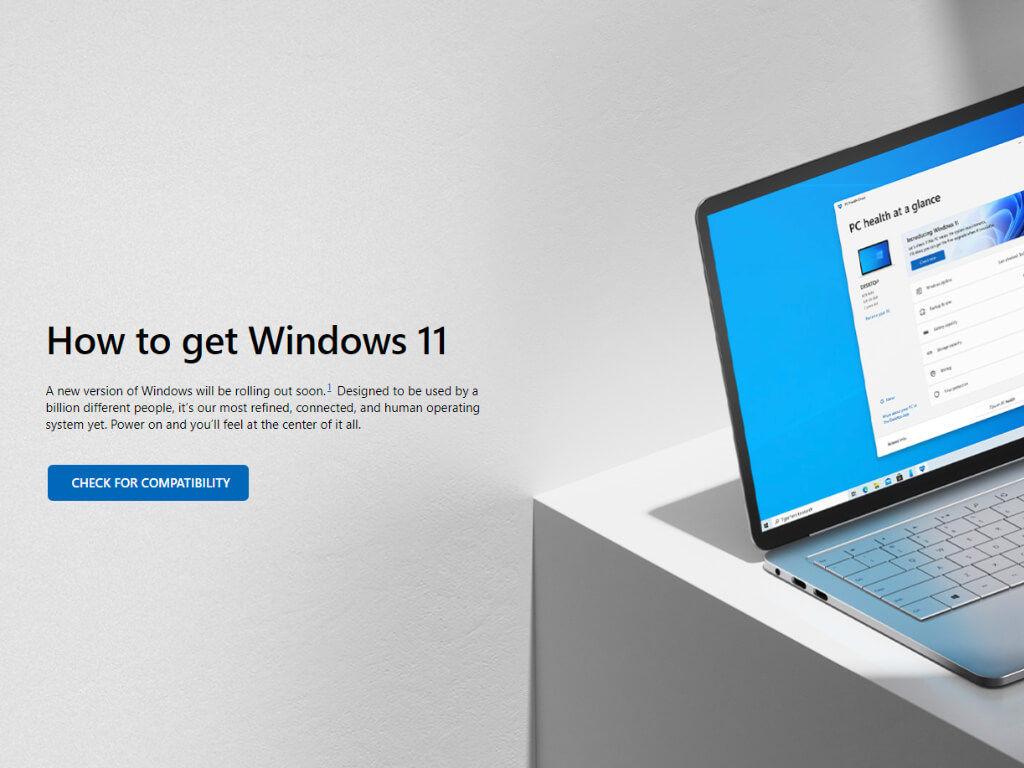
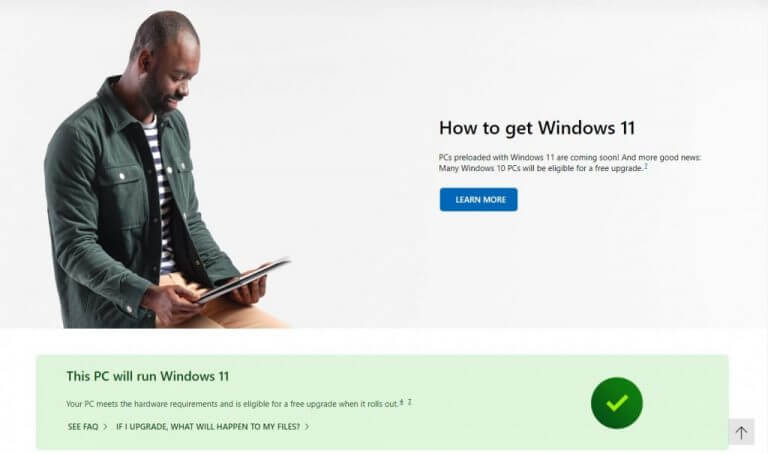
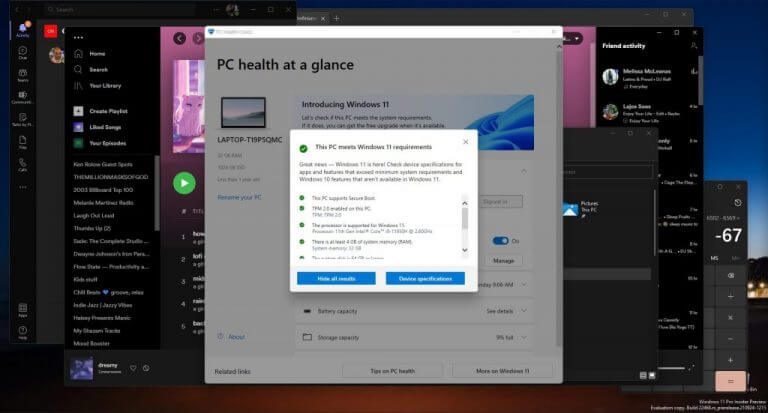
Now that you’ve committed to the upgrade process and the time it might take to get your PC updated with all of the new goodies of Windows 11, head over here to download the app for more device compatibility.

There was a separate link for Insiders established when Windows 11 was in testing, but the above link has now become the official way to test PCs both as Insiders and non-Insiders alike.

Once downloaded, run the .exe file to get started and follow the Install prompt. There will be two options to choose from to diagnosis your PC, I recommend Show All because it will also incorporate device-specific qualifications. The process (scan) should take less than 3 minutes to complete.

For those who need a straightforward answer, using the Device Specifications option will bounce you out to a web page with a clearly marked Will Run, Will Not Run prompt as well as some further FAQs about the process. Now you know if your PC truly will run Windows 11.

Step 3: Upgrade to Windows 11 via Windows Update

Assuming the fork in the road guides you to a device that will run Windows 11, you can then head to Windows Update to check if your PC has the new operating system ready for download. Go Settings, then click Update & Security, and then Windows Update. Choose Check for updates, and you’ll see a window show up with Download & install. Click this.

Note that Microsoft is taking a “phased approach” to rolling out Windows 11. It wants to ensure that the operating system only shows up for you when it’s ready. Depending on the age of your PC, you might not see Windows 11 in Windows Update right away. Microsoft says new devices will be offered the upgrade first. Then upgrade will then roll out over time to in-market devices based on intelligence models that consider hardware eligibility, reliability metrics, age of the device, and other factors that impact the upgrade experience.

When all is said and done, if you have Windows 11 for you in Windows Update, follow the on-screen prompts. The download and installation portion of Windows 11 could take anywhere from 20 to 40 mins, dependent on OTA downloading speeds in your area. I’ve upgraded four devices from Windows 10 to Windows 11 via the Insider program and each device took roughly 35 mins to complete the download, install and restart the process for Windows 11.

Alternatives: Use the Installation Assistant, or Media Creation Tool or Windows Insider Program

Windows Update is the best way to get Windows 11, but there are some alternatives if it’s not available for you. As an alternative, you can check out the Windows Meda Creation Tool or Windows 11 Installation Assistant. The Installation Assistant will let you upgrade to Windows 11 without going through Windows Update. However, installing with this tool might lead to a lot of bugs on your PC as it won’t undergo verification through Windows Update. It’s best to wait it out and download the right way through Windows Update.

Note that the Media Creation tool will also work to upgrade or install Windows 11 on unsupported hardware, according to Microsoft. However, going this route will leave your PC in an unsupported state, and you won’t get critical security updates or driver updates.

If all else fails, users can join the Windows Insider Program to get the operating system right away to start testing, playing, and living with Windows 11.

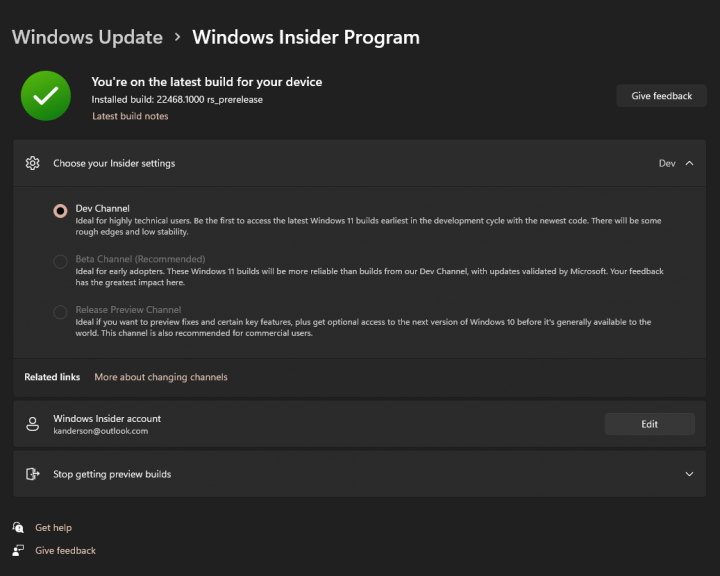
You can begin by going to the Windows Insiders webpage here to register, or simply visit your PC’s Windows Update Settings page. Make your way over to the Windows logo in the taskbar and use it to open up the Settings page. Navigate to the bottom and select Windows Update & Security.

Next, select the Windows Insiders tab to approve or disapprove of Microsoft collecting diagnostic data and hit the Get Started Prompt. Pair a Microsoft account with the Insider program for notifications, prompts, and account sync.

Once a Microsoft account has been linked, you will be able to choose your channel of upgrades and updates with the options including a Dev Channel for “highly technical users,” a Beta Channel for “early adopters,” and a Release Preview, for those who only prefer minor “fixes for certain key features.” I recommend the Beta Channel to the most up-to-date features of Windows 11 as it is the most stable with fewer bugs. The Dev Channel, however, will be the most unstable with the most chances of messing up your PC.

Hot Wheels Unleashed game review: An amazing arcade racer

There are two types of racing games: the ones that aim to emulate real driving and want to comes as close to being a simulation as possible and the arcade racing games which let go of all rules and just aim for 100% fun. Hot Wheels Unleashed is definitely the latter and possibly one of the best the genre has to offer.

We all know the Hot Wheels brand, whether we’ve played with them ourselves in our childhood or not. The tiny metal cars are iconic toys, as are the bright orange road pieces that you could use to build ridiculous tracks. This game proudly brings them both into an amazingly fun videogame experience.

Pure unadultered fun

Fun. It’s such a simple and short word, yet it’s so important. Hot Wheels Unleashed earns the adjective with flying colors. You’ll be racing down angled slopes, driving over boost pads to pick up extra speed before a looping, and then shifting into a magnetic strip that has you racing upside down.

Who doesn’t love loopings?

The entire game is just such a thrilling experience with many different elements adding to the enjoyment. Don’t expect to just stick to the railing and boost your way out of trouble the entire time. If you want to have a shot at that coveted gold medal, you’ll need to align your jumps, dodge obstacles, and even avoid traps like giant spiders shooting webs at you.

A sticky situation

In fact, most of the challenge doesn’t come from the opposition but from trying to stay on the road. You’ll need to pick up speed to prevent you from falling down when the road gets curvy, and there are plenty of jumps where you’ll need to correct your trajectory mid-air so you’ll land on the track again.

Fail to do so and you’ll have to respawn your car, losing precious time and probably whatever lead you had on the cars behind you.

The good news is that players who spend the time to learn the tracks inside & out will find some very useful shortcuts here and there. They’re tricky to perform, but when you’re aiming for the gold, every second counts.

Healthy mix of difficulty

Confession time: I usually play games on easy. I like to enjoy myself and I’m often on a deadline to review games around the embargo date and making it harder on myself just doesn’t feel like it would add any fun.

When I played Hot Wheels Unleashed for an hour or so, however, I quickly changed the difficulty setting to Medium. Easy is fine for young players, but if you want a bit of a challenge at least and if you crave feeling like you earned that spot on the podium, you’ll need to amp it up a little.

And if even the Hard AI doesn’t provide enough challenge for you, you can always invite over some skilled friends or try your luck in the online competitions.

Local split-screen multiplayer!

When an arcade racing game doesn’t include a local split-screen option, it automatically loses a few points in my book. So you’ll be happy to hear that Hot Wheels Unleashed provides! There’s nothing as fun as having friends over for drinks and games and hanging out on the couch and I’m pretty sure this one will stay installed on my Xbox Series X for just that occasion.

Single player campaign provides hours of fun

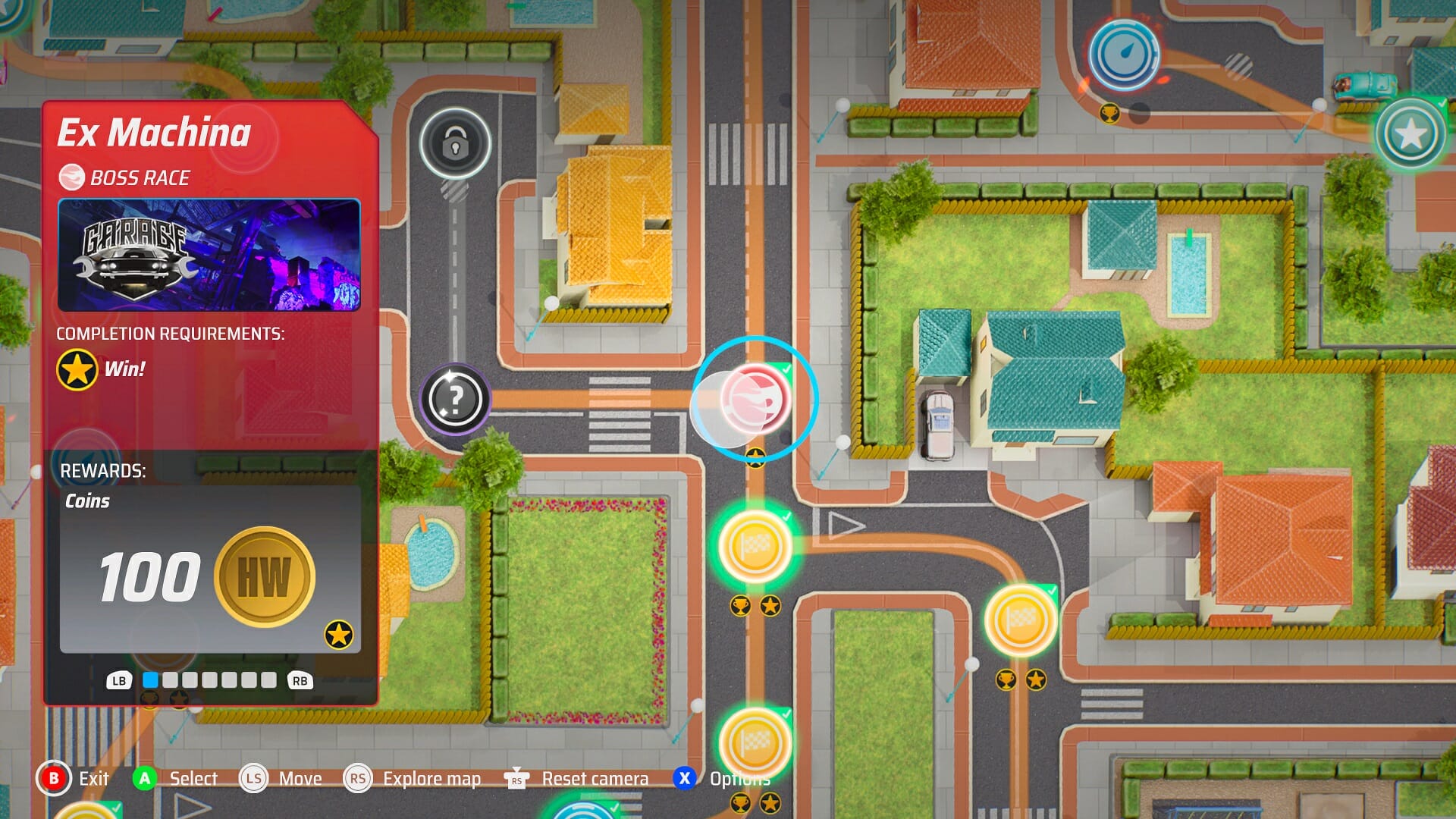
Ex marks the spot.

Solo players will not have a dull moment either. Hot Wheels Unleashed features a lengthy single-player campaign in which you move across a map and unlock new races, time trials, and boss levels as you go. There is tons of content here, but looks can be deceiving: you’ll be playing the same levels over and over again.

While there are indeed only 6 locations in the game, there are a ton of track variations to spice things up. That doesn’t mean you won’t be replaying the same combinations however, the game doesn’t shy away from repetition. In fact, you’ll even be revisiting specific races with specific cars to unlock some of the secrets.

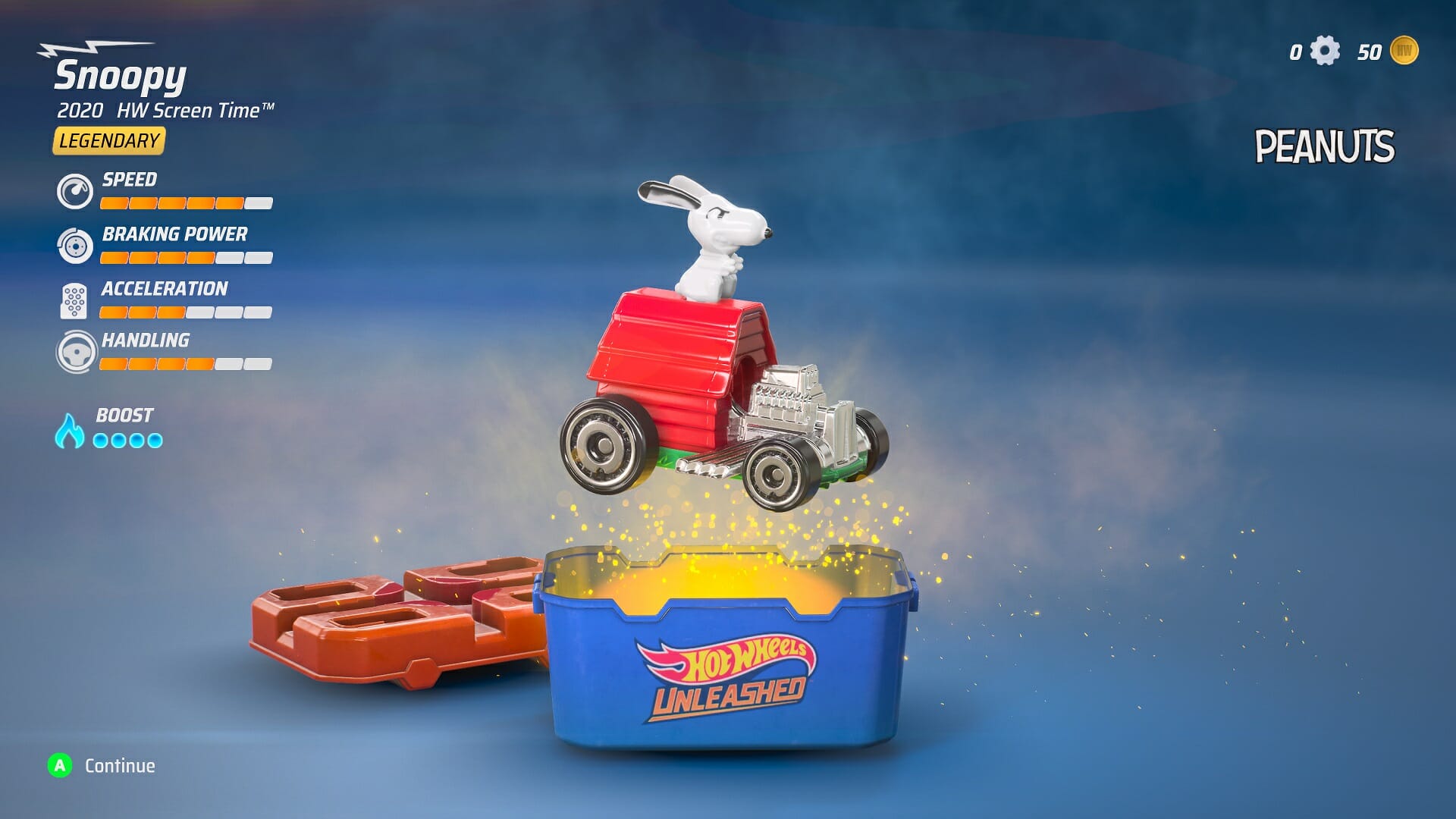
Unlocking this one was peanuts

And that’s perhaps where the secret ingredient of Hot Wheels Unleashed lies: there’s always something on the brink of unlocking. Every race will give you either Gold or Gears, the former can be used for buying cars or loot boxes containing random cars, the latter can be used to upgrade your vehicle (Normal > Rare > Legendary).

You will even get items to decorate your basement with posters, collectibles, different patterns for the walls or floors. It’s a neat idea to let us customize this because it’s the same area used in the game when racing. I just haven’t figured out yet how to fill the empty display units.

Eat. Sleep. Game. Repeat.

My only complaint: the races don’t pay out enough and progression just happens a little slower than I would have liked. It makes finding a hidden loot box all the more satisfying though. But be prepared: finding all cars and leveling them to legendary will be quite the grind, but more on that later.

Share your creativity

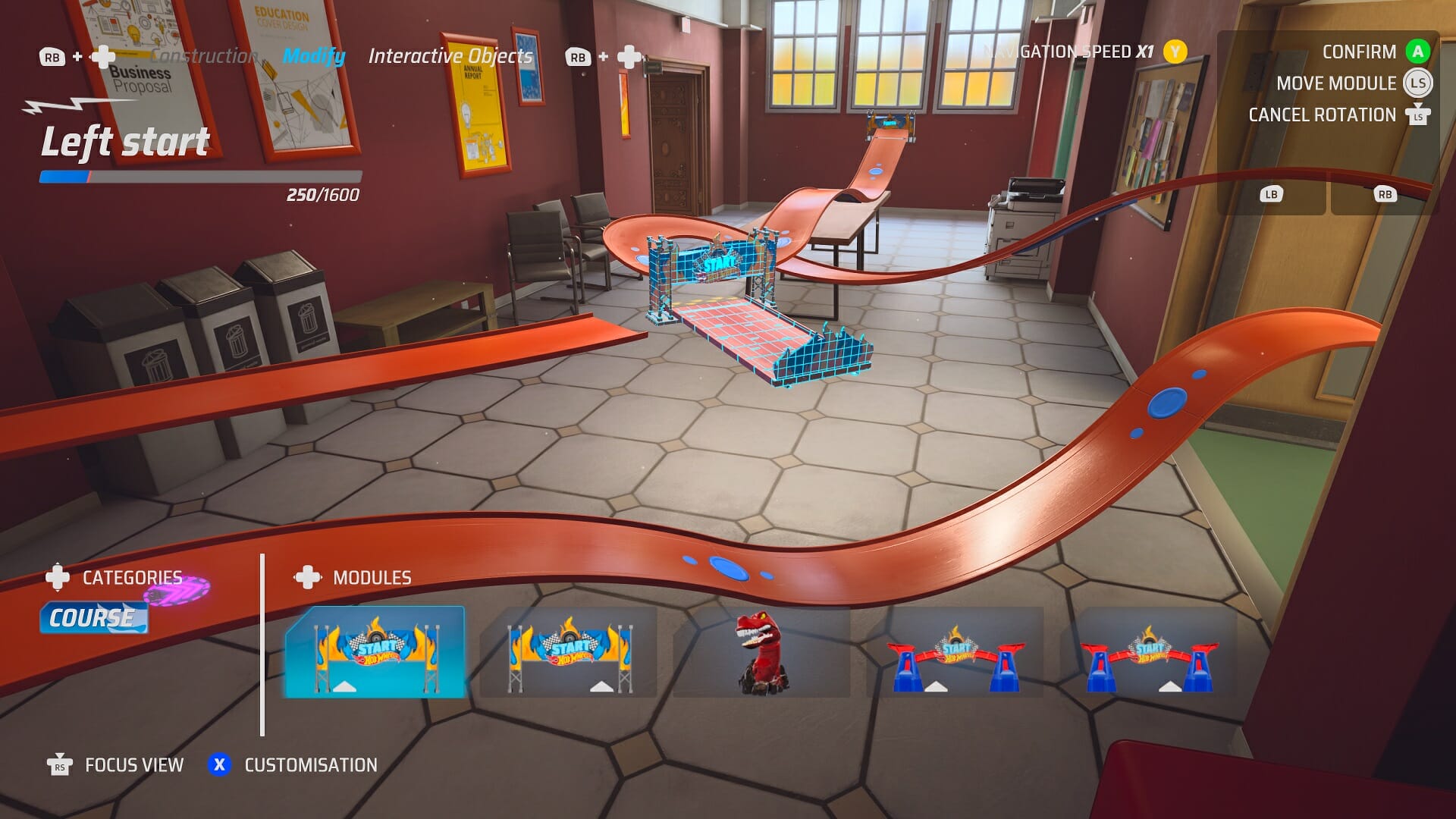
It’s not just the basement you get to decorate, you can make your very own levels with a custom track builder. There are a lot of tools here at your disposal but to me, it was a bit overwhelming. Especially because the tracks can bend and curve however you like.

I’m totally bent out of shape

I had issues with the simplest of things like finding the finish block, but I guess that’s just my lack of experience with track builders like these. It’s a feature I explore for reviews, but wouldn’t be caught spending a lot of time with on my own clock. That being said, it adds hours upon hours of possible game time by downloading the creations of people with more know-how and I’ll be sure to check those out.

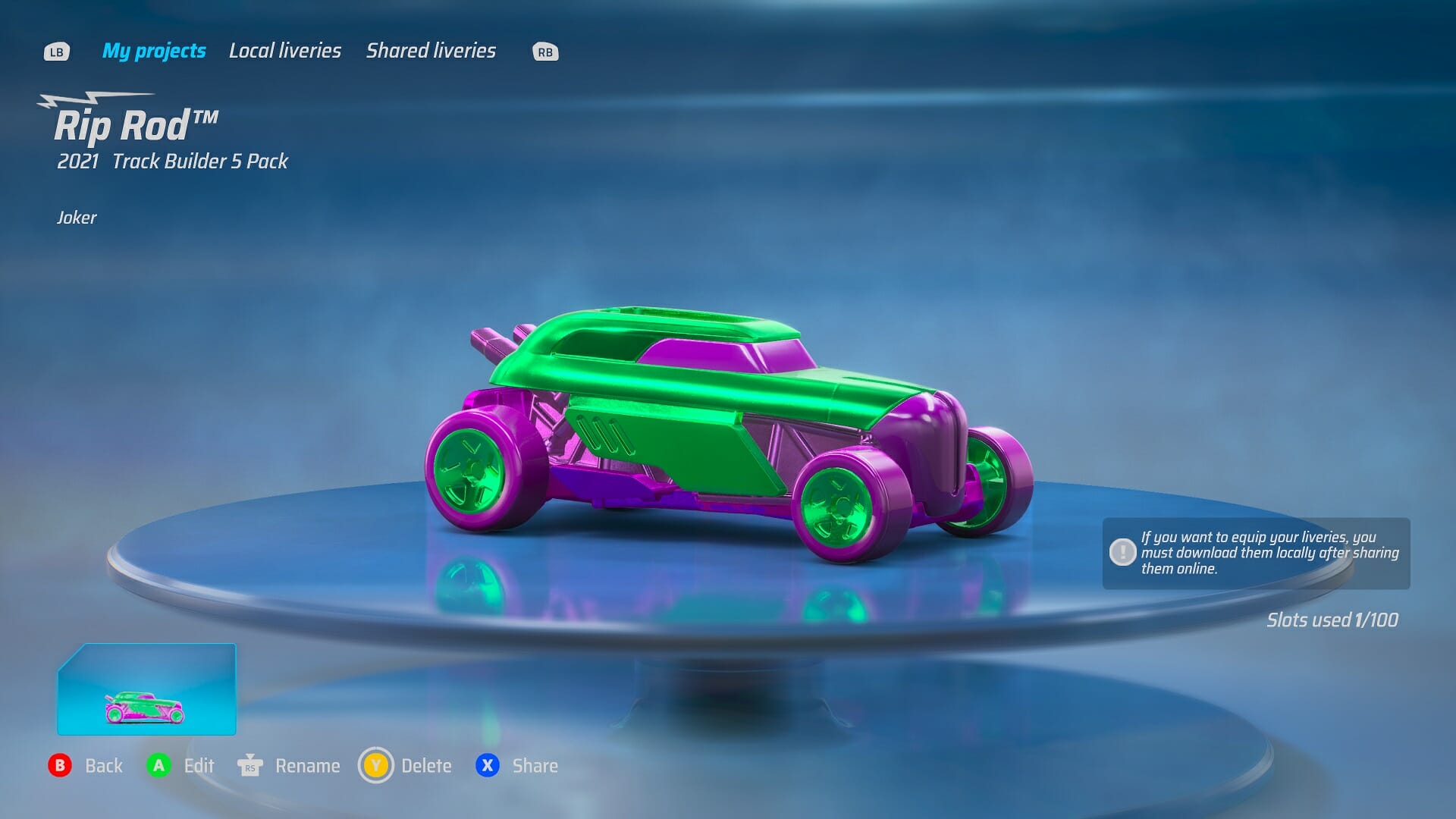
what I do love, is playing around with the aesthetics of all kinds of things. You can also create your own liveries for every car and even with the simplest of modifications, you can achieve cool results. Just look at this Rip Rod that I painted in the Joker’s famous purple & green colors.

The Joker

One last thing you can express yourself with is the photomode. Any game that includes this has a step up from the competition in my book. At any point in time, you can freeze the action and angle your camera just right to snap some cool pics to share on social media.

Picture Perfect

The game looks fantastic, with the cars actually looking like their real toy counterparts thanks to the great use of lighting and textures. The level textures did experience some loading issues, however, even on Xbox Series X, but only in the short fly-over before the actual race, so nothing really bothersome.

Grinding your teeth

Well, that’s a mouthful

So far, I’ve done nothing but sing its praises, but there are a few things that bothered me while playing Hot Wheels Unleashed, most of all …the music. While the soundtrack isn’t terrible per se, it isn’t very memorable or noteworthy either.

Most of the music that plays in the background is of the type you’d expect an indie game with a limited budget to buy from stock footage, repeated loops, nothing catchy, and not adding anything to the thrilling experience that the rest of the sound design offers through screeching tires and boosts.

Worst of all, when you do boost with most of the cars, it deforms the music in what the English language so kindly describes as “off” or “out of tune” but where my own dutch use of “vals” falls more in line with “I hate it, please make it stop.”

Don’t let the Twitter clips fool you, I edited my own music into the video to make it more exciting. But it just goes to show how much great audio can add to the sensation of a game.

Another small regret is that the game doesn’t support Quick Resume on Xbox Series X|S. This feature has been a blessing for me, as I usually play multiple games at the same time, and not having this option for a game that would be perfect for a daily quick race is a shame. I’ll definitely keep the game in my daily rotation, but this is a slight bump in how easily accessible it is.

Achievements and Completion

Beating the single-player campaign takes around 14-15 hours, provided you win every race on the first attempt. If you’re going for the full 100% completion, however, you’ll be in for the long stretch.

There are plenty of cars to unlock and you’ll need some luck with the loot box system or pay with hard-earned gold in the daily deals. As I already said earlier though, getting a sufficient amount of cash will require some grinding.

*Empties wallet*

The Achievement list is a grind as well, here’s a list of the ones you’ll be working on for hours:

  • Box Collector (90G) – Open a total of 100 blind boxes
  • It’s over 9000 (10G) – Upgrade the rarity of 15 rare vehicles
  • Unbridled luxury (30G) – Get a total of 100,000 Coins
  • What do I do with so many? (30G) – Get a total of 25,000 Gears.
  • Faster than light (15G) – Use the Boost for a total of 60 minutes.
  • Master of drift (15G) – Drift for a total of 500,000 centimetres (196,850 inches).

So yeah, we’re talking dozens of hours to grind out the full 1000G here. If you’re the type of gamer who needs a 100% completed check on your games: know what you’re getting yourself into.

And yes, before you ask, there are a few online multiplayer achievements (We all hate those)

Final thoughts on Hot Wheels Unleashed

Pros
Incredibly fun racing experience
Tons of unlockables to keep you going for hours
The multiplayer and custom tracks adds long-lasting value
Cons
The audio could have been better
Only 6 locations available
No quick resume on Xbox Series X or S

Final Score: 4.5/5

Hot Wheels Unleashed is pretty much the perfect arcade racing experience: It’s fun, it’s fast and it’s got plenty of content to last. Sure, there could have been a few more locations to spice things up, and collecting everything is a bit of a grind, but between the meaty single-player campaign and endless custom user-generated tracks, you’ll be boosting for hours on end with a smile on your face.

Hot Wheels Unleashed costs $49.99 and is available on Windows PC, Xbox One and Xbox Series X|S, Playstation 4 and Playstation 5, and Nintendo Switch. Developed and Published by Milestone.

*Disclaimer: Reviewed on Xbox Series X. Review copy provided by Koch Media Benelux.

How to upgrade to Windows 11

Since Windows 11 will begin its official rollout process tomorrow, October 5th, we thought that it was important to also show you how you can upgrade from Windows 10 to this new OS.

Don’t be alarmed, thinking that it’s going to be a hard process, taking up most of your day to complete. In fact, it will be as simple as downloading and installing an update.

Let’s dive right into it and see exactly what all this is going to be like.

How do I upgrade from Windows 10 to Windows 11?

First of all, as we mentioned before, it’s important to keep in mind that the Windows 11 rollout will be a slow process, and it could actually take months before it’s available on your device.

Of course, new PCs will get the upgrade first, and all compatible devices are expected to receive it by mid-2022, depending on device age and hardware. 

So, before expecting Windows 11, make sure that the machine you are planning on running it on is compatible, using the PC Health Check app.

However, when your time comes, this is what you have to do in order to move from one operating system to the other:

  1. Press Windows key + I to open the Settings menu.
  2. Select the Windows Update category. windows update
  3. Press the Check for updates button.check for updates

If you are eligible and Windows 11 is available for you, you will see it as you would a regular update. Except, this is everything but regular, as we are talking about a new step in our lives.

Upgrading from Windows 10 will be a walk in the park, but doing so from a previous version of the OS is a different story entirely.

If you are running Windows 7, or 8, you are first required to upgrade to 10, only afterward being able to make the transition the Windows 11. So also keep this in mind when the time comes.

What happens to all my files when I upgrade?

If you simply perform an upgrade from Windows 10 to Windows 11, all your stored files will be OK, so there is nothing for you to worry about.

This being said, if your system requires you to clean install the new operating system, then the situation changes drastically. You will have to erase everything, so a backup is recommended.

And speaking of backups, it is wise to have all your important files stored in a cloud, or a personal device, such as an HDD, just in case disaster strikes.


This is the first major change to Microsoft’s operating system since Windows 10 launched back in 2015. Rumors about a major Windows redesign have been circulating for the past year, but nobody was expecting a new OS.

We were all surprised at the Microsoft Build developers conference on May 25, when CEO Satya Nadella said Microsoft was planning one of the most significant updates of Windows of the past decade.

That was basically the confirmation that a major change was on the horizon for the 1.3 billion users of the OS in 2021.

And in mid-June, Microsoft quietly announced that it would end support for Windows 10 in 2025 as leaked images of Windows 11 spread.

That was the beginning of a four-month-long journey of speculating, anticipating, and testing this new operating system.

Now, all we have to do is be patient and wait for our turn in this massive rollout process that, as we said, will prioritize newer devices.

Are you ready for receiving Windows 11 on your device? Let us know in the comments section below.

How to Connect Your Meeting Room System to Microsoft Teams

The pandemic pushed companies all over the world to adapt to an online work environment. Therefore, as more and more people started working remotely, the demand for online meetings also grew.

As a result, companies such as Microsoft started focusing on improving and expanding the features of their meeting services.

They developed, overhauled, and added new changes to Microsoft Teams, striving to make it the best online meeting tool.

Using MS Teams is simple, but to benefit from all of its tools and customization, a company planning to hold huge meetings needs to ensure that it’s easy to join meetings no matter what type of meeting room system you’re using.

Use meeting room hardware

If you’re part of an organization that has thousands of employees scattered across the world, regular meetings with the team are key to staying in touch.

Organizations need to make it easy for employees in the office to meet with colleagues who are working from home.

Offices set up to ideally accommodate a hybrid workforce ensure that there are plenty of video meeting rooms dedicated to holding online meetings.

Board rooms and huddle rooms must be equipped with gear that facilitates clear and concise collaboration between coworkers and guests.

Beyond the video system, meeting rooms need high-quality microphones, a control device, displays, and tables or desks and chairs.

How do I connect a meeting room system to MS Teams?

1. Connect your physical equipment

The first thing you need to do when creating a meeting room for your company is to make sure you have all the necessary hardware.

A central unit that acts as a console is required, which you will use to connect all the other peripherals needed for the room.

The central unit should have a tablet or other touchscreen-enabled device connected to it that will serve as a command center.

Ethernet connection is also recommended to make sure there is enough bandwidth for video and screen sharing.

Connecting the display TVs, the microphones, and the other peripherals can be done through cables (HDMI is the best choice) or wirelessly if the devices support it.

Now, in order to access Microsoft 365 services, all the devices need Dynamic IP addresses instead of static ones until the initial configuration is completed.

2. Ensure all employees and guests can connect to Microsoft Teams meetings

Not all participants will be in front of a computer when joining a Microsoft Teams meeting. For the best meeting experience, colleagues at the office will likely want to join from a dedicated video meeting room.

External guests may also be joining from their video systems. To ensure that everyone can join a Microsoft Teams meeting from any device, a Cloud Video Interoperability solution is needed.

Certified Cloud Video Interop (CVI) solutions for Microsoft Teams enable everyone to securely join the meeting, no matter what device they’re using.

3. How to use a third-party CVI solution

It’s easy for meeting participants to use a CVI solution to connect to a Microsoft Teams call.

Pexip enables any standards-based video conferencing systems on SIP and H.323 to connect to Microsoft Teams meetings seamlessly. Participants need to apply the following steps:

3.1. Using a remote control or touch screen

When using the remote control or the VTC’s touch screen, you can call into the meeting either via a Virtual Reception or by directly dialing the meeting address.

3.2. Dialing in via the Virtual Reception

  1. Find the address in the meeting invitation and enter it using the remote / touch screen. Typically, the address is similar to [email protected].
  2. Enter the Conference ID on the VTC system.
  3. If the VTC is registered on the Pexip Service under the same company as the CVI Service for MS Teams or is a trusted device, it is allowed automatically into the meeting.
  4. If not, it is placed into a Teams lobby waiting to be admitted.

3.3. Dialing the address directly

  1. Open the invitation and click on the Alternate VTC dialing instructions link.
  2. Enter the address found under Join directly.
  3. If the VTC is registered on the Pexip Service under the same company as the CVI Service for MS Teams or is a trusted device, it is allowed automatically into the meeting.
  4. If not, it is placed into a Teams lobby waiting to be admitted.

4. Using the Pexip mobile app

The user needs to download and install the Pexip mobile app and allow the app to read the calendar used for Teams invites. See Downloading the apps for more information.

When using the Pexip mobile app to join a Teams meeting with a VTC you can either join from a list of VTCs or use QR code scanning.

4.1. Joining from a list of VTCs

These options require an active endpoint subscription if your organization has adopted them.

  1. Open the Pexip mobile app on your phone.
  2. Go to the Meetings tab and select your Teams meeting.
  3. Choose Video system and select the VTC you want to use.
  4. Answer the incoming call to your VTC room on the touch panel or remote control.

4.2. Scanning a QR code

This option requires an active Pexip endpoint subscription. If your organization has adopted QR codes to join video meetings, see Using your smartphone to join video meetings with MeetingConnect for instructions on how to join the meeting.

5. Meeting room mode

Meeting room mode (MRM) is a simple way to join scheduled video meetings with a single click. It works by integrating your video conferencing units, the Pexip mobile app (running on a shared mobile device), and your company’s existing calendar/room booking system.

See Meeting room mode (MRM) setup guide for more information.

Thankfully connecting systems to MS Teams is a breeze thanks to companies such as Pexip, which uses Cloud Video Interoperability (CVI) that enables SIP and H.323 video conferencing system to join MS teams.

These systems will work as if they were native Microsoft clients, letting authenticated systems participate in the conferences without lobby bypasses or other additional user interaction.

Pexip lets you connect to different meeting room systems using different methods. The service also provides both a downloadable app or a web-based version.

The easiest way to join a VMR (your own room, or one hosted by somebody else) is by accessing a Pexip room invite link.

You can also join using a remote control or touchscreen device:

  1. Download and install Pexip.
  2. Open the Calendar invite.
  3. Enter the address found under Join directly.
  4. Otherwise, select the joining options.
  5. Open the invitation and click on the Alternate VTC dialing instructions link.
  6. If the VTC is registered on the Pexip Service under the same company as the CVI Service for MS Teams or is a trusted device, it is allowed automatically into the meeting. 
  7. If not, it is placed into a Teams lobby waiting to be admitted.

Microsoft Teams receives constant support

Microsoft dedicated a huge amount of resources and time to developing Teams. They are still coming up with new features as we speak.

One of the company’s priorities is security. Since lots of big organizations rely on MS Teams for their conferencing and meetings, the risk of data leaks is high. This is why it’s key that you trust the third-party solutions that are integrated into MS Teams.

The Redmond giant rolls out weekly security updates to stop any possible data breaches. Besides the security updates, they also add new features that will improve your experience with the software.

That’s how you can set up a meeting room system and connect it to Microsoft Teams. We included all the steps and procedures that need to be followed.

Even more, learn how to create Breakout rooms in Teams and take advantage of them, since they come with various customization options so you can control the flow of the meeting.

We also have a guide on how to set up Teams Walkie Talkie feature, and great guide on what to do if Breakout Rooms in Teams aren’t working.

Leave a comment in the section below and tell us what you think about the article, or share any other feedback regarding the subject.

Windows 11 starts rolling out to compatible devices tomorrow

Well, after so much talk and the seemingly endless emotional rollercoaster of the last three months, it is finally happening. Windows 11 has been declared a finished product and is coming to our devices.

But don’t go thinking that everything we saw throughout these past months will be there from the start. Some features will be released in the near future, as they weren’t quite ready to make the initial cut.

And we know that you are all expecting it, so this can only be good news.

Its finally time to welcome Windows 11

Since we first learned about the new operating system, back in June, we all started speculating on what it might look, sound, and feel like.

We’ve seen it grow from the messy and buggy first versions, and we helped mold it into what it’s about to become.

Therefore, now, eligible Windows 10 devices will get a free upgrade to the next-generation OS, but you’ll need to make sure your laptop or desktop meets the necessary requirements to run it.

Remember that you can check if your gadget is eligible for the free Windows 11 upgrade by downloading and using the PC Health Check app.

Another important factor to take into consideration is that Microsoft is making this rollout a phased and measured process.

This actually means that some Windows 10 users aren’t likely to get the upgrade until later this year or even 2022.

Redmond officials specified that the reason behind this is that, basically, Microsoft will prioritize the Windows 11 rollout based on hardware eligibility, reliability metrics, age of device, and other factors. 

So, starting tomorrow, compatible laptops, PCs, and tablets will start upgrading to Windows 11 for free. You better get ready for this new chapter of your life, because you might just be among the first ones to actually get it.

If your device is outdated and doesn’t meet the criteria for running the upcoming operating system, there are plenty of options for you out there, including Microsoft’s latest Surface products release.

Not to mention that there are also tons of other alternatives, provided by big companies like Lenovo, Dell, or Asus, who already announced Windows 11-ready devices.

Another reason to be excited for tomorrow is the fact that Office 2021 is also coming, according to what the Redmond tech giant had to say a few weeks ago.

All in all, we have a lot of reasons to be happy about this new launch, so all we can do now is just wait for this free upgrade to become available to us and simply jump on the opportunity.

If you have a compatible device but don’t get it right the second it launches, don’t be alarmed, as your turn will surely not be forgotten and Windows 11 will also come to your machine.

Make sure to also check our Windows 11 dedicated section, in order to catch up and be up to date with everything that happened with the operating system, ever since its early stages.

Are you ready to upgrade to Microsoft’s new OS? Share your thoughts with us in the comments section below.

Best Windows 11-Ready Laptops [2026 List]

As the much anticipated Windows 11 presentation has already taken place, we now know what the new OS will look like and some of the most important features it will bring.

Added to that, the official information about the system requirements has been released, and based on this, we can safely assume which PCs could be used to run the OS.

8065 users from 152 countries have completed a thorough survey regarding Windows 11 which covers their expectations, wishes, and wants, so make sure to check it out to explore the subject in depth.

8% of responders have stated that they are sure to invest directly in a Windows 11 ready computer, while 92% prefer upgrading the system they already own.

To get a clearer picture, here are the actual requirements for running Windows 11, or explore the more detailed version.

  • Processor: 1 GHz or faster with 2 or more cores
  • System memory: 4 GB minimum
  • Storage: 64 GB minimum
  • System firmware: UEFI
  • Security: TPM required, UEFI Secure Boot
  • Display: 9-inch minimum in diagonal, High definition (720p), 8 bits per color channel
  • Graphics: DirectX 12 API, WDDM 2.0
  • Connectivity: Bluetooth (excluding desktop PC), Wi-Fi or Ethernet connection
  • Digitizer: Precision Touchpad (if the touchpad is present)
  • Hardware buttons: Power button and volume up and down buttons required
  • Ports: USB ports (at least one), video output required

Keep in mind that these are just the basic requirements to install Windows 11 on a PC. To find out exactly if your system will work with Windows 11, simply download and run the PC Health Check application.

A powerful gaming laptop that can run Windows 11 will have some different capabilities compared to the options in this list. That being said, all gaming laptop options can be used with everyday tasks, but the same can’t be said about most non-gaming laptops.

How we choose the best Windows 11 laptops

To create this comprehensive list, our panel of expert testers have researched laptops across the web, and have meticulously compared their systems to choose the best devices for running Windows 11.

Because the official release of the Windows 11 OS is coming soon, and thus, manufacturers can’t yet provide you with devices that already have Windows 11 installed, it is safe to say that the offer will increase exponentially in the next couple of weeks.

Tip icon Tip
Editor’s tip:

To exemplify the exact elements that were considered while choosing the best laptops for running Windows 11, here is a useful list of things you should consider as well:

➡ Processor speed
➡ System memory
➡ System firmware
➡ TPM 2.0 capability
➡ Internet connectivity

Taking these features into consideration while choosing the best Windows 11 capable laptops is essential.

Added to this idea, the usual features needed to be considered as well, thus enabling our testers to choose the best PCs from the list of Windows 11-enabled devices.

Some features that were also taken into consideration to make a distinction between the capable laptops, were the GPU, storage, and design.

What to consider when choosing the best Windows 11 laptops?

Besides the normal elements that you would take into consideration when choosing a capable laptop, to run Windows 11 optimally on it, some specific requirements need to be fulfilled.

Processor speed

Even though the processing speed is an incredibly important element whenever you’re exploring the capabilities of any PC, this element is even more important if you’re interested in a device that can run Windows 11 without problems.

Windows 11 will work on your laptop if you have a 1 GHz or faster processor with at least 2 cores. More is going to help considerably in this case.

Even though almost all new PCs in the last few years have a CPU that offers better speeds than 1GHz, and most already have 2 or more cores, this shouldn’t pose much of a problem, but it is worth mentioning nonetheless.

Of course, the processors we chose for this list will not only offer you the capability to run Windows 11, but we chose options that will allow your entire laptop experience to go smoothly.

System memory

For your system to be able to run Windows 11, you will need to have at least 4GB of system memory. System memory is not the same as rapid access memory (RAM), but it is the size allocation that enables the elements that construct your Windows 11 to run properly.

This means that 4 GB of your SSD or HDD should be available to allocate solely for running the actual Windows 11 OS.

System firmware

The firmware of your PC is extremely important to consider because Windows 11 works only with UEFI, which also enables the OS to run the UEFI Secure Boot feature to improve security levels.

Of course, all the products we will present to you in this list will have this element already checked out and confirmed, so you can rest assured you won’t need to dive deep into the details of the computer you’re interested in.

TPM capability

As Windows 11 is also bringing new levels of security to the table, the Trusted Platform Module (TPM) is an essential element of this setup, thus being included in the system requirements list for the OS.

TPM is a microcontroller that is designed to secure hardware through a variety of cryptographic keys that are integrated into the system.

Internet connectivity

Even though almost all PCs are capable of connecting to the internet, you must understand that to run Windows 11 for the first time, you need your device to be connected to the internet.

If you’re going to invest in a new PC, even though chances are that it will capable of connecting to the internet, consider if you can connect it when installing Windows 11.

Tip icon Tip
Buyer’s tips:

➡ If you’re interested in very good processing speeds, sturdy and multi-joint construction, and multi-touch that resists high pressures, the Spectre x360 Convertible 13-AW1002NR is the best choice for you.

This powerful device will of course enable you to run Windows 11 without issues, while also offering enough processing speed to run almost any software.

➡ In case you’re more inclined towards a system that offers specific gaming capabilities, then you don’t need to look any further than the powerful OMEN 15T-EK100 from HP.

To make things even better, HP allows you to customize it even further. You can choose a better CPU, GPU, SSD, and even keyboard by using the toggles from the website.

➡ For those of you who are more artistically inclined, the ASUS ZenBook Flip S 13 proves to be a great contender for the previously mentioned devices, as it offers an incredibly powerful CPU, a great amount of RAM, and pressure level output for using it with digital pens and styluses.

The 360u00b0 ErgoLift hinge easily transforms the laptop into a drawing tablet and vice-versa, while also proving very useful in case of presentations in meetings.

➡ If you find yourself interested in a laptop that offers decent power, a good number of ports, military-grade toughness, and a 14-inches display that offers a great color spectrum, then the Acer TravelMate P6 is the perfect choice for you.

Now that we’ve covered the most important aspects you need to consider when investing in a Windows 11-enabled device, let’s see what the results of our research show.

Spectre x360 Convertible 13-AW1002NR

  • Intel Core i7-1065G7
  • Intel Iris Plus Graphics
  • Multitouch-enabled display with Gorilla Glass
  • 16 GB LPDDR4-3200 MHz RAM
  • 512 GB NVMe M.2 SSD
  • GPU could be better

The Spectre x360 Convertible 13-AW1002NR is an incredibly powerful laptop that comes prepared for a fruitful and smooth interaction with Windows 11.

Even though at this point in time Windows 11 doesn’t come pre-installed, having your laptop ready for the moment Microsoft makes the official release is very important.

Powered by an Intel Core i7-1065G7 with 4 cores, that can run up to 3.9GHz with the useful Intel Turbo Boost Technology. The processor has an 8MB L3 cache, making it extremely adaptable no matter what tasks you want to run.

The GPU is called Intel Iris Plus Graphics, and its power is put into perspective by using a 13.3 inches FHD and IPS monitor. This display is multitouch-enabled and uses an anti-reflection Corning Gorilla Glass NBT to ensure that it is resistant to almost any kind of shock.

Added to this, the edge-to-edge glass with a micro-edge takes advantage of every centimeter available, thus allowing you a more seamless experience while using it.

The 100% sRGB color gamut ensures that your movie-watching sessions or color-intensive work will be able to be displayed without issues.

The device comes with 16 GB RAM which will allow you to run multiple instances of the same program, or multiple different applications without any problems, while also giving you enough processing power to run graphic-intensive games as well.

As storage is always an important element, and the speed at which it runs can prove a great advantage, this HP laptop comes with a 512 GB NVMe SSD.

Everything is powered by a 65 W USB Type-C power adapter, making the battery lasts up to 11 hours and 30 minutes of heavy usage.


OMEN 15T-EK100

  • Intel Core i5-10300H
  • 6GB NVIDIA GeForce RTX 3060
  • 512 GB PCI NVMe SSD
  • Custom configuration options for all components
  • No touch display

The OMEN 15T-EK100 from HP is a very good option if you want to run the latest games on your new laptop besides simply running Windows 11 at full capacity.

This laptop can be customized before the purchase, which enables any user to modify the CPU, GPU, display, RAM, keyboard, camera, and storage space and type.

When it comes to the CPU, you can choose between an Intel Core i5-10300H processor that can reach up to 4.5 GHz, and a more powerful i7-10870H processor which can work at 5.0 GHz and has a set of 8 cores with 16MB L3 caches.

In the GPU department, the first configuration offers you an NVIDIA GeForce RTX 3060 with 6GB. , and as an alternative, you can choose the 8GB Nvidia GeForce RTX 3070 with a Max-Q design.

As mentioned before, you can customize the size of the storage, and its type, thus, you can choose between a 512 GB PCI NVMe SSD, a 1 TB version, or two 512 GB PCIe NVMe SSD’s with Raid 0 configuration.

You even have the option of choosing what software you want pre-installed on your PC, with the capability to choose between a Microsoft 365 suite and different versions of Microsoft Office. The same applies to security software, where you can opt for a variety of McAfee annual subscriptions.

To complete the setup entirely, the device comes with Audio by Bang & Olufsen, DTS:X Ultra, and HP Audio Boost, thus ensuring that your music and gaming experience will sound amazing.

Connectivity will be extremely easy, as you will have access to 1 Thunderbolt 4 port with USB4 Type-C, and two SuperSpeed USB Type-A ports.


ASUS ZenBook Flip S 13

  • Intel Core i7-1165G7 CPU
  • 16GB RAM
  • 1TB PCIe NVMe SSD
  • 360° ErgoLift hinge
  • 133% sRGB colours
  • Pressure level output could be better

The ASUS ZenBook Flip S 13 offers you everything you need to run Windows 11 optimally, and also a processor that can take on any task you choose without problems.

Besides the 13,3 inches 4K OLED touch display that offers incredibly crisp colors, this device comes with an Intel Core i7-1165G7 CPU with 12M Cache, runs up to 4.70GHz.

To ensure that you would not need to worry about running multiple applications at once, or using multiple displays to work in tandem, this powerful laptop is equipped with 16GB RAM.

The 1TB SSD ensures that you will have enough space to install any game or program your heart desires, and at the same time leaving you with enough space for personal files like pictures, videos, and documents. Being a PCIe NVMe M2 SSD, you are sure to get the best processing speeds available on the market.

The versatile 360° ErgoLift hinge allows you to use this device as a tablet, present, and also get the keyboard out of the way when you just want to watch your favorite show.

The combination of Jade Black color and Red Copper diamond-cut highlights make this device look absolutely incredible while showing the built-in quality on the exterior as well.

Being ASUS Pen and Windows Ink capable, with 4096 pressure level output, it ensures that you can draw, write, or sketch in any app with incredible precision.

The display also comes into play here, offering a 100% DCI-P color gamut with 133% sRGB colors. With this setup, you are a sketch away from incredible art, and a click away from a seamless and professional video-editing experience.


Acer TravelMate P6

  • Intel Core i5-8265U
  • 14 inches Full HD LED-backlit display
  • 8 GB DDR4 RAM
  • 256 GB PCIe NVMe SSD
  • Good number of ports
  • Military-grade toughness
  • Small storage space
  • Fingerprint scanner doesn't work perfectly

The Acer TravelMate P6 is a thing and light laptop that uses a 14-inches FHD IPS display, powered by an Intel Core i5-8265U which is sure to be able to run Windows 11 without issues.

The processor runs with up to 3.9 GHz, and the widescreen LED-backlit display will surely offer you an immersive experience no matter if you’re watching your favorite shows or using the laptop for editing photos.

Even though it doesn’t have as much storage space as the other options presented in this guide, the 256 GB PCIe NVMe SSD is sure to run at very high speeds.

This computer has 8 GB DDR4 onboard memory that enables you to run multiple applications at the same time without any problems.

You also get one Thunderbolt 3 port, two USB-3 1 Gen ports of which one features USB charging, and one HDMI 2.0 port as well.

The battery enables you to use this device for up to 20 hours and allows fast charging to 100% in just two hours.

In case you want to feel secure when it comes to third parties accessing your webcam randomly, you have great security features included. With a TPM 2.0 module installed, this ensures that your data is safe and the fingerprint reader makes sure that you’re the only person capable of accessing the device.

To ensure even more privacy, the camera can be covered with a special button which ensures that even if people connect to it, they won’t be able to see a thing.


Lenovo ThinkPad X1 Nano

  • Intel Evo i5-1130G7
  • Intel Iris Xe GPU
  • 16:10 IPS Display
  • 16 GB LPDDR4 RAM
  • 512 GB PCIe NVME SSD
  • Small display

The ThinkPad X1 Nano laptop from Lenovo is another very powerful laptop that offers full support for Windows 11 OS.

Even though smaller than the previous models we discussed in this list, measuring 13 inches only, don’t judge it by its size, as you might find the powerful components to be quite a surprise.

The IPS display with 450 nits is incredibly crisp, with a 2K resolution of 2160×1350, offering you a great visual experience even though smaller.

Having a reduced size is not for everybody, but if you need a laptop that can be easily carried wherever you’re going, this laptop is unbeatable.

This nice laptop offers you an Intel Evo i5-1130G7 processor, a backlit keyboard, and 16 GB of RAM. To round it off, it comes with a 512 GB PCIe SSD, to ensure you can store and run data at very high speeds.

The integrated Intel Iris Xe GPU is not the latest and greatest, but it offers enough power for you to be able to use this laptop at work, or in the comfort of your own home, browsing the internet and watching TV shows.

Added to this, the ThinkPad X1 Nano comes bundled with a 720p HD webcam built into its upper lid panel, a fingerprint reader, Wi-Fi 6, and Bluetooth 5.1.

When it comes to connectivity, this laptop doesn’t disappoint, being set up with 2 USB 4 Thunderbolt 4 ports, and comes with a WOOV 32 GB Micro SD card included. 


Bottom runners

Besides the options presented above, our research has unearthed some more Windows-11 capable devices that didn’t make the list for a variety of other reasons.

The fact that they didn’t make the list, doesn’t imply that they’re not worthy of a mention, so here is a small list containing them:

➡ ASUS ExpertBook P5440

This 14-inches device, even though a good contender, didn’t make the list because of its sub-par GPU unit, which entails a variety of issues with the device.

Offering an i5-8265U CPU and 256 GB SSD, this device will surely be able to run Windows 11 and is a good choice if you’re not inclined to use it for graphic-intensive work.

➡ ASUS ExpertBook P3540

The cousin of the previously-mentioned device, the ExpertBook P3540 offers a good array of features but lacks in the same department as its family member – the GPU.

Having the same GPU as the option above, and with a lower spec capability overall, even though not the best choice, this device still offers a stable platform to run Windows 11 on.


As you can see, our list of the best PCs that are capable of running Windows 11 includes a variety of options with different capabilities and advantages.

You can also check the best Windows 11 ASUS laptops and PCs if you’re more inclined to go with a well-known company. All these options will allow you to choose the perfect fit for your needs.

We hope that this list has given you all the information needed to make a decision based on your personal needs.

Feel free to share your thoughts about this subject by using the comment section found below this guide.


Cash Register Software: 7 Best to Use in 2026

If you are looking for a reliable software that will register and calculating transactions at a point of sale, we have compiled the best cash register software for PC in order to get you started.

The cash register itself is usually attached to a printer that can print out receipts and even a drawer for keeping storing cash. While cash register software for PC simplifies the sales process, ensures payment is made securely and organizes the sales recording.

A new business just starting out can appear more legitimate and professional by making use of cash register software, otherwise known as a point of sale (POS) system.

There are many cash register software for PC out there, and you might probably get lost while searching for the right one. We have compiled a list of the best cash register software for PC guaranteed to streamline your sales process and boost your productivity.

Cash register software for PC

Square

Square is a versatile all-in-one business management software that comes with a powerful point-of-sale integration.

It can be used both for online and in-person sales. For in-person transactions, it offers the Square Reader which works both with insertion and contactless.  

When it comes to online businesses, Square gives you a variety of options, including local delivery and click and collect. 


With Square, you can easily set what kind of payments your business accepts. You can choose from pretty much all possible options: Credit Cards, Apple Pay and Google Play, Gift Cards, Cards on Fire, Invoices, Transfers, and more. It also assists you with processing refunds.

Other key features of Square include:

  • Monitors payments for suspicions transactions
  • Safe, encrypted payments
  • PCI compliance
  • 2 step verification 
  • Helps you create receipts
  • Integrated preset tip amounts
  • Create automatic discounts 

Square is a paid service with custom plans, based on your transaction rates.

Square

Square

Keep your business running with safe payments, receipts, click and collect, and more.
Check priceVisit website

Copper POS

Copper is a POS software for all types of business. You can manage your store, your stocks, your finances, and even the currencies. This software includes a lot of features that are extremely useful for business owners. The most important are:

  • Client management
  • Inventory control
  • Support for multiple currencies
  • Multiple payment forms
  • Tax exemption
  • Refunds

You can find almost all of these features in the free (demo) version of the software. However, if you will need to use it on a daily basis at a ‘full throttle’ you will need to upgrade to the Pro version.

Copper POS

Copper POS

Manage financial transactions of all kinds and with multiple currencies.
Free trialVisit Website

Vend

First of all, Vend is the leading cash register software in the USA, streamlining the sales process for retailers. It works with top merchant providers around the world enabling businesses to choose the best way available to accept payments ranging from gift cards, credit cards, and debit cards. Also, cash register software for PC, Vend is very efficient on almost all Windows systems.

Some of its key features include:

  • It works well on Windows PC, iPad, Mac
  • Custom receipts with logo
  • It works offline (Automatically sync when you are back online)
  • Add discounts and notes to specific items
  • Track all cash movement from cash float to cash register
  • Create individual staff accounts and track sales

Most noteworthy, this cash register software offers a range of pricing structures with the Starter package available at a cost per month and is designed for a single outlet with three users. It is a paid service, but it does offer a 14-day free-trial so you can see how it works for you before proceeding with the purchase.

⇒ Get Vend

Brilliant Cash Register Express

Also, Brilliant CRE makes an excellent cash register software with the cash register express software. The software is remarkable due to its faster customer checkout, accurate inventory tracking, and employee management. It is available for any business ranging from small shop outlets to large multi-store chains.

Some important features of Brilliant CRE are:

  • Track inventory and employee hours/activity
  • It comes with free gift card processing
  • Web portal for multi-location management
  • Sales and inventory reports

Also, Brilliant CRE gives retailers the option to build their own POS or download a free trial. Brilliant CRE is compatible with major Windows OS including Windows Vista, Windows 7 and Windows 8.

⇒ Get Brilliant Cash Register Express

Nextar

Another easy-to-use cash register software for PC is Nextar. The free version can be installed used instantly.

Some of Nextar’s innovative features include:

  • Sales tracking
  • Revenue report generation
  • Faster checkout service
  • Cash register management
  • Create individual staff accounts

In addition, this software works well as a faster cash register software for PC on any Windows system. Nextar has a limited, free plan but Pro and Premium packages are available

⇒ Get Nextar

Chromis POS

This Windows-friendly cash register software for PC can run on all Windows versions (XP through 10). Due to its customization options for screen and receipts layouts, Chromis comes with kitchen screen software that can integrate with the POS, if you want to send orders back to a separate monitor.

Some important features of Chromis include:

  • CSV import for product list
  • Barcode supported, including variable price or weight (GS1 standard)
  • Built in reporting and reports
  • Supports USB printers
  • Customer database

Most noteworthy, Chromis is an open-source cash register software with support for almost nine separate locations.

⇒ Get Chromis POS

Floreant POS

Finally, built especially for restaurants, Floreant is a free and open-source cash register software. It can run on Windows and other operating systems. You can easily take and track orders using Floreant by using the bar tabs feature. Kitchen printers are connected to Floreant which makes it easier to manage menus and recipes.

Some of the core features of Floreant are:

  • Friendly interface for managing food menu, prices, beverages, cooking instruction.
  • Create separate bar tab
  • Cash terminal for magnetic card, giftcard and coupon
  • Kitchen control
  • Financial reports generation
  • Supports free/commercial plugins for purchase, warehouse and many more.
  • Tax deduction

Furthermore, Floreant is hardware-friendly because it offers hardware support for java tablets, kitchen printers, magnetic cards, and barcode scanners. Therefore, Floreant is the best cash register software for a restaurant setting.

⇒ Get Floreant

These were our top cash register software for PC that we picked for you. Check them all out on your Windows system and stick with the one that fits your sales process needs.

Xbox teams up with Rockstar Energy to offer exclusive Halo Infinite content and prizes

The Xbox team has announced today a new partnership with Rockstar Energy Drink to promote the upcoming release of Halo Infinite. For a limited time, Halo fans can purchase five limited-edition Halo Infinite Rockstar Energy cans and win exclusive in-game content and prizes thanks to the digital codes included with every can.

The different prizes include Challenge Swaps and 2XP bonus for Halo Infinite’s free-to-play multiplayer modes, as well as free cosmetics for the game’s vehicles and weapons, which you can see below. Each can purchase will also provide Halo fans the opportunity to win a free copy of Halo Infinite and an Xbox Series X prize bundle including a console, a digital copy of the game, a Razer Raptor 27” monitor, and a Razer Kairo Pro Halo Infinite headset.

Exclusive In-game Content and Prizes

In the US, Xbox and Rockstar Energy Drink will also be offering the ultimate Grand Prize, which is a custom Jeep Gladiator that would make Xzibit and his colleagues from the Pimp my Ride TV show drop their jaws. “Inspired by the power of Master Chief, the custom vehicle will feature Master Chief-colored protective coating, massive 43” extreme traction tires, stylized body armor, performance upgrades and pro-level suspension ready for any level of terrain from rock crawling to cruising the pavement,” the blog post reads.

Last year, the Xbox team announced a similar partnership with Monster Energy to promote the upcoming release of Halo Infinite, though this was before the game was delayed to 2021. This time, Xbox and Rockstar Energy Drink have also partnered with five acclaimed artists to create the five limited-edition cans inspired by Halo’s Master Chief.

The promotion will be available until the launch of Halo Infinite on Xbox and PC on December 8. To redeem under-the-tab codes, consumers will need to visit Halo.RockstarEnergy.com, where you can also learn more information about the partnership.

Disney+ app now available on Windows 10 & Windows 11 Microsoft Store

It used to be that you needed to set up Disney+ as a PWA on Windows to get the best experience, but that’s no longer the case. An official app is now available for download on both Windows 10 & Windows 11, letting you get into the best of Disney’s action natively on your PC without having to use a web browser.

Overall, this new app is pretty visually similar to the web-based experience but it is an exciting arrival for Windows fans at a time when Microsoft is heavily advertising the revamped Microsoft Store. Disney+ was a missing piece on the store, and it’s now the latest heavy-hitting streaming service to arrive on Windows 10 and Windows 11. Apps were already available for Netflix and Amazon Prime Video, though an Apple TV has yet to appear on the Store.

Anyway, once you install the app and sign in, You’ll see the various Disney+ media categories in a bar up top, as well as the same listings page for movies and other shows.  We tested the app on both Windows 10 and Windows 11, and everything works fine. It weighs in at around 80 MB, and you can download it via the link below. Check it out now and let us know if you’re enjoying it by dropping us a comment.

Disney+
Disney+
Developer:
Disney
Price:
Free+

Microsoft news recap: Google claims “Google” is most searched term on Bing, Xbox Cloud Gaming expands, and more

Microsoft news recap is a weekly feature highlighting the top Microsoft news stories of the past week. Sit back, grab some coffee, and enjoy the read!

Google is “by far” the most popular search term on Microsoft’s Bing, Google says

In an attempt to appeal a $5 billion antitrust fine issued by the EU, Google has claimed that “Google” is the most searched term on Microsoft’s Bing, arguing that people use Google because they choose to do so.

Google Antitrust Cropped

Xbox Cloud Gaming officially launches in Brazil, Mexico, Australia, and Japan

Microsoft’s game streaming ambitions continue to pick up pace, as the company has officially expanded its Xbox Cloud Gaming service to Brazil, Mexico, Australia, and Japan, opening up game streaming to a much larger audience.

Microsoft starts testing Xbox Cloud Gaming on Xbox consoles

In other Xbox Cloud Gaming news, game streaming is now being tested on Xbox consoles. The feature allows Xbox Game Pass games to be played without downloading them, and will eventually allow Xbox One console owners to play next-gen games. Testing is available to some Xbox Insiders.

Microsoft CEO Satya Nadella looks back on TikTok acquisition talks, “the strangest thing I’ve ever worked on”

Looking back on talks that took place to acquire TikTok, CEO Satya Nadella has said that they were “the strangest thing” that he’s ever worked on, though the talks never led to an actual acquisition. Read more about what Satya Nadella had to say here.

Tiktok microsoft windows 11

That’s it for this week. We will be back next week with more Microsoft news.

WSL2 vs Ubuntu: Performance & Speed Compared

With only a few days remaining until the release of Windows 11 and Ubuntu 21.10 on October 5 and October 14 respectively, Phoronix decided to test and compare the two operating systems and from the results, it seems that they are on the same wavelength.

The tests

Phoronix put to test three systems; Windows Subsystem for Linux 2 (WSL 2) in Windows 11 system, Ubuntu 21.10 and Ubuntu 20.04 LTS. in the test equipment, similar hardware was used which included;

  • Windows 11 Build 22454
  • AMD Ryzen 9 5900X
  • GeForce RTX 3090
  • 16GB memory (8GB for WSL).
  • WD Black SN850 1TB (2 275GB virtual disks of WSL)

Performance

When compared to Ubuntu, it seems that WSL 2 on Windows 11 performs exceptionally well under moderate CPU-intensive conditions. The conditions change when the CPU is overloaded or the memory and I/O system come into play. This causes the system to lag.

In the Nginx web server benchmark test, WSL 2 on Windows 11, seems to take the lead by a significant margin, beating Ubuntu 21.10 and 20.04 LTS. In the 130 tests performed, it was found that Windows 11 WSL 2 is up to 6-7% slower than Ubuntu 21.10. The percentage goes lower for Ubuntu 20.04 LTS.

It is important to note that the tests performed were for the Windows 11 Dev channel version hence its performance may be slightly different from the Windows 11 public version set to be released on October 5.

If you wish to find a more detailed evaluation, you can visit here.

What do you think of the performance metrics for the two operating systems? Share your thoughts in the comment section below.

Microsoft: New volume sliders for Windows 11 coming soon

Windows Insiders have been requesting redesigned volume sliders for a long time coming. Well, it looks like their requests did not fall on deaf ears as Microsoft has confirmed it is working on new sliders.

Currently, the Windows 8 design is the one that has been in use, and Microsoft is yet to give details on whether they will be changing the design. Apps such as Photos have been receiving updates to align with the Windows 11 design, so a lot of users may be expecting the same for the volume sliders.

New designs

Windows 11 has been rolling out new designs such as the Start menu, taskbar, and notification center. However, the Windows 8 flyouts for volume, brightness, and more have remained the same. The volume pop-out usually appears when you adjust the volume on your device, showing media controls for audio playback.

According to users, the flyout has been looking out of place, and one cannot deactivate the function. From the features that Windows 11 is releasing, the design is sleek, and maintaining the same flyout may be out of place if it remains unchanged.

Anonymous look

We do not know what the new slider will look like, but it seems promising from the comments made so far, and Windows 11 fans should stay put. With Windows 11 only a few days away from release now, it looks like the volume sliders will come a little later.

As long as it’s coming, we can only wait.

Do you think the new volume sliders should retain their old design or be made to align with Windows 11 design? Let us know in the comment section below.

Among Us Crossplay Guide [PC, iOS, Android, Steam]

Among Us is an online survival game, and it is all about deceit, with one team member being a hidden traitor who needs to be outed.

Two years after its launch, Among Us suddenly saw a massive increase in its player base, thanks to the popular live streamers picking it up.

The company launched the game on both PC (via Steam) and mobile platforms, including iOS and Android.

Some people were saying that Among Us crossplay is not working, but they have yet to read the workaround presented in this guide.

Is Among Us Crossplay with mobile?

Yes, you can use the software we describe in this guide to play Among Us from your PC with your friends that use a mobile device. Read on for more details about this topic.

How can I play Among Us cross-platform?

1. Play Amongs Us on PC with LD Player

LD Player is a high-quality Android emulator for Windows users that consumes little resources and provides lightweight performance.

It is designed to have a game that is available for your phone to play on your PC, with covered controls for the mouse and keyboard. 

The advantages of using LD Player are that you can play the game on your PC for free, enjoy multi-instance, macro support, high fps, smart key-mapping, and much more. 

To play Among US on PC, you will need to download and install LD Player on your computer. After launching, go to the LD Store and search for the Among Us app.

Click Install to begin launching the game on the freshly mirrored screen.

After following the steps, you will find the Among Us symbol on your emulator home screen, a click away to begin the game!

LD Player

LD Player

Because LD PLayer is a reliable emulator for cross-platform gaming, you’ll never miss a chance to play Among Us!
Free trialVisit website

2. Play Among Us in Private mode

Among Us crossplay
  1. Launch the game on your PC or mobile platform like iOS and Android.
  2. From the home screen, tap on Online.
  3. Next, select Private mode.
  4. Once you have selected the Private mode, you need to enter the room code to join the game with your friends.

If you already have the game on your PC installed via Steam, you can still play with other players from the Android and iOS platforms using the private mode in Among Us.

Entering the Private room will allow you to play cross-platform multiplier on PC and mobile with your friends if Among Us crossplay is not working via the emulator. The only downside to this is you can’t join random lobbies online.

If the game is not working on your PC, we have detailed troubleshooting guides under our Among Us section.

Among Us is a fun, little, addictive game that has overtaken the gaming community. If you are new to this crazy world of imposters, we hope this quick guide on Among Us crossplay has helped you get started with the game.

You can also review this guide on how to play Among Us on Windows to confirm your PC setup before you start troubleshooting crossplay issues.

As for those interested in Palworld crossplay, you can play together on Xbox and PC, as described in this article.

Looking for more games like Among Us? You can find more on our dedicated Gaming hub.

Completely uninstall Andy OS on Windows 10/11 [Full Fix]

Andy OS is an emulator with which you can run Android apps on Windows 10. However, the software became associated with cryptocurrency-mining malware in 2018. It also hogs about 415 megabytes of hard drive storage.

So Andy users should consider uninstalling the emulator for the time being at least. This is how you can thoroughly uninstall Andy OS from Windows 10.

How do I manually uninstall Andy OS on Windows 10?

  1. Uninstall via the Control Panel applet
  2. Run the Program Install and Uninstall Troubleshooter
  3. Uninstall with the System Restore Utility

1. Uninstall via the Control Panel applet

  1. Right-click the Start menu button and select Run and input appwiz.cpl
  2. Click OK to open the window shown directly below.

  3. Then select Andy OS listed on the programs list. If you can’t see it, enter the keyword Andy in the search box.
  4. Press the Uninstall/Change button. An Andy OS uninstaller window will open.
  5. Select the Remove ALL User Progress and Data and Uninstall VMware Player Also options.
  6. Press the Next button to uninstall Andy OS.
  7. Restart Windows after you uninstall Andy.

You can easily uninstall the Android emulator with CCleaner in just a couple of minutes to be sure that all files will be removed after you uninstall the app. In this way, you won’t have to manually clean up the leftovers and your operating system will remain in optimal condition.

If you prefer to uninstall the Andy emulator as outlined above and not using additional software as mentioned above, look for the files and registry entries that are left behind.

You’ll need to manually clean up the leftover files and folders within File Explorer. These are some of the leftover folder paths that you should look for and delete in File Explorer:

  • C:/Users<user>/Andy
  • C:/Program Files/Andy/OfflineInstaller42
  • C:/Program Files/Andy/OfflineInstaller43
  • C:/Program Files/Andy/OfflineInstaller
  • C:/Program Files/Andy
  • C:/<user>/AppDataRoaming (enter ‘%appdata%’ in File Explorer’s path bar)

Also, note that the Oracle VM VirtualBox is a component that gets installed with Andy OS. You can uninstall Oracle VM much the same as Andy via the Programs and Features applet.

You’ll also need to clean up leftover registry entries after uninstalling Andy OS with the Windows uninstaller. The best way to do that is to add a third-party registry cleaner to Windows.

Then you can scan the registry with the software to erase leftover Andy OS registry entries.

2. Run the Program Install and Uninstall Troubleshooter

If you can’t uninstall Andy via Programs and Features, make sure you’re logged in to an admin account and that there aren’t Andy OS processes listed in Task Manager when you try to uninstall the software.

In addition, check out the Program Install and Uninstall troubleshooter that fixes uninstall errors. This troubleshooter repairs corrupted registry keys that block software from uninstalling.

Download the tool from the official webpage then open and run the program.

When you’ve opened the above window, click the Next button. Select the Uninstalling option. Then select Andy OS on the program list. The troubleshooter might then provide some resolutions that might fix Andy’s OS so you can uninstall it.

3. Uninstall with the System Restore Utility

The System Restore utility can delete Andy OS when the Windows uninstaller doesn’t remove the software.

System Restore will certainly uninstall the Andy emulator so long as you can select a restore point that predates the software’s installation. You’ll lose all third-party software installed after a selected restore point.

So that’s how you can uninstall Andy OS along with all its leftover remnants. After uninstalling Andy, you will, of course, need a replacement Android emulator.

  1. Press the Windows key + X and choose Run.
  2. Enter Rstrui in the open window.

  3. Click the Choose a different restore point option, and press the Next button.
  4. Select the Show more restore points option to expand the full list of restore points.
  5. Select a restore point that predates the date you installed Andy.

  6. To check the restore point removes Andy, press the Scan for affected programs button.

    That option shows you what software the restore point delets in the window below.
  7. Press the Next button, and then select the Finish option to confirm the restore point.
Tip icon Tip
If you’re looking for a different Android emulator that is far more resource-efficient and has never been tied to any type of malware, we suggest you give LDPlayer a try.

You can find the some of best freeware Android emulators for Windows in our software guide.
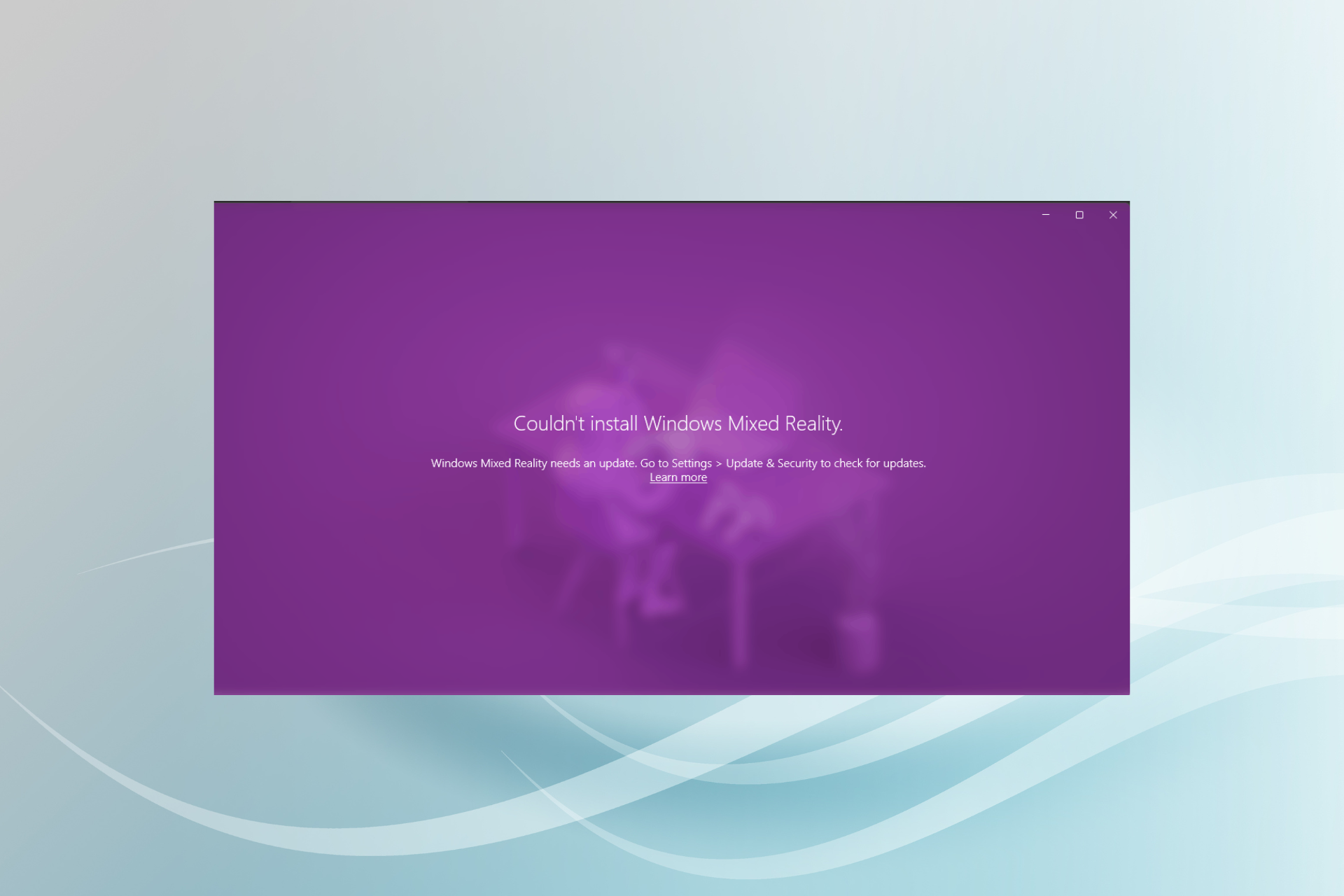
If you want to share with us your experience with the entire uninstall/reinstall process, feel free to use the comments section below.

Xbox head Phil Spencer expects next-gen consoles to remain supply-constrained next year

Head of Microsoft’s Xbox division Phil Spencer spoke candidly to reporters this week about the chip shortage situation and its effects on next-gen console availability, this time with publication The Wrap.

Throughout the Fall of 2020 and ten months into 2021, fans of both leading next gen consoles in the Xbox Series X/S and PlayStation 5 have had to do a bit of scouring to find devices to purchase. In large part, the global pandemic put an early stranglehold on production, manufacturing and distribution across the globe, and video game consoles were not excluded from the crisis.

When discussing the chip shortage and its effects on Microsoft’s Xbox Series consoles in specific, Spencer attributes the lack of devices to more than a single vector.

I think it’s probably too isolated to talk about it as just a chip problem. When I think about, what does it mean to get the parts necessary to build a console today, and then get it to the markets where the demand is, there are multiple kind of pinch points in that process. And I think regretfully it’s going to be with us for months and months, definitely through the end of this calendar year and into the next calendar year.

While expressing his frustration with the situation, Spencer notes the effects a lack of available consoles is having on fans leaving many disappointed and despondent about this generation of gaming.

As Spencer explains, fans left dispirited about their inability to catch a flash sale or afford absorbent online pricing, will remain a reality for some time to come. Spencer’s candid outlook on the chip shortage, while dower, is still rather optimistic when compared to chip maker Toshiba. Director in charge of semiconductors at Toshiba predicts that, “some customers will not be fully served by their products until 2023.
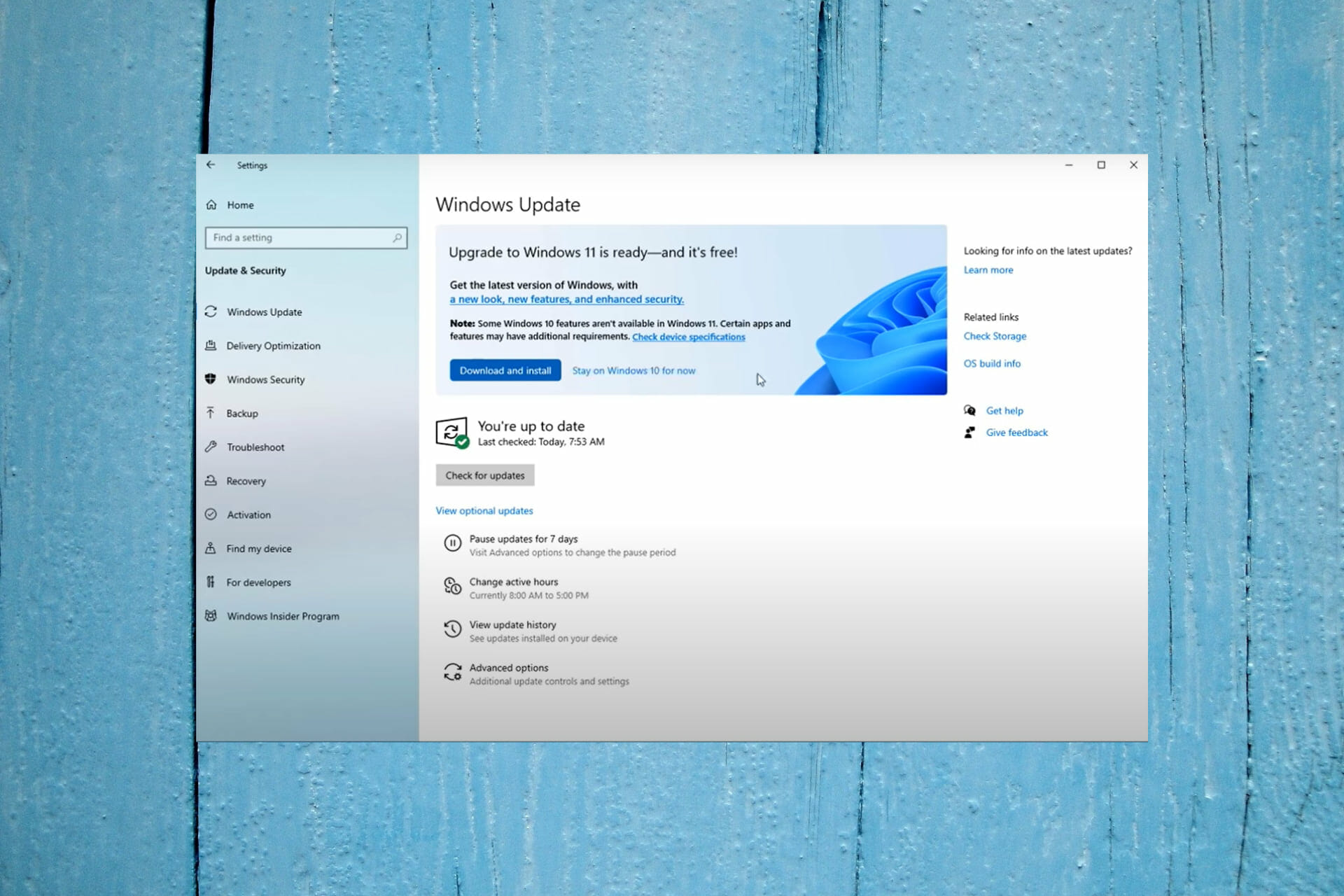
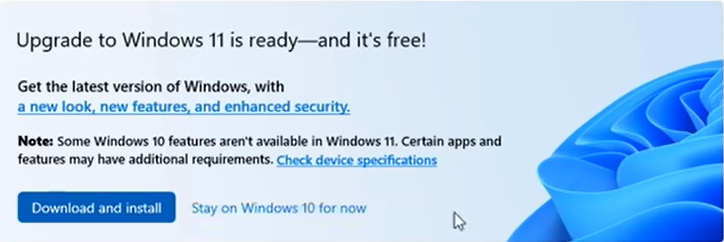
Slack doesn’t connect to the Internet? We got fixes for it

Slack connection issues are impossible to avoid when you have a painfully slow or unreliable Internet connection.

There are times when Slack is actually down and connection problems originate from their servers, yet you might not like what you’re about to read.

The main reason for your Slack connection issues isn’t related to their infrastructure but rather resides in your Internet connection.

Having to deal with unsent Slack messages or calls where the audio cuts in and out frequently is no scenario you want to be a part of for too long.

You don’t expect to get that from this popular messaging and collaboration app on a daily basis, yet this isn’t the time for losing patience.

In this article, we’re going to explore some of the best ways to fix Slack connection issues.

Note icon NOTE
Downdetector is reporting a server outage for Slack. If you’re not able to connect right now, note that the company says it’s working on a fix for the issue that’s been ongoing since around 12:30 PM ET/9:30 AM PT.

What can I do if Slack doesn’t connect to the Internet?

1. Check your Internet connection

Slack internet connection issues
  1. Open any other webpage.
  2. If that webpage doesn’t load either, reset your Internet connection.
  3. Try loading Slack again.

This sounds rather basic, but in some instances, your Internet connection can be the reason why Slack doesn’t connect to the Internet.

2. Run the Slack connection test

  1. Sign in to your Slack workspace.
  2. Access Slack testing page to check connections.
    Slack connection issues test
  3. Under the WebSockets section, see the results for both WebSocket (Flannel [Primary]) and WebSocket (Flannel [Backup]).
  4. A successful test will reveal the checked circle icon.
  5. A failed test will show instead the warning icon.
  6. In case of any errors, contact your network administrator or Internet service provider.

3. Clear your cache

  1. Open the Slack app.
  2. Click Help in your computer’s menu bar.
  3. Select Troubleshooting.
  4. Click Clear Cache and Restart.
    clear cache slack slack can't connect to the Internet

After clearing the cache, check if Slack still has problems connecting to the Internet.

4. Adjust your proxy to keep the connection to Slack open

  1. Visit Slack URL page.
    Slack connection issues sign in
  2. Here you must whitelist all specified URLs.
  3. Visit that page from each workspace if your environment requires access to multiple workspaces and/or orgs.
  4. Then, verify if your proxy is running SSL decryption.
  5. If it is, it’s time to exempt the following domains: *.slack-msgs.com wss-primary.slack.com wss-backup.slack.com wss-mobile.slack.com.

Always remember that proxies and firewalls often mess around with connection between Slack messaging servers and members’ apps.

This might be the case if there’s a WebSocket failure in our Slack connection test, or if it becomes impossible to connect from a specific location.

5. Collect and send Net Logs

  1. Open the Slack app.
  2. Click Help in your computer’s menu bar.
  3. Select Troubleshooting.
  4. Select the Restart and Collect Net Logs option.
  5. Once the app has restarted, reproduce the issue.
  6. Quit and restart Slack once more.
  7. It’s time to send Slack an email at [email protected] with Net Log file or use the contact form.
    Slack connection issues contact

Keep in mind that the name of the file must start with net-log.

We hope this guide managed to help you fix the Slack connection issues caused by the Internet itself, antivirus software or security settings, disruptions with third-party services, or errors with app storage or Slack servers.

Also, don’t forget that DNS failures come in a lot of forms but they all point to the fact that your browser can’t connect to the domain of a certain page.

Learn how to quickly solve DNS PROBE FINISHED NXDOMAIN Chrome errors and continue enjoying Slack as you normally do.

Do you know any alternative solutions? Just sound off in the comments below.

FIX: Slack is not automatically loading new messages

Slack is among the most popular networks used to communicate with teammates and employees. However, sometimes it does not automatically load new messages when you need it to.

In this article, you’ll learn about the most simple methods used to fix this problem. It’s worth noting that these steps apply to both the Slack desktop app and the web version of it.

Note icon NOTE
Downdetector is currently reporting a server outage for Slack. If you’re having trouble connecting, keep in mind that the issue is been ongoing since around 12:30 PM ET/9:30 AM PT and Slack is working on a fix.

How can I solve Slack message loading errors?

1. Fix connection issues

slack connection

Here are the steps you need to take:

  1. Check your Internet connection.
  2. Do this by loading a new webpage.
    • If it doesn’t work, just reset the connection and try again .

Once the Internet connection is back up, you have to run the Slack connection test:

  1. Visit Slack’s connection test page.
  2. If any errors come up once the test is finished, contact your Internet provider for help and they should get you sorted out.

Moreover, when it comes to DNS failures, they most likely show up in your browser when you lose Internet access. Do not hesitate to solve DNS PROBE FINISHED NXDOMAIN Chrome errors and get things on the right track.

2. Clear cache memory

slack-not-automatically-loading-new-messages

We will show you how it’s done in Google Chrome, since this is the most popular browser today. Here are the steps you need to take in order to delete the cache memory in the browser:

  1. Launch Google Chrome.
  2. .Press Ctrl + Shift+ Delete.
    • A new window will pop up, where you must select the time period for which you want to delete the cache. Select All.
  3. Check the box where it says Images and Files in Cache.
  4. Finish by clicking Delete Browsing Data.
  5. Reload the site.

This method is suitable for those who are using Slack directly in the browser. If any of the new messages won’t start to load, there might be a good idea to clear the cache memory of the browser you are using. This is done differently, depending on the software in use.

3. Re-install the app

slack-not-automatically-loading-new-messages
  1. Press Start.
  2. Type in Slack.
  3. Right-click on the app’s icon.
  4. Click Uninstall.
  5. Download the app from the Slack official website and install it again like you did last time.

Most likely, this method will delete every issue that ever came up, meaning that your new messages will also appear when you log into your account.

As you can see from above, there are multiple ways to get Slack to load your new messages.

Depending on which version you’re using, try one of these methods. And if they won’t work, just re-install the app if you’re using the desktop version. This will surely get rid of the issue.

Do you know of any other methods that can efficiently solve this issue with Slack? Let us know in the comment section below.

Microsoft Forms starts rolling out new organization capabilities

Microsoft has announced some important updates that are coming to Forms this month. Indeed, the software giant has started rolling out a new feature to help users organize their surveys, quizzes, and polls into customized collections.

The firm says the ability to categorize their forms into collections has been among the much-anticipated features, and it was first spotted on the Microsoft 365 roadmap last month. “You can create as many Collections as you want to store quizzes and forms and access them anytime online. Edit your files in a Collection, copy a Collection, share a Collection out (coming soon), or delete them when you’re done. You can also switch to a list view if you’d like to have vertical view of all your Collections,” the company explained in the blog post.

In addition to the desktop experience, the Forms Collection feature is also supported on mobile devices. This means that users can now easily group all forms/quizzes/polls as desired on the go. This capability is also available for forms instances generated through other Microsoft 365 apps, including Microsoft Teams, PowerPoint, and Outlook.

The new Collections experience is gradually rolling out to targeted release customers, and it will become generally available later this month. The feature aims to increase productivity and give users greater control over their personal content. However, Microsoft Forms currently doesn’t provide an option to download or export collections. Collections are currently restricted to personal forms, and group forms are not supported yet.

Big updates for Teams, Visio, and more – what’s new in Microsoft 365 for September

Microsoft has pushed out a monthly recap of all the new features and capabilities added to Microsoft 365 in September. This time around, the company has outlined updates rolled out to each of the Microsoft 365 apps and services, including Teams, Yammer, Word, PowerPoint, Excel, and Visio. Here’s a look at what you need to know.

First of all, Microsoft has launched AI-powered Live captions and transcription capabilities in Teams meetings in 27 new languages. The list includes French, German, Brazilian, Portuguese, Hindi, Japanese, and more. Users will be able to access this feature in the Teams desktop app by selecting the menu (. . .) icon and clicking the “Change spoken language” option. It will help to increase participant engagement and make it easier to take post-meeting notes.

With real-time captioning, go to the more actions section within your Teams meeting and select your desired spoken language.

Next up are improvements to Microsoft Yammer. The enterprise social networking service is getting a new integration with Viva Topics to help employees discover information from Yammer communities and manage knowledge-sharing within an organization. This release will let licensed customers access all the Viva Topics features, such as Viva Topic cards. You can find more details on the Yammer Topic API changes blog to understand the changes.

Next up are improvements to the Office suite of apps. Last month, Microsoft announced that Word, Excel, and PowerPoint now support real-time co-authoring on encrypted and sensitive documents. This capability has previously been available on the web since 2019, and it is finally making its way to the Windows and macOS desktop apps. Visio on the web has introduced a new feature that brings support for fully custom colors in diagrams. This means that users can now access recently used or custom colors to highlight objects in the diagrams.

You can now co-author in encrypted documents in Microsoft 365 Apps.

Lastly, Microsoft has also detailed a few new capabilities for IT professionals that aim to help them deploy and manage new versions of operating systems. Microsoft Endpoint Manager’s analytics service has picked up day-one support for macOS 12 and iOS 15. The Redmond giant also added Windows metrics to analyze the number of machines running older Windows versions and determine which devices are ready for Windows 11.

The next Start11 update will bring more options to customize Windows 11 in ways that Microsoft won’t let you

The folks at Stardock have announced another big update for Start11. Coming on October 7, the next update will bring additions like the ability to adjust the taskbar size, re-order quick access shortcut lists, and more. The update should let you customize Windows 11 to make it more personal, in ways that Microsoft won’t let you do it natively.

One of the big features coming in this update lets you move the taskbar to the top of the desktop in Windows 11, a feature that’s not available in the settings app. In addition, some of the other features include some new Start Menu layouts to choose from, restored context menus, and integration with Stardock’s Fences program. You can see a preview of what it looks like below.

The Start11 update will release on October 7th. The beta is currently available for $4.99, with an upgrade option for users of Start8 and Start10. We previously had a chat with Stardock about Start11 and the future of the app.

MSFS 2020 Crashing on Windows 11: How to Fix it

Flight Simulator 2020 is compatible with both 64-bit Windows 10 and 11. So, you can enjoy MSFS 2020 in Microsoft’s latest Windows platform.

Some early users have encountered issues playing Flight Simulator 2020 in Windows 11. Certain players have reported MSFS 2020 crashing to the desktop in Windows 11. Others have spoken about update issues arising for that game.

Either way, players can’t play Microsoft Flight Simulator when such things happen. The potential resolutions below might fix such issues and make MSFS 2020 playable in Windows 11.

How come Microsoft Flight Simulator isn’t working in Windows 11?

Games often crash because of corrupted or missing files. Microsoft Flight Simulator is no exception in that regard. Therefore, reinstalling MSFS, or at least verifying its game files, can often Microsoft Flight Simulator issues.

Conflicting programs can also generate MSFS issues in Windows 11. For example, some players have confirmed uninstalling Sonic Studio 3 can fix Microsoft Flight Simulator crashing to desktop.

Microsoft Flight Simulator is also a graphically advanced game. Therefore, MSFS 2020 issues can arise on PCs with outdated graphics card drivers.

Flight Simulator can also frequently crash because of limited RAM (Random Access Memory). The game consumes eight gigabytes of RAM. Players with PCs that have eight GB RAM might need to increase virtual memory.

What are Microsoft’s Flight Simulator’s system requirements?

If you can’t play Flight Simulator after downloading it, double-check your PC meets the game’s minimum system requirements. The game might not start precisely because your computer doesn’t meet all minimum requirements:

Flight Simulator's system requirements windows 11 flight simulator issues

If your desktop or laptop does meet all Flight Simulator’s minimum requirements, however, go through the potential fixes for MSFS issues below. One of these resolutions might kick-start the game.

How can I fix Microsoft Flight Simulator issues in Windows 11?

1. Run the Windows Store App troubleshooter

  1. First, click Windows 11’s Start button.
  2. Type troubleshoot in the Settings’ search box.
    troubleshoot search windows 11 flight simulator issues
  3. Click Troubleshoot to bring up further options.
  4. Next, click Other trouble-shooters to view a list of troubleshooters.
    Troubleshooters windows 11 flight simulator issues
  5. Press the Run button for the Windows Store App troubleshooter.
    Windows Store Apps window windows 11 flight simulator issues
  6. Thereafter, wait for the troubleshooter to detect and repair app issues. It usually automatically repairs issues.

2. Reset the Microsoft Store cache

  1. Press the magnifying glass taskbar button to open Windows 11’s search box.
    Magnifying glass button windows 11 flight simulator issues
  2. Type wsreset.exe in the search utility’s text box as in the screenshot below.
    wsreset.exe windows 11 flight simulator issues
  3. Click wsreset.exe in the search results to run it.
  4. Next, wait for the MS Store window to automatically open.
Note icon NOTE
This resolution is more specifically for fixing MS Store update issues that can arise for the Microsoft Flight Simulator UWP (Universal Windows Platform) app.

3. Update Windows 11

  1. Click Start and select Settings on the menu. 
  2. Click the Windows Update tab.
    Windows Update windows 11 flight simulator issues
  3. Press the Check for updates button on that tab. Windows 11 might then automatically download and install new updates.

4. Update your PC’s graphics driver

  1. Right-click Windows 11’s Start button to open a shortcuts menu.
    A shortcuts menu windows 11 flight simulator issues
  2. Select Device Manager on that menu to bring up that utility’s window.
  3. Double-click Display adapters to view your PC’s graphics devices.
  4. Right-click your PC’s graphics adapter to select the Update driver option.
    Update driver option windows 11 flight simulator issues
  5. Next, click Search automatically for drivers option within the Update Drivers window that opens.
    Search automatically for drivers option windows 11 flight simulator issues
  6. Wait for the Update Drivers utility to install new driver.

Alternatively, try updating device drivers with third-party driver updater software. A driver update utility such as Outbyte Driver Updater will tell you if your graphics card’s driver is outdated and enable you to update it.

5. Reset the game (MS Store app fix)

  1. Click the Start tasbkar button to select Settings on the menu.
  2. Select Apps on the left of Settings.
    The Apps tab windows 11 flight simulator issues
  3. Next, click Apps & features to open the options below.
    Apps & features tab windows 11 flight simulator issues
  4. Click the three dots button for Microsoft Flight Simulator.
    Three dots button windows 11 flight simulator issues
  5. Then select Advanced options.
  6. Press the Reset button for the app.
    Reset button windows 11 flight simulator issues
  7. Click Reset again to provide further confirmation.

6. Verify its files in Steam (Steam fix)

  1. Open your Steam client software in Windows 11.
  2. Select Steam’s Library tab.
    Library tab windows 11 flight simulator issueshttps://cdn.windowsreport.com/wp-content/uploads/2021/09/the-library-tab.jpg
  3. Right-click Microsoft Flight Simulator in the Library tab to select Properties.
  4. Click the Local Files tab.
  5. Press the Verify Integrity of Game Files button.
    The Verify Integrity of Game Files option windows 11 flight simulator issues
  6. Thereafter, wait for the validation process to complete. Press the Close button when it’s done.

7. Increase virtual memory allocation

  1. Right-click Windows 11’s Start button to open a menu full of shortcuts.
  2. Select Run on the menu.
  3. Type this text in Run’s Open box and click OK: SystemPropertiesAdvanced
  4. Click the Settings button.
    Settings button windows 11 flight simulator issues
  5. Select the Advanced tab.
    The Advance tab windows 11 flight simulator issues
  6. Click Change on that tab to open the Virtual Memory window.
  7. Uncheck the Automatically manage paging file size for all drives checkbox.
    The Automatically manage paging file size for all drives checkbox windows 11 flight simulator issues
  8. Select the Custom size radio button.
  9. Type the value 12288 in the Initial size box.
  10. Input 24576 within the Maximum size box.
  11. Press the Set button.
  12. Then click OK to exit the Virtual Memory window.

8. Erase Flight Simulator’s fspatch files

Note icon NOTE
This resolution is especially recommended for fixing update errors that arise for MSFS. For example, it can fix the issue whereby MSFS gets stuck on a Please Wait screen.
  1. First, click the File Explorer taskbar button.
    File Explorer button windows 11 flight simulator issues
  2. Open one of these folder paths in File Explorer:

    C:\Users\%UserName%\AppData\Local\Microsoft Flight Simulator\Packages\Official\OneStore (MS Store app)

    C:\Users\%UserName%\AppData\Local\Microsoft Flight Simulator\Packages\Official\Steam (Steam)

  3. Select all the .fspatch files in the folder path specified.
  4. Click the Delete button to erase the .fspatch files there.
    The Delete button windows 11 flight simulator issues

9. Uninstall Sonic Studio 3

  1. Open Run by right-clicking the Start button and selecting that accessory on the menu.
  2. To open Programs and Features, input this Run command and click OK: appwiz.cpl
  3. Select Sonic Studio 3 if it’s installed.
    Programs and Features applet windows 11 flight simulator issues
  4. Click Uninstall and Yes on confirmation prompts to remove Sonic Studio 3.

Some users prefer to utilize third-party uninstaller software for uninstalling apps. Third-party uninstaller utilities more thoroughly erase leftover residual files than the default uninstaller in Windows and IObit Uninstaller won’t disappoint you.

10. Reinstall Flight Simulator

  1. Open Apps & features in Settings as outlined within the fifth resolution.
  2. Select the Microsoft Flight Simulator app.
  3. Click the three dots button for MSFS and select Uninstall.
    Uninstall option windows 11 flight simulator issues
  4. Restart Windows after removing Microsoft Flight Simulator.
  5. Thereafter, open the MS Store page for your MS Flight Simulator. Download the game from there to reinstall it.
Note icon NOTE
Steam users can uninstall Microsoft Flight Simulator in their client software. To do so, right-click MSFS on Steam’s Library tab and select Uninstall. Then reinstall the game via your client software.

Who can I contact to fix Flight Simulator issues?

You can contact Flight Simulator’s support service. Open the Microsoft Flight Simulator FAQ page in your browser. Then click the Submit a Request link on that page. Fill out the form that opens and press the Submit button.

The above resolutions can feasibly fix a wide variety of crashing and updating issues that can arise for MSFS. If your Flight Simulator often crashes at startup or during gameplay, give them a try.

Moreover, let us guide you if you happen to encounter the Flight Simulator X error 1722. The message shows that there is a problem with the Windows Installer so you need to act fast and correct it.

Finally, keep in mind that those aren’t necessarily all the resolutions to apply when experiencing Microsoft Flight Simulator issues. Players who have fixed MSFS crashing with other methods are welcome to share their fixes in the comments area below.

Kena: Bridge of Spirits game review

At first, I couldn’t put my finger on exactly what was stopping me from falling head over heels with Kena: Bridge of Spirits. On the surface, there’s a lot to be enamored by. For a start, it’s beautiful.

The forest is brought vividly to life by the geniuses at Ember Lab, making it at the same time both whimsical and mysterious. The backdrops are stunning, evoking Disney-Pixar adventures at their best.

Gleaming lights play against warm stone, motes of luminescence dance and chase one another through canopy shadows, ponds and rivers gleam in the sunlight.

High spirits

Until you happen to come upon the Corruption that Kena is sworn to eradicate, at which point the once-beautiful woodland twists and gnarls into thorny roots and tendrils that jut from the ground, holding aloft pulsating red flowers that spit abominations into the world.

To clear the way and restore peace to the forest, Spirit Guide Kena must join forces with the Rot, ironically-named Woodland spirits whose cleansing powers can dispel the Corruption and allow her to shepherd the restless spirits of the forest to their final destination.

The Rot is the kind of cute that usually comes from committee meetings where corporate suits tailor something designed as much to sell merchandise as to tell a story. And yet I couldn’t help smiling whenever they did something endearing, or I got to dress them up in silly little hats made of mushrooms and bird’s nests.

Shrine and dandy

Kena is able to use an energy pulse to interact with shrines and special relics that can open doors or reveal secrets. It’s this pulse that also dispels Corruption and reveals where more Rot is hiding. Collecting them and adding them to your ever-growing entourage allows you to level up, which gives you points to spend on Rot abilities or combat skills.

Because you’ll need to search high and low for Rot to level up, it’s a slow process, and you won’t feel like you’re always in the Skill Tree tweaking stuff. It’s a more gradual and organic progression.

Armed with her father’s staff, which later doubles as a magical bow, Kena is introduced to us mid-quest. She has reached the forest, where she finds her way barred by a powerful, malevolent spirit in an ornate mask. It’s here you’ll get your first taste of combat in Kena: Bridge of Spirits.

Like most of the rest of the game, combat is nothing we haven’t seen before. Heavy and light attacks, an evade roll, a timed parry, etc.

What’s different is that to heal you’ll need the Rot to cleanse nearby flowers, which are limited in number, or you can use them to harass an enemy to give you breathing space. To do this though, you’ll need Courage.

Rot and roll

The Rot are not creatures of action, generally, and so at the first sign of trouble, they’ll scarper as Kena bravely brings her staff to bear. Defeating enemies causes them to drop golden orbs that represent the physical manifestation of Courage. Collecting them allows you to call on the Rot mid-fight, to heal you, help you out, or cleanse the nearby Corruption.

Despite the overall lack of originality, the combat is mostly enjoyable and spread out enough to act as a nice change of pace. Except for the boss fights, that is.

Now and then you’ll come up against a powerful agent of Corruption and Kena will go decidedly Dark Souls on you. Healing options are few, and the bosses have specific mechanics you’ll need to learn in order to win. Okay, they may not be quite as taxing as Souls bosses, but some of them gave me genuine pause and took three or four attempts.

This in itself wouldn’t be so bad if the checkpointing was more consistent. Often losing to the boss will require you to go back a little way, but sometimes you’ll respawn right by the fight. The latter is preferable, as the former can become irritating with repeated retries.

While Kena is not exactly a Metroidvania, it has some of the elements of one. As you progress you’ll unlock new abilities and tools, such as the aforementioned bow.

This weapon, in particular, allows Kena to grapple onto special flowers, or hit distant switches. You can also water magical plants that allow the Rot to dispel the Corruption that blocks your path. Sometimes you’ll need the Rot to move objects, like stone blocks to reach higher levels or switches that need to be repositioned.

Hats off

None of these environmental puzzles are overly difficult, but they’re enough to give you a sense of accomplishment and break up the jumping, climbing, and fighting.

Chests are dotted around containing either new hats for the Rot or currency to buy said hats, which are really just there to up the cute factor and give you something to collect, which is fine though not essential.

Kena herself is a likeable enough protagonist, even if her personality could have been lifted from two-dozen different animated movies or games of this ilk. She’s brave and focused and forthright, and that’s more or less all you get.

There aren’t many speaking NPCs for her to bounce off, but what dialogue there is, is well-written and well-acted. The world is fascinating, though, and the plight of the forest is something that can be taken as an allegory for any of a hundred real-world or personal issues.

Playing on an RTX 2060 Super graphics card, I was able to adjust the default settings up and still run Kena: Bridge of Spirits without issue once I’d updated my Nvidia drivers. For a game so consistently beautiful, it runs very well, even during more intense moments like combat encounters.

Achievements and completion

Built as a PlayStation 5 and PC game, Kena comes with a full suite of achievements which lead to a Platinum on the PS5. Despite the existence of a work-around, you will need a second playthrough to unlock one of the achievements “legitimately”.

A playthrough for 100% completion will take upwards of 12 hours, whereas simply finishing the story and seeing credits will take closer to 8 or 9. I finished in just under 9 and spent only a short amount of time poking about for secrets and hidden collectibles.

Final thoughts on Kena: Bridge of Spirits

Pros
Looks gorgeous
Great mix of combat and exploration
Doesn't outstay its welcome
Cons
Very little originality
Boss fights can be frustrating

Final Score: 4/5

Although not particularly fresh in its approach or original with its content, there’s something effortlessly likable about Kena: Bridge of Spirits.

Some of the boss fights will undoubtedly frustrate people, and younger gamers attracted by its stellar animation and whimsical appearance may struggle to overcome the challenge at times.

However, if you’re looking for a straightforward adventure that tells a story without bloating itself with side-quests, filler, and endless trinkets to collect, then Kena: Bridge of Spirits comes highly recommended.

Pathfinder: Wrath of the Righteous game review

In many ways it’s hard to believe that Pathfinder: Wrath of the Righteous began its life as a Kickstarter project. Although, it’s easy to see why a Kickstarter launched in February 2020 has borne a game so vast in such a short time.

It was funded out the door in no time (thanks in part to the popularity of Pathfinder: Kingmaker), with developers Owlcat Games raising 2 million USD on an original target of just 300,000.

It’s fair to say though, that they’ve put it to very good use.

Pick from a pre-made hero, or create your own

A truly epic quest

Wrath of the Righteous is huge. It’s an 80 – 100 hour game per playthrough, with scope for scores of playthroughs. Set in the vast world of the Pathfinder tabletop RPG, it introduces new characters in a storyline totally separate from the previous game.

The character creator is one of the most in-depth I’ve seen. Not in terms of visual tweaks necessarily (you can’t sculpt faces like in Skyrim, for example), but rather in terms of building a truly unique character.

There are 12 playable races, from humans and elves and half-elves, to dark-elves and halflings. The lore of the Pathfinder universe is very similar in the broad strokes to the Forgotten Realms, so anyone familiar with D&D will feel immediately at home among the races of Golarion.

But there are also 25 Classes to choose from, each with as many as six specializations that completely alter the initial skills and abilities of the class. You can even multi-class if you want to, and cherry-pick skills from multiple classes as you progress.

Some of the classes are locked to specific races, others to specific alignments. This affects base stats and starting weapons, while other elements are directly influenced by the deity your character worships and which intrinsic skills you select.

You could be a charming rogue, an evil spellcaster; you could be a reckless healer or a softly-spoken swordsman. The choices feel endless, and it’s easy to spend a solid hour or more creating your character before you even begin the game.

Stay awhile and bicker

Tell me a story

Keeping this spoiler-free, it’s suffice to say that an evil force is ravaging Golarion once again and you’re the only one who can stop it. So far, so CRPG, right? Well, that’s fair.

But Owlcat games have poured hours and hours of dialogue (spoken and written) into a wildly branching narrative that takes into account hundreds of player choices both large and small.

From big decisions such as sparing an apparent enemy to smaller ones like which dungeon to delve into first, everything can and often will have an effect on the story.

As you travel the lands you’ll meet and potentially recruit 13 companion characters. You can select five at a time to accompany you, and as usual, the onus is on picking companions who complement your protagonist’s skills.

If you’re a tanky warrior, you’ll need a healer, some ranged support, and maybe a couple of spellcasters to harry the enemy.

Deeper yet, outside combat you’ll need a character who can pick locks, spot traps; maybe one with high Agility to help you reach certain areas. Bring along a character with high lore or arcane knowledge to glean a better understanding of the world at large.

All of these elements have a bearing on not only the way you play but also on what content you play, as you can lock off whole storylines or unlock new ones by your choices alone.

Later, a mythic path becomes an option, allowing you to specialise your character even more, and opening up even more choices and interactions.

Battles can be in real time, or turn-based

Swords and sorcery

Combat is deftly handled, as Owlcat gives you an impressive list of options to customise the proceedings. You can opt to play fights turn-based, if you want to, allowing for greater strategic control and a more traditional tabletop experience.

Or, you can leave it in real-time with a tactical pause to assess the fray, allowing you to stack commands and course-correct a battle that’s quickly going south.

The former certainly makes things easier, but you can tweak the combat difficulty to the umpteenth degree anyway, reducing the damage of critical hits, for example, or completely restricting the enemy’s use of special skills.

Every fight feels different, with certain enemies requiring specific tactics. You can group your party together to focus fire, or split them to tackle multiple foes at once.

There are spells and special attacks, items, scrolls, pets, summons, traps, and environmental hazards, and on higher difficulties, you’ll need to use everything at your disposal to stay alive. Including good old trusty save-scumming to quick save and quick load your way out of trouble.

But combat is only one ingredient. The role-playing element here is arguably one of the best I’ve played. Decisions matter, as I said, but that’s not the be-all and end-all of an RPG.

Equally as important are the supporting characters and NPCs, but especially your party members. Each is as well-written as a single protagonist in many games.

The player characters you recruit are a diverse bunch

Dungeon party

They have views and opinions, likes and dislikes; some are fickle in their beliefs while others will straight up leave the group or turn on you based on how you lead. You can re-spec their skills and change their gear, but you’ll have to contend with their personalities as though they were real people.

As you travel the world map from point you’ll come across points of interest and random encounters, and even these can change depending on your party and character choices.

A wealth of side-content spins multiple yarns that take you around and through story missions, in ways that feel so organic, you’ll occasionally lose track of which is the critical path. Luckily, the journal and quest-tracking systems work well.

After a certain point in the story (again, no spoilers) you’ll unlock the Crusader Mode, wherein you’ll command entire armies at war to reclaim fallen cities and lost outposts. You will need to make camp, provision your troops, hire reinforcements and choose generals to lead them for you.

It’s an odd element to juxtapose with Pathfinder: Wrath of the Righteous’ epic campaign, but it kind of makes sense in practice.

If I have a complaint though, it’s that the Crusades feel bland and mechanical next to the colour and pizazz of the campaign. Yes, you’re in control of an army, but Total War this is not, and after a while, you’ll just want to auto-complete battles to move on.

Party battles are simply more fun and feel more real given the game’s CRPG nature. If Crusade mode wasn’t present, no one would be asking for it, let’s put it that way.

Explore a vast world of danger and excitement

Achievements and completion

Pathfinder: Wrath of the Righteous is gargantuan. It’s hard to put an exact hour-count to it because you could possibly rip through the main campaign on the easiest possible difficulty inside 30(-ish) hours.

If you want a truer experience, it’s a minimum of 70 to 80. If you want everything? Well, see you some time next year, we guess. You can also play through it multiple times and I couldn’t begin to guess how many runs you’d need to see all possible storylines and side quests.

Final thoughts on Pathfinder: Wrath of the Righteous

Pros
A huge, involving world that reacts to your choices
An in-depth character creator
Excellent writing and world-building throughout
Cons
Crusade mode is take-it-or-leave-it
Deep, complex systems may overwhelm newcomers

Final Score: 4/5

Playing this on a fairly decent PC I ran into zero issues with input lag, screen tear, frame rate, or load times. It’s a fantastic CRPG that is as accessible to genre newcomers as it is to veterans who cut their teeth on the original Baldur’s Gate.

The story has so many twists and turns and branching paths that you will never fully predict what’s coming, and you won’t want to. Discovering the depth of this world is part of the fun, and something you’ll only truly manage with countless hours invested.

Pathfinder: Wrath of the Righteous has some spectacular writing at times, while the vast campaign, immense character progression systems and stellar combat will keep you hooked.

If anything, Owlcat would have lost little by snipping the Crusade mode out, but it’s churlish to complain about being given more of something, right?

Disclaimer: Pathfinder: Wrath of the Righteous is currently available on PC for around $34.99 on G2A, Kinguin, GreenManGaming and GOG, and is coming to consoles in the future.

Get the new Windows 11 Paint app experience [Insiders only]

Do you remember that we were actually talking about this system built-in tool a couple of weeks ago? Well, what we said back then has come to pass and this app has now completed its evolutionary process.

We were all announced that Microsoft is about to start tweaking Paint and that the results would be satisfactory for all of us.

Panos Panay has now hinted at the redesigned Paint app and users are more than curious and eager to try it out.

What’s new on the Windows 11 Paint app look and features?

Update: Microsoft announced in a Windows Blog post that they are beginning to roll out the redesigned Paint app for Windows 11 to all Windows Insiders in the Dev Channel.

In the new announcement, we also have a new screenshot with the new Windows 11 Paint app and Microsoft touts a simplified toolbar menu, the round color palette, and drop-box menus.

The new drop-box menus

We also learned that there is a new text tool that can be accessed by clicking on the A icon in the toolbar.

Microsoft’s Chief Product Officer Panos Panay tweeted about the new Paint experience and followers were ecstatic to find out more. 

At first glance, the UI looks quite different from the version of Paint in Windows 10, but a much closer look shows very that very little has in fact changed.

For the trained eye, the only new features are a dark mode and the ability to change text alignment. Other than that, this all seems to just be simply a fresh coat of paint with some items moved around.

If you really make an effort, by looking carefully, you’ll see that the Edit in Paint 3D button has been removed.

Overall, this seems to be simply bringing the app up to the more modern design language of Windows 11.

All of the same features from the classic Paint are still here, and the UI tweaks aren’t beyond the limits of craftsmanship, so nothing out of the ordinary.

On Windows 10, Microsoft tried to promote a new app called Paint 3D for a couple of years, but the interface was radically different and not as intuitive.

All it did is it added a ton of 3D design tools that made it more complicated, too. With Windows 11, the company seems to have acknowledged that was a bad idea and is instead refining the Paint app everyone actually uses.

When will we see this new app make its way to Insiders? This is a question that we wish we’ve had the answer to, but unfortunately, we don’t.

We have yet to see the Focus Sessions feature teased a couple of weeks ago, so these early looks don’t necessarily mean it’s coming that soon.

But since we are talking about upgrades, last week, Microsoft also rolled out a couple of smaller UI updates for the Calculator app and announced a similar update for Mail and Calendar.

Are you excited about using the new Paint? Let us know in the comments section below.