Google is “by far” the most popular search term on Microsoft’s Bing, Google says

As part of an effort to appeal a $5 billion antitrust fine issued by the EU for anticompetitive practices, Google is using data it collected to prove that Google is “by far” the most common search query on its competitor’s platform, Bing.

As Google tosses Microsoft’s Bing search engine efforts under the bus, it does so as the company scrambles to appeal a $5 billion fine handed down by the EU back in 2018. Google’s recent defense against what the EU has established as an antitrust violation, is predicated on the sourced data that proves despite its mindshare, Google is a user’s preferred choice rather than it being “unfairly” pushed on people as a default on devices.

Earlier this week Bloomberg reported that Google’s parent company Alphabet Inc. lawyer Alfonso Lamadrid issued the following statement along with sourced evidence to an EU court.

We have submitted evidence showing that the most common search query on Bing is by far Google. People use Google because they choose to, not because they are forced to. Google’s market share in general search is consistent with consumer surveys showing that 95% of users prefer Google to rival search engines.

While it’s an indictment of Microsoft’s molasses-like progress in competing with Google’s stratospheric popularity and use, it appears to be another aimless attempt by Google to appeal a fine issued based on its mobile search practices. Earlier this week, Google lawyer Meredith Pickfork criticized EU regulators adjudication of its antitrust case while simultaneously ignoring Apple’s own competitive practices.

The Commission shut its eyes to the real competitive dynamic in this industry, that between Apple and Android. By defining markets too narrowly and downplaying the potent constraint imposed by the highly powerful Apple, the Commission has mistakenly found Google to be dominant in mobile operating systems and app stores, when it was in fact a vigorous market disrupter [Android] is an exceptional success story of the power of competition in action.

Unfortunately, the EU commission was unphased by the critique, responding with “bringing Apple into the picture doesn’t change things very much.” Likewise, it would seem bringing in Microsoft’s unsuccessful attempts to counter Google’s dominance on desktop will do little to change a fine largely focused on Android and mobile competition.

The J-RPG Scarlet Nexus joins Xbox Game Pass for Console, PC, and Cloud today

Microsoft is continuing to add more high-profile Japanese games to Xbox Game Pass, and Scarlet Nexus is the latest J-RPG to join the catalog today. The game was released on Xbox consoles and other platforms back on June 25, and it’s pretty cool to see it coming to Game Pass just three months later.

Scarlet Nexus is available on Xbox Game Pass for Console, PC, and Cloud, and it supports cross-saves across all platforms. “Scarlet Nexus’ stunning anime and science-fiction-inspired new-gen visuals can be enjoyed in stunning 4K resolution and smooth 60 fps to give you a gaming experience that’s optimized for Xbox Series X|S,” the Xbox Wire blog post reads.

Scarlet Nexus earned praise for its art style and combat system, with the two protagonists being able to combine classic weapon-based attacks with psychokinesis powers. Publisher Bandai Namco Entertainment previously described Scarlet Nexus as a “brain punk” game, which is set in a dystopian world where all humanity has evolved to gain a more developed brain.

Microsoft revealed this latest addition to Xbox Game Pass earlier today during its Tokyo Game Show digital event, where the company also announced the expansion of Xbox Cloud Gaming to Brazil, Mexico, Australia, and Japan this week. The company also showcased other games coming to Xbox Game Pass including Back 4 Blood, AI: Somnium Files, and Mighty Goose.


Xbox Cloud Gaming officially launches in Brazil, Mexico, Australia, and Japan

Microsoft is bringing Xbox Cloud Gaming to four new markets this week. The cloud gaming service will officially launch in Brazil and Mexico later today, with Australia and Japan to follow tomorrow.

The Redmond giant announced this latest Xbox Cloud Gaming expansion during its Tokyo Game Show digital event earlier today. Once again, the company reiterated its ambition to bring Xbox games to the 3 billion people playing games on the planet.

“With the expansion of Xbox Cloud Gaming to gamers in Australia, Brazil, Japan, and Mexico, we’re now opening the opportunity for over one billion people in 26 countries across five continents to be able to play Xbox Game Pass games from the cloud on their phones, tablets, and PCs. Since cloud gaming is powered by custom Xbox Series X consoles, that means these games are being played on an Xbox in the cloud, bringing faster load times and improved frame rates to the gameplay experience”, said Catherine Gluckstein, VP & Head of Product, Project xCloud.

Xbox Cloud Gaming currently requires an Xbox Game Pass Ultimate subscription, and in some markets, Microsoft is teaming up with mobile carriers to make that more accessible. In Australia, Telstra customers will be able to add an Xbox Game Pass Ultimate on their monthly bill, no console or PC required.

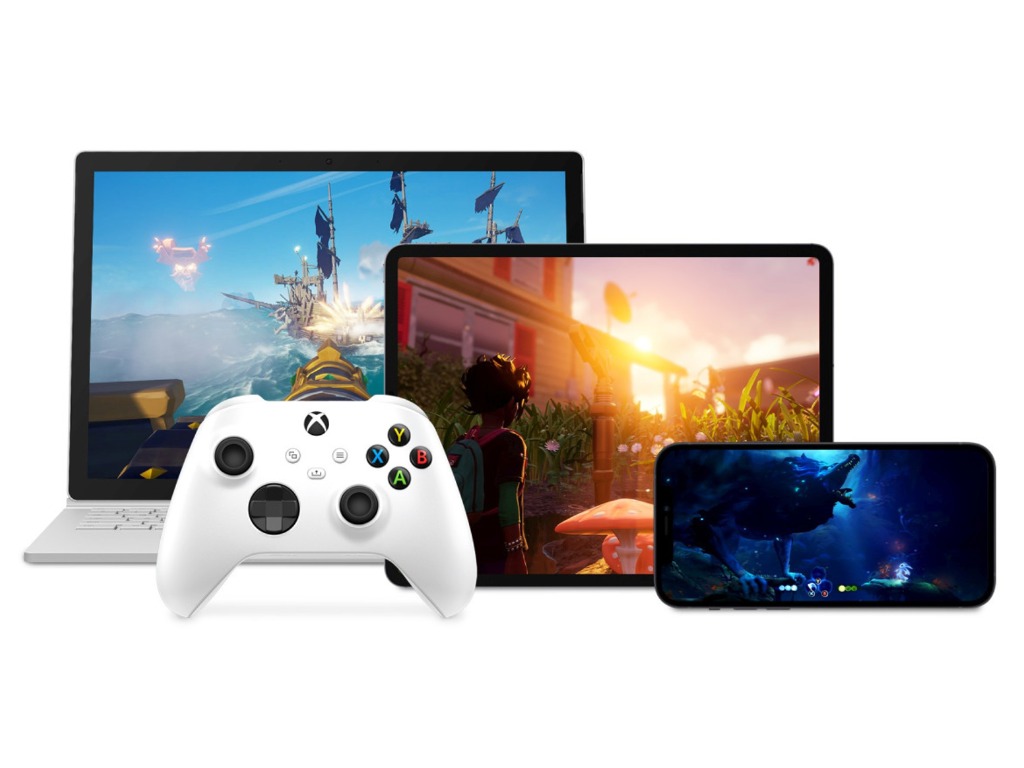
Xbox Cloud Gaming is currently available on the web, the Windows Xbox app, as well as iOS and Android phones and tablets, but it’s coming soon to Xbox consoles as well. Microsoft has started testing the feature with select Xbox Insiders earlier this week, and this will eventually allow all Xbox gamers to try Xbox Game Pass games without installing them.

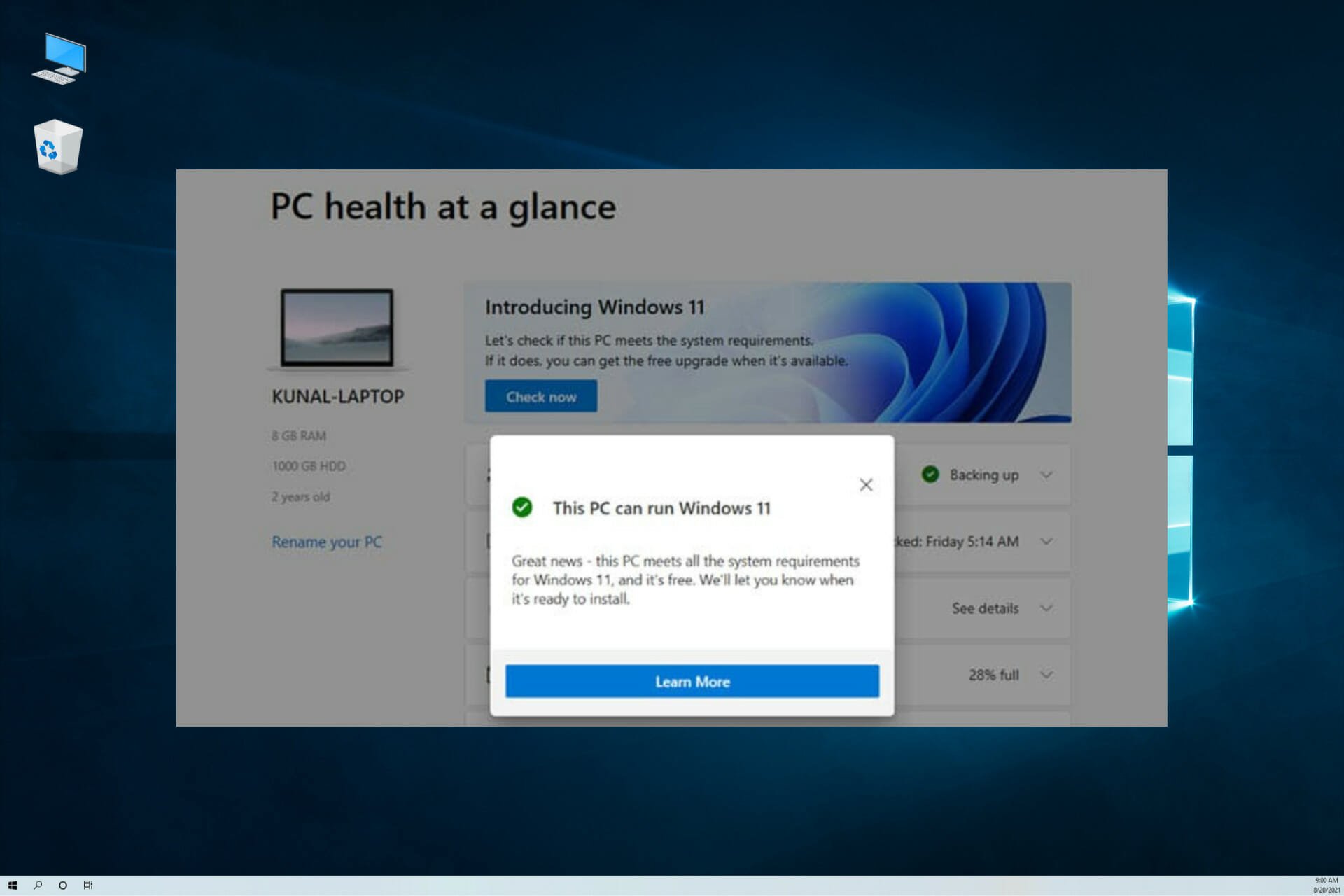
The latest Windows 11 install script bypasses TPM

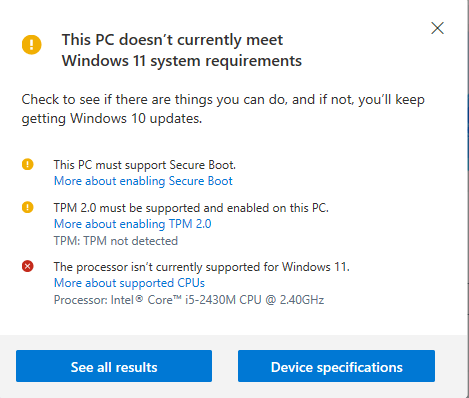
As we near the official release of Windows 11, there appears to be a new script that allows users to install the new OS on devices that do not meet the minimum requirements.

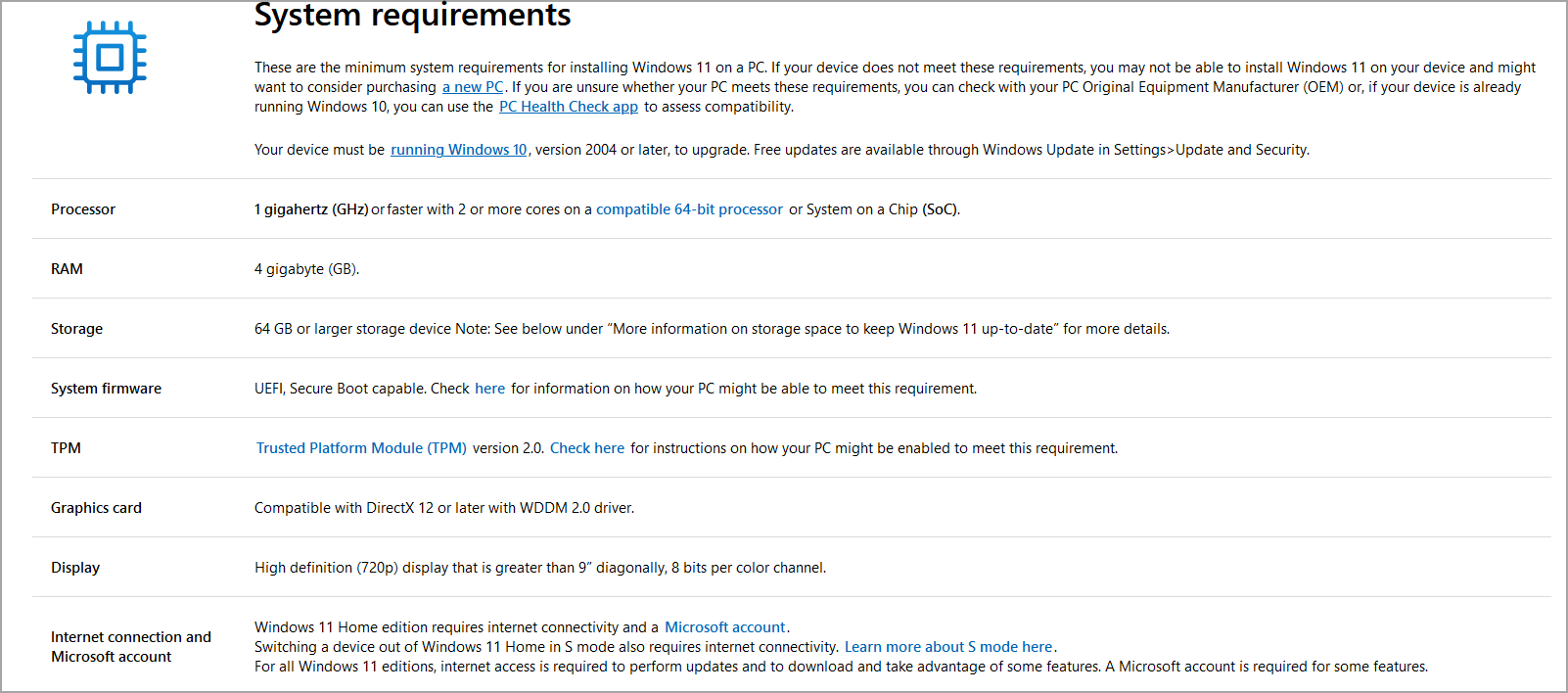
Microsoft has been releasing system requirements for devices that are compatible with Windows 11.

New gateway

Part of the OS system requirements includes TPM 2.0, newer CPUs, and many more. The new script works on virtual machines and allows them to upgrade to the latest Windows Insider build.

The script comes in a batch file released as part of the Universal MediacreationTool wrapper allowing users to create an ISO for any Windows version.

The main script is the MediacreationTool.bat that creates the ISOs and the Skip_TPM_Check_on_Dynamic_Update.cmd that configures your device and bypasses all mandatory hardware checks set for Windows 11.

When executed on a device, some of the tasks performed include:

  • Creates a ‘AllowUpgradesWithUnsupportedTPMOrCPU‘ value.
  • Registers a WMI event subscription named ‘Skip TPM Check on Dynamic Update.’ 
  • Deletes the ‘C:\$WINDOWS.~BT\appraiserres.dll‘ file during the launch of vdsldr.exe in Windows 11 setup.

Risks ahead

Whereas this may seem like an easy method for users whose devices failed to meet system requirements and had to purchase new devices, they should be careful with this script as it exposes them to performance issues and an array of bugs. In addition, you risk missing critical security updates making your connection less secure.

Microsoft maintains its strong stance on devices meeting system requirements to install Windows 11.

If you must install this script, only do so on test devices.

What do you think of the script? Would you risk your device bypassing the system requirements? Share your thoughts in the comment section below.

A Juggler’s Tale game review: a fine time narrated in rhyme

I promise you this and I hope it will amaze
In this review, I’ll rhyme in each phrase!

Why do you ask? What’s it to you?
Well in this game, the narrator does too!

A Juggler’s Tale has an interesting story to tell,
It’s about young Abby, and she’s not doing too well.

You could say it’s sad, or argue that it’s plain impolite
How this wee little lass is forced into a daily staged fight

While scripted, to the audience it’s a thrilling affair,
how such a little girl bested a bear

But the success is shortlived; at the end of each day
the ringleader grabs her and locks her away

It doesn’t take a lot to set up the plot

Then, a small miracle, it’s lovely to see,
with the help of some critters, she steals her master’s key

Our juggler escapes, as the bear plays his part
Sure it’s exciting, but it’s only the start!

At first, she wonders: “What have I done?”
But the thoughts soon vanish at the taste of freedom

The graphics are neat, it’s a visual treat

A Juggler’s Tale is gorgeous, a sight to behold
You’ll see plenty of colorful vistas as the story unfolds

But Abby’s given no rest by the puppeteer who’s ever controlling
She runs and she runs through levels full of parallax scrolling

It’s not just walking and jumping or aiming at things
When solving puzzles, you’ll make use of your strings

The gameplay evolves, there are puzzles to solve

Running from thugs who’ll rip her to shreds
Abby’s got no choice but to rely on her threads

Though there are plenty of checkpoints, it’s never too hard
I wager there’s even a chance you’ll survive it unscarred

You’ll jump, pull levers and even train your aim,
but after few hours it all starts feeling the same

Luckily for us, A Juggler’s Tale is not overlong,
Just when it threatens to grow stale, it breaks out in song

The music, while rare, is a feast for the ears
If there were just a few more tracks, it would be welcomed by cheers

As we’re carried away by a group of singing thugs
I take a moment to bring up some small bugs

Grab the tissues, because it still had some issues

Sometimes the jumping or animations felt weird
There was even a time when Abby disappeared

Alas, such is the fate of a game with console ports
but luckily we reviewers also submit reports

So relax, fear not, it’s only a scratch,
I have full faith all bugs will be fixed in a day-one patch.

Final thoughts on A Juggler’s Tale

Pros
The narration in rhyme is truly sublime
The graphics are neat, it's a visual treat
It launched in the busy month of September, yet I promise it's a game you'll always remember
Cons
Some minor bugs at the time Grab the tissues, because they still had some issues (bugs)
As a dad with no time, it has my support, but some might find it just a bit short

Final Score: 4/5

A Juggler’s Tale feels truly unique, aside from some bugs (and maybe a short playtime) there is nothing to critique. The writing is witty and delivered in rhyme, at the end of the ride you’re guaranteed a great time.

It looks stunning, it’s colorful and oozes with style, I can only conclude that this puppet show is very much worth your while.

⇒ Get A Juggler’s Tale for PC

A Juggler’s Tale is available on Windows PC, Xbox Consoles, Playstation Consoles, and Nintendo Switch. It takes around 2-3 hours to beat.

Disclaimer: Reviewed on Xbox Series X. Review copy provided by the developer.

A Juggler’s Tale: How to get all the achievements

A Juggler’s Tale is a narrative side-scrolling adventure, about a young puppet girl who escapes the circus and runs off in search of freedom. It’s set in a fantastic-looking world full of strings and props to make it look like a puppet show being shown to a captivated audience.

The game has a quick-loading chapter select, available from the menu screen, so it should be easy to load the exact act and chapter you need.

If you’d like to learn more about the game and what we thought of it, be sure to check our review!


? Amount of achievements: 18 (3 secret)
⏲️ How long to beat: around 3 hours
? Platforms: Windows, Steam, Xbox One consoles, Xbox Series X|S, PS4, PS5, Nintendo Switch


Bullseye – 25G

Practice your throwing skills – left and right!

At the very start of the game, you’ll be given instructions on how to throw objects. Simply hit both targets (left and right) three times each and the Bullseye achievement should pop.

An Apple A Day… – 50G

Make sure the bear is well fed.

Keep running right and you’ll be forced into a staged fight. The game wants you to throw the apple over the bear’s head so you can grab the ringmaster’s hat, but instead of doing that, throw 8 apples straight at him. As soon as he’s consumed the 8th apple, the achievement is yours.

On to adventure

On to adventure – 100G

Finish Act I.

This is story-related and unmissable. At the end of the first act, you’ll get the 100G.

Lunchtime – 25G

Enjoy your newfound freedom.

At the start of the second act, you’ll walk by a bench overlooking some gorgeous fields. Take a break by pressing the action button near the bench and you should get the achievement. Easy, right?

Animal Friend – 50G

Free the wolf. (Secret)

You’ll encounter a wolf who’s been roped down to a pole. Simply pulling at it won’t be enough, so we need to enlist the aid of something heavier. Keep going to the right and let down the bridge. Drag the cart back to the left, over the bridge. Use the action button near the wolf when the cart’s hook is close to it and Abby will attach it.

Wait for the bridge to lift again and push the cart off the edge, cutting the wolf free in the process. Good news: by freeing him you get to ride on its back near the end of the game!

Scaredy-cat – 50G

Leave the wolf to his fate. (Secret)

Instead of freeing the wolf, simply ignore it and continue onwards. This can’t be achieved in the same run as Animal Friend but you can simply load this chapter from the menu. At least the 50G you earn will ease your conscience… somewhat.

On Dry Feet – 50G

Play through Act II without falling into the water.

This is possibly the hardest achievement in the game, but very doable if you just pay attention. You have to avoid falling in the water for the entire Act II. If you do fall in, be sure to hit the menu button and start over from the first chapter.

There are some rivers you’ll need to cross, most of them can be done simply by jumping at the last minute and there is one part where you’ll need to alternate between two wooden planks to jump on. This is required by the game to proceed, but very likely that you’ll have missed this and will need to try again in a new run.

After the double wooden board part, there is a long section in the rain and with torches, and afterwards, there will be a few more jumps, so be sure to take this nice and slow so you won’t have to start over.

The achievement should pop as soon as the chase sequence with Tonda and his thugs starts.

Upside Down – 100G

Finish Act II.

This is story-related and unmissable. At the end of the second act, you’ll get the 100G.

Childish – 50G

Play fetch with the dog until he is happy.

At the start of Act III, you’ll encounter a dog. You need to throw a stick to distract it and continue onwards. After the first stick throw, he’ll become friendly to you and if you throw it a few more times, he’ll start wagging his tail as the achievement unlocks. (Just throw it once more, he’s been such a good boy!)

Troublemaker – 25G

Really get on a villager’s nerves.

Not long after, you’ll encounter a bell. Just ring it three times and at the third chime, the achievement is yours.

Close Call – 25G

Attract the attention of the bandits three times without getting caught.

There will be a few sequences where guards shine their lanterns at you. Just get closer to the light a few times to alert them (their light should shine brighter) and then quickly run back so you won’t get caught.

It’s very likely this achievement will pop during regular gameplay, without trying to get it specifically, but if that’s not the case, simply reload this chapter from Act III.

Changing your fate – 100G

Finish Act III.

This is story-related and unmissable. At the end of the third act, you’ll get the 100G.

Riot – 50G

Riot on the stage of the fourth act.

At the start of the fourth act, there will be a siege tower with some heavy stones. Press the action button to pick one up and run all the way back to the left, to the start of the act. Aim the stone at the piece of grass hanging to the left and throw it down. The achievement will pop and you’ll get some comments from the puppeteer who’s not too happy with your rebellious actions.

Worth a try – 25G

Annoy Tonda and the bandits.

Keep playing and you’ll come near a ballista. Simply press the action button near it and Abby will fire it at Tonda’s thugs. It won’t help you one bit, but at least it gave them a good scare. (and earning you an achievement!)

Plumber – 25G

A few more barrels than necessary….

When Abby escapes from the fisherman’s village, she will be blocked by a giant whirlpool. You can stop it by bumping a barrel into the hole, but be careful that you don’t get sucked in as well. To unlock the achievement, you’ll need to let three barrels get sucked in, so rinse and repeat.

Tip: it’s easiest to do when you angle your boat slightly, this is physics-based so use your brain.

This is how it works – 50G

Free Tonda from a thread. (Secret)

Near the end of the game, you’ll get to finally fight back! When you get to the location depicted below, grab the scythe and put it on the platform. Then pull the lever and have Abby ride the platform up (with the scythe). Grab the scythe again and walk to the edge of the platform, then press the action button to place it down.

You might need to angle the tip of the scythe up to make sure it doesn’t hit the stone platform. Once it’s in place, you can walk across. Pick it up again and walk to the left until it hooks behind Tonda’s threads. Walk to the right to cut the first thread and earn your achievement!

Triumph – 100G

Finish Act IV.

This is story-related and unmissable. At the end of the fourth act, you’ll get the 100G.

Together we are not alone – 100G

Finish Act V.

This is story-related and unmissable. At the end of the fifth act, you’ll get the 100G.

Congrats on beating the game!


That’s about it when it comes to achievements for A Juggler’s Tale. There’s 500G here that is hard to miss, but hopefully, our achievement guide has helped you get the other 50%.

If you have any other questions or you need some extra steps for completing any one of these achievements, don’t hesitate to drop a comment in the section below and we’ll make sure to help you out!

5 best lightweight email clients for low-end Windows 10/11 PCs

No matter if you own a business or not, having a good email client can change the overall efficiency of the provided services.

This task would normally require you to spend a few hours every day sorting through emails. Using the right email client can offer you a wide range of benefits: faster responses to your clients, easy managing and sorting of emails, the ability to track emails, etc.

All these features can streamline the process of responding to your clients’ queries by sorting emails automatically by the sender.

Because the market has a wide range of email clients on offer, it is a daunting task to find the one that suits your needs perfectly and offers a great array of useful features, especially if you need a lightweight program that will not slow down your PC.

In this article, we will explore some of the best email clients existing on the market, that barely influence the processor of your PC, while still offering you a great range of features.

Which are the best email clients that run on low spec PCs?

Mailbird

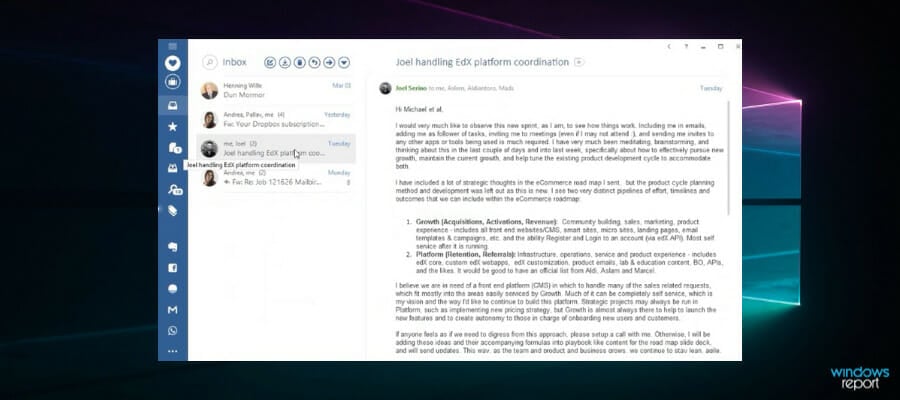
This software is an incredibly useful email tool that offers a great range of features, has a great user-friendly interface, and it’s also lightweight.

When it comes to the user interface, Mailbird offers a crisp, good-looking, and easy-to-access dashboard that gives you the power to customize every aspect of it.

You can also easily integrate your Mailbird with other apps like the Google Suite. This allows you to expand the email client’s capabilities even further.

You can easily set up keyboard shortcuts, allowing you to run commands without even touching your mouse, or dragging and dropping any element.

While using the fast-response tool incorporated in Mailbird, you can still use any other options outside of the pop-up window, making it easier than ever to sort out through long email lists and manage them accordingly.

You can categorize every email by using different label colors and names. You can create your own labels or choose one from the built-in options available.

Mailbird offers you multi-account support (IMAP, POP3), access to a very useful contact manager, and also has support for other third-party apps.

Some of the key features include:

  • Option for sending emails at a specific time or date
  • Supports an unlimited number of email accounts
  • Preview features for all your attachments
  • Professional-level support for all your problems

Mailbird

A top email client for Windows 10 with a friendly user interface and extensive integration with social media.

eM Client

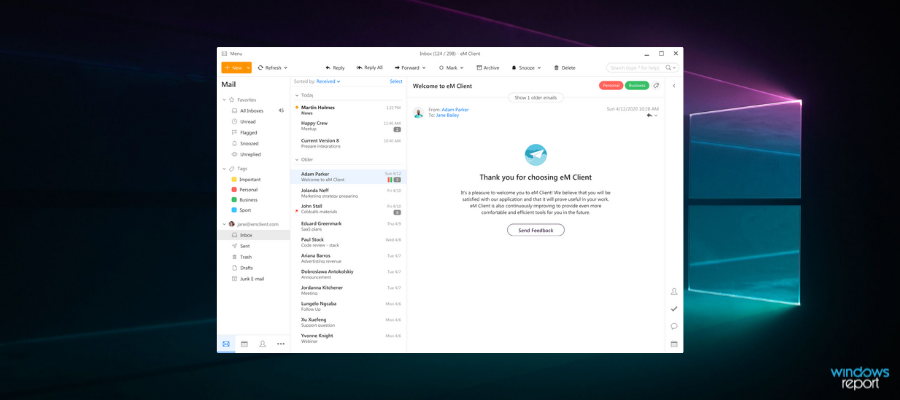
eM Client is another great lightweight email client software option that allows you to manage your email databases without too much hassle. It offers great visuals and an easy-to-understand experience.

Because of its seamless integration with other email clients like Gmail, Exchange, and Outlook, eM Client is one of the best software options on the market, coming in very close to the software we presented above, called Mailbird.

You can easily transfer complicated schedules from your calendar, and also add contacts from other third-party software, allowing you not to worry about your data not being compatible.

Some of the most important features of eM Client include:

  • Integrated chat app compatible with any other chat service
  • Automatically translate emails
  • Set up delayed times for sending your emails
  • PGP encryption that offers you a secure environment

It is worth noting that the free version of eM Client offers a useful set of tools that make managing your emails and easier tasks, but it is limited to only 2 email accounts.

With the Pro version, eM Client gives you access to an unlimited number of email accounts, VIP support, and also commercial licensing rights, so you can use this app for a company.

eM Client

Organize, open, and send emails from multiple clients using intuitive and secure software.
Check price Visit website

The Bat!

This is an incredibly lightweight email client that is certified to be used on Windows 10. It has no system requirements, so you can run it on any PC, no matter the hardware specifications.

This software was designed with your email security in mind, with incredibly powerful encryption capabilities.

The Bat! protects your information by using a layered encryption process, that contains multiple encryption streams. You can choose to keep all your encrypted files on your disk, or protect your PC while communicating through email with its end-to-end encryption (E2EE).

The Bat! works perfectly with any email provider that store your messages in the cloud, and offers you the option to keep all your emails stored on a local computer/ hard-drive/ USB data storage.

Beyond the 3 layers of encryption that cover your precious information, keeping the data stored on your local hard drive gives the ”attackers” no chance of reaching them remotely or locally.

One of the best features of The Bat! is the fact that the number of email accounts that can be connected through this app is unlimited (IMAP, POP, MAPI protocols).

You also get unlimited data storage capabilities, so you never have to worry about losing data, or not having any space to store it in.

By using this software, you can rest assured that your data is protected with high level, and layered encryption, and you can also use and manage multiple email accounts, from one simple and easy to understand dashboard.

Other notable features found in The Bat! include:

  • Full support for PGP, GnuPG, and S/MIME
  • Greatly useful filtering system that allows you to pre-sort your emails with ease
  • Incorporated HTML viewer
  • Image retrieval features that are easy to customize and configure to your needs
  • Built-in address book
  • Great looking templates
  • Selective message download
  • RSS Feed subscription

⇒ Get The Bat!

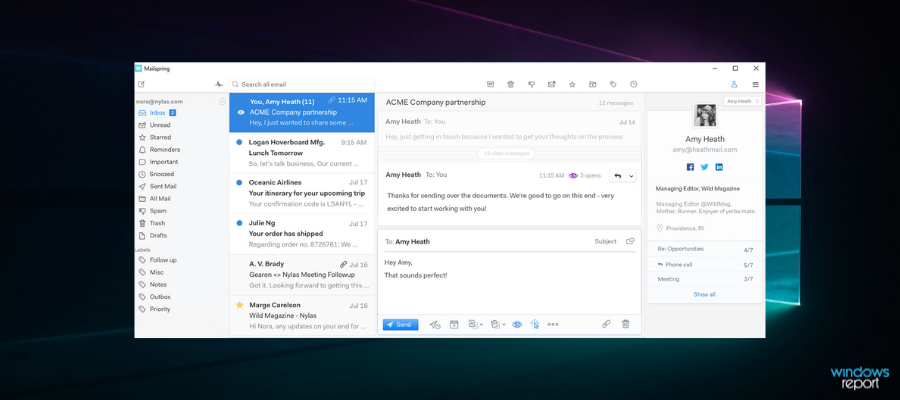
Mailspring

Mailspring is another great lightweight software option that allows you to manage every aspect of your email database.

This software was designed for the speed of processing, making it a viable option for the software we presented you above.

One of the few downsides of using this software is the fact that you need to create a Mailspring account in order to use the app.

Once this is done, you get access to an easy-to-understand dashboard that takes you through every step of the process. You first need to choose one of your email providers from a list – Gmail, Yahoo, etc. and then use the stored passwords from your PC to log in easily.

Here are some of the most notable features found in Mailspring:

  • Supports multiple email accounts (IMAP and Office 365)
  • Can be used with touch devices
  • Can set advanced shortcuts with custom keys
  • Incredibly fast search tool
  • Unified inbox – all your email accounts can be accessed and modified from one inbox
  • Can give you read receipts for sent emails, and also link tracking
  • Great customizable themes and layouts

One of the most useful features found in Mailspring is its incredibly powerful search engine.

Mailspring also contains a great signature editor that allows you to create and customize every aspect of your signature, to make it represent yourself or your company properly, and you can even attach images to it.

This software also automatically detects the language in which you’re writing in, and adapts the speck check features, without you needing to modify the settings manually.

The free version of the app has a great range of features, but the number of times you can use them is limited.

⇒ Get Mailspring

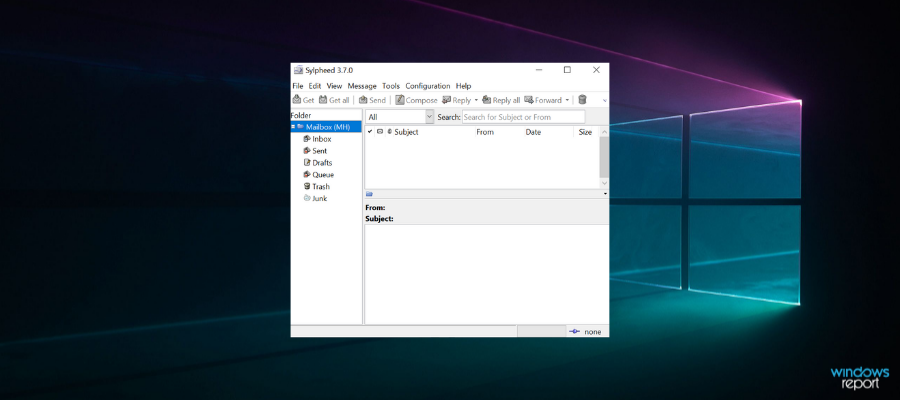
Sylpheed

Sylpheed is another great lightweight software option that comes with fewer features than the other options we presented in this article. But the tool still has the full range of capabilities of a modern email client.

Besides not having any built-in bloatware, this software has an old-school user interface that reduces the amount of processing power your computer needs even more.

Here are some of the best features of Slypheed:

  • Easy to understand UI that is constantly being improved
  • Easy keyboard shortcuts for fast processing
  • Greatly organized configuration elements – gives you easy access to customize every aspect of your software
  • Architecture built on C language
  • Great filtering and search options
  • Can easily backup, migrate and process messages
  • Stability – even if software crashes, data is still intact
  • Great spam mail control – automatically learns characteristics of spam and reacts accordingly
  • Support for POP3, IMAP4rev1, SMTP, NNTP, IPv6
  • Security features – GnuPG, SSl/TLSvl

⇒ Get Slypheed

In this article, we explored some of the best lightweight email client software solutions that cover your basic email-managing needs, and also offer a great range of other useful features.

We would love to find out which of these 5 options you chose to use. Feel free to let us know in the comment section below.

After reading this article, you can find more interesting reviews and guidelines in our Email section

We also have a Software section filled with lists created by experts for every scenario.

Google Chrome gets rounded context menus to match Windows 11

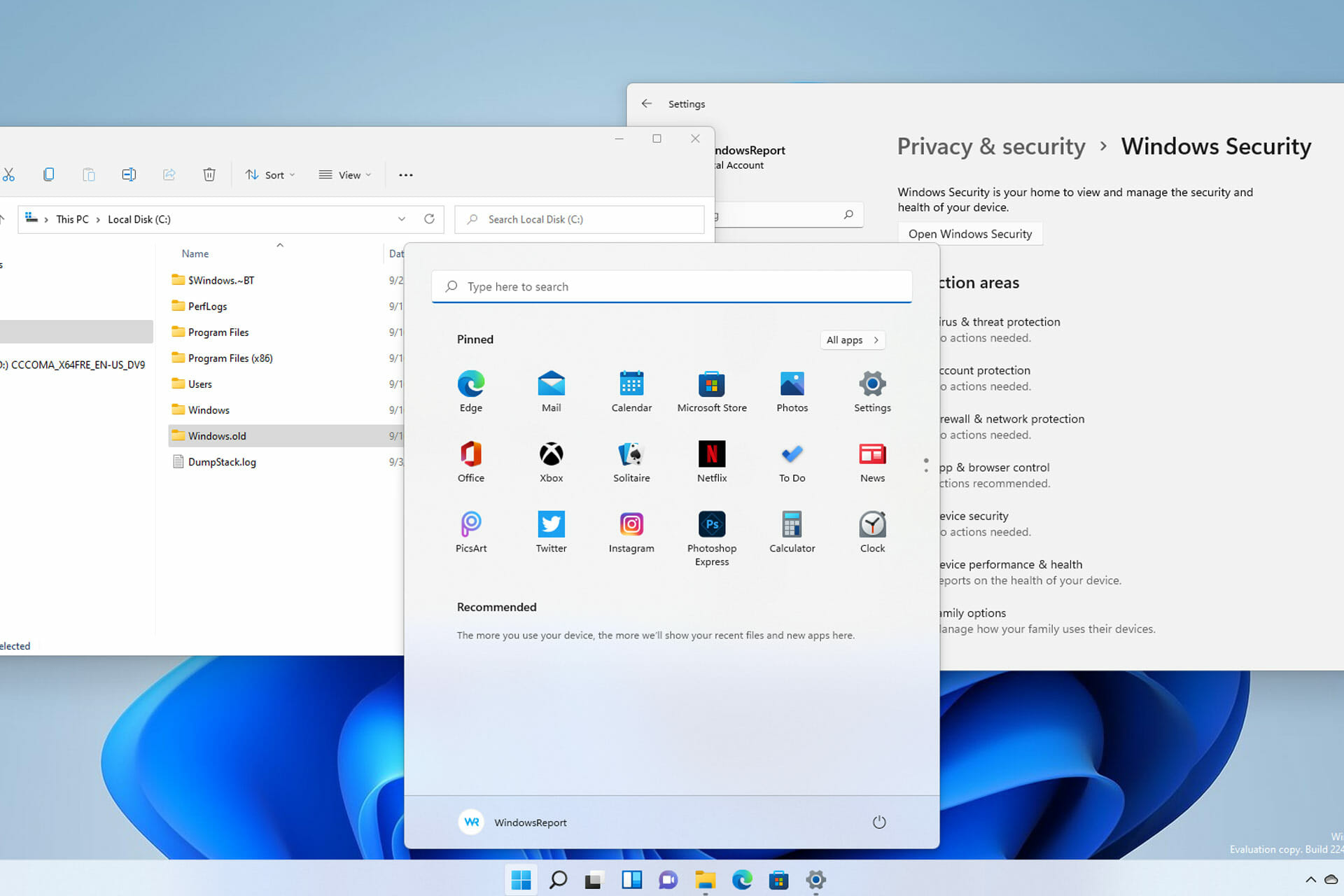
Windows 11 brought new menus and improvements but the biggest change by far is the flowing design and the curved window corners.

It’s a debatable issue whether you like them or not but they are here to stay and unless you change the interface with the old one from Windows 10, you might as well get used to it.

And we’re not the only ones in that situation. The Chromium developers stepped up and decided to adapt Google Chrome to the new design and match the browser with the new Windows 11.

In a new project from Chromium Gerrit, the title clearly suggests this move: Configure menus with rounded corners for Windows 11.

How will Google Chrome adapt to Windows 11?

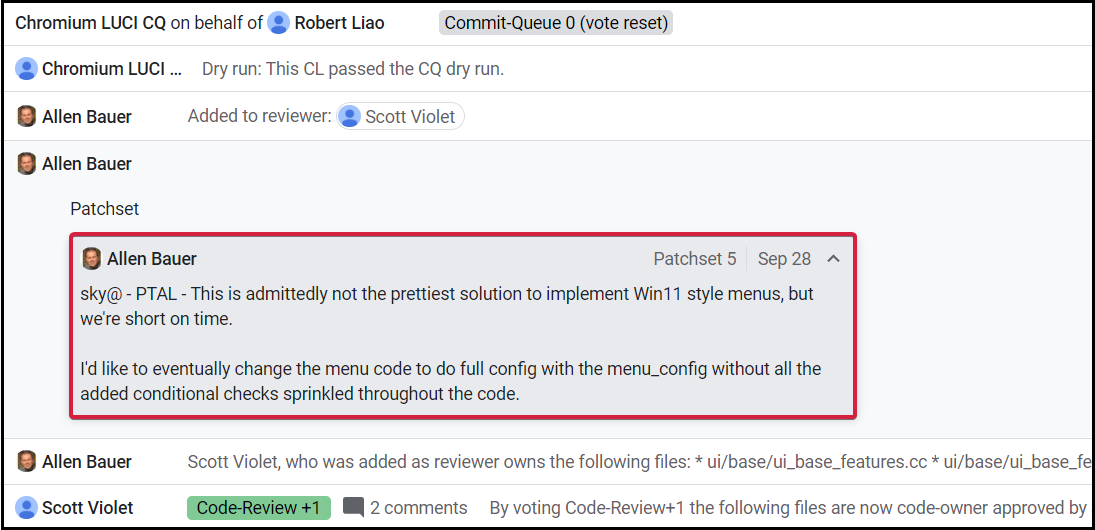
The owner of the new patch, Allan Bauer already wrote the code for the awaited change in Google Chrome but it’s still an ongoing project so we don’t know exactly when it will show up in a browser update.

Allan also states in a comment posted under the project that his solution is not the prettiest solution for Windows 11 style implementation, but he was constrained by time.

However, another great news is that this implementation will also work on Windows 10 so you will be able to change it there also.

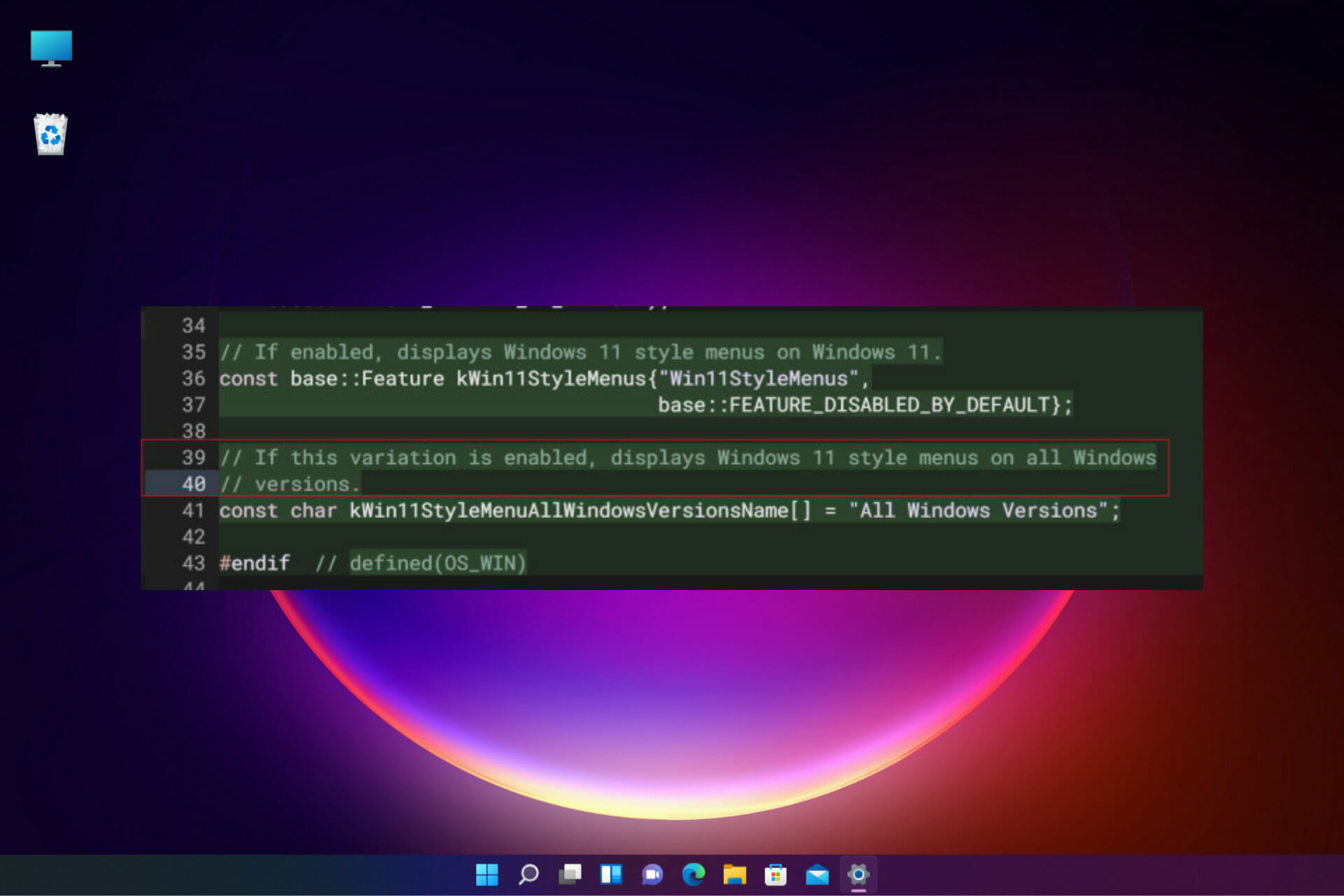
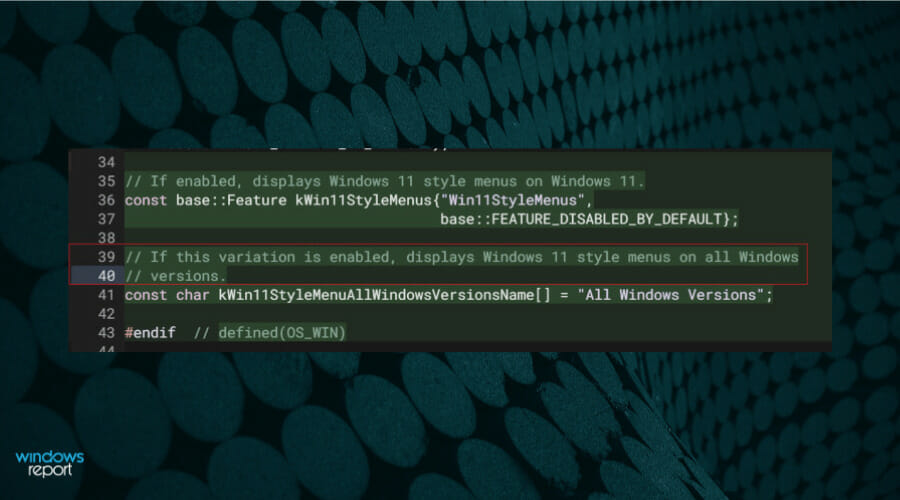
Based on a code snippet, we came to the conclusion that the feature will be disabled by default and you will have to enable it from Google Chrome’s menus.

The Windows 11 style menus will be disabled by default

How are the Google Chrome menus now and what to expect?

Although we don’t have any screenshots of the new implementation, we can still take a quick look at Chrome’s present menus and exercise our imagination a bit.

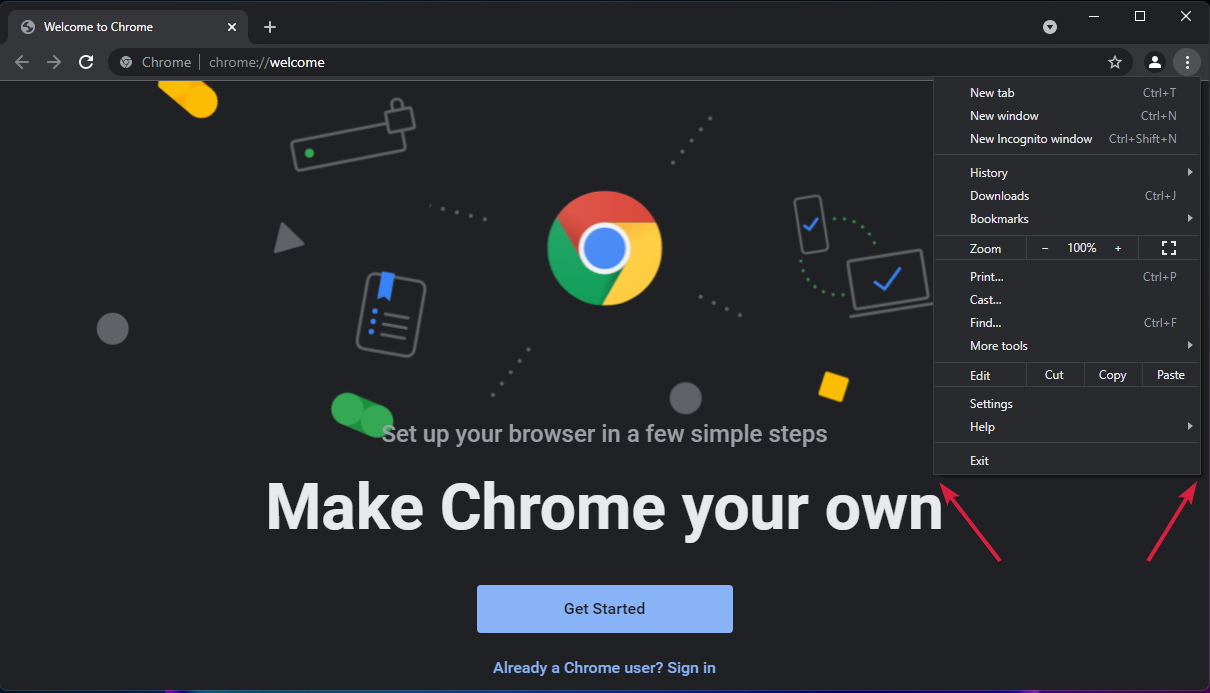
Right now, as you can see from our screenshot below, Chrome has sharp corners although the window in the new OS is curved.

Menus in Chrome have sharp edges

However, if we want to get a glimpse of how the new menus will be displayed, we should perhaps look at the ones from Microsoft Edge, already adapted to the new Windows 11 design.

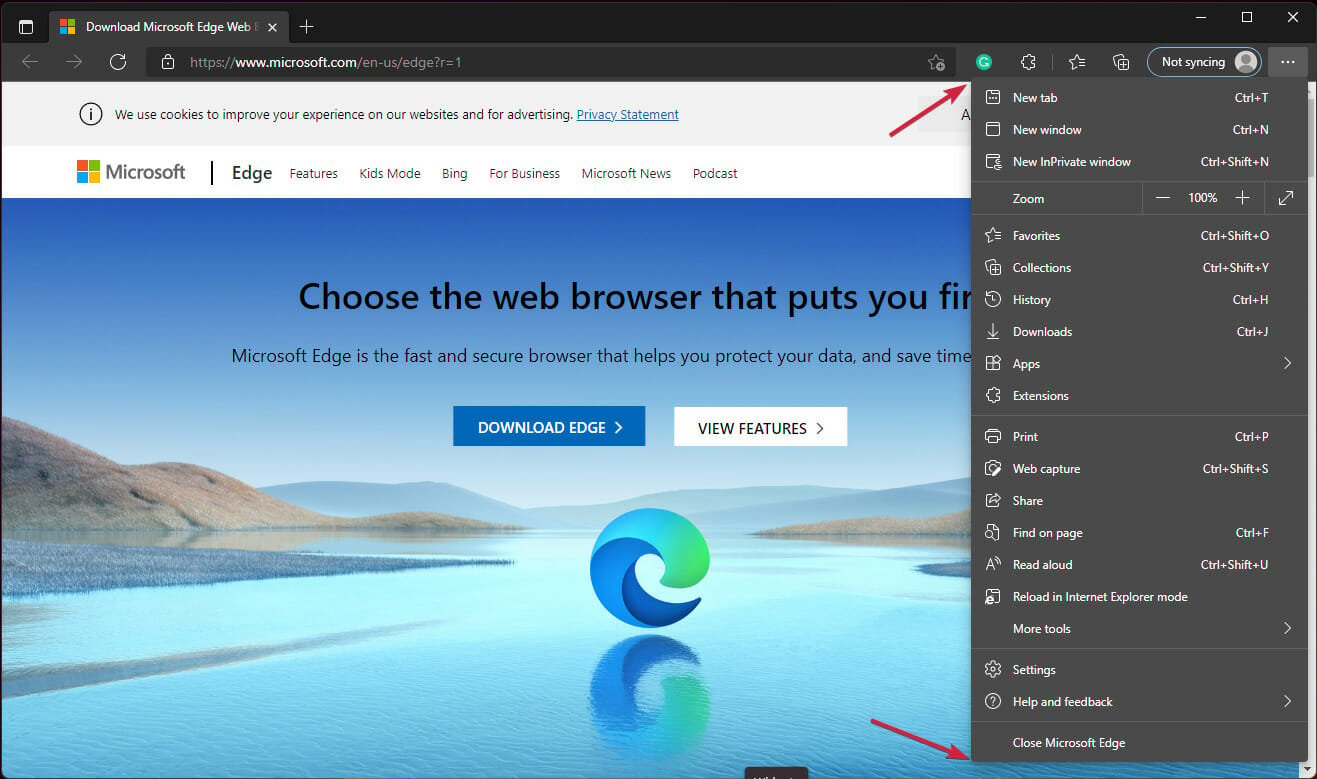
As you can see from our screenshot below, Microsoft’s browser has curved corners but the curvature is not as wide as the ones of the windows.

Edge’s corners are already rounded in Windows 11

We don’t know yet if Chrome’s menus will also borrow the acrylic effect from Edge. It’s a long shot but only the finished result will tell.

The new implementation is not a huge change but it shows a clear sign for design adaptation of the apps that will populate the new OS.

It’s definitely good news for the fans of the new Windows 11 design and as it’s a reversible change, it won’t affect the others who don’t enjoy the adaptation.

What do you think about this Google Chrome design change? Leave us a line with your thoughts in the comments section below.

0x800f0950 Language Pack: How to Fix This Error Code

Language packs play a significant role in Windows 11 and any other OS because they greatly improve the productivity of non-native English users.

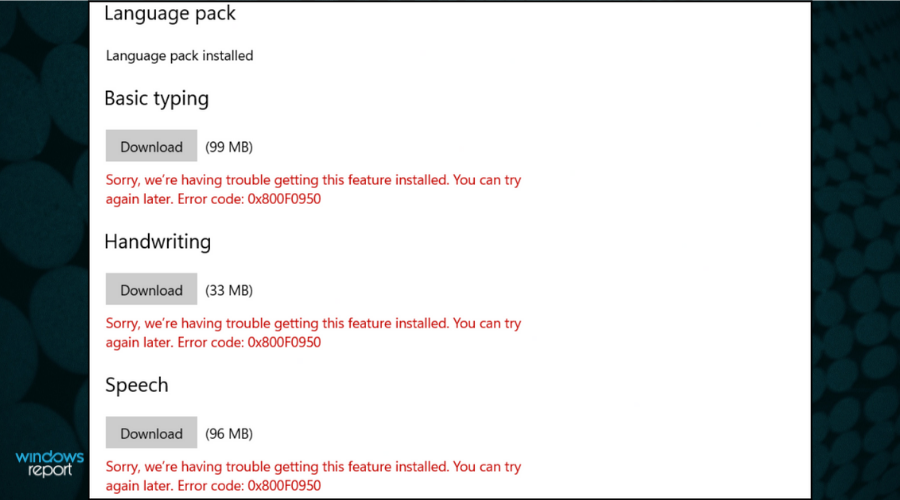
However, when some of our readers switched to Windows 11, they tried to install a language pack and received the error code 0x800f0950.

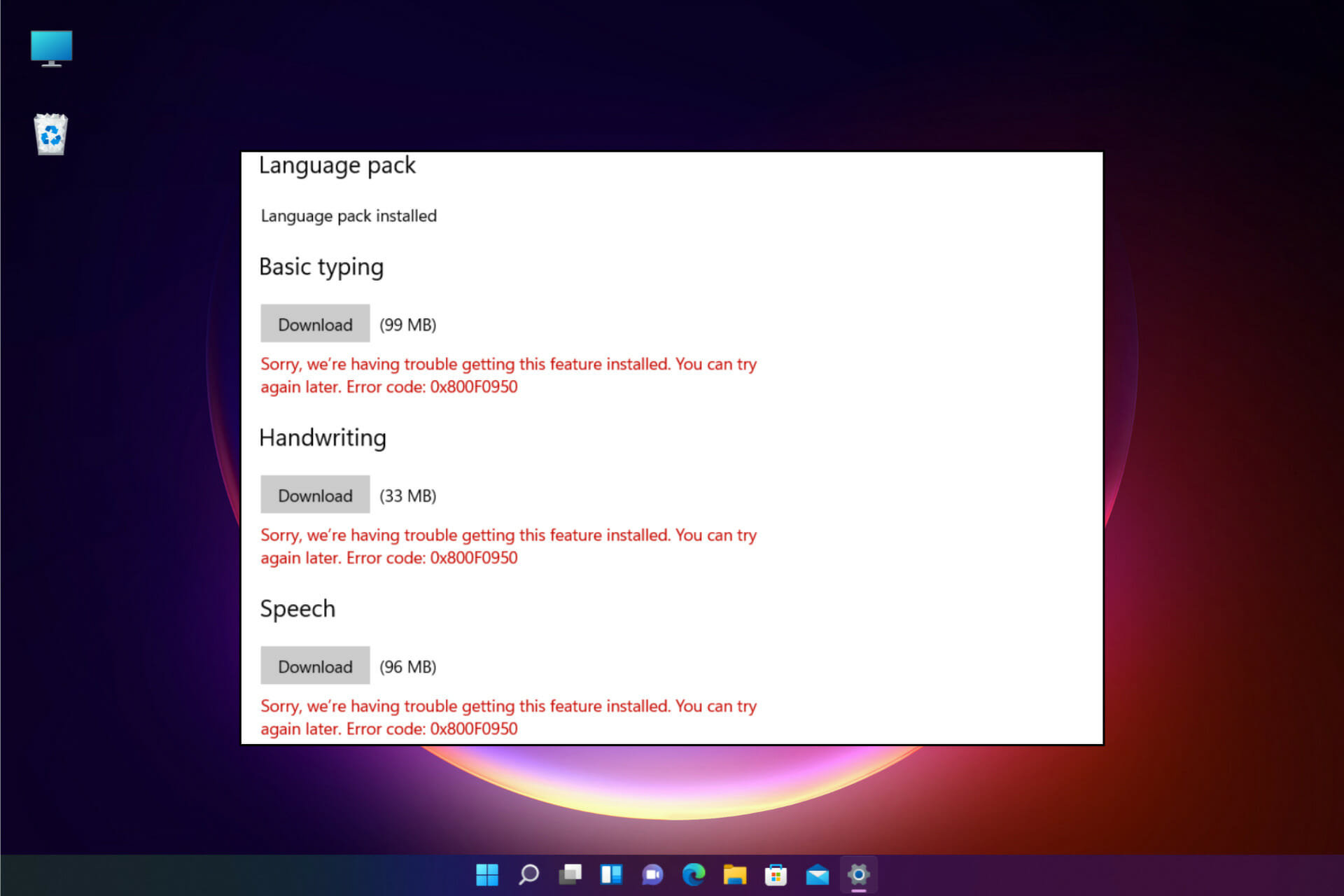
All the language packs failed to install

As you can see from the screenshot, all language packs failed to install, and the message writes Sorry, we’re having trouble getting this feature installed. You can try again later. Error code: 0x800F0950.

There is no Microsoft official fix for this issue but we can say that it’s a universal error, also present in Windows 10.

We will try to help you solve this problem here but first, let’s identify some of the reasons behind this issue.

Why do I get the error code 0x800f0950 language pack in Windows 11?

Let’s keep in mind that the error appeared after switching to Windows 11 and this OS is still in its early development so anything can happen.

However, we will outline some of the most common causes and pinpoint the main directions for the solutions.

➡ Problems with the Internet connection

The fact that the error message suggests trying again later indicates that this error can be caused by a simple connection problem.

So, it’s either you’re having an unstable Internet connection or the servers are busy in which case, before you get to any further debugging, just try to download the language packs after a few minutes.

➡ File corruption

If you tried to install the language package and it failed during the installation because of Internet connection problems, there will remain some residue files.

And if you try to install it again, these can produce corrupted files and fail to install again.

➡ The language pack is not compatible

If you downloaded the language pack from an unofficial source, it probably isn’t compatible with Windows 11.

Not even official language packs from different versions of Windows 10 are not compatible with the new OS so stick to the basic process of adding a language.

Don’t worry because our solutions below will cover these issues and after that, you will be able to install the language pack of your choice without any problems.

How can I fix the error code 0x800f0950 in Windows 11?

1. Clear the downloads in the SoftwareDistribution folder

  1. Press the Windows key + E to open File Explorer.
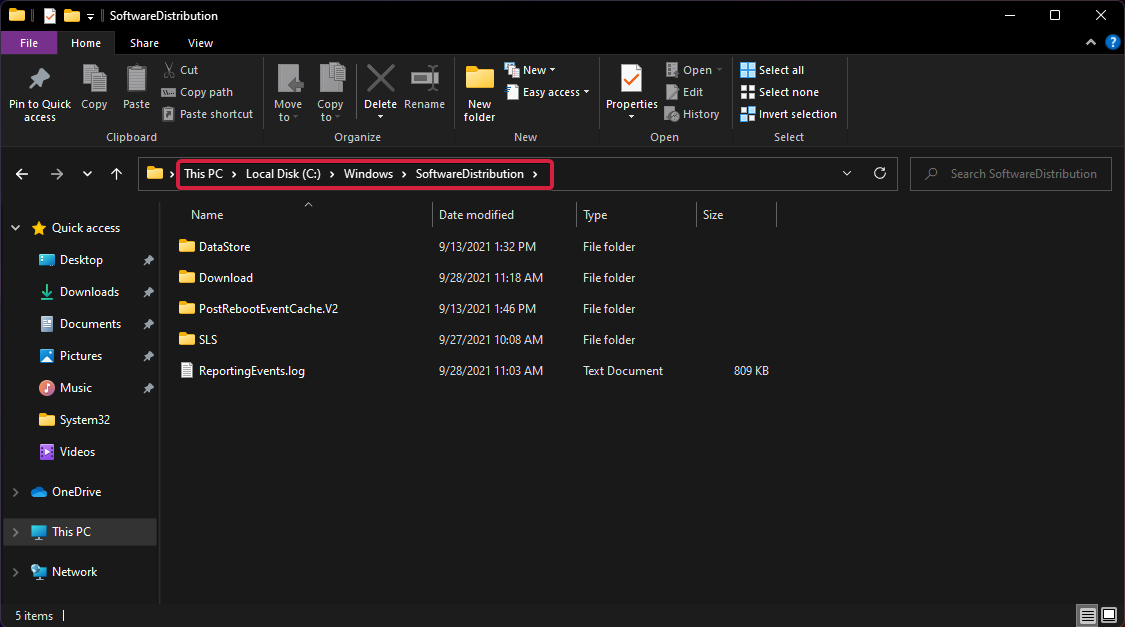
  2. Navigate to the following path: C:\Windows\SoftwareDistribution\Downloads
  3. Next, press Ctrl + A to select all files and folders and hit the Del key or right-click any of them and select the Garbage bin icon to delete the contents.
  4. Now try to install the language pack again.

Deleting the downloads from the SoftwareDistrubution folder in Windows, as shown above, will prevent any problems when downloading the language packs so it’s worth trying.

2. Install the language pack after a clean boot

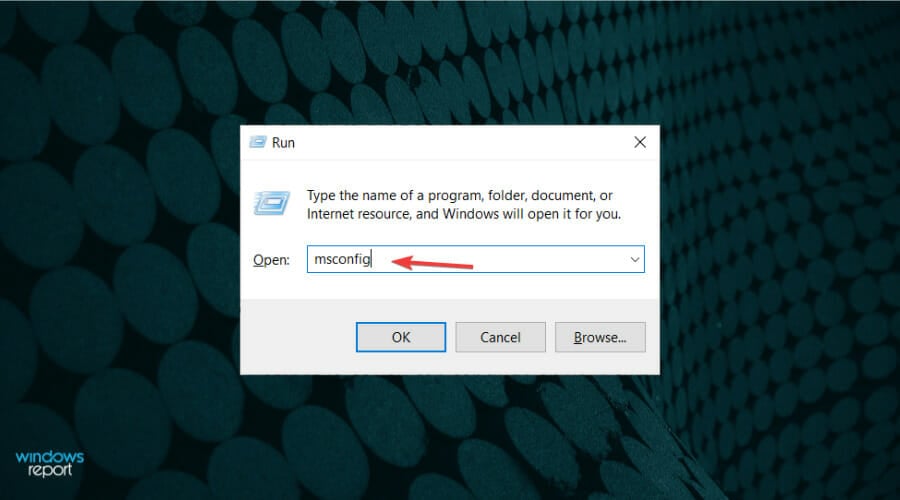
  1. Press the Windows key + R to start Run, type msconfig and press Enter or click OK to execute.
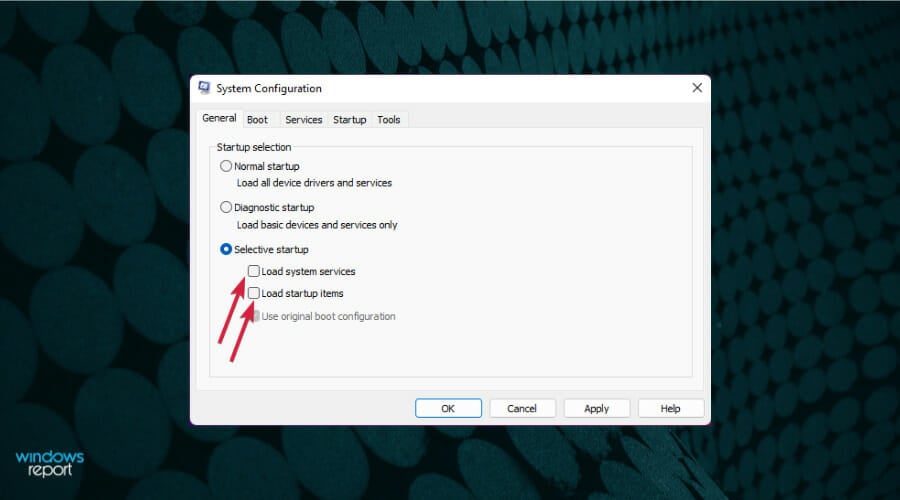
  2. Click the General tab, choose Selective startup.
  3. Uncheck the Load system services and Load startup items boxes.
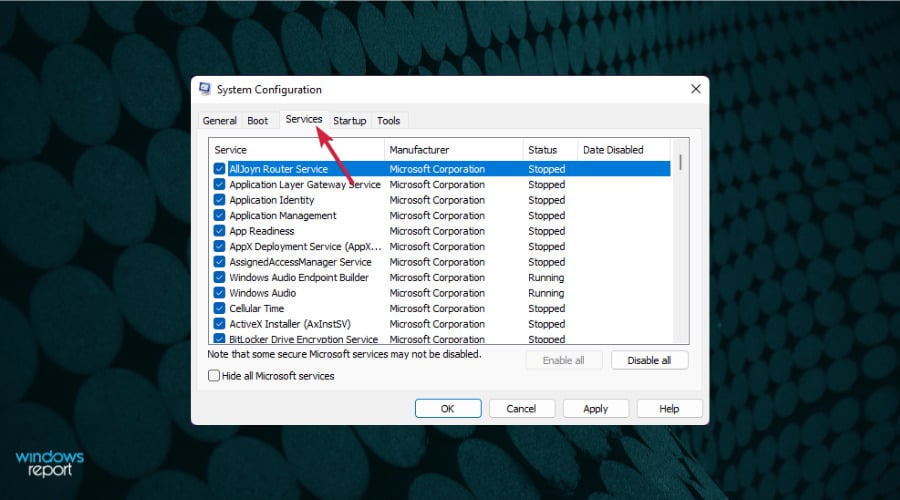
  4. Next, go to the Services tab.
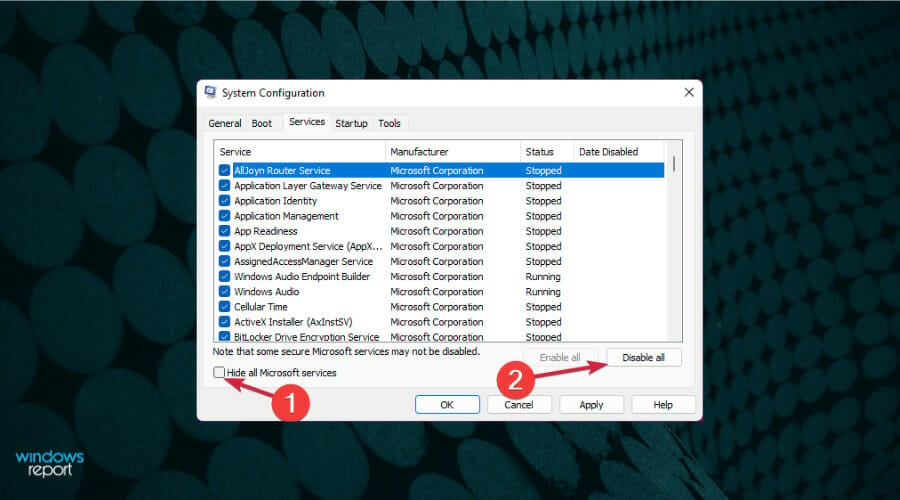
  5. Check the Hide all Microsoft services box and click on Disable all from the right.
  6. Click Apply and OK, then restart your PC.
  7. After the reboot, try installing a language pack.

3. Check the Windows Update service

  1. Press the Windows key + R to start Run, type services.msc and click OK or press Enter.
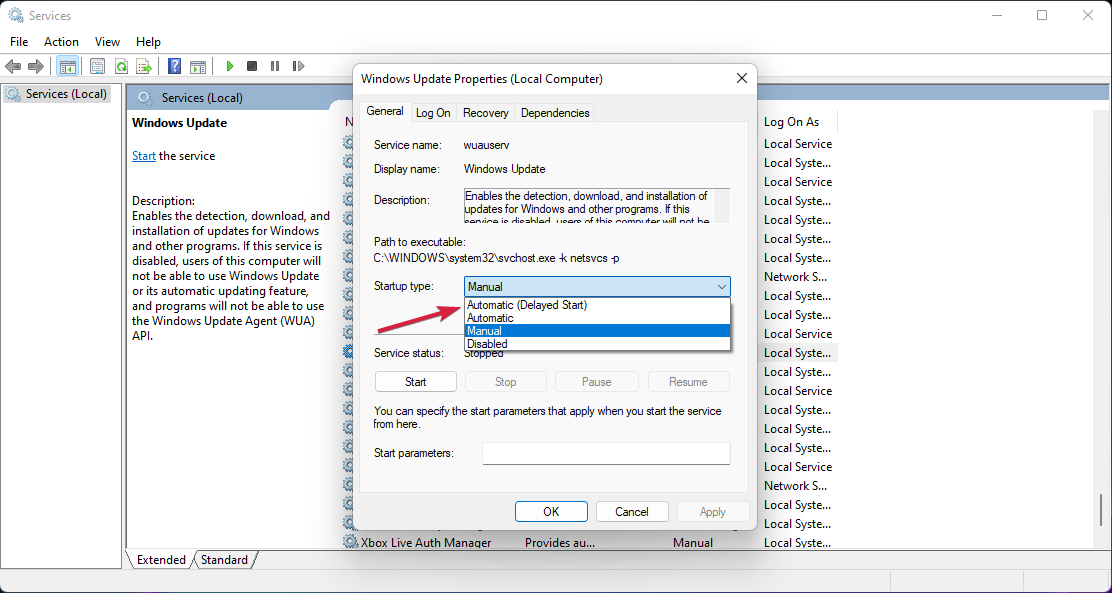
  2. Find the Windows Update service and double-click on it.
  3. Click on the Startup type menu and select Automatic (Delayed Start).
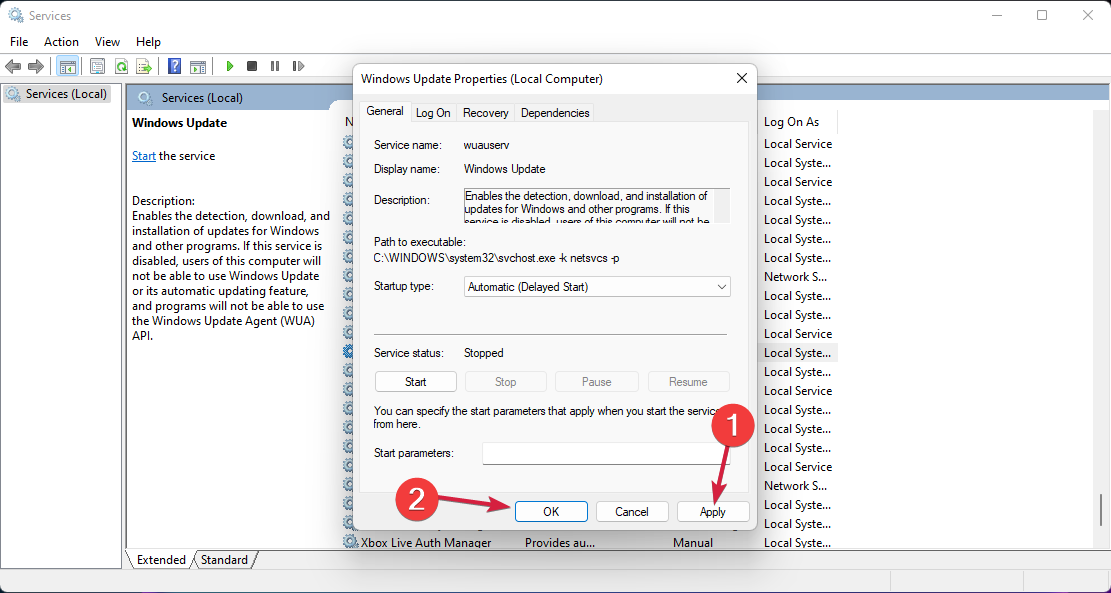
  4. Choose Apply, then OK and check if the problem is resolved.

This procedure should trigger the automatic updating for your OS so if there are any new updates in the pipeline, they will be downloaded and installed.

How to add a new language in Windows 11?

Now that you fixed the error 0x800f0950 that was preventing you from installing the language pack in Windows 11, let’s see how you can finally achieve your goal.

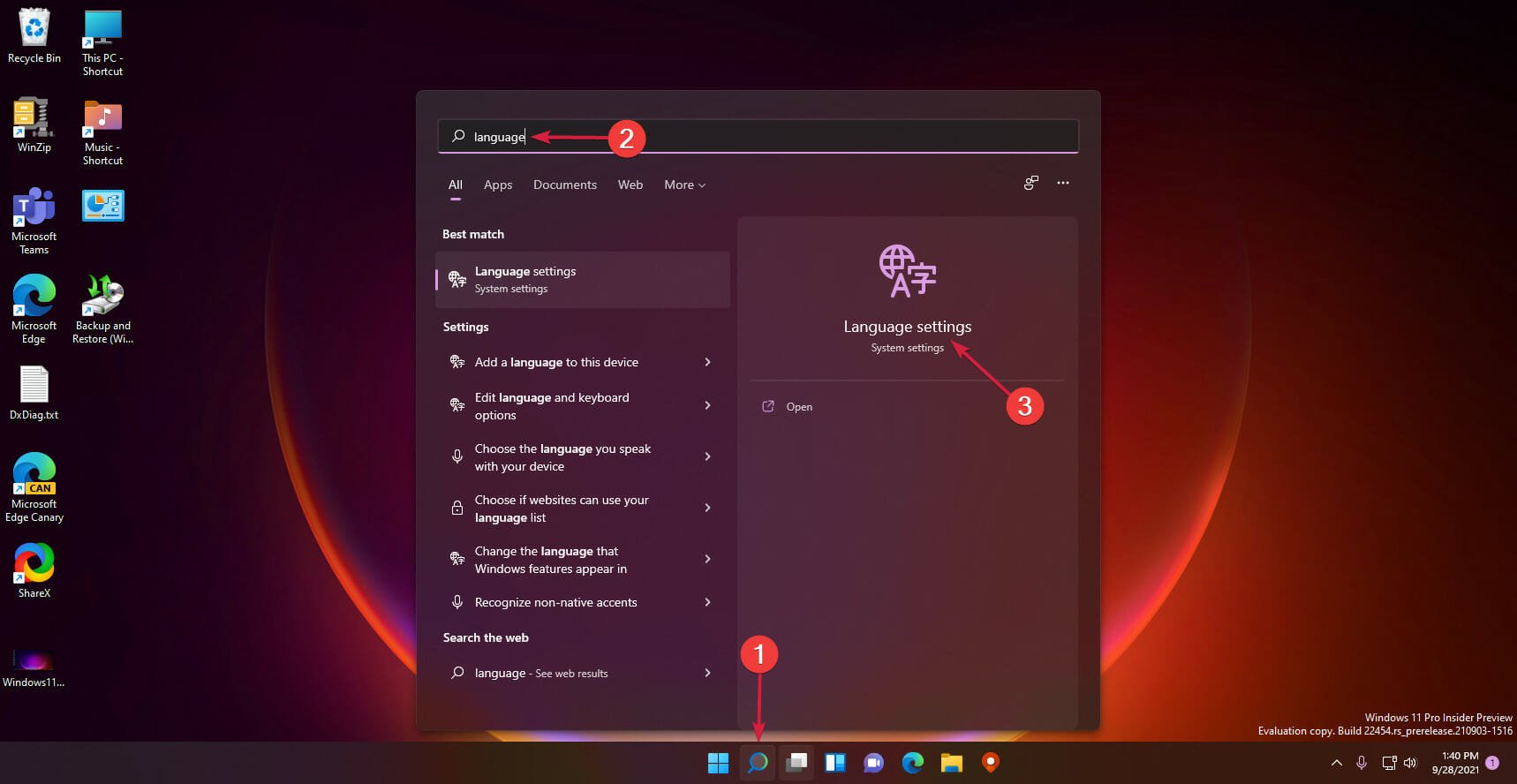
  1. Click the Search icon on the Taskbar, type language and select Language settings from the results.
  2. Now hit the Add a language button from the right.
  3. Type the name of the language in the search bar or scroll down untill you find it in the list, then click on the language and select Next.
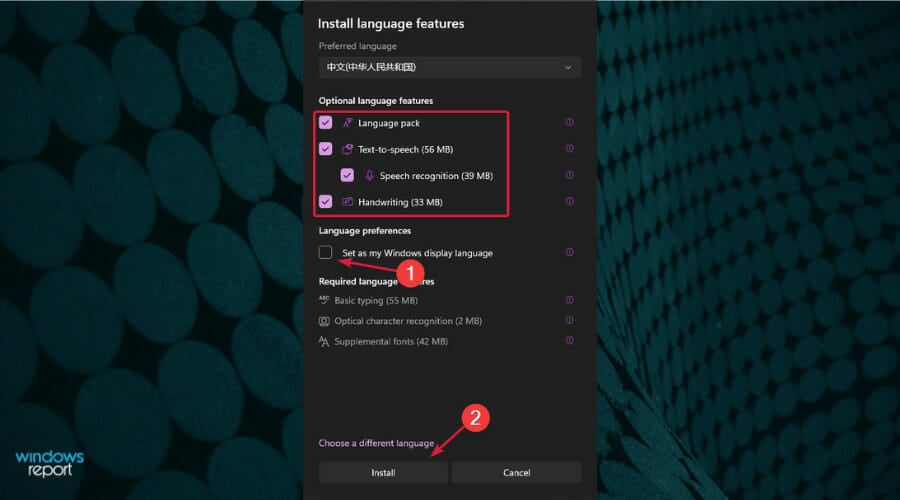
  4. Next, select which features you want to install, check the box right below if you want to set this language as the Windows display language (all the menus and dialogues will be shown in that language), then click the Install button.
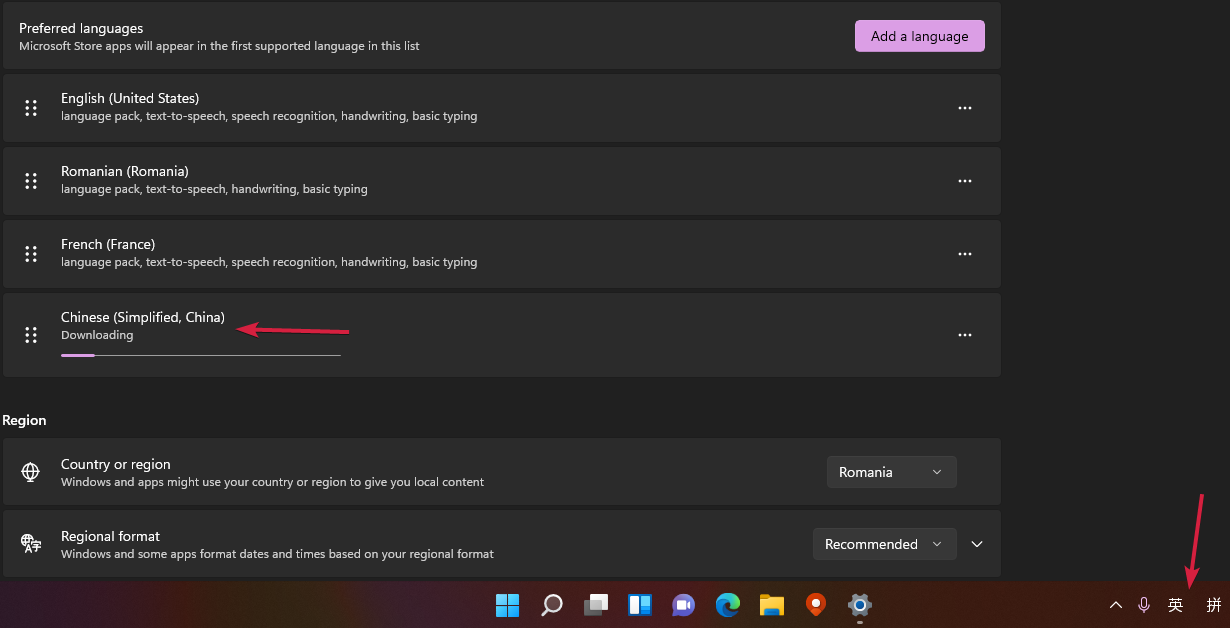
  5. The download will take some time but after that, to change the languages quickly, just press the Windows key + Space key.

It’s important to keep in mind that if you select the new language as a Windows display language, all the menus and dialogues will show in that particular language.

So, make sure that you know that language so you can read the text and eventually change it. Otherwise, it could be a prank that will remain forever on your debt.

We hope that our solutions helped you fix the error code 0x800f0950 in Windows 11 and you succeeded in installing the language pack of your choice.

You might also be interested in our guide on how to change the language settings that will help you further enjoy the available options.

If you have any questions or suggestions, don’t hesitate to leave a comment in the dedicated section below.

Windows 11 Taskbar Not Centered: How to Properly Align it

After upgrading to Windows 11 Insider preview build 22454, certain users have complained that the taskbar is no longer centered.

As with every previous build of the new operating system, people encountered many bugs and errors, but none of them were beyond repair.

Until the final version of Windows 11 comes out this October, you can follow this guide and bring the taskbar to the center as it should be.

What are the latest taskbar changes in Windows 11?

Besides its position, the taskbar suffered many changes within the new OS, but many of them were not received very well.

You can only move the taskbar to the left or keep it centered, but you can add some style to it by making it transparent.

You can also manage the Windows 11 taskbar on multiple monitors by changing the settings in the Personalization panel.

Another aspect found on the Insider builds is the Never Combine feature in the taskbar settings that lets you keep the windows from an app ungrouped.

But those who want certain apps or websites added and pinned to the taskbar, know that it can be done with ease.

You can also hide the taskbar completely by enabling the Automatically hide that taskbar option if you prefer a more tidy look while working or browsing the web.

While there aren’t many new features Windows 11 has brought to the taskbar, here is what Panos Panay, Chief Product Officer at Windows + Devices had to say about its functionality:

We’ve simplified the design and user experience to empower your productivity and inspire your creativity. It’s modern, fresh, clean and beautiful. From the new Start button and taskbar to each sound, font and icon, everything was done intentionally to put you in control and bring a sense of calm and ease.

What can I do if Windows 11’s taskbar is not centered?

1. Upgrade to preview build 22458

  1. Click on the Start icon from the taskbar.Start button
  2. Select Settings.Settings Win 11
  3. Go to Windows Update option.
  4. Click on the Check for the updates button from the right pane and Windows 11 will automatically download the latest update.
  5. Restart your device.
Note icon NOTE
Because this error can be found on preview build 22454.1000, upgrading to the next one will fix the issue. If you cannot find Build 22458, click on Pause for 1 week and Resume to restart the search.

2. Downgrade to the previous build

  1. Follow the above steps until you reach to the Windows Update.
  2. Click on Advanced options.Advanced options
  3. Scroll down to select Recovery.
  4. Click on the Go back button and follow on-screen instructions to uninstall the current preview build.

3. Show all taskbar icons

  1. Right-click on the taskbar and select Taskbar settings.taskbar settings
  2. Now toggle on all the settings to brings all the taskbar icons to the center.personalization - taskbar

4. Change alignment to the Left

  1. Once again, right-click on the taskbar and select Taskbar settings.taskbar settings
  2. Scroll down to the Taskbar behaviors and click to expand.taskbar behaviours
  3. Next to Taskbar alingment, select Left.taskbar left

Can I change the taskbar size on Windows 11?

Even though the taskbar’s functionalities are limited on Windows 11, you can still personalize it to your liking.

You can change the taskbar style by using some apps. Even more, you may modify the icons’ size by tweaking a few registry settings.

The exact measurement might vary based on your screen resolution, but you can make the taskbar small, medium, or large just by following the steps below:

  1. Click on the Search icon from the taskbar.Search
  2. Type regedit and select the Registry Editor option like in the image below.Open Registry Editor
  3. Navigate to: HKEY_CURRENT_USER\Software\Microsoft\Windows\CurrentVersion\Explorer\Advanced
  4. Right-click in the right window pane and select New->DWORD (32-bit) Value.New DWORD value
  5. Now right-click again on the newly created value and choose the option Rename to name it TaskbarSi.Rename to TaskbarSi
  6. Double click on TaskbarSi and choose one from the following values: 0 for small, 1 for medium, or 2 for large.Change value
  7. Click on OK, close the registry window and reboot your device for the change.

While the taskbar is a bit complex, you can quickly centrally align active windows on the PC.

What is your take on the new taskbar design and functionality? Tell us in the comments section below, and let’s start a discussion.

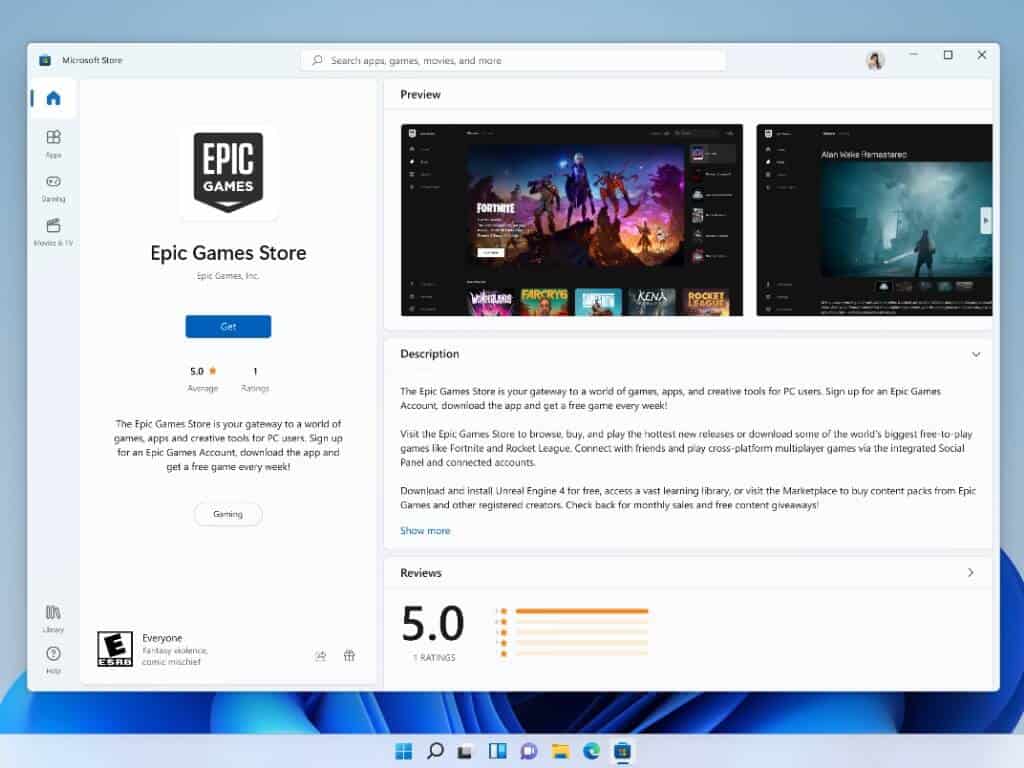
Discord and Opera are coming to the Windows 11 Microsoft Store, with Epic Games Store to follow

Microsoft continues to attract big names on the Windows 11 Microsoft Store, and the latest additions include the social app Discord and the web browser Opera. The software giant also announced today that it will allow third-party storefronts on its Windows 11 Microsoft Store, and that the Epic Games Store will be coming to the Microsoft Store in the coming months.

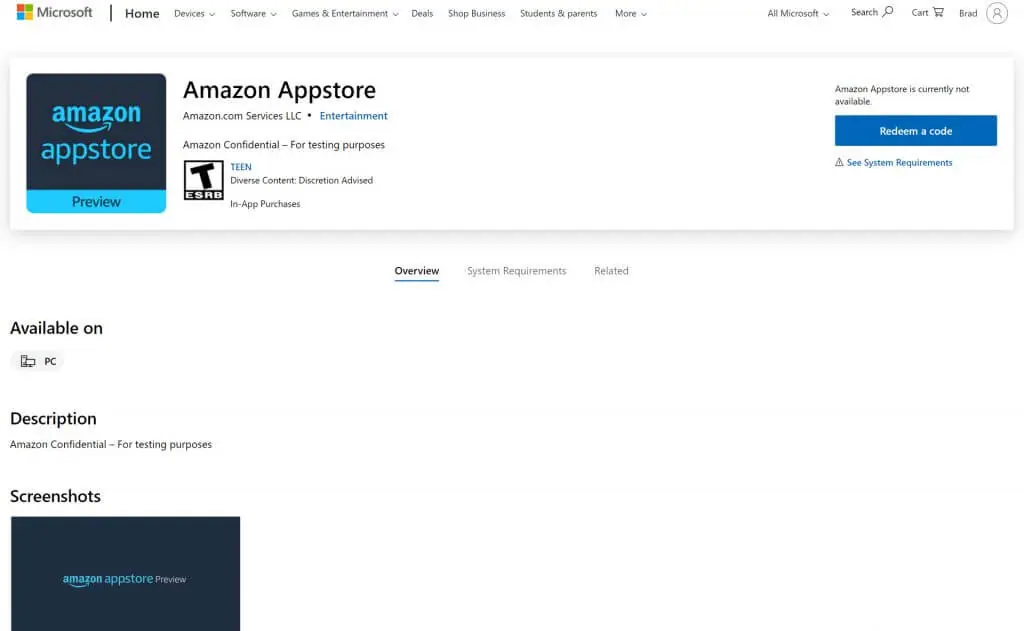
The company previously announced that it was working to bring Amazon’s Android App Store to Windows 11, and the news of Epic Games bringing its storefront to the Microsoft Store is another big milestone. “Just like any other app, third-party storefront apps will have a product detail page that can be found via search or by browsing – so that users can easily find and install it with the same confidence as any other app in the Microsoft Store on Windows,” the company explained.

Microsoft said today that it’s looking forward to welcoming other storefronts on its new Microsoft Store going forward, and the company also reiterated that its redesigned store will also be available for Windows 10 users in the coming months. In regard to Android apps on Windows 11, a preview for Windows Insiders will be available soon as Microsoft plans to share more details about the system requirements.

As of this writing, we’re not able to find Discord or Opera on the Windows 11 Microsoft Store yet, but it shouldn’t be too long before the apps show up on the digital storefront. Yandex is another browser that’s coming to the Microsoft Store, and it will be interesting to see if Mozilla Firefox and Google Chrome will follow.

Marvel’s Avengers is coming to Xbox Game Pass on September 30

Marvel’s Avengers, the action role-playing game set in the Marvel Cinematic Universe is coming to Xbox Game Pass for Console, PC, and Cloud on Thursday, September 30. The full game and its additional content will be available for all subscribers, and that includes the new War for Wakanda expansion that will introduce Black Panther and new story missions.

If the game received mixed reviews at launch, Marvel’s Avengers has since received a lot of free post-release content and has also been optimized for next-gen consoles. Following Outriders earlier this year, this is another high-profile Square Enix game to come to Xbox Game Pass in 2021, and the availability on Xbox Game Pass for PC and Xbox Cloud Gaming is also very nice.

As September is now almost over, Microsoft will likely have more new Xbox Game Pass titles to announce very soon. In other Xbox Game Pass-related news, VentureBeat is reporting today that Microsoft will be dropping the price of Xbox Game Pass in Chile, Hong Kong, and Israel to adjust to local market conditions, though consumers in other markets should not expect similar price cuts.


Xbox Game Pass Ultimate

Xbox Series X|S consoles add support for Dolby Vision Gaming

After a couple of months of beta testing with Xbox Insiders, Microsoft is enabling Dolby Vision Gaming on Xbox Series X and Series S consoles today. This new Xbox feature is an industry first, and it follows Microsoft’s forward-thinking approach which saw HDR10 on Dolby Atmos come to Xbox during the previous console generation.

“Starting today, gamers with compatible Dolby Vision-enabled TVs will be able to enjoy full-spectrum visuals with the rollout of Dolby Vision gaming on Xbox Series X|S. With Dolby Vision, epic worlds – such as lush rainforests or neon futuristic cities – are brought to life in more vivid color,” the Xbox team explained.

Dolby Vision is Dolby’s superior HDR format that many high-end 4K TVs have been embracing in recent years. Microsoft previously added Dolby Vision support for movies and streaming on Xbox One consoles back in 2018, but Dolby Vision Gaming will be exclusive to Xbox Series X|S consoles.

Compared to the HDR10 standard, Dolby Vision can deliver superior brightness, color, contrast, and detail, and it’s also compatible with other HDMI 2.1 features such as automatic low-latency mode (ALLM), Variable Refresh Rate (VRR), and up to 4K/120Hz gameplay. “When compared to a standard picture, Dolby Vision can deliver colors never before seen, highlights that are up to 40 times brighter and blacks that are 10 times darker,” Dolby explains on its website.

Microsoft says that more than 100 next-gen HDR titles will support Dolby Vision, and there are more in the pipeline including Halo Infinite. Games like F1 2021, Gears 5, Psychonauts 2, Microsoft Flight Simulator, Borderlands 3, or Ori and the Will of the Wisps already support Dolby Vision Gaming and Dolby Atmos on Xbox Series X|S consoles, and the Microsoft Store has a more complete list of Dolby Vision and Dolby Atmos-enabled games.

If Microsoft and Dolby will work with developers to make their games take full advantage of Dolby Vision, Dolby Vision Gaming on Xbox Series X|S consoles will also benefit existing HDR Xbox One games and others that support Microsoft’s Auto HDR technology. “When you are connected to a Dolby Vision enabled TV and Dolby Vision is enabled on Xbox Series X|S, the consoles will automatically enhance your existing games to deliver a rich, immersive experience unrivaled by any other game console,” the Xbox team explained.

If you have a 4K TV that supports Dolby Vision, you can turn on Dolby Vision Gaming on your Xbox Series X|S by going to Settings > General > TV & display options > Video Modes > Dolby Vision for Gaming. Microsoft also recommends checking that your TV is running the latest firmware, as some TVs may experience high latency issues when Dolby Vision for Gaming is enabled. To really take advantage of Dolby Vision Gaming, you’ll need a recent HDMI 2.1 4K TV that supports all next-gen features including Variable Refresh Rate (VRR) and Auto Low Latency Mode (ALLM).

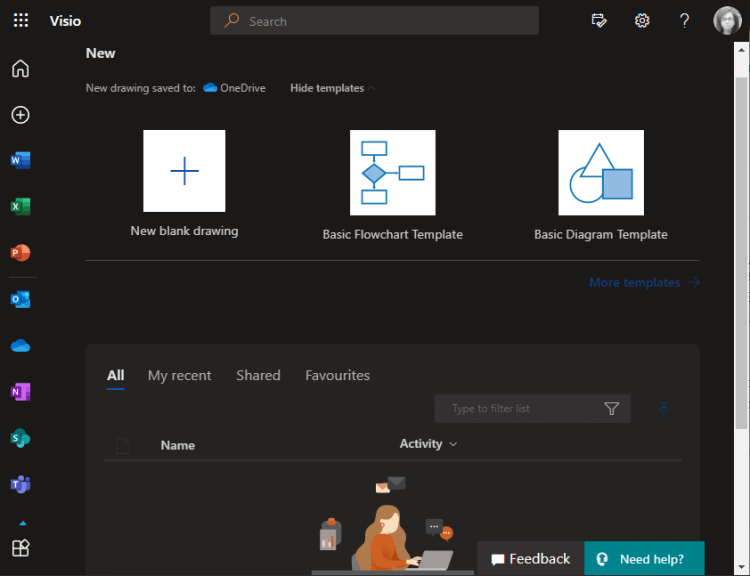
Lightweight Visio web app starts rolling out to Microsoft 365 business subscribers

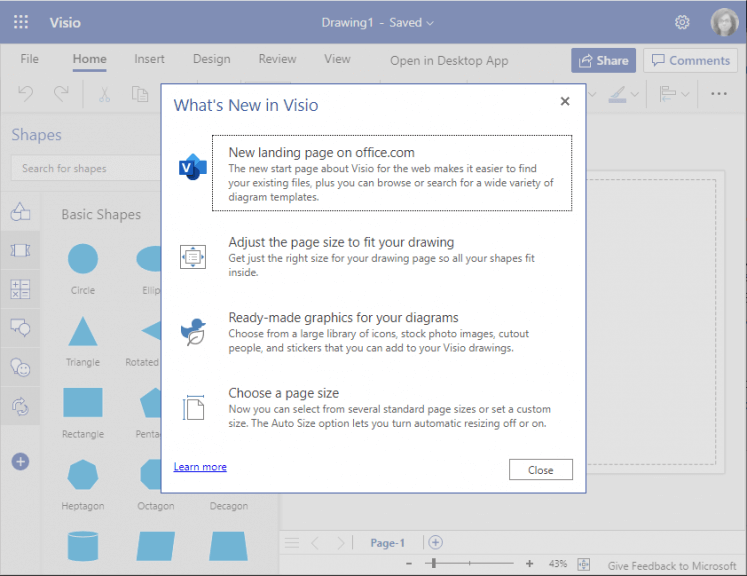
Microsoft has started rolling out a new lightweight version of its Visio diagramming tool to Microsoft 365 commercial customers. The Visio web app was first announced back in June, and it is available for all Office 365 and Microsoft 365 business subscribers at no additional cost.

“Visio has long been available only as a standalone app for purchase for people with specialized diagramming needs. But this is changing. We are recognizing an increasing need for a diagramming solution for everyone to convey information more effectively, which is why we’re excited to announce that we’ll be bringing core Visio capabilities to Microsoft 365 for all commercial license subscribers,” the company explained in a blog post.

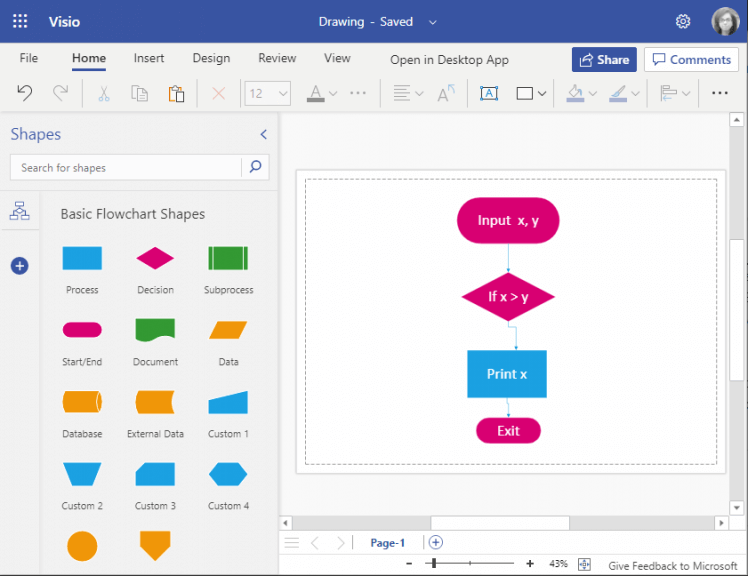
The built-in lightweight Visio web app lets users create, edit, and seamlessly collaborate on Visio diagrams with their colleagues. It comes with a bunch of design templates, such as process diagrams and basic flowcharts. Users will be able to access the Visio app within Microsoft Teams, and it also integrates with Word and PowerPoint. Additionally, the new Visio Data Visualizer add-in for Excel brings the ability to create a diagram from the spreadsheet data to help users visualize it.

Microsoft says this new lightweight version of its Visio will not replace the existing subscription plans, and it will only address the “essential” diagramming needs of users. However, the standalone plans of Visio will continue to be available to meet the “more specialized diagramming needs” of enterprise customers.

It is important to note that the new Visio experience is rolling out gradually to Microsoft 365 customers, and you may need to wait a bit more to see it in your tenant. If you are interested in trying the Visio web app, you can head over to Office Online to get started.

Automated Onboarding Software for new Employees: Top 5

Onboarding, also known as induction training, is a very efficient way to get the new people you hire in your company up-to-date with the latest changes in the way the company offers services, the requirements for a specific job, benefits, etc.

In the past, the entire onboarding process took weeks to complete, depending on the size of your business. This process involved manually organizing classrooms and assigning teachers, checking the attendance of your new hires, and then manually collect data and transfer it to your database. This was a highly inefficient way to deal with new employee training.

The onboarding process is not only about making sure your employees understand the culture of your company, but that they also understand the underlying processes of their actions, and why a solution was chosen instead of another. This information allows your employee to make informed decisions that, in time, will have a hugely beneficial influence over the results of your company.

This process will allow your new employees to feel settled in, and, after the induction is completed, increase their productivity, their engagement, and, if all the information is clear, can increase the time they choose to stay employed at your company.

In this article, we will explore some of the best-automated software options that allow you to streamline your onboarding process with just a few clicks.

What are the best software options to streamline the induction process of your company?

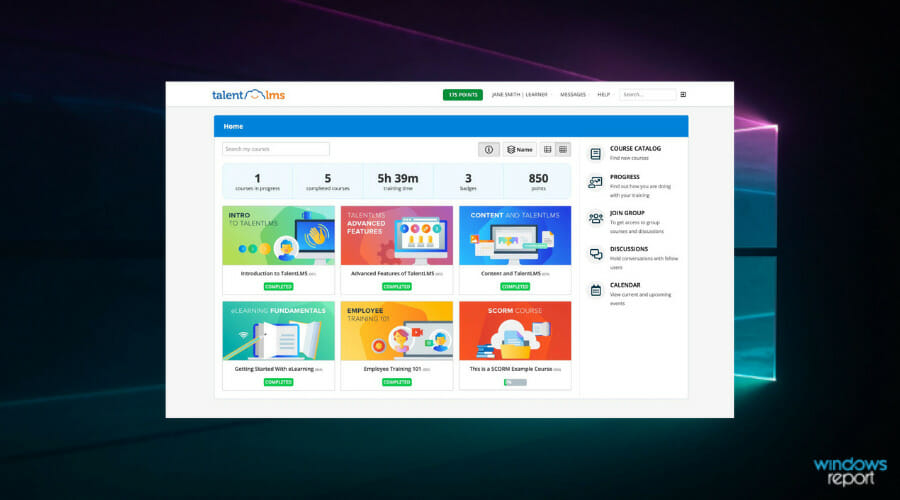
Talent LMS (recommended)

Talent LMS is a learning management system that allows you to offer your new employees a complete training session. You can use this software to make the onboarding process of your company faster, more efficient, and in accordance with the type of company you own, adapt to your needs.

This software is easy to use, and because it’s an online platform, any user can create great induction training, manage them, and also easily collect data required on the go.

Because of its powerful engine, Talent LMS frees your employees from the task of long teaching sessions and allows them to focus on more important aspects of their job.

With its online database, Talent LMS offers you a great set of features, and also allows you to securely store any data obtained from the training sessions. This offers you peace of mind, knowing that every piece of data and all details of your new employees are safely stored in the cloud with encryption.

By using Talent LMS, you can prepare your new employees in regards to their roles and responsibilities, covering a wide range of training types.

This app allows you to train your employees in the latest health and safety codes, offer on-the-job training (specific training for their job), possible advancement paths, and can also inform employees about professional ethics, harassment, etc.

Some of the most notable features of Talent LMS include:

  • Powerful content editor – easily create courses
  • Default Group feature – allows you to streamline the induction by selecting a number of courses and asign them to all new employees
  • You can combine the induction with online tests, surveys, quizzez, etc.
  • Great comprehensive reports regarding the induction process
  • Ability to customize your induction creation by facility, department, etc.
  • Single Sign-On integration
  • REST API features – makes the administration process more user-friendly
  • Learning paths – administer the way courses can be completed or viewed
  • Can add own CSS or JavaScript on visual themes
  • Advanced reporting features on test results

Talent LMS was released in 5 versions, each containing features tailored to the needs of different users :

  • Talent LMS Free – up to 5 users and up to 10 courses
  • Talent LMS Small – up to 25 users + unlimited courses
  • Talent LMS Basic – 100 users, unlimited courses, single sign-on support
  • Talent LMS Plus – contains all the features found in the previous versions and adds :
    • Up to 500 users
    • Custom reports
    • Automation
    • Success Manager
    • SSL for your custom domain

Talent LMS Premium – everything from Plus and adds Up to 1000 users.

Talent LMS

Talent LMS

Make a proper induction to your new employees with a highly performant training platform, plus make them stay.
Check priceVisit website

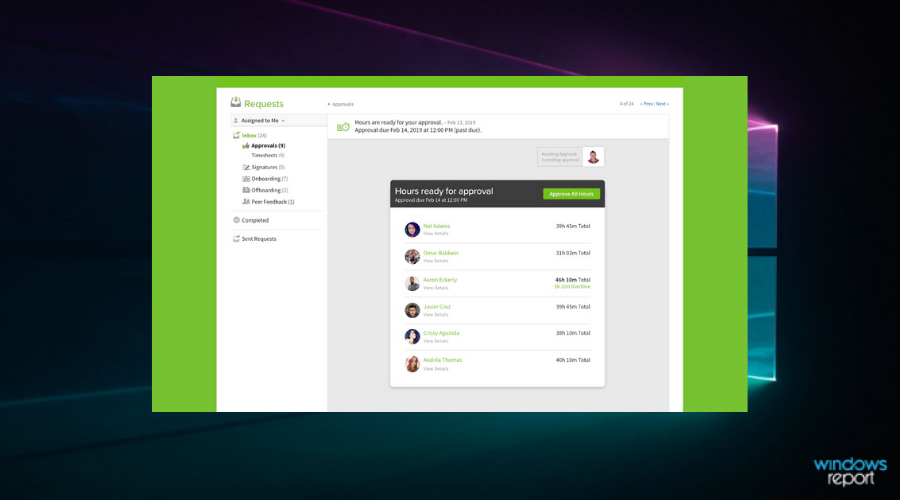
BambooHR

BambooHR is a cloud-based human resources hub that offers a wide range of features that cover the hiring process, onboarding process, data management, and reporting, etc.

The onboarding tools available in BambooHR allow you to set up your company induction process in such a way that the tracking of applicants, hiring, and employee transitions are all covered. You can use performance management features, reporting tools, e-signatures, and many other options.

You can also use BambooHR to automate different processes. Among many other automation possibilities, the onboarding tools found in this software can be also automated with ease, allowing you to save precious time and money.

You can always customize your version of BambooHR by creating more administrator seats, offer users a support button, etc. The administrators can manage the number of people that can gain access to data, and people that will not.

Some of the best features of BambooHR include:

  • Employee Self-Onboarding – allows new employees to go through the onboarding process on their own
  • Data administration of employees and records
  • Manage performance reviews with a new algorythm
  • Human resources reports instantly
  • Has the ability to track applicants – allows you to screen possible employees faster
  • eNPS – allows you to keep in touch with the employee’s satisfaction

⇒ Get BambooHR

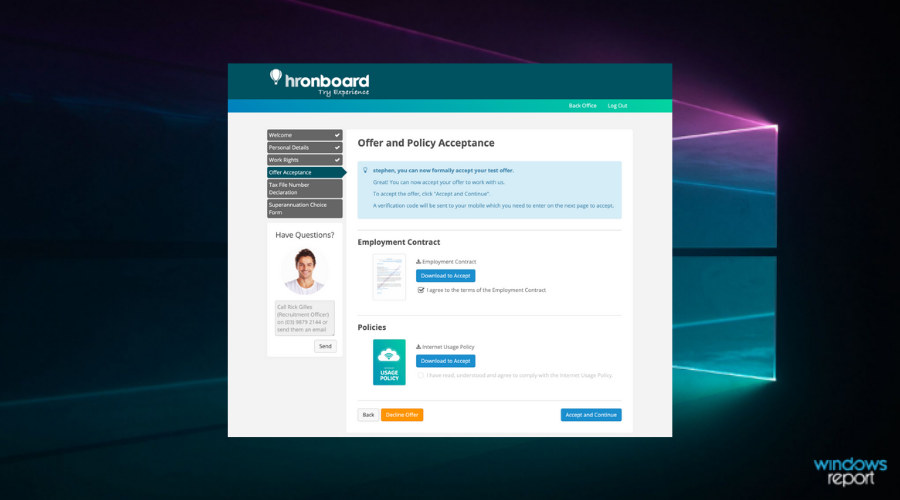
HROnboard

HROnboard is another great cloud-based platform that allows you to automate and manage every aspect of your company’s human resources department.

This software has built-in legislative forms from a variety of countries. This allows you to easily attend to any rules your company needs to follow and also integrates perfectly with HR systems.

By using this cloud-based software, you can generate contracts, auto-complete forms, assign specific tasks to employees, and you can also customize your workflow in order to better optimize the onboarding process.

HROnboard is very efficient even from the employee’s perspective, as it offers a quick and easy way to learn everything they need in order to do their job perfectly, they can connect through LinkedIn and Facebook to chat to their new colleagues, and can also use the built-in chat system to keep in touch with their manager.

Some of the best features of HROnboard, that are worth mentioning include:

  • Efficient communication with new employees
  • Can create custom onboarding sessions depending on your employee and company’s domain of activity
  • Good range of induction templates
  • Great community support
  • Can add different items to the onboarding process – tasks, content, pulse surveys, invites, etc.
  • Automatically send calendar invites
  • Ability to asign specific automated tasks
  • Engagement indicators – allows you to keep in touch with your employee’s engagement

HROnboard offers 3 types of licensing. The most popular version is the Offers + Onboarding bundle, which allows you to create 100 offers, and also has great onboarding capabilities with mobile-first options.

Another bundle pack offered by HROnboard is called The Complete Solution. As the name suggests, this bundle offers the entire range of employee lifecycle managing, from their onboarding to the end of their contract with your company.

You can also choose specific features that you need at the moment, and then, upgrade to another version, as needed. You can separately buy offers, onboarding features, transition features, and also offboarding capabilities.

⇒ Get HROboard

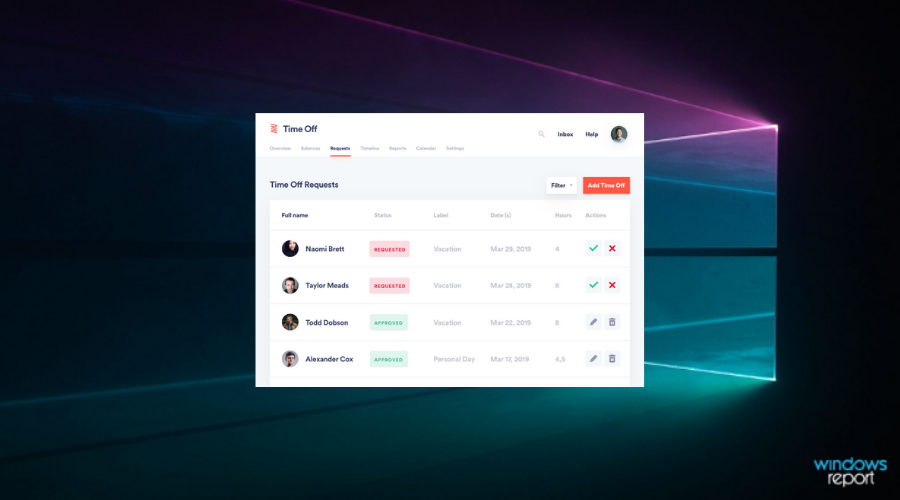
Zenefits

Zenefits is another great cloud-based HR information system (HRIS) that allows you to easily manage your employees, create custom onboarding processes, administration features, and also employee scheduling.

Zenefits is designed to be easy to understand and has a user-friendly UI that allows you to begin your own online onboarding process by completing only 5 online fields. Employees can sign all contracts and agreements online, and this software can automatically process the entire set of information obtained from the induction process and organize it efficiently.

Zenefits is easily integrated with payroll, health insurance, and other similar systems. You can manage every aspect of your HR department from one screen.

One of the best features of Zenefits is the fact that the development team of the company constantly improves the app based on user feedback. This allows timely resolve to any bugs that could occur, making your company more efficient in the process. The team from Zenefits also has in-house HR, insurance, and payroll specialists that can help you solve any issues you encounter.

Key features include:

  • Self-onboarding for employees
  • Automatically checks for any benefits that apply to candidates
  • Send offer letters and run background checks
  • Creates reminder email messages
  • No manual entry of data required
  • Securely stores your HR documents and can collect electronic signatures
  • Template-builder – allows you to create and customize new offer letters
  • Automate the process of confirming employment eligibility, collecting information, sending out notices, etc.

Zenefits can be purchased either on an annual contract that saves you some money or as a monthly contract.

The Standard version of Zenefits offers a good range of features that cover all the essential tools needed for onboarding employees and HR managing :

  • Employee directory – all your employees are prested in one windows, with quick access to modify data
  • HR records – stored data from your employees in a secured way
  • Company organizational chart
  • Can customize employee onboarding
  • Creates HR, benefits and payroll reports
  • Allows you visualize your data
  • Creates custom reports
  • Can track emplyee documents and forms

The Advanced version of Zenefits offers a broader range of compliance and HR for companies. This version includes all the capabilities of the Standard version and adds:

  • Time Off Tracking – can create and assign policies, but also manage requests and approvals
  • ACA Compliance – determine if ACA Requirements are met, can track compliance using E-File ACA Forms
  • Compliance assistant – helps you manage and track federal guidelines
  • Comprehesive HR library

You also have the option to add different apps that allow you to expand the capabilities of Zenefits even more :

  • Payroll App – helps you manage earnings, deductions, taxes, etc.
  • Benefits App – allows you to find the best match regarding benefits
  • Time and Attenadance App – manages your workforce by checking times
  • HR Advisor – help regarding HR issues
  • Payroll Advisor – help regarding payroll issues
  • Ultimate Advisor – combines both HR and payroll advisor features
  • Perfomance management pack

⇒ Get Zenefits

Paycor

Paycor is another great cloud-based software suite that offers you a wide range of capabilities. You can use Paycor for managing payroll, recruiting and onboarding of new employees, tax compliance, etc.

This software can automate the recruitment activities by tracking candidates, communications, the number of interview rounds, initiate onboarding, etc.

Because Paycor can track the time and attendance of your employees, you get a simple to understand visual overview of the entire employee/ candidate database.

The features found in Paycor can be split into two categories.

1. Recruiting

  • Post to free job boards and reward your employees for reffarals
  • Can create a fully-branded careers site for your website
  • Letter and response automation
  • Can automatically save post-interview feedback for easy scoring
  • Creates smart candidate profiles – removes the need of repeated data entry

2. Onboarding

  • Makes it easy for your new hires to laern about the company by using an online platform
  • Reduce the amount of time administrating hiring by automation
  • Full online compliance documentation – I-9 and W-4 forms
  • Can view and sign company documents online
  • Integrates tax credit – allows you to save money by receiving Work Opportunity Tax credit

⇒ Get Paycor

Conclusion

Because of the amount of time that is required in order to prepare your new employee for the job, it is recommended that you use automated onboarding software. This type of software will streamline your company’s hiring processes, without needing to waste your precious time.

In this article we explored some of the best software options on the market that allow you to do just that, and also offer a wide range of other features – payroll, taxes, smart data collection, etc.

We would love to know what software you chose from this list.  Also, feel free to let us know if you have any preferred onboarding software, in the comment section below.

What are the best snake games for PC?

Snakes slithering around us would surely give us the creeps though that hasn’t stopped the creature from featuring in some of the earliest and most popular games we have had on phones or PCs.

What are the best snake games to play on PC

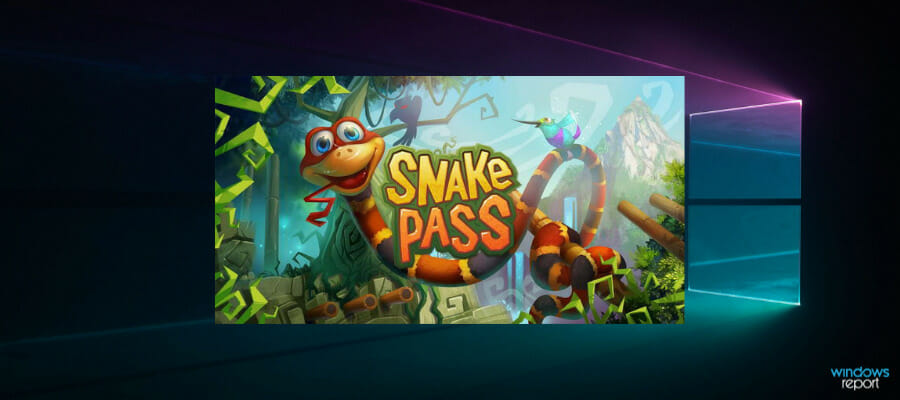
Snake Pass

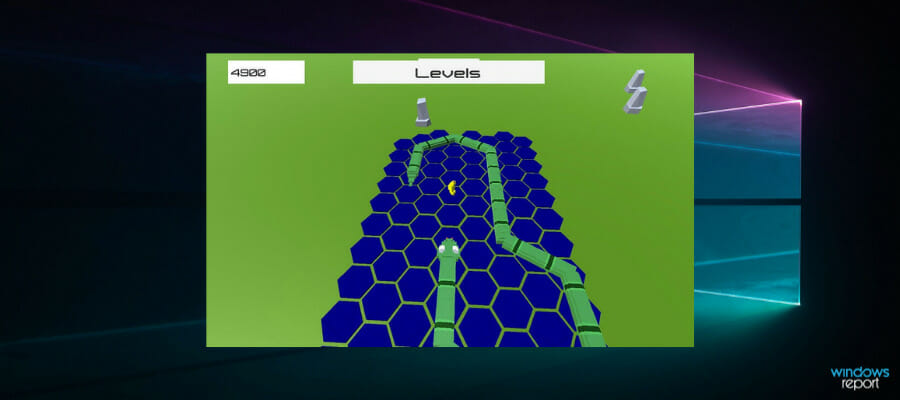
Unlike other entries on our list, this is an action-puzzle game in which you guide the snake through various worlds. In order to move through the 3D world, you can climb over various objects around the world using Snake Physics.

The game has 15 different levels divided into four different themes, and each level has its own unique features and hazards that will keep you on your toes. The game has an organic difficulty curve, so it should provide a decent challenge for all players.

This game is available on several platforms including PlayStation 4, Xbox One, Nintendo Switch, and Steam, and it’s fully compatible with various controllers, so if you want a unique snake game with physics and beautiful graphics, we suggest that you try it out Snake Pass.

Overview:

  • Beautiful 3D world
  • 15 levels divided into four themes
  • Unique movement style thanks to the Snake Physics feature
  • Available on PC, PlayStation 4, Xbox One, and Nintendo Switch

⇒ Get Snake Pass from G2A

SnakEscape

This entertaining game is a turn-based logic one that approaches a nonconventional version of the classic snake from older times.

Briefly, your main goal in this game is not to feed your snake with food because the roles are different. Practically, you are the food and the mission is to run from the pursuing snakes.

So this changed principle offers a new universe in which you can dive deep anytime. The 3D graphics and powerful dynamics offer stunning quality and game experience.

Hence you have no reason to avoid this award-winning gameplay, considering the popularity grade or the given quality it promises. You should give it a try and survive in this clever snake game version.

⇒ Get SnakEscape from Green Man Gaming

Slither.io

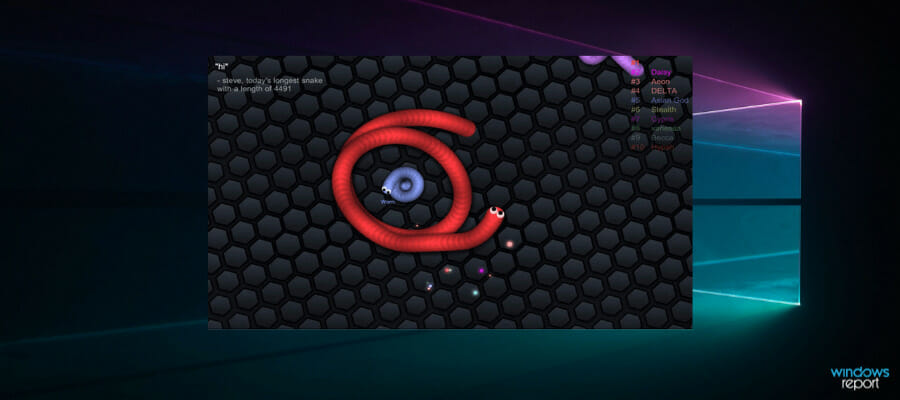
It is a multiplayer browser-based game. It also is a relatively new game, having been developed only in 2016. However, that it has risen to the top of popularity charts is again proof enough of how addictive the game is. The rules are simple too as all that the players need to do is control snake-like creatures.

So the snake will also be a lot lively initially but will become clumsy as it grows. You will get to have orbs to eat and grow, but you will also be competing with hundreds of other snakes in the process.

There also are multi-colored pellets that the snakes consume and hence grow in size. And the longer the snake grows, the more exciting the game will turn out to be.

Also, this is a really entertaining game to play with your friends and compete against other players online. The graphics are pretty simple and colorful, offering a fun time trying to eat other snakes and grow in level.

The challenge here is to avoid obstacles as you search for food. However, the snake loses its reflexes the more it grows, and that poses another challenge.

All in all, a game like this guarantees good times together with friends or family. Keeping a classic game experience, it has everything you need to boost your mood instantly.

⇒ Get Slither.io

Snake vs Block!

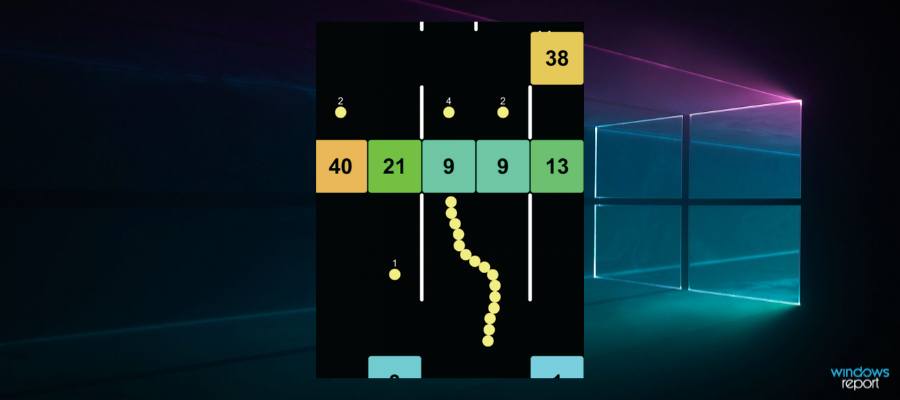
Here is a game where you get to make snakes using balls. However, the challenge here is to break the bricks using the snake you have created. The more bricks you have broken, the more is the more points earned. Plus, you get more balls to make a bigger snake, which should help you break more bricks.

Overall, it’s a simple game though you might have different feelings after you have started playing the game. Reaching high scores might not be so easy after all.

The game is liked by the majority of players and offers entertaining moments for anyone who just wants to kill some time. It can become addictive right away and helps you disconnect from the outside world.

The rule can’t be more simple, if your snake balls are fewer than the bricks you will lose. Hence you have to protect your snake and become the best at it.

⇒ Get Snake vs Block!

Agar.io

It is another multiplayer online game. Things start with a simple cell though your size increases as you devour objects. However, the twist here is that you can also split into two, a capability that becomes helpful when you need to tackle enemies and a two-pronged attack is often better than a single head-on onslaught.

All of it is exciting enough to lure millions of online players to the world of snakes at Agar.io. It can be addictive as you go because you evolve more and more and try to capture others.

The principle is like other similar games, and you have to grow your tiny snake until it becomes strong and eat other players with no trouble. Attention and control are essential here if you want to perform well.

Hence you should practice this game in your spare time to become the king snake and conquer your zone carefully, as the bigger you become the more control you need.

⇒ Get Agar.io

250k Snake

It’s a modern snake game based on the classic principle of consuming food blocks to increase your size. So far so good but the moment your snakehead ends up touching the body, you lose. On the whole, it’s a simple game though the fun begins once the size grows.

This simplistic game is created to make you relax and forget about stressful aspects of your day. Here, the only mission is to collect eggs and grow the snake stronger.

Moreover, you can create other skins for your snake and customize it how you like, changing snake types or the colors of the eggs.

Thus with this game, you will train your attention skills and have a boost of adrenaline while you control the subject in the mission of eating the eggs.

⇒ Get 250k Snake

Snake Attack

It’s an online game that is based on an interesting principle – the one that touches another snake will explode and will be out of the game. So all you have to do is avoid coming into contact with other snakes.

At the same time, you have to present yourself as a target for others since anyone touching you will explode. You can then consume their remains to increase your size. This way, the longer you survive, the more points you earn.

Another interesting aspect of Snake Attack is that you can be lethal even when you are tiny and have just started out. Size does not matter though the bigger you are, the more chances of others hitting out, or for that matter, you hitting others as well.

Hence what matters the most are your control and awareness talents. That’s because you’re in charge of guiding the snake tactfully and dominate other players.

⇒ Get Snake Attack

Snake Munch

This is another snake game that tends to keep you glued to the screen. The rules are simple though, you get to make your way through by rotating the snake either clockwise or counterclockwise. Eat as many fruits as you can to gain in size while staying clear of the obstacles.

However, as you grow longer, take care of not ending up biting your own tail. The show ends then and there.

For all players who remember the old Nokia built-in games like Snake or Bounce, this revamped version will sure bring joy. This arcade game is not that different from the classic one, coming with much better graphics and greater challenges.

Thus it doesn’t matter if you’re nostalgic about this game or not, you should rejoice instantly to relax your mind.

⇒ Get Snake Munch

Snake Charmer

The title might be misleading as it has nothing to do with the practice of playing special music to dancing snakes. Rather, it can be considered a modern take on the classic Snake game. However, there are a few levels to choose that control the speed at which the snake is moving in.

Interestingly, there is a special ‘Boss’ key that will save you just in case you are caught playing the game during working hours.

This 3D snake game is inspired by the S60 version of the classic and long snake gameplay, customized to look better on the big screen. A great feature is a 1-100 level selector that permits to choose the difficulty level.

So try out this snake version if you want genuine maps and good dynamics to savor the game.

⇒ Get Snake Charmer

Snake Hunt

Here is another clone of the classic Snake game, but with a twist. Obstacles pop up at random, which makes moving around quite a challenge. Add to that the moving mice that you need to hunt periodically to survive and grow in size and you have quite something to deal with.

On the whole, an interesting game to keep yourself engaged for some time. This classic snake-inspired game will convince with simplicity and addictive dynamics.

Hence you should have a try with this gameplay as you will surely enjoy yourself while growing your level.

⇒ Get Snake Hunt

That quite sums up the best snake games you can play on your PC. Whether it is about whiling away some time or keeping your mind off of something more taxing, the above snake games can be both relaxing as well as invigorating for your mind.

5 of the best decentralized cloud storage solutions

Blockchain technology is going to mark a new revolution in the information era. Believe it or not, blockchain will become the norm in the coming years and there will be blockchain applications for virtually everything, from financial apps, and IoT to cloud storage services and more.

As a matter of fact, there is already a wide variety of blockchain applications on the market that are viable solutions for your storage needs. In this post, we’re going to focus on the best blockchain cloud storage services that you can use in 2020.

Decentralized cloud storage services for Windows 10

Sia

sia decentralized cloud storage

The first entry on our list is Sia and it’s a decentralized storage platform that uses blockchain technology to secure users’ files and folders. The platform uses a very smart approach to build its storage capacity.

To store your data, the service uses underutilized hard drive capacity from computers around the world.

Once it identifies this potential storage space, Sia basically creates a data storage marketplace that offers a series of advantages compared to traditional cloud storage solutions.

If you’re worried about the security and privacy of your files, you should know that all your file is encrypted, and only owners themselves are the only persons who have access to the encryption keys. There is absolutely no third party that can access and read your files since the platform uses no central storage servers.

Another advantage of Sia is its extremely low cloud storage prices in comparison to the storage space provided.

⇒ Get Sia

FileCoin

filecoin decentralized cloud storage

As its name suggests, FileCoin is a decentralized cloud storage platform that rewards you with FileCoin crypto coins for hosting files.

In other words, you can become a FileCoing miner and put the unused storage capacity of your Windows computer to work.

It is worth mentioning that the FileCoin cryptocurrency will soon be traded on exchanges. This means that you’ll be able to exchange Filecoin for other fiat currencies as well as other altcoins.

Key features of FileCoin include:

  • Your files are stored in secure places using end-to-end encryption.
  • The platform is driven by Asks and Bids which are visible and fair to everyone.
  • You’ll get the best possible price and guarantees.
  • The platform uses decentralized and verifiable storage technologies that include proof-of-replication to verify storage and proof-of-space-time for mining blocks.

FileCoin will be globally launched in the near future. Judging by the platform’s whitepaper, FileCoin is definitely going to be one of the best decentralized cloud services out there.

⇒ Get FileCoin

Storj

storj blockchain cloud storage platform


Storj 
is another great choice if you’re looking for a decentralized and distributed cloud storage service. This service offers secure, encrypted, private, and reliable storage services, so you don’t need to worry about data privacy anymore.

In order to protect your files, Storj uses strong private keys to encrypt your files, ensuring that only you have access to your files.

Basically, Storj will split your files into thousands of pieces and store those tiny files on various PCs around the world. Once you request your files, they’ll be combined once again and available for use.

Just like the previous entry, Storj is a lot cheaper and faster than traditional cloud storage solutions that rely on massive data centers for storage.

⇒ Get Storj

MaidSafe

maidsafe decentralized cloud storage

MaidSafe intends to build a new decentralized Internet architecture. The platform uses the same principles as other decentralized cloud storage solutions. This means that miners basically rent out their unused computer power to MaidSafe’s network (which is called SAFE).

In other words, miners share their drive space and CPU power in exchange for Safecoins. You can then sell the coins for other cryptocurrencies.

MaidSafe fully encrypts your data and files, so you can rest assured that your files are completely safe from unauthorized access.

User privacy is a priority of this platform,  and your files are not stored on any servers which means that third parties cannot access them.

The currency is the data. The SAFE Network’s currency is data and is secured on SAFE like all forms of data. In essence, the network is the ledger, but here that ledger is private and integrated, not an add-on.

⇒ Get MaidSafe

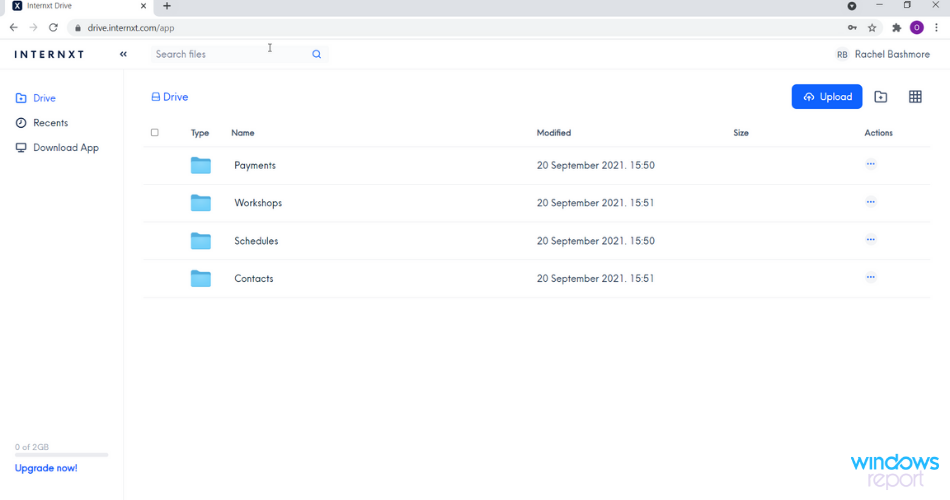
Internxt

Internxt is an online cloud storage service that focuses on keeping sensitive information safe, whether it is personal or work-related.

You can have instant access to 2GB of free storage on Windows and Mac PCs via browser, or download the program and app for your Android and iOS devices for the same benefit.

You may personalize the interface in the cloud to have a more organized dashboard by tailoring files, changing folder colors, and changing icons.

The file distribution mechanism is the finest thing about utilizing Internxt.

Essentially, all of your encrypted file shards are randomly distributed on the server, so hijackers will not locate anything in one piece, only you will.

Files are unpuzzled before being transferred to the cloud, so everything is effectively concealed. By using the AES-256 CTR encryption technique, you can rest assured that no one else is compromising your privacy.

⇒ Get Internxt

These are four of the best decentralized blockchain-based cloud storage solutions that you can use on your Windows 10 computer. As you can see, all four feature similar technologies with a focus on user privacy.

We’re sure that new decentralized cloud storage platforms will hit the market in the near future and we’ll update this post accordingly.

If you already used some of these decentralized cloud storage platforms or others, tell us more about your user experience in the comments below.

Wondershare Dr.Fone review: Complete toolkit for phone repair

Mobile phones have come a long way since they were first introduced. From simple devices that allowed two interlocutors to communicate, they developed into miniature computers that can do many things.

Nowadays, you can use your phone to pay, order, take pictures, and do just about anything that has digital integration.

Since they are so versatile, everyone has a mobile phone. This can be a double-edged sword, however, because we tend to rely on them a lot.

Why is this a problem? Well, if your phone breaks down or somehow gets hacked, your sensitive data can get stolen, or you might be unable to do certain transactions since you can’t use your phone anymore.

Thankfully, there is plenty of software that will make sure your phone works properly and your data is safe. If you’re an Android or iPhone user, Wondershare created a great option for you, Dr.Fone.

What is Wondershare Dr.Fone?

Wondershare Dr.Fone is an all-in-one toolkit software that was created to offer all the solutions to the problems of your mobile devices.

The software works perfectly with Android and iPhone devices and offers a great array of services such as helping transfer, secure, and backup the data.

It gets constantly updated, getting new features and improving existing ones to create a better experience for the users.

What are Dr.Fone’s main features?

1. Data Recovery

Wondershare lets you recover deleted and lost data from Android devices, iOS, iTunes, iCloud backup services, and broken or compromised Android devices.

Additionally, you can also recover lost passwords in case you no longer remember them, and you can’t access the important accounts as a result.

How to perform data recovery with Dr.Fone?

  1. Open Dr. Fone app and select Data Recovery.
  2. In the new window, you will be prompted to connect your device to your PC. Connect it and make sure you unlock the screen on your smartphone.
  3. Next, you will receive all the instructions on how to activate the USB debugging option on your smartphone. It’s necessary for the recovery procedure.
  4. After you activate the USB debugging feature, Dr.Fone will install the Connector app to your phone. Just follow the procedure indicated on the screen to install it.
  5. Now select the content you want to recover or click the Select all button to get all, then click Next.
  6. Next, the Dr.Fone app will be installed on your smartphone. Just tap continue on your device and provide it with the requested permissions. The tool will scan your device and you will be able to backup your data.
  7. The only thing left to do is to check your smartphone box and to click on Recover to Computer. As you probably noticed, you can also hit the Restore to Device if you already have a back-up and want to restore the data on your smartphone.

Although the solution might seem complicated, most of the steps you only perform once. Once you activated the USB debugging and you have the Dr.Fone apps installed, all is set up.

It’s also important to know that you can also recover data from an SD card, from a broken phone, and from WhatsApp.

Recovering the deleted messages from WhatsApp is a new feature in Dr.Fone – Data recovery (Android) and if you lost them, with this module you can get them back in seconds.

2. Phone Manager

The Phone Manager module allows you to transfer data between your smartphone and PC and it’s extremely easy to use it.

If your phone was set up as instructed on the Data recovery step, you will only need to connect your device to the PC with the USB cable and you’re good to go.

After that, you will be able to transfer your media to and from iTunes (if you have an iPhone), your photos, videos, music, and apps really easily.

You even have an Explorer interface that you can use to copy any other data from your phone or to transfer the files from your computer just by clicking a single icon and indicating the file or folder path.

How to transfer data to and from the mobile and PC?

  1. Open Dr. Fone and click on the Phone Manager app.
  2. The app will start and you will see the option to transfer media to and from iTunes or transfer your photos to the PC.
  3. Of course, in the upper part of the window, you also have tabs for transferring music, video, photos, contacts and even an explorer interface to copy specific data.

As you could see from our guide, it’s extremely simple to transfer the data from your phone to your PC in just a couple of steps.

It’s also important to know that you can also retrieve your information from social networks like Twitter and Instagram from your phone so that you also get a backup of the content.

3. Password Manager

With Dr.Fone Password Manager (iOS), you will never be afraid of missing any iOS passwords.

This new module will help you find them, including Apple ID account and password, mail accounts and passwords, website, app login passwords, saved Wi-Fi passwords, or screen time passcode.

Once you connect your device, Dr.Fone will perform a scan on your device and after a few minutes, you will receive a complete report with all the passwords stored on the device.

How to use Password Manager (iOS) to retrieve your passwords?

  1. Open Dr. Fone and click on the Password Manager (iOS) to open it.
  2. Connect your device and make sure you unlock its screen.
  3. Once it’s connected, click the Start Scan button.
  4. After it scans your device, you will get a report with all the passwords stored on it.

Getting your iOS passwords and even the Wi-Fi passwords in a matter of seconds is a priceless feature of this app because retrieving them individually can take a lot of time and work.

4. Other important Dr.Fone modules

Here, we only covered a few of the most important modules of Dr.Fone, but you have a lot more that we will highlight below.

We have to remind you that the app covers all possible problems with your Android or iOS devices and that’s exactly what you will get.

WhatsApp Transfer

Although you can retrieve all the lost WhatsApp messages by using the Data Recovery module, there is also a dedicated, WhatsApp transfer module that covers all the data from the app.

In fact, with this tool you can transfer the messages from one phone to another, you can backup the messages or restore them to your device.

Moreover, the module also covers other communication apps like Line, WhatsApp Business, Viber, Kik, and Wechat.

Screen Unlock

If you locked yourself out of your phone and you forgot how to unlock it, this module is absolutely golden.

Screen Unlock enables you to unlock the screen lock from Android and iOS devices, unlock the Apple ID, bypass mobile device management on iOS devices, and unlock their Screen Time password.

Just connect the device to your PC, select the correct option, and Dr.Fone will do the rest after it scans your mobile.

However, you need to know that some of the procedures involve erasing all the data from your phone so take that into consideration.

Phone Transfer

When you get a new phone, especially if it’s another brand, it’s a pain to sync all your data between the two.

With the Phone Transfer from Dr.Fone, it’s just a matter of connecting the two devices to the same PC and hitting the Start Transfer button from the app.

It’s not even important which one you connect first because you can switch anytime between the source and the target device before starting the transfer.

Phone Backup

It wouldn’t hurt to create a backup to your phone once in a while because you never know what may happen.

If you have turned on the backup settings for your device, usually, that doesn’t include all the files from your device.

The Phone Backup module also covers the applications and application data from your phone so after that, you will be safe.

System Repair

Do you have problems with your system on your iOS or your Android device? Then you don’t need to worry because the System Repair module from Dr.Fone will manage to fix over 20 possible problems.

The tool can solve issues with the devices stuck in the logo screen, black screens, boot loops, phone crashes, forced apps terminations, update fails, and a lot more.

This module even has a dedicated iTunes repair option that covers more than 100 problems and even syncing errors.

Other modules from Dr.Fone include a data eraser tool, especially if you want to sell or donate your phone.

How can I fix iOS 15 update issues?

Updating from iOS 14 to iOS 15 can be tricky and you might have got update errors which can be frustrating.

Getting to an error or a black screen from a fully functional device can be a painful transformation but the new Dr.Fone version perfectly covers all possible errors that you might get, especially after a failed update.

Here’s how you can solve these iPhone update problems by using a simple module from Dr.Fone.

  1. Start Dr.Fone on your PC and click on the System Repair module.
  2. Click on Stardard Mode if you want to keep the data from your device or the Advanced Mode to erase all data. We recommend trying the first.
  3. Follow the exact steps on the screen to carry out the procedure.
  4. The phone will enter the Recovery Mode and you will be able to repair the system.

Of course, all the modules in Dr.Fone were updated to be used for the new iOS 15 devices and troubleshoot them so if you got one of those, this toolset will get you out of any possible trouble.

How to get Wondershare Dr.Fone?

  1. Go to the Wondershare Dr.Fone website and hit the Try it free button.
  2. The download will start shortly and you will get the installer file.
  3. After installing, click the Start Now button.
  4. That’s it. Now you only need to click the modules you want to use to download them first.

There are only a few seconds between accessing the Wondershare page and actually using the tools, so you don’t have any waiting times.

As you probably noticed, there is a trial version for Dr.Fone and all the modules so you can test them before deciding whether or not to make the purchase.

Although you can use Dr.Fone for free for a limited period of time, the prices of the modules are decent if you think that a phone repair at a specialized point would cost you a lot more.

Wondershare Dr.Fone toolkit is available for Windows and Mac and as we already mentioned, covers Android and iOS devices.

Wondershare Dr.Fone

Wondershare Dr.Fone

If you have any problems with your phone, all will become in the past with this amazing Dr.Fone toolkit.
Free trialVisit website
Pros
Simple and comprehensive user interface
Fixes all the problems with your phone
Compatible with Android and iOS devices, including iOS 15
Easy transfer files between your mobile and PC
Complete backup of your phone
Separate modules dedicated to each important tasks
Cons
Phone scanning takes a bit of time, depending on its content

Final notes

We have reached the end of our review and we hope that not only provided information about Wondershare Dr.Fone, but also explained how to use its most important features.

Our experience with Dr.Fone was pretty satisfying because we managed to create backups for our devices, and we even restored some in record time.

Also, we were impressed by the multitude of available modules and options that cover any possible issue with your phone.

And the fact that you can try, then buy individual modules to tailor your exact needs is also a very budget-savvy option.

Did you try Wondershare Dr.Fone? Leave your impressions and thoughts about it in the comments section below.


Skype teases redesigned apps with big performance improvements

Skype has been redesigned several times since Microsoft acquired the company 10 years ago, but the app is about to get another significant makeover over the next few months. Microsoft details its plans for an “improved, faster, reliable, and super modern-looking Skype” today, and said that many of the upcoming changes have been inspired by user feedback.

As group video calls have pretty much become the new normal since the beginning of the pandemic, the Skype team will be revamping the call stage to make all participants visible during a group video call. Audio-only participants will also appear with their own colorful backgrounds on the call stage, and the default grey background is gone.

Skype will continue to support hiding audio-only participants from the calling stage, as well as cool features such as animated backgrounds, together mode, call recordings, and live subtitles. However, for users in areas with poor connectivity, Skype will also continue to offer the ability to disable the video stream in a group call to save bandwidth.

The Skype team is also working on other design changes including Fluent Design icons, new colorful themes, upgraded profiles and non-customized chats with gradients, and more.

The team also detailed a new “TwinCam” feature that will let users add a smartphone or another device with camera to the call, and the video stream from this secondary device will appear right next to your own feed on the call stage. According to the team, this should be useful when Skype users want to show something that’s happening around them during a video call.

Last but not least, Skype app is also getting significant performance improvements on desktop and mobile devices.
“We improved performance in key scenarios by 30% on desktop, and over 2,000% on Android, and have more coming as we continue to modernize our media stack,” the team explained.

It’s interesting to see Microsoft announcing a redesigned Skype app right when Windows 11 will launch with a built-in Teams for consumers experience. Skype has the advantage of being a popular brand that’s been around for almost two decades, while Microsoft Teams may be too focused on the enterprise world to get a shot at becoming a popular consumer app. We’ll see what happens, but this upcoming Skype redesign shows that the app isn’t going away anytime soon, and makes that clear in the blog post: “Skype has been in our lives for nearly two decades, and we are here to stay.”

If you’re excited about these new features and design changes for Skype, you can join the Skype Insiders Program to get early access to them in the coming months.

Redesigned Photos app starts rolling out to more Windows 11 testers

Earlier this month, Microsoft released a redesigned Photos app for Windows 11 to select Insiders in the Dev Channel. The company has now started rolling out the new Photos app to both Beta and Release Preview channels, as spotted by Microsoft MVP Richard Hay.

Microsoft says the new Windows 11 Photos app brings several enhancements over the existing version included in Windows 10. “Our goal with the redesigned Photos app was to make it faster, easier, and more enjoyable for you to re-live and edit your photos on Windows 11,” the Windows Insider team explained. “The Photos app has been redesigned to align with the new visual design of Windows 11. This includes rounded corners and Mica material across the app.”

In addition, Microsoft has added some other noteworthy capabilities to the Windows 11 Photos app. The biggest change in this release is the addition of a new filmstrip that appears when users preview an image. It makes it easier to find the desired photo in a collection easily and eliminates the need to use navigation arrows. This update also brings a “multi-view” experience that supports selecting multiple images available in the filmstrip and comparing them on the screen.

Last but not least, the all-new Photos app is getting a floating toolbar at the top that provides quick access to editing options such as crop, rotate, view metadata, and much more. The toolbar comes with support for integrations with some third-party editors, and the list includes Adobe Photoshop Elements, Affinity Photo, and Corel PaintShop Pro.

It is important to note that this new Photos app is still in testing, and the Windows Insider team will keep listening to feedback while the app is in preview. We hope to see the redesigned Photos app land soon in the upcoming Windows 11 OS launching next week. Have you tried the new Photos app on your PCs? Sound off in the comments down below.

Windows news recap: Amazon Appstore arrives on Windows 11, updated PC Health Check app launches, and more

Welcome back to our Windows news recap, where we go over the top stories of the past week in the world of Microsoft’s flagship operating system.

Android apps on the way as Amazon Appstore appears in Windows 11 Microsoft Store

The Amazon Appstore has made an appearance in the Microsoft Store on Windows 11, indicating that Android app support for Microsoft’s next operating system might not be too far away.

Amazon appstore in the windows 11 microsoft store

Office for Windows is getting natural-sounding voices for reading your emails and documents

Natural-sounding voices are coming to Office for Windows, as part of an update to the voices in the Read Aloud function of Word and Outlook. Office Insiders can try out the new voices now.

Office for windows is getting natural-sounding voices for reading your emails and documents - onmsft. Com - september 23, 2021

Commercial customers will get to choose between Windows 10 and Windows 11 on new Surface devices

Surface devices for commercial customers will offer a choice between Windows 10 and Windows 11, helping to provide flexibility to organisations.

A white Windows logo on a blue background

Microsoft’s updated PC Health Check app is now available for all Windows 11 enthusiasts

A new version of the PC Health Check app has been quietly released by Microsoft. The original version drew a lot of criticism for saying that a PC wasn’t compatible with Windows 11 but not explaining why. But it looks like Microsoft is making steps to resolve this, as the new version of the app will tell you if your CPU is unsupported for Windows 11, or if you need to turn on Secure Boot or TPM 2.0 in your UEFI settings.

Microsoft’s updated pc health check app is now available for all windows 11 enthusiasts - onmsft. Com - september 21, 2021

That’s it for this week. We’ll be back next week with more Windows news.

Microsoft news recap: Firefox tests Bing as default search engine, Xbox gets new Microsoft Edge, and more

Microsoft news recap is a weekly feature highlighting the top Microsoft news stories of the past week. Sit back, grab some coffee, and enjoy the read!

September Xbox update brings Microsoft’s new Edge browser on Xbox consoles

Xbox One and Xbox Series X|S consoles have received a new update this week. The September Xbox update brings across Microsoft’s new Edge browser, bringing support for sync, mouse support, and more.

Microsoft Edge Logo

Microsoft’s Surface Duo 2 announced, now with upgraded camera, NFC, and more

The latest Surface Duo device has been announced, with no surprise in its name, the Surface Duo 2. The second iteration looks to address most issues that beset its predecessor, bringing NFC support, an improved camera as well as a fingerprint sensor integrated into the power button.

OneDrive for Business will soon make it easier to find files and access primary commands

The command bar in OneDrive for Business is set to receive an update that aims to make it easier to locate files and access important commands. The visual change aims to reduce clutter to make it a more simplified experience.

Onedrive for business will soon make it easier to find files and access primary commands - onmsft. Com - september 21, 2021

Mozilla experiments with using Bing as Firefox’s default search engine

Mozilla has begun experimenting with setting Microsoft’s Bing search engine as the default search engine in its Firefox web browser. This could show signs of Mozilla’s plans for when its deal with Google ends in 2023.

Firefox studies

That’s it for this week. We will be back next week with more Microsoft news.

You’ll be more secure with Windows 11 than with Windows 10

There has been a lot of hype around Windows 11, and it seems users stand to benefit from an array of features when they make the switch. Recently, a lot of applications have been getting updates to fit in with Windows 11.

Now, the security features have also been beefed up to seal the deal. There have been a lot of bugs in the preview builds released, but that will be a thing of the past when you make the switch. 

Let’s look into detail why Windows 11 will be the most secure OS than its previous counterparts.

1.TPM 2.0

TPM module structure

You may have probably heard about TPM 2.0 requirements and how Microsoft has made it a requirement for some applications if users want to use Windows 11.

It has become a bit controversial as some support the move while others are against it. Well, the reason behind that is security!

TPM chips have been around for a while, but they are only being taken seriously since recently. A TPM stores important credentials to authenticate users, software, and devices.

TPM 2.0 is therefore being used to secure the login process. The reason behind using TPM 2.0 and not TPM 1.2 is because it has better cryptographic algorithms and will prevent data breaches.

2. VBS

In Windows 11, Microsoft has incorporated Virtualization-based Security. The main aim of this feature is to protect security solutions by creating an isolated and secured segment in the system memory.

The isolation process targets information that is vulnerable to cyber-attacks. Although VBS is also available on Windows 10, it is not set by default. In Windows 11, it will be set by default and mitigate the risk, especially by admins who may fail or forget to set it.

3. HVCI

Hypervisor-protected Code Integrity is part of a VBS feature. Its work is to protect the isolated system memory created by VBS. It ensures the Windows kernel is not compromised. Many attackers heavily rely on kernel mode to gain access.

Although HVCI is part of Windows 10, it degrades its performance by using older CPUs. It is why Microsoft has come up with dedicated hardware specifically for HVCI and requires 8th gen or above AMD CPUs for Windows 11.

4. The UEFI Secure Boot

UEFI working process

By default, all Windows 11 devices come pre-installed with UEFI Secure Boot. This makes it more secure than Windows 10.

An important disclaimer is that if your windows security system or protocols were compromised before the boot, UEFI secure boot would be useless.

The catch to enjoying these security benefits is to get a new PC that supports all these requirements or one of the latest released Surface devices such as the Surface Laptop Studio.

Does your PC meet the requirements to run Windows 11? Let us know in the comments down below.

You can now download the beta version of Halo Infinite from the Xbox Insider app

Microsoft has just released its second Halo Infinite multiplayer beta on Xbox consoles and PCs, providing gamers with a work-in-progress glimpse into its player-versus-player (PvP) action.

Given the fact that this is a technical preview means more hours with Halo Infinite before release, including the world-first hands-on with its expanded Big Team Battle mode.

This is excellent news for the die-hard fans of the series, who already expressed their uncontainable excitement throughout various social media platforms.

Still not convinced? Well, let’s dive right into it and maybe you will change your mind by the end of this article.

What can we expect from Halo Infinite beta?

This is an excellent chance to get more acquainted and begin mastering Microsoft’s upcoming shooter, before its December 8 release date.

However, this week’s flight returns bigger and better, bolstered with more multiplayer content than the previous July trials, and available to all Halo Insiders who registered on time.

Those who were successful in applying for the beta will score two weekends with Halo Infinite’s multiplayer, and for 343 Industries, that means larger player counts to test its online offerings.

Playtime is scheduled for September 24th through September 26th, with the first weekend being centered around its traditional four-versus-four Arena modes.

Big Team Battle, now upgraded with up to 24 player lobbies, arrives one week later, from October 1st to October 3rd.

Furthermore, Arena will also be available alongside Big Team Battle during the second weekend of testing.

The first Halo Infinite preview spotlighted its new Training Mode, featuring AI-controlled bots designed to emulate real-world players and sharpen your aim.

But while 343 Industries published a strict schedule of Halo Infinite beta times for matchmaking, its bots will remain playable throughout the three-day test windows. 

As far as this game’s battle pass and new customization systems go, they will also return on this flight.

Can I already download the beta version?

This second Halo Infinite beta went live on September 23, as we mentioned above, although the team operates out of Washington, meaning it was September 24 for everyone in Europe and other eastern regions.

Keep in mind the team stated that late-breaking issues could derail this long-awaited rollout.

This already happened once, although the developers were able to resolve the issue quickly and roll back a previously announced delay.

Everything is good now, as the beta is currently rolling out to players worldwide, but be aware that some problems may potentially affect access to the game.

How much space does Halo Infinite beta take up?

Well, the first Halo Infinite technical preview had somewhere in between 11GB and 19GB, with Xbox Series X|S and PC boasting larger file sizes.

As for the second preview, it should be marginally larger at 20GB, likely due to the additional content in this flight.

Furthermore, we may also see an additional update for the Halo Infinite preview later this month, ahead of the second week of playtesting.

This update would precede the addition of Big Team Battle with various bug-fixing tweaks, not uncommon, given the work-in-progress nature of the project.

Remember that this early access for the beloved title is only available to Xbox Insiders. If aren’t one yet, you can join the others by going to the official page.

Are you a part of the Xbox Insider Program? If so, have you already downloaded and installed Halo Infinite? Tell us about your experience in the comments section below.

Alternatives to Windows 11: 4 Most Popular Picks to Use

Windows 11 is finally here, but not everybody is eager to make the switch. There are several reasons to do this, but the biggest one is the hardware requirement.

The new version is more demanding than the previous ones, and some older computers might not be able to run it at all.

This is a major obstacle that will prevent many users from upgrading unless they buy new hardware beforehand.

Since this isn’t the best option for many, users are considering Windows 11 alternatives, and in today’s guide, we’re going to show you several great operating systems that you can use instead.

What are Windows 11 requirements?

Official Windows 11 requirements (Source: Microsoft)

Unlike the older versions, Windows 11 is more demanding on your hardware. Here’s a quick overview of the requirements:

  • Supported 1GHz dual-core CPU
  • 4GB RAM
  • 64GB storage
  • Secure Boot
  • TPM 2.0

The requirements look modest at the first glance, but many computers are failing to meet them and run Windows 11.

Why can’t some PCs run Windows 11?

The main reason is the CPU support, and to upgrade, you’ll need at least an Intel 8th Gen processor or Ryzen 2300X.

This leaves many PCs unable to upgrade to Windows 11. However, these are just the official recommendations, and you’ll still be able to install it on unsupported hardware.

However, if you choose to do so, you won’t be able to download updates, and Microsoft won’t guarantee your system’s stability and safety.

Another requirement that is causing compatibility issues is TPM. This is a security feature, and unless your PC supports it, you won’t be able to upgrade.

To learn more about it, you should check out our TPM and Windows 11 guide for more information.

What are the best Windows 11 alternatives?

Windows 10

In case you don’t want to or can’t upgrade, you can remain on Windows 10 for the time being. Although the latest version looks better with its new interface, in terms of functionality, it’s pretty similar.

The biggest change besides the visual revamp is the support for Android apps, but you can also use them with Android emulator software.

However, you will miss out on certain gaming features, such as AutoHDR and DirectStorage, if you don’t install the latest version, so you should keep that in mind if you’re a gamer.

You’ll still be able to play your favorite games, even if you don’t upgrade, without any problems, just without these two features.

It’s also important that we mention the software support. Microsoft is planning to maintain Windows 10 until October 2025, so you can use it for few more years.

However, this might not apply to other developers, and some of them might slowly move away from older operating systems and focus exclusively on the latest one.

This shouldn’t worry you too much, but you might find that certain apps won’t run, especially as the end of official support draws near.

If you don’t plan to upgrade or your PC just can’t support the latest version, you can continue using the current one as an alternative.

You might miss a couple of gaming features and a new user interface, but that’s not a dealbreaker for most users, since the majority of applications will still work on Windows 10 without any issues.

For more information and direct comparison between the two operating systems, we suggest reading our Windows 10 vs Windows 11 guide.

macOS

Currently, the world’s second most used operating system is macOS, so it’s no wonder that it’s one of the best Windows alternatives out there.

The two have a lot of similarities, especially in the terms of the user interface, with both having rounded corners and a centered Taskbar that allows you to quickly access apps.

Widgets are a new addition in Windows 11, but they have been available on Mac for a while, so that’s one more feature that the two share.

We also have to mention security as one of the macOS highlights. The system has a dedicated chip for boot protection and credentials storing, similarly to TPM.

macOS widgets (Source: Apple)

Apple also has a strict app policy, and only certified software is allowed to be downloaded from the Store, ensuring the maximum safety of its users.

Both systems offer integration with mobile platforms, with support for Android and iOS apps on Windows 11 and macOS respectively.

Although the two systems have many similarities, there’s one major difference between them. Apple’s devices can’t run executable or .exe files.

This means that you’re not able to use any of your favorite Windows applications unless the developers have made a version for Mac devices, but you can circumvent that if you dual boot Windows 11 and macOS.

Lastly, we have to talk about gaming, and Macs aren’t famous for being a reliable gaming platform. Even though you’ll be able to run some games, expect to encounter issues along the way.

macOS is a great alternative to Windows 11, however, you won’t be able to run most of your favorite Windows apps and games on it.

To make a switch, you’ll need to buy a Mac computer first, and this isn’t the best option for most users. We wrote in great detail about both operating systems, and you can read more in our Windows 11 vs macOS article.

In order to download macOS and install it on a Windows-based PC or otherwise, you will need to download it by using a device with macOS already installed. You can do so by accessing the App Store, downloading the OS, and then creating a bootable USB on your Windows 10 device.

Linux

One of the best alternatives for Windows is Linux for several reasons. The operating system is completely free, and you can run it on your existing computer.

There are tens of different versions to choose from, and each has a unique look and hardware requirements, meaning that you can run it on almost any configuration, even if it’s 10 years old.

In terms of visual appearance, there might be some similarities with certain distributions, but what’s unique with Linux is that it has a minimalistic design that looks great.

Security is one more major benefit, and since the platform has only a handful of threats, you can rest assured that your PC will be completely safe.

The operating system can’t run .exe files, which makes your computer protected from the vast majority of malware. However, this also means that you can’t run Windows applications at all.

Some developers optimize their software for multiple platforms, but in most cases, you’ll have to rely on one of many available alternatives.

Alternatively, you can use Wine for emulation or use virtual machine software, but be prepared to deal with some compatibility issues.

It’s also worth mentioning that Linux is somewhat more complex than other operating systems, so it might not be the best choice for less tech-savvy users.

For more information, we suggest reading our Windows 11 vs Linux guide to learn more about the differences between the two.

Chrome OS

Chrome OS started humbly but it has changed a lot during the years, and it shares a lot of visual similarities with Windows 11.

Both systems have rounded corners for open windows, a centered Taskbar, and a rather similar notification and Quick Settings panel.

Another shared feature is the ability to run Android apps, and in fact, Chrome OS had this option for a while, while Windows just got native support for them.

The main difference is that the two systems use completely different app stores, and one is powered by Google’s Play Store and the other by Amazon’s app store.

Many users aren’t happy with this decision because it means that Windows users will get access to a lot smaller library of apps, but that could be fixed with the sideloading support.

The main difference is the support for Win32 apps, and Chrome OS just isn’t compatible with them. This means that you won’t be able to run your favorite Windows software at all.

As a result, the operating system is a lot safer, thanks to the sandboxing support. Since malware usually comes in .exe format, you can rest assured that your device is perfectly secure at all times.

However, there’s extensive support for web apps and Android applications, and you can even run Linux software on some models, but that probably won’t be enough to make users switch.

You should also know that to use this operating system, you’ll need to purchase a Chromebook, and this probably isn’t the best option for most users.

To learn more about the differences between the two, be sure to visit our Windows 11 vs Chrome OS guide.

Is Windows 11 secure?

Yes, Windows 11 is the most secure release of Windows, and just like the previous versions, it comes with built-in protection.

If you need additional security, you can always install a Windows 11 compatible antivirus and use it instead of Windows Defender.

With the TPM requirement and boot protection, you can rest assured that your PC will remain safe from all malware that tries to run before your OS starts.

Can I dual boot Windows 11 with other operating systems?

Yes, you can easily use Windows 11 alongside other operating systems. This is perfect if you want to test the new operating system without giving up on your old one.

You should know that the Secure Boot feature won’t interfere with dual booting, since you don’t have to keep it enabled to use the latest version.

We wrote an in-depth guide on how to dual boot Windows 11 and Linux, so be sure to check it out for step-by-step instructions.

In case you don’t want to upgrade to Windows 11, these are some of the best alternatives that you could use.

All these operating systems can’t handle Win32 apps natively, so if you find it necessary to use them, it would be best to stick with your current version for the time being.

Are you planning to upgrade to Windows 11 or are you considering using one of the alternatives? Share your thoughts with us in the comments section below.

7 Best Video Logo Remover to Use in 2026 [Photo & Video]

You can easily eliminate distracting logos from images with a good logo remover, creating seamless visuals for projects.

This tool is invaluable for businesses, filmmakers, and artists needing consistent branding or logo-free images for creative use.

Today, we’ll walk you through the best options on the market.

What is the best logo remover software for Windows PCs?

Tip icon Editor’s tip
Always ensure you have the legal right to modify the images.

inPixio Photo Studio Pro 12 – 3 step logo removal

For an easy-to-use logo removal tool, try inPixio Photo Studio Pro 12.

It allows you to remove logos in three simple steps: upload the photo, use the Erase tool to outline and delete the logo.

This user-friendly tool is also effective for removing other objects or people from your images. It includes a Cutter tool for pasting details into other photos with edge smoothing for a seamless look.

A demo version is available, but the full product must be purchased for complete use.

Let’s go through its best features:

  • Friendly and simple interface
  • Easy to use, without the need for special guiding
  • Can eliminate any logo or other objects seamlessly
  • Contours smoothing
  • Improves the quality and the colors of your pictures
  • Photomontage
  • Share on Facebook and Twitter
inPixio Photo Studio Pro 12

inPixio Photo Studio Pro 12

Remove unwanted logos from any picture in just three steps and give your photos a new, fresh look.
Free Trial Check Price

Adobe Photoshop – industry-leading logo removing options

Adobe Photoshop, the industry standard in photo editing, offers powerful tools for removing logos from images and videos while preserving quality.

Use the Object Selection tool to outline and select the logo, then the Spot Healing Brush Tool with the Sample All Layers option to paint over it.

For final cleanup, the Clone Stamp Tool smooths the edges. Photoshop is available as standalone software or via Adobe Creative Cloud, with a 7-day trial option.

Other key features of Photoshop include:

  • Plenty of versatile selection tools such as The Marquee Selection, Magic Wand Selection, and Lasso
  • Automatic color balance
  • A wide array of effects to turn your photos into masterpieces
  • Plenty of tools to create your own logos if you want to replace the one you removed
  • Steep learning curve for most actions

Wondershare Filmora – quick & intuitive logo removal from videos

Wondershare Filmora is an easy-to-use tool for removing logos from videos.

The program includes straightforward tools for eliminating or blurring logos, and it’s user-friendly, even for beginners.

While Filmora excels at video editing and can enhance your recordings, it’s not suitable for photo editing.

Here are the best features that are included in the program:

  • Crop, trim, cut, combine and split images with just a few clicks
  • There are various filters and visual effects that you’ll be able to use to touch up your videos
  • Save the edited video to any popular format
  • Remove the watermarks by cropping the video or blurring the logo
  • Replace the logo with one of your ones if you want to

AviDemux – free logo remover for images and videos

AviDemux is a popular, free video editor that combines video editing and conversion in one software. It supports logo removal from videos and images across all platforms.

The program includes filters like the MPlayer DeLogo, which allows you to select and surround the logo for removal.

Simply adjust the settings, click OK, and save your file without the logo. AviDemux is entirely free with no account creation or ads required.

Take a look at the most impressive features of AviDemux:

  • Designed for simple cutting, filtering, and encoding tasks
  • Supports many file types such as AVI, DVD compatible MPEG files, ASF and MP4 using a variety of codecs
  • The tasks are able to be automated using projects and powerful scripting capabilities
  • Friendly and intuitive interface

⇒ Get AviDemux

Apowersoft Online Video Watermark Remover – effective with blending techniques

Apowersoft Online Video Watermark Remover is an excellent tool for removing logos from videos.

Available as both an online tool and a lightweight Windows app, it supports a wide range of formats, including MP4, MKV, and AVI.

Simply upload your video, select the logo area, and the tool will handle the rest. It’s user-friendly with a helpful tutorial, though it has limitations, such as processing only two files simultaneously and a maximum output of 4K resolution.

Let’s see some of its most important features:

  • You can remove any unwanted objects from video in one go
  • No downloads are needed. You can use it exclusively online
  • The videos will be deleted permanently from the server
  • Dedicated separate tool for removing watermarks and logos from photos

⇒ Get Apowersoft Online Video Watermark Remover

SoftOrbis Watermark Remover – effortless logo removal and photo cleanup tool.

Remove Watermark Pro effectively cleans images by removing unwanted elements using advanced blending techniques.

Ideal for eliminating watermarks or timestamps from beautiful pictures, this software offers an almost one-click solution.

Simply highlight the unwanted area and click the Remove button to restore the background. While the interface may look outdated, it is user-friendly and requires no professional skills.

Check out the most impressive features and functionalities packed in this software:

  • It comes with a mixture of tools such as a rectangular area, a freehand selection, and a specific color selection
  • After you select that area where the logo is placed, you can let the program do the rest
  • It is able to remove dates and time stamps
  • Removes small objects from the images

⇒ Get SoftOrbis Watermark Remover

HitPaw Watermark Remover – automatic watermark removal for photos and videos

HitPaw Watermark Remover is one of the easiest tools for removing unwanted items from photos and videos.

With a video editor-like interface, it uses advanced algorithms to automatically detect and eliminate watermarks, regardless of size or complexity.

Simply upload your content, make edits, preview the result, and save your work. HitPaw supports various formats including MP4, AVI, and MKV, and offers a free trial to test it out.

Here are some of the software’s main features:

  • Remove watermarks from videos and images
  • Preview the effects before exporting
  • Fully-functioning free trial
  • Powerful removing modes for video and image watermarks
  • Simple interface

⇒ Get HitPaw Watermark Remover

How to remove the logo by cropping the image?

  1. Open your image in any photo editor you have. We used Microsoft Paint because it’s readily availabele in Windows.
  2. Now click on the rectangle select tool.
  3. Next, select the image, without getting the logo from the bottom.
  4. The only thing left is to click the Crop function.

Usually, logos are placed in the corners of images so you can get rid of them by simply cropping the image and leaving out the logo.

Of course, you will get a smaller image in the process so it’s recommended to use some of the tools from our list but if you don’t mind the lost pixels, it’s a lot easier.

All these logo-removing programs that we’ve listed above come with great sets of features, and after you check them out in detail, we’re sure that you’ll find the best option for your needs.

If you managed to clear your image from logos, you might be also interested in how to erase photo backgrounds using the best online tools.

Have you tried any of the software from our list? Tell us about your experience in a comment below.

Microsoft Office Redesigned interface for Windows 11

Although busy with perfecting the new operating system, Microsoft still finds time to tweak and redesign some of its trademark applications.

There has been talking of the tech company bringing an impressive design to its Office suite for quite some time now, and it seems like it’s finally happening.

As a matter of fact, Microsoft has started teasing this change since last year, leaving users wondering if and when this will become reality.

The Redmond-based tech giant gave us hints that point to the revamping of more than just the Office suite, but we will focus on this at a later point.

What can you expect from the new Microsoft Office?

A more fluent design to the Office suite

Recent information is pointing to the fact that this long-awaited change is about to pass the threshold between project and tangible product.

One of the most noticeable changes that the Office Suite has been subjected to is the refreshed UI, which looks much modern than Windows 10.

This improved Fluent design, on which Microsoft has been working since 2017, brings this app into the Windows 11 era.

So, without further ado, know that the consumer version of Microsoft Office will release alongside Windows 11 on Oct. 5, 2021.

Still, users have been testing this new version since July, as a beta version was available for both Windows 10 and Windows 11.

This got everyone excited, but as usual, there are skeptical people who don’t believe that this change will impact the overall feel of the app that much.

Many of the users that heard about the revamp process are concerned about one major feature in particular, which is dark mode.

Know that the new version of Office will feature an improved dark mode feature, which can be activated just as you would do on the older version of the app.

Black theme Office suite

What new features and changes is Microsoft introducing?

As explained by the Redmond tech company in their blog post, the classic ribbon interface has been replaced by a collapsible ribbon menu.

As we think about what that new experience means for hybrid work and learning, we have modernized the overall user interface, while still maintaining its familiar feel. We have worked to make the Start Menu more modern, and we’ve made it easier to find your apps and recommended documents.

Also, corners are also more rounded, and Office now syncs with the default system theme, including dark mode.

All of this is part of Microsoft’s plan to surpass their rivals, such as Apple, and really bring the OS and all its content to the future. And, as the company mentioned repeatedly, this is only the beginning.

Microsoft also added that a new visual refresh option is coming to Office desktop apps. The tech company said it is releasing an Office visual refresh that shines on the new OS but will also be available to Windows 10 users.

The tech giant’s Fluent Design principles are also being applied across the Office desktop app suite, including Word, Excel, PowerPoint, OneNote, Outlook, Access, Project, Publisher, as well as Visio.

In an update from the Insider Office website page, Microsoft said that the new visual is available to the Beta Chanel users:

The visual refresh is now available to 100 percent of Beta Channel users running Version 2108 Build 14301.20004 or later on Windows 11 or Windows 10.

Of course, users can still opt out of the visual refresh by clicking the megaphone icon in the top right corner to open the Coming Soon panel.

The above-mentioned panel is only available in Word, Excel, PowerPoint, and OneNote and is not available in Access, Project, Publisher, or Visio.

Also, know that the visual refresh is synced between your Office apps, so if you turn it on in Word, Excel, PowerPoint, or OneNote, it’ll be available in Access, Project, Publisher, Visio, and Outlook.

How to install the new Office update?

First of all, in order to get the latest version, you need to have a Microsoft 365 Family or Microsoft 365 Personal subscription.

If you already have the most current version of the Office suite, you won’t have to pay any additional cost as you’ll be eligible to upgrade and get the latest features.

Now, even though updates are set to install automatically whenever there is one available, sometimes you need to update your app manually, so follow the steps below:

  1. Open any Office app and create a new document.
  2. Open the document and go to File.OneNote File
  3. Select the Account option.OneNote account
  4. Click on Update Options > Update Now.OneNote Update now
  5. An You’re up to date! window will appear meaning Office installed the latest update available.OneNote Up to date

If you don’t have a subscription and you need to buy the latest version, you can choose to purchase a Microsoft 365 subscription from the official Microsoft website.

Get the latest tips and find out everything we know about Microsoft Office compatibility on Windows 11.

Also, with the official OS just around the corner, just make sure your PC meets all the requirements and specifications necessary to upgrade.

And don’t forget to check all the steps you need to take in order to download and install Windows 11.

What is your take on all these changes that Microsoft is bringing to the Office suite? Share your thoughts with us in the comments section below.

Crystal Dynamics to work on upcoming Xbox Series X Perfect Dark video game

Microsoft game studio, The Initiative, announced on their official Twitter account today that Crystal Dynamics would be collaborating with them on their upcoming reinvention of the Perfect Dark video game franchise.

“We are partnering with Crystal Dynamics, the world class team behind character-driven games such as Tomb Raider, to bring this first-person spy thriller to a new generation,” the account posted earlier today. “The teams couldn’t pass up a chance to work together.  We’re still early in development, but incredibly excited to use this unique opportunity to deliver on the vision for Perfect Dark!”

The official Crystal Dynamics account shared the announcement and stated “We couldn’t be more excited to join forces with The Initiative to bring Perfect Dark to a new generation of gamers! We thrive on reimagining epic heroes and can’t wait to realize this first-person spy thriller together. We’re thrilled to add Perfect Dark to our development efforts alongside Marvel’s Avengers and Tomb Raider.”

The new Perfect Dark video game was officially announced back in December during the The Game Awards. While no release date (or even release year) has been locked in yet, the game is confirmed to be coming to Microsoft’s new Xbox Series X and S consoles, not the last-gen Xbox One, and will be playable at launch for free for Xbox Game Pass subscribers.

The first Perfect Dark video game came out on the Nintendo 64 console in the year 2000. It’s considered by most to be the spiritual successor to the mega-popular GoldenEye 007 video game that came out a few years prior in 1997 due to its use of a similar game engine and focus on first-person spy action and intrigue.

Later in 2000, the original title was followed by a Perfect Dark video game on Nintendo’s Game Boy Color while a proper sequel, Perfect Dark Zero, eventually came to Microsoft’s Xbox 360 in 2005. A remaster of the original Nintendo 64 game was developed for the Xbox 360 in 2010.

Curiously, all of the Perfect Dark video games are set very near our current present. The original game’s story was set in 2023, the Game Boy Color game in 2022, and the Xbox 360 sequel in 2020.

It’s unclear what exact year the upcoming Perfect Dark game’s story is set in but it would be interesting if it launched in 2023 to tie-in with the original game’s setting.

Are you excited for a new Perfect Dark video game? Share your thoughts with us in the comments below and then follow us on Twitter and Facebook for more Xbox gaming news.

9 Best Call Center Recording Software

For a business to be successful and thrive, it is important that your customer service is of the highest quality offering effective solutions to complaints and using customer feedback to make the service better.

After all, a happy customer is not only a repeat customer but also an effective brand ambassador for your business. And did I tell you that you don’t need to pay a penny to this ambassador for product promotion? But, you know that already.

As a business owner, you can do many things to improve customer service. One of them is the use of Tele Customer service which is among the preferred medium for customer relations and service.

But, how do you make sure that the customer service representatives are offering satisfactory solutions to your customers?

The solution is simple, and major businesses are using it for a long time now. Companies use inbound and outbound call recording and agent monitoring to provide effective solutions to the customer.

Most of the call centers use call recording software to record the conversation for quality control purposes. Going back and forth with the feedback enables the businesses to not only monitor the delivery of information by the staff but also make sure that the customers are treated right to ensure customer retention.

The same can also be used to improve your service or product based on feedback and to train employees based on past interactions.

In this article, we will be looking at the best call center recording software that is easy to implement and use. It will also help you to understand the customer requirement in a better way resulting in better sales and reputation.

CloudTalk – Great call transfer feature

Cloudtalk is a full-service call center solution for businesses of all types and sizes. The voice features provided by this service are really extensive so that you can offer great support to your customers.

You can set up CloudTalk to automatically record all your calls. Each recording is saved to the client’s contact details, as well as call history and call statistics. You can easily reaccess them from any browser since the service is cloud-based.

As long as the recording feature is enabled, you can also gain access to real-time calls and listen to them as they take place.

The software also provides call queuing assistance with customized messages and agent availability information.

It has a lot of integrations with popular work management apps and other productivity software. You can use it, for example, along with Zendesk, Freshdesk, Google Contacts, or Slack.

Other key features of CloudTalk include:

  • Voicemail support
  • Number porting
  • International support for numbers from over 140 countries
  • SMS/Text messages support
  • Conference call feature
  • Call transfer feature to easily transfer callers over to other agents, when necessary
  • Blacklist

CloudTalk

Provide top-quality call center services, make conference calls, get voicemail support and record them all with CloudTalk.
Free Trial Visit Website

NCH Express Talk VoIP Softphone – Echo cancellation

NCH Express Talk VoIP Softphone is a call recording software that allows you to make VoIP calls from your computer and record inbound and outbound calls.

The NCH VRS call recorder is a telephone line recorder that requires call recording adapters and a professional multi-line telephone board to record calls and maintain the logs.

The VoIP-based calling software doesn’t have hardware requirements because the VoIP calls are made over the network and not telephone lines.

Express Talk VoIP Softphone software works with a majority of VoIP service providers and office PBX. It comes with conferencing, call recording, and voice command features.

Using Express Talk is as easy as it can get. The user interface is simple with all the controls on the main window with the Phone Book and Invite options on top.

A small screen below the dialer shows the recently made call logs with time and SIP number. Essential functions like Hold, Transfer, Conference, Intercom, Record, Mute and Do Not Disturb are all available on the main window saving you the hassle of filtering through the menu to find each option.

Other key features include:

  • Make VoIP and video calls between computers
  • Microsoft address book integration
  • File compression feature
  • Echo cancellation
  • Noise reduction and comfort noise features

NCH Express Talk VoIP Softphone

Use NCH Express Talk to record calls and to improve the quality of your generated audio files.
Free Trial Visit Website

Bitrix 24 – Task automation

Bitrix 24 is a free CRM with call recording capability. The free plan is 100% free with up to 12 users and 5 GB of online storage to save call logs. You can also listen to over 300 recorded conversations a month along with a call-to-call option for incoming calls.

Bitrix24 can record both incoming and outbound calls. The calls can be forwarded to your phone number and recorded by yourself. To comply with the local law, the software adds a pre-recorded ” this call is being monitored” voice message for every inbound call which can be turned on and off.

Bitrix24 is compatible with Windows and Mac computers, smartphones, VoIP and SIP phone sets, softphones, and other services. The CRM also offers queue settings, automatic lead creation for unanswered calls, call pause and hold, voice mail, and recording options.

Bitrix24 allows you to rent phone numbers in 43 different countries that can be used as toll-free numbers for customer service. The software is compatible with PBX solutions like Asterisk, FreePBX and 3CX, etc. But the users need a SIP Connector to use the feature.

The CRM screen allows you to access leads, deals, invoices, activities, contacts, and quotes sections from one place.

Being a CRM, Bitrix24 allows you to create calendar and schedule events, add a product catalog, generate quotes and invoices and currency conversion, etc.

Take a look at other key features:

  • Task automation
  • CRM document builder
  • Expense tracking
  • Appointment scheduling

Bitrix24

Record all your calls and easily reaccess them from any device!

TalkRoute – Unlimited storage

TalkRoute is an excellent program for call-center recordings because not only it has improved call features but text and video as well.

You can record all of your incoming and outgoing business calls to make sure that all voice communications are well-handled.

TalkRoute offers unlimited recording storage with which you can access a recording whether it is from today or many years ago, meaning you can review recordings whenever you need to.

Over and above that, you can grant permissions to your colleagues that allow them to access only the recordings for the business numbers you need them to see.

The call recording permissions feature for all phone numbers incorporates the power to totally disable access, permit view only, and supply full access to review, manage, and delete recordings.

Here are other key features of TalkRoute:

  • Live call transfer
  • Desktop and mobile compatibility
  • Call forwarding
  • Call menus

TalkRoute

Record incoming and outgoing calls with ease and grant customized permissions with the TalkRoute software.
Free Trial Visit Website

CallHippo – Interactive voice response

CallHippo is one of the most popular VoIP Virtual Phone Systems which helps take your call center productivity to the next level.

The app allows you to collaborate on calls and share them across higher management levels which helps you with data-driven decisions.

Besides call recording, CallHippo allows you to get toll-free and local numbers in more than 40 countries.

Zapier integration allows you to connect your CRM with it so the data is stored and managed properly across the entire company.

Some other key features of CallHippo:

  • Interactive Voice Response
  • Call Scripting
  • Call Logging
  • Outbound Call Center
  • Multiple Reporting Template
  • Blended Call Center

CallHippo

An outstanding app with multiple advanced integrations that make your job easier.
Free Trial Visit Website

NCH VRS Multi-Line Phone Recorder – High-compression settings

VRS Call Recording System from NCH Software can be used to log recordings from multiple phone lines, call center recording for quality control, and remote monitoring of call agents. If you are looking for a no-nonsense call recording tool that can be directly implemented on your system, VRS can be a good choice.

The pricing structure is pretty straightforward. The basic version of VRS starts with a standard price for one channel and goes up for the enterprise edition.

Other VRS plans offer licenses for radio station continuous recordings for single and multiple stations.

VRS is a professional call recording software that allows you to record telephone conversations on multiple lines simultaneously making it ideal for call center and business phone line recording.

With support for up to 64 VoIP and PSTN phone lines through direct or PBN extension, VRS will automatically configure all the extensions for recording when used with Axon Virtual PBX.

Your employees can turn on or off the recording on individual systems independently using VRS remote control.

Other key features offered by VRS software include:

  • High-compression settings
  • Outbound call audit
  • Record-saving
  • VRM RemoteMonitor

⇒ Get VRS Multi-Line Phone Recorder

Vonage – Admin Portal

Vonage Call Recording helps you track office-wide calls in a safe and efficient manner. You can track your customer support center and give advice or directions based on performance.

Recordings can be checked in the Admin Portal for playback, downloading, and even forwarding by email.

Each extension has full control over its recordings management on the User Portal with On-Demand Call Recording.

Call logs can be searched by extension or client id on the Vonage Cloud and you can also add a custom notification on-call recording for legal purposes.

Here are other key features of Vonage:

  • Simple to setup
  • Admin Portal
  • Intuitive video meetings
  • Business inbox

⇒ Get Vonage

Delacon Call Recording – Call feedback survey

Delacon call recording is a web-based call center recording solution that allows you to record inbound and outbound calls. Apart from call recording, Delacon also offers other services one of which is call tracking.

This program stores all the recording files in its server for three months and the calls are recorded and saved in a .wav format that can be easily played on any compatible computer.

The recorded calls can be accessed using the web-based portal with a customer login ID. You can download the call recording to your computer to be stored on an external hard drive or burn it onto a CD.

For security and safety purposes, Delacon uses a tier 1 data center which is ISO27001 certified with physical and top-notch network security deployed to keep it safe and secure.

The inbound call recording software can be used with the app’s call tracking solution as well which includes a dynamic call tracking number.

Other key features of Delacon you might want to know:

  • Google call details forwarding
  • Speech analytics
  • Call feedback survey

⇒ Get Delacon Call Recording 

CallView 360 – Custom tag management

CallView 360 is a call recording and tracking software by Dial800 that is mainly used to understand inbound and outbound call patterns. Apart from recording calls to improve customer service, it can also help you to analyze the effectiveness of the campaign.

The custom algorithms and analytical tools help you to record and track incoming calls providing well-organized highly understandable data to make informed sales and marketing decisions.

The Callview 360 dashboard allows you to measure all media performance by offering automatic alerts and updates that are sent to you in multiple formats.

The call tracking and recording feature combined with the data analytics feature allows you to not only use the recorded calls for customer satisfaction, legal, and staff training purposes but also utilize it to conduct consumer research to understand the targeted audience at a lower cost.

CallView 360 is the ultimate solution for businesses looking for call recording, tracking, and analytics features in a single software.

Check out some other key features:

  • Measure media performance
  • Dynamic number tracking
  • Custom tag management

⇒ Get CallView 360 

As you can see, call recording has many advantages. From improving customer service to conducting marketing research, call recording and related data can help you take your business forward.

However, make sure that you are aware of the call recording laws in your country. Some countries require the companies to strictly inform the user if the calls are being recorded even for quality control through automated messages before the call is diverted to the customer representatives or by customer representatives by themselves.

Some of the call recording software in our recommendation also offers regulatory compliance features in multiple countries so that you always act in accordance with the local law.

These are our recommendations for the best call center recording software. If you still have difficulty deciding the best software according to your requirement, use the trial plan available with this software to make a sound decision.

If you need more assistance with your business, you may want to try a CRM system. It lets you integrate multiple parts of your business into a manageable system.

For other business-related software tips and recommendations, check our Business Hub.

6 Best Data Recovery Software for Windows 10 in 2026

Data loss is a very common occurrence these days, but if you’re on Windows 10, today we’re going to show you the best data recovery software that can save your files.

Stellar Data Recovery Premium – Target-specific recovery

Stellar Data Recovery is one of the leading software in the data recovery industry. It is a program that is specially designed for Windows, and it is widely supported on various Windows OS, from Windows 10 to Windows XP.

In terms of reliability, ease of use, and Windows compatibility, Stellar Recovery conveniently stands out as one of the best Windows 10 data recovery software in the market.

This software is optimized to run all forms of data recovery. Specifically, it can be employed to recover lost partitions and files on hard drives, USB drives, and memory cards among others.

Furthermore, it supports virtually all file platforms, including NTFS, FAT, FAT16, FAT32 EXT, ExFAT, and others.

Key features of Stellar Data Recovery include a dual scan option (deep and quick scans), cross-platform support (file systems), target-specific recovery, 1GB recovery capacity, and more.

It also creates Bootable USB  Data Recovery Media for crashed systems and facilitates data recovery from BitLocker encrypted storage devices.

Other worth mentioning facts about Stellar are functionalities to recover data from all Windows devices like USB media, burnt CD/DVD, or files such as MS Office documents.

Stellar Data Recovery

The best file recovery tool on the market is now available at a discount price for a limited time only.
Free Trial Visit Website

Kernel Data Recovery – Lightweight and efficient

Yet another entry on our list that perfectly balances out ease-of-use, efficiency, and a lightweight feel to it. Kernel Data Recovery offers a wide variety of recovery tools that anyone can use.

Fortunately, it doesn’t sacrifice accessibility for efficiency since it can still recover inaccessible data from corrupt FAT16, FAT32, NTFS, and NTFS5 partitions of Windows systems.

Additionally, it supports recovery from removable drives, such as USB, IDE, EIDE, SCSI, SATA, PEN, or ZIP drives.

Here are some of the perks of using Kernel Data Recovery:

  • Great for recovering all kinds of files
  • You can try it before you buy it
  • Lightweight and efficient
  • Easy-to-use 

This solution also holds a full range of services to recover your lost data in minutes, such as files filter for multiple data recovery, empty recycle bin recovery, video repairing, or removable drive recovery.

In conclusion, using this data recovery tool helps you to stay protected against lastingly file loss, supporting critical conditions regarding lost files on Windows, Mac, iPod, or UNIX.

Kernel Data Recovery

Easily recover any deleted files and folders with the help of this user-friendly recovery tool.
Check Price Visit Website

Recoverit – Multi-system file support

Recoverit from Wondershare is another top-rated recovery tool, which is highly suitable for recovering all forms of lost or deleted data from Windows 10.

The software is cross-compatible with both Windows and Mac OS. For Windows users, it is supported on all Windows OS between Windows XP and Windows 10.

Recoverit can identify and recover up to 1000 file formats, including documents, audio, videos, messages (emails), photos, and so on.

Furthermore, aside from internal file recovery, Recoverit is able to recover deleted or lost files from external hard drives, USB drives, RAID, Micro SD cards, digital cameras, and even smartphones among others.

Other notable features of Recoverit include fast recovery speed, Multi-system file support (FAT, exFAT, NTFS/NTFS5, ReFS, HFS+, and others), deep/quick scan option, and WinPE Bootable media tech support.

Recoverit is widely regarded as a free Windows 10 data recovery software. However, it is also available in premium editions, which offer more advanced features (including unlimited recovery storage).

It’s worth mentioning that software like this is capable of video recovery, so you can rejoice in your lost HD, 4K, or 8K videos.

Recoverit

Let Recoverit identify and recover all forms of lost or deleted data without any effort.
Free Trial Visit Website

Disk Drill – Customizable scan options

Disk Drill is another top Windows 10 data recovery software. It is an advanced recovery tool, which is capable of recovering data from internal and external storage media, including hard disks, SD cards, flash drives, media players, and so on.

The program is compatible with all Windows versions between Windows Vista and Windows 10. There is also a separate version for Mac OS users.

Disk Drill supports multiple file platforms; hence, there is an avenue to recover every type of file. Basically, it is compatible with prominent file platforms like NTFS, HSF+, EXT, EXFAT, FAT32, and so on.

So, irrespective of the format(s) of your lost files, you can easily recover them, without hassle. In other words, Disk Drill is able to identify and recover over 300 different types of video, music, document, or application files.

Like most prominent recovery tools, Disk Drill scans for lost/damaged/corrupt files (upon command) and swiftly locates the recoverable ones.

There is, however, limited recovery storage available, with a capacity of 500MB. Other key features of Disk Drill include customizable scan options, multi-platform file support, and flexible recovery storage (mobile and fixed.

Disk Drill offers three pricing editions – Basic, Pro, and Enterprise. Do note that the basic (most popular) version is offered for free.

Disk Drill

Advanced recovery tool that is capable of recovering data from both internal and external storage media.
Free Download Visit Website

DoYourData Recovery Pro – User-friendly interface

DoYourData Recovery Pro is the most powerful data recovery software tool that you can find for the task. There’s no wonder that it is appreciated by users worldwide for its simple design and efficiency.

That’s what this tool actually brings to the table: quick recovery of deleted, formatted, or inaccessible data from computers, laptops, digital, or other storage media.

And if you cannot find all lost files after a quick scan, rest assured that clicking Advanced Recovery will turn things in your favor once again. It will deeply scan the hard drive and identify all recoverable files with ease.

DoYourData Recovery Pro key features that you are about to enjoy:

  • Full Windows 10 data recovery solution
  • Easy-to-use interface
  • Supports both quick scan and deep scan
  • Recovers lost files from deleted or lost partition
  • Efficiency even after erasing the recycle bin

Additionally, this software is capable of disk cloning of the HDD and SDD, powerful data erasure, Mac360 cleaning feature, and more.

⇒ Get DoYourData Recovery Pro

Prosoft Data Rescue 5 – Unlimited drive recovery

Prosoft Data Rescue 5 is the ingenious production of Prosoft Engineering Inc. – a leading digital firm located in the US.

This recovery software is specially designed for modern Windows PCs (and Macbooks), with support for Windows 10/8/7. It can be used to recover more than 100 different types of files.

Prosoft Data Rescue 5 is designed to, not only recover lost files on Windows computers but also recover deleted or corrupted files from external storage devices like Flash drives, SD cards, CF cards, and others.

Recovery of files, with this software, is in three basic steps – File scanning, recovery preview, and actual recovery.

Some of the core features of this Windows 10 data recovery software include an Optimized scan engine, File Recovery preview, Time machine compatibility, and Unlimited search fields (advanced file search).

More so, you can make the most of it using unlimited drive recoveries, secure drive erasing, and a professionally-looking interface. It’s possible as well to run a fast scan before the recovering data process.

⇒ Get Prosoft Data Rescue 5

FAQs

Is it safe to use on Windows 10?

Yes, reputable tools are read-only during scans, so they do not modify the source drive.

Can I recover files after emptying the Recycle Bin?

Often yes. Stop using the drive immediately and run a scan to avoid overwriting the deleted data.

Can it recover from a formatted or corrupted drive?

Many tools can find lost partitions and reconstruct file tables. Results vary based on how the drive was formatted and subsequent use.

Data loss is increasingly common today, whether from accidental deletion, system crashes, file corruption, or hardware failure. Even careful users can lose important documents, photos, or videos without warning.

To stay protected, keep regular backups on a separate drive or a trusted cloud service. If you’re using an older OS, see our guides on data recovery software for Windows 7 and data recovery software for Windows 8 for recovery options tailored to those systems.

Data loss can affect your USB flash drive, so don’t miss our guide on data recovery software for USB drive and learn how to restore lost files.

Nevertheless, in case you happen to lose some files (with no backup), we have outlined some of the best recovery solutions which can easily be employed to recover any lost or corrupted file on Windows PCs.

If you’re not a fan of third-party or expensive solutions, we also have a great guide on how to use Windows File Recovery that will help you achieve similar results.

Office for Windows is getting natural-sounding voices for reading your emails and documents

Microsoft has announced that it’s improving the Read Aloud feature in Word and Outlook for Windows by bringing more natural-sounding voices. The new Read Aloud voices are already live for Office Insiders in the Microsoft Word desktop app, and it should make it easier for users to author and review documents.

“Some of you shared that you felt that the original voices sounded too robotic, and you were looking for more natural-sounding reading voices, like the ones we offer for the Read Aloud feature in Microsoft Edge. In response to this feedback, we’re happy to add these new and improved options,” the Office Insider team explained.

To use this feature in Word, open the document and click on the location where you want to begin listening. Select the Review tab and then choose the Read Aloud option. Users will be able to choose from one of the natural-sounding voices in 64 different languages.

As of this writing, the improved Read-Aloud experience is only available in Word for Windows, and it should help to make content accessible for visually impaired people. The rollout of this feature has been temporarily paused in Outlook, but Microsoft says it’s working on expanding it again soon.

Windows 11’s new 22463 build rolls out with only minor improvements

Yes, Microsoft did it again. And before you go thinking about anything else, we are actually talking about the new Insider preview build that just got released for the Dev channel.

Windows 11 Build 22463 is yet another update from the Nickel, active development branch, and it comes with minor bug fixes.

Redmond officials have reconfirmed that it may be a little while before new features start appearing in these builds.

Icons on your taskbar will no longer appear as missaligned

This particular update is called The patch Windows 11 Insider Preview 22463.1000 (rs_prerelease) and it can be downloaded on PCs with the supported hardware and also TPM module.

If you’re using a virtual machine, you need to enable encryption, add a TPM module, and enable secure boot to run this or upcoming builds.

We’re saying this because recent Microsoft decisions heavily impacted how the upcoming OS will run on VMs.

Build 22463.1000 is not linked to any specific feature updates, so the changes you see here may or may not ship in the next year’s feature update.

However, Microsoft warned testers that they could soon be encountering a lot more issues as the development of the next feature update advances.

Changes and improvements

  • The issue impacting the Taskbar where icons appeared misaligned and/or cut off is FIXED in this build!
  • Insider PCs that are Mobile Device Managed (MDM) will not receive this build. There is an issue in this build that prevents PCs from successfully updating to this build. We hope to have this fixed in the next flight.
  • Microsoft PowerToys is now available in the Microsoft Store in Windows 11!
  • When you have a file or folder selected in File Explorer, you can now use CTRL + Shift + C to copy the path to your clipboard.
  • Rounded the corners of the pop-ups shown when clicking “identify displays” in Display Settings.
  • Made some small adjustments to the contrast theme colors based on feedback, including making hyperlinks a little more distinct on hover when using the desert theme.
  • Added an icon next to the volume slider in Quick Settings to help make the option for managing audio endpoints more discoverable.
  • Updated the Windows Ease of Access folder in Start’s All apps list to now simply be called Accessibility.
  • Added an option to Focus Assist settings so you can choose whether or not you would like Focus Assist to be automatically enabled for the first hour after a Windows feature update.

Fixes

[Start]

  • System now shows up again as an option when right-clicking on the Start button (WIN + X).
  • Fixed an issue that was causing Narrator to not be able to focus on the headers in Start sometimes with touch.
  • Mitigated an issue where when a large number of apps were installed, the Start menu might get stuck with no app icons showing (only app name) after a DPI change. This change is also believed to help improve Start launch reliability on secondary monitors in mixed DPI scenarios.
  • If the accessibility option “Always show scrollbars” is enabled, switching to the All apps list will no longer cause the scrollbar to escape the window boundaries during the transition animation.
  • Pressing the down arrow after opening Start will now navigate into the pinned apps section instead of jumping to your username.

[Taskbar]

  • Icons on the Taskbar are properly aligned and centered again apps should no longer get cut off by the “show hidden icons” button when too many apps are open.
  • The Taskbar previews text will now follow the Accessibility setting to increase text size.
  • Adjusted the notification count badge for notification center to fix an issue where some of the numbers weren’t centered in the circle.
  • Fixed an issue where the Chat flyout wouldn’t light dismiss the first time it was opened.
  • Improved explorer.exe reliability when the Taskbar spanned multiple monitors.

[Search]

  • Opening Search on secondary monitors works now.

[File Explorer]

  • Mitigated an issue that could cause File Explorer to hang when doing a search.
  • Pressing F1 in File Explorer will now open a search for Windows 11 help and not Windows 10.
  • Made a change to address an issue where items under View, Sort by, and Group by submenus in the context menu weren’t displaying a mark to show they were selected.

[Input]

  • Fixed an issue resulting in the mouse pointer position in WDAG being incorrect when the monitor was in portrait mode.
  • Text predictions (both for the touch keyboard, and hardware keyboard) should be working again now in this flight for English and certain other languages where it was broken.
  • Addressed an issue when using the previous version of the Korean IME where when typing quickly in certain apps the Shift Key Up event wouldn’t be received by the app.
  • Fixed an issue that was making the touch keyboard key borders look blurry in certain cases.
  • Mitigated an issue where the touch keyboard would crash in certain cases when switching dock mode while the voice typing UI was visible.

[Settings]

  • Removed duplicate Nearby Sharing entry in Focus Assist priority list.
  • Fixed an issue that was causing a repeated prompt to reset to default settings when “Automatically optimize new drives” was unselected in Optimize Drives.
  • If you press WIN + P the current projection mode will now have initial keyboard focus instead of always the first in the list.

[Windowing]

  • Trying to switch Desktops (for example, using the keyboard shortcuts) when there is only one should no longer steal foreground focus.
  • Addressed an issue where the snap layouts flyout would start flashing when invoked in certain places on the screen.
  • Move To option when right clicking a window thumbnail in Task View is now aligned with the other context menu entries.

[Windows Sandbox]

  • Windows Sandbox should now launch in this build. In previous Dev Channel builds, Windows Sandbox would not launch in some circumstances.

[Windows Subsystem for Linx (WSL) & Hyper-V]

  • We have fixed the issue causing both WSL2 and Hyper-V to not work on ARM64 PCs such as the Surface Pro X in previous Dev Channel builds.

[Other]

  • Fixed an issue that caused some PCs to bug check with DRIVER_PNP_WATCHDOG error when attempting to update to a recent build.
  • Fixed an issue that caused some Surface Pro X’s to bug check with a WHEA_UNCORRECTABLE_ERROR.
  • Fixed an issue where the Autorun registry entry for Command Prompt would not work if /k was used.
  • Did some work to address an issue where not being able to parse a certain firewall rule would result in all rules following that one not being migrated on upgrade.
  • Addressed an issue where the Quick Assist window could be small and not possible to resize.
  • Fixed an issue for some users where if the sign in button in Quick Assist was clicked, it would open a blank browser window and they wouldn’t be able to proceed to sign in.
  • Mitigated an issue with certain menus / context menus that was causing a visual glitch with the shadow on first launch.
  • Mitigated a race condition that was causing certain PCs to sometimes bugcheck with INTERNAL_POWER_ERROR when resuming from hibernation.
  • Fixed an issue that was making some PCs unable to progress past the boot screen when upgrading to 224xx builds with certain SSDs attached.
Note icon NOTE
Some fixes noted here in Insider Preview builds from the active development branch may make their way into the servicing updates for the released version of Windows 11 after general availability on October 5th.

Known issues

[General]

  • Insider PCs that are Mobile Device Managed (MDM) will not receive this build. There is an issue in this build that prevents PCs from successfully updating to this build. We hope to have this fixed in the next flight.
  • Users updating from Builds 22000.xxx, or earlier, to newer Dev Channel builds using the latest Dev Channel ISO, may receive the following warning message: “The build you are trying to install is Flight Signed. To continue installing, enable flight signing.” If you receive this message, press the Enable button, reboot the PC, and retry the update.

[Start]

  • In some cases, you might be unable to enter text when using Search from Start or the Taskbar. If you experience the issue, press WIN + R on the keyboard to launch the Run dialog box, then close it.

[Taskbar]

  • The Taskbar will sometimes flicker when switching input methods.

[Search]

  • After clicking the Search icon on the Taskbar, the Search panel may not open. If this occurs, restart the “Windows Explorer” process, and open the search panel again.
  • Search panel might appear as black and not display any content below the search box.

[File Explorer]

  • If you right click files in OneDrive locations in File Explorer, the context menu will unexpectedly dismiss when you hover over entries that open sub-menus, such as “Open with.”
  • Double clicking a network folder to open it will pin it to Quick Access instead of opening it. To open a network folder until we release a build with a fix, please right-click the folder and select “Open” from the context menu.

[Widgets]

  • The widgets board may appear empty. To work around the issue, you can sign out and then sign back in again.
  • Widgets may be displayed in the wrong size on external monitors. If you encounter this, you can launch the widgets via touch or WIN + W shortcut on your actual PC display first and then launch on your secondary monitors.

[Microsoft Store]

  • Developers continue to work to improve search relevance in the Store.

PowerToys is now available on the Store

Exciting news for everyone! Microsoft’s PowerToys is now available in the Store in Windows 11. So hurry and take advantage of advanced functionalities to maximize your productivity today. 

As a reminder, Store now accepts Win32 applications and all the great open-source projects that are part of the company’s ecosystems.

Microsoft PowerToys is now available in the Microsoft Store in Windows 11.

Windows 11 Skype Replaced by Teams: How to Get it Back

US giant Microsoft announced an improved operating system with exciting features to enhance your virtual experience – Windows 11.

Don’t panic, it hasn’t been officially released yet, but it is about to. Until then, you just need to check that your PC meets the minimum requirements to get a free upgrade.

Aside from the plethora of new features and functionalities, one thing is certain: Skype has been replaced by Microsoft Teams.

This video-calling app has become widely used and loved in the pandemic period of 2020 and will be integrated into Windows 11 as a default app. At the same time, Skype will lose this feature.

Therefore, we are left with just one question: Is Skype for personal use going away? There are already many rumors among experts, but we have no reason to worry, for now.

Why should I use Skype in Windows 11?

If you’re unfamiliar with what Skype does, remember that it is an instant messaging app, that can also be used for voice calls and video chats. Over time, it has become significantly important for both personal and business communication.

It allows you to connect and communicate with other users, regardless of the region or part of the world you’re in.

Many programs can do the same. However, Skype has been available for quite a while and the level of clarity and effectiveness it provides is exceptional.

Millions and millions of people already signed up and are using it for their daily activity, and we’re going to prove it at the end of this article. Thus, make sure you read it completely.

How can I enable Skype in Windows 11?

Microsoft’s acquisition of Skype last decade was a big hit in the tech market, and it was certainly worth every penny. Proof of this is the fact that the users who have remained loyal to this service are wondering what happens to it next.

Last year’s difficult period has given room for Zoom or Google Meet and Microsoft to review their products.

Thus, users have preferred to use and enjoy some interesting Teams features, already registering 145 million daily active users in April, which can only be a great success.

Microsoft isn’t killing Skype, it’s just making room for its little brother Teams to shine on the scene. But breathe a sigh of relief, you can download Skype for free whenever you want, after upgrading to Windows 11.

This can be seen as a barrier that the US giant puts in the way of users who prefer to ignore the default Teams in the centrally aligned taskbar and use Skype instead.

Let’s not forget that Teams is there for you. It comes as part of the standard package and, on top of that, it provides you with a host of features designed to simplify your communication with others.

The current difficult period also brings good things. Thus, we have to consider that videoconferencing tools have grown significantly in popularity and operating systems are keeping up with them.

This applies to the well-known Skype, which you’ll also be able to access in the new Windows 11. However, it will require more effort now that it’s not integrated by default into the operating system.

Things are no different for Teams, the default communication platform of Microsoft’s new operating system. As always, it’s your personal experience and satisfaction that comes first at the end of the day.

What is the Skype usage worldwide?

Let us show you some relevant statistics on Skype usage. In the picture below, you’ll find the number of estimated Skype users registered worldwide from 2009 to 2024.

Source: Statista

As you can see, while in 2009 the number of Skype users was 0.4 billion, now, in 2021, the results show an increase of more than four times higher.

According to the related study, by 2024 the number of users will grow from 1.67 billion to 2.27 billion. Also, consider that it’s just a forecast, so the results might be even larger.

Skype usage is constantly increasing and this is just because people trust this app. There is no doubt that, over time, producers have done an excellent job when it comes to the app’s functionality.

Now that you’re aware of what Skype implies on Windows 11, it’s up to you if it is a reliable option for your daily activity.

Also, keep in mind that Skype finally gets Together Mode in one-on-one calls from Teams. Thus, even if some users now use Teams as their main communication tool, Microsoft didn’t give up on Skype.

In case you’re not happy with using Skype, do not hesitate to check our guide on how to use Microsoft Teams in Windows 11.

We hope the information on how to enable Skype on Microsoft’s new operating system has been helpful. For more suggestions or questions, you should access the comments section below.

The Windows Subsystem for Android app is available on the Microsoft Store

We know that a lot of you use software such as WSL, so we’re pretty sure that this news will tickle your fancy right away.

That is why you should know that , with the release of version 1.0.0 of WSL, Microsoft has ditched the Preview tag.

Furthermore, it has made this variant of WSL the default experience for people who run the wsl –install or wsl –update commands.

The Microsoft Store has an Android Subsystem page

As first spotted on Twitter, the Microsoft Store now contains a dedicated page for Windows Subsystem for Android.

Back when we first reported this, even though it was free to download, it only popped up a blank window when you install and open it on Windows 11.

Trying to install it on a Windows 10 device would yield absolutely no results because you can’t even do it in the first place.

However, this store listing also contains some details that most users interested in this field will find interesting.

First, the minimum requirements have been listed as Windows 10 version 22000.0 or greater, which is the same branch as what we have on the Beta Channel currently.

Microsoft has shared several advantages of installing the Store version of WSL, such as faster updates, better error printing, WSLg and WSL packed in a single package, and the ability to opt-in for systemd support, among many other things.

Some of the other improvements introduced by backporting the Microsoft Store version of WSL to Windows 10 and making it the default experience on both OSes also include:

  • wsl.exe –install will now automatically install the Store version of WSL, and will no longer enable the Windows Subsystem for Linux optional component, or install the WSL kernel or WSLg MSI packages as they are no longer needed (The Virtual machine platform optional component will still be enabled, and by default Ubuntu will still be installed).
  • wsl.exe –install` also now includes:–inbox Installs WSL using the optional Windows component instead of using the Microsoft Store
  • –enable-wsl1 Enables WSL 1 support during the install of the Microsoft Store version by also enabling the Windows Subsystem for Linux optional component
  • –no-distribution Do not install a distribution when installing WSL
  • –no-launch Do not automatically launch the distro after install
  • –web-download Download the most recent version of WSL from the internet instead of the Microsoft Store.
  • wsl.exe –update will now check for and apply updates for the WSL MSIX package from the Microsoft Store, rather than updating the WSL kernel MSI
  • When running WSL using the Windows optional component version, once a week we will show a message on start up indicating that you can upgrade to the Store version by running wsl –update.

There is a known issue in the Microsoft Store release though, and that is the fact that WSL may fail to start if you are running in a session 0 session.

For the time being, this new experience of WSL is available to seekers only, but it will be rolled out automatically to everyone by mid-December 2022.

If you didn’t know, the seeker process involves checking for Windows updates and then installing KB5020030 if you’re on Windows 10, or KB5019157 if you’re on Windows 11.

Know that you can then run the wsl –install (new users) or wsl –update (existing users) commands to get the Microsoft Store version of WSL.

Or, you could just go ahead and manually install the latest release from GitHub.

Just keep in mind that if you’re running a WSL 1 distro, you still need to manually install the Windows Subsystem for Linux optional component.

Also, the built-in Windows version of WSL will only receive critical bug fixes moving forward, new features will be exclusive to the Microsoft Store version.

What else should I know about WSL?

Even more important is the fact that it lists Xbox One as a supported OS too, something that has not been hinted at by the Redmond-based tech company before.

Supported architectures include ARM64 and x64 while the minimum amount of RAM required is 8GB. The recommended specifications are the same apart from RAM requirements, which have been bumped up to 16GB.

And while Redmond officials have not revealed further details about Android app support yet, we do know that the tech company is partnering with Amazon and will deliver Android apps via the Amazon App Store.

Via this new update, users will be able to download and install apps such as TikTok, Pinterest, Kindle, and others.

Furthermore, these will act like Windows apps allowing users to pin them to the taskbar, snap with other apps, resize, and lots more.

It’s important to note that none of the details, especially support for Xbox consoles, mentioned in the Microsoft Store listing have been confirmed by the Redmond tech giant itself so it’s highly likely that they will change over time.

So we’re just going to have to wait and see what will happen in the coming months. Remember that Windows 11 is scheduled for rollout starting on the 5th of October.

Remember that you can download Windows Subsystem for Linux from the Microsoft Store whenever you want or choose.

Most likely, the native Android support will come to users in early 2022. Are you excited about having this feature on your device? Let us know in the comments section below.

Microsoft offers in-depth video tour of its new Surface Pro 8

Microsoft had a much-anticipated Surface event yesterday when the company officially unveiled the Surface Go 3, a new Surface Laptop Studio, and the Surface Pro 8. Since the launch of the first Intel-based Surface Pro back in 2013, the 2-in-1 PCs have remained the most popular Surface devices and the Surface Pro 8 represents quite a big upgrade.

Dave Mitchell, General Manager in the Surface Program Management team gave an in-depth tour of the new tablet in a video published on the Microsoft Mechanics YouTube channel yesterday. The first thing you can see when you look at the Surface Pro 8 is that it has adopted the Surface Pro X design with its thinner bezels, and the redesigned Surface Pro Keyboard also comes with a pen storage emplacement to wirelessly charge the new Surface Slim Pen 2. However, what happened under the hood is probably what’s most interesting about the Surface Pro 8

Mitchell explains in the video that Microsoft has completely redesigned the internals of the Surface Pro 8 as well as the metal body that now uses recycled aluminum instead of magnesium. If the microSD port is gone, Microsoft has added two USB-C Thunderbolt 4 ports as well as a removable SSD that’s located under the kickstand, right alongside the Nano SIM tray for LTE variants of the Surface Pro 8.

The larger 13-inch PixelSense Flow touch display also works in conjunction with a new ambient color sensor that can adjust lighting intensity from 2 to 450 nits. This new display also supports Dolby Vision and up to 120Hz refresh rates, making ink latency almost imperceptible.

Below the display, the Surface Pro 8’s new design supports 11th Gen Intel Core processors with up to 23-watt TDP, and there’s a new carbon composite thermal dissipation system to keep the tablet cool in all circumstances The battery capacity has also been increased to 50.4 watt hours, and Microsoft promises up to 16 hours of typical device usage.

The Surface Pro 8 is already available for pre-order on the Microsoft Store, and it will start shipping on October 5. The base model with an Intel Core i5 processor, 8GB of RAM, and 128GB of storage is priced at $1,099, and the most expensive configuration with an Intel Core i7 processor, 32GB of RAM, and 1TB of storage will cost you $2,599. The Surface Pro 8 for Business, which isn’t available for pre-order yet will also offer optional LTE as well as the choice between Windows 11 Pro and Windows 10 Pro.

Microsoft Teams public preview adds Breakout Rooms presenters support for meetings

Microsoft introduced Breakout Rooms in Teams meetings back in December 2020, allowing organizers to split meetings into different groups. The company has released some updates to improve the Breakout Rooms experience in Teams, and these enhancements are rolling out to public preview users.

First off, Microsoft Teams has added a new setting that allows meetings organizers to assign the manager role to specific presenters. Once assigned, Breakout Rooms managers will be able to assign/re-assign users to rooms, make announcements, set timers, join open rooms, and customize other settings. There is also the ability to add/delete, open/close, and recreate Breakout Rooms.

It is important to note that only in-tenant users/presenters can manage rooms, and this capability is not yet available for external users. While organizers can assign the manager role to up to 10 presenters, but only one presenter can manage rooms at a time.

Additionally, Microsoft has also released a couple of new features to help organizers manage and assign participants. The latest update brings the ability to configure pre-meeting settings for Breakout Rooms.

Microsoft says that organizers of private and channel meetings can now perform various Breakout Rooms configurations before a meeting starts, and the list includes:

  • Bulk creating / deleting rooms
  • Adding / deleting / renaming individual rooms
  • Configuring meeting options for each room
  • Adjusting settings for breakout rooms session (timer, selecting breakout rooms managers and more)
  • Pre-assigning participants via both manual and automatic assignment options
  • Selecting breakout rooms managers (only explicitly invited presenters are available for assignment as breakout rooms managers)

These new Breakout Rooms improvements are now available in the desktop version of Microsoft Teams for users enrolled in the public preview. The Microsoft 365 roadmap suggests that these features should begin rolling out to the general public next month.