George R.R. Martin and Hidetaka Miyazaki’s Elden Ring video game gets a trailer and release date

The first trailer for the highly-anticipated Elden Ring video game finally dropped this morning during the Summer Game Fest 2021 online event.

The trailer, which can be watched below, showcases a surprising amount of the title’s world, creatures, characters, and gameplay and even gives a fairly solid glimpse at the story Elden Ring players can expect to unravel.

Arguably an even bigger surprise than the trailer drop was the mention of Elden Ring’s release date at the end of it, January 21st 2022. It’s now also been confirmed to be launching on the Xbox Series X console generation in addition to Microsoft’s Xbox One family of consoles though it’s still unclear at this point if this means that there’ll be two separate versions of Elden Ring or just the one for Xbox One that will be playable on the Xbox Series X with some enhancements.

While digital pre-orders have yet to go live, an official game page is now online on the official Xbox website along with a new description for the title.

Elden Ring developed by FromSoftware, Inc. and BANDAI NAMCO Entertainment Inc., is a fantasy action-RPG adventure set within a world created by Hidetaka Miyazaki – creator of the influential Dark Souls video game series; and George R.R. Martin – author of The New York Times best-selling fantasy series, A Song of Ice and Fire. Danger and discovery lurk around every corner in FromSoftware’s largest game to-date.

Elden Ring was first announced back during 2019’s E3 and is a collaboration between George R. R. Martin, the creator of the popular Game of Thrones franchise, and Hidetaka Miyazaki, creator of the Dark Souls video game series.

Are you excited for Elden Ring? Share your thoughts with the community in the comments below and then follow us on Twitter and Facebook for more Xbox news.

Avira Free Security comes with antiphishing and VPN

Avira Operations GmbH & Co. KG is a German multinational and family-owned company that comes with IT security software for computers, smartphones, networks, and servers.

The company has been founded in 1986, but it became more popular in the last years, thanks to its Avira antivirus application.

It seems that Avira has released Avira Free Security, a bundle that came with antivirus, antiphishing, VPN, and other products that would make sure your computer stays safe.

The package came with four products which are Avira Free antivirus, Avira Browser Safety, Avira Phantom VPN, and Avira System Speedup.

What does the package bring?

avira for windows 10

If you are a fan of Avira, then you already know about these packages, but the 2017 edition came with improved anti-ransomware protection.

Additionally, the packages can be managed and controlled directly from the revamped Avira Connect Launcher.

It is good to know that the packages also come with some issues. For example, the Avira Phantom VPN free build works fine, but it comes with a 500MB/month data limit, which sometimes can’t be enough for users.

At the same time, the Avira System Speedup free edition comes with some good tools such as memory, privacy tweaks, speed along with and online history management.

However, in order to use encryption, boot optimization, and secure deletion you will have to purchase the commercial version.

When it comes to the antivirus engine, we can say that Avira is able to protect your computer against many viruses and the Browser Safety feature will make sure that doesn’t get malware while browsing the internet.

Avira Free Security can be downloaded and installed on any computer that runs on Windows 10. As soon as you install it on your computer, you will be able to download and install any package that’s available on it.

Avira Free Security

Avira Free Security

Keep your data and files away from threats at all times thanks to this trusted antivirus software.
Check priceVisit website

Why should you use an antivirus software?

A summed-up answer would be because you have to. In a world where everything is tied to technology, security is a must. Do you not know why you should be protecting yourself? Because of malware.

The term malware is used to describe certain variants of malicious software, mainly viruses, ransomware, and spyware. All of those will be harmful to your device and were created with ill intent.

Precisely, the malware consists of a specialized file that was coded to do specific tasks under certain conditions. Usually, these files are transmitted without the victim’s knowledge, through the internet.

As mentioned before, the purpose of these files is to damage, corrupt, steal, and coax people into giving away their information, money, and other sensitive data.

Here’s a graph of the different types of malware and how frequent they are:

Viruses

Similar to its real-life counterpart, a virus infects a device, and it starts corrupting files and multiplying. The outcome is disastrous for the user, more often than not resulting in a compromised system.

As is the case with other malware, the virus needs to infect a working operating system to do its thing. Capable antivirus software will detect and stop it from entering your device.

Since we are talking about viruses, we should also include worms and Trojan horses. Worms are spread through software vulnerabilities and can infect your an entire network.

Trojan horses are files that seem to be harmless at first when in reality, they will bring destruction to your system once they manage to enter it. More so, since they seem harmless, most antivirus tools won’t detect them.

Spyware

Spyware doesn’t actually harm your device. Instead, it just sits there and keeps track of key logs, mouse clicks, and other actions. Sometimes they even search for your passwords and other confidential files.

After the spyware finds something interesting, it will steal it and send that data to a designated place, where it will be used for unauthorized access. Imagine getting your credit card info or your account credentials stolen!

Ransomware

Ransomware, also known as Hoax software, will lock the device and prevent you from using it unless you pay a ransom. Sometimes, its creators try to trick the user into thinking something legitimate is happening.

For example, one would get a message saying that the Federal Bureau has detected some illegal activity on the user’s device and is requesting a fee to restore access to it.

Phishing

Phishing is another type of malware, which is usually transmitted through fake emails that look like authorized ones from different brands. These are filled with links that will ask for your credentials and steal your data.

For example, a user might receive an email that looks exactly like one from Amazon, signaling that their account was blocked and they need to log in to start the recovery process.

Obviously, this is a scam, and once you enter your credentials, nothing will happen. You’ll be left wondering what’s going on when in reality, the data was stolen by the hackers.

What other ways are there to protect against malware?

The most succesful way of defending yourself from cyberattacks is using third-party software. There are many such choices, but not all of them are as good as Avira. Here’s a chart with it’s efficiency compared to other popular apps:

Besides downloading the best antivirus tool on the market, which usually has multiple layers of protection, and should keep you safe under normal conditions, there are other ways that will help.

Visit only official sites

For example, you should only visit official sites, which are trusted by millions of people. Also, make sure you don’t accidentally visit fake sites. Pay close attention to their URLs!

Don’t click on random links

Next, you should not click random links from people, especially from strangers that you don’t know unless you know for sure that the link is safe.

Don’t click on suspicious adds

Don’t click on suspicious ads! Using an Adblock will prevent any ads from appearing at all, so make sure to add one to the browser. Additionally, some antivirus apps come with built-in adblockers.

Don’t download suspicious files

Since we’re talking about clicking suspicious stuff, we should mention that it applies to files and software as well. Don’t download anything from an untrusted website.

Always be careful

Here’s an intersting graph showing the amount of malware attacks that happened during different years:

Vigilance is key when it comes to cyberattacks. Unfortunately, even if the security measures are constantly evolving to keep us safe, so is malware.

Hackers keep coming up with different ways to bypass systems and steal our data. Therefore, we should always take care when browsing the internet, since we don’t know what lurks around the corner.

Did you know there are premium security tools that only need to be bought once? Here’s a list of the best antivirus software with lifetime license.

Have you ever used Avira on your computer before? Tell us your thoughts about the Avira Free Security Suite 2017!

Chrome’s zero-day patch contains 14 important security fixes

Users are still dwelling on the previous Microsoft Patch Tuesday announcement, which was pretty bad in their opinion, with six in-the-wild vulnerabilities patched.

Not to mention the one buried deep within the vestiges of Internet Explorer’s MSHTML web rendering code.

14 security fixes in one single update

Now, Google releases Chrome security advisory, which you might want to know includes a zero-day patch (CVE-2021-30551) to Chrome’s JavaScript engine, amongst its other 14 officially listed security fixes.

For those who are still not familiar with the term, Zero-day is an imaginative time, as this type of cyberattack happens in less than a day since the awareness of the security flaw.

Therefore, it doesn’t give the developers nearly enough time to eradicate or mitigate the potential risks associated with this vulnerability.

Similar to Mozilla, Google also clusters together other potential bugs it has found using generic bug-hunting methods, listed as Various fixes from internal audits, fuzzing, and other initiatives.

Fuzzers can produce if not millions, hundreds of millions of test inputs over the span of the proving run.

However, the only information they need to store is in the cases that cause the program to misbehave, or crash.

This means that they can be used later on in the process, as starting points for the human bug hunters, which will also conserve a lot of time and manpower.

Bugs are being exploited in the wild

Google starts by mentioning the zero-day bug, stating that they are] aware that an exploit for CVE-2021-30551 exists in the wild.

This particular bug is listed as type confusion in V8, where V8 represents the part of Chrome that runs JavaScript code.

Type confusion means that you can provide V8 with one data item, while tricking JavaScript into handling it as if it were something totally different, potentially bypassing security or even running unauthorized code.

As most of you might know, JavaScript security breaches that can be triggered by JavaScript code embedded in a web page, more than often result in RCE exploits, or even remote code execution.

With all this being said, Google isn’t clarifying whether the CVE-2021-30551 bug can be used for hardcore remote code execution, which usually means that users are vulnerable to cyber-attacks.

Just to get an idea of how serious this is, imagine surfing a website, without actually clicking on any popups, could allow malicious third parties to run code invisibly, and implant malware on your computer.

Thus, CVE-2021-30551 only gets a high rating, with merely a bug that isn’t in the wild (CVE-2021-30544), classified as critical.

It could be that the CVE-2021-30544 bug had the critical mention attributed to it because it could be exploited for RCE.

However, there’s no suggestion that anyone other than Google, as well as the researchers that reported it know how to do that, for the moment.

The company also mentions that access to bug details and links may be kept restricted until a majority of users are updated with a fix

What is your take on the latest zero day patch by Google? Share your thoughts with us in the comments section below.

Posted in Fix

Microsoft updates Edge’s Surf Game with new obstacles, also launches an Edge podcast

For all those times when you’re offline and without internet, you’ll now be able to have more fun in Edge, but better! Microsoft has rolled out some improvements to the Edge Surf game in the Edge Canary channel. At the same time, the company also launched a new podcast themed towards Microsoft Edge.

According to William Devereux, a senior program manager on the Edge team, there are a couple of different improvements here, mainly focused on gameplay. In Edge Canary when doing to edge://surf, you should now see some new obstacles, a simpler character selection menu, and an easier way to share with friends. Of course, also new are the usual bug fixes and performance improvements.

As for the news about the podcast, Microsoft is planning to use its new Edge podcast to talk about how people are using the web to innovate. Episode 1 talked about using Bitcoin for good, and features Jordan Harbinger, and Alex Gladstein. Episode 2 is all about NFTs, featuring Jordan again, and  Cassius Marsh. If you’re interested, you can check out the podcast here.

In other Edge news, the latest Dev Channel update is bringing improvements to fingerprint authentication on MacOS. Check out the full changelog for that release here. Also feel free to let us know how you’re liking the improved Edge surf game by dropping us a comment in the section below.

How to fix corrupt hibernation files in Windows 10/11

Windows 10 comes with multiple power-conservation modes, including Hibernation, Sleep, or Hybrid modes.

The Hibernation mode is the best for users who don’t want to completely shut down the system but still prefer an enhanced power-preservation.

However, some of those, who like using the Hibernation mode, have encountered an error while exiting the mode and booting into Windows 10.

Namely, it seems that the corrupt hibernation file prevented the system from loading back from the standby.

We made sure to inspect this and provide you with 6 possible solutions. If you’re stuck with this error, make sure to check them out.

How do I fix the corrupt hibernation file issues in Windows 10?

  1. Force power off the PC
  2. Run SFC and DISM
  3. Check HDD
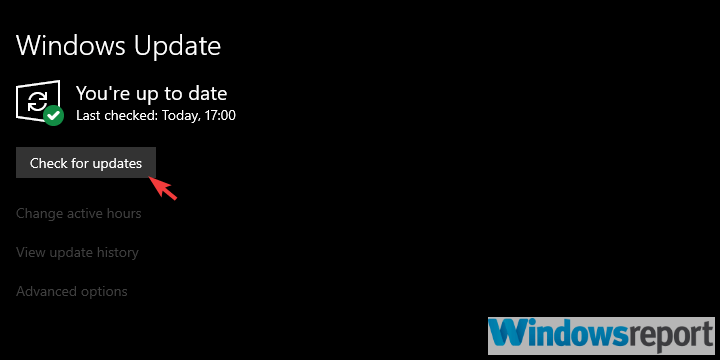
  4. Update Windows
  5. Reset Windows 10 to factory settings
  6. Disable Hibernation and stick to the Sleep mode

1. Force power off the PC

If you run into an issue during the boot with an error informing you about the corrupt restoration data, just use a power button to power it off.

Whatever else you do, the only way to boot into Windows is to hard reset your PC. If you have a dedicated reset button, go with that.

On the other hand, if the problem occurred on a laptop, just press and hold the Power button for a couple of seconds until it shuts down.

After that, you should be able to boot in Windows 10 without any problems. However, this won’t fix the corruption so move onwards with the enlisted steps.

If Windows 10 failed to resume from hibernation, check out our detailed guide to fix it in no time.

2. Run SFC and DISM

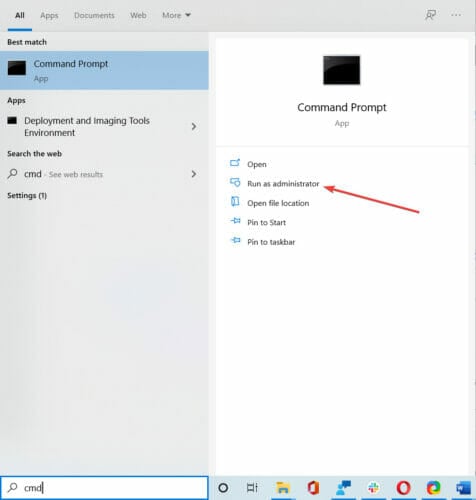
  1. In the Windows Search bar, type cmd.
  2. Right-click click on Command Prompt, and run it as admin.
  3. In the command-line, type the following command, and hit Enter:  sfc/scannowcorrupt hibernation file windows 10
  4. After it’s done, type the following command and press Enter after each:
    • DISM /online /Cleanup-Image /ScanHealthcorrupt hibernation file windows 10
    • DISM /Online /Cleanup-Image /RestoreHealth
  5. When the procedure ends, restart your PC and try using the Hibernation mode again.

This kind of system corruption requires the of built-in utilities. There are two similar tools that are run through the elevated Command Prompt.

The first tool is System File Checker, which is used to locate and fix the corruption of system files. Since this is the probable cause for the hibernation file corruption, we suggest running it.

In addition, the Deployment Image Servicing and Management tool is a more advanced utility that does the same, but it has a bigger scope.

They work best when running in succession, so that’s what you need to do. Follow the above steps to run SFC and DISM on Windows 10 and fix the hibernation corruption.

3. Check HDD

  1. Open Command Prompt as admin.
  2. In the command line, type the following command and hit Enter: chkdsk /f /r
  3. Wait until the tool scans and resolves possible HDD errors.
  4. Restart your PC.

An HDD corruption of some kind is another possible culprit for the error at hand.

If your HDD has corrupted sectors, it might affect the execution of the essential system processes. Including the restoration image.

The restoration image is basically a configuration save which allows your PC to boot faster after it’s been in the Hibernation mode.

Which means that, if it’s corrupted, you won’t be able to restore the last system functions.

With that said, we suggest either using a third-party tool to check for errors or relying on the built-in HDD checkup utility.

4. Update Windows

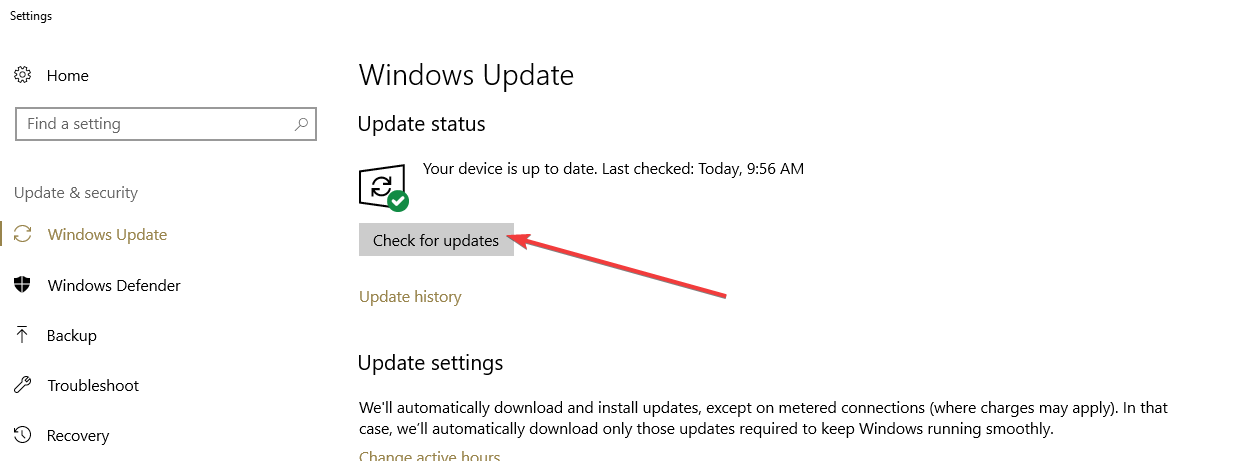
  1. Open the Settings app.
  2. Choose Update & Security.corrupt hibernation file windows 10
  3. Click on the Check for updates option in the right pane.corrupt hibernation file windows 10

Upgrading from Windows 7/8 to Windows 10 is a great concept, but it doesn’t always work as intended.

And, besides regular security patches and Windows Defender definitions, you can expect cumulative updates which address certain system bugs.

These might bring the solution for the issue at hand, and thus we suggest checking for updates manually.

If you’re still experiencing an error after restoring from the Hibernation mode, move to the next step.

5. Disable Hibernation temporary and delete a certain file

  1. Open Command Prompt as admin.
  2. In the command line, type the following command, and press Enter: powercfg -h off
  3. Close the Command Prompt, and restart your PC.
  4. Now, open Command Prompt again, enter the following command, and press Enter: powercfg -h on
  5. Now, try out the Hibernation mode again, and look for changes.

Disabling the Hibernation mode and re-enabling it again might help, as well.

The hiberfil.sys file is the file where Windows writes the memory, and it’s used to boot from the Hibernation mode. It’s usually enormous, and it’s our prime suspect when it comes to corruption.

By disabling the Hibernation mode, this file gets deleted automatically, and you get two flies with one hit. You reset the Hibernation and relief your storage of a substantial space-consuming behemoth of a file.

Also, if you encounter an unexpected shutdown after hibernation in Windows 10, take a closer look at our helpful guide to fix it with ease.

6. Reset Windows 10 to factory settings

  1. In the Search bar, type reset, and open Reset this PC.
  2. Under the Reset this PC option, click Get started.corrupt hibernation file windows 10
  3. Choose to retain your files and apps, and continue with the resetting process.

If the problem is persistent, the only remaining fix we can suggest is resetting Windows 10 to factory values.

Of course, avoiding Hibernation is also an option, as you can choose Sleep or Hybrid mode instead. But if you deem it necessary, resetting Windows 10 should help.

This is a great recovery option which allows you to keep your files and settings while restoring the system.

It’s not as effective against the most persistent errors as a clean reinstall, but that’s the last resort.

Also, take a closer look at our complete guide if your PC is not going to sleep on Windows 10, and find the quickest solutions.

And on that note, we can conclude this article. If you have any additional questions, suggestions, or remarks, feel free to share them with us and other readers in the comments section below.

Microsoft releases “another small update” to validate the Windows Insider Dev Channel pipeline

Following the release of Windows 10 Dev Channel build 21390.1000 (KB5004071) on June 7, Microsoft is yet again pushing out another similar update. That means this build is minor once again, and doesn’t include anything new, rather being designed for testing Microsoft’s servicing pipeline instead.

When you download this update, you should see it under Windows Update as Cumulative Update Build 21390.1010 (KB5004092). Reaction to this build has been mixed, since Microsoft confirmed that builds will be smaller in scope over the next few weeks while the pipeline is tested. We remind you of Microsoft’s explanation for this below.

“We have been testing our servicing pipeline with Cumulative Updates to the builds released to the Dev Channel. Each week, we would release a new build and then follow up with a Cumulative Update on top of that build before moving to the next build. However, we need to test the process of releasing multiple Cumulative Updates on top of each other on top of the same build. As a result of this, over the course of the next several weeks, our focus will be on releasing multiple Cumulative Updates on top of Build 21390. Having Insiders in the Dev Channel test this will be immensely helpful, and we’ll be back to flighting normally again soon.”

Since the June 24 “what’s next for Windows” event is now on the horizon, it won’t be too long until Insiders get to test new builds packed with features. Until then, Microsoft looks to be keeping things secret, and you’ll have to be patient and enjoy smaller builds for the next few weeks to keep your Insider machines active.

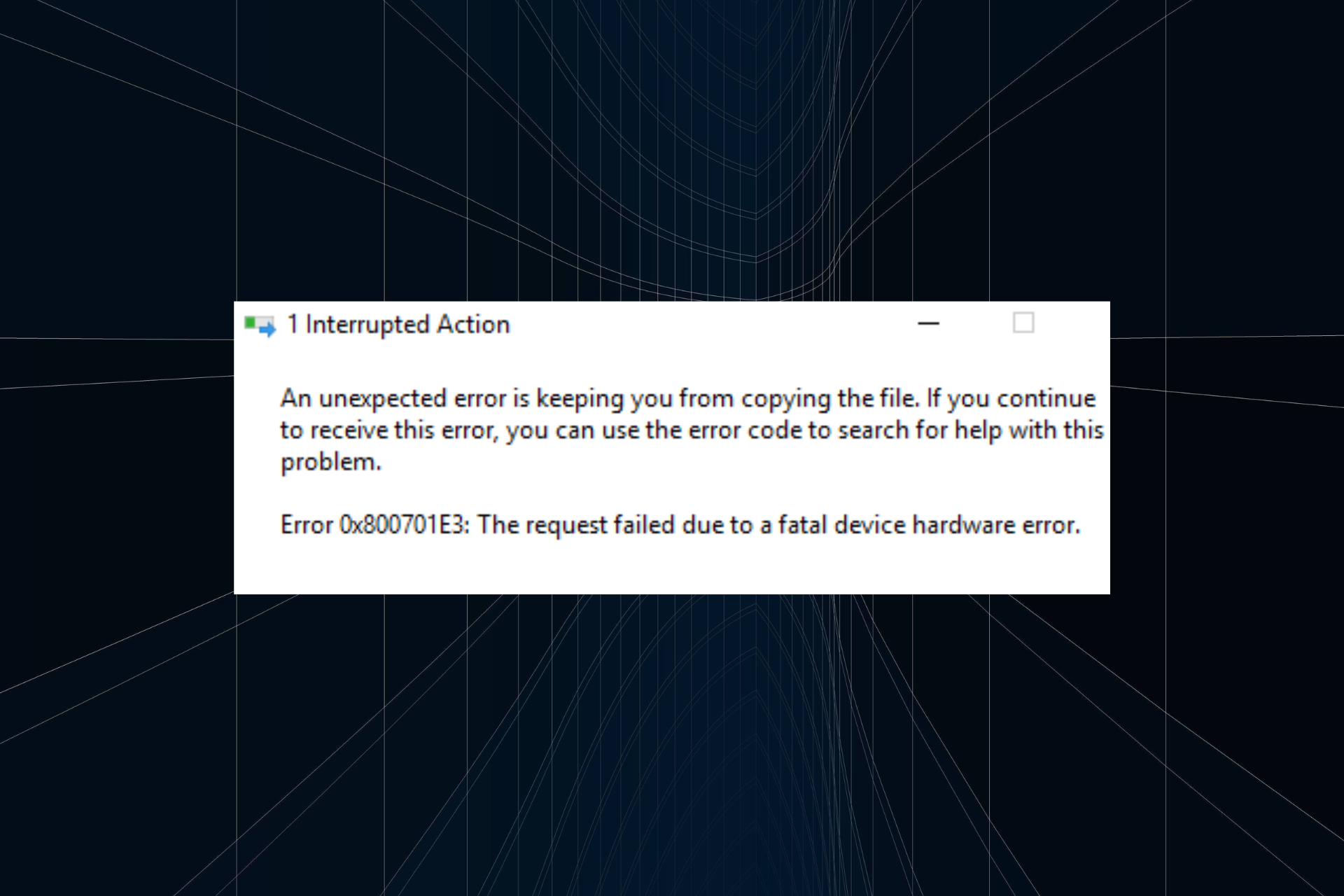
Error 0x800701E3: Fix It Permanently With These 5 Solutions

Error while transferring data is common, and users come across them occasionally. One such is Error 0x800701E3: The request failed due to a fatal device hardware error.

This happens when copying or moving files to an external SSD, but some users also get Micro SD card Error 0x800701E3. So, let’s find out all about it and the solutions that worked for others.

What is error 0x800701e3?

The error is encountered when copying or moving files. Some even came across Error 0x800701E3 while installing Windows due to the setup’s inability to install the relevant files to the drive. Here are a few reasons users encounter the error:

  • Improper connections: One of the most likely causes behind the problem, improper connections, trigger the error and lead to cases where the external drive doesn’t show at all.
  • Failing storage drive: Physical damage or other major issues can also cause the error code external hard drive 0x800701E3.
  • Bad sectors: When you have bad sectors on the drive, data can’t be written to it, and neither the one stored can be read.

How do I fix error 0x800701E3?

Before we head to the slightly complex solutions, here are a few quick ones:

  • Restart the computer and then try the operation.
  • Make sure the connections are in order. If you have a spare cable, use it to connect the drive. Use another card reader for the job in the case of an SD card.
  • If the drive has an indicator light that turns on after it’s plugged in, check whether it lights up.
  • In some cases, being persistent is all it takes. So we recommend you give it a few more shots because, for some, the transfer went through after a couple of attempts.

If none work, move to the fixes listed next.

1. Run Check Disk

Note icon NOTE
Before you proceed, make sure the external drive or SD card, whichever is throwing the error, is connected to the PC.
  1. Press Windows + E to open File Explorer, right-click on the affected storage device, and select Properties.properties
  2. Go to the Tools tab, and click on the Check button.check disk to fix error 0x800701E3
  3. Select the Scan drive option.scan drive

The Check Disk utility is a built-in tool that identifies issues with storage devices and bad sectors and takes the necessary measures to minimize their effects. And it should work when you get Error 0x800701E3.

2. Use dedicated software to repair your system

We recommend using dedicated software that will scan your device automatically, find corrupted or damaged files, and repair them in just a few seconds with spectacular results.

3. Use a Health Check Software

Before we move forward, it’s important to check the drive’s health and identify what percentage of storage on it is available, amongst other critical factors. And that’s where a reliable drive’s health check software comes into the picture.

It will run many tests on the hard drive, identify issues, and present them to you. This helps users figure out when a drive is about to fail to take the necessary action.

4. Repair the corrupt system files

  1. Press Windows + R to open Run, type cmd, and hit Ctrl + Shift + Enter.cmd
  2. Click Yes in the UAC prompt.
  3. Paste the following commands individually and hit Enter after each:DISM /Online /Cleanup-Image /CheckHealth DISM /Online /Cleanup-Image /ScanHealth DISM /Online /Cleanup-Image /RestoreHealth
  4. Now, run the following command for the SFC scan:sfc /scannowsfc scan to fix error 0x800701E3
  5. Once done with both scans, restart the computer.

Though unlikely to fix the problem, you can check for corrupt system files, as it has helped a few users. The DISM commands and the SFC scan will identify such files and replace them with the cached copy stored on the system.

5. Format the external drive

  1. Press Windows + E to open File Explorer, right-click the affected external drive, and select Format from the context menu.format to fix error 0x800701E3
  2. Choose the desired File System from the dropdown menu, tick the Quick Format checkbox, and click Start.quick format
  3. Wait for the format to complete. It shouldn’t take more than a few minutes.
  4. Once done, try moving files to SSD or Micro SD card, as the case may be.

In some cases, you will need to format the external storage device when getting Error 0x800701E3 in Windows. You will lose out on the stored data, but it’s the only solution left.

Tip icon Tip
If nothing so far works, we recommend you take the storage device to a professional or get an effective recovery software to retrieve the stored data and replace the device.

For those planning to get a new one, check our curated list of the best HDDs, cost-effective SSDs, and water-proof SD cards.

For any queries or to share a solution with us, use the comments section below.

Office Insiders can now proof selected text in Word for Windows

Microsoft is adding a new feature in Word for Windows that will bring the ability to proof selected text in documents. The company has announced that this update is currently available for Office 365 subscribers enrolled in the Insider program.

“When you work in a large document in Word, you may want to focus on revising or finalizing a specific section before getting input and feedback from others. In cases like this, you’ll often want to use Editor to check the grammar and spelling, and to make refinements to ensure clarity and conciseness for just that part of the document. Word now makes it easy for you to do so,” the Office Insider team explained.

Microsoft Word screen showing Editor pane checking the spelling of a document.

To use this feature, users will need to open the Word document and select the text they want to proof. Once done, right-click the selected text, and then choose the “Review selection in Editor” option from the context menu. Finally, follow the suggestions provided by the Editor in the right pane to review and address all the issues in the selected text.

The new proof selected text feature is gradually rolling out to Office Insiders running Current Channel (Preview) Build 13929.20216 or later of Word for Windows, so it may not show up on your PC right away. The software gaint noted that it’s one of the most requested features from the community, and the team will continue to gather feedback to finetune the changes.

Microsoft leaks the name of the new OS and users are shocked

The thought on every single Windows user’s mind nowadays is, most likely, related to the new version of the OS and, more important, its new name.

We all know that, on June 24, Microsoft is hosting a massive event where it plans to unveil the future of its Windows operating system.

And even though we know that changes will be made to the look and features of the OS, the name of this product still remains a mystery to us all.

There might not be a Windows 11 after all

Lately, speculations have led to quite a number of possible OS names, among which Windows 365, or Windows OS, but the most plausible remains Windows 11.

Labeling the new product as Windows 11 wouldn’t be such a bad thing after all, considering the fact that, if it performs amazing, it could help lift some of the negative feelings some users still have about Windows 10.

But, judging by what the company said in the past, the plan is to move away from the Windows era. Microsoft officials already expressed the fact that Windows 10 will be, in fact, the last variation of this beloved OS.

Rumors are that Microsoft might be planning to give their new product a more macOS-style naming style with future versions of the software.

A clue that was recently found in some Microsoft metadata, which was later removed, shows what the name of the future Windows update could be.

Are you ready? Brace yourselves! The next Microsoft OS can actually be called simply Sun Valley. Does this name ring any bells?

It rightfully should, as everybody has been talking about this Windows update, which will change the face of the OS, giving it a more fresh and futuristic look.

Note icon NOTE
In fact, half of the participants to our exclusive Windows 11 survey seem to expect a completely new design & faster interface. No less than 6056 readers completed our opt-in online survey over the course of seven days and you might be surprised to see what they think of the new OS.

Accidental leak or just an internal name?

The fact that the data we mentioned above was quickly removed after being found can actually suggest two things.

The first one would be that the company realized they posted the name of the future product by mistake and erased it fast, so they can still keep somewhat of a secret.

The second theory would be that Sun Valley could just be an internal name for the new product, just a codename that Microsoft developers use to describe the next version of the OS.

Which ever it is, we are soon about to find out so the silver lining is that we won’t live in doubt for a very long time.

What do you think the new operating system from Microsoft will be called? Let us know in the comments section below.

Dell Premier Rechargeable Wireless Mouse MS7421W Review: A comfy mouse for all your devices

Mice come in all shapes and sizes, but all are not created equal. Some are wireless, some need batteries, some are big, some are small, some need dongles and some do not.

But what if you’re looking to a mouse that can do it all, yet still stay compact? That’s where the Dell Premier Rechargeable Wireless Mouse, MS7421W, can help you out. We were provided one for review, and here’s a look at why it is a comfy mouse for all your devices.

Design


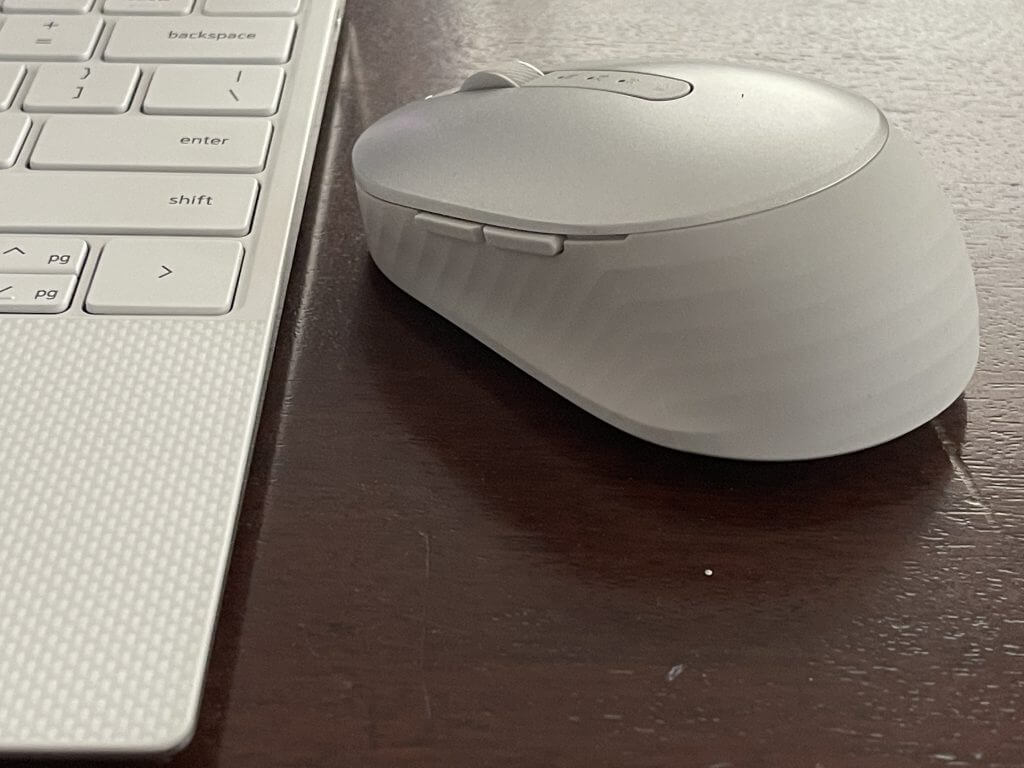
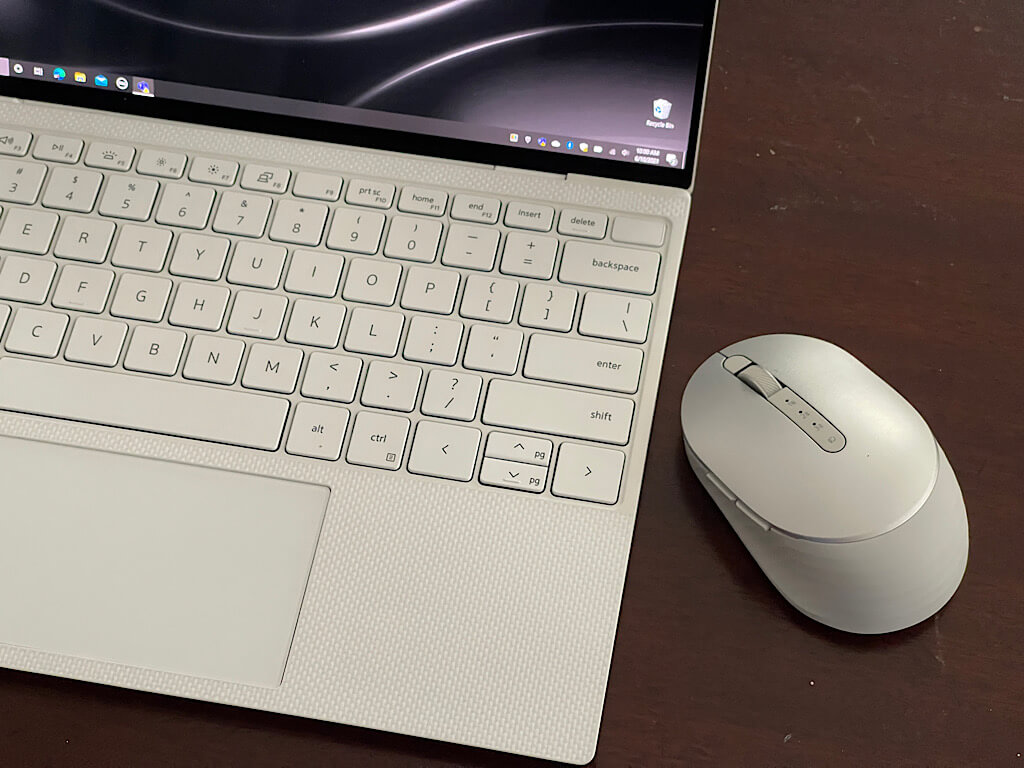
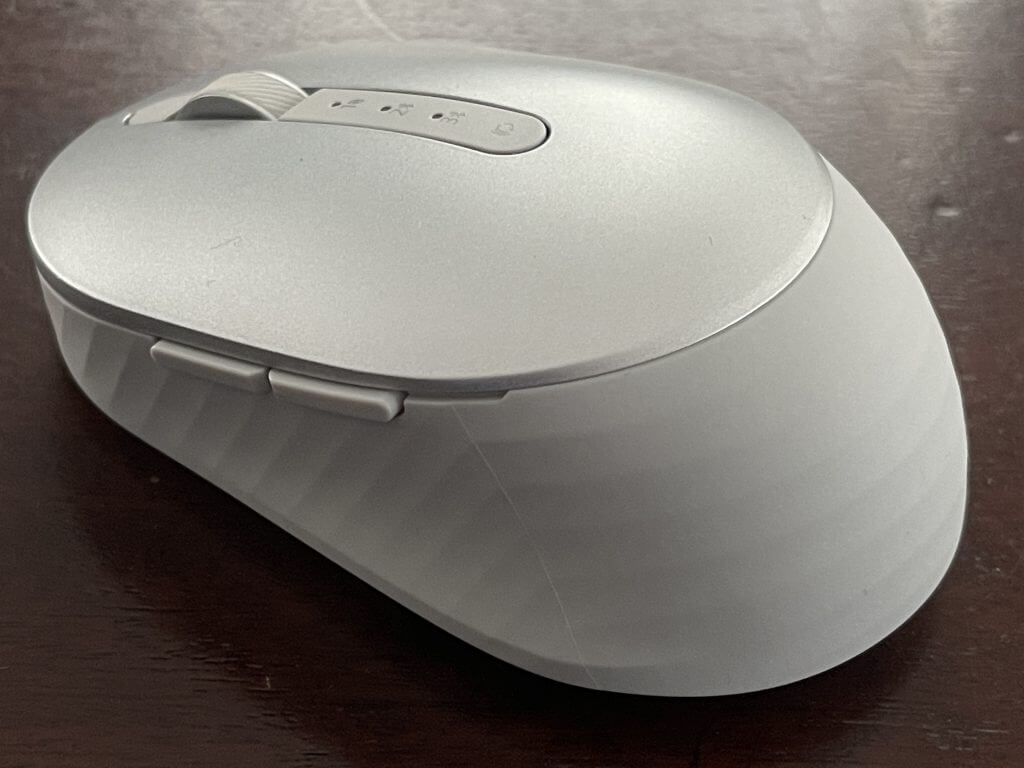
If you’re spending $70 on a mouse as you are with this one, then the design should be quite unique. That’s why you won’t be disappointed here. This mouse looks a lot like a XPS laptop, with a soft woven platinum-colored silver grip on the outside and silver-colored top for the buttons. Even the weight is slim like a XPS would be, coming in at 0.18 pounds, and just 1.4 inches thick.

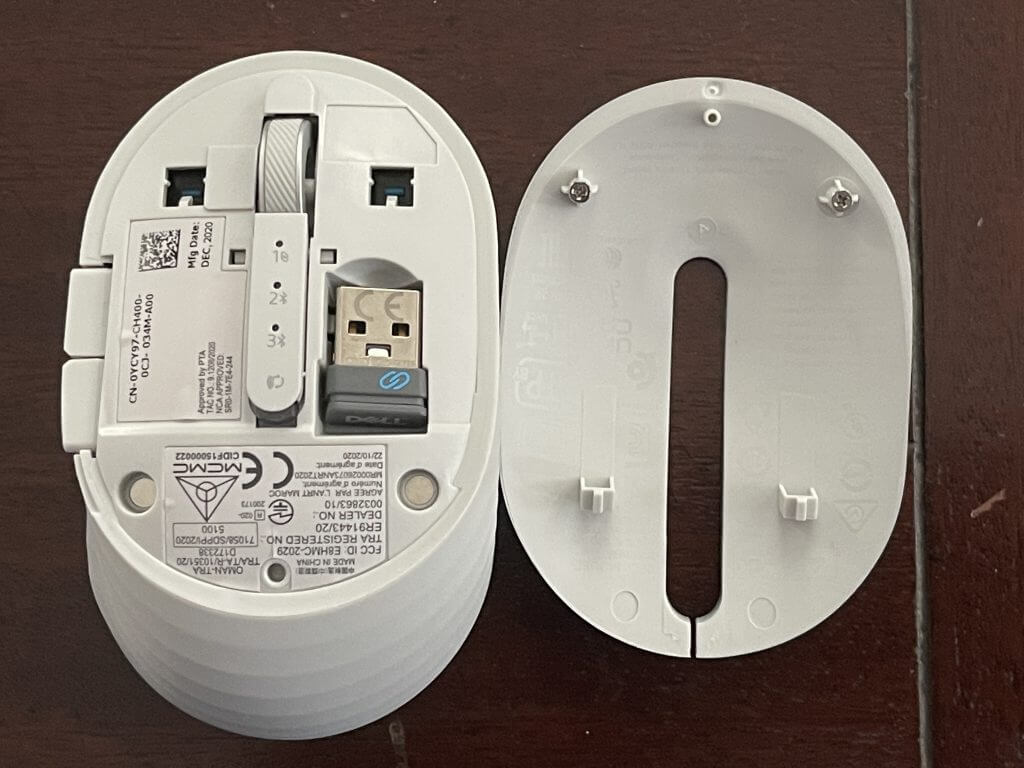
Cool as that is, it is what is on the inside that matters. Instead of having to remove the bottom of this mouse, to get inside this one, you pull the top off from the sides. Once you do, you get in to find the USB-dongle. Everything is held in place magnetically, and it is a strong hold as the cover never fell off during my regular usage. Having room for a dongle inside the mouse is important, too, as it means you won’t lose it easily.

It should also be noted that this mouse features USB-C on board for recharging. It is nice to see USB-C as this type of port is becoming more common over micro USB. You’ll also find USB-C on rechargeable mice from Logitech, like the Logitech MX Master 3. And, since this is USB-C, you end up 6 months of battery life, with a full charge in just 3 hours.

Dell includes a USB-C to USB-C cable in the box for you, but you’ll need to supply your own charger brick to charge things up. Just note that only charging happens via USB-C. It won’t carry data via the USB-C port, as this is what the dongle is needed for.

Dell says a two-minute charge can get you through a days work. In my time with the mouse, I haven’t experienced any battery issues, and a full charge has lasted me more than two weeks thus far.

Tracking, buttons & connectivity

There’s more to a mouse than just the design, and tracking and connectivity are also important. Here, Dell has you covered. The mouse offers up to 4,000 DPI, and it is adjustable at three other levels: 1,000, 1,600, and 2,400. You can change the DPI from within Dell’s Peripheral Manager App, which installs once you plug the dongle into your PC. The app also lets you program shortcut buttons, check the battery life, and get firmware updates, too.

As far as tracking performance goes, I was able to use the mouse on many surfaces without a mouse mat. It worked on a wooden table, a glass table, a plastic table, and even tracked on the leather of my jeans. That’s all thanks to the optical LED tracker.

But what really makes this mouse cool is it’s ability to connect to different devices at the same time. You can connect and switch across three different devices at once. One connection happens via the 2.4 GHz wireless dongle, and two are reserved for Bluetooth. You can switch between them with a click of a button at the top of the mouse. No need to flip the mouse over, like on a Logitech MX Master 3.

Another thing that’s great about this Dell mouse is the scroll wheel in the middle. Not only does it let you scroll up and down, but the wheel also tilts to the left and the right, allowing you to move left and right in webpages when you have windows open side by side. Paired with the side buttons, this makes navigating the web so easy.

Note that this mouse is certified to work on Windows 7, Windows 8.1, Windows 10, Mac, Linux, Chrome, Android and iOS. Basically, take it anywhere you go.

A nice mouse to buy

If you need a premium mouse, then the Dell Premier Rechargeable Wireless Mouse is one to buy. The comfy design of this mouse is quite unique, and USB-C connectivity makes it easy to charge. Bluetooth and the USB dongle also means that you can use it no matter where you go. You can buy it today from Dell for $70, but it is usually on sale for around $60.

Microsoft to ship new first-party game on Xbox Game Pass every quarter as momentum grows

Microsoft is going all-in on Xbox Game Pass and Xbox Cloud Gaming this year, as CEO Satya Nadella and Xbox head Phil Spencer have just announced some pretty exciting news this morning. Microsoft’s cloud gaming service is coming soon to TVs, PCs, and iOS devices, and the Xbox Cloud Gaming servers are also being upgraded with Xbox Series X hardware, a process that’s now almost complete.

As for Xbox Game Pass, the company didn’t share an update on its 18 million subscribers number from January, but the company is planning to grow its subscription service by releasing new first-party exclusive games on Xbox Game Pass more regularly going forward. “With more than 23 studios worldwide creating games for Xbox, our goal is to release at least one new, first party game into Game Pass every quarter. Role playing games, shooters, strategy titles, adventure games, and more are all being built by our first party teams to ensure that there is a steady stream of compelling exclusive content to explore,” the company said today.

To grow the number of Xbox Game Pass subscribers, Microsoft is also working on new tiers that could make the service even more accessible for gamers. “Xbox is exploring new subscription offerings for Xbox Game Pass so more players around the world can experience the most immersive and fun games across devices, geographies, and financial realities,” the company said today, without sharing further details.

Microsoft is also teaming up with telecommunications companies to create new offerings similar to Xbox All Access, which currently allow consumers to get an Xbox console and an Xbox Game Pass subscription for a low monthly price. “I think we are going to get to a point where the majority of Xbox users are signing up for Game Pass,” Xbox head of game creator experiences Sarah Bond told Axios.

If gaming subscription services like Xbox Game Pass are still pretty new, Microsoft has new data to show that it can be a great opportunity for game developers and publishers. “Whether it’s purchasing games inside or outside of what’s available in the library, or purchasing additional content for the games they like, members spend 50% more than non-members,” the Xbox team explained today.

Microsoft also confirmed today that Xbox Game Pass members play 30% more genres and play 40% more games, and publishers willing to launch their new games on day one on Xbox Game Pass can really benefit from the bigger exposure. There are two recent examples with Square Enix’s Outriders, which was the #1 selling digital game on Xbox during its launch week and a top 10 selling digital game on Xbox in the month of April. MLB: The Show 21 was also the #1 selling paid game on Xbox in April, and the second biggest sports game of all time on Xbox.

Digital pre-orders open for Battlefield 2042 video game on Xbox Series X and Xbox One

Battlefield 2042 was officially unveiled earlier this week and digital pre-orders for the upcoming first-person shooter are now live in the Microsoft Store for Xbox consoles.

The game is currently set for release on October 22nd later this year and will come in completely separate versions for the last-gen Xbox One family of consoles and the current-gen Xbox Series X and Xbox Series S.

While in-game content will be fairly similar between the two versions, the current-gen (Xbox Series X) version will support online multiplayer matches with up to 128 players while the last-gen (Xbox One) version will be limited to 64-player matches.

The Xbox One version of Battlefield 2042 is currently priced at $59.99 while the Xbox Series X version is $69.99. Gold and Ultimate Edition bundles containing both versions and some additional content are also up for pre-order at $99.99 and $119.99 respectively.

It’s important to emphasise that, while the Xbox One version is playable on the Xbox Series S and X consoles, doing so won’t unlock the higher player count. Nor will playing the Xbox One version on an Xbox Series X unlock the current-gen version for free. The two versions are completely separate products.

More details on Battlefield 2042 will be revealed on June 13th with the title expected to be featured in Microsoft’s E3 Xbox and Bethesda-themed presentation.

Are you hyped for Battlefield 2042? Which version are you going to pre-order? Sign off in the comments below and then follow us on Facebook and Twitter for more Xbox gaming news.


Battlefield™ 2042 Xbox One


Fallout 76, Ark, and Football Manager are free to play on Xbox consoles this weekend

Three Xbox video games will be free to play this weekend beginning today. Ark: Survival Evolved and Football Manager 2021 Xbox Edition will both be playable from today until Sunday, June 13th at 11:59PM PDT while Fallout 76 will unlock today at 9AM PDT and remain playable for free until Wednesday, June 16th at 9:00AM PDT.

The Xbox & Bethesda Games Showcase is currently scheduled for June 13th so it’s likely that, with Fallout 76 being a Bethesda title, some new content will be announced (or launched) next week and the ongoing free play promotional period will be used to help build hype for whatever is revealed.

As with previous free play promotions, each title will be available to play in full on Xbox One and Xbox Series X consoles as if they were owned outright and all progress will be saved to the cloud for continuing at a later date.

Which Xbox game will you play this weekend? Let us know in the comments below and then follow us on Twitter and Facebook for more Xbox gaming news.

Fallout 76
Fallout 76
Developer:
Bethesda Softworks
Price:
Free


5 Best Home Firewall Devices With VPN

A firewall is a security network that monitors and filters all the data traffic coming into a device. This type of security is also called packet filtering.

We all know about the Windows firewall, however, this is an entirely separate thing that is usually installed in a standalone device, and covers multiple connected PCs.

Having a firewall device is one of the best ways to protect your home network, and in this guide, we’ll show you the best home firewall with a VPN that you can get.

There are many great firewall devices for home networks, but not all of them offer a VPN, which can be a problem, especially if you’re concerned about your online privacy.

VPNs will hide your real IP address, thus protecting your identity, location, and data from being accessed by hackers and harmful software.

By using a firewall device, you’ll ensure that all network devices are protected, and with VPN support, you’ll also protect the privacy of every device in your network.

What is the best home firewall with VPN for your network?

Cisco RV160W

  • 4 Gigabit ports
  • VPN throughput 50Mbps
  • 802.11ac 2×2 standard
  • Support for 10 IPSec VPN Tunnels
  • Simple to configure
  • Wi-Fi can be slow for some users

This router comes with 4 Gigabit Ethernet ports and 2×2 802.11ac Wi-Fi. The device also supports a guest network feature, allowing you to isolate your home network from guests.

Cisco RV160W supports VPN, so it can protect the privacy of all your network devices. Thanks to the Cisco Umbrella features, this router should stop any breaches while without jeopardizing your privacy.

The device has a single Ethernet/SFP WAN port and with simple to use the web and network management tools, you can easily configure your network and protect your home from all online threats.

Additionally, the device has built-in security such as Cisco Umbrella, which mitigates breaches while protecting the network’s privacy.

Choosing this product will also give you limited lifetime warranties and customer support to ensure you are pleased and solve any possible problem.

Customize switching, routing, and other wireless services easily to better help your business at any stage. This specialized router was made for companies and workers.

Moreso, the product’s interface is comprehensive, simple, and easy to use by anyone, without the need for background knowledge.

Linksys WRT3200ACM

  • Open-source firmware
  • VPN support
  • Dedicated phone app
  • Dual-band Wi-Fi
  • Parental controls
  • Minor issues with overheating for some users

If you need a home firewall with a VPN, you might want to consider Linksys WRT3200ACM. This router comes with 4 Ethernet ports, 2.4GHz up to 600Mbps, and 5GHz up to 2600Mbsp Wi-Fi.

Thanks to the open-source firmware, you can easily configure your router to work as a VPN, turn it into a web server, manage the network traffic or use it to detect network intrusions.

Managing your router is rather simple, and you can do it with a dedicated iOS/Android app. You can also use the app to configure device priority or to restrict Internet access with parental controls.

The Tri-Stream 160 technology boosts your bandwidth, resulting in the fastest 5GHz band that delivers insanely fast speeds and uninterrupted connections.

More so, you will benefit from such bandwidth speeds on multiple connected devices without noticing a change. All of these are possible thanks to the Dynamic Frequency Selection.

Advanced users can actually fully customize the router since it has open-source code. Modify everything regarding the product to suit your needs.

The enterprise-grade 1.8 GHz processor has no problem handling even the heaviest traffic and delivering the lowest possible latencies.

TP-Link TL-R605

  • Support for VPN
  • Omada SND
  • Cloud-based Controller
  • Five Gigabit ports
  • Powerful firewall and filtering feature
  • No built-in Wi-Fi

This router comes with 1 Gigabit WAN port, 3 Gigabit WAN/LAN ports, and a single Gigabit LAN port. The device has a built-in firewall, as well as DoS defense, and IP/MAC/URL filtering.

TP-Link TL-R605 supports up to 20x Lan-to-LAN IPsec, 16x OpenVPN, 16x L2TP, and 16x PPTP VPN connections. Thanks to the auto IPSec VPN, you can easily protect all devices in your network.

Bandwidth control and Session Limit feature are also available allowing you to easily manage and optimize your bandwidth and make sure that your network is working without any slowdowns.

THe Omada SDN fully integrates network devices with multiple control options available. These devices include gateways, APs and switches, hardware and software controllers

Deploy and configure multi-site networks remotely with the Zero Touch Provisioning, while the AI-Driven technology brings better maintenance and network performance.

Enjoy flexible traffic with the bandwidth control and session limiter, which enable free management of the internet traffic inside the business.

The TP-Link TL-R605 also has a compact design covered with a durable metal case to prevent dents and other physical problems in case of accidents.

ZyXEL USG20W-VPN

  • 1x Gigabit WAN port, 4x Gigabit LAN ports, 1x Gigabit SFP port
  • VPN up to 90Mbps, support for IPsec/L2TP, SSL
  • High-performance SPI firewall
  • 802.11ac Wi-Fi with dual-band support
  • Easy to use browser-based configuration
  • Firewall interface could use some improvement

Another great home firewall with VPN support is ZyXEL USG20W-VPN. The device has 1 Gigabit WAN port and 4 Gigabit LAN ports, as well as one SFP Gigabit Fiber port.

Regarding Wi-Fi, this router has 802.11ac Wi-Fi with single-radio dual-band support. VPN is available, and it supports IPsec/L2TP up to 10 connections, and SSL up to 5 connections.

As for the VPN speed, you can achieve up to 90Mbps. In terms of firewall, there’s a 350Mbps SPI firewall which should be perfect for home users or small offices.

The product is not only a firewall. It also provides business with a reliable and trustful VPN. The combination will keep a network safe from any harmful software.

The USG20W-VPN firewall supports mobile devices as well, with 2 Layer-2 Tunneling Protocol (L2TP) which is compatible with iOS, Android, and Windows.

Additionally, the ZON Utility tool will speed up the network set-up process, and the One Network doesn’t require network deployment and management from the users.

This results in a simplified configuration and troubleshooting of problems, which allows the businesses to allocate this saved time to more important tasks.

Firewalla Red

  • Easy to install and use
  • IPS and IDS functionality up to 100Mbps
  • Offers protection malware protection for all network devices
  • Parental controls
  • OpenVPN support
  • Not compatible with all routers

This firewall device comes with IPS functionality up to 100Mbps and its own IDS. Using these features, all network devices in your home will be protected against online threats.

This includes viruses, malware, hacking attacks, phishing attempts, and data theft. For extra privacy, you can use OpenVPN to protect all devices in your network.

With the Firewalla Red dedicated app, you can easily monitor bandwidth usage by device, and limit network usage or block certain websites thanks to the built-in Parental Control feature.

Firewalla Red is a simple to use, easy to set up device that provides multiple means to connect to it from multiple platforms and devices.

This small box is fully packed with all the necessary tools to give you full control over your home network. All you have to do is plug it into your router.

Enjoy premium cybersecurity by simply clicking a few buttons. This product makes everything seem like a breeze, with an intuitive and easy-to-use interface.

Benefit from parental control features to protect and monitor your children’s data usage, as well as prohibit a harmful website from being accessed.

Why should I use a Firewall device?

Having a hardware firewall is the best method to protect your network against all online threats, and we hope that this guide helped you find the right device for your needs.

In a sense, you should see the Firewall as a literal obstacle that stands between the Internet source and your device. The process is pretty simple.

First, the internet provider sends data to your device. That said that travels to your Firewall adapter, where it gets filtered after its algorithms deal with any suspicious activity.

The filtered data leaves the device and goes directly into your PC, or to a router. To better understand this process, here is a simple diagram briefly explaining how it works:

Coupled with other security measures, such as antiviruses, VPNs, adblockers, and being cautious, this formula will keep you safe from malicious software while using the internet.

Does the range of my router matter?

Yes, the range of your router is really important. The further it reaches, the better. When you get away from your router, not only will your connection be weaker, but your Internet speed will be decreased as well.

Additionally, take into account the fact that Wi-Fi signals can be prohibited by walls and other materials they pass through.

Usually, the signal goes through most walls and obstacles. However, if the wall is really thick, or it’s made of reinforced concrete, some of the signals will be lost.

Fortunately, there are ways to bypass this problem. Wi-Fi extenders are specialized devices that extend the Wi-Fi signal. They’re very popular, especially in large companies.

Should I use Ethernet, or Wi-Fi?

Ethernet will always be faster than Wi-Fi, and more stable as well. However, you need to constantly keep the cable connected to the device.

This is really inconvenient because it stops you from moving freely with the device. It also won’t be able to connect to tablets or mobile devices, since most of them don’t have compatible ports.

In short, Ethernet is great for PCs, since you usually don’t move them around after setting them up. If you prefer using laptops or other mobile devices, Wi-Fi is the way.

Since we are talking about security, you should know that you also need strong antivirus software. Take a look at this great list of the best antivirus tools with lifetime license and choose from there.

What home firewall with VPN do you currently use? Let us know in the comments section below.

FIX: My printer cannot be set as default, error 709

Error 0x00000709 is a printer error that numerous users have posted about on the Microsoft support forum. Affected users can’t configure their printers to be the default ones when that error arises.

One user’s forum post stated.

I cannot set any printer as default printer. An error message appears, error 0X00000709. That error message states, “Operation could not be completed (error 0x00000709).”

You can easily fix this issue by following the steps below, so be sure to keep reading.

How can I fix the printer error 709?

1. Update your printer drivers

  1. Go to Windows Settings
  2. Open Update & Security
  3. Click on the Windows Update section
  4. Select Check for updates
  5. Click on the suitable printer drivers to automatically install them

This error message might appear due to faulty printer drivers that are outdated or damaged. Here’s how you can install the latest drivers using Windows Update.

An easier solution would be to use a reliable third-party tool that downloads and installs the latest printer drivers automatically.

2. Run the printer troubleshooter

  1. Press the Windows key + S, and enter troubleshooter in the search box.
  2. Click the Troubleshoot settings to open the window in the snapshot directly below.The Troubleshoot tab my printer cannot be set as default
  3. Select the Printer troubleshooter, and then click the Run the troubleshooter button.
  4. Thereafter, the Printer troubleshooter window will open. Select the printer to fix, and click the Next button.The Printer troubleshooter my printer cannot be set as default
  5. Then go through the troubleshooter’s suggested resolutions.

Windows 10’s Printer troubleshooter might (or may not) come in handy for fixing error 0X00000709, so be sure to follow the above steps.

3. Turn off a specific setting option

  1. Open Settings by pressing the Windows key + I.
  2. Select Devices in Settings.
  3. Next, click Printers & scanners on the left of the window.
  4. Deselect the Allow Windows to manage my default printer option.Printers & scanners tab my printer cannot be set as default

If the Printer troubleshooter doesn’t fix 0X00000709, try turning off the Allow Windows to manage my default printer setting.

4. Edit the Registry

  1. Press the Windows key + R, type regedit in Run, and click OK to open the Registry Editor.
  2. Next, open to this registry path: Computer\HKEY_CURRENT_USER\Software\Microsoft>Windows NT\CurrentVersion\WindowsThe Windows key my printer cannot be set as default
  3. Click the Windows key on the left of the Registry Editor.
  4. Double-click the Device string to open the window in the snapshot directly below.Edit String window my printer cannot be set as default
  5. Edit the value data by erasing everything in that box before ,winspool,Ne00:, but do not delete the ,winspool,Ne00: part. Value data box my printer cannot be set as default
  6. Enter the required printer name (to set as default) before ,winspoolt,Ne00, and then click the OK button.
  7. A Cannot edit device dialog box might appear for some users. If so, right-click the Windows key that includes the Device string, and select Permissions.
  8. Select the Allow Full Control checkbox shown directly below. The Full Control check box my printer cannot be set as default
  9. Press the Apply button, and select the OK option.

Editing the Device string within the Registry Editor is among the most widely confirmed fixes for error 0x00000709.

We’ve written extensively on printer problems, so be sure to check out our helpful guide for other setting default printer issue and fix it in no time.

We hope that these recommendations from our list helped you to fix the 0X00000709 printer error. For more suggestions or other questions, please access the comments section below.

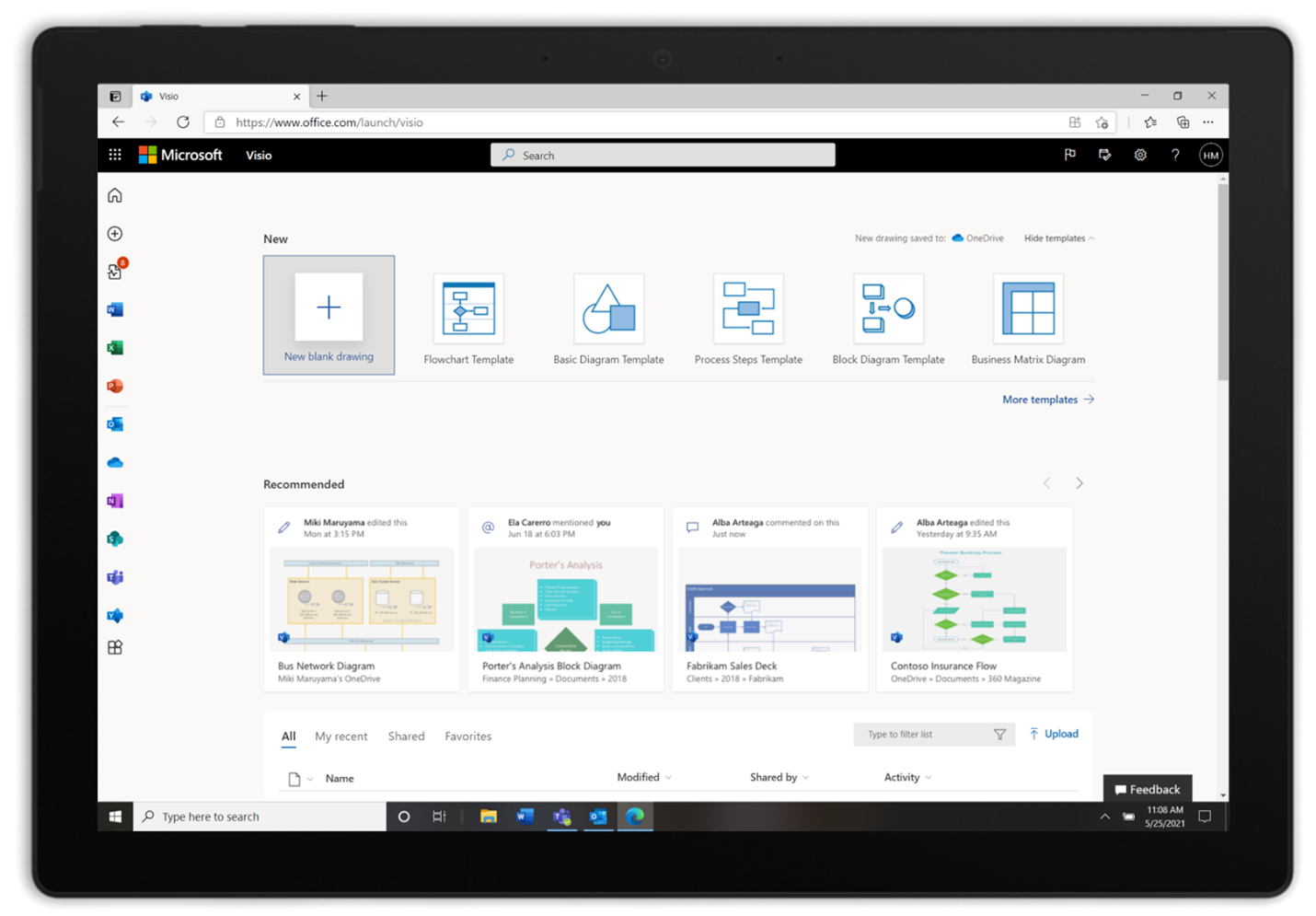
Visio coming to Microsoft 365 with new lightweight web app

Microsoft has announced that it is launching a lightweight Visio web app for Microsoft 365 commercial customers. As of today, the professional diagramming tool is only available as a standalone application, but the company plans to begin rolling out a lightweight version of the app in July.

“Visio has long been available only as a standalone app for purchase for people with specialized diagramming needs. But this is changing. We are recognizing an increasing need for a diagramming solution for everyone to convey information more effectively, which is why we’re excited to announce that we’ll be bringing core Visio capabilities to Microsoft 365 for all commercial license subscribers,” explained Seth Patton, GM, Microsoft 365 at Microsoft.

A screenshot of an org chart in Excel created with the Visio Data Visualizer add-in

Microsoft Visio allows users to create professional Visio diagrams effortlessly, and it includes several popular diagram templates such as process diagrams and basic flowcharts. The online tool provides seamless integration with other Microsoft 365 products, including Microsoft Teams.

The new web-based Visio application will be accessible from Office Online, and it will offer a collaborative diagramming experience by allowing business users to create, edit and share diagrams with their colleagues. The app will be available for all business users with Microsoft 365 Business/Office 365 E1/E3/E5, F3, A1, A3, A5 licenses at no additional cost, and you can find the full list here.

Microsoft noted that only a limited number of Microsoft 365 commercial customers would get early access to this new lightweight Visio web app, and it is not yet available in the E.U. The company plans to expand its availability to more users gradually. If you’re interested, we invite you to check out the “Visio for everyone” podcast to learn more about the Visio web app in Microsoft 365.

How to Install Samsung Galaxy Drivers for Windows 10

Samsung Galaxy smartphones are very popular but many of the Galaxy users are having a problem connecting their device to the Windows PC.

This issue is pretty troublesome in nature as Samsung Galaxy smartphone users will not be able to transfer data and update their device by connecting to Windows PC.

Apparently, the problem persists across all versions of the Windows. The root cause of the issue is the fact that Samsung uses proprietary USB drivers for its entire Galaxy lineup.

Since some of the models don’t sport an SD card slot it becomes all the more important for the users to be able to connect with the Windows PC.

Moreover, some of the old models like the base variant of the Galaxy S7 comes with only 32GB of internal storage from which a large chunk is already blocked by the system files.

How do I install Samsung Galaxy drivers for Windows 10?

1. Check driver updates for the USB controllers

  1. Right-click on Start and select Device Manager.
  2. Check the Universal Serial Bus controllers.
  3. If a yellow or a red X sign is displayed next to the device it needs to be updated or reinstalled.
  4. The same holds true even if the device is labeled as Other Devices or Unknown.

It is crucial to troubleshoot and see whether the driver needs a fresh install or if it just needs to be updated.

In some cases, the drivers for the Galaxy smartphones are automatically downloaded by Windows. In order to check this, follow the steps detailed above.

For an easier process of updating your drivers, you can consider using a specialized driver updater tool that can update all the drivers you need, safe and fast with just a few clicks.

⇒ Get Outbyte Driver Updater

    2. Download USB Samsung drivers for Windows

    Another way to Install Samsung drivers on Windows 10 is to download them from their website. Here is how to do it.

  1. 1. Download the Samsung USB drivers.

  2. 2. Right-click on the installer file and choose the Extract here option.

  3. 3. Open the .exe file by double-clicking and Run the same.

  4. 4. The installation process should begin now click the Next button.

  5. 5. In the end, click on Finish to complete the installation.

All you need to do is download and install the specific drivers that support your Galaxy device. One can simply head over to the link above and download the drivers.

In order to transfer all the content, it is advisable that you have a micro-USB cable that supports good transfer rates. It’s recommended to use the cable that came with the phone.

After installing the drivers, you should be able to see a new media device in the computer section of your Windows. Now simply click on the icon and then transfer the data. Find the steps detailed above.

3. Install YourPhone app

  1. Download and install YourPhone app for PC.
  2. Start the app.
  3. You will be asked what type of operating system is your smartphone. Select Android.
  4. Next, you need to install Your Phone Companion on your smartphone. You also have a link provided in the app but you can find it in the Google Store as well. Check the Yes box after you’ve finished and select Open QR Code.
  5. Of course, you will now have to scan the QR code with your phone and then click on Done.
  6. Now you only need to open the app on your phone and use the same e-mail to log into your account. Your Samsung smartphone and your PC will be now paired.

It’s no secret for anybody that Microsoft and Samsung have a long-lasting deal on many levels when it comes to the mobile business.

However, for us, the simple users, the YourPhone app is the direct, accessible fruit of their collaboration.

For sort, if you have a Samsung Galaxy S9 or later model, the YourPhone app is all you need to pair it with your PC and enjoy almost all the content from your smartphone on your computer.

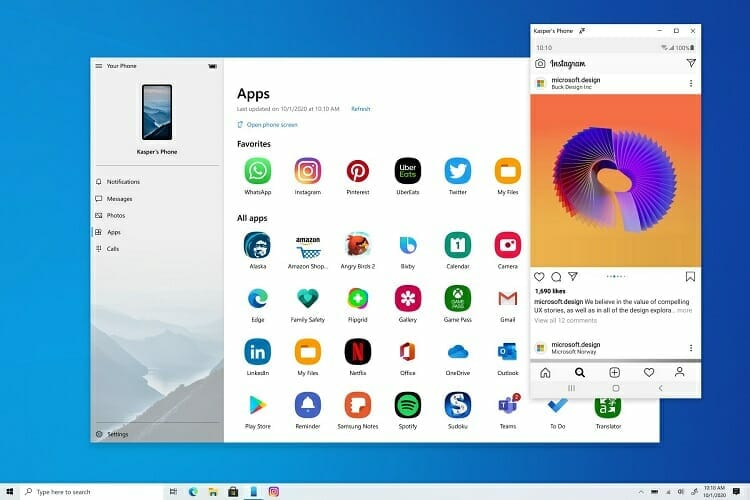
And with the latest iteration of the app, you can even run your favorite apps on the PC, including WhatsApp or Instagram.

You can also receive notifications and messages, see your photos or manage your calls right there in the app.

Moreover, if you have more than one Samsung smartphone, you can pair all of them and switch the right one in the app when you need to access it.

The supported smartphones list includes the latest Surface Duo, Galaxy Fold, Galaxy Note20 5G and Ultra 5G, S21 and S21+ 5G, S21 Ultra 5G, Z Flip, Z Flip 5G, and Z Fold2 5G.

We hope that our solutions helped you pair your phone and transfer your data on your PC.

You can also use one of the best cloud backup solutions to make your data available to all your devices on the Internet.

Do you still have problems with the Samsung drivers? Tell us your story in a comment below and we will try to help you further.

Microsoft’s three ‘Experience Centers’ reopen July 1st for in-store experiences

Prior to the pandemic, Microsoft had already begun shuttering its physical retail presence as it conceded hosting an in-store experience to competitors such as Apple and Samsung, however, it seems the company may be ready to re-enter the fray.

After accelerating the closure of its physical retail presence by liquidating its locked stock and writing off the leasing contracts for physical stores last year amid the heights of COVID-19 infections and the uncertain future of in-person gatherings, Microsoft’s retail experience appeared shackled to online indefinitely.

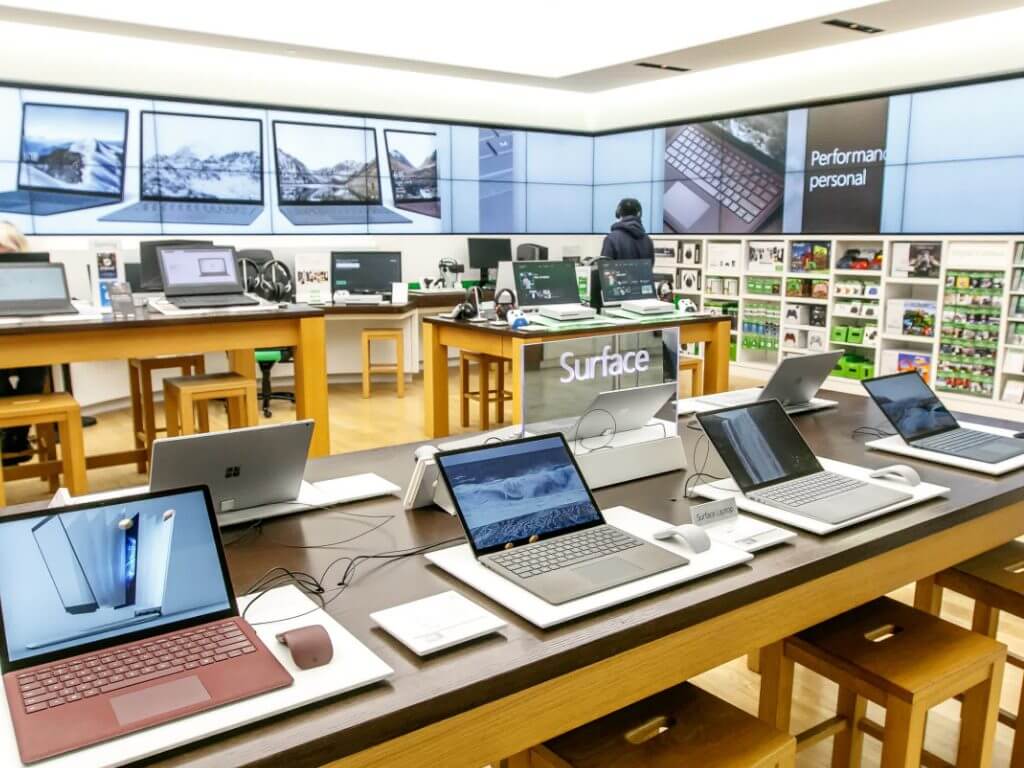
However, The Verge is reporting that Microsoft will dip its toes back into retail efforts with its hyper curated experiences at its ‘Experience Centers’. The Microsoft ECs differ from their former retail experiences in that they are further limited in their physical presence across the globe but increases the interactivity with guest and the locations features. The now shuttered Microsoft Store retail experience was a 2/3 purchasing experience and 1/3 interactive meeting hub where coding classes, gaming events, demos and seasonal celebrations were hosted, and there were over 100 locations throughout North America, Canada, Europe and Australia.

Microsoft Experience Center Asia

Microsoft Experience Centers are flipping that dynamic to cater primarily to hosting of business customers and events, more so than selling Surface devices between the three locations in New York, Sydney, and London.

Microsoft’s reported goal is reopening its ECs as early as July 1, 2021, where it will showcase select Microsoft products excluding Xbox Series X/S consoles due to chip shortages.

Our Microsoft Experience Centers were created to provide customers a way to experience our products in person. We use these spaces to test and experiment, and continue to evolve the experience based on customer feedback. Starting July 1st, customers will be able to purchase select Microsoft products at the New York, London and Sydney locations.

-Travis Walter, Microsoft’s head of retail stores

Fix: Metal Gear Solid 5 Crashes & Other Issues on Windows 10

Metal Gear Solid 5 is the latest Metal Gear Game from the beloved franchise, and it did not fail to deliver an action-packed and story-driven product.

Since the game was a hit, lots of people picked it up to enjoy it and experience the gameplay. For the most part, everyone was pleased with it.

However, it seems that this game has some issues with Windows 10. Users have reported crashes, framerate issues, and several other problems, but today we’re going to fix all of them.

How do I fix common Metal Gear Solid 5 Problems?

1. Install the latest drivers

  1. Press the Windows Key + S and type in Device Manager.
  2. In the Device Manager, expand Display adapters.
  3. Right-click on your GPU and select Update driver.
  4. Wait for the system to finish installing the latest version, then Restart it.

Metal Gear Solid 5 fans have reported that the game stops working as soon as they launch it, and in order to fix this issue, it’s advised that you update your graphic card drivers.

To do it, you can use the Device Manager, or search the internet for the manufacturer’s site and choose the latest available version.

Note icon NOTE
We also have to mention that some users have reported issues with version 15.7.1 of the AMD driver, so if this version is giving your problems, switch to a newer one.

Update drivers automatically

Updating your drivers manually is tedious. You can also make mistakes and download the wrong versions, which will lead to even more problems.

We also recommend a third-party tool to automatically download all the necessary drivers and update your hardware accordingly.

Plus, you will update any drivers from your PC correctly, without damaging the system due to incompatible driver versions.

⇒ Fortect Driver Updater

2. Reinstall Visual C++ Redistributables

  1. Download and install the necessary files.
  2. Alternatively, go to this path: Steam\Steamapps\Common\MGS_TPP_CommonRedist
  3. Install the Visual C++ Redistributables from there.

Some users have reported an error message that says that msvcr110.dll is missing. If you’re getting this error message, you’ll need to install Visual C++ Redistributables.

3. Run the game in Windowed mode

  1. Open graphic settings.
  2. Choose Windowed Mode.
  3. Choose between Borderless Fullscreen or Windowed.
  4. Next, click Ok.

If you’re having poor performance in Metal Gear Solid 5, you might want to switch to Windowed mode. To do that, follow these steps:

Some users have also suggested that switching to Fullscreen mode fixes performance issues for them, so try doing that as well.

4. Change graphic TPP_GRAPHICS_CONFIG file

  1. Go to the following path: Steam\Steamapps\common\MGS_TPP
  2. Find TPP_GRAPHICS_CONFIG and open it with Notepad.
  3. Find the following line: "framerate_control": "Auto"
  4. Change it to: "framerate_control": "Variable"
  5. Save the changes and run the game again.

Metal Gear Solid 5 is locked at 60 frames per second, and if you have a powerful computer, you might want to play the game without frame rate restrictions. To remove the frame rate lock, do the following:

5. Update your game

It has been reported that Metal Gear Solid 5 has some issues with Phenom II processors. Luckily, developers have tackled these issues, and you can resolve them by downloading the latest update for Metal Gear Solid 5.

Depending on the platform you’re using to play the game, you should have the option to update it automatically.

6. Remove overclock settings

If Metal Gear Solid 5 is crashing on startup, this might be due to overclocking of your GPU. If you have overclocked your graphic card, you might want to remove overclock settings in order to fix this problem.

You can use the same program you used to overclock the GPU in the first place in order to underclock it back to its default state.

7. Turn off Motion blur

  1. Open the game.
  2. Go to Settings, then Video Settings.
  3. Turn of Mition Blur.

If you own an AMD graphic card, and you’re experiencing crashes while playing Metal Gear Solid 5, you might want to disable Motion blur and Camera shake options from the options menu.

8. Use a dedicated graphic card

If you own both integrated and dedicated graphics cards, make sure that you’re using the dedicated cards to get the best performance from Metal Gear Solid 5.

In order to switch from integrated to the dedicated card, use the Nvidia Control Panel or Catalyst Control Center.

9. Increase screen resolution

  1. Open the game.
  2. Go to Settings, then Video Settings.
  3. Select the Resolution and change it to a lower amount.

Users have reported Metal Gear Solid 5 black screen with a white square appears when playing Metal Gear Solid 5, and if you’re having this issue, try to increase your resolution. After doing that, the black screen issue should be fixed.

10. Check the temperature of your hardware

Users have reported that Metal Gear Solid 5 freezes on their computers, and if you’re having the same problem, you might want to check if your processor or graphic card is overheating.

To check the temperature, download SpeedFan (or any temperature monitoring software), start the temperature monitoring tool, and start the game.

If you notice unusually high graphic card or processor temperature, check your cooling. This includes your fans and your CPU‘s thermal paste.

11. Remove 287700 folder from Steam

  1. Go to the following path: C:Program Files (x86)Steamuserdata
  2. Find the 287700 folder and move it to your Desktop.
  3. By moving the folder, you’ll remove saved games for your profile.
  4. Start the game again. Your saved games will be restored, and the game should start without any problems.

It has been reported that Metal Gear Solid 5 crashes after the Nvidia screen, and if you’re having this problem, you might need to remove few folders in order to fix it. In order to fix this issue, follow these steps:

In order to complete this step, you need to have Steam Cloud turned on. This option is turned on by default in most cases unless you manually disable it.

12. Change download region in Steam

  1. Open Steam.
  2. Click File, then Settings.
  3. On the left side choose Downloads.
  4. Find the Download Region section and choose a different location from the list.
  5. In most cases, it’s best to choose a location that is closest to you.

Some users have reported that Metal Gear Solid 5 downloads slowly from Steam, and if you have a similar problem, try changing the download region in Steam. To change the download region, do the following:

13. Lower Screen Filtering

One common problem with Metal Gear Solid 5 is that characters look blurry while you play the game on Max settings.

If you have this problem, you just need to lower Screen Filtering from Very High to High and this problem should be resolved.

14. Change key assignments

It has been reported that Metal Gear Solid 5 has some issues with controllers, and according to users if you press a keyboard key, your controller will stop working.

If this happens to you, the only solution is to press Alt + Tab and restart the game. Another workaround is to assign all key commands to one key that you won’t ever press on your keyboard.

15. Install Media Feature Pack for Windows 10

If you’re getting the error saying that MFPlat.dll or mfreadwrite.dll is missing, you need to install the Media Feature pack for Windows 10. You can download the Media Feature pack for Windows 10 from Microsoft Store.

16. Check game cache, turn off your antivirus, and unplug other USB devices

  1. Open Steam and go to your game Library.
  2. Find Metal Gear Solid 5, right-click it, and from the menu choose Properties.
  3. Go to the Local tab.
  4. Click Verify integrity of game cache and wait for the process to complete.

If Metal Gear Solid 5 isn’t starting, or if you’re getting Program has stopped working error, you might need to check the game cache. To do that, follow these steps:

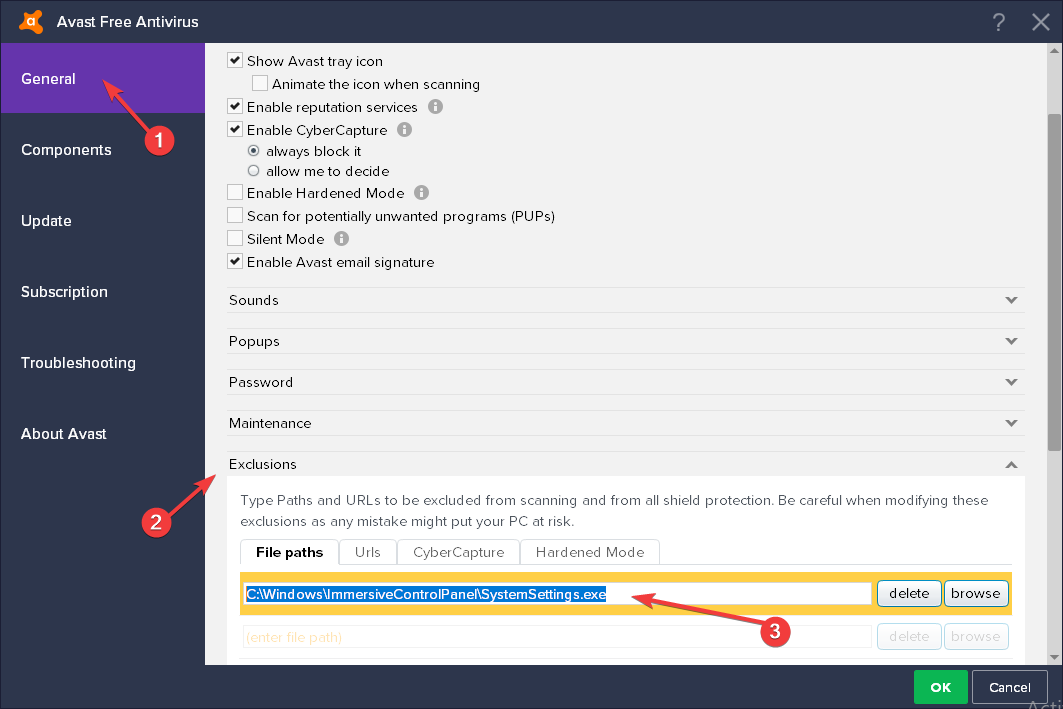
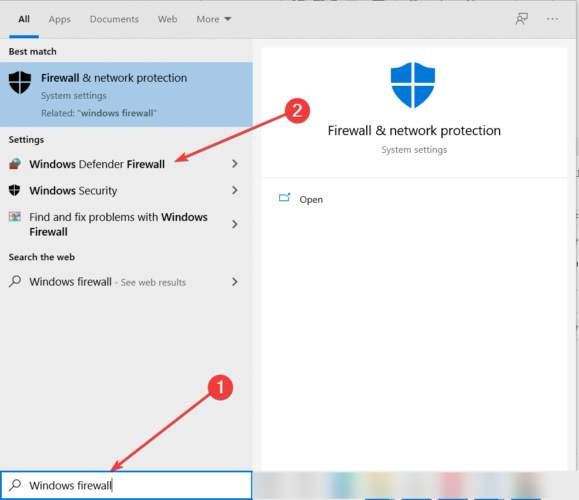
If the issue persists, you might want to try disabling your antivirus/firewall software. If that doesn’t help, try to unplug all USB devices that you don’t use, such as your printer, external hard drive, etc.

17. Turn off additional applications and run the game as administrator

  1. Find the game’s shortcut and right-click it.
  2. From the menu choose Run as administrator.

Sometimes Metal Gear Solid 5 can crash if certain apps are running in the background. Applications such as Dxtory,

Afterburn and FRAPS can cause Metal Gear Solid 5 to crash, so make sure that any unnecessary applications aren’t running. If that doesn’t help, try to run the game as administrator. To do that, just do the following:

18. Disable vJoy Device in Device Manager

  1. Press Windows Key + X and choose Device Manager from the list.
  2. Go to the Device Manager.
  3. Find the vJoy device in Device Manager, right-click it and choose Disable.
  4. Close Device Manager and start the game again.

Metal Gear Solid 5 has certain mouse issues, and sometimes your mouse will stop working. To fix this issue, you need to do the following:

19. Use x360ce to fix USB controller issues

It has been reported that Metal Gear Solid 5 has some issues with Xbox 360 controller and other USB controllers. If you’re having any issues with USB controllers, try using x360ce.

20. Tap WASD keys

There is a glitch that can sometimes make your character run in a random direction. This can be extremely frustrating, and to fix this, you can tap the appropriate movement key on your keyboard.

For example, if your character is moving left, press the key assigned to the move the left command. The same goes for other directions.

In addition, you can pause the game and press W, A, S, D keys on your keyboard, and unpause the game in order to fix this issue.

21. Delete the TPP_GRAPHICS_CONFIG file

  1. Go to the following path: C:Program Files (x86)Steamuserdata287700local
  2. Find TPP_GRAPHICS_CONFIG file and delete it.
  3. Restart your PC.

If you’re getting a white screen when starting Metal Gear Solid 5, you might need to delete TPP_GRAPHICS_CONFIG file. To do that, follow these steps:

22. Disable the Shader Cache in NVIDIA control panel

  1. Open the Nvidia Control Panel.
  2. Click Manage 3D Settings.
  3. Find Shader Cache in the right pane, and from the list choose Off.

If your game is slowing down periodically, you might need to disable Shader Cache. This also helps when nvgpucomp64.dll crashes games.

23. Double-click your mouse in game

Users have reported that their mouse appears in-game while they are playing, and this can be distracting. To fix this problem, you just need to double-click your mouse and in most cases, this issue will be fixed.

Are you having problems buying games on Steam? Follow the instructions in this thorough guide dedicated to fixing failed Steam transactions and learn how to deal with the problem.

Metal Gear Solid 5 might be an amazing game, but it has its issues. We have covered most of these issues, and we hope that our solutions helped you fix Metal Gear Solid 5 issues on Windows 10.


You will soon be able to join FaceTime calls on your PC

FaceTime is Apple’s video calling app for all its devices, and like most of its software, it was only meant to be used within their separate environment.

They are definitely not friendly with any other systems, and we have plenty of such problems as Apple devices not being able to connect to Windows 10.

That’s why their announcement during WWDC surprised everyone. Apple’s officials said that FaceTime will be available on the web so Windows and Android users can call from their PCs and smartphones.

That means that the company is turning FaceTime into a Zoom-like application available on multiple platforms.

What are the new FaceTime features?

This new availability announcement is part of a bigger update of FaceTime. The video calling method will be similar to the one from Zoom, where you will be able to share an invitation link.

However, there are more to come for the updated app. For instance, you will be able to blur your background with the portrait mode and you will have a new grid view option.

The sound quality will also be improved with a new voice isolation feature that will bring more clarity and you will also benefit from spatial audio.

However, the most important update for FaceTime is the new SharePlay feature. You will be able to meet with your peers in a call and watch or listen to the same video or song.

You will be able to just share the content from a lot of sources including HBO Max, Hulu, Disney Plus, Twitch, and the Apple on-demand services by dragging it onto your screen and sharing it.

When is the new FaceTime coming?

Unfortunately, Apple didn’t specify a certain date for the release, but FaceTime’s updates are related to iOS updates so, they will probably do it this fall, together with iOS 15.

With these exciting announcements, Apple is definitely trying to get some of the traction that other video calling apps like Microsoft Teams and Zoom got during this pandemic.

Not long ago, Microsoft Teams has also seen some important improvements so it’s obvious that these services certainly still have reasons to grow.

However, FaceTime will probably appeal more to non-business users and the SharePlay feature is clearly meant to become the next hangout place for you and your friends.

What do you think about Apple’s new move with FaceTime? Tell us your opinion in a comment below.

FIX: Dragon Age: Inquisition lag/stutter & other errors

Dragon Age: Inquisition is a very popular game, which received numerous praises for story, graphics, etc.

But at the same time, the game also received numerous critics from users and testers for its various technical issues.

Users are constantly complaining about the problems in Dragon Age: Inquisition, and we’re going to try to solve at least some of them.

So if you’re also experiencing problems with Dragon Age: Inquisition on your Windows 10 PC, we hope this article will be at least of some help.

How do I fix Dragon Age: Inquisition errors on Windows 10?

1. DirectX crashes while playing game

If you receive an error which says that DirectX causes problems, just simply reinstall it. Also, if you didn’t update your graphics card drivers, DirectX might conflict with it.

The first solution is to check if your graphics card driver is up-to-date. For that, we recommend you a great tool to automatically download all the outdated drivers on your PC.

2. World state saves from the Keep are not importing

This error might occur if you’re not properly signed to servers. So make sure you’re properly connected to both Origin and BioWare servers, and try to import your saves once again.

Also, there’s a possibility that your antivirus software is blocking the access, so go to your antivirus program, and exclude antivirus protection from Origin.

Since Origin is a certified platform, you should not fear about your security, even if the antivirus is disabled for it.

3. Graphics card issues in Dragon Age: Inquisition

  1. Go to Origin, select the Application settings.
  2. Navigate to the Origin In-Game tab, and disable it.
  3. Disable other programs that have a game overlay.

A lot of issues in the game could be caused by the graphics card, like stuttering, freezing, hitching, crashing, terrible FPS, and more.

Some users suggest that using Origin in game can cause the problem with graphics. So, try disabling it, and check if the problem still appears.

If you’re using an NVidia GPU, maybe your graphics card is overheating, and that causes problems with the game.

So, check out your GPU temperature with programs like GPU Temp, and if the temperature is higher than 65-70 degrees, try increasing a fan speed.

4. Black screen issues in Dragon Age: Inquisition

Some users suggest that the problem with black screen can be solved by toggling the game into windowed mode.

To do so, just press Alt + Tab, and after that, switch the game back to full screen mode, and the black screen problem should be solved.

5. Players spawning under the world in multiplayer

This is another commonly reported issue that often bothers players of Dragon Age: Inquisition.

EA still doesn’t have a proper solution for this problem, as it advises players to just exit the match, and try to log in again. Although the company promised a fix, users are still facing this bug.

6. Avoid Patches

  1. Open Origin.
  2. Go to the Applications settings, and then to the Application tab.
  3. Uncheck the Automatic game updates option.
  4. Restart Origin.
  5. Go to offline mode (Origin, select Go offline).

This might sound unreasonable, since patches are being released to actually solve bugs and issues, but many users reported that certain issues occurred after installing a patch.

So sometimes, the best option is to actually avoid a patch. To prevent Dragon Age: Inquisition from installing a patch, just follow the above steps.

Next time you launch the game, you will be able to play it without installing updates.

However, if you have already installed a patch, you can try to roll back to the original version of the game, and see if the error that bothered you when the patch was installed still occurs.

To roll back to the original version of Dragon Age: Inquisition, do the following:

  1. Before you start, make a backup of your saves, just in case.
  2. Repeat steps 1-3 from above.
  3. Uninstall the game (go to Control Panel, select Programs and Features, and uninstall it from there).
  4. Restart your PC.
  5. Reinstall the game.
  6. Repeat steps 3-5 from above.

If a patch was indeed a cause of the problem, running the unpatched version of the game might eliminate all the issues, so you’ll be able to play the game normally, again.

We’ve written more about the Dragon Age Inquisition crash on startup issues and how you can fix them in no time, so be sure to take a closer look.

If you encountered some other issue while playing Dragon Age: Inquisition, feel free to write us in the comments section below, it will surely help other players to solve their problems with this game.

Avast Won’t Open in Windows: Why & How to Fix

Have you tried to install Avast Antivirus on your new Windows 10 computer? Sometimes users may encounter some serious issues with the software Windows 10.

The most annoying of them is the fact that this tool does not recognize the Windows system files as part of the operating system and tries to delete them.

This article will show you how to fix Avast issues on Windows 10 and what version of the antivirus to install.

Avast is one of the most popular antivirus programs out there. Many users who were using it on previous versions of Windows installed it on Windows 10, as well.

But even if this antivirus solution is fully compatible with Windows 10, some errors may still occur. In this article, we’ll list the most common issues reported by users as well as their corresponding solutions.

It is worth mentioning that oftentimes users experience BSoD errors after installing the latest Windows 10 version on their computer.

This problem occurs due to incompatibility issues between Avast drivers and some CPU models. To avoid this problem, install the latest antivirus version before upgrading your PC to the latest OS version.

For other Avast issues, follow the instructions listed below. We hope these solutions will be helpful to you.

What can I do if Avast is not running on Windows 10?

  1. Windows 10 Action Center doesn’t recognize Avast
  2. Avast causes black screen in Windows 10
  3. Process Trust error during Avast installation
  4. Avast Antivirus won’t update
  5. Avast won’t start

1. Windows 10 Action Center doesn’t recognize Avast

  1. Right-click on the Avast icon in your taskbar.
  2. Go to Avast shields control and choose Disable for 10 minutes.
  3. After that, enable it again the same way, and selecting Enable all shields.

This should help Windows 10 recognize Avast, and the above-mentioned messages shouldn’t bother you anymore.

  1. But if the issue is still present, open the search bar and type cmd.
  2. Choose Command Prompt (Admin).
  3. In the Command Prompt type the following command and hit Enter:  winmgmt /verifyrepositoryavast antivirus windows 10
  4. If you get WMI repository is consistent -no problems detected, type the next command and press Enter: winmgmt /resetrepository
  5. If you get WMI repository is inconsistent -problems detected, type another command and press Enter: winmgmt /salvagerepository
  6. If you get WMI repository has been salvaged – WMI repository has been successfully rebuilt, continue to the last step.
  7. Now reset your PC.

One of the most frequent issues with Avast on Windows 10 is when the Action Center doesn’t recognize Avast.

If that happens, you’ll probably receive a pop-up message saying: Windows Defender and Avast Antivirus are both turned off, or Windows did not find an antivirus program.

Fortunately, there’s an easy solution for this. You just need to follow the steps above to rebuild the WMI repository.

2. Avast causes black screen in Windows 10

  1. Click on the Avast icon in the taskbar and open Avast user interface.
  2. Go to Settings tab, and then to General.
  3. Go to the Exclusions options, click add and add the following address to exclusions:
    C:\Windows\Explorer.exe

    and

    C:\Windows\ImmersiveControlPanelSystemSettings.exe
  4. Restart your PC.

Some users also reported that installing Avast on Windows 10 caused black screen issues. This is not a common issue, but if you experienced it, you can try the above solution.

After that, you shouldn’t face the issue anymore. But if you do, maybe the problem is not related to Avast, so I recommend you to check our dedicated article for additional solutions.

3. Process Trust error during Avast installation

This error message sometimes appears when you’re trying to install Avast on Windows 10.

Namely, you’ll get Process Trust fatal error pop-up message saying Avast doesn’t trust Avast Installer. This means that you cannot install Avast on your computer.

The error appears due to a conflict between Avast and your current antivirus program. So, just disable your current antivirus (in most cases this is Windows Defender) and try to install Avast again.

This time, you shouldn’t experience any problems. This error will remind you that having two antivirus programs installed on your computer is not a good thing.

Also, take a closer look at our detailed guide if Windows 10 prevents the antivirus installation, and fix it in no time.

4. Avast Antivirus won’t update

4.1 Update your OS

  1. Go to the Settings app, and select the Update & Security.
  2. Click on Windows Updates from the left pane, then select the Check for updates button.check for updates
  3. Install all the available updates.

Running outdated Windows versions may prevent other apps and programs from running properly.

4.2 Temporarily disable your firewall/ VPN

  1. Go to Start and type firewall.
  2. Double-click on Windows Firewall.
  3. Click on the options Turn Windows Firewall on and off.windows firewall disable

Sometimes, your Windows firewall may prevent you from installing the latest software updates on your machine.

4.3 Clean boot your computer

  1. Type System Configuration in the search box, and hit Enter.
  2. On the Services tab select the Hide all Microsoft services check box, then click Disable all.
  3. On the Startup tab click on Open Task Manager.
  4. In Task Manager select all items, and click Disable.disable startup programs
  5. Close the Task Manager.
  6. On the Startup tab of the System Configuration dialog box, click OK.
  7. Restart your PC, and try to update Avast.

This solution allows you to start Windows 10 using a minimal set of programs and drivers. Software conflict may also block Avast updates. 

Sometimes, Avast may fail to update its virus definitions. This is quite a major issue, but you can use our detailed guide to fix the problem.

5. Avast won’t start

  1.  Go to Start and type control panel.
  2.  Launch Control Panel and go to Programs.
  3. Choose Uninstall a program.Uninstall_Control_panel
  4. Select Avast, then Repair.
repair avast windows 10

If Avast fails to load, you can try to repair the software. When the process is completed, you can restart your computer and check if the issue persists.

That’s all, we hope this article covered all the major Avast errors that you may get in Windows 10, and that it helped you solve them, as well.

We also recommend that you always keep an eye on the best cybersecurity solutions. You can choose your favorite from our list of the best antivirus tools with lifetime license without such bugs.

If you have additional questions regarding this subject, drop us a line in the comments section below, and we will help you further as soon as possible.

5 best load balancer solutions for a stable network traffic

Load balancing refers to the process of spreading a network service load among multiple servers/systems.

A software-based load balancing tool is able to make sure that you get the maximum service availability by offering network traffic distribution services.

For instance, if your business has a primary business domain, you will want your website to be available to your current and potential customers 100% of the time.

We gathered five of the best load balancers for Windows 10 that you will be able to use for your servers or your home network.

Check out their sets of features to make a well-informed decision.

What are the best load balancing tools for Windows?

Network Manager

Load balancing allows network loads to be split between multiple Network Interface Cards based on various algorithms.

Each one of the IP sessions will be treated individually before deciding the path, and this means that a single IP connection is not able to be split during the process. Only multiple connections can be separated.

Each network adapter in Windows 10 comes with two metric values that are automatically assigned to it by the operating system.

This depends on the connection’s performance, interface metric, and also the default gateway metric. The network adapter with the smallest route metric will get all the traffic.

It’s also important to note that if multiple network adapters are manually configured using the same route metric, the connections will go through the one which has less traffic load.

You can find more about load balancing in Windows using Network Manager, and you can try this yourself to see how it works.

Here’s how you configure identical cost metrics on more NICs Network Manager:

  • You have to click on the Control Panel button in the gadget
  • Click on Tools and then Load Balancing
  • Click on the Windows tab
  • Enter the metrics value that you want to use; you can also leave the default values and then click on Apply
  • Wait for the program to refresh, and you are good to go

⇒ Get Network Manager

Evidian SafeKit

The SafeKit farm cluster from Evidian can implement a network load balancing cluster among several servers.

This will offer users one of the most straightforward solutions to critical application scalability and high availability.

In a network, the same app runs on each server, and the distribution of network activity will balance the load.

SafeKit software can save the cost of complicated load balancers making things easier for the users. It will not require any specific servers above the farm to implement the network load balancing cluster.

Check out more in-depth details about the network load balancing cluster on Windows and on how the SafeKit farm cluster works by heading over to Evidian’s official website and taking a look over there.

Here are some essential features that are included in SafeKit:

  • SafeKit offers a generic farm module on Windows and Linux in order to build a network load balancing cluster
  • You will be able to write your own farm module for your app starting from the generic farm module
  • You can also implement a mirror cluster that offers real-time replication and failover

⇒ Get Evidian SafeKit

NGINX and NGINX Plus

Using NGINX and NGINX Plus, you will be able to scale out your applications and distribute the workload evenly across multiple servers. If we’re referring to a web app, HTTP requests are load-balanced across more app servers.

If you did not know, there are two primary advantages that come packed with load balancing.

One of them is to scale out and handle more users than you would be able to do with a single server.

And the other benefits refer to redundancy – if a server fails, there will be others left available to make sure that the app stays online.

To find out more details about NGINX software we recommend that you head over to the official website because there are lots of data and information listed for users to better understand how things work.

But for now, take a look at the main features and benefits that come with using NGINX/NGINX Plus:

  • Both open source NGINX and NGINX Plus are able to load balance HTTP, UDP, and TCP traffic
  • NGINX Plus extends the open-source NGINX with enterprise-grade load balancing that includes active health checks, session persistence, additional metrics and more
  • For managing your home network, we recommend using the open source NGINX because it will be enough
  • NGINX Plus can automatically apply a wide range of enhancements to an HTTP transaction, and these optimizations include HTTP upgrades and transformations such as response caching and content compression

⇒ Get NGINX

KEMP’s Free LoadMaster

KEMP’s Free LoadMaster is an advanced application delivery controller. KEMP offers this free LoadMaster in order to help small companies and developers as well by providing them with a compelling load balancing option.

If their load balancing needs growing and expanding, users will get the chance to upgrade to a commercial version after they get the hang of how LoadMaster works.

On the official website of KEMP, you will be able to find a comparison between the Free LoadMaster and the Commercial LoadMaster’s features just to find out which one works best for your needs.

Take a look at the main features and benefits that you will be able to enjoy if you choose LoadMaster:

  • This is a tremendous free load balancer that is created by a well-established company
  • It will enable lots of start-ups and QA/Dev teams to focus on their tasks at hand without having to worry about addressing the trade-off between quality, cost, and upgradeability that are usually associated with some other open source and app-embedded load balancing solutions that you can currently find

⇒ Get Free LoadMaster

Snapt

Snapt is a load balancer and web accelerator that will definitely help you supercharge your network. This is one of the best application firewall options for DevOps, cloud and also virtualized deployments.

Check out more great features that are packed in Snapt by heading over to its official website.

Take a look at the best features that are included in Snapt:

  • Snapt was built because its developers felt that the application delivery software solutions which were already on the market were just not good enough
  • Snapt develops high-end solutions for app delivery, and this excellent software is designed to solve various needs of the users
  • Using Snapt, you will be able to accelerate your website with the robust HTTP/S web accelerator
  • You can offload your servers and enhance page load times
  • You will also be able to stay online under pressure using the load balancer and at the same time enjoy high visibility, reporting, alerts and more
  • You can also use the Snapt GSLB to rout traffic intelligibility throughout the world
  • Using Snapt, you will be protected against SQL injections, leaks, and more thanks to its Snapt WAF feature

⇒ Get Snapt

These are our five picks for the best current solutions that you have available for load balancing in Windows.

You might also be interested to explore our list including the best tools to inspect network traffic and get a better picture of this aspect.

Make sure to check out their complete sets of features and advantages in order to be able to make the best decision for your skills and needs.

Did you decide on one of the listed products? If you also have other proposals that you’ve tested, let us know in the comments section below.

Sound off: What’s your Windows Event mood?

This morning, noted Microsoft watcher/Tweeter WalkingCat summed up his mood regarding the June 24th Windows event:

We laid out some of our expectations/questions last week, and just posted a Twitter poll where you can vote on what you think will happen:

As of now, while there’s lots of speculation, no one outside of Panos Panay’s team really knows what’s going to happen. That doesn’t stop us (or you!) from taking some guesses on what June 24th will bring. Take the poll, and sound off in the comments below – what are you expecting from the June 24th Windows event?

(note, due to an unintentional glitch here at OnMSFT, some of the comments on our original announcement post and our follow-up 10 questions post were lost, please sound off again if we lost your comment!)

Microsoft Teams rolls out new reporting dashboard for meetings and webinars

Microsoft Teams is getting a new attendee reporting dashboard that will allow organizers to view webinar registration and meeting attendance data in a separate tab. Last week, Twitter user Rannei spotted that the feature is currently rolling out in the public preview version of Teams.

The reporting dashboard provides a snapshot of important data to meetings and webinar hosts in a dedicated tab within the detail section. These details include attendance data for meetings as well as registration and attendance information for Webinars. This change will enable meeting organizers to view the attendance report without downloading the CSV file in the app.

Keep in mind that this feature will be disabled by default, and Office 365 admins will be able to enable it manually by turning on the AllowEngagementReport policy. To do so, IT admins will need to run the following command in PowerShell:

  • Set-CsTeamsMeetingPolicy -AllowEngagementReport Enabled

The new attendance dashboard experience could help organizers to understand attendee participation during webinars and meetings. The feature is rolling out gradually to all desktop users, and it is expected to be generally available by the end of August 2021. Let us know in the comments down below if you have already received this update on your PCs.

Fortnite Chapter 2 Season 7 launches with aliens, Superman, and Rick and Morty content

The Fortnite Chapter 2 Season 7 update has rolled out to Xbox One and Xbox Series X consoles, Windows 10 PCs, and all other supported platforms and matchmaking has now begun.

This new season of content follows through with the recent Fortnite UFO teasers and revolves around a full on alien invasion on Fortnite’s Battle Royale island. The new Battle Pass features a variety of wacky and cool characters but of note is the addition of Rick (from the popular Rick and Morty cartoon series) and Superman (available in both his traditional red and blue outfit and the fan-favorite black style).

Season 7 sees the return of Battle Stars, a feature from Chapter 1 that was eventually phased out. In Chapter 2 Season 7, they can be earned by levelling up and can then be redeemed for Battle Pass rewards. This allows for a more personalized experience for Fortnite players as they’ll now be able to unlock rewards out of order as opposed to a level-by-level structure seen in recent seasons.

Players will have a while to unlock everything with Fortnite Chapter 2 Season 7 currently set to run until September 12th.

Are you hyped for the new season of Fortnite? Let us know what excites you the most in the comments below and then follow us on Twitter and Facebook for more gaming news.

Fortnite
Fortnite
Developer:
Epic Games Inc.
Price:
Free


Fortnite - 1,000 V-Bucks

Fix: Windows 10 Doesn’t Recognize Micro SD Card

There are many various errors related to Windows 10and in the past, we have covered similar errors related to SD cards not being recognized by Windows 10. Here are some fixes for Micro SD Card problems.

There are many Windows 10 users complaining about various errors and now we’re trying to come up with a fix for issues related to Micro SD Cards not being recognized.

Here’s what one of the affected users has been saying:

“Having the same issue after reinstalling win 8 because of the scorpion virus that I was unable to remove. Now I don’t recognize SD cards from my camera. Not sure that the drivers are right for the device but I haven’t figured out what they should be. Does anyone know where I would find the SD reader in device manager?”

What to do if my SD card is not recognized in Windows 10?

  1. Run the Troubleshooter
  2. Update drivers
  3. Check for Windows Updates
  4. Change drive letter
  5. Check your SD card on another PC

How do I fix the micro SD card if it’s not recognized by Windows 10?

1. Run the Troubleshooter

  1. Press the Windows Key + S and type in Troubleshooting.
  2. Click on Troubleshooting under Settings.
  3. Afterward, go to Additional troubleshooters.
    Additional troubleshooters
  4. Search for the one you need, then click on it.

2. Update drivers

  1. Download the drivers from the Manufacturer’s website and install them in compatibility mode.
  2. Right-click on the driver Setup file and select Properties, then select the Compatibility tab.
  3. Select Run this program in Compatibility mode and select the previous version of Windows supported by the software from the drop-down list.
  4. After that click on Apply and Ok, and install the driver.
  5. Then restart your computer and check if it works.

Updating drivers manually might be very annoying, so we recommend a third-party tool that can update your drivers automatically. Thus, you will prevent file loss and even permanent damage to your computer.

Not only will this software keep your drivers up to date, but it will also constantly scan for newer versions by itself, so you don’t have to worry about doing it.

⇒ Get Outbyte Driver Updater

3. Check for Windows Updates

  1. Press the Windows Key + S and search for Settings.
  2. Click on Updates & Security.
  3. Then, select Windows Updates, and Check for updates.
  4. Allow the system to scan and install any necessary updates.

Sometimes all you have to do is to install the latest Windows Updates since they usually patch bugs and deal with issues.

4. Change the drive letter

  1. Go to Computer Management then Disk Management, where you will find the Card Reader.
  2. Go to Control Panel, then System and Security, and Administrative Tools.
  3. Click on Administrative Tools, then click on Computer Management.
  4. In the left panel, under Storage, click on Disk Management.
  5. Your SD card reader should show up there, so you will have to Right-click on it.
  6. Now, from the pop-up menu choose Change Drive Letter and Paths… or Add Drive Letter.
  7. Then assign it a drive letter.
  8. Your SD card reader should show up when you double-click the computer icon.
    • However, be careful, you may lose data from the SD card.

5. Check your SD card on another PC

In case you do not manage to fix the SD card not detected error on your PC, try to plug it in other PCs.We would strongly recommend trying it on a different OS, like Mac OS or Linux.

This will make sure that the problem lies within your PC, not the reader itself. If the SD card is to blame, it will not work on any device whatsoever.

You can also check out our guide on the remaining lifespan of an SD card to understand the reason behind this error.

Are you trying to use an SD card reader but it’s not working properly? Here’s a great guide dedicated to fixing the SD card reader issues once and for all.

If you can detect it there, then the problem lies in a conflict between your Windows version. In this case, you might need to take more complex actions in order to fix this issue.

How to install Windows 95 theme on a Windows 10 PC

Windows 10 provides numerous capabilities and is in no doubt one of the best operating systems ever invented.

But some users – especially those familiar with Windows 95 seem to dislike its appearance and would rather stick to the ‘old school’ but nostalgic Windows 95 desktop backgrounds.

And because Microsoft did not include a Windows 95 theme for Windows 10 during the operating system release, passionate users have been frantically searching for a solution with mixed results.

One of DeviantArt users named Kizo2703 came up with a Windows 95 like theme (Free) and most nostalgic users seem satisfied with the results.

Let’s look at the theme download and installation process below, so keep reading.

How do I install Windows 95 theme on Windows 10 PCs?

1. Use a third-party desktop customization suite

Whenever you get tired of the generic Windows 10 look and want to give it a more distinct look, be it with a Windows 95 theme or an ultra-futuristic space-ship theme, a third-party desktop customization tool can definitely come in handy.

Our recommendation software suite is made up of multiple tools that can give your PC a complete overhaul in terms of how it looks.

For example, It includes a great software which allows you to install live wallpapers and screensavers on your PC that you can create yourself.

In the case at hand, you’ll probably like how it comes with another product included, which basically can be used to give your PC an entirely new theme.

With a little bit of tweaking, it can even make it look like it is running Windows 95.

This tool can also make your PC sound like Windows 95 as well, allowing a full nostalgia package to be included in the deal.

Object Desktop

Object Desktop

Give your Windows 10 a complete upgrade (or downgrade) in the visuals department with this complete software suite!
Check priceVisit website

2. Use a custom-made Windows 10 theme

  1. Download the Windows 95 classic theme.
  2. Click the Download button at the right-hand side to initialize the download. Custom-made Windows 10 theme
  3. Extract the downloaded to your C:WindowsResourcesEaseofAccess Themes folder. Custom-made Windows 10 theme 2
  4. Go to the desktop, and right-click on an empty space.
  5. Click on Personalize and choose Theme settings.
  6. Click on the classic theme as seen under the high-contrast themes. Custom-made Windows 10 theme 3
  7. Your Desktop now changes to look very close to a Windows 95 classic desktop, despite missing the sentimental Windows 95 logo.

And you can even customize the background colors further instead of sticking with the traditional blue. Here are the steps to follow:

  1. Right-click on an empty space on your desktop.
  2. Click on Personalize.
  3. Under Background, double-click your preferred background color. Your Windows 95 desktop background color will change to your new choice.How do I make Windows 10 look classic?

Now, the taskbar in Windows 10 is no longer associated with the theme function so applying the new classic theme will not impact how the taskbar looks like and the only option is playing with the high contrast settings.

How do I uninstall the Windows 95 theme from Windows 10?

  1. Navigate to the following folder: C:WindowsResourcesEaseofAccessThemes
  2. Select the classic theme.
  3. Press delete to erase it.

You delete the theme since you cannot uninstall it like conventional programs. You can now revert to the usual Windows 10 Themes.

We hope that these recommendations were helpful. What method do you prefer when you want to give your modern PC a more nostalgic feel?

Let us know which method you prefer by leaving us a message in the comments section below, and also if you have any questions or other suggestions.

How to Download Windows 11 Default Wallpapers

It’s always interesting to see how much time people are willing to spend analyzing certain pieces of information, and how far they will go in trying to prove that it was actually meant as a sign.

The same happened with the photo that Microsoft released to the public a few days ago, which shows the Windows logo with light strategically coming through it, creating an advertisement for Windows 11, some say.

The Windows 11 photo is now available as wallpaper

The photo, that looks somewhat like its showing number 11, created by the light shining through the window, is making some Windows users hunt for clues about the future of the operating system.

Therefore, people around the internet have started analyzing every pixel of Microsoft’s image, leading many to believe that it teases that the next version of the OS will be called Windows 11.

Various hypothesis arose, in which users would say that the image teasing the next generation of Windows lacks the shadow in the middle, making the blocks of light look more like the number 11.

You can imagine that, from here, it was just a small step towards internet hysteria. Now everyone is on the edge, waiting for Microsoft to release Windows 11 and blow their minds.

Will it be so? Is this a codified image purposely released just to tease the future of the OS? Or are fans a little bit too eager and see signs everywhere? We will all find out on the 24th of June, at the unveiling event, that’s for sure.

Note icon NOTE
We held an exclusive Windows 11 survey which has been compiled from the opinions of 6056 readers. They’ve completed it over the course of seven days and that’s your chance to find out how many of them are eager to fully embrace the new OS.

Where can I get this wallpaper from?

Needless to say that, since the teaser, many users have downloaded and made this image their new official wallpaper for Windows.

If you also want the image, you can now download it now from Wallpaper Hub, a website dedicated to Windows and Microsoft-related wallpapers.

Everyone is excited about the big news and the curiosity will still lead to some pretty impressive theories before it’s all played out, of that, we can all be sure.

Let’s not forget that Windows 10 is also due to receive the Sun Valley update, software changes that will give the OS a complete visual makeover. This could also be the change that the company keeps referring to.

Have you already downloaded your Windows 11 wallpaper? What is your opinion on this whole matter? Be sure to share it with us in the comments section below.

Microsoft does another servicing pipeline test with Dev Channel Insiders, more to come in the coming weeks

Microsoft has released today a new cumulative update with no changes for Windows Insiders in the Dev Channel. The build 21390.1000 (KB5004071) is just another servicing pipeline test, and the Windows Insider team explained today that more will come in the coming weeks before we go back to regular build flights.

“We have been testing our servicing pipeline with Cumulative Updates to the builds released to the Dev Channel. Each week, we would release a new build and then follow up with a Cumulative Update on top of that build before moving to the next build. However, we need to test the process of releasing multiple Cumulative Updates on top of each other on top of the same build. As a result of this, over the course of the next several weeks, our focus will be on releasing multiple Cumulative Updates on top of Build 21390. Having Insiders in the Dev Channel test this will be immensely helpful, and we’ll be back to flighting normally again soon,” the Windows Insider team explained today.

With Microsoft expected to unveil the next generation of Windows on June 24, it’s no surprise that Windows Insiders aren’t going to see major new features before that event. The software giant likely doesn’t want to spoil the “Sun Valley” reveal, even though traces of the design changes have already been spotted in recent Insider builds.

PowerPoint for Windows to lose Office Presentation Service as focus shifts to web-based Live Presentations

Microsoft has announced that PowerPoint for Windows is dropping support for the Office Presentation Service in favor of new web-based Live Presentations. The company has posted a message on the Microsoft 365 message center notifying that Windows users will no longer be able to broadcast their presentations from the PowerPoint desktop app starting this month.

“We will be retiring the feature ‘Office Presentation Service’ from the Windows version of PowerPoint (starting with build 16.0.14122.100000). We will be removing the ‘Office Presentation Service’ option/button from the “Present Online” menu under SlideShow ribbon in PowerPoint for Windows. Instead we recommend the utilization of “Present Live” in PowerPoint for the Web which is where we will continue to invest,” the company explained.

The soon to be unsupported Office Presentation Service was released around nine years ago. The service is freely available and requires a free Microsoft account. It allows users to present their PowerPoint presentations online to a remote audience by creating a temporary web address.

People who use the Office Presentation Service will now be able to use the new Live Presentations feature in PowerPoint for the web when presenting their content to others. The tool was announced back in June last year, and it makes it easier for the participants to engage with a presentation at their own pace. The audience can use a smartphone, laptop, or tablet to connect to the presentation and send live reactions, give feedback, or navigate back to review previous slides. They can also enable live captions and subtitles in their preferred language.

Microsoft has stated that this change is gradually rolling out to customers in the Current Channel as part of the monthly updates for PowerPoint (build 16.0.14122.100000). PowerPoint Live Presentations are supported on Microsoft Edge, Google Chrome, Mozilla Firefox on both Mac and Windows, and you can find more information on our detailed hands-on guide.

4 Best Software to Learn Spanish [2026 List]

Hola! This is probably the one word most people know in the Spanish language, but technology has made it possible for anyone to know it better.

Our top picks for the best software to learn Spanish looks into the content type and quality, ease of use, tools like tracking and progress reports, mobile apps, and communities for further support.

Moreover, we looked at how versatile it is for you to brush up your skills or get talking like a native in no time.

What are the best programs to learn Spanish?

This is perhaps the most popular and recognizable name when it comes to the best software to learn Spanish.

Its courses, games, and exercises are all in Spanish with no English translations acting as a guide, so you’re forced to learn words, syntax, and grammar through association, rather than using lists and drills.

Its speech recognition algorithms ensure you get pronunciations correct, plus the core lessons are coupled with fun and exciting games, a mobile app, and online tutors for a truly immersive experience.

Lessons are based on flashcards, an image-word association such that you match images to words and phrases like you did in kindergarten.

They have initial easy level lessons, and gradually you advance to harder lessons with grammar, conjugation and syntax.

Rosetta Stone also rewards you as you complete the core courses, by unlocking your ability to play BuzzBingo and Picari games which let you actualize what you’ve learned.

You can also play with other learners, read stories, and much more. To use it, you’ll need a USB headset with a microphone.

A bonus feature of this software is the Audio Companion, which has MP3 lessons you can use with any media player, sync to your smart device, and listen on the go.

The downside of this software is you don’t get to turn on subtitles or translations in English, plus you cannot change the speed with which the words and phrases are played.

The good thing is you can always schedule an online tutoring session with a native Spanish speaker for about 30 minutes and get personal help.

Rosetta Stone

Learn how to speak Spanish in a fun and creative way with this interactive software!
Check price Visit website

Ouino

This comes in a collection of five, or individually. The 5-in-1 Ouino Spanish system has individual programs that focus on different Spanish elements with vocabulary, grammar, conjugation, verbs, pronunciation and conversation.

Each of these programs has customizable features to help you adjust your own learning level, plus games and Spanish narrators to help you with the exercises.

The good thing is that, unlike Rosetta Stone, you can adjust reader speeds, the number of hints with each exercise, and the timer length for speed games.

It is also flashcard-based for vocabulary, with clear images per word, which you can always repeat or skip to your liking.

Vocabulary games like Fluency Sprint also help you answer quick fire questions with a timer, so you can test yourself like a pop quiz.

There are other games like Click-a-Pic and multiple-choice games so you can learn more nouns, verbs, and others, though these can be challenging to first-time learners.

But the software has color and voice coded answers, plus male/female speakers who read the masculine or feminine nouns to help you learn better.

Grammar lessons cover language differences between English and Spanish, so you can learn speech mechanics and how to connect words. You get hints, sound playback, multiple-choice and scrambled letters for better learning.

For conjugation, which is one of the most challenging phases, Ouino’s program helps you retain knowledge using quizzes and games so you can easily remember what you have been taught.

That also includes conversation lessons so you can call a cab, or order something in a hotel or ask for directions.

It may not have live tutors, but it has plenty of interactive lessons, audio and visual cues to help you learn Spanish fast.

There’s a mobile app if you want to learn on the go, which also saves your progress, and you can pick up from where you left off.

Ouino

Improve your Spanish vocabulary skills with this customizable and versatile software!
Check price Visit website

Fluenz

Fluenz covers much ground when it comes to lesson content, except for cultural lessons and etiquette.

Some of the lessons you can expect include travel, shopping, or how to order for something in a restaurant, with conversation-like teaching so you can learn grammar, reading, and writing, plus proper pronunciations.

Each lesson begins with your virtual guide, Sonia Gil, who sets the expectations then introduces what will be the framework for the lesson as you go along, through a conversation.

Specifically, she gives context to what you hear, gives instructions you must listen to, but you only get English subtitles once, then Spanish, then no subtitles after that.

So, you learn to hear and see words in the language that will help throughout the course.

You’ll come across matching, dictation, and speech recording, but the software gives you hints when you’re stuck, so you also need to have a pen and paper close to write what you hear.

You can even record yourself and listen to the audio so you can tell whether you’re close or completely off.

With this best software to learn Spanish, you can adjust the difficulty level so you have a variety of words to learn from, plus you can enjoy audio, visual and interactive exercises, which can be downloaded as MP3s to save on your phone or media player.

Fluenz also gives you progress reports at the end of the lesson, and you can see how you’re fairing on. You can also get support by chatting up a representative live online, but not by phone.

⇒ Get Fluenz for Spanish

Babbel

best software to learn spanish

This language learning program delivers quality courses in 13 languages, exposing its learners to much vocabulary at once, which can be quite overwhelming, but it also thoroughly reviews the words and phrases.

The lessons are taught through listening and writing, compared to speaking and reading, but its downside is it makes learning a language more challenging than it already is.

However, the material is top quality, though not an impressive interface, but it still ensures that concepts are enhanced and reinforced as you learn them.

Overall, the structure is good plus it has progress markers to track your work, and you know where to pick up where you left from.

Another plus is you are not locked into sequential learning – you can jump around the lessons, so if you start at the beginning, you can pick up a few words and move to the next lessons to your satisfaction.

Individual exercises focus more on writing, spelling and listening, with a voice-recognition system to tell if you’re repeating words accurately when prompted. It also keeps track of your progress, but if you quit, you have to start over.

Lessons take anywhere from 4 to 12 minutes to finish, but this depends on how well you know the material, but there’s a chance to repeat if you didn’t do very well.

There’s also a review manager to go over words you’ve already learned and master them.

Babbel’s flaws stem from the fact that it has no offline content or downloadable MP3 files, and to use it, you have to be online. Also, there’s no e-tutoring or live classes in webinar style. It’s a good software to start with though.

⇒ Get Babbel for Spanish

Ready to learn some Spanish? We hope that our selection of tools will help you get to the native-speaking level quickly.

You might also be interested in checking our list with the best language training software to perfect your technique.

Let us know which one you’ve used before or which one meets your needs to get started, by leaving a comment below.

Windows Virtual Desktop becomes Azure Virtual Desktop and adds new features

Windows Virtual Desktop, Microsoft’s Azure-based solution for running virtualized versions of Windows and Office is being rebranded to Azure Virtual Desktop. The name change reflects Microsoft’s broader vision for its cloud virtual desktop infrastructure, which is also getting new capabilities and pricing options for remote app streaming tailored for the hybrid workplace.

“To help our customers and partners meet these new hybrid work demands, we are expanding our vision to become a flexible cloud VDI platform for nearly any use case—accessible from virtually anywhere, explained Kam VedBrat, Partner Group Program Manager at Microsoft. “A modern VDI platform needs to be secure, scalable, and easy to manage, while delivering a seamless, high-performance experience to end users. It should also empower organizations with the flexibility to customize and build solutions with its core technology.”

Starting today, Azure Virtual Desktop customers can test managing Windows 10 Enterprise multi-session virtual machines with Microsoft Endpoint Manager. Enhanced support for Azure Active Directory is also coming soon in public preview, as well as a new QuickStart experience that will offer a streamlined onboarding experience to customers.

Create a Quickstart application

Microsoft is also introducing next year a new per-user monthly pricing option for organizations interested in providing remote app streaming to external users. The new per-user access pricing option will officially launch on January 1, 2022, and pricing will be $5.50 per user per month for apps, and $10 per user per month for apps plus desktops.

Organizations will be able to use Azure Virtual Desktop for streaming first-party or third-party applications to external users at no additional cost for a promotional period that will last from July 14, 2021, to December 31, 2021. However, organizations interested in using this new offering will need to keep paying for the underlying Azure infrastructure.

Learn to play bridge with these 3 interactive software

Bridge is a technical and complex game, with learning taking time and effort. Most of the effort, however, is to communicate with your partner correctly.

Windows Report has compiled this list of software that provides great resources and instructions for users who are willing to learn and devote time to understand the mechanics of the bridge game.

What are the best tools to learn how to play bridge?

Learn to Play Bridge with Audrey Grant

learn how to play bridge

If you want a unique software to learn to play bridge game, this software is a great start.

Learn to Play Bridge with Audrey Grant has over 20 interactive quizzes and a progress chart to track your results.

The tutorial steps are easy to use and interactive gameplay with a computer is helpful in gaining experience.

However, this software runs only on Windows XP, Vista, 7 and 8. Meanwhile, you get useful insight into the workings of the game with tests coming immediately after every tutorial session.

⇒ Get Learn to Play Bridge with Audrey Grant

Learn to Play Bridge I & II

learn to play bridge software

This software is in two parts, as its name implies, which are devised to give premium knowledge of bridge. The programs were developed by Fred Gittelman, a world-class player and programmer.

Learn to Play Bridge I provides a detailed course on bridge. This helps users with no prior knowledge of the game to understand the game. The program starts from scratch with simple explanations and gameplay.

However, Learn to Play Bridge II- the second program elevates a beginner to an intermediate level with more complex learning package. 

This explores tactical aspects of the game with major emphasis on the technical aspects of bridge.

Furthermore, both programs use excellent graphics and various quizzes to engage users in accelerating learning. The program adds a fun and detailed way of learning bridge game.

⇒ Get Learn to Play Bridge I & II

Pat’s Introduction to Bridge

learn to play bridge software

Another learn to play bridge software worthy of mention is Pat’s Introduction to Bridge.

The software which is in form of an instructional CD won the American Bridge Teacher’s Association’s Software of the Year Award far back in 2009 and 2010.

If you prefer to learn at your own pace, then you can play the lesson used in the Beginner classes. Also, extra practice deals on each topic were selected from the popular Bridge Baron computer bridge program.

Meanwhile, the user-friendly app will guide you through new bidding and play techniques. In addition, end of lesson quizzes enables you to check your progress in your bridge game adventure.

⇒ Get Pat’s Introduction to Bridge

Now, you can easily learn to play bridge by using any of the software we mentioned above. Feel free to comment below.

5 Best Online Video Makers with Music & Pictures

Communication and expressing oneself has never been more accessible than nowadays. You can simply take pictures of anything and upload them to Facebook, Twitter, or any other social media.

If our lives are so heavily connected to these apps, making us share media with each other all the time, we need some tools to help us do this.

Therefore, people install many programs that let you create videos, collages, and montages from your favorite photos and memories.

Today we’re going to take it one step further and show you some awesome online video editors that will do all of those awesome things mentioned above without having to download anything!

What is the best online video maker software?

Fastreel by Movavi

Fastreel is a handy online video maker and editor software created by Movavi. Unlike other similar apps, Fastreel focuses mostly on enhancing your videos with a wide variety of tools.

First, we have to mention that Fastreel was not meant for editing pictures. You can freely upload image files and make a slideshow out of them, but you won’t be able to edit the photos and save them as JPEG or PNG and other such formats.

These tools include compression, cut, crop, merging, muting and adding music, rotating, resizing, flipping images, and the addition of text, filters, watermarks, and subtitles (from SRT files)

Additionally, Fastreel has some awesome special effects like changing the speed and reversing your video, creating loops, splitting the screen, and using stop motion.

The software lets you create slideshows and movies from scratch by uploading images in different formats, or videos, and applying music, transitions, or adding text to them. The result can be exported as MP4.

Enjoy 30+ video templates like intros, ads, movie trailers, family videos, SSM-related videos, and many others. These templates can be customized by adding scenes and changing the image order.

Unfortunately, you can’t change the template’s color scheme, but you can upload the video directly to YouTube after it’s done.

Fastreel comes in a limited free version that lets you save videos in 480p quality and having a watermark and an unlimited version with higher quality videos and full features.

You can choose to be billed per video, monthly, or annually. Simply log in via Google, Facebook, or create your own Movavi ID and get started.

Let’s see some of Fastreel’s core features:

  • Diverse template gallery
  • Create movies and slideshows from scratch
  • Automated tools for muting, compressing, and reversing
  • Full video tutorial toolkit
  • No required download or installation

Fastreel by Movavi

This is a great online video editor tool that will help you create the best photo montages with professional features.
Check the price Visit website

Adobe Creative Cloud Express

Adobe Creative Cloud Express is a great editing tool for mobile and web that makes it easy to create web pages, short videos, social graphics, and other awesome graphics-related things.

With Creative Cloud Express, you’ll get full access to a plethora of premium templates, fonts, backgrounds, and much much more. That’s not all. You can add your own brand and style to make everything unique.

Turn your texts and photos into awesome collages and montages you will remember, and share them with your friends through social media.

You can create your own web story for everyone to see with the multitude of options and customization tools that will help you tell it.

The software is available as a standalone subscription or as part of the plentiful Adobe Creative Cloud plan which gives you access to lots of graphic design and editing apps.

Let’s have a look at Adobe Creative Cloud Express key features:

  • Create posts in a matter of seconds
  • Upload your creations on social media
  • Make moving statements
  • Create branded stories

Adobe Creative Cloud Express

This Adobe product is a great web-based or software-based graphic design app that will help you create awesome video montages.
Free trial Visit website

Canva online video maker

Thanks to Canva, you can make high-quality videos without having a professional background in video editing. You will find that the software is easy to use and lots of fun as well.

Making videos every day will be bliss thanks to the simple drag-and-drop tool that makes everything so easy to do, from uploading photos to inserting titles and other text.

The result will be a compelling video made in a matter of minutes that will tell your story, the way you want it to be told and seen. You can choose from one of the tool’s pre-made templates.

What’s cool about Canva is that it’s a free online video editor, so it doesn’t require any download or money to use it. It is available to you anytime, anywhere, from any device.

Their library is stocked with thousands of templates, animated graphics, music tracks that you can add to your videos, even other free stock videos, all for you to use and create stuff.

After creating the video, you can download it without any watermarks and post it online on social media or do whatever you want with it.

⇒ Get Canva

Wevideo

When we talk about Wevideo, we talk about an online editor that is easy, fast, and flexible. This web-based software lets you create awesome videos like a pro in no time.

Add awesome features like a green screen for big-budget looks without having to deal with the cost of difficulty, or edit your videos without having to worry about upload time.

Additionally, you can choose from one of the multiple file formats or templates to stand out on social media by bringing your own character into the videos and making them unique.

All of these are available from a multitude of devices. You can use the app from any browser, and you can create videos that are compatible with any type of display, be it web, mobile, laptops, or giant smart TVs.

You don’t have to worry about stock content anymore! Wevideo lets you go copyright-free with a wide selection of stock templates, photos, and graphic content.

These include over 1 million pieces of videos, images, and music tracks included in the Essentials stock library that is commercially licensed, royalty-free and included in the WeVideo’s business plans.

⇒ Try Wevideo

Moovly

Moovly is another great online video maker tool. You can make videos from scratch or choose one of the many available templates that they offer.

Choose one of the professionally created templates from Moovly’s growing list. You will surely find one that fits your needs.

Thanks to Moovly, you don’t have to be an expert to use professional features and create professional-looking work! You can add voice-overs using one of the artificial voices, or automatically generate and translate subtitles.

Moreover, you can apply stunning and epic visual effects to your text and photos with just a few clicks of the mouse.

Moovly is a powerful, cloud-based editor that works with any browser, so it is compatible with all devices, without having to download and install anything. All you need is an internet connection and a creative spirit.

Besides the in-built templates and other visual and audio additions, you can also add your own photos, sounds, and music to use in the videos.

If you still feel like you don’t have enough content at your disposal, know that you can purchase 100 million additional media from the immense iStock library of Getty Images.

⇒ Try Moovly

That’s about it for our article today. We’ve included some great video editors and makers that will let you express yourself.

Did you enjoy this list? Here’s another great one of the best software for Windows 10 PCs that are a must-have for every user out there.

We strongly encourage you to leave any feedback regarding the subject, or any other suggestions you have in the comment section below.

7 Best Online Video Editors Without Watermark

When using free resources such as software and online services to manage and edit video clips, you are not always free to work as you see fit.

In most cases, these tools have obvious limitations. Oftentimes, you also get a watermark included in the package.

Essentially the watermark is nothing more than a digital mark (usually the logo) that identifies the author or the product of a given file, video or photo.

So, are there any online tools that allow you to edit and format videos that do not forcefully insert their own watermark? Read on to learn more.

What are the best video merger without watermark?

Adobe Creative Cloud – Professional-level tools

Adobe Creative Cloud is an extremely polished video editing software tool that makes all your worries about dreadful watermarks added to videos go away.

Its excellent user interface is intuitive, and straightforward, and requires zero experience to use it. Even so, you may create visually stunning graphics with ease.

Start by clicking the plus button on the web or in the iOS app, then take your time to add interesting media content to your slides.

You have infinite options in terms of images, icons, logos, video clips, and not only. They are all waiting to be used if you want to create something truly unique.

The pre-designed layouts give you a professional look, that’s for sure. As for that final touch, select one of the free songs or add music/voice by uploading your own track to send the right message.

Adobe Express includes several useful features that will help you enhance your design as desired.

These include a wide range of professionally designed fonts, pre-built video themes and layouts, social media optimization solutions, and more.

Its versatility shows in the fact that it is available for multiple platforms, with an automatic sync option. Your work is automatically synced across the web and the iOS Creative Cloud Express Post, Spark Page, and Spark Video mobile app.

Adobe Creative Cloud

Adobe Express truly helps you create visually stunning graphics with ease, so give it a try!
Check price Visit Website

Canva – Best drag-and-drop editor

When it comes to intuitive, but very effective video editing, it does not get much better than Canva.

Canva is a full-featured editor for all sorts of visual content, including social media posts, photo editing, presentations, and of course, videos.

This online video editing tool makes your job way easier with its built-in video templates. It has a wide range of templates for various styles.

Start off with that, and then you can build your project with your own video footage. The whole process is based on drag and drop, so you can easily make any adjustments in terms of placement, size, and even color.

Canva also includes a lot of free-to-use stock images and videos, along with many useful objects like graphs, and arrows. These will make your videos easier to follow and probably more engaging.

Once you finished up your video, you can add an audio backtrack or integrate Canva’s pre-set audio effects.

This is one of the simplest video editors you can use online, both in the browser and on mobile. It offers handy solutions for collaboration and is the way to go if you plan to create other types of visual projects.

Note that Canva’s free version does have some limitations. While it doesn’t place watermarks on your video per se, some of the elements in its gallery are premium-only and get watermarked if you use them with the free version.

Canva

Use this online drag-and-drop editor to integrate everything you need to make your videos stand out!
Free trial Visit Website

Video Toolbox – Best for non-professional editors

Video Toolbox online video editing

Video Toolbox is perhaps one of the best free web resources for editing and managing videos.

You can load your videos of up to 1500 MB (should be enough for non-professional videos) and also crop and merge video files.

In order to use this resource, you need to create a free account. Once activated, you can let your imagination take over.

⇒ Get Video Toolbox

Clipchamp – Most intuitive online editor

clipchamp online video editor

The next tool on the list is ClipChamp. This solution also offers an advanced editor in which there is an extensive library of images you can use in your projects (premium version).

To create your own videos, just upload the photos and distribute them on the timeline.

You can also apply filters and effects to the entire clip or to every single image. You also got a few options to manage the saturation and exposure of the photos.

The only flaw of the free version is that you can download SD videos (480p) only.

⇒ Get Clipchamp

Hippo Video – Useful integrations

Have you ever heard of the Hippo Video? Although the name of this website may seem like a joke, in reality, it is not. In fact, this is a useful tool that allows you to create and edit videos online.

Its features are very similar to those of ClipChamb.

The difference is that you can upload videos from a PC directly to Hippo Video, record another video using your webcam, and insert music tracks via cloud services such as Google Drive.

This platform is definitely worth giving it a try.

⇒ Get Hippo Video

Movie Maker Online – Great for beginners

Movie Maker Online editing options

Movie Maker Online lets you create videos from personal photos, which can be loaded on the platform and sorted according to your preferences.

You can easily add filters and effects to get a great result. As soon as you arrive at the homepage of the service, we will immediately understand that it is a very simple resource to use.

So, it is also suitable for those who do not have extensive knowledge of video editing.

If you are looking for a resource that allows you to edit or create a personal video without a watermark, then you must try out Movie Maker Online.

Create your user account to access the full range of options.

⇒ Get Movie Maker Online

Fastreel Video Editor – Integrated .SRT support

Movavi created an awesome online video editor software called Fastreel, which focuses on video enhancement tools such as image cropping, cutting, merging, compressing, rotating, resizing, and flipping.

Do not mistake Fastreel for an image editor, because it is not. The software can create slideshows and modify the images in the context of the video, but it does not edit the photos and save them as JPEG or PNG.

Additionally, you can add sounds and music to the background or mute existing ones, as well as add text, filters, watermarks, and even subtitles (SRT files).

Create slideshows and movies from nothing by uploading your own images, and videos, choosing the right transitions, applying some fitting music, and adding text when it’s needed.

Fastreel has more than 30 video templates, trailers, family videos, intros, advertisements, and much more. All of these are also customizable, meaning you can remove, add, and change the order of the scenes.

One thing you can’t do, however, is to change the template’s color scheme. The final result can be exported in MP4 format and uploaded directly to YouTube.

You can enjoy the service freely, but with limited conditions, or buy one of the many price plans that have all the features.

It has some smart automated tools and useful features like a split-screen, stop-motion support, and more. 

You can also change video speed, reverse it, or create loops. It’s easy and fast to get started. You just have to sign up for an account, no download or installation is required.

⇒ Get Fastreel

This is our list of video mergers without watermark. Which software did you choose? Leave us your answer in the comment section below.