Blizzard’s new video game collection is now live on Microsoft’s Xbox consoles

The recently announced Blizzard Arcade Collection is now live and ready to play on Microsoft Xbox One and Xbox Series X console families.

This new collection contains three of Blizzard’s classic video game titles in addition to a plethora of bonus content such as video interviews and behind-the-scenes looks, a music player, and a digital library of related artwork.

The three games, Blackthorne, The Lost Vikings, and Rock N Roll Racing, are playable in their original format with the occasional enhancement (such as save functionality) and in new Definitive Editions with multiplayer improvements, new music, and support for more languages.

Here’s the official description of the collection detailing all of the content:

Experience a blast from Blizzard’s past! The Blizzard® Arcade Collection brings three of our classic console games to modern platforms and new audiences.

INCLUDED GAMES:

  • Blackthorne®: As mercenary captain Kyle Blackthorne, traverse an alien planet, liberate the Androthi people, and claim your destiny.
  • The Lost Vikings®: Help three Vikings—Erik, Baleog, and Olaf—overcome challenging platforms and puzzles to find their way back home.
  • Rock N Roll Racing®: Rock out in the raddest vehicular destruction derby this side of 1993. RNRR is back with original rock and metal soundtrack hits plus a few new surprises.

LEVEL UP THE LEGACY:

The Blizzard Arcade Collection contains two different Original Editions of each game plus a new Definitive Edition!

The Original Editions are the games as you remember them but with new quality of life improvements included—like the ability to set custom keybindings, rewind your gameplay up to 10 seconds, save and load your game as well as watch playthroughs of Blackthorne and The Lost Vikings (and then jump in to play at any point). Improvements may vary by game and game edition.

The Definitive Editions include all the same great gameplay content as the Original Editions plus a few additional upgrades—like enhanced local multiplayer for The Lost Vikings and Rock N Roll Racing, new songs and original artist performances for Rock N Roll Racing, a new level map for Blackthorne, localization for 12 languages*, and more.

VISIT THE MUSEUM:

The Blizzard Arcade Collection Museum features a trove of treasures from each game’s past.

  • Art & Artifacts: View game boxes, illustrations, marketing materials, and more from the original era of these classic games.
  • Music Player: Listen to the in-game scores from the Original Editions of Blackthorne and The Lost Vikings.
  • Inside the Games: Take a look behind the scenes, and under the hood, of these classic games with development materials, unused content, and deep lore.
  • Interviews: Watch behind-the-scenes interviews and learn more about the developers of these classic games.

In addition to the regular version of Blizzard Arcade Collection, a Blizzard Arcade 30-Year Celebration Collection is also available right now that comes with all of the above content plus some in-game bonuses for Diablo III and Overwatch.

Blackthorne, The Lost Vikings, and Rock N Roll Racing aren’t the only Blizzard video games coming to Xbox consoles. A remaster of the classic Diablo II title is also on its way to both Xbox One Xbox Series X console generations as well.

Want more Xbox news? Follow us on Pinterest, Twitter, and Facebook.


How to fix Camtasia when it won’t open in Windows 10

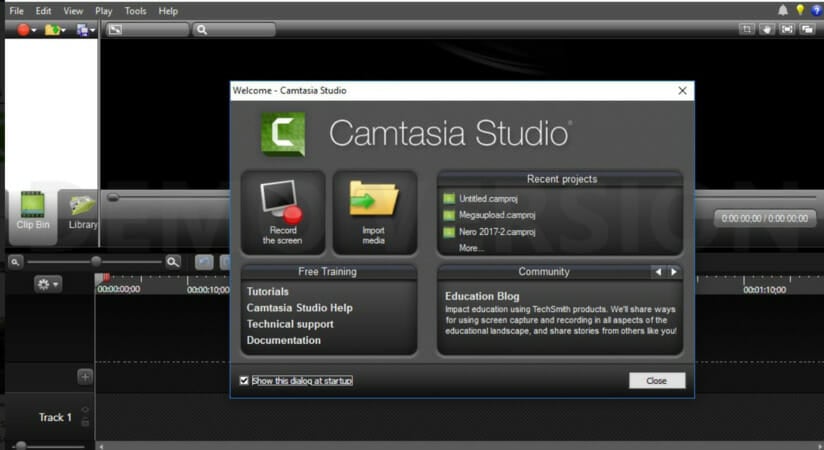
Camtasia Studio is among the best video-recording software for Windows that you can record screencast clips with. Yet, some users have stated on TechSmith forums that the Camtasia software window won’t open for them.

Thus, the software doesn’t run on their desktops or laptops. These are a few resolutions that might fix Camtasia if you can’t open the software in Windows. We’ll list them below, so keep on reading.

How can I fix Camtasia’s launch issues?

  1. Double-check Camtasia’s system requirements
  2. Use an alternative to Camtasia: Adobe Premiere Pro
  3. Add the Windows Media Feature Pack to Windows 10 N versions
  4. Check Windows Media Player is enabled
  5. Install the latest .NET Framework version
  6. Close Camtasia processes with Task Manager
  7. Select Windows Media Player as your default media player
  8. Clean Boot Windows

1. Double-check Camtasia’s system requirements

  1. Press the Type here to search button on the taskbar to open Cortana’s search box.
  2. Enter the keyword system in the search box.
  3. Click System to open the Control Panel window shown directly below.
  4. The System type detail tells you if you have a 32 or 64-bit platform.

If you’ve never run Camtasia in Windows before, it might be worth double-checking the software’s system requirements. Camtasia won’t open if your PC doesn’t match all the required system requirements.

The image below includes the primary system requirements for Camtasia.

system requirements

One essential system requirement to note is that Camtasia only runs on 64-bit Windows 10, 8, and 7. As such, the software is not compatible with any 32-bit Windows OS.

So that might be why it doesn’t open on your Windows desktop or laptop. This is how you can check if your Win 10 OS is 64 or 32 bit.

2. Use an alternative to Camtasia: Adobe Premiere Pro

If you are sick and tired of looking for quick ways to solve Camtasia launch issues, then you’re clearly doing something wrong.

Such issues can be from the start prevented when using the very best video editing software. We’re talking about one that may help you accomplish all your professional video editing needs.

Adobe Premiere Pro dominates the mainstream video editing market for a good reason.

Its contemporary features are impossible to match. You may edit footage in any desired format, add epic soundtracks, brilliant special effects, and enjoy the power of Adobe Sensei.

Further, keep in mind that it works well with other Adobe apps – Adobe Spark, Adobe Audition, and Adobe After Effects, to name a few.

Adobe Premiere Pro

Create awesome videos and use premium features with Adobe Premiere Pro.
Free trial Visit website

3. Add the Windows Media Feature Pack to Windows 10 N versions

  1. Download the Media Future Pack.
  2. Select a pack from the drop-down menu.
  3. Click Confirm.
  4. Select the pack that’s compatible with your Windows 10 version.
  5. Press the 64-bit Download button.

The Camtasia system requirements also include the Media Feature Pack for Windows 10 N versions. Camtasia needs the Windows Media Player, which is not included with the N versions of Windows 10.

So if your platform is a Windows 10 N version, you’ll need to install the Media Feature Pack, which includes WMP.

4. Check that Windows Media Player is enabled

  1. Open the Run accessory by pressing the Windows key + R keyboard shortcut.
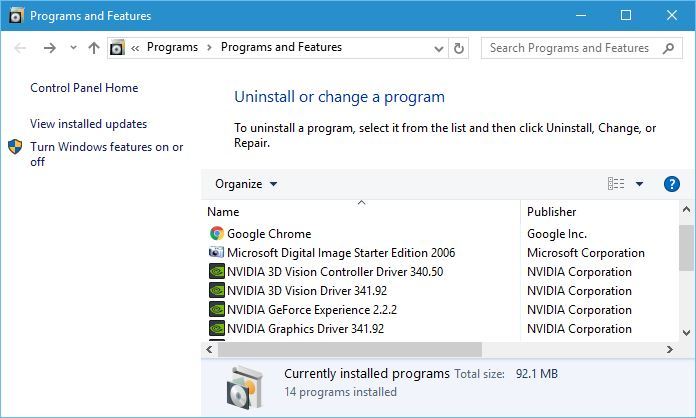
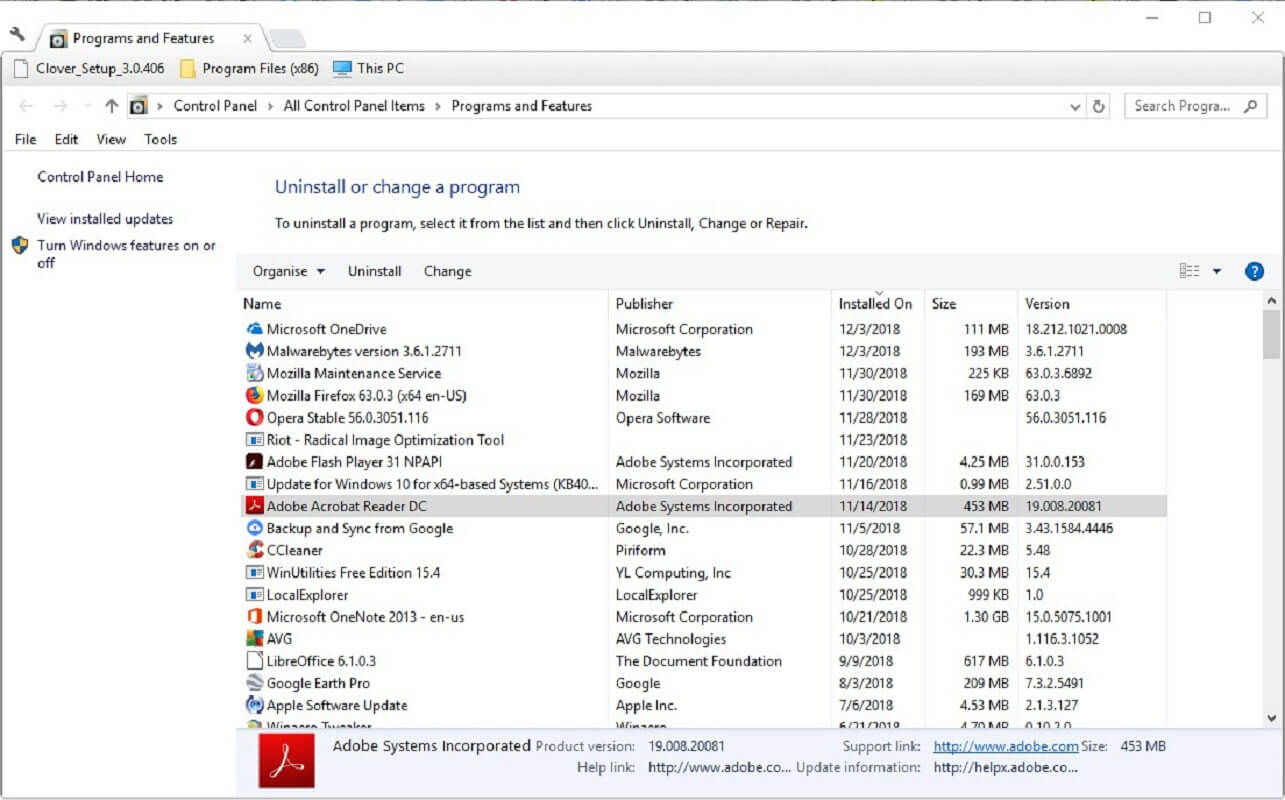
  2. Enter appwiz.cpl to open the uninstaller window shown directly below.
  3. Click Turn Windows features on or off to open the window in the snapshot directly below.
  4. Double-click Media Features to expand that category.
  5. Is the WMP checkbox selected there? If not, select the Windows Media Player check box.
  6. Then press the OK button.

If you’re sure Windows Media Player is installed on your desktop or laptop, check that you have WMP enabled. Camtasia might not open if WMP isn’t enabled. This is how you can turn on Windows Media Player.

5. Install the latest .NET Framework version

  1. Download .NET Framework 4.7.2. from their official page.
  2. Open the downloaded installer.
  3. Start the install process and follow the steps.
  4. Restart your computer once the install is finished.

Microsoft .NET Framework 4.6 or higher is another essential system requirement for Camtasia. As such, you might need to update .NET Framework to run Camtasia.

6. Close Camtasia processes with Task Manager

  1. Numerous users have confirmed that terminating the software’s processes can fix Camtasia when it doesn’t open.
  2. To do that, right-click the taskbar and click Task Manager to open the Processes tab shown directly below.
  3. Then look for Camtasia Studio under background processes.
  4. Select the Camtasia Studio process, and click the End task button.
  5. Select the Start-up tab to check if it includes Camtasia. If so, select Camtasia and click Disable.
  6. Try opening the Camtasia software again.

7. Select Windows Media Player as your default media player

  1. Some Camtasia users have also stated that they’ve fixed the software not opening by changing their default media player to Windows Media Player.
  2. To select WMP as the default media player in Windows 10, enter the keyword Default apps in Cortana’s search box.
  3. Then click Default app settings to open the window shown directly below.
  4. Click the default video player app to open the window in the shot below.
  5. Select Windows Media Player from the Choose an application window.
  6. Click the default music player app to open the Choose an application window again.
  7. Then select WMP as the default music software.

8. Clean Boot Windows

  1. Right-click the Start button and click Run.
  2. Type msconfig in Run’s text box and click OK.
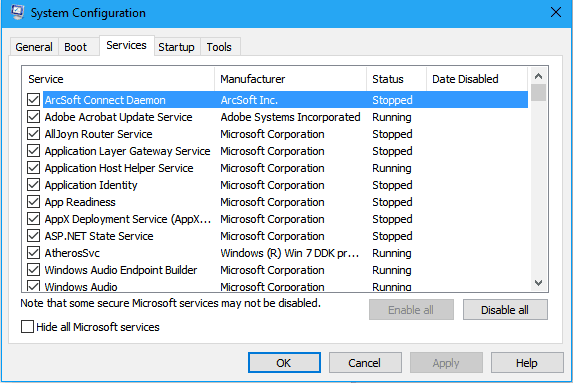
  3. That will open the System Configuration window shown directly below.Windows 10 browser not working
  4. Click the Selective startup radio button on the General tab if it isn’t already selected.
  5. Deselect the Load startup items option.
  6. Select the Load system services and Use original boot configuration options.
  7. Select the Services tab.
  8. Click the Hide all Microsoft services checkbox.
  9. Then you can press the Disable all button to deselect all non-essential third-party services.
  10. Press the Apply button to confirm the new settings.
  11. Click OK to close the window.
  12. A System Configuration dialog box will then open. Click the Restart button to reboot Windows.

Conflicting software can be another factor behind Camtasia, not opening (or starting). TechSmith has confirmed that CrowdStrike is one program that conflicts with Camtasia.

You can ensure there aren’t any conflicting software by clean-booting Windows. That will remove third-party programs and non-Microsoft services from the system startup.


Those resolutions might kick-start Camtasia Studio so that you can open it. First, make sure the software is compatible with your platform; and then try some of the other fixes listed above.

If Camtasia still doesn’t open, you can submit a support ticket to TechSmith on Techsmith’s support webpage. Feel free to tell us anything regarding the subject in the comment section below.

5+ best software to open PHP files on Windows 10/11

PHP is a webpage file format that contains Hypertext pre-processor code. It usually contains functions that are used by programmers to get dates or times and access information from a database.

The PHP code is processed within your web server by a PHP engine which generates the HTML code.

The HTML contains the content in the file and is sent to your web browser to be displayed as normal text and images which is viewed by the user.

Are you looking for a way to open your PHP files? Windows Report has compiled the best software that can open PHP files on your Windows 10 PC.


How to open PHP files on Windows 10

Adobe Dreamweaver

Adobe Dreamweaver is a popular web development software developed by Adobe Inc. The software incorporates an integrated development environment(IDE).

In other words, it enables programmers to create industry-standard web pages and applications.

Dream Weaver has a visual WYSIWYG interface that is used to generate HTML code and also enables users to modify HTML code.

Meanwhile, this software supports many advanced coding and syntax languages such as HTML, CSS, XML, and most especially PHP files.

The software can be used to open PHP files with the live view interface offering useful tools to modify contents in the PHP file.

Adobe Dreamweaver is an excellent software to open PHP files on Windows 10 computers. Hence, website developers can easily create websites with this software which is ideal for beginners and professionals.

Adobe Dreamweaver

Adobe Dreamweaver

Open any file format and develop your website with ease using Adobe Dreamweaver!
Free trialVisit website

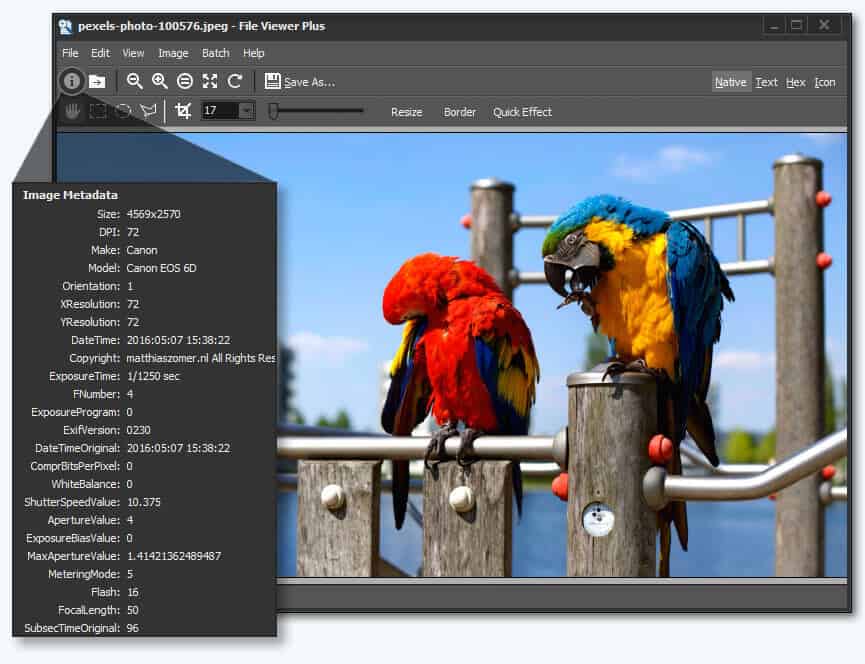
File Viewer Plus

File Viewer Plus is a lightweight and powerful utility tool for viewing various file formats. File viewer supports various file formats and can open over 100 different file types.

PHP file is supported by this utility tool and you can view information contained in your PHP file using File Viewer Plus.

One unique feature of file viewer plus is that you can view hidden files and it has an easy-to-use interface with basic tools properly arranged.

However, File Viewer Plus is unique software to open PHP files on Windows 10 computers as it encompasses many features; also, it is compatible with PHP files.

⇒ Download File Viewer Plus


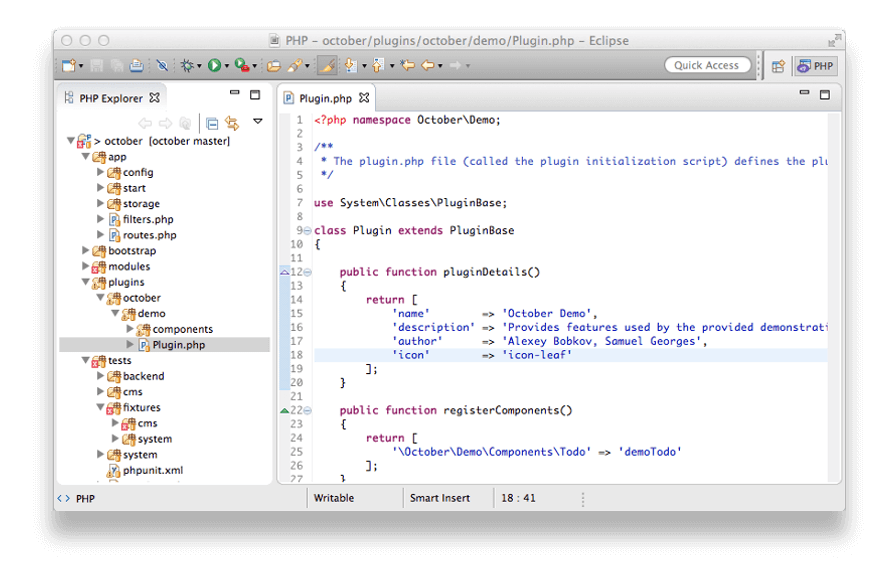
Eclipse

Eclipse PHP development tool is a web development software that is used to develop websites and web applications.

The software offers a PHP integrated development environment that enables users to create web applications and extensions.

Eclipse PHP development tools can easily open PHP files and can be used to modify PHP files contents.

The software has several tools that users can use to manipulate details in the PHP file. Its web project tools offer developers access to various PHP capability features.

Lastly, Eclipse PHP development tool is a decent tool to download as you get all the necessary features needed to create, modify, and open PHP files on Windows 10 computers.

⇒ Download Eclipse


WeBuilder

WeBuilder is a powerful code editor that is used by developers to build and manage website coding. WeBuilder has many features such as creating and modifying computer language formats such as CSS, JavaScript, Ruby, Python, and PHP.

With WeBuilder you can easily open, edit, and manipulate PHP files using its built-in tools. Tools such as realtime PHP syntax checker, PHP debugger (xDebug), built-in web server, and PHP code beautifier can be

However, WeBuilder is an ideal software for web developers as it is flexible to use with powerful features. This makes it a recommended application to open PHP files on Windows 10.

⇒ Download Webuilder


Zend Studio

Zend Studio is a web development application used to develop PHP applications. The software provides an integrated development environment for split editing, and code assists real-time analysis.

In addition, Zend Studio is one of the comprehensive software for PHP file formats. Meanwhile, PHP is the default file format in Zend studio; hence, you can modify, import, export, and open PHP files.

Zend Studio also offers support for other language formats such as HTML, JavaScript, and CSS.

Users also have access to advance debug tools which helps diagnose bugs and performance issues in your PHP based applications. This tool also has interactive tutorials for beginners on how to use the application effectively.

Meanwhile, Zend Studio is quite popular due to all these features and is recommended software to open PHP files on Windows 10 computers.

⇒ Download Zend Studio


Notepad++

Notepad++ is a popular text editor with advanced features than Microsoft notepad. It is usually used to create source codes and is basically a text editor with more features.

The text editor enables users to split-screen editing and supports various programming languages such as HTML, JavaScript, Python, and PHP.

PHP files can be easily opened and edited with various tools such as syntax highlighting and customizable shortcut key mapping.

Notepad is an efficient text editor which is a useful tool to download as it has advanced functionality and is capable of opening code files format most especially PHP files on Windows 10 computers.

⇒ Download Notepad++


In conclusion, you can use any of the programs we mentioned above to open PHP files on your Windows 10 computers.

However, functionality differs as some software enables you to view and have limited modifications to the file, while other software enables full modification to the PHP files.

Have you used any of the software we mentioned above? Share your experience with us. Feel free to comment below.


Microsoft teams up with Intel, Adobe, BBC, and more to combat misleading digital content

While Microsoft does own and operate a search engine and advertising platform, the company’s public involvement in the conversation regarding a proliferation of disinformation has been seemingly minimal.

However, it seems the company is becoming relatively proactive in combating disinformation by joining forces with Adobe, Arm, BBC, Intel, and Truepic by forming a coalition to track digital content as it evolves across the internet.

The Coalition for Content Provenance and Authenticity (C2PA) was formed to help create an open standard to certify sources, histories, or provenances where media content was originated to better verify digital content and reduce the spread of disinformation.

The C2PA’s open standard will give platforms a method to preserve and read provenance-based digital content. Because an open standard can be adopted by any online platform, it is critical to scaling trust across the internet. In addition to the inclusion of varied media types at scale, C2PA is driving an end-to-end provenance experience from the capturing device to the information consumer. Collaboration with chipmakers, news organizations, and software and platform companies is critical to facilitate a comprehensive provenance standard and drive broad adoption across the content ecosystem.

The formation of C2PA builds on earlier efforts of the Content Authenticity Initiative (CAI) and Project Origin. According to the Project Origin website, the stated goal of the effort is to create a “provable source of origin for media, and knowing that it has not tampered with en-route.” As for the first formation of the CAI, it echoes many of the same tenants as CPA as “a system to provide provenance and history for digital media, giving creators a tool to claim authorship and empowering consumers to evaluate whether what they are seeing is trustworthy.”

Recent technologies such as Deepfakes videos have expedited the need to secure not only media shared across the internet but verify and validate the hardware the source was originally captured on or manipulated with to sus out synthetically manipulated content as well. To help address the very tricky subject of deepfake content, Microsoft’s Eric Horvitz, a technical fellow, and chief scientific officer for the company, sought out from leading blockchain security network specialists.

As for any other specifics regarding timelines and code releases, and privacy details the coalition’s announcement was light on those details. Thus far, CAI has a cool video showcasing its first case study of its end-to-end demonstration of tracing captured media from hardware-secured smartphone technology through its evolution online.

Adobe: Secure Mode Enabled from Wild Combination on Vimeo.

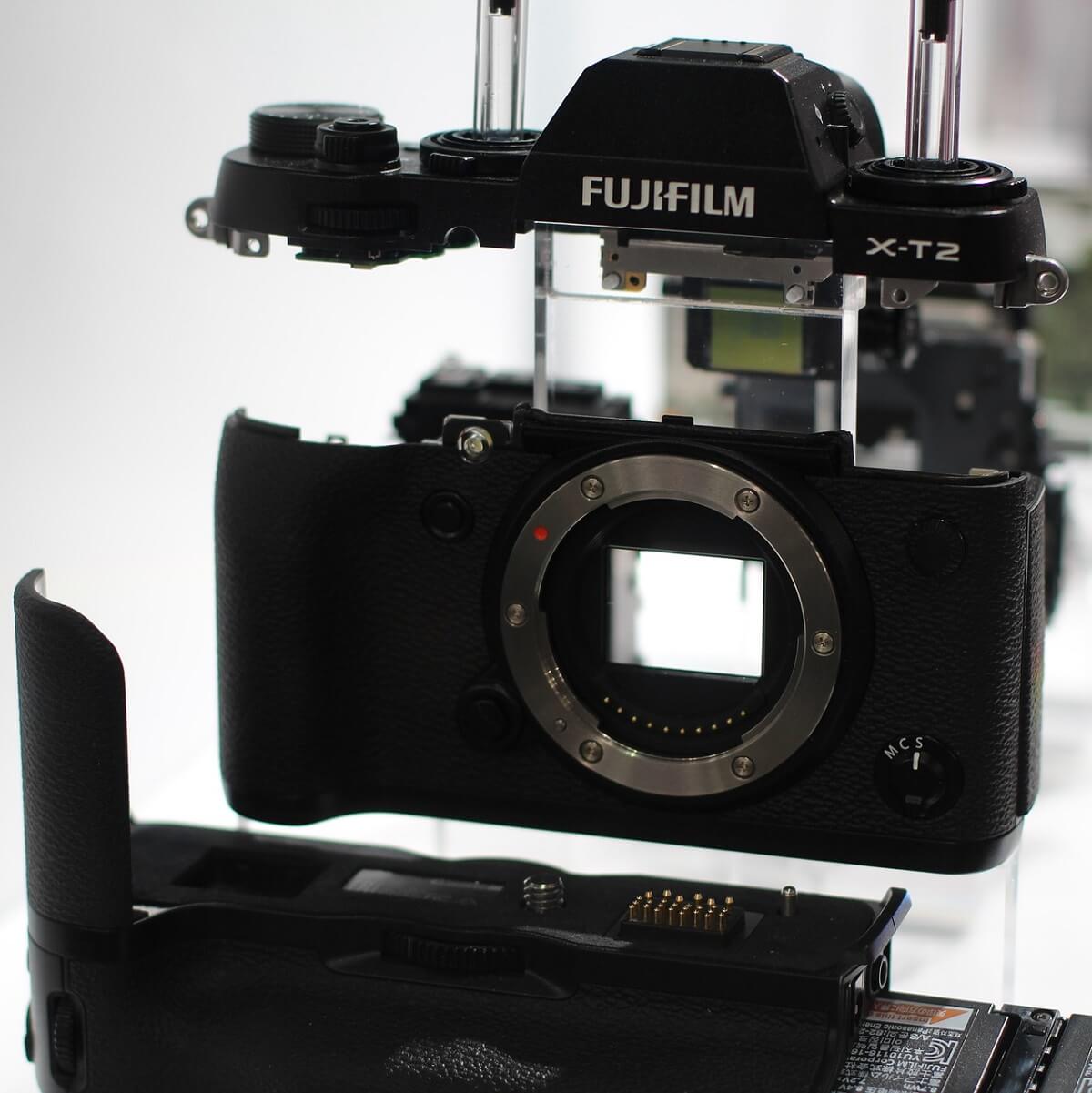
Fuji FinePix Software for Windows: Best to Use in 2026

FinePix cameras are one of the most popularly used camera models in the photography and design industry. It was developed by top Japanese technology company Fujifilm.

The camera has overtime redefined some concepts of photography with its unique appeal coupled with nice models which has made it excel in the competitive market.

A FinePix camera provides a cutting-edge display. As with all digital cameras, it requires a specific software.

Several Windows Report readers have requested for the best FinePix software compatible with Windows 10.

Despite the limitations of the number of FinePix camera, our team have come up with the best FinePix software solutions for Windows 10, which are reviewed in this article.


What are the best Fuji FinePix software?

Adobe Photoshop (recommended)

sky replacement software

Adobe Photoshop supports the Adobe Camera Raw tool that allows users to import and edit Raw images. This means that you can edit Raw images files with the RAF and EXR extension without any problems.

On a side note, to check if one particular Adobe product supports Raw images, make sure the respective product is compatible with the Camera Raw plug-in.

Camera Raw software analyzes the camera raw metadata to build a color image that you can then edit in other Adobe products.

Once you open a FinePix raw file in Photoshop, you can then save the respective image in other image formats, including JPEG, PSB, Photoshop Raw, PNG, or PBM.

The Camera Raw plug-in allows you to save FinePix images into three additional formats: DNG, TIFF, or PSD.

Keep in mind that Photoshop cannot save an image in a camera raw format. This means that once you opened a FinePix image, you need to save the changes in one of the formats listed above.

Adobe Photoshop supports a long list of FinePix camera models. To check if your camera model is supported by the software, go to the official Adobe website and see if your camera is on the list of the supported devices.

Adobe Photoshop

Adobe Photoshop

Are you ready to import and edit your FinePix photos in Photoshop? Give it a try now!
Free trialVisit website

MyFinePix Studio

MyFinePix Studio

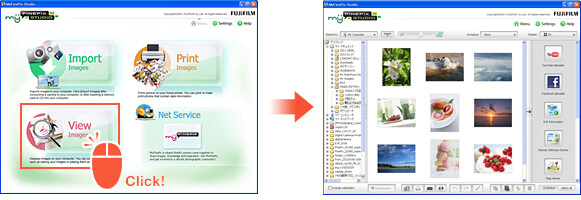
This is the default software offered by Fujifilm, which is specifically designed to optimize the user experience.

This FinePix software comes with a user-friendly interface specially designed to suit the needs of both beginners and advanced users.

The latest version of this FinePix software incorporates several features which have been added to the home screen such as the multiple options available to view images.

In addition, images can be imported easily from the interface via simple steps.

MyFinePix Studio software

Furthermore, a smart search feature allows users to get efficient and speedy searches of photos in your image library, saving time and ensuring the continuation of editing.

You can create tags and create a list of your favorite images with the rating system available on the software.

Nevertheless, this FinePix software can also be deployed as a social media tool due to its support for the creation of multimedia files such as images, videos and memes.

Also, MyFinePix Studio allows users to share images directly from their Windows PC to social media sites such as Facebook and YouTube.

Consequently, you can also import images from any of these social media sites onto the platform as well.

In addition, MyFinePix Studio comes with a built-in editor, which provides you with an array of options to choose from. You can use options such as auto contrast, red-eye removal, image cropping, and special effects to edit your photos.

Besides, 3D videos can be viewed on non-3D computers with video editing options which is available on the application.

Moreover, the mapping functionality is available for FinePix camera versions which have GPS positioning features.

Some FinePix series cameras supported by MyFinePix software includes:

  • Compact Camera: A / AV / AX Series, F Series, J / JV / JX / JZ Series, Z Series, Other Series
  • High Zoom Camera: HS / S / SL / S Pro Series
  • Tough Camera: XP Series

⇒ Get MyFinePix Studio


Adobe Photoshop and MyFinePix Studio are two excellent FinePix software solutions for Windows 10 users. These tools are well optimized in order to offer an excellent user experience for image viewing and editing.

Have you made use of MyFinePix Studio? Do you know of any FinePix software compatible with Windows 10 OS? Feel free to let us know by commenting below.


How to fix font size problems in Photoshop

Adobe Photoshop is an industry-standard image-editing application. However, the software still has some font issues.

Some Photoshop users have found that the fonts on their images don’t match the selected point values.

Thus, the image’s text is either too large or small. This is how you can resolve font size issues in Photoshop, so keep reading.

How do I fix the Photoshop text size problem?

1. Select the Reset Character option

First, select the Reset Character option to reset all the text settings to their default configuration. This will undo any settings that might have had an impact on the font rendering and scaling.

You can revert the text options to default by clicking Window, choosing Character, and pressing the fly-out menu button at the top right of the Character panel. Just select Reset Character to restore the options to default.

2. Download the official version of Photoshop

You can register for a free 7-day trial during which you can test the product as much as you like without limitations.

Install the program on your PC, and make sure you first uninstalled whatever version of Photoshop you already had, then restart your PC.

Downloading the official version of Adobe Photoshop may help by replacing all corrupted install files already on your system, just like your typical free reinstall.

Adobe Photoshop

Get rid of font size problems and be sure to download the official version of Photoshop.
Free trial Visit website

3. Update Photoshop

Photoshop updates can fix font size issues and other bugs. To check for Photoshop updates, click Help, and choose Updates. A small window will then open informing you if new updates are available or not.

4. Switch the type units to pixels

  1. Click the Photoshop’s Edit menu, and select Preferences to expand a submenu.
  2. Select Unit & Rulers from the submenu to open the window shown directly below.
  3. Select pixels from the Type drop-down menu.
  4. Press the OK button to apply the new settings.

Image resolution can have a big impact on text size if you’re using the points unit. The picture resolution will adjust how many pixels represent a font point value.

As such, your picture’s text might seem too large because the image has a high PPI resolution. To get a more consistent font size, switch points to pixel units as above explained.

5. Deselect the Resample Image setting

  1. Click Image and Resize in Photoshop.
  2. Select Image Resize to open the window directly below.
  3. Deselect Resample Image if that option is selected.
  4. Enter the exact dimensions of the image in the Width and Height boxes. You can find image dimension details by right-clicking a file in File Explorer and selecting Properties and choosing Details.
  5. Click OK to close the window.
  6. Now select a text box in your image and adjust the font’s size.

Deselecting the Resample Image option in Adobe Photoshop can also fix inconsistent font size issues.

6. Adjust text with Free Transform mode

If the font appears tiny on a larger scale image, the Free Transform Mode tool might come in handy. That’s a tool with which you can resize text by expanding a bounding box.

After entering some text with the Horizontal Type Tool, press the Ctrl + T hotkey. Hold the Shift key and left mouse button to resize the font by dragging the border of the bounding box with the cursor.

7. Change the image’s font

There are few fonts that don’t work so well in Photoshop. They are the Zippy, SF Tattle Tales Condensed, ZEROGEBI, JH_TITLES, GURAKH_S, SCREEN, SEVESBRG and 21kannmbn fonts.

If your image happens to include one of those fonts, select the text and choose an alternative font.

8. Clear the Windows Font Cache

  1. Then open this folder path in File Explorer: C: > Windows > ServiceProfiles > LocalService > Appdata > Local
  2. Right-click the *FNTCACHE*.DAT or *FontCache*.dat file, and select Delete.
  3. You can also navigate to the following path in File Explorer to clear Photoshop’s font cache: Users > [user name] > AppData > Roaming > Adobe > Adobe Photoshop CC, CC 2014, or CC 2015
  4. Right-click the CT Font Cache folder, and select Delete to erase it.

Clearing the Windows font cache is an effective general fix for Photoshop font issues. You can erase the system font cache by opening File Explorer.

Those are a few resolutions that can fix Photoshop font size issues. We hope that these recommendations from our list were helpful. For more suggestions, please access the comments section below.

5 Best Game Audio Recorder Software for Desktop

The gaming industry is exploding in popularity, as more and more people flock to get their hands on the latest gaming desktop or console.

So, it is not surprising to find that the prospect of earning money on streaming services like YouTube and Twitch has become more attractive to gamers.

If you are looking for online fame, online source of income, or simply a way to record you and your friend’s random funny moments, then you will need a game audio recorder software for the desktop.

Below are some of the best Windows 10 desktop and audio recording software for gaming. An ideal video capturing software for streamers should be able to run on Windows 10 and not only.

It should also have audio capturing capabilities and recording features at high resolutions and high fps. Thus, expect all the software on this list to offer these features.

Each one of these applications also offers a unique capability that sets them apart from the rest, so be sure to keep reading for more information.

What’s the best game audio recorder software?

Adobe Audition

You need to know from the very start that Adobe Audition isn’t only the very best game audio recorder software that you can get today.

Actually, that’s a professional audio workstation for Windows computers and macOS alike. What to expect from this robust audio toolkit?

If you’re curious to find out more, let us tell you that it has a complete mixer used for making adjustments of several tracks at once, which is quite rare to find these days.

Moreover, it includes plenty of versatile audio editing features including edit preview, clip grouping, and remix to fit if you like the idea of automatically rearranging the greatest game songs to fit any duration.

Similar to other Adobe CC products, Adobe Audition helps users with its customizable workspace layouts.

It can handle background noise, the crackle from wireless microphones, as well as that phase cancellation coming from poorly placed stereo microphones.

Take a look at the most exciting key features boasted by Adobe Audition:

  • Creating a podcast is a job done in a few easy steps
  • Real-time clip stretching to preview changes with ease
  • Detailed tutorials on how to use the spectral frequency display
  • Seamless workflow with Adobe Premiere Pro
  • It helps you get inspired and find convenient professional opportunities
Adobe Audition

Adobe Audition

This amazing software has some incredible noise reduction features which will help you recorder your gaming sessions like a pro.
Free trialVisit website

Bandicam (Integrated compression tools)

It is no secret that recording videos typically take a good deal of hard drive space.

Fortunately, Bandicam has a built-in feature that allows user preview (opens in a new window) to produce compressed, small-sized video files without sacrificing quality.

This is obviously a highly useful tool as users will not only have more SSD or HDD space, but the videos will also upload faster to sharing websites.

Nevertheless, there are of course drawbacks to this application. First, it is not free. Second, it does not offer as many features as the other software mentioned in this list.

There is a free trial if you are unsure whether you want to use this program. Users will have to shell out a decent price for the license of this program.

⇒ Get Bandicam

Radeon ReLive (AMD graphics cards exclusive)

radeon-software-crimson-relive-edition-beta-windows-10-fall-creators-update

AMD GPU users will have access to this fast and easy-to-use Windows 10 desktop and audio recording software for gaming.

With this program, gamers can relive their greatest moments, funniest game play, and hard fought wins all with an extremely easy to access toolbar.

You can access ReLive in the AMD Radeon settings program. Make sure, this program is up to date as older versions do not have ReLive.

ReLive features a toolbar that can be opened in game simply by pressing alt-z (default setting). On this toolbar, you can access features such as instant recording, streaming, or screen shots.

Users also have the option to further customize his/her desktop recordings using the settings option on the toolbar.

In the settings option, you have the ability to mute/unmute your mic, turn on/off instant replay, change the position of your recording indicator, change or turn off your webcam position if you are using one,  and more.

Each one of these settings comes with a hotkey that can be customized in the AMD Radeon settings program.

Perhaps the one thing that sets ReLive from other desktop recording software on the market is that it is incredibly lightweight.

In other words, the program only takes a small amount of processing power to operate, which in turn only slightly affects your fps.

In fact, Radeon claims that their desktop capturing software only has less than 5% impact on the most demanding games on the market such as Battlefield 1, H1Z1: King of the Hill, etc.

Users also have the ability to adjust recording resolution, fps, encoding type, audio bit rate, and more. You can also record in 4k and 60 FPS. Streaming and overlay customization are also available on ReLive.

Radeon ReLive is completely free. Users also do not have to register online to access the program. Unfortunately, only AMD graphic card users can use this software.

⇒ Get Radeon ReLive


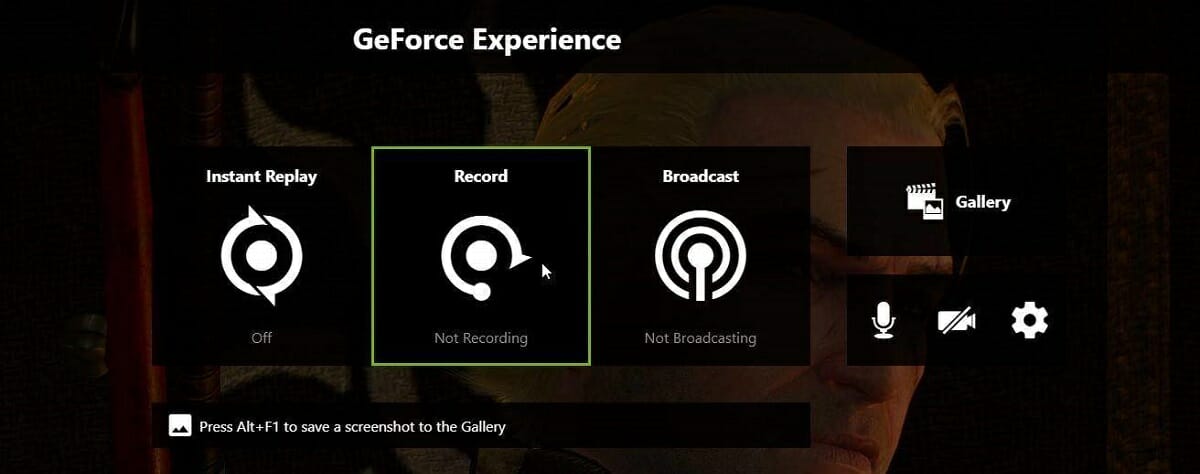
Nvidia Shadowplay (Nvidia graphic cards exclusive)

Shadowplay is the direct competition to AMD’s ReLive.

This Windows 10 desktop and audio recording software for gaming has many similar features to Radeon Relive such as streaming capabilities, screenshots, customization, instant toolbar, etc.

You can also capture all of your highlights in 4k resolution and 60 frames per second. However, it does contain several features that Raedon ReLive does not have.

For example, the extremely popular game called Playerunknown’s Battle grounds, also known as PUBG contains a special feature that allows Shadowplay to capture highlights of the game such as kills, deaths, and of course, wins.

It is unique feature that allows users to easily find their best gameplay moments in PUBG. Not only is it convenient, but it also saves hard drive space on your PC as you do not have to record games that typically last around half an hour.

All in all, Shadowplay is a top-of-the-line software that will leave not leave users unsatisfied. It has an interface that is both modern looking and easy to use.

However, just like Raedon ReLive, this program is exclusive. Only Nvidia graphics card users have access to these Windows 10 desktop and audio recording software for gaming.

⇒ Get Nvidia Shadowplay

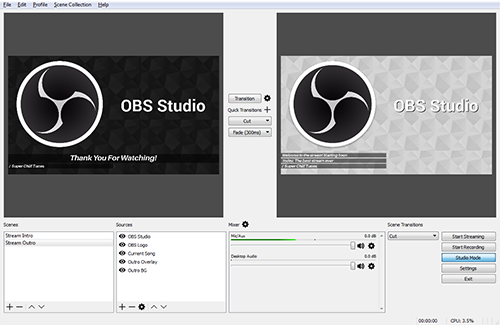
Open Broadcaster Software (Open Source Program)

Also known as OBS, Open Broadcaster is a unique desktop capturing tool that can be used for gaming and streaming purposes.

The special thing about OBS is that it is an open-source program, which means that anyone can modify and enhance the software.

So naturally, a program like this will have a ton of customization options. In fact, this program far exceeds the previous two programs in terms of features.

Because of its numerous features, OBS can double as a video editing program. In other words, features like color correction and image masking give the user a good deal of freedom to perfect his/her gameplay videos.

Similar to any good video editing program, OBS also has a highly effective audio mixer that allows users to filter their video’s audio by using sound suppression, gain, noise gate, and other qualities.

Perhaps the only downside to Open Broadcaster Software is its interface. While the interface is user-friendly, it is not exactly attractive.

Furthermore, many casual users will probably not use the many features that come with OBS. Thus, this program is recommended more for professional and serious users rather than casual users.

⇒ Get Open Broadcaster

Other honorable desktop and audio recording software

Windows 10 game bar and Action! are two Windows 10 desktop and audio recording software for gaming that provide unique features.

Windows 10 game bar as the name suggests, is already integrated into your Windows 10 system. Users may have to adjust the settings a little in order to get it working.

It offers many of the basic desktop capturing features but falls short compared to the other software in this list. Users who do not wish to download a third-party program should use Windows 10 game bar.

On the other hand, Action! is a paid service that allows users to accelerate their recordings by consuming GPU power, which will put less pressure on your PC’s CPU.

So, this program is really only ideal for individuals who play CPU intensive games or have a CPU that bottlenecks their PC’s performance.

Here you have it, the top Windows 10 desktop and audio recording software for gaming. A better understanding of what each program has to offer will hopefully help you choose the software that is ideal for you.

We hope that these recommendations from our list were helpful. For more suggestions, please access the comments section below.

Animal Crossing not Connecting to Internet [Complete Fix]

Animal Crossing was a successful game series created for Nintendo consoles in 2001. Though very popular among Nintendo Switch users, some encountered Animal Crossing not connecting to Internet error.

Your character in Animal Crossing is a villager who interacts with different anthropomorphic animals. They all perform different activities like fishing, fossil hunting, and bug catching.

Many gaming fans have enjoyed the open-ended gameplay and the internal use of a console’s clock and calendar to imitate the passing of time. When everything seemed perfect, an Internet connection error appeared.

Users have complained about this issue on the Nintendo forum:

Since yesterday I keep getting connection errors when trying to go online in the game. I resetted my Switch completely, reinstalled Animal Crossing, and after that, it worked for a day. Now it’s happening again.

I am only getting the error when I am in the game. Anyone has similar problems?

After checking the details about the Animal Crossing not connecting to Internet error, we have prepared several solutions for you. Find out more about fixing this error by reading the next section.

How can I fix Animal Crossing not connecting to internet error?

1. Verify if there are any server problems

When trying to play Animal Crossing, you may receive the message Animal Crossing is not connecting to internet, and others. You have to ensure this issue is not related to server issues.

When the problem does not originate from your side, you only have to wait until it is fixed. After things return to normal, you can play Animal Crossing again.

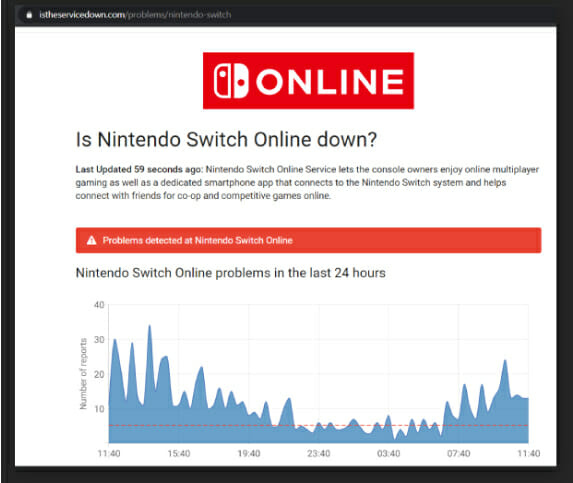
If you want to verify if a server problem has occurred, then you should try third-party outage detectors. These websites will analyze and show you the Nintendo servers’ status in this case.

2. Reboot Nintendo Switch

If you are sure there aren’t any server problems from Nintendo, you should focus on your console. Reboot your Nintendo Switch by turning it off and waiting for two minutes.

This operation clears the console’s cache and network card and solves the Animal Crossing not connecting to the Internet issue.

3. Power cycle your modem or router

Sometimes, Animal Crossing is not connecting to Internet error still appears. This may happen even if there are no server problems and you have rebooted the console.

In this situation, you must perform a power cycle on your Internet device, which may be a modem or a router. Shut down that equipment, unplug it from the mains for 30 seconds, and plug it back in.

This will restart the Internet connection and should remove the Animal Crossing error.

4. Change DNS settings in Nintendo Switch

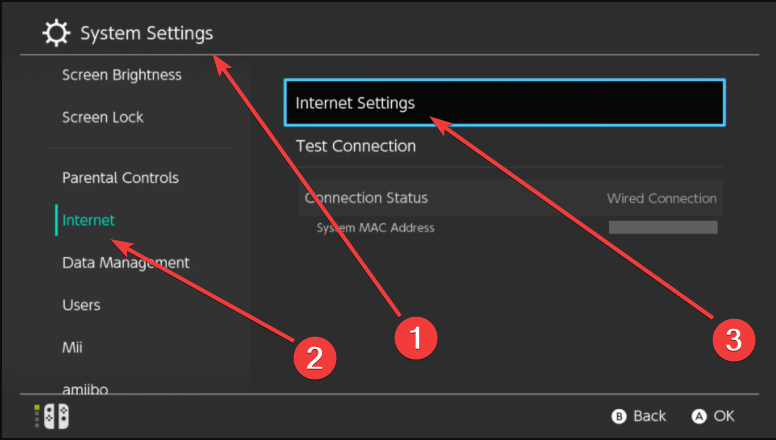
  1. Open Settings, go to Internet and choose Internet Settings.Nintendo Switch Settings
  2. Click on which Wi-Fi network you are using.
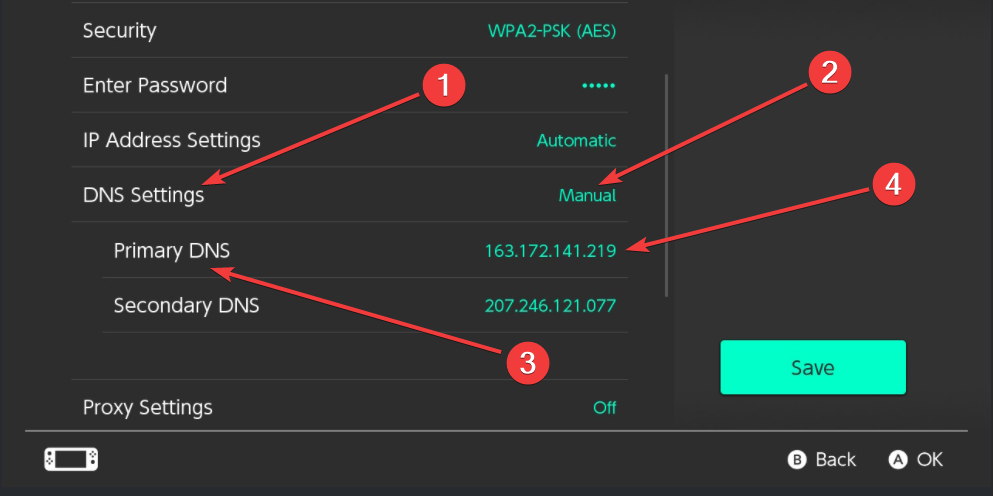
  3. Choose Change Settings, and then DNS Settings.
  4. Switch DNS to Manual.
  5. Change Primary  DNS to 008.008.008.008.Nintendo Switch Set DNS to Manual

The DNS Settings should be set to Automatic, so you need to change them to Manual.

There are some instances confirmed by Nintendo users that after changing the DNS servers, the Animal Crossing not connecting to Internet problem has been solved.

There you go; these are our solutions that will surely help if Animal Crossing is not connecting to Internet.

Read our previous section about these solutions, try them, and leave a message in our comment section.

How to fix Valheim’s multiplayer lag on dedicated servers

One of the perks of playing Valheim is that it allows for a dedicated server setup, where you can join up to 9 friends for the ultimate multiplayer gameplay.

This increases the players’ chances of surviving the purgatory as well as the chances of them actually entering Valhalla.

Valheim offers all the necessary tools for players to set up their own servers and enjoy this experience together. However, many have complained on forums of server lag, which considerably cuts down on the gaming adrenaline:

I bought mine from a site that I don’t want to mention by name for now, and we have built a medium-sized base. Nothing absolutely huge and massive, and we are now starting to experience MAJOR server-side lag. Chests won’t open, enemies run in place, etc.

The issue arises, experienced players say, because the server is limiting the outbound bytes/seconds to each client.


How do I bypass Valheim dedicated server lag?

valheim increase server speed
  1. Close the hosting server.
  2. Download all the game files from SteamLibrarysteamappscommonValheimvalheim_DataManaged
  3. Download this dnSpy tool.
  4. Open the assembly_valheim.dll file in valheim_Data or valheim_server_Data.
  5. Find ZDOMan inside the assembly.
  6. Find m_dataPerSec, right-click on it, choose Edit class and change the value to something larger. Adding just a 0 might considerably improve speeds.
  7. Click Compile in the lower right of the class editor window.
  8. Go to File and choose Save Module (not CTRL+S).
  9. Restart the server and start playing.
  10. Check if the speeds have improved in the F2 menu.

Players noted that rasing the server send speed limits from 64kb/s to 94kb/s improved things.

Additionally, they also recommend increasing the send limits on the client’s side as well.

It is important, though, to change the server’s limits first, and then attempt a change on the client’s side. Also, the Managed file needs to be downloaded completely.

As noted by the players, this is only a workaround. However, the game developers have taken note of the issues and will most likely work on a stable fix in future releases.

Meanwhile, other tested methods of increasing FPS while playing the game have been confirmed by users so make sure to check them out should you need them.

If you’ve only been scrutinizing the market until now to see how the game behaves, maybe it’s time you got your own copy of Valheim.

Valheim

Valheim

Conquer the lag monster and get back into the exciting and dangerous new world of Valheim.
Check priceVisit website

For any issues, you can share your doubts in the comments below or leave feedback with the game’s community.

Windows 10 Photo tile showing deleted photos [Expert Fix]

Windows 10 Live Tiles show some photos from the gallery in your system allowing users to customize their system and give it a personal touch.

However, some users have reported that even after deleting certain photos, they still appear in the tile.

Several users took to the Microsoft Community Forums to explain Windows 10 Photo tile showing deleted photos on their computer.

Here’s what one of them says:

I delete pictures from my camera roll on my new surface pro and the roll reads empty. The pictures still show up on the photo tile.  How do I get rid of them.

Follow these steps to fix this problem on your computer.

How can I fix Windows 10 Photo tile showing deleted photos?

1. Clear cached photos from Live Tile

  1. Make sure you have deleted the affected photos from the system as well as clear it from the Recycle bin.
  2. Open File Explorer and navigate to the following locations:
    C:UsersyouruserameAppDataLocalPackagesmicrosoft.windowsphotos
  3. Click the View tab in the Ribbon menu and change the Layout to Large icons.
  4. Here you can see all the cached images. Locate the images that are appearing in the Live Tiles.
  5. Now delete both the LargeTile and SmallTile for the concerned images.
  6. if you don’t see any photos in that location, navigate to the LocalStatePhotAppTile in the same folder and delete if any of the photos you don’t want is located here.
  7. Close the File Explorer.
  8. Click on Start.
  9. Right-click on Photos App Tile and select More.
  10. Click on Turn Live Tile Off.
    turn live tile off Windows 10 photo tile showing deleted photos
  11. Again click on Photos App Tile > More > Turn Live Tile On.
  12. Now restart your system and then deleted photos will not appear on your Photos App Live Tile in Windows 10.

2. Reinstall Photos App

  1. Right-click on the Start button.
  2. Select Windows PowerShell (Admin).
    powershell adminWindows 10 photo tile showing deleted photos
  3. In the PowerShell window type, the following command and press Enter:
    Get-AppxPackage *photo* | Remove-AppxPackage
  4. PowerShell will show a Deployment operation progress message temporarily. The app is successfully uninstalled when the message disappears.
    Reinstall Photos App in Windows 10 Windows 10 photo tile showing deleted photos
  5. Now try to open the Photos app to verify it is uninstalled.
  6. Now open the Windows Store app and search for the Microsoft Photos app.
  7. Install the App and the Live Tile problem should be resolved.

If clearing the cache did not help, try to uninstall the Photos app from the system and reinstall it from the Windows Store.

3. Download the free Adobe Lightroom version

grab Adobe Lightroom

The power of Adobe Lightroom cannot be underestimated when it comes to photo management and editing.

The tool is designed for all who are eager to access their photos online, while also taking advantage of some incredibly powerful editing features.

Any user can have fun and experiment with its powerful raw profiles and filters, an intuitive adjustment brush, and a great built-in cataloging system to keep files in perfect order.

Instead of worrying about Windows 10 Photo tile showing deleted photos, you should try out the free version too, and enjoy non-destructive editing and complete management of your photos.

Adobe Lightroom

Organize and manage your photo with Adobe Lightroom. For sure no deleted photos will show in this app.
Free trial Visit website

4. Unpin and repin the Tile

  1. Click on the Start button.
  2. Right-click on the Photos App Live Tile and select Unpin from Start.
    unpin photos tile Windows 10 photo tile showing deleted photos
  3. Now search for the Photos app. Right-click on the App and select Pin to Start.
  4. Check if the app still shows the old photos.

The above solutions will help you fix the Windows 10 live tile showing deleted photos errors.

If it happens to know any other solutions, make sure to tell us in the comments section below. Also, leave there any other questions you may have.

How To Fix werconcpl.dll Error in Windows 10

Windows 10 computers can run into several issues, including the blue screen of death and DLL issues.

One such DLL error you may encounter is the werconcpl.dll error in Windows 10. This error is reportedly occurring when troubleshooting network issues or after the restart leading to high CPU and memory usage.

The werconcpl.dll could not be found error can occur due to several reasons, including third-party software conflict, missing DLL files, system file corruption, or other issues.

In this article, we explore a few troubleshooting steps to help you resolve the werconcpl.dll error in Windows 10 with ease.

How do I fix the werconcpl.dll error in Windows 10?

1. Use third-party software to repair system and DLL files 

Since the error indicates the issue occurred due to a missing DLL file, try to find and install the required file.

System repair tools can scan the overall system and download or repair any missing DLL files on your computer. Apart from restoring and replacing the missing and corrupted DLL files, these can offer a database of new, up-to-date replacement files, optimize the registry, fix error messages, and rebuild Windows files.

2. Check for third-party software conflict 

Boot into Safe Mode 

werconcpl.dll error in Windows 10
  1. Click the Windows-button to bring up the start menu and then click the Power option.
  2. Press and hold the Shift key and click on Restart.
  3. In the Choose an Option screen, click the Troubleshoot button.
  4. Go to Advanced options under the Troubleshoot section.
  5. Open Startup Settings.
  6. Under Start-up Settings, click the Restart button.
  7. Once the PC restarts, you will see the Startup Settings with multiple numbered options.
  8. Press 4 on your keyboard to restart Windows 10 Safe Mode.

Windows 10 will start in Safe Mode. Check if the error occurs when in Safe Mode. If the error does not occur in Safe Mode, try booting in clean boot mode and then uninstall the most recently installed app.

Perform a Clean Boot in Windows 10 

werconcpl.dll access is denied
  1. Press the Windows key + R to open Run.
  2. Type msconfig.msc and click OK to open the System Configuration window.
  3. Open the Services tab.
  4. Check the Hide all Microsoft Services box. This will hide all the Microsoft services that are essential for the Windows OS to work.
  5. Click the Disable All button. This will disable all the non-essential and third-party services.
  6. Next, right-click on the taskbar and select Task Manager.
  7. In the Task Manager Window, open the Startup tab.
  8. Disable all the startup apps one by one and close the Task Manager.
  9. In the System Configuration window, click Apply and OK to save the changes.
  10. When prompted to restart, click Restart Now and wait for the computer to restart.

In Clean Boot mode, Windows starts with a minimal set of drivers and services and helps you identify any error triggered due to a third-party app conflict.

Once you are in the Clean boot mode, check if the werconcpl.dll could not be found error occurs. Once you have determined the error to have occurred due to third-party software, proceed to remove or uninstall the app from your computer.

3. Uninstall conflicting app 

werconcpl.dll access is denied
  1. Press the Windows key + I.
  2. Go to Apps from the Settings window.
  3. Look for the most recently installed app and click Uninstall.
  4. Do this for all the apps that you may have installed recently.
  5. Once all the suspected apps are uninstalled, restart your PC and check for any improvements.

The werconcpl.dll access is denied error can occur if third-party software is conflicting with system apps or any other application that you are trying to run. You can boot into safe mode and clean boot mode to determine if the error is due to a third-party software conflict.

4. Run the System File Checker tool 

werconcpl.dll could not be found
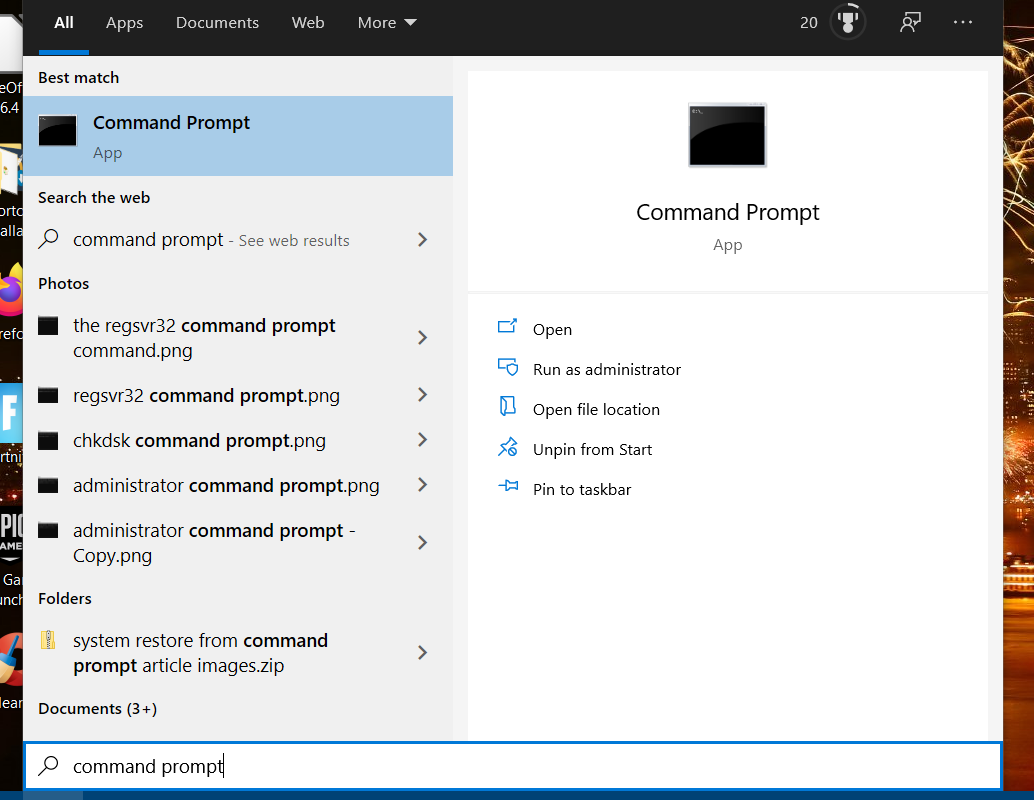
  1. Press the Windows key, and type cmd.
  2. Right-click on Command Prompt, select Run as Administrator.
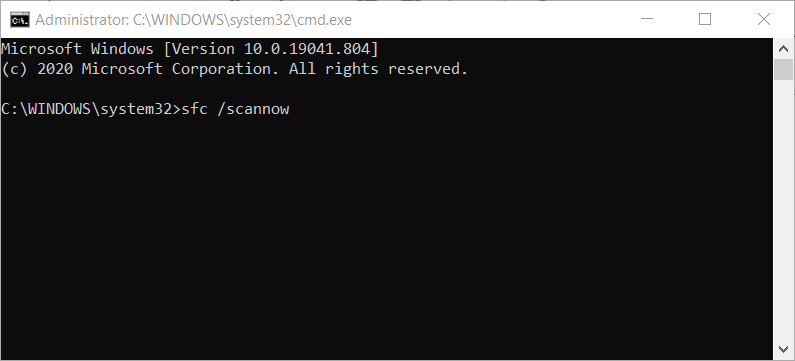
  3. In the Command Prompt, enter the following command and hit enter to execute:
    Sfc /scannow 
  4. The process may take some time to complete. Wait till you see a 100% verification complete message on the screen.
  5. Close the command prompt window, and check for any improvements.

The System File Checker tool in Windows helps you scan the system for missing Windows files and replace them with new files if required. If the error persists, try running the check disk tool to check your installation drive for bad sectors and other errors.

Run the Check Disk tool 

werconcpl.dll could not be found
  1. Open the Command Prompt as administrator.
  2. In the Command prompt, type the following command and hit enter to execute:
    Chkdsk /r
  3. Press Y if chkdsk asks if you want to check the driver next time the computer boots. 
  4. Restart the computer and wait for the process to complete.

If the check disk tool is stuck at 1% or 24% for a long time, it is normal behavior. Leave it idle till the process is complete. 

The werconcpl.dll error in Windows 10 can occur due to several reasons. Try repairing the system with the recommended system repair tool first.

Next, follow the manual steps to resolve the issue by checking for system file issues and disk errors.

Something went wrong Google Photos [Fixed]

A large number of users have reported encountering the error message Oops! Something went wrong when trying to sync their mobile device photos with their PC by using Google Photos.

Google Photos is a great application that helps you to manage your photos, sync them with multiple devices and have access to them online, on your computer.

This error seems to affect users no matter if they use an iOS or Android device, and it might be caused by a conflict between protocols from the Google servers.

In today’s article, we will discuss the best way to troubleshoot this issue and get back to transferring your photos to your PC with just a few clicks. Read on to find out how to do it.

How to fix Something went wrong error in Google Photos?

1. Restart both your PC and mobile device

On your PC:

  1. Save all your open documents.
  2. Click the Start button from the left side of your taskbar.
  3. Click on the Power button and select the Restart option. Wait for your PC to completely restart.
  4. Sign in to your Windows 10 PC, and follow the next method if the issue is not solved.

On your Android device:

  1. Save all the files in order to not lose your data.
  2. Long-press the Power button on the side or top of your phone (will vary depending on brand and model).
  3. From the menu that pops up select Restart and wait for the process to be completed.

On your iOS device:

  1. Press the Power button (and volume up or down on latest models) until the power off slider appears.
  2. Drag the slider to completely turn off your device.
  3. After this process is completed, press the Power button until the Apple logo appears on the screen.

2. Uninstall and re-install the Google Photos app on all your devices

On your PC:

  1. Press Win+X keys and select Apps and Features.
  2. Select Backup and Sync app from the list the click Uninstall.
  3. Wait for the process to complete, then click here to download the latest Google Photos app.
  4. Run the setup file and follow the on-screen instructions to complete the setup.

On your phone:

  1. Long-press the Google Photos app and select Uninstall (this will vary depending on your phone).
  2. Another way is to visit the application store, search for the app and select Uninstall from there.

3. Change your phone’s USB settings

Android:

  1. Navigate to Menu -> Settings -> Applications -> Development -> USB Debugging -> and turn it On.
  2. Inside the USB Settings -> also check that the USB Debugging option is turned on.

iOS:

  1. Click on Settings app and select Touch ID & Passcode or Face ID & Passcode (depending on the device).
  2. Enter your passcode.
  3. Scroll down and select USB accessories.
  4. Turn the USB connection mode On. (make sure to toggle it off after you’ve completed your transfer for greater security).

4. Sync photos to your PC with Adobe Lightroom

Using Adobe Lightroom might seem strange at first, but hear us out. First, it is a great tool to have for any photographer.

The first thing you do is to sync the photos from Google Photos and get them on your PC. The option to download photographs and upload them to Lightroom is useful for a small number of photos.

Google Photos won’t allow your download to be more than 500 files at a time, so if you need to download more, you should use Google Takeout to download unlimited compressed files. You can choose the export destination to Adobe Lightroom and get your photos uploaded in a matter of minutes.

This solves the issue of Something went wrong permanently because you won’t depend on the Internet connection or on the Google Photos service working properly.

Lightroom comes with organizational skills using machine learning algorithms. This means it makes it extremely easy to search through all your photos and organize them just the way you want.

Finally, you can use it to really make the most out of the images you love. Enhance or make small corrections easily and fast. Your social media followers will appreciate the uptick in quality.


The above solutions will help you solve the Google Photos issue Something went wrong on your computer, Android, or iOS phone.

You can also learn how to add Google Photos to Windows 11 Photos app to manage your cloud images more efficiently on your desktop.

Please feel free to let us know if this guide helped you solve your issue with the Google Photos app, by using the comment section below.

4 best audio software tools to split songs

Do you need to cut a part of the song saved on your computer to create a ringtone for your phone?

Have you made an audio recording during the concert of your favorite singer and would you like to edit it to get rid of the unwanted parts?

In the following article, you can find the best software tools to cut songs. You just have to choose what you think can do most for you, follow the instructions for use and the game will be done.

What is the best software to split songs?

Adobe Audition

adobe audition audio recording tool
  1. Import the audio file.
  2. Click on Window > Marker List > open the Markers Panel.
  3. Select the section of the audio file you want to export.
  4. Click on the Add Marker button in the Markers Panel to separate that section.
  5. Go to the Markers Panel and label each marker.
  6. Select the marker or markers you want to export.
  7. Click on the Batch Export Marker Regions.
  8. Hit the Save to files button and choose the file name and export destination.
  9. Hit Enter or OK to export the files.

You can find above the steps you have to follow in order to split songs into separate files in Adobe Audition.

Adobe Audition is an excellent audio editing software packed with plenty of features and options.

If you need a reliable tool to split songs and other audio files quickly without losing audio quality, Audition is the right tool for you.

There another interesting feature that may come in handy when splitting songs.

The Frequency band splitter allows you to make up to 8 copies of a single audio file and each copy will have a different frequency range identified in the source-file.

Other key features of Adobe Audition include:

  • Automatically remove reverb and background noise
  • Multitrack UI that supports the playback of over 128 audio tracks or record of over 32 tracks
  • Album art support
Adobe Audition

Adobe Audition

Split your songs into multiple tracks or edit them as you need with one of the best tool for audio editing.
Free trialVisit website

WavePad Audio Editor

WavePad Audio Editor is a simple yet powerful audio editing software. It offers various effects such as equalization, normalization, and also the ability to amplify sounds or remove background noise.

As for the interface, the application is quite simple to use and you can perform standard editing functions such as cutting, paste, inserting, etc.

Regarding the supported audio formats, the program supports mp3, wma, gsm, flac, real audio, and almost all other major formats.

You can also enhance the application with various Virtual Studio Technology DLL (VST) plugins, which is perfect for audio professionals.

Another feature is the batch processing, meaning that you can edit multiple files automatically. The application also supports bookmarks allowing you to easily navigate to a specific segment.

If you’re in need of a powerful audio editing software that can be used to split and cut songs, WavePad Audio Editor is a perfect choice.

⇒ Get WavePad Audio Editor

Audacity

Audacity is considered one of the best software for free audio editing. It allows you to edit audio tracks in MP3, WAV and various other formats in an extremely easy and fast way.

This is possible thanks to a very intuitive and well-done user interface. It’s worth mentioning that Audacity supports LADSPA, LV2, Nyquist, VST, and Audio Unit so you can easily expand its functionality.

Regarding the editing, all standard editing options such as cutting, copying and deleting. It’s also worth mentioning that you can have unlimited undo and redo steps, which is perfect for complex projects.

As for mixing, the software can work with multiple tracks and each track can have multiple clips allowing you to create advanced projects.

There’s also an ability to label tracks which makes it perfect if you working on complex projects with dozens of tracks and clips. If needed, you can also change the pitch or tempo separately.

Effects such as audio adjustments and Equalization, Bass and Treble, High Pass, Low Pass, and Notch Filter are also available.

Overall, Audacity is a powerful and completely free audio editor, and it’s perfect for all your audio editing needs.

⇒ Get Audacity

mp3DirectCut

mp3directcut software to split songs

Another great application for cutting songs and editing audio files is mp3DirectCut. The application is completely free to use, and it allows you to easily copy, paste, cut, or crop parts of any song.

It allows you to recompress files without file loss, which can be incredibly useful to some users. Regarding the interface, it’s quite simple to use, and even first-time users won’t have problems with it.

mp3DirectCut supports batch operations so you can edit multiple files relatively easily. Regarding the size, the application is rather small, and it can even run in a portable mode which is a plus.

The application also supports MP3 recording using the LAME or ACM encoders.

Visualizations are also available, and you can also normalize audio and detect pauses. There’s even support for ID3v1 tags which can be useful if you’re working with MP3 files.

Overall, mp3DirectCut is a simple yet powerful audio editing tool, and due to its small size, it’s perfect for almost any user.

⇒ Get mp3DirectCut

There you go, these are the best tools that you can use to split songs, so feel free to try any of them.

If you have any suggestions that you consider we should add to this list, please write us a comment below.

VFX Software for PC: 6 Best to Use in 2026

Thanks to the latest advancements in the area of computer graphics and the evolution of computer processing power, any user can start creating 3D artwork today.

This type of creation process, for 3D presentations, or modeling creation, has become a very important niche of our society. We can see 3D animations and render almost anywhere online.

It is mostly used in marketing and design, but the popularity of this domain is fueled by the need of users to experience immersive 3D worlds in games, movies, etc.

In this article, we will explore some of the best software on the market that gives you the power to create realistic-looking animations with just a bit of training.

Your creative desires will surely be satisfied with the wide range of features supported by these 5 software options.


What is the best visual effects software for PC?

Adobe After Effects

Topping out our list is a software tool that is well-deserving of 1st place: Adobe After Effects.

Of all of the apps included in the Adobe Creative Suite, After Effects acts as the de facto tool that you go to when your videos are in the post-production phase and could use a bit of cinema magic, of VFX.

The UI is simplistic enough to allow veteran video editor users to get accustomed to easily, but the toolset is in no way lacking, allowing for a professional-level of creativeness and control.

More so, this program works best with Adobe Premiere Pro which can be used to produce the video from the ground up, while After Effects just adds the finishing touches.

Normally a program of this caliber would be hidden behind a paywall, but you can now test Adobe After Effects for a full 7 days for free.

Here are some of the main features of Adobe After Effects:

  • Data-Based Animation
  • Lifelike Virtual Reality Videos
  • Virtual Reality Video Composition Editor
  • Full compatibility with other products from the Adobe family
  • Can be tested freely for 7 days
Adobe After Effects

Adobe After Effects

Add amazing visual effects to your videos and animations with the industry-leading software for VFX.
Free trialVisit website

Autodesk Maya

Autodesk Maya - VFX software

Maya from Autodesk is a great and complete tool that allows you to create 3D animations, simulations, and rendering software, create characters from scratch or edit your projects like a professional.

One of the most useful features of Maya is the fact that it has an integrated programming language called MEL.

By using this feature you can create custom scripts or search and find already created scripts to use in your own projects.

The 2018 edition of Maya has an integrated renderer called Arnold that can be used to observe the scenes you created, and be influenced by the effects you apply in real time.

If you want to see the full list of features in Autodesk Maya, check the official product page.

Some other notable features of Autodesk Maya include:

  • Quickly create complex effects and animations
  • A new user interface that enables better control over your workspace
  • Brush-based grooming tools – XGen
  • Create realistic hair by using the clump modifier tool
  • MASH nodes — curve, world, placer, etc.
  • Geodesic voxel binding – a tool that allows you to create characters of high quality fast
  • 3D symmetry modeling
Autodesk Maya

Autodesk Maya

Quickly create complex effects and animations with one of the best software you can find.
Free trialVisit website

Autodesk 3DS Max

Autodesk 3DS Max - VFX software

3DS Max from Autodesk is another great tool that can be used to apply various visual effects to your project.

Compared to Maya, 3DS Max is better at creating complex 3D models. One of the greatest advantages is the fact that its user interface is easier to understand, even for beginners.

Both Maya and 3DS MAX have great rendering capabilities, but the most notable difference is the fact that 3DS Max has a wider range of modeling tools.

This feature allows you to create, apply and modify your project at any level, no matter the complexity of the model.

3DS Max can also be used for architectural visualization because of its integration with CAD software. This feature can be a greatly useful tool for those of you who create projects in this domain.

Best features include:

  • Create realistic liquid behavior
  • You can control animations by direct feedback and real-time adjustments
  • Create procedural animation and character rigging using CAT
  • Keyframe and procedural animation tools
  • Particle flow effects — create 3d water, fire, spray, and snow
  • Animate simulation data in CFD, CSV or OpenVDB
  • 3D rendering — the ability to create VR visualizations
  • MAXtoA plug-in — integrated Arnold renderer
  • Raytracer renderer (ART) – used for architectural scenes
  • Create custom workspaces
Autodesk 3DS Max

Autodesk 3DS Max

Apply great visual effects to your project or create realistic animation with one of the best tools.
Free trialVisit website

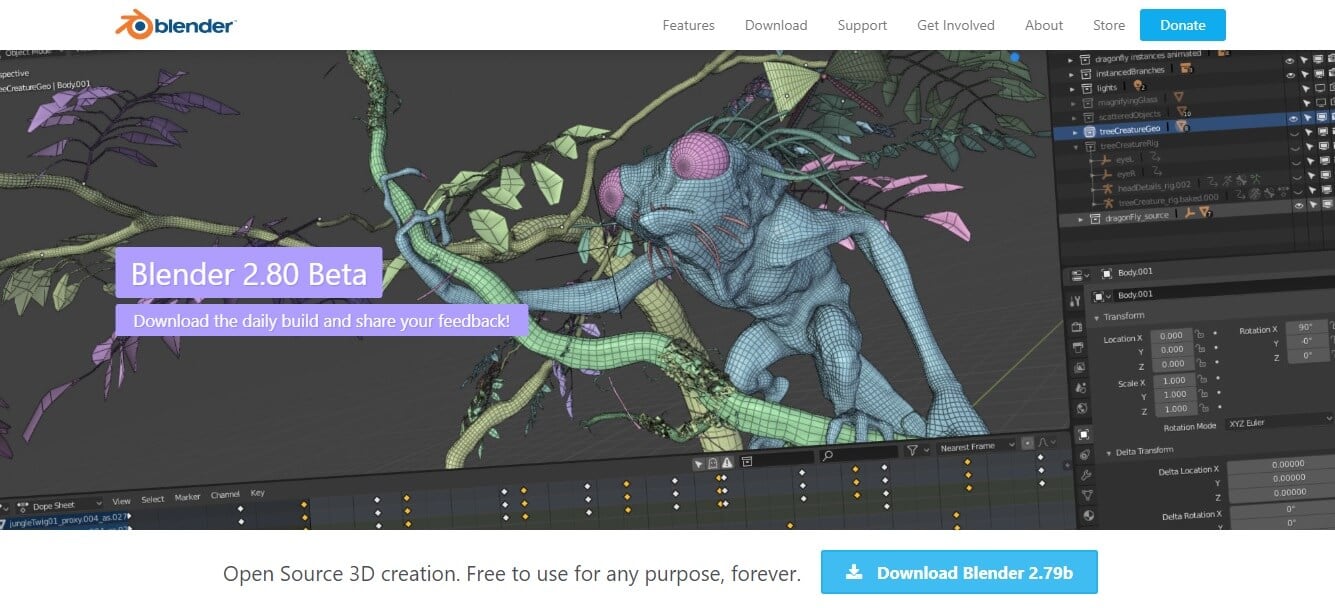
Blender 2.79b

Blender - VFX software

Blender is a great tool to use for applying visual effects to your projects and it is completely free to use. With Blender, you can create 3D pipeline-models, animations, simulations, rendering, etc.

This program supports NURBS surfaces and polygon meshes making it a strong contender for 3DS Max.

Even though this powerful software can help you create professional looking 3D projects with animations, it requires you to have some experience in using it.

Fortunately, Blender has a very big community that offers a wide range of tutorials and courses.

Key features include:

  • Cycle Render Engine – ultra-realistic rendering, real-time viewport preview, etc.
  • 3D painting with textured brushes and masking
  • Python scripting
  • VFX – it allows you to import raw footage, track it and mask areas
  • Envelope, skeleton and automated skinning
  • Customize its interface by using Python language
  • Can seamesly combine 2D with 3D
  • Modeling, sculpting and UV features — used for creating and transforming your models
  • Denoiser, PBR Shader, Shadow Catcher, Filmic Color Management, AMD OpenCL, etc.

⇒ Download Blender


Houdini 17 – SideFX

Houdini Side FX - VFX software

Houdini is another powerful tool that allows you to create and apply visual effects with ease. This software is a node-based software.

This feature is useful because of the fact that with every action, a node is created. More nodes can form a network and this feature allows you easily apply changes either to specific nodes or networks.

Houdini was created to be an easy to use software that offers artists a wide range of features under a user-friendly user interface.

Its node-powered infrastructure gives you the opportunity to branch off from your initial design with customized effects and actions.

One of the best features of Houdini is the ability to create sophisticated particle and dynamic simulations, such as realistic fire and smoke with Pyro FX, and different water effects.

Houdini comes in 4 different versions that cater to your specific needs:

  • Houdini Apprentice version is free and designed for hobbyists and students
  • Houdini Indie has all the animations and VFX tools and is available under an indie license for animator and game developers
  • Houdini Core is designed for modelers, character riggers and animators
  • Houdini FX offers a full 3D experience with tools for simulating fluids, pyro fx, etc.

If you want to get more information regarding how to use Houdini, go to the tool’s support page.

⇒ Download Houdini 17


RealFlow 10.1

RealFlow is designed to be a professional fluid simulation software. This software is a direct competitor to Houdini and also has an impressive range of features.

One of the most important features of RealFlow is the ability to edit relationships between nodes and the ability to simulate graphs with the data provided.

You can easily create emitters, containers, ocean surfaces, and also solid bodies for your project with just a few clicks. Using Next Limit’s Maxwell Renderer is also a very useful feature.

You can render any preview before applying it to your project, giving you a clearer image without needing to worry about the calibration details.

Regarding liquids rendering, RealFlow can create both particle-based liquids and also hybrid-based liquids that are suitable for bigger scenes.

The Dyverso technology that powers RealFlow is GPU accelerated and can process secondary elements like splashes, foam, mist, bubbles, etc. in real-time.

If you want to see a complete list of features, you can download this PDF file.

⇒ Download RealFlow 10.1


In this article, we explored some of the best options on the market that allow you to add visual effects to your projects.

The software options presented here cover the needs of both users with little to no experience and professional users alike.

Depending on how experienced you are, you can jump right into creating your project or you can check out the tutorials. Let us know what you chose from this list in the comment section below.


  • What is the best video editing software?

There are multiple options, paid or free, depending on your needs. Check our guide including the best video-editing software for Windows 10 and choose the one you like.

PlayStation 4 error codes CE-35694-7, CE-42555-1 [Full Fix]

When something goes wrong with your PlayStation 4 while you’re gaming or streaming, it will show some specific error codes.

For instance, error codes CE-35694-7 or CE-42555-1 are two of the possibilities. Each of them refers to a particular issue with your console.

In this article, we’ll explain each error in turn together with the right steps to fix it.


How to fix An error has occurred CE-35694-7 & CE-42555-1 on PS4?

Error code CE-35694-7 – Not enough space

1. Free enough space

Error code CE-35694-7 usually appears when you’re trying to install a new game on your console.

Therefore, it is most often related to insufficient space on the system for the operation to be completed.

So the sensible solution would be to free space. Note that many users mentioned that they freed some space (usually up to 50GB) and it still was not enough. However, when they proceeded to free more space, the error disappeared.

So the recommendation is that you clear more than 50GB and allow enough space for the new games to be installed.


2. Force a system storage status check

  1. Plug the Dual Shock 4 controller into your PS4 system using a physical cable. Then, turn your PS4 system on.
  2. Hold the power button for a couple of seconds until you see the LED light flashing and hear a short beep. After that, your PS4 should power down entirely.
  3. Hit the power button again. The system storage status check process should begin.
  4. Once this procedure completes, the PS4 will automatically restart.

Try installing the game now and see if the error has cleared away. If not, go on to the next step.


3. Restore to factory settings

reset ps4
  1. Make sure to create a back up of your saved data in an external hard drive.
  2. Next, go to Settings.
  3. Select Initialization.
  4. Choose Initialize PS4.
  5. Follow on-screen instructions to restore your PS4 to factory default.

On rare occasions, the fault also laid with some corrupt files in the system. 

In this situation, the solution was to resent the console to factory settings, which not only clear the system of any corrupt files but will also restore the database and will also clear anything you have saved up until that point.


Error code CE-42555-1 – Can’t upload videos to Facebook

A lot of users reported getting the error code CE-42555-1 when trying to upload videos from various games to Facebook.

It appears that Facebook marked those as spam and un-marking them or contesting the procedure did not help.

Also, the only solution that did work for them was to edit the recorded video in ShareFactory. Namely, not only did they edit the intro and the ending of the video, which the app add automatically, but they also edited the video name (shortening it).


That’s it! We hope our solutions help you fix either of the errors. If something else worked for you, please share it with us in the comments section below.


Getting started with LinkedIn Part One – for small business owners

LinkedIn is the marketing hub of many social selling executives and solopreneurs. What about small businesses using LinkedIn to reach their goals?

For small business owners, let’s explore five simple ways to use LinkedIn that can build credibility and also increase relationship with your networks with key contacts.

Create a LinkedIn company page

In order to play to win on LinkedIn, in addition to maintaining an all-star personal page, you must have a LinkedIn company page to amplify your brand to distributors, association members, customers and others. A LinkedIn company page also lets you highlight your services, thought leadership and your employees to build your external credibility and community. Best of all, a LinkedIn company page is free.

Run your personal and small business Company Page as a PPC or SEO campaign

If your small business marketing strategy does not include a search engine optimization component, then it should, ensuring you are there when your customers are Googling your profile. By running your personal and LinkedIn company page and personal profile as a pay-per-click (PPC) campaign, you can increase your company’s and content ‘findability’. Include keywords in your headline, summary, anchored text, job descriptions and endorsements to be found on Google and LinkedIn searches.

Find and participate in a LinkedIn group with local ties

LinkedIn reports the average user joins 7 LinkedIn groups, so your customers, influencers and competitors are using this LinkedIn community. Over 70% of customers use groups to research, network and vet buying decisions. So, join all 50 of your potential LinkedIn groups to be as accessible as possible by other group members. And, regularly participate, in a non-promotional way, in 3-5 groups to network with other business owners, distributors and press.

Begin to blog on LinkedIn

It makes sense for every small business to post articles on their blog, website and on LinkedIn to reach and connect with their audience. It could be the same content on each platform since you will be connecting with different audiences on each site. Blogging is a new content networking tool and will help build your credibility and increase your business’ message’s reach when others share it to their network.

Leverage each employee within your small business

Train and leverage your small business employees as brand ambassadors to build your small business brand; telling your company story and accessing their incremental network.

Summary

You can’t be using the same Facebook and Twitter content and techniques with LinkedIn, even though it has the same customers. So, embrace your Linkedin channel to distribute your thought leadership to impact your small business, then you will be successful. Every social media platform, liked LinkedIn, has a separate social contract with the same customer.

Do you have a LinkedIn success story to share for your small business? if so please share below.

This Viozon Tablet Stand Holder can turn your Surface Pro or Go into a Surface Studio of sorts

You can find plenty of cool accessories for a Surface anywhere you look. There are USB-C hubs or docks, skins, covers, sleeves, pens, and so much more. But in this day and age, you might be sporting your Surface more for actual work scenarios. That might mean you would need something to fit your Surface in with your monitor or your desk setup.

That’s how I happened upon a tablet holder for my Surface Go 2 on Amazon. Sold by Viozon, this tablet holder fits any Surface Pro or Surface Go and can help turn your device into a Surface Studio (or an old school iMac.) It raises your Surface off your desk and helps increase usability for work, especially when paired with a monitor.

Design

This Viozon Tablet Stand Holder is constructed out of aluminum alloy and comes in either a white color or a more fancy black. It’s plenty strong and stable, and won’t bend or break like your typical plastic stand. The overall weight of the product is about 3.3 pounds, which means it can support a tablet without toppling over. A circular aluminum alloy base is the support mechanism for everything, reminiscent of the looks of an old-school iMac Power PC G4.

The most unique feature of the tablet, though, is its height adjustability. Thanks to its arms, you can move your Surface up or down 18 inches off your desk and into the air to suit your setup alongside a monitor. That’s because the front arm features a padded mount for holding your device, with the mount opening up to a total of 12 inches and allowing for a total rotation of 360 degrees.

Img 5053

The arms are also held in place to the base with a screw, and you can adjust the tension to make it more secure to hold heavier tablets like an iPad Pro. Overall, though, the design is reminiscent of the Surface Studio, which “floats” up in the air or can down on your desk.

It’s important to note that you’ll have to adjust the tension on the stand with the included Allen key so you can move the Surface up and down easily, or keep it tight (whichever you want) I prefer the stand to be tight so that the Surface is secure, but this is not exactly like a real Surface Studio. You can’t really move the screen easily with one hand. With this stand, you’ll need to move it with more two hands, in most cases.

Usability

Vizon Tablet Holder

So how about usability? I’ve had this Viozon stand on my desk for the past few days, and It’s been a godsend for me. Typically, I keep my Surface flat on my desk, next to my monitor. Thanks to this stand, I am able to elevate it off my desk, and right next to my monitor — at eye level.

All it takes is snapping off the Type Cover from my Surface, rotating the arm of the mount, and placing my Surface inside. It’s an easy process to place and remove the Surface when I need it on the go, and the added pads ensure the Surface won’t get scratched.

I can even rotate my Surface 360 degrees while it’s mounted in the stand, so I can view Twitter feeds and my RSS feeds vertically. It’s been great to help reduce eye strain and keep my head level when typing posts, and also glancing over at a second screen for Teams messages. There’s even a tilt function, which lets me tilt the Surface down between 45 degrees and 180 degrees, so it fits the perfect angle.

Img 5062

Interestingly enough, the stand is secure enough that when it’s tilted or moved to different angles, the screen won’t “bounce” or “shake.” This makes it a great companion for inking or drawing, too. It’s not something that I’ve tried, but the stability is great so that I can see artists using this as a tool for drawing in a studio.

A great product, for the low price of $40

Overall, this Viozon stand is great. You can find plenty of alternatives out there for it, but this one feels quite unique thanks to its design and usability. Of course, it’s not a full-on “dock” that comes with ports for your Surface, it’s just something to help you boost your setup. For a true Surface Studio-like experience, you can try the $400 Kensington SD7000 Surface Pro Dock. It has power, USB-C, and more built-into the base.

How To add a custom domain name to your Microsoft 365 account

You as a business owner, want your company name for your custom Microsoft 365 domain? Your Microsoft/Office 365 account comes with  a generic domain name, ie: company.onmicrosoft.com where “company” is your account name. You can use email addresses like [email protected] for Office Apps and Exchange services. But if you have your own domain name, you can also add it to your Microsoft 365 account, for example mycompany.com,  and then set up users like [email protected]

Let’s start the process of adding your own domain name to Microsoft 365!

To add your own domain to Microsoft 365

21970 1

Sign in to Office 365 with your admin credentials.

21970 2

Then navigate to the Admin center.

21970 3

Click on Settings, domains and then Add domain.

21970 4


Type in the domain name and click Use this domain button.

21970 5

Choose the preferable domain verification methods

21970 6

If TXT option is selected, you need to setup a TXT-record listed on the page. Click step-by-step instructions link to get instructions for your DNS hosting provider. Click verify, once you have setup on the record.

21970 7

When validation of TXT record happens correctly you should see Update DNS settings screen. Select Skip this step checkbox and click Verify button to proceed.

21970 8

The next screen will display the DNS records that you need to setup for your domain in order to start using Office 365 for email. You need to create MX record, 2 CNAME records and a TXT record. Use Select your DNS host link to see instructions for adding DNS records for your DNS hosting provider. Select Skip this test if you use custom DNS setup and click Verify button.

Once the records are verified you will see the confirmation window saying You’re all set up. Now you can setup users with your domain name.

Summary

All small business tenants should have access to the Exchange Admin Center, but if you don’t you can log into the Exchange control panel to edit the account and add additional addresses to a mailbox.

Secondary addresses are great for alternate spellings of your alias, or when you are changing domains or addresses as both the old address and the new address can be delivered to one mailbox and all replies will use the new email address.

Using a unique custom domain like “[email protected]” with Microsoft 365 can help build credibility and recognition for your brand and can boost your business as a small business owner.

Learn more here about adding custom domains to your Microsoft 365 account for your small businesses. Let us know your experience working with Microsoft 365 domains in the comments below!

Registration for Microsoft’s Game Stack Live event is now open

Microsoft has announced that registration for its next Game Stack Live developer event is now open. The event is set to run from April 21 to April 22 with Microsoft calling it the biggest “Game Stack Live yet,” promising dozens of talks from developers and more.

In addition to developer talks, the event features opportunities for attendees to network with the game development industry, and updates and education about the platforms, tools, and services from Microsoft. A total of 40 talks are promised, covering topics like graphics, system and tools, production and publishing, multiplayer, accessibility, and audio. A full schedule is available here.

Last Year’s Game Stack event presentations dived deeper with insights about topics such as Xbox Series X, Project xCloud, and more. You can expect more of the same this year, but it’s important to note that this isn’t a consumer-focused event. There likely won’t be any consumer news shared, but if you’re a developer interested in what goes on behind the scenes making games, then this is for you.

Microsoft prepares for a new Power Platform low-code language, Power Fx

Microsoft is proceeding to attempt to make its Power Platform assortment of low-code apparatuses simpler for non-developers to utilize, according to a report from All About Microsoft. The latest expansion to the Power Platform stable appears to be an extraordinary new low code language called Power Fx.

The Walking Cat dropped a clue recently about something many refer to as “Force Fx.” Power Fx is expected to be revealed at Microsoft’s Ignite virtual conference in March.


From the sources we have gathered, Power Fx will focus on a key Power Platform crowd: Microsoft Excel clients. The language is tied in with utilizing recipes. By using Power Fx, clients will actually want to redo rationale across the Power Platform. Microsoft’s objective with Power Fx is to produce in Power Platform genuinely something for individuals with minimal coding experience.

Similar to the case with different components of the Power Platform like Power Apps and Power Automate, clients will actually want to add normal code to equations utilizing customary engineer instruments when required. I’m hearing there likewise will be some sort of connect to Dataverse, Microsoft’s Common Data Service (CDS), which empowers clients to store and oversee information utilized by business applications.

While almost no word about this undertaking presently from Microsoft, the strategy conforms to Microsoft’s new methodology towards low-code devices which permits people inside organizations to assemble undeniable efficiency arrangements without being too well informed. We will probably get familiar with ‘Power Fx’ nearer to the language’s delivery, given that it gets official.

For those interested, learn more here about Microsoft plans with ‘Power Fx’ for Power Platform.

Fuji RAW Software: 4 Best Viewers & Converters in 2026

In case you are an avid photographer, be it professional or just an enthusiast, chances are you’ve run into the Fuji RAW format. And that’s when you need a good converter or effects-editing application for RAW.

For that reason, we created this short list of the best programs that should fit all your needs. Check them out below.


What is the best Fuji film RAW viewer tool for Windows 10?

Adobe Photoshop

Photoshop CC 2020 - best Fuji RAW viewer and converter software

Adobe Photoshop is one of the most well-known photo editor and design creator software on the market, and there is a good reason for that.

No matter what field you work in, if there is any photo manipulation involved, Photoshop is a true powerhouse of features and options. The variety of tools that are compiled in this software is unprecedented on the market.

When it comes to viewing Fuji RAW files and the capability to convert the images to any format, Photoshop performs incredibly in this department as well.

Here are some of the most useful  features found in PhotoShop:

  • Wide range of capability to transform files because of its acceptance of almost any file format
  • Fast processing speeds for RAW images
  • Customizable user-interface that allows you to streamline the editing process
  • Tool section is clean and only shows variations of tools once it is selected
  • Very wide range of accepted plugins and templates
  • A great number of  tutorials available
  • Trial version available completely free of charge for 7 days
Adobe Photoshop

Adobe Photoshop

Edit your Fuji RAW files only with a professional program such as Photoshop and never compromise on image quality.
Free trialVisit website

Luminar AI

Luminar offers complex tools but with easy pre-set: ideal for those who work with color and creativity at an incredible price

The product is an excellent tool for anyone who wants to broaden their creativity in the photographic field, especially in terms of effects and color.

The idea behind Luminar is to remain fairly faithful in the approach to bitmap editing, be it on rasterized documents (Jpeg, Tiff, Png or PSD) or on more raw formats (Raw or DNG), but proposing a change of very important paradigm.

The adjustment levels are no longer individual by level, but each level can contain one or more levels of regulation, merging one with the other totally or partially.

The App can work both in stand-alone mode and as a plug-in for Photoshop, Lightroom, and Aperture.

The tools and presets are grouped into Workspace and Categories, but you can still customize the interface with your choices, recalling the standard ones only when needed.

For what we could evaluate, in our opinion the use of presets is the right way to operate if you do not know the software well, but also the best way to start a demanding photo editing.

Like Lightroom, retouching is not destructive, but Luminar does not work with XML sidecar files, opting for a proprietary format that can include, if necessary, the original image.

We have particularly loved the filter that makes use of artificial intelligence, able to offer remarkable three-dimensionality especially in images outside (although perhaps it should be slightly contained in the skies) and Sunrays.

⇒ Download Luminar


Aurora HDR

fuji film raw editor

Aurora HDR 2019 is the new version of Skylum’s photo post-production software, a brand that has become famous for products like Aurora HDR but also Luminar.

The apps can work alone, as we will see very well, but if necessary they integrate perfectly with the sacred monsters like Photoshop and Lightroom.

Aurora HDR 2019, we anticipate it, is a small name that does this and much, much more than we expected before this review, with a way that gives a new benchmark to the term “speed”.

Technically speaking Aurora HDR 2019 is software that allows obtaining different results: the development of frames in RAW, but also in Jpeg, Tiff, and Png, single or multiple, offering all the features that are typical of some famous plug-ins like Camera Raw, for example.

In the workflow is integrated a function of HDR (High dynamic range imaging) that allows expanding the dynamic range of light so that it is wider than normal.

The App is obviously compatible with the most common bitmap graphics formats but also with RAW, which is treated on a par with the rasterized files in the workflow, although obviously, the rendering engine is certainly different.

Aurora HDR 2019 allows you to save processed images in a proprietary format, which is useful for later retouching, and also contains the original files.

It is the only way for progressive retouching since Aurora does not write data inside the standard XMP in RAW files.

The final export can be carried out in the most common formats, including oddly sparse formats like PDF and Jpeg2000.

There is the possibility of using overtones, curves, HSL adjustments and even the vignetting are missing, even if there are no more accurate controls for direct selection within the image.

With regard to these extremely powerful controls, we underline that the impression is that they exist for the purpose of retouching on the initial image and not as an option to make Aurora HDR 2019 a graphics editor because in that it seems at least out of place.

Finally, there are masking systems by brush, gradient, and radial.

⇒ Get Aurora HDR


Corel AfterShot Pro 3

Corel AfterShot Pro 3

The customization, in addition to the competitive price, is one of the distinguishing features of this eternal rival of Adobe Lightroom, which is now closer to Photoshop.

And in this sense, one of the original novelties of AfterShot Pro 3 is the creation of Lens Profile, which can be created by following a series of instructions and then saving the profile of your lens and insert it into the program.

Other personalization concerns the presets for frequent corrections, which can be used as a starting point to create their own, save, and share with the community.

Corrections not necessarily of errors, but in the sense of typical aspects to give to the images, a little – let’s imagine – like the Picture Styles of the Canon cameras or the Picture Control of Nikon.

Another distinctive feature of AfterShot Pro 3 is that to have compatibility with the raw files of a new camera it is not necessary to wait for the release of a new software release. As soon as it’s available, just download it from the Corel website and add it to the app.

There is also a new Plugin Manager that quickly finds the new plugins available for AfterShot Pro 3 (for example GrandFilter Pro), and also a toolkit and an API for developers that can create plugins compatible with the Corel software.

There are also a few more traditional features, such as an algorithm to recover details in the highlights, which presides over the Highlight Recovery Range function, controlled by an adjustment slider.

Or a new tool to insert the watermark and protect your images; watermarks can also be applied in batches, and is a useful solution for presenting your work online.

Finally, with Blemish Removal & Correction it is now possible to correct multiple photo defects directly from the program without exporting the images to other software and then reimporting them.

⇒ Download Corel AfterShot Pro 3

We’ll end our list here. Let us know which tool you installed on your computer.


Crowd Simulation Software with Free Download

We all love watching movies that involve large armies fighting epic battles, with great special effects and stories.

We can appreciate the effort that goes into some of our favorite movies, but have you ever wondered how those effects are created? If you have, then you came to the right place.

These amazing battle scenes are created using specialized design software that contains all the tools required to create armies, environments, etc.

Of course, behind the scenes, a large number of designers work around the clock to offer you the best and most realistic visual effects. These applications are called crowd simulation software.

In this article, we will discuss the best crowd simulation software options on the market that allow you to create epic battle scenes with thousands of warriors, and add multiple realistic effects on your PC.


What are the best crowd simulation tools for PCs?

Adobe After Effects

Adobe After Effects is a feature-rich digital visual effects software used in the production of movies and games. Chances the special effects in the movies you watched last week were created using After Effects.

If you’re looking for a 3D crowd simulation, you’ll definitely love Adobe After Effects.

There are plenty of built-in tools you can use to duplicate crowds and get the effects you want without spending too much money on extras and background actors.

Thanks to the Duplicate feature, you can multiple the people in the initial crowd as many times as you want and place them in different areas of the footage to create the illusion of a large crowd.

Other key After Effects features include:

  • Fast and responsive shapes
  • Content-aware fill
  • Advanced pins and bend pins for extra precision
  • Plenty of color curve adjustment tools for stunning visuals
Adobe After Effects

Adobe After Effects

Create the most outstanding visuals with an industry standard tool that comes with versatile features.
Free trialVisit website

Golaem Crowd

Golaem software - best crowd simulation software

Golaem Crowd is one of the best Autodesk Maya plugins that allows you to create incredibly life-like renderings of crowd dynamics.

You can use this software to change, and create behaviors for groups of virtual characters that are based on real-life physics, and also set shading and behavior values for the elements found in the scene.

The latest version of Golaem gives you all the tools required in order to create particle-based crowds of virtual characters that can interact with the environment they are in.

Golaem 6 was modified based on the feedback received from users. One of the best features found in Golaem 6 is the new Layout tool.

This free crowd simulation software allows you to modify the way a scene is played out even after the components of the scene have been saved.

This feature allows you to focus on other important tasks and saves you important processing time. Here are some other features found in Golaem 6:

  • Trigger Editor – allows you to easily modify the behavior by using presets
  • Blind data – allows you to import items like muscle or morph deformers
  • Can create bipedal, quadrupeds, flocks, swarms, etc.
  • Full integration with Maya
  • Very powerful motion re-targeting and motion mixing

⇒ Download Goalem 6


Massive

Massive is another incredibly powerful software that uses the autonomous AI Agest system that works as a plug-in for Maya.

For this reason, this software uses Maya particles that can be connected to animated characters, allowing you to create beautiful and complex war scenes easily.

What makes Massive stand out from the crowd is its ability to use AI to make the characters you create interact with each other freely.

Compared to Golaem (which only works by setting specific rules and characteristics for your characters), Massive can create fluent movements and interactions automatically.

Here are some other notable Massive features:

  • Perfectly integrated into Maya
  • Can preview scenes in both single and batch render
  • Can create characters with the capability of reacting to the environment using artificial intelligence capabilities

⇒ Try Massive


Miarmy

Miarmy - best crowd simulation software

Miarmy is another very powerful plug-in for Autodesk Maya that gives you the power to create incredibly realistic batches of characters to populate your virtual army.

If you want a crowd simulation software for free, then this tool is perfect because it provides AI behavioral animations, and can help you create physical renderings.

Even though this app is on the 3rd place in this list, that doesn’t mean Miarmy is any less capable than the previously mentioned software options.

Here are some of the most notable features found in Miarmy:

  • Can build character logic networks without the need to use any programming or node connecting
  • Perfectly integrated with PhysX – force field, cloth, RBD emitters, wind, etc.
  • Creates crowd VFX using Maya particles, field, fluid, and transform capabilities
  • Completely free to use – allows access to tutorials, samples, and presets

⇒ Download Miarmy


In this article, we explored some of the best crowd simulation software options on the market that allow you to easily create life-like renderings of crowds.

The tools mentioned above will surely offer you all the tools you require in order to create incredible battle scenes, with an incredibly wide range of realistic SFX effects.

You can also create complex pattern behaviors of characters by using the included artificial intelligence features.

Please feel free to share which software option you chose from this list in the comment section below.


How to fix Camtasia errors [Setup Failed, Recording, Video]

In this guide, you’ll learn how to fix the main Camtasia System Audio Setup Failed errors, that most users may encounter.

Camtasia Studio is among the most highly rated screencast software for Windows 10. Yet, like any software, it still throws out some error messages now and again.

The Camtasia System Audio Setup Failed error message can pop up for users when installing (or uninstalling) the software, recording video, or editing output.

In this article, we’re going to look at some of the most efficient fixes for Camtasia Studio’s more notable error messages that users have discussed on the support forum.


How to fix Camtasia System Audio Setup Failed errors?

1. Download Adobe Captivate

adobe captivate

If you don’t want to go through the grief of fixing Camtasia errors on Windows, you can bypass the entire list below by using a different solution: Adobe Captivate.

Designed for creators of high-quality learning materials, Adobe Captivate allows you to engage with your audience and ensure maximum retention of the materials presented.

Adobe Captivate is a powerful tool that helps you create jaw-dropping eLearning materials, interactive videos, quizzes and many more.

You can even spruce up those dusty PowerPoint presentations and bring them to the 21st century in glorious VR.

Let’s take a look at some of the key features Adobe Captivate offers:

  • Rapid Authoring
  • A vast collection of professional templates
  • Interactive videos
  • Import CVS files to create quizzes
  • Import PowerPoint presentations
  • VR support
Adobe Captivate

Adobe Captivate

Create the most professional learning materials and engaging videos with this versatile tool!
Free trialVisit website

2. Fix Error Code: (5) Setup Error

Error Code: (5) is a Camtasia installation error. The full error message states, Error Code: (5) Access is denied when users try to install the software. There are a few potential fixes for that error message.

First, try installing the software as an administrator. To do that, right-click Camtasia’s installer and select the Run as administrator option. Make sure that you install Camtasia with an admin account.

The Error Code: (5) error can also pop up for users who need to update the .NET Framework. NET Framework 4.6 or higher is a system requirement for Camtasia Studio 8 and 9.

Camtasia users can download the latest NET Framework version by clicking .NET Framework 4.7.2 on the official Microsoft download site. Then open the NET Framework setup wizard to install it.

Error Code: (5) might also be due to third-party antivirus software. So temporarily disable third-party software before installing Camtasia Studios.

To do that, right-click the antivirus software’s system tray icon to open a context menu that might include a disable or turn off the option.

If you can’t find a disable option there, open the settings tab or menu within the utility’s primary window, which will probably include an option to temporarily turn off the antivirus software.


3. Fix Error 1720, 1721, or 1723

  1. First, activate the built-in Windows admin account to ensure you’re installing Camtasia within an admin account. To do that, right-click the Start button and select Command Prompt (Admin).
  2. In the Command Prompt enter the code below and press the Return key: net user administrator /active:yes
  3. Close the Command Prompt, and then restart Windows.
  4. Thereafter, select to log in with the new Administrator account.

Error 1720, 1721, and 1723 are installation error messages that can pop up for Camtasia and other Windows software. The error message states, Error 1720: There is a problem with this Windows installer package. 

That error message might be due to a corrupted installer, User Account Control, or a non-admin user account.

User Account Control (UAC) can also block the Windows installer. Thus, turning the UAC off might fix the installer error message. Users can turn off UAC as follows.

  1. Click the Type here to search button on Windows 10’s taskbar to open Cortana.
  2. Enter the keyword User Account Control in Cortana’s search box, and select Change User Account settings.
  3. Then slide the slider to Never notify.
  4. Click the OK button.

If, however, the installer is corrupted, users will need to get a fresh Camtasia setup wizard, so if this is the case it’s recommended that users download a new installer for the software.


4. Fix the problem with your Recording File error

  1. First, check that Camtasia isn’t running by right-clicking the taskbar and selecting Task Manager. Select CamRecorder.exe or CamtasiaStudio.exe on the Processes tab and click End task to close them.
  2. Press the Windows key + X hotkey. Then select Run to open that accessory.
  3. Enter regedit in Run’s Open box, and click the OK button. That will open the Registry Editor window.
  4. Then Camtasia users should open one of three registry paths in the Registry Editor depending on their software version. The registry paths are: HKEY_CURRENT_USERSoftwareTechSmithCamtasia Studio18.0 (for Camtasia 2018 users, it’ll have different values for different versions).
  5. When you’ve opened the required Camtasia Studio registry path, right-click the 18.0, 9.0 or 8.0 folder (or key) on the left of the window and select Delete.

This is a recording error message that might pop up for some Camtasia users. The error message states, We’re sorry! There was a problem with your recording file. 


5. Fix Error Code 0x88880001: Unknown Error

  1. Right-click the speaker icon on Windows’ system tray and select Sounds.
  2. Click the Playback tab shown in the snapshot directly below.
  3. Then double-click the default audio device to open the window below.
  4. Select the Enhancements tab.
  5. Click the Disable all enhancements box.
  6. Press the Apply button.

Error Code 0x88880001 is an audio error message that pops up in Camtasia. The error message states, We’re sorry! Camtasia could not playback the audio from the recording.

Save your recording and try restarting Camtasia. As such, the recorded output doesn’t include any audio.

Updating sound card drivers is another resolution that will usually fix Error Code 0x88880001. The quickest way to do that is probably to add driver updater software Windows.

Then users can scan for and update antiquated drivers with that software. Download now Driver Booster 6 to add that software to Windows. Driver Booster 6 automatically scans when you open it.

Then it will list outmoded drivers on your desktop or laptop. Click the Update All button to update the devices listed with the latest drivers.


6. Fix: Unknown Error

  1. First, open Run in Windows.
  2. Enter regedit in Run and click OK to open the Registry Editor.
  3. Go to the registry path below: HKEY_CURRENT_USERSoftwareTechSmithCamtasia Studio9.0.
  4. Right-click the 9.0 key and select Delete to erase it.

Some Camtasia users have stated that an Unknown Error message pops up when they try to start recording a video. Thus, the users can’t record the video. This is how Camtasia 9 users can fix Unknown Error.


7. Fix the WMVcore.DLL is Missing Error

Windows Media Player is a system requirement for Camtasia Studio. A WMVcore.DLL is missing error message pops up when users try to run Camtasia on Windows KN and N versions that don’t include WMP.

Thus, installing the Windows Media Feature Pack, which also installs WMP, will probably fix the WMVcore.DLL is missing error for KN and N users at least.

Camtasia users can download that pack at the Windows 10 Media Feature Pack page.

Various users also reported that Camtasia displayed the Invalid Configuration State error and in this case, you should try changing the audio source from Microphone to Stereo mix.


8. Fix An Error Occurred While Initializing the Camera for Capture

  1. Reinstalling the camera (or webcam) driver is one resolution that might fix the Camtasia camera error. To do that, press the Windows key + X hotkey.
  2. Click Device Manager to open the window directly below.
  3. Then double-click Cameras to expand that device category. Note that Device Manager might also list a camera under Image devices or Other devices.
  4. Right-click the camera and select the Uninstall device.
  5. Thereafter, restart Windows, which will then automatically reinstall the camera driver.

This is an error message that can pop up during Camtasia’s camera initialization.

The full error message states: An error occurred while initializing the camera for capture. Camera video will not be recorded. Thus, the software doesn’t record any camera video.


9. Fix Camtasia Studio 8 cannot connect to YouTube

  1. Check that Camtasia isn’t running before you edit the registry.
  2. Open the Run accessory.
  3. Input regedit in the Open text box, and press the OK button.
  4. Next, browse to this registry key: HKEY_CURRENT_USERSoftwareTechSmithCamtasia Studio8.0.
  5. Select the 8.0 key, and click Edit, then Delete.

The Camtasia Studio 8 cannot connect to YouTube error message might pop up for some users trying to add recorded videos to YouTube.

Some users have confirmed that editing the registry fixes the issue. This is how users can fix Camtasia 8’s YouTube error.


10. Fix Unable to Register Record/Pause or Marker Hotkey

The Unable to Register Record/Pause or Marker Hotkey error pops up when alternative software is running that has some of the same hotkeys as Camtasia’s Recorder.

Consequently, this is a hotkey conflict. In order to fix the Unable to Register error, users should stop the other software that has matching keyboard shortcuts.

Alternatively, users can modify Camtasia’s hotkeys by clicking Tools then go to Options and choose Hotkeys. Change the hotkeys to keyboard shortcuts that won’t conflict with any other third-party software.


11. Fix the System Audio Setup Failed Error

  1. Open the Run program.
  2. Enter the line below in Run and click the OK button: appwiz.cpl
  3. Then select ASUS software to uninstall.
  4. Click the Uninstall button.
  5. Then select Yes to confirm.

So that’s what you should do when Camtasia displays a message that says that an error occurred in the Recorder: System Audio Setup Failed.

For further resolutions, Camtasia users can submit TechSmith support tickets at the official developer’s page.

This error message pops up when some Camtasia users try to record video. The full error message states, An error occurred in the Recorder: System Audio Setup Failed.

TechSmith has confirmed that the error message is primarily due to conflicting ASUS software. Thus, uninstalling ASUS Sonic Suite, ASUS Sonic Studio and ASUS Sonic Radar may solve the error.

Removing the Nahimic Audio can also fix the issue, so follow the guidelines above to remove that program. You can also use the best uninstaller software, in that regard.


As you can see although Camtasia is not the perfect software and it may have some bugs popping-up, there are solutions to fixing them efficiently.

In this guide we covered the most common Camtasia System Audio Setup Failed errors and we hope that it got you out of your predicament.

We’d like to hear more from you on this issue so please drop us a comment in the dedicated section below.


3 best white noise generator software [+Online tools]

For those of you that haven’t heard of white noise, it’s basically a sound that unites all frequencies a human ear can detect, and it is, as scientifically proven, one thing that everyone needs after a long day.

When trying to relax, some folks enjoy ambient music, others like sounds of nature (rain sound is pure gold) or zen meditation bells. But, nothing is as relaxing as this indistinctive noise, or soothing, for that matter.

There are not so many dedicated applications that use white noise, but we singled out three that are, in our opinion, best suited for the job, no matter how simple the task.

Therefore, make sure to check them out below and prepare for a comforting experience.


White noise generators to get your daily dose of calm

Adobe Audition

White noise may seem by definition to be extremely simplistic, but there is a fine line between white noise that is relaxing and white noise that is annoying.

That being said, you can’t just use any old tool to generate it, so might as well go for the best.

Adobe Audition is a digital audio workstation that can do pretty much anything as long as the sound is involved. To sum it up, Adobe Audition is to sound what Adobe Photoshop is to photographs.

Among the many tools it has at its disposal, sound generation is one of them. Use it to create anything from your typical white noise, or even use Adobe Audition as a nature sound generator.

Here are some of the perks of using Adobe Audition:

  • Can be used for white noise generation
  • Great for audio mixing
  • Capable of non-destructive editing
  • Excellent if you are interested in a waveform editing view
  • Great plug-in support with both official and user-created content
Adobe Audition

Adobe Audition

Create and edit music, videos, and any type of sounds by using the feature-rich Adobe Audition.
Free trialVisit website

White Noise Generator

white noise generator software

The White Noise generator is a third-party freemium tool that looks like it was created prior to Windows 95. Our initial thought was that its interface is lackluster and an annoying Ad prompt hasn’t exactly worked in its favor.

However, it does it job and that’s the only important thing. It was created back in 2010 and it provides users with 20 + sounds including White Noise.

The program also features a simple Timer that enables you to choose when the playback starts and when it ends.

You can download a White Noise Generator for free by following this link.

⇒ Download White Noise Generator


White Noise from Windows Store

white noise generator software

Now, there’s an ever-present question about the overall usability of Windows Store apps.

There’s a lot of apps that aren’t exactly useful in comparison to standard programs, but that doesn’t seem to be the case for White Noise app.

A lot of similar applications offer paid options and they’re fairly cheap. However, the majority also locks white noise behind a paywall which isn’t what we’re looking for.

Luckily, White Noise comes without a charge and provides users with great interface, dozens of different sounds (including White, Brown, Pink, Blue, Violet, and Gray noises).

Also, you have a timer at your disposal that enables you to configure the playback time. In addition, there are mixes for various occasions that are customizable.

That’s it. What’s your favorite way to relax in your leisure time? Do tell us in the comments section below.

⇒ Download White Noise for free


These were some great software choices that can create white noise for you to fall asleeep to. Make sure to tell us your experience with them in the comment section below.


5 Best Software For Joomla Templates [2026 Guide]

Creating Joomla templates is not always the easiest task, especially if you are a design and coding newbie. Don’t despair because there’s also some good news for you.

You will finally be able to create amazing Joomla templates without having to know any web design language.

Joomla template software helps you create professional templates whether you are new to all this or you’re a more advanced user. All you have to do is set some features, choose a bunch of options, and you will be good to go.

Below, you can see a collection of six of the best tools for creating Joomla templates so make sure to check out their sets of features.


What are the best tools to create Joomla templates?

Adobe Dreamweaver

Topping out our list is a leader in web-development tools, Adobe Dreamweaver. This tool has all the tools that you may ever need in order to create professional-looking web pages.

The best part is that you don’t need to know coding at all, since everything is handled internally and automatically.

Just drag and drop elements, set their interactions, import files from other Adobe products such as Photoshop, Audition or After Effects, and let everything blend by itself.

The abundance of tools together with the intuitive interface is what makes Adobe Dreamweaver a borderline product for both professionals and amateurs alike.

And the best part is that you can try it for free during a 7-day trial, and then decide on whether to buy it or not.

Here are some of Adobe Dreamweaver’s best features:

  • Code Completion
  • Developer Workspace
  • Real-Time Browser Preview
  • Code Introspection
  • Code Themes
  • Starter Templates
Adobe Dreamweaver

Adobe Dreamweaver

Create intricate and and unique templates with the help of Adobe Dreamweaver’s abundance of tools!
Free trialVisit website

Artisteer – Automated Web Designer

Artisteer claims to be the first and only Web design automation product that is able to instantly create a fantastic looking and unique website templates and blog these as well.

Check out the most important features that you’ll get the chance to try out if you decide to use this tool:

  • You will be able to design some pretty awesome blogs and cool web templates in just a few minutes.
  • Using this tool will turn out fun and easy.
  • You will be able to export the final result to Blogger, Joomla, WordPress and more CMS products.
  • There’s no need to learn Photoshop, HTML CSS or other languages.
  • You can preview, download and edit online websites and template samples as well.
  • Using Artisteer, you can instantly become a web-design expert, with coding, editing graphics and creating Joomla templates abilities.

⇒ Download Artisteer


Themler – Visual Template Designer

Using Themler, you will be able to create amazing CMS themes and templates and as well.

The program has lots of customization options and a large set of functionalities, while also being versatile because it works on multiple platforms.

There’s more to this software so check out other exciting features that are packed in it below:

  • You can also create content for websites, Landing pages, and eCommers pages as well.
  • In order to be able to use this software, you have to install the CMS template or run it on the desktop.
  • Add the sections included in the library or use the suggested ones.
  • The software’s interface is a drag-and-drop one, and you’ll enjoy some vibrant components.
  • You will get the chance to edit texts, images, buttons, and components.
  • You can also edit pages, layouts, templates, and styles.
  • After you’re done, you can publish the finished result Live, or you can export it as a .zip with content.

⇒ Download Themler


Template Creator

Template Creator lets you easily create amazing Joomla templates in under 10 minutes. The software is great for beginners and professionals alike, and it has a comprehensive interface.

It’s really worth taking a look at some of its best features:

  • You will be able to use various layout with editable columns, widgets, and color schemes as well.
  • Most customization is based on point-and-click.
  • You will also get the chance to use a CSS custom code section in order to style your favorite template if you’re a web designer.
  • This tool is ideal for users who don’t have any web development experience, but who also have a strong desire to create Joomla templates for professional and personal use as well.

⇒ Download Template Creator


Linelabox

If you want to easily create a Joomla template, perhaps you might be interested in this online tool.

This tool allows you to create a completely responsive layout and add use unlimited grid layouts. In addition to layouts, you can choose from an abundance of menu styles, colors, headers, and footer styles.

Another great feature is the unlimited number of undo steps that you can take, so you won’t cause any irreversible changes to your projects.

In addition, this tool offers advanced typography features so you can easily customize your text any way you want. Speaking of typography, you can choose between 850+ available fonts.

Linelabox also has many pre-built blocks and templates to choose from, and you can also pick between many module styles and variations.

We also have to mention that there are over 1,000,000 images available that you can use as your background.

The service also has a mobile editor as well, so you can ensure that your Joomla template will work perfectly on mobile devices. There’s also live editing feature available, so you can easily adjust your CSS or HTML.

We also have to mention that every module is fully customizable and thanks to the drag and drop interface you should be able to create Joomla templates with ease.

Linelabox is a great tool, and thanks to the drag and drop interface and abundance of modules, you should be able to create Joomla templates with ease.

Here you can find some of it’s key features:

  • Simple to use drag and drop interface
  • Over 1,000,000 images available to use
  • Responsive layout
  • Unlimited grid layouts, menu styles, and colors
  • Advanced typography with over 850 fonts available
  • CSS3 animations
  • Live editing

⇒ Try Linelabox now


These were our top five picks for tools that allow you to create Joomla templates effortlessly. Make sure to check out their sets of features in order to make the most informed decision for your skills and needs.


Here’s How to Open RW2 Files in Windows

An RW2 file is a raw image file format, specifically a camera RAW file created by a Panasonic digital camera like the LX3 or LX5. If you’re wondering how to open an RW2 file, continue reading.

This type of file has a RAW raster image just as the camera’s sensor captured it, and you can edit it to adjust color, exposure, and other properties by using an image or photo editor.

The RW2 file stores uncompressed image data from the sensor and is ready for print and view. Photographers can decide how to use and/or develop the images via a special program, but access to the raw data also gives them the flexibility to process them or completely alter them.

To open RW2 files, you will need a program that can help you open it, whether it is free software or a paid-for program. Using a dedicated app is also recommended when looking for convenient methods to open SDR Files on Windows.

How to open RW2 files in Windows 10?

Adobe Photoshop – Best RW2 file opener

Photoshop CC 2020 - best Fuji RAW viewer and converter software

Adobe Photoshop is the undisputed king of photo editors, known and used by so many that its name has become a verb.

There’s no need for an introduction to Adobe Photoshop because we all know what it’s capable of and how many features it offers.

While it does have a bit of a learning curve, you will find a plethora of training materials online, thanks to its widespread use in the photo industry.

From professional photographers to hobbyists, Photoshop caters to all, and the satisfaction you get when you master it is enormous.

Once more, when you’re working with RAW files, like the RW2 format, you can use the power of Adobe Lightroom to change highlights, shadows, focus, and more.

One can even make an entire career out of Photoshop, so you should jump on board and get Photoshop and start learning its powerful tools:

  • State of the art content-aware fill
  • GPU-based effects (blur, bokeh, highlights, etc.)
  • Cross-platform support
  • 3D support
  • Intelligent selection and masks

Adobe Photoshop

Explore the vast library of features and customization options with Adobe Photoshop!
Free trial Visit Website

2. FileViewer Plus – Universal file viewer

file viewer plus 2 - recommended software

Raw files are well supported with this program; you can open photos from 600 camera models. The Panasonic RAW image RW2 is on the list of over 300 file types supported by File Viewer Plus.

One feature of this software is the ability to view EXIF data for digital photos and camera raw files.

File Viewer Plus 5 is a universal file viewer for Windows that can open and display over 300 different file types.

The new version brings extra features and focuses on support for viewing and converting over 50 new file formats, including over 25 additional image, audio, and video formats.

The new batch conversion feature works very quickly, and you can save settings to use it again for different jobs.

The application has a simple, smart layout and is as easy as drag-and-drop files. We happily recommend this program to open RW2 files and almost all file types without hassle.

A fully functional free trial is available for download, so you can try it straight away, or you can buy it at an affordable price.

File Viewer Plus

Open and convert any raw image files with this complete file-viewing software.
Free Trial Visit Website

3. RawTherapee – Instantly preview changes

This is a cross-platform program for processing RAW images or photos and comes with tools that deliver high-quality and efficient development of the images.

The program is free and open-source software written in C++ and uses a patched version of dcraw to read the RAW files.

This tool gives you advanced control over the demosaicing and developing process, with a subset of image editing features focused on improving your workflow by handling volumes of images.

It uses a non-destructive editing concept for the post-production of photos, and the edits or adjustments are reflected in the preview image instantly.

However, they are not applied to the opened image in the actual sense, as this happens during the export process.

This software supports most raw formats and non-RAW image formats like PNG, TIFF and JPEG, plus raw DNG images.

You can tweak photos, use the color histogram, make adjustments, and revert changes at any time, as well as use its many photo opening and processing features.

⇒ Get RawTherapee

4. FastStone Image Viewer – Stable and user friendly

This tool is fast, stable, and user friendly, and comes with an advanced editor and converter. It is an intuitive software with a full-screen mode and a thumbnail browser.

It also has other options available through hidden toolbars that display when your mouse touches your computer screen.

It supports major graphic formats such as BMP, JPEG, TIFF, PNG, WMF, TGA, NEF, and DNG. It also has a high-quality magnifier, image annotation, scanner support, drop shadow effects, and more.

⇒ Get FastStone Image viewer

5. IrfanView – Feature-packed editor

Irfanview windows 7 photo viewer

This free software for opening RW2 files in Windows 10 lets you view and open images, manage multiple media, and edit them.

Its editor is feature-packed, with a fast converter for batch images and easy photo or image organization and tagging.

It is an excellent image viewer. You can watch your images via slideshow or browse through them quickly, and you can expand it via plugins.

Despite being dated, it is easy to master, and the interface is practical. its tiny size makes it blazingly fast for viewing your RW2 files.

⇒ Get IrfanView

6. XNView – Highly customizable

This free tool acts as both an image organizer and a file manager. You can view, convert, organize, or edit your RW2 raster images and manage the files, too.

Features include batch renaming and screen capturing tools. It’s licensed for private, educational, and not-for-profit use; otherwise, there’s one for commercial use.

It is customizable and multi-lingual, supports over 500 image file formats (including audio and video), and can write 50 image file formats.

It is fast, easy to use, and free! You can apply filters and effects, adjust brightness or contrast, and use its vast array of editing features to modify your RW2 files and open them for viewing.

You can also open RW2 files in Windows 10 using paid programs, including FastRawViewer and Canvas X by ACD Systems Canvas.

⇒ Get XNView

If you’d like to convert an RW2 file before opening it in Windows 10, you can use programs such as Adobe DNG converter. This program works with many RAW image file formats besides DNG. You can also convert your RW2 file to DNG and open it via this program.

What to do when you cannot open RW2 files in Windows 10?

One of the reasons you may not be able to open RW2 files in Windows 10 is that the file extension is misread and is opening in the wrong program.

While extensions may look the same, they don’t necessarily open with the same programs, and they cannot be used or converted using similar programs or software. Ensure you download and install the appropriate program or app to open RW2 files in Windows 10.

Are there other ways, not mentioned here, that you use to open RW2 files in Windows 10? Please share what tools or methods you use by leaving a comment in the section below.


Windows 10 news recap: 21H1 arrives for “seekers” in Beta, Outlook for Windows gains “Meet Now” button, and more

Welcome back to our Windows 10 news recap, where we go over the top stories of the past week in the world of Microsoft’s flagship operating system.

New optional patches are available for Windows 10 versions 1909 and 1809

Windows 10 versions 1909 and 1809 have received some optional updates this week that focus on resolving some bugs. If you’re running either of those versions of Windows 10, it’s recommended that you update.

Windows 10 Hero Image

Outlook for Windows adds “Meet Now” button to start Teams meeting even faster

To make it easier to start a meeting in Microsoft Teams, Outlook for Windows has a new “Meet Now” button to make it faster to start a meeting.

Windows 10 version 21H1 is now available for “seekers” in the Beta Channel

For those on the Beta Channel of the Windows 10 Insider program, Windows 10 version 21H1 is now available to ‘seekers’. It’s a small update, but if you’re part of the Beta Channel, head over to Windows Update within Settings in order to download and install the update.

Windows 10 2 In 1 Pc

That’s it for this week. We will be back next week with more Windows 10 news.

Microsoft news recap: Xbox gains FPS Boost feature for backwards compatible games, Microsoft Flight Simulator gets UK & Ireland update, and more

Microsoft news recap is a weekly feature highlighting the top Microsoft news stories of the past week. Sit back, grab some coffee, and enjoy the read!

New FPS Boost feature on Xbox Series X|S brings frame rate improvements to select backwards compatible games

Backwards compatible games on Xbox Series X|S are getting some additional enhancements, thanks to a new feature called FPS Boost. Whilst only a small selection of games will support the feature at first, games that do benefit will often see their framerate doubled, in some cases to 120 FPS.

Xbox Series X|s Fps Boost

Microsoft Garage announces Journal, a new ink first note-taker with AI super powers

A new app has been introduced through the Microsoft Garage. Called Journal, it’s a note-taking app that provides an ink-first experience, whilst utilising AI to supercharge your note taking. It’s ideal for Surface device owners.

Microsoft Garage Journal

Microsoft Flight Simulator World Update III: United Kingdom & Ireland is now available

The latest world update for Microsoft Flight Simulator has been released, focusing on the United Kingdom and Ireland, providing enhanced visuals and more detail to the world. Included within the update is hand-crafted airports, such as Barra, Liverpool, and others.

Microsoft’s new $99 Xbox Wireless headset to launch on March 16, pre-order it now

Out of the middle of nowhere, Microsoft has announced its latest Xbox accessory, the Xbox Wireless Headset. Launching on March 16 for $99, the new headset packs a punch, with a range of features, including multiple surround sound audio formats including Dolby Atmos, as well as mic indicator lighting, and more. It will use the same wireless connectivity as Xbox wireless controllers, to provide low-latency audio, whilst also having support for Bluetooth to connect to non-Xbox devices.

New Xbox Wireless Headset

That’s it for this week. We’ll be back next week with more Microsoft news.

Getting started with LinkedIn Part 4 – content sharing for employees

Need more visibility on LinkedIn for your business? As a business owner, wondering how to get your employees involved with your business LinkedIn content strategy?

Discover five ways to help your employees share more company content with their networks on LinkedIn.

Apply the LinkedIn Employee Notifications feature to Company Page posts

As a LinkedIn page admin, you can let your colleagues know when you’ve posted an update to your company page using the LinkedIn Employee Notifications feature. All employees need to do is react such as like, add a comment, or share it within their own network.

Linkedin1

Note that page admins can only notify employees once a day. Some employees, including admins, won’t receive a notification if the relevance model determines the update isn’t content they’re likely to engage with based on their history with the page.

Within your LinkedIn company page analytics, updates will be labelled with “Employees Notified” so you can gauge the reach and engagement generated by notifying your colleagues about page updates.

Help employees optimize their LinkedIn profiles

Linkedin2

Provide a list of applicable skills that relate to your industry and business. LinkedIn members can add up to 50 keywords on their profile to help their profile show up in search results. You can also provide sources of rich media for individuals to include in the Experience section such as web pages to link to and provide PDFs, presentations and video etc.

Use LinkedIn Teammates feature to prioritize content from Company Contacts in the LinkedIn Feed

Encourage employees to use the Teammates feature for further intenral collaboration in the organisation. This feature ensure that employees see LinkedIn updates from their current team such as their manager, teammates reporting to their manager, other teammmates, and direct reports.

Linkedin3

To use the LinkedIn Teammates feature, click the My Network icon at the top of your LinkedIn homepage and click Teammates on the left.

Linkedin4

In the Add Teammates field, type the name of a teammate you’d like to add and then click Add next to your teammate’s name. If you’re not connected to your teammate on LinkedIn, you’ll have to click Connect next to their name before you can add them to your team.

Solicit employee content for your LinkedIn Company Page

As a marketer, you need to collect relevant news from within your company to share on LinkedIn. You’ll want to keep tabs on what employees are working on and solicit content that reflects your company culture. And if you’re not a subject matter expert, you may need assistance from employees to create some of your content for LinkedIn.

These challenges aren’t unique to social media, but with the requirement to produce regular and timely content, you need to setup internal processes to garner support from employees.

Linkedin5

Guide and support employees in posting their own LinkedIn profile updates

While having employees share content from your LinkedIn page is great support, you may also wish to support your non-marketing colleagues in creating their own content for LinkedIn posts that can be shared by teammates and other network connections

Some employees will be able to dive right in, knowing what they want to post on their profiles, but others may need a few suggestions.

Linkedin6

In addition to sharing these ideas, consider providing technical how-to support from employees who lack the condidence to post on LinkedIn. Include best practices such as the best LinkedIn hashtags to use. Offering training and ongoing guidance can help ensure consistency across the business.

It’s also important to share some do’s and don’ts for posting on LinkedIn such as don’t violate client confidentiality. You could provide a detailed social media policy or an internal document with examples.

The easier you make it for non-marketers to support your LinkedIn marketing, the better. You can also encourage them to measure their individual success by analysing their LinkedIn profile using the LinkedIn dashboard.

Summary

Asking for help from colleagues and peers is never easy, but when it comes to getting results from your LinkedIn marketing efforts, it’s hugely valuable to get them involved. Marketers might have all of the technical skills for social media management and lots of content ideas; however, they might not always be the subject matter expert within the business. And they may not have the largest network of clients and prospects among their own connection lists.

That’s why you should consider getting employees involved in your LinkedIn marketing. Show them how their profile can be a tool that can support your wider business strategy.

If you’re just getting started with LinkedIn, check out our Part One, Part Two and Part Three of our series, and learn more about LinkedIn from Microsoft. Which of these tactics will you try to get your colleagues involved in your LinkedIn content marketing? Please share your business strategy with LinkedIn as an employer, as a business owner in the comments below!

Getting started with LinkedIn Part 3 – for workers/employees

Your company, or any company on LinkedIn for that matter, will have the most of its interactions with users through employee profiles. This means your organisation is already getting lots of clicks on LinkedIn, even though these clicks goes to employee profiles. How you as an employee and your organisation can capitalize on these impressions.

Here are some benefits of having strong employee profiles on the world’s largest professional network.

Employee advocacy

LinkedIn profile can be seen as the platform where the employee share the latest news, happenings, and achievements of your company and show how much they care. This will not only show what a dedicated employee they are, but it will actively advocate  for the employer brand and culture in the process.

Showcase credibility

One of the greatest benefits of LinkedIn is that it is seen as one of the most, if not the most credible professional business websites. If a user’s previous companies, clients, suppliers etc. acknowledge the fact that they worked together and even gives the user a recommendation, this adds to your entire company’s credibility.

People want to know people, and not necessarily just a ‘position’. You as an employee, your profile will showcase your career path and what led to work for the organisation you are in. It will also show what type of work you are hired to do and the standards you set for the company as a whole. The same skills that are typically transferable from one job to another will help showcase the experience of your work and ultimately reflect well on the company brand.

Trust

Employees promoting themselves and discussing the company brand online shows their employers fully trust them. Having LinkedIn, gives employees opportunity to represent themselves online and show that they trust the ‘company message’ they are conveying to the world via the platform. Good communication between employees and employers will lead to a boost of morale and employees would gain confidence in their voice and skills.

Strengthening of online presence

Employees list themselves as working for an organisation, then employers create a link from their profiles to the organisation. Their profile will then drive traffic to the company’s page which in effect will draw attention to the website and its services or products, and ultimately the brand.

This is a clever way in which LinkedIn can be used as a marketing tool for the company you work for. Employees who are brand ambassadors would create more opinion, content and influence within the industry and will definitely benefit the organisation as a whole.

Summary

LinkedIn is more than just a career-focused platform, and if used strategically, efficient employee profiles are in effect free online advertising space for the brand, the organisation. Like building up an online army, with every employee are on the same page in the organisation, ready to take the world by storm. Having a strong employee profiles on the world’s largest professional network brings benefits for long career path prospect for your future as a employee.

If you’re just getting started with LinkedIn, check out our Part One and Part Two of our series, and learn more about LinkedIn from Microsoft. Please share your work experience working with LinkedIn as an employee for an organisation in the comments below!

Microsoft suggest companies “adopt a zero trust mindset” as it closes SolarWinds internal investigation

Microsoft is closing the book on its internal investigation of the now infamous SolarWinds phishing attack that’s affected hundreds of US companies. While early on it had been identified that the nation-state attack first wormed its way through the use of Microsoft’s Outlook service as a well-planned phishing attack, the company defended the use of its products by reassuring its customers that none of its services were used to directly attack others.

Not only has Microsoft’s internal investigation reaffirmed the claim but it also allows the company to boast that “there was also no evidence of access to our production services of customer data.”

After a figurative pat on the back, Microsoft does advise that going forward its clients and customers adhere to a few fundamental changes to their approach to security.

First, “Adopt a Zero Trust mindset,” which Microsoft describes as “all activity–even by trusted users–could be an attempt to breach systems.” Secondly, is to embrace the cloud. Perhaps, initially counter-intuitive given the way the SolarWinds attack spread, but Microsoft believes by embracing the cloud, companies can “layer up” on security leveraging real-time advancements in threat protection from cloud service providers such as themselves.

The not-so-subtle plug for Azure by Microsoft does have its merits by dovetailing into the company’s last suggested approach to security which is to “strengthen the community of defenders.” Embracing the cloud also helps a business more quickly crowdsource security solutions and Microsoft would like it if more companies would soften to the idea.

Ultimately, the approach to security comes down to businesses’ own core competency with the latest threat analysis. Obviously, Microsoft would love for companies to double upon security by making use of Azure and Microsoft 365 Defender, but it’s a big unsecured world out there and it seems at this point the company would simply settle on its clients being more proactive to potential online threats.

How to install and use Recipe Browser in Terraria

Terraria is a great game, but it lacks certain features such as a recipe browser. Luckily, there’s an active community that tries to bring this and other missing features.

In today’s guide, we’re going to show you how to use the recipe browser in Terraria and how to fix any potential issues that you might experience with it.


How can I use the Recipe Browser in Terraria?

Use Recipe Browser mod

recepie mod download recipe browser terraria
  1. Download Recipe Browser mod.
  2. Install the mod.
  3. Once the mod is installed, you need to assign a hotkey to it to access it.

With this mod you can do the following:

  • Filter items by placing them in a slot
  • Click on recipes to see details
  • Search for any recipe by its name
  • Double-click on ingredients for further filtering
  • Highlighting for craftable items
  • Easily craft complex recipes
  • Check NPC item drops
  • Pin favorite recipes
  • Filter recipes by owned ingredients
  • Highlight recipes for recently obtained items

The mod is great, but it also suffers from certain issues, and we’ll list the most common ones:

Stuck on Rebuilding Loot Cache

rebuild loot cache Recipe Browser Terraria
  1. Close the game.
  2. Start it again and hold the Shift key until you see the main menu.
  3. Go to the Mods menu and disable all mods except Recipe Browser.
  4. Restart the game again.
  5. Enable mods one by one until you find the mod that is causing the issue.

After following these steps, the issue with the Recipe Browser in Terraria will be resolved.


Error message with Could not convert

JSON file Recipe Browser Terraria
  1. Navigate to the following directory: \Documents\My Games\Terraria\ModLoader\Mods\Cache\
  2. Delete the LootCache.json file.
  3. Now check if the problem is resolved.

This issue is caused by a corrupted json file, but once you delete it, the mod should start working again.


OutOfMemoryException

memory RAM Recipe Browser Terraria
  1. Increase the amount of RAM or disable certain mods.
  2. Alternatively, switch to unofficial 64-bit Tmodloader.

This error message appears if you have a lack of RAM. If adding more RAM isn’t an option, using a 64-bit Tmodloader should be a decent workaround.


Mod not working at all

keyboard shortcut Recipe Browser Terraria
  1. Check your keyboard controls and make sure that you have a key assigned to Recipe Browser.
  2. Alternatively, reload all your mods.

Note: For the Recipe Browser to work in Terraria, you need to assign a key to open the Recipe Browser.

Alternatively, check if other mods are interfering with this mod.


There you go, there’s everything you need to know about Recipe Browser in Terraria. Have you tried this mod? Let us know in the comments section below.
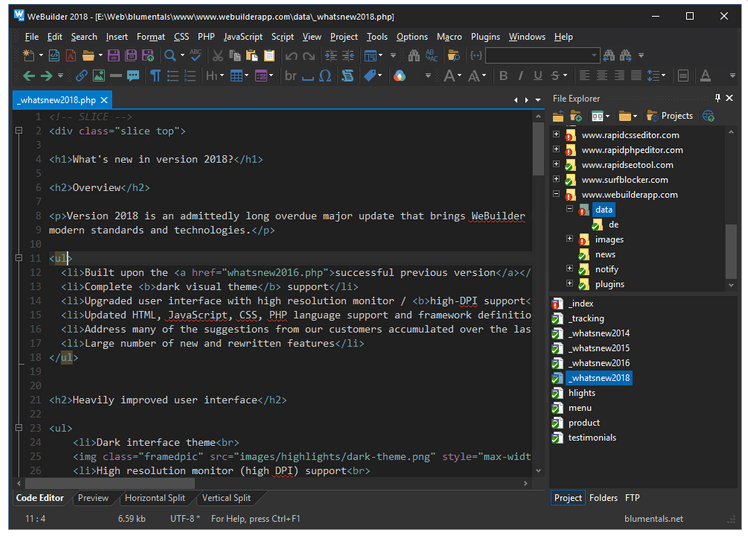
FIX: Try refreshing the Soundsource browser

Soundsource browser is a file browser in Omnisphere 2 software. However, many users reported Try refreshing the Soundsource browser message while using the Omnisphere 2.

This can be a big problem for some users, and in today’s article, we’re going to show you how to fix this.


How do I fix try refreshing the Soundsource browser error?

1. Reinstall the soundset or the STEAM folder

reinstall soundset try refreshing the soundsource browser

If you’re getting Try refreshing the Soundsource browser error, you might be able to fix that by reinstalling the soundset.

This problem is somewhat common with third-party soundsets, and reinstalling the soundset usually helps. If that doesn’t help, you’ll have to reinstall your STEAM folder.


2. Verify structure and updates

verify structure try refreshing the soundsource browser

Another way to fix this problem is to verify the structure of the STEAM folder. In addition, be sure to verify the latest Omnisphere updates.

You can try refreshing patches, multis, and soundsources in their respective browser. To do that, just click the circular arrow button next to the Play button.

Keep in mind that there are 3 browsers that you need to use, one for each of the aforementioned categories. Few users reported that the issue was resolved after downloading the Library Soundsource update.


3. Delete zmap.index

zmap index try refreshing the soundsource browser
  1. Navigate to C:\ProgramData\Spectrasonics\STEAM\Omnisphere\Soundsources\Factory\Core Library
  2. Delete zmap.index.
  3. Apply the soundsource update.
  4. Start Omnisphere and Keyscape and the zmap.index will be recreated.

Some users are also suggesting to delete zmap.index from the following subfolders in the STEAM folder:

  • Keyscape
  • Soundsources
  • Factory
  • Keyscape library
  • Keyscape>Soundsources>User

4. Make sure that STEAM folder isn’t set to read-only

  1. Go to C:\ProgramData\Spectrasonics
  2. Right-click STEAM directory and choose Properties.
  3. Uncheck Read-only option and click on Apply and OK to save changes.

Try refreshing the Soundsource browser message can be a problem while working with Omnisphere 2, but we hope that you fixed the issue using our solutions.

Paint by Numbers Software: 5 Best Picks for 2026

Based on numbers, anyone can create amazing works of art by simply following the number and color indication.

With using software that allows you to use it you can emerge in the amazing world of art creation and grow your skills in the area.

There is software to create paint-by-number in Windows 10 and Mac and in this article we will present you the best of them, so make sure to keep on reading.

What are the best software to create paint-by-number in Windows 10 and Mac?

Adobe Illustrator Draw – 3D effects and objects

Adobe Illustrator Draw is one of the most used and appreciated software by anyone that is interested in the art field.

Thanks to the Image Trace function you can turn an image into paths and add a corresponding number for each color.

Adobe Illustrator Draw is a versatile tool that has many great features that you can count on to make your drawing stand out.

Also, since Adobe Illustrator Draw is part of the Adobe Creative Cloud subscription model you will find it easier to integrate it with other Adobe programs.

Adobe Illustrator Draw

Create amazing paint-by-number masterpieces thanks to the image trace function this software offers.
Free trial Visit website

CorelDRAW Graphics Suite – Vector illustration tools

Another powerful software that allows you to create paint-by-number is CorelDRAW Graphics Suite.

This software comes with pretty much all the tools needed to image editing, illustration, logos, and many more.

You can share your work in the Cloud which will ensure a neat collaboration between you and other members of the team.

The software also offers some pretty amazing variable fonts and an easy-to-use workflow between the web and desktop.

The CorelDRAW Graphics Suite is perfect for creating all sorts of art projects and will definitely help you make an awesome paint-by-number product.

CorelDRAW Graphics Suite

Create paint-by-number art projects with this fantastic and easy-to-use software. Get the best deal now!
Free trial Visit website

Paint by Numbers – Dinosaurs – Interactive coloring designs

Paint by Numbers – Dinosaurs is an interactive coloring software, designed especially for kids.

Since many of them are passionate about dinosaurs and their existence is no wonder that this paint0by-number software is also one of their favorite choices.

The coloring is not difficult, since it has been specially created for younger children. Moreover, the program will help develop their memory, attention, imagination, and logical abilities.

If you want to make the coloring process different, then you can easily change the preset colors, kids will love the diversity and you’ll avoid having them feel bored.

⇒ Get Paint by Color Dinosaurs

Diamond Art – Shimmering diamond paintings

Diamond Art is the perfect software for games and relaxation at the same time that allows you to create different categories by following the displayed numbers.

This software is extremely easy to use, and it is intuitive as well which makes it the perfect choice. And at the end, you will have created a work of art with mosaic paint.

With Diamond Art, you can connect many pictures from the ones it contains, be it animals, vehicles, or jewelry.

The software will easily help you enhance your creativity and imagination while allowing you to take a break from daily stress.

⇒ Get Diamond Art

Candy Art – Intuitive drawing indications

Our last recommendation goes to the Candy Art software and it will definitely help you make interesting art.

This software is perfect to paint by colors, comes with easy-to-follow indications, and in the end, you will see amazing results.

It is a playful and relaxing app, and you will have to paint based on the indicated numbers but using different candies and jellies.

Of course, you can choose the palette of colors since they contain multiple variants of shades and tints.

⇒ Get Candy Art

Hopefully, the information we offered in this list will help you make an informed decision about which is the best software to create paint-by-number in Windows 10 and Mac.

If you have additional recommendations or if you have used any of the above software, please let us know in the comments section below.
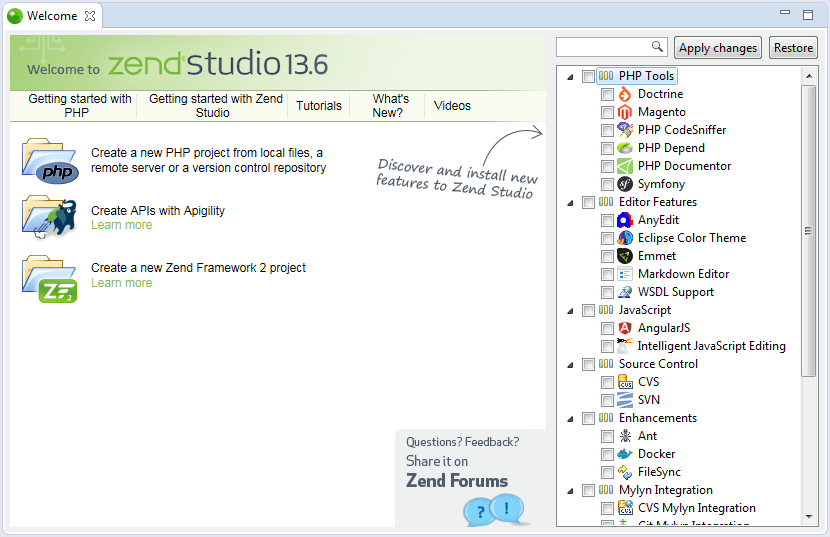
Windows 10 Insider build 21318 adds “Paste as plain text” option to Clipboard History

Microsoft has just released the Windows 10 build 21318 for Insiders in the Dev channel, which comes with a single new feature related to Clipboard History. After installing this build, a subset of Dev Channel Insiders will be see a new “Paste as plain text” option in Clipboard History, alongside the pin and delete options.

What this new action does is pasting text in the clipboard without its original formatting, so the text won’t appear with a weird font, color or size when pasted in the destination document. This is a welcome addition, and the Windows Insider team will ship it to the rest of Dev Channel Insiders once potential issues have been addressed.

Displaying the new Paste as Text option in clipboard history.

The build 21318 also introduces minor improvements for Magnifier and the notification that appears when pairing Bluetooth supported devices. Additionally, the touch keyboard improvements that previously shipped to select Insiders with the build 21301 will now be available for all Dev Channel Insiders who install today’s build 21318.

You can find the full list of changes, bug fixes, and known issues for this build below:

Changes and Improvements

  • Insiders using x64 apps on ARM64 will no longer need to download and install a separate preview version of the ARM64 C++ redistributable package.
  • We’re making a change so that the notification when pairing supported Bluetooth devices will now stay on the screen a little longer, given you the chance to interact with it before it goes away. If you’d like to dismiss it before then, you can still do so at any point by clicking the X in the notification, middle clicking the notification, or sliding the notification off the screen.
  • Touch keyboard improvements as mentioned in Build 21301 such as updates to the default keyboard layout on 12” or larger screens and the candidate bar are now rolling out to all Insiders in the Dev Channel.
  • We’ve improved the smoothness of motion while using Magnifier – for the scenario where you are transitioning between mouse and keyboard focus.

Fixes

  • [News and interests] Thank you for your feedback about the space used by news and interests on the taskbar. We’ve been hard at work on a solution that allows you to make the most of the space available. This build adds functionality that dynamically changes the size of the button, depending on the space available on your taskbar.
  • [News and interests] We fixed an issue where updating the Windows accent color would not immediately update in the flyout.
  • [News and interests] We fixed an issue where if you attempt to share news via email from the flyout would dismiss the flyout without opening the Mail app.
  • [News and interests] We fixed an issue where the flyout was appearing quicker than other elements on the taskbar when hovering.
  • [News and interests] We fixed multiple issues impacting explorer.exe performance and reliability, as well as impacting the sign in experience.
  • We fixed an issue where the right side of the quick actions area of the Action Center was truncated.
  • We fixed an issue where Netflix and other apps on ARM64 were unable to play DRM content.
  • We fixed an issue where x64 apps like OBS Studio were unable to activate the camera on ARM64.
  • We fixed an issue that was preventing Azure Data Studio, and by extension, SQL Server Management Studio, from installing on ARM64.
  • We fixed several PowerShell cmdlets running in x64 PowerShell on ARM64. Examples of some PowerShell cmdlets that now work: Enable-PSRemoting, Enable-WindowsOptionalFeature, Get-VpnConnection.
  • We fixed an issue where your active keyboard layout would be reset to the default after connecting to the PC via Remote Desktop.
  • We fixed an issue with the Quick and Changjie IMEs where pressing CTRL + / while the IME was in Off mode would unexpectedly insert an ellipsis.
  • We fixed an issue where it wasn’t possible to find the Pinyin IME Settings with search. With this update, if you are a Pinyin IME user, typing Pinyin into search will now return these Settings pages.
  • We fixed an issue where the touch keyboard could become unexpectedly large after disconnecting an external monitor.
  • We fixed an issue where the tooltips in the emoji panel displayed an unexpectedly thick border when using Windows in high contrast.
  • We fixed an issue where choosing Reset my PC with the Keep my files option was failing.
  • We fixed an issue that could result in elements of the Open dialog being unexpectedly small when invoked from certain apps and moved across monitors with different scaling.
  • We fixed an issue that could result in Narrator unexpectedly saying “No item in view” as you used the arrow keys to move through the apps list in the Start menu.
  • We fixed an issue where it was not possible to unpin apps from the Start menu in the previous flight.
  • We fixed and issue where, in previous builds, Domain networks would appear with the wrong firewall profile resulting in some local network services being blocked.
  • Some Insiders reported seeing an issue with the text “Don’t turn off your computer” when upgrading to the previous flight. This will no longer be an issue with this flight, as we have changed the text to “Please keep your computer on and plugged in”.

Known issues

  • We’re investigating an issue where if you access an Azure Active Directory (AAD) joined device via Remote Desktop (RDP), it will fail after updating to Build 21313. To resolve the issue, please add the following registry key:

Key: [HKEY_LOCAL_MACHINESOFTWAREMicrosoftIdentityStoreLoadParameters{B16898C6-A148-4967-9171-64D755DA8520}]

Value: “Enabled”=dword:00000001

  • We’re looking into reports of the update process hanging for extended periods of time when attempting to install a new build.
  • We’re investigating an issue impacting the reliability of Start and other modern apps, which started in recent Dev Channel flights. If you are impacted, you may experience the Start menu layout resetting.
  • Live previews for pinned sites aren’t enabled for all Insiders yet, so you may see a grey window when hovering over the thumbnail in the taskbar. We’re continuing to work on polishing this experience.
  • We’re working on enabling the new taskbar experience for existing pinned sites. In the meantime, you can unpin the site from the taskbar, remove it from the edge://apps page, and then re-pin the site.
  • [News and interests] We’re investigating an issue where the taskbar button might show no content after the primary monitor is changed.
  • [News and interests] We’re addressing an issue where news and interests may not be available when signing into Windows without internet access.
  • [News and interests] Sometimes the news and interests flyout cannot be dismissed with pen.
  • [ARM64] Insiders who installed the preview version of the Qualcomm Adreno graphics driver on the Surface Pro X may experience reduced brightness of the display. This will be addressed in a future update. If you are experiencing this issue, please see the feedback collection for more information.
  • We’re investigating reports from Insiders that the Chinese text for the lunar calendar in the clock and calendar flyout is no longer displaying properly as of the previous flight.

That’s for the Dev Channel this week, and in case you missed it, we remind you that Microsoft released the first 21H1 build for “seekers” in the Beta Channel on Wednesday. As expected, 21H1 is a minor update that brings multi-camera support for Windows Hello, as well as performance improvements for Windows Defender Application Guard. The update will be generally available later this Spring, and we hope the Windows Insider team will soon have its hands free to share more details about the 21H2 update coming in the second half of 2021.

Apisetschema.dll Missing From Windows 10 [Complete Fix]

Apisetschema.dll is one of Windows 10’s many Dynamic Link Library files. That’s a DLL needed to run ApiSet Schema DLL-based software.

When the apisetschema.dll has been removed or corrupted, software that needs that DLL won’t operate properly and display an error message like this one:

The program can’t start because apisetschema.dll is missing from your computer. Try reinstalling the program to fix this problem.

There are numerous apisetschema.dll missing error message variations. However, they all mean the apisetschema.dll file is not accessible for software.

The required DLL might be deleted, corrupted, or have an incorrect location (a called path might not match the real DLL path).

How can I fix an apisetschema.dll missing error?

1. Use third-party repairing DLL files software

A dedicated tool is one of the most surefire resolutions for fixing the apisetschema.dll missing error.

A system repair utility tool can detect and fix Windows, BSOD, freezing, and missing/damaged DLL issues. It restores missing or damaged DLL system files with fresh new ones and purges malware.

Although there are other ways you can fix an apisetschema.dll missing error, this kind of software undoubtedly provides the quickest and most straightforward resolution.

2. Scan system files

  1. Click the magnifying glass button nestled between Cortana and the Start menu to open Windows 10’s search box.
  2. Enter the search keyword Command Prompt in the text box.
  3. Click the Run as administrator option on the right side of Windows 10’s search utility.
    Run as administrator option apisetschema dll
  4. Press the Enter key after typing in this command: DISM.exe /Online /Cleanup-image /Restorehealth
  5. Wait for the Deployment Image Servicing scan to finish, and then input this command: sfc /scannow
    The sfc command apisetschema dll
  6. Don’t forget to press the Enter key to start the SFC scan.
  7. Thereafter, wait for the System File Scan to display its outcome within the Command Prompt.
  8. Restart your laptop or desktop if the scan reports it repaired files.

3. Register the apisetschema.dll

  1. Right-click the Start button to open the Win + X menu.
  2. Select Run on the menu.
  3. Type this command in Run’s Open box: cmd
  4. Press the Ctrl, Shift, and Enter keys simultaneously to open an elevated Command Prompt.
  5. Then enter this command and press Return to register the DLL: regsvr32 apisetschema.dll
    The regsver32 command apisetschema.dll
  6. Restart your desktop or laptop after registering the DLL.

4. Reinstall software you need to fix the apisetschema.dll error for

  1. Open the search utility in Windows 10.
  2. Enter apps in the search box.
  3. Click Apps & features to open Settings as shown directly below.
     apisetschema.dll
  4. Now select the program that the apisetschema.dll missing error occurs for.
  5. Click Uninstall (and Uninstall again) to remove the selected software.
  6. Reboot your PC before reinstalling the software.
  7. Then reinstall the software you just uninstalled with its installation DVD or downloaded setup wizard. Make sure you install the latest software version.

5. Roll back Windows 10 with System Restore

  1. Press the Windows (left of Alt) and R keyboard keys simultaneously to open Run.
  2. You can open System Restore by entering this command and pressing Enter: rstrui
  3. Click the Choose a different restore point option if System Restore recommends a restoration point.
    System Restore apisetschema dll
  4. Click Next to open the restore point list.
  5. If System Restore doesn’t show you a full list, click the Show more restore points checkbox.
    The Show more restore points option apisetschema dll
  6. Now choose to restore Windows to a date that predates the apisetschema.dll error on your PC. Alternatively, just select the oldest restore point available.
  7. Select the Next option to proceed.
  8. Then you’ll need to click Finish to confirm your restore point and start the Windows rollback.

Note: Selected system restore points delete software installed after their dates. To check what software you’ll need to reinstall for a chosen restore point, click the Scan for affected programs button on the System Restore window.

6. Reset Windows 10 with Reset this PC

  1. Open Windows 10’s search tool.
  2. Type the keyword reset in the search utility’s text box.
  3. Click Reset this PC to open recovery options.
    Get started button apisetschema dll
  4. Press the Get started button to open the Reset this PC window in the snapshot directly below.
    The Reset this PC utility apisetschema dll
  5. Select the Keep my files option.
  6. Press the Next and Reset buttons to confirm.

Note: Although your user files will be retained, resetting Windows 10 as outlined above will remove all third-party software installed on your PC.

The resolutions above will usually fix the apisetschema.dll missing error.

You can also try manually downloading a new apisetschema.dll from a DLL file website. However, make sure you obtain the file from a reputable DLL site and scan it with antivirus software.