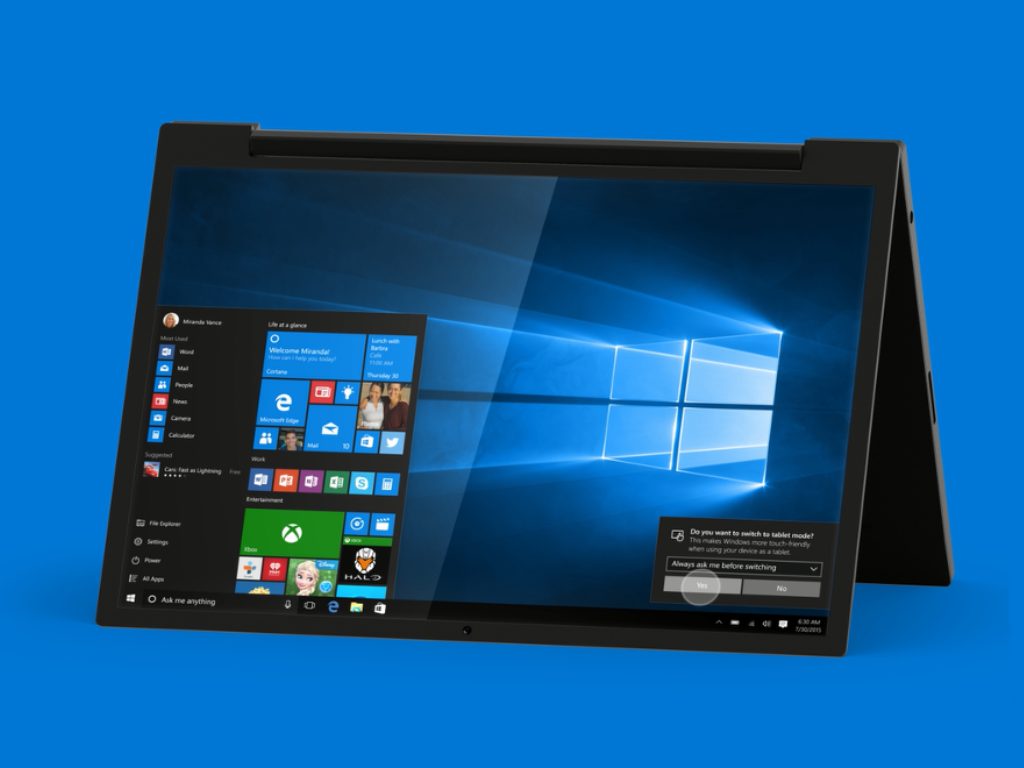
Windows 10 might suggest tools depending on your interests

Microsoft released yesterday the Windows 10 Insider Preview Build 20231, available only for the users of Windows Insider.

The purpose is to allow developers to test a bunch of new features, mostly, that might be included in the upcoming OS October update, depending on their impact on performance and system reliability.

Windows 10 might focus more on your user experience

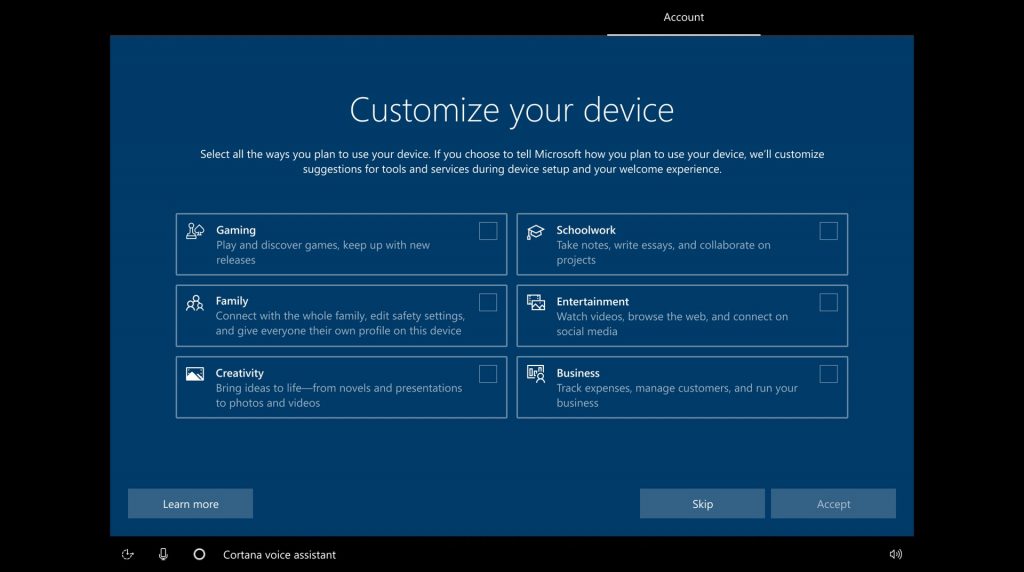
The important feature the build is testing is the option to choose upon Windows 10 setup how you plan to use your device.

If implemented, this option should pop up at every fresh installation or system reset.

insider preview Build 20231

This will allow Windows to prioritize and notify you of certain features and tools, depending on your interests.

Depending on your preferences, Windows will offer suggestions to help you stay up-to-date about new games, security tools, creativity, or business-related apps.

It’s possible that this will trigger other customized systems settings as well.

For enterprises

In the same line, Microsoft will make it easier for enterprises to set up automatic file associations.

As a result, IT admins can set which apps will automatically open various file types or links. For example, this makes it easy to set Microsoft Edge as your organization’s default browser, or always open PDFs in your organization’s preferred app.


drag your finger to move the cursor

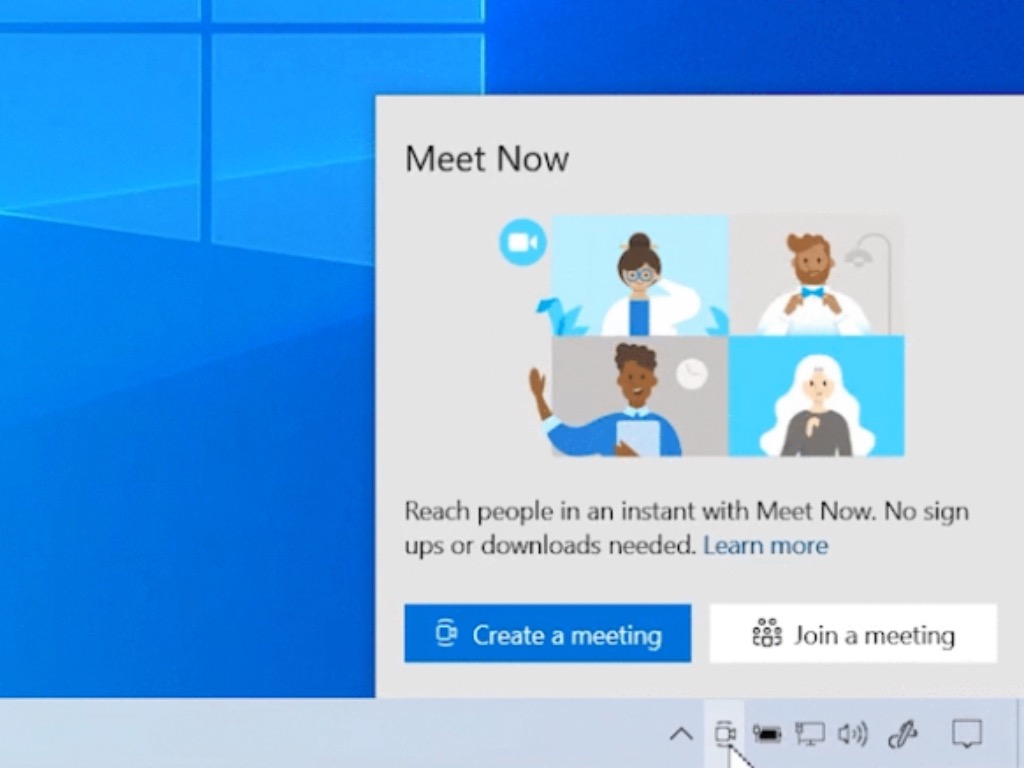
Other notable improvements, only for Insiders, for now, include the possibility to view graphics card details, to see a Meet Now feature in the Taskbar, or to move the cursor via gestures on the touch keyboard.

Have you tested any of these features yet? You can share your intake on these changes in the comments section below.

[wl_navigator]

How to fix Baldur’s Gate 3 common bugs [PC & Stadia]

Baldur’s Gate 3’s Early Access was first launched on October 6 2020 at around 10 PM PST, and it literally broke records.

At first, Steam broke down because it couldn’t handle the sudden surge of purchases.

Afterwards, most streaming services like Twitch were overcrowded with people broadcasting Baldur’s Gate 3 walkthroughs.

Lastly, the CEO of Larian wanted to remind everyone that this is not the official launch of the game, but rather the Early Access, so bugs, issues and crashes are to be expected.

On that note, we’ve decided to create a list of the most common bugs and issues that players have been encountering.

Remember that the game is available on Google Stadia, Steam, and GOG, so some bugs and issues may only be platform-specific or console specific.


What are the most frequent issues in Baldur’s Gate 3?

1. Steam is overloaded

The surge of players either buying or playing Baldur’s Gate 3 is still high, even days after launch, so Steam-related issues seem to be quite common, such as long response times, or no responses at all.

Solutions:

Since this is a temporary issue that has nothing to do with the game itself, you have one of three options:

  • Buy the game from GOG if you’re a PC gamer
  • Wait a bit longer until the hype has lessened and try again
  • Try to buy and/or play the game at less active hours in your region

2. Steam purchases stuck on pending

This particular issue is somewhat related to the one above, and it may be caused by server overloads.

Solutions:

Besides the solutions mentioned above, there is a way to force Steam to handle your order faster:

  • Launch Steam
  • Right-click on the Steam button
  • Go to Settings and select View account details
  • Select View purchase history
  • Navigate to your Baldurs Gate 3 entry
  • Select Cancel purchase, and then confirm your choice

Doing this will cancel the purchase and allow you to rebuy the game and install it. Worked for me


3. Black screen/launch failure on Windows 7

Many Windows 7 users reported that they either get a black screen or a launch failure when trying to run the game.

Admittedly, even the game’s minimum system requirements state that you should be running Windows 10 as an OS if you want to run it.

Solutions:

In the case of this issue, the solution is pretty self-explanatory: the user needs to upgrade his OS if he wants to play Baldur’s Gate 3.

To learn more about upgrading your OS, check out this detailed article.


4. Multiplayer crashes when using Vulkan

Many users have reported issues with their multiplayer games during combat, as it can sometimes lead to crashes, but only if they are using Vulkan.

Solutions:

One solution that was confirmed to work for many was installing DirectX 11 instead of Vulkan


5. Multiplayer crashes the game on Stadia

While players have no problem playing the single-player mode while on Google Stadia, the same cannot be said bout those that want to play in Co-Op with their friends.

For some reason, multiplayer matches are plagued by frequent crashes.

Solutions:

Unfortunately, this issue can only be fixed via either a patch to Baldur’s Gate 3 or update to Google Stadia, both of which involve you having to just wait it out and avoid multiplayer games for a while.


This is a wrap-up of all of the most important bugs and issues that Baldur’s Gate 3 players have encountered so far.

Keep in mind that the game is still in Early Access after all and that such issues are to be expected, and not frowned upon.

In fact, you can even contribute to the game’s development with constructive feedback that can make the game’s Early Access period shorter, and the end-result better.


What bugs and issues did you encounter while playing Baldur’s Gate 3?

Don’t forget to let the developers know of them, and you can also share them with us in the comments section below as well.


[wl_navigator]

Another Program is Being Installed: 5 Methods to Stop It

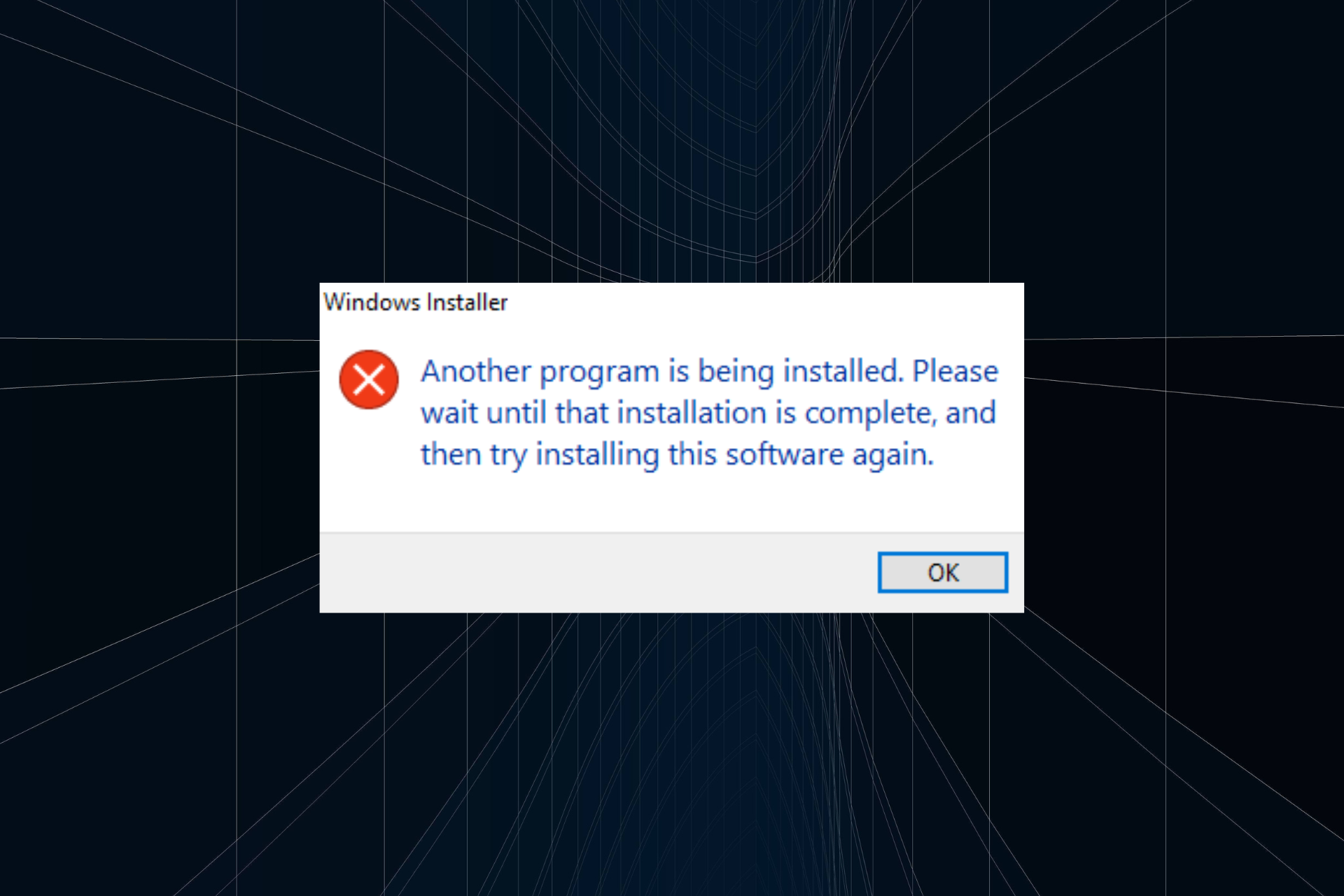
Windows undoubtedly is a user-friendly operating system where most operations and functions are seamless. But an error message troubling many is, Another program is being installed. Please wait until that installation is complete.

The error message doesn’t highlight which other program is being installed, making it difficult to troubleshoot things. That’s why you need to follow a specialized approach, and we are here to help you with it. So, let’s find out how you can install the program!

Why does it say another program is being installed?

Here are a few reasons the error message appears:

  • An installation running in the background: In most cases, it turned out that another application was already running in the background, which triggered the error.
  • Conflicting applications on the PC: Sometimes, a third-party app can conflict with the functioning of the PC and lead to such errors.
  • Critical service not running: Windows requires a few services to be running in order to install programs, and if that’s not the case, you are bound to come across such errors.

How can I fix Another program is being installed error?

Before we move to the slightly complex ones, here are a few quick solutions to try:

  • Restart the computer and try installing the program.
  • Disable any third-party antivirus on the computer, and verify whether the Another program is being installed message still appears.
  • Make sure Windows is not installing updates in the background. In this case, wait for the process to complete.

If none work, move to the fixes listed next.

1. Terminate msiexec.exe in the Task Manager

  1. Press Ctrl + Shift + Esc to open the Task Manager, and navigate to the Details tab.task manager
  2. Locate the msiexec.exe process, select it, and click on End task.terminate to fix another program is being installed
  3. Once done, try installing the program that earlier threw the error.

2. Check the Windows Installer service

  1. Press Windows + R to open Run, type services.msc in the text field, and hit Enter.services
  2. Locate the Windows Installer service, right-click on it, and select Properties.windows installer
  3. Now, click on the Start button if the service is not running.start to fix another program is being installed
  4. Once done, click Apply and OK to save the changes and then install the program.

The Windows Installer service is critical when running the setup for programs. So check and make sure that the service is running. If the service was already running, stop and run it again.

3. Scan for malware

  1. Press Windows + S to open Search, type Windows Security, and click on the relevant search result.windows security
  2. Click on Virus & threat protection.virus & threat protection to fix another program is being installed
  3. Click Scan options.scan options
  4. Now, choose the Full scan option and click on Scan now.full scan to fix another program is being installed
  5. Wait for the scan to complete.scan

In some cases, it was a virus or malware that led to the Another program is being installed error in Windows 10. And running a full system scan should fix things. If Windows Security doesn’t work, use an effective third-party antivirus to scan for malware.

For instance, you can give TotalAV a try, as it is one of the most reliable options from third-party antivirus programs.

It can scan your entire system to detect any possible digital threats that can harm your PC, ultimately removing them and preventing them from entering your device in the future.

⇒ Get TotalAV

4. Uninstall conflicting applications

  1. Press Windows + R to open Run, type appwiz.cpl, and hit Enter.appwiz.cpl
  2. Choose a program installed recently, right before the problem first appeared, and click Uninstall.uninstall to fix another program is being installed
  3. Follow the on-screen instructions to complete the process.
  4. Check whether the problem is fixed. If not, uninstall other similar programs until the problematic one is found.

Oftentimes, a third-party application is responsible when you get the Windows Installer Another program is being installed error. Here, it’s best that you uninstall the app. For some, the app was Pinger, so check if you have it or identify the one in your case.

5. Perform a clean boot

  1. Press Windows + R to open Run, type msconfig in the text field, and then click OK.msconfig
  2. Go to the Services tab, tick the checkbox for Hide all Microsoft services, and click Disable all.disable services to fix another program is being installed
  3. Navigate to the Startup tab, and click on Open Task Manager.task manager
  4. Select any apps configured to launch at startup, and click on Disable.disable startup apps to fix another program is being installed
  5. Once done, head back now System Configuration, and click on OK.
  6. Click Restart in the confirmation prompt.restart
  7. When the PC restarts, try installing the program.

When a service or a background process triggers the error, performing a clean boot may help. Here, all the non-critical background services, drivers, and startup apps are disabled, thus eliminating any conflicts.

If this, too, doesn’t fix the Another program is being installed error, your last resort is to reinstall Windows. Though it will take time, the problem will be gone for sure. Besides, for the data, you can always use a reliable backup tool or move the files to external storage.

Before you leave, do not forget to check some quick tricks to boost Windows performance in no time.

Tell us which fix worked for you in the comments section below.

Microsoft Edge is getting built-in price comparison and Meet Now integration

Microsoft has just announced some important updates for its Edge browser with useful new features for the upcoming holiday season. First of all, the new Chromium-based browser a getting a built-in price comparison feature this month that will integrate with the existing Edge Collections.

To try it, you’ll need to add products to a Collection and then click “compare price to other retailers.” The browser will then display a list of prices for your items across online retailers with direct links to store listings. “This is just the beginning of the shopping journey. Microsoft Edge will continue to bring you features that help you save time and keep more money in wallet like more proactive price comparison and coupons,” wrote Liat Ben-Zur, CVP of Modern Life and Devices at Microsoft.

Animation of price comparison feature

The integration between Edge Collections and Pinterest that Microsoft announced earlier this year will also reach general availability this month. For Edge users who add regularly add items to their Collections, this integration will suggest related Pins at the bottom of the Collections pane, which can easily be added to a Collection. When enabled, the integration will also make it possible to export an Edge collection to a Pinterest board.

Animation of price comparison feature

In addition to these shopping-related features, Microsoft Edge is getting a bit more customisable this month with the ability to upload any picture to use as a background image in the new tab page. To customize the new Edge tab page, you’ll need to click the wheel in the top right corner and then click on custom page layout to see the upload button.

Animation of new tab page feature

To help users stay connected with family and friends during the holiday season, Microsoft has also started rolling out a new Meet Now button on the new tab page that will help users quickly launch a Skype video call. “This experience will start to roll out to Edge this month, and will be available in Outlook on the web and on the Windows 10 taskbar in the coming weeks,” Ben Zur said today. Windows Insiders in the Dev Channel can now see this Meet Now button in the taskbar.

Skype Meet Now Button In Windows 10 Build 20221

Starting today, the built-in PDF viewer in Microsoft Edge will also let users quickly navigate PDFs using the table of contents. This has been a top-requested feature from users, and it should be really helpful for navigating really long documents using the web browser.

Animation of PDF table of content feature

The Web capture feature that is currently in testing with Edge Insiders will also help users to quickly capture online content without the need for a separate app. “We’ll add in an inking toolbar and the ability to capture full webpages with a single click in the upcoming releases,” Ben-Zur said today.

Animation of web capture feature

If you’d like a handy solution for chatting with your friends while watching a movie online together, a new Teleparty (formerly Netflix Party) browser extension can now do that with support for Hulu, Amazon Prime, HBO GO, Disney+, Netflix and more. You can install Teleparty from the Microsoft Edge add-ons site.

Last but not least, the company announced some Bing updates for the holiday season. In the US, Bing Rebates will display cashback offers right in the search results, and the company is also curating a list of deals on its Rebates offers page.

Animation of Bing Rebates feature

To take advantage of Bing Rebates on your purchases, you’ll need to join the Microsoft Rewards with your Microsoft account. Give with Bing, an extension of Microsoft Rewards that lets users donate points to causes they care about is also being expanded this month to support include over 1.4 million organizations across the globe.

What to do if VLC player is not finding Chromecast? [Solved]

VLC added Chromecast support to stream video and audio files from VLC media player on PC to your Chromecast connected to your TV. However, several users have reported the VLC player is not finding Chromecast issue.

Your VLC media player may fail to find your Chromecast if there is a temporary glitch with the media player. In other instances, it can also happen due to audio file incompatibility issues.

In this article, we explore a few troubleshooting steps to help you resolve the VLC player is not finding Chromecast issue in Windows 10.

How to fix VLC not casting to Chromecast? Try these solutions

1. Switch 2.4Ghz band

VLC player is not finding Chromecast

If your WiFi supports both 5Ghz and 2.4Ghz bands, try switching to only 2.4Ghz band. Some users have reported the Chromecast to have failed to cast from VLC media player when connected to a 5GHz network.

Switch to a 2.4Ghz network on your PC and TV, and then try casting from your VLC media player. Although, a temporary solution, it should work till you find a permanent fix.


2. Restart your Chromecast

VLC player is not finding Chromecast

If the issue persists or triggered again, try performing a power cycle. A power cycle will reset the device and fix any temporary problems occurring due to bad connection or configuration.

Disconnect Chromecast  from your TV. Reboot your Windows laptop. Reconnect Chromecast to your TV and then try casting again to see for any improvements.


3. Check your firewall

VLC player is not finding Chromecast

  1. Click on Start and select Settings.
  2. Go to Update and Security.
  3. Click on Windows Security.
  4. Open Firewall and Network Protection, and choose Public/Home/Private profile.
  5. Toggle the switch to turn off Windows Defender Firewall. Click Yes if prompted by UAC.

Once the firewall is off, turn off your Antivirus as well. You can disable it from the system tray. Try to cast your VLC media player to Chromecast and see if it works.

If it works, you can zero down the issue to Windows Defender Firewall blocking the VLC media player connection. Here’s how you can add the VLC player to the white list.

VLC player is not finding Chromecast

  1. Press the Windows Key + R.
  2. Type control and click OK.
  3. In Control Panel, go to System and Security.
  4. Open Windows Defender Firewall.
  5. Click Allow an app or feature through Windows Defender Firewall from the left pane.
    VLC media player not casting Chromecast
  6. Click the Change settings button on top.
  7. Scroll down and locate VLC media player.
  8. Check the both Private & Public boxes.
  9. Click OK to save the changes and close the Control Panel.

Note that, if you have a third-party security solution like Avast controlling your firewall, make sure to allow permission from Avast Firewall settings.

Make sure to enable Windows Defender Firewall and the Antivirus and then try casting to Chromecast. Adding the VLC media player to Windows Defender Firewall list should fix any issues caused due to your firewall.


4. Update VLC Media player

VLC media player not casting Chromecast

  1. Launch VLC media player on your PC.
  2. Click Help and choose Check for Updates.
  3. Download and install any update if available. If none available, you will see a ‘You have the latest version of VLC media player installed’ message.

If updating to the latest version did not work, try downgrading to an earlier version of VLC. You can download the previous version of VLC from the VLC releases page.

Cast via Chrome

VLC media player not casting Chromecast

  1. Launch Google Chrome.
  2. Click the three dots and select Cast.
  3. Select Chromecast from the devices list and select Desktop as Source.
  4. Launch the VLC media player and play any video that you want to cast.

While some quality may be lost, it should allow you to caste your VLC media player on your TV.

The VLC player is not finding Chromecast is a common problem and can occur due to a VLC media player glitch or firewall blocking the connection. Try the steps in this article to fix the problem for good.

[wl_navigator]

Microsoft News brings in over $1B in revenue for publishers

Following information on Microsoft’s efforts to support local newsrooms and journalism, the company is now releasing some numbers behind its more global efforts regarding the new industry.

Since 2014 Microsoft News (or more anecdotally known as the MSN app on devices) has attracted over 550 million monthly readers in 180 countries across 31 different languages and above all, returned $1B in “sustainable revenue” to the news industry as a whole.

In a new post on the Microsoft New Blog, the company is attributing its accumulative accomplishments within the new industry to a simple licensing and algorithmic combination.

  • License content from our worldwide community of over 4,500 media brands.  
  • Use a mix of algorithms and human insight to combine and curate that content into news feeds that power our experiences on the web, desktop, and mobile. 
  • Integrate high-quality advertising and share revenue with our publishing partners.  

As a result, MSN has been able to share its growing pot of $1B revenue with its 4,500+ global publishing network as well as power 170,000 unique pieces of content daily that cover a gambit of topics including sports, late-breaking global news, weather, pop culture, science, food, finance, and many more.

Going forward, Microsoft will continue to leverage its AI to assist in quicker and more thorough journalism as well as exploring emerging news topics such as eSports. Microsoft is also committed to continually reevaluate its publishing distributions to best support journalists and news outlets as a reward for high-quality content.

Full Fix: IPv4 properties not working in Windows 10, 7

Windows 10 has a lot to offer to its users, but unfortunately, there might be some bugs here and there. Some users report that they cannot change IPv4 properties in Windows 10.

If you’re setting up a network, that can be a big problem, but there are a few solutions that you want to check out. They apply to those using Windows 7 as well.

What to do if IPv4 properties don’t work in Windows 10?

1. Check your system for malware

If IPv4 properties aren’t working, the issue might be caused by malware. The problem can be caused by various toolbars and browser extensions.

So, if you’re using any suspicious extensions in your browser, be sure to remove it as soon as possible. In addition, it’s also a good idea to scan your system for malware.

There are many great antivirus tools, but if you want maximum protection that won’t interfere with your system, we strongly advise that you consider using Eset HOME Security Essential.

Eset is one of the most popular antivirus software, and for good reason. It has multi-layered protection, advanced machine learning, and additional security features that enable you to safely make online purchases or set parental controls.

It is suitable both for home use and business use. It is compatible with Windows, macOS and mobile Android devices.

⇒ Get Eset HOME Security Essential

2. Change the rasphone.pbk files

  1. Navigate to the following:C:\Users\yourusername\AppData\Roaming\Microsoft\Network\Connections\Pbkrasphone.Pbk\
  2. After you’ve found rasphone.pbk it’s a good idea to make a copy of this file and save it in a different folder in case you need to use it as a backup. This is entirely optional, but it doesn’t hurt to be a bit more careful.
  3. Right-click the rasphone.pbk and choose Open with. Then select Notepad from the list of suggested applications.Network properties not opening
  4. After you’ve opened this file with Notepad find the IpPrioritizeRemote and set its value from 1 to 0. Some users advise to also set IPInterfaceMetric to 1, so if changing IpPrioritizeRemote doesn’t work try changing IPInterfaceMetric as well.
  5. Now, all that you have to do is to save the changes and IPv4 properties should be working as usual.

Properties for connections are stored in PBK files, and there is usually one PBK file per user available. To enable IPv4 properties you need to find and manually edit the PBK file, so let’s get started.

3. Use Powershell to enable Split Tunneling

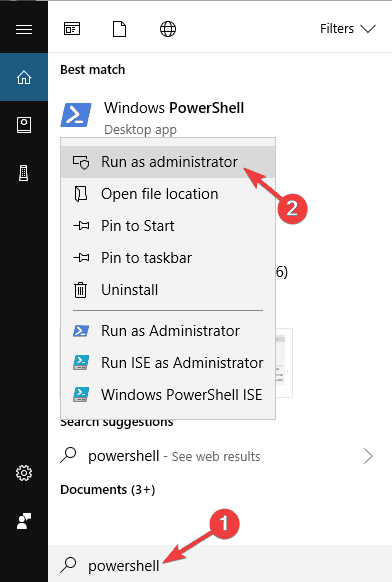
  1. Start Powershell. You can do so by typing Powershell in the search bar and right-clicking the Powershell icon and choosing Run as administrator from the menu.
    IPv4 not working Windows 7
  2. Enter the following command into Powershell and press Enter to run it (You should now get a detailed listing of settings for each VPN. Pay attention to the Name section and locate the name of your connection because you’ll need it in the next step):
    • Get-VpnConnectionIPv4 not working Windows 7
  3. Now, enter this into Powershell (Remember to change myVPN to the name of your connection that you’ve found in the previous step)
    • Set-VpnConnection -Name “myVPN” -SplitTunneling $TrueCannot access IPv4 properties
  4. Run that command by pressing Enter, and that’s it.

4. Set IPv4 properties manually via Powershell

  1. Run Powershell as administrator. If you don’t know how to do it, have a look at Step 1 in the previous solution.
    After the Powershell starts enter this:


    • set-DnsClientServerAddress -InterfaceAlias  “My Connection” -ServerAddresses 208.67.222.222,8.8.8.8,208.67.220.220,8.8.4.4IPv4 properties not opening
  2. It’s important to change My Connection to the name of your connection as well as IP addresses. Using the same IP addresses that we used in our example won’t work for you.

The next thing we’re going to try is another Powershell trick. Just use the above steps in that regard.

5. Use a different VPN client

This problem can occur while trying to configure a VPN. If IPv4 properties aren’t working with your current VPN, this might be a good time to consider switching to a different VPN client.

PIA is fully compatible with Windows 10, and it offers great features. So, if you’re having any problems with your VPN, we strongly recommend that you consider switching to this VPN service.

With encrypted Wi-Fi, P2P support, and SOCKS5 Proxy as part of the package, the connection is stable and you never feel a loss in bandwidth.

6 Install the missing updates

  1. Press the Windows Key + I shortcut to open the Settings app.
  2. Up next, go to the Update & Security section.
    Cannot access IPv4 properties
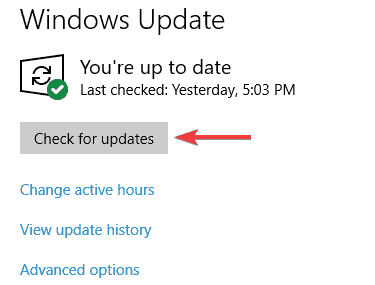
  3. In the right pane, click the Check for updates button.
    IPv4 properties not opening

According to users, sometimes problems with IPv4 properties can occur due to certain bugs on your system.

Microsoft is working hard to fix various issues, and they are frequently releasing Windows Updates, so if you want to be sure that your PC is error-free, it’s advised to keep your system up to date.

For the most part, Windows 10 automatically downloads the latest updates in the background, but sometimes you might miss an update or two.

However, you can always check for updates manually by doing as described above.

Windows will now check for any available updates and download them automatically in the background. Once the updates are downloaded, simply restart your PC to install them.

After your system is up to date, check if the problem is still there.

7. Disable Datamngr Coordinator service

  1. Press Windows Key + R and enter services.msc. Press Enter or click OK.
    IPv4 not working Windows 10
  2. Now look for Datamngr Coordinator service and double-click it to check it’s properties.
  3. Set Startup type to Disabled, and click the Stop button to stop the service. Now click Apply and OK to save changes.
    Cannot access IPv4 properties

According to users, if IPv4 properties won’t open, the issue might be the Datamngr Coordinator service. To fix the problem, it’s advised to disable this service completely.

After doing that, check if the problem is still there. Keep in mind that other services, such as Safety Nut Service, can cause this problem as well, so be sure to disable them.

8. Remove the problematic applications

According to users, sometimes a third-party application can cause IPv4 properties to stop working. To fix the problem, you need to find and remove this application from your PC.

Many users reported that applications such as Aztec Media caused this problem, so if you see any suspicious application on your PC, be sure to remove it and check if that solves the problem.

There are many ways to remove a problematic app, but the best one is to use one of these great uninstaller software tools.

In case you’re not familiar, uninstaller software is a special application that will completely remove the selected application, along with its file and registry entries.

As a result, there won’t be any leftover files or registry entries that can interfere with your system. There are many great uninstaller applications on the market, that’s true.

However, one of the best and simplest to use is Revo Uninstaller, so if you want to remove any problematic application from your PC, we suggest trying this tool.

9. Flush your DNS and reset your connection

  1. Start Command Prompt or PowerShell as administrator. To do that, press Windows Key + X to open Win + X menu and choose PowerShell (Admin) or Command Prompt (Admin).
    IPv4 properties not showing
  2. When Command Prompt opens, run the following commands one by one:
    • netsh winsock reset
    • netsh interface ipv4 reset
    • netsh interface ipv6 reset
    • ipconfig /flushdns

In some cases, issues with IPv4 properties can occur due to your connection. The simplest way to fix that is to reset your connection and check if that helps.

To do this, you just need to run a couple of commands by doing as described above. After running these commands, restart your PC and check if the issue is still there.

10. Modify your registry

  1. Press Windows Key + R and enter regedit. Now press Enter or click OK.
    Network properties not opening
  2. When Registry Editor opens, navigate to this key: HKEY_LOCAL_MACHINE\SYSTEM\CurrentControlSet\ControlNetwork
  3. Right-click the Network key and choose Export from the menu.
    IPv4 not working Windows 7
  4. Enter the desired name, choose a save location, and click the Save button. If anything goes wrong after modifying the registry, simply run the exported file to restore it.
    Cannot access IPv4 properties
  5. Right-click the Network key again, and this time choose Delete. Click Yes to confirm.
    IPv4 properties not enabled

In some cases, you might have to modify your registry if IPv4 properties aren’t working. To do this, you just need to follow the procedure described above.

After this key is deleted, the issue should be resolved and everything should start working again.

Getting an error while accessing the Registry? Count on us to solve the problem with the help of this quick guide.

Sometimes you might not be able to open IPv4 properties. This isn’t the only problem, and speaking of problems, here are some similar issues that users reported:

  • Network properties not opening – Sometimes you might not be able to open network properties. To fix that, be sure to install the latest updates and check if that helps.
  • IPv4 not working Windows 7, Windows 10 – This issue can appear on any version of Windows, and even if you don’t use Windows 10, you should be able to apply almost all of our solutions to other versions of Windows.
  • Cannot access IPv4 properties – If you can’t access IPv4 properties, be sure to scan your PC. Sometimes malware can cause this issue to appear, so be sure to perform a thorough scan.
  • IPv4 properties not opening, showing, enabled, available, detected, is disabled – There are various issues that can affect IPv4 properties, but you should be able to fix most of these issues by using one of our solutions.

We hope that these solutions were helpful to you and that you have managed to successfully set IPv4 properties in Windows 10.

If you are facing the IPv6 no internet access issue, check out this guide to learn the quick solutions.

If you have any questions, comments, or maybe some other solutions for this problem, just reach the comments section below.

How to fix VLC audio not working [Complete Guide]

VLC Media Player has all the features you need in a media player, but it is not exempt from its own share of issues – for various reasons, you may find that VLC audio is not working.

This media player is one of the most popular media tools for Windows computers. It’s easy to use and offers a neat interface.

However, without audio, you can’t enjoy your movies and other videos on VLC. If you’re currently experiencing this issue, then this guide is for you.

Some related issues include the following:

  • VLC audio stopped working – Undo recent changes made to your computer and update your drivers.
  • VLC not playing audio – Confirm that you didn’t mute the player. Fix it with this guide.
  • VLC audio track not working – Go to Audio > Audio Track and select a different track.

What can I do if VLC audio is not working?

1. Unmute VLC from the player interface

unmute player vlc audio not working

  1. Open VLC Media Player.
  2. Look on the player interface, to the left of the volume control, and ensure that there’s no red mark beside the speaker icon.
  3. If there is, click on the speaker icon to unmute the video.

2. Unmute VLC Media Player from the volume mixer

unmute vlc audio not working

  1. Open VLC Media Player and play a video that has sound.
  2. Right-click on the Volume icon on your taskbar and select Open Volume Mixer.
  3. Click on the speaker icon below the VLC mixer and ensure that it isn’t muted.
  4. Drag the volume slider for VLC Player all the way up.

3. Enable the sound device

  1. Click on the Start menu button.
  2. Search for Control Panel and open it from the results.
  3. Go to Hardware and Sound.
  4. Click on Sound.sound settings vlc audio not working
  5. Right-click on every sound device on this screen and hit Enable.
  6. Click on the Apply button to save it.
  7. Click Ok.

4. Re-enable VLC audio track

  1. Launch VLC Media Player and play a video.
  2. Ensure that the player isn’t on fullscreen mode.
  3. Click on the Audio menu.
  4. Go to Audio Track and disable it.vlc audio not working disable track
  5. Return to the Audio menu.
  6. Select Audio Track but enable it this time.

5. Reset the audio preferences of VLC Media Player

  1. Open VLC Media Player.
  2. Click on the Tools menu and select Preferences.
  3. Switch to the Audio section.
  4. Hit Reset Preferences at the bottom of the screen.vlc audio not working reset preferences
  5. Hit the Save button.
  6. Restart VLC Media Player.

6. Disable all enhancements

  1. Press the Windows key and search for Control Panel. Open it from the results.
  2. Click on Hardware and Sound.
  3. Select Sound.
  4. Right-click on a sound device and choose the Properties option.
  5. If you see the Enhancements tab click on it.
  6. Mark the Disable all enhancements checkbox.
  7. Hit the Apply button.
  8. Repeat steps 4 to 6 for every sound device in the Sound dialog box.

7. Modify VLC audio settings

  1. Launch VLC Media Player.
  2. Click on the Tools menu and go to Preferences.
  3. Click on the Audio section.
  4. Mark the Enable Audio checkbox.enable vlc audio not working
    NOTE: Enabling VLC audio can fix the issue, but if VLC audio still doesn’t work, continue with the steps below.
  5. Click on the Output module dropdown menu and change it to Automatic.
  6. Hit the Save button.

On switching the output module to select automatically, VLC will select the best fit for your system.

However, if VLC audio is still not working with the Automatic setting, go back to Step 5 and try again with each of the other options.

The fixes here will et you right back on track and bring back your VLC audio. If you try all of these, and your VLC audio is not working still, then update your VLC Media Player and audio drivers.

Did this solve your VLC audio issue? Feel free to tell us what you think in the comments section below.

[wl_navigator]

Forza Motorsport 7 arrives on Xbox Game Pass

Forza Motorsport 7 is now available to play free on Xbox One consoles, Windows 10 PC, and cloud streaming via Android devices for Xbox Game Pass and Game Pass Ultimate subscribers. Xbox Game Pass subscribers can also download some expansion packs available for Forza Motorsport 7 as an added bonus, such as the Hoonigan Car Pack and the Fate and the Furious Car Pack.

In Forza Motorsport 7, Xbox Game Pass Ultimate subscribers can race over 700 cars at 200 tracks in 30 amazing destinations throughout the globe. Dynamic race environments allow you to race in high wind, rain, and even snow! All of this while experiencing the Forza Motorsport 7 in native 4K resolution in HDR at 60fps.

As a reminder, gamers who have yet to try Xbox Game Pass can get their first month of Xbox Game Pass Ultimate for just $1. The Ultimate tier now includes Xbox Game Pass for Console, Xbox Game Pass for PC, Xbox Live Gold, plus access to over 150 Xbox One games on Android thanks to Microsoft’s new Cloud Gaming (Project xCloud) technology.


Xbox Game Pass Ultimate

Microsoft Edge Canary adds new Pin to Start Menu option for some Insiders

Microsoft has started testing a new Pin to Start Menu option on Microsoft Edge Canary, allowing users to pin sites to the Start menu for quick access. As Leopeva64-2 noticed, the experimental feature is currently available for some Insiders running the latest Canary build (87.0.662.0) of Microsoft Edge.

As a reminder, the Pin to Start Menu option was one of the nifty features available in the old Edge. The latest addition is a step towards making the switch from the browser’s legacy build to the new Edge seamless for users. The current implementation of this new capability is a pretty straightforward process, and it requires merely a couple of clicks. To pin your favorite sites to the Start Menu, follow the steps listed below:

  1. Navigate to the ellipsis menu, click “More tools,” and then select the Pin to Start option from the list.
  2. Now, enter a name to appear as the Start menu tile on the Pin to Start dialog box.
  3. Finally, click “Yes” to confirm the operation (when prompted).
  4. You may need to wait for a couple of seconds to see a new tile (containing your pinned website) in the Start menu.

The new Pin to Start Menu feature is a welcome change for users who rely on the Start menu for almost everything they do on Windows 10. Needless to say, having quick access to a couple of frequently used websites can save them some time and frustration. Keep in mind that the functionality is exclusively available in the latest Canary build, but it should soon make its way to the Dev channel.

FIFA 21 doesn’t launch on PC? Here’s what you can do

FIFA 21 is the latest entry in the FIFA game series, and it is set to come with a host of new features.

However, like all of its predecessors, FIFA 21 is plagued with a wide variety of issues from the very beginning.

One of the latest issues to reach the public forums is that some users can’t seem to launch FIFA 21 whenever they click it.

[…] Today morning I wanted to reinstall origin and FIFA 21 coz of some reason.

Apparently when I reinstalled origin and FIFA 21, the FIFA 21 Launcher opens, but when I click on Play the game just doesn’t launch.

Normally, when you try to access a game that is installed through Origin, the game platform launches first before the actual game.

However, as users described it further down the thread, nothing happens when they double-click the FIFA 20 icon.

A few solutions were found by both users and the EA staff, and this article is here to present them to you in a step-by-step manner.


Quick tip:

FIFA games have proven themselves over the years that despite being buggy, they are still worth it.

Get your hands on the latest entry in this franchise and join the pros on the virtual stadiums!

  • 700+ teams
  • 30 official leagues
  • Unparalleled graphics
  • 17,000+ authentic players
  • Have a career in professional football and grow
  • Play as one of the best football teams of the 2021 season
  • Playing online can be a pain with an older PC


How do I fix FIFA 21 if it doesn’t launch at all?

1. Update your device drivers

Outbyte Driver Updater-Banner
There are plenty of ways you can update your Windows drivers:

  • Use Windows Update
  • Use the Device Manager
  • Update the drivers from the manufacturer’s website

The third option, which happens to be the fastest as most secure as well, is using a third-party driver updater and fixer like Outbyte Driver Updater.

Outbyte Driver Updater automatically update drivers
Compared to the other 3 solutions mentioned above, using a dedicated driver updater means you will never download the wrong driver for your hardware model.

More so, you save time by not having to manually visit each manufacturer’s website to get the drivers.

The last reason why Outbyte Driver Updater should be your go-to solution is that it also fixes the drivers that you have, or detects the ones that are missing entirely.

Outbyte Driver Updater

Outbyte Driver Updater

This lightweight and portable tool will detect all of your missing drivers by itself, and update them as soon as possible.
Free trial Visit website

Want to update all of your drivers without a hassle? Try this driver updater that we’ve tested!


2. Make sure your Windows is updated to the latest version

  1. Press Start (the Windows key)
  2. Select the Settings button (the cogwheel at the bottom left of the Start menu)
  3. Scroll down the list until you see Update & Security
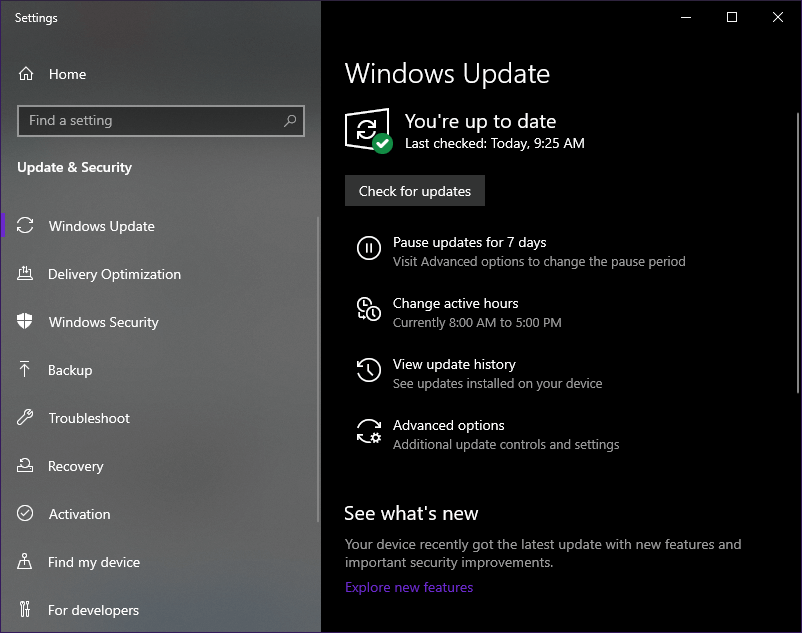
  4. Select Check for Updates in the new window, and let whatever updates are available to unfold

FIFA 20 won't launch check windows updates


3. Check to see if your hardware meets the minimum requirements

Check out FIFA 20’s minimum and recommended system requirements.

FIFA 20 for PC is indeed a resource-intensive game so, before trying looking for answers, check to see if your PC cand even run it.

You can head over to EA’s official website and check what are the minimum and recommended system requirements for PC.

Check out your own computer’s specs

  1. Press Start (the Windows key)
  2. Type in This PC
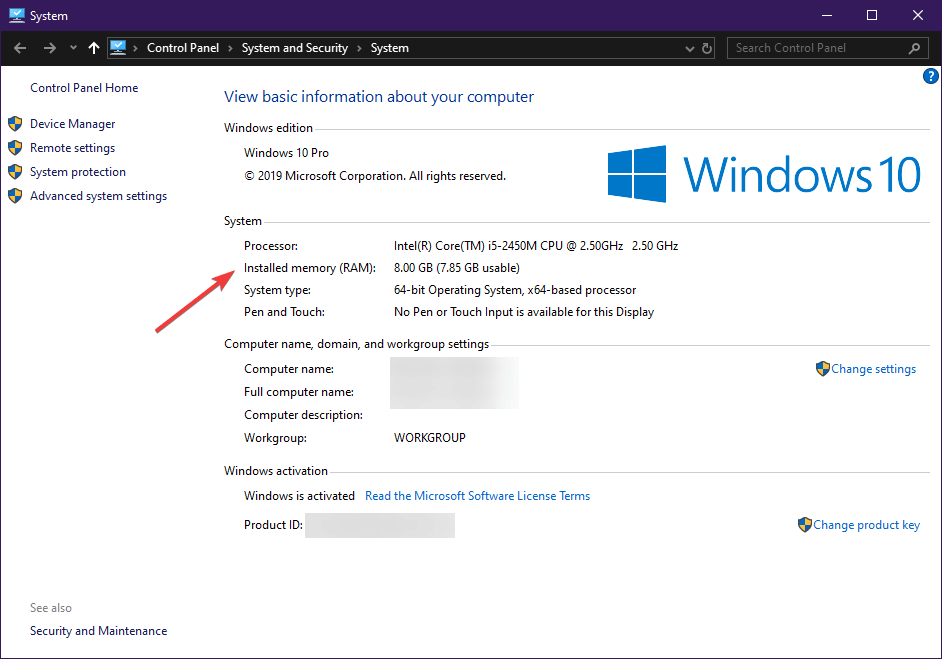
  3. In the new window, right-click on an empty space and select Properties

A window will open up and show you some basic information about your computer.

This includes RAM, Processor, the installed OS, etc.

FIFA 20 doesnt launch PC specs Basic
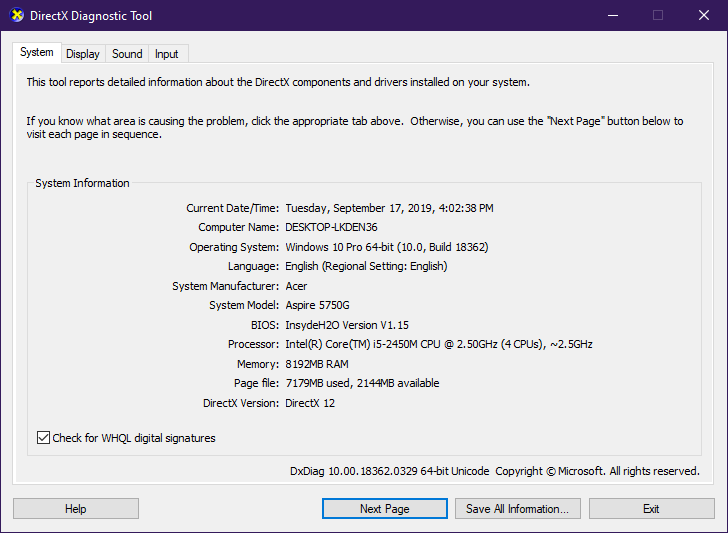
If you want a more detailed information sheet, you could try running a DxDiag, like this:

  1. Press Windows + R
  2. Type in dxdiagFIFA 20 doesnt launch DxDiag

A new window will open up. Wait for the green bar to fill up, and look at your PC‘s specs.

Switch between the System, Display and Sound tabs as these are the ones you will be most interested in.


4. Change the configuration file to run in DX12


  1. Go to your Documents folder
    • This PC\Documents\FIFA 21
    • C:\Users\[Your Username]\Documents\FIFA 21
  2. Open the fifasetup.ini file with Notepad or your preferred text editor
  3. Find DIRECTX_SELECT = 1
  4. Replace the 1 with a 0
  5. Save and close the file

If your PC‘s specs are way lower than FIFA 21’s minimum system requirements, this is most likely why the game won’t launch.

Xbox One and Xbox Series X versions of the Ride 4 video game are now live

The latest entry in the Ride video game franchise, Ride 4, is now live and ready to play on Microsoft’s family of Xbox One consoles.

Given that Ride 4 supports Smart Delivery, a feature that promises a free unlock of the next gen version for free when the same account uses a next gen console, the Xbox Series X and Xbox Series S versions are also live in the Microsoft Store.

Of course, an Xbox Series S or X console will be needed to play the next gen version but those who have pre-ordered one should be happy to know that Ride 4, and several other titles such as Marvel’s Avengers and Control Ultimate Edition, will be ready to do as soon as the console is powered on.

Here’s the official gameplay trailer for Ride 4:

Ride 4 is available in both a regular version and a Special Edition that comes with the base game, the Season Pass, and a Credits Multiplier.

Are you going to play Ride 4 now on Xbox One or will you wait until your Xbox Series X or S arrives? Share your thoughts with the community in the comments below and then follow us on Pinterest and Facebook for more Xbox gaming news.

RIDE 4
RIDE 4
Developer:
Milestone S.r.l.
Price:
$39.99


RIDE 4 - Special Edition
Developer:
Milestone S.r.l.
Price:
$69.99

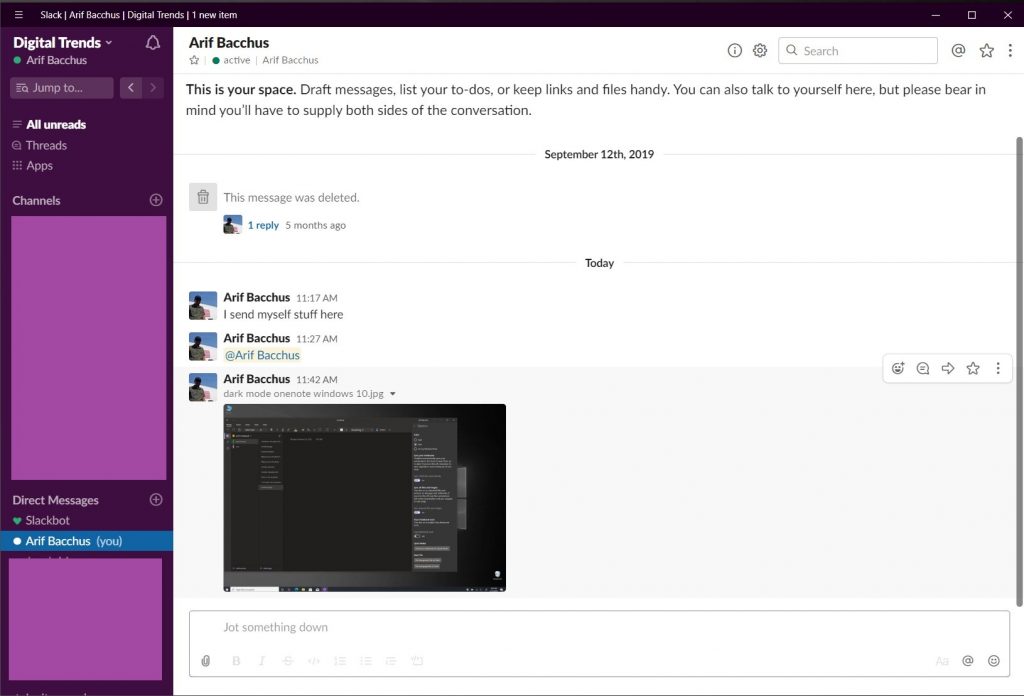
Windows 10’s Slack app updates with improved file browsing and bug fixes

The official Slack app for Windows 10 devices updated to Version 4.10.0 today. This update contained a wide variety of bug fixes for errors relating to window resizing and switching workplaces and also improved the ability to find recently accessed files.

Here’s the full release notes:

What’s new

  • Use files? Us too! If you’ve recently used or linked to them on your device, Slack will be slicker at swooping them up and snatching them into your grasp in Slack.

Bug fixes

  • Sometimes, you could not exit full screen mode with escape on windows, which was wrong, because that’s literally what escape means. Now, it works.
  • We fixed some issues that caused window resizing of Slack to be difficult. We never want to be difficult.
  • Quickly switching workspaces caused problems. Switching workspaces should only cause opportunities, so we fixed that.
  • There were a few little bugs that caused crashes, like bugs do. We fixed those, and we’ll fix the next ones too.

Do you use Slack on your Windows 10 device or have you made the switch to Microsoft Teams or another service? Let us know in the comments below and then follow us on Pinterest and Twitter for more Windows 10 app news.

Slack
Slack
Price:
Free

FIFA 21 crashes at launch? Try this useful fix

A few players have reported on the official EA forums that they are having problems with FIFA 21.

It would seem that every time they launch the game, it simply crashes.

I have it on PC and every time i open the game i see the loading screen and then the game shuts down, can somenone give me any help? My PC is better that the recommended requirements for the game BTW.

EA support staff was quick to answer, and they gave a number of solutions that just might work.

These solutions, along with others, were included in this article that might help you bypass this issue if you are experiencing it as well.


Quick Tip:

If you haven’t bought the game yet, then there’s no time to waste! Get your hands on it as soon as possible and join the pros in the biggest football game ever!

  • 700+ teams
  • 30 official leagues
  • Unparalleled graphics
  • 17,000+ authentic players
  • Have a career in professional football and grow
  • Play as one of the best football teams of the 2021 season
  • Playing online can be a pain with an older PC


How do I fix FIFA 21 if it crashes at launch?

1. Update your device drivers

updated outdated drivers

There are plenty of ways you can update your Windows drivers:

  1. Use Windows Update
  2. Use the Device Manager
  3. Update the drivers from the manufacturer’s website
  4. Install dedicated driver downloading software

Additionally, you could try using a third-party driver updater or fixer to handle your problems, one like Outbyte Driver Updater.

Outbyte Driver Updater automatically update drivers

It works faster and it is more reliant than manually updating your device drivers, and you also know that it will also get the right driver for your hardware, and the latest version as well.

More than that, Outbyte Driver Updater will also detect broken or missing drivers, downloading and installing those too within a matter of minutes.

Outbyte Driver Updater

Outbyte Driver Updater

Game crashes are often caused by old or missing drivers, so fix these issues by taking care of your drivers at once!
Free trial Visit website

2. Check if your PC meets FIFA 21’s minimum system requirements

Many players aren’t aware of FIFA 21’s minimum system requirements.

If you don’t know them either, head over to EA’s official website and check FIFA 21’s system requirements.

Check your own system requirements by performing a DxDiag.

Also, keep in mind that there was a mistake when posting the minimum system requirements for FIFA 21 on Steam, so make sure you visit the official Origin website to see the real system requirements.


3. Modify your FIFA 21’s files

  1. Go to the following folder:
    • C:UsersUSERDocumentsFIFA 21
  2. Open the FIFA setup file using a text editor such as Wordpad
  3. Find the line that says :
    • DIRECTX_SELECT = 0
  4. Change that line to:
    • DIRECTX_SELECT = 1FIFA 20 Crash change line
  5. Save it and then try launching FIFA 21 again.

Keep note that you are modifying your game files.

This may cause irreparable damage to your game‘s installation and you may need to download and install it all over again.


4. Launch FIFA 21 without having your controller plugged in

This step is pretty straightforward. Simply connect your controller to the PC after FIFA 21 has launched.

Also, make sure that you aren’t using any knock-off controllers, or any controller emulators since those too have caused problems with FIFA games in the past.


5. Set the game to the lowest possible settings, and run it again

If your PC‘s specs aren’t too far off from FIFA 21’s minimum requirements, you could try launching it with all the settings set to the lowest possible values.

While gameplay won’t be as enjoyable, you will at least see whether your old gaming PC is to blame or not.

6. Be patient and wait for a patch

EA is quick to solve many of the issues that appear at launch, even if it may take some time.

If none of the solutions mentioned above work, simply wait to see what future FIFA 21 patches will bring.


By following these steps, you should no longer be experiencing crashes when trying to load FIFA 21.

Let us know which of these steps you’ve followed by leaving us a message in the comments section below.


[wl_navigator]

FIX: Error connecting to FIFA 21 Ultimate Team

With the early access to FIFA 21, a lot of gamers and fans of the series jumped on the hype train and downloaded the game, trying to play the trial.

FIFA 21 has a lot of new amazing features, but it also keeps the game modes from previous versions.

Unfortunately, it also has a lot of old and new problems. One of the most important ones is that a lot of players are reporting an error message when trying to access Ultimate Team:

Hi, I can play any online game mode with my account, but can’t play FUT 21 at all ! I’m using EA play, and when I go to ultimate team I get this error:
We are sorry but there has been an error connecting to FIFA 21 Ultimate Team
I’m sure something is wrong with my EA account. I tested my other account and it worked just fine. Please help me !

It seems like all the other game modes and features work as expected, the problem affecting only Ultimate Team.


Quick tip:

Each new entry in the FIFA franchise brought amazing new changes, and this applies to FIFA 21 as well.

Buy the game now and prove your worth on the online stadiums.

  • 700+ teams
  • 30 official leagues
  • Unparalleled graphics
  • 17,000+ authentic players
  • Have a career in professional football and grow
  • Play as one of the best football teams of the 2021 season
  • Playing online can be a pain with an older PC


How do I fix FIFA 21 Ultimate Team errors?

1. Reset your EA account password

  1. Go to EA’s page to reset your account password
  2. Log in with your EA account and the new password
  3. Navigate to the Securities tab
  4. You will be presented with a list of trusted devices
  5. Select each device and untrust each one of them
  6. Log into your console
  7. Make the PlayStation Plus or Xbox Live account your primary account
  8. Delete EA Play and EA-related games and settings
  9. Launch FIFA 21 like a regular game

2. Check your EA Play subscription

The FIFA 21 trial is only available for users with EA Play. This means that you have to have a valid subscription and a working account.

If your subscription has expired, FIFA 21 trial won’t work.

Multiple gamers confirmed that after renewing their EA Play subscription, the game worked as intended, without any errors.

So just go to the official EA Play website, log in to the account with your credentials, and then renew your subscription. After that, try to play FIFA 21 on your Xbox One console.


3. Play a Seasons game

The first workaround is the simplest, as well. The good thing is that it worked for a lot of FIFA 21 players.

If you’re getting the same error, just play an entire Seasons game. After that, quickly back out and go to the Ultimate Team (UT) panel and it should work.

After following this process a couple of times, only clicking on the Seasons panel and then quickly on the UT panel seems to solve the problem.

This solution worked for most gamers that encountered the error, so you can try it as it might work for you too.

Keep in mind that this is just a workaround and you’ll have to do it every time you want to access Ultimate Team.


3. Clear Alternative MAC address

fifa 20 can get in to ultimate team

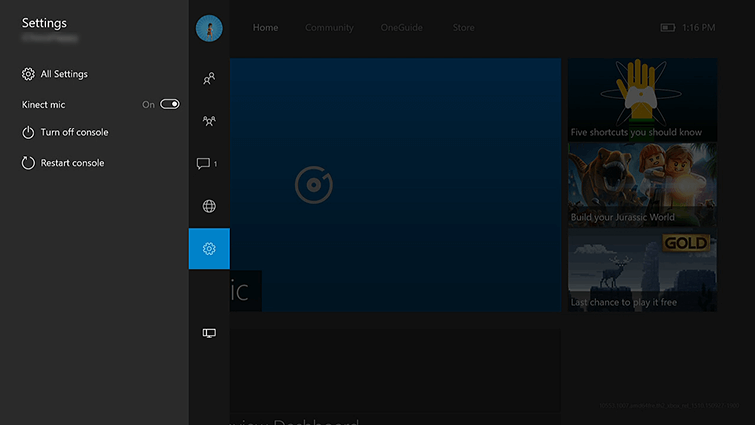
  1. Press the Xbox button to open the guide.
  2. Navigate to Settings > Network Settings > Advanced Settings > Alternative MAC Address.
  3. Select Clear.
  4. After that, press the Xbox button on your console to shut it down.
  5. Unplug the power cord from the wall outlet and wait a minute or two.
  6. After that, plug in your power cord back into the wall outlet.
  7. Wait until the LED light from your power brick goes from white to orange.
  8. Then, press the Xbox button on your console to power it on.

4. Clear persistent storage

  1. Disconnect and reconnect your Xbox One from the Internet.
  2. After that, press the Xbox button to open the guide.
  3. Navigate to Settings > Blu Ray & Disc > Persistent Storage.ultimate team not working in fifa 20
  4. Select Clear Persistent Storage. Repeat the process three times.

After that, you can also power cycle your Xbox One console. To do that, just press the Xbox button on your console for 5 seconds while it is on, waits for the console to shut down, and power it back again by pressing the Xbox button.

We have to mention that different solutions worked for different users, as an official fix from Xbox or EA is not available. The first two workarounds had the most success, so be sure to try them first.

For any other suggestions or questions, feel free to reach for the comments section below.


[wl_navigator]

How to fix user authentication failed in TERA Online

If you’ve been playing TERA Online for a long time now, chances are you’ve encountered the infamous user authentication failed error message. Truth be told, no matter where you get this error, it can really throw you off.

Much so if you’re just trying to get your daily dose of relaxation from TERA Online and discover that you’re suddenly unable to do so.

Fortunately, this error is not exactly rare, and there are a lot of TERA Online players who’ve experienced it at least once before. This doesn’t just mean you’re not alone in this, it also means there are a few fixes worth checking out.

What is TERA Online?

TERA Online is an MMORPG released quite a while ago (2011 was its initial release in South Korea). It had a bunch of closed and open beta testing sessions before the official release.

The game has regular MMORPG features such as PVP, crafting, and questing, and uses a non-target battle system. This means that instead of clicking the target and selecting things to hit them with, you just fire away as you would in an action game.

More so, you’ll need to be quite skillful, considering that you’ll have to dodge enemy attacks actively. That’s TERA Online in a nutshell, although we skipped a lot of awesome features.

We’re not here to talk about TERA, but we can (hopefully) help you fix the user authentication error in the next few following sections.

How to fix TERA restricted account sign in error?

1. Try using a VPN

  1. Purchase a premium VPN subscription (we recommend Private Internet Access)TERA Online PIA VPN
  2. Download the VPN installer on your PC
  3. Install the VPN client on your computer
  4. Launch it and connect to your account
  5. Select a fast server (nearby servers are faster)
  6. Launch TERA Online
  7. Check if the problem still persists

The usability of a VPN in such issues has been widely debated. The general consensus is that more often than not a VPN will do the trick, as it does with many other connectivity issues.

Private Internet Access is a Kape Technologies product and also one of the few VPNs that offer 24/7 live chat support.

Note that if the VPN fix doesn’t work, you shouldn’t give up just yet. Disconnect from the server you chose, connect to another (preferably fast) one and try again.

Private Internet Access

Private Internet Access

Getting the User Authentication Failed error in TERA? Private Internet Access could help you fix this issue.
$2.69/mo. Buy it now

Network congestion is usually a quite decisive factor that determines the occurrence of connectivity issues. Thus, if the VPN server is overcrowded, you may want to try another one.

2. Try logging in with Facebook

Reportedly, users noticed that logging into their TERA Online account through Facebook seemed to work. Just use the game launcher and instead of logging into your TERA Online account, use your Facebook account to perform the operation.facebook banner

However, for this fix to work, you’ll need your TERA and Facebook accounts to be linked. This can be easily achieved on the Account Settings page on the TERA Online website.

Long story short: make sure your Facebook and TERA accounts are linked, then try to log into TERA with your Facebook account.

3. Avoid logging from multiple accounts

Apparently, TERA Online has this 24-hour block that applies to users who try logging in from several accounts on the same machine, in a short interval of time.

To prevent that from happening, only stick to one or two accounts. As far as we know, there’s no limit to log-in attempts from the same account, as long as you don’t switch IP addresses frantically between attempts.

Also, it would be a great idea to check if you were banned. Many users mistakenly believed this error had something to do with their bad connection when in fact, their accounts were in fact inaccessible due to bans.

Final thoughts on fixing TERA user authentication error

All in all, if you’re trying to log into TERA Online and receive the user authentication error, don’t panic. There are a few reasons why this could be happening, and a bunch of fixes for these reasons.

First and foremost, you should make sure that your account is not banned. Else, trying any of the fixes might be completely useless.

One of the most popular fixes for this issue is using a VPN. If using a VPN seems to be in vain, try switching servers between ditching this suggestion. It could save you a lot of time and hassle.

Last, but not least, you could try logging in with your Facebook account, as suggested by various users on the TERA Online forums.

[wl_navigator]

FIX: Your response to the invitation cannot be sent

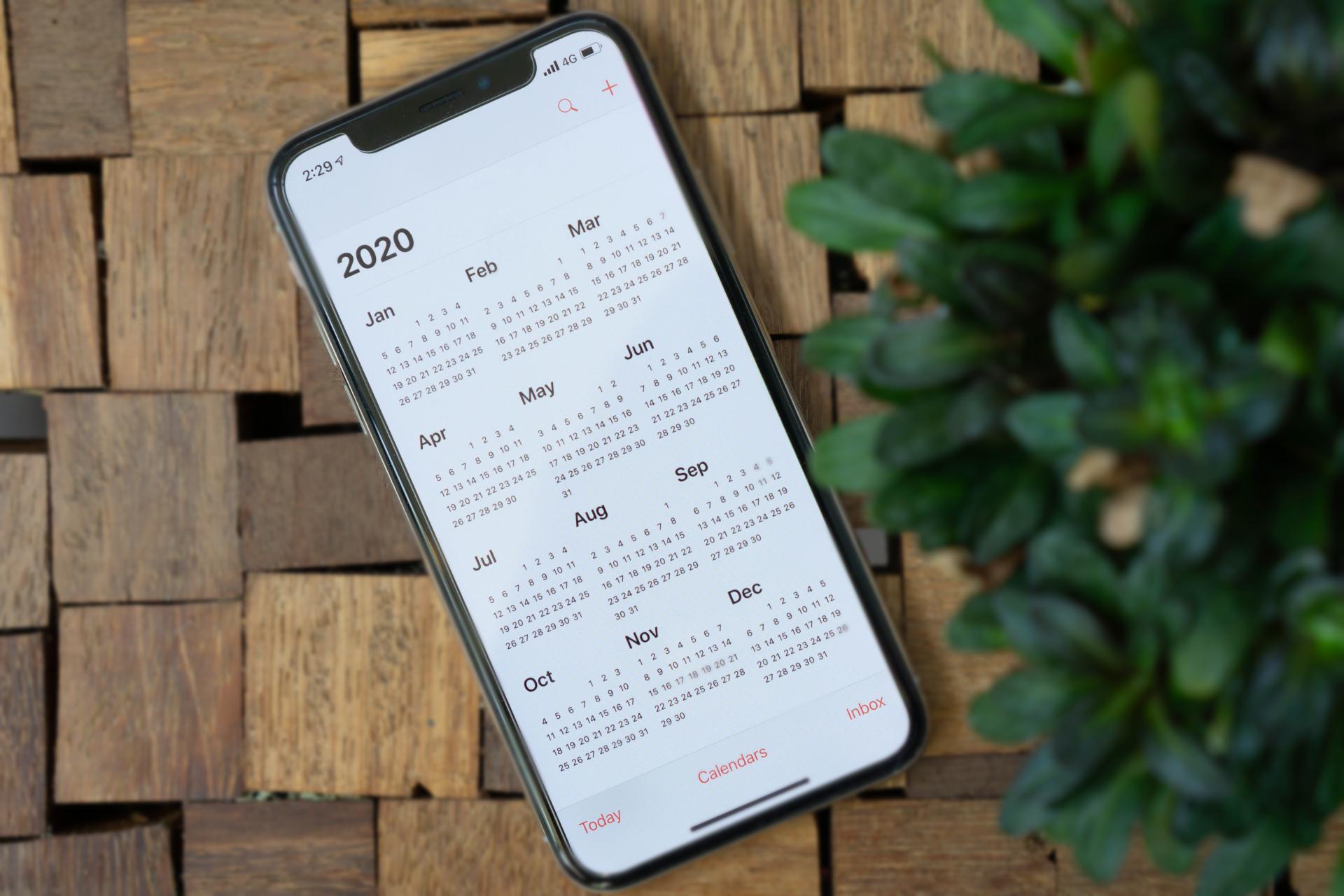
Calendar apps are useful, but sometimes certain issues can appear, and many iOS users reported Your response to the invitation cannot be sent error message.

This issue can be a problem, especially if others are sharing their events with you, so in today’s article, we’re going to tackle this issue and show you how to fix it.

How can I fix Your response to the invitation cannot be sent error message?

1. Reset Calendar app

  1. On your iOS device go to Settings > Mail, Contacts, Calendars.
    mail contacts calendars your response to the invitation cannot be sent
  2. Now select the account that you use and turn the Calendars off.
  3. Wait for a few moments and turn the Calendar on again.
  4. Restart your iPhone and check if the problem is still there.

Several users reported that this method worked for them, so be sure to try it out. On some versions of iOS this setting is located in Settings > Accounts & Passwords or in Settings > Calendar > Accounts section.


2. Turn off the Calendar app

  1. To go to Settings on your iOS device.
  2. Now select Your Name > Cloud.
  3. Locate the Calendars app and disable it.
    Calendars disable your response to the invitation cannot be sent
  4. Wait for a minute or so, and turn it on.
  5. Restart your phone and check if that helps.

3. Update iOS to the latest version

  1. On your iOS device go to Settings > General > Software Update.
  2. If you see that a software update is available, tap it to download and install it.
    software update iOS your response to the invitation cannot be sent

Once your system is up to date, check if the problem is resolved. This has been an issue for a while, and Apple will most likely fix it for good via the software update.

Your response to the invitation cannot be sent error message can be problematic, but it can be fixed by resetting the Calendar app or by updating your iOS software to the latest version.

Did you manage to fix this problem? Feel free to share your solutions with us in the comments section.

[wl_navigator]

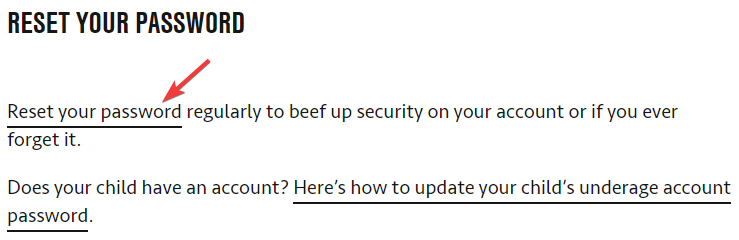
Stuck on Updating iCloud settings screen? We got fixes

iPhone is a great device, but some users reported that their device gets stuck on the Updating iCloud settings screen.

This issue can appear while restoring or updating your iOS device, and in today’s article, we’re going to show you how to fix this problem for good.

What can I do if I’m stuck on the Updating iCloud settings screen?

1. Check if Apple’s servers are running

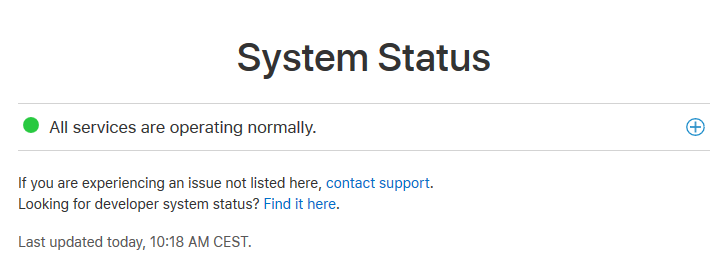
  1. Visit the System Status page.
    system status updating icloud settings stuck
  2. Now check if all services are running properly.

In case there’s an issue with Apple’s servers, you’ll need to wait until the problem is resolved.

2. Check your Internet connection

  1. Make sure that your connection is stable.
  2. If your Wi-Fi connection is dropping, you might want to fix that or wait until your connection is stable before trying to complete the process.
  3. Alternatively, connect to a different, more stable Wi-Fi network.

3. Try Force restart

  1. Press and release the Volume Up.
  2. Now press and release the Volume Down.
  3. Press and hold the Side button until the screen turns off and on.
  4. Once the Apple logo appears, release the Side button.

4. Skip the iCloud setup

  1. Try to update your iOS.
  2. When you get asked to set up your iCloud account, select Skip.
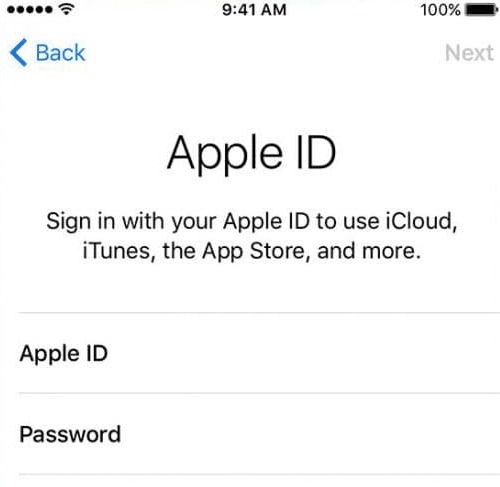
  3. After the update process is finished, go to Settings > Sign in to your iPhone.
    Apple ID login updating icloud settings stuck
  4. Enter your login information.

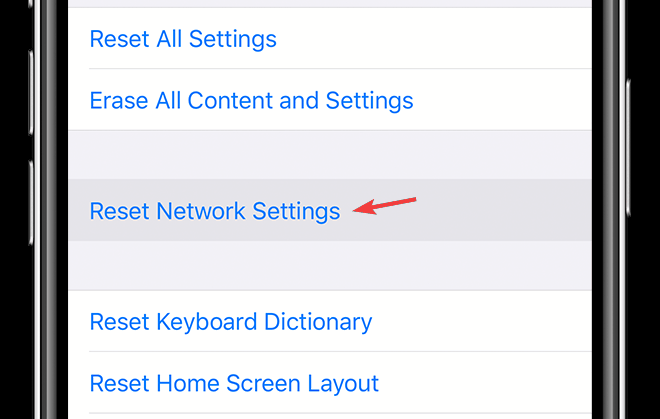
5. Reset your network settings

  1. On your iOS device go to Settings > General.
  2. Go to Reset > Reset Network Settings.
    Reset network settings updating icloud settings stuck
  3. After resetting your network settings, try to perform the update again.

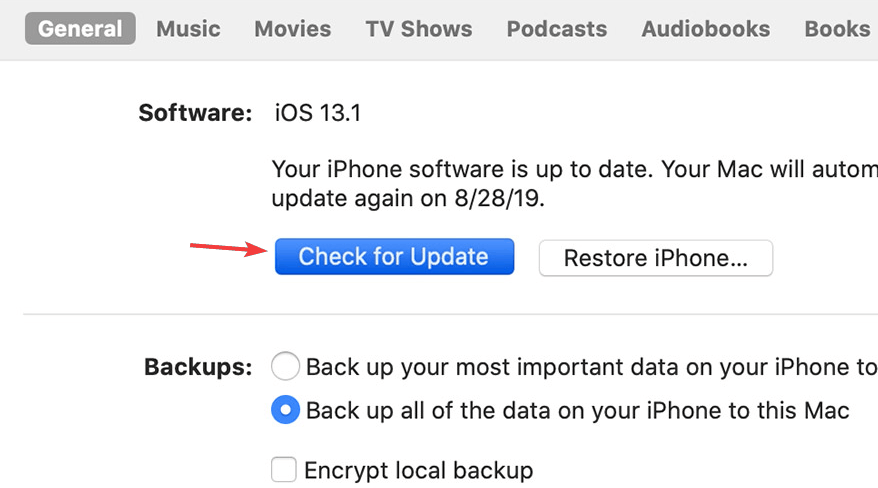
6. Try to update your device using iTunes

  1. Connect your iOS device to the computer using the USB cable.
  2. Start iTunes on your computer.
  3. Click the Device icon in iTunes.
  4. Click on Summary and then on Check for Updates.
    check for update itunes updating icloud settings stuck
  5. Now click Update to start the update process.

If you get stuck on the Updating iCloud settings screen, try restarting your device or skip the initial iCloud setup process. Did you manage to fix this issue? Let us know if our solutions were helpful to you.

FIX: The requested URL could not be retrieved on Windows 10/11

The requested URL could not be retrieved message can sometimes appear and cause problems while trying to visit certain websites.

The issue can be encountered no matter the browser you’re using and sometimes, the access denied notification adds to the error.

A few variations of the same issue are the following:

  • The requested URL could not be retrieved while trying to retrieve the URL/ connection reset by peer – The cause might be network glitches.
  • The requested URL could not be retrieved proxy/ VPN – It indicates that your proxy or VPN is causing the problem.

How do I fix The requested URL could not be retrieved error?

  1. Check your antivirus
  2. Disable your proxy
  3. Disable Windows Firewall
  4. Restart your router/modem
  5. Use Command Prompt
  6. Perform a Clean boot
  7. Install the latest updates

1. Check your antivirus

Usually, the mentioned error occurs due to your antivirus, as it might interfere with your Internet connection. 

Therefore, it’s advised that you check your antivirus settings as well as the firewall.

The simplest way is to temporarily disable the firewall. In case the issue is still there, you might have to completely disable your antivirus or remove it.

If removing the antivirus solves the problem, you should consider switching to a different antivirus solution.

So there are plenty of antivirus programs that can provide security for online browsing, including sensitive information like banking and online payments.

Thus you should act consciously and try out new best antivirus software for your Windows 10 computer.

2. Disable your proxy

  1. Click the Menu icon in the top-right corner.
  2. Choose Options from the menu.
    The requested URL could not be retrieved access denied
  3. Scroll all the way down to the Network Proxy and click the Settings button.
    The requested URL could not be retrieved while trying to retrieve the URL
  4. Set Configure Proxy Access to the Internet to No proxy or to Use system proxy settings.
  5. Click OK to save changes.
    The requested URL could not be retrieved VPN

Keep in mind that these instructions are for Firefox, but if you’re using a different browser, the process should be relatively the same.

After disabling the proxy, you just need to disable it on your system, as shown below:

  1. Press Windows Key + I to open the Settings app.
  2. Now navigate to the Network & Internet section.
    The requested URL could not be retrieved access denied
  3. Choose Proxy from the left pane. (In the right pane, disable all options.)
    The requested URL could not be retrieved while trying to retrieve the URL

After doing that, the proxy should be completely disabled on your PC and the problem will be resolved.

3. Disable Windows Firewall

  1. In the Search bar type firewall.
  2. Choose Windows Defender Firewall from the list.
    The requested URL could not be retrieved connection reset by peer
  3. Pick Turn Windows Defender Firewall on or off from the menu on the left.
    The requested URL could not be retrieved VPN
  4. Now you need to select Turn off Windows Defender Firewall (not recommended) for both Private and Public networks.
  5. Lastly, click OK button to save changes.
    The requested URL could not be retrieved Firefox

Now Windows Firewall should be disabled. If everything works properly afterward, enable the firewall once again and try to find which setting is causing the issue.

4. Restart your router/modem

In some cases The requested URL could not be retrieved message can appear due to certain glitches with your router/modem.

If that’s the case, we advise you to turn these off by pressing the Power button on each device.

Wait for about 30 seconds and power them back on. Wait for the devices to boot completely. After both devices boot, check if the problem is still there.

Several users reported that this method worked for them, so feel free to try it out.

5.  Use Command Prompt

  1. Right-click the Start button to open Win + X menu.
  2. Now choose Command Prompt (Admin) (or PowerShell (Admin) for older OS).
    The requested URL could not be retrieved Internet Explorer
  3. Run the following commands:
  • ipconfig /release
  • ipconfig /renew

After doing that, you should have a new IP address and the issue should be resolved. For the best results, be sure to use this solution after restarting your router.

6. Perform a Clean boot

  1. Press Windows Key + R. Now enter msconfig in the input field and click OK or press Enter.
    The requested URL could not be retrieved Internet Explorer
  2. Head over to the Services tab and check Hide all Microsoft services option.
  3. Now click the Disable all button.
    The requested URL could not be retrieved Chrome
  4. Go to the Startup tab and click Open Task Manager.
    The requested URL could not be retrieved access denied
  5. Right-click the first application on the list and choose Disable from the menu. (Do this for all startup applications.)
    The requested URL could not be retrieved while trying to retrieve the URL
  6. Next, go back to the System Configuration window.
  7. Click Apply and OK to save changes and restart your PC.
    The requested URL could not be retrieved proxy

Once your PC restarts, check if the problem is still there. If the issue doesn’t appear, then it’s certainly caused by one of your applications or services.

To pinpoint it, you need to enable services and applications one by one or in groups until you manage to recreate the problem.

Once you find the problematic application, it’s advised to remove it from your PC.

There are several ways to do that, but if you want to remove the application completely along with all of its files and registry entries we recommend using uninstaller software.

To download a proficient uninstaller solution, you might want to inform about the fittest uninstaller software for Windows 10 PCs.

7. Install the latest updates

  1. Open the Settings app and navigate to the Update & Security section.
    The requested URL could not be retrieved access denied
  2. In the right pane, click Check for updates button.
  3. If any updates are available, Windows will download them automatically and install them once you restart your PC.
    The requested URL could not be retrieved proxy

Once your system is up to date, check if the problem is still there.

As mentioned, The requested URL could not be retrieved message can prevent you from accessing certain websites. We truly hope that you solved the problem after reading this article.

If you used another way that we didn’t mention here, please share it with us in the comments and we will certainly update the solutions list.

[wl_navigator]

Hotel Wi-Fi is unsafe for your work, according to FBI

The FBI recently issued a PSA to inform teleworkers of the risks of using hotel Wi-Fi networks.

Reportedly, the Federal Bureau of Investigation noticed an increasing number of hotel remote workers.

While remote working from hotel rooms isn’t inherently bad, connecting to a hotel Wi-Fi network might subject you to certain security risks.

Some of the most serious ones include personal data thefts, or compromising work resources.


Hotel room teleworking is trending

Apparently, more and more US hotels started advertising room reservations during the daytime for those who seek a distraction-free environment.

This comes as a blessing for teleworkers who can’t seem to focus on their work environment while at home. On the other hand, the risks may outweigh the benefits in this situation, especially in lieu of appropriate security measures.

Unfortunately, when it comes to Wi-Fi networks, hotel management staff caters to the convenience of their customers, at the expense of their security.

As a result, not only is the Wi-Fi password available for everyone to see in the hotel lobby, but it also gets replaced quite rarely.


The risks of using hotel Wi-Fi networks

There are a few quite serious risks you may expose yourself to while using Wi-Fi networks in hotels:

  • Traffic monitoring  – Your network activity could be exposed to a malicious third-party
  • Evil Twin attacks – Cloning the hotel network, misleading clients to connect to the fake one instead
  • Man-In-The-Middle attacks – Intercepting and stealing sensitive information from one’s device
  • Compromising work  – Facilitating cybercriminals to steal work credentials or other similar resources
  • Digital identity theft
  • Ransomware

How do I reduce the risks of using hotel Wi-Fi?

1. Use a trustworthy VPN

You can purchase a premium VPN subscription plan, we recommend Private Internet Access, to encrypt network traffic.

A VPN can easily protect your privacy by encrypting traffic between your device and the VPN gateway.

This renders network monitoring tools and Man-In-The-Middle attacks useless.

However, you should still keep an eye out for Evil Twin attacks. More often than not, an Evil Twin network won’t be password-protected and will have a weaker signal.


2. Don’t use the hotel’s Wi-Fi

If you have a hefty data plan on your mobile device, just use that instead of the hotel’s Wi-Fi.

You can either create a hotspot on your phone/tablet or use USB to tether it and share your Internet connection.

Also, you may want to avoid using the auto-connect feature on your PC, to avoid it automatically connecting to the hotel’s Wi-Fi network or an unprotected Evil Twin one.


3. Keep it simple

If you’re there for work, make sure you stay focused and avoid logging in on too many websites.

That goes double for any website where you may input sensitive data, such as your SSN, credit card details, as well as other credentials.

Last, but not least, always check the security certificates of the websites you’re visiting. If you don’t see HTTPS, then it’s a no-go.


If you follow these steps, you shouldn’t have to worry about the dangers of working using a hotel’s Wi-Fi.

What’s your take on this latest development? Share your opinion with us in the comments section below.

[wl_navigator]

Microsoft makes it easier to find support articles and release notes for Windows 10 and Microsoft 365 services

Microsoft has just launched a new unified support site which should make it easier for users to find support and troubleshooting resources for Microsoft 365. In an effort to make the platform more inclusive, the company is bringing a series of improvements to Windows release notes, the Windows update history pages, as well as related resources.

As seen in the screenshot below, Microsoft is introducing a new URL structure for Windows release notes, which will now include the knowledge base (KB) ID. This change will let users find support articles by KB ID when using the search engine. There are also some under-the-hood changes for users who use different tools to find support articles using metadata. 

01_new-support-article-URL-structure.png

Furthermore, Microsoft is also adding convenient share controls at the bottom of all support pages to make it easier for users to share them on social media platforms, including Facebook and LinkedIn. 

Needless to say, this is quite a welcome approach, especially for power users who often need to look for technical information about Windows updates, troubleshooting guides, and more. However, you may need to wait a couple of months to see these enhancements, as they will begin to roll out to the general public in the coming weeks. 

Windows 10 Insider build 20231 adds new option to customize your PC during initial setup

Microsoft has just released the Windows 10 preview build 20231 for the Dev Channel, which brings two new improvements that will only be available to select Insiders. First of all, Insiders doing a clean install of the build 20231 (ISOs are available here) may notice a new page during the out of box experience allowing them to choose how they plan to use their PC.

The current list of options includes Gaming, Family, Creativity, Schoolwork, Entertainment, and Business, and each of them will suggest tools and services during PC setup. “This is the initial wave of work for this feature, and Insiders may notice different options presented in OOBE depending on what they select, however at this time Insiders will not notice any other configuration differences after exiting OOBE,” the Windows Insider team explained.

Windows 10 Build 20231 new customization options during OOBE experience

The second new feature in this build is the ability for IT admins to change app default file associations on a per-user or per-device basis. This feature will only be available for a subset of Insiders installing this build, and you can find the testing steps below:

  1. Generate Default Application Associations XML file by following this page.
  2. Manually modify the XML by adding 2 new properties:
  3. Add Version=”1″ to the DefaultAssociations tag.
  4. Add Suggested=”True” to any Association tag.
  5. Enable the group policy to set the default file associations by following this doc.
  6. Reboot or log in as the user.

Starting with this build, some Insiders may also notice a change to enable displaying graphics card information listed under Settings > System > About. The build 20231 also brings various bug fixes and known issues, and you can find the full list below:

Fixes

  • We fixed the vEthernet adapter disconnecting inside of the Windows Subsystem for Linux. Please see this GitHub thread for full details.
  • We fixed an issue that could result in your ALT + Tab order changing unexpectedly and leading you to switch to the wrong window.
  • We fixed an issue that could result in Action Center and notification buttons not being visible after switching between High Contrast Black and High Contrast White.
  • We fixed an issue where the “Show audio alerts visually” option under Settings > Ease of Access> Audio wasn’t functioning for incoming notifications.
  • We fixed an issue where if the PC was locked using with Narrator running, dismissing the lock screen wouldn’t announce the signed in username on the login screen.
  • We fixed an issue when using Narrator and logging in with Windows Hello, Narrator wouldn’t announce the error message if your face wasn’t recognized.
  • We fixed an issue resulting in audio and microphone glitches over Bluetooth for certain devices. As a reminder, when encountering issues in this space, please take a moment to capture a repro trace, as it helps the teams investigate. More details about capturing traces available .
  • We fixed an issue impacting Task View reliability.
  • We fixed an issue resulting in the Windows Hello setup camera preview in OOBE displaying in the wrong position if you rotated your device into portrait mode during setup.
  • We fixed an issue resulting in Settings hanging on launch for some Insiders.
  • We fixed an issue resulting in systemsettingsbroker.exe crashing for some Insiders.
  • We fixed an issue where the HideRecentJumplists MDM Policy wasn’t taking effect.
  • We fixed an issue that could result in duplicate cloud provider entries appearing in the File Explorer navigation pane.
  • We fixed an issue resulting in PDF previews no longer displaying in File Explorer.
  • We fixed an issue resulting in the touch keyboard unexpectedly dismissing after setting focus to the search box in File Explorer.
  • We fixed an issue where when typing with the Chinese Pinyin IME, if your text included an apostrophe, then after finalizing your composition by pressing Shift the result would display a garbled character.

Known issues

  • If you were one of the Insiders repeatedly entering a temp profile with the previous flight, please refer to the following forum post to get your profile back into a good state. If you were not impacted, this issue will not impact you in today’s flight.
  • We’re looking into reports of the update process hanging for extended periods of time when attempting to install a new build.
  • We’re working on a fix to enable live preview for pinned site tabs.
  • We’re working on enabling the new taskbar experience for existing pinned sites. In the meantime, you can unpin the site from the taskbar, remove it from the edge://apps page, and then re-pin the site.
  • We’re working on a fix for an issue where some Office applications crashing or missing after updating to a new build.
  • We’re working on a fix for an issue causing some devices experiencing a KMODE_EXCEPTION bugcheck when using certain virtualization technologies.
  • We’re working on a fix for an issue where after taking this build some users receive a Compatibility Assistant notification that “Microsoft Office is no longer available”. Despite the notification, Office should still be there and working fine.
  • We are working on a fix for an issue where selecting an IME candidate or hardware keyboard text prediction candidate may insert the candidate adjacent to the one selected.
  • We’re investigating an issue reported by some Insiders wherein the taskbar is obscuring the Power button in the Start menu. If this is happening on your PC, you may need to use the Windows key plus X menu to shutdown for the time being.

Last but not least, the Windows Insider team said today that all Insiders in Dev Channel will soon see the new Skype Meet Now in the Windows 10 Taskbar, as well as the recent change to enable moving the text cursor via gestures on the touch keyboard. That’s it for today’s Insider news, let us know in the comments if you think these new options to customize your PC during the installation of Windows 10 are a good idea.

How to manage file access with SharePoint in Microsoft Teams

When you add a file to your Microsoft Team’s file section, it becomes editable by everyone in Microsoft Teams, not just the creator of the file. There are plenty of times that you will want to share a document and make it editable to everyone, but there are certainly other times when you would prefer that not everyone had edit access to everything. For individual file permissions, it’s worth noting that all Microsoft 365 documentation is stored in SharePoint.

SharePoint, as the name suggests, allows you to share Word, Excel, and other files with your remote team within Microsoft Teams. Along with sharing, SharePoint allows you to group-edit and view the same document with your colleagues. SharePoint’s core functions are to act as a document management and storage system for your organization.

These instructions are for those looking to manage file access with SharePoint in Microsoft Teams.

Msteams1
Msteamsstep2
Step 3

1. Open Microsoft Teams, go to the “Files” Tab, and choose the “Open in SharePoint.”

2. Once SharePoint opens in Microsoft Edge, choose an existing file (or upload a new file) and choose the three vertical dot menu to bring up more options and choose Manage access.

Before adjusting access settings, you can organize your documents by learning how to create a folder in SharePoint to group related files more efficiently.

3. From the Manage access menu, you can change existing team members’ permissions, add and set new permissions for specific team members, or change the appropriate viewing privileges as needed; can view (cannot make changes) and can edit (make any changes).

4. Choose Grant Access at the bottom to confirm the file access settings in Microsoft Teams.

Once you complete the steps, you will be able to change the file permissions among users with SharePoint in Microsoft Teams. It is important to note that you will need administrator privileges on the Microsoft Teams account to change users’ file access in SharePoint.

Over the past year, we’ve been covering a lot of other Microsoft 365 related topics. We suggest you check them out over at our dedicated news hub. Some topics include how to use Microsoft Access, use Microsoft To Do with Outlook, and more. Also, feel free to let us know how you’re using Microsoft Teams and SharePoint by dropping us a comment below.

FIX: Disconnected from server reliable packet 1 not ack’d

Among Us is a multiplayer murder mystery game set in outer space. That game has quickly become one of the most widely played titles among Twitch streamers, which has led to a surge in Among Us Steam downloads.

The greatly increased number of Among Us players has strained the Among Us servers, as original server estimates for the game were relatively low.

Thus, server issues for Among Us have become more prevalent as the game’s player base has expanded.

An announcement on the game’s Steam page says:

We have decided to cancel Among Us 2 and instead put all our focus into improving Among Us 1… We have lots of things planned and we’re excited to bring new content to everyone as you continue to enjoy playing!

One of the most prevalent Among Us error messages states, You disconnected from the server. Reliable packet 1 (size=#) was not ack’d after #ms.

That error often arises as a consequence of server overload. However, there might be an issue with your Internet connection.

How can I fix the Among Us You disconnected from the server issue?

1. Check the server status for Among Us

InnerSloth Twitter page you disconnected from the server reliable packet 1 was not ack'd
First, try checking the server status for the game at InnerSloth’s Twitter page.

InnerSloth updates its Twitter page with posts about current Among Us server issues.

If you see that server issues are mentioned there, then you will most likely need to wait for them to be solved.


2. Play Among Us with a VPN

use-a-vpn
Because this error message appears sometimes because of the overloading of the servers in your local region, it is a very good idea to try and log into the game using a VPN service.

When it comes to this task, the best software option is by far Private Internet Access (PIA) VPN.

This powerful software can shift your online location quickly and efficiently, and beyond this, also protects you from any unwanted information gathering by third-parties.

To resolve this dreaded error message, simply click the download button below, install PIA, run it, change your location, and then try logging into the Among Us server again.

Private Internet Access

Private Internet Access

Resolve the annoying Disconnected from server error on Among Us servers by using this software to change your location today!
Get PIA Visit website

3. Check for internet connection issues with troubleshooters

  1. Open the search box in Windows 10 by clicking the Type here to search taskbar button for it.
  2. Type troubleshoot in the text box to search for Troubleshoot settings.
  3. Click Troubleshoot settings to open Settings as in the snapshot directly below.
    Internet Connections troubleshooter you disconnected from the server reliable packet 1 was not ack'd
  4. Click Internet Connections and Run the troubleshooter to open the window shown directly below.
    Internet Connections troubleshooter you disconnected from the server reliable packet 1 was not ack'd
  5. Select the Troubleshoot my connection to the internet option to check for any connection issues.
  6. You can open a Network Adapter troubleshooter, which might also resolve connectivity issues, by clicking the Run the troubleshooter button for it.

3. Change the server location manually

  1. Run the Among Us game.
  2. Click Online on the Among Us game menu.
    Among Us game you disconnected from the server reliable packet 1 was not ack'd
  3. Next, click the server button at the bottom right corner of the game’s menu to open the options shown directly below.
    Server options you disconnected from the server reliable packet 1 was not ack'd
  4. Then select a different server region on the menu from the one you usually play Among Us with. Select a region that has the biggest time gap with your time zone.
  5. Click the Find Game button on the Among Us menu.
  6. Select a game to join. With an alternative server region selected, the game might now start.

The resolutions above might be enough to fix the Reliable packet error for most Among Us players. Hopefully, Innersloth will get the game’s server issues more fully sorted with future updates.

[wl_navigator]

Microsoft awards $374k in bounties for Azure Sphere Security Research Challenge

Since 2003, the month of October has been recognized as National Cybersecurity Awareness month and after a three-month research challenge which dovetailed into the beginning of October, Microsoft finally awarded $374,300 to the global IoT security research community for finding vulnerabilities in Azure Sphere.

In what Microsoft dubbed the Azure Sphere Security Research Challenge, 70 researchers from 21 countries gathered to surface security exploits in the company’s Azure Sphere and over the course of 90-days the researchers found 40 exploits, 20 of which were considered “Critical or Important severity security vulnerabilities.”

According to the Microsoft Security Response Center blog, the company broke up the bounties into two high priority research scenarios that focused on the core of the Azure Sphere OS and then six general scenarios across various levels of Azure Sphere OS. In the end, Microsoft awarded the $374,300 bounty awards across 16 eligible reports.

“Many of the vulnerabilities found during the research challenge were novel and high impact and led to major security improvements for Azure Sphere in their 20.07, 20.08 and the latest 20.09 updates, which have been automatically pushed to Azure Sphere devices that are connected to the internet to help secure Azure Sphere customers. Security researchers from McAfee ATR and Cisco Talos reported some of the highest impact vulnerabilities in Azure Sphere, especially a full attack chain developed by McAfee ATR that exposed a weakness in the cloud and multiple weaknesses on the device including a previously unknown Linux kernel vulnerability.

Obviously, there are more details regarding the specific vulnerabilities and the various executions researchers used during the bounty program and most of that info can be found at Microsoft’s Azure Sphere team blog, here.

Microsoft’s Azure Sphere represents much of the company’s efforts into IoT and with new devices and sensors coming online daily that make use of IoT platforms, we should expect to see more dedicated bounty programs pop up throughout the year.

How to automate uploading backups to Amazon S3

Periodic backups are crucial for any business, and if your organization utilizes Amazon Simple Storage Solution (Amazon S3), then you will be pleased to learn that there is a quick way to automate backups for S3.

You can also safeguard your Amazon AWS data with a suitable antivirus.

With the method we’ll show you here, you can configure your daily, weekly, or monthly automatic backups for S3. It’s straightforward if you follow the laid down here.

How do I automate backups for Amazon S3?

1. Install and configure the Amazon AWS CLI

Install and configure the Amazon AWS CLI backups for s3

    1. Visit this page to find Amazon‘s detailed installation instructions.
    2. Configure the access ID, user profiles, and key using the following command:
      aws configure
      AWS Access Key ID [None]: <AccessID>
      AWS Secret Access Key [None]: secretkey
      Default region name [None]: us-east-1
      Default output format [None]: json

NOTE:  In the command above, replace <AccessID> with your access ID, secretkey with your secret key, and us-east-1 with your region. When in doubt, leave the region unchanged.


2. Create a batch file

  1. Open Notepad.
  2. Enter the following line of command into the blank Notepad file:
    aws s3 sync "C://Desktop/backups/" s3://your-bucket
  3. Press the CTRL + S combination and save the file with the .BAT extension.
  4. Click on the Start Menu button and search for task scheduler.
  5. Open Task Scheduler. If it fails to open, fix it with this guide.
  6. Click on the Actions menu and choose Create Task from the dropdown menu.create task backups for s3
  7. Name and describe the new task.
  8. Add a one time, daily, weekly, or monthly trigger.
  9. Click on the Actions tab.
  10. Select Start a program from the resulting dropdown menu.
  11. Find the batch file you created in step 3.
  12. Save the task.

This page contains a detailed, short guide on how to automate backups for S3. You only have to follow the exercise caution when following the steps.

After saving the newly created task, you no longer have to back up your data to Amazon S3 manually because the Task Scheduler will do it for you at the configured interval.

[wl_navigator]

Check out some live action Halo in Taco Bell’s new Xbox Series X contest commercial

Taco Bell has released a new commercial promoting their current Xbox Series X competition which, as you may have guessed, gives people the opportunity to get an Xbox Series X console when it comes out next month.

What’s noteworthy about the ad is that it features several live action elements from the popular Halo video game franchise such as Spartan armor and a ring itself. It’s unclear if these elements were borrowed from the upcoming live action Halo TV series which is set for release sometime in 2021 but they’re pretty cool regardless.

You can watch the ad below.

The inclusion of Halo content for an Xbox Series X launch promotion is rather amusing given that the Halo: Infinite video game will no longer be a launch title. Much like the Monster Energy Halo x Xbox Series X promotion, planning for this Taco Bell campaign was also likely well underway before the game’s delay was announced. It’ll be interesting to see if we get any more Halo promotions before the end of the year.

What did you think of this ad? Does it get you excited for Halo: Infinite and the Xbox Series X? Are you hyped for the live action TV series? Share your thoughts with the community in the comments below and then follow us on Twitter and Facebook for more Xbox gaming news.

FULL FIX: Hamachi errors on Windows 10, 7

Hamachi is a useful tool, but many users reported various errors with this app on their PC. These errors can cause various problems, and in today’s article, we’ll show you how to fix them.

Hamachi errors can cause many issues on your PC. Here are some common issues that users reported:

  • Hamachi network adapter error – Can occur if the necessary virtual network driver isn’t installed. Update the adapter driver.
  • Hamachi VPN error Windows 10 – Can be caused by other VPN applications. You can fix the issue simply by removing the other VPN from your PC.
  • Hamachi tunnel problem Windows 10, yellow triangle – Can occur if the necessary services aren’t running. Open the Services window and restart the required services.
  • Hamachi error this network does not exist, failed to connect to network adapter – The issue is most likely your firewall, so be sure to check its configuration and make sure that Hamachi is allowed to go through it.
  • Hamachi error 2503, 52, 1068, 2755, code 2502 – These errors can appear due to various reasons, but you should be able to fix them using one of our solutions.

How do I fix Hamachi errors on Windows 10?


  1. Check your antivirus
  2. Update the drivers automatically
  3. Make sure that Hamachi service is running
  4. Remove problematic applications
  5. Reinstall Hamachi
  6. Install the driver manually while Hamachi is installing
  7. Use a different installer
  8. Try using an older version of Hamachi
  9. Disable Windows Firewall

1. Check your antivirus

According to users, the cause for Hamachi errors can be your antivirus. Sometimes your antivirus can block the VPN, so be sure to check its settings and make sure that Hamachi is allowed to run.

If this isn’t the issue, you might want to try disabling certain features or disable your antivirus altogether.

In case the problem is still there, your last option would be to remove your antivirus completely from your PC.

Even if you remove your antivirus, your PC will remain protected by Windows Defender, so there’s no need to worry about your safety.

If removing the antivirus solves your problem, this might be a good time to consider switching to a different antivirus solution.

The market is full of reliable antivirus software options that do not interfere with other applications on your PC.

Look for an antivirus that has a comprehensive threat database, real-time browsing connection, and low CPU usage. These are the most important features and they are generally included in free antivirus tools.

Some antivirus tools include built-in VPN solutions. If that appeals to you, you can drop your Hamachi subscription and use one software both for threat protection and online privacy.

2. Update the drivers automatically

Sometimes Hamachi errors can be caused by missing drivers, and if you’re getting a tunneling problem or a VPN error, the issue might be the missing drivers.

You could try updating them manually by selecting every single one from Device Manager and selecting the Update driver option but that will take a lot of time and doesn’t guarantee perfect results.

The quickest and safest way to update your drivers is by using specialized software like Outbyte Driver Updater.

It’s very simple to use but first, you need to download and install the tool. It will run automatically and start scanning your PC for old, missing, or malfunctioning drivers.

Don’t go away because the process will only last for a couple of seconds and after that, you will receive a list with the recommended drivers to install.

Outbyte Driver Updater automatically update drivers

The last step is even easier because if you want to install all of them you just need to click on the Update All button.

Of course, you can also install only a few by checking their corresponding boxes and hitting their individual Update button from the right.

3. Make sure that Hamachi service is running

According to users, you can encounter various Hamachi errors simply if the required services aren’t running. Many users reported tunneling and VPN error in Hamachi, and in most cases you can fix these issues simply by restarting the Hamachi services. To do that, just follow these steps:

  1. Open the Services window. The fastest way to do that is to press Windows Key + R and enter services.msc. Now press Enter or click OK.
    Hamachi network adapter error
  2. When the Services window opens locate and double-click the Hamachi Tunneling Engine service.
  3. When the Properties window opens, click the Stop button to stop the service. Wait for a couple of moments and then click the Start button. Click Apply and OK to save changes.
    Hamachi error 52

According to users, this simple solution fixed the tunneling and VPN error with Hamachi, so we encourage you to try it out.


4. Remove problematic applications

If you’re having Hamachi errors, such as the tunneling problem or the VPN error, the issue might be caused by third-party software.

Sometimes VPN clients can interfere with Hamachi and that can lead to this and many other problems.

To fix the problem, it’s advised to find and remove your current VPN client. Users reported that Dell VPN client caused this problem to appear, but after removing it, the issue was resolved.

Bear in mind that other software can cause this issue to appear, and not just your VPN client.

If your VPN client was the problem, you should consider switching to a different one. The best VPNs for Windows 10 are reliable and user-friendly software that will not interfere with your system.

Consider software with a large number of servers across the globe, unlimited bandwidth, top-level encryption, and a very transparent privacy policy.

If the VPN was the cause of your problem, then the issue should be remediated. Check your PC for other problematic/malicious software as well. You can do that from the Add or remove the panel in Windows Settings.

5. Reinstall Hamachi

Sometimes Hamachi errors can be caused by a corrupted installation, and if that happens, the best course of action would be to reinstall Hamachi.

This is fairly simple to do, but in order to completely reinstall Hamachi, it’s advised that you use specialized uninstaller tools.

In case you don’t know, uninstaller software can completely remove the desired application from your PC.

Unlike the regular uninstall process, these dedicated tools will remove all files and registry entries associated with Hamachi.

After Hamachi is completely removed, it will be as if it was never installed on your PC. Now you just have to download and install the latest version and the issue should be completely resolved.

6. Install the driver manually while Hamachi is installing

  1. Press Windows Key + X and choose Device Manager from the list.
    amachi error 2503
  2. Locate LogMeIn Hamachi Virtual Ethernet Adapter, right-click it, and choose Update driver from the menu.
  3. Select Browse my computer for driver software.
  4. Now head over to the Hamachi installation directory, by default it should be: C:Program Files (x86)LogMeIn Hamachi

Note: Once you select this directory, your PC should scan it and install the missing driver. Once that is done, the latest driver will be installed and the installation will complete successfully.

Bear in mind that you’ll need to update the driver quickly in order for this to work, so it might be a good idea to have the Device Manager open while installing Hamachi.


7. Use a different installer

According to users, sometimes Hamachi errors can be caused by your installer.

This is an unusual cause, but several users reported that they fixed the problem simply by removing Hamachi and using the different setup file to install it.

Users claim that they downloaded the installer from a different source that is not Hamachi’s official website, and by doing so the problem was resolved.

We don’t know how reliable this method is, but many users claim that it works, so feel free to try it out.


8. Try using an older version of Hamachi

maximize VPN security

In some instances, Hamachi errors can appear if you’re using the latest version. When it comes to software, usually it’s a good practice to use the latest software since it offers the latest features and updates.

However, sometimes certain features can be buggy, and that can lead to this and many other errors. To fix this problem, some users suggested rolling back to the older version of Hamachi and checking if that helps.

To do that, remove the current version and then download and install the older version. To find an older version, you might have to use third-party sources.

Once you download the older version, install it, and check if that solves your problem.

Bear in mind that Hamachi will check for the latest version once you install it, so be sure to prevent it from downloading the latest updates.


9. Disable Windows Firewall

  1. Search for windows firewall and select Windows Defender Firewall from the list.
  2. Click on Advanced settings from the menu on the left.
  3. Select Windows Defender Firewall Properties.
    Hamachi tunnel problem Windows 10
  4. Go to the Domain Profile tab and set Firewall state to Off. Hamachi VPN error Windows 10
  5. Go to the Private Profile and Public Profile tabs and do the same. Lastly, click Apply and OK to save changes

Note: Disabling the firewall isn’t the best choice in terms of safety, but if Hamachi works after you do that, the issue is probably related to one of your firewall settings, so you’ll need to manually find and change it.

Several users reported that port 25565 was the problem, so to fix this issue, be sure that port 25565 is open on the Incoming rules page. After making this change, the problem should be resolved and Hamachi will start working again.

Hamachi errors can cause many problems on your PC, but in most cases, these problems are caused by your firewall settings, corrupted installation, or other applications.

However, we hope that you managed to fix this problem by using one of our solutions and if you have any addition, leave us a note in the comments section below.

[wl_navigator]

Xbox Series X versions of Dishonored, Prey, and Wolfenstein video games may be on the way

New ESRB ratings for next gen collections containing Wolfenstein, Dishonored, and Prey video games have been spotted, seemingly confirming that these titles will be getting enhanced versions for Microsoft’s upcoming Xbox Series X (and S) consoles.

No other consoles are mentioned in the listings which suggests that these Bethesda titles will be exclusive to Microsoft’s next gen Xbox consoles. This makes sense considering that the latter recently acquired the former.

Both collections are said to contain four video games each. While the listings don’t mention what these games are, it would makes sense for The Dishonored & Prey The Arkane Collection to contain Dishonored, Dishonored 2, Dishonored: Death of the Outsider and Prey and The Wolfenstein Alt History Collection to come with Wolfenstein: The New Order, Wolfenstein: The Old Blood, Wolfenstein II: The New Colossus and Wolfenstein: Youngblood.

No release dates are mentioned.

Would you be interested in picking up these re-releases? Let us know why or why not in the comments below and then follow us on Facebook and Pinterest for more Xbox gaming news.

The operating system cannot run %1 [FIX]

System errors can occur once in a while, and many users reported getting ERROR_RELOC_CHAIN_XEEDS_SEGLIM error on their Windows 10 PCs.

This error also comes with The operating system cannot run %1 message, and today we’re going to show you how to fix it properly.

How can I fix the ERROR_RELOC_CHAIN_XEEDS_SEGLIM error?

1. Switch to a different browser

Several users reported that this problem occurs while trying to run Internet Explorer. According to them, the application was unable to start due to The operating system cannot run %1 message.

As a potential workaround, users are suggesting to switch to a different browser and check if that solves the problem.

As for a better and more reliable browser we recommend Opera One. It’s a fast browser that doesn’t interfere with your system so the RELOC_CHAIN_XEEDS_SEGLIM error becomes highly improbable.

If you enjoy social media, you will love this browser from the start because you will have shortcuts for Messanger WhatsApp, Instagram and even comes with a native AI.

You will probably also like the My Flow feature that allows you to connect your phone to the browser.

A big plus for Opera One is also the built-in VPN service. Once you start it, your privacy and identity will be protected even from your ISP.

⇒ Get Opera One

2. Run an SFC scan

  1. Search for cmd and click on Run as administrator to start Command Prompt.
  2. Enter sfc /scannow and press Enter.
  3. Be patient while Windows scans for corrupted files and don’t interrupt the scan.

Note: If the SFC scan stops, read this expert guide to fix the problem quickly.

3. Remove problematic updates

  1. Press the Windows Key + I to open the Settings app.
  2. Go to the Update & security section, then to the Windows Update tab, and click on View update history.
    View update history
  3. Click on Uninstall updates.
  4. Locate a recent update on the list and double click to uninstall it.

Note: Keep in mind that Windows 10 tends to install updates automatically, so it’s recommended to download the Show or hide updates troubleshooter. Using this tool you can prevent problematic updates from being installed automatically.

4. Reinstall Windows Media Player

  1. Search for windows features and select Turn Windows features on or off from the list of results.
  2. Expand the Media Features folder and uncheck WindowsMedia Player. Click OK to save changes.
  3. Restart your PC.

Note: After your PC restarts, Windows Media Player will be removed. To install it again, repeat the same steps, but be sure to check the Windows Media Player option.

Once the Windows Media Player installs again, the issue should be completely resolved.

5. Completely remove the antivirus software

Having a proper antivirus is rather important, but certain antivirus tools might not be fully compatible with your system.

Many users reported that ERROR_RELOC_CHAIN_XEEDS_SEGLIM error appeared on their system due to Norton or McAfee antivirus tools.

If you have these tools installed, we urge you to remove them completely and check if that solves the issue.

Keep in mind that many antivirus tools tend to leave leftover files and registry entries that can interfere with your system even after you uninstall the application.

To completely remove your antivirus, it’s recommended to use its dedicated removal tool. Many antivirus companies offer these tools for their software, so be sure to download a dedicated removal tool for your antivirus.

After running the tool, all files and registry entries associated with your antivirus will be removed from your system. Once the antivirus software is completely removed, check if the issue still persists.

As previously mentioned, many users reported that Norton and McAfee are the main cause of this problem, but any other antivirus can also cause this issue to appear.

Although removing the third-party antivirus solutions, you will still have Windows Defender to protect your computer.

On the other hand, it is advised to have a more efficient antivirus that doesn’t interfere with your Windows services and also offers great complete protection against malware.

To benefit from high detection rates, you should pick from the best antiviruses compatible with Windows 10.

6. Copy postgreSQL DLLs to the System32 directory

Several developers reported this problem while using postgreSQL with PHP on their PC. To fix the problem, you need to download postgreSQL, and copy its DLLs to the following directory C:WindowsSystem32

Keep in mind that this solution only applies to problems with postgreSQL, so if you don’t have this application installed, you can skip this solution entirely.

In addition, copying DLLs to the System32 directory can sometimes cause issues, so be sure to create a backup and use extra caution.

7. Make changes to your user account

7.1 Create a new user account

  1. Press Windows Key + I to open the Settings app.
  2. Go to Accounts section. Now go to Family & other people in the left pane and click on Add someone else to this PC in Other people section on the right.
  3. Select I don’t have this person’s sign in information.
  4. Now click on Add a user without a Microsoft account.
  5. Enter the user name for the new account and click the Next button.
  6. Switch to the new account and check if the problem still persists. If not, copy all your important files to the new account and continue using it as your main account.

Note: Several users reported that this issue occurs when clicking links in Outlook, Skype, and Excel. If you have the same problem, you might be able to solve it by creating a new user account.

Sometimes your user account might be corrupted, and the only way to fix the problem is to create a new one.

Some users are also suggesting to make a few changes to the registry. These steps aren’t mandatory, and if creating a new account fixed the problem for you, you can probably skip these steps.

7.2 Modifiy current user account with registry editor

  1. Log in with your new account and navigate to the C:Users directory.
  2. Locate your old user profile and rename its folder to your_username.old.
  3. Press the Windows Key + R and enter regedit. Click OK or press Enter.
  4. Go to File and select Export and select a safe location for your registry (in case anything goes wrong, you can use this file to restore the registry to its previous state).
  5. In Registry Editor, navigate to the following key from the left pane: HKEY_LOCAL_MACHINESOFTWAREMicrosoftWindows NTCurrentVersionProfileList
  6. Expand the ProfileList key and you should see several subkeys available.
  7. Check all the keys and look for the ProfileImagePath value in the right pane. You need to find the key whose ProfileImagePath value represents the location of your old profile.
  8. Memorize the last four digits of that key, in our example, it’s 1001 but it might be different on your PC, right-click the key and choose Delete. Double-check everything and be sure to delete the right key. Deleting the wrong key can cause issues with your PC, so be extra cautious.
  9. Navigate to the following key and delete the key that has the same four digits that we mentioned in the previous step:  HKEY_LOCAL_MACHINESOFTWAREMicrosoftWindows NTCurrent VersionProfileGuid (if you can’t find this key, feel free to skip this step).
  10. Restart your PC and login with your new account, then transfer the data from your old account to the new one if you already haven’t.

Note: In most cases, it’s just necessary to create a new user account and transfer your files to it, but if the problem still occurs, you might have to change your registry as we showed you in the steps above.

8. Change your registry

  1. Start the Registry Editor as shown in our previous solution.
  2. Be sure to back up your registry before proceeding.
  3. Press Ctrl + F and enter 9BD02EED-6C11-4FF0-8A3E-0B4733EE86A1 or 6A0357B5-AB99-4856-8A59-CF2C38579E78. Click the Find Next button.
  4. You should find the following value: C:ProgramDataApp-V9BD02EED-6C11-4FF0-8A3E-0B4733EE86A16A0357B5-AB99-4856-8A59-CF2C38579E78RootVFSSystemieframe.dll
  5. Replace it with the following value: C:WindowsSystem32ieframe.dll
  6. Repeat the search and replace the values as we mentioned in our previous step (repeat the search a couple of times in order to replace all values).
  7. Restart your PC and check if the problem is resolved.

Note: Keep in mind that this solution is for advanced users, so if you choose to apply it, be extra cautious in order to avoid causing damage to your Windows installation.

9. Rename the ssleay32.dll

This solution applies mostly to PHP developers that are getting The operating system cannot run %1 error on their PC. According to users, you might be able to fix this problem by reinstalling PHP and all the necessary components.

In addition, some users are suggesting to locate ssleay32.dll in the C:WindowsSystem32 folder and rename it. Keep in mind that renaming files in System32 folder can be potentially dangerous, so use extra caution.

After renaming the file, the issue should be completely resolved. This solution applies only to users that have PHP installed, so if you’re not a web developer you can skip this solution entirely.

10. Change the Skype shortcut parameters

  1. Make sure that Skype isn’t running in the background. If it is, close it.
  2. Locate the Skype shortcut, right-click it, and choose Properties from the menu.
  3. Locate the Target or Start in field and add /legacylogin after the quotes. Do not change the path inside the quotes. Click Apply and OK to save changes.

Note: After making the changes, use that shortcut to start Skype. This is just a workaround, but it works according to users, so be sure to try it out. Keep in mind that you’ll have to keep using that shortcut to start Skype every time you want to use it.

11. Stop the Apache service and copy the DLL files

If you’re running WAMP and PHP on your local PC, you might experience The operating system cannot run %1 error once in a while.

If you’re having this problem, you need to stop Bitnami WAMP Apache service using the Stack Manager application.

After that, copy libeay32.dll and ssleay32.dll from installdir/php/ to installdir/apache2/bin/ directory. Lastly, start Bitnami WAMP Apache service again and check if everything is in order.

This solution is for web developers that have WAMP running on their PC. If you’re not using this application, this solution won’t apply to you.

12. Remove Internet Explorer Developer Channel

  1. Press the Windows Key + I to open the Settings app.
  2. Go to the System section and navigate to Apps & features, then select Internet Explorer Developer Channel and click the Uninstall button to remove it.

Note: If you don’t have an Internet Explorer Developer Channel, you can fix the problem by installing and then removing it by using the instructions above.

You can download Internet Explorer Developer Channel from Microsoft’s website. After removing the application, the problem should be resolved completely.

13. Update libeay32.dll and ssleay32.dll files

Another solution that can help web developers that have this problem with PHP is to update libeay32.dll and ssleay32.dll files.

Simply download these files from the latest PHP package and update them, and the problem should be resolved. In addition, some users are also suggesting updating php_curl.dll, so you might want to try that as well.

Note: This solution only applies to PHP developers.

ERROR_RELOC_CHAIN_XEEDS_SEGLIM and The operating system cannot run %1 errors can cause a lot of problems on your PC, but you should be able to fix them by using one of our solutions.

If you have any additions or suggestions leave us a note in the comments section below.

FIX: Error downloading this photo from your iCloud library

iCloud is an essential component of Apple’s ecosystem, and it’s available as cloud storage on all Apple’s devices.

Many users reported There was an error downloading this photo from your iCloud library message on their iOS device, so today we’re going to show you how to tackle this issue once and for all.

How can I fix There was an error downloading this photo from your iCloud library?

1. Sign out of iCloud

  1. On your iOS device, go to Settings and select your name.
  2. Now tap on Sign Out.
    sign out iphone there was an error downloading this photo from your icloud library

After doing that, you just need to sign back in and all your photos should be redownloaded and the problem will be gone.

Note: You will see a warning saying that all your photos will be removed from your phone, so be sure to back them up beforehand. Several users reported losing their photos with this method, so use it at your own risk.


2. Turn off Low Power Mode

  1. On your iOS device go to Settings > Battery.
  2. Now locate the Low Power Mode feature and disable it.
    low power mode there was an error downloading this photo from your icloud library

After doing that, the problem should be resolved. Many users reported that this setting was causing the issue, so be sure to disable it.


3. Change iCloud settings

  1. On your iOS device go to Settings > Account > iCloud Account.
  2. Now go to Photos and turn off Download and Keep Originals and Optimize iPhone Storage.
    optimize iphone settings there was an error downloading this photo from your icloud library

After doing that, check if the problem is resolved.


4. Backup up your device via iTunes

  1. Open iTunes and connect your iOS device.
  2. Unlock the iOS device and if you see a confirmation message choose Trust.
  3. Now click the device icon in the upper left part of the iTunes window.
  4. Go to the Backups section, make sure that This computer is selected, and click on Back Up Now.
    back up now there was an error downloading this photo from your icloud library
  5. Wait for the process to finish.

Now you need to reset your iPhone and restore the backup. Don’t worry, if you completed the previous steps properly, you should have a backup available on your computer. Follow these steps:

  1. On your iOS device go to Settings > General > Reset.
  2. Select Erase All Content and Settings.
  3. If you want, you can upload the backup to iCloud just to be safe.
  4. After resetting your iPhone, connect it to your computer and select Trust This Computer.
  5. Select your device from Finder or in iTunes.
  6. Now choose Restore Backup.
    restore backup there was an error downloading this photo from your icloud library
  7. Select the latest backup and click on Restore.
  8. Wait for the process to finish.

Once the process is done, the issue should be resolved. Keep in mind that this is a drastic solution, so use it only if the other solutions didn’t fix the problem for you.

There was an error downloading this photo from your iCloud library message can be problematic, but we hope that our solutions helped you fix this issue.

[wl_navigator]

5 best live translation apps [Travel Friendly]

Sometimes you need to translate something, but if you need to translate something in real-time on your computer? If that’s the case, you’ll be pleased to know that there are specialized live translation apps that you can use, and in today’s article, we’re going to show you the best ones for your PC.

What are the best live translation apps to use?

Microsoft Translator

Microsoft Translator live translation apps

Microsoft Translator is a live translation application that can be used to translate both text and speech, as well as live conversations.

If needed, you can also download AI-powered language packs and use them offline. The software supports speech input, text, or handwriting, so you can translate everything with ease.

There’s support for over 60 languages which will be more than enough for all your needs. Windows Translator also supports real-time translated conversations with up to 100 people.

Support for Cortana is also available, as well as the ability to translate images that you take on your devices. If needed, you can also share your translation with other apps.

Overall, Microsoft Translator is a great live language translation app, and since it’s completely free, you should definitely try it out.

Microsoft Translator features:

  • Completely free
  • Supports speech, text, or written input
  • Works with over 60 languages
  • Ability to start or join conversations through Cortana
  • Support for real-time translated conversations up to 100 people

=> Download Microsoft Translator

QTranslate

QTranslate live translation apps

Another useful live translation app for Windows is QTranslate. This software is simple to use, and you just need to select the text that you want to translate and use the keyboard shortcut to show the translation.

The software works with the following online translation services: Babylon, Baidu, DeepL, Google, Microsoft, Naver, Promt, Yandex, and youdao.

QTranslate can be used to translate text in any application that supports text selection, and there’s also support for image text recognition.

Speech recognition is available as well, so you can translate speech in real-time. Additional features include text to speech, online dictionaries, spell checking, etc.

QTranslate offers great features, and the only flaw might be the lack of offline support. However, the application is free and simple to use, so you should try it out.

QTranslate features:

  • Completely free
  • Works with 9 popular translation services
  • Supports text translation in any app
  • Image text recognition
  • Speech recognition

=> Download QTranslate

Just Translate

Just Translate live translation apps

If you’re looking for a live language translation app, then you might want to try Just Translate. The software is available on multiple platforms, and it will work on your PC or Mac, Android, and iOS device.

The application is simple to use, and it can translate emails, instant messages, or websites with ease. Documents are also supported, and you can translate any document in a matter of seconds.

Just Translate also supports voice recognition, and the software will automatically translate what you said to the desired language. Of course, the software also offers a built-in text-to-speech feature.

As for the number of foreign languages, the software supports 100 languages, so you should be able to translate anything you need in a matter of moments.

Just Translate offers solid features, and since it’s available on multiple platforms, there’s no reason not to try it out.

Just Translate features:

  • Available on Mac, PC, Android, and iOS
  • Supports over 100 different languages
  • Ability to translate emails, instant messages, and websites
  • Voice recognition and automatic translation
  • Text-to-speech

=> Download Just Translate

iTranslate

iTranslate live translation appsAnother software that supports live translation is iTranslate. This is an Android and iOS app, but there’s also a web app that you can use on Windows or any other platform.

The app supports text translation, and it can recognize text in more than 100 different languages. Voice translation is also available and it will instantly translate what you say.

The voice translation feature also works offline, but currently, it supports only four languages in offline mode. Camera translation is available as well, allowing you to translate cards, signs, and everything else.

The app supports keyboard translation in messaging apps, so you can stay in touch with contacts that don’t speak your language.

Overall, iTranslate is a solid translation app, but unfortunately, some features are only available in the Pro version.

iTranslate features:

  • Available as Android, iOS, and web app
  • Supports text, camera, and voice translation
  • Works with more than 100 different languages
  • Keyboard translation for instant messaging apps

=> Visit iTranslate website

Google Translate

Google Translate live translation appsGoogle Translate is probably one of the best-known translation apps on the market. As you know, Google Translate is available on mobile devices, but you can use it on your PC as a web app.

The app supports keyboard input, but it can also translate voice input, or scan images and translate the text that appears on them.

In case you’re using the device on your phone, it can provide instant translation from your phone’s camera. If needed, you can also draw letters and translate them on your phone.

Offline support is also available, so you can translate everything you need even if you’re offline. As for the number of languages, there’s support for over 100 different languages.

Google Translate is a well-known live translation app, and it’s completely free to use, but not all features are available for all languages.

Google Translate features:

  • Available on Android, iOS, and in browser
  • Supports over 100 different languages
  • Supports text input, speech input, and image scanning
  • Offline support
  • Completely free to use

=> Visit Google Translate

Live translation apps are great and simple to use, and we hope that you managed to find suitable applications for your needs in this article.

[wl_navigator]

FIX: Among Us matchmaker is full error please try again

The matchmaker is full issue isn’t an incredibly serious problem; it just shows that the indie game Among Us is affected by the sheer number of users.

Launched in 2018, this game quickly grew in popularity, attracting millions of players and watchers.

Because of this, the servers aren’t equipped to handle this many users at the same time.

The error shows that tons of players are online at the same time, and the server has no more space to admit more players. This prevents players from entering games.

When players try to find a match, they can get the error that says:

Among Us matchmaker is full. Please try again in a few minutes.

This error message mostly shows up during peak gaming hours. If you experience this, know that it’s completely normal.

Don’t fret because you’re about to learn some workarounds to get rid of this error and enjoy the game.

How can I fix the Among Us matchmaker is full error?

1. Confirm that the servers are working


Before implementing any serious troubleshooting procedures, you have to be sure that the Among Us servers aren’t undergoing maintenance.

To do this, visit the official Twitter account of InnerSloth. Here, they post regular updates regarding the game.

If the servers are down or undergoing maintenance, you’d definitely find out here.

Another place to check is the subreddit of Among Us.

If you check these recommended places and realize that the issue isn’t peculiar to you, then it’s safe to wait it out and retry after a couple of minutes.

Otherwise, continue troubleshooting it with the solutions that follow.


2. Use a VPN service

use-a-vpn-among-us-server-is-full
We recommend that you try using a VPN service, as the error mentioned above is usually caused by a large group of users playing from the same location at once.

Because the Among Us servers work based on the location that you find yourself in, there are specific high traffic hours for each of the server zones.

A powerful VPN like Private Internet Access (PIA), can change the location the servers identify you from and thus allow you to connect without seeing the dreaded error message.

Besides this, owning a well-known VPN service also protects your privacy online from any third-party entity that might want to collect your data.

Private Internet Access

Private Internet Access

Easily bypass the Among Us matchmaker full error by changing your location with a few clicks of the mouse!
Get PIA Visit website

3. Re-join the queue

among-us-server-is-full-rejoin-queue
Apart from the overload, the error can also show up when the game doesn’t find an impostor.

This situation is entirely normal. To get around it, you simply have to join the waiting queue again.


4. Manually change your game server/region

among-us-server-is-full-change-server-location
The primary cause of the Among Us matchmaker is full issue is that the server for your region has reached its peak capacity.

Therefore, switching to a different region can suffice.

Changing your game server to that of another region will fix the problem because this region may not be in its peak hours at the same time as yours.

We hope that this guide has managed to resolve this issue and that you got back to playing Among Us quickly.

If you have any other suggestions, or simply want to share your experience with us, don’t hesitate to use the comment section below.

[wl_navigator]

How to set up a solid FIFA 21 starter team

FIFA 21 player overall ratings and core stats have been made public, and strategies have already started to be in the making.

More so, the start of Ultimate Team is getting closer and closer.

Veteran players are looking for cheap overpowered players for creating FIFA 21 best starter team.

And some are just learning the basics of scraping together a decent starter team.


Quick Tip:

Talking about FIFA 21 is nothing if you don’t actually own the game.

Get it now for PC, Xbox, PlayStation, or Nintendo Switch!

  • 700+ teams
  • 30 official leagues
  • Unparalleled graphics
  • 17,000+ authentic players
  • Have a career in professional football and grow
  • Play as one of the best football teams of the 2021 season
  • Playing online can be a pain with an older PC


How do I put together a decent Starter Team?

Plenty of players on the official forums agree that the steps to getting a good starter team are pretty straightforward:

  • Discard or sell all of the starter packs that you have or may get along the way.
  • Start doing all of the advanced Squad Build Challenges (SBCs) one-by-one.
  • Save up a large amount of currency
  • Buy your team with the proceeds.
  • Try to make team compositions with players from the same country for better synergies and loyalty in certain Squad Build Challenges.

What to look out for in Starter Team

While these steps may seem pretty simple enough, there are some things that need mentioning.

  • For starters, this strategy is only profitable at the beginning or the end of a season.
    • That is when all the prices are low and you don’t have to go farming like there’s no tomorrow for a single player.
    • This is mainly because the Futbin solutions are not up yet, so the prices are still low.
  • You need to have experience playing the game, since the advanced Squad Build Challenges aren’t exactly a walk in the park for some.
  • You’ll need to stay glued to the game so that you can take advantage of all the non-repeatable Squad Build Challenges available at any given moment.
  • Making a team composition using mostly players from the same country is very difficult.
    • This due to the Random Numbers Generator (RNG) nature of packs.

However, if you do manage to do this, you will easily build up a team of at least 80 in rating each.

Keep note that the highest rated players would not be the best option for starting squads as they usually sell with an enormous price.

Therefore, try to pick up enough average gold players in your team as early as possible.

This is because they are most cost-efficient solution for your starter team needs.

All in all, you should follow the advice listed above and maybe even put in a bit of time.

With a bit of luck, you’ll definitely have a good starter team to begin the FIFA 21 season!


Have you built your starter team yet? Let us know what methods you used to get a solid head start by leaving us your suggestions in the comments section below.

[wl_navigator]

FIFA 21 IF trading: How to make in-game currency

Fifa 21 is the latest in an extremely long-lived game series.

A whole new season is upon players, which means a whole new opportunity to make a name for themselves.

Of course, lots of players wait for new seasons to come so that they can take advantage of yet-unexplored market prices as a means to make in-game currency.

One of the best ways to do so is to perform if trading.


Quick Tip:

Speaking of trading and making money, if you don’t own FIFA 21 yet, get it now at the best possible price!

Enjoy the best of footbal, and grow alonside your favorite teams and players in no time.

  • 700+ teams
  • 30 official leagues
  • Unparalleled graphics
  • 17,000+ authentic players
  • Have a career in professional football and grow
  • Play as one of the best football teams of the 2021 season
  • Playing online can be a pain with an older PC


How do I make money through In-Form trading?


You first need to pay attention to see which is the Team of the Week (TOTW) and try to figure out which player from it will be popular.

A large number of cards of that type will then be placed on the market at an inflated price. This works best when you have enough cards of the same type to fill an entire market page.

This is not exactly a fool-proof strategy, as it relies on a buyer’s carelessness. On e good example are those who use the console and do not take the time to search for the lowest price on players.

The buyers search the market and see all the players up at a set price and buy a player. After seeing this, they end up thinking that must be his going rate.


Things to look out for to make IF trading effective


One thing you should also remember is to be aware of upcoming events and SBCS. This is because they usually have an effect on any IFs you are holding or looking to buy.

You also need to already have some consistent capital to start off with. This is so that you can afford the occasional mistake, such as a bad bulk buy.

The recommended amount varies but the common consensus is to have enough to buy an entire page’s worth of current IFs.

Because of the volatile nature of the market, any IF would theoretically rise in value at one point or another.

Unfortunately, this means an IF could be popular now, or just in a few months. Thus, this method requires a high amount of patience.

Keep in mind that IF trading can also be used as a means to build capital to buy off a good Starter Team.

For more advice on how to trade IFs like a pro, check out this dedicated thread!


What other tips would you give beginners that want to make in-game currency in FIFA 21? Let us know in the article below, and we’ll update it accordingly!

[wl_navigator]

How to fix Mirth error connecting to the server

If you ever encountered the infamous error connecting to the server while using Mirth, you’ve come to the right place. There are quite a few reasons why Mirth would deny your server connection requests.

The good news is that this issue isn’t exactly unheard of, so there are a bunch of fixes that might restore the order of things for you. Many users complain about their occasional inability to connect to the Mirth server.

But worry not, as we’ve managed to isolate a bunch of fixes that could get you right on track.

What is Mirth?

Mirth, also referred to as Mirth Connect, or NextGen Connect is a health-industry cross-platform system that’s widely used for information management. It uses a bi-directional message sending technology to achieve great results.

More so, it uses several transports to send messages between both systems and applications. It integrates a wide selection of administration tools and helps facilitate fast and efficient health data exchanges.

Mirth error connecting to the server

As we’ve briefly mentioned above, some users may experience issues whenever connecting to the Mirth server. To be more precise, the client doesn’t recognize the server and asks you to check if the server is, indeed, running. Here’s the full error message:

There was an error connecting to the server at the specified address. Please verify that the server is up and running.

It’s also worth mentioning that the same users who got this error encountered no previous issue, not even while installing the program on their computers.

How to fix Mirth server error?

1. Update/downgrade Java

The most common reason why Mirth would throw a server connection error your way is the Java version. Apparently, this error started to manifest around Java version 8, so it’s been quite a while.

Users complained that not long after updating to Java version 8, they started to experience these server connection issues. The obvious fix to this problem was to downgrade to an older version of Java (i.e. version 7 for version 8 users).Update Java now

We can’t advise you to downgrade to a version that old because of security issues, but you could try one of these two potential fixes:

  1. Make sure Java has been updated to the latest version on your computer
  2. Try downgrading to a previous version of Java if the suggested fix above doesn’t seem to work

Although the second fix seemed to work for many users a while ago, it will probably do more harm than good for you.

Reportedly, Mirth performs a quick Java version check upon launching, and prompts you to update to the latest version.

2. Change ports

If the administrator (client) version of Mirth isn’t configured to run on the same ports as the server, the connection might not be valid. As a result, you may encounter connection issues.

Make sure you’re matching ports whenever you configure the client and server versions of Mirth, to avoid compatibility issues.

3. Reinstall Mirth

If you’ve recently updated Mirth and notice that you’re suddenly unable to connect to your Mirth server, you might be the victim of a faulty installation.

The reasons why an installation could become faulty are countless, so we’ll focus more on the effect this issue has.

However, for your peace of mind, it’s probably because of outdated cached data on your PC. Many programs have this nasty habit of building insane amounts of cached data, which they conveniently forget to discard.

The most common result of this mishappening is hard-to-figure-out problems with the software program that saved the data, to begin with.

4. Use a VPN

If you’re connecting to an external Mirth server (i.e. not localhost) and are suddenly unable to connect to it, you might experience a shift in your network’s configuration.

More often than not this issue can be caused by your ISP blocking traffic on certain addresses, or imposing port rules. If that’s the case, you can turn to a trustworthy VPN to get you out of this situation.

  1. Purchase a premium VPN subscription plan (we recommend Private Internet Access)Private Internet Access is the best VPN for Windows 10 laptops
  2. Download and install the VPN on your PC
  3. Launch the VPN and log into your account
  4. Connect to a fast VPN server (servers that are closer are generally also faster)
  5. Launch Mirth and check if you’re still unable to connect

A VPN can help you bypass several connection issues, especially if your ISP gets overzealous and starts blacklisting vital addresses/hosts/ports.

5. Change your TLS version

Open the mirth.properties file in a text editor and try changing the TLS protocols to other versions. Please note that by doing so you might tamper with the security of your machine.

It’s been noticed that older versions of the TLS protocol may restore the functionality of Mirth and let you establish a valid connection to the server.

However, the same old versions are incredibly insecure. Thus, proceed with caution and refrain from modifying settings you’re not comfortable with or know little about.

6. Check your firewall

Windows’ Firewall has been the kernel of many connectivity issues throughout time. Therefore, it makes sense to check if it’s not actively blocking your attempts to establish a connection between your Mirth client and server.

firewall enable gog

Furthermore, if you have any third-party security software, it would be a wise thing to check if they’re also not blocking Mirth’s connection attempts.

More often than not, security solutions can give you a hard time by restricting services and apps they’re not really supposed to.

Final thoughts on fixing Mirth server connection error

All things considered, if you’re having a hard time getting Mirth’s client to connect to the server, there might be hope yet.

The reasons for this occurrence are many and varied, so first and foremost you need to make sure you’ve got the latest version installed on your PC.

After you’ve done that and checked that the program is properly configured, you can start checking connectivity parameters.

If you feel adventurous, you can install a VPN, but note that using such a tool won’t help you if your server runs on the same machine.

[wl_navigator]