Get the Windows 10 September Patch Tuesday updates today

Now that the 8th of September has come, Microsoft will soon release their latest batch of Patch Tuesday updates called the September Patch Tuesday updates.

As always, users await these monthly updates to see what else has Microsoft managed to improve upon Windows 10.

As always, these updates come with OS improvements, adjustments, fixes, and much-needed security fixes, such as the long-awaited CVE reports.

Need a complete list of updates spanning all versions of Windows 10 released from the very beginning? Check out this article and you’ll find everything there.


What should users be expecting from this month’s updates?

If we were to look in retrospect at all the new features and developments from the past month, we can get a pretty clear idea of what is to follow with the latest updates.

This is especially the case with the improvements brought in the Windows Insider builds, although these particular changes could hit live in later months as well.

Here are just some of the most important developments that Windows 10 has been through the past month:

However, nothing is certain until 10 PM PST when the updates will actually hit live and hopefully put an end to many of the issues.

Who knows, maybe this month will be a bit more fulfilling than the last one, and more fixes will be brought, more improvements be implemented, and fewer issues will appear when applying the updates.

Lastly, CVEs have been on the rise, so users are also curious whether this month more or less will be discovered and fixed as well.

Are you excited about what these upcoming updates? Give us your take on the matter and what your expectancies are by leaving us a message in the comments section below.


  • How long have Patch Tuesday updates been a thing?

Officially, Microsoft formalized Patch Tuesday in October 2003, so around the time Windows XP was the main market OS.

  • Is Patch Tuesday truly necessary?

Yes, applying Patch Tuesday updates is indeed important since most exploits happen in the days that follow, namely during Exploit Wednesday and Uninstall Thursday.

  • What can I do if I have trouble installing the Patch Tuesday updates?

The go-to solution when encountering any type of Windows 10 update issues is to use the Windows Update Errors Troubleshooter.


[wl_navigator]

Microsoft confirms November 10 release date for the Xbox Series S

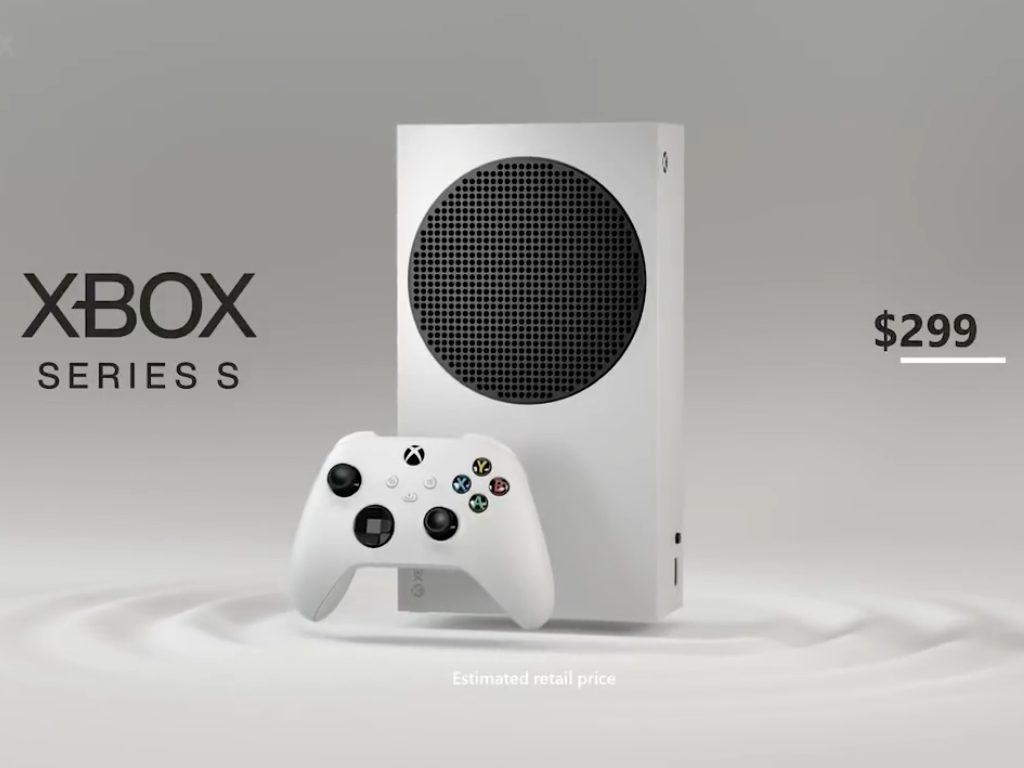
Microsoft has now officially confirmed that its entry-level next-gen console, the Xbox Series S, will launch on November 10 for $299. The information is visible at the end of the Xbox Series S Reveal trailer that has been published on the Xbox YouTube channel a couple of minutes ago.

Windows Central first reported that both the Xbox Series S and the Xbox Series X would be released on November 10, with the latter expected to be priced at $499. Microsoft has yet to confirm these details for the Xbox Series X, and the company may well wait for Sony to announce the PlayStation 5’s price first.

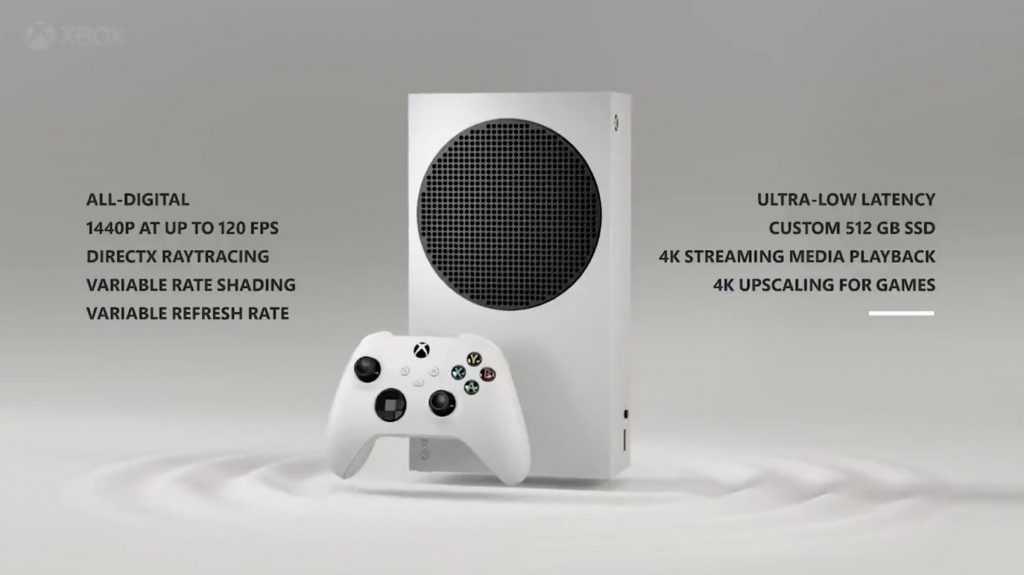
Overall, Microsoft seems to be in a great position ahead of the beginning of this new console generation: The company will have the most powerful next-gen console with the Xbox Series X, and as of this writing it will also have the most affordable console with the Xbox Series S. We still don’t know all technical details about the latter, though we learned today that it will support 1440p gaming at up to 120 FPS, 4K upscaling, and DirectX ray tracing.

5 Best DJ Software with Virtual Turntable [2026 List]

Some time ago, the skills of a DJ consisted in knowing how to mix the vinyl and manage a console. Nowadays, thanks to a simple PC, it is possible to replace numerous buttons. Nowadays, DJs should know how to manage a DJ software and use sound effects. In this guide, we’ll list some of the best DJ programs that can help you to create great party vibes. This article focuses on DJ software that does not use turntables. We have picked 5 programs that you can use if you are a beginner, intermediate, or professional DJ.  

What are the best DJ software with no turntables?

Zulu

If you are not a total beginner or a maybe a professional DJ with few pretensions, you can try Zulu. It is a nice free software that can also help beginners to “mix” their songs with a few clicks.

Zulu DJ Audio Software mixes music and live audio recordings. This means that you can play a musical base, or another kind of music and singing on it, make out a master with a lot of semi-professional effects.

As soon as you start a music track, the program scans the file and assigns beats per minute (BPM).

In this way, it offers the possibility to change the time in order to perfectly synchronize two audio tracks.

You can listen to a preview of the next music track by using headphones connected to the secondary audio output of the sound card installed on your PC.

Zulu DJ Audio Software allows you to apply effects to audio tracks (Distortion, High Pass Filter, Reverb, Phaser, Flanger, Delay).

It supports numerous audio formats including WAV (multiple codecs), MP3, VOX, GSM, Real Audio, AU, FLAC, OGG, and many more.

In short, you can record your performances, even without knowing how to play an instrument. Thus, this is a tool that you should definitely try!

Zulu

Zulu

Mix your music with this powerful DJ mixer solution that supports all the latest audio file formats. Try it now!

DEX 3

If Virtual DJ is a software that allows you to start your DJ journey, DEX 3 is a professional DJ Software for both Mac and Windows.

This software has three functions included: it enables the user to mix and manage videos, music, and to host karaoke shows.

Music and sounds have high-quality standards. You can mix manually or automatically, thanks to the Automix or Shuffle Play function.

You can play music coming from your PC, from video libraries (you can import iTunes automatically), or from over 100 DJ controllers supported.

The latter provide hands-on tactile control on DEX 3, enhancing creativity while mixing.

For what concerns the interface, you can use a 2-Deck or a 4-Deck interface. You can create all the mix you want and keep them in history, ready to be used the next time.

If you want to register your songs or videos, DEX 3 has well developed built-in recording features.

Do you want to organize a karaoke night with many people? In this case, you can create a list automatically run by the software with the song and the singer associated.

DEX 3 Party Time Karaoke counts on a wide effects grid (e.g. delay, flanger, phaser, etc) able to enhance the singer experience.

Despite its numerous functions, DEX 3 appears easy to use. Moreover, within the website, there are simple tutorial videos able to explain how the DJ mixing software works.

PCDJ

PCDJ

The ideal software for making karaoke with a library hosting over 15,300 songs, constantly upgraded. Try it now!
Free Get it now

Virtual DJ

virtual DJ

Virtual DJ is a software that allows you to emulate more turntables connected to a mixer with your PC. Atomix is the provider of this successful software.

Instead of classic discs, the software uses audio files such as MP3 and WAV or CD.

Thanks to the two sound cards or a sound card with multiple outputs, you can also hear the preview.

The program has both musical and visual effects (also available from the manufacturer’s website), useful for mixing the various pieces.

On the website, there are also various skins that change the appearance of the software. Virtual DJ can also mix music videos with separate audio and video management with numerous transition effects.

This program can represent a first approach to the world of DJing, without the cost that a traditional console involves.

Clearly, when you decide to use this type of software on a professional level, you find out that a digital console does not cost less than a traditional console.

⇒ Get Virtual DJ

Traktor

Many internationally renowned DJs trust Traktor as a very professional and stable program. It is compatible with all operating systems.

There is a basic version, useful for trying the virtual console-quality, but the complete one has a better quality.

The interface can appear a bit complex. It has professional sound effects, including the CD effect or the pins on the vinyl.

Traktor can provide you with the ability to see the music through the waveforms for each piece, which line up on grids.

Tracktor can support many controllers. Nevertheless, picking the controller that suits best for you will be important to get your audience amused by your music.

If you have an iPad, try Traktor’s iPad program. You can integrate that with your DJ setup to synchronize loops, starting points, and other effects.

⇒ Get Traktor

Audacity

Last but not least, if you are looking for an audio editing application that allows you to clean up some recordings you’ve made, Audacity is an interesting choice.

If you wish to quickly mix two music tracks but you do not intend to spend money Audacity is for you. Moreover, you can pick Audacity if you are not ready yet to try complex professional software.

If you have never heard of it, Audacity is one of the best free audio editing programs. It is compatible with Windows, MacOS, and Linux and is distributed under an open-source license.

Its interface is extremely intuitive. Therefore, you can use it without any problem even if you are a beginner with this type of software

It is worth mentioning that Audacity has the function of training beginner DJs.

You can use the tool to edit music, equalize sounds and add the main sound effects, as well as to save your compositions in numerous formats. The only flaw is that you can work only on individual tracks.

This article intended to help any user, DJs, or aspiring DJs, to navigate the jungle of software to mix music and sounds without turntables.

⇒ Get Audacity

Within this list, we explored software that can be used by beginners, intermediate-level, and also professional-level DJs, so no matter your level of expertise, this guide has you covered.

It is up to you now to pick the one that fits your needs. Let us know if this article was useful by dropping a comment below.

[wl_navigator]

Xbox S could fit inside Xbox X and it’s almost half the price

Update: A few hours after the leaked information Microsoft made the announcement official on the Xbox Twitter account. The price is $299 (ERP)

Brad Sams leaked all the shiny details about the upcoming Microsoft Xbox Series S gaming console on a couple of Twitter posts.

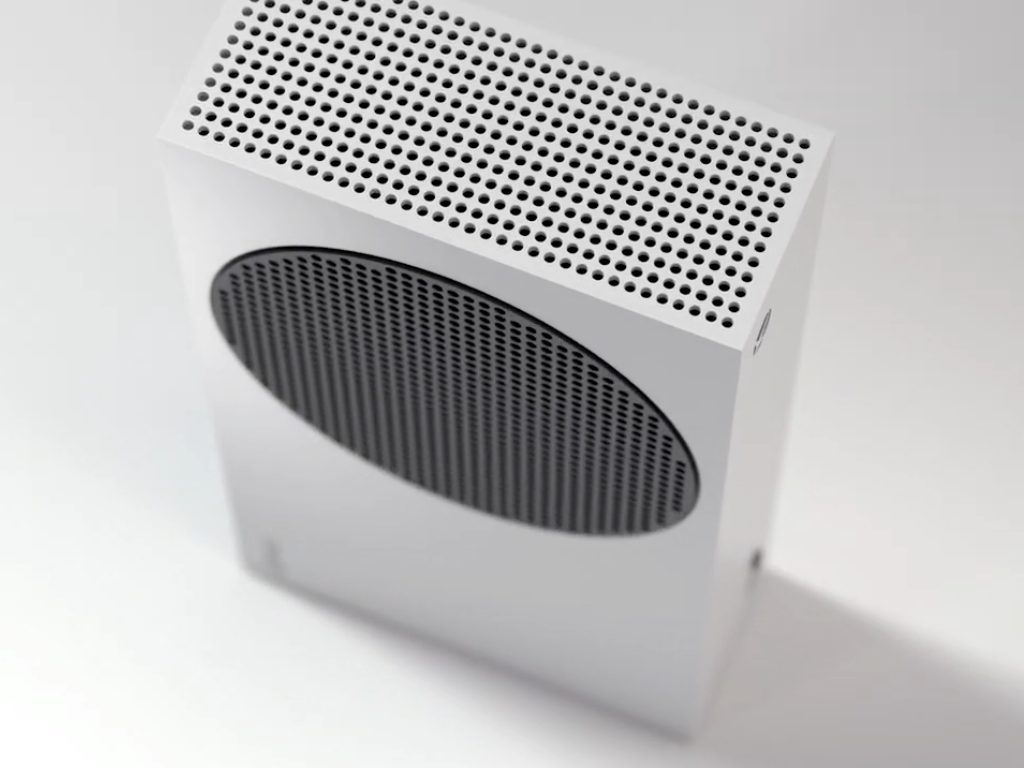
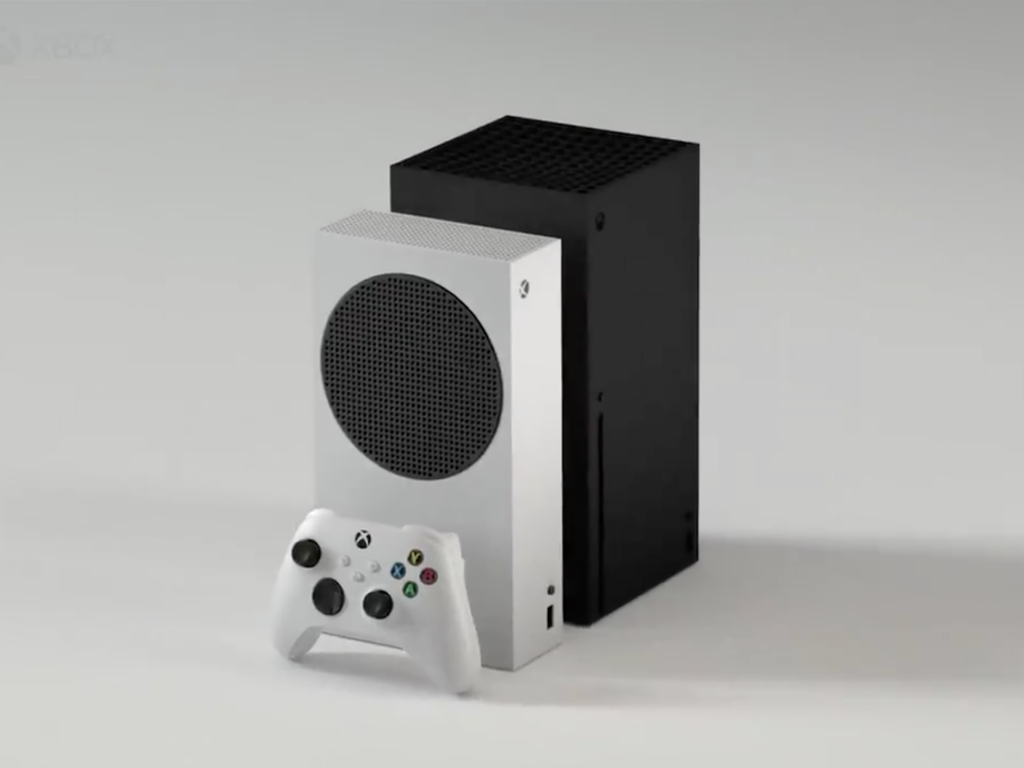
The real surprise is that Xbox Series S’s case is small enough to fit in half of the Microsoft Xbox Series X case.

But Xbox Series X measures only 5.94 inches wide, 5.94 inches deep, and 11.85 inches high so that makes Xbox Series S a pretty small console on its own.

What is new about Microsoft Xbox Series S?

Update 2: WalkinCat leaked the whole Xbox Series X commercial and we also got some of the technical specifications:

  • 1440p resolution at up to 120 FPS
  • DirectX Raytracing
  • Variable Rate Shading
  • Variable Refresh Rate
  • Custom 512 GB NVME SSD
  • 4K streaming media playback and 4K upscaling

First, just to see the size comparison between the two new consoles you just need to take a look at the small clip posted by WalkingCat on Twitter.

Brad Sams also leaked the price of Xbox Series S, $299, almost half the one of the Xbox Series X which is $499.

Also, there will be $25/month and $35/month Xbox All Access financing options for Series S and Series X respectively.

What are the technical specifications for Xbox Series S?

In terms of technical specifications, we expect Xbox Series S to be closer to the power of Xbox One X, still aimed at 1080p monitors.

As Xbox Series X will feature a 12TF computational power and it will be ready for 4K with 60 FPS as a standard, we can only hope that Xbox Series S should reach around half the computational power.

Also, there are rumours that the new Series S will have no internal hard drive which could be bad news for some gamers.

Of course, until the official launch of the two consoles on November 10, all these details can only be taken with a grain of salt.

[wl_navigator]

FIX: Unallocated hard drive with no data loss [Windows 10/11]

Have you ever noticed your external hard drive not appearing in the Devices and Drives section of This PC (My Computer in earlier Windows editions)?

The first thing you should do here is to reconnect the drive. If it’s still missing from the page, then troubleshooting begins.

The Device Manager can say that the connected device is working properly and healthy. However, you see that the drive is also unallocated.

Data can’t be written to unallocated space on your hard drive.

Several things can cause the unallocated hard drive issue, but before figuring out the cause, you need to learn how to fix an unallocated hard drive without losing data.

How do I fix unallocated hard drive without losing data in Windows 10?

1. Use Command Prompt

Create a new volume using commands

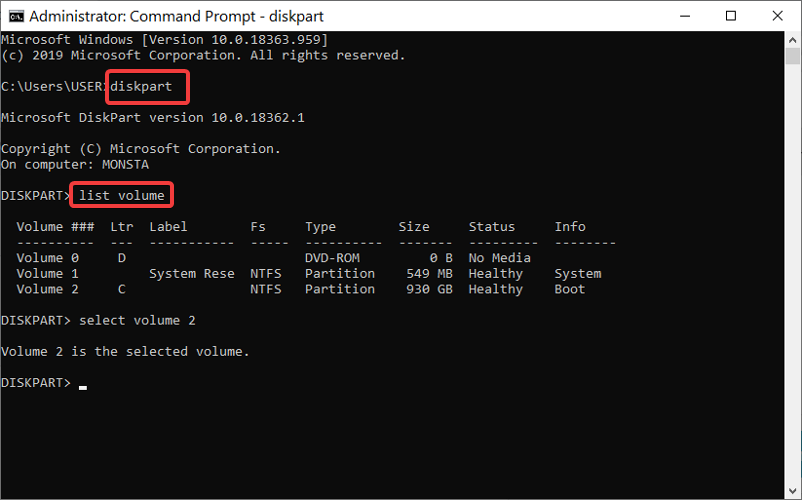
cmd-diskpart-how-to-fix-unallocated-hard-drive-without-losing-data-windows-10

  1. Press the Windows key and search for cmd.
  2. Click on Command Prompt from the search results.
  3. In the Command Prompt window, enter diskpart and hit Enter.
  4. Type in list volume and press Enter.
  5. Choose your drive letter using the following command: select volume z.
    NOTE: Replace z in the above command with your drive letter.
  6. Type the following commands and hit ENTER after every line:
    1. delete volume
    2. list volume

At this point, DiskPart should create a new volume.

Note: In case the above-mentioned steps fail, follow the steps described below to create the volume manually.

Create a new volume manually

  1. Enter the following commands in Command Prompt and press Enter after every line to run it:
    1. select volume z (change the z in this command to your drive letter).
    2. delete volume
    3. delete volume override
  2. Press the Windows key and search for disk management.
  3. Select Create and format hard disk partitions from the search results.
  4. Right-click on the unallocated hard drive.
  5. Select New Simple Volume and click Next.
  6. Set the Simple volume size in MB and hit the Next
  7. Select Format this volume with the following settings.
  8. Set the File system to NTFS, Allocation unit size to Default, and name the Volume label.
  9. Mark the Perform a quick format checkbox and hit Next.
  10. Click on the Finish button.

2. Use CHKDSK

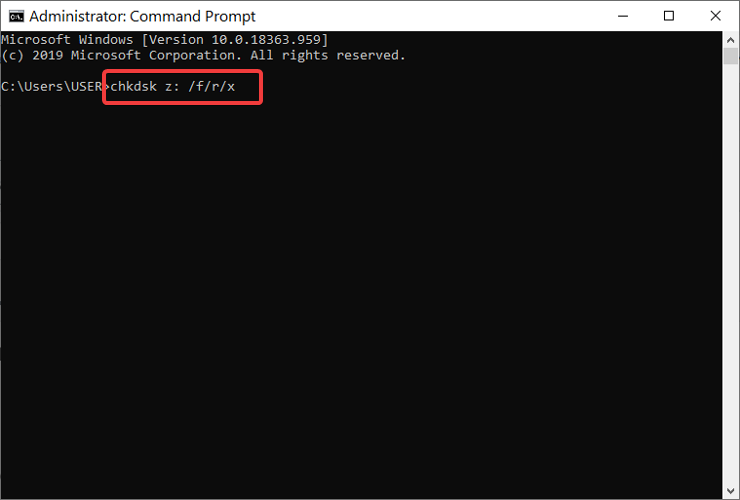
chkdsk-command-how-to-fix-unallocated-hard-drive-without-losing-data-windows-10

  1. Click on the Start Menu button and search for cmd.
  2. Right-click on Command Prompt and choose to Run as an administrator.
  3. In the Command Prompt window, input chkdsk z: /f/r/x and hit ENTER.

Note: In the command above, remember to change z to the correct drive letter of the unallocated hard drive. /f repairs drive errors, /r recovers data in bad sectors, and /x unmounts the drive to begin the process.


3. Update your hard-drive driver

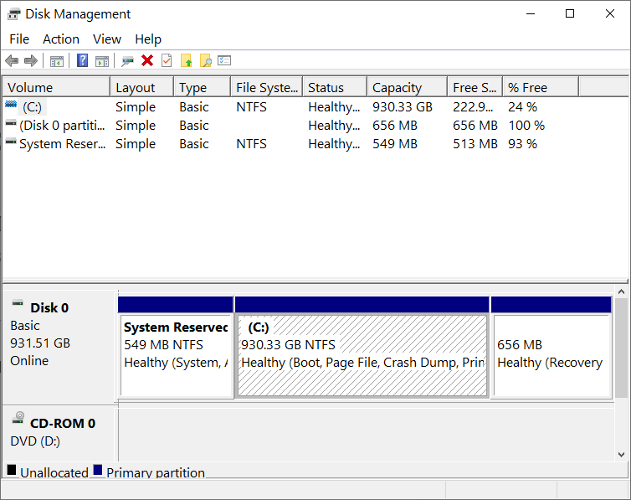
how-to-fix-unallocated-hard-drive-without-losing-data-windows-10-disk-management

  1. Press the Windows key + R
  2. Type diskmgmt.msc and hit OK.
  3. Expand Disk drives.
  4. Right-click on the unallocated hard drive and select Update Driver Software.
  5. Click on Search automatically for updated driver software and follow the on-screen instructions.
  6. Restart your machine.

If you still don’t see your drive after the reboot, return to these steps and start all over. In Step 4, select Uninstall instead of Update Driver Software.

After restarting this time around, your driver will be re-installed. This is another useful tip when learning how to fix an unallocated hard drive without losing data in Windows 10.

[wl_navigator]

Microsoft is reportedly readying affordable 12.5″ Surface laptop for this holiday season

Microsoft’s Surface Laptop saw its third iteration earlier this year, which was the first generation to offer a 15” variant with new AMD processors. If the Surface Laptop family has never reached the same level of popularity as Surface tablets including the new Surface Go, Microsoft may be working to fix that with a more affordable Surface laptop coming this holiday season.

According to a report from Windows Central, this new Surface Laptop, codenamed Sparti, will have a 12.5-inch screen. The base model, which could be priced between $500 and $600, will feature a 10th gen Intel Core i5 processor, 4GB of RAM, and 64GB of storage. The report also says that it will ship with Windows 10 in S mode, inviting consumers to get their apps from the Microsoft Store.

As the ongoing covid-19 pandemic is creating a lot of uncertainty for consumers, adding another affordable Surface device to the family makes sense, especially since the detachable form factor of the 10.5-inch Surface Go 2 may not be for everyone. Microsoft is also expected to launch other new Surface devices later this year, especially since the Surface Pro line hasn’t been refreshed since last year’s Surface Pro 7.

Do you think a more affordable Surface Laptop could be a big deal for Microsoft this holiday season? Let us know in the comments below.

Here’s what people are saying about the Surface Duo before this week’s release

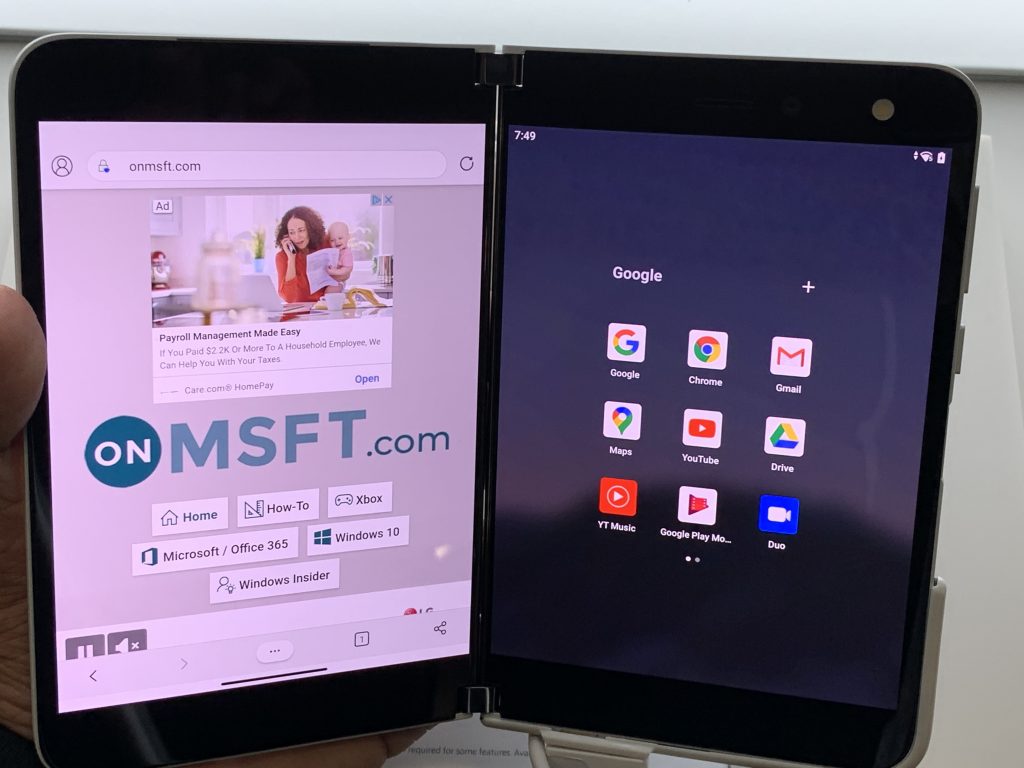
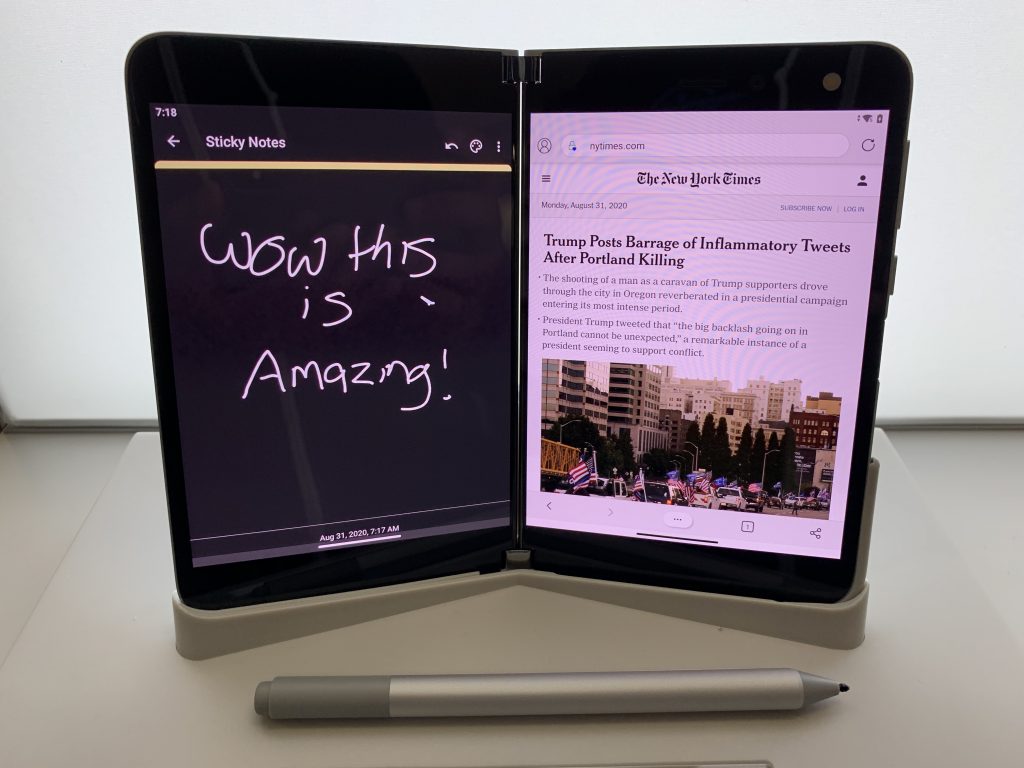
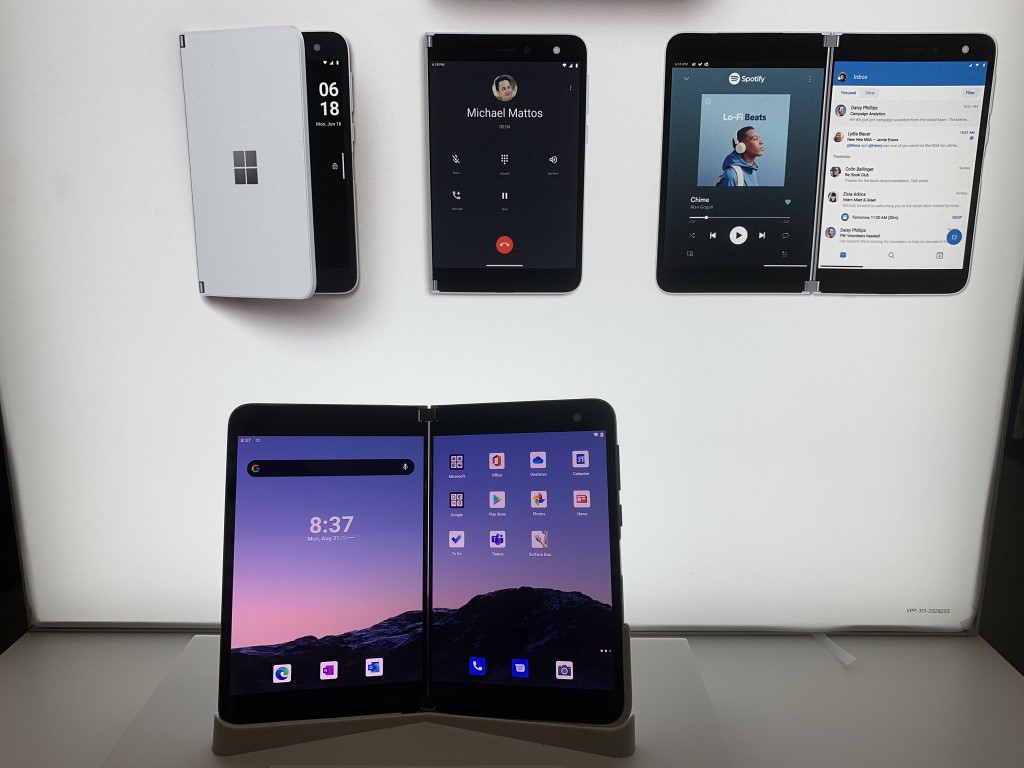
The Surface Duo is coming on September 10, which is now less than two days away. In the leadup to the release, there’s been a lot of interest in Microsoft’s dual-screen foldable, especially on Reddit.  Just like ourselves, many people have gone hands-on with Duo Display units at either BestBuy or AT&T Stores. There have been some interesting reactions, too, with one person doing an “unauthorized review” based on some impressions from a coworker he said has used the Duo in his life.

So, here is a look at some impressions, and what people are saying about the Duo before this week’s release.

An “Unauthorized early Duo Review”

Surface Duo Inking On Phone

First up on our list is an “unauthorized” review of sorts from a Reddit user who claims to be the coworker of someone working for a research analyst firm that works with Microsoft on its mobile strategy. Of course, we can’t verify this, and the post has since been deleted, but not before it was cached on Google, as seen from the link in the heading above.

This is perhaps the most interesting of the impressions, as the author of the post claimed to know someone who used the Duo for a while in his life. Again, this person supposedly used a Duo personally, rather than just spend a few minutes with it at BestBuy or AT&T.

From this post, a couple of interesting points can be gathered. First off, there’s how the overall build quality seemed impressive, and how the person didn’t seem bothered by the bezels. Secondly, the person also finds that the two screens on the Duo changed how the device was used for him. Finally, the overall performance was also great for this person.

Then, there are the cons. According to the Redditor, his coworker told him battery life isn’t great, and the camera is bad on the Duo. There’s also the “wonky” OS too, as is the way the person tried to multitask. Sadly, though, according to this Redditor, it also seems like the person with the Duo went back to a Note 10 for now. That’s mainly due to “early software wonkiness” and “the camera can’t be saved.”

Again, take this with a fine grain of salt, though. We can’t verify the authenticity of this post, and the fact that it was deleted adds to that mix. But, the post has been popular on Reddit, which is why we’re sharing it.

Tech writer who chooses the Duo over the Galaxy Z Fold 2

Microsoft Surface Duo

Second on our list is not really an impressions post, but rather a comparison to Samsung’s foldable, the Galaxy Z Fold 2. This post has been trending on the dedicated Surface Duo Subreddit, and a lot of people believe it captures the way Microsoft fans feel when asked about how the Duo compares to Samsung’s latest phone.

Authored by Kevin C Tofel, a self-proclaimed Freelance Futurist, this blog post really dives into the reason why the Duo is better than the Z Fold 2 in his view. According to Tofel, he cares less about specs, but rather user experience. He finds that his Pixel 4 has the same specs as the Duo and can meet his expectations, so the Duo can too.

He also mentions that the way multitasking works on the Duo is better than the Fold because none of the apps when splitting on the Fold are full size. “Because the Surface Duo has two independent displays that work together with optimized apps, I will have a full-sized multi-app experience,” said Tofel.

To end his post, Tofel makes a good point on why his perspective should be trusted. Although he’s been burned with buying and reviewing other Microsoft products before, he mentions an important point. That is, although Microsoft won’t sell millions of the Duo, it is a little different and is worth taking the risk on. “Although it does run some Microsoft software. It’s built on Android and Android isn’t going away anytime soon. So I’ll take my chances” said Tofel.

Someone with issues with figuring out the “swipes”

Surface Duo Dual Screen Apps

Next on our list is an impression post is a post from someone who seemed bothered by the way the “swiping” works on the Duo. This person tried the Duo at a Best Buy and says that moving from a Note10+ he’s not a fan of the way the Duo works and with the overall UI. According to him, he’s not a fan of pages and pages of apps and is worried about using his own launcher app on the Duo.

He also finds an issue with figuring out the swipe motions, though there weren’t any stutters or weirdness in the software. Long behold, though, he did like the overall hardware, much like everyone else. “It’s wicked thin,” “The hinges move like “Buttah,” “It’s a solid piece of kit,” are just a few remarks the user had about the Duo.

Of course, this one experience doesn’t speak for everyone, but we still think it’s worth mentioning. How will third party launchers work on the Duo? Will users be able to adapt to the way you span and split apps? This Redditor brings up some really great points.

Excited for the Duo? Join the discussion

This is just a small look at what people are saying about the Surface Duo. If you’re looking to read other people’s thoughts about the Duo, you can head over to the Surface and Surface Duo Subreddits. These communities are a great forum of discussion where you’ll be able to chat with like-minded individuals and fellow Microsoft fans.

We’ve pre-ordered our own Surface Duo and will be doing our unboxing and impressions post this week. Keep tuned to OnMSFT, and let us know if you have any Surface Duo questions for us by dropping us a comment below. We’ll be doing our best to answer them for you during our next OnMSFT Podcast!

Here’s what we know (and what we still don’t) about the Xbox Series S

After images and pricing details for the Xbox Series S leaked earlier today, Microsoft had no choice but to officially announce the console, along with its $299 pricing. The tweet emphasized that the Xbox Series S would deliver “next-gen performance in the smallest Xbox ever,” and the console will indeed be smaller than both the Xbox Series X and the Xbox One X, which was already the smallest Xbox ever.

The prolific Microsoft leaker WalkingCat has leaked an official video trailer for the Xbox Series S, which includes a bit more details about its specs. First of all, the body will be nearly 60% smaller than the Xbox Series X, and Microsoft definitely deserves credit for fitting next-gen components in such a small form factor.

This leaked trailer also reveals that the Xbox Series S is targeting 1440p gaming at up to 120FPS, and 4K upscaling will be supported for games. The old Xbox One S from 2016 was the first Xbox console that could upscale games to 4K, so it’s not surprising to see that the Xbox Series S will be able to do the same. To be clear, even though the console won’t run games in native 4K like the Xbox One X can, the Xbox Series S will support 4K TVs and upscaled games should look very good on it.

Microsoft has yet to specify if the Xbox Series S will support DirectML, a next-gen component of DirectX that the company previously detailed for the Xbox Series X, though it would make sense to use it to improve the console’s upscaling technology. Just like Nvidia’s Deep Learning Super Sampling (DLSS) technology on PC, DirectML will use machine learning to upscale images in 4K. This is a big deal for developers who will be able to target sub-4K resolutions while focusing GPU power on other things such as ray tracing, and the use of machine learning to reconstruct a 4K image should greatly improve visual quality.

Xbox Series S Features

The Redmond giant also confirmed that the Xbox Series S will support DirectX Ray Tracing and Variable Rate Shading (VRS), two next-gen features that should make a real difference in games. DirectX Raytracing will allow developers to improve lighting, shadows, reflections, acoustics, and spatial audio, while VRS will increase GPU efficiency by concentrating shader work where it’s most needed. Microsoft has yet to share more details about the Xbox Series S’ GPU, but previous reports mentioned a custom AMD RDNA2-based GPU delivering 4 teraflops of computing power. In comparison, The Xbox Series X will have an RDNA2-based 12 teraflops GPU that will support 4K/60FPS, 120FPS, as well as 8K gaming.

On the storage front, the Xbox Series S will come with a custom 512GB NVMe SSD that supports Microsoft’s new Xbox Velocity Architecture. 512GB sounds a bit low for an all-digital console, though including 1TB of storage like on the Xbox Series X would probably have raised the $299 price. We have yet to see pictures of the Xbox Series S’ back ports, and we don’t know yet if the Xbox Series S will support the same proprietary 1TB expansion cards made by Seagate. However, this seems almost guaranteed: Speaking about the Xbox Series X, Microsoft previously explained that next-gen Xbox games could only be installed on the internal NVMe storage or on these external cards from Seagate, and the 512GB SSD on the Xbox Series S should be filled up pretty quickly. Gamers will also be able to use regular external hard drives and SSDs to install Xbox One games, but next-gen games will require faster NVMe storage.

We hope that Microsoft will soon share the full details about the Xbox Series S specs, but so far this cheaper next-gen console seems to deliver great value for $299. It should be a great offering for gamers interested in Xbox Game Pass, or those who only play a couple of games such as Fortnite or FIFA and don’t want to spend $500 on a new console. Microsoft only confirmed a November release date for the Xbox Series S, but Windows Central revealed earlier today that both the Xbox Series S and the Xbox Series X would launch on November 10. With Xbox All Access, Microsoft will reportedly offer the Xbox Series S for as little as $25/month for 24 months, while the $499 Xbox Series X will be available for $35/month. If true, it remains to be seen how Sony will price its PlayStation 5, which will also have a cheaper discless version.

Read Comics Online: 5 Best Sites in 2026

The comic book industry has been present for decades, and with the development of technology, many comics are available online for reading. There are many websites that host comic books, and in today’s article, we’re going to show you how to read free comics online.

Where can I read comics online?

Marvel

marvel read free comics online

If you want to read Marvel comics online for free, Marvel’s website might be the best place for it. The website allows you to purchase comics, but there are free samples as well.

Regarding the free samples, there are about 70 different titles available. Usually, this sample is just a first issue of a particular comic, but it’s a great way to determine if a comic book is to your liking.

To read a specific comic, just select it and you can navigate through it with your mouse or with a keyboard. You can also read the comic page by page or panel by panel.

Overall, Marvel offers great experience if you want to read Marvel’s comics, but free users are limited only to preselected 70 titles.

To get access to the entire library of 25,000 comics, you’ll need to subscribe.

Marvel features:

  • 70 free comics available
  • The largest host of Marvel comics
  • Over 25,000 titles available
  • Easy to use

=> Visit Marvel

Comixology

comixology read free comics online

Another popular website that lets you read free comics online is Comixology. The website offers you a free sample or about 100 titles.

As for available comics, we have to mention that Comixology lets you read DC and Marvel comics online. All that you have to do is to add your free sample to the basket and that’s it.

In addition to DC and Marvel, you can find comics from other various other publishers, so you’ll definitely find almost any comic that you need with ease.

If you’re looking to read comics from various publishers, Comixology is a perfect choice for you.

Comixology features:

  • Comics from DC, Marvel, and other publishers
  • A wide array of available titles
  • Free samples

=> Visit Comixology

DriveThruComics

DriveThruComics read free comics online

If you want to read comic books online for free, you can use DriveThruComics. This website also offers free samples from various publishers.

Keep in mind that you won’t find DC or Marvel comics available here, but titles from lesser-known publishers, which is great if you’re looking for something different.

The website offers free samples, and some comics even allow you to choose how much you want to pay for them.

To view a comic book, you just need to add it to your cart, purchase it, and it will be added to your collection.

If you’re looking to read free comic books online from lesser-known publishers, we encourage you to visit DriveThruComics.

DriveThruComics features:

  • Many free samples available
  • Pay what you want option for some comics
  • Titles from lesser-known publishers

=> Visit DriveThruComics

ReadDC

readDC read free comics online

Another great site that offers free comics is ReadDC. This website is perfect if you want to read DC comics online because it offers a while DC lineup.

You can find free samples, and the list is changing somewhat frequently, so you should always find something interesting to read.

However, if you want to get access to the full selection, you’ll need to register and purchase the desired issues.

If you’re a fan of DC Comics, ReadDC is a great way to read a few new comics and discover new titles.

ReadDC features:

  • Free samples
  • A wide array of DC titles to choose from

=> Visit ReadDC

DarkHorse

If you’re not a fan of Marvel or DC and you’re looking for something different, you might want to visit DarkHorse.

They offer about 100 free samples to choose from, and in order to read them, you just need to create an account on their website.

Keep in mind that DarkHorse only hosts their own comics, but if you’re not a fan of DC or Marvel, we suggest that you check out DarkHorse.

DarkHorse features:

  • Over 100 free sample comics
  • Has a wide range of titles exclusively from DarkHorse

=> Visit DarkHorse

Reading comics online is simpler than you think, and many publishers offer free samples of their popular titles, so it’s not hard to find them.

We hope that you found your favorite comics online after reading this guide. What is your favorite website to read comics? Let us know in the comments below.

[wl_navigator]

Minecraft Dungeons’ Creeping Winter update and DLC is now live on Xbox One and Windows 10

The Minecraft Dungeons: Creeping Winter content is now live on both Xbox One and Windows 10 versions of the main Minecraft Dungeons video game.

Rather confusingly, the Creeping Winter content is split between a free update to the main game, which will add new merchants and other fresh content for everyone to enjoy, and a paid DLC pack which costs $5.99 for owners of the regular version of Minecraft Dungeons. The DLC is also free for Hero Pass owners or those that bought the Hero Edition of Minecraft Dungeons.

The Minecraft Dungeons: Creeping Winter DLC adds a variety of new missions to tackle and foes to battle and also contains new weapons, armour, and artifacts.

Here’s the official description for the Minecraft Dungeons: Creeping Winter DLC:

A creeping winter is slowly taking over everything it touches, and the source of its chilling power is a powerful creature known as the Wretched Wraith. To stop the never-ending winter in its icy tracks, a noble hero must take on new missions in the lands trapped below zero. It won’t just be wintry winds that seek to throw the hero from their path to destroy the Wretched Wraith, but new enemies such as the Illusioner and Iceologer will join the brawl! As you hunt down the source of corruption, you’ll discover new armour, weapons, and artifacts below the snow and sleet. Stay cool and keep a steady hand, for the frost is unforgiving.

FEATURES

  • Take on 3 brand new missions.
  • Battle the Illusioner and Iceologer.
  • Face the Wretched Wraith.
  • New weapons, armour, and artifacts.
  • Slide across the ice.

Minecraft Dungeons is a spinoff from the main Minecraft video game and focuses on dungeon crawling and exploration over world creation.

Are you going to buy the new DLC or are you happy with the main game as is? Let us know in the comments and then follow us on Pinterest, Twitter, and Facebook for more Minecraft news.


All DLC for the original Super Lucky’s Tale video game is now free for Xbox One players

Both DLC packages for the Super Lucky’s Tale Xbox One video game are now free to claim (cheers, TA) and download from the Microsoft Store on the web or via the console dashboard.

The Gilly Island and Guardian Trials add-ons were both delisted along with the Super Lucky’s Tale game itself after the release of New Super Lucky’s Tale, a revamp of the game with improved gameplay and all of the content from the original game and its DLCs.

New Super Lucky’s Tale is the clear choice for new gamers but those who have the original version and don’t want to buy an entire new version of a game they already own can now enjoy this additional content for free.

Curiously, while Super Lucky’s Tale is no longer buyable, it is available to play for free via Xbox Game Pass on both Xbox One consoles and Windows 10 PCs. Even more curious is the fact that New Super Lucky’s Tale is also playable via Game Pass. Guess it’s a good time to be a Super Lucky fan.

Are you going to download these DLCs? Let us know why or why not in the comments below and then follow us on Twitter and Pinterest for more Xbox gaming news.


Guardian Trials Add On
Developer:
Xbox Game Studios
Price:
Free


Super Lucky's Tale
Super Lucky's Tale
Developer:
Xbox Game Studios
Price:
Free


New Super Lucky's Tale
Developer:
Playful Studios
Price:
Free

5 best Brother printer scanner software for PC

Brother Industries is a multinational electronics and electrical equipment company that manufactures a wide variety of products.

One of their crowning achievements is their line of extremely reliable printers. Of course, given how good they are, you need some very good software to go along with them.

For example, scanning software is compatible with all Brother printers. However, if you want to get the most out of your printer, then you better get the right scanning software for the job.

That is why we’ve compiled a list of the best scanning software that you could pair with a Brother printer.

What are the best scanning software tools for Brother printers?

Adobe Acrobat DC

Just by saying Adobe you know you’re dealing with some serious software. Adobe Acrobat DC continues this trend by being an extremely professional and versatile tool.

Not only will it let you scan files efficiently, but you will also be able to do so from a lot of platforms, even from the mobile app without any difference in quality.

More than five million organizations use Acrobat DC to handle their documents so you know that you have the safest tool out there.

You can create and edit PDFs, convert them to Office formats, and when needed, can collaborate on documents with your colleagues all over the world.

Pros:

  • An extensive range of tools
  • Frequently updated
  • Can be integrated with a lot of other programs

Cons:

  • The subscription can be a bit pricey
  • The scanning functions are basic

Adobe Acrobat DC

The scanner options are even available for the web app and that’s only a fraction of what this professional software can do.
Free trial Visit website

Abbyy FineReader

Abbyy FineReader can be considered a multi-purpose tool, as scanning documents is only one of the many things that it can do.

Not only can it scan files efficiently, it can recognize text using advanced OCR (Optical Character Recognition) and it can also be used to create and edit PDF files, making it a must-have for office work.

Actually, you can even find information from scanned PDFs, because you can use full-text keyword search and bookmarks.

And if you open a PDF document and it’s not searchable, FineReader detects that and automatically applies OCR to make them searchable.

Pros:

  • Easy to use
  • Supports batch processing
  • One-time payment
  • OCR scanning

Cons:

  • The price tag
  • The OCR scanning is not the best
Abby FineReader

Abby FineReader

Try the advanced OCR and PDF creation functions alongside the scanning tool. You will be pleasantly surprised!
Free trial Visit website

PaperScan

PaperScanPaperScan is your go-to solution when dealing with pretty much any printer, not just the ones from Brother. This is because it was made specifically to be compatible with hardware from all major manufacturers.

In fact, a common trend is to simply ignore whatever scanning program a printer usually comes with, and simply go with a third-party one like PaperScan.

Pros:

  • Affordable
  • Offers a free version with limited functionality
  • It’s a dedicated scanning solution

Cons:

  • Doesn’t go well with cloud use
  • It has pretty basic features

⇒ Download PaperScan

Readiris

Readiris has stopped working errorsWhile Readiris is a great software tool for scanning documents efficiently, what makes it so special is how it can efficiently convert scanned documents to audio files.

First, it converts the texts using the build-in OCR, then it simply reads it to you using a realistic human voice.

Pros:

  • You can convert scanned documents into audio
  • You can try it for free
  • Affordable

Cons:

  • Some limitations with the lowest subscription tiers
  • The audio quality is not so great

⇒ Download Readiris

OmniPage Standard

The key selling point of OmniPage Standard is the OCR that it comes equipped with allowing you to efficiently scan documents and convert them efficiently and fast.

Additionally, it provided great image quality even if the scanned source material isn’t all that great, allowing your printer to produce perfect copies of the original document.

Pros:

  • High-quality scans, OCR, and format conversion
  • User-friendly
  • Can be integrated into a lot of other services

Cons:

  • The price tag
  • The scanning software is limited

⇒ Download OmniPage Standard

Closing thoughts on scanning software for Brother printers

Brother creates good quality products, and this includes their line of printers as well. Thus, using a scanning program that can efficiently take advantage of all of its capabilities is mandatory.

Of course, if that program can do a whole lot more than just that on the side, then it is all for the better.

[wl_navigator]

Xbox Series X and Xbox Series S prices and launch dates have leaked

If Microsoft and Sony were not in a hurry to reveal pricing and launch dates for their next-gen consoles, it has apparently become really difficult to prevent more information from leaking. Indeed, Brad Sams first revealed the design of the Xbox Series S a couple of hours ago, which will be the low-cost discless alternative to the Xbox Series X.

The Xbox Series S will look like a much smaller version of the Xbox Series X, and a short video published earlier by WalkingCat shows that it easily fits inside the bigger Xbox Series X body. Obviously, the design also took some inspiration from the Xbox One S, and Brad Sams first came with the information of a $299 estimated retail price for the Series S.

In a separate report, Windows Central confirmed this $299 retail price for the Xbox Series S, adding that the console will also be available with Xbox All Access for just $25 per month. According to the report, the Xbox Series X will be priced at $499 or $35/month with Xbox All Access, and both consoles are expected to launch on November 10, 2020.

Now that all this information has leaked, it shouldn’t be long before Microsoft officially announces the Xbox Series S as well as prices and launch dates for its two next-gen Xbox consoles. At just $299, the Xbox Series could seriously undercut Sony’s PlayStation 5 and its discless variant, especially when you take Xbox All Access into account. Coupled with an Xbox Game Pass subscription, the Xbox Series S could be really great value for gamers who don’t have a 4K TV or don’t care about physical media.

We don’t know yet the full specs for the Xbox Series S, but according to previous reports, it will feature 4 teraflops GPU targeting 1080p gaming, while the Xbox Series X is targeting 4K and will even support 8K gaming. However, considering that 1080p TVs are still very popular, the Xbox Series S makes sense and it should provide a better gaming experience than the now-deprecated Xbox One X thanks to an ultra-fast SSD and a custom-designed AMD Zen 2-based CPU similar to the ones found in the Xbox Series X.

We can’t wait to see Microsoft finally share all the official details about the Xbox Series S, and all eyes will now be on Sony which may or may not try to undercut the Xbox Series X’s estimated $499 pricing. It seems likely that the regular PS5 could be priced at $499 while the Digital Edition could be $50 or $100 cheaper, though at $299 Microsoft’s Xbox Series S would still remain much more affordable.

Update: Microsoft has now officially announced the Xbox Series S and its $299 pricing, though the November 10 launch date has not been confirmed yet.

Microsoft FreeCell: How to Download the Original Version

In the midst of criticism of Windows 10, there’s a place for the sacrilegious approach to classic card games.

The gold classics which reached their peak on Windows 7 were removed and replaced by the subpar UWP apps. Including the fan-favorite FreeCell which was an important piece of gaming relief since Windows 95.

This injustice has a convenient fix and today we offer you the way to get your original Microsoft FreeCell on Windows 10.

Microsoft FreeCell is one of those original and timeless Microsoft Solitaire card games. The FreeCell is another variation of the solitaire concept, based on the card game which consists of a standard 52-card deck.

The game was vastly popularized in Windows 95, and, to date, is one of the most widespread card-based games on all Windows iterations.

However, Microsoft with its dubious moves struck again. They removed the original FreeCell back on Windows 8 and the same approach took place on Windows 10.

Somehow making it even worse in the process. They removed the Windows 7-like built-in FreeCell and incorporated Solitaire Collection as a UWP app.

Due to the adware/bloatware nature of this application, it’s safe to say that Windows 10 FreeCell hasn’t met the expectations.

Forcing users to use Microsoft Store apps exclusively isn’t exactly the brightest idea. Especially with the inclusion of 30-seconds-long video ads.

How can I download the original FreeCell for Windows 10?

  1. Download Windows 7 games for Windows 10 (zip file).
  2. Download WinZip free and install it on your computer.
  3. Extract the installer.download original freecell for windows 10
  4. Run the installer as an administrator.download original freecell for windows 10
  5. Follow the instructions and choose what Windows 7 classics you want to install.download original freecell for windows 10
  6. After the installation ends, open Start.
  7. Locate Games and expand this section.download original freecell for windows 10
  8. Choose FreeCell and run it.

Now, luckily, there are various alternatives to pre-installed Microsoft Solitaire Collection and the revamped FreeCell which is the part of the pack.

For starters, avoid the pre-installed game and even the UWP alternatives provided by third-party developers. Most of them are bloated.

Instead, go for installing this classic game on Windows 10, including the good old original FreeCell, by using a reliable unzip tool.

As you can see above, you can use the most popular compression utility software that you can find today and rest assured that you’ll complete the procedure in no time.

Don’t know to make yourself an Administrator in Windows 10? This quick guide will show you all the steps you need to take.


Microsoft Solitaire Collection won’t start on Windows 10? Don’t worry, we’ve got the right solution for you.


That’s it. Now you can enjoy the original FreeCell without needs to meddle with the Windows 10 iteration of the classic game.

In case you have questions or suggestions regarding the FreeCell on Windows 10, feel free to tell us in the comments section below.

[wl_navigator]

How to merge two Facebook accounts [Multiple Accounts Login]

Facebook is still a widely used social network, and many users have multiple accounts, both business and personal.

In this article, we’re going to answer whether it’s possible to log in with two accounts to Facebook and is it possible to merge two Facebook accounts into one.

Can you combine two or more Facebook accounts into one?

1. Can I merge two Facebook accounts?

No, it’s not possible to merge two Facebook accounts. In fact, Facebook Community Standards prohibit having two personal accounts.

facbook two accounts information login two accounts facebook


You can read more about it on Facebook’s Help page.

2. How can I log in to two Facebook accounts?

  1. Open your browser of choice.
  2. Open Facebook in a single tab and log in.
  3. Now click the Menu button in the top-right corner and choose New Private Window or New Incognito Window option.
    new private window login two accounts facebook
  4. A new browser window will now appear. In it, navigate to Facebook.
  5. Log in with your other account, and you’ll now be logged in to two Facebook accounts.
    facebook login login two accounts facebook

You can also do this from a different browser by following these steps:

  1. Open Microsoft Edge or any other browser that you don’t use as your default browser.
  2. Now go to Facebook and log in with your second account.

You can use any web browser for this purpose, but we recommend using Opera One. The browser has social media integration and it allows you to run both Twitter and Instagram in the sidebar.

Opera One also has an integrated Facebook Messenger, WhatsApp, Telegram, and VKontakte, so you can chat with your friends at all times.

As for other features, you should know that Opera One is based on Chromium, so it’s similar to Chrome. In fact, it can also run Chrome extensions with ease.

The browser has a built-in ad blocker, tracking protection, and a built-in free VPN for extra security. Also worth mentioning is that Opera One comes with a built-in AI.

Opera One

Manage your social media accounts quickly from your browser homepage, plus other useful messaging apps
Free Download Visit website

When it comes to having two Facebook accounts, it’s against the terms of service to have two personal Facebook accounts, and there’s no way to merge two accounts.

Since it’s not possible to merge two accounts, your best option would be to disable one account and continue using the other account exclusively.

How to forward multiple emails in Gmail [Bulk at once]

Email is one of the most used methods of communication, and it hasn’t changed much since it was first introduced, especially when it comes to forwarding emails.

Currently, you can only forward a single email message, but in today’s article, we’re going to show you how to forward multiple emails in Gmail with ease.

How can I mass forward emails in Gmail?

1. Forward emails as attachments

  1. Open your Gmail mailbox in the web browser.
  2. Now select multiple messages that you want to forward.
  3. Click the More icon and choose Forward as attachment.
    forward as attachment forward multiple emails gmail
  4. Your emails will now be converted to attachments and added to your message.
    gmail attachments forward multiple emails gmail
  5. After the messages are converted and uploaded, you can forward them to the desired recipient.

This might not be the fastest way to forward multiple emails at once, and it’s only recommended if you want to send a handful of emails.

If you need to forward tens or more emails at once, you might have to do it in batches with this method.

Few users also reported that by using this method you won’t have a copy of the email saved, so you might want to download it before sending it.


2. Use Chrome extensions

  1. Open Chrome.
  2. Now download one of the following extensions:
  3. Select multiple emails that you want to forward and click the Multi Forward icon.
    multiforawrd icon forward multiple emails gmail
  4. You’ll be asked to sign-in with your Gmail account or create an account if you’re using cloudHQ.
  5. After doing that, just enter the email address of the recipient and that’s it.

This method is more sophisticated, but it requires you to use Chrome and third-party extensions.

We also have to mention that cloudHQ comes with certain limitations in the free version, so keep that in mind.

Forwarding multiple emails in Gmail isn’t possible out of the box, but you can circumvent this limitation by forwarding emails as attachments.

To learn how forwarding works on other services, we also have a great guide on AOL Mail forwarding, so don’t miss it.

If you want a more sophisticated solution, you’ll have to rely on third-party Chrome extensions.

Fix: Google Assistant keeps popping up [Chrome, Android]

Google Assistant can be incredibly handy, but many users reported that Google Assistant keeps popping up for them.

This can get tiresome rather fast and interfere with your work, but there’s a way to fix this problem, and we’re going to show you how to do it.

How to stop Google Assistant from popping up?

1. Turn off voice access

  1. Open Google Assistant Settings.
  2. Go to the Google Assistant Voice settings.
  3. Navigate to Voice Match.
  4. Now disable Access with Voice Match.
    access with voice match google assistant popping up

After doing that, Google Assistant won’t be activated by your voice anymore and the issue should be gone.


2. Disable Google Assistant home button

  1. Navigate to the Settings > Apps > Default apps > Assistant & voice input.
  2. Select the Assist app.
    assist app google assistant popping up
  3. Now select None from the menu.
    assist app none google assistant popping up

After doing that, the Home button on your phone won’t ever start Google Assistant.


3. Remove microphone permissions

  1. Open the Google App info screen.
  2. Now go to Permissions.
  3. Locate the Microphone from the list and disable it.
    microphone permissions google assistant popping up

Once this permission is revoked, Google Assistant won’t be able to access your microphone at all.


4. Clear the cache for Google apps

  1. Locate the Google app on your phone and open its info screen.
  2. Navigate to Storage and choose Clear cache.
    clear cache google assistant popping up
  3. Optional: Restart your phone.
  4. Now check if the problem is still there.
  5. If the issue is still present, you might want to use the Clear data option instead.

5. Disable Google Assistant completely

  1. Open the Google app on your phone.
  2. Select More and then choose Settings.
  3. Pick Google Assistant and go to the Assistant tab.
    google assistant google assistant popping up
  4. Select Phone and toggle the Google Assistant off.
    google assistant disable google assistant popping up

After doing that, Google Assistant will be completely disabled and it won’t appear randomly anymore.

Google Assistant is useful, but if it keeps popping up, you might be able to fix that by disabling the voice access or the Google Assistant home button.

If everything else fails, you can always completely disable Google Assistant as a workaround.

[wl_navigator]

How to secure SQL server database [Quick Guide]

After all this time, SQL servers are still pretty popular among skilled administrators. And for good reason, too.

They’re incredibly easy to install, offer a lot of different security features, they’re quite low-cost to own and operate, and offer many data and log management features.

However, owning and operating a SQL server, whether you decide to stick with Microsoft’s version, or the free MySQL one from Oracle, comes with a series of responsibilities.

One of the most important things you must take care of is security. If your server databases are anything but airtight, you might experience attacks sooner than you think.

And if you didn’t do that in time, we have a great guide on how to repair a corrupted database on SQL Server and retrieve your data.

For this reason, we’ve compiled these quick suggestions that you can use to secure your SQL server database in no time.

How to secure the SQL server database?

1. Monitor the server closely

It’s said that prevention is better than cure. In our case, keeping a close eye on your SQL server can do wonders since it buys you some much-needed time in countering threats.

Use Paessler PRTG Network Monitor Banner

However, you can’t exactly monitor the server 24/7 unless you’re a robot and require no sleep. For this reason, third-party software solutions can be successfully used in this scenario.

We wholeheartedly recommend Paessler PRTG Network Monitor, as it provides you with several powerful features, and can be easily set up as well.

Here’s what you need to know about Paessler PRTG Network Monitor:

  • Offers multiple sensors for all popular SQL systems (MySQL, SQL Server, Oracle SQL, PostgreSQL, SAP SQL)
  • Includes overviews of monitored servers
  • Can be easily deployed on various systems
  • Has preconfigured servers for easy installation
  • Comes with extensive monitoring sensors
  • Monitors SQL logins

2. Always use strong passwords

It goes without saying that using a strong password comprising lowercase and uppercase characters, numbers, and symbols, can save you from a lot of hassle.

Granted, it’s easier to use a weak, simpler password, but that goes for the attacker as well.

Make sure you use strong passwords for both the SA account and the MySQL root user. It’s best if you use a password generator to create a combination that’s hard to remember.

Back it up in a secure location so you won’t lose it.


3. Disable the SA account

It’s very often that the SA account gets targeted by cyber threats. For that reason, it’s best to disable it and leave it that way, unless you’re using an application that requires it to be active.

Better yet, rename it to something else and then disable it. Even processes that require the SA account will still continue to work, even after renaming & disabling it.

However, applying cumulative updates or installing service packs might become a bit troublesome. In this case, simply restore the SA account to its original state, then rename it and disable it after you’re done.

Or, if you have the know-how, you can automate the process and use the installations above as triggers.


4. Keep it simple

Try to refrain from installing anything you don’t need on your SQL server to avoid exploitable vulnerabilities. During the installation of your SQL Server database installation, you’ll most likely be asked to choose which features to deploy.

Just make sure to uncheck everything that you won’t 100% need. Also, while assigning privileges to your database users, try not to grant too much unnecessary access and avoid ALL permissions at all costs whenever possible.

Also, as a side note, keep everything up to date. There’s a good reason why updates and security patches ger released so often. Several zero-day vulnerabilities get spotted by the day and updates can help patch them up.


5. Pay attention to backups

If you have proper server database management skills, then you most likely have backups. However, if you don’t secure your backups the same as your main server database, you’re prone to disaster.

A hacker doesn’t necessarily need to access the main server as long as there’s a backup that can be accessed easier. Therefore, make sure you enforce strong security policies for your backups as well.


6. Use stored procedures instead of direct SQL queries

Have you ever heard of SQL injections? If not, you should thank your lucky star, since they’re nasty pieces of code that can be used by virtually anyone to compromise your server.

Just go ahead and look it up, and you’ll understand why even a curious kid can wreak havoc to your server by using just a string of code in the right field.

Fortunately, you can eliminate the risk of SQL injections by switching to stored procedures. These procedures only work with preset parameters and can be used to perform fixed functions.

Therefore, users can’t inject bad code into your server and compromise it.

Final thoughts on securing your SQL server database

All things considered, we still advocate for prevention being better than the cure. Keeping your SQL server database secure is far easier than having to deal with the aftermath of a cyber attack.

Keeping an eye on your SQL database all the time with specialized tools such as Passler PRTG Network Monitor can take you a few steps ahead of any potential attackers.

However, you must remember that monitoring your SQL server database alone won’t do much. Thus, you must try to apply security measures for any area that might be prone to exploitation.

Speaking of databases, we recently wrote a guide on what to do if DBeaver driver download has failed, so don’t miss it for more information.


VirtualShield VPN Review | Is it Worth the Money?

What is VirtualShield VPN?

As you can tell from the name, VirtualShield VPN is a Virtual Private Network service. It is developed and maintained by VirtualShield.

The product is relatively newer on the market, but it promises enhanced protective features across a number of different platforms.

The service itself is quite affordable, and it offers several protection plans, of which the only difference seems to be the number of supported devices, ranging from 3 to 15 different devices.

What are VirtualShield VPN’s main features?

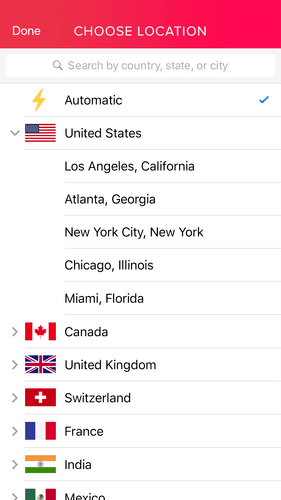
Like all Virtual Private Networks, VirtualShield has servers scattered worldwide in all major countries. In fact, it has servers in the following regions:

  • United States
  • Canada
  • Germany
  • France
  • Netherlands
  • India
  • United Kingdom
  • Australia
  • Japan
  • Singapore

Because of the abundance of servers, accessing geo-blocked content will be a thing of the past, such as YouTube videos that would otherwise be blocked in your country or if you are interested in the Netflix library of a country other than your own.

For those of you that are fans of torrenting content, you should know that you can safely do so using VirtualShield since it will block any possible trackers that may lead back to you without affecting the bandwidth, and, therefore your download and upload speeds.

Its high level of security also ensures that your incoming and outgoing traffic cannot be read by third parties, not even your Internet Service Providers (ISP).

This particular trick is especially interesting when making online purchases while connected to public networks, like the ones in airports.

However, note that this only applies to the Windows, Mac, Android, and iOS apps since the browser extensions will only cover what you do within the browser and not torrenting software.

This service will protect and encrypt your entire Internet connection, including all of the software on your devices, such as games, web browsers, e-mail, and anything else that requires a constant connection to the Internet.

How do I use VirtualShield?

  1. Download and install VirtualShield VPN
  2. Launch VirtualShield VPN
  3. Select Connect

By following these steps, you should now be connected to the VPN and benefit from all of its protective features.

However, if you wish to switch the server so that you can access another region’s content simply do the following:

  1. Launch VirtualShield VPN
  2. Select the country flag that you are currently connected to
  3. Choose a different location from the dropdown menu

Once this is done, you can minimize the program and it will remain hidden in the System Tray where it will continue to provide protection until you decide to close it.

Additionally, you can select the option to make VirtualSHield VPN launch at PC startup, so that you can enjoy its privacy features by default.

Which version of VirtualShield VPN should I choose?

Subscribing to the VirtualSHield VPN service will grant you access to all of the downloadable clients you desire, and you can even use them at the same time if you feel like it.

However, you should know that the browser extensions were mostly designed for older PCs, such as the ones that are still running Windows XP or Windows Vista.

If you’re PC can easily handle anything from Windows 7 or newer, then the desktop app is recommended.

VirtualShield VPN

VirtualShield VPN

Protect the online identity of you and your friends by subscribing to this reliable VPN service, now available at a special price for a limited time!
Free trial Visit website

That’s pretty much it for VirtualShield VPN. It is a very reliable entry-level VPN that pretty much anyone can use, and while it may be lacking in the server department compared to other VPNs, it still does a pretty solid job.

Fortunately, there are plenty of other VPN browser extensions that VirtualShield VPN may work well with.

In how many regions does VirtualShield VPN have servers?

As of now, VirtualShield VPN has servers in 10 different regions.

If you want a VPN service with more regions covered, check out the ones from this list of best VPNs for Windows 10.

Can I install VirtualShield VPN on my router?

Unfortunately, no. VirtualShield VPN does not support router integration. However, VPNs that do support this can often have problems with the router itself being incompatible.

Luckily, you can always opt to change your routers and go for ones guaranteed to support VPN services.

Can VirtualShield VPN hide my browsing history?

Yes and no. Yes, because no one can monitor your activity, not hackers or your network administrator.

No, because someone could still see your browser history if they gain access to your PC, but you can always delete it if you wish.

Does VirtualShield VPN protect me from Google?

Unfortunately, no, but you can always choose to delete your tracking history using Google’s Account settings.

Additionally, you could learn how to use your web browser’s version of Incognito Mode.

How many devices does a single VirtualShield subscription support?

Depending on your subscription, this can range between 3 and 15 devices.

Many VPN services offer similar deals, so here is a list of VPNs that support for multiple devices.

FIX: iCloud settings are out of date on Windows 10/11

The iCloud settings are out of date popup experienced by Windows OS subscribers is an indication that an app-specific password is required to access their iCloud account.

Users might be unable to get rid of this error popup while trying to use a third-party platform until an app-specific password is generated using their iCloud account via the Apple website.

Before we proceed, it is most appropriate that some terms are clearly defined.

What is an app-specific password?

An app-specific password grants you the permission to sign into your iCloud account securely with your Apple ID when using third-party apps.

What is two-factor authentication (2FA)?

The two-factor authentication, commonly abbreviated as 2FA, and otherwise known as two-step verification is a security process which improves your basic sign-in procedure by adding extra steps.

Quick tip

Tired of not being able to access your data? Then Zoolz is the perfect solution for your data backup!

This service can backup computers, laptops, servers, and any external or network storage devices. It supports Windows and Mac and you can use it even from your smartphone.

Zoolz provides reliable data storage that resides on the ultra-secure Amazon AWS infrastructure. There are no speed or size limits placed on uploads or downloads.

Zoolz

Zoolz

Get your highly secure 256-AES military grade encryption for your data backup with Zoolz.
$19.95/year Visit website

How do I fix iCloud settings are out of date error in Windows?

1. Enable two-factor authentication or two-step verification

  1. Open the Apple ID page.
  2. Log-in with your personal Apple ID and Password.
  3. Provide appropriate answers to your security questions.
  4. Click Continue.
  5. Go to Security tab and click Get Started under Two-Step Verification.
  6. Hit Continue.
  7. Select your preferred region and type in a trusted phone number.
  8. Choose Continue.
  9. You will receive a four-digits Apple ID verification Code on your trusted phone number.
  10. Enter the code into the space provided, and select continue.
  • Missing Code?

  1. If you have devices linked to your Apple ID, verify them, if not, click continue to proceed.
  2. Keep it in a safe place your alphanumeric recovery key.
  3. Hit Continue.
  4. Confirm your recovery key.
  5. Check the Terms and conditions box and select Enable Two-Step Verification.
  6. Click Done to proceed.

 2. Generate an app-specific password

password

  1. Go to Security tab and select Generate Password.
  2. Type in a label for this password.
  3. Hit Create.
  4. Copy the generated app-specific password, and click Done.
  5. Locate the app for which you need the app-specific password and launch it.
  6. Then paste the specific password.

Having generated the app-specific password for the third-party app of interest, you must now use this specific password to grant the app unrestricted access to your Apple iCloud account.

At this point, the iCloud settings are out of date error popup should no longer be an issue.

If for any reason, the third-party application requires you to re-enter the password of your Apple iCloud account, just use the specific password you already generated.

In case you change the primary password of your Apple ID account, all your generated app-specific passwords will be revoked.

You will be required to create a new one for any non-Apple app you want to grant access to your account.


Follow each of these steps, and let us know which one worked best for you by leaving a message in the comments section below.

[wl_navigator]

Dropbox keeps crashing in Windows 10/11 [EXPERT FIX]

The Dropbox cloud storage client software can crash in various ways. It might get stuck syncing, not launch at all or unexpectedly close with Error 404.

If your Dropbox software is crashing along those lines, these are a few potential fixes for it.

Quick tip

Tired of crashing your data storage services? Then Zoolz is exactly what you need! This is a reliable cloud backup service that resides on the ultra-secure Amazon Web Services infrastructure.

You can easily manage your file because it’s an user-friendly, lightweight file browser that lets you to stay in charge of your data.

The control option include backup selection, storage limit, encryption, privileges, and the ability to suspend, activate, and delete users.

Zoolz

Zoolz

You can securely store and easily access your precious family photos, videos and documents with Zoolz.
$19.95/year Visit website

What can I do if Dropbox keeps crashing in Windows 10?

1.  Switch off the anti-virus software

dropbox

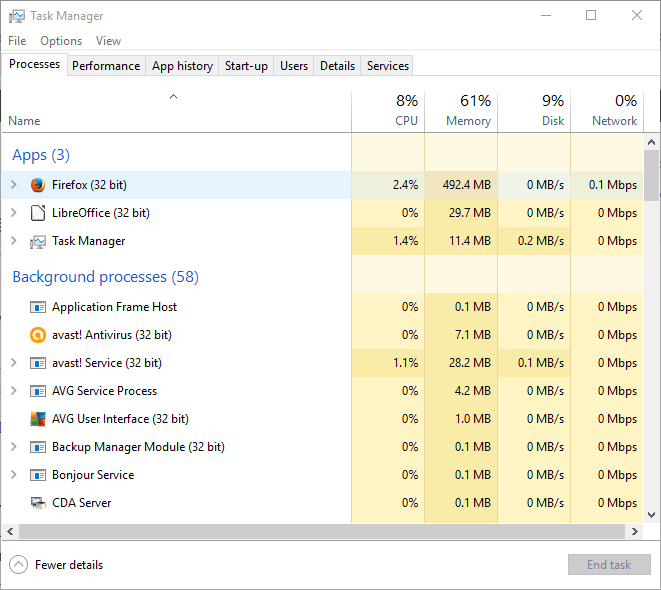
  1. Open the Task Manager.
  2. Click the Processes tab.
  3. Right-click on the anti-virus utility and press the End task button.
  4. Click the Start-up tab on Task Manager.
  5. Select the anti-virus software and click Disable.

2. Reinstall Dropbox

Dropbox reinstall

Consider reinstalling Dropbox so that you’re running the latest available version.

If the software doesn’t automatically update, you might even get an old version error along the lines of:

You’re using an old version of Dropbox. Please update within the next X days to continue using Dropbox.


3. Reset Dropbox settings

Dropbox settings

  1. Exit Dropbox.
  2. Press the Win key + R hotkey to open Run.
  3. Input cmd into the Run text box.
  4. Press Enter to open Command Prompt.
  5. Input the folllowing commands and press Enter after each of them:icacls "%HOMEPATH%Dropbox" /grant "%USERNAME%":(F) /Ticacls "%APPDATA%Dropbox" /grant "%USERNAME%":(F) /T%LOCALAPPDATA%Dropbox" /grant "%USERNAME%":F /T%PROGRAMFILES%Dropbox" /grant "%USERNAME%":F /T>
  6. Press the Return key.
  7. Restart your Dropbox.

Note: Please be aware that the text enclosed in the %…% refers to the location in which your Dropbox installation exists on your hard-drive, or the path to your Username folder, so replace them accordingly.


4. Run the SFC tool

dropbox2

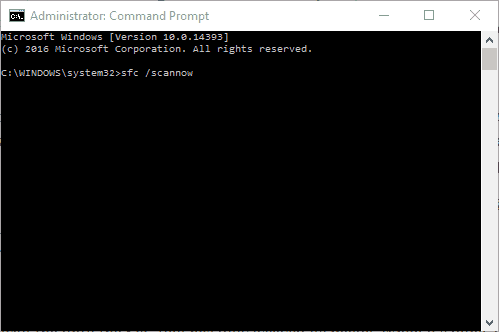
  1. Press the Win key + X to open Command Prompt.
  2. Select Command Prompt (Admin).
  3. Enter sfc /scannow and press the Return key.
  4. Wait until the SFC tool is done, then close the Command Prompt.

Having trouble accessing Command Prompt as an admin? Take a closer look at this guide!


5. Run the Windows System Restore tool

dropbox3

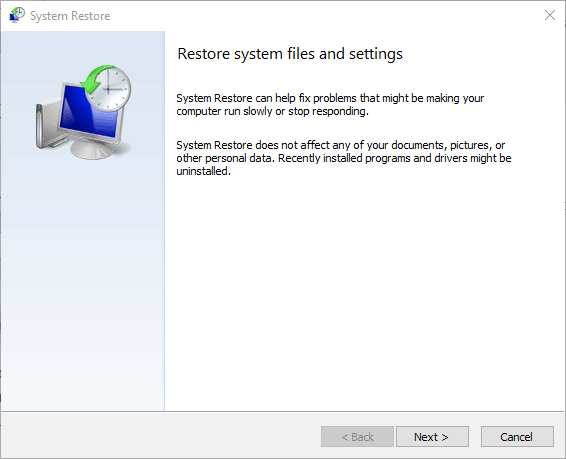
  1. Enter system restore into the Start menu search box.
  2. Select Create a restore point.
  3. Press the System Restore.
  4. Click Next.
  5. Select the Show more recent points check box.
  6. Choose a restore point to revert Windows back to.
  7. Select a restore point date when Dropbox wasn’t crashing.
  8. Click Next and then press Finish.

6. Try the UWP version

UWP upgrade

You can download the UWP version of Dropbox from the Windows Store for free.

If you’re having problems with the regular version of Dropbox, go ahead and try the official UWP client, that’s better optimized for the Windows 10 environment.


7. Run the Troubleshooter app

  1. Go to Settings.
  2. Head over to Updates & Security and select Troubleshoot. 
  3. Click on Windows Store Apps.
  4. Go to Run the Troubleshooter. 
  5. Follow further on-screen instructions and let the process finish.
  6. Restart your PC.

8. Add Dropbox to the Firewall exception list

Firewall exception list

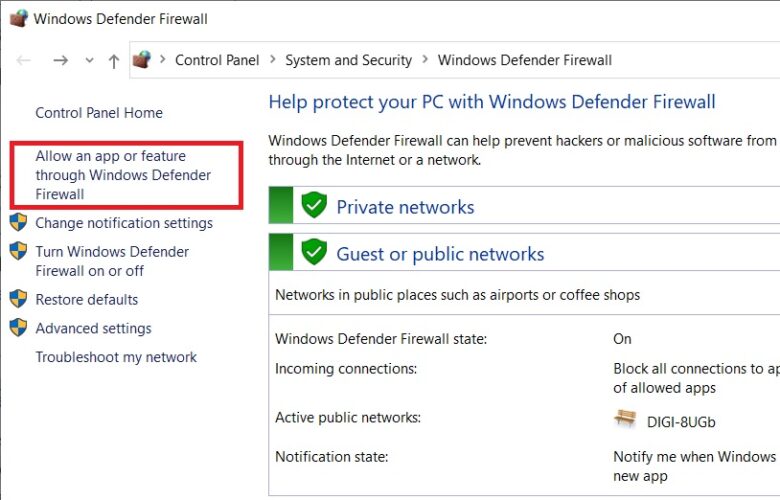
  1. Go to Search and type firewall.
  2. Open Windows Defender Firewall. 
  3. Go to Allow an app or feature through Windows Defender Firewall. 
  4. Select Dropbox.
  5. Make sure to check both Private and Public.
  6. Save the changes and restart your PC.

If the Firewall is actually blocking Dropbox, you don’t need to disable the Firewall completely. It’s enough to just add Dropbox to the exception list, and your cloud service should function normally.

The same thing goes for your antivirus. So, if you still have problems even after whitelisting Dropbox in the Firewall, make sure to do the same in your third-party antivirus.


That’s about it. We certainly hope at least one of these solutions helped you resolve problems with Dropbox in Windows 10.

If you have any comments, questions or suggestions, make sure to let us know in the comments down below.

[wl_navigator]

How to use your PC as a DVR

Millennials or younger generations might not understand the trouble of having to wait until a certain hour to watch your favorite television show or movie.

Today, time is no longer a factor. Cable TV, YouTube, torrents, and video-on-demand online subscriptions have changed the landscape so that watching your favorite flicks, or series, at any time, and from any location is a matter of a few clicks.

Buying a standalone digital video recorder (DVR), or even renting one may be costly over time, so if you don’t have a DVR, there are various options available. And one is using your own PC as a DVR.

As strange as it may sound, especially if you haven’t tried it before, it actually works, whether you’re using an old or new PC.

How can I use my PC as a DVR?

Before going into the details, there are four things you need:

  • A TV tuner to pick the broadcast TV signals for Windows Media Center.  If your PC doesn’t have one, you can buy an internal device (plugged into your PC’s motherboard) or an external one (plugged into the USB port). If you have a cable box, you don’t need a TV tuner card.
use your PC as a DVR
  • TV signal. Check that your area of residence has sufficient OTA (over the air) reception for TV signals and local channels.
  • 500 GB or more of hard drive space because one show may take up more than 7GB.
  • The right software. In this case, use the Windows operating system (except Windows RT which doesn’t include the Windows Media Center software).

How to set the PC as a DVR?

  1. If you use cable TV, plug it directly to the back of your computer.
  2. Use the Media Centre remote that came with your computer.
  3. Click on the green button at the center of the remote.
  4. From the Start screen, scroll to Tasks.
  5. Click Settings and select TV.
  6. Click Set up TV Signal so that Media Center detects the programs and their channels. (This is done once.)set up tv signal media center
  7. Go back to the Start screen.
  8. Hit TV and Movies.
  9. Click Recorded TV and then Add recording.
  10. Use the Guide to find your favorite programs in Media Center.
  11. Find the program you want to record then click Record on your remote.
  12. Click the More button for other options like Record Series.

You can record as many shows as you like depending on the memory on your computer.

Any recorded programs are saved on your computer’s hard drive as a .wtv file.  If you want to watch any programs you have saved, you can go to Recorded TV screen.

Instead of this setup, you could use an app to stream all your favorite content – not just the video content. CyberLink PowerDVD can serve perfectly as a media player for videos, TV shows, music, and photos.

Get the Ultra plan and you receive 100GB of personal storage, so you can easily download your favorite media file in the Cloud and then copy and share it with your friends and family.

You can also rewind, pause, fast forward, or record programs and store them for playback at a later time, record multiple programs at the same time, and burn DVDs of your recorded programs.

CyberLink PowerDVD

CyberLink PowerDVD

The complete solution to set up multiple monitors on your PC and manage
Check priceVisit website

So, are you ready to use your PC as a DVR?

Share with us your experience if you’ve tried it before, and if you’re just starting, let us know whether the steps listed here helped, by dropping your comment in the section below.

Can’t install Linux with Windows 10? Here’s what to do

Microsoft Windows is still the key player in the global OS market. However, the open-source free OS, Linux, is not so far behind and it has a lot of things going for it.

Now, many users who’re well-accustomed to Windows 10 might want to try out Linux, whether for simple curiosity or maybe possible migration from Windows 10.

However, they don’t want to ditch Windows 10 completely for various reasons. And that’s where the dual-boot option comes in handy. But, many of them had issues installing Linux with Windows 10.

We have provided possible solutions to this problem. If you’re stuck installing Linux on Windows 10 PC in a dual-boot mode, make sure to check them out below.

What can I do if I can’t install Linux with Windows 10?

  1. Make sure you have enough space and check storage for errors
  2. Create installation media again
  3. Try booting into Linux from USB/DVD
  4. Install VirtualBox
  5. Try out a powerful in-depth diagnosis tool

1. Make sure you have enough space and check storage for errors

Using Linux in combination with Windows 10 is as simple the task as one would imagine. There are multiple ways to run both systems thanks to the Linux OS nature, as you can see in this dedicated guide.

However, if you’re willing to install Linux just like Windows 10 on one of the partitions, you need to confirm there’s enough storage space.

The dual-boot feature allows you to choose what system you want to boot into when the PC starts.

Linux usually requires a lot less storage space than Windows 10, but you’ll still need at least 8 GB of free storage.

Of course, this varies depending on the version of Linux you try to use and its distro (it can take much more). All the info is easily found in the system requirements for the Linux version you’re trying to install.

Moreover, make sure your HDD isn’t corrupted or try switching between UEFI and Legacy BIOS while booting with the Linux installation media.

2. Create installation media again

  1. Download Yumi Multiboot USB Creator.
  2. Download Linux Mint 19 Tara Cinnamon Edition (1.8 GB) too.
  3. Plugin the USB flash drive (with at least 4 GB of free storage).
  4. Use Yumi to create the bootable drive and finish the setup.
  5. You don’t need to tweak any settings. Just select the USB and then the file source path. This can take some time.

Now, even though the whole procedure of creating the Linux installation media resembles Windows 10 Media Creation Tool, there’s always something that can go wrong.

In order to create the installation media for Linux, you’ll need to use either Yumi or Rufus. Those two are popular third-party tools for ISO-to-USB creation of a bootable drive.

If you’re keen to use the DVD, any image burner will suffice. After that, you need to choose the best-suited version of Linux. And due to the open nature of Linux, there’s a lot to choose from.

Experienced users will most likely know what meets their needs, but if you’re a newbie, we suggest going for Linux Mint 19 Tara with the Cinnamon desktop edition.

Also, we suggest going for the 64-bit architecture, even though you have less than 4 gigs of physical RAM.

Follow the above steps to create a Linux installation media on Windows 10.

3. Try booting into Linux from USB/DVD

  1. Press Windows key + I to open Settings.
  2. Choose Update & Security.
  3. Select Recovery from the left pane.
  4. Under the Advanced startup, click Restart now.
  5. Select Troubleshoot > Advanced Options > UEFI Firmware settings and then Restart.
  6. In the UEFI/BIOS settings menu, choose to boot from the USB.
  7. Plug in your bootable Linux installation drive and restart your PC.
  8. Choose to boot from the USB.

Now, we already noted that Linux can be run in multiple ways. The subject of this article is an issue with the Linux installation, as users are seemingly unable to install Linux with Windows 10 in a dual-boot mode.

However, to confirm that everything is set up properly or even try out the Linux version you’ve decided to install, try booting from the external drive (that being USB or DVD).

This is also a simple operation. The only thing you basically need to do is access to the Boot menu where you can choose to boot from the USB or DVD rather than from the HDD.

After that, just select Linux from the list and run it. If some driver-related issues appear, just press TAB or E and use the nomodeset option.

4. Install VirtualBox

  1. Download VirtualBox by Oracle. Install it.
  2. Open the VirtualBox client and click New.an't install linux windows 10
  3. Name the OS and click Next. Of course, you can use any Linux variation, but we suggest using Mint with Cinnamon (32bit) for starters.
  4. Allocate RAM memory to virtual RAM the VirtualBox client can use with Linux.
  5. Do the same with storage by creating a Virtual Hard Disk.
  6. Allow Linux at least 20 GB of storage space so you can install programs later on without worrying.
  7. Choose the ISO and boot the installation file. The setup should commence immediately.

Now, even if Linux boots and runs properly when running from the external drive, you still might’ve issues with the installation procedure.

With that said, there’s an alternative for this procedure, as you can use the VirtualBox to install and run Linux that way.

This third-party tool allows the creation of a virtual machine that can simulate the PC system within Windows 10. This way, both Windows 10 and Linux will run at the same time.

However, we won’t suggest doing this if you don’t have at least 4 GB of RAM. Yes, this is quite a resource-heavy way to run both systems.

Nonetheless, if the system resources are not an issue for you, running Linux in a VirtualBox environment is rather simple.

That should do it. As the last resort, we can only suggest formatting everything and installing both systems from scratch.

5. Try out a powerful in-depth diagnosis tool

Don’t know what to do when the installing procedure keeps failing? A quick scan by using the Ashampoo WinOptimizer in-depth diagnosis program will most likely give you the answers you’re looking for.

On top of everything, if you choose to use Ashampoo WinOptimizer, a single license lets you use the software on up to no less than 10 PCs.

Therefore, this becomes more than easily installing Linux with Windows 10. It’s also an opportunity to allow your family members to enjoy a premium system optimization and cleaning tool.

⇒ Get Ashampoo WinOptimizer

In case you have any alternative ways to overcome Linux installation issues on Windows 10, please be kind to share them with us in the comments section below.

How to set a static IP in Windows 10 [Easy Setup]

By default, your Windows 10 PC or server is set to use dynamic IP addresses. But when adding the computer to a network, you may be required to set Windows 10 static IP address.

When you use a DHCP or dynamic routing, your router assigns an IP address to your machine each time you restart it.

You need a static IP address on your Windows 10 computer because your router may assign one IP address to multiple devices, and they won’t have connectivity because of the conflict.

That’s just one reason, however. For whatever reason, if you want to set a static IP address, here’s how to do it in Windows 10.

Users sometimes run into challenges after setting static IP addresses, the most common of which is where to system refuses to connect to a static IP address.

Here’s how to fix this issue:

  • Confirm that no other device in your network is assigned the same static IP address.
  • Unplug every cable from your router and reset the router.
  • Rename your network and router, add your computer, and reset.
  • Change the IP address to the subnet mask with the allowed number of connected devices.
  • Add a 2nd computer to the network.
  • Confirm that the default gateway and subnet mask are correct.

How can I set up my static IP address in Windows 10?

1. Set it manually

  1. Right-click on the network icon on your taskbar.
  2. Select the Open Network & Internet settings option.
  3. Click on Change adapter options under the Change your network settings area.change-adapter-options-windows-10-static-ip
  4. Right-click on your network connection and select Properties.
  5. Go to Internet Protocol Version 4 (TCP/IPv4) and click on it.
  6. Select Properties below the list.ethernet-properties-windows-10-static-ip
  7. Click on the Use the following IP address option.
  8. Fill in your static IP address.
  9. Enter the subnet mask and default gateway.
  10. Optionally, choose to use the following DNS server addresses and enter your DNS server addresses.
  11. Hit the OK button to save the configuration.

2. Use the Command Prompt

set-static-ip-address-with-command-prompt-windows-10

  1. Press the Windows key and search for cmd.
  2. Right-click on Command Prompt and choose to Run as administrator.
  3. In the Command Prompt window, type in the following command and press ENTER:
    • ipconfig /all
  4. Write down the IPv4 address, subnet mask, default gateway, and DNS server addresses.
  5. Type in the following command and hit ENTER:
    • netsh interface ip set address name="Ethernet0" static 10.2.2.212 255.255.255.0 10.1.2
      Note: Replace Ethernet0 with the name of your network adapter and change 10.2.2.212 255.255.255.0 10.1.2 to the correct IP address.
  6. To assign a DNS server address, run the following command:
    • netsh interface ip set dns name="Ethernet0" static 10.1.2.1
      Note: Replace Ethernet0 with your adapter’s name and 10.1.2.1 with your network’s DNS server address.
  7. To assign an alternate DNS server address, run the following command:
    • netsh interface ip add dns name="Ethernet0" 8.8.8.8 index=2
      Note: Change Ethernet0 your network’s name and 8.8.8.8 to the alternate DNS server address.

3. Use the Windows 10 Settings

  1. Press the Windows key + I combination.
  2. Select the Network & Internet tile.
  3. Click on Change connection properties.change-connection-properties-windows-10-static-ip
  4. Scroll down to IP settings and hit Edit.edit-network-settings-windows-10-static-ip
  5. Choose Manual from the dropdown menu.
  6. Toggle on the IPv4 switch.
  7. Enter your IP address, Subnet prefix length, Default Gateway address, and DNS addresses.set-static-ip-with-settings-windows-10
  8. Click on the Save button.

These are the three easiest ways to assign or set a static IP address on your Windows PC, so make sure to follow them exactly to avoid any unwanted issues.

[wl_navigator]

What to Do if Your Laptop Wakes Up from Sleep on Its Own

People put their PCs or laptops to sleep mode whenever they’re away because it’s a great way to save some battery or power. But sometimes, your computer wakes up from sleep or hibernation on its own, without any user action.

In this article, we’re going to analyze this problem and discuss the best solution.

What causes my Windows laptop to wake up from sleep mode?

The most common causes of sleep mode errors are external peripheral devices, such as a mouse, or even a network card.

Also, some software tends to schedule updates at night or while your computer is in idle mode; an automatic reboot follows the process.

So, to make sure which solution is the best, you first have to determine the cause of your laptop waking up.

You can do that by simply entering a few command lines into the Command Prompt, as shown below:

  1. Press the Windows key and X simultaneously, and select Command Prompt (Admin).
  2. In the Command Prompt enter the following line and press Enter:
    • powercfg - lastwake

You’ll get all the needed information about the last wake of your computer. Under Type, you’ll also see a cause of the wake-up.

Whether it’s a device or a wake-up timer, we’re going to show you the solution for both below.

What can I do if my laptop wakes up from sleep by itself?

1. Update drivers

As mentioned in the beginning, your device might power up from sleep mode on its own because of component issues. This includes outdated drivers.

The simplest way is to update the drivers, either by yourself or by using a third-party app. Using an app to do this job ensures that you’ll get the right drivers, though.

We recommend Fortect Driver Updater, as a reliable and safe tool to scan your laptop for the necessary driver updates.

As long as you are connected to the Internet, when running Fortect Driver Updater you can gain access to the latest versions of your required drivers.

Just download the app using the button below, open it, and allow the tool to scan your system. It will then recommend the necessary actions.

⇒ Get Fortect Driver Updater

2. Check external devices

If you previously determined that a device forces your computer to wake up, it’s probably your external keyboard or mouse, because it’s unlikely that the touchpad could do this.

But besides the external mouse, network cards could also cause unexpected wake-ups. Either way, you’ll need to prevent this device from waking up your computer. To do so, follow the steps below:

  1. Right-click on This PC from the Desktop and click on Properties.
  2. Go to Device Manager from the left panel.
  3. Find the device you think is waking your computer up.
  4. Right-click on it and go to Properties.
  5. Under the Power Management tab uncheck Allow this device to wake the computer.
Allow computer turn off device save power

Prevent hardware from waking up your Windows 10 laptop

This task could also be performed with the Command Prompt. This is a more complex way, but it’s useful if the checkbox for the wake-up function is grayed out and you’re unable to uncheck it.

So, access Command Prompt as shown above and enter one of the following lines:

  • powercfg -devicedisablewake [devicename]
  • powercfg -deviceenablewake [devicename]

For more information, we have guide on how to enable or disable wake on LAN, so don’t forget to check it out.

3. Disable wake timers

If a program wants to schedule maintenance or apply the latest updates, it usually requires Windows to set a wake-up time.

If your computer happens to be in Sleep mode, this timer will automatically wake it up. This might be a useful feature at first, but if you’re away from your computer, it could drain a lot of energy.

To see which timers are turned on, open Command Prompt, and enter this line:

  • powercfg -waketimers
Disable wake timers

If you spot the name of the program whose timer is forcing the computer to wake up, you can open that program and modify the updating routine manually.

But if you can’t spot the program, or there are more one-timers activated, you can deactivate them all at once, just follow these instructions:

  1. Go to Search, type the following to open Power Options:powercfg.cpl
  2. Go to Change Plan Settings, and then to Change advanced power settings.
  3. Find Allow Wake timers under Advanced Settings, right-click and select Disable.

Depending on your OS version, the instructions to follow may be a bit different. Here are the steps to follow on newer Windows 10 versions in order to disable wake timers.

  1. Open Control Panel and click on Hardware and Sound, then on Power Options.
  2. Click on Change plan settings and choose Change advanced power settings.Change advanced power settings
  3. Expand Sleep and Allow wake timers and disable both On battery and Plugged in.
  4. Click Apply.
power option wake up timers

Note that this process disables all-timers. If you have another task that should wake up your Windows 10 computer, well, it won’t work anymore.

However, this should do the trick and hopefully, your computer won’t automatically wake up next time. This will also work if you have an older OS.

If the problem persists, you can use our exhaustive troubleshooting guide on how to prevent Windows 10 from waking up on its own. We also have a guide on ERROR_WAKE_SYSTEM message, so check it out if your PC frequently wakes up.

Now you know why your computer wakes up from sleep and how to stop it. If you have any questions, write them down in the comments below.

How to transfer Microsoft Office Suite to a new computer

Don’t you love it when companies listen to your complaints and when changes to their policies are made to suit your needs?

Such was the case with Microsoft and its Office products – the 2013 edition. Many consumers were seriously angered by the fact that according to the latest policy change, they were not allowed to transfer Office to a different computer or users.

Finally, this has changed, and a feature that has always been in high demand is now available- Microsoft is letting us transfer the Office suite to a different PC or user.

For a step-by-step guide on how to transfer Office to a different computer, keep on reading.

How can I transfer the Microsoft Office Suite to a new computer?

1. Use an easy transfer tool

If you are looking for the easiest, fastest, and most secure way to transfer Office on a different PC, we suggest using a dedicated transfer tool.

Laplink PCMover Professional is able to transfer any edition of Office, other applications and accounts as well.

All you need to do is install the tool on both PCs, the old one and the new one, and then follow the on-screen instructions for the transfer to start.

Make sure that you have the product key for the programs you need to move so that you can install them on the new devices once the transfer is completed.

Laplink PCMover Professional

Laplink PCMover Professional

Transfer any applications, files, settings, or user profiles from one PC to another one with this amazing software.
$59.95 Visit website

2. Perform the transfer

2.1. Deactivate Office

  1. Log in to your Microsoft Office account.
  2. Under My Account, select the Install option.
  3. Next, select Deactivate Install and confirm your action to deactivate Office.

2.2. Uninstall Office from your computer

  1. Go to Start and Control Panel.
  2. Next, select Programs and Features.
  3. Click on the Uninstall button.

2.3. Install Office

  1. Log in to your Microsoft account on the new computer.
  2. Go to My Account, and select the Install button.
  3. Office will start downloading.
  4. Double-click the downloaded file to launch the install process.
  5. Follow the on-screen instructions to install Office.

However, if you want to have Office installed on more than 1 computer, maybe you should check out one of the Office 365 subscriptions which will allow you to deploy your copy on up to 5 units that run Windows or Mac.

That’s about all the steps you need to do in order to transfer your Office to another PC. If you have additional suggestions or recommendations, feel free to list them in the comments section below.

[wl_navigator]

Disk Cleanup on Windows 10: How to Use

Need to free up space on your PC? Disk Cleanup in Windows 10 is a built-in tool that helps you delete junk files, temporary data, and system clutter. In this guide, you’ll learn how to use it step by step—even if you’re not tech-savvy.

How can I delete temporary files using Disk Cleanup?

1. Use Disk Cleanup to remove temporary files

1.1. Start Disk Cleanup from the menu

  1. Press Windows Key + S and enter disk cleanup.
  2. Choose Disk Cleanup from the menu.
  3. When the Disk Cleanup tool starts, select your system drive. By default it should be C:.
  4. Disk Cleanup will now scan your system drive for any unnecessary files.
  5. Check Temporary files and click on OK. 

  6. Wait while the tool removes the selected files from your PC.

After the process is finished, all temporary files should be removed from your PC.

1.2. Start the Disk Cleanup tool by using the Run dialog.

  1. Press Windows Key + R and enter cleanmgr.
  2. Now press Enter or click OK.
  3. Optional: You can also choose the drive you want to scan right from the Run dialog. To do that, simply enter cleanmgr /d C and Disk Cleanup will automatically scan your C drive.

1.3. Start Disk Cleanup by using Command Prompt or PowerShell.

  1. Press Windows Key + X to open the Win + X menu and choose Command Prompt (Admin).
  2. If Command Prompt isn’t available, you can use PowerShell instead.
  3. Enter cleanmgr command to start Disk Cleanup. You can also use cleanmgr /d C command to automatically scan the C drive.

1.4. Start Disk Cleanup is to use the Settings app

  1. Press Windows Key + I to open the Settings app.
  2. In the Find a setting field enter disk and choose to Free up disk space by deleting unnecessary files.

1.5. Start Disk Cleanup using the Control Panel.

  1. Press Windows Key + S and enter control panel.
  2. Now choose Control Panel from the list.
  3. Go to the Administrative Tools section.
  4. Locate and run Disk Cleanup.

1.6. Start Disk Cleanup by searching for it in Control Panel.

  1. Type disk cleanup in the search bar at the top right corner.
  2. Choose Free up disk space by deleting unnecessary files option.

1.7. Start Disk Cleanup simply by locating your hard drive.

  1. Navigate to This PC.
  2. Locate your system drive, by default it should be a C drive.
  3. Right-click it and choose Properties.
  4. When the Properties window opens, click on Disk Cleanup.

Note: After you start Disk Cleanup, simply follow the instructions from the beginning of this solution to remove the temporary files.

2. Make Disk Cleanup remove all temporary files

  1. Press Windows Key + R and enter regedit.
  2. Press Enter or click OK.
  3. Optional: Modifying the registry can cause problems, especially if you don’t do it properly, therefore it’s highly recommended to back it up. To do that, go to File and select Export.
  4.  Set Export range as All and enter the desired file name. Choose a safe location and click on Save.
  5. In the left pane navigate to HKEY_LOCAL_MACHINESOFTWAREMicrosoftWindowsCurrentVersionExplorerVolumeCachesTemporary Files.
  6. In the right pane, double click on LastAccess DWORD.
  7. Set the Value data to 0 or to any other value less than 7.
  8. Click on OK to save changes.

Note: Keep in mind that you won’t be able to delete protected files or files that are in use, but most other files should be deleted without any problems.

3. Use a trird-party software

The simplest and fastest way to remove temporary files from your PC is to use software like Ashampoo WinOptimizer.

This is a useful tool that will scan your drive and allow you to choose the type of files you wish to remove. There is a wide array of files to choose from, and among these files, there are also temporary files.

Ashampoo WinOptimizer comes with a complete tuneup and 37 cleaning suite modules that will make sure your device is kept secure with deep scans and repair tools.

Moreover, if you accidentally delete files or if you want to permanently get rid of others, this system optimization software will do the job in no time.

Here are some of its key features

  • Cleaning and diagnosis.
  • Removes all junk data or broken shortcuts.
  • Defrag tool.
  • Intuitive and comprehensive dashboard.
  • Privacy control features and Antispy option.

⇒ Get Ashampoo WinOptimizer

4. Automate Disk Cleanup

  1. Press Windows Key + R and enter cleanmgr /d c: /sageset:1000.
  2. Click OK or press Enter.
  3. Check Temporary files and Temporary Internet Files options and click on OK.
  4. Now press Windows Key + R again and enter cleanmgr /sagerun:1000.
  5. Press Enter or click OK to run the command.

After running this command, temporary files should be deleted automatically.

This is one of the fastest ways to delete temporary files using Disk Cleanup, but as you can see, it requires some configuration before you can use it.

Using Windows 11 instead of Windows 10? Follow this step by step guide for the newer OS: Disk Cleanup on Windows 11.

And there you have a few methods that will help you delete temporary data files. If you have other suggestions or recommendations, make sure to let us know in the comments section below.

Plotting Software: 7 Best Free to Use in 2026

Whether you want to plot a graph for academic and research publication or hypothesis testing, a quality graph will always leave a long-lasting impression and can make a huge difference in the impact it has on the viewers.

If you have plotted graphs before, you would already know how Microsoft Excel comes with a built-in graph option along with different types of charts to create a desired graph by highlighting data.

However, Microsoft Excel does lack on features when it comes to customization. Premium software like the Grapher and OriginPro offers a more sophisticated solution graph plotting along with tons of customization options.

But, if you don’t want to spend a fortune on software for graph plotting, there are a few open-source graph plotting software that are free to use and offer a decent set of features.

In this article, we take a look at the best free and paid software for Graph plotting that offers all the features you need to create stunning graphs in no time.

What are the best free and paid graph plotting software?

Adobe Illustrator

If you are looking for the best software for 2D and 3D graph plotting, then Adobe Illustrator is what you are looking for.

Moreover, as this is a vector-based design software, your artwork will look just as great on a mobile screen as it looks on PC.

The tool offers a multitude of features that allows you to create amazing art from simple shapes and colors.

With Adobe Illustrator you can create effects and edit all the individual characters in an original way, that will make everyone admire your work.

Moreover, you can access your work from everywhere, as it will be stored in the Cloud and it will always be up to date.

You can read even more about Adobe Illustrator in this article.

Adobe Illustrator

Creat your best beautiful graphics and illustrations with this amazing tool. Customize it and bring your artwork to the next level!
Free trial Visit website

Plot.ly

Plotly is a modern cloud-based graph plotting solution that allows you to create, save, and publish graphs online.

The saved graphs can also be downloaded to your computer for offline use in multiple formats.

Plotly is free to use and get started. To save the graphs, you need to create a free account.

Apart from the graphs, Plotly also offers tools to create charts, dashboards, and data sets.

The user interface is intuitive, and the design language looks like some of the popular spreadsheets’ app but with more features on offer.

Creating charts, dashboards, SQL query and Folder is easy. Simply click on the Create button and select the project type.

In the work area (editor) you can change the structure to Subplots from Traces, change the theme, style for traces, axes, legend, annotation shapes and image and analysis enables you  manage curve fitting and moving average.

You can add as many traces as you want and later change the traces type to create graphs with given data.

Your saved projects can be shared online with a sharing link or download to your local hard drive in multiple formats including image and spreadsheet formats.

⇒ Get Plot.ly

Zoho Analytics

Zoho Analytics (formerly known as Zoho Reports) is a could-based business and reporting solution targeted at sale managers, analysts, consultants, CXOs, and other individuals looking for a reporting solution.

The user interface feels familiar if you have worked with spreadsheets already with options for data addition, analysis, and reporting making it easy to get started for everyone.

Zoho allows the users to create different types of charts including heat map charts, combination charts, area charts, funnel, etc.

For plotting, you can begin with a Scatter chart which is also one of the commonly used charts for plotting and comparing scientific and engineering data.

Zoho Analytics is an all-in-one solution for analytics report creation and data analysis. As a result, it comes with more than just plotting features.

Other notable features of Zoho Analytics include the ability to create a beautiful dashboard for bringing multiple reports into a single dashboard.

Zoho Analytics is a premium solution and one of the most recommended tools for reporting and analytics use.

You can create a free account and use the software to understand if it can meet your requirement before making any commitment.

⇒ Get Zoho Analytics 

Gnuplot

Gnuplot

Gnuplot is not new to the world of graph plotting. It is one of the most popular open-source software that has been made available free for users.

Unlike the previously listed software, Gnuplot requires you to use commands to create graphs.

It is a complete command-line based tool, so you need to know your way around basic programming to get it working.

It is a cross-platform software and supports Windows, macOS, and Linux. The core function of Gnuplot is to visualize the mathematical data and functions.

However, over the years the software has gone through reforms to accept scientific data in both 2D and 3D plots.

Even for intermediate users who have never used a command-line graph plotting tool, the vast collection of resources will make it easy to get started with the tool and start creating a visual representation of complex data.

⇒ Get Gnuplot 

Matplotlib

matplotlib

Scientists who are looking for a  free tool to visualize their data in graphs, Matplotlib is an excellent piece of open-source software.

It is a free tool but suffers from the same challenges as Gnuplot.

Matplotlib is a 2D Python library for graph plotting and requires the user to use Python script on computer or web applications.

The user interface of Matplotlib is identical to Matlab except that it is not a GUI based tool.

Matlab uses a module named pyplot that provides features to control line styles, formatting axes, etc for plotting.

Compared to Gnuplot, Matplotlib only works with Python which is not the case with Gnuplot.

However, on the plus side, the end result of Matplotlib requires less finishing touchup and comes out in ready-to-use shape.

⇒ Get Matplotlib 

R Project

R graph plotting tool

R is a programming language and a free software environment for statistical computing and graphics.

The tool is widely used by scientists and engineers working with an enormous amount of data.

While Gnuplot can be used with any language and Matplotlib requires Python to work, R requires you to learn R, the programming language to make it work.

R offers a wide range of graph types including box plot, histogram, density curve, scatter plot, line plot, etc, in both 3D and 2D formats allowing the users to display the data visually.

However, the end result may require some retouching to make the graphs look more polished.

R is a powerful programming language and an ideal solution for statistical computing and data analysis on Windows, macOS, and Linux running computers.

⇒ Get R Project 

Veusz

Veusz

Veusz is another popular tool for scientific plotting and graphics with support for both 2D and 3D plots.

It is a free and open source software and compatible with Windows, macOS and Linux computers.

Veusz can be used as a module in Python for plotting. The output feature of the tool including vector and bitmap output including PDF, Postscript, SVG and EMF.

In addition, the user can export data from text, CSV, HFS and FITS files.

You can manipulate the existing data sets to create new data sets using mathematical expressions.

It also supports third-party plugins to extend the features including the ability to import new data formats and task automation.

Some of the 2D plotting features include the ability to create X-Y plots with error bars, colours and sizes, Live and function plots, Images with colour mappings and colour bars, stepped plots, bar graphs etc.

And 3D plotting features include the ability to create 3D point plots, surface plots from data, function line plots, 3D axes etc.

Other notable features in the software are data picker, interactive tutorial and multithreaded rendering.

Veusz is a GUI based tool, hence easier to use and learn. For new users can benefit from the vast collection of tutorials.

⇒ Get Veusz 

If none of the above tools meets your requirement, try more premium and dedicated graph plotting software like Grapher, Matlab, SigmaPlot, and Origin.

These are commercial software and are not cheap. That being said, they are being used by some of the leading companies in the data analytics section.

It is important to have a graph plotting software to create stunning and information 2D and 3D graphs so that you can present complex analytics data in a better and simplified way.

Have you used any of these graphs plotting software before? Do let us know your experience and recommendations in the comments below.

Microsoft Teams Breakout Rooms feature rolling out in preview

Microsoft announced in July that a new virtual Breakout Rooms feature would come to Microsoft Teams in the final quarter of 2020. It appears that the meeting hosts will soon have an option to create breakout rooms during Teams meetings. Spotted by Tim Evans, a Microsoft Innovative Educator Expert, the feature has begun rolling out for users running Teams’ preview releases (note: the tweet has since been deleted).

https://twitter.com/edTechEvans/status/1301776724993085440

The Breakout rooms feature is a powerful tool in Microsoft Teams that allows meeting organizers to split a group video or audio call into divergent sessions for smaller group discussions. They can assign users to a room, add/remove/rename the rooms.

Keep in mind that only the organizer of the meeting will see this new Breakout rooms icon, which can be accessed beside the three dots ( . . . ) menu. Clicking on the icon will take users to the Create Breakout Rooms window, which provides different options such as Room settings and Participants.

Create Breakout Rooms Microsoft Teams


The meeting organizer will be able to choose the number of rooms (1-50) from the Room settings, and the Participants section will allow them to assign users (Automatically or Manually) to a room. Finally, click Create Rooms, and the Breakout Rooms window will now appear on the screen.

To assign users to a breakout room, click Assign Participants (as shown in the featured image) and then use the checkboxes to select all the users’ names. Next, click the Assign button, and select the room to assign it to users manually.

At this point, the breakout rooms will be closed for the meeting participants, and the organizer will have to click the Start rooms button to open them for discussion. Finally, to bring all participants back to the larger group when the breakout is complete, click Close rooms. This will notify all the meeting participants that they are being asked to leave the breakout rooms.

The feature is currently listed as under development in the Microsoft 365 roadmap, which indicates that it will be released in October 2020. Considering that the breakout room functionality is now being rolled out to preview users, it shouldn’t be long before it makes its way to the public in the coming weeks.

8 Best DVD Copy Software to Use in 2026

DVD is constantly falling behind flash memory as a media. However, even though they are quite obscure nowadays, it doesn’t mean DVDs are gone.

As a matter of fact, they are more secure for data storing than USB thumb drives.

And what’s a better way to manipulate your DVDs, then to use one of the tools that are available on the market. However, many of them are full of malware, others are not as useful as they may seem.

So for that purpose, we compiled a list of the best DVD copy software solutions that you should take into consideration.

All of them will do the elementary work, and for the advanced features, you should inspect premium tools at the bottom.

What are the best DVD copy software solutions?

WinX DVD Ripper

We’ll start with one of the free versions because, if you’re a standard user, most of the time you won’t need premium features that some of the advanced tools offer.

This tool comes as a Trial for a Platinum version that can be bought later. However, you won’t lose any of the essential features once the trial expires.

You’ll still be able to rip DVDs, with the marginally decreased speed and without support for some crack DRM files.

With WinX DVD Ripper, you can copy/rip DVDs, ISO files, or folders with DVD files. The interface is quite intuitive so you’ll have an easy time managing things around.

Additionally, you can completely customize the output of certain files or use preset profiles to manage formats for different devices and needs.

Moreover, you can embed subtitles (pre-created or your own) or include audio tracks.

Basically, everything that’s asked for from this kind of tool, DVD Ripper provides in a quite astonishing manner.

WinX DVD Ripper

WinX DVD Ripper

Use the best ripper tool to copy your DVDs with just a couple of clicks! You can even add subtitles and audio to your videos.
Free Trial Visit website

WonderFox DVD ripper Pro

If you’re looking for a fast DVD ripper that preserves quality while reducing file size dramatically, this is a top choice. It ha

s an intuitive interface and a wide array of ripping tools simplifying what could otherwise be quite a complicated task.

This software can optimize your DVD conversions for many devices you might use, having more than 250 conversion profiles to do that.

You can copy a full-length DVD less than 25 minutes, and the huge range of formats includes: AVI, MP4, FLV, MKV, MPG, 3GP, WMV, MOV, MTS, M4V, ASF, DVC, MTS, M2TS, WEBM, SWF, VOB, F4V, and many more.

It only takes 3 steps to complete the DVD ripping process:

  • Load the DVD
  • Choose output settings
  • Start ripping

With the fastest DVD-to-digital conversion speed, you can watch your favorite DVD discs on various screens and displays.

From computer, TV, handset to your Android or iPhone, Tablet, iPad, and many more new media formats.

Wonderfox DVD Ripper Pro

Wonderfox DVD Ripper Pro

Copy full-length DVDs in less than 25 minutes, using an unimaginable range of formats. Try it now!
Free trial Visit website

DVDFab

DVDFab is one of those tools that is great in the premium version, but a bit lackluster in the free version. Yes, you can rip DVDs and Blu-rays, but, that kind of sums up the use of the free version.

However, the premium version is, on the other hand, amazing and quite useful for all kinds of related procedures.

The interface is well-designed, available tools come in abundance with 4 different modules, and it’s not as expensive as DVD Cloner.

DVDFab covers all of the needs of advanced users, including the decryption tool against anti-piracy encryption.

In addition, once you’ve compressed the movie, the quality remains somewhat unchanged.

DVD Fab

DVD Fab

Check out a tool that preserves the quality of your video, has  great interface and lots of advanced features for the premium version.
$63.9 Get it now

DVD Cloner

Probably, most complete DVD copy/rip premium tool there is. It’s quite expensive for standard users, but most of the professionals in the field are more than willing to pay for such a complete and remarkable program.

With the specific Expert mode, there are so many options you can utilize to create DVDs of your liking, with high-quality standards, and even ways to overcome anti-piracy encryptions.

That plethora of features enables you to manage everything that matters and even beyond.

From customization, trough the large variety of outputs, to eventually burning DVD: you have everything you need at your disposal. For a price, of course.

DVD-Cloner has also a Platinum and a Gold edition with a free trial for all of them. It’s a user-friendly program with excellent output quality.

The latest version of DVD-Cloner Platinum utilizes OCT™ to ensure the highest level of success copying the latest DVD movies.

Give it a try and you’ll find your ideal multimedia solution!

⇒ Download DVD Cloner

HandBrake

With the growth of some other media, DVD-related software kind of fell behind.

Due to changes that emerged, a lot of previous software solutions changed their primary role to video editors, encoders, or converters.

Luckily, they did retain previous functions, and you can still use them to rip DVDs.

One of those is a free software solution called HandBrake. Even though this tool is primarily a video encoder/transcoder, it can certainly do so much more.

With this nifty tool, you can use various presets while ripping DVD, with so many features that, if you’re not accustomed to, may create initial problems.

In regards to the interface, this tool is a bit more complex and needs some time for newcomers to get used to it.

However, once you understand it’s surroundings, it will serve you quite well.

⇒ Download HandBrake

MakeMKV

Compared to HandBrake, this is one of the most simplistic but rewarding tools you can find on the market. For free.

Besides DVD rip, this tool can create Blu-rays with a few easy steps. And that’s what’s great about this application: everything is so simple that you’ll have an easy time.

Yes, that also means it isn’t exactly overwhelmed with features, but, as we stated at the beginning, freeware tools are for fundamental rip-related usage.

For advanced features, you’ll need premium tools or a combination of two or more free tools in order to make the things work as intended.

⇒ Download MakeMKV

Freemake Video Converter

Freemake Video Converter is, in our opinion, a sweet spot on this list. It has an intuitive, user-friendly interface, just enough functions, and remarkable support achieved through detailed instructions.

So, if DVD ripping, formats, functions, or editing are somewhat complicated to you, this tool will help you through with step-by-step guidance.

All of the well-known output formats are supported, including some device-specific formats that should let you play certain media files on your phone, tablet or PC.

The drawback is some bloatware that comes with the installation of the app itself. So, make sure to look at the installation process closely.

⇒ Download Freemake Video Converter

DVD Shrink

Probably the oldest piece of software you can get in this department. Last updated 12 years ago, DVD Shrink still stands firm when it comes to simplicity and straightforwardness.

This small tool can do almost everything you need when it comes to compressing, ripping or decrypting DVD media files.

Yes, there are some drawbacks, since technology vastly changed since 2005, but it still gets the job done. However, only in combination with some other 3rd-party programs since it’s great for copies but don’t cover ripping.

Its best trait, besides simplicity, must be the compression level. This tool offers amazing results for free, like some much more advanced premium tools do.

⇒ Download DVD Shrink

In the end, we’ll just want to remind you that we don’t support piracy, so make sure to check your local copyright laws.

If you have more questions or suggestions for the list, make sure to tell us in the comments section below.

[wl_navigator]

FIX: Windows 10/11 can’t be installed on GPT partition error

Performing a clean installation of  Windows 10 should be a walk in a park with the resources that users have nowadays.

However, even this simplified task has a few dead ends, errors that require the advanced approach.

One of those errors appears when a user wants to perform a clean install of Windows 10 on a machine for the first time.

It says that Windows 10 can’t be installed on GPT partition or something similar when they select the partition.

If you have a hard time resolving this problem, check our solutions below.

How do I fix the Can’t install Windows on GPT drive error?

  1. Convert HDD to GPT or MBR
  2. Change the compatibility mode in BIOS/UEFI Settings
  3. Create the installation media again with a different drive

1. Convert HDD to GPT or MBR

Paragon

You can convert MBR to GPT and vice versa with some effort.

Actually, the effort can be close to 0 if you use specialized software like Paragon Hard Disk Manager Advanced.

Here’s how you can convert a Basic GPT Hard Disk to MBR in just a few steps:

  1. Launch the program
  2. Click on the Full Scale Launcher or Advanced User Interface link in Express Mode.
  3. Right-click on the Basic GPT Hard Disk in the Disk Map
  4. Select Convert Basic GPT to Basic MBR … (make sure to click outside the partitions to get the hard disk context menu).
  5. Select the number of primary partitions to be created by this conversion. If there are more than four volumes on the disk, only the first three may become primary.

To convert a Basic MBR Hard Disk to GPT you can do exactly the same steps only that at the 3rd step you right-click on the Basic MBR Hard Disk and select Convert Basic MBR to Basic GPT….

Note: Windows has different boot configurations for MBR and GPT Hard Disks. Using these options for a disk with an installed OS will leave the OS unbootable!

Paragon Hard Disk Manager

Paragon Hard Disk Manager

Become a tech pro with an easy to use, efficient tool for disk partitioning and conversion!
$79.95 Get it now

2. Change the compatibility mode in BIOS/UEFI Settings

The majority of the contemporary configurations support UEFI/EFI which succeeded legacy BIOS and it’s an improvement in various things.

However, most of the active machines still run on classic BIOS. Now, we must confirm that you can install Windows 1o on either the UEFI or BIOS mode.

The important thing is to concur which is your HDD or SSD compatibility format.

Namely, back in the days, the usual partitioning format (35 years old format) was the only one and it’s the MBR (Master Boot Record).

However, nowadays you have an option to choose between MBR and GPT (GUID Partition Table). And that’s where the installation issues emerge.

You can install Windows 10 on an MBR partition only if the Legacy BIOS or Hybrid mode (dual compatibility for both BIOS and UEFI) are enabled.

If you have a GPT partitioning format on HDD/SSD, an old, BIOS-only motherboard will have a hard time accessing it.

Find out what is your HDD format

  1. Press Windows key + R to open the Run command line. Type diskmgmt.msc and press Enter.
  2. Right-click on the Volume icon in the bottom left and open Properties.windows 10 can't be installed on gpt partition
  3. Under the Volume tab, you should see whether your HDD is in MBR or GPT format.windows 10 can't be installed on gpt partition

What you’ll need to do when the error occurs is to navigate to backup your data. Always do that before formatting or doing anything even remotely related to storage.

Then you should navigate to BIOS settings and enable/disable BIOS Legacy. If you have an MBR partition – enable it, and vice versa for GPT.

Also, make sure to enable AHCI mode instead of IDE if you’re using large storage drives.


Need a bootable media? Here’s how to create Windows 10 installation media with UEFI support


3. Create the installation media again with a different drive

wintousb alternative

Creating the installation media on either USB flash drive or DVD is simpler than ever.

On the other hand, no matter how the Media Creation Tool makes things simpler, it’s worth giving a third-party application a chance if things won’t work for you.

Even though Media Creation tool provides support for both UEFI and Legacy BIOS in its setup, Rufus can enforce one or another.

When accessing the Boot menu, the UEFI-supported installation USB will have the UEFI prefix.

Example:

  • [UEFI] Kingston Traveler 8GB
  • Kingston Traveler 8GB

Another thing which should take your attention is the USB standard. Older Windows iterations won’t provide drivers for USB 3.0 when it comes to booting.

So make sure to use the USB 2.0 for the system installation purposes. And, finally, if you haven’t meddled with the HDD already, make sure to update your BIOS/UEFI.

This is of the utmost importance. You can find the instructions on how to do it in this expert guide.

If you’re having additional problems, we have a great We couldn’t create a new partition error guide that can help you.

That should do it. In case you have any alternative solutions for the problem at hand or a question concerning the enlisted solutions, we encourage you to post them in the comments section below.

[wl_navigator]

Windows 10 news recap: Connect becomes optional on May 2020 Update, some LTE modems have compatibility problems, and more

Welcome back to our Windows 10 news recap, where we go over the top stories of the past week in the world of Microsoft’s flagship operating system.

Windows 10 Connect app becomes an optional feature on the May 2020 Update

With the Windows 10 May 2020 Update, the Connect app stopped being pre-installed, and is now listed as a deprecated feature. For those that do have a need or desire to use the Connect app, it is available as an optional feature in the Settings app.

Windows 10 Connect App

Windows 10 May 2020 Update has new compatibility issues with certain LTE modems

It’s not been an easy ride for the May 2020 Update, with Microsoft’s own Surface devices taking awhile to become supported. Nonetheless, new compatibility issues have been identified with some LTE modems. If affected by the issue, it essentially prevents the device from connecting to the internet after waking from sleep. Microsoft expects to fix the issue in late September.

Windows 10 Pc

Microsoft explains how Adobe Flash will be removed from Microsoft Edge and IE 11 at year’s end

Last year Microsoft announced plans to remove Adobe Flash from all of its browsers by the end of 2020. Microsoft has now released further details about its plans. Of particular note, the built-in plugin for the new Microsoft Edge for Flash will be automatically removed in January 2021. For the legacy Microsoft Edge or Internet Explorer 11, Flash will be disabled by default from January 2021.

Adobe Flash

That’s it for this week. We’ll be back next week with more Windows 10 news.

Microsoft explains how Adobe Flash will be removed from Microsoft Edge and IE 11 at year’s end

Microsoft announced last year its plans to remove Adobe Flash from all of its web browsers by the end of 2020, and today the company shared some important updates about continued support for enterprise customers. Adobe Flash has become pretty much irrelevant in the past decade with the rise of HTML5, and the plugin is also a regular source of security concerns. Adobe will end support for Flash in December 2020, and that’s also when Microsoft plans remove it on the new Microsoft Edge, Microsoft Edge Legacy, as well as Internet Explorer 11.

If you’re using the new Microsoft Edge, the built-in Adobe Flash plug-in will be automatically removed from the browser in January 2021. For the legacy Edge and Internet Explorer 11, Adobe Flash will be disabled by default starting in January 2021, and Microsoft plans to remove it completely from the OS via a patch that will be available in the Microsoft Update Catalog later this fall. “The update will be made optional on Windows Update and WSUS in early 2021 and will be made recommended a few months later. It should be noted that this update will be permanent and cannot be un-installed,” the company explained.

In Summer 2021, Microsoft plans to release a patch to remove all APIs, group policies, and interfaces designed to manage the plugin in the legacy version of Microsoft Edge and Internet Explorer 11 on Windows 10 and Windows 8. However, enterprise users will still be able to access Flash after 2020 via the new IE Mode on the Chromium-based Edge. “Microsoft Edge will allow Adobe Flash Player to load as a plug-in via the Internet Explorer mode feature. Inherently, Internet Explorer 11 will also allow this. Once you make the switch from Microsoft provided Adobe Flash Player, it will be treated as any other third-party plug-in and will not receive Customer Support from Microsoft,” the company explained.

Adobe Flash used to be a major component of the Internet 10 years ago, but the proprietary plugin was not well suited for mobile devices. Apple’s decision to not allow it on iOS devices played and the rise of open standards like HTML5 eventually played a huge role in its demise. Adobe announced the deprecation of Flash back in 2017, but there are still some companies which will need some assistance to finally move away from the plugin. If needed, you can find more information about Microsoft’s Edge IE Mode on this page.

Microsoft Edge 86 and 87 will improve PDF support and more

Microsoft just released Edge 85 as a stable version for everyone and it has some pretty interesting features.

The dev team seems to be relentless in the next developments because they listed a lot of new features in the Microsoft 365 Roadmap site for the next versions, Edge 86 and even Edge 87.

What are the future developments for Microsoft Edge?

What are the new features of Edge 86?

1. Table of Content for PDF Documents

Beginning with Microsoft Edge 86, you will be able to navigate PDF documents using their table of contents, if they have one, of course.

2. Add a custom image to a new tab page

Edge 86 will also bring esthetics improvements by allowing you to change the default image with one of your choosing when opening a new tab page.

The admins will be pleased to know that they can also control this using a group policy so they will probably make a good impression by changing that picture with a customized logo of their company.

3. Secure DNS Support

Microsoft added the settings to control Secure DNS on unmanaged devices. If you work in an enterprise, these settings will be blocked but IT admins will be able to change that using a Group Policy.

4. Version Rollback

This option is specially designed for admins who want to go back to a working Microsoft Edge version if they see an issue with the currently installed version of Edge.

To do that, you will first need to download the MSI for the version you want to revert to from Microsoft’s website.

Then, run Command Prompt as administrator and use the following command where the path is the one to the MSI you downloaded and the FileName is the name of the MSI file.

C:\Users\username\Desktop\test>msiexec /I FileName.msi /qn ALLOWDOWNGRADE=1

What are the new improvements for Microsoft Edge 87?

  1. Text notes support for PDF files.

Collaborating on PDF files will improve with Microsoft Edge 87 because you will be able to add text notes on any selection of text on PDF files.

  1. Open digitally signed PDF files

Companies use Digital Signatures to prevent any changes and validate the authenticity of the document.

With Edge 87 you will be able to validate these signatures straight from the browser, without any help from add-ons.

Microsoft Edge has greatly evolved in the last months but if you prefer another one check our selection with the best browsers for Windows 10.

What do you think about the new features? Leave your thoughts in the Comments section below.

The article Microsoft Edge 86 and 87 will improve PDF support and more appeared first on WindowsReport.com.

[wl_navigator]

Microsoft is making Teams meetings participant reports more useful this month

Microsoft is planning to make some important changes to improve its Teams meetings participant reports functionality later this month. The new capabilities have been designed to help companies better manage their attendance reports, according to the company’s most recent update to its Microsoft 365 Roadmap.

The first new feature that the company highlighted is the ability for meeting organizers to download a participant report for a Teams meeting once the meeting is over. Just as a reminder, the participant report is currently only available during active meetings. The participant data disappears once the meeting is ended or a user leaves early. For this reason, the meeting organizers need to download the report while all participants are still present, but this should change soon.

With this new enhancement, Microsoft will allow Teams meeting organizers to download a list of participants directly from the meeting chat (roster view) whenever they want. If the meeting is recorded, the transcript, recording, and attendance report will be grouped together in the chat window (as shown below). Otherwise, the meeting organizers will only see an option to download the participant list.

Download participant list

Another important new update for Microsoft Teams is additional participant data in the report. At this point, meeting organizers can only see the name, join time, and leave time of all meeting attendees. Once the update is available, the participant report will include more details like the duration, meeting start time, meeting title, and email address.

The Microsoft 365 Roadmap entry suggests that the updated functionality for downloading participant reports in Teams meetings will begin rolling out in mid-September, and its generally available is expected in mid-October. The company noted that it’s up to the Office 365 Admins to turn this feature on for all users in their organization.

Microsoft’s new Surface Duo reportedly won’t come to other markets until next year

Two exciting foldable phones will be released in September with the Samsung Galaxy Z Fold2 and Microsoft’s Surface Duo. As you may know, Microsoft’s first Surface “phone” had quite a troubled development cycle with the company ultimately opting for Android instead of a Windows 10-based OS, and the Surface Duo will also come with 2019 specs and lack notable features such as NFC.

The Redmond giant probably disappointed many Surface fans by announcing that the Surface Duo would launch exclusively in the US on September 10, despite the device receiving certification in other markets including Canada. It’s quite understandable that the company wants first to test waters in the US with this new form factor, but Windows Central’s Zac Bowden is reporting today that Microsoft could be getting ready to bring the Surface Duo to more markets next year.

“According to my sources Microsoft is looking to begin shipping Surface Duo in external markets in the first half of 2021 after seeing if the product surpasses internal expectations in the United States first. This plan is fluid, however, and Microsoft could decide to bring its release in other markets forward if circumstances change,” Bowden wrote.

There’s no denying that $1,399 is a lot to ask for a device with last year’s specs that also lacks the complex multiple camera setups found on all flagship smartphones these days. However, Microsoft is clearly targeting Surface fans and early adopters instead of regular consumers with Surface Duo. It remains to be seen if the unique dual-screen design and premium build quality will well be enough to convince enthusiasts in the US to buy a Surface Duo, but our early impressions have been very positive.

Do you hope to see Microsoft release the Surface Duo in other markets next year? Let us know what you think in the comments below, and if you live in the US we remind you that you can already pre-order the Duo from the Microsoft Store, Best Buy, and AT&T.