Editing videos don’t always require a powerful computer, and in fact, you can even edit videos from your web browser.
Today we’re going to show you how to use browser video editors, so let’s get started. Video editing should never turn into a burden.
Video editing can be resource-intensive, but you can achieve the best performance by using a browser that’s not resource-hungry, such as Opera One.
The browser is built on the Chromium engine, and it works with Chrome extensions, which will surely come in handy while editing videos.
As for other features, the browser has a video pop-out player, so you can multitask with ease. There’s also a built-in screenshot tool, allowing you to easily take screenshots from the web.
Thanks to tracking protection, all tracking scripts and cookies will be blocked, and all your pages will load faster than before.
There’s also an ad blocker, so you won’t see ads ever again, and if you need extra privacy, there’s a free VPN with unlimited bandwidth available.
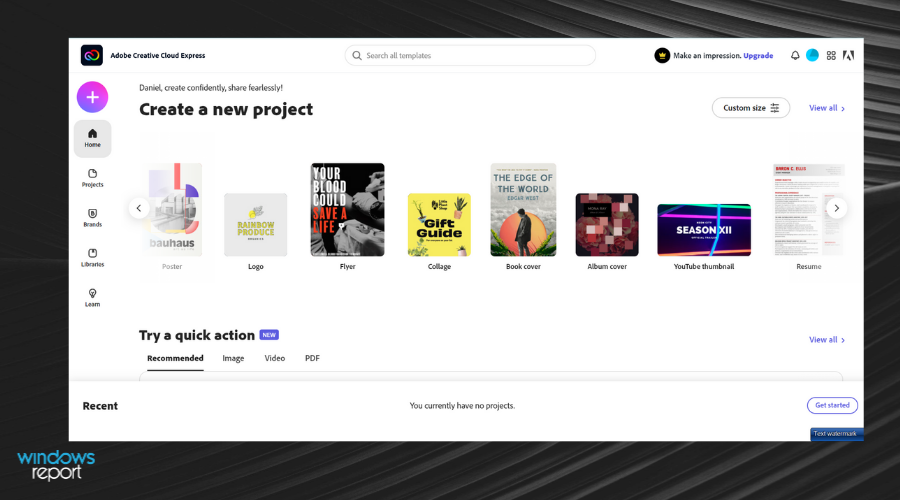
If you’re looking for a simple and straightforward video editor, Adobe Creative Cloud Express is perfect for you. The web app comes with a wide array of themes that you can use to achieve some amazing results.
You can also change the layout of your project, add music, text, photos, or icons. Adobe Creative Cloud Express doesn’t have the features that other more advanced video editors have, but it includes valuable editing tools.
For instance, you can edit video projects with useful features like video trimming, resizing videos, changing the video speed, reverse video, slow down effects, and so on.
In a few words, this online free editor has all the essentials to help you create undoubtedly beautiful videos.
Adobe Creative Cloud Express
Edit your videos seamlessly with this practical design editing tool and enjoy every second of it.
Kizoa is a free browser video editor, and just like desktop video editors, it works with both photos and videos. As for the content, you can add content from both Facebook or from your PC.
The editor supports various transitions, effects, music, and text and you can combine them any way you want.
Kizoa offers solid features, but its interface might be a bit confusing. It’s also worth mentioning that the free version comes with limitations regarding video length, storage space, and resolution.
Another solid browser video editor is Clideo. The video editor can work with local files, files from the cloud, or from any video link.
Clideo offers a variety of tools and you can merge, compress, resize, and cut your videos with ease. The app is incredibly simple to use, so feel free to try it out.
Biteable comes with a set of tools that you can use to trim, crop, cut, or merge videos with ease. In addition, you can add text, images, and music to your videos.
Biteable is simple to use, and even less skillful video editors won’t have any issues with it, so we encourage you to try it out.
Using a video editor in your browser is simple and easy, but do you have the right web browser for that task?
Using a browser video editor is simple and easy, as long as you have the right browser for the job. What is your browser video editor of choice? Let us know in the comments below.
There are many ways to protect your privacy online, and one way to do it is to use a secure browser that is privacy-focused. This is why Avast Secure Browser is the browser of choice for many.
But what if you want to switch to a different browser? Well, in today’s article we’ll show you how to uninstall Avast Secure Browser from your PC.
Quick tip:
If you’re not pleased with Avast Secure Browser, maybe you should consider switching to the Opera One browser.
Opera One has almost the same security features such as adblocker, tracking protection, and unlike Avast Secure Browser, it also has an unlimited free VPN and a native AI.
How do I remove Avast Secure Browser from Windows 10?
1. Use the Settings app
Open the Settings app. You can do so quickly by using Windows Key + I shortcut.
Navigate to the Apps section.
Select Avast Secure Browser from the list of applications.
Click on the Uninstall button.
Be sure to check Also delete your browsing data box.
Click on Uninstall and wait for the process to finish.
After completing this process, Avast Secure Browser should be gone from your PC. As you can see, uninstalling this software is as simple as removing any other application.
2. Use the removal tool
Close all applications on your PC. This includes your antivirus as well.
Once you download the tool, right-click it and choose Run as administrator.
Check the Also delete your browsing data box and click on Uninstall.
Wait for the process to complete.
This method is recommended to use if you can’t remove Avast Secure Browser by using the Settings app.
Additionally, you can try effective uninstaller tools to do the job efficiently and erase the Avast browser for good.
This type of software can remove any stubborn program from your storage without leaving file leftovers behind. Then, you have the chance to successfully uninstall the unwanted apps forever.
The process is quite simple, so you only have to run the uninstaller, select the programs you need to delete, and then proceed.
We hope that our guide was helpful and that you managed to remove Avast Secure Browser from your PC. What is your current browser of choice now? Let us know in the comments below.
Trivia games are very inclusive and therefore suitable to play with either friends or the whole family. But we all know that after playing a traditional trivial board game a few times, you risk learning both the questions and the answers.
So maybe you can start looking at trivia games online, where the options are numerous, to say the least.
From single-player quizzes to question packs that you can buy to season up your trivia nights at home, you can find them all on the Internet.
An impressive resource for trivia game lovers, Funtrivia.com includes over 150,000 trivia quizzes that you can go through online, free of charge.
You only have to create an account to access all the goodies. You can get daily email trivia as well as access to an entire library of trending quizzes, topics, challenges, quiz formats, and whatnot. You can even create your own quiz.
When you’re done exploring the site by yourself, you can share the fun with others by purchasing quiz packs that consist of 50-100 questions from specific domains.
Multiple uses of the same account are not possible, so you either share a trivia quiz and make your own scoring system or purchase question packs.
Similar to the previous website, this too includes a multitude of trivia quizzes from every possible domain.
A lot of the quizzes are very very specific, for just a certain aspect of a more general topic. For instance, Game is a general category, in which you can find 14 different quizzes just on the topic of Super Mario).
Access is free and you don’t have to register. On a general note, the website is a good resource to test your knowledge, but also to get inspiration for possible questions (and answers) for your own quiz night.
Unlike the other two options, this one is clearly more educational.
Kahoot! is a game-based learning platform, used in schools and other educational institutions to test the students’ knowledge or just organize fun activities in the classroom. The platform can also be used by the students’ family members.
Among the many games, Kahoot! also includes trivia quizzes.
The purpose of the platform is to allow you to create your own quiz, either using the Kahoot! database with over 500 million questions, or coming up with your own ones, and then play the game with a group of people.
A great aspect of Kahoot! is that quizzes can be taken online, by several people that connect to a certain Kahoot (quiz) at the same time (not necessarily at the same location). Participants have to log in either via a web browser or via the Kahoot! app.
There are several usage plans, including a free plan, with limited access, but just enough to allow one to create a trivia quiz and organize an online trivia night at home.
Fibbage XL by Jackbox Games is a short trivia game in which the players receive an obscure trivia fact that’s missing one key detail. The objective is to fill in the blank so that it fools others into thinking it’s the truth.
The game can be played in 2 to 8 players, and lasts 15-20 minutes. In the online version, it is available for PCs, Macs, and Linux. To play online, players log into the creator’s website and find the room where Fibbage XL is played.
QuizUp is a multiplayer game in which one user competes against another during seven rounds of timed multiple-choice questions of various topics.
There are over 1,200 total topics available to users to choose from, and all the content is submitted by volunteers.
You can use either the web version or the dedicated app to play this game. Once you log in, you choose a topic of interest and start playing against a friend or against a random person that challenges you.
Movies like Godfather, Scarface, and American Gangster are known for showing the organized crime syndicates called the mafia. Mafia is a type of organized crime syndicates that offers protection racketeering, arbitrating disputes between criminals and brokering.
Similar to movies, many video game studios have released games based on the mafia theme.
Some of the popular mafia games include Yakuza, Watch Dogs, God Father, and Sleeping Dogs. That said, there are tons of browser-based mafia games available that you can play on your web browser without downloading.
In this article, we explore the best mafia games such as Downtown 1930s Mafia, secrete Agent James, and Project Grand Auto Town to play online on your computer, tablet, and smartphones.
Of course, no Mafia-inspired game can ever really come close to the one that inspired them all, and it finally got a remake 18 years after the original launch.
This new game is called Mafia: Definitive Edition, and it will surely bring out your inner mobster!
Downtown 1930s Mafia is an online browser mafia game that is based in the 1930s. You are an immigrant who is new to the state. Create and drive your gang to the top. Fight other gangs for the street and to progress in the game.
Downtown 1930s Mafia is a third-person shooter that is under permanent development driven by the idea of the community. Being a first-person shooter, the game is 63MB in size and takes some time to load.
Enter a name for your character and click OK to begin. Select one of the servers to enter the game lobby. Use the left mouse click to open fire and right-click to jump.
The Mafia Boss is a premier online multiplayer mafia game. It has over a million registered players since 2005 and can be played on any web browser without needing to download.
In The Mafia Boss, you play against real players to rise to power. Make friends with players from all over the world and start a family to leave the prize ranks. You can build operative to collect money for the family, buy narcotics, guns, cars, and planes for your view, and grow your family network and protect your business.
The Mafia Boss requires you to register for an account before you can play the game. It is also available for Android users on Google Play Store.
It also has a ten-day competition round, in which you earn valuable game credit prizes to advanced your levels, fights to win the top-level prize, and earn yourself a gold medal.
Secret Agent James is a cool and fast-paced first-person shooter title in which you must take control of the professional hitman Carl. You as Carl must complete a range of different contracted kills within the city again other mafia syndicates that are vying for power.
The game uses point-and-click controls where you use your mouse to view around and left click to shoot. You can move around the block using the WASD keys. Secret Agent James is a rebranded version of Gangster Contract Mafia Wars with improved gameplay for a smoother gaming experience.
Move around the city and look for different weapons and supplies to complete your mission. Move and act quickly and dispatch your enemies as ruthlessly as possible.
Project Grand Auto Town is similar to Secrete Agent James. It is a simulation game in which you can play out your fantasies of becoming a ruthless gangster. You can explore the 3D cityscape and try to rule the roost against other rival gangs.
According to the developers, the game is inspired by the Grand Theft Auto series by Rock Star Games. The game offers different kinds of weapons to eliminate your target. You can also steal vehicles and go on a rampage through the streets.
Upgrade your card, fund, and grenades and become a real mobster. It is a car-based game where you shoot and throw grenades at the enemies to score points and collect health and other items.
Use the WASD keys to go back and forward and to look forward and back. Pressing the spacebar allows you to throw a grenade at your enemies. Gangster’s Way is a simple, browser-based mafia game for those who like endless shooting games.
So, these are the top 5 mafia games online that you can play on your web browser using a computer or mobile device. If you think we missed a great mafia online game for a web browser, then let us know in the comments.
The upcoming Star Wars Squadrons video game has been one of the worst kept gaming secrets in recent times with numerous leaks confirming its existence and focus and even a banner prematurely showing on the Xbox website over the last 24 hours.
EA finally confirmed its existence today with a tweet showing its official cover artwork and logo and an announcement for a trailer debut on YouTube on Monday at 8AM PT.
Judging from the name and artwork, this new Star Wars game is clearly going to focus on aerial combat gameplay and will at least feature locations, battles, and ships from the Original Trilogy. While not confirmed yet, VB has stated that several of their sources have told them that Star Wars Squadrons will feature a single-player campaign mode but its main focus will be the online multiplayer.
It will be interesting to see what the gameplay will look like in the trailer and if it will resemble the Starfighter Assault combat from Star Wars Battlefront II which, despite being the least-popular game mode, was incredibly well done and looked phenomenal. Eyes will also be on what Star Wars eras the game will represent. With Battlefront II players being rather spoilt with Prequel, Original, and Sequel era content, Squadrons could face a bit of pushback if it only focuses on Episodes IV through VI.
World of Warships is a MOBA game focused on naval warfare and vehicular combat that you can play for free on Steam. It’s available on Windows, macOS, iOS, Android, PlayStation 4, and Xbox One.
You can fight other players in PvP mode or engage in co-op battles in PvE mode. Veteran players can unlock two seasonal competitive modes. Unfortunately, a lot of users report World of Warships lagging issues on their PC, mobile or console.
It can make your gameplay unbearable, especially when other players must rely on you. If you’re looking for a quick and easy way to get rid of World of Warships lag spikes, you can use a VPN to reduce your ping as well as to fix packet loss issues.
To make this happen, you have to download and install a fast and secure VPN service that delivers high-speed servers all over the world. Furthermore, it should keep you safe when playing with others online, like protecting you from DDoS attacks.
Why does my WoW game keep lagging?
Lag has become a synonym for poor performance, but this is not the case. Lag is caused by a poor internet connection.
Playing World of Warships and observing what is wrong is one way to test this. Turn your settings down in-game if the game is simply running very slowly and your frame rate isn’t smooth.
Watching a movie clip is an easy way to test this without using benchmarking tools. Movies are recorded at 30 or 24 frames per second, so if your game looks like a movie, you need to upgrade your hardware.
Secondly, toggle your network bandwidth using a gaming VPN for World of Warships no matter if using a Wi-Fi or broadband connection. VPNs add an extra connection point between your computer and the game server.
That’s one more chance for a connection to succeed, especially if you’re using a VPN server that is not crowded.
When some of your traffic does not reach its destination, you may experience service drops and packet loss. This is when the VPN steps in and harmonizes the communication bridge.
What are the best VPNs to fix World of Warships lagging?
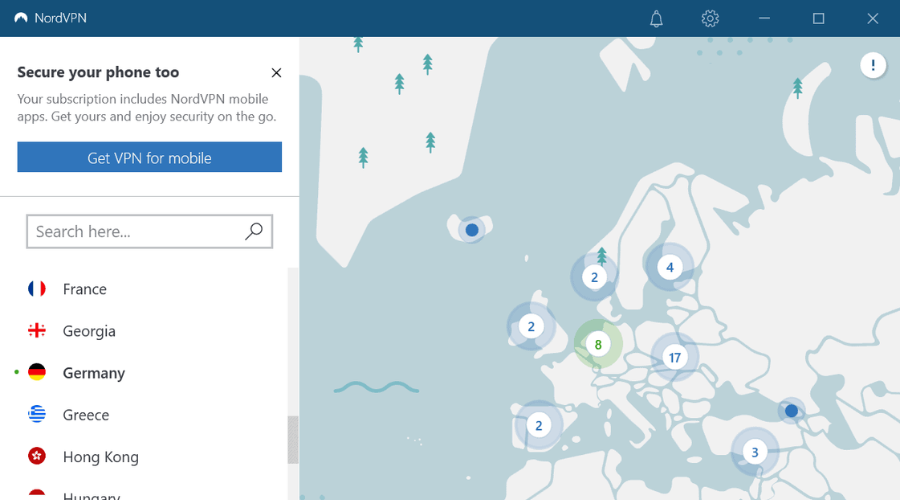
If you’re looking for an easy-to-use World of Warships VPN app, check out NordVPN. Developed by Tefincom & Co., it’s one of the most popular VPNs for gaming. It can fix Xbox packet loss and comes with more than 5,400 servers in 59 countries.
NordVPN is also an excellent choice for circumventing geoblocks. Furthermore, it supports obfuscation mode, which means that you can hide the fact that you’re connected to VPN so that you can bypass VPN blocks.
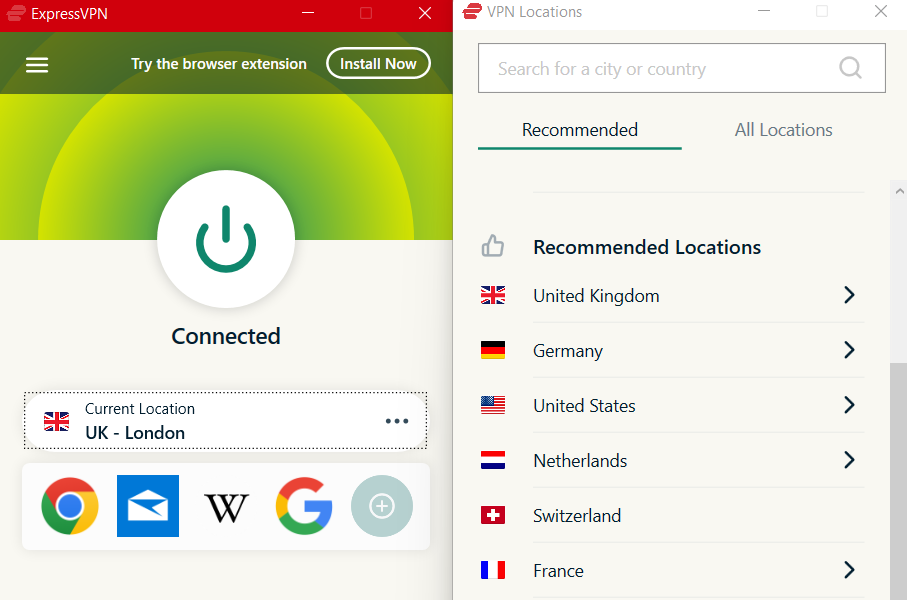
ExpressVPN is one of the most popular VPN services, which is why we picked it to fix Word of Warships lagging and stuttering because it works well when gaming.
When playing World of Warships, there are a few key factors that will greatly improve your gaming experience. You can download games and update at faster speeds, but you can also add online games faster.
The best part is that using ExpressVPN, faster speeds usually result in shorter ping times. Essentially, you don’t have to be concerned about acting sluggish because your Internet connection lags and frustrates you at a critical point.
This is particularly useful when playing fast-paced games such as World of Warships, Raft, League of Legends, and other MOBA games.
What else do you need to know about ExpressVPN:
Strict no-logs policy
DNS leak prevention, kill switch and split-tunneling
Unlimited bandwidth
Access in restricted countries
4k UHD streaming capabilities
Supported on all major platforms
Most diverse servers
ExpressVPN is a great way to enjoy a truly global gaming experience. ExpressVPN is the ideal way to extend your gaming time, whether you want to legally access more online or simply reduce lag or bandwidth restrictions from your ISP.
ExpressVPN
Access restricted content and decrease latency wherever you are and want to play World of Warships.
When it comes to eliminating World of Warships lag issues, Private Internet Access (PIA) is ready to help. It’s one of the most powerful VPN services on the market, which provides you with an extensive network of global servers: more than 3,300 in 47 countries.
Made by Kape Technologies, PIA has a number of security features that can also boost your gaming experience and get rid of World of Warships’ unplayable lag.
For instance, you can choose from static and dynamic IP addresses, configure private DNS servers, deactivate VPN encryption, and use port forwarding.
PIA has servers optimized for gaming, streaming, and P2P. In addition to hiding your IP address and encrypting your network traffic, it can minimize jitter and improve your gaming performance. Plus, it has 24/7 live chat support.
What else do you need to know about PIA:
10 simultaneous device connections
No-logging policy
Compatible with all major platforms
Eliminates your high ping rate in World of Warships
30-day money-back guarantee (no free trial)
Private Internet Access
Don’t exit World of Warships due to lagging issues. Instead, use PIA to quickly lower your ping time.
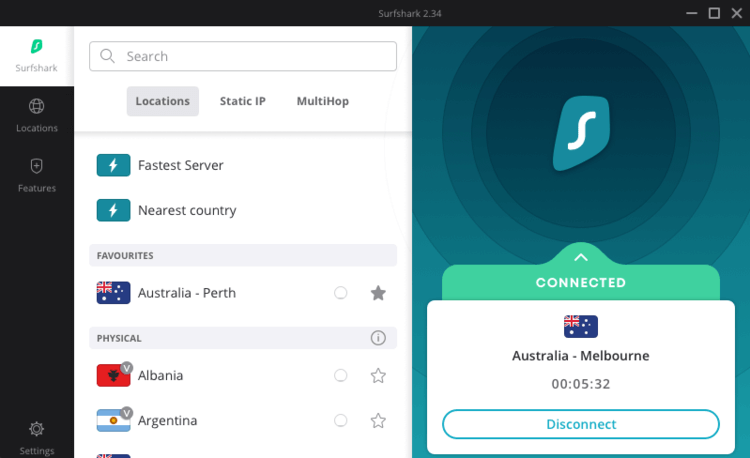
Surfshark VPN, with its familiar, large connect button, makes it simple to get online security quickly. Surfshark’s main selling point is its ability to rid subscribers of online ads, tracking, and malware.
Meanwhile, a sidebar on the left side of the app’s window provides quick access to the company’s over 1,700 servers spread across 63 countries.
While there are many servers to choose from, Surfshark makes it simple by providing shortcuts such as the fastest server and nearest country, as well as the ability to star favorite servers to return to them later.
Surfshark supports Linux, Mac OS, and Windows on the desktop, Android and iOS for mobile devices, Xbox and PlayStation video game consoles, and Amazon FireTV and Apple TV for smart TV platforms.
What else you need to know about Surfshark VPN:
30-day risk-free money-back guarantee
Strict no-logs policy
3200+ servers in 95 countries
Unlimited simultaneous device connections
Great for gaming on a budget
Excellent speeds for gaming as well as streaming
Routers are the only major piece of hardware missing from this list, but it compensates with other major benefits. Nonetheless, the service allows subscribers to protect an unlimited number of devices, making it a great value in a highly connected home.
Surfshark
Get on and start playing with no limitations for the network and free of lag spikes in World of Warships.
If you’re unable to play World of Warships due to massive lag and want to resolve this problem with a free VPN service, use CyberGhost VPN. Owned by Kape Technologies, this VPN solution facilitates an impressive amount of blazing-fast servers: over 6,400 in 89 countries.
As far as computer security is concerned, CyberGhost VPN doesn’t disappoint. It can defend your router from hackers, protect your DNS queries using exclusive DNS servers, and help you create whitelists and blacklists using split tunneling.
CyberGhost VPN is ideal for fixing Wi-Fi packet loss and for enhancing your gaming experience by eliminating World of Warships menu lag. Just like PIA, it has VPN servers tailor-made for streaming, torrenting, and gaming.
What else you need to know about CyberGhost VPN:
7 simultaneous device connections
Strict no-logs policy
Can be installed on all major platforms
Easily deals with World of Warships ping spikes
45-day money-back guarantee (1-day free trial)
CyberGhost VPN
Handle World of Warships lagging issues thanks to this robust VPN solution for PC, mobile, and console.
While setting up a VPN on a PC is as simple as downloading a reputable VPN app, console gamers are unlikely to have that option.
If you prefer console gaming to PC gaming, you must either install a VPN on your router or connect your console to your computer via an Ethernet cable.
Even if your ISP isn’t throttling your bandwidth, a VPN can help speed up your connection. Many ISPs attempt to save money by establishing low-cost connections.
Unfortunately, this frequently results in data packet loss and slow data travel time due to information’s indirect travel routes. When you connect to a VPN server, the VPN chooses better data routes than your ISP.
This way, you can get back to enjoying your game with your friends. If you can’t decide between these VPN services, we suggest going with Private Internet Access.
Red Dead Online is the online multiplayer counterpart of Red Dead Redemption 2 (RDR2), the popular action-adventure MMO game that takes place in the Old West. You can play it on Windows, Stadia, PlayStation 4, Xbox One, Steam, and Epic Games.
Red Dead Online picks up one year before the events of Red Dead Redemption 2, where four players can fulfill four story missions. However, you can also freely roam the open world on your own or by forming a posse of up to seven players.
Unfortunately, many players report Red Dead Online lag in co-op and PvP mode, which stops them from having fun with their friends. But you can use a VPN to improve your ping and gameplay, in order to eliminate this issue.
What you’re looking for is a powerful VPN app that provides you with a large number of VPN servers optimized for gameplay, even when Red Dead Redemption 2 is laggy. At the same time, the VPN should ensure PC security, such as anti-DDoS protection.
What are the best VPNs to fix Red Dead Online lag?
If Red Dead Redemption 2 is freezing on your PC during gameplay, you can use Private Internet Access (PIA) to resolve this matter quickly and easily. Made by Kape Technologies, this VPN solution is compatible with all platforms supported by the game and allows 10 simultaneous connections.
An alternative solution for swiftly eliminating RDR2 lag spikes is by using CyberGhost VPN. A service of Kape Technologies, this VPN is great when it comes to minimizing packet loss and enhancing your connection speed while you’re playing RDR2.
CyberGhost VPN can not only fix RDR2 animation lag, but it can also evade geoblocks to help you access restricted webpages. It’s the only free VPN on this list and offers support for split tunneling, a handy feature for setting up whitelists and blacklists.
If you’re interested in a high-speed VPN to play RDR2 with your friends, you can’t make a wrong move with NordVPN. It’s an excellent virtual private network solution created by Tefincom & Co., which can immediately repair network congestion.
NordVPN handles RDR2 map lag quite well. Its extensive network of VPN servers and top-notch security features are ideal for optimizing gameplay and fixing Wi-Fi packet loss. Besides, it’s the only VPN here that can get around VPN blocks by connecting to obfuscated servers.
Red Dead Online is an awesome game that you can play with your friends in co-op or PVP mode. But it can become unsettling when you have to deal with high ping. This unfortunate situation could even lead to you getting kicked out of the online session.
However, by getting equipped with a powerful virtual private network solution, you can easily fix Red Dead Online lag and resolve connectivity issues. It’s also an excellent solution to fix the 0x20010006 error in RDR2.
If you need a bit of help deciding which of the three VPN apps we described above is the best RDR2 lag fix, then go with Private Internet Access.
Windows 10 version 2004 started rolling out on May 27, 2020. Despite its installation hiccups, the OS brings a couple of impressive features, in all fairness. But it’s still a minor upgrade, unlike version 21H1, the next major Windows 10 update.
Be that as it may, there’s a high chance that Microsoft will start pushing Windows 10 21H1 next week. The same is likely true for Windows 10X, the container-centric OS for both desktop and dual-screen devices.
Insiders may start receiving the next major Windows 10 update soon
The latest speculation about the release date for Windows 10X and 21H1 stems from a tweet by Alumia—a bona fide leaker of Microsoft or Windows-related news.
The tweet includes screenshots revealing code blocks for Windows 10X build 20141 and Windows 10 version 21H1.
— Aggiornamenti Lumia (@ALumia_Italia) June 12, 2020
As such, Microsoft could start pushing both preview builds to insiders next week.
On May 19, 2020, Microsoft inadvertently revealed the availability of 21H1, codenamed Iron, in the Fast ring on a WSL blog post.
We expect the Fast ring to switch over to our Iron (Fe) branch toward the later part of June which will expose this new functionality to Insiders.
The company later edited the post.
Nonetheless, 21H1 should arrive with substantial changes to multiple Windows 10 features. Expect to see a much-revamped Start menu and File explorer, for example.
As for Windows 10X, the OS is a massive overhaul of Windows as you know it. That’s because it does more than just improve features and apps.
It’s a futuristic OS with a totally different architecture (containerization). The much-advanced structure will permit current Win32 apps to run on Windows 10X without any compatibility problems.
Apart from that, Microsoft said that the containerization of apps will make it a lot faster to deliver system updates.
Are you ready for the next Windows 10 major update? Feel free to ask any questions or share your thoughts via the comments section below.
Razer makes some of the most popular and high-end computer gaming peripherals, including gaming mouse that comes with variable DPI settings. That said, several users are reportedly experiencing Razer mouse sensitivity keeps changing issues.
This issue can occur due to a bug in the Razer Synapse software or if you are using the beta version of the latest Razer Synapse software.
If you are also troubled by this issue, here are a couple of troubleshooting tips to help you resolve the Razer mouse sensitivity keeps changing problem in Windows.
What to do if Razer mouse sensitivity keeps changing?
1. End the Razer In-Game Engine process
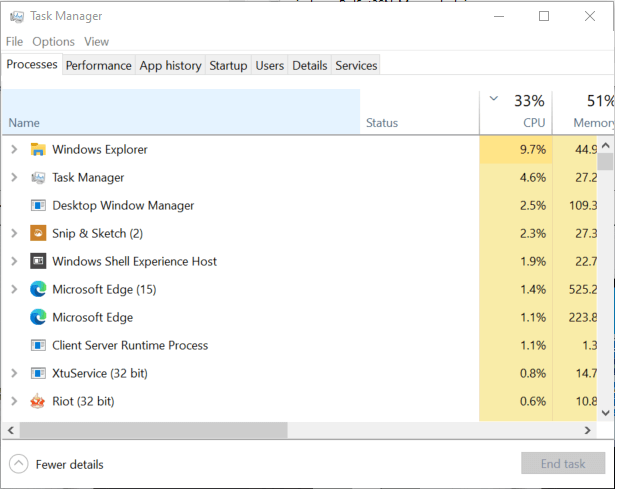
Right-click on the taskbar.
Select Task Manager.
In Task Manager, locate the razeringamengine.exe process.
Select the process and click on End Task.
Click Yes if prompted to confirm the action.
Close Task Manager and relaunch Razer Synapse.
Check with any game to see if the sudden sensitivity fluctuation issue is resolved.
The Razeringameengine.exe process is known to cause issues that may result in game crashes and sudden changes in mouse sensitivity. Razer Synapse can affect your non-Razer mouse as well.
If ending the RazerIngameEngine.exe process resolves the issue, you can disable it by renaming the file.
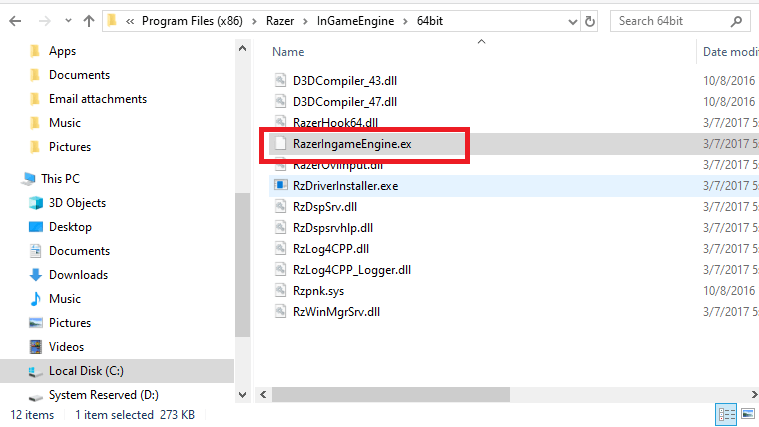
Open File Explorer.
Navigate to the following location: C:Program Files (x86)RazerInGameEngine64bit
Locate and select the RazerIngameEngine.exe file.
Right-click and select Rename the file to RazerIngameEngine.ex.
Once renamed, relaunch Razer Synapse.
Renaming the RazerIngameEngine.exe file seems to not affect how Razer Synapse works. You can rename the file back to RazerIngameEngine.exe if you notice any issues with Razer Synapse after renaming the file.
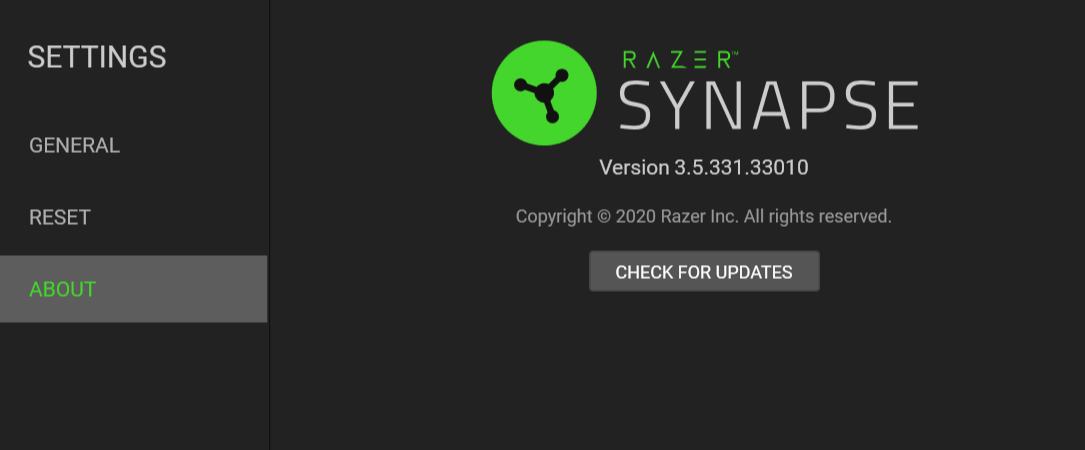
Update Razer Synapse
Expand the System Tray apps by clicking the small arrow icon in Taskbar.
Right-click on the Razer Synapse icon.
Select Check for updates.
Download and install any pending updates to see if the issue is resolved.
2. Repair Razer Synapse
Press Windows key + R to open Run.
Type control and click OK.
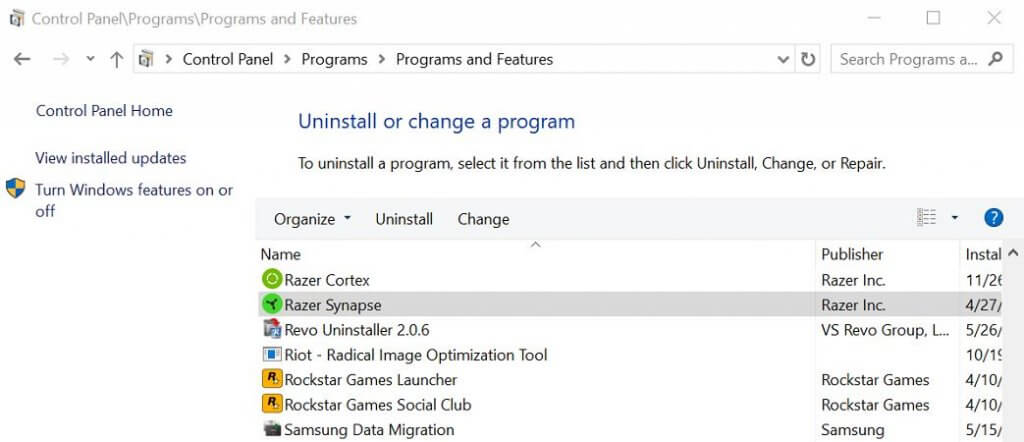
Go to Programs > Programs & Features.
Select Razer Synapse.
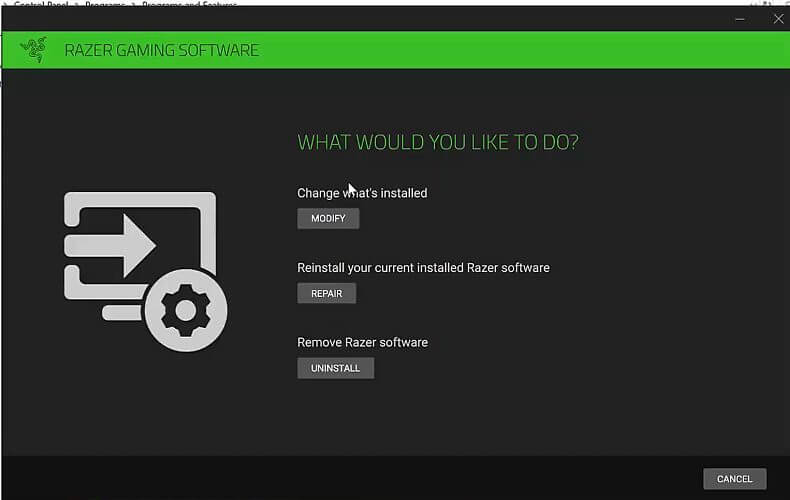
Click on Change and then click Yes to confirm.
In the Razer Gaming Software window, click on Repair.
Razer will scan the Synapse installation for file corruption.
It will also fix any issues during the troubleshooting process.
Once done, close the troubleshooter and relaunch Razer Synapse. Check if your mouse is still experiencing issues with the sensitivity.
3. Reinstall Razer Synapse
Press Windows Key + R to open Run.
Type appwiz.cpl and click OK.
Select Razer Synapse and click Uninstall.
Follow on-screen instructions to uninstall the software.
Once uninstalled, download the latest version of Razer Synapse.
Run the installer.
This is an online installer, so wait till the required files are downloaded.
After the installation, check if the Razer mouse sensitivity keeps changing the issue is resolved.
How to change razer mouse sensitivity
To adjust the Razer mouse DPI or sensitivity, you can use the Razer Synapse app.
Make sure the mouse is connected to your computer.
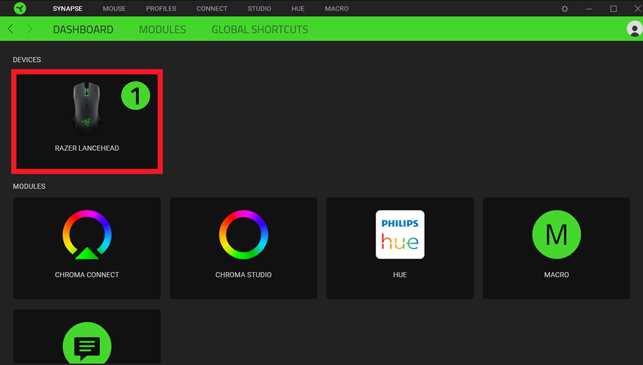
Open Razer Synapse.
Select your mouse from the devices.
Open the Performance tab.
You can adjust the DPI using the Sensitivity section of the window.
You can further customize the DPI using the Stage option.
Razer Synapse offers up to 5 customizable stages. Select a stage using the drop-down menu and adjust the DPI for the selected stage. You can manually select any of the five stages using the dedicated DPI button your Razer mouse when playing games.
The Razer mouse sensitivity keeps changing problem usually occurs due to the RazerInGameEngine.exe process. You can fix the issue by ending the task in the Tasks Manager. To stop the process indefinitely, rename the concerned file from the installation directory.
Satisfactory is a first-person simulation game that revolves around factory building. It has an open world, high-quality graphics, and a lot of entertaining content. You can play it on Steam and Epic Games.
The story behind Satisfactory is that you’re an engineer that works for a corporation (Ficsit) and must harvest the resources of a strange planet by building factories. The game has solo content but also online co-op for those who prefer multiplayer mode with friends.
Currently, there are no dedicated game servers, although plans were announced to introduce this feature. Until then, players can host game servers for their friends to join.
You can quickly fix Satisfactory server lag with the aid of Private Internet Access (PIA). Developed by Kape Technologies, this VPN solution provides you with a large network of high-speed servers to improve your co-op sessions. It’s also a great way to fix packet loss issues.
PIA supports port forwarding, which is ideal for hosting game servers. Furthermore, you can turn off VPN encryption if you need a speed boost, although this won’t help your online PC security. It comes with 24/7 live chat support, too.
If you’re facing Satisfactory lag when placing items in the world, use NordVPN to eliminate this issue and improve the multiplayer mode. Made by Tefincom & Co., this VPN tool has the most impressive network of servers on this list, which can be used to fix network congestion.
NordVPN is also the only VPN here that supports obfuscation mode, which you can use to bypass VPN blocks. Plus, you can fix Wi-Fi packet loss and set up custom DNS servers.
What you need to know about NordVPN:
Has more than 5,400 VPN servers in 59 countries
Secure your browsing sessions with an ad and malware blocker
ExpressVPN is without a doubt a great choice for eliminating lags and game pings when playing multiplayer online games, because of its amazing lightspeed performance.
Although it is pricey, its features cannot be understated. If your ISP is deliberately restricting specific types of network traffic, ExpressVPN can overcome these limitations and restore your network speeds to their initial levels. Thus, no more lags in Satisfactory. Users have even claimed higher gameplay rates in several cases.
To reduce pings, we recommend connecting to a server closer to your location, to reduce the distance between your device and the game servers of Satisfactory.
Furthermore, let’s dive into ExpressVPN’s aspects of value when playing Satisfactory:
Speed test to find the fastest VPN server location
Connect to over 3000 servers in 94 countries
Unlimited bandwidth for never ending optimal network speed
Bypass internet throttling
RAM powered memory storage
30-day risk free money back-guarantee
ExpressVPN
Fast servers for streaming and unlimited bandwidth with the speed of light are just one click away. Try it now!
If the Satisfactory menus are lagging in multiplayer mode, then CyberGhost VPN can help you. A product of Kape Technologies, this VPN solution is an excellent choice for minimizing jitter and speeding up your Internet connection.
When using CyberGhost VPN, you can whitelist and blacklist games in split-tunneling mode, which is ideal for managing your bandwidth on restricted networks. It supports 7 simultaneous connections and can also be used to circumvent geoblocks.
What you need to know about CyberGhost VPN:
Explore more than 6,400 VPN servers in 89 countries
Use exclusive DNS servers and DNS leak protection
Encrypts your gaming traffic using OpenVPN
Quickly fixes Satisfactory conveyor lag and FPS issues
45-day money-back guarantee (1-day free trial)
CyberGhost VPN
Don't worry about Satisfactory network lag when you can use this VPN app to resolve all latency problems.
To sum up, Satisfactory is an incredible game you can play with your friends in co-op mode to build increasingly complex factories on an alien planet. But this can be impossible when you have to deal with high ping and latency issues, especially when we’re talking about Satisfactory late-game lag.
Besides lowering your graphics settings, you can get a powerful VPN to quickly fix multiplayer lag and get back to your game. And, if you can’t choose between the three options we presented above, go with PIA.
As you may already know, Windows 10 preview build 19645 arrived in the Fast ring recently. With this build came the fulfillment of a promise that Microsoft made a while back—automatic Linux Kernel updates for WSL 2 users.
Well, it appears that Microsoft has already started servicing the WSL 2 Linux kernel via Windows Update as promised.
Fast ring insider gets automatic Linux kernel updates
A Windows 10 user has shared to the Windows 10 Subreddit a screenshot indicating the automatic servicing of the Windows Subsystem for Linux.
On June 10, 2020, Microsoft delivered that change through insider preview build 19645.
We changed the servicing model for the Linux kernel inside of Windows Subsystem for Linux 2 distributions. This build includes this change to remove the Linux kernel from the Windows image, and instead have it be serviced via Microsoft Update.
The feature is probably rolling out gradually seeing as not all insiders in the Fast ring are receiving the automatic updates so far.
Previously, insiders had to manually search and install any new Linux kernel servicing updates on their Windows 10 PCs.
But with this change, any new features, improvements, or fixes will be installed seamlessly without the user having to do anything. It’s also a good thing for Microsoft since it can now push WSL 2 Linux kernel updates on a wider scale, globally.
The latest improvement on WSL 2 is certainly welcome, especially among developers already enjoying the multiple advantages it has over WSL 1.
For starters, WSL 2 boasts full system call compatibility. As such, you can run much more apps inside WSL 2 than WSL 1. Also, according to Microsoft, the platform has relatively low memory requirements on startup.
WSL 2 offers better file input/output performance, on top of all that.
That said, are you a Fast ring insider? Have you received any automatic Linux kernel updates yet? Let us know by leaving a message in the comments section below.
The makers of the Academy Award-winning South Korean film “Parasite” have recently released a set of official background images to use for video calls. The pack of five HD images features various locations in the luxurious mansion where the movie takes place including the interior design of the house, the iconic staircase into the basement, an outside view of the house, Da Song’s personal room, and the gritty bathroom of the poor family.
The South Korean movie “Parasite” was released in 2019, and it was honored as the first South Korean/non-English movie to win the Palme d’Or award at the Cannes Film Festival 2019. The film tells the story of a poor South Korean family employed by a wealthy family living in a luxurious mansion and working for them changed their fortune.
Either if you make yourself a member of the poor family or a millionaire, all these Parasite movie backgrounds, which are available to download via the Parasite’s official Twitter account, will definitely grab the attention of your colleagues during your next Teams meeting. You can find more inspiring backgrounds on our dedicated Hub, and you can also click here if you don’t know how to set your own custom background in Teams.
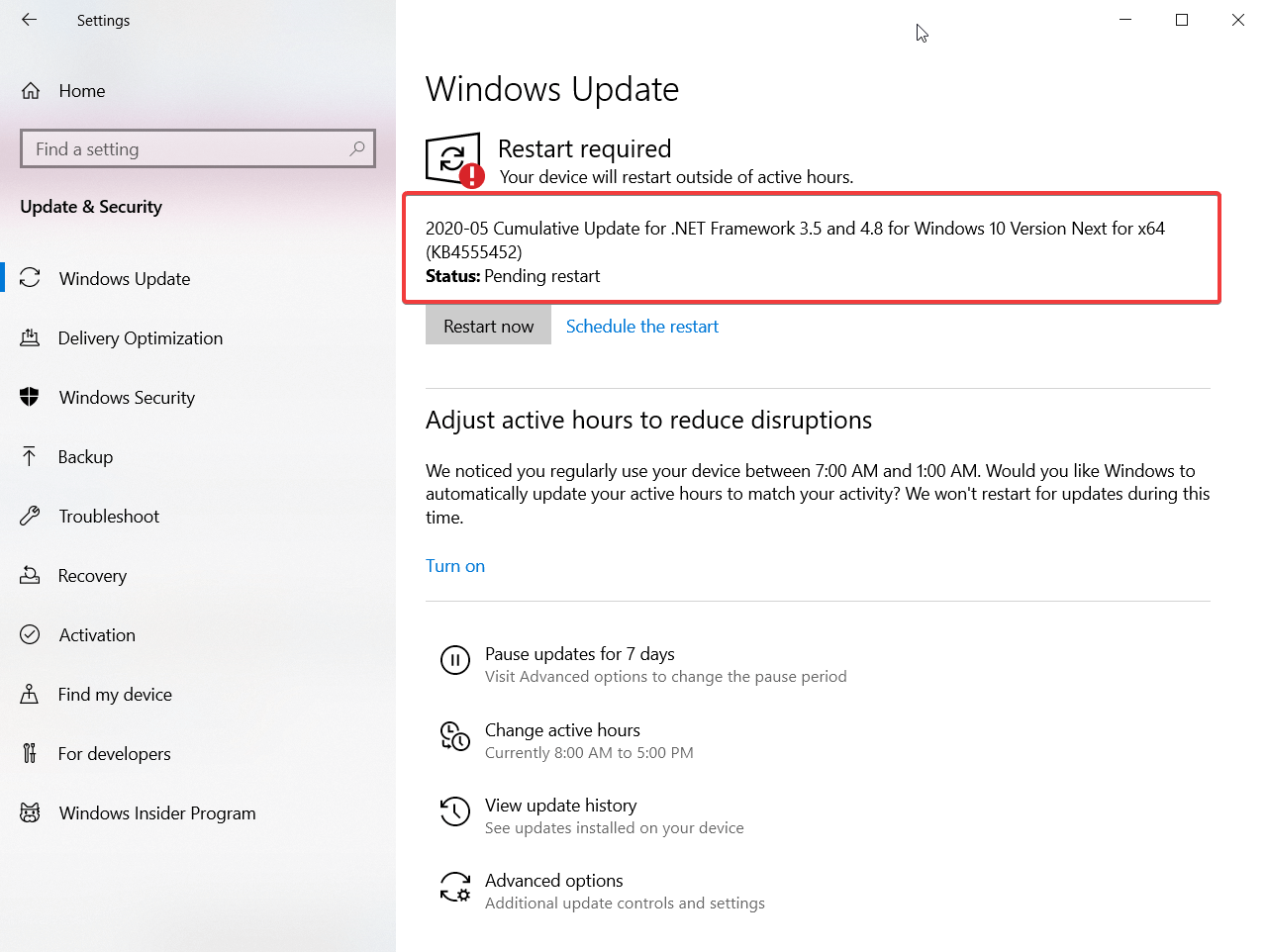
Are you familiar with the KB4555452 update? You might have seen is as Cumulative Update for .NET Framework 3.5 and 4.8 for Windows 10 Version Next for x64.
If you’re an insider, you should be, because this one needs to be installed after every single build since Windows 10 version 2004 and up.
As the description suggests, KB4555452 is an update for .NET Framework 3.5 and 4.8 for Windows 10 that installs as a file cabinet folder inside SoftwareDistributionDownload.
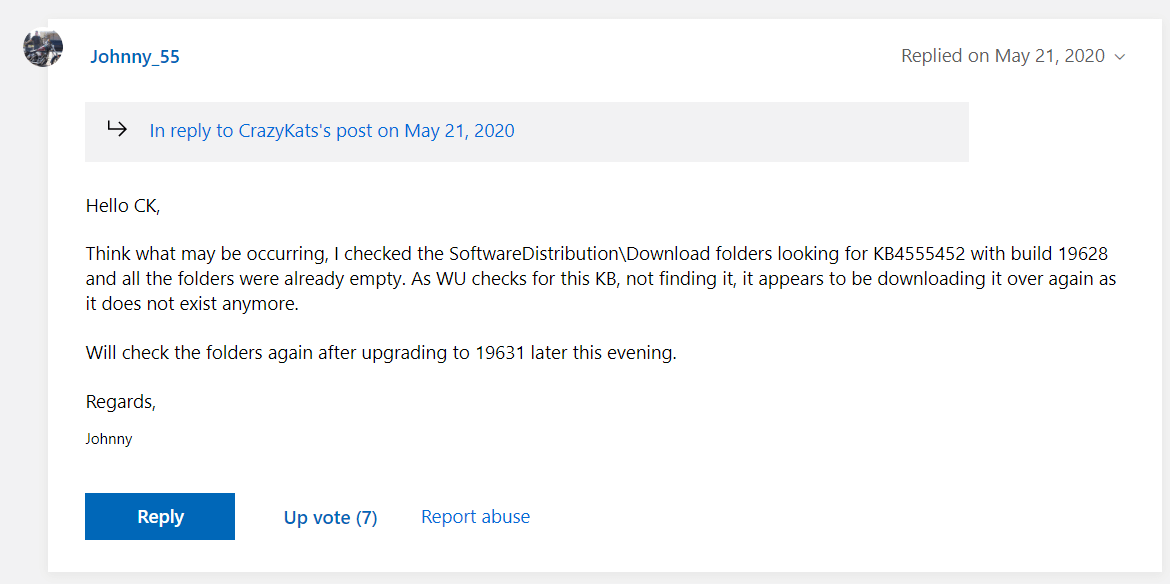
The problem is that, as the Windows insider Johnny_55 states on the Microsoft Answers page, the file keeps disappearing after every build update.
The insider suggests that after the update, Windows Update checks for KB4555452 and doesn’t find it, so it needs to download and install it again.
Why is KB4555452 disappearing every time?
There are two plausible explanations until now:
KB4555452 is not included in the new builds by mistake, and thus it needs to reinstall.
KB4555452 is not there on purpose so that Microsoft can update it every time for security purposes.
As you might have guessed, we don’t have an explanation from Microsoft about this strange KB4555452 and its magical disappearance.
Make sure we will follow the lead further and let you know when we have an answer.
If you know anything about that, please tell us all about it in the comments section below.
KB4555452 installs after every single build appeared first on Windowsreport.com
If you have encountered the streaming error has occurred error when opening the World of Warcraft game, then you are not alone. With multiple WoW users reporting the error, Blizzard has published an official troubleshooting page to help the users fix the error.
According to Blizzard, the Error Code: WOW51900322 can occur if there is an issue streaming data to your game client from the World of Warcraft servers.
The error can be resolved by performing a couple of troubleshooting steps recommended by Blizzard.
In this article, we take a look at the best solutions recommended by Blizzard and other WoW users to fix the streaming error has occurred error on your computer.
How to fix A streaming error has occurred in World of Warcraft
1. Move cache from Classic to Retail
Open File Explorer.
Navigate to the following location: C:/Program Files (x86)/World of Warcraft_retail_
Copy the WoW cache from the folder WoW folder.
Next, navigate to the following location: C:/Program Files (x86)/World of Warcraft_retail_
Paste the copied cache file.
Close File Explorer.
Relaunch Battle.net and open World of Warcraft game to see if the error is resolved.
Delete WoW cache
Open File Explorer.
Navigate to the following location: C:/Program Files (x86)/World of Warcraft_retail_Wow.exe
Locate the Wow.dxvk–cache
Right-click and select Delete.
Once deleted, launch WoW to see if the error is resolved.
If the error is occurring on your Linux system, try moving the cache files from a Windows machine to your Linux distro Wow folder. Many users have reported that moving the cache from their Windows machine has helped fix the error.
2. Reset the WoW user interface
Close World of Warcraft if open.
Uninstall any addon managers to make sure they don’t re-add your removed addons.
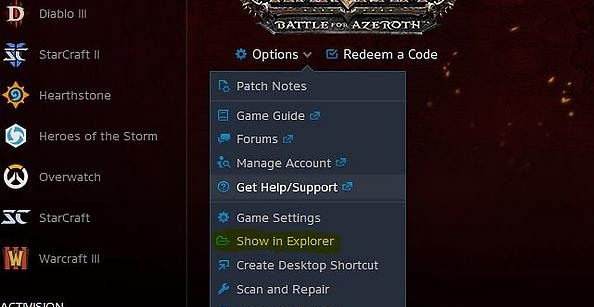
In Battle.net, click on Options.
Select Show in Explorer.
Open the World of Warcraft folder.
Open the game folder version (_retail_ or _classic_) that you are trying to troubleshoot.
Rename the Cache, Interface, and WTF folders to CacheOld, InterfaceOld, and WTFOld.
Relaunch Word of Warcraft to see if the error is resolved.
Resetting the WoW user interface to default settings can resolve various display and interface issues. Make sure to uninstall any addon manager to avoid reinstallation issues.
3. Update Windows OS and drivers
Update Windows OS
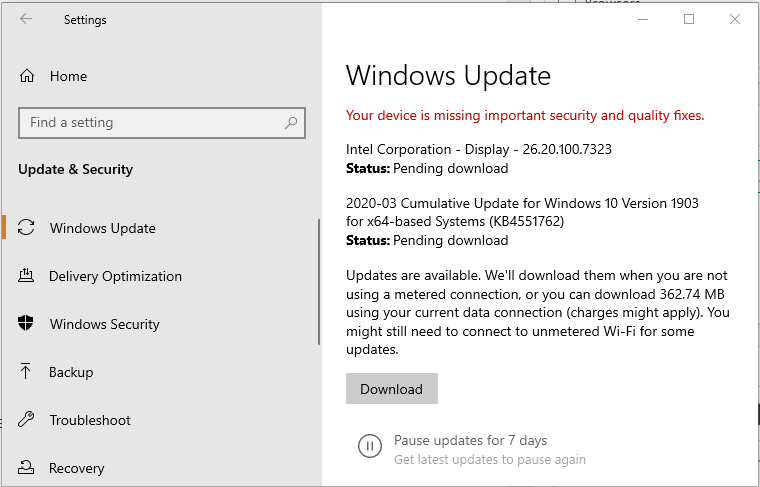
Click on Start and select Settings.
Go to Update and Security.
Open Windows Update.
Download and install all the pending updates.
Once installed, reboot the computer and check for any improvements.
Windows update comes with driver updates for display devices and network updaters. If updating the OS didn’t resolve the error, try updating the display driver manually.
Update GPU driver
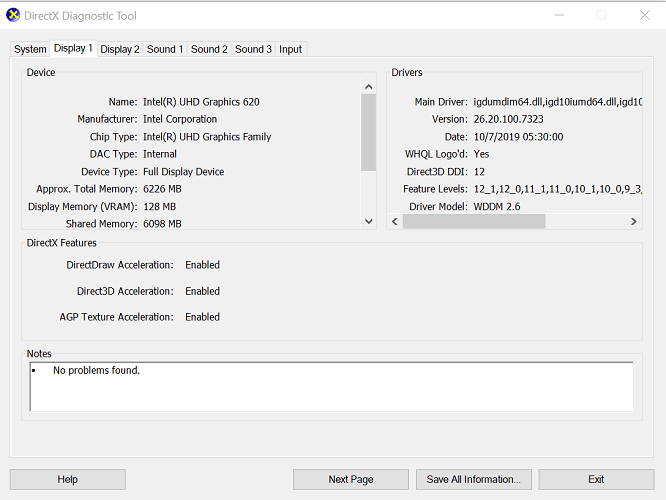
Press Windows Key + R to open Run.
Type dxdiag and click OK.
Open the Display tab in the DirectX Diagnostic Tool window.
Note down the GPU driver version.
Open your GPU manufacturer website.
Download the latest version of the driver available.
At the same time, you can use automated support capable of updating drivers easily and optimizing your PC to work at maximum capacity. This job is perfectly suited for the driver manager, Fortect Driver Updater.
3. Reset network devices
Shutdown your computer that is connected to the home network.
Power off and unplug the modem/router.
Leave the network device idle for a minute.
Plugin the power cord to turn on the modem.
Wait till all the lights on the modem stop blinking.
Connect to the network to see if the error is resolved.
Performing a power cycle allows the devices to reset and re-establish a new connection to your ISP.
4. Check your security program
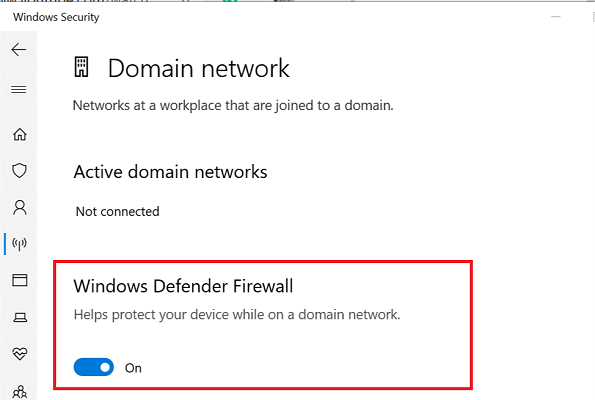
Disable Windows Firewall
Press Windows Key + I.
Go to Update & Security.
Open Windows Security.
Click on Firewall and network protection.
Open your currently active network.
Toggle the switch to turn off the Windows Defender firewall.
If you have a third-party antivirus or firewall installed, make sure to disable it as well. After disabling the security program, launch the World of Warcraft to see if the error is resolved.
Some security programs may stop WoW from working correctly. If the issue persists with the security program enabled, try uninstalling the program.
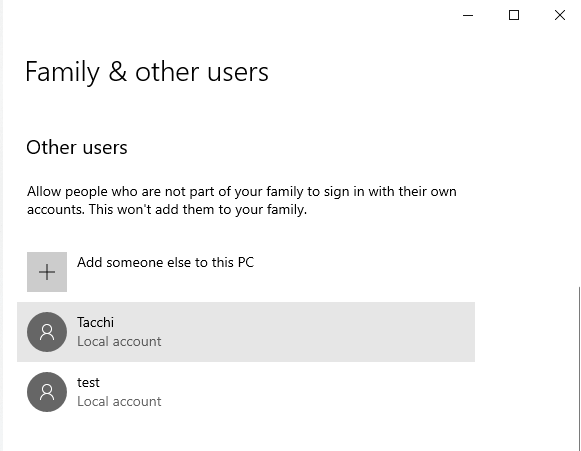
Scroll down to Other users and click on Add someone else to this PC.
Follow on-screen instructions to add a new user. You can create an account with and without a Microsoft account.
Once the account is created, select it, then click Change account type.
Select Administrator.
Click OK to save the changes.
Restart your computer.
Log in using the new administrator account.
Launch Battle.net and launch WoW to see if the error is resolved.
6. Repair or reinstall World of Warcraft
Repair World of Warcraft
Launch the Battle.net launcher.
Select the World of Warcraft game.
Click on Options.
Select Scan and Repair.
Click on Begin Scan.
The troubleshooter will scan the game files for potential corruption issues and fix them accordingly.
If the issue persists, uninstall and reinstall World of Warcraft to see if that helps.
Uninstall using Battle.net launcher
Launch the Battle.net launcher.
Select World of Warcraft.
Click Options.
Select Uninstall Game.
Once uninstalled, you can reinstall the game from the game tab again.
If, for some reason, the game fails to uninstall from the Battle.net launcher, try uninstalling it from Control Panel.
Uninstall from Control Panel
Press Windows Key + R to open Run.
Type appwiz.cpl and click OK.
SelectWorld of Warcraft.
Click Uninstall.
The WoW streaming error that has occurred can be fixed by resetting your home network. If the issue persists, try repairing the installation, create a new administrator account, or check your security program.
Mahjong is one of the easiest and most popular online games, part of the so-called puzzle games. It’s a single-player game based on the same name Chinese game, however, with no relation with the rules or the original version.
The online version became popular once Microsoft introduced mahjong in its MSN website (or the Zone), years ago. Until this day, the game is one of the most sought online games mostly for relaxing purposes.
Just how much online mahjong has developed you can guess from the multitude of mahjong boards and backgrounds, tile arrangement, and even tile images. From classic mahjong to 3D mahjong, to various mahjong variants for kids with cartoon images. One can say that today the idea of mahjong has come to represent just a tile-matching game.
In this article, we are going to see a few sources where you can play a decent, classic online mahjong game. For free.
Top best online Mahjong games to enjoy with your friends
With one click you get straight to the mahjong board, no registration is needed. You also have some nice relaxing music in the background that you can turn off, if necessary.
Other options on the website include hints for the next moves, undo your move, and of course, game pause.
On Microsoft’s MSN Games website you can find mahjong, along with other very popular games such as chess or solitaire.
In the Zone, you can find not only over 20 variants of mahjong (although only the classic mahjong is online, the others you have to download on your PC) but also 4 difficulty levels, with multiple tile arrangement options.
Besides, when you’re tired of playing mahjong, you can choose another game.
When a good reading of financial and political news becomes too heavy on your shoulders, you can go to Washington Post’s games section and play some mahjong.
Playing is free, reading is limited. So to support great journalism and also enjoy free online mahjong, by subscribing for $6/month.
This is another website dedicated only to a wide selection of mahjong (or better said tile-matching) games, suitable for all family members aged between 5 and 95.
If you want to teach your kid to play this game or just slowly train their observation and anticipation skills via one of the games, Majong.com is an excellent choice.
The site is completely free to access, but ads can be a bit annoying. Well, this is how they survive, after all!
So these were just a few options where you can play mahjong on your PC. But, as mentioned, given the popularity of the game, you can also find a wide selection of apps for your other devices.
We’d like to hear your opinion on this topic so use the comments section below.
Sony finally revealed the design of its PlayStation 5 console yesterday, which was the climax of an hour-long event that showed many upcoming exclusive and cross-platform games running on the new console. If we weren’t completely sure that Sony would finally reveal the design of its new console yesterday, the company probably couldn’t wait any longer to prevent leaks while the manufacturing process has likely already begun.
Actually, it is quite impressive that nothing leaked about the design of the PlayStation 5 in the past couple of months. And Sony did have a “one more thing” moment yesterday with the discless PlayStation 5 Digital Edition, which was completely unexpected. It’s quite fascinating to see Sony follow Microsoft’s intuition with the Xbox One S All Digital Edition, though with an important difference: the PlayStation 5 Digital Edition will be a flagship device.
Now that we had the time to digest all the PlayStation 5 news from yesterday, it seems that the PlayStation 5 Digital Edition was actually the biggest news from Sony’s event. Speaking with the BBC yesterday, PlayStation chief executive Jim Ryan explained that this discless version of the PlayStation 5 is just a sign of the times. “Many of our consumers are purchasing solely digitally these days. We thought that we would do what we typically try and do, and just offer choice, explained Ryan.
If Sony isn’t ready yet to discuss pricing details, it’s safe to expect that the PlayStation 5 Digital Edition could be $50 or maybe $100 cheaper than the regular PlayStation 5. While Xbox marketing exec Aaron Greenberg congratulated Sony on its PlayStation 5 event yesterday, it’s possible that the announcement of the PlayStation 5 Digital Edition caught Microsoft off guard.
Congrats to our friends at Sony on their show today. Xbox fans should know titles like GTA V, Resident Evil Village, Hitman 3, NBA 2K21, Pragmata, etc are going to look and play great on #XboxSeriesX the world's most powerful console. #PowerYourDreams#XGonGiveItToYa ????????????♂️????
— Aaron Greenberg ????????♂️????U (@aarongreenberg) June 11, 2020
As of today, there’s no discless version of the Xbox Series X, though Microsoft has been rumored for a long time to be working on a cheaper next-gen Xbox SKU codenamed “Lockhart.” This new SKU recently appeared in Windows 10 files, though the idea of a discless next-gen console with an inferior GPU that can’t do 4K is making less and less sense now that the PlayStation 5 Digital Edition has been announced.
Again, keep in mind that the PlayStation 5 Digital Edition is the real console without a disc drive: It will have the same AMD Zen 2-based CPU, 10.28 teraflops RDNA2-based GPU, and ultra-fast SSD. On the other hand, Microsoft’s “Lockhart” console is rumored to be coming with a next-gen CPU and SSD, but with a 4 teraflops GPU that would be less powerful than the 6 teraflops Xbox One X GPU. Lockhart apparently targets 1440p resolution and 60 frames-per-second, while both the Xbox Series X and the PlayStation 5 will both support 4K at up 120FPS, as well as 8K.
According to Jeff Grub from VentureBeat, Microsoft was actually planning to reveal Lockhart this week, but the announcement has apparently been postponed. “The company was aiming to show off the long-rumored, more-affordable Xbox Lockhart around June 9. But it pushed those plans all the way to August — at least for now. Microsoft doesn’t want to go before Sony’s Thursday event,” Grub wrote.
Starting a new console generation with two different consoles would be quite unprecedented: it’s more work for developers who will have to scale down their games for Lockhart, and it’s still not clear if a discless console that can’t do 4K in 2020 would really appeal to many gamers. Overall, I think a discless version of the Xbox Series X would be a much more interesting proposition to compete with the PlayStation 5 Digital Edition, and it’s quite surprising to see Microsoft ignore an idea it pioneered with the Xbox One S All Digital Edition.
Microsoft’s silence about Lockhart is a bit curious, especially since the company was the first to unveil its next-gen console back in December 2019. It’s possible that Lockhart could still be canceled ahead of launch, as the software giant did in the past for other products like Surface Mini or the “McLaren” successor to the Lumia 1020. The PlayStation 5 Digital Edition may well have made the idea of Lockhart completely irrelevant, especially since Microsoft has been beating the “most powerful console” drum again and again in recent weeks.
Do you think that Microsoft should cancel the rumored Lockhart console in favor of a discless version of the Xbox Series X that wouldn’t compromise on performance? Let us know in the comments below.
Keeping your data private and safe form the annoying prying eyes of others is a must these days and fortunately, there are lots of ways in which you can do this. Usually, the best ways in which you can do this are standalone third-party tools.
Gilisoft File Lock is one of them, and that’s why we chose to give you the opportunity to take a look at what this software is able to do for your system’s safety and protection.
How to keep data encrypted or hidden with File Lock
GiliSoft File Lock offers a bunch of features, but the two main ones are: hiding files or encrypting them.
An encrypted file is still visible using Explorer or even Search. However, while you can see the file, you cannot see the contents and you cannot open that file. The only way to do that is by having GiliSoft installed and inserting the password that you’ve set.
A hidden file is not encrypted. However, it is not found using Explorer, Search or Cortana. However, this won’t stop a clever user from finding it and, most importantly, to open it.
Depending on why you need it, either version could work for you. GiliSoft File Lock works with external drives as well so you can hide some files on a USB stick and then share it with friends, family or someone from work and they will not see the hidden contents. They won’t suspect a thing.
While the interface is not modern, the software is intuitive enough so that almost anybody can use it.
Here’s what we like most about File Lock:
you set a password that is needed if somebody tries to remove the software.
an automated email is sent to the address of your choice if more than 5 unsuccessful attempts were made.
can block users from modifying or deleting certain files, folders, or even drives.
file&folder encryption with a strong 256-bit AES algorithm.
GiliSoft File Lock
Download File Lock now to see how easy it is to encrypt or hide your files, folders, and disks.
There are other programs that you can try out for successfully protecting your crucial data, and these include CyberGhost and Privacy Root Secret Disk. The former is a VPN that is useful for hiding your IP, while the latter is a simple software that only hides files using a password. No encryption is provided.
No matter which program you decide to use for protecting your files and data, it’s impetuous that you install one now. Read about the most common myths around online privacy and ways to keep safe.
While a few of the titles shown were PS5 console exclusives, such as Spider-Man: Miles Morales and Horizon Forbidden West, many others were new entries in existing popular franchises that also have entries on Microsoft’s Xbox consoles which left many wondering if they would be coming to Microsoft’s own next gen console, the Xbox Series X, as well.
Gamers didn’t have to wait long as the official Xbox Twitter account quickly confirmed that Hitman 3, Resident Evil Village, and Pragmata were locked in for the Xbox Series X console with the Xbox Wire news site stating that Resident Evil Village is set for a 2021 release while Pragmata can be expected sometime in 2022.
The official trailer for Hitman 3, which you can watch below, reveals that the game will launch on both the Xbox One and Xbox Series X in January 2021. Interestingly, the video description for the Pragmata trailer states very clearly that the title is next gen only so an Xbox One release seems unlikely. Resident Evil Village also seems to be next gen only.
What about GTA V and NBA 2K21? Microsoft’s Aaron Greenberg confirmed on his personal Twitter account that they are coming to the Xbox Series X as well. It’s unclear if they’ll be coming to the Xbox One.
There are different ways to personalize the UI of the apps you work with day to day. Well, dark mode is one of the coolest ways to do just that. Most popular applications and platforms, from Google Chrome and Microsoft Edge to Twitter and Windows 10, support dark-themed interfaces.
While Chrome lets you browse the web in dark mode, only sections of the browser change color. UI components like menus and the toolbar turn dark, but the web content doesn’t.
According to the folks at Techdows, Google is fixing that. The company is reportedly now working on a setting that’ll enable you to force Chrome scrollbars to turn dark along with the rest of the browser.
Dark mode support coming to Google Chrome scrollbars
You’ll soon be able to force web content to turn dark in Chrome on your desktop via a flag that became available recently.
The new switch named Web Platform Controls Dark Mode will let you personalize every part of the Chrome using a dark theme. Additionally, enabling the setting should render forms controls dark.
The feature is certainly welcome considering the mismatch you get on a dark-themed site with bright Chrome scrollbars lingering from one side or the bottom of the screen.
The new setting hasn’t made it to the release version of Chrome yet, and Google hasn’t made any announcement with respect to that. But according to reports, the Canary build of the browser supports the dark mode improvement.
Two conditions have to be right for you to use the feature though:
Enable dark mode on your Windows 10 device.
Visit a website that supports dark mode.
Chromium-based Microsoft Edge also supports dark mode, and we created a guide to help you activate the feature in the browser.
Have you tried using dark mode in Google Chrome yet? What was your experience? Feel free to let us know via the comments section below.
Just the other day, it emerged that hackers set up an Office 365 phishing website to steal users’ Microsoft credentials. They targeted people affected by the COVID-19 crisis.
According to Abnormal Attack, hackers are now sending phishing emails to small businesses that expect financial relief due to the effects of COVID-19. They’re primarily targeting enterprises with Office 365 accounts.
Malicious actors target Office 365 accounts
The attackers are after SMBs that have applied for COVID-19 relief from the government.
In the attack, the target receives an email sent from a Dropbox account, which is a legitimate domain. The message contains a link to a document on a Dropbox download page.
However, clicking on download takes the potential victim to another page with an Office 365 image. But the user has to supply their Microsoft account credentials to access the document.
Since the O365 page is fake, it’s just a means for the attacker to collect the victim’s user name and password.
This attack is attempting to exploit current efforts by the government to provide relief funds for small business owners affected by COVID-19 closures and shelter-in-place orders.
Nearly 5000 email accounts have received the phishing email. One of the reasons why the attackers may succeed is that they’re offering correspondence that the victim expects.
Similarly, the malicious players are impersonating the government as well as using a legitimate launching platform, Dropbox.
Legitimate tech companies are improving their productivity tools in different ways against the backdrop of the COVID-19 pandemic. For example, Microsoft is optimizing its workforce collaboration tool, Teams, to cater to the needs of its over 44 million daily users, including remote workers.
However, not every actor in the tech industry is looking at COVID-19 from that perspective. So, companies and individuals need to not only stay vigilant, but also keep securing their enterprise and personal data.
Have you ever used Dropbox or Office 365? Feel free to share your experience or ask any questions in the comments section below.
Dell has published a list of Dell computers that are supported for Windows 10 2004.
Ever since Windows 10 May 2020 Update shipped, it’s been causing different types of problems for some users. A major concern is that the OS is failing to install on certain PCs for reasons like driver incompatibility. Microsoft has even put some of the affected devices on a compatibility hold, preventing them from getting the update.
However, it has become clear that the new OS is not entirely to blame for the installation errors that some users are reporting. So, if you are a Dell PC user and wish to upgrade your OS, be sure to check out the list to confirm compatibility.
Windows 10 2004 compatible devices include Dell XPS
Some of the compatible Dell brands and models include Alienware, Inspiron, XPS, and Vostro desktops and notebooks.
For any device to appear in the list, Dell must have tested it for Windows 10 2004 support. The company will not be testing or updating drivers for PCs not in the list.
However, Dell doesn’t rule out the possibility that your device may be compatible with the May 2020 update even if it hasn’t undergone testing.
So, you can go ahead and install the OS on an untested PC anyway. But you may experience some hardware compatibility issues even after installing generic drivers from Microsoft.
Dell laptops and desktops that have been tested for update to Windows 10 May 2020 Update (Build 2004), as well as previous versions of Windows 10. If your device is not listed in the tables below, Dell is not testing the device and drivers will not be updated for that model. If your device shipped with a version of Windows 10, drivers are available for that version and testing is not necessary.
Have you tried installing Windows 10 2004 on a Dell laptop or desktop? You can always lets us know via the comments section below.
Part of the Civilization series, Sid Meier’s Civilization V (Civ 5) is a turn-based and real-time strategy game that you can play on Windows, Mac, and Linux. You can also find it on Steam. We think it’s one of the best games for low-spec laptops.
In the game, you start your civilization in prehistoric times and must guide it into the future. There are multiple ways in which you can win, including military, research, government, and expansion conquest.
Sid Meier’s Civilization V features solo and multiplayer modes, but it’s infinitely better with friends. You can either host a game server or join an online session while taking your ping time into account.
If you have Civ 5 multiplayer lag, you can use a VPN to reduce your ping and significantly improve the quality of your gameplay. It’s a simple solution to optimize your Internet traffic for gaming and to fix packet loss.
But this requires an excellent VPN service with a large network of high-speed servers and top-notch security features. We’re here to set you on the right path.
The easiest way to fix Civ 5 multiplayer lag is by resorting to Private Internet Access (PIA). It’s a powerful virtual private network created by Kape Technologies that supports numerous VPN servers, enhances your gaming experience, and solves Wi-Fi packet loss.
PIA gives you the possibility to forward ports, which is great for hosting game servers. It allows 10 simultaneous connections, has private DNS servers, and uses the OpenVPN and WireGuard protocols. Plus, you can take advantage of 24/7 live chat support.
If Civ 5 lags when you’re in the city menu, turn to CyberGhost VPN for assistance. It’s a reliable VPN solution owned by Kape Technologies, which can speed up your Internet connection, evade geoblocks, and refine your gaming experience.
CyberGhost VPN supports split tunneling mode, which is useful for creating whitelists and blacklists to better manage network resources. It has exclusive DNS servers, allows 7 simultaneous connections, and supports OpenVPN.
If you’re wondering how to reduce Civ 5 multiplayer lag quickly and easily, you can’t go wrong with NordVPN. Owned by Tefincom & Co., this VPN service has an extensive network of servers optimized for gaming, streaming, and P2P. It’s great for eliminating jitter.
With the aid of NordVPN, you can fix network congestion and reduce ping in Civ 5. It supports OpenVPN, private DNS, up to 6 simultaneous connections, and obfuscation mode for bypassing VPN blocks.
In conclusion, you can eliminate Civ 5 multiplayer lag by turning to a robust VPN solution that provides you with numerous servers all around the world to redirect your network traffic through VPN.
Having fast Internet connections and security features like anti-DDoS protection is critical. Although you can turn to Radmin VPN for Civ 5 since it’s free to use for hosting game servers, we suggest opting for the 3 VPN apps we mentioned above since they provide superior speed and safety features.
World of Warcraft is a massively popular multiplayer online role-playing game developed by Blizzard Entertainment. However, at times when launching the game, you may encounter the WoW error 134.
The full error reads:
ERROR #134 (0x85100086) Fatal condition! Failed to open required archive
According to Blizzard, this error may occur when the World of Warcraft is prevented from making changes to a game file. It can be caused by incorrect permissions, antivirus program blocking the connection or corrupt installation.
In this article, we take a look at the best solutions to fix the WoW error 134 on your PC.
How do I fix the WoW error 134 Fatal conditions?
1. Run Battle.net as administrator
Right-click on the Battle.net desktop application icon.
Select Properties.
Click Change settings for all users.
Under Settings, check Run this program as administrator.
Click Apply.
Click OK to save the changes.
Launch Battle.net and open World of Warcraft to see if the error is resolved.
Running the Battle.net launcher as an administrator can fix issues that may occur due to permission, patching, networking, and start-up issues.
2. Repair World of Warcraft
Launch the Blizzard Battle.net desktop app.
Select the World of Warcraft game.
Click on Options.
Select Scan and Repair.
Click Begin Scan.
The repair tool will scan the game installation files and repair any corrupt files.
Relaunch the launcher and check if the error is resolved.
3. Check your antivirus for issues
Turn off firewall
Click Start and select Settings.
Go to Update and security.
Click on WindowsSecurity.
Click on Firewall and network protection.
Open your currently active network (Home, Public, Private).
Toggle the switch to turn off Windows Defender Firewall.
If you are using a third-party antivirus solution, you can disable the tool from the taskbar temporarily. Right-click on the antivirus icon in the System Tray and select Disable temporarily.
Once disabled, launch Battle.net launcher and try to open World of Warcraft. If the issue is resolved, make sure to add the game to whitelist.
At times, you may have to uninstall your antivirus to fix the fatal condition error completely. Check the Blizzard battle.net security software page for different antivirus compatibility with the game.
4. Update Windows and hardware drivers
Update display driver
Press Windows Key + R to open Run.
Type DxDiag and click OK.
In the DirectX Diagnostic Tool, open the Display.
Note down the driver version.
Open your graphics card manufacturer website.
Download the latest version of the display driver for your GPU.
Once installed, relaunch Battle.net and check if the error is resolved.
At times, Windows update may come bundled with necessary drivers update for your device that fixes glitches and bugs found in the previous update. Try updating your Windows OS to see if that helps you fix the error.
Press Windows Key + I.
Go to Update & Security.
Download and install all the pending Windows updates.
Make sure you have sufficient internet bandwidth as some Windows updates can be in GBs.
Update network drivers
Press Windows Key + R.
Type devmgmt.msc and click OK to open Device Manager.
Expand the Network adapter
Right-click on your network adapter.
Select UpdateDriver.
Select Search for update driver software automatically.
Wait for Windows to download and install any pending updates.
Reboot the computer and check for any improvements.
If Windows fails to find a newer version of the website, you can visit the network adapter manufacturer or your laptop manufacture website to find the new drivers and install them manually.
5. Uninstall and reinstall World of Warcraft
Press Windows key + R.
Type appwiz.cpl.
Select World of Warcraft from the list of installed apps.
Click on Uninstall.
Click Yes to confirm.
Once uninstalled, open the file explorer, navigate to the following location, and delete WoW related files from the folder. C:\Documents and Settings\Local Settings\Temp C:\Windows\Temp C:\Program Files\gametitle C:\Program Files (x86)\gametitle C:\Program Files\Common Files\Blizzard Entertainment C:\Users\Public\Games\gametitle C:\Users\Public\Public Documents\Blizzard Entertainment\gametitle
Empty the recycle bin.
Once the game is uninstalled, you can reinstall it from the Battle.net launcher. Reinstalling the game can fix any issues that may occur due to corrupt installation or missing files that the built-in troubleshooter couldn’t fix.
The WoW error 134 can be fixed by troubleshooting your system for permission issues, corrupt installation, or driver issues. As a last resort, try reinstalling the game to see if it fixes the error.
When it first came out, Rust was completely something else. You woke up naked somewhere on an island and held a rock. Making your way through wild animals, environmental hazards, and malevolent other players, you had to survive.
Rust allows you to build shelters and craft many items to help you in your adventures, such as clothes, weapons, and food. Well, you don’t craft food, but you’ll need some heat source to prepare it.
The point is, Rust can be equally enjoyable and frustrating. Aside from players who managed somehow to find automated weapons and keep fragging you, some other, more technical issues might make you hate your Rust experience.
Packet loss. You can’t escape the dreaded packet loss, even on the remote island Rust throws you on. And the worst part is that this phenomenon can really make the difference between finding shelter in time or losing everything to a classic rock bludgeoning.
What is packet loss in Rust?
Packet loss happens whenever packets you send or receive never reach their destination. With Rust, it’s no different. Aside from the environment in which the leak occurs (i.e. the Rust game server), the behavior is quite the same.
If you’ve never experienced it before, consider yourself lucky. However, packet loss is a nasty piece of work and can further cause problems such as high ping/latency, game freeze, jitter, and even connection timeouts.
And when it comes to Rust, disconnecting from the game server means waiting a lot if you want to get back.
What causes packet loss in Rust?
Regardless of where it occurs, packet loss is usually caused by the same factors. The most common one is network congestion which is more often than not out of your control. Meaning that if you’re not a network administrator, there’s little you can do about it.
Other reasons might include improper network management, outdated or faulty equipment, and software/hardware malfunctions. For instance, if your ISP throttles your bandwidth, you will likely experience packet loss.
ExpressVPN is an excellent all-around VPN service. It can cover a lot of ground regarding the security of your connection, boosting your online privacy, circumventing geoblocking, and even improving packet loss.
ExpressVPN
Secure and improve your connection to any online games with this professional VPN solution.
Note that using a VPN with Rust, in this case, will only work if the packet leaks occur on your ISP’s side or if the ISP throttles your connection. Thus, it won’t work if the leaks occur on your side or the game servers.
Nevertheless, we recommend using a VPN, which can boost your connection’s security and sometimes even improve your ping.
2. Troubleshoot your connection manually
Use our guide to help you perform a pathping test
Locate the hops that are leaking packets on your connection
Depending on your test results, take any of the following measures:
Replace/repair/upgrade/check/update any faulty components of your home network
Try using a wired connection instead of Wi-Fi (Wi-Fi packet leaks are more common)
Call your ISP if you notice packet leaks on their side of the connection
Ask your ISP to call the network distribution company if you notice something off there
Contact Rust’s support crew (or the server owner) if the packet leaks occur there
We remind you that network congestion is often the cause of packet loss. In this case, your safest bet would be switching servers or waiting for the packet loss issue to be solved. Also, try avoiding peak hours if you have a favorite server.
Rust packet loss can be fixed sometimes
If you’re experiencing packet loss in Rust, there might be a thing or two you can do. We advise isolating the issue and ensuring it doesn’t happen on your side of the connection.
If it does, replace any faulty component of your network as necessary. If not, try using a VPN or contacting the party at fault and ask them (nicely) if they can alleviate the situation.
Last but not least, although a VPN might not work with packet loss 100% of the time, it’s still a wise investment. A trustworthy VPN can provide you with online privacy, a secure connection, geo-restriction bypassing, and even improved ping.
For those who are not aware, Power BI is a suite of business analytics tools that you can use to analyze data and share insights with colleagues and partners.
It’s a complex tool for monitoring your business available on every device.
What’s new in the Power BI June update?
The list of the new updates is impressive, to say the least, but must of them fall on the user interface category.
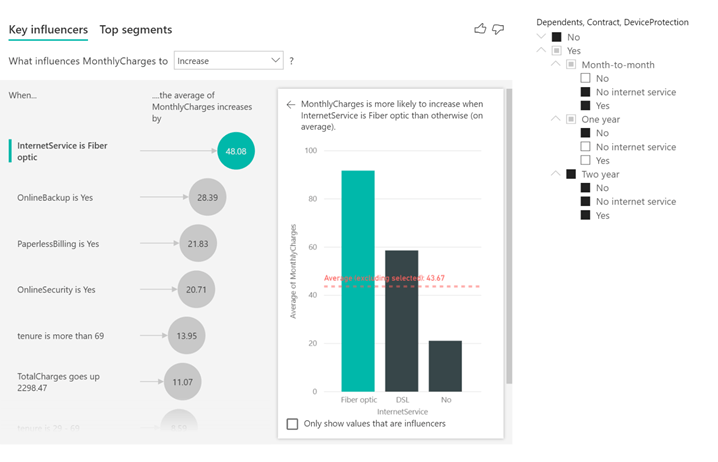
What caught our attention is the hierarchical slicer that is now supported by AI visuals.
Microsoft also provided an example where you can see that the hierarchical slicer is cross-filtering the Key influencers visual.Power
AI Insights available for everyone
Microsoft also announced that the AI Insights from the Power Query is now generally available.
AI Insights give you access to a collection of pre-trained machine learning models that enhance your data preparation efforts.
These include text analytics functions (sentiment scoring, key phrase extraction and language detection), image detection as well as connectivity to Azure ML models.
The complete list of Power BI updates
Here’s the complete list of June updates, as they appear on the Power BI blog:
Reporting
Enhancements to mobile layout authoring
New phone emulator
Updated visualization pane
Support for overlaid visuals
Automatic page refresh is now generally available
Hierarchical slicer is now generally available
New options for expand/collapse icons
Icons now scale with font size
Ability to customize indentation for child items
Supported with AI visuals
Modern ribbon is now generally available
RLS is now supported for Featured Tables in Excel’s Data Types gallery
Analytics
AI insights are now generally available
Visualizations
Line chart dot formatting options
Radar chart by MAQ Software
ValQ for Modern Visual Planning
Advanced Trellis by xViz
Updates to Gantt chart by xViz
Updates to Cards with States by OKViz
Template apps
Agile HR Analytics
Uber User Data Report
Modeling
Model view enabled for live connect (preview)
Updates to Model view
Data connectivity
Palantir Foundry connector
Other
New Power BI trainings
Do you use Power BI? What do you think about the new update? Tell us about your experience in the comments sections below.
The Your Phone app lets you pair your Android or iOS device with your Windows 10 PC. Originally, the application only enabled you to view some of your phone’s content on your desktop. But it’s got more sophisticated to the point of letting you drag and drop files or images between your smartphone and PC.
Now, you can control media playing on your Android or iOS device within the phone-desktop linking app.
Your Phone app gets media control functions
The Windows 10 application has been updated with the ability to control the music or audio apps running on your smartphone. Microsoftannounced the general availability of the new feature when it released Windows 10 build 19645 to the Fast ring.
This feature lets you control your music and audio apps from the Your Phone app. Now you can access and control the audio apps playing from your phone directly within the app, without needing to split your attention between devices or breaking your workflow.
So, now you can play, pause, or play next/previous audio file with your eyes focused on your desktop, rather than smartphone.
In addition, the app lets you control audio apps running on your smartphone. Supported applications include YouTube Music, Google Podcast, and Spotify.
While build 19645 only shipped to a group of Windows 10 insiders, the media control update is available to all users.
However, Microsoft is not pushing the feature via an automatic update. That’s why the company recommends you update to the latest versions of the Your Phone app (for your mobile device) and Your Phone Companion (for your PC).
Also, be sure to update to the latest version of Windows 10 or at least use Windows 10 October 2018 Update.
We created a guide to help you get started on the new media control experience available in the PC-phone linking app app. You may check it out anytime!
Any thoughts or experiences with the Your Phone app? As always, you can leave any suggestions or questions in the comments section below.
It seems like if you got the new Windows 10 2004 update, you also got a new Feature Experience Pack.
An app with the exact same name appeared in the Microsoft Store since last year in December and it’s still there but it doesn’t give you anything to work with.
Now, the folks from ZDNet spotted it and also provided a few clues on what’s going on.
What is the Windows 10 Feature Experience Pack?
This package is installed on every PC with the May 2020 Update and up, including the latest Windows 10 build 19645.
You can see by yourself by going to Settings, then System and System information and scroll down to Windows specifications. You will see a new item there called Experience.
Although Microsoft didn’t say anything about what it is and what it contains, you can see a reference in the Features on Demand package.
Feature Experience Pack mystery lifted
The Windows Feature Experience Pack is a part of the Features on Demand for Windows 10 and Windows Server, as listed in a Microsoft document listing the Available Features on Demand.As you can see from the caption above, the package is only 44.15MB and it contains Windows Client Shell Components and some featurescritical to Windows functionality.
Microsoft also added the warning to not remove this package.
The Features on Demand package also includes Internet Explorer, Notepad, the DirectX Configuration Database, Paint, PowerShell ISe, Quick Assist, the Print Management Console, and more.
AMD’s powerful Ryzen Threadripper CPUs have left behind its competitor with high core count and reasonable price tag. That said, these powerful CPUs need an equally powerful motherboard that can withstand the workload combined with sufficient cooling.
X399 motherboard perfectly compliments the Ryzen Threadripper chipset. The X399 series of motherboards offer all that you need to push the processor to its limits, provided that you can take care of other requirements like sufficient cooling and power supply.
In this article, we explore the best X399 motherboards that you can buy today that can help you build your workstation with top of the line computer hardware for best multi-core performance.
With plenty of connectivity options and decent aesthetics, the ASRock X399 Taichi sTR4 is one of the most affordable X399 motherboards available in the market today. It offers reliable performance with UEFI BIOS.
ASRock X399 Taichi sTR4 supports the AMD TR4 socket Ryzen Threadripper series CPUs. It comes with a high-speed wireless connection, 8 SATA port, 3 Ultra M.2 slots, 10 GB/s LAN port, and 12 UBS 3.0 ports along with other usual connectivity options.
On the flip side, the board lacks detailed overclock tweak settings, and also the RGB LED isn’t the best in class.
ASRock X399 Taichi sTR4 due to its affordable price tag and good aesthetics is an excellent choice if you are looking for a value for money X399 motherboard.
GIGABYTE X399 AORUS PRO is the company’s second socket AMD TR4 motherboard for the AMD 2nd Gen Ryzen Threadripper CPUs. The board is a tuned down version of X399 Gaming 7 to achieve the affordable price tag.
Talking about cost-cutting, the board no longer runs the entire length of the PCB, and only one out of three M.2 slots come with a heatsink. It supports quad-channel EEC DDR4 memory at the maximum speed 3600MHz. For connectivity, Gigabyte has included USB 3.1 Type-C interface, Intel LAN, and 4-way graphics support with dual armor and durable design.
GIGABYTE X399 AORUS PRO is one of the most affordable X399 motherboards from a reputable brand that comes with decent I/O support and excellent performance for the price.
The ASRock X399 Professional Gaming as the name suggests is marketed as a motherboard for advanced gamers who wants to build a 2nd Gen Threadripper system with the main focus on gaming.
The ASRock X399 Professional Gaming is the most feature-packed X399 motherboard from the company and comes loaded with features that professional gamers may not utilize at all.
It comes with IR Digital PWM, 11 power phase, and Dr. MOS support out of the box. There is plenty of room for storage as well with 8 SATA 3 ports and 3 M.2 slots, this motherboard offers superfast data transfer. Other features on the board include Bluetooth 4.2 support, USB 3.1, and 10 GB/s LAN port.
ASRock X399 Professional Gaming is an excellent choice for advanced gamers who are not big on flashy LEDs and aesthetics as this board is all about elegance.
The GIGABYTE X399 Designare EX is the company’s flagship X399 motherboard that is marketed at advanced professionals looking for reliability and rigidity.
GIGABYTE X399 Designare EX boasts quad-channel 3600MHz DIMMs, front and reader USB 3.1 Type-C interface, built-in WiFi module with support for dual-band 2.4/5GHz connection, and EGB lighting and RGB strip headers for those who like it.
The sheer number of USB ports is one of the main highlights of the board. With over 8 USB 3.1 ports at the rear panel and two front USB ports, you have plenty to connect all your peripherals without using a USB Hub.
The ASUS ROG Zenith II Extreme TRX40 perfectly complements the latest AMD 3rd Gen Ryzen Threadripper processors offering maximum connectivity and speed with up to five M.2 slots, USB 3.2 support, and AMD StoreMI functionality.
The ASUS ROG Zenith II Extreme TRX40 is an aesthetically pleasing motherboard with all the bells and whistles that you can ask in a high-end motherboard.
Apart from the best in class RGB LEDs and an OLED display, this motherboard offers the best in class performance and overclocking support for your beastly Ryzen Threadripper chip.
Zenith II Extreme boasts PCIe 4.0 support, WiFi 6, 16 power stages for optimized power solution, and comprehensive thermal design with active-cooling VRM heatsink, fan extension card, and water-cooling zone.
If you are upgrading from your AMD Ryzen 2nd Gen CPU to 3rd Gen Threadripper, Asus ROG Zenith II Extreme is the best of the lot.
Unlike the latest 3rd Gen Ryzen CPUs, the 2nd Gen Ryzen Threadripper has a very limited selection of motherboards. That said, all the motherboards listed in the article above offer excellent performance and best in class features to help you make the best of your powerful Ryzen processors.
Instead of going for the most feature-packed and the expensive X399 motherboard, go through the list and pick the motherboard that meets your requirement the best.
Mangastream is (or was) pretty much the go-to website for online manga readers. Mangastream is classified as a scanlation website. It used to provide a scanned and translated copy of the original comics in other languages.
However, the website recently vanished from the web with a 404 error for everyone trying to access the website. While the disappearance of Mangastream may have come as a shock for its readers, there are plenty of Mangastream alternatives that you can try.
In this article, we have put together a list of popular Mangastream alternatives to read manga online for free. Some of these alternatives are known to release WSJ series episodes even before the official release, so you don’t need to worry about missing out on the latest episodes of your favorite manga series.
MangaOwl is one of the best alternatives to MangaStream as it offers some WSJ series episodes even before the official release. You can choose from over 53 genres of Manga including that includes Action genre as well.
MangaOwl allows you to continue reading from where you left off. You can read and stop anywhere and then continue without having to remember where you left off.
The user rating system makes it easy to read Mangas that are highly recommended by other manga readers. Users can also submit Manga from the collection section.
If you want to read manga online for free without the annoying ads, try Mangadex. It offers high-quality manga series online with support for scanlation groups.
Mangadex offers one of the largest collections of Shonen, Seinen, and Josei comics. The comics are available in over 20 languages making it one of the largest manga sites with multi-lingual mangas.
The users can form groups for sharing and uploading manage series. You can also read alternative fan-fiction ending and official crossover manage series if you are into these things.
Users can interact in the forum or through the dedicated community forum to discuss their favorite manga with other readers. However, on the flip side, Mangadex seems to be missing some newest releases of popular manga series from its website.
MangaFox offers the latest manage comic book online for free. The manga library at MangaFox is updated daily. Users can read the mangas online or download the MangaFox app to access it from their mobile devices.
That said, the app is not officially available on Google Play Store and App Store for iOS devices. You can download it from the official Mangafox website as an apk and install it manually.
There are two MangaFox websites – Mangafox.net and Mangafox.online. While both of these websites offer manga comics, Mangafox.net offers a better user experience and collection of comics.
MangaHere is one of the most popular MangaStream alternatives with its ever-growing manga collection of over 10,000 comics in its directory. Similar to other free manga websites, MangaHere changes its URL extension frequently due to DMCA issues.
MangaHere offers multiple genres of manga, including action, comedy, drama, fantasy, romance, and school life. All the collection is categorized into one of these sections, making it easier to access your favorite genre.
The comics can be read online or through the mobile app using the MangaZone app. Needless to say, due to the nature of the app, it must be installed manually using the app.
MangaPark is yet another online library for manga readers offering a free and large collection of manga comics in multiple languages. Users can keep a tab on their reading history by creating a free account.
Users can browse the latest manga or find something genre-wise. The Surprise option recommends a new manga depending on the user interest.
You can sort through the best manga using the rating system. The users can discuss the characters or leave the request for more chapters in the comments.
From the most popular manga to the newest releases, Manganelo offers one of the largest collections of manga on the internet.
You can begin reading the manga as a guest or create a free account for more features such as bookmarks, reading history, and other customization options.
Manganelo lists the manga by genres that include adventure, action, cooking, historical, and harem, among others. Readers also have an option to rate the manga.
All the chapters from a manga is presented in a scrollable list, making it easier to navigate. Users can bookmark the chapters for future access.
MangaFreak offers the latest chapter of all your favorite manga online. Despite a decent collection of manga on offer, the site is not as popular as other MangaStream alternatives listed above.
One of the unique features of the MangaFreak is the ability to download manga comics to your devices for offline reading. Additionally, users can bookmark episodes to continue from where they left off without creating an account.
On the flip side, MangaFreak is ridden with in-page as well as pop-up ads that can be annoying for some users. However, that is not something our best ad-blocker browsers cannot fix.
All the MangaStream alternatives listed in this article are free to read and browse. With the manga scanlation sites shutting down one by one (some being forced and some out of respect for the original publishers’ work), these alternatives can help new manga readers in getting familiar with the world of manga comics.
Go through the list and let us know your favorite MangaStream alternative in the comments.
Kayla Cinnamon, the Program Manager at Microsoft, announced in a cheerful tweet that she and her team published the roadmap for Windows Terminal.
The schedule includes every step until the final push to Windows Terminal 2.0 for general public programmed for 2021-05-31.
Windows Terminal 1.0 was launched in May, during the Microsoft Build 2020 event and it’s a terminal application for users of command-line tools and shells like Command Prompt, PowerShell, and WSL.
Many commenters say that Windows Terminal, together with Windows Power Shell will sign the retirement papers for Command Prompt but nothing is written in stone yet.
Windows Terminal roadmap
The Github document details much of the updating procedures and roadmap until the next year’s spring:
The Windows Terminal project is engineered and delivered as a set of 4-week milestones. New features will go into Windows Terminal Preview first, then a month after they been in Preview, those features will move into Windows Terminal.
So, every month we will see a preview and a final version for the Terminal.
New Windows Terminal features and priorities
The Microsoft Team even laid down a list of features (they call them Scenarios) that either fix some issues with the current Windows Terminal 1.0.
Of course, every such scenario comes along with priority grades from 0 to 3, 0 being the most urgent.
The most commented and awaited feature on Twitter seemed to be the Quake mode. No, Windows Terminal is not going to run Quake (unfortunately).
The Quake mode is actually providing a quick launch terminal that appears and disappears when you press a hotkey.
Other interesting new features described by Microsoft include:
Settings UI – A user interface that connects to settings.json. This provides a way for people to edit their settings without having to edit a JSON file.
Command palette – A popup menu to list possible actions and commands.
Tab tear-off – The ability to tear a tab out of the current window and spawn a new window or attach it to a separate window.
Clickable links Hyperlinking any links that appear in the text buffer. When clicking on the link, the link will open in your default browser.
The Microsoft Edge transformation is still underway, with new features coming to it as build 85.0.538.0 goes live in the dev channel.
Microsoft announced a couple of features it was adding to Edge during the recently concluded Build 2020 event. From Collections integration with Pinterest to Sidebar search and automatic profile switching—these improvements are vital to the success of a browser playing catch up behind Chrome and Firefox in terms of popularity.
Well, the latest Edge update introduces new features, improvements, and a couple of functional fixes.
Microsoft Edge update fixes
Edge update 85.0.538.0 brings a couple of improvements on the user experience. Solved issues include:
Crashing of the browser when you launch an InPrivate or Guest window.
PDF launch failure.
Using the Edge Touch Bar when playing video on Mac would cause the webpage to crash. Your Touch Bar experience is now optimized.
Thanks to the update, Collections shouldn’t be crashing all too often.
Uninstalling a site set up as an app on your PC should now go smoothly.
You should be able to import passwords from another browser without too many glitches.
Apart from the above issues, build 85.0.538.0 addresses erratic behavior in Edge, including the disappearance of the mouse. It also fixes audio problems when using specific Bluetooth speakers.
There are a couple of changes to these other Edge features:
Touch Bar
Apps menu
Downloads management page
Added features
The latest Edge update brings support for more languages for translating webpage text.
Other new features are:
Added support for the TLS Cipher Suite Deny List management policy. Updated Administrative Templates to come later.
Added the Win HTTP Proxy Resolver Enabled management policy to control how Microsoft Edge interacts with the Windows proxy resolver. Note that this policy is already deprecated, and Administrative Templates will come later.
How would you rate your Microsoft Edge experience so far? Feel free to share your thoughts via the comments section below.
For those unfamiliar with it, Your Phone is a Windows 10 app that pairs your Android device with your PC and provides you with interaction with it.
You can see the messages and notifications from your phone and lately you are even able to see the photos from your phone and even to make and receive calls.
How can I use the new music controls in Your Phone app?
The new feature was available in beta testing since April but now it will be available for everyone running Windows 10 version 17134.0 or higher.
That allows you to use the Windows 10 app to control music and certain audio apps from your Android phone. It’s easy to use the feature following these simple steps:
Open a music player from your Android phone and hit play on any song. It supports popular streaming apps like Spotify, Pandora, Amazon Music, Google Play Music, and Google Music. In this example, we used Google Play Music.
Start Your Phone App from your Windows 10 computer. You should see the player window on the bottom-left part of the window.
You can now use the controls from your phone’s player. You can also see the player you’re using, the song details and even the artwork.
Note: Make sure you also keep Your Phone Companion app from your Android phone updated to experience the feature.
Your Phone app future function
Your Phone app got much attention from Microsoft lately and they don’t seem to slow down any time soon. The most important future iteration will be picture-in-picture.
Microsoft will probably call this Compact Overlay. It will let you view an app in a small window while looking at something else in other parts of the screen.
When an app is running in this mode, it will float on top of other bigger windows. That way, you can still do other things like watching a video.
Without overshadowing the excitement of a good classic real-life board game, online chess has become increasingly popular starting with the 1990s and the introduction of Microsoft’s basic chess game.
Nowadays one can find a multitude of possibilities to stay focused on a virtual chessboard, from specific chess apps for mobile of Windows, to specific chess software for Windows.
Not to mention Chess Tutor, a software that anyone can use to better their chess technique.
And then there’s also the multitude of online chess games, which allow amateur players to play just occasionally, but also to join huge chess communities worldwide, where they can share tactics and learn strategies.
In this article, we’ll be looking at some of the best sites where you can play online chess.
Quick Tip:
Think you could get better at chess with the right help? You should try AI software that analyzes every move you make and every chess match.
DecodeChess uses an algorithm created by a grandmaster in chess that will find all your flaws and suggest new and better strategies on the go.
DecodeChess
Learn new strategies, see your mistakes and win against any opponent.
At the moment, Chess.com is the largest community of chess players from all over the world, with over 28 million members, and over 1 million online chess games hosted daily.
It’s a community where there’s a place for everyone, no matter if you’re a beginner or an expert. The dynamic is fantastic: not only you can join live games and compete against reputable opponents, but you can also find correspondence-style games, read useful articles, follow live events and tournaments, and join forums.
Signing up is free, as is the basic membership. But to enjoy the full experience and gain access to extra training features and videos, you need a paid membership.
Considerably smaller than the previous community, the one a Lichess is similarly important.
The website provides a variety of online play modes as well as training materials and learning tools. You can opt to play standard chess games, choose your opponent, and even create your own chess game.
Since the chess community is not that large, you might find an opponent a bit harder, but the website is an excellent learning open source.
Membership is free, but of course, donations are encouraged.
FICS is one of the oldest internet chess servers, with a still strong community.
It’s a good place to start with an occasional game, and then move on to more serious games against other players or strong computers.
They don’t have an official interface, though, so in order to play you need to download a compatible interface, depending on your device. Most interfaces are free.
Another great online source to play free chess, watch live games or tournaments, and improve your chess moves.
Membership is free and recommended to have access to all the tools they offer, plus access to all other ChessBase Web Tools.
Besides playing regular games or blitz games, you will be able to even store your own games in the cloud for further analysis and improvement, take chess quizzes to study previous strong games.
As the homepage says, Red Hot Pawn is a perfect place to enjoy just a basic chess game on the spot, against a computer. You have to sign up for customizable features, and also to be able to record your games and moves, to pause and resume games at a later time.
You can also download their dedicated app for Android or iOS and enjoy correspondence chess games.
For premium paid membership, you get access to training material and other features, as expected.
Chess Tempo – Good variety of difficulties against players
Whether you fancy some live chess or just a correspondence chess game, Chess Tempo is always a good option. You can choose an opponent based on their ratings, and you can opt for a blitz game or a longer one.
And if you want to improve your moves, this is the place to be, since you can find specific training from opening to endgame or just tactics.
Free membership offers just enough features for an amateur player.
With Gameknot, once you register (for free) you have instant access to correspondence chess games only, tournaments, annotated games, and whole chess database.
You can even play several chess games online simultaneously and try different strategies.
Give it a try whenever you are at your computer and have the knack to make a move.
And with this, we end our choices. We’d like to hear about your favourite website to play online chess so drop us a line in the comments section below.
Who doesn’t like to show off as a wordsmith from time to time? But to do that, you need to practice your vocabulary and what better way to do it than fun word games.
Besides easy games for kids, there’s a whole bunch of free online word games that adults can play over and over again. We’ve picked some of the easiest and most addictive word games that you can find.
Word Wipe is developed by Great Day Games and can be really challenging if you’re not focused.
You are given a board full of scrambled letters and you have to join adjacent letters to create words, and clear as many rows as you can. The more letters you join, the higher your score gets.
You might feel a bit time-pressured, tough. You can turn off sound to get fully immersed in the game.
This is a classic crossword game, with a very plain design, but a good way to unwind and expand on your vocabulary.
There’s no time limit, but you have a very discreet clock in the left corn of the board just to remind you how time flies. And believe us, it does, because it’s not that easy to complete the game.
Scramble Words by AARP is an addictive word game in which you have to unscramble a bunch of 5 letters to make as many words as you can in the allotted time.
While it can completely draw you in, the background music can be a little annoying at times. This is also why after a while, the game can get tedious.
Word Zen is a game developed by Big Fish Games, in which you are given a board full of letters that you have to combine to create words.
As expected, if you create longer words, you get more points, and you complete the game faster. But, as you eliminate letters, it gets harder to also find words.
In the full version of the game, you get 4 levels of difficulty and over 100 levels to get to.
An interesting detail is that you can play this with family and friends, creating separate profiles to compete against each other.
So these were our 5 best word games that we found interesting. We would like to hear your opinion on this topic, so feel free to use the comments section below.
The core experience of Microsoft 365 is collaboration and sharing documents. You likely already share documents in OneDrive, Microsoft Teams, Outlook, and other apps across the service. So, what if you’re looking for one central hub where you can see how documents have been shared across your organization, and what you have shared yourself?
That’s where Microsoft Delve comes in. The Microsoft 365 app can be used to discover and organize the information that is most interesting to you on any given day, from across Microsoft’s apps and services. You even can create a profile, too, where your coworkers can get to know more about you. So, if you’re curious about how Microsoft Delve works, here’s a quick tour and guide.
Finding and sharing documents and content in Delve
Once you sign in to Delve or choose it from the Microsoft 365 app launcher, you’ll be sent to the Home experience. From home is where you’ll get an up-to-date overview of what you and the people you work with are working on. This highly personalized area shows documents from OneDrive for Business or SharePoint that are likely to be most interesting to you right now. Powered by the Microsoft Graph, the things that show up in Delve may include Office documents, PDF files, SharePoint site content, images, and more. You also might video shared in emails, if they’ve been saved to Stream. If you’re looking for something specific, you can use the search box, too.
Keep in mind, though, that your documents are safe. Delve never changes permissions and only you see your private documents on Delve. Other people can see that you’ve modified a document, but only if they have access or if you’ve given them access to the same document. Documents are also not stored in Delve, and are pulled from SharePoint and OneDrive for Business, so everyone has their own view. You see your private documents, and other people see theirs. More information about this is available here.
Anyway, each document or item in the home will be represented as a tile. You’ll also see a profile photo for who uploaded or owned the document and item. There’s also a number on each tile, showing you how many views or how many times the document has been opened.
As expected, you can click the tile to open the document. But you also can click . . . more options to send a link, copy a link or check on who can see the file. Additionally, on the bottom left side of each tile, you will see two options. One will allow you to favorite the item to see it later. You’ll have quick access to all these favorites from the favorites section in the sidebar. Another option also allows you to add it to a board, which we discuss next.
Boards in Delve
The Board
Another core experience of Delve is what is known as a “board.” This “board” can be a collection of different items that you feel share a similar theme or content. If you haven’t already created one, a board can be crafted by clicking the manage board icon (it looks like three squares stacked on top of each other) on the lower-left corner of a card in the Home experience. You also can add an item to an existing board by typing out the name.
Once created, the items that you add to a board will show up within a few minutes for other Delve users who have access to them. You will also see a new board section appear on the bottom left side of the sidebar of Delve. Keep in mind, though, that not all content types can be added to boards. If the manage board icon isn’t available on a card, you can’t add that content type to board.
Your Profile
Much like Facebook, Twitter, and LinkedIn, Delve allows you to have a profile page. This profile page can be accessed by clicking on the Me section in the sidebar. Your Profile has your contact information, and additional information such as your photo, a custom-background image, your role, schools, skills, and much more. You can edit this at any time by clicking the Update Profile icon. Edits are saved automatically, but you can save at any time by clicking Save. All information with the small globe icon is also public for everyone to see. However, some information, such as your name or title, may be collected from your IT department and can’t be changed.
Keep in mind, though, that your profile page will be visible to everyone in your organization. When other people visit your page, they can see your contact information and connect with you directly. They can also see who you’re working with, and what documents you and people around you are working on. Importantly, though, they will only see documents that they already have access to and not your private documents that have not been shared.
The profile is a key part of Delve, as you’ll be able to click someone else’s profile page with the People link in the sidebar. This will give you information about them and what they’re working on. You’ll see what people they’re connected to, and a selection of popular documents from people around them — if you already have access to them. Contact information shows up as well, and a small graph showing availability times, so you now when the person is in and out of office.
Find the Microsoft 365 content that’s most relevant to you
Tracking down documents across OneDrive and Teams can be hard sometimes, so Delve is something that is much appreciated. It makes finding Office documents and the content that is most relevant to you much easier. Check out Delve now today, and let us know how you’re liking it by dropping us a comment below
Keeping the optimal temperature of your computer processor is vital for its health. Processors that oftentimes get too hot can lead to severe hardware or software problems, eventually to BSOD, sudden shutdown, or freeze.
But, as you know, when gaming or working on certain programs that require a lot of processing resources, your computer tends to heat up. This also happens when you keep your laptop on your lap or on a blanket, blocking its cooling system.
But there are a few ways to check on the temperature of your device and we’re going to explain to you how.
How can I check the temperature of my CPU?
What’s the ideal CPU temperature?
Unfortunately, there’s no standard good or bad temperature when it comes to CPUs. But for each processor, there’s a Tj. Max, or a temperature junction, is the highest operating temperature up to which the processor works properly.
You can check online for the limits, depending on your processor.
Ideally, if you keep your processor just under 60° C you’re OK, while a temperature between 70° C to 80° C means an overworked processor, and you should see what’s blocking the fans. Anything above 90° C might cause your device to shut down.
That’s it! If you have other suggestions for CPU temperature monitoring software, just drop us a line in the comments section below.
How to check CPU temperature
1. Check temperature in BIOS
Restart your computer.
Enter BIOS by repeatedly pressing Delete, F1, or F2 (depends on the computer).
In BIOS, go to over the different tabs until you see the CPU settings.
Here you should see what you’re looking for under CPU Temperature. The temperature is typically shown in both Celsius and Fahrenheit.
2. Use third-party free software
There are a bunch of third-party programs that you can install for free and that is considerably hassle-free compared to the previous method. Most of them don’t clutter your computer, so they’re safe to use.
What’s more, you can customize their features so that you can see exactly what you’re interested in.
Speccy is a lightweight app developed by CCleaner, the popular developer of PC optimization software of the same name.
It comes as a bundle of system diagnostic features, including the ability to check CPU temperature in Windows 10. With a single click, you can get useful information about your PC’s hardware details such as motherboard, RAM, graphics cards, and more.
You can also see the CPU temperature in the system tray by going to View > Options > System Tray > Minimize to tray, and checking Display metrics in-tray.
Core Temp is an app that monitors and displays in real-time processor temperature and other vital information.
It can show the temperature of each individual core of every processor in your system and inform you of your processor’s Tj. Max, which is the highest temperature level beyond which your CPU starts overheating.
The app displays the temperature in the system tray, by default. If not, you can enable this from Options > Settings > Windows taskbar.
When installing it, make sure you uncheck other included bundle features.
Open Hardware Monitor is also free software that monitors your CPU temperature, as well as fan speeds, voltages being used, load and clock speeds of your computer.
With this app, you can get in one view detailed information about each Core your processor has.
As expected, you can opt to see a specific Core temperature in the taskbar, by right-clicking on each Core temperature and selecting Show in-tray.
A software that can monitor your CPU’s running temperatures is a helpful tool to have if you’re having computer problems or want to stress test your newly-built PC to check everything is working properly.
You can check other PC specs using the CPU Z tool for a more in-depth review.
Have you tried any of these tools so far? Tell us your opinion!