Microsoft May 2nd Media event, my photo recap

As you likely know, I was in attendance today at Microsoft’s Media event, running a live blog and sending in photos and videos for OnMSFT. A lot happened at this event, including the reveal of Windows 10 S, Surface Laptop, and much more. To relive the event from my eyes, you can check out a few of my favorite photos from the event below (all snapped by yours truly!)

The Venue for the event
Stage for May 2nd Microsoft Education Event
Satya Nadella May 2nd MIcrosoft EducuationEvent
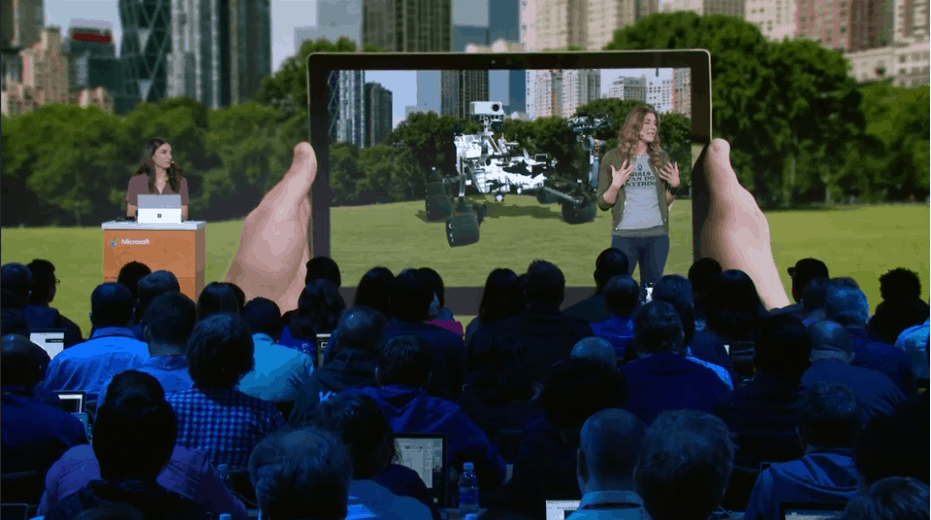
Satya Nadella at the May 2nd Microsoft Education Event. He discussed how Microsoft promotes learning through collaboration.
Terry Myerson Windows 10 S & Acer HEadsets
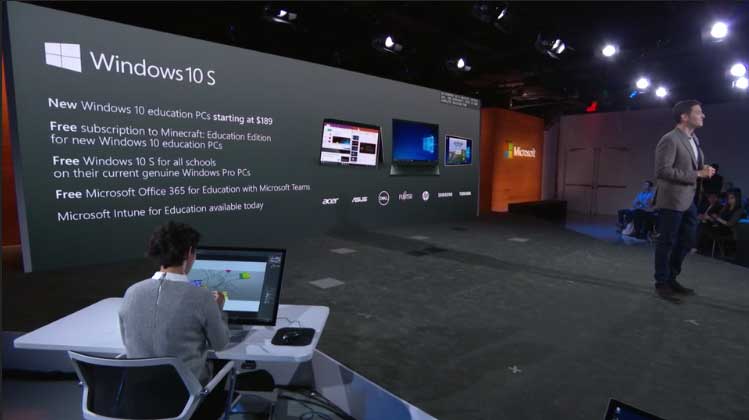
Terry Myerson introduced and talked about Windows 10 S, Windows 10 S devices, the Acer Headset, and Office apps in the Windows Store.
Microsoft Teams Educuation
There was a demo of how Microsoft Teams is being used in education
Demo of Acer Mixed Reality Headset
An on-stage demo of Acer Mixed Reality Headset & how Mixed Reality can be used in education.  Also mentioned was View Mixed Reality, the ability to show live scale 3D models in comparison to reality.
Panos Panay Surface Laptop
Panos Panay appeared on stage to reveal  Surface Laptop
Panos Panay Surface Laptop Offstage
Panos Panay briefly came off the stage to show a media member a personal closeup of the Surface Laptop!
Surface Laptop Showroom Floor
Surface Laptop was the highlight of the show. Here is where Microsoft kept the device on the showroom floor.
Surface Laptop Hands on
I was able to get hands on with the Surface Laptop!
Surface devices
Microsoft showcased all the Surface devices

The event was a very amazing experience for me as a Microsoft blogger, so be sure to keep it tuned to OnMSFT, as myself and my colleagues will be here to bring you the latest news.  Also fell free to check out our hands-on video with the Surface Laptop, and our quick look and overview of Windows 10 S.

Frequent Dragon Quest Heroes bugs and how to fix them

Dragon Quest Heroes is a hack-and-slash action game that sends you on a new adventure to restore order to a once peaceful world now filled with monsters. As a player, you’ll engage in epic battles with up to four players that can play in cooperative multiplayer to defeat a common threat.

However, this is not the only challenge you need to worry about. Gamers report that Dragon Quest Heroes is sometimes affected by a series of annoying technical issues and in this article, we’re going to list the most common Dragon Quest Heroes issues reported by gamers so that you know what to expect. At the same time, we’ll also list the corresponding workarounds, if available.

Dragon Quest Heroes reported bugs

White screen when starting a battle

When I engage a tough opponent like the one that is in the Oasis, the screen turns white and I can hear action going on, and if I’m lucky can win the battle blind, but it happens with other tough monsters like this and with different settings. Any one else have this problem?

If you’re experiencing this issue, try turning Volumetric Fog back on if it’s off.

Game crashes

well as the title say’s I cannot start the game without it crashing on me I try’d window and fullscreen to see if that would be a work around but im having no luck someone help please?

If you’re running Windows 7, try installing KB2670838. Also, install the latest OS and graphics driver updates on your machine.

Dragon Quest Heroes won’t launch
Players report that the message “Preparing to Launch” appears on the screen but the game then suddenly closes without actually launching.

Players can’t switch character

After one of my party members was downed in the fight with the first boss in the desert, I am unable to switch characters, anyone else have the same thing or a fix?

FPS issues

I get very poor FPS even with 1920×1080 resolution and Medium details on my Notebook. My specs are:

Intel i7 4720HQ @ 2,6 GHz
NVIDIA Geforce GTX 980M 4 GB
16 GB RAM
2x 500 GB SSD

[…] So i tried to force the Game to use the NVIDIA graphics via NVIDIA Control Panel. Unfortunetately now the game is not starting anymore (when I click on play nothing happens). So I switched back to automatic selection of GPU in NVIDIA Control panel: Now the Game is starting again bur of course i still have the same issues as before.

To solve this problem, ALT +TAB out of the game and then hit ALT+ TAB to get back into the game.

These are the most common issues affecting Dragon Quest Heroes. If you’ve come across other workarounds to fix various game issues, you can help the community out by listing the troubleshooting steps in the comment section below.

RELATED STORIES YOU NEED TO CHECK OUT:

Posted in Fix

The Creators Update breaks Mobile Broadband USB dongles [FIX]

Microsoft’s latest endeavor to raise the market share of its Windows 10 operating system has produced quite a stir in the community. The Creators Update has brought a series of useful new features and improvements to the table, as well as issues of its own.

As more and more problems are surfacing in the aftermath of the update, users didn’t hesitate to voice their complaints on the most popular forums on the internet.

One such place is Reddit, where a user recently reported a problem affecting Mobile Broadband USB modems. It appears that mobile USB dongles that are also a bit old don’t fare that well with the Creators Update. Here is what user NovaSummoner had to say about the issue on their Reddit post:

When I fresh installed windows 10 I didn’t realize that I downloaded the creators update ISO. This lead to a week and a half of me writing on windows message boards and searching the internet for anyone that had this same problem. When trying to dial out with the Usb modem in my case the Mc760 from Virgin Mobile, it came back with error 633 in windows and the message “The remote computer did not respond please try again.

The solution found by this user was to get hold of another Windows installation ISO, namely the one for the Anniversary Edition of the OS, by downloading it from a Mac. While this method of getting a different ISO might not yield the same results for everyone, the user strongly encourages those who want to install the latest Creators Update to be careful. That is even more so the case if they have an internet connection based on a USB dongle. Here’s the user’s warning:

Be Careful when updating to creators update from Microsoft if you use a USB Dongle for internet. I was lucky and found a way to download another ISO but that strategy might not always work.

When the situation seemed hopeless, a helpful user by the name Otadiz appeared with a handful of solutions for users who might find themselves in the same predicament. Here are his answers to the problem for those in need.

How to fix Mobile USB dongle issues on the Creators Update

1. Go to Start > Settings > Updates and Security > Advanced Options > Defer Feature Updates.

In this manner, you won’t get the new updates right when they come out and they will be more stable by the time you get them.

2. Go to Start >Type services > Go to Windows Update > Right-click Properties > Startup Type > Disabled.

3. Go to Start> Settings > Updates and Security >Recovery Options > Go back to an earlier build.

Have you encountered any Mobile Broadband USB dongles after upgrading to Windows 10 Creators Update? If you’ve come across other fixes, feel free to list the troubleshooting steps in the comment section below.

RELATED STORIES TO CHECK OUT:

Hands on with Windows 10 S from Microsoft’s May 2nd event (video)

Our own Arif Bacchus was in New York today, running our liveblog and capturing photos and videos from today’s announcements of Windows 10 S, Microsoft’s continued push into education, and the new Surface Laptop.

Here’s Arif with a demo of Windows 10 S, running on a Dell laptop:

Windows 10 S offers educators and others to run Windows 10 in a semi locked down state, able to only download and run apps and content from the Windows Store. This new version of Windows 10, which leaked out as “Windows 10 Cloud” some months ago, and will be shipping on the Surface Laptop, as well as being available for “upgrade” for free for anyone using Windows 10 Pro, a one-way process that will lock down educational or corporate machines to the Store.

We’ll continue our coverage of Windows 10 S, Surface Laptop, and everything Microsoft as more information becomes available, stay tuned!


Search everything on your PC or the internet with Cerebro

Apple’s Spotlight is a great feature on iOS and macOS that allows you to search for things on your computer and on the web. Windows 10’s Search, the one built into Cortana, is also pretty good when it comes to searching. Unfortunately, it has its flaws and sometimes its search results are not the most accurate.

Cerebro, a great search app for Windows 10

Cerebro is an interesting app for Windows 10 and older versions of Windows that brings a similar experience to Windows as Apple’s Spotlight. Once downloaded and installed, all you need to do is press Ctrl + Spacebar for it to open. From there, you can search for absolutely anything you want. For instance, if you want to open Spotify, all you have to do is search for the app and hit Enter to open it.

Cerebro plugins

On the other hand, searching for apps on Cerebro is not the best as it can’t currently find Windows Store apps. This is a bit annoying, especially if you depend on the latest Windows Store apps.

The thing that makes Cerebro great is how it allows you to install plugins in order to expand its functionality. For now, there are almost 60 plugins for Cerebro and most of them are very cool. For instance, there’s a plugin that allows you search for questions on Stackoverflow, with answers displayed directly on the Cerebro window, while GIF fans can enjoy a plugin that allows them to search for GIFs on Giphy directly from the app.

There are lots of other plugins including one that lets you see the weather for a certain city, one for IMDB, for Reddit, Twitter, and so on.

Cerebro is not flawless as its plugins don’t always work as smoothly as possibly. The app is currently in its early development stage and you can download it from its official website.

If you’d like to help, you can do so via GitHub as Cerebro is an open source project.

RELATED STORIES TO CHECK OUT:

Dell laptops boot to a black screen in Creators Update [FIX]

Many Dell laptop owners who installed the Windows 10 Creators Update on their computers have encountered black screen issues on boot. More specifically, Dell laptops may wake to a black screen after closing and opening the lid.

The good news is that this issue affects only three Dell laptop models: Alienware 17 R4, Precision M7710 and Precision M6800. In order to restore the display, users need to perform a hard reboot. Unfortunately, the problem occurs again the next time users close and open the lid.

Here’s how one user describes this issue:

My computer update last night to the Creator’s Update and this morning I have a black screen with only the mouse cursor. It appears as though everything is there on my desktop, the cursor change changes to a single click finger when over an icon and I can type something in the ask me anything area. (cannot see what I am typing).

How to fix black screen after boot on the Creators Update

The black screen is caused by a known issue with the GeForce display driver used in these laptops models and the Creators Update.

To fix this problem, you can download and install the GeForce driver hotfix that NVIDIA has released to address this issue. You can download the hotfix from NVIDIA’s support page.

The updated display driver is also being released to these devices through Windows Update.

Have you encounter this problem on other laptop models? If this is the case, download NVIDIA’s hotfix and use the comment section below to tell us if this action fixed the problem.

RELATED STORIES YOU NEED TO CHECK OUT:

Network printers fail to install on PCs running the Creators Update [FIX]

If you own a computer with less than 4 GB of memory and you upgraded it to the Creators Update OS, you may encounter various network printer install issues.

Microsoft explains that when connecting a network printer (a WSD device) to a network with a PC that contains less than 4 GB running Windows 10 version 1703, the printer’s setup software fails to discover and install the printer. This problem did not exist prior to installing the Creators Update.

The good news is that Microsoft has already acknowledged this issue and is working to fix this problem in a future Windows update. The company also explained that the network printer installation issues are due to the new Creators Update firewall rules.

Microsoft has confirmed a known issue that may prevent network printer software from discovering and installing the network printer on systems with low memory (< 4GB).  This is due to firewall hardening rules added in Windows 10 Version 1703.

How to fix network printer install issues

If you can’t install network printers on your computer, follow the troubleshooting steps listed below:

  1. Right-click the Start menu > select Command Prompt (admin) to open Command Prompt as an admin.
  2. In the Command Prompt window, type the sc config fdphost type=own command and hit Enter
  3. Restart your PC > run the printer’s setup software again. You should now be able to install your network printers.

There you go, we hope this workaround helped to fix the network printer install issues that you encountered after upgrading to Windows 10 Creators Update. If you’ve come across other solutions to fix this issue, feel free to list the troubleshooting steps in the comment section below.

RELATED STORIES YOU NEED TO CHECK OUT:

Microsoft sneaks a new Surface Arc Mouse into today’s announcements

At one point in today’s webcast, Surface leader Panos Panay mentioned that his presentation was running behind, and that he had to keep going. Perhaps that’s why Microsoft’s latest accessory, the Surface Arc Mouse, didn’t make it into his presentation (although there were some on stage). However, Microsoft has posted a new video on the mouse:

We’re waiting for the Surface Arc Mouse, and for the Surface Laptop for that matter, to show up in the Microsoft Store, but you should be able to get your hands on one soon.

View Mixed Reality coming to Windows 10 sees through a “magic window”

Microsoft’s education media event today has been killing it ways announcers have shown the new system will help to innovate in the classrooms and implement new technologies into learning. One such feature that is planned to release on Windows 10 for the Fall calendar school year is the View Mixed Reality. Microsoft feels that the ability to show live scale 3D models in comparison to reality will build on educational experiences.

View Mixed Reality lets the user view 3D content and models through the device’s screen. Teased as being ‘available in a wide range of experience’, Microsoft says that this feature will be available for any classroom Windows 10 PC with an RGB camera including just using a plugged in webcam.

This is similar to the ‘Magic Window’ feature we’ve seen in the past. Originally, it was suspected we’d see this feature rolled out with the Windows 10 Creators Update (seen in the video above) but it looks like it was just a little delayed. It’s not yet known if this feature will be limited to the classroom through Windows 10 S yet or if we’ll see it publicly available for use.


Microsoft offers Windows 10 S, Minecraft for Education, Office 365 for Education for new PCs

Microsoft is looking to empower educators with their newly announced Windows 10 S, and it looks like they want to get it into as many teacher’s hands as possible right off the bat. During the media event today, Terry Myerson shared that it’s going to be easier for classrooms to implement Windows 10 S than any other Windows 10 version.

Partners will be offering these new Windows 10 education PCs starting at $189. Furthermore, these devices will come with a free subscription to Minecraft: Education Edition. With the Microsoft Teams collaborative software, they’ll also have access to Microsoft Office 365 for Education. If schools aren’t able to afford these cheaper new devices, any Windows Pro PCs in schools will also be offered Windows 10 S for free.

On top of all the news, Microsoft Intune for Education has also been released publicly today.

The rollout of Windows 10 S will be coming this Summer, ready to prepare for the next calendar school year.

”Something went wrong” error prevents the Creators Update installation [Fix]

With Windows 10 Creators Update, Microsoft tried to cover blind spots from the previous updates. They managed to implement more features, mostly related to multimedia and gaming. Additionally, Edge seems a bit better now.

However, in order to enjoy that abundance of features, you, obviously need to download and install the Creators Update. And that’s sometimes easier said than done. We covered a lot of update-related issues individually, but this we are addressing today is somewhat harder to overcome. Namely, a lot of users encountered an error that hardly explains itself. It’s a mystical ”Something went wrong” error that occurred with the previous major update, too.

So, today we prepared a list of possible workarounds that should help you fix this issue. If you’re unable to resolve it on your own, follow the steps below.

How to resolve the ”Something went wrong” error

Disable Antivirus/Firewall temporarily

Firstly, let’s address the best-known threat for update malfunctions. Yes, the 3rd-party antivirus solutions are known for interfering with the update feature in Windows 10. And the same goes for Microsoft’s latest release. So, you can either disable antivirus temporarily or uninstall it completely until the update procedure is finished.

In addition, it doesn’t hurt to disable Windows Firewall, too. Of course, it’s not advised to disable the Firewall permanently. In order to disable the Firewall, follow these instructions:

  1. Under the Windows Search bar, type Windows Firewall and open it.
  2. Click ‘‘Turn Windows Firewall on or off”.
  3. Disable Windows Firewall for both private and public networks and click OK.
  4. Give updating another try.

However, if you still receive the same error prompt, look down for additional solutions.

Check your language pack

Language pack seems to have a large impact on update features. Namely, some users reported that the problem was gone after they switched from their native languages to English. For some reason, the custom installed language packs corrupt the installation process. So, try changing the language and then run the Windows Update again.

If you’re unsure how to do so, follow these instructions:

  1. Press Windows key + I to bring out the Settings app.
  2. Under Settings, click Time & Language.
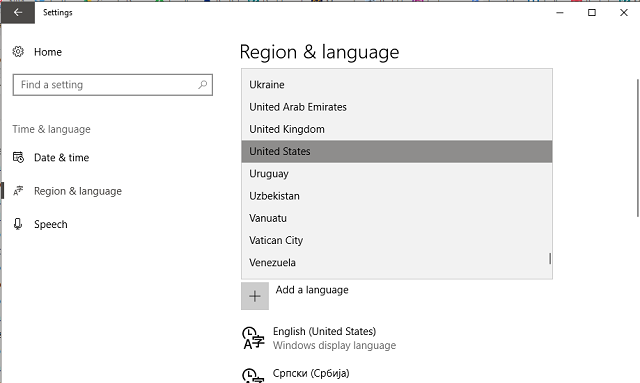
  3. Click Region & language.
  4. Under Languages click Add Language.
  5. Select any English variation. Your best bet is to go with English (United States) or English (Great Britain).
  6. Now, on Region & Language, select English and click on Set as default.
  7. After that, right-click Start and open Control Panel.
  8. Open Clock, language, and region.
  9. Click Language.
  10. Open Advanced settings in the left pane.
  11. Under Override for Windows display language, click on Apply language settings to the Welcome screen, system accounts, and new user accounts.
  12. Now, get back to Region.
  13. Under Administrative tab, click Copy settings.
  14. Restart your PC and try updating.

Check your license

Another thing worth checking out is your license. If the license is inactive or corrupted, you may get prompted with the above-mentioned error. You can check your license status this way:

  1. Press Windows key + I to open Settings app.
  2. Navigate to Update & Security.
  3. Select Activation.
  4. If your Windows 10 edition is unregistered, enter license code again.
  5. Try updating.

Install the latest drivers

Additionally, you should perform a thorough check of your drivers. Namely, users reported issues with the older devices with inappropriate drivers for Windows 10. Without the appropriate drivers, your system update may get stalled. To overcome possible issues, unplug all the peripheral devices like printers and update the remaining drivers. You can check for driver updates this way:

  1. Right-click Start and open Device Manager.
  2. Refresh for hardware changes.
  3. Right-click on the suspicious driver and click Update Driver.
  4. Repeat the action for other drivers, too.
  5. If some legacy drivers can’t be updated, uninstall them.
  6. Restart your PC and check for changes in the update department.

Disable the connection temporarily

One strange but simplistic action resolved this issue for numerous users. Namely, it seems that the swift termination of the connection can get you trough the update process. The timing is essential so follow the instructions:

  1. Start the update.
  2. While the installer is verifying the installation files, disable the wireless/LAN connection.
  3. The easiest way is to instantly enable the Airplane mode under Network icon in the Notification area.
  4. After the installer finishes the installation, disable the Airplane mode.

If you are still troubled with the same issue, there’s only one thing you can do and that is…

Try later

Yes. It’s not strange for Microsoft servers to get overrun and collapse. So, you can try again in the next few hours.

Don’t forget to tell us how that worked out for you. Additionally, if you have any questions or remarks, we’ll be glad to see those in the comments section below.

RELATED STORIES YOU NEED TO CHECK OUT:

Netflix adds HoloLens and VR support for Windows 10

Netflix is planning to build an app destined for Microsoft’s HoloLens augmented reality headset. These plans to support the HoloLens were mentioned in one of the company’s recent job listings for Senior Software Engineer promising an amazing experience to all Windows app users on a variety of devices, with the HoloLens and VR devices also included.

The original post stated the following:

Netflix is the leading video streaming service globally, and the Netflix Windows application is one of the most widely used apps in the Windows Store. Our mission is to provide a great experience to all Windows app users in a variety of devices, from desktop/laptop, to tablets and phones, as well as HoloLens and VR devices. We are constantly focused on enhancing our consumer experience around the world by building out new product features and improving performance.

Netflix plans confirmed

A Netflix spokesman confirmed the company’s plans for support “in a basic way down the road”. This means that Netflix will be a bit cautious with augmented and virtual reality, with the company having already built some basic apps for VR headsets such as Samsung Gear VR and Google Daydream.

The Netflix spokesperson said the company’s plans for HoloLens will involve some effort and emphasizes that it is still in wait-and-see mode regarding AR and VR technologies. Still, the company has started producing some 360-degree promotional footage but hasn’t yet full-on embraced VR as its own medium. Netflix CEOReed Hastings has repeatedly expressed skepticism about VR becoming anything else than a medium for video games.

The competitor’s approach

Competitor approaches are a bit different. Let’s take Hulu and Amazon, for example. Hulu has invested in its own VR content including a weekly news show and a comedy series. Amazon, on the other hand, has been keeping quiet but it seems that the company has hired people to produce and distribute VR originals. One of these recent hires included Genna Terranova, former Tribeca director who currently heads  VR content for Amazon Studios.

RELATED STORIES TO CHECK OUT:

Here are the hardware requirements for Windows 10 Cloud

Windows 10 Cloud is a cloud-based OS which will take Microsoft’s platform to a new territory. If you’re planning to try it out, don’t forget to check the hardware requirements and performance targets.

Windows 10 Cloud hardware requirements

  • Quad-core (Celeron or better) CPU
  • 4GB RAM
  • 32GB of storage for 32-bit, 64GB for 64-bit
  • Battery larger than 40 WHr (WattHour)
  • Fast eMMC or SSD storage
  • Optional pen and touch support

Microsoft’s performance targets

  • Battery life – longer than 10 hours
  • Cold Boot to Login Screen – 20 seconds
  • Resume to Login Screen – under 2 seconds
  • First sign-in (Login Screen to Desktop) – 15 seconds
  • Nth sign-in (nth Login Screen to Desktop) – 5 seconds

Microsoft wants its Windows 10 Cloud devices to compete with Chromebook’s battery life and start-up times.

Google’s Chrome OS minimum specs

  • Intel Celeron processor or comparable
  • 2GB RAM
  • 16GB of SSD storage

Windows 10 Cloud vs. Windows RT

Microsoft’s Windows 10 Cloud operating system requires better hardware than Windows 10 in some areas and occasionally looks pretty similar to Windows RT. Microsoft launched Windows RT alongside Windows 8, but the company hasn’t really mentioned the OS since the release of Windows RT 8.1. Microsoft is still pushing patches for Windows RT, but that’s about it.

Regarding Windows RT, users could only use apps that were shipped with the OS along with apps and services and only what was available in Windows Store.

Windows 10 Cloud is similar but there are two main differences:

  • The Windows Store has evolved and UWP apps deliver a better UX
  • Windows 10 Cloud comes with the possibility to upgrade the OS to a Windows 10 Home or Pro license

Microsoft is planning on establishing a Chromebook competitor through its Windows 10 Cloud, but it remains to be seen how this is going to work out for the company and if the OS will have a chance of taking down Google’s domination.

RELATED STORIES TO CHECK OUT:

Xbox head says Fable franchise could go “a lot of places”

Following the cancellation Fable Legends and closure of Lionhead Studios last year, it wasn’t clear if a true successor to Fable 3 could ever the see the light of day. A collectible card game called Fable Fortune is currently being developed by Lionhead Studios veterans, but this probably isn’t the new Fable game that fans of the beloved franchise would like to see.

Microsoft still owns the Fable IP, but the company never said what it wanted to do with it going forward. Yesterday though, Xbox head Phil Spencer answered a Fable 4 question on Twitter, explaining that the IP has “a lot of places it could go” (via Digital Trends)

As a reminder, the cancelled Fable Legends was a quite a departure from the original trilogy, as Microsoft designed it as a free-to-play cooperative game with crossplay between Window 10 and Xbox One. We don’t really know what Spencer could be thinking about, but his statement comes nearly a week after he said to The Guardian that single player, story-driven games like the original Fable trilogy can struggle to capture a big audience these days. “You’ll have things like Zelda or Horizon Zero Dawn that’ll come out, and they’ll do really well, but they don’t have the same impact that they used to have, because the big service-based games are capturing such a large amount of the audience,” he explained.

Fable 3 was released back in 2010, and it didn’t receive the same critical acclaim as its predecessors. The IP is still very valuable for Microsoft, but the company no longer has a dedicated studio to create a new Fable game. Moreover, AAA is now riskier than ever, and Halo 5: Guardians and Gears of War 4 (both games were not developed by their original creators, Bungie and Epic Games, respectively) didn’t exactly set the world on fire. We’ll see what happens in the future, but it could well be years before we eventually see a new Fable game, if ever.

Microsoft Edge updates coming to the Windows Store with Redstone 3, reports say

Nearly five years ago, Windows 8 was the first version of Windows to ship with an integrated app store, a touch-optimized version of Internet Explorer and many other “modern,” lightweight native apps. Windows 8 and Windows Store apps were poorly received by consumers, but Microsoft persevered with Windows 10, which brought a much better Windows Store and a new set of UWP apps that are much more usable for keyboard and mouse users.

As of today, the Windows Store is definitely a key part of Windows 10: it now offers entertainment content, AAA games as well as UWP apps, but Microsoft is also looking inviting developers to distribute their legacy Win32 apps available in its unified storefront. And even if you don’t use the Windows Store at all, the app will still work in the background, updating Microsoft’s native UWP apps such as Outlook Mail and Calendar, the Xbox app or even the Calculator app.

However, there is one major UWP that is not updated through the Windows Store, and that’s Microsoft Edge. This seems pretty surprising considering that third-party browsers such as Mozilla Firefox or Google Chrome have adopted a fast release cycle, with new versions being released every six weeks or so. For many of us, the web browser is our most-used apps on our PCs, and it’s not clear how Microsoft Edge could ever catch up with its competitors if Microsoft keeps updating it once or twice per year, along with major Windows 10 updates.

Windows 10 , Edge, extensions, Top 5
Microsoft Edge extensions are already available to download on the Windows Store.

However, after Edge extensions finally became available to download through the Windows Store last year, and it seems that Microsoft could finally make Edge a true Windows Store app this year. According to a new report from Neowin, the change could occur with the upcoming Redstone 3 update later this Fall:

According to internal sources, that’s all going to change in September, when the next feature update to Windows 10, codenamed Redstone 3, is released. Users will finally be able to get updates to the Edge browser via the Windows Store, which will allow Microsoft to add new features more frequently.

If this does happen, this could definitely help Microsoft Edge to improve faster than it does currently. This move would also be consistent with the upcoming release of Windows 10 Cloud, which won’t support Google Chrome or Firefox out of the box. Microsoft really needs to improve its Edge browser if it wants Windows 10 Cloud to be able to compete with Chromebooks, which ship with the very popular Chrome browser.

Do you think it makes sense for Microsoft to make Edge a true Windows Store app, and would you use it more if it was updated with new features more frequently? Let us know what you think in the comments below.

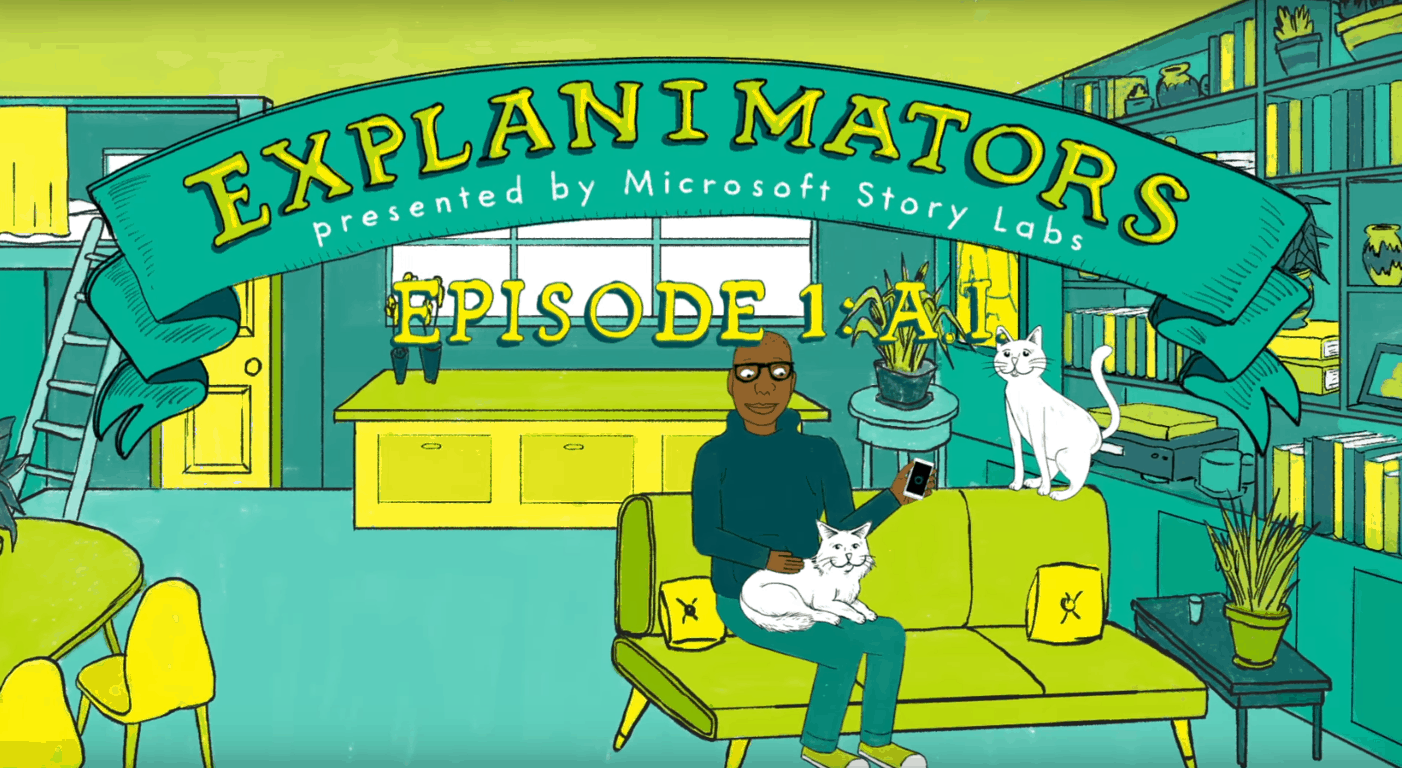
Microsoft Story Labs goes cartoonish to explain AI in first “Explanimators”

As noted by well-known Microsoft leaker, WalkingCat, Microsoft’s Story Labs is going cartoonish to explain AI in the first of what is a new series of “Explanimators.” The first story explains what is AI, how it works, and why it is only popular now.

Seen in the video above, the “explanimator” features an animated character (who is still using a Windows Phone!!) talking to Cortana. He begins by explaining what is the meaning of life, and then questions how we are supposed to “shine on” when we’re so busy trying to get stuff done.

Cortana takes over, explaining that AI can help by giving reminders and updates and that people are already using AI for all kinds of things across all kinds of devices. There is also talk of how AI is the result of a combination of advances in data, algorithms computing power, and machine learning. The video then ends with a discussion and examples of how AI can change the landscape of transit, healthcare, and business.

More “explanimators” can definitely be on the way, so if you’re interested, be sure to bookmark this web page and keep your eyes peeled for more from Microsoft. And, as always, be sure to drop us a comment below to let us know if you’ve found the latest videos helpful in our quest for understanding AI.

We’ll be at Microsoft’s May 2nd media event tomorrow, here’s what we expect

Microsoft tomorrow will be holding a media event in New York City focused on “learning what’s next.” From the unveil of Windows 10 Cloud to “Cloudbook” devices, plenty could happen at this education-focused event. We will be there live, and here’s a look at what we expect.

Windows 10 Cloud:

It is widely believed that this event will focus on Windows 10 Cloud, a version of Windows 10 which is locked to running apps only from the Windows Store. Since Microsoft is tagging the event with “#MicrosoftEDU” we might as well hear about how Windows 10 Cloud can be used in education scenarios, and more specifically about how it can be used on laptops in the classroom, instead of Google’s Chromebooks.

Secondly, since rumors also show that Windows 10 Cloud could be updated to Windows 10 Pro or Windows 10 Home, we also might hear more about the upgrade path or just about how students and IT professionals can unlock the full potential and experience of the OS.

Leaked versions of Windows 10 Cloud have surfaced in the last few months, and our own Cody Carson went hands-on with the leaked OS.

Windows 10 new hero wallpaper
Windows 10 Cloud Hero

Win32 Apps in the Windows Store:

Next up, since Windows 10 Cloud is locked to running apps from the Windows Store, we might hear more about future plans for the Windows Store. We could hear more about Project Centennial apps in the Windows Store, which are Win32 apps that are released to the Store with Microsoft’s Desktop app converter. As we noted previously, the Office apps made a brief appearance in Windows Store as “Soup” and “Sandwich,” so after several months of rumors, Microsoft could likely use this event as a chance to take the wraps off the Project Centennial desktop ported versions of these Office apps.

WordPad Project Centennial
Project Centennial version of WordPad

A Surface Cloudbook?

Spec sheets for a “Cloudbook” leaked a few days ago, so this event could also likely feature a series of new devices which run Windows 10 Cloud. While earlier rumors showed Microsoft may have a new Surface device (possibly Surface 4?) for this event, the spec sheets do not make it clear if the “Cloudbook” devices will carry the Surface branding. It’s still not clear if the Cloudbook devices will be built by Microsoft OEMs, or Microsoft itself.

The leaked spec sheet does show that minimum recommend specs for Windows 10 Cloud are rather low, including a quad-core Celeron processor, 4GB or RAM and 32GB of storage (fast eMMC or SSD.) Also shown is how Microsoft is specifically targeting Chromebooks, highlighting differences in battery life, cold boot to login screen, and first sign in.

Cloudbook Specs (image via Windows Central)

As we noted before, rumors show that Microsoft is not expected to discuss the Surface Book 2 at this event, since the focus is still on selling the Surface Book and Surface Book with Performance Base. While a bit wild (unless it is really in line with this education theme), word from Mary Joe Foley’s sources at ZDNet also show that a Surface launch could happen at the event, but the device might be more “evolutionary than revolutionary” with just Kaby Lake chips and no USB C or new power ports.

Lastly, despite what the crazy spreading rumor says about the Windows 10 Mobile version of Samsung Galaxy S8, it’s unlikely that Microsoft will discuss plans for Windows Phone (or Surface Phone) at an event which is supposedly mainly focused on Windows 10 Cloud and education.

With Build 2017 and E3 2017 just around the corner, times will be very busy at the Redmond giant. Be sure to follow us on Twitter, like us on Facebook, and keep your eyes peeled for our live blog from the May 2nd event, as we will be providing you with all the Microsoft news and information.

Laptop screen takes a minute to turn on after the Creators Update

With the Creators Update, Microsoft provided users with a lot of useful features, with a special emphasis on multimedia and creativity. The first reactions are mostly positive, but not all of the expectations were met. Portable PC’s are not exactly neglected but there’s always a room for improvements.

On the other hand, while we are waiting for those improvements, let’s take a look at drawbacks that laptop users reported after the update. One of the issues that heavily impacted overall use on daily basis is the vastly increased screen time-out.

Simply put, after the update, the screen on the laptop takes up to a minute to turn on. We’re not sure what inflicted that loading time, but there may be a solution or two available for this annoyance.

So, if you’ve experienced exact or similar issues on your laptop, make sure to check the list of the solutions below.

How to fix laptop screen pause in Windows 10 Creators Update

1. Check your hardware and GPU drivers

Even though this is most of the time software-related issue, it won’t harm you to check your screen. Maybe the unexpected pause is caused by malfunction of some kind. Connect your laptop to an external monitor and compare the behavior with the default monitor. Additionally, you should inspect these two things, before we move on to advanced troubleshooting.

First is related to a refresh rate and this is how to check it out:

  1. Right-click on the Desktop and open Screen Resolution.
  2. Click on the Advanced Settings.
  3. Under Monitor tab, set the Screen refresh rate to 60 Hertz.
  4. Click OK to confirm the selection.

Another thing you should check are the GPU drivers. If you’re running dual-GPU, check both of those and update them appropriately.

2. Check the Power Settings

Now, let’s check the Power settings. In some cases, the update may have changed some of the vital settings and that can affect the screen behavior. This is how to restore your default Power settings and resolve any power-related effects on the screen time-out.

  1. Right-click Battery icon in the Notification area and open Power Options.
  2. Click Change plan settings beside your preferred/active Power plan.
  3. Open Change Advanced power settings.
  4. Click on Restore plan defaults and confirm the selection.

Now, you can as well tweak some settings if you like, but we can only advise you to eventually disable the screen turning off. Yes, that’s not exactly the solution for this problem, but it can serve as the temporary workaround.

3. Disable Fast Startup

The Fast Startup feature is a good feature but occasionally it won’t work as intended. Basically, when enabled, Fast Startup increase substantially startup speed. It kind of resembles the hibernation mode. However, it may as well affect your laptop behavior and inflict some uncalled problems. For that purpose, we advise you to try and disable it and look for changes. And this is how you can do that:

  1. Right-click Battery icon in the Notification area and open Power Options.
  2. Click  ”Choose what the power buttons do”.
  3. Select ”Change settings that are currently unavailable”.
  4. Under Shutdown settings, uncheck Turn on fast startup.
  5. Click Save to confirm changes.

4. Run SFC

Besides the Power settings, the latest update can corrupt some of the system files and slow down the processes that were quite speedy. Like your startup, programs responsiveness and, between the rest, the screen time-out. Because of that, we advise you to use the System File Checker to check & repair the essential system files and possibly resolve the issue. This is how to use the SFC tool:

  1. Right-click the Start menu and open Command Prompt (Admin).
  2. Under command line, type the following command and press Enter:
    • sfc/scannow
  3. After the process is finished, restart your PC and check for changes in the screen time-out.

5. Update BIOS

A lot of the users denounced the outdated BIOS as the main culprit for the screen issues. For some reason, the Creators Update asks for updated motherboard in order to work seamlessly. So, you should certainly take some time researching and take the BIOS flashing into consideration. Now, there are two ways to flash your motherboard and update the BIOS:

  • Newer configurations offer direct upgrade trough BIOS settings.
  • Older configurations need a special system tool to run BIOS upgrade.

As you can see, the procedure is heavily dependent on your system configuration, and you need to look closer into that before the BIOS upgrade is performed. For further pieces of information, go to your OEM’s website. In addition, these are some risky doings, so make sure not to power off your PC until the process is finished. The damage can be substantial.

6. Reset Windows 10

Before Windows 10 users had only two recovery options: System Restore and complete wipeout, that is reinstallation. But with Windows 10, we got more than few additional options when it comes to the troubleshooting of the critical errors.

Some of them are more similar to a System Restore, others, well, more related to a re-installation. The one will be using to address today is the ”Reset this PC” feature. And this is how to use it and repair your PC:

  1. Press Windows key + I to bring out Settings app.
  2. Click on Update & security.
  3. From the left pane, choose Recovery.
  4. Under ”Reset this PC”, click on Get started.
  5. Select Keep my files. We don’t want our sensitive data gone.
  6. Click Next and then click Reset.
  7. After reset, the PC will restart.
  8. Choose ”Continue” to boot into Windows 10.

However, if this procedure failed to resolve your problems, don’t worry, it’s time for the big guns to come into play. Yes, we’re talking about the clean reinstallation.

7. Perform a clean reinstall

At the end, if all of the previous steps were conducted to little or no avail, you can turn to a ”system from scratch” approach. It never was so easy to reinstall your system as it’s now with Windows 10. Furthermore, if you’re not accustomed to the procedure at hand, follow closely the instructions presented in this article.

That should be enough to get you started. If the problem is persistent, we advise you to get your laptop to service for the more thorough inspection.

In addition, don’t forget to share your experience with this problem in the comment section. We’ll appreciate it.

RELATED STORIES YOU NEED TO CHECK OUT:

Google Chrome will support animated PNGs without extensions

Last week Google has launched Chrome 58 which is the latest stable version of the popular web browser. Version 59 is currently in the Dev Channel and it seems that Google has finally confirmed that it’s going to include fully native support for animated PNG files.

PNG files

PNG files are similar to GIFs regarding the support for transparency, but there’s a difference between the two – the fact that while animated GIFs are ubiquitous, animated PNGs aka APNGs are still not that common as the animated PNG is a relatively new file format. Unlike GIFs, however, APNG files support both 8-bit transparency and 24-bit images.

Upcoming Google Chrome version brings support for APNGs

The upcoming release of Google Chrome is going to fully support animated PNGs, according to a Googler who confirmed this in the comment regarding a bug report ticket on the Chromium web site.

According 9to5Google, on Google’s Chromium bug reporting site, there was an enquiry that was met with a response from a Google employee confirming the fact that support for APNG is on its way in the upcoming version of the browser. A user posed the following question:” Does this mean that Chrome will now have full APNG support without extensions?” and the response that came along sounded like this “Yes, Chrome 59 animates animated PNGs without requiring any sort of browser extensions.”

Extensions available via the Chrome Web Store have long added support for animated PNG files, but as you can see, this Googler said that Chrome 59 won’t require any extensions.

References to “Add support for animated PNGs” have first appeared in the Chromium open source Google Git in March, but this is the very first confirmation that the feature is going to publicly be released along with Chrome 59. The requests for adding the feature to Chrome go back to 2008.

There are some browsers such as Firefox that have long supported the format but APNG has been constantly gaining popularity, especially since Apple has made the decision of adopting the APNG file format for the iOS 10 iMessage apps.

RELATED STORIES TO CHECK OUT:

Email This for Chrome helps you save articles for later reading

Although it has now become relatively easy to save content online using a wide variety of bookmark managers, it doesn’t mean it isn’t worth taking a look at new tools in this space, tools like the new Email This extension for Chrome that can send your favorite content directly from a browser to your email in just a single mouse click.

This Chrome extension lets you save ad-free content directly to your inbox, meaning you can view the content you’ve saved whenever you want, though it is limited only to Chrome. The add-on also removes distractions and sidebars from web pages and sends you its main text and images via email.

As email client usually come built-in with mobile devices, tablets, and PCs, you need not install any additional applications to read your saved bookmarks. The tool syncs emails automatically with your email clients, so you can read your articles even when you are offline.

Extension features

  • Save any web page or article using the toolbar button
  • Save the current page with a keyboard shortcut
  • Right-click and save links without opening them. We will open up that link, extract useful content from it and send you an email with its contents.
  • Automatically adds a bookmarklet that lets you save pages from mobile and tablet devices (Chrome for Android, iPhone, iPad etc).
  • Completely free to use.

Installing the add-on is quick since it is an extension. It will then ask you to enter your email address that will work with the add-on. The tool offers several ways of sending URLs. If you want to send a link to the currently viewed article, just click the extension’s icon in the browser’s toolbar. Alternatively, you can also press Ctrl+Shift+U to email the link.

In some instances, you may find URLs that are hard to access. In this case, you can right-click on the URL to open a context menu that lets you send an email with said context. In the end, Email This for Chrome is a lightweight extension that caters to the need of Chrome users who prefer to store online content directly to their inbox.

You can download the Email This for Chrome extension from the Chrome Store.

RELATED STORIES YOU NEED TO CHECK OUT:
Microsoft news recap: Surface revenue drops, Microsoft Rewards comes to Australia and more

Microsoft (MSFT) news recap is a weekly feature highlighting the top Microsoft news stories of the past week. Sit back, grab some coffee, and enjoy the read!

Microsoft’s Q3 earnings show steady Office gains, sharp drop in Surface revenue

Microsoft has released its Q3 earnings and it hasn’t painted such a rosy picture of its Surface revenue. In fact, its Surface line suffered a 26% drop in revenue. Gaming, Office and search ad revenue all saw increases.

Surface Book Panos Panay

Microsoft backpedals to revert Azure AD login changes, vows to do better

Microsoft’s Azure team have acted to revert changes they made to the Azure AD login page, as what was dubbed a “sudden change” confused employers and employees.

Microsoft, Azure, CDN, Azure CDN

Microsoft Rewards is now live in Australia

Microsoft has launched its rewards program, Microsoft Rewards, in Australia, marking another territory it is now available in.A

Man and Woman Using Microsoft Rewards

Kaspersky won’t sue Microsoft for anti-trust, for now anyway

After David Kaspersky of security company Kaspersky once wanted to sue Microsoft for anti-trust, he’s now said that Microsoft has made a few changes and are listening to them, so they won’t sue – at least, for now, that is.

Microsoft continues to break stock price records as NASDAQ soars

Despite seeing a 26% drop in Surface revenue for Q3, it seems Microsoft’s stock price has still continued to reach highs, as it hit the 6,000 mark for the first time.

That’s all the top Microsoft news for this week – we’ll be back next week with more!

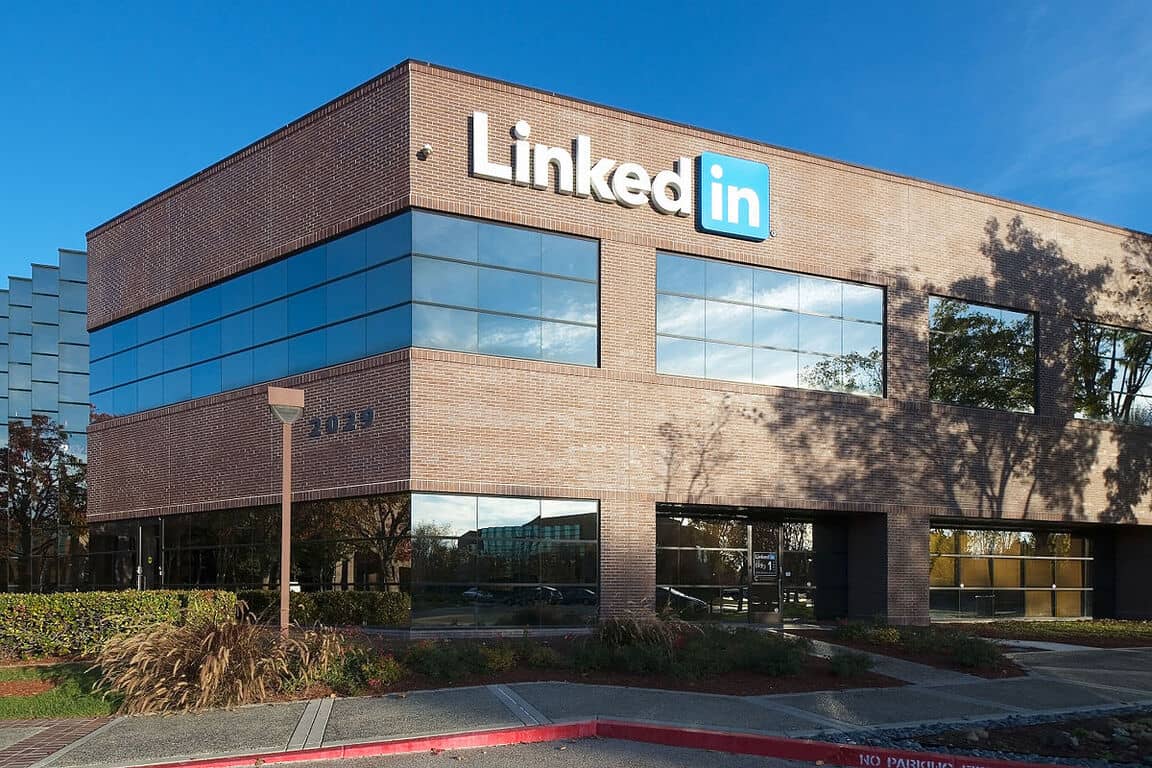
LinkedIn announces a slew of changes, bringing bots to provide suggestions and launching a ‘meet up’ feature

In an email sent out to users of LinkedIn, Microsoft is announcing a slew of changes and improvements to LinkedIn. With these changes, the company will be adjusting its Privacy Policy and User Agreement to clarify certain clauses and add additional sections.

The first two of the changes affects users’ profiles. LinkedIn profiles will now be visible to ‘service partners’, in addition to them already being indexed by search engines. Service partners will be able to find profiles more easily to deliver opportunities (such as job vacancies) to you. Additionally, LinkedIn will begin offering suggestions to add accomplishments to your profile (such as patents or publications). These suggestions will be generated through publicly available information, both on-and-off of LinkedIn.

The final of the two updates delivers two new features for users, aimed at making LinkedIn that little bit more social. Automated systems (dubbed bots) will use messages you send through the service to suggest responses to messages for you, meetings and ice breakers, so that you type less, but say more.

Finally, Microsoft is adding a ‘meet up’ feature to LinkedIn, which is similar to Facebook’s version, where users will be able to opt-in to the meet up service so you can see when people in your network are nearby and offer to meet up. LinkedIn hopes this will be used at conferences or public gatherings to meet those you’ve made a connection with.

The Privacy Policy and User Agreement will be updated on June 7, 2017. It is not clear whether these features will go live at the same time or shortly after, as the policy changes pave the way for Microsoft being legally permitted to launch them.

Let us know what you think to these changes in the comments below!

Live Home 3D for Windows 10 lets you redesign your home virtually

BeLight Software launched its new Live Home 3D app for Windows 10 a few weeks after Microsoft unveiled the Creators Update with a renewed focus on 3D content. The app is a fresh version of Live Interior 3D and lets you redesign your entire home virtually, generating models from 2D floor plans.

The app’s description on the Windows Store states:

Live Home 3D is the most intuitive and feature packed home design app, a successor of Live Interior 3D. Draft detailed 2D floor plans and watch as the structure is automatically built in 3D. Design and decorate the interior, optimizing the furniture arrangement and making smart color decisions in fully functional 3D environment. Use the results in real life by sharing your interior and taking it with you wherever you go on your Windows 10 device.

Features

  • Create detailed 2D floor plans.
  • Beautiful real-time 3D rendering.
  • Project Gallery with house projects and sample rooms.
  • Draw complete rooms using Room tool.
  • Use Arc and Straight Wall tools for drawing walls.
  • Select the necessary measurement units (inches, feet, meters, etc).
  • Use smart Dimension tool to set the distance between underlying objects or walls.
  • Apply materials, move objects, adjust light, walk around, and much more in the 3D environment.
  • More than 2,100 materials and 1,500 objects (сhoose from a rich library of couches, chairs, kitchen sets, appliances, doors, and more).
  • Import models seamlessly from Trimble 3D Warehouse (previously Google 3D Warehouse).
  • Fine tune interior lighting by setting the light color and luminosity of every light fixture.
  • Adjust natural lighting from outside by setting the time of day and geographic location.
  • Save projects (in-app)
  • Export 3D views to JPEG, TIFF, PNG, and BMP (in-app).
  • Create 360° Panorama JPEG images (in-app).
  • Render a realistic video walkthrough (in-app).
  • Create Stereo 3D Video and 360° Video (in-app).
  • Export the entire project or selected objects to COLLADA, VRML Version 2.0 or X3D format (in-app).
  • Native Support for Live Interior 3D Projects.

You can grab Live Home 3D for Windows 10 from the Windows Store now.

RELATED STORIES YOU NEED TO CHECK OUT:

Windows 10 Mobile build 15208 is now available for download

Microsoft recently rolled out a new Redstone 3 build to Windows 10 Mobile Insiders. Unlike its PC counterpart, Windows 10 Mobile build 15208 doesn’t introduce any new features and only brings only two bug fixes to the table.

With this update, Microsoft fixed the issue where some Insiders were unable to open the Connect UX page and the “Add Bluetooth or other devices” setting on the Bluetooth Settings page.

The second fix solves the problem of an extra 20 second being added to the phone shutdown process. This issue occurred due to a deadlock if users tried to shut down soon after switching from one network to another.

The list of known issues for Windows 10 Mobile build 15208 includes four bugs:

  • A small percentage of devices may experience text message backup loss related to backup and recovery of the messaging database.
  • The copyright date is incorrect under Settings > System > About. It shows as 2016 when it should be 2017. Thanks to the Windows Insiders that reported this!
  • Insiders may experience random shutdowns on some devices.
  • In some cases, the WeChat app may crash on launch.

Is Microsoft losing interest in its Mobile build branch?

The most recent two Windows 10 Mobile builds have actually been quite “light” in terms of new features and bug fixes. As a quick reminder, the previous release, build 15207 brought only one improvement. We could say that the latest build is somehow richer in bug fixes, offering two improvements. However, this is not what we expected. Judging by the latest Mobile build releases, it appears that Microsoft is slowly losing interest in Windows 10 Mobile. Hopefully, this is only a passing phase, and the upcoming Redstone 3 Mobile builds will be more feature-rich.

RELATED STORIES YOU NEED TO CHECK OUT:

How to save Windows Folder snapshots as HTML files

Snap2HTML is free software for devices running Microsoft Windows that lets users take snapshots of Windows folders and save them in HTML format. These files can be directly accessed on Windows using Windows Explorer or a third-party Explorer option such as Total Commander.

Snap2HTML features

On its configurations screen, you’ll see one mandatory option which has you select a root folder you want the program to parse and turn into an HTML snapshot. You’ll find more options that require enabling if you need them. Among these, you’ll find a preference to link to local files directly, to include hidden and system items in the process, and to change the page’s title.

Processing is pretty quick even for folders that contain thousands of files. You will be able to open the results in the default folder right away or anytime you please by simply loading the HTML file in your web browser since it’s a local file that doesn’t need an internet connection to run be run. On the left, you’ll see a list of folders and their content to the right. All files and folders are listed with their name, size and modification date. You’ll be able to navigate the folder structure and if you have selected the link files option during setup, you’ll be able to load any file just by clicking it.

A search is available up top, useful for filtering listings faster. You can export files using the Export this view option from the bottom. In case you choose to export the data to JSON or CSV files, you’ll also be able to add path, type, size and date information to it.

Snap2HTML is a useful Windows program, especially if you choose to use it as a file browser and loader on DVDs you’re burning, for backups or for keeping file listings on your computer, on CDs, DVDs or external hard drives which aren’t always connected to your computer.

You can download Snap2HTML from RLVision.

RELATED STORIES TO CHECK OUT:

Error Code 43: “Windows has stopped this device because it has reported problems” [FIX]

You may see an error message displayed by the Devices Manager saying that Windows stopped a device because it reported problems, otherwise known as error code 43. The device can be an USB, a NVIDIA graphics card, a printer, media players, an external hard drive, and so on.

This error has become pretty common on all recent versions of the Microsoft Windows including Windows XP, Windows 7, Windows 8.1, and Windows 10.

How to fix the “Windows has stopped this device” error

First, check whether error 43 is the culprit by opening the Device Manager and checking whether it shows a problematic device.

Follow these steps to fix error 43:

  1. Restart your PC.
  2. Remove all USB devices.
  3. Uninstall their drivers.
  4. Scan the PC after the devices have been removed.
  5. Plug your peripherals back in and check if the issues still persist.
  6. Update your drivers: Go to the Device manager ad select Update Driver Software.
  7. Change your power management settings because the save power feature may cause the error code 43.
    1. Open Device Manager and locate the USB Root Hub under Universal Serial Bus controllers.
    2. Double-click it > select Properties > go to the power management tab > remove the checkmark from “allow the computer to turn off this device to save power” > click OK.

8. Run Microsoft’s dedicated USB troubleshooter. You can download the tool from Microsoft’s support page.

We hope that the workarounds listed above help you to fix this problem. If you come across other solutions to fix error 43, feel free to list the troubleshooting steps in the comment section below.

RELATED STORIES TO CHECK OUT:

Little Nightmares bugs: fatal error crashes, shallow depth of field, and more

Little Nightmares is a dark whimsical tale that promises to confront you with your childhood fears. As a player, your main task is to help Six escape The Maw. This is a mysterious vessel inhabited by hungry corrupted souls looking for their next meal.

Little Nightmares is a unique puzzle platformed set in a dream world. Unfortunately, the game has let down many players due to various technical issues affecting it. In this article, we’re going to list the most common Little Nightmares bugs reported by gamers.

Little Nightmares reported issues

Fatal error crashes

This is, by far, the most frequent and annoying issue affecting Little Nightmares gamers. The fatal error indicates that gamers’ computers don’t meet the necessary system requirements for running the game. It appears that Little Nightmares requires a CPU with at least SSE4.1.

The game looks great i played 30 minutes then i got the FATAL Error the game crashed and there is no solution yet

Depth of field is unclear

Little Nightmares’ depth of field still needs some polishing. Many players report they died several times trying to gauge whether they’re lined up with something. Also, grabbing an object is a challenge in itself since players can’t tell if they’re underneath it or not.

Is anyone else having some trouble with the distances of some objects?
The main part that gave me trouble was the swinging boxes on the chain very close to the start […] The jump to the boxes was pretty hard for me because instead of landing on top of the box I fell in front of it. It took me about 6 tries to make this one jump since I couldn’t judge the distance properly.

Little Nightmares won’t start

Other players report that Little Nightmares won’t start when they hit the play button on Steam.

Well, after several re-installation, my game still doesnt start. I cant even see the menu. I clicked on play on Steam but nothing happens 🙁

Little Nightmares won’t detect controllers

According to players, the game sometimes fails to detect wireless controllers.

I’m using a steel series wireless controller it works with most games, but this one doesn’t seem to want to detect it. Is there anything I can do?

These are the most frequent Little Nightmares issues reported by players. If you’ve come across other bugs, use the comment section below to let us know.

RELATED STORIES YOU NEED TO CHECK OUT:

How to fix common Warhammer 40K: Dawn of War III issues

Dawn of War III is the biggest Warhammer 40K installment ever. According to Sega, this game is actually a combination of the best parts from both previous Dawn of War titles.

As a matter of fact, Dawn of War III already had tens of thousands of players in the first hours following the official launch, and this fact alone confirms that the game is worth giving a shot.

At the same time, players also report that Dawn of War 3 is affected by few issues that may occasionally limit the gaming experience. The good news is that the game’s devs have already published a series of workarounds that you can use to fix common Warhammer 40K: Dawn of War III issues.

Warhammer 40K: Dawn of War III workarounds

1. The game says “pre-load” instead of “play”

If you’re experiencing this issue, simply restart Steam and this should fix the problem.

2. Players got kicked from a multiplayer lobby

The only solution is to simply restart the client and rejoin the group.

3. There is no game audio

Make sure that there are no remote desktop apps redirecting the game audio elsewhere.

4. Server connection issues

  1. Check if your firewall or antivirus program is blocking RelicDoW3.exe
  2. Whitelist the 52.44.13.74 IP address
  3. Open the 443, 27017-27030 and 50000-50010 TCP ports

5. Warhammer 40K crashes

  1. Close other programs that are running.
  2. Set your virtual memory settings to default: go to Control Panel > All Control Panel Items > System > Advanced system settings > Advanced > Performance > Settings > Advanced > Virtual memory > Change > check “Automatically manage paging file size for all drives“.
  3. Update your graphics drivers. Click the following links to install the latest graphics drivers on you computer: NVIDIA drivers, AMD drivers, Intel drivers.
  4. Force RelicDOW3.exe to use the dedicated GPU.
  5. Disable any screen/video capture software that may be running, including the Game DVR. As a quick reminder, many players reported game crashes after upgrading to the Creators Update. The OS enables Game DVR by default causing game crashes. Many players confirmed that disabling it solves the problem.

If you’ve come across other workarounds to fix various Dawn of War III issues, feel free to list the troubleshooting steps in the comment section below.

RELATED STORIES YOU NEED TO CHECK OUT:

Posted in Fix

Kaspersky calls off antitrust dispute with Microsoft

Kaspersky, the popular computer security firm based in Russia, has withdrawn its antitrust complaint against software giant Microsoft though the dispute is not totally gone. The security vendor lambasted Microsoft for allegedly taking advantage of its market influence to edge out antivirus providers.

The dispute arose from the new changes Microsoft introduced in the Creators Update that made Windows Defender the preferred security tool for Windows 10. The Creators Update removes some third-party security products from PCs that upgrade to the update. For Kaspersky, that means exposing users to security risks. The move also aims to force out security vendors, according to Eugene Kaspersky, founder and chief executive:

Several years ago Microsoft decided to overhaul the Windows platform. Ostensibly this was in the name of better ease of usage, security, performance and so on. Behind the scenes what Microsoft was up to was elegantly seizing niche markets: squeezing independent developers out of them, taking their place, and offering users their own products, which in many cases were in no way better.

Kaspersky further lamented that Microsoft automatically deactivates all security software it deems incompatible without warning. Microsoft would then install its very own Defender antivirus. He added:

But what did it expect when independent developers were given all of one week before the release of the new version of the OS to make their software compatible? Even if software did manage to be compatible according to the initial check before the upgrade, weird things tended to happen and Defender would still take over.

Kaspersky has temporarily lifted its complaints against Microsoft to create more time for talks between the two companies. The security vendor says it will ask the Redmond giant to make specific changes to the OS before escalating the complaint to the European Commission. At the moment, Kaspersky says the company is satisfied with Microsoft’s efforts to be more inclusive of third-party antivirus products for Windows 10.

RELATED STORIES YOU NEED TO CHECK OUT:

Getting to know the people behind the Windows 10 Insider program

Ever so often Insiders are given a glimpse behind the curtain that’s behind the curtain of Windows 10. Yes, being a part of the Insider program, grants participants access to new and upcoming features to Windows as well as information about delays, bugs, and retractions ahead of major releases to the public.

However, there are times when Insiders are given access to the people who are behind the updates, fixes and community news that goes on in the Insider program. The first instances came around the refocus on the Insider Feedback hub and now the team is offering more info about the the program and the people behind it, with today’s release of preview build 16184 for PC and Mobile.

Alongside today’s build release, Insiders are greeted with a community update that walks through how the Insider team works and a brief introduction and overview of a handful of players and their roles.

Windows and Devices Group – thousands of people who build Windows, our apps, devices and services. Within WDG are a group of people called.
Community Champs + FlightOps – Engineers throughout WDG who live and breathe customer data/feedback – these are all the lovely humans who help make flight/no flight decisions based on data and feedback from Windows Insiders. Each person is responsible for a specific area from Core UX to deployment and are the main evangelists for customer feedback for their area. Within this group are a bunch of folks you all probably know well.
Windows Insider Team – a scrappy group of six who represent the Windows Insiders both internally and externally. Here we are below left to right with our Twitter handles. Please get in touch with us if you want to know about the things we’re working on!

As for the players specific to Window, most Insiders already have a clue of Dona Sarkar and what her responsibilities are but we’re also introduced to:

Blair Glennon (@jbglennon) – Baseball loving Blair leads the Windows Insider Program for Business sub-program and owns Insider Insights. He is the one who partners with our AMAZING data science team to understand the happiness and health of our overall community. Through both quant and qual data (cluster/trend analysis, surveys, side convos at meet-ups), he helps us determine what we need to do to better co-create Windows and the Insider program with you all.
Jason Howard (@northfacehiker) – #TeriyakiTuesday-loving Beam Master Jason leads social sentiment from Insiders to communicate to the overall WDG org. He also spends a ton of his time helping Insiders get unblocked on build issues and rolling up lists of top issues to the product teams. He is also the creator and owner of the monthly Insider Beam webcasts.

Tyler Ahn (@skrelnick) – Chihuahua-mom Tyler leads the Global fan programs and the Insider MVP Program. She is partnering with Brandon on the website spec and launch and thinking about how to create Insider-in-a-box so you can run Insider programs within your own organizations! She has over a decade of experience doing business development in emerging markets and has the superpower of taking an activity and figuring out how to scale it globally eg CAT-in-a-box, forums, etc. She has been an INVALUABLE asset for our team as we think about building products and services to empower EVERY person and organization on the planet to do the thing.

Brandon LeBlanc (@brandonleblanc) – Bat’leth wielding Brandon owns the main communication to Insiders. He works with the Community Champs to make sure the features and bugs are represented in our communication. Brandon is working on the Insider all-up social media strategy as well as content creation for our shiny new website.

Jeremiah Marble (@jeremiahmarble) – Global negroni hunter Jeremiah is the architect of the Windows Insider Program. He drives projects for our core audiences and projects, deciding where and how to grow our community. This year, he’s focusing heavily on global entrepreneurs and creatives. He also leads our “Co-Creating with Sub-communities” initiative, which will launch its first pilots in June. As a third area, he’s looking at ways to better connect Insiders seeking to help others. Jeremiah was a founding member of the Windows Insider Program and our current “village elder”.

On top of the “get to know us blog post” the Insider team also hosted a Visiting the Twitter handles of Jeremiah, Brandon, Tyler, Jason and Blair should help Insider put a face on the countless hours of engineering, coding, testing, flighting and releases some people are often flippant in demanding. looks like Dona and her team want to bring the Insider community even closer.

Microsoft hires former FTC Commissioner Julie Brill to head Privacy and Regulatory Affairs

Microsoft announced today that it has hired Julie Brill, former Commissioner of the U.S. Federal Trade Commission (FTC) as the new head of the company’s Privacy and Regulatory Affairs Group. Brill will join the company as a CVP and deputy general counsel for Privacy and Regulatory Affairs.

The new exec will report directly to Microsoft’s President and Chief Legal Office Brad Smith, who shared that Brill’s expertise on privacy, cybersecurity law an policy will be key to push the Microsoft Cloud forward:

“Cloud computing, big data and artificial intelligence have the potential to drive profound and positive change across society, but they raise new issues and responsibilities as well. Julie’s deep expertise in privacy, keen intellect and strong international relationships will enable our customers to use the Microsoft Cloud knowing that we will help meet their global technology regulatory needs.”

Brill was appointed to the FTC by former US President Barack Obama back in 2010, where she worked for six years on solutions to improve transparency, consumer protection and anti-trust. She left the FTC last year to join the global law firm Hogan Lovells, where she co-led the company’s Global Privacy and Cybersecurity Practice Group.

Julie Brill

“I’ve been deeply impressed by Microsoft’s commitment to privacy, their willingness to stand up for customers and their focus on offering constructive solutions to new challenges,” said Brill. “I’ve always tried to do the same throughout my career in government. I’m thrilled to have this opportunity to contribute in a new and particularly meaningful way,” she added.  The privacy expert will start her new privacy leadership role at Microsoft this summer.

Digital Difference event: A talk with Dr. Bill Beninati about virtual healthcare solutions

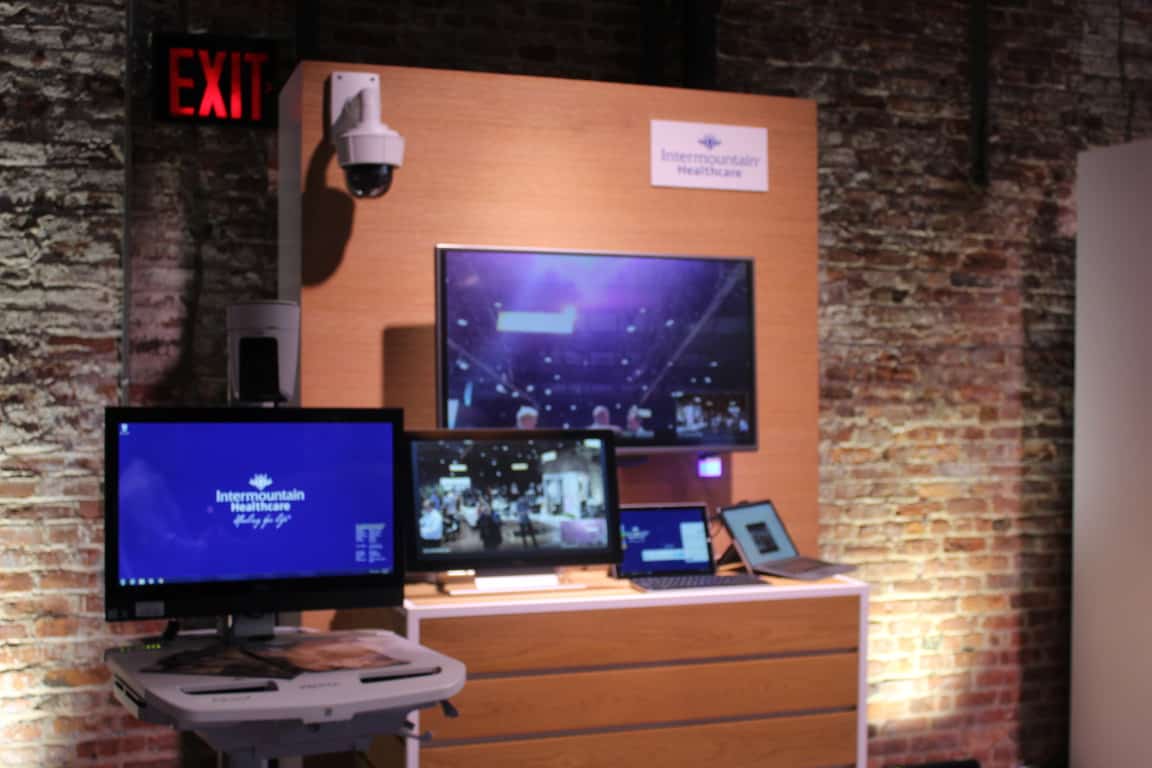
At Microsoft’s Digital difference event, several Microsoft customers, partners, and groups showcased how they are leveraging Microsoft technologies in their businesses to drive the digital transformation. One of these customers is Intermountain Healthcare (Intermountain), a not-for-profit health system based in Salt Lake City, Utah, with 22 hospitals, a broad range of clinics and services, about 1,400 employed primary care and secondary care physicians. I had a chance to talk to Intermountain Healthcare Medical Director for TeleCritical Care, Dr. Bill Beninati, and discuss how the healthcare company is using virtual healthcare solutions powered by Skype for Business.

To begin, Dr. Bill Beninati demonstrated Intermountain virtual healthcare solution, which since introduced has helped the non-profit health system see a nearly 40% decrease in mortality rates in their Critical Care Telehealth program. With the click of a button, the doctor was able to show me how he could connect to a patient room and initiate a call. When the call is initiated, the doctor is able to use a high-quality camera (installed in the patient’s room) and pan back to see the whole room, or even focus in on the gradations on the finest syringes, and examine the patient’s pupils.

On the patient side of things, the patient is able to see the doctor largely filling the screen and a little picture in picture of what the doctor is looking at in the room. The doctor, meanwhile, has a six monitor workstation so he can see where he is looking. While Intermountain is also approaching 1,000 endpoints with the system installed, there are also mobile carts will allow doctors to get into areas where the system is not yet installed. He offered me his thoughts on how this improves healthcare.

“We’re improving the access to care of probably 15% of the population in our service area who lives a long distance away from advanced medical care…. We can give those 15 percent much of the same access that people have who live close to advanced healthcare… We’re transforming care to access, and safety, and at the same time we’re transforming care by reducing cost.”

Skype for Business being used
Skype for Business being used (Photo: Microsoft)

When asked about how this virtual healthcare solution leverages the power of Skype for Business, Dr. Bill Beninati described it as “simple, intuitive, user-friendly and highly reliable.” Patients, meanwhile, have very good acceptance of the technology, with the doctor telling me that “the level of acceptance and trust in using this tool has been very high.”  With this so, I asked the doctor about how this technology empowers him, and how it can be used to cure cancer and other diseases.

“It empowers me to reach patients far earlier in the course of their illness than I otherwise could. What I tell my team that we’re trying to do is to engage critical illness injury when and where it occurs. This empowers my team to get early on so we can turn off [health] problems so they don’t turn into big things.”

“Right now our cancer folks will be increasingly using this to provide highly personalized and advanced cancer care to people in remote areas… I wouldn’t say it’s transforming cancer care, as much as it taking the same kind of cancer care, and make sure sure the high quality care is accessible more broadly.”

Dr. Bill Beninati speaking (Photo: Microsoft)

This talk with Dr. Bill Beninati and the virtual healthcare solution, are proof that modern technology has the power to connect people all over the world, save time on commutes, and help us collaborate. You can learn more about Intermountain Healthcare by visiting their website, and you can learn more about TeleHealth at Intermountain by checking here.

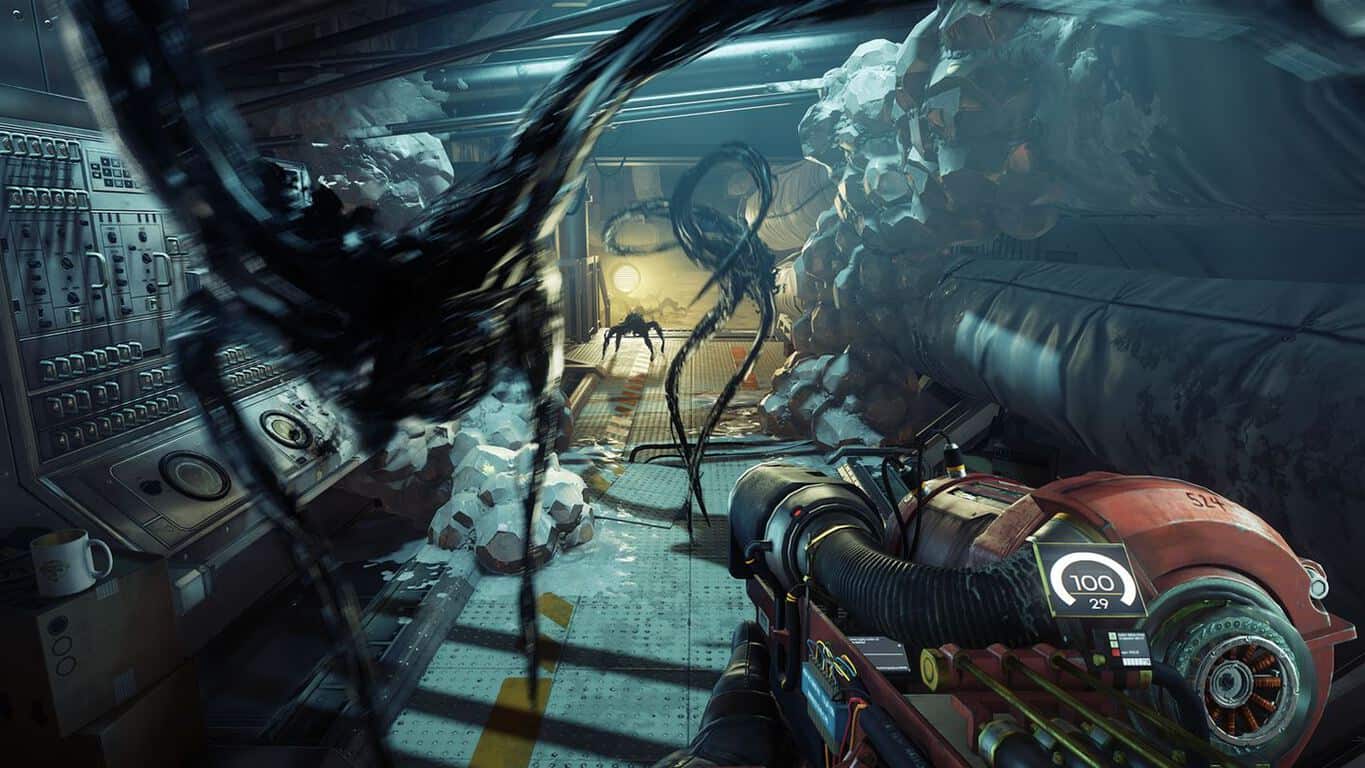
Play the free Prey game demo now on Xbox One

Prey, the much-anticipated reboot of the 2006 sci-fi shooter now has a free demo on the Xbox One. The game has been developed by Arkane Studios, the French game developer behind the critically-acclaimed stealth action-adventure games Dishonored and Dishonored 2. Prey is expected to be much different though, as you’ll play a scientist being hunted by aliens on a moon-orbiting space station.

Here is the official description:

You are Morgan Yu, lead scientist aboard Talos I, working on a scientific breakthrough meant to alter humanity forever. What starts off as an exciting first day of work very quickly takes a dark turn. You find yourself alone on board Talos I, a lavish but abandoned interstellar research facility. Aliens have overrun the station and are hunting down any surviving crew members, including you.

The demo is a 13.1 GB download and you can get it from the download link below. The $59.99 game will be released on May 5, and you can already pre-order it on the Xbox Store.

Get the Prey demo on Xbox One

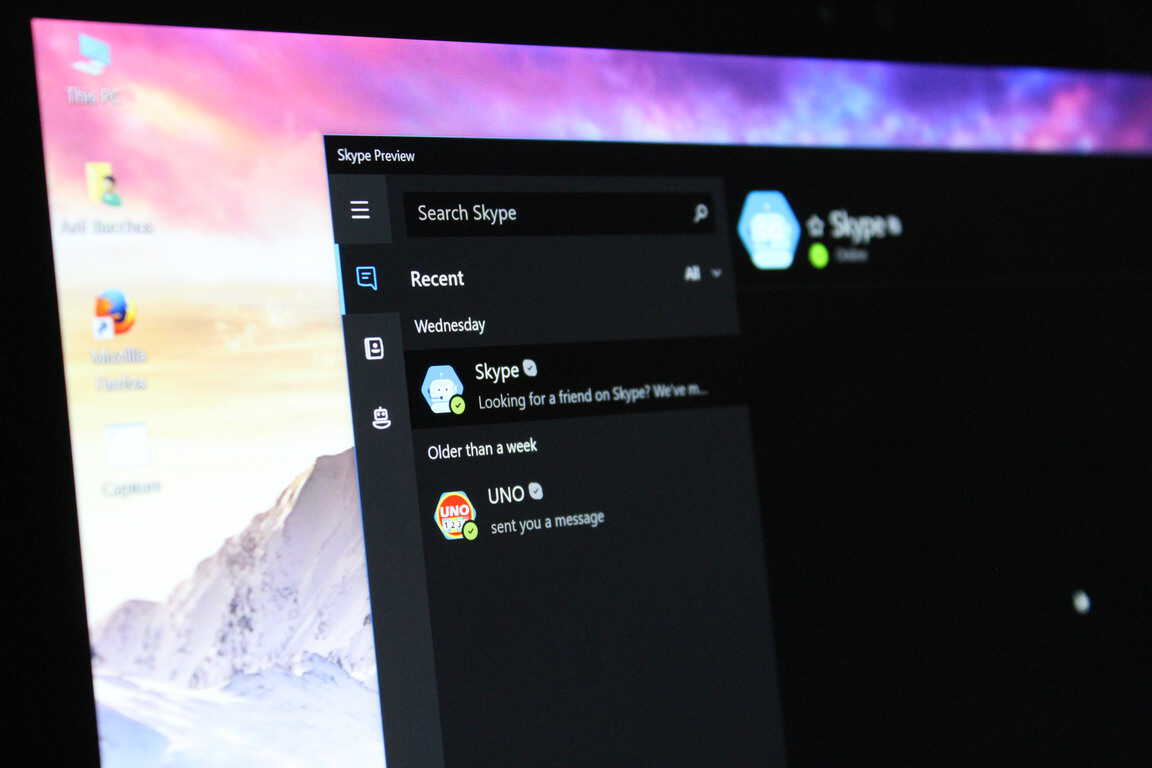
Latest Skype UWP Insider app update brings improvements to screen sharing, more

Microsoft’s Skype UWP app finally dropped its “Preview” tag earlier this month, but the app is still not as full-featured as the legacy desktop app. Fortunately, Microsoft is releasing frequent updates and the latest version 11.15.570.0 which is now rolling out to Fast Ring Insiders bring some useful new features.

First of all, the app now lets you share your PC’s audio when you share your desktop screen with your contacts, which is a nice addition. Additionally, you can now open images right within the Skype UWP app (the app previously used the Windows 10 Photos app to do this). Lastly, sharing your feedback about the app is now easier than ever thanks to the new Feedback button in the left navigation bar.

Here is the full changelog:

  • Share your PC’s audio when you share your desktop. Watch videos and listen to music together!
  • See your images withoug having to leave the app. Tap on an image in a conversation and try this out.
  • We love hearing from you. Now you can send us feedback directly from the left navigation bar.

The app has also been updated to version 11.14.675.0 on the Production ring today, but there is no changelog. However, it’s worth noting that the Live Tile finally displays your Skype messages, just like the Windows 10 Messaging app does. This is especially nice to have on Windows 10 Mobile, considering that the legacy Silverlight app used to have a functioning Live Tile right from the start.

The Live Tile is finally useful.

Now, we would really like to see the app being integrated with the Windows 10 Share menu: if you use the Skype UWP app as your default messaging app, not being able to easily share pictures or urls is really inconvenient, to say the least. Let us know in the comments what other features you would like to see being added in the Skype UWP app.

Unable to install Windows 10 Mobile Creators Update [Fix]

Microsoft has finally rolled out the Creators Update for Windows 10 Mobile. The majority of Mobile users now have the opportunity to try all the highly anticipated features. However, according to various reports, there are still some users who haven’t received the Creators Update yet.

As a matter of fact, Microsoft’s community forums are full of such reports where people complain about either not getting the update, or being unable to install it. Here’s what one user of the forums said:

“Hey, I’m using a Microsoft Lumia 550 (which comes with built in windows 10, and maybe the phone that belongs to the “newer machines” category). The creators update was supposed to be released on 25th of April, 2017 and I have checked my update page thrice today but still no signs of it.”

If you haven’t received the update as well, there are a couple of things you should keep in mind. So, keep reading this article, and we’ll try to solve the problem together.

Why you’re not getting Windows 10 Mobile Creators Update?

Your phone isn’t compatible

Unlike its PC counterpart, Windows 10 Creators Update for Mobile isn’t so widespread. In fact, only 13 devices are eligible for getting it. So, there’s a chance that you won’t get the update after all. Here’s the list of compatible devices, so make sure yours is on it:

  • HP Elite x3
  • Microsoft Lumia 550
  • Microsoft Lumia 640/640XL
  • Microsoft Lumia 650
  • Microsoft Lumia 950/950 XL
  • Alcatel IDOL 4S
  • Alcatel OneTouch Fierce XL
  • SoftBank 503LV
  • VAIO Phone Biz
  • MouseComputer MADOSMA Q601
  • Trinity NuAns NEO

If your device is on the list, but you still haven’t received the update, keep reading.

Update still has to be rolled out to your region

Microsoft usually rolls major updates for its operating systems in waves. That means not everyone will get it at the same time. So, if you’re living outside the US, there’s a chance that you have yet to receive the Creators Update. So, wait a couple of days more, and if you still can’t get the update, there’s something wrong with your system.

Update issues

As we said, if you’re fully eligible for receiving the Creators Update, and other people from your region have already received it, you should check out if everything’s alright with your phone. We had a similar problem with the Anniversary Update, and we’ve already written an article with workarounds. So, make sure to check it out, to fix any potential issues with your phone that possibly block the Creators Update.

That’s about it, in case you have any questions, or comments, feel free to let us know in the comments section below.

RELATED STORIES YOU NEED TO CHECK OUT:

Groove Music gets NEON features, music videos on Windows 10 PCs

An update to the Groove Music app has begun to rollout that introduces some aspects of the Project NEON design sensibility as well as some extra features.

Project NEON is the codename for a new visual style that Microsoft has begun introducing to their First-Party Windows 10 apps that mainly uses more of a flat, glass design with more transparency and more fluid motion between app changes.

The new features added with this update include music videos, the ability to add 10 songs to a playlist at once, and a new Follow function for listening to new music as it’s added to featured playlists.

Have you got the new Groove Music app yet? Let us know what you think about the changes in the comments below.

Windows Media Player