Perplexity’s AI Comet Browser Is Coming to Windows, Android Next

Windows users might soon get their hands on Perplexity’s Comet browser. The company’s CEO, Aravind Srinivas, says the Windows build is ready and invites for early access are already going out.

Comet originally launched in May, but only for Mac users on Apple Silicon. It’s an AI-first browser with a feature set that feels more like a smart assistant than a traditional web tool.

You can ask questions, look up discount codes in shopping carts, and even scan your inbox for missed emails. There’s also a “Try on” tool that lets you upload a selfie and preview how you’d look wearing different clothes.

Now it looks like Comet is racing toward a broader release. Srinivas posted on X that Android is also on the roadmap and that development is ahead of schedule. There’s no public launch date yet, but interest is building fast, helped by a growing waitlist and a steady stream of teaser updates.

Not everything has gone smoothly, though. A recent podcast quote from Srinivas raised concerns about privacy after he said Comet would gather data “even outside the app.” He later clarified that the remark was taken out of context and stressed that users will have the option to opt out of any personalization tied to advertising.

Once it launches, Comet will join a growing group of AI-powered browsers. That includes Google’s experimental tools, Opera Neon, and whatever OpenAI is working on next. For now, it’s waitlist only—but that might not last long.

Chrome is quietly adding AI Mode shortcut to address bar

Google is expanding access to AI Mode in Chrome, and we’ve spotted a new @aimode shortcut quietly added in Chrome Canary, allowing users to launch AI-powered search directly from the address bar.

After launching in the U.S., Google has now rolled out AI Mode to users in India — but only for those who have opted into Search Labs. As part of its early integration into Chrome, Google has quietly added a new @aimode keyword shortcut to the address bar (also known as the omnibox), making it easier to access AI-powered responses.

How to Use AI Mode Shortcut in Chrome

  1. Open Chrome Canary.
  2. In the address bar, enter @aimode and press Tab or Space.
  3. Alternatively, select “Ask with AI Mode” from the suggestions after typing @..
  4. Enter your question and press Enter.
Image Credit: Venkat/WindowsReport.
Image Credit: Venkat/WindowsReport

You’ll be redirected to Google.com, where AI Mode will display a response, using a custom version of Gemini 2.5, will be displayed.

Apart from the address bar, Google is also integrating AI Mode into the Chrome New Tab Page search box, known internally as the Realbox. Clicking the AI Mode button opens a compose box where you can input your question, with support for uploading files and images.

As with the address bar, pressing Enter after your query redirects you to Google.com, where results are shown under AI Mode.

Much like Gemini, Google is making AI Mode accessible from multiple parts of the Chrome browser. So far, it’s been spotted in the address bar and New Tab Page. In the future, it could expand to more areas within Chrome.

You can manage these shortcuts by visiting Search Engine Settings and clicking “Manage Search Engines and Site Search”.

But that’s not all — as we reported earlier, Google is also working on Edge-style omnibox shortcuts for tabs, bookmarks, and history. We’re now seeing signs that the AI Mode button will be integrated into the Omnibox toolbelt as well.

Meta Quest 3S Xbox Edition Launches for $399 With “Extremely Limited” Stock

Just a day after getting leaked, Microsoft and Meta have officially revealed the Meta Quest 3S Xbox Edition—a special VR bundle built for Xbox cloud gamers. It’s priced at $399.99 and available starting today.

This new edition isn’t just about looks, though the styling is front and center. The headset comes in Xbox’s familiar Carbon Black with Velocity Green accents, ditching the plain white of the regular 3S. Matching Touch Plus controllers, a limited-edition Xbox Wireless Controller, and an Elite Strap are also included.

As for content, buyers get three months of Xbox Game Pass Ultimate and three months of Meta Horizon+, so you can dive right into games and VR experiences without any extra setup.

“Over the past several years, Xbox has expanded the Xbox cloud gaming experience to more places and more players,” said Lori Wright, Microsoft’s Corporate Vice President of Gaming Partnerships and Business Development, in the announcement blog post. “Today, with the Meta Quest 3S Xbox Edition, we are bringing this vision to life with a new design that celebrates Xbox’s iconic aesthetic.”

Functionally, this headset is identical to the standard Meta Quest 3S. That means standalone and PC-connected play are both supported. Xbox Cloud Gaming already works on Meta headsets via an app, letting players stream titles straight from the cloud, though native VR content from Microsoft is still off the table.

Microsoft notes this edition will be hard to get, as it has been made in an “extremely limited” number. So once it’s gone, it’s gone. You can buy the Meta Quest 3S Xbox Edition now through meta.com, Best Buy (US), Argos (UK), and EE (UK).

How to Sign In to Amazon Prime Video on Smart TV [Easy Guide]

Whether you’ve just bought a new Smart TV or you’re helping your parents log in for the hundredth time, getting Amazon Prime Video up and running is pretty simple. Below, I’ll walk you through the exact steps for logging in, plus helpful tips if you’re using an LG, Samsung, or Sony TV.

✅ How to Sign In to Amazon Prime on Any Smart TV

Time needed: 4 minutes

These steps apply to almost any modern Smart TV: LG, Samsung, Sony, Vizio, you name it.

  1. Turn On The Smart TV

    Turn on your Smart TV and make sure it’s connected to Wi-Fi or Ethernet.

  2. Open Amazon App

    Open the Amazon Prime Video app. If you don’t see it, head to your TV’s app store and
    download it.

  3. Go to Sign In

    On the Prime Video welcome screen, hit “Sign In.”

  4. Choose Login Option

    You’ll see two login options:

    Option 1: Enter your email and password using your remote (yes, the clunky way).

    Option 2: Pick “Sign in with a web browser.”:

    – Go to amazon.com/mytv on your phone or computer

    – Type the 6-digit code shown on your TV screen

    – Sign in using your Amazon account

  5. Login And Stream

    Once the app logs in, it refreshes, and boom! You’re ready to stream.


Before you can sign in, make sure you already have a Prime account. Here’s a quick guide on how to subscribe to Amazon Prime so you’re ready to log in on your Smart TV.

You can also install the Amazon Prime Video app on your computer by following this guide that explains the full Amazon Prime setup process step by step.

📺 Smart TV Brand-Specific Tips

🔵 LG Smart TVs (webOS)

  • You’ll usually find Prime Video pinned to the launcher bar or under the LG Content Store
  • Both manual sign-in and code sign-in work great
  • Make sure your webOS software is up to date to avoid app glitches

🔷 Samsung Smart TVs (Tizen)

  • Press Home → Apps → Prime Video
  • If the app signs into the wrong Amazon account, go to:
    Settings → Deregister Device → Sign in again
  • Missing app? Try resetting the Smart Hub

🔴 Sony Smart TVs (Android/Google TV)

  • Open Prime Video from your app list
  • You might need to first sign into your Google account to access the app
  • The web code login usually works faster and smoother here
  • Use the Google Play Store to install or update Prime Video

💡 Pro Tip:
If you’re using a Fire Stick and your TV isn’t recognizing it, check out this step-by-step fix. You can also stream from your PC to a Firestick if you prefer.

And if you’re on Roku and Prime isn’t loading or signing in properly, here’s a troubleshooting guide that actually works.


❓ FAQ

Why won’t my Amazon Prime app let me sign in on my TV?

Double-check your Wi-Fi connection, app updates, and make sure you’re using the correct Amazon login. Also, try the browser sign-in method if entering credentials on the remote fails.

Where do I enter the 6-digit code from my TV?

Go to amazon.com/mytv on a phone or computer, sign in to your Amazon account, and input the code.

Can I sign in to multiple Smart TVs with the same Amazon account?

Yes, you can use the same Amazon account on multiple TVs. However, Amazon may ask for verification if it detects unusual activity.

How do I deregister my TV from my Amazon account?

Open the Prime Video app, go to Settings, and choose Deregister this device. This will remove your account from the TV.

Final Thoughts

Getting signed into Amazon Prime Video on your Smart TV doesn’t have to be a hassle. Whether you’re using a web code or typing your password like it’s 2009, these steps will get you watching in no time. Each brand has its own quirks, but the overall process is nearly identical across the board.

And if you ever run into trouble, remember: a quick deregister, app update, or browser sign-in usually gets things back on track.

Want to keep your homepage clean too? Here’s how to remove Continue Watching on Amazon Prime in just a few steps.

You can also check this MTV activation guide to see how device activation works for other popular streaming apps.

Sharing access with family members is also possible. Learn exactly how to share Amazon Prime using Amazon Household so everyone can enjoy streaming on their own TV.

Keyfans Windows 11 License Keys: Should You Buy or Not?

Keysfan is an online store specializing in budget software licensing, offering deeply discounted Windows 11 Pro and Home keys (sometimes in bundles with Office). They promise instant email delivery and volume deals, aiming to undercut official pricing.

If you’re considering the message “There was a problem with NVIDIA App”, that’s unrelated—instead, this guide focuses on evaluating Keysfan’s Windows 11 licensing options.

✅ Rewards – Why People Buy from Keysfan

Many buyers are drawn to Keysfan for the pricing and convenience. Here are the most commonly reported advantages:

  • Low cost & fast delivery: Users say keys arrive via email within minutes to a few hours, at prices well below retail.
  • Bulk offers: Affordable multi-PC packs and Windows + Office combos add more value.
  • Helpful live support: Many buyers praise responsive, step-by-step assistance during activation.

If you want to confirm what type of key you’ve been sold, you can check the Windows 11 license type using Command Prompt.

⚠️ Risks – What Could Go Wrong

Despite the benefits, there are some key risks that you should be aware of before entering your payment information. These are the most common concerns:

  • Activation issues: Some buyers report keys failing to activate Windows 11 Pro, even with support help. If you’re experiencing this, see our guide on what to do if your Windows 10 or 11 activation key isn’t working.
  • Revoked keys: Unsanctioned OEM or volume keys may be invalidated by Microsoft later.
  • Payment security worries: A few users flagged unauthorized or unexpected charges after purchase.
  • Support drops: Some say support stops responding mid-resolution.

💬 Real User Reviews

To help you form a balanced opinion, here are a few recent reviews from real customers—both satisfied and cautious:

“Keysfan delivered a legit Windows 11 Pro key in under 2 hours—activation was flawless. Support even walked me through it.” – Alex M.

“Purchased a 5‑PC bundle. All worked perfectly and support answered my questions quickly.” – Samantha R.

“My first key failed to activate. Support replaced it but I waited three days and then had to follow up.” – Jordan K.

📉 Common Complaints

Several users have raised specific concerns across online forums and review sites. Here’s a summary of the most frequent issues:

  • Keys failed activation even after support requests.
  • Support went silent before resolving issues.
  • Reports of card billing confusion or minor extra charges.
  • Occasionally invalid keys delivered, requiring refunds.

🧭 Honest Verdict

So, should you buy from Keysfan? That depends on your risk tolerance. Here’s a practical recommendation based on user feedback and common patterns:

Keysfan offers compelling low prices and fast delivery, with many satisfied customers. That said, activation may sometimes fail or keys could be revoked, and their support isn’t flawless.

To help you decide, here’s a quick breakdown of the main trade-offs involved:

FactorWhy It Matters
Save vs. SecurityBargains are tempting, but activation can break or keys get revoked
Support reliabilityPositive experiences exist, but unhappy reviews show it isn’t universal
Payment riskUse discreet payment methods (e.g. virtual card); review statements carefully
Volume of reviewsOver 2,000 Trustpilot ratings (4.8/5), but a few negative cases still appear

If you decide to purchase:

  1. Start small—buy just one key first.
  2. Save everything—keep emails, receipts, and activation screenshots.
  3. Monitor your billing—check for unexpected charges after purchase.

For most home users comfortable with a small risk, Keysfan can be a wallet-friendly choice. But if you need guaranteed long-term support and license validity, official Microsoft or authorized resellers are safest. Also, if you want to ensure your license is tied to your Microsoft account, follow this guide to link your Windows license to your Microsoft account.

FAQ

Here are answers to a few common questions users ask before deciding whether to buy from Keysfan:

Q: Is Keysfan licensed by Microsoft?
A: No—the keys come from third‑party OEM or volume channels. They’re legal but not officially authorized by Microsoft.

Q: What if my Keyfan Windows key doesn’t activate?
A: Contact Keysfan support. Some users received replacements, but be prepared for delays and potential extra follow‑ups.

Q: Does Microsoft revoke keys later?
A: It can happen with unauthorized bulk keys. If revoked, you’ll need to purchase another license or go through official channels. Read this to understand how many times you can use a Windows 11 key.

Fix “There Was A Problem With Nvidia App” Message On Windows 11

If you’re getting the error message “There was a problem with NVIDIA App” on your Windows 11 PC (but also on Windows 10), you’re not alone. This issue typically shows up when the app fails to launch correctly, often due to driver conflicts, system settings, or missing Windows OS components.

But this error is just one symptom. Many users also report the NVIDIA App crashing, showing a blank or frozen screen, or not working at all, especially after upgrading from GeForce Experience to the new app on Windows PCs. Common causes include:

– outdated GPU drivers
– disabled push notification services
– leftover files from previous NVIDIA installations.

Whether you’re dealing with the “there was a problem with the NVIDIA app” error or general issues with the NVIDIA App, the guide below will walk you through step-by-step solutions to get it working again on Windows 11 and Windows 10.

How to Fix NVIDIA App Not Working on Windows PC?

1. 🧩 Update Windows OS

Ensure you’re running a supported Windows version (Windows 10 or Windows 11) and install the latest Windows updates. The NVIDIA App only supports Windows 10/11, so older operating systems won’t run it. Keeping your OS up to date is essential for stability and compatibility with applications like the NVIDIA App.

2. 🔄 Update NVIDIA Graphics Driver

Install the latest NVIDIA Game Ready driver (version 551.52 or newer) for your GPU. Outdated or buggy GPU drivers are a primary cause of the app malfunctioning. You can update via GeForce Experience (if it’s still installed) or by downloading the newest driver from NVIDIA’s website.

If you’re unsure how to proceed, this step-by-step guide on updating NVIDIA drivers in Windows 11 can walk you through the process. New drivers often contain fixes for crashes or blank screens in the NVIDIA App.

3. 🔔 Enable Windows Push Notifications

Verify that Windows notifications are enabled, and that the NVIDIA App is allowed to send notifications. In Windows 11/10, go to Settings > System > Notifications and ensure notifications are On (also check that NVIDIA App is not blocked in the app list).

The NVIDIA App relies on Windows’ push notification services for certain tasks; if notifications are disabled or the Action Center is broken, the app might fail to launch properly. (Many users found that simply re-enabling the “Windows Push Notification User Service” or fixing the Action Center immediately allowed the NVIDIA App to open without errors.)

4. 🔐 Run the App with Proper Privileges

Try launching the NVIDIA App with old-fashioned admin privileges. Right-click its shortcut and choose “Run as administrator.” Lack of admin rights can prevent the app from accessing certain system resources, so this may help it launch correctly.

However, if you had previously set the app to always run as an administrator (via Compatibility settings), try disabling that setting and launching it normally. Some users reported that un-checking “Run this program as administrator” in the compatibility properties fixed the app launching from the system tray.

5. ⚠️ Avoid GeForce Experience Conflict

Make sure GeForce Experience is not running alongside (or installed with) the new NVIDIA App. The NVIDIA App is intended to replace GeForce Experience, and they cannot coexist on the same system. If you still have NVIDIA GeForce Experience installed, uninstall it before using the NVIDIA App.

Likewise, don’t attempt to reinstall GeForce Experience while the NVIDIA App is present – this will fail or cause conflicts. Keeping only the NVIDIA App ensures no duplicate overlay or driver management tool is interfering.

6. ♻️ Reinstall the NVIDIA App Cleanly

If the app still won’t work (e.g. continues to crash or show a blank UI), perform a clean reinstallation. First, uninstall the NVIDIA App from Windows (Settings > Apps > Installed Apps on Windows 11, or Apps & Features on Windows 10).

After uninstalling, remove any leftover NVIDIA App data: press Win + R, type %appdata% , and delete the “NVIDIA App” folder if it exists. This clears any corrupted configuration files. Then, download the latest NVIDIA App installer from NVIDIA’s website and install it fresh.

A clean install often resolves launch failures that persist after other fixes. (Note: You may also reboot your PC after uninstalling and before reinstalling, to ensure no NVIDIA processes are still running.)

7. 🧱 Install Visual C++ Dependencies

Ensure you have the Microsoft Visual C++ runtime libraries installed (the Visual C++ 2015-2022 Redistributable, for example). Missing runtime components can sometimes prevent the NVIDIA App from launching or cause a blank window.

If you don’t already have them, you can download the correct Microsoft Visual C++ Redistributable package here. In fact, some users reported that installing the latest Visual C++ packages on Windows 11 solved their NVIDIA App launch issues.

8. 🎮 Check Laptop Graphics Settings (if applicable)

If you’re using a laptop with hybrid graphics (integrated Intel/AMD GPU + NVIDIA GPU), make sure the NVIDIA GPU is actually active when you launch the app. Some gaming laptops turn off the discrete GPU in power-saving or “eco” mode, which can prevent the NVIDIA App from detecting a valid GPU and cause it not to open.

If your system can’t see the GPU, this guide can help fix when the NVIDIA graphics card isn’t detected on Windows 11. Switching your laptop to a balanced or high-performance power profile (so the NVIDIA GPU stays enabled) can fix this issue. In other words, if your laptop was in a mode that disabled the NVIDIA GPU, change that setting and then try to open the app again.

FAQ

Why is the NVIDIA App not launching?

The app may fail to launch if Windows notifications are off, drivers are outdated, or GeForce Experience is still installed. Make sure you’re using Windows 10/11 with a supported NVIDIA driver and no conflicting software.

How do I fix the NVIDIA App crash on Windows?

Update your GPU drivers and Windows OS. Enable notifications. If it still crashes, uninstall the app, delete its %appdata% folder, and reinstall the latest version to reset it cleanly.

Why is the NVIDIA App showing a blank screen?

A blank UI often means a display glitch or missing file. Try updating your driver, restarting the app, or doing a clean reinstall. Also, disable any other NVIDIA overlays that might conflict.

Can I run GeForce Experience and the NVIDIA App together?

No. They can’t run on the same system. Uninstall GeForce Experience before using the new NVIDIA App, which already includes its key features like game optimization and driver updates.Experience once you’ve switched. Removing the old software will help prevent any background conflicts or errors with drivers and overlays.

Wrap Up

By following the above steps, you should be able to resolve most cases of the NVIDIA App not working on Windows 10 or 11. Once the underlying issue is fixed (be it a driver, Windows setting, or installation conflict), the NVIDIA App should launch normally, allowing you to use its features like the overlay and driver updates.

To learn more about what’s new, check out this overview of the NVIDIA App’s unified design and account-free setup, plus the latest RTX Super Resolution update and performance optimizations.

How to Cancel Planet Fitness Membership

Want to stop paying for your Planet Fitness membership but not sure how? Whether you want to cancel in person, by mail, or online, this guide explains every legit method – including the hidden online cancellation trick that actually works.

✅ Step 1: Cancel In Person at Your Home Club

Problem: Planet Fitness doesn’t accept phone or online cancellations in most locations.
Solution Steps:

  • Visit the front desk at the club where you joined
  • Request the cancellation form, fill it out, and sign
  • You’ll remain a member until the end of the current billing cycle
    Why It Works: This method is officially supported at all clubs and processed on the spot.

✅ Step 2: Cancel by Certified Mail

Problem: You can’t visit in person or prefer to cancel remotely.
Solution Steps:

  • Write a letter with your name, membership number, phone, and cancellation request
  • Sign it and send via certified mail to your home club address
  • Keep delivery receipt and follow up after 7 business days
    Why It Works: Certified mail counts as official notice and is accepted at most clubs.

✅ Step 3: Check for Fees & Timing Rules

Policy Highlights:

  • Cancel at least 7 days before your next billing date to avoid another charge
  • Cancel before the 25th of the previous month to avoid annual fees
  • A $58 buyout fee may apply if you’re under contract
    Why It Matters: Knowing these deadlines helps you avoid extra charges.

✅ Step 4: Use the California Cancellation Loophole (Online)

Problem: Most users can’t cancel online — unless in California.
Solution Steps:

  • Log into your account on a browser
  • Change your home club and address to a California location
  • Wait a few minutes for the update to apply
  • Go to “Manage Membership” — you should now see a Cancel button
  • Cancel and take a screenshot confirmation
    Why It Works: California law requires companies to allow online cancellation — and Planet Fitness complies in that region.

✅ Step 5: If the Club Isn’t Local or Closed

Solution Steps:

  • Use the certified mail method
  • Or apply the California address method for remote online cancellation
    Why It Works: These are the only two reliable alternatives to in-person visits.

🧩 Summary Table

MethodFreeEffortRiskNotes
In-person✅ YesMediumLowFastest and most reliable
Certified mail✅ YesHighLowNeeds tracking and follow-up
California online✅ YesLowMediumMay not work in every case

FAQs

Can I cancel by phone or email?

No. Only in-person or certified mail methods are officially accepted.

Will I lose access right away?

No. You keep access until the current billing cycle ends.

Do I have to pay a cancellation fee?

Only if you’re under a contract term. Otherwise, no.

What if I’m still charged after canceling?

Show proof (form or mail receipt) and dispute through the club or your bank.


✅ Final Take

To cancel your Planet Fitness membership in 2025:

  1. Go in person
  2. Send a certified letter
  3. Use the California address trick to cancel online
    All are legitimate. Choose what works best for you. Need help writing your letter or updating your club location? I can assist.

How to Switch Out of S Mode Fast

Need to install non–Microsoft Store apps or upgrade beyond S Mode? Here’s a step-by-step guide to switch out of S Mode safely and effectively.


✅ Step 1: Confirm You’re in S Mode

  • Go to Settings → System (or Update & Security) → Activation
  • Look for “Windows [10/11] S Mode” or a section for Switch to Windows 10/11 Home or Pro
  • If the option is missing, your device might be domain-joined, managed by an organization, or not actually in S Mode

✅ Step 2: Open “Switch Out of S Mode” Page in Microsoft Store

  • Click Go to the Store next to “Switch to Windows Home/Pro” in Activation settings
  • This opens a special page in Microsoft Store titled “Switch out of S Mode”
  • Alternatively, search “Switch out of S Mode” directly in Microsoft Store

✅ Step 3: Click “Get” to Switch Modes

  • On the Store page, click the Get button
  • You’ll receive a confirmation that S Mode is now turned off — once done, your system installs apps outside Microsoft Store
  • Important: This action is permanent—you can’t revert back to S Mode afterward

✅ Step 4: If You Can’t See the Option

  • Ensure you’re using a local or personal Microsoft account, not a work/school account
  • Install pending Windows updates, then try again 
  • Try switching networks: connect to a phone hotspot or another Wi-Fi 
  • Temporarily disable third-party antivirus or firewall 

✅ Step 5: (Advanced) BIOS & Registry Workarounds

Reddit recommends disabling Secure Boot in BIOS to bypass S Mode, though results vary

  • Registry hack: Advanced users can toggle S Mode status in HKLM and unload hives—but this method is unofficial and risky .

🧩 Why Switch Out?

Install any traditional Win32 desktop app (Chrome, Steam, Adobe, etc.)

  • Install local drivers and utilities not available in Microsoft Store
  • Upgrade from Windows 11 Home (S Mode) to Pro/Enterprise or Domain-join your device

✅ FAQ

Can I turn S Mode back on?

No — the switch is permanent unless you completely reinstall Windows from factory settings

Is switching out of S Mode free?

Yes—there’s no charge to switch.

Why can’t I see the option?

You might be using a managed account, need updates, or a firewall misconfiguration blocked Store access

Does switching out affect security?

Some apps from outside the Store can be harmful. Microsoft says Defender still protects you; just be cautious with downloads


✅ Final Take

Switching out of Windows S Mode only takes a few clicks—but requires careful setup:

  1. Confirm S Mode under Settings → Activation
  2. Open the Switch out of S Mode page in Microsoft Store
  3. Click Get to make the permanent change
  4. If blocked, ensure updates are installed, use correct account type, and try another network.

Once complete, you gain full Windows app compatibility—no more S Mode restrictions. Let me know if you need help with the Store page link or reinstall steps!

Microsoft Support Community to Move to Microsoft Q&A

Microsoft has announced it will migrate the Windows section of its Support Community (previously hosted on answers.microsoft.com) to the new Microsoft Q&A platform. The shift aims to streamline the current support experience, with all Windows-related forums becoming exclusive to Microsoft Q&A.

🔹 What this change means

  • As of July 2, users will no longer be able to post new Windows questions on the old Answers forums.
  • Existing questions and ongoing discussions will remain visible during the transition.
  • For future support and inquiries, new questions must be posted on Microsoft Q&A, which offers a modernized interface and faster response structure.

🔹 Why Microsoft is making the switch

  • Unified support experience: All technical queries will now funnel through Microsoft Q&A.
  • Improved organization: The migration will centralize answers, tags, and expert responses in one platform.
  • Streamlined engagement: Microsoft envisions a smoother support journey with fewer duplicate posts and faster resolution times.

📌 What You Should Do

  • If you need help with Windows after July 2, head to Microsoft Q&A instead of the old forum.
  • Continue following current discussions on the old site until migration is complete.
  • Explore the new environment to familiarize yourself with improved tagging, search, and expert answer formats.

Windows Might Fail to Start After June 11 Update: Here’s What to Do

Installed the June 2025 Windows update and now your PC won’t boot? Microsoft has confirmed a startup failure issue caused by June cumulative patches (especially KB5060533/K5060531 series) on certain devices – including PCs running Windows 10/11 and Surface Hub v1.

This guide explains exactly what’s going on, how to fix it quickly, and how to prevent it going forward.

✅ Step 1: Understand the Boot-Failure Issue

Problem or Scenario

After installing the June 10/11, 2025 security updates, affected devices may show a boot error, such as “Secure Boot Violation” or hang before starting Windows.

  • Surface Hub v1 devices with KB5060533 can’t boot due to Secure Boot signing issues 
  • Windows 11 24H2 installs of KB5060842 were temporarily paused by Microsoft for some PCs due to unspecified compatibility problems 

✅ Step 2: Install Revised or Replacement Update

Solution Steps

  • Run Settings → Windows Update, enable Get the latest updates, then check again.
  • Microsoft is rolling out KB5062324 config update to fix failed scans 
  • A revised version of KB5060842 is available; if you’re blocked, uninstall any previous KB and retry once available.

Why It Works

Microsoft throttles and replaces problematic updates with fixed versions to restore normal boot functionality

✅ Step 3: Surface Hub v1 – Install Hotfix KB5063159

Problem or Scenario

Surface Hub v1 devices hit the Secure Boot Violation error after KB5060533.

Solution Steps

Why It Works

This hotfix restores proper Secure Boot signatures and prevents the error from recurring.

✅ Step 4: Uninstall Problematic Update (Temporarily)

Solution Steps

  • Navigate to Settings → Windows Update → Update History → Uninstall Updates
  • Remove the June update (e.g., KB5060533 or KB5060842)
  • Reboot to restore functionality temporarily
  • Reinstall the fixed update once re-released

Why It Works

Rolling back removes the source of the boot issue until a corrected patch is made available.

✅ Step 5: Watch for Configuration and OOB Updates

Solution Steps

Why It Works

OOB updates are released off-cycle to patch critical issues like installation or boot failures quickly.


🧩 Summary Table

IssueFix
PC won’t boot after June updateUninstall update → check Windows Update for revised patch
Surface Hub v1 device won’t startSkip KB5060533 → install KB5063159 hotfix
Windows 11 Update scan failsInstall KB5062324 config fix via Windows Update
Still stuckManually uninstall bad KB, then install repair version after reboot

Lenovo System Update Download for Windows 11/10 (Official Link)

Need to update your Lenovo drivers, BIOS, or firmware? Use the Lenovo System Update tool to safely download and install updates made specifically for your device. Here’s how to get it and avoid common issues.


Direct download (latest version)

🔗 Download from Lenovo Support

  • File name: SystemUpdate.exe
  • Supports: Windows 11, Windows 10 (64-bit)
  • Compatible with ThinkPad, ThinkCentre, ThinkStation & more

📌 For IdeaPad and Legion users, Lenovo recommends using Lenovo Vantage instead.

✅ Step 2: How to Install

  • Run SystemUpdate.exe
  • Follow the on-screen instructions
  • Restart your PC when prompted
  • Launch the app and click “Next” to scan for updates

✅ Step 3: What Lenovo System Update Does

  • Scans for BIOS, firmware, and driver updates
  • Only installs official, model-specific packages
  • Works even in offline or enterprise environments
  • Supports batch deployment with command-line options

✅ Step 4: Troubleshooting Common IssuesProblem: High CPU usage or constant scanning

  • Open the app → Settings → Disable scheduled weekly scans
  • Or uninstall and switch to Lenovo Vantage

Problem: App won’t launch or freezes

  • Delete the config cache at:
    C:\ProgramData\Lenovo\SystemUpdate
    Then relaunch the tool

Problem: Updates fail to install

  • Run with admin rights
  • Close other apps
  • Install BIOS updates first, then drivers

What is Lenovo System Update Used For in Windows 11?

Lenovo System Update is a tool for updating drivers, BIOS, firmware, and Lenovo software on Windows 11 devices.

It ensures your system gets model-specific updates tested by Lenovo, improving stability and compatibility. Unlike Windows Update, it targets Lenovo hardware directly. It’s safe to use and useful for keeping your device running smoothly with the latest manufacturer-approved updates.

Supermarket Owner Simulator Crashing? (Fixes for Xbox & PC)

Is Supermarket Owner Simulator crashing on your Xbox or PC? You’re not alone. Many users report sudden crashes, startup failures, and game resets. Here’s how to fix it fast with verified solutions.


✅ Step 1: Clear Corrupted Save Files (Xbox)

Problem or Scenario

Game crashes to dashboard or restarts progress on Xbox.

Solution Steps

  • Go to Settings → System → Storage
  • Select Clear local saved games (cloud saves are safe)
  • Reinstall the game to refresh save structure

Why It Works

Corrupted saves cause launch crashes. Clearing them resets the game environment without removing your Xbox profile.

✅ Step 2: Wait Before Pressing Any Button

Problem or Scenario

Game resets or crashes when pressing A/X during startup.

Solution Steps

  • Launch the game
  • Do not press anything until the full main menu loads
  • Then continue as usual

Why It Works

Pressing buttons too early may trigger “New Game” or crash loops.

✅ Step 3: Power Cycle or Reset Console (Xbox)

Problem or Scenario

Persistent crashing even after reinstall.

Solution Steps

  • Hold Xbox power button for 10 seconds
  • Unplug power cord for 30 seconds
  • Reboot and test again
  • Optional: Go to System → Console Info → Reset and Keep My Games & Apps

Why It Works

This clears cached data that may interfere with game launches.

✅ Step 4: Reinstall or Verify Game Files

Problem or Scenario

Crashes due to missing or damaged files (PC or Xbox).

Solution Steps

  • Uninstall the game completely
  • Re-download from Xbox Store or Steam
  • On PC, right-click in Steam → Properties → Verify Integrity of Game Files

Why It Works

Ensures your game files are not corrupted or incomplete.


✅ Step 5: Update Drivers & OS (PC)

Problem or Scenario

Crashes on Windows 11 or Steam Deck.

Solution Steps

  • Update GPU drivers (NVIDIA/AMD/Intel)
  • Update Windows
  • Run the game as administrator
  • Disable overlays (Game Bar, Discord)
  • Add the game to antivirus/firewall exceptions

Why It Works

Outdated drivers and software conflicts are common crash triggers in Unity games.

✅ Step 6: Use Steam Deck Compatibility Tweaks

Problem or Scenario

Game crashes or won’t load on Steam Deck.

Solution Steps

  • Switch Proton version in Steam
  • Lower graphics settings
  • Disable Steam overlays
  • Test with controller-only mode

Why It Works

Supermarket Owner Simulator isn’t Steam Deck verified yet. Proton tweaks can stabilize gameplay.

✅ Step 7: Submit a Developer Ticket (if available)

Problem or Scenario

No patch or communication from the devs.

Solution Steps

  • Visit the game’s Steam Discussions or publisher site
  • Leave a review or post a bug report
  • Watch GitHub/Reddit for community workarounds

Why It Works

Raising visibility may help push a fix—though dev responses have been limited so far.

Microsoft finally explains how to fix Office 2024 licensing issue

If you’ve upgraded to Office 2024 but your Microsoft account still insists you’re using an older version, you’re not alone.

A long-standing licensing glitch has been confusing users who hold multiple Office licenses under the same Microsoft account. Now, after months of vague fixes, Microsoft has finally published a full step-by-step guide.

This issue affects users with Office 2024 licenses linked to their Microsoft account, especially those who previously had Office 2021 or similar editions. Even after updating, the older version kept showing in the Office app’s backstage view. Microsoft’s earlier advice to install the latest version didn’t always work.

Now there’s a more specific workaround. You’ll need to manually remove an old license folder from your system and relaunch the apps. Here’s how:

For Microsoft account–based Office 2024 installs

  1. Close all open Office apps.
  2. Go to %LocalAppData%\Microsoft\Office\Licenses.
  3. Delete the folder named “5”.
  4. Reopen any Office app.
  5. Sign in with your Microsoft account and select Office 2024.
  6. Confirm that Office 2024 now appears under Product Information.

For pre-installed Office 2024 on corporate PCs

  1. Close all Office apps.
  2. Navigate to %LocalAppData%\Microsoft\Office\Licenses.
  3. Delete the folder named “5”.
  4. Open any Office app and follow prompts to use Office 2024.
  5. Confirm the correct version appears under Product Information.

India’s CERT-In steps in to warn users about Windows 10 end of support

Microsoft’s Windows 10 support deadline is set for October 14, 2025. Now, the Government of India (GoI) has stepped in with its own warning. Through a new advisory, the Indian Computer Emergency Response Team (CERT-In) is encouraging users to move to Windows 11 before time runs out.

The agency’s advisory notes:

Microsoft has announced that Microsoft Windows 10 is approaching the end of their support lifecycle on 14 October 2025. After this date, Windows 10 will no longer receive security updates, bug fixes, or technical support from Microsoft. Systems running on Windows 10 will become increasingly susceptible to zero-day attacks, malicious software, ransomware, and phishing attacks.

Microsoft had already reminded users about this in May. Since then, PC vendors like ASUS have also urged customers to prepare for the transition, describing it as a “mandatory upgrade to Windows 11.”

However, staying on Windows 10 remains possible if you’re willing to accept the risk. Speaking of risk, Microsoft recently warned users through an ad, noting to stay on the right side of the risk by upgrading to Windows 11.

For those who can’t upgrade in time, CERT-In points to the Extended Security Updates (ESU) program. That’s a paid option offering critical fixes after October 2025—but with a catch.

Individual consumers and organizations who need more time to transition to Windows 11 have the option of enrolling in the paid Extended Security Updates (ESU) program for critical patches. The ESU program does not extend the official product lifecycle or offer full technical support for the product beyond its lifecycle.

India is one of the first governments to issue public guidance, but more will likely follow. We expect the U.S. Cybersecurity and Infrastructure Security Agency (CISA) to weigh in soon.

Windows 11 Dev & Beta Insider Builds Add Recall Redesign, Pop-Up Controls & More

Microsoft has started this week with two builds for Windows 11 Insiders in the Dev and Beta channels. Dev Channel users get Build 26200.5661, while Beta Channel testers receive Build 26120.4452. Both releases bring a handful of updates focused on personalization and control.

Recall is getting a visual refresh. The new home page shows a timeline of your recent activity, highlighting your top three apps and websites from the past 24 hours. It also introduces a sidebar for quicker navigation between Home, Timeline, Feedback, and Settings. The idea is to make jumping back into tasks faster and more intuitive.

Another subtle but long-requested tweak is the ability to reposition system indicators. Brightness and volume sliders no longer have to appear in the middle of the screen. You can now shift them to the top-left or top-center by going to Settings > System > Notifications.

On the Start menu side, Microsoft is updating how pinned apps are handled in managed environments. Admins can now push a layout once without locking it, so users will still be able to rearrange or remove those pins later.

Over in File Explorer, the AI actions feature is rolling out again after briefly disappearing in recent builds. Lastly, under the Language & Region settings, users can now see the country or region they selected during device setup.

Night Light Broken on Dell Arm PCs—Qualcomm Chip to Blame

If you’ve ever worked in a dark room with a glaring monitor, you probably know how helpful Night Light can be. The feature cuts blue light on your screen to reduce eye strain and improve sleep. But if you’re using one of Dell’s new Windows on Arm laptops with an external monitor, don’t count on it.

Dell has confirmed that Night Light won’t function on secondary displays across several of its latest Arm-based models, including the Inspiron 14 5441, Inspiron 14 Plus 7441, Latitude 5455, Latitude 7455, and XPS 13 9345.

According to Dell, this isn’t a bug in Windows or a hardware issue on its end. Instead, the issue stems from the Qualcomm Oryon chipset powering these machines. Essentially, the chip doesn’t fully support the Night Light feature when a second screen is connected.

There’s no workaround from Dell. The company says users can try adjusting color profiles using third-party tools, but native Night Light won’t work on external displays.

Dell isn’t promising a fix for current models, but it does suggest that future Arm devices might not have this problem. Microsoft is betting big on its next wave of Snapdragon-powered PCs, so full feature parity—including things like Night Light—will be something to watch.

Microsoft brings Mu, a fast on-device AI, to Windows 11 Settings

Microsoft is rolling out a new AI agent in the Windows 11 Settings app, and it runs completely on-device. Powered by a small language model called Mu, this new assistant can understand natural language queries and help users find what they need without leaving the app.

The Mu model is built into the latest Windows 11 preview builds for Copilot+ PCs. If you’re running Build 26120.3964 (KB5058496) or later, you’ll find the agent integrated right inside the Settings search box. Just type a question or phrase, and the AI figures it out.

What makes Mu different?

Microsoft says Mu is fast. It runs on your PC’s Neural Processing Unit (NPU), processing over 100 tokens per second while staying completely offline. That means responses feel instant, and your data never leaves the device.

The model itself is compact, just 330 million parameters, and follows an encoder-decoder architecture. This setup cuts the first-token delay nearly in half and speeds up the rest of the response 4.7 times compared to similar decoder-only models.

Mu was trained on Azure using NVIDIA A100 GPUs. It’s designed for longer, multi-word queries, so if you type something short or unclear, the Settings app will still fall back to the traditional search system.

The AI Settings agent is only available on Copilot+ PCs for now, the same lineup that previously introduced Microsoft’s Phi-Silica model. If you’re curious, you can try it now—just grab the latest Dev Channel build and start typing into Settings.

Microsoft Rolls Out June Xbox Updates and Confirms Gamescom Plans

Microsoft is here with the Xbox June Update. The company has detailed everything it announced related to Xbox this month. From Xbox app upgrades on PC to quality-of-life changes on consoles and cloud. The company even unveiled the ROG Xbox Ally handheld series to enter the handheld gaming space.

On PC, the Xbox app now lets you browse games by publisher. It’s a small addition, but it makes it easier to discover titles from your favorite developers. Xbox also kicked off Insider testing for its upcoming universal launcher feature, which pulls games from multiple storefronts into a single library.

Microsoft’s Copilot for Gaming is now in beta for iOS and Android. It offers help when you’re stuck in a game. You just have to ask. Not to forget, the ROG Xbox Ally series is also expected to support Copilot for Gaming support starting later this year.

Xbox users can now hide system apps, customize tile counts, and pin favorites. Game Hubs have also landed. These display achievements, player stats, friends online, and available DLC—all in one spot. A quick double-tap on the play button jumps straight into the game.

For cloud and console, there’s now a save sync progress bar. Microsoft says it shows device names, timestamps, and extra details when a save hasn’t synced yet. Touch and mouse support have been added for more cloud games. The ‘Stream your own game’ and Retro Classics collections also got new titles this month.

To top it off, Xbox confirmed it’ll be at Gamescom from August 20–24. No lineup yet, but expect more reveals from Xbox Game Studios when the event kicks off.

Fix: Windows Calculator Not Showing USD in Currency Converter

Wondering why the US Dollar (USD) is missing from the Windows Calculator currency converter? Many users on Windows 10 and 11 have reported that the Calculator app no longer displays USD in the currency dropdown, making quick conversions difficult.

This problem appears to be linked to a bug or update issue within the app itself – not your system settings. Below, you’ll find the most effective ways to troubleshoot it, temporary alternatives you can use, and how to report it to Microsoft.


✅ Step 1: Understand the Issue

The currency converter in Windows Calculator typically includes over 100 global currencies. Recently, users noticed USD no longer appears in the list, even though currencies like EUR, JPY, and GBP remain available.

✅ Step 2: It’s a Confirmed Bug

The bug titled “Missing US Currency #2344” is open on GitHub, confirming this issue affects current versions (e.g. v11.2502.2.0).
It likely relates to a backend update from Microsoft’s online currency data service.

✅ Step 3: Double-Check Region & Language Settings

Though not the cause, incorrect locale settings may contribute to similar issues:

  • Go to Control Panel → Region → Formats → Additional Settings
  • Confirm your system is set to a region that uses the US Dollar (e.g. United States)
  • Ensure the currency symbol is $ under “Currency”

✅ Step 4: Use the Web Instead

Until Microsoft resolves the issue, try these trusted alternatives:

✅ Step 5: Submit Feedback to Microsoft

Help speed up a fix by reporting the problem via Feedback Hub:

  1. Press Win + F to open Feedback Hub
  2. Choose “Problem” and describe the missing USD currency
  3. Attach a screenshot of your Calculator dropdown
  4. Search for “USD missing” and upvote existing reports

✅ Step 6: Track Progress on GitHub

The GitHub issue tracker is the best place to monitor status. You can subscribe for updates or comment with your own experience.

🧩 Summary Table

ProblemSolution
USD missing in ConverterConfirm it’s a bug via GitHub and community reports
Incorrect region settingsEnsure system locale uses $ / United States
Need currency nowUse XE.com, Wise, or the Calista app
Report to MicrosoftSubmit a ticket via Feedback Hub

FAQs

Is the Windows Calculator broken?

No, but the currency API likely failed to load USD, possibly due to a backend sync issue.

Will Microsoft fix it?

Most likely yes, but there’s no official ETA. Submitting feedback helps escalate it.

Can I use third-party apps instead?

Yes—XE.com, Wise, or Calista offer excellent USD conversion without bugs.

Final Note

If USD is missing from the Calculator app, you’re facing a known issue. The best temporary solution is to use a third-party converter and report the bug using Feedback Hub. Stay tuned to GitHub for updates on an official fix.

Fix: Didn’t Receive Email from Starlink?

Trying to sign up, reset your password, or verify your Starlink account – but no email is coming through? Many users report delays or complete failures when waiting for confirmation, password reset, or 2FA emails from Starlink.

This quick guide will help you troubleshoot the issue step-by-step, whether you’re a new customer or already using the Starlink app.


✅ Step 1: Check Spam Folder & Email Accuracy

  • Look in Spam, Promotions, and Updates folders.
  • Make sure there are no typos in the email you submitted to Starlink.
  • Emails can sometimes take up to 24 hours to arrive, depending on your ISP.

✅ Step 2: Use “Forgot Password” to Trigger a New Email

  • Go to the Starlink login page.
  • Click Forgot Password, then enter your email address.
  • This method is known to bypass stuck or failed confirmation emails.

Reddit users often report this trick works even if the original confirmation never arrived.

✅ Step 3: Use the Web Version, Not the Mobile App

  • Some users see vague errors like “invalid email or phone” in the app.
  • Try the desktop login page instead—it often gives more helpful error messages.

✅ Step 4: Fix 2-Step Verification Delivery Issues

  • Starlink uses email and SMS for verification codes.
  • If the email doesn’t come:
    • Click “Resend Passcode”
    • Make sure you allow cookies if using a mobile browser
    • Try switching from email to SMS

✅ Step 5: Correct a Mistyped Email Address

If you signed up with a wrong email, you may be locked out.

  • If you’re already in the app or dashboard, go to:
    Settings → Account → Change Email Address
  • If not, use the password reset method or contact support (next step).

✅ Step 6: Submit a Support Ticket

  • Starlink doesn’t offer public support emails or hotlines.
  • Go to the Starlink Support Page or use the app:
    • Tap Support → Choose a topic → Answer “No” to any option
    • Then tap “Create a ticket”

✅ Step 7: Still Nothing? Check Reddit or Wait

Users on r/Starlink often confirm:

“Just request password reset and the email finally came through.”
Give it a few hours, retry reset, or escalate through a ticket.


🧠 Summary Table

IssueSolution
No confirmation or login emailCheck spam, use Forgot Password, wait 24h
App shows “invalid email/phone”Use the website instead of the mobile app
2FA code not arrivingClick “resend,” allow cookies, try SMS
Mistyped emailChange it in Settings (if you have account access)
No support email or phoneSubmit a support ticket via app or Starlink.com

FAQs

Why didn’t I receive a Starlink email?

It may be delayed, blocked by spam filters, or you may have entered the wrong email address.

Can I contact Starlink directly by email?

No public email address is available. Use the support ticket system only.

What if I can’t access my 2FA email or number?

Use the “Need help?” option on the 2FA screen, then open a ticket.


How to Clean Printer Queue in Windows 11: Easy Guide

Clearing a printer queue in Windows 11 is a quick and simple process that ensures your printer starts working smoothly again. By following a few steps, you can stop any stuck print jobs, clear them out, and get your printer back to normal in no time. Here’s how you can do it.

How to clear the printer queue on Windows 11 PC easily?

🧾 What Is a Printer Queue and Why Should You Clear It?

A printer queue is a list of print jobs waiting to be processed by your printer. Windows sends each document to the queue, where it’s temporarily stored until the printer is ready. This allows you to stack multiple jobs without waiting for each one to finish.

However, if one job becomes corrupt or stuck, it can block everything behind it. This causes new documents to freeze or fail to print entirely. Clearing the queue removes the faulty data and resets the printing system back to normal.

This is the most reliable method and works for most users. This is what you need to do:

  1. Press Windows + R, type services.msc, and hit Enter.
  2. Scroll down and locate Print Spooler.
  3. Right-click it and choose Stop.
  4. Open File Explorer and go to:
    C:\Windows\System32\spool\PRINTERS
  5. If prompted, click Continue.
  6. Delete all files in the folder (these are stuck print jobs).
  7. Go back to the Services window.
  8. Right-click Print Spooler again and click Start.

You can now try printing again. If your queue still won’t clear, check out this dedicated fix for queues that won’t reset.

🛠️ Solution 2: Cancel Jobs via Windows Settings

  1. Go to Settings → Bluetooth & devices → Printers & scanners.
  2. Select your printer.
  3. Click Open print queue.
  4. Right-click any stuck job and choose Cancel.

This is a quick fix for basic issues and doesn’t require admin access.

⚙️ Solution 3: Use Command Prompt (Advanced)This method forcefully clears the queue.

  1. Open Command Prompt as Administrator.
  2. Type each command and press Enter:

    stop spooler
    del %systemroot%\System32\spool\printers\* /Q
    net start spooler

Your queue is now clean.

🚀 Solution 4: Create a Batch File for Reuse

Make a shortcut to clear the queue any time it freezes.

  1. Open Notepad.
  2. Paste the following:

    stop spooler
    del %systemroot%\System32\spool\printers\* /Q
    net start spooler
  3. Save the file as ClearQueue.bat.
  4. Right-click the file and choose Run as Administrator when needed.

This is ideal for shared printers or recurring print issues.

🗑️ Solution 5: Use Control Panel to Cancel All Documents

  1. Open Control Panel → Devices and Printers.
  2. Right-click your printer and select See what’s printing.
  3. Click Printer → Cancel All Documents.

This method is fast and works across all versions of Windows. If your print jobs are stuck on “spooling,” see this fix for Windows 10 spooler issues.

❓ Frequently Asked Questions

How do I force clear the print queue in Windows 11?


Use services.msc to stop the Print Spooler, delete files in C:\Windows\System32\spool\PRINTERS, then restart the service. This is the most direct method.

Why won’t my printer queue clear even after restarting?

You might be dealing with permissions issues, a corrupted print job, or a crashed spooler. Try the Command Prompt or batch file method.

Is it safe to delete spool files from the PRINTERS folder?


Yes. These files are temporary and removing them won’t harm your system or printer.

Can outdated drivers cause stuck print queues?


Absolutely. Corrupted or outdated printer drivers are one of the most common reasons for spooler crashes and stuck jobs.

✅ Wrap Up

A stuck printer queue in Windows 11 is annoying, but you can fix it in minutes. Start with the manual spooler reset method. If that doesn’t work, try the Command Prompt or batch file options.

Reinstalling drivers or printing directly to the printer may solve recurring issues long term.

Need help beyond this? I’m here to assist — especially if your problem happens often on shared or networked printers.

How to Find & View Your Google Saved Passwords [Step-By-Step Tutorial]

If you’ve let Chrome or your Google Account save your passwords, you can easily view them whenever needed. Whether you’re switching devices, resetting logins, or just forgot a password, here’s how to find it quickly.

Google Password Manager works across devices, syncing logins so you don’t need to remember every password manually. This article explains how to find them using both Chrome and the Google Password Manager website. If you want to access your passwords remotely or on another browser, see how to access Google passwords anywhere.

Where Does Google Store Your Saved Passwords?

Google stores your login credentials either:

  • Locally in Google Chrome (synced if logged in)
  • Online in the Google Password Manager (passwords.google.com)

How to View Google Saved Passwords in Chrome?

You can access your passwords directly in the browser. Here is how to do:

✅Solution 1: Use Google Chrome (Desktop)

  1. Open Google Chrome
  2. Click the three-dot menu in the top-right corner
  3. Go to nginxCopyEditSettings → Autofill and passwords → Google Password Manager
  4. Scroll to find the login you want
  5. Click the eye icon next to the password
  6. Confirm your identity (use your PC/Mac password)

That’s it — you’ll see the password in plain text.

If you’re using a browser like Arc, you might want to check our guide on using Google Password Manager in Arc browser.

If you’re not on your regular browser or using a new device, use the cloud version.

✅Solution 2: Use Google Password Manager (Web)

  1. Go to https://passwords.google.com
  2. Sign in to your Google Account
  3. Search or browse for the app/site you need
  4. Click the eye icon next to the saved password
  5. Verify your identity (fingerprint, PIN, etc.)

Google will reveal the saved password securely.

Expert Advice: Check for Weak or Leaked Passwords

Google lets you run a quick audit:

  1. Visit https://passwords.google.com/checkup
  2. Review:
    • Compromised passwords
    • Reused passwords
    • Weak passwords

Fixing these improves your account security in seconds.

Frequently Asked Questions

How do I view my saved passwords on Android?


Go to Settings → Google → Autofill → Password Manager. You’ll need to verify with your fingerprint or screen lock.

Why can’t I see the eye icon in Chrome?


You may not be signed in to your Google account or haven’t saved any passwords yet. Also, system policies on shared computers may block access.

Can I delete saved passwords from Google?


Yes. You can remove saved passwords anytime from Chrome or the Password Manager. For step-by-step instructions, check our guide on how to delete saved passwords on Windows 11.

Need More Security? If you manage many logins, use a password manager like:

  • Bitwarden (free, open-source)
  • 1Password
  • Dashlane
  • NordPass

These offer stronger security, easier sync, and better password hygiene.

123movies Alternative Sites [2026 List]

123movies, once the most-popular pirate streaming site, was shut down in 2018 after hitting ~98 million monthly users and facing legal pressures. Today, most so‑called mirrors are unreliable, ad-ridden, or insecure.

So if you’re looking for the best 123Movies alternative, here are safer and faster options to stream movies and TV shows online.

(Proceed at your own risk; these are typically illegal and often filled with ads or pop‑ups)

  1. 456Movies
    • Familiar 123movies-style interface
    • Fresh releases + TV series
    • Minimal pop‑ups
  2. M4uHD.tv
    • HD streaming for both new and older shows
    • Usually 1–2 pop‑ups per stream
  3. FMHY.net
    • Forum-based hub with community-vetted links
    • No built‑in playback; requires external links
  4. Yarrlist
    • Curated directory of active streaming sites
    • Zero ads on their own site

  5. RARBG Mirrors
    • Torrent-based archives with no ads
    • Requires a torrent client and VPN
Tip icon Tip
Accessing these 123movies alternatives may put your privacy and identity at risk, especially in certain geo-locations. We recommend that you use a VPN like NordVPN, which has multiple security features like obfuscated servers, Double VPN, and Onion-over-VPN servers.

These features will keep you completely anonymous and will help you defend your rights to online privacy.

=> Get Nord VPN from Official Webpage
  1. https://www.youtube.com/movies
  2. https://pluto.tv
  3. https://www.crackle.com
  4. https://tubitv.com
  5. https://www.bbc.co.uk/iplayer (UK only)

Still searching for safe sites? Browse our trusted picks for MyFlixer alternatives and see which FMovies alternatives are worth using this year.

Are these piracy sites legal?

No – most stream or index copyrighted content without permission. That may violate local laws.

How to avoid pop‑ups?

Use good ad blockers (e.g., uBlock Origin) and consider browsers like Brave.

Why do these sites keep disappearing?

Due to copyright takedown requests and legal enforcement

What’s truly safe?

Free, licensed platforms like YouTube, PlutoTV, Crackle & Tubi are your best legal options.


Xbox App on PC Is Becoming a One-Stop Game Launcher

Microsoft’s long-teased universal game library is finally rolling out in preview. It’s called the “aggregated gaming library,” and Xbox Insiders on PC can try it out starting today.

This new feature pulls together games from Xbox, Game Pass, Battle.net, and other major PC stores directly into the Xbox app. Microsoft hasn’t named all the supported storefronts, but Steam, Epic Games Store, Ubisoft Connect, and EA Play are likely on that list.

A better way to see all your games in one place

Here’s how it works: once a supported game is installed on your system, it shows up under “My Library” and “Most Recent” inside the Xbox app. No need to launch five different apps just to find what you’ve played.

The company also says the feature will support ROG Xbox Ally and Ally X handhelds later this year, timed for the holidays. These devices will run a customized version of Windows with a gaming-first experience.

Users can fine-tune what they see, too. In the Settings under “Library & Extensions,” you can turn off specific stores or hide individual games if your library gets too cluttered.

Microsoft calls this just “the beginning” and promises wider support over time. If you want to try it now, just install the Xbox Insider Hub on your PC and enroll in the preview.

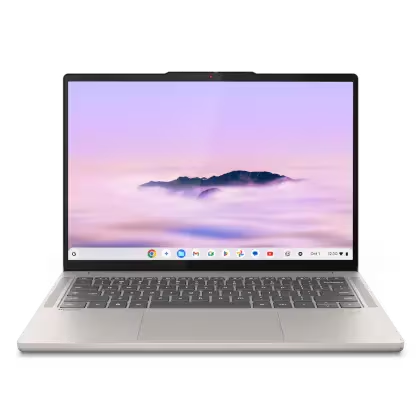
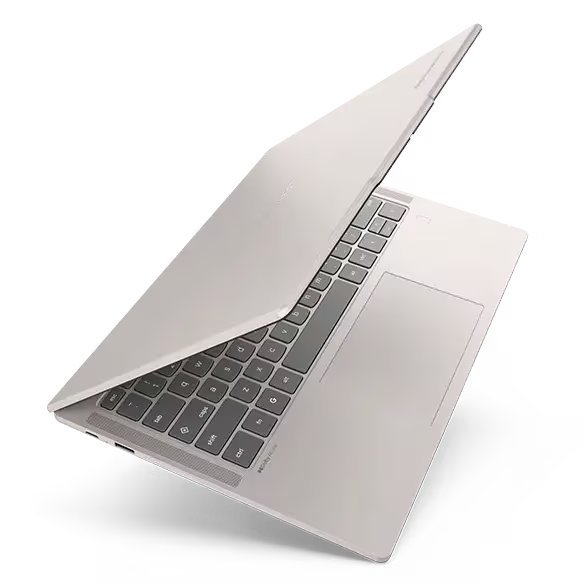
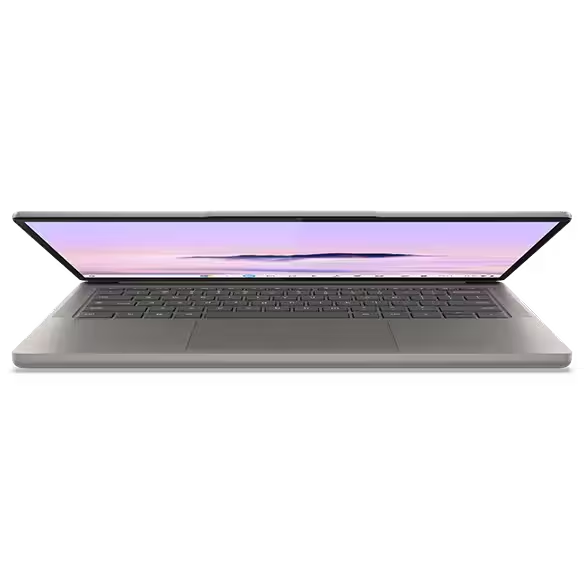
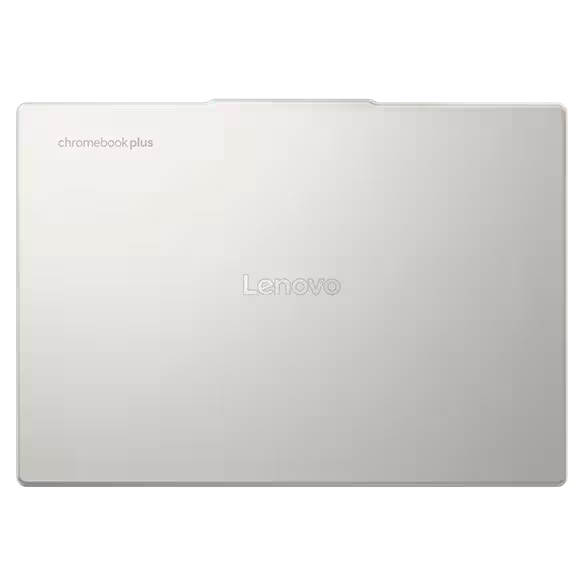
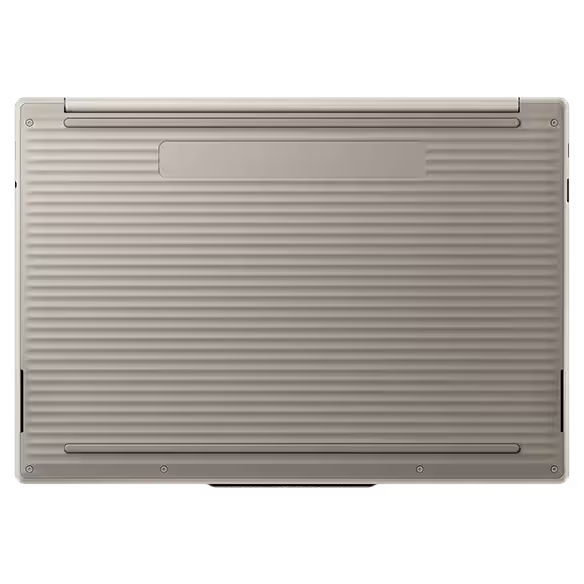
Lenovo’s Most Powerful ARM Chromebook Plus 14 Launches with AI Features 17-Hour Battery

Lenovo has unveiled the Chromebook Plus 14, its most powerful ARM-based Chromebook yet. It’s powered by MediaTek’s Kompanio Ultra 910 chip, with an NPU delivering up to 50 TOPS of AI performance.

The 14-inch Chromebook Plus comes with an OLED display (touch optional) and supports up to 16GB of RAM. Battery life is rated at up to 17 hours, which Lenovo claims is the longest on any Chromebook Plus to date.

Lenovo Chromebook Plus 14
Image: Lenovo
Lenovo Chromebook Plus 14
Image: Lenovo
Lenovo Chromebook Plus 14
Image: Lenovo
Lenovo Chromebook Plus 14
Image: Lenovo
Lenovo Chromebook Plus 14
Image: Lenovo

Lenovo Chromebook Plus 14 now on sale, with AI perks from Google

The Chromebook is available in the US starting at $649 through Best Buy and Lenovo’s online store. Every purchase includes a one-year Google AI Pro subscription, normally valued at $240. Google is also rolling out exclusive features to this model:

  • Smart Grouping: AI organizes open tabs and documents into clusters.
  • Gallery AI tools: Remove image backgrounds, create stickers, and more.

Meanwhile, all Chromebook Plus models—including Lenovo’s—are getting broader AI updates today:

  • Select to Search & Text Capture: Long-press the launcher or use screenshot tools to search or extract text from images.
  • Quick Insert (QI) upgrades: Users can now generate images via AI.
  • Simplify tool in Help Me Read: Breaks down complex content for easier understanding.
  • NotebookLM pre-installed: Google’s research and note-taking tool is now built-in.
  • Squid Game: Unleashed on desktop: Optimized with keyboard and mouse controls, plus exclusive in-game skins.

With this mix of powerful hardware and Google-backed AI features, the Lenovo Chromebook Plus 14 is clearly presenting itself as a worthy rival among the group of premium Windows laptops.

Access Google Passwords From passwords.google.com [Easy Guide]

Forget writing down your passwords in docs, Sticky Notes, or even physical sheets. Google’s built-in Password Manager stores every login you approve, and you can view or export them in seconds from passwords.google.com from anywhere. Follow the steps below, access your passwords, then tighten security with the tips that follow.

How to see your Google Passwords on passwords.google.com

Step-by-Step guide on how to access Google Saved Password from Any Device

Time needed: 2 minutes

This is how to easily access Google saved passwords on password.google.com:

  1. Open your browser

    -Launch Chrome, Edge, or any modern browser you have on your device.

  2. Head to passwords.google.com

    -Type the address https://passwords.google.com/, press Enter, and wait for Google Password Manager to load.

  3. Step 3: Sign in to your Google account

    -Enter the email and password linked to the passwords you want to see (if you have multiple Google accounts, make sure you are entering the credentials for the right one) . If prompted, complete two-step verification.

  4. Browse your saved logins

    -You’ll see a list of sites and usernames. Click the eye icon to reveal a password or the copy button to place it on your clipboard.

Pro Tips for Better Password Management

  • Turn on biometric unlock in Chrome. The latest update lets you confirm password access with Windows Hello or a phone screen lock. See the full rundown in our password security boost article.
  • Run Google’s Password Checkup to spot compromised or reused credentials.
  • Delete logins you no longer need to keep the list tidy.
  • Add a passkey for passwordless logins where available (learn more in our Google Passkey review).

Frequently Asked Questions

Can I view my passwords on someone else’s computer?


You can, but only after signing in. Remember to log out when finished.

How do I export my passwords?

Click the settings cog ➜ Export passwords. Google generates a .csv you can import into another manager.

What if I forget my Google account password?

Go to Google’s account recovery page and follow the prompts to reset it.

Does Google delete passwords if I disable syncing?

No. Syncing stops future updates, but existing passwords stay in your account until you remove them.

Wrap-Up

Accessing your Google-saved passwords takes less than a minute, and Google’s extra security layers like biometric unlocks, passkeys, and regular checkups keep intruders out. You can quickly view passwords and store them safely. Follow the guide, review your logins, and stay ahead of security threats.

[UPDATE] Denmark to Only Ditch Microsoft Office; Windows Will Remain

UPDATE (23/06/2025): Politiken has updated its original report (via PC Gamer) to clarify that only Microsoft Office is being phased out by the Danish Ministry of Digital Affairs—Windows will remain in use for now. Windows Central also shared an Edge-translated LinkedIn message from Danish Minister for Digital Affairs, Caroline Stage Olsen.

ORIGINAL STORY: If you follow Microsoft-related news, you must be aware that last year, one of Germany’s state offices began shifting 30,000 workers away from Microsoft software in favor of Linux and LibreOffice. Now, Denmark is taking a similar path, moving away from tools like Microsoft 365 and Windows.

Starting next month, the country’s Ministry for Digital Affairs will begin phasing out Windows and Microsoft 365. Half the staff will make the switch first. If the rollout stays on track, the rest will follow by autumn, according to Danish news outlet Politiken.

The move is part of Denmark’s new four-year digital strategy. Minister for Digital Affairs, Caroline Stage, says the goal is greater “digital sovereignty.” That means cutting costs, reducing dependency on American tech, and having more control over what runs inside government systems.

There’s also timing at play. Windows 10 support ends in October, and rather than switching to a new version from Microsoft, the ministry sees this as a good moment to go open-source. Still, Stage admits it’s not a one-way door. “If phasing out proves to be too complicated, we can revert back to Microsoft in an instant,” she told Politiken.

This isn’t just about one office. Both Copenhagen and Aarhus are looking at similar exits, driven in part by years of political pressure to move away from U.S. software vendors. If successful, Denmark could be the latest example of a European government betting on open tools, trying to prove that public infrastructure doesn’t have to come with a Microsoft license attached.

Not to forget, Russian President Vladimir Putin had a similar stance, suggesting that companies like Microsoft and Zoom must be “throttled.”

KDE Plasma 6.4.1 arrives June 24, 6.5 already in the works

If you’ve updated to KDE Plasma 6.4, the first round of fixes is nearly here. Plasma 6.4.1 arrives June 24 with a focus on resolving key usability issues and broken behaviors across widgets, clipboard tools, and Discover.

According to the KDE blog post, the following are bug fixes included in Plasma 6.4.1:

  • Selection bugs in the Folder View widget
  • Clipboard popup failing to highlight the top item
  • Discover’s list view rendering and shortcut cleanup
  • Wallpaper plugin bugs caused by changing data formats
  • System locking or suspending earlier than expected
  • Scan-out issues on rotated displays
  • Blank entries when installing wallpaper plugins

Keyboard shortcut bugs and UI glitches in KRunner have also been patched. Not to forget, Plasma 6.3.6 is also getting another update on July 8 to fix older bugs like missing shortcuts after upgrades and overflow in faded text.

Plasma 6.5 to feature compact emoji picker, better tiling, faster Activity Manager

Looking ahead, the KDE team detailed what’s next in This Week in Plasma. Plasma 6.5 development is underway, and it includes:

  • A redesigned, more compact emoji picker
nicer-emoji-picker
Image: KDE
  • Activity Manager trimming history to four months by default to prevent bloat
  • Removal of the vertical line between time/date in the clock widget
  • A relocated “Add New” button in Shortcuts settings for better space use
add-new-on-toolbar
Image: KDE
  • Smaller custom tiling tile minimums (useful for ultrawide setups)
  • Redesigned captive portal banner for cleaner network popups

The Plasma team continues weekly iteration, improving both functionality and visual polish. Plasma 6.5 doesn’t have a set release date yet, but development work is already active.

Microsoft releases new Defender update for Windows 11, 10, and Server install images

Microsoft has released a new Microsoft Defender update package for Windows 11, Windows 10, and Windows Server installation images. This follows a similar update for Lumma last month and helps address outdated Defender components that come bundled with installation media.

When setting up a new system, the anti-malware tools included in the image can be weeks or months out of date, creating a temporary security risk.

Microsoft’s updated Defender package aims to close that gap by delivering the latest definitions and software components directly into install images.

What’s in the update

  • Defender package version: 1.431.54.0
  • Platform version: 4.18.25050.5
  • Engine version: 1.1.25050.2
  • Security intelligence version: 1.431.54.0

It applies to the following platforms:

  • Windows 11
  • Windows 10 (Home, Pro, Enterprise)
  • Windows Server 2022
  • Windows Server 2019
  • Windows Server 2016

According to Microsoft’s documentation, the update enhances detection capabilities for a range of threats, including trojans and backdoor exploits.

While the current version of Microsoft Defender’s intelligence update is 1.431.155.0, this image-specific package is designed for new installs only. Besides patching early vulnerabilities, Microsoft notes that these updates can also improve performance on some systems after setup.

Linux 6.16-rc3 lands with key driver and architecture fixes

If you’ve been waiting for progress on the next Linux kernel, Linux 6.16-rc3 is now available—and it’s back to normal size. Announced by Linus Torvalds, this third release candidate includes a mix of bug fixes and updates for both new and older features.

Torvalds noted that, unlike last week’s rc2, which was unusually small. However, this week’s rc3 looks “entirely normal” for this stage of development.

As reported by Phoronix, wireless networking and GPU driver changes are related to this release. Notable updates include “amdgpu” and “amdkfd” fixes for job handling, engine resets, display glitches, and power features. Qualcomm Adreno GPU drivers also saw better fault handling and display sync improvements.

The open-source Nouveau (NVIDIA) driver received several patches for memory safety, addressing overflows, buffer sizes, and use-after-free issues. Intel’s i915 driver was updated to fix early wedge conditions and memory initialization problems.

On the architecture side, there are improvements to ARM64 KVM for stability, as well as updates to RISC-V KVM and Intel’s Trust Domain Extensions (TDX) for virtualization security.

Other subsystems seeing changes include ath12k and iwlwifi (Wi-Fi), ALSA (audio), AMD power management, and file systems like OverlayFS, EROFS, XFS, and NFS.

Linux 6.16 is expected to reach stable release by the end of July. As always, the newest kernel helps Linux support more hardware, so it’s worth checking out if you’ve had compatibility issues. Torvalds has urged users to keep testing and reporting bugs during the rc phase.

Waiting for Death Stranding 2? Here’s exactly when it unlocks in your region

Death Stranding 2: On The Beach is finally releasing this week, but your access time depends on which version you bought and where you live. As expected, there are two release dates.

First, June 24, for those who preordered the Digital Deluxe or Collector’s Edition (this is the 48-hour early access window). Secondly, June 26, for the Standard Edition.

Sony hasn’t officially posted a global release map, but GameSpot exclusively reported the exact times using the countdown timer found in the Deluxe Edition pre-install.

Since PlayStation follows a rolling midnight release, the game unlocks at midnight in the earliest time zone in your region. That means you’ll get access sooner if you’re west of your region’s easternmost zone.

Early access launch times (Deluxe & Collector’s Editions – June 24)

  • Pacific Time (PT): June 23 at 9:00 PM
  • Eastern Time (ET): June 24 at 12:00 AM
  • British Summer Time (BST): June 24 at 5:00 AM
  • Japan Standard Time (JST): June 24 at 1:00 PM
  • Australian Eastern Standard Time (AEST): June 24 at 2:00 PM
  • Central European Summer Time (CEST): June 24 at 6:00 AM
  • India Standard Time (IST): June 24 at 9:30 AM

Standard edition release times (June 26)

  • Pacific Time (PT): June 25 at 9:00 PM
  • Eastern Time (ET): June 26 at 12:00 AM
  • British Summer Time (BST): June 26 at 5:00 AM
  • Japan Standard Time (JST): June 26 at 1:00 PM
  • Australian Eastern Standard Time (AEST): June 26 at 2:00 PM
  • Central European Summer Time (CEST): June 26 at 6:00 AM
  • India Standard Time (IST): June 26 at 9:30 AM

Hideo Kojima has described Death Stranding 2 as his “most difficult challenge” to date, even saying the project nearly got canceled at one point. If you are planning to get your hands on the standard edition, pre-order now on Amazon for $69.99.

Ubuntu may get a new trash icon with the version 25.10

Ubuntu contributors are actively reviewing a redesigned trash icon that could show up in the dock with Ubuntu 25.10 this October.

The icon has been a topic of controversy for years, mainly because the current version resembles a post box, especially when files are in it. That’s due to the clean, letter-like appearance of the contents and the closed-lid design.

The redesigns now being considered aim to fix that. The proposed versions are open-topped to make the bin purpose clear and use crumpled paper graphics to represent deleted files. Contributor ochi12 has been posting updated icon sets in different sizes, testing their visibility and clarity at small dock resolutions.

While early versions are available, nothing has been finalized just yet. Contributors continue to give feedback on design tweaks, and there’s no guarantee a new icon will be approved at all.

Ubuntu’s trash icon conversation actually began years ago, with discussion first closing in 2019 before being revived this May. Now that it’s back on the table, some users have voiced support for keeping the existing design, underscoring how subjective visual UI changes can be.

If the redesined trash icon get approval in time, it could appear in Ubuntu 25.10. If not, you could see it in April 2026 with the Ubuntu 26.04 LTS release. Moreover, if you are willing to install Microsoft Edge on Ubuntu, check this detailed guide.

AMD Ryzen 5 9600X3D leak shows 3D V-Cache coming to budget gaming CPUs

If you’ve been waiting for AMD’s 3D V-Cache magic to hit a more affordable CPU, your time might be coming soon. The Ryzen 5 9600X3D recently showed up unexpectedly in the support list for AMD’s new Radeon AI R9700 graphics card.

First spotted by MelodicWarrior on X, the leak suggests AMD is prepping a 6-core, 12-thread Zen 5 chip built on “Granite Ridge” that includes the company’s second-generation 3D V-Cache.

Ryzen 5 9600X3D leak
Image: X/@MelodicWarrior

That’s 64 MB of vertical cache stacked on top of the usual 32 MB, for a total of 96 MB of L3. It’s the same performance-boosting tech seen in higher-end chips like the 7800X3D, just at a likely lower price point.

A mainstream gaming CPU with serious cache

Expected specs point to boosting clocks up to 5.4 GHz and a 65-watt TDP. That balance of speed and efficiency could make it a solid pick for budget builds, especially with DDR5-5600 support and compatibility with AM5 motherboards.

Let’s not forget that Intel’s Core Ultra 7 265KF just dropped to $229, and AMD’s rumored 9600X3D could directly challenge chips like the i5-14600K and Core Ultra 5 245K.

There’s still the question of how long a 6-core chip will hold up as more modern games lean toward 8-core recommendations. But AMD is betting that the extra cache will give it an edge in today’s gaming workloads even if the core count isn’t top-tier.

Speaking of launch, AMD’s Ryzen 5 9600X3D will likely see retail launch later this year. There’s no official word just yet.

Intel to replace marketing staff with Accenture and AI, layoffs expected by July

Intel is moving ahead with a major overhaul of its marketing operations, and employees are starting to feel the impact. As reported by OregonLive, many roles in Intel’s marketing division will be handed over to Accenture, which plans to use AI to perform tasks previously handled by Intel employees.

The company hasn’t revealed how many people will be affected, but staff have been told they’ll know by July 11 whether they still have jobs. Only small, “lean” teams are expected to remain.

The marketing division helped build its direct-to-consumer reputation starting in the early ’90s with the “Intel Inside” campaign. Now, Intel says it wants to free up internal teams to focus on creative and high-impact work, while Accenture’s systems handle more routine marketing functions.

That includes task automation, data processing, and personalized messaging, areas where the company believes AI can deliver faster, more cost-efficient results. Intel claims this will help modernize its brand and improve service to customers.

In a message shared with OregonLive, Intel said:

As we announced earlier this year, we are taking steps to become a leaner, faster, and more efficient company. As part of this, we are focused on modernizing our digital capabilities to serve our customers better and strengthen our brand. Accenture is a longtime partner and trusted leader in these areas and we look forward to expanding our work together.

It should be noted that the part of the transition may involve current employees walking Accenture through Intel’s internal systems—essentially training their replacements.

It’s unclear how long that process will take. Well, layoffs have been rampant across the tech industry these days. Earlier this month, a report suggested that Microsoft will soon lay off thousands from the sales department.

Leaked Meta Quest 3S Xbox Edition could launch tomorrow

A black-and-green Meta Quest 3S branded with Xbox styling might be hitting shelves tomorrow. Images of the special edition VR headset just popped up online thanks to X user @Zuby_Tech.

Now, the publication, Game Sandwich, claims that this bundle might go on sale as early as Tuesday, June 24. It won’t be a major hardware shakeup, though. Reports suggest that the specs reportedly match the standard Meta Quest 3S, including the 128 GB internal storage.

What sets it apart is the Xbox-focused packaging. The Meta Quest 3S Xbox Edition likely ships with matching accessories, an Elite Strap, an Xbox wireless controller, and a three-month Xbox Game Pass Ultimate trial. It is rumored to have a price tag of $399.

As you may know, Meta has been laying the groundwork for third-party collabs since it opened up its VR platform to outside makers last year. Microsoft, for its part, has already pushed Xbox Cloud Gaming to Quest headsets, allowing players to stream titles onto a massive virtual screen.

So even if this limited edition doesn’t light up sales charts, Xbox is showing up wherever it can, from your TV and phone to now—your VR headset.

Xenia team shuts down rumors of Xbox partnership for PC emulation

If you were excited about the potential partnership between the Xenia emulator team and Microsoft, sadly, that’s not happening. Folks over at Xenia, the Xbox 360 emulator for PC, have announced that they’re not working with Microsoft in any capacity.

Xenia denies partnership rumors with Microsoft on Xbox backward compatibility

This comes after growing buzz around social media suggesting the two were collaborating to bring original Xbox and Xbox 360 games to PC through some kind of official emulation effort. In a message shared through their official Discord, the team addressed the situation head-on:

Hey everyone, I just wanted to clear some confusion regarding a rumor that has recently surfaced online.

The Xenia (and Xenia Canary, by extension) team is by no means associated with, nor working alongside, Microsoft in any capacity. Microsoft uses their own emulation to provide backward compatibility on Xbox One/Series consoles and as such has no reason to collaborate with Xenia, even if they decided to bring these titles to PC.

Xenia continues to be a community-run effort that encourages and enforces legal emulation practices both in development and within this server.

Xenia also pointed out that Microsoft already has its emulation system for Xbox One and Series consoles and has no reason to lean on outside projects like Xenia, even if Xbox classics ever make their way to PC.

For the uninitiated, the rumor was served by a renowned tipster, Extas1s, who previously leaked credible Xbox hardware details. The tipster claimed that Microsoft was building a “new advanced emulation platform” with Xenia’s help, supposedly tied to Xbox’s 25th anniversary in 2026.

But soon after that story started circulating, Xenia developers began debunking the rumors in Discord threads. This weekend’s public statement is the first time they’ve addressed it as a team.

Adding weight to the denial, Windows Central’s Jez Corden also said there’s “no such collaboration happening.” Still, Extas1s didn’t walk it back. Instead, they teased, “We’ll see you in 2026.”