OneDrive upload speed: What is the limit & how to speed up?

OneDrive is the redesigned and rebranded SkyDrive, available for all Windows users who want to upload and sync their folders and files to the cloud.

But, as it turns out, it comes with problems for some.

OneDrive is very slow on uploading/Sync. Please try to find whether something is wrong on your servers in China rather than telling us check the PC, reading tips on Maximizing uploading speed, etc. Any changes Microsoft made on the servers in China can give you the hint.

So, by looking at the above-pasted excerpt, we can see that the affected OneDrive user is from China, where multiple users have been saying that their uploading speeds are incredibly slow.

This comes just a few days after we have reported that OneDrive uploading wasn’t working at all for Windows 10 users.

How can I improve OneDrive upload speeds?

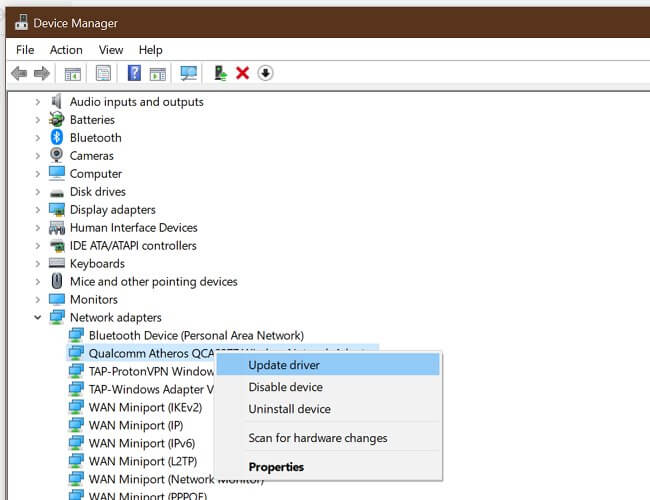
1. Maximize OneDrive transfer speed

If you too are experiencing similar problems, here are some things you could do in order to maximize the transfer speed.

You should avoid running other apps on your device when you’re uploading or downloading a large amount of data and don’t use your Internet connection for other activities while you’re transferring a large amount of data.

Also, of course, if your Internet speed isn’t quite fast and you’re also uploading big files, these might be the biggest reasons.

And here’s another user weighing in with his input and confirming the issue:

Same here. I can’t say whether I like OneDrive or not, now. I recommended outlook and onedrive to all my relatives. Suggest winphones and surface. And now I have to explain why they can’t send mail to others with only several photos or can’t sync photos from PC to pad. Maybe we know the reason, maybe not. It’s your responsibility to turn things around.

The affected users claimed that the problem occurs to both upload and download speed.

The thread has been joined by more and more affected users, and it seems that China indeed is the most affected by slow OneDrive uploading speeds.

And, as of now, an official fix hasn’t been issued, here’s the latest reply of a Microsoft representative:

We apologize for the delayed response. As per our Support Escalation engineers, we haven’t gotten any other reports with this slow upload issue in China. For further investigation, please provide us the log files of your OneDrive application that came from the computer(s) where the issue is originated. Kindly refer to the private message that I provided for more information. Make sure that you are signed in to the Microsoft Community (this site) to be able to view it. The conversation in the private message area is secure. Only you and our moderators can view it.

However, the problem doesn’t seem to be impacting only those who’re using OneDrive in China only.

There have been multiple threads appearing on various forums in Europe, the United States, and various other parts of the world.

2. Try another cloud storage solution

There are various cloud storage solutions to pick from these days and most of them will offer you the right amount of online storage.

In spite of that, upload speeds aren’t always as high as expected. Since you’re no stranger to this issue, maybe it’s time to forget all about OneDrive and try out a different cloud storage platform.

Our top recommendation is Sync. No matter the files you’re trying to back up, they are all safeguarded from intrusive access.

On top of that, you can effortlessly send files of any size to all friends and family members even if they don’t use Sync just yet.

UPDATE: Since the writing of this report, we compiled a list of the best solutions that you can use to fix slow OneDrive upload problems. More specifically, they include:

  • Using a wired Internet connection
  • Closing background apps and programs
  • Avoiding uploading files in batches
  • Checking for updates, and more.

Do check out our troubleshooting guide and let us know which solution worked for you by leaving your comment below.

Finally, let us share a few more tips for those interested in finding more about:

  • OneDrive upload speed limit – OneDrive, by default, never limits the speed that your content is downloaded or uploaded. If the slow speed in an issue, use the above tips.
  • OneDrive throttling upload speed – Verify that your OneDrive speeds are not throttled by entering into Settings > Network tab. While here, make sure Don’t Limit isn’t ticked.
  • Speed up OneDrive uploads – If closing background apps/programs and other basic troubleshooting tips made no difference, think of some great cloud storage alternatives.

Microsoft details upcoming free Xbox Series X upgrades for Forza Horizon 4, Sea of Thieves, and Gears Tactics

Microsoft shared new details today about upcoming free Xbox Series X upgrades for some of its existing Xbox Game Studio titles that shipped in the past two years. All these updates will be delivered through Microsoft’s Smart Delivery system, which some third-party developers such as Ubisoft (Assassin’s Creed Unity) and CD Proket Red (Cyberpunk 2077) have also embraced.

Sea of Thieves, Forza Horizon 4, Ori and the Will of the Wisps, and Gears 5 will all be optimized for the new console this holiday season, which also see the release of the PC game Gears Tactics on Xbox One and Xbox Series X. “The critically-acclaimed, fast-paced, turn-based strategy game is coming to Xbox consoles later this year, running in 4K Ultra HD at 60 frames per second on Xbox Series X,” Microsoft said today. Gears Tactics was the first Gears of War game to launch first on PC this year, and it’s great to see it coming to Xbox consoles this holiday season.

As you may recall, Gears 5 was the first current-game that Microsoft said would be enhanced for the Xbox Series X, and the company previously mentioned in the spring that it was exploring 120FPS support for multiplayer. The software didn’t confirm that today, and today’s blog post only mentioned that the solo and multiplayer modes would benefit from “reduced load times, instant resume and 4K HDR visuals using Ultra settings.”

We’ve also heard about Xbox Series X enhancements for Forza Horizon 4 earlier this year, and Microsoft finally shared more details today. The open world racing game will be able to run at 4K/60FPS on Xbox Series X, with “dramatically improved load times” and support for Quick Resume. As a reminder, the game on Xbox One X can be currently played at either 4K/30FPS or 1080p/60FPS, so the new 4K/60FPS mode will be very welcome.

The Xbox Series X upgrade for Ori and the Will of the Wisps was detailed during the Xbox Games Showcase earlier today, and we learned that the platform game will be able to run at 4K/120FPS on the next-gen Xbox. “The silky-smooth feel, low input latency and crisp imagery come together to create an unprecedented precision platforming experience,” the Xbox team emphasized today.

Last but not least, Rare’s popular pirate game Sea of Thieves will also get an Xbox Series X upgrade later this year, though Microsoft didn’t go into specifics today. “Sea of Thieves will launch alongside Xbox Series X, taking advantage of its advanced hardware, supports Smart Delivery, and is available day-and-date with Xbox Game Pass,” the announcement reads. Sea of Thieves currently runs at 4K/30FPS on Xbox One X, and we hope that a 60FPS mode will be available on Xbox Series X.

If you haven’t done it yet, we invite you to check out our recap of today’s Xbox Game Showcase, which includes all video trailers seen today including a first look at the Halo: Infinite single player campaign. All games Microsoft showed today will be enhanced for the Xbox Series X, and Halo: Infinite was definitely one of the most impressive titles.

Some insiders can’t install the new Build 20175

Microsoft just released the new Windows 10 Build 20175.

It’s not a very rich update although it fixed a very important problem that excluded AMD processors owners from updating to the previous Build 20161.

So although Microsoft announced that they fixed the issue, some insiders already started to complain about not seeing the new update.

What can I do if I can’t see the new update to Build 20175?

Luckily, Microsoft reacted extremely fast and came with a short announcement on Twitter with a workaround for this problem.

Here is the solution as Microsoft presented it on their answers blog post:

  1. Open the Start Menu.
  2. In the search box, type CMD.exe.
  3. On the right menu under Command Prompt, select Run as administrator. Command prompt workaround
  4. If prompted by UAC, choose Yes.
  5. From the elevated prompt, enter this command, then hit enter: net stop wuauserv
  6. Enter this command, then hit enter: rmdir /s /q C:\Windows\SoftwareDistribution\SLS
  7. Finally, enter this command, then hit enter: net start wuauserv
  8. Close the Command Prompt window.
  9. Open Settings > Update & Security > Windows Update and check for updates.

This should solve the problem and you should see the Build 20175 in Windows Update.

Another solution to the Build 20175 problem

Unfortunately, the solution didn’t work for absolutely everybody and another insider commenting on Microsoft Answer blog is suggesting another approach:

Manually delete all folders in the download section in SoftwareDistribution, restart and its working again.

I had 12 folders there.

Did you have this problem? Did the solution work for you? Leave us a line in the comments section below.

[wl_navigator]

The driver required for this iPhone is not installed [Fixed]

iTunes is a popular software suite by the smartphone giant Apple for its iPhone and iPad series of devices. It allows the users to move files between their laptop and their Apple devices. That said, when connecting the device, some users have reported the driver required for this iPhone is not installed error.

The full error reads:

The driver requires for this iPhone is not installed. Please check your Windows Update settings.

The error, as the message that accompanies it, indicates that the possible reasons for occurring is due to some pending Windows updates. However, at times it can also be due to the corrupted iPhone drivers installed on your computer.

If you are also troubled by this error, here are a couple of troubleshooting tips to help you resolve the issue in the comments.

How do I fix the driver required for this iPhone is not installed iTunes error?

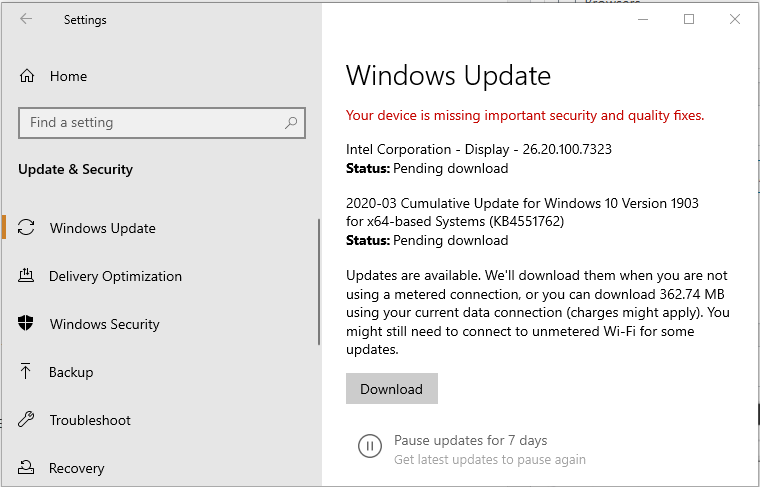
1.  Install pending Windows updates

driver required for this iPhone is not installed
  1. Press Windows key + I.
  2. Open Windows Updates and Security.
  3. Click on Install or Download.
  4. If not pending updates are shown, click on Check for updates.
  5. Windows will download and install pending updates.
  6. Once installed, you need to restart the system to apply the updates.
  7. Click on Start > Power > Restart.

Once the updates are applied, connect your iPhone again and check if the error is resolved. Make sure iTunes is open. If not, manually launch it from the desktop.

Reconnect your device

If the issue persists, try reconnecting your iPhone. Windows will install the drivers automatically when you reconnect your iPhone.  If this doesn’t work, try installing the driver manually.

2.  Update iPhone drivers manually

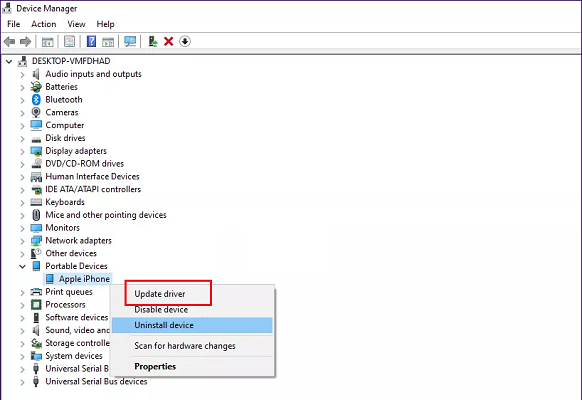
driver required for this iPhone is not installed
  1. Make sure your iPhone is connected to the computer.
  2. Press the Windows key.
  3. Type device.
  4. Click to open Device Manager.
  5. In Device Manager, expand the Portable Device category.
  6. Right-click on Apple iPhone.
  7. Select Update Driver.
  8. Click on ‘Search automatically for updated driver software’ option.
  9. Windows will scan the internet and install it if a newer version of the driver is available.

Once the driver is installed, close Device Manager. Reconnect your iPhone and check if the error driver is not installed. iTunes is waiting for a Windows update to install the driver for this iPhone is resolved.

Alternatively, you can make the best use of Fortect Driver Updater, a professional driver tool that can manage all your drivers correctly, updating your device drivers automatically within minutes.

3. Update iTunes

driver required for this iPhone is not installed
  1. Press the Windows key.
  2. Type Apple Software Update and click OK.
  3. You will see a Checking for a new update screen.
  4. You can see the number of pending updates and size.
  5. Click the Install button.
  6. If there are additional updates available for iTunes, install it as well.

Once all the updates are installed, launch iTunes and connect your iPhone. Check if the error iPhone the drivers for this device are not installed (code 28) is resolved.

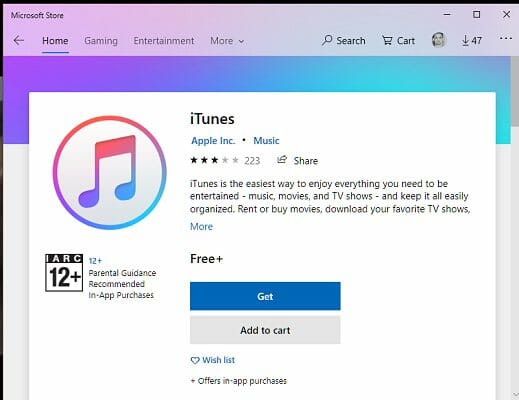
Update Microsoft Store iTunes version

Note: Do this only if you have installed iTunes from Microsoft Store.

driver required for this iPhone is not installed
  1. Launch Microsoft Store.
  2. Search for iTunes.
  3. Click on the Update button to download and install the updates.
  4. Once installed, relaunch iTunes and check if the error is resolved.

4. Reinstall iTunes driver

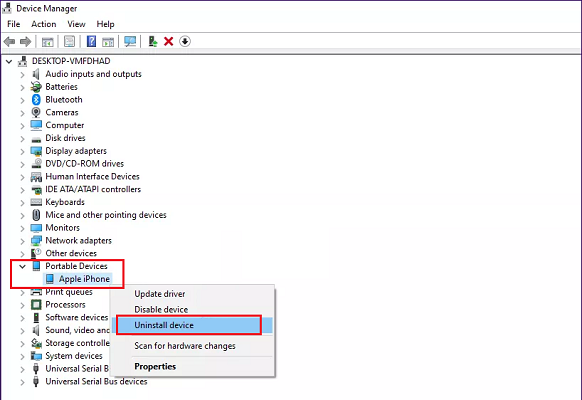
driver required for this iPhone is not installed
  1. Press Windows key + R.
  2. Type devmgmt.msc and click OK.
  3. Open Device Manager.
  4. In Device Manager, expand the Portable Device category.
  5. Select Uninstall Device.
  6. Click Yes to confirm the action.
  7. Once uninstalled, restart the computer.

When you restart the computer, Windows will automatically install the required iPhone drivers. Connect your iPhone and launch iTunes. Hopefully, the error should be resolved now.

The driver required for this iPhone is not installed error can occur due to corrupted iPhone drivers or pending Windows updates. Follow the steps in the article one by one to resolve the issue.

PS4 error code NW-31449-1 [Full Fix]

Even with incredibly fast Internet speeds, games these days can take an excruciatingly long time to download and install on your PlayStation 4.

There aren’t a lot of things more frustrating than running into a PS4 download error NW-31449-1.

Users on different online messaging boards have also experienced this exact error message while trying to play the Destiny 2, and the Incredibles games.

The Destiny 2 error NW-31449-1 is a PS4 network error that may occur while you trying to download the game.

In the case of the NW-31449-1 Incredibles error, the reasons for it appearing are either a result of network issues, lack of storage space, or corrupted data files on your PS4. The error also appears while the user is trying to download the game.

Check out the steps required to resolve this issue in all the cases mentioned above.

How do I fix the NW-31449-1 error on my PS4?

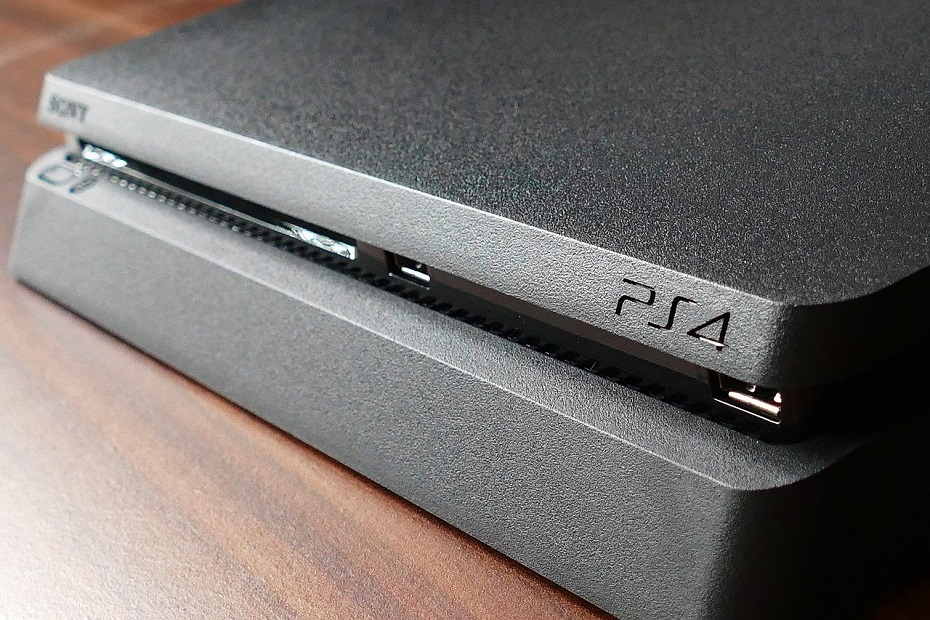
1. Perform a full reboot on your PS4ps4-front-panel-image

  1. Press the power button.
  2. Select Turn off the PS4 System.
  3. Ensure that the console is off and then unplug all peripherals including the power cable.
  4. Press the power button and hold it for 30 seconds while your PS4 is still completely unplugged. This will drain any residual or stored power.
  5. Let your PS4 sit for around 5 minutes.
  6. Reconnect the power cable to the outlet.

In the same way, rebooting a computer can fix most software and hardware related issues, rebooting your console can do the same thing.

After all, your console uses PC architecture and runs on a branch of the FreeBSD operating system.

Rebooting and power cycling your console will delete any leftover data in its cache and disconnect it completely from your network.

In laymen’s terms, congestion of cached data could be the root cause of not only an NW-31449-1 error but various PS4 update errors too.


2. Ensure that your PS4 has enough space

  1. Boot your PS4 up.
  2. Select your user profile.
  3. Select Settings.
    error-code-nw314491-ps4-main-screen-settings
  4. Scroll down to the System Storage Management item under settings and select it.
  5. The amount of free space you have should be under the fourth option (named Free Space).
    error-code-nw314491-ps4-free-space
  6. Match it against the game or patch you’re trying to install and decide if you have enough space.

If you’ve recently updated your PS4’s software, then you may have far less space than you originally bargained for.

Alternatively, the patch or game you’re trying download may be bigger than you originally thought it would be. This can cause a plethora of issues.

Much like the CE-35694-7 PS4 error, the NW-31449-1 code could be caused by a scarcity of space on your PS4’s hard drive.

Free up some space on your PS4

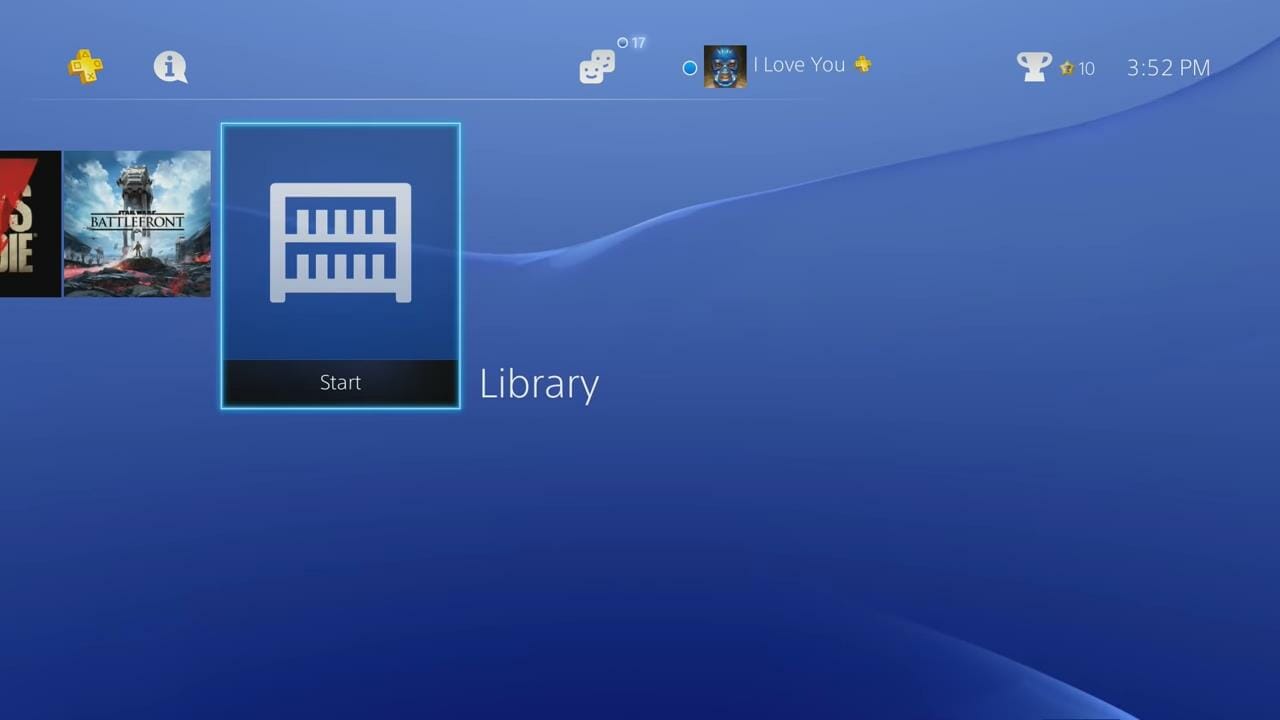
  1. In the main menu, scroll through the items until you reach the Library option. Select it.
    error-code-nw314491-main-menu-library
  2. Select the Games option.
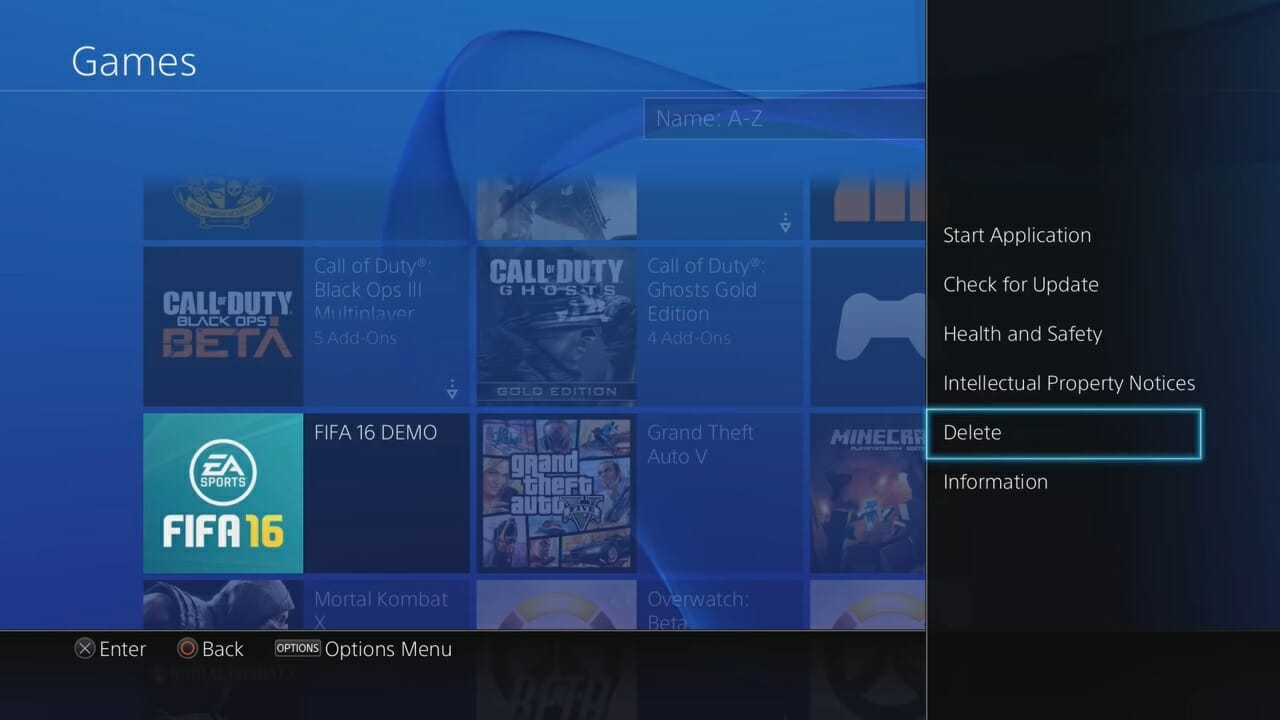
  3. Choose a game you’re willing to delete, then press the Options button on your controller.
  4. Select Delete. It should be located above Information and just below Intellectual Property Notice.
    error-code-nw314491-ps4-delete-game-menu
  5. The system will then ask you to confirm. Select the OK option and then hit the X button on your controller.
  6. It will take a few seconds to delete the game and then it will take you back to the main menu.
  7. Once again, check if you have enough space. If not, follow steps 1 – 5.

You can always re-download a game after you delete it. So once you delete it, it’s not lost forever and you haven’t flushed your money down the toilet.


3. Rebuild your database

  1. Turn your PS4 off.
  2. Hold the power button on the PS4’s front panel for seven seconds. You should hear one beep when you initially turn off the system and then a second after the 6 or 7 seconds mark of holding the power button. This will put your PS4 into its Safe Mode.
  3. Once you boot into Safe Mode, scroll down to option 5 (Rebuild Database).
  4.  Follow any prompts the system displays and wait until it rebuilds your database.

Rebuilding your PS4’s database can take up to an hour. During this time, the system will parse through all its files and delete any corrupted data.  You’ll need to exercise a bit of patience during the process.

In addition to possibly solving your PS4’s NW-31449-1 error code, rebuilding your database will also help you if:

  • The PS4 contains any corrupt data that can’t be accessed.
  • The PS4 stopped working during an update.
  • The PS4 froze up in one of the system menus displays
  • The PS4 displays an error that reads Hard Disk Drive is Corrupt.

Hopefully, one of the tips or solutions in this guide works for you. If you have any questions or would like to share your experience with this error, leave a comment down below.

[wl_navigator]

Here’s a quick recap of the Xbox Games Showcase pre show announcements

Microsoft’s Xbox games showcase is today, and it’s widely expected that Microsoft will talk about some of the newest games coming to the Xbox lineup this season. Ahead of the event, The Games Awards host Geoff Keighley held a pre-show, and there was plenty of action and world premieres. Here’s a recap of what was shown off.

(Editor’s note: The Xbox Games Showcase has ended, and our own Laurent Giret put together a nice recap of all the games showcased today)

To begin, we learned that Dragon Quest XI S: Echos of an Elusive Age will launch on Xbox consoles with Game Pass on December 4, 2020. The Definitive Edition of the game will also include all the content from the original release of the acclaimed DRAGON QUEST XI and add extra character-specific scenarios.

We also saw the World Premiere of EXOMECHA, a brand-new free to play online competitive first shooter. It takes place in OMECHA, a new and untouched planet with exotic environments. It will be coming in 2021.

A third world premiere was Echo Generation. Also coming in 2021, this is a turn-based adventure game developed by Cococucumber. Then, Following that was Hello Neighbor 2, which will be coming to Xbox in 2021.


To end, Yuji Naka, from Square Enix introduced a new brand, BALAN Company, and a new action-adventure game called Balan Underworld that is themed towards a musical theater. He confirmed the game will support 24 languages as well as Smart Delivery.


Microsoft also put out an interesting video, showing that there are a total of 15 new Independent games coming first to Xbox, and then will be optimized for the Xbox Series X. These titles include The Artful Escape, Shredders, 12 Minutes, Tunic, The Ascent, and much more. You can see these in the video below, and check them out over on the Xbox Wire.

As a reminder, the Xbox Games Showcase is now ongoing. It’s available in 24 languages, and you can watch it from our post here. We’ll be watching live, right with you, and will be doing a recap. So keep it tuned to OnMSFT.

These top 5 Microsoft Teams Bots will boost your Teams experience

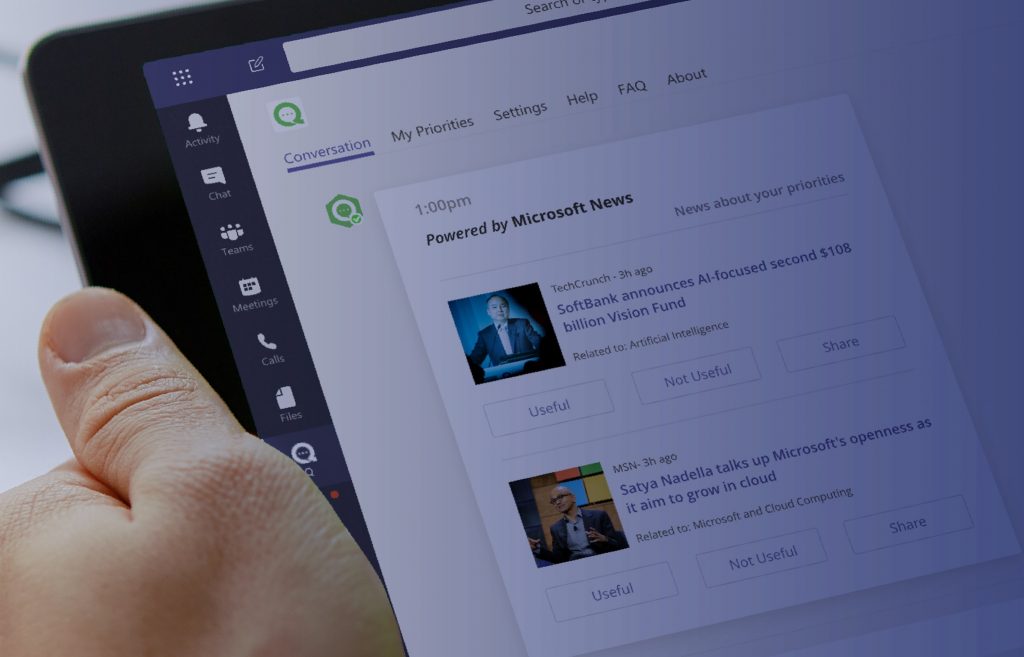
You might be familiar with apps in Microsoft Teams, but are you aware of Bots? Bots are a feature in Microsoft Teams that will allow you to get information from websites or other pieces of software and other services in a more conversational way, right from chat or a tab in a channel. Here’s a look at our top 5 Bots for Microsoft Teams and how they can boost your Teams experience.

Bot #1, Mio

A problem for most small or large businesses is communication with people across different services. You might be using Teams, but a client or customer might be on board with Slack or Cisco Webex. Well, there is a bot to help for that, and its name is Mio. With Mio, you’ll be able to join universal Teams channels to chat with people outside your organization. The Bot can be installed in two minutes. And the first three universal channels you create are free.  You can learn more about Mio over on their website.

Bot #2, Zoom.ai

Another common problem with it comes to using Teams is scheduling and setting up meetings. There usually needs to be someone behind creating the meeting and a lot of planning and thought, too. Zoom.ai is a bot which can help with meetings, and put those pains to worry. This Bot can automate scheduling for video meetings, give meeting briefings, schedule notifications, set up group meetings, and a lot more. It also syncs up with calendars and other customer relations tools, as well. A free tier is available, but paid plans will extend the experience for you as well.

Bot #3, Whobot

Other than problems with meetings and chatting, if your business is quite large, you might have trouble understanding who you’re chatting with. The person might be from a different department, or they could be new to the company. In this situation, the built-in Whobot from Microsoft will have your back.

Unlike the other picks in our list so far, WhoBot is designed by Microsoft. This means that it plugs in with the rest of Microsoft 365 with ease and can pull all kinds of information from Delve, Yammer, and more. It’s able to help you search for anyone in your organization based on what they’re working on, and a lot more.

You can install Whobot by clicking the ellipses on the left-hand menu bar of Teams, and then typing “Who” into the search bar. You’ll then want to click “add” to add the bot to Teams. Once added, you can see the bot in the sidebar of Teams, allowing you to ask questions like “Who is… Who knows… Who works with…” and so on. There is also a list of commands available with the /who command, or you can summon it with /who in the search box.

Bot #4, Polly

The fourth Bot on our list is Polly. This bot allows you to gather real-time insights with simple polls. It can be added as a tab at the top of a channel and is simple and easy to use. Once installed, you’ll be able to create polls and surveys natively in Microsoft Teams. You can get instant responses to questions, and manage polls, or keep polls anonymous. In the education space, Polly can also be used to create a quick assessment, too. You can add Polly today from the tab bar in Teams, or learn more from their website, here.

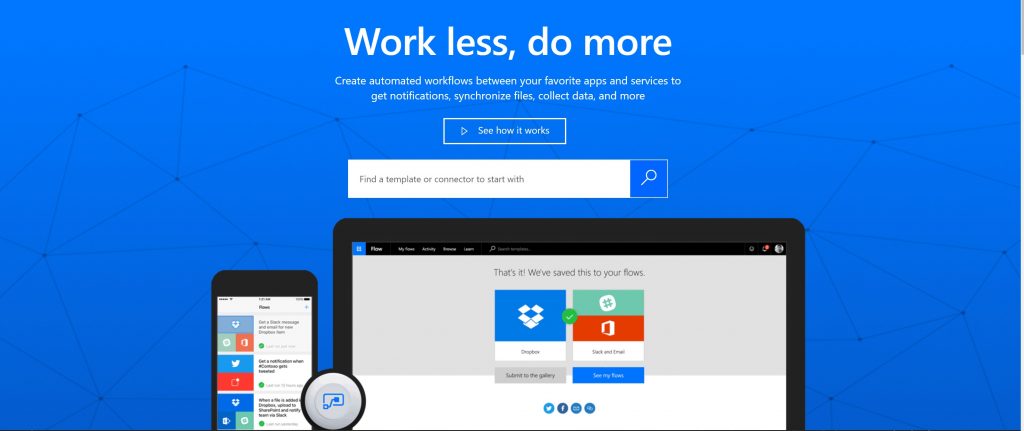
Bot #5, Flow

How to use Microsoft Flow instead of IFTTT

If you’re familiar with Microsoft Flow, then the Flow bot for Teams is for you. This Flow bot allows you to use all the same features of Microsoft Flow but within Teams. You can build certain connectors, trigger, actions, conditions, and loops, and help schedule flows to block times in your calendar, start meetings, and a lot more. We invite you to check out our guide on Flow for how you can get started.

There are a lot more Bots!

We’ve just given a look at some of our favorite Bots for Teams, but there’s a lot more which we didn’t cover. These include Statsbot for statistics, Soapbox for planning 1:1 meetings, as well as Workbot, which is a productivity-boosting bot. As a reminder, you can find all these Bots and more directly from Teams, simply click the . . . in the sidebar of Teams, then click More apps to open the catalog and choose Bots.

How to check Kindle report content error status

The advantage of ebooks is that they have the potential to be edited and updated almost immediately after an error in the content is detected. Furthermore, services like Amazon allow you to monitor the status of content errors that were reported from Kindle e-readers.

Not many users know how to access these reports. Some users may not even know how to report content errors at all.

Whether some content is not showing or syncing incorrectly across devices, in this guide, we’ll show you how to report Kindle content errors and monitor them.

How do I fix issues and check the status of my Kindle content error report?

Kindle table of contents not working

For self-publishing authors, Amazon provides a Kindle (.azw) ebook creation tool known as Kindle Create.

If you’re an author, editor, or publisher, we recommend that you consult the Kindle Create manual to help you build the interactive portions of your eBooks correctly.

Despite there being a wealth of resources to guide you through the process, creating a table of contents and making it accessible from the Kindle’s Go-To menu can still be very tricky.

Many publishers don’t get it right on the first try. As a reader, you can report table of content issues with the following steps:

  1. Using a web-browser on your computer navigate to the book’s Kindle page.
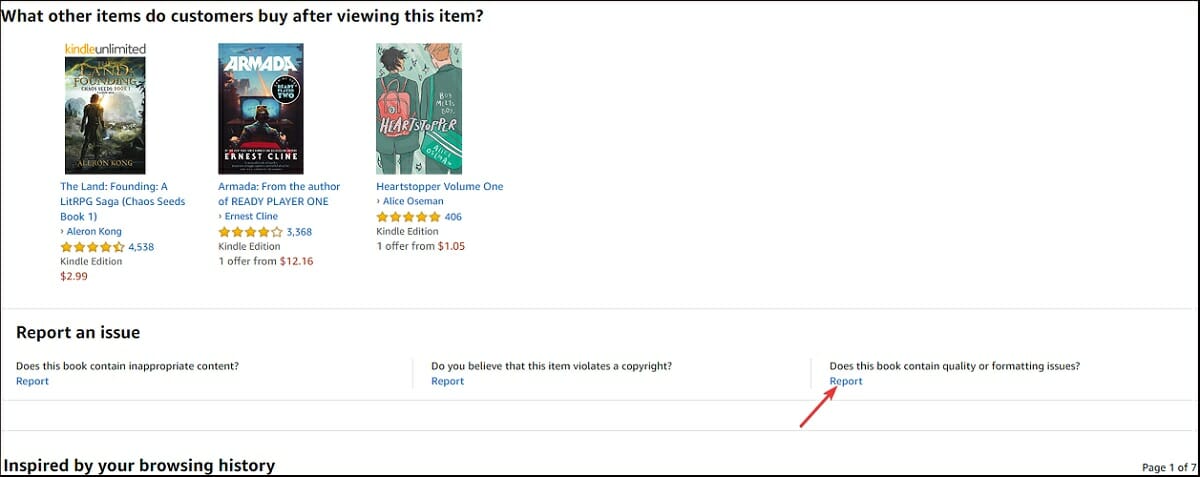
  2. Scroll down until you reach the Report an issue box. It should be above the Inspired by your browsing history section and just below the What other items do customers buy after viewing this item section.
  3. Click on the Report link under Does this book contain quality or formatting issues?
    report-quality-formatting-issues-kindle
  4. You’ll be asked to sign in if you’re not already signed in. After signing in, make sure to scroll down again and click on the Report link.
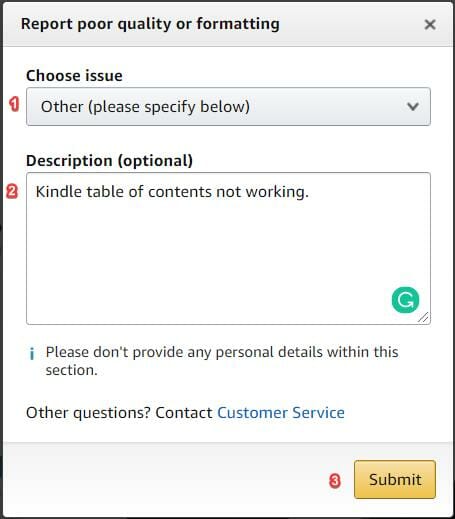
  5. From the Choose issue drop-down menu, select Others (please specify below).
  6. In the description box, describe the issue (Kindle table of contents not working).
  7. Click on the submit button.
    quality-formatting-submission-page-kindle-error-report

If there is a table of contents but it’s formatted poorly or it does not appear in the Go-To menu, you can either leave the Choose issue menu on the default (Poor formatting) or select Low-quality images or tables.

While leaving a description is not mandatory, it’s good practice. It will also make things a lot easier for Amazon and the author/publisher.


Reporting Kindle formatting and proofreading errors from Kindle e-reader

  1. On the page with the error, tap and hold onto the misspelled word.
    If an entire sentence has formatting issues, hold your finger on to the first word of the sentence and slide it across until you highlight the entire sentence.
  2. Select more from the pop-up menu.
  3. Tap on Report Content Error.
  4. Select what type of content error it is.
  5. Describe the issue in the text box (optional).
  6. Tap on Submit.

These steps won’t work for Kindle Fire tablets and non-touchscreen Kindles. If you own one of these Kindle types and you want to report an error, we suggest using the Kindle books’ webpage as illustrated above.


Getting a parsing error on your Kindle Fire? Resolve it with this easy fix


How to monitor Kindle report content error status

Amazon no longer allows users to check reported Kindle content errors from their website. Initially, you were able to see your Kindle content error report status from this page.

Amazon moved the option to the manage digital content section under devices and content.

From there, you could monitor the content error report status for each book by clicking on the action button next to the book and choosing the View your submitted correction option from the context menu.

When an error is rectified or a book has been modified, Amazon will update it. In most cases, it does this automatically when you connect your Kindle to the Internet.

If you find that the Kindle book won’t download or update, you can update it manually from the digital content management screen.

If a book in the list has an available update, a label that reads Update Available will appear underneath it.

digital-management-screen-kindle-content-error-report

  1. Ensure that you make a note of where the erroneous content in the book originally was
  2. Click the label to update your book.
  3. Input the modifications you want.
  4. Update the book.

Note: If it’s not fixed in this update, don’t fret, it’s likely that the publisher will fix it in the next iteration.


Kindle Content not showing

If you can’t find Kindle content in your library, make sure that your Kindle is synchronizing correctly, and that you have the latest firmware update installed on your device.

You can also manually download the book from the content management screen. In the case of some users, this option has resolved the issue.


In this guide, we explored how you can report content errors and track them. While the tracking method suggested in this guide may not be efficient, it’s currently the best one.

Nevertheless, we hope you’ve enjoyed reading through this guide. Leave a comment down below and let us know how you like to keep track of your Kindle content errors.

[wl_navigator]

Accounting Software for Self-Employed: Best Picks in 2026

Filing tax is a crucial task that takes a pretty good time to be done correctly. It takes a lot of patience and an eye for detail to fill up all the required details.

Since not everyone has a personal accountant to take care of tax matters, a tax program comes to their rescue.

These tax programs are especially useful for self-employed individuals who earn income by contracting with a trade or business directly.

So, what’s the best tax software for self-employed? While there is a wide range of tax programs available, finding the suitable one is the key.

Moreover, the best accounting software programs for independent contractors should also be affordable. There’s one for everyone, and so is the case with the self-employed individuals.

These tax programs increase their annual savings, track their income, and file their expenses efficiently.

For those who are wondering what’s the best tax software for self-employed, here’s a list we have created.

What is the best tax software for the self-employed?

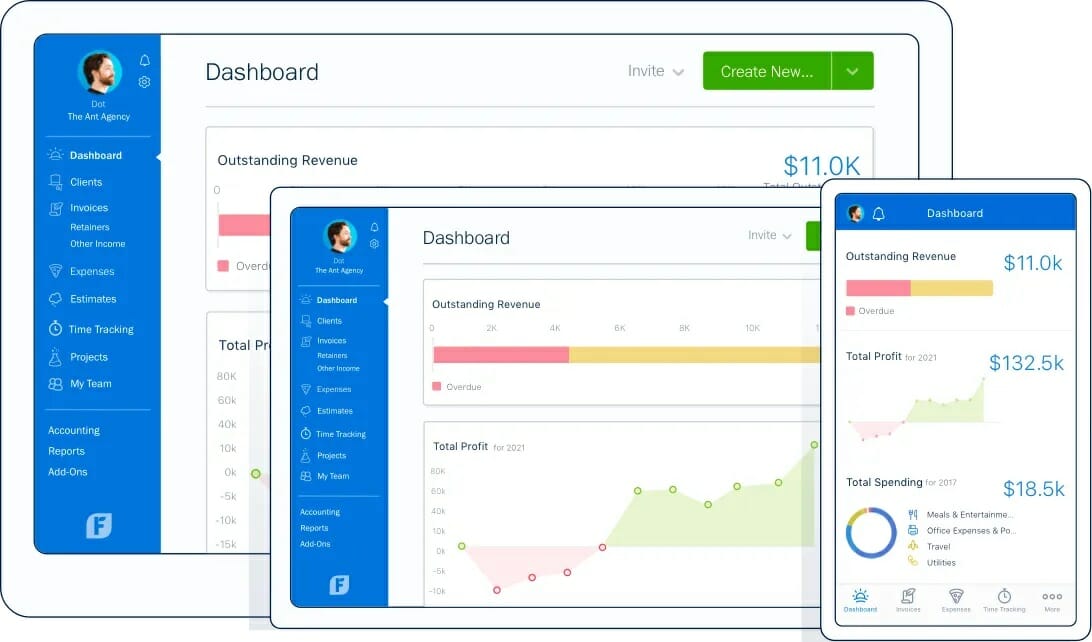
Freshbooks – Smart time-tracking tools

Track every dollar that goes in and out of your accounts and pay all the taxes on time using Freshbooks. It features a smart database of all expenses that can be updated in real-time with data from your payments.

Freshbooks keeps track of receipts, payments made through your bank account and does all the necessary calculus for accurate tax payments.

Since the platform was created to be intuitive, when tax time is closing in, just give access to your accountant and he will quickly find what he needs to do. Is that easy you can even do it yourself.

Thinking that some of the data is off? Easily create a customized report and find the issue with ease. Reports can be created for every type of data you provided Freshbooks.

Create professional invoices in seconds with clear details of the work done and the expenses. Also, remind clients that any payment is due with a smart reminder option.

Create faster payments by giving your clients options about the method used to pay. Simplifying the process and making it faster only boost your image.

Also, here are some key features of Freshbooks:

  • Smart time tracking tools for tasks, projects and individuals
  • Easy project management with real-time data for your clients
  • Professional invoicing with smart payment options
  • Reports for profitability, cash flow and finance health
  • Smartphone integration
Freshbooks

Freshbooks

Easy to use double-entry accounting for organic growth of your business.
Free Trial Visit Website

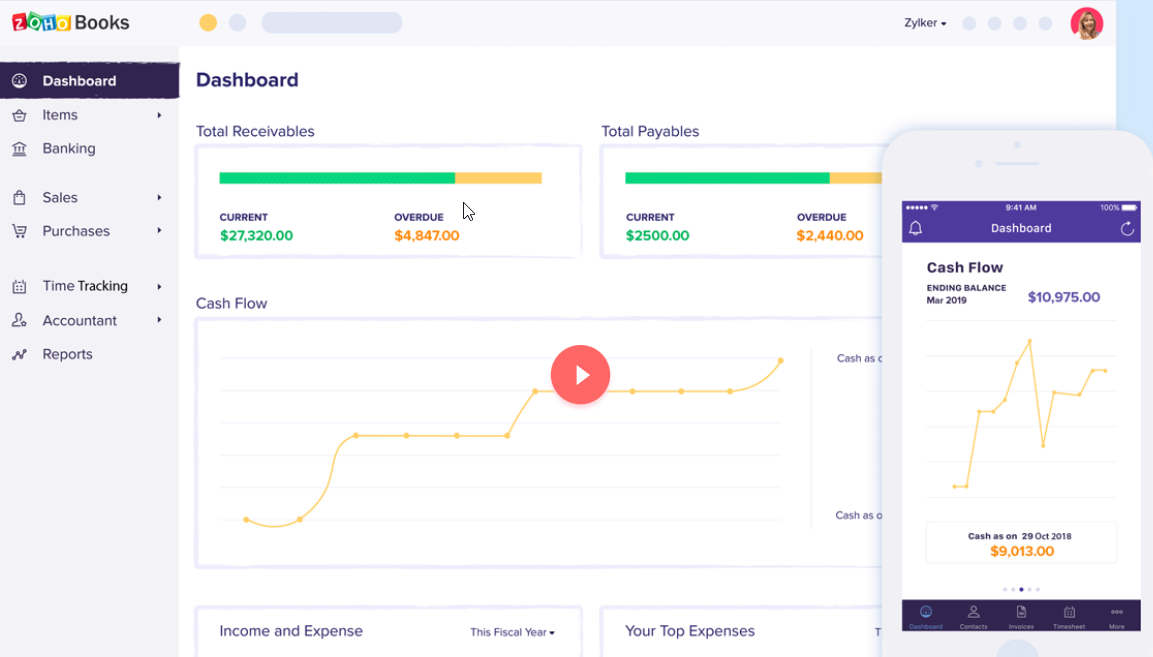
ZoHo Books – Client portal

As a tool for taxes, ZoHo books excels in keeping all your expenses, upcoming payments and cash flow in order.

When tax time is close, don’t worry, ZoHo has everything under control. Get a smart overview of every amount of money you have using sophisticated reports with customizable data. If it’s kept in ZoHo, you can create a report about it.

When talking about expenses, ZoHo has a smart database that centralizes all payables. You can easily upload receipts, create and send purchase orders so you keep track with ease of every dollar in and out of your pocket.

To know when and where all your money is, ZoHo brings a bank integration, where you can import bank statements from your account, set categories for banking transactions and even do transaction reconciliation to stay tax season ready

Create invoices in seconds, send price estimates and follow up any late payment with reminders. On top of all this, get paid faster while giving your clients more payment options.

Apart from these, ZoHo’s key features also include:

  • Time tracking tools for tasks, projects and yourself
  • Unbilled hours and expenses tracking
  • Client portal for easy communication
  • Custom dashboard for business overview
  • Inventory level tracking and low stock notifications

ZoHo Books

Manage your finances, taxes and automate workflow with this online accounting software.
Free Trial Visit Website

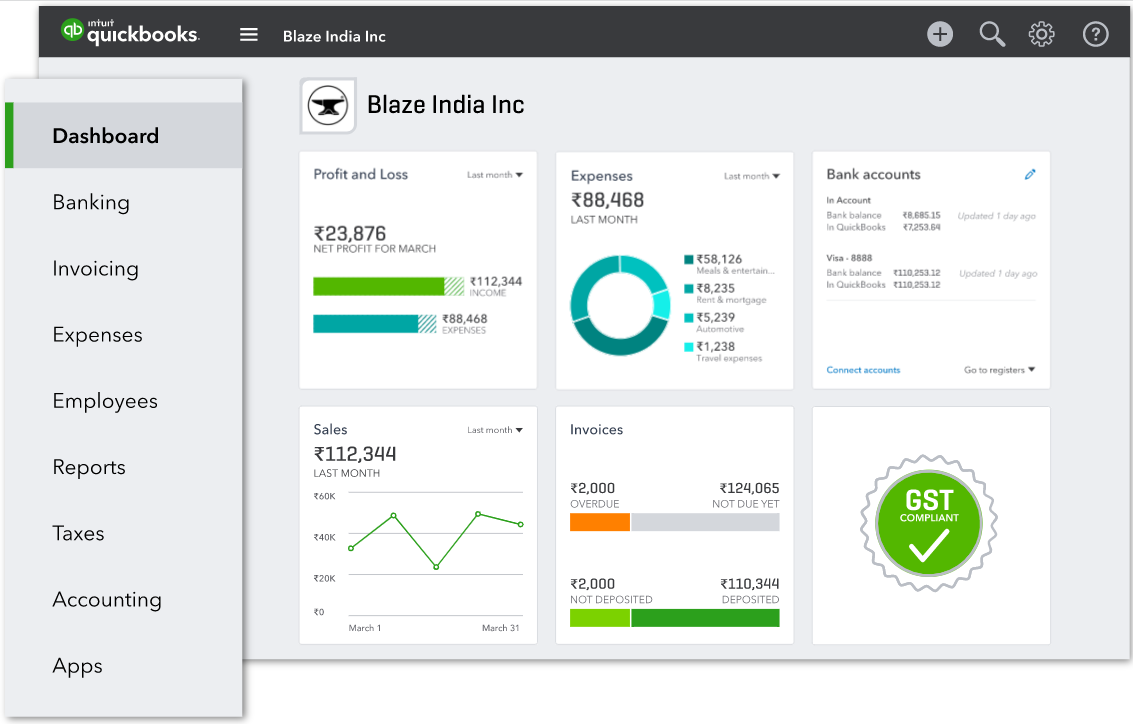
QuickBooks – Intuitive navigation

Currently known as the best accounting application for small businesses, QuickBooks Online is a top pick for self-employed as well.

With Automatic mileage tracking and the possibility to send invoices on the go, using it is intuitive and flexible.

You can also connect to your bank accounts, easily transfer info to TurboTax, and talk to real CPAs, among other features.

No note that there are three versions of QuickBooks to pick from, all of which work impeccable and offer a 30-day free trial for those who aren’t decided.

Key features that QuickBooks brings to the table:

  • Intuitive navigation
  • multilingual invoicing
  • Useful add-ons and integrations
  • Quarterly estimated taxes that are calculated automatically
  • Helpful payroll support

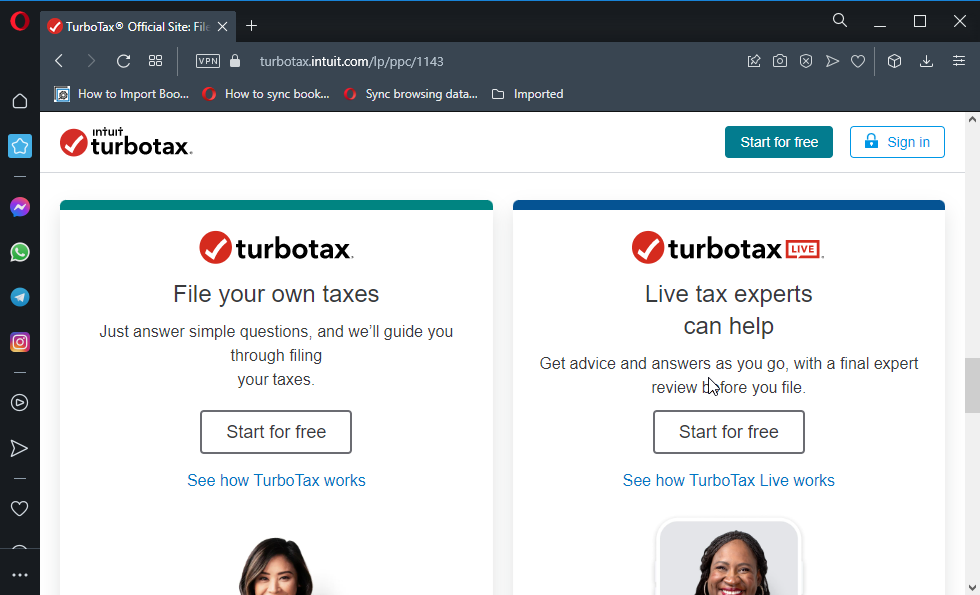
Turbo Tax – Industry-specific deductions

opera

Turbo Tax is one of the best tax software programs for self-employed that makes it faster and easier to file taxes, correctly.

It’s easy to use and convenient software that’s suitable even for beginners. Moreover, it offers added security to your tax details.

This program is especially recommended to those who use QuickBooks to maintain their books. It basically speeds up the entire process of tax preparation.

The best part is that it can import data from QuickBooks and checks for any errors meticulously. On top of that, there’s the ng customer support that helps clients with their queries at any time.

Key features you are about to enjoy:

  • Ideal for both personal and business income and expenses
  • Looks for industry-specific deductions
  • Covers a variety of industries
  • Easy 1099-MISC import with just a snap from your smartphone
  • One-on-one help for answers from a TurboTax specialist

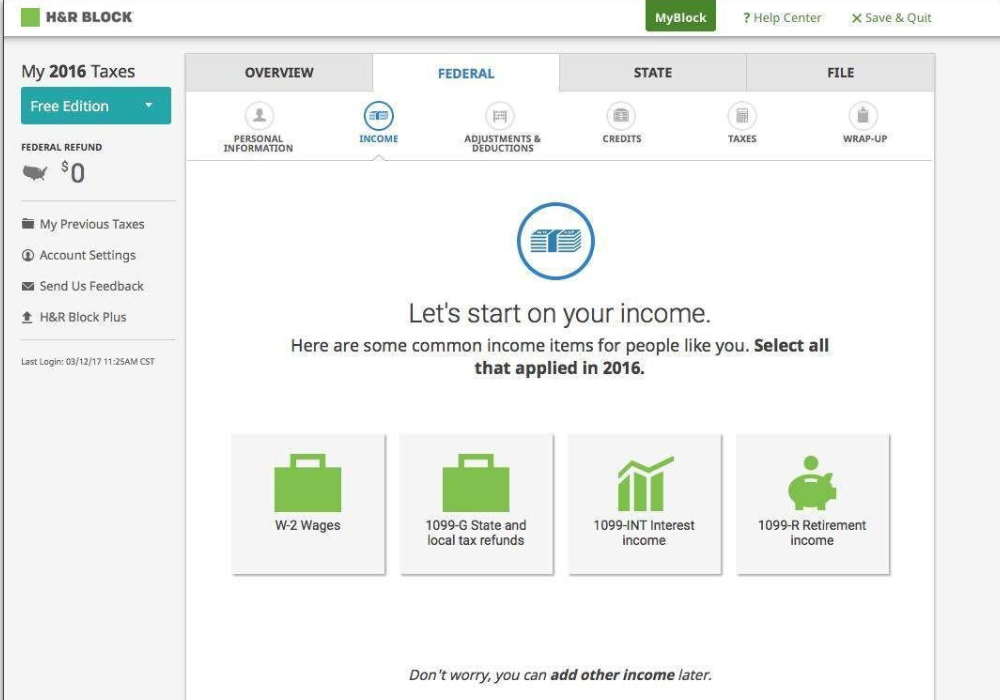
H&R Block – Unlimited live customer support

H&R Block is another great tax program for the self-employed that offers real pricing. It offers professional guidance from the experts in person or online.

This easy to use program comes with three chief guarantees. It helps users to achieve a maximum refund for their employment requirements considering the deductions based on the industry and expenses.

The software allows users to file payroll taxes returns 940 and 941, and also process yearly forms such as the 1099 MISC and W-2 for those having employees or 1099 contractors.

It also allows users to import data from QuickBooks and TurboTax into it.

From unlimited access to live customer support to personal tax consultation, the program offers unparalleled guidance at no extra cost.

Best of all, users can also avail of its audit facility in-person for no extra fees for its desktop edition.

⇒ Get H&R Block

TaxAct – Suitable for self-employed people

TaxAct is suitable for the self-employed, especially for freelancers. It costs less than its competitors and allows users to file a single federal tax return.

The best part is, it comes with a price-lock guarantee and so, unlike its competitors, it offers its users the same price despite how long it takes to finish filing returns.

Whether it’s income through self-employment or investments, it offers support for all.

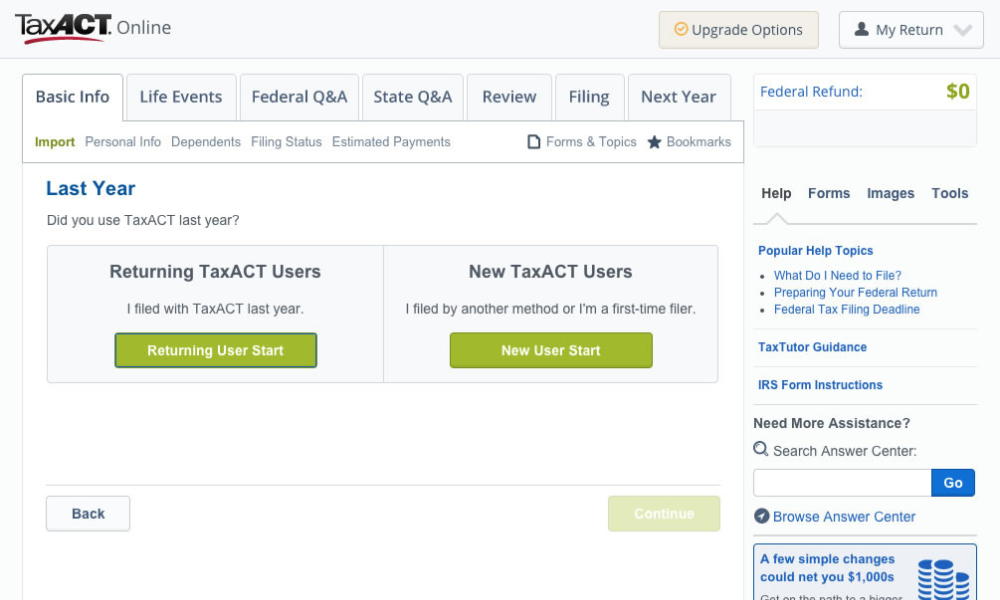
Life Events is a feature that applies to any possible changes in the filers’ tax situation from the previous year to the current one.

To help serve the filers better it offers 19 options related to different tax situations that might be relevant to the filer currently.

All the users need to do is to click on the respective link for added guidance, information, and tips.

Live customer support is another great advantage along with hyperlinked words and phrases offering detailed information.

⇒ Get TaxAct

TaxSlayer – 100% accurate calculcations

taxslayer tax filling software

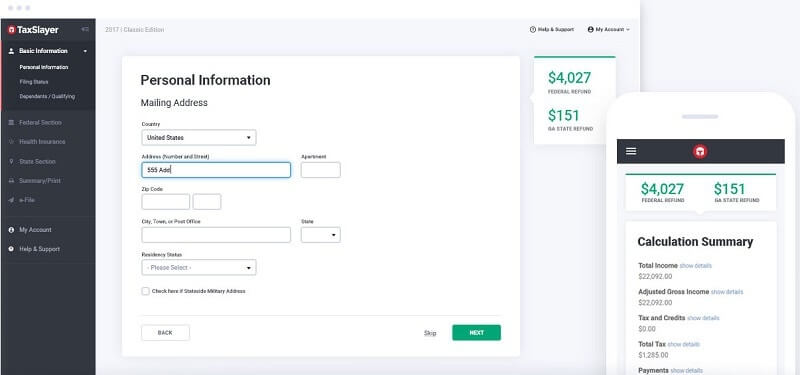
TaxSlayer is especially suitable for those business owners who want to file Schedule C. It allows the tax filers to make their own 1040 and Schedule C forms. It’s known for its ease of use and maximizes refunds.

The program offers assured maximized refunds that the users are entitled to or they promise to refund the suitable price paid.

Users also have the facility to get their TaxSlayer filing charges to be deducted straight from the federal tax refund.

Best of all, it also guarantees 100% accurate calculations or they refund the customer any of the federal or state fees along with interest charges.

⇒ Get TaxSlayer

Credit Karma – Searchable guide

get Credit Karma

Yes, Credit Karma is also known for its services in the tax category. This premium software is available for free for all users, for both state and federal taxes.

The program provides 100% assurance for accurate calculations. Additionally, it covers individuals with free Audit Defense for those who get audited.

They also provide 100% assurance to users that they will receive the refund they are entitled to. Best of all, there are no hidden charges and no sudden fees.

It helps users manage all chief IRS schedules and forms that include related complex tax situations. Users can also import last year’s returns completed by any other software previously.

As a bonus, the interface offers a searchable guide.

⇒ Get Credit Karma

If you’re self-employed, then you must be extra careful when choosing a tax software tool because that’s what should help you manage taxes efficiently.

Overall, the software can help import your data, optimize your tax deductions, checks for any mistakes, and offer unparalleled customer support.

So, for those who are wondering what’s the best tax software for self-employed, this should be your ultimate list.

Yakuza Kiwami, Sid Meier’s Civilization VI, and For Honor are free to play with Xbox Live Gold this week-end

Microsoft has just announced another Free Play Days event for Xbox Live Gold subscribers. Starting today through Sunday, July 26, Yakuza Kiwami, Sid Meier’s Civilization VI, and For Honor are free to play on Xbox One with an active Xbox Live Gold or Xbox Game Pass Ultimate subscription.

Yakuza Kiwami recently joined the Xbox Game Pass catalog, along with Yakuza 0. It’s a remake of the first Yaluza game released on PlayStation 2 back in 2005, and it’s a fun game to play is you like action-adventure games with RPG elements.

Civilization VI was released on Xbox One back in November, and it’s the latest entry in the popular turn-based strategy game series. As for For Honor, it’s a medieval fighting game with different factions and classes to explore. All three games are also discounted during this Free Play Days event, and you’ll be able to pick up where you left off if you decide to buy them. In the meantime, make sure to watch the upcoming Xbox Games Showcase on OnMSFT starting at 8AM PT.

A Synaptics Driver is Required for Reflashing [Full Fix]

While trying to update your laptop’s touchpad driver or firmware, you may have encountered a message that reads:

A Synaptics driver is required for reflashing.
Please install a Synaptics driver or contact your computer manufacturer.

Touchpad issues can be exasperating, especially when you can’t afford to use a separate mouse with your laptop. And, of course, you will want everything to work smoothly on your mobile PC, even if you have an alternative input device.

The following guide will show you how to solve a missing Synaptics driver error.

How do I fix the Snypatics driver is required for reflashing error?

1. Update your Synaptics touch-pad driver

  1. Open the Windows Power User Menu (right-click on the start menu icon).
  2. Select Device Manager.
  3. Scroll down to the Mouse and other pointing devices category and expand it.
  4. Look for your touchpad in the list of devices. If you can’t find it, check under the Human Interface Devices category.
    device-manager-synaptics-driver-required
  5. Right-click on your touchpad item and select Update driver from the context menu.
  6. Select the Search automatically for updated driver software option.
    driver-installation-confirmation-screen-synaptics-driver-install
  7. Wait for the system to search for the drivers online and install them if prompted.
  8. If Windows does not find any drivers from the Internet, click on Search for updated drivers on Windows Update and then use Windows Update to download the driver.

Since 1986, Synaptics has been one of the largest producers of human-interfacing devices and software. Like Microsoft, it has a spotty record regarding updates.

You may be running a buggy driver for your touchpad. The easiest way to fix this is by updating it using the above steps.

Alternatively, you can use a reliable third-party tool for this procedure. With a few clicks, you can set it to scan, download, and install the latest and most suitable drivers for your Windows OS.

⇒ Get Fortect Driver Updater

2. Download and Install the latest Synaptics touchpad firmware

Your freshly installed or updated drivers may be causing a conflict with Synaptics touchpad firmware. If that’s the case, you’ll need to download the firmware or update the utility from your manufacturer’s website.

For instance, if you’re using Lenovo’s L540 ThinkPad, you can find the firmware on its download page. Since this seems to be a fairly prominent issue with Acer laptops, the updates can be found on their Drivers and Manuals page.

However, we do acknowledge that you may be encountering the message A Synaptics driver is required for reflashing after you recently attempted to update your firmware.

If that’s the case, we recommend trying an automatic third-party software that downloads and installs the latest drivers for your PC. With a simple click, the program will perform these actions and optimize your Windows OS, preventing conflicts with Synaptics touchpad firmware.

3. Set BIOS to default settings

  1. Shut your laptop down completely.
  2. Remove the battery if you can and wait for five seconds. If you don’t have a battery, follow the instructions below for this step.
  3. Turn your laptop on and boot into the BIOS setup menu. On most HP laptops, you can do this by pressing the F10 key.
    Consult your laptop’s manual for more information.
  4. Load the BIOS Setup Default settings for your computer. Once again, on most HP laptops, this can be done by pressing the F9 key.
  5. Save and Exit.
  6. Select Yes if you’re presented with a confirmation dialog.
  7. Restart your computer and log into Windows.

4.  Uninstall the Touchpad device

  1. Open Device Manager.
  2. Find your touchpad device under Mice and other pointing devices or  Human Interface Devices.
  3. Right-click on it and select Uninstall device from the context menu.
  4. Confirm and follow the prompts.
  5. Restart your PC.

After restarting your PC, Windows will install the drivers for your touchpad device again. Do not manually install the drivers.

This solution works best when supplemented with the third solution (set BIOS to default settings) in this guide.

5. Install Synaptic precision touchpad drivers

  1. Download the Synaptics driver package from Lenovo.
  2. Extract the contents of the package in a folder of your choice.
  3. Open Device Manager.
  4. Locate your touchpad device.
  5. Right-click on it and select Update driver.
  6. Click on Browse my computer for driver software.
  7. Select Let me pick from a list of available drivers on my computer.
  8. Click on the Have Disk… button.
  9. Click on the Browse button.
  10. Navigate to where you unpacked the Synaptic driver package.
  11. Select the Autorun.inf file and click on Open.
  12. Click on the Synaptics Pointing Device option on the next screen and then click on Next.
  13. If Windows displays a warning dialog, read through the text, and then click on Yes if you want to proceed.
  14. Restart your computer.

Not only will this solution solve your problem, but it will also allow you to make more gestures on your touchpad device. It will also fix any other cursor-related issues.

6. Install generic Microsoft touchpad drivers

  1. Run Device Manager and locate your touchpad device.
  2. Right-click on your touchpad device and select Update Driver.
  3. Select the Browse my computer for driver software option.
  4. Click on Let me pick from a list of available drivers on my computer.
  5. Make sure that the Show compatible hardware option is ticked.
  6. Scroll through the list and select HID-compliant mice.
  7. Click on Next.
  8. Follow the prompts and restart your computer.

If you’re still encountering a Synaptics driver is required for reflashing error after exercising all the solutions in this guide, we suggest you bite the bullet and purchase an external mouse and completely turn off your laptop’s touchpad.

Alternatively, you can contact your laptop’s vendor or manufacturer and escalate the issue further. Either way, we hope you’ve found this guide helpful.

Before you go, you might want to check our guide on SynReflash not working for more information.

Which solution worked for you? Leave a comment down below.

Pure Server: Client file does not match server [Fixed]

The client file does not match server error often occurs when third-party files are added to your CS: GO install directory that are not included with the game’s default install. As a result, the user is unable to play the CS: Go game on Steam.

According to Steam, these additional files may be added by your third-party or community server that are unique to the server.

Apart from the usual suspect, these errors can also occur due to hard drive corruption or faulty memory modules.

If you are also troubled by this error, here are a couple of troubleshooting tips to help you resolve the client file does not match server error in Steam.

The following article should help if you are experiencing any of the errors listed below:

  • pure server file game pak01_104.vpk does not match the server’s file (76)
  • pure server: file [game]pak01_001.vpk does not match the server’s file
  • pure server: file [game]pak01_050.vpk does not match the server’s file (76)
  • pure server file game pak01_042.vpk does not match the server’s file
  • pure server file game pak01_082.vpk does not match the server’s file
  • pure server file game pak01_096.vpk does not match the server’s file
  • (pure server: file [game]pak01_022.vpk does not match the server’s file.

What to do if Pure Server game file does not match the server’s file?

1. Remove third-party files from the install directory

game file does not match the server

  1. Launch the Steam client on your PC.
  2. Open the Library
  3. Right-click on CS:GO.
  4. Select Manage.
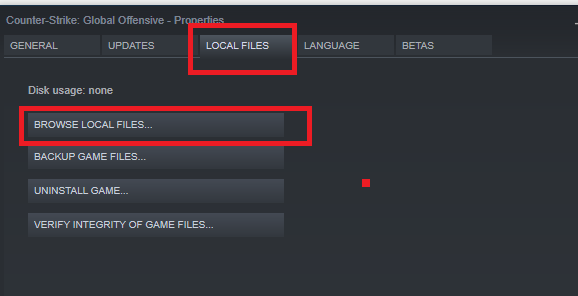
  5. Select Browse Local Files.
  6. Navigate to the following location:
    \Steam\steamapps\common\Counter-Strike Global Offensive\csgo\materials
  7. Delete all the files in the materials
  8. Next, navigate to the following location:
    \Steam\steamapps\common\Counter-Strike Global Offensive\csgo\models
  9. Delete all the files in the models

Once all the files are deleted from these folders, verify your game files.

Verify Integrity of Game Files

game file does not match the server

  1. Launch Steam.
  2. Right-click on CS: GO from the game library.
  3. Select Properties.
  4. Open the Local Files tab.
  5. Click on Verify Integrity of Game Files.
  6. Steam will validate the game files and show a success message.
  7. Click on Close.

Relaunch Steam and run CS: Go to see if the error is resolved. If not, follow the next set of steps.


Experiencing a CS: GO packet loss? Find out what is it, and how to fix it


2. Delete VPK and PAK files manually

game file does not match the server

  1. Open File Explorer.
  2. Navigate to the following location:
    \Steam\steamapps\common\Counter-Strike Global Offensive
  3. Delete all the files that start with PAK and ends with VPK.
  4. Once all the files are deleted, verify game files on Steam.

Add CS: GO folder to the antivirus exclusion list

game file does not match the server

Note: These steps are for Malwarebytes antivirus. Check your antivirus documentation to access the exception list.

  1. Launch Malwarebytes.
  2. Click on Settings from the left pane.
  3. Open the Exclusion/Allow List
  4. Click the Add
  5. Select Allow a File or Folder.
  6. Select the CS: Go Global Offensive folder by navigating to the following location:
    C:\Program Files (x86)\Steam\steamapps\common\Counter-Strike Global Offensive
  7. Click OK to save the changes.

Relaunch Steam and try connecting to CS: GO server and check if the error is resolved.


3. Check for third-party apps issues

Perform a Clean Boot

Pure Server PVK error

  1. Press the Windows Key + R.
  2. Type msconfig and click OK.
  3. In the System Properties window, open Services.
  4. Check the ‘Hide all Microsoft services’ box.
  5. Once all the Microsoft services are hidden, click the Disable All.
  6. Open the Task Manager – Right-click on the Taskbar and select Task Manager.
  7. Open the Startup
  8. Disable all the startup
  9. Go back to the System Properties
  10. Click Apply and OK to save the changes.

Restart the system when prompted by the computer. After the restart, launch Steam and try connecting CS: GO to the server.

You should successfully connect without the error if a third-party software was causing the issue.

If the issue is resolved, you need to find a third-party app that is causing the trouble. Third-party apps like antivirus, system cleaning apps are known to the Client file does not match server error.

Make sure that you enable all the services from the Services tab that you disabled to perform a clean boot.


4. Check your internet connection

Pure Server PVK error

According to some reports, high ping/packet loss can also cause the Client file does not match server error. So, if you are using a WiFi or LAN connection, check the internet connection for issues.

Make sure you have a stable internet connection by using a speed testing tool. You can also use online speed testing tools to check your internet speed.

Directly connect the Ethernet cable

  1. If you are using a WiFi connection, try connecting your Ethernet cable directly to your PC or Laptop.
  2. Disconnect the Ethernet cable from your router or modem.
  3. Connect it to your PC.
  4. Try to play CS: Go and check if the error is resolved.

Perform a network restart

  1. Make sure your WiFi router is turned on.
  2. Use a paper clip or a safety pin (anything with a pointy head).
  3. Use it to press and hold the reset button of your router.
  4. You can locate the reset button at the back of your router.
  5. Release the button after 15 seconds.
  6. Leave the device idle for a few minutes.
  7. Power on the router and connect it to your PC.

5. Reinstall CS:GO

Pure Server PVK error

  1. Launch Steam.
  2. Open the Game Library.
  3. Go to Manage.
  4. Select Uninstall.
  5. When the Uninstall dialogue box appears, click on Uninstall.
  6. Once uninstalled, relaunch Steam.
  7. Search and install CS:GO.

The Client file does not match server error on Steam can occur due to several reasons. However, the most common reasons have been third-party files in the install directory.

Follow the steps in the article to fix the error for good.

[wl_navigator]

Effective ways to import passwords to Chrome [Windows & Mac]

Google Chrome is the most popular web browser for desktops and mobiles. If you switch from another browser to Google Chrome, you need to import passwords to Chrome to get going.

In the past, you could only import passwords while setting up the browser. You had to use experimental features if you wanted to perform the import after setup.

Thankfully, you now have several options for importing passwords in Chrome. Before you proceed with the methods below, ensure that you didn’t disable password saving in Chrome.

How can I import passwords in Google Chrome?

1. Open the Import bookmarks and settings menu

  1. Close all open browsers on your machine.
  2. Launch Google Chrome.
  3. Load chrome://settings/importData in the address bar of Chrome and press Enter.
  4. Click on the From dropdown menu.
  5. Choose the browser from which you wish to import passwords to Chrome.
  6. Select the Favorites/Bookmarks option from Select items to import.
  7. Hit Import.

2. Enable CSV password importing from CMD or Terminal

import-passwords-to-chrome-from-cmd-terminal

  1. Press the Windows key + R combination to open the Run dialog box.
  2. Type in cmd and hit Enter.
  3. Copy this command and press Enter: cd ''\Program Files (x86)\Google\Chrome\Application''
  4. Copy and paste the following command and hit the Enter  chrome.exe -enable-features=PasswordImport
  5. Go to Settings > Passwords
  6. Click on the hamburger icon next to Saved Passwords.
  7. Select the import option.
  8. Choose the CSV file for importing passwords in Chrome.

Note: This example uses the Command Prompt, but the commands here will also run on Terminal. You can follow the exact steps above even if you prefer to carry out the operation on Terminal.


3. Enable the Password Import browser flag

import-passwords-to-chrome-flag

  1. Launch the Chrome browser.
  2. Type chrome://flags/#password-import-export into the address bar and hit Enter.
  3. Find Password Import and select Enable from the dropdown next to it.
  4. Click the Relaunch Now option and your browser will restart.
  5. Click on the Settings menu and choose Manage Passwords in Advanced Settings.

You can also reach here by typing chrome://settings/passwords into the address bar.


4. Unhide the Import option in Chrome using built-in DevTools functionality

import-passwords-to-chrome-using-devtools

  1. Open Chrome and go to Settings.
  2. Select Passwords.
  3. Click on the hamburger icon (three dots) next to Saved Passwords.
  4. Select the Export Passwords option.
  5. Hit Inspect.
  6. Find the word hidden on the DevTools function.
  7. Double-click on the word hidden to highlight it.
  8. Hit the Delete key with the word highlighted.
  9. On the Passwords screen, click on the hamburger icon next to Saved Passwords.

This time, the import option will be available on this screen. You can use this option to import passwords in Chrome. To hide the import option, go back to the steps above and re-insert the word hidden.

You can import passwords to Chrome using any of the four techniques listed here. From then on, the browser will begin to auto-fill your imported passwords in sign-in and registration forms.

[wl_navigator]

Java Platform SE Binary not responding/stopped working [Fix]

There are lots of Java-based software for Windows. The Java(TM) Platform SE binary error is one that arises for some users when they try to open Java-based programs. When that error arises, users can’t open Java-based programs. The full error message states:

Java(TM) Platform SE binary has stopped working. A problem caused the program to stop working correctly. Windows will close the program and notify you if a solution is available.

Scroll down to explore the most efficient solutions to this annoying issue.

How can I fix the Java(TM) Platform SE binary error?

1. Update your graphics card driver

The Java(TM) Platform SE binary error can often appear due to the Java Environment conflicting with outmoded graphics card drivers.

We recommend that you use a specialized driver updater to solve this problem easily. It is a very powerful but easy-to-use software that ensures that your drivers will always be updated to the latest version available.

The best part about using dedicated software to update all your drivers is the fact that the process only requires you to click the mouse a couple of times.

The software will start scanning your system as soon as you open it. If its scan lists your graphics adapter, select the checkbox for it, and update it without hassle.

2. Reinstall Java

  1. Press the Windows key + R keyboard shortcut to open the Run dialog.
  2. Type appwiz.cpl in Run’s text box. Then click OK to open the uninstaller for Windows.
    Programs and Features window java platform se binary not responding
  3. Next, type Java in the search box.
  4. Select it and click Uninstall.
  5. Restart Windows after you’ve uninstalled all listed Java entries in Programs and Features.
  6. Click the Java Download button on the Java website to save the installer for the latest version.
  7. Open the Java setup window to install Java Environment.
  8. Restart Windows after installing Java.

3. Configure environment variables

  1. Open the Windows search utility with the Windows key + S keyboard shortcut.
  2. Input system info in your search box.
  3. Click System to open the window in the shot directly below.
    System window java platform se binary not responding
  4. Click Advanced system settings to open a System Properties window.
  5. Click Environment Variables on the System Properties window’s Advanced tab.
    Environment Variables window java platform se binary not responding
  6. Next, click the New button under System variables to open the window shown directly below.
    New System Variable window java platform se binary not responding
  7. Enter _JAVA_OPTIONS in the Variable name text box.
  8. Type -Xmx256M in the Variable value box.
  9. Click OK to close the New System Variable window.
  10. Press the OK button on the Environment Variables window.

4. Clean boot Windows

  1. Open the Run window.
  2. Enter msconfig in Run’s Open box and click OK to open MSConfig.
    General tab java platform se binary not responding
  3. First, click the Selective startup radio button.
  4. Uncheck the selected Load startup items option.
  5. Select both Load system services and Use original boot configuration checkboxes.
  6. Select the Hide all Microsoft services option on the Services tab.
    Services tab java platform se binary not responding
  7. Click Disable all to stop the third-party services listed.
  8. Press the Apply button.
  9. Click OK to close the window.
  10. Click Restart on the dialog box that opens.
  11. Then try running Java software the error arises for after the restart.

Those are some of the most widely confirmed fixes for the Java(TM) Platform SE binary error. That doesn’t mean they’re entirely guaranteed resolutions for everyone, but they’ll probably fix the issue for most users.

Product page for Seagate’s Storage Expansion Card for the Xbox Series X console goes live

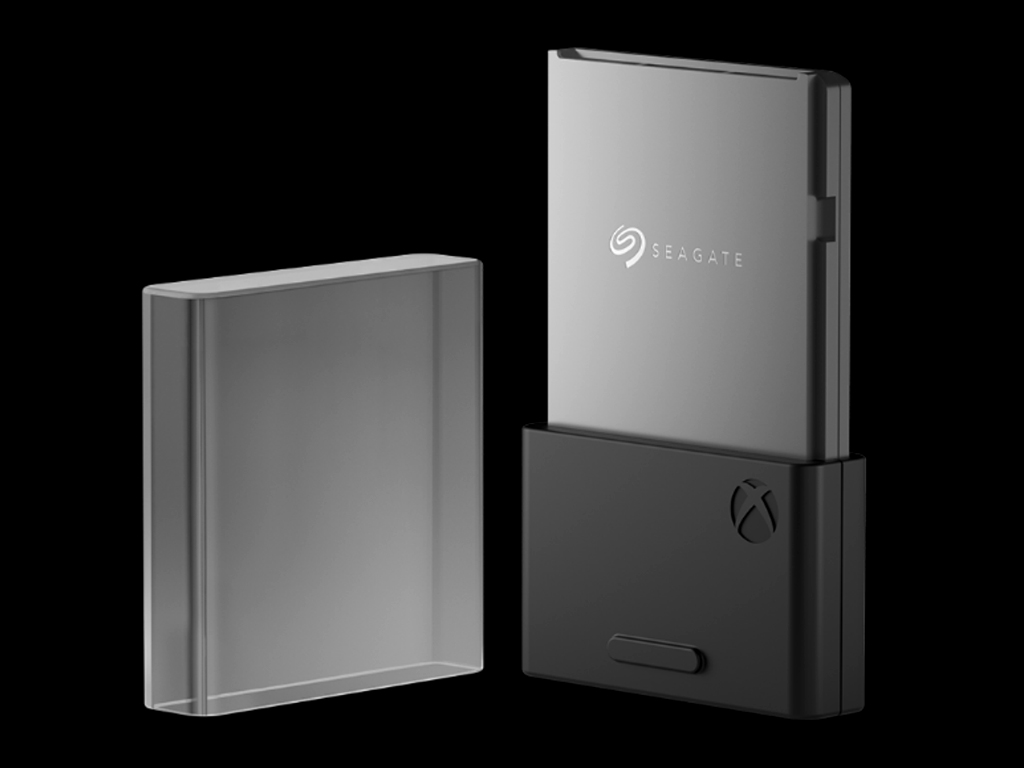
The product page for the Seagate Storage Expansion Card for the Xbox Series X is now live (via TA) on the official Seagate website, possibly suggesting that it could be getting some kind of promotion during tonight’s Xbox Games Showcase livestream.

The product listing confirms that each expansion card uses custom PCIe Gen4x2 NVMe flash memory and will support up to one TB of storage.

“Xbox Series X is Xbox’s most powerful console ever — and we created the Seagate Storage Expansion Card right alongside them,” text on the listing reads. “This partnership means that when you plug this storage card into any Xbox Series X console, you’re getting all the speed and power Xbox has dreamed up, with no compromise.”

Seagate Storage Expansion Card for the Xbox Series X is designed specifically for Microsoft’s next gen console and can be connected via a dedicated external storage port, not via USB as is the case on the Xbox One family of consoles. Video games optimized for the Xbox Series X will need to be installed on such cards (if not on the console itself) though Xbox, Xbox 360, and Xbox One titles can still be run off of a USB storage device if needed.

Pre-orders aren’t open yet and the release date is currently set to Holiday 2020 though this will likely change once pre-orders for the Xbox Series X console go live.

Are you planning to buy an expansion card for your Xbox Series X console or will you simply uninstall games and apps to free up room? Let us know in the comments below and then follow us on Twitter and Facebook for more Xbox Series X news.

Foobar Unrecoverable playback error: Timeout [Fixed]

Foobar 2000 is a freeware music player for Windows that offers some great features.

Some Foobar 2000 users have posted on support forums about an Unrecoverable playback error.

When they try to play MP3s in Foobar, an Unrecoverable playback error message pops up. As a consequence, Foobar doesn’t play the music.

How can I fix the Foobar Unrecoverable playback error

1. Run the Windows Media Player Settings troubleshooter

  1. Press the Windows key + R hotkey to open Run.
  2. Type Control Panel in the search box and open it.
  3. Click Troubleshooting, and then choose the View all option.
    The troubleshooter list foobar unrecoverable playback error: timeout
  4. Click Windows Media Player Settings to open the window directly below.
  5. Click Advanced and then the Apply repairs automatically option.
    Windows Media Player Settings foobar unrecoverable playback error: timeout
  6. Click Next to initiate the troubleshooter.

2. Disable the GX mode


If you’re utilizing Foobar with Xonar DX Control Center, try disabling the GX mode.

To do this, you can simply Open the Xonar DX Control Center and deactivate the GX mode by disabling the option.


3. Restart the Windows Audio Endpoint Builder

  1. Open the Run accessory.
  2. Type services.msc in the search box and click OK to open the window shown directly below.
    Services window foobar unrecoverable playback error: timeout
  3. Right-click Windows Audio Endpoint Builder and select the Restart option from its context menu.

4. Adjust the default audio format to 16-bit

  1. Right-click the speaker icon on your system tray and select Open Sound settings.
    The Sound tab foobar unrecoverable playback error: timeout
  2. Click Sound Control Panel.
    Playback tab foobar unrecoverable playback error: timeout
  3. Right-click your default audio device and select Properties.
  4. Select the Advanced tab.
    Speakers Properties window foobar unrecoverable playback error: timeout
  5. Then select 16-bit (CD quality) on the drop-down menu.
  6. Select the Apply option.
  7. Click the OK buttons to close the windows.

5. Reinstall Windows Media Player

  1. Open the Run window.
  2. Type in optionalfeatures.exe and press Enter.
    Windows Features window foobar unrecoverable playback error: timeout
  3. Double-click Media Features to expand that category.
  4. Deselect the Windows Media Player checkbox.
  5. Click OK to reinstall WMP.
  6. Restart Windows after reinstalling WMP.
  7. Next, open the Windows Feature window again.
  8. Select the Windows Media Player check box, and click the OK button.

6. Reinstall Foobar

  1. Press the Win + R keys.
  2. Input appwiz.cpl in Run and click OK to open Windows’ uninstaller.
  3. Select the Foobar software, and click the Uninstall option for it.
    The Programs and Features window foobar unrecoverable playback error: timeout
  4. Click Yes to confirm.
  5. Restart Windows.
  6. Download Foobar 2000.
  7. Reinstall the software by following the on-screen instructions.

We hope this guide has proven useful in your case. If you want to share your experience with us, or have any suggestions, feel free to leave a comment in the section found under this guide.


Watch the Xbox Games Showcase on Twitch today to get an exclusive “ItsHappening” Halo emote

Microsoft’s Xbox Games Showcase is just a few hours away and the company is planning to reward gamers for watching the broadcast on Twitch by giving every viewer an exclusive Halo emote for use in chats on the streaming platform.

The emote is called “ItsHappening” and it’s inspired by a popular Halo GIF that’s used frequently on social media networks such as Twitter. You can check out an example of it being used below.

Microsoft frequently created special emotes promoting certain titles on its Mixer streaming service but, with it shutting down yesterday, Microsoft seems to be, understandably, focusing its attention on Twitch which is by far the largest streaming platform for gamers and tech enthusiasts. This Halo emote is the first Microsoft-owned emote created for Twitch since the closure of Mixer and it stands to reason that more may be on their way in the future.

The Xbox Games Showcase stream will also be shown on Facebook and YouTube though no special promotions for those platforms have been announced yet.

Tonight’s stream will be a pretty big one for Microsoft as the company has confirmed that it will be officially revealing several major first-party Xbox video games and also providing more details on the latest entry in the Halo franchise, Halo Infinite. It’s also possible that an all-digital version of the Xbox Series X console could be revealed and pre-orders for the next gen consoles and games may go live during the stream or after it has ended.

Are you excited for the Xbox Games Showcase and will you watch it on Twitch? Let us know in the comments below and then follow us on Pinterest and Twitter for more Xbox gaming news.

What is Windows Setup Remediations? [We Answer]

Have you spotted a Windows Setup Remediation (x64) (KB4023057) program on your desktop or laptop? If so, you’re probably wondering how exactly it got there as something you didn’t install.

Furthermore, you might also wonder what exactly Windows Setup Remediations is. Some users have even posted on Microsoft’s support forum asking what is Windows Setup Remediations?

Windows 10 gets regular patch updates from Microsoft along with a couple of annual build updates. To ensure a smoother update process, Microsoft releases Servicing Stack Updates.

Those Servicing Stacks update Windows 10’s Component Base Servicing modules. They provide files and resources that enhance the overall reliability of Windows 10 updates.

Windows Setup Remediations is a Servicing Stack Update. So, WSR is a legitimate update for Windows 10 with a KB4023057 KB number. Microsoft rolled out the KB4023057 Windows Setup Remediations update from the summer of 2019.

WSR might reset network settings, compress files, free up disk space, and reset the Windows Update database to ensure smoother updates.


How to remove Windows Setup Remediations

Use the Windows built-in uninstaller

  1. Click the Search button on the taskbar.
  2. Type the keyword apps in the text box.
  3. Click Apps & features.
    Apps & features Windows Setup Remediations
  4. Select the listed Windows Setup Remediations app.
  5. Press the Uninstall button.

Use Command Prompt

  1. Click the search box.
  2. Type cmd.
  3. Right-click Command Prompt and select Run as Administrator.
  4. For 64-bit Windows platforms should enter this command: msiexec.exe /x {32DC821E-4A7D-4878-BEE8-337FA153D7F2}
    msiexec.exe command Windows Setup Remediations
  5. For 32-bit platform, enter: msiexec.exe /x {5F01BF33-E873-4B83-B2CC-E4DEF494073E}
  6. Press the Enter key to run the command.

So, Windows Setup Remediations is a required update for some Windows 10 build versions. Note, however, that it’s not needed for Windows 10 versions more recent than 1809.


Windows 10 build 20175 improves pinned site access in Edge

You can now upgrade to Windows 10 preview build 20175 if you’re a Dev Channel insider.

As you might remember, build 20161 introduced several interesting features, including a Windows 10 Start menu with semi-transparent themes as well as Alt + Tab improvements for Microsoft Edge.

Now, with the latest build in the Dev Channel, you get to explore pinned sites accessibility improvements in the Chromium-powered browser. Besides updating multiple flaws, this package includes UWP, Surface Pro X, and Fluent Design icon updates for insiders.

What’s new in Windows 10 build 20175?

Pinned sites accessibility

Certain browser improvements go hand in hand with OS improvements, which is understandably the case with the latest pinned sites update in Edge.

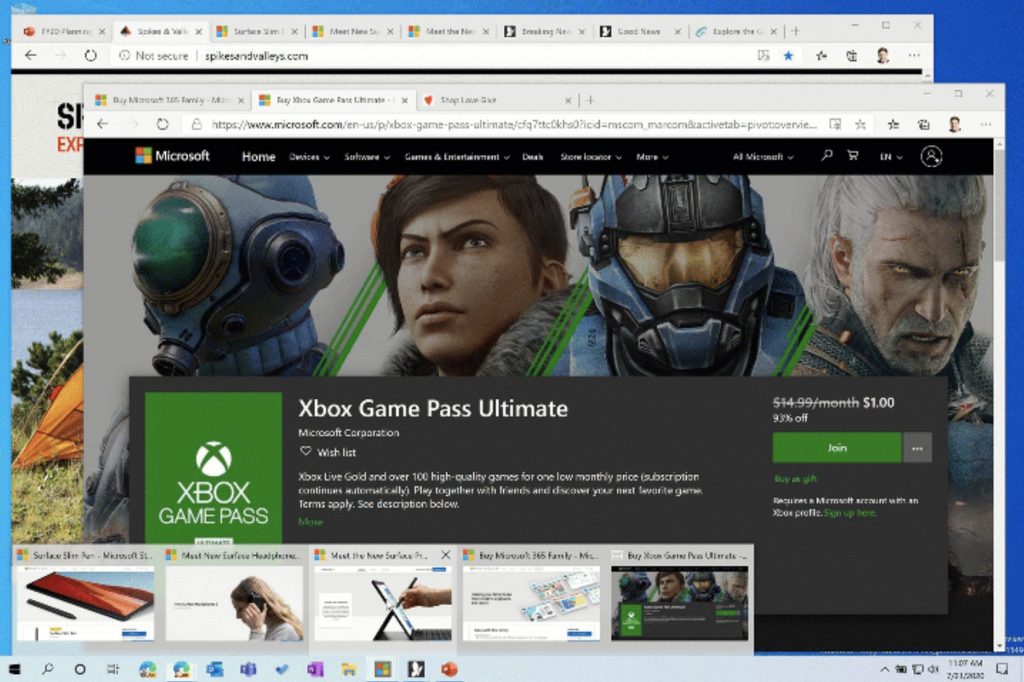
So, from now on, by clicking on a pinned site on the Taskbar, you can view all the open tabs for the specific site. The change should enable you to access web content a little faster.

However, you need to be using Edge insider build 85.0.561.0 or newer to sample the feature.

Reset-AppxPackage

Windows 10 build 20175 introduces a new way to reset your UWP apps—the Reset-AppxPackage command. You might find this option helpful when you need to clear data associated with a system component that you can’t reset in Settings.

AI-powered Eye Contact on Surface Pro

They say looking a person in the eye inspires confidence and belief in what you’re saying. If it’s true, the new AI-powered Eye Contact tech for the Surface Pro X camera might help with that when you’re making video calls.

Microsoft explains:

Powered by artificial intelligence capabilities of the Microsoft SQ1(TM) processor, Eye Contact helps to adjust your gaze on video calls so you appear to be looking directly in the camera on your Surface Pro X.

Fluent Design icons for Windows 10

If you like the redesigned Windows 10 Start menu, then you’ll love the new Fluent Design icons for Sticky Notes and the Snip and Sketch app.

Write us a note in the comments section below and let us know what you think about the new Windows 10 features.

Can VPN hide download? What’s the safest VPN I can use?

We’re quite sure that you know this already, but a VPN can help you pull a privacy sheet over your entire Internet connection. What you do online stays with you and nobody else.

You can dodge ISP snooping gracefully that way, without taking any complicated steps. Just purchase a subscription plan, install a small client on your computer, log in, select a secure server and that’s it.

Nothing you do online can be leered at by your nosey ISP or anyone who would be interested in finding out about your Internet whereabouts. As long as you don’t go ahead and post private information all by yourself, that is.

So a VPN can help you hide websites that you visit online from your ISP. But what about downloads? Can it hide that information, or is it still crystal clear to whoever it may concern? Let’s find out.

How does a VPN work?

Essentially, your VPN helps you protect your privacy by redirecting your traffic through a secure tunnel. You install a client on your PC, which encrypts your traffic and routes it through the encrypted tunnel.

Once it gets out of the tunnel, it reaches the VPN server, where it gets decrypted. Finally, it reaches the destination (website, server) in its unencrypted form.

The host generates a response, which gets sent back to you the same way, only in reverse. Meaning that it gets encrypted by the VPN server, runs through the secure tunnel, gets decrypted by the VPN client, and is then shown to you.

Quite simple, come to think about it, right?

Normally, your ISP can see certain things about your online activity, such as the website you visit, how much time you spend on them, and what files you download.

However, what your ISP can’t see is encrypted traffic. For instance, an email you sent to your co-worker. Or a username-password combination that you used on an HTTPS-encrypted website.

Well, what your VPN does is encrypt all the traffic between you and the VPN exit point, so your ISP can no longer access it. But what does that include?

Can VPN hide download information?

Everything that happens in terms of online activity on your PC is masked and that’s the end of it. Visiting a website? Encrypted. Watching an online movie? Encrypted. Downloading a file via torrent or direct download? Definitely encrypted.

So, to answer your question, yes, a VPN can and does hide download-related info. However, this doesn’t mean that you get a free pass at downloading pirated content.

In no way do VPN providers (nor we) endorse piracy, so you should reconsider your actions if it did cross your mind to do it.

Although trustworthy VPNs have a zero-logging policy, some of them have other means to detect unlawful usage of their service.

However, as a rule of thumb, make sure that your VPN enforces a zero-logging policy. That way, you can rest assured that your private VPN data won’t fall into the wrong hands.

What’s the best zero-logging VPN?

There’s no absolute best service that doesn’t log your private information. However, we’ve prepared a list of our best suggestions, so that you can choose from a variety of options.

Product NameKeeps logs?Company Name
Private Internet AccessNo traffic logsKape Technologies
CyberGhost VPNNo identifying dataKape Technologies
Express VPNNo identifying dataExpress VPN
NordVPNNo logsTefincom & Co., S.A.
Surfshark VPNNo logsSurfshark LTD

Note that there are subtle differences between these services in terms of speed, price, and security options. However, regardless of the choice you make, your data will definitely be in good hands.

VPN encrypts everything, including download data

To wrap it up, you can certainly use a VPN if you want to keep your download habits a secret. VPN doesn’t filter out certain types of traffic to encrypt, so everything that happens between your device and the VPN exit point will get encrypted.

More so, if you want your data to remain private, make sure you pick a zero-logging VPN. We can’t stress the importance of this enough, but consider this: if the VPN gets hacked, or seized, there won’t be anything to find, to begin with. Stay safe.

6 Best Personal Bookkeeping Software [Windows & Mac]

Gone are the days when you have to rummage through your drawer on a tax return date.

For anyone with a limited budget, bookkeeping/accounting software is a necessity in order to stay on top of everything in this modern age.

If the subscription cost has been what’s keeping you from using an accounting software system, there is a wide variety of tools out there to help you monitor your expenses.

Bookkeeping software works to automate tasks and lets you save hours of accounting time, so let’s see five great picks.

What are the best home bookkeeping software?

FreshBooks – Straightforward dashboard

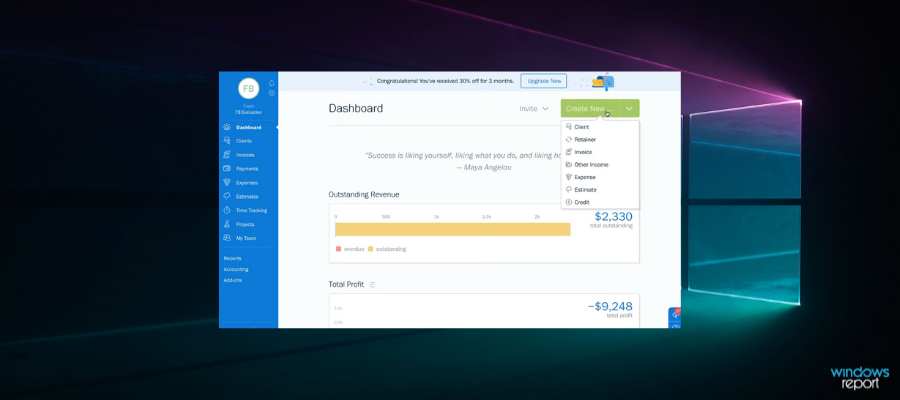
FreshBooks is one of the most reliable financial programs that provides you with a straightforward dashboard and reports with detailed information.

You can improve your workflow by using this software for fast and uncomplicated invoicing and payments.

FreshBooks can handle with ease your bookkeeping, track expenses, and increase your tax deductions and returns thanks to its partnering with Bench.

Moreover, you have a sales tax summary where you can see all the money you collect and the taxes you pay and you can select specific information thanks to its filtering feature.

This accounting software ensures your books are updated and offers an honest view of your business or personal project’s health which makes it easy to decide financial conclusions.

With this platform, you can connect with real experts that can offer advice about your bank statements, prepare monthly financial statements, and adjust accounts.

Other key features include:

  • Time and expense tracking
  • Simple project management
  • Easy-to-use interface
  • Wide range of general accounting features

With FreshBooks, you get outstanding invoice-to-payment functionality, expense tracking, and other detailed financial reports in no time.

FreshBooks

FreshBooks

Handle your financial information more efficiently and try using FreshBooks.
Free Trial Visit Website

QuickBooks – Error-free payroll

QuickBooks is a popular bookkeeping software tool that supports small businesses as well as individuals who want nothing but the best.

Some users like that they can create custom, professional invoices, sales receipts, and estimates that reflect their business and your brand.

Others just want to stay on top of who owes them, how much, and when their payment is due, or enjoy one-click payments.

The tool helps you all to secure data sharing with an accountant and it supports integration with Microsoft Outlook.

Quickbooks allows you to manage multiple accounts and offers the tools necessary for keeping track of and organizing all your transactions in one place.

Users can access easy-to-follow reports regarding balance, profit, loss, and many other detailed reports based on your specific expenses and settings.

This service takes care of W-2 forms and taxes without any errors. This is great both for personal for self-employed users but you can also use it as a business owner.

Another great feature of QuickBooks is that you can set it up to automate spending. This saves you time and hassle when it comes to recurring payments such as monthly bills and rent.

Other key features include:

  • Supports secure data sharing between you and your accountant
  • Compatible with mobile devices
  • Full service, error-free payroll
  • Dashboard overview of all transactions
  • Paperless receipt tracking

Quickbooks is a subscription-based service with various monthly plans. Each plan has a 30-day free trial in which you can try all the features included.

NolaPro – Inventory management

NolaPro caters to the needs of small enterprises as well as individual users with its easy-to-use interface.

The service allows you to create your own plan based on the features you need to manage your personal finances.

You can get general accounting services such as accounts payable, accounts receivable, and general ledger with double-entry accounting.

NolaPro allows you to easily manage your billings with in-depth receivables, quotes, POS, and recurring invoices. 

The service also lets you keep track of all your contacts. You can easily enter information regarding customers, employees, or vendors, keep track of the transactions between your accounts and theirs, and more.

Nola Pro lets you organize bills, write checks and issue purchase orders with error-free assistance throughout the process. 

Other key features include:

  • Order management features for customers and vendors
  • Inventory management
  • Advanced data backups
  • Automatic updates

When it comes to business management, you can use Nola Pro for full payroll support of W-2/941 forms. Keeping track of all information you need to correctly do taxes saves you both time and money in the long run.

Sage 50 Accounting Software – Mobile invoicing

Peachtree accounting software includes four versions to address the needs of various businesses, nonprofit organizations, manufacturing, construction, and individuals.

The tool works with the ACT! contact management software. Other add-on services are also available to extend features, including payroll and merchant accounts.

Sage 50 offers easy-to-understand reports and management tools regarding cash flow and invoicing. You can easily see all your income transactions and your expenses. The software automatically calculates the remaining balance and keeps track of each individual transaction.

You can use it to set up automatic payments for your bills and other recurring expenses. You just have to enter the information necessary once and set up the software to automatically pay your bills on a specified date.

Sage 50 Cloud software has a Microsoft Outlook integration that lets you sync your contacts and create customer balance information, credit limits, add contact details, and order history.

The accounting service is cloud-based so your data is always backed up. You can undo changes and restore to previous versions if you need specific information that has been removed.

Sage 50 has advanced payroll services that assist you in paying your employees, tracking benefits, and managing and reporting taxes.

Other key features include:

  • Integrates MS Office Business Premium
  • Sales optimization
  • Expense management
  • Mobile invoicing

Sage 50cloud is subscription-based with various plans that charge monthly or annually. Each plan has a free trial with all its specific features available.

Sage 50 Accounting Software

Professional software with four versions that fulfill the needs of various businesses successfully.
Check price Visit Website

GnuCash – Statement Reconciliation

If you are looking for personal and small-business bookkeeping software, then GnuCash is the right choice for you.

The tool lets you monitor bank accounts, stocks, income, and expenses. GnuCash is easy and intuitive to use as a checkbook register.

GnuCash also manages other functions of a bookkeeping tool including invoicing and credit notes, accounts payable and receivable, and employee expenses.

Similarly to most services, GNU cash follows the double-entry accounting principle. Under a simple UI, GNU displays all your sources of income, your spending, and your remaining balance.

The software supports common checking, credit-card transactions, income management, stock, and multiple currency transactions. 

GNU is a great choice for managing multiple accounts. It can display all your accounts and their corresponding information within one window. You get a summary of essential information and also detailed reports by selecting each account and transaction separately.

This tool also allows you to automate recurring payments. You can select monthly/weekly payments by adding a date, the frequency, and the amount of money you want to pay.

Its key features include:

  • Reports, Graphs
  • QIF/OFX/HBCI Import, Transaction Matching
  • Financial Calculations
  • Statement Reconciliation
  • Online Stock & Mutual Fund Quotes
  • Experimental database support
  • HBCI Support
  • Transaction Finder
  • Check Printing
  • Mortgage & Loan Repayment Assistant

All services provided by GNU cash are completely free. Users can support the development of the software via donations.

⇒ Get GnuCash

Money Manager Ex – One-click reporting

Money Manager Ex is another impressive open-source tool for bookkeeping. While it is a free tool, the software includes features that compete with premium services.

The application is portable, which means you can save and use it from a USB stick without installing it.

Money Manager Ex is easy to learn and use. It has a simple UI with straightforward information and controls.

You can use this software to manage various types of accounts such as checking, credit cards, savings, stock investments, and assets.

In terms of recurring payments, Money Manager Ex lets you pick dates and set reminders for upcoming due payments.

The bookkeeping software can generate detailed income/expense/balance reports that are easy to read and manage.

Money Manager Ex is compatible with CSV and QIF formats, so you can easily import any pre-existing accounting information.

Other key features include:

  • Budgeting and cash flow forecasting
  • One-click reporting
  • Non-proprietary SQL Lite Database with AES Encryption

Money Manager Ex is compatible with Windows, macOS, and Linux computers. It can also be used on mobile devices that run the Android OS.

⇒ Get Money Manager Ex

Which tool is the best for you? Let us know in the comments area below.

Best Tax Software for Tax Preparers [No EFIN Required]

Filing your taxes isn’t always simple, but there is tax software that works with no EFIN required. However, this isn’t the most reliable solution in the long run.

Before we cover some of these applications, we’ll briefly explain what EFIN is and what limitations these applications have if you’re not using it.

Can I prepare taxes without an EFIN?

Electronic Filing Identification Number is required if you want to file your taxes.

It’s possible to prepare taxes with EFIN, but if you want to do it without any limitations, you must register an EFIN.

How many returns can I file without EFIN?

You can file up to 5 returns electronically, but if you want to submit more, you’ll need to use an EFIN.

What is the best tax preparation software with no EFIN?

TurboTax – Best tax manager

chrome best browser for turbotax

TurboTax is a great user-friendly tax software that allows you to streamline the process of applying for your tax return, and it works without an EFIN code.

You can gain access to TurboTax either by downloading software or by accessing the online tax portal.

The advantage of downloading the software is that you can access all your stored documents even if not connected to the internet, and all your files are stored locally.

If you don’t have enough space on your hard drive or don’t want to download anything, you can use the online TurboTax. The advantage of this method is that it allows you to access your files from anywhere in the world easily.

One of the best features found in TurboTax is its ability to help you through every step of applying your online papers.

As you go through the steps required to apply for taxes, you will be guided by a small banner on the side of your screen. This lets you know what you need to type and saves you time.

Because of the chat-line structure of TurboTax, it almost feels like an interview while completing all the data required.

Even though the free version of this software offers you access to file 1040 Forms, allows you to claim the child tax credit, earned an income tax credit, and is designed for those of you who don’t need to claim any deductions or credits other than the standard deductions.

If you need the software to process more complicated papers, try one of the premium versions.

Here is a small summary of the premium editions of TurboTax:

  • TurboTax Free Edition – you can file your taxes for free, covering your W-2 income, EIC, and child tax credits.
  • Deluxe – you get everything already in the Free Edition and 350 + tax deductions and credits along with maximizations of tax deductions and credits.
  • Premier – contains all the features found in the Deluxe version and adds the ability to report both investments and rental income
  • Self-Employed – contains all the features found in the Premier version and adds deduction help, expense-tracking, and independent contractors features

Turbotax

Handle all your taxes efficiently with this tool and a guarantee for a maximum refund!
Check price Visit website

We have a separate guide on TurboTax covering all the good and bad about the software; read this to know more.

QuickBooks – Extremely versatile

If you’re looking for a quick and easy solution to pay taxes, look no further than QuickBooks. With this service, you can connect to your bank directly and configure bank feeds, credit cards, and online payment processors such as PayPal.

This will eliminate the chance of any errors since all transactions will go through QuickBooks. Doing so lets you track and manage bank transactions, import revenue and expenses, and report on all transactions.

The service allows you to create custom invoices and track payments in real-time, so it’s perfect if you’re running a business. Speaking of businesses, the service allows you to analyze costs and income on multiple projects.

QuickBooks also supports commonly used tax rates; you can create your own if needed. The service is available online on any device or platform, so you can use it without limitations.

Other great features:

  • Automatic backup.
  • Supports over 500 additional apps.
  • Dedicated mobile apps.
  • Support for custom reports.
  • Cutting-edge security and privacy.

QuickBooks

With its extensive functionality, QuickBooks is perfect tax software for home users and professionals alike.
Check price Get it now

TaxSlayer – Offers outstanding assistance

TaxSlayer allows you to prepare your federal and state tax returns online, while the service will help you claim all the available tax breaks and refunds.

All income types are supported, and you can file your 1040 with ease. The service can also autofill your income and wages simply by importing W-2s and 1099s. It’s important to mention that IRS inquiry assistance is available, so you can rest assured that your data is always correct.

TaxSlayer also supports reminders, so you won’t miss submitting your taxes. In case of an audit, you can also get assistance from an IRS enrolled again.

This excellent service should help you pay your taxes quickly, and with superb assistance, you can rest assured that all your information will always be 100% correct.

Other great features:

  • Ability to complete federal and state tax returns online
  • The service can help you claim tax breaks
  • Supports 1040 with all income types
  • Ability to autofill income using your W-2 and 1099
  • Offers IRS inquiry assistance

⇒ Get TaxSlayer

H&R Block – Offers great protection features

This is another great service that allows you to file your taxes, and it offers step-by-step guidance and help from experts while filing taxes.

The service offers great security and privacy with Tax Identity Shield, allowing you to monitor your tax info. A second look feature is also available, allowing experts to review your old returns and ensure everything is in order.

In case of any problems, there’s protection from audits and multiple layers of protection, thus ensuring that all your data is safe. Before filing your taxes, the software will also scan and ensure everything is correct.

This is an excellent and professional service, so don’t hesitate to try it.

Other great features:

  • Accuracy review that ensures your information is correct every time.
  • Ability to work with TurboTax files.
  • Enhanced protection.
  • Great support.

⇒ Get H&R Block

AccuTax – Complete federal tax line

AccuTax Business - tax software without EFIN

AccuTax is another incredibly useful tax software that allows you to prepare your taxes, whether you want to do it for an individual or a business.

This software allows you to file papers electronically, refund settlement products, etc.

Even though this software doesn’t require an EFIN account to perform tax returns and many other operations, it is worth mentioning that the team at AccuTax can also help you get an EFIN in a shorter time.

AccuTax was released in various versions, each catering to the different needs of users so that it will be suitable for all your needs.

Other great features:

  • Compatible with data from Lacerte, Intuit/ProSeries, Tax Slayer, and other services.
  • Provides several different pricing models.
  • Easy to use.
  • Doesn’t require EFIN.

⇒ Get AccuTax

Can I get an EFIN online?

Yes, you can get EFIN online for free by doing the following:

  • Create your IRS service account.
  • Next, you need to file your e-File application online.
  • Once the application is approved, you’ll get EFIN number from the IRS.

The process can take up to 45 days, and during it, you’ll need to pass a suitability and tax compliance check, along with other checks.

Because not all of us know how to file taxes, what steps we need to take for tax returns, and all the other complicated ways to deal with taxes, using specialized software greatly helps.

The software options we presented in this article contain all the tools you need to easily sort out your taxes each year and allow you to file papers without an EFIN code, no matter how many operations you need to do.

Can I get an EFIN with bad credit?

Yes, it is possible to get an EFIN if you have bad credit. While bad credit is taken into consideration, it is not always a barrier when trying to get an EFIN.

If you need additional functionality, consider using accounting software for self-employed, or tax filling software for small businesses.

The comment section below lets us know how these software options work.

Microsoft shoots back at Slack over EU lawsuit, says it “suffered” from lack of video conferencing

Slack made headlines this morning by announcing that it had filed a competition complaint against Microsoft with the European Commission. The company pretty much said that Microsoft is back to its old monopolistic ways and hurting Slack’s business by bundling Microsoft Teams with Microsoft 365 subscriptions.

Microsoft didn’t wait long to fire back, and a company spokesperson issued a statement (via Windows Central) putting the emphasis on Slack’s lack of support of video conferencing features, something Teams has now become very good at:

We created Teams to combine the ability to collaborate with the ability to connect via video, because that’s what people want. With COVID-19, the market has embraced Teams in record numbers while Slack suffered from its absence of video-conferencing. We’re committed to offering customers not only the best of new innovation, but a wide variety of choice in how they purchase and use the product.

We look forward to providing additional information to the European Commission and answering any questions they may have.

This is just the first episode of what could be a very interesting battle, and Microsoft may add more fuel to the fire later today during its FY2020 Q4 earnings. Microsoft Teams experienced unprecedented growth since the beginning of the covid-19 pandemic, with Microsoft announcing 75M daily active users for Microsoft Teams back in April. The company will likely announce even higher usage numbers later today.

Fortnite Stuck on Please Wait [Solved]

Fortnite is one of the best battle royale games players need the Epic Games launcher to play.

However, some players have encountered an issue in which Epic Games gets stuck at a Please wait while we start your update message.

Consequently, Epic Games doesn’t open when it gets stuck at the Please wait message, and players can’t play Fortnite: Battle Royale.

How can I fix the Epic Games please wait error?

1. Run Epic Games as an administrator

Right-click your Epic Games shortcut and select Run as administrator.

2. Add wininet to the Epic Games target path

  1.  Right-click Epic Games’ shortcut and select Properties.
  2. Click on the Shortcut tab.
  3. Enter -http=wininet at the end of the path in the Target box as in the snapshot directly below.
    Shortcut tab fortnite stuck on please wait
  4. Click the Apply option.
  5. Click OK to exit the window.

3. Turn off the Windows firewall

  1. Press the Windows key + S hotkey to open the search box.
  2. Next, type firewall in the search box.
  3. Click Windows Defender Firewall to open the Control Panel applet in the shot directly below.
    Windows Defender Firewall fortnite stuck on please wait
  4. Click Turn Windows Defender Firewall on or off to open Customize Settings.
    Turn off Windows Defender Firewall options fortnite stuck on please wait
  5. Select both the Turn off Windows Defender Firewall radio buttons there, and click the OK option.
  6. Try opening Epic Games again.

If Epic Games opens without issues, you’ll know it was a firewall issue. To not have to turn the firewall off every time you play, add the Epic Games software to the firewall’s exception list.

4. Disable the proxy server

  1. Open the Cortana search box.
  2. Type proxy server.
  3. Click Proxy Settings to open the options in the shot directly below.
    Use a proxy server option fortnite stuck on please wait
  4. Toggle the Use a proxy server option off.

5. Reset Windows 10

  1. Click the Type here to search button on the taskbar.
  2. Type reset.
  3. Click Reset this PC to open Settings as below.
    Get started button fortnite stuck on please wait
  4. Click the Get Started button.
  5. Select the Keep my files option.
  6. Click Next to continue.
  7. Press the Reset button.

We hope this guide has managed to fix your Epic Games launcher issues. Now, with the problem being gone, you can play Fortnite without being bothered by annoying errors. Also, the solutions here might help with Error Code 91 in Fortnite.

New Windows 10 Insider build 20175 (Dev Channel) brings pinned sites to the Taskbar

Microsoft has just announced the release of the Windows 10 Insider build 20175 in the Dev Channel (previously Fast Ring), which brings another productivity enhancement for Edge users on Windows 10. After the build 20161 brought the ability to access all tabs open in Microsoft Edge using Alt + Tab, the build 20175 nows bring pinned sites to the Windows 10 taskbar.

This feature will only be available to a subset of Insiders who install this build, and it will also require Microsoft Edge Insider Build 85.0.561.0 or higher. Other new features in this build include the ability to reset your UWP apps using PowerShell, as well as a new Eye Contact feature on the ARM-powered Surface Pro X.

You can find more details about new features, bug fixes and known issues in the build 20175 below:

What’s new in Build 20175

Improving pinned sites in Microsoft Edge

Earlier this month, we announced ALT + TAB between apps and sites, the first of our new productivity enhancements coming to Microsoft Edge on Windows 10. Today, we’re announcing another feature we’ve been working on to make you more efficient when browsing the web: quick access to tabs for your pinned sites. Clicking a pinned site on the Taskbar will now show you all of the open tabs for that site across any of your Microsoft Edge windows, just like you’d expect for any app with multiple open windows. Please let us know what you think!

Clicking a pinned site on the Taskbar will now show you all of the open tabs for that site across any of your Microsoft Edge windows.

This feature is currently rolling out to a subset of Insiders today and requires Microsoft Edge Insider Build 85.0.561.0 or higher (Canary or Dev Channel).

NOTE: Since this is an early preview, existing sites on your Taskbar will not experience this new behavior until you remove and re-pin them.

For more details on our new multitasking improvements, check out our post on the Microsoft Edge blog.

Introducing Reset-AppxPackage

For some time now, you’ve been able to reset your UWP apps in Settings – with today’s build we’re now exposing this ability via PowerShell as well. To do this, you’ll need the appx package name, so your use of the command may look like this:

>> Get-AppxPackage *calculator* | Reset-AppxPackage

The benefit of enabling this via PowerShell is that if needed you will now be able to run the reset commands for certain system components that are not currently listed as available to reset in Settings, for example Start.

Please note by nature of this command, if you choose to run it it will reset your experience back to the default experience and you will lose the associated app data.

Make a more personal connection with Eye Contact on Surface Pro X

Powered by artificial intelligence capabilities of the Microsoft SQ1(TM) processor, Eye Contact helps to adjust your gaze on video calls so you appear to be looking directly in the camera on your Surface Pro X. Windows Insiders can turn this feature on via the Surface app on their Surface Pro X.

Turn on Eye Contact on the Surface Pro X via the Surface app.

Fixes

  • We fixed an issue causing some systems to crash with a HYPERVISOR_ERROR bugcheck.
  • We fixed an issue resulting in tiles sometimes flashing unexpectedly in the Start menu when animating
  • We fixed an issue where the option the set Alt + Tab to “Windows Only” wasn’t working.
  • We fixed an issue that could result in apps unexpectedly appearing black when viewed under Magnifier with a large magnification.
  • We fixed an issue that could result in some stutter when gaming.
  • We fixed an issue resulting in Narrator not working with touch when touching a XAML item.
  • We fixed an issue resulting in Search not closing after selecting certain items in the search results.
  • We fixed an issue resulting in flickers when logging in.
  • We fixed an issue resulting in fonts not displaying correctly in some apps in the last two flights.
  • We fixed an issue that could result in Settings crashing if it’d been opened but minimized to the Windows Update page, and then you navigated to another settings page by clicking a URI.
  • We fixed an issue where clicking a link to System would result in an empty and unclosable Control Panel instance.

Known issues

  • We’re working on a fix for an issue where some Microsoft Store games protected with Easy Anti-Cheat may fail to launch.
  • We’re looking into reports of the update process hanging for extended periods of time when attempting to install a new build.
  • If you are impacted by an issue where when pressing space while using the Korean IME in Edge and Chrome the last character was deleted, this has been fixed in Chromium as part of Bug 1099125. We’ll be removing this from the known issues with the next flight.
  • We’re working on a fix for an issue where the min/max/close buttons are stuck in their original positions after resizing a UWP app. If you move the app window the position should update.
  • We’re investigating reports that the new taskbar experience described above isn’t working for some pinned sites.
  • We’re working on a fix for an issue where sometimes the “close all windows” action in the taskbar doesn’t close not all of the open tabs
  • We’re working on a fix to enable live preview for pinned site tabs.
  • We’re working on enabling the new taskbar experience for existing pinned sites. In the meantime, you can unpin the site from the taskbar, remove it from the edge://apps page, and then re-pin the site.
  • We’re working on a fix for an issue where pinned sites don’t show all open tabs for a domain. In the meantime, you can fix this by pinning the site’s homepage rather than a specific page (e.g. pin microsoft.com rather than microsoft.com/windows).
  • We’re working on a fix for an issue where Alt + Tabbing to a browser tab sometimes moves the previously active browser tab to the front of the Alt + Tab list as well.

For Windows Insiders using the Sticky Notes and the Snip & Sketch apps regularly, you’ll notice that both apps will soon get new icons via updates coming from the Microsoft Store. “Just like with the new Settings icon in the last build, these new icons look great on the Start menu with the theme-aware tiles introduced in Build 20161,” the Windows Insider team said today.

If you want to do a clean install, ISOs for the build 20175 are available to download on this page. Last but not least, Microsoft is warning Windows Insiders running the preview builds 20161 and below that they will expire on July 31. It’s highly recommended to update to a newer build before that date to continue using your PC without issues.

Update: Microsoft acknowledged that a service side issue, which has now been resolved on the backend, prevented some AMD and Intel devices from detecting the new build. If you’re still unable to install the build 20175 on your PC, you need to follow these steps:

  1. Open the Start Menu.
  2. In the search box, type CMD.exe.
  3. On the right menu under Command Prompt, select Run as administrator.
  4. If prompted by UAC, choose Yes.
  5. From the elevated prompt, enter this command, then hit enter: net stop wuauserv
  6. Enter this command, then hit enter: rmdir /s /q C:WindowsSoftwareDistributionSLS
  7. Finally, enter this command, then hit enter: net start wuauserv
  8. Close the Command Prompt window.
  9. Open Settings > Update & Security > Windows Update and check for updates.

Microsoft 365’s new Universal Print feature – what it is and how to use it

Microsoft has recently announced the public preview of its Universal Print service for Microsoft 365 subscribers. The cloud-based printing solution has been designed to provide a user-friendly printing experience to IT departments. Starting first with Microsoft 365 E5 and A5 tenants, access to the public preview is gradually rolling out to all Microsoft 365 subscribers residing in North America, Europe, and the Asia Pacific regions in the coming months.

Microsoft’s Universal Print will make it easier for IT admins to move key Windows Server print functionality to the Microsoft 365 cloud while simplifying printer management within an organization. Universal Print will provide a unified view of all printers that are registered through the service on a centralized portal, which should eventually enable robust management capabilities. It complies with Microsoft’s data management guidelines to provide print data stored in the cloud, just like it works for other Microsoft Office services.

As for the end-user experience, Universal Print should allow them to find local and remote printers and print them via a single sign-on experience that leverages Azure Active Directory. The service will also eliminate the need to install printer drivers on Windows 10 machines. The company noted that there is no learning curve for end-users to use the Universal Print service, and they can “continue to print from their Windows devices or Office as they always have.”

universal-print-gif.gif

Microsoft’s release schedule for Azure Universal Print indicates that Microsoft 365 subscribers will need to check their eligibility according to the roadmap (shown below) to configure and enable the Universal Print. However, the preview doesn’t work with a trial Microsoft 365 subscription, and it’s up to the Global admin to make changes to their Microsoft 365 subscription. Users who signed up for the Private Preview between January 1 and July 21, 2020, will continue to have access to Universal Print until Universal Print hits General Availability in 2020.

Microsoft universal printer

Microsoft’s cloud printer service should be a welcome addition for Microsoft 365 customers currently working from remote locations during the pandemic. “Many of them have accelerated their adoption of cloud services and Universal Print because employees and teachers working from home can now print to company or school printers from anywhere when connected to the internet,” explained Kristin Carr, group program manager at Microsoft. “While many processes have gone paperless, many critical business processes – especially in education, healthcare, and other industries – still require print.”

At the moment, the feature only works with a Universal Print proxy application, since native Universal Print support isn’t available right away. However, some popular printer manufacturers, including Canon, HP, Brother, Kofax, Konica Minolta, Lexmark, and others, are currently working to bring native functionality for users. Feel free to check out the official support page to learn more about Microsoft’s Universal Print service.

Outlook Startup is Slow: How to Speed it up

For a single Windows 10/Office 365 app, Outlook seems to be having a lot of startup issues lately. Speaking of which, many have reported slow startup in Outlook.

We already covered slow Outlook, but in this guide, we’re going to focus exclusively on slow startup. So let’s see how we can fix this issue.

Why does Outlook take so long to start up?

  • UE-V Sync Method is set to None in Outlook.
  • The MicrosoftOutlook2016CAWinXX.xml UE-V template is registered.

How do I speed up Outlook startup?

1. Use the default UE-V Sync option

  1. Press Windows key + R and enter gpedit.msc.
     
  2. Now locate Configure Sync Method policy and double-click it.
  3. Set the policy to Enabled and set Sync method to None.

With this method, you only need to use the default UE-V Sync option, which is SyncProvider.

However, you may set it to None and experience and fix slow Outlook startup only if your device has a permanent SettingsStoragePath network connection.

2. Adjust the xml file

  1. Navigate to the following path: %ProgramData%\Microsoft\UEV\InboxTemplates\
  2. Open MicrosoftOutlook2016CAWinXX.xml file.
  3. Make the following changes:  <Version>3</Version>
    <Asynchronous>true</Asynchronous>
  4. Save the file.

However, remember that this method only works for Office 2019 and 2016.

As you can see, if Outlook startup is slow, you need to change the sync settings in the group policy to fix the problem.

More advanced users can adjust the Outlook XML file and change the configuration directly. If you’re having additional problems, you should check our guide on Office 365 running slow.

Did you find a different solution for this problem? If so, share it with us in the comments below.

Full Fix: Parse Error on Kindle Fire

The parse error Kindle Fire issue is standard on the Kindle Fire HD, in which USB debugging is disabled by default.

Also, you should expect this error if you attempt to download and install an app onto the tablet from somewhere other than the Google Play Store.

If you trust the download source and wish to continue with the file installation, but the parse error is hindering your fun, read this guide to the end.

You will learn all you need to know about the parse error on Kindle and, most importantly, how to get rid of it. Some forms of the parse error on Kindle Fire include:

  • There is a problem parsing the package Kindle Fire
  • Problem parsing the package Kindle Fire

What is a parsing error on Kindle Fire?

A parse error on Kindle Fire is a common problem among Kindle Fire users, which comes up when you have corruption in the application installer.

This error is common to users of Android devices and Kindle Fire. This error will sometimes not allow your Kindle to download the books you want.

In the following section, we will look at the causes of the parse error on the Kindle Fire tablet.

Why am I getting a parsing error?

This parsing problem can be a result of two issues. You will often get this error when you attempt to install (or sideload) a third-party app directly from an unknown source instead of the app store.

Other times, it shows up when you download a damaged or corrupt file onto the tablet.

As you can see, this issue involves file downloading onto the tablet. Some other times, when the error pops up, it means you have a damaged app installer.

If you get the parse error on Kindle Fire tablet while installing an app from its downloaded APK, then it means that the app is not compatible with your operating system version.

On the other hand, if the error appears when you download a file, you can get rid of the error by trying other download methods.

The next section explains how to fix the parsing package error in your device. Check it out for more details.

How do I fix the parsing package error?

1. Use a compatible Fire OS

Most times, the parse error on Kindle Fire shows up if the application isn’t compatible with the version of Kindle Fire OS running on your device.

Thankfully, Kindle Fire OS is based on the Android operating system.

Because of this fact, most app installation, uninstallation, and updating processes are identical to Android ones.

  1. Visit the Google Play Store and use the search tab to find the application that you want to install.
    google-play-store
  2. Go down to the Additional Information area and look at the minimum Android version you need to make use of the application.
  3. Since Fire OS is based on Android, you can easily find out the Fire OS edition that will work.
    Below is a table that relates the Android OS to Fire OS.
    Fire HD 8" (2016)Fire OS 5 – based on Android 5.1, API level 22Kindle Fire HDX 8.9″ (2013)Fire OS 4 – based on Android 4.4.2, API level 19
    Fire HD 10" (2015)Fire OS 5 – based on Android 5.1, API level 22Kindle Fire HDX 7″ (2013)Fire OS 4 – based on Android 4.4.2, API level 19
    Fire (2015)Fire OS 5 – based on Android 5.1, API level 22Kindle Fire HD 7″ (2013)Fire OS 4 – based on Android 4.4.2, API level 19
    Fire HDX 8.9" (2014)Fire OS 4 – based on Android 4.4.2, API level 19Kindle Fire HD 8.9″ (2012)Based on Android 4.0.3, API level 15
    Fire HD 6" (2014)Fire OS 5 – based on Android 5.1, API level 22Kindle Fire HD 7″ (2012)Based on Android 4.0.3, API level 15
    Fire HD 8" (2015)Fire OS 5 – based on Android 5.1, API level 22Kindle Fire (2012)Based on Android 4.0.3, API level 15
    Fire HD 7" (2014)Fire OS 4 – based on Android 4.4.2, API level 19Kindle Fire (2011)Based on Android 2.3.3, API level 10
  4. Cross-check the compatible Android version of the app (determined in step 2) against your Fire OS.

If your Fire OS is below the minimum Android version required to run the app correctly, you can get the parse error on your Kindle Fire.

To fix it, update your device to the latest version of Fire OS.

2. Re-download the file with these methods

redownload-ebook

A wrong download sometimes causes the parse error on Kindle Fire. If the issue arises when you download a file, try to download it again but using the following hints:

  1. Download the file on your computer and then email it to yourself. Then, download the file to your tablet.
  2. Get the file downloaded to your PC and transfer it to your Kindle Fire by using a USB cable.
  3. Download the problematic file by using the default browser(Silk browser).
  4. If you’re seeing the parse error after you download via a cellular network, try downloading by using your Wi-Fi connection.

3. Enable installation from unknown sources

unknown-sources-installation
  1. Tap on the Settings app icon at the top right-hand area of the tab home screen to open the device settings page.
  2. Click on More from the menu in Settings.
  3. Go to Device.
  4. Switch the Allow Installation of Applications From Unknown Sources to ON.

Your Kindle Fire OS blocks the installation of apps from sources apart from the Amazon app store and Google Play. An example of such a source is an APK file you got online to sideload onto the device.

4. Enable USB debugging

  1. Swipe down your finger from the top of your tablet screen to reveal the Notification menu. From there, tap on More which is a plus (+) icon.
  2. In Settings, tap on the Security category.
  3. Toggle On the Enable ADB button.

If this or the unknown source setting is the root of the parse error in Kindle Fire, enabling them will fix the issue. With these solutions, you know how to fix parse errors on Kindle Fire.

If all the methods mentioned above fail, another way to resolve this tricky error is to disable your antivirus while installing the app, if you use any.

Users have reported that they fixed this challenge after discovering that an antivirus app was blocking the download or installation.

Sometimes other errors can occur to Kindle Fire, such as the registration error or the device not being recongnised by Windows, but keep in mind that there is always a solution for each of them.

Hopefully, these solutions will help you repair the parsing problem on your Kindle Fire tablet.

Halo Infinite box art and official wallpapers get revealed ahead of tomorrow’s Xbox Games Showcase

We’re now just a day away from Microsoft’s much-anticipated Xbox Games Showcase, and Halo: Infinite is already guaranteed to be the main attraction. We’ll get our first look at the game’s campaign tomorrow, and developer 343 Industries is getting fans ready today by revealing the game’s box art, along with wallpapers in many different formats that Halo fans can download on this page (these might make great Microsoft Teams background images, just sayin – ed.).

As many Halo fans pointed out today, the box art is an obvious homage to the original Halo: Combat Evolved game, with both images showing Master Chief in the center with a Halo ring in the background. The similarities extend to Master Chief’s armor, which design has moved away from the scratched up look with a darker green color seen in Halo 4 and Halo 5: Guardians in favor of something more traditional.

If most Halo enthusiasts seem to be pleased by the box art for Halo Infinite, some eagle-eyed fans also noticed that Master Chief seems to have gained some sort of grappling hook attached to his left forearm in Halo: Infinite. If accurate, that would be a first in a Halo game, opening up more possibilities to move around than the limited dash moves introduced in Halo 5: Guardians.

There are probably many more secrets to uncover in the official box art, but everything will hopefully be revealed during the Xbox Games Showcase tomorrow. Halo: Infinite will be a launch title for the Xbox Series X this holiday season, just like Halo: Combat Evolved was for the original Xbox console that launched in 2001. Let’s home that this new Halo adventure will leave an even bigger mark than the original game.

Outlook asks to choose which account to send email from

Outlook users with multiple accounts might sometimes need to select different accounts to send emails from.

Some users have even posted on the Microsoft forum about Outlook prompts that keep asking them to choose an account to send emails from.

Scroll down to see how you can change accounts used to sent MS Outlook emails.

How can I change the Outlook accounts used to send emails?

1. Use an alternative default account

  1. Select the  File tab in Outlook.
  2. Then click Info.
  3. Click the Account Settings drop-down menu.
    Account Settings choose which account to send the email from
  4. Select Account Settings to open the window shown directly below.
    E-mail tab choose which account to send the email from
  5. Choose an alternative default account on the Email tab.
  6. Click the Set as Default option.
  7. Then click Close to exit the window.

2. Change the default account options further

  1. Click the File tab.
  2. Next, select Options on the left side.
    Outlook Options window choose which account to send the email from
  3. Select the Mail tab on the Options window.
  4. Click the Always use the default account when composing new messages checkbox if it’s not selected.
  5. Click OK to close the window.

3. Select an account with the From button

Users can also select accounts to send emails from by clicking the From button.

After doing so,  you can select an alternative Outlook account listed on the From menu.

Note: You will need to have multiple accounts for a single profile to select them with the From button.


4. Edit the registry to enable a choose Outlook account reminder

  1. Open Run by pressing the Win+R keys.
  2. Type regedit in the Run box, and click the OK button.
  3. Open this key within Registry Editor’s window: HKEY_CURRENT_USER\Software\Policies\Microsoft\office\<version>\outlook\options
  4. Right-click the options key to select New and DWORD (32-bit) Value.
  5. Type forceaccountselection as the new DWORD title.
  6. Double-click forceaccountselection to open its Edit DWORD window.
    Edit DWORD Value window choose which account to send the email from
  7. Enter 1 in the Value data box, and click the OK button.
  8. Thereafter, restart Outlook.

Now Outlook will display a choose an account prompt when you compose a new message.

Then, you’ll need to select an account to send an email from, by using the From button. That prompt will ensure you always remember to send your Outlook emails from the right accounts.

As you can see, it’s straightforward enough to change your Outlook accounts to send messages from.

If you usually utilize the same account for the vast majority of emails, configure that to be the default one. Before you leave, don’t forget to check our guide on what to do if Outlook inbox view has changed.

However, users who utilize alternative accounts with regularity might prefer to enable the choose account prompt by editing the registry.

New optional updates are available for Windows 10 versions 1909, 1903, and 1809

Microsoft yesterday released new optional updates for older versions of Windows 10, including the November 2019 Update (version 1909) and the May 2019 Update (version 1903). These two versions of the OS, which share a common base, are getting builds 18363.997 and 18362.997, respectively.

Here are the quality fixes that Microsoft highlighted for these two builds:

  • Updates an issue that might cause the Magnifier to stop working in Microsoft Excel in certain scenarios. As a result, Microsoft Excel might also stop working.
  • Updates File Explorer to allow you to delete previous terms from the search box.
  • Updates an issue that causes File Explorer to stop working when you browse directories of raw images and other file types.
  • Updates an issue that prevents the system from recognizing the Windows Hello face camera.
  • Updates an issue that might prevent a Windows 10 device from reaching the internet when using a wireless wide area network (WWAN) LTE modem.
  • Updates an issue that prevents family safety features, such as time limits and activity reporting, from working on ARM64 devices.

If you’re still running the Windows 10 October 2018 Update (version 1809), this version of the OS is getting build 17763.1369. The new bits include a fix for the issue that might cause the Magnifier to stop working in Microsoft Excel in certain scenarios, plus other quality fixes.

Microsoft will likely release an optional update for the Windows 10 May 2020 Update (version 2004) before the end of the month, and we’ll see what happens later this week. Keep in mind that these updates are entirely optional, and you will still get all included fixes by installing next month’s Patch Tuesday update.

The driver disconnected while associating [WiFi Connection]

If your laptop is not connecting to your WiFi router and if you tried to get a status report using the netsh wlan show wlanreport command, you might encounter the drive disconnected while associating error.

The error above can occur due to several reasons. For some users, the error was triggered after updating their Windows 10 laptop to a newer version.

Fortunately, the error can be resolve by performing a few troubleshooting tips listed in the article below.

How can I fix the driver disconnected while associating error?

1. Run Network Troubleshooter

driver disconnected while associating
  1. Click on Start and select Settings.
  2. Go to Network and Internet.
  3. Click on Status.
  4. Scroll down to Change your network settings.
  5. Click on Network Troubleshooter.
  6. The Windows network troubleshooter will initiate the scan.
  7. Follow on-screen instructions, and apply any recommended fixes.

The Windows network troubleshooter will fix minor issues with the WiFi adapter. If the issue persists, follow the next set of steps below.

2.  Update network drivers

Update drivers manually

  1. Press Windows Key + R.
  2. Type dvmgmt.msc and click OK.
  3. In Device Manager, expand the Network Adapters category.
  4. Right-click on the wireless network adapter.
  5. Select Update Driver.
  6. Select Search automatically for updated driver software.
  7. Wait for Windows to download and install a newer version of network drivers.

Once installed, reboot the computer. If the issue persists, try resetting the network adapter.

Alternatively, in the 4th step above you can choose to uninstall the network driver and reboot your PC. Windows will automatically install the network adapter driver upon restart. Check to see if the error is resolved afterward.

Update drivers automatically

Another viable and time-saving solution would be to use third-party software that searches for the most suitable drivers for your PC and installs them with a few clicks.

Such driver manager tool like Fortect Driver Updater keeps your Windows OS in optimal condition and aims to help your device function at peak performance.

It is useful software for updating your computer’s drivers. You simply need to scan your system after installing the program. It detects out-of-date drivers and then asks for your permission to update them, ensuring that only the necessary drivers are installed.

After installation, the program will run automatically, so you won’t have to look for its shortcut or the source folder. Outbyte Driver Updater will scan your system for faults or missing drivers and generate a report in a matter of seconds.

3. Disable your antivirus

  1. Expand the system tray.
  2. Right-click on your antivirus icon and select Disable/Turn off temporarily.
  3. Once disabled, try connecting to the network again.

Your antivirus software may cause issues with the network adapter resulting in connectivity issues. Also, check your startup apps tab and disable any unwanted app from the process.

Disable startup apps

driver disconnected while associating
  1. Right-click on the Taskbar.
  2. Select Task Manager.
  3. Open the Startup tab.
  4. Select all the startup apps that are enabled.
  5. Click on Disable.
  6. Do this for all the apps in the startup tab.

Reboot the computer and check if the connectivity issue is resolved. If not, restart the system in Safe Mode to fix the issue.

4. Start in Safe Mode with Networking

driver disconnected while associating
  1. Click on Start and select Settings.
  2. Open the Recovery tab.
  3. Scroll down to the Advanced Startup section.
  4. Click on Restart Now.
  5. Select Troubleshoot.
    Windows 10 WiFI driver error
  6. Click on Advanced Options.
  7. Click on Startup Settings.
  8. Select Restart.
    Windows 10 WiFI driver error
  9. Next, press 7 or the appropriate number to select Enable Safe Mode with Networking.
  10. The system will restart in Safe Mode with networking enabled.
  11. Try connecting to your WiFi network to see if the issue is resolved.

If you are able to connect to the network in Safe Mode, the error is most likely triggered by third-party software installed on your system.

  1. Press Windows Key + R.
  2. Type appwiz.cpl and click OK to open Control Panel.
  3. Select the most recently installed app, and click on Uninstall.

5. Check for Windows updates

driver disconnected while associating
  1. Press Windows key + I to open Settings.
  2. Go to Update & Security.
  3. Check for pending Windows 10 updates.
  4. Download and install the pending updates.

6. Reset Winsock

  1. Press the Windows key.
  2. Type cmd, right-click on Command Prompt, and select Run as Administrator.
  3. In the command prompt window, type the following command one by one and press Enter after each of them:
    netsh winsock reset
    netsh int ip reset
    ipconfig /release
    ipconfig /renew
    ipconfig /flushdns
  4. Close the command prompt and check for any improvements.

Windows 10 comes bundled with essential driver updates from the manufacture. Keeping your Windows 10 PC up to date can fix many compatibility issues.

The driver disconnected while associating WiFi error usually occurs due to your antivirus or third-party software installed on your system. Follow the steps in the article to diagnose and fix the error for good.

[Solved] PS4 NAT Type error / NAT Type Failed

The PS4 NAT Type Failed error is a PlayStation 4 voice chat issue that often arises in Party Chat and when playing games.

When the issue arises, the console displays a NAT Type Failed error message.

NAT is the Network Address Translation that translates public IP addresses to private IP alternatives.

The NAT Type error can be fixed by adjusting network settings to change the NAT type.

How can I fix the PS4 NAT Type Failed error?

1. Reconfigure your PlayStation’s 4 network settings

Get information about your PS4 network

  1. Turn on a PC that’s connected to the same network as your PlayStation 4 (users without PCs can skip to the other resolutions).
  2. Press the Win+ S hotkey.
  3. Next, enter cmd in the search box; and click Command Prompt to open its window.
  4. Type ipconfig /all in the Prompt’s window, and press the Enter key.
    ipconfig/all command ps4 nat error / nat type failed
  5. Note down the Default Gateway, DNS Server, IPv4 Address, and Subnet Mask details listed in the Command Prompt.

Use the information gathered from Command Prompt on your PS4

  1. Turn on your PlayStation 4.
  2. Select Settings to open that menu.
  3. Select the Network and Set up internet connection options.
  4. Chooses the required Wi-Fi or LAN cable connection option.
  5. Press Custom to manually enter the network details you noted down from the Command Prompt.
  6. Select the Do Not Use Proxy Server setting.
  7. After the network settings are updated, you can select the Test Internet Connection option to see what your NAT type is.

2. Enable the Demilitarized Zone Server

  1. To enable the DMZ, open a web browser.
  2. Open your router’s login page by entering the router’s IP address in the browser’s URL bar and pressing Enter.
    TalkTalk router page ps4 nat error / nat type failed
  3. Enter your router login details.
  4. Next, open the DMZ menu, which might be listed on a NAT submenu.
  5. Enter your PS4’s IP address in the DMZ Host IP Address box. To check your PS4’s IP address, you can select Network > View Connection Status within your PlayStation 4.
  6. Select the Open NAT Filtering option if your router has one.
  7. Save the new routers’ settings.
  8. As an optional step, you can also power cycle your router and PlayStation 4 by unplugging them and plugging them back in again.

3. Disable IPV6


To disable IPV6, log in to your router’s firmware as outlined for the second resolution.

Then, you will need to look for an IPV6 setting within your router firmware.

Disable the IPV6 setting, and select to utilize IPV4 instead.


4. Enable your router’s Universal Plug and Play

  1. Log in to your router’s firmware settings page. The required IP address and login details will probably be listed within your router’s manual.
  2. Open the UPnP options within your router firmware.
  3. Enable the UPnP option.
  4. Remember to apply or save the new settings.
    router ps4 nat error / nat type failed
  5. Power cycle your router and PlayStation 4 consoles by turning them off and unplugging them.

5. Change your console’s DNS server to Google DNS

  1. To change your PS4’s DNS settings, turn on the console.
  2. Open the PS4’s Settings menu.
    The Settings menu ps4 nat error / nat type failed
  3. Select the Network and Set up Internet Connection menu options.
  4. Next, select either Use Wi-Fi or Use LAN cable.
  5. Select the Custom option to proceed.
  6. Select the Automatic IP Address Settings option.
  7. Choose Do Not Specify DHCP Host Name option.
  8. Select Manual to open the DNS options shown directly below.
    DNS options ps4 nat error / nat type failed
  9. Input 8.8.8.8 within the Primary DNS box.
    Primary DNS box ps4 nat error / nat type failed
  10. Next, input 8.8.4.4 in the Secondary DNS box.
  11. Select Next > Automatic > Do not use to finish.

Those are some of the resolutions that can potentially fix the PS4 NAT Type error. If further potential resolutions are required, you can contact the live chat service at the PlayStation Support site.


[Fixed] This content isn’t available right now on Facebook

The Content isn’t available right now error is a common issue for Facebook users. That issue arises for some users when they try to view certain Facebook profile pages.

Consequently, they can’t view the FB pages the error arises for. If some of your own Facebook pages display the content isn’t available error message, you might be able to fix them with the resolutions below.

How can I fix Facebook’s content isn’t available page error?

1. Check if the Facebook servers are down

Downdetector page facebook this content isn't available right now

There might be a server issue when Facebook doesn’t display pages. To check if there’s an FB server issue, open the Downdetector page for Facebook.

If that page says there’s an FB outage, wait a day or two.


2. Log out and back into your FB account

Account button facebook this content isn't available right now

If the FB servers aren’t experiencing issues, click the Account button at the top right of Facebook.

Select the Log out option. Then log back into FB again, and try opening the page the issue arises for.


3. Publish the page

  1. To check if your FB page is actually published, click Settings at the top right of the page the issue arises for.
  2. Click General on the left of Settings.
  3. If the page isn’t published, click Edit for the Page Visibility option.
    Page Visibility facebook this content isn't available right now
  4. Select the Page published option.
  5. Click the Save Changes button.

4. Remove geographical restrictions for the page

  1. Scroll down to Country Restrictions on the General tab that includes the Page Visibility settings.
  2. Click Edit for Country Restrictions.
  3. Delete the countries the page restrictions are for.
    Country Restrictions facebook this content isn't available right now
  4. Click the Save Changes button.

5. Select the Allow search engines outside Facebook option

  1. Click Facebook‘s Account button.
  2. Select Settings & privacy > Settings to open further options.
  3. Next, click Privacy on the left of Settings.
  4. Click Edit for the Do you want search engines outside of Facebook to link to your Profile? option.
    Privacy tab facebook this content isn't available right now
  5. Check the Allow search engines outside of Facebook to link to your Profile option if it’s not selected.
    Allow search engines outside of Facebook option facebook this content isn't available right now
  6. Click the Close option.

6. Unblock users

  1. Click FaceBook’s Accounts button > Settings & privacy > Settings.
  2. Select the Blocking tab.
    Block user settings facebook this content isn't available right now
  3. Click Unblock beside blocked users listed within the Block users section.

Note that the 3rd, 4th, 5th, and the 6th solution can only be applied by admin for the Facebook page.

If a contact’s Facebook page displays the content isn’t available error message, you’ll need to ask the admin for that page to apply those fixes.

We also have a similar guide on It looks like you were misusing this feature by going too fast message, so don’t forget to check it out.

This issue is somewhat similar to an error performing a query on Facebook message, so don’t miss our guide on it.

Don’t hesitate to get in contact with us. You can do so by leaving a comment in the section found below this guide.

Pre-orders open for NHL 21 video game on Xbox One, Xbox Series X version not happening

The digital pre-orders for the numerous editions of the upcoming NHL 21 video game went live earlier today for Microsoft’s Xbox One family of consoles and they were accompanied by an EA announcement confirming that no native Xbox Series X version is being made.

“For NHL 21, we made the decision to focus on adding innovation and new features rather than the resource-heavy task of porting the game to new console technology,” the official statement reads. “You’ll still be able to play NHL 21 on the next-gen consoles through forward compatibility but we are fully focused on launching NHL 21 on the Xbox One and PS4 and look forward to the opportunities the next-gen systems will bring in the future.”

The lack of a native Xbox Series X version shouldn’t be that devastating to fans of the series. As the statement confirms, the Xbox One version will be playable, like most Xbox One video games, on the next gen console. The Xbox One version will also support 4K Ultra HD when played on an Xbox One X (and the Xbox Series X) so gamers will still be getting a premium experience.

No official NHL 21 video or imagery is available just yet though. Fans will need to wait until August for the title’s official, full reveal.

NHL 21 is available in a Standard Edition, a Deluxe Edition, and an Ultimate Edition. Pre-ordering each version will unlock one, two, or five in-game Unlocked Hockey Bags respectively while the Deluxe and Ultimate Editions will also include a HUT Cover Athlete Choice Pack (Choice 1 of 6) and three days of early access.

Are you a fan of the NHL video games? Does a lack of an Xbox Series X version disappoint you? Let us know in the comments below and then follow us on Pinterest and Twitter for more Xbox gaming content.

NHL® 21 Standard Edition


NHL® 21 Deluxe Edition
Developer:
Electronic Arts
Price:
Free


NHL® 21 Great Eight Edition

How to reset network settings in Windows 10? [Simple Guide]

Network connection issues aren’t entirely uncommon for users with Windows 10 and other platforms.

Resetting network settings is among the more common and effective fixes for a range of internet connectivity issues.

A network reset fix will restore Winsock and TCP/IP (Transmission Control Protocol/Internet Protocol) to their default configurations.

How do I reset my network settings within Windows 10?

1. Reset network via Settings

  1. Press the Windows key + S hotkey.
  2. Type the keyword network status within the search box.
  3. Click Network status to open the window shown directly below.
    Network status reset network settings windows 10
  4. Next, click the Network status link at the bottom of the Status tab.
  5. Press the Reset now button shown directly below.
    Reset now button reset network settings windows 10
  6. Click Yes on the Network reset dialog box that opens.
  7. After your desktop or laptop restarts, click the network icon on your system tray shown in the shot directly below.
    Internet connections
  8. Then select your required network, and press the Connect button for it.

Note: Some users might also need to re-enter proxy LAN settings via the Internet Properties window after resetting networks. To do this, have a look at our Proxy settings not detected guide.


2. Reset TCP/IP and Winsock via the Command Prompt

  1. Click the Type here to search button on Windows 10’s taskbar.
  2. Next, input the keyword cmd in the search box.
  3. Right-click the Command Prompt to open a context menu for it.
    Run as administrator option
  4. Select the Run as administrator option for the Command Prompt.
  5. Type netsh int ip reset into the Command Prompt and press the Enter keyboard key.
    ip reset command reset network settings windows 10
  6. To reset Winsock, enter the netsh winsock reset command; and press the Enter key.
    winsock reset command
  7. Close the Command Prompt after it displays the Winsock reset completed successfully message.
  8. Restart Windows after closing the Command Prompt.

Having trouble opening Command Prompt with admin rights? Check this guide out


3. Disable and Enable the Network Connection

  1. To disable and re-enable a network connection via Control Panel, type network connections in Windows 10’s search box.
  2. Click View network connections to open the window shown directly below.
    Network Connections applet
  3. Right-click your network connection to select Disable.
  4. Wait a minute or so, and then right-click the disabled network connection again to select Enable.

Those are a few alternative ways you can reset network settings in Windows 10 to potentially fix a variety of connectivity issues. If you don’t have Windows 10, you can still reset network settings with the latter two methods.

[wl_navigator]