Our top 5 tips and cheats for Outlook Calendar on Windows 10

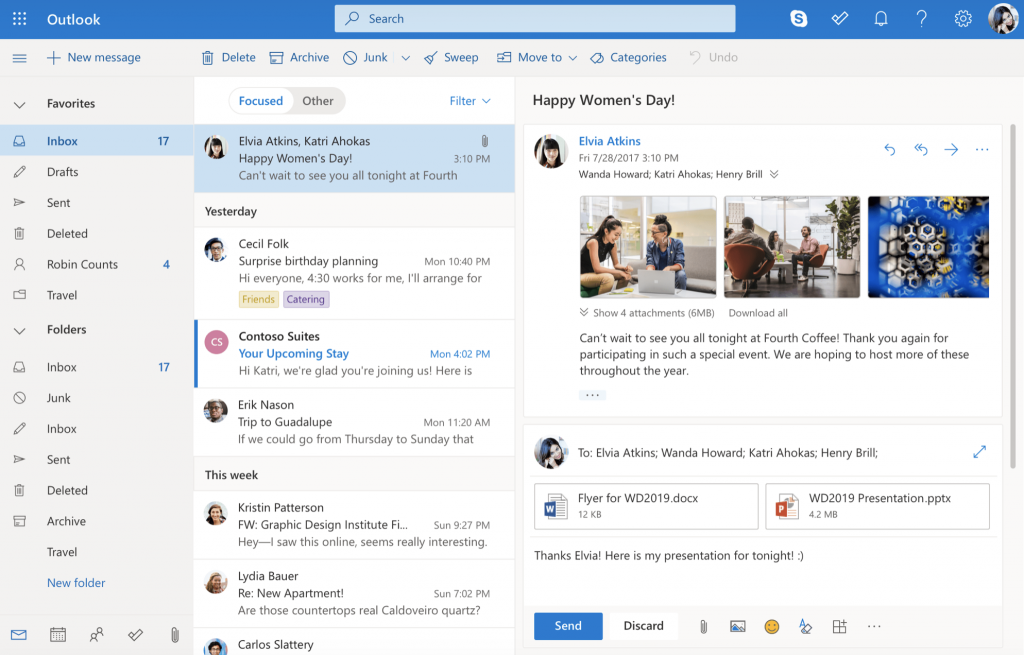
If you have an Office 365 subscription at home or work, you’ve likely come to know your Office 365 Calendar quite well. You can use it via the Outlook app to manage appointments and meetings. Well, there’s so much more that you can accomplish with Outlook Calendar in Windows 10. In our latest Office 365 guide, we’ll give you a look at some of our favorites cheats and tips for the Outlook Calendar on Windows 10.

Quickly view the calendar from anywhere in Outlook

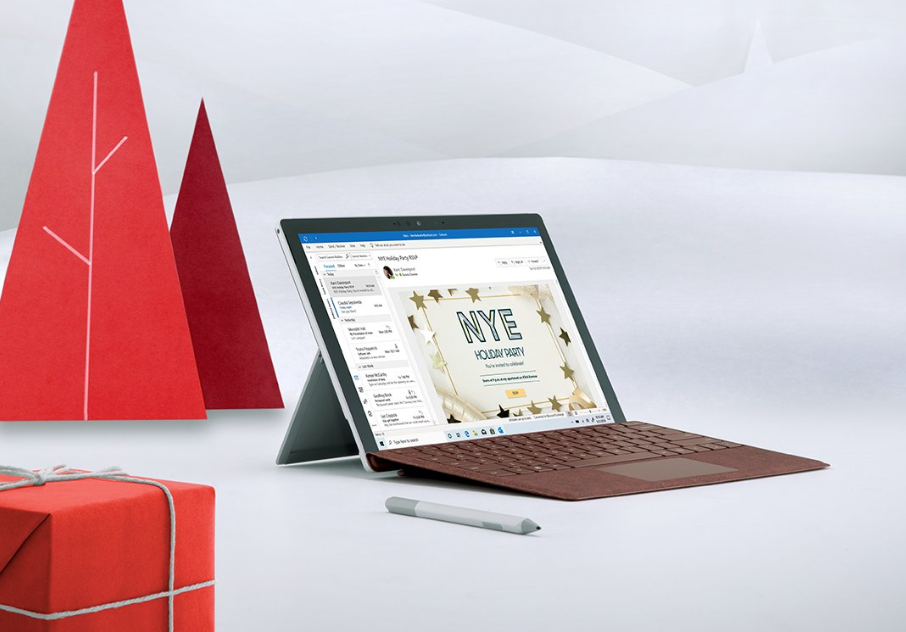
Most of the time you might end up sending and reading emails in Outlook, but did you know you can peek at your calendar without heading into the dedicated calendar view? That’s right. You can get a peek at the events in your calendar from anywhere in Outlook by simply hovering your mouse on the Calendar icon in the bottom left corner of the screen. From there, you’ll be able to see upcoming meetings, incoming appointments, and even see a mini version of your full calendar.

See multiple time zones on your calendar

If your company is based in a different time zone from where you reside, you might want to set a second time zone to avoid conflicts in meetings. Well, Outlook makes this easy. You can simply click the File tab inside the Outlook app, and head to the third option in the window for Calendar. Click that, and then scroll down to the Time Zones option.  You can then click the toggle box to show a second timezone or to show a third time zone and choose your option from the list.

Create a secondary calendar, or print a blank calendar

Sometimes, you might just want to create a secondary calendar in Outlook. This can help you separate various elements from your workplace, or just create a second calendar for personal reminders and events. Doing this is easy. You just need to open the Outlook Calendar, click the Home button in the ribbon, and then click Open Calendar in the ribbon.  After you do that, you can select Create a new Blank Calendar and name it in the option that says Create new Folder and be sure to select your current calendar, and then press OK. 

In the event that you want to print this (or any other) calendar, that too is easy. First, select the calendar, and then click File, and Print. You’ll see some options, ranging from Daily Style, Weekly Agenda Style, Weekly Calendar Style, or the more traditional Monthly Style. Look for a preview on the right side of the screen, and then choose one that fits your needs, and press Print when you’re ready.

Email your calendar to your colleagues

If you need to share information on your calendar to your colleagues, there’s no need to copy and paste. Outlook makes it easy to export your calendar and email it out to whoever you please. You can do this by clicking on Calendar, selecting Home from the Office 365 ribbon, and clicking the Share Calendar button on the far right-hand side of the screen. In the window that pops up, choose the Permissions option, and choose who you want to share your calendar with, and select Add. 

Once you’re done, you’ll see a list of people who you can share with. You can tweak the settings if you please and choose the name, and select the permissions, and select OK. An email will arrive in their inbox, and they’ll be able to select Accept to see your calendar.


Use the search bar in Calendar to make searches easy

If your calendar is messy with lots of meetings or events, there’s no need to fret. You can use the search box in the top right corner to help you find what you need. The search results will show you a list of search keyboards in yellow, but only for the most recent 30 items. You can scroll down to the bottom of the list and select More to see more results if you please. For better results, you also can use quotation marks, or use the AND, OR, or NOT, keywords to help tweak your results. AND will search for items with both keywords, OR will search for items with either keyword and NOT will search for items that have the first keyword but not the second keyword.

…And there’s more!

We’ve just touched a few basics in our guide, but there’s a lot of other tips and tricks that are available. You can use a scheduling assistant in Outlook to help you schedule meetings, create a meeting request from an email, automatically accept or decline meeting requests, and much more. Microsoft has a page here which explains these tricks, and other Outlook cheats. Feel free to check it out, and let us know if you’ve got a personal favorite Outlook cheat by dropping us a comment below!

Best cable TV software for your Windows PC

Owning a TV can be quite useful, sure, but if your job has you working day and night on your computer, watching TV can quickly become a difficult task on your “To-Do” list without the help of specialized cable TV software. As we’re sure you’re aware of, your PC can handle streaming most of your favorite TV content directly on your display monitor, without needing an actual television set. You just need the proper tools for it, since most of the tools that provide this type of service online (web-based) come with obnoxious watermarks, bad quality, and interruptions. Among the best cable TV software we’ve got in store for you, you can find SopCast, Online TV Player, ProgDVB and more.

What are the best cable TV software solutions for Windows PCs?

SopCast

SopCast cable TV softwareSopCast is one of the most popular (and for good reasons, too) software solutions that could help you watch TV from the comfort of your desk chair, directly on your computer, without needing any additional pieces of hardware.

This tool makes use of the well-known Peer-To-Peer (P2P) technology to deliver to you content from your favorite TV channel, but you can also use it to listen to radio stations or broadcast your own content without significant efforts.

It’s true that SopCast’s interface might be simplistic, even a bit dated, to be honest. But that could be easily brushed off after you start using it.

It wasn’t designed for eye candy after all, and it does its job extremely well, as it loads the channels it supports quite fast, and the quality of the content is generally high, with no interruptions.

Download SopCast

You can download and use SopCast for free, with or without an account. However, you should consider that not using an account with SopCast means that you can’t have a list of favorite channels. Also, you can’t broadcast your own content to the world without an account.

Online TV Player

Online TV Player

Online TV Player needs no introduction since its name is highly suggestive as to what this program is and what it can help you do. If you didn’t figure it out by now, it’s a specialized software solution that could help you watch TV content for free, without having to pay for a cable TV subscription.

You’d still have to provide it with an active Internet connection so that it can retrieve its content and bring it back to you, but not a single moment will you need cable TV for this.

As we’re sure you’ve noticed already, Online TV Player’s interface is really outdated, as it comes with a theme that resembles the glory days of our beloved Windows XP.

More so, it features old school Internet Explorer-like errors such as scripts not loading or relying on third-party tools (RealPlayer) to display content.

However, it gets the job done, and it can bring you almost a thousand TV channels from roughly one hundred countries in the whole world, which is more than your plain television set is able to do.

At the moment it seems that the download link to this program is not exactly working on the official website of the developers (assuming that you find it, to begin with), but the buy link is functional. The “Pro” version of Online TV Player can bring you:

  • Faster connection speeds;
  • More channels;
  • More skins;
  • Free tech support;
  • Free upgrades;

TVUPlayer

TVUPlayer cable TV software

TVUPlayer is a software solution that can help you enjoy TV content on your computer without significant efforts. You just have to download the program, install it, launch it and moments away you’ll find yourself browsing the plethora of channels this tool has to offer.

It goes without saying that a stable Internet connection is required to make TVUPlayer work on your computer, but also to maintain a good quality of the content you’re trying to enjoy, as weak connections make you prone to experiencing interruptions, lag spikes, frame drops, and whatnot.

TVUPlayer is a free tool, so you won’t have to buy it after its trial expires or in order to unblock additional channels, much like other similar software solutions coerce you to.

This tool allows you to perform recordings of your favorite TV shows as well by making use of its built-in recording feature.


Looking for more options to record your TV shows on Windows 10? Check out this list with our top picks.


Furthermore, you can save TV channels on your favorites list, just so you can access them easier in the future. The tool enables you to sort the content by various criteria such as language, region, or channel category.

ProgDVB

ProgDVB

Maybe the most powerful tool in our list, ProgDVB certainly didn’t receive the recognition it deserves. At least, not as much as other software solutions did.

However, for those of you who are not familiar with its potential, ProgDVB is an advanced tool that can help you watch TV from your computer, but one that supports a wide variety of devices, ranging from Digital TV devices, IPTV, analog TV device, to remote controllers.

Setting up ProgDVB might seem a bit difficult since you’re asked a lot of stuff during the setup process, but the default settings are designed to work regardless if you change the options or not.

During the installation, ProgDVB will also deploy a second tool on your computer called ProgTV, which will help you immerse even more in your computer’s newly-found TV-like capabilities, as it doesn’t have traditional menus, buttons, or panes.

The interface of this secondary app is designed to imitate the interface of a TV.

Download ProgDVB

You can download ProgDVB and try it for free, but you should know that there’s also a “Pro” version out there, in case you feel that the free one just doesn’t cut it for you.

Closing thoughts on best cable TV software

It’s late, you’re working, you’re stressed and you’d do anything just to magically bring that TV from the living room closer to you, just so you don’t feel so strangely isolated from the real world anymore.

But you don’t have to do all that, not if you have specialized software solutions that can let you watch TV directly from your computer.

ProgDVB, SopCast, and TVUPlayer are some of the best cable TV software solutions that enable you to bring TV content right on your computer, so you won’t have to rely on external equipment like TV sets or TV boxes any longer.

Best helicopter flight simulator software for Windows PCs

Microsoft Flight Simulator X, FlightGear, and Digital Combat Simulator are some of the best helicopter flight simulator software solutions for Windows PCs. Despite that many view flight simulators as just video games, the role they play is far more important. These tools can help novice pilots experience their first flights while eliminating the risks that inexperienced aircraft piloting entails. Furthermore, they can also serve in recreating difficult or expensive scenarios without using real aircraft equipment. Regardless of their usage type, flight simulators can deliver satisfactory results by generating high-fidelity flight scenarios for almost any situation. So you can just buckle up, and prepare for taking off because you’re in for a fun ride. hgjghjgh

These are the best helicopter flight simulator software for PC

Digital Combat Simulator

Digital Combat Simulator helicopter

Alright, fine, we’ll give you this: Digital Combat Simulator might be more of a game than an educational tool, but it can and does recreate with high fidelity many aspects of what it’s like to pilot a helicopter.

However, many, if not all models in this flight simulator are military ones, so don’t act all shocked when the aircraft of your choice is able to spit fire at the ground beneath you.

Joke aside, regarding helicopters, Digital Combat Simulator only offers four models that you can toy with freely, namely:

  • SA342 Gazelle – light attack/scout helicopter that can also be used for transportation;
  • UH-1H Huey – also known as UH-1 Iroquois, or simply “the Huey,” is one of the most iconic helicopters in the world;
  • Mi-8MTV2 Magnificent Eight – an upgraded version of one of the most widely-produced helicopters, the Mi-8MTV2;
  • Black Shark – a simulation of the Russian Ka-50 attack helicopter;

Download Digital Combat Simulator

Well, not exactly freely. While Digital Combat Simulator might be free to play (or try, for that matter), each of these helicopters is sold separately.

That being said, the selection of helicopters might not be impressive, but the feeling you’ll get while virtually piloting any one of them might be one you won’t soon forget.

X-Plane 11

X-Plane 11 helicopterAs stated before, X-Plane 11 is one of the most versatile flight simulators out there, mainly because it offers support for a broad range of aircraft, which fortunately includes helicopters, alongside airplanes and rotorcraft.

The not-so-good part of this is that most helicopter models aren’t included in the basic version of the game, so if you fancy flying around in a Nimbus UH-1, Bell 407, or V-22 Osprey, you’ll have to pay up more than just for X-Plane 11.

The X-Plane 11 store currently holds these helicopter models:

  • Robinson R22 Beta II;
  • DF 206 Ranger III
  • Eurocopter AS350 B3 Plus
  • Bell 407 XP10
  • Bell 412
  • Bell 407 XP11
  • Guimbal Cabri G2 Project
  • VSKYLABS Test-Pilot: Mini-500
  • V-22 Osprey
  • Nimbus UH-1
  • The VSKYLABS ‘Test-Pilot’: Cicare-8 Project

Download X-Plane 11

You can download a demo version of X-Plane 11 and try it before deciding whether you want to purchase a license or not. On the bright side, X-Plane 11 enables you to load custom airplanes and helicopters into the simulator, granted you find compatible files to begin with.

FlightGear

FlightGear helicopter cockpit

FlightGear is, if nothing else, one of the most convenient flight simulators for helicopters out there. Why?

Well, for starters, because it’s free, and not only that, it’s also open-source, which means someone’s probably always staying up late, toiling over this project and polishing it to perfection.

It might not have the same level of definition as other flight simulators on this list, but at least you don’t have to pay top dollar for the privilege of using it.

Additionally, unlike similar software solutions, FlightGear grants you an extensive list of aircraft models that includes a wide selection of helicopters, which you can download on your Windows computer for free, instead of purchasing them separately.

Download FlightGear

If you haven’t had enough good news for today, we’re going to give you a couple more. First of all, piloting a helicopter in FlightGear is more rewarding than flying an airplane, since the downward view is not as restricted, and you’ll be able to enjoy the scenery in a more wide sense.

Secondly, it’s possible to land your helicopter virtually anywhere you’d like, as airports are no longer required for doing so. However, if you like keeping things official, you could always spot a helipad and lay the aircraft gently on top of it.

Microsoft Flight Simulator X

Microsoft Flight Simulator X helicopter cockpit

Microsoft Flight Simulator X also gets a mention in this list since it’s one of the most popular flight simulators and it can handle helicopters nearly as well as it does airplanes.

If you’ve used this flight simulator for a while, you can notice there are some quite huge gaps between piloting a regular airplane and flying a helicopter, and not just because of their different working principle and mechanics.

Many users lack proper controllers for flight simulators and default to using their keyboard, which, in the helicopter’s case, makes you miss most of the fun and educational value of using a joystick or flight stick.

However, Microsoft Flight Simulator X lets you deal with important aspects of piloting a helicopter, such as the ground effect, retreating blade stall, vortex ring state and cushioning, autorotation, as well as lift dissymmetry.

Unfortunately, Microsoft Flight Simulator X doesn’t come with a trial version to download and try, but it’s pretty popular by now, so you should already know that purchasing it won’t turn out to be a waste of money.

Closing thoughts on best helicopter flight simulator software for PCs

To wrap it up, more and more flight simulator enthusiasts find themselves more comfortable in “team helicopter” rather than “team airplane,” hence the need to create software solutions to satisfy the needs of both sides.

In this situation, FlightGear, Microsoft Flight Simulator X, X-Plane 11, and Digital Combat Simulator are all great tools that can create high-fidelity renditions of what it feels like to be a chopper pilot.

However, you should choose wisely, as some of them are military-oriented, while others require you to purchase helicopters separately, or lack high-definition graphics.

Best Cessna flight simulator software to download

FlightGear, Microsoft Flight Simulator, and X-Plane 11 are some of the best Cessna flight simulator software solutions. Usually, flight enthusiasts search for simulators that support specific aircraft (e.g. Cessna models), so we assembled a list of the best ones you can find. Although many regard flight simulators as video games, the former’s complexity outweighs by far that of the latter; no argument there. However, despite the fact that you can enjoy flight simulators as typical games, you should certainly take them more seriously. Before we start, it’s worth mentioning that Cessna is an aircraft company that is best known for small, piston-powered airplane models, but it also produces business jets.

What are the best Cessna flight simulators to get?

Microsoft Flight Simulator

Microsoft Flight Simulator X Cessna

Microsoft Flight Simulator X is, without doubt, the most popular flight simulator out there, as the series goes back a long way, back to when it was designed to work on MS-DOS and even Classic Mac OS systems.

But what makes this flight simulator really stand out in the crowd is the fact that it holds a broad variety of aircraft models in its portfolio, including Cessna C172SP Skyhawk, Boeing F/A-18 Hornet, Agusta Westland AW101, and the Mooney M-20-M Bravo.

Unfortunately, Microsoft Flight Simulator X can’t be downloaded and tried for free since a lot of work has been put into it and, as a result, you must purchase it before you can use it.

The standard version of the simulator came with two Microsoft-released service packs that aimed to fix a bunch of issues, and an extension that added multiplayer mode, missions, as well as new aircraft.

However, the Steam edition comes with all the service packs and expansions gathered into a single bundle that requires a single installation.

FlightGear

FlightGearYou’re going to love this one: FlightGear is not only a free flight simulator, but it’s also open-source.

This usually means that there’s someone who’s probably working on this project at this very moment, which leads to fast, high-quality development. But enough about the boring stuff, you’re here for the planes.

This tool can help you get a taste of how it feels to pilot some of your favorite aircraft, such as the Cessna 172p Skyhawk (which used to be the default light airplane model for FlightGear), but also Boeing, Bugatti, and many others.

FlightGear sports an oblate ellipsoid world for you to explore and gives you three ways of doing so: you can either download 10×10 degree chunks of the world, run a utility called TerraSync that retrieves scenery in real-time as you fly, or purchase the entire world’s available scenery on a 3 DVD set.

The last option’s cost is split between supporting the project and charity, so you’d do a lot of good if you’d choose it.

Download FlightGear

It’s worth mentioning that the base package of FlightGear only comes with a few representative aircraft models, but you can download more from the official website of the project.

However, if you’re using the latest version of this tool, its built-in “Aircraft Center” feature allows you to select and download new aircraft from within the simulator.

X-Plane 11

X-Plane 11

Well, X-Plane 11 is perhaps the most detailed flight simulator on this list, as it can provide you with hours of eye-candy, aircraft that are modeled down to the finest details (some say the rivets are right where they’re supposed to be), IFR-ready, fully operational cockpits, and airplanes with Garmin 1000 systems.

This flight simulator’s airplane model of choice (or better said, its go-to model) is still the Cessna 172 (or C172) we’ve been building our list upon, so it shouldn’t be difficult to spot it once you’re in the simulator.

It’s probably already loaded. The reason why this model is so popular is that more C172s have been built than any other aircraft, so many argue that it’s the most successful plane ever.

X-Plane 11 includes high-definition 3D scenery for over 3000 airports all around the world, such as jetways, hangars, and terminal buildings that contribute to making said airports feel more real-life-like.

Download X-Plane 11

Unfortunately, the link above is only a demo version of the X-Plane 11 flight simulator.

However, the official website also offers you additional goodies, such as courses on how to get the demo up and running right away, how to add new aircraft, customize your airports, and test your skills in emergency situations.

Infinite Flight

Infinite Flight

Last, but not least, Infinite Flight is one of the best flight simulators that allow you to pilot a Cessna 172. However, we’ve got some news, and it’s up to you to decide whether they’re good or bad.

First things first, Infinite Flight is only available for Android and iOS, and second things second, it’s not free. On the bright side, it’s way less expensive than other flight simulator software on our list.

Among Infinite Flight’s features you can find:

  • A large fleet of aircraft, ranging from models used in general aviation to military airplanes;
  • Several regions that include high-definition scenery, and accurate topography built with satellite imagery;
  • Customizable weather conditions and time of day;
  • Autopilot mode;
  • Navigational aids;
  • Comprehensive replay system;
  • Door animations, aircraft cockpit, suspension, and wing flex animations;

Closing thoughts on best Cessna flight simulator software

To wrap it up, it doesn’t matter if you’re an airplane enthusiast, a huge fan of Cessna aircraft or just curious about how planes look on the inside; flight simulation software solutions can help you scratch that aircraft-related itch in a quick, convenient way.

X-Plane 11, FlightGear, and Microsoft Flight Simulator are some of the best flight simulator software solutions that can bring you closer to your dream of piloting an airplane by generating a believable environment for you to hone your flying skills virtually, from the confines of your own computer.

Here’s what new in Teams for December: Linux support, richer conversations, subtitles in Meetings, and more

With the holidays approaching, we’re now into the last weeks of the final month of the year 2019. That means it’s time to head back and look at what’s new in Microsoft Teams in December. Here’s a look at everything you need to know, be it Linux support, richer conversations, subtitles in Meetings, and more.

We’ll start first with the biggest story of them all, support for Linux. That’s right, after being only available on macOS, and Windows desktops, Teams has finally come to Linux. This means Linux users no longer need to use an unofficial version of the app and can rather use an official preview client, which is available in both the .deb and .rpm formats.

Next, there’s the chat and collaboration features. In December, Microsoft updated the Teams experience so users can have richer conversations with people outside their organization. Now, users in Teams Only mode can enjoy a chatting experience whether there are communicating with a colleague or someone who is outside of their organization. Another new feature in this area is the ability to add subtitles to your meetings with the Live Captions Preview. Other calling features can be seen below:

  • Video calling in Chrome: Now, Google Chrome users can initiate and accept video calls with Teams users.
  • Dynamic Emergency Calling for Direct Routing in Microsoft Teams Phone Systems: This now uses the caller’s current location to route emergency calls to Public Safety Answering Points.
  • Ability to add participants to meeting chats: Now, users who are in private meeting chat threads can be able to add more users to the meeting chat using this feature.
  • Muted Meeting Chats: This feature makes it so that meeting chats will be muted until you send a message in the chat or join the online meeting.
  • A new ability to assign roles to meeting invitees: Thanks to this feature, you’ll be able to assign roles in Teams meetings and see what each role does during the meeting.

Wrapping up the list of what’s new for Teams in December are some Admin-themed changes: The first in this area is that starting on January 14th, the Teams desktop client will be added to existing installations of Office 365 ProPlus on the Semi-Annual Channel. There’s also a new mobility policy for the Teams Mobile app that allows IT Admins to require their users to have Wi-Fi connections when making or receiving Teams video and/or video calls. Microsoft also updated things so that IT administrators have more control over how video is managed in Teams Meetings.

Teams for Education users got some new features too: These range from early teacher access to classes, as well as the ability to Sync Teams assignments and grades to PowerSchool with Grade Sync. You can check out the full list of changes for Teams in December here at Microsoft. And, feel free to check out our featured story, which gives a peek at some of the new features coming to Teams next year.

Speaker & Subwoofer Design Software: 5 Best We Tested

Designing your subwoofer or speaker using specialized software can keep you from a world of hassle, while potentially letting you save a bit of money at the same time.

If you’re in this field of designing speakers and subwoofers, you were probably stuck behind seemingly impossible calculations more than just once.

Fortunately, nowadays you can find several utilities that can handle some of these tasks for you.

Sub Box, Boxnotes, WinISD, and BassBox Pro are some of the best subwoofer and speaker design software solutions that can help you simplify your projects by a great deal in just a few moments.

Stacked with features such as preloaded enclosure designs, test models, and various calculation tools, these programs are guaranteed to make you forget about planning and designing subwoofers and speakers, as well as their enclosure boxes.

Top subwoofer and speaker enclosure design software solutions

Sub Box – 3D enclosure design

Sub Box

Sub Box is a web-based tool that can help you create the perfect design for your subwoofer in a simple manner while letting you view a 3D render of your project at the same time.

Given that this software solution is web-based, it goes without saying that you must have a working Internet connection in order to use it, and also a stable web browser readily available on your computer.

This also means that Sub Box is compatible with a broad range of computers, new and old ones alike, regardless of their specs.

The tool enables you to design your ideal subwoofer by letting you customize the box, the subwoofer, and the port, each of which holds various parameters that can be adjusted.

⇒ Get Sub Box

Sub Box also encompasses multiple premade designs that you can view, analyze, and even edit or take apart. This way, you can easily create new projects or learn more about designing subwoofers with the help of pre-existing models.

Boxnotes – Extra ports volume

Boxnotes speaker design

While the name of Boxnotes might make you think of something regarding taking notes, it’s actually a powerful speaker design software solution.

This tool might lack the 3D rendering component of other similar programs, but calculations and simulations are done in the same accurate manner as their more modern counterparts.

Boxnotes allows you to input various parameters, ranging from depth, width, height, internal volume, and panel thickness of your speaker, to the internal diameter, wall thickness, lengths, and amount of ports used for your project.

Based on certain parameters that include the ones we just mentioned, the tool generates several values, including:

  • Port resonance;
  • Driver to bottom wall resonance;
  • Box top to bottom resonance;
  • Driver to top wall resonance;
  • Driver to rear wall resonance;
  • Box front-to-back resonance;
  • Driver to side wall-1 resonance;
  • Box side-to-side resonance;
  • Driver to side wall-2 resonance;
  • Ports;
  • Bracing;
  • Working volume;
  • Tune;

⇒ Download Boxnotes

You can download and use Boxnotes for free, and the best part is that it’s entirely portable. Well, it will generate a configuration file upon launching the program in the same directory as the executable, but that’s about it.

WinISD – Simple graph interface

WinISD speaker design

WinISD is a free speaker design software solution that can help you design vented, closed and bandpass boxes, while also allowing you to calculate various filter types.

Despite the fact that the latest version of this tool was released in 2016, its calculations are still very accurate, and the program is still being used by numerous professionals all over the world.

WinISD is more professionally-oriented, as it doesn’t hold any demo or sample project that would make it an ideal learning tool. On the bright side, exploring the tool for a while can get you accustomed to its controls and capabilities in no time.

Additionally, WinISD is not exactly punishing if you make a mistake; you can just modify values in a matter of seconds and you’re back on the right track. Trial and error.

⇒ Get WinISD

You can customize numerous aspects of your project, including but not limited to the driver you plan on using, the box, the vents, filters, and even signal parameters.

However, keep in mind that in its current form WinISD can’t handle flared ports, so manual corrections must be applied for the calculations to be as accurate as possible.

BassBox Pro – Professional speaker system

BassBox Pro

Heavily outdated interface? Perhaps, but BassBox Pro is just so much more than the way it greets its users, as it packs a broad range of tools under its hood that will make you forget all about its Windows 98 theme and clunky controls.

Plus, analyze the performance of your design by using the tool’s built-in graphs (BassBox Pro can even estimate an in-car response that will show you how your designed speaker will sound to passengers that are inside a car)

⇒ Get BassBox Pro

BassBox Pro can help you design a box in just a bunch of steps:

  • Input the drivers’ parameters in the designated fields (Fs, Qts, Vas);
  • Calculate the box’s volume and tuning (it can be done easily by using BassBox Pro’s “Suggest” button, which recommends a box that will produce a smooth bass response);

The tool also holds a wizard component that allows new users to create their projects in no time by prompting them to select between a starting point (driver or box) and progressively asking them for more details on the design.

Speaker Box Lite – Rich speaker database

Speaker Box Lite speaker design software

Speaker Box Lite may be the final entry on our best subwoofer and speaker design software list, but that doesn’t mean it’s less capable than any other tool.

On the contrary, it packs several features that competitor products can get green with envy about, including an ever-growing database of devices (speakers), a graph drawing component, and a 3D rendering section.

It’s worth mentioning that Speaker Box Lite is, in fact, a web-based app, so you can use it on a wide range of computers, regardless if they’re cutting-edge or slower, older ones, as long as you have a working Internet connection and a supported web browser that can handle the heat.

⇒ Get Speaker Box Lite

The tool doesn’t hold you by the hand, so you’ll have to come with your own knowledge about designing speakers. However, in some cases, Speaker Box Lite might offer to do some calculations for you, granted you feed it all the required parameters.

Closing thoughts on best subwoofer & speaker design software

To sum it up, nowadays there are a lot of fields where software assistance can truly be helpful, and apparently the subwoofer and speaker design business is no exception to this.

No more “the old way is the best way,” as pen and paper are seemingly outdated by a more modern approach: computer-assisted designing, which proves to be more accurate, and with less hassle.

Whether you pick Speaker Box Lite, BassBox Pro, or Sub Box for your next subwoofer or speaker designing projects, you’ll know you made the right choice moments after launching your tool of choice and letting it handle your designs.

Microsoft news recap: Skype becomes 6th most downloaded app of the decade, Reddit accounts can now be linked with Xbox Live, and more

Microsoft news recap is a weekly feature highlighting the top Microsoft news stories of the past week. Sit back, grab some coffee, and enjoy the read!

Skype is the 6th most downloaded app of the decade according to App Annie

Skype has been crowned the 6th most downloaded app of the decade, according to App Annie, which compiled a report of the top apps of the decade measured by all-time downloads.

You can now link your Reddit account to your Xbox Live profile

Users of Reddit and Xbox Live can now link their profiles so that their Xbox Live profile showcases their Reddit account. Linking the accounts will also automatically subscribe you to the Xbox Insiders subreddit.

Microsoft’s Swiftkey Android keyboard reached 500 million downloads on the Google Play Store

Microsoft’s Android keyboard app, Swiftkey, reached a new record number of downloads on the Google Play Store, hitting over 500 million downloads.

Microsoft SwiftKey Keyboard for Android

Minecraft Earth video game updates with new features, fixes, and added functionality

Minecraft’s mobile AR edition, Minecraft Earth, has received a new update that is aimed at helping new users with a new tutorial, as well as having faster log-in, among other features.

That’s it for this week. We’ll be back next week with more Microsoft news.

Windows Virtual Desktop: is the future of the Windows OS in the cloud?

It’s been a while since I wrote my last opinion article, but I strongly believe the Windows ecosystem is about to change dramatically.

And since here at Windows Report we have a mission of covering everything that’s important to our readers, it’s crucial that we start the discussion around the Windows Virtual Desktop.

The future of the Windows OS is the cloud, not the desktop

Made generally available worldwide at the end of September, this year, WindowsVirtual Desktop is about to have a major impact especially on small businesses.

And it all has to do with the fact that Windows 7 support is going away next month.

You see, not everybody loves Windows 10, and not everybody is ready for the change. Especially when you’ve got everybody in the company accustomed to a specific UI/UX, or even worse, when you have sensitive information that you’re afraid to migrate.

For these customers, Brad Anderson, corporate vice president at Microsoft 365, made the following suggestion:

With the end of extended support for Windows 7 coming in January 2020, we also understand some customers need to continue to support Windows 7 legacy applications as they migrate to Windows 10. To support this need, you can use Windows Virtual Desktop to virtualize Windows 7 desktops with free Extended Security Updates (ESU) until January 2023.

And this could be a massive move. Imagine that Windows 7 still accounts for around 30% of the total worldwide desktop OS marketshare. You have to wonder – how many of these are consumer users and how many are actually SMBs or Enterprise?

And what is the impact on the Windows Virtual Desktop that Microsoft tries to promote instead?

What exactly is Windows Virtual Desktop?

As far as definitions go, Windows Virtual Desktop is a Microsoft Azure-based system for virtualizing the  Windows  OS by providing virtualized desktops and applications in the cloud. Of course, you already guessed by the sound of it that this is a product that’s not aimed at the average Joe, but rather at IT Pros.

And seeing how Microsoft is all about cross-platform these, naturally, it has been made available on macOS, Android, iOS, and HTML5, as well. First announced in September 2018, it was followed by a public preview in March 2019, and it’s already out in the open for almost 3 months now.

What can you actually do with the Windows Virtual Desktop?

If you’re an IT Pro, here’s just a couple of things at your disposal:

  • Set up a multi-session Windows 10 deployment that delivers a full Windows 10 with scalability
  • Virtualize Office 365 ProPlus and optimize it to run in multi-user virtual scenarios
  • Provide Windows 7 virtual desktops with free Extended Security Updates
  • Bring your existing Remote Desktop Services (RDS) and Windows Server desktops and apps to any computer
  • Virtualize both desktops and apps

But do you really need WDV?

As Alex Fields pointed out, if you remove your dependency on Windows, then you’ve removed the need for your virtual desktop along with it.

And to be honest, I agree that first of all, Microsoft 365  should include WVD, as well, and that could become a serious boost to Virtual Desktop usage increase. I recommend reading Fields’ article for even more insight into why you should go for Virtual Desktop or not.

As far as I’m concerned (and I’m definitely not an expert), the answer lies in the legacy apps. Do something with that dependency and maybe you won’t be needing WVD, after all.

Where is Windows Virtual Desktop headed?

But what’s more interesting is this – is Microsoft going to actively promote WVD as a consumer solution, trying to promote a desktop-as-a-service cloud-based model or they’re simply offering a solution for SMBs that are looking to end their Windows 7 experience?

Steven J. Vaughan-Nichols has no doubt that Microsoft will be pushing WVD for consumers soon enough. But could soon enough be 2020?

s

Drone Mapping Software Free to Download

We can agree that drones mix well with aerial mapping since they cover huge amounts of ground in no time. Plus, it’s way cheaper to use a drone than hiring a human-operated aircraft. With these two purposes in mind, developers have designed aerial mapping software so that you can achieve your goals quick. Some of the greatest free software tools for drone mapping will follow. However, note that some of them only offer a trial period, while others are entirely free, if not open-source. DJI Terra, Pix4Dmapper, and WebODM are some of the best free drone mapping software for Windows computers. Check them all out and choose the one that best fits your needs.

What are the best free drone mapping software solutions?

WebODM

WebODM drone mapping software

The ODM in WebODM stands for “Open Drone Mapping,” so you might’ve figured out that this software solution is the open-source one we’ve been talking about in the intro.

The software was released in 2017, but it has gathered a whole lot of followers, as the community behind the project continued to help it evolve.

This tool can help you perform a lot of awesome operations with your drone, such as generating orthomosaic maps, point clouds, contour maps, digital elevation models (DEMs), and even 3D models from aerial images.

Download WebODM

WebODM is plenty generous when it comes to the amount of features it encompasses, but there’s a catch. This tool comes in two flavors: manual install and auto-installer.

However, the auto-installer costs quite a lot (compared to paying nothing for the tool, that is), but if you’re not afraid of getting your hands dirty, you can grab the source code and follow the instructions to build the tool.

Pix4Dmapper

Pix4Dmapper drone mapping software

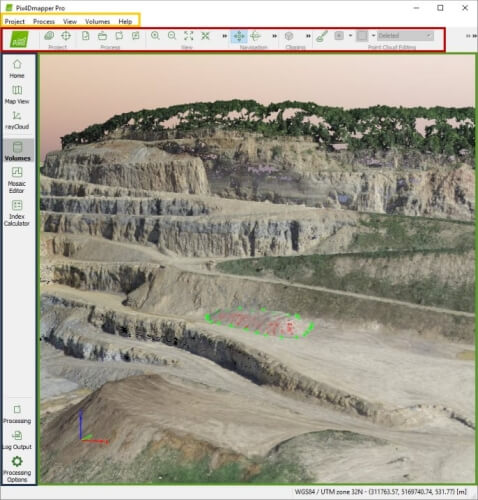
Pix4Dmapper is a specialized software solution that allows you to create professional 3D maps and models from images, by turning them into geo-referenced 2D or 3D maps and models, depending on your needs.

You can customize the 3D maps, and even import them in other programs if you want to.

This tool makes use of images to create point clouds, terrain models, textured models, orthomosaic maps, but also capture thermal, multispectral or RGB images with any camera.

The free, complementary Pix4Dcapture app can help you automate both the flight of your drone and its image data transfer.

Try Pix4Dmapper

Pix4Dmapper can be tried for free, but the trial period is unfortunately only 15 days long. It’s possible to use this tool from your desktop computer or the cloud, according to your preferences.

DroneMapper RAPID

DroneMapper RAPID drone mapping

DroneMapper RAPID is not entirely free, but you can download it and try to see if it suits your needs well before making the commitment of purchasing a yearly license plan.

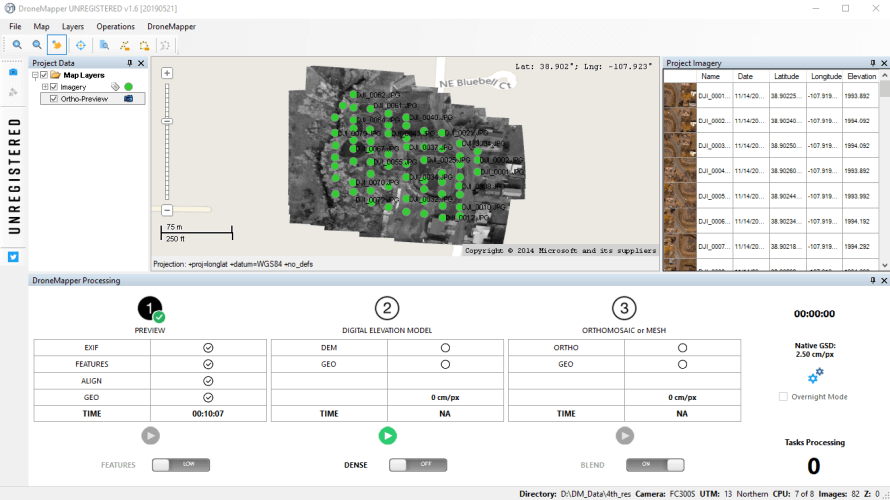
The not-so-bright side is that the limited version of this tool can only produce a review, as seen in the screenshot above.

DroneMapper RAPID can help you create high-resolution DEMs (Digital Elevation Models) and orthomosaics, and it can use up to 250 geo-tagged JPEG images of at least 12 Mpixels for a single project.

After feeding it the images it requires, this tool can create a preview, an orthomosaic scaled at either X2, X4 or native resolution, and a DEM scaled at X2, X4, X8 or native resolution as GeoTiff files.

Download DroneMapper RAPID

Note that this tool uses ground control points to process its content, so before feeding it the images you want to use for your projects, you must pre-process them with the included GCP TOOL.

DJI TERRA

DJI TERRA drone mapping

As its name clearly states, DJI TERRA was developed by one of the most popular drone producers, DJI, and it delivers a professional environment to perform captures, analyze them and transforming real-world scenarios into digital assets.

This tool offers three different planning types, depending on the project you’re working on:

  • Area – captures the specified area by drawing a flight zone on a map, which DJI TERRA generates automatic flight path options based upon;
  • Waypoint – lets you create dynamic, custom flight paths using waypoints, as well as customizable parameters such as speed, altitude, or angle;
  • Oblique – the drone captures an extensive set of data by flying on the same route multiple times, automatically;

Download DJI TERRA

It goes without saying that this tool alone can’t do much if it’s not paired with a competent drone, to begin with. Currently, it can only be used with a Phantom 4 Series drone that supports DJI TERRA.

A laptop, a microSD card, a card reader, a compatible cable, as well as several batteries are also needed to use this tool the way it was intended.

DroneDeploy

DroneDeploy drone mapping

DroneDeploy may be the last entry on our best free drone mapping software list, but that doesn’t mean it’s less competent than its competitors. However, there is a good reason why we’ve placed it last, and that’s because you can’t have it on your Windows computer.

Sorry, but if you were planning on using DroneDeploy, you’ll have to do so on your Android or iOS device.

This tool can help you automate flights for your drone and capture imagery at the same time, making it a versatile solution for drone users who are interested in performing aerial mappings the way they should be done: fast and without too much hassle.

What makes DroneDeploy really stand out in the crowd is its wide support for drones. Basically, you can feed it geotagged images from any drone and it will use it to create a high-resolution map for you, as well as reports, 3D models, and even real-time 2D live maps on the side.

Try DroneDeploy

You can try DroneDeploy for free for 14 days, but after that, your experience will be limited by the maximum number of maps you can process and the lack of some advanced features (e.g. data exports, volumetric calculations).

Bottom line on best free drone mapping software

To sum it up nice and tidy, technology has reached the point where tasks that were usually handled by heavy machines such as manned aircrafts can be carried out by small (in comparison), silent drones and a laptop. Aerial mapping using a drone is way less expensive and far more convenient.

However, no drone can be as effective as it can without proper help from specialized software. Therefore, if you’re set on performing some serious aerial mapping for yourself, you might consider using tools like DJI TERRA, WebODM, DroneMapper RAPID, or DroneDeploy.

Best Bluetooth audio receiver software for Windows PCs

The best Bluetooth audio receiver software solutions that you can install on your PC are finally here. If you’ve ever owned a Bluetooth device, regardless of its nature, you know that configuring it can be hard sometimes. However, with specialized software solutions, this might just be a thing of the past. Compatibility issues, trouble connecting your device, and even malfunctions can be easily avoided if the right program is used. Bluetooth Stack Switcher, BlueSoleil, and WIDCOMM Bluetooth Software are some of the best tools for handling your Bluetooth devices using your PC.

Top Bluetooth audio receiver software solutions for PCs

Bluetooth Stack Switcher

Bluetooth Stack Switcher

Bluetooth Stack Switcher is one of the most popular but at the same time infamous Bluetooth software solutions for your Windows PC, mainly because of the mark Safe Browsing has put on its homepage and download link.

For that reason alone, you won’t see a download link here, but a quick search on your favorite search engine should do the trick.

Bluetooth Stack Switcher is a nifty software solution that can help you switch your Bluetooth adapter between several stacks in a quick and painless manner.

It is worth mentioning that Bluetooth Stack Switcher doesn’t come with its own collection of stacks, as you’ll have to install them yourself, just so that the tool can help you switch between them.

It might be a niche product, but several users report that it’s helping them a lot when dealing with controllers or audio receivers that refuse to connect with other devices in lack of the appropriate stack.

The best part about Bluetooth Stack Switcher is that it’s free, but you’ll have to take a leap of faith to access its homepage and download the tool, since many users report it as being malware, even though some claim that the alerts are false-positives.

BlueSoleil

BlueSoleil

Not only does BlueSoleil take care of your Bluetooth audio adapter needs, but it can also be used for a wide range of other tasks, such as making sure your other Bluetooth-enabled devices receive the data you send to them.

Additionally, you can use this tool to pair various Bluetooth devices with your computer, especially ones that yield various issues whenever you attempt to bring them together.

Download BlueSoleil

Although BlueSoleil is free to try for 30 days, there are some limitations that come along after the trial you can download from the official website expires.

The most important, and perhaps frustrating of its limitations is that you can’t transfer more than 2MBs worth of data between the devices you manage with BlueSoleil.

Furthermore, you might experience frequent disconnection every few minutes and pop-up boxes might spawn on your screen. Our suggestion is to download BlueSoleil, see if it works with your devices in this limited, trial mode, then if you’re feeling ready, commit to purchasing a license.

WIDCOMM Bluetooth Software

WIDCOMM Bluetooth Software

WIDCOMM Bluetooth Software is one of those software solutions that are dead and gone, but you’d wish they weren’t.

The reason why you’d regret WIDCOMM Bluetooth Software’s downfall is that it did a pretty good job at helping you connect various Bluetooth (and USB-enabled) devices to your computer in a seamless fashion.

This doesn’t mean that you can’t locate WIDCOMM Bluetooth Software anywhere on the Internet, you just have to look really close, since Broadcom prefers deploying their software via Windows Update instead of posting them on their official website.

However, it does mean that you won’t get a download link here. Sorry.

WIDCOMM Bluetooth Software isn’t only capable to manage Bluetooth-embedded devices, but it can also handle USB wireless adapters, depending on your needs, all the while avoiding any incompatibilities, issues or malfunctions that may arise as a result of misconfiguration.

Intel Wireless Bluetooth for Windows 10

Intel Wireless Bluetooth for Windows 10

Intel Wireless Bluetooth for Windows 10 does a pretty good job describing its purpose by simply including it in its very own name. So you’ll know before even installing it on your computer that this tool can help you manage Intel wireless Bluetooth devices on your Windows 10 computer.

Deploying this piece of software on your computer can help you solve several problems regarding compatibility, malfunctions or connection issues between your devices.

However, you might want to pay attention to your wireless adapter, since Intel has a habit of binding those two (i.e. your Bluetooth and your wireless adapter), but Intel Wireless Bluetooth for Windows 10 will most likely update only your Bluetooth adapter.

It’s worth mentioning that before deploying this tool on your computer, you should check that you do have a Bluetooth adapter, and that it’s indeed signed by Intel.

Download Intel Wireless Bluetooth for Windows 10

Fortunately, as every driver solution that comes from Intel, you can download Intel Wireless Bluetooth for Windows 10 and use it for free.

Final thoughts on Bluetooth audio receiver software for PC

In conclusion, while having a Bluetooth audio receiver can save you from tripping over an unearthly amount of cables in your home, it might also mean trouble getting your device to connect with and properly recognize each other.

However, tools like Intel Wireless Bluetooth for Windows 10, Bluetooth Stack Switcher, and BlueSoleil were designed to help you in this situation by creating a much-needed bridge between whatever Bluetooth devices you find to be troublesome.

Ericsson partners with Microsoft on connected car platform

Over the past couple of years, Microsoft has been partnering with the likes of Toyota, Renault-Nissan, Volkswagen, and India’s Ola to expand the utility of connected vehicle platforms.

Microsoft continues to quietly work with automotive partners to shape the future of connected cars technology and is now adding communication titan Ericsson to its growing list of cloud as-a-service providers leveraging Azure.

Earlier today, Ericsson offered a press release regarding its new partnership with Microsoft and its Azure cloud.

“The Ericsson and Microsoft partnership will deliver a comprehensive connected vehicle platform at scale to the market. Our integrated solutions will help automotive manufacturers accelerate their global connected vehicle solutions and offer a better experience for drivers and passengers,” says Åsa Tamsons, Senior Vice President and Head of Business Area Technologies & New Businesses.

Beyond the flower press language, the new partnership means that Ericsson is building its own Connected Vehicle Cloud atop Microsoft’s Connected Vehicle Platform that all rests on top of Microsoft Azure Cloud.

Practically speaking, Ericsson’s connected vehicle efforts, which currently make up 10 percent of the connected vehicle market, can now focus on scalability while its partners iterate on more personalized car experiences and adopt greater flexibility in modular design while also incorporating better over-the-air updates for drivers thanks to some Azure special sauce.

Ericsson’s Connected Vehicle Cloud offloads vehicle manufacturers’ complexity of global 24/7 operations and lifecycle management related to connected vehicles with a guaranteed service-level agreement.

Microsoft and Ericsson plan to joint host a social event at CES 2020, next year where they presumably will outline more details of potential features and services the two companies have been working on leading up to the partnership as well as what manufacturers can expect in the coming months and years.

Skype is the 6th most downloaded app of the decade according to App Annie

Skype may not be as popular as WhatsApp, Facebook Messenger, or Snapchat these days, but the messaging app purchased by Microsoft back in 2011 is still a force to be reckoned with. App Annie, a company that tracks the popularity of mobile apps has published this week new data about the top 10 apps of the decade by all-time downloads, and Skype ended up at #6.

According to App Annie, Facebook currently owns the top four most downloaded apps of the decade with Facebook, Facebook Messenger, WhatsApp and Instagram, which are followed by Snapchat and then Skype. “Communication and social media apps are consumer favorites, accounting for 7 of the top 10 apps by downloads this decade,” the company explained.

Skype was the first of Microsoft’s Android apps to reach 1 billion downloads on the Google Play Store back in 2017, and it has since been followed by Word, OneDrive, and Excel this year. The messaging app did receive a controversial makeover two years ago, with Skype briefly testing a Snapchat-like Stories feature called Highlights before removing it from the mobile app. The Skype team is now laser-focused on improving the messaging and calling experience, de-emphasizing other experiments like Skype Bots and Skype Add-ons.

It’s been a couple of years since Microsoft shared an update about Skype’s userbase, but last we heard the app had 300 million monthly active users. Skype’s killer feature remains its simplicity and ubiquity, though the messaging app is still lagging behind the competition in certain areas including privacy. As an example, Skype currently offers encrypted conversations on an opt-in basis, while the Facebook-owned Whatsapp offers it by default.

Overall, Skype remains a good acquisition for Microsoft, but the app could certainly be much more popular today if Microsoft paid more attention to the competition. The app also never really benefited from Microsoft having its own mobile OS, as Microsoft never offered a true iMessage-like experience powered by Skype on Windows phones.

Do you expect Skype to still be around in the next 10 years, or do you think we already reached peak Skype during this past decade? Sound off in the comments below.

Microsoft introduces the QR code generator in Edge

Chromium-based web browsers are probably the ones that receive the most frequent updates. This includes improvements to functionality, as well as brand new features.

One good example of a new feature included across multiple Chromium-based browsers is the implementation of the QR code generator.

The QR code generator first discovered in Google Chrome’s Canary builds has made its way into the Microsoft Edgebuilds as well. This should come as no surprise since both browsers are Chromium-based, so feature transfer is easily done between one and the other.

The QR code generator will now make it easier to share webpages between PCs and mobile devices.

Of course, enabling this feature isn’t all that easy, so we’ve compiled this step-by-step guide on how to make it work.

How can I enable the QR code generator in Microsoft Edge?

Note: This step is only required if you are using an older version of Edge that doesn’t come with the QR code generator enabled by default.

  1. Launch Microsoft Edge
  2. Type in the following line in the search bar:
    • edge://flags/
  3. Scroll down until you reach the flag labeled Enable sharing page via QR Code
  4. Mark it as Enabled
  5. Restart the browser
Enable QR Code Edge

Now that you have enabled the feature, a new button will appear next to your search bar.

You can now save URLs as QR codes by either clicking the button or through the right-click UI.

QR Code Preview

The generated  QR code can then be scanned with a mobile phone or sent on mail or other messaging apps for fast sharing of a specific link.

Additionally, they can contain specific details, such as precise sub-pages, allowing you to send users precisely to where they need, without further navigation.

The QR code generator is still in development and will probably receive changes in terms of functionality over time. Until then,  following these steps, you should be able to use the QR-code generator in Microsoft Edge efficiently.

Do you think QR codes are a good way to share URLs? Let us know in the comment section below.

RELATED ARTICLES YOU SHOULD CHECK OUT:

This is the best Windows 7 to Windows 10/11 migration tool

As you may already know, Windows 7 is near the end of its life. That is why more and more users are advised to move one an upgrade to Windows 10.

Of course, one could simply wipe everything and simply install a fresh copy of Windows 10. Unfortunately, this would mean that all the settings, files and folders would be gone as well.

Microsoft does give you the option of performing this transition using the Windows 10 Update Assistant. However, it is a well-known fact that this may result in personal data loss, which is basically what you are trying to avoid in the first place.

Fortunately, there are plenty of software solutions out there that can help with the transitioning phase directly. Given how remaining with an unsupported OS leaves your vulnerable to cyber attacks, going through such a transition is recommended.

Which is the best tool to go from Windows 7 to Windows 10?

Laplink PC moverLaplink PCMover is a small desktop application that is a fast and easy way to move all your files, settings, and user profiles to your new PC. All you need to do is download the software to both PCs and follow the simple wizard.

By doing this, Laplink PCMover will move your files, settings, and profiles from a Windows 7 PC to a new Windows 10 PC.

What makes this program so good is that the interface is extremely user-friendly and intuitive. Additionally, the migration process is done in a completely lossless manner.

The only downside to Laplink PCMover is that you will need a new PC for the Windows 10 upgrade, it does not provide an in-place upgrade.

If you’ll be looking to buy a new laptop along with the Windows 10 upgrade, you might as well get the best ones that money can buy. For more ideas on what laptops to buy, check out our top picks.

Closing thoughts

Migrating from one OS to another can be quite a change, especially when you’ve been with it from the very beginning. Of course, if you or your organization wants to continue using Windows 7, you could always opt to get the extended support.

Did you find this article useful? Give us your feedback in the comment section below.

RELATED ARTICLES YOU SHOULD CHECK OUT:

How to migrate from Skype for Business to Microsoft Teams

Those of you that use Skype as the default collaborative tool know just how versatile it has proven itself throughout the years. However, all good things come to an end, and it seems that Skype for Business will be retired and replaced with Microsoft Teams.

The two programs have plenty of overlapping functionalities, and can already be used simultaneously, so the transition shouldn’t be too hard.

More so, upgrading is recommended, since Microsoft Teams extends the capabilities of Skype for Business, bringing together chat, meetings, calling, collaboration, app integration, and file storage into a single interface.

What are the steps needed to migrate from Skype to Teams?

Unfortunately, switching from Skype for Business to Microsoft Teams isn’t as simple as simply uninstalling Skype from all PCs and simply replacing it with Teams.

First of all, preparations need to be taken in order to familiarize employees with Microsoft Teams and teach them why it is important and beneficial for them to go through this upgrade.

Once users are notified about the upgrade, follow these steps:

1. Move to Teams using Skype for Business Server Control Panel

This step involves using the Skype for Business Server Control Panel.

  1. Launch your browser and input the following line in the search bar:
    • https://<your pool FQDN>/macp
  1. Launch the Skype for Business Server Control Panel app
  2. Choose Users
  3. Use Find to locate the users you would like to move to Teams
  4. Select the users
  5. From the Action dropdown above the list, choose Move selected users to Teams.
  6. In the wizard, click Next
    • You may be prompted to sign in to Office 365. Proceed with an account that ends in .onmicrosoft.com and has sufficient permissions
  7. Click Next, and then Next one more time to move the user

SfB control panel

Use the migration notification feature

1. Upgrade all the users at one time

Skype for Business to Microsoft Teams

  1. Follow the following steps if you want to upgrade all the users at one time.
  2. In the Microsoft Teams admin center, select Org-wide-settings.
  3. Click on Teams Upgrade.
  4. Under the Coexistence Mode, change the Notify Skype for Business users that an upgrade to Team is an available option to On.
  5. In the Microsoft Team admin center, select Org-wide settings.
  6. Under the Coexistence mode drop-down list to Team Only.

Are files not visible on Microsoft Teams? Here is a fix


2.Update Teams users in stages

Skype for Business to Microsoft Teams

If you want to move all the users gradually to Microsoft Team, do the following.

2.1 Identify groups of users for an upgrade 

  1. First, make a list of users you want to migrate to the first batch. You can use the Microsoft Teams admin centre to configure TeamsUpgradePolicy for up to 20 user at once.
  2. In the Microsoft Teams admin center, select Users.
  3. Now select all the 20 users that you want to migrate to teams.
  4. Select Edit Settings pane on the right, under Teams Upgrade.
  5. Change “Notify the Skype for Business user” switch to On.

Alternatively, you can also use PowerShell to enable notifications for groups of users.

2.2 Set the coexistence mode for users to Teams Only

  1. In the Microsoft Teams admin center, select Users.
  2. Select up to 20 users from the list.
  3. Select Edit settings in the upper left corner.
  4. In the Edit Settings pane, set the coexistence mode to Teams Only under the Team Upgrade section.
  5. You can also use PowerShell to upgrade groups of users at once.

When you enable these notifications, users will see a notification in their Skype for Business client. This will prompt them to “Try” Microsoft Teams.

If they click the Try button, the Teams client will launch, or the browser will launch for the web version is the client isn’t installed.

Your Skype for Business will then silently download the Microsoft Teams client on your PC, and will then apply the appropriate settings to it, according to your on-premise settings.

This will allow the automatic migration of users from Skype for Busines to Microsoft Teams.microsoft teams try it now

By following these steps, you as an IT administrator should be able to migrate users from Skype for Business to Microsoft Teams easily.

Do you think that migrating from Skype for Business to Microsoft Teams is a good idea? Let us know in the comment section below.

RELATED ARTICLES YOU SHOULD CHECK OUT:

Is your in-car Wi-Fi not working? Try these methods

Because everybody wants to be conveniently connected at all times, Wi-Fi has become the norm in homes across the planet.

The need to be always connected to a Wi-Fi network has made it so that everybody carries their Internet with them wherever they go. We can simply access the web with the help of our smart devices (watches, mobile phones, tablets, etc.).

The next step in the spreading of the Wi-Fi ”bug” is the automotive industry, and that will open up the level of possibilities offered to drivers across the globe.

It is not only about listening to your YouTube playlist while driving, but can help your car get urgent updates, and also provides a better connection than Bluetooth.

In today’s article, we will discuss the best methods of dealing with your car’s Wi-Fi not working. If you want to find out more details, please read on.

What to do if my in-car Wi-Fi is not working?

1. Check if the Internet connection is available

Even though this might seem like an obvious step, it is very important that before worrying about what you could do to make your in-car Wi-Fi operable again, you check to see if the Internet provider has any server-side issues.

If you find that your Internet provider has no issues and the Internet connection from them works properly, please check the next methods.

2. Change the socket for your in-car internet router

Most of the cars equipped with in-car Wi-Fi have at least two sockets available for you to plug in your in-car router.

Some users have reported that simply changing the socket from the front one to the rear one offers the router enough power to work properly.

Note: If you’re not sure about where to find another socket inside your car, please contact the manufacturer of your vehicle for more information. 

3. Purchase a better Wi-Fi Hotspot

Sometimes the problem might lay in the device itself. In such cases, you could use a new in-car Wi-Fi device.

You can choose from various devices to have a powerful hotspot connection while you’re away and driving. So, the mobile hotspot surely gives you flexibility and a stable connection for all your devices.

More so, you have wireless portable Wi-fi everywhere you travel, with a private and safe connection that keeps you away from online threats.

There are also multiple devices you can choose from to set up your in-car Wi-fi hotspot, and thus assure uptime on the road.

Hence, we advise you to select the best internet devices for car Wi-fi hotspot available right now.

4. Make sure that the voltage of the sockets you’re using is enough to power the device

There were a few occurrences in which people invested in a powerful Wi-FI car router just to find out that they can’t power it from the sockets available in their cars.

It is very important that you first check the voltage of the sockets that you have available (either by researching your car model online or going to a mechanic).

5. Check if your car router works

No matter if the sockets in your car have enough power, or if your Internet connection is working perfectly, using a defective router will never get you online.

The best way to go about checking this element is to completely reconnect it into another compatible car and see if that makes any difference.

If the router is damaged, you can most likely contact the Internet provider and ask for a new one (if it came included in the package), or invest a bit more money into getting it fixed.

Conclusion

Having Wi-Fi inside your car can be extremely useful for some people, and even though this is not a very widespread phenomenon, for now, knowing how to troubleshoot your in-car Internet is very important.

We would love to know if you managed to troubleshoot your in-car Wi-Fi Internet successfully by following the troubleshooting steps we presented on this list.

Please feel free to contact us if you have any suggestions, or just want to share your opinion with us. You can do so by simply leaving a comment in the section found below this article.

January 2020 Patch Tuesday to fix Windows 10 v1909 File Explorer bugs

Plenty of users that have installed the Windows 10 version 1909 have reported that ever since they got the update, they have been having File Explorer issues. This update contained a host of other issues that were more or less fixed along the way.

As for the bug itself, every time a user tried using the search bar, it would freeze entirely. Additionally, users cannot right-click the search box, which is necessary for when they try pasting whatever is on the clipboard.

It is suspected that this bug has something to do with a preview feature introduced in the last update.

For those of you that don’t know, this new feature allowed suggestions to appear in the search box as you would type, similar to Google’s suggestions.

Thus, a bad implementation of this new feature lead to the appearance of this bug.

Patch Tuesday will fix File Explorer search box freezing issues

Microsoft has already released a series of fixes for these bugs, and those that are part of the Windows Insider programs have already begun testing them out.

As far as the world-wide release goes, we should expect these updates to hit live somewhere in mid-January.

Microsoft stated in the release notes of Windows 10 build 19013 that:

We fixed an issue where you could get into a state where it wasn’t possible to set focus to File Explorer’s search box in order to type your query

Additionally, they went on and added in the release note for Windows 10 build 19536 that:

We’ve updated the new File Explorer search experience to enable you to remove previous searches via an option if you right click the entry in the dropdown. We fixed an issue resulting in the first character of your query getting dropped when “automatically type into the search box” File Explorer setting was enabled,

Thus, if you too are having these issues, you won’t have to wait any longer for a fix. Additionally, you can get these fixes sooner by enrolling in the Windows Insider’s Fast Ring.

Do you think that Microsoft will fix this issue for good? Let us know in the comment section below.

If you want to learn more about Windows Update, check out our collection of guides on this topic.

What market share does Windows 7 have today?

Microsoft has already released several major updates for Windows 10, the latest one being the Windows 10 November 2019 Update. But despite being available for nearly five years now, many Windows 7 users still haven’t upgraded to Windows 10. While the initial builds of Windows 10 suffered from a slew of bugs and issues, the latest ones seem to have ironed them out. As a matter of fact, Windows 10 v1909 is perhaps the most stable OS Microsoft has released so far.

How popular is Windows 7 in 2020?

According to market research firm NetMarketShare, Windows 7 still holds a strong position as the one of most widely used desktop operating systems at almost 30%. Windows 10 is now the most popular Windows OS in the world, but Windows 7 still retains an impressive number of 250M users.

Interestingly, Windows XP still ranks third when it comes to market share with 6.07%. In other words, the decade old Windows XP has the same market share as Windows 8.1. And while Windows XP is losing market share, the rate at which it’s happening (0.03%) is something that should worry Microsoft. Speaking of which, if you want to keep using Windows XP forever, make sure to bookmark this guide.

Microsoft is bullish on Windows 10 and is expecting an increased market share once Windows 10 2004 rolls out. The new major update is expected to be available to the general public starting the first half of 2020. The big M already launched the Windows 10 v1809 force upgrade campaign in an attempt to push more and more users to the latest OS versions.

It is likely that enterprises are still sticking to Windows 7. Also, many users are still apprehensive about the automatic updates in Windows 10. What most of the users don’t understand is that the timely updates are part and parcel of the Windows 10 ecosystem and crucial for security.

RELATED STORIES YOU NEED TO CHECK OUT:

Microsoft Store has these last minute holiday deals for you

In this article

With a little less than a week out from Christmas in the US, Microsoft is once again reminding folks that it has several deals on hardware and software available for last-minute stocking stuffers.

As we shift into the final days of the holiday shopping season, it’s not too late to find great deals on your favorite Surface devices, Xbox games and consoles, accessories and more. In fact, “Super Saturday,” the Saturday before Christmas which this year falls on Dec. 21, has become one of the biggest shopping days of the year. This year, 62% of U.S. shoppers plan to shop on Super Saturday, according to the NRF. The good news for all you last-minute shoppers: it’s not too late to find great savings at Microsoft Store and microsoft.com.

Microsoft’s Super Saturday deals list consists of Surface Pro 7 & X bundles, various Xbox One offerings, discounts on HP, Dell and Razer laptops, as well as a myriad of savings on headphones, smartphones, and games.

Surface

  • Starting at $599, the new Surface Pro 7 + Type Cover Bundles (save up to $330, offer ends Dec. 29)
  • Save $300 on select new Surface Laptop 3, starting at $999 (offer ends Dec. 29)
  • Save up to $700 on select Surface Book 2 (offer runs Dec. 20-22)
  • Save $320 on Surface Pro X (8/256) + Keyboard + Pen, now $1249 (offer ends Dec. 24)
  • Save $130 on Surface Go (8/128) + Type Cover, now $549 (offer ends Dec. 29)

Xbox

  • Save $100 on Xbox One S All-Digital Edition, now $149 (offer ends Dec. 25)
  • Save $150 on Xbox One X consoles + free controller, now $349 (offer ends Dec. 31; controller offer ends Dec. 22)
  • Save $100 on select Xbox One S, now $199 (offer ends Dec. 25)
  • Save $30 on Turtle Beach Stealth 700 (offer ends Dec. 29)
  • Save $100 on Turtle Beach Elite Pro 2 (offer ends Dec. 29)

PC

  • Save up to $500 on select PCs and gaming devices, starting at $399 (offer ends Jan. 2)
  • Save $300 on the Razer Blade Stealth 13, now $1499 (offer ends Dec. 31)
  • Save $210 on the HP Envy x360 13, now $549.99 (offer ends Dec. 31)
  • Save $100 on the Dell 24 Touch Monitor – P2418HT (offer ends Jan. 3)

Connected Life

  • Save on Bose audio with $70 off Bose QuietComfort 35 II Wireless Headphones, $30 off Bose Soundlink Micro Speaker, and more (offer ends Dec. 30)
  • Save $200 on Samsung Note10/10+ plus get a free wireless charger (offer ends Jan. 5)

Perhaps, even better than snagging those last-minute items for friends and loved ones is finally treating yourself with a gift and Microsoft’s Super Saturday extends the savings day beyond just the upcoming weekend as well as extending the return window for items purchased through December 31, 2019, until January 31, 2020.

[Update: It’s back] Outlook.com is currently down for some users

Microsoft has acknowledged an issue with its Outlook.com webmail, with many users being unable to log into their outlook.com, live.com or hotmail.com mailboxes. If you’re affected, you may encounter the following message: “There was an issue looking up your account. Tap Next to try again.”

According to data from Downdetector, the issue seems to be mostly affecting users in Europe and the US. We currently don’t have any issues logging into our own Outlook.com email inboxes, so your mileage may vary.

On its Service Health website, Microsoft currently indicates that it has taken some measures to restore the service. “Our analysis indicates that a portion of infrastructure responsible for authentication appears to be operating in a degraded state. We’re removing the affected systems from rotation and rerouting the impacted traffic to mitigate impact,” the company explained.

We invite you to bookmark this page for additional updates from Microsoft, but we’ll also update this post once Outlook.com is fully restored.

Update 10:20 AM PT: Outlook.com is now back up and running according to Microsoft. “We redirected the impacted traffic to alternate systems and confirmed that service has been restored,” the company indicated on Twitter.

Valkyria Chronicles 4, Puyo Puyo Champions, and Goat Simulator are free to play with Xbox Live Gold this weekend

Microsoft has a trio of games that are available to play for free for those who are subscribed to Xbox Live Gold or Game Pass Ultimate this weekend. Starting today until Sunday, December 22, users will be able to play SEGA’s turn-based strategy RPG Valkyria Chronicles 4 and their Japanese puzzle game Puyo Puyo champions, as well as the widely popular Goat Simulator.

The games will only be available during the limited trial run, so if you want to continue playing after the weekend, you’ll need to buy them, although Goat Simulator will continue to be available for those with either Xbox Game Pass for consoles or Game Pass Ultimate. Luckily, all three games are also on sale: Valkyria Chronicles 4 is half off, which brings the Standard and Ultimate editions of the game to $15 and $25, respectively. Puyo Puyo Champions is also just $40, and Goat Simulator can be owned for a mere $2.50, all exclusively for Gold members.

Any any case, this is the perfect chance to try some new games, or perhaps share these games with a friend who is also subscribed to Xbox Life Gold or gets it though Game Pass Ultimate.

Which game(s) will you be playing over the weekend? Let us know what you think in the comments area below.

Valkyria Chronicles 4
Developer:
SEGA
Price:
$5.99


Puyo Puyo Champions
Puyo Puyo Champions
Developer:
SEGA
Price:
$1.99


Goat Simulator
Goat Simulator
Price:
Free


Microsoft plans to ship “feature complete” version of Windows Terminal in the first half of 2020

Microsoft is aiming to launch its Windows Terminal application in the first half of next year, or potentially “around February/March” according to its blog post. The new app, which is currently available on the Microsoft Store as a preview, combines the Command Prompt, PowerShell, Windows Subsystem for Linux, and the Security Shell into a single command-line interface for Windows 10.

Microsoft has been putting effort into the preview version of Windows Terminal. The company has added accessibility support, dynamic profiles, many bug fixes, and more recently multiple panes and tab organization.

Being able to manage all command lines into a single interface will allow developers to better keep their work organized for increased efficiency. Microsoft has chosen to make the app’s code available open source on GitHub, and is also taking suggestions from users before its full release next year.

The company will continue to release preview builds each month for individuals to test and provide feedback on before polishing and providing performance improvements ahead of the launch of version 1.0.

What do you think of the Windows Terminal so far? Are there any features or improvements you’d like to see before its official release?

More than 500 Xbox games are on sale during the Xbox Countdown Sale

If you missed the Xbox Black Friday Sale last month, Microsoft is once again discounting tons of Xbox games during the Xbox Countdown Sale, which kicked off today and will last through January 2, 2020. More than 500 Xbox One and Xbox 360 games are currently on sale, and Xbox Live Gold members can take advantage of bonus discounts on almost titles.

We’ve highlighted below some of the most interesting discounted games released since the end of last year, be aware that prices don’t take into account the additional discounts for Xbox Live Gold members:

  • A Plague Tale: Innocence – $29.99 (40% off)
  • Borderlands 3 – $38.99 ($35% off)
  • Call of Duty: Modern Warfare – $44.99 (25% off)
  • Destiny 2: Shadowkeep – $24.49 (30% off)
  • Devil May Cry 5 – $23.99 (60% off)
  • FIFA 20 – $35.99 (40% off)
  • Gears 5 – $29.99 (50% off)
  • Kingdom Hearts III – $23.99 (60% off)
  • Life is Strange 2 – Complete Season – $23.99 (40% off)
  • Madden NFL 2020 – $41.99 (30% off)
  • Metro Exodus Gold Edition – $50.99 (40% off)
  • Monster Hunter World: Iceborne – $29.99 (25% off)
  • Mortal Kombat 11 – $29.99 (50% off)
  • Red Dead Redemption 2 – $35.99 (40% off)
  • Resident Evil 2 – $19.79 (67% off)
  • Sekiro: Shadows Die Twice – $44.99 (25% off)
  • Star Wars: Jedi Fallen Order – $53.99 (10% off)
  • The Outer Worlds – $44.99 (25% off)
  • Tom Clancy’s The Division 2 – $17.99 (70% off)

Some games we listed above including Gears 5, Devil May Cry 5, Life is Strange 2, Metro Exodus, or The Outer Worlds are also available for free with Xbox Game Pass. If you have yet to subscribe, we remind you that you can still get 3 months of Xbox Game Pass Ultimate for just $1 ($45 value), which is an amazing deal.

How to migrate your content from OneDrive to Google Drive

Cloud storage services have begun appearing left and right on the market. Of course, we shouldn’t be surprised by this trend, since in many cases cloud storage is safer than storing on actual hard drives.

The only problem with these services is that since there are so many of them, it is hard to choose the best one for you. For example, some users may like OneDrive, while others may prefer Google Drive.

Because of this diversity, you may already start using one service, only to find out that another one is better. If that happens, migrating the content of one cloud storage service to another may become a pain, especially if we are talking about a lot of data.

Fortunately, there are methods of migrating your data en masse safely and easily between cloud services.

In this article, we will discuss in a step-by-step manner just how you can migrate the content between your OneDrive and Google Drive services.


Looking for a different service other than OneDrive and Google Drive? Check these alternatives!


How can I migrate between OneDrive and Google Drive?

1. Manual content transfer

Unfortunately, there isn’t a direct way of migrating between cloud services. Your only option is to manually download all of the content from one cloud, and then re-upload it to another. However, this can be a daunting task that can take up a lot of your time.

In the case of both services, all you have to do is simply select all the items in your cloud storage, and press the Download button. Once the download is finished, simply take those items and upload them to the other cloud service.

Additionally, you could simply drag-and-drop items from the OneDrive desktop client’s window into a Google Drive desktop client’s window, and they will start transferring automatically

2. Use a third-party app or service

However, there are several third-party services that allow you to centralize all of your cloud content in a single place, and it allows the migration of content between the supported cloud services easily.

All of them usually follow the same principle, where you create an account, and then add each cloud storage service one by one and sync them. You can then easily manage and transfer items between cloud services from within the same window easily.

One thing you should remember though is that these services aren’t free, but will save you a lot of time in the long run.

Here are some examples of cloud storage centralizing programs:

While these aren’t the only third-party services to offers such opportunities, they are the most reliable.

While cross-compatibility between OneDrive and Google Drive isn’t available yet, it is definitely something that users would find extremely helpful.

If you use Dropbox, we have a great guide on how to transfer files from Dropbox to Google Drive, so don’t miss it.

Do you know any other way of easily migrating between OneDrive and Google Drive? Let us know what solutions you’ve found in the comment section below.

Will Windows 7 get new Chrome updates after January 2020?

Since Windows 7 is soon to reach the end of its life in January 2020, many users are wondering what will happen with the software support for this OS.

One good example is that of Google Chrome, as many users are wondering whether or not the browser will continue to offer updates to the discontinued OS.

Can someone from Google please clarify if it is intended to continue providing updates to chrome for Windows 7 users after support for the latter ceases in January 2020?

No official statement has come from either Microsoft or Google representatives, but users continue to speculate.

UPDATE: Google recently offered an official statement on this matter. You can read more about it in this article.

Should Windows 7 receive Chrome updates post-2020?

Some users believe that Google Chrome will follow the trend that it did back when Windows XP got discontinued. Just like Windows 7, Windows XP got extended support for an extra 2 years before being completely shelved.

At that time, major software developers continued to offer updates during this extended period. This included Google Chrome as well.

If history is to repeat itself, users are expecting Google Chrome to continue offering updates for another 2 years for the Windows 7 OS.

I’m taking a guess that as long as Cygwin supports Windows 7 (which should be for as long as Cygwin doesn’t use any new Windows 8.1/10 constructs), Google Chrome will also be supported on Windows 7. Something similar happened to Windows XP where when Cygwin lost support for it, Google Chrome did the same. Of course, this is speculation. Google might do something different entirely.

Given that no official response has come, one can only speculate what the outcome may be.

QUICK TIP: If you want to try out a new browser on your Windows 7 computer, we recommend installing Opera Browser, a privacy-focused browsing solution that’s also blazing fast.

The hard-working team from Opera had given the interface a lot of thought. There includes a discreet sidebar, built-in privacy features such as VPN, ad blocker, cookie blocker, and workspaces to manage tabs.

Opera’s VPN, which is embedded into the web browser, allows you to surf the web in more anonymity. It is completely free and has no bandwidth restrictions.

The Opera browser is quick and reliable. It now has a one-click function for saving the current web page to a PDF. With excellent memory management, it allows you to open a large number of tabs without experiencing memory saturation or delay.

⇒ Get Opera Browser

Do you believe that Google Chrome should receive updates for Windows 7 ? Let us know what you think in the comment section below.

Windows 10 build 19536 breaks Sandbox for many users

Microsoft has just released Windows 10 build 19536 to users that are in the Windows Insider Fast Ring for testing.

As with all builds that make it to the Fast Ring, this is the first build that actually makes its way into the user’s hands, meaning that it is also the version with the most bugs.

These bugs range from simple display bugs to error messages that hinder functionality.

Given how Windows 10 build 19536 comes with a host of important features, we’ve decided to create a list of all the bugs that have been discovered so far.

This is mainly so that you may know what to expect if you plan on installing it as well. Additionally, we’ve included some solutions wherever possible.

What issues are there with Windows 10 build 19536?

1. Windows Sandbox failed to start

Users have reported that after installing the latest build, they get an error message whenever they try launching Windows Sandbox.windows sandbox error

Apparently, users even tried an update of build 19041 and a clean install with the same results.

If you too have encountered this issue, check out this detailed guide for clues on how to fix a similar problem.

2. Update fails while installing

Several users have reported having issues even getting the update since they encounter problems during the update process.

Update fails at the driver stage (35%) it reboots then keeps rebooting when it tries to load and eventually undoes anything it has done and reverts. Going to try stuff around and see what’s going on.

This wouldn’t be the first time an update fails to install for many users. Unfortunately, no solution has been found for this issue.

3. VMWare compatibilities issues

Some users have been reporting to have VMWare compatibilities issues with Windows 10 build 19536:

This build appears to be a no go with VMware. After failing with ISO, tried WU and the first screen I get is a keyboard selection, then to straight to repair.

No further details were given on the matter, nor were there any solutions found.

4. Download error 0xc1900101

Some users have reported getting an error message when trying to download Windows 10 build 19536, labeled error code 0xc1900101

I have an error code after I download and install 19536, I have done the download and install 3 times and still get the error code 0xc1900101
any suggestions, I also deleted the update folder in the registry thought the might be causing the problem no such luck.

Fortunately, this error code has been with Windows 10 for quite some time, and solutions have been found along the way.

For a detailed guide on how to fix error code 0xc1900101, check out this step-by-step guide

5. Windows 10 build 19536 is live too fast

Several users have reported that Windows 10 build 19536 is being set for live release too fast, and those that are in the Windows Insider Slow Ring didn’t get a chance to test it yet.

These reports came in as a response to a Twitter post which stated that:

Our last flight of 2019 is here! Build 19536 is ready for Insiders in the Fast ring.

This comes as a surprise since normally, the build that is tested by those in the Fast Ring would then be tested by Microsoft staff, and then by users that are part of the Slow Ring.

Conclusions

As you can tell, Windows 10 build 19536 still needs a bit of polishing, but hopefully, most of these issues will be fixed by the time the next update hits live.

Did you find this article useful? Let us know in the comment section below.

Windows 10 will list all the optional updates in one place

We all know how the Windows Update feature is there whenever you want to install the latest security features, as well as drivers.

However, they always seem to be delivered in bulk, and any unnecessary updates or drivers need to be manually removed later.

Well, this won’t be the case for much longer, since Microsoft is planning on bringing some changes ahead. Starting with Windows 10 20H1, also known as version 2004, users will be able to access a new section in Windows Update to see the available optional updates.

How can I access optional updates on Windows 10?

You will find this new menu be following this path:

  1. Press Start
  2. Go to Settings
  3. Select Update & Security
  4. Go to Windows Update
  5. Here you will find a new selectable feature called View optional updates

Users that are already part of the Windows Insider program’s Fast Ring can test out this feature.

Microsoft stated that some driver-specific improvements are also in the works as well:

We’re still working on making it easier for you to see all optional updates (including drivers, feature updates, and monthly non-security quality updates) in one place. For drivers, you no longer need to browse Device Manager for a specific device to update. Windows Update will automatically keep your drivers up to date, but if you’re having a problem, one of those optional drivers might help[…]

However, this isn’t the only new tool added by Microsoft. This latest build also brings a new family group setup experience that allows users to configure other members of the family right from the Out-of-box experience.

No significant bugs or issues have been reported regarding this latest feature. However, there have been reports of the update taking a long time to take place.

This isn’t a serious issue, and Microsoft hasn’t commented on whether or not it has a solution for it yet.

Do you think that optional updates will make things better for users? Let us know in the comments section below.

RELATED ARTICLES YOU SHOULD CHECK OUT:

How to migrate from Exchange to Office 365

When using the appropriate method, data migration from Exchange to Office 365 is easier than ever. If planning a small number of mailbox transfers, then a manual procedure seems ideal for you.

Perhaps the biggest drawback in such a case is that migration to Office 365 may result in data loss, which is far from acceptable. Such a procedure is also time-consuming. That’s why an investment in third-party migration tools may be worthwhile.

Stellar Converter for EDB will serve you best if you want to simplify your next Exchange to Office 365 mailbox transfer. Besides that, it enables you to save converted data in PDF, HTML, MSG, MSG, or RTF formats, and even restore accidentally deleted offline mailboxes.

So, which method is your favourite? Read on to find detailed steps for both of them.

How can I migrate from Exchange to Office 365?

1. Manually migrate Exchange mailboxes

Exchange to Office 365

  1. Go to the Exchange admin center in the Office 365 admin portal.
  2. Click on Recipient.
  3. Then, click on Migration.
  4. Click on the More button, followed by Migration endpoints. Migration endpoints
  5. Click on the “+” sign to create the new endpoint.
  6. Tick the Outlook Anywhere option in the first screen. Outlook Anywhere
  7. Click Next.
  8. Now, enter the email address of one of the mailboxes that you wish to import.
  9. Also enter the domain account name and password of a user who has administrative privileges on the Exchange server.
  10. To confirm the endpoint, you’ll need to enter the FQDN which is hosting the Exchange server and the RPC Proxy server.
  11. After the verification, you will have Office 365 connected to your Exchange Server.
  12. Now, click on the “+” icon on the Migration screen.
  13. Then, click on Migrate from Exchange Online. Migrate from Exchange Online
  14. Go through the rest of the wizard and enter all the required details and credentials.
  15. Then, the data will start to copy.
  16. If everything goes according to the plan, you will get the status of the mailboxes as Synced and the synchronization will complete.

2. Use Stellar Converter for EDB to migrate from Exchange to Office 365

Use Stellar Converter for EDB

  1. Download and install Stellar Converter for EDB.
  2. On the main software screen, you have to select one conversion mode out of Offline EDB.
  3. Next, choose Directly browse and select EDB file.
  4. Click on Start.
  5. You may easily track the process status through the progress bar displayed on the next screen.
  6. Select Office 365 as the output format.
  7. Enter your Office 365 profile credentials.
  8. Finally, click on OK to complete the process.

Now, you know what to do when migrating from Exchange to Microsoft Office 365 becomes your target. If you encounter any issues during the process, please let us know by using the comments section below.

RELATED ARTICLES YOU SHOULD CHECK OUT:

How to completely uninstall Adobe Application Manager

A large number of users have reported that once they installed the Adobe Application Manager on their PC, they can not remove it. For this reason, in today’s article we will explore the best methods to completely remove Adobe Application Manager from your system.

Here is what one user had to say about this issue on the Adobe forums:

I mistakenly installed Adobe Application Manager last night because I thought it was needed to make it easier to update my existing Adobe Reader v10 and my other Adobe products. Now I can not get rid of the damned thing. It will not show up in the Windows Programs and Features program listing in the Control Panel.

This issue can be extremely frustrating, especially for those of you who want to maintain strict control over the apps that are installed on your PC. Read on to find out more detailed information regarding this issue.


How can I uninstall the Adobe Application Manager from my PC?

1. Don’t remove it

Adobe logo on wall - Completely remove the Adobe Application Manager

This solution might sound a bit out there, but the fact is that the developers from Adobe have released an official answer regarding all the issues encountered by people that want to remove the Adobe Application Manager from their PC.

The official response says: Don’t remove Adobe Application Manager if you still want to use Adobe apps on your PC.

The Adobe Application Manager is used by the Adobe applications to also validate your licenses and check for newly released updates, which can be an issue if you want to use the apps normally.


Need to change the Adobe install location? Follow this guide and find out how you can do it.


2. Uninstall all Adobe applications from your PC

Adobe logo set - Completely remove adobe app manager

The developers at Adobe have released a statement regarding permanently removing the Adobe Application Manager, and it can only be performed with a condition – removing all Adobe products.

If you decided not to use the Adobe platform and apps on your PC, then you will need to remove all the installed applications from your PC.  After the last application has been removed, the Adobe Application Manager will be removed as well.

Here are the steps you need to follow to achieve this task:

  1. Download the Creative Cloud Cleaner Tool to remove the database entries.
  2. Run the app and finish the process by following the on-screen instructions.
  3. Press Win+X on your keyboard -> choose the Apps and Features option.
  4. Scroll through the list of installed programs and find all the Adobe apps installed on your system.
  5. Select each of them and press  -> Uninstall.
  6. Follow the on-screen instructions to complete the process.

If your Adobe Application Manager is missing or is damaged, take a look at this handy article and fix the problem in no time.


Conclusion

In today’s how-to guide we discussed some of the best methods to try out when you want to remove the Adobe Application Manager.

It is worth noting that if you’re still planning on using Adobe Creative Cloud apps, the Application Manager is needed. This element allows your Adobe apps to be kept up to date, and for the management of your software licenses.

Even though there are no official ways to remove the Application Manager without removing all the apps associated with it, it is nice to know that there is a way available if you need it.

We would love to know what your opinion about this issue is, and if you managed to solve it by using the solution mentioned in this article. Leave your thoughts in the comment section found below this article.

READ ALSO:

Crash + Spyro Triple Play Bundle launches on Xbox One consoles just in time for Christmas

The Crash + Spyro Triple Play Bundle is now live and available to play on all of Microsoft’s Xbox One consoles.

While this bundle does include three main titles, hence the Triple in the title, the Crash + Spyro Triple Play Bundle actually contains seven video games due to Crash Bandicoot N. Sane Trilogy featuring three titles and Spyro Reignited Trilogy containing another three.

The Crash + Spyro Triple Play Bundle retails for $99 which is rather good value for the amount of content contained in it. Given its release so close to Christmas, this could make for a pretty good family-friendly present for the household’s resident gamer.

Here’s the full game description, trailers, and shopping link:

Get seven full games in one amazing package with the Crash + Spyro Triple Play Bundle.
Includes:

Crash Bandicoot N. Sane Trilogy:

Take on the epic challenges through the three games that started it all, Crash Bandicoot, Crash Bandicoot 2: Cortex Strikes Back and Crash Bandicoot: Warped. Relive all your favorite moments in their fully-remastered glory.

Spyro Reignited Trilogy:

Rekindle the fire with Spyro the Dragon, Spyro 2: Ripto’s Rage! and Spyro: Year of the Dragon. Same sick burns, same smoldering attitude, now fully remastered and all scaled up.

Crash Team Racing Nitro-Fueled:

It’s the authentic CTR experience plus a whole lot more, now fully-remastered and revved up. Start your engines with the original game modes, characters and tracks. Race to glory with additional characters, karts, tracks and arenas from beyond CTR. Crash the competition with online play.

Are you a fan of the Spyro and Crash video game franchises? Share your favorite with the community in the comments below and then follow us on Pinterest, Facebook, and Twitter for more Xbox gaming content.

What is Microsoft Assessment and Planning Toolkit?

If you are an IT administrator that is running a network, then you will be facing quite a lot of challenges.

One good example is when trying to migrate to a new OS, and you need to determine if the current infrastructure can handle the change. This can be anything from a particular Windows infrastructure to a software application or user’s device.

While in theory, you could do this using basic tools, having a program or utility that can make things easier and faster can be extremely useful. In this case, the Microsoft Assessment and Planning Toolkit (MAP) is the best resource an IT administrator could have at hand.

What does the Microsoft Assessment and Planning Toolkit do?

The Microsoft Assessment and Planning Toolkit is a completely free software utility that can help facilitate the migration process in the scenario mentioned above.

It does this by providing detailed readiness assessment reports and executive proposals with extensive hardware and software information.

It also comes with actionable recommendations to help organizations accelerate their IT infrastructure planning process. The Microsoft Assessment and Planning Toolkit also provides server utilization data for Hyper-V server virtualization planning.

In essence, it lets you determine whether or not the hardware can support a lossless migration.

How do I get the MAP?

This utility can be downloaded from the official Microsoft webpage, and using it is extremely simple. One thing you should notice is that the download does not contain a single file, but multiple components.

These include the setup kit for the utility, as well as some useful material that will make using the MAP a lot easier.

These components are the following:

  • MAPSetup.exe.
    • This is the installation package containing the tool and SQL LocalDB
  • MAP_Sample_Documents.zip.
    • This package contains some sample reports and proposals
  • MAP_Training_Kit.zip.
    • This package contains some sample databases and instructions for completing various exercises
  • readme_en.htm.
    • Give you information to read before installing the MAP Toolkit, including installation requirements and known issues

Closing thoughts

If you’re an IT administrator and are planning on migrating the entire network that you are running to a new OS, then having the Microsoft Assessment and Planning Toolkit can make things a lot easier.

Not only will you know whether or not the operation is possible (or even worth it), but it will also help you with the migration itself. All things considered, it is a great utility to have.

Have you ever used the Microsoft Assessment and Planning Toolkit? Lets us know what you think about the product in the comment section below.

RELATED ARTICLES YOU SHOULD CHECK OUT:

  • LinkedIn’s migration to Azure means faster services and improved security

What are Microsoft’s Slow, Fast and Release Preview rings?

A lot of us are interested in finding out what are the latest features that Microsoft plans on releasing update after update. Those of us that want to also have an active role in the development process can also be part of the Windows Insider program.

It is an open software testing program by Microsoft that allows users who own a valid license of Windows to register for pre-release builds of the operating system. These builds were previously only accessible to software developers.

While this in itself seems like something very exclusive, even here Microsoft delivers the content based on categories on rankings, also known as Rings.

The different Rings in the Windows Insider program

Microsoft currently has multiple Rings, and these are the following:

  • Canary
  • Selfhost
  • Fast 
  • Microsoft
  • Slow
  • Release Preview

However, the Fast, Slow and Release Preview Rings are the only ones where users are the ones that test out the builds.

1. The Fast Ring

Those that are part of the Fast Ring are the first users to receive the pre-release builds after testing from Microsoft. Windows Insiders in the Fast Ring receive updates prior to Windows Insiders in the Slow Ring but might experience more bugs and other issues.

However, those in the Fast Ring may receive updates at around once per week, up to twice per week at the end of the build’s development cycle.

2. The Slow Ring

Those that are part of the Slow Ring are usually users that want to test out the latest features that Microsoft introduced, but also hate facing bugs and issues.

Since the build was previously tested by those in the Fast Ring and then again for a period by Microsoft employees, this build is a bit more stable. The only downside is that Insiders in the Slow Ring receive updates less often.

3. The Release Preview Ring

The content that Insiders in the Release Preview Ring receive is nearly identical to what the average customer receives upon official release. Like the retail version, this one receives monthly updates, security fixes, bug fixes. These are by far the most stable builds that feature the fewest bugs possible.

Closing thoughts

As you may have noticed, Windows builds go through a wide variety of stages before reaching the general public. This ensures a sense of quality control from both Microsoft employees and customer feedback. And the best part is that joining the Windows Insider program is completely free.

Do you now have a better understanding of what the Windows Insider Rings are? If you are part of one, tell us about your experience in the comment section below.

RELATED ARTICLES YOU SHOULD CHECK OUT:

How to indent the second line in Google Docs

If you’re a fan of using the free alternative of software without losing much functionality, then you probably know already what Google Docs is. For those of you that don’t know, Google Docs is a web-based service that acts as a free office suite, and it is part of the Google Drive service.

This suite is comprised of a word editor, a presentation creator, a spreadsheet, and a survey creator.

Each of these 4 components is modeled to look and behave almost exactly like their commercial counterparts (Microsoft Word, Excel, PowerPoint, etc). Additionally, all you need to have in order to access them is a Google account, a web browser, and an Internet connection.

Google Docs is the word editing component of the suite and features all the tools you may need when creating a professional text document. This includes text formatting features such as line indenting.

If you want to learn how to perform indenting of the second line in Google Docs, continue reading on the article below.


If you want to use Google Docs efficiently, make sure you are using an appropriate browser!


How do I indent the second line in Google Docs?

  1. Go to Google Docs
  2. You will need to be logged into your Google account first
  3. Create a new document by clicking the page labeled Blank
  4. Write down a few paragraphs of text
  5. In the top-left, click on View
  6. Make sure Show ruler is checked
  7. Select the paragraph that you need indenting
  8. Look over the ruler and observe a blue rectangle
    • This represents the starting point of the first line indent
  9. You will also observe an inverted blue triangle on the ruler
    • This represents the location of the left indent
  10. Slide the rectangle and the triangle along the ruler until the text has the desired indenting

Google docs indenting

By doing this, the paragraphs should now be indented independently from each other.

Remember that indenting done in Google Docs transfers over to other text editors as well, such as WPS or Microsoft word, and vice versa. This makes documents edited and created in either of them cross-compatible with the others.

Additionally, you may notice that indenting in Google docs is identical to how you do it in other professional text editors as well.

What other things do you want to learn how to do in Google Docs? Let us know what your requests are in the comment section below.

RELATED ARTICLES YOU SHOULD CHECK OUT:

Windows 7’s KB4530734 generates endless reboot loops

December 2019 is the last full month Microsoft will support Windows 7 for. The big M will pull the plug on Windows 7 update support on 14 January, 2020. Microsoft recently rolled out a December 10 update for Windows 7, which will be among the last patch updates for that platform (for users without Extended Security Update). However, some users have reported a few issues with that patch update.

Microsoft rolled out KB4530734 as a Patch Tuesday update for Windows 7. This is a security update for Windows Input Composition, Windows Peripherals, Windows Server, Windows Virtualization, and the scripting engine. That update also brings further end of support notifications for users who still need reminding about January 14.

Users have now posted on the Microsoft forum about a reboot loop that arises when they apply the KB4530734 update. Windows 7 keeps on restarting when those users try to install KB4530734. One user stated:

I applied the December Windows Update patches. My computer went into a reboot loop at the end of the installation, so I reverted back to the previous restore point. Upon investigation, all patches had applied except KP4530734 (December Security Monthly Quality Rollup for Win 7)… I then tried reinstalling that one and again it went into a reboot loop, restarting about every six minutes.

It is not uncommon, however, for Windows 7 Patch Tuesday updates to generate issues. A 2018 KB4093118 update for Windows 7 had a similar reboot effect. Thus, there is a certain amount of déjà vu about the KB4530734 update’s reboot loop.

Some users have also said that recent December updates generate system freezes. Again, it is certainly not the first time users have posted on forums about Windows 7 patch update crashes. So, Windows 7 Patch Tuesday updates have a history of generating issues even though they fix things.

At any rate, Windows 7 users will stop getting patch updates soon. Then the new notification will state:

As of January 14, 2020, help for Home Windows 7 has come to a finish. Your PC is extra weak to viruses and malware as a consequence of:

No safety updates
No software program updates
No tech help

Users who prefer not to upgrade from Windows 7 to 10 can get the Extended Security Update package. Alternatively, you can install a supported third-party antivirus utility to ensure your Windows 7 PC includes updated antivirus software. That might be sufficient enough for a lot of users to stick with Windows 7 until more third-party software publishers stop supporting the platform.

RELATED ARTICLES TO CHECK OUT: 

How to get rid of the header and footer in Google Docs

If you’re looking for an alternative to the Microsoft Office Suite, then you should know about the Google Docs office suite. It is a web-based software office suite offered by Google within its Google Drive service.

Not only does it contain 4 very important programs (a word editor, a spreadsheet and a presentation maker and a survey administration app), but it is also free of charge. Additionally, all you need to access it is a Google account and a web browser.

Google Docs is the word editor of this office suite, and it has pretty much all the features of all other popular word editors, such as Microsoft Word.

For example, you can also insert, edit and remove headers and footers however you see fit. If you don’t know how to get rid of a header or footer in Google Docs, then check out our detailed guide below.


If you want to use Google Docs efficiently, then you need a very good browser!


How can I remove headers and footers in Google Docs?

  1. Go to Google Docs
    • You will need to log into your Google account
  2. Select the folder-shaped icon named Open file picker
  3. Select Upload
  4. Click Select a file from your device
  5. Upload whatever text document you need that has a header or a footer
  6. Click the header or footer you want to remove
  7. At the top, click Format
  8. Select Headers & Footers
  9. Click Remove header or Remove footer

Remove header footer

By following these steps you should be able to remove headers and footers without any further issue. You can now save the document without any headers or footers, or choose to insert new ones.

One thing you must know is that headers and footers from pretty much any type of text document that WPS or Microsoft Word can open can be opened by Google Docs as well.

This makes Google Docs a great choice when trying to perform some last-minute editing on a PC that doesn’t have any text editor. Just remember that in order to work, you will need to have an Internet connection.

Did you find this guide to be useful? Let us know what other Google Docs-related articles you would like to read in the comment section below.

RELATED ARTICLES YOU SHOULD CHECK OUT:

Microsoft releases Edge Dev build 80.0.361.5 with native ARM64 support, teases new features

Microsoft today, December 17, announced the release of the latest update for the Edge Dev channel. Coming in at version 80.0.361.5, this release is the final for version 80, and will eventually become the candidate for the next Beta channel update. Also the final Dev channel update for the year, the build introduces native ARM64 support, Dolby Vision playback as well as some new reliability improvements.

We’ll be starting first with the new features and reliability improvements. Importantly, Microsoft is now bringing native ARM64 support to the Dev channel today, with the caveat of certain DRM video on websites not playing properly. As you may recall, ARM users only previously had access to a native version in the Canary channel.

On top that is new support for Dolby Vision playback and a new ability for users of Windows Mixed Reality to view 360° videos on VR headsets. The reliability has also been improved for when opening PDFs, and using the Collections feature. Have a look below for the full list of changes:

  • Fixed an issue where clicking on the Feedback button crashes the browser
  • Fixed a crash when closing the browser.
  • Fixed an issue where typing passwords into password fields sometimes causes a tab crash.
  • Fixed a crash when playing the Surf game.
  • Fixed an issue where certain websites don’t load properly.
  • Fixed an issue where Netflix playback fails for certain videos with error D7381.

In the changelog of today’s release, Microsoft’s Josh Bodner also teased some new features coming ahead in the new year once new releases resume. These include a new “pinning wizard” which will appear in the Task Bar and suggest for you to pin the most frequently visited websites. Here are some other new features coming soon.

  • For users of high contrast themes in Windows, Edge now supports high contrast themes as well! It will follow the theme you’ve chosen in the OS Settings and brings us back to parity with the support offered in Edge Legacy.
  • And for users of Immersive Reader (formerly known as Reading View), we’ve greatly expanded the number of color themes you can choose from. Many of these are specially designed to reduce eye strain and increase reading comprehension.

Microsoft also reminds users that in this release, favorites sync will be disabled by default. It is recommended for you to manually export favorites as a file, and import them manually. The company says it is working on on a deduplication mechanism once favorites sync is re-enabled, which should prevent new duplicates from coming in. You can check below for some new known issues and changed behaviors, and check out the full list here.

  • Navigation in new tabs sometimes fails, either showing an error that the connection is closed, or crashing the tab. In some cases, subsequent navigations in the tab are okay.
  • After an initial fix for it recently, some users are still experiencing Edge windows becoming all black. UI popups like menus are not affected, and opening the Browser Task Manager (keyboard shortcut is shift+esc) and killing the GPU process fixes it.
  • Highlighting text in the address bar then clicking on webpages sometimes causes black-on-dark text when the browser is in Dark Theme.
  • ixed an issue where the search engine can’t be edited because the Save button doesn’t work.
    Fixed an issue where the current display language can be removed from Edge even though it shouldn’t be.
  • Fixed an issue where Edge installations on Azure Active Directory domain-joined machines get signed into the wrong account on first run.
  • Fixed an issue where some webpages aren’t able to be translated, and instead show an error saying that the source language and target language are the same.

In related news, the Microsoft Chredge browser will officially be coming out of beta next month on January 15. Microsoft will also be shipping out the browser through Windows Update to all users running the Windows 10 April 2018 update or newer.