Microsoft news recap: Satya Nadella reshuffles the company, Terry Myerson leaving Microsoft after 21 years, and more

Microsoft news recap is a weekly feature highlighting the top Microsoft news stories of the past week. Sit back, grab some coffee, and enjoy the read!

Satya Nadella reshuffles Microsoft

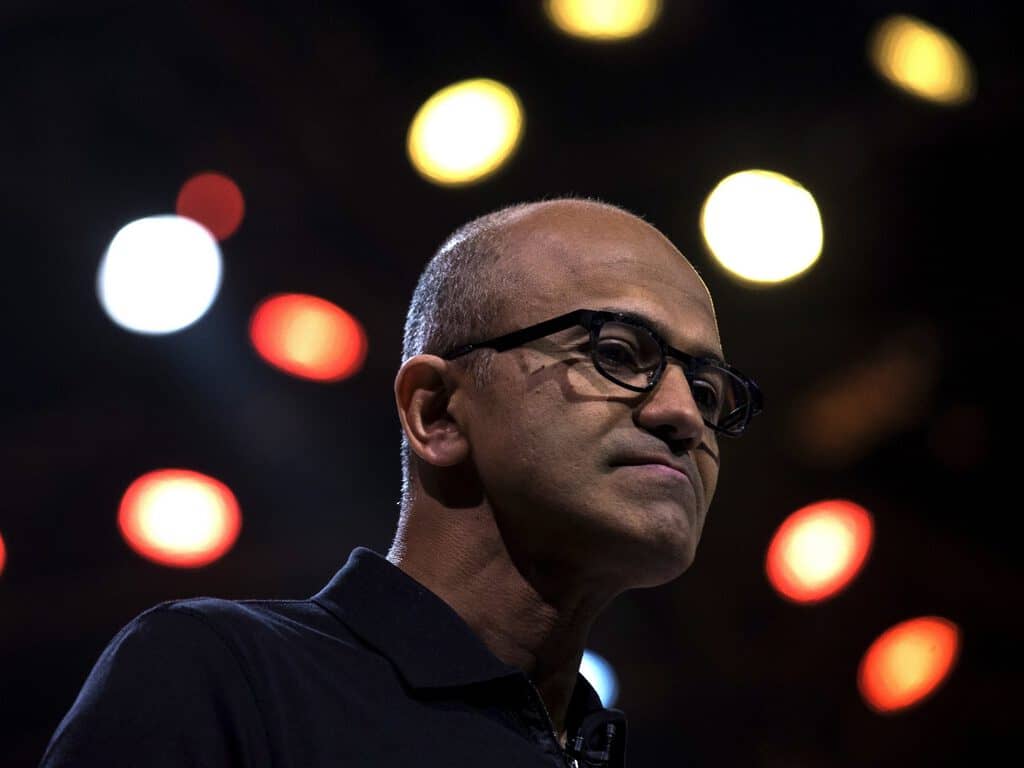
In an letter to employees, Microsoft CEO Satya Nadella announced a reshuffle of the company, which means that the Windows division is no longer an overarching entity covering various areas of the business, but instead sits on in its own area under the Experiences & Devices group. Below is how the new structure will look:

  • Experiences and Devices, led by Rajesh Jha
    • Devices – Panos Panay, Chief Product Officer
    • Windows, led by Joe Belfiore
    • New Experiences and Technology, led by Kudo Tsunoda
    • Enterprise Mobility and Management, led by Brad Anderson
  • Cloud + AI Platform, led by Scott Guthrie
    • Azure, led by Jason Zander
    • Business Applications Group, led by James Phillips
    • Universal Store and Commerce Platform, led by Eric Lockard
    • AI Perception & Mixed Reality, a new team led by Alex Kipman
    • AI Cognitive Services and Platform, led by Eric Boyd
  • AI + Research, led by Harry Shum

Terry Myerson says thank you for 21 years at Microsoft

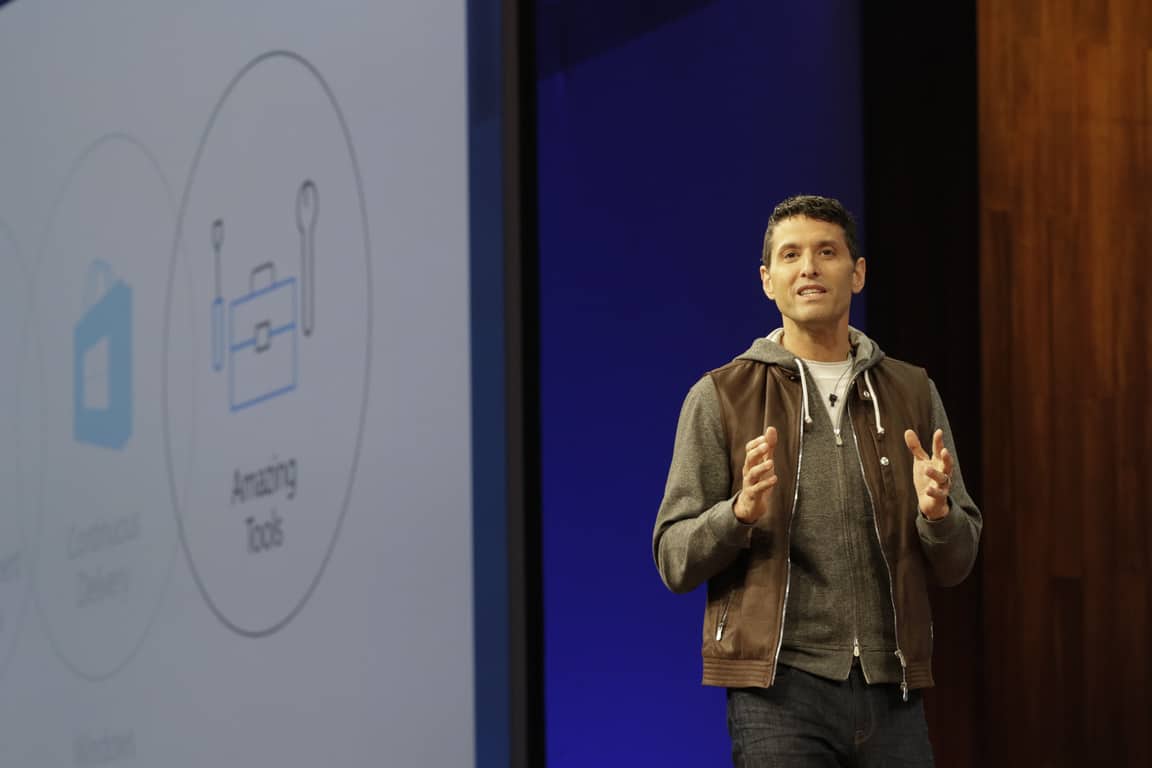
As part of Satya Nadella’s reshuffle of the company, Terry Myerson will be stepping down as Executive Vice President of the Windows and Devices Group, marking 21 years at Microsoft.

LinkedIn will soon include auto-playing video ads in your Newsfeed

In a move that will bring LinkedIn ever-closer to its rivals, such as Facebook and Twitter, the professional-oriented social network will be rolling out auto-playing video ads. These ads have been tested with over 700 advertisers since last October, and now LinkedIn is ready to begin rolling them out to all advertisers. Sound will be turned off by default on auto-playing video ads.

LinkedIn

Microsoft announces April 3 registration date for Ignite conference

Registration for Microsoft’s annual Ignite conference opens on 3rd April. The conference will take place in Orlando, Florida between 24th September to 28th September.

That’s it for this week. We’ll be back next week with more Microsoft news!

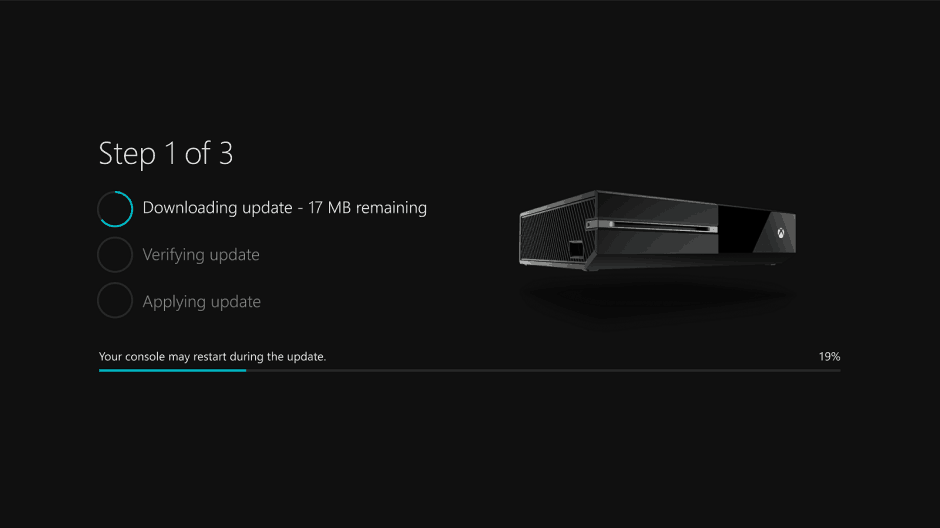
Xbox Insider update: Another Alpha build, Beta & Delta receive previous Alpha build

Hot on the heels of the earlier Alpha build for Xbox Preview Program members, the Xbox team are releasing another build for those on the Alpha ring, while moving the previous Alpha build, that contained 2 audio fixes, to the Beta and Delta rings.

The new Alpha build comes in at build number 1804.180329-1920 and fixes an issue with Achievements, whereby notifications and tracking would fail. The same Known Issues from the previous Alpha build (see here) remain in this build.

It’s not just those on Alpha that are getting all the fun this Easter weekend however, as Beta and Delta are receiving Alpha’s previous build, this build comes in at build number 1804.180328-1922 and delivers 2 fixes for audio issues:

Audio

  1. Fixed an issue in which some users may experience a black screen or a console crash when the default audio is set to Dolby Atmos.
  2. Fixed low audio volumes some users have been encountering in various apps and games.

This build comes with the following known issues to watch out for:

Pi-hole

  • Pi-hole users may encounter issues signing in, creating, or recovering accounts upon downloading the 1804 update. This is due to a new configuration file which is downloaded from a URL Pi-hole blocks by default.
  • Workaround: Add clientconfig.passport.net to the Pi-hole allowed IP address list.

Netflix

  • Netflix on Monitor only works at 1080p and does not support 1440p – Netflix is aware of the issue.  Workaround : If watching Netflix on a Monitor/LCD please set the display output to 1080p.

HDR Issues

  • Some users are discovering that some games are not showing in HDR – Please file feedback when you encounter this to help in the investigation.

Controller sharing/ Co-pilot vibration issues

  • Some users may experience a problem with a controller vibrating non-stop when using the share controller or the co-pilot feature.

Profile Color

  • Sometimes users may encounter the incorrect Profile color when powering on the console.

Home

  • Some users are reporting when quitting a game or app via the guide Home is not loading and you see a black screen.

Audio

  • Hulu app volume is lower and being investigated.

If you’re on either Alpha, Beta, or the Delta ring, then your console will prompt to update the next time it is turned on.

Discrete GPU is still causing frequent micro-freezes on Windows 10 [FIX]

Many Windows 10 users who own laptops which have Intel CPU + GTX 1050/1050Ti/1060/1070 have long been complaining about micro-freezes. More specifically, whenever you try to do some action on the OS, discrete GPU triggers and causes 0.5 second micro-freezes.

Users report that these micro-freezes that lock up their computers can be triggered by various actions, including:

  • Right clicking on desktop
  • Selecting the battery-icon
  • Launching a browser
  • Opening Control Panel
  • Loading a new tab, and so on.

This problem has been bugging users ever since the Creators Update was launched. The Fall Creators Update is affected as well and users are wondering if the Spring Creators Update will feature the same issue.

Powerful laptops freeze with basic operations

The most annoying and frustrating part for users is that this problem occurs on medium and high-spec machines.

I have this issue with the Dell 7577 with 1060 max-Q. I’ve been saving for 4 years since my previous laptop to buy a new and powerfull gaming laptop. First thing I noticed when testing where these microstutters, the laptop even performs worse than my 4 year old laptop in terms of basic functionality. The micro-stutters really ruin the experience.

Intel recently released an update for their HD graphics driver and the release notes confirm it reduces stuttering in laptops equipped with discrete graphics. Most users who installed driver version.4982 reported they didn’t notice any improvements as far as micro-freezes are concerned.

However, some users have been luckier. Stuttering is no longer there when opening problematic programs.

Mine got fixed with the latest update for some reason. HP OMEN 15 user with the i7-7700HQ + 1050 TI.

The Redditor who posted the information quoted above also confirmed that he runs Windows 10 version 1709. So, if you’re still experiencing micro-stutters, try updating your computers to the latest Windows version and then install the latest Intel driver updates. Hopefully, this solution will work for you.

More issues for NVIDIA 10-series GPUS

This is not the only issue affecting computers powered by Intel CPUs and NVIDIA 10-series GPUs. If you put a strain on your GPU and temperatures increases, your computer fans may not react at all. To enable GPU cooling you need to use the Sleep feature.

[…] my notebook fans (dual fan system, HP pavilion 15) does not react to GPU temperatures(only CPU) until PC is entered to Sleep and wake up again.

How to fix micro-freezes in Windows 10

So, if you’re still experiencing short freezes that last for less than a second, maybe the solution listed below will help you fix the problem. Although this workaround is specific for gaming, users confirmed it helped them fix stuttering/freezes and lags on the desktop as well, so do give it a try.

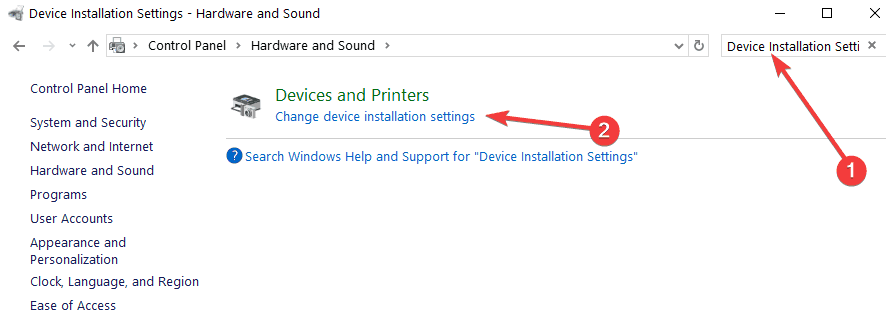
  1. Go to Start > type ‘control panel’ > double-click on the first result to launch Control Panel
  2. In the search box, enter ‘Device Installation Settings’Device Installation Settings
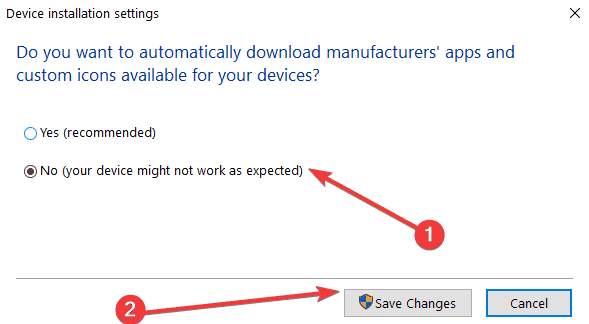
  3. Select the first result > select ‘No’ to turn off Windows driver auto-updating disable driver auto-update
  4. Download and launch CRU (Custome Resolution Utility)
  5. Select the monitor you’re using
  6. Go to ‘Detailed resolutions’ > Deleted everything on ‘Standard resolutions’
  7. Navigate to ‘Extension blocks’ > select the resolution that’s available > select ‘Edit’
  8. If there are any lists of refresh rates under the ‘Extension Blocks’ window, simply delete them all except for 164.999 Hz/ 144 Hz depending on which one you want to use
  9. Restart your PC > enable G-SYNC for full screen only
  10. You can also enable it for full screen  and windowed mode if you want.

There you go, we hope that these suggestions helped you fix the annoying micro-freezing affecting your computer.

If you came across other solutions to fix this problem, feel free to list the steps to follow in the comments below.

RELATED FIXES:

Homegroup cannot be set up in Windows 10/11 [BEST SOLUTIONS]

Networking is a crucial part of every computer, especially if you need to share files and collaborate with other users. This is extremely important if you’re working in a company or if you want to share files between two computers.

To do this, you first need to set up a Homegroup, but Windows 10 users are reporting an error that says “Homegroup cannot be set up on this computer”.

How can I fix issues with the homegroup in Windows 10?

Homegroup is a useful feature that allows you to easily share files across the PCs in the same network, but many users reported that they are unable to create a Homegroup on Windows 10.

Speaking of Homegroup issues, these are some of the most common problems that users experienced with Homegroups:

  • Cannot connect to Homegroup Windows 10 – Sometimes you might not be able to connect to a Homegroup on your PC. This can be a big problem, but you might be able to fix it by turning off all PCs and setting up a new Homegroup.
  • Can’t create Homegroup only join – If you’re having this problem, be sure to delete the content of PeerNetworking directory and try to create your Homegroup again.
  • I can’t create, join, or use a Homegroup – This is another problem with Homegroup that you might encounter. If this happens, make sure that the necessary Homegroup services are enabled.
  • Homegroup cannot be created on this computer, detected, removed – There are various issues with Homegroups that can occur on your PC, but if you have any of these problems, you should be able to fix them using one of our solutions.
  • Homegroup cannot access other computers, see other computers – If you can’t see other computers in your Homegroup, you might have to change security permissions for MachineKeys and PeerNetworking directories.
  • Homegroup Windows 10 not working – This is a general problem that can occur with Homegroups and in order to fix it, be sure that IPv6 is enabled.

Solution 1 – Delete files from PeerNetworking folder

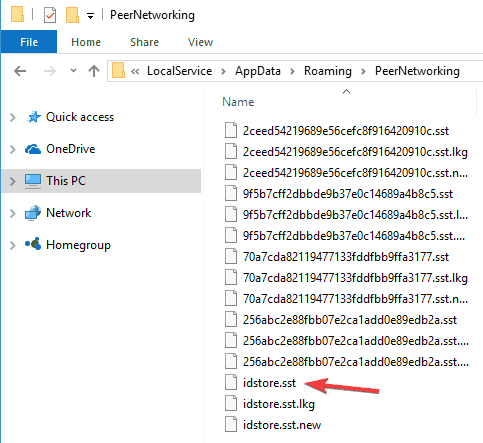
  1. Go to C:WindowsServiceProfilesLocalServiceAppDataRoamingPeerNetworking.
  2. Delete idstore.sst and move on to Step 3. If deleting idstore.sst doesn’t work, go back to C:WindowsServiceProfilesLocalServiceAppDataRoamingPeerNetworking and delete all files and folders in it and go back to Step 3.
    Homegroup cannot be removed
  3. Go to the Network Settings and Leave the Homegroup.
  4. Repeat this for all the computers in your network.
  5. Turn off your computers.
  6. Turn on just one, and create a new Homegroup on it.
  7. This Homegroup should be recognized on all of your computers now.

Can’t delete certain files and folder in Windows 10? Check out this guide and fix the issue in just a couple of steps.


Solution 2 – Enable Peer network grouping services

Sometimes it can happen that services needed for Homegroup to work are disabled for some reason, but there’s a way to enable them.

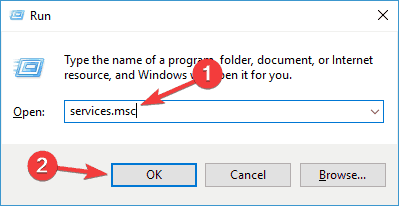
  1. In the Search bar type services.msc and press Enter or click OK.
    Can't create Homegroup only join
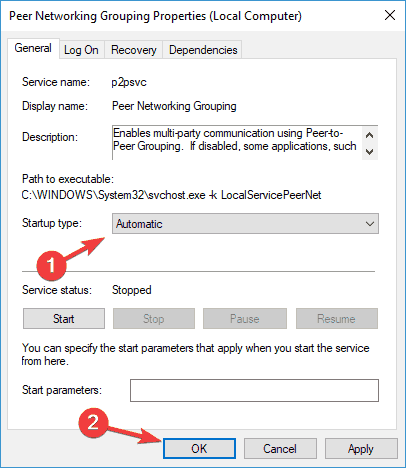
  2. Search the list for Peer Network Grouping, Peer Network Identity Manager, Homegroup Listener and Homegroup Provider.
  3. If those services are disabled or set to manual set them to Automatic and leave your Homegroup.
    Cannot connect to Homegroup Windows 10
  4. Create new Homegroup and see if it works.

We have to mention that you might have to do this for all the computers in your network.

If you encounter peer networking error 1068 on Windows 10, you can solve it by following this handy guide.


Solution 3 – Allow Full Control to MachineKeys and PeerNetworking folders

  1. Find:
    • C:ProgramDataMicrosoftCryptoRSAMachineKeys
  2. And then find:
    • C:WindowsServiceProfilesLocalServiceAppDataRoamingPeerNetworking
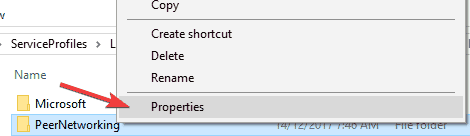
  3. Right click each folder and choose Properties.
    Homegroup cannot see other computers
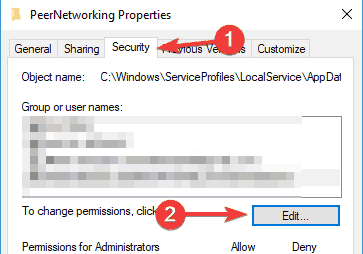
  4. Go to Security tab. You’ll see a group of users, click on a group, and press Edit.
    Homegroup cannot be detected on this computer
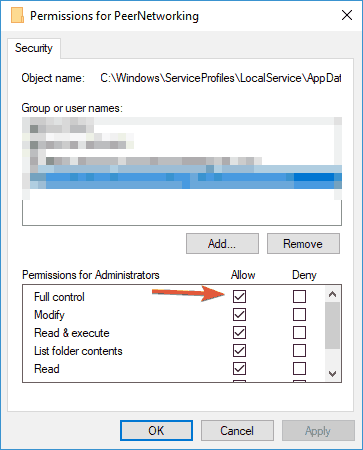
  5. From the list of options, click Full Control.
    I can't create, join, or use a Homegroup
  6. Repeat the process for all that you wish to have access to your Homegroup.

We have to mention that you might have to do this for all of your computers in a network.

Homegroup cannot be set up on this computer is an annoying Windows 10 error, and if none of these solutions were helpful, maybe you should perform a clean install as a last resort.


If you need to take ownership of a file or a folder in Windows 10, this guide will help you do just that.


Solution 4 – Rename MachineKeys directory

If you can’t set up a Homegroup on Windows 10, the issue might be related to MachineKeys folder. However, you can fix the issue simply by renaming the MachineKeys directory. To do that, just follow these steps:

  1. Navigate to C:ProgramDataMicrosoftCryptoRSA directory.
  2. Now locate MachineKeys, right click it and choose Rename from the menu.
  3. Change the name from MachineKeys to MachineKeys-old.
  4. Now create a new folder called MachineKeys and give full control permissions to Everyone and all users on your PC. To see how to do that, be sure to check the previous solution for more information.

After recreating the MachineKeys directory, the issue should be completely resolved and you’ll be able to set up a Homegroup once again. Many users reported that this solution worked for them, so be sure to try it out.


Rename your files and folders automatically. Here are the best file renaming tools available right now.


Solution 5 – Turn off all PCs and create a new Homegroup

If you’re unable to set up a Homegroup in Windows 10, the issue might be other PCs. Other PCs in your network can sometimes interfere and cause issues with Homegroup to appear. However, you can fix the problem simply by doing the following.

  1. First, stop all services beginning with Home and Peer on all computers.
  2. Now go to C:WindowsServiceProfilesLocalServiceAppDataRoamingPeerNetworking directory and delete all contents of that folder. Do this for all PCs in your network.
  3. Now shut down all computers in your network except one. Make sure that the PCs are completely turned off. If needed, unplug them from the wall outlet just to be sure.
  4. Now you should have only one PC running. Restart the HomeGroup Provider service on this PC.
  5. Now create a new homegroup on this PC.
  6. Restart all PCs in your network and join the newly created homegroup.

This solution might be a bit complicated, but several users reported that it works, so be sure to try it out.


Solution 6 – Make sure that your clock is correct

If you can’t set up a Homegroup on your PC, the problem might be your clock. Several users reported that their clock was incorrect and that caused the problem with Homegroup to occur.

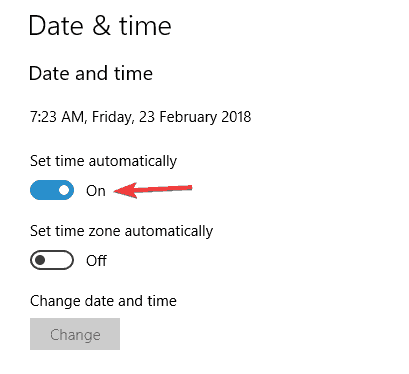
If you can’t set up a Homegroup on your computer, be sure to check if the time is correct. To adjust the time on your PC, do the following:

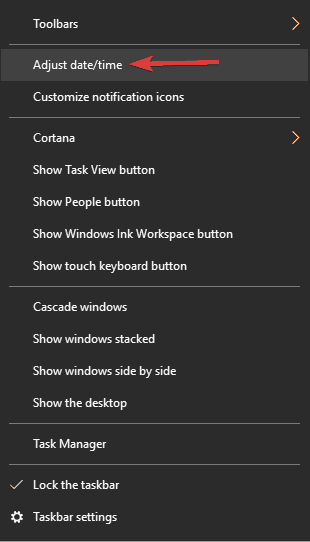
  1. Right click the clock in the right corner of your Taskbar. Choose Adjust date/time from the menu.
    Homegroup Windows 10 not working
  2. Uncheck Set time automatically and turn in back on after a few seconds. This should automatically set your time. You can also turn off this feature and click the Change button to set the time manually if you want.
    Homegroup cannot access other computers

This is an unusual solution, but several users reported that adjusting their clock fixed the problem for them, so be sure to try it.


See if your Windows Time service is working properly by following this step-by-step guide.


Solution 7 – Check the Homegroup password

Many Windows 10 users reported that they can’t join a Homegroup because they don’t have the necessary password. This can be an annoying problem, but there’s a way to fix it. To fix this issue, simply do the following:

  1. Open the Settings app. You can do that quickly by pressing Windows Key + I.
  2. When Settings app opens, navigate to Network & Internet section.
    Homegroup Windows 10 not working
  3. Select Ethernet from the menu on the left and choose HomeGroup from the right pane.

After doing that, you should be able to see the password for your Homegroup and use that password to connect other PCs. Keep in mind that this solution works only if you already have a Homegroup set up on your PC.


If you’re having trouble opening the Setting app, take a look at this article to solve the issue.


Solution 8 – Make sure that IPv6 is enabled on all PCs

If you’re unable to set up a Homegroup, the issue might be the IPv6 feature. According to users, this feature might be disabled on some computers and that can cause this issue to appear.

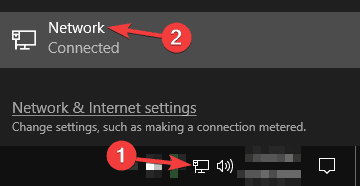
However, you can easily fix the problem by enabling IPv6. To do that, just follow these steps:

  1. Click the network icon in the bottom right corner and select your network from the menu.
    Homegroup cannot be created on this computer
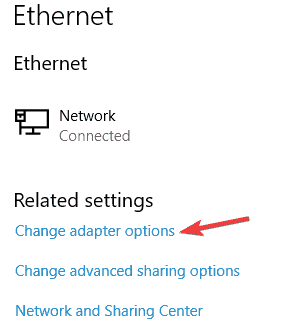
  2. Now select Change adapter options.I can't create, join, or use a Homegroup
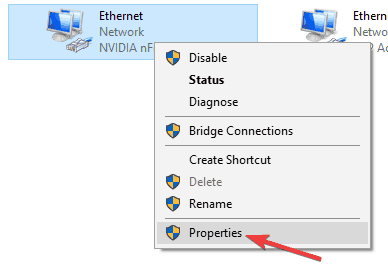
  3. Right click your network connection and choose Properties from the menu.
    Can't create Homegroup only join
  4. Locate Internet Protocol Version 6 (TCP/IPv6) and make sure that it’s enabled. Now click OK to save changes.
    Cannot connect to Homegroup Windows 10
  5. Repeat these steps for all PC on your network.

After enabling IPv6 for all PCs, you should be able to set up Homegroup without any problems.


Solution 9 – Change the computer name

If you’re having Homegroup problems on your PC, you might be able to solve them simply by changing the name of the affected PCs.

By changing the computer name, any configuration problems that you have with Homegroup should be resolved. To change the name of your computer, do the following:

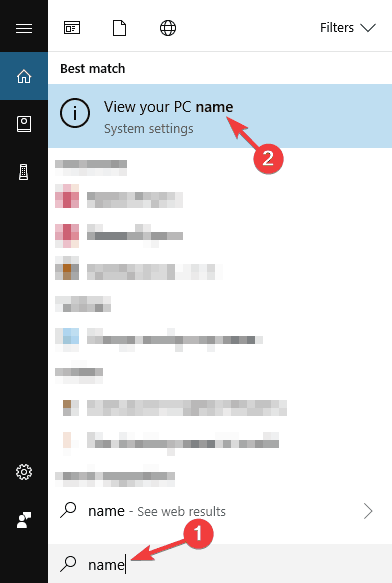
  1. Press Windows Key + S and enter name. Select View your PC name from the list of results.
    I can't create, join, or use a Homegroup
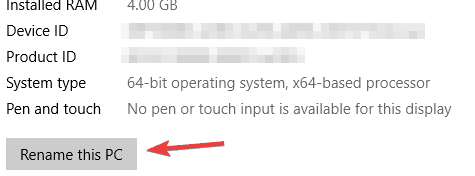
  2. Now click the Rename this PC button.
    Can't create Homegroup only join
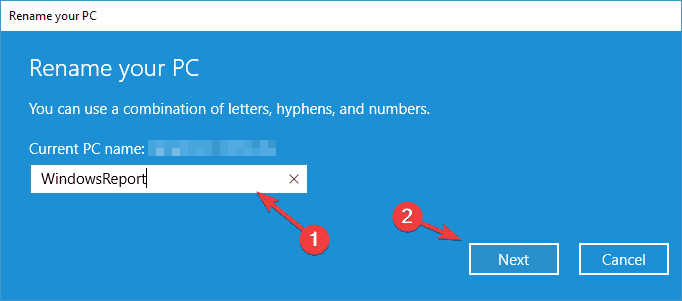
  3. Enter the new computer name and click Next.
    Cannot connect to Homegroup Windows 10
  4. After changing the name, restart your PC to apply changes.

Keep in mind that you need to repeat this step for all computers in the network that are affected by this issue. After doing that, you should be able to connect to Homegroup without any problems.


Want to rename your PC faster? Check out this dedicated guide on how to quickly change your PC’s name.


If you have any other Windows 10-related issues you can check for the solution in our Windows 10 Fix section.

READ ALSO:

Microsoft in big reshuffle as Windows chief, Terry Myerson leaves

Seattle tech giant, Microsoft, announced Thursday that a major reorganization which will establish two main engineering teams was afoot.

This comes in the wake of Windows chief Terry Myerson, leaving the company after 21 solid years of service, where he oversaw the Windows and devices group as the executive Vice President.

In a detailed memo, Microsoft Chief Executive Satya Nadella, outlined the new changes which will see the current executive VP of the product group, Rajesh Jha, head the experiences and devices team, while Scott Guthrie, who is currently executive VP of the cloud and enterprise group, will now head the cloud and AI team.

Myerson and Microsoft depart on good terms

In a post on his LinkedIn profile, Myerson, who oversaw the company’s Exchange and Windows 10 products said his leaving the firm fills him with many emotions.

I’m mostly filled with gratitude and optimism – gratitude for the experiences I have had and optimism for the future ahead – both for Microsoft and myself.

On his part, CEO Nadella said that the company had been planning for Myerson’s transition to pursue his next chapter outside Microsoft, but lauded him for his role in shaping the reorganization.

Terry has been instrumental in helping me arrive at this new organizational structure, and I deeply appreciate his leadership and insight as we’ve worked through the opportunity that lies ahead. Over the past several years, Terry and the WDG team transformed Windows to create a secure, always up-to-date, modern OS. His strong contributions to Microsoft over 21 years from leading Exchange to leading Windows 10 leave a real legacy.

The reshuffle comes at a time when the tech leviathan is refreshing its strategy to align with the next phase of the tech world as it evolves, having missed the bus in mobile to leading giants, Google and Apple, so this is a significant moment for the company.

Currently, the big frontiers are AI and cloud services, which will be at the core of computing development, so the company is fighting to stay ahead of the pack, with strong contenders like Amazon and Google, among others pushing hard.

Other changes include the role of executive VP of Microsoft Azure, which will be filled by Jason Zander, and AI and research which will be headed by Harry Shum.

Former Microsoft employee parses Nadella’s re-org words, and it’s not looking pretty for Windows

Many of us are still calibrating the words from Microsoft CEO Satya Nadella regarding the company’s most recent re-org that saw the departure of the highest seated Windows executive and a shuffling of the deck chairs which ultimately sets a path for cloud growth that will eventually overshadow the company’s licensing of its operating system.

However, 17-year veteran of Microsoft and former employee Tim Sneath sees yesterday’s public re-org announcement as a dog whistle to the end of Windows as a core business for the company, and that its relevancy could be ceded much sooner than Nadella and company may be leading on.

In a Medium post, (via MSPU) Sneath explains what many of yesterday’s new title announcements may mean for the future of Microsoft as viewed by someone who worked at the company for 17 years, and many of his observations seem more substantial than the surface corporate speak Nadella used to introduce the promotions, reassignments, and figurative demotions:

Satya’s mail unsurprisingly underplays how far Windows is being scattered to the four winds. It seems that Joe Belfiore will continue to lead the Windows experience team (essentially, the user space), with the old core OS division (the kernel team) moving under Azure. (Again, hard to overstate the significance of that — the Windows kernel is now an implementation detail under a team that famously “loves Linux”). The HoloLens team also seems to move under Azure, which may be its death knell after a stuttering start — I can’t imagine that this is seen as core to the cloud business.

Sneath also examines the holes in Nadella memo that put into question, more recent tangential Windows developments such as Cortana, UWPs, Surface and the not too distant marketing re-org that was supposed to improve customer and partner relationships for the company.

Cortana is unmentioned in the email, although one assumes that it is divided across product units with the underlying platform under the AI Cognitive Services team and the Windows experience team being responsible for how it is exposed. This is strikingly different to how Amazon are treating Alexa, with thousands of people having been hired to that group over the last couple of years, including a good chunk of Microsoft’s old evangelism team if my LinkedIn network is anything to go by.

Partner relationships are now no longer under Windows either — another major shift — although it’s interesting that Satya’s mail here focuses in on the hardware community without any mention of the ISVs on which Windows’ success has been built.

For client developers, the relevance of UWP must be even more questionable. With the Windows store increasingly focused on non-app products (books, videos, music) and now being moved under Azure, further shake-ups there can be expected. And XAML Standard, touted in the keynotes of last year’s Build as the strategy through which Microsoft would unify various incompatible dialects and UI technologies such as Xamarin, WPF and UWP, has clearly fallen victim to politics, with the repo seeming to be dead and its goals having been drastically watered down.

Sneath’s post underscores the uncertainty that follows a massive re-org within a company, as well as the corporate double-speak Nadella, has become so adept at using when discussing the current and future prospects of Microsoft. The stock market has reacted exceptionally well to Nadella’s leadership of Microsoft but it should be noted that Microsoft isn’t a cloud leader yet, and yesterday’s re-org announcement puts into question the viability of a partnership with the company regarding Windows and services tied to the operating system such as Office, HoloLens, and Azure. 

Windows Insider team will sit in Cloud + AI Platform / Azure with new reorg

Yesterday Microsoft CEO Satya Nadella announced a major reorg to the engineering teams within the company, splitting up Windows and giving it a smaller footprint as it looks toward a cloud and AI focused future. Joe Belfiore will be heading up the Windows team with the Experiences and Devices group, which will also encompass Devices, led by Panos Panay, New Experiences, led by Kudo Tsunoda, and Enterprise and Mobility Management, still headed up by Brad Anderson.

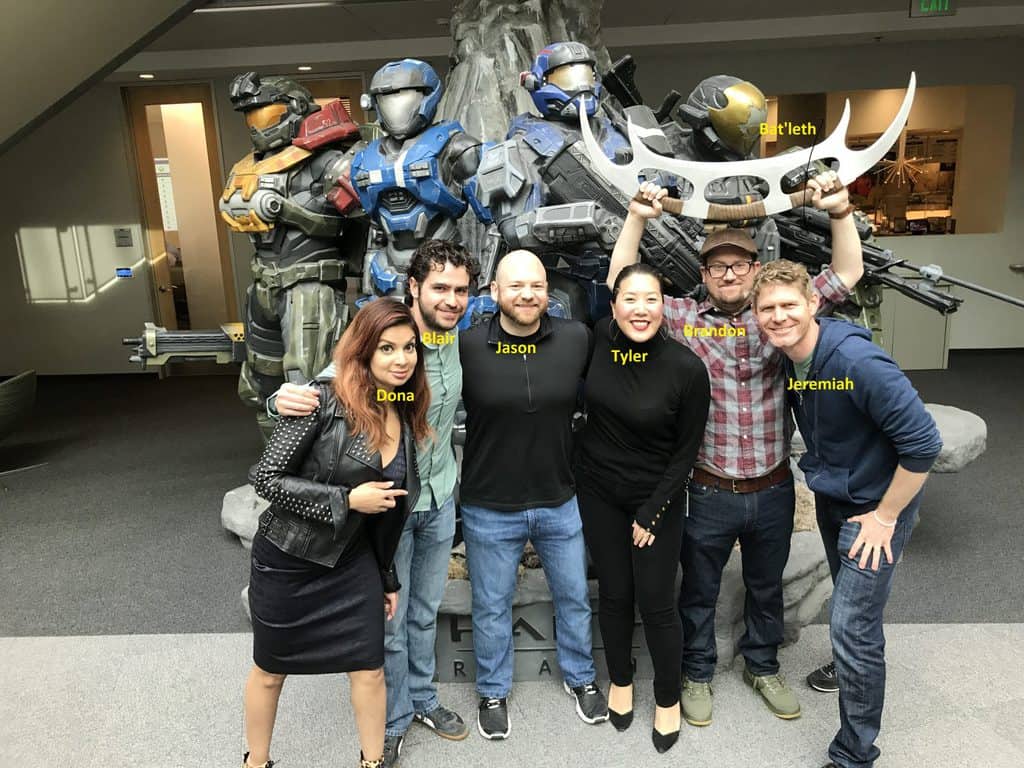
However, and as much as many Windows Insiders and OnMSFT.com readers identify with the consumer facing aspects of Windows, the Windows Insider operation will now be led by Jason Zander and the Azure team under Scott Guthrie’s Cloud + AI Platform group, as noted in a tweet this morning by Dona Sarkar:

Nadella noted the change in his letter to employees on the reorg yesterday, explaining:

The Windows platform team led by Harv Bhela, Henry Sanders and Michael Fortin will join Jason’s team. Windows platform is already a core part of Azure across both the cloud and edge, and this shift will enable us to accelerate our efforts to build a unified distributed computing infrastructure and application model.

We’re still trying to wrap our heads around this latest reorg, which seems to be something more than just a rearranging of deck chairs. While it makes sense for the Insider Program to follow the Platform team, having consumer experiences and platform separated like this is going to take some getting used to, both inside and outside the company.

In any event, we wish Dona, Jason, Brandon, and the whole Windows Insider team all the best under their new corporate overlords!


New tweets suggests Windows 10 Redstone 5 screen clipping feature update could be coming soon

A little while ago, the notorious Microsoft leaker WalkingCat suggested that a new screen clipping experience was hidden in Windows 10 Redstone 5 build 17627. Microsoft watchers quickly followed up to suggest the leak was right, also saying that a new UWP clipping experience was also in the works. Well, WalkingCat is back on the topic again and says that the Screen Clipping experience should now be “mostly complete” (via MSPoweruser.)

https://twitter.com/h0x0d/status/979409032971616256

WalkingCat apparently found the resources in a Redstone 5 build, and says that the new screen clipping experience also lets users capture “Left Screen, Right Screen, or Both Screens.” This is rather peculiar since there is no current Microsoft device on the market which has these types of screens. It perhaps suggests that the rumored folding Surface Phone Andromeda is real, and Redstone 5 may have custom experiences just for the device.

https://twitter.com/h0x0d/status/979417094079918080

WalkingCat also says that the screen clipping experience allows users to draw a shape on the screen to create a screen snip. This is again rather interesting, as it can prove to be useful for clipping out images and putting it in a digital journal with dual screens.

https://twitter.com/h0x0d/status/979412939420549120

It is rather strange to see another screen clipping experience make its way into Windows, especially since there are already so many ways to do such a simple thing. However, given the rash of Microsoft patents relating to a folding device and these latest tweets, this latest experience might be designed with a new device in mind. With the development of Redstone 4 winding down, more on this Redstone 5 screen clipping feature might surface soon to Windows Insiders soon, so it is best to keep tuned for more.

Sea of Thieves could soon reach 3 million players

Sea of Thieves is a game that definitely made Microsoft smile like a Cheshire cat. This title has an active player base of over 2 million players and it’s only going up.

This represents an incredible achievement taking into account that the game was launched on March 20. Indeed, millions of players want to become absolute Pirate Legends and are willing to put in the time and effort to reach their goal.

Sea of Thieves is Microsoft’s fastest-selling first-party new IP

Sea of Thieves had more than a million players on launch day which made it the best-selling Microsoft first-party game on Windows 10.

This title is extremely popular on game streaming platforms as well. Tens of thousands of players streamed their Sea of Thieves adventure and hundred of users watched as new Pirate Legends we being built under their eyes.

Statistics suggest that SOT was the number one slot on Twitch and Mixer in the week following its launch.

More than 100,000 players have streamed Sea of Thieves since launch, resulting in more than 10 million hours watched in the last week.

Sea of Thieves brings players closer together

sea of thieves playerbase

Microsoft also revealed that over 400,000 players joined an Xbox Club to find pirates and share common adventures.

We’ve also been blown away by how the game has bought players together. More than half of a million new Xbox Live friendships have been forged to date and over 400,000 players have joined an Xbox Club to find pirates to share stories with.

At the same time, the Redmond giant acknowledged that the game is affected by a series of issues and promised to fix them as soon as possible.

Speaking of bugs, you can check out this troubleshooting guide to learn how you can fix common Sea of Thieves issues.

Gamers also listed a few suggestions of their own on how the game could be improved in order to attract even more players. So, do check out that list as some of these suggestions and improvements may actually make it to a future game update.

Over to you now: Do you think Sea of Thieves could reach 3 million players by May? Let us know in the comments below.

RELATED STORIES TO CHECK OUT:

Call of Duty 4: Modern Warfare is now backward compatible on the Xbox One

One of the best Call of Duty games is joining the Xbox One Backward Compatibility list today. That’s right, you can now play the critically-acclaimed Call of Duty 4: Modern Warfare on your Xbox One, and you can also save up to 25% off the Xbox 360 game during the Xbox Spring Sale.

Call of Duty 4: Modern Warfare launched back in November 2007 on the Xbox 360, and it was the first Call of Duty game set in modern times. In addition to a great solo campaign, the game also introduced experience points for multiplayer, which gamers could use to unlock new weapons and more. This had a big influence on the FPS genre, with Microsoft introducing a similar progression system in Halo: Reach and then Halo 4 a couple of years later.

Activision released a remastered version of the game on Xbox One back in November 2016, but it’s really cool that the original Xbox 360 version can live on on Xbox One consoles. Overall, there are now eight Call of Duty games on the Xbox One Backward Compatibility list, but Modern Warfare definitely remains one of the best titles in the series.

Terry Myerson says thank you for 21 years at Microsoft

After 21 years at Microsoft, Terry Myerson, Executive Vice President of the Windows and Devices Group will leave the company after a just-annouced major internal reorganisation. In an email to employees, Microsoft CEO Satya Nadella took the time to thank Myerson for his leadership during all these years, adding that he will work with him on the transition over the coming months.

Myerson also published a blog post on LinkedIn today to reflect on his “incredibly intense experience” at Microsoft. The lengthy post is well worth a read, especially since Myerson looks back on the time when he was asked to lead Windows Mobile. This was back in 2008, right when the iPhone and the first Android handsets had already completely changed touch-screen smartphones. And Myerson says it bluntly, despite some great innovations, Windows Phone was just to little to late:

We had a differentiated experience, but it’s so clear in hindsight that the disruption in business model which Android represented was enormous, and that building our early versions of Windows Phone on an incomplete Windows CE platform, designed for small embedded systems, left us too hobbled to ever catch up.

The Microsoft veteran also had a thought for Windows fans today. While some big tech companies like Apple are very secretive, Microsoft is quite the opposite and leverages user feedback to improve its products:

One of my favorite things about leading Windows has been the Windows fans. Through good times and bad, I’ve loved your feedback. I’ve loved your passion for our work. I’ve loved your applause when we’ve done great work and I’ve loved the push to do better. One of my deeply held lessons from my Exchange days was the importance of that feedback loop with customers and fans, and that’s why we created the Windows Insider Program so we could build Windows 10 led by your feedback. Now with 15 million members, you continue to make our product and our team better each and every day. Thank you.

Myerson didn’t share details about his next career move and said that he’s looking forward to having some quality time with his family. The long-time tech veteran shouldn’t have much trouble finding a job anyway. “Leaving fills me with many emotions. But I’m mostly filled with gratitude and optimism – gratitude for the experiences I have had and optimism for the future ahead – both for Microsoft and myself,” he concluded.

Windows Org’s Terry Myerson shuffled out at Microsoft in shakeup

Microsoft is announcing a major shakeup of the Windows organization, with longtime EVP Terry Myerson stepping down to be replaced by four new leaders in a new restructuring. In a letter to employees by CEO Satya Nadella, he announces that Myerson will “pursue his next chapter outside Microsoft.” Myerson will stick around for the next few months to assist in the transition.

(note: edited to clarify the org structure) The restructuring will involve creation of two new engineering teams, breaking the previous Windows organization down into three major groups under Experiences and Devices, led by Rajesh Jha. These will include Panos Panay’s Devices team, Windows Experiences led by Joe Belfiore, Kudo Tsunoda leading New Experiences and Technology, and Brad Anderson continuing to lead Enterprise Mobility and Management.

Scott Guthrie will expand his role to lead a new team, Cloud and Platform, and Jason Zander is being promoted to Executive Vice President to lead Azure. Finally, Harry Shum will continue to lead AI and Research. This leaves Microsoft with three major engineering teams, Experiences and Devices, Cloud + Platform, and AI + Research.

This is a huge shakeup at Microsoft, pushing them closer to a company focused on AI and Machine learning and other new technologies while attempting to reduce some of the bloat that has long inflicted Windows.

We’ll have lots more on Microsoft’s transition as it happens, stay tuned to OnMSFT.com!

Doom is getting a 4K update today for Xbox One X consoles

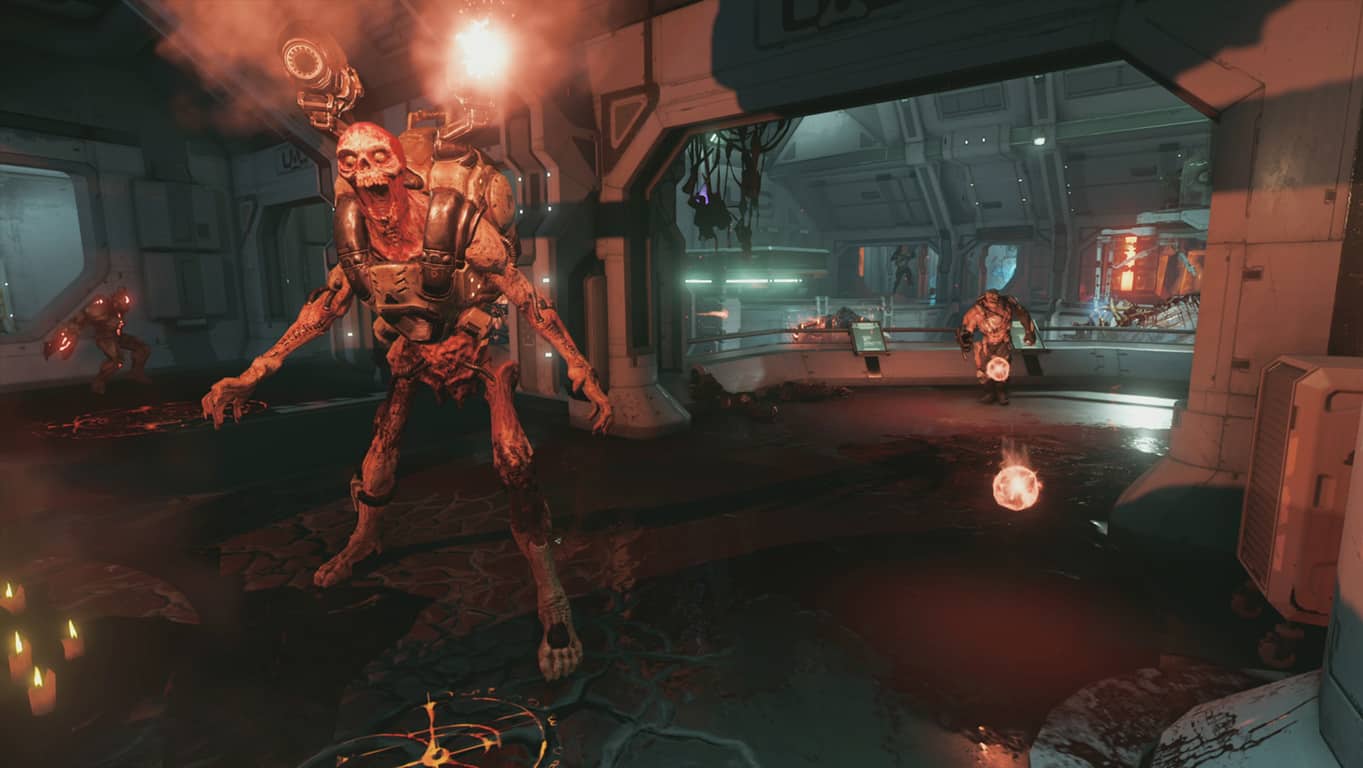
Starting today, Xbox One X owners can play Doom updated to play in 4K. In 2016 when Doom launched, id Software developed the game to be fast-paced, and filled with unrelenting demonic enemies whose sole mission is to kill you. With the new Xbox One X Enhanced update, gamers can experience Doom and see Hell in a whole new light.

Here’s a look at Doom in 4K on Xbox One X.

As noted in a post on the Bethesda blog, the new update will make everytime you shoot, bash, and slice in Doom turn into a bloody, eviscerating masterpiece. All the enemies of Hell will still come at you non-stop, but now they are more detailed and horrific with the Xbox One X Enhanced update.

Microsoft continues to update more and more game titles with Xbox One X Enhanced updates, bringing more clarity and detail to provide the most immersive gaming experience possible. Here’s the full list of current and upcoming Xbox One X Enhanced game titles

Doom is available now for just $22.49 for a limited time.

DOOM
DOOM
Developer:
Bethesda Softworks
Price:
Free

Microsoft will reportedly stop using “Redstone” internal codename for future Windows 10 updates

If you find it difficult to remember all the different codenames that Microsoft uses for major Windows 10 updates, it seems that the company plans to simplify things a little bit next year. More precisely, the Redmond giant will reportedly stop using the “Redstone” internal codename for future Windows 10 updates and shift to simpler codenames with the first major release in 2019.

“According to our sources, Microsoft will be moving to a new codename format starting in 2019 with what would be Redstone 6, now known internally as 19H1,” Windows Central reported yesterday. Presumably, “19H1” should make it easier to understand that this is about the Windows 10 update released in the first half of 2019. “19H1” will likely be followed by “19H2” in Fall 2019, then by “20H1” in Spring 2020, etc.

These new internal codenames are similar to the version numbers that currently appear in the Windows 10 Settings app. As an example, the upcoming Spring Creators Update is also called Windows 10 version 1803. The fact that version numbers for Windows 10 and Xbox One updates sometimes differ (the upcoming Spring update for the Xbox One will be version 1804) probably explains why Microsoft prefers to use “H1” internally, though this is just an assumption from our part.

You can see your Windows 10 version in the Settings app.

Anyway, after using the Redstone codename for five times in a row, this naming convention was probably getting old. Microsoft first used the “Redstone” codename for the Windows 10 Anniversary Update, which was released during Summer 2016. Before that, the first version of Windows 10 (aka version 1507) was codenamed “Threshold,” and it was followed by “Threshold 2” in November 2015. If you find “version 1511” easier to remember, you’re probably not alone.

For consumers, Microsoft should continue to use less technical names such as “Spring Creators Update.” You could argue that this isn’t exactly great naming either, and we hope that Microsoft will finally move away from the “Creators” branding starting with Redstone 6.

Windows 10 will support remote desktop access for multiple users

Microsoft will most likely add a new Multi Session option to Windows 10 this fall. Such an opportunity would allow IT to offer multiple users remote access to desktops and apps without having to rely on the Windows Server. The company offered us some hints that such ways to help deliver virtual app/desktop capabilities in Windows 10 would be made available later on.

Microsoft improves Remote Desktop Services

Remote Desktop Services currently allows users to interact with apps that are hosted on servers and not on their systems. This approach is used by lots of businesses to offer access to apps for remote-working.

The Remote Desktop Modern infrastructure is planned for public availability in late 2018, according to Microsoft. The changes targeting RDS should make it more efficient for hosting the service in Azure, and it would offer security enhancements and more.

Windows 10 Redstone 5 brings multi-session support this fall

There’s a new multi-session feature rumored to come packed in Windows 10 Redstone 5/1809 this fall. Word is that IT developers have been asking more time to finish working on the feature. Microsoft just released a preview of Windows Server 2019, and this triggered speculation about how the company plans to deliver RDS.

Brian Madden stated on his blog that the Remote Desktop Session Host aka RDSH is not able to be installed on Windows Server 2019. He is the one who sparked rumors about Microsoft adding a multi-user option in Windows 10.

The companion rumor to Microsoft removing RDSH from Server is that they will be *adding* a multi-user, multiwin-based option to Windows 10. In other words, Microsoft is taking Terminal Server out of Windows Server and moving into Windows 10. If true, this is fantastic.

The multi-session feature should work with Win32, UWP apps, and Microsoft Edge

The new Windows 10 multi-session feature should work with UWP apps, Win32 and the Edge browser and it is expected to be included in the company’s solution for supporting Office apps via Office 365 Pro Plus. There are no more available details on this functionality or regarding its pricing/licensing.

RELATED STORIES TO CHECK OUT:

Grab Krypton’s premiere episode for free on Xbox One & Windows 10

The first episode of the new Superman TV series, Krypton, is now available to grab for free in the Microsoft Store for playing within the Movies & TV app on Windows 10 devices, Xbox consoles, and Windows phones.

In addition to being a free HD download, this offer appears to be working in several regions outside of the U.S.A. too which is a refreshing change from the usual America-only promotional campaigns. To claim the episodes, simply go to the episode’s page in the Microsoft Store here and buy it.

The purchase button should say “Free”. If it doesn’t, then the offer is likely unavailable in your country.

Krypton is a sort of prequel series to the main Superman saga but incorporates time travel and pulls in future elements from the source material at the same time. It’s set within a separate cinematic universe than the CW DC comic book series such as Supergirl and The Flash.

Have you had a chance to watch Krypton yet? Share your thoughts with the community in the comments below.

Sure Fix: XAMPP Port 80, 443 are in use on Skype

XAMPP is a cross-platform virtual web server used in web development. However, when trying to start XAMPP Control Panel, Apache is blocked from running while the following error messages comes up:

“Port 80 in use by “c:\program files (x86)\skype\phone\skype.exe”!

“Port 443 in use by “c:\program files (x86)\skype\phone\skype.exe”!

Meanwhile, this error is caused by other program using the ports allocated for XAMPP. Hence, Windows Report has come up with applicable solutions to fix this error problem.

Fix: XAMPP Port 80, 443 in use by Skype

  1. Stop conflicting programs
  2. Change XAMPP default ports

Solution 1: Stop conflicting programs

Windows users reported that stopping conflicting program prevented the Port 80, 443 in use by Skype problem. In addition, other conflicting programs include Skype, VMware Workstation, Microsoft Internet Server, TeamViewer, etc. Here’s how to stop Skype:

  1. Go to Start > Type “Task Manager”, and then hit the Enter button.xampp port 80 443 in use by skype
  2. Now, locate Skype (or the conflicting program) and click on it.
  3. Then, click on “End Process” option.
  4. Restart XAMPP Control Panel afterwards.

Note: This solution should fix the XAMPP Port 80, 443 in use by Skype problem. Alternatively, you may consider uninstalling the conflicting program if the problem persists. However, if not you may proceed to the next solution.

Solution 2: Change XAMPP default ports

Furthermore, you can reconfigure the XAMPP Apache server to listen and use different port numbers in order to fix XAMPP Port 80, 443 in use by Skype. Here’s how to do it:

  • xampp port 80 443 in use by skypeLaunch the XAMPP Control Panel, click the “Config” button next to Apache “Start” and “Admin” buttons, and then follow the prompt to open “httpd.conf” file.xampp port 80 443 in use by skype
  • Press “Ctrl” and “F” keys to use the search function. Search for “listen”. You’ll find two rows such as:

#Listen 12.34.56.78:80

Listen 80xampp port 80 443 in use by skype

  • Hence, change the port number to another number e.g. port 8080

#Listen 12.34.56.78:8080

Listen 8080

  • Now, in the same httpd.conf file look for “ServerName localhost:” Set it to the new port number:

ServerName localhost:8080xampp port 80 443 in use by skype

  • Save and close the httpd.conf file.
  • Afterwards, click the Apache config button again next to Apache “Start” and “Admin” buttons and open the “httpd-ssl.conf” file.xampp port 80 443 in use by skype
  • In the httpd-ssl.conf file, search for “listen” again. You may find: “Listen 443”. Hence, change it to listen on a new port number of your choice. For instance:

Listen 1000xampp port 80 443 in use by skype

  • In the same httpd-ssl.conf file find another line that says, “<VirtualHost _default_:443>”. Change this to your new port number e.g. 1000
  • Also in the same httpd-ssl.conf you can find another line defining the port number. Search for “ServerName”, for instance:

ServerName www.example.com:443 or  ServerName localhost:433

Change this ServerName to your new port number.xampp port 80 443 in use by skype

  • Now, save and close the httpd-ssl.conf file.
  • Finally, click and open the “Config” button of your XAMPP Control Panel (this is above netshat button)xampp port 80 443 in use by skype
  • Now, click on the “Service and Port Settings” button. xampp port 80 443 in use by skype
  • Within it, click the “Apache” tab and enter and save the new port numbers in the “main port” and “SSL port” boxes. Afterwards, click save and close the config boxes.xampp port 80 443 in use by skype

Note: After following the steps above, you should restart XAMPP afterwards. Also, you may use any port numbers which you like as your new port numbers. Alternatively, you can also disable Skype from using the Ports 80 and 443 in the Settings option.

In conclusion, the solutions mentioned above are applicable in solving the XAMPP Port 80, 443 in use by Skype error problem. Feel free to comment below about your experiences in solving this error problem.

RELATED STORIES TO CHECK OUT:

DuckDuckGo is now Vivaldi’s default search engine in Private mode

If you care about your online privacy, then you should really take all the precaution measures currently available to prevent third-parties from collecting your personal information.

The Vivaldi browser is one of the best choices when it comes to safe browsing and it recently integrated DuckDuckGo as its default search engine.

In other words, when you launch a Private Mode window, DuckDuckGo will be your default search engine. In this manner, there will be no browsing history information stored on your PC and the websites you visited won’t be able to track and monitor your behavior.

Private Mode doesn’t not block tracking

Many Internet users believe that opening a private window is enough to browse anonymously. Unfortunately, private windows can’t block tracking, so you need an additional tool to actually make private browsing private.

Vivaldi changed that by integrating DuckDuckGo into their Private Mode feature.

Now in Vivaldi, the moment you start using private browsing mode, your search is private as you’d expect — no need to change anything. Your searches and personal information will not be collected or shared while using Private Windows, in addition to the privacy protection features that Vivaldi gives you by default.

To use this feature, you need to download the latest Vivaldi version on your computer.

Speaking of protecting your privacy while online, we’ve got additional tips and suggestions on how to keep your private data private. For example, apart from using Vivaldi and DuckDuckGo, you can also install a reliable VPN software such as CyberGhost.


In case you want to be secure while surfing the internet, you will need to get a full-dedicated tool to secure your network.  Install now Cyberghost VPN and secure yourself. It protects your PC from attacks while browsing, masks your IP address and blocks all unwanted access.


For more information on privacy, you can check out the guides listed below:

Skype Interviews adds a Shared Whiteboard for better collaboration

Last year, Microsoft unveiled Skype Interviews, a browser-based tool for recruiters that comes with a real-time code editor for coding interviews. After listening to user feedback, the company is expanding the set of interactive tools with the addition of a digital whiteboard shared between the interviewer and candidate.

“The real-time digital whiteboard makes interviews overall a more collaborative experience—one where the participants will able to visualize their thoughts and ideas, and read back key takeaways after the fact,” the Skype team explained. When using Skype Interviews, the new digital whiteboard will be accessible from the sidebar. It comes with a Pencil and various Shape tools, and recruiters can also save a copy of the whiteboard at the end of the interview.

“Our goal to make Skype Interviews the universally accepted tool for all video call interviews—regardless of distance, technical, or non-technical—pushed us to innovate further,” the Skype team said today. Skype Interviews remains in preview for now, and calling capabilities are still only supported on Microsoft Edge and Google Chrome.

Microsoft posts first round of Build 2018 sessions

Just last month, Microsoft opened up registrations for Build 2018 ahead of the May 7th-May 9th annual developer conference. The company did not initially share many details on what attendees can expect, but Microsoft recently updated their Build website, revealing some of the details on featured sessions.

As expected, Build 2018 sessions range from Azure, Visual Studio, Microsoft 365, and more. Microsoft promises there are over 350 technical sessions and interactive workshops to choose from, but interestingly, none of the featured sessions currently mention Windows 10. We’re assuming Microsoft may be avoiding spoilers, but you can have a look at some of the sessions below and check here for the full list.

  • Visual Studio and Xamarin enable developers to craft native experiences across every platform, including Android, iOS, and wearables. Developers need rich APIs and a powerful cloud to deliver these apps for every scenario, and that’s where Azure can help. In this session, we’ll show you how to connect powerful Azure services to your C# apps, including Azure AD B2C, Azure Functions, Cognitive Services, and Cosmos DB.
  • Feed your imagination with a tour of the datacenter architecture and implementation that runs Microsoft Azure. Azure covers more than 150 datacenters in 40 announced regions, and it’s growing fast. It delivers the promise of cloud computing—including high availability, extreme performance, and security—by custom designing software and hardware to work best together. You’ll come away with insight on reliable clean-energy datacenter designs, using FPGAs to accelerate networking and machine learning, designing storage servers to deliver ultralow latency and high throughput, and more.
  • See what’s new in Visual Studio and Xamarin, which let C# developers become Android, iOS, and Windows app developers overnight. In this session, we’ll cover how to use your existing C# and .NET skills to create fully native apps on every platform. From start to finish, Visual Studio and Xamarin give developers powerful tools to craft these apps.

Build 2018 runs the same week as Google’s I/O conference, so it will be interesting to see if attendance is impacted. You can visit this website to register for Build 2018. Full conference passes will cost $2,495, providing access to all sessions, content, and the Expo hall plus all conference meals.

Far Cry 5 is now available on Xbox One consoles

The much-anticipated video game, Far Cry 5, is now available to play on Microsoft’s family of Xbox One consoles.

This latest entry in the long-running Far Cry video game series is set in America and boasts one of the largest playable locations in the franchise to date. Here’s the official description, trailer, and Microsoft Store link.

Far Cry comes to America in the latest installment of the award-winning franchise. Welcome to Hope County, Montana, land of the free and the brave but also home to a fanatical doomsday cult known as Eden’s Gate. Stand up to cult leader Joseph Seed, and his siblings, the Heralds, to spark the fires of resistance and liberate the besieged community.

FIGHT AGAINST A DEADLY CULT: Free Hope County in solo or two-player co-op. Recruit Guns and Fangs for hire to help defeat the cult.

A WORLD THAT HITS BACK: Wreak havoc on the cult and its members but beware of the wrath of Joseph Seed and his followers.

CARVE YOUR OWN PATH: Build your character and choose your adventure in the largest customizable Far Cry game ever!

DYNAMIC TOYS: Take control of iconic muscle cars, ATV’s, planes and a lot more to engage the cult forces in epic fights.

Are you excited to play Far Cry 5 on your Xbox One? Let us know why or why not in the comments below.

Far Cry® 5
Far Cry® 5
Developer:
Ubisoft
Price:
Free

Windows Defender is the most popular enterprise antivirus solution

Microsoft has been working for quite a while to make its antivirus functionalities more efficient, and it seems that the company’s efforts finally paid off. The Windows Defender antivirus managed to gain a lot of market share among businesses.

Windows 10 now flaunts more than 50% market share in the enterprise area. According to Webroot, 32% of Windows systems are running Windows 10, and the numbers are continually increasing.

Windows Defender in statistics

Currently, 18% of systems running Windows 7 and Windows 8 are running Windows Defender and more than 50% of Windows 10 devices. Microsoft improved the performance and efficiency of Windows Defender, and its antivirus solution became almost perfect from 2015 until today when it comes to blocking malware.

According to Brad Anderson, Corporate Vice President at Microsoft Enterprise Mobility and Security, two of the most critical tests, AV-Comparatives and AV-TEST, have been showing significantly improved results. In other words, Windows Defender is close to perfection these days.

More reasons why Windows Defender is the best security tool on Windows 10

Besides enhanced efficiency, Brad lists the following elements that triggered such success in the antivirus solutions area:

  • Microsoft’s antivirus features are an amazing solution, and the tests that we mentioned above are proof. Microsoft managed to defeat its competitors, and the company assures users that it has what it takes to protect them even from the most advanced vulnerabilities and potential threats.
  • The company’s antivirus solution involves lower maintenance costs, and it’s much easier to use compared to others. Most businesses use Config Manager for PC management of Windows 10 and 7. Windows 10 comes with antivirus features built straight into the OS, and even if Windows 7 doesn’t, the antivirus capabilities can be deployed and then configured via Config Manager.
  • Microsoft’s antivirus solution enhanced IT’s agility, and whenever new updates get released, users don’t have to sit around and wait for third parties’ certifications and support because they get these from the first day. In other words, newest releases and latest security technologies can be deployed easier and faster.
  • Microsoft’s antivirus solutions provide an enhanced user experience, and Windows Defender is designed in such a way to work in the background, minimizing power consumption and extending battery life.

Get more in-depth details on Microsoft’s antivirus solutions from Brad’s blog post here.

RELATED STORIES TO CHECK OUT:

Microsoft could be the next trillion dollar company, says Morgan Stanley

Despite Gartner and IDC continually pounding the drum of defeat for the PC market each month, and Windows 10 consumer adoption plateauing, Microsoft is enjoying record gains in the stock market as it inches closer to becoming a trillion dollar company. After shares rose more than 5.5% following a favorable note to investors from investment firm Morgan Stanley, Microsoft investors can now see a clearer path to the coveted trillion dollar market cap.

Earlier this week, Morgan Stanley analyst Keith Weiss penned a note to investors where he raised his twelve-month projections for Microsoft by almost 50%, which boosted the company’s trading share up from $87 to $150 within a week.

Thanks to an interview with Trading Nation, we get to hear Weiss’ assessment straight from his mouth. Weiss’ favorable nod to Microsoft comes from his bullish belief (assuming a lot of financial metrics were involved as well) that the company’s Azure service’s democratization of cloud computing will bode well against its competitors in the future.

With Public Cloud adoption expected to grow from 21% of workloads today to 44% in the next three years, Microsoft looks poised to maintain a dominant position in a public cloud market we expect to more than double in size to (more than) $250 billion dollars.

To further clarify his position, Weiss also makes note that Microsoft’s Office install base is where the company’s leverage comes from, in that, there already are established channels of inertia in the enterprise space.

Strong positioning for ramping public cloud adoption, large distribution channels and installed customer base, and improving margins support a path to $50 billion in EBIT and a $1 trillion market cap for MSFT.

The race to a one trillion dollar market cap has been hotly contested as of late with Amazon soaring past more established tech companies, and Apple skipping on the backs of iPhone sales towards the mark. However, Microsoft’s spot at number four could be changing soon, as Weiss’ prediction would put the company on a course to achieving the trillion dollar target in just under a year.

Spring into April with savings on Surface Pro i5, Surface accessories at Microsoft Store

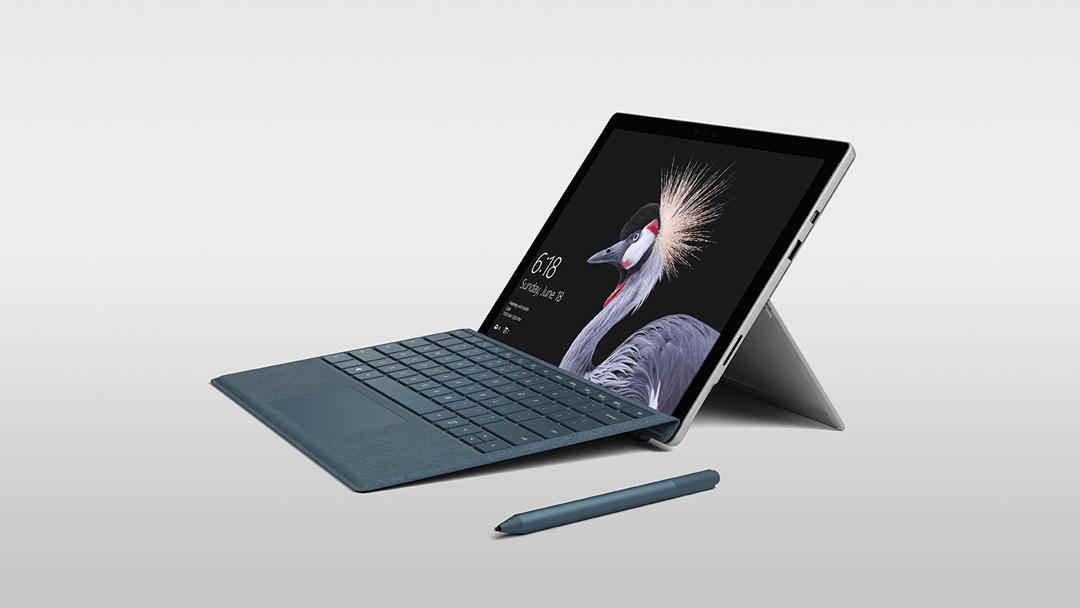
The cold frosts of winter are finally thawing, and what better way to warm up into the new season than with a new Surface? Indeed, you can now save $200 on Surface Pro i5 models and also save on other Surface accessories at the Microsoft Store as part of a spring savings event.

This latest sale brings the price of an Intel Core i5 Surface Pro with 4GB RAM and 128GB SSD down from $999 to $799. It also covers the other Intel Core i5 Surface Pro with 8GB RAM and a 256GB SSD, bringing that price down from $1,299 to $1,099. A visit to the Surface Deals page also shows savings on Certified Refurbished Surface Pro and $800 discounts on the refurbished versions of the original Surface Book.

Surface Pro Deal

Finally, can find some small discounts on Surface-branded accessories, including the Surface Arc Mouse, Microsoft Arc Mouse, Surface Precision Mouse, and Surface Mouse. These are definitely some nice deals, especially since it puts the Core i5 Surface Pro on the same price level as the entry Core m3 Surface Pro, which is definitely not as powerful as the i5 variant. It is also not clear when the sale will end, so as always, it is best to act fast.

Microsoft announces April 3 registration date for Ignite conference

Microsoft today announced registration for their annual Ignite conference will open up on April 3rd. The company promises attendees can learn more about the future of business tech, quantum computing, AI, and more during the September 24-28 event in Orlando, Florida.

Those interested in attending can sign up for event updates now, and get email alerts for when registration opens up on April 3rd. Microsoft points to the following top trends which will likely be discussed at Ignite 2018.

  • Tackling unsolvable problems with quantum computing:  Microsoft is developing a quantum computer, unique cryogenic control plane, and software stack for programming that others can harness for problem-solving.
  • Increasing understanding with AI-assisted language translation: When paired with additional data, a type of AI called long short-term memory for speech recognition can increase the quality of translations significantly. Learn more at Microsoft Ignite.
  • Exploring superpowers with mixed reality: At Microsoft Ignite, we’ll explore how mixed reality is redefining how work gets done. Across a diverse array of industries—manufacturing, architecture and engineering, healthcare, defense, retail, and education

Last year Ignite was also held in Orlando and went on as planned despite the devastation left behind by Hurricane Irma. Ignite was exciting last year as we got an official Office 2019 announcement, and heard more about Windows 10 S devices. As always, we will be bringing you all the news live from Orlando come September, so be sure to keep tuned for more!

Microsoft finally releases a new build for HoloLens, RS4 build 17123

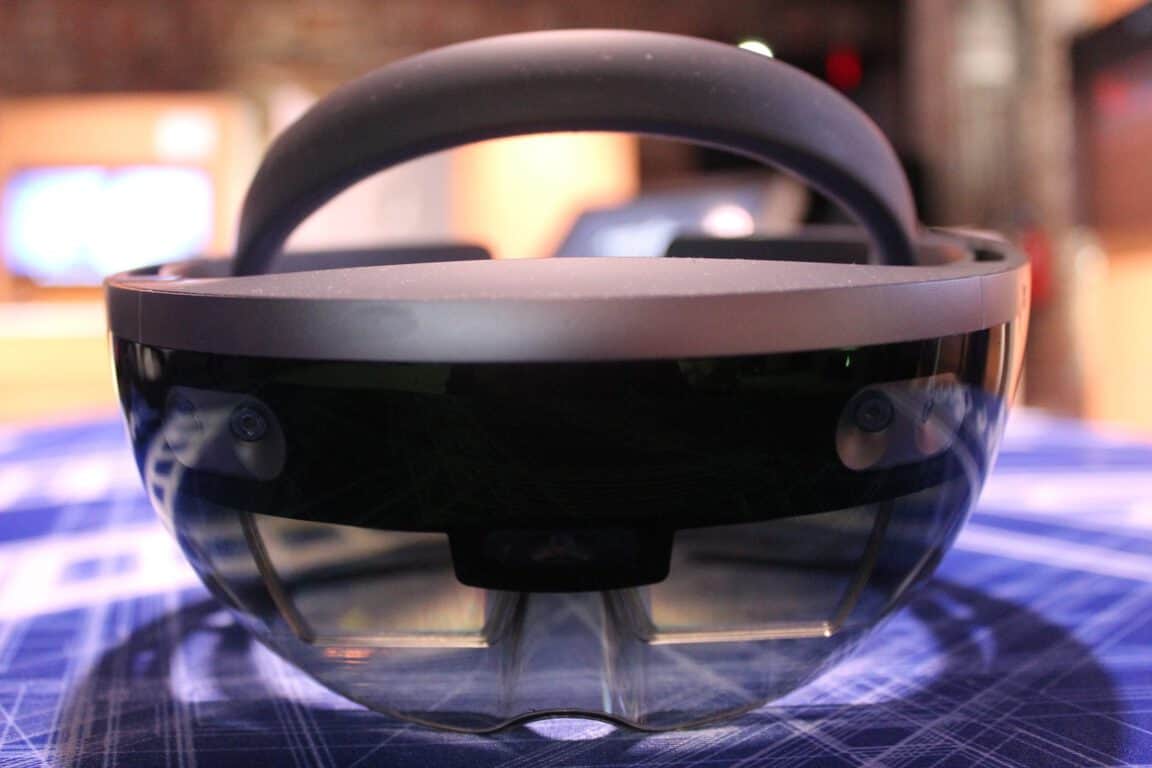
HoloLens last saw a Windows 10 featured update over two years ago with the Anniversary Update, but Microsoft just changed that. Noted on the Windows Mixed Reality Developer Forum (via Windows Central,) HoloLens owners can now install a preview build of the upcoming Windows 10 Redstone 4 update. The preview comes with many new features, including expanded voice command support, expanded audio immersion, the introduction of File Explorer, and more.

Unlike with Windows 10 PC where installing builds is easy as visiting Windows Update, installing preview builds to HoloLens is a bit more complicated. HoloLens owners will need to first opt into preview builds, download the Windows Device Recovery Tool, and then download and flash the Redstone 4 preview build to the headset via the tool. All content from HoloLens will be erased as part of the update, and Microsoft has some more detailed instructions on the update process here.

Anyway, have a look below to see what is generally new with this Redstone 4 build. The full changelog with changes for developers is also available here if you so happen to want to dive into the technical details.

  • Auto-placement of 2D and 3D content on launch
  • Move, resize, and rotate 2D and 3D content without having to enter “Adjust” mode
  • Make a 2D UWP app wider in aspect ratio to see more app content. For example, making the Mail app wide enough to show the Preview Pane
  • You can do more simply using your voice
  • Updated Holograms app with new holograms. Updated Photos app
  • Improved mixed reality capture
  • You can now hear HoloLens better in noisy environments, and experience more lifelike sound from applications as their sound will be obscured by real walls detected by the device
  • You can use the File Explorer app to move and delete files from within HoloLens
  • MTP (Media Transfer Protocol) support Enables your desktop PC to access your libraries (photos, videos, documents) on HoloLens for easy transfer
  • You can now set up your HoloLens on a guest network at hotels, conference centers, retail shops, or businesses that use captive portal

Interestingly, this build is numbered as 17123, which is older than the most recent Redstone 4 Windows 10 PC insider builds. That said, you can expect for Microsoft to work on Feedback from those who have installed this new HoloLens build, and release newer versions soon. Let us know if you’re lucky enough to have a HoloLens and try out this new build by dropping us a comment below.

Watch rapper Desiigner play Far Cry 5 during new Xbox Live Sessions today

Microsoft has announced the next Xbox Live Sessions for today, March 27th, with American rapper Desiigner scheduled to guest star in the interactive livestream show. He will be playing the newly released game, Far Cry 5, starting at 2 PM PT, and you’re invited to watch it on Mixer.

As always, those watching the show will have the chance to submit questions to Desiigner and also try their luck at winning special prizes. Today’s episode will be hosted by Microsoft Studios Community Manager, Rukari Austin, and you can also expect to see Desiigner check out all the new gameplay features in Far Cry 5.

This is the first Xbox Live Sessions in about a month, and the last episode featured Chandler Riggs and Brendan Greene playing PUBG on Xbox One. Previous guests included Patriots star Rob Gronkowski, Modern Family’s Nolan Gould, and Star Wars’ John Boyega. Do you normally watch these star-studded Xbox Live Sessions? Let us know your thoughts in the comments below.

Save big on Assassin’s Creed Unity, Call of Duty: WW2 and more during Microsoft’s Xbox Spring Sale

Microsoft has just kicked off a massive Xbox Spring Sale today, which will end in two weeks on April 9. During that time, everyone can save up to 67% on digital games, while Xbox Live Gold members can save up to 85%. The list of games include many blockbuster games released last year including Assassin’s Creed Unity, Call of Duty:WW2, Star Wars Battlefront II, and more.

We invite you to check the full list of games on Major Nelson’s blog, but We’ve listed some of the most interesting deals below:

Microsoft also announced new Deals with Gold today, but there are only seven Xbox One games in the list including Lords of the Fallen, Hand of Fate and the Xbox Play Anywhere title A Walk in the Dark. All discounts can also be seen on Major Nelson’s blog.

How to Fix Frequent Sea of Thieves Bugs on PC and Xbox

Sea of Thieves is one of the hottest games of the year. This adventure video game is available on both Windows 10 and Xbox consoles and challenges you to become the world’s most feared pirate.

Unfortunately, the gaming experience hasn’t been that smooth for all players. Sea of Thieves is affected by a bevy of bugs, ranging from install issues to low FPS and crashes.

Sea of Thieves reported bugs and possible fixes

1. Players get kicked out of the game

Playing Sea of Thieves and remaining connected is a difficult task in itself. Many players complained about getting disconnected from the game servers and losing all their progress.

i just got like 7 chests and 3 skulls and then i got kicked out of the server and everything that i found is gone, it happens to me every time i play this game like every 30 minutes, can someone please help me i cant progress the game if it will keep on kicking me.. (playing on the pc)

There are several solutions that you can use to fix this problem:

  1. Disable Teredo – Many gamers confirmed that disabling Teredo fixed the problem. As a matter of fact, this is not the first time that users have run into issues with the Teredo Adapter.
  2. Deactivate the IPv6 connection and run on IPv4 only.
  3. Make sure your NAT Type is Open.

2. Game won’t launch/crashes

Many players still can’t play Sea of Thieves because the game crashes on launch.

The game crashed immediately upon launch. At first a grey screen would pop up for a fraction of a second than disappear. After trying all of the fixes (minus the local account fix), nothing worked. I’ve also re-installed the game a dozen times.

The following solutions may help you fix Sea of Thieves crashes:

  1. Install the latest Windows updates, and especially update KB4088776.
  2. Login with a local Microsoft account.
  3. Sign in to the Microsoft Store using the email account linked to the game’s purchase. Now, download any free app from the Store and install it. Launch Sea of Thieves from the Windows 10 Store Library page to see if it works.
  4. Run the following PowerShell command: Get-AppXPackage | Foreach {Add-AppxPackage -DisableDevelopmentMode -Register “$($_.InstallLocation)AppXManifest.xml”}

We hope something works.

3. Players can’t get a second weapon

Having strong weapons at your disposal is essential for staying alive. However, many gamers can only have a sword and they can’t get a second weapon.

Fortunately, you can quickly fix this bug by quitting the game and switching servers. You can also try switching weapons and then put the weapon you like in the first slot.

Another solution is to simply kill your character. But first, go into the armory, and make sure there is a weapon selected on both slots. Then, commit suicide while you still have only one weapon. When you revive, you should have access to both weapons.

Unfortunately, these solutions don’t always work, so the game needs a hotfix for this problem as soon as possible.

4. Game lags

Anyone else have drastic lag issues when boarding their ship? Im fine when on land but on the ship my game is completely unplayable.

If you’re also experiencing game lags, you’re not the only one. This is quite a common problem among gamers and fixing it is a time-consuming task.

To start with, you can try to direct your computer resources to the game by disabling background apps and Game DVR. If the issue persists, check your graphics settings and make sure they are adapted to the game you’re running.

Also, if you installed a VPN software, temporarily disable the tool. Sometimes, VPN tools slow down your Internet connection, so you may also want to try a new VPN and see if this changes anything.

5. Players can’t exit particular views

When I pick up items, raise the anchor, get behind a cannon,etc. I can’t exit the view/drop the items. I’m practically stuck. I’ve restarted my Xbox one x, and tried quitting and rejoining games.

Many SOT players often get stuck in particular game views and they can’t exit to resume playing. Unfortunately, although this is a widespread issue, there is no workaround available. So, the best approach is to simply contact SOT support and report this issue in order to convince the team to prioritize solving this problem.

These are the most common Sea of Thieves issues reported by players. Of course, the list of bugs doesn’t end here, we just listed the most frequent ones. Speaking of which, we recently covered the Alabasterbeard error in Sea of Thieves, so don’t miss our guide on it.

If you encountered other SOT issues, tell us more about your experience in the comments below and we’ll try to find a solution as soon as possible.

Posted in PC

KB4089848 triggers install loops, printing issues and freezes PCs

Judging by the recent update pattern, it seems that Microsoft started rolling out new patches every week, not just on Patch Tuesday. Windows 10 Fall Creators Update KB4089848 is the latest addition.

This update brings a series of bug fixes and improvements, including fixes for credential issues, file transfer errors, several bugs related to Group Policy processing, PDF rendering issues on the Edge browser, and more. You can check out the complete change log on Microsoft’s Support page.

Microsoft listed only one bug on the list of known issues, but user reports suggest otherwise. In this post, we’ll quickly list the most frequent KB4089848 bugs reported by users.

KB4089848 issues

1. Install fails

KB4089848 issues

Well, if you can’t install the latest Windows 10 v1709 patches on your computer, you’re not the only one. Many users are still struggling to install KB4089848 but the download and install process often fails.

On ~3/21/18 I attempted to install a later update: Windows 10 update 2018-3 KB4089848. I was able to download and it did install, but on restart the update still says it is awaiting a restart.

If you can’t install KB4089848, follow the instructions available in these troubleshooting guides to fix the problem:

2. Printing fails

Update KB4089848 also breaks printers. Judging by user reports, it seems that this problem is prevalent for HP printers.

I installed the latest Windows 10 update – KB4089848 […]. The update prevents my HP printer from printing. I deinstalled the update, and my printer started working again. If you are reading this, Microsoft, please correct this promptly.

If the printing issues persist after uninstalling the update, the following guides can help you fix them:

3. Computers suddenly freeze

The first two issues are not that severe, but when your computer regularly freezes after installing the latest updates, you really wish you hadn’t hit the update button.

After installing the update Windows almost freeze (network connections goes to zero, cpu load goes to zero) for 4-5 seconds really often. Everything worked fine before this update

4. KB4089848 clears the update history

Windows 10 v1709 users also complained that this update wipes the entire update history leaving them unable to restore it.

Update installed successfully (verified in Programs and Features); however, since it was installed, all information has been wiped from the installed update history from Windows Update.

5. Other issues

Unfortunately, the list of issues triggered by the latest Windows 10 Fall Creators Update patch doesn’t end here. Other bugs include:

  • The search function in Outlook is broken
  • The application icon in the taskbar is unresponsive
  • The update breaks the Homegroup and undoes all sharing choices for all folders.

As you can see, KB4089848 is pretty buggy. For this reason, many users decided to block the patch from installing hoping that Microsoft will have fixed all these issues by the next Patch Tuesday release.

Use the comment section below to tell us more about your KB4089848 update experience.

RELATED STORIES TO CHECK OUT:

Developers can now sideload custom Linux distributions to the Windows 10 Subsystem for Linux

Microsoft today announced developers can now sideload custom Linux distributions to the Windows 10 Subsystem for Linux (WSL.) The company has open sourced a WSL sample for Linux distribution partners, which now can be found on GitHub.

Microsoft is playing nice with Linux distributions, and says it would like to bring WSL closer to the OSS community. The company hopes that the open source project will help increase community engagement, and bring more Linux distributions to the store. It should be noted, however, that personally created custom packages cannot be distributed through the Microsoft Store unless submitted as a distribution maintainer and approved by Microsoft.

Many popular Linux distributions are already available on the Windows Store as part of the WSL. Just last month, Microsoft added both Kali Linux and Debian Linux to the Store. Developers can visit the Distro Launcher repo to start creating distro packages for WSL today and check here to learn more about the process.

Watch this lucky guy unbox his 24-karat gold-plated Xbox One X

Last month, Microsoft was running a Game Pass promotion where one lucky gamer could have the chance to win a 24-karat gold-plated Xbox One X. Well, the winner has finally come out on the internet, and you can now see him unbox his very special (and very expensive) gold-plated Xbox One X console (via Reddit.)

The winner, who is going by the name of Anthony Stewart, just uploaded the unboxing video to YouTube. He apparently just received the special gold-plated Xbox One X today, after getting an email from 3 weeks ago to inform him that he won. Oddly enough, the email went to his spam box, so he almost missed out on this incredible opportunity.

Microsoft did not publish photos or videos of the special console during the initial promotion, so this is the first time we’ve actually seen it in real life. The box is otherwise standard, but included is a special handwritten note from the Xbox team. You can also tell how shiny the console and controller actually are, and how heavy it appears to be.

This is a pretty cool unboxing video, if not one of the most golden videos on YouTube. It also isn’t the only golden news of the day since Microsoft just announced the French team “Herr Crew” won the Sea of Thieves golden bananas quest. We congratulate Anthony on winning this very special Xbox and invite you to let us know what you think of this console by dropping us a comment below.

Windows 10 now has more than 600 million monthly active users

The growth of Windows 10 seems to have slowed down quite a bit since last year. Last week, Microsoft announced without fanfare that there are now 600 million monthly active devices running Windows 10, which is a new milestone for the company. In case you forgot, Microsoft announced 500M devices almost a year ago during Build 2017, and 400M devices back in September 2016.

As usual, these numbers include PCs, tablets, phones, Xbox One consoles and now Windows Mixed Reality headsets. According to Microsoft’s own telemetry data, 48% of Windows 10 PCs were running Windows 10 in February (it’s 39% for Windows 7).

“With Windows 10 adoption growing and the introduction of S mode, there’s never been a better time to build for Windows and distribute via the Microsoft Store,” the company wrote on the Windows blog. The Redmond giant also shared the following trends about the Microsoft Store:

  • For apps, the “Entertainment” category is the leader in overall percentage of downloads and revenue worldwide.
  • For games, the “Action and adventure” category is the front-runner for overall percentage of revenue and downloads worldwide.
  • For apps, nearly 2/3 of the overall revenue mix on Microsoft Store comes from download-to-own (DTO) products.
  • For games, nearly 2/3 of the overall revenue mix on Microsoft Store comes from add-ons or in-app purchases (IAP).

If you’re interested, you can get official data about Windows usage and Microsoft Store trends on this page. If you regularly look at Steam’s monthly hardware survey, there is a lot of similar data about the most popular screen resolutions, processor CPU cores, VRAM and more, and you can even filter the data by region.

How to Fix Font Bugs in Windows 10/11

Windows 10 is a great operating system, yet from time to time there will be bugs here and there. Some of these bugs are just annoying, while others are more severe. Today, we’re going to explain to you how to fix font bugs in Windows 10.

What kind of Windows 10 font bug issues can I encounter?

Font bugs can be rather annoying, and speaking of font bugs and Windows 10, many users reported the following problems:

  • Windows 10 Arial font corrupted – This is one of the most common font problems that can happen on Windows 10. However, this issue can be easily resolved by using one of our solutions.
  • Reinstall Arial font (Windows 10) – If the Arial font is corrupted, you can quickly fix the problem by reinstalling it. Simply open the font and click the Install button.
  • Fonts missing after Windows update – This is another problem that can occur with Windows 10. To fix this problem, you need to find and remove the problematic update from your PC.
  • Windows 10 fonts are missing/corrupted – This is another relatively common issue with Windows 10 and fonts. If your fonts are corrupted or missing, you need to reinstall them in order to fix this problem.
  • Font is blurry in Windows 10 – Sometimes, your fonts can become blurry. This is an annoying problem, and we already covered how to fix blurry fonts in Windows in one of our older articles, so be sure to check it out for more instructions.

How can I fix font bugs in Windows 10?

1. Check your language settings

  1. Type edit language in Cortana. Then click on option Edit language and keyboard options.
    Reinstall Arial font Windows 10
  2. Find Language option and check what language is set as default.
  3. If you want to set a different language, you can change it by clicking Add a language option.
    Fonts missing after Windows update
  4. Choose your preferred language and click Set as default.

This isn’t the best solution, but it might help if English is not set as your predefined language, so it’s worth checking out.

2. Reinstall the font

If you have upgraded to Windows 10 from Windows 7, it might happen that your font wasn’t installed properly so you need to reinstall it manually.

If this sounds complicated, don’t worry, it’s simpler than it sounds. To do this:

  1. Go to C:WindowsFonts if you did a clean install of Windows 10. If you have upgraded from Windows 7 or Windows 8 you need to go to C:Windows.oldWindowsFonts.
  2. Now you need to find the font that is giving you trouble. In most cases, it’s Arial or Mingliu. Find the font file and open it to preview the font.
    Font Windows 10 blurry
  3. In the preview window click Install on the top right corner and you’ll reinstall the font manually.
    Windows 10 Arial font corrupted
  4. If for some reason these fonts are missing you can always download or copy them from another PC.

You can also install the missing font using the Command Prompt. This method is intended for advanced users, but it’s also faster than the previous method. To install the missing font, just do the following:

  1. Press Windows Key + X to open Win + X menu. Now select Command Prompt (Admin) from the list. If the Command Prompt isn’t available, you can also use PowerShell (Admin).
  2. When Command Prompt opens, enter C:WindowsFontsArial.ttf and press Enter.

    Windows 10 fonts corrupted
  3. The font preview window will now appear. Click on the Install button to install the font.

Keep in mind that you need to repeat these methods for all missing fonts.

As you can see, this method is useful if you’re missing just one or two fonts, but if you’re missing more fonts, you might want to try a different method.

3. Disable scaling on high DPI settings

Sometimes, font bugs are caused by high DPI displays, so the solution is to disable high DPI settings. Do the following:

  1. Right-click the executable file that has font bugs. Select Properties from the context menu.
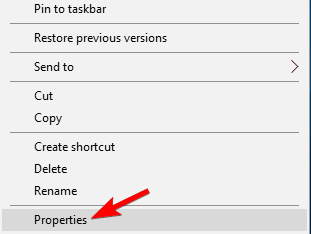
    Font Windows 10 blurry
  2. Then go to the Compatibility tab. Disable Display scaling on high DPI settings and click Apply and OK to save changes.
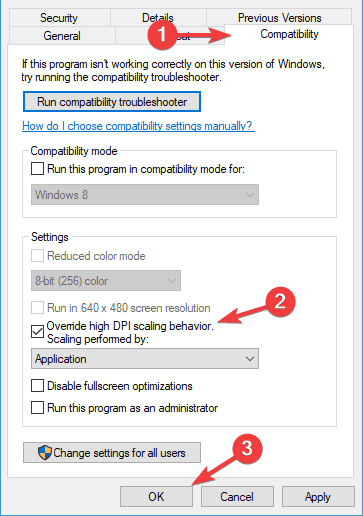
    Windows 10 Arial font corrupted

Save the changes and restart your application to see if the problems were fixed.

We have to warn you that this solution might cause your fonts in the application to be smaller, so you might have to adjust their size manually.

Also, if several applications are giving you problems, you need to repeat this step for each one of them.

4. Modify your registry

If you’re having font bugs on Windows 10, the issue might be caused by your registry. Sometimes certain problems can appear if your registry values aren’t correct, and in order to fix that, you need to change them manually.

To do that, follow these steps:

  1. Press Windows Key + R and enter regedit. Press Enter or click OK.
    Reinstall Arial font Windows 10
  2. Optional: Modifying the registry is potentially dangerous, so in order to avoid any future problems, it’s advised to export your registry and create a backup. To do that, just click on File > Export.
    Fonts missing after Windows updateSet Export range as All and enter the desired file name. Choose a save location and click on Save.
    Windows 10 Arial font corruptedAfter doing that, you’ll have a backup of your registry. If anything goes wrong after making the changes, simply run the exported file to restore your registry to the original state.
  3. In the left pane, navigate to HKEY_LOCAL_MACHINESOFTWAREMicrosoftWindows NTCurrentVersionGRE_Initialize and double click DisableFontBootCache in the left pane.
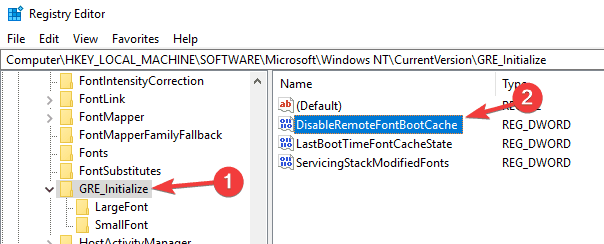
    Font Windows 10 blurry
  4. Set Value data to 1 and click on OK to save changes.
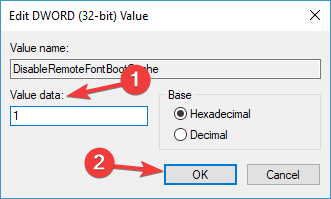
    Windows 10 Arial font corrupted
  5. Close Registry Editor and restart your PC.

After doing that, the problem with fonts should be completely resolved. It’s worth mentioning that using this method might cause a slower boot, so don’t be surprised if your PC is booting slower than usual.

In case you need an easier method that doesn’t require technical knowledge, there is all-in-one repair software with Registry technology to help you fix the issue with Windows 10 font bugs.

5. Remove the problematic update

If you’re having font bugs on your PC, the problem might be related to a specific update. Sometimes an update can cause this problem to appear, and the only way to fix it is to find and remove the problematic update.

This is relatively simple, and you can do it by following these steps:

  1. Open the Settings app and navigate to Update & Security.
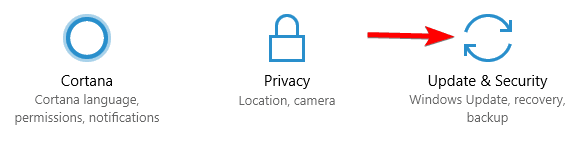
    Fonts missing after Windows update
  2. Now choose View installed update history from the menu on the right.
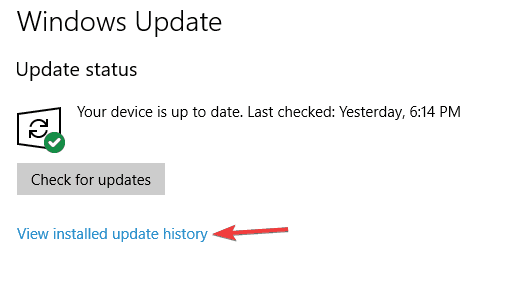
    Windows 10 Arial font corrupted
  3. Select Uninstall updates.
    Reinstall Arial font Windows 10
  4. A list of recent updates will now appear. Double click update to remove it.
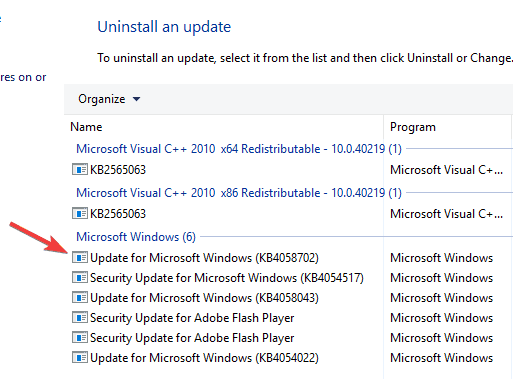
    Fonts missing after Windows update

Once you remove the update, check whether the issue is still there. It’s worth mentioning that Windows 10 will automatically install the missing updates causing the problem to reoccur.

To prevent this update from installing, be sure to check our guide on how to block automatic Windows updates for detailed instructions.

6. Use the FontReg tool to register your fonts

Several users reported that they fixed font bugs on Windows 10 by using the FontReg tool.

This is a freeware application that allows you to install missing fonts on your PC. The application is simple to use, and after using it, the font problems should be completely resolved.

7. Delete FNTCACHE.DAT file

Font bugs can be rather annoying, but users found a useful workaround that you might want to try. According to them, you can fix this problem simply by deleting the FNTCACHE.DAT file.

Windows 10 fonts missing

To do that, just go to C:WindowsSystem32 directory and locate FNTCACHE.DAT. Delete that file, and restart your PC and the problem should be resolved.

Keep in mind that this is just a workaround, so you’ll need to repeat it every time before you turn off or restart your PC.

8. Rebuild the font cache

Sometimes, font bugs can appear due to font cache corruption. To fix that, you need to delete temporary files in order to rebuild your cache. This is rather simple and you can do it by following these steps:

  1. Press Windows Key + R and enter services.msc. Now press Enter or click OK.
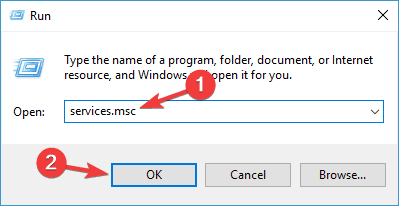
    Windows 10 fonts missing
  2. When the Services window opens, locate Windows Presentation Foundation Font Cache 3.0.0.0 service and stop it. To do that quickly, just right-click the service and choose Stop from the menu. If the service is already stopped, move to the next step.
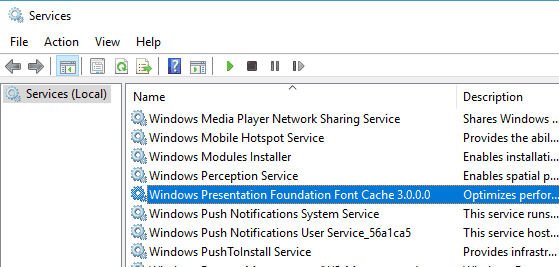
    Font Windows 10 blurry
  3. Press Windows Key + R and enter %windir%ServiceProfilesLocalServiceAppData. Press Enter or click OK. If you get a warning dialog, just click on Continue.
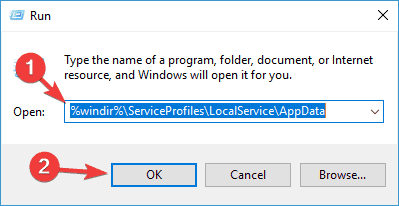
    Windows 10 Arial font corrupted
  4. Navigate to the Local directory. Now locate any files that have ~FontCache- prefix and delete them. If you can find any of these files in the Local directory, go to the FontCache directory. Now delete all files with ~FontCache- prefix.
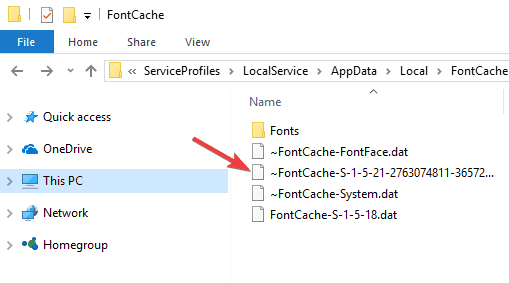
    Reinstall Arial font Windows 10

After deleting these files, the issue should be resolved, and your fonts should start working again. Font bugs can be rather annoying, but you should be able to fix them using one of our solutions.

If you have any other Windows 10-related issues, you can check for the solution in our Windows 10 Fix section.

Sets on Windows 10 could become an excellent time saving multi-tasking feature

With Microsoft recently adding in the Sets feature for all Windows Insiders running Redstone 5 (Skip Ahead) builds, I figured I’d opt my Insider PC into Skip Ahead and try it out for myself. Though obviously still in the development phase, I’ve found that the Sets feature comes with plenty of promise for improving Windows 10 multi-tasking. Have a read below for more on my thoughts on the Sets experience.

Combine your web browsing with your UWPs or PWAs

Some people might see Sets as another way of Microsoft forcing you into using Edge, but for me, it has become the most convenient part of Windows 10. On any given workday, I’m usually working with both Edge and with several UWP apps, with a lot of back and forth to do between the two. Sets changed that workflow.

The Sets feature in Redstone 5 allows me to combine my UWP apps and my web browsing into one single experience. I no longer have to keep pressing ALT+Tab or click on the taskbar to switch between open UWP apps and Edge. I now can enjoy everything I want from a single window, with the following keyboard shortcuts to switch between open tabs.

  • Ctrl + Win + Tab – switch to next tab.
  • Ctrl + Win + Shift + Tab – switch to previous tab.
  • Ctrl + Win + T – open a new tab.
  • Ctrl + Win + W – close current tab.

Though not directly a restore feature, I also can enjoy Sets across devices, since Windows Timeline allows me to restore compatible UWPs when a project has multiple activities associated with it. It is all a bit of a small feature, yes, but it eventually adds up and saves me time in my long work day.

For instance, I usually start my workday by opening the UWP NextGen reader app, then opening Twitter separately in Edge to check on my feeds. Now with Sets, I can open NextGen reader, Twitter, and then the OnMSFT backend right from one window, without having to go back to the Start Menu. It puts all my content front and center, helping me switch between everything and keep an eye on everything I want.

A typical instance of me using Sets

For some, it is hard to (get) Sets

Sets may be great for the Windows pro (like me) but using it currently takes a bit of thinking for those who are not exactly familiar with Windows 10. For instance, one of my colleagues (who happens to be a MacOS user) first tried out the experience, not knowing he could open UWP apps from the new tab page in Sets.

The current problem with Sets is “Search the web and Windows” on the new tab page does not at all suggest that you can open up UWP apps within Sets. And, since it might not always open a new instance of what the app you’re already working on, some might be frustrated with the experience. In fact, some may even argue the tabs feature in MacOS the experience is cleaner, just allowing you to open an instance only of the same app (or an instance of Finder) with no intrusions from Safari. But bear in mind Sets is fueled by Edge, which already powers UWP apps.

Tabs on my MacBook

At the end of the day, Microsoft should update the Sets experience to make it more clear that you CAN open UWP apps from the new tab menu in Sets. A person who has long used Windows 10 (and maybe even Cortana) might know that “search Windows” refers to apps, but the newbie might not. The company could also consider integrating the new tab search bar with the address bar (since having two search bars is a bit messy of a UI.)

A voice search feature and an icon to show you when sound is playing in a tab would also be nice, especially since Cortana and the sound playing icon in Edge are already so integrated with Windows 10. Finally, I also would like to see a more direct restore feature not linked to Windows Timeline, just for those moments when I accidentally close a Set. (Yes, I know the button for this feature is currently present, but I could not get it to work.)

Search the web and Windows is not exactly clear

It is a long way from done

Sets presently is in beta, and it is a far way from being done. It is very limited in this first release, and you can’t do some necessary things like dragging or re-ordering tabs. Switching between tabs is also laggy, and there are flashes when switching between content within a set. Lastly, display scaling creates problems with Sets, and when it is set higher than 100% touch interactions won’t work.

As usual, you can expect for Microsoft to improve the Sets feature over time. Development of Redstone 5 just started, and the function has a long way to go. So if you’re in the Skip Ahead ring, it is best to try out Sets now and let Microsoft know your thoughts by submitting feedback via the Windows 10 Feedback hub.

Cities: Skyline, Robocraft Infinity and six more games come to Xbox Games Pass in April

Microsoft has just announced that eight new games will join Xbox Games Pass in April, including an upcoming ID@Xbox title that will be available in the catalog on the same day its debuts on Xbox One. This one is Robocraft Infinity, an online third-person robot combat game that will officially launch on April 11.

For those unfamiliar, Robocraft Inifinity is a port of the PC game Robocraft, which originally launched back in 2013 on Windows. Developer Freejam Games held an open beta for Xbox insiders a couple of weeks ago, and the robot fighting game will be Xbox One X Enhanced with support for 4K graphics at 60FPS.

The other big game coming to Xbox Games Pass next month is Cities: Skylines, a city-building game which was also released first on Windows. The Xbox One version has been optimized for the Xbox controller it and received positive reviews when it launched last year.

Six other games will join the catalog next month, and these are theHunter: Call of the Wild, Kingdom: New Lands, Portal Knights, ClusterTruck, Sacred Citadel and the live-action crime thriller Late Shift. Xbox Games Pass lets you play more than 100 Xbox One and Xbox 360 games for just $9.99 month, and the inclusion of fresh new releases such as Robocraft Infinity or Sea of Thieves makes the subscription service increasingly interesting. However, games cycle in and out of Game Pass every month, and nine games will leave the catalog at the end of March.