Xbox Insiders on the Alpha ring receive a new build with several fixes

The Xbox Insider team has released a new build for those who are on the Alpha ring. With this build, there’s quite a few fixes (mostly localised fixes) with a large reduction in known issues from the previous builds we’ve seen, showing that we’re getting close to RTM.

Fixes

• Game DVR

Fixed an issue which would cause two notifications to pop (instead of one) when uploading a Game DVR clip or screenshot.

• Localization

Miscellaneous fixes to localized text and content.

• Audio

• Fixed an issue which would sometimes cause audio to stop playing after plugging in a headset.

• Fixed an issue with Dolby Atmos for headphones that would cause audio to stop playing if headphones were plugged in or unplugged while using the Blu-Ray Player app.

• Resolved an issue with Dolby Atmos for headphones where apps would play no audio.

• Blu-Ray Player

Fixed an issue where the Blu-Ray Player app would incorrectly indicate an audio format is not supported, and fail to continue without closing and relaunching the app.

• Games & Apps

Resolved an issue which could sometimes cause newly installed apps to fail to launch, if launched while another app is in use.

• Beam

Pressing X while the virtual keyboard is open should no longer quit the stream.

Known issues

• Game Clips

After capturing a game clip, the game clip fails to automatically post to the Activity Feed (if your profile is configured to do so). Workaround: Manually view game clips in Profile > Captures > Manage captures and post to the Activity Feed.

• EA Access

The EA Access app may indicate you are not an EA Access subscriber when you are. This does not affect your ability to download or play games from the Vault, or receive discounts on EA titles.

• Settings – Ease of Access

When enabling the Mono output setting in Ease of Access – Audio, Settings becomes unresponsive, crashes, and fails to launch on subsequent attempts. Workaround: To launch Settings, perform a hard reset (hold down the button on the front of the console for five seconds until it fully powers down, then power it back on).

• Settings – Display & sound

The Audio output page is under construction and some of the new settings are not yet functional. New support is planned for Dolby Atmos for home theater, Dolby Atmos for headphones, and more in upcoming builds. An announcement will be made when these new features are ready to try out; enabling these settings now will have no effect.

• Wireless Display

The Wireless Display app fails to launch and immediately crashes to Home.

This build will hopefully deliver a smoother experience to Alpha Insiders – and let’s see how quickly those remaining issues will get resolved.

Let us know how your experience with this build is in the comments below!

Seven of the best first-person shooter games for PC

The first-person shooter is one of the biggest Windows and console game genres. Nothing beats the thrill of blasting away hordes of terrorists, soldiers, aliens, zombies or whatever the games throw at you. The best first-person shooters have fantastic 3D graphics, barrel loads of devastating guns, gripping single-player campaigns, pulsating soundtracks and enthralling multiplayer modes where players the world over blast their way to glory in one-on-one or team duels.

These are some of the best ever first-person shooters for Windows.

Half-Life

Half-Life isn’t just one of the greatest first-person shooters: it’s one of the best games ever. Launched in the late ’90s at a time when players were getting a little tired of Doom clones with weak plots, Half-Life revamped the first-person shooter genre. This was the game that propelled Valve in the gaming industry, and the publisher further expanded Half-Life with the Opposing Force, Blue Shift and Decay expansion packs.

Half-Life is a game with an absorbing plot, realistic gameplay, strong narrative and absolutely no cutscenes with the story unfolding through scripted sequences. The game, and the rest of its series, stars scientist Gordon Freeman who sets out to flee the Black Mesa compound in New Mexico after sparking an alien invasion from planet Xen. Aside from blasting away aliens, Freeman also has to deal with U.S. Marines deployed to mop up the outbreak. Half-Life was a tour de force of game design and scooped more than 50 Game of the Year awards.

You can buy Half-Life for $9.99 from Steam. If you’re planning to buy some of the game’s expansion packs, check out GamesDeal’s offer. The platforms offers interesting discounts for Half-Life’s packs.


Half-Life 2

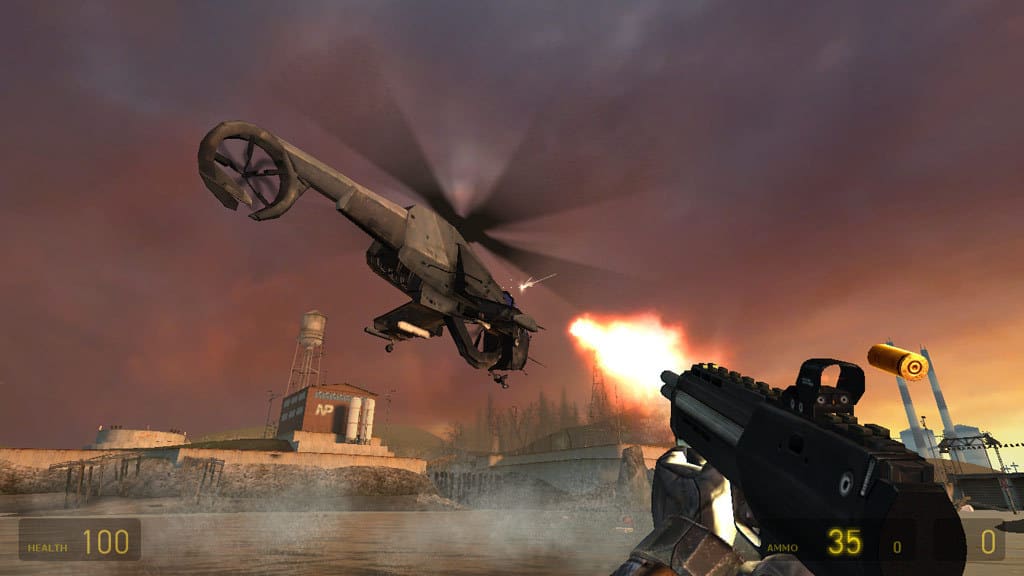
This was the much-anticipated sequel to Half-Life that went through a $40 million development phase before Valve launched it. Valve didn’t rush through a half-baked sequel and delivered a game that was bigger and better than the original with larger environments, enemies and an even more absorbing plot. For many, Half-Life 2 is the best game ever. It was also the first title for Valve’s Steam client. You can add it to Windows from this Steam page.

In Half-Life 2, Freeman takes on the alien Combine that has taken over Earth 20 years after the resonance cascade at Black Mesa. The game is most notable for its advanced Havok physics engine that enables players to draw in objects and push them away with the Gravity Gun. It had advanced graphics, which although not quite photo-realistic still look pretty real. Half-Life 2 also had highly detailed environment designs that are especially memorable. Although the game is a tad dated, its graphical and audio quality still shine. It’s a pity that there’s still no Half-Life 3, and some Valve insiders have hinted the publisher has no plans to expand the series.


Call of Duty 2

Call of Duty is probably the biggest first-person shooter series on Windows and consoles and consists of 13 games. Call of Duty 2 was the second addition to the franchise and this was the blockbuster that really launched the series into the stratosphere. The game regenerates some of World War 2’s most epic battlefields in Russia, France and North Africa with realistic graphics and unsurpassed attention to detail. The game is compatible with Windows and macOS platforms and there’s also a phone version.

Call of Duty: 2 has some of the most gripping campaigns in any COD game because of how it tells the story of WW2 from the perspective of the soldiers. The game featured more expansive battlefields with a variety of mission objectives for less linear gameplay. At its time of launch, Call of Duty: 2 had a revolutionary game engine that enabled the developers to incorporate fantastic weather and graphical smoke effects into the game with dynamic lighting and shadows. The NPC squads that support you throughout the campaigns with realistic battle chatter also contributed to bringing the game to life. With various multiplayer modes to shoot through including tons of guns and maps, COD2 pretty much has all you could hope for from a first-person shooter game.

You can buy Call of Duty 2 for $19.99 from Steam.


Overwatch

Overwatch is a relatively new first-person shooter that made a big splash in 2016. This is a team-based multiplayer shooter set in the near future with a diverse range of hero characters. This is only Blizzard’s second attempt at launching a big game franchise, and the publisher certainly delivered an innovative shooter in Overwatch. The game is available for Windows, PlayStation 4 and Xbox One and retails at $59.99.

Overwatch features 6 vs 6 team duels with 24 heroes to select from that have different roles for offense, defense, support and tank. Players battle it out across 14 unique, colorful and luxuriantly detailed maps that have their own supported game modes for escort, assault, control and hybrid assault/escort combination. The game places greater emphasis on teamwork and has more strategic depth than most first-person shooters. Although Overwatch might have been a little light on features at launch, as a new game it will certainly get bigger and better with further free updates that add more maps, game modes, etc.

You can buy Overwatch for $39.43 from GamesDeal.


Call of Duty 4: Modern Warfare

Call of Duty 4: Modern Warfare dragged the COD franchise from its WW2 setting to modern times and for many fans remains the best game in the series. A 2011 Civil War setting for the COD 4 campaign gave the series a fresh new look and feel with a plethora of more advanced modern-day guns and accessories for players. With its modern setting, the game could also incorporate attack choppers, tactical helicopters, and aerial gunships into the gameplay for the first time, which made it a little more special.

Call of Duty 4’s epic campaign is undoubtedly one of the best in any first-person shooter. The campaign is based on a fictional 2011 Civil War in Russia in which players control both a U.S. Marine and SAS recruit for various operations. The campaign had plenty of thrills and spills on memorable missions such as All Ghillied Up and Charlie Don’t Surf.

Call of Duty 4 also has cinematic sound and graphics with some dazzling special effects. The remastered Call of Duty 4: Modern Warfare, launched last year, has even better graphical quality with enhanced rendering and high-dynamic range lighting and textures. The remastered version’s gameplay is almost exactly the same as the original title, so now you can play Call of Duty 4 with a state-of-the-art graphics engine. The snapshot below highlights just how photo realistic the remastered game is.

You can buy Call of Duty 4: Modern Warfare for $19.18 from GamesDeal.


Team Fortress 2

Team Fortress 2 is a team-based multiplayer first-person shooter that’s a sequel to a Quake mod. After Half-Life, this is another of Valve’s best game titles and delivers terrific multiplayer gaming. Team Fortress 2 is also freely available and you can it add to Windows, Linux or macOS by pressing the Play Game button on this Steam page.

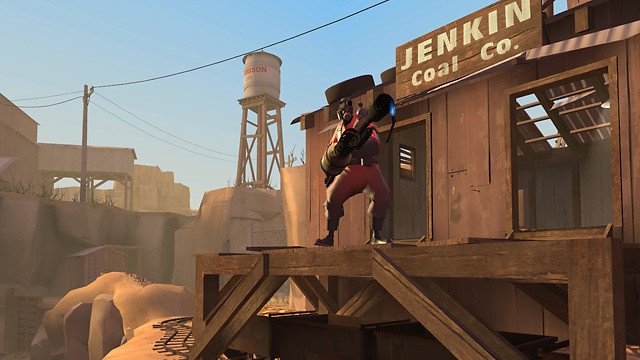
In Team Fortress 2, players can select nine character classes that fall into defense, support and offensive roles. The game includes plenty of game modes for multiplayer battles, such as Capture the Flag, Special Delivery, King of the Hill, Payload, Arena, Control Point, Payload Race and more. This game also has cartoon-style graphics with unique animations and plenty of comical moments. One of the best things about Team Fortress 2 is that it gets regular free updates and patches that keep it fresh. The game has had 609 updates to date that have expanded its content, so TF2 has evolved considerably since Valve first launched it.


Titanfall 2

Titanfall is a very decent multiplayer first-person shooter romp, but it lacks a single-player campaign. Titanfall 2 is a sequel that refines the original game’s winning formula and expands it with a diverse campaign. This was one of the most exciting games of 2016 that you can play on Windows, PlayStation 4 and Xbox One. Standard and Deluxe editions are currently retailing on Origin from £19.99 ($24.30).

Titanfall 2 is a first-person shooter that includes Titans, which are huge mecha-style exoskeletons deployed for war. Players get to control Titan pilot Jack Cooper with and without his BT-7274 Titan armory through the single-player campaign, which is based on a war between the Interstellar Manufacturing Corporation and Frontier Militia. The campaign has plenty of highlights with time travel, space dinosaurs and planet-destroying weapons thrown into the mix for a diverse single-player game. The sequel retains all the terrific movement and combat mechanics from the first game and its multiplayer also includes new Titans, maps and playing modes.

You can buy Titanfall 2 for $26.64 from GamesDeal.


For some heart pumping, action packed first-person blasting, Call of Duty 2 & 4, Half-Life 1 & 2, Titanfall 2, Team Fortress 2 and Overwatch are hard to beat. These are Windows games that raised the bar for first-person shooters with their innovate campaigns, enthralling multiplayer modes, frenetic gameplay and amazing graphics.

RELATED STORIES YOU NEED TO CHECK OUT:

Game developers may be able to add in-game social features with Xbox Clubs API

Microsoft appears to be continuing to enrich its social gaming features through Xbox Live, as leaked developer documentation has shown that Microsoft is working on offering an Xbox Clubs API (Application Programming Interface) to game developers (via Windows Central).

This feature would allow game developers to integrate with Xbox Live to offer deeper social features while in-game, reducing or possibly removing the need to use the Guide and other areas of the Xbox operating system to perform social actions.

Specific details of what developers will have access to via this new API is not available, however, it could prove beneficial to multiplayer and social games, such as allowing Clubs to integrate with in-game clans.

This new feature is expected to arrive in April.

The best context menu tuner software to download

Context menu allows you to perform certain actions quickly and with ease. Using the context menu you can add files to archive, scan them for viruses, burn them to a DVD and much more. The more applications you have on your PC, the more actions will be available in the context menu. However, your context menu can become cluttered with actions that you barely use.

If you want to organize your context menu and remove actions that you don’t use, you might want to use context menu tuner. There are many great context menu tuners available, and today we’re going to show you the best context menu tuner software for Windows 10.

What is the best context menu tuner to download for Windows 10?

Context Menu Tuner

This is a lightweight and simple application that will allow you to customize your context menu. The application is free to use, and since it’s portable, it doesn’t require installation in order to run. According to the developer, the application allows you to add any Ribbon command to the context menu. You can even add Ribbon commands that aren’t available in the Ribbon menu by default.

The application also supports the ability to add custom commands to the context menu. In fact, you can even change title, icon and command line parameters for every new command. You can also add special commands for specific file types, which is rather useful. The application allows you to choose the position of the new command, and you can add it on the top or the bottom of the menu. In addition, you can add a separator in order to separate your custom commands from the default ones.

In fact, you can even make new context menu commands visible only if you press the Shift key on the keyboard. The application has a simple interface, so you won’t have any issues adjusting to it. Simply select the file type that you want to associate with a specific command and click the Add button. You can just as easily remove the added commands.

Context Menu Tuner is a simple application, and it will allow you to add custom actions to your context menu. The application is free and portable, so there’s no reason not to try it. We have to mention that you can’t use this application to change your default context menu, which is our only complaint.

Right Click Context Menu Adder

Another free and portable context menu tuner is Right Click Context Menu Adder. The application has a simple interface, but it’s not as simple to use as our previous entry. First you need to choose what type of file you wish to add. You can choose between applications, folders and web addresses. After doing that, you need to select the desired file or application. If you want, you can also add an icon for your custom action.

In addition, you can choose between three positions while adding your new action, and you can also assign text to it. You can add the new action only to Desktop context menu or you can add it to context menu for both folders and Desktop. If you want, you can only show your custom action by holding the Shift key on the keyboard. Of course, all custom actions can be removed easily from the appropriate tab.

Right Click Context Menu Adder offers great features, but it doesn’t allow you to quickly add common actions to the context menu. This makes the customization of context menu a bit harder since you have to manually find the desired application on your PC. This is still a great application for context menu customization, but it might take you a bit until you adjust to it.

ShellMenuView and ShellExView

If you’re looking for a lightweight but powerful application to customize your context menu, you might be interested in ShellMenuView or ShellExView. ShellMenuView can show you the list of static menu items that appear in the context menu. Using this tool you can simply disable any action from appearing in the context menu.

Context menu also has some actions related to third-party applications. If you want to remove those actions from the context menu, you’ll need to use ShellExVew tool. The tool has a simple interface, and you can disable actions from context menus with ease.

We have to mention that both these applications are portable and free to use. As a result, you can use them on any PC without installation. In addition, the applications are compatible with older versions of Windows, and according to the developer, they can even work on Windows 98.

We have to mention that these tools are made for advanced users. In addition, the applications only allow you to disable actions, so you won’t be able to add any new actions to the context menu. If you’re an advanced user and you want to disable certain actions from appearing in your context menu, be sure to try these applications out.

Context Menu Editor

This is another free and portable context menu tuner. Context Menu Editor allows you to easily add any application or web page to the context menu. The application is simple to use, and you just need to select the application or website that you want to add and choose its icon and text. If you want, you can choose to show custom actions only if you hold the Shift key while opening the context menu.

The application allows you to see and remove all added actions with a single click. In addition, you can also see the basic information regarding your PC right from this application. Context Menu Editor is a simple and lightweight application, and you can use it to add all sorts of applications or websites to your context menu. The application requires administrative privileges in order to work, so be sure to run it as an administrator.

Right-Click Extender

If you’re looking for a simple context menu tuner, you might want to check Right-Click Extender. The application has a simple interface, and it allows you to add actions to context menu with ease. Simply select one of the four categories on the top, and check the actions that you want to add to context menu.

Regarding the available actions, you can take ownership over a folder, hide it, open certain applications or even restart or turn off your PC. The application offers more than 30 actions to choose from, which should be more than enough for most users.

In addition, the application allows you to add icons for actions. You can also make your custom actions available only while holding the Shift key. Right-Click Extender is simple to use, but we have to notice that it doesn’t allow you to add custom applications to the context menu. Overall, if you want a simple tool to customize your context menu, Right-Click Extender might be just what you need.

Easy Context Menu

Another freeware context menu tuner that you can try is Easy Context Menu. The application has a simple interface with five lists that allow you to choose actions that you want to add. To add an action, simply select it and it will be added to the context menu.

Regarding the available actions, you can open all sorts of system tools, turn off or lock your PC, open Command Prompt or permanently delete or block access to certain folders or files. The application has more than 30 actions available. In addition, you can add your own custom applications and create new lists by using the List Editor feature. The application also has ContextMenu Cleaner that allows you to disable certain entries from the context menu.

Easy Context Menu is simple to use, and thanks to its user-friendly interface, it will be perfect for first time users. The application also offers some degree of customization with the ability to add third-party applications to the context menu. In addition to being free, the application is also portable, and it can run on any PC without installation.

Ultimate Windows Context Menu Customizer

If you want to customize your context menu, you can do that with this simple application. Adding actions to context menu is simple, and first you need to select context menu location. After doing that, you can see the available items in the context menu. To add an action, simply select one from the menu on the right.

You can add various system applications such as Notepad, Registry Editor, System Restore, etc. In addition, you can also add various commands. The list of commands includes sleep, lock, shut down, hibernate, take ownership and many other commands. In addition, you can also add custom applications and commands using this tool. You can customize each custom entry with unique text or icon. If needed, you can make your own actions available only if you hold the Shift key.

Ultimate Windows Context Menu Customizer is a solid context menu tuner. The application is simple to use, and since it’s completely free and portable, there’s no reason not to try it.

Right Click Enhancer

Modifying your context menu isn’t hard if you have the appropriate context menu tuner. Right Click Enhancer allows you to add popular actions to your context menu with ease. Some of available actions are take ownership, encrypt, open Command Prompt, etc. There are about 20 different actions that you can add to your context menu. The application also has File Types Editor that allows you to associate applications with certain extensions.

Right Click Enhancer also has an ability to change Send to menu, thus allowing you to add new folders or applications to it. Using this tool you can also add new options to the New submenu. This is especially useful if you want to create a specific type of file right from the context menu.

This tool also allows you to export your settings to a registry file so you can apply them on any PC. We have to mention that there’s also a Professional version available. The Professional version has the ability to create submenus and it also allows you to disable or remove entries from context menu.

Right Click Enhancer is a great context menu tuner, and you can download it for free. We also have to mention that there’s a portable version available, so you can run this application on any PC without installation.

FileMenu Tools

Another solid context menu tuner is FileMenu Tools. The application comes with the list of actions that you can add to the context menu. Available commands allow you to open Command Prompt, delete or shred files, duplicate and move files, etc. There are about 30 different commands available, and you can also add your own commands from the menu on the left. In addition to new commands, you can also add submenus and separators. By doing so, you can easily organize your context menu.

It’s worth mentioning that the application also allows you to test your commands before adding them to the context menu. Using FileMenu Tools you can also edit Send To menu. You can remove entries from the menu or add new folders and applications to it. Lastly, you can disable or enable commands of other applications using this tool.

FileMenu Tools offers solid features, so it’s a great tool for every user that wants to customize context menus. The application is free, but there’s also a premium version available. The premium version allows you to use custom commands, and it also supports unlimited number of files and folders. In comparison, the free version only lets you use context menu commands with up to 20 files or folders. Despite these limitations, FileMenu Tools is still a great tool, and you can download it for free. There’s also a portable version available, which means that you can use this application on any PC without installation.

Open++

Open++ is another free context menu tuner. Using the application you can add new commands to the context menu. Open++ doesn’t allow you to add actions and applications quickly, so you’ll have to add them manually.

We have to admit that adding applications and commands to the context menu isn’t the simplest task. As a result, some users might struggle while adding new entries to the context menu. Regarding new commands, you can set title, arguments, icon and file types for each new command. If needed, you can also add separators.

All your commands are located in Open++ submenu so they won’t clutter your context menu. If needed, you can enable or disable Open++ submenu at any time right from the application. Open++ is a simple application, but we have to admit that adding new commands can be a bit tricky, especially for new users. If you’re an advanced user and you’re looking for a tool to customize your context menu, you might want to check Open++. We have to mention that the application is completely free and portable, so it should work on any PC.

QwikTulz

Another simple context menu tuner that you might want to check out is QwikTulz. The application offers several actions to choose from. To enable a certain action, you just need to select it from the list. Using these actions you can instantly open Command Prompt or File Explorer, create a new folder or open a file in Notepad or any other text editor. In addition, you can also view MD5 Hash, convert files to ISO, or copy the path to clipboard.

In addition, you can also convert certain files or use command line options with those files. The application has a simple interface, and even the basic users should be able to use it. Unfortunately, the application doesn’t allow you to add custom actions or applications.

QwikTulz is a simple application, and it will be perfect for basic users due to its simplicity. The application is free to use, so if you want to enhance your context menu with new features, you might want to try this application.

CCleaner

One of the best tools to remove unnecessary files is probably CCleaner. The application allows you to remove browsing history, temporary files, junk files, etc. In addition to removing files, CCleaner has several hidden features. For example, you can use CCleaner as a startup manager, but you can also use it to remove certain context menu items. CCleaner will show you all context menu entries along with the application names and their installation directories. You can easily disable certain entries from the list, or you can permanently delete them.

Before deleting any entries, we have to mention that CCleaner doesn’t allow you to add new entries. Therefore, we strongly advise that you use the disable option instead of delete option. It’s worth mentioning that you’ll see changes in real time, so there’s no need to save your configuration in order to apply changes.

CCleaner is a great tool for removing old files, and the option to customize context menu is a welcome addition. This feature offers basic options, and since it’s simple to use, even the most basic users won’t have any issues with it. CCleaner is available for free, and you can even download the portable version.

MenuMaid

Another free context menu tuner is MenuMaid. This application allows you to organize your Internet Explorer and File Explorer context menu. We have to mention that MenuMaid doesn’t allow you to add new actions to the context menu, and that’s its only flaw. On the other hand, the application allows you to disable certain elements from the context menu.

All entries are sorted into groups, and you can easily disable certain entries only for folders or files. Disabling an entry is simple, and you just need to uncheck the checkbox next to it. MenuMaid will show you the name of the application, but it won’t show the title of the entry or any other information.

The application will apply changes in real time which makes the customization process a lot simpler. MenuMaid is a simple and free application, so it will be perfect for first-time users.

Glary Utilities

Another tool that can help you edit your context menu is Glary Utilities. This is a bundle of useful tools that can optimize your PC and fix all sorts of problems. The tool will automatically fix some minor PC problems and scan your PC for issues. However, if you’re an advanced user, you probably want to explore Advanced Tools section. The application allows you to defrag your hard drive and to organize your startup items. In addition, there’s support for file encryption, restoration and file shredding. This application can also analyze your hard drive or split large files. The application also works as a cleaner, and it can clean your disk and uninstall certain applications. Glary Utilities also has a useful ability that allows you to edit your context menu.

We have to mention that Glary Utilities doesn’t allow you to add new items to the context menu, which is its biggest flaw. All context menu entries created by third-party applications will be listed, and you can disable them with a single click. The application will apply changes in real-time, so you won’t have to save changes manually. You can also completely remove entries from the context menu, but since there’s no way to add new entries, we suggest that you don’t use this feature.

It’s worth mentioning that you can also disable entries from New and Send To submenus. However, there’s no way to add new entries to these menus. Glary Utilities offers some useful features that can optimize your PC and fix certain problems. Context menu editing feature is useful, but unfortunately it doesn’t offer the ability to add new entries, which is our only complaint. Glary Utilities is completely free for personal use, and there’s even a portable version available, so you might want to try it out.

Fast Explorer

Fast Explorer is a freeware context menu tuner for your PC. The application allows you to add new entries to your context menu with ease. To add an application to the context menu, simply select it and configure its parameters. The application also allows you to create submenu items. This includes separators and submenus. In addition, you can also add icons to your entries. If needed, you can even change the color of the submenu.

Fast Explorer also has Static Items Cleanup feature. This feature allows you to disable context menu items for certain file types. This is an advanced option, and although it’s useful, it might be a bit daunting to new users. There’s also a Shell Extensions Cleanup feature that can help you remove certain context menu items.

Fast Explorer is a powerful tool, but it might not be suitable for novice users. The application is completely free, and since it’s portable, it will work on any PC without installation.

ContextEdit

Another context menu tuner that you might want to try is ContextEdit. The application has a humble user interface, but it will allow you to remove context menu items. In addition, you can also add context menu items and commands using this tool.

The application is split into two panes, and you use the left pane to select the desired file type. As for the right pane, you can use it to disable context menu items or to add new ones. We have to mention that ContextEdit doesn’t have the list of actions or commands available. This means that you have to add each new command manually, which might not be easy for first-time users.

ContextEdit is a solid application, but with its plain user interface and complexity it might not be the best choice for novice users. The application is completely free to use, so you can download and use it without any restrictions.

Default Programs Editor

This is another free and portable application that allows you to customize your context menu. Default Programs Editor allows you to change Autoplay settings as well as Default Programs. Using this application you can easily add new Autoplay options for different media types. In addition, you can associate extensions with desired applications.

These are useful features, but Default Programs Editor also allows you to edit your context menu. Unlike other applications on our list, Default Programs Editor allows you to edit context menu only for specific file types. If you want, you can edit or delete your default context menu commands for a specific file type. Adding new commands for specific file types is relatively simple. Just select the desired application and choose a command name and icon.

After making the changes, you can save them to the registry or as a .reg file. Default Programs Editor is a solid application that allows you to change default applications and Autoplay settings. Regarding the context menu, you can only change how context menu looks for specific file types. If you’re looking for more advanced context menu editing, you might want to consider some other application from our list.

Context Menu Manager

If you’re an advanced user, and you’re looking for a powerful context menu tuner, you might want to check out this application. The application allows you to manage file associations, but you can also add additional menus or remove submenus. Using this tool you can also modify Open with submenu. This makes it easier for you to open files with specific applications.

We also have to mention that Context Menu Manager allows you to remove unused items from your context menu. We have to admit that user interface is hard to get used to, especially if you’re a first-time user. Context Menu Manager is a great application, but with its complex user interface it will be appealing only to advanced users. Although this application is portable, it’s not available for free. However, you can download and use the free trial version for 22 days.

Modifying the context menu is a simple task, if you have the proper software. Most context menu tuners from our list are free and portable, so we highly recommend that you try them out.

READ ALSO:

Here’s how to list recently opened files and programs in Windows

There is a native feature of Windows that currently allows users to list recently opened files called Windows Search and helps you locate the files you want to be included in that list.

The OS already keeps a roster of recently opened files for quick access, a process that’s more straightforward compared to manually scanning the Registry to find the information. This feature, however, limits results to the last three recently opened files.

While this can be enough, you may want to list more than three files or programs at times. But if three files are enough, there’s no need to download and install third-party programs.

Windows Search works pretty quick and easy. Click on the Windows key and type the program name you want to list. For example, you can type Photoshop in the search box and the program will be included in the recent listing results.

By clicking on the programs included in the recent listing, you can immediately launch the files in one fell swoop. Keep in mind, however, that you can open a file only if it still exists. That means you will not be able to launch a file if it has been removed or altered. This is also the case when a network share or drive is no longer available the moment you try to open the file in question.

Have you located the feature yet? Share your thoughts in the comments.

RELATED STORIES YOU NEED TO CHECK OUT:

Installing Windows 10 on 5400 RPM drives is a bad idea

According to many Windows 10 users, the end of the 5400 RPM drive era is here. Microsoft’s latest OS is too disk intensive for the slow read and write speed of the 5400 HDD. Despite various tweaks and settings changes, somehow the 5400 RPM drive and Windows 10 combo doesn’t offer satisfying results.

As one Windows 10 user points out, computer manufacturers still offer the 5400 as the base for both the consumer and business computer models. However, its limitations are now becoming more obvious.

It feels like the end of an era. Windows 10 is forcing HDDs to be demoted to storage, not OS. This just hasn’t seemed to happen in years. […] There have been instances that push hardware, but the machines still function.[…]

Here, you can’t work at speeds that people are used to working. I guess it is just my experience, but the average to advanced customer can’t perform at a reasonable speed like they could previously. And honestly, I have stopped recommending or allow the purchase of 7200 HDDs in desktops: unless the desktop has tons of RAM and a super fast CPU.

Goodbye HDDs. It has been a long, long relationship. We can still be friends though: data friends, with no benefits.

5400 RPM hard drives are no longer suitable for users who need to access data quickly. Moreover, many users report that Windows 10 often uses 100% of the disk on 5400 RPM hard drives, slowing down all the apps and programs.

However, they do offer a series of advantages. For example, a 5400 RPM laptop consumes less power, resulting in better battery life and less heat.

The fact that 5400 RPM hard drives are slow on Windows 10 has forced many users to stick to their existing OS. They perceive this limitation as another argument against Microsoft’s Windows 10 upgrade invitation.

Another reason to not upgrade my 5400RPM laptop to Windows 10. The list keeps on getting bigger

What do you think? Has the end come for Windows 10 on 5400 RPM drives?

RELATED STORIES YOU NEED TO CHECK OUT:

Windows 10 KB4013418 breaks computers [FIX]

Microsoft didn’t miss this month’s Patch Tuesday edition and rolled out a series of updates to all the supported Windows OS versions. It appears that Windows 7 received the most stable updates, as there are very few bug reports regarding KB4012212 and KB4012215.

On the other hand, many Windows 10 users have complained about various technical issues especially after installing KB4013429. Unfortunately, recent reports have revealed that this is not the only update causing major issues.

It appears that Windows 10 KB4013418 is another update that can potentially break users’ computers. Many users report that their devices have been severely crippled after installing the update. More specifically, many apps and programs won’t work at all.

The worst part is that most troubleshooting actions, such as enabling safe mode or using a restore point, fail to fix the problem. Moreover, users can’t even uninstall the update.

I installed March 14th windows updates this morning, and for the most part, my computer does not work. Chrome opens, most programs do not i.e. start menu, steam, control panel, you name it. I went to uninstall the updates but cannot. I went into safe mode -> settings -> security and updates, but that instantly closes when I click it. Control panel, programs, updates (am able to reach the updates this way, however i am not able to uninstall the updates from March 14th. Not only can i not uninstall them, system restore and rollback build does not work.

Other issues caused by KB4013418 include:

  • High CPU usage from DCOM service host.
  • Many programs are brought to a crawl: e.g. Steam takes 15 minutes to install a 90MB update.
  • BSOD issues.
  • The Ethernet connection won’t work.

Fix: Windows 10 KB4013418 bugs

Many users agree that KB4013418 corrupts the user profile, and this is the root-cause of all the issues they’ve encountered after installing the update.

To fix all the annoying KB4013418-related issues, create a new user profile as admin and then simply transfer the essential files to the new profile. Once you’ve done this, delete the corrupted profile.

If you’ve come across other solutions to fix the issues caused by the latest Windows 10 updates, feel free to list the troubleshooting steps in the comment section below.

RELATED STORIES YOU NEED TO CHECK OUT:

OneDrive app for Windows 10 now available on Xbox One

While the original OneDrive app on the Xbox One was limited to a simplistic photo and video viewer, that has now changed. Microsoft has brought the UWP version of the OneDrive app to the Xbox One following the Skype Preview app release. That means users of Xbox One can now view and edit files on the console. The new OneDrive app comes with a few changes to make up for the Xbox One UI, offering a genuine Windows 10 or Windows 10 Mobile experience to users. However, the app is currently not able to open PDF documents.

Changelog

The app’s change log indicates:

  • You can now access all your OneDrive files on Xbox, not just your photos and videos. Check out the new OneDrive on Xbox to view and change your files.
  • Do you want to view only your photos and videos? The Photos app on Xbox is the best way to see all of your OneDrive photos and videos on the big screen.
  • Enjoy the improvements to camera upload
  • Bug fixes

Features

The app’s Windows Store listing adds:

Do more wherever you go with Microsoft OneDrive. Get to and share your documents, photos, and other files from your Windows 10 phone, computer (PC or Mac), and any other devices you use. Use the Office mobile apps to stay productive and work together, no matter where you are. The OneDrive app for Windows 10 lets you easily work with your personal and work files when you’re on the go.

  • Save and share files with free online storage.
  • Quickly open and save OneDrive files in Office apps like Word, Excel, PowerPoint, and OneNote.
  • Easily find photos thanks to automatic tagging.
  • Share albums of your favorite photos and videos.

Note: For you to sign in to OneDrive for Business, your organization needs to have a qualifying SharePoint Online or Office 365 business subscription plan. You can’t sign in with an account from an on-premises directory.

You will now see the new version of the app in your “ready to install” list instead of having to visit the Xbox One Marketplace to get the app, the usual case for new apps that come to the Xbox One.

You can now edit in Google Docs and publish in WordPress

Google Docs is one of the most popular real-time, cloud-based collaboration tools used. For content management, WordPress has been the dominant CMS tool. However, WordPress previously prevented users from editing together with colleagues. Also, the tool required users to manually transfer text from a word processor to the CMS. Now, that practice has changed with the release of a new WordPress.com add-on for Chrome that lets users write, edit, and collaborate in Google Docs before publishing a draft.

How it works

For writers and bloggers who use WordPress to publish stories, the tool should come in handy thanks to the integration of Google Docs’ formatting options in the CMS tool. WordPress’s George Hotelling how the add-on works:

  • To get started, just go to the Google Web Store page and click to install it.
  • You will be prompted to give our plugin access to post on your behalf, and then you are ready to write.
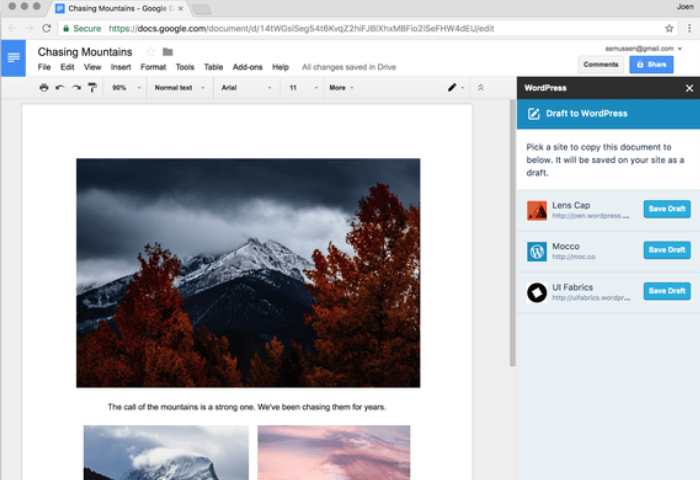
  • When you’re ready to save a Google Docs draft as a blog post, go to the Add-ons menu and open WordPress.com for Google Docs. A sidebar will appear where you can add WordPress.com or Jetpack-connected sites.
  • Click the Save Draft button — when it’s saved, a preview link will appear so you can see how it looks on your site. Edit the post in WordPress.com to make any small tweaks, then hit publish when you’re ready to go live!

The add-on is available for any WordPress.org website equipped with the Jetpack plugin. For site administrators, it comes with a sidebar where you can monitor all authorized sites and collaborators. The add-on generates a preview link for a draft once you save a piece. This lets you check how your draft appears online when published.

Automattic, the parent company of WordPress, has open-sourced the add-on on GitHub where the code for the tool is available to browse.

Microsoft quietly adds option to turn off Sender Pictures in Windows 10 Outlook Mail app

A couple of weeks ago, Microsoft updated its Outlook Mail and Calendar on Windows 10 devices to add contact icons that show up next to all your emails. While the new addition brings some consistency with the Windows 10 Messaging app, it seems Microsoft received some negative feedback about it.

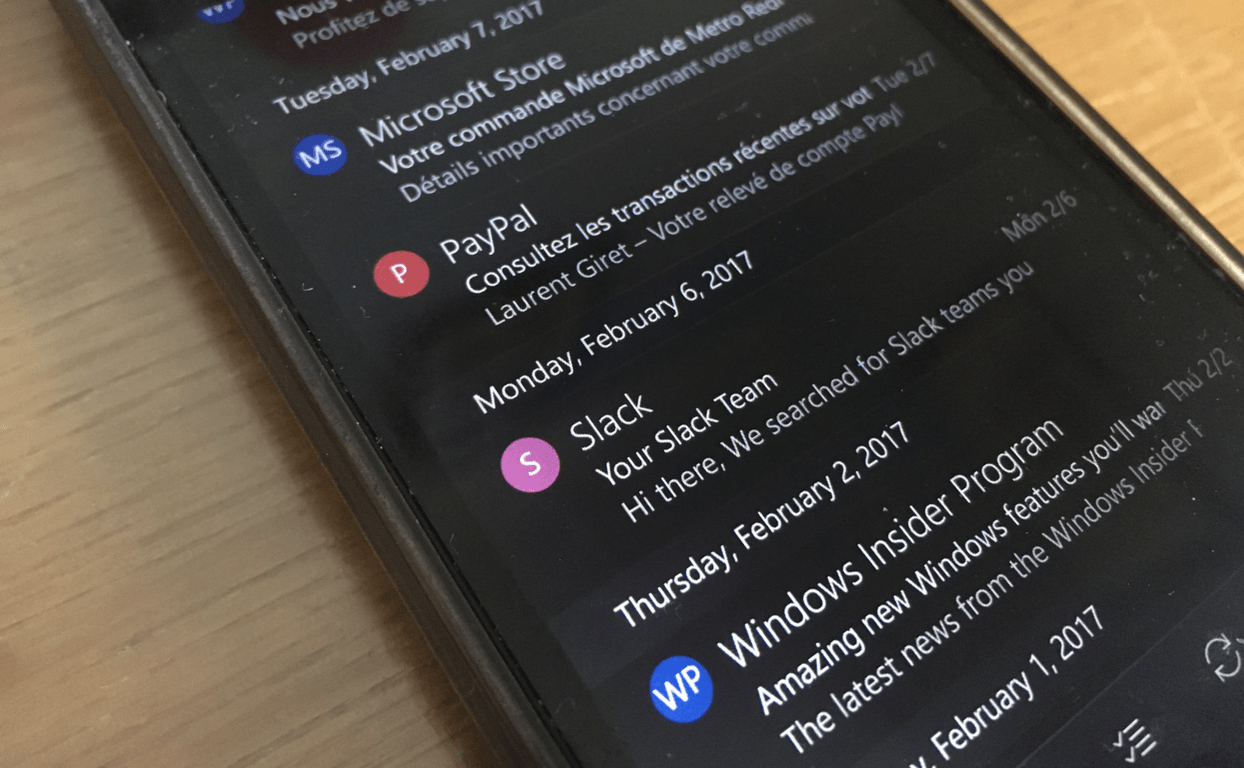
As a result, Microsoft has quietly added an option to remove the contact icons in a new update which is now rolling out to Slow Ring Insiders. The new setting was first spotted by Reddit user screenspots, and you can see it in the screenshot below (via Windows Central).

The new update will let you toggle contact pictures off.

After installing the update, you can turn off contact pictures in Settings > Reading > Conversation. This is a welcome change, as the colored contact icons (when your contacts don’t have a profile picture) don’t look that good and can be a distraction. The new version should roll out to everyone in the coming weeks, and it’s good to see that Microsoft is listening to feedback.

Minecraft: Windows 10 Edition is over 60% off at $9.99, get it now

If you want to play Minecraft on your Windows 10 PC, you can now take advantage of a 60% discount on Minecraft: Windows 10 Edition on the Windows Store. The game will be a $9.99 purchase until May 5, which is really affordable for a sandbox games that you can spend a lot of hours on.

Compared to the “legacy” Java version of the game, you may know that the Windows 10 version is less full-featured: first of all, it doesn’t support worlds/saves from the Java version, and you also can’t use third-party mods with it. However, the Windows 10 version supports Xbox Live sign in and achievements, add-ons, Minecraft Realms and cross-platform play with Minecraft: Pocket Edition.

You can get Minecraft: Windows 10 Edition from the download link below. If you want to learn more about Minecraft and which edition of the game is right for you, we also invite you to check our recent in-depth overview.

(via MSPU )

Minecraft for Windows
Developer:
Microsoft Studios
Price:
Free


Xbox Game Pass Alpha Preview will be closing on April 7

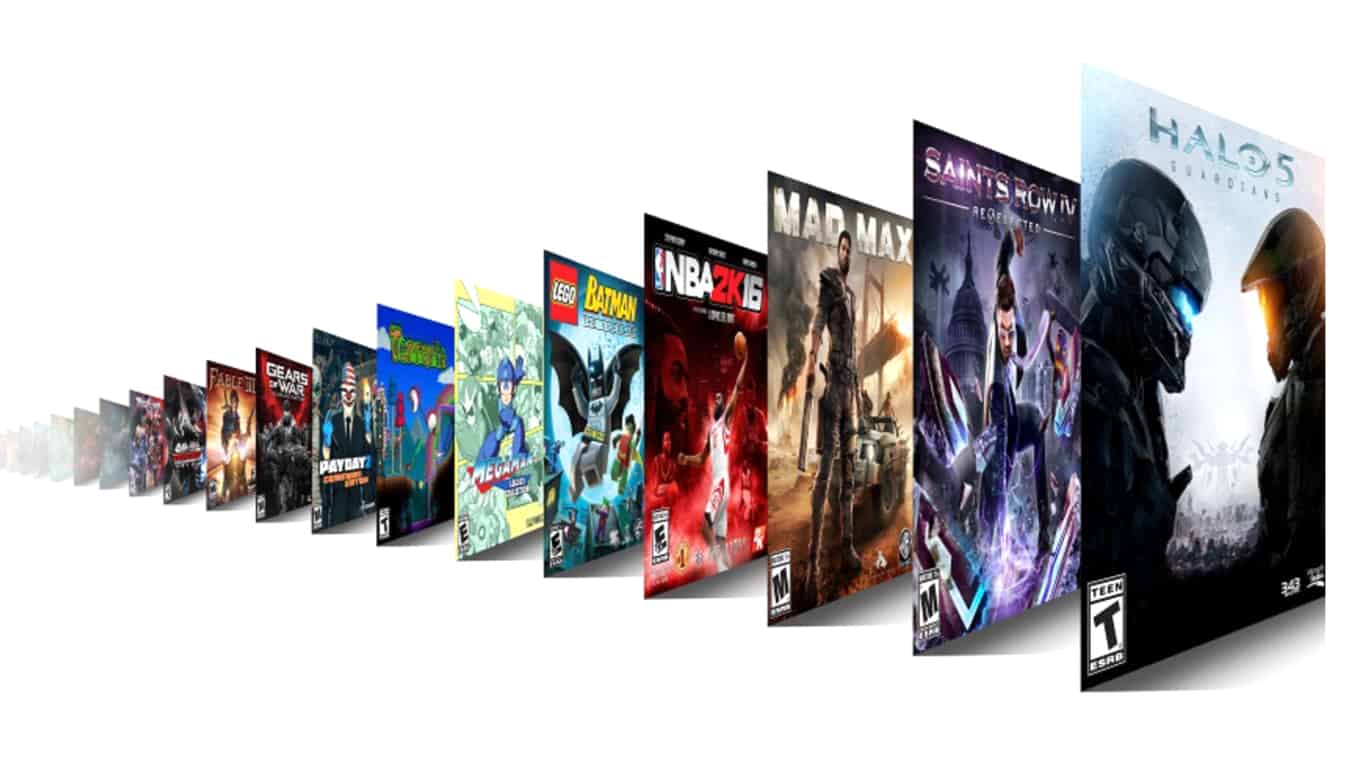
Two weeks ago, the Xbox team launched the Xbox Game Pass, a new gaming subscription service that gives Xbox enthusiasts access to a catalog of Xbox One and Xbox 360 games for $9.99 per month. Select Xbox Insiders on the Preview Alpha ring can currently try the service for free before it becomes available to everyone later this spring, but it seems that the preview period will soon come to an end.

If you’ve been invited to try the service on your Xbox One, a new message in the Xbox Insider Hub is now telling users that the free preview will end on April 7 (via Windows Central):

Thank you for participating in the Xbox Game Pass Alpha Preview. Your feedback has been invaluable and will make the service better for all gamers. We will be closing Preview on April 7 in order to make our final tweaks and updates. But don’t worry, we’re getting close to launch and Xbox Game Pass will be available for all gamers later this Spring.

Microsoft has yet to reveal when the Xbox Game Pass will be generally available, but the company also announced that Xbox Live Gold subscribers would be invited to test the service ahead of launch. The Xbox team also clarified that Xbox Game Pass won’t replace the Games with Gold program, which gives Xbox Live Gold subscribers two Xbox One games and two Xbox 360 games for free each month.

Perhaps, in an effort of cross promotion, Game Pass members seeking to play online multiplayer games in the catalog will need to also have Xbox Live Gold accounts. For most looking to take advantage of Game Pass, the subscription to Xbox Live Gold may feel like a no-brainer.

Microsoft might start blocking Windows 7/8.1 updates for 7th gen CPUs soon

Last year, Microsoft announced that 7th gen CPUs from Intel and AMD would only be officially supported on Windows 10, with future processors to specifically require the latest operating system for Redmond. This came after Microsoft changed its support policy for 6th gen Skylake processors for Windows 7 and 8.1 PCs, which will now receive critical security updates until 2020 and 2023, respectively.

However, while it’s still possible to run Windows 7 or Windows 8.1 on a PC with the latest processors from Intel and AMD (you just won’t have optimized drivers for the new processors), a recent support article from Microsoft suggests that Windows Update will soon be blocked on those systems (via Ars Technica). Indeed, the company explains in the article that these users will see an error message saying that “your PC uses a processor that isn’t supported on this version of Windows  and you won’t receive updates.” Here is what the support page says about the cause of the error:

This error occurs because new processor generations require the latest Windows version for support. For example, Windows 10 is the only Windows version that is supported on the following processor generations:

  • Intel seventh (7th)-generation processors
  • AMD “Bristol Ridge”
  • Qualcomm “8996″

Because of how this support policy is implemented, Windows 8.1 and Windows 7 devices that have a seventh generation or a later generation processor may no longer be able to scan or download updates through Windows Update or Microsoft Update.

It’s still not clear yet if Microsoft has already started to enforce this policy, but it’s clear that Windows 10 will soon be the only way to go if you have a PC with a 7th gen processor. Not only will you have better performance and reliability thanks to official drivers, but you’ll be guaranteed to receive all security fixes and major Windows 10 updates such as the upcoming Creators Update.

Will you be affected by this new support policy, and do you think it could push Windows 10 adoption going forward? Let us know in the comments if you think Microsoft is doing the right thing.

Classic Neo Geo video game Sengoku comes to Xbox One

The latest Neo Geo video game to relaunch on Microsoft’s Xbox One video game console is here and it’s one that many 90s gamers might remember. Called Sengoku, this game is an action game set in the modern day with a mix of the traditional supernatural. Here’s the official game description:

“SENGOKU” is an action game released by SNK in 1991. Players will fight against past ghosts that have been revived to the present age in a devastated Washington City. Players can use special characters who are confined, after releasing them. Fighting by switching to Armour-clad Wolf, Samurai, or Ninja according to the situation will be your key to success. The “ACA NEOGEO” series has faithfully reproduced many classic NEOGEO masterpieces. Players can change various game settings such as game difficulty, and also reproduce the atmosphere of arcade display settings at that time. Players can also compete against each other from all over the world with their high scores. Please enjoy the masterpiece that built a generation for video games.

Buy Sengoku on Xbox One

Late last year, Microsoft announced that a variety of Neo Geo games would be coming to the both the Xbox One and Windows 10. While no Neo Geo titles have made their way to Windows 10 just yet, several have already been released on the Xbox One.

Are you a fan of Neo Geo games? Let us know which ones you’re waiting for in the comments below.

How to fix Mass Effect: Andromeda black screen issues

The EA Access and Origin Access trial for Mass Effect: Andromeda is now live. Fans can now download the full game and enjoy 10 hours of playtime ahead of the game’s official launch scheduled for March, 21.

Mass Effect: Andromeda is a challenging game that takes players to the edge of space. Your mission is to explore distant galaxies and find a new home for mankind. This is not an easy task and you’ll confront many hostile alien forces that will put your will to survive to the test.

It appears that the game will also put your patience and troubleshooting skills to the test. Many players who entered Mass Effect: Andromeda’s early access trial reported that they can’t actually play the game due to a black screen error that occurs on launch.

Mass Effect: Andromeda black screen

Here’s how one gamer describes this issue:

I am currently downloading the trial and it says it is playable however when it starts up its just a black window and never progresses past that. what should i do?

Fortunately, Mass Effect: Andromeda players are resourceful and they’ve come up with a series of workarounds to fix the black screen issue.

Fix: Mass Effect Andromeda black window issue

1. Uninstall the Corsair Utility Engine

If you have the Corsair Utility Engine installed on your system, you’ve found the culprit. Try uninstalling it and then relaunching the game.

That is not a perfect solution for gamers who rely on the Corsair Utility Engine for their mice, keyboards, and headphones. When you uninstall the CUE, you’ll lose all of your settings because you’ll uninstall your profile too.

However, the black screen issue also affects players who don’t have Corsair Utility Engine on their computers. If this is the case for you, use the solutions listed below.

2.  Switch to windowed mode

Players confirm that switching to windowed mode or borderless windowed mode quickly fixes this problem.

I fixed it by using atl enter to put the game into windowed and then setting it to borderless windowed in the options.

3. Launch the game from MassEffectAndromedaTrial.exe

Go the game’s install folder and locate the MassEffectAndromedaTrial.exe file. Double-click it to launch the game.

I managed to get it working by going to the install folder and running the game from MassEffectAndromedaTrial.exe rather than MassEffectAndromeda.exe. Hope this helps other people.

4. Disable your firewall

It is possible that the black screen issue is triggered by your firewall blocking the game’s connection to the Internet. Try disabling your firewall and launching the game again.

Disabling windows firewall solved it for me (Domain, Private and public ones)

We hope the solutions listed above helped you to launch Mass Effect: Andromeda. Enjoy your game!

RELATED STORIES YOU NEED TO CHECK OUT:

Microsoft now blocks Windows 7 updates on Ryzen and Kaby Lake systems

Many Windows 7 and Windows 8.1 users are angry with Microsoft due to the recent update limitations the company has imposed on AMD Ryzen and Kaby Lake systems. According to a recently updated support page, users running Windows 7, 8 and 8.1 on new generation of processors will get an error message when they try to install the latest OS updates.

New processors + old Windows OS = no match

More specifically, Microsoft warns users that the following error message may appear on the screen when they scan or download Windows updates: Your PC uses a processor that isn’t supported on this version of Windows.

The Redmond giant also explains that Windows 10 is the only version of Windows that is supported on the following processor generations:

  • Intel seventh (7th)-generation processors
  • AMD Bristol Ridge
  • Qualcomm 8996

In other words, due to this support policy, Windows 7 and Windows 8.1 computers that have a seventh generation or a later generation CPU may no longer be able to scan or download updates through Windows Update or Microsoft Update.

Microsoft recommends users to upgrade their Windows 8.1 and Window 7 computers to Windows 10 if the devices are equipped with a seventh generation or a later generation CPU.

A new attempt to force Windows 10 on users?

Many Windows 7 and Windows 8.1 users accused Microsoft of trying to force them to install Windows 10. They believe that this update install limitation is just another attempt to forcefully increase Windows 10’s market share.

The processors in question are fully backwards compatible and have all the capabilities of the older processors. As such they can run Windows 7 and 8.1 in the same way that the old processors can without extra support from Microsoft. […]

Now, before some fanatics come out to remind me that Microsoft announced that they were not supporting the new CPU’s months ago, I’ll remind everyone that “no support” is not at all the same thing as actively preventing users who installed Windows 7 or 8.1 on the new CPU’s from using the software.

It seems that this is the latest of Microsofts tactics intended to force people to Windows 10.

On the other hand, other users praise Microsoft for making such a decision. When a new Windows update is released, many users usually complain that the patch breaks their computers.

The supporters of this decision say that the new updates are blocked because they haven’t been tested for that configuration. Indeed, it’s likely they would still work, but being untested means that whether they work or not is uncertain.

If one of those untested updates was to cause, say, an unbootable system, that’s going to incur support costs regardless of whether the system configuration is unsupported, even if they turn everybody away.

Basically, Something being “unsupported” doesn’t mean they will continue to support your use of unsupported configurations.

Does this recent update constrain influence your choice of software and hardware? Share your thoughts in the comment section below.

RELATED STORIES YOU NEED TO CHECK OUT:

Microsoft’s commitment to clean energy is awarded as NA Wind Deal of the Year

Microsoft is becoming a bigger name in green energy with each passing day, and the latest award from IJGlobal adds another notch to the tech giant’s eco-friendly belt. The company has been named “North American Wind Deal of the Year,” and its Director of Energy Strategy, Brian Janous, was placed on the 2017 Energy Manager Today 50.

Microsoft’s acceptance of the award was accompanied by an interesting Q&A session from Brian Janous, in which he answers some burning questions about renewable energy, and Microsoft’s place in a green world. It’s an interesting read for Microsoft fans and environmental activists alike, and offers some perspective into the company’s strategy for keeping the world green.

Street Fighter IV, Poker Smash, two other titles arrive on Xbox One via Backwards Compatibility

It has been a while since new titles were added, but the list of Backward Compatible titles on the Xbox One is always growing, and today four additional titles have entered the fray. Joining the list this week are Street Fighter IV, Poker Smash, Madballs Babo: Invasion, and Luxor 2. As usual, we’ve included download links, descriptions, and trailers for you below.

Street Fighter IV: $19.99

Capcom’s world renowned hit fighting series returns after a 10 year hiatus! Step into the ring with familiar characters like Ryu and Chun-Li or try your hand at brand new, never before seen fighters! Jump straight into online matches directly from Arcade Mode with an all new online system that mimics the feel of the arcade by allowing other players to challenge you in real time. Show the world what kind of warrior you are!

Poker Smash: $9.99

Poker Smash delivers classic match-three gameplay with a poker twist: you can either match the color of the cards, or make a valid poker hand! Unlock the full version of Poker Smash to experience seven unique game modes, eleven immersive environments, next-gen 3D graphics, original music, and innovative gameplay.

Madballs Babo: Invasion $9.99

Enlist in the Babolon Defense Initiative, graduate Boot Camp and embark on your first mission. Then join a multiplayer combat arena as one of the Madballs or play as your own Xbox 360 Avatar to see if you’ve got what it takes to be the baddest ball around!

Luxor 2: $9.99

Set — the Egyptian god of chaos — and his minions are threatening the land of Ancient Egypt. Use your mystical winged scarab to destroy encroaching colored spheres by making matches of three or more. Unleash the powers of Isis by catching the falling power-ups, and collect Golden Ankh coins to earn extra lives.

Which of these titles is your favorite? Do you already own any of these titles? Are there ay Xbox 360 titles that you wish would be added to the Backward Compatibility Catalogue? Let us know your thoughts below!

Microsoft launches Bug Bounty Program for Office Insider Builds on Windows

Office Insiders on Windows are being called into action to improve Microsoft Office. The MSRC Team posted an announcement today that they have launched a new Bug Bounty Program. This initiative is an attempt to get Office Insiders involved in developing a more secure and efficient Office, similar to other programs before it.

Inside the Bug Bounty Program, users will be able to hunt down bugs in early access Office builds and get awarded rather large sums of payout. In fact, Microsoft is offering qualifying contributions a minimum of $500 up to $15,000 USD. It even seems like a competition in some regards considering Microsoft will be awarding the bounty to the first eligible submission received.

What qualifies as an “eligible submission”? Microsoft has conveniently listed that off for us:

  • Identify an original and previously unreported vulnerability in the current Office Insider build on a fully patched Windows 10 Desktop
  • The vulnerability must reproduce on the most recent Office Insider slow build to qualify for a bounty (If a submission reproduces in a previous Office Insider slow build but not the current Office slow build available at the time of your submission, then the submission is ineligible)
  • Include concise reproducibility steps that are easily understood. (This allows submissions to be processed as quickly as possible and supports the highest payment for the type of vulnerability being reported.)
  • Include the Office version number and slow build number on which the vulnerability reproduces (To find the number, go to File -> Account -> Office update (version and build number) )

The Bug Bounty Program will only run for three months, as of yesterday to June 15. If you’re interested in becoming involved, check out the full FAQ and read the program’s terms on Technet.


Ink math assistant can now draw graphs of your equations in OneNote for Windows 10.

Back last summer, the Microsoft OneNote team introduced math assistant to OneNote. At the time, the new feature helped users by giving them step-by-step instructions on how to solve handwritten math problems. Today Microsoft has followed up to announce that the OneNote math assistant can now draw graphs of your equations in OneNote for Windows 10.

As noted by Microsoft, the Ink math assistant will now quickly plot an interactive graph to help you visualize those difficult math concepts. The graphs are fully functioning, and you can even zoom in and move the graph to observe intersection points or change values of parameters in your equations. And, for those times when graphs get too tricky, you even can save a screenshot of the graph directly in the OneNote Notebook page to check it again later.  Here is how you can get started using the feature.

  1. Begin by writing your equation. For example: y=x+3 or y=sin(x)+cos(2x).
  2. Next, use Lasso tool to select the equation and then, on the Draw tab, click the Math button.
  3. From the drop-down menu in Math pane, select the option to Graph in 2D. You can play with the interactive graph of your equation—use a single finger to move the graph position or two fingers to change the zoom level.
  4. Use + and – buttons to change the values of the parameters in your equation.
  5. Finally, click the Insert on Page button to add a screenshot of the graph to your page.

This feature is only available in OneNote for Windows 10, for Office 365 subscribers. Given that OneNote has been proven by some to have much value in the education world, it will be very interesting to see how this feature can change learning in the math classroom. Let us know your thoughts on this feature below.

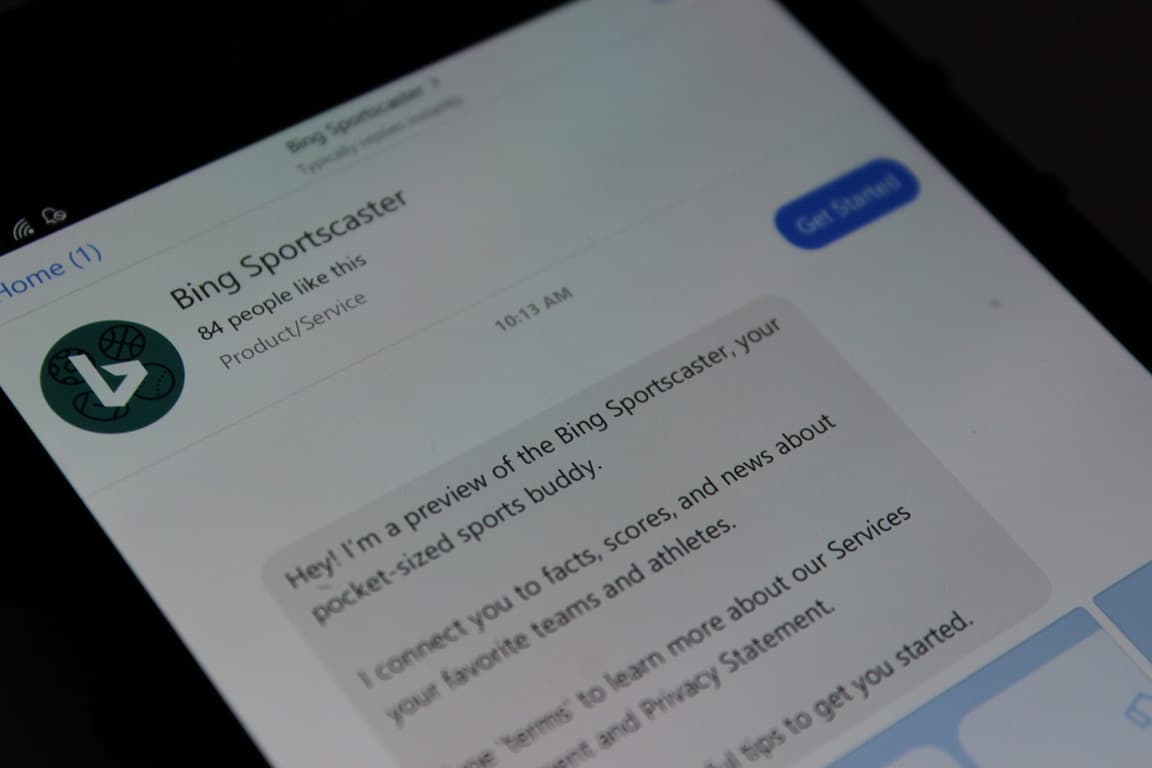
Need to keep up with your favorite sport teams? The Bing Sportscaster bot can help

From NFL, MLB, NHL, NASCAR, and Soccer, there are plenty of sports out there to keep up with. So, if you’re too busy to follow all of your favorite sports, then you might want to check out the Bing Sportscaster bot, a new Facebook Messenger bot which is designed to get all the news you want about your favorite teams and players.

To get started with the Bot, all you need to do is head over to Facebook Messenger and start a new message with “Bing Sportscaster.” You can then tell Sportscaster your favorite team’s name, and the bot will take everything from there. For NCAA basketball, the Bing Sportscaster bot can show you the team schedule, and even who Bing predicts thinks will win the game. Additonally, you also can follow NCAA basketball teams and get messages when there is a scoring play or other interesting news.

Bing Sportscaster
Bing Sportscaster

For extra security in knowing that you won’t miss out on your favorite team, you also can keep your schedule clear of any conflicts at game time by using Outlook’s Interesting calendars. Do you think it’s cool that the Bing team created a Bot to help you keep up to date on your sports? As always, we invite you to check out this Bot for yourself, and would love to hear your thoughts in the comments below!


EA Access subscribers can now try Mass Effect: Andromeda for free on Xbox One

EA/Origin Access subscribers can now play a 10 hour free trial of Mass Effect: Andromeda before the game’s worldwide launch next week. The Play First trial will let gamers play both the game’s campaign and multiplayer mode, and as an EA/Origin Access subscriber, you can also take advantage of a 10% discount on the game if you want to keep playing it after its release.

Over the past few weeks, EA published an interesting series of videos showcasing various aspects of the futuristic open-world game. Just like in the previous Mass Effect trilogy, you can expect exploration to be a very important part of the gameplay:

Mass Effect: Andromeda is one of EA’s most anticipated titles this year, especially after Titanfall 2 struggled to stand out against Battlefield 1 and Call of Duty: Infinite Warfare last fall. The game will be released on Tuesday, March 21 in North American and on Thursday, March 23 in the rest of the world.

Final Fantasy XV for Xbox One is over 40% off on Amazon

If you missed out on the initial launch of Final Fantasy XV, you can now save almost half off on the title online at Amazon.com. The online retail giant has the latest Final Fantasy Xbox One title in stock for the low price of $34.73, or roughly 42% off.

In case you were curious, the World of Final Fantasy XV is filled with epic action-packed battles along your journey of discovery. You play as Noctis, the Crown Prince of the Kingdom of Lucis, and you are on a quest to reclaim your homeland from the clutches of the imperial army.  You are also joined by your closest friends and take the wheel to experience a voyage like no other, travelling through the breath-taking world of Eos encountering larger-than-life beasts and unforgiving enemies. In the game, you also will learn to master the skills of weaponry and magic, channelling the power of your ancestors allowing you to effortlessly warp through the air in thrilling combat.

Will you be taking advantage of this latest offer? Let us know what you think in the comments below.

Evolve Ultimate Edition and Heavy Weapon are now free for Xbox Live Gold members

We’re about halfway through the month of March, and that means the second round of Games With Gold titles for March are now available for free for Xbox Live Gold members. This means that Xbox gamers with an active Xbox Live Gold subscription can now enjoy Evolve Ultimate Edition and Heavy Weapon on their home consoles for free!  As usual, we are including game descriptions, download links, and pricing for you below!

Evolve Ultimate Edition: March 16th- April 15th, $49.99 ERP

Join The Hunt With The Deepest And Most Diverse Selection Of Hunters And Monsters To Choose From In The Most Complete 4V1 Hunting Experience Yet.With 20 Hunters, 5 Monsters, 16+ Maps, And 5 Game Modes To Play, No Two Hunts Will Ever Be The Same. It’s Survival Of The Fittest And Any Side Can Win. Includes: Evolve Main Game, The Monster Expansion Pack, Hunting Season 1, And Hunting Season 2. 4V1: Team up with 3 friends to hunt a powerful evolving beast or go it alone as the Monster.HUNTERS: Whether you play as Assault, Trapper, Medic or Support, every role is vital to Survival.MONSTERS: Play as BEHEMOTH, GORGON, GOLIATH, KRAKEN and WRAITH, all diversely savage. RANKED PLAY: Hunt 2.0 pits you against players of equal skill. Win and climb your way up to the top of your class.OFFLINE PLAY: Experience the thrill of the hunt offline.

Heavy Weapon: March 16th- March 31st, $9.99 ERP

Sure, you can defend our way of life for free. For a while. But if you’re serious about liberty and committed to dealing out gigajoules of destructive power, there’s only one way to go.

As an extra bonus, Xbox One gamers can enjoy both of these titles for free on their consoles via Backwards Compatibility. These latest Games With Gold offers are set to expire on March 31st, so it’s best to act fast and download away! Once you’ve downloaded or played these games, feel free to drop us a comment below to let us know how the gaming experience is going for you!

Microsoft will soon begin transcribing in-game Xbox voice chats

Microsoft announced yesterday the release of a Game Chat Transcription feature on Xbox One and Windows 10 PCs, which brings speech-to-text and text-to-speech capabalities on both platforms. (Via Windows Central) Once it’s enabled, players can convert in-game voice communications into text that they can read on their screen, or have their chat text spoken aloud to other players in the game.

The new capability was introduced on Microsoft’s Accessibility blog, where the company described it as “a new way to communicate that creates a more accessible and inclusive gaming experience for everyone.” Game Chat Transcription will first be supported in the Xbox Play Anywhere title Halo Wars 2, but Microsoft plans to bring it to other games in the future. You can see how it works in the screenshot below:

Speech-to-text capability in Halo Wars 2.

To turn on the feature, you’ll have to head over to Settings > All settings > Ease of Access > Game chat transcription on the Xbox One. On a Windows 10 PC, you can enable it by opening the Xbox app and go to Settings > General > Game chat transcription.

The new capability seems definitely promising, though it’s still not clear if there will be some limitations: will it work in games that support cross-play multiplayer between Xbox One and Windows 10 (Halo Wars 2 doesn’t)? And more importantly, will Microsoft work with game developers to enable it on PC games that are not sold on the Windows Store? That would make sense, considering that Microsoft wants more PC gamers to use built-in Windows 10 features such as Game DVR, the upcoming Game Mode and its Beam live-streaming service.

Do you think Game chat transcription is a nice to have feature for gamers, and do you hope to see more games support it going forward? Let us know your thoughts in the comments below.

Exportizer helps you copy, edit, and export databases on Windows XP/Vista/7/8/10

If you are interested in converting databases from one format to another, you might want to take a look at Exportizer, a tool that lets you view, filter and copy a database to the clipboard to initiate a conversion. The program works with databases through the ADO or BDE interfaces.

You can convert DB, DBF, text, CSV, XLS, RTF, XML, HTML, DBF, PDF, SLK, DOC, and SQL script as dbf to txt, txt to xls, dbf to csv, txt to dbf, and other formats. The program is easy to install and comes with an intuitive environment, with a simple user interface comprised of a menu bar, a few buttons, and a panel to show database content. If you have a basic knowledge about databases, using Exportizer should be a no-brainer.

Exportizer features

Exportizer also allows you to perform the following tasks:

  • Open file-based database tables (.db, .dbf, .txt, .csv, .xml)
  • Open tables from multi-table database files like XLS, XLSX, XLSM, XLSB, MDB, ACCDB, HTML, GDB, IB, FDB, UDL, and other multi-table databases like ODBC data sources etc.
  • Browse data
  • Edit data
  • Ability to specify custom increment number for Increment Field Value function
  • Export to text file (with field separators or fixed length fields)
  • Export to CSV file
  • Export to HTML document
  • Export to XLS file
  • Export to XML document
  • Export to RTF document
  • Export to PDF document
  • Export to SYLK file
  • Export to DBF III, IV, V
  • Export to SQL script
  • Export to Excel (OLE) workbook
  • Export to Word (OLE) document
  • Export to Excel (XLSX) workbook
  • Export to Excel (XML-based) format
  • Export to DATABASE of any format, supported by ODBC, OLE DB, and connection string interfaces
  • Export data from all (or selected) files, which are located in one folder, or all (or selected) tables from a multi-table data source, at once (from interface or via command line)
  • Use extra export modes like Append, Empty+Insert, Update, Append+Update, and Delete
  • Using template file when exporting to HTML
  • Using dynamically calculated expressions when exporting to text file
  • Open and export databases through the command line
  • Use extra command line options like /Silent, /LogFile, /CloseOnError etc.
  • Copy data to clipboard
  • Print data
  • Build custom SQL queries
  • Enhanced database grids, which allow to view and manipulate the data in the most convenient way, including sorting by clicking column header, changing row heights, resizing columns, using single record view mode etc.
  • Filter data according to user’s criteria
  • Export images from BLOB fields
  • Edit and export databases to the Clipboard or other formats

You can also duplicate records and field values, edit and remove bookmarks, hide or display certain columns, and print tables. In addition to its numerous features, Exportizer has a quick response time and does not interfere with your PC’s performance. You can download the program from Vitaliy Levchenko Software.

RELATED STORIES YOU NEED TO CHECK OUT:

Visual F# tools now have a new nightly release schedule

It was announced a few days ago, and it’s finally a reality – Visual F# Tools will be getting nightly updates.  The proper announcement came in a blog post from the Visual F# team today, where they covered all of the most important information for developers who want to sign on with the new update model.

https://twitter.com/_cartermp/status/842070115797495808

The Visual F# team strongly suggests that developers start getting the nightly builds, as they’ll frequently be filled with important bug fixes and tweaks that will help tune the experience. If you want to learn just how to start getting your nightly updates – and to get an idea about what these updates will entail – you can check out the team’s blog post. Enjoy!

Microsoft’s Project Torino helps visually impaired kids participate in coding classes

As it stands now, teaching younger children how to write code is still a new art – certainly not one that’s been perfected. One of the primary ways to do it takes the form of programs like Scratch, which has users arrange pieces of code together in colored blocks. Microsoft’s Project Torino plans to bring that concept to the physical realm, opening up coding avenues for the visually impaired and other challenged learners.

Microsoft wrote up a blog post talking about the inception and development of the project, and it’s an excellent read. The researchers behind Torino insist that development was a group effort with the children, noting that “We thought we were going to be doing something for them but we ended up designing with them.”

The beta period for Project Torino isn’t here yet, but the Microsoft Research team has put up a mailing list to sign up for if you’d like to stay up to date on things. When the team starts offering units for testing, you’ll get notified.

Microsoft details the top 10 grammar mistakes made in Word and Outlook

When you’re typing up a storm in Microsoft Word, or writing an email in Outlook, there no doubt will come a time when you’ll be faced with some grammar and spelling errors. With that being so, have you ever wondered how your errors stack up against other users? Well, a recent report done by the folks at Business Insider revealed the top 10 grammar mistakes in Outlook and Word according to Microsoft.

According to the report, which used data from “millions of subscribers,” to Word and Outlook, the top mistakes include leaving too many white spaces between words, missing commas, missing hyphens, and more. Please have a look at the list which Microsoft compiled below.

  1. Leaving too many white spaces between words
  2. Missing a comma
  3. Missing a comma after an introductory phrase
  4. Missing a hyphen
  5. Incorrect subject-verb agreement
  6. Incorrect capitalization
  7. Mixing up possessive and plural forms
  8. Incorrect agreement with noun phrases
  9. Commonly confused words
  10. Incorrect verb form after auxiliary

Have you ever made one of these mistakes? If you have, you may want to check out Editor and Researcher, new tools in Microsoft Word and Outlook which will help you become a better writer. There won’t be a need to feel bad, either, since writer, speaker and self-proclaimed millennial expert, Maxie McCoy used the new Office Research and Editor tools to write a book.

OneLogin extension is now available for all in Windows 10 Edge

Microsoft has announced via Twitter that the OneLogin extension is now available for all users to install on the Microsoft Edge web browser. The extension provides single sign-on (SSO), password management, and identity management (IAM) for organizations that embrace cloud computing.

Key Features for OneLogin include the fact that the extension Provides a list of all online accounts and company apps and also allows users to sign in to any app or online account with a single click. According to the Windows Store listing for the extension, because OneLogin itself is hosted in the cloud, you can get up and running in a matter of minutes. The extension is also pre-integrated with popular business applications such as Salesforce.com, NetSuite, Google Apps, Zoho, Sugar CRM, GoToMeeting, Yammer as well as personal applications like Facebook and Twitter.

OneLogin for Edge
OneLogin for Edge
Developer:
OneLogin
Price:
Free

Microsoft Teams makes it to Good Morning America on ABC, watch it here

If you watched ABC’s Good Morning America this morning, you may have seen Microsoft Teams being featured in the show’s “Boosting your Business” segment. For those unfamiliar with the morning TV show, this two minute sequence is sponsored by Microsoft and provides tips for entrepreneurs and small businesses looking to unlock their productivity and creativity.

As noted by Microsoft, today’s episode featured career expert Maxie McCoy visiting WeWork, a New York-based provider of co-working and office space. While speaking about collaboration tools with the WeWork Creator Awards team, McCoy presented various Microsoft Teams features that helps teams stay on the same page.

WeWork may not be completely unfamiliar with Teams as the company is already an Office 365 customer. As Microsoft Teams is now generally available to all Office 365 commercial customers, it seems likely that many organizations that already use the Microsoft Cloud will start experimenting with Teams. According to Microsoft, more than 50,000 organizations have started using the new chat-based workspace during the preview period.

Microsoft is #2, but way behind Google in US search ad revenue

Microsoft’s US search ad revenue is expected to keep growing over the next two years, but the company will also continue to trail far behind market leader Google. This what noted eMarketer in its latest report on the US digital ad market, which sees Google claiming 77.8% of US search ad revenues this year and 80.2% in 2019 (via Search Engine Land).

In comparison, eMarketer is forecasting Microsoft’s share of US search ad revenues to decrease from 7.6% this year to 6.6% in 2019, with search revenue still growing from $2.79 billion to $3.02 billion in the same period. While Microsoft will remain #2 over the next two years, eMarketer sees Yelp and Amazon have the strongest growth rates US search ad revenue and a very slight growth for Yahoo, AOL and Ask.

eMarketer US Search ad revenue Bing

According to eMarketer forecasting analyst Monica Peart, Google will continue to thrive thanks to more consumers using the search engine on their smartphones. “Google’s dominance in search, especially mobile search, is largely coming from the growing tendency of consumers to turn to their smartphones to look up everything from the details of a product to directions,” she explained. “Google and mobile search as a whole will continue to benefit from this behavioral shift,” she added.

“Bsplayer Exe an Error Occurred in the Application” Error

When it comes to multimedia, everybody has its own favorite multimedia player. Some users prefer using the default applications, while others use third-party tools such as BSPlayer. Speaking of which, some Windows 10 users reported certain issues with BSPlayer. According to them, they are getting bsplayer exe an error occurred in the application message. This error will prevent you from using BSPlayer, but there are few ways to solve this problem.

“Bsplayer exe an error occurred in the application” error, how to fix it?

Fix – “Bsplayer exe an error occurred in the application”

Solution 1 – Make sure that BSPlayer is added to the list of exceptions in your antivirus

Antivirus is one of the most important applications on your PC. Security software will protect you from harmful files and malicious users, but sometimes antivirus can cause certain problems. According to users, Avast can sometimes detect BSPlayer as a suspicious application and prevent it from running. This will usually generate bsplayer exe an error occurred in the application error. To fix this problem, you need to add BSPlayer to the list of exceptions in your antivirus.

If that doesn’t help, you might want to try disabling your antivirus or removing it from your PC. If removing the antivirus solves the issue, you might want to consider switching to a different antivirus software.

Solution 2 – Downgrade LAV Splitter

Sometimes LAV Splitter software can interfere with BSPlayer and cause bsplayer exe an error occurred in the application error to appear. If you have this problem on your Windows 10 PC, we recommend that you install the latest version of LAV Splitter. If the issue persists, downgrade to the older version of LAV Splitter. Several users reported that their issue was fixed after installing an older version of LAV Splitter, so be sure to try that.

Solution 3 – Reinstall your graphics driver

Your PC relies on graphics drivers in order for multimedia to work. However, if your drivers are corrupt or not the latest, you might experience bsplayer exe an error occurred in the application error on your PC. To fix the problem, you need to reinstall your graphics card driver. This is a relatively simple procedure, and you can do it by following these steps:

  1. First, you need to open Device Manager. To do that press Windows Key + X and choose Device Manager from the list.
  2. When Device Manager opens, locate your graphics card, right click it and choose Uninstall from the menu.
  3. Confirmation dialog will now appear. Check Delete the driver software for this device and click OK.
  4. Wait for the driver to uninstall.

In addition to using Device Manager, some users are recommending using a dedicated driver management tool that will help you safely remove faulty drivers and also install the newest version.

It is highly recommended to use such tools because they will automatically identify what type of driver you need for your hardware. This removes the risk of permanent damage that may come with installing faulty drivers.

An automated driver updater software can also repair your damaged drivers and detect whether there are any missing drivers in your system and install them in just a few minutes.

The tool is able to constantly keep your drivers in check with regular automatic scans and updates.

⇒ Get Fortect Driver Updater

Solution 4 – Update / reinstall BSPlayer

If bsplayer exe an error occurred in the application message is preventing you from running BSPlayer, you might need to reinstall it or update it. This is a simple process, and you just need to do the following:

  1. Press Windows Key + I to open the Settings app.
  2. Go to the System section and navigate to Apps & features tab.
  3. List of all installed applications will appear. Locate BSPlayer on the list, select it and choose Uninstall option.

Another way to uninstall BSPlayer is to use Programs and Features. To do that, follow these steps:

  1. Press Windows Key + S and enter programs. Select Programs and Features from the list.
  2. When Programs and Features window opens, locate BSPlayer and double click it to uninstall it.

After uninstalling BSPlayer by using one of the aforementioned methods, download the latest version of BSPlayer and install it. After doing that, the error message should be fixed.

Bsplayer exe an error occurred in the application message will prevent you from using BSPlayer, but you can fix it by checking your antivirus or by updating your drivers. If that doesn’t help, be sure to reinstall BSPlayer completely.

Update: Twitter user finally gets his rare Xbox Onesie

Earlier this month a user on Twitter was contacted by Microsoft Support and offered a rare, previously thought discontinued, Xbox Onesie. These limited edition collectors items were created as part of a marketing plan by Xbox Australia in 2016 and they were mostly given to members of the press and to consumers through several online competitions. There was a reasonable level of suspicion when someone online claimed to have been offered one but the user posted a new topic on Reddit earlier today and has posted photos of his much-wanted item to prove that he was in fact telling the truth.

Xbox Onesie Update: OP Delivers!

Would you like Microsoft to start making more Xbox Onesies or would you prefer something else like the inflatable Xbox One controller which was also made for Australian Xbox One fans? Let us know in the comments below.

Utopia is an indie platformer game exclusive to the Windows 10 universal platform

UK-based game studio, Layrhead, has announced the launch of Utopia, an indie platformer game exclusive to the Universal Windows Platform (UWP) and available for Windows 10 PCs, tablets, and smartphones.

Built on the Construct 2 game engine, Utopia is exclusively built for Windows 10 Universal Windows Platform. The UWP game is available for both Windows 10 as well as Windows 10 Mobile, and the company has shared that the game would be released for Xbox One via the Xbox Creators Program in Summer 2017.

In Utopia, you play John, a cave explorer planning to escape from the danger of the utopia dark secret world. John has to escape into different portals from the cave but there is no way. Except hope. So, you have to go through dangerous obstacles throughout each level of the game.

Utopia is built for keyboard and touch-friendly controls while the support for game controller is coming soon in a future update.

While there’s a free trial demo for the game, you can grab the full edition for $1.99. The company has announced that more level updates are coming soon to the Windows Store.

Utopia™
Utopia™
Developer:
Benjamin Akhigbe
Price:
Free

Save now on some hit comedies on the Windows Store

Looking for some entertainment this week? The Windows Store is hosting the Comedy Sale from now until the 20th, offering a selection of some relatively recent comedy movies for your viewing pleasure, along with some classics. Movies like Sausage Party and Swiss Army Man are on tap for the sale, but you’ve also got access to films like Spaceballs, Hot Rod, and Dodgeball. An exceptionally strong lineup, to be sure.

The highest price tag you’ll find on this sale is just $10.99, but discounts can go as low as $2.99 if you’re looking to enjoy a dive in the bargain bin. If you’re on the east coast of the US and snowed in right now – or you’re just looking to have a lazy night sometime this week – you should definitely take a look at the selection and pick something up.