Amazon’s Rufus AI will be the Alexa for shopping

Amazon, one of the biggest AI users on the market, will soon introduce Rufus, an AI shopping assistant. What’s great from the start about this AI is the fact that it was trained on lots of data related to Amazon products. So, it will most likely come in handy many times.

You can talk with Rufus as with any assistant

A great accessibility option of the Amazon’s AI shopping assistant is that you can directly type or speak what you need in the search bar to trigger it. So, Rufus can help you with shopping needs, product details, comparisons, reviews and recommendations.

For instance, you can tell Rufus to compare two TVs. Next, you can ask the Amazon assistant to pick the best one based on the reviews, or to give you a review summary. Afterward, you can request Rufus to give you suggestions for accessories compatible with your choice.

If you think that the name is funny or sounds somewhat familiar, there’s a wholesome story behind it. Amazon’s AI assistant was named after the shortest volunteer worker, the dog of the editor-in-chief and principal engineer.

By the way, if you are a Walmart customer or considering shopping there, you might want to know that they already have a conversational AI assistant built with Microsoft’s help. However, it might not be able to compete with Rufus functions-wise. But they might be the start of a new era for e-commerce.

What do you think of Rufus? Are you going to try it when it becomes available? Let us know in the comments.

DirectML’s Intel NPUs are another step further to the AI PC

Last year, Microsoft and Intel debuted with the first NPU for Windows. So, now, we are one step closer to playing with this new physical chip. However, at the moment, the support for the Intel Core Ultra CPU featuring an NPU is just for the Windows 11 DirectML developer preview.

What is the use of DirectML?

One of the important functions of DirectML, the machine learning API for Windows, is to provide the user with a low-level API and an abstraction layer to support machine learning accelerators. On top of that, it will enable direct machine learning on various hardware.

With DirectML facilitating the machine learning tasks, the performance, power efficiency, and accessibility of AI apps will be improved. In addition, the support for Intel Core Ultra will accelerate the development of hardware compatible with AI technologies and features, such as AI acceleration.

This new release is a great achievement for DirectML. Yet, it doesn’t come without some restrictions. That’s why DirectML 1.13.1 will only support Intel Core Ultra NPUs. On top of that, any other machine learning models were mainly excluded due to compatibility issues.

In a nutshell, DirectML will open the market for better hardware compatible with AI technologies. Furthermore, you can already check the new Intel Core Ultra Processor to discover more about the future of hardware. Moreover, if you are eager to learn more about the Windows 11 DirectML developer preview, stay tuned, and we will update you as soon as possible.

What are your thoughts? Do you think that the AI hardware will be able to improve the overall capabilities of a PC? Let us know in the comments.

Public preview of Universal Print on macOS is out

Microsoft introduced the public preview of Universal Print on macOS, a significant step in the direction of creating a seamless printing solution for all users across all devices.

This will deliver full support for Mac devices within the Universal Print infrastructure, letting users print from any Mac app without installing additional drivers.

With this feature, you can get a hassle-free printing experience directly from the system print dialog box without installing the driver manually.

This solution allows you to leverage the capabilities of Universal Print, and it is mostly useful for organizations that have both Windows and Mac devices.

Microsoft has also released a new Universal Print macOS app available on the App Store to make it more user-friendly.

First, open the Universal Print settings page, and under Global settings, select Show all printers.

 Global settings, select Show all printers. -Public preview of Universal Print on macOS is out

You can install the app from the AppStore and sign in using your Universal Print valid Microsoft Entra ID account. Then, find and add a printer to get started.

In conclusion, the Universal Print on macOS shows Microsoft’s commitment to creating a unified printing experience across multi-platforms

What do you think about this new release? Share your thoughts in the comments section below.

How to Download Apps From Office 365 [Simple Steps]

If you want to download apps from Office 365 on your Windows computer, this guide can help. You can use the Microsoft Office web portal. Let’s check out the steps.

How can I download apps from Office 365?

1. Using the Microsoft Office web portal

  1. Visit the Microsoft Office web portal.
  2. Enter your Microsoft account email ID and password, which you used to get an Office 365 subscription.
  3. Click Install apps.Download Apps From Office 365
  4. Choose Microsoft 365 apps.
  5. You will get the OfficeSetup.exe file in the Downloads folder; double-click the file to run it.
  6. Click Yes to initiate the installation.
  7. Follow the on-screen instructions to complete the process.
  8. Once done, you can close the browser window and launch any Office products.

To conclude, downloading apps from Office 365 on Windows computers using the Microsoft Office web portal is a simple process.

If you are an MSP, you might also be interested in our guide about Microsoft 365 Lighthouse and its security services.

In case you are a regular Microsoft Office user, you may also want to check the Office 365 Lifetime subscription service.

If you have any questions or suggestions about the subject, feel free to mention them in the comments section below.

Microsoft Edge 123.0.2380.1 is available on Dev Channel

Microsoft Edge enthusiasts get to explore the latest features in version 123, which is now available for public testing in the Developer Channel.

With the 123.0.2380.1 release, Microsoft introduced a variety of fixes and improvements, providing Edge insiders a glimpse of what’s new in browser evolution.

Furthermore, Edge Dev 123 for Android offers the recently spotted extension support through Deskmodder. To enable it, type the following address in the Edge browser, edge://flags, and try some popular extensions to improve your browsing experience.

Other changes are:

  • Another noteworthy addition is the introduction of a Content Security Policy within the browser to enable the Suno Plugin to work within Microsoft Copoilot.
  • Addressed the Subscribe to Copilot Pro button not appearing after switching to a Managed Service Account without a subscription until the browser restarted.
  • Resolved the browser crashing issue when opening the favorites hub while navigating to a website.
  • Fixed the problem causing the browser to crash while clicking add account.
  • Addressed the font dialog in reading mode is not showing the detected font type issue.
  • Resolved the More tools menu item didn’t respond to the screen reader’s Double-tap instructions.
  • Addressed the Ask Copilot button not working in privacy mode problem
  • Fixed a bug that led to the disappearance of favicons after updating the latest build. However, they returned after relaunching Edge.
  • Resolved the chat page overlapped with the ask me window on Android devices when in landscape mode.
  • Address New Tab Page background image not working issue.
  • Resolved games are not launching when disconnected from the network.
  • Fixed the Narrator announcing extra information while navigating to the Explore more games to play button problem.
  • Addressed icons disappearing during the extension installation issue.
  • Resolved not launching Copilot after clicking the Get Started button.
  • Fixed an alert appearing and a new tab opening when you click on a Copilot Pro deep link in Copilot chat on iOS
  • Addressed getting multiple success messages when logged into the Terminal after launching the browser

If you want to download Microsoft Edge Dev to test these features first-hand, get it from the official Edge Insider page. You can download it on Windows 11, 10, macOS, Android and Linux.

Microsoft further plans to release Edge 123 in the Stable channel in March, ensuring users get a refined browsing experience for a wider audience.

Microsoft Edge continues to evolve, and with this version, it brings security enhancements, bug fixes, and more to make it more user-friendly.

Did this release resolve the issue you had with Microsoft Edge? Share your thoughts in the comments section below.

Edge Canary finally gets a long-requested feature, lets you rearrange Sidebar buttons

The new Edge update brought extensions to Android, but that’s not the only change. The desktop client got an update as well, and it has a few interesting features to offer.

The new update brings some visual improvements related to the Sidebar, so let’s see what the fuss is about.

You can now rearrange the Sidebar buttons in the Edge Canary

First spotted by a user Leopeva64, it seems that the latest Canary build allows you to finally rearrange icons on the Sidebar.

As you can see from his tweet, all you have to do is drag and drop the buttons to rearrange them. We have noticed that there are a few bugs, but that’s expected from the Canary version of Edge.

It’s great to see that Microsoft is paying attention to user feedback since this feature has been requested for a while.

Speaking of which, the company is also working on security issues and they have addressed CVE-2024-21399 in Edge recently.

We don’t know anything about the release date of this feature, but we hope to see it soon. One thing is for certain, following user feedback is a great way to make Edge more popular than ever, and soon it might overtake other browsers.

KB5034441 is still a menace 1 month after release. Can you patch it, Microsoft?

It turns out that installing the KB5034441 on Windows 10 is still incredibly problematic, and it’s been a month since users have been left with no solution on how to update the operating system.

We reported not so long ago that KB5034441 doesn’t install on Windows 10 due to the 0x80070643 error which rendered their devices unable to install the security update. KB5034441 applies Safe OS Dynamic Update (KB5034232) to the Windows Recovery Environment (WinRE) on a running PC to address a security vulnerability that could allow attackers to bypass BitLocker encryption by using WinRE, according to Microsoft.

Some Windows users found out that the error was caused by insufficient free space in the recovery drive, and many users tried to allocate more space (recovery drives need to have at least 250 MB of free space) to these drives by using the method Microsoft released a while ago.

However, in some cases (here, and here), and it seems there are a lot, this temporary solution doesn’t work.

So what can you do?

KB5034441: What can you do about it

If you tried to allocate more space to the recovery drive, and installing KB5034441 still shows the same error, then it’s all a game of patience at this point.

Microsoft made it clear that users can safely ignore installing the KB5034441 update, for now, especially if their Windows 10 devices don’t have a recovery partition.

On the other hand, the Redmond-based tech giant is also working on a permanent solution, and it will be released in the following weeks. The error might be more complex than initially thought, so it would be best to ignore installing the package and wait for the fix instead.

Meanwhile, those users who tried to allocate more space to the recovery drive can revert the process by following this guide.

C2PA in DALL·E 3 will let people know if an image was generated by ChatGPT or not

OpenAI will update ChatGPT to generate C2PA metadata effectively by 12th February, according to the latest announcement made by the AI-tech company. The new capability is now available in ChatGPT for the Web that uses the DALL-E 3 technology, and by next week, ChatGPT for mobile will also generate images with C2PA metadata.

This will allow people to identify if an image was generated by ChatGPT or not, and this way it will be easier to address issues of provenance, as OpenAI states:

Images generated with ChatGPT on the web and our API serving the DALL·E 3 model, will now include C2PA metadata. This change will also roll out to all mobile users by February 12th. People can use sites like Content Credentials Verify to check if an image was generated by the underlying DALL·E 3 model through OpenAI’s tools. This should indicate the image was generated through our API or ChatGPT unless the metadata has been removed.

OpenAI

C2PA (which stands for Coalition for Content Provenance and Authenticity), is a partnership between multiple tech companies to address false information by certifying and validating media content. According to the official website, Microsoft is part of this partnership, so it makes sense that OpenAI would implement the C2PA capability within its infrastructure.

The Coalition for Content Provenance and Authenticity (C2PA) addresses the prevalence of misleading information online through the development of technical standards for certifying the source and history (or provenance) of media content. C2PA is a Joint Development Foundation project, formed through an alliance between Adobe, Arm, Intel, Microsoft and Truepic. C2PA unifies the efforts of the Adobe-led Content Authenticity Initiative (CAI) which focuses on systems to provide context and history for digital media, and Project Origin, a Microsoft- and BBC-led initiative that tackles disinformation in the digital news ecosystem.

C2PA

How to recognize if an image was generated by ChatGPT using C2PA in DALL·E 3?

Once ChatGPT serving the DALL·E 3 model generates an image, it will embed special C2PA metadata into it. This metadata will increase the size of the image, but it should be insignificant, as OpenAI says:

  • 3.1MB → 3.2MB for PNG through API (3% increase)
  • 287k → 302k for WebP through API (5% increase)
  • 287k → 381k for WebP through ChatGPT (32% increase)

Images will then display special metadata, indicating that they were generated with ChatGPT, as you can see below.C2PA in DALL·E 3

It’s not yet known when and if OpenAI will implement this capability for older ChatGPT versions, however, for now, it will only be available on ChatGPT using the DALL-E model, which debuted in the tool last year.

What do you think about this?

Microsoft applies for a new patent for a dubbing tool

A recently filed patent suggests that Microsoft is now dipping its toe in the realm of dubbing tools to revolutionize how users dub voices.

Contrary to YouTube’s Aloud dubbing tool, Microsoft’s patent proposes a different approach, allowing users to dub media content using their voices in their native language.

The patent application filed outlines a system where voices from the original media content are extracted, and a model of the user’s voice is generated.

So, when you select a piece of media to play, the system will employ this model to create new voices that resemble your voice, replacing the original voice in the media.

As Microsoft’s approach centers on customization and language versatility, it differs from those in the market.

It will allow you to customize the voices in different tones and translate them into various languages, including French, Chinese, Japanese, and more.

Furthermore, the process can remove background noise and uses several audio channels in a surround sound system to separate speech from surrounding noises.

Microsoft states, “

In order to provide various versions of audio for specific media content, dubbing actors are hired to read different versions of scripts. This traditional dubbing process is very costly and time-consuming.

Thus can only be used for some media content having a high budget, and is not possible to provide dubbing for most of the media content which are rapidly updated nowadays.

The patent for Microsoft’s new dubbing tool signals a transformative leap toward user-driven and personalized content experiences.

What do you think about it? Share your thoughts in the comments section below.

Sneaky update brings extensions to Edge Dev channel for Android

We wrote about recently added extension support for Edge Cannary on Android. The feature is now available in the Dev channel as well, so more users will have the chance to try it out.

This isn’t the only available feature, so let’s dive deeper and see what this version has to offer.

Edge Dev 123.0.2380 has been released, here’s what’s new

After the announcement on Microsoft Tech Community that a new version is coming on the Dev channel, we had to test it for ourselves and check if extension support is available.

This is nothing new, and it was available on Canary, just like before, you need to go to the flags page and manually enable it.

The list of supported extensions is still as limited as before, but it’s great to see that this feature is available to a greater audience.

Of course, this update brings many long-awaited changes and we’re going to briefly list the most important ones:

  • Added support for Content Security Policy.
  • Fixed crashing issues in favorites hub or when adding a new account.
  • The problem with the More tools menu not responding has been fixed.
  • Various problems with Copilot have been addressed.
  • The problem with the font dialog not reflecting using the right font is fixed.
  • Issues with background images on the new tab page have been addressed as well.

These are just some of the new features and bug fixes, and for a detailed report, we suggest reading the official announcement post from Microsoft.

The highlight of this update is the extension support, and if you don’t want to try the Canary version due to stability issues, you can go ahead and give the Dev version a try.

Edge is more popular than ever, and extension support will help make Edge stand out from other Android browsers on the market, so we can’t wait to see this feature in the stable version.

2 Easy Ways to Setup DKIM on Office 365

Using DomainKeys Identified Mail (DKIM) with Microsoft 365 can help you establish trust for the outbound emails from a custom domain in destination email systems. Let’s see how you can set up DKIM on Office 365.

How can I set up DKIM on Office 365?

1. Using the Microsoft 365 Defender

Note icon NOTE
To set up DKIM on Microsoft 365, you need to follow all the steps listed in the same manner.
  1. Create DKIM keys
  1. Visit the Microsoft 365 Defender website and sign in using your Microsoft account.
  2. Double-click on the domain that you will choose to send emails.Create DKIM keys - how to setup dkim office 365
  3. On the following pop-up, select Create DKIM keys.
  4. Once created, you will get a Public CNAMEs pop-up; click Copy & paste it on a Sticky note or Notepad to save the keys.Public CNAMEs

2. Login at your DNS hosting provider & create the DKIM records

  1. Go to your DNS hosting provider, then locate DNS records management.
  2. First, we need to create two CNAMEs records.
  3. Select Add New Record, then enter the following details:
    • Type – Choose CNAME
    • Name – Enter the first Host Name from the key that you copied in Step 1
    • Value – Mentio the value that you copied for the first Host Name
    • TTL – Select Default
  4. Choose Add More Records, then add the second CNAME record.
  5. Click Save All Records.

You need to wait for a few minutes to a day, depending upon your DNS providers. Once done, proceed to the next step.

3. Enable DKIM

  1. Visit the Microsoft 365 Defender website and sign in using your Microsoft account.
  2. Double-click the domain and toggle the switch for Sign messages for this domain with DKIM signatures.DKIM enable setup office 365
  3. In case you get an error, wait for more time and try enabling it after some time. If it still doesn’t work, check the CNAMEs and other details to ensure the records are correct.

4. Verify DKIM records for Microsoft 365

  1. Open the Microsoft 365 admin center using this link.
  2. On the How can we help pop-up, type DKIM in the first box, enter your Domain name, and then click Run Tests.Microsoft 365 admin center
  3. Once the diagnostics are complete, you will get the confirmation of the successful creation of DKIM.

2. Using the Windows PowerShell

  1. Press the Windows key, type PowerShell in the search box, and click Run as administrator.Powershell - how to setup dkim office 365
  2. First, ensure you are connected to Exchange Online; if not, follow the steps in this guide.
  3. Type the following command to a notepad, replace <domain> with the domain name, and replace Selector1CNAME and Selector2CNAME with the Host Name you copied in the first method. Copy & paste to the PowerShell window and press Enter: Get-DkimSigningConfig -Identity <domain> | Format-List Selector1CNAME, Selector2CNAMECommand to setup DKIM
  4. Next, add the CNAMEs to your DNS hosting provider using Step 2 in Method 1.
  5. To enable the DKIM in Office 365, open PowerShell with admin rights again, type the following command, then replace <Domain> with the domain name and hit Enter: SSet-DkimSigningConfig -Identity <Domain> -Enabled $true

To conclude, you can either use Microsoft 365 Defender to create and set up DKIM or PowerShell to get it done.

Remember you have the credentials of your DNS provider before beginning the entire process, and if you are not able to see the DKIM keys added under DNS management, wait for another day before trying again.

In case you want to manage a mailbox, distribution groups, calendar & contact items, or permissions, the Exchange Online PowerShell module is helpful.

Need help with the steps to set up DKIM on Office 365? Feel free to mention your queries in the comments section below.

Resident Evil 3 making its way to Xbox Game Pass in February

Game Pass subscribers are in for a treat this February as Capcom’s Resident Evil 3 remake will be added to the subscription service.

Following last month’s debut of the Resident Evil 2 remakes on the subscription service, players can now get their hands on the sequel Resident Evil 3, starting February 13, 2024.

Resident Evil 3 may not be a match for its predecessor ambition-wise; however, it still offers a compact and highly concentrated dose of survival horror.

Speaking of releases, other titles will accompany Resident Evil 3 to the Game Pass lineup in February this year. Some of them are:

GamePlatformDate
AnuchardCloud, Console, & PCFeb 6
Train Sim World 4Cloud, Console, & PCFeb 7
Madden NFL 24Console & PCFeb 8
Resident Evil 3Cloud, Console, & PCFeb 13
A Little To The LeftCloud, Console, & PCFeb 14
PlateUp!Cloud, Console, & PCFeb 15
Return to GraceCloud, Console, & PCFeb 20

As these titles are coming to Game Pass, some, including Opus: Echo of Starsong (Cloud, Console, & PC) and Galactic Civilizations 3 (PC), won’t be available on the platform from February 15.

The Game Pass library evolves as seasons change, ensuring a dynamic and ever-expanding collection for gaming enthusiasts.

Are you excited to play Resident Evil 3? Share your thoughts in the comments section below.

How to Remove the App Search Bar in Outlook on PC

With the recent update, Outlook has added the app search bar, taking up a large chunk of space on the screen. Fortunately, there is a way to remove it with a simple workaround.

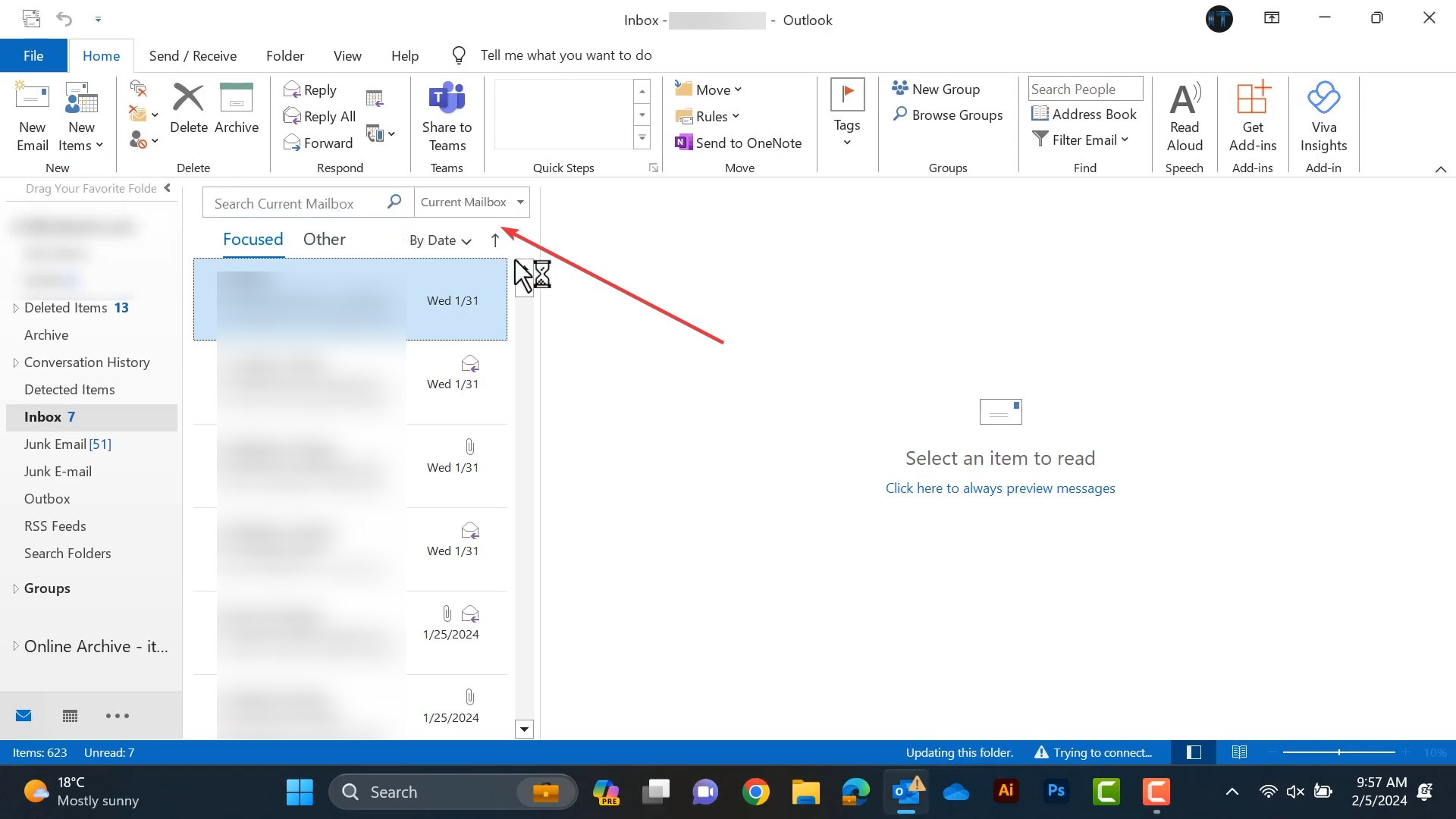
You can revert to an older version of Outlook through the command prompt and turn off updates to remove the app search bar or see how to move the Outlook toolbar from side to side.

How to remove the App search bar in Outlook?

  1. Exit all Microsoft Office/365 applications.
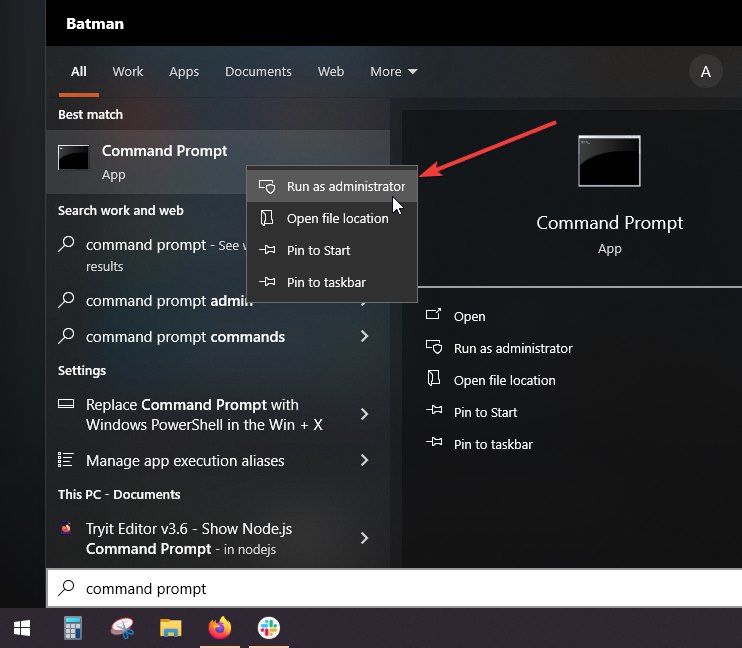
  2. Open Command Prompt in administrator mode from the Start Menu.
    Remove app search bar in Outlook
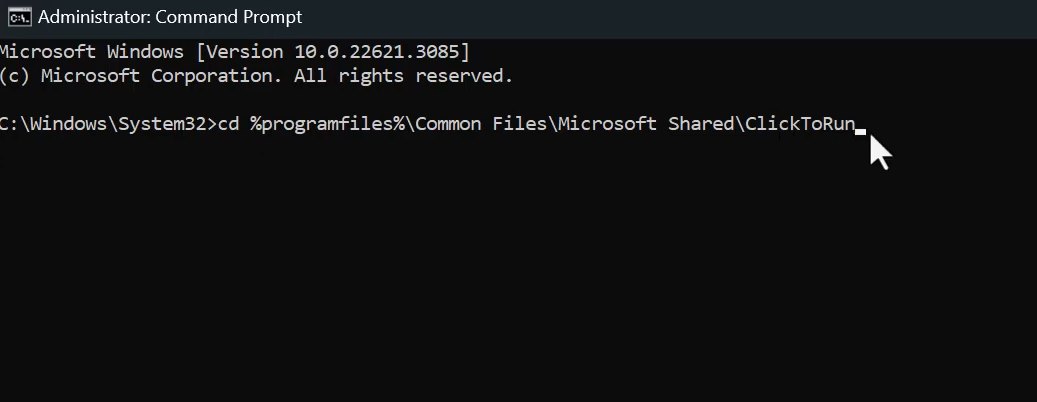
  3. Paste the following code and press enter to start the ClickToRun service.
    cd %programfiles%\Common Files\Microsoft Shared\ClickToRun
    remove app search
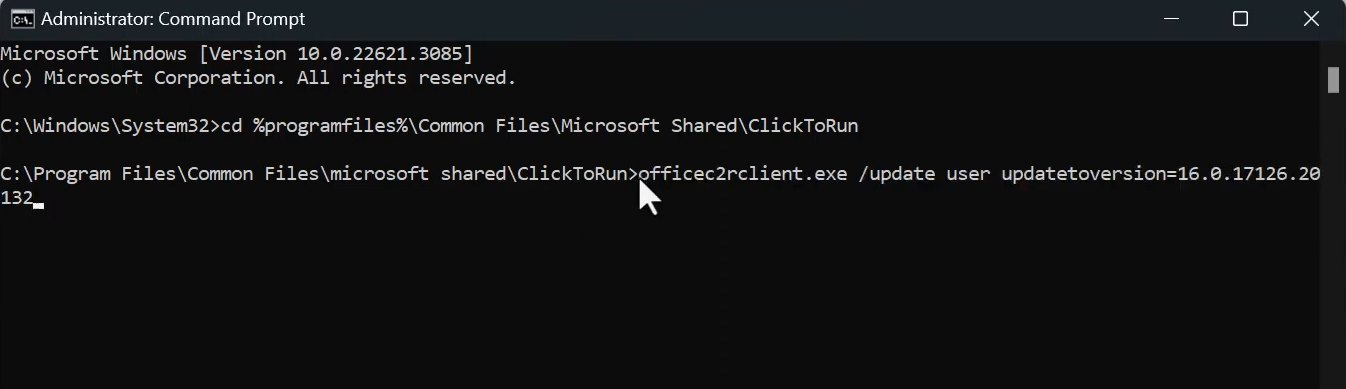
  4. After that, paste this command and press Enter:
    officec2rclient.exe /update user updatetoversion=16.0.17126.20132
    revert to older outlook
  5. For Outlook 2016 and 2019, use the following command instead: OfficeC2RClient.exe /update user updatetoversion=16.0.17029.20108
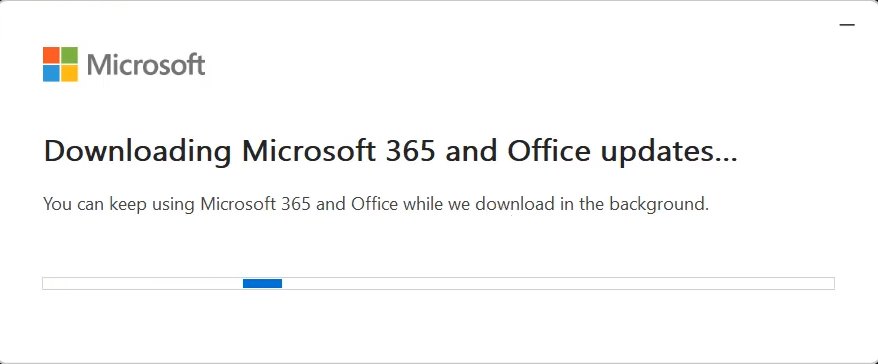
  6. Now, wait for Microsoft Office/365 to download the files from the internet and apply the changes. It will take a couple of minutes to get completed.
    Changing Outlook version
  7. Once completed, close the command prompt and launch Outlook. You will see that the app search bar is removed.
    App search bar removed
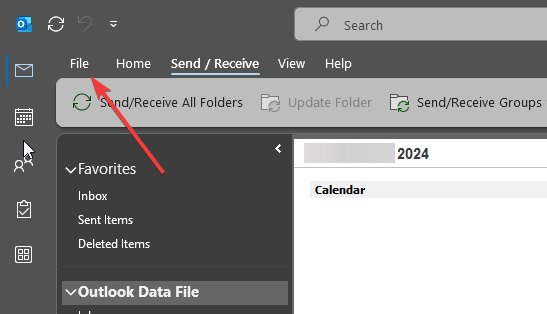
  8. After that, head to Files from the top-menu.
    File button in Outlook
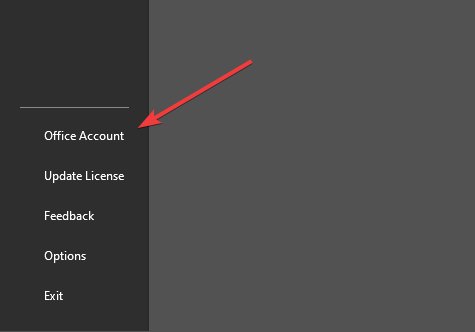
  9. Then, go to Office Account from the bottom of the Info menu.
    Disable outlook updates
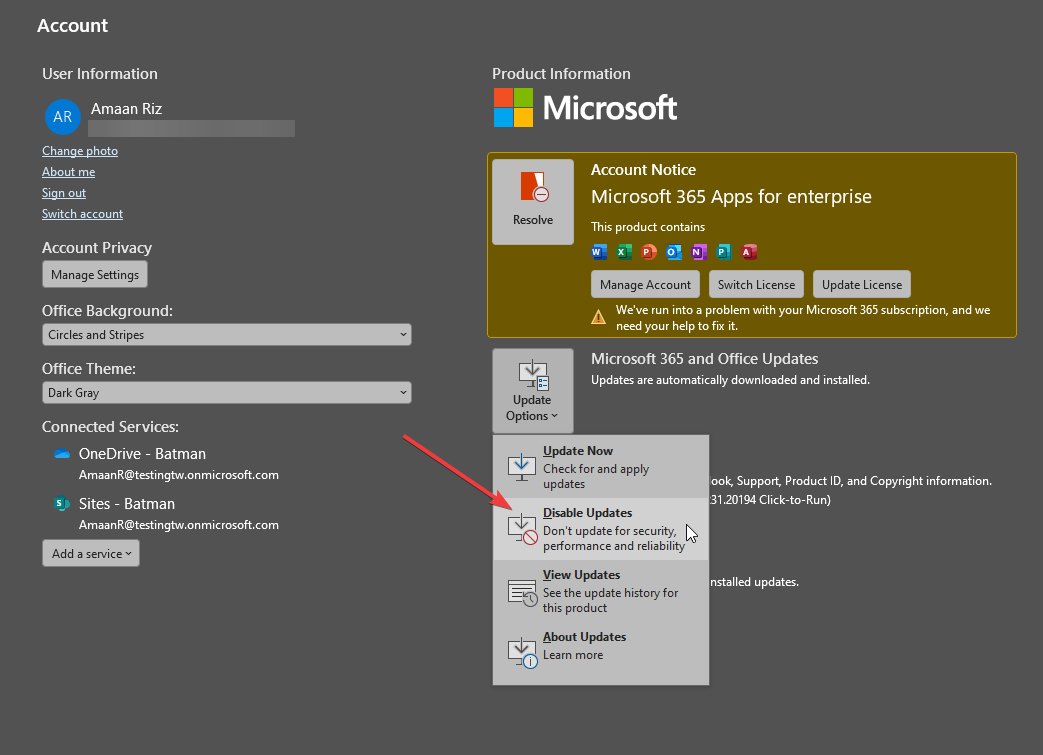
  10. Select Disable Updates from the Update options.
    Disable outlook updates

This will prevent Outlook from updating to a version that has the app search. You can enable updates later to check if Microsoft has added an option to turn it off. As of now, they have officially acknowledged the issue in a support article.

So, this is how you can remove the app search from Outlook. But if the app search bar returns, you can repeat the process given above to remove it.

Once that is sorted, you can change how emails look by changing the font in Outlook. After that, you can change the default browser in Outlook for opening links from the mail.

If you are stuck on any tutorial step or have questions, let us know through the comment section.

Microsoft Graveyard built a coffin for Windows 10: Is it time to upgrade to Windows 11?

We reported a while ago about a new project called Microsoft Graveyard, where people can find all the deprecated Microsoft products and services of all times, since the inception of the Redmond-based tech giant.

The project, which is not owned by Microsoft as it’s independent, has added Windows 10 to the list of soon-to-be deprecated Microsoft services, even though the Redmond-based tech giant recently announced that it will be extending the support for the operating system for 3 more years, with an effective EOS deadline moved to 2028.

However, this decision is not free, and those users who want to stay on Windows 10, will have to pay a price for security updates until 2028. Those who don’t want to, or can’t afford it, are advised to upgrade to Windows 11, while the upgrade is still offered for free.

But there is still more than a year until Windows 10 hits its first EOS deadline, so we have to ask: is it time to upgrade to Windows 11, or should you wait? You wouldn’t be the only one, though, as Windows 10 is still far more popular than Windows 11, in terms of users. Windows 10 has over 1 billion users worldwide, while Windows 11 has just recently amassed 400 million users, after 2 years of existence.

Despite the numbers, though, it’s still a necessary question. Here’s what we think, now, in February 2024.

Is it time to upgrade to Windows 11?

The answer is not a straight one, as it depends on many factors. Here are some of the most important factors you should consider for making this decision.

Security risks

Probably the most important aspect to be considered is the security risks that come with the use of a deprecated OS.

Think about it this way: Windows 10’s official EOS is set to be due in October 2025. Until then, your Windows 10 will receive security updates regularly, but after that date, you’ll have to pay if you want to keep your Windows 10 device safe.

While it could still be manageable, a Windows 10 device without security updates will leave you in an exceptionally risky situation, and we’re not exaggerating. Microsoft products and services are some of the most targeted by threat actors. You will most probably be targeted without even knowing, and your personal information could end up in places all over the Internet, and more.

On the other hand, paying for Windows 10 security updates, when you have a device that can support Windows 11 plus a free upgrade to this OS, makes no sense.

And we’re not trying to be unreasonable here. We get it, Windows 10 is good, and it runs perfectly, and its UI is not yet pandered with all the AI stuff, even though Microsoft added Copilot to it recently.

But it really makes no sense, when there are better options in front of you. One situation that could be understandable, though, is the one where people have older devices that don’t run on Windows 11. However, Microsoft will check your device to let you know if it meets the requirements for it.

Windows 11’s better performances in gaming, content editing, and so on

For laptops and desktop devices post-2020, Windows 11 is far more suitable than Windows 10. For instance, it’s well-known that Intel 13th gen CPUs work better on Windows 11, the newer operating system performs exceptionally well in video games.is it time to upgrade to windows 11

While it has its disadvantages, compared to Windows 10, Windows 11 is a better fit for content editing as well, as it makes use of the CPU and RAM power more efficiently than Windows 10. You can see our in-depth comparison here, where we also found out that Windows 11 is faster than Windows 10 in certain situations.

Plus, the UI has become more intuitive on Windows 11: a new Settings page, a new Quick Settings panel, tabs in File Explorer, and an easier way to share files directly from Windows 11, all make this operating system a good choice for those who value mobility.

On the other hand, Windows 11 might not entirely support many apps, and it’s known that it has compatibility issues with certain software. Plus, at times, it can be unstable, but Microsoft is releasing updates to it regularly to improve its stability.

AI features – are you up for them?

Another important aspect that has to be considered when deciding to upgrade to Windows 11 is the AI features. Would you be interested in using them? What do you think about using Copilot, or having Copilot as the to-go place for Settings, searching the Internet, and so on?

While Copilot is still not widely available (European users, you’re in luck, or unlucky, depending on how you approach this whole thing), and Microsoft decided to release it to Windows 10, as well, it’s clear that the AI tool was intended to be Windows 11’s biggest and most important feature.

And, it will also be an evergreen feature moving forwards, as the Redmond tech giant announced the release of the Copilot key, with many more AI features coming to future Windows builds. So, as a Windows user, you need to be prepared to integrate AI into your routine.

However, for now, Windows 10, even if it has Copilot on it, it seems unscathed enough to provide a relatively AI-free experience.

These are the most important aspects that you should know before deciding to upgrade or not. However, if you still wonder if is it time to upgrade to Windows 11, then there is still one piece of good advice we’d like to put out there.

  • If you have an older device that you purchased before 2020, then keep it on Windows 10.
  • If you have a newer device, that you purchased after 2020, then it’s best to upgrade to Windows 11.

Even if Windows 10 might seem a good idea for newer devices, it will Windows 11 the one that will truly make your newer device run as it should run. As for older devices, keep them on Windows 10, and upgrade them to Windows 11 in 2025. And if they don’t work as they used to, then maybe it’s time to look for a new device.

These are the top 5 Xbox exclusives PS players want from Microsoft

Soon, it will be possible for you to play Xbox exclusives on PS. After all, the future of Xbox will probably bring a multi-platform business strategy. 

Some exclusives like Indiana Jones and The Great Circle, and Starfield will be available on PS later this year. However, that’s not enough because we want more Xbox exclusives on PS.

What are the 5 most awaited Xbox exclusives on PlayStation?

Forza Horizon 5

forza horizon 5 crashing PC

While you can play Gran Turismo on PlayStation, it is not as rewarding as Forza Horizon 5. On top of that, even if GT 7 has better graphics, the push to microtransactions is very unfulfilling from some players’ point of view.

In addition, Forza Horizon 5 offers much more free of charge, and you won’t feel like wasting your time on long races with little to no rewards. Also, the game’s developers listen to their community and implement solutions accordingly.

A bonus aspect is that Forza Horizon 5 has a little over 700 cars, while GT7 has only 494.

Sea of Thieves

Sea of Thieves

Sea of Thieves is one of the best multiplayer games exclusive to Xbox for now, but we might see it on PS soon. If you aren’t familiar with the game, as the title suggests, you play as a pirate, and you get to sink ships, run from sea creatures, do underwater explorations, fight skeletons, and steal from other pirates.

In addition, the game has a lot of microsystems, such as booby-trapping the loot on board with snakes, sneaking gunpowder barrels on other ships, and, of course, cooking and fishing. As you can see, the game is worth your time, and there are various things to do.

Grounded

Grounded the game

If you are a fan of Arthur and the Invisibles, Epic, or Ant-man, you might want to try Grounded. The survival game offers the unique perspective of a shrunken person in the backyard fighting insects and trying to stay alive.

The game features many systems, such as base crafting, hunger, thirst, hunting, mutations, and a research feature. Thus, it is best if you play it with friends or even family members. However, the game might not be for everyone, so keep that in mind.

Flight Simulator

Flight Simulator Game Wallpaper

Flight Simulator could be a great addition to your library combined with PSVR 2. Moreover, the game feels like a real flight simulation, and the 2024 version is also coming soon.

By the way, if you always wanted to know how it feels to be a pilot and to see the world from their seat instead of the small passenger window. This game is all you need.

Halo

Halo was and will always be one of the greatest fast-paced combat games. Fortunately, in the near future, we might be able to play this game on PlayStation. After all, it would be great for Halo to get more players. This way, we will spend less time matchmaking.

Furthermore, the game might get some fixes besides the compatibility updates.

Honorable mentions

There are a few other Xbox exclusives that fans want on PS, such as:

Quantum Break

If you are a fan of action games and time travel, this title is for you. Moreover, if you know the TV show, you already have an idea of what the game is about. However, if you didn’t, know that during your gameplay, there are various tasks that will influence the path you take towards the end of the game.

Gears of War

While it is possible for any of the Gears of War games to come to PlayStation, it is most likely that Gears 5 will be the first one. After all, it is already released. On top of that, Gears 6 is in the making, and Xbox might want to keep that one as an exclusive for some months.

If you are not familiar with this title, Gears of War is a third-person shooter that focuses on humans fighting an underground race to end a war and save the remaining human inhabitants.

As a final observation, these are just a few awaited titles. However, if the multi-platform strategy works in the favor of Xbox, we might get all of the games we want on PlayStation.

Which Xbox exclusives would you like to see on PS? Let us know in the comments.

Exclusive first images: Lenovo Tab Plus reinvents the Yoga legacy

Remember Lenovo’s Yoga Tab? Not the new one with a 2K, 11″ display, but the first one with the bulkiest bottom chin you’ve ever seen. It was very interesting when launched, but quickly lost ground as holding it in your hands for over an hour wasn’t ideal, let’s say.

But the media experience was worth it for some. That’s why Lenovo kept the unusual design over the years, adding all sorts of hinges, hooks, and stands to make it a real, usable media machine on the go. Now, the company is launching a new and updated design with the Lenovo Tab Plus, and thanks to our trusted sources, we have some exclusive images with it.

The industry goes slimmer, Lenovo doesn’t. Why?

The new Lenovo Tab Plus looks like any other tablet from the front: a big screen with rounded corners, fairly slim bezels, and a camera on the top-center side. The hefty chin is the first clue that it’s indeed a Yoga successor. But the design follows the market trends, with flat edges and chamfered corners, making it stylish and easy to hold.

And while we don’t have any specs on the display, we can probably safely assume that it will be at least 2K (if not 4K), possibly an OLED, considering that Lenovo is focusing on media consumption with this one.

The “Yoga design” starts to make sense when seeing the sides: the entire bottom half of the Lenovo Tab Plus is much thicker (almost doubles the thickness of the top half). But this time, we’re not getting a cylinder-shaped chin; instead, it’s a flat surface that’s easier to hold and carry.

Looking around the device, you’ll see a USB-C on the left side, a headphone jack on the right side (thank God!), and on the top side, there are volume buttons, two mics, and a SIM/SD card slot. The left and right sides also house some huge grills for the Dolby Atmos speakers.

Don’t worry, Lenovo hasn’t given up on the stand. On the back of the device, you’ll find a new and updated stand that’s larger and heftier than any old ones, going almost flat when fully opening it. Also, a single camera is in the top right corner at the back.

We don’t have any specs at this point, but the Lenovo Tab Plus will include a nifty sleeve right in the box. Another accessory that might come with the tablet is the Picasso Pen, a stylus that will undoubtedly help creatives get the most out of the Tab Plus.

While there’s no pricing information, we suspect the Lenovo Tab Plus will be competitive. But what do you think, is it worth sacrificing weight and slimness for a more complete overall media experience? Share your take in the comments section below, and we’ll continue the talk.

Metadata Staging Failed: Here’s How to Fix it

Windows Updates don’t always go well, and a Metadata staging failed error message is proof of such instances.

Usually, when this error occurs, it indicates that the particular Windows Update package has issues. However, incorrect registry entries, software/OS compatibility issues, and damaged system files may also contribute to this problem.

How do I fix the metadata staging failed error?

Follow the steps below to fix a failed metadata generation:

1. Disable device installation restrictions

Tip icon Tip
Be cautious when disabling this feature. Doing so stops automatic driver installation, which can pose security risks. Without compatibility checks, unverified drivers might be installed on your device, potentially leading to system instability.
  1. Press the Windows + R key to open the Run dialog box, type gpedit.msc, and press Enter to open Group Policy Editor.
  2. Navigate to the following path: Computer Configuration\Administrative Templates\System\Device Installation
  3. Then click Device Installation Restrictions. Double-click the Prevent installation of devices not described by other policy settings option on the right pane.
  4. Click to select Disabled, and then click OK to save the changes.
  5. Restart the computer and see if the metadata staging failed error persists.

In some unique situations, your Windows device may need to install device drivers that have not passed the digital signature requirements, especially if it involves proprietary software.

If your system policies blocks this installation, you may encounter the metadata staging failed error.

2. Uninstall the most recent Windows update

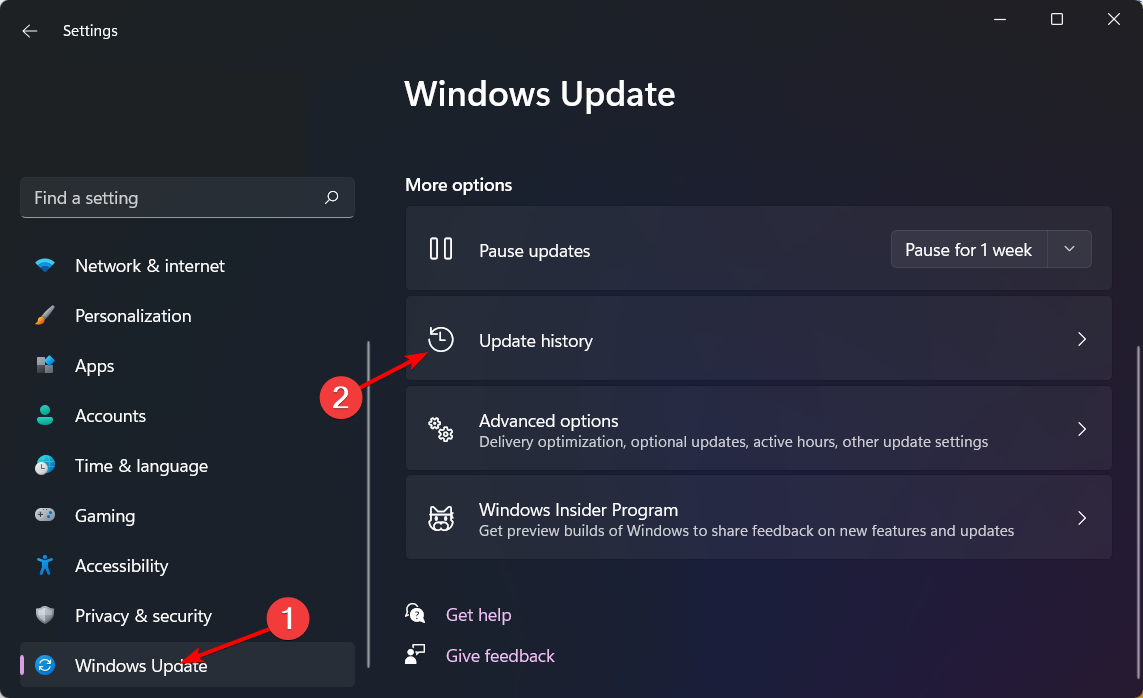
  1. Press the Windows + I keys simultaneously to open Settings.settings windows 11
  2. Navigate to Windows Update, then go to Update history.windows-update-history logitehc unifying not working
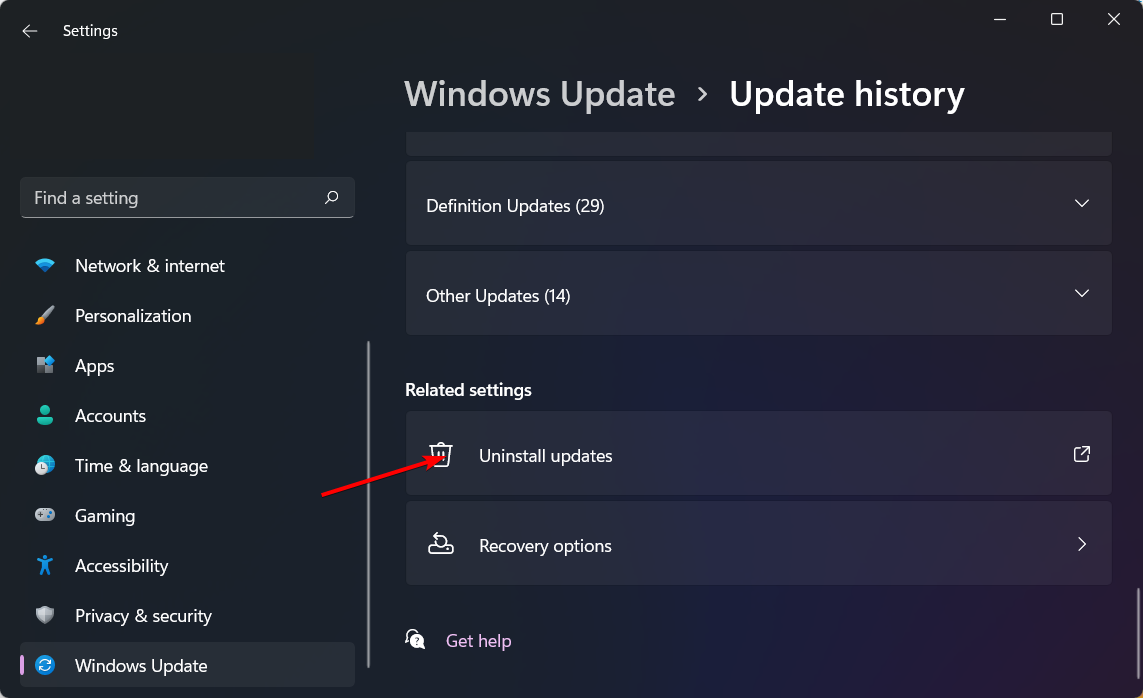
  3. Click on Uninstall updates.uninstall-updates-w11 computer-recognize-logitech-unifying-receiver
  4. Select the most recent update, then click Uninstall.

While you’re uninstalling a buggy update, examine other previous updates and check for any failed or blank updates.

If you find any, you can manually delete the failed updates, then go to the Microsoft Update Catalog, download that specific update, and see if it resolves the metadata staging failed error.

3. Change the Device Metadata Service URL

  1. Before you start making any changes, ensure you back up your Registry or create a restore point, as some changes can make your PC unstable.
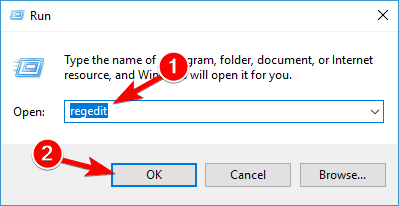
  2. Press the Windows + R keys and type regedit. Click OK or press Enter to start Registry Editor.
    Windows 10 CD drive not reading discs
  3. When Registry Editor starts, navigate to the following key in the left pane: HKEY_LOCAL_MACHINE\SOFTWARE\Microsoft\Windows\CurrentVersion\Device Metadata
  4. Replace the current URL with: https://dmd.metaservices.microsoft.com/dms/metadata.svc

Changing the metadata URL means you’re changing the source of Windows updates to a different server. This can be a workaround to determine if it’s a server issue or when Windows cannot connect to the update service.

If the metadata staging failed error message disappears, it means the previous source had problems.

4. Perform a clean install

  1. Create a bootable USB drive and connect the bootable installation media USB flash drive to your PC.
  2. Restart your PC and enter BIOS by pressing Del or F2 during the boot.
  3. Set your flash drive as the default boot device and save changes.
  4. Press any key to enter setup when asked and click Next.windows-11-reinstall
  5. Click on Install now to proceed.windows-11-reinstall
  6. Enter your product key or choose I don’t have a product key.
  7. Select the version that you want to install and click Next.
  8. Accept the terms of service and click Next.windows-11-reinstall
  9. Select the Custom install option.
  10. Select the Primary drive and click Next. Double-check to make sure that you’ve selected the correct drive.
  11. Follow the on-screen prompts to complete the installation.

The steps listed above are pretty bold, so ensure you back up your system and take any other measures that guarantee a safe point of return in case anything goes wrong.

A good one is to install Windows updates in Safe Mode to help isolate any issues.

Have you experienced this error before? What solution would you say worked best for you? Let us know in the comment section below.

Meta will expose AI-generated images on Instagram, Facebook & Threads

In a bid to draw a clear distinction, Meta will, in the coming months, start to label images generated using AI. This will be applicable across Meta’s social networking platforms: Instagram, Facebook, and Threads.

Mark Zuckerberg’s Meta has already been labelling images created using Meta’s AI imaging, but with several other companies providing the service, it’s becoming a challenge to identify AI-generated photos and videos.

So, Meta is working with industry partners to set common technical standards to identify AI content.

In a blog post, Nick Clegg, President of Global Affairs, says,

Also, until it scales the capabilities of the existing system, Meta will add a feature where you can disclose whether the image or video is created using AI. Failure to do so may attract penalties. This also applies if the digital effects or audio is altered using a tool.

Besides, if Meta finds that a digitally created or altered image poses a high risk, it will add a prominent label to provide more information to users.

Why is there a need to label AI-generated images?

Experts from different quarters have long demanded that social media companies create a boundary between organic and AI content, given the meteoric rise and massive application of artificial intelligence worldwide.

Source: Meta

This led to the rise of fake news. Though for it, you can always use a fake news detector.

Also, such content is often used to deceive the public, spread false narratives, create unrest, or instigate violence.

OpenAI, too, in a post on X (formerly Twitter), announced that images generated on its platform will now include metadata using C2PA specifications. This will allow easy identification, and the image can be appropriately labelled.

If you are an avid Facebook, Instagram or Threads user, don’t be surprised if you see certain images labelled as AI-generated.

Meta also informs that it will take this approach through next year, given the large number of important elections, to better understand how such content is created or shared.

While the blog post doesn’t mention WhatsApp, we expect AI content detection abilities to soon be implemented in the instant messaging and voice-over-IP service.

What do you think of this push by Meta? Do share your thoughts in the comments section.

Is your online data stolen? Mozilla Monitor Plus can now reclaim it

With various online attacks, your data will get stolen eventually. Simply put, many organizations get hacked and sometimes user data is exposed.

To help you regain your data, Mozilla launched a new service called Mozilla Monitor Plus, so let’s see what it can do.

Regain your solen data with Mozilla Monitor Plus

Mozilla has just announced Monitor Plus, a new paid service that will help you stop the selling of your data.

When you start the service, you’ll be asked to enter your personal information, and you’ll get one free scan. Keep in mind that this service is available only in the US at the time being.

After the scan is finished, you should be able to see all the breaches that had your data exposed as well as the list of brokers that are selling it. You can even check the information that the brokers are selling.

With the Monitor Plus subscription, Mozilla will contact data brokers and send them the request to remove your collected data.

Of course, you’ll also get tips and suggestions on how to deal with currently exposed data for each breach free of charge.

Regarding the subscription, you can get a monthly subscription for $13.99 per month, or a yearly subscription for $8.99 a month.

Overall, this sounds like a great service if you’re in the US, but even if you’re not, you can benefit from the free options that the service offers, so go ahead and give it a try.

And if you think that security breaches aren’t a concern for regular users, you should catch up on a recent Midnight Blizzard security breach that targeted Microsoft to learn more.

The new Board Visualization for Loop Tables will greatly streamline workflows, says Microsoft

Microsoft Loop introduces a new board visualization for Loop tables after the previous board templates for Loop were well received by users.

We’ve heard from many of you that you enjoy and value our board templates—such as the Kanban Board and Team Retrospective. With that in mind, we decided to extend our offering by adding the ability to switch to a Board visualization for all table-based components in Loop. 

Microsoft

The Redmond-based tech giant says the new board visualization has the potential to greatly streamline workflows, project management, brainstorming sessions, and so on.

The new feature is now available to all Microsoft 365 subscribers, and it can be enabled in just 2 steps:

  1. Open a Table-based component in Loop. 
  2. Switch view > Board. 
Board visualization for Loop tables

You can try the new Loop Tables board visualization in several scenarios, as the Redmond-based tech giant points out:

  • Create cards. 
  • Add new fields or properties to existing cards. 
  • Move cards across rows, or swimlanes, to assign them to another stage in your project. 
  • Move swimlanes to adjust their visibility and priority status. 
  • Duplicate existing cards as a template when adding related tasks. 

This is quite useful and it’s another exciting addition for Microsoft Loop. Recently, the platform integrated Copilot, which allowed users to quickly initiate projects, or edit, and add new information to an existing one.

Plus, the AI tool was available in multiple languages at launch, which turned it into a must-have for any project.

This feature will most likely be well received by the community, however, if users find anything buggy about it, the Redmond-based tech giant encourages them to leave feedback so the company can improve it.

Solved: Microsoft Teams Vertical Scroll Bar is Missing

The Microsoft Teams vertical scroll bar may be missing if you’ve changed your display settings. However, software glitches, corrupted updates, or incompatibility issues may also be behind this problem.

What can I do if the Microsoft Teams vertical scroll bar is missing?

1. Clear Teams cache

  1. Hit the Windows + R keys to open the Run command.
  2. Type %appdata%\Microsoft\Teams in the Run dialog box and then select OK.
  3. Select all files and folders in the %appdata%\Microsoft\Teams directory and hit the Delete button.
  4. Restart Teams.

Clearing the cache will get rid of any built-up files that may have become corrupt over time. After clearing the cache, ensure your display settings are fit for your monitor.

You may have inadvertently changed these settings, or a third-party app did it in the background especially if your display is being controlled. You’ll need to check and restore these settings to default where necessary.

2. Run the Windows Store apps troubleshooter

  1. Hit the Windows key and click on Settings.settings windows 11
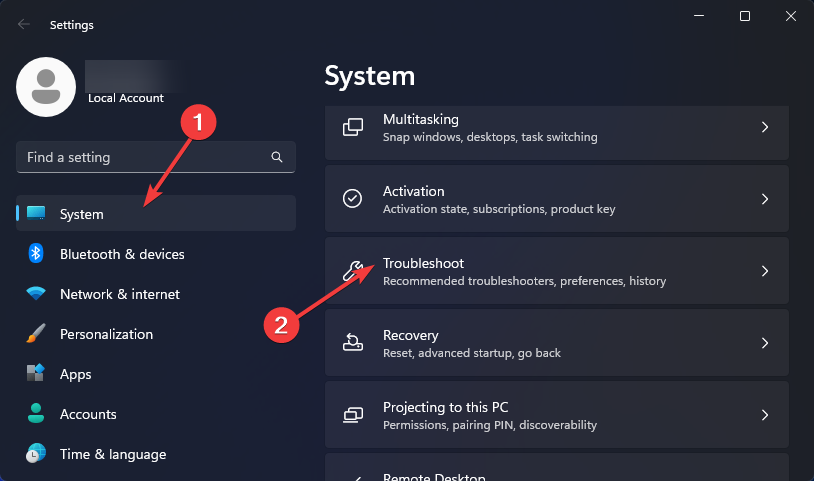
  2. Click on System and select Troubleshoot.Open system troubleshooter
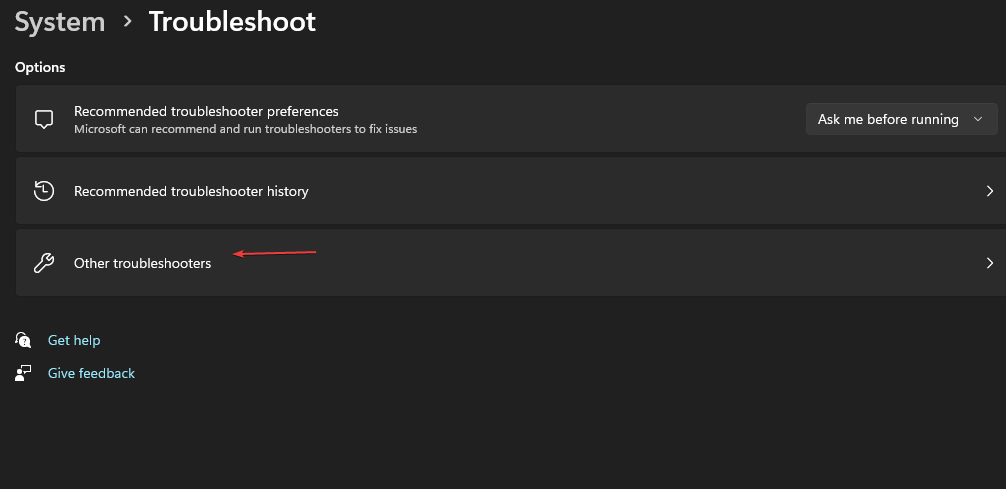
  3. Navigate to Other troubleshooters.other troubleshooters
  4. Click the Run option for the Windows Store apps troubleshooter.

3. Run Teams in compatibility mode

  1. Hit the Windows + E keys to open File Explorer.
  2. Navigate to the following location: C:\Users\<user folder>AppData\Local\Microsoft\WindowsApps\MicrosoftTeams
  3. Find the Teams executable file, right-click on it and select Properties.
  4. Navigate to the Compatibility tab, then check the Run this program in Compatibility mode for checkbox.
  5. In the drop-down menu, select Windows 8, then click on Apply and OK to save the changes. 

If the issue with the vertical scroll bar missing in Teams is due to compatibility issues, running the app on an older version of Windows may resolve the problem.

4. Switch to the Classic Teams version

  1. Open Microsoft Teams.
  2. Click the three dots next to your name and uncheck New Teams.
  3. You should now switch back to the old version.

From most complaints, it seems the new Microsoft Teams update had some glitches, causing the vertical scroll bar to go missing. Reverting to the old classic style should sort this out.

5. Repair/reset Microsoft Teams

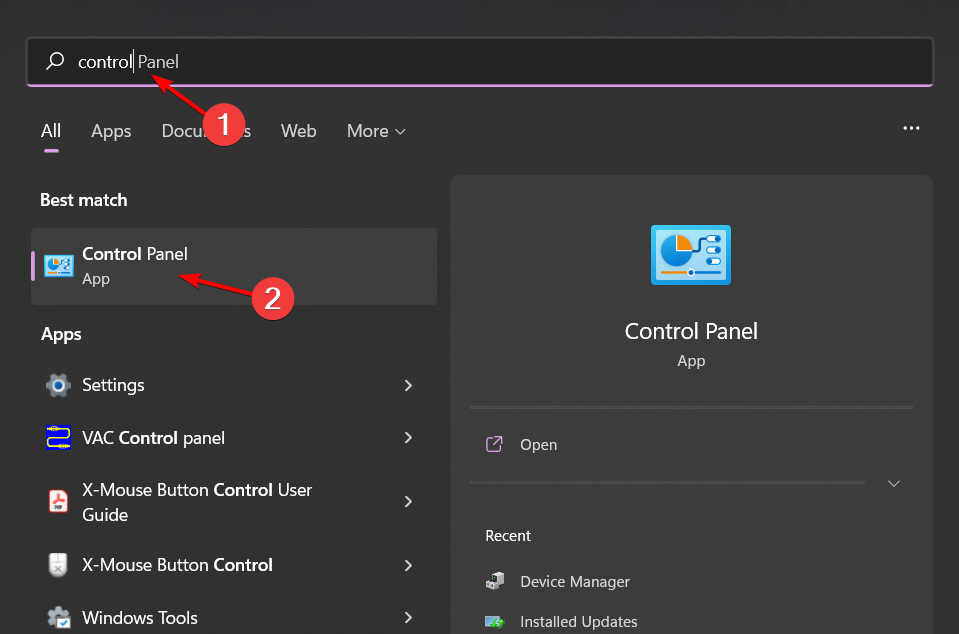
  1. Hit the Windows key, type Control Panel in the search bar, and click Open. control-panel-search fallout new vegas runtime error
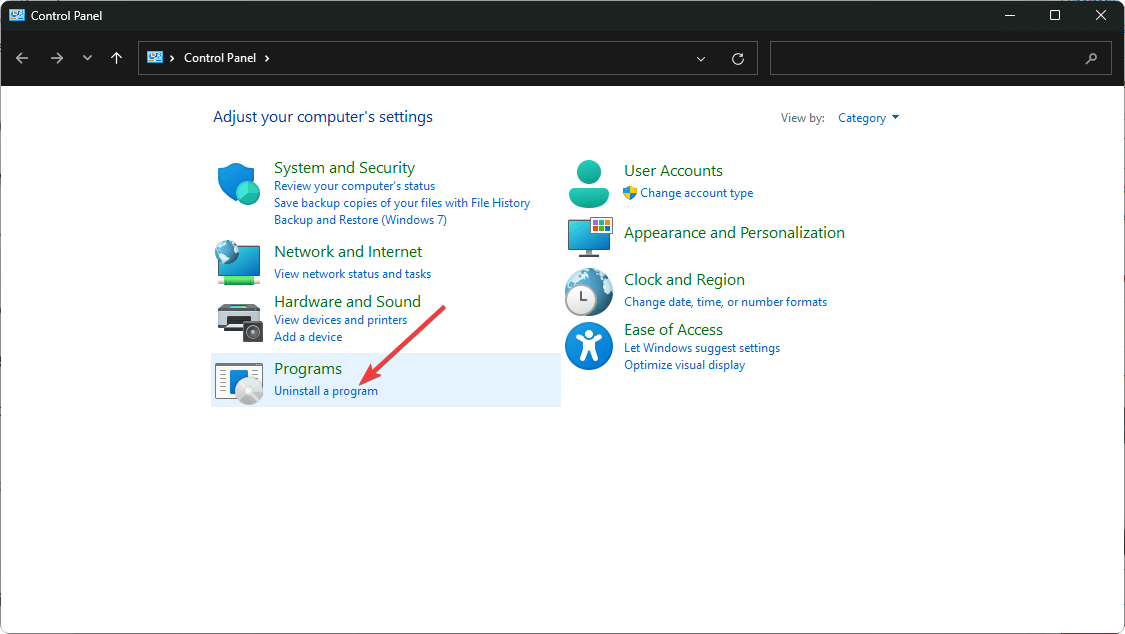
  2. Navigate to Uninstall a program under Programs.going uninstall program control panel
  3. Locate MS Office, click on it, and select Change.
  4. Select the Online Repair option and click on the Repair button.

6. Reinstall Teams

  1. Hit the Start Menu icon on the Taskbar and click on Settings.settings windows 11
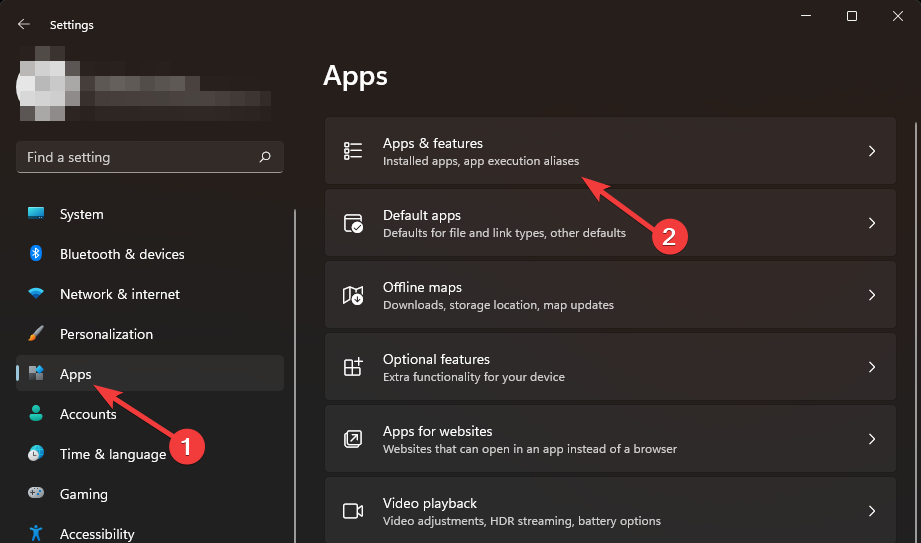
  2. Click on Apps on the left pane, then select Apps & features on the right pane.
  3. Navigate to Microsoft Teams app, click on the three ellipses and select Uninstall.uninstalling microsoft teams
  4. Launch the Microsoft Store, search for the Teams app and click Install.
  5. Follow the on-screen prompts and try again.

If a fresh install does not solve the issue of the Microsoft Teams vertical scroll bar missing, then you should try rolling back to a previous version.

You won’t find them on official sites but there are reliable third-party ones where you can download an older Teams app version.

Note icon NOTE
WindowsReport is not affiliated with Uptodown.com, so do your due diligence before downloading any app from the site.

This is also a fairly new problem, so Microsoft is obviously on top of things trying to fix this bug. You can keep up with any new updates from the official Microsoft page or community platforms.

In the meantime, try with the Teams web version and see if the same issue occurs. You can temporarily use this version as you wait for things to get sorted.

Unfortunately for Teams, it’s always one thing or another. Sometimes, the join button may disappear just when you’re about to log into an important meeting, but we’ve already covered that in our dedicated guide. Also, if Microsoft Teams notifications aren’t working for you, we can help out.

Elsewhere, if you’re fond of a little fun activity on your Teams communication but GIFs are missing, we know how to get them back.

We’re open to hearing any other workarounds you’ve tried to get your vertical scrolling back up. Leave us a comment down below.

CommBank is using AI to read, analyse and process customer documentation. Are you OK with this?

In a recent blog post, Microsoft depicts a new case study about the benefits of using AI technology within the banking business.

The success story is about the Commonwealth Bank of Australia (CommBank) using a Copilot bot to protect clients from fraud and analyze and process customer data.

CommBank is using AI to read, analyse and process customer documentation more quickly and accurately than humans. This is enabling the bank to half the time it takes to verify someone’s income when it processes a loan, for instance.

Microsoft Artificial Intelligence blog

This can be disturbing for anyone applying for a loan because it’s unclear to what extent the AI is involved. Is it looking for data online or through existing data provided by the client? Does it dismiss a client based on the information analysis?

How is the bank using AI within their operations?

According to the Microsoft letter, CommBank used the NameCheck security tool to prevent security scams and payment errors within their operational processes:

From March to December 2023, its pioneering NameCheck security tool was used to prevent more than 14,000 scam payments worth more than an estimated A$48 million. The tool also reduced mistaken payments by more than A$199 million.

CommBank

The Aussi bank also uses Copilot for Microsoft 365 for their internal operations. According to their statement within the case study, 300 of their staff have been trained to use the technology for marketing research and summarizing text documents.

Based on the bank official’s statement, they are also testing the GitHub Copilot to write code and protect the bank. During the testing period, 75% of their 200 engineers working with the tool found it very helpful. However, the process needed to be fully automated and the staff only accepted 80,000 lines of code from the one generated by the AI.needed to be,

AI is getting into sensitive data management

The iTnews blog also reported about an Australian law firm called Lander & Rogers that has launched an AI Lab to automate several legal tasks.

At present, several hundred people at Lander & Rogers are currently using Copilot.

Said a law firm spokeperson in an interview for the iTnews blog

Right now, the law company uses the AI bot to summarize the emails from their clients and help them create content and make text corrections.

Both companies are saying they have strong politics on using AI responsibly, and they probably do. But what about those who might not?

What do you thing about AI’s involvement into th banking business? Let’s discuss in the comments section below.

Microsoft Teams Walkie Talkie: How to Setup and Use

Microsoft Teams’ Walkie Talkie feature is a great addition if you are a frontline worker or prefer push-to-talk (PTT) communication on a mobile device in closed workspaces. It’s quick, secure, and easy to use. But only admins can configure Walkie Talkie on Microsoft Teams.

Also, Walkie Talkie requires you and the other person to be members of the same channel, given that it’s an open channel. Teams’ Walkie Talkie doesn’t work on shared and private channels. Besides, while it offers direct communication between two people, other members can always join in and listen.

We set up Microsoft Teams’ Walkie Talkie on a few devices in our workspace and found it to be a useful addition. While doing so, we also documented the process to walk our readers through it and share an unbiased review. Keep reading to find out!

How do I turn on Walkie Talkie on MS Teams?

This is a two-step process. First, admins need to enable and deploy Walkie Talkie in Microsoft Teams, and only then can you add it to the app.

1. Enabling Walkie Talkie from the Admin center (for admins)

  1. Sign in to the Microsoft 365 web panel and select Admin from the left pane.admins to set up microsoft teams walkie talkie
  2. Click on Teams under Admin Center.
  3. Expand the Teams apps entry from the navigation pane, and select Setup policies under it.setup policies
  4. Select the policy where you want to deploy the Team’s Walkie Talkie or create a new one. If you choose Global, it will allow all accounts to use the feature.
  5. Now, enable the toggle for User pinning. In earlier versions of Microsoft Teams admin center, the option was Allow user pinning. allow user pinning
  6. Click the Add apps icon under Pinned apps.
  7. Enter Walkie Talkie in the text field on the right, and then click the Add button next to the relevant search result.add microsoft teams walkie talkie
  8. If your team will be frequently using Walkie Talkie, it’s recommended that you re-arrange the pinned apps and move Walkie Talkie to the top.
  9. Click the Save button on the bottom left corner for the changes to apply. It may take up to 48 hours for users to be able to add Walkie Talkie to their Teams’ app.save changes

2. Adding Walkie Talkie to Teams (for users)

Once enabled by the Microsoft Teams admin, you will have access to the Walkie Talkie feature. If it’s moved to the top of Pinned apps by the admin, Walkie Talkie will be the first option at the bottom.

If not, tap on the More icon near the bottom right on your Teams phone app and choose Walkie Talkie. You can also reorder the available options to have Walkie Talkie on the main Teams screen.

How do I use Walkie Talkie on Microsoft Teams?

  1. Open Microsoft Teams, and head to the Walkie Talkie tab from the bottom.
  2. Now, tap on Channels and select the one you want to listen to or speak in.channels
  3. Tap on Connect.
  4. If asked for any permissions, approve them.
  5. Finally, you can press and hold the microphone icon and start speaking.microsoft teams walkie talkie

Teams’ Walkie Talkie works well with all modern Android phones and iPhones. You just need to sign in to Microsoft Teams with the company account. Once enabled, you can use it to communicate to other members especially when playing games on Teams and need to relay a message fast.

To view the list of Walkie Talkie-compatible headsets and rugged devices, visit the official website.

You can also use the Teams’ Walkie Talkie with the phone in a locked state if it has a dedicated Push-to-Talk (PTT) button.

On some devices like Honeywell CT30 XP, the PTT button is enabled by default, while for others like Samsung Galaxy XCover Pro, you will have to manually configure the PTT button for Teams in the phone settings.

Also, while the Microsoft Teams’ Walkie Talkie feature is exclusive to Android and iOS devices, you can still use it on a Windows PC or Mac. You just need to get an effective Android emulator and download the Teams app through it.

Microsoft Team’s Walkie Talkie tips

  • Use a compatible device: It’s recommended that you use compatible devices with Teams’ Walkie Talkie for an optimal experience.
  • Create dedicated channels: If you have different teams, it’s best to create a separate channel for each to improve communication and not bother the unrelated members.
  • Connect to a stable network: You don’t need a high-speed network to communicate using Walkie Talkie, but the connectivity should be stable, with latency below 300 ms and packet loss under 1%.
  • Monitor the report: You should check the Teams’ Walkie Talkie usage and performance report to identify how many communications have been made, the duration, and channel activity to better optimize the experience for users.

What can I do if Teams Walkie Talkie is not showing up?

First, make sure that you are searching for Walkie Talkie on the Teams mobile app and not on Windows. Also, sign out and then sign back into Microsoft Teams. Lastly, you should clear the app cache and check again.

Remember, the Walkie Talkie feature is presently unavailable to users in China.

You now know how to set up Walkie Talkie on Microsoft Teams. In our experience, the feature could benefit from a few improvements, particularly its deployment and usage. But in all, it’s a great start and should allow seamless communication between coworkers.

While you are here, discover Microsoft Teams chat monitoring and find out how to keep a tab on all member chats.

For any queries or to share your review of Teams’ Walkie Talking, drop a comment below.

Do you think BitLocker is safe? Guess again, it takes less than a minute to break it

BitLocker is the encryption method of choice for many users since it will protect your data in case your PC gets stolen.

However, it seems that BitLocker isn’t as secure as we previously thought, and it can be bypassed easily with Raspberry Pi Pico.

YouTuber shows how to break BitLocker protection with Raspberry Pi

According to Betanews, it seems that YouTuber stacksmashing managed to bypass BitLocker encryption all by using a Raspberry Pi Pico.

To make matters worse, it only took him 43 seconds to do so, and that includes the necessary time to open the laptop case and access the motherboard!

He has a pretty informative video that shows this in action while explaining the process in detail.

According to the video, he managed to do so by using an unused connector at the back of the laptop motherboard. The connector has the necessary lines to access the TPM, which makes it vulnerable to this type of attack.

To get the BitLocker key, stacksmashing created a small Raspberry Pi Pico board that connects to this connector and retrieves the BitLocker Volume Master key.

After obtaining the master key, you can use one of many available tools to decrypt the drive and access the files.

While this is worrying, there are some precautions you can take to protect yourself. Firstly, you should use preboot authentication with a strong PIN. By doing so, this type of attack will be useless.

Unfortunately, this option isn’t easily accessible, and you can enable it only from Group Policy Editor.

Secondly, this isn’t method isn’t 100% compatible with all laptops. It works usually with Lenovo laptops, as well as other models that have a similar connector. Microsoft Surface Pro is also vulnerable to this type of attack.

The attack also doesn’t work on PCs that have a firmware TPM that is integrated into the CPU, but if your laptop has a dedicated TPM chip, it might be vulnerable.

While this looks extremely troublesome, your PC should be safe as long as you have a preboot authentication enabled or if your device comes with fTPM that is integrated into the CPU, which modern PCs usually do.

This isn’t the only security concern for Microsoft, and Microsoft is investigating Outlook security vulnerability and dealing with the aftermath of the Midnight Blizzard attack, so fixing this probably isn’t at the top of their priorities.

The Xbox Insider Program turns 10 this month and promises a bunch of exciting surprises to celebrate the anniversary

February 2024 marks 10 years of existence for the Xbox Insider Program, and we’ve known for a while that Xbox is preparing some exciting surprises to celebrate the anniversary. We didn’t know for sure, so we were free to speculate (maybe some insights on the future of the ABK acquisition, Blizzard games on Xbox Game Pass?).

However, Wynn, the manager behind the program, just uploaded an update telling those from the community to expect some exciting surprises as well as a series of ‘firsts’ to celebrate the 10th anniversary of this community.

This month marks the official 10th Anniversary of the Xbox Insider Program. You can actually still read the announcement article from February 20th, 2014 right here (Program Announcement). Then called the Xbox Preview Program, we’ve since evolved from an invite-only, platform-focused enterprise, into an open way for users across the world to deliver their feedback for console, features, PC, mobile, and games alike. The Xbox Insider Program, which we christened on the Wire back in 2016 (Program Rebrand), has flourished this past decade and that’s in an incredibly large part due to the millions of Xbox fans from our community (that’s y’all!). So, from everyone here at Xbox Insider, we want to give an enormous thank you for everyone who has contributed over the years.

Wynn

For now, however, Xbox insiders can learn all about the history of the community, as several articles chronicling it will be published on the program’s official blog.

Wynn also mentioned the Xbox Insider Program will be getting some exciting new features, enhancements, and surprises in the following weeks.

There’s still plenty more to come, and we anticipate quite a few “firsts” to be headlining this blog in the coming weeks/months.

Wynn

Until then, those interested in the people behind the scenes can follow Xbox Insider’s interviews with them, as the first one is already up, and can be read here.

You will now be able to tell Copilot to start coding in Visual Studio Code with a single command

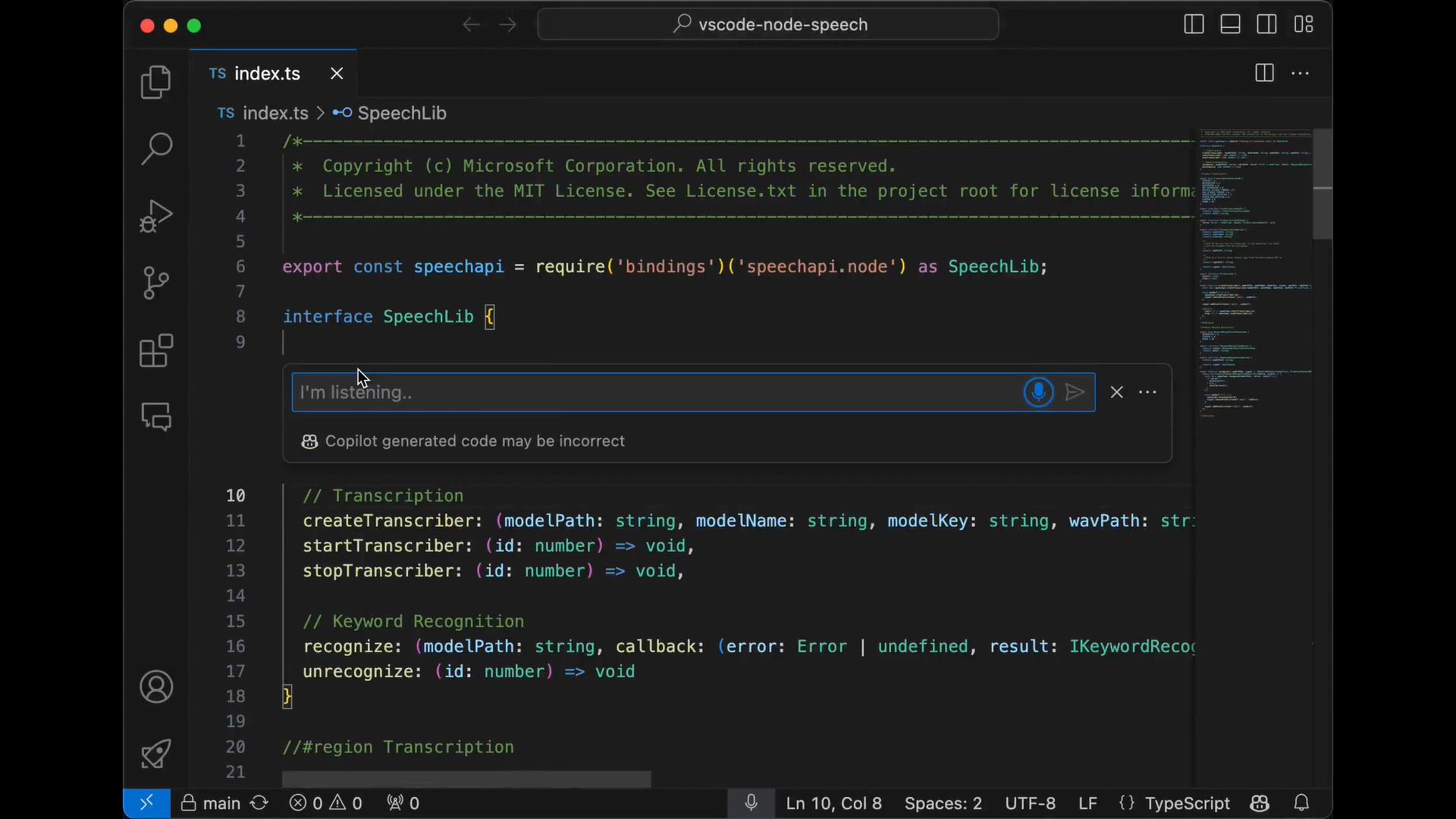
Visual Studio Code is now letting software developers enable accessibility features that will allow them to use a single spoken command to open up Copilot and let it code.

These accessibility features were released as part of the January update to VS Code, and users will need to install the latest version, version 1.86, to have access to them.

Microsoft introduced a new command, accessibility.voice.keywordActivation, and once accessed, software developers can set up VS Code to listen for the Hey Code command, which starts up a voice session with Copilot.

However, you shouldn’t worry, though. Microsoft says the voice recognition is only processed on your local machine, and it will never be sent to any external servers.

The Hey Code command can be customized to be enabled by accessing different areas of the Visual Studio Code platform, as follows:

  • chatInView: start a voice chat from the Chat view.
  • quickChat: start quick voice chat from the Quick Chat control.
  • inlineChat: start voice chat from inline chat in the editor.
  • chatInContext: start voice from inline chat if the focus is in the editor, otherwise voice chats from the Chat view.

You will know when Copilot is on because the platform will display a microphone icon whenever Hey Code is used. When the session is complete, you can start another by saying Hey Code again.hey code copilot

However, you’ll need some prerequisites to be able to use this feature. The following extensions must be installed in Visual Studio Code:

And since we talk about Visual Studio Code, you might want to check out our list of the hottest extensions for Visual Studio that you should have in 2024.

Version 1.86 also comes with a lot of other useful features to the Visual Code Studio, so you should consider updating the platform to this version as soon as possible. These features are:

Read everything about it here.

Microsoft adds pesky prompt to Mail & Calendar, pushing users to switch to Outlook

As you probably know, Microsoft is keen on retiring the Mail & Calendar app on Windows, after the introduction of the free Outlook app.

In the beginning, Microsoft was subtle about suggesting the Outlook app, promising a better email experience, but recently, the company decided to be a lot forward with prompting the users to make the switch.

Mail & Calendar has a new prompt on startup that promotes Outlook

As you probably know, Microsoft is retiring the Mail & Calendar app, and all new versions of Windows will come with Outlook preinstalled. According to Microsoft’s support page, support for Mail & Calendar will last until December 31, 2024.

This wouldn’t be a big problem, but many are unhappy with hidden ads in Outlook that Microsoft is pushing to its users.

If you thought that intrusive ads were a problem, we got some bad news for you. The Mail & Calendar app will now show you a window asking you to switch to Outlook whenever you start the application.

This means you’ll need to manually close the prompt or cave in and switch to Outlook. This can become rather tedious after a while, so users will eventually have to make the switch just not to deal with pesky prompts.

Many don’t want to switch to Outlook because of the ads, but there’s also a problem of missing features.

Luckily, Microsoft has started to address those and Outlook is finally getting newsletter support as well as drag-and-drop support for attachments.

What are your thoughts on Outlook, will you switch or are you on team Mail & Calendar? Let us know in the comments!

Here’s everything you need to know about Bluesky, the X alternative, backed by X’s former CEO

Bluesky, a relatively new social media platform that’s been touted as the alternative to X (formerly known as Twitter) and is backed by X’s former CEO and founder, Jack Dorsey, has now ended in closed beta and has become open to the general public.

That means new users won’t have to wait (or get) for special invites. They can just sign up, and join Bluesky right now, as social media is now available to all Android, and iOS users everywhere.

Bluesky is building an open social network where anyone can contribute, while still providing an easy-to-use experience for users. For the past year, we used invite codes to help us manage growth while we built features like moderation tooling, custom feeds, and more. Now, we’re ready for anyone to join.

Bluesky

If you’re not sure about Bluesky, and Twitter, we mean X, has become too much for you, it’s better to know what you’re dealing with before deciding to join. So we’ve gathered up some things you need to know about it.

1. Bluesky is a decentralized X, but the UI is the same

If you’ve been using X, or Twitter, as they used to call it, one of the best things about it was the simplistic UI which has always been on point: that means you have easy access to content, and the feedback automatically updates itself after each refresh.

Bluesky is pretty much the same, as you can see in the image below.Bluesky

Bluesky says it’s a decentralized social media network, and according to its manifesto, which can be read here, this means that the network has multiple providers for every part of the system.

It also allows everyone to contribute to content moderation and community management.

2. It already has over 3 million users

Bluesky recently crossed 3 million users and this number will greatly increase following the decision to make it public to everyone.

So, for those thinking it could not rival X, well, just give it time, it will get there.

3. It supports all sorts of media content, including NSFW content

Unlike the other X rival, Threads, Bluesky follows X’s path, and it allows all sorts of content from news, art, and even nudity, as NSFW content is allowed on the platform.

This specific content will be highly regulated and policies can be enabled so that it will be safe for everyone. The platform employs a technology first pioneered by Tumblr, another platform where NSFW content is allowed, although in a limited capacity. The technology is called community labels, and it aims to provide users with the ability to filter content based on their preferences.

The social media discussed in detail about this topic, and you can find everything about it here.

4. It’s available to everyone, on Android, and iOS, as well as desktop devices

Bluesky is now available to everybody, and you no longer need an invite to join the platform. However, keep in mind that the platform will most likely have lagging issues these days, due to the sudden high number of users joining.

5. It can be the perfect alternative to X, or Threads

For those complaining X is no longer what it used to be, Bluesky can be the perfect choice to try a new microblogging social network. It keeps all the X features, while also being decentralized, and unlike Threads, you will find all sorts of content on it.

So will you try it? Let us know in the comments section below.

Google’s generative AI is ready to challenge Microsoft and others

Google is coming strong with three models of generative AI for image, music, and text generation. On top of that, each one comes with an option for expressive chips. They are dropdown menus featuring similar keywords that you can use to enhance your generated content. Moreover, Google will protect all of your generations by adding a digital watermark to them.

Google’s generative AI includes image and music creation

Google’s generative AI names are simple and straight to the point. Different from their other creations, such as Vertex AI and Bard. You can find them all below, and if you are from US, New Zeeland, Kenya or Australia, you can try them out right away.

ImageFX uses the latest Google DeepMind technologies, Imagen 2, for text-to-image generation. In addition, the database has various image-description matches to make it easier for AI to understand our words.

MusicFX allows us to create songs that are up to 70 seconds long. If you are happy with the result, you can download and share it directly. Moreover, this generative AI can deliver higher-quality audio samples. Furthermore, it can generate tunes faster than ever before.

TextFX is not as great as the other generative AI from Google. It can write emails, lyrics, scripts, and other text-based creations. However, there are many others doing this for us already. And that’s a wrong approach. In fact, TextFX uses ten different AI features to compare phrases, simplify sentences, add unexpected words, create intricate narratives, generate compelling stories, generate alliterations and acronyms, fuse various styles and concepts, and unravel content.

Additional functions

Used together, with a bit of creativity you could use the Google’s generative AI to could make various types of content, such as children’s stories featuring short narratives with pleasant sounds and colorful images. It’s all up to you and your imagination.

In a nutshell, the three tools, ImageFX, MusicFX, and TextFX, complement each other. We recommend that you try all of them if they are available in your region. Also, the built-in technology makes them some of the best generative AI models available. Also, kudos to Google for adding digital watermarks to them to prevent theft.

If you are interested in the future of AI, know that there are talks about Apple’s AI and they sound promising. Also, if you want to learn more about Google using AI, check out Gemini AI.

What are your thoughts? Are you going to try them right away? Let us know what generations surprised you in the comments.

How to Create Chrome AI Theme for Windows 11/10

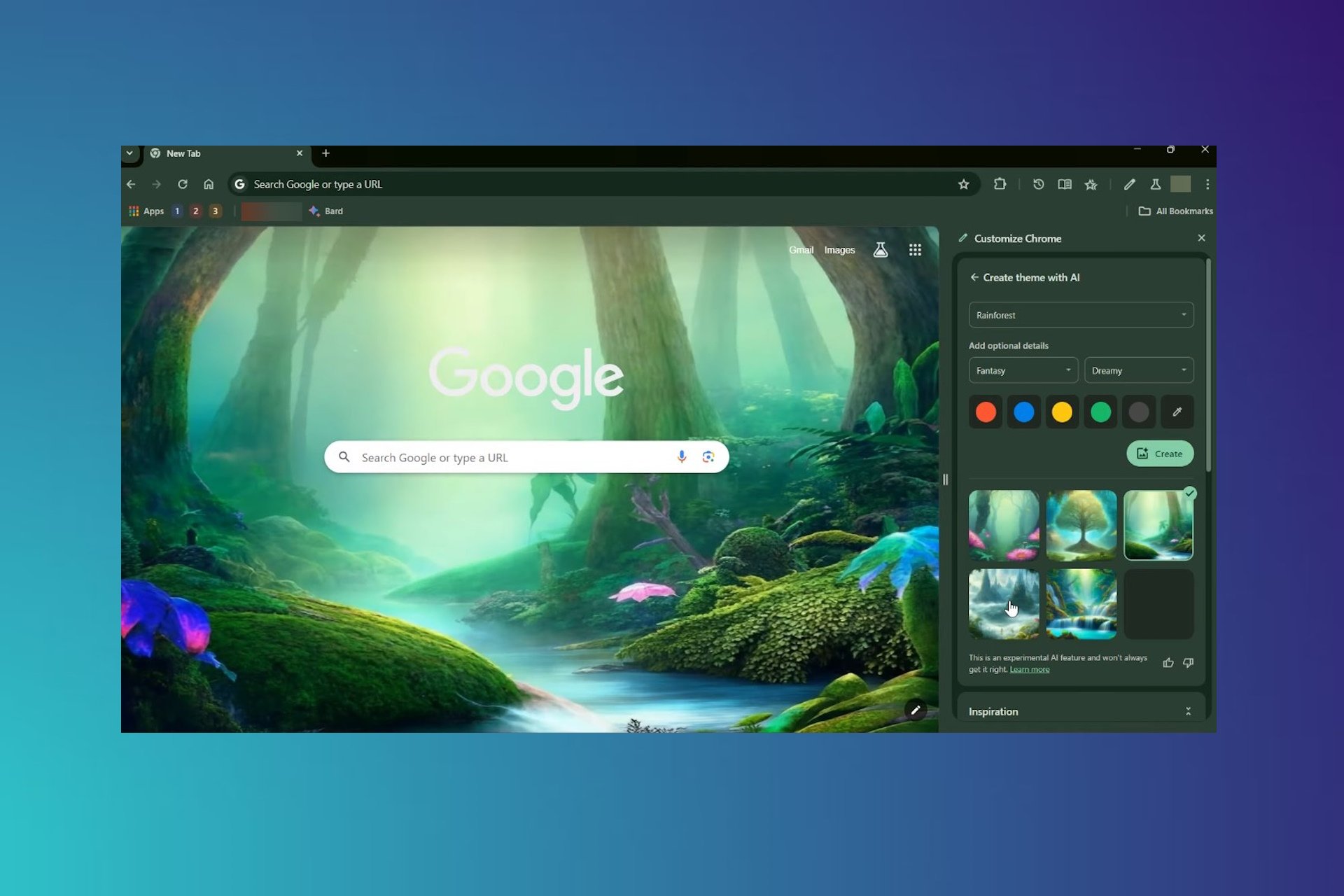
With Google Chrome version 121 and later, you can create an AI theme and apply it to the browser. First, you need to enable AI features in the settings, and then you can start creating new themes on the go.

As of now, you must be located in the US, 18 years of age, and signed into a Google account to create Chrome AI themes.

How to create Chrome AI theme?

1. Launch Chrome, sign into your Google account through the profile, and Turn on sync buttons.

Profile Icon on Chrome

2. Go to Chrome’s AI settings by pasting the following address in the address bar: chrome://settings/ai

3. Enable the AI features by sliding both buttons to the right.

Experimental AI features

4. Now open a new tab by pressing Ctrl + T together.

5. Head to Customize Chrome from the right-bottom of the page.

Customize Theme option

6. Then, click on the Change theme button in the sidebar theme menu.

Change theme in Chrome

7. After that, click on Create with AI.

Create Chrome AI theme

8. Here, select a subject, style, mood, and color for AI to create a Chrome theme.

Select AI options

9. Click Create once all the parameters are set. It will take a couple of seconds to create Chrome AI themes.

Generate Chrome AI Theme

10. Then click on an AI-created theme from the results, and it is applied to Chrome in a second.

All the generated themes will be in the Your recent AI themes section below the Inspiration section. You can use any of them at a later time.

This is how we can create and apply Chrome AI themes and add a personalized creative flair to the browser.

But if you don’t want to create themes, you can always download Chrome themes. Then, you can save computer resources by turning on Chrome’s memory saver.

If you need help using the Chrome AI theme creator, let us know through the comment section.

Microsoft Entra’s Face Check is now in preview and it’s going to be very hard to hack

Microsoft introduces Face Check to Entra Verified ID, allowing commercial customers to enable authentication to their platform by real-time selfie matching methods. The new capability that was just announced by the Redmond-based tech giant, is now in preview and will be released generally in the following weeks.

Microsoft says it will greatly enhance the security for organizations everywhere, and will not access any sensitive data when requesting the user for the identification selfie.

Face Check, powered by Azure AI services, adds a critical layer of trust by matching a user’s real-time selfie and the photo from their identity document (such as a passport or driver’s license). By sharing only the match results and not any sensitive identity data, Face Check improves user privacy while allowing organizations to be sure the person claiming an identity is really them.

Microsoft

The Redmond-based tech giant says the feature has already been successfully tested by organizations such as Bemo, a leading company for cybersecurity operations, and Face Check is successful in verifying identity and detecting impersonations.Microsoft Entra Face Check

The liability of granting admin [role] access to the wrong person is high, so Face Check provides an extra layer of insurance. In the past we had to trade off between increasing risk of fraudulent access or increased compliance risk by collecting personally identifiable information in an ad hoc manner. Now we can verify the identity of an employee instantly and with high confidence, without trading off between security and compliance

Bemo

Microsoft Entra’s Face Check is also quite simple to implement, and according to Microsoft, it can be enabled in 5 minutes. Admins will have to enable the policy on a wide scale, for the organization to be able to authenticate using it.

The policy is customizable, and admins can choose which members of the organization must authenticate using Face Check. Once that is set in place, those members will receive messages to set up their Face Check authentication method.

It will also be hard to impersonate, or hack, as the policy will verify and validate the selfies against a Verified Employee credential, or even official state-issued government IDs. And Microsoft doesn’t intend to stop here, as in the following weeks, the Redmond-based tech giant will take into consideration other means of verification that go along with the Face Check, such as work history, or legal entity verification.

While this might sound a bit extreme, let’s not forget Microsoft is the subject of many cyberattacks, and its products and services are often targeted by threat actors. Outlook and Azure Pipelines were two of the recent services affected by these attacks.

Plus, impersonating employees through phishing attacks has been at a peak on the Microsoft 365 platform, recently, so, any kind of protection is welcomed.

Windows 11’s Widgets suggest users should download this mobile app

Windows 11’s Widgets panel is suggesting users download a news-oriented mobile app, the Microsoft Start mobile news app, according to an X post (formerly known as Twitter) by Windows enthusiast, @PhantomOfEarth.

The enthusiast noticed the suggestion when opening the Widgets panel: a new icon appeared and when hovering over it, it suggested downloading the mobile app, as you can see in the image below.Windows 11 widgets

It looks like a “Download App” icon for the Microsoft Start mobile news app is now showing up in the Widgets board (server side rollout), hovering over it shows a QR code.

@PhantomOfEarth

Microsoft has been keen on using Windows 11 as a means to advertise its products and services, so this is not new. A few days ago, for example, Windows 11 (although the Insider builds) started displaying ad cards for Copilot Pro, on Windows 11’s Settings homepage.

The Settings page now uses cards to allow Windows 11 users to access their preferred settings faster, so a Copilot Pro ad taking up the space is not quite the right way to do it.

While other ads are understandable, for example, Microsoft sending Windows 11 update alerts to those still using Windows 10, these ads, however, can be quite frustrating, especially since they show when the news feed is turned off, as @PhantomOfEarth says:

This shows up even with the news feed turned off, which is very disappointing. I didn’t turn off news because I want a “hey, but what about news?” link, I turned off news because I just want to see widgets.

@PhantomOfEarth

For now, this suggestion might show up to Windows 11 users enlisted in the Windows Insider Program, and, as any new appearance in the Insider builds, it might not make it to the stable Windows 11.

But if it does, Microsoft will probably get multiple complains from users.

Copilot will schedule meetings right out of your Outlook emails

It’s been a few months since Microsoft released Copilot to Outlook, but the Redmond-based tech giant is already looking into making it essential to the platform, beyond its summarizing capabilities.

How? Well, according to the latest entry to the Microsoft 365 Roadmap, the new Outlook for Windows, Mac, Web, and Mobile, will allow Copilot to schedule meetings right out of your emails.

So, that means Copilot will take a look at your emails, and if anything about a potential meeting is mentioned, the AI tool will take it upon itself to fix a meeting for you. Smart, right?

You’ll have to do one thing, though, and that is: you’ll have to click on a special option called Schedule with Copilot. This will allow the AI tool to come up with potential dates for a meeting.

And not just dates. Copilot will generate potential titles for the meeting, an agenda, a conversation summary that includes important keynotes, a pre-filled attendee list, and an attachment of the original email thread.

Often you may want to transition a conversation from an email thread to a meeting. Copilot helps you do this by being able to start scheduling right from the email conversation. It saves you time and effort by generating a meeting invite that’s ready for you to review and send. When you click on “Schedule with Copilot” a meeting form will appear with a Copilot generated meeting title, agenda, and conversation summary as well as a pre-filled attendee list from the email thread and an attachment of the original email thread. This feature will be available in the new Outlook for Windows, web, Mac, and mobile.

Microsoft

The feature will be released in a preview period in March 2024, and then it will be widely released to the general public in May. As we mentioned earlier, it will only be available to the new Outlook, even though Copilot is on classic Outlook, as well.

Microsoft sends upgrade alerts to Windows 10 users

Windows 10 users started getting full-screen pop-ups after a cumulative update rolled out in May 2023. The pop-up has made its way back to Windows 10 devices after the optional update released in January 2024.

Windows 11 was released in October 2021, but a lot of users have decided to stick with Windows 10. However, in 2023, Microsoft announced that Windows 10 would reach the end of support on October 14, 2025, and encouraged users to transition to the latest version.

So, if you decide to stick to your operating system, you can select Keep Windows 10 or click the Decline upgrade option on the pop-up, prompting a free upgrade.

After the January 2024 update, according to Windows Latest, Microsoft is pushing a four-page prompt, and here’s what it says:

  • The first screen provides a free upgrade to Windows 11, ensuring that the download can run in the background while you can work on other things.
  • On the second screen, details about the functions and features of Windows 11 are presented, describing how it is faster, more productive, secure, and easier to use.
  • The third screen illustrates the seamless transition process, ensuring you keep your files and the updated Windows version is familiar to Windows 10.
  • The fourth screen showcases screenshots of the enticing features of Windows 11, giving you the option to stay with the current Windows version while keeping the door open for a potential upgrade anytime through Windows Update.

Though some people might find it annoying, the four-page pop-up has options to quit it or proceed with the upgrade.

You might be wondering if Windows 11 is so amazing and has a lot to offer; some people are reluctant to upgrade. For some, it could be the hardware limitations (absence of TPM chip), while others have concerns about stability.

Despite multiple pop-ups encouraging users to shift to the new version, not many people are willing to move towards it.

According to the Statcounter reports, Windows 10 is still used by 66.43% of users in the market as compared to 27.82% on Windows 11.

Earlier, the market share was 71.6% for Windows 10 and 26.63% for Windows 11, but the transition was noticed after Microsoft released Copilot, a powerful AI assistant.

As it is said, change is inevitable, and as the EOS is approaching, people will have to upgrade their PCs to Windows 11. However, the hardware restrictions may nudge them in a different direction, like opting for Linux.

So, the solution could be that Microsoft considers extending the EOS date so users keep getting security updates, as a huge percentage of people are still using Windows 10.

In case you want to learn about the differences between Windows 10 & Windows 11, read this comparative study to make an informed decision.

Do you think that Microsoft will reduce the pop-up frequency or adopt a more regressive approach to push users to upgrade? Share your thoughts in the comments section below.

Microsoft Teams makes it way easier to join meetings with these 2 new features

Microsoft Teams will debut 2 new features in April that will make it easier to join meetings on the platform, according to the latest entries to the Microsoft 365 Roadmap.

Firstly, we’re talking about shorter meeting URLs, and Microsoft says they will be released on all platforms. Basically, the Redmond-based tech giant is making it easier to share Teams meeting URLs by eliminating unnecessary symbols from them.

We are making meeting URL shorter and removing unnecessary symbols/info from there to make it more convenient for sharing.

Microsoft

Currently, Teams meeting URLs can be quite long, which makes them hard to manage sometimes, especially on mobile devices, so this feature is more than welcomed.

Secondly, Microsoft is going to introduce the ability to join Teams meetings through QR codes on Teams Rooms on Windows using Teams mobile, and users will only have to scan the QR code with their phones to join the conversation.

After scanning the QR code, the meeting will automatically be open on Teams for Mobile, and if the users doesn’t have the app, then the feature will redirect the user to download the app, so they can join the conversation automatically after installing it.

However, managers should rest assured that the QR code can be controlled through various policies, so only those who need to be in the meeting will be able to access it, according to the feature’s description.

Users can quickly join a meeting from a Teams Room even without forwarding the invite to the room calendar by scanning a QR code using their native mobile camera. The user will then enter the Teams mobile companion mode experience on their mobile. The QR code is found on the Teams Room home screen and can also be scanned to start an ad-hoc meeting or cast content from their mobile to the Teams Room display. If the user does not have the Teams mobile app, they will be directed to download it after scanning the QR code. IT admins can control the QR code feature in the device settings and the Teams admin center. This feature supports cross-tenant meetings when the organization settings and user policies allow it.

Microsoft

So Teams for Mobile users should be excited about these new capabilities coming to the platform in April. Microsoft recently unveiled that users will soon be able to record the Teams meeting on Teams for Android, and, apparently, the Redmond-based tech giant will soon debut the ability to use customized emojis in the platform.

Quite a good time for Teams users everywhere.

OneDrive users can now easily find all their photos and videos within a single view

OneDrive is introducing a new capability called Media Mode that allows users to easily find all their media content (photos, and videos) within a single view with a single click, according to the latest entry in the Microsoft 365 Roadmap.

The new capability is set to be released to OneDrive for Web this month, in February, and it might be part of the new UI experience Microsoft released to the platform a few days ago.

While the Redmond-based tech giant will release some confusing features to OneDrive, most of them are quite useful and intuitive, meaning the company wants to make OneDrive as easy to use as possible.

The cloud-based platform will also debut Copilot soon, and users should be excited as the AI tool will be able to summarize, scan, and recognize from a plethora of document formats out there.

As for the new Media Mode, we don’t know how it looks, but as soon as we have a glimpse of the new feature, we will update this article. However, Microsoft says it will be placed to the left nav of OneDrive for Web, so the button will be within users’ gaze.

We’re adding a Media node to the left nav of OneDrive for Web which will allow commercial customers to easily find all the photo and video content stored in their OneDrive in a single view.

Microsoft

The new capability will surely become a favorite among OneDrive users as it can grant them easy access to every piece of media they store on the platform.

What do you think about this new capability? Are you excited for it?