Microsoft Ignite is typically an event for IT professionals and developers, and we usually don’t hear about the latest Windows 10 innovations during the annual extravaganza. But that doesn’t mean Windows isn’t mentioned at all, though, as our list of most interesting sessions pointed to.
First up, there’s the biggest session of them all. This one features Microsoft Chief Product Officer Panos Panay. He’ll be sitting down with Platform CVP Roanne Sones, and will talk about the recent Windows innovations for commercial customers and the IT community. It’s unlikely that he’ll mention Windows 10X, or Sun Valley, but since 10X is catered for commercial and education users, you might never know. This one is worth keeping an eye on!
Second on the list is this breakout session dedicated to the engineering behind Windows 10. This session is set to feature Windows CVP Aidan Marcuss. Along with the security and endpoint management engineering team, Marcuss is apparently going to chat about “shiny new things that will help prepare commercial organizations for the future and ensure that IT receives the hero’s welcome it deserves.” Microsoft’s Ramya Chitrakar, David Weston, Gabe Frost will also make appearances, too.
This session also has a live Q&A, so you might not want to miss it if you’re an IT folk. Keep in mind that it’s also available on-demand as a replay on Thursday, March 4 at 1:30 AM PT, if you’re in other parts of the world and can’t make it for the first.
Final on the list is this ask the experts session. Set for Wednesday, this session will have members of the Windows engineering team, as well as the Microsoft Endpoint Manager team. Microsoft is also promising members of the Surface, Microsoft Edge team to appear, too. It’s a great chance to network and meet the folks who work on Windows!
Other sessions
As we covered before, there are tons of other sessions that you can find at Ignite which relate to consumer products like Windows. One of them is an ask the experts session on Edge, set for Tuesday, March 2 at 11:30 PM PT. Another is a session about Surface and security, and, the final one relates to the top reasons why customers love Edge. You won’t want to miss a single minute of the news coming out of Microsoft Ignite, so be sure to stay tuned to OnMSFT for more all week long!
Microsoft has launched a new hardware and software platform called Azure Percept in the public preview today. The latest offering makes it easier for customers to develop and implement AI solutions for scenarios such as anomaly detections, object detection, shelf analytics, and more.
Azure Percept is an entire platform that aims to simplify the ways customers can enable AI capabilities at the edge. It seamlessly integrates with other Azure services, including Azure Machine Learning, Azure Live Video Analytics, Azure Cognitive Services, and more to provide vision and audio detailed insights to customers in real-time.
According to Microsoft, Azure Percept offers useful features like pre-built AI models and solution management for developing prototypes and an end-to-end edge AI platform. It also helps to protect sensitive and high-value assets of an edge AI solution with built-in security measures.
“We’ve started with the two most common AI workloads, vision and voice [and] sight and sound, and we’ve given out that blueprint so that manufacturers can take the basics of what we’ve started,” Microsoft VP Roanne Sones said today. “But they can envision it in any kind of responsible form factor to cover a pattern of the world.”
For starters, the Azure Percept platform comes with a couple of additional offerings, including a hardware development kit, Azure Percept Audio, and Azure Percept Studio. You can find more details about these tools below:
Azure Percept DK: A pilot-ready development kit with a carrier board, mounting tools, and Azure Percept Vision, a camera-enabled system on module (SoM) for rapid scenario-based customization.
Azure Percept Audio: A voice-enabled system on module (SoM) with a 4-mic linear array to apply custom commands, far field speech and anomaly detection.
Azure Percept Studio: A new experience that guides customers through the entire AI lifecycle, including developing, training and deploying proof-of-concept ideas.
Microsoft says that it is also collaborating with some third-party “silicon and equipment manufacturers” to develop an entire ecosystem of solutions that will run on the Azure Percept platform. In addition, the Azure Percept team is also working with select customers to gather some early feedback.
If you’re interested to learn more about the Azure Percept platform, be sure to check out the official blog post, and pricing details are available on this page.
As you might remember, Microsoft Ignite 2020 was split into two separate events: Part 1 took place in late September, and the follow up will kick off this morning. The all-digital event will last through March 4, and there will be plenty of news for IT Pros, developers, data professionals, and decision makers. The Day 1 introducing keynote will kick off at 8:30 AM PT and will feature Microsoft CEO Satya Nadella and HoloLens inventor Alex Kipman.
As Microsoft’s focused has shifted to the cloud in recent years, so has, for the most part, the content of the conference. Azure is expected take center stage, though there should also be news about Microsoft 365 and business applications such as Dynamics 365 and Power Platform. Join us and thousands of others across the globe get the latest news about Azure, Microsoft 365, Windows and beyond.
The Ignite 2021 introducing keynote will be Microsoft’s first keynote experience designed for HoloLens devices and other VR headsets. If you have a Windows Mixed Reality headset or or an HTC Vive, Oculus Rift or Oculus Quest, you can watch the keynote in Microsoft’s AltspaceVR platform. We invite you to visit this page to download what you need to get ready for the VR experience.
After the keynote is over, will be followed at 9:45 AM by another interesting session with CVP of Microsoft 365 Jared Spataro titled “The Hybrid workplace.” You can find the full agenda for the conference on this page, make sure to register so that you can create your personalized agenda for the next 3 days of Ignite 2021. You can check out our recommendations for some of the more interesting sessions, too.
At Ignite 2021, Microsoft is promoting the Zero Trust security mindset. With recent security breaches in mind, Microsoft believes the Zero Trust security mindset helps address and encompass “all types of threats, both outside in and inside out,” and is the “right approach is to address security, compliance, identity, and device management as an interdependent whole.”
For those who aren’t familiar with Microsoft’s terminology, the Zero Trust security news means that Microsoft is basically pushing four security innovations across what it is calling “identity, security, compliance, and skilling.”
To get there, Microsoft says the first step is to start with a cloud identity foundation, which includes strong authentication, protecting user credentials, and devices that are essential. Some of these things are coming to Azure Active Directory, as seen below.
Passwordless authentication, which eliminates one of the weakest links in security today, is now generally available for cloud and hybrid environments. Now you can create end-to-end experiences for all employees, so they no longer need passwords to sign in to the network
Passwordless authentication, which eliminates one of the weakest links in security today, is now generally available for cloud and hybrid environments. Now you can create end-to-end experiences for all employees, so they no longer need passwords to sign in to the network
Azure AD verifiable credentials is entering public preview in just a few weeks. Verifiable
credentials let organizations confirm information—like their education or professional
certifications someone provides—without collecting and storing their personal data.
As for the second security aspect, there are a bunch of improvements to Microsoft’s products coming here, too. Microsoft believes that they are taking a “holistic approach” to security, unlike other vendors which face “time-consuming challenge” to integrate both SIEM tools and endpoint or email protection. Their solutions are built from the ground up, with these new advancements, as seen below.
Microsoft Defender for Endpoint and Defender for Office 365 customers can now investigate and remediate threats from the Microsoft 365 Defender portal.
Incidents, schema, and user experiences are now common between Microsoft 365 Defender and Azure Sentinel.
New Threat Analytics provides a set of reports from expert Microsoft security
researchers that help you understand, prevent and mitigate active threats.
Secured-core is coming to Windows Server and edge devices to help minimize risk from
firmware vulnerabilities and advanced malware in IoT and hybrid cloud environments.
When it comes to the third aspect, Microsoft is also working on compliance protections, too. This relates to managing risks related to data, as well as third parties, too. This is why Microsoft is introducing the following. Full details are in this blog post.
Co-authoring of documents protected with Microsoft Information Protection
Microsoft 365 Insider Risk Management Analytics, which can identify potential insider risk activity within an organization and help inform policy configurations
Microsoft 365 now offers data loss prevention (DLP) for Chrome browsers and on-premises server-based environments such as file shares and SharePoint Server.
Azure Purview is integrated with Microsoft Information Protection, enabling you to apply the same sensitivity labels defined in Microsoft 365 Compliance Center to data residing in other clouds or on premises
The approach ends with the final aspect of skilling. This is one of the most simple, to help keep people up to date with the latest security issues, with learning resources. Microsoft is introducing four new security, compliance, and identity certifications tailored to specific roles and needs, regardless of where someone can be in their skilling journey. This includes the Security, Compliance, and Identity Fundamentals certification, Information Protection Administrator Associate certification, Security Operations Analyst Associate certification, as well as the Identity and Access Administrator Associate certification. More information about today’s news is available here.
Microsoft is kicking off its virtual Ignite 2021 conference today, and as you would expect, there’s a lot that’s new. The company is introducing a whole bunch of new capabilities and features for Teams, and other Microsoft 365 services. Here’s a look at everything you need to know.
Microsoft Teams
Microsoft has unveiled a slew of updates for its Teams collaboration platform, and the list includes new employee experiences, meetings enhancements, and a lot more. The first set of capabilities introduces some new tools for presenters to improve meetings in the remote work era. With the general availability of PowerPoint Live in Teams, presenters will now be able to see notes, slides, meeting chat, and participants all in a single view. Microsoft Teams meetings feature is launching a new Presenter mode and Dynamic view later this month. (Update #1: The Presenter mode will begin rolling out later this month, and the new Dynamic view will become generally available in April (via Microsoft)).
Coming to Teams later this year is a new export webinar contacts feature, which will enable users to export their webinar contacts directly into Dynamics 365 Marketing. In addition, the ability to deliver webinars as part of Dynamics 365 Marketing campaigns is now generally available for everyone.
Finally, the app is introducing Teams Connect in private preview, and some existing features like Microsoft Viva modules are rolling out more broadly. These features and other highlights, including Microsoft Teams Rooms as well as new security and compliance-related updates for Teams, can be seen in our separate post.
Microsoft Outlook
Next up, Microsoft announced a couple of new Outlook features to make it easier for users to manage their schedule tasks, and calendars. Now, with the calendar board view in Outlook on the web, users will be able to better organize and manage files, calendars, to-do lists, reminders.
The Outlook mobile apps are also adding some notable improvements for business customers. With a new Suggested times feature, the app will now use AI to automatically determine the availability of participants for meetings. This capability will begin rolling out later this month.
Security, Compliance, and Identity features
There are several important announcements with regards to all Microsoft 365 services to promote the Zero Trust security mindset across the board. Some major highlights are listed below:
The ability to co-author documents protected with Microsoft Information Protection
(MIP) is now available in preview.
New Threat Analytics service is available in public preview for Microsoft 365 Defender.
Passwordless authentication in Azure Active Directory (Azure AD) is now generally available for employees.
Microsoft 365 is introducing data loss prevention (DLP) for Chrome browsers and on-premises server-based environments in preview.
Microsoft Universal Print, and other updates
To end the recap, we’ll look at some updates for Microsoft Universal Print and the other Microsoft 365 services. The software giant launched a new Microsoft 365 cloud print solution, Universal Print, in public preview last year. The subscription-based service that enables organizations to centralize print management through the Universal Print portal is now generally available.
Lastly, Microsoft is expanding the availability to Microsoft 365 Multi-Geo to Teams. Coming in Spring, this update will let organizations control the storage location of their Teams data in specific data centers.
Microsoft will kick off its second Ignite 2021 conference this morning, with lots of news about Azure, business applications, and Microsoft 365 apps. As you can expect, the company has some updates for Microsoft Teams, an app that has been enjoying some unprecedented momentum with the rise of remote work since the beginning of the COVID-19 pandemic.
Microsoft Teams has become a great Zoom alternative with an increasing number of tools to help presenters keep participants more engaged. The app can now be used to create interactive webinars for up to 1,000 attendees, and it will support view-only webinars with up to 20,000 attendees later this month. PowerPoint Live is also generally available in Teams, combining slides, notes, and meeting chat in a single view.
The new Dynamic view for Teams meetings is also coming next month, and it should make video conferences even more engaging for attendees by dynamically adjusting the elements of your meeting, as seen below. A new Presenter mode is also coming soon and will allow meeting organizers to use three different modes to display their content next to their video feed.
Microsoft Teams will also get improved security with invite-only meetings controls, end-to-end encryption for 1:1 calls, and multi-geo support for Teams data. Microsoft will also be expanding Teams later this year with Microsoft Teams Connect, which will allow companies to create shared channels with external partners. Shared channels are currently in private preview and will be available later this year.
Microsoft also announced new features for Microsoft Teams Rooms, the integrated meeting room solutions for business customers. These devices now support the new Together Mode and large gallery view for meetings, allowing meeting participants to seamlessly see all meeting content. The software giant also announced today that intelligent speakers that use AI to identify speakers and apply their name and profile to live meeting transcripts will be available in private preview later this year.
In case you missed it last month, Microsoft is building a new employee experience platform in Teams named Microsoft Viva. Viva Insights was the first Viva module to launch in public preview last month, along with the Viva Topics module available as an add-on to Microsoft 365 commercial plans. Viva Connections, a curated portal providing access to relevant news, conversations, and other resources from SharePoint and Yammer will be generally available on the desktop later this month, with a mobile experience to follow this summer. The Viva Learning module will also enter public preview in April.
To learn more about these new Microsoft Teams features, we invite you to check out Microsoft’s Modern Work and Teams featured sessions. Jared Spataro, CVP of Modern Work at Microsoft will present a session titled “The Hybrid workplace” today, and Nicole Herskowitz, General Manager, Microsoft Teams Marketing will follow up with “The Latest Innovations with Microsoft Teams” tomorrow.
“We are excited to see Microsoft bringing Azure Arc to manage cloud native applications on any infrastructure. With Azure Arc, we can easily deploy our applications across the cloud and on-premises to meet regulatory and compliance requirements while ensuring consistent management and governance, delivering a huge benefit to our business,” Martin Sciarrillo, Multi-Cloud Expansion Lead, EY Technology said today.
The service allows customers to easily manage and control their Kubernetes clusters from Azure across data centers, Azure Stack Hub, and multi-cloud environments. It offers some essential Azure features to customers, including Azure Policy, Azure Monitor, and Azure Resource Graph. Azure Arc enabled Kubernetes is currently supported in the East US and West Europe Azure regions.
Next up, the software gaint has announced that Azure Arc-enabled machine learning is now available in public preview. The latest addition will drive innovation in machine learning by enabling data scientists to develop new machine learning models, deploy and manage them without learning Kubernetes.
It should help to meet security and compliance requirements, as well as reduce network latency and data movement simultaneously. To get started, customers can sign up here to opt into the public preview today and check out this page for more details.
Lastly, Microsoft has built a new hybrid datacenter with Azure Stack HCI and Azure Arc for large enterprises or highly regulated industries. It has also partnered with some popular Kubernetes platforms in order to test and verify their implementations with its Azure Arc service. The list includes Canonical’s Charmed Kubernetes, RedHat OpenShift, Rancher Kubernetes Engine (RKE), and more.
Microsoft’s annual Ignite 2021 conference is underway, and there’s a lot of Azure and cloud news coming out of the event. The biggest of them all is the announcement that Microsoft is opening a new datacenter region in northern China. Of course, there are also new tools for Azure Data and AI, too.
First off, there’s the news about the new datacenter region. Despite strict laws set forth by the Chinese government, Microsoft has managed to establish another new datacenter region in northern China. Details are scarce, but the company says that the region will enable more Chinese customers to experience Azure and the rest of Microsoft 365. This brings their total Azure regions in China up to five, in addition to China East, China East 2, China North, and China North 2.
Now, for the rest of the stuff. There are some new improvements for Azure Data. These are all designed to ease customer deployments, improve reliability, as well as cross-platform capabilities. The big one here is the launch of Azure Synapse Pathway, which will allow Microsoft’s customers to simplify and accelerate migrating legacy cloud data warehouse to Azure Synapse Analytics. Other changes announced are below.
Azure Stream Analytics, now generally available, has been updated
to provide support for single tenant dedicated clusters
Multiple updates are available for Azure Purview, a unified data governance
service that facilitates the mapping and control of organizational data
no matter where it resides
Enterprise and Enterprise Flash tiers of Azure Cache for Redis are now
generally available. The Enterprise tiers of Azure Cache for Redis
expand upon existing product capabilities by adding powerful features such
as real-time search and time-series capabilities.
Four new updates for Azure Cosmos DB (Azure Synapse Link for Azure Cosmos DB, Mongo v4.0 server support in Azure Cosmos DB API for Mongo DB, Azure Cosmos DB Continuous Backup and Point-in-Time, and Cosmos DB role-based access control (RBAC)
Azure Managed Instance for Apache Cassandra, a new semimanaged service
offering, is now available in preview. THis helps remove the need for database administrators and developers to manage infrastructure or manage
and update their version of Cassandra.
Finally, we end with Azure AI. The new features for Azure AI are, of course, catered for developers. Microsoft is introducing a new semantic search capability in Azure Cognitive Search. They believe this new search capability should deliver results based on user intent as opposed to a keyword-based searced used by others in the industry. Also introduced is a new SharePoint connector for Azure Cognitive Search, to ingest and explore SharePoint content from within the service. The list below will cover some other changes.
Form Recognizer, an Azure Cognitive Service, is introducing support for
pre-built identification documents (IDs) and invoice extraction
Data extraction from invoices will further help customers extract text,
key-value pairs and tables from documents
Role-based access control (RBAC) is now generally available in Azure Machine LEarning
There’s a new integration with Azure Synapse Analytics in preview for large-scale interactive data preparation tasks
Azure Percept, a family of devices and services, is now available in preview.
Azure Arc now supports Azure Machine Learning
There’s still a lot of news coming out of Microsoft Ignite. We remind you to stay tuned to OnMSFT all week long for the biggest news coming out of the annual IT and developer extravaganza. We’ll be watching right alongside you!
At Ignite 2021, Microsoft is announcing some updates for Power Platform. The updates cover the entire range of products, with new features coming to help IT admins, as well as businesses.
We’ll be starting first with the introduction of Microsoft Power Fx. This is the first low-code programming language, according to Microsoft, with origins coming from Excel. It’s set to be available on GitHub, too, with the plans of Microsoft using it as the consistent language across the Power Platform. Here’s how Microsoft describes it
Power Fx leverages the knowledge of Excel users to reduce barriers for
citizen developers getting started with low-code development. Professional
developers can accelerate their app development with the simplicity of
formulas and code using their favorite professional developer tools.
Next up, there are some new AI capabilities for Power Virtual Agents. It’s now in preview, with the goal of building smart chatbots. Two features include Topic overlap detection, which can help find overlaps between topics to avoid clarifying questions, as well as topic suggestions from chat transcripts. The second feature is able to analyze chat transcripts from previous conversations to suggest new topics. Here’s a deeper explanation.
These new AI-infused features enable chatbots to engage more naturally
and more accurately and are designed to help organizations and citizen
developers feel more confident about addressing customer and employee
needs with chatbots at scale.
Third on the list is an important update for Power BI premium. Microsoft says there are lots of new under the hood improvements for performance, stability, and security. Known as “Premium Gen 2” the updates are catered for flexibility to license per user or per capacity, a 16x performance boost with Microsoft managed architecture, the ability to autoscale to automatically add capacity when needed, and Consistent and reliable cost management with utilization metrics. Here’s Microsoft’s description.
For enterprises and IT admins, the new Power BI Premium offers major improvements in governance and scale with features like Microsoft-owned resource management, utilization
metrics, autoscale and integrated security
The final updates for Power Platform cover Power Automate Desktop as well as e a new Power Platform admin center and capabilities. With Power Automate Desktop, you’ll be able to use it on Windows 10 for no additional cost. As for the admin center and capabilities, Microsoft says these are centered around data loss prevention and new controls for reporting and security standards.
My superscript doesn’t work in either Office Word or Google Docs. I try to use Ctrl and >. My subscript function (Ctrl and < works), however, my superscript does not. How can I fix it?
How do I turn on superscript in Google Docs?
We have prepared four solutions that will allow you to have an error-free experience in Google Docs. They will allow you to use the superscript function.
So, check out the next section of this article to see these solutions explained in a few simple steps.
How can I fix Google superscript not working in Google Docs?
1. Update your Google Chrome
Open Google Chrome.
Open the menu and choose Settings.
Click the About Chrome tab.
Select Update Chrome for the latest version.
Click on the Restart button.
After restarting your computer make sure you check if the issue named superscript not working Google Docs has been solved. This solution is useful if you are using an outdated version of your browser.
As a consequence, there are chances that compatibility issues between the browser and Google Docs might disappear.
2. Remove interfering browser extensions
Open Google Chrome.
Select the Extensions icon.
Click on Manage Extensions.
Disable all extensions.
Note: the Google Docs superscript shortcut not working is one of the issues usually caused by the AdBlock extension. If you experience this situation, then by pausing or reinstalling the extension in Google Chrome, you will solve the Google Docs superscript not working issue.
3. Clear cache and cookies from your browser
Open Google Chrome.
Click on Customize and Control showed by the icon with three dots.
Select More Tools.
Click on the Clear Browsing Data option.
Click on Sign Out.
Go to Time Range.
Select All Time and check all categories.
Click the Clear Data option.
Restart Google Chrome.
The cash and cookies are important elements used by browsers to boost performance and improve the user experience.
If they are corrupt, then you will encounter this issue. For this reason, when you clear cache and cookies, that will fix this problem.
The second step allows you to delete the Chrome data from your device, and yet keep it in your account. It is very important after you restart Google Chrome to verify if your Google Docs section is working fine.
4. Restore Google Chrome to its default settings
Open the menu from the Google Chrome browser.
Click on Settings.
Expand the Advanced tab.
Click on Reset and clean up.
Choose the option Restore Settings to Their Original Defaults.
Click on Reset Settings.
Restart Google Chrome.
When one of the customized browser settings is the cause of the superscript not working in Google Docs issue, this solution should be useful to you. You will have to reset your Google Chrome browser to its default settings.
Before using it, you must create a backup of your data or information for your browser.
Restart your device to exclude any temporary err or, if it is your personal device. When using a managed device from your school or workplace, please notify the IT administrator of that organization.
Also, ensure you are using the right keyboard combination in your shortcut: press Ctrl + Command keys simultaneously.
Note: If you use a browser different than Google Chrome, then use the following command to superscript the text: FN + Command/Ctrl + Period. Kindly check our following solutions if you have encountered the Google Docs superscript shortcut not working problem.
Google Docs superscript not working is a common issue that many Windows users have encountered.
If you are among them, then you should know that it is caused by one of the following reasons: your browser is not updated, conflicting browser extensions or the cache and cookies from your browser are corrupted.
We recommend you try out our fixes and leave us a comment in our section with your feedback. We hope that the Google Docs superscript shortcut not working issue will become a thing of the past for you.
You can also restart your device. If you’re using Fire TV, ensure that it’s connected to the UHD port on the TV, enable UHD color, and switch to 4K resolution. If nothing else works, use your web browser as a workaround.
If you’re having this issue on your phone, disabling the night light feature and using natural colors can solve the issue. Also, try to start the next episode manually to avoid this issue.
You can do that to make video work again in Disney Plus. This isn’t the only issue. Many reported black screens in Disney Plus, while others complain that Disney Plus keeps buffering. Luckily, we tackled these issues in separate guides.
If you know other ways to solve this problem, share them in the comments section.
Despite its unquestionable success, there are quite a few different issues that could arise in your usage with Disney Plus. If you are already subscribed, you’ll most likely want to watch your favorite shows on a big screen. This turns into a huge problem when Disney Plus is not mirroring to TV.
Disney Plus is already available as a standalone app on select Samsung, LG, and Sony smart TVs. This is definitely good news if you already own one of these models.
However, if you don’t, it is also supposed to work on pretty much everything you have in your house today. This includes Android phones and tablets or iPhones, Google Chromecast and Amazon Fire Stick, as well as Roku and Apple TV streaming video players.
Gaming consoles like the Xbox One series along with PlayStation 4 are included in the list too, so mirroring to TV should work like a breeze.
In this article, we will discuss the best options to apply in this situation and make sure this eventually happens.
Quick Tip:
One of the best solutions to solve this issue quickly and pain-free is to install ApowerMirror on your PC and TV. The TV app is available on Google Play, most modern TVs are compatible with the Android System, installing it on your TV will not take more than 2-3 minutes.
ApowerMirror allows you to screen crystal clear images on your TV, be it from your PC, Android or iPhone, the app also lets you mirror from PC to PC and Android to Android.
What can I do if Disney Plus is not mirroring to TV?
1. Reinstall Disney Plus
One of the simplest solutions that you should start off with is to simply reinstall the Disney Plus App, or you can also try to cancel your current subscription and create a new one.
Note that Disney Plus is available as both a web app via your browser, as well as a Microsoft Store App, so go ahead and uninstall and then reinstall the app, and if that doesn’t work, cancel your subscription and make a new one using the link below.
Disney Plus
Subscribe to one of the biggest streaming services in the world, and enjoy family-friendly entertainment.
2. Tips for mirroring Disney Plus from computer to TV
Are you trying to display your small laptop display on the TV? In theory, you are able to play Disney Plus on most computers made in the last few years.
The truth is that the computer’s screen with Mickey Mouse cartoons or original movies and television series from Disney Plus often refuses to appear on your TV. You could also get an extreme lag between TV and laptop, so do the following:
Perhaps the easiest way to attempt to fix this is to reboot your computer.
Then, check out different movies to identify if you’re having issues with one item or all of them. If it happens with all of them, remember that Disney Plus requires a minimum speed of 25 Mbps. Use one of the best tools to test Internet speed on Windows 10 to rule out this cause.
Try uninstalling the Microsoft Wireless Display Adapter driver. Then, let Windows 10 install it back.
In some rare instances, this mirroring problem can be caused by your antivirus. There’s a chance to fix it simply by disabling certain antivirus features. If that makes no difference, remove your antivirus altogether by using the best uninstaller software.
3. Tips for mirroring Disney Plus from your mobile device to TV
Screen mirroring also allows you to view fresh Disney Plus content from your mobile device on the TV screen. Take a better look at the following requirements.
3.1 Screen mirror Disney Plus wirelessly
To be able to screen mirror Disney Plus wirelessly, your TV needs to support a Wi-Fi connection.
The first basic solution when this doesn’t work is to simply toggle the Wi-Fi on and then off for your devices.
Check for any new updates. This can be done by entering into the Settings app, selecting Software Updates, and then tapping on Check for Updates. If an update is available, then let it download and try again to mirror Disney Plus.
Quit all apps on your smartphone, turn it off and then back on. Finally, just try to open Disney Plus again and mirror it to TV.
Some users have reported success when reinstalling the app as well.
3.2. Stream Disney Plus with Chromecast or Amazon Fire TV Stick
If you don’t have a smart TV, streaming can be achieved through a casting device such as Chromecast or Amazon FireStick.
To stream Disney with Google Chromecast:
Set up the app on your device and create an account. Connect and set up the Chromecast device on your TV, then search for a movie you’re eager to watch. Open the content, tap on the Chromecast icon and select your TV from the list of available devices.
To stream Disney with Amazon FireStick:
Just as Google Chromecast, Amazon’s Fire TV Stick connects to your TV through HDMI and allows you to wirelessly stream content from mobile devices to your TV. Once you’ve installed the Fire TV Stick, remotely install the app on your device.
When mirroring fails:
Plug your device into a different HDMI input. In case of having an older TV that only has a single HDMI plug, changing out the cable altogether could help.
When it comes to streaming in 4K, note that you must use a cable compatible with HDCP 2.2.
To make sure your current TV supports HDCP 2.2 standard, enter intoSettings > Display & Sounds > Display and the set Video Resolution toAuto. You should immediately get a notification saying if HDCP 2.2 standard is supported.
Let’s hope that you can start watching your favorite movie on your commute and immediately continue it on the big screen when you reach home.
Errors and crashes are signs that your computer is in need of maintenance. One of these types of issues is the 0x00000013 critical error.
Critical malfunctions can arise when the Windows operating system becomes overloaded with invalid system references or corrupted and deleted registry files.
Insufficient disk space also or an incomplete update process also leads to program misbehavior. In this article, we’ll be discussing three Windows 10errors and their possible solutions.
How can I fix the 0x00000013 error?
1. Use a dedicated tool
The best option is to use a dedicated tool to restore your system to function like new. The PC repair software can fix any type of corrupted file and replace them with fresh new ones.
Such software protects your device against system freezing, and malware and in addition can detect dangerous websites before accessing them, repair side effects of any previous virus infection, and more.
Plus, if you are worried about Windows system errors then you need to employ this repair software and efficiently fix them.
By choosing a dedicated software, you will first get a quick scan of the system and detect issues with security, hardware, and Windows stability. Then, you will identify potential malfunctions and corrupted system files that cause such errors on your PC. After this, you can see the reported system issues.
That being said, all the errors that bother you can be correctly fixed with an appropriate tool so you can happily use your recovered PC without any kind of trouble.
2. Uninstall the recently installed applications
Open the Start menu.
Look for the most recent apps at the top of the menu.
Right-click on an app.
Click Uninstall.
This should delete all files, corrupted ones included if any that came with the respective app. So if you’re wondering about a method on how to fix shutdown 0x00000013, this one should also work.
3. Run the sfc/scannow command
In the search bar, type cmdfrom the keyboard.
Launch it asadministrator.
In the command prompt window, type the line below and press Enter. sfc /scannow
This process may take several minutes. Similar to the previous step, this one should also clear and repair the system of any damaged files and solve the Blue Screen of Death error 0x00000013 in Windows 10.
4. Check the hard disk for errors
In the search bar, type cmdfrom the keyboard.
Launch it asadministrator.
In the command prompt window type the line belowand pressEnter:chkdsk c: /f
Wait until the process is over and restart your computer.
This process will check the disk for file system errors and bad sectors, and fix any issues.
5. Restore the computer to the most recent restoring point
In the taskbar search for Create a restore point.
In the System Protection tab, click the System Restore button.
Click Next.
Select therestore pointthat you want to use on your computer (the most recent date when your device was functional).
One of the best solutions you can go for when you encounter a Windows 10 system error is to restore your PC to a previous point in order to function to a better capacity.
6. Test RAM for any issues
Press Windows +R simultaneously.
Type inmdschedand pressEnter. TheWindows Diagnostic tool will start.
Select one of the options.
If the diagnostic tool finds errors that cannot be corrected, this memory drive should be replaced.
6. Check the system for viruses
The error can be caused by computer viruses that infected your system, so if you’re using an antivirus program, run a full system scan.
If you’re using the bundled Windows Defender antivirus, or any other third-party, running a full system scan will remove any unwanted files.
How to fix the 0x00000014 error?
This error occurs because of a device driver or hardware problems. Sometimes, it appears when users attempt to run some specific applications, or update/modify an existing application.
The error falls under the category of BSOD errors and there’s not much you can do besides trying some basic troubleshooting steps.
1. Reboot your computer
This is the simplest immediate solution. Restarting the computer might solve any issues related to the device driver or to the operating system. If it does not work, you will have to try one of the other solutions.
2. Restore the computer to the most recent restoring point
Use the steps provided in the first method, step 4 to undo any changes in the driver and recent registry. If this method doesn’t help in any way, try the next possible solution.
3. Rollback the device drive
In the search bar, write Device Manager, then click Open.
Look for the device you want to restore.
Right-click on the drive Properties
Click on Driver tab, then click Roll Back Driver.
Rolling back the device driver is another great way to fix the 0x00000014 Windows 10 error. Just start off by opening the Device Manager and following the steps mentioned above.
4. Scan for viruses
Running a full system scan is always recommended. However, it is possible that you are not able to do this because it is shut off due to the BSOD.
In this case, you will still have to perform the system restore recommended above.
How to fix 0x00000015 (LAST_CHANCE_CALLED_FROM_KMODE)?
In the taskbar type services.msc then click Run as administrator.
Select the Standard tab at the bottom of the window.
Look for Shell Hardware Detect then right-click Stop.
Then, find Windows Image Acquisition (WIA) then right-click Stop.
Finally, start both services by right-clicking and selecting Start.
The errorindicates that something is wrong with the scanner and that it is not working properly. The common solution to fix this error is to enable WIA (Windows Image Acquisition).
This solution proved helpful for most users when no other solutions worked (such as reinstalling the printer or registering again the printer drivers).
We fully hope that at least one of these solutions was helpful for fixing your BoOD issues, especially the 0x00000013 error.
If you managed to fix the errors using another method, feel free to use the comments section below and share it with us.
It’s taken a while but Twitter has finally begun to integrate their Fleets feature into the Windows 10 app and Twitter website. While Fleets, Twitter’s solution to Instagram’s Stories, still aren’t visible across the top of the Windows 10 Twitter app and site like they are on iOS and Android, they have begun to be curiously integrated into direct messages with a small group of users.
Also of note is the rollout of Twitter’s new Newsletters feature which can now be accessed by everyone via the More button within the left menu. Newsletters launched very recently on the Twitter social network in direct response to email newsletter services such as Substack which have taken off in a huge way over the past year or so.
Twitter’s Newsletters, as its name implies, lets users create their own newsletters which they can send to followers. The feature also offers some monetization tools which creators can use to earn additional income from their content and runs under the new label, Revue.
In addition to the two above feature launches, a number of minor fixes and changes have also been made to the Twitter experience both on web and in the Windows 10 app over the past month or so.
Fleets: We’re beginning to support Fleets on Twitter.com! We’ll be starting with an experiment enabling consumption of Fleets within DMs. Keep an eye out for additional functionality as it becomes available.
Newsletters: Look for the new Newsletters menu item under the More button to discover other ways of reaching your audience through Revue! Learn more here.
Updated
DMs: We will now properly add interstitials to Tweets shared in DMs which have been marked as sensitive content.
Hover Labels: We’ve continued rolling out hover labels to more components! Look for them on buttons, sliders, Tweet actions, lists, and more.
Night Mode: We’ve made some improvements to dark mode, and some users might have been reverted to the default light theme due to an inconsistent state. You can update your Display setting to correct this inconsistency. The default dark mode is now Lights Out, and you can still switch back to Dim in your settings.
Fixed
Accessibility: J and K keyboard navigation on timelines will now focus visible items instead of content you’ve scrolled away from. We’ve also made improvements to maintaining your position and focus when you’ve navigated away from a timeline and then return.
Accessibility: Text within misinformation nudges will now be correctly read out by screen readers.
Browser: Fixed an issue where Firefox on iOS was showing as an unsupported browser.
DMs: Profile bio text will now be properly centered within DM conversations.
DMs: Deleting conversations in your low quality inbox will no longer jump you into your primary inbox.
DMs: Removed unnecessary scrollbars in the DM Reaction summary popover.
DM Drawer: Fixed layout and legibility issues with certain tombstones within the DM drawer.
Home Timeline: Resolved issues with the Home button and period keyboard shortcut not taking you to the top of the home timeline.
Lists: Corrected discrepancies in verbiage when viewing List membership.
Tabs: Fixed an issue where you were unable to scroll through all tabs when using right-to-left languages.
Timelines: Resolved problems with popover menus resetting scroll positions in odd ways.
Timelines: Fixed instances of the Retry button failing to properly retry requests on Explore and Topics timelines.
Tweets: Clicking “View” on a Quote Tweet that has an interstitial will now reveal the quoted Tweet inline instead of taking you to the conversation screen.
Video: Corrected instances where the video player volume slider exceeded the height of the player, and would disappear during mouse over.
Blue Screen of Death is one of the more serious errors on every PC. There is a wide range of BSOD errors, and they can be caused by faulty hardware or even a bad driver.
A number of Windows 10 users reported INVALID_PROCESS_ATTACH_ATTEMPTBSOD error in Windows 10 error, and if you’re having this error try using some of our solutions below.
How to fix the INVALID PROCESS ATTACH ATTEMPT error?
1. Run the BSOD troubleshooter
Open the Settings app and go to Update & Security section.
Select Troubleshoot from the menu on the left.
Select BSOD from the right pane and click Run the troubleshooter.
Follow the instructions on the screen to complete the troubleshooter.
The next thing we’re going to try is running Windows 10’s built-in troubleshooter. This tool can deal with various system-related issues, including BSOD errors. So, it might be helpful for resolving the INVALID PROCESS ATTACH ATTEMPT error.
2. Run the SFC scan
Right-click on the Start Menu button, and open Command Prompt (Admin).
Enter the following line and press Enter: sfc/scannow
Wait until the process is done (it may take a while).
If the solution is found, it will automatically be applied.
Now, close the Command Prompt and restart your computer.
Another troubleshooter for the INVALID_PROCESS_ATTACH_ATTEMPT Win 10 error, is the SFC scan.
This command-line tool goes through your system in search of potential errors and problems. And resolves them automatically, if the solutions are possible.
3. Use a dedicated repair tool
We recommend a professional tool you can rely on, at any time you need to detect any malfunction on your PC, in order to prevent errors that might disturb your internet experience.
4. Remove Synaptics touchpad driver
Open Device Manager. You can do that by pressing Windows Key + X and choosing Device Manager from the list.
Once the Device Manager opens, you need to locate Synaptics touchpad driver, right click it and choose Uninstall from the menu.
After uninstalling the driver, your touchpad might not work, but the issue with the Blue Screen of Death INVALID_PROCESS_ATTACH_ATTEMPT error should be resolved.
Some users are also advising to try updating the Synaptics touchpad driver to the latest version, so you might want to try that before removing the driver completely.
In order to update the driver, you need to download the latest version from the Synaptics website or from your laptop manufacturer. Alternatively, you can simply update it right from the Device Manager.
INVALID PROCESS ATTACH ATTEMPT error can sometimes be caused by a bad driver, and in order to fix it you need to remove that driver.
According to the users, the common cause for this error is the Synaptics touchpad driver, therefore it’s advised that you remove it. To remove that driver, you need to do the following:
Update drivers automatically
Searching for drivers on your own can be time-consuming. So, we advise you to use a tool that will do this for you automatically. Using an automatic driver updater will certainly save you from the hassle of searching for drivers manually, and it will always keep your system up to date with the latest drivers.
Outbyte Driver Updater is the go-to software for scanning your PC for out-of-date drivers. This program will initiate the smart scanning as soon as you install it and provide you with a detailed report.
You can opt for updating stand-alone apps and updating those certain drivers specifically for that program. Thanks to the Scheduled Manager feature you can be sure you won’t be missing any critical updates in the future.
Make sure to change an X value with the letter of the mounted drive with Windows 10 installation.
After the procedure finishes, restart your computer.
And finally, the third troubleshooting tool we’re going to try for the Windows stop code INVALID_PROCESS_ATTACH_ATTEMPT is DISM.
The Deployment Image Servicing and Management (DISM) reloads the system image, so potential BSOD issues may get resolved.
In the steps mentioned above, we walked you through both the standard and the procedure that utilizes the installation media.
6. Uninstall your antivirus software
Number of users reported that this issue was caused by antivirus software, and in order to fix INVALID PROCESS ATTACH ATTEMPTBSOD error they had to uninstall their current antivirus software.
Users reported that AVG and Avast antivirus are usually the cause for this error, but even if you don’t use any of these tools, you can try uninstalling your antivirus software.
It’s not recommended to use Windows 10 without antivirus software, and if you need new antivirus software, feel free to check the list of best antivirus programs for Windows 10.
7. Uninstall any recently installed application
Sometimes these errors can be caused by a third-party application, and if you installed any software recently, that recently installed application can be the cause for INVALID PROCESS ATTACH ATTEMPT error.
We advise you to check the list of installed software and to remove any software that you installed in the past week or so, since the software might not be fully compatible with your PC.
8. Make sure Windows 10 is up to date
Sometimes these errors can occur if Windows 10 is out of date, so before you try to fix this issue, make sure that you have the latest updates installed.
By installing the latest updates, you’ll fix any potential compatibility issues.
9. Check your hardware
In the worst-case scenario, an INVALID PROCESS ATTACH ATTEMPT error can be caused by faulty hardware.
Few users reported that this issue was caused by a faulty hard drive, but bear in mind the issue can be caused by any other hardware component of your PC.
The INVALID_PROCESS_ATTACH_ATTEMPT Windows 10 error is a problematic BSOD issue, but we hope that our solutions were helpful to you and that you managed to fix it.
We’d like to hear more from you on this subject so drop us a comment in the dedicated section below.
Tablets are really cool devices that are popularly used today to access the internet, but they are also vulnerable when it comes to privacy.
Besides the lack of privacy, you’re also unable to download specific apps due to your location. If you use a VPN, it ensures that your personal information and your tablet are secure.
Plus you get to use apps and access websites and content that are not available in your country.
A VPN will encrypt your internet connection so as to protect your data and sensitive information while providing you with a different IP address to allow you to download apps from other countries.
When the VPN is not working on your tablet, it exposes your device and information to security breaches and threats, but, thankfully, there are ways to resolve the issue and get your tablet back to safety.
What can I do if VPN is not working on a tablet?
1. Switch to a different protocol
If you cannot connect to the VPN using your tablet, switch between different protocols i.e. L2TP or IKEv2. If this doesn’t help, enable the multiport option via the application settings.
Switching between TCP and UDP can also help if the connection is stuck on Waiting for the server reply.
Protocols also have an impact on your connection’s performance.
So if you can connect, but you’re getting slow speed when using a VPN on your tablet, go to your VPN’s settings and pick a different protocol.
2. Switch to a different server
It’s possible that not your whole VPN service or setup is at fault, but you landed on a bad VPN server. That’s why we recommend launching your VPN app and picking a different server.
Generally, for best performance, it’s recommended you use a VPN that’s closely located to your actual location.
Most VPNs have multiple server locations as well as server recommendations and auto-connect features. These detect the best option for fast and stable connections based on your specific configuration.
3. Check your firewall
To overcome this disconnection issue, disable any firewall from your modem or router and then try to connect again.
To disable your router’s firewall, you’ll need to log in with admin credentials into the configuration panel.
Launch it from a web browser and disable the firewall, then save your changes. Then connect your tablet to the same network and check if you can use your VPN.
If you decide to try out this fix, we recommend you use a good antivirus and firewall on all devices connected to your network, otherwise, you may become vulnerable to online cyber-attacks.
4. Switch to a reliable VPN with tablet support
Some VPNs may not be functional with tablets, while others may give you a hard time when trying to configure and/or use them. To avoid such issues, make sure you choose a tablet-optimized VPN.
Multi-platform compatible ExpressVPN is a flexible, yet extremely powerful VPN client that is perfectly suited for your tablet.
In fact, it is such a versatile tool that it will integrate seamlessly with any device, any operating system, and any browser, plus its protection will cover your entire network.
Speaking about protection, another great advantage is that you won’t have to sacrifice security on your PC in order to keep snoopers at bay from your tablet, for example. ExpressVPN supports up to 5 different devices with just 1 single subscription.
With best-in-class encryption, 3000+ servers spread across 90+ countries, IP cloaking, ultra-fast download speeds, unlimited bandwidth, and a strict no-logs policy, you will get to experience supreme privacy, buffering-free, steady and reliable connections, and a truly liberated geo-targeting-free web experience.
ExpressVPN
Use this error-free VPN to protect your information when going online from your tablet!
If your IP location doesn’t change after the VPN is connected, try changing the DNS settings to Google DNS i.e. 8.8.8.8 and 8.8.4.4.
If this doesn’t help, try changing to OpenDNS i.e. 208.67.222.222 and 208.67.220.220. Make sure you turn off the location services option from your device.
Change DNS on Android tablet
Open the settings menu.
Go to Wi-Fi.
Select your network and tap on Modify network.
Expand the Advanced options panel.
Scroll down and tap on DHCP.
Select a Static IP.
Scroll down and add your DNS address in the DNS 1 slot.
Save your settings.
You can also change browser proxy settings based on your browser. If you’re using Internet Explorer, do the following:
From the Tools or gear menu, select Internet options.
In the Connections tab, click LAN settings.
Uncheck all of the displayed options except automatically detectsettings.
Click OK
Close your browser and open it again.
5. Update your VPN software
VPN software, like any other, may crash, but this happens every once in a while so it’s not much of a concern, unless it happens often, disrupting your browsing experience.
You can resolve this by ensuring you have the latest software version as old software may have stability issues.
Allow automatic updates for your VPN software or check for regular updates. Also, close other apps that are open as these can cause problems with your VPN client.
Once you check the above, restart your device/tablet, and reinstall your VPN client.
Other things to check when your VPN is not working with your tablet include:
Check your mobile carriers. Get in touch with your ISP and check if the mobile carrier supports PPTP connections on different devices.
Make sure you have a consistently strong signal that isn’t being interrupted if you are using a wireless or cellular data connection. This is often overlooked as any device with a motor (fan, treadmill, refrigerator, etc.) can disrupt a wireless signal enough to cause intermittent problems.
Reboot your equipment – modem, router, and tablet in that order. A stuck process could be causing delays in processing, and you’d never know about it.
Let us know if any of these solutions worked for you by leaving a comment in the section below.
Date stamp is a great feature digital cameras have, but sometimes you need to remove date stamp from a photo.
There are several methods that you can use, and in this guide we’ll show you how to do that in a matter of moments on your PC, Mac, and Android device.
1. How to remove date stamp from photo using Photoshop
Open your photo in Adobe Photoshop.
From the left side panel, select Clone StampTool.
Right-click on the picture and set the brush size and hardness to meet your requirements.
Place the cursor around the area of the date stamp and hold down the ALT key on your keyboard. It will turn into a target.
Next start taking samples by clicking on the exact spot you wish to copy from.
Click and drag the cursor over the stamp until it’s gone, with the area you’ve sampled in the previous step.
Note: To get rid of any unwanted lines or marks use the Healing Brush Tool from the left side toolbar. Hold down the Alt key and click around the area of the original date stamp to take samples. Then, by using small clicks, just paint over that specific area until the image looks good.
If you don’t have Photoshop, you can get it from the URL below.
Adobe Photoshop
Adobe Photoshop is a powerful image editor, and it’s the best tool to use if you need to remove a date stamp from a photo.
From the left pane select the Move image option so you can better fit the date stamp on your screen.
Use your fingers to zoom in, as you do with a photo from the gallery.
Select the marker option again and paint the date using your finger.
Click on Erase from the upper menu.
From the upper menu, you can download your photo.
Note: I recommend online Inpaint instead of an app because it is very easy to use and you don’t need to install anything on your device. It works on every Android device with a browser and you won’t use any space on your phone.
Adobe Photoshop is an ideal software when speaking about professional photo creation and editing. It helps you to remove the date stamp like it was never there, with no marks or trace left behind.
If you don’t want to spend money, there are always free solutions available. The Inpaint software is a great tool to remove object and date stamp from your photo. The web version can be successfully used even on your phone.
AVG has a VPN app called AVG Secure VPN. If you often watch movies and TV shows online, you’re probably wondering if AVG VPN works with Netflix, especially since it’s a free VPN for Netflix.
To make things easier for you, we did the legwork and tested AVG VPN to see if its streaming servers actually work with Netflix, particularly Netflix US.
We’re also giving you an alternative solution to lift the Netflix ban and watch your favorite shows if AVG VPN is not doing its job.
What you need to know about AVG VPN for Netflix
AVG Secure VPN is owned by Avast, the same company behind Avast SecureLine VPN, HideMyAss!, and Zen VPN. It’s a virtual private network solution designed to help you navigate the Internet privately and protect your Wi-Fi connections.
You can download and install AVG Secure VPN on Windows, Mac, Android, and iOS. It’s wrapped in a user-friendly interface, provides 256-bit AES encryption, and prides itself in having over 50 server locations specifically made for streaming (which includes Netflix).
However, after we activated the 7-day free trial of AVG Secure VPN, we noticed only 3 streaming locations: USA, UK, and Germany (each with multiple servers).
Does AVG VPN work with Netflix?
According to our latest tests, no, AVG VPN doesn’t work with Netflix. We connected to the US servers and tried to unlock the Netflix US library but without any luck.
It seems that Netflix has already identified and blocked the AVG VPN servers, probably because they’re publicly available in the 7-day free trial. That’s why free VPNs are risky when it comes to Netflix.
How do I unblock Netflix?
Use an alternative VPN service that actually works with Netflix. Made by Kape Technologies, Private Internet Access is the best VPN for Netflix, thanks to an impressive network of servers (+3,200 servers in 45 countries).
It’s easy to use and shows the latency of each server so that you can easily figure out the quickest server. Besides unlocking Netflix content, we’ve also noticed that Private Internet Access is significantly faster than AVG VPN.
Even if you do manage to watch your favorite shows with AVG VPN, you’ll probably experience Netflix lagging and even connection drops. But it’s less likely to happen with PIA.
And, you can unlock the best Netflix libraries with PIA:
Netflix US: +1,500 servers (14 locations)
Netflix UK: +180 servers (3 locations)
Netflix Canada: +240 servers (3 locations)
Netflix Australia: +55 servers (3 locations)
Take a look at the server network to see all current servers supported by Private Internet Access. Although PIA doesn’t have a free trial, you receive a 30-day money-back guarantee for any selected pricing plan.
Private Internet Access
A reliable VPN solution to unblock all Netflix libraries, including Netflix US.
If you have already purchased AVG VPN but can’t access Netflix, make sure to get in touch with customer support and figure out a solution. However, if everything fails, it’s time to look into alternative VPN apps for Netflix. And we think that Private Internet Access is ideal.
Protecting your PDF files is sometimes necessary, but what if you need to remove the document password? This is where PDF password remover software can come in handy.
Removing a password from a PDF file doesn’t have to be hard and complicated, and in this guide, we’re going to show you the best applications that can help you with this task.
Quick tip:
Creating PDF files doesn’t have to be hard or complicated, especially if you’re using specialized software such as Adobe Acrobat. Using this software you can easily design and create documents.
The software offers a wide array of features such as the ability to convert, edit, and sign your documents. Of course, password protection feature is also available.
Adobe Acrobat
Create PDF documents and protect them with a password easily with Adobe Acrobat.
PDFelement is the perfect PDF password remover software, but it also doubles as a PDF management software.
It allows you to convert the files to other editable formats, such as plain text, images, EBUP, Rich Text, Word, Excel, HTML, and PowerPoint. Additionally, it also has the ability to create fillable PDF forms and also fill them out.
PDFelement is a great option because it has many helpful features and a powerful yet intuitive interface that simplifies the password removal process.
Other great features:
PDF editor
Support for PDF forms
PDF annotations
PDF Conversion
PDF Protection
PDFelement
PDFelement is a powerful PDF editor that can also easily remove passwords from PDF files.
The best PDF password remover software is PDF Password Remover from Lighten.
This tool is extremely easy to use and has a user-friendly interface that will guide you from the beginning to the end. You can complete the PDF decryption in 3 steps:
Add the encrypted PDF files to the app;
Select an output folder to store the unlocked PDF files;
Click the Start button to start unlocking PDF.
Usually, it won’t take more than 1 second for each PDF to unlock. You can add as many PDF files as you want at one time. It can be used on every version of Windows starting with Windows Vista.
Another great software to use is Free PDF Password Remover from Weeny. It is completely free and it will help you remove the encryption from your PDF document.
It supports removing PDF user password which is used to open PDF files and master password which is used to set PDF restrictions.
Furthermore, it can remove all kinds of document restrictions like printing, changing the document, and more others.
Also, it doesn’t require Adobe AcrobatReader installed and doesn’t depend on any print driver so it will not install anything on your computer. Besides this, you can use it on any Windows OS, even on Windows XP.
PDF Password Remover tool from PDFTechnologies is a simple tool that can be used to decrypt password-protected PDF files.
This tool will decrypt and remove owner passwords from any PDF document. It will not work with PDF files that have a user password set and the open password if there is any.
PDF Password Remover is totally free, therefore you just have to visit PDFTechnologies product page and download it. It is compatible with Windows XP, Vista, 7, 8, and 10 of 32-bit and 64-bit.
PDF Password Remover from Wondershare, is a software designed specifically to remove your passwords and protections from PDF documents.
It is not only powerful but also features an intuitive interface, which helps you walk through the whole process without getting confused. Also, you can upload up to 200 PDF files for decryption at a time.
PDF Password Remover is a great utility that will save you time when you forgot the permission passwords of your PDF files.
We usually password protect our PDF files when we want to secure them from others. Sometimes, it happens that is not necessary anymore and it gets annoying to enter the password every time.
All the software above can help you remove all the document restrictions so you can manage them without troubles and frustrations.
If you can’t watch Star Trek: Discovery on Netflix because it’s not available in your country, we’re here to guide you in the right direction.
Star Trek: Discovery is a TV series that picks up about 10 years before Star Trek: The Original Series. It’s available to the US and Canada on CBS All Access, but you can’t find it on Netflix US and Canada.
Instead, you can watch the show on Netflix UK, Netflix Japan, Netflix Romania, Netflix Netherlands, and other countries.
To do so, you must get equipped with a powerful VPN service to mask your true location and connect to one of the countries above.
How do I watch Star Trek: Discovery on Netflix with VPN?
Click the PIA icon in the systray and select VPN Server
Type Netherlands in the Search box and select it from the results list
Press the big power button to connect to the Netherlands VPN server
Using one of the best quality browsers for Netflix, visit Netflix
Search for Star Trek: Discovery and click its entry. Enjoy!
Why use Private Internet Access
Developed by Kape Technologies, Private Internet Access is the best VPN for Netflix, including Star Trek: Discovery. It enables you to connect to more than 3,200 servers in 45 different countries, and all of them should work with Netflix.
Additionally, PIA has exclusive DNS servers to protect your DNS queries. It blocks ads, trackers and malware attacks in your web browsers, featuring support for OpenVPN, L2TP/IPSec and P2TP connections. Also, PIA is better than AVG VPN for Netflix.
Privacy-concerned users don’t need to worry because PIA doesn’t capture traffic or request logs. You can safely navigate the web while guarding your true identity.
Private Internet Access is also the best Netflix VPN for Japan, and you can also connect to the Japan server to watch Star Trek: Discovery on Netflix.
What else you need to know about PIA:
Unlocks all popular Netflix libraries, including US and UK
If you’re living or traveling to US or Canada, you don’t have to worry about missing your favorite TV show since you can still watch Star Trek: Discovery with a VPN tool.
Regrettably, free VPN tools rarely work with Netflix. That’s because the company is always looking for ways to ban VPN traffic, and it’s easy to do so when the IP addresses of free VPN services are public. And it can become really frustrating to keep getting Netflix errors with VPN.
But Private Internet Access is different because it’s a paid VPN service. It means that it’s being maintained by a team of professionals that frequently fix the IP addresses which fail with Netflix.
We search for new images daily, especially if our work involves finding and using various images. But sometimes, we have an idea of what we want, but don’t know exactly what it is.
All in all, you know how the image you’re looking for looks, but don’t know its name. Well, what if we tell you that you already have what it takes to find the desired image.
The advanced technology in search engines allows us to search for images simply by its visual appearance.
In that manner, we made a list of the best search engines for finding visually similar images, without even entering their actual names.
What’s the best search engine to find visually similar images?
Google is the most powerful search engine in the world, there’s no question about that. It has a mechanism of searching for a particular image by the visual appearance.
To search Google by image, go to google.com, click on the camera button in the search bar, and enter the image’s URL. Google will then automatically search the Internet for any visually similar images.
Searching Google by images appears to be the most effective in Google Chrome as you can perform the search simply by right-clicking the image and choosing the SearchGoogle for image option.
The Ask Cortana option in Microsoft Edge does the same thing, but it still doesn’t provide as accurate results as Google.
So, if Google Chrome is your main browser, using the SearchGoogle for image option is the most effective options. However, if you’re using another browser, you might check other search engines from this list, as well.
TinEye is one of the longest-standing image search engines on the Internet. Using TinEye is even simpler than using Google Images.
You just open the site, enter the image’s URL, and the site will search for it through over 16 million indexed images.
Although TinEye works pretty well, Google Images actually did better according to our tests. If you’re looking for your online double, TinEye probably won’t find them for you.
TinEye’s best feature is MulticolorEngine. This feature allows you to search for images by the combination of colors. You choose two colors, and TinEye will show you all images that contain these two colors.
This is a great option for coming up with new ideas and discovering new images that might be useful to you. But keep in mind, ThinEye will only search for images with Creative Commons.
Microsoft’s search engine also has its own image-searching mechanism. Bing Image Match works the same way other image search engines do.
You just enter the image’s URL or upload your own picture, and Bing will do the search for you. Binge Image Match doesn’t appear to be as accurate as Google, but it’s still a very decent choice.
The only thing that will probably cost Bing some users is the fact that Bing Image Match is not available in all countries worldwide.
CC Search is the search engine that only allows you to search for Creative Commons material. Its main purpose, of course, is to find visually similar images that match your search.
However, even after you find the desired image, you need to make sure you’re actually allowed to use that image. We can say that guys from CC Search really care about legality.
CC Search is not an image-searching engine only. You can also search for other material like videos, clip art, music, and more. Of course, it will only show you content under Creative Commons.
We hope these recommendations from our list were helpful. Do you know about some other awesome image search engine tools? For more suggestions, please reach the comments section below.
Numerous users turn to VPN services only to unblock Netflix libraries that aren’t available in their countries. And many unsubscribe as soon as they figure out that their VPN doesn’t work with Netflix.
If you’re interested in Mullvad VPN for Netflix, we’re here to help you decide if it’s worth the €5 monthly free. We tested its servers to see if they can unblock Netflix libraries, especially Netflix US.
All you need to know about Mullvad VPN for Netflix
Mullvad VPN is a premium VPN service that masks your IP address and protects your online identity. It’s probably the most privacy-concerned VPN service you can find on the web.
Mullvad is so determined to preserve your anonymity over the Internet that it’s one of the few VPN apps without registration.
Normally, when you get a VPN, you have to sign up with an email address. It’s the case of Hola VPN for Netflix. But Mullvad VPN makes an exception.
Instead of asking you for registration, it generates a random account number that will be used to associate you with the Mullvad VPN service.
What happens if you lose the account number? Easy: you lose access to your account since there’s no way for Mullvad to find out who you are.
Does Mullvad VPN work with Netflix?
Unfortunately, Mullvad VPN isn’t specially designed for streaming services like Netfix. Some Mullvad VPN servers temporarily work with Netflix, but it’s mostly a guessing game.
On the other hand, you can use Mullvad VPN for privacy and security. It can help you bypass censorship and safely download torrents while remaining anonymous.
How do I unblock Netflix?
The best way to unblock Netflix is by using a VPN service whose IP addresses aren’t blacklisted by Netflix. And, one of the best in the business is Private Internet Access (PIA).
Created by Kape Technologies, Private Internet Access can unblock Netflix and other streaming services such as Hulu. It has more than 3,200 servers across 45 countries (a larger network than Mullvad VPN), so there’s always a new VPN IP address you can hide behind to circumvent the Netflix block.
PIA is intuitive enough to be used by beginners. It automatically finds the nearest server to give you the best possible speed, and it also displays the ping time of each server. Therefore, you can easily find the quickest server in a specific country by low latency.
You can unlock the best Netflix libraries with PIA, including:
Netflix US: +1,500 servers (14 locations)
Netflix UK: +180 servers (3 locations)
Netflix Canada: +240 servers (3 locations)
Netflix Australia: +55 servers (3 locations)
Private Internet Access
Unblocks Netflix libraries to help you watch your favorite movies and TV series.
A VPN has numerous benefits. You can use it to hide your IP address, protect your online privacy, unblock Netflix, and set up a VPN between two computers at home or at work.
Mullvad VPN is a great VPN solution for protecting your online privacy and securing your browsing sessions, but it’s not reliable when it comes to unlocking streaming services like Netflix.
And Private Internet Access is simply better in this regard. Nevertheless, you can test both services to figure out for yourself which fits better and which VPN works with Netflix.
Third-party toolbars are something that can appear in web browsers after you install some software. The toolbars get sneakily installed along with the software.
Thus, many users are usually surprised to see additional toolbars emerge at the top of their web browsers. The third-party toolbars generally don’t greatly enhance browsers in any way.
Almost all of them include search boxes for their respective search engines, throw out pop-ups, waste a bit of RAM and slow down browsers.
Babylon, Ask.com, Yahoo, Dogpile, and MyWebSearch are a few notable third-party toolbars that mysteriously emerge at the top of browsers.
You can uninstall some third-party toolbars via the Control Panel. However, the Programs and Features applet doesn’t list all browser toolbars.
A few browser toolbars don’t even provide uninstall options for users to select. Removing them isn’t always straightforward, but there are various programs to quickly purge browser toolbars.
These are some of the best browser toolbar removal software for Windows.
Quick Tip:
How about a browser that has a set of great preventive features to protect you from impending toolbar infections? Try Opera One now, and you wouldn’t even need to do a cleanup with third-party tools.
Opera One comes with a built-in virus scanner, so you’ll know if the application you downloaded can carry some unwanted software. Also, it has built-in VPN, Ad Blocker and AI.
Opera One
Try Opera now and forget about browser hijackers and PuPs.
With a user-friendly design and a list of simple yet useful features, Malwarebytes turned into a popular malware and spyware removal tool.
The UI design comes with zero challenges even for new newbies. As expected, you can also use this straightforward app to thoroughly remove most toolbars from your browsers.
More precisely, you can scan for and eradicate toolbars, adware, and other threats that traditional antivirus software tools can’t defeat that easily.
No less important, Malwarebytes also shows users log files that provide further details about what the software has erased or changed.
As a quick recap, these are some Malwarebytes key features that you’re about to enjoy:
Blocks dialers, rogues, trojans, rootkits, exploits, bots, and more
Avast Browser Cleanup is software specifically designed to detect browser add-ons and toolbars so that you can erase them.
You can run the software on Windows platforms from XP to 10. The software is freely available, and you can download it right away.
The Avast Browser Cleanup utility lists all add-ons and toolbars it detects for Google Chrome, Internet Explorer and Firefox.
The software also rates how reputable all the detected toolbars and add-ons are. Thus, users can then select to remove lowly rated toolbars and add-ons that don’t have a great reputation.
Avast Browser Cleanup users can select the Ignore option to retain their more highly rated add-ons.
So the software gives you a good overview of the most and least reputable toolbars and other add-ons your browsers might include.
Soft4Boost Toolbar Cleaner is another intuitive and straightforward utility with which you can remove browser toolbars in just a couple of clicks.
This software erases toolbars from all Windows browsers, not just Internet Explorer, Chrome, and Firefox.
This tool runs on Windows platforms from Windows XP up and includes just two buttons for users to detect and erase toolbars.
The software will list all detected browser toolbar when you click Refresh. Then you can click Remove to delete all the selected listed toolbars.
So it’s a really quick and straightforward utility for removing all browser toolbars.
Software4Boost Toolbar Cleaner doesn’t really include any other tools and options, but users can select from 11 alternative skins to customize the software’s UI design.
Auslogics Browser Care is a toolbar removal software that also includes a few other handy browser maintenance options.
So this is slightly more comprehensive browser software than Soft4Boost Toolbar Cleaner and Avast Browser Cleanup. The software is freely available and compatible with all Windows platforms from XP up.
You can click the Download now button on the Browser Care page to add the software to Windows.
Auslogics Browser Care detects and lists Chrome, Internet Explorer and Firefox toolbars, plug-ins, and extensions. Then users can select to either delete or turn off listed toolbars.
Browser Care users can also change the browser’s home page and default search engine and delete browsing data with the software.
So this is an intuitive browser manager utility that provides a few more tools than most alternative toolbar removal software.
Those are four software tools with which you can obliterate browser toolbars. You may even use them as weather channel toolbar removal tools if that’s your goal.
Note, however, that most browsers include resetting options that come in handy for removing, or at least disabling toolbars and add-ons.
Even more, resetting a browser to its default configuration might also get rid of numerous third-party toolbars without the need for additional software.
Do let us know if you managed to complete this procedure or if you’ve already tried out one of the previously mentioned software solutions in the comments area.
Are you traveling to the UAE or based in the UAE? You are most likely going to use the Etisalat Internet services in one way or the other.
Etisalat is the largest network company in the UAE and is the 13 biggest communication provider in the world. They have many services that make them widely used and have a customer network of over 90 million subscribers.
One major problem customers have using Etisalat, particularly customers in the UAE, is the extreme censorship of online content.
Since it is a government-run run organization, Etisalat censors offensive and semantic content before it gets to the viewer.
Also, adult content such as pornography websites and video-sharing sites with explicit content are blocked.
Anti-Islamic websites and VoIP services such as Skype are blocked by the network provider too.
In addition, there have also been recent claims that Etisalat uses a throttling technology that reduces Internet speeds when undergoing activities that involve heavy bandwidth such as gaming.
Hence, you can use a VPN (Virtual Private Network) to bypass this censorship and get access to content. VPNs let you access content that is blocked and enables you to browse anonymously.
However, not all VPNs work effectively in the UAE. This is because Etisalat is constantly upgrading its security protocols to block VPN services.
If Etisalat blocks your VPN, there is a probability the service you are using lacks one of the following features:
Automated killswitch option
Excellent encryption
Strict no-logs policy
Numerous servers
Good DNS leak protection
This guide highlights the best VPN services that can bypass Etisalat blocks.
Express VPN is a professional software packed with plenty of tools that will allow you to hide your location and identify while online.
This VPN is renowned for its incredibly good connection speeds and the large number of servers you can access. Express VPN has servers located in 105 countries, and you can connect to any of them.
You can easily use this software with any device you want. It is compatible with all major operating systems and it can also be installed directly on routers.
Security is not an issue for this VPN, it benefits from modern technology such as split-tunneling, an automatic kill-switch, and a powerful ad-blocker.
All this makes Express VPN an excellent choice when you want to access otherwise blocked or censored content as is the case for Etisalat
Here are some more features of Express VPN:
24-hour live chat support
Keys Password Manager
Powerful encryption protocols
Tracker blocker and ad blocker
DNS leak protection
Real time monitoring
Express VPN
Unlock restricted content and navigate safely with this professional VPN solution.
Private Internet Access is an American-based VPN developed by Kape Technologies. Let us tell you from the start that it offers a quick and easy solution to avoiding Etisalat censorship.
This is a very capable VPN when it comes to unblocking streaming services including Netflix, Hulu, and HBO Go.
Both novices and power users may try it out. Assuming that privacy is essential for all of them, do note that Private Internet Access publishes a bi-annual transparency report showing that no traffic logs are recorded.
Besides that, it has a unique way of blocking domains that are used for ads and malware. This function is called PIA MACE and even if it’s off by default, you may easily turn it on from Settings > Privacy.
As far as compatibility goes, Private Internet Access supports apps for Windows, Mac OS, Linux, Android, and iOS.
If most services offer up to five or six simultaneous connections at once, this VPN extends the number to ten.
Here’s a list of some great features PIA brings to the table:
Very friendly, easy-to-use interface
Impeccable privacy policy – PIA keeps no logs
Unlimited peer-to-peer sharing
Impressive security options and features, including Kill Switch and DNS Leak Protection
Large server count – over 3200 and still growing
Responses over email are always fast
Private Internet Access
Access unrestricted content with this powerful and secure VPN software.
CyberGhost is a popular VPN service provider. The VPN is a top choice that offers subscribers plenty of servers in 80+ countries.
Your connections are secured with 256-bit encryption and various options protect against IP leaks.
In addition, there is also a killswitch option which adds extra security. For those with heavy streaming needs, CyberGhost helps bypass throttling and enables an optimal experience in streaming.
Their customer service support is excellent and right now CyberGhost can be purchased for a great price.
CyberGhost
Encrypt your connection and bypass restrictions with Cyberghost
NordVPN is an excellent VPN provider that is known for having extra security features. Privacy is essential with a no-log policy and top-end encryption.
There is also a specific feature called Tor over VPN option. This enables users to browse completely anonymously and bypass Etisalat blocks.
You also get numerous servers to pick from (5400+) and they are scattered in strategic positions across the world.
In addition, NordVPN also offers double encryption which gives an added layer of security when browsing. However, this service reduces the speed of your Internet.
Moreover, NordVPN is an excellent VPN that incorporates state-of-the-art security features with an excellent user interface.
This Tefincom & Co., S.A. service is available for Windows OS and other operating systems as well.
You also get a 30-day money-back guarantee which enables ample time to test their services.
NordVPN
Browse the web completly anonimously with NordVPN.
IPVanish is a quality VPN service that offers good value for services. The VPN uses OpenVPN TCP/UDP security protocols.
All connections are encrypted using AES-256 encryption and they also adhere to strict no-log policy and several security options.
You also get over 1,400 servers, so be sure that you can access geo-restricted content with ease.
This VPN developed by StackPath, LLC is easy to use and comes with a very secure kill switch option which prevents your location from being identified.
Also, IPVanish is cross-compatible with many platforms and available for Windows OS and other operating systems such as Mac OS, iOS, and Android.
IPVanish
Remove geo-restrictions byt hiding your IP with this powerful VPN.
In conclusion, the six VPNs we mentioned above can be used on your PC if your current VPN is blocked by the Etisalat Internet service provider. If you’re using Virgin as your provider, don’t miss our Unlock Virgin Media with a highly recommended VPNs guide.
Feel free to share your experience with us by commenting below.
Valheim developers are working continuously to release game patches that fix the numerous game bugs reported by players. The most recent patch released a few days ago included a fix for sudden disconnection.
Paradoxically, after applying the patch, many gamers faced even greater game lags and overloaded networks, or even router or network crashes. Luckily, Nexus mod developers have already jumped in with a new mod that fixes these issues.
The Remove network overload mod does exactly that since the latest game patch sends any new in-game information over the network instantly instead of a one-time.
This is what a gamers noticed after installing last week’s Valheim patch:
Prior to 0.146.11, I was able to host a dedicated server just fine. However, after the patch, I noticed that as soon as someone tried to join it, my entire internet went down. Wi-fi and ethernet, the entire house lost connection.
Copy the file valheim_reenable_nagel.dll (in the zip) into the game’s plugins files – Valheim/BepInEx/plugins.
And that should do it. The fix addresses only client computers, not the server ones as well (like the Plus mod does, for instance) since apparently the issue is caused by all those joining a server.
There was yet another method tried by a few users successfully, also as clients. Namely, they attempted to re-establish their connection to the modem by resetting the browser pings value.
Reset browser pings value
Open Steam Settings and go to In-Game option.
Reset Browser Pings / Minute to the lowest value (250).
We hope that these solutions will save the day for you to keep enjoying the captivating Valheim experience.
Note that the above-mentioned mod developers warn that after installing this one, desyncing or other issues such as crashes on the loading screen are still possible.
This mod only fixes the network overload by re-packaging smaller information packed into larger ones. So you might still experience massive lag while playing with your friends on a dedicated server.
Fortunately, until now there has been at least a tested fix for most bugs.
Like any other good software, Adobe Reader receives constant updates, new functionalities, and bug fixes. All of them are delivered via software updates.
For example, an error 109 dialog box error is shown to have been fixed in a hotfix patch. If this is your error or not, having the latest and greatest is a good idea.
Did you know that if a PDF file was created in a newer version of Adobe Acrobat Reader than the one you have installed, you might have trouble opening it? Another great idea to keep things updated.
We recommend you download the latest version of Adobe Reader in order to be sure you have it all working.
The process is quite simple thanks to the easy-to-use interface. Open Stellar and add your PDF file. You could also add multiple files since batch processing is available.
With the file(s) selected, click on the Repair button to start the process. After that, you can see a preview of the repaired file(s). If everything is ok, save the new file(s) and you are done.
3. Select the Repair installation option
Open Adobe Reader.
Click Help and select Repair Installation.
Restart Windows when Adobe notifies you to do so.
Adobe Reader includes a Repair Installation option that might come in handy for fixing the error 109. That setting repairs the software’s installation files.
4. Don’t open PDFs with the Adobe Acrobat DC Chrome extension
If you’re utilizing the Adobe Acrobat DC Chrome extension to open PDFs, save the PDF to a folder so you can open it with the Adobe Reader desktop software outside the browser.
Adobe’s browser extensions aren’t always as reliable as its standalone software for opening PDFs. A PDF will not open if there’s a corrupted browser plug-in.
5. Open the PDF with alternative software
If you’re sure the PDF is not in any way corrupted, try opening the document with alternative software.
That might not really be a fix for error 109, but we strongly recommend using alternative PDF software that might at least open the document.
Not only it will be able to open almost any kind of file you have on your computer, but you can also print and convert files from one format to another.
And if you might need to quickly edit a document or make small changes to a photo, you can do that right within this software.
The latest version provides light and dark themes alongside the new user interface making it a joy to use it.
It might be the case that there’s something up with the PDF file. If it didn’t download correctly (otherwise a partial download), the PDF might be corrupted. So, if you already downloaded the PDF, download it again.
Those are a few resolutions that might fix the Adobe Reader error 109 issue. We hope these recommendations from our list were helpful. For more suggestions, feel free to share it in the comments section below.
Video calibration software is used to enhance the quality of commercial video reproduction. Lots of great organizations established standards for the proper transmission and the display of video signals.
Sound calibration is able to remove unwanted coloration from your headphones and your studio speakers to get the highest-quality results.
There are a lot of video calibration programs out there, and we gathered five of the best ones on the market just to help you out and make your choice much easier.
Check out their most important features and decide which one will best suit your needs.
In today’s digital world, we are totally surrounded by various video calibrationsoftware tools to pick from. Adobe Premiere Pro is a powerful program that has been designed for just one purpose.
We are talking about giving you cutting-edge video editing features. Firstly, keep in mind that you can edit footage in any desired format. After all, it supports 8K videos and even higher.
Since immersing viewers in a unique virtual reality is often the goal of any video, Premiere Pro clearly comes with Immersive VR Support. It is easier than ever before to create unique stories in VR 180.
In fact, you have access to multiple tools that help you do more than just basic video editing.
Video calibration works flawlessly, you can enjoy faster ProRes HDR to master your media with ease and an extremely flexible interface.
Some other key features that you’ll most likely appreciate:
Multiple video effects at your disposal – keying, colorizing, and lighting, to name a few
Impressive color manipulation features
Quick Blur may be applied to very large areas
Simultaneous video editing is supported
Premiere Rush is part of the package; that’s a great all-in-one app that works across all devices
It interacts extremely well with other Adobe software products you may already use, including Photoshop, Adobe Audition, and After Effects
Adobe Premiere Pro
The industry-leading video editing software, Adobe Premiere Pro is a great tool that will enhance the quality of your videos.
DisplayCAL is a display calibration and profiling software that focuses on accuracy and versatility.
The program’s core is Argyll CMS, an open-source color management system used to take measurements, create profiles, calibrations and perform advanced color-related functionalities.
You will also have a test chart editor available and the opportunity to create synthetic ICC profiles with custom primaries and more.
It’s also worth noting the fact that this program is free software and you will be able to redistribute and modify it under the terms of the GNU General Public License.
Check out the best features included in the service:
You will be able to calibrate and characterize your display devices using one of the many supported measurement tools
The program supports multi-display setups and various options available for advanced users
The software includes a verification and reporting functionality that evaluates ICC profiles and display devices
You can create video 3D LUTs and optional CIECAM02 gamut mapping
The software comes with the support of colorimeter corrections for all kinds of devices for enhancing accuracy
Another great feature is the check display device uniformity through measurements
By using DisplayMate, you can calibrate your HDTV. To get things going, you will need to connect the HDTV to a PC running Windows, and this will be really easy to do.
Once you do this, your HDTV will be able to show your Windows Desktop, and then it will function as a huge PC monitor.
This will let you view all your Windows apps on your large screen HDTV, and it will also allow the program to fine-tune the picture quality for each of the HDTV inputs.
DisplayMate for Windows supports digital DVI and HDMI besides analog VGA, Component Video, Composite Video, and S-Video. You’ll be able to connect to any projector, monitor or HDTV.
Check out the essential features that come packed in the program below:
DisplayMate works by automatically showing the user a slideshow of specialized test pattern images
You can configure the program according to your needs and interests via the following modes: Novice, Express, Standard, and Complete
If you are a Novice user, the tool comes with the Novice Mode with a unique set of light and simple instructions and patterns
Most test patterns are designed for visual evaluation and adjustments by eye
The program comes with special suites for setting up, calibrating, adjusting, turning up and evaluating as well
ChromaPure is a video calibration software that comes with a fewgreat features. The software is designed to be familiar to anyone who has ever used a smartphone or a tablet.
All you have to do is to click on the buttons from the home page to open any of the modules that we have mentioned before.
Each one of the modules performs a different video calibration function as described.
Here are the best features of ChromaPure:
You have the option of Pre-Calibration which is where you take measurements of your display in the before state
The program’s interface is effortless to use
The Calibration button will lead you to the place where you will do your work
The Post-Calibration is where you will take another set of measurements just like the pre-measurements just to check your results after calibration
The program also includes the import and the export tools that will allow you to save session files and load them back into the program
The Software also comes with a lumens calculator
The raw data is simply a tool that helps you take single or continuous measurements
With this software, you will be able to remove unwanted coloration from studio speakers and headphones. Reference 4 includes three modules.
DAW plugin mode, is a reference sound combined with true zero-latency processing, it comes with calibration profiles, filter modes and predefines simulations for all users.
Systemwide app mode works at the OS level, and it calibrates all outgoing audio.
Room measurement software mode includes a user-friendly and streamlined process that is able to measure room acoustics, and the program will automatically locate the mic in your room.
With Reference 4, you will be able to measure the frequency response from any pair of headphones and the program will automatically locate the mic positioning via acoustic trilateration.
The tool calculates the acoustic power that is received by the listener in a defined listening spot or listening area.
The software also comes with three editions: Headphone edition, studio edition, and premium bundle. The headphone edition is best suited for sound creation on headphones.
The studio edition provides the full package to work on headphones and speakers from your studio.
The premium bundle includes the Reference 4 Studio Edition and the amazing pre-calibrated Sennheiser HD650 headphones.
These are the best five tools for calibrating video and audio. You can head to their official websites and check out more of their features and get the programs to test them yourselves just to see how they work.
These are all high-quality tools for calibrating audio and video that come packed with extremely useful features and user-friendly interfaces.
Producing movies isn’t always as glamourous as one might think. Actually, the hard work begins right after the shooting is over.
This is called the post-production stage and it consists of many different processes like editing the video part of the film, recording and editing the soundtrack with sound effects, and others.
Making a movie implies numerous different aspects that must be taken into consideration on top of editing the content like for instance budgeting, screenwriting, scheduling, and others.
Fortunately, the digitalization era comes with its built-in set of perks, and post-production software is one of them.
All these chores have gradually been transferred to video editing software solutions that operate on NLEs or non-linear editing systems.
And they do a spectacular job at it, thus rendering traditional post-production processes obsolete.
If you are considering adopting a newer digital workflow to ease up your workload, you should definitely take a look at the movie post-production software we have picked for you.
Which is the best software for movie post-production?
Boasting powerful tools, cross-integration with apps and services, and cutting-edge new features like the highly-praised Premiere Rush, Adobe Premiere Pro is the pinnacle when it comes to video editing.
A new all-in-one app that works across all devices, Premiere Rush allows you to take your editing platform wherever you are.
Plus, it integrates seamlessly with other apps and services from the Adobe Creative Cloud suite like Photoshop or After Effects and also with third-party extensions.
With automated tools and integrated workflows, the Premiere helps you craft footage while remaining on your timeline and edit it in any format, from 8K to VR.
Adding the fact that it has the best color grading options on the market, the Premiere practically turns any footage into a cinematic experience.
As always, Adobe invests a lot of resources into turning their software as user-friendly as they get, thus detailed tutorials and valuable insights accompany the Premier for your benefit.
Let’s quickly go through its key features:
Automatically reformat videos (accelerate your workflow and optimize footage for social media – square, vertical, 16:9, or in 4K resolution)
End-to-end VR 180
Instantly improve audio (accelerate audio mixing, dial down background noise and reverb with new sliders)
Time remapping to 20,000 percent (re-timing shots without nested sequences for bigger speed changes)
More drivers audited in System Compatibility report
Improved native format support (H264, HEVC, and ProRes including ProRes HDR)
Faster scrolling in the Media Browser and easier Media Cache management
Adobe Premiere Pro
Adobe Premiere Pro is the industry-leading video editing software for Tv, film, broadcasting, and social media.
Corel Video Studio allows its users to turn real life into memories in easy, fun, and creative ways.
The app has an intuitive video editor, including basic tools, video corrections, creative filters, and lots of other cool features that are easy to use.
The slideshow maker allows you to create movies in minutes by simply selecting a template and adding media to it.
Multicam can capture your screen and webcam simultaneously, and thanks to the DVD burner, you can keep the videos stored into DVDs.
Corel VideoStudio
Loaded with easy to use tools and with lots of fun features, Corel VideoStudio is your editor for everyday adventures.
Included in the Director Suite 365 by Cyberlink, the PowerDirector provides professional tools that allow you to edit videos without a steep learning curve.
Powered by a 64-bit TrueVelocity engine, the tool is one of the fastest and most comprehensive video editing software out there to support the latest video formats in up-to 4K resolution.
Advanced features such as impressive motion graphics, stylish effects and format support, plus access to an ever-growing library of plug-ins propel this post-production software in pole position effortlessly.
Let’s quickly go through its key features:
4K preview and editing tools
CPU & GPU performance boost
Chroma Key
Keyframe Motion Tracking and stabilize footage
Professional format and camera support (HEVC & VP9 10bit HDR10 & HLG, ProRes 10bit 4:2:2, and more)
Slow and fast motion effects
Correct Fish-Eye and color distortions
Power Director 365
PowerDirector 365 allows you to create compelling content with useful new effects, streamlined interface, and best-in-class editing tools.
With a simple drag & drop interface and powerful editing tools, Filmora is a modern, but easy-to-use video editor.
The software appeals to a broad audience thanks to its combo of user-friendly layout and advanced video editing capacities.
It supports all key standard HD videos including MP4, AVI, H261, H264, FLV, MKV, M4V, 3GP, and many more and more than 800 stunning effects.
Basic video editing options such as trimming, cutting, as well as pro abilities like control video and audio speed allow you to customize your films and take them to the next level effortlessly.
Let’s quickly go through its key features:
Basic and advanced video editing capacities
Color Grading features (like brightness, saturation, white balance or tint adjustments with one click)
Integrated video templates, Audio Library, filters, and text presets
Audio editing ability (allows you to mute the audio and remove the background noise with one click
Filmora 9
Bring your video to life by using Filmora, a software packed with awesome features.
With innovative features like the modern Metal engine, Final Cut Pro accelerates post-production allowing editors to work at a faster pace and deliver at the speed of light.
But accelerated performance is not at all the best that this post-production dedicated software has to offer.
Advanced color grading, HDR support, VR headset playback, and 360° video editing are merely a few of the features included in the Cut’s portfolio.
Last, but not least, the cross-integration facilities make the workflow even smoother as you can simply use all the extensions you need without leaving Final Cut Pro.
Let’s quickly go through its key features:
Multicam (automatically sync up to 64 angles of video with different formats, frame sizes, and frame rates)
Video noise reduction
Motion and Compressor (stunning effects and sweeping graphics including studio-quality 2D and 3D titles)
High Dynamic Range
Professional color grading tools (dedicated color inspector with color wheels, color curves, hue/saturation curves, and keyframes to adjust corrections)
360° editing (import and edit 360° equirectangular footage and apply blurs, glows, and other 360° effects)
Professional and beginner video editors alike need the best video editing software in order to carry out their post-production tasks.
Whether you’re after streamlining your workflow, achieving the finest stylish effects or integrating as many third-party extensions as possible, there is definitely something for you on our list.
Do let us know what was the tool that helped you bring your post-production workflow into the digitalization era.
A digital signature is pretty much a permission. If Microsoft doesn’t recognize the permissions for the program, it will come up with a blue screen error saying The digital signature for this file could not be verified. This error is also known as Error Code 0xc0000428.
The digital signature is in place to secure software and prevent forgeries. This error usually occurs when third-party software is installed.namely, with newer software, it is possible that the digital signature has yet to be attained.
Why can’t I verify my digital signature?
If you are getting the Windows cannot verify the digital signature for this file error, it is likely due to a recent hardware or software change that might have installed a file that is signed incorrectly or damaged.
In some other cases, the file might be malicious software from an unknown source.
How can I fix the digital signature for this file couldn’t be verified error?
1. Perform a system restore
Hard restartyour computer and keep pressing F8 numerous times as the system is booting up.
Select the Troubleshoot option.
Now, click the Advanced options.
Choose Startup Settings and click the Restart button on the next page.
When your PC restarts, press the corresponding key to Enable Safe Mode or Safe Mode with Networking.
Click in the Search panel on the System Menu and type system restore.
Click on Create a Restore Point.
Click the System Restore button.
Now, click the Next button on the page that pops up
Select your preferred restore point and click the Next button.
Finally, click the Finish button and follow the onscreen instructions to complete the process.
This should eliminate whatever features were added with newer programs and make the system functional.
2. Repair boot manager
Insert your Windows 10 disc into the disc drive and restart the computer.
Press the F key that corresponds to your system recovery boot (if any).
Adjust the language and the there settings accordingly and click Next.
Click on Repair Your Computer in the lower right corner of the screen.
Click on Troubleshoot.
Click on Advanced Options.
Choose Command Prompt.
Choose an Account to Continue (Administrator).
Type the following commands and press Enter after each:C:Cd Bootattrib bcd -s -h -rbootrec / rebuildbcd
Perform a Startup Repair by starting Windows.
Navigate to the System Settings in the menu.
Click on Update and Security.
Click on Recovery.
Under Advanced Startup, click on Restart now.
Click on Troubleshoot
Click on Advanced Options.
Click on Startup Repair.
Select the User Name.
Enter the password for the account.
Once the repair is complete, the system will reboot, and the error should be cleared.
Press the Windows key + S and select Update & Security.
Select Recovery on the left pane.
At the bottom of the page, you should see Advanced startup with a Restart now button below.
Click the button and wait for the system to reboot.
Once the PC reboots, select Troubleshoot option.
Select Advanced options and click Startup Settings.
Find the Disable driver signature enforcement option and click F7 to enable it.
We hope that at least one of these methods helped, and we would be glad to hear which one. If you are also dealing with other issues like memory_corruption BSOD, check our detailed guide to fix it.
Also, if you know other ways to fix the digital signature issue, tell us in the comments.
Microsoft’s dual-screen Surface Duo received praise for its premium design and productivity focus, even though it missed the mark on other important things like connectivity and picture quality. Surface devices have never been known for their top-of-the-line specs, but it’s safe to say that many early-adopters found the $1,400 launch price hard to justify considering the lack of NFC, 5G, and a competitive camera.
According to recent job listings spotted by Windows Latest, the successor to the Surface Duo could address some of the 1st-gen device’s shortcomings, especially the lackluster camera. One job listing for a Principal Android Camera System Architect/Engineer mentions the use of artificial intelligence and machine learning to improve picture quality.
The candidate will develop pipeline architect features that integrate output of the hardware ISP and supplemental image processing algorithms utilizing computational photography and AI/ML algorithms from various partners. Understanding the processing blocks (CPU, GPU and NPU) capability and optimizing feature integration for power/performance and seamless customer experience will be key. You will help define the camera architecture and work with partners and algorithm development engineers in the development of deep learning and AI features.
Google was probably one of the first manufacturers to use AI in a pretty big way to improve picture quality on its Pixel smartphones, and it has been quickly followed by other smartphone manufacturers. The Surface Duo’s slim profile likely didn’t allow Microsoft to put the best sensor in the first-gen device, but AI will hopefully be able to improve things in the Surface Duo 2. However, AI alone likely won’t do miracles when we see Samsung putting no less than 5 different sensors on the back of its Samsung Galaxy S21 Ultra.
Another job listing for a SW/FW Engineer mentions 5G connectivity, something that the first Surface Duo doesn’t support. Pretty much all high-end smartphones released last year had support for 5G, and it would be very surprising if the Surface Duo 2 didn’t include it. Here’s what the job listing says:
Job responsibilities will encompass working across a team of high impact individuals who are designing and coding RF drivers, RF board bring up including LTE and 5G technologies, factory tools, modem protocols, mobile operator certifications and PTCRB/GCF certifications on Surface Duo devices. The job is highly dynamic and involves working across various disciplines to successfully deliver the product with the Surface Duo experience and quality.
Microsoft’s Surface Duo has just started shipping in four new markets in addition to the US, and it could be some time before we see a Surface Duo 2. It certainly took some time for previous Surface products to really mature: The Surface Pro line only made a big leap forward with the Surface Pro 3, which came with a bigger screen and a slimmer design. It’s still early days for dual-screen devices like the Surface Duo, but the next version will need to really nail the fundamentals if Microsoft doesn’t want this product to end up like the Lumia line.
Microsoft’s annual IT and developer conference kicks off this week in an all-virtual form. It’s free for anyone to attend, which means you can sit in on virtual sessions to enjoy talks on Azure, Microsoft Edge, Windows, Mixed Reality, and more. Once you register, for free, you can add sessions to your schedule at any time by logging into the Ignite website and building your schedule. We’ve looked through the catalog and have included some of the most interesting for you below.
We also remind you that the opening keynote for Ignite is set for 8:30 AM PT on Tuesday, March 2, and also features Microsoft’s Technical Fellow – AI and Mixed Reality Alex Kipman. Of course, keep in mind that some sessions might not be announced, so best to keep your eyes peeled on the session scheduler for more as Ignite rolls on.
If you’re interested in Windows 10, then this session is not one for you to miss. Featuring Surface chief Panos Panay and Azure Edge + Platform CVP Roanne Sones, this session is all about how Windows is being used in modern work. Panos is set to talk about “the difference makers and recent Windows innovations for commercial customers and the IT community,” as well as “the features and innovations coming to life across Microsoft experiences and services” so this is one worth keeping an eye on.
Note that there are also separate breakout sessions for Windows 10, too. You can join Windows CVP Aidan Marcuss and pivotal members of the Windows, security, and endpoint management engineering teams in a separate“Engineer to Engineer Let’s talk Windows!” session on March 3 at 4:00 PM PT. And, for more Windows, you can join the connection zone and “Ask the Experts: Windows & Devices” session at 6:00 PM PT. This is your chance to have your Windows questions answered directly from Microsoft.
Interested in Mixed Reality after seeing Alex Kipman in the opening keynote? This session is all about Mixed Reality, and how it fits in with work. The notes for this session mention “Join us to learn more about our vision for the future of mixed reality.” so it’s likely that Microsoft could talk more about Windows Mixed Reality here, too.
This session will help you, as an IT admin understand how to roll out Microsoft Teams inside your organization. It’s set to discuss policies and security for Teams, how you can customize Teams to your organization, and a lot more.
Finally, is your company coming on board with Teams? Then this is another Teams session for you, too. Featuring Microsoft’s Westeon Lander and Jun Pak, this session is set to discuss how you can get the most out of Teams by integrating your apps and business processes into the workflows of employees. Topics include Power Platform and more.
One of the final topics on or list includes Microsoft Edge. If you’re hoping to learn more about Edge, then you won’t want to miss this session. It is set to feature Microsoft’s Colleen Williams and a look back at how far Edge has come over the past year. Also of note is a breakout session on Tuesday, March 2 at 1:00 PM PT. This one will discuss ” the latest security and productivity innovations” in Edge.
Stay tuned to OnMSFT for more!
While you’re in between Ignite sessions, you might want to keep tuned to OnMSFT. We’ll be watching these sessions right alongside you, and will keep you updated with all the latest news and information from the conference. Also, keep tuned to the OnPodcast next week, as we’ll be recapping the biggest news from the conference.
Do you want to forget about your daily problems and worries? Or maybe you just want to relax on your couch while enjoying a great evening along with your family?
Well, the best way in which you can do all that is by using a White Noise app right on your Windows 10 device.
What is white noise? Well, as the name suggests, it is a noise, or more likely a sound that is relaxing and comfortable for your ear.
By listening to white noise music you can relax your senses and you can forget about your problems. A white noise sound can be played also when you are sleeping as it will be a real “Sandman” for you.
Anyway, if you want to create a great ambiance and atmosphere in your own home, then you need to read the lines below.
During the present review I will tell you which White Noise apps to use on your Windows 10 tablet, laptop, or desktop.
Most of the tools are free distributed, so you can anytime test the software in order to see if the white noise sounds are helpful or not.
Adobe Audition is a professional audio tool that features a multitude of features that can help you make the most outstanding audio and create an atmosphere of utter relaxation.
Among its many functions, the Sound Generation tool is the one that most stands out thanks to its versatility.
You can use this tool to create sounds that imitate phenomena of nature or any other soothing musical element you can think of. It has advanced mixing features and lets you edit without altering the quality.
Great white noise generator
Professional mixing and editing abilities
Allows waveform editing view
Plug-in support for both official and user-created content
Adobe Audition
Create, mix and edit any type of sound in order to make some amazing relaxing white noise.
As the name suggests, White Noise is if you want, the classic white noise app available for Windows 10 devices. Among other features, White Noise includes over 50 HD popular sounds to help you sleep and relax.
With this app, you get wonderfully soothing sounds like heavy rain, ocean waves, crickets, or frogs by night, and many others.
Among the various benefits of using this app, we mention that it can help you improve your sleep, reduce your stress during the day and help you work better by helping create a relaxing mood for yourself.
You can try this app for free as you can anytime download it from Microsoft Store.
A great Windows 10 app that can relax you is Sleep Bug. The tool features more than 24 scenes, 83 audio effects, and over 300 different sounds, which will be perfect for anyone who wants to listen to white noise.
With this tool you also get 24 high-quality scenes with professional graphics, in addition time and date display and the ability to customize your video with your favorite sound effects.
Sleep Bug can be downloaded for free from Microsoft Store.
Another free distributed white noise app available for your Windows 10 device is Serenity. Basically the software is featuring a variety of very carefully hand-picked sessions with the most relaxing sounds.
Serenity provides a multitude of sound effects and images so you can create a versatile atmosphere to suit your every mood, from cascading waterfalls to abstract visual vortexes.
Thus relaxing by using Serenity will be achieved with ease, but test the app by downloading it from Microsoft Store.
As the name suggests, Cozy is just great especially when you need to relax. You can enjoy this app alone or with your friend or family, as you can play different smooth sounds and white noise music.
Cozy offers you the complete experience of a soothing sound background combined with suitable visuals to set the atmosphere so you can relax, sleep or focus better on your work.
This white noise app for Windows 10 lets you custom-tailor ambient nature audio experiences, from rain and thunderstorms to peaceful forests and farms.
You can play a variety of sounds and ambiance music that can really make your day better. Mix your favorite nature sounds with amazing HD videos and create the most relaxing atmosphere.
Even though this white noise app might seem a little bit too expensive for you (the tool is priced $3.99 on Microsoft Store), Vintage Synth might be the perfect choice for you, especially if you want to create your own sounds and music.
Create unprecedented sounds by using the numerous control knobs and enjoy many other dedicated features with this great white noise app for your Windows 10 device.
Perfect, now you know how to enjoy a great time with your family, or why not, alone.
The White Noise sounds that can be played by using one of the apps from above are also good for your health and for your spirit, as you can relax and think in perspective for finding better solutions to your problems.
Thus, do try the white noise therapy and then share your experience with us and with our readers by using the comments field from below.
Are you looking for a way to fix corrupt AVI files? Look no further as the Windows Report team will show you the best tools for the job.
An AVI file is a file that contains video and audio data in its format. Typically encoded within codecs such as Xvid and DivX, the AVI file format is one of the common forms of storing multimedia files.
AVI file format is popularly used for storing multimedia information and especially movies.
However, one major problem associated with AVI formats is that of corrupt AVI files. This could be caused by different reasons emanating from corrupt codex to incomplete ripping.
The article covers the following topics: how to repair broken AVI files and how to repair broken index AVI file.
What are the best tools to repair broken AVI files?
Stellar Repair for Video is at the top of our list for one reason only: it is good at what it does, and you don’t need to be an IT specialist to know how to use it.
Simply download and install it, launch it, select Add Video, Repair Video, and then wait for the program to finish.
Once it is done, you can preview the repaired video, so that you can see for yourself that everything is ok before you actually save anything.
All in all, it is great for any type of video format that may need repairing, not just AVI, so go ahead and try it.
Here are some of the perks of using Stellar Repair for Video:
Easy-to-use
Lightweight
Efficient video repair
Short video repair times
Supports all video formats
Stellar Repair for Video
Repair all of your AVI videos, and bring them back to their original stat with this amazing repair utility.
Our next entry shares the same theme as the first, whereas the software tool is made to be incredibly accessible to users of all experience levels.
To that extent, Kernel Video Repair is designed for those that want to get a job done fast without too much headache, thus allowing you to tend to other matters while the videos are being repaired.
Kernel Video Repair is very versatile in terms of what formats it supports, as it can pretty much repair issues with all video file types used nowadays.
More so, it can also be used to repair videos straight from the cameras, supporting all major brands like Canon or Nikon.
Here are some of the perks of using Kernel Video Repair:
Fast video repairs
Accessible to all users
Supports all major file formats
Doesn’t take too many system resources
Can repair files straight from the cameras
Kernel Video Repair
If you need videos to be repaired fast but without too much effort, then choosing Kernel Video Repair is your best choice yet!
This video repair tool is most useful if you’re dealing with corrupt or damaged AVI files. But of course, its healing powers extend to a much wider range of formats.
When it comes to the AVI format, in particular, you may be dealing with a no sound scenario or the video may not play at all.
While this can happen for several reasons, the solution remains the same. Install Recoverit and pick one of the 2 video repairing modes available: quick and advanced.
The process is as easy as uploading your damaged AVI file, launching the repairing mode of your choice, and saving the fixed result.
Here are some of the perks of using Recoverit:
Support batch repairing
Highly versatile and easy to use
Compatible wide a wide range of popular file formats
Repair videos from different sources
Recoverit
Dealing with corrupt or damaged AVI files? Have them fixed in no time with this best video repair tool!
This AVI repair utility is a handy tool for Windows users to fix corrupt AVI files. Jihosoft AVI Repair is developed with powerful algorithms and smart technologies that facilitate the repair process.
This tool is able to fix corrupted AVI files from both your internal system memory and external storage devices.
In addition, Jihosoft AVI Repair is small in size and can be installed on older PCs as it requires minimal system requirements from your computer.
The user interface is simple and file repairs can be started with only a few clicks. Also, AVI files can be previewed before repairing.
Jihosoft AVI Repair is a shareware that can be downloaded for free giving you access to its basic features. In order to get access to its premium features, you need to purchase it at a one-time fee.
Bandifix is a tool that is incorporated as part of the popular screen recording application Bandicam.
This tool allows you to access corrupt AVI files from your hard drive and attempt to bring back lost or corrupted AVI files.
Bandifix is free to use as this makes it handy, as a cheap method of reverting corrupted files.
However, you only need to get the Bandicam suite in order to access this utility tool. Moreover, the repair process has been confirmed to be simple and fast.
In addition, this software navigation tools have been simplified; hence, you can select the location of the corrupt AVI files and then commence the repair process.
Nevertheless, Bandifix is ideal for Bandicam users, while its major con is its absence as a stand-alone application.
Microsoft is getting ready to increase the quality of its Xbox Cloud Gaming technology that will soon make the jump from Android to the web and Windows 10 PCs. According to The Verge, the Xbox Game Streaming app for Windows 10 that the company is testing internally can now stream Project xCloud games at 1080p, which is better than the 720p resolution currently supported by Xbox Cloud Gaming on Android devices.
The new Xbox Game Streaming for Windows 10 leaked a year ago, but it has apparently improved a lot since then. The latest version tested by The Verge supports both Xbox Cloud Gaming (Project xCloud) and Xbox Remote Play, which lets Xbox owners stream any games installed on their consoles. Notably, this app will support game streaming from Microsoft’s new Xbox Series X|S consoles, something that isn’t supported with the old Xbox Companion app for Windows 10.
scoop: here's a look at Microsoft's unreleased xCloud app for Windows. This app lets you stream Xbox games from an Xbox Series X / S console, or from xCloud. Full details here: https://t.co/ymyjQDmaeHpic.twitter.com/V3U3PXe7LO
According to The Verge, the latest version of the Xbox Game Streaming for Windows 10 that Microsoft is testing internally will also support touch controls on PCs, though that isn’t yet functional in the leaked version of the app. More and more cloud-enabled games now support touch controls on Android devices, and it will be nice to get the same touch experience on Windows 10 tablets.
We don’t know yet when Microsoft plans to make this Xbox Game Streaming generally available, but Microsoft is reportedly planning a gaming event later this month. “This event is about Microsoft’s vision for the future of gaming, so things like xCloud, Xbox Game Pass, and more ways to access Xbox,”The Verge’s Tom Warren said on Twitter. We’ll see what happens, but it’s really time for Microsoft to bring Xbox Cloud Gaming devices to more devices through the web and a dedicated Windows 10 app.
There was a time when only a select few were able to produce high-quality video footage.
This was due to the fact that such high quality demanded a steady hand and enough skill and experience to know how to hold and use the camera.
It is also worth mentioning that the video cameras used in those times were nothing like the ones available today in terms of features, quality, or stability.
What this all means is that you could immediately tell when a video product was of low quality because it lacked the masterful touch of a professional.
The video would be shaky and immediately labeled as poor or unprofessional quality.
We arrive in the present day, where everyone has a video camera. Here, people constantly record videos of different types and purposes. Vlogging is the most recent trend online.
Vloggers basically make a living out of recording themselves on a daily basis and posting that content to YouTube. This brings us to another important part of this story, which is YouTube.
The online platform has played a critical role in the evolution and popularization of video content, and it has made it extremely easy for anyone to upload and share videos.
And sure enough, the evolution of digital cameras and mobile phone cameras came soon after the popularization of YouTube, allowing everyone to film videos.
The quality of the videos became more and more jaw-dropping. Today, anyone in the world has access to the best video recording solutions which allow them to record video at insane quality standards.
The equipment is there, the software is there, and the online platform to distribute it all is also there. The only thing now on the user’s part is to make sure that the video isn’t shaky.
With so many quality enhancers surrounding the topic of video cameras, having a shaky video stands out in a negative way more than ever before.
Most devices come with integrated stabilizing software and hardware, but what about video content that’s already been filmed and looks to be having the jitters?
Here, we show you the top video stabilizer software available right now. If you’re looking to correct a shaky hand, consider these solutions for video stabilizer software.
When it comes to video stabilizing software, Adobe is in the spotlight. In fact, Premiere Elements is one of the most appreciated tools of its kind available on the market currently.
The price will obviously reflect the brand’s history and users that want to use this software will have to dig deeper into their pockets than for any other software from this list.
Premiere Elements’ strengths do not lie with overly complicated features or processes, but quite the opposite.
It’s a great pick for anyone that is looking to learn or get the gist of video editing.
While it might be a little harsh to call it software for beginners, that would be indeed the first term that pops into mind.
The reason for that is because Premiere Elements masters the basic and most needed features that are usually found within a video editor.
It does a great job with stabilizing video but also provides a set of rudimentary tools which can be successfully used by users to make their own videos.
Users that want to create their own video masterpiece can do so with the software’s simple yet efficient cut, join, trim, and other similar features.
Adobe Premiere Elements
With everything this pro-level video editing software has to offer, the result can only be amazing. Take shakiness out of your footage!
This video editing tool is one of the highest regarded solutions for making a shaky video meet the required quality standards, or in other words, get rid of its jitters.
With this software, users will be able to enjoy a wide array of functionalities such as the ability to edit Blu-Ray files.
That’s not something every video editor can boast, as Blu-Rays remain the staple in video image quality at the moment. You can add effects to your edited videos and share them on popular platforms.
The direct integration of platforms like Facebook makes the software even more attractive because they allow users to maintain connectivity with social media.
It also features support for dual audio tracking as well as non-destructive editing processes, which can be a great advantage under select circumstances.
AVS Editor
Record, edit, and share your stunning video creations with no shakiness whatsoever with AVS, your end-to-end video assistant!
As you might have noticed, we have been going down this list by adding more and more easy-to-use options.
This solution for video editing is no different as Filmora offers a great experience in the form of a very easy to use interface that does its job fantastically.
Users that are looking to stabilize their video footage want nothing more than to be able to do it quick, easy, and effective.
Of course, it’s pretty hard to find such a winning trio in any kind of software, but Wondershare Filmora is definitely a good place to start in that sense.
The really easy to use interface is combined with a satisfying array of features.
When it comes to actually using the software, it’s literally as easy as dragging and dropping the video file in question onto the editing platform.
After that, you can stabilize your video footage with the click of a button, which makes Filmora one of the easiest to use programs for image stabilization out there.
Similar to the other solutions presented in this top, Filmora comes with more features and not just video stabilization.
It’s also a great platform if you’re looking to create your own videos as it provides the necessary tools to come up with professional-looking video content.
Filmora
Professional video editing at your fingertips – stabilize your footage to perfection with Filmora!
It has always made sense for hardware and software to move as a unit, meaning that the evolution of one also brings about the evolution of the other.
Today’s video editing software solutions are a clear example of how software can complement extremely advanced video and photo hardware and gear.
Those that are passionate about the video have the necessary tools to create stunning content. It is also obvious that advanced technology does not automatically eradicate human error.
However, this article is also proof that said human error can be corrected with ease with the help of the best video stabilizer software presented in this top.
Simply put, audio dubbing is when a previously recorded audio track is inserted into another medium. This technique is often used in the post-production part of a video or film.
It also has many other uses. For instance, recording over the spoken language of a foreign film into your language is also called audio dubbing.
There are many different audio dubbing software available for download, but the list below shows the best audio dubbing software on the market.
What are the best audio dubbing tools for Windows 10 PCs?
Adobe Audition CC easily makes it to the top of the list of the best audio dubbing software. Users of the software have enormous audio editing power.
You will be able to edit, mix, and create one of the best audio workstations on the market, as well as accelerate and improve your video and audio production.
Users can insert audio tracks into the desired video clip and use a wide variety of tools to edit and modify your audio track into a polished and pristine mix.
Adding sound effects, cleanups, and audio restoration is also possible. So this software really comes with everything you need to make your audio dubbing professional.
If you are someone who is easily intimidated by an intricate, complex editing tool, then you will not have to worry about Adobe Audition CC as it comes with in-depth training video guides.
With these training sessions you will quickly learn how to record, edit, mix and dub any audio tracks in a professional manner.
So, if you are looking for a highly reliable audio dubbing software for Windows, then you will want to consider Adobe Audition CC.
There is a free trial that you can download to give the program a try. Furthermore, there is a guaranteed money-back feature that you can use if you are not satisfied with the program.
Adobe Audition
Create, mix, edit, and restore your audio, video, or podcasting projects with the world’s most renowned tool.
The great thing about Magix Music Maker is that it is very user-friendly. The software features a visually engaging interface and system that is easy to navigate.
Furthermore, just because it looks simple does not mean it lacks powerful editing tools. In fact, Magix is a preferred tool among professional sound engineers.
You can easily edit and dub audio on Magix. Unfortunately, Magix is also not free. However, it is more than worth paying the price for this professional, easy-to-use audio dubbing software for Windows.
Magix Music Maker
A 3-step song maker tool, ideal for beginners, with all the features that you need to add some zest to your audio pieces.
Audacity is another free audio dubbing tool that is highly rated by both amateurs and professionals alike. The interface is very plain, but simple to use.
What it lacks in aesthetics, it makes up in functionality. For a program that is free of charge, Audacity is quite impressive.
The audio editing program offers many features such as the ability to manage multiple recording tracks, manage voice levels, record from microphone, record multiple channels.
Other features include import options, offers high-quality sound, draw tools, envelop tools, other edit tools, analysis tools, numerous plugins support, and much more.
Audacity also, of course, has the ability to audio dub.
With so many tools and features, it is not surprising that Audacity made it in the list of the best audio dubbing software for Windows. The best thing about it all is that this program is completely free.
n-Track is recordingsoftware that is highly popular, especially among professionals. While this program is primarily built for recording, it can also be used for audio dubbing.
The unique thing about n-Track is that it is available on pretty much all of the mainstream platforms. The software can be used not only on Windows, but also on Mac OS X, iOS, and Android.
Furthermore, there are numerous effects users have access to. There is even a drum sequencer module that will certainly be useful for musicians.
n-Track also supports a wide range of audio formats, so that you will most likely not have any compatibility problems.
Videos that have the MPEG or AVI format can be synced with an audio track. This means that n-Track has audio dubbing capabilities. Users also have numerous tools to edit and perfect the dubbing audio.
It is not surprising that so many professionals choose n-Track. Nevertheless, the software is quite costly and some versions may be in the three digits.
Yet, there are two types of n-Track software. An amateur can always choose the cheaper of the two first, then upgrade later once he/she becomes more accustomed to the program.
From professional productions to amateur video and audio editing, there are numerous uses for audio dubbing. Fortunately, you can choose one of the best audio dubbing software mentioned in this list.
Each of these programs will provide you the optimal tools needed to produce the ideal results for audio dubbing.
If you have any other suggestions or questions, don’t hesitate to leave them in the comments section below.

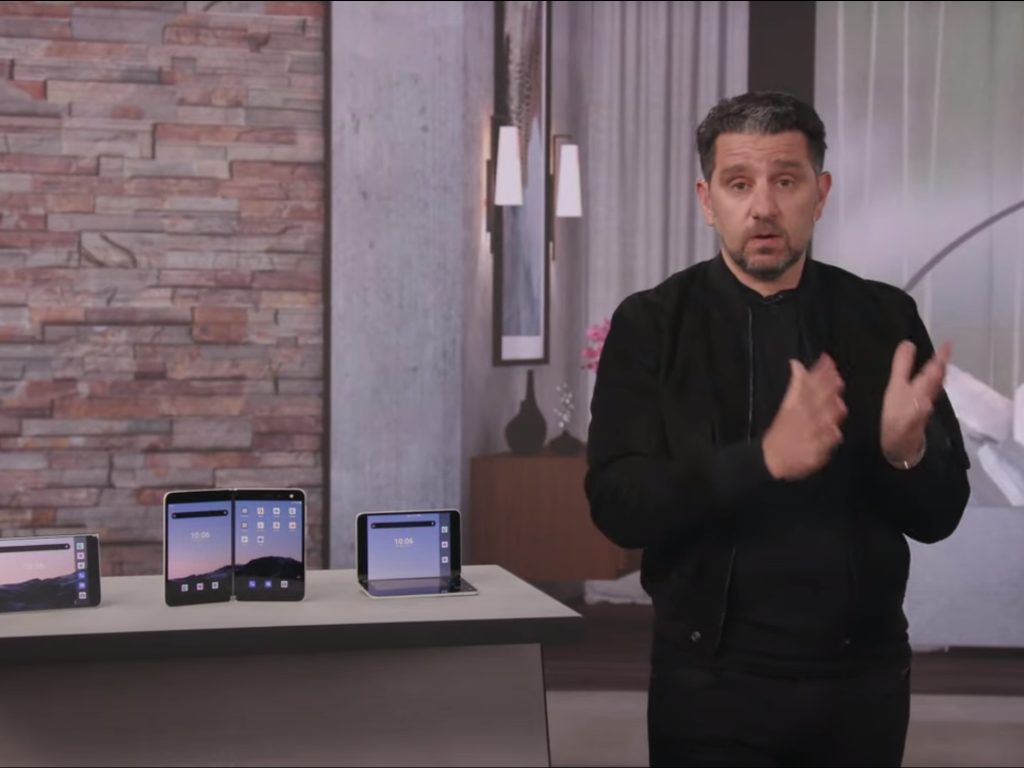






![[Update] Ignite 2021: Microsoft unveils new features coming to Teams, Outlook and other Microsoft 365 services](https://windowsreport.com/wp-content/uploads/2024/04/Microsoft-365-banner-3.jpg)
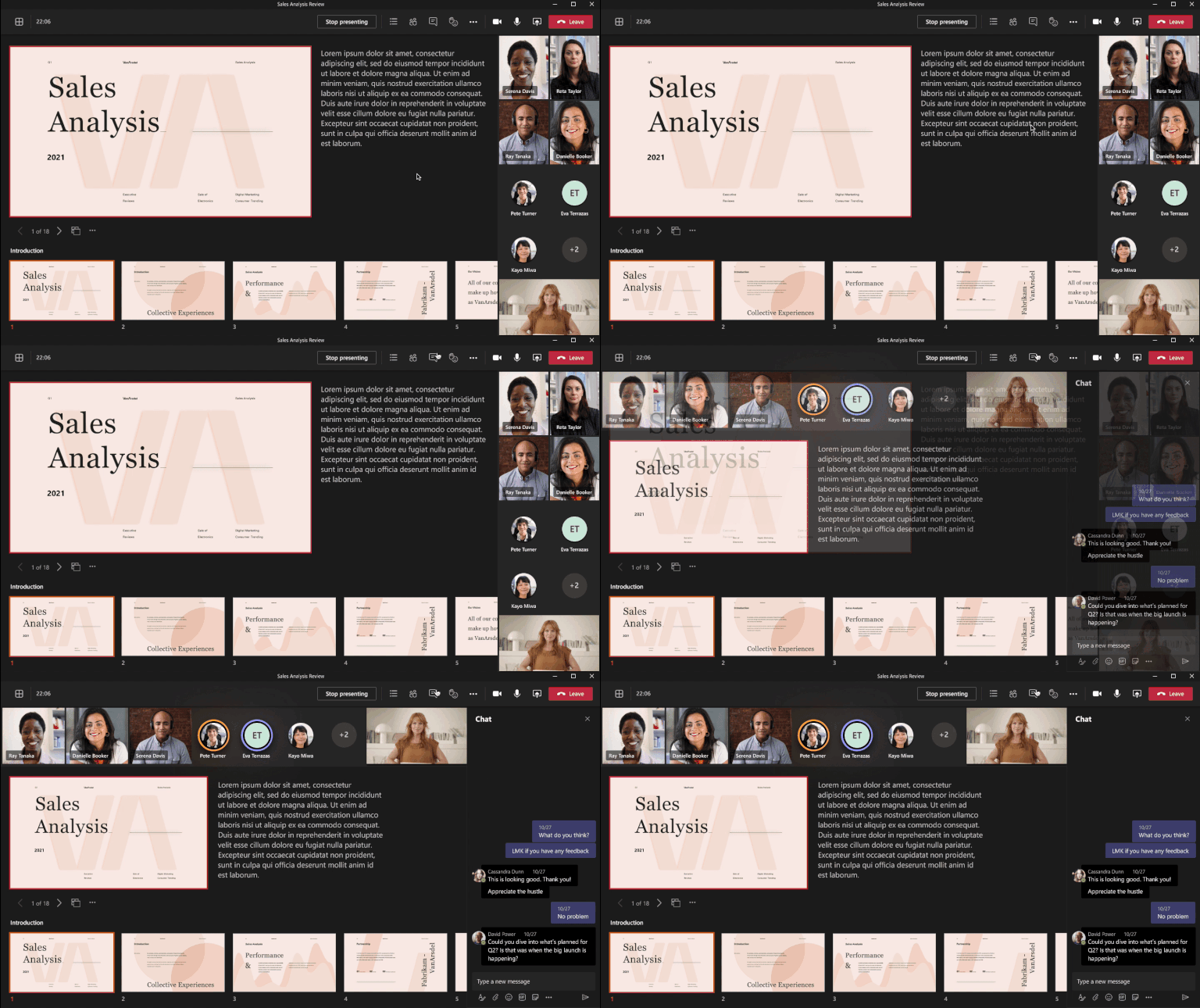
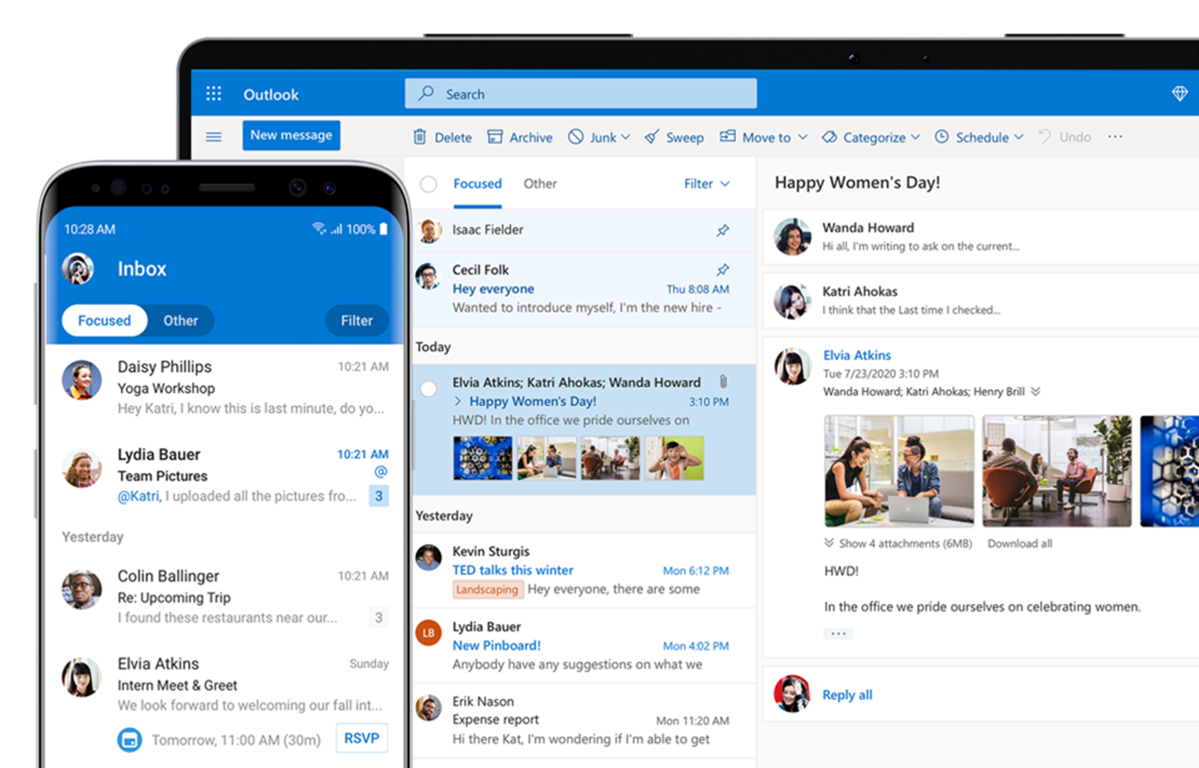







![Google Docs superscript not working [Fixed]](https://windowsreport.com/wp-content/uploads/2021/01/Google-Docs-featured-resized-2.jpg)


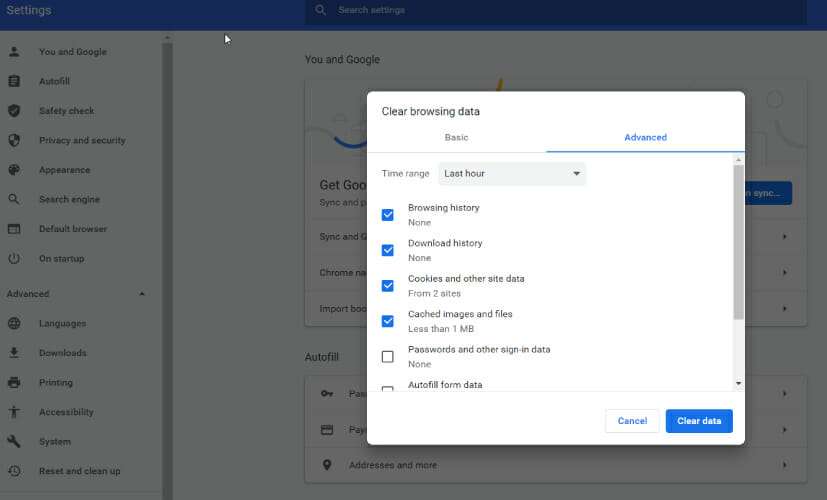
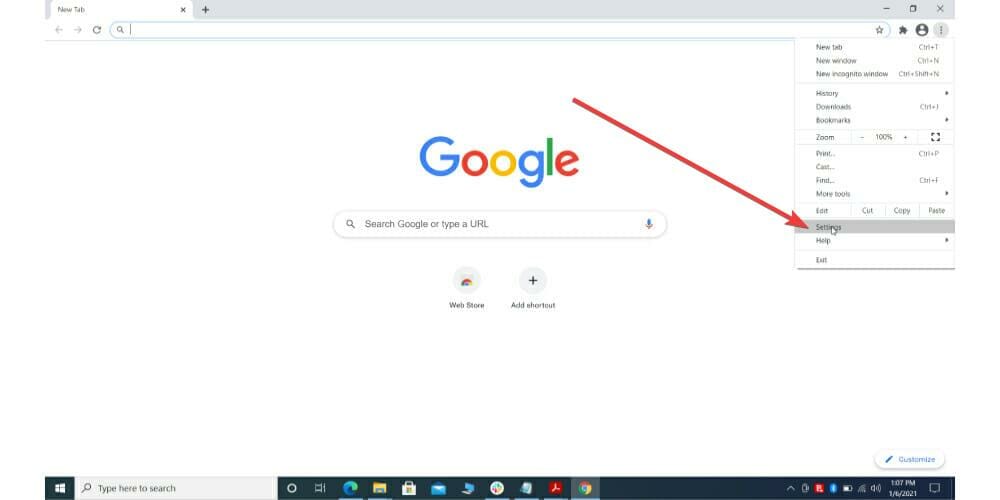
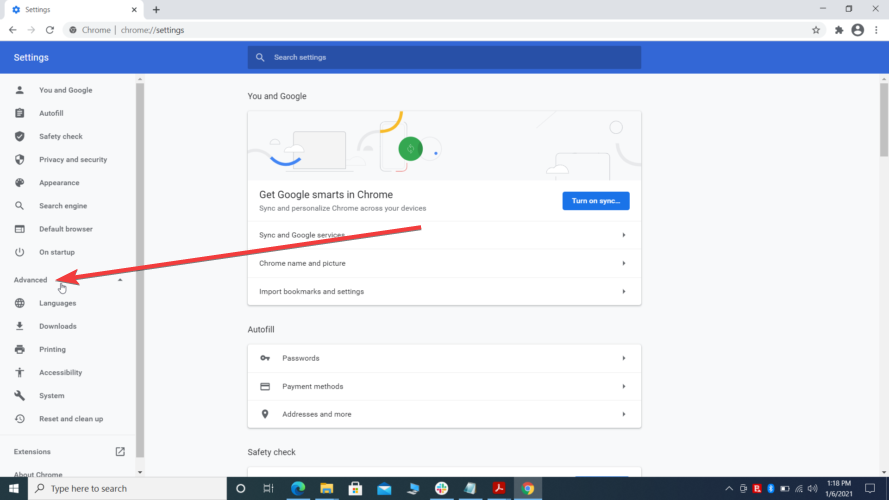
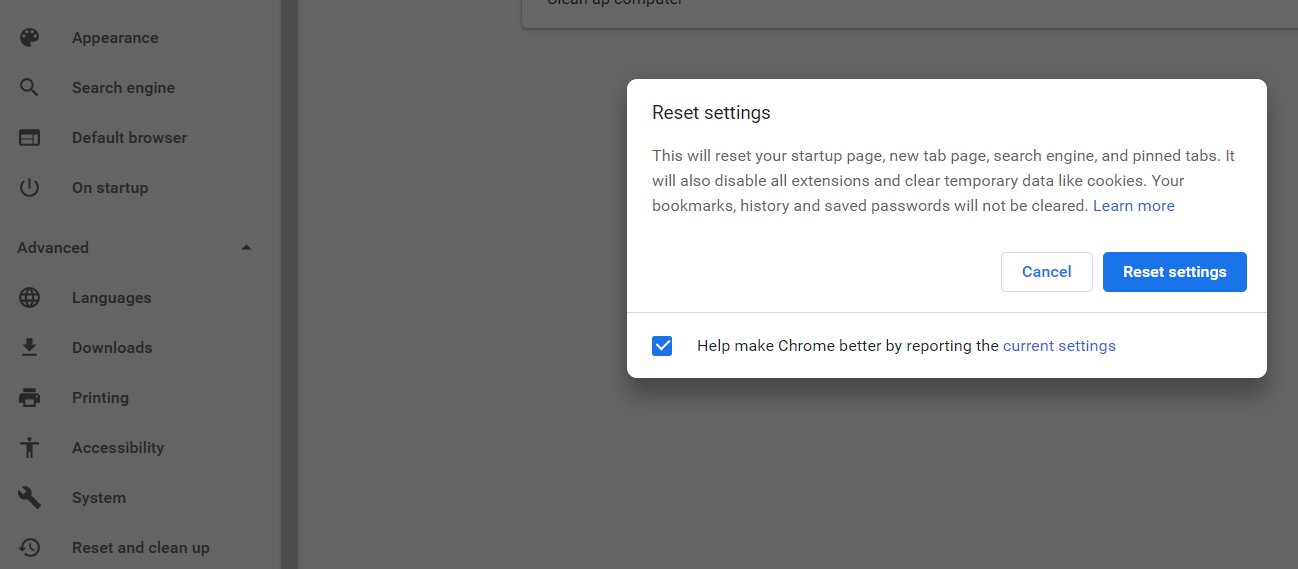



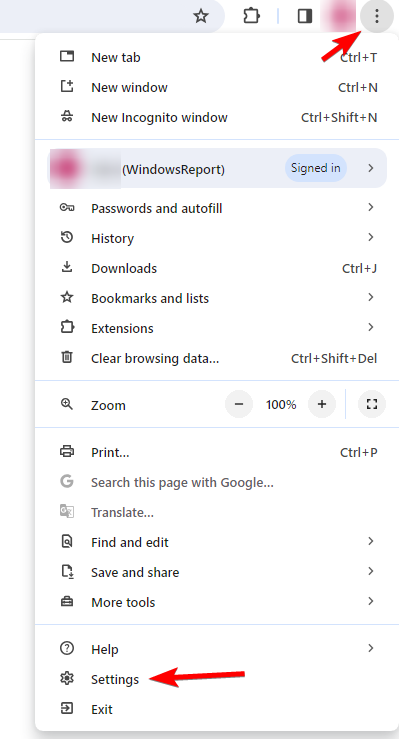
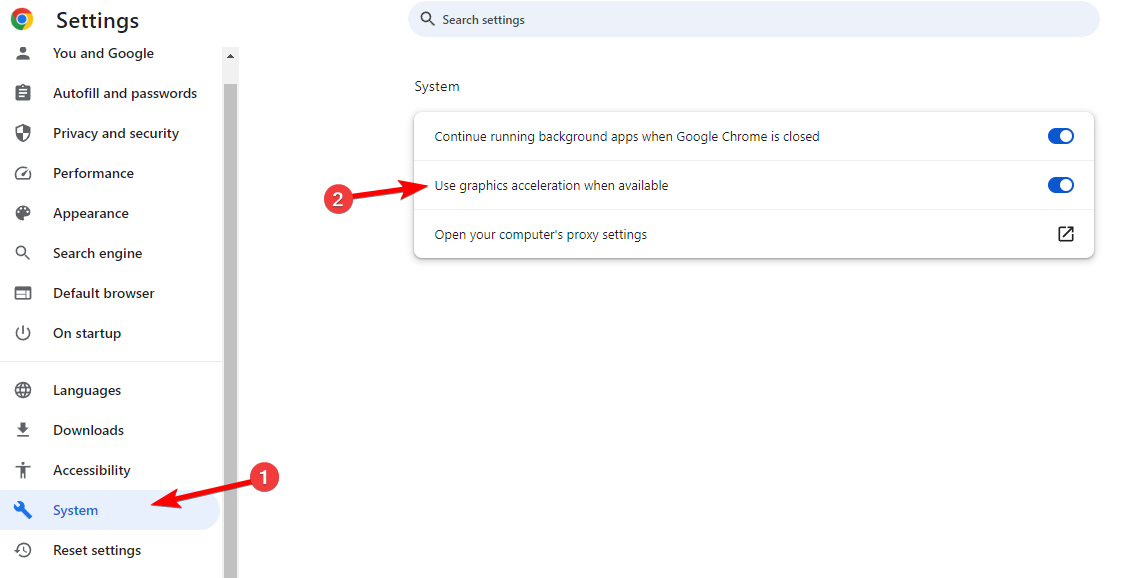





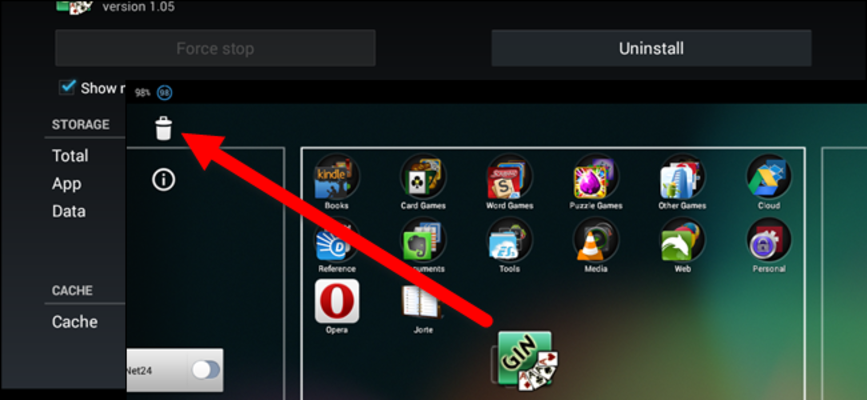
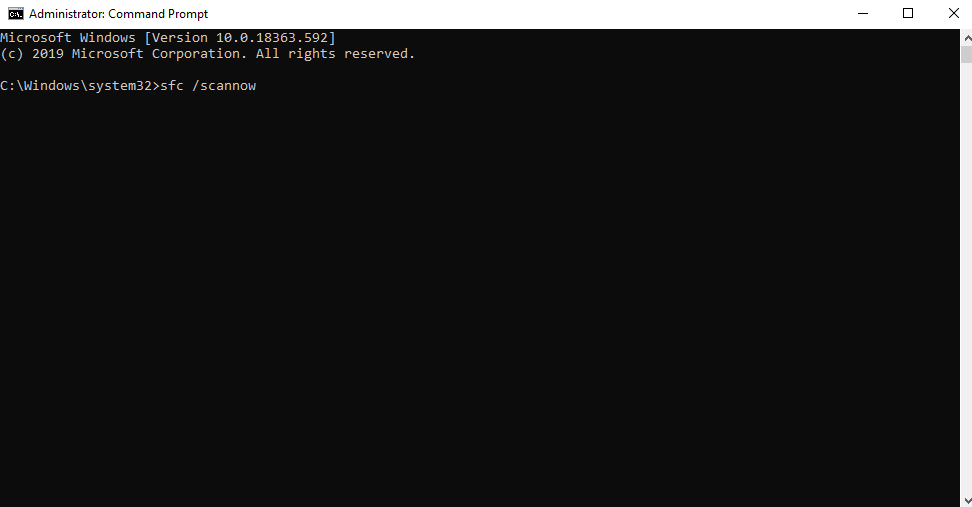


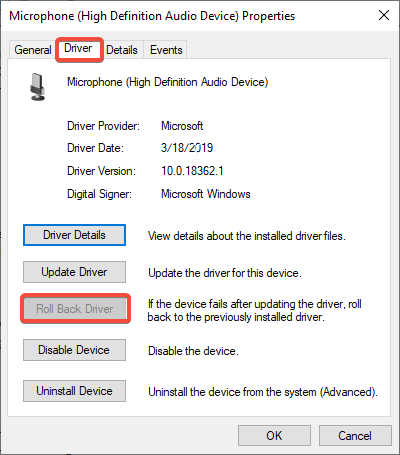





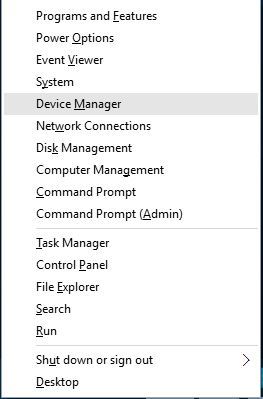
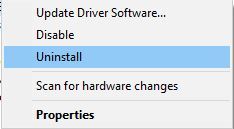

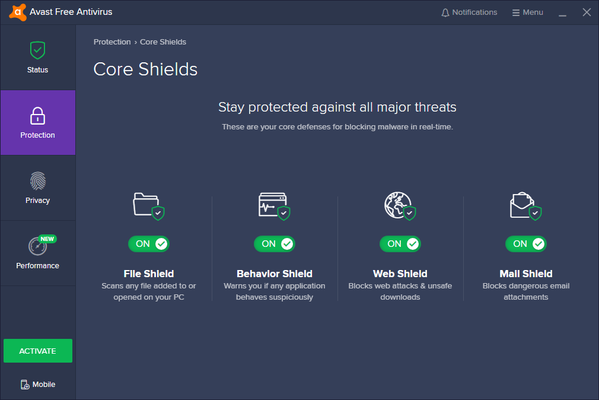
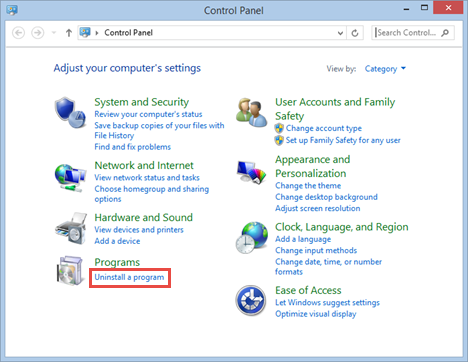
















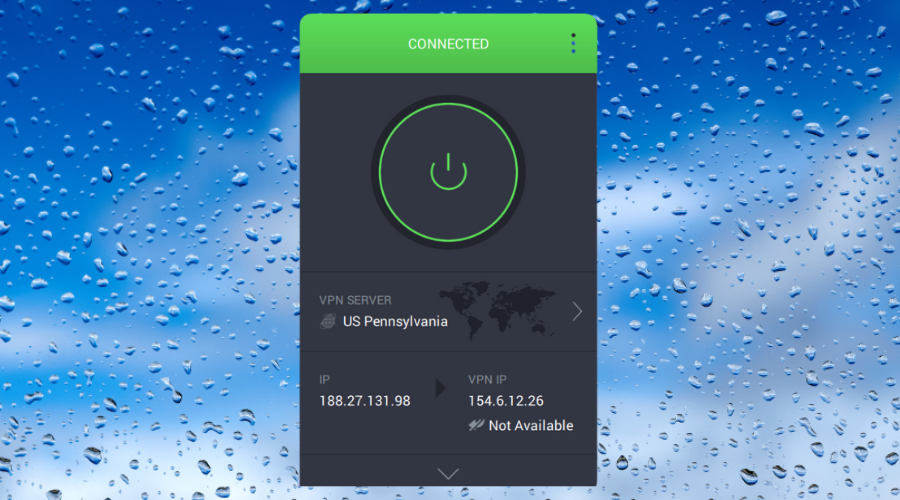



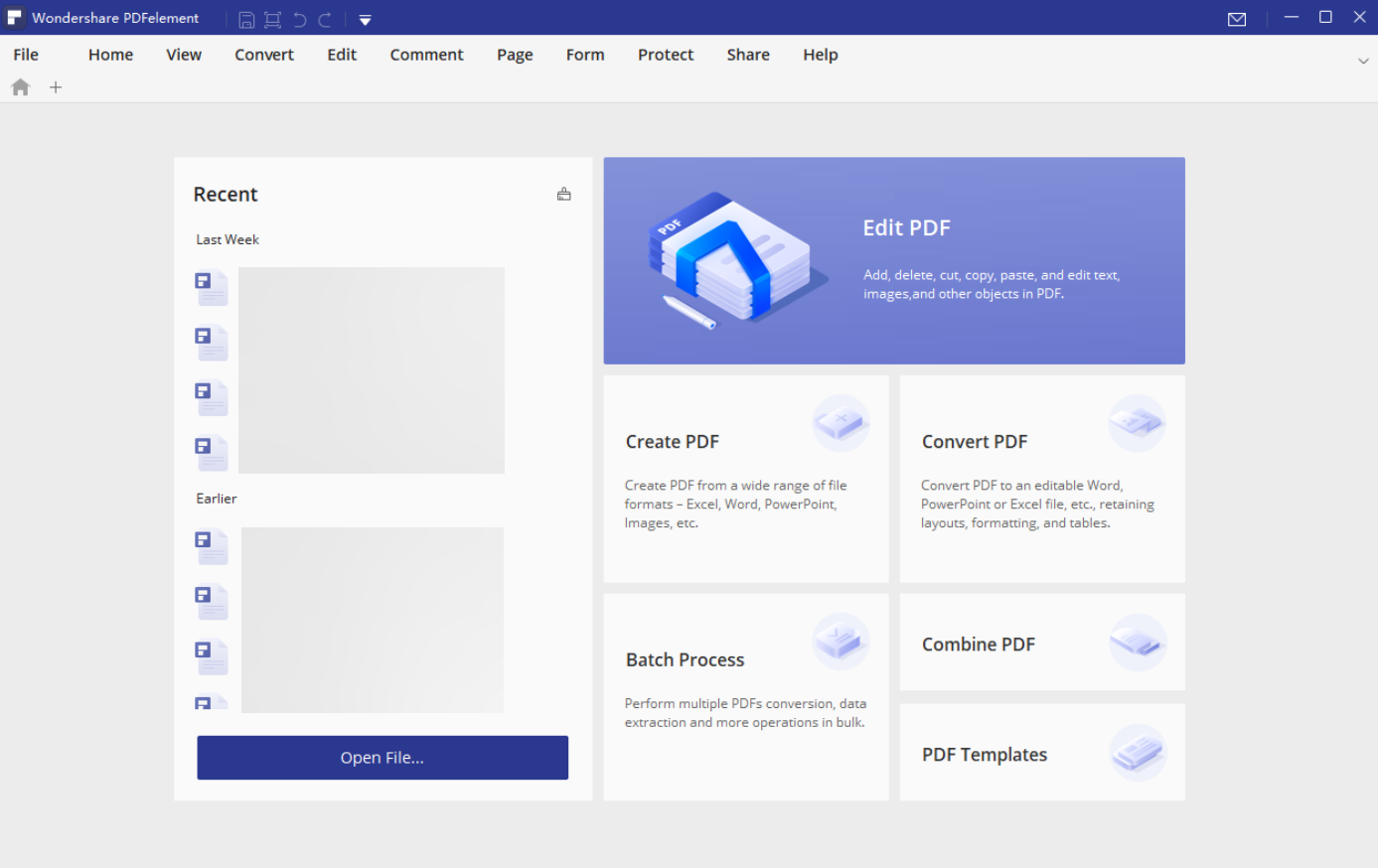
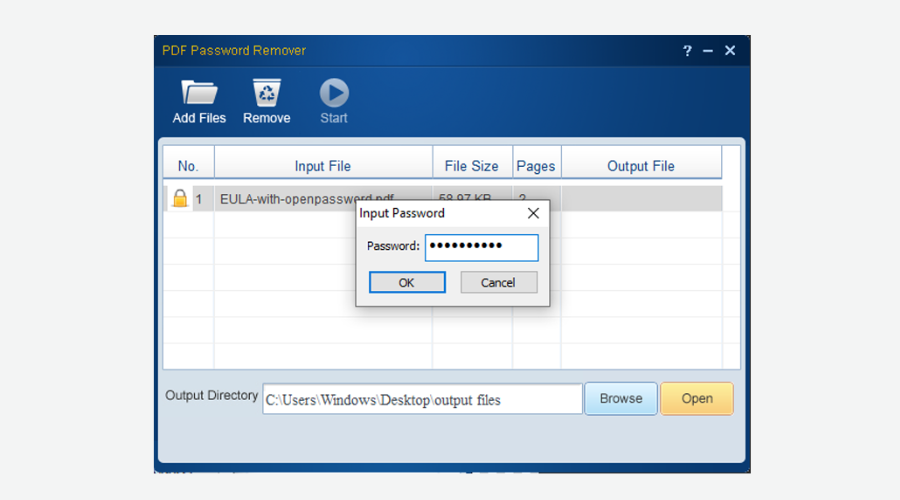
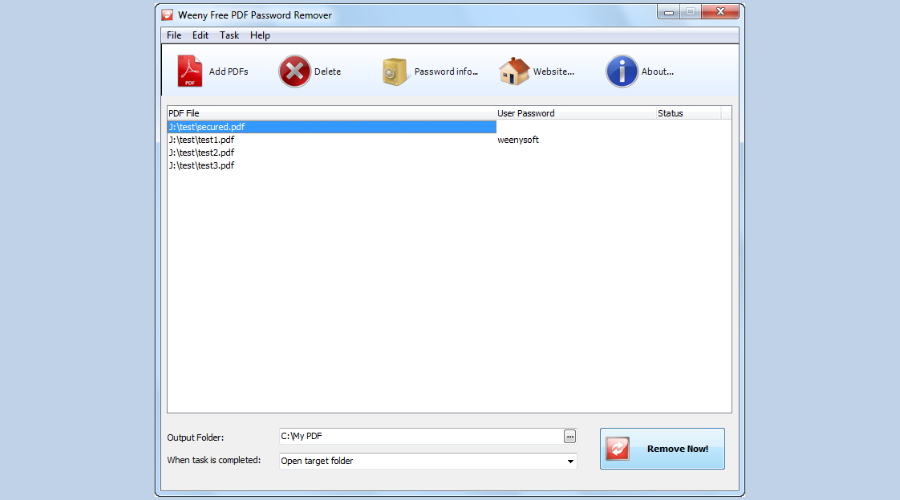

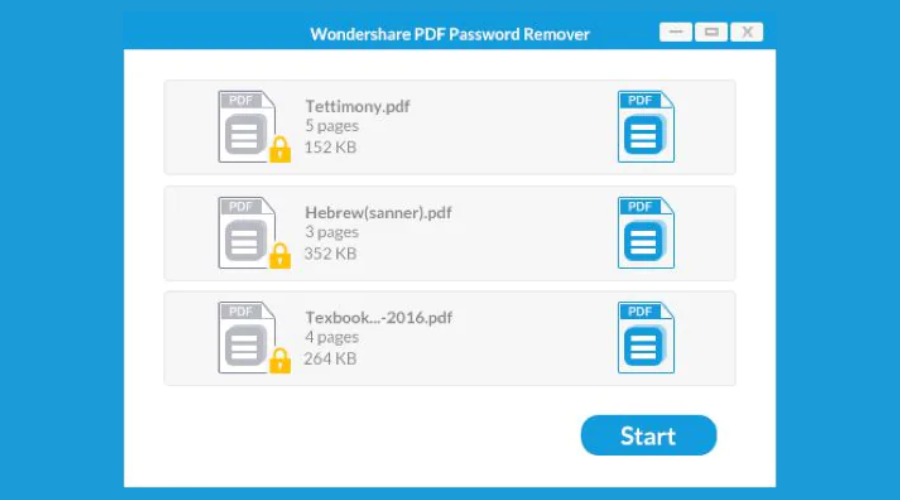

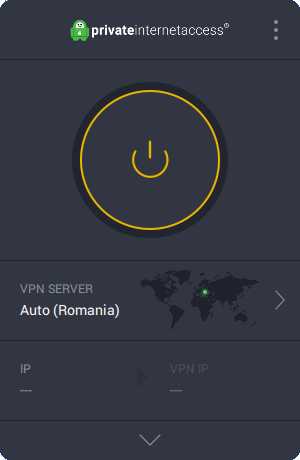







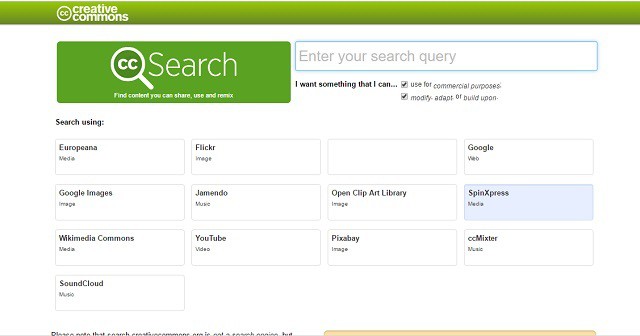





















![FIX: Adobe error code 109 [Problem reading this document]](https://windowsreport.com/wp-content/uploads/2020/04/Adobe-Reader-error-109.jpg)












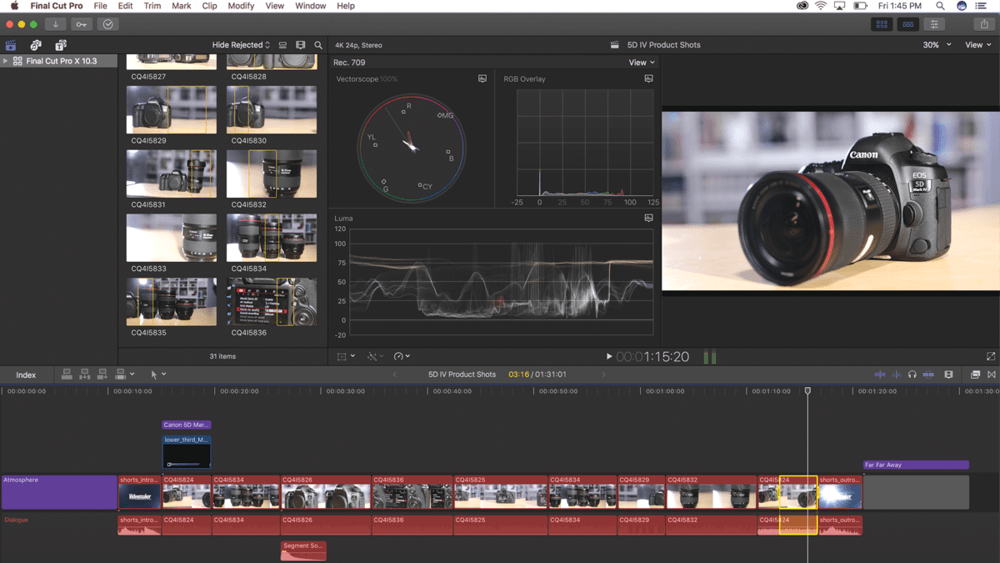
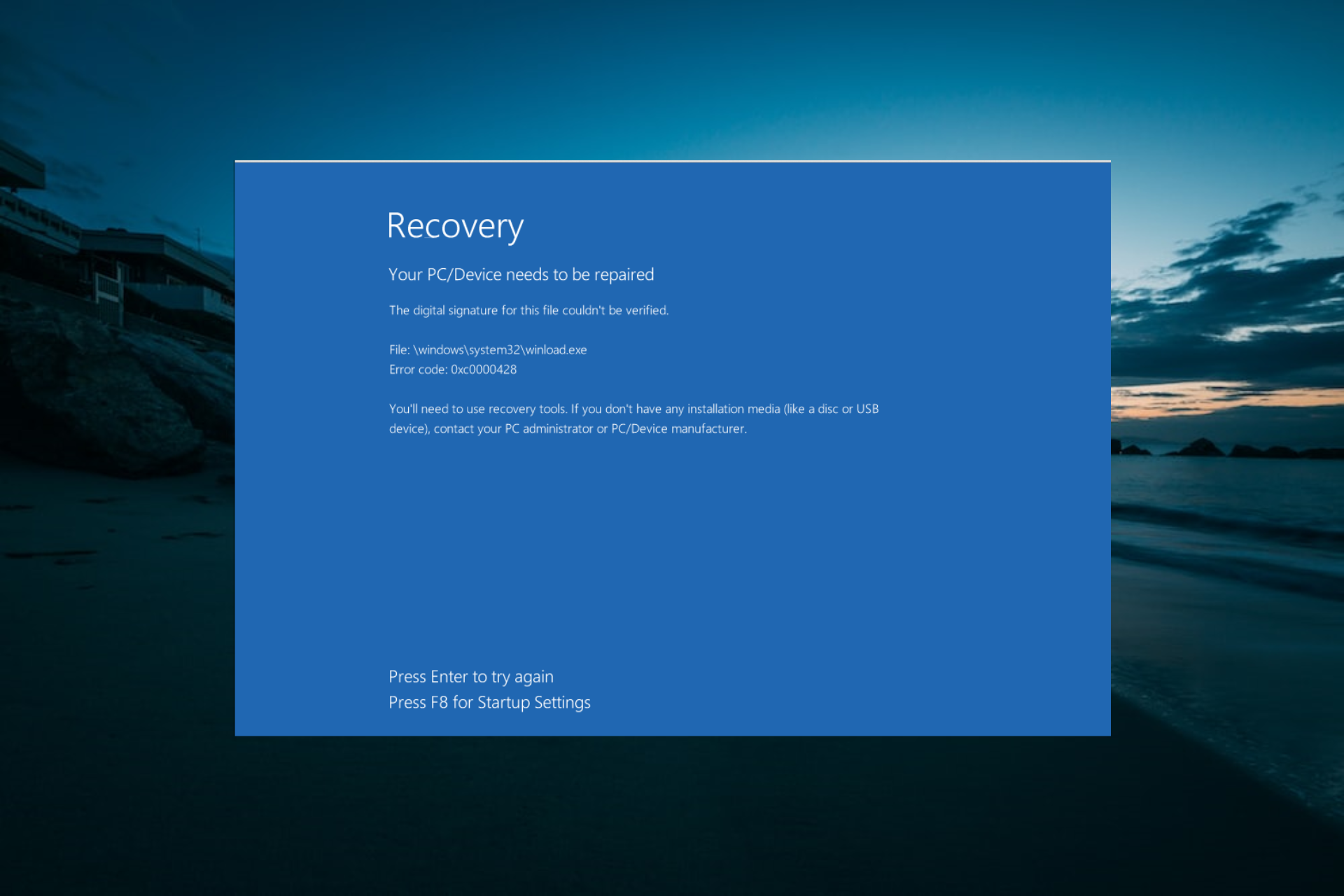
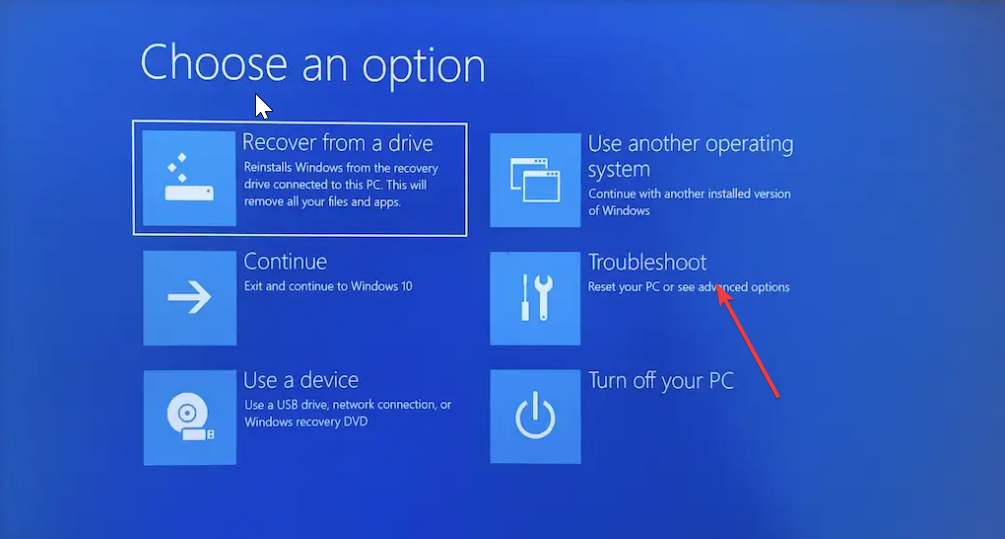
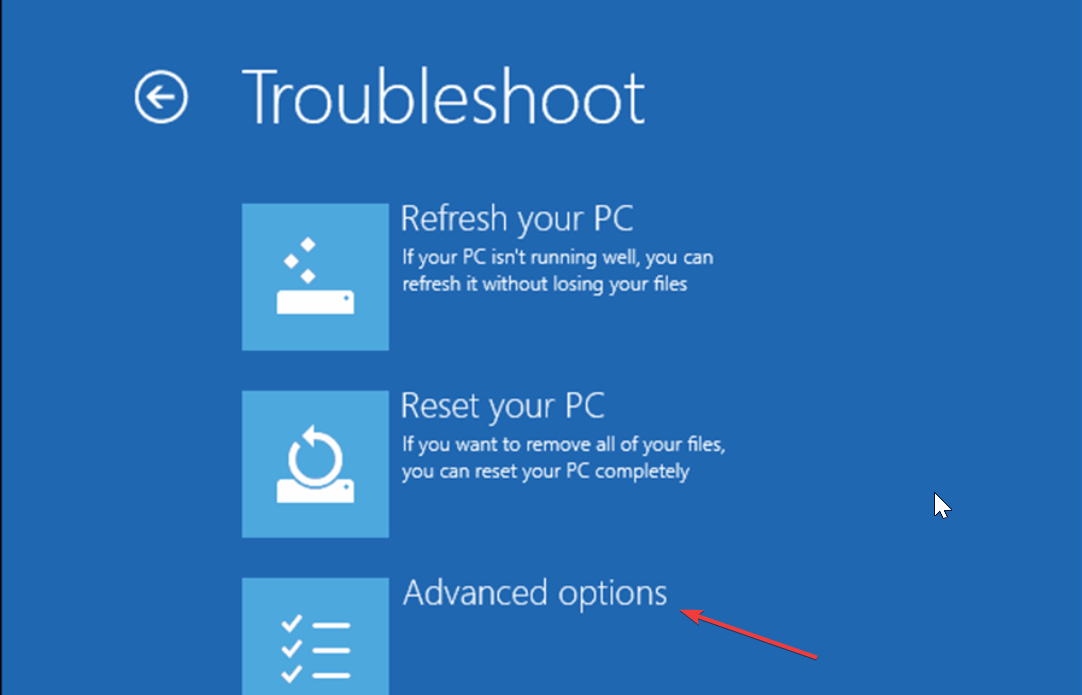
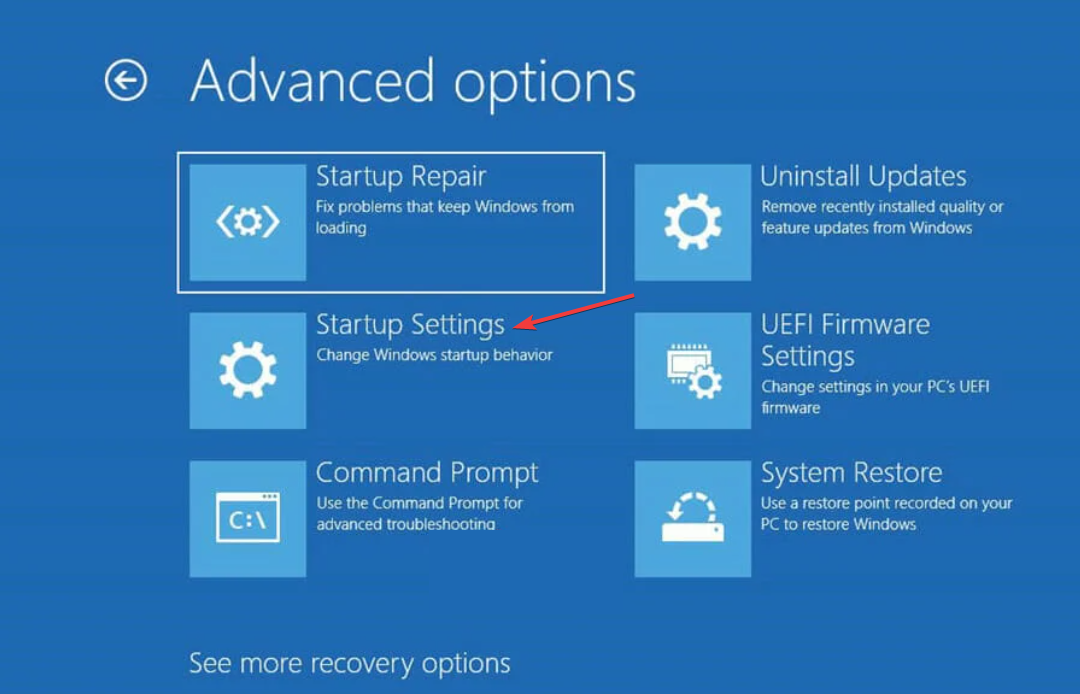
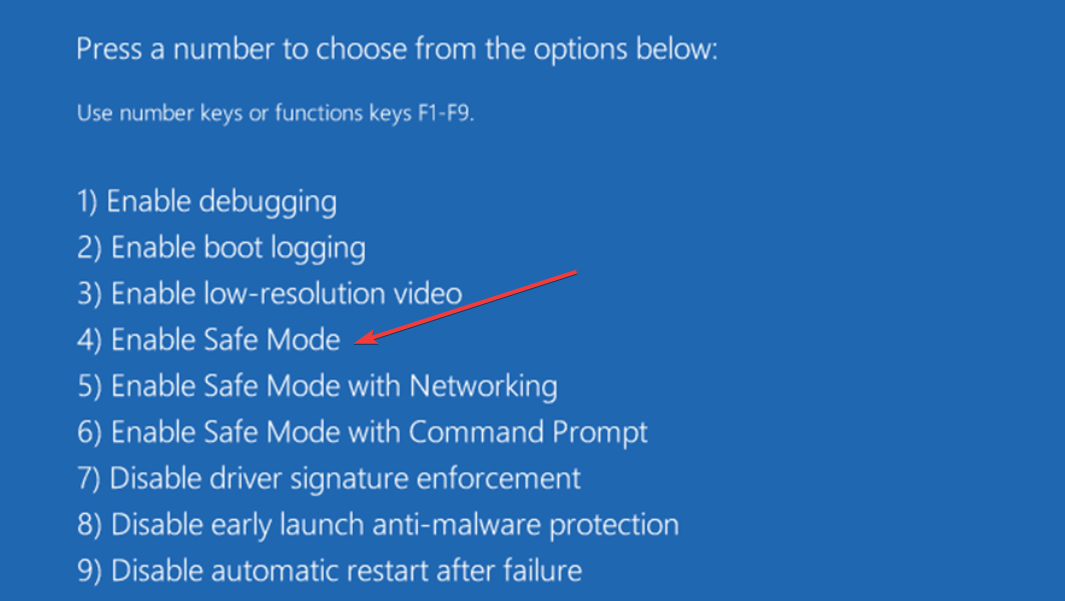
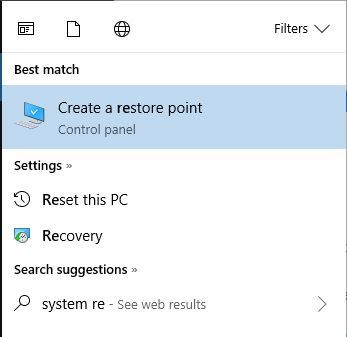
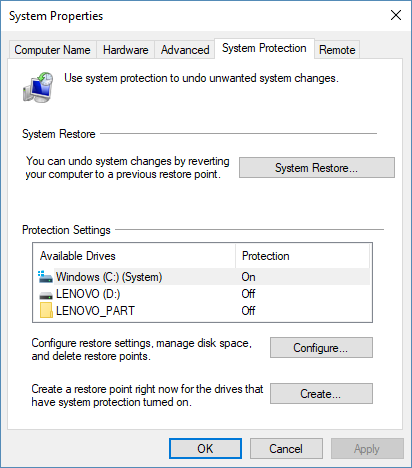
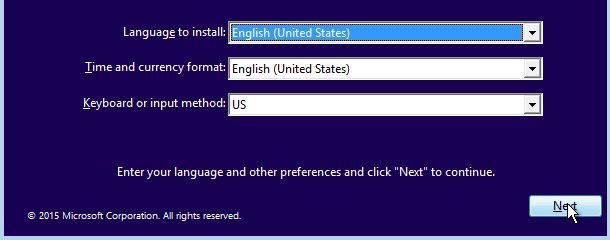
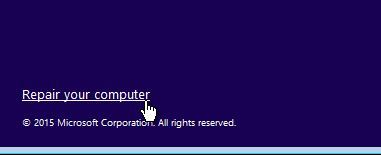

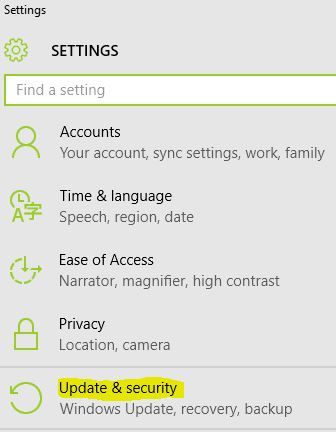
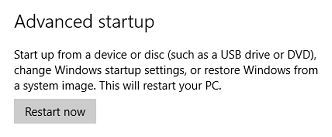
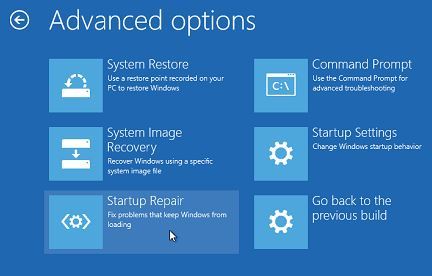
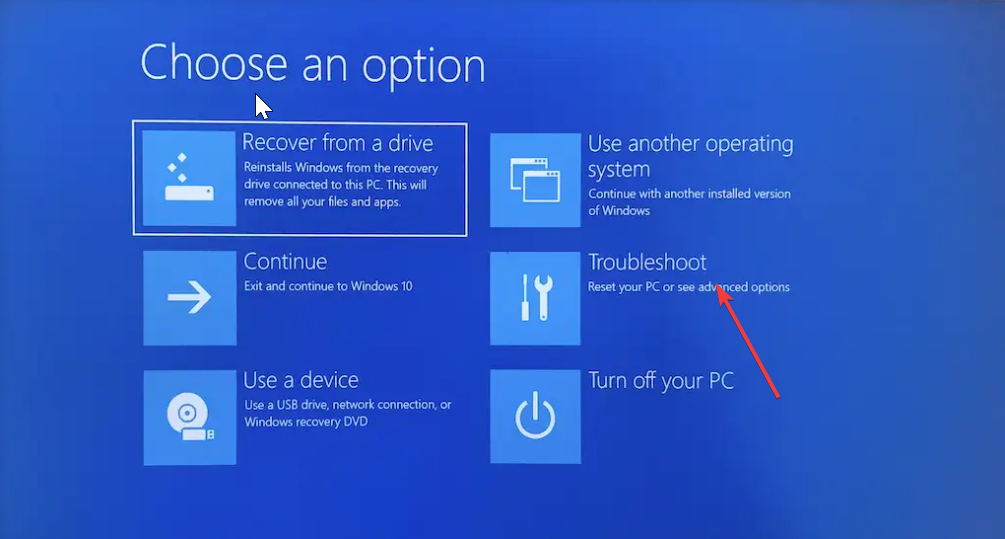
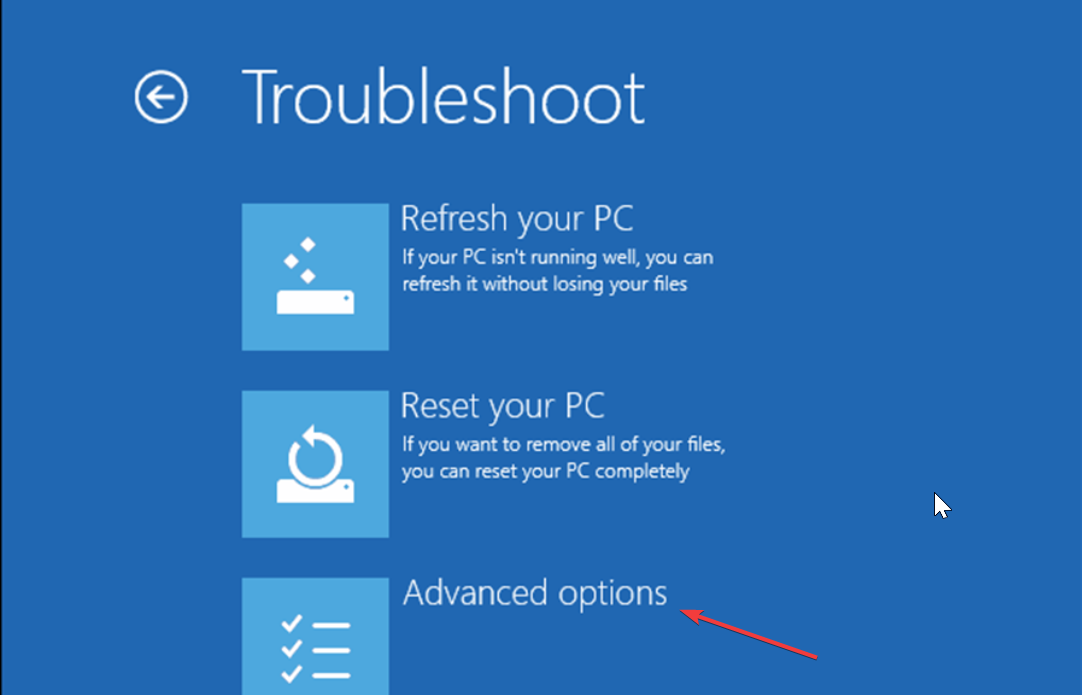
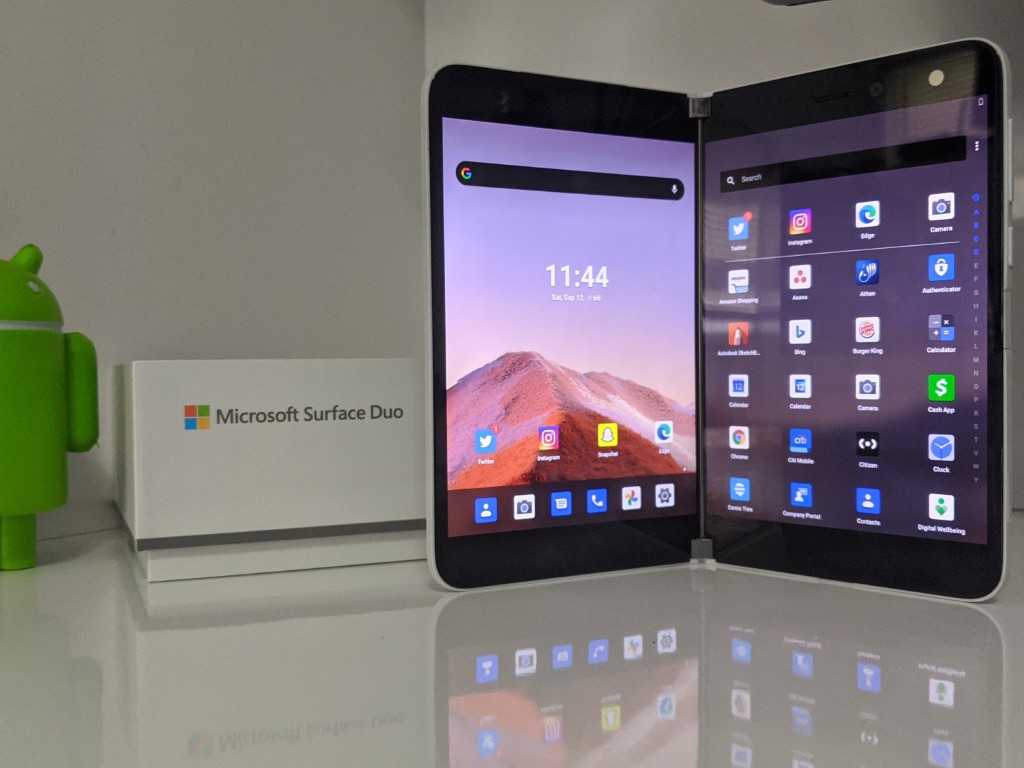
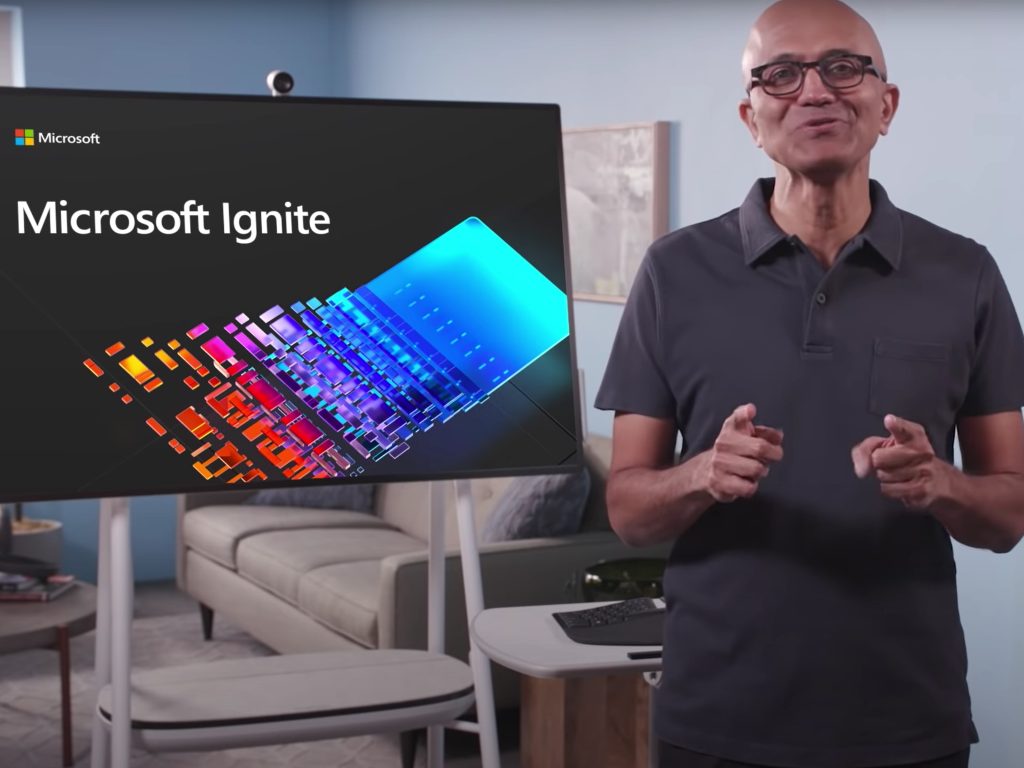
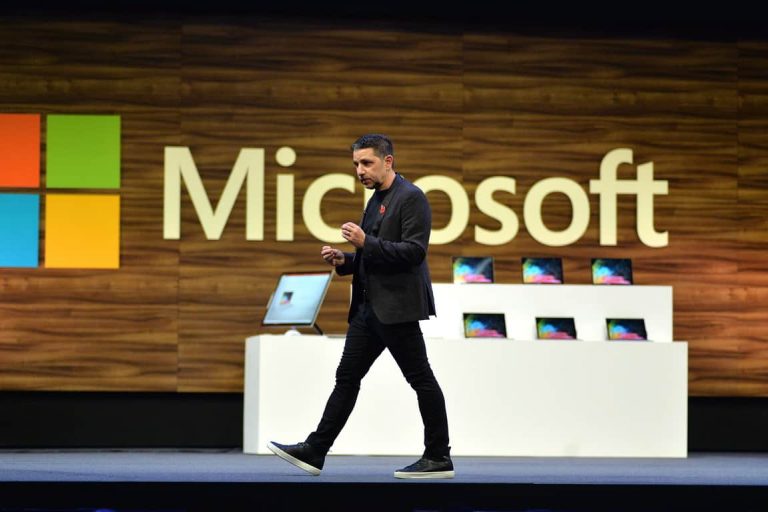


![5+ best white noise apps for Windows 10/11 [Free Download]](https://windowsreport.com/wp-content/uploads/2014/04/headphones-4611459_1920.jpg)