As you may already know, Patch Tuesday is that day of the month when Microsoft releases security fixes and improvements for Windows. On June 9, 2020, the Redmond giant rolled out solutions for more than a hundred security flaws. However, just like several updates that went live that day, KB4560960, is causing problems for many users.
Previously, we covered how installing KB4560960 leads to internet issues, especially for LTE modem users.
Apart from that, it now appears that the package is also causing printing problems.
KB4560960 triggers print failure
Microsoft acknowledged that installing KB4560960 may cause print malfunction. Thus, instead of generating output when you try to print, the printing system gives an error.
After installing this update, certain printers might fail to print. The print spooler might throw an error or close unexpectedly when attempting to print, and no output will come from the affected printer.
The tech giant also said the update may affect the applications from which you’re attempting to print. So, your app will either crash or generate an error message.
Similarly, you could get an error if you try printing your file to an electronic copy, such as a PDF.
Microsoft said that it’s developing a solution to the problem, and it’ll roll it out in an upcoming update.
Other issues
Apparently, some users are unable to launch certain applications after installing KB4560960. You’re more likely to experience the problem when trying to open Microsoft Office apps.
The bug may also generate this message:
Windows cannot find “c:program filesmicrosoft officerootoffice16winword.exe” Make sure you typed the name correctly, and then try again.
However, it appears that only PCs with certain versions of Avast had that problem. There’s good news for the affected users though—updating the antivirus software patches the bug.
Did you install update KB4560960? If you did, have you encountered any software or hardware issues after installing it? Feel free to let us know or ask any questions in the comments section below.
When Windows 10 2004 started rolling out on May 27, 2020, nobody expected that it would have zero flaws. As such, the many bugs users are reporting after upgrading to the latest version of Windows 10 don’t come as a surprise.
While the update installed perfectly for the vast majority of Windows 10 2004 users, it has caused hardware and software problems for others.
Right now, it appears that the update might cause cookies stored in Chrome to disappear once you close the browser.
Windows 10 2004 causing cookies issues in Chrome
The Google support forum is flooded with complaints about the unexplainable disappearance of cookies in Chrome. So, each time an effected user launches the browser and tries to log into a site, they have to supply their credentials afresh.
Most users claim that this problem started after upgrading to Windows 10 2004.
For example, one Chrome user says they tried uninstalling and installing different versions of the browser to no avail.
Ever since the new Windows 2004 update Google Chrome keeps syncing out, tried reinstalling, adding google‘s domains to the cookie exception list and so on. Also cookies do not get deleted after closing Chrome. I even tried installing different versions of Chrome, canary and the beta. Nothing works.
Moreover, the update appears to turn off syncing in Chrome. That is causing problems for Windows 10 users that log into website accounts from multiple devices.
What is even more peculiar is the fact that the deletion of cookies and pausing of sync seems to affect only Chrome. According to yet another user, Chromium Edge cookies remain intact even after upgrading to the May 2020 update.
All the reported bugs may be a quality of life issue, but they have a significant impact on the browsing experience for the users.
Let’s hope that Microsoft uses next month’s Patch Tuesday updates to address the issues.
Have you installed Windows 10 2004 yet? Any trouble with Chrome cookies? Feel free to share your experience via the comments section below.
Divinity: Original Sin 2 is an RPG that you can play on Windows, macOS, PlayStation 4, Xbox One, and Nintendo Switch. It features online PvP and co-op if you want to create a party with three other players.
We think it’s one of the best offline games for PC, which also shines in the multiplayer edition. You can find it on Steam. However, many users report Divinity: Original Sin ping when trying to play it online with their friends.
If you’re one of these users, you can use a VPN to reduce your ping and improve your overall gaming experience. The role of a virtual private network solution isn’t only to hide your IP address and encrypt your traffic, but also to fix packet loss and speed up your Internet connection for gaming.
What are the best VPNs to fix Divinity: Original Sin 2 lag?
If you’re looking for a quick Divinity: Original Sin 2 lag fix, shift your attention to Private Internet Access (PIA). It’s one of the fastest VPNs for desktop, mobile, and console that can minimize jitter. It gives you access to a wide range of VPN servers: over 3,300 spread across 47 countries.
PIA is a product of Kape Technologies, which provides you with useful security options to significantly improve your gameplay, as well as eliminate reduce Divinity: Original Sin 2 lag and ping.
This VPN solution supports static and dynamic IP addresses, exclusive DNS servers, and a built-in kill switch. Plus, you can forward ports, which comes in handy whenever you need to host game servers for your friends. It has 24/7 live chat support.
What else you must know about PIA:
Up to 10 connections at once
Works with Windows, Mac, PS4 4, Xbox One, Switch
Zero-logging policy
Great for fixing Divinity: Original Sin 2 extreme lag
30-day money-back guarantee (no free trial)
Private Internet Access
Quickly fix Divinity: Original Sin 2 multiplayer lag with the help of this fast and secure VPN.
Another excellent way to minimize Divinity: Original Sin 2 lag is by turning to CyberGhost VPN. It’s the only free VPN app on this list and does a great job optimizing your network traffic for gaming. It’s owned by Kape Technologies.
CyberGhost VPN has an extensive network of servers: more than 6,400 in 89 countries. It’s equally impressive when it comes to security features. For instance, you can use split-tunneling mode to create whitelists and blacklists to better manage your bandwidth.
With the aid of this VPN service, you can fix Wi-Fi packet loss and get rid of Divinity: Original Sin 2 lag when saving. It supports private DNS servers and DNS leak protection.
What else you must know about CyberGhost VPN:
Allows 10 connections at the same time
Compatible with Windows, Mac, PS4 4, Xbox One, Switch
Strict no-logs privacy policy
Provides a Divinity: Original Sin 2 Definitive Edition lag fix
45-day money-back guarantee (1-day free trial)
CyberGhost VPN
Eliminate Divinity 2 lag and refine your gaming experience using this reliable VPN app.
NordVPN offers a fast and easy Divinity 2 lag fix. It’s a great virtual private network solution that has servers optimized for gaming, secure browsing, streaming, and torrenting. You can also use it to evade geoblocks.
Developed by Tefincom & Co., NordVPN provides you with over 5,400 servers spread across 59 countries. You can use it to fix Xbox packet loss, encrypt your Internet traffic, and speed up your network connections.
Whenever you’re experiencing slow internet connections, high ping, stuttering, delays, and lag while playing Divinity: Original Sin 2, use a VPN to fix network congestion.
This way, you can eliminate connectivity issues that prevent you from enjoying the game with your friends. Besides, you can also minimize packet loss with a VPN to improve the quality of your gameplay.
Open the folder that includes the game’s save file subfolder
Select the saved game file subfolder
Press the Copy to button on the Home tab.
Select a folder to copy it to from the menu
Insert a USB flash drive in your desktop or laptop to back up the folder
You can back up single saved files much the same
Open the game’s save folder
Select a file and press Copy to
The paths for game save files can vary, but you can usually expect to find a saved game subfolder within games’ primary folders. Your My Documents (or Documents) folder might also include saved game file subfolders.
Manually backing up files is fine but who’s got time for that? You need to know the exact place where the game files are stored, copy them to the destination and keep doing this.
And, it’s not like you always have the same games installed, right? Not when there are so many cool new games being launched. That’s why you need a simpler solution.
Game Backup System was specifically designed to help any user with having perfect copies of the games they own.
Here’s what’s so good about Game Backup System:
It creates a perfect 1:1 copies of all the favorite games you own
Helps avoid getting the disks scratched and unusable
These are the three ways you can back up games save files. This software guide provides further details for some of the best backup utilities you can also back up game save files with.
The Failed to connect to instance error in PoE signals an obvious network problem. It could be on the server’s end, or on your end. Occasionally, DDoS attacks could also be at fault.
Below, we’ll help you figure out how to get rid of this error and identify the underlying cause in your particular case. So, if you want to be able to reconnect to the Path of Exile servers ASAP, keep reading.
How to fix PoE failed to connect to instance
Start by checking the Path of Exile server status to make sure that there aren’t any widespread issues. If the servers are fine, follow these steps below.
1. Change the server
Go to the Options menu in the game.
Navigate to the Server settings.
Select a different server, preferably one in a nearby region.
If you encounter connection issues on PoE, it’d be a wise thing to change the server. The Failed to connect to instance error may occur when too many people are on the same server.
It also happened when a specific server was DDoSed, so playing on another one, at least temporarily is a good idea.
2. Close bandwidth-intensive tasks
Pess Ctrl + Shift + Esc to open Task Manager.
Go to the Processes tab and click on Network to sort tasks by network usage.
Check the processes that consume a lot of resources, select those that you’re not currently using and click End Task.
3. Verify the integrity of game files
Open Steam and go to the Library.
Right-click on Path of Exile and select Properties.
Click on the Installed Files tab, then select Verify Integrity of Game Files.
4. Clear DNS cache
Open Command Prompt as Administrator.
Type ipconfig /flushdns and hit Enter.
Restart your PC and try playing Path of Exile again.
Clearing DNS cache is a good maintainance practice that can prevent and stop PoE connection issues that prompt Failed to connect to instance error.
5. Update your graphics card drivers
Go to Device Manager.
Locate the Display Adapters section.
Pick your current graphics card, right-click on in and select Update.
Select Search automatically for drivers and wait for the process to complete.
Open the Control Panel and select System and Security.
Click on Windows Defender Firewall > Allow an app or feature through Windows Defender Firewall.
Find Path of Exile in the list and ensure both Private and Public are checked.
If it’s not in the list, click Allow another app and browse to the Path of Exile executable.
The Windows Firewall occasionally stops legitimate, safe apps from connecting to the internet. If it does this with PoE, you will not be able to connect to the servers and get a Failed to connect to instance error.
Adding the game as an exception will put an end to this.
7. Use VPN
Choose a reputable VPN provider and install it on your device. For games like PoE we recommend ExpressVPN because it’s very fast, has servers all around the globe and offers unlimited bandwidth.
Connect to a server that is geographically close to the Path of Exile region you wish to play on.
Go back to the game and try to connect again.
If the error stems from slow internet, ISP blocks, and DDoS attacks, using a VPN can help.
That’s because a VPN reroutes your connection through a different server, bypassing regional issues or throttling by your ISP, and potentially connecting you to a more stable network path.
ExpressVPN
Ditch PoE errors by connecting to lightning-fast servers all around the globe!
If you’re any familiar with PoE, you know that a lot of it revolves around finding maps that you can load and join with your peers. Some maps are rarer than others. Thus, it’s easy to see why crashing in the middle of a rare map can be frustrating.
Many players report that, upon attempting to enter maps, they get booted by the game. The Failed to connect to instance error is vague enough that you can’t immediately figure out what’s wrong with the game.
New leagues get players all worked up and, as a result, network congestion steadily occurs. Therefore, it might appear like the best suggestion in this case is waiting for things to settle down before giving the new leagues a try.
Following the steps above should help you fix the PoE failed to connect to instance error. Feel free to ask any questions in the comments below.
To make it easier for Microsoft Excel users to track their finances, Microsoft announced a new feature called Money in Excel on March 30. In a blog post today, Microsoft has announced that the Money in Excel feature is now generally available to all Microsoft 365 Personal and Family subscribers in the US.
Money in Excel is basically a dynamic template/add-in for Excel that connects to your bank, credit card, investment, and loan accounts, and allows you to securely import transactions and account balances into an Excel spreadsheet. Once the data is imported into a spreadsheet, you can easily keep an eye on your monthly expenditures, and analyze the “Snapshot” sheet to see how much you are spending across various categories including groceries, household items, rent, and more.
If you’re a Microsoft 365 Personal or Family subscriber, you can access this feature by following these steps. We also invite you to check out our hands-on with the experience by clicking here.
Open the Excel template and follow the on-screen instructions to link your bank accounts.
The plug-in will verify your account details, and then Excel will pull in your transaction history to fill your spreadsheet
Money in Excel will also provide proactive alerts for changes such as overdraft charges, increases in your subscription fees, as well as major purchases made during the current month. Moreover, the customizable template lets you create your own spending categories or charts to suit your specific goals and needs. We invite you to check out the official blog post to learn more about its features.
Do you like the Money in Excel feature? Let us know in the comments down below.
Amanda Langowski, the new head of the Windows Insider program announced some pretty big news for Insiders today. This month, the existing Ring system will be replaced by new Windows Insider Channels, which reflect an increased focus on quality and consistency with other Microsoft products such as Office and Microsoft Edge.
“As we continue to evolve the way we release Windows 10 and the diversity of Insiders we serve is greater than ever, it is critical that Insiders have a flighting option that is tailored to their needs. We believe the best way to do this is to shift focus from frequency to quality. Insiders can pick a channel that represents the experience they want for their device based on the quality they are most comfortable with. Our intention is to ensure Insiders will continue to receive frequent updates no matter which channel they’ve chosen,” explained Langowski.
The Dev channel will replace the Fast Ring later this month, while the Beta channel and Release Preview channel will replace the Slow and Release Preview rings, respectively. The Dev channel will continue to receive more unstable builds that are not tied to a specific Windows release, and this channel will still be used for testing experimental features. On the other hand, the Beta channel (previously Slow Ring) will get builds tied to a specific release (that should soon be 20H2), and Microsoft recommends this channel for most early adopters and IT professionals looking for “relatively reliable updates that are validated by Microsoft.”
The new Release Preview channel (previously Release Preview ring) will continue to get early access to upcoming Windows 10 releases, with “advanced quality updates and certain key features.” Importantly, Langowski also said today that “As we continue to evolve the way we’re building and releasing Windows 10 in the future, we may introduce new channels for new experiences for Insiders.”
Microsoft’s new Windows Insider channels system is now more aligned with how things work for the Office Insider program, though the two programs remain separate. However, it’s worth noting that there’s now Dev channel for the Office Insider program, while the equivalent of the Windows Insider Release Preview channel is the Current or Semi-Annual Preview channel.
If you’re already a Windows Insider, you’ll soon be automatically moved to your new corresponding Insider channel. While the name change is one thing, what’s important here is that Microsoft wants each of these new channels to get builds more frequently, while also focusing on code quality. The new system is also a bit easier to understand with one channel (Beta) dedicated to the next Windows release, and hopefully, the new Dev channel will soon receive the experimental features that Fast Ring insiders have been waiting to see for months now. There’s still the possibility of Microsoft adding more new channels, as Langowski mentioned today, though we hope this won’t be necessary. Let us know what you think of these latest changes in the comments below.
As Microsoft is currently getting ready for its big Xbox Game Studios showcase next month, the company is sharing some new information about Smart Delivery today. For those unfamiliar, Smart Delivery is a new feature that will allow developers to automatically provide the best version of the game optimized for your Xbox console, at no additional cost.
All upcoming Xbox Game Studios titles will support delivery, in addition to existing games such as Gears 5: if you already own the latter and want to play it on Xbox Series later this year, the next-gen Xbox will get a version of the game optimized for the new hardware, with graphical enhancements and support for up to 120FPS in multiplayer.
It will be up to developers to support Smart Delivery, and we already know that Destiny 2, Cyberpunk 2077, DiRT 5, and Assassin’s Creed Valhalla are some of the biggest AAA games that will support it when the Xbox Series X launches this holiday season. With Smart Delivery, you only have to buy a game once to benefit from free enhancements on Xbox Series X (again, if the developer supports it), and this should definitely be a killer feature for the Xbox ecosystem.
If you’re an Xbox Game Pass subscriber, you’ll also be able to enjoy Smart Delivery with games that support it. “Outside of our Xbox Game Studios titles, it will be up to the individual developer to determine whether they take advantage of Smart Delivery.” Keep in mind that in the case Game Pass games don’t support Smart Delivery, the Xbox Series X should still provide a better gaming experience as even non-optimized games should benefit from smoother frame rates and faster loading times.
Microsoft currently has a list of 14 first-party and third-party games that will support Smart Delivery, but it’s not clear yet if many developers and publishers will embrace this feature. EA apparently won’t, as the company recently announced a limited-time free Xbox Series X upgrade for consumers purchasing the upcoming Xbox One version of Madden NFL 21. Things could get messy if other publishers follow EA’s footsteps, but Microsoft definitely deserves credit for allowing gamers to purchase a game once and get free upgrades when buying a new console. That’s how things always worked in the PC world, so maybe it’s time for the console industry to finally catch up.
Microsoft has announced new updates for Microsoft Teams this morning as the collaboration hub is seeing increased usage since the beginning of the covid-19 pandemic. First of all, the 7×7 grid view for Teams meetings will be available in preview this month ahead of general availability in the Fall. Even though the news was announced in blog post about Teams for Education, Microsoft confirmed to us that the 7×7 grid view won’t be restricted to Teams for Education users at launch.
Being able to see 49 participants at once is often considered as one of Zoom’s killer features, and Microsoft said today that it should make a big difference for remote learning. Teams for Education also received useful new features including Raise your hand during class meetings, Attendance reports and Class Insights for teachers. New meeting options will allow educators to create a Meeting Lobby this summer, and Breakout Rooms will let students collaborate in small groups later this fall.
In recent months, Microsoft clearly saw an increasing number of institutions adopting Microsoft Teams for remote learning. “Since the pandemic hit, we’ve witnessed entire countries like the United Arab Emirates (UAE) and entire counties in the United States, like Broward County in Florida, shift to remote learning within a matter of weeks,” explained Barbara Holzapfel, General Manager, Microsoft Education Marketing.
According to a recent survey of 500 members of the Microsoft Education community, 61% of respondents expect to begin the next school year in a hybrid learning environment. “With this transition, it has become clear that with the required physical distance between teachers and students, it’s more important than ever to help educators find ways to connect with students and keep them engaged, motivated, and safe in a digital world,” Holzapfel said today.
Staying safe online should be your priority, and the best way to do that is to use a secure web browser.
While there are many great browsers available on the market, Cocoon Browser stands out from the rest, and in today’s article, we’re going to try it out and see what it has to offer.
What is Cocoon Browser, and should I use it?
1. What is Cocoon Browser?
Cocoon Browser is a privacy-focused browser, and it’s available for Windows, macOS, and Android.
The browser uses endpoint isolation technology that prevents malicious files from being downloaded. In order to protect your PC, Cocoon Browser does not allow automatic downloads.
In addition, open-source antivirus software is available that scans all your files, and webmail protection, scans all your attachments before saving them.
Regarding privacy, the browser stores all your data in the cloud, meaning tracking cookies are never stored on your computer.
All your browsing history is stored in the cloud and not locally, and as soon as you log out of Cocoon Browser, your browsing history is deleted.
The browser uses encryption, so all the data that goes through it is encrypted and readable only by you. This means that your data will be protected even if you use an open Wi-Fi network.
Cocoon Browser also offers a proxy server, so your identity will be protected while accessing websites through this browser.
The browser is available in two versions on the official website, and while the Free version has almost all the features, the Plus version has a built-in antivirus and ad blocker.
2. What is a good Cocoon Browser alternative?
If you’re looking for an alternative to Cocoon Browser, look no further than Opera One.
The browser has a built-in ad blocker, so it blocks all ads out of the box. It also offers tracking protection, so it does not store tracking scripts or cookies, which speeds up the webpage loading time.
For an extra layer of privacy, a free and unlimited VPN is available, so your identity will always be protected while browsing the web.
It’s worth mentioning that the browser is lightweight and suitable even for older PCs.
The browser also has its crypto wallet and a built-in messenger that works with all major social media platforms.
Opera One is based on the Chromium engine, and it fully supports Chrome extensions, so you can enhance it any way you want.
It is available on all desktop and mobile platforms, so if you’re looking for a safe, reliable, and free web browser, Opera One is one of the best choices. Plus, it comes with built-in AI.
Opera One
If you’re looking for the best private browsing experience, the Opera One browser is your answer.
To conclude, Cocoon Browser offers some great features regarding privacy and security, but sadly, certain features are only available in the Plus version.
What is your browser of choice? Let us know in the comments below.
If you are a fan of TV shows like Sherlock Holmes or even detective fictions like Byomkesh Bakshi, you will be intrigued by the idea of playing a detective game.
While there are tons of detective games for PC, the detective games that you can play online using your web browser has grown exponentially over the years.
Detective games let you play out your wildest fantasies and bring out the detective in you to solve puzzles and murder mysteries. Detective games are usually challenging and require the use of logic and reasoning.
In this article, we explore some of the best detective games online that you can play on the web. You don’t need to download or install anything, but need a large screen device with working internet. So, let’s get started.
Wheely 7 is the sequel to the popular detective game Wheely 6. The new season comes with even more exciting point and clicks adventures. You play as a detective who travels around the world, solving puzzles and mysteries.
Playing the game is easy. You can use your mouse to interact with objects such as buttons and levers to make your way to the end of each level. There are a total of 15 levels which are all are locked except for the first level. The levels will unlock as you progress in the game.
Each level requires you to find and use the objects that allow you to move forward. The short 15 levels should finish pretty quickly if you get addicted to the game. However, you can also play other seasons from 1 to 8 on CrazyGames.
Vortex Point is an engaging detective game that you can enjoy in your browser. It is an exciting adventure game that is based on Mouse City games that use only pointer-based devices to control the characters.
Clicking on Start will start the first chapter with an introduction to the characters. You, as a detective, need to collect evidence from the scene that shows up in your collection. Clicking on the door images brings up the map.
Using the map, you can navigate the Vortex Point pharmacy, pizza house, headquarters, and Dc McGinn’s house to find the evidence. The game is easy to follow through once you get the basic idea of its working.
Similar to Wheely, Vortex Point also has several seasons that you can play on CrazyGames. Note that your browser must have flash enabled to play this game.
ANOVA is a beautifully designed point-and-click detective game that takes you on a journey to witness the adventure of a spirited pirate, Violet, and her faithful robot companion.
The game starts with the introduction of the characters. The first chapter requires you to fix a leaking boat with the help of available tools. You need to find and click on the tools to be able to access them.
All the tools collected from the scene can be found in the inventory. To access the inventory, use the scroll button on your mouse. To use the tools from your inventory, simply and drag-drop the tools where you think it will work.
The game can be overwhelming as it is a point-and-click game that requires repeated clicks on a single object to find hints and tools. However, the game is an excellent choice if you are looking for something to do with your spare time.
If you are a Sherlock Holmes fan, Sherlock Has a Clue allows you to play as the famous detective who is called to investigate a murder case. As a detective, you need to identify who the murderer is and find out how it happened.
Similar to previous games, Sherlock Has a Clue also requires you to enable Flash to play the game. The game is available to play in multiple languages.
Sherlock Has a Clue is also a point-and-click game where you can click on multiple objects to find evidence and hints. You can walk through different doors to reach different rooms and scenes to investigate further and interrogate the people in the house.
Once you have found all the evidence and determined the murderer and solved the case, the report must be submitted to a police computer.
Total Darkness is a detective adventure game that takes place in a town where the power has gone, and nobody knows why. You, as the detective, must explore the town by walking down the dark streets to find locations.
However, the battery of your torch loses some juice with every tap. The game requires you to use your science skills to solve problems and help people as they struggle without power.
The objective is to find the theories about what is causing the power cut and then find the real cause. You can also interact with the characters in the game with multiple questions.
Detective games are not for everyone as these types of games require patience to playthrough. However, even if you are tying detective games for the first time, begin with the list above. Some of these games are extremely simple, while others may require you to put more work to finish them.
Live-action adaptions aren’t usually the best when it comes to game development and usually lack the bells and whistles of a big studio production title. That said, Disney games for better or worse have been different.
Disney with a tie-up with big game studios has given everything to their that makes the Disney movies better. While there are tons of Disney games to play on your favorite console or PC, Disney has also developed some online games that you can play on your internet-enabled device’s web browser.
In this article, we explore the best 5 Disney games online that you can play now for free. These games often offer point-and-click controls with easy gameplay. Disney has categorized these games into all ages and younger kids section so that you can take control of what your kids play.
LOCUST POCUS is an online game developed by Workinman and is released on DisneyNow for the kids. The game focuses on Anne Boonchuy and his sidekicks as they go on an adventure to get the townsfolk to like Hop Pop again.
As the annual Locust Swarm is approaching, you must protect Wartwood and set traps before its too late. The game makes use of both the traditional WASD keys to move the characters and the point-and-click controls to collect the items.
The game show what items to collect for each stage. You need to avoid the obstacles. You can move to the next chapter by clicking the arrow icon after collecting the required items.
CART BLASTER is a fun game by Disney Now. It can be played on any device as it a new HTML5 game and supports all the internet-enabled devices, including smartphones and tablets. The game features characters from the Mickey Mouse and Mickey Mouse Roadhouse games categories.
The game features a cart with a blaster. You need to hit the given target to earn points, but hitting the wrong targets results in points deduction. CART BLASTER is an excellent choice if you are looking for a point and shoot game for your kids to play online.
Disney Super Arcade is an exciting arcade game with more than 10 different mini-games featuring popular Disney characters. You can begin the game by selecting a game type and then click on Play.
The game uses point-and-click controls to move the characters and collection items. The mini-games that you can play on Super Arcade are Fancy Nancy, Amphibia, TOTS, Big City Greens, DuckTales, Muppet Babies, Zombies, Vampirina, Big Hero 6, Descendants 2, Mickey and teh Roadster Racers, Puppy Dog Pals, etc.
All the mini-games feature multiple levels and come with their own gameplay style. However, all the games feature the point-and-click controls to move the characters.
In MICKEY’S SHAPE AND MAKE ROAD TRIP game, you help Mickey and Minnie ride their cars ahead by placing the missing shapes in the right place so that no obstacles stand in their way.
The purpose of the game is to help kids learn about different shapes. The kids will begin with creating a car for Mickey using the given shapes and placing them in the missing spot to have it complete. Next, choose a color and then place Mickey in the car.
As the game progress, you need to add more shapes to remove obstacles that Mickey will face when driving like creating a bridge to cross the river. You can also control the speed of the card using the gear liver and jump the car using the horn icon.
Animal’s Silly Seasons is a new Mupper Babies game that you can play online on Disney Now. The games allow you to dress up Animals from Mupper Babies in clothes and outfits appropriate for each season. You will have clothing, as well as glasses and other accessories, such as hats to experiment with.
The game uses point-and-click controls to pick and drag the items over to Mupper Babies. If you pull on the rope on the left, you can change between seasons that include winter, fall, and summer. The wardrobe will change according to the selected season as well.
Apart from the games listed above, Disney Now also features other popular games like 1,2, 3 Cookies, Mind Your Manager, Wash-up Play Day, Awesome Opposites, and more.
All the games featured on Disney Now are geared towards kids of all age groups. These games usually feature the characters that your kids are already familiar with through cartoons or Disney movies. Let your kids have fund and let us know your favorite Disney games in the comments.
Gboard from Google is a popular keyboard app for Android and iOS devices. That said, several users have reported the Gboard has stopped working error when trying to use the Gboard keyboard to type.
The keyboard can show multiple errors after the crash, including:
“Unfortunately Gboard has stopped” error
Can’t use the keyboard
This error can occur due to bad cache, app glitch, or even issues with the device itself. To troubleshoot the error, try clearing the cache or reinstalling the Gboard app. If the issue persists, check out some more troubleshooting tips listed in the article below.
Unfortunately, Gboard has stopped. How to fix it?
1. Restart your device
A quick reboot seems to have resolved the Gboard crashing issue for many Android and iOS users.
Press and hold the power key.
Tap on Power Off.
Leave the device idle for a minute.
Restart the phone and check if the Gboard error is resolved.
2. Clear app cache
Open the apps menu.
Tap on Settings.
Go to Apps.
Open Gboard.
Tap on Storage.
Tap on Clear cache.
Once the cache data is cleared, close Settings.
Try using the Gboard app and check if the error is resolved.
Apps cache allows the apps to respond faster by storing the most frequently accessed data. However, the bad cache can create issues and stop the app from functioning properly.
Tap on Force stop once more to confirm the action.
Restart the Gboard app using any app that makes use of Gboard for typing.
Check for any improvements.
If you are unable to uninstall the app from Settings, open Play Store, search for Gboard, and open it. Next, tap on Uninstall to remove the app from your home.
At times, a simple reboot or closing the app may not be enough to resolve the issue. Android devices offer the option to force close stubborn apps. Force closing the app will force your Android device to relaunch the app with a new session, which at times can fix many temporary issues.
For iPhone
Swipe up from the home screen to bring up the recent apps screen.
Swipe left or right to find the app that you want to close.
Next, swipe up on the app‘s preview to force close the app.
Unlike Android, iOS still doesn’t offer the option to force close the app from the apps menu. However, iOS functions differently than Android, so closing the background apps should work just fine.
4. Update Gboard app
Open the Play Store app on your Androidphone.
Search for Gboard and open it.
Tap on the Update button to install the update.
Relaunch the app and check for any improvements.
Answering a question from a Gboard user with similar crash issues, one Google employee responded, saying the developers are aware of the bug and have released an update to fix the same. So, if you haven’t updated your app yet, it is the right time to do it.
Manually update Gboard on iPhone
Open the App Store.
Tap on Today at the bottom of the screen.
Tap on your profile icon (top left screen).
Scroll down to Gboard.
Check if any pending update is available for the app.
Tap on Update to install the pending update.
5. Uninstall the app
Android
Tap on Settings.
Go to Apps > Gboard.
Tap on Uninstall.
Tap on Yes to confirm the action.
Open Play Store and search for Gboard.
Tap on Install and wait for the app to install.
iPhone
Tap and hold the Gboard app on the home screen.
Choose Edit Home Screen.
Tap the X icon on the app you want to remove.
Tap Delete to uninstall Gboard.
Open Apps Store and reinstall Gboard.
Install an older version of Gboard
If reinstalling the app didn’t resolve the issue, try installing an older version of Gboard. You can download the older version of Android Apks from APKpure.com. The Apks must be installed manually after enabling installation from unknown sources.
6. Factory reset
Note: Factory resetting your Android and iOS device will erase all the data, including apps and personal data in the internal storage. Make sure to create a backup before proceeding with a factory reset of your device.
Android
Tap on Settings.
Go to General Management.
Tap on Reset.
Tap on Reset Settings.
Once more, tap on Reset Settings.
The Reset Settings options will not remove apps and data installed on your device but only reset the device settings to default.
If resetting the settings didn’t resolve the issue, you may have to perform a factory reset to fix the issue.
Factory data Reset
Go to Settings > General Management.
Tap on Reset > Factory data reset.
The device will show all the data and apps that will be affected by this process.
Tap on Reset.
You may have to enter your pin or pattern to complete the process.
Wait for the device to reset to factory default.
Reinstall Gboard from Google Play Store to see if the error is resolved.
Factory reset iPhone
Open Settings.
Go to General.
Open Reset > Erase All Content and Settings.
If you want, you can let iCloud backup your data before erasing it.
Tap on Back up Then Erase option.
Enter your passcode.
You will also need to enter your Apple ID password to confirm the action.
Wait for the device to reboot with factory default settings.
Install Gboard and check if the issue is resolved.
The Unfortunately Gboard has stopped error can occur due to several reasons. One of the common reasons for this error is bad cache. However, you can try other troubleshooting steps in the article if clearing the app cache didn’t resolve the issue.
Although the gaming consoles from Microsoft and Sony have taken over the Arcade games, some of these games are still popular in Japan and other regions.
Arcade games are known for their addictive gameplay and short gaming sessions. While the traditional coin-put Arcade game machines are a thing of the past, onlinearcade games are filling that place quickly.
Websites like Crazy Games and MiniClips have one of the largest collections of Arcade games that can be played online for free. The games work best on large screen devices like your computer and tablets.
In this article, we explore the best 5 free onlinearcade games that you can play on the web.
Fireboy and Watergirl 5: Elements is one of the most popular arcade game available on Crazy Games. It is a co-operative multiplayer game in which you take control of either Fireboy or Watergirl or both if you are playing alone.
This is a puzzle game, and to solve the puzzle, both the characters should work together. You can move both the characters alone using the arrow keys and WASD combination for Fireboy and Watergirl, respectively.
The game is fun to play, and the graphics are excellent for a browser. The music, too, adds to the mysterious nature of the game. It offers new temples and content as you progress in the game.
Fireboy and Watergirl 5: Elements is an excellent free arcade game that you can play online.
Square Bird is yet another offering from Crazy Games and is a simple one-button mechanics game with unlockable characters and level skins. The game gives Super Mario vibes as it is built on the side-scrolling 2D platform.
Starting the game is easy. Click on start and then press space or left-click to build a tower of square eggs to avoid obstacles. As the game progress, you need to use greater judgment to make the right amount of eggs to avoid obstacles.
If you hit an obstacle, you can either restart or revive, but after watching an add. The game also offers in-game skins that you can purchase using the currency earned by completing the levels.
It also has a Fever Mode that makes the Square Bird shoot blocks ahead to destroy everything in your path. However, to activate the Fever Mode, you need to make three perfect landings first.
12 MiniBattles is a multi-player arcade game that is 3rd on the most popular games list on Crazy Games. What makes this game unique its physics style that offers over 12 game types that you can play randomly, including a soccer match and sniper warfare.
Despite offering multiple game types, all the games use a one-button control system making them easy yet addictive. One thing to note here that even though there are multiple game types, all the games are locked when you play for the first time. Clicking on Play will unlock one of the many games type randomly that you can play.
If you liked the legendary and the most popular arcade game of all time Pac Man, try Pac Xon. It takes inspiration from the original Pac Man and offers similar gameplay styles and characters.
The game is easy to play. You can begin by selecting a level, which is one by default, as other levels are locked. The levels will unlock as you progress in the game.
The game uses a one-button control mechanics. As a player, you need to create a closed square area to minimize the available area that the ghosts can move around in. You can collect special fruits that appear randomly in the area.
The objective is to complete a closed square or rectangle without any of the ghost touching any part of it before the square is complete. Pac Xon offers only three lives per level, so move quickly and carefully.
Crazy Roll 3D is yet another massively popular arcade game on CrazyGames. It is a fun endless running game that is inspired by Slipe. The mechanics of the game are straightforward. You must control a 3D ball as it rolls and begins to speed up.
The control buttons are simple, as well. Use the space key to jump, and the left and right arrow key to go in the same direction. The 3D ball stays on the interconnected slopes as long as possible to make the highest score.
Game arcades may have become the thing of the past, well maybe except at one or two places. But that doesn’t mean you have to give up on these fun little games altogether.
We have listed five free online arcade games that work on any large screen device with a web browser, including your tablet and computer. Some of these games are also available for Android and iOS devices on their respective apps store.
Autopico.exe is a software component of KMSpico, which in its turn is a software tool used to illegally activate copies of Windows 7/8/8.1/10 and Office 2010/2013/2016. AutoPico.exe launches the portable KMSpico program.
Very rarely the file is associated with other Windows programs.
Usually, the file is located in a subfolder of C: and since it is an executable file, the security rating is over 50% dangerous, according to experts. Moreover, it can also track other applications or change their behavior.
Users have noticed the file when their installed antivirus software identified Autopico.exe as a potential hack tool.
What is Autopico and how can I use it?
Is autopico.exe a virus?
It depends on who you ask and what reports you read.
However, you can always check the integrity of the process using Process Explorer, an advanced version of the Task Manager tool.
After downloading the file, you can run a check only on autopico.exe. Right-click on the process, then select Check VirusTotal. You have to agree to the program’s terms and also enable VirusTotal to check all other processes. This way, any new process will be automatically checked.
To the right of the Process Explorer window, you will get a rating of how many companies or users have rated autopico.exe as potentially harmful. You can make a decision about it starting from here.
Should I remove, block or disable autopico.exe?
From all of the above, it results that autopico.exe is not a critical Windows file.
Autopico.exe will always run in the background and can be force stopped using Task Manager.
Otherwise, the program is rarely visible and oftentimes runs unnoticed until an antivirus software lists it as potential malware.
It is recommended to remove autopico.exe only if it causes problems. Otherwise, the system might return autopico-related errors and programs can become unusable after removing it.
How to uninstall autopico.exe?
Type Add or remove programs and open it.
Locate KMSpico in the list of displayed applications.
Click the program, and then click Uninstall.
Alternatively, just to be sure that the installation is correctly done, you can use an uninstaller tool.
We hope you found this article useful. If you want to learn more about similar files, visit our Kmsss.exe guide. Your comments are welcome in the section below.
Allowing access to your device’s webcam is not something people agree to openheartedly. But with the online communication soaring up not just for personal, but also for business purposes, using a webcam increases reliability and also improves the whole communication process.
Testing your webcam before using it is a good idea, just to make sure that it works properly, to check its resolution, or to compare a built-in camera with an external one.
Just as with testing microphones, there are many free online tools that you can find. All of them are free to use, don’t require creating an account, or downloading additional software, and some of them also offer additional features.
Online Mic Test is a plain testing tool for your microphone, mostly. But they also added testing options for other hardware elements such as your webcam, your keyboard, or mice.
To use the webcam testing tool, just click the Play button, grant permission, and you should see yourself on the screen.
This is a tool that, besides the classic webcam test, offers some additional features which can be useful for some.
To use the tool press the Test my cam button, grant permission, and see if everything’s working.
On the right side of the screen, you also get more technical details such as webcam name, resolution, frame rate, number of colors, image quality, and many other specifications.
Testcam.com is a website dedicated to testing your webcam and checking your webcam quality, and also to receiving troubleshooting advice, upon request.
Scroll down on the homepage until you see the Start the test of My Webcambutton. Press it.
Allow access.
Receive detailed information about the browser you use, webcam resolution, frame rate, aspect ratio, and so on.
The website also displays an enticing Test My Webcam Speed button, which doesn’t offer a practical test at all.
Apple Music is Apple’s music and video streaming service, and it’s available on all desktop and mobile platforms, but did you know that Apple Music is available in your web browser as well?
That’s right, Apple Music is available in your web browser, and in today’s article, we’ll show you how to use it from your browser of choice.
How can I use Apple Music in my browser?
1. Sign in with your Apple account
Go to the Apple Music website.
Click the Sign In button.
Log in with your current Apple account or create a new one.
Note: You’ll need to add your credit card number in order to sign up for Apple Music, so keep that in mind.
After signing up, you just need to search for the song or the artist that you want to play and that’s it. The process is the same for all web browsers.
2. Use a reliable web browser
Although all modern web browsers should work with Apple Music, not all browsers offer the same performance.
If you want to enjoy Apple Music, you’ll need a fast and reliable browser such as Opera One. The browser is light on your resources, so it’s perfect for multimedia tasks.
Opera One also has tracking protection, so all tracking scripts and cookies will be blocked out of the box. In addition, there’s a built-in ad blocker available as well.
The browser also has support for workflows, a pop-out video player, integrated instant messenger, Instagram support, and eve comes with a built-in AI.
Opera One
Ready to use Apple Music through the browser? You need a fast browser, so Opera One is the right choice for you!
Apple Music is a great service, and as you can see, you can start using it in your web browser with just a couple of clicks. Let us know your experience with it in the comments area below.
The browser market is currently dominated by several major web browsers, but that wasn’t always the case.
Camino browser was quite popular on macOS, and in today’s article, we’re going to see what features this browser had to offer to its users.
What is Camino browser and should I use it?
1. What is Camino browser?
Camino browser is a web browser based on Mozilla’s Gecko engine. The browser was first released in 2002 and it was a macOS exclusive.
Regarding the features, Camino had an autocomplete feature in its address bar, so you could easily find any website that you need.
When it comes to tab management, the browser had a Tab Overview feature that would allow you to see all your opened tabs at a glance.
The browser was safe and it had malware and phishing protection built-in. Camino also had a built-in pop-up, ads, and Flash blocker.
As for security, it’s important to mention that the browser had Keychain support, so it would save all your passwords securely on your Mac.
Sadly, the browser was officially discontinued in 2012.
2. What are Camino browser alternatives?
Almost any modern web browser will be a great alternative to Camino, but if you want a secure and fast web browser, then Opera might be the right choice for you.
This browser is available on all major desktop and mobile platforms, including macOS and iOS. Syncing feature is available, so your browsing data will be synced across all devices.
Regarding the security, there’s built-in tracking protection as well as free and unlimited VPN for an extra layer of privacy.
Of course, a built-in ad blocker is also there, so you won’t have to deal with ads ever again. The browser is based on Chromium engine, and it fully works with Chrome extensions.
It’s worth mentioning that Opera is fast and light, and it won’t use too much of your resources. If you’re looking for a new web browser, Opera is the best way to go.
Camino browser had a fair share of unique features, but since the browser isn’t developed anymore, it’s advised to switch to Opera or any other browser.
MusicBee is a highly rated music player for Windows 10. However, users have posted about a few startup issues on the MusicBee forum. The Bee software doesn’t always open as expected for some users.
The resolutions below might fix MusicBee when it doesn’t start.
How can I fix the MusicBee not opening issue?
1. Disable third-party antivirus utilities
A lot of users have said that MusicBee didn’t open for them because of third-party antivirus utilities’ false positives. Avast Antivirus is the primary utility users have confirmed can block MusicBee.
So, try disabling Avast, or any other antivirus utility you may have, by right-clicking its system tray icon and selecting the disable/turn off option on for it. Disable the utility for at an hour.
If the software runs with a third-party antivirus utility disabled, try adding MusicBee to the antivirus utility’s whitelist (excluded software).
2. Run MusicBee in compatibility mode
Users have also confirmed they’ve fixed MusicBee not starting by running in compatibility mode. Open File Explorer with the Windows key + E hotkey.
Open the folder that includes the MusicBee.exe file.
Right-click the MusicBee.exe and select Properties.
Click the Compatibility tab shown directly below.
Select the Run this program in compatibility mode checkbox.
Select Windows 8 on the drop-down menu.
Click the Apply option.
Press the OK button to close the window.
3. Exclude MusicBee from Data Execution Prevention
Some users have said they’ve fixed MusicBee not starting by selecting the Turn on DEP for essential Windows programs and services only option. To do that, open File Explorer.
Right-click This PC on the left of File Explorer to select Properties.
Click Advanced system settings on the left of the window that opens.
Click Settings under Performance to open the Performance Options window.
Select the Data Execution Prevention tab shown directly below.
Click the Turn on DEP for essential Windows programs and services only option if it’s not selected.
Select the Apply option.
Click the OK button.
4. Try running MusicBee Portable Edition
Try installing and running the MusicBee Portable Edition instead. Click the Get MusicBee Portable button on the software’s download page. If that runs ok, you won’t need the non-portable Bee software.
5. Clean boot Windows
Clean-booting Windows will ensure there aren’t any conflicting third-programs, such as antivirus utilities. Open Run by right-clicking the Start button and selecting Run.
Type msconfig in the Run box and click OK to open MSConfig’s window.
Select Selective startup on the General tab.
Deselect the Load startup option.
Select the Use original boot configuration and Load system services settings there.
On the Services tab, select Hide all Microsoft services.
Click Disable all to deselect the remaining third-party services listed.
Click the Apply button to save the new settings.
Press the OK button to exit MSConfig.
Select the Restart option on the dialog box that opens.
Try running MusicBee again after the restart. If it starts ok after clean booting, a third-party program was conflicting with the music player.
Those are some of the confirmed resolutions for fixing MusicBee when it doesn’t start. In most cases, uninstalling, or at least disabling third-party antivirus software will usually resolve the issue.
Remember that there are also plenty of music player alternatives to MusicBee, such as iTunes, VLC, and Media Monkey, that you can always utilize.
For updated troubleshooting steps and compatibility fixes, visit MusicBee for Windows 11 to learn more about resolving startup problems on the latest OS version.
Editing videos don’t always require a powerful computer, and in fact, you can even edit videos from your web browser.
Today we’re going to show you how to use browser video editors, so let’s get started. Video editing should never turn into a burden.
Video editing can be resource-intensive, but you can achieve the best performance by using a browser that’s not resource-hungry, such as Opera One.
The browser is built on the Chromium engine, and it works with Chrome extensions, which will surely come in handy while editing videos.
As for other features, the browser has a video pop-out player, so you can multitask with ease. There’s also a built-in screenshot tool, allowing you to easily take screenshots from the web.
Thanks to tracking protection, all tracking scripts and cookies will be blocked, and all your pages will load faster than before.
There’s also an ad blocker, so you won’t see ads ever again, and if you need extra privacy, there’s a free VPN with unlimited bandwidth available.
If you’re looking for a simple and straightforward video editor, Adobe Creative Cloud Express is perfect for you. The web app comes with a wide array of themes that you can use to achieve some amazing results.
You can also change the layout of your project, add music, text, photos, or icons. Adobe Creative Cloud Express doesn’t have the features that other more advanced video editors have, but it includes valuable editing tools.
For instance, you can edit video projects with useful features like video trimming, resizing videos, changing the video speed, reverse video, slow down effects, and so on.
In a few words, this online free editor has all the essentials to help you create undoubtedly beautiful videos.
Adobe Creative Cloud Express
Edit your videos seamlessly with this practical design editing tool and enjoy every second of it.
Kizoa is a free browser video editor, and just like desktop video editors, it works with both photos and videos. As for the content, you can add content from both Facebook or from your PC.
The editor supports various transitions, effects, music, and text and you can combine them any way you want.
Kizoa offers solid features, but its interface might be a bit confusing. It’s also worth mentioning that the free version comes with limitations regarding video length, storage space, and resolution.
Another solid browser video editor is Clideo. The video editor can work with local files, files from the cloud, or from any video link.
Clideo offers a variety of tools and you can merge, compress, resize, and cut your videos with ease. The app is incredibly simple to use, so feel free to try it out.
Biteable comes with a set of tools that you can use to trim, crop, cut, or merge videos with ease. In addition, you can add text, images, and music to your videos.
Biteable is simple to use, and even less skillful video editors won’t have any issues with it, so we encourage you to try it out.
Using a video editor in your browser is simple and easy, but do you have the right web browser for that task?
Using a browser video editor is simple and easy, as long as you have the right browser for the job. What is your browser video editor of choice? Let us know in the comments below.
There are many ways to protect your privacy online, and one way to do it is to use a secure browser that is privacy-focused. This is why Avast Secure Browser is the browser of choice for many.
But what if you want to switch to a different browser? Well, in today’s article we’ll show you how to uninstall Avast Secure Browser from your PC.
Quick tip:
If you’re not pleased with Avast Secure Browser, maybe you should consider switching to the Opera One browser.
Opera One has almost the same security features such as adblocker, tracking protection, and unlike Avast Secure Browser, it also has an unlimited free VPN and a native AI.
How do I remove Avast Secure Browser from Windows 10?
1. Use the Settings app
Open the Settings app. You can do so quickly by using Windows Key + I shortcut.
Navigate to the Apps section.
Select Avast Secure Browser from the list of applications.
Click on the Uninstall button.
Be sure to check Also delete your browsing data box.
Click on Uninstall and wait for the process to finish.
After completing this process, Avast Secure Browser should be gone from your PC. As you can see, uninstalling this software is as simple as removing any other application.
2. Use the removal tool
Close all applications on your PC. This includes your antivirus as well.
Once you download the tool, right-click it and choose Run as administrator.
Check the Also delete your browsing data box and click on Uninstall.
Wait for the process to complete.
This method is recommended to use if you can’t remove Avast Secure Browser by using the Settings app.
Additionally, you can try effective uninstaller tools to do the job efficiently and erase the Avast browser for good.
This type of software can remove any stubborn program from your storage without leaving file leftovers behind. Then, you have the chance to successfully uninstall the unwanted apps forever.
The process is quite simple, so you only have to run the uninstaller, select the programs you need to delete, and then proceed.
We hope that our guide was helpful and that you managed to remove Avast Secure Browser from your PC. What is your current browser of choice now? Let us know in the comments below.
Trivia games are very inclusive and therefore suitable to play with either friends or the whole family. But we all know that after playing a traditional trivial board game a few times, you risk learning both the questions and the answers.
So maybe you can start looking at trivia games online, where the options are numerous, to say the least.
From single-player quizzes to question packs that you can buy to season up your trivia nights at home, you can find them all on the Internet.
An impressive resource for trivia game lovers, Funtrivia.com includes over 150,000 trivia quizzes that you can go through online, free of charge.
You only have to create an account to access all the goodies. You can get daily email trivia as well as access to an entire library of trending quizzes, topics, challenges, quiz formats, and whatnot. You can even create your own quiz.
When you’re done exploring the site by yourself, you can share the fun with others by purchasing quiz packs that consist of 50-100 questions from specific domains.
Multiple uses of the same account are not possible, so you either share a trivia quiz and make your own scoring system or purchase question packs.
Similar to the previous website, this too includes a multitude of trivia quizzes from every possible domain.
A lot of the quizzes are very very specific, for just a certain aspect of a more general topic. For instance, Game is a general category, in which you can find 14 different quizzes just on the topic of Super Mario).
Access is free and you don’t have to register. On a general note, the website is a good resource to test your knowledge, but also to get inspiration for possible questions (and answers) for your own quiz night.
Unlike the other two options, this one is clearly more educational.
Kahoot! is a game-based learning platform, used in schools and other educational institutions to test the students’ knowledge or just organize fun activities in the classroom. The platform can also be used by the students’ family members.
Among the many games, Kahoot! also includes trivia quizzes.
The purpose of the platform is to allow you to create your own quiz, either using the Kahoot! database with over 500 million questions, or coming up with your own ones, and then play the game with a group of people.
A great aspect of Kahoot! is that quizzes can be taken online, by several people that connect to a certain Kahoot (quiz) at the same time (not necessarily at the same location). Participants have to log in either via a web browser or via the Kahoot! app.
There are several usage plans, including a free plan, with limited access, but just enough to allow one to create a trivia quiz and organize an online trivia night at home.
Fibbage XL by Jackbox Games is a short trivia game in which the players receive an obscure trivia fact that’s missing one key detail. The objective is to fill in the blank so that it fools others into thinking it’s the truth.
The game can be played in 2 to 8 players, and lasts 15-20 minutes. In the online version, it is available for PCs, Macs, and Linux. To play online, players log into the creator’s website and find the room where Fibbage XL is played.
QuizUp is a multiplayer game in which one user competes against another during seven rounds of timed multiple-choice questions of various topics.
There are over 1,200 total topics available to users to choose from, and all the content is submitted by volunteers.
You can use either the web version or the dedicated app to play this game. Once you log in, you choose a topic of interest and start playing against a friend or against a random person that challenges you.
Movies like Godfather, Scarface, and American Gangster are known for showing the organized crime syndicates called the mafia. Mafia is a type of organized crime syndicates that offers protection racketeering, arbitrating disputes between criminals and brokering.
Similar to movies, many video game studios have released games based on the mafia theme.
Some of the popular mafia games include Yakuza, Watch Dogs, God Father, and Sleeping Dogs. That said, there are tons of browser-based mafia games available that you can play on your web browser without downloading.
In this article, we explore the best mafia games such as Downtown 1930s Mafia, secrete Agent James, and Project Grand Auto Town to play online on your computer, tablet, and smartphones.
Of course, no Mafia-inspired game can ever really come close to the one that inspired them all, and it finally got a remake 18 years after the original launch.
This new game is called Mafia: Definitive Edition, and it will surely bring out your inner mobster!
Downtown 1930s Mafia is an online browser mafia game that is based in the 1930s. You are an immigrant who is new to the state. Create and drive your gang to the top. Fight other gangs for the street and to progress in the game.
Downtown 1930s Mafia is a third-person shooter that is under permanent development driven by the idea of the community. Being a first-person shooter, the game is 63MB in size and takes some time to load.
Enter a name for your character and click OK to begin. Select one of the servers to enter the game lobby. Use the left mouse click to open fire and right-click to jump.
The Mafia Boss is a premier online multiplayer mafia game. It has over a million registered players since 2005 and can be played on any web browser without needing to download.
In The Mafia Boss, you play against real players to rise to power. Make friends with players from all over the world and start a family to leave the prize ranks. You can build operative to collect money for the family, buy narcotics, guns, cars, and planes for your view, and grow your family network and protect your business.
The Mafia Boss requires you to register for an account before you can play the game. It is also available for Android users on Google Play Store.
It also has a ten-day competition round, in which you earn valuable game credit prizes to advanced your levels, fights to win the top-level prize, and earn yourself a gold medal.
Secret Agent James is a cool and fast-paced first-person shooter title in which you must take control of the professional hitman Carl. You as Carl must complete a range of different contracted kills within the city again other mafia syndicates that are vying for power.
The game uses point-and-click controls where you use your mouse to view around and left click to shoot. You can move around the block using the WASD keys. Secret Agent James is a rebranded version of Gangster Contract Mafia Wars with improved gameplay for a smoother gaming experience.
Move around the city and look for different weapons and supplies to complete your mission. Move and act quickly and dispatch your enemies as ruthlessly as possible.
Project Grand Auto Town is similar to Secrete Agent James. It is a simulation game in which you can play out your fantasies of becoming a ruthless gangster. You can explore the 3D cityscape and try to rule the roost against other rival gangs.
According to the developers, the game is inspired by the Grand Theft Auto series by Rock Star Games. The game offers different kinds of weapons to eliminate your target. You can also steal vehicles and go on a rampage through the streets.
Upgrade your card, fund, and grenades and become a real mobster. It is a car-based game where you shoot and throw grenades at the enemies to score points and collect health and other items.
Use the WASD keys to go back and forward and to look forward and back. Pressing the spacebar allows you to throw a grenade at your enemies. Gangster’s Way is a simple, browser-based mafia game for those who like endless shooting games.
So, these are the top 5 mafia games online that you can play on your web browser using a computer or mobile device. If you think we missed a great mafia online game for a web browser, then let us know in the comments.
The upcoming Star Wars Squadrons video game has been one of the worst kept gaming secrets in recent times with numerous leaks confirming its existence and focus and even a banner prematurely showing on the Xbox website over the last 24 hours.
EA finally confirmed its existence today with a tweet showing its official cover artwork and logo and an announcement for a trailer debut on YouTube on Monday at 8AM PT.
Judging from the name and artwork, this new Star Wars game is clearly going to focus on aerial combat gameplay and will at least feature locations, battles, and ships from the Original Trilogy. While not confirmed yet, VB has stated that several of their sources have told them that Star Wars Squadrons will feature a single-player campaign mode but its main focus will be the online multiplayer.
It will be interesting to see what the gameplay will look like in the trailer and if it will resemble the Starfighter Assault combat from Star Wars Battlefront II which, despite being the least-popular game mode, was incredibly well done and looked phenomenal. Eyes will also be on what Star Wars eras the game will represent. With Battlefront II players being rather spoilt with Prequel, Original, and Sequel era content, Squadrons could face a bit of pushback if it only focuses on Episodes IV through VI.
World of Warships is a MOBA game focused on naval warfare and vehicular combat that you can play for free on Steam. It’s available on Windows, macOS, iOS, Android, PlayStation 4, and Xbox One.
You can fight other players in PvP mode or engage in co-op battles in PvE mode. Veteran players can unlock two seasonal competitive modes. Unfortunately, a lot of users report World of Warships lagging issues on their PC, mobile or console.
It can make your gameplay unbearable, especially when other players must rely on you. If you’re looking for a quick and easy way to get rid of World of Warships lag spikes, you can use a VPN to reduce your ping as well as to fix packet loss issues.
To make this happen, you have to download and install a fast and secure VPN service that delivers high-speed servers all over the world. Furthermore, it should keep you safe when playing with others online, like protecting you from DDoS attacks.
Why does my WoW game keep lagging?
Lag has become a synonym for poor performance, but this is not the case. Lag is caused by a poor internet connection.
Playing World of Warships and observing what is wrong is one way to test this. Turn your settings down in-game if the game is simply running very slowly and your frame rate isn’t smooth.
Watching a movie clip is an easy way to test this without using benchmarking tools. Movies are recorded at 30 or 24 frames per second, so if your game looks like a movie, you need to upgrade your hardware.
Secondly, toggle your network bandwidth using a gaming VPN for World of Warships no matter if using a Wi-Fi or broadband connection. VPNs add an extra connection point between your computer and the game server.
That’s one more chance for a connection to succeed, especially if you’re using a VPN server that is not crowded.
When some of your traffic does not reach its destination, you may experience service drops and packet loss. This is when the VPN steps in and harmonizes the communication bridge.
What are the best VPNs to fix World of Warships lagging?
If you’re looking for an easy-to-use World of Warships VPN app, check out NordVPN. Developed by Tefincom & Co., it’s one of the most popular VPNs for gaming. It can fix Xbox packet loss and comes with more than 5,400 servers in 59 countries.
NordVPN is also an excellent choice for circumventing geoblocks. Furthermore, it supports obfuscation mode, which means that you can hide the fact that you’re connected to VPN so that you can bypass VPN blocks.
ExpressVPN is one of the most popular VPN services, which is why we picked it to fix Word of Warships lagging and stuttering because it works well when gaming.
When playing World of Warships, there are a few key factors that will greatly improve your gaming experience. You can download games and update at faster speeds, but you can also add online games faster.
The best part is that using ExpressVPN, faster speeds usually result in shorter ping times. Essentially, you don’t have to be concerned about acting sluggish because your Internet connection lags and frustrates you at a critical point.
This is particularly useful when playing fast-paced games such as World of Warships, Raft, League of Legends, and other MOBA games.
What else do you need to know about ExpressVPN:
Strict no-logs policy
DNS leak prevention, kill switch and split-tunneling
Unlimited bandwidth
Access in restricted countries
4k UHD streaming capabilities
Supported on all major platforms
Most diverse servers
ExpressVPN is a great way to enjoy a truly global gaming experience. ExpressVPN is the ideal way to extend your gaming time, whether you want to legally access more online or simply reduce lag or bandwidth restrictions from your ISP.
ExpressVPN
Access restricted content and decrease latency wherever you are and want to play World of Warships.
When it comes to eliminating World of Warships lag issues, Private Internet Access (PIA) is ready to help. It’s one of the most powerful VPN services on the market, which provides you with an extensive network of global servers: more than 3,300 in 47 countries.
Made by Kape Technologies, PIA has a number of security features that can also boost your gaming experience and get rid of World of Warships’ unplayable lag.
For instance, you can choose from static and dynamic IP addresses, configure private DNS servers, deactivate VPN encryption, and use port forwarding.
PIA has servers optimized for gaming, streaming, and P2P. In addition to hiding your IP address and encrypting your network traffic, it can minimize jitter and improve your gaming performance. Plus, it has 24/7 live chat support.
What else do you need to know about PIA:
10 simultaneous device connections
No-logging policy
Compatible with all major platforms
Eliminates your high ping rate in World of Warships
30-day money-back guarantee (no free trial)
Private Internet Access
Don’t exit World of Warships due to lagging issues. Instead, use PIA to quickly lower your ping time.
Surfshark VPN, with its familiar, large connect button, makes it simple to get online security quickly. Surfshark’s main selling point is its ability to rid subscribers of online ads, tracking, and malware.
Meanwhile, a sidebar on the left side of the app’s window provides quick access to the company’s over 1,700 servers spread across 63 countries.
While there are many servers to choose from, Surfshark makes it simple by providing shortcuts such as the fastest server and nearest country, as well as the ability to star favorite servers to return to them later.
Surfshark supports Linux, Mac OS, and Windows on the desktop, Android and iOS for mobile devices, Xbox and PlayStation video game consoles, and Amazon FireTV and Apple TV for smart TV platforms.
What else you need to know about Surfshark VPN:
30-day risk-free money-back guarantee
Strict no-logs policy
3200+ servers in 95 countries
Unlimited simultaneous device connections
Great for gaming on a budget
Excellent speeds for gaming as well as streaming
Routers are the only major piece of hardware missing from this list, but it compensates with other major benefits. Nonetheless, the service allows subscribers to protect an unlimited number of devices, making it a great value in a highly connected home.
Surfshark
Get on and start playing with no limitations for the network and free of lag spikes in World of Warships.
If you’re unable to play World of Warships due to massive lag and want to resolve this problem with a free VPN service, use CyberGhost VPN. Owned by Kape Technologies, this VPN solution facilitates an impressive amount of blazing-fast servers: over 6,400 in 89 countries.
As far as computer security is concerned, CyberGhost VPN doesn’t disappoint. It can defend your router from hackers, protect your DNS queries using exclusive DNS servers, and help you create whitelists and blacklists using split tunneling.
CyberGhost VPN is ideal for fixing Wi-Fi packet loss and for enhancing your gaming experience by eliminating World of Warships menu lag. Just like PIA, it has VPN servers tailor-made for streaming, torrenting, and gaming.
What else you need to know about CyberGhost VPN:
7 simultaneous device connections
Strict no-logs policy
Can be installed on all major platforms
Easily deals with World of Warships ping spikes
45-day money-back guarantee (1-day free trial)
CyberGhost VPN
Handle World of Warships lagging issues thanks to this robust VPN solution for PC, mobile, and console.
While setting up a VPN on a PC is as simple as downloading a reputable VPN app, console gamers are unlikely to have that option.
If you prefer console gaming to PC gaming, you must either install a VPN on your router or connect your console to your computer via an Ethernet cable.
Even if your ISP isn’t throttling your bandwidth, a VPN can help speed up your connection. Many ISPs attempt to save money by establishing low-cost connections.
Unfortunately, this frequently results in data packet loss and slow data travel time due to information’s indirect travel routes. When you connect to a VPN server, the VPN chooses better data routes than your ISP.
This way, you can get back to enjoying your game with your friends. If you can’t decide between these VPN services, we suggest going with Private Internet Access.
Red Dead Online is the online multiplayer counterpart of Red Dead Redemption 2 (RDR2), the popular action-adventure MMO game that takes place in the Old West. You can play it on Windows, Stadia, PlayStation 4, Xbox One, Steam, and Epic Games.
Red Dead Online picks up one year before the events of Red Dead Redemption 2, where four players can fulfill four story missions. However, you can also freely roam the open world on your own or by forming a posse of up to seven players.
Unfortunately, many players report Red Dead Online lag in co-op and PvP mode, which stops them from having fun with their friends. But you can use a VPN to improve your ping and gameplay, in order to eliminate this issue.
What you’re looking for is a powerful VPN app that provides you with a large number of VPN servers optimized for gameplay, even when Red Dead Redemption 2 is laggy. At the same time, the VPN should ensure PC security, such as anti-DDoS protection.
What are the best VPNs to fix Red Dead Online lag?
If Red Dead Redemption 2 is freezing on your PC during gameplay, you can use Private Internet Access (PIA) to resolve this matter quickly and easily. Made by Kape Technologies, this VPN solution is compatible with all platforms supported by the game and allows 10 simultaneous connections.
An alternative solution for swiftly eliminating RDR2 lag spikes is by using CyberGhost VPN. A service of Kape Technologies, this VPN is great when it comes to minimizing packet loss and enhancing your connection speed while you’re playing RDR2.
CyberGhost VPN can not only fix RDR2 animation lag, but it can also evade geoblocks to help you access restricted webpages. It’s the only free VPN on this list and offers support for split tunneling, a handy feature for setting up whitelists and blacklists.
If you’re interested in a high-speed VPN to play RDR2 with your friends, you can’t make a wrong move with NordVPN. It’s an excellent virtual private network solution created by Tefincom & Co., which can immediately repair network congestion.
NordVPN handles RDR2 map lag quite well. Its extensive network of VPN servers and top-notch security features are ideal for optimizing gameplay and fixing Wi-Fi packet loss. Besides, it’s the only VPN here that can get around VPN blocks by connecting to obfuscated servers.
Red Dead Online is an awesome game that you can play with your friends in co-op or PVP mode. But it can become unsettling when you have to deal with high ping. This unfortunate situation could even lead to you getting kicked out of the online session.
However, by getting equipped with a powerful virtual private network solution, you can easily fix Red Dead Online lag and resolve connectivity issues. It’s also an excellent solution to fix the 0x20010006 error in RDR2.
If you need a bit of help deciding which of the three VPN apps we described above is the best RDR2 lag fix, then go with Private Internet Access.
Windows 10 version 2004 started rolling out on May 27, 2020. Despite its installation hiccups, the OS brings a couple of impressive features, in all fairness. But it’s still a minor upgrade, unlike version 21H1, the next major Windows 10 update.
Be that as it may, there’s a high chance that Microsoft will start pushing Windows 10 21H1 next week. The same is likely true for Windows 10X, the container-centric OS for both desktop and dual-screen devices.
Insiders may start receiving the next major Windows 10 update soon
The latest speculation about the release date for Windows 10X and 21H1 stems from a tweet by Alumia—a bona fide leaker of Microsoft or Windows-related news.
The tweet includes screenshots revealing code blocks for Windows 10X build 20141 and Windows 10 version 21H1.
— Aggiornamenti Lumia (@ALumia_Italia) June 12, 2020
As such, Microsoft could start pushing both preview builds to insiders next week.
On May 19, 2020, Microsoft inadvertently revealed the availability of 21H1, codenamed Iron, in the Fast ring on a WSL blog post.
We expect the Fast ring to switch over to our Iron (Fe) branch toward the later part of June which will expose this new functionality to Insiders.
The company later edited the post.
Nonetheless, 21H1 should arrive with substantial changes to multiple Windows 10 features. Expect to see a much-revamped Start menu and File explorer, for example.
As for Windows 10X, the OS is a massive overhaul of Windows as you know it. That’s because it does more than just improve features and apps.
It’s a futuristic OS with a totally different architecture (containerization). The much-advanced structure will permit current Win32 apps to run on Windows 10X without any compatibility problems.
Apart from that, Microsoft said that the containerization of apps will make it a lot faster to deliver system updates.
Are you ready for the next Windows 10 major update? Feel free to ask any questions or share your thoughts via the comments section below.
Razer makes some of the most popular and high-end computer gaming peripherals, including gaming mouse that comes with variable DPI settings. That said, several users are reportedly experiencing Razer mouse sensitivity keeps changing issues.
This issue can occur due to a bug in the Razer Synapse software or if you are using the beta version of the latest Razer Synapse software.
If you are also troubled by this issue, here are a couple of troubleshooting tips to help you resolve the Razer mouse sensitivity keeps changing problem in Windows.
What to do if Razer mouse sensitivity keeps changing?
1. End the Razer In-Game Engine process
Right-click on the taskbar.
Select Task Manager.
In Task Manager, locate the razeringamengine.exe process.
Select the process and click on End Task.
Click Yes if prompted to confirm the action.
Close Task Manager and relaunch Razer Synapse.
Check with any game to see if the sudden sensitivity fluctuation issue is resolved.
The Razeringameengine.exe process is known to cause issues that may result in game crashes and sudden changes in mouse sensitivity. Razer Synapse can affect your non-Razer mouse as well.
If ending the RazerIngameEngine.exe process resolves the issue, you can disable it by renaming the file.
Open File Explorer.
Navigate to the following location: C:Program Files (x86)RazerInGameEngine64bit
Locate and select the RazerIngameEngine.exe file.
Right-click and select Rename the file to RazerIngameEngine.ex.
Once renamed, relaunch Razer Synapse.
Renaming the RazerIngameEngine.exe file seems to not affect how Razer Synapse works. You can rename the file back to RazerIngameEngine.exe if you notice any issues with Razer Synapse after renaming the file.
Update Razer Synapse
Expand the System Tray apps by clicking the small arrow icon in Taskbar.
Right-click on the Razer Synapse icon.
Select Check for updates.
Download and install any pending updates to see if the issue is resolved.
2. Repair Razer Synapse
Press Windows key + R to open Run.
Type control and click OK.
Go to Programs > Programs & Features.
Select Razer Synapse.
Click on Change and then click Yes to confirm.
In the Razer Gaming Software window, click on Repair.
Razer will scan the Synapse installation for file corruption.
It will also fix any issues during the troubleshooting process.
Once done, close the troubleshooter and relaunch Razer Synapse. Check if your mouse is still experiencing issues with the sensitivity.
3. Reinstall Razer Synapse
Press Windows Key + R to open Run.
Type appwiz.cpl and click OK.
Select Razer Synapse and click Uninstall.
Follow on-screen instructions to uninstall the software.
Once uninstalled, download the latest version of Razer Synapse.
Run the installer.
This is an online installer, so wait till the required files are downloaded.
After the installation, check if the Razer mouse sensitivity keeps changing the issue is resolved.
How to change razer mouse sensitivity
To adjust the Razer mouse DPI or sensitivity, you can use the Razer Synapse app.
Make sure the mouse is connected to your computer.
Open Razer Synapse.
Select your mouse from the devices.
Open the Performance tab.
You can adjust the DPI using the Sensitivity section of the window.
You can further customize the DPI using the Stage option.
Razer Synapse offers up to 5 customizable stages. Select a stage using the drop-down menu and adjust the DPI for the selected stage. You can manually select any of the five stages using the dedicated DPI button your Razer mouse when playing games.
The Razer mouse sensitivity keeps changing problem usually occurs due to the RazerInGameEngine.exe process. You can fix the issue by ending the task in the Tasks Manager. To stop the process indefinitely, rename the concerned file from the installation directory.
Satisfactory is a first-person simulation game that revolves around factory building. It has an open world, high-quality graphics, and a lot of entertaining content. You can play it on Steam and Epic Games.
The story behind Satisfactory is that you’re an engineer that works for a corporation (Ficsit) and must harvest the resources of a strange planet by building factories. The game has solo content but also online co-op for those who prefer multiplayer mode with friends.
Currently, there are no dedicated game servers, although plans were announced to introduce this feature. Until then, players can host game servers for their friends to join.
You can quickly fix Satisfactory server lag with the aid of Private Internet Access (PIA). Developed by Kape Technologies, this VPN solution provides you with a large network of high-speed servers to improve your co-op sessions. It’s also a great way to fix packet loss issues.
PIA supports port forwarding, which is ideal for hosting game servers. Furthermore, you can turn off VPN encryption if you need a speed boost, although this won’t help your online PC security. It comes with 24/7 live chat support, too.
If you’re facing Satisfactory lag when placing items in the world, use NordVPN to eliminate this issue and improve the multiplayer mode. Made by Tefincom & Co., this VPN tool has the most impressive network of servers on this list, which can be used to fix network congestion.
NordVPN is also the only VPN here that supports obfuscation mode, which you can use to bypass VPN blocks. Plus, you can fix Wi-Fi packet loss and set up custom DNS servers.
What you need to know about NordVPN:
Has more than 5,400 VPN servers in 59 countries
Secure your browsing sessions with an ad and malware blocker
ExpressVPN is without a doubt a great choice for eliminating lags and game pings when playing multiplayer online games, because of its amazing lightspeed performance.
Although it is pricey, its features cannot be understated. If your ISP is deliberately restricting specific types of network traffic, ExpressVPN can overcome these limitations and restore your network speeds to their initial levels. Thus, no more lags in Satisfactory. Users have even claimed higher gameplay rates in several cases.
To reduce pings, we recommend connecting to a server closer to your location, to reduce the distance between your device and the game servers of Satisfactory.
Furthermore, let’s dive into ExpressVPN’s aspects of value when playing Satisfactory:
Speed test to find the fastest VPN server location
Connect to over 3000 servers in 94 countries
Unlimited bandwidth for never ending optimal network speed
Bypass internet throttling
RAM powered memory storage
30-day risk free money back-guarantee
ExpressVPN
Fast servers for streaming and unlimited bandwidth with the speed of light are just one click away. Try it now!
If the Satisfactory menus are lagging in multiplayer mode, then CyberGhost VPN can help you. A product of Kape Technologies, this VPN solution is an excellent choice for minimizing jitter and speeding up your Internet connection.
When using CyberGhost VPN, you can whitelist and blacklist games in split-tunneling mode, which is ideal for managing your bandwidth on restricted networks. It supports 7 simultaneous connections and can also be used to circumvent geoblocks.
What you need to know about CyberGhost VPN:
Explore more than 6,400 VPN servers in 89 countries
Use exclusive DNS servers and DNS leak protection
Encrypts your gaming traffic using OpenVPN
Quickly fixes Satisfactory conveyor lag and FPS issues
45-day money-back guarantee (1-day free trial)
CyberGhost VPN
Don't worry about Satisfactory network lag when you can use this VPN app to resolve all latency problems.
To sum up, Satisfactory is an incredible game you can play with your friends in co-op mode to build increasingly complex factories on an alien planet. But this can be impossible when you have to deal with high ping and latency issues, especially when we’re talking about Satisfactory late-game lag.
Besides lowering your graphics settings, you can get a powerful VPN to quickly fix multiplayer lag and get back to your game. And, if you can’t choose between the three options we presented above, go with PIA.
As you may already know, Windows 10 preview build 19645 arrived in the Fast ring recently. With this build came the fulfillment of a promise that Microsoft made a while back—automatic Linux Kernel updates for WSL 2 users.
Well, it appears that Microsoft has already started servicing the WSL 2 Linux kernel via Windows Update as promised.
Fast ring insider gets automatic Linux kernel updates
A Windows 10 user has shared to the Windows 10 Subreddit a screenshot indicating the automatic servicing of the Windows Subsystem for Linux.
On June 10, 2020, Microsoft delivered that change through insider preview build 19645.
We changed the servicing model for the Linux kernel inside of Windows Subsystem for Linux 2 distributions. This build includes this change to remove the Linux kernel from the Windows image, and instead have it be serviced via Microsoft Update.
The feature is probably rolling out gradually seeing as not all insiders in the Fast ring are receiving the automatic updates so far.
Previously, insiders had to manually search and install any new Linux kernel servicing updates on their Windows 10 PCs.
But with this change, any new features, improvements, or fixes will be installed seamlessly without the user having to do anything. It’s also a good thing for Microsoft since it can now push WSL 2 Linux kernel updates on a wider scale, globally.
The latest improvement on WSL 2 is certainly welcome, especially among developers already enjoying the multiple advantages it has over WSL 1.
For starters, WSL 2 boasts full system call compatibility. As such, you can run much more apps inside WSL 2 than WSL 1. Also, according to Microsoft, the platform has relatively low memory requirements on startup.
WSL 2 offers better file input/output performance, on top of all that.
That said, are you a Fast ring insider? Have you received any automatic Linux kernel updates yet? Let us know by leaving a message in the comments section below.
The makers of the Academy Award-winning South Korean film “Parasite” have recently released a set of official background images to use for video calls. The pack of five HD images features various locations in the luxurious mansion where the movie takes place including the interior design of the house, the iconic staircase into the basement, an outside view of the house, Da Song’s personal room, and the gritty bathroom of the poor family.
The South Korean movie “Parasite” was released in 2019, and it was honored as the first South Korean/non-English movie to win the Palme d’Or award at the Cannes Film Festival 2019. The film tells the story of a poor South Korean family employed by a wealthy family living in a luxurious mansion and working for them changed their fortune.
Either if you make yourself a member of the poor family or a millionaire, all these Parasite movie backgrounds, which are available to download via the Parasite’s official Twitter account, will definitely grab the attention of your colleagues during your next Teams meeting. You can find more inspiring backgrounds on our dedicated Hub, and you can also click here if you don’t know how to set your own custom background in Teams.
Are you familiar with the KB4555452 update? You might have seen is as Cumulative Update for .NET Framework 3.5 and 4.8 for Windows 10 Version Next for x64.
If you’re an insider, you should be, because this one needs to be installed after every single build since Windows 10 version 2004 and up.
As the description suggests, KB4555452 is an update for .NET Framework 3.5 and 4.8 for Windows 10 that installs as a file cabinet folder inside SoftwareDistributionDownload.
The problem is that, as the Windows insider Johnny_55 states on the Microsoft Answers page, the file keeps disappearing after every build update.
The insider suggests that after the update, Windows Update checks for KB4555452 and doesn’t find it, so it needs to download and install it again.
Why is KB4555452 disappearing every time?
There are two plausible explanations until now:
KB4555452 is not included in the new builds by mistake, and thus it needs to reinstall.
KB4555452 is not there on purpose so that Microsoft can update it every time for security purposes.
As you might have guessed, we don’t have an explanation from Microsoft about this strange KB4555452 and its magical disappearance.
Make sure we will follow the lead further and let you know when we have an answer.
If you know anything about that, please tell us all about it in the comments section below.
KB4555452 installs after every single build appeared first on Windowsreport.com
If you have encountered the streaming error has occurred error when opening the World of Warcraft game, then you are not alone. With multiple WoW users reporting the error, Blizzard has published an official troubleshooting page to help the users fix the error.
According to Blizzard, the Error Code: WOW51900322 can occur if there is an issue streaming data to your game client from the World of Warcraft servers.
The error can be resolved by performing a couple of troubleshooting steps recommended by Blizzard.
In this article, we take a look at the best solutions recommended by Blizzard and other WoW users to fix the streaming error has occurred error on your computer.
How to fix A streaming error has occurred in World of Warcraft
1. Move cache from Classic to Retail
Open File Explorer.
Navigate to the following location: C:/Program Files (x86)/World of Warcraft_retail_
Copy the WoW cache from the folder WoW folder.
Next, navigate to the following location: C:/Program Files (x86)/World of Warcraft_retail_
Paste the copied cache file.
Close File Explorer.
Relaunch Battle.net and open World of Warcraft game to see if the error is resolved.
Delete WoW cache
Open File Explorer.
Navigate to the following location: C:/Program Files (x86)/World of Warcraft_retail_Wow.exe
Locate the Wow.dxvk–cache
Right-click and select Delete.
Once deleted, launch WoW to see if the error is resolved.
If the error is occurring on your Linux system, try moving the cache files from a Windows machine to your Linux distro Wow folder. Many users have reported that moving the cache from their Windows machine has helped fix the error.
2. Reset the WoW user interface
Close World of Warcraft if open.
Uninstall any addon managers to make sure they don’t re-add your removed addons.
In Battle.net, click on Options.
Select Show in Explorer.
Open the World of Warcraft folder.
Open the game folder version (_retail_ or _classic_) that you are trying to troubleshoot.
Rename the Cache, Interface, and WTF folders to CacheOld, InterfaceOld, and WTFOld.
Relaunch Word of Warcraft to see if the error is resolved.
Resetting the WoW user interface to default settings can resolve various display and interface issues. Make sure to uninstall any addon manager to avoid reinstallation issues.
3. Update Windows OS and drivers
Update Windows OS
Click on Start and select Settings.
Go to Update and Security.
Open Windows Update.
Download and install all the pending updates.
Once installed, reboot the computer and check for any improvements.
Windows update comes with driver updates for display devices and network updaters. If updating the OS didn’t resolve the error, try updating the display driver manually.
Update GPU driver
Press Windows Key + R to open Run.
Type dxdiag and click OK.
Open the Display tab in the DirectX Diagnostic Tool window.
Note down the GPU driver version.
Open your GPU manufacturer website.
Download the latest version of the driver available.
At the same time, you can use automated support capable of updating drivers easily and optimizing your PC to work at maximum capacity. This job is perfectly suited for the driver manager, Fortect Driver Updater.
3. Reset network devices
Shutdown your computer that is connected to the home network.
Power off and unplug the modem/router.
Leave the network device idle for a minute.
Plugin the power cord to turn on the modem.
Wait till all the lights on the modem stop blinking.
Connect to the network to see if the error is resolved.
Performing a power cycle allows the devices to reset and re-establish a new connection to your ISP.
4. Check your security program
Disable Windows Firewall
Press Windows Key + I.
Go to Update & Security.
Open Windows Security.
Click on Firewall and network protection.
Open your currently active network.
Toggle the switch to turn off the Windows Defender firewall.
If you have a third-party antivirus or firewall installed, make sure to disable it as well. After disabling the security program, launch the World of Warcraft to see if the error is resolved.
Some security programs may stop WoW from working correctly. If the issue persists with the security program enabled, try uninstalling the program.
Scroll down to Other users and click on Add someone else to this PC.
Follow on-screen instructions to add a new user. You can create an account with and without a Microsoft account.
Once the account is created, select it, then click Change account type.
Select Administrator.
Click OK to save the changes.
Restart your computer.
Log in using the new administrator account.
Launch Battle.net and launch WoW to see if the error is resolved.
6. Repair or reinstall World of Warcraft
Repair World of Warcraft
Launch the Battle.net launcher.
Select the World of Warcraft game.
Click on Options.
Select Scan and Repair.
Click on Begin Scan.
The troubleshooter will scan the game files for potential corruption issues and fix them accordingly.
If the issue persists, uninstall and reinstall World of Warcraft to see if that helps.
Uninstall using Battle.net launcher
Launch the Battle.net launcher.
Select World of Warcraft.
Click Options.
Select Uninstall Game.
Once uninstalled, you can reinstall the game from the game tab again.
If, for some reason, the game fails to uninstall from the Battle.net launcher, try uninstalling it from Control Panel.
Uninstall from Control Panel
Press Windows Key + R to open Run.
Type appwiz.cpl and click OK.
SelectWorld of Warcraft.
Click Uninstall.
The WoW streaming error that has occurred can be fixed by resetting your home network. If the issue persists, try repairing the installation, create a new administrator account, or check your security program.
Mahjong is one of the easiest and most popular online games, part of the so-called puzzle games. It’s a single-player game based on the same name Chinese game, however, with no relation with the rules or the original version.
The online version became popular once Microsoft introduced mahjong in its MSN website (or the Zone), years ago. Until this day, the game is one of the most sought online games mostly for relaxing purposes.
Just how much online mahjong has developed you can guess from the multitude of mahjong boards and backgrounds, tile arrangement, and even tile images. From classic mahjong to 3D mahjong, to various mahjong variants for kids with cartoon images. One can say that today the idea of mahjong has come to represent just a tile-matching game.
In this article, we are going to see a few sources where you can play a decent, classic online mahjong game. For free.
Top best online Mahjong games to enjoy with your friends
With one click you get straight to the mahjong board, no registration is needed. You also have some nice relaxing music in the background that you can turn off, if necessary.
Other options on the website include hints for the next moves, undo your move, and of course, game pause.
On Microsoft’s MSN Games website you can find mahjong, along with other very popular games such as chess or solitaire.
In the Zone, you can find not only over 20 variants of mahjong (although only the classic mahjong is online, the others you have to download on your PC) but also 4 difficulty levels, with multiple tile arrangement options.
Besides, when you’re tired of playing mahjong, you can choose another game.
When a good reading of financial and political news becomes too heavy on your shoulders, you can go to Washington Post’s games section and play some mahjong.
Playing is free, reading is limited. So to support great journalism and also enjoy free online mahjong, by subscribing for $6/month.
This is another website dedicated only to a wide selection of mahjong (or better said tile-matching) games, suitable for all family members aged between 5 and 95.
If you want to teach your kid to play this game or just slowly train their observation and anticipation skills via one of the games, Majong.com is an excellent choice.
The site is completely free to access, but ads can be a bit annoying. Well, this is how they survive, after all!
So these were just a few options where you can play mahjong on your PC. But, as mentioned, given the popularity of the game, you can also find a wide selection of apps for your other devices.
We’d like to hear your opinion on this topic so use the comments section below.
Sony finally revealed the design of its PlayStation 5 console yesterday, which was the climax of an hour-long event that showed many upcoming exclusive and cross-platform games running on the new console. If we weren’t completely sure that Sony would finally reveal the design of its new console yesterday, the company probably couldn’t wait any longer to prevent leaks while the manufacturing process has likely already begun.
Actually, it is quite impressive that nothing leaked about the design of the PlayStation 5 in the past couple of months. And Sony did have a “one more thing” moment yesterday with the discless PlayStation 5 Digital Edition, which was completely unexpected. It’s quite fascinating to see Sony follow Microsoft’s intuition with the Xbox One S All Digital Edition, though with an important difference: the PlayStation 5 Digital Edition will be a flagship device.
Now that we had the time to digest all the PlayStation 5 news from yesterday, it seems that the PlayStation 5 Digital Edition was actually the biggest news from Sony’s event. Speaking with the BBC yesterday, PlayStation chief executive Jim Ryan explained that this discless version of the PlayStation 5 is just a sign of the times. “Many of our consumers are purchasing solely digitally these days. We thought that we would do what we typically try and do, and just offer choice, explained Ryan.
If Sony isn’t ready yet to discuss pricing details, it’s safe to expect that the PlayStation 5 Digital Edition could be $50 or maybe $100 cheaper than the regular PlayStation 5. While Xbox marketing exec Aaron Greenberg congratulated Sony on its PlayStation 5 event yesterday, it’s possible that the announcement of the PlayStation 5 Digital Edition caught Microsoft off guard.
Congrats to our friends at Sony on their show today. Xbox fans should know titles like GTA V, Resident Evil Village, Hitman 3, NBA 2K21, Pragmata, etc are going to look and play great on #XboxSeriesX the world's most powerful console. #PowerYourDreams#XGonGiveItToYa ????????????♂️????
— Aaron Greenberg ????????♂️????U (@aarongreenberg) June 11, 2020
As of today, there’s no discless version of the Xbox Series X, though Microsoft has been rumored for a long time to be working on a cheaper next-gen Xbox SKU codenamed “Lockhart.” This new SKU recently appeared in Windows 10 files, though the idea of a discless next-gen console with an inferior GPU that can’t do 4K is making less and less sense now that the PlayStation 5 Digital Edition has been announced.
Again, keep in mind that the PlayStation 5 Digital Edition is the real console without a disc drive: It will have the same AMD Zen 2-based CPU, 10.28 teraflops RDNA2-based GPU, and ultra-fast SSD. On the other hand, Microsoft’s “Lockhart” console is rumored to be coming with a next-gen CPU and SSD, but with a 4 teraflops GPU that would be less powerful than the 6 teraflops Xbox One X GPU. Lockhart apparently targets 1440p resolution and 60 frames-per-second, while both the Xbox Series X and the PlayStation 5 will both support 4K at up 120FPS, as well as 8K.
According to Jeff Grub from VentureBeat, Microsoft was actually planning to reveal Lockhart this week, but the announcement has apparently been postponed. “The company was aiming to show off the long-rumored, more-affordable Xbox Lockhart around June 9. But it pushed those plans all the way to August — at least for now. Microsoft doesn’t want to go before Sony’s Thursday event,” Grub wrote.
Starting a new console generation with two different consoles would be quite unprecedented: it’s more work for developers who will have to scale down their games for Lockhart, and it’s still not clear if a discless console that can’t do 4K in 2020 would really appeal to many gamers. Overall, I think a discless version of the Xbox Series X would be a much more interesting proposition to compete with the PlayStation 5 Digital Edition, and it’s quite surprising to see Microsoft ignore an idea it pioneered with the Xbox One S All Digital Edition.
Microsoft’s silence about Lockhart is a bit curious, especially since the company was the first to unveil its next-gen console back in December 2019. It’s possible that Lockhart could still be canceled ahead of launch, as the software giant did in the past for other products like Surface Mini or the “McLaren” successor to the Lumia 1020. The PlayStation 5 Digital Edition may well have made the idea of Lockhart completely irrelevant, especially since Microsoft has been beating the “most powerful console” drum again and again in recent weeks.
Do you think that Microsoft should cancel the rumored Lockhart console in favor of a discless version of the Xbox Series X that wouldn’t compromise on performance? Let us know in the comments below.
Keeping your data private and safe form the annoying prying eyes of others is a must these days and fortunately, there are lots of ways in which you can do this. Usually, the best ways in which you can do this are standalone third-party tools.
Gilisoft File Lock is one of them, and that’s why we chose to give you the opportunity to take a look at what this software is able to do for your system’s safety and protection.
How to keep data encrypted or hidden with File Lock
GiliSoft File Lock offers a bunch of features, but the two main ones are: hiding files or encrypting them.
An encrypted file is still visible using Explorer or even Search. However, while you can see the file, you cannot see the contents and you cannot open that file. The only way to do that is by having GiliSoft installed and inserting the password that you’ve set.
A hidden file is not encrypted. However, it is not found using Explorer, Search or Cortana. However, this won’t stop a clever user from finding it and, most importantly, to open it.
Depending on why you need it, either version could work for you. GiliSoft File Lock works with external drives as well so you can hide some files on a USB stick and then share it with friends, family or someone from work and they will not see the hidden contents. They won’t suspect a thing.
While the interface is not modern, the software is intuitive enough so that almost anybody can use it.
Here’s what we like most about File Lock:
you set a password that is needed if somebody tries to remove the software.
an automated email is sent to the address of your choice if more than 5 unsuccessful attempts were made.
can block users from modifying or deleting certain files, folders, or even drives.
file&folder encryption with a strong 256-bit AES algorithm.
GiliSoft File Lock
Download File Lock now to see how easy it is to encrypt or hide your files, folders, and disks.
There are other programs that you can try out for successfully protecting your crucial data, and these include CyberGhost and Privacy Root Secret Disk. The former is a VPN that is useful for hiding your IP, while the latter is a simple software that only hides files using a password. No encryption is provided.
No matter which program you decide to use for protecting your files and data, it’s impetuous that you install one now. Read about the most common myths around online privacy and ways to keep safe.














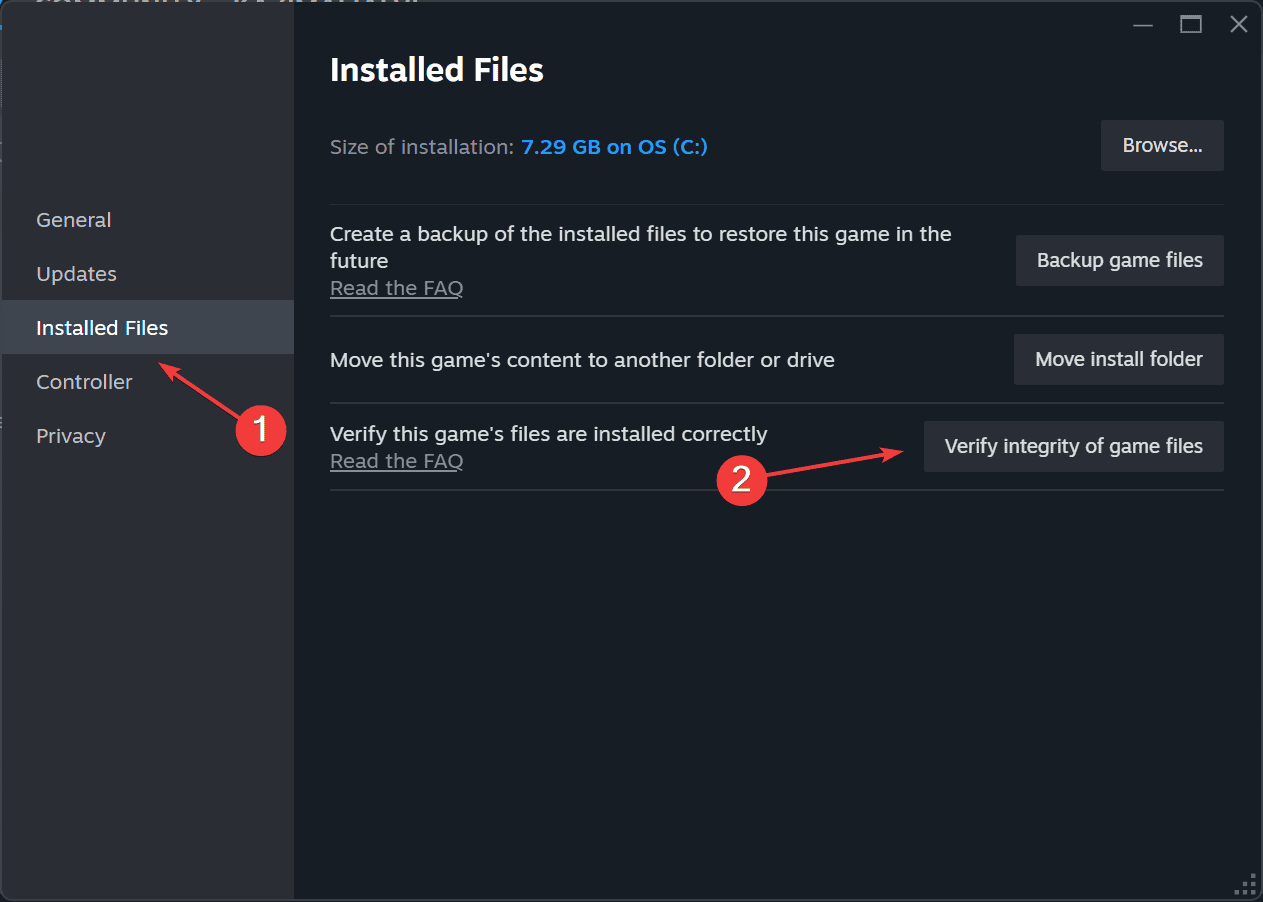




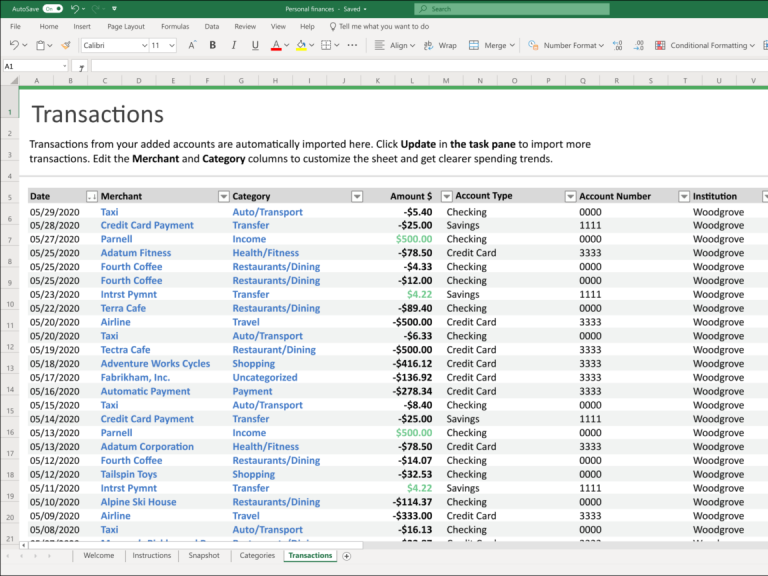
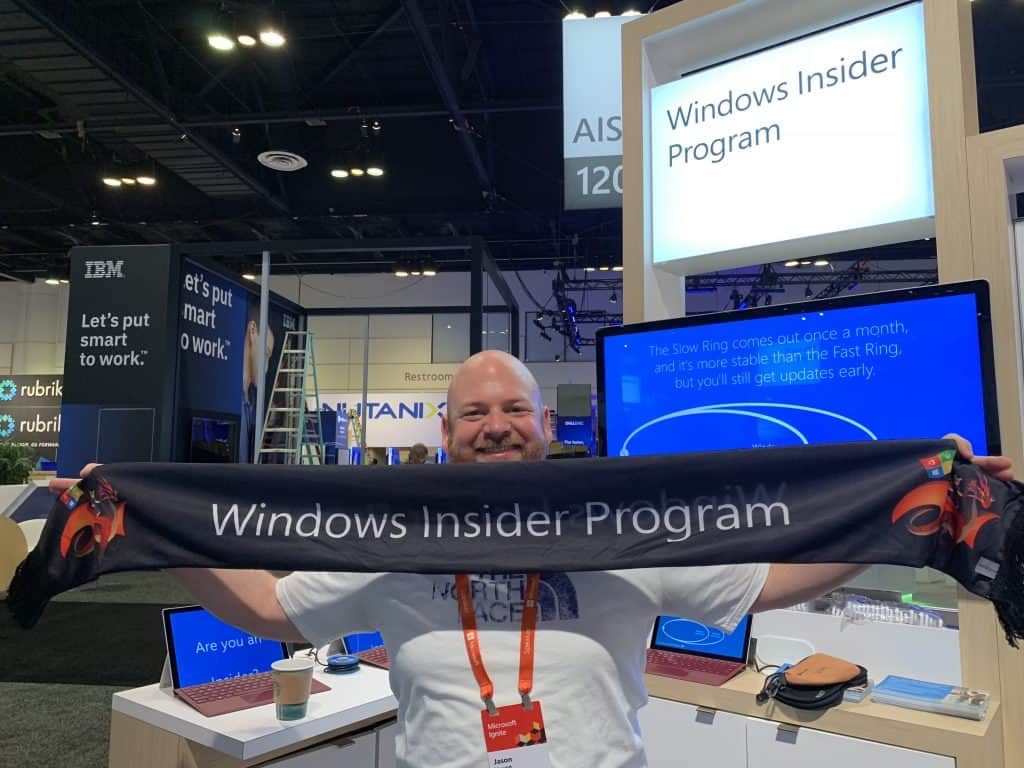

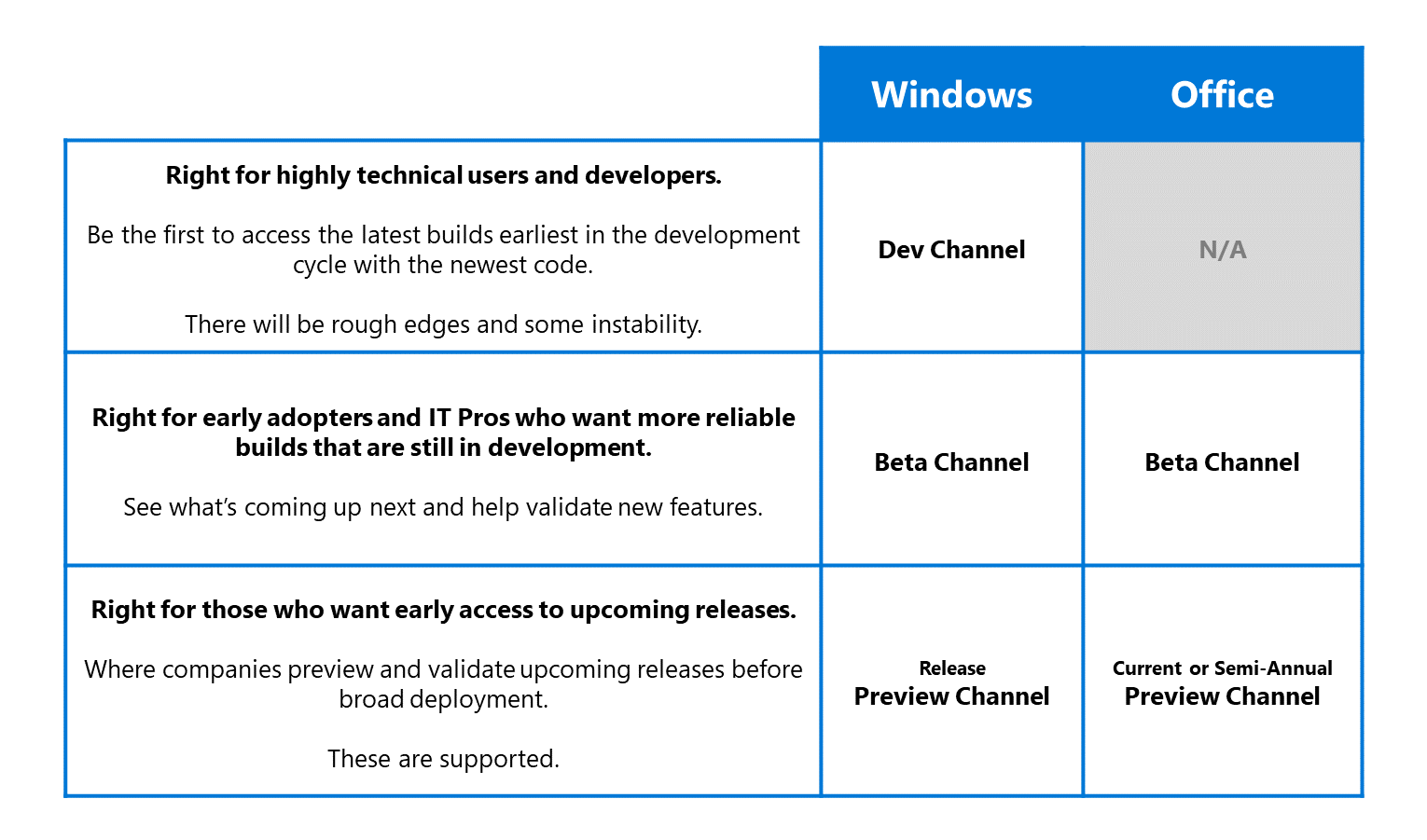





![5 Best detective games online [Play on Web]](https://windowsreport.com/wp-content/uploads/2020/06/detective-games-online.jpg)


![5 Best Disney games online you can play now [Free]](https://windowsreport.com/wp-content/uploads/2020/06/Free-Disney-games-online.jpg)


![Fix: Gboard has stopped working [Android/iPhone/Tablet]](https://windowsreport.com/wp-content/uploads/2020/06/How-do-I-fix-unfortunately-Gboard-has-stopped.jpg)


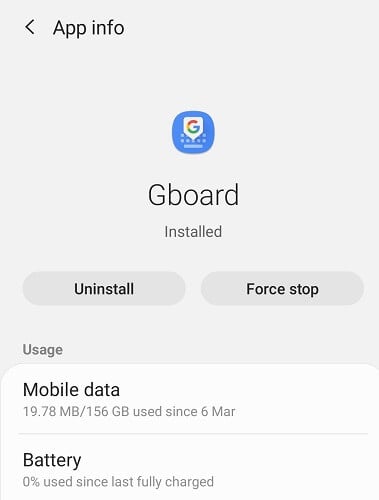


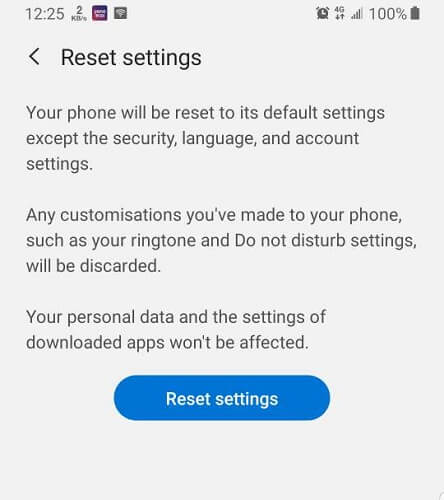


![5 Free online arcade games [Play on Web]](https://windowsreport.com/wp-content/uploads/2020/06/free-online-arcade-games-play-on-web.jpg)
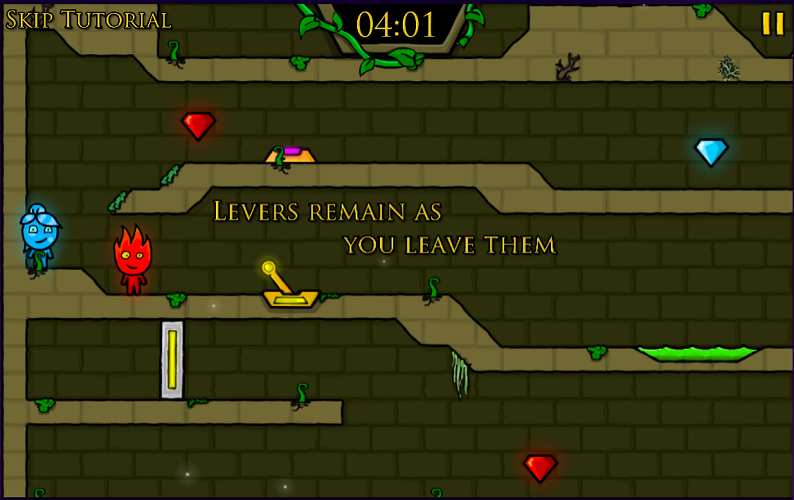




![Autopico exe: Windows processes explained [Full Guide]](https://windowsreport.com/wp-content/uploads/2020/06/laptop-with-user-typing.jpg)
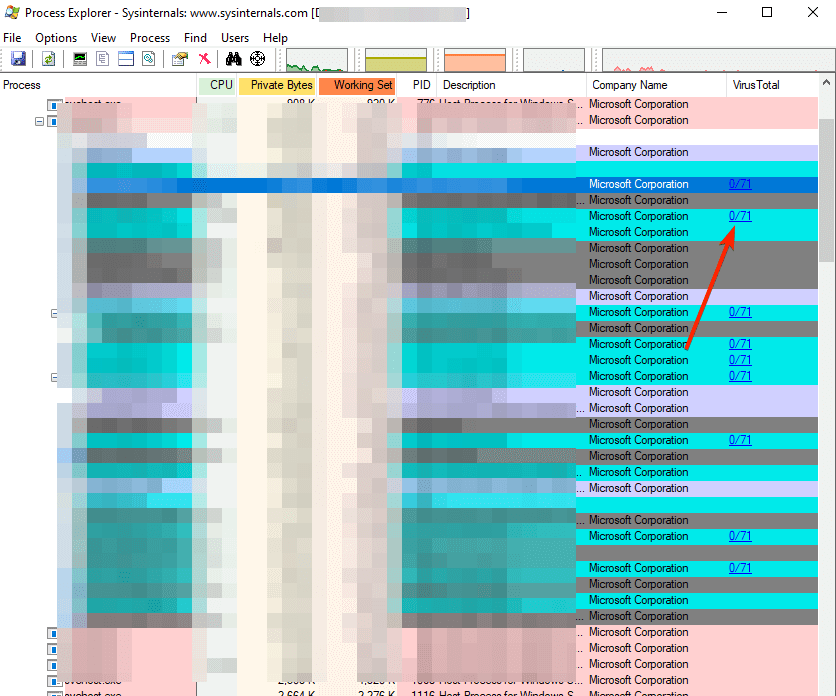

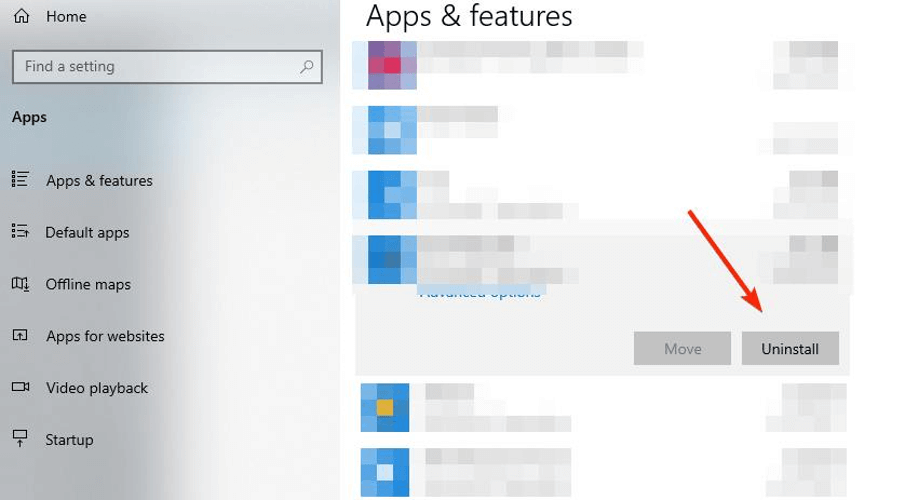









![MusicBee won’t open in Windows 10/11 [Solved]](https://windowsreport.com/wp-content/uploads/2020/06/music-cover-image.jpg)


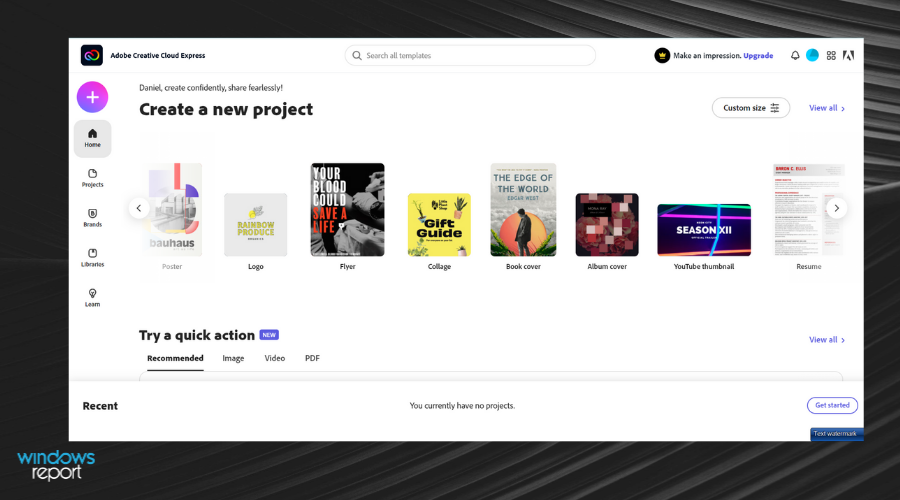









![5 Best mafia games to play online [Browser games]](https://windowsreport.com/wp-content/uploads/2020/06/online-mafia-games-.jpg)



![Fix Word of Warships Lagging & Stuttering Now [Top 5 VPN]](https://windowsreport.com/wp-content/uploads/2020/06/World-of-Warships-lagging.jpg)
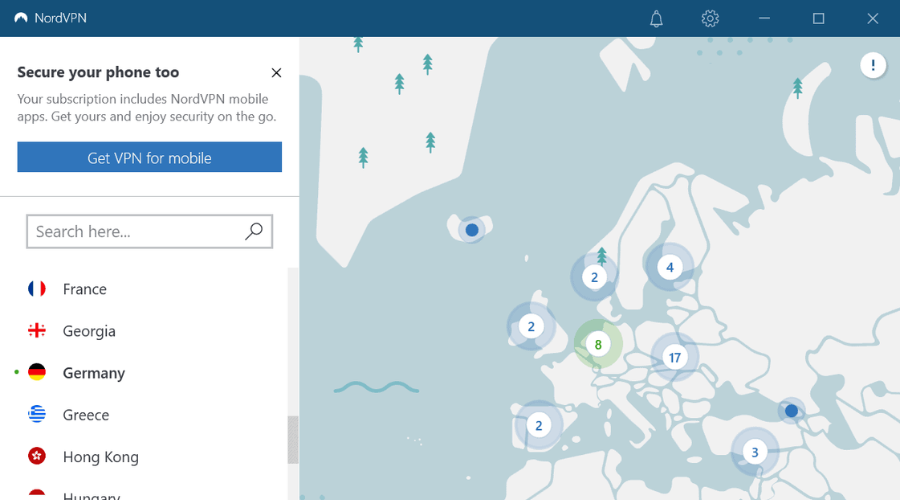

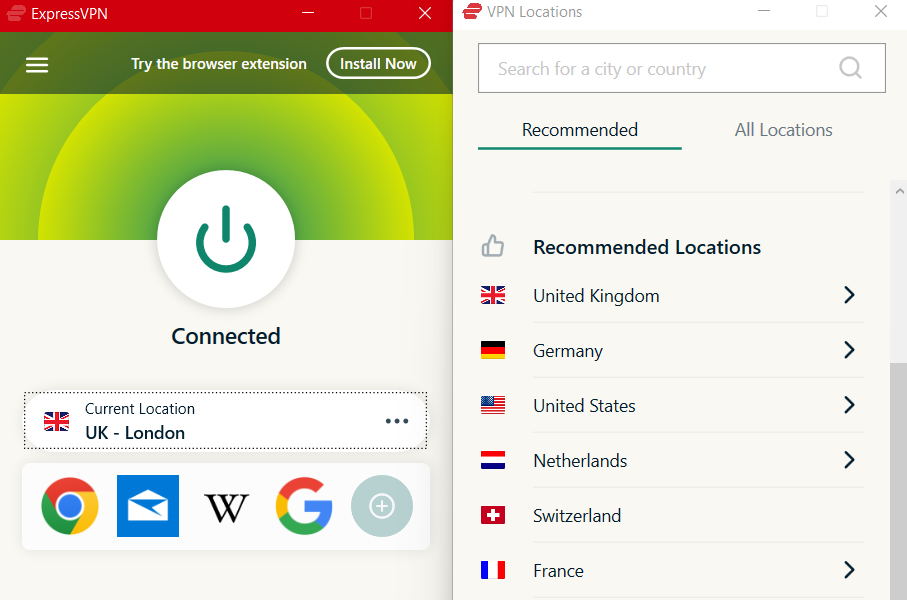



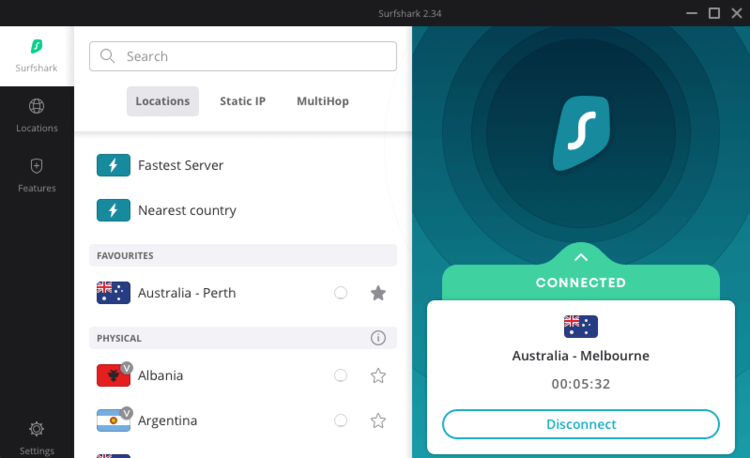








![Razer mouse sensitivity keeps changing [Solved]](https://windowsreport.com/wp-content/uploads/2020/06/Razer-mouse-sensitivity-keeps-changing.jpg)
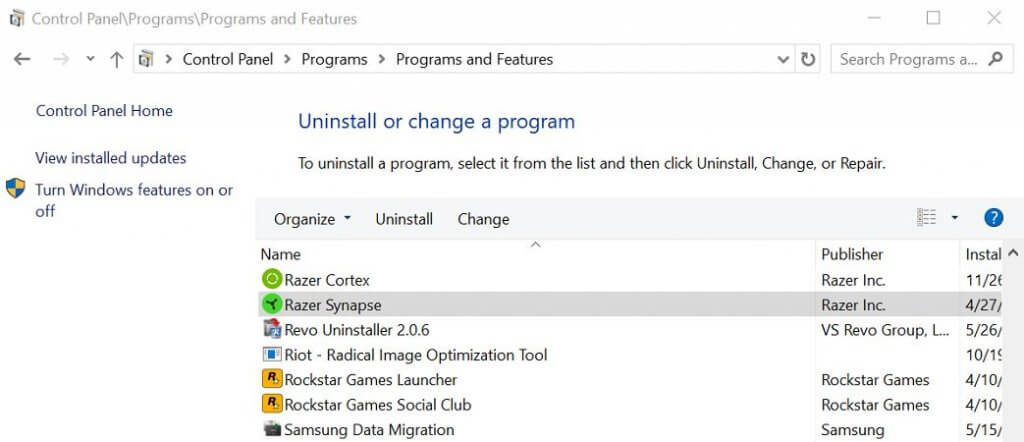












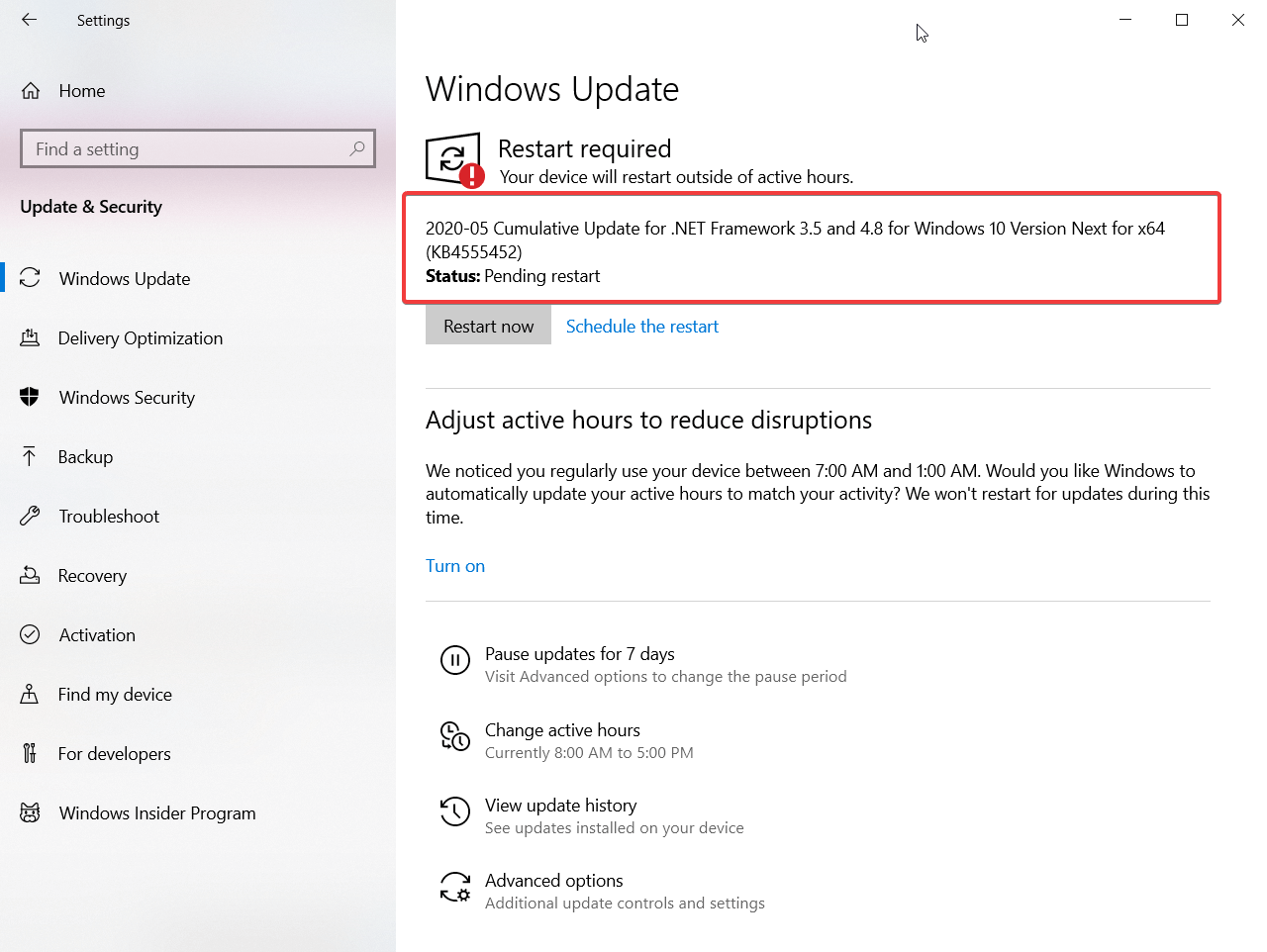
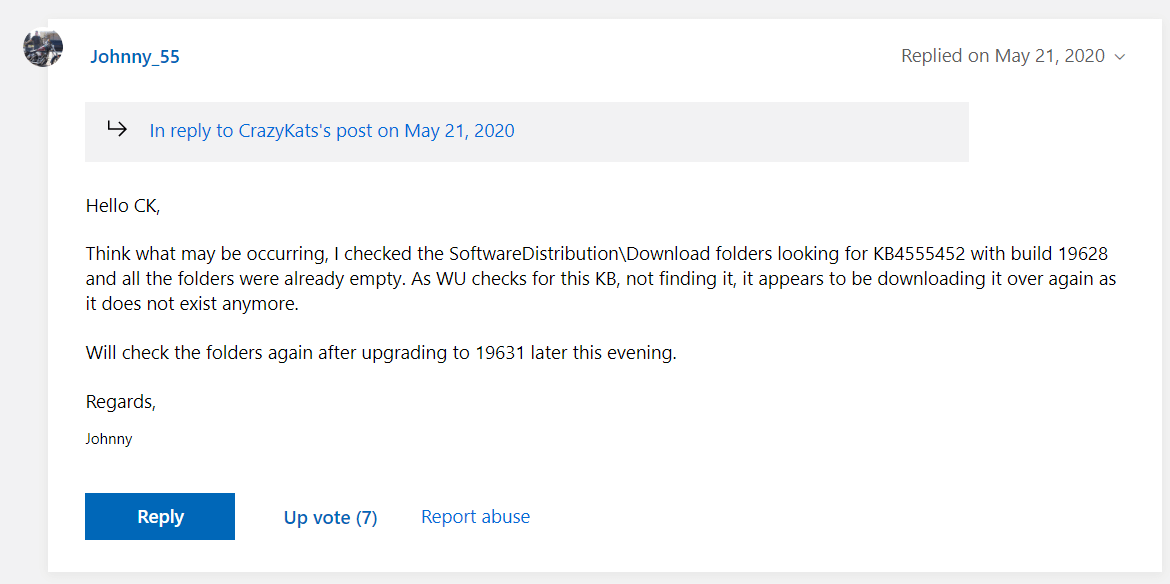
![WoW: A streaming error has occurred [Solved]](https://windowsreport.com/wp-content/uploads/2020/06/streaming-error-has-occurred.jpg)