Download Devil May Cry 5 on Windows 10/11 [Download link]

The long awaited sequel with our favorite demon hunter, Dante, is back, with old acquaintances and new characters jumping into the action.

The story takes place five years after the events of Devil May Cry 4, the rest of the story is left to the player to experience.

Interested in getting DM5? Use the download link below.

Gameplay-wise, the newest DMC brings a lot to keep you busy for hours. You’re sent right into the thick of the fighting, with hordes of demons and multiple types of attack.

Weapons get a nice boost, they’re flashy, brutal and so fun to wield. Dante now has the ability to combine his weapons into a motorcycle called Cavaliere. Nero will bring a new helping hand into the fight.

A new playable character, simply named V, will bring some interesting summoning abilities, that will be left to the player to use to his heart’s content.

We’re back to the style-rating combat mechanic we all love to improve, from previous instalments, this time with an added feature of the music changing in accordance to your perfomance, so if you wanna hit the high notes, do it with more style.

With the game‘s soundtrack being composed by talented individuals such as Kota Suzuki, Jeff Rona, Casey Edwards and Cody Matthew Johnson, we can expect some epic moments amongst the carnage.

DMC 5 options on Steam

The game is currently priced around at $67 USD, with the Devil May Cry 5 Deluxe Edition having a bit higher price but offering 13 items: Devil May Cry 5, Devil May Cry 5 – Alt Style Rank Announcers, Devil May Cry 5 – Alt Title Calls, Devil May Cry 5 – Live Action Cutscenes, Devil May Cry 5 – DMC1 Battle Track 3-Pack, Devil May Cry 5 – DMC2 Battle Track 3-Pack, Devil May Cry 5 – DMC3 Battle Track 3-Pack, Devil May Cry 5 – DMC4 Battle Track 3-Pack, Devil May Cry 5 – Gerbera GP01, Devil May Cry 5 – Pasta Breaker, Devil May Cry 5 – Sweet Surrender, Devil May Cry 5 – Mega Buster, Devil May Cry 5 – Cavaliere R.

Begin your road to bad-assery today and download Devil May Cry 5 on your PC!

Enjoy the game!

Windows 10 20H1 build 18855 is now available for Skip Ahead with more bug fixes

After Microsoft released the 19H1 build 18356 for Fast Ring Insiders yesterday, the company is now shipping the 20H1 build 18855 to Insiders on the Skip Ahead ring today. This new build from the 20H1 development branch is another minor update with no new features, though it brings several bug fixes that Fast Ring Insiders received in the 19H1 build 18353 last week.

Indeed, the build 18855 includes the same Windows Sandbox improvements that previously came with the 19H1 build 18353, including microphone support and various usability improvements. As for known issues, Microsoft still hasn’t fixed the GSODs caused by anti-cheat software, as well as the compatibility issue with Creative X-FI sound cards. You can check the full list of fixes and known issues below:

General changes, improvements, and fixes for PC

  • Notepad now automatically restores unsaved content when Windows restarts for updates.
  • We’ve enabled microphone in Windows Sandbox, which among other things will improve several accessibility scenarios.
  • We’ve enabled microphone in Windows Sandbox, which among other things will improve several accessibility scenarios.
  • We’ve added functionality to configure the audio input device via the Windows Sandbox config file.
  • We’ve fixed an issue in which the Windows Sandbox time zone was not synchronized with the host.
  • We’ve enabled the Shift + Alt + PrintScreen key sequence in Windows Sandbox which activates the ease of access dialog for enabling high contrast mode.
  • We’ve enabled the ctrl + alt + break key sequence in Windows Sandbox which allows entering/exiting fullscreen mode.
  • We fixed a recent issue resulting in some Insiders experiencing bug checks upon lid close, monitor plug, or monitor unplug.
  • We fixed an issue resulting in preferred region settings getting reset on upgrade in the last few flights.
  • We fixed an issue resulting in the Chinese version of multiple games not working.
  • We fixed an issue in memcpy that caused some drivers to hard-hang the system on load; this could manifest as a hang on upgrade, depending on the system.
  • We fixed an issue from recent builds that could result in monitors being missing from the built-in Color Management application.
  • We fixed an issue causing Explorer.exe to crash for some Insiders when Jump list content was updated.
  • We fixed an issue where text scaling values did not persist across upgrades for Win32 applications.
  • Due to a Narrator reading reliability issue for the “Change how capitalized text is read” feature, the feature has been disabled starting in build 18855.
  • We fixed an issue that could cause the touch keyboard to crash when switching from IME-based languages to another language.

Known issues

  • Launching games that use anti-cheat software may trigger a bugcheck (GSOD).
  • While this flight contains some night light improvements, we’re continuing to investigate reported issues in this space.
  • When performing Reset this PC and selecting Keep my files on a device that has Reserved Storage enabled, the user will need to initiate an extra reboot to ensure Reserved Storage is working again properly.
  • Some Realtek SD card readers are not functioning properly. We are investigating the issue.
  • Creative X-Fi sound cards are not functioning properly. We are partnering with Creative to resolve this issue.
  • We’re investigating an issue preventing VMware from being able to install or update Windows Insider Preview builds. Hyper-V is a viable alternative if available to you.
    Known issues for Developers
  • If you install any of the recent builds from the Skip Ahead and switch to either the Fast ring or the Slow ring, optional content such as enabling developer mode will fail. You will have to remain in the Fast ring to add/install/enable optional content. This is because optional content will only install on builds approved for specific rings.

There are not a lot of differences between 19H1 and 20H1 builds for now, and we hope things will get more interesting pretty soon. We’re still wondering what will happen when Microsoft will start releasing 19H2 builds later this Spring, as there will be two separate development branches to follow with probably different new features being tested with Fast Ring and Skip Ahead Insiders. In the meantime, let us know in the comments if you encounter any issues after installing the build 18855 on your PC.

Latest Windows 10 Insider build 18356 may have opted you out of the Insider program, here’s how to get back in

The Windows Insider program is far from an exact science when it comes to reliability for both the Windows engineers and the testers who often experience unforseen setbacks, delayed releases, buggy previews and in rare occasions a device crippling preview.

Yesterday’s Windows 10 Insider build 18356 is further evidence that being an Insider requires a certain level of patience and understanding, as users are now seeing evidence that when updating to the preview, their devices are being opted out of the Insider program, unable to receive new builds.

According to the head of the Windows Insider program Dona Sarkar, there is a work around for anyone experiencing the new issue and she has just addressed the complication via her Twitter handle.

As a refresher, to opt in, just go to Settings > Update & Security > Windows Insider Program > Get Started, and choose “Active Windows Development” (the Fast Ring). Remember if you have been on the Fast Ring but take this opportunity to join the Skip Ahead ring (now on 20H1 builds), you won’t be able to go back, so choose carefully.

The new auto selection problem doesn’t seem to be a widespread issue and is not noted in the Known Issues log in the release notes, but it seems like something that will and should be addressed by the time the next preview hits Insiders.

Microsoft 365 Government gets expanded Teams support, more

Following the launch of Microsoft 365 Government last year, Microsoft is announcing today that Microsoft Teams is now available in all Microsoft 365 Government cloud environments. This should push more US federal, state, local, tribal, or other territorial government entities to make the move to Office 365.

“While Teams has been available in the Government Community Cloud (GCC), today we are announcing the availability of Teams in GCC High and Department of Defense (DoD) environments,” wrote Catherine Boeger, General Manager of Microsoft 365 Commercial GTM. “Teams is built to meet the enhanced security and compliance requirements of government agencies, which can now better deliver against their mission and provide services to citizens and constituents.”

In addition to the expanded Microsoft Teams availability, the Redmond giant also reiterated today that its Outlook app on iOS and Android can now be used by Office 365 U.S. GCC High and DoD customers. That’s because the mobile client adopted a new architecture earlier this year that meets all the security requirements for these organizations.

Lastly, Microsoft is planning to improve its Microsoft 365 Government threat protection and intelligence tools later this year to help security teams address the rising volume of cybersecurity threats. “Soon we will launch new capabilities in Office 365 Advanced Threat Protection (ATP) P2 for GCC that automate investigation and remediation of threats in email—helping you further reduce the burden on your team and time to response,” Boeger explained.

Windows 10 Camera app is getting Office Lens integration

The Windows Camera app is getting support for Office Lens integration, as Italian blog Aggiornamenti Lumia reports that the update is rolling out to Windows Insiders. For those who might not be familiar, Office Lens is a tool that allows user to scan images from printed documents for a multitude of reasons, such as for the conversion of the physical document to to be editable in Word or to save the information in OneNote.

This update brings two core features of Office Lens straight to the Camera app—Document and Whiteboard scanning. This means that users can users can not only scan documents straight from the Camera app, but also handwritings and drawings on whiteboards onto an easy to read image.

We’re not exactly sure how this all works just yet, but it’s available to a handful of Windows Insiders right now, and we were able to download the update on a PC in the Skip Ahead ring. After a little bit of testing from Insiders, the update will eventually make its way to all Windows 10 users, making for a much quicker and more effective way to scan a document on the go.

Microsoft also recently added Office Lens support to the OneDrive application for iOS, bringing support for scanning documents and business cards for saving within the cloud storage service. With Office Lens integration being added each of Microsoft’s other apps, there seems to be less incentive for users to download the dedicated Office Lens app.

Windows Camera
Windows Camera
Price:
Free

World of Warcraft becomes first game to use DirectX12 on Windows 7, with more to come

Despite Windows 10 edging out Windows 7 as the prefered operating system choice for gamers recently, developers at Blizzard wanted to bring its Windows 10 gaming gains to Windows 7 users.

Recently, Blizzard began supporting DirectX 12 on Windows 10 and World of Warcraft gamers began benefiting from multi threaded compute processes that resulted in better frame rates across a myriad of configurations.

However, DirectX 12 isn’t offered on Windows 7 and in order bring a similar experience to its substantial gamer base on Windows 7, Blizzard developers and Windows engineers had to hash out an alternate set of work arounds.

Fortunately, the Microsoft and Blizzard were able to come up with a runtime solution that is now being released within the WoW: Battle for Azeroth game patch 8.1.3.

At Microsoft, we make every effort to respond to customer feedback, so when we received this feedback from Blizzard and other developers, we decided to act on it. Microsoft is pleased to announce that we have ported the user mode D3D12 runtime to Windows 7. This unblocks developers who want to take full advantage of the latest improvements in D3D12 while still supporting customers on older operating systems.

Yesterday’s patch becomes the first of its kind where a game developer port DirectX 12 to Windows 7. WoW gamers on Windows 7 will now gain similar Windows 10 improvements that include boosted frame rate performance, and other GPU related features.

To be clear, DirectX 12 cannot be manually installed on to Windows 7 machines but is coming via a game update. Microsoft is said to be working with a handful of studios to replicate Blizzards update patch process, so more DirectX 12 benefits are on their way to Windows 7 gamers.

Microsoft’s new Wireless Display app lets you cast your Windows or Android screen to an Xbox One, and it works with PC games

Microsoft has released a new app for the Xbox One console, which allows PC and Android screens to be projected to the system. The app allows the Xbox to act as a Miracast receiver, where an enabled device can connect to it to be used as a second display.

While screen projection is certainly a nice touch, the real feature here is being able to play PC games directly on the Xbox from within the new app. This is because the app sports controller support, allowing input from the Xbox gamepad to be sent straight to the PC. This allows for a multitude of PC-exclusive games to be played on the system, in a similar manner to how Xbox games can be streamed directly on the Windows 10 PC via the Xbox app.

You have to go though a hoop of steps to get this to work, with the first being to install the app directly on the Xbox. After it’s installed, you can open it on your Xbox, which will immediately become visible for other devices to connect to. One the blue cast screen is loaded, you can connect to it just like you would any other Miracast display, by going into the display menu (via the Win + P command) and select XBOXONE. If you intend to control the PC from the Xbox such as for playing games, make sure to tick the box to enable keyboard and mouse input from the Xbox.

When the app is loaded, the connect screen will look something like this.

If all goes well, you should be able to easily switch between mouse and gamepad inputs by simultaneously hitting the view and menu icons on the gamepad. From our end, we were able to get mouse input to work just fine on the Surface Go, but had trouble getting the gamepad to work in a game of Minecraft. On the other hand, Asphalt 9 worked just fine, so it’s hard to understand what the limitations are for the controller support. However, it doesn’t seem to work on Android devices at all as of the time of this writing.

From the PC side, you can also switch between various screen latency modes, Gaming, Working, and Watching videos from the connection bar at the top of the screen. Despite the latency option, though, watching protected content such as that on Netflix is a no go.

Wireless display connection through Miracast has worked on the Surface Hub 2 for some time, allowing for the projection of documents and presentations on the larger screen. Microsoft has brought the same technology to the Xbox One, but improving it even further by adding gamepad support.

While the gamepad can act as a keyboard and mouse combo, the same can’t be said true if you connect an actual keyboard and mouse to the Xbox One. On the other hand, as keyboard and mouse gaming is slowly becoming a thing for the system, perhaps it won’t be long until the feature does make its way to the app.

Wireless Display
Wireless Display
Price:
Free

iCloud Calendar Not Syncing With Outlook: How to Force it

Is your iCloud calendar not syncing with Outlook? This can be a big problem on any PC and make you miss important events.

The calendar also allows you to show and manage tasks in Outlook, but we covered that in a separate guide. Today we’re going to focus solely on the syncing issues, so let’s get started.

Why is iCloud calendar not syncing with Outlook?

  • Issues with Apple’s servers can sometimes cause sync issues with Outlook.
  • Temporary glitches in iCloud can sometimes cause this problem.
  • Missing updates can lead to this and other issues, so keep the iCloud client updated.
  • Your iCloud account might not be properly configured in Windows.

What can I do if iCloud calendar not syncing with Outlook?

1. Check iCloud’s system status

  1.  Visit System Status page in your browser.
  2. Check if there’s an issue with any of Apple’s services.
    icloud status icloud calendar not working
  3. If there are, wait until Apple resolves them.

2. Sign out and in

  1. Open the iCloud for Windows software.
  2. Next, press the Sign out button to log out.
  3. Select Delete from computer when prompted to keep a copy of your iCloud calendar and contacts.
  4. Wait a few minutes and then sign in to iCloud again.
  5. Select the Mail, Contacts, Calendars and Tasks option on the iCloud window to synchronize the Calendar.

After doing that, check if the problem with the iCloud calendar is still there.

3. Update your iCloud software

  1. Press Windows key + S and enter store. Select Microsoft Store from the list.
  2. Go to Library.
  3. Check if iCloud is on the list of updates.
  4. If so, install the update and check if that helps.

After doing that, check if the problem is still there.

4. Open Outlook with the/resetnavpane switch

  1. Close Outlook if it’s currently open.
  2. Press the Win key + R to open Run.
  3. Run the following command:Outlook.exe /resetnavpane outlook.exe resetnavpane icloud calendar

5. Edit the registry

  1. First, open the Mail applet in the Control Panel.
  2. Select to open the Mail Setup applet.
  3. Press the Show Profiles button and click Add.
  4. Then you can type a title in the Profile Name text box, and press the OK button.
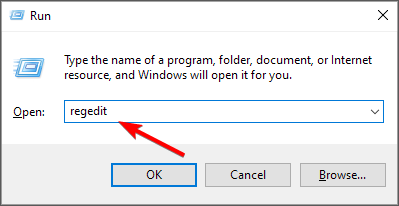
  5. Now open the Registry Editor by pressing the Win key + R. Enter regedit and run it.
  6. Next, navigate to HKEY_CURRENT_USER\SOFTWARE\Microsoft\Office\Outlook\Addins\Apple.DAV.Addin
  7. Double-click LoadBehaviour on the right of the window. Enter 3 in the Data value text box if it’s currently at 0.

6. Check if iCloud is your default account

  1. In Outlook go to File and select Info.

  2. Head to Account Settings and then select Data Files.
  3. Now you can see if iCloud is the default Comments column account. If that’s the case, select an alternative account as the default one.
  4. Select Set as Default to adjust the default account settings.
  5. Then restart the Windows 10 OS.

These are a couple of fixes you can use if the iCloud Calendar is not syncing with Outlook.

Unfortunately, this isn’t the only problem you can encounter, and many reported that iCloud for Windows is not working.

What solution did you use to solve this issue? Let us know in the comments below.

DVD Not Working in Windows 10/11? Here’s how to fix it

If your DVD is not working, you might experience certain issues, especially if you have multimedia or other applications on DVD discs. This can be a problem for some users, and today we’re going to show you how to tackle this issue.

Many users, including myself, have been reporting problems with their DVDs in Windows 8 or Windows 8.1. If your DVD too is also not working, then follow the below steps needed to fix the problem.

Problems with the DVD drive not working in Windows 8 or Windows 8.1 are one of the most common and experienced by many users. We’re going to talk about this issue and try to offer some working solutions, as there are enough guides to help you get rid of it. The CD and DVD problems have occurred with Windows 8 more often than with Windows 8.1, so it seems that Microsoft has put an update in place.

My DVD drive installed Windows 8 and can also boot from DVD, but Windows 8 does not recognize the drive after the operating system is loaded. How can I get drivers loaded for this version of Windows? If I boot with the Windows 8 DVD in the drive, ignore the option to boot from the CD or DVD, when the OS loads, the drive is recognized and I can use it for that session. If I reboot without the DVD in the drive, it is gone again.

DVD drive not detected in Windows 10? Try these solutions

  1. Use Command Prompt
  2. Delete UpperFilters and LowerFilters DWORDs
  3. Run the troubleshooter
  4. Check your optical reader
  5. Change your group policy
  6. Reinstall your DVD drivers
  7. Install the necessary drivers manually
  8. Check for updates

There are many problems that can occur with your DVD drive, and in this article we’ll address the following issues:

  • Windows 10 DVD drive not reading discs – Several users reported that their DVD drive isn’t reading discs. This is usually caused by a bad driver or a dirty optical sensor.
  • DVD not playing Windows 10 – Several users reported that DVD isn’t playing on their Windows 10. This can be an annoying problem, but you should be able to fix it using one of our solutions.
  • DVD drive not showing – Sometimes your DVD drive might not even show up on Windows 10. If that’s the case, be sure to check your drivers. In one of our previous article we showed you how to fix missing DVD drive, so be sure to check that article for detailed explanation.
  • DVD writer not working properly – Several users reported that DVD writer isn’t working on their PC. If you have this problem, be sure to check your DVD configuration.
  • DVD not, found playing, reading, recognized, detected, ejecting, responding, spinning, displaying files, loading – There are many problems that can occur with your DVD. However, you should be able to fix most of these problems by using one of our solutions.
  • DVD not autoplaying Windows 10 – Many users reported that DVD AutoPlay isn’t working for them. In one of our previous articles we explained how to fix AutoPlay problems for DVDs, so be sure to check it out.
  • DVD not appearing in my computer – Another problem that many users reported is that DVD isn’t appearing on their PC. This can occur if your DVD drive isn’t connected properly or if your drivers aren’t compatible with Windows 10.

1. Use Command Prompt

This is what one user is saying and many others are having similar problems like this one. Users affected by this problem said that they saw the following message: “Windows cannot start this hardware device because its configuration information (in the registry) is incomplete or damaged. (Code 19).” Now, let’s see what we can do to fix it. First of all, try the following:

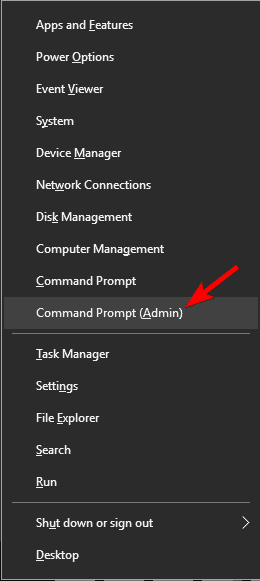
  1. Run Command Prompt as an administrator. To do that, right click the Start Button and choose Command Prompt (Admin) from the menu. If you don’t have Command Prompt on the list, you can also use PowerShell (Admin).
    command prompt DVD not reading
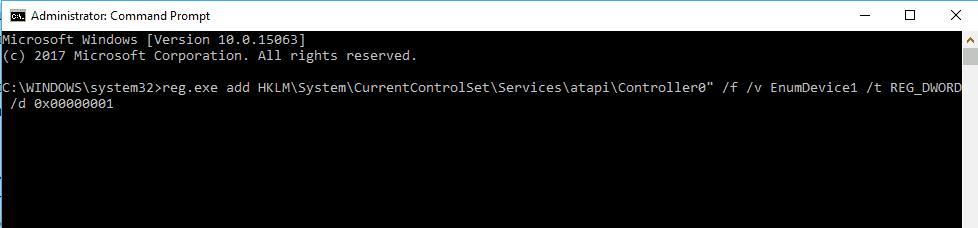
  2. Type reg.exe add HKLMSystemCurrentControlSetServicesatapiController0″ /f /v EnumDevice1 /t REG_DWORD /d 0x00000001 and press Enter.
    reg.exe command prompt DVD not autoplaying Windows 10

After doing that, restart your PC and check if the problem is fixed.

2. Delete UpperFilters and LowerFilters DWORDs

If the previous solution didn’t fix your problem, then try checking if all the cables are properly put in place, just in case this might be caused by a rather stupid problem that you overlooked.

Also, you can check for the DVD drive in BIOS. After restarting the Windows 8/Windows 8.1 computer, enter the BIOS screen (usually by pressing F10 multiple times). If it is absent, then it is a hardware problem, and not a software one, and you’ll need to contact your vendor. Now, here’s another potential fix:

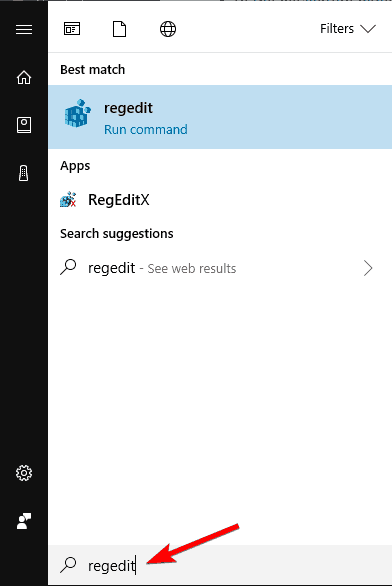
  1.  Type regedit in the Search bar and press Enter.
    regedit search DVD writer not working properly
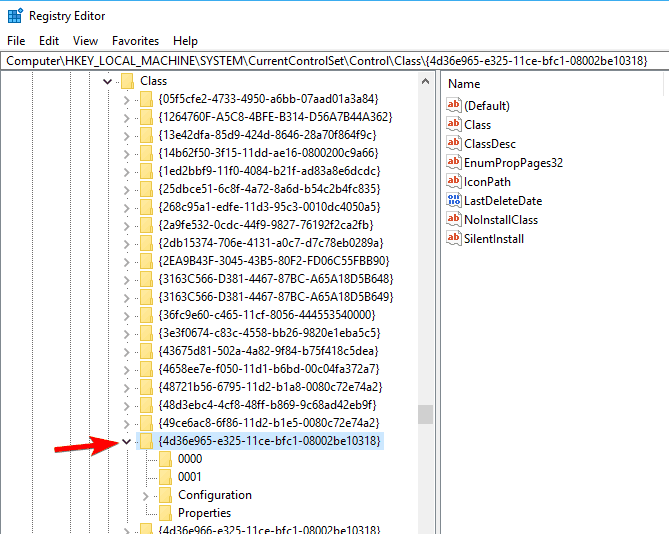
  2. In the navigation panel, locate and then click the following registry subkey: HKEY_LOCAL_MACHINESYSTEMCurrentControlSetControlClass{4D36E965-E325-11CE-BFC1-08002BE10318}.
    registry key DVD not playing
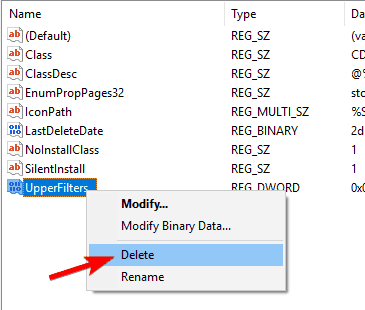
  3. In the right panel, locate one or both of the keys UpperFilters and LowerFilters. You can have only one, or you can have both. Select these keys, right-click them and choose Delete.
    delete DWROD DVD not autoplaying Windows 10
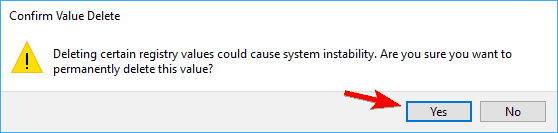
  4. When you are prompted to confirm the deletion, click Yes.
    delete confirm DVD not appearing in my computer
  5. Exit Registry Editor.
  6. Restart the computer.

3. Run the troubleshooter

Sometimes you might be able to fix the problem with the DVD drive simply by running the hardware troubleshooter. To do that, follow these steps:

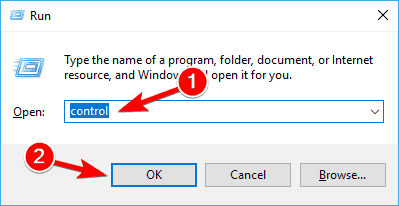
  1. Press the Windows Key + R to open the Run dialog box. Type control in the Run dialog box, then press Enter or click OK button.
    control run Windows 10 DVD drive not reading discs
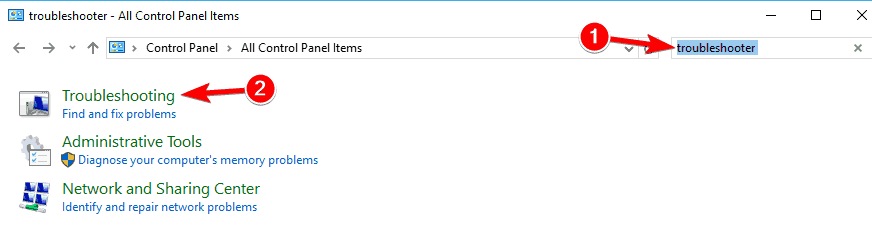
  2. In the Search box in Control Panel, type troubleshooter, and then click Troubleshooting.
    troubleshoot DVD not playing Windows 10
  3. Under the Hardware and Sound section, click on Configure a device. If you are prompted to enter an administrator password or provide confirmation, type the password or provide confirmation.

After the troubleshooter is finished, check if the problem still remains.

4. Check your optical reader

If your DVD is not working, the problem might be your optical reader. Sometimes the reader can move and remain in a new position causing this problem to appear.

To fix the issue, you need to use a small object and move it to the original position. Keep in mind that this is rather dangerous, and if you don’t know what you’re doing you can easily permanently damage your DVD drive and your PC.

Several users reported that cleaning their optical reader fixed the problem. There are many ways to do that, and the best one might be to open your DVD drive and clean it with a cue tip.

If you’re not comfortable with removing your DVD drive, you can always use a disc that comes with a small brush that automatically cleans your DVD.

If cleaning the DVD drive doesn’t work, your DVD might be faulty, and the only choice is to replace the entire DVD drive.

5. Change your group policy

According to users, if DVD is not working the problem might be related to built-in burning features. However, you can resolve this problem by making few changes in Group Policy Editor. To do that, follow these steps:

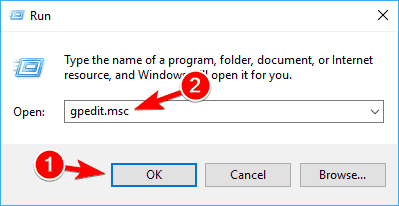
  1. Press Windows Key + R and enter gpedit.msc. Press Enter or click OK.
    gpedit.msc DVD not autoplaying Windows 10
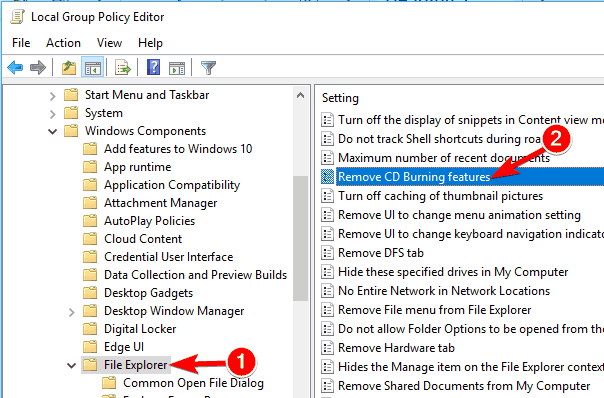
  2. In the left pane navigate to User ConfigurationAdministrative TemplatesWindows ComponentsFile Explorer. In the right pane, double click on Remove CD Burning features.
    remove CD burning features DVD not appearing in my computer
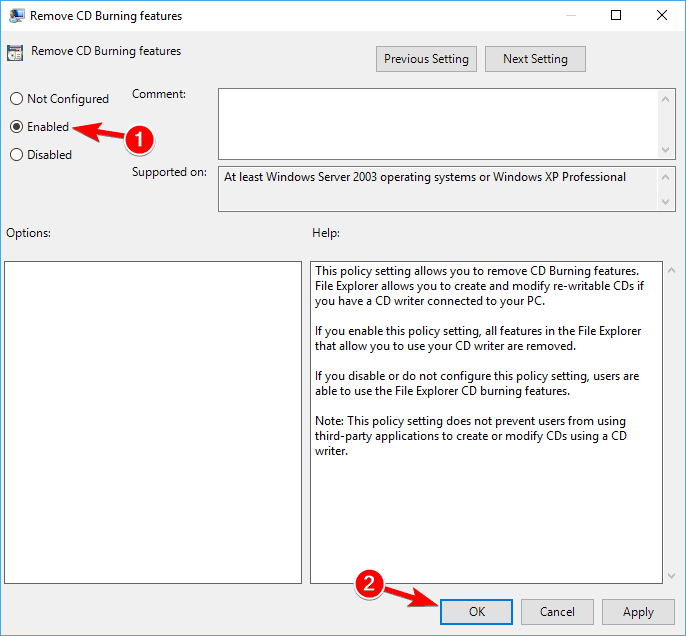
  3. When the Properties window opens, select Enabled and then click on Apply and OK.
    enable policy Windows 10 DVD drive not reading discs

If you can’t access Group Policy Editor, you can disable this feature using Registry Editor. To do that, follow these steps:

  1. Open Registry Editor.
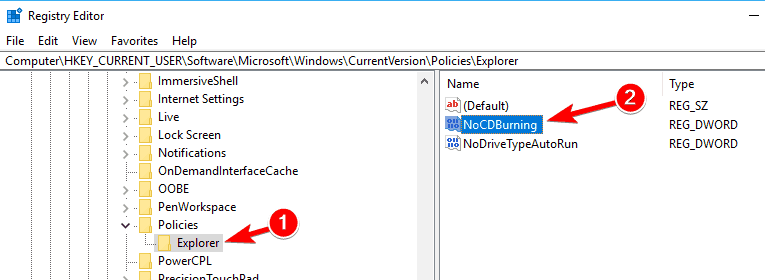
  2. In the left pane, navigate to HKEY_CURRENT_USERSoftwareMicrosoftWindowsCurrentVersionPoliciesExplorer key. In the right pane, look for NoCDBurning DWORD and double click it. If this DWORD isn’t available, you’ll need to create it manually.
    registry NoCDBurnining DVD not playing Windows 10
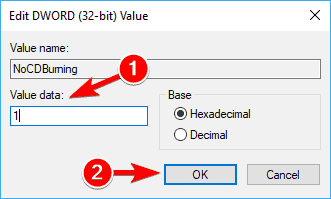
  3. Set the Value data to 1 and click on OK to save changes.
    value data DVD drive not showing

After making the changes, restart your PC and check if the problem is resolved.

6. Reinstall your DVD drivers

Few users reported that they fixed the problem simply by reinstalling their DVD driver. If DVD is not working, you can fix the problem by doing the following:

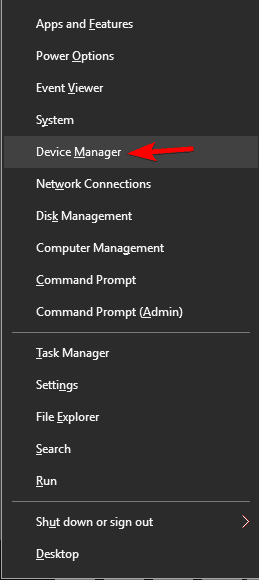
  1. Open Device Manager. You can do that by pressing Windows Key + X and choosing Device Manager from Win + X menu.
    device manager DVD drive not showing
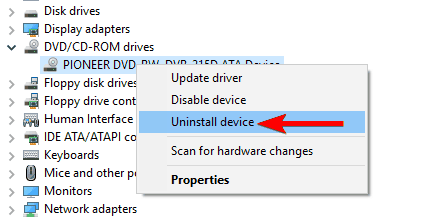
  2. When Device Manager opens, locate your DVD drive and right-click it. Choose the Uninstall device.
    uninstall device DVD writer not working properly
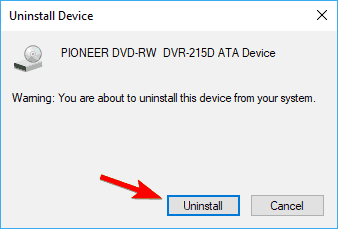
  3. When the confirmation menu appears click on the Uninstall button.
    confirm uninstall DVD not found

Once the driver is removed, restart your PC. When the PC restarts, Windows will automatically install the default driver and your DVD drive should start working again.

7. Install the necessary drivers manually

If your DVD isn’t working on Windows 10, the problem is most likely related to your drivers. This is a minor problem that can be fixed by manually installing the missing drivers. To do that, follow these steps:

  1. Open Device Manager. Locate your DVD drive on the list. If there’s a small question mark or an exclamation mark next to it, it means that there’s a problem with your DVD drive.
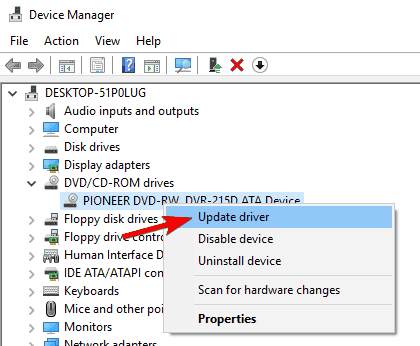
  2. Right-click your DVD drive and choose Update driver.
    Windows 10 DVD drive not reading discs
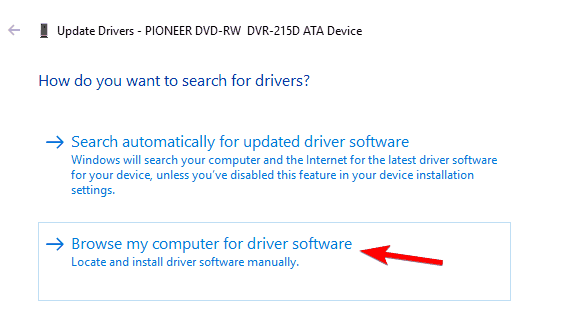
  3. Click on Browse my computer for driver software.
    browse my computer for driver software DVD not playing Windows 10
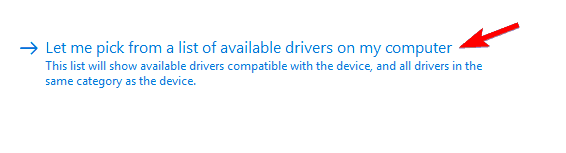
  4. Now click on Let me pick from a list of available drivers on my computer.
    let me pick from a list of available drivers DVD drive not showing
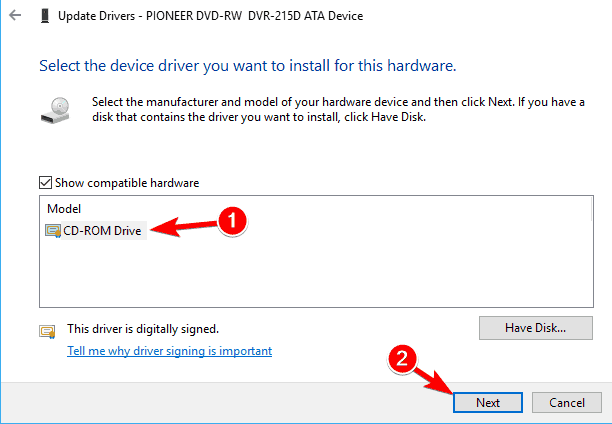
  5. Select the desired model from the list and click on Next.
    CD-ROM Drive DVD writer not working properly

After installing the driver manually, the problem with your DVD drive should be resolved.

8. Check for updates

If the DVD is not working, perhaps you can fix the issue simply by updating Windows 10. Windows 10 already updates itself automatically, but you can manually check for updates by doing the following:

  1. Open the Settings app.
  2. Head over to the Update & Security
  3. Now click Check for updates

If any updates are available, they will be downloaded automatically in the background. Once the updates are downloaded, restart your PC and check if the problem is still there.

If all of the above still didn’t solve your problem, then have a look at this guide from HP that is meant for HP and Compaq computers with Windows 8, but there’s a high chance it could work for you, as well.

Microsoft To-Do updates on Windows 10 & web with new flagged email feature

The Microsoft To-Do app updated today for the web and Windows 10 devices with the new flagged email smart list feature.

This new feature activates automatically when a user logs in with the same account information used for Office 365 and can be enabled from within the app’s settings.

After it’s enabled, a new Flagged Email smart list will appear within the left column that will pull the 10 most-recently flagged emails from the last two weeks. Each email will appear in To-Do as a task that can be managed, deleted, or checked off.

The Flagged Email smart list will not function for those that aren’t using a connected Office 365 account.

Have you had a chance to use this new feature yet? Share your thoughts on it with the community in the comments below and then follow us on Pinterest for more Microsoft tech content.

Download Windows 7 KB4489885, KB4489878 on Patch Tuesday

Well, the March 2019 Patch Tuesday edition didn’t bring any major updates to Windows 7 users.

While there are two new updates available for download (KB4489885 and KB4489878), they only focus on adding general security updates to various Windows components.

The changelog is rather “thin” and reads as follows:

Addresses an issue that may prevent the Event Viewer from showing some event descriptions for network interface cards (NIC). 
Security updates
to Windows App Platform and Frameworks, Windows Cryptography, Windows Hyper-V, Windows Storage and Filesystems, Windows Fundamentals, Windows Server, Windows Kernel, Windows MSXML, and the Microsoft JET Database Engine

It is worth mentioning that security update KB4489885 brings one additional bug fix that fixes the issue causing the abbreviated Japanese Era names to be incorrect.

Windows 7 KB4489885, KB4489878 bugs

These updates also come with a known issues. Microsoft acknowledged that after installing one of these patches, Internet Explorer 10 may have authentication issues.

As the Redmond giant explains, this problem occurs when two or more people use the same user account for multiple, concurrent login sessions on the same machine.

When this happens, you may experience one of the following issues: cache size and location show zero or empty, keyboard shortcuts may not work properly, webpages may intermittently fail to load or render correctly, credential prompts will keep on popping and you won’t be able to download files from the internet.

In order to avoid this problem in the first place, the best solution is to simply use different user accounts for each user.

If you already downloaded KB4489885, KB4489878 and you encountered additional bugs, do let us know in the comments below.

KB4489868, KB4489886, KB4489871 and KB4489882 [Download links]

If you’re running older Windows 10 versions, there are four new cumulative updates that you can install on your computer.

Each OS version has its own cumulative update.

If you’re interested in downloading the stand-along update package, follow the direct download links listed below.

March 2019 Patch Tuesday update download links

The March 2019 Patch Tuesday edition brought only “thin” updates, so to speak. In other words, the new patches feature less than 5 bug fixes and improvements on the official changelog.

More specifically, there are two common fixes and improvements that these four cumulative updates share.

Microsoft has fixed the software issues causing error 1309. At the same time, the tech giant added a series of security updates to many Windows 10 components and programs.

Addresses an issue that may cause users to receive “Error 1309” while installing or uninstalling certain types of MSI and MSP files.

Security updates to Internet Explorer, Microsoft Edge, Microsoft Scripting Engine, Windows Shell, Windows App Platform and Frameworks, Windows Input and Composition, Windows Storage and Filesystems, Windows Wireless Networking, Windows Fundamentals, Windows Hyper-V, Windows Server, Windows Linux, Window Kernel, Windows MSXML, and the Microsoft JET Database Engine.

It is worth mentioning that KB4489871 and KB4489882 also fixed the issues that causes users to receive an erroneous return value of “0” when calling _isleadbyte_l().

Have you already installed the latest Patch Tuesday updates on your Windows 10 machine? Tell us more about your experience in the comments below.

Download KB4489899 to fix graphics and mouse issues in games

If you’re running Windows 10 v1908 on your computer, you can now check for updates and download KB4489899.

If you’re also a gamer, you’ll definitely want to download this patch as soon as possible as it fixes a series of annoying bugs limiting your gaming experience.

Download KB4489899 [Direct download links from Microsoft]

As stated above, you can also download the updates automatically via Windows Update.

Hit the ‘Check for updates‘ button and the updates will download automatically.

KB4489899 changelog

This cumulative update brings only 3 bug fixes, as well as some security improvements.

Here’s the official changelog:

  • Addresses an issue in Microsoft HoloLens with tracking and device calibration that has affected some users. You may notice improvement 10-15 minutes after installing this update, but we recommend resetting the holograms for best results. 
  •  Addresses an issue that may cause users to receive “Error 1309” while installing or uninstalling certain types of MSI and MSP files.
  • Addresses an issue that may degrade graphics and mouse performance with desktop gaming when playing certain games, such as Destiny 2, after installing KB4482887.
  • Security updates to Microsoft Edge, Internet Explorer, Microsoft Scripting Engine, Windows Shell, Windows App Platform and Frameworks, Windows Kernel-Mode Drivers, Windows Server, Windows Linux, Windows Hyper-V, Windows Datacenter Networking, Windows Storage and Filesystems, Windows Wireless Networking, the Microsoft JET Database Engine, Windows Kernel, Windows, and Windows Fundamentals.

Keep in mind that some users may experience audio issues and browsing slowdowns after installing this patch.

Chrome’s new smooth scrolling feature lands later this year

Google’s Canary Build has revealed Microsoft’s plans to add the smooth scrolling functionality to the newly designed version of Edge. Users will be able to scroll using scrollbars when the main thread is busy.

The decision will impact Mac, Windows, Linux,  Android and Chrome OS as the platforms that support Chromium based browsers. 

We have reported earlier that the upcoming Edge browser will be based on Chromium. The news was later confirmed as Microsoft officially started contributing to the open-source project.

We can expect significant improvement in the native Chrome browser itself as a result.

Recent reports suggest that Microsoft is planning to fix the scrolling issues in Chrome and other Chromium based browsers by adding a new feature. The news came into the spotlight as a result of recent commit by Microsoft to the Gerrit source code management of Chromium.

Instead of a bug, users have reported the smooth scrolling to be a feature request accepted by the company.

Microsoft will enhance the feature on Windows devices because we known the smooth scrolling feature is already available in Google Chrome. The company said that Windows 10-based accessibility client apps will be compatible with the latest version of Edge.

How to enable smooth scrolling in Google

Google is working on the feature and it is now available in the Chrome‘s Canary build. Users can enable the smooth scrolling feature if they have the new Canary build. Move towards the Chrome flags and look for Smooth scrolling. Your scrolling on the browser will be improved as you have enabled the feature.

The news surfaced online as Microsoft is ready to release the latest Chromium-based version of Edge. A few days ago, a leaked screenshot unveiled the UI of the Chromium based Edge browser.

Reports confirm that the new browser will be equipped with a lot of latest capabilities, features, and improvements. Some of these features include Chromium for Arm, touch optimization, and browser-accessibility features.

Up until now, Microsoft has not allowed Chrome users to have access to test or enable the smooth scrolling feature.  The feature is currently under development and we can expect it to be released in the second half of the year.


Minecraft will join the Xbox Game Pass catalog on April 4

Minecraft, the popular sandbox game that Microsoft acquired back in 2014 is finally coming to Xbox Game Pass. The Xbox One version of the game will join the Game Pass catalog on April 4, but Microsoft is leaving Minecraft for Windows 10 out of the party for now.

“Since its launch in 2009, the Minecraft community has remained one of the most active and passionate in gaming, attracting over 91 million players of all ages from virtually every country in the world. Those joining through Xbox Game Pass will enter a vibrant, global community that plays across 20 unique platforms like Windows 10, Nintendo Switch, Xbox One, and mobile. Xbox Game Pass players will also gain access to an ever-expanding array of content for purchase via the in-game Minecraft Marketplace, which contains over 1,000 pieces of content from 60 distinct creators,” explained Parimal Deshpande, Director of Product Marketing for Xbox Game Pass.

Minecraft was one of the few first-party games that Microsoft had yet to add to its Xbox Game Pass subscription service, and there are still a couple left such as Forza Motorsport 7, an Xbox Play Anywhere title released last year. We hope this will change soon so Xbox Game Pass finally becomes the only service you need to play all Xbox Game Studios games from the past, present and future.

Halo: The Master Chief Collection is coming to the Windows 10 Microsoft Store and Steam, with Halo: Reach to be added soon

The rumor was true, Halo developer 343 Industries has been secretly working on a PC version of Halo: The Master Chief Collection, and the anthology will be released on the Windows 10 Microsoft Store and Steam later this year. That’s pretty great news for PC gamers, as the last Halo game to be released on PC was Halo 2 back in 2007.

Halo: MCC on PC will include the same content as the Xbox One game, but 343 Industries’ Brian Jarrard said today that the games will actually roll out one by one. Another great news that Jarrard announced today is that Halo: Reach, Bungie’s latest Halo game released back in 2010 on the Xbox 360 will soon be added to Halo: MCC on Xbox One and PC. On Xbox One, the multiplayer content will be free for everyone who owns Halo: MCC, but the campaign and Firefight modes will be available as a paid DLCs (all content will be available for free for Xbox Game Pass subscribers).  This will be different on PC as Halo Reach will actually be the first game to be released on this platform, and the PC version will include all game content.

The Master Chief’s arrival on PC will happen in stages with each title releasing one by one over time -– giving the development teams the ability to ensure each one is right, while giving players a chance to jump in right away, rather than having to wait for the entire suite of games to be completed. Our current plan is for this journey to begin with the launch of Halo: Reach – the fictional beginnings of Master Chief’s saga – with the rest of the titles following in chronological order thereafter. Halo: Reach, Halo: Combat Evolved, Halo 2, Halo 3, Halo 3: ODST (Campaign), and Halo 4 will each be available for individual purchase within MCC as they become available. And each game will evolve and grow over time with community input.

Jarrard said today that Halo: MCC will be released on PC later this year, but didn’t share an ETA. We also don’t know if the Microsoft Store version will support Xbox Play Anywhere and cross-platform multiplayer between Windows 10 and Xbox One, but 343 Industries will likely share more details in the coming months.

Microsoft sues FoxConn over unpaid royalties, and FoxConn is furious

In some Chinese industries the business procurement of international intellectual property can be a murky undertaking, to put it nicely.

Citing a report by Phys.org, “a survey of US businesses by the American Chamber of Commerce shows IP infringement continues to be a top challenge for some in China, citing inadequate laws and the difficulty of prosecuting cases as the most vexing IP issues.”

As with most companies who deal with and in China, Microsoft has found itself in a quagmire trying to enforce infringement issues with its Windows software, where in many cases, the operating system is bundled with hardware to customers by manufacturers who have not paid the well-known licensing fee asked by the software maker.

Today, March 12, 2019, Microsoft is planting another flag in the ground around IP infringement and this one is at the expense of upsetting a very powerful Chinese manufacturer in Foxconn.

Foxconn which has become almost synonyms with the iPhone and many of the other big tech items purchased around the world, just received notice of a lawsuit filed against the company by Microsoft.

According to an article from Reuters, Microsoft’s lawsuit against FIH Mobile Ltd, a Foxconn subsidiary, is asserting to the North District of California, that the company has been “unpaid royalties for patents used in devices for clients including a top Chinese smartphone vendor.”

In reaction to the news, founder and chief executive of Foxconn Terry Gou was furious claims an insider. Gou conducted an impromptu conference to address the lawsuit and explain that Foxconn “has never paid any patent fees to Microsoft.”

On the flipside, Microsoft is proclaiming that its original 2013 deal with Hon Hai Precision Industry Co Ltd, before it became known as Foxccon, supersede its current understanding with Foxconn.

It is unclear at this point exactly what was infringed upon by FIH Mobile Ltd, especially with Microsoft almost comically exiting the mobile hardware game over two years ago.

Regardless of the infringement claims, Foxconn’s Gou is not going to take the lawsuit sitting down and appears ready to deal with it in court, answering questions about the incident at a press conference with “they should not pick on manufacturers.

With latest update, Fortnite now forces Xbox One / PS4 multiplayer crossplay

Fortnite, the widely popular 100-player battle-royale first-person shooter from Epic Games, has received an update today, bringing cross platform multiplayer between the PS4 and Xbox One editions to table (via Thurrott). This means that Epic will be putting both console users in the same matchmaking pool, as opposed to keeping PS4 users in their own. Of course, you’ll have to opt in to the feature, but if you opt out you’ll be restricted to Creative Mode and Playgrounds.

Interestingly, Nindendo Switch users will be removed from the console matchmaking pool, and will instead be moved to the same pool as Android and iOS users. In the changelog, Epic says that they “expect an on-average better per-game experience for both Mobile and Switch players,” although it’s hard to understand why given the different input methods (controller vs. touchscreen) of the two groups of players.

But on the bright side, at least cross-platform multiplayer now works on the PS4 due to Sony’s softening of its stance on cross-platform multiplayers games. This could likely result in more titles getting cross play for the platform, bringing gamers from both sides together instead of keeping them apart.

Fortnite
Fortnite
Developer:
Epic Games Inc.
Price:
Free


The app was not found in the store. ?

How to trigger a Windows 10 BSoD on-demand

The Blue Screen of Death (BSoD), or stop error, is an error that appears on your Windows 10 PC during a system crash. Windows Insiders running Preview builds on their Windows 10 PCs will experience a Green Screen of Death (GSoD). Obviously, a BSoD is not exactly the best thing you want to see on your Windows 10 PC, as it often means really bad news for you. Sometimes, though, you might want to see how well your Windows 10 PC recovers after a BSoD, or if you’re a developer you may want to see how an app handles a system crash. Oddly enough, Microsoft has instructions on how to modify your Windows 10 PC’s Registry to enable a keyboard shortcut to force a BSoD. In this guide, we’ll show you how to trigger a Windows 10 BSoD on-demand.

Microsoft, Windows 10, BSOD, Windows 10 PC
Green Screen of Death (GSoD) for Windows Insider builds

As always before we start, I need to point out a warning that editing your Registry can cause permanent and irreparable errors to your Windows 10 PC. Please back up your PC before attempting any of the following instructions. Additionally, this process will only work for Windows 10 PCs using a PS/2 or USB keyboard with a Scroll Lock key. With that out of the way, let’s begin.

How to trigger a Windows 10 BSoD on-demand

Here are the 10 steps you need to follow:

1. Type in “Regedit” in the Windows 10 search bar
2. Once you see the “Registry Editor” app pop up, click run as administrator.
3. Go the following path: HKEY_LOCAL_MACHINESYSTEMCurrentControlSetServiceskbdhidParameters
4. Right-click on the right panel, select New, and select “DWORD (32-bit) Value.” Microsoft, Windows 10, BSOD, Windows 10 PC
5. Name the new DWORD “CrashOnCtrlScroll” and press Enter.
6. Double-click CrashOnCtrlScroll and change its hexadecimal value from 0 to 1.Microsoft, Windows 10, BSOD, Windows 10 PC
7. Click OK to confirm the new value.
8. Go to the following path: HKEY_LOCAL_MACHINESYSTEMCurrentControlSetServicesi8042prtParameters
9. Repeat Steps 4-7
10. Restart your computer to apply the new Registry settings.

In order to remove the keyboard shortcut to trigger a Windows 10 BSoD, all you need to do is repeat Step 3 and Step 8 and delete the “CrashOnCtrlScroll” DWORD from both paths. You can trigger a BSoD in Windows 7 and Windows 8.1 using the same steps in your Registry Editor.

Once you complete these steps, you can use your keyboard to intentionally trigger a Windows 10 BSoD crash by holding down the right Ctrl key and pressing Scroll Lock twice. The keyboard shortcut sequence will force Windows 10 to trigger a KeBugCheck and generate a 0xE2 error displaying the BSoD screen, along with a “MANUALLY_INITIATED_CRASH” message. Your Windows 10 PC will also create and save a crash dump that can be used for debugging later if needed.

Alternatively, there is another option to trigger a BSoD (or GSoD) on your Windows 10 PC, using the Command Prompt. It’s a faster process and does not require you to edit any of your registry settings. You can trigger a Windows 10 BSoD (or GSoD) in 3 steps:

  1. Open Command Prompt, and choose “Run as administrator”
  2. Type in the following command: TASKKILL /IM svchost.exe /F
  3. Press Enter

Once you press Enter, you will see the BSoD (or GSoD) error screen. The reason you are seeing a BSoD or GSoD is that the command line you entered forcibly killed a critical process needed for Windows 10 to run correctly. Please note: TASKKILL is not available in Home versions of Windows 10, TSKILL is used in its place. One might wonder why anyone want to force their computers to see the Windows 10 BSoD.

For starters, some developers might use the BSoD to get to the route of an issue they are experiencing with their Windows 10 PC that is a custom hardware build. Other times, developers might need to trigger a BSoD to test an application’s resiliency after an unexpected restart. Otherwise, it’s a fun way to prank a friend or family member.

RPG Maker MV is no longer coming to Microsoft’s Xbox One consoles

RPG Maker MV, a video game that lets players create their own old-school roleplaying games, will no longer be coming to the Xbox One family of consoles.

The game was originally set to launch on the Nintendo Switch and PlayStation 4 in late-2018 with the Xbox One version being a late addition to the release schedule. The Xbox One version was expected to gain cross-play with the Nintendo Switch version.

While the Switch and PS4 version did come out in November, the Xbox One version of RPG Maker MV was delayed until early-2019.
The official announcement of the cancellation (Japanese) doesn’t specify why the Xbox One version was abandoned, simply stating it was canned due to “various circumstances.”

Were you looking forward to RPG Maker MV on Xbox One and are you disappointed by this cancellation? Share your thoughts with the community in the comments below and then follow us on Pinterest for more Xbox gaming content.

3 cool Windows 10/11 spring wallpapers to download right now

Microsoft has just rolled out three new wallpaper packs for Windows 10. All of them are based Spring-themed. You can download them for free from the Microsoft Store.

These themes come with high-quality images. They are named Pi Day, an African Safari and Smiling Creatures. If you install them, you will not see any new sounds or visual modifications apart from the wallpaper itself. 

Spring is right around the corner, followed by a hot summer season. If you are a fan of the Spring season you will see amazing flowers everywhere.

We can not deny the fact that desktop the dull and boring desktop can never be a great source of inspiration. So, Microsoft has released pretty cool and nice wallpapers to spice up your boring desktop this spring. 

Download Spring-themed wallpaper packs

1. AN AFRICAN SAFARI

Microsoft describes the “An African Safari” theme as:

Cheetah cubs in the savannah, a giraffe in a misty forest, and zebra outlined by the Serengeti sunset. These are just a few of the magnificent African animals featured in this 20-image set, free for Windows 10 Themes.

DOWNLOAD AN AFRICAN SAFARI 

2. PI DAY

Microsoft describes the “Pi Day” theme as:

How will you celebrate the elegance of the mathematical constant p (pi)? It’s approximate, irrational, and circular… or you could just eat some pie on March 14 instead. Do the math: these eight images are free for Windows 10 Themes.

DOWNLOAD PI DAY

3. SMILING CREATURES

Microsoft describes the “Smiling Creatures” theme as:

Need a smile? Have 16! Grins grace the faces of these 16 adorable animals, fish, and one happy grasshopper, free for Windows 10 Themes.

DOWNLOAD SMILING CREATURES

After you have downloaded the themes, you can navigate to Settings > Personalization > Theme to enable the free themes published by Microsoft.

You can now switch between different wallpapers right from your desktop. Change the wallpaper by just a right-click on the desktop and Next background.

You can install the wallpapers on up to ten devices running Windows 10.

RELATED ARTICLES YOU NEED TO CHECK OUT:

Download March 2019 Patch Tuesday updates as soon as they’re out

Microsoft is going to release the March Patch Tuesday updates in just a few hours’ time.  

The updates will specifically address the existing vulnerabilities in the Windows OS. At the same time, the patches will fix usability and performance related issues.

Users are looking forward to this release after the failed release of the October 2018 Update.

A bug was reported in this update that caused the removal of some user files. Therefore, Microsoft was forced to pull back the update right after it was released.

Windows 10 March Patch Tuesday updates

Apart from the typical security patches, we expect the Windows 10 March 2018 Patch Tuesday updates to finally fix the bugs (including authentication issues) in Internet Explorer 10.

The bugs are currently restricting two or more users from using the same user account for various concurrent login sessions. Furthermore, it may fix the issues in Microsoft Access 95.

1. OS bug fixes

As far as the past few updates are concerned, Microsoft is focusing on the fixing the issues in the OS.

As mentioned earlier, these cumulative updates will also bring a handful of improvements and bug fixes to increase the stability and reliability of the operating systems.

The same is valid for cumulative updates for Windows 10 and monthly roll-ups for Windows 8 and 7.  


Which is the latest version of Windows 10? Find out from our constantly updated article!


2. Microsoft Office bug fixes

Last week, Office 2010, 2013 and 2016 users got many non-security Microsoft Office updates. The upcoming update will also fix the issues that currently exist in the Microsoft Office productivity suite.

Download March 2019 Patch Tuesday Updates

Let’s see how the update turns out to be as Microsoft will roll out the Windows 10 cumulative updates in the next few hours.

The upcoming updates will automatically start installing on your PC if you have enabled automatic updates. Moreover, manual updates can be installed by checking for updates via the Settings page.

check for updates

Follow our latest news stories for the list of changes and any potential bugs in the new cumulative updates tomorrow.

RELATED ARTICLES YOU NEED TO CHECK OUT:

LMS.exe: What is it and how to fix high CPU usage

Depending on the task that you’re performing, you may keep noticing the LMS.exe process in your task manager.

And just with other .exe files, the presence of the lms.exe process in our systems is a bit disconcerting considering that it’s not a very well-known program.

As a matter of fact, other users have reported that the file seems to be resources-thirsty apparently gobbling up to 80% of the CPU time.

This causes their computers to take an eternity to respond and makes using a PC a frustrating experience.

But what is the lms.exe file and should it worry you? Then, how can you fix its high CPU usage issue? Read on to get the answer.

What is lms.exe?

What does LMS EXE do

In full, LMS is Local Management Service.

It is part of the Intel Management and Security Application, a utility that helps you access, troubleshoot, and manage PCs using intel Core vPro processors remotely.

The app needs the installation of a stable Microsoft .NET Framework to run.

In terms of roles, the LMS delivers Windows-related Intel remote management functions and typically runs in the background to facilitate requested tasks of it by the Intel platform.

By and large, Lms.exe is more useful in a business environment.

Where is lms.exe located?

The LMS.exe typically resides in either the C:Program Files (x86)IntelIntel(R) Management Engine folderLMS folder or a variation of theC:Program Files (x86)IntelAMT subfolder.

There have been several releases of the program so the file exists in several versions.

Is lms.exe Malware?

Undoubtedly, the program is authenticate and has no history of messing up systems in its native format. However, some malware masquerades as lms.exe and can wreak havoc in your machine without being detected by your antivirus.

The fact that the file can hide itself while remaining active behind the scenes makes it a favorite among notorious cybercriminals.

Indeed, it’s probably a malware if you find it operating from funny paths such as the documents folder, your system32 subfolder, and C:WindowsFonts.

Issues associated with Lms.Exe

The LMS.exe frequently brings problems. Besides the high CPU usage, it has been blamed for conflicting with other tools and occasioning issues in overall PC operation.

How to get rid of LMS.exe high CPU usage

We will discuss a number of fixes but let’s focus on the biggest complaint: how to sort the lms.exe CPU intensive challenge before everything else.

Well, it’s not always that the process will hijack the CPU. However, if you’re simultaneously administering too many procedures all related to the utility program, then it will automatically pull down your PC’s performance.

This is what you should do:

1. Change the current configuration setup

You can use the Windows MSConfig (Microsoft System Configuration) facility to change how windows behave at boot and hence the starting of the LMS process.

Steps:

  1. Click on the Start button and type msconfig on the search box then click ok.What is LMS process?
  2. Choose the startup tab then click ok.
  3. Click on open task manager.
  4. Locate Intel management engine and tap on disable.How does an LMS work?
  5. Close this Window and click ok.
  6. Restart the PC and see if the hiccup persists.

2. Use Windows Task Manager to manually disable it

If the msconfig steps seem daunting, you can opt to utilize the good old task manager in aborting the offending process.

Steps:

  1. After boot, open Windows Task Manager(press CTRL+ALT+DEL keys).
  2. Scroll through the processes window and locate the lms.exe.lms.exe high cpu usage
  3. Click on it and choose end process.

3. Disable from BIOS

Additionally, your system has the AMT (Active Management Technology) or ME (Management Engine) in the BIOS tabs in the BIOS and you can halt them from there.

Steps:

  1. Restart your PC
  2. Press the appropriate key to enter into BIOS at startup.
  3. Find the AMT/ ME areas and set them to disable. To be on the safe side, do this for every other Intel Management Engine connected Components and Intel Management Engine software you come across.
  4. Exit BIOS (Saving the changes) and reboot.

Should I remove LMS.exe?

Because of its enterprise computing nature, it could be unwise to uninstall the tool in a company PC.

On the other hand, it may not have much of an effect on computers used in home environments though we still recommend that uninstallation should be your last resort.

Steps:

  1. Go to start button.
  2. Type cmd (in the search dialogue)
  3. Chose command prompt (desktop app) then run as administrator from the results.lms exe windows 10
  4. Type sc delete LMS on the open command window then press enter.intel management and security application local management service disable

This should erase the LMS.exe tool.

How to fix other lms.exe issues

Please note that the fixes I have highlighted above can also be useful for a couple of other errors emanating from the lms.exe.

Here are some extra successful solutions:

Update The Process and supporting framework

Most of the reported lms issues are primarily due to the application running into problems when operating.

Now, one of the most accomplished ways to stop these issues is to update the relevant applications.

Steps:

Just search the Intel website for the most recent Intel Active Management Technology (Local Manageability Service)update.

You then download and install it.

Also, check that the essential .NET Framework (3.5 or 4.x) is correctly installed and updated (see how How you can Download the .NET Framework for Windows 10). lms.exe

Your problems could soon be gone if all goes well.

Run an Antivirus scan

Do you recall what we said about the file being a darling of creators of harmful software?

Now, the only way you can rule out the possibility of your machine being under an attack from these dangerous apps is to perform a thorough virus/attack check on your system.

Again you have alternatives:

Option 1: Use the powerful Microsoft Safety Scanner

Microsoft Safety Scanner has been designed to diligently find and oust viruses, spyware, and other kinds of malicious software from infected Windows computers and is quite effective.

You simply download the free security scanner and run it.

It will not only discover even sneaky malware like Mydoom and Sasser but will also attempt to reverse all injurious changes implemented by the identified threats.

Steps

  1. Download this tool (choose the 32-bit link or 64-bit link) and open it.
  2. Then select your preferred type of scan and start the malware scan.
  3. Let it complete and review the results as displayed on your screen to see if the LMS.exe file appears.

Please backup your files prior to executing the disinfection process as any affected data files may be deleted in their entirety (and data lost) during healing. 

Option 2: Use your installed antivirus program

If you have one of the best antivirus software with encryption installed, then just launch a virus scan using it. Check the manufacturer’s website if you have forgotten the steps.

You can even clean your system using Windows Defender.

RELATED STORIES TO CHECK OUT:

Windows Background Slideshow Not Working [Fix]

Occasionally, you’d like to see your best photos and/or pictures saved on your computer displayed as the background or a slideshow. But many who did try reported that the Windows background slideshow is not working.

Why is my background slideshow not working?

The problem is most likely within your computer’s power settings, which you must change before the background slideshow can work again.

However, the main problems could be:

  • Feature not turned on: The background slideshow option is not enabled
  • Issues with the compatibility: Background slideshow won’t work from previous Windows versions or isn’t found at all
  • Problems selecting photos: Links to your photo album send back the No items match your search error message when selecting a folder with your pictures.

There is good news for you: we have working solutions to fix the issue of your Windows 10 background slideshow function not working.

What can I do if Windows 10 background slideshow not working?

1. Change the power settings

  1. Right-click Start.
  2. Select Control Panel.
  3. Search and select the Power option.
  4. Click Change Plan settings.
  5. Now, click Advanced power settings.
  6. Click Desktop Background settings.
  7. Go to the Slideshow tab.advanced power options
  8. Change it from Pause to Available.

If your desktop background slideshow won’t change, go to the next solution.

2. Save as Theme

  1. Go to Themes
  2. Save your current background settings as a theme.
  3. Give the theme a name.
  4. Click Save.

When Windows 10 slideshow is not working, saving it as a theme should do the trick, as it did for other users!

3. Change the Personalization settings

  1. Click Start and choose Settings.
  2. Click Personalization.
  3. On the Background drop-down menu, select Slideshow.
background settings

When the Windows 10 background slideshow is not showing all pictures, changing the Personalization settings will help!

4. Turn on the Desktop background settings

  1. Click Start and select Settings.
  2. Now, click Ease of Access settings.ease of access
  3. Click Other options.
  4. Turn on the Show Windows Background setting.

Usually, when the desktop background is a solid color, it was probably turned off on this setting. You can also right-click on your desktop, choose Next desktop background, and see if it helps.

5. Restore the albums folder 

  1. Click Start and go to Settings.
  2. Now, click Personalization.background settings
  3. Click Lock screen on the left pane.
  4. Go to Background and select Slideshow from the drop-down menu.
  5. Select Choose albums for your slideshow.background slideshow
  6. Remove the folder that holds the photos or pictures.
  7. Restore the folder.

If the Windows 10 photos slideshow is not working, removing the folder and then adding it all over again should work.

6. Check if you’re using sub-folders

Sub-folders are not well supported for the background slideshow function, whether in Settings or Control Panel.

If you set your Picture library to be the root of your subdirectory system, selecting the Picture library as your slideshow folder is advisable.

Choose a folder that directly contains the images or photos you want to use for your background slideshow.

And by now, you should have things running when the background slideshow is not working in Windows 11 or the previous iterations.

Before leaving, find the best Windows slideshow maker software and get one today!

Did any of these solutions resolve your issue? Share with us your experience in the comments section.

Skype for Web drops support for ChromeOS and Linux

Skype released a brand-new version for Skype for web that enables the users to make Skype calls directly from their browsers. The twist in the story is that the web application has dropped support for Linux and Chrome OS.

Last year Skype for web has introduced some new and exciting features such as Skype-to-Skype call recording, high-definition video calling, and a notifications panel.

Furthermore, it allows the users to search for any specific message with in the a conversation. In this way you can save a lot of time and effort that is required to scroll through all of your chat history.

Skype for Web offers all the features that you will currently find in the desktop application. It even has the same look and feel, and you can perform all these activities using the latest version:

  • Access the Skype profile
  • Update the activity status
  • Get a Skype number
  • Add credit
  • Access Settings

Limitations for some users

Back in 2015, when Skype was experimenting with its Web version it was supporting the Linux and Chrome OS. It was available for both the platforms after its launch on the two big platforms macOS and Windows.

It looks like the web application was found to be stable enough on macOS and Windows so it dropped the support for the other two smaller platforms.

Users running MacOS 10.12 or higher and Windows operating system along with Microsoft Edge and Google Chrome can only enjoy the latest features.

It’s clear that, if you are using a Linux system or a Chromebook, you won’t be able to access the new version of Skype for Web.

Moreover, the tool does not support the Firefox browser and mobile devices. It clearly means that you might have to face “Browser not supported” message if you are using any unsupported browser.

Most of the loyal Skype users found that to be annoying. They still had to use the desktop application because of the limitations.

It’s still unclear that when the web application will be launched for the unsupported platform. But users still hope that will happen soon.

RELATED STORIES TO CHECK OUT:

Microsoft reveals new “MixPot”rewards you can win by watching Inside Xbox on Mixer tomorrow

Microsoft’s Inside Xbox live show is coming back for a new episode tomorrow, and the company has just revealed some exclusive “MixPot” rewards for its Mixer audience. This time, those of you who watch the show on Mixer will win a Lollipop accessory box for Black Desert Online, a MMORPG that was released on Xbox earlier this month.

That’s not all, as everyone will also get the chance to win a digital copy of One Piece: World Seeker, an upcoming action-adventure game to be released March 15.

The program for tomorrow’s episode appears to be pretty exciting. There will be news about State of Decay 2, Tom Clancy’s The Division 2, DayZ, new Xbox Game Pass updates, as well as a major Halo: The Master Chief Collection announcement. The Xbox One anthology is expected to be finally released on Windows 10, but many Halo fans would also like to see Halo: Reach, Bungie’s latest Halo game to be added in a remastered form.

We’ll be covering this new Inside Xbox live tomorrow,  but make sure to watch it live on Mixer at 5PM ET / 2PM PT.

Microsoft is bringing 13 brand new ID@Xbox titles to GDC

Microsoft has just announced 13 new ID@Xbox titles ahead of the Game Developers Conference (GDC) in San Francisco next week. The Redmond giant is planning a big presence at GDC this year with some sessions dedicated to Project xCloud, as well as a new cross-platform Xbox Development Kit (XDK).

“We’re looking forward to this year at GDC, with 13 newly announced titles joining us in San Francisco and a total of 30 games featured across the Microsoft Booth, in the lower level of the South Hall, and our Developer Showcase event for media,” wrote Jessica Ronnell, ID@Xbox Events and Community Management Lead. The latest ID@XBox tites include Beholder 2, Boomerang Fu, CrossCode, Dead Static Drive, Door Kickers: Action Squad, HyperDot, Mowin’ & Throwin’, StarCrossed, Stela, The Forgotten City, Totem Teller, UnderMine and Unrailed. You can learn more about these games on Xbox Wire.

The ID@Xbox program remains a great way to bring more indie devs to release their games on Xbox One, and the program passed the 1,000 titles milestone last year. Highlights include the vintage-looking run and gun game Cuphead, the puzzle-platformer INSIDE or the farming simulation game Stardew Valley. These games usually get much less exposure than blockbuster AAA games, but if you pay attention you’ll definitely notice some beautiful gems here and there.

YouTube Pauses Randomly or by Itself: How to Fix it

Most people use YouTube daily, but many reported that YouTube pauses randomly. This can be an inconvenience, but it’s not as serious as an Error occurred on YouTube message.

Nevertheless, it’s important to ensure smooth video playback, and this guide will show you how to fix it properly. And thanks to our dedicated guide, fixing interruptions with YouTube Music playback is also possible in no time.

Why does YouTube pause randomly?

  • Issues with your cache can sometimes cause this problem.
  • Temporary glitches with the browser or network can cause various problems.
  • Certain extensions can cause this issue as well.
  • Hardware acceleration can sometimes lead to this problem.

How do I stop YouTube from pausing randomly?

Before we start fixing this error, there are a couple of checks that you can perform:

  • Check your network and ensure you’re not using up all your bandwidth.
  • Restart your router and PC in order to fix any temporary glitches that you might be having.
  • Try using a web browser for streaming if you’re getting this issue.
  • In some instances, the only thing you can do is wait for YouTube to fix the issue.

1. Remove your history and cache

  1. Click the Menu button in the top right corner and choose Settings from the menu.
    settings Chrome
  2. Click Show advanced settings at the bottom of the screen.
    chrome advanced settings
  3. Go to the Privacy section and click on Clear browsing data button.
    clear browsing data chrome
  4. Now, select the beginning of time in the Obliterate the following items from the menu. Check Browsing history, Cookies, and other site and plugin data, Cached images and files and Hosted app data. Now click the Clear browsing data button.
    clear browsing data chrome

2. Change Adblock Plus settings

  1. Press the Menu button and choose More tools and then Extensions from the menu.
    chrome extensions
  2. Locate Adblock Plus and click on Options.
    change adblock settings
  3. Go to the Filter lists tab and click on Add filter subscription.
    filter settings adblock +
  4. Select EasyList (English) and click Add. If you’re using other languages be sure to add them as well.
    filter settings adblock +
  5. After doing that, restart your browser and save changes.

Some users also suggest disabling EasyList, updating it, and enabling it again. This is rather simple and you just need to do the following:

  1.  Open AdBlock Plus options as in the steps above.
  2. Uncheck the Enabled check box next to EasyList.
  3. Click the Update now button and wait for EasyList to update. Enable EasyList again and check if the problem is resolved.
    filter settings adblock +

3. Restart Adblock Plus

  1. Go to the Extensions tab. To see how to do this, check the previous solution.
  2. Now, locate Adblock Plus on the list. Look for Enabled checkbox next to it and uncheck it.
    disable adblock +
  3. Restart the browser.
  4. Go to YouTube and check if the problem is resolved. If so, enable Adblock Plus again by following the same steps. Check if the issue appears again.

4. Reset your browser

  1. Open the Settings tab.
  2. Click the Show advanced settings and scroll all the way down.
  3. Click on the Reset settings button. When the confirmation message appears, click on Reset.
    reset chrome to factory values

After doing that, check if the YouTube problem is resolved.

5. Disable hardware acceleration

  1. Open the Settings tab. Click on Show advanced settings.
  2. Locate the System section and uncheck Use hardware acceleration when available.
    disable hardware acceleration chrome
  3. Restart your browser and check if the problem is resolved.

All modern browsers have support for hardware acceleration, so be sure to disable this feature and check if that solves the issue.

YouTube is an amazing video hosting website, but you can experience certain issues with it from time to time. Speaking of which, many also reported Video paused, continue watching message.

If YouTube videos pause at the start, we strongly recommend that you try some of our solutions above and let us know how they worked out for you in the comments below!

DHCP Not Working on Windows 10: How to Enable it Again

If DHCP is not working on Windows 10, your devices won’t be able to obtain the IP address, and they’ll have difficulty connecting to the Internet.

Therefore, it if you want to restore Internet connectivity, you need to fix this issue, and this guide will show you how to do it properly.

Why is my DHCP not working?

  • The required services aren’t enabled on your PC.
  • Your adapter isn’t configured to automatically obtain an IP address.
  • Firewall or antivirus might be interfering with the service.
  • Outdated network drivers can sometimes cause this problem.

What can I do if DHCP is not working on Windows 10?

1. Turn on the DHCP Client service

  1. Right-click the Start button and click Run to open that accessory’s window.
  2. Input services.msc in the Open text box and click OK to open the Services window.
  3. Double-click DHCP Client to open the properties window in the shot directly below.
  4. Click the Startup type drop-down menu to select Automatic.
  5. Select the Apply option.
  6. Click OK to close the window.
  7. Thereafter, reboot the desktop or laptop.

2. Adjust the network adapter settings

  1. Open Run in Windows.
  2. Enter control.exe /name Microsoft.NetworkAndSharingCenter
  3. You’ll now see a Control Panel applet shown directly below.
  4. Click Change adapter settings on the left side of the Control Panel window.
  5. Right-click your connection and select Properties.
  6. Select Internet Protocol Version 4 (TCP/IPv4) and click Properties to open the window shown directly below.
  7. Select the Obtain an IP address automatically option.
  8. Then click the Obtain DNS server address automatically radio button.
  9. Press the OK button on the IPv4 window.
  10. Click OK on the Wi-Fi Properties window.
  11. Thereafter, restart Windows before opening a web browser.

3. Turn off the Windows Defender Firewall

  1. Open Cortana’s search box by pressing the Windows key + Q keyboard shortcut.
  2. Enter firewall in Cortana’s Type here to search text box.
  3. Select Windows Defender Firewall to open its Control Panel applet.
  4. Click Turn Windows Defender Firewall on or off to open the options shown below.
    Turn off Windows firewall
  5. Select both the Turn off Windows Defender Firewall settings, and click the OK button.

If turning the firewall does unblock the DHCP, restore WDF to its defaults. To do that, click Restore Defaults on the left of the firewall’s Control Panel applet. Then press the Restore defaults button.

4. Reinstall the network adapter driver

  1. Right-click the Start button to select Device Manager.
  2. Double-click Network adapters to expand that category.
  3. Right-click the Wi-Fi adapter listed there and select the Uninstall device option.
  4. Select the Uninstall option on the dialog box window that opens.
  5. Right-click the Wi-Fi adapter listed there and select Scan for hardware changes.
  6. Thereafter, restart the Windows OS

5. Disable third-party antivirus utilities

  1. To remove an antivirus utility from the system startup, right-click the taskbar and select Task Manager.
  2. Select the Startup tab on Task Manager’s window.
  3. Select the antivirus utility to disable from the startup.
  4. Then select the Disable option.
  5. Restart Windows 10 after removing the antivirus utility from the startup.

6. Reset the TCP/IP protocol and winsock

  1. Enter the keyword Command Prompt in Cortana’s search box.
  2. Right-click Command Prompt and select Run as administrator to open the CMD.
  3. Enter ipconfig /flushdns
  4. Next, input nbtstat –r
  5. Enter the command netsh int ip reset
  6. Then input netsh winsock reset
  7. Thereafter, close the Command Prompt window. Then restart the laptop or desktop.

Those are a few potential resolutions that might enable DHCP so that Windows gets an IP address. Then users can open websites in their browsers once again.

There are other network issues that you can experience, and many reported that the PC was unable to contact DHCP server. This is most likely because DHCP is not enabled for Ethernet or your network connection.

If this happens, Windows can’t get DHCP address and work properly. Luckily, we covered most of these issues in separate guides.

Did you find a different way to fix this issue? If so, share it with us in the comments below.

Windows 10 news recap: more than 800 million devices running Windows 10, new info on Chromium-based Edge browser, and more

Welcome back to our Windows 10 news recap, where we go over the top stories of the past week in the world of Microsoft’s flagship operating system.

Google reveals 0-day vulnerabilities affecting Google Chrome and Windows 7, recommends updating to Windows 10

Google has revealed that it has found a zero-day vulnerability that affects Google Chrome and Windows 7. Google recommends updating Google Chrome and upgrading to Windows 10.

There are more than 800 million devices running Windows 10, says Microsoft

Microsoft has announced its latest stat on how many devices are running Windows 10. It now claims that there are more than 800 million devices running Windows 10, while also claiming the highest customer satisfaction “in the history of Windows.”

Documentation for Chromium-based Edge shows up online, new browser only works on Windows 10 64-bit for now

New documentation has been found for Microsoft’s upcoming browser, Microsoft Edge based on Chromium. The documentation reveals that Microsoft’s next attempt at a web browser will only be available on 64-bit systems, to start with at least.

Microsoft acknowledges gaming performance issues with latest patch for Windows 10 version 1809

The latest patch for Windows 10 version 1809 has apparently brought some performance degradation for those wanting to play games on Windows 10. Microsoft has now acknowledged the problem and that it is working on a solution to the issue.

That’s it for this week. We’ll be back next week with more Windows 10 news!

Microsoft news recap: new Skype for Web experience live everyone, Oreo-inspired new Xbox One console revealed, and more

Microsoft news recap is a weekly feature highlighting the top Microsoft news stories of the past week. Sit back, grab some coffee, and enjoy the read!

New Skype for web experience goes live for everyone, support still limited to Google Chrome and Microsoft Edge

The new Skype for Web experience is now officially live for everyone, dropping the preview tag. The new experience brings a number of enhancements and new features, such as HD video calling, call recording, and more. It is only available on Google Chrome and Microsoft Edge.

Microsoft reveals new Xbox One console inspired by Oreo cookies

Microsoft has created an Oreo-inspired Xbox One X and controller for a competition on Twitter. Available in the United States, D.C, and Puerto Rico, gamers have the chance to win the Oreo-inspired console, which will not be available for sale.

KC Lemson, who started the Ninjacat meme, steps away from Microsoft

The original creator of the Ninjacat meme is stepping away from Microsoft to focus on “not working”, family life. In a post on LinkedIn, Lemson said:

I’ve decided it’s time for me to try something new: not working. Or to rephrase it in the standard corporate lingo: I’ll be on an extended leave of absence for the foreseeable future, during which time I will be pursuing some personal projects and spending more time with my family. I’ll still be in the GAL and on email occasionally, but I’ll be focusing on the non-Microsoft part of my life after this week.

ninjacat

Microsoft cuts 200 from commercial sales team as move to the cloud continues

It is believed that Microsoft is preparing to axe 200 jobs in its commercial sales team, as part of its continuing reorganisation. It comes as Microsoft continues to focus on the cloud.

That’s it for this week. We’ll be back next week with more Microsoft news.

Download Windows Calculator App Code from GitHub

Microsoft launched its Windows Calculator application on the GitHub platform as an open-source software. The developers are now able to participate in the design process of the upcoming features and also implement them in collaboration with Microsoft engineers.

Anyone who has even used any version of Windows must have used the Windows calculator app. The Windows 1.0 was first released in 1985 and it has been an integral part of each version released up to Windows 10.

Microsoft has been encouraging its community members to participate in the development of old File Manager from Windows 3.0 and PowerShell.

Windows Calculator app is now open-source

We can see that Microsoft is still committed to the open-source software with the announcement of the Windows Calculator app to be open-sourced. Microsoft plans to make it available to all the developers on GitHub.

If you want to download the app now, follow the download link listed below:

⇒ Download Windows Calculator app [from Github]

Microsoft seems to be interested in improving the experience of Windows 10 users, since the Calculator app belongs to the current version of Windows.

However, Microsoft listed a few requirements so that the changes made by the community can be approved for a production release.

Furthermore, you can participate other projects on GitHub. This allows the developers to report issues, participate in discussions, and suggest ideas.

It is definitely going to be a good learning experience for the developers as they will be allowed to build their own projects by reusing the code.

Microsoft is also planning to enhance Windows UI Library and Windows Community Toolkit by bringing API extensions and custom controls from the app.

The current move has been made as a part of the Microsoft’s plans to expand the development of its technology specifically to third party developers.

Microsoft wants its new plan to be a successful one because recently around 60,000 patents were offered as open-source for Linux. Prefer something simpler without going through GitHub? Try these Windows 10 calculator alternatives that are easy to install and use.

You can find the full documentation of the Windows calculator app including unit tests, product road map, and the build system on the GitHub page.

Crackdown 2 becomes backward compatible and free to play on Xbox One

Good news for Crackdown fans, the second episode released back on 2010 on Xbox 360 has just become backward compatible on Xbox One. Even better, the game is following the footsteps of Crackdown 1 and is now free to play for everyone on Xbox 360 and Xbox One.

In addition to the exciting Crackdown 2 news, the Crackdown team also shared some details about the latest update for Crackdown 3, which is now available on Xbox One and Windows 10. This update brings an updated Crime Map, Boss fight balance updates, as well as plenty of bug fixes and improvements on both platforms.

Last but not least, the team also revealed that Crackdown 3 will soon get a “Keys to the City” update that will unlock the developer tools that the team used to create the open world game. This update is expected to arrive in about eight weeks, and the team will share more details ahead of launch.

If Crackdown 1 and 2 are now free to play on Xbox One, we remind you that can play Crackdown 3 for free with Xbox Game Pass. For a limited time, you can pay just $1 instead of $9.99 for your first month of subscription.

Crackdown
Crackdown
Developer:
Microsoft
Price:
Free


Crackdown 2
Crackdown 2
Price:
Free


Crackdown 3
Crackdown 3
Developer:
Xbox Game Studios
Price:
Free

Windows 10 build 18353 brings a new round of bug fixes

It’s Friday and there’s a new build in town. Windows 10 build 18353 is now available for download for Fast Ring Insiders.

As expected, this build release does not bring any new features to the table. The Redmond giant is now focusing on making the OS as stable as possible. In just a few weeks’ time, Microsoft will roll out Windows 10 19H01 — hence the focus on bug fixing.

Without further ado, let’s see what this build release brings in terms of fixes.

Windows 10 build 18353 changelog

  1. We’ve enabled microphone in Windows Sandbox, which among other things will improve several accessibility scenarios.
  2. We’ve added functionality to configure the audio input device via the Windows Sandbox config file.
  3. We’ve fixed an issue in which the Windows Sandbox time zone was not synchronized with the host.
  4. We’ve enabled the Shift + Alt + PrintScreen key sequence in Windows Sandbox which activates the ease of access dialog for enabling high contrast mode.
  5. We’ve enabled the ctrl + alt + break key sequence in Windows Sandbox which allows entering/exiting fullscreen mode.
  6. We fixed a recent issue resulting in some Insiders experiencing bug checks upon lid close, monitor plug, or monitor unplug.
  7. We fixed an issue resulting in preferred region settings getting reset on upgrade in the last few flights.
  8. We fixed an issue resulting in the Chinese version of multiple games not working.
  9. We fixed an issue in memcpy that caused some drivers to hard-hang the system on load; this could manifest as a hang on upgrade, depending on the system.

More slots for State of Decay

If you haven’t grabbed State of Decay for free yet, additional slots are available again. On the other hand, if you already got the Insider version of State of Decay, you can now download the first dedicated update for the game.

To download it, open the Store app, click […] and then go to ‘Downloads and Updates‘.

Install Windows 10 build 18353

In order to download Windows 10 build 18353 on your computer, go to Settings and check for updates.

RELATED STORIES TO CHECK OUT:
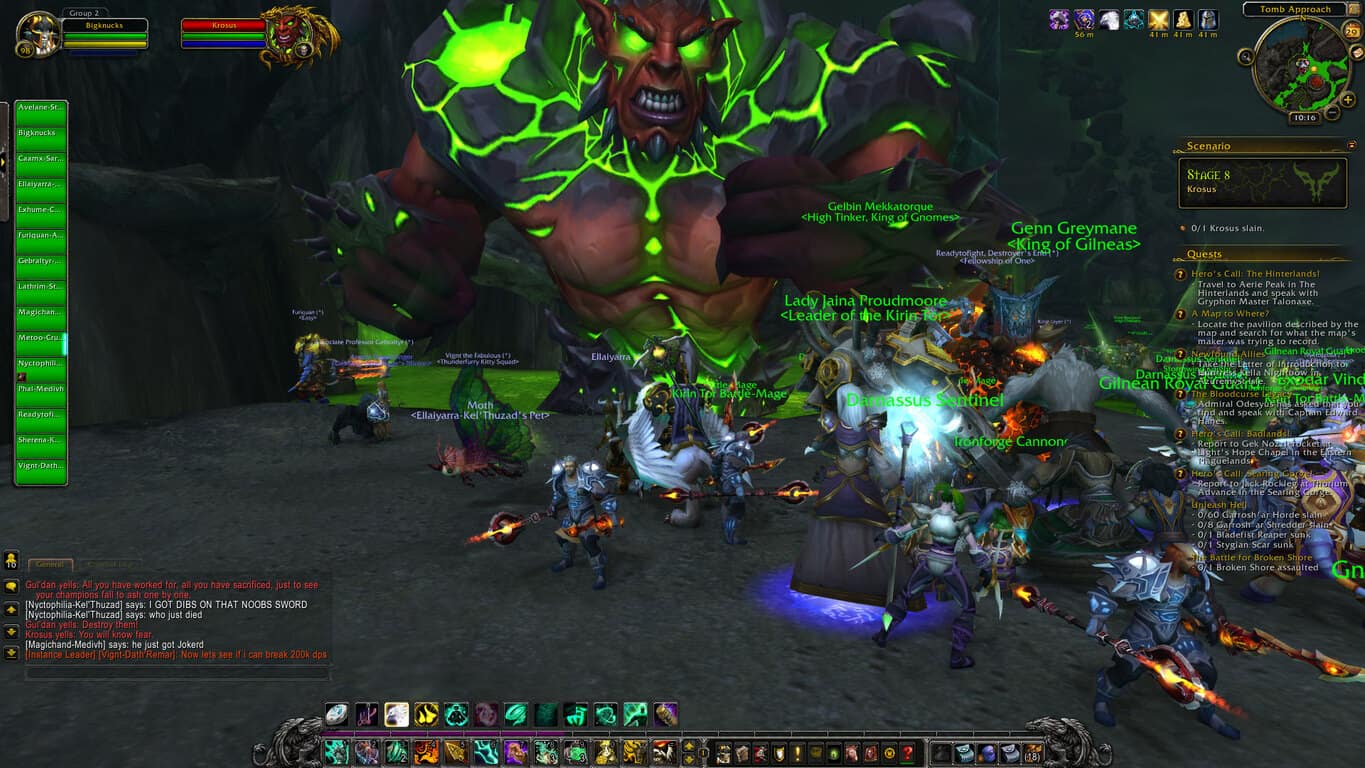
Windows 10 Insider Build 18850 brings Microsoft Edge bug fixes

Microsoft rolled out Windows 10 Insider Preview Build 18850 with a few bug fixes. The preview is currently accessible to Insiders in the Skip Ahead ring. 

The build comes with bug fixes for the Windows Sandbox, Microsoft Edge, Start Menu, Narrator, and Lock Screen. Furthermore, it also enhances the syncing reliability with the cloud clipboard. 

The Redmond giant has offered the Snip and Sketch’s latest version i.e v10.1901.10521.0.

What’s new in Windows 10 Build 18850?

1. Snip & Sketch version 10.1901.10521.0

The recent release of the Snip & Sketch program has increased its current version to 10.1901.10521.0. Microsoft has added narrator (screen reader) confirmations,  changed the default save format to be png and fixed various issues.

However, you can still enjoy the updated version even if you have not installed the Windows 10 Build 18850. 

2. Crash Fixes for Windows Sandbox Settings app 

The tech giant has fixed the bug that was experienced by most of the Windows Sandbox users. Previously, when someone navigated to the Narrator settings the Settings app used to crash.

3. Crash Fixes for Microsoft Edge

Windows users have been reporting for a long time that while tabbing and editing through PDFs sometimes Microsoft Edge crashes.

4. Start menu launch bug fix

The release also brings bug fixes for the Start menu launching issues.

Download Windows 10 Build 18850

In order to download the 1885 build, you must be a Windows Insider who is currently in the Skip Ahead ring. Just navigate to the Settings menu and then check for new updates in the Update & Security > Windows Update. 

Microsoft has also mentioned a couple of known issues that have been reported so far. One of them is that the built-in Color Management application might be missing monitors, as far as the display calibration scenarios are concerned.

Microsoft suggests to the users that they should use the Settings app for choosing the color profile.

You can have a look at the complete changelog at the Microsoft Blog.

RELATED ARTICLES YOU NEED TO CHECK OUT:

Samsung’s Galaxy S10 lineup can be purchased through the Microsoft Store

With Microsoft firmly out of the smart phone hardware game, it’s been free to ‘trojan horse’ and promote itself on to any partner devices it deems valuable and today, that partner happens to be Samsung.

Over the past few Galaxy releases, Microsoft has found a cozy and highly successful smart phone line to peddle its smart phone ware such as a new launcher, pre loaded software and services and digital assistants, as an almost native Microsoft experience on a smart phone. With that said, it’s no wonder it’s found a new way to help promote its partner’s latest flagship.

As millions of US residents make their way to their prefered carrier of choice over the weekend to upgrade, trade-in or replace their aging Galaxy device, they’ll be met latest and greatest from Samsung in its Galaxy S10 line up of phones.

Fortunately, Windows 10 users have an even shorter route to getting their next Galaxy phone as Microsoft and Samsung have seemingly partnered to put the phone in the Microsoft Store and users can purchase right from their devices.

Heading to the Microsoft Store and searching “Samsung Galaxy” should bring this page up for many. As Microsoft doesn’t offer a smartphone of their own, the categorization of the Galaxy S10 line up isn’t  explicitly highlighted anywhere in the Store, however, when searched, a slew of Galaxy devices and accessories such as the new Watch Active, Galaxy Buds, and cases surface.

For anyone interested in getting the new Galaxy S10, the Microsoft Store is yet another convenient place to grab Samsung’s latest flagship.