In news that surely doesn’t come as much surprise, reports are coming in that Microsoft has finally decided enough is enough, and is going to give up on Microsoft EdgeHTML. Read on to find out what we know so far.
It was always going to be an uphill battle. Launched in 2015, Microsoft EdgeHTML started off badly and went downhill from there. It now has a market share of 4%. In fact, looking at the chart below, you can see there is one problem hanging over all browsers except one.
Source: Wikimedia
Another Chromium-based browser?
After three years of poor uptake, mainly because of its stability issues and the fact that no one likes it, Windows has decided to go down a different path. It is giving up on EdgeHTML and adopting Chromium, which is pretty much what every other browser uses.
This should make everyone a lot happier. A chromium-based Windows 10 browser should have none of the issues that Edge has. Plus there will be many more extensions available, as it will have access to Chrome’s huge depository of add-ons.
Mobile phones are not any easier
Of course, Microsoft already uses chromium for its Android-based browser. But the difficulty in persuading people to use EdgeHTML on their PCs is reflected on phones. If a market share of 4.34% is bad on PCs/laptops, then the 0.08% market share that Microsoft EdgeHTML has on phones is downright pathetic. By the way, if you are interested, NetMarketShare has a cool page to check out all browser usage stats.
One of the big questions will be what Microsoft will call its new browser. I reckon that Internet Explorer and Microsoft Edge are pretty toxic. However, after three years of ploughing money into Edge, Microsoft will be pretty loathed to ditch the brand name on top of its browser.
Wrapping Microsoft EdgeHTML up
One could almost ask why Microsoft even bothers, except we all know the answer to that. Google has shown the world what can be achieved with the lowly browser, and a tech giant like Microsoft is highly unlikely to want to throw the baby out with the bath water just because it hasn’t hit on the right formula yet.
What do you think? Is a new Windows 10-based browser just throwing good money after bad?
Or do you think that Microsoft’s adoption of Chromium will see its browser heading back to the heady days when over 90% of browser usage was Internet Explorer?
With Crackdown 3 set for release in February 2019, the Xbox One exclusive game looks to be recieving a bit of unconventional marketing syngery as Dynamite Comics also has plans to release its Crackdown inspired mini-series comic in the same month.
It’ll be an interesting feat to see how talented writers and artists pull a story out of this video game franchise, but judiging from this synopisis, they’re off to a good start.
The hyper-powered world of Crackdown has made its way to the comic page! In the not-so-distant future, civilized society is more plugged-in and interconnected than ever — but criminal organizations are growing more connected as well, forming unholy alliances, and plotting for an unprecedented campaign against the world. When a series of devastating blackout attacks plunge major metropolitan areas into darkness and chaos, the global population is terrified, traditional law enforcement is overwhelmed — and it’s up to The Agency, an elite international crime-fighting task force, to restore peace and deliver justice, by any means necessary.
Dynamite artist Ricardo Jaime took to Twitter to update fans about the upcoming relese.
— Ricardo Jaime – Comic Book Artist (@ricardojaime) December 4, 2018
Comic officianidos and fans of the Crackdown franchise can preorder the first issue through the Dynamite Comics website for $3.99. The official release of the miniseries is slated for February 20, 2019, which should dovetail nicely with the final release of the game on Xbox One on February 15, 2019.
Seems as though Windows users and Microsoft fans may be on the precipice of another software and platform design overhaul.
While it may not be to the extent of Microsoft’s most recent Fluent Design efforts, a new interview given to The Verge by Jon Friedman, head of Office design, reveals that the company is looking to use a more divisionally-collaborative approach to the way it designs software and hardware going forward.
According to the interview, Microsoft is adopting an more open source strategy to its overall approach to design by has wrangling the company’s design heads to share and critique one another’s work, before it hits the general public.
“We operate like an internal open source team. So we’re all openly sharing our design work, critiquing the work, working on it together. What we’ve found is that the best way to develop our Fluent Design system is to truly open source it internally. What’s happened is that we’re getting the best of everyone’s work that way.”
The new design executive dream team consist of Jon Friedman from the Office team, Albert Shum from Windows and Ralf Groene from the rockstar Surface division and they’re tasked with bringing cohesion to much of Microsoft’s design efforts.
Historically, Micoroft divisions worked in siloed development paterns and seemed to only share their approaches once a product hit general availability.
When new designs would come to Office, Windows or Mobile (when its still alive) the more successful design elements would be plucked and dropped into other platforms without context or foresight for user flow.
Now it seems that Microsoft’s design dream team will oversee proposed element designs and find out how and where they can be applied across the entire company, if at all.
“If we have to change everything at the same time, it will never happen,” explains Friedman. “We’re highly coordinated internally, so the Office designers know exactly what’s coming next with Windows. The Windows designers know exactly what’s coming next with Office.”
In addition to more collaborative approach, Friedman also notes that Microsoft is also being more methodic and patience with its design roll out. Unlike the Windows 8 design blitz of 2013, or the new Microsoft is planning to release Fluent Design elments across platforms over a long period of time and with more polish than previous iterations.
Recently we’ve seen hints at an Office icon overhaul that has sparked Windows 10 fans to ask for the same attention to be paid to the rest of Windows, and it seems Microsoft already had response in the cannon.
CD Projekt Red didn’t give an explanation for the discontinuation of the UWP PC version, but Xbox Live cloud saves allow Windows 10 gamers to pick up where they left off on the Xbox One. Moreover, PC players can also keep playing on PC by migrating their Gwent player account to the Gog.com PC version. You can learn more about how this works on this FAQ.
The game ditching Xbox Play Anywhere support the day it drops the preview tag on Xbox One is definitely not great news for Microsoft’s gaming platform, especially since CD Projekt isn’t a small indie developer with few resources. It’s now been two years since the first Xbox Play Anywhere games launched on Xbox One and Windows 10, but we’ve seen very few big third-party games support the initiative except for Resident Evil 7: Biohazard, Middle-earth: Shadow of War, or We Happy Few more recently.
If you have yet to check it out, Gwent: The Witcher card game is free-to-play on all platforms, and the game also supports crossplay between Xbox One and PC (the Gog.com version) as well as Playstation 4 and PC. However, please note that you do need to have an Xbox Live Gold susbcription to play on Xbox One.
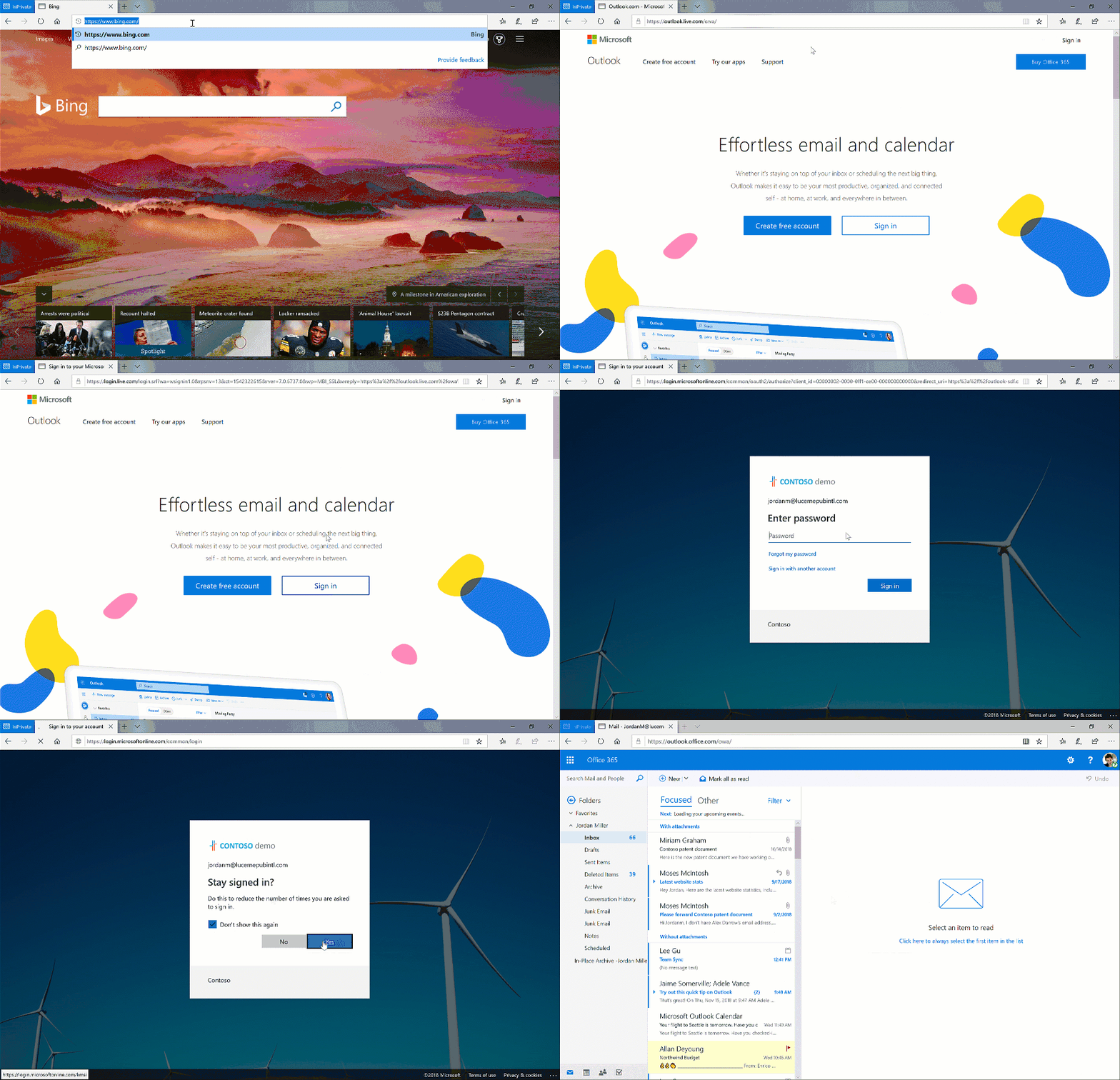
Outlook for the web is receiving a host of new features for users of a work or school account. As we reported earlier, Microsoft will soon enable logging into work and school accounts straight from Outlook.com, where the sign in request will automatically be redirected to the appropriate log-in page.
Microsoft is making Outlook’s homepage the single place to log into personal and work email accounts.
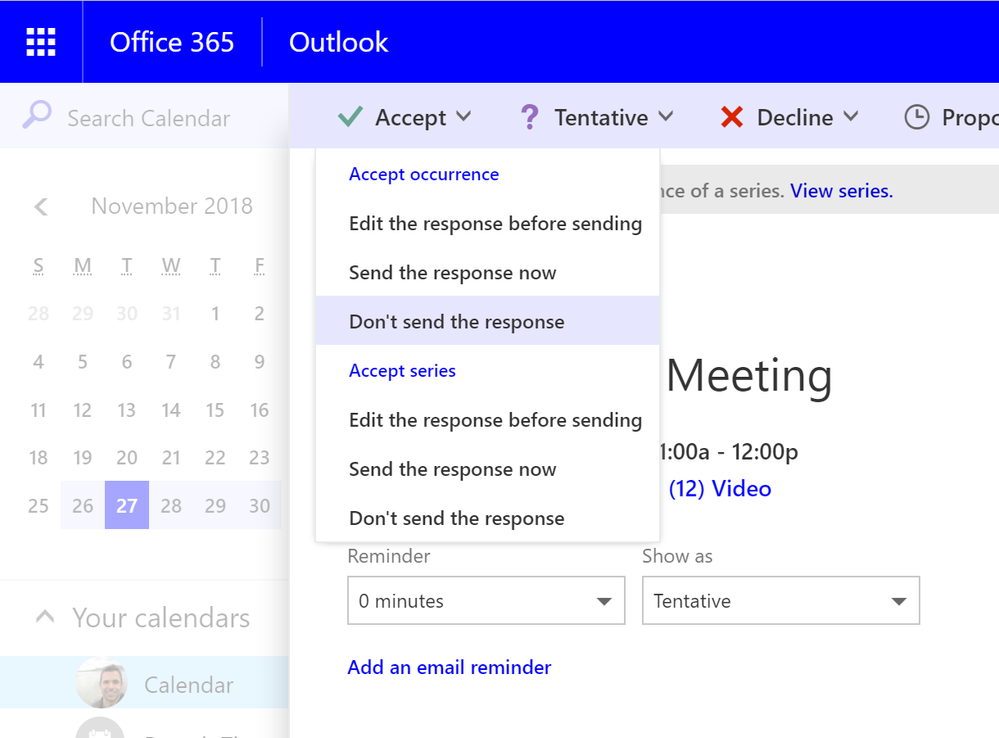
In addition to login improvements, Microsoft is also making improvements to the way it handles responses to meetings in Outlook on the web. Users will soon be able to accept meetings without sending an email if they wish to do so, so that the meeting holder can know without being notified by email.
Optionally, a user can choose to accept a meeting invitation without sending an email.
Microsoft will also made its Teams app the default place to hold meetings for business users who enable the app. Those who choose not to enable it can continue to use Skype for Business as their place to hold meetings if they prefer.
Not all of these features are available today, so expect a gradual rollout over the coming weeks. Feel free to let us know what you think in the comments.
UPDATE: Microsoft released KB4469342 AGAIN taking the OS build to version 17763.168. This is the third KB4469342 sequel but, as always, Microsoft hasn’t revealed anything about this new changelog.
Most likely, the third release of KB4469342 brings only minor bug fixes meant to make the OS more stable for the public release. For the time being, KB4469342 is available only to users on the Release Preview Ring.
You can read the original news report below.
This article looks at the new cumulative update KB4469342 being tested by Windows Insiders. As it has turned out, November 27 has been a day for cumulative updates from Microsoft. The four updates released (for various versions) have been:
And now, cumulative update KB4467682 for Windows Insiders. I wrote about this update yesterday, but didn’t have many details. This article should address that.
KB4469342 changelog
Let’s have a look at what we now know about this new update and what it aims to fix.
Improvements and fixes
As I have been writing about many update issues over the last month, I am naturally looking for those issues to be addressed. Earlier this month, I wrote about the issues with file associations, which wouldn’t allow you to set default programs for certain files. You can read the original report here and the follow-up report here.
I am pleased to see that the ‘file associations’ fix has been addressed. However, it seems that this issue was also addressed in the the cumulative update KB4467682, which has been released to all users, so that’s a little confusing. Anyway, it’s either fixed or will be when this update is released, so good news no matter what.
Update: I just updated my Windows 10 64-bit laptop with the recent KB4467682 update and I can confirm that, on my machine anyway, the file association issue has indeed been fixed.
Another important fix is an issue concerning Microsoft Edge’s the drag-and-drop feature. The difficulty in uploading folders from the desktop to cloud storage sites such as OneDrive should have be resolved.
Microsoft has taken steps on issues concerning general media problems, whether it was streaming TV, using Bluetooth headsets, or using the camera app.
Still on the theme of Microsoft Edge, users reported getting a black screen when trying to play HuluTV. This update should also rectify this issue.
Users complained that they stopped receiving audio after several minutes when using Bluetooth® headsets. This issue has been solved.
Display issues have been addressed in this Insider update. These include “an issue that causes display settings to stop working when changing a multi-monitor configuration”and “an issue that displays a black screen on some servers when waking a display from sleep”.
Another annoying issue was with the brightness preference, that caused the “slider preference to be reset to 50% when the device restarts”. Microsoft has resolved this too.
Have the lessons been learnt?
Hopefully, with the newly-released updates, and with this insider update going through testing as we speak, Microsoft will have finally sorted out its recent update issues. The obvious lesson to be learnt from this is that the Insider testing program was set up for a very good reason.
When Microsoft released the October Update, that caused so many problems, it bypassed Insiders and went straight to general release. As I pointed out in an article earlier this month, that seemed to be the height of hubris, and Microsoft has certainly suffered because of it.
Institutions often come a cropper because they bypass the very systems of checks and balances that were set up to avoid PR nightmares. Let’s hope that Microsoft has indeed learned its lesson.
If you want to look at a full list of fixes, head over to the Windows Blog.
The Burn a Disc window opens whenever you select a blank disc in File Explorer. That window includes a prompt which asks, “How do you want to use this disc?” Then you can select to utilize the disc with a CD/DVD player or like a USB flash drive.
Some users have stated in forums that the above prompt automatically pops up whenever they insert a blank CD or DVD. Thus, those users wonder how they can disable that prompt so it doesn’t open when they insert blank CDs or DVDs. The “use this disc” prompt automatically appears in Windows with AutoPlay configured to burn files to disc when you insert a blank CD or DVD.
AutoPlay enables you to select a program to automatically start various types of media formats. As such, various windows and prompts might automatically open with AutoPlay turned on. That includes File Explorer’s Burn a Disc window which asks, “How do you want to use this disc?” So you can stop the “use this disc” prompt popping up when you insert blank CDs or DVDs by turning AutoPlay off.
How do you want to use this disc? 4 steps to disable this alert
Method 1: Turn Off AutoPlay via Settings
You can turn AutoPlay off with the Windows 10 Settings app. To do that, click Cortana’s Type here to search button on the taskbar.
You can turn off AutoPlay in other Windows platforms via the Control Panel. First, open Run by pressing the Windows key + R hotkey.
Enter ‘Control Panel’ in Run’s text box, and press the OK button.
Click AutoPlay to open the Control Panel applet shown directly below.
Deselect the Use AutoPlay for all media and devices option.
Press the Save button to apply the new setting.
Method 3: Select Take no Action for Blank CD, DVD and Blu-ray Disc
Alternatively, you can still stop the “use this disc” prompt automatically popping up with AutoPlay left on. To do so, scroll down the AutoPlay Control Panel applet and click the Blank DVD drop-down menu shown directly below.
Windows might be configured to burn files to disc when you insert blank DVDs. Select the Take no action option from the drop-down menu instead.
If the “use this disc” prompt pops up when you insert blank CDs, click the Blank CD drop-down menu.
Then select the Take no action option.
Press the Save button. Nothing will happen now when you insert blank CDs or DVDs.
Alternatively, you can select alternative AutoPlay settings for blank DVDs, CDs and other media formats. For example, you could select Ask me every time for both blank CDs and DVDs. Then you’ll see a Select what happens box appear at the bottom right of the Windows desktop when you insert a CD or DVD. Clicking that box will open the window below from which you can choose what to do with the disc.
Or you can select Burn an audio CD, Make Data Disc or Make Audio CD options on the Blank CD drop-down menu. Selecting any of those settings will automatically open the software required for each option when you insert a disc. For example, Windows Media Player will automatically open with Burn an audio CD selected.
So that’s how you can stop the “use this disc” prompt automatically opening when you insert blank DVDs and CDs. Note that the “use this disc” prompt will still open when you click the CD or DVD within File Explorer.
Remember that no media software will automatically open for DVDs or CDs with AutoPlay off, so some users might prefer to configure its settings via Control Panel.
While Microsoft announcing open source projects isn’t much of news these days as the company continues to embrace the open source community, the reveal of these projects also come as packaged news alongside the first public preview of Visual Studio 2019 which is said to be increasing coding space as well as including smarter debugging and refactoring technology.
As a bridge for developers who are looking forward to using the newly open sourced frameworks, Microsoft is also making .NET Core 3.0 Preview 1 available.
According to Scott Guthrie the Executive Vice President of the Cloud and Enterprise group in Microsoft .NET Core 3.0 comes with:
Run multiple instances of .NET Core 3.0 side-by-side on the same computer so you can update WPF and Windows Forms apps to a new version of .NET without updating the entire OS.
Use modern controls and Fluent styling from the WinUI XAML Library via XAML Islands from .NET Core 3.0 apps.
Developers eager to try out the improved VS 2019, the can do so without having to get rid of their VS 2017 instances. Apparently VS 2019 can now run alongside VS 2017 installations and for the handful of VS developers using Macs and there will be a public preview for VS 2019 available soon. VS 2019 for Mac will mostly be conceived of a rebranded Xamarin Studio framework that will include a new welcome screen and code editor UI.
Microsoft has yet to offer an official date or time for the release of VS 2019, but public previews are usually a good sign of an impending release.
Xbox’s Major Nelson has just announced that Duke Nukem Forever, The Bureau: XCOM Declassified, and The Darkness are now playable on Xbox One starting today. All three games are also 80% off as part of this week’s Deals with Gold, and you can get them for $3.99 each.
The Darkness, The Bureau: XCOM Declassified, and Duke Nukem Forever are coming to Xbox One Backward Compatibility today (and all three are currently on sale) https://t.co/qPMRNs2ZLopic.twitter.com/z4sEROLxUs
For those unfamiliar, Duke Nukem Forever is the latest installment in the cult-classic Duke Nukem series, and it was released in 2011 after a chaotic development cycle. The game received mixed reviews, but fans of the classic Duke Nukem PC games may well have some fun with it.
As for the two other games, The Darkness is a first-person shooter based on the comic book of the same name, and The Bureau: XCOM Declassified is a third-person tactical shooter that was released in 2013, one year after XCOM: Enemy Unknown. The Xbox One backward compatibility list now includes over 500 Xbox 360 and original Xbox games, and we hope to see a couple more additions before the end of the year.
Microsoft has announced that their Airband initiative, a project that is expected to bring broadband to millions more people in the U.S by 2022, will expand to 9 additional states next year. At current, the project is being deployed in 16 states.
For those unfamiliar, the Airband initiative is Microsoft’s goal to bring broadband to an additional 2 million rural residents who don’t currently have access. With today’s announcement, the tech giant plans to raise its commitment to 3 million rural residents.
Microsoft’s Airband Initiative in ongoing in multiple states, including the company’s own Washington state.
Microsoft says that all of this is possible thanks to its investments in technologies to make all of this possible. Microsoft plans to use vacant television broadcast frequencies, known as TV White Spaces, to deliver broadband internet wirelessly to residents who need it. The tech company explains all of this in further detail on their blog.
Additionally, Microsoft’s president Brad Sams is expected to host a webcast to provide an update on its plans and potentially tell you what you need to know. So feel free to tune in later today, starting at 9:30 Redmond, Washington time.
Do you know anyone who could benefit from broadband internet access? Let us know your thought down in the comment area below.
Lenovo found an experiment with its famed hinge design that I can really get behind and I wish more PC manufacturers were pushing the boundaries of component placement like this.
Some historical context
When Microsoft introduced its Surface Pro tablet laptop alongside Windows 8, it ushered in an allowance of experimentation for PC manufacturers. Windows 8 brought with it the notion that users would be interacting with their devices in more ways than just traditional clamshell typing experiences, and PC manufacturers used the opportunity to go wild with their ideas of how future interactions would occur within the laptop sector.
For a brief few years, PC manufacturers threw everything they had at the wall trying to predict how users would routinely engage with the new touch-focused version of Microsoft’s Windows operating system. Laptop designs varied from swiveling screens and doubled sided monitors to collapsable hinge mechanisms and detachable hardware as PC manufacturers honed in on a sweet spot of usability and creativity.
During this time, Lenovo tossed out a seemingly mundane approach to the new touchscreen future of Windows alongside some of its more wacky productions, by simply designing a laptop screen that folded back beyond the customary 160 angles of traditional laptops.
At the time, Lenovo’s Yoga hinge was just another weird interfacing design mode in a sea of weird interfacing laptops pouring in from the multitude of PC manufacturers. The Yoga design, while marketed as some sort of Swiss Army knife of consumption-related contortionists arrangement, really offered the subtle option for the more niche use cases of Microsoft’s Windows 8 operating system.
While users may have been enamored with touchscreens, the reality was that they weren’t so enamored with drastically altering their production flow. Rather, users wanted the option to use the device as a tablet while still maintaining a relatively traditional clamshell typing experience.
Over time, the experimentation phase of touchscreen usability subsided, for both PC manufacturers and Microsoft. Microsoft pulled back on its vision of a touch-first operating system as did PC manufacturers who slowly began adopting Lenovo’s Yoga-like hinge as a standard offering while shuttering their more whimsical designs. Each year, Microsoft’s partners have refined the Yoga (3-in-1) experience, offering thinner, lighter, stronger and more recessed keyboard button options of the hinge design as they inch closer to the once healed dream of a tablet-y hybrid device
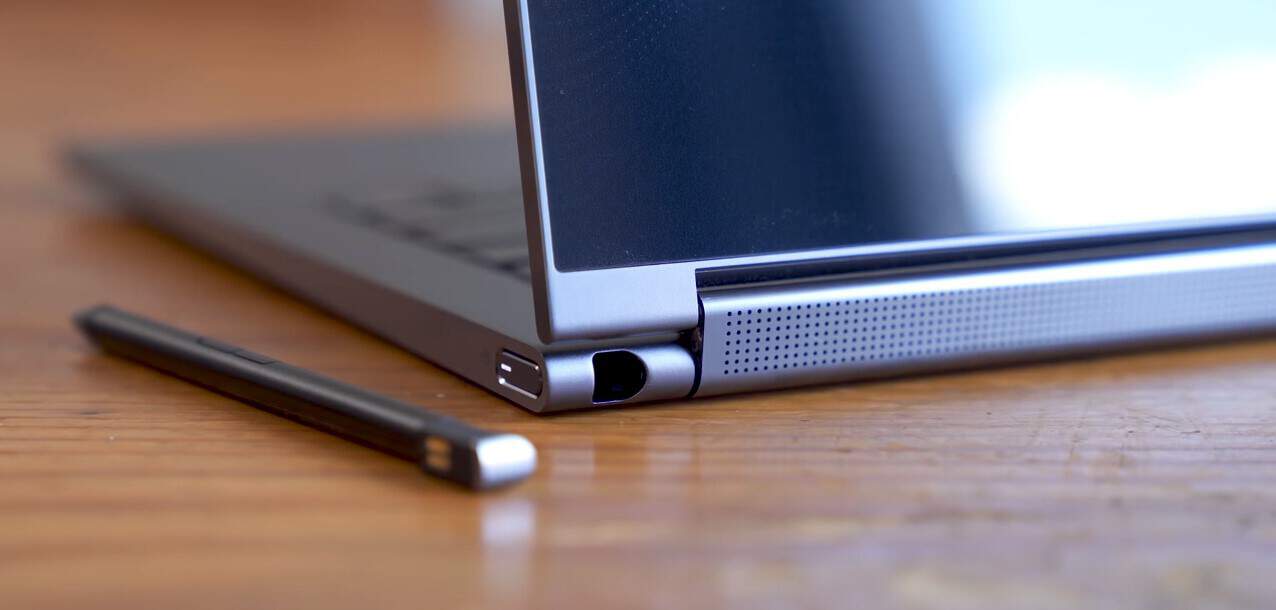
Fortunately, Lenovo isn’t one to sit on its laurels and is back experimenting with its hit Yoga hinge design with the Lenovo Yoga C930. Unlike Lenovo’s older experimented hinged add-ons that included projection functions and nostalgic callbacks to watchband-like aesthetics, the hinge on the Yoga C930 actually offers users some concrete, real-world, everyday benefits.
Listen to the pitch
Call me jaded, but most laptops I’ve reviewed seem to come with relatively the same checkboxes marked when it comes to specs and features, that include 4k displays, Intel’s latest blah-blah Lake processors, fingerprint readers, 10-point touch support and 10 plus hours of battery life claims. With that being said, the way I’ve tried to differentiate reviews are to find the one or two selling points that each company plans to hang their marketing efforts on and in this case, Lenovo is betting that it can make you actually pay attention to the Yoga hinge.
The Lenovo Yoga C930 (lazily titled in my opinion) pitches “an audio system like no other,” and is doing so by rethinking how and where it places traditional components. By tearing out its relatively tinny, bottom facing onboard speakers and redesigning its audio experience and placing it in, you guessed it, the hinge, I find that Lenovo delivers on its claim.
The speaker situation on the Lenovo Yoga C930 is simply amazing.
Over the past couple of decades, I’ve conditioned my listening experience on laptops to be a wholly headphone affair. Despite drones of PC manufacturers touting their annually improved audio experiences with high profiled partnerships and subtle tweaks to on-deck speakers, the reality of most hardware speaker design has left me with lackluster listening adventures.
Between subpar audio drivers, sound cards and impossibly thin chassis designs that leave little room for improvement, speakers on laptops have become about as useful as high definition webcam. In the occasional pinch, when I need to share a YouTube video, reference a Spotify playlist or conduct a Go To Meeting conference call, traditional speaker use has been enough.
However, with Lenovo’s “two sets of speakers – featuring powerful down-firing woofers, custom tweeters, and unique vibration buffers that reduce unwanted noise,” all wrapped into a rotating hinge that’s fires Doly Atmos powered sound in 360 degrees, I found myself listening to more music directly from the laptop rather than using a pair of Bluetooth enabled over-the-ear headphones. While the rotating sounds bar does nothing for sound isolation or noise cancelation, the Lenovo Yoga C930’s speaker design does a fantastic job of offering richer sound when placed on a table, held in the hand or folded on a tray back and more deservedly, in noisy environments.
As a small anecdotal comparison, I normally have to turn the volume up to 60 (using Microsoft’s proprietary volume controls) or beyond on most devices to achieve what I was easily able to at 35 on the C930. The sound never became distorted or whispy when listening. Lenovo has done a great job at producing really clear mids with this speaker as well as offer solid bass performance without it edging into an artificial hollow territory. The sound on the C930, in my opinion, has more clarity than on the Surface Laptop, more base than the latest MacBook Pro, and is more robust in sound than any other laptop on the market.
More importantly, Lenovo has kept its contemporary Yoga hinge design and experimented in a way that I think is more useful to the average consumer. When in tablet mode, the hinge fires clear sound in almost every direction. There may be the occasional muffle if someone grips the Yoga soundbar first or exclusively, but more often than not, the soundbar remains untouched in most use cases.
The C930’s soundbar is also great when sitting back and watching TV, Movies or YouTube videos. Paired with a vivid 4k display, the laptop panders to the consumption crowd.
…and the rest
As I mentioned earlier without the proposition of a different kind of listening experience, the Lenovo Yoga C930 could be seen as another cookie-cutter laptop from Lenovo. Starting with the C930’s beautiful Dolby Vision powered 13.9″ 4K display which produces clear details, vivid colors and inky blacks, all housed in a case with 4.95 mm bezels. While not quite the Edge-to-Edge display quality seen by Dell’s XPS 13, 15, Huawei’s Matebook, or HP’s Envy line, it’s more than adequate for squeezing more info or content onto a screen.
Screen
Out of habit, I usually adjust the Scale and layout options in Settings to get the most viewable space on my devices and that change typically hovers around 100-125% depending on the device’s resolution. With a 4K display, I can go tamper down the Scale enough to make sure I use every inch of the Lenovo Yoga C930’s screen.
Out-of-the-box Pen
Another benefit packed into the Yoga C930’s display is its support of digital pen input. Where perceived premium vendors such as Apple and Microsoft would like to nickel and dime their customers for added benefits, Lenovo packs its pen into the device a la Samsung Note style so out-of-the-box owners are equipped with all the productivity tools necessary to continue their workloads.
It might also be easy to conflate price with design and functionality while falsely believing that Apple and Microsoft offer more functionality with their pen technologies because they require an additional charge, but Lenovo has managed to pack a pen into its overall package with 4,096 points of pressure sensitivity. For a digital pen that weighs a few ounces, comes in the box and hides inside of the laptop for easy travel, that’s some impressive work Lenovo!
Unfortunately, I’m no digital artist, but with Microsoft updating its Stick Notes application, I was able to use the pen in a more familiar action by placing tons of digital Stick Notes on my desktop. An anecdotal use for the pen became recording end-of-month sales meeting notes, shared streaming account passwords and usernames, daily to-do’s and project projections discussed during Go To Meeting conference calls.
It may be the most mundane use of the pen, but I suppose not all of us have time to craft murals or 3D architecture on a laptop. With that being said, Sketchable for Windows 10 continues to be an underrated pen-enabled app in modern artistry as reviewers chase Adobe and Procreate clicks.
Processing & Storage
Powering the Yoga C930 experiences is your standard 16GB of memory for most consumers I assume, (in my case it was an odd 12GB) a 2TB SSD PCIe SSD for quick uploads and downloads. I use a lot of external storage in my regular PC use (so I’m not accustomed to keeping 2TB worth of content on a single PC) so I appreciated the quick read and write speeds of the storage.
My actual configuration
Even further embedded in the C930’s experience is the customary 8th Generation Intel Core i7 processor that comes with all the traditional advantages and quirks such as fan noise (when pushed) but also a quick burst of power when running macro-filled Excel sheets or running 100 plus page PowerPoints with full animation and graphics.
Fingerprint Reader & Webcam Shutter
A handful of other niceties that come with the Yoga C930 include a discrete fingerprint reader that feels like an improvement over other Lenovo models. The time it takes to read fingerprint seems to have improved, even if it’s only by milliseconds.
The fingerprint reader on the C930 also seems a bit more forgiving in finger placement. Perhaps, due to its less recessed placement, the actual surface area gets a larger target to read, over other Lenovo fingerprint readers.
The C930 also comes with the manual shutter over the webcam people more concerned with privacy. While I personally am less concerned with privacy, I just don’t like being automatically thrown into conference calls in video mode, so I opt to keep that little camera covered most of the time.
Premium Feel
Last but not least is the overall package the Lenovo Yoga C930 comes in. In a time when Microsoft has opted for matte black-all-the-things, and Apple continues to court various shades of blush with its design, the C930 goes for the understated grey and Mica. The unit I had was a Grey brushed aluminum with a unibodied color that encased keys, cover, bottom, and sides. The only other stand out highlights of the laptop come with the shiny Yoga branding and white alphanumeric characters on the keys.
The weight of the C930 is light without feeling flimsy and roughly the same as a 2018 MacBook Pro (maybe even lighter). The aluminum is cool to the touch, which could be a blessing and a curse for those in seasoned environments, but for me, in Florida, cool to the touch is welcomed at every moment of every day.
Summary
At the end of the day, the C930’s improved hinge/soundbar feature may be part of dying user paradigm as we begin to see the emergence of a new hardware battleground that includes “intelligent audio” experiences with voice assisted headphones and earbuds. However, for anyone who lives alone, likes to share in-the-moment content, has a child who needs to be distracted, or still enjoys a premium listening experience regardless of the device, Lenovo’s experiment with the soundbar is definitely a selling point that should help to move units.
Beyond just moving units, the Lenovo’s larger approach to repositioning the sound experience speaks to a broader exploration of late-stage notebook design.
While Microsoft, Apple, and Google rush to move consumers towards detachable as the future of computing, perhaps, we can take stock in companies looking to squeeze every inch out of a computing paradigm that’s proven itself time over. Many people have a laptop/desktop and for anything truly mobile there is the smartphone; maybe we don’t need detachable, but more thought out clamshell designs.
“Today’s digital identity landscape is patchy, inconsistent and what works in one country often won’t work in another. We have an opportunity to establish a system that puts people first, giving them control of their identity data and where it is used,” says Ajay Bhalla, president, cyber and intelligence solutions, Mastercard. “Working with Microsoft brings us one step closer to making a globally interoperable digital identity service a reality, and we look forward to sharing more very soon.”
The companies joint annoucement amounts to Mastercard overlaying what it hopes will be a universally recognized digital identifier atop Microsoft’s Azure cloud storage and services as well as leveraging Microsoft’s expertise in digital identitiy and data.
The new Mastercard identifier will be used to easily access “enhanced exeperiences” that include financial services, commerce, government services and other digital services such as social media, email, rideshare and more.
Alongside easing the interoperability of access for digital services, the digital identity partnership between Microsoft and Mastercard also looks to help solve some other issues such as:
Identity Inclusion: More than 1 billion people, a majority of them women, children and refugees, are not officially recognized; a digital identity can improve their access to health, financial and social services.
Identity Verification: A single, reusable digital identity can help people interact with a merchant, bank, government agency and countless other digital service providers with greater integrity, lower cost and with less friction.
Fraud Prevention: A single digital identity can help reduce payments fraud and identity theft of various forms.
While much of the announcement intends to address real world issues that commonly plague digital service access for the common person, the cynic in me still questions that summation of a single point identification being tracked and shared among huge corporations. Call me paranoid, but a single identifier that leverages your social media interactions, ridesharing habits, banking tendencies, loans & payments, and music streaming habits seems like a Black Mirror episode waiting to happen.
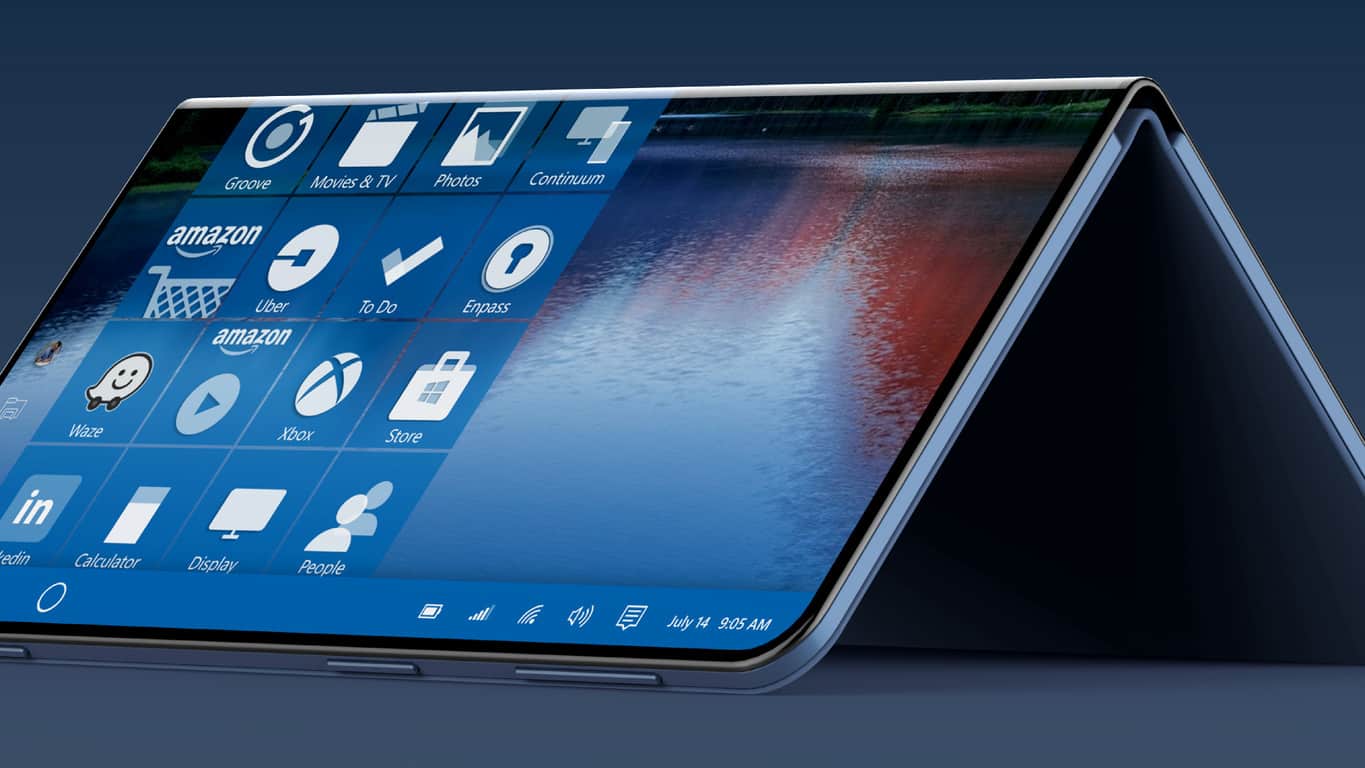
We’ve seen a lots of patents related to Microsoft’s “Andromeda” mobile device over the years, but it now seems that the company could be more interested in a bigger, non-pocketable version. This bigger device was first mentioned by Brad Sams in his new book chronicling the origins of Microsoft’s Surface business, and the existence of this larger dual-screen device has just been confirmed by a second report.
According to Zac Bowden from Windows Central, the larger folding device is codenamed “Centaurus” and is powered by an Intel processor. Just like Andromeda, Centaurus will run Windows Core OS, the new modular version of Windows that will work on dual-screen devices (as well as the the next-gen HoloLens and Surface Hub), but the presence of an Intel chip will allow Centaurus to run bridged desktop apps from the Microsoft Store.
Intel previously showcased a small dual-screen PC running full Windows 10 (Image from Mark Hachman/IDC).
Because of its bigger form factor, Centaurus is expected to provide a laptop-like experience with one screen providing a virtual keyboard and trackpad, and another screen providing the Windows 10 desktop we all know and love, with support for windowed apps. Just like Sams said in his book, Windows Central expects Microsoft to unveil Centaurus in the second half of 2019, assuming the company doesn’t change its plans in the coming months.
Even though Microsoft is reportedly focusing its efforts on a larger dual-screen tablet, this doesn’t mean that the pocketable “Andromeda” device has been put back on a shelf. According to Windows Central, Microsoft is well aware that a larger version that can provide a familiar desktop experience could have more chances to succeed in the market.
I’m told that Microsoft has put Andromeda on hold and is prioritizing the release of Centaurus instead. That’s all in the name of ensuring that Andromeda has a successful launch when Microsoft finally decides to re-enter the mobile market. The problem with Andromeda is that when it’s being used as a phone, it’s too small to take any real advantage of Win32 programs, and there aren’t enough Progressive Web Apps (PWAs) or Universal Windows Platform (UWP) apps in the store for people to warrant buying one as a phone.
As we’ve seen with Windows Phone, an OS without a strong ecosystem of third-party apps is pretty much dead on arrival, and the same thing could well happen with the first wave of Windows Core OS devices. But interestingly, Microsoft could fill the app gap on Andromeda by resurrecting Project Astoria, the emulation of Android apps on Windows 10 Mobile that Microsoft ultimately abandoned. “I’m told Microsoft is also considering (but hasn’t committed to) the use of Android apps on Andromeda as another way to fill the void of apps when being used as a phone, but that’s something I’m still digging into at this time,” Bowden wrote.
Now that PCs, tablets and smartphones have matured, it’s pretty hard to create innovative form factors powered by new operating systems. Now that both iOS and Android have crossed 1 billion users (something that Windows 10 has yet to do), will Windows Core OS be able to succeed where Windows Phone failed? That’s a very difficult question to answer, but a Windows device that can’t run all existing Windows apps may never be able to replace the good ol’ smarphone/laptop combo.
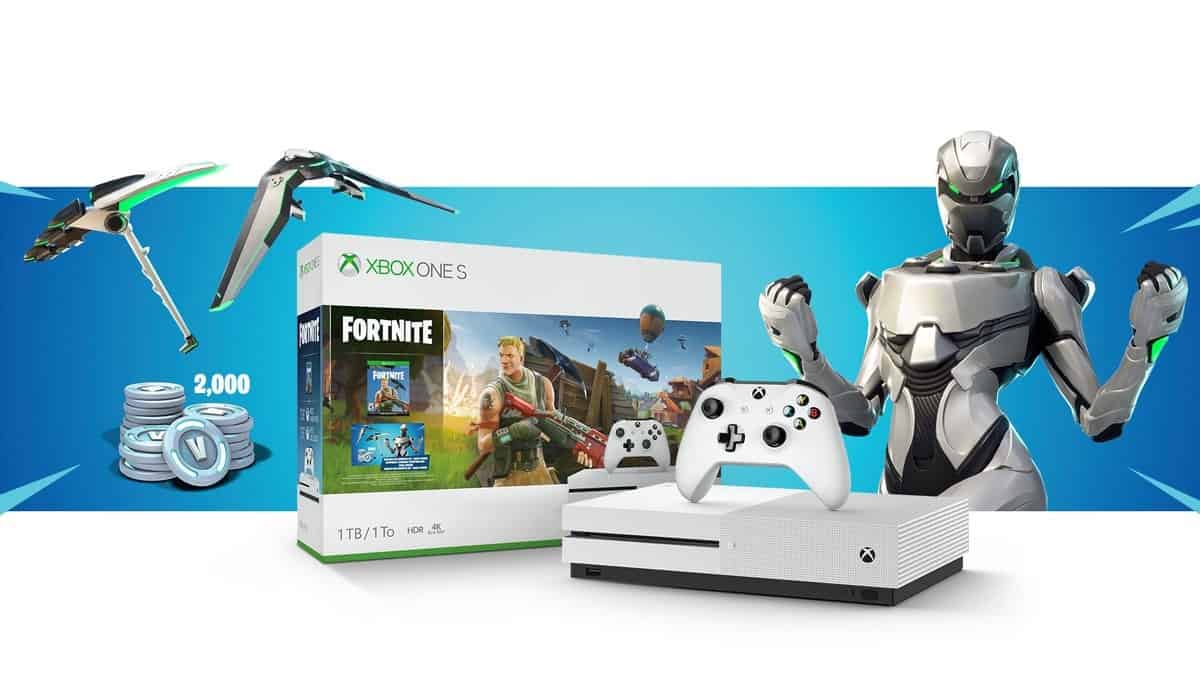
Now that we’re two weeks out from Black Friday, Microsoft is offering a new set of incentives to keep consumers purchasing their wares that include a $50 savings on both Xbox One and Xbox One X console bundles as well as discounts on controllers, Game Pass, Xbox Live and other purchases from the Microsoft Store Online.
Specifically, shoppers can swoop up Fortnite and Battlefield V Xbox One S console bundles for $50 off or save $50 on an Xbox One X Fallout 76 bundle.
Next on the savings docket are discounts on the Xbox Wireless Controller Phantom Black with $10 off. Other discounts include:
Get $50 off Xbox Game Pass and get instant access to over 100 games
Starting on 12/9 buy 3 months of Xbox Live Gold and get $10 towards the Microsoft Online Store
Once again, it pays to be patient during this holiday season as discounts continue to roll out to consumers leading up to the end of the year. However, Microsoft is making the decision to pull the trigger on which deal exceedingly harder each day with savings such as these.
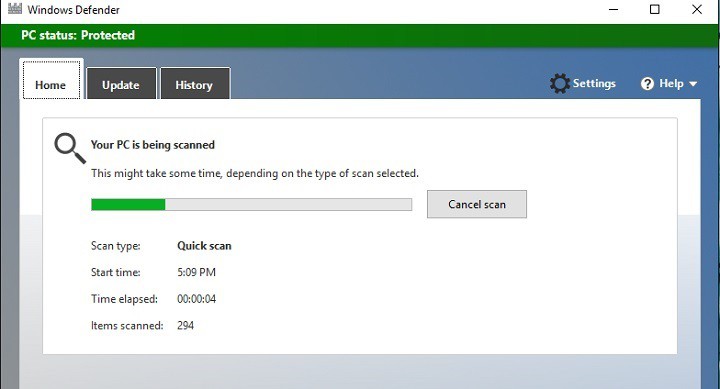
Updating Windows Defender can sometimes be quite a tricky task. There are various errors that can block the update process, but fortunately, most of them can be fixed using quick workarounds.
Error code 0x8000404 is one of the most frequent errors encountered by Windows Defender users, and appears when the definition updates can’t be installed.
I have tried three times to install the Virus & Spyware updates, the defination updates couldn’t be installed, the error code 0x8000404 – what do I have to do?
There are several possible causes for this error: another security program creates conflicts and blocks Windows Defender updates, some system files are corrupt or missing, the Internet connection in unstable, and more.
As we already know that Windows Defender is a part of the system, so installing a third-party antivirus can lead to certain interferences. In that manner, it’s advisable to disable a third-party antivirus in order to make Windows Defender work again.
Solution 2 – Make sure the Windows Defender service is running
For Windows Defender to run properly, you need its service to run properly. Obviously, if the service doesn’t work, neither will Windows Defender. In that manner, let’s go and check if the Windows Defender service runs properly, and re-enable it if not. Here’s how to do that:
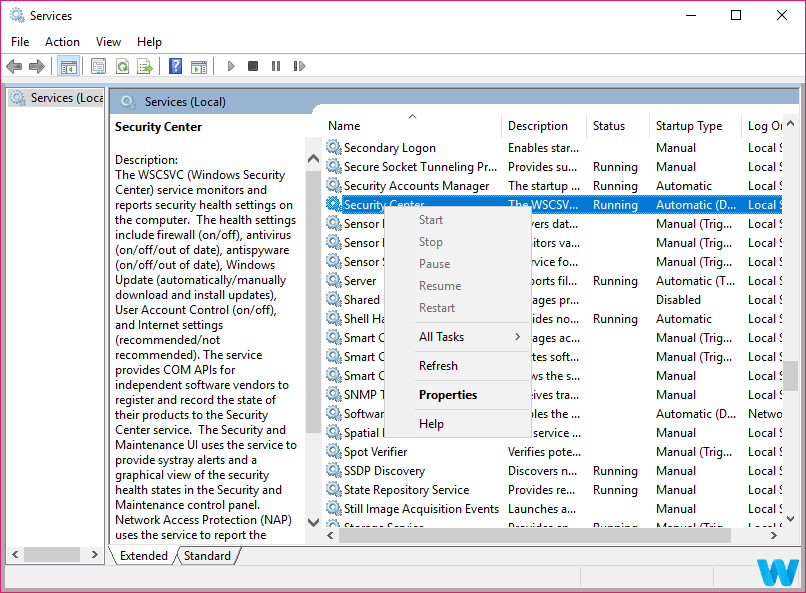
Press Windows Key + R and enter services.msc. Press Enter or click OK.
Locate the Security Center service, right-click it and choose Restart.
After that, go back to the Services window, and make sure the Security Center service is enabled.
Solution 3 – Make sure Windows Defender is running
Even if the service is running properly, the firewall itself could be disabled. Now, it should be enabled by default, but let’s check just in case. Here’s how to do that:
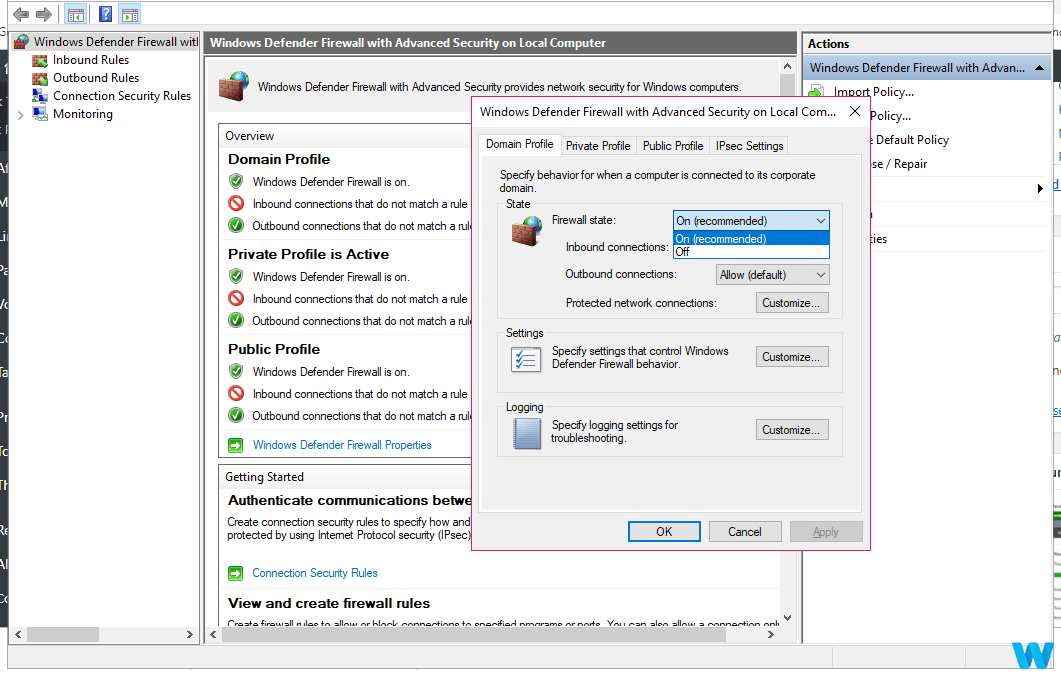
Go to search, type windows defender, and open Windows Defender Firewall with Advanced Security.
Click Windows Defender Firewall Properties.
Under Domain Profile Window, make sure Firewall state is set to On.
Solution 4 – Check for updates
As Windows Defender is part of the system, Microsoft releases updates for it through Windows Update. So, if there’s something broken inside Windows Defender, go on and check for updates. Maybe Microsoft has an ‘automatic’ solution.
To check for updates, simply go to Settings > Updates & Security, and check for updates.
Solution 5 – Remove latest updates
Just like installing a simple update can resolve the whole problem, it can also cause it in the first place. It’s actually a common sight that some cumulative update actually breaks something inside the system, and it could easily be Windows Defender. So, if you suspect the latest update you installed could have caused the problem, go on and delete that update.
If you’re not sure how to delete updates in Windows 10, just follow these instructions:
Press Windows Key + I to open the Settings app.
Once the Settings app opens, navigate to Update & security section.
Go to Windows Update tab and click on Update history.
Click on Uninstall updates.
List of installed updates will now appear. Select the problematic update that you want to remove and click the Uninstall button.
After removing the update, restart your PC.
Solution 6 – Run the SFC scan
The SFC scan is a universal troubleshooting tool that can be used for fixing all sorts of issues in Windows 10. So, it might be helpful in this case, as well.
Follow these steps to run the SFC scan in Windows 10:
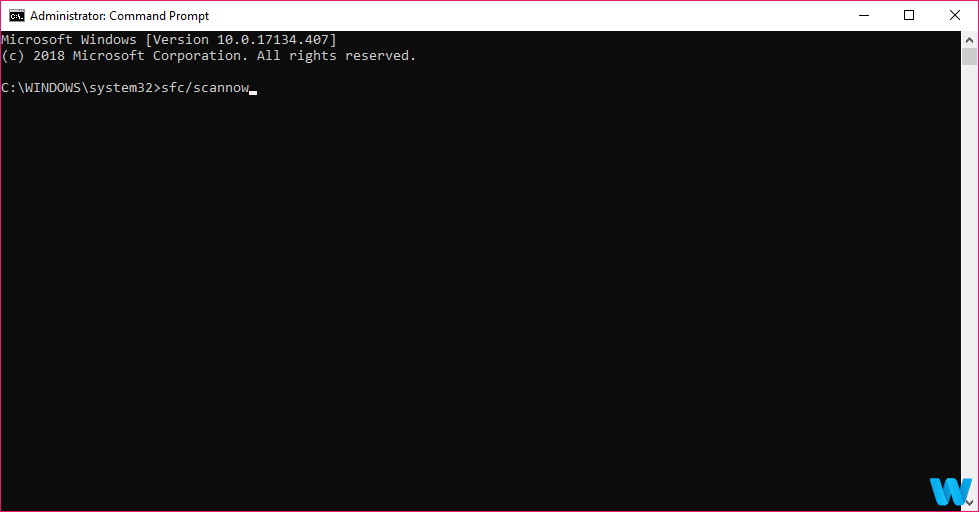
Right-click the Start Menu button, and open Command Prompt (Admin).
Enter the following line and press Enter:sfc/scannow
Wait until the process is done (it may take a while).
If the solution is found, it will automatically be applied.
Now, close the Command Prompt and restart your computer.
Solution 7 – Check the environment variables
Environment variables are a useful feature used by your system to access certain directories. However, sometimes users or perhaps a third-party application can change the environment variables and cause issues with Windows Defender.
To fix your environment variables manually do the following:
Press Windows Key + S and enter advanced system settings. Select View advanced system settings from the menu.
Now click Environment Variables button.
Locate %ProgramData% variable and check if it’s set to C:ProgramData. If not, change the variable accordingly.
That’s about it. If you’ve come across other workarounds to fix Windows Defender error 0x8000404, list the troubleshooting steps in the comment section below.
Intel begins providing new Universal Windows Drivers for some graphics chips on Windows 10 1809
As part of an apparent new requirement by Microsoft in the Windows 10 October 2018 update, Intel is releasing new drivers for its graphics chips, using the new Universal Windows Drivers framework.
The iCloud Windows 10 October Update compatibility issue has been resolved
iCloud on Windows 10’s October 2018 update wasn’t working for a time due to an incompatibility. Microsoft and Apple have worked together to resolve the issue, resulting in Apple releasing an update for iCloud with the fix.
Tidal brings its high fidelity music streaming app to the Microsoft Store
Microsoft news recap is a weekly feature highlighting the top Microsoft news stories of the past week. Sit back, grab some coffee, and enjoy the read!
Microsoft pulls Xbox Onesie orders due to last minute discovery of manufacturing flaw
To the dismay of excited customers over Microsoft’s upcoming Xbox Onesie, Xbox’s Larry Hryb has announced that shipping dates are being pushed back due to a last-minute manufacturing flaw. A new date is not yet available, and pre-orders are not taking place at this time.
And to be clear pre-orders are not taking place today. I'll share a new date/time when the team has it locked in. Thanks
Microsoft redesigns Office 365 apps icons for the first time since 2013
The app icons for Office 365 are getting their first redesign since 2013. The new icons are for all Office 365 applications, including Microsoft Teams, SharePoint and Skype.
DNS issues cause more multi-factor authorization problems for Office 365 users
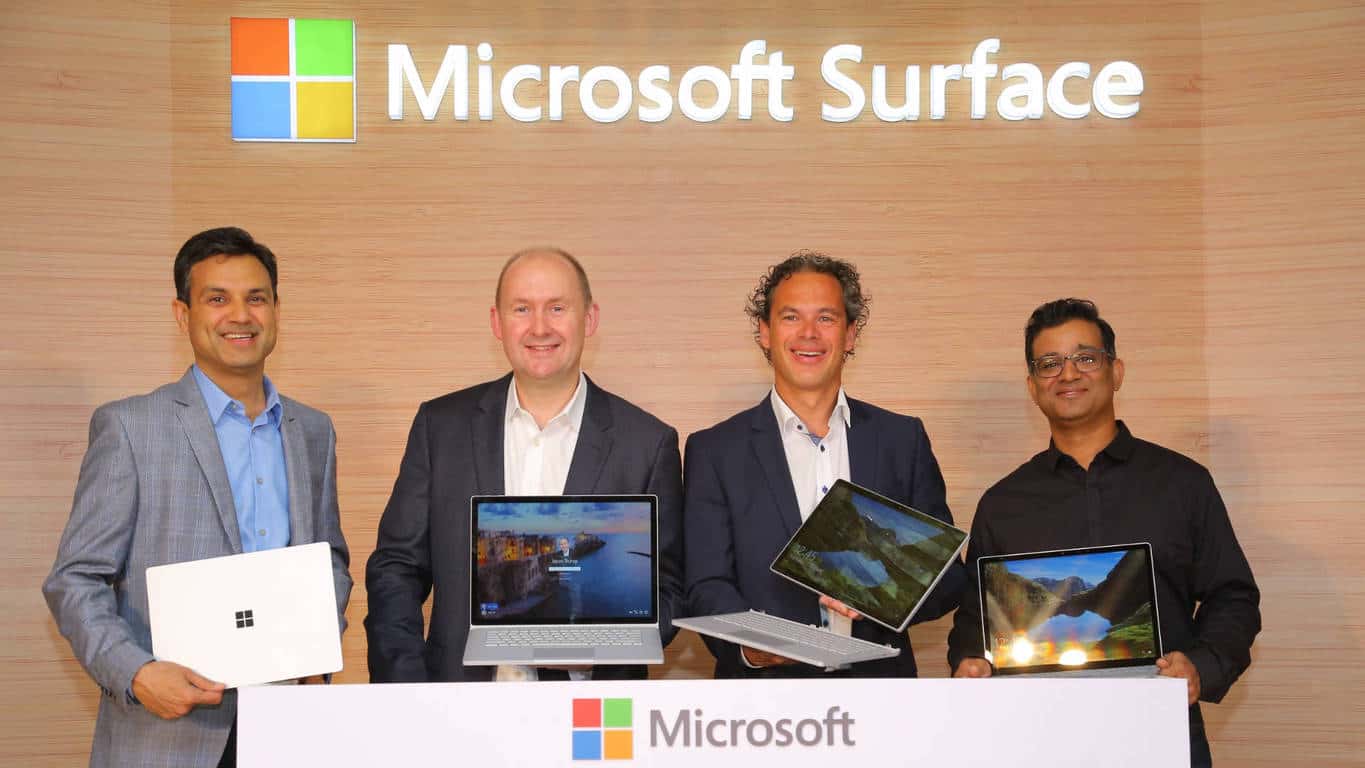
Microsoft India has had a patchy track record of launching the Surface devices in India.
While the company skipped the first two generations of Surface in India, Surface Pro 3 and Surface Pro 4 were launched together in India in January 2016. The latest generation Surface Pro (2017) – at the time – which went on sale in the US in June last year was launched in India earlier this year.
Looks like Microsoft is now considering India as a definite market for Surface devices. There’s a Microsoft press conference on December 13, for which I’ve been invited, and my sources suggest that the event will see the launch of Surface Go, the latest addition to the Surface family.
Surface Go Specifications
Operating System: Windows 10 Home in S mode
Display: 10-inch 1800 x 1200 | 217ppi | 3:2 aspect ratio | 10-point multi-touch | Corning Gorilla Glass 3
Processor: Intel Pentium Gold 4415Y
Graphics: Intel HD Graphics 615
RAM: 4GB/8GB
Storage: 64GB eMMC or 128GB SSD
Ports: 1 x USB-C, 3.5 mm headphone jack, Surface Connect port, Surface Type Cover Port, MicroSDXC Card Reader
Cameras: 5MP front camera | 8MP auto-focus rear camera
Connectivity: Qualcomm Atheros (QCA61x4A) Wi-Fi 802.11 a/b/g/n/ac | Bluetooth 4.1
Dimensions: 9.6″ x 6.9″ x .33″ (245mm x 175mm x 8.3mm)
Weight: 1.15 lbs (0.52 kg) without keyboard/1.7lbs (0.77 kg) with keyboard
While I can’t confirm and neither have I heard anything about it, Microsoft could also bring the new Surface Pro 6 on the day.
From 2016 to 2018, Microsoft has also broadened availability. While the Surface Pro 3 and Surface Pro 4 were available exclusively on Amazon India (and showcased at now-defunct Microsoft Stores), the recent devices were available online on Amazon and Flipkart as well as leading offline stores like Croma, Reliance, Vijay Sales, and other authorized retailers.
It will be interesting to see how Microsoft prices the Surface Go in India. As premium devices, Surface Pro, Surface Laptop, and Surface Book 2 have been very expensive in India – which has dissuaded a lot of potential customers in India. While in the US and other markets, Surface Go is positioned as an affordable Surface, would the pricing here justify that moniker? I’ll be there on the ground at the launch event and will bring you all the details.
File association issues can be quite problematic, and sometimes they can prevent you from running certain types of files. Since this can be a big problem, today we’ll show you how to deal with this issue.
File association issues can be annoying and interfere with certain applications. Speaking of these problems, here are some common issues that users reported:
Windows 10 Open with not working – Many users reported that Open with option isn’t working in Windows. This can occur due to file corruption, but you can easily fix that.
Windows 10 default apps not saving, app not listed – To fix this problem, it’s advised to update Windows to the latest version and check if that solves your problem.
Windows 10 file associations not working – This issue can be caused by your user account. To fix it, create a new user account and check if that solves the problem.
File association issues Eclipse, Excel, Sublime Text 3, does not change – If you’re having this problem, be sure to check file association for each affected application and change it manually.
File association issues on Windows 10, how to fix them?
If you’re having file association issues on your PC, it’s possible that the problem was caused by file corruption. Sometimes your operating system can get corrupted, and in order to fix the problem, it’s advised to perform an SFC scan. This is quite simple to do, and you can do it by following these steps:
Open Command Prompt as administrator. You can do that quickly by pressing Windows Key + X and choosing Command Prompt (Admin) from the list. If Command Prompt isn’t available, feel free to use PowerShell (Admin) instead.
Once the Command Prompt opens, enter sfc /scannow and press Enter to run it.
The scan will now start. This process can take about 15 minutes or more, so don’t interfere with it.
After the SFC scan is completed, check if the problem is still there. If the issue remains unresolved, or if you can’t run SFC scan, try using DISM instead. To do that, follow these steps:
Start Command Prompt as an administrator once again.
Enter DISM /Online /Cleanup-Image /RestoreHealth and press Enter to run it.
DISM scan should now start. The scan can take about 20 minutes or more, so be sure not to interrupt it.
When the DISM scan completes, check if the file association problem is still there. If you couldn’t run SFC scan before, try to run it once again and check if it works.
As previously mentioned, file association issues can be caused by file corruption, and sometimes your user account can get corrupted. If this happens, the only way to fix the problem is to create a new user account. This is actually quite simple to do, and you can do it by following these steps:
Open the Settings app and go to the Accounts section. To open the Settings app quickly, you can use Windows Key + I shortcut.
Pick Family & other people from the menu on the left. Now select Add someone else to this PC from the right pane.
Choose I don’t have this person’s sign-in information.
Now select Add a user without a Microsoft account.
Enter the username for the new account and click Next.
After you create a new account, you need to change it to the administrator. To do that, just follow these steps:
Open the Settings app and go to the Accounts > Family & other people.
Select the new user account and choose Change account type.
Change the Account type to Administrator and click OK.
After creating a new user account, switch to it and check if the problem is still there. If creating a new user account solves the problem, switch to the new account and start using it instead of your old one.
Solution 3 – Change the default program settings
If you keep having file association issues on your PC, perhaps you can fix the problem simply by changing the default program settings. This isn’t as hard as you think, and you can do it by following these steps:
Open the Settings app and go to the Apps section.
From the menu on the left select Default apps and in the right pane go to Set defaults by app.
Select the application you want to use for a specific file type and click Manage.
Now set the desired application that you want to use for a specific file format or protocol.
After doing that, the problem should be resolved and everything will start working again.
Solution 4 – Change file association using the context menu
If you keep having association issues with a single type of file, perhaps you can change the file association from the context menu. This is quite simple to do, and you can do it by following these steps:
Locate the problematic file, right-click it and choose Open with > Choose another app.
Select the desired application and check Always use this app to open files. Now click OK to save changes.
After doing that, the file association should be changed and the problem will be resolved.
Solution 5 – Make sure that your system is up to date
If you keep having file association issues, the problem might be related to your system. Sometimes glitches can appear, and the best way to fix them is to keep your system up to date. Microsoft is working hard to fix all major problems, so in order to fix file association issues, be sure to update your system.
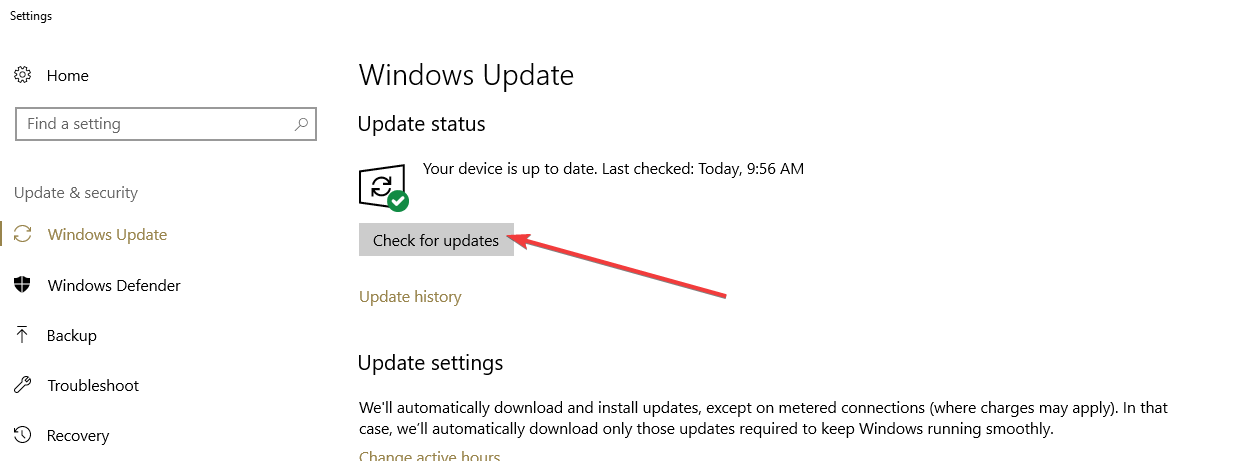
Windows 10 usually installs the missing updates automatically, but sometimes you might miss an update due to certain glitches. However, you can check for updates manually by doing the following:
Open the Settings app and go to the Update & Security section.
In the right pane, click Check for updates button.
Windows will now check for available updates and download them in the background. Once the updates are downloaded, restart your PC to install them. After updating Windows, check if the problem is still there.
Solution 6 – Remove the problematic updates
In some instances, file association issues can occur due to certain updates. Sometimes the latest updates can cause this problem to appear, especially if the update isn’t properly tested. To fix this problem, it’s advised to remove a couple of recent updates and check if that solves your problem.
To remove a problematic update from your PC, do the following:
Open the Settings app and head over to the Update & Security section.
Select View update history.
List of recent updates will now appear. Write down or memorize a couple of recent updates and click the Uninstall updates.
When the list of updates appears, double-click the update you want to remove. Follow the instructions on the screen to uninstall the update.
Once you remove the problematic updates, check if the problem is still there. If the issue is resolved after removing the updates, it’s advised to block Windows from installing updates automatically. Windows 10 tends to download the missing updates automatically, and if the update caused the problem, be sure to block that update from installing, or the issue will reappear.
Solution 7 – Perform a System Restore
If other solutions didn’t fix file association issues, then you might want to try System Restore. This feature can fix various problems, and to restore your system, you just need to do the following:
Enter system restore in the Search field. Choose Create a restore point from the list of results.
The System Properties window will appear. Click the System Restore button.
When System Restore window appears, click Next to proceed.
Check Show more restore points option, if it’s available. Now select the desired restore point and click Next.
Follow the instructions on the screen.
Once you restore your system, check if the problem is resolved. To prevent this problem from reappearing, keep a close eye on your system and keep track of any changes.
File association issues can be annoying and prevent you from running certain applications. Although this issue can be problematic, we hope that you solved it using our solutions.
Maintaining your power consumption when not using PC is the oldest trait of Microsoft-based platforms. There are two main low-power modes on your Windows PC: Sleep and Hibernate. The third is introduced with Windows Vista and it is called Hybrid Sleep. Hybrid Sleep takes benefits of both options.
While the sleep mode extremely useful for preserving energy and good state of PC hardware, it appears that there are some issues. More than a few users reported that after PC is put to ‘sleep’, they had troubles starting it back. A problem mostly occurs on laptops with the automatic sleep option enabled, albeit, there are some cases of this problem on the desktop configurations.
In case you’re experiencing this issue, we’ve enlisted a few possible solutions that are worth trying.
Solution 1 – Change Sleep options for mouse and keyboard
Mouse and keyboard are the only connection to your PC’s interface. On some occasions, they are the reason for malfunctioning Sleep mode. To make sure mouse and keyboard are not involved with the issue, follow this instruction (this is the case with USB devices, PS/2 ones are not included):
Bring out the drop-down list and select properties for each respectively.
In the Power Managment card, check ”Allow the the computer to turn off the device to preserve power” box.
Then check ”Allow the device to wake the computer” box.
This will solve the issue if the reason is somehow related to mouse and keyboard. If mouse and keyboard are not the cause, try some of the solutions listed below.
Solution 2 – Change your Power Settings from Sleep to Hibernate
In some cases, Hibernate option is a great substitution for malfunctioning Sleep. So, we ‘ll show you the way to completely exclude Sleep option and try with Hibernate. We presented it step-by-step.
In Search Windows bar type Power.
Open Power & Sleep.
In the Sleep section select Never.
Once you’ve done that, open Additional Power Settings.
Select your active Power plan and enter Change plan settings.
Then click Change advanced power settings.
In list find Sleep option and expand it.
Make sure Sleep is set to never and select the preferred time for Hibernate.
Choose OK to save settings.
This should make your PC go into hibernation instead in sleep mode.
If you want to place it manually and the Hibernate option is missing from the Start Power Button, do as follow.
In Search Windows bar type Power.
Open Power & Sleep.
Choose Additional Power Settings.
On the left click Choose what the power buttons do.
Switch the Sleep button option from Sleep to Hibernate.
Click Change settings that are currently unavailable.
Uncheck Sleep and check Hibernate.
Save changes.
This will add the Hibernate option to the Start Power Button.
Solution 3 – Update graphics card driver
Some users report that an outdated graphics card driver can cause this problem. So, make sure to keep your drivers up to date. If you’re not sure how to update your drivers, follow these instructions:
Go to Search, type devicm, and open Device Manager.
Expand Display Adapters.
Right-click your graphics card, and go to Update driver.
Follow further instructions and let the wizard find the driver update.
Finish the process and restart your computer.
Update drivers automatically
If you don’t want the hassle of searching for drivers on your own, you can use a tool that will do this for you automatically. Of course, as you’re not able to connect to the internet at the moment, this tool won’t be useful. However, once you get online, it will help you to keep all your drivers up to date, so you won’t be in this situation anymore.
A dedicated third-party tool will help you update drivers automatically and prevent PC damage caused by installing the wrong driver versions.After several tests, our team concluded that this is the best-automatized solution.
Your power plan has a lot to do with the way your computer turns off and goes to sleep. So, it’s advisable to use the Balanced option for the most optimal results. Here’s how to set the Balanced power plan:
Go to Search, type cmd, and open Command Prompt as Administrator.
Type in the following command and press Enter: powercfg -restoredefaultschemes.
Reboot your PC
When your computer boots, open the Control Panel.
In the upper right of the window showed right next to “View by:” we need to select “Small icons”
Go to Power options
In the new window, double-check if the Balanced option is checked.
Solution 5 – Turn off Hibernation
If your computer is set to hibernate instead of going to sleep, you may have problems waking it up. So, make sure to turn off the Hibernation mode:
Go to Search, type cmd, and open Command Prompt as Administrator.
Type “powercfg /h off”, this will turn off the Hibernation feature on your PC – note that if you are on a laptop, this means when the battery runs out you might lose your opened work, so keep that in mind.
After running the command – it will give you no output if it worked – simply restart your PC.
Solution 6 – Run the Power Troubleshooter
If none of the previous solutions resolved the problem, we’re going to try Windows 10’s built-in troubleshooting tool. This tool can be used for resolving all sorts of issues, including power problems. So, it might be helpful in this case.
Here’s how to run Windows 10’s built-in troubleshooter:
Go to Settings.
Head over to Updates & Security > Troubleshoot.
Select Power, and go to Run the Troubleshooter.
Follow further on-screen instructions and let the process finish.
Restart your computer.
Solution 7 – Enable Hybrid Sleep
Some users also reported that the Hybrid Sleep option sometimes causes problems with waking up. So, we’re going to disable it. Here’s how:
Right-click the Battery icon in the notification area and open Power options.
Click “Change plan settings” on your active power plan.
Click Change advanced power settings.
Expand Sleep and then Allow Hybrid sleep.
Turn Hybrid sleep on for both Battery and AC and confirm changes.
Additional Tips
There are a few more options that you should check out, just to be sure that your problem is not caused by them:
Hardware, especially monitor. Faulty monitor can be a cause of your Sleep mode malfunctioning
Update your BIOS. Outdated BIOS can be a problem, especially when updating an older machine to a Windows 10.
Update or reinstall your GPU drivers. Faulty drivers will make the confusion in the system.
If you are using a laptop, try disabling Intel Rapid Start Technology (IRST) in your BIOS Power settings. Windows 10 Deep sleep option is not available for older configurations and may cause issues.
We hope these tips will help you to overcome your problems. If you are having some other solutions for this problem, please inform us in the comments section.
Skype has taken a lot of changes recently, as we’ve said our final farewells to Classic Skype and the new, remodeled Skype 8.0 took over. We can say with certainty that the old Skype will be missed while slowly getting used to a new iteration of the most famous VoIP service.
For the time being, we’ll be talking about a variety of changes, and also give some insight into old features which found their place in the new Skype version. Like the exclamation mark in the yellow triangle sign which bamboozled some users. The explanation is below.
What does the exclamation mark sign stand for in Skype
Like in any other Windows application, you’ll run into a variety of prompts and warnings while using Skype. Some of them are intuitive and obvious, while others will make you wonder. The exclamation mark in a yellow triangle is a warning sign. It can warn you about all kinds of things, and it will pop-up from time to time.
If you’re seeing it frequently, especially beside messages or during calls, it suggests that your connection is at stake. If it stands beside a particular message, it means that the message isn’t sent and you should try again.
We already talked about message-sending issues in the newly-adopted Skype 8.0. And those kinds of issues are not exactly uncommon. What we suggest is checking your network settings and restarting Skype.
Furthermore, if you’re low on Skype credits, you’ll see the same prompt with the same exclamation sign. It reminds you to add more credits and avoid a sudden disconnection when calling a mobile or landline phone. So, basically, if you’re in doubt when the exclamation sign in the yellow triangle pops, check network and credits first.
It also can appear when your attention is needed, like updates or Skype credentials. If you changed your password for the associated Microsoft account, you’ll be prompted to sign in again. That’s it. Nothing to stress about, just your usual informative localized warning.
If you have any more questions regarding Skype, feel free to ask us in the comments section below. We’ll be glad to help you out.
Unfortunately, Xbox’s Major Nelson has shared on Twitter that due to an unexpected manufacturing flaw, Microsoft has been forced to push back the shipping date for all Xbox Onesie models. It’s also not possible to pre-order the units today, but rest assured that the Xbox Gear team is currently hard at work to “get this fixed ASAP.”
To ensure the best possible customer experience, we have made the decision to move out the ship date of the products so that we can correct the issue. Our goal is to get this fixed ASAP and release with a revised ship date in the coming weeks."
Along with the original Xbox Onesie models, Microsoft also unveiled a blue Fallout 76 version as a cool reference to the blue Vault jumpsuits worn by vault dwellers in Fallout games. It would be nice if Xbox fans could all get their Onesies before Christmas, and we’ll let you know as soon as we learn about a new shipping date.
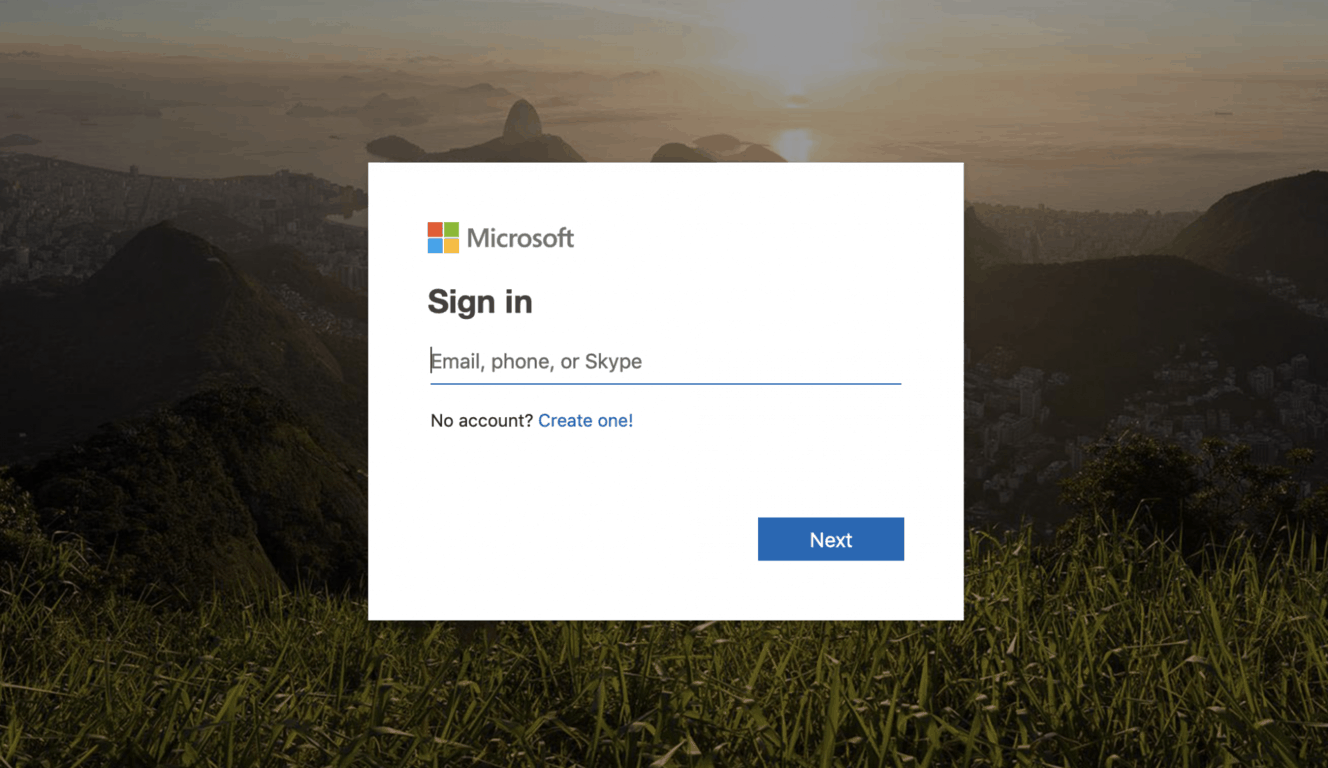
Among all the new Office 365 updates that Microsoft announced yesterday, there was an interesting bit about Outlook.com that probably deserved a bit more emphasis. Indeed, the company announced that Office 365 users will soon be able to log in to their email inbox via the Outlook.com url, making it a universal entry point for personal MSA accounts and Office 365 work/school accounts (via Neowin).
As of today, the sign in page on Outlook.com only accepts personal MSA accounts. Starting next month, this sign in page will also accept Office 365 accounts, and users filling in an Office 365 email will be redirected to their organisation’s sign-in page. This is currently how things works on Office.com, where you can either sign in with a personal MSA account or an Office 365 account.
This is a welcome change that should make the Office 365 webmail (also called “Outlook on the web”) more accessible for Office 365 users. If you’re not already logged in to your Office 365 account, it’s probably much faster to access your work email via Outlook.com than Office.com or even Outlook.office.com, assuming you remember the latter url in the first place.
If playing Forza 4 Horizon, Red Dead Redemption 2 or Fallout 76 wasn’t enough to fill your gaming docket for the next couple of months, Xbox gamers can now sign up to be a part of EA’s new open world shooter game.
Starting today, Novemeber 30, 2018, Xbox One, PlayStation 4 and Windows PC gamers can sign up at EA’s Community Playtesting website to be part of the studios Closed Alpha testing of Anthem. Anthem, which is supposedly delivering co-op open world based gameplay ala Destiny style, is slated for release in February 22, 2018. In preperation for Anthem’s release, EA is allowing select gamers a chance to help test out the games networking capabilities in its Closed Alpha. From December 8 to the 9, gamers across consoles and PCs will be able to test the game in four seperate three hour sessions.
After the initial Closed Alpha run, EA also plans to expand its testing with a couple of pre launch demos leading up to the final release of Anthem, with the first starting on February 1, 2019.
While the game is still months away from release, EA is taking $59.99 pre-order for the game across various retail outlets.
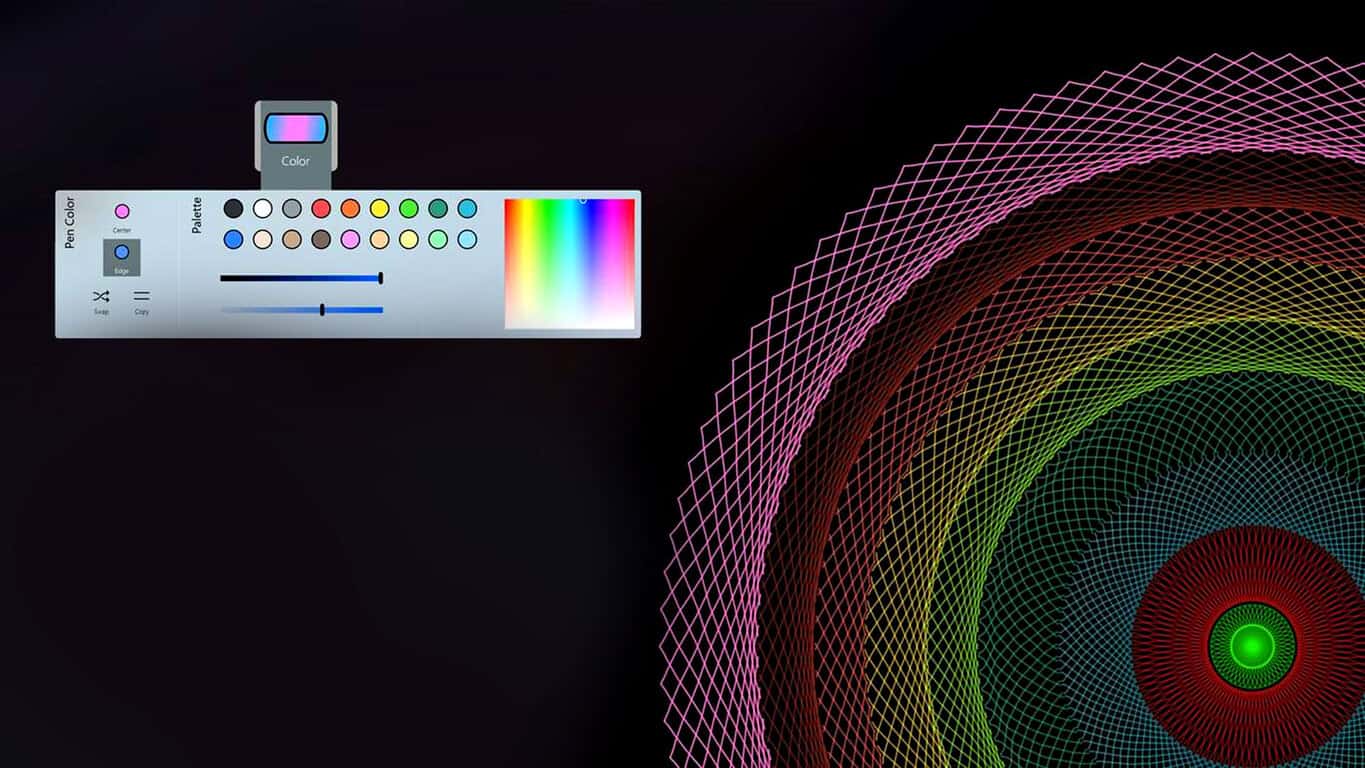
The Windows 10 Spirality app is currently going for free within the Microsoft Store app store. The app usually sells for $4.99 and will be free for the next 8 days, after which it will return to its RRP.
Spirality is a basic design app that allows its users to create spirals and other circular patterns using either a mouse or touch controls. Created designs can be shared online or saved to your device. If you’ve ever needed to create such patterns, you may as well pick up this app fro free while you can.
Did you know that you can track Santa’s progress to your home from a Windows 8 and Windows 10 tablet? The official Track Santa app from Norad makes it possible. Read to find out all about it!
Twas the night before Christmas, when Santa got up, took to the skies and disappeared. He was on his way to all children in all the world, to bring them presents and a jolly Christmas. But the anticipation of the arrival of Santa is sometimes too much for the the little ones, and to give them some relief, the North American Aerospace Defense Command, or NORAD, have released the radar footage of Santa flying around the world.
Although now it is a bit early to start looking at the radar screens, it’s not long until they will pick up on their screens the flying sled of Santa. All we have to do is wait a little longer. Anyone will be able to see Santa fly around the world on Christmas eve, by using the NORAD app from the Windows 8, Windows 10 Store.
Tracking Santa with NORAD
When the time comes, the app will feature an interactive map powered by Bing Maps, where Santa will be shown in real time as he flies throughout the world. The user interface of the app has many Christmas accents and an overall jolly look, and it will also feature lots of information about Santa, the North Pole and more.
As for the time being, the app features a countdown to Christmas Eve, but on the 24th of December, it will show kids what they want to see the most: Santa in action. All of this, thanks to NORAD and their powerful radars that can pick-up Santa’s sled.
Now that you have a tool to track Santa around the world, all that is needed is a Christmas tree and some kids who have been good this year. NORAD has partenered with Microsoft this year and BingMaps will be the official resource to track Santa down. This is a big win for Microsoft.
While we’re on this subject, do check out some related stories:
UPDATE: NORAD’s Track Santa app is no longer available for download. Don’t panic, we have your back. There are many other cool tools that you can use to track Santa’s journey to your home. Read this guide to learn more.
On the heels of a rather favorable NPD analyst report about the sales of the Xbox One X, it seems Microsoft is enticing shoppers in the UK and Ireleand regions who are intent on buying an Xbox this holiday season with an all new “Xbox Family Guide.”
According to Harvey Eagle, Xbox director for UK & Ireleand explains how Microsoft wants family engagement and healthy digital living to beomce the messaginig cornerstone of the Xbox One bying experience this year.
“We know speaking to families at this time of year is important so they’re armed with the right information when considering purchasing a console.”
The newly published Xbox Family Guide is the company’s attempt at helping parents in the market for gaming consles and experiences for their children; educate and familiarize themselves with all that the Xbox One has to offer.
From child accounts to content restrictions, a new pamphlet will be distributed to 3rd party retailers in the UK and Ireland areas that include Gamestop, WH Smith and John Lewis, Smyths and GAME. Microsoft is encouraging its partners to hand out the Xbox Family Guide to parents who have either just bought an Xbox One or are interested in the console.
In addition to informing parents about the in’s and out’s of the console, Microsoft is also using the XFG as a sort of tutorial for a step-by-step setup process buyers can implement before their child unwraps their gifts. With most Xbox One’s requiring monthly updates, encouraging parents to setup and go through the install process prior to gifting the device, just makes sense.
Despite physical hand outs being limited to UK and Ireland stores, anyone interested in the family benefits of the Xbox One can visit the Welcome to Xbox page for much of the same content.
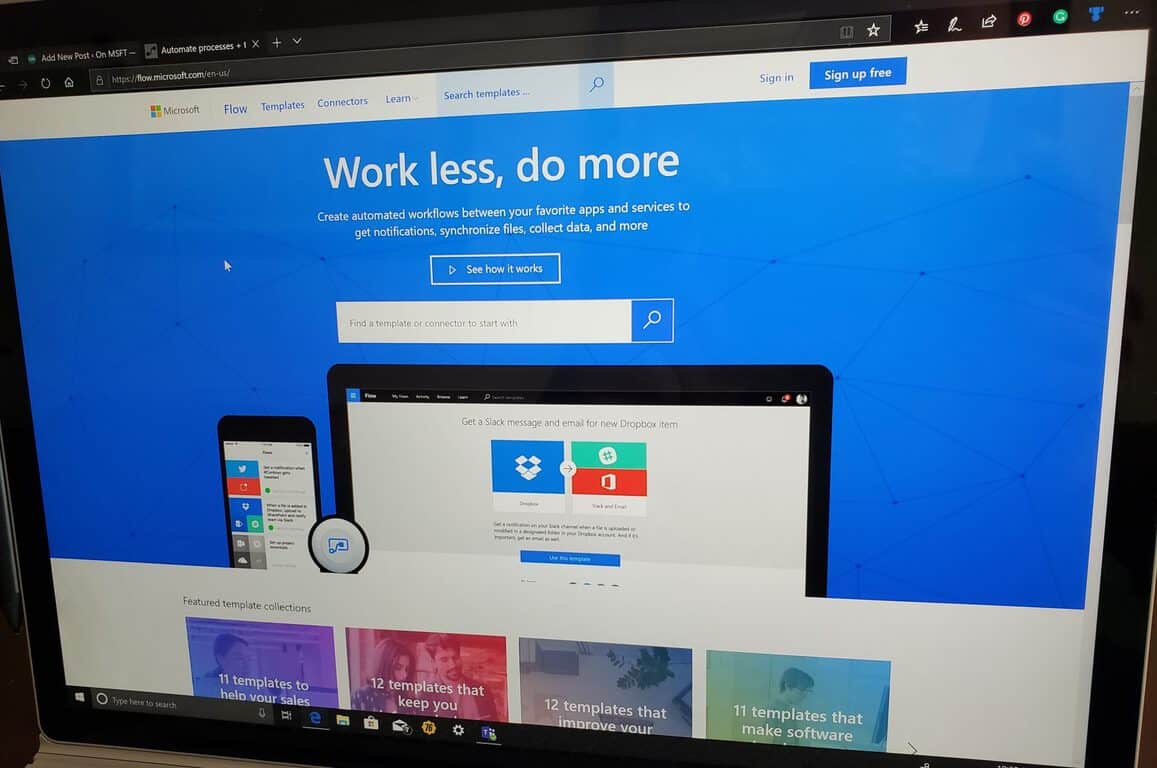
Microsoft Flow added a rich HTML-based text editor to Office 365 Outlook and Outlook.com connectors. As noted in a post on the Flow blog, this editor allows you to change your font, use bold, italic, or underline, as well as change the text color, highlight text, and create lists and hyperlinks in emails. Microsoft noted that not all capabilities are available, but will be in the future.
“At this time, it [rich text editor] doesn’t support advanced capabilities like tables, but we will add additional capabilities in the future. We will also be adding this rich text capability to more connectors and actions soon, like: creating pages in OneNote, sending messages in Microsoft Teams, writing stories in Medium, and posting to WordPress.”
Additionally, Microsoft partners added four new connectors to Microsoft Flow:
Imprezian360 – A comprehensive suite of integrated technologies for sales-leads, order management and inventory designed for Quickbooks Desktop Editions.
Encodian – Enhanced document management and PDF creation capabilities for Office 365, Flow, Logic Apps + more
Soft1 – The Soft1 Connector provides an API to work with Soft1 ERP objects
Zahara – Zahara is a complete purchase management platform enabling paperless approvals for supplier invoices and purchase requisition.
Microsoft hopes to include more connectors to Microsoft Flow in the future, with more help from Microsoft’s partners. More Microsoft Flow connectors will bring a more robust line of capabilities to Microsoft’s line of products and services.
Microsoft has quietly added a nice little addition to its Microsoft Rewards program. Badges can now be earned as users earn points for searching in Bing or shopping on the company’s online store. The badges primarily reward users for accumulating points, logging on every day, and by spending those points on donating to charities.
While this is certainly a nice addition, it’s not quite certain if the badges will play any real use. Microsoft also seems to be rolling this out gradually to users in select areas, so it’s possible not everyone will have access to them just yet.
Microsoft Rewards started as a program that rewarded users to searching on Bing to earn points and redeem them on gift cards, sweepstakes, and charity donations. Known as Bing Rewards at the time, the company has since expanded the program to earning points on the Microsoft Store, hence the rebrand. Last year, Microsoft Rewards also gained a new “Streak” system that provides bonus points after completing three daily activities.
Are you getting access to the new Badges? Which ones do you have? Let us know in the comment area below.
The announcement was made during today’s Major Nelson livestream on Mixer. During the stream, it was also announced that there would be a limited edition Fallout 76 onesie made available as well.
IT IS HAPPENING!!! ????????????
Just announced on @majornelson’s livestream the official @Xbox Onesie is launching for sale this Friday (plus a rare @Fallout 76 version)!
Have you been wanting to get your hands on one of these Xbox Onesies? Let us know if you’re going to buy one in the comments below and then follow us on Pinterest for more geek content.
I got all excited a moment ago and wrote that I had was finishing the ‘final’ article in a series of quick cumulative update articles. Unfortunately, I spoke too soon. However, I think cumulative update KB4467682 will be the last one of today’s articles reflecting Microsoft’s cumulative update.
Please note that cumulative update KB4467682 applies to Windows 10 version 1803. There have been four updates released today for different versions of Windows 10. When updating, Microsoft recommends updating through the Settings app. With so many version updates around, this is a good piece of advice.
Windows 10 KB4467682 brings a plethora of fixes
Addresses an issue that prevents the deletion of word spellings from the Microsoft Office dictionary using settings.
Addresses time zone changes for Russian and Moroccan daylight standard time.
Addresses an issue that causes the precision touchpad or keyboard to stop responding because of some combination of docking and undocking or shutdown or restart operations.
Addresses an issue that may sometimes cause the system to stop responding after turning on, which prevents logon.
Addresses an issue that causes Microsoft Word Immersive Reader to skip the first part of a selected word when using Microsoft Word Online in Microsoft Edge.
Addresses an issue with missing URL shortcuts from the Start menu.
Addresses an issue that allows users to uninstall apps from the Start menu when the “Prevent users from uninstalling applications from Start menu” policy is set.
Addresses an issue that causes File Explorer to stop working when you click the Turn on button for the Timeline feature.
Addresses an issue that causes the audio service to stop working or become unresponsive while using call control, controlling volume, and streaming music to Bluetooth audio devices.
Addresses an issue in which a third-party antivirus software may receive an “ERROR_NO_SYSTEM_RESOURCES” error.
Addresses an issue that may cause excessive memory usage when using smart cards.
Addresses an issue that prevents a Wi-Fi client from connecting to Miracast devices when the allowed service set identifier (SSID) is specified in Wireless Network Policies.
Addresses an issue that may lead to a blue screen on the system when running disk benchmark software.
Addresses an issue that causes the RemoteApp window to always be active and in the foreground after closing a window.
Addresses an issue that prevents users from opening presentation (.pptx) files exported from a Google presentation.
Addresses an issue that prevents some users from connecting to some older devices, such as printers, over Wi-Fi because of the introduction of multicast DNS (mDNS).
As per usual, if you or your machine has installed any of the fixes above at an earlier date, they will be ignored when installing cumulative update KB4467682.
Known issues in this update
Symptom
After you install the update, instantiation of SqlConnection can throw an exception.
Also, some users may not be able to use the Seek Bar in Windows Media Player when playing specific files.
Workaround
Microsoft is working on a resolution and will provide an update in an upcoming release.
How to download KB4467682
As I said above, with so many version updates being released, knowing which one to download is tricky. Microsoft recommends downloading all updates through the settings app, and if you are not an advanced user, I would definitely follow this advice. To download and install this update, go to Settings > Update & Security > Windows Update and select Check for updates.
However, for those of you who like going down the stand-alone route, the package for cumulative update KB4467682 is available from the Microsoft Update Catalog website. Please check out this support page as well.
How are you getting on with the recent round of updates? Let us know if you have any issues with the cumulative update above. We are always keen to hear any feedback from readers concerning cumulative updates.
This is the third article of today’s cumulative update releases for various versions of Windows 10. Cumulative updateKB4467681 addresses is issues for Windows 10 version 1709.
Please note: The other two articles for cumulative updates were for versions Windows 10, version 1607, Windows Server 2016 and Windows 10, version 1703. Make sure you are reading the right one.
Update KB4467681 fixes a wide range of issues
This update includes only quality improvements, and does not contain any new operating system features.
Addresses an issue that causes navigation across eras to stop working in the Japanese Calendar view.
Addresses an issue related to the date format for the Japanese era calendar.
Addresses an issue that causes the GetCalendarInfo function to return an incorrect era name on the first day of the Japanese era.
Addresses an issue that prevents the deletion of word spellings from the Microsoft Office dictionary using settings.
Addresses time zone changes for Russian daylight standard time.
Addresses an issue in the Universal CRT that sometimes causes the AMD64-specific implementation of FMOD to return an incorrect result when given very large inputs.
Addresses an issue that may cause excessive memory usage when using smart cards.
Addresses an issue that causes the system to stop working with the error code, “0x120_fvevol!FveEowFinalSweepConvertSpecialRangesChunk”.
Addresses an issue that blocks ActiveX controls in Internet Explorer on 64-bit systems. This occurs when using
Windows Defender Application Control and creating a policy that allows all ActiveX controls to run in Internet Explorer.
As always, if you have installed any of the above fixes in earlier updates, these will be ignored when running this update.
Known issues in this update
Symptom
After you install the August Preview of Quality Rollup or September 11, 2018 .NET Framework update, instantiation of SqlConnection can throw an exception.
Microsoft also warns that after installing this update, users may not be able to use the Seek Bar in Windows Media Player when playing specific files.
Workaround
Microsoft is working on a resolution and will provide an update in an upcoming release.
How to download and install KB4467681
Microsoft recommends only using the update feature in the Settings app. To get there, follow this path: Settings > Update & Security > Windows Update and select Check for updates.
In this second article for recently released updates, we have Windows 10 cumulative update KB4467699. Please note that this update applies to Windows 10 version 1703. There are two other update articles today. Check that you are reading the correct article.
Windows 10 KB4467699 (OS Build 15063.1478)
Improvements and fixes
This update includes quality improvements. It has no new operating system features included.
Addresses an issue that causes navigation across eras to stop working in the Japanese Calendar view.
Addresses an issue related to the date format for the Japanese era calendar.
Addresses an issue that causes the GetCalendarInfo function to return an incorrect era name on the first day of the Japanese era.
Addresses an issue that prevents the deletion of word spellings from the Microsoft Office dictionary using settings.
Addresses time zone changes for Russian daylight standard time.
Addresses an issue in the Universal CRT that sometimes causes the AMD64-specific implementation of FMOD to return an incorrect result when given very large inputs. FMOD is frequently used to implement the modulo operator in JavaScript and Python implementations that use the Universal C Runtime.
Addresses an issue that may cause excessive memory usage when using smart cards.
Addresses an issue that causes the system to stop working with the error code, “0x120_fvevol!FveEowFinalSweepConvertSpecialRangesChunk”.
Addresses an issue that blocks ActiveX controls in Internet Explorer on 64-bit systems. This occurs when using Windows Defender Application Control and creating a policy that allows all ActiveX controls to run in Internet Explorer.
Any previous updates included in this update that have already been installed on your machine will be ignored.
Known issues in this update
Symptom
After you install the August Preview of Quality Rollup or September 11, 2018 .NET Framework update, instantiation of SqlConnection can throw an exception.
After installing this update, users may not be able to use the Seek Bar in Windows Media Player when playing specific files.
Workaround
Microsoft is working on a resolution and will provide an update in an upcoming release. Do keep in mind that memory issues can affect various apps, and we wrote about it our Solving ‘Memory Allocation Failure’ on Kyocera: Proven fixes article.
As always, Microsoft recommends going to Settings > Update & Security > Windows Update and select Check for updates. If you want to download the stand-alone package for this update, go to the Microsoft Update Catalog. If you need any more help, go this support page first.
The Xbox news mill seems to be whirling at full power as of late with announcements, leaks and rumors all pointing to an early concerted gaming push by Microsoft for its next generation of consoles, services and marketing efforts.
Adding to all the buzz is a recent job description that highlights the Microsoft’s search for a team to work on its next iteration of Xbox.
Based on a recent report from Gaming Bolt, Microsoft has listed several positions related to its Xbox division on its own official job board. New Xbox-related job listings include Senior Mechanical Engineer and Senior Electrical Engineer were spotted as recently as this week. While Senior Engineering titles may be broad hiring position, the job descriptions directly tie to Xbox-related work and include,
The successful candidate will be the primary technical focal point for existing and leading-edge storage technologies on currently shipping and future Xbox design projects
The Xbox Accessories Team is looking for a highly motivated and seasoned Senior Mechanical Engineer to lead the mechanical system development of our next generation accessories
During E3 2018 Microsoft attempted to asuage expectations of a console release anytime soon by stating that its new console efforts (both traditional and cloud gaming systems) would be at least a couple of years off.
However, combing news of the recent Surface team enveloping Xbox hardware as well as current talent steadfast at R&D on the next Xbox, these new listings might be framing a new timeframe for the company’s next release.
Microsoft is hosting its annual shareholders’ meeting as they officially close their fiscal year. The company has been fighting aggressively with Apple along with other tech companies for most valuable spot. Even as of the time of this post, the two tech giants are neck and neck in market cap value, each at around $846 billion.
The shareholder meeting is expected to continue with the same board size of 14 members just as it was last year, according to a report from GeekWire. This includes the two members of last year, Reid Hoffman of LinkedIn and Hugh Johnson from Pepsi. The source also pointed out that the shareholders will also be able to speak about executive compensation, pointing out that the “advisory note” is non-binding.
Sea of Thieves is getting a major update today. Titled “Shrouded Spoils,” the update includes a host of new features as well as various improvements to enhance the overall gaming experience.
First and foremost, players will now be able to customize their ship’s steering wheel, cannons, and capstan with different cosmetic items which can be purchased from Shipwrights. Microsoft has also increased the difficulty of Krakens, and added more varieties of Megalodon varieties, both of which also yield higher rewards when defeated. The list of new features is rather long, as you can see in the video.
In addition to the new features in today’s update, the game is expected to get a new competitive The Arena game mode sometime early 2019. And like most Microsoft Studios titles, this is also a Xbox Play Anywhere game, meaning it can be played on both the Xbox One and Windows 10 with a single purchase.
What do you think of this update, and which new feature is your favorite? Let us know in the comments area below.