Surface Pro 5 eyeing spring launch following Chinese certification

Microsoft initially planned to unveil the Surface Pro 5 and Surface Book 2 at an event this month, but it did not happen anyway. Now the Surface Pro 5 seems to be launching in the spring of 2017, if a leaked Chinese certification is any indication.

The China Compulsory Certificate, which maintains the safety of products imported and sold in the country, recently certified the new Surface Pro device. Reports even suggest the Surface Pro 5 is ripe now to hit the market. However, no further details are revealed in the leaked certification.

The specs and features for the upcoming Surface Pro product remain scanty, but it won’t be long before we learn about the details. While it is possible the launch of the next Surface Pro could take place later this month, May is also a potential window for debut since Microsoft will also hold the Build Developer Conference next month.

So far, the latest rumors indicate that the Surface Pro 5 will include the Intel Kaby Lake processor. In terms of design, the device won’t be bringing anything new to the table, save for an improved display and software features. A USB-C support will also be a no-show in the upcoming Surface Pro.

As for the second-generation Surface Book, debut for the device might be delayed as Microsoft appears to be needing more time to complete work for it. So instead of launching alongside the Surface Pro 5, the next Surface Book could see the light of day in the fall of 2017.

Are you eager to get your hands on any of these devices? Let us know.

RELATED STORIES YOU NEED TO CHECK OUT:

Users report that Windows 10 Creators Update slows down PCs

The new Windows 10 Creators Update is supposed to improve PC performance and deliver a faster, more reliable Windows 10 experience. Unfortunately, many users who upgraded to Windows 10 Creators Update are dealing with a series of issues that make their computers anything but fast and reliable.

There are multiple problems that appeared unexpectedly after months of test and optimization. Getting back to the matter at hand, it seems that some users are dealing with very sluggish PCs after they’ve updated to the Creators Update.

Sumit Gupta130, a Microsoft forum user, has decided to search for help online, wishing to know how to get rid of their annoying problem. Here is what happened to Sumit after updating to the Creators Edition.

Today i installed windows 10 creators update and it got installed without any issue. But after installing i m experiencing performance problems. Even some basic apps and video players are lagging very much.

And also i deleted my previous windows installation files so i can’t go back now. PLz help and tell me way to increase performance or tell me a way to roll back to previous build without deleting any data.

Also i have tried all the basic ways to increase performance  like deleting temp files, disabling effects , etc. So please don’t waste time in suggesting all those methods.

If you’re experiencing a similar issues, try using one of these Windows 10 PC optimization software. These tools can really make your PC snappier. Of course, you can also roll back to a previous Windows 10 version, while waiting for a quick fix for this Creators Update problem.

If you want to recover your previous build, follow these steps:

  1. Go to Settings > click Update and Security.
  2. Choose Recovery > Select Get Started under Go Back > follow the on-screen instructions.

Have you upgraded your PC to Windows 10 Creators Update? Is your computer slower now?

RELATED STORIES TO CHECK OUT:

How to set Microsoft Edge to read your eBooks aloud

The fact that most of us use our PC and mobile browsers to read e-books shouldn’t come as a surprise. The Creators Update brought access to a native eBook store, allowing you to purchase and store your favorite eBooks. And now, the newest build of the update immerses users into a greater reading experience through Microsoft Edge’s ability to read eBooks out loud.

To do so, open an eBook and press the Read aloud button. You’ll find it located at the top-right corner of Edge. Even cooler, under Voices, you’ll find a few accents you can choose from. Each one also has enhanced quality version.

When you enable this feature, you’re going to be able to see the vital text of the article, its headline, and pictures. You’ll have the option of changing background color and the font size. This will turn out to be pretty useful if you’re one of those reading-in-the-dark enthusiasts.

Here are the steps to make Microsoft Edge read to you:

  • Launch Microsoft Edge and press the Hub button.
  • Click the Books button and then press Read aloud. Once the action is confirmed, a nice voice will immediately start reading.

You have more options available while it reads, such as pausing, playing or switching to an earlier paragraph or to the next one. You can also change the reader’s speed from the same Voice button.

If you decide to restore original settings, press the dropdown arrow beneath the Voice button, click a voice, and hit the blue X. You’ll return to the original settings for the reading.

Give it a try and enjoy!

RELATED STORIES TO CHECK OUT:

Microsoft to hold Digital Difference media event in NYC on April 26th

Announced today in an email, Microsoft is set to hold a Digital Difference media event in NYC on April 26th. Featuring great dialogue and insights around advancements in several major areas, including health, retail, transportation, robotics, sports fan engagement and consumer goods, the event will highlight an array of global companies and digital start-ups, sharing how they are using technology to create new business models and products.

Judson Althoff, Executive Vice President at Microsoft, and Abbie Lundberg, a researcher at Harvard Business Review (HBR), will speak at the event. Planned discussions include how industries and organizations are being transformed not just in the way they operate, but in the impact that they have across the globe. We’ll be attending, so be sure to keep it tuned to OnMSFT for all the details as it unfolds live in New York City.

How to Free Up Space Using Auto Recycle Bin Cleaning in the Creators Update

You can never have enough ways of cleaning useless files from your Windows device. If you own a smaller hard drive, you’re probably familiar with the annoyance of regularly having to manage low disk space.

Whether you use Windows’ built-in tools or other popular repair tools, the task of cleaning old files always needs to be done manually unless you previously paid for premium software.

Now, this won’t have to happen anymore: Microsoft has added a new feature to Windows 10 with the Creators Update that allows you to save a small amount of disk space on your PC by automatically cleaning your Recycle Bin and removing temporary files not being used by apps you have already installed.

Follow these steps in order to enable this cool feature:

  1. Open Setting and go to the System.
  2. Once you’re in the System settings, open the Storage page from the sidebar.
  3. You’ll then see a toggle to enable the feature just under Storage Sense.
  4. Enable it and then click on Change how we free up space line below the toggle.
  5. You’ll be taken to another page with even more settings for Storage Sense. Here, you’ll be able to prevent it from deleting files that are being stored in your Recycle Bin for more than 30 days. You can also stop deleting temporary files that haven’t been used by your apps.
  6. You’ll also see a handy button for manually freeing up space whenever you need it.

You won’t be able to save tons of space with the help of this new feature, but you’ll still get to enjoy a small amount of extra disk space.

Color blindness software for Windows PCs

Color blindness is a visual impairment that restricts color vision. Thus, colors aren’t entirely clear for color blind software users. There isn’t much in the way of color blindness software for Windows that can assist users. However, these are a few Windows programs that color blind users can modify VDU display colors with as required.

Best color blindness software for PC

Visolve


Visolve is one freeware program for Windows, Mac OS X and iPhone platforms that transforms VDU display colors to enhance color perception. This software enables users to open a Visolve Deflector window frame that captures a portion of the desktop behind it. Then you can apply color Red-Green, Blue-Yellow or Increase saturation color transformations to the region captured within the frame. In addition, it comes with a toolbar that enables you to make color adjustments while browsing with Internet Explorer. The software also adds that toolbar to the taskbar so you can apply color configurations to the full desktop. This page on the publisher’s website shows you how the software adjusts display colors.


WhatColor

WhatColor is freeware software for Windows 10, 8 and 7 that enables users to identify colors by selecting pixels. The program magnifies an area around your cursor from which you can select some pixels to identify. The program will then tell you what the color of the pixel selected is and provide an RGB value for it. As such, this can come in handy if color blind users need to refer to colors in a document; or if another document or page refers to specific colors that might otherwise not be clear.


Sensible Colors – MantaDB Utilities

Sensible Colors is just one of the eight tools included with MantaDB Utilities for Internet Explorer, which is a freeware package you can add to Windows from this page. This enables users to remove all background images from website pages and converts text color to black on white background to enhance clarity. As Sensible Colors removes background images, it can also speed up browsing.


Color Enhancer


Color Enhancer is not exactly Windows software, but it’s a Chrome extension you can add to that browser from this web page. The extension adds a color filter to Google Chrome with which you can adjust page colors as required. To configure the colors, press the Color Enhancer button on the browser’s toolbar and select Set-up to open the filter shown in the snapshot directly below. Then you can select one of the rows and drag the bar slider to configure page colors.

Those are a few programs and tools that can assist color blind software users. They enable users to adjust VDU display colors as required to enhance software window and web page clarity.

RELATED STORIES YOU NEED TO CHECK OUT:

Microsoft rolls out its last Windows Vista updates, download them now

Windows Vista currently has a total market share of 0.72%. Most likely, more and more Vista users will upgrade their computers in the near future as Microsoft just ended support for the OS. We’re sure that for many users this fact constitutes a good enough incentive to upgrade.

In other words, the Redmond giant will no longer release security patches, non-security updates, or any other kind of support for Vista.

Microsoft has provided support for Windows Vista for the past 10 years, but the time has come for us, along with our hardware and software partners, to invest our resources towards more recent technologies so that we can continue to deliver great new experiences.

The company rolled out the very last Windows Vista updates this Patch Tuesday. More specifically, Microsoft pushed 12 dedicated updates to this OS version.

Windows Vista Updates

  • KB4014652: Security update for the libjpeg information disclosure vulnerability in Windows Vista
  • KB4014793: Security update for the Microsoft Office remote code execution vulnerability
  • KB4014794: Security update for the libjpeg information disclosure vulnerability in Windows Vista and Windows Server 2008
  • KB4015067: Security update for the scripting engine memory corruption vulnerability in Windows Vista and Windows Server 2008
  • KB4015068: Security update for the LDAP elevation of privilege vulnerability in Windows Vista and Windows Server 2008
  • KB4015195: Security update for the Win32k information disclosure vulnerability in Windows Vista and Windows Server 2008
  • KB4015380: Security update for the ATMFD.dll information disclosure vulnerability in Windows Vista and Windows Server 2008
  • KB4015383: Security update for the libjpeg information disclosure vulnerability in Windows Vista and Windows Server 2008
  • KB4017018: Security update for Microsoft Graphics Component
  • KB4016754: This update includes a fix for an incorrect device driver (“Microsoft – WPD – 2/22/2016 12:00:00 AM – 5.2.5326.4762”) that was released by a third-party on March 8, 2017 that affected a small group of users with USB connected phones or other media devices that rely on Media Transfer Protocol
  • KB3217877: Fixed the issue when you use the fread() function to read data from a pipe in Windows Vista Service Pack 2, and the runtime program may omit line feed (LF) characters between lines and cause corrupted output.
  • KB4012864: DST changes in Windows for Northern Cypress, Mongolia, and Russian Saratov region.

You can install these updates through Windows Update.

Are you still running Windows Vista? Are you planning to upgrade your computer to the latest Windows OS version?

RELATED STORIES YOU NEED TO CHECK OUT:

Microsoft has now started to block Windows 7/8.1 updates on PCs with recent processors

Last month, we reported that Microsoft might soon block Windows 7/8.1 updates on PCs with Intel’s Kaby Lake or AMD’s Ryzen processors. That’s right, Microsoft now claims that “new processor generations require the latest Windows version for support,” meaning that Windows 10 would soon be pretty much the only way to go for PCs with recent processors.

According to Ars Technica, Microsoft has finally started to enforce this new support policy this month. It’s still possible to install Windows 7 or Windows 8.1 on a PC with the latest processors from Intel or AMD, but you won’t get optimized drivers for the new processors, and worse, you also won’t be able to install Windows updates, including critical security updates.

Microsoft ended sales of Windows 7 and Windows 8.1 licenses to PC OEMs last October, and the company also stopped selling Windows 7 and Windows 8.1 licenses to consumers back in October 2013 and September 2015, respectively. This new support policy seems consistent with this state of affairs, and Microsoft is all about Windows 10 these days. However, it’s worth reminding that both Windows 7 and Windows 8.1 will continue to fully support Intel’s older 6th gen Skylake processors until 2018.

Will you be affected by this new support policy, and do you understand why Microsoft is enforcing it? Let us know your thoughts in the comments below.

Latest video on-demand service from India, ALTBalaji, launches universal Windows 10 app

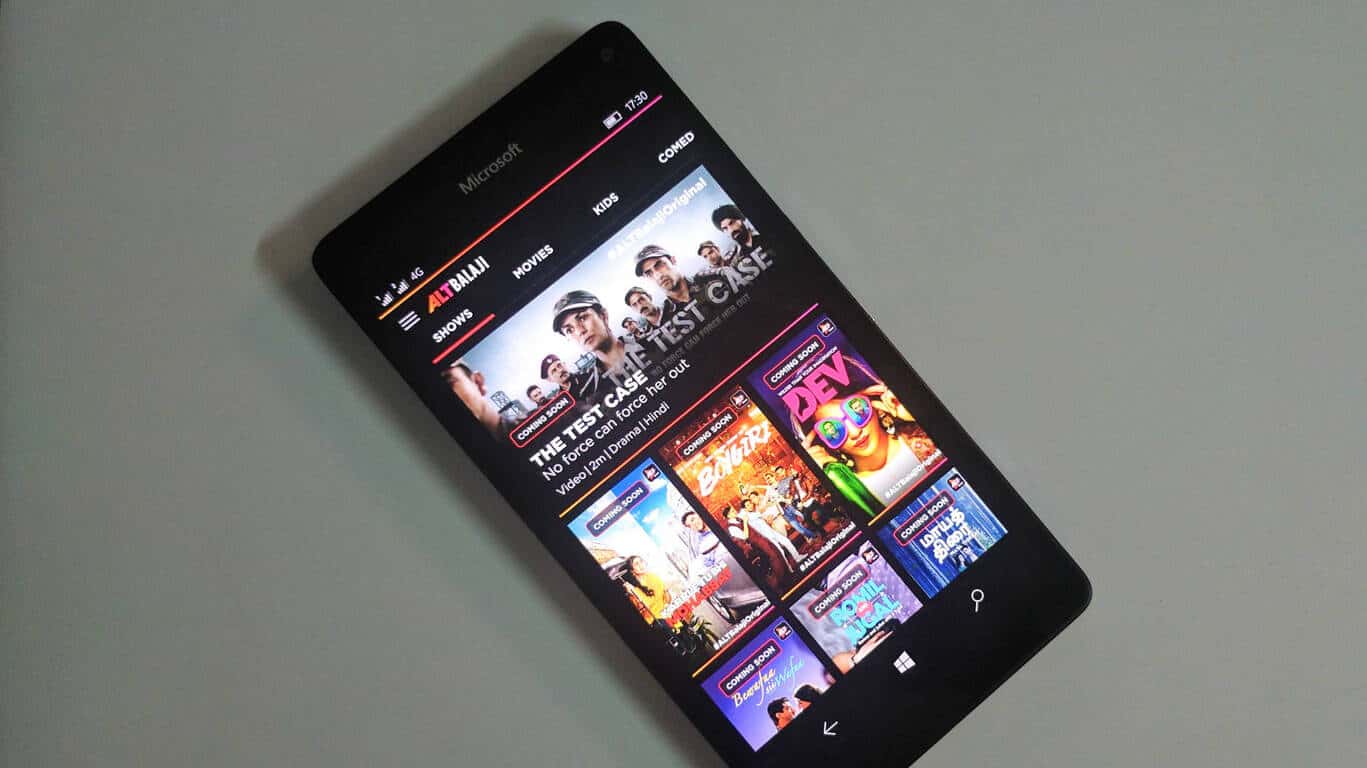
ALTBalaji, a subsidiary of Balaji Telefilms, India’s leading television and movie production company, recently launched a video on-demand service which is now available as a UWP app for both Windows 10 PCs as well as mobile.

ALTBalaji aims to focus on an alternative to mainstream Indian entertainment with original content along with a library of movies of TV shows. At the moment though, there’s limited content with much of the catalogue listed as ‘coming soon’.

While the app is free and available for Windows 10 PCs, tablets, and phones, you’d need to subscribe for premium content while a large portion of content will be available for free as well. The app will feature content in Hindi, English, and regional Indian languages.

While it is a crowded video streaming market with Netflix and Amazon Prime Video as well as local players like Hotstar, Voot, Eros Now, HOOQ, and Sony LIV, only Netflix and Hotstar have apps for Windows 10, and the latter is just a barebones, web wrapper app. So, Windows users might just welcome ALTBalaji if it manages to offer diverse and interesting content.

The app has a dark UI with seamless navigation. It works quite well, and the streaming too is pretty good. The app also offers parental controls to ensure your kids watch age-appropriate stuff. Give it a whirl, and let us know how you like it. Download the ALTBalaji app from Windows Store here.

Xbox One’s Neo Geo library grows even bigger with Sengoku 2

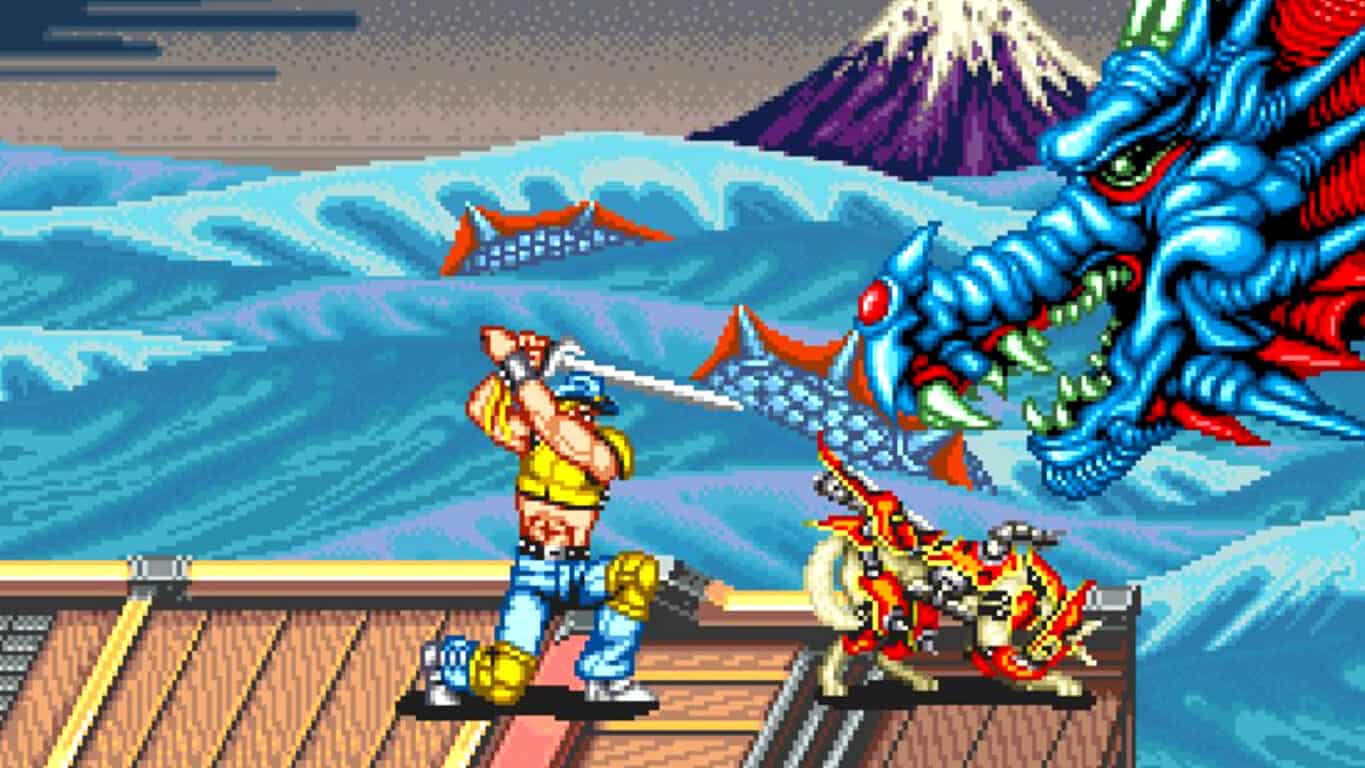
The Xbox One’s Neo Geo game library has grown even larger today with the arrival of Sengoku 2 on the console. Like the other recently added Neo Geo games, Sengoku 2 has also been given arcade display settings as well as an online leaderboard for players to compete on. Here’s the official game description:

Sengoku 2 is a side scrolling action game released by SNK in 1993. Take on the role of a warrior summoned by a shrine princess, and fight over various historical periods in order to defeat the dark monarch. Players can enjoy new tactical features such as charge attacks and defensive abilities. The “ACA NEOGEO” series has faithfully reproduced many classic NEOGEO masterpieces. Players can change various game settings such as game difficulty, and also reproduce the atmosphere of arcade display settings at that time. Players can also compete against each other from all over the world with their high scores. Please enjoy the masterpiece that built a generation for video games.

Buy Sengoku 2 on Xbox One

Have you played any of the Neo Geo games on Xbox One yet? Let us know which ones in the comments below.

Xbox E3 website updates, pushes Beam as viewing option

Microsoft has updated their special Xbox E3 Briefing page on the Xbox website with the show’s date and time (Sunday, June 11th, 2:00 pm PDT), a link to add the event to a calendar and direct links for where to view the livestream on YouTube, Facebook, Twitch, and Twitter and icons suggesting that it can be watched on Xbox.com and the Xbox One console.

The company’s preferred method for watching their livestream though is via Beam which has been given both a large graphic on the page and a giant header saying, “Watch on Beam”. Microsoft purchased the Beam streaming service in late-2016 and has recently integrated it into both the Xbox One software and Windows 10 devices. It makes sense that they’d want to encourage more people to use it. Whether Microsoft can get people to choose it over the other more-popular services though remains to be seen.

Which service will you be using to watch the presentation? Let us know in the comments below.

Windows 7 KB4015546 patches many OS vulnerabilities, download it now

This month’s Patch Tuesday was probably one of the busiest ones in Microsoft’s history. Besides regular security and non-security updates, Microsoft also publically released the third major update for Windows 10, Creators Update, and ended support for Windows Vista.

Among other security updates, Microsoft released the new security update for Windows 7 dubbed KB4015546. This update is available to all eligible users of Windows 7 right now, and resolves some of the known vulnerabilities in the system.

More precisely, security update KB4015546 resolves vulnerabilities in the scripting engine, Hyper-V, libjpeg image-processing library, Adobe Type Manager Font Driver, Win32K, Microsoft Outlook, Internet Explorer, Graphics Component, Windows kernel-mode drivers and Lightweight Directory Access Protocol.

Additionally, this update also “enables detection of processor generation and hardware support status when PC tries to scan or download updates through Windows Update.”

If you still haven’t installed the new security update for Windows 7, you can obtain it through Windows Update.

Besides KB4015546, Microsoft released a handful of other security updates for all supported versions of Windows. Of course, the main focus was on Windows 10, as the company’s latest operating system received the most security updates, non-security updates, and other patches. And of course, the new major update.

For what we know, you should install security update KB4015546 without any problems, as there are no issue reports yet. However, if you encounter some issues while or upon installing this security update, feel free to let us know in the comments below.

RELATED STORIES YOU NEED TO CHECK OUT:

Windows 10 Creators Update security features: Everything you need to know

As promised, Microsoft is adding a new centralized portal called the Windows Security Center to Windows 10 as part of the Creators Update. The new security feature allows IT admins to monitor and respond to various security issues thanks to a link to the Office 365 Advanced Threat Protection. This security feature includes an integrated method to let security departments track threats across endpoints and emails. Microsoft also plans to broaden the scope of the Windows Defender ATP sensors so that they can detect persistent threats within memory or at the kernel level. That means IT security experts will be able to keep track of loaded drivers, in-memory activities, and in-memory modifications that signify potential kernel exploits.

Microsoft explains in detail the Windows Security Center:

The Windows Defender Security Center offers a single dashboard display so you can control your security options from one place – everything from anti-virus, network, and firewall protection; to assessing your device performance and health; to security controls for your apps and browser; to family safety options. For our enterprise customers using the Windows Defender Advanced Threat Protection (ATP) service, the centralized portal first delivered in the Anniversary Update called the Windows Security Center will link to Office 365 Advanced Threat Protection, via the Microsoft Intelligent Security Graph, to allow IT administrators to easily follow an attack across endpoints and email in a seamless and integrated way.

IT admins can also inject their own intelligence into the Windows Security Center to raise alerts on activities according to various compromise indicators. They can then isolate machines or block files to help resolve critical security issues within a shorter span of time.

RELATED STORIES YOU NEED TO CHECK OUT:

Microsoft to hold free online Data Amp event, demonstrate data innovation

Want to learn a thing or two about machine learning? Want to do it for free? Next Wednesday, you’ll get your chance. Microsoft Executive VP Scott Guthrie and Corporate VP Joseph Sirosh will be hosting Data Amp on April 19th, a free online event geared towards teaching people about data, intelligence, and analytics.

The event will take place at 8 am PT, and promises to be an educational time for anyone who’s interested in the whole machine learning scene. It also promises to be something of a showcase for the future of SQL Server, so fans of that service will probably want to tune in to see what direction it’s headed in.

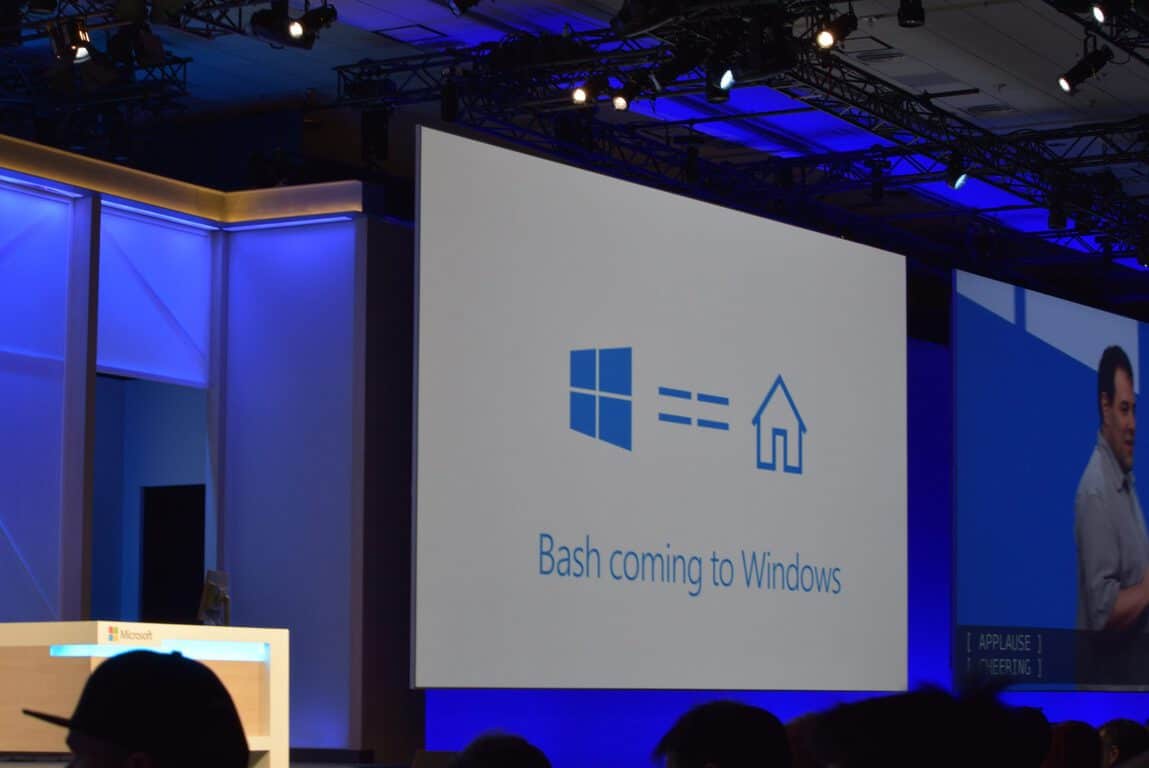
Windows 10 Creators Update brings new Bash/Windows Subsystem features

The Windows 10 Creators Update is now firmly in our hands, having started its deployment earlier this week. The update has plenty of new features, however, if you aren’t the creative type who would enjoy things like Beam streaming and 3D painting, it might not strike your fancy. But Microsoft’s Rich Turner might have something more interesting for you.

Bash/WSL – some additions that came to the Windows command-line family back during the Anniversary Update – now has a frankly overwhelming number of improvements that are shipping with the Creators Update.

Here’s a brief list of what’s new in the Creators Update:

  • More compatibility
  • Ubuntu 16.04 support
  • Ifconfig & network connection enumeration support
  • Ping & ICMP network support
  • File change notification support (INOTIFY)
  • Windows <-> Linux Interop
  • UNIX and Netlink Socket improvements
  • TCP socket & IPv6 improvements
  • Miscellaneous WSL Improvements
  • Windows Console & Command-Line Improvements

There’s a whole lot more in the blog post documenting the new update, including some in-depth explanations about each and every addition. This new update is massive for people who want to get started with bash, and most certainly proves that the team behind it has responded positively to a significant amount of feedback.

What’s more, the blog post ends by promising even more changes coming in the future. The dev team seems to have gone into overdrive with the launch of the Creators Update – we’ll see if they can keep up the pace going forward.

Yooka-Laylee issues: Game crashes, skipping music, and more

Yooka-Laylee is an open-world platformer that allows gamers to explore huge, beautiful worlds, and meet many funny characters in the vein of classic platformers like Banjo-Kazooie. Players can guide the game’s heroes through a variety of puzzles and challenges in their search for Pagies, the golden bounty that unlocks stunning new worlds.

Yooka-Laylee features oddball characters, hulking bosses, minecart challenges, arcade games, quiz shows, as well as quite a few bugs. In this article, we are going to list the most common Yooka-Laylee issues reported by players.

Yooka-Laylee Game Bugs

  • Music skips

For some reason after a bit of playing the music starts to skip, i don’t know why
i am going to assume this is just some sort of coding bug, (hopefully this problem get’s fixed soon since this doesn’t happen in any other game i have played)

  • Yooka-Laylee randomly crashes

What the hell? I played 7 hours yesterday with no problems in the slightest. And now I start it up today and it crashes as soon as I collect a Pagie.
Then I restart the game and it just starts chugging and taking up 100% of my CPU. What happened?

  • Controller won’t work
Can’t use controller? If I have it plugged in it hangs at start menu, if I don’t have it plugged in it’s running normally. Anyone know of a fix?
  • FPS issues

Anyone else getting bad frame rate issues? Before you say it, no, it’s not my computer. I can run other game on max setings with no issues. Is there a fix? Is it being patched?

  • Yooka-Laylee won’t launch

Game is downloaded but won’t launch, says it will release at a future time? I […] have reloaded steam multiple times, have reinstalled game twice, have reset PC twice.

Have you played Yooka-Laylee? Did you experience any bugs?

RELATED STORIES YOU NEED TO CHECK OUT:

Throwback Thursday: Watch Bill Gates introduce Windows 3.1 in this 60 second clip

As we all must know by now, Windows 10 has been touted by Microsoft as the most secure and efficient operating system available. There’s no doubt by its users that Windows has become a more polished and efficient system. However, before there was Windows 10, 8, 7, Vista, and so on, there was Windows 3.1.

Originally released publicly in April 1992, Windows 3.1 follows 3.0 with improvements to the MS-DOS based platform. It has a good run until December 31, 2001, when support for the Windows 3.1 OS was retired.

Just in case you’ve forgotten (or have never seen) Windows 3.1, here is a video of Bill Gates himself to introduce it.

As the description of the video explains, this was the beginning of a 3-hour long tutorial on VHS. “In this video, you’re going to see the future: Windows,” the younger Gates promised in standard definition. But it looks like he wasn’t too far from the truth.

This week we are celebrating the rollout of Windows 10 Creators Update with the promise of Redstone 3 to come. Windows continues to lead over competitors as the most used operating system, and looks to be doing so for the foreseeable future.

How to enable MSN Weather’s Dark Theme

Windows Insiders in the Fast Ring are in for another treat from Microsoft: The software titan has rolled out a slew of fresh updates for the UWP MSN apps in the Windows Store, bumping up their software version to 4.20.933.0.

The update includes support for the dark theme in the MSN Weather app.

On top of the dark theme, users also have three other options, such as the white theme and the system’s theme of choice. The MSN News and the Sports apps have also received minor bug fixes.

Last year, Microsoft updated the MSN News, Sports and Money apps with the dark theme option.

The Weather app is currently the only MSN app that has an option for a transparent Live Tile. It is not clear when Microsoft plans to add Live Tile to the three other apps.

Microsoft has recently rolled up its sleeves in order to provide updates to a bevy of apps that ship with Windows 10 for Insiders.

Some apps, however, are not getting the same attention Microsoft is paying to other apps in terms of the dark theme consistency. So, it’s good to see the MSN Weather app receive the dark theme, even it is a tad late at that.

How to enable dark theme on MSN Weather

  1. Type Weather in the Start Search box to open the Weather app.
  2. Click the Settings icon located at the left bottom corner of the app.
  3. Under the General tab, you’ll see three options to change the theme:
    Light
    Dark
    Windows default
  4. Select Dark.

The latest update to the Weather app for Windows 10 PC and Mobile is now available to download from the Windows Store for Insiders on the Fast Ring.

RELATED STORIES YOU NEED TO CHECK OUT:

Xbox updates, inspired by fans, start rolling out to all users today

Microsoft is on a roll when it comes to their Xbox community. Yesterday, an Xbox One Insider discovered the self-service refund, which is turning out to be quite a hit with gamers. Today, Major Nelson announced that an update will be rolling out for Xbox One. But this isn’t just any update, many of the additions are highly fan-requested features.

The first in line are new features in the Profile and Activity Feed. Now users will be able to visit another person’s profile and select the “Join broadcast’ button to instantly jump into the stream. The Activity Feed is also seeing a bit of a rework, offering users the chance to hide individual posts or pin them at the top of the feed. Furthermore, posts are now able to be filtered according to game, Club, or friends making it easier to sift through the chaos.

It looks like Clubs and the LFG tools introduced last year are what really got the meat of the update though. Here is the list:

  • When you create an LFG post, as the owner you will be able to see new vetting cards that include hero stats from gamers interested in joining your party. Hero stats are contextual to the game you’re playing, showing you relevant stats like kill/death ratio, rank, or score.
  • Achievement hunters, this one is for you! You will be able to search LFG posts from the Achievements tab, related to the Achievement you’re trying to finish.
  • We’re adding the number of open LFG posts to the Game Hub and Club Hub headers.
    Have you made a successful LFG post that you want to create again? Now you can see previous LFG posts that you have created, participated or shown interest in, and can copy them to create new posts.
  • When creating an LFG post, see all the recent tags you’ve used and easily select them.
    Club owners and admins will be identified and labeled in their text posts to better help them stand out and manage their community.
  • Club owners and admins can pin a post at the top of their Club feed.

The update also rolls out with the long overdue Xbox One/Xbox 360 filter in My Games and Apps. Gone are the days when users had to scroll through lists of both generations of games, some of which including way too many titles in similarity.

It’s clear the Xbox team are striving to be the consumer-oriented model that drives gaming communities. No wonder Sony PS4 players are at an unrest. Maybe they could use a UserVoice forum?


FISA requests on par with previous reporting period, says Microsoft in latest transparency report

Microsoft today released their most recent biannual transparency reports on the Microsoft Transparency Hub. The reports which cover the Law Enforcement Requests Report, U.S. National Security Orders Report and Content Removal Requests Reports show that Law enforcement and FISA requests are on par with previous reporting periods.

Overall, the reports cover July to December 2016. According to Microsoft, the latest Content Removal Requests Report also details requests to remove content from governments, copyright holders and individuals subject to the European Union’s “Right to Be Forgotten” ruling. The company has also disclosed a National Security Letter (NSL) which was received from the Federal Bureau of Investigation (FBI) in 2014, that sought data belonging to a customer of the company’s consumer services. A few highlights, which were all selected by Microsoft, from the latest transparency report can be seen below.

  • During the latter half of 2016, Microsoft received a total number of 25,837 legal requests for customer information from law enforcement agencies. This brings the total number of requests from law enforcement for 2016 to 61,409, which is a decrease from 2015, when requests totaled 74,311.
  • A majority (71 percent) of the law enforcement demands Microsoft received during this period continued to come from a handful of countries, led by the U.S., United Kingdom, France and Germany.
  • For the latest Foreign Intelligence Surveillance Act (FISA) data reported (which is January – June 2016), Microsoft received 0-499 FISA orders seeking content disclosures affecting 12,000-12,499 accounts, compared to the 0-499 FISA orders seeking disclosure of content impacting 17,500-17,999 accounts reported for the previous period. We received 0-499 National Security Letters in the latest reporting period, which remains unchanged from the previous period.

Microsoft continues to believe that “transparency is essential to accountability and building trust in technology.” The company notes that they are “committed to upholding these principles in our practices and our reporting,” and invites you to visit this website to learn more about the transparency efforts.

Update:

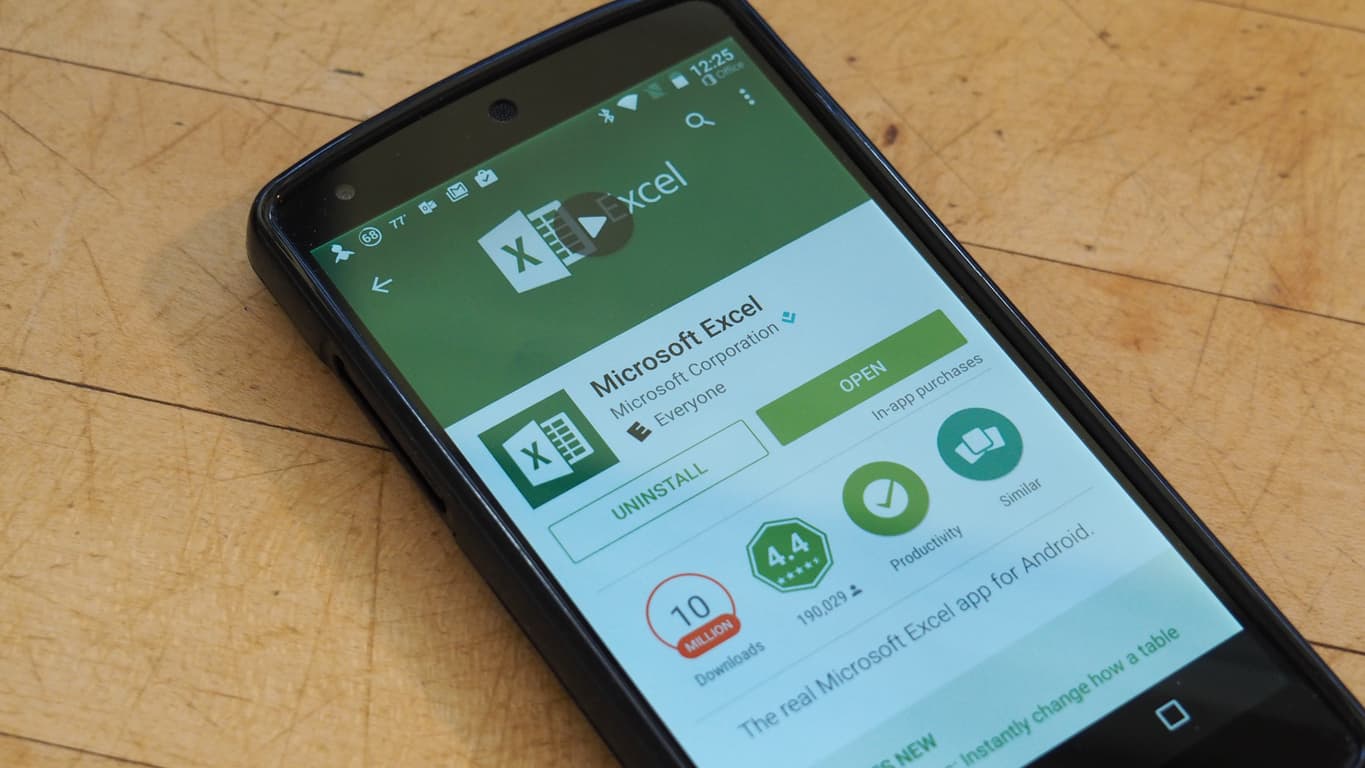
Excel-like “KAYAK at Work” lets you book a vacation while appearing productive

With the warmer months finally arriving in our half of the globe, many people area plotting their vacations, maybe even when they shouldn’t be. According to a statement from KAYAK, the trip booking service, 57% of trip bookings are actually done mostly during the standard workday.

So KAYAK decided that they didn’t want anyone getting busted for not being productive while they are at work, thus their new spin-off site: KAYAK At Work. The site looks similar to a Microsoft Excel spreadsheet to give an illusion of actually doing work instead of booking a trip.

“We created KAYAK At Work to help people search for travel, something they’re already doing at the office, covertly while also looking more productive while doing it,” David Solomito, vice president of KAYAK’s North America marketing, told the Observer.

The page offers very basic search functions to plan your next trip. Even the results fit in with the basic Excel mask that is properly titled as the “Travel Problem Solved Report.”

While it’s not very convincing up close and personal, KAYAK at Work might fool some of your neighboring cubicle companions that you are working. Interestingly, the guy who built Windows Solitaire apparently had the same idea back in 1988, although Microsoft never implemented his “boss key.”

New Xbox game refund policy is an early hit with gamers, and Sony PS4 fans are jealous

The Xbox community was excited to learn yesterday that Microsoft would be bringing the ability for self-service refunds to Windows 10 and Xbox One digital purchases. This announcement has spread like wildfire across the gaming community, even in areas that you’d least expect.

In case you missed it, yesterday, an Xbox One Insider discovered that Microsoft will be implementing their own digital refund policy, letting users return most games with a specific list of criteria. Games that have been bought within 14 days, played for a maximum of two hours, and at least played once will be eligible. This consumer-based announcement tends to favor purchasing games to try them out and feeling safe enough to return them if it doesn’t meet standards. Of course, if it is abused, accounts will be blocked from using the service.

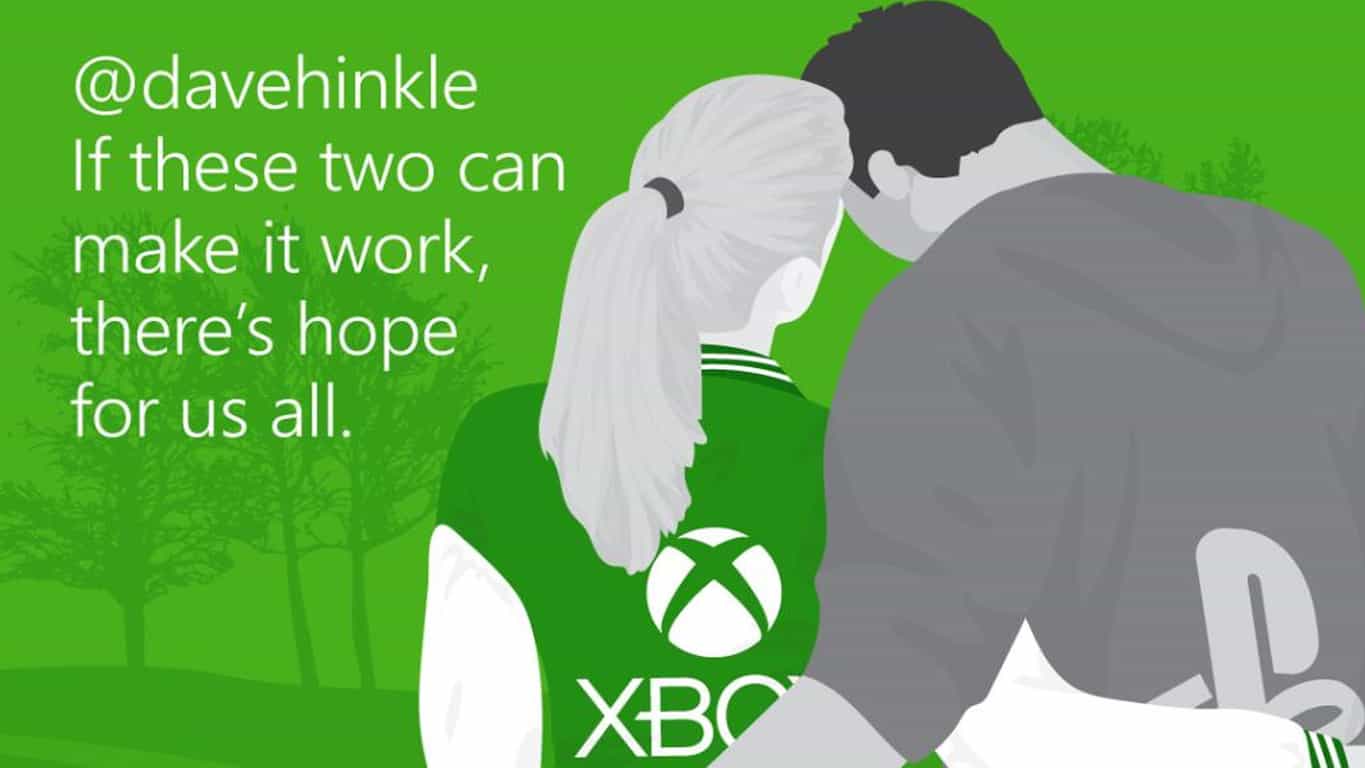
Now, the Xbox One announcement is now the top voted Reddit post of all time on the r/PS4 subforum. The request is aptly titled, “Let’s put the pressure on Sony to implement something like this as well.”

Micolash explains in the post that such a refund service would be a benefit for everyone involved.

This is the kind of forward thinking customer-centric thinking that helps all users. No dealing with customer service, no hassle, easy. Someone buys something on your account? Game is buggy or broken? Trailers really misleading? Simply refund the game (not season pass or DLC) yourself within 14 days as long as you haven’t played it for more than 2 hours.

Consumers of Sony PS4 have their own refund policy in which they are not allowed to download or try the game if they want a refund. With over 46.7 thousand upvotes within only twenty hours, it looks like the PS4 community is in unrest.

Some of the Reddit user responses are optimistic, hoping for the change in refund policy. “That would be a nice feature,” says one person on the top comment with over 3000 upvotes. Others seem to be settled that Sony won’t base their change off the Xbox One announcement. One devoted fan of Sony shared from their experience:

It would be, but it won’t happen. I’ve owned every home console Sony has ever put out and still have them all set up in my entertainment center (If I could get my hands on a black dev-kit PSX my entertainment center would be as black as an emo’s soul.) Sony has had some pretty abysmal policies with refunds, especially chargebacks (even when accidental.)

Many Xbox One Reddit users seem to be supporting the request made to Sony by PS4 users. As Todd2r puts it:

Honestly, this is a win for all gamers so I can see why it’s a hot topic over on the ps4 side. We are all gamers and just want to be treated fairly. Hopefully, Sony does the same thing, and I think they will, and they get it done soon for PlayStation gamers.

It’s worth noting that Xbox One isn’t the first to implement this service-friendly refund. Other digital markets such as Steam and Origin have similar self-service refunds with guidelines very close to these. The idea is that gamers will spend more money to try games they are on the fence about instead of not making the purchase at all.


Microsoft could soon be bypassing local power companies in Washington State, buying its own power

Microsoft is known for its powerful software, including both Powerpoint, and Power BI, but if the company has its way, it might soon be known for buying its own power as well. According to a new report from the Associated Press, Microsoft could soon bypass the local power companies in Washington State by buying its own power.

The AP report shows that thanks to a new deal with Puget Sound Energy, Microsoft will be able to buy its own power on the open market. Though the settlement must first be approved by the Washington Utilities and Transportation Commission, Microsoft first filed for the deal on Monday. The Redmond giant also expects that with this deal they would “provide more flexibility and enable it to support more carbon-free power in the state.”

Terms are not exactly clear, but the AP reports that Microsoft would pay a $23.6 million exit fee to PSE to ensure other ratepayers are not harmed by the move, ultimately making sure that the utility would return that money to customers.  Microsoft is also known for its commitment to clean energy and was recently awarded as NA Wind Deal of the Year. The company also revealed that it has plans to shift to 50% renewable energy use by 2018.

Head of Xbox Phil Spencer promises Project Scorpio unveiling at E3 in June

Project Scorpio, the latest gaming console for Microsoft, has been making a lot of headlines since Eurogamer finally revealed its full specs last week. Since then, we learned a lot of interesting details about Project Scorpio dev kits yesterday, but we’ve yet to see what the final product looks like, or what it will cost.

As it turns out, it seems that Microsoft won’t reveal the final Project Scorpio design in the press. Xbox head Phil Spencer announced today on Xbox Wire that “we’re excited to unveil Project Scorpio and the amazing game experiences it powers at E3 this June.” As a reminder, Microsoft will hold its much-anticipated media briefing on Sunday, June 11th at 2PM PDT and we’ll be there to cover it live.

“Ultimately, we know you care most about great games, whether they be exclusive, multiplatform, independent or AAA,” explained Spencer. “We are proud of the diverse lineup of games coming this year that will only be playable on Xbox One and will play better on Project Scorpio,” he added. It’s true that Project Scorpio will really need great games to get traction from consumers (and developers), and we hope that the Xbox team will bring its A game at E3 to delight Xbox fans .

Office Insiders on the Slow ring welcome Collaborative Editing in Excel

Users on the Office Insider Slow ring have just received several new features for their Microsoft Office apps with Build 17.8067. With this new build of the Office apps on Windows Mobile, Insiders will now be able to insert links to files and websites in Excel, Word, and Powerpoint as well as collaborate on files in Excel. Excel has also been given added support for files that contain ink.

The Office apps on Android have also updated to Build 16.0.8027.1002 with the same updates as Windows Mobile.

Collaborative Editing essentially allows for more than one user to work on a single document at the same time with all changes being synced through the cloud. “You and your colleagues can open and work on the same Excel workbook,” Microsoft explains. “This is called co-authoring. When you co-author, you can see each other’s changes quickly — in a matter of seconds. And with certain versions of Excel, you’ll see other people’s selections in different colors.”

Have you been waiting for Collaborative Editing? Let us know in the comments below.

How to install Windows 10 Creators Update from an ISO file

Windows 10 Creators Update is here, available to all eligible users. Of course, the most popular way to obtain the new update is through Windows Update. However, due to a couple of reasons, not everyone is able to get the Creators Update using this method.

If you’re among those who haven’t received the Creators Update yet, and you can’t wait to try it, there are a couple of alternative ways to install the new major update for Windows 10. We’ve already shown you how to download the update manually, but you can also do it directly from an ISO file.

Installing the Creators Update from an ISO file is also useful if you want to install it on another computer, without a reliable internet connection. So without any further ado, let’s see how to install the Creators Update for Windows 10 directly from an ISO file.

How to install Creators Update using an ISO file

As you’re just updating your system, and not installing the fresh copy, the whole process shouldn’t be so complicated. So, here’s exactly what you need to do:

  1. Before you start, make sure your computer meets minimum system requirements for the Creators Update
  2. Now, if you already have an ISO file, move on to step 7
  3. If you don’t have an ISO file, navigate to this page, and download the Media Creation tool for your version of the system
  4. Follow the on-screen instructions from the installation wizard to acquire the ISO file (Remember, don’t select “Upgrade now“)
  5. Wait for the tool to download the ISO file
  6. Once you’ve obtained the ISO file, move it to another computer by using a flash drive, or any other media
  7. Now, just open the ISO file, and the update process will start
  8. Wait while setup is initialized
  9. Select Download and install updates, and click Next
  10. Choose what files and settings you want to keep, and follow further on-screen instructions
  11. Wait for the update to install
  12. Once the process is done, your computer will automatically restart, and lead you through final finishing steps

There you go, after the installation is done, you’ll have the fresh Windows 10 Creators Update installed on your computer.

If you have any comments or questions, let us know in the comments below.

RELATED STORIES YOU NEED TO CHECK OUT:

Windows 10 KB4015217 bugs: Install fails, black screen issues, and more

Microsoft rolled out cumulative update KB4015217 for the Windows 10 Anniversary Update on Patch Tuesday, bringing a long list of bug fixes and improvements for various areas of the OS.

As expected, KB4015217 also brings issues of its own. In this article, we’re going to list the most common KB4015217 bugs reported by users, as well as their corresponding workarounds, if available.

Frequent KB4015217 issues

KB4015217 won’t install

Many Windows 10 users are still struggling to install KB4015217 on their computers. For some users, the install process gets stuck at a certain percentage (usually at 95%), while for others it stops with an error code.

Hi, I am also having a problem installing Cumulative Update for Windows 10 Version 1607 for x64-based Systems (KB4015217). It failed with an error message which I failed to note and have tried again but it has stuck on 95% again.

I will note the error if it appears this time ! The other updates have installed OK. Not had a problem before but the last update took an age to install.

The good news is that the update install process continues in the background. Many users have confirmed that KB4015217 apparently remains stuck at 95% for around two hours, but eventually installs.

Sound issues

Users reported that KB4015217 also causes various sound issues. If you’re experiencing sound issues after installing this update, use the workarounds listed in our dedicated article on how to fix sound problems on PC to fix them.

Windows 10 is slow

If your OS is slower than usually, you’re not the only one to have experienced such issues. Users report that Windows is much slower after they installed the Patch Tuesday updates: windows fade in and out slowly and menus take several seconds to appear.

Since then my computer is much slower, sound is choppy, even system sounds, window fade in slowly and fade out slowly when closed.
Programs are affected. Sub menus take several seconds to pop/slide out.

I went to advanced system settings and turned off all the visual effects. That helped a lot, but the sound is still choppy, and if I go to Start/Settings, windows still fade in slowly when opened and fade out slowly when closed.

Black screen

Some users have also experienced black screen issues after installing KB4015217. This bug prevented them from actually using their computers for a while. The good news is that the black screen magically disappears in less than one hour.

I got it installed, and now I have nothing but black screens. It goes to the the welcome screen and shows my picture and a pretty picture in the background and then it goes to a black screen I have a cursor and it responds to krys from the keyboard at least control alt delete but I can do nothing except shut down, the computer is completely ruined.

These four bugs are the most frequent KB4015217 problems reported by users. If you’ve come across other issues, use the comment section below to tell us more about your experience.

RELATED STORIES YOU NEED TO CHECK OUT:

Unable to activate Windows 10 Creators Update [Fix]

Windows 10 Creators update is finally here, bringing with it improvements that serve to revitalize Windows 10’s most criticized features in software like its Edge browser. However, like previous major upgrades to Windows, we also get a fair share of issues. Even though the new version was tested with Insiders for a long time, a few problems have emerged after installation. It seems that an activation issue is one of them, with some users losing their license after the upgrade. To make things even worse, they were unable to activate Windows 10.

Luckily, we prepared a few workarounds so you can address this issue. So, if you have a hard time with the installation, these are the steps worth trying out.

How to resolve Creators Update activation issues

Use a digital license

As you’re probably aware, your activation license key is linked with your Microsoft Account. Moreover, you’ll be able to activate purchased Windows 10 in a few easy steps by logging with your Microsoft Account. So, if you’ve linked your Microsoft Account to your digital license, follow these instructions to activate Windows:

  1. Navigate to Settings.
  2. Open Update & Security.
  3. Click Activation.
  4. Under Add a Microsoft Account, click Add an Account.
  5. Enter your email and password and log in.
  6. Now your Windows 10 copy should be activated.

However, if you’re still experiencing an issue with the activation procedure, check the other solutions.

Troubleshoot the issue with the Activation Troubleshooter

If the digital license activation failed, you can run the Activation Troubleshooter within the Activation tab. This tool will check for activation conflicts and hopefully resolve them. This is the way to run it:

  1. Go to Settings.
  2. Open Update & Security.
  3. Click on Activation.
  4. Click on Troubleshooter.

This will start the procedure and the tool will look for your license. If the license is available, the system will be automatically activated after the process is finalized.

Disable 3rd-party antivirus

Another known culprit for the activation issue is an antivirus. Since Windows 10 offers Windows Defender, a built-in security solution, additional software can cause a conflict and prevent some of the essential parts of the Creators Update from downloading/installing, resulting in a loss of the license. So, before you check for updates, disable any third-party anti-malware software at least until the installation procedure is finished.

Moreover, you can disable both Windows Defender and Windows Firewall, as well. However, it’s highly advised to enable them again after you successfully install the Creators Update and activate it. Follow these instructions to disable Windows Defender and Windows Firewall:

  1. Open the Windows Defender from the Notification area.
  2. Click on Settings.
  3. Toggle off Real-time protection.
  4. Now, navigate to Control Panel.
  5. Click System and Security.
  6. Click on the Windows Firewall.
  7. Select Turn Windows Firewall on or off from the left side.
  8. Turn off Windows Firewall for both Private and Public networks and click OK.
  9. Try activating Windows again.

After you’ve disabled both features, any possible conflicts should be resolved. On the other hand, if you’re unable to activate Windows, check the steps below.

Install the appropriate edition

Make sure to install the appropriate edition of Windows 10 you’ve already purchased. Simply put, you can’t activate Windows 10 Enterprise if you own Home Edition. So, if you made a mistake and installed a wrong version, your only solution is to reinstall your system.

To check for details about the installed Windows Edition, follow these steps.

  1. Go to Settings.
  2. Open Update & Security.
  3. Click on Activation.
  4. You should see a detailed explanation about your Windows version, edition, and architecture.

Use the Command Prompt to force the activation

If the standard troubleshooting procedures were not successful, you can use the Command Prompt to reset and force the activation process. This is the procedure you should follow:

  1. Right-click Start and run Command Prompt (Admin).
  2. In the command line, type the following command and press Enter:
      • SLMGR.VBS –REARM
  3. Now, restart your PC, insert your Activation key (Settings > Update & Security > Activation) and open Command Prompt (Admin) again.
  4. In the command line, type the following command and press Enter:
      • SLMGR.VBS –ATO
  5. Restart your PC again. That should resolve your issue.

However, if you’re unable to insert your license key in a standard way, you can use the Command Prompt to force the process:

  1. Right-click Start and open the Command Prompt (Admin).
  2. Type the following command in the command line and press Enter.
      • SLMGR.VBS -IPK XXXX-XXXX-XXXX-XXXX
  3. Instead of XXXX-XXXX-XXXX-XXXX insert your license key.
  4. Restart your PC and check if the procedure has resolved your issues.

Perform a clean install with the Media Creation Tool

At the end, if all of the workarounds above were unsuccessful, your best bet is to perform a clean reinstall. In order to do so, you’ll need the Media Creation Tool that can be obtained here. Additionally, you’ll need a USB or DVD for ISO file of the Windows Setup.

If you have any remarks or questions about your activation or if the activation problem is still there, let us know in the comment section below. 

RELATED STORIES YOU NEED TO CHECK OUT:

Manually Install Windows 10 Updates by Force [How to]

Keeping your PC up to date is important, and sometimes you must install Windows 10 updates manually.

This is especially important if you’re eager to try a feature update that hasn’t yet been delivered or if Windows Update is not working properly.

Luckily, if you’re not patient enough to update your Windows 10 in a standard way, there’s a handy alternative. Two of them, to be exact. And today, we’ll show you how to use them to your advantage.

Can I download Windows 10 updates manually? Yes, it’s possible to download Windows 10 updates manually. Microsoft has several tools available that you can use for this purpose.

You need to download them, and they will download and install the latest build, all while keeping your files.

How to manually install Windows 10 updates?

1. Use Windows Media Creation Tool

  1. Visit Windows 10 download page.
  2. Download Media Creation Tool.
  3. Backup your data from system partition and save your license key.
  4. Open the application and choose to Upgrade this PC now.
  5. After the installer is ready, choose to Keep personal files and apps.
  6. The PC will restart a few times, and you’re good to go.

Media Creation Tool was introduced with Windows 10 to make the life of an average user much easier.

You can use it to upgrade your system, create ISO files, prepare a bootable USB or, in this case, forcefully download a feature update.

The process is quite simple, but it will take a couple of hours to finish. Namely, the tool will download the complete installation of Windows, so it may take some time, depending on your internet speed.

That way, you’ll surpass the standard Update and get the latest update as soon as possible.

2. Use Windows Upgrade Assistant

  1. Navigate to Microsoft’s official site and click the Update Now button.
  2. This should start the download of Upgrade Assistant.
  3. Double-click to start the tool.
  4. It will check for the current version and available updates.
  5. Once the check-up is finished, click Update Now in the client tool.
  6. Follow the instructions. Keep in mind that the process may last some time.
  7. After the download and installation are complete, your PC should restart.

The Windows 10 Upgrade Assistant is the second tool you can use to force an update to your PC. Compared to the Media Creation Tool, this utility focuses only on downloading and installing feature updates quickly and efficiently.

It’s part of the package introduced in the good old days when the free upgrade from Windows 7/8.1 was available.

And after the procedure, you’ll have the latest feature update up and running. After the process, you might want to clear the Windows Update cache.

If you upgraded to Windows 11, learn how to retrieve the Get the latest updates as soon as they’re available option if it’s missing.

We also have a guide on how to update Windows 10 offline, so don’t miss it for more useful information. For detailed steps on accessing Microsoft Update Catalog, check our guide on how to access Microsoft Update Catalog properly.

That’s it. If you have any questions regarding the subject, don’t forget to tell us in the comments section.

If you’re on Windows 10 or stuck on an older version, you can also force the latest Windows 11 update directly using the Installation Assistant.

The Plex app doesn’t work with Windows 10 Creators Update [FIX]

Plex is among the popular apps on Windows 10 that help you organize video, music, and photo collections for instant access on any device. However, the app does not seem to work properly for some users who installed the Windows 10 Creators Update.

[UPDATE] Plex contacted us about this matter, providing our readers with a quick workaround to fix the problem.

‘For those having an issue with getting Plex to work with the Creators Update, here’s what your readers can do if they’ve upgraded Windows and run into this problem: look for the windows.old directory, go to syswow64, copy the mfplat.dll file from there and paste it into the c:\windows\syswow64 directory. Launch Plex again and you should be good to go.

Appears Microsoft is working on an update to this issue, but wanted to pass along the above workaround, in case it helps your readers who are running into this issue.’

A Plex user posted the following on the Plex forums:

Plex doesn’t seem to be working on a clean install of the latest Windows 10 update (dubbed the Creators Update).

Plex works via my browser, so I know my server is working. It also worked prior to clean installing the creators update.

Anyone have any idea why this is? Where does Plex store its log?

As of this writing, it remains unclear whether the issue is related to the Windows Media Feature pack not being available for the Creators Update. The user says the app worked on the Creators Update previously via an update from the Anniversary Update. There was also an attempt to install the media feature pack on an N version of Windows, but to no avail:

I have tried installing the media feature pack I’m on an N version of Windows) but despite installing successfully, it doesn’t make any difference. A Microsoft support rep said there will be a feature pack for the creators update next week, so maybe that will help?

Are you using the Plex app for Windows 10? Did you encounter any issues after installing the Creators Update? Share your thoughts in the comments below.

RELATED STORIES YOU NEED TO CHECK OUT:

Xbox Game Pass Alpha rolls out to more Xbox One Insiders

Looking to get your hands on some free games, and help Microsoft develop the future of Xbox while you’re at it? If you’re on Preview Ring 3 of the Xbox Insider program, you’ll get your chance. This ring of insiders is getting access to the Xbox Game Pass – Microsoft’s new game “vault” service, which opens up access to tons of games for a monthly subscription (via Windows Central.)

You’ll only be getting a small portion of the hundreds of games offered in the Game Pass – only about 30 – but it’s enough to get the gist of the program, and you won’t have to pay the subscription as long as you’re part of the preview group.

Just go to the Insider Content tab on your Xbox One and check off the Xbox Game Pass Preview section to get access to your new games. While they won’t stick around forever – unless you end up subscribing when the service goes live – they’re definitely games worth playing. Go ahead and send out any feedback to the Xbox team to make sure the Game Pass becomes the best it can be!

How to disable Windows 10 Creators Update upgrade notifications

With the coming arrival of the Creators Update, Microsoft has begun setting the stage for it a few days in advance with the help of an in-OS notice reminding users and asking them if they’d like to download once it’s available.

While this notification is meant to help people prepare for the Creators Update and more easily install it, it might not be what everybody wants. Companies or enterprises, for instance, might want to disable this notification because they want complete control over when and how their employees update to the new update.

Luckily, Microsoft acknowledges this possibility and mentions that users who don’t want to see the notification will be able to disable it through the operating system’s registry.

How to turn off the Creators Update upgrade notice

In order to do this, users need to access Windows’ Registry Editor. This is done by running the regedit command. Next, they need to use the address bar to enter a specific line:

HKLM\SOFTWARE\Microsoft\WindowsUpdate\UX\Settings

Completing the final steps

Users must navigate to the right panel and use the New>DWORD (32 bit) option from the right click menu. It has to have the name HideMCTLink. Next up, HideMCTLink needs to be double clicked and the value 1 needs to be attributed to it.

After that, users should be all set. The only thing remaining now is to restart the system. Upon re-boot, the OS will not longer present the notification which might have annoyed a lot of people. On a brighter note, it’s great that after months of testing on the Insiders platform, the Creators Update is finally ready to roll to the public.

RELATED STORIES TO CHECK OUT:

Fan requested “Self-Service Refunds” spotted by Xbox One Insider

An Xbox One Insider shared on Reddit their find in the latest announcements. According to the provided images, Microsoft is introducing a self-service refund feature.

For many gamers, this is a blessing. Oftentimes, particularly in an age when we have games in early access and preview programs, we find ourselves dissatisfied with a game but are saddled with the purchase. With this Self-Service Refund feature, no longer will the buyer have to beware. At least, that is, when it comes to Xbox One and Windows 10 games/apps.

Neowin cites the full announcement:

You’ve spoken; we’ve listened. In support of offering gamers the freedom of choice, we’re making changes to the Microsoft Store purchase experience by offering customers a simple way to instantly return digital products like games and apps through account.microsoft.com.

When a game or app leaves you wanting more, we’re here to help. Self-service refunds on Xbox One and Windows 10 provide a quick, simple way of returning a digital product.

To request a self-service refund:

  1. Navigate to account.microsoft.com and sign-in.
  2. From the top menu bar, select Payment & billing > Order history.
  3. Navigate to a purchased game or app, and select Request a refund.

Please note the below conditions for requesting a self-service refund:

  • Games and apps are eligible for self-service refunds within 14 days of purchase if you have less than 2 hours of play time across all accounts.
  • DLC, season passes, and add-ons are not eligible for self-service refunds.
  • The game or app must be downloaded and launched before requesting a self-service refund.
  • You must wait for at least 1 day after the game or app’s release before requesting a self-service refund.
  • Certain Windows 10 apps may not be eligible for self-service refunds.
  • Microsoft reserves the right to block access for users who abuse self-service refunds.

This service is similar to other digital markets such as Steam and Sony’s PlayStation Store. Both of which have 14-day refund policies, except in Sony’s case, it is only allowed if the game hasn’t been downloaded yet. Microsoft looks to be taking a smarter ‘Try it before you buy it’ approach with restrictions excluding DLC, season passes, add-ons, in-game purchases, and select titles that haven’t been specified.


Windows 10 Creators Update installation stuck [Fix]

The Creators Update is finally obtainable trough the Windows Update feature. The long awaited major build improves a lot of things while maintaining the primary idea behind Windows 10 at the same time. With the more creative approach, users around the world should be satisfied with offered innovations.

However, it’s hard to see the changes for yourself if you’re unable to download the given update. Namely, numerous users around the globe reported that the installation process gets stuck, as they’re unable to download and install the Creators Update properly. If you’re one of them, follow the instructions below to resolve this issue.

What to do if Windows Creators Update gets stuck in Windows 10

Make sure you have enough space

First thing first. The Creators Update takes around 10 GB of storage space in the system partition. So, it’s highly advisable to delete or transfer any non-system files to other partition in order to make the space for the latest update.

Another thing you should consider before updating is the cleanup of the temporary files. Namely, those are not space-consuming as one would imagine, but they can interfere with the update and create unusual problems. In order to perform a cleanup of your system partition, you can use a 3rd-party tool or a built-in system tool called Disk Cleanup. We’ll walk you trough the Disk Cleanup procedure, so follow the instructions below.

  1. In the Windows Search bar, type Disk Cleanup and open the Disk Cleanup tool.
  2. Select System partition.
  3. Under Files to delete mark Temporary files (or any other file type from the list) by checking the box.
  4. Click OK and the wait until the process is done.

Additionally, you can delete certain System files safely by following these steps.

  1. In the Windows Search bar, type Disk Cleanup and open the Disk Cleanup tool.
  2. Select System partition.
  3. Click on Clean up system files and check the boxes in front of files you want to clear.
  4. Click OK and the wait until the process is done.

Disable Firewall and Antivirus software

Another Windows element that is widely acclaimed as the main culprit for update-related issues is a 3rd-party antivirus. Norton and McAfee are the first suspects, but even others aren’t trouble-free. So, in order to troubleshoot some of the update issues, your first step can also be disabling antivirus and that goes even for Windows Defender to some extent. If the problem is persistent, the uninstallation is the only viable solution.

Once you’ve disabled or uninstalled the troublesome antimalware software, you can try and disable the Windows Firewall temporarily. That can be done by following these instructions:

  1. In the Windows Search bar, type Windows Firewall and open it.
  2. Select Turn Windows Firewall on or off.
  3. Disable Windows Firewall for both private and public networks.
  4. Confirm selection and try updating again.

If you’re still unable to download Windows Creators Update or the installation is stuck, move on to the next steps on the list.

Restart Windows Update Services

Windows Update Services can be the culprit for this update issue. For no apparent reason, Windows Update Services may halt or perform poorly. You can use a batch file that will do this for you or do it manually. The thorough explanation related to this specific script can be found here.

On the other hand, if you’re used to a manual approach, these instructions should help you restart WUS by hand:

  1. Right-click Start Menu and run Command Prompt (Admin).
  2. In the command line type the following commands and press Enter after each:
    • net stop bits
    • net stop wuauserv
  3. Now, close the Command Prompt and navigate to C:WindowsSoftwareDistribution.
  4. Backup this folder and delete everything inside.
  5. Restart the PC and try updating again.

If you performed this steps but to no avail, try out additional steps.

Install Update with Media Creation Tool

Besides the standard installation trough over-the-air Windows Update, you can obtain the Windows Creators Update trough the Media Creation tool, as well. This may take a bit more effort but it proved as a more reliable way on many occasions. This is how you can download and install Creators update with the Media Creation Tool.

  1. Download Media Creation Tool here.
  2. Backup your data from system partition and save your license key.
  3. Start the tool and choose to Upgrade this PC now.
  4. Accept the license terms.
  5. After the installer is ready, choose to Keep personal files and apps.
  6. The PC will restart few times and you’re good to go.

Have in mind that this process can be lengthy so prepare for waiting.

Clean reinstall your system

If the previous steps fall short, the last one should completely eradicate all update issues. With the previously mentioned Media Creation tool you can create an ISO file or a bootable USB. Once you’ve done that, it’s easy to reinstall the system. The detailed instructions can be found in this article. However, don’t forget to backup your data and license key. Additionally, we strongly advise you to perform clean reinstallation instead of an upgrade.

This should be it. Another step that is not exactly a solution but is an integral part of any Windows-related doings is patience. Sooner or later, you’ll be able to enjoy the improvements and features of Windows Creators Update.

If you have any questions, remarks, or alternative solutions we are looking forward to hearing from you.

RELATED STORIES YOU NEED TO CHECK OUT:

Logitech Brio Webcam fails to work after Creators Update [FIX]

The Creators Update is breaking many things, with the Logitech Brio Webcam being one of them. Users report that everything goes well after installation until the time to use Windows Hello in combination with the Logitech Brio webcam comes along. Logitech has already confirmed that absent video content and/or an undetected webcam are possibilities due to this issue and explained that the bug comes from the way that the Creators Update loads webcam drivers, with the device listed as Unknown in the Device Manager screen. Luckily, there’s a solution to this mess — follow the troubleshooting steps listed below.

How to fix Logitech Brio Webcam issues

You need to launch Device Manager, go to the BRIO/Unknown section with a yellow exclamation icon, and navigate to Update Software. Then, you have to choose the option saying Let me pick from a list, go to Show compatible hardware > USB Video Device and then click Next in order to complete the install.

This means the webcam will use generic Windows 10 drivers instead of the dedicated software developed by Logitech. This is not exactly the most convenient solution, but it seems to be the only way to continue using the webcam until new drivers are released.

On the other hand, it seems that the Creators Update can be installed smoothly on most devices and such bugs only occur because certain vendors haven’t yet updated their drivers for the release of Microsoft’s newest OS.

Have you encountered any other Logitech Brio Webcam issues on Windows 10 Creators Update? Use the comment section below to tell us more about your experience.

RELATED STORIES TO CHECK OUT:
Remedy’s next game after Quantum Break won’t be an Xbox exclusive

Remedy, famous for Quantum Break on Xbox One, has announced that their next game won’t be an Xbox exclusive. The company is instead developing their Northlight technology for PlayStation 4 consoles, and will “release the game on a wider range of platforms” (via Neowin.)

The announcement was made in a blog post, revealing that Remedy Entertainment saw a revenue of €16.4 million (about $17.4 million USD), a year-on-year revenue growth of 19.4% and an operating profit of €3.9 million ($4.14 million). This is mainly fueled by the release of Quantum Break in spring 2016 and the revenues generated by Remedy’s existing game portfolio. Remedy addressed the move to publishing on both Xbox and PS4:

Created exclusively for Microsoft, Quantum Break was the biggest entertainment production to come out of Finland at the time of its release. Currently Remedy is developing a sequel to one of the most popular games in the world in cooperation with the Korean publisher Smilegate, whose long-time success CrossFire gathers 650 million registered users and over one billion dollar yearly revenues. Remedy is also working on a game project codenamed P7. The company’s strategy is to release the game on a wider range of platforms, which is why Remedy is developing its Northlight technology also for PlayStation 4 consoles.

Ultimately, this move by Remedy could contribute to Sony’s upper hand over Microsoft, as many believe that Xbox struggles to pick up hit AAA exclusive titles. Sony currently has exclusive titles such as Uncharted: The Lost Legacy and The Last of Us Part II in the pipeline for PS4. Though they have not been very specific, Microsoft, meanwhile, has State of Decay 2, Crackdown 3, Forza Motorsport 7 and Sea of Thieves planned for Xbox. What’s next for Microsoft without Remedy as Xbox exclusive publisher? Let us know in the comments below.