Disabling Cortana in Creators Update breaks the Search box

Cortana is Microsoft’s digital assistant and can be used to complete a number of tasks on the computer using vocal input alone. Acting as a true personal assistant, Cortana has been around for quite some time now and the Windows community has grown to like her but also get more accustomed to her. Unfortunately, the new Creators Update has gotten Cortana to act out and misbehave if anyone tries to shut her down.

User okinawanwarrior on Reddit took the time to warn their fellow Windows 10 Creators Update users about the dangers of disabling Cortana through either Powershell or group policies. Here is their comment about the situation and why taking the aforementioned actions is a bad idea.

Since I made this post I was trying to find a method to disable Cortana which I do not have so much of use. Disabling Cortana through group policy will always break the Search in my VMs and my Laptop in every installation. So yeah I had to do many writes in my SSD to figure this out.

If you want to disable Cortana always disable it from the registry or follow this guide here. You don’t need to apply the other tweaks if you are not interested in. I consistently not breaking my Search when I apply the registry modification.

I really want to know what other people have to say. Did you disable Cortana through Group Policies and break your Search (i.e Can’t locate newly installed apps)?

This seems to be just one of the many problems that have surfaced since Microsoft brought out the Creators Update. It is yet unknown how many total problems have occurred since the update, but the community is certainly not pleased with the increasing number so far.

RELATED STORIES TO CHECK OUT:

Windows 10 Creators Update disables Remote Desktop Connection for some users

The Remote Desktop Connection is a helpful tool in Windows 10 that lets users connect two computers running Windows over the same network or the internet, allowing access to both computer’s programs, files, and network resources.

But, if you have recently upgraded to the Creators Update for Windows 10, you may have noticed a bug with Remote Desktop Connection that prevents the tool from connecting online. One user raised the issue on the Microsoft Community page:

Before the Creators Update rolled out, I was able to use Remote Desktop Connection just fine. I update it, and it doesn’t work. I tried looking all over the internet for this, and I cannot find a solution. I got to the point where I can try to connect with a local IP, but it says that someone is already connected, even when I just started up my computer. Any other IP, and nothing happens.

I know this is not a problem with the internet I have because it worked fine before I updated. I updated (I believe it was) on 4/7/17.

The issue remains unsolved on the community page. A quick workaround, however, could be restarting any device that’s involved in the problem. Speaking of which, we do have a dedicated article on how to fix Remote Desktop Connection issues. Check it out and try out the workarounds listed in the article — they may help you fix this bug.

Are you experiencing the same issue with the Remote Desktop Connection tool after upgrading to the Creators Update? Did you manage to fix it? Let us know.

RELATED STORIES YOU NEED TO CHECK OUT:

RebootBlocker blocks auto reboots on Windows 10 PCs

While it’s important to keep Windows 10 up to date at all times, sometimes the OS picks unfortunate moments to complete important update actions. This contributes to that crushing moment where everything you’re working on is lost because Windows decides to reboot randomly. Luckily, there is an easy, free solution for this problem.

So what should people use?

RebootBlocker is a handy tool that prevents the automatic reboots that could completely ruin any progress made with work. Depending on how often a computer is updated, this issue can be small or pressing for users but is generally something people are frustrated with.

The solution is here and it works

RebootBlocker uses Microsoft’s own Active Hours feature to help the device keep track of a user’s settings on a computer and set a proper time to update. While this wouldn’t be very reliable as some tasks can take a rather long time to complete, RebootBlocker addresses the issue by continually changing the time period so that the computer always thinks it is within active hours. If the computer never leaves active hours, users are free to complete their work without the fear of their machine randomly shutting off.

You can download RebootBlocker for free from UDSE. The download works with all common browsers.

Have you already used this tool? Use the comment section below to tell us more about your experience.

Speaking of blocking reboots, there’s another interesting tool called ShutdownBlocker, that lets you intercept and block forced shutdown, restart, logoff, and other forms of interruption. If you’re interested, check it out as well.

RELATED STORIES TO CHECK OUT:

Microsoft responds to NSA’s Windows exploits, urges customers to upgrade to supported versions

Earlier today, we reported that Microsoft’s Windows operating system has been the victim of a number of zero-day exploits leaked by Shadow Brokers, which were being used by the National Security Agency (NSA).

Microsoft has now published a response to this leak by providing information on how its products are affected, the steps to secure them and which patches are in place.

The following is a table that shows the name of the exploit and how Microsoft has resolved it. Most of the exploits were resolved a number of years ago, whereas some are just a month ago.

Code Name Solution
“EternalBlue” Addressed by MS17-010
“EmeraldThread” Addressed by MS10-061
“EternalChampion” Addressed by CVE-2017-0146 & CVE-2017-0147
“ErraticGopher” Addressed prior to the release of Windows Vista
“EsikmoRoll” Addressed by MS14-068
“EternalRomance” Addressed by MS17-010
“EducatedScholar” Addressed by MS09-050
“EternalSynergy” Addressed by MS17-010
“EclipsedWing” Addressed by MS08-067

More importantly, it has been found that despite earlier reports that Windows 10 was not affected, “EternalChampion” affected both Windows 10 32-bit and 64-bit. Fortunately, a patch for this has already been released.

There were 3 additional exploits, “EnglishmanDentist”, “EsteemAudit” and “ExplodingCan” that could not be reproduced on supported versions of Windows by Microsoft’s engineers, thus no patches have been released for these issues. To ensure protection against these, Microsoft is urging customers to upgrade to a supported version of Windows, so that they have the latest security updates that are available.

NSA’s chest of Windows exploits leaked, affects Windows 2000 to 8 and more

Shadow Brokers, a hacking group, has released a treasure trove of zero-day exploits used by the United States’ National Security Agency (NSA). Amongst these exploits, which include a potential breach of the Swift banking system, is exploits for many of Microsoft’s previous operating systems, both consumer and server editions.

The operating systems affected include:

  • Windows 2000
  • Windows XP
  • Windows 7
  • Windows 8

Additionally and more importantly to businesses, the following Windows server editions are affected:

  • Windows Server 2000
  • Windows Server 2003
  • Windows Server 2008 and 2008 R2
  • Windows Server 2012

So far, Windows 10 has not been discovered as having any zero-day exploits in this latest leak, however, that’s not to say the NSA doesn’t have other caches of tools.

The BBC questioned Microsoft over the exploits discovered in this leak and gave the following statement, saying that they are “reviewing the report and will take the necessary actions to protect our customers”.

The best crossword software for Windows 10/11

Many people enjoy solving crosswords, and if you want, you can easily create crosswords on your PC. There are many great tools that can help you create a crossword puzzle, and today we’re going to show you the best crossword software for Windows 10.

What is the best crossword software for Windows 10?

EclipseCrossword

EclipseCrossword is a free crossword software for Windows 10. The application has a simple interface that allows you to create crosswords with ease. To create a crossword you just need to add the desired words and clues. In addition, you can also save the word list and use it later. This is rather useful since you will expand your word list the more you use this application.

After adding the desired words, you need to set the dimensions of your crossword. After doing that, you can save your crossword to your PC or save the word list for a later use. In addition to saving your crossword, you can also print it. Regarding printing, you can choose which elements you want to print as well as the number of copies.

If you want, you can also save your crossword as a web page. You can create an interactive crossword using JavaScript or a printable web page. The application also supports exporting, and you can export the crossword in RTF, WMF, EPS and Lite TEXT format.

EclipseCrossword is a simple application that allows you to create your own crosswords in a matter of minutes. The application has a simple interface, and it’s completely free, so be sure to try it out. We also have to mention that EclipseCrossword is available in Windows Store as a Universal app, so it should work on any Windows 10 device.

Crossword Compiler

Another crossword software that can create various types of crosswords is Crossword Compiler. The application has a useful wizard that allows you to choose the type of puzzle that you want to create. The application can create cryptic, quick, American, freeform or shaped puzzles. In addition, you can also create word search and sudoku puzzles, barred or coded puzzles.

We have to mention that you can create freeform or word search puzzles with your own set of words. The application also supports theme word lists, thus allowing you to create new puzzles easily. It’s also worth mentioning that you can create puzzles in rectangular or custom shape. Crossword Compiler supports newspaper-style puzzles, and you can choose between popular styles. In addition, you can choose the type of the puzzle, size and grid pattern. If needed, you can create your own grid pattern as well.

The application has AutoFill feature that can fill grids automatically using a word list. Speaking of word lists, you can also make your own word list. There’s also a Word List Manager that you can use to make and edit word lists. In addition, you can also import and export words from text files. Crossword Compiler also has a Clue Editor that you can use alongside third-party dictionary to create clues for your crosswords. There’s also a clue database in which you can store and extract clues.

After you create your crossword, you can print it or export it as a PDF file. In addition, JPG, GIF, PNG, TIFF, EPS, and RTF formats are also supported. The application can also publish your crosswords online. You can upload your crossword to a dedicated server or export the files and upload them to your own server.

Crossword Compiler offers a wide range of features, so it’s perfect for advanced users. We have to mention that this application isn’t free, so if you want to access all features you’ll need to purchase it.

Crossword Compiler

Another application that can help you create crosswords is Crossword Compiler. The application has more than 100,000 words available in the dictionary, thus making the puzzle creation process simpler and faster. There’s support for freehand and automatic grid design, and thanks to the AutoFill feature you can create crosswords in a matter of seconds.

After you create your puzzle, you can upload it online and share it with others. We have to mention that some features aren’t available in the free version. The application doesn’t allow you to import custom dictionary in the free version, and you can’t print or export your puzzle.

Unlike previous entries on our list, Crossword Compiler offers a bit humble user interface that can turn away some users. Despite this minor issue, Crossword Compiler is still a solid crossword software, so be sure to try it.

Klest-crossword

This is an open-source application that allows you to create crossword puzzles with ease. Unlike our previous entries, this one allows you to test your puzzles. In fact, the application has more than 1000 available puzzles that you can test, edit or play.

The application supports automatic grid creation as well as the ability to select words automatically from the dictionary. In addition, there’s also a semi-automatic selection for dictionary words. The application allows you to save your grid as a template, and you can also export your crossword puzzle. Regarding the export formats, the application supports RTF, PDF, PostScript, HTML, Text format AcrossLite, JPG, JPEG, TIFF, BMP, XPM, PNG, XBM, PPM, and OpenKlest format.

You can also import crosswords, and the application works with Text format AcrossLite and OpenKlest formats. The application also lets you print your crossword, which is always a welcome option. Klest-crossword also has the ability to check correctness of the crossword, which can be useful option to have. In addition, you can also see statistics or your puzzles.

Klest-crossword is a decent crossword software, but it doesn’t have the most appealing user interface. As a result, the application can be a bit confusing to use, especially to first-time users. Despite these flaws, Klest-crossword is a decent and completely free crossword software, so feel free to try it.

Crossword Construction Kit

Another crossword puzzle software that allows you to create and play your puzzles is Crossword Construction Kit. The application comes with several available crosswords, and you can easily modify or play those puzzles. All puzzles are sorted in categories, so you can easily find and organize your puzzles.

As for crossword creation, the application comes with 120 available grids, but you can also create your own grids. The application also allows you to change the layout of the puzzle, so you can choose the elements that you want to add. In addition, there’s also an advanced layout editor, so you can create custom layouts with ease.

Crossword Construction Kit supports spell checking in eight different languages. In order to help you with clue creation, the application offers 50,000 word thesaurus. The application allows 200 words per puzzle, and 150 characters per clue. In addition, the application will generate four different puzzles, so you can choose the best one. There’s also a useful feature that can ensure that all your text such as clues and title fits perfectly. In addition, the application allows you to import or export word and clue list with ease.

Crossword Construction Kit offers the ability to copy your puzzles to clipboard and to paste them to a different application. In addition, you can save your puzzle as JPEG, PNG or a Bitmap image. In addition, you can save puzzles and upload them online in both printable and playable format.

Crossword Construction Kit is a solid crossword software, but unfortunately it isn’t free. The application is available for a free trial, but if you want to continue using it, you need to purchase a license.

Sympathy Crossword Construction

If you want to create your own crossword puzzles, you might be interested in Sympathy Crossword Construction. The application supports fully checked grids, diagramless grids, blocked grids and barred grids.

The software allows you to choose from one of many available stock grids, but you can also create a custom grid if you want. If needed, you can also import a puzzle in ipuz open format.

Sympathy Crossword Construction supports grid editing and you can use your mouse or keyboard to edit the grid. There are also 10 grid symmetry types available that can help you customize your grid. As for the grid size, you can create grids that have up to 100 rows and columns. Regarding the grid, you can change the grid dimensions, colors and font. If needed, you can also highlight thematic answers. We have to mention that you can also change cell edges and replace them with dashes or use any other style.

The application supports clues, and you can also customize clue typography. Regarding the typography configuration, you can change font, type size as well as style. The application has a useful visual editor so you can see changes in real-time. If needed, you can create layout templates that you can use for future crosswords.

Sympathy Crossword Construction allows you to print the puzzle, but you can also export it to RTF, ipuz, and HTML format. In addition, JPEG and PNG formats are available for export as well. The application also supports grid filling, and there’s interactive filling that allows you to perform precise word selection. The filling process can use up to eight dictionaries in a specific order. If needed, you can remove undesired words and prevent duplicate entries.

There’s also a clue database that allows you to manage clues. If needed, you can fill the grid by using words from the clue database. We also have to mention that you can import clues from text files or from other crosswords created with this tool. The application also offers grid statistics, which can be useful to some users.

Sympathy Crossword Construction offers an extensive amount of features, so it might be a bit confusing for new users. The application has a humble interface that might turn away some users. Despite its complexity and slightly outdated user interface, Sympathy Crossword Construction is still an amazing crossword software. The application is available for a free trial, but if you want to continue using it, you’ll need to purchase a license.

Crossword Weaver

Another crossword software that you might want to try is Crossword Weaver. The application has a simple interface and it allows you to choose between freeform or symmetrical crossword. After choosing the puzzle type, you need to enter the desired words and clues. To make this process faster, you can import or export list of words.

After doing that you can create your grid. You can choose the size and create the grid manually. The grid creation supports symmetry mode so you can easily create a grid. The application offers statistics and you can easily see the exact number of words based on their length.

Crossword Weaver is optimized for printing, and you can preview different pages with ease. The application supports exporting, and you can even upload your puzzle online with a single click. The uploaded puzzle is fully interactive so you can start solving it immediately. In addition, you can test and solve your puzzle right from the application as well.

The application offers wide range of customization, and you can customize the look of every page along with the font style. We have to admit that the application might be a bit confusing to use, so you’ll have to invest some time to learn how this application works.

Despite some minor flaws, Crossword Weaver is still a great crossword software, so be sure to try it out.

CrossFire

This crossword software relies on Java in order to work, so before you can install CrossFire be sure that you have the latest version of Java installed. The application has fully interactive grid fill so you can easily create your crossword puzzle. There’s also an automatic quick grid fill as well as selective fill. Selective fill supports both quick or interactive modes, so it’s perfect for filling sub-regions.

CrossFire supports word editing, and you can easily create multiple custom word dictionaries. In addition, there’s also integrated rebus support. The application provides you with detailed statistics so you can easily see information such as letter count, word length and unfillable grid configurations. There’s also a clue database available, so you can easily organize your clues. We have to mention that this application also has online solving applet for instant deployment.

CrossFire offers a simple interface along with wide range of features. If you’re not familiar with crossword software it might take you a few tries to fully learn how this tool works. Regarding the compatibility, this application is available for Windows, Mac OS and Linux. CrossFire isn’t free, but you can download the trial version and use it for an hour. If you want to continue using this tool, you’ll need to purchase a license.

Crossword Forge

Another crossword software that you might want to check out is Crossword Forge. The application offers relatively simple interface so you should be able to get used to it with ease. Regarding the supported puzzle types, this tool can create crossword or a word search puzzle.

As for the grid, you can easily customize it and set puzzle width and height as well as the block size in pixels. You can also add background image or use a solid background for your puzzles. The application works with wide range of fonts, and you can easily change the font, color or size of every text element.

Crossword Forge supports file export and you can export your crossword as an image, text or PDF. In addition, there’s support for Web export as well. This is a solid crossword software, but it might take you a bit to get used to it, especially if you’re a first-time user. We have to mention that Crossword Forge isn’t a free application, so some of its features aren’t available in the free version. If you want to get access to all features, you’ll have to purchase the full version.

Crossword Maestro

Unlike previous entries on our list that allow you to create crosswords, Crossword Maestro can solve any crossword puzzle. This tool can work with wide range of clues so it should be able to solve most crosswords. The application will also describe its solving pattern in English, thus allowing you to improve your solving skills as well. We have to mention that the application has a lexicon that has hundreds of thousands of words and phases that are used to solve even the hardest problems.

According to the developer, the application has 75% success rate for solving cryptic clues. If any letters are added, the success rate will drastically increase. Regarding the supported languages, this tool works with British and American English. Crossword Maestro allows you to add a crossword from any source and solve it on your PC. In addition, the software allows you to add individual clues and store them for later use.

The application comes with sixty free crosswords, but you can download and add more puzzles. There’s also a free tool that can convert crosswords from web pages to a format that is compatible with Crossword Maestro. We also have to mention that this tool supports both barred and blocked puzzles.

Crossword Maestro doesn’t have a modern interface, but it offers amazing features when it comes to crossword solving. If you have any issues with a specific crossword, you might want to try this tool. We have to mention that Crossword Maestro isn’t free, but you can download and try the free trial version.

Crossdown

Another application that can create crossword puzzles is Crossdown. The application has a simple user interface so you can easily design your crossword grid. After you create your own puzzle, you can test it right from this application.

Crossdown has Librarian feature that works as a crossword puzzle database manager. Thanks to this feature, you can group any number of puzzles and create collections with ease. In addition, you can easily compare or browse your puzzles. The application also has a Cluebank feature that can store all your puzzle clues. Thanks to this feature, you can easily fill the puzzle with clues and speed up the creation process.

Application offers several export methods, and you can export your puzzle as EPS or XML file. If needed, you can also export the puzzle in a web-optimized format. In addition, you can copy your crossword to clipboard and paste it to any other application. The application supports printing, and you can even print your puzzle to RTF or PDF format.

Crossdown is a solid crossword software, and with its simplicity it should be perfect for almost any user. The application is available as a free demo, but if you want to access all its features, you’ll need to purchase the full version.

Puzzle Workshop

Puzzle Workshop is a portable crossword software, and you can use this application on your PC without installation. With this application you can create puzzles that are up to 30×30 in size. The application has a themed word list, and you can import words and clues from other files or from your clipboard. Regarding the clues, you can add them manually or import them from the word list. If needed, you can save your grid design and use it for future puzzles.

Puzzle Workshop offers statistics, and you can see the information regarding word usage and other useful information. You can print your puzzles, but you can also export them as Rich Text or HTML file. The application is rather simple to use, and you can generate a random crossword with just a couple of clicks.

Puzzle Workshop is a solid crossword software, and with its simple interface it will be perfect for both basic and advanced users alike. The application is available as a free demo, but if you want to unlock all features, you’ll need to purchase the full version.

As you can see, there are many great crossword tools that can help you create unique crossword puzzles from scratch. If you enjoy in crosswords and you would like to create your own, be sure to try some of the tools from our list.

Even with top crossword apps on Windows 10/11, the NYT Mini can sometimes fail to load or lock up; use our NYT Mini Crossword not working guide to troubleshoot app, browser, and account problems quickly.

READ ALSO:

How to fix Cortana issues in Windows 10

With the Creators Update, Cortana received various improvements, and we eagerly await to see changes in practical use. It seems that Cortana becomes much more useful, as it’s now able to store your recurring reminders while roaming trough Outlook and 365 Office for new memos. Additionally, with the Creators Update, you’re able to use Cortana in full-screen mode which is an interesting novelty.

However, don’t let that distract you from the fact that there are some issues you may stumble upon. It seems that the first experience with remodeled Cortana wasn’t exceptional for all users after they upgraded to the Creators Update.

If you have any issues with Cortana on Creators Update, you should take this list into consideration. These workarounds should get you started with your favorite virtual assistant.

How to resolve Creators Update Cortana issues in Windows 10

Check your regional settings

The first thing worth checking is whether you’re able to use Cortana at all. As you already may know, Cortana is supported within limited languages. This is the list of supported regions and languages:
  • Australia: English
  • Brazil: Portuguese
  • Canada: English/French
  • China: Chinese (Simplified)
  • France: French
  • Germany: German
  • India: English
  • Italy: Italian
  • Japan: Japanese
  • Mexico: Spanish
  • Spain: Spanish
  • United Kingdom: English
  • United States: English

If you were able to use Cortana seamlessly before the update, and now it’s not available, there’s a great chance that something with your Region settings is wrong. Either you have installed an unsupported language by mistake or the installation changed the settings on its own. In both cases, you can resolve this issue in a few easy steps.

  1. Open Settings.
  2. Click on Region & Language.
  3. Under the Country or Region drop-down menu, select one of the supported regions/countries.
  4.  Click on the Speech.
  5. Under Speech Language drop-down menu, select one of the supported spoken languages.
  6. Restart your PC and the Cortana should be placed on taskbar after the system is up

Have in mind that you can use Cortana even though you’re not from the supported region. You’ll find the thorough explanation in this article.

Use Troubleshooter

However, since the previous solution is related only to Cortana‘s absence issue, it won’t help much if you’re experiencing more complex problems. And there, the Windows Troubleshooter comes in handy. You can either use a newly introduced Unified troubleshooter or download a specific Start Menu Troubleshooter and run it. After the procedure is finished, restart your PC and check for improvements.

You can find Windows Start Menu Troubleshooter here.

Check your Microphone

Cortana is highly dependable on the microphone. If the microphone isn’t properly set up, there is a great chance that the voice commands won’t function. Because of that, take these precaution measures:

  1. First, check your hardware setup.
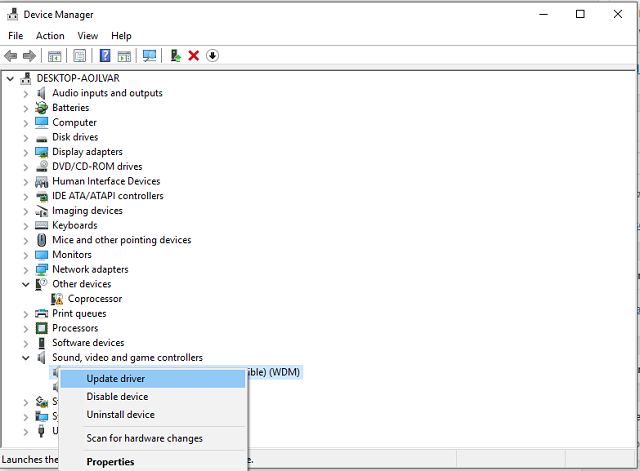
  2. Once hardware is out of the equation, right-click the Start and open Device Manager.
  3. Navigate to Sound, video and game controllers.
  4. Right-click on all sound-related drivers and click ‘Update Driver’.
  5. After you’ve acquired latest drivers, right-click on the Volume icon in the Notification area and open Recording Devices.
  6. Now, click on your preferred microphone and Set as Default.
  7. Right-click microphone and open Properties.
  8. Test microphone and look at the green bar. If everything works as intended, it should rise when speaking.
  9. However, if the microphone is still not functioning, right-click default device and open Properties.
  10. Under Levels tab, volume up your microphone by dragging the slider to the right.
  11. Restart your PC.

If the microphone isn’t the problem, move on to the additional steps.

Reset Cortana with PowerShell

When it comes to advanced troubleshooting, you can either use PowerShell to re-register Cortana or the simplistic unofficial workaround trough registry.

If you’re not familiar with the resetting procedure via Windows PowerShell, follow the instructions below.

  1. In the Search Windows, type PowerShell. Right-click on Windows PowerShell and Run as Administrator.
  2. Type the following command and press Enter:
      •  Get-AppXPackage -AllUsers | Foreach {Add-AppxPackage -DisableDevelopmentMode -Register “$($_.InstallLocation)\AppXManifest.xml”}
  3. After the input procedure is finished, restart your PC and try out Cortana.

Fix Cortana trough registry

Moreover, you can make a simple registry tweak to resolve Cortana issues. According to some users, this proved as a most fruitful solution for a multitude of issues. Follow these instructions to perform this simple registry tweak:

  1. In the Search Windows bar, type regedit, right-click regedit and Run as Administrator.
  2. Navigate to HKEY_CURRENT_USER\SOFTWARE\Microsoft\Windows\CurrentVersion\Search.
  3. Change the BingSearchEnabled value from 0 to 1.
  4. Make sure all of the Cortana flags are set to 1 instead of 0.
  5. Restart PC and check out Cortana again.

Have in mind that reckless use of registry can create a lot of problems. So, just follow the instructions without any additional changes.

Reset PC with Recovery options

In the end, you can start from scratch. Since a clean reinstallation may be lengthy, you can try with the simple ”Reset this PC” option. You can preserve all of your files but, all installed apps and programs will be lost.

Follow these workarounds to reset your PC:

  1. Navigate to Settings.
  2. Open Update & Security.
  3. Click on Reset this PC.
  4. Click on Get Started.
  5. Choose the ‘Keep my files’ option and start the reinstallation procedure.

After everything is finished, your Cortana issues should be resolved.

Nonetheless, if you have any additional workarounds or questions regarding the subject, please be free to share them in the comments section.

RELATED STORIES YOU NEED TO CHECK OUT:

Wileyfox to release a new Windows 10 phone in August

While British phone maker Wileyfox is more popular for its CyanogenMod devices, the company has other plans to take on the enterprise market with Windows Phone. Wileyfox’s vice president of sales Andy Lee believes the Windows platform is better for security and so it is more suited for B2B than Android.

Wileyfox is planning to launch the Windows Phone in August 2017 through a network of partners in the UK and other European countries. For the record, the company has operations in 15 countries including France, Spain, Germany and the Netherlands.

Lee says:

“Increasingly people are screaming for costs to come down and want a good affordable device. If businesses are going to buy thousands of devices to kit out their work force, they need a good price point. That’s where we’re going to hit it out. Most firms can’t afford to spend £500 per device. But with us they can be assured quality and the right features. For example, courier companies can use it to scan products and save money which is of course what they want. That is the benefit of Windows and how it’s adaptable for B2B.”

Wileyfox will also manufacture a wide array of accessories for the smartphone. According to Lee, the OEM plans to manufacture chargers, headphones, and cases to ensure a bespoke experience for users. The company will produce the accessories in-house in China, with plans to release them in the second to third half of the year.

When the phone launches, Wileyfox aims to sell 2 million units in 2017 alone. At present, the phone is under review as part of the Global Certification Status certification process. In the past, Windows Phone gained traction in the enterprise market. It now remains to be seen whether Wileyfox can accomplish the same success with its upcoming phone.

RELATED STORIES YOU NEED TO CHECK OUT:

Surface Pro 5 eyeing spring launch following Chinese certification

Microsoft initially planned to unveil the Surface Pro 5 and Surface Book 2 at an event this month, but it did not happen anyway. Now the Surface Pro 5 seems to be launching in the spring of 2017, if a leaked Chinese certification is any indication.

The China Compulsory Certificate, which maintains the safety of products imported and sold in the country, recently certified the new Surface Pro device. Reports even suggest the Surface Pro 5 is ripe now to hit the market. However, no further details are revealed in the leaked certification.

The specs and features for the upcoming Surface Pro product remain scanty, but it won’t be long before we learn about the details. While it is possible the launch of the next Surface Pro could take place later this month, May is also a potential window for debut since Microsoft will also hold the Build Developer Conference next month.

So far, the latest rumors indicate that the Surface Pro 5 will include the Intel Kaby Lake processor. In terms of design, the device won’t be bringing anything new to the table, save for an improved display and software features. A USB-C support will also be a no-show in the upcoming Surface Pro.

As for the second-generation Surface Book, debut for the device might be delayed as Microsoft appears to be needing more time to complete work for it. So instead of launching alongside the Surface Pro 5, the next Surface Book could see the light of day in the fall of 2017.

Are you eager to get your hands on any of these devices? Let us know.

RELATED STORIES YOU NEED TO CHECK OUT:

Users report that Windows 10 Creators Update slows down PCs

The new Windows 10 Creators Update is supposed to improve PC performance and deliver a faster, more reliable Windows 10 experience. Unfortunately, many users who upgraded to Windows 10 Creators Update are dealing with a series of issues that make their computers anything but fast and reliable.

There are multiple problems that appeared unexpectedly after months of test and optimization. Getting back to the matter at hand, it seems that some users are dealing with very sluggish PCs after they’ve updated to the Creators Update.

Sumit Gupta130, a Microsoft forum user, has decided to search for help online, wishing to know how to get rid of their annoying problem. Here is what happened to Sumit after updating to the Creators Edition.

Today i installed windows 10 creators update and it got installed without any issue. But after installing i m experiencing performance problems. Even some basic apps and video players are lagging very much.

And also i deleted my previous windows installation files so i can’t go back now. PLz help and tell me way to increase performance or tell me a way to roll back to previous build without deleting any data.

Also i have tried all the basic ways to increase performance  like deleting temp files, disabling effects , etc. So please don’t waste time in suggesting all those methods.

If you’re experiencing a similar issues, try using one of these Windows 10 PC optimization software. These tools can really make your PC snappier. Of course, you can also roll back to a previous Windows 10 version, while waiting for a quick fix for this Creators Update problem.

If you want to recover your previous build, follow these steps:

  1. Go to Settings > click Update and Security.
  2. Choose Recovery > Select Get Started under Go Back > follow the on-screen instructions.

Have you upgraded your PC to Windows 10 Creators Update? Is your computer slower now?

RELATED STORIES TO CHECK OUT:

How to set Microsoft Edge to read your eBooks aloud

The fact that most of us use our PC and mobile browsers to read e-books shouldn’t come as a surprise. The Creators Update brought access to a native eBook store, allowing you to purchase and store your favorite eBooks. And now, the newest build of the update immerses users into a greater reading experience through Microsoft Edge’s ability to read eBooks out loud.

To do so, open an eBook and press the Read aloud button. You’ll find it located at the top-right corner of Edge. Even cooler, under Voices, you’ll find a few accents you can choose from. Each one also has enhanced quality version.

When you enable this feature, you’re going to be able to see the vital text of the article, its headline, and pictures. You’ll have the option of changing background color and the font size. This will turn out to be pretty useful if you’re one of those reading-in-the-dark enthusiasts.

Here are the steps to make Microsoft Edge read to you:

  • Launch Microsoft Edge and press the Hub button.
  • Click the Books button and then press Read aloud. Once the action is confirmed, a nice voice will immediately start reading.

You have more options available while it reads, such as pausing, playing or switching to an earlier paragraph or to the next one. You can also change the reader’s speed from the same Voice button.

If you decide to restore original settings, press the dropdown arrow beneath the Voice button, click a voice, and hit the blue X. You’ll return to the original settings for the reading.

Give it a try and enjoy!

RELATED STORIES TO CHECK OUT:

Microsoft to hold Digital Difference media event in NYC on April 26th

Announced today in an email, Microsoft is set to hold a Digital Difference media event in NYC on April 26th. Featuring great dialogue and insights around advancements in several major areas, including health, retail, transportation, robotics, sports fan engagement and consumer goods, the event will highlight an array of global companies and digital start-ups, sharing how they are using technology to create new business models and products.

Judson Althoff, Executive Vice President at Microsoft, and Abbie Lundberg, a researcher at Harvard Business Review (HBR), will speak at the event. Planned discussions include how industries and organizations are being transformed not just in the way they operate, but in the impact that they have across the globe. We’ll be attending, so be sure to keep it tuned to OnMSFT for all the details as it unfolds live in New York City.

How to Free Up Space Using Auto Recycle Bin Cleaning in the Creators Update

You can never have enough ways of cleaning useless files from your Windows device. If you own a smaller hard drive, you’re probably familiar with the annoyance of regularly having to manage low disk space.

Whether you use Windows’ built-in tools or other popular repair tools, the task of cleaning old files always needs to be done manually unless you previously paid for premium software.

Now, this won’t have to happen anymore: Microsoft has added a new feature to Windows 10 with the Creators Update that allows you to save a small amount of disk space on your PC by automatically cleaning your Recycle Bin and removing temporary files not being used by apps you have already installed.

Follow these steps in order to enable this cool feature:

  1. Open Setting and go to the System.
  2. Once you’re in the System settings, open the Storage page from the sidebar.
  3. You’ll then see a toggle to enable the feature just under Storage Sense.
  4. Enable it and then click on Change how we free up space line below the toggle.
  5. You’ll be taken to another page with even more settings for Storage Sense. Here, you’ll be able to prevent it from deleting files that are being stored in your Recycle Bin for more than 30 days. You can also stop deleting temporary files that haven’t been used by your apps.
  6. You’ll also see a handy button for manually freeing up space whenever you need it.

You won’t be able to save tons of space with the help of this new feature, but you’ll still get to enjoy a small amount of extra disk space.

Color blindness software for Windows PCs

Color blindness is a visual impairment that restricts color vision. Thus, colors aren’t entirely clear for color blind software users. There isn’t much in the way of color blindness software for Windows that can assist users. However, these are a few Windows programs that color blind users can modify VDU display colors with as required.

Best color blindness software for PC

Visolve


Visolve is one freeware program for Windows, Mac OS X and iPhone platforms that transforms VDU display colors to enhance color perception. This software enables users to open a Visolve Deflector window frame that captures a portion of the desktop behind it. Then you can apply color Red-Green, Blue-Yellow or Increase saturation color transformations to the region captured within the frame. In addition, it comes with a toolbar that enables you to make color adjustments while browsing with Internet Explorer. The software also adds that toolbar to the taskbar so you can apply color configurations to the full desktop. This page on the publisher’s website shows you how the software adjusts display colors.


WhatColor

WhatColor is freeware software for Windows 10, 8 and 7 that enables users to identify colors by selecting pixels. The program magnifies an area around your cursor from which you can select some pixels to identify. The program will then tell you what the color of the pixel selected is and provide an RGB value for it. As such, this can come in handy if color blind users need to refer to colors in a document; or if another document or page refers to specific colors that might otherwise not be clear.


Sensible Colors – MantaDB Utilities

Sensible Colors is just one of the eight tools included with MantaDB Utilities for Internet Explorer, which is a freeware package you can add to Windows from this page. This enables users to remove all background images from website pages and converts text color to black on white background to enhance clarity. As Sensible Colors removes background images, it can also speed up browsing.


Color Enhancer


Color Enhancer is not exactly Windows software, but it’s a Chrome extension you can add to that browser from this web page. The extension adds a color filter to Google Chrome with which you can adjust page colors as required. To configure the colors, press the Color Enhancer button on the browser’s toolbar and select Set-up to open the filter shown in the snapshot directly below. Then you can select one of the rows and drag the bar slider to configure page colors.

Those are a few programs and tools that can assist color blind software users. They enable users to adjust VDU display colors as required to enhance software window and web page clarity.

RELATED STORIES YOU NEED TO CHECK OUT:

Microsoft rolls out its last Windows Vista updates, download them now

Windows Vista currently has a total market share of 0.72%. Most likely, more and more Vista users will upgrade their computers in the near future as Microsoft just ended support for the OS. We’re sure that for many users this fact constitutes a good enough incentive to upgrade.

In other words, the Redmond giant will no longer release security patches, non-security updates, or any other kind of support for Vista.

Microsoft has provided support for Windows Vista for the past 10 years, but the time has come for us, along with our hardware and software partners, to invest our resources towards more recent technologies so that we can continue to deliver great new experiences.

The company rolled out the very last Windows Vista updates this Patch Tuesday. More specifically, Microsoft pushed 12 dedicated updates to this OS version.

Windows Vista Updates

  • KB4014652: Security update for the libjpeg information disclosure vulnerability in Windows Vista
  • KB4014793: Security update for the Microsoft Office remote code execution vulnerability
  • KB4014794: Security update for the libjpeg information disclosure vulnerability in Windows Vista and Windows Server 2008
  • KB4015067: Security update for the scripting engine memory corruption vulnerability in Windows Vista and Windows Server 2008
  • KB4015068: Security update for the LDAP elevation of privilege vulnerability in Windows Vista and Windows Server 2008
  • KB4015195: Security update for the Win32k information disclosure vulnerability in Windows Vista and Windows Server 2008
  • KB4015380: Security update for the ATMFD.dll information disclosure vulnerability in Windows Vista and Windows Server 2008
  • KB4015383: Security update for the libjpeg information disclosure vulnerability in Windows Vista and Windows Server 2008
  • KB4017018: Security update for Microsoft Graphics Component
  • KB4016754: This update includes a fix for an incorrect device driver (“Microsoft – WPD – 2/22/2016 12:00:00 AM – 5.2.5326.4762”) that was released by a third-party on March 8, 2017 that affected a small group of users with USB connected phones or other media devices that rely on Media Transfer Protocol
  • KB3217877: Fixed the issue when you use the fread() function to read data from a pipe in Windows Vista Service Pack 2, and the runtime program may omit line feed (LF) characters between lines and cause corrupted output.
  • KB4012864: DST changes in Windows for Northern Cypress, Mongolia, and Russian Saratov region.

You can install these updates through Windows Update.

Are you still running Windows Vista? Are you planning to upgrade your computer to the latest Windows OS version?

RELATED STORIES YOU NEED TO CHECK OUT:

Microsoft has now started to block Windows 7/8.1 updates on PCs with recent processors

Last month, we reported that Microsoft might soon block Windows 7/8.1 updates on PCs with Intel’s Kaby Lake or AMD’s Ryzen processors. That’s right, Microsoft now claims that “new processor generations require the latest Windows version for support,” meaning that Windows 10 would soon be pretty much the only way to go for PCs with recent processors.

According to Ars Technica, Microsoft has finally started to enforce this new support policy this month. It’s still possible to install Windows 7 or Windows 8.1 on a PC with the latest processors from Intel or AMD, but you won’t get optimized drivers for the new processors, and worse, you also won’t be able to install Windows updates, including critical security updates.

Microsoft ended sales of Windows 7 and Windows 8.1 licenses to PC OEMs last October, and the company also stopped selling Windows 7 and Windows 8.1 licenses to consumers back in October 2013 and September 2015, respectively. This new support policy seems consistent with this state of affairs, and Microsoft is all about Windows 10 these days. However, it’s worth reminding that both Windows 7 and Windows 8.1 will continue to fully support Intel’s older 6th gen Skylake processors until 2018.

Will you be affected by this new support policy, and do you understand why Microsoft is enforcing it? Let us know your thoughts in the comments below.

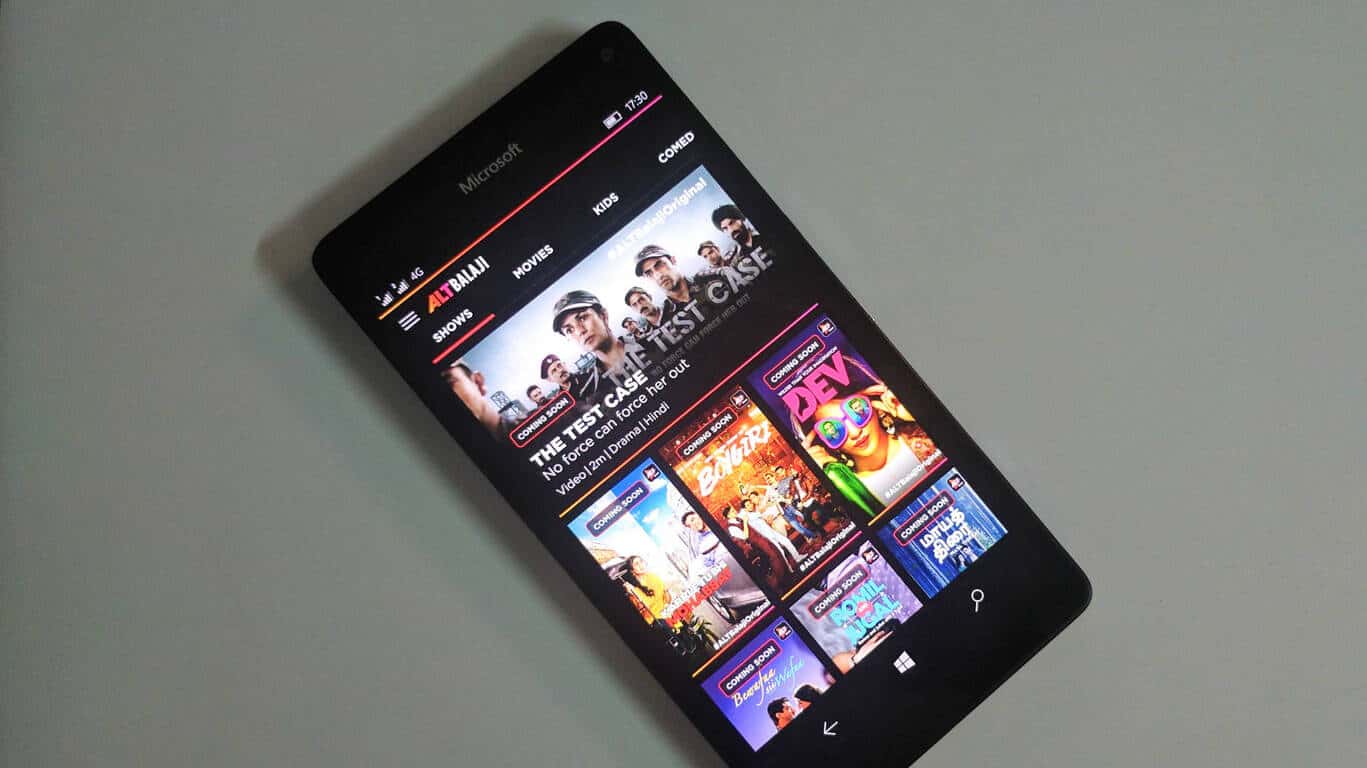
Latest video on-demand service from India, ALTBalaji, launches universal Windows 10 app

ALTBalaji, a subsidiary of Balaji Telefilms, India’s leading television and movie production company, recently launched a video on-demand service which is now available as a UWP app for both Windows 10 PCs as well as mobile.

ALTBalaji aims to focus on an alternative to mainstream Indian entertainment with original content along with a library of movies of TV shows. At the moment though, there’s limited content with much of the catalogue listed as ‘coming soon’.

While the app is free and available for Windows 10 PCs, tablets, and phones, you’d need to subscribe for premium content while a large portion of content will be available for free as well. The app will feature content in Hindi, English, and regional Indian languages.

While it is a crowded video streaming market with Netflix and Amazon Prime Video as well as local players like Hotstar, Voot, Eros Now, HOOQ, and Sony LIV, only Netflix and Hotstar have apps for Windows 10, and the latter is just a barebones, web wrapper app. So, Windows users might just welcome ALTBalaji if it manages to offer diverse and interesting content.

The app has a dark UI with seamless navigation. It works quite well, and the streaming too is pretty good. The app also offers parental controls to ensure your kids watch age-appropriate stuff. Give it a whirl, and let us know how you like it. Download the ALTBalaji app from Windows Store here.

Xbox One’s Neo Geo library grows even bigger with Sengoku 2

The Xbox One’s Neo Geo game library has grown even larger today with the arrival of Sengoku 2 on the console. Like the other recently added Neo Geo games, Sengoku 2 has also been given arcade display settings as well as an online leaderboard for players to compete on. Here’s the official game description:

Sengoku 2 is a side scrolling action game released by SNK in 1993. Take on the role of a warrior summoned by a shrine princess, and fight over various historical periods in order to defeat the dark monarch. Players can enjoy new tactical features such as charge attacks and defensive abilities. The “ACA NEOGEO” series has faithfully reproduced many classic NEOGEO masterpieces. Players can change various game settings such as game difficulty, and also reproduce the atmosphere of arcade display settings at that time. Players can also compete against each other from all over the world with their high scores. Please enjoy the masterpiece that built a generation for video games.

Buy Sengoku 2 on Xbox One

Have you played any of the Neo Geo games on Xbox One yet? Let us know which ones in the comments below.

Xbox E3 website updates, pushes Beam as viewing option

Microsoft has updated their special Xbox E3 Briefing page on the Xbox website with the show’s date and time (Sunday, June 11th, 2:00 pm PDT), a link to add the event to a calendar and direct links for where to view the livestream on YouTube, Facebook, Twitch, and Twitter and icons suggesting that it can be watched on Xbox.com and the Xbox One console.

The company’s preferred method for watching their livestream though is via Beam which has been given both a large graphic on the page and a giant header saying, “Watch on Beam”. Microsoft purchased the Beam streaming service in late-2016 and has recently integrated it into both the Xbox One software and Windows 10 devices. It makes sense that they’d want to encourage more people to use it. Whether Microsoft can get people to choose it over the other more-popular services though remains to be seen.

Which service will you be using to watch the presentation? Let us know in the comments below.

Windows 7 KB4015546 patches many OS vulnerabilities, download it now

This month’s Patch Tuesday was probably one of the busiest ones in Microsoft’s history. Besides regular security and non-security updates, Microsoft also publically released the third major update for Windows 10, Creators Update, and ended support for Windows Vista.

Among other security updates, Microsoft released the new security update for Windows 7 dubbed KB4015546. This update is available to all eligible users of Windows 7 right now, and resolves some of the known vulnerabilities in the system.

More precisely, security update KB4015546 resolves vulnerabilities in the scripting engine, Hyper-V, libjpeg image-processing library, Adobe Type Manager Font Driver, Win32K, Microsoft Outlook, Internet Explorer, Graphics Component, Windows kernel-mode drivers and Lightweight Directory Access Protocol.

Additionally, this update also “enables detection of processor generation and hardware support status when PC tries to scan or download updates through Windows Update.”

If you still haven’t installed the new security update for Windows 7, you can obtain it through Windows Update.

Besides KB4015546, Microsoft released a handful of other security updates for all supported versions of Windows. Of course, the main focus was on Windows 10, as the company’s latest operating system received the most security updates, non-security updates, and other patches. And of course, the new major update.

For what we know, you should install security update KB4015546 without any problems, as there are no issue reports yet. However, if you encounter some issues while or upon installing this security update, feel free to let us know in the comments below.

RELATED STORIES YOU NEED TO CHECK OUT:

Windows 10 Creators Update security features: Everything you need to know

As promised, Microsoft is adding a new centralized portal called the Windows Security Center to Windows 10 as part of the Creators Update. The new security feature allows IT admins to monitor and respond to various security issues thanks to a link to the Office 365 Advanced Threat Protection. This security feature includes an integrated method to let security departments track threats across endpoints and emails. Microsoft also plans to broaden the scope of the Windows Defender ATP sensors so that they can detect persistent threats within memory or at the kernel level. That means IT security experts will be able to keep track of loaded drivers, in-memory activities, and in-memory modifications that signify potential kernel exploits.

Microsoft explains in detail the Windows Security Center:

The Windows Defender Security Center offers a single dashboard display so you can control your security options from one place – everything from anti-virus, network, and firewall protection; to assessing your device performance and health; to security controls for your apps and browser; to family safety options. For our enterprise customers using the Windows Defender Advanced Threat Protection (ATP) service, the centralized portal first delivered in the Anniversary Update called the Windows Security Center will link to Office 365 Advanced Threat Protection, via the Microsoft Intelligent Security Graph, to allow IT administrators to easily follow an attack across endpoints and email in a seamless and integrated way.

IT admins can also inject their own intelligence into the Windows Security Center to raise alerts on activities according to various compromise indicators. They can then isolate machines or block files to help resolve critical security issues within a shorter span of time.

RELATED STORIES YOU NEED TO CHECK OUT:

Microsoft to hold free online Data Amp event, demonstrate data innovation

Want to learn a thing or two about machine learning? Want to do it for free? Next Wednesday, you’ll get your chance. Microsoft Executive VP Scott Guthrie and Corporate VP Joseph Sirosh will be hosting Data Amp on April 19th, a free online event geared towards teaching people about data, intelligence, and analytics.

The event will take place at 8 am PT, and promises to be an educational time for anyone who’s interested in the whole machine learning scene. It also promises to be something of a showcase for the future of SQL Server, so fans of that service will probably want to tune in to see what direction it’s headed in.

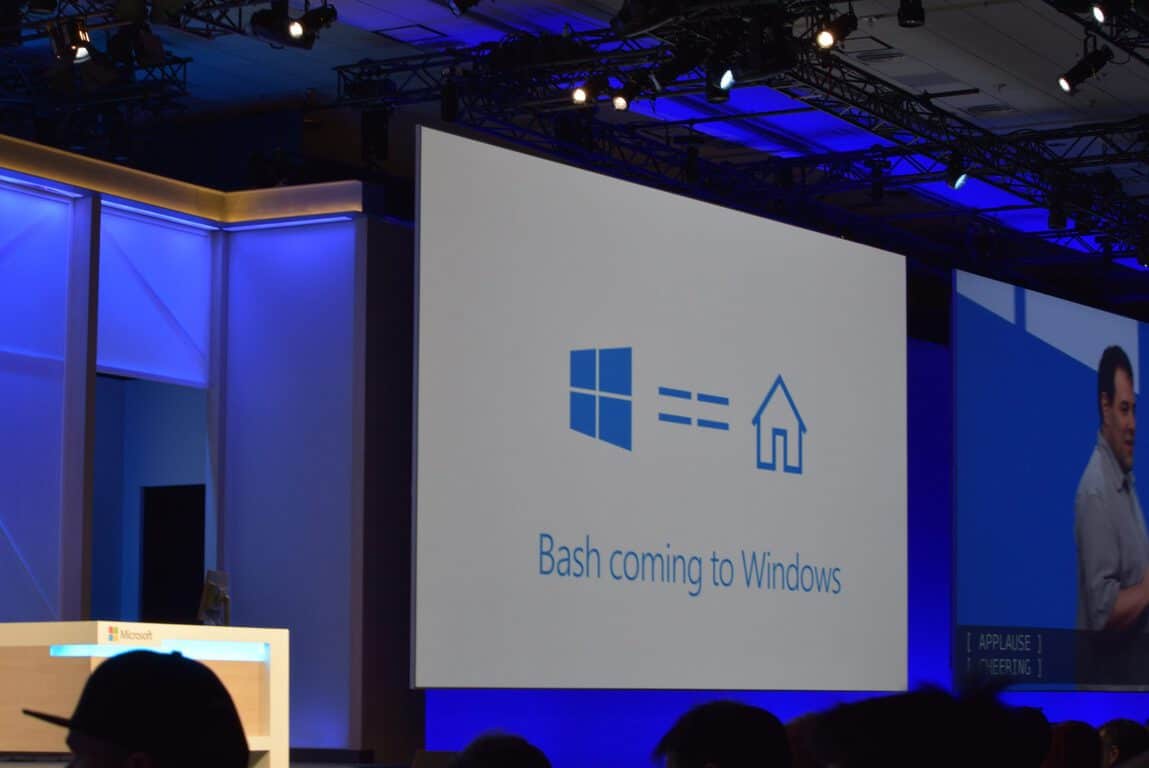
Windows 10 Creators Update brings new Bash/Windows Subsystem features

The Windows 10 Creators Update is now firmly in our hands, having started its deployment earlier this week. The update has plenty of new features, however, if you aren’t the creative type who would enjoy things like Beam streaming and 3D painting, it might not strike your fancy. But Microsoft’s Rich Turner might have something more interesting for you.

Bash/WSL – some additions that came to the Windows command-line family back during the Anniversary Update – now has a frankly overwhelming number of improvements that are shipping with the Creators Update.

Here’s a brief list of what’s new in the Creators Update:

  • More compatibility
  • Ubuntu 16.04 support
  • Ifconfig & network connection enumeration support
  • Ping & ICMP network support
  • File change notification support (INOTIFY)
  • Windows <-> Linux Interop
  • UNIX and Netlink Socket improvements
  • TCP socket & IPv6 improvements
  • Miscellaneous WSL Improvements
  • Windows Console & Command-Line Improvements

There’s a whole lot more in the blog post documenting the new update, including some in-depth explanations about each and every addition. This new update is massive for people who want to get started with bash, and most certainly proves that the team behind it has responded positively to a significant amount of feedback.

What’s more, the blog post ends by promising even more changes coming in the future. The dev team seems to have gone into overdrive with the launch of the Creators Update – we’ll see if they can keep up the pace going forward.

Yooka-Laylee issues: Game crashes, skipping music, and more

Yooka-Laylee is an open-world platformer that allows gamers to explore huge, beautiful worlds, and meet many funny characters in the vein of classic platformers like Banjo-Kazooie. Players can guide the game’s heroes through a variety of puzzles and challenges in their search for Pagies, the golden bounty that unlocks stunning new worlds.

Yooka-Laylee features oddball characters, hulking bosses, minecart challenges, arcade games, quiz shows, as well as quite a few bugs. In this article, we are going to list the most common Yooka-Laylee issues reported by players.

Yooka-Laylee Game Bugs

  • Music skips

For some reason after a bit of playing the music starts to skip, i don’t know why
i am going to assume this is just some sort of coding bug, (hopefully this problem get’s fixed soon since this doesn’t happen in any other game i have played)

  • Yooka-Laylee randomly crashes

What the hell? I played 7 hours yesterday with no problems in the slightest. And now I start it up today and it crashes as soon as I collect a Pagie.
Then I restart the game and it just starts chugging and taking up 100% of my CPU. What happened?

  • Controller won’t work
Can’t use controller? If I have it plugged in it hangs at start menu, if I don’t have it plugged in it’s running normally. Anyone know of a fix?
  • FPS issues

Anyone else getting bad frame rate issues? Before you say it, no, it’s not my computer. I can run other game on max setings with no issues. Is there a fix? Is it being patched?

  • Yooka-Laylee won’t launch

Game is downloaded but won’t launch, says it will release at a future time? I […] have reloaded steam multiple times, have reinstalled game twice, have reset PC twice.

Have you played Yooka-Laylee? Did you experience any bugs?

RELATED STORIES YOU NEED TO CHECK OUT:

Throwback Thursday: Watch Bill Gates introduce Windows 3.1 in this 60 second clip

As we all must know by now, Windows 10 has been touted by Microsoft as the most secure and efficient operating system available. There’s no doubt by its users that Windows has become a more polished and efficient system. However, before there was Windows 10, 8, 7, Vista, and so on, there was Windows 3.1.

Originally released publicly in April 1992, Windows 3.1 follows 3.0 with improvements to the MS-DOS based platform. It has a good run until December 31, 2001, when support for the Windows 3.1 OS was retired.

Just in case you’ve forgotten (or have never seen) Windows 3.1, here is a video of Bill Gates himself to introduce it.

As the description of the video explains, this was the beginning of a 3-hour long tutorial on VHS. “In this video, you’re going to see the future: Windows,” the younger Gates promised in standard definition. But it looks like he wasn’t too far from the truth.

This week we are celebrating the rollout of Windows 10 Creators Update with the promise of Redstone 3 to come. Windows continues to lead over competitors as the most used operating system, and looks to be doing so for the foreseeable future.

How to enable MSN Weather’s Dark Theme

Windows Insiders in the Fast Ring are in for another treat from Microsoft: The software titan has rolled out a slew of fresh updates for the UWP MSN apps in the Windows Store, bumping up their software version to 4.20.933.0.

The update includes support for the dark theme in the MSN Weather app.

On top of the dark theme, users also have three other options, such as the white theme and the system’s theme of choice. The MSN News and the Sports apps have also received minor bug fixes.

Last year, Microsoft updated the MSN News, Sports and Money apps with the dark theme option.

The Weather app is currently the only MSN app that has an option for a transparent Live Tile. It is not clear when Microsoft plans to add Live Tile to the three other apps.

Microsoft has recently rolled up its sleeves in order to provide updates to a bevy of apps that ship with Windows 10 for Insiders.

Some apps, however, are not getting the same attention Microsoft is paying to other apps in terms of the dark theme consistency. So, it’s good to see the MSN Weather app receive the dark theme, even it is a tad late at that.

How to enable dark theme on MSN Weather

  1. Type Weather in the Start Search box to open the Weather app.
  2. Click the Settings icon located at the left bottom corner of the app.
  3. Under the General tab, you’ll see three options to change the theme:
    Light
    Dark
    Windows default
  4. Select Dark.

The latest update to the Weather app for Windows 10 PC and Mobile is now available to download from the Windows Store for Insiders on the Fast Ring.

RELATED STORIES YOU NEED TO CHECK OUT:

Xbox updates, inspired by fans, start rolling out to all users today

Microsoft is on a roll when it comes to their Xbox community. Yesterday, an Xbox One Insider discovered the self-service refund, which is turning out to be quite a hit with gamers. Today, Major Nelson announced that an update will be rolling out for Xbox One. But this isn’t just any update, many of the additions are highly fan-requested features.

The first in line are new features in the Profile and Activity Feed. Now users will be able to visit another person’s profile and select the “Join broadcast’ button to instantly jump into the stream. The Activity Feed is also seeing a bit of a rework, offering users the chance to hide individual posts or pin them at the top of the feed. Furthermore, posts are now able to be filtered according to game, Club, or friends making it easier to sift through the chaos.

It looks like Clubs and the LFG tools introduced last year are what really got the meat of the update though. Here is the list:

  • When you create an LFG post, as the owner you will be able to see new vetting cards that include hero stats from gamers interested in joining your party. Hero stats are contextual to the game you’re playing, showing you relevant stats like kill/death ratio, rank, or score.
  • Achievement hunters, this one is for you! You will be able to search LFG posts from the Achievements tab, related to the Achievement you’re trying to finish.
  • We’re adding the number of open LFG posts to the Game Hub and Club Hub headers.
    Have you made a successful LFG post that you want to create again? Now you can see previous LFG posts that you have created, participated or shown interest in, and can copy them to create new posts.
  • When creating an LFG post, see all the recent tags you’ve used and easily select them.
    Club owners and admins will be identified and labeled in their text posts to better help them stand out and manage their community.
  • Club owners and admins can pin a post at the top of their Club feed.

The update also rolls out with the long overdue Xbox One/Xbox 360 filter in My Games and Apps. Gone are the days when users had to scroll through lists of both generations of games, some of which including way too many titles in similarity.

It’s clear the Xbox team are striving to be the consumer-oriented model that drives gaming communities. No wonder Sony PS4 players are at an unrest. Maybe they could use a UserVoice forum?


FISA requests on par with previous reporting period, says Microsoft in latest transparency report

Microsoft today released their most recent biannual transparency reports on the Microsoft Transparency Hub. The reports which cover the Law Enforcement Requests Report, U.S. National Security Orders Report and Content Removal Requests Reports show that Law enforcement and FISA requests are on par with previous reporting periods.

Overall, the reports cover July to December 2016. According to Microsoft, the latest Content Removal Requests Report also details requests to remove content from governments, copyright holders and individuals subject to the European Union’s “Right to Be Forgotten” ruling. The company has also disclosed a National Security Letter (NSL) which was received from the Federal Bureau of Investigation (FBI) in 2014, that sought data belonging to a customer of the company’s consumer services. A few highlights, which were all selected by Microsoft, from the latest transparency report can be seen below.

  • During the latter half of 2016, Microsoft received a total number of 25,837 legal requests for customer information from law enforcement agencies. This brings the total number of requests from law enforcement for 2016 to 61,409, which is a decrease from 2015, when requests totaled 74,311.
  • A majority (71 percent) of the law enforcement demands Microsoft received during this period continued to come from a handful of countries, led by the U.S., United Kingdom, France and Germany.
  • For the latest Foreign Intelligence Surveillance Act (FISA) data reported (which is January – June 2016), Microsoft received 0-499 FISA orders seeking content disclosures affecting 12,000-12,499 accounts, compared to the 0-499 FISA orders seeking disclosure of content impacting 17,500-17,999 accounts reported for the previous period. We received 0-499 National Security Letters in the latest reporting period, which remains unchanged from the previous period.

Microsoft continues to believe that “transparency is essential to accountability and building trust in technology.” The company notes that they are “committed to upholding these principles in our practices and our reporting,” and invites you to visit this website to learn more about the transparency efforts.

Update:

Excel-like “KAYAK at Work” lets you book a vacation while appearing productive

With the warmer months finally arriving in our half of the globe, many people area plotting their vacations, maybe even when they shouldn’t be. According to a statement from KAYAK, the trip booking service, 57% of trip bookings are actually done mostly during the standard workday.

So KAYAK decided that they didn’t want anyone getting busted for not being productive while they are at work, thus their new spin-off site: KAYAK At Work. The site looks similar to a Microsoft Excel spreadsheet to give an illusion of actually doing work instead of booking a trip.

“We created KAYAK At Work to help people search for travel, something they’re already doing at the office, covertly while also looking more productive while doing it,” David Solomito, vice president of KAYAK’s North America marketing, told the Observer.

The page offers very basic search functions to plan your next trip. Even the results fit in with the basic Excel mask that is properly titled as the “Travel Problem Solved Report.”

While it’s not very convincing up close and personal, KAYAK at Work might fool some of your neighboring cubicle companions that you are working. Interestingly, the guy who built Windows Solitaire apparently had the same idea back in 1988, although Microsoft never implemented his “boss key.”

New Xbox game refund policy is an early hit with gamers, and Sony PS4 fans are jealous

The Xbox community was excited to learn yesterday that Microsoft would be bringing the ability for self-service refunds to Windows 10 and Xbox One digital purchases. This announcement has spread like wildfire across the gaming community, even in areas that you’d least expect.

In case you missed it, yesterday, an Xbox One Insider discovered that Microsoft will be implementing their own digital refund policy, letting users return most games with a specific list of criteria. Games that have been bought within 14 days, played for a maximum of two hours, and at least played once will be eligible. This consumer-based announcement tends to favor purchasing games to try them out and feeling safe enough to return them if it doesn’t meet standards. Of course, if it is abused, accounts will be blocked from using the service.

Now, the Xbox One announcement is now the top voted Reddit post of all time on the r/PS4 subforum. The request is aptly titled, “Let’s put the pressure on Sony to implement something like this as well.”

Micolash explains in the post that such a refund service would be a benefit for everyone involved.

This is the kind of forward thinking customer-centric thinking that helps all users. No dealing with customer service, no hassle, easy. Someone buys something on your account? Game is buggy or broken? Trailers really misleading? Simply refund the game (not season pass or DLC) yourself within 14 days as long as you haven’t played it for more than 2 hours.

Consumers of Sony PS4 have their own refund policy in which they are not allowed to download or try the game if they want a refund. With over 46.7 thousand upvotes within only twenty hours, it looks like the PS4 community is in unrest.

Some of the Reddit user responses are optimistic, hoping for the change in refund policy. “That would be a nice feature,” says one person on the top comment with over 3000 upvotes. Others seem to be settled that Sony won’t base their change off the Xbox One announcement. One devoted fan of Sony shared from their experience:

It would be, but it won’t happen. I’ve owned every home console Sony has ever put out and still have them all set up in my entertainment center (If I could get my hands on a black dev-kit PSX my entertainment center would be as black as an emo’s soul.) Sony has had some pretty abysmal policies with refunds, especially chargebacks (even when accidental.)

Many Xbox One Reddit users seem to be supporting the request made to Sony by PS4 users. As Todd2r puts it:

Honestly, this is a win for all gamers so I can see why it’s a hot topic over on the ps4 side. We are all gamers and just want to be treated fairly. Hopefully, Sony does the same thing, and I think they will, and they get it done soon for PlayStation gamers.

It’s worth noting that Xbox One isn’t the first to implement this service-friendly refund. Other digital markets such as Steam and Origin have similar self-service refunds with guidelines very close to these. The idea is that gamers will spend more money to try games they are on the fence about instead of not making the purchase at all.


Microsoft could soon be bypassing local power companies in Washington State, buying its own power

Microsoft is known for its powerful software, including both Powerpoint, and Power BI, but if the company has its way, it might soon be known for buying its own power as well. According to a new report from the Associated Press, Microsoft could soon bypass the local power companies in Washington State by buying its own power.

The AP report shows that thanks to a new deal with Puget Sound Energy, Microsoft will be able to buy its own power on the open market. Though the settlement must first be approved by the Washington Utilities and Transportation Commission, Microsoft first filed for the deal on Monday. The Redmond giant also expects that with this deal they would “provide more flexibility and enable it to support more carbon-free power in the state.”

Terms are not exactly clear, but the AP reports that Microsoft would pay a $23.6 million exit fee to PSE to ensure other ratepayers are not harmed by the move, ultimately making sure that the utility would return that money to customers.  Microsoft is also known for its commitment to clean energy and was recently awarded as NA Wind Deal of the Year. The company also revealed that it has plans to shift to 50% renewable energy use by 2018.

Head of Xbox Phil Spencer promises Project Scorpio unveiling at E3 in June

Project Scorpio, the latest gaming console for Microsoft, has been making a lot of headlines since Eurogamer finally revealed its full specs last week. Since then, we learned a lot of interesting details about Project Scorpio dev kits yesterday, but we’ve yet to see what the final product looks like, or what it will cost.

As it turns out, it seems that Microsoft won’t reveal the final Project Scorpio design in the press. Xbox head Phil Spencer announced today on Xbox Wire that “we’re excited to unveil Project Scorpio and the amazing game experiences it powers at E3 this June.” As a reminder, Microsoft will hold its much-anticipated media briefing on Sunday, June 11th at 2PM PDT and we’ll be there to cover it live.

“Ultimately, we know you care most about great games, whether they be exclusive, multiplatform, independent or AAA,” explained Spencer. “We are proud of the diverse lineup of games coming this year that will only be playable on Xbox One and will play better on Project Scorpio,” he added. It’s true that Project Scorpio will really need great games to get traction from consumers (and developers), and we hope that the Xbox team will bring its A game at E3 to delight Xbox fans .

Office Insiders on the Slow ring welcome Collaborative Editing in Excel

Users on the Office Insider Slow ring have just received several new features for their Microsoft Office apps with Build 17.8067. With this new build of the Office apps on Windows Mobile, Insiders will now be able to insert links to files and websites in Excel, Word, and Powerpoint as well as collaborate on files in Excel. Excel has also been given added support for files that contain ink.

The Office apps on Android have also updated to Build 16.0.8027.1002 with the same updates as Windows Mobile.

Collaborative Editing essentially allows for more than one user to work on a single document at the same time with all changes being synced through the cloud. “You and your colleagues can open and work on the same Excel workbook,” Microsoft explains. “This is called co-authoring. When you co-author, you can see each other’s changes quickly — in a matter of seconds. And with certain versions of Excel, you’ll see other people’s selections in different colors.”

Have you been waiting for Collaborative Editing? Let us know in the comments below.

How to install Windows 10 Creators Update from an ISO file

Windows 10 Creators Update is here, available to all eligible users. Of course, the most popular way to obtain the new update is through Windows Update. However, due to a couple of reasons, not everyone is able to get the Creators Update using this method.

If you’re among those who haven’t received the Creators Update yet, and you can’t wait to try it, there are a couple of alternative ways to install the new major update for Windows 10. We’ve already shown you how to download the update manually, but you can also do it directly from an ISO file.

Installing the Creators Update from an ISO file is also useful if you want to install it on another computer, without a reliable internet connection. So without any further ado, let’s see how to install the Creators Update for Windows 10 directly from an ISO file.

How to install Creators Update using an ISO file

As you’re just updating your system, and not installing the fresh copy, the whole process shouldn’t be so complicated. So, here’s exactly what you need to do:

  1. Before you start, make sure your computer meets minimum system requirements for the Creators Update
  2. Now, if you already have an ISO file, move on to step 7
  3. If you don’t have an ISO file, navigate to this page, and download the Media Creation tool for your version of the system
  4. Follow the on-screen instructions from the installation wizard to acquire the ISO file (Remember, don’t select “Upgrade now“)
  5. Wait for the tool to download the ISO file
  6. Once you’ve obtained the ISO file, move it to another computer by using a flash drive, or any other media
  7. Now, just open the ISO file, and the update process will start
  8. Wait while setup is initialized
  9. Select Download and install updates, and click Next
  10. Choose what files and settings you want to keep, and follow further on-screen instructions
  11. Wait for the update to install
  12. Once the process is done, your computer will automatically restart, and lead you through final finishing steps

There you go, after the installation is done, you’ll have the fresh Windows 10 Creators Update installed on your computer.

If you have any comments or questions, let us know in the comments below.

RELATED STORIES YOU NEED TO CHECK OUT:

Windows 10 KB4015217 bugs: Install fails, black screen issues, and more

Microsoft rolled out cumulative update KB4015217 for the Windows 10 Anniversary Update on Patch Tuesday, bringing a long list of bug fixes and improvements for various areas of the OS.

As expected, KB4015217 also brings issues of its own. In this article, we’re going to list the most common KB4015217 bugs reported by users, as well as their corresponding workarounds, if available.

Frequent KB4015217 issues

KB4015217 won’t install

Many Windows 10 users are still struggling to install KB4015217 on their computers. For some users, the install process gets stuck at a certain percentage (usually at 95%), while for others it stops with an error code.

Hi, I am also having a problem installing Cumulative Update for Windows 10 Version 1607 for x64-based Systems (KB4015217). It failed with an error message which I failed to note and have tried again but it has stuck on 95% again.

I will note the error if it appears this time ! The other updates have installed OK. Not had a problem before but the last update took an age to install.

The good news is that the update install process continues in the background. Many users have confirmed that KB4015217 apparently remains stuck at 95% for around two hours, but eventually installs.

Sound issues

Users reported that KB4015217 also causes various sound issues. If you’re experiencing sound issues after installing this update, use the workarounds listed in our dedicated article on how to fix sound problems on PC to fix them.

Windows 10 is slow

If your OS is slower than usually, you’re not the only one to have experienced such issues. Users report that Windows is much slower after they installed the Patch Tuesday updates: windows fade in and out slowly and menus take several seconds to appear.

Since then my computer is much slower, sound is choppy, even system sounds, window fade in slowly and fade out slowly when closed.
Programs are affected. Sub menus take several seconds to pop/slide out.

I went to advanced system settings and turned off all the visual effects. That helped a lot, but the sound is still choppy, and if I go to Start/Settings, windows still fade in slowly when opened and fade out slowly when closed.

Black screen

Some users have also experienced black screen issues after installing KB4015217. This bug prevented them from actually using their computers for a while. The good news is that the black screen magically disappears in less than one hour.

I got it installed, and now I have nothing but black screens. It goes to the the welcome screen and shows my picture and a pretty picture in the background and then it goes to a black screen I have a cursor and it responds to krys from the keyboard at least control alt delete but I can do nothing except shut down, the computer is completely ruined.

These four bugs are the most frequent KB4015217 problems reported by users. If you’ve come across other issues, use the comment section below to tell us more about your experience.

RELATED STORIES YOU NEED TO CHECK OUT:

Unable to activate Windows 10 Creators Update [Fix]

Windows 10 Creators update is finally here, bringing with it improvements that serve to revitalize Windows 10’s most criticized features in software like its Edge browser. However, like previous major upgrades to Windows, we also get a fair share of issues. Even though the new version was tested with Insiders for a long time, a few problems have emerged after installation. It seems that an activation issue is one of them, with some users losing their license after the upgrade. To make things even worse, they were unable to activate Windows 10.

Luckily, we prepared a few workarounds so you can address this issue. So, if you have a hard time with the installation, these are the steps worth trying out.

How to resolve Creators Update activation issues

Use a digital license

As you’re probably aware, your activation license key is linked with your Microsoft Account. Moreover, you’ll be able to activate purchased Windows 10 in a few easy steps by logging with your Microsoft Account. So, if you’ve linked your Microsoft Account to your digital license, follow these instructions to activate Windows:

  1. Navigate to Settings.
  2. Open Update & Security.
  3. Click Activation.
  4. Under Add a Microsoft Account, click Add an Account.
  5. Enter your email and password and log in.
  6. Now your Windows 10 copy should be activated.

However, if you’re still experiencing an issue with the activation procedure, check the other solutions.

Troubleshoot the issue with the Activation Troubleshooter

If the digital license activation failed, you can run the Activation Troubleshooter within the Activation tab. This tool will check for activation conflicts and hopefully resolve them. This is the way to run it:

  1. Go to Settings.
  2. Open Update & Security.
  3. Click on Activation.
  4. Click on Troubleshooter.

This will start the procedure and the tool will look for your license. If the license is available, the system will be automatically activated after the process is finalized.

Disable 3rd-party antivirus

Another known culprit for the activation issue is an antivirus. Since Windows 10 offers Windows Defender, a built-in security solution, additional software can cause a conflict and prevent some of the essential parts of the Creators Update from downloading/installing, resulting in a loss of the license. So, before you check for updates, disable any third-party anti-malware software at least until the installation procedure is finished.

Moreover, you can disable both Windows Defender and Windows Firewall, as well. However, it’s highly advised to enable them again after you successfully install the Creators Update and activate it. Follow these instructions to disable Windows Defender and Windows Firewall:

  1. Open the Windows Defender from the Notification area.
  2. Click on Settings.
  3. Toggle off Real-time protection.
  4. Now, navigate to Control Panel.
  5. Click System and Security.
  6. Click on the Windows Firewall.
  7. Select Turn Windows Firewall on or off from the left side.
  8. Turn off Windows Firewall for both Private and Public networks and click OK.
  9. Try activating Windows again.

After you’ve disabled both features, any possible conflicts should be resolved. On the other hand, if you’re unable to activate Windows, check the steps below.

Install the appropriate edition

Make sure to install the appropriate edition of Windows 10 you’ve already purchased. Simply put, you can’t activate Windows 10 Enterprise if you own Home Edition. So, if you made a mistake and installed a wrong version, your only solution is to reinstall your system.

To check for details about the installed Windows Edition, follow these steps.

  1. Go to Settings.
  2. Open Update & Security.
  3. Click on Activation.
  4. You should see a detailed explanation about your Windows version, edition, and architecture.

Use the Command Prompt to force the activation

If the standard troubleshooting procedures were not successful, you can use the Command Prompt to reset and force the activation process. This is the procedure you should follow:

  1. Right-click Start and run Command Prompt (Admin).
  2. In the command line, type the following command and press Enter:
      • SLMGR.VBS –REARM
  3. Now, restart your PC, insert your Activation key (Settings > Update & Security > Activation) and open Command Prompt (Admin) again.
  4. In the command line, type the following command and press Enter:
      • SLMGR.VBS –ATO
  5. Restart your PC again. That should resolve your issue.

However, if you’re unable to insert your license key in a standard way, you can use the Command Prompt to force the process:

  1. Right-click Start and open the Command Prompt (Admin).
  2. Type the following command in the command line and press Enter.
      • SLMGR.VBS -IPK XXXX-XXXX-XXXX-XXXX
  3. Instead of XXXX-XXXX-XXXX-XXXX insert your license key.
  4. Restart your PC and check if the procedure has resolved your issues.

Perform a clean install with the Media Creation Tool

At the end, if all of the workarounds above were unsuccessful, your best bet is to perform a clean reinstall. In order to do so, you’ll need the Media Creation Tool that can be obtained here. Additionally, you’ll need a USB or DVD for ISO file of the Windows Setup.

If you have any remarks or questions about your activation or if the activation problem is still there, let us know in the comment section below. 

RELATED STORIES YOU NEED TO CHECK OUT: