Age of Empires 4 is the fourth game in the very popular series, and it definitely refined the real-time strategy genre to a new peak.
However, no recently launched game is bugproof and Age of Empires 4 is not the exception you were hoping for.
If Age of Empires 4 is not working or keeps crashing on your PC, we’re here to give you a few solutions to fix these problems as quickly as possible and get you back to gaming.
What are the Age of Empires 4 system requirements?
Let’s start with the basics because the most common cause of game crashes and malfunctioning is not meeting the minimum system requirements or just barely touching them.
So, you can confront your configuration with the table of system requirements provided by the developer and see if your PC can handle the game or you need an upgrade.
System requirements
Minimum
Recommended
OS:
Windows 10 64bit or Windows 11 64bit
Windows 10 64bit or Windows 11 64bit
CPU:
Intel Core i5-6300U or AMD Ryzen 5 2400G | CPU with AVX support
3.6 GHz 6-core (Intel i5) or AMD Ryzen 5 1600 | CPU with AVX support
Memory:
8 GB RAM
16 GB RAM
Graphics:
Intel HD 520 or AMD Radeon RX Vega 11
Nvidia GeForce 970 GPU or AMD Radeon RX 570 GPU with 4GB of VRAM
DirectX:
Version 12
Version 12
Storage:
50 GB available space
50 GB available space
The alternative is to go to a checking website like Can You RUN it and there you will be able to install a small app that automatically looks into your system and crosschecks them with the requirements.
For instance, our PC was disqualified for not having enough storage space, and although the integrated GPU met the minimum requirements, we strongly recommend running the game on a PC with a discrete graphics card.
If your PC passed the needed requirements, we can start tackling the problems that prevent you from playing the game properly.
How can I fix Age of Empires 4 if it’s not working?
1. Update the graphics driver
Right-click the Start button and select Device Manager from the list.
Click on the Display adapters section to expand it, then right-click on the component, and select Update driver.
Select Search automatically for drivers.
If the system finds a new driver, it will install it and you will need to restart your PC. If it doesn’t, you can click on Search for updated drivers on Windows Update.
You will be taken to the Windows Update section where you can click on the Check for updates button.
If there aren’t any new ones, click on View optional updates.
Click the Driver updates section to expand it, then check if there are any updates related to your graphics card, click their box, and hit the Download and install button below.
If you want sure you didn’t miss any new drivers, you can also go to the manufacturer’s website and download the driver from their support page.
For automatic scans of missing or outdated drivers, we recommend using a dedicated tool such as Outbyte Driver Updater.
2. Check the integrity of the game files
Open Steam and click on the Library tab.
Right click on Age of Empires 4 and select Properties.
Select LOCAL FILES from the left, then click on Verify integrity of game files…
The app will detect if there are any problems and attempt to fix them.
Right click on Age of Empires 4 and select Properties.
Select GENERAL from the left menu, then uncheck the fox for Enable the Steam overlay while in-game.
4. Temporarily disable the antivirus
Click the Start button, type security, and select Windows Security from the results.
Choose Virus & threat protection.
If you don’t have a third-party antivirus, in the next window click on Manage settings and turn off protection for Windows Defender. If you do, click on Open app and turn off your third-party antivirus from its settings.
For instance, in Bitdefender, you can deactivate protection from it’s Advance settings menu.
Check if the game runs fine after disabling the antivirus. If that doesn’t work, uninstall your antivirus temporarily because it may block your updates.
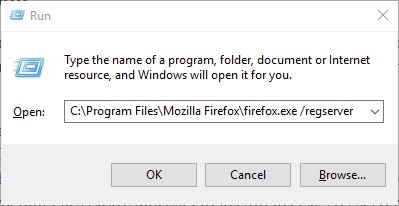
Press the Windows key + R to open Run, type msconfig.msc, and click OK to openSystem Configuration.
Open the Services tab and check theHide all Microsoft Servicesbox.
Click the Disable All button. This will disable all the non-essential and third-party services.
In the System Configuration window, click Apply and OK to save the changes.
Next, right-click on the taskbar and select Task Manager.
In the Task Manager Window, open the Startup tab.
Right click on the apps one by one and select Disable, then close Task Manager.
Restart your PC.
After the restart, your computer should run smoother and faster and if any process was interfering with the game it’s now gone.
6. Uninstall and reinstall your game
Click the Start button and select Settings.
Now select the Apps section.
Select Age of Empires 4 from the list and click on Uninstall.
Now install the game from your kit or redownload it from Steam.
If you have made any progress in the game, don’t forget to back up your saved games before uninstalling.
How do I stop my game from crashing?
There are a lot of reasons why a game is not loading or crashes unexpectedly but it’s mostly due to some bugs or lack of resources.
That’s why you can take a few precautionary measures that you can undertake before starting the game.
➡ Keep your game updated
Especially when it comes to new games, the developers issue a lot of patches to fix possible glitches so make sure you update is as often as possible.
Verify that you have the Always keep this game updated feature checked. It is activated by default but you never know what might happen.
➡ Close any unnecessary background apps
We already showed you above how you can get rid of startup apps and unnecessary services but you also stop any other tasks and apps from running in the background.
You can do that from Task Manager. Just identify the processes you don’t need and select End Task to stop them.
➡ Make sure you have enough space
Storage space is the worst enemy of a game. So, when is the last time how much space you have left on your drive?
Just press the Windows key + E to start File Explorer and look at the drive where you stored the game. It’s always reassuring to see that you have at least a couple of GBs left.
Age of Empires 4 is a great strategy game but if it keeps crashing or it’s not loading at all, this can ruin your day.
We hope that our guide helped you fix any Age of Empires 4 issues that might prevent it from running properly on your PC.
The Age of Empires franchise, one of the most highly rated strategy games, is here with Age of Empires 4. And this one certainly does offer a lot, both in terms of content and graphics. However, certain users have reported that they can’t change graphics settings in Age of Empires 4.
In this case, whenever they try to make changes to the graphics settings, the screen either went black or the game crashed.
While some had issues with the system’s graphics settings or driver issues, others found compatibility or the app setting itself to be the culprit.
In a bid to bring forth the best solutions, we went through a lot of forums where users have posted about this and other similar issues.
And, in the following sections, we have listed the most effective solutions in case you are unable to change the graphics settings in Age of Empires 4.
What are the minimum system requirements for Age of Empires 4?
Ever since the release of Age of Empires 4, fans have been nothing but thrilled and eager to check if their PC can run the game. You can find that out from our guide that details the system requirements for Age of Empires 4.
Also, it’s recommended that your computer at least meets the minimum requirements, if not the recommended one. This will ensure that you don’t run into errors while playing the game, similar to the one we discussed here.
What can I do if I can’t change the graphics settings in Age of Empires 4?
1. Restart the PC
Navigate to the desktop and press Alt + F4 to launch the Shut Down Windows box.
Click on the dropdown menu and select Restart from the list of options that appear.
Click on OK to restart Windows.
If it’s a bug that’s preventing you from changing the graphics settings in Age of Empires 4, a simple restart would fix the issue. When you reboot the system, the OS is reloaded and any temporary bugs are eliminated, thereby solving the problem.
2. Edit Age of Empires 4 game files
Press Windows + E to launch File Explorer.
Navigate the following path or paste it in the address bar at the top and hit Enter:Documents\My Games\Age of Empires 4\Users\NewProfile3.xml
You can use Notepad++ or any other XML editor to make the changes here.
Now, locate the line with optiongrfxres and replace it with this:<Setting Name="optiongrfxres">1920 x 1080</Setting>
Save the changes, and it should reflect in the game.
Apart from the resolution settings we set here, you can check for the other available options in the dropdown menu for the same, and use them as well. Just replace the resolution value in the above line and the graphics settings in Age of Empires 4 would be changed.
3. Change Age of Empires 4 compatibility mode
Press Windows + E to Launch the File Explorer, as you did earlier.
Navigate to the same path that you did in the last fix to open the XML file:\Documents\My Games\Age of Empires 4\Users\NewProfile3.xml
This time, instead of changing the resolution, we will modify the compatibility mode.
Locate and delete this line in the XML file:<Setting Name="optiongrfxwindowmode">false</Setting>
Now, paste this instead:<Setting Name="optiongrfxwindowmode">true</Setting>
After changing the mode, you should now be able to make the desired changes in the game settings.
If the last fix didn’t work, you can try changing the compatibility mode in the XML file and see if it helps. Most users who couldn’t change graphics settings in Age of Empires 4 found this method helpful.
4. Update Windows 11
Press Windows + I to launch the Settings app.
Select Windows Update from the tabs listed in the navigation pane on the left.
Again, select the Windows Update option on the right.
Click on Check for updates to explore any available updates and download and install them.
If you are running an older version of Windows, chances are that it’s causing the problem when changing the graphics settings in Age of Empires 4. With each update, certain enhancements along with patches are released, and these could help fix the issue.
Another important feature for the effective functioning of Age of Empires 4 and other high-end games, is that you must have the latest version of DirectX installed.
And the best part, you will receive updates for it via Windows Update only. So go ahead and check if there’s a newer version available and download it.
5. Update graphics drivers
Right-click on the Start button or press Windows + X to launch the Quick Access menu, and select Device Manager from list of options.
Locate and double-click on Display Adapters to expand and view the devices under it.
Right-click on the graphics adapter and select Update driver from the context menu.
Click on Search automatically for drivers from the two options listed here. Windows will now search for the best available driver on your computer and install it.
In case you are running an outdated version of the graphics driver, it’s likely to cause a bunch of issues. These may range from problems while playing games to executing tasks on Windows.
If Windows is unable to find a better version on the system, you can try other ways to update the driver. After you have the latest driver installed, check if you can change the graphics settings in Age of Empires 4.
It’s also recommended to scan your PC with reputable third-party driver updater software. A third-party driver updater such as Outbyte Driver Updater is ideal in that regard.
6. Disable/uninstall conflicting apps
NOTE
You can disable an app from its built-in settings section. It’s recommended that you check its official website to find the procedure to disable the conflicting app. In case disabling it doesn’t work, follow the steps listed below to uninstall the app.
Press Windows + I to launch the Settings app.
Select the Apps tabs from the navigation pane on the left.
Click on Installed apps on the right.
Locate the app you want to remove, click on the ellipsis next to it, and select Uninstall from the list of options that appear.
Click Uninstall on the prompt that appears.
Certain apps are known to cause trouble with the functioning and while changing the graphics settings of Age of Empires 4. These could be third-party antiviruses or other similar apps.
An easy way to identify the app that’s causing the trouble is to recollect when you first encountered the error, and make a list of apps that were installed around the same time.
When you have a list ready, uninstall them one at a time and check if the problem is resolved and you can change the graphics settings.
Once you find out and uninstalled the app behind the issue, reinstall the others that were removed before it.
These are all the ways you can fix what’s preventing you from changing the graphics settings in Age of Empires 4. And, once the problem is resolved, you can choose the desired resolution and other settings for the finest gaming experience.
Tell us about your experience of the game and the fix that worked for you in the comments section below.
No matter if you work online or in an office, the interface with which you control your PC is of paramount importance, both when it comes to overall productivity, but also including your daily comfort.
The same principles apply even if you don’t use a PC for work, but dabble daily in browsing the internet and playing games.
Both of the consumer types mentioned above will benefit greatly from using a mouse that enables multitasking, but another important category includes people that run high-end gaming systems.
These systems will usually have a good mechanical keyboard that has a greatly reduced latency when it comes to inputs and provide more tactile feedback to the user.
Besides this, a good gaming rig will also feature a capable high-quality monitor to show off the gaming rigs’ capabilities.
In the latter case, accuracy, speed, and comfort become even more important, as every split second can be a matter of virtual life-and-death.
Indiferent of which of these categories apply to you, or which exact mix of them you use frequently, having a versatile and multitasking-capable mouse is of paramount importance.
How we chose the best mouse for multitasking
Our team of expert testers, with a combined experience of 15 years, has tackled a variety of testing tasks for any device you could imagine.
Their experience comes into play as a very important element when choosing the products we described in this guide, and a large variety of factors have been taken into consideration.
The options that have been chosen offer great quality and cover the entire spectrum of price ranges, thus enabling everybody to find something that fits their needs both financially and otherwise.
The MX Master 3 Advanced is one of the best mice on the market when it comes to multitasking, allowing you to easily use the set of buttons and scrolls to multitask on your PC.
This mouse works amazingly well both in a work environment, with lots of applications and documents opened simultaneously, but also performs very well in the gaming department.
What makes it stand out from the crowd besides its ergonomic design, is the fact that every button present on the mouse can be customized to fit your needs from the mouse’s software.
The upper scroll wheel allows incredibly precise and fast scrolling, which uses electromagnetic technology to achieve this result.
It can be connected to up to three devices at the same time, and the transition between them is performed seamlessly, while the powerful 4000DPI sensor ensures precise movements.
To round this device up perfectly, the mouse can be used both with a cable and without, by the means of the USB-C rechargeable port.
The Logitech MX Master is our next top pick when discussing mice capable of multi-tasking, and as you might have noticed already, it is the previous release of the model we chose in the 1st place.
These positions were chosen for a very good reason, with the MX Master series being some of the most appreciated mouses ever released.
Like the MX Master 3 Advanced, the MX Master is built with two scroll wheels – one at the top which allows incredibly fast scrolling speeds, and one next to the thumb area.
Added to this, the mouse also has 4 fully-customizable buttons, one at the top, two on the side (next to the thumb scroll), and one on the thumb resting place.
All these elements combined with easy-to-use software that allows you to customize the actions each of these buttons performs, the MX Master is fully deserving of the name of master when it comes to multitasking.
The G903 LIGHTSPEED from Logitech is our top pick when it comes to multitasking mice that are designed for gaming, offering you versatility, and an amazing futuristic design.
To ensure that you don’t have to stop your gaming session to plug the charger in, the mouse comes with the Powerplay wireless charging feature included, but you will have to buy the Powerplay charging system separately.
With an average response rate of 1ms, this device works perfectly for eSports, as virtually no lag is present.
The Hero 25K sensor mounted on this device can be upgraded completely free from the G Hub application, offering a 1:1 tracking, 400+ ips, and a maximum of 25.600 DPI.
As mentioned previously, even if it is designed for gaming, the customizable buttons allow you to also use it for everyday multitasking without issues.
As the name suggests, the MX Anywhere 3 from Logitech is a great compact mouse that can be used in any setting whatsoever.
This comfortable and useful mouse, even if it doesn’t look futuristic like the previously-mentioned models, provides some great features, and the price is acceptable in comparison.
Offering you access to customizable buttons, the same fast scrolling feature found in the MX Master options, and also a 4000DPI capability makes the MX Anywhere a worthy opponent to any other option.
The ultra-soft silicone side-grips ensure amazing comfort, the compact design makes it portable and easy to blend into any environment, and it also comes with USB-C quick charging, which ensures that a 1-minute charge makes it usable for 3 hours.
As the other MX devices we discussed, the MX Anywhere 3 also is a multi-device and multi-os mouse, and the switch can be easily performed by the tap of one button.
The G604 from Logitech, even though not as good as the powerful G903, offers some great features and also at a more affordable price.
This useful device ensures your multitasking needs are covered by the use of 15 fully-customizable buttons, which include 6 found in the thumb area.
Of course, these buttons come in very useful even when gaming, but using the G Hub software allows you full control.
The G604 Lightspeed features dual connectivity, which allows you to choose from Bluetooth, and also an ultra-fast Lightspeed tech that offers 1ms latency.
It also features a Hero 25K sensor which can be updated by using the same G Hub application, reaching 400+ ips, and allowing you to customize the DPI level, with a max value of 25.600.
The device doesn’t feature a rechargeable battery but can run on one single AA-type battery for 240 hours with Lightspeed mode, or up to 5 months by using Bluetooth connectivity.
Bottom runners
As our main list could not include more than 5 products, the bottom runners section will present you with some other very good options which are worth considering:
This device hasn’t made the list above for a simple reason – other options offered better features. But this mouse also offers some great features which are worth evaluating.
With an ergonomic shape, a 3-year battery life, and featuring the world-renowned Hyper-Fast scrolling, the Marathon is a great choice and comes at a good price.
The Anker vertical mouse also had to be mentioned, as some people prefer this type of design, which allows your wrist a more comfortable position.
Offering some great features like adjustable DPI, and useful multitasking buttons, makes this mouse a very good option, and one of the most affordable on the list.
The mouse from iClever also allows your wrist to maintain a more natural position across time, also has adjustable DPI, and it is fully compatible with Mac and Windows devices.
The 6 buttons come in very handy when dealing with multitasking, while the design ensures great ergonomics.
The list you’ve read through offers you a wide array of mice for multitasking, which ensures fast access to a variety of application-dependent actions, great ergonomics, and a wide spectrum of prices.
Combining a great mouse from this list with a comfortable and stable mouse pad will ensure that your multitasking experience works out perfectly.
Don’t hesitate to share your choice with us by using the comment section found below this guide.
By far the most controversial system requirement that Windows 11 came with was the required TPM 2.0 addition, which apparently a lot of people were missing, making it impossible for them to upgrade, at first.
Many were actually thinking that it was time to go out and buy a module so they can check that requirement box as well.
Unfortunately, it doesn’t really work like that, because either your PC already meets Windows 11’s hardware requirements or you’ve decided to buy new com[atible hardware.
The truth is that many CPUs already include a firmware version of TPM 2.0, which just needs to be enabled in your BIOS settings before you install Windows 11.
Here’s why you shouldn’t buy a TPM for Windows 11
Now let’s talk about PC owners with unsupported hardware, and clarify that they don’t actually need a TPM to clean install Windows 11.
Even for computers that lack firmware TPM altogether, buying a module won’t solve your biggest problem in dealing with Windows 11.
It’s already known that all systems with unsupported hardware run the risk of being opted out of the inner circle and not receiving any Windows updates at all.
So sure, you can get a physical module to pair with an older CPU, assuming you have a motherboard with a TPM header.
But you won’t stay as secure as supported PCs, however, in the end, you’re winning one battle only to lose another.
Users seeking a physical TPM to keep its primary functions separate from their CPU, because they believe isolating components offer more security are also in for a surprise.
The physical module doesn’t protect against every kind of TPM attack, so you might want to keep that in mind.
Microsoft doesn’t favor a particular kind of TPM for Windows 11. In the TPM recommendations, the company mentions discrete, integrated, and firmware TPM and specifically says Windows uses all compatible modules in the same way.
On the off-chance you do want a physical module to bypass needing your recovery key for an encrypted drive after a CPU upgrade, again, you need to stop.
We say that because having a discrete TPM doesn’t bypass this kind of headache, and you can trigger the need for a recovery key even after motherboard firmware changes.
So the question here is what should people with unsupported hardware do, if not buy a physical TPM for Windows 11?
The best option you have right now is sticking with Windows 10, as you get a hassle-free experience with solid security, and some of the Windows 11 features are still coming to the previous OS as well.
Windows 10 will also get support for another four years, so you have little pressure to upgrade your hardware in the near future.
The bottom line is that if you really want to run Microsoft’s new operating system, your best chance is sourcing a new, compatible machine for it.
All this TPM he said, she said is just wasting everybody’s time and the results are really not that impressive overall.
Were you planning to purchase a Trusted Platform Module just to run Windows 11 on your unsupported machine? Share your experience with us in the comments section below.
Microsoft has released a new set of animated Clippy stickers for Microsoft Teams. The company has announced on its feedback portal that it has revived its former Office assistant as a sticker pack, which is now available on the Teams desktop and web clients.
This new sticker pack includes more than 30 animated Clippy stickers to add some fun to the chat and channel conversations in Microsoft Teams. “Yes, it’s true – Clippy has agreed to come out of retirement! Whether you loved him or hated him, Clippy is back with a Retro Sticker Pack in Teams,” a Microsoft representative explained on the feedback portal for Microsoft Teams.
Clippy, the former Microsoft Office assistant, shipped first in Office 97 to help users by providing writing suggestions and tips for using the software. However, it was poorly received by most Office users and was eventually killed off in favor of new features in Office 2007 for Windows and Office 2008 for Mac.
In 2019, a group of employees released a Clippy sticker pack on GitHub, but it disappeared a day later. This time around, it looks like Clippy is here to stay for good in Microsoft Teams, and the company is also planning to replace the paperclip emoji with Clippy across all Microsoft 365 apps and services.
Have you spotted the fun animations included in the Clippy sticker pack in Microsoft Teams? Let us know what you think in the comments below.
Spectacular Sparky is a game deliberately out of its time. While younger audiences might be turned off by its aesthetics and gameplay, it’s very much designed for a certain type of gamer. It’s a true homage from start to finish, not to any game in particular, but to a suite of 1990s action games the likes of which you rarely see on modern platforms.
If you ever played games like Sonic the Hedgehog when it was new, or Cool Spot or Dizzy, Spectacular Sparky will transport you back to those early days of console games, where bosses were huge, the music was relentlessly charming or charmingly relentless, and everything was, above all, cute.
Bounty bunny
Sparky is undeniably cute, too. His ears have actual stars on the end, his face is 60% smile, and his voice has that sickly pitch usually reserved for Saturday morning cartoon protagonists. He may be a rabbit of some kind, only, y’know, a space rabbit. But his demeanour is a trick, for he’s also one of the galaxy’s most ruthless bounty hunters.
Alongside his pig-like associate, Shigg, Sparky’s job is to scour the stars for the most dangerous wanted criminals in existence and bring them to justice one way or another. Levels are presented in a side-scrolling fashion, with Sparky travelling from left to right, impeded now and then by a cavalcade of enemies that need dealing with.
It’s all almost completely devoid of context, of course. All that matters is that you keep blasting and stay alive long enough to reach the end-of-stage boss. The opening stage has a handful of tutorials in the form of the 2-Tor-E-L radio station. I don’t know who provides the voice acting for DJ Cosmosis, but he’s brilliant. His delivery is smooth, weirdly believable and genuinely funny, and it’s a shame he’s not in it more.
Smashing fun
These tutorials give you an overview of Sparky’s various abilities. For a start, you can reach higher ledges using Sparky’s long ears like wings. Mashing the jump button will allow you to climb through the air, but it drains your stamina. Likewise, you can dash through obstacles and enemy projectiles with generous i-frames. Again, though, this uses up stamina. It only takes a second or two to replenish though, and so you’ll be dodging plenty.
Finally, you have the ability to stand still and shoot, or move backwards and shoot forwards. Playing this on a gamepad, felt somewhat fiddly. I kept using the trigger to shoot instead of to hold me in place, thanks to years of muscle memory getting in the way. Also, while you’ll often need to stand still while shooting so you don’t wander off a ledge, it’s not always wise to stand still.
Some areas in Spectacular Sparky, especially either later in the game or on a higher difficulty level (there are five to choose from), feel almost like bullet hell. Even playing on the default difficulty, Sparky isn’t the most resilient yellow space bunny. Death only sends you back to the nearest checkpoint, which is most generously placed, but it can be annoying to keep replaying some encounters.
Bouncing mad
Thing is, Sparky can feel a little sluggish to move, and sometimes when you’re being pelted by projectiles, dodging diving enemies, and trying to shoot in eight directions, it gets very tricky to stay alive. Enemies drop bombs or throw things, some of them charge at you screaming, and environmental traps like spikes, flames, and buzz-saws only add to the strife.
Defeating enemies drops golden stars which replenish Sparky’s health, but you need to keep an eye on your weapon’s heat meter. If it overheats it’ll stop working for a moment, which in this game is often long enough to overwhelm you.
There aren’t many different weapon types to use, sadly. You have a multi-shot cannon, a flamethrower, a laser blaster and homing missiles, which are by far the best weapon in any situation. It would have been nice to see more variety and maybe some zanier ideas. Instead, what’s here is a fairly basic line-up, all of which you’ve sampled by the end of the first area.
Space Hopper
At the end of each stage, you’ll face a boss battle, and it’s no surprise that in a pile of over twenty there are some stinkers. In fact, the bosses are often so basic that they’re more of a nuisance than a real threat. Although the difficulty ramps up as you progress, the mechanics of each is more or less the same. You just shoot them while dodging, jumping or outrunning their attacks. They do get tougher, but they never really become big complicated affairs.
Now and then a level will see you jump into a vehicle instead. There’s Sparky’s trusty spaceship, of course, as well as a hang-glider, and a jet-ski for navigating treacherous lava pools. You’re unable to jump or dash in vehicles, but these missions are more straightforward in terms of enemy mix and objectives. You just blast, dodge, and make it to the end.
One thing Spectacular Sparky does very well is humour. While not all the jokes land, it is fully voiced, and most of the humour will find its mark. It never quite veers into crude or adult comedy, but it comes close now and then.
Sparky himself has a knack for winding people up and tends to mock bosses as he blasts his way through their various phases. There isn’t much of a narrative being told, but there’s enough to give your adventures context at least – which is probably all it needs.
Completion and achievements
Spectacular Sparky isn’t a very long game. There are 24 stages split across five worlds, and it won’t take more than five or six hours to get through them. The difficulty spikes may give you some pause, but you can always adjust the difficulty setting if it gets too much.
After beating the game the first time you’ll unlock Frenzy mode, which is an absolute bonkers challenge for anyone who found the main game a little too simple.
Final thoughts on Spectacular Sparky
Pros
Simple fun
Quite funny in places
Charming aesthetic
Cons
Difficulty spikes can ruin the flow
Boss fights are hit and miss
Not much variety
Final Score: 3.5/5
This is a game for old school platformer fans who miss the heady days of Sam and Max, Earthworm Jim or Conker’s Bad Fur Day. It’s a frenetic mix of blasting and platforming, with some enjoyable voice acting and a deliberately retro aesthetic.
Despite some difficulty spikes and a lack of overall variety, it’s a likeable throwback to a simpler time when games were just about having fun. Irreverent, funny, and playable, it’s worth checking out for fans of retro action and old school thrills.
Microsoft officially released Windows 11 earlier this month, and the new OS has just started rolling out to a larger pool of eligible PCs. Due to stricter minimum hardware requirements, Windows 11 will likely leave many old PCs on the sidelines, and it’s a pretty similar story for Mac users.
If you were planning to use Apple’s Boot Camp tool to install Windows 11 on a separate partition on your Mac, you’re out of luck: Windows 11 isn’t supported on Intel-based Macs, as these machines don’t have the TPM 2.0 security chip and Secure Boot feature that the OS requires. As for Apple’s new M1-based Macs, Boot Camp is not supported at all on these machines, so you can’t install Windows 11 on ARM or even Windows 10 on ARM on a separate partition.
This is where virtualization software like Parallels Desktop for Mac comes to the rescue. Parallels Desktop 17, the latest version of the app released earlier this summer was a cornerstone release, bringing support for Windows 11 on both Intel and M1-based Macs.
Over the past couple of weeks, I’ve been using Parallels Desktop 17 for Mac to run Windows 11 on ARM on an M1-based Mac Mini, and the experience has been pretty seamless so far. With Apple still in the process of transitioning its whole Mac line to Apple Silicon throughout 2022, Parallels had no choice but to optimize its software for Apple Silicon Macs and ARM versions of Windows. So far, the company did a very good job, but some important questions still remain.
What it’s like to run Windows 11 on an M1 Mac
Windows 11 on ARM pretty much flies on the M1 Mac Mini I have which has 16GB of unified memory. Windows 11 requires a two-core CPU and a minimum of 4GB of RAM, and Parallels Desktop can automatically choose the amount of RAM and CPU cores your Windows 11 VM needs. It’s still possible to manually choose your CPU and memory settings, but Parallels Desktop also offers different profiles (Productivity, Software testing, Gaming, etc.) with optimized settings.
Once you’ve downloaded a Windows 11 on ARM ISO from Microsoft’s website, installing Windows 11 on an M1 Mac is pretty straightforward. A recent Parallels Desktop update also enabled the new virtual TPM 2.0 chip by default to ensure that the minimum requirements for Windows 11 are met. You can activate Windows 11 on ARM with a regular Windows 11 key when the installation is done, though that’s not necessary.
Running Windows 11 on ARM on an M1 Mac via Parallels Desktop feels like a no-compromises experience, and Windows 11 really improved compatibility and performance with Windows apps that have yet to be recompiled for the ARM64 architecture. Playing games isn’t a great scenario, though, as Parallels Desktop 17 doesn’t support DirectX12. However, most DirectX11 games that don’t require a specific GPU should work just fine, as explained in the video below.
Macs have never been great for gaming, and the situation has gotten worse after Apple dropped support for all 32-bit apps and games with macOS Big Sur. Parallels Desktop improves the situation significantly for Mac gamers, and it’s quite fascinating to see Win32 games being emulated on Windows 11 on ARM, all running in a virtual machine on a Mac. You would imagine that there would be a significant performance cost, but a competitive multiplayer game like Overwatch runs just fine on an M1 Mac.
For me, Parallels Desktop’s killer feature remains Coherence Mode, which lets you completely hide the Windows VM and run Mac and Windows apps side by side on your main Mac desktop. This is especially important when the Windows version of an app has more features than its Mac counterpart. When in Coherence mode, you can even access the Windows 11 Start Menu from the macOS dock to quickly launch Windows apps right from your Mac.
Coherence Mode brings Windows apps and the Windows 11 Start Menu on the macOS desktop.
Microsoft doesn’t officially support Windows 11 on M1 Macs
Thanks to Parallels Desktop 17, Windows 11 on ARM runs great on M1 Macs, there’s no question about it, though it’s important to keep in mind that this isn’t an officially supported scenario. Microsoft still isn’t selling Windows 10 or Windows 11 on ARM to consumers, so Parallels Desktop for Mac users are pretty much forced to run unlicensed Insider Preview versions of these operating systems.
In some ways, using Windows 11 on M1 Macs with Parallels Desktop is almost like running Windows 11 on an unsupported PC: It works fine for now and the virtual TPM 2.0 chip support in Parallels Desktop 17 makes Windows 11 believe that you’re running the OS on a supported PC, though there’s no guarantee that this will always be the case.
Parallels Desktop 17 ensures that Windows 11 recognizes Secure Boot and the virtual TPM 2.0 chip.
The lack of official support for Microsoft could pose a risk for Parallels, though the company doesn’t seem too worried about it. With Intel-based Macs soon going away, Parallels has no choice but to remain committed to serving its Mac customers the best it can during the Mac’s transition to Apple Silicon.
I asked the company to comment on the lack of official support for Windows 11 on M1 Macs, and I received the following statement:
Our Parallels team is focused on serving our customers with powerful tools that enable them to run any software on any device. More than 200,000 different Windows applications can be run using Parallels’ virtualization technology and we know just how mission critical our software is to so many people. Since 2006, millions of customers have relied on Parallels Desktop to run Windows on their Mac devices and our team is deeply committed to providing the best possible Windows experience on their favorite Mac hardware, whether it’s Intel or M1 based. And currently, our Parallels Desktop 17 (and update 17.0.1, which further enhances the user experience) can run Windows 11 on ARM Insider Preview on Apple M1 Mac computers with excellent performance.
While we can’t comment specifically on another company’s statement, it’s not unusual for software manufacturers to have policies regarding the hardware requirements and environments they officially support. And throughout the tech industry, there are many examples of software use cases and configurations that may not be officially supported, but remain very popular in both corporate and individual end user environments.
Could Windows 365 make virtualization software irrelevant?
If Parallels Desktop for Mac probably remains the best way to run Windows apps on a Mac, I’m starting to wonder if Windows 365, Microsoft’s new Cloud PC offering could soon beat running Windows in a virtual machine. With Windows 365, enterprise customers can pay a subscription to stream a Windows 10 or Windows 11 PC on any device, with the convenience of having personalized apps, content, and settings right from the go.
Microsoft launched Windows 365 earlier this year, and the company offers different tiers for SMBs and bigger enterprise customers. However, the ease of use of Windows 365 definitely comes at a cost, and a Cloud PC is also useless in rare cases when you don’t have an Internet connection. Parallels has its own remote working solution with Parallels Remote Application Server, which provides access to virtual apps and desktops anywhere, but Microsoft obviously has the scale to make a service Cloud PCs really ubiquitous with Windows 365.
I don’t believe that Parallels Desktop for Mac is going to lose Mac customers in the short term, and the app still supports macOS and Linux virtualization in addition to Windows. However, the deprecation of Boot Camp on Apple Silicon Macs and the lack of official support from Microsoft for running Windows 11 in Parallels Desktop for Mac aren’t really good signals. I’m sure that Parallels remains deeply invested in Parallels Desktop for Mac and I’ll continue to rely on it every day, though I can increasingly see the appeal of accessing a Windows 11 PC from a web browser, with zero maintenance necessary.
Microsoft has acquired Two Hat, which is a content moderation solution provider used to keep the online Xbox experience safe and clean. Together as one, the two companies are hoping to share advancements in moderation technology and also help protect diverse, global online communities.
Microsoft and Two Hat actually go way back, and this acquisition is a natural one for the Redmond giant. Two Hat’s technology has been used in Xbox, Minecraft, as well as MSN. Their technology helps users to decide what they are comfortable with and what they aren’t. In the case of Xbox, that includes text filters that hide potentially offensive messages.
Under the acquisition, Two Hat will continue to operate with its existing customers still in tow and Microsoft won’t stop supporting them. In the words of Dave McCarthy, Corporate Vice President, Xbox Product Services:
I’ve witnessed the impact they’ve had within Xbox, and we are thrilled that this acquisition will further accelerate our first-party content moderation solutions across gaming, within a broad range of Microsoft consumer services, and to build greater opportunity for our third-party partners and Two Hat’s existing clients’ use of these solutions.
So far in 2021, this is just the latest acquisition by Microsoft. It’s been a busy year, and despite failing to acquire big-name entities like TikTok, Discord, and Pinterest, Microsoft has picked up a lot of smaller companies in hopes of boosting Teams and its other services. For example, the list includes OKR company Ally.io, video stream company Peer5, and Spend Intelligence company Suplari.
Microsoft has released a new update for its PowerToys suite of tools for Windows. The version 0.49 includes a few new features and capabilities, Windows 11 inspired UI improvements, bug fixes, and more.
First of all, Microsoft has introduced a new Find My Mouse utility that helps users find the current location of their mouse pointer on the screen by pressing the left CTRL-key twice. “This is ideal for large, high-resolution displays and low-vision users, with additional features and enhancements planned for future releases,” the PowerToys team explained on GitHub. It’s possible for users to enable/disable this functionality in the PowerToys settings or prevent it from activating when playing games.
In addition to the Find My Mouse feature, the latest PowerToys update also brings the Video Conference Mute tool to the Stable builds. The feature has been available in preview since last year, and it enables users to mute their audio and video feeds in meetings globally with a keyboard shortcut.
Microsoft has also announced that the PowerRename tool is getting a new look that matches the design of the new Windows 11 OS. These UI improvements should make it easier for users to rename files in bulk on Windows PCs. Additionally, there are a few improvements and bug fixes for some other PowerToys utilities, including Color Picker, FancyZones, and PowerToys Awake.
As usual, new users can grab the PowerToys version 0.49 from the GitHub releases page, and those who are already using the app can check for updates by heading to the General tab. Moreover, Windows 11 users can also choose to download PowerToys from the Microsoft Store.
Ages of Empires IV is set to be released on Thursday. It is a strategy game set in medieval times. Players in the game take control of the Holy Roman Empire or the Islamic Abbasids caliphate with the aim of taking over the world.
The game has received positive reviews from fanatics, with an average of Metacritic. Thus, placing Ages of Empires IV at the helm of the top 10 new PC games. The game is available to both Xbox and PC users. Xbox’s availability and affordability is limited to the chosen few. Creating a PC version of the game expanded and extended its reach to countries like China and South Korea.
Microsoft capitalizes on PC games
Microsoft benefits from PC games in several ways. For instance, PC games encourage and increase the demand for high-end computers. Gamers opt for these kinds of computers because of the compatibility of the game, visuals and smooth gameplay.
Majority of the console games are available for purchase on Steam. Steam is the most popular PC game store, it has shifted its focus from making console sales to subscription services that work across PC, mobile devices and consoles.
Majority of the Xbox games were initially computer games, for instance Minecraft and PUBG. Microsoft launched a new Flight Simulator last year, the first one in 14 years. According to Metacritic, it was rated the third-best game in 2020. The Xbox Series X also got a version of the game about three months ago.
Sony also has plans underway to implement the same strategy Microsoft used. They are planning to get a couple of the Playstation games to the PC.
PC gameplay
However, the Age of Empires IV and Flight Simulator gameplay was specifically tailored for PC gamers. Microsoft acknowledges that PC and console gamers have different wants and needs. Regardless, it is important for Microsoft to ensure that they are able to provide a quality and worthwhile experience to PC gamers as they do to console gamers.
Microsoft’s debut in the game industry dates back to 1982, this is when they released the original Flight Simulator. It was on a floppy disk.
Over the past decade, Microsoft has dedicated most of its time farming out Age of Empires (mobile versions) to studio masters. However, some of the fans and gamers are still stuck on the previous versions. This has seen people joining forces with the aim of recreating the experience and interactions that they had with the game at the onset.
Microsoft later formed a Community Council where they assembled a group of veteran players and die hard fans of the game. The Community Council now has 109 members. Their input helped Relic to include naval combat and enhance the functionality of in-game buttons simpler.
The Age of Empires now comes with a fully mobile civilization, the Mongols. The feature allows gamers to pick and move everything.
What are your expectations of the Ages of Empires IV? Let us know in the comment section below.
Some users prefer using Media Center for their multimedia needs, but sometimes issues with this application can appear. Speaking of issues, today we’re going to show you how to fix the most common Media Center errors.
There are many issues that can occur with Media Center, and as for issues, here are some common problems that users reported:
Windows 10 Media Center not working, stopped working – This problem can occur due to third-party applications. To fix the issue, it’s advised to perform a Clean boot and remove the problematic applications that are interfering with Media Center.
Windows 10 Media Center decoder error – Sometimes your drivers can be the problem, so if you’re having issues with Media Center, perhaps updating your drivers will fix the problem.
Windows Media Center Windows 10 won’t start – This is one of the problems that can occur with Media Center, but you should be able to fix it with one of our solutions.
If you’re having issues with Media Center on your PC, perhaps you might be able to solve the problem simply by performing a Clean boot. In case you don’t know, by performing a Clean boot you’ll completely disable all startup applications and services.
This is quite simple to do, and you can do it by following these steps:
Press Windows Key + R to open the Run dialog. Now enter msconfig in the input field and click OK or press Enter.
The System Configuration window will appear. Navigate to the Services tab and check Hide all Microsoft services. Now you need to disable all non-Microsoft services. To do that, just click the Disable all
After you disable all startup services, you need to do the same for applications. Head over to the Startup tab and click Open Task Manager.
List of startup applications will now appear. Right-click the first entry on the list and choose Disable from the menu. Repeat this process for all startup applications on the list.
After you disable all startup applications, close Task Manager and go back to the System Configuration Click Apply and OK to save changes and restart your PC.
Once your PC restarts, check if the problem with Media Center is still there. If not, it’s almost certain that one of the disabled applications or services was causing the issue. To pinpoint the cause, it’s advised to enable applications and services one by one until you manage to pinpoint the cause of the problem.
Bear in mind that you’ll have to restart or at least log out after enabling a set of services or applications in order to apply the changes. Once you find the problematic application or service, you can uninstall it or keep it disabled.
Solution 2 – Perform a chkdsk scan
In some cases, problems with Media Center can occur because the files on your hard drive are damaged. To fix this, it’s advised to perform a chkdsk scan and repair the files. This is actually quite simple to do, and you can do it by following these steps:
Open Command Prompt as administrator. To do that, press Windows Key + X or right-click the Start button. Now choose Command Prompt (Admin) or PowerShell (Admin) from the menu.
Command Prompt should now start. Type chkdsk /f :X and press Enter. Bear in mind that you need to scan your system drive, so replace :X with your system drive letter. In most cases, that would be C.
You’ll be asked to schedule a restart at next reboot. Press Y to confirm.
Now restart your PC. Once the PC boots, the chkdsk scan should start automatically. Bear in mind that this scan can take about 10-20 minutes, depending on the size of your system drive.
Once the scan is finished, check if the problem is still there. If certain files are damaged, the scan can take an hour or more, so keep that in mind.
Solution 3 – Make sure that your drivers are up to date
Right click on Windows Start button and select Device Manager
Right click on the Display adapters and select Update driver option
Select Search automatically for drivers option to install best available drivers
See if the best drivers for your PC are already installed
Sometimes problems with Media Center can be caused by your drivers. In order for your hardware to work properly with Media Center, your drivers need to be up to date. To fix this problem, you’ll need to ensure that all-important drivers are up to date.
To update your drivers, you’ll need to visit your hardware manufacturer’s website and download the appropriate drivers for your hardware. This can be a bit tedious, especially if you need to update multiple drivers.
However, you can speed this process simply by using third-party software that can download the latest drivers automatically with just a couple of clicks.
If you’re having problems with Media Center, the issue can be caused by EpgListings directory. To fix the problem, some users are recommending renaming or removing this folder. This is quite simple to do, and you can do it by following these steps:
Navigate to the C:ProgramDataMicrosofteHomePackages
Locate EpgListings directory and rename it.
After doing that, the problem should be completely resolved.
Solution 5 – Download the latest updates
If you’re having problems with Media Center on your PC, it’s possible that the issue is caused by certain glitches on your system.
Glitches can sometimes appear if your system isn’t up to date, so to prevent this problem from appearing, it’s important that you keep your system up to date.
Windows 10 usually installs the missing updates automatically, but sometimes issues with Windows updates can occur and you can miss certain updates. Of course, you can always check for updates manually by doing the following:
Open the Settings app. You can do that quickly by using the Windows Key + I shortcut. Once the Settings app opens, navigate to the Update & Security section.
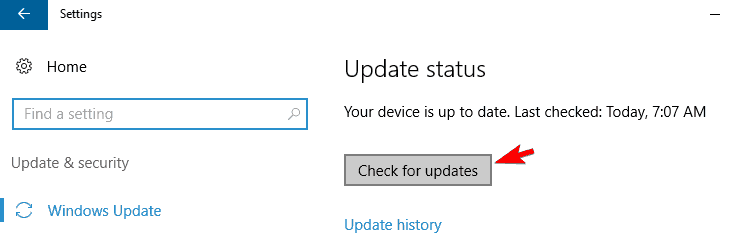
Click the Check for updates button in the right pane.
Windows will now check for available updates. If updates are available, Windows 10 will download and install them automatically.
Once your system is up to date, check if the problem is still there.
Solution 6 – Remove the problematic applications
Type Control Panel in the Search bar
Find Programs and click on Uninstall a program
Check the list to uninstall the problematic programs
If you’re having problems with Media Center on your PC, the issue might sometimes be other applications. Third-party applications can interfere with Media Center and they can lead to various issues.
Speaking of problematic applications, many users reported that LogMeIn software and TeamViewer caused these issues to appear. To fix the problem, it’s advised to find and remove these applications from your PC.
There are several ways to do that, but the most effective one is to use uninstaller software.
Uninstaller software is a special application that can remove the selected application from your PC completely. To do that, uninstaller software removes all files and registry entries associated with the application you want to remove.
Once you remove the problematic applications using this software, check if the problem is still there.
Solution 7 – Perform a System Restore
If the problem with Media Center is still there, you might have to perform a System Restore in order to fix the problem. If you’re not familiar, System Restore is a useful feature that allows you to restore your system to and fix various problems.
This feature is incredibly simple to use, and you can restore your system by doing the following:
Press Windows Key + S and enter system restore. Choose Create a restore point from the list.
The System Properties window should now appear. Click the System Restore button.
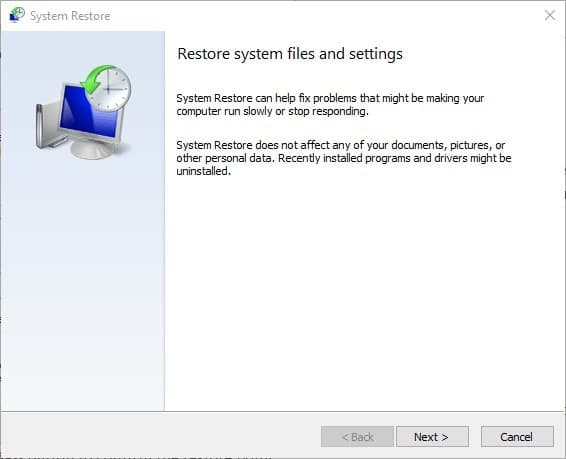
System Restore window will appear. Click Next to proceed.
Check Show more restore points option, if it’s available. Now select the desired restore point and click the Next button.
Follow the instructions on the screen to complete the process.
Once your system is restored, check if the problem is still there.
Media Center is a useful tool, but sometimes problems with it can occur. However, we hope that you managed to solve your problem after reading this article.
When a user wants to claim ownership of a file or folder, the error messageUnable to display current owner can sometimes pop up.
Oftentimes this error message can lead to another error message known as Access is denied.
What prevents Windows from displaying the current owner?
These are some common causes for the Unable to display current owner message.
The user does not have full access
The folder or file the user is trying to access has corrupted files
The folder might be locked thereby denying access for the user
These types of problems usually occur if you don’t have the necessary privileges. By gaining full control over the affected directory you should be able to fix the problem.
Below are simple solutions that can be followed to get this error message solved.
How can I bypass Unable to display current owner error?
Type chkdsk /f X: and press Enter. Be sure to replace X with the drive you want to scan.
If the message This volume will be checked the next time the system restarts appears afterward, press Y, close the Command Prompt , and reboot.
After rebooting, the scan will start automatically before the Windows 10 boots. Once your PC boots, check if the problem is still there.
3. Enable the administrator’s account
Start Command Prompt as administrator.
In the Command Prompt, type net useradministrator /active:yes and hit Enter.
As soon as this is done, log out of your current useraccount and you will see a new user named Administrator. Click on it to log in.
After you log in to the new administratoraccount, try to access the file you have issues with.
Once you’re done, log out, start Command Prompt as administrator and run net useradministrator /active:no command to disable the Administrator account.
4. Give ownership to all administrators
If the previous solution didn’t work for you, you can fix the problem by granting ownership to all Administrators on your PC. To do that, follow these steps:
Start Command Prompt as administrator.
Type takeown /F “complete path of folder or file” /a /r /d y in the Command Prompt and press Enter.
Type icacls “complete path of folder or file” /grant administrators:F /t into the Command Prompt and press Enter. It will show a message Successfully processed 1 (or more) files if successful and Failed processing 1 files or Successfully processed 0 files if it failed.
If the command was successful, try accessing the folder you have problems with.
Folder lock on your system or any kind of software that operates like it may tend to help you protect your files by locking them. However, this software can sometimes cause Unable to display current owner message to appear.
More so, this software might not allow some files or folders to open. To fix the issue, all you got to do is to remove the folder lock software.
There are several ways to do that, but the most effective is by using uninstaller software to make sure that any traces of the respective program are removed.
Dedicated software can make the process quicker and easier. Removing all leftover files can make your system run smoother and allow you to reinstall the software in the future without facing any issues.
The best uninstaller software come with additional optimization features such as browser cleaners, registry fixers, and defrag. These can significantly boost the performance of your PC.
When the uninstallation is finished, try to see if the problem is remediated.
There you go, these are just a couple of solutions that might help you fix Unable to display current owner error. Let us know in the comments section if our solutions were helpful to you.
In order to conserve the energy we often put our computers into Sleep mode or into Hibernation.
Users have reported that their computers are shutting down after they wake up Windows 10 from Hibernation so let’s try to fix that today.
Hibernation is one of the best ways to save your work and to conserve energy and since it doesn’t require any power.
This means that you can put your computer into Hibernation, unplug it completely and connect it whenever you want and continue where you left off.
Although waking up from Hibernation is a bit slower than waking up from Sleep mode it will preserve your data indefinitely while requiring no power to do so.
As you can see, Hibernation is quite useful and many Windows 10 users are using it, but it has been reported that their computers would unexpectedly shut down after waking up from Hibernation.
This can cause some inconvenience, or in some cases make you lose your data, but there’s a way to fix that in Windows 10.
Unexpected shutdown after hibernation can disrupt your work, so it’s important to fix this issue. Speaking of this issue, here are some similar problems that users reported:
Unexpected shutdown Windows 7, 10 – This error can appear on other versions of Windows, but even if you’re not using Windows 10, you should be able to apply almost all of our solutions.
Unexpected shutdown event id 41, 6008 – Sometimes this problem can come with an error message. To fix the issue, you might have to change your power settings.
Unexpected shutdown due to blue screen – Many users reported that an unexpected shutdown was followed by a blue screen. This is usually a driver-related issue, and to fix it, you have to find and remove the problematic driver.
Unexpected shutdown after sleep, reboot – Shutdowns can occur in other instances, but you should be able to fix the problem using one of our solutions.
What to do if PC keeps shutting down when on hibernate?
1. Change how hibernation works
Press Windows Key + X to open Win + X menu. Now select Command Prompt (Admin) from the list. You can also use PowerShell (Admin) if you want.
When Command Prompt starts, just type the following into Command Prompt and press Enter to run it: bcdedit -enum all
Now you should look for Resume from Hibernate line in the output. It should look something like this: Resume fromHibernate---------------------identifier {3d8d3081-33ac-11dc-9a41-806e6f6e6963}device partition=C:path Windowssystem32winresume.exedescriptioninherit {resumeloadersettings}filedevice partition=C:filepath hiberfil.syspae Yesdebugoptionenabled No
Now, you need to copy the identifier value from the previous step. In our case it was {3d8d3081-33ac-11dc-9a41-806e6f6e6963}, but it will different for your computer.
Of course, remember to use the identifier value that you got in Step 3. After running that command Hibernation should work without any problems.
2. Uninstall the network driver
Open Device Manager.
When Device Manager opens, locate your network adapter, right-click it and choose Uninstall device.
When the confirmation dialog appears, check Remove driver software for this device, if available. Now click Uninstall.
After removing the driver, click the Scan for hardware changes icon.
Windows will now install the default driver.
As we briefly mentioned in one of our previous solutions, your drivers can sometimes cause unexpected shutdowns to occur after hibernation.
Several users reported that their network driver caused the issue to occur.
It’s also worth mentioning that other drivers, such as Intel(R) Management Engine Interface can cause this problem as well.
To fix the problem, it’s advised that you uninstall your network driver. This is quite simple to do, and you can do it by following the above steps.
After installing the default driver, the issue should be resolved. To keep your system running smoothly, it’s always recommended to download and install the latest driver.
You can download the latest driver right from the manufacturer’s website. Downloading the drivers manually can sometimes be a hard task, especially if you don’t know the exact model of your device.
However, you can use third-party tools to automatically update all your drivers with just a single click.
Driver updater software scan your PC for out-of-date drivers and automatically install the latest driver version that is suitable for your specific hardware.
3. Change power settings
Press Windows Key + S and type power settings. Select Power & sleep settings from the list.
The Settings app will now appear. Navigate to Additional power settings in the Related settings category.
You should now see all the power plans on your PC. Locate your power plan and click Change plan settings next to it.
Click Change advanced power settings.
Expand the Hard disk category and set Turn off hard disk after to 0 minutes. Now click Apply and OK to save changes.
If you’re getting an unexpected shutdown after hibernation, the problem might be your power plan settings.
According to users, their hard drive was set to turn off automatically after being idle for some time, and it seems that this setting caused the unexpected shutdown.
However, you can fix this issue by making a couple of changes to your power plan. To do that, just follow the above steps.
After making these changes, the problem with unexpected shutdowns should be completely resolved.
Some users are suggesting to set the value to 2180 minutes, or any other high value, so you can try that as well.
4. Remove MotionJoy software and drivers
Some users are using their PlayStation controller on their PC via MotionJoy software.
This is a third-party software, and although it allows you to use a PS3 controller on your PC, it can sometimes cause the unexpected shutdown to occur after hibernation.
To fix this problem, users are suggesting to remove MotionJoy driver and software from your PC. This is relatively simple to do, and you can do it right from the Settings app.
However, we have to mention that this method although simple isn’t always the most effective.
There are times when certain applications can leave files or registry entries behind once you remove them, and those files can still cause this issue to occur.
If you want to completely remove an application along with all files and registry entries, we suggest using an uninstaller software tool.
5. Prevent your PC to turn off USB devices in order to save power
Press Windows Key + X and choose Device Manager from the list.
When Device Manager opens, locate your mouse on the list of devices and double-click it.
Go to the Power Management tab. Make sure that Allow the computer to turn off this device to save power option is disabled. Now click OK to save changes.
Sometimes unexpected shutdown can occur after hibernation due to your USB devices. Your PC will sometimes turn off unused USB devices in order to save power.
This is the default behavior, but it can sometimes cause issues to occur. However, to fix the problem with the unexpected shutdowns, you just have to disable this feature for your USB devices.
After making these changes, check if the problem is still there. Keep in mind that other USB devicesor even devices such as keyboards and monitors can cause this issue to appear.
So, repeat these steps for as many devices as you can. Some users are suggesting to uncheck Allow this device to wake the computer.
Therefore, you might want to try disabling this option as well and check if it works.
6. Use default power plans
Windows is quite customizable, and as such it allows you to fine-tune your power plans. However, sometimes non-default power plans can cause an unexpected shutdown to occur.
To fix the problem, users are suggesting to stick to default power plans.
To change your power plan simply follow the instructions from Solution 3 and pick one of the three default power plans.
If other solutions didn’t fix the unexpected shutdown issue, the problem might be related to your BIOS.
Sometimes there might be slight incompatibility issues with your BIOS and hardware and that can lead to this problem.
To fix it, some users are suggesting to update your BIOS to the latest version. This is an advanced and slightly risky procedure, so keep in mind that you’re performing it at your own risk.
We already explained briefly how to flash your BIOS in this useful article. You can also check your motherboard manual for detailed and exact instructions on how to update your BIOS.
As long as you follow the instructions from the motherboard manual carefully, you won’t have any problems with the BIOS update. Once you update your BIOS, the issue should be resolved.
Unexpected shutdown after hibernation can be quite annoying, but we hope that you managed to fix this problem using one of our solutions.
Friends, we have all gathered here to talk about one of the most expected games of 2021, and by that, we are obviously talking about Age of Empires 4.
As you might know, the last mainline Age of Empires game was way back in 2005. Since then, we’ve seen a lot of remasters, re-releases of the original games, which were all pretty good.
But now, the time has come to embark on an entirely new voyage and relive the stories of some of the world’s greatest ancient civilizations.
We’re about to have a look at the playable factions that World’s Edge and Relic Entertainment introduced to their brand new title. Spoiler alert, there are eight of them.
Age of Empires 4 has eight playable civilizations
Yes, you’ve heard correctly, there are a total of eight playable factions within Age of Empires IV, all unique in their own ways, and from totally different parts of the world.
Creators chose these civilizations due to their rich heritage, the historical impact they’ve had, and also to add a bit of flavor and make sure there’s a little bit of everything in the game, to satisfy everyone’s taste.
We’re about to break each of them down individually and see what they look like, and also figure out their strengths and weaknesses. Are you ready to embark on a legendary voyage into the past?
The Rus
As described by the game’s developers, the Rus are ruthless, highly skilled hunters that grow more powerful as they expand to new frontiers through the ages.
In Age of Empires 4, the Rus civilization tells the story of a fledgling empire caught between powerful opponents over the years 882-1552 CE.
Hardened by devastating invasions, political instability, and bitter winters, the Rus people were definitely built for survival.
Masters of hunting, trade, and wooden construction, they would rebuild their realm as their leaders fought to birth a new empire under Moscow.
Why play the Rus?
Playing the Rus means the wilderness is yours to command. You can reap key benefits from your surroundings, particularly in gathering resources to build up a strong economy quickly.
Enemies facing the Rus will find it difficult to disrupt their growth, as they gain steady incomes of Gold from the Hunting Cabin, which acts as a standard mill, and the unique Bounty score when killing Gaia animals.
With the Bounty system, players earn Gold when killing any animal on the map. This contributes to the player’s Bounty total, as it increases, food harvest and Hunting Cabins’ gold rate also increase.
Rus unique units
Horse Archers are a unique ranged cavalry unit available in the Castle Age. They are highly mobile and effective against slower melee units.
The Streltsy is a high damage, light gunpowder infantry unit with a stronger rate of fire when stationary. They employ a huge axe that is potent against melee attackers.
Warrior Monks are a military-minded support unit that improves combat capabilities of nearby units after they attack. They can pick up Relics, convert enemy units, and capture Sacred Sites.
The Holy Roman Empire
The Holy Roman Empire is a civilization that is shaped by a powerful infantry army, made stronger by the support of their most valuable unit, which is the Prelate.
The Holy Roman Empire in Age of Empires 4 spans the years 936-1517 CE, centered in a region that comprises modern Germany, claimed to be the rightful successor to the ancient Roman Empire.
Its emperors controlled central Europe with a stalwart infantry of exuberant Landsknechte and aimed to capture the center of the Christian world itself: Rome.
Why play the Holy Roman Empire?
Well, one of their biggest perks is the fact that, through careful use of the Prelate, players will be able to buff Villagers, speeding up their economic growth.
This is a powerful infantry-based civilization, able to fend off opponents with several options for defensive turtling.
Facing them in battle will require careful consideration, as the Holy Roman Empire can recover quickly from attacks and their Landsknechte’s devastating area-of-effect capability is sure to make advances against them difficult.
Their structures are highly durable and difficult to destroy, further enhanced by upgrades improving their strength.
Outposts, Towers, and Keeps can garrison Relics for bonus armor and damage, making the Holy Roman Empire a truly impenetrable civilization.
Holy Roman Empire unique units
As you would imagine, the Prelate is a support unit that heals and inspires nearby armies, granting them benefits.
The Landsknecht is a light infantry unit with a two-handed sword, adept at area-of-effect damage.
The Chinese
Creators describe the Chinese civilization as one with impressive constructions, gunpowder strength, and a dynasty system that provides unique benefits and varied strategies to overcome the opponent.
In Age of Empires 4, the Chinese are a thriving, unique civilization that grows through their dynasty system over the years 907-1644 CE. They are powerful defenders behind formidable fortifications.
The engineering prowess of the Chinese dominated the world for centuries, a trait present in Age of Empires IV.
You live through history as Chinese culture, strength, and innovations created ripples across Eurasia, growing your empire as you move through vibrant Tang, Song, Yuan, and Ming Dynasties.
Your units speak Mandarin Chinese, a Sinitic language originating in North China.
Why play the Chinese?
At the dawn of their civilization, the Chinese have a head start with additional Villagers. This lays the foundation for a robust economy, fueling the needs of a great, expansive civilization.
City planning is an important growth strategy. A special trait of the Chinese civilization is their dynasty system, which offers several advantages when triggered, like unit bonuses and access to unique buildings.
This gives several routes in strategy and ways to leverage all that the Chinese civilization has to offer.
Also, the military prowess of the Chinese lies in their mighty gunpowder units. They have access to multiple unique gunpowder units, making them a fierce civilization to go up against in battle.
Chinese unique units
The Imperial Official is an official produced from the Town Center that collects gold from nearby buildings.
Fire Lancer is a cavalry unit from the Yuan Dynasty equipped with a fire lance.
Nest of Bees is a powerful siege weapon that fires an immense burst of rocket arrows in an area.
The English
The English are a defensive powerhouse in Age of Empires 4. Their strength is unparalleled, reinforced by the power of their archery units, a firm control over castles and defensive buildings, and a highly dependable food economy that sustains them through the Ages.
Age of Empires 4, introduces the English civilization during the Anglo-Saxon era in Great Britain spanning from 850-1555 CE.
As you progress from the Middle Ages to the Late Renaissance in the 16th century, you bear witness to the story of a civilization that survived the fall of empires, conquerors, and plagues.
The game will have you you build up the English civilization across four eras: the Anglo-Saxon, Anglo-Norman, English Gothic, and Tudor eras.
Each Age has its distinct style from architecture to armor, with populations speaking Old English in the Dark Age and evolving to Early Modern English by the Imperial Age.
Why play the English?
Simple! Because playing as the English in Age IV opens the door to several key advantages, creating an exciting battlefield for resources and victory.
The English have access to cheaper farms compared to other civilizations, giving them a highly dependable source of food to greatly expand upgrades and armies throughout matches.
Also, this faction specializes in their network of castles: Town Centers, Outposts, Towers, and Keeps trigger an alarm when an enemy approaches, prompting nearby units and defensive structures to fire faster for a short period.
Their Keeps can produce all units, allowing for the English defense to reign supreme in a match.
The English Villager is the humble unit of the civilization and the key to starting a powerful economy. They have light fighting abilities with a ranged bow attack.
Longbowman is an unrivaled Archer unit, making it a powerful foe on the battlefield with their long range and powerful upgrades.
English Man-at-Arms is a sturdy infantry unit, available earlier than other civilizations and has an extra armor upgrade.
The Delhi Sultanate
The Delhi Sultanate civilization is at the forefront of technological innovation. They have a strong focus on research and defense, with an edge in technological advancement over other civilizations.
In the game, the Delhi Sultanate civilization is based on the powerful empire formed from the invasion of the Ghurid Dynasty (originating in Persia) into northern India spanning the years 879-1526 CE.
For 300 years, this empire shaped an independent Indo-Islamic region, adopting technology present in India.
Advancing through the Ages will actually allow us to experience this civilization’s rich and vast history.
With the first Age reflecting the Turkish and Iranian Ghurid Sultanate, playing the Farsi/Persian-speaking Delhi Sultanate civilization brings you through the Mamluk and Khalji Dynasty, Tughlaq Dynasty, and the Sayyid and Lodi Dynasty.
Why play as the Delhi Sultanate?
Strategic decisions in the early Ages of the match are essential for the Delhi Sultanate civilization, which emerges as a dominating force in the late game.
The Delhi Sultanate army can be terrifying to encounter: the core of their army, the War Elephant, is a melee unit of staggering raw strength capable of high damage.
This faction’s specialty lies in research. Not only do they have access to several upgrade options throughout the Ages, but their unique Scholar Research System provides an advantage in research that no other civilization has.
You can research technology with no resource cost but at a greater time investment. To offset this, the Delhi Sultanate uses Scholars, each of which speeds up research.
While biding their time growing their strength through the Ages, the Delhi Sultanate can tap into their defense through foot units’ abilities to construct defensive structures.
Once their military reaches full heights, this proud civilization’s power is a force to be reckoned with.
Delhi Sultanate unique units
Scholars are the civilization’s equivalent of the Monk with a unique ability to speed up research and technology upgrades.
The mighty War Elephant is a powerful melee unit with high health and damage against units and structures.
Not very different from the second one, the Tower War Elephant is a devastating unit with a ranged attack: Two archers mounted in a tower on a War Elephant.
The Mongols
The Mongols are an agile civilization, excelling in hit-and-run military strategies and capable of expanding armies rapidly.
You witness the Mongols through the Ages, spanning from 1000-1500 CE, as a disciplined civilization, recognized for changing history in connecting the East to the West.
In the game, Mongols are known for their unique structure and are at their most powerful when playing to their strengths in tight groups. They speak Mongolian, which is the most widely spoken of the Mongolic languages.
Why pay as the Mongols?
This is described as being one of the best factions for beginners. A fearsome force, one may not meet them in massive throngs, but even in small numbers, their army can outmaneuver enemies with ease.
Their aggressive military production capabilities force the opponent to be on the defensive early.
They are a nomadic civilization with the ability to move their bases. Combined with early access to cavalry units and speed granted from Outposts, the Mongols reign supreme in flanking enemies and retreating quickly before enemies have a chance to catch up.
You can build up your economy with unique buildings, like the stone-mining Ovoo. The Mongols’ need for resources for their army can trigger a dramatic battle for resources as they pursue total domination.
Mongols unique units
The Khan is a unique horse archer unit. His Signal Arrow ability supports and strengthens the Mongol army, making him a fearsome foe.
Mangudai are the star of the Mongols’ fearsome military, a supreme horse archer that excels at hit-and-run tactics.
The Abbasid Dynasty
The Abbasid Dynasty is a highly adaptive civilization due to its ability to research unique upgrades at the House of Wisdom.
These upgrades impact and alter core game elements and mechanics, providing a unique way to build your empire.
In this game, the Abbasid Dynasty civilization spans the years 750-1517 CE and is based on the Abbasid Caliphate and the Mamluk Sultanate.
The empire was born in modern-day Iraq, but after the Mongols destroyed its capital of Baghdad in 1258, the seat of power moved to Cairo.
You will experience the Golden Age of Islam playing the Abbasid Dynasty. This period saw flourishing technological innovations as the medieval world raced towards the modern era.
This faction ruled the spiritual heart of the Islamic world for nearly 800 years, surviving civil wars, the Crusades, the Mongol invasion, relentless piracy, and rebellions.
Why play as the Abbasid Dynasty?
The Abbasid Dynasty civilization is centered around their House of Wisdom, which provides unique upgrade opportunities and acts as the basis of their Golden Age mechanic.
As buildings are constructed around the House of Wisdom, the tier of their Golden Age increases, bringing with it increases to gather, research, and production rates.
Unique to their civilization, the Abbasid Dynasty receive Camel Archers and Camel Riders, which serve as unique anti-cavalry cavalry units.
This civilization’s unique ability to construct Landmarks and advance through the ages without needing to assign active villagers enables the Abbasid Dynasty to continue gathering resources, construct buildings, or perform other tasks allowing uninterrupted growth.
Abbasid Dynasty unique units
Camel Archers is an anti-cavalry cavalry unit that reduces damage from nearby enemy cavalry units. Their expanded attack range and higher damage than average Horse Archers allows them to pick away at enemy cavalry from a safe distance.
The Imam is an inspirational community leader that can be created from the Abbasid’s Mosque building.
The French
Known for their cavalry, the French are a fearsome army whose armored knights and charges can tip the tides of battle.
The French civilization in Age of Empires 4 spans the years 840-1559 CE and is based on a medieval France that fought its way from adversity to prosperity.
Overcoming invasions, plagues, and revolt, France emerged as a powerful modern nation with a lot to offer.
Playing the French will take you through the age of chivalry and honorable combat, to the time of Joanne d’Arc and France’s darkest hour, to the formation of a disciplined standing army capable of liberating the nation with the roar of cannon fire.
Why play as the French?
This faction’s strength lies in their formidable army of knights, gunpowder siege weapons, and advantages in trade. French Traders have the unique ability to bring back any resources needed, a valuable trait during a resource shortage.
French cavalry charges can break enemy lines and give bonus damage, useful for hit-and-run tactics. French units also have access to several upgrades, ranging from special health to defense bonuses available only for certain French troops.
They also have a unique Influence system, where units cost less from Archery Ranges and Stables around the Keep. Their Town Center can produce units quicker with each Age, a key advantage in hastening their economy.
French unique units
The Royal Knight is the French civilization’s heavily armored knight, with their fearsome charge ability.
Arbalétrier are a powerful range unit, who gains a special ability called Pavise, a deployable shield for ranged defense.
The Cannon is a mobile gunpowder siege weapon unique to the French. Unlike the Bombard, the Cannon does not need to pack and unpack.
These are the eight civilizations that are playable in Age of Empires IV, with their strengths and all the unique units at their disposal.
Whichever you choose to play is up to you, but we are more than sure that no matter which one you pick, you will have a blast.
We’re not sure yet, but creators could add a couple of new factions along the way, making this awesome game even more entertaining than it already is.
Which civilization will you pick as your first one in Age of Empires 4? Share your opinion with us in the comments section below.
Many users use att.net email, but sometimes this email provider might not work properly with Outlook. This can be a problem, but in today’s article, we’ll show you how to fix this issue on Windows 10.
Att.net email has a number of users, but some of them reported various issues with att.net mail and Outlook. Speaking of issues, here are some common problems that users reported:
att.net email not working with Outlook 2010 – This issue can affect almost any version of Outlook, and Outlook 2010 isn’t an exception. However, you should be able to fix the problem using one of our solutions.
att.net email won’t send – Sometimes your att.net emails can’t be sent at all. However, you might be able to fix the issue by reconfiguring your att.net account.
Att.net email not working with Outlook, how to fix it?
1. Make sure that your account is properly configured
Sometimes att.net email isn’t working with Outlook because the email account isn’t configured properly. This is a common problem with almost any email provider, but you can fix it if you properly configure your email account. To add an att.net email account to Outlook, you need to do the following:
Open Outlook and go to File > Add Account.
Now choose Manual setup or additional server types.
Select Pop or IMAP and enter the desired display name and your email address.
Set the account type. You can use IMAP or POP3.
Depending on the selected account type, you configure your incoming and outgoing server:If you’re using IMAP server, use the following settings:Incoming mail server:imap.mail.att.net
Outgoing mail server: smtp.mail.att.net
As for POP3 server, use the following data: Incoming mail server:inbound.att.net
Outgoing mail server: outbound.att.net
Enter your full email address and paste your secure mail key. Make sure to check to Remember password and Require logon using Secure Password Authentication.
After setting the server, you just need to configure ports and a few more settings:
Click More Settings and check My outgoing server (SMTP) requires authentication. Now select Use same settings as my incoming mail server.
Now you just need to configure your ports. For incoming server use: 993 (for IMAP) or 995 ( for POP3). For outgoing server enter: 465 (works for both IMAP and POP3).In Use the following type of encrypted connection section, select SSL for both Outgoing and Incoming server.
After doing that, click OK and then Next. Outlook will now test your connection. If everything is in order, click Finish.
As you might’ve noticed, we mention that AT&T email requires a secure mail key in order to create a new email account. This is a security feature that should provide extra security to your email client.
If you don’t have a secure mail key generated, you’ll stop the account creation process and generate the secure mail key. This process is quite simple, and you can do it in a minute or two. To generate a secure key, do the following:
Go to your AT&T profile and choose Sign-in info.
Select your email account and scroll to the Secure mail key section and select Manage secure mail key.
Select your email address, and click Add secure mail key. You can set a nickname for that secure mail key in order to recognize it in the future.
Choose Create secure mail key and click Copy secure mail key to clipboard. Click OK.
Go to your email client and use the secure mail key instead of your password.
This procedure might be a bit overwhelming at first, but if you follow the instructions carefully you should be able to add and configure your att.net email without too much hassle. Just be sure to create a secure mail key and have it available when needed.
2. Check your antivirus
Before we start fixing this issue, it’s always a good idea to check your antivirus and make sure that it’s not interfering with your applications. Third-party antivirus tools can cause issues to appear, and in order to fix them, you’ll need to disable certain antivirus settings.
If that doesn’t work, your next step would be to disable your antivirus altogether. In the worst-case scenario, your only option might be to uninstall your antivirus. If removing the antivirus fixes the issue, you should seriously consider switching to a different antivirus.
3. Use IMAP instead of POP account
As you might know, there are two types of email accounts, IMAP and POP, and IMAP is newer between the two. As a newer standard, it also offers certain features, such as the ability to sync your emails across all devices.
With the introduction of IMAP, the POP standard became outdated, and many email providers are moving away from it, including AT&T. If you have any issues with att.net email and Outlook, it might be because you’re using a POP account.
To fix that, you need to change your account settings in Outlook and set your email to use the IMAP server. To see the addresses and ports related to the IMAP server, check Solution 2.
After switching to an IMAP account type, the problem should be resolved.
4. Remove your email profile
If your att.net email isn’t working with Outlook, you might be able to fix the problem simply by removing your email account and recreating it. Removing your profile will remove files stored locally on your PC, but all your email messages that are on the server will be preserved.
To remove your profile you need to follow these steps:
Go to File > Account Settings > Manage Profiles.
Now click on Show Profiles. Select your account and click Remove.
After doing that, add your att.net email by following the steps from Solution 2. Once your account is added again, check if the issue is still there.
5. Use webmail or a different email client
If you’re still having problems with att.net email and Outlook, you might want to try using the webmail version as a temporary workaround. Webmail version doesn’t require any configuration, and while it might not be as convenient as Outlook, it should allow you to check your emails without issues.
If you prefer using email clients and want a proper Outlook replacement, you might want to try out Mailbird.
This amazing tool brings everything you may ever need to enjoy fast, efficient, and secure email sending and receiving, including encryption, message translation, calendar and tasks, notes, and more.
With all of these tools, it can double as both an email client and a personal information manager, just like Outlook.
If att.net email is not working with Outlook, the issue might be Outlook settings or add-ons. Sometimes these add-ons can interfere with Outlook and cause issues to appear. To check if your settings or add-ons are the problems, we advise you to start Outlook in Safe Mode. This is quite simple to do, and you can do it by following these steps:
Press Windows Key + R and type Outlook /safe.
Press Enter or click the OK button.
When a new window appears, click OK to continue.
Outlook will now start, and you should check if the issue still appears. You can also start Outlook in Safe Mode by doing the following:
Locate Outlook shortcut.
Press and hold the Ctrl key and start Outlook. Once you do that, Outlook will start in Safe Mode.
If the issue doesn’t appear in Safe Mode, it means that one of your settings or add-ons was causing the problem, so you need to find it and disable it.
7. Switch to Google DNS
Click the network icon on your Taskbar.
Select your network.
Choose Change adapter options.
List of all network connections on your PC will now appear.
Right-click your network and select Properties.
Select Internet Protocol Version 4 (TCP/IPv4) from the list and click the Properties button.
Select Use the following DNS server addresses.
Enter 8.8.8.8 as the Preferred and 8.8.4.4 as Alternate DNS server.
Click OK to save changes.
In some instances, the problem with att.net mail can be caused by your DNS. However, users reported that they managed to fix the problem simply by switching to Google’s DNS.
After saving the changes, check if the issue with att.net email and Outlook is resolved.
Many users use AT&T, and if att.net email isn’t working with Outlook, you should be able to fix this issue using one of our solutions.
The above-mentioned solutions also work if you have encountered the following issues:
Att.net email not syncing in Outlook – Some users reported that the emails they received from ATT.net don’t sync when using Outlook.
Windows 10 is a massive step forward in many categories, with a lot of stability improvements and timely support.
Nonetheless, even though we can expect a lot from Windows 10, there’s still an abundance of issues that need to be addressed.
Yes, we are talking about update errors and the inability to get scheduled updates.
The error we’ll try to troubleshoot today goes by the code 0x800703ed. This error is mainly caused by faulty drivers or system files corruption.
So, in case you’ve encountered an error with this code, follow the steps below.
How can I fix Windows 10 update error 0x800703ed?
Update error 0x800703ed can be problematic and prevent you from installing the latest updates. Speaking of update errors, here some similar issues that users reported:
Windows 10 update failed dual boot – According to users, this issue can occur if you’re using dual boot on your PC. To fix the problem, simply make your system partition as active and check if that helps.
0x800703ed Windows 10 upgrade – If you’re having this problem, the issue might be your drivers. However, you can fix the problem by updating your drivers to the latest version.
Solution 1 – Use SFC and DISM scans
If you can’t update your Windows to the latest version due to error 0x800703ed, you might want to check your system for file corruption. To do that, you just need to run an SFC scan. This is relatively simple, and you can do it by following these steps:
Press Windows Key + X to open Win + X menu. Now choose Command Prompt (Admin) from the menu. If Command Prompt isn’t available, you can also use PowerShell (Admin).
When Command Prompt starts, enter sfc /scannow and press Enter to run it.
SFC scan will now start. Keep in mind that the scan can take up to 15 minutes, so don’t interrupt it.
Once the scan is finished, check if the problem is still there. If you can’t run SFC scan, or if the issue is still there, your next step would be to run DISM scan. To do that, follow these steps:
Open Command Prompt as administrator.
Now run DISM /Online /Cleanup-Image /RestoreHealth command.
Wait for the DISM scan to finish. This process usually takes up to 20 minutes, so be patient.
Once the DISM scan if completed, check if the issue is still there. If you weren’t able to run SFC scan before, try running it again and check if that solves your problem.
Solution 2 – Use batch file to reset Windows Update components
We are aware that the troubleshooting can occasionally be quite annoying, especially with complex issues like this. Furthermore, if you are not experienced enough, you can cause additional issues that may prove even harder to resolve.
Good thing is that tech enthusiasts created the script that can do everything instead of you. You’ll just need to download and run it. Follow these instructions to utilize this helpful tool:
After the process is finished, check for the updates.
Additionally, you can use this script to troubleshoot any kind of update-related issue.
Solution 3 – Update BIOS
One thing that is of utmost importance for all-around system performance is updated BIOS. Some of the users weren’t able to even install Windows 10, while others experienced a variety of issues after the installation.
Because of that, we advise you to replace the outdated BIOS drivers with the latest ones.
On the other hand, the process is risky and involves some advanced knowledge. So, we further recommend you to ask something else before pursuing flashing procedure and updating BIOS firmware, in case you’re not sure what you’re doing.
Solution 4 – Update GPU and Network drivers
According to users, outdated drivers can cause this issue to occur on your PC. If you’re getting error 0x800703ed, we would have to recommend that you update your drivers.
In most cases this problem occurs because your GPU and network drivers are out of date, and in order to fix the problem, it’s advised to update them.
To update your drivers, simply visit your hardware manufacturer’s website and download the latest drivers for your hardware. This is a relatively simple procedure if you know the model of your hardware and how to download your drivers.
If you don’t want to manually download the drivers, you can always use an automated tool to download the necessary drivers automatically.
According to users, you might encounter error 0x800703ed if you’re using both Linux and Windows in a dual boot mode. To fix the problem, you need to set your PC to use Windows boot instead of Linux boot.
To do that, you’ll need a third-party application such as easyBCD. Simply set your PC to use Windows boot and the issue should be completely resolved.
Solution 6 – Check your antivirus
Antivirus is the common cause for update errors, and if you’re having error 0x800703ed, be sure to disable certain antivirus features. If that doesn’t work, you might have to completely disable or remove your antivirus.
If removing the antivirus solves your problem, this might be a perfect time to consider switching to a different antivirus solution.
Why not go with an antivirus that won’t stop your Windows from working as it should? Or won’t interfere with any Windows Updates.
Solution 7 – Make sure that your system partition is set to Active
According to users, this issue can occur if your system partition isn’t set to Active. To fix the problem, you just need to change your partition settings. This is relatively simple, and you can do it by following these steps:
Press Windows Key + X to open Win + X menu. Now choose Disk Management from the list.
Right-click your system partition and choose Mark Partition as Active from the menu.
After doing that, try to install the update again. If you don’t want to use Disk Management, you can use any other third-party disk management tool.
Solution 8 – Disconnect all unnecessary devices
If you can’t update Windows 10 due to error 0x800703ed, the problem might be your USB devices. Sometimes other devices can interfere with your PC and that can lead to this and many other errors.
To fix the problem, users are suggesting to disconnect all devices from your PC, except for your keyboard and mouse.
If you have a second monitor, be sure to disconnect it as well and check if that solves your problem. Some users are also recommending to change your resolution to 1024×768 before trying to install the update, so you might want to try that as well.
Solution 9 – Change update settings
According to users, sometimes update error 0x800703ed can be caused by your update settings. Your settings can interfere with your system, and that could lead to this and many other errors.
However, you can fix the issue simply by changing a couple of settings. To do that, just follow these steps:
When Settings app opens, go to Update & Security section.
Now choose Advanced options.
Scroll all the way down and select Delivery Optimization.
Disable Allow downloads from other PCs option.
After doing that, try to install the update again.
Solution 10 – Repair system with USB/DVD system installation media
Besides the clean installation, we’ve got one last solution for you. If the previous workarounds fell short, you can use USB/DVD drive with system installation to repair the update issues.
The process is a bit lengthy, but it is certainly worth trying. Follow these instructions closely:
Insert DVD or USB with Windows 10 installation (the same architecture and version you have running on your PC).
Open the drive and double-click Setup.
Wait for the Setup to prepare.
Choose to Download and Install Updates.
After updating, Accept the License Terms.
Choose what you want to keep.
And now you’ll just have to wait for the process to finish.
If the update issues are still there, your only hope is the clean reinstallation.
That should be that. Additionally, we are available for your questions and suggestions. Be free to share them with us in the comments section.
eM Client is a popular email client, but users report that the Email section is often disappearing out of the blue. While this can seem like a major problem, rest assured that it is not.
In fact, you can easily restore all your emails by using this guide.
What to do if the Email section has disappeared in eM Client?
1. Use the context menu
In the left pane, you should see a list of sections. Right-click any list item.
From the context menu, be sure to check Mail.
After doing that, the Mail section will appear in the left pane.
If the Email section is missing in eM Client, you can get it back in two clicks. You just need to complete the above procedure.
2. Reinstall eM Client
Sometimes this problem can occur if there’s a glitch with your application, and to fix it, you need to reinstall it.
By using a dedicated professional uninstaller software, you can remove the eM Client safely. Using a specialized tool to do so can assist you in completely removing the clutter left behind by uninstalling the app from your computer.
Essentially, the uninstaller is used to undo modifications made to the database when you have installed the email client. Because all modifications performed during installation are reversed, the app may be removed without leaving any junk files.
Once the application is removed, download the latest version and install it.
3. Check if the issue appears in other email clients
If Email is missing in eM Client, perhaps you should try using a different email client as a temporary workaround. There are various eM Client alternatives that seek to benefit on its benefits while reducing its drawbacks.
You may want to test the free versions of different email clients to see the differences for yourself for a better understanding and experience.
Following confirmation that another app works, the next steps will assist you further with eM Client.
4. Try using the web version
The easiest workaround is to use the web version of your email service as a temporary workaround.
For this purpose, you can use any web browser, but if you want to make sure that you’re safe online, there are browsers such as UR Browser.
This browser is privacy-oriented, and it won’t send your data to Google or to third parties. In addition, it comes with tracking, malware, and phishing protection.
For an extra layer of security, there’s a VPN available as well.
If the Email section has disappeared in eM Client, you should be able to get it back using our solutions. Also, do note that they may be applied when dealing with these issues as well:
eM Client Exchange email disappearing – With eM Client, you are supposed to add as many accounts as you want without ever worrying about missing important Exchange emails. This clearly doesn’t happen, so you’d better reinstall the eM Client.
eM Client missing emails Gmail has them – Even if eM Client is a popular email client for Windows, it seems that it doesn’t always handle Gmail emails with care. Refer to the above procedures for quick solutions.
5. Try out a reliable email client
Mailbird is a top email client for the Windows operating system that differentiates itself from eM Client by focusing on usability and letting you truly manage multiple email accounts with ease.
Mailbird is an intuitive program that will show you how amazing is to have all your emails in one inbox, instead of two or even more.
It goes without saying that they will never disappear. On top of that, it works flawlessly even when it’s integrated with other applications and services.
This includes WhatsApp, Facebook, Google Calendar, and much more, since it is designed with simplicity in mind.
Mailbird
When most of your precious eM Client emails keep disappearing, Mailbird is a powerful alternative to enjoy.
The ActiveX error 429 is a run-time error that some end users have encountered in Windows. The error usually ensures that an open application comes to an abrupt halt and closes.
It also returns an error message stating, “Run-time error ‘429’: ActiveX component can’t create object.” Error 429 is most frequent for MS Office applications, such as Excel, Word, Access, or Outlook, with automated Visual Basic sequence scripts.
Error 429 is largely a consequence of software attempting to access corrupted files. Thus, the automation sequence can’t operate as scripted. This could be due to a corrupted registry, deleted OS files, incomplete installation of software, or corrupted system files.
So there are various potential fixes for ActiveX error 429.
How can I fix ActiveX runtime error 429 on Windows 10?
1. Reregister the Program
If a specific program is generating the ActiveX error, the software might not be correctly configured. You can fix that by reregistering the software with the /regserver switch, which resolves issues with the automation server.
This is how you can reregister software with Run:
First, make sure you have admin rights with a Windows admin account.
Press the Win key + R hotkey to open Run.
Enter the full path of the software followed by /regserver in the text box as shown below. Enter the exact path, including the exe, of the software you need to reregister.
Press the OK button.
In some cases, this error is confused with connection-related issues such as Proxy Error 429, so make sure you’re troubleshooting the right problem. This guide will walk you through the best fixes.
2. Reregister the Specified File
If the ActiveX error message specifies a particular .OCX or .DLL file title, then the specified file is probably not correctly registered in the registry.
Then you can feasibly fix the ActiveX issue by reregistering the file. This is how you can reregister specified OCX and DLL files via the Command Prompt.
Close all open software windows.
Open the Command Prompt in Windows 10 by pressing the Win key + X hotkey and selecting Command Prompt (Admin) from the menu. Alternatively, you can enter ‘cmd’ in the Start menu’s search box to open the Prompt.
Now enter ‘regsvr32 Filename.ocx’ or ‘regsvr32 Filename.dll’ in the Command Prompt window. Replace filename with the specified file title.
Press the Return key to reregister the file.
3. Run a Virus Scan
It might be the case that a virus has corrupted, may be deleted, and files pertinent to the runtime error. As such, running a full virus scan of Windows with third-party anti-virus software can feasibly fix the ActiveX error 429.
You can find a lot of antivirus software options that fit all types of needs and budgets. Some of the best antivirus solutions that are compatible with Windows 10 PCs come with full-feature free trials, so you can try them out before buying a license.
4. Check for Windows Updates
You should also check for and install Windows updates. Microsoft is usually updating system files that might be associated with error 429. So updating Windows with the latest service packs and patches can help resolve runtime errors.
You can update Windows as follows:
Enter ‘Windows update’ in the Cortana or Start menu search box.
Then you can select Check for updates to open the update options directly below.
Press the Check for updates button there. If there are available updates, you can press a Download button to add them to Windows.
5. Run the System File Checker
Many system errors are due to corrupted system files, and that includes the ActiveX 429 issue. As such, fixing corrupted system files with the System File Checker tool could be an effective remedy.
You can run an SFC scan in the Command Prompt as follows:
First, enter ‘cmd’ in the Cortana or Start menu search box.
Then you can right-click Command Prompt and select Run as administrator to open the Prompt’s window.
Enter ‘sfc /scannow’ in the Command Prompt, and press the Return key.
The SFC scan might take up to 20 minutes or longer. If the SFC fixes anything, the Command Prompt will state, Windows Resource Protection found corrupt files and successfully repaired them.
Then you can restart Windows.
6. Scan and Fix the Registry
Runtime errors are usually generated from the registry, so an effective registry scan will fix the invalid or corrupted registry keys.
Specialized registry cleaner software is able to scan your registries and identify any problems quickly. You can then instruct the tool to apply fixes, which may even include downloading new system files to replace the broken ones.
7. Undo System Changes with System Restore
The System Restore tool undoes system changes by reverting Windows back to an earlier date. System Restore is Windows’ time machine, and with that tool, you can revert the desktop or laptop back to a date when your software wasn’t returning the ActiveX error message.
However, remember that you’ll lose software and apps installed after the restore point date. You can utilize System Restore as follows:
To open System Restore, enter ‘System Restore’ in the Cortana or Start menu search box.
Select Create a restore point to open the System Properties window.
Press the System Restore button to open the window in the snapshot below.
Click the Next button, and then select the Show more recent points option to open a full list of restore dates.
Now select an appropriate restore point to revert back to.
Press the Next and Finish button to confirm the restore point.
If you’re interested in more info on how to create a restore point and how would that help you, take a look at this simple article to find out everything you need to know.
Those are some of the numerous potential fixes for the Windows ActiveX runtimeerror 429. If none of the above fixes resolve the issue, uninstall and reinstall the software generating the error
If you have further suggestions for fixing ActiveX error 429, please share them below. Also, if you have any other questions, feel free to leave them there.
Mozilla Thunderbird is one of the most trusted email clients on the market, available on various platforms used not only as an email client but also as an RSS feed and much more. And the best part? It’s an open-source project.
However, even though this email client is frequently updated and well-coded, users are experiencing several issues with the software.
One is critical, and it’s related to sudden crashes after startup. For this purpose, we prepared a simple but helpful workaround that should help you resolve it.
Why won’t Thunderbird open?
If you have issues opening Thunderbird, there are a few elements that users have attributed to this. Some of them include the following:
Outdated software version – If the software is outdated, you will need a new version to respond properly.
Insufficient resources – In some cases, users may have run out of device storage. This will mean some applications will cease to respond.
Corrupted profile– If the user profile has been corrupted, you generally will have issues using certain applications, including Thunderbird.
Firewall or antivirus issues – Users have experienced that, at times, the firewall may block out the Thunderbird app.
Corrupted files – If the software installation file has been corrupted, you will likely face a few bugs, including difficulty starting the application.
Although a solid email client, many users reported that Thunderbird wouldn’t open on their PC. This can be an issue. Speaking of Thunderbird, here are some similar issues reported by users:
Thunderbird not responding – Many users reported that Thunderbird isn’t responding at all. This can be due to your Thunderbird profile, but you can fix that by deleting parent.lock file.
Thunderbird won’t start/ missing profile in Safe Mode – These Thunderbird issues can appear on any version of Windows, but even if you don’t use Windows 10, you should know that most of our solutions can be applied to both Windows 8.1 and 7.
Thunderbird won’t start already running – If you’re getting this error message, open Task Manager and close all Thunderbird instances. After doing that, try to start the application again.
Thunderbird won’t launch – Many users reported that it wouldn’t launch on their PC. This can be a problem, but you can fix it simply by running Thunderbird in Safe Mode.
Thunderbird won’t start after crash – Sometimes, a crash can damage your Thunderbird profile, and to fix that, try reinstalling the application.
What can I do if Thunderbird won’t open?
Before trying our fixes, you should restart and reset your modem. Several users reported that they fixed the issue with Thunderbird simply by restarting their modem. This is relatively simple, and to do it, you need to press the Power button on your modem, wait for a few seconds and then turn it back on again.
You can also consider switching to a different email client. For example, if the previous solution didn’t fix the problem with Thunderbird, this might be an excellent time to consider switching to a different email client.
Many great email clients are available, but if you want one similar to Thunderbird, we recommend you try Mailbird.
Due to its seamless integration with other email clients like Gmail and Outlook, Mailbird is one of the best software options on the market.
You can quickly transfer complicated schedules from your calendar and also add contacts from other third-party software, allowing you not to worry about your data not being compatible.
Or, as an alternative, use a portable version of the app. This version doesn’t require installation, and it won’t add any information to the registry so the previous Thunderbird installation won’t affect it in any way.
Once you download the portable version, run it and check if that solves your problem. If the issue doesn’t appear, you might have to switch to the Portable version until you fix the problem.
1. Delete parent.lock file
Close Mozilla Thunderbird.
Right-click on the Taskbar and open Task Manager.
Under Processes, find and kill all Thunderbird-related processes.
Press the Windows key + R to bring up the Run command.
Type %appdata% in the command line and press Enter.
Open the Thunderbird profile folder.
Find and delete the parent.lock file. You may need administrative permission to do so.
Start Thunderbird again. It should now function without any problems.
These steps should also correct any issues with your Thunderbird user profile in case it is corrupted.
2. Reinstall Thunderbird
Press Windows + R, type appwiz.cpl, and hit Enter.
Search for Thunderbird from the app list, click it, and hit the Uninstall button.
Double-click on the downloaded file and follow the wizard to complete the installation.
According to users, sometimes Thunderbird won’t open if your installation is damaged. This can be a big problem, but one of the easiest ways to fix the issue is to reinstall Thunderbird. There are several ways to do that, and you can do it right from the Settings app.
We recommend you use dedicated software to uninstall Thunderbird. Sometimes, uninstalling from the UI or the settings app can leave behind unwanted files.
Not only will these files take up space on your PC for no reason, but they may also prevent you from reinstalling the app and creating all sorts of errors in your system.
We suggest you look into the best uninstaller software and pick your best bet. They are specifically created to remove stubborn programs along with lingering files.
On top of that, many of them include additional PC optimization features that keep your system clean and high-functioning.
3. Start Windows in Safe Mode
Press Windows Key + I to open the Settings app.
Go to Update & Security section.
In the left pane, select Recovery. In the right pane, click Restart now in the Advanced startup section.
Now select Troubleshoot, then Advanced options.
Click on Startup Settings, then Restart.
Once your PC restarts, you’ll have a list of options. Press F5 or 5 to select Safe Mode with Networking.
Once you start Windows in Safe Mode, try to rerun Thunderbird. If the issue still exists, start Thunderbird in Safe Mode and check if that helps.
If you want a more user-friendly way to start Thunderbird in Safe Mode, locate the Thunderbird shortcut, press and hold the Shift key and start the application.
After doing that, a new window will appear. Just click Continue in Safe Mode to start the Thunderbird. If the issue doesn’t appear, your add-ons or toolbars are causing it.
To permanently fix the problem, repeat the process, but this time check Disable all add-ons and Reset toolbars and controls. Now click the Make Changes and Restart button.
This is useful if your configuration or third-party add-ons cause the issue. For example, Thunderbird supports a wide array of add-ons allowing you to enhance its functionality. Still, sometimes specific add-ons can interfere with your system and prevent you from starting Thunderbird.
Hopefully, your email client now works. However, if you have any remarks or questions regarding the subject, use the comments section below!
No matter if you want to invest in a gaming laptop, or if you would prefer getting a gaming desktop PC if you’re serious about your gaming endeavors, one of these options need to be chosen.
Of course, there are situations in which you might already have the setup you want, and the peripherals are the only element left to consider.
Even though not as important as choosing the right GPU for your system, or other elements like the type and amount of storage you have on your device, having the right peripherals for gaming can provide you with a more immersive overall experience.
Investing in a good gaming keyboard will ensure that no input lag will ever stop you from going on a long killing-spree in your favorite FPS games, while also providing you with an edge when compared to other gamers.
Another aspect of your gaming setup will also come in the form of a customizable gaming mouse that will allow fast reactions in first-person shooters. This applies especially if you’re a professional gamer.
Once you have all the devices required to play games, one other important aspect that needs to be covered when dealing with your gaming is the need for an oversized mouse pad for gaming.
As this will be the surface on which all mouse movements will take place, choosing the best oversized mouse pad for gaming will ensure that your quick reactions will be transmuted without any hiccups into your favorite first-person shooter game.
The designs of mouse pads have evolved considerably in the last decade, and many extra features have been added which can improve your gaming experience.
Here are some of the most useful add-ons:
RGB lighting – ensures an immersive gaming experience
Wireless charging
Smooth gliding surface – improves accuracy
Gel pads – wrist support while playing games
Choosing the right type of mouse will most certainly come down to personal user preference, but some elements like wireless charging for compatible mice and a surface that ensures smooth gliding can be of the essence.
How we chose the best gaming mouse pads for first person shooters
Our team of expert testers, with a combined experience of 15 years, has tackled a variety of testing tasks for any device you could imagine.
Their experience comes into play as a very important element when choosing the products we described in this guide, and a large variety of factors have been taken into consideration.
The options that have been chosen offer great quality and cover the entire spectrum of price ranges, thus enabling everybody to find something that fits their needs both financially and otherwise.
The QcK Gaming Surface XL from SteelSeries has been one of the top picks of the eSports professional gamers for almost 20 years, and there are good reasons for that.
This XL size gaming mouse pad offers you a dynamic 2 zone RGB feature that can provide both illumination and great visual effects.
One of the best features of this mouse pad is that the RGB lighting can match the game lighting and also reacts to Discord notifications, thus ensuring an even more immersive gaming experience.
The material used for this item is made out of the world-renowned Qck micro-woven cloth that offers amazing control and accuracy at every movement of the mouse.
The RGB version comes in two sizes, the XL we’re discussing now, and the 3XL which covers your entire gaming station. Both provide enough coverage to never be bothered by hitting the edge of the pad while playing FPS games.
The RGB Large Gaming Mouse Pad from KTRIO is another very good item that will take your FPS gaming experience to the next level.
Even though a lot more affordable than the previous model, this mouse pad still provides amazing gaming features and is large enough to fit your gaming needs without problems.
This item has stitched edges, making it more durable than its non-stiched variants, and has an LED lighting feature that will make it especially useful when gaming at night.
The mouse pad from KTRIO uses a micro-weave cloth as the gaming surface, ensuring smooth swipes of your gaming mouse, and at the same time provides a stable surface with the use of a non-slip base.
The RGB version comes in the X-large version which measures 31.5 x 11.8 inches, but can also be ordered in the XXX-Large option, which measures 35.4 x 15.7 inches.
The RGB gaming mouse from Blade Hawks is another great option for playing FPS games without needing to worry about not having enough space to move your mouse.
Measuring 31.5 × 12 inches, which is wider and taller than other options, this pad can accommodate your mouse and keyboard without any issues, and also allows space for your phone, tablet, etc.
The RGB lighting installed on this mat has 7 static modes and 3 dynamic ones, giving you a wide range of customization options. Added to that, it also remembers the settings you had when turning it off, and activates the same options once turned on.
This item uses an anti-slip rubber base that ensures the mat will essentially stick to your desk, and will only allow movement if you lift it.
The Blade Hawks RGB pad uses a micro-textured cloth surface for optimal mouse control and smooth movements, while also being waterproof.
The GIM RGB gaming mouse pad is another amazing option that will complete your gaming setup.
This great XXL mousepad ensures that your mouse tracking is more accurate and faster, and thus can provide you with an important edge in FPS games.
Besides the built-in RGB lighting feature which can be controlled with ease by using a button on the edge of the mat, this item also includes a USB hub with four ports.
The RGB lighting feature includes 14 lighting modes and ensures that even in the darkest of nights, you will be able to game without problems. This includes 11 monochromatic lights, 1 RGB rolling subtitles, 1 RGB rainbow, and 1 RGB breathing effect.
To round this device up completely, the matt is also slip-resistant, uses a smooth surface for effective mouse movements, and is also waterproof.
The Glorious XXL Extended gaming mouse pad is another very useful option that has a great work surface and is built out of very qualitative materials.
This model has an 18 x 36 inches size, which will allow you to include your mechanical keyboard, mouse, and other devices without worrying about them falling off the desk.
It also comes in other shapes and colors, but this has caught our eye from the start.
The smooth cloth surface ensures that your mouse, no matter what type it is will work without lagging or interruptions, and features a non-slip base that will ensure no sliding will occur even in the most intense FPS gaming session.
The anti-fraying stitching on the side of the matt ensures a great lifespan, and also makes it look professional. Even more, this mousepad can be washed inside a washing machine without any issues.
Bottom runners
Even though these options didn’t make it to the main list of our guide, they are still worthy of being mentioned, as they offer some good capabilities, even though not comparable to the main choices.
Even though it has a plastic surface, this mouse pad can still be useful for some users, as it provides an ultra-thin 11 x 9.4 inches surface for FPS gaming.
This item didn’t make the main list selection as it is not extremely useful for gaming considering its reduced size, but it will work without issues for amateur gamers.
The feature which makes this mouse pad stand out is the built-in wrist rest, which ensures that no additional strain comes to your hands.
As you can see, our guide provides you with a wide array of some of the best oversized mousepads for gaming that fit both professional FPS gamers’ needs and also normal gamers, and come at a variety of price ranges as well.
The details presented in this guide will surely provide you with enough data to make an informed decision, no matter if you plan on investing in a powerful gaming setup or not.
Don’t hesitate to share your choice with us by using the comment section below.
Microsoft has announced that a preview of the feedback portal for Microsoft Teams is now available. Based on the company’s own Dynamics 365 Customer Service tool, the new portal is one of the ways Microsoft hopes to collect feedback from Teams users after it was originally announced back on October 8.
According to Microsoft, this new portal will allow users to submit their own feedback and view other submitted ideas. The new portal also makes it easy to track Microsoft responses, see top-voted ideas, and upvote the feedback from other users. You’ll even be able to easily track your favorite ideas through the ‘star’ icon and receive notifications when your own ideas are responded to by Microsoft.
You can now get to the feedback portal by going to https://aka.ms/TeamsFeedback. We checked it out, and it seems like a very clean experience, letting you filter feedback for Teams and Edge by platforms and various categories. You also sort by most votes, newest feedback, oldest feedback, most comments, or least comments. Evens sharing an existing feedback entry is easy, with a share button at the top of the screen.
This new feedback portal comes after outrage in March when Microsoft quietly shut down its various Office 365 UserVoice forums, which allowed users to suggest ideas, comment, and vote for them. Let us know what you think of this new portal by dropping us a comment below.
Hackers are at it again are they are now sending out phishing emails containing QR codes in a campaign designed to harvest login credentials for Microsoft 365 cloud applications.
Make sure you don’t fall prey to these malicious third parties because usernames and passwords for enterprise cloud services like Microsoft 365 are a prime target for cybercriminals.
These shady individuals or organizations can exploit them to launch malware or ransomware attacks or even sell stolen login credentials onto other hackers to use for their own campaigns.
Attackers now attach QR codes to phising emails
Hackers have found yet another ingenious way to trick victims into clicking links to phishing websites designed to look like authentic Microsoft login pages, accidentally handing over their credentials.
One of the more recent phishing campaigns, which was observed and reported by cybersecurity researchers at Abnormal Security is using emails loaded with QR codes.
These codes are actually designed to bypass email protections and steal login information. All this is known as a quishing attack.
What is unique is that these messages contained QR codes offering access to a missed voicemail, handily avoiding the URL scan feature for email attachments present in secure email gateways and native security controls. All the QR code images were created the same day they were sent, making it unlikely that they have been previously reported and would be recognized by a security blocklist. In total, six unique profiles were used to send messages for the campaign, with most designed to appear related to the same industry as the target.
QR codes can be effective weapons when used by malicious third parties because standard email security protections like URL scanners won’t pick up any indication of a suspicious link or attachment in the message.
The above-mentioned campaign is actually run from email accounts that have been previously compromised.
This ingenious scheme allows the attackers to send emails from accounts used by real people at real companies to add an aura of legitimacy, which encourages victims to trust them.
These phishing emails are said to contain a voicemail message from the owner of the email account they’re being sent from and the victim is asked to scan a QR code in order to listen to the recording.
Also important is that all of the QR codes analyzed by the security experts were created the same day that they were sent.
While using the QR codes method can more easily bypass email protections, the victim needs to follow many more steps before they reach the point where they could mistakenly give their login credentials to cybercriminals.
For this to even work, the user needs to scan the QR code in the first place, and if they’re opening the email on a mobile, they’ll struggle to do this without a second phone.
To make sure you don’t also fall victim to these quishing emails, you should be extremely wary of scanning QR codes presented in unexpected messages, even if they look like they come from known contacts.
Also, enabling multi-factor authentication for Microsoft 365 accounts can help protect login details from being stolen.
Have you received any such suspicious emails containing QR codes? Let us know in the comments section below.
As you know by now, Microsoft just released a new preview version for Windows 11, through which they are introducing the new settings page for Microsoft accounts.
However, don’t get too excited just yet, because this new feature is only available for some Insiders at this time.
Your Microsoft Account has been added to the Settings menu
The Redmond-based tech company has chosen to slowly roll out the new Your Microsoft Account settings page to their Insider community.
This page allows quick access to information on the Microsoft account directly in the Settings menu of Windows 11.
Of course, this includes information on subscriptions for Microsoft 365, links to the order history, payment details, and also any Microsoft Rewards you might have earned.
We are beginning to roll out a new entry point for “Your Microsoft account” under Settings > Account. Clicking this new entry point brings you to a new settings page that displays information related to your Microsoft account, including your subscriptions for Microsoft 365, links to order history, payment details, and Microsoft Rewards. This allows you to access your Microsoft account directly within Settings in Windows 11. We are beginning this rollout to a very small set of Insiders at first and then will ramp it up over time.
If you were among the lucky ones to receive this new Settings page for your personal Microsoft account, you will find that it is extremely easy to access.
All you have to do is:
Press Windows Key + I to access the Settings menu.
Select the Accounts category, then click the Your Microsoft Account button.
Pretty easy, right? Remember that for the time being, only a limited number of Insiders received this new feature, so don’t feel bad if you didn’t, because we will all get it shortly.
Apps & Features has been split into two categories
Another one of the changes implemented by the Redmond tech giant through this new build is still related to the Settings app.
But this time, we are talking about the Apps & Features category, which got split up into two mini-categories, instead of just one.
So, from now, under the Apps category, one subpage will be dedicated exclusively to applications already installed on your P, while the other one will be for settings related to these apps.
Not a bad initiative at all, considering that this will speed up the process of finding installed software and properly managing it.
The Windows 10 AutoPlay feature lets you play multimedia automatically, but many Windows 10 users reported that iPhone AutoPlay is not working.
According to users, even the AutoPlay window doesn’t come up even though you may occasionally hear the sound acknowledging that you have plugged in your iPhone.
So, how do you restore your iPhone’s AutoPlay feature for Windows 10 machines?
What to do if iPhone is not listed in AutoPlay devices?
1. Reset Windows 10 AutoPlay settings back to default
Press Windows Key+S keys and type control panel. Choose Control Panel from displayed results.
As soon as your Control Panel opens, select AutoPlay.
In the AutoPlay settings, check the box next to Use AutoPlay for all media and devices.
Now, tap on the Reset all defaults This resets Windows 10-iPhone AutoPlay settings back to default.
If iPhone AutoPlay is not working, try the above procedure. Now test if your AutoPlay starts when you connect your iPhone.
You can’t open Control Panel? Take a look at this step-by-step guide to find a solution.
You may also opt to alter your AutoPlay settings via the Settings app:
Click Start, then select Settings.
Select the Devices section.
Click AutoPlay from the left-hand side of the menu and choose the options that says Ask me every time (on the right-hand pane) for Removable drive as well as a Memory card.
2. Modify the registry
Copy the following text in Notepad.
Windows Registry Editor Version 5.00[HKEY_CURRENT_USERSoftwareMicrosoftWindowsCurrentVersionPoliciesExplorer] "NoDriveTypeAutoRun"=dword:00000091
[HKEY_LOCAL_MACHINESOFTWAREMicrosoftWindowsCurrentVersionPoliciesExplorer]"NoDriveTypeAutoRun"=-
Save the Notepad your desktop then close the note pad.
Now right-click this file (on the desktop) and rename it with a .reg extension.
Now right-click on the saved file then choose Run as administrator to alter the registry.
In some instances, iPhone AutoPlay is not working due to your registry setting. You should hence run a text file to amend the troublesome registry entries.
Then, just reconnect your iPhone and retry the AutoPlay feature.
3. Run the ShellHWDetection command
Click on the Start button and type cmd (in the search box).
Right-click on the cmd option and select Run as administrator.
When the Command Prompt window starts, type net start shellhwdetection then press Enter.
Restart your computer.
The ShellHWDetection command helps manage the Shell Hardware Detection, a service that provides notifications for Windows 10 AutoPlay.
If iPhone AutoPlay is not working, perhaps this service is the problem, so complete the above procedure.
4. Turn AutoPlay off then back on
Click Start, then choose Settings.
Select Devices, then AutoPlay.
Find the Use AutoPlay for all media and devices tab and slide it to off.
Wait for some moments then slide it back on.
5. Update your drivers
Outdated drivers can cause problems with AutoPlay. As a reminder, you should always make sure that your PC’s drivers are properly updated.
Not only should this keep your computer in good working condition, but it also has an impact on all functions and apps, including AutoPlay.
Then, don’t forget to perform a simple restart for the changes to take effect. Besides that, keep in mind that this is your chance to solve all driver-related issues.
Moreover, you can automatically search for drivers updates on your computer to check if any of your system drivers need an update. If yes, you should proceed with simple steps in order to get the latest drivers.
Thus if you need a helping hand regarding the update process for your drivers, you can find some best driver update software to streamline the method even more.
If iPhone AutoPlay is not working, try to disable the AutoPlay feature temporarily, as described above.
6. Run Windows 10 hardware/devices troubleshooter
Click on the Start button and type troubleshooting in the search box.
Select Troubleshooting from the list of results.
Choose View all and then tap on Hardware and Devices.
Click Next, then follow the on-screen instructions.
Running your computer’s hardware and devices troubleshooter may help if iPhone AutoPlay is not working. Now check if the problem is resolved.
If the Troubleshooter stops before completing the process, fix it with the help of this complete guide.
7. Reinstall the driver
Open the Device Manager.
Right-click on Portable devices.
Look for the Apple iPhone entry and right-click on it.
Select Uninstall device and follow the instructions on the screen.
Plug in your iPhone to the USB. Windows will reinstall the driver software. If not, go back to Device Manager and right-click on the iPhone and choose Update driver.
In case the driver update doesn’t help, try reinstalling your Apple iPhone driver.
8. Disconnect other USB devices
Can you try to disconnect all other USB devices before reconnecting your iPhone? Though rather odd, this solution sometimes works.
If iPhone AutoPlay is not working on your PC, be sure to try all of our solutions, and let us know in the comments section if we managed to solve your problem.
No matter which device you’re on, whether it is an iPhone or Android, your Surface Pro will work with it, so you can get the most out of them.
When used together, you can access your photos, music, documents, and other favorites, but you can also connect to your mobile phone as a hotspot, via the tethering functionality.
Both the Surface Pro 4 and iPhone work just great together, but there are times when the Surface Pro 4 won’t connect to your iPhone’s hotspot, either because of network settings, or another underlying cause.
This article looks at how to fix this connection issue using the solutions below.
How do I fix Surface Pro 4 not connecting to the hotspot?
1. Check special characters on the SSID name
Select General.
Then select About.
Afterward, select Name.
Change the name of your iPhone without using spaces, then switch on Personal Hotspot on your Surface Pro and it will connect.
Sometimes your Surface Pro 4 won’t connect with the iPhone hotspot because of special characters used in the iPhone name, which makes the device not recognize the characters, therefore you need to change it.
Note: Numbers are special characters too, so delete spaces and apostrophes, but numbers as well. E.g. don’t write Bob’siPhone, write BobsiPhone instead.
2. Disable Network Device
Go to Desktop.
Swipe from the right and tap Settings.
Select Control Panel, then select Network and sharing center.
Tap on Change Adapter Settings.
Select the Wi-Fi adapter and click ‘Disable this Network Device’
Wait a few seconds and enable it again. It should show up now.
Go to Control Panel, then tap on Hardware and Sound.
Afterward, select Devices and Printers.
Set the iPhone as a Wireless Network. The password for this is in Personal Hotspot.
One other solution is to disable your network device on your Surface Pro 4. In order to do this, you need to fiddle with your adapter settings and transform your other device into a wireless network.
3. Check WiFi settings on your Surface
Go to Start and select Settings.
Select Network & Internet.
Tap on Wi-Fi and check if it is On.
Then check that the Airplane mode is Off.
Lastly, check if your iPhone hotspot is in the list of available networks but you cannot connect to it.
Sometimes, simply checking if your Wi-Fi connection is actually on is all you need to do. Also, the Airplane mode needs to be off in order for your internet to work, because if it is enabled, it will block any time of data transfer from your phone.
4. Check your network on another device
If your iPhone hotspot appears in the list of available networks on your Surface Pro 4 but you can’t connect, ensure the network is working properly on another device. Also, make sure that the device has a working internet connection that could be transferred through the hotspot.
If it doesn’t work on any other devices, the problem might be with the network or hardware itself, preventing it from properly connecting to your Surface Pro.
5. Check the date and time settings
Tap Start and select Settings.
Select Time & language.
Make sure the info is correct or make changes as necessary.
Try to connect to your Wi-Fi network.
You can also check and, if needed, correct your date and time settings on your Surface Pro 4. This information can interfere with your connection if the date and time on your devices do not correspond with each other.
6. Check to see if MAC address filtering is enabled
Find the Physical Address. This is the MAC address for your Surface.
Turn off MAC filtering temporarily to see if that is preventing your Surface Pro 4 from connecting to your iPhone hotspot.
Add the MAC address of your Surface to your iPhone’s authorized list.
MAC filtering can bring up the Surface Pro 4 won’t connect to the iPhone hotspot issue. If it is turned on, change it by following the aforementioned steps.
7. Check the signal
If you have limited or no connectivity, then you may be out of range so you need to check your signal. In the taskbar, select a wireless network and check to see how many bars are lit up in the cellular icon.
If you have only one lit bar or none, you are likely on the edge of or out of your operator’s range. To reconnect, you need to move to get back in range.
Losing a wi-fi signal is easy, especially if you’re in a different room or far away from your router. The wi-fi radio waves have a hard time passing through concrete walls, so keep that in mind.
8. Allow roaming
Tap Start and select Settings.
Select Network & Internet.
Afterward, select Cellular, and look at the right side of the interface.
Select the name of your mobile operator, then select Connect automatically.
Select Allow Roaming.
If you are traveling outside of your mobile operator’s network coverage area and want to use an iPhone hotspot connection, make sure that roaming is turned on.
Roaming allows you to connect to the Internet even when you are away from your mobile operator’s network.
Some operators charge extra for roaming or have a different data plan with this included. Set your Surface so roaming turns on by default when you are out of your mobile operator’s range.
This sums up all the possible fixes for your issues regarding the Surface Pro 4 connection to a mobile hotspot.
Did any of these solutions help get your connection back? Share with us in the comments section below. Also, leave any other suggestions or questions that you may have and we’ll be sure to check them out.
Sony has registered a new “PlayStation PC LLC” label for its PlayStation exclusive games that are being ported on Windows. The new label has been spotted on the Steam listings for PlayStation exclusive games, where it has replaced the existing “PlayStation Mobile, Inc.” publisher name on some titles (via VGC).
The PlayStation PC LLC label has been registered in April according to a Corporation Wiki listing, though Sony has yet to officially discuss this new brand. However, the PlayStation division has already showed that it’s serious about bringing more PlayStation exclusive games to Windows, with the best-sellers God of War and Uncharted 4 coming to PC in 2022.
If Microsoft now releases most of its new first-party games simultaneously on Xbox and PC (with the exception of the freshly-released Age of Empires IV), Sony has ignored PC gamers for a long time. This strategy has been working very well for the company, with a first-party game like God of War selling 19.5M copies since its release on PlayStation 4 back in 2018.
Most PlayStation first-party games are real system-sellers for Sony, and it probably makes sense for the company to wait a couple of years before bringing these games to Windows. We’ve already seen some high-profile PlayStation exclusives come to PC such as Horizon Zero Dawn and Days Gone, and this likely just the beginning. Earlier this year, Sony announced the acquisition of Nixxes Software, a developer known for its excellent work on PC ports.
House of Ashes is the third installment of The Dark Pictures Anthology, a series of interactive drama survival horror videogames that each feature their own unique cast, location, and horrific story to tell.
It’s developed by Supermassive Games and published by Bandai Namco Entertainment and if you somehow missed knowing about this series’ existence, then you’ve surely heard about their Playstation exclusive Until Dawn or Little Nightmares II: Enhanced Edition.
I was a huge fan of Until Dawn but found the first entry in the anthology, Man of Medan, somewhat unimpressive. Even though it had some great ideas, the execution wasn’t always spot on. I can already tell you that they’ve come a long way since and that House of Ashes is a horror treat you should definitely not pass up.
Into the abyss – Story breakdown
House of Ashes starts with an interesting prologue taking back all the way in 2231BC, before the country was even called Iraq and when two ancient nations were at war while also dealing with famine and plague. We control a soldier in the Akkadian army who is tasked with sacrificing prisoners to hopefully appease the gods.
The blood dripping into the sand brings them more than what they bargained for however and it unleashes what seems like an evil curse that sweeps through the palace and leaves no one alive.
Except for a sculptor maybe who spent the rest of his life making creepy statues
Fast forward to 2003 in the midst of the Iraq war and we lead a group of marines on a mission to find hidden weapon silos by Saddam. A fight breaks out between the US marines and Iraq soldiers and their bloodshed seems to trigger the curse once more.
The lucky few that survive tumble into the abyss and find themselves in the buried ruins of the ancient temple from the prologue. It doesn’t take long before they realize that the opposing army isn’t the only danger lurking in the dark and perhaps they’ll even need to learn to co-operate to survive the monsters that prey on them.
You’ll notice that I don’t include screenshots of the creatures in this review. I’d like to leave their appearance and true nature a secret for those that still want to play the game and discover the secrets for themselves. Due to the narrative nature of the title, I do believe we’ll dip our toes into some form of spoiler territory, but I’ll aim to keep the waters as shallow as possible.
A guiding hand
NO SPOILERS!
The curator is the only returning character, but his role takes place outside the game. He’s the one telling us these stories from his library full of horror tales and he’s ever watchful of our actions and decisions, teasing us with our mistakes or tempting us to count on him to lift the veil on what’s to come.
It’s an interesting set-up and just like in previous games from The Dark Pictures, you can find spoilers in the game itself. Hidden throughout the game are stone tablets that upon inspection show you a premonition of a possible character demise.
I recall the ones from Man of Medan truly giving some insightful info and warning me of possible deadly paths, whereas I mostly managed to keep my characters away from the deadly traps here. Mostly…
When I asked for a piercing, this was not what I had in mind.
Still, it’s very much worth looking for all the secrets in the game. Especially the torn pages from a diary written by explorers who started digging at this archaeological site in 1947. They also went through similar tribulations as your current cast of characters, and you’d do well to learn from their mistakes.
Your choices matter
The way the story is told from multiple perspectives is simply brilliant, switching control from one player character to the next and with your decisions impacting what happens way down the line. Whenever a decision has to be made, you’ll get an option to follow your heart, your mind, or say nothing at all.
“This is the worst date ever”
These choices impact the game in multiple ways. First of all, you have bearings, decisions like not calling in air support at the start of the game will have both an immediate impact as well as rippling effects down the line. But also finding certain items on your path may open up different outcomes later on.
The second impact is on how other characters perceive you. Are they friendly and do they trust you, or will they only be willing to bury the hatchet in your back? You can track your status with all player characters at any time during the game.
People-pleasing personalities and horror games don’t always mix.
Quick on your feet – Quick Time Events
Other than these decisions that count on your intuition or forward-thinking, another element that makes a return are the Quick Time Events. Timed button presses that will very likely end in someone dying or getting discovered by the monsters if you fail.
A. A. A. A. Staying alive!
Interestingly, House of Ashes has multiple difficulty settings and this aspect of the game is impacted the most. I preferred to use the easy mode that gives you a warning ahead of time when a Quick Time Event is coming and ample time to press because there are no take-backsies in this game.
As soon as you fail or succeed, the game will save so don’t think you can try to cheat your way out of a bad outcome. If you’re really willing to roll back on your actions, however, there is a scene selecting available from the main menu, and it will ask you if you want to overwrite your current save or create a new one.
No more tank controls
The last aspect of the gameplay is how you control characters. While it feels like over 50% of the game is watching cutscenes with minimal player input, you do get free control every now and then. And in Man of Medan, this was the true horror of the game.
You see, Man of Medan went with tank controls combined with static cameras from classic survival games. House of Ashes, on the other hand, has clearly listened to player and critic feedback and opted for a more natural feeling control scheme that leans closer to what people are used to from modern third-person action adventures.
Don’t stair at me!
Especially when you press RB and whip out your flashlight or lighter, it gives pretty accurate control of your characters. Dying because you didn’t press a button on time is on you but dying because your character walked into a trap that you were trying to avoid but that the game didn’t let you is extra frustrating. In House of Ashes, this is a thing of the past.
Masters of the camera
Like I have mentioned earlier, The Dark Pictures games are interactive drama games full of cutscenes. It’s no surprise then that there are a lot of cinematic influences here. From a monster close-up that resembles the famous scene of an Alien opening their mouth near Ellen Ripley, through monster-goggles like in Predator: moments where you see the action from the creatures’ point of view to make them seem extra menacing and untouchable.
— BloodyGoodReviews™ | Pirate PR ?☠️ (@BloodyGoodRev) October 25, 2021
There are even some classic film moments here that look and sound like old documentaries, whenever you find a journal page from 1947. I love how these framed the horrors as something that has been there throughout the ages of human technological evolution.
When the game really becomes spectacular is in action scenes with four or more playable characters in the same room and passing the control between them. The camera swoops across the large setpiece locations from one person to the next and makes good use of slow-motion to warn you of the transition. Seemless and downright impressive at times.
Great but campy acting
It borrows a lot from movie classics, most of all one of my favorite movies ever: Aliens. With the evolution of one Alien stalking a group of humans in cramped spaces like in the original, to a group of well-armed marines fighting a whole swarm of them. House of Ashes, is more of the latter, with much of the tension leaning on the action and body horror.
I won’t spoil how much these universes have in common to avoid ruining some of the surprises, but another thing they share is the campy acting. It’s never so frequent as to annoy and more often than not, characters keep a straight face, but when they do dip into one-liners and cheesy quotes, I actually caught myself smiling at the moment.
— BloodyGoodReviews™ | Pirate PR ?☠️ (@BloodyGoodRev) October 23, 2021
It’s clear to see how the series has improved with every new release and the facial animations are another clear checked box on that list. The humans express credible emotions, but it does threaten to dip into uncanny valley territory a few times, especially during close-ups.
The creatures are the ones that truly steal the show, however, with some of the best creature motion-capture I’ve seen in games and you can truly tell how much attention went into their design. (if you beat the game, there is even a bonus video that explains their creative process)
A visual feast
Which brings us to the graphics. The Dark Pictures: House of Ashes is a stunning-looking game, especially on the Xbox Series X with 4K visuals and HDR bringing life to even the darkest scenes. I played the game on an OLED TV set and with the game being as dark as it is, that really felt like it added a lot.
Speaking of which, I recall complaining about the dark environments in Man of Medan and sometimes not even being able to tell what I was doing, even in a darkened room without any light bleed polluting the screen output. I’ve not once suffered the same issues here and there is always a light source nearby to provide enough contrast.
Not being able to see would be torch-ure
The environments are a sight to behold and even made some sense after several playthroughs. By the end of my 3rd playthrough, I already had some sort of grasp on the temple layout.
While the Xbox Series X version loads scenes super fast, I did notice some HD textures settling in at the start of some perspective changes. It’s not all the time and it’s only a fraction of a second, but still noticeable.
How long to beat and complete
A single playthrough of House of Ashes will take around 5 hours if you spent a little time exploring and looking for secrets. But only playing the game once would be doing it a disservice.
There are so many possible endings and decisions that impact your story in a meaningful way, that I couldn’t help but boot the game up again right after beating it a first time with three survivors.
In my second playthrough, I managed to keep all five playable characters alive, and I was rewarded with a bunch of new scenes that I had missed in my first run. I applaud the developers for their clear vision here and I never once spotted a sequence error, unlike many other games with branching narratives.
Need a helping hand?
To spice up your next playthroughs, I would advise playing it in Movie Night mode (pass the controller) or with other people over an online connection. It’s marvelously done and actually does add some extra weight to the experience, especially if you each have an assigned character that can die permanently.
Beating the game 100% and getting all achievements will take around five playthroughs or careful use of the scene selection feature and meticulous use of a guide. You’re looking at around 18-20 hours of playing the same game over and over again to get the full 1000G. But at least you’ll have seen every possible outcome.
If only they would have included a way to skip cutscenes you had already seen before, like what was present in Life Is Strange: True Colors, that would have been a huge help!
…now THAT’s a helping hand!
Final thoughts on House of Ashes
Pros
The many branching narrative paths are masterfully thought out
The game looks fantastic and despite its setting; never too dark
It's rare to actually feel the consequence of your actions and choices as much as in House of Ashes
Cons
Facial animation still dips into uncanny valley at times
Really hard to complete 100% without a step-by-step guide
No way to skip cutscenes
FINAL SCORE: 4.5/5
The Dark Pictures Anthology: House of Ashes managed to surprise me. Its predecessor had lowered my expectations somewhat but after multiple playthroughs, I’m honestly impressed with how great of a survival horror game this ended up being.
The action is fantastic, even though it mostly takes the control out of the player’s hands and opts to use cutscenes for maximum effect. It’s rare when games succeed in making your mistakes or successes actually feel like they impact the story in a meaningful way, but House of Ashes does just that.
It’s a horror experience I won’t soon forget and that I will possibly remember as fondly as the movie classics it borrowed inspiration from.
The Dark Pictures Anthology: House of Ashes costs around $29.99 and is available on Windows PC, Xbox One, Xbox Series X|S, Playstation 4, and Playstation 5. If you want to try before you buy: there is also a free trial that should give you a good idea.
*Disclaimer: reviewed on Xbox Series X, Review copy provided by the publisher.
Earlier this year, Microsoft announced its plans to bring Fluid live components to Teams, allowing users to easily co-author content in chats and meetings. As spotted by Twitter user Paul Lange, Live Components are now available in public preview globally in the desktop and mobile versions of Teams.
The new Fluid components in Teams chats allow users to collaborate on task, lists, or tables in real-time and share them across other Office apps. The feature also enables meeting participants to create agendas, take notes, assign tasks to their colleagues, directly from the meeting window.
“Live components in Teams chat offer a new way to ideate, create, and make decisions together. Send a component—like a table, task list, or paragraph—where everyone in your chat can edit inline and see changes as they’re made. This means you can gather ideas and feedback from your team while holding fewer meetings and minimizing the need for long chat threads,” the company explained on a support page.
To get started, Microsoft Teams desktop users will need to click on the “Insert live components” icon and choose the component to add to their chat message. On mobile, navigate to the + menu and then tap Compose >> Components, and select the type of component. Finally, enter the content and tap the Send button.
The launch of Live components in Teams should help users get tasks done faster than ever before, but this is just the beginning. The company also plans to expand Fluid components to other platforms, including Microsoft Whiteboard, OneNote, and Outlook in the coming months.
The bundle is exclusive to Xbox Gear Shop and includes action figures based on Master Chief and the pilot from the Halo Infinite campaign in addition to two accessories and two bases. Everyone who places a pre-order will also receive a code via email which can be used to unlock a Neon Skull Weapon Charm in the Halo Infinite video game.
Enter the world of Halo Infinite with Jazwares new 4″ scale action figure series! This limited edition The Pilot and Master Chief 2-Pack brings together two pivotal characters from the Halo Infinite campaign story with a limited production bundle only available for purchase through the Xbox Gear Shop.
Bonus DLC:
Receive this exclusive Halo Infinite bonus in-game content [Neon Skull Weapon Charm] with the purchase of The Pilot and Master Chief 2-Pack. This in-game content code will be sent via e-mail including redemption instructions once your order has shipped.
This item is currently available for pre-order and is expected to ship in February 2022
Features:
2x 4″ World of Halo 4″ scale figures, the Pilot and Master Chief from Halo Infinite
2x weapon accessories, a Battle Rifle and a SPNKr Rocket Launcher
2x figure bases to stand and pose your figures on, these hexagonal bases can also connect to one another to create cool dioramas of figures together
World of Halo 4″ scale figures, vehicles, and weapons are all accurately scaled against one another as they appear in the Halo universe for an authentic play and display experience
In addition to the above action figure bundle, a variety of other Halo Infinite merch has also been added to the Xbox Gear Shop such as several new Halo T-shirts, two new cups, and some 20th anniversary playing cards. You can view them all here.
Microsoft published a rather cool and, at first seemingly random, video on the official Xbox YouTube channel last night that presents a wide range of exciting possibilities for Xbox consoles and gaming two decades from now.
Named, Xbox 2042, the concept video offers a glimpse of what gaming could look like in the year 2042 with an Xbox console or cloud service powered by technologies such as quantum computing, advanced AI, proper holographic interfaces, hardware that can interface directly with the human brain and eyes, and with games that can run at 240 frames-per-second (FPS) in 32K.
Check the Xbox 2042 video out below.
“Imagine the future for gaming powered by quantum computing and featuring the world’s first holographic UX,” the video description reads. “The fastest most powerful gaming experience ever made — capable of 1 exaFLOPS of processing power, 32K video and 240 frames-per-second — yet it’s 90% smaller, a gaming supercomputer you hold in the palms of your hands. Imagine Xbox 2042.
“Xbox 2042 is built to drive native 32K resolutions in Full Spectrum Color at a base frame rate of 240 FPS (up to 480 FPS) with zero latency. All games are now “instant-on” requiring no loading times whatsoever. Even cloud-based open-world games with worlds so enormous they have their own dedicated data centers load and sync instantly. The all-new holographic user experience is intuitive, extra-sensory and will forever change how you game.”
Amusingly, the description goes on to promise that this future Xbox platform will support full backwards compatibility and will launch with 70 video games with one of them being Battlefield 2042, the latest entry in the Battlefield franchise that’s actually due for release next month in November 2021.
Some fine print at the bottom of the video description confirms what most would expect after reading that last bit, that this video is in fact part of a promotion for Battlefield 2042’s launch on Xbox Series X. this year
“Xbox 2042 is a marketing campaign inspired by the highly anticipated release of Battlefield 2042, the text reads. “This is not an actual product announcement. Xbox Series X|S consoles and games sold separately in 2021.”
While the fact that this video is part of a promotion for a specific game is a bit of a downer, some of the ideas that it presents are pretty exciting to think about and honestly not that crazy given the speed of which technology is advancing.
For example, actual holograms that don’t require any kind of headset or eyewear are a lot closer than most would think. Check out this video by CNET for a look at some of the latest developments in that field.
What do you think about the Xbox 2042 video? Do you think we’ll see this level of tech in gaming by then? Share your thoughts with us in the comments below and then follow us on Pinterest and Twitter for more Xbox news.
Microsoft is taking a very strange new approach with the way Microsoft Launcher works on the Surface Duo and Surface Duo 2. Spotted by Windows Central, it’s been confirmed that Microsoft Launcher (which basically powers the Duos) will now be updated via system updates instead of the Google Play Store.
This issue was first spotted over on Reddit. There, users mentioned that trying to go to the listing for Microsoft Launcher, or Microsoft Launcher Beta leads to the error that the app is not compatible with the Duo anymore. Many original Surface Duo users thought this was because of the Duo 2 and other compatibility issues, but Vishnu Nath responded to Windows Central’s Daniel Rubino and confirmed/ mentioned that the Duo launcher updates now happen via system updates.
Duo launcher updates will happen via system updates
— Vishnu Nath ????????????????⌨️???? (@VishnuNath) October 27, 2021
Nath’s tweet does not say much officially but there are some working assumptions as to why this is happening. It could be because Microsoft wants bigger controls of Microsoft Launcher on the Duo in ways that Google won’t allow via the Play Store updates. It also could mean that Launcher on the Duo and Duo 2 or Duo could be getting a re-write with new features. Windows Central reports that Microsoft previously talked about more customization options for the Duo, so the second option could be more likely.
Anyway, with Android 12L coming to support Surface Duo 2 and other large-screen devices, there’s a chance that this could be good news. We’ll have to wait and see what the news means and if Microsoft issues any further clarification.
About two and a half weeks ago I purchased a Surface Laptop Studio. Since then, I’ve been putting the system through my daily grinds, leading up to this review. Usually, I’d try to be just a tiny bit technical in my reviews and showcase benchmarks as well as other tests, but for this review, I’d like to tone things down a bit and keep it relatively standard.
That’s because my colleague Kareem Anderson is planning his own write-up on the Surface Laptop Studio. If you’re after a more technical take, you can look out for a more in-depth review in a few weeks. This piece will be a bit more simplistic, explaining why this is one of the best Surface devices I’ve ever owned.
I want to get the business out of the way first. The unit I purchased is one of the higher-end models. It comes configured with an Intel Core i7 11370H processor, 16GB of RAM, a 512GB SSD, and Nvidia GeForce RTX 3050Ti graphics. This unit retails for $2,100. I also picked up a Slim Pen 2, which is an additional $130. To try and save some cash, I checked out my Microsoft Rewards, giving me a slim $210 discount on everything.
Note that if you really want a Surface Laptop Studio, the base model starts at $1,600. That includes an Intel Core i5 processor, 16GB of RAM, 256GB of storage, and Intel’s Iris X graphics. There’s no GPU in the model, however, so your computing options will be a bit limited. All Surface Laptop Studio models come with Windows 11 Home pre-installed. If you want a model with Windows 10, you can buy one through Microsoft’s commercial store.
A special design
Leading off with the design, the Surface Laptop Studio is something special. Crafted out of cool-to-the-touch magnesium, the Laptop Studio feels similar to a Surface Pro when I run my hands on the top of it. Yet, from afar, it even looks like a MacBook (if you don’t peek down to see the Microsoft logo.) That’s because the device has a lot of curves to it, from the display bezels to the wrist rests. It’s quite a treat to look at, and it’s like Microsoft blended the best of both tech worlds together in one product.
Even so, the treat gets better once you deal with the screen. There are two hinges on the Laptop Studio. The first lets you open and close the lid like a regular laptop, and the second is tucked behind the screen. This second hinge is made of fabric and is held down by magnets. Pull the screen out towards you when in the regular “Laptop Mode,” and the screen moves down at an angle to the trackpad for “Stage Mode.” Then, pull it down once more to turn the Laptop Studio into a thick tablet in “Studio Mode” so you can draw and ink in a canvas-like experience.
The hinges on the Surface Laptop Studio
Overall, the transition between those modes is very fluent. In two weeks, the hinges held up to my wear and tear. I was worried it’d be too fragile but turns out that the hinges are plenty strong. Even when inking in the “Studio Mode,” the hinges held the screen down, and it didn’t move around too much as my wrist movements jiggled the screen. Microsoft has proven it is good with hinge systems thanks to the work it’s done on the Surface Pro lineup, so I’m not surprised that this one works well on the Laptop Studio.
This design isn’t original though. As many have pointed out, Microsoft seems to have borrowed the concepts of the Studio Mode and Stage Mode from the Sony VAIO Z Flip. The differentiating factor though is that the Surface Laptop Studio has a “hump” on the bottom. The hump allows for ventilation, as well as a place for Microsoft to put the GPU. Many complained about this “hump,” but I’ve come to realize it’s not even noticeable once the Laptop Studio sits on a desk or in my lap. The only times I’ve noticed it is when the GPU is in use, and air blows out from the side.
You barely can see the bottom hump on the Surface Laptop Studio
Another thing that people have complained about is the weight of the Laptop Studio. Coming in at around 4 pounds, I think the device is manageable. The magnesium material makes the device feel lighter than it is. Compared to my old HP ENVY 15, though, the compact form factor of the Laptop Studio is great. It’s relatively small, and light, when put up against gaming laptops with this same GPU inside (The Legion 5 is 5.28 pounds, as an example.)
Even Apple’s new M1 Pro and M1 Max MacBooks are in the same weight class, coming in at around 3.5-4.8 pounds. So I don’t see a reason to complain. When you want all the power of a dedicated GPU, you’ll have to sacrifice something, and it comes at the weight. Thickness, though, is alright. This isn’t a brick in terms of design, as the system measures just around 0.7 inches thick.
Good performance but could be better
When it comes to overall performance, the Surface Laptop Studio was good enough for my needs, but I won’t lie, there is one flaw. For $2,100, seeing quad-core Intel H-series processors inside the Laptop Studio is a letdown. You can find a better laptop with an 8-core processor for the same price (the XPS 15 or XPS 17 are examples,)
For a Surface, though, there’s plenty of CPU power on the Laptop Studio. This is because, for the first time, Microsoft is using 35-watt processors in this laptop form factor. Microsoft also said that it uses a custom framework to manage the CPU and GPU power, to help in real-world tasks. That’s so that when the CPU is paired with the GPU in tasks like encoding videos or gaming, there will be enough power to go around to both.
In my daily grinds, I used the Laptop Studio for work at OnMSFT and my other publication. I handled a combination of 10+ tabs in Microsoft Edge, and two sessions of Teams (one as a PWA.) The Laptop Studio’s 16 GB of RAM kept up with no issues. Even when handling Windows Updates in the background, and using Edge, the Studio kept up fine. Plus, I did plug my Laptop Studio into a 4K monitor, with Microsoft Flight Simulator on one screen, and Edge on another, and the device didn’t lock up, but the CPU and GPU usage were very high.
Sorry for the poor recording. But Here is Microsoft Flight Simulator running on the Surface Laptop Studio. 1080p resolution. High end settings. Feels Surprisingly smooth. Windows 11 Xbox Game Bar doesn't have the frames widget for me to count though? :/ GTX 3050 TI not too bad. pic.twitter.com/LPYBBo68c9
As far as the GPU and the RTX 3050 Ti go, it’s manageable. Heavy gaming and CPU demanding tasks might be limited by the quad-cores in the Laptop Studio, but the performance will get you by for most tasks. As seen above, Microsoft Flight Simulator runs just fine and around 30-45 frames per second in medium settings and at 1080p on the Laptop Studio. At the native resolution, it’s a playable level, too. I did notice, however, that Flight Simulator kept warning me about the limits of the CPU when I toggled into developer mode of the game to see frames.
Surface Laptop Studio is amazing. This is my personal benchmark. I encoded a 57 minute long 1080p 60FPS @onmsft Podcast in 16 mins on the Laptop Studio! The file is 6.8GB with lots of B-roll. Encoded using M.264 on video and AAC on Audio. Very impressive. Proud of my purchase! pic.twitter.com/VGnPSa8cS6
When it comes to video encoding, I was very impressed. The Laptop Studio punched out an hour-long 1080p and 60 FPS OnPodcast episode (a 6GB file) in about 16 minutes. And, in a shorter episode, in 10 minutes. In both cases, the original file I worked with in Filmora had a lot of B-roll and audio. Nvidia’s CUDA cores in the new RTX GPUs really come out here and show the possibilities of the Laptop Studio.
An amazing keyboard and trackpad for “Laptop Mode”
Performance and design done, it’s time to talk about the keyboard and trackpad. In these areas, I’d like to compare the experience to a MacBook Pro, as well as a Surface Pro 8.
The typing experience on the Surface Laptop Studio is akin to the Surface Type Cover, mixed with a regular Surface Laptop. In terms of key spacing, it’s exactly like the Laptop 4 or Laptop 3. And with keypresses, my fingers easily hit the gray keycaps, and there’s a lot of comfortable action and feedback when the keys go into the chassis. The backlighting is also pretty even, and it looks pretty amazing when typing at night.
As for the new haptic trackpad, it’s one of the best on a Windows laptop. It feels exactly like the one on the MacBook Pro (smooth and fluent,) yet it’s better in a few ways. First of all, the palm rejection is on point. Secondly, you can customize your feedback levels to make clicks feel harder, or softer. It’s pretty amazing to be able to click anywhere on the trackpad to accomplish tasks in Windows 11.
A bright and vibrant display for “Stage Mode”
In talking about the display, I want to mention the “Stage Mode.” This mode pulls the Laptop Studio’s display near to your face and hides your keyboard. It’s one enjoyable way to watch movies as well as TV shows. I’ll admit I spent most of my time in “Laptop Mode,” but this mode is where I went for multimedia, and I’m glad I did. The Laptop Studio’s display is one of the brightest and most vibrant on a Surface.
I did run some tests with my Spyder5 colorimeter, and the Studio put up some good numbers. It measured close to 450 nits and recorded 100% of the sRGB spectrum, 81% AdobeRGB, and 88% DCI-P3. If those numbers don’t mean much to you, then let me put them in words. I watched the September Surface event on the Laptop Studio, and it felt as though Panos Panay was in the room with me. I noticed all the fine details from the shine on his watch, to the dust on his black jacket.
In other specs, the 14.4-inch display on the Laptop Studio hits 2400×1600 resolution. Of course, it’s in the 3:2 aspect ratio, for more vertical room for multitasking. I wish the resolution was higher, but the color accuracy makes up for the lack of pixels. Plus, tweaking the display scaling always adds more room on the display, too. I hope one day Microsoft introduces a 16 or 15-inch model, especially considering the bezels on the Laptop Studio are relatively big.
There are some special features on the display. For the first time, you get a 120Hz refresh rate on a Surface product. This brings Windows 11 to life and makes animations feel crisp and smooth. In gaming, it also helps with making the action feel smoother, too. 120 Hz is still the default, and Microsoft has yet to enable Dynamic Refresh Rates, where the laptop can pick the rate it needs. Also enabled by default is support for Dolby Vision HDR. When you download the optional Dolby Access App, the Laptop Studio can enhance your movies and content to give you almost OLED quality blacks, contrasts, and colors.
Microsoft even throws in a neat software feature called “wake on touch.” If the Laptop Studio is in Stage Mode, you can double-tap the screen to wake it up. Just like an iPhone or iPad. The option is hidden under Touch settings.
The inking with Slim Pen 2 in “Studio Mode”
I’m not much of an artist, but the Laptop Studio makes me wish I was. Like the Surface Pro 8, the Laptop Studio has support for haptics, or what Microsoft calls “tactile signals,” in the screen. With this, as you tap the Surface Slim Pen 2 to the display, you get a little haptic feedback for that true pen-to-paper feel. It’s a subtle feel, but it’s mind-blowing the first time you try it. Several apps including OneNote, Word, Whiteboard, Adobe Fresco, Sketchable, all support the technology at the moment. The Fresh Paint app I used for the photo above, though, doesn’t. Seems like it’s up to developers to support the technology.
Along with the 120 Hz screen, this makes inking feel so smooth and natural. Plus, the convenience of having the pen stored under the Studio makes you want to pick up the pen and draw. I just wish that the display was a little less reflective, though. As you can tell from my photos, there’s no anti-glare technology in play here on the Laptop Studio.
Needs more ports
Apple recently went back in time and added more ports to its new MacBook Pros, and I wish the Laptop Studio had done the same based on the Surface Book 3. It only has two Thunderbolt 4 ports, a headphone jack, and a Surface Connect Port. Thunderbolt 4 allows for dual monitor support without dongles or docks, as well as external GPUs and faster transfers between external drives — a first for a Surface.
That’s cool and all. I enjoyed moving podcast stuff from my Samsung T5 SSD over to my system with speed (it took less than 15 seconds for about 15GB of files,) but I find myself always keeping a dongle on my desk when using the Laptop Studio for my keyboard and mouse. An extra USB-A port, or a MicroSD card reader would have been appreciated.
The speakers and webcam, though, do somewhat make up for the lack of ports. Microsoft opts for a Front-facing 2.1 megapixel 1080p Windows Hello webcam, a boost from the 720p on the Surface Book 3. I used the in-built webcam on the Surface Laptop Studio to podcast, and could barely tell a difference over my dedicated external Dell webcam.
Was checking Reddit and heard that guy MKBHD said the speakers on the Surface Laptop Studio aren't good. Idk what he's talking about. I'm jamming out to the Flight Simulator theme right now at 100% and feels like my table is gonna fall down with all the bass lol. pic.twitter.com/6qZePETqOS
And for the speakers, there are four Omnisonic speakers on the Laptop Studio. These are some of the loudest I’ve heard on a Surface. There are two bass speakers on the side, and two under the keyboard deck. Despite what MKBHD says in his review, these speakers impress. The Laptop Studio can even have sound profiles that adapt to the postures you use the device in. In moving to “Stage Mode,” sound comes out the sides, but in “Laptop Mode,” sound comes out the top.
As always, I’ll end with battery life. The Laptop Studio in my tests comes home with around 9-10 hours of battery, maximum. I uploaded my battery report to Reddit, and you can see it above if you’re curious. In keeping the display to 34% brightness, and at 60Hz, I get around 9 hours of web browsing and multimedia consumption. At 120Hz, the difference isn’t that noticeable, and the numbers come in the same. That’s still far off the 19 hours Microsoft mentions in the product listing.
In terms of using the Laptop Studio’s dedicated GPU on battery, don’t expect it to last 19 hours either. In my tests, I only got 2 hours of battery when working on encoding a podcast, with an external SSD attached to the system. In all games, you’ll only get 30fps max, too. The Laptop Studio is more of a desktop machine, and to get the most out of it, I suggest plugging it into the wall most times.
A laptop for Surface fans
If you’re hoping to buy the Surface Laptop Studio, then do it. From the display to the overall performance of the dGPU, it’s one excellent machine. Sure, you can find a laptop that’s better-performing for the same price, but not many laptops with a dGPU offer up the different modes of use and inking support that the Laptop Studio has. For fans of Microsoft, the Laptop Studio is excellent. It takes everything learned from Surface Pro, Surface Laptop, and Surface Book, and puts it all together in one fantastic product.
iPhone is one world’s foremost smartphone series that has revolutionized mobile computing in more ways than one. Aside from communication, users utilize Apple mobiles to capture photos and videos. Those files are saved on their iCloud storage.
There are two ways you can transfer photos, videos, music, and other files between your mobile and the PC. One way is to connect the iPhone to a PC with a USB cable. Then you can transfer files with iTunes or alternative software.
Alternatively, you can transfer files between your iPhone and the computer with iCloud cloud storage. That method eliminates the need for USB cables as you don’t need to connect devices. Instead, files are saved in your cloud storage, which you can then access on PC with the iCloudWindows app.
The second method is a much more convenient one. You can sync the files on your iPhone with a Windows 11 PC thanks to the iCloud app. Then you’ll be able to access iCloud folders in File Explorer as outlined below.
What is cloud storage used for?
Cloud storage is quite simply a service that enables users to save (upload) files within an online account. You can download files from your cloud storage accounts onto devices. Apple iCloud is the default cloud storage service for iPhones and iPads.
Many cloud storage services offer a few gigabytes of free storage space. You can pay subscriptions to expand the amount of storage space you have.
You can utilize cloud storage in both browsers and with downloadable apps. The iCloud for Windows app is one you can install on desktops and laptops. That app is freely available and enables file synchronization between Windows PCs and iOS mobile devices.
What do I need to sync my iPhone files with Windows 11?
To utilize the iCloud app in Windows 11, you’ll need an Apple ID. The vast majority of iPhone users will no doubt have an Apple ID account for downloading apps. The iCloud cloud storage is a part of your Apple account.
You’ll also need a Microsoft account for Windows 11. That account is required for downloading and installing the iCloud for Windows app. You can set one up on the Microsoft account website.
Aside from that, you’ll need devices that meet the minimum system requirements for iCloud. Apple’s System requirements for iCloud page provides full details for the recommended and minimum system requirements.
How can I sync iPhone files with Windows 11 PC?
1. Download and install iCloud for Windows 11
First, sign in to your Microsoft account via the MS account site if you’re not already.
Press the Start menu’s taskbar button in Windows 11.
Click the Microsoft Store app on the Start menu.
TypeiCloud for Windows in the MS Store app’s search box.
Select the iCloud app in the search results.
Click the Get button for the iCloud for Windows app to download and install it.
If you’ve tried to apply the above steps and you received an Upgrade to iCloud error, check out this guide on what to do if iCloud won’t install on Windows 10. Although the guide is for Windows 10, it would assist you when applying the steps in Windows 11 too.
2. Set up iCloud File Explorer syncing in Windows 11
NOTE
You must be signed in to the same Apple ID account on the iPhone you want to sync with Windows 11.
Click the magnifying glass for Windows 11’s search tool to bring up that utility.
Enter iCloud in the search box to find your newly installed app.
ClickiCloud to the launch that app.
When you first open iCloud, you’ll see a login window. Type your Apple ID login details within the two text boxes.
Press the Sign in button.
Select either the Don’t send or Automatically send option according to preference on the Send diagnostic prompt that opens.
Thereafter, select theiCloud Drive and Photos checkboxes if they’re not already checked.
Click the Options button for Photos.
For file syncing purposes, it’s best to select the iCloud Photos and Shared Albums options.
Click the Done button on the Photos Options window.
3. Move your PC’s files to iCloud Drive and Photos
Open File Explorer by clicking the folder button on the taskbar.
Next, open a document, video, or photos folder in File Explorer.
Left-click a file to move into youriCloud Drive and hold the left mouse button.
Then drag that file onto iCloud Drive on the left side of File Explorer.
Release the left mouse button when the Move to iCloud Drive cursor tooltip is visible. Then the file will be included in iCloud Drive.
If you want to transfer images and videos saved on your PC to your mobile, it’s better to drag-and-drop pictures into iCloud Photos on File Explorer’s sidebar. You’ll be able to see the images moved into iCloud Photos on your iPhone’s Photos app.
NOTE
You’ll need to have iCloud Photos enabled on your iPhone to sync photographs and video. To do so, tap iCloud, then Photos in Settings. Finally, turn on the iCloud Photos setting.
Can’t I just utilize the iCloud web app instead?
Sure, you can sign in to the iCloud web app on both Windows and mobile browsers. However, you won’t get the neat iCloud File Explorer file syncing by utilizing the web app.
You’ll have to manually download and upload files on your PC and iPhone to transfer files with your cloud storage.
What are the alternative cloud storage apps for Apple iOS devices?
Google Drive, DropBox, DropBox, and OneDrive are three of the most notable cloud storage alternatives to Apple’s iCloud.
All of those services have downloadable apps for both Windows and iOS mobiles. You can also sync files between iPhones and Windows PCs with those cloud storage apps.
However, it’s best to utilize the free cloud storage space available for your iPhone’s iCloud storage first, which amounts to 5 GB. When you run out of iCloud space, consider adding Google Drive to your iPhone. The Google Drive cloud storage offers 15 GB of free space.
The iCloud for Windows app is invaluable for linking Apple mobile devices with Windows 11 PCs. With that app installed, iCloud will become more like an extension of your PC’s hard drive with which you can seamlessly transfer files between Windows 11 PCs and iOS phones.
Installing iCloud for Windows will also make it much easier to access photos captured with your iPhone’s camera on a PC. Snapshots taken with an iPhone will become automatically available within the iCloud Photos folder in File Explorer.
So, the advantages of utilizing the iCloud for Windows app are obvious enough. It’s a great app for syncing iPhones with Windows 11 computers.
At first glance, you’d be forgiven for mistaking They Always Run for a Metroidvania. It certainly looks like one, and at times it almost pretends to be one. But despite slowly drip-feeding you new abilities and powers throughout the runtime, it’s a much more linear experience than a Metroidvania.
I hasten to add that this is not a bad thing. I’m certainly not criticizing a game for setting out to tell a cohesive story and actually telling it. And in actual fact not having to constantly backtrack through areas is oddly refreshing. It also makes more sense in They Always Run, since your prey is always going one way and you’re always chasing their tails.
Eat, sleep, prey
Well, tails and claws and mechanical arms, since few of your marks are ordinary humans. They Always Run takes place in an almost Star Wars-esque universe, where multiple sentient species live in an often hard-fought peace on the fringes of the galaxy. You’ll frequent bars and settlements with more than a hint of Space Western about them. There’s nothing quite as dense or colorful as the Mos Eisley Cantina, but you get the idea.
Our protagonist is Aiden, a three-armed bounty hunter who may or may not be one of the last remnants of an ancient civilization. Generally regarded as a mutated freak, Aiden spends his days seeking out the worst scum in the solar system, bringing them either to the police or to private investors with more nefarious intentions.
The story begins with Aiden on the hunt for The Rat, a mechanized criminal with a small private army. Ambushed and imprisoned in the opening moments, you’ll soon be using a combination of Aiden’s abilities and guidance from his ship’s AI, Jonathan, to escape.
They Always Run: Hit counter
Combat is clunky and weighty and ridiculously fun in They Always Run. Aiden has three arms with three blades or three guns, and so you can engage up to three enemies at once. A blue glow indicates that you can perform a counterattack, which will insta-kill an opponent. There’s a great variety of animations for these counters, and each one is equally cool and satisfying to execute. Being 2D, enemies can only really come at you from the front and back, or occasionally from above.
With the right timing, you can dodge bullets, leap behind your enemies, insta-kill several goons at once, or shoot up to three cyborg killing machines in one hit. Aiden will unlock more skills and abilities as you progress, such as rocket boots to allow double jumps and an environmental scanner to highlight hidden switches.
You can also find out which seemingly random enemies also have bounties on their heads, and you can then beat them senselessly and activate a teleporter to send them to the nearest cop shop. It’s an interesting system, but one that feels kind of underused. I’d have preferred something other than currency for this, and seeking out particular bounties could have rewarded things like rare cosmetics, for example.
Wanted: Dead or alive
Currency is used as XP at the black market, where you’ll unlock and upgrade Aiden’s various gadgets and gizmos. Bullets can over-penetrate foes, or you can increase the range of your scanner, etc. It’s nothing terribly unique or fresh, but it all works in context with the world you’re in. But all the time I was playing I couldn’t help but think of Dead Cells. With this gameplay and that gear system, you’d have a masterpiece.
Another particularly cool element is the way you bring in bounties. Important marks can’t be teleported to the cops, see? Criminals pay better and often set the bounties Aiden follows. Instead, you’ll need to render your prey inert and physically carry them back to your ship. You can either kill them, which reduces the payday, or use Aiden’s third arm to knock them unconscious.
This third arm has a variety of uses, such as breaking hard-to-reach switches or smashing through a guard’s defenses. Build up enough energy and you can also use it to unleash a powerful attack. The fact that it can be launched in any direction is pretty cool, but it makes you wonder why it doesn’t feature more in the platforming. That said, you can get a grappling hook and the ability to slide upwards on ropes and pipes, but the third arm doesn’t feel super necessary for that.
Galaxy of outlaws
It really doesn’t matter though, because what’s here is more than enough bang for your buck. Add in the fact that it’s also quite well written, with some genuine humor and a few decent story twists, and you’ve got a recipe for a great little indie game here. The music is just exceptional all the time, a combination of synth and strings that feels perfectly at home among the retro-futuristic factories, sewers, and junkyard planets.
They Always Run also looks gorgeous throughout. Yes, the combat is a little stilted, but this feels deliberate. The traversal is sublime, chaining slides and jumps and hook shots. During the chase sequences when the music is up and the chips are down, it feels unmatched by other side-scrolling adventure games.
The animation style works well with the high-res pixel art, and little details in the environments and characters make a subtle difference that you would only notice in their absence. The worlds you’ll traverse are nothing we haven’t seen many times over, but they work within the context of the story.
Grim future
There are some bugs hidden in the code though. Mostly they relate to the animation, but there are little annoyances with the collision that can be irritating. Once or twice Aiden completely missed a ledge or pipe despite obviously reaching it, though thankfully the checkpointing is pretty lenient.
Boss battles are the only issue here, as some can go on for quite a while. They’re usually a variation on hit-and-run tactics, without a great deal of nuance. They’re not overly common, but compared to the moments where you’ve just got to run from or chase after something, they can feel limited.
Completion and achievments
Being a PC exclusive (so far) They Always Run doesn’t feature trophies or achievements. Its linear nature also means there won’t be any replaying of chapters for secrets and collectibles. As a result, a straight playthrough will take around 10 hours and there’s not much of a reason to go back.
Final thoughts on They Always Run
Pros
Looks amazing
Soundtrack is great
Intriguing and compelling story
Cons
Some minor bugs here and there
Occasional difficulty spikes
Boss fights aren't great
Final Score: 4/5
With so many titles at the moment vying for attention, it’s easy to overlook something like They Always Run, but it’d be a shame to do so. With a compelling story, an interesting main character, and a familiar but exciting world, it’s worth checking for any fan of 2D action games.
Don’t confuse it for a Metroidvania, though. This is a more straightforward adventure with little backtracking and a fairly compact skill tree that focuses on gear rather than intrinsic abilities. Despite a handful of minor bugs, it’s a well-made romp that feels fresh and familiar at the same time.
They Always Run is available now on PC and costs $14.99. There is currently no word on a console release. You can check out the system requirements on Steam.
*Disclaimer: Reviewed on Windows 10. Review code provided by the publisher.
Microsoft Forms will soon receive a new update that will allow users to create quizzes with time limits. The news comes from a recent update to the Microsoft 365 roadmap, which suggests that the “Timed quiz” feature is expected to arrive in January 2022.
With Timed quiz, Microsoft Forms will be able to set a time limit for respondents to complete a quiz, and once the time is up, it will be submitted automatically. The feature is aimed at Education customers, but the Microsoft 365 roadmap indicates that it’s also coming to business and GCC tenants. Google Forms has long offered similar functionality (via third-party add-ons), so it’s nice to see Microsoft Forms finally getting a native integration.
Overall, this new Timed quiz feature should be a welcome addition, and it can help to restrict respondents from looking up answers from other sources across the web. Microsoft Forms has recently added new organization capabilities, and you can find more details in our separate post.
Dell has launched a new performance-first desktop carrying the XPS badging. The new XPS desktop will be coming later this fall, starts at $919, and includes options for 12th generation Intel Core i9 processors, Nvidia RTX 30 Series GPUs, or AMD Radeon RX GPUs. It also comes shipped with Windows 11 Home or Pro pre-installed.
Compared to the previous generation, the new XPS desktop is designed to help you expand your creative possibilities and even gaming options. It has a physically bigger chassis, which enables bigger and better graphics cards. Dell notes that the tower itself is now 42% larger than before, which allows for improved airflow, and liquid cooling for better performance.
Under the hood, the XPS desktop comes with options for up to the 12th generation Intel Core i9-12900K processor, up to Nvidia’s GeForce RTX 3090, or AMD Radeon RX 6900 XT Graphics. The RAM is also DDR5, which has a faster clock speed than DDR4. Dell is including options for up to a 750w power supply, which can support up to 350W graphics, PCIe5 graphics, four storage bays, and three PCIe expansion slots.
There’s an optional “Creators edition” available which includes optional NVIDIA Studio drivers. The new XPS desktop ships in two color options. There is one model with a Night Sky resin front bezel with aluminum sides and rubber feet. The other model is Platinum Silver and comes with an aluminum bezel and sides plus a mineral white resin base with aluminum feet.
Alongside the XPS desktop, Alienware also revealed the new Aurora R13 and Ryzen Edition R14, powered by Intel and AMD processors. These gaming desktops offer tool-less entry, and Dell says it’s one of Alienware’s most accessible and upgradable desktops to date. These Alienware desktops have the new curvaceous Legend 2.0 chassis, which has an open-air design to increase performance. Unlike the XPS desktop, these are now available, with pricing starting at $1,480 on the R13, and $1,250 on the R14.

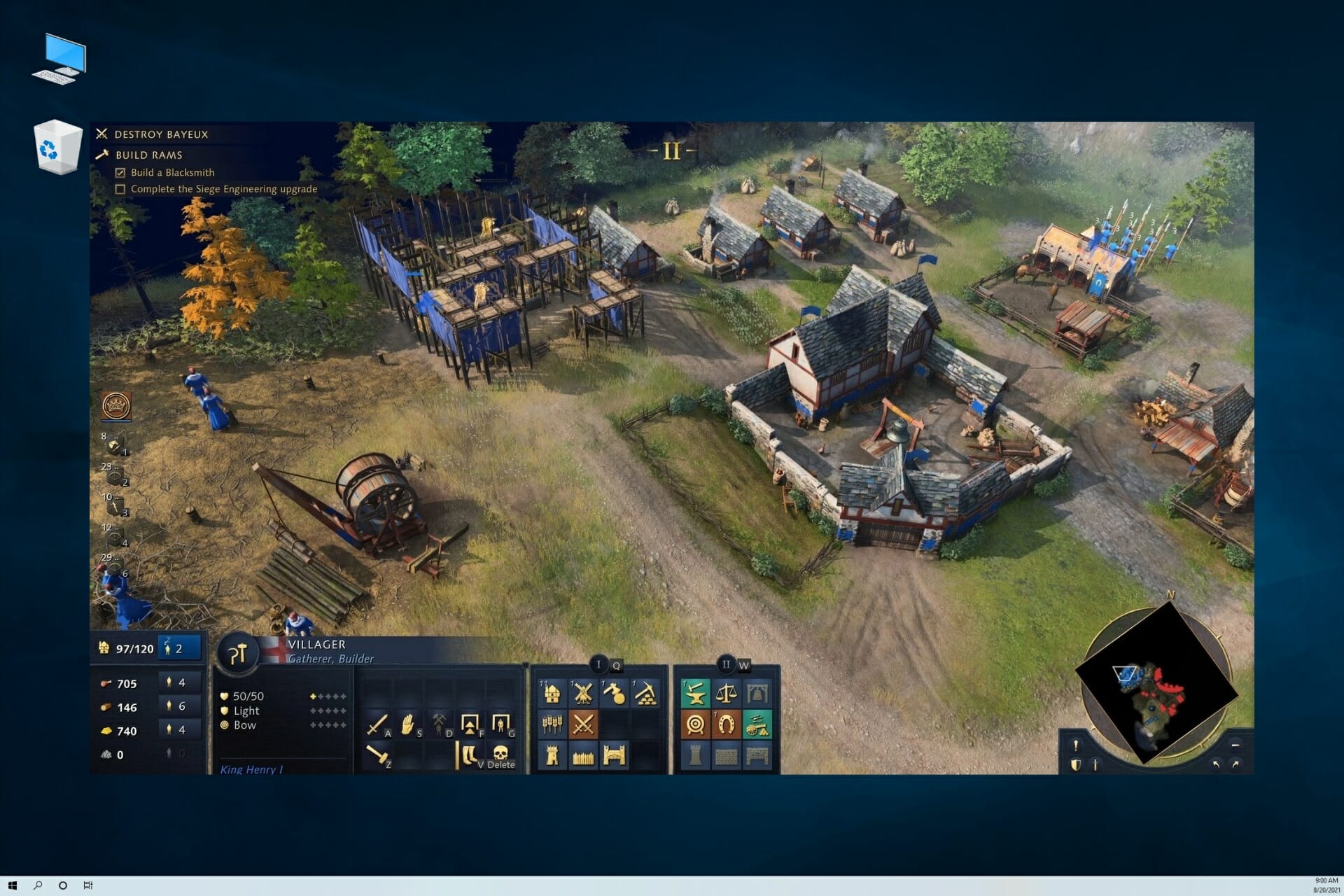


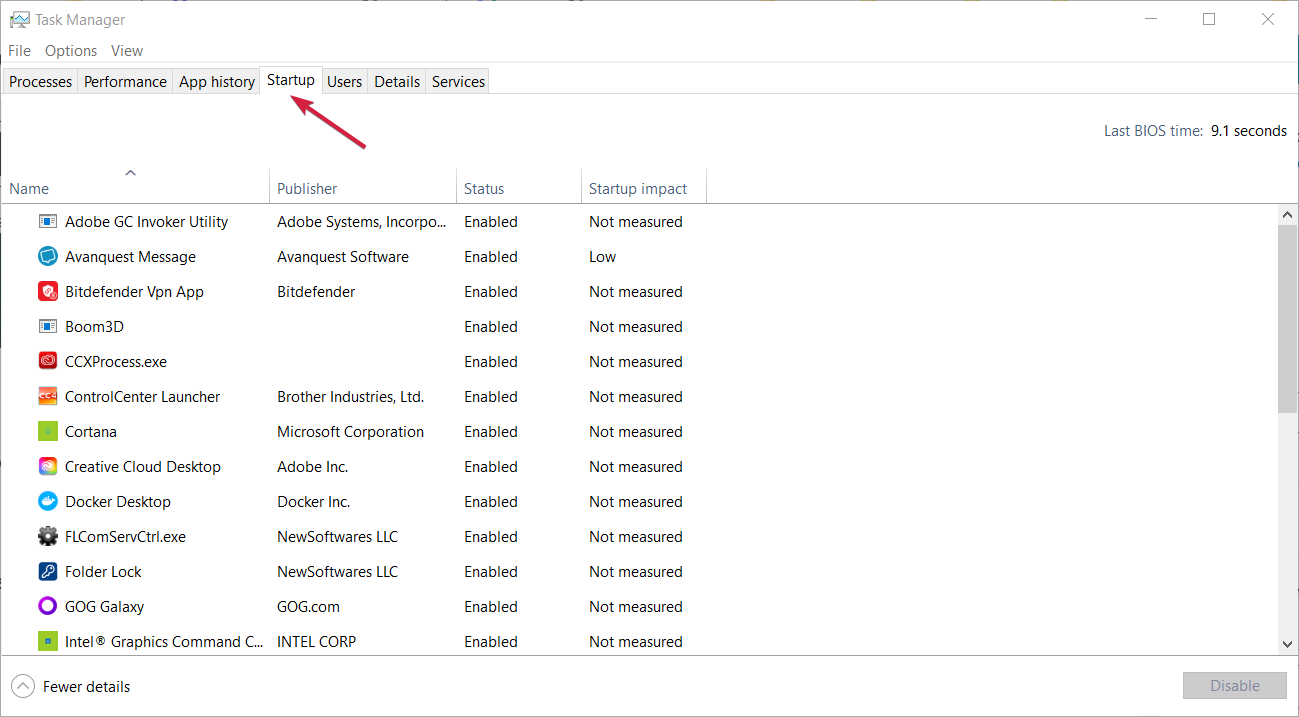


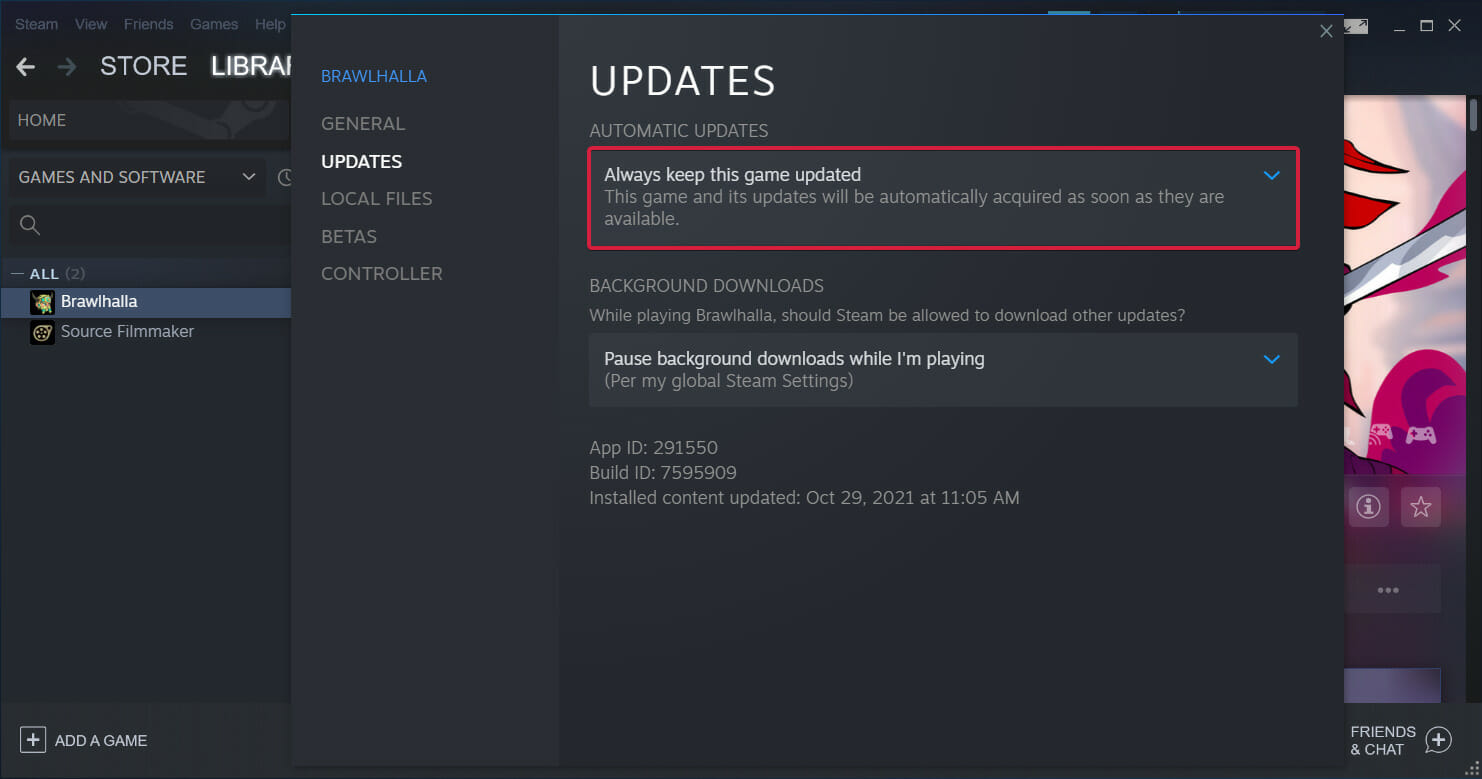
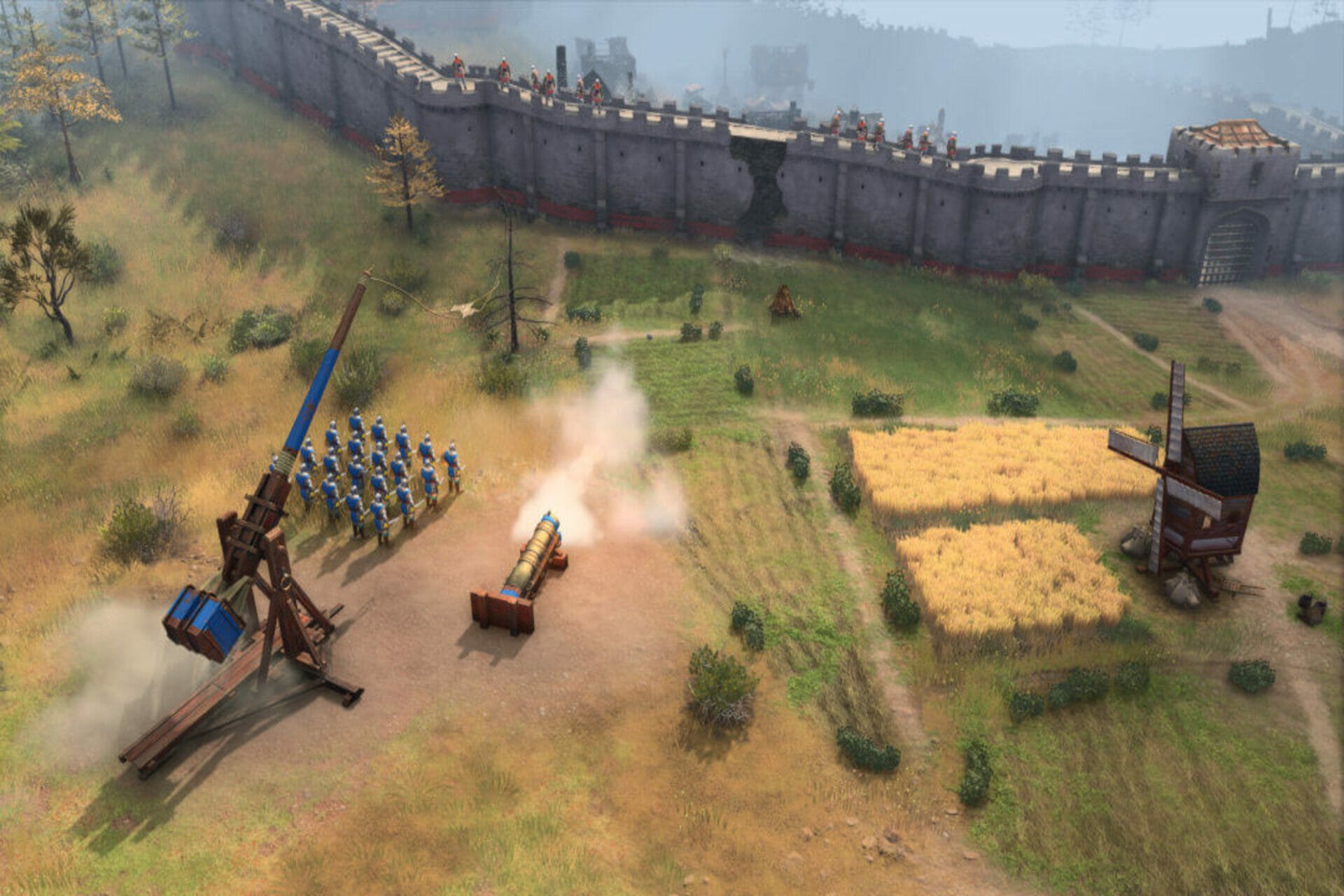
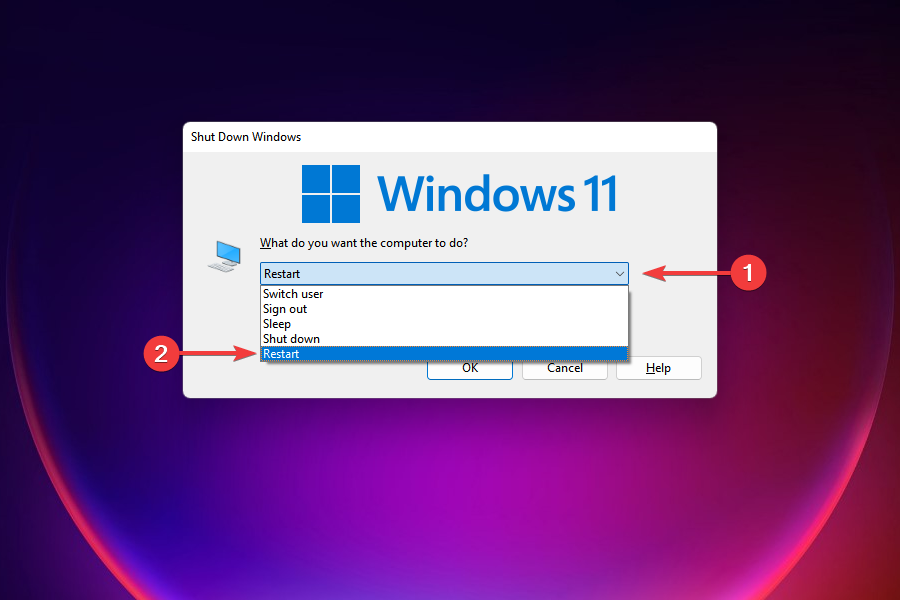
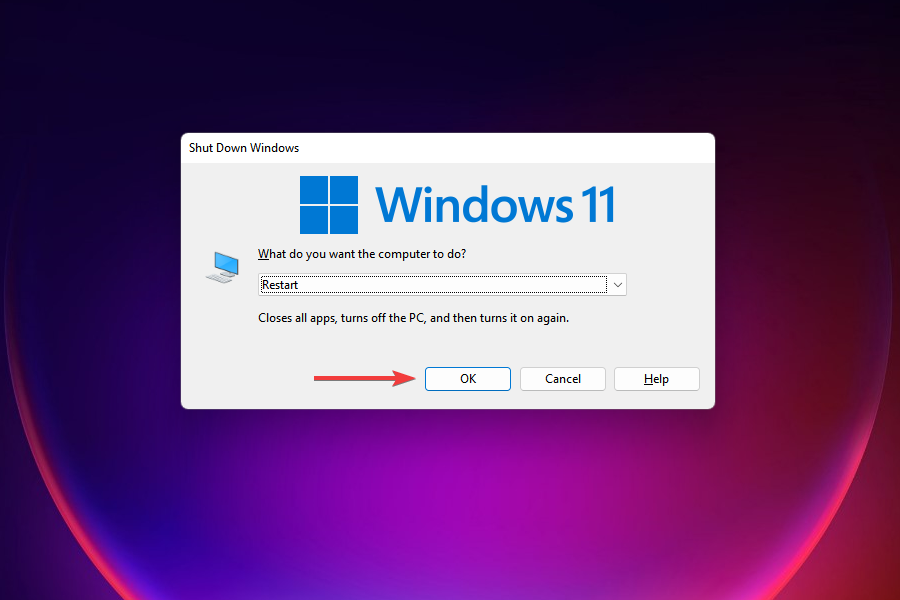
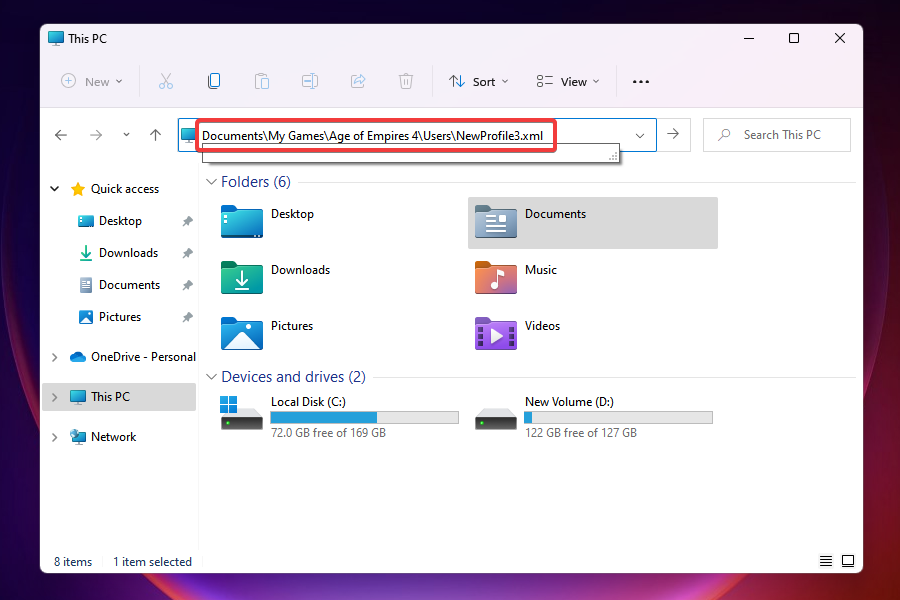
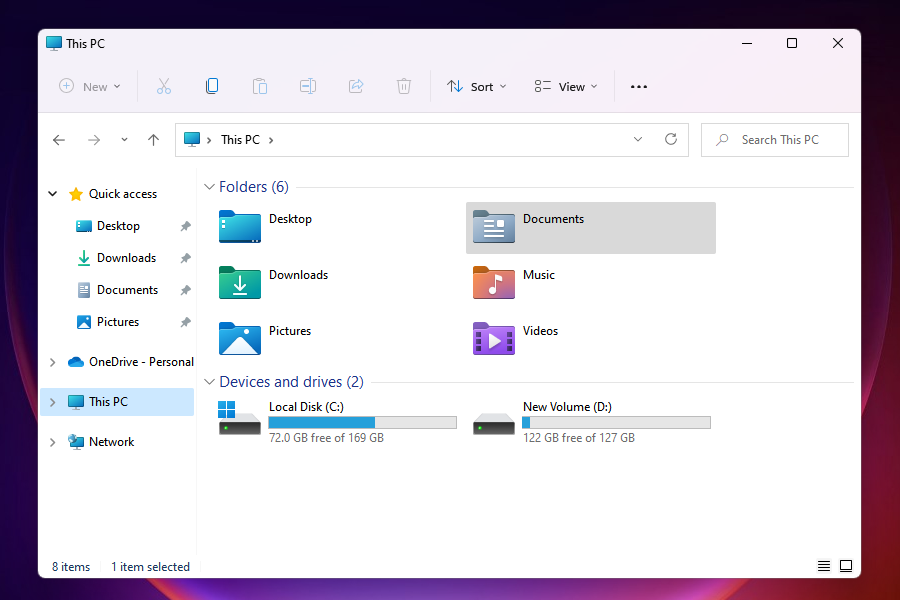
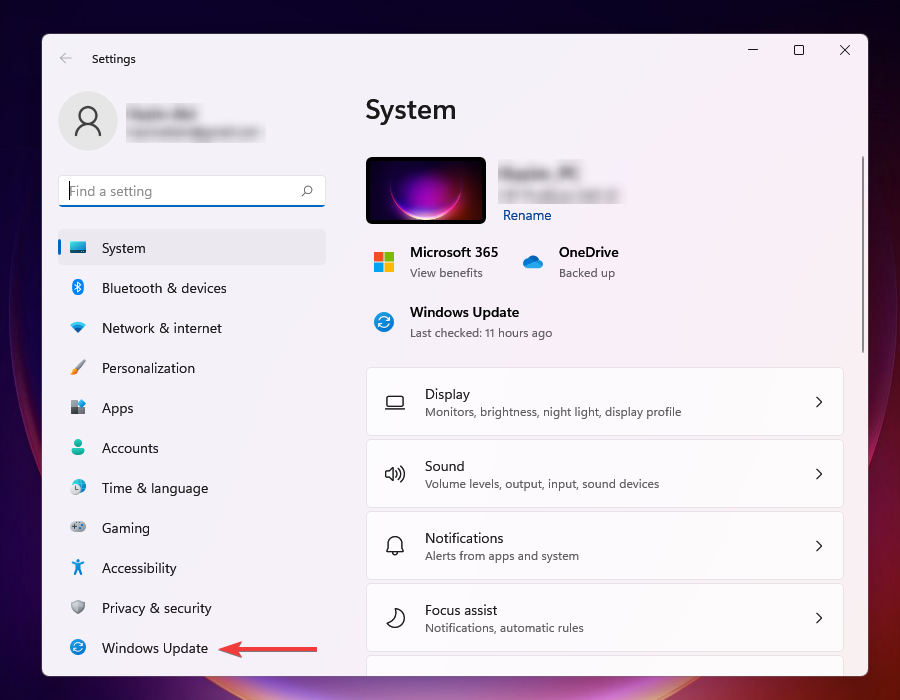
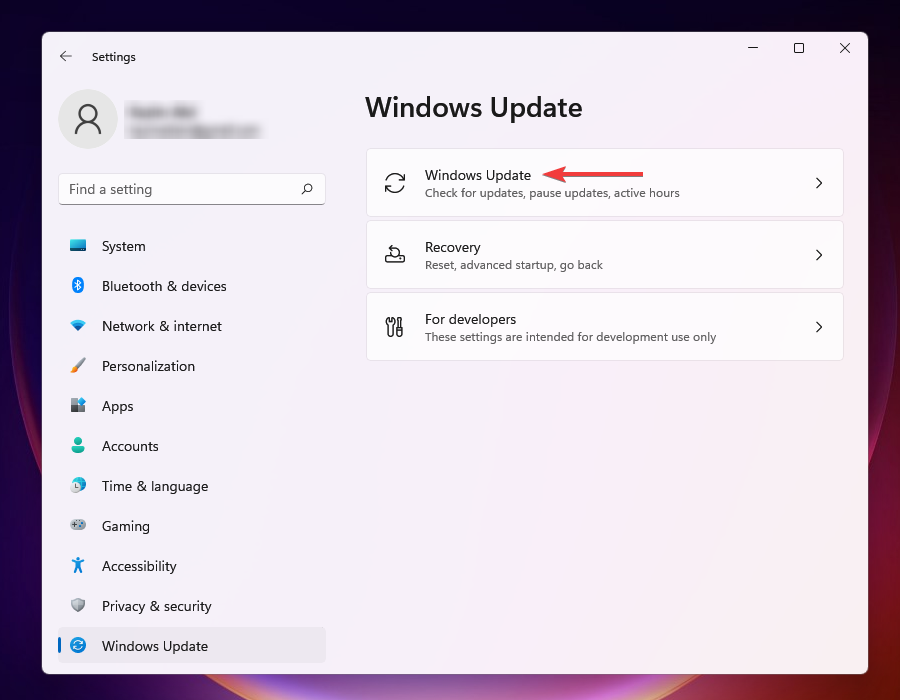
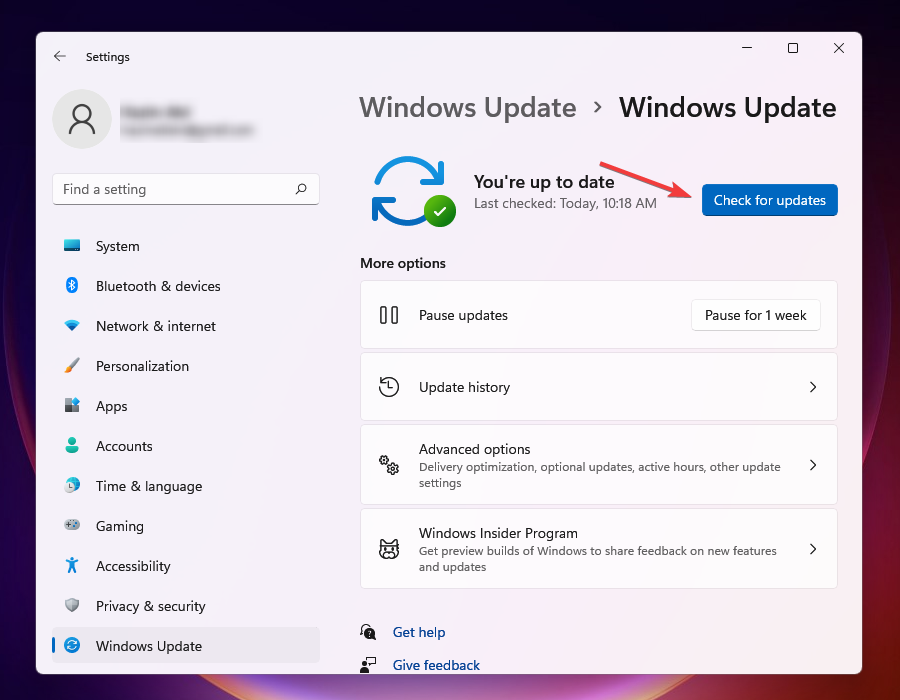
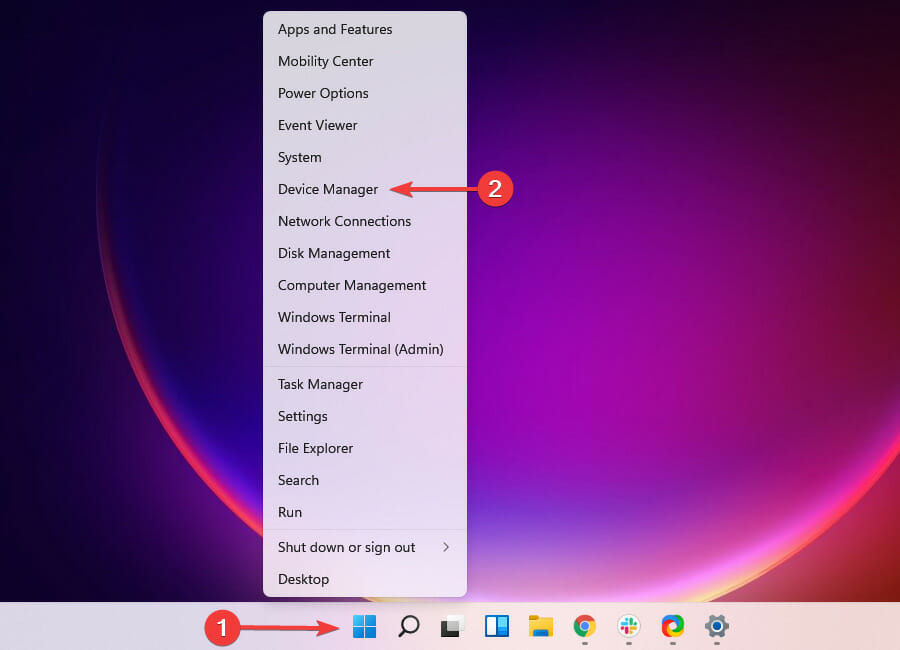
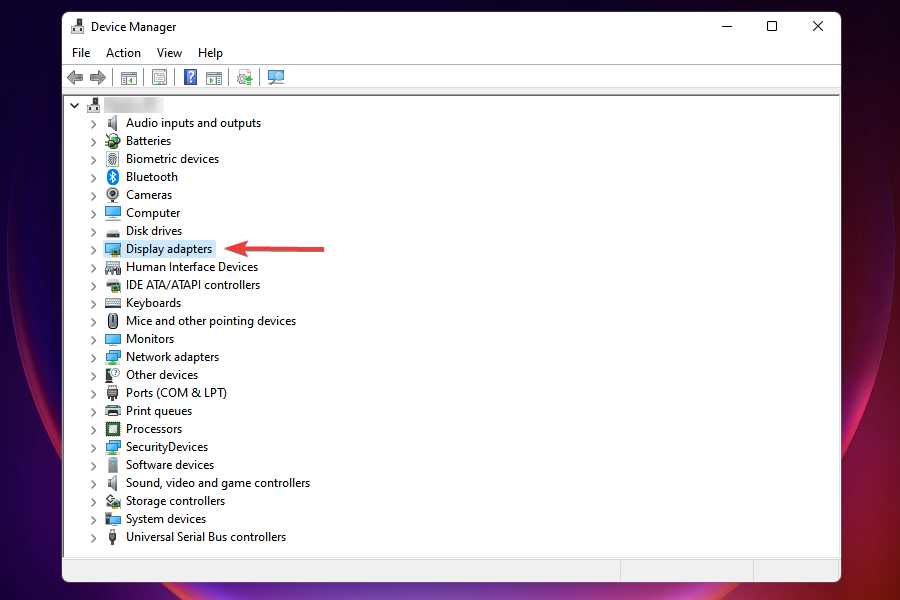
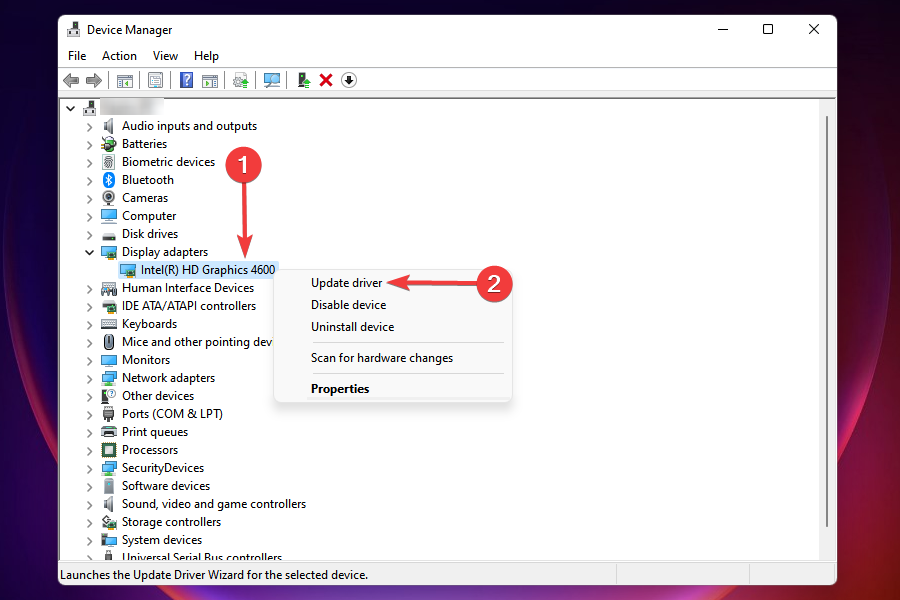
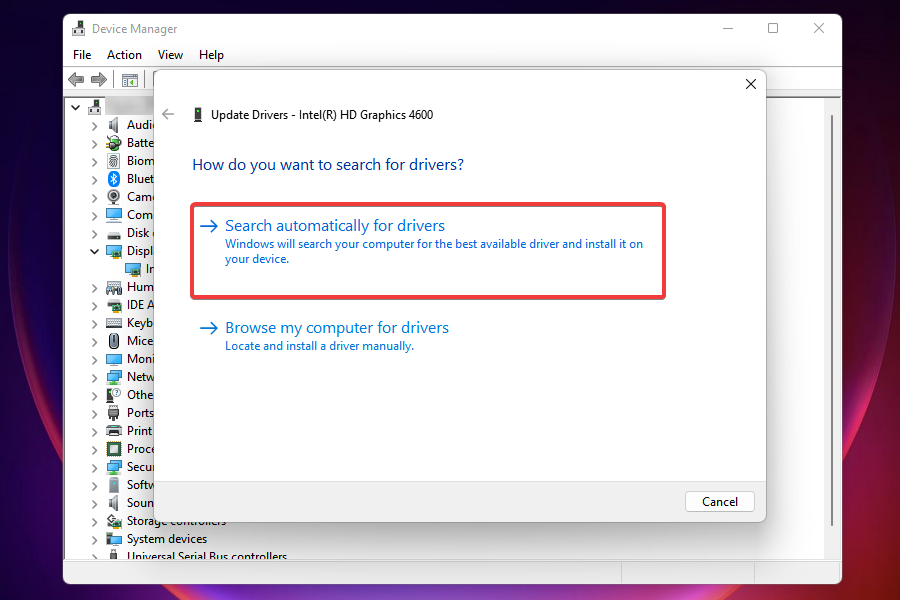

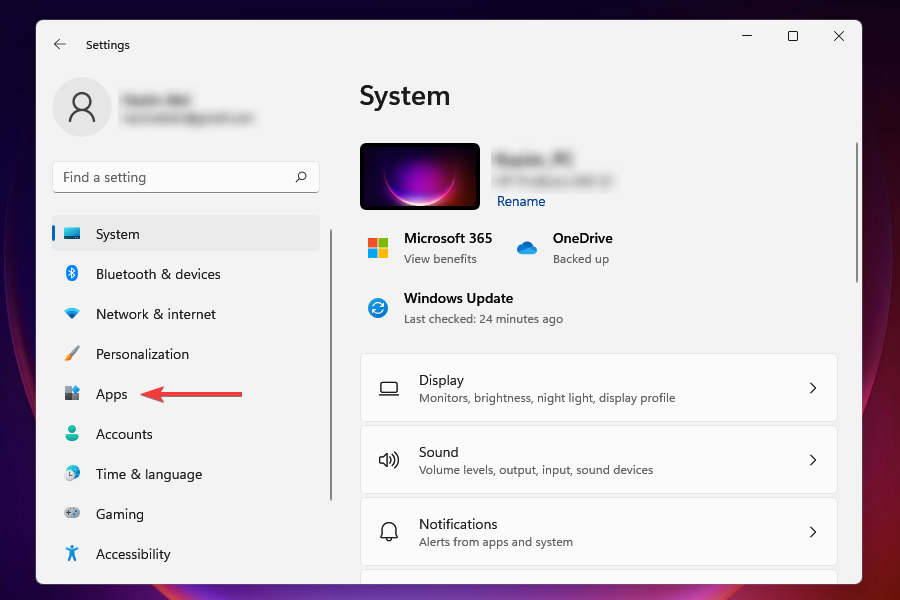
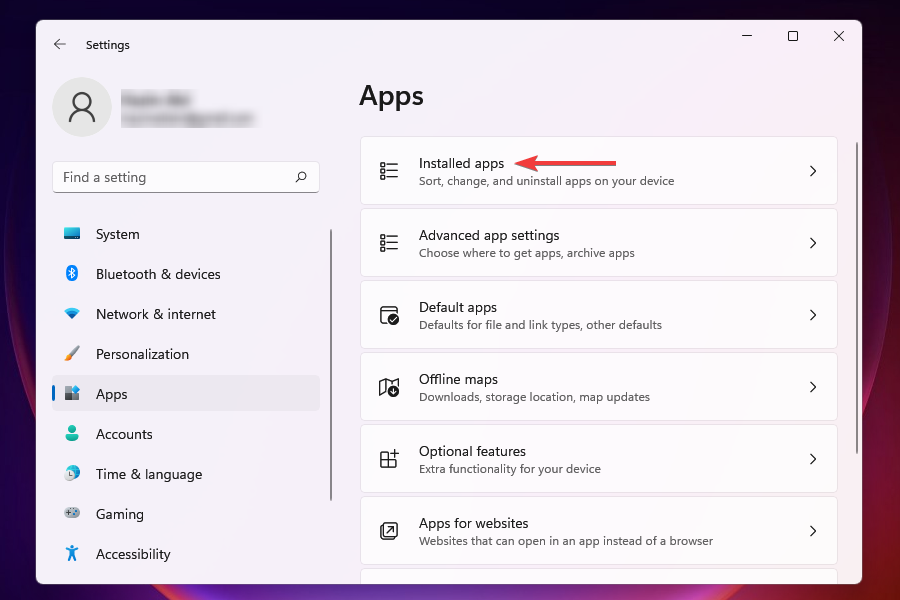
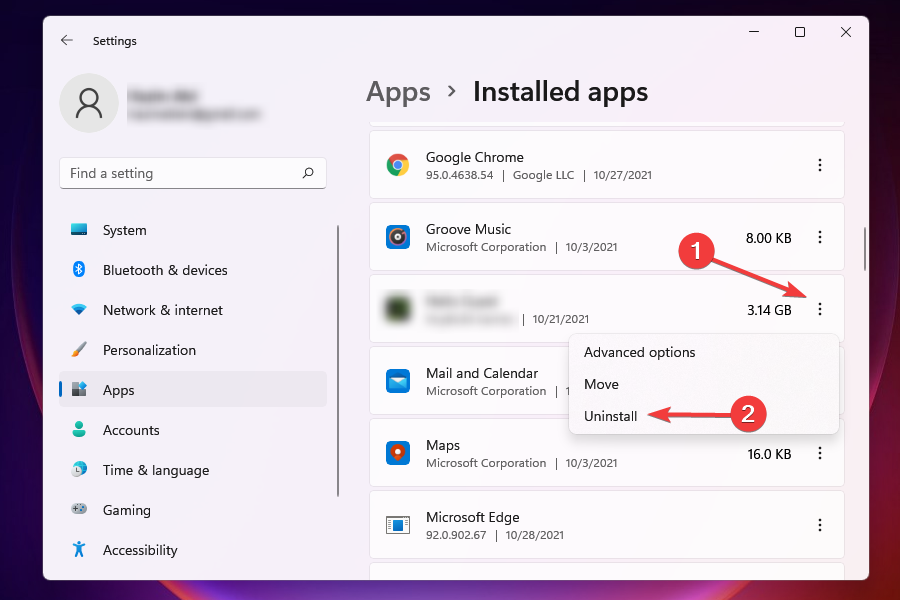
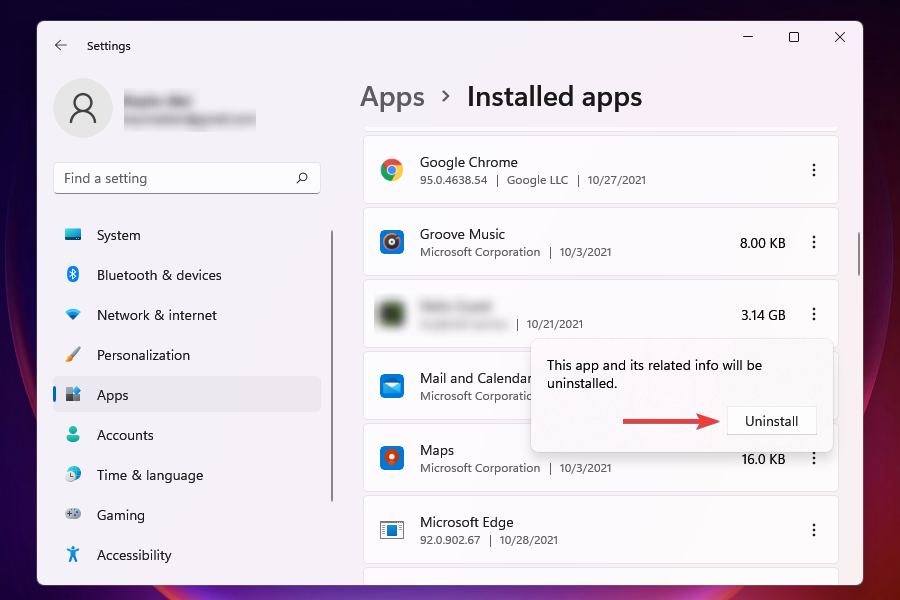


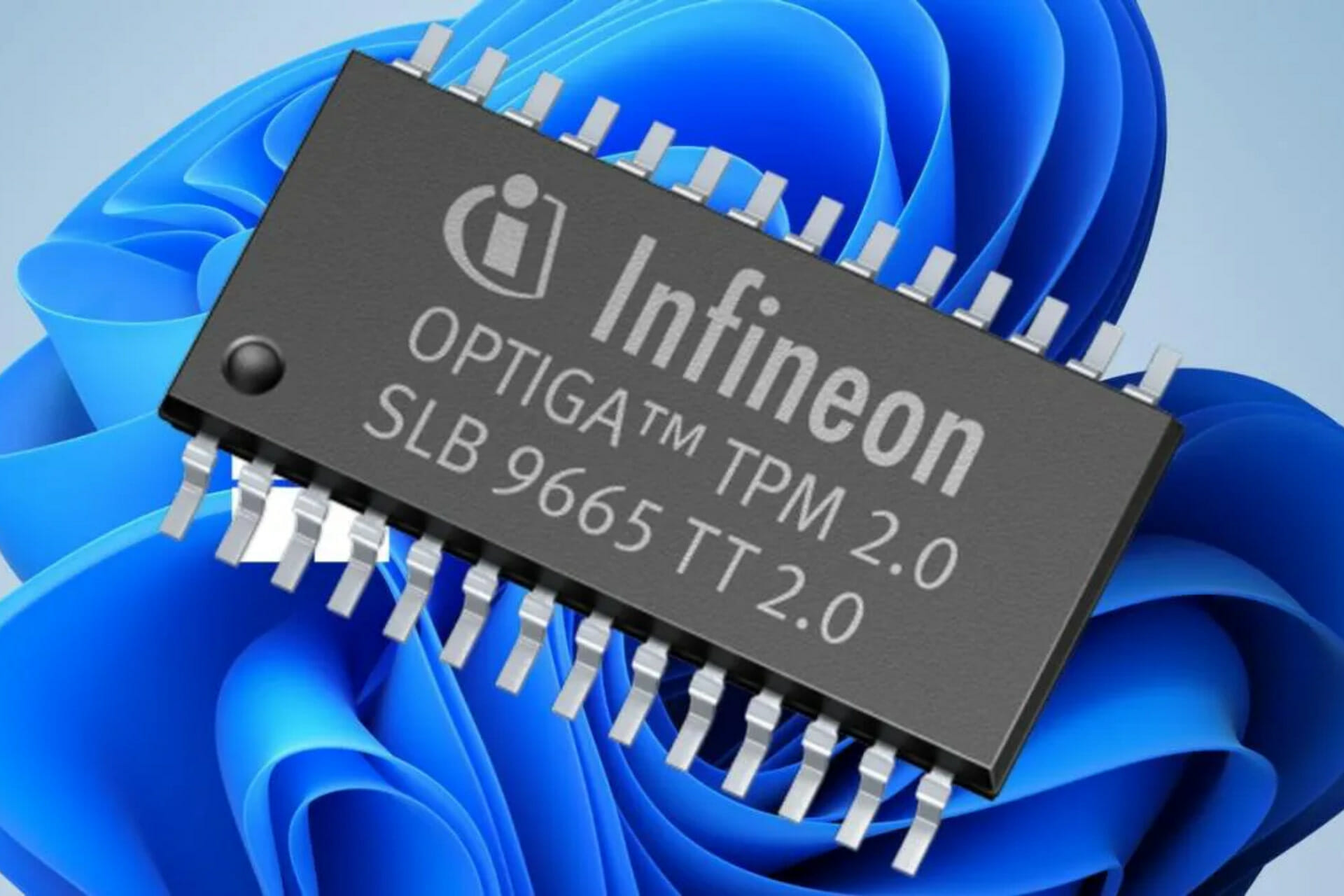
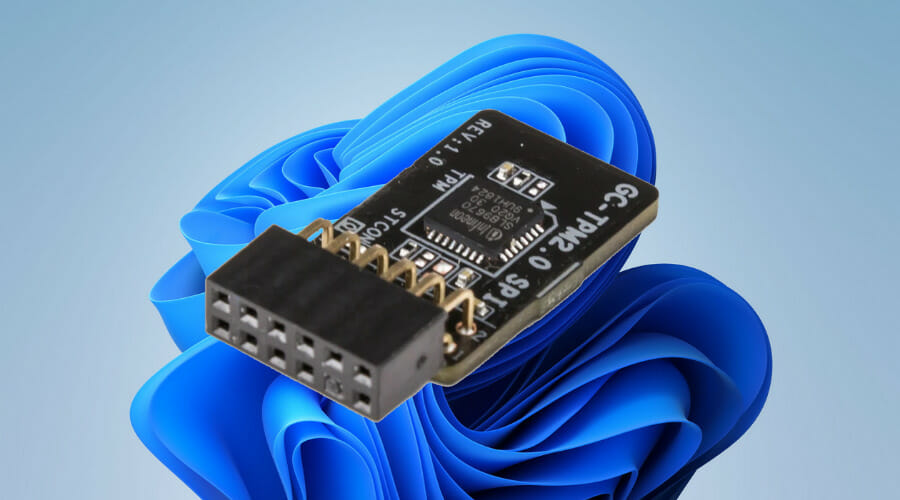


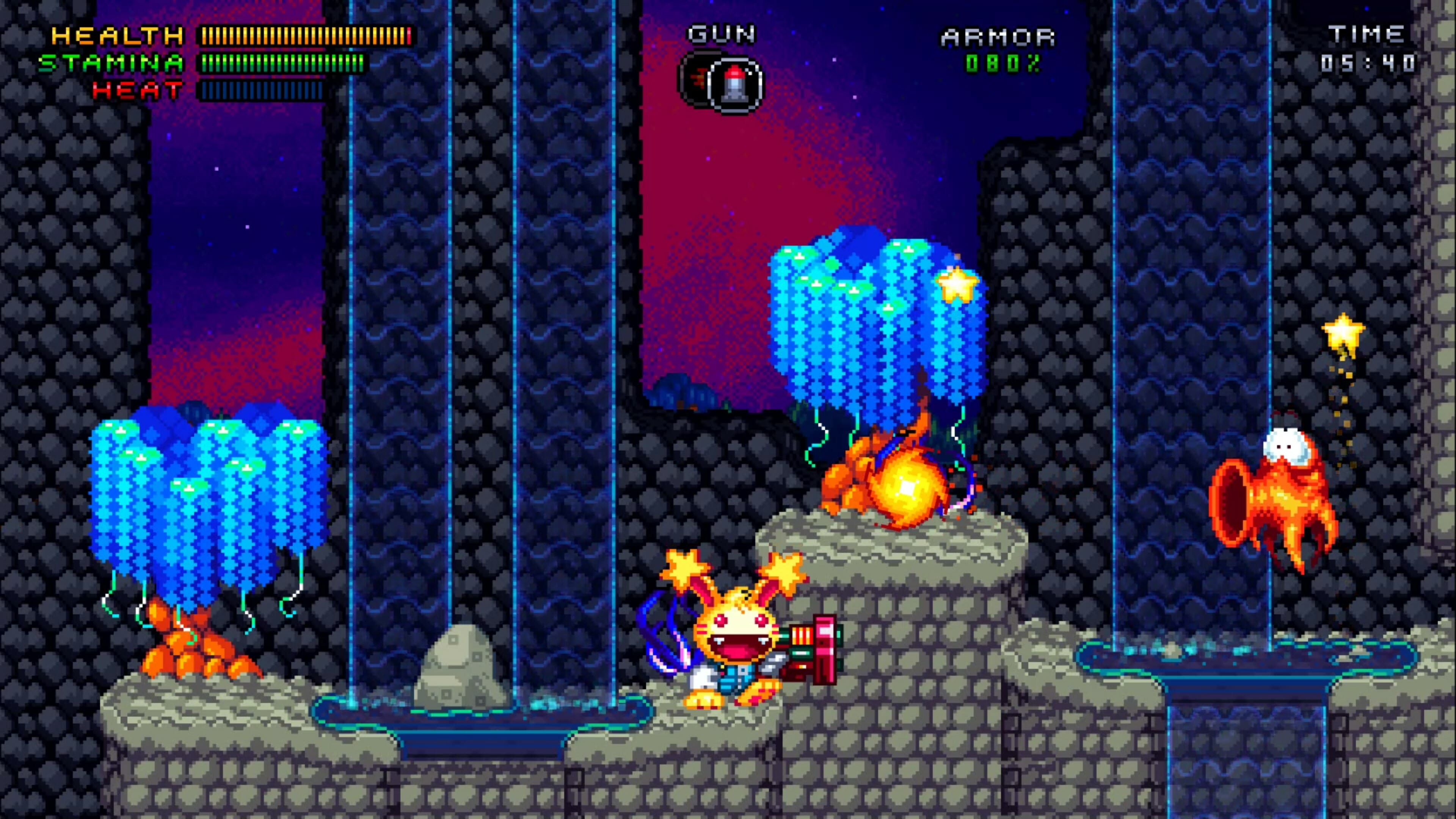




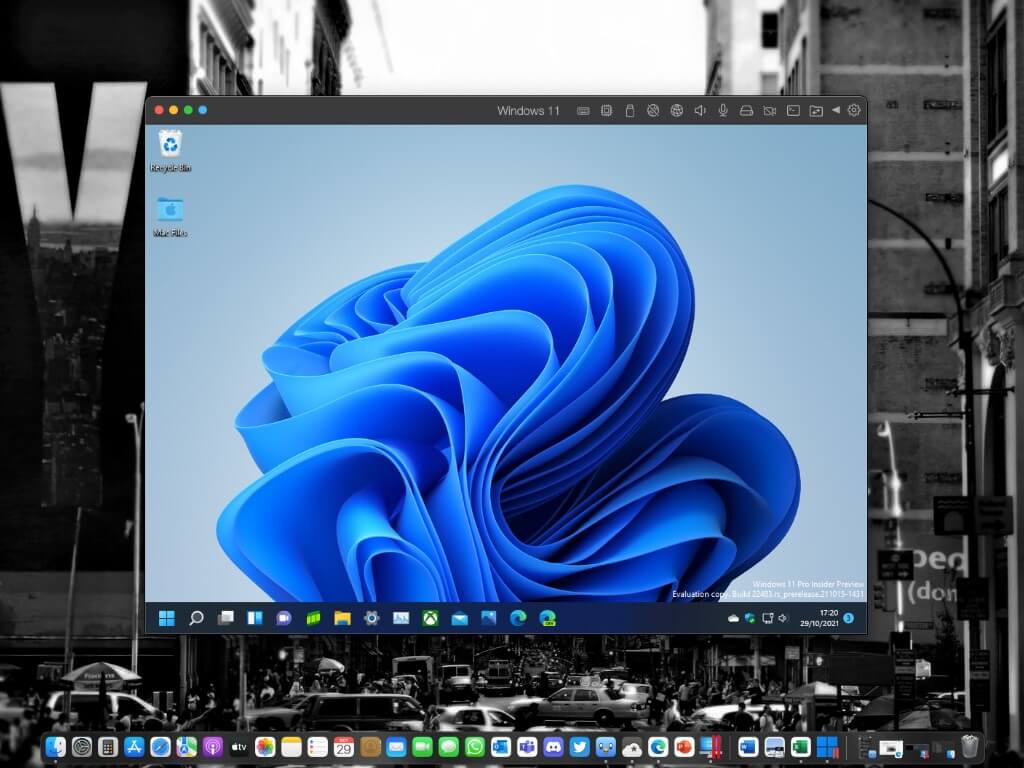
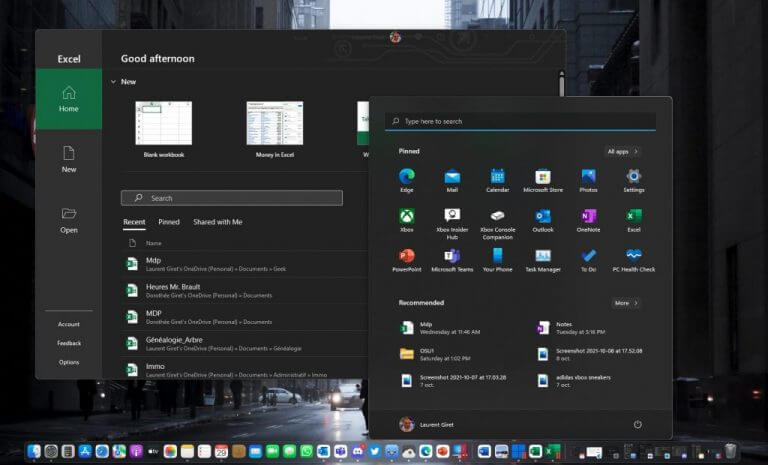
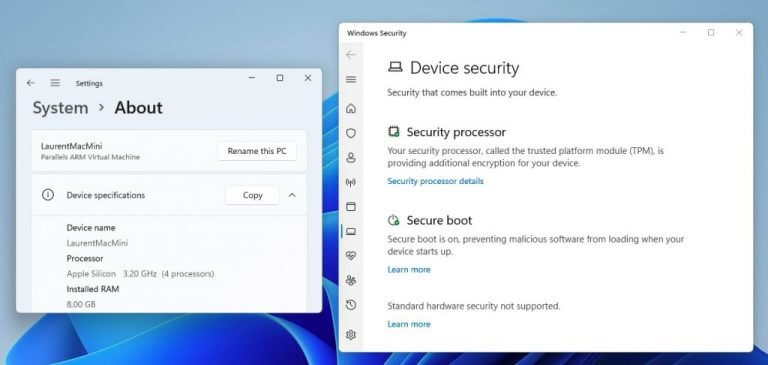




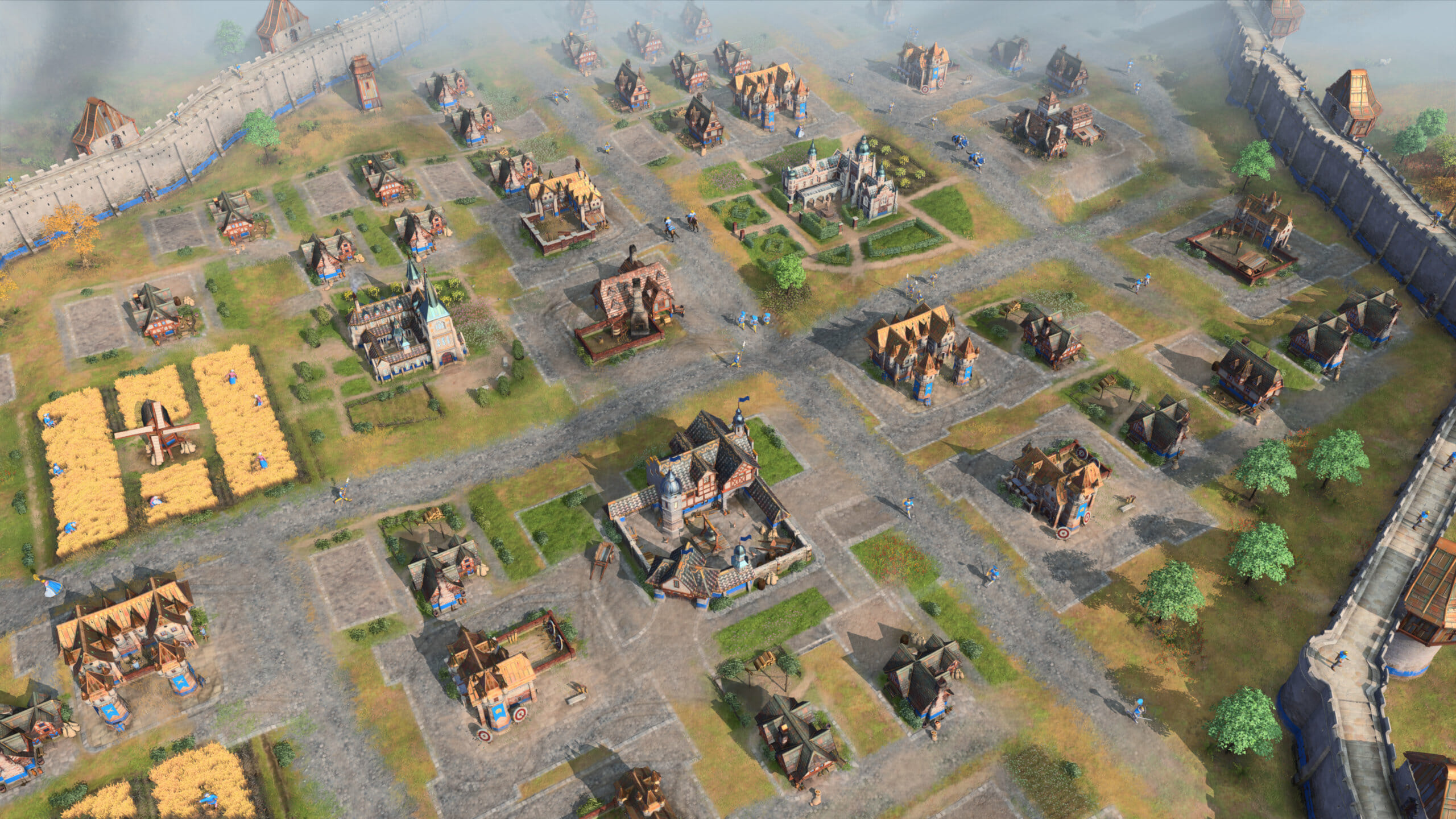
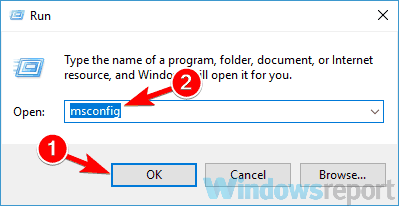
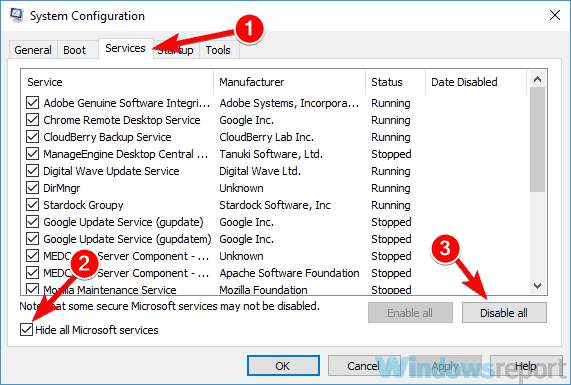

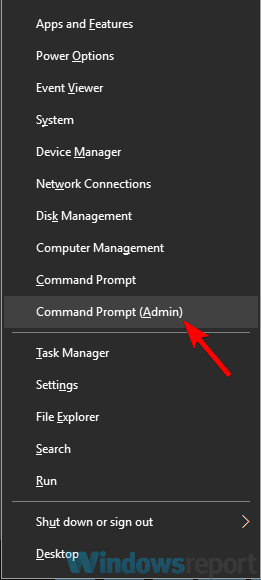
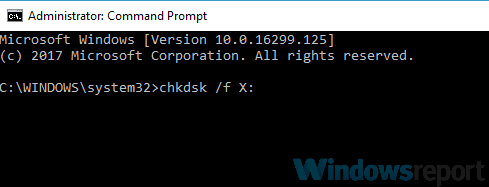


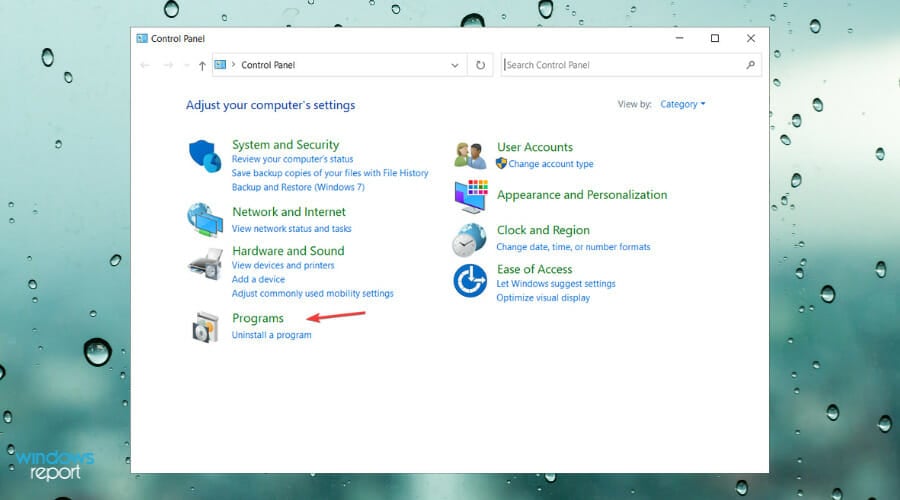

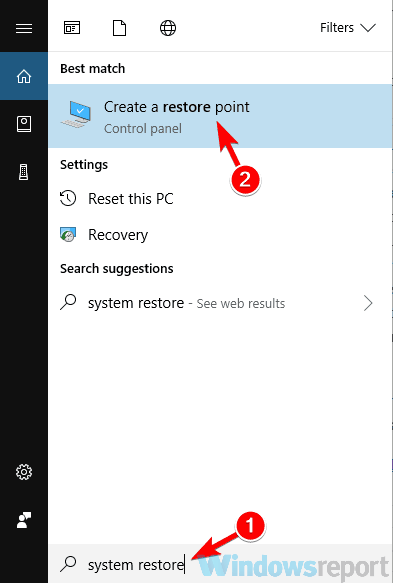
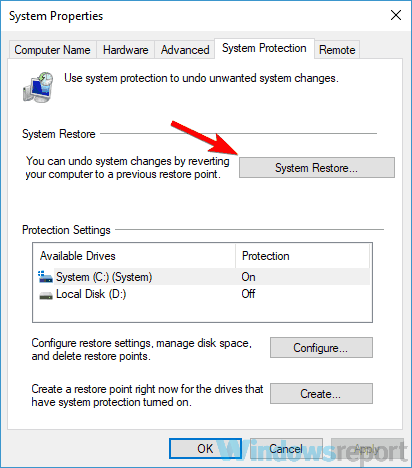
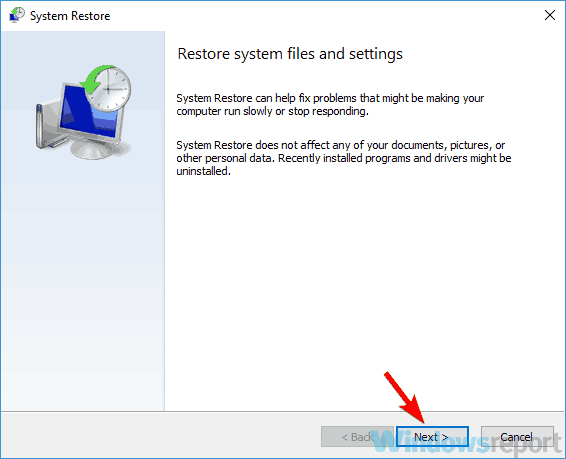
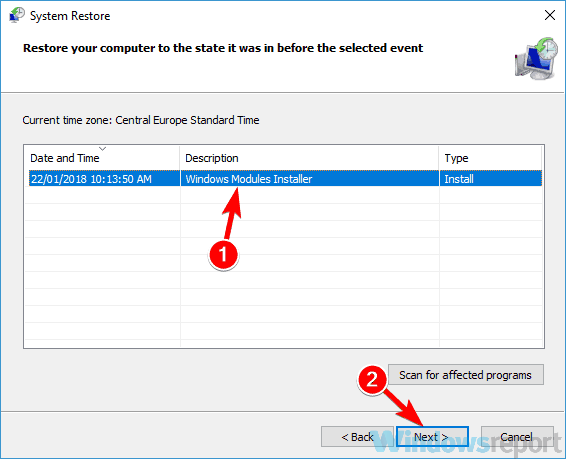
![Unable to display current owner on Windows 10/11 [SOLVED]](https://windowsreport.com/wp-content/uploads/2019/05/Unable-to-display-current-owner-.jpg)








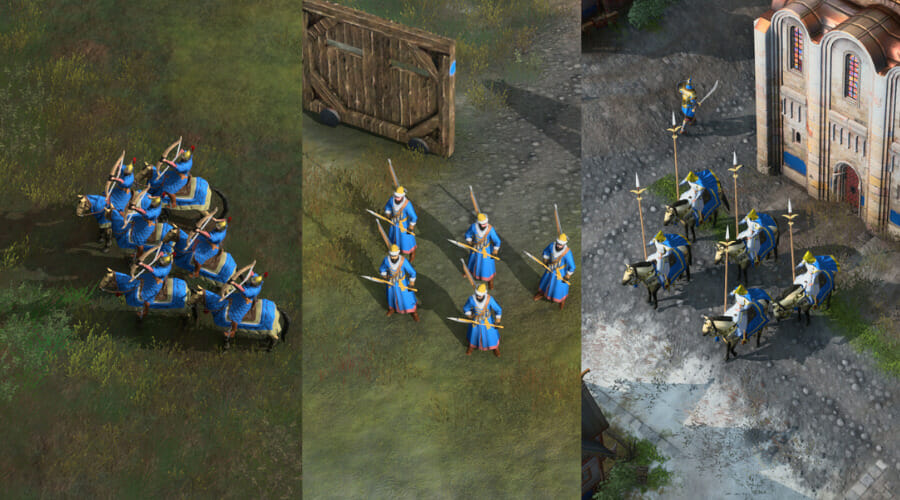



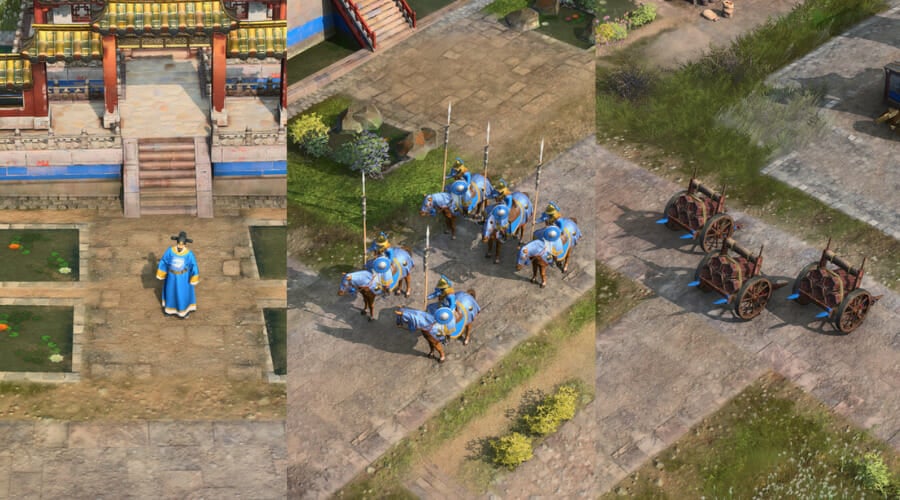



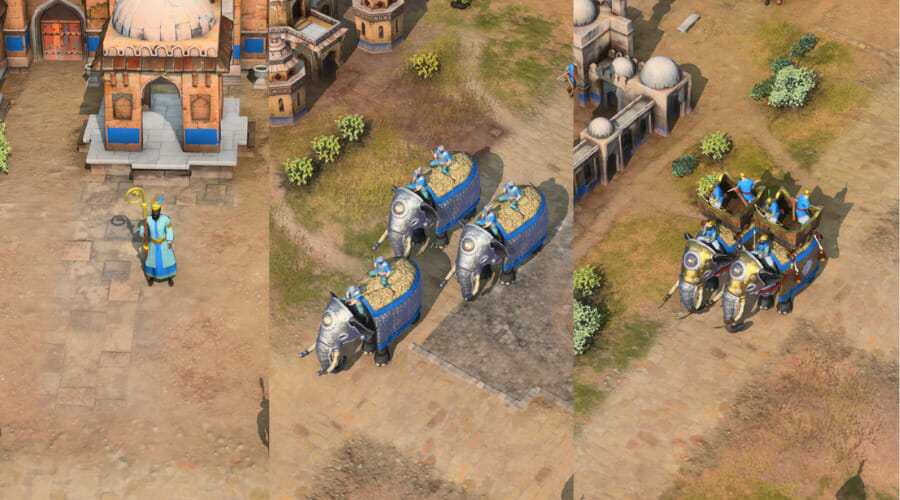








![Windows 10/11 update error 0x800703ed [FIX]](https://windowsreport.com/wp-content/uploads/2020/05/Windows-10-3-1.jpg)


![[Fixed] eM Client emails keep disappearing](https://windowsreport.com/wp-content/uploads/2019/10/eM-client-emails-keep-disappearing.jpg)