Download and install Windows Photo Gallery on Windows 10

Over the years Microsoft released many amazing tools, but unfortunately, some of these tools had to be discontinued. One of them is Windows Photo Gallery.

Since this was such a popular tool, today we decided to show you how to download it and install it on Windows 10.

What is Windows Photo Gallery?

Windows Live Photo Gallery for Windows 10 is an image optimizer and photo editing application. The first version was included with Windows Vista, designed as a Windows Picture and Fax Viewer replacement.

The first version was developed in December 2001 as a Photo Library and it was released under the Digital Image Suite 9 on June 3, 2003. The last Photo Library branded software was released on April 22, 2005.

After that, Windows Photo Gallery took over and it came with all the versions of Windows Vista.

When Windows 7 was released, Windows Photo Gallery was removed and added to the Windows Live Essentials suite.

At the same time, Microsoft changed the name of this application to Windows Live Photo Gallery and the first version of this software was released in 2007.

Over the years this tool saw some big changes and new features such as facial recognition, image stitching, batch people tagging and geotagging.

Windows Photo Gallery allows you to organize photos by adding titles, ratings, captions, and custom metadata tags, and there’s also support for XMP metadata standard for categorizing your photos more efficiently.

Windows Photo Gallery also supports basic photo editing, thus allowing you to quickly resize, crop, adjust shadows, sharpness, or reduce noise. Another feature is its batch resize that allows you to quickly resize multiple photos.

As for supported formats, Windows Photo Gallery supports the most popular image and video formats.

How to install Windows Photo Gallery on Windows 10?

  1. Download Windows Essentials.
  2. Run the wlsetup-web file that you just downloaded to start the setup.
    windows-photo-gallery-setup
  3. Wait for the installation process to prepare.
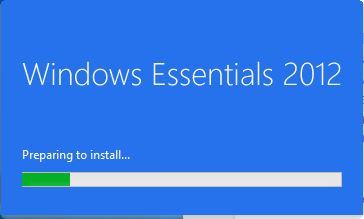
    windows-photo-gallery-prepare
  4. Select Choose the programs you want to install.
    • Make sure to only select Photo Gallery and Movie Maker.
  5. Click the Install button to start the installation.
  6. Wait for the applications to install.
    windows-photo-gallery-installing
  7. Once the setup is completed click the Close button.
    windows-photo-gallery-done

Installing Windows Photo Gallery is pretty simple, and you can do it by following the steps below.

windows-photo-gallery-shortcut

Once the setup is finished you can start Photo Gallery by double clicking its shortcut.

As soon as we started Photo Gallery we encountered an error message saying that Photo Gallery requires Microsoft SQL Server 2005 Compact Edition in order to run.

Fortunately, you can download all the necessary components from here. After installing the necessary components you should be able to use Photo Gallery without any problems.
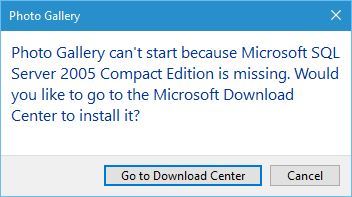
windows-photo-gallery-sql-download

After you start the application you’ll see list of thumbnails from your Pictures folder, but you can easily add any other folder to Photo Gallery.

windows-photo-gallery-thumb

You can also double click the thumbnail to view an individual image. From here you tag people, add geotags, captions and descriptive tags.

In addition, you can choose between several colour and exposure presets, or you can fine tune all of these options manually.

After you’re done with changes, you can save the edited image as a copy and preserve the original image.

windows-photo-gallery-adjust

You can set your edited image as a desktop, or share it online on social media websites right from the Photo Gallery.

windows-photo-gallery-share

We have to mention that you can easily apply effects such as colour correction and exposure to multiple images simply by selecting them and clicking the desired effect.

Of course, if you aren’t satisfied with changes you can easily revert back to the original version.

windows-photo-gallery-adjustments

In addition to adding effects, you can create panoramas, auto collage and photo fuse right from the application itself.

windows-photo-gallery-panorama

Photo Gallery isn’t working on Windows 10? Fix it in a few simple steps with this guide.


As you can see, Photo Gallery works on Windows 10 without any major problems.

The only issue that we had was the lack of Microsoft SQL Server 2005 Compact Edition, but after installing the necessary tools the application worked without any problems.

Note: Do not forget that Windows Photo Gallery has been discontinued and Microsoft no longer offers support for it. If you have any issues with the app, you’ll have to solve them on your own.

If you are interested in a more capable image editing tool that can help you with all your projects, check out this awesome list.


This concludes our article today. We hope that we managed to show you all the important information you needed.

Feel free to tell us in the comments below which photo editor you use and if Windows Photo Gallery still has a place on your computer in 2019 or not.


Microsoft and Nokia’s newest partnership involves enterprise cloud solutions

Despite a very public and rather harsh uncoupling between the Nokia and Microsoft brands following the failed Windows Phone experiment, it appears the two are ready to collaborate on a different venture now.

Today, March 15, 2021, Microsoft and Nokia announced an agreement to co-develop private 4 and 5G wireless uses cases “designed for enterprise.”

The collaboration will combine Nokia’s Cloud RAN (vRAN) technologies with Microsoft Azure cloud-based services and developer ecosystem to drive end-user functionality via new business cases. The initiative supports Nokia’s strategy of partnering with best-in-class public cloud providers to drive end-user business outcomes essential for monetizing 4G/5G deployments.

Nokia Cloud Native 5g App Development

Once again, Microsoft has signed another big name to its Azure platform and will play the cloud backbone to future development, specifically Nokia will run its Cloud RAN, Open RAN, Radio Access Controller (RIC), and multi-access edge cloud (MEC) atop Azure’s Private Edge Zone.

What is Azure Private Edge Zone you ask?

Azure Private Edge Zone is a low latency solution that enables developers to leverage 5G for use in fields such as real-time robotics, immersive mixed reality, and gaming. According to Nokia’s press release, the company will integrate its own 5G RAN with Azure 4G/5G core to “demonstrate interworking to support enterprise use cases required by Microsoft’s customers.”

If all goes to plan, Nokia is already entertaining a possibility of expanding its agreement to eventually host its Nokia Airframe Open Edge server on Azure which would help the company distribute 5G computing capacity across its network. Unlike its previous smartphone partnership, Nokia is keeping the door wide open for multiple vendor partnerships and not going exclusively with Microsoft for its public cloud expansion efforts.

5 Best Battery Powered Digital Photo Frame

Keeping photographic memories in your home isn’t as common as it used to be, and many users are using a battery-powered digital photo frame to store their photos.

While some users prefer digital photo frames for walls, others prefer a lighter solutions instead.

There’s a wide array of photo frames available on the market, and in today’s guide, we’re going to show you our favorite digital photo frames.

What are the best battery powered digital photo frames?

Nixplay Smart Digital – Best overall

  • Motion sensor for automatically turning the frame on/off
  • Compatible with Amazon Alexa for requiring a photo playlist
  • Up to date photo display thanks to Google Photos connectivity
  • Set-up guide needs improvement

The Nixplay frame gives you the chance to share photos or 15 seconds videos directly from your phone, laptop, or email, in a safe and private manner.

One of the most awesome features is the fact that you can create a photo-sharing network with your family and friends that respects the GDPR and CCPA regulations.

With this frame, you benefit from an excellent display quality of 1280×800 HD IPS, that adjusts itself to portrait or landscape images.

MRQ 14 Inch – Large display

  • USB, SD and 3.5 mm Earphone slot
  • Storing capacity of up to 32 GB of media files with the SD Card
  • Extra features: clock, calendar, image slideshow, image zoom
  • No software for fitting the photo to the frame dimension

This frame comes with a beautifully customized 14-inch display with a 1920×1080 high resolution LED screen, that can also support HD videos, with a 16:9 aspect ratio.

You’ll be delighted with the motion sensor that allows you to switch on light up the photo as soon as you walk into a room from a distance of 2.5 meters.

For those photos you take with your phone, you have the Auto-Rotate Function that lets you flip the photos depending on the position of the frame.

KODAK WiFi Digital Picture Frame – Great battery life

  • 10.1-inch touchscreen display
  • 1280×800 resolution
  • 16GB internal storage, support for extension
  • 4000mAh battery
  • Wireless image upload
  • Issues while transferring photos from PC
  • Slow syncing

This digital frame comes with 10.1-inch display touchscreen with 1280×800 resolution and a 16GB memory that will be more than enough to store all your memories.

The device has 4000mAh battery that can last up to 5 hours. The device accepts SD cards and USB drives, so you can easily expand its storage.

As for additional features, the device can play music, show the calendar, weather, videos or even work as a alarm clock, so it’s a multi-functional device.

FLYAMAPIRIT Digital Frame – Great for storage

  • Extra functions: Clock & Calendar functions. Support Automatic Rotation
  • Compatible with FAT 16 or FAT 32.USB support 2.0. cards
  • Mounting holes for a VESA 75mm/3-inch for hanging on walls
  • Set-up delay error with remote control

A 10-inch digital frame with a display of  1280×800 IPS and a viewing angle of 178 degrees is a great choice if you want to have a special memory placed in your home office or workplace.

It is very user-friendly because it doesn’t require a set-up or special software you just need to send your photos from an SD card of a maximum of 32 GB.

A feature that will really make your photos come to life is the fact that you can add music to play in the background, and actually save an entire playlist for your photos. The frame provides an excellent sound quality so you really get a special experience with this device.

DragonTouch 10 Inch WiFi Digital Picture Frame – Uses 2K resolution

  • 2K touchscreen
  • 2000 mAh battery
  • Wi-Fi, SD, and USB transfer support
  • Auto rotate feature
  • Data transfer limit
  • Minor difficulties when transferring photos

This is 10.1-inch device and it comes with amazing 2048 x 1536 resolution, and it can display images in 4:3 aspect ratio.

The device has 16GB of storage, which should be more than enough for most users. As for image transfer, you can use the dedicated mobile app to easily transfer the photos.

We have to mention the built-in battery, and with 2000mAh, it might not be the best, but it should provide you with decent battery life.

As we have shown you in this article, battery powered digital photo frames offer more than the classical way of displaying photos in your home. These devices allow you to enrich your picture with elements such as your favorite music, creating a special piece of decor.

We hope that we gave you all the necessary info so you can choose the digital frame that fits you the best.

If you’re looking for something different, take a look at digital photo frames that play videos instead.

Tell us more about your experience and share your opinions by accessing the comment section below.

3 Best DSL Modems To Connect To The World

The best solution for a stable Internet connection is a DSL modem that basically functions like a landline phone, and in this guide we’ll help you choose the best DSL modem.

Most popular modems these day are the ADSL type, meaning Asymmetric DSL modems, which implies that the download and upload speeds are have different values.

That’s why when you’re considering getting a modem some important aspects are the maximum speed and the ability to increase Internet speed.

If you’re looking for a new model, keep on reading to find out about our top picks.

What are the best DSL modems to buy?

CenturyLink Prism TV

  • 5.8 GHz Radio Frequency
  • 2100T wireless security design
  • TR-069 remote management for faster deplymen
  • No user manual

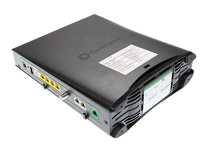
CenturyLink introduces a DSL modem that features automatic network configuration and a 300 Mbps 802.11n access point.

Thanks to these characteristics you can be sure that your Internet connection will function smoothly at any time, whether you’re focusing on work or streaming your favorite game or TV show.

Another great perk of this modem is the fact that it comes with 802.11n technology and 2T x 2R antennas, which means you’ll benefit from great Internet speed and extended coverage.

This device offers compatibility with various services such as VDSL, ADSL, ADSL2+ and Prism TV. The modem includes a standards-based WPS feature that simplifies the setup procedure of securing a WLAN connection.

Without a doubt, this is one of the best DSL modems for CenturyLink, so be sure to try it out.


TP-Link ADSL2+ Modem

  • 192 Megabits per second transfer rate
  • ADSL/ADSL2/ADSL2 support for high performance
  • 8 PVCs support and compatible with a great variety of ISPs
  • The plastic buttons seem fragile

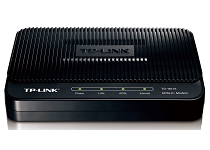
Another great choice on our list is this TP-Link modem that comes with 24Mbps downstream bandwidth, a one Phone line port and a one 10/100M Ethernet port.

An element you’ll definitely find extremely useful is the incorporated firewall that is meant to protect your Internet connection from various cyber threats.

When it comes to this DSL modem we mustn’t forget about a very important feature, the 6KV lightning protection function that is of great help in protecting against any thunderstorm damage.

Overall, it’s a great modem and one of the best DSL modems for Frontier.


Netis DL4323 300Mbps High-Speed

  • Wireless N speed up to 300Mbps
  • IPv6 and TR-069 functions for improved speed
  • Latest ADSL technology for a smooth internet experience
  • Setting it up may be complex

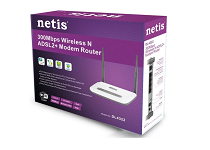
The Netis DSL is a lightweight modem that offers a unique 3 in 1 combination that includes the features of a high-speed ADSL2+ modem, a 4-port NAT router, and wireless N access.

This means that you can easily connect multiple devices at the same time without any hassle while benefiting from a high Internet speed of up to 24Mbps downstream.

Don’t miss out on the the DL4323 technology that ensures a far superior speed than the traditional dial-up connections.

Some other awesome characteristics you’ll definitely love are the Port Mapping feature for IPTV, the Ethernet WAN connection, and many more.

This is one of the best DSL modems for AT&T, so we encrouage you to try it out.


Having a good Internet connection plays a major role in today’s world and in order for it to function at optimal capacity, you need a great DSL modem that can provide you with excellent speed.

We hope we provided you with some clear information that you can definitely use when you decide to search for a high-quality DSL modem.

Don’t be a stranger and share with us your experience and recommendation by accessing the comment section below.

5 online privacy myths that target Windows 10/11 PCs

Ever since the explosive Facebook and Cambridge Analytica scandal played out before the world, the concern over how secure the private data of millions of internet users really is continues to raise more questions, than answers.

Wi-Fi, today, is almost like a basic need in itself, as the demand for internet connectivity and convenience in communication continues to surge.

Public spaces such as coffee shops, malls, hotels, schools, colleges, universities, and even transport vehicles have Wi-Fi connections, which most people, especially millennials can’t do without.

However, the use of public WiFi by others doesn’t necessarily make it safe, so you need to ensure you and your devices are protected as you surf in public places.

Similarly, there are many myths that we’ve held as truths in terms of the right precautionary methods to stay safe online, which in fact put us in more risk than we can perceive or imagine.

Here are some of the top five myths about privacy that we all believe, the real truth about them, and tips to deal with each to protect our privacy and surf safely on the web.

Don’t fall for these online privacy myths

1. Public Wi-Fi is safe because everyone uses it

Most people jump at the thought of being in a public place that has free Wi-Fi connection, which to them is a free way of downloading stuff or streaming their favorite media, or just the ease of doing things on the go.

However, for the provider, such as a hotel, school, or coffee shop, this is an easier way of getting your information for marketing purposes like promoting their brands and loyalty programs.

Such information will also be very useful if it lands in the hands of third parties as they profit from selling consumer information to companies and other clients. This is why public Wi-Fi is not just popular, but it is also very risky to use.

Most people have fallen prey to using rogue public Wi-Fi which they believe is for the building they’re in, but in the real sense, a hacker has set up a rogue network nearby and is using the middle-man approach to access your information.

The browser is also important. If you are using the Google browser for instance, you can install these recommended privacy extensions for Chrome.

Whether the network requires a password or not, and usually the establishment will give one to you when you need to use it, this doesn’t make it any safer if it is also shared with other people in the same building.

Solution: Use a VPN

When joining a new network, always choose No if you get the Allow your device to be visible on the network for sharing purposes prompt.

Get a powerful VPN like the one recommended below and don’t worry about any kind of Wi-Fi network.

If you are connected to the VPN, nobody from the network will be able to see the content of your online activity.

You can freely check your email and connect to any account that you have, safely, because the data transmitted is kept private from any prying eyes. It gives you a great advantage and peace of mind.

So, using a VPN will help you a lot, especially if you choose this one, owned by Kape Technologies. This is a very well-known and respectable service provider.

This VPN has a long tradition in protecting the privacy of its users and offering a high-quality service.

These are the main reasons we recommend this solution:

  • Huge number of servers available to connect anywhere you are
  • OpenVPN and WireGuard support on all servers for increasing security and speed
  • Easy to use client that you can install and use on 10 different devices
  • No-logs policy to keep you private
  • PIA MACE is a technology that blocks ads while browsing making your experience better
Private Internet Access

Private Internet Access

Use PIA VPN to protect yourself while using a public Wi-Fi and to keep yourself anonymous while browsing.
Check priceBuy it now

2. Private browsers keep our information secret

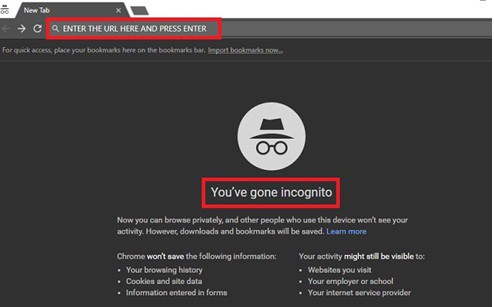
Incognito window confirmed

This is one of the biggest and long-held misconceptions about privacy online. Whether you’re using an incognito window, or you’re in private mode or private browsing, this feature is actually meant to keep your online activity hidden without leaving a trail of your sensitive information such as passwords, or your browsing history.

According to Paige Hanson, Norton’s chief of identity education, your activity is still available and visible to your ISP and the provider of the Wi-Fi you’re connected to (if at a public place), as it is saved and easily shareable or sellable to third parties.

Solution: Instead of using ‘private browsing’ or ‘Incognito window’, install a solid VPN (virtual private network) for anonymous browsing, plus a strong security suite to keep you away from online snoops (including marketers and advertisers), and hackers. Moreover, you can see this guide of using a VPN with the Torch Browser for extra-security.

3. Using the same password for everything

windows 7 password recovery software

While using one password is easy for you to remember so that you don’t easily get shut out of your commonly used accounts like email and social media, the fact that it isn’t easy to guess so you can replicate it on all your accounts is a big myth – it doesn’t work!

In fact, using one password for all your activity online exposes you to a higher risk of getting hacked if just one of the services is compromised and leaks your password.

When this happens, hackers or cybercriminals will try it on all your other accounts, and that is the beginning of disaster for you – this applies to everyone – whether you’re famous or not.

Solution: Use different and strong passwords for all your accounts. You can use a genuine and trusted password manager app to remember each, or use a passphrase with different characters, symbols, numbers and letters. This makes it more difficult for people to access your data.

Adding two-factor authentication also helps because only you will receive a one-time code on your preferred platform, whether email or mobile phone and once you key that in, you can access your account.

This method involves having both a password and passcode, or biometrics sign in.

See more open source software that can be used to protect your personal information.

4. Once deleted, my personal data is gone for good

Simply deleting files or emptying the Recycle Bin on your computer doesn’t mean those files are gone forever from the system. Similarly, formatting your hard drive or other storage devices still leaves traces of your files in them, and these can be retrieved using online recovery tools, which cybercriminals are familiar with.

Solution: Get software that can erase your hard drive and wipe it clean, properly. Don’t sell your drives or computer unless you are sure it is squeaky clean.

5. My Facebook is set to Private so no one but my Friends can see me

This may be true, but not entirely, because as much as you can share information to select friends only, your private profile still shows your name, photo, and more to other people on Facebook. Additionally, apps that you download may have access to your friends list.

Solution: Check the apps and/or sites and even games you grant access to your profile. Carefully read the privacy and security settings on Facebook, and do some research on what they really mean, so that you understand what your choices mean. Disregard any third-party apps as these are hungry to feed on your data, so if you have any right now, uninstall them.

What other myths have you believed about privacy and how did you deal with them? Share with us in the comments section below.

5 Best 4G LTE Routers with Sim Card Slot [Popular Picks]

When you have no broadband Internet connection available in your area, the best option is to use a 4G router, and in today’s article we’ll going to show you the best 4G LTE router with sim card slot that you can get.

This article shows routers for all price ranges, so you should be able to find something that suits your needs.

What are the best LTE routers with a SIM card slot?

NETGEAR LB1120

  • Small design, very portable
  • Speed up to 150 MBps download and 50 MBps upload
  • Affordable
  • Bridge mode has issues

The Netgear LB1120 model is a good router to be used as a back-up. You can use it as the primary Internet connection in areas that do not have strong broadband service.

It comes with a micro-SIM slot that is unlocked and can be used very well with AT&T and T-Mobile.

This device features Gigabit Ethernet WAN port for connection pass-through. You can connect it to an additional router and share the mobile connection with it. In this way, you can connect multiple devices, even those that have only Ethernet adapter.


NETGEAR Nighthawk M1 Mobile

  • A full-color display for easy network management
  • Up to 20 devices connected in the same time
  • Unlocked, will accept all SIM cards
  • The Wi-Fi range isn’t very wide

If you need a router for downloading games and videos, you should think of buying the NETGEAR Nighthawk M1 router.

Unlike the model LB1120 that provides an Internet speed of up to 150 Mbps download, this device reaches a maximum speed of 1 Gbps. That’s fast enough for uninterrupted HD streaming, gaming, and video calls.

The battery can be charged via a universal USB port. Its capacity of 5040 mAh will last you for up to 24 hours on a full charge. Furthermore, one USB port can be used to stream content live from the internet through any of your mobile devices.


Huawei B310s-518

  • Speed up to 150MBps download and 50MBps upload
  • Supports up to 32 users connected at the same time
  • Works with both 3G and 4G networks
  • Only one LAN port

The Huawei B310s-518 model from Huawei, a well-known company that produces various electronics, is one of the best 4G routers that you can get.

You can use it on virtually any mobile network. It is not tied to any specific service provider and it can carry any standard SIM from whichever GSM network you are using. Thus, you don’t have to be a Verizon or T-Mobile subscriber to use this device.

For a better Wi-Fi coverage, Huawei B310s-518 comes with 2 antennas in the pack.


KuWFi 4G LTE CPE

  • Speed up to 150MBps download and 50MBps upload
  • Great Wi-Fi coverage
  • Up to 32 users connected
  • Does not work with Verizon

If you need a router to connect your devices not only to the Wi-Fi network but also via Ethernet cable, KuWFi 4G LTE CPE is the best option.

It features 4 Ethernet ports where you can connect computers without a Wi-Fi adapter. If you have broadband Internet, you can plug the WAN cable into one of the ports and configure the PPPoE connection.

If you have a large home with a floor, you can use this router as a Wi-Fi repeater so you can have internet all over the house.


D-Link DWR-921_E

  • Easy to set up
  • 4 Ethernet ports
  • 2 antennas for better coverage
  • Expensive

Another excellent choice for a home where you have to connect to Internet devices without a broadband network is the D-Link DWR-921_E router.

This device has dual-active firewalls (NAT/SPI) to control traffic and prevent exploits and intrusions. The WPA/WPA2 wireless encryption maintains the security and safety of your wireless networks.

If you decide to use it with the SIM card, from the web management page you can send and receive SMS. In addition, you can use it with a broadband connection.


If you have a vacation house or just need a back-up solution for the Internet access, an LTE router with a SIM card is the best choice.

This solution will also help you if you move a lot. Don’t worry about things like transferring your broadband connection to another place. Just take your LTE router with you and stay connected.

All of the above devices come with a SIM card slot and are compatible with 4G thus providing you with great speed.

DVD Player Software for Windows 10: We Tested 5 Best

If you’ve wondered what is the best DVD player software to download on Windows 10, you came to the right place.

It is true that Windows 10 doesn’t have any native DVD player. The people at Microsoft decided to terminate Windows Media Player.

Instead of that free option, they released a paid app called Windows DVD player, which you can buy from the Microsoft Store.

In some cases the DVD drive will not be able to read the disc, in other cases, a region error message appears when playing a UK DVD in the USA for example.

Fortunately, there is a wide range of DVD player software online, and our team has scoured the Internet to find the five best software for you. Read on to find out more details.

What are the best DVD players for Windows 10?

WinX DVD Ripper Platinum (recommended)

WinX DVD Ripper Platinum is a handy program that allows you to convert any DVDs including region-locked/damaged DVDs, ISO image, DVD folder on Windows 10 with ease. It converts your DVDs to MP4 so you can watch the videos with 5KPlayer on Windows fluently.

Regarded as the must-have for DVD owners, this software is well-known for some impressive features:

  • Converts region-locked/protected/homemade and even damaged DVDs to videos for watching on Windows.
  • Rips DVD to MP4, H.264, FLV, AVI, MPEG, M2TS, and 350+ output profiles
  • Converts a DVD to MP4 in 5 minutes with the support of GPU acceleration
  • 1:1 clone DVD to ISO image, DVD folder, backup DVD to MPEG2.
  • Free lifetime technical support via e-mail, guaranteed reply within 24 hours.
  • Offers support for bookmarks, multiple file formats, screenshots, subtitles, etc.

If you’re using a Windows PC, WinX DVD Ripper Platinum is the best choice!

WinX DVD Player

WinX DVD Player

Play and convert DVDs into multiple file formats and enjoy your videos in high-quality playback on Windows, Apple, Andorid.
Free trialVisit website

GOM Player

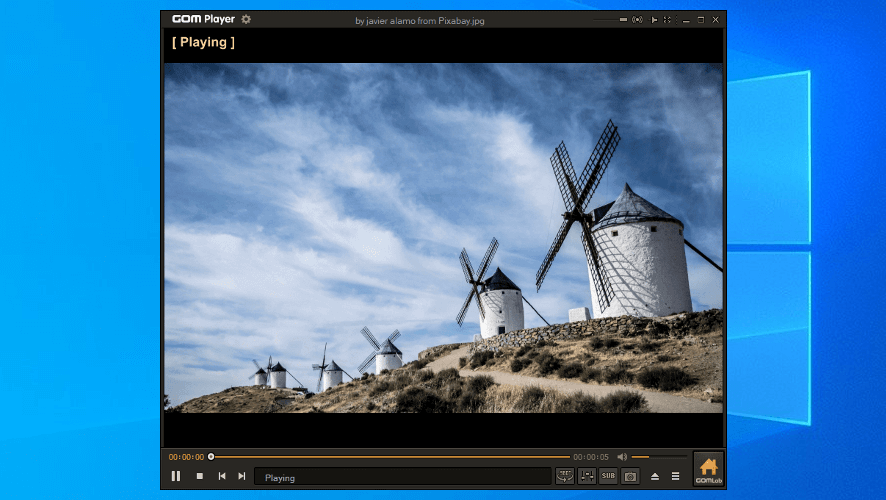
GOM Player is a veteran media player software, and for good reason. The capabilities offered by this free DVD player software for Windows 10 are top range, even after more than 10 years of existence.

This software can play any sort of video and audio files – DVD, AVI, MP4, CD, MKV, FLV, WMV, MOV, etc.

What makes GOM Player stand out is its link with OpenSubtitles.org and its vast Subtitle Library, which comes in very useful when trying to search for a subtitle online.

Even though GOM Player is a versatile and useful software option for playing DVDs, the fact that the free version displays ads makes GOM Player end up in the second position in this top 5.

Here are some other useful features found in GOM Player:

  • Great 360° VR Playback
  • Wide range of built-in codecs – Vorbis, FLAC, ADPCM, XVID, MP41, MP42, MP43, H263, etc.
  • Ability to play damaged video files
  • Great subtitle library
GOM Player

GOM Player

Experience the number 1 media player that supports all major video formats, absolutely free of charge.

5KPlayer

5kplayer logo - windows 10 free dvd player download

5K Player is another excellent software option. This tool occupies the third position in our best free DVD player software for Windows 10, thanks to its user-friendly interface and rich options.

This software has a great set of features. You can play high definition videos, online radio stations, and can also be used as a multimedia file streaming tool.

You can use 5K Player to stream audio/video wirelessly by using AirPlay and DLNA (Digital Living Network Alliance).

Here are the key features of 5KPlayer:

  • DXVA2 hardware acceleration
  • Play a variety of formats – 4K, HEVC, HDR, H.264 8K, etc.
  • Video cutting abilities
  • DTS multichannel surround sound
  • TrueTheater technology – automatically chooses the best available quality of the specific format
  • AirPlay support

⇒ Get 5K Player


PotPlayer

potPlayer - windows 10 free dvd player download

PotPlayer is another very useful free DVD player software for Windows 10.

This all-round DVD player uses advanced DXVA, CUDA, QuickSync features for better processing speeds, and to reduce the resource consumption.

Here are some of the best features of PotPlayer:

  • Full 3D glasses support with various output formats – Side by Side, Top and Bottom, Page Flipping
  • Supports a wide range of subtitle formats
  • No need to install codecs to play DVDs but offers full OpenCodec support
  • Scene preview features
  • Direct3D9 Ex Flip Mode and Overlay
  • Can bookmark specific scenes or chapters

⇒ Get PotPlayer


VLC Media Player

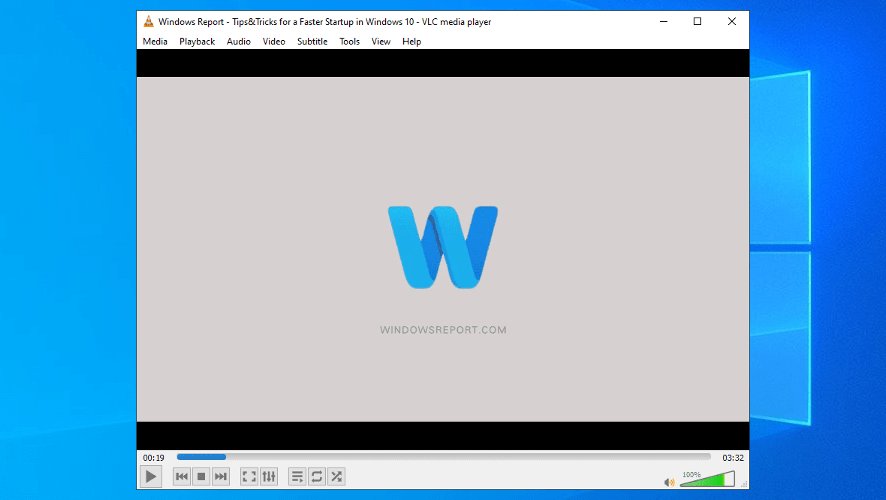
VLC Media Player is one of the most versatile and powerful media players available on the market this year. It’s one of our top picks when it comes to the best free DVD player software for Windows 10.

This software option is completely free to use and offers you the possibility to experience a seamless DVD playing experience on any kind of device.

Beyond being able to play DVDs, VLC Media Player also allows playing audio CDs, ISO images, and also DVD folders.

VLC gives you all the capabilities of a fully paid professional video player software and comes tightly packed in a small installer.

The installation process is as straight-forward as you might expect from software designed to be easy to use and understand.

Here are the key features of VLC Media Player:

  • No ads and user tracking
  • Plays most codecs without the need to install codec packs – MPEG-2, MPEG-4, H.264, MKV, WebM, WMV, MP3, etc.
  • Hardware decoding allows your GPU to get help from the software
  • Advanced control options – video and subtitle synchronization, video and audio filters, etc.

⇒ Get VLC Media Player


In today’s article we explored some of the best DVD software to download for Windows 10.

At the top of the list, you will find the powerful WinX DVD Player. This software offers you an incredible array of features and customization options, excellent video and audio quality.

We would love to know what software option you chose from the list presented here. You can easily let us know by using the comments section below.


Indie hit Undertale is coming to Xbox Game Pass tomorrow

After announcing earlier today that Outriders would launch day one on Xbox Game Pass on April 1st, the Xbox team has now followed up with more exciting Xbox Game Pass news. Undertale, a critically-acclaimed indie game already available on PC, PS4, and Nintendo Switch will launch on Xbox consoles tomorrow, and it will be available on Xbox Game Pass on its launch day.

For those unfamiliar, Undertale is a 2D RPG with retro-looking graphics that was released first on Windows back in 2015. The game received praise for its unique characters and combat system, where players can react to enemy attacks by fighting, acting, healing, or using mercy.

“In Undertale, every monster is an individual and every interaction is unique; you can choose to fight, or you can choose to show mercy — and how you play and what you choose will affect the outcome of the story. With a hilarious and heartwarming cast of endearing characters, an incredibly catchy soundtrack, and truly standout RPG gameplay, it’s no surprise that the game continues to surprise and delight new players to this day,” wrote John Ricciardi, Executive Director, 8-4.

If Undertale was previously released on the Windows 10 Microsoft Store for PCs, the Xbox version of the game that will launch tomorrow will introduce some console-specific enhancements. “Because of these, progress and save data between the two versions are unfortunately not compatible,” explained Ricciardi, who also teased “some exclusive content to look out for” in the Xbox version of the game. If you don’t have Xbox Game Pass, Undertale will be priced at $14.99 on the Xbox Store, with physical editions to be available on fangamer.com.

Fast Eresource Precondition Violation: 6 Solutions to use

The Fast_eresource_precondition_violation error in Windows 10 error, usually comes with a Blue Screen of Death and can occur suddenly. The Windows 10 BSOD errors can be addressed easily with the right tool and usually, the most common cause has to do with outdated drivers.

We will show you in this article the exact steps you need to make to solve this BSoD error quickly.

What is the meaning of Fast Eresource Precondition Violation error?

What is the meaning of Fast Eresource Precondition Violation also comes with the 0x000001C6 error code.

The BSoD means that the current thread is performing an invalid call to a fast resource routine and it usually occurs after a critical system crash. Here are some of the most common causes for this error:

  • Corrupted system files –

Besides, corrupted system components, wrongly coded software programs, outdated OS, and the existence of malware are highly responsible to cause the blue screen of death. There might be other reasons too such as damaged registry, buggy Windows update, software conflict, and incompatible BIOS version. As this particular BSOD is hard to recover, you might need to try out all probable workarounds listed below.

How can I fix the blue screen error fast eresource precondition violation?

1. Boot in safe mode

  1. in the search box, type advanced startup and hit Enter,
  2. In the right pane, locate and click on Restart now.
  3. Next, select Troubleshoot and click on Advanced options.
  4. Here, select Startup Settings and click on Restart.
  5. When the system starts, press 5 or F5 to enable the Safe Mode.

2. Disable random shutdown

  1. Press the Windows key and type in advanced system settings.
  2. Under the Startup and recovery, click on the Setting option.
  3. Deselect the checkbox placed before Automatically restart.
  4. Click Ok and close the System Properties window.

3. Use a specialized software

Considering that the BSOD errors are rather complex, using software that will help you scan the entire device and fix the cause of the Blue Screen error is indicated.

To repair this kind of error you should best use automated repair software capable of scanning the PC and replacing damaged files accordingly.

These tools come with repositories of files that you can use to replace malfunctioning software files and clean up your system efficiently.

4. Uninstall Windows 10 update

  1. Press the Windows key and type in view update history.
  2. Click on the Uninstall updates option.
  3. Locate the Microsoft Windows section and click Uninstall.
  4. Follow the instructions on the screen and reboot the device once finished.

5. Fix hard disk error

  1. Open the command prompt as an administrator.
  2. Enter the following command: chkdsk C: /f /r /x
  3. Wait for the process to finish and follow the instructions.
  4. Reboot once the scan is completed.

6. Free up disk space

  1. In the search bar, type in cleanmgr.
  2. Click OK in the next window and go to Clean up system files.
  3. In the Files to delete segment check all boxes and hit OK.
  4. Wait for the process to end, and reboot your device.

One of the presented solutions above will help you successfully solve the fast_eresource_precondition_violation error in Windows 10.

Please share with us in the comments section below, which of the presented solutions helped you fix the error.

How to fix the APC_INDEX_MISMATCH BSoD printer error

Microsoft announced a fix for users who, after last week’s Patch Tuesday updates faced a stop error with the message APC_INDEX_MISMATCH.

Last week’s updates came with important system fixes, but also caused serious problems for those using their network printers. As a result, Microsoft decided to roll back certain updates and to recommend that those affected uninstall them.

And now Microsoft also found a solution that should allow everybody to install the updates and prevent the error.

The idea is that before installing the updates, you should check which printer drivers your system is running. The fix should be applied if they are Type 3 only.


How do I fix the APC_INDEX_MISMATCH issue?

how can i fix APC_INDEX_MISMATCH error
  1. Press the Windows key+R to open the Run command.
  2. Type printmanagement.msc and press Enter.
  3. If Print Management opens, continue to step 6. If you receive the error Windows can not find printmanagement.msc. then select Start and type manage optional features and select it.
  4. Select Add a Feature and type print.
  5. Select the check box next to Print Management Console and select install. You will now need to start at step 1 again.
  6. Expand Print Servers, expand your computer’s name, and select Printers.
  7. You can now see the Driver Type for each of your installed printer drivers.

As mentioned, the latest updates affect only Type 3 printer drivers. In this case, you should either skip the updates or, if already installed, continue with the following steps.

  1. Open Command Prompt as admin.
  2. Check if the driver settings are available by running the following command and press Enter: rundll32 printui.dll,PrintUIEntry /Xg /n
    "your printer driver name"
  3. In the printer user interface, the printer attributes field might not say direct.
  4. Consequently, run the following command and press Enter: rundll32 printui.dll,PrintUIEntry /Xs /n "your printer driver name" attributes +direct
  5. Run the first command again to make sure that the direct attribute has been added.

Microsoft mentioned that this is just a workaround and that they are still working on a final fix. The release date is yet to be known.

Note: If you’re looking for more solutions on how to fix the APC_INDEX_MISMATCH BSoD, we’ve written a detailed guide covering the subject, so that a look at that as well.

Can’t connect to VPN on PC

If you simply can’t connect to a VPN on Windows 10, follow the troubleshooting steps listed in this article to fix this problem.

Most VPN connection failures are triggered by various elements preventing your PC from connecting to VPN servers.

For example, it can happen that your PC doesn’t connect to the VPN due to improper VPN protocols or outdated software.

As well, if you can’t connect to a VPN from home it can be due to the same reasons and can be fixed accordingly.

In this troubleshooting guide, we’re going to list the most common factors blocking VPN connections or VPN stops working. We’ll also show you how to fix them.

How can I fix VPN connection issues?

Before going more in-depth with our guides, you should first check these quick fixes that may resolve the issue.

  • Reboot your PC or modem
  • Uninstall your VPN
  • Update your VPN software

In case you have checked these resolutions, you can now dive deep into the solutions in order to fix it for good.

1. Update your router

If you haven’t updated your router/ modem in a long time, this may explain why your system won’t support VPN connections.

Install the latest firmware updates available for your modem, restart the device and then try to connect to your VPN network again.

Updating your firmware is an advanced procedure. If you’re not careful you can cause permanent damage to your router, therefore use extra caution.

2. Change the port/connection

Your VPN connection may not be available due to port issues. As a result, go to your VPN’s settings page and set the connection to another port.

3. Try another VPN solution

The VPN recommended below is a highly reliable solution that works flawlessly and will never bother you with such connection issues.

Developed by Kape Technologies, it has a solid track record on privacy thanks to its policy of no registrations in the sessions of its users.

This VPN will even hide all of your online activity from your ISP. It encrypts your Internet traffic and provides server-grade firewalls so you can browse without looking over your shoulder.

It’s worth noting that ExpressVPN comes with unblocking tools for restricted web content, multiple servers in 94 regions, or DNS protection for each server.

ExpressVPN

This industry-leading VPN is the right tool to avoid connection issues.
Check price Visit website

4. Disable your antivirus/firewall

Sometimes, antivirus software or firewalls may prevent you from enabling your VPN. Temporarily disable these tools and turn on your VPN.

If this works, this means that your antivirus/ firewall is conflicting with your VPN connection.

In this case, add the VPN to your exceptions list and you’ll be able to use it with the antivirus/ firewall running on your PC.

5. Uninstall network adapters

  1. Go to Start and type Device Manager.
  2. Go to Network Adapters and expand the selection.
  3. Select Uninstall WAN Miniport (IP), WAN Miniport(IPv6) and WAN Miniport (PPTP).
  4. Then Scan for hardware changes > the adapters that you uninstalled should come back.
  5. Try enabling your VPN connection again.

6. Restart your DHCP Client

  1. Close your browser.
  2. Go to Start > type services > double-click the first result.
  3. Locate the DHCP Client > right-click it > select Restart.
  4. Connect to your VPN again > launch your browser and check the connection.

7. Change your VPN type to PPTP/ SSTP

Some users reported that they managed to fix the VPN connection issues that they encountered after having changed the VPN type from Automatic to PPTP or SSTP.

Try this solution and see if it works for you as well.

We hope that one of the workarounds listed in this article helped you restore your VPN connection.

As always, if you’ve come across other solutions to fix this issue, you can help the Windows community by listing the troubleshooting steps in the comments section below.

Microsoft Edge Canary can now hide the title bar when using Vertical Tabs

Microsoft is adding a new option in its Edge browser that will allow users to hide the title bar when using Vertical tabs. As highlighted by Reddit user Leopeva64-2, the feature can be enabled via a flag in the Edge Canary build 91.0.825.0 or newer.

The Vertical tabs feature, which is now generally available in the Stable Channel, is quite popular among users. As the name suggests, the feature allows users to display opened tabs in a sidebar instead of the horizontal tab strip. It’s incredibly handy for those who frequently use a lot of tabs at the same time.

With this feature, Edge Insiders will now be able to remove the title bar from the browser window when the Vertical tabs mode is enabled. This change should make it easier to focus on web content, especially on large screens. The ability to hide the title bar is one of the most requested features since the release of Vertical tabs, and it is being added based on user feedback.

For now, Edge Insiders can enable the feature through Edge’s experimental flags by heading to edge://flags/#edge-vertical-tabs-hide-titlebar and toggling the flag to “Enabled.” Finally, restart the browser, and click on the “Turn on Vertical tabs” button. They will notice that the title bar no longer appears at the top of the screen. There is also an option to revert this change by setting the flag to “Default” or “Disabled” instead.

In case you missed it, the Edge Insider team is currently testing many other features as well. Microsoft Edge Canary recently added the ability to resize the Vertical tabs panel, and it’s also available in the Dev channel.

FIX: TunnelBear VPN Netflix error

Netflix has been actively blocking VPNs as more and more people try to bypass regional restrictions imposed on streaming channels so as to access their favorite content.

However, not all VPN service providers have been affected by this geo-restrictions, as there are many other strong options you can use to unblock the content, such as TunnelBear and others.

TunnelBear can unblock geo-blocked content which has made it a popular VPN to use, but, it is possible to get a TunnelBear Netflix error at some time or the other.

This may be occasioned by a streaming or proxy error that alerts you that you may be using an unblocker or proxy, and requests that you turn them off and try again.

This article shows you what to do in the event you get the TunnelBear Netflix error and how to resolve the issue.

FIX: TunnelBear Netflix error

Solution 1: General troubleshooting

Ensure you’re properly connected to a tunnel, then go to bearsmyip to confirm your connection. If the location is a correct match with the one in TunnelBear, you’re okay. You can also try to switch TunnelBear off and then back on again.

It is possible that the IP addresses may be blocked by Netflix, so toggling the VPN off and back on, or selecting another tunnel location, so as to get a different IP address will help. If you continue having problems, see this article on Tunnelbear server connection issues.

Clear browser cache and cookies

The cache or cookies may have old location information stored in them that Netflix picks up. Try and clear these to see if it fixes the TunnelBear Netflix error. Here’s how to do it in Internet Explorer (Microsoft Edge):

  • In Internet Explorer, select the Tools button
TunnelBear Netflix error
  • Point to Safety
TunnelBear Netflix error
  • Select Delete browsing history.
TunnelBear Netflix error
  • Select the Cookies and website data check box
  • Select Delete.

Disable browser tracking

Some sites like Netflix ask for access to your real location so as to bring you relevant information based on where you are. Some even provide location tracking to estimate your location regardless of the IP address. Disable these services in your browser and see if TunnelBear Netflix error goes away.

Browse privately to access content

You can open the content in incognito or private browsing, which means locally stored data like cache/cookies won’t be accessed by Netflix.

Solution 2: Switch VPN provider

If Netflix keeps blocking you while connected to TunnelBear servers, you can try using another VPN provider, which will have different servers and IPs.

Our recommendation for a good VPN is owned by Kape Technologies, and has a much bigger network of servers available that you can choose from.

Like TunnelBear, they are also privacy-focused with a no-logs policy on all of their servers. Moreover, they run their own DNS servers for optimum protection from DNS leaks.

Here are the top features we like about this VPN:

  • Over 35,912 servers to choose from
  • Good connection speeds
  • One license supports 10 different devices simultaneously
  • PIA MACE technology blocks ads
  • Excellent value for money
Private Internet Access

Private Internet Access

Enjoy this unlimited bandwidth VPN with hundreds of US servers to choose from, at a discount price for a limited time only!
Check priceVisit website

Solution 3: Disable location services

These allow location-based apps and sites like Netflix to use information from your mobile, WiFi and GPS networks to determine your approximate location. Disable them as follows:

  • Click Start and select Settings 
TunnelBear Netflix error
  • Click Privacy
TunnelBear Netflix error
  • Select Location
TunnelBear Netflix error
  • To control location for the whole PC if you’re an administrator on the PC, select Change, then turn Location on or off in the box that appears.
TunnelBear Netflix error
  • To control location for just your user account, select Location to turn it on or off. If Location for this device is turned off, you won’t be able to turn Location on for an individual user account.

Solution 4: Turn on TCP Override

If you get a TunnelBear Netflix error while connecting to the server, your connection may be slow or unstable, so turn on TCP Override for better performance. you can find this feature in TunnelBear preferences under General tab. If it is already on, turn it off and see if it changes anything.

Solution 5: Disable TunnelBear browser extension

Ensure you’re not running TunnelBear’s browser extension concurrently with the TunnelBear app, as they can interfere with each another’s operations, causing the Tunnelbear Netflix error.

Solution 6: Turn on GhostBear

GhostBear helps when connecting from a country with strict censorship rules or laws. Go to TunnelBear preferences under Security tab and find GhostBear. It makes it hard for your VPN connection to be detected and/or blocked, but only enable it where there’s censorship, otherwise keep it off.

Solution 7: Change privacy settings on your browser

There are various components of privacy you can change including Do Not Track, InPrivate browsing, Location, Popup blocker and security zones settings.

Do Not Track privacy settings

When this is turned on, your browser will send a ‘Do Not Track’ request to Netflix and other third parties whose content is hosted on those sites and let them know you prefer not to be tracked.

InPrivate Browsing

Browsers store information like search history to improve your experience on the web. InPrivate Browsing deletes info like passwords, search history, and page history once you close the tab.

TunnelBear Netflix error

To open an InPrivate Browsing session, right–select the Internet Explorer icon on the taskbar, and select New InPrivate Window.
To turn off add-ons in InPrivate Browsing sessions

  • Open Internet Explorer
  • Select Tools 
TunnelBear Netflix error
  • Select Internet options.
TunnelBear Netflix error
  • On the Privacy tab, select the Disable toolbars and extensions when InPrivate Browsing starts check box, and click OK.

Location

You can turn off location sharing so that Netflix doesn’t ask for your physical location.

  • Open Internet Explorer
  • Click Tools 
  • Select Internet options.
TunnelBear Netflix error
  • On the Privacy tab, and under Location, select the Never allow websites to request your physical location check box.

Let us know if any of these solutions worked for you by leaving a comment in the section below.

Fix: Google Chrome critical error red screen [2021 Guide]

The Google Chrome Critical Error is one that appears within page tabs with a red background.

It includes a relatively lengthy error message and a contact number. Some of that error message states:

There was a dangerous try to get an access to your personal information & bank information. Luckily, your Firewall managed to block this suspicious connection. We recommend you to freeze your accounts until some measures will be taken… Contact number + 1 (888) 563-5234 (TOLL-FREE). Your urgent response is needed.

Is Google Chrome critical error legitimate?

If you ever encounter Chrome Critical error red screen on your PC, you should know that this is a scam.

Even if the message seems alarming, do NOT call the number on the screen or visit any links that the page is suggesting.

Your urgent response is NOT needed, at least for the number provided. The Critical Error is in an adware scam made to convince users to ring the number in it.

How can I get rid of the Google Chrome critical error scam message?

1. Use dedicated software to remove the malware

By choosing effective antivirus software you can employ powerful adware and malware removal services that will surely be able to get rid of the pesky Critical Error message.

Plus, with one of these antivirus solutions, you ensure increased online security and advanced malware removal in a few clicks.

This being said, you should stay away from such critical error messages on your browser using next-generation antivirus that will protect your online identity from risky threats.

2. Try a different web browser

If Google Chrome Critical red screen error appears in your browser, you might want to consider switching to a new browser such as Opera One. The browser is based on the Chromium engine, so it’s quite similar to Chrome.

The browser comes with a built-in ad blocker, so you won’t have to deal with ads ever again. As for privacy, the application has a built-in VPN with unlimited bandwidth that will protect you online.

Opera One also has support for workspaces, so it’s great for organizing tabs, and with the built-in tab search feature, you can easily find the tab you need.

The browser also has Twitter, Instagram, and instant messenger integration, allowing you to keep a close eye on social networks while browsing.

Opera One is a fast, lightweight, and secure web browser, and it’s one of the best alternatives to Google Chrome, so you might want to try it out.

It is a Chromium-based software that works well with Chrome extensions, is highly customizable and you can use it on all mobile and computer platforms. It also comes with built in AI, VPN and Ad blocker.

⇒ Get Opera One

3. Uninstall dodgy programs

Try uninstalling some suspicious programs that you don’t recall installing, one of which might be the culprit behind the Google Chrome Critical Error red screen.

  1. Press the Windows key + R hotkey to launch Run.
  2. Input ‘appwiz.cpl’ in the Run box, and click the OK option.
  3. Then select a suspicious program that you don’t recognize.
    Windows uninstaller google chrome critical error
  4. Click Uninstall.
  5. Click Yes if a dialog box pops up requesting confirmation.

Note: Not all programs you don’t recognize within Programs and Features will necessarily be adware and browser hijackers.

4. Clear Chrome’s cache

The Chrome Critical Error red screen will have some cache data.

  1. To clear the browser’s cache, click the Customize and Control Google Chrome button.
  2. Select the More tools option.
  3. Select the Clear browsing data option.
  4. Click All time on the Time range drop-down menu.Cached images and files option google chrome critical error
  5. Select the Cached images and files setting.
  6. Press the Clear data button.

5. Reset Google Chrome

If clearing browser data isn’t enough, try resetting Google Chrome, which will also disable (but not remove) suspicious extensions.

  1. Enter ‘chrome://settings/’ in the URL bar, and press the Return key.
  2. Scroll down the tab, and click the Advanced button.
  3. Click the Restore settings to their original default option.
    Restore settings option google chrome critical error
  4. Press the Reset settings button.
  5. As an extra step, remove any disabled add-ons you don’t recognize after resetting the browser.
  6. Input chrome://extensions/ in Chrome’s URL bar, and press the Enter key.
  7. Then click the Remove buttons for any disabled add-ins you don’t recall adding to Chrome.

So, that’s how you can purge the Google Chrome Critical Error red screen hijacker from that browser. The resolutions above will also terminate other adware forms.

Which one of these methods helped you get rid of the scammy Chrome message? Let us know by leaving us a message in the comments section below.

Fallout 4, more Bethesda games now support FPS Boost on Xbox Series X|S consoles

Microsoft has just announced that Fallout 4, Fallout 76, Prey, The Elder Scrolls V: Skyrim Special Edition, and Dishonored Definitive Edition now support FPS Boost on Xbox Series X|S consoles. All these games are now available on Xbox Game Pass, and they can now run at “nearly 60 FPS” when FPS Boost is enabled on Microsoft’s next-gen Xbox consoles.

Fallout 4 was the first game Microsoft used to demo FPS Boost last year, and the open-world RPG will really benefit from the boost from 30 to 60 FPS. However, be aware that enabling FPS Boost on Fallout 4 and Fallout 76 will reduce these games’ resolution so they can reach this 60FPS performance target.

“In some instances, because there are higher graphics requirements to enable FPS Boost technology, we’ve had to reduce a game’s resolution to ensure it both runs smoothly and plays great. In those select cases, such as Fallout 4 and Fallout 76 in this latest title announcement, FPS Boost is not automatically enabled for Xbox Series X gamers,” the Xbox team explained today.

Following the release of the Xbox March 2021 Update last week, players on Xbox Series X|S consoles can now turn FPS Boost and Auto HDR on and off in the “Manage Game” section for any enhanced title. Microsoft will continue to give Xbox gamers the choice to experience backwards-compatible games in their original or enhanced form, but FPS Boost is probably not something you’re going to want to turn off. In general, a silky smooth 60 FPS is a true game-changer, especially for first-person games like Fallout 4.

Overall, there are now 10 Xbox One games that support FPS Boost on Xbox Series X|S consoles. The first wave of games came last month with Far Cry 4, Watch Dogs 2, Sniper Elite 4, EA Sports UFC 4, and New Super Lucky’s Tale, the latter now running at 120 FPS on both the Series X and the Series S. “We’ve got more titles that will support FPS Boost to announce in the coming weeks,” the Xbox team said today, and we’re looking forward to seeing what games are coming next.

Outriders to launch day one on Xbox Game Pass on April 1st

Outriders, the high-profile co-op third-person shooter from Square Enix will be available on Xbox Game Pass for Console on its launch day, April 1, 2021. After Xbox Game Pass subscribers got to play Destiny 2’s Beyond Light Expansion on day one back in November, Microsoft continues to impress with its ability to get big games on its game subscription service on their release day.

For those unfamiliar, Outriders is the latest game from People Can Fly, the Polish studio that previously worked with Epic Games on the Gears of War trilogy and was the sole developer of the Gears of War: Judgment episode. The studio has long experience with co-op third-person shooters, but Outriders integrates RPG elements with four different classes with unique abilities to choose from.

Outriders will support co-op with up to two friends, and the game will be fully cross-play. It will also be optimized for Xbox Series X|S consoles, with the digital version supporting Smart Delivery. In case you missed it, a demo is already available on the Microsoft Store and players will see their progress carry on to the full game when it launches on April 1st.

Outriders is already available for pre-order on the Microsoft Store where it’s priced at $59.99, and Square Enix is offering the Hell’s Rangers Content Pack with unique Gear Sets and guns as a pre-order bonus. You won’t get these goodies if you wait for the game to land on Xbox Game Pass on April 1st, though if you’re an Xbox Game Pass Ultimate subscriber, you’ll get to play Outriders on your Android devices via Microsoft’s Xbox Cloud Gaming technology, which is pretty cool.

OUTRIDERS
OUTRIDERS
Developer:
Square Enix Ltd
Price:
Free

Microsoft Teams public preview gets Out of Office scheduling option

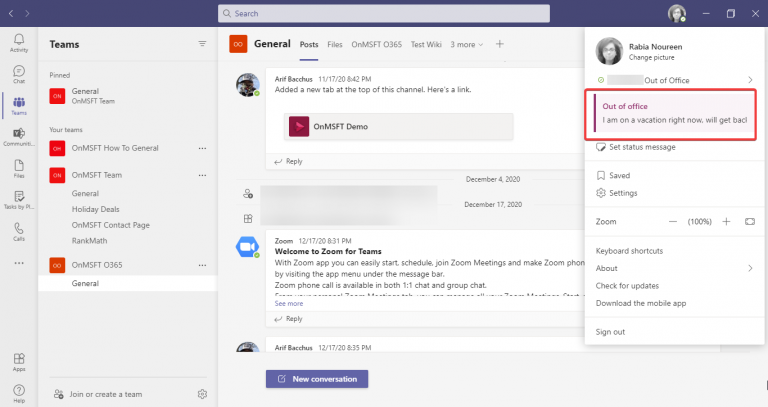
Last November, we reported that Microsoft is working on a new update that will allow users to set their presence status to “Out of Office” in Teams. This feature is now rolling out in public preview on the Teams desktop app and the web, making it easier for users to keep their colleagues informed about their availability status.

“Let others know that you are not available by scheduling your Out of Office in Teams. During this time, your presence status will change to “Out of Office” and your status message will be displayed when someone reaches out to you via chat. Additionally, your Outlook calendar and automatic replies will be updated accordingly,” the company explained on the Microsoft 365 roadmap.

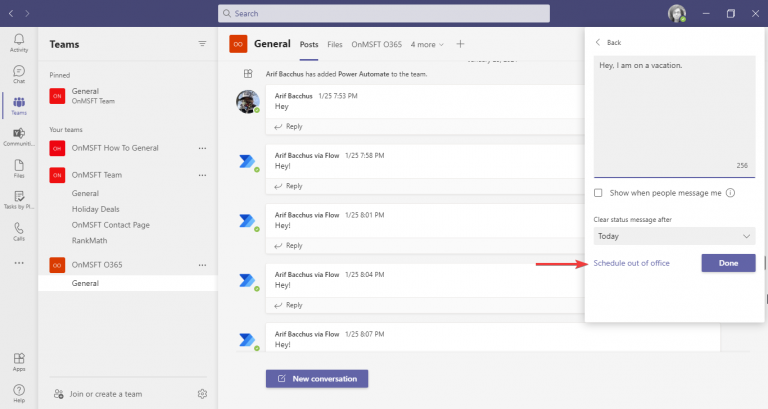
To try out the feature, users will need to opt into the Microsoft Teams public preview program. Microsoft detailed a couple of ways to schedule the Out of Office feature on the web or the Teams desktop app. For those already enrolled in public preview, you’ll need to click on your profile picture and see if the “Schedule out of office” option is available.

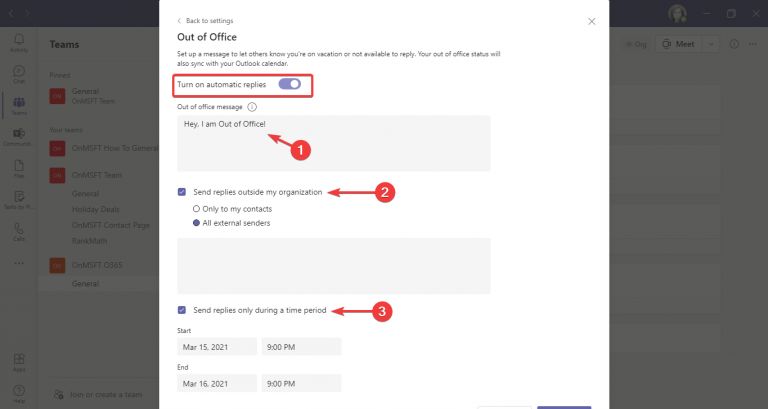
There is an option to set up a message for users to let others know they would not be available to respond for a specific period. The status would be visible when colleagues or attendees reach out to them via chat. Users can also choose to send automatic replies to people outside their organization and select dates and times to start and end the Out of office status message and presence status.

In addition, Teams users can head to Settings to access this option. To do this, click General > Out of Office > Schedule, and then enable the “Turn on automatic replies” toggle button. Finally, add text to auto-reply message and configure other options. Microsoft mentioned that this Out of Office status will also sync with the Outlook calendar, presence, and contact card information of the user.

It’s good to see that the Teams desktop and web apps will help users to step away from their desk and escape the storm of alerts during short breaks or vacations. As of this writing, the Microsoft 365 roadmap says that the feature is in development and is scheduled to hit general availability later this month, though that timeline is subject to change.

Amazon error code 1060, 9356, 9354 [Complete & easy guide]

Amazon Prime TV is a popular OTT streaming platform available on multiple platforms. When something goes wrong with the service, it shows an error to help you resolve the problem.

When trying to access the Prime TV catalog, you may encounter the Amazon Prime TV error codes 9356, 1060, or 9354 on your TV.

Even though the Amazon error code 1060 is the most common, you can usually fix these errors by performing a power cycle of your TV and network devices.

In this article, we explore a few troubleshooting steps to help you fix the Amazon Prime TV error code 9356, 1060, 9354.

How do I fix the Amazon Prime TV error code 9356, 1060, and 9354?

1. Restart your TV

Amazon Prime TV error

If the error is occurring on your Samsung or LG TV, try restarting the TV. Manually turn off the TV using the power button on the TV remote.

Once turned off, disconnect the TV from the cable connection as well as power sources.

Leave the TV idle for a few minutes. Connect the cables and then turn it back on. Launch Amazon Prime Videos and check if the error is resolved.

Unplugging and reconnecting the TV from the power source seems to have fixed the issue for many users.

However, if the issue persists, check your home network for connectivity issues.


2. Check home network for issues

Amazon Prime TV error

The Amazon Prime TV error code 9356, 1060, 9354 can occur due to connectivity issues. Make sure you have a stable internet connection before proceeding with other steps.

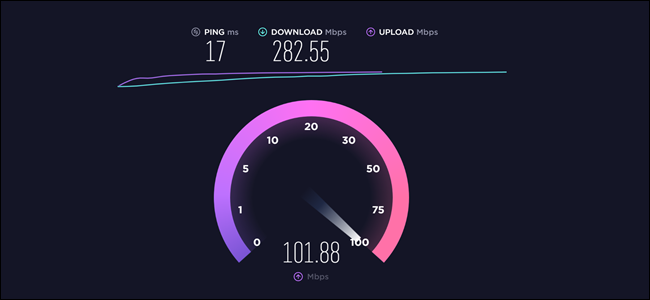
Use any speed testing tool to check if the internet is working. Try performing a power cycle to see if that helps.


3. Perform a power cycle of your router

Amazon Prime TV error
  1. Make sure your router is powered on.
  2. Turn off the router by unplugging it from the power source.
  3. Leave the router and modem idle for a minute.
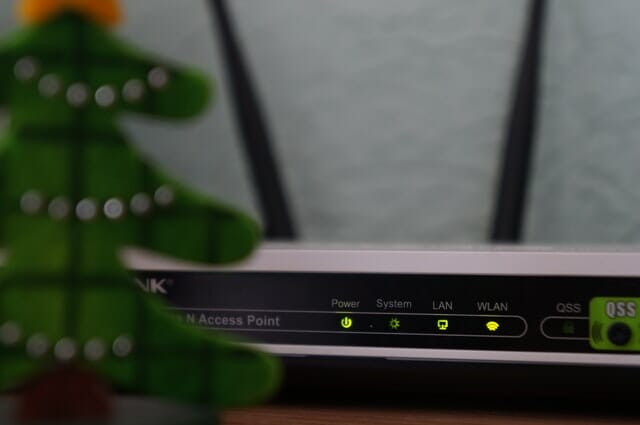
  4. Connect to the power outlet and wait till all the lights stop blinking.
  5. Connect your TV to the network and launch Amazon Prime Video.

4. Clear the app cache

Samsung TV

  1. Press the Home button on your TV’s remote.
  2. Go to Settings.
  3. Select Apps.
  4. Go to the System.
  5. Select the Amazon Prime app from the list.
  6. Select Clear Cache and then press OK to confirm.

LG TV

  1. From the home screen, tap on Apps.
  2. Go to Settings and choose Application Manager.
  3. Find and select the Amazon Prime app.
  4. Tap the Menu icon and select Show System.
  5. Tap on Storage.
  6. Choose Clear Cache.

5. Reinstall the Amazon Prime app

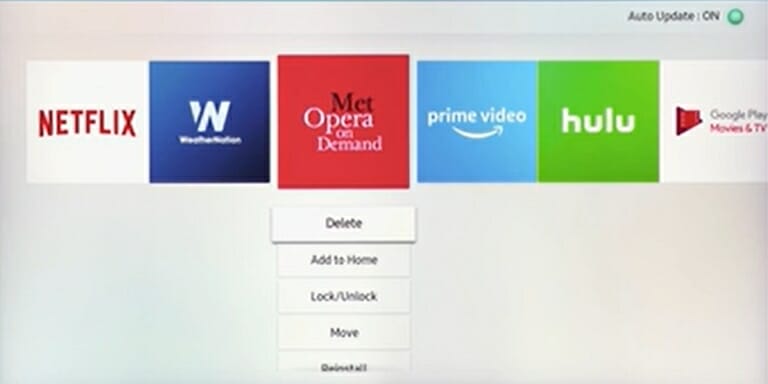
Samsung TV

Amazon Prime Video 1060
  1. Press the Home button on your TV remote.
  2. Select Apps using the directional pads on remote.
  3. Next, select Options (Gear icon top right corner).
  4. From the list of installed apps, select Amazon Prime.
  5. Select Delete from the context menu.
  6. Confirm the action by selecting Delete again.
  7. Restart your TV.
  8. Open the Apps Store and reinstall Amazon Prime.

LG TV

Amazon Prime Video 1060
  1. Press the smart button on your LG TV remote control.
  2. Scroll to the right of the screen and choose the Pencil icon.
  3. Once you are in the Edit mode, scroll through the apps and select Amazon Prime.
  4. Select Uninstall to Delete the app.
  5. You can reinstall the app from the LG web store.

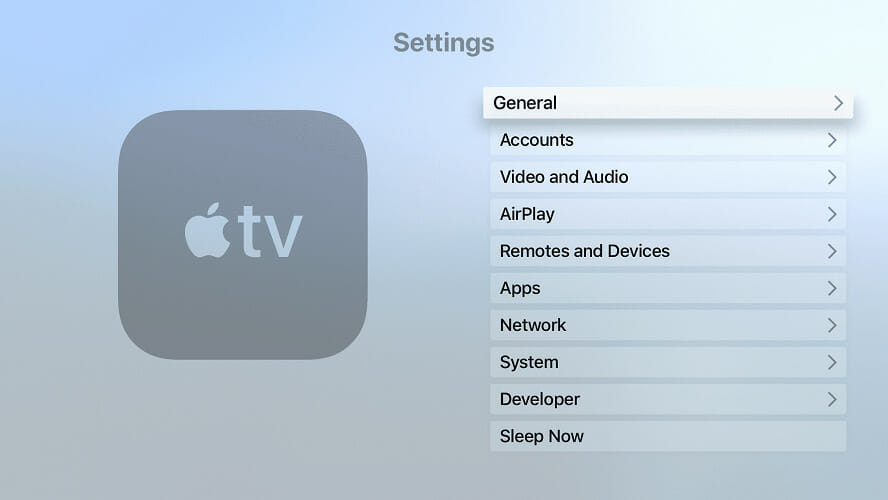
Apple TV

Amazon Prime Video 1060
  1. From the home screen, highlight the app with Siri Remote.
  2. Press and hold the touch surface.
  3. Once you see the app starting to jiggle, press the Play/Pause button to delete.
  4. If you are using 3rd or older generation Apple TV, you can only hide the app and not delete it.
  5. Reinstall the Amazon Prime app and check for any improvements.

The Amazon Prime TV error code 9356, 1060, 9354 error can be easily fixed by restarting your TV or home network.

In other instances, you may have to clear the app cache or reinstall it from the official store.

Windows 10 news recap: Facebook app returns to the Microsoft Store, Printing BSOD issues being investigated, and more

Welcome back to our Windows 10 news recap, where we go over the top stories of the past week in the world of Microsoft’s flagship operating system.

Microsoft Is Investigating Printing-Related BSOD Issues In This Month’s Patch Tuesday Update

Following the Patch Tuesday update this week, some users are complaining of issues with BSOD’s related to printing. It appears to only impact a few printer brands, but Microsoft has confirmed it is investigating the issue.

Microsoft Acknowledges Random Black Screens Issues Affecting Some Surface Book 3 Devices

If you’re the owner of a Surface Book 3, you might be experiencing a random black screen issue. It’s been quite widely reported by users as an issue. Microsoft has now acknowledged the problem.

Surface Book Panos Panay

Windows 10 Facebook App Returns To The Microsoft Store App Store As A PWA

It’s been just over a year since the Facebook Windows 10 app was removed from the Microsoft Store, but a year on, Facebook is now beta testing a new app, and has released its new Facebook app to the Windows 10 Microsoft Store, in beta form. It’s a Progressive Web App (PWA).

Windows10 Facebook app

Microsoft’s Surface Laptop 4 Reportedly Won’t Use AMD’s Latest Ryzen CPUs

Previous information suggested that Microsoft’s Surface Laptop 4 would make use of AMD’s latest Ryzen CPUs, but now that appears to not be the case, instead Microsoft looks to be opting to use the Ryzen 5 4680 U and Ryzen 7 4980 U Surface Edition chips rather than the newer Ryzen 5000U series.

That’s it for this week. We will be back next week with more Windows 10 news.

Microsoft news recap: Bethesda acquisition completed, Microsoft Edge to join faster release schedule, and more

Microsoft news recap is a weekly feature highlighting the top Microsoft news stories of the past week. Sit back, grab some coffee, and enjoy the read!

Microsoft Edge To Follow Google Chrome’s Faster New Release Every Four Week Cycle

Google recently announced that it was increasing the release frequency of Chrome, from 6 weeks to 4 weeks, and now Microsoft has followed suit with Microsoft Edge, with new releases being released every 4 weeks.

Microsoft Teams Will Allow Meeting Organizers To Pause Video Recordings Later This Year

Later this year, Microsoft Teams meeting organizers will gain the ability to pause video recording during a meeting. It’s been a hotly requested feature, and is a feature available on Zoom, so Microsoft is working on bringing it to Microsoft Teams.

Microsoft Issues Update On The Shuttering Of Its Business And Education App Stores

Microsoft’s Business and Educating App Stores are to be shutdown. Microsoft has issued an update on the situation, saying that from April 14, it will not be possible to purchase non-free apps from the store. Existing purchases will remain intact and any updates will still be delivered.

Microsoft Completes Its Acquisition Of Bethesda And Confirms Some Upcoming Games Will Be Exclusive To Xbox

Microsoft’s big acquisition of Bethesda completed this week, and Microsoft has already made a number of strides to incorporate Bethesda’s lineup into its services. 20 Bethesda games made their way to Xbox Game Pass, and it has been confirmed that some upcoming Bethesda games will be exclusive to Xbox or platforms with Xbox Game Pass.

That’s it for this week. We’ll be back next week with more Microsoft news.

ExpressVPN proxy error: Here’s how to fix it for good

A proxy is an intermediary between your computer and the Internet, often used to conceal your real location, and let you access websites that are blocked, or would otherwise be.

If you’re having trouble connecting to the Internet with ExpressVPN due to a proxy error, it is possible that it has been set to use a proxy server.

First, check your Internet connection whether it is active, and disconnect from ExpressVPN then try accessing a website the usual way.

If you can’t, even when disconnected from the VPN, check your internet connection. If you get the ExpressVPN proxy error from Netflix, chances are you’re using an unblocker or proxy.

You should move through the ExpressVPN server list, connect, and load the Netflix page once again.

If you can access the website, this article outlines some solutions you can try and then check your connection again on the VPN to resolve the ExpressVPN proxy error.

How can I fix the ExpressVPN proxy error?

1. Reinstall ExpressVPN

  1. Right-click Start and select Programs and Features.ExpressVPN proxy error
  2. Find ExpressVPN from the list of programs and select Uninstall.
  3. After the successful uninstall, click Close to exit the wizard.
  4. If the ExpressVPN is still listed as available after uninstalling it, right-click Start and select Run.
  5. Type ncpa.cpl and press Enter to open the Network Connections window.
  6. Under Network Connections, right-click on the WAN Miniport labeled ExpressVPN.
  7. Select Delete.
  8. Click Start and select Settings.ExpressVPN proxy error
  9. Click Network & Internet.
  10. Select VPN. If you see ExpressVPN as available, delete it.
  11. You may now reinstall the VPN from the official site.

When getting the ExpressVPN proxy error, your best bet is to uninstall this Express VPN International Ltd. solution by following the above procedure.

Then, reinstall the latest version in the hope of a fresh start.

ExpressVPN

ExpressVPN

Reinstall ExpressVPN right away to get rid of any persistent proxy errors!
$8.32/mo. Buy it now

2. Try connecting to another ExpressVPN Location

  1. Click Choose Location to access the list of locations.ExpressVPN proxy error
  2. Click on the server location to connect, then click ON button (you can also connect by double-clicking on the location).
  3. Go to the Recommended tab to see the list of top VPN picks to connect to.ExpressVPN proxy error
  4. Click All tab to see the list of VPN server locations by region.
  5. Click the Favorites tab to show the locations you saved as favorites. It also shows the three Recently Connected locations you connected to.
  6. To find your desired location, go to the search bar by pressing CTRL+F, then type the name of your desired server location and double-click on it to connect.
  7. Once you disconnect from the location you selected, you can go back to your smart location by clicking on Smart Location.ExpressVPN proxy error

If you can access the Internet when disconnected from ExpressVPN, but cannot connect to a server location, choose a different server location from the list of locations.


3. Change the protocol

  1. Go to the ExpressVPN window and click on the hamburger menu, then select Options (do this while disconnected from the VPN).ExpressVPN proxy error
  2. Under Protocol tab, select the protocol you want to use and click OK.ExpressVPN proxy error

Your device connects to ExpressVPN servers using VPN protocols, the default one being the UDP protocol, which in some countries like the Middle East, is blocked.

Change the protocol, which will also help you achieve faster connection speeds. For best performance, choose the OpenVPN TCP first, then L2TP, and lastly PPTP protocols in that order.

ExpressVPN doesn’t recommend using PPTP unless it is very necessary as it offers minimal security.


4. Disable your security software

Disable your security software like your firewall or antivirus as these may block your VPN connection. If you can connect, do the following:

  • Configure the program blocking the connection to allow ExpressVPN. You may need to change the security level from High to Medium (depending on the program) and grant exceptions to ExpressVPN or UDP ports 1194-1204, or set it to Trust ExpressVPN.
  • If you have the option to reinstall the security software or program blocking ExpressVPN connection, install it after the VPN is already installed so that it allows the VPN to connect by first uninstalling ExpressVPN, then uninstall the program blocking the connection, install ExpressVPN again, then reinstall the program blocking the connection.

Check if you can connect again using the VPN.


5. Disable proxy in your browser

  1. Click Tools.ExpressVPN proxy error
  2. Select Internet Options.ExpressVPN proxy error
  3. Go to the Connections tab.
  4. Click LAN settings.
  5. Uncheck all the options except Automatically detect settings and click OK for all.

Let us know if any of these solutions helped fix ExpressVPN proxy error.

Microsoft Edge to follow Google Chrome’s faster new release every four week cycle

After Google announced a major shift to releasing major Chrome updates every four weeks instead of six weeks, Microsoft is ready to do the same on its end with its own Chromium-based Edge browser.

The company has just detailed the changes, revealing that the Microsoft Edge web browser is indeed now ready to move to a faster release pace, but also keep a legacy cycle for those enterprise users who aren’t ready for it.

Microsoft says that they are looking forward to their new 4-week release cadence to “help deliver innovation to our customers even faster,” but notes that they haven’t forgotten about their enterprise customers who need more time to roll out updates. As a result, the new 4-week release schedule will now be the default experience for everyone, except for enterprise users who opt in to what’s being called a new “extended stable option.” That option is the one that will stick to a longer 8-week major release cycle.

microsoft-edge-browser


Note that the Canary, Dev, and Beta branches will not change. It is also important to note that enterprise users who are in the extended stable options will still get updates from the 4-week cycles. However, the pace will be a bit more manageable. This means enterprise users can set expectations for a biweekly security update with the most important fixes, with everything else being delivered on the extended schedule every eight weeks. Basically, getting every other version of Microsoft Edge, but still keeping key security and bug fixes.

The change is not expected to take place on Microsoft’s end until version 94, just as Google has announced with their changes rolling out starting in Chrome version 94. Currently, Microsoft Edge is on version 89, so it will be quite a while until we get to that four-week release schedule, likely not until September or Q3 2021. More information is available here if you’re concerned.

How to fix PureVPN error 800

PureVPN is known for its advanced features that ensure preventive and complete security by creating encrypted tunnels, restricting malware and viruses, blocking annoying ads, and filtering unwanted content.

You can even get a PureVPN free trial if you don’t want to spend a fortune on a premium VPN service.

Apart from its strength in privacy protection and safety from malware and other online threats, PureVPN is also loved for its robust network of VPN servers in different locations, plus high scores in speed tests.

If you attempt to connect to this VPN and cannot, but instead you receive error 800, which says: Unable to establish the VPN connection, relax, it is a common problem that happens with VPNs.

Whereas most VPN issues involve the usual troubleshooting procedures, some error codes have error-specific solutions, including the PureVPN error 800.

Error 800 comes up when you’re trying to find and establish a new connection to a PureVPN server, which just means that the messages being sent by your VPN are not reaching the server.

There are several reasons for such connection communication failures such as loss of connection to the local network, an invalid name specified by the user, or invalid VPN server address.

A firewall in the network could also be blocking traffic from the VPN client. This article addresses the simple solutions you can use to resolve the PureVPN error 800 on your computer.

How can I fix PureVPN error 800?

1. General troubleshooting steps

  • Confirm that the network connection is up and running. You can try pinging the server, and/or retry connecting after two minutes or so where the network is erratic or the outages are sporadic.
  • You can also try connecting from a different device to see if it is a problem with the network or the device.
  • Check that the name you enter on your side matches that set up by the admin of PureVPN, as it is possible you may have mistyped the name or address.
  • Sometimes VPN servers change IP addresses like on DHCP networks, so confirm these are correct.
  • Ensure your firewall is not triggering PureVPN error 800 by blocking the VPN connection. In this case, you can disable it temporarily and try the connection again.
  • Additionally, you may need a router firmware update if you’ve not used the local router before, so you can sync it to work with the VPN. Otherwise, if they’ve worked well before, the error isn’t from the router/VPN client connection.

2. Try out a more reliable VPN alternative

install PIA
Troubleshooting steps like the ones described above aren’t for those who lack the patience or the skills to apply them.

Developed by Kape Technologies, a leader in privacy and security, Private Internet Access can never disappoint those who choose to install the program right away.

PIA has a strict no-logs policy and the VPN’s security is provided by the latest technologies such as tunneling and encryption (AES-256).

Moreover, it accepts plenty of forms of payment, including Bitcoin and gift cards from Target. This means you can skip using a credit card or PayPal, which both use your name.

Private Internet Access

Private Internet Access

Private Internet Access is a great alternative to PureVPN. Currently available at a major discount!
$2.69/mo. Buy it now

3. Configure firewall and VPN properties

As mentioned earlier, you need to check that you typed in the correct VPN server address, username and password before trying to connect again.

  • As for your router and firewall, change their settings to allow for PPTP (Point to Point Tunneling Protocol) and/or VPN pass-through TCP Port 1723, and GRE protocol 47. These must be enabled for the PPTP VPN connection so as to counteract error 800.
  • If you’re using Windows operating system, go to PureVPN Properties settings, and click the Security tab, then change Type of VPN to PPTP.

If any of these solutions worked for you, we’d like to hear your experience. Share with us in the comments section below.

5 Best Laptops For Silhouette Cameo [Buyer’s Guide]

The Silhouette Cameo is an electronic cutting device that is meant for personal use, and in this guide we’ll show you the best laptop for Silhouette Cameo.

The tool has unlimited cutting length and it works on paper, cardstock, vinyl, fabric, and many other materials. As for hardware requirements, the software requires at least 2GHz and above, and 2GB RAM.

In this article we complied a list of devices that will handle Silhouette Cameo, so without further ado, let’s check it out.

What are the best laptops for Silhouette Cameo?

Acer Nitro 5

  • 9th Generation Intel Core i5-9300H up to 4.1GHz
  • NVIDIA GeForce GTX 1650 GPU
  • 8GB DDR4 2666MHz Memory
  • Backlit keyboard
  • The laptop is bulkier and thicker

Acer Nitro has the best value-for-price on our list. It is an amazing and cool looking laptop that can be used for a multitude of tasks. It comes equipped with a recent processor and a capable dedicated GPU.

Moreover, the wide display and plenty of RAM will greatly help you with your projects, while its cooling system will make sure it doesn’t overheat if you have to use it for long periods of time.


Acer Predator Helios

  • 8th Generation Intel Core i7-8750H up to 4.1GHz
  • Nvidia GTX 1060
  • 16GB DDR4 2666MHz RAM
  • Up to 7-hours of battery life
  • Dual All-Metal AeroBlade 3D Fan Cooling
  • Case has a bulkier, thicker design

The Acer Predator Helios is an amazing laptop equipped with fast components. Thanks to its processor and dedicated GPU, it can perform any task you throw at it with ease.

The keyboard is backlit with red-themed lights which, combined with the matte black case, offers a cool futuristic design. In addition, the laptop comes with all the necessary ports, including the USB 3.0 which is needed for Silhouette Cameo.


LG Gram Thin

  • Intel 8th Generation i5-8250U up to 3.4 GHz
  • 8GB DDR SDRAM
  • Comes with Windows 10 Home
  • Touchpad position could cause accidental clicks and mouse movement

If you wish to buy a thinner laptop, the LG Gram Thin is a great choice for you. Its components make it capable enough of running the software that comes with Silhouette Cameo and it has an overall light and compact design.

The laptop has a USB 3.0 port that is required for your desktop tool, the battery lasts long, and the display is a Full HD IPS LCD.


Dell Inspiron i5378-3031GRY

  • 1TB 5400 rpm hard drive
  • Comes with Windows 10 Home 64bit
  • 7th Generation Intel Core i3 7100U up to 2.4GHz
  • Intel HD Graphics 620
  • No SSD

The Dell Inspiron is another slim and compact laptop, equipped with an Integrated GPU and a capable processor. The laptop trades some RAM memory for a bigger amount of storage, but they can both be upgraded.

Because this is a small laptop, it has a 13.3-Inches display, and the keyboard doesn’t have the physical Numpad. The laptop also has a Media Card Reader and USB 3.0.


Lenovo Flex

  • 14-inch display touchscreen display with Full HD resolution
  • 16GB DDR, 256GB SSD
  • AMD Ryzen 5 4500U, Radeon graphics
  • Comes with a stylus pen
  • 360-degree hinge
  • Can be loud at times

This is a 2-in-1 laptop and it comes with a 14-inch 1920×1080 IPS touchscreen display. The device uses a 10-point touchscreen and it comes with a stylus pen.

Since this is a 2-in-1 device, it comes with a 360-degree hinge, so you can use it in both laptop or tablet mode. The device is powered by AMD Ryzen 5 4500U mobile processor with Radeon graphics.

As for the memory, there’s 16GB DDR4 memory and 256GB SSD for storage. The built-in battery will last up to 10 hours on a single charge, which is more than enough for most needs.


The Silhouette Cameo is compatible with most laptops, but if you want to have the best experience during your daily activities with the electronic cutting device, this list should contain all the information you need.

Do not hesitate to leave any feedback related to the awesome Silhouette Cameo in the comment section below.

TunnelBear not working, no Internet access [Fixed]

Most IT administrators spend a fair amount of time performing troubleshooting on VPNs before successfully deploying a new one.

However, troubleshooting a VPN is similar to troubleshooting problems with your WAN connectivity, owing to its complex nature as data travels via multiple links before reaching its destination.

Something can go wrong at each link in the VPN connection, so knowing the problems and having troubleshooting procedures will help you debug the VPN connection.

Below are the troubleshooting scenarios plus their solutions, to help you when TunnelBear is connected but not working.

FIX: TunnelBear connected but not working

1. Unsuccessful deployment of TunnelBear VPN

At the very minimum, a VPN implementation comprises a RAS PPTP server and a client both of which are connected to the internet, and a PPTP connection in between server and client. If your ISP service or internet connection is available, you can connect to your server or LAN from wherever you want in the world.

The problem is that most VPNs aren’t that simple. More often than not, the VPN’s server is on a routed LAN segment, usually behind a firewall, and the client connection also uses the ISP network which has its own routers and firewalls.

The solution to this is to start with an NT server that has minimal number of installed services, and then limit the protocols to just two – TCP/IP and PPTP. You can also save time by updating your server with service packs before trying to troubleshoot the client connections. NT 4.0 Service Packs 5 (SP5) and SP6a will correct most PPTP connection problems including those related to fragmented packets, dropped and refused connections.

Tip: Keep the server configuration as simple and straightforward as you can for purposes of troubleshooting.

2. TunnelBear VPN connected but client cannot log on

You may also encounter a problem when TunnelBear is connected but the client cannot log on.

There are three possible causes for this:

  • Configuring domain and server accounts

This happens if your RAS server is configured as a domain controller or standalone system. If configured as a domain controller, ensure the user’s domain account has dial-in permission. If not a domain controller, RAS server authenticates the client’s credentials by default against the local SAM.

The standalone server can be authenticated either with a local account on the RAS server, or with an edit to the registry that forces it to authenticate credentials against the domain SAM. In both cases, you have to have dial-in permission for the account you supply.

If TunnelBear gives you so many headaches while using it, we strongly recommend you changing it. Our advice is to go for a highly reliable VPN tool such as the one recommended below.

This US-based company, owned by Kape Technologies, offers OpenVPN protocol support as well as PPTP/L2TP/SOCKS5 for improving compatibility with various networks and devices.

Having many more servers than TunnelBear, this VPN ensures that you will almost always have where to connect to and still get good Internet speeds.

Our top reasons to go with this solution are:

  • Latest and greatest protocols and technologies used
  • 10 simultaneous devices can be connected with one subscription
  • VPN Kill-switch provided with the PIA client
  • Use their own private DNS servers
  • No-logs policy
Private Internet Access

Private Internet Access

Get this highly configurable VPN service, with port forwarding on many regional gateways, at a great price in this limited-time deal.
Check priceVisit website
  • Configuring computer accounts

If your computer is an NT server, it must have an account in the domain. If it is a new system, however, create the new account in Server Manager before testing the connection. If you already have an account but it has been disconnected, the password may not be synchronized with the server, because for every account, a hidden password is generated which the PDC resets automatically.

Therefore, if you’ve been offline for a while, the password may differ from the one on the PDC, but you can delete your account and re-add it to fix this problem.

  • Negotiating client authentication

A RAS server can use 3 authentication protocols to authenticate PPTP users: Password Authentication or PAP protocol, Challenge Handshake Authentication or CHAP, and Microsoft CHAP (MSCHAP). The authentication protocols that your computer and server negotiate for logon depend on the encryption settings selected when you configure the server’s incoming VPN ports, and the client PPTP connection network settings.

The options available on the server and client include allowing any authentication, requiring encrypted authentication, or requiring Microsoft encrypted authentication. For the latter, clients that don’t support MSCHAP V2 cannot log on successfully.

What you need to do is enable logon auditing in User Manager and try the connection again. This gives you a picture of what is hindering TunnelBear from working when you check the records in the NT Event Viewer’s Security log, like if the username is invalid, or password expired, or an invalid account and whether VPN ports are available.

3. Connected but cannot browse using LAN

If you’re using TunnelBear VPN and you managed to log on but cannot browse using LAN, first ensure you set the workgroup to target the NT domain name on all Win9x clients. It’s recommended that you understand how the four TCP/IP settings affect your network connection.

When you have users working from home with high connection speeds, browsing via LAN is a great option for remote users. Here’s how to troubleshoot browsing issues:

  • Check browsing

If you’re browsing and get error 53 from your system “the network path was not found” it means the client cannot resolve NetBIOS names. Ensure the WINS server has been assigned, either statically in PPT connection’s Network Settings, or dynamically using ipconfig for all clients or Winipcfg for Win9x clients. If you don’t have a WINS server address, enter it manually, then reconnect the VPN and try to browse again.

  • Set up the default gateway

Check the default gateway setting for the PPTP connection, and if it still points to your ISP, it means every client request to browse the LAN goes direct to your ISP rather than to TunnelBear VPN connection. Thus, the ISP may block ports required for NetBIOS name broadcasts.

Routers and firewalls can also prevent the transmission of NetBIOS names unless you enable unicast traffic on UDP ports 137 and 138, and TCP port 139. NetBIOS names are proprietary to Microsoft so some ISPs may not let such data flow through their infrastructure. Also check if your antivirus is blocking internet access.

You can manually delete the route and add a static route to the VPN server’s virtual interface – the address assigned to the VPN interface (it is also the first available DHCP address in your RAS server configuration).

  • Enable NetBEUI

You can install NetBEUI on the RAS server and remote clients to resolve browsing issues. This can be done for incoming connections on the server’s VPN ports, and select Net BEUI in the PPTP connection on the client. This connects the client to the server with NetBEUI over TCP/IP. This is the easiest way to get a fully browsable LAN.

If you still cannot browse, try connecting to a network share manually, or review TunnelBear VPN server configuration as many server problems affect browsing, however, the list of potential issues is too long to cover in this article.

4. Connected but cannot browse the internet

This problem happens in two scenarios: first, the VPN server may not let remote client’s access the internet when TunnelBear is connected, in which case, if you close the TunnelBear VPN connection, the client can browse because the default gateway reverts to the gateway specified by the ISP.

The second scenarios is that Windows may overwrite the ISP gateway with the VPN server-defined gateway when the client connects, so there’s no path to the internet. For this, you can manually add a static route to the ISP’s default gateway to resolve it, by trying the VPN’s gateway first, then the ISP gateway.

5. Connected but doesn’t appear in the Network Neighborhood

If you get this problem even with a fully functional TunnelBear VPN connection, configure your PPTP connection with TCP/IP only and connect, then authenticate to the VPN server. When the client expands Network Neighborhood, it shows itself and other clients in the list, but the remote system never appears in the Network Neighborhood on LAN. If you want remote clients to appear on the LAN browse list, install NetBEUI on the RAS server and RAS clients.

Share with us your experience with TunnelBear VPN connection, and if these solutions helped, by leaving a comment in the section below.

5 Best RGB Motherboards For Your PC To Buy

Picking a new motherboard isn’t easy, but if you’re looking for something flashy, in this guide we’ll help you choose the best RGB motherboard for your needs.

Not only do you need to check the quality of the products, but you also need to find the ones that fit your specific color theme. If you’re a gamer, perhaps check our best gaming motherboards list for more information.

This article will focus on RGB motherboards, both ATX and Micro ATX, so without further ado, let’s get started.

What are the best RGB motherboards for your PC?

Asus ROG Strix B450-F

  • AMD AM4 Socket suited for pairing with 3rd,2nd, and 1st Gen AMD Ryzen CPUs
  • Aura Sync RGB synchronizes LED lighting with the majority of PC compatible gear
  • Equipped with debug panel LEDs
  • 8-channel HD audio with the ROG exclusive SupremeFX S1220A
  • 5-Way Optimization with Auto-Tuning and Fan Xpert 4
  • No built-in Wi-Fi

The Asus ROG Strix B450-F is a B450 motherboard that is compatible with AMD Ryzen CPUs. It is budget-oriented but it is classed as a mid-range card which is also overclockable, so the value-for-price is amazing.

The board supports both Crossfire and SLI multi-GPU configurations, and it is also equipped with a 6+2 phase VRM.

Its case and the heat sinks are fully black, with customizable RGB lights. The board is an ATX motherboard which means it will fit in a bigger case such as a Middle Tower or a Full Tower.

GIGABYTE Z390 AORUS Elite

  • Supports 9th and 8th Generation Intel Core Processors
  • Dual Channel Non-ECC Unbuffered DDR4
  • Intel Gigabit LAN with cFosSpeed
  • RGB FUSION support
  • Two M.2 slots
  • No Bluetooth of Wi-Fi

The Gigabyte Z390 AORUS Elite is the best and most multi functional motherboard you can get as an Intel CPU user. It has every feature you can wish for, including the signature AORUS design with RGB lighting in multiple places on the board and RGB headers.

The board has really good VRM cooling with a 12+1 Phases Digital VRM Solution with DrMOS. The board has 4 DIMM slots as well as two M.2 slots.

This is an ATX motherboard, it supports SLI and Crossfire, and fits best in a Middle or a Full Tower.

ASUS TUF Gaming X570-Plus

  • AMD AM4 socket compatible with 2nd and 3rd Gen AMD Ryzen CPUs
  • Active PCH heatsink, VRM, and M.2 heatsink
  • Exclusive Realtek L8200A Gigabit Ethernet
  • ASUS Aura Sync RGB lights compatible with other PC components
  • 4 DDR4 RAM sockets
  • No SLI or Crossfire support

The ASUS TUF Gaming X570-Plus is the best choice if you’re an AMD CPU user. The ASUS TUF is a game-centric product lineup with military-grade components. In addition, the board has an all-black design with subtle RGB lights.

This motherboard comes with WiFi and Bluetooth 5, as well as VRM heatsinks for overclocking. It is an ATX motherboard so you need to have at least a Middle Tower or a Full Tower for it to fit.

ASUS Prime Z390-A Motherboard

  • Compatible with the 9th and 8th generation Intel Core processors
  • 4 Dual-channel DDR4 RAM slots
  • FanXpert 4 with AIO Pump Header
  • 5X Protection III Hardware-level safeguards
  • Aura Sync RGB lights that are compatible with most PC accessories
  • No integrated WiFi or Bluetooth

Another great choice for the Intel CPU users is the ASUS Prime Z390-A Motherboard. The board is more suited for white-themed PC cases and it has plenty of RGB lights.

Additionally, the motherboard has heatsinks for all the important parts to ensure no overheating while allowing for overclocking.

It also supports two-way SLI and three-way Crossfire. Lastly, the board is an ATX, which means it fits best in Middle Towers and Full Towers.

ASUS TUF Gaming B550M-PLUS

  • AMD AM4 Socket and PCIe 4.0 compatible with the Zen 3 Ryzen 5000 and 3rd Gen Ryzen CPUs
  • 8+2 DrMOS VRM with high-quality alloy chokes
  • Fan Xpert 4 and the UEFI Q-Fan Control utility
  • Industry-leading gaming audio & AI noise-canceling mic technology
  • Aura Sync RGB lights compatible with most PC parts
  • No SLI or Crossfire support

Our last product is the ASUS TUF Gaming B550M-PLUS, a board compatible with AMD CPUs. It is a Micro-ATX which means it can fit virtually in any PC case. The motherboard and its heatsinks are black and it has subtle RGB.

The Thermal pad and M.2 heatsink allow the board to be overclocked without a problem. Lastly, it has all the ports you need and a cool custom IO shield.

There are plenty of choices in this RGB motherboard list for different CPU users, different prices, and different PC case sizes. We hope we provided all the information and that you managed to find best RGB motherboard for your needs.

Feel free to share any stories and information regarding RGB motherboards in the comment section below.

How to use the new Facebook app on Windows 10

The Facebook app returned in the Microsoft Store after a year after it was removed by its owner last year.

The new app is still in its Beta testing version and it’s now in a form of a PWA (Progressive Web App) and it looks totally different, but it’s still nothing stunning about it.

And that’s because it looks almost like you would open Facebook in a regular web browser.

How can I use the new Facebook app in Windows 10?

The new PWA requires you to have the latest version of Microsoft Edge installed on your PC.

The reason behind that is that according to Aggiornamenti Lumia, the PWA uses the Microsoft Edge Chromium installation of the Facebook website.

In the same way, if you go to the Facebook website by using the latest Microsoft Edge version and try to install it as an app, you will be redirected to open the Facebook app.

What are the requirements and how to install the new Facebook app?

So, in order to use the new Facebook (Beta) app, you need to have the Windows 10 version 19003 or later installed on your PC and the latest version of Edge.

To make sure you have the latest Windows updates head over to Update & Security from Settings and hit the Check for updates button.

To update Edge, you just need to click the three horizontal dots from the top right corner, select the Help and feedback option and click on About Microsoft Edge. The latest update will download and install automatically.

Now, all you need to do is to look for Facebook in the Microsoft Store, or hit this direct link from the store.

Once again, the Facebook app doesn’t offer any added features over it’s browser iteration but it can be more convenient and faster to use as a Windows 10 app that from a tab in a browser.

What do you think about the new app? Will you install it on your Windows 10 PC? Let us know about all that in the comments section below.

FIX: Sync does not support your web browser

The sync browser option is a great feature that allows for a quick update between your browser and Google account.

From the settings, you can manage which data you want to sync, you can review the data and you can also manage the overall stored web and app activity.

Unfortunately, when trying to use the sync option, some users are getting the following error message:

Sync does not support your web browser. For your security, please use a current version of Chrome or Firefox.

There are s a few simple steps that you can take that will help solve this issue and we will explore them, in detail, in this article.

How can I fix the Sync does not support your web browser error?

1. Use a specialized browser

OperaOne is one of the world’s most popular and used browsers and it definitely comes with fantastic features that recommend it.

This is an error-free browser and the sync with your Google account happens within seconds and is extremely simple to manage.

Moreover, the browser has smart tab management features, a built-in ad blocker, VPN and even AI.

Opera One

Use one of the most reliable and error-free browser that will allow you to sync with your Google account instantly.
Free Download Visit website

2. Update your browser

Chrome

  1. Open your Google Chrome browser.
  2. Click on the settings button in the upper-right corner of the screen.
  3. From the drop-down menu select the Help option.
  4. Now select About Google Chrome option.
  5. Google Chrome will automatically check for updates and install them.

Firefox

  1. Open your Mozilla Firefox browser.
  2. Click the Open menu button in the upper-right corner of your screen.
  3. Next, click on the Help option at the bottom.
  4. Select About Firefox.
  5. Mozilla Firefox will now search for updates and install the available ones.

Edge

  1. Open Microsoft Edge browser.
  2. Click the Settings and more icon in the upper-right corner of the browser window.
  3. From the drop-down menu that appears, go to Help and feedback.
  4. Next, select About Microsoft Edge from the side menu.
  5. If there are any available updates, install them and restart the browser.

3. Check the security options

Open another browser than the one you are currently using and see if you are getting the same error.

If not, then return to your initial browser go to the settings and search for the security option.

You need to make sure that there are no plug-ins, add-ons, that might be blocking the Sync links.

4. Ensure the Sync option is on

  1. On your computer, open your browser.
  2. At the top right, click on Profile
  3. Sign in to your Google Account.
  4. Next, click Turn on sync and select the Turn on option.

Sync does not support your web browser is an error message that can appear due to various reasons.

Fixing this problem is easy, by following the steps indicated in this article.

We would love to know which solution worked best for you, so don’t hesitate to let us know in the comments section below.

Full Fix: PureVPN not Working [Connection Errors & More]

PureVPN is one of the best VPNs you can get for your device. And, although it’s not exactly free, you can get a PureVPN free trial.

Some Windows 10 users have raised concerns as to what to do when PureVPN doesn’t work on the operating system.

This article looks at the possible reasons why PureVPN Windows 10 is not working, and the corresponding solutions to fix the problem.

Why is my PureVPN not working?

Firstly, you have multiple causes that generate working issues with this VPN client and it involves separate resolutions.

It’s possible that your VPN is not properly configured so the protocols are set incorrectly. Plus, you should double-check your VPN credentials to see if they are correct.

According to other users, there are various issues regarding PureVPN functionality and these are like this:

  • PureVPN invalid credentials or account disabled
  • PureVPN an error occurred in connection
  • PureVPN unable to connect to remote server
  • PureVPN unable to fetch your details – PureVPN api_login_18
  • PureVPN error code 4001, 5012, 1
  • PureVPN error 5040, 5059, 5006
  • PureVPN not working on Android, Firestick, Windows 10
  • PureVPN not connecting after update
  • Connected to PureVPN but cannot browse the internet

Quick Tip:

As an alternative, this suggested VPN doesn’t have any issues connecting to their servers like PureVPN.

ExpressVPN has a long history of offering quality services such as unlimited bandwidth, VPN speed test, or streaming optimized servers in 94 different countries. Plus, you have private DNS security for each server.

ExpressVPN

Get this VPN with a hyper-fast connection as a great alternative to PureVPN.
Check price Visit website

How to fix PureVPN Windows 10 not working?

Here are some possible reasons why PureVPN is not working on Windows 10:

PureVPN connection issues

1. Reinstall OpenVPN protocol

If you recently upgraded to Windows 10, you may encounter some minor connectivity issues with PureVPN.

If you installed PureVPN’s client, uninstall it, then restart your computer, and download and install PureVPN again.

Check your connectivity by trying to browse or download from the internet while connected, and while not connected to PureVPN.

NOTE: After reinstalling PureVPN, if you get the message to install OpenVPN, right-click on the PureVPN icon from the system tray and select reinstall OpenVPN.

If you still get issues, do the following:

  1. Click Start and select Run
    PureVPN Windows 10 not working
  2. Type cmd.exe and press enter
  3. Enter netsh winsock reset on the black screen
    PureVPN Windows 10 not working
  4. Restart your PC

If that doesn’t work, run these commands in the same way as above:

  • ipconfig /release
  • ipconfig /renew
  • netsh winsock reset catalog
  • netsh int ip reset reset.log hit

2. Check all connection causes

Here’s what to do when you’re unable to connect PureVPN in Windows 10:

  • Check that your user credentials are correct i.e. username and password
  • Switch between different VPN protocols i.e. PPTP/ L2TP/ SSTP / IKEV2 / OpenVPN TCP & UDP
  • Switch between different servers and/or locations.
  • Security software and third-party apps can block the PPTP and L2TP protocols especially when your security is set at a level higher than normal. Disable these apps and try again. If it resolves your issue, allow PPTP, L2TP, and IPSec through your software security and then enable the firewall(s).
  • In case you are connected to a WiFi router, check for PPTP, L2TP, and IPSec pass-through options under the router firewall/security tab and enable them. If you don’t have PPTP, L2TP, and IPSec pass-through options, disable the Router firewall and try again. If it resolves the connection issue, then allow PPTP, L2TP, and IPSec through your router firewall and then enable the firewall.

3. Change the DNS address/ proxy settings

Here’s how to resolve this issue:

Change your DNS – you can change your network adapter DNS to the following:

  • Google DNS: 8.8.8.8 / 8.8.4.4
  • Open DNS: 208.67.222.222 / 208.67.220.220

You can also change browser proxy settings based on your browser. If you’re using Internet Explorer, do the following:

  1. From the Tools or gear menu
    PureVPN Windows 10 not working
  2. Select Internet options.PureVPN Windows 10 not working
  3. In the Connections tab, click LAN settings.
  4. Uncheck all of the displayed options except Automatically detect settings.
  5. Click OK
  6. Close your browser and open it again.

If PureVPN is not able to connect to remote server, the steps above should do the trick.

4. Change your network configuration

PureVPN may not work in Windows 10 because the operating system isn’t able to apply the network configuration of a previous Windows version to the current version 10.

Some users also reported that they had issues with the search bar, cryptic error messages, or Cortana not working. You can opt for a clean install, or do a reset of Windows.

PureVPN error codes

5. Error 809 – Windows

This error is usually displayed as “The network connection between your computer and the VPN server could not be established.” By default, Windows does not support IPSec NAT-T security associations to servers located behind a NAT device.

Because of the manner in which NAT devices translate network traffic, you may experience unexpected results when you put a server behind the NAT device and use IPSec NAT-T environment.

Here’s how to fix this:

  1. Right-click Start and select Run
    PureVPN Windows 10 not working
  2. Type regedit
    PureVPN Windows 10 not working
  3. Locate the entry: HKEY_LOCAL_MACHINESYSTEMCurrentControlSetServicesPolicyAgent
    PureVPN Windows 10 not working
  4. Right-click and click New
    PureVPN Windows 10 not working
  5. Click to create a new DWORD (32-bit) value.
    PureVPN Windows 10 not working
  6. Add “AssumeUDPEncapsulationContextOnSendRule” and save.
  7. Modify the new entry and change Value Data from “0” to “2”.
  8. Restart your computer and test the connection

Note: If you still cannot connect, try it with OpenVPN TCP / UDP protocols.

6. Telnet Error

Telnet errors are caused during logon to the Telnet server. Here’s how to fix it:

  1. Click Start
  2. Go to Control Panel
    PureVPN Windows 10 not working
  3. Click Programs
    PureVPN Windows 10 not working
  4. Select Programs and Features
    PureVPN Windows 10 not working
  5. Click Turn Windows features on or off
    PureVPN Windows 10 not working
  6. In the Windows Features dialog box, check the Telnet Client check box
    PureVPN Windows 10 not working
  7. Restart Windows & connect VPN

7. Error 720 – Windows

This is usually caused by corrupted WAN mini ports. If you get this while using PureVPN in Windows 10, switch between different servers. If this doesn’t help, do the following:

  1. Create a restore point by typing system restore on the search bar
  2. Exit PureVPN
  3. Right-click Start and select Device Manager
    PureVPN Windows 10 not working
  4. Open Network adapters
  5. Uninstall All WAN Miniport, VPN Client Adapter
    PureVPN Windows 10 not working
  6. Click Scan of Hardware changes. It will populate with new WAN Miniport adapters
  7. Open the application as Run As Administrator

You should be able to connect with RAS protocols (PPTP/L2TP/SSTP/IKEV2) now. If not, reset the TCP/IP Protocol by doing the following:

  1. Go to the search bar and type CMD
  2. Right-click on Command Prompt and select Run as administrator

  3. Type netsh int ip reset resetlog.txt
  4. Restart your computer and connect PureVPN again.

If problem persists, reset the network:

  1. Click Start and select control panel
  2. Click Programs and go to add/remove programs and then to Windows components and uncheck networking
  3. Reboot your computer.
  4. Repeat the same as above this time check networking
  5. Go to Run and type cmd, press enter.
  6. Type netsh int ip reset reset.log and press enter
  7. Type ipconfig /flushdns and press enter

8. Error 691

  1. Make sure the correct username and password are entered. Please check your email for the correct VPN credentials
  2. While typing credentials, ensure that the ‘Caps Lock’ button is turned off, type Username and Password manually, do not copy/paste
  3. Make sure your PureVPN account is not expired

9. Unable To Start OpenVPN Services

  1. Right-click on the PureVPN icon and select Run as Administrator to launch PureVPN Client
  2. Right-click on the PureVPN icon from System Tray and select Re-install OpenVPN.
  3. Once installation completes then re-launch application as Administrator and connect VPN.

10. Error 647

Your PureVPN account can be disabled because of excessive sessions, and payment verification due to incomplete or mismatched information.

Or, more than five devices are connected simultaneously. If this happens, check your inbox for instructions from PureVPN when your account is disabled, or contact their tech support for real-time assistance.

The Windows 10 VPN error 812 reads as: “812: The connection was prevented because of a policy configured on your RAS/VPN server. Specifically, the authentication method used by the server to verify your username and password may not match the authentication method configured in your connection profile. Please contact the Administrator of the RAS server and notify them of this error.”

It comes when the authentication protocol is set via the Network Policy and Access Services (NPS).

To resolve this, you could either switch between different protocols (PPTP/L2TP/SSTP and OpenVPN TCP/UDP) or switch between different servers.

11. Dot Ras Error

  1. Click Start and click File Explorer
    PureVPN Windows 10 not working
  2. Right-click This PC and select Manage
    PureVPN Windows 10 not working
  3. Double-click Services and Applications
    PureVPN Windows 10 not working
  4. Double-click Services
    PureVPN Windows 10 not working
  5. Right-click Telephony, and select Properties
    PureVPN Windows 10 not working
  6. Under the General tab, click Manual next to Startup type
    PureVPN Windows 10 not working
  7. Again on General tab, click Start under Service status, and then click OK
    PureVPN Windows 10 not working
  8. Repeat steps 3 – 5 for the Remote Access Connection Manager service and for the Remote Access Auto Connection Manager service

Warning: These VPN extensions for Chrome leak your DNS

Recent reports confirmed that many VPN tools actually leak your IP address to third-party entities. We recently came across a new security report that suggests things are even worse when it comes to Chrome VPN extensions.

As a matter of fact, a whopping 70% of all the tested extensions leak your DNS.

Security researcher John Mason and ethical hacker File Descriptor tested 15 VPN services and found out that 10 of them actually leak your DNS through their browser extensions.


A VPN that doesn’t leak your IP or DNS

Since you can’t rely on extensions too much, you will either have to remove them or go for a full-fledged VPN service. Whichever you may choose, the VPN recommended below is a go-to solution.

This tool is owned by Kape Technologies, and it is backed up by 35,906 servers in 77 different countries, allowing unparalleled access to all geo-restricted content.

The VPN is extremely easy to use, to the point where it can be considered easier to manage than an actual browser extension.

Your connection will remain secure thanks to the encryption, and you won’t have to worry about common VPN-related issues, such as latency or limited bandwidth.

Private Internet Access

Private Internet Access

A reliable VPN service that is easier to use than a browser extension that offers full security features. Now at a discount price for a limited time only!
Check priceVisit website

As John Mason explains, Chrome uses DNS Prefetching to reduce website loading latency by predicting what websites you’re going to visit.

Chrome provides users with two modes to set up proxy connections after installing a VPN extension: fixed_servers and pac_script.

The majority of VPN extensions use the PAC-script mode. However, this mode allows dynamic HTTPS/SOCKS proxy server host changes. Up to a certain point, this is a good thing as it optimizes the VPN connection depending on what websites users choose to visit.

So, if you use your extension to play games, the script will select a proxy server that’s optimized for playing games.

However, this behavior leaves users vulnerable to DNS leaking. The certain webpage might force visitors to leak DNS requests.

In other words, when you type a website address in the address bar, the suggested URL is actually DNS prefetched. This means that ISPs can then collect this information about the websites that you often visit even if you use a VPN extension.

The list of VPN extensions affected by DNS leaks includes: Hola VPN, TunnelBear, Betternet, Ivacy VPN, DotVPN and more.

Private Internet Access is on the list of VPNs that are not leaking your DNS.

You can mitigate this DNS leak problem by disabling the predictive service from Chrome‘s Settings.

disable predictive service google chrome

DNS leaks may severely affect your online privacy and security. To keep your DNS protected, you can also use DNS Server 1.1.1.1 on your PC, or use a DNS protection tool such as DNS Lock.

Solarwinds not receiving syslog [Troubleshooting Guide]

Solarwinds is a tool that offers network management solutions for gathering and managing logs in order to keep the system up and running.

As with any other tools, Solarwinds is not without its share of errors, and users are complaining that the tool is not receiving syslog data.

Thankfully there are other syslog specialized software you could use, that have been tested and are working perfectly.

We will explore in this article a few solutions for helping you fix this issue, so make sure to keep on reading.

How can I fix Solarwinds not receiving syslog?

1. Use a specialized software

Using a specialized software that comes with advanced syslog management capabilities and is error free, is recommended.

PRTG Network Monitor is also a great tool for helping you to monitor the availability of the hardware, check the bandwidth and many more.

The tool is reliable, efficient and you can even set customized alerts for reporting syslog incidents.

PRTG Network Monitor

PRTG Network Monitor

Stay on top of everything that happens in your network with the help of the best syslog monitor tool out there.
Free trialVisit website

2. Ensure the syslog service is running

  1. Open Start and search for SolarWinds Network Performance Monitor.
  2. Go to Advanced Features and select Shutdown NetPerfMon tool.
  3. This will ensure that the Syslog service is running.

3. Check with the vendor

It can happen that the devices are not configured for sending syslog messages on UDP port 514.

In order to see if that’s the case and what would be the next course of action, we would recommend that you contact the vendor.

In doing that you will receive support with configuring the devices to send syslog messages.


4. Check the filter/alert

  1. Open SolarWinds and go to the View tab.
  2. Click on Filter alert/ rules and open each of them.
  3. Edit all alerts and check the actions listed under the Alert Actions tab.

SolarWinds not receiving syslog can be troublesome and stop you from receiving important data.

Solving this error is simple with following the exact steps indicated in this article.

We would love to hear which solution worked best for you in the comments section below.

How to add fonts to GIMP [Download & Install]

GIMP is a free image editor, and it’s an open-source alternative to Photoshop. The software has similar features as other photo editors, and you can easily edit images or add text with it.

Speaking of text, GIMP can work with all sorts of fonts, and you can even add third-party fonts to it. This is pretty easy to do, and in this article, we’ll show you how to add fonts to GIMP.

How can I add fonts to GIMP?

1. Add fonts by using GIMP

  1. Visit any website that hosts fonts.
  2. Locate the font that you want to download and click the Download button.
    download font add fonts to gimp
  3. Choose the option to save the font and select the download location.
    save file add fonts to gimp
  4. Locate the font that you downloaded and open its archive.
    open archive add fonts to gimp
  5. Locate the font file and extract it to the desired location. You can do that simply by dragging and dropping it.
  6. Extract the font to a directory on your PC – we extracted the font to D:\WindowsReport (memorize the path you choose because you’ll need it for future steps).
  7. Go to the GIMP’s installation directory, by default it should be:C:\Program Files\GIMP 2\etc\fonts
  8. Locate fonts.conf file and double-click it.
    fonts.conf add fonts to gimp
  9. Open the file with Notepad.
    open with notepad add fonts to gimp
  10. Locate the following line : <!-- Font directory list -->
  11. It can be found under the entry: <dir>WINDOWSFONTDIR</dir>
  12. Add the path:dir>D:\WindowsReport</dir
    Keep in mind that you need to use the file path that you used in Step 6.
    fonts.conf file edit add fonts to gimp
  13. Save changes. If you’re unable to overwrite the file, like we were, check our note at the end of this section.
  14. Open GIMP.
  15. Try adding text to your images and you’ll notice that the downloaded font is now available.
    GIMP font add fonts to gimp

Note: If you’re unable to overwrite the fonts.conf file, you’ll need to modify your permissions. When we tried to save our changes, the file wasn’t overwritten, instead, we were asked to save our changes as a new file.

This isn’t what we want, since the original file will remain unchanged, and our new fonts won’t be added. To fix that, we need to change a few permissions.

  1. Locate fonts.conf in the following path: C:\Program Files\GIMP 2\etc\fonts
  2. Right-click the fonts.conf file and choose Properties from the menu.
    properties fonts.conf add fonts to gimp
  3. Go to the Security tab and click the Edit button.
    security tab add fonts to gimp
  4. Select Users from the list and check Full control in the Allow You can do the same for the Administrators group. Save changes.
    permission settings add fonts to gimp
  5. Now try to edit and save the fonts.conf file as we described above.

This method might be a bit complicated, but it’s useful if you want the new font that you downloaded to be available just in GIMP and not system-wide.

And if you just want to add new fonts, you just need to extract them to the same directory that you used and they’ll be automatically added to GIMP.


2. Add fonts globally

  1. Download the desired font.
  2. Locate its archive and open it.
  3. Locate the font file, and double-click it to open it.
  4. You should now see a preview of the font.
  5. Click the Install button.
    install font add fonts to gimp
  6. Start GIMP and the font should be available to use.

Instead of installing the font, you can also move it to the Fonts directory inside your Windows folder,  and it will be installed automatically.

Although this method is a lot simpler, it will install fonts globally and in GIMP, so you’ll be able to use them in any application on your PC.

Conclusion

Adding fonts to GIMP is simple, and there are two ways to do that. While the second method of installing fonts globally is a lot faster and simpler, it might not be what some users need.

If you want to install dozens of fonts just in GIMP, then you’ll have to extract them to a specific folder and modify the fonts.conf file accordingly.

If you’re working with different fonts constantly, and you need to organize them better, you might want to consider using font management software in the future.

How to use GIMP 2.10 like a pro? [Tips and Tricks]

GIMP (GNU Image Manipulation Program) is a computer application that enables you to edit images in a variety of ways.

The features included in this amazing free software enable you to let your creative part come out to play. The efficiency of the tools found in this software will surely get you started on your creative journey.

This software is built like a hybrid between the important features of Photoshop, and the ease of use of Microsoft Paint.

To learn how to use GIMP 2.10, you may want to read through the tutorials from their website.

The wide range of reading materials enables you to learn every step about how to use the software easily and efficiently.

Reaching the end of your learning process will ensure that you have all the tools required in order to create amazing artworks.

If you don’t own this software yet, you can simply download GIMP, while also reading about the features and capabilities that are included in this amazingly versatile app.

How can I use GIMP 2.10 more effectively?

1. Straighten the horizon

  1. Select the Measure Tool in the Toolbox on the left.
  2. Click on the horizon of the image and drag the selection box to choose an area.
  3. Go to the Tool Options.
  4. Change Clipping to Crop to result.
  5. Hit Straighten.
  6. Navigate to Image >  Crop to Content.

Note: At step 5, if you aren’t satisfied with the result, you can click on the Undo button to crop it again.


2. Cropping images in GIMP 2.10

How-to-use-gimp-2.10-crop
  1. Click on the Crop tool.
  2. You can also hit the SHIFT + C combination to select the crop tool.
  3. Click and drag the cursor to select the area of the image that you want to crop.

Note: To maintain the aspect ratio of the photo, hold SHIFT while cropping the image in step 2.


3. Modify photo colors

How-to-use-gimp-2.10-modify-colors
  1. Click on Colors.
  2. Choose Hue-Saturation.
  3. Use the slider in Saturation to adjust to boost the image colors.

For more modification, you can tweak the yellow, blue, cyan, red, gree, and magenta area of the photo. If GIMP leaves pronounced edges around the modified colors.


4. Adjust the white balance of your photo

How-to-use-gimp-2.10-white-balance

Adjust the white balance automatically

  1. Click on Colors.
  2. Select Autos.
  3. Click on White Balance.

Adjust the white balance manually

  1. Select Colors.
  2. Click on Levels.
  3. Click on the eyedropper icon at the bottom of the new window.
  4. Set a gray point of the photo.

The gray point is an area of the image with natural colors. The rest of the colors will be based on the gray area.


5. Reassign shortcuts in GIMP 2.10

  1. Click on the Edit menu button.
  2. Go to Keyboard Shortcuts.
  3. Remap the shortcut keys in the Configure Keyboard Shortcuts dialog window.

Changing the keyboard shortcuts is smart if you’re already accustomed to those of a different photo editor; Photoshop, for example.


6. Remove the background of an image

How-to-use-gimp-2.10-remove-background
  1. Carve out the object in the foreground with the Fuzzy Select tool (optional).
  2. Outline the foreground image using the Free Select tool.
  3. Go to Edit and select Cut. Or use the CTRL + C shortcut.
  4. Click on the Edit menu.
  5. Go to Paste As and choose New Layer.
  6. On the Layers palette.
  7. Before the layer is created, right-click on the layer.
  8. Select To New Layer from the context menu.

To smoothen the edges of the new layer that you are pasting to, you can go to Select > Border. From the Border Selection By field. Here, select 2 px.

We also have a guide on how to blur background in GIMP, so don’t miss it for more tips!


7. Resize images with no quality loss

  1. Click on Image.
  2. Select Image size.
  3. Unmark the checkbox beside Resample Image.
  4. Go back to Image.
  5. Select Scale Image.
  6. Change the measurement unit from pixels to inches.
  7. From the Interpolation field, select NoHalo.
  8. Hit Save.

Note: LoHalo and NoHalo are originated from the Sinc option in earlier editions of GIMP.

You can download GIMP and also read our thorough review of the capabilities of this software, how you can use it, and how to make the most of it.

If you master the usage of GIMP 2.10, you will be able to create amazing art, create vision boards, and edit your vacation photographs with just a few clicks of the mouse.

If there’s a really useful tip that is missing from this how to use GIMP 2.10 guide, kindly let us know about it in the comments below.

More Bluetooth Options Missing: How to Get Them Back

Bluetooth is used on all types of devices, however, many reported that more Bluetooth options are missing on their PC.

This isn’t the only Bluetooth issue, and many reported that Bluetooth is grayed out. If you face this situation, you can find a few ways to fix it in the tutorial below.

Why are my Bluetooth options missing?

  • Issues with Bluetooth software can sometimes cause this issue to occur.
  • The necessary Bluetooth services aren’t running on your PC.
  • Using outdated drivers can cause this issue on your PC.
  • Conflicts with other third-party applications.

What can I do if more Bluetooth options are missing?

1. Re-enable the Bluetooth driver software

  1. Press the Windows key + X, and select Device Manager.
  2. In the Bluetooth section, right-click on the Bluetooth Driver Software.
  3. Choose Disable device and click YES to confirm.
  4. After it has finished, right-click on the driver again and choose Enable device.

First off, you’re going to disable your Bluetooth driver using the Device Manager feature, and then you’ll enable it back on. Also, if you can’t add Bluetooth device to Windows 10, we have a special guide that can help with that.

2. Check whether the Bluetooth Support service is on

  1. Press the Windows key + R to open Run.
  2. Type services.msc and press OK.
  3. Navigate to Bluetooth support service and double-click on it.bluetooth-support-service
  4. Start the service by clicking the start button.
  5. Set the Start up type as Automatic.bluetooth-support-service-properties

If Bluetooth support is disabled, this may explain why more Bluetooth options are missing on your computer.

So, make sure that Bluetooth support is active. If this is not the case, follow the instructions listed above to enable it manually.

3. Install the default drivers

  1. Press the Windows key + R.
  2. Type devmgmt.msc and press Enter.
  3. Expand the Bluetooth category.
  4. Right-click on the Bluetooth hardware and select Uninstall.bluetooth-uninstall-device
  5. Right-click on the empty space and select Scan for hardware changes.scan-hardware-changes
  6. Your PC will automatically install the default drivers.
  7. Restart the PC.
  8. Open the Bluetooth category again, and check if the driver has been successfully installed.

4. Check whether the drivers are up to date

  1. Launch Device Manager again, and go to Bluetooth.
  2. Right-click on the device, and select Update driver.
  3. Opt for Automatic (Search automatically for updated driver software).

Once you update the drivers, check if more Bluetooth options are still missing. As an alternative to the standard solution presented above, you can as well use dedicated support for installing and updating any Windows drivers.

5. Download the Bluetooth drivers from the manufacturer’s site

  1. Download the driver from the manufacturer’s site for Windows 10.
  2. Right-click on the driver setup file and click on Properties.
  3. Click on the Compatibility tab, and check the Run this program in compatibility mode for box.
  4. Select Windows 10 from the drop-down menu, and proceed with the installation.
  5. Restart your PC.

6. Alternate Boot into safe and normal mode

  1. Press Windows key + R to open Run.
  2. Type msconfig and click OK.
  3. Go to the Boot tab and put a check on Safe Boot.system-configuration-safe-boot
  4. Reboot the PC – once in Safe mode, the drivers should install automatically.
  5. Press Windows key + R.
  6. Type msconfig and click OK.
  7. Go to the Boot tab and uncheck Safe boot.
  8. Boot back into normal mode.

Some users said that alternating between Safe Boot and Normal Mode fixed the problem.

7. Enable Bluetooth on Taskbar

  1. Press Windows key + S.
  2. Type Bluetooth in the dialogue box.
  3. Select Bluetooth and other device settings.
  4. Choose More Bluetooth options.
  5. Check the box Show the Bluetooth icon in the notification area.
  6. Press Apply to save changes.

Also, if Bluetooth is not detecting or recognizing devices in Windows 10, you may want to take a closer look at our Bluetooth not finding devices guide and fix it with ease.

8. Use the Bluetooth troubleshooter

  1. Press the Windows key in order to open the Start menu.
  2. Type troubleshooting in the search box.
  3. Click on the Troubleshooting tab.
  4. Select the option Hardware and Device. hardware-troubleshooter
  5. Click Next to run the Hardware and device troubleshooter.

Windows 10 features a series of built-in troubleshooting tools that can help you fix general technical issues in just a couple of minutes.

So, if your Bluetooth Settings are still unavailable, try running the Hardware and Devices troubleshooter.

If you’re having issues connecting devices, we have a great guide on what to do if the Bluetooth speaker isn’t showing up on Windows 10.

We hope that one of the solutions described above helped you solve your problem. For more suggestions, please access the comments section below.

5 Best WiFi Adapters For Streaming & Gaming

The most important aspect in streaming and gaming activities is having a high-quality WiFi adapter, and today we’re going to show you the best WiFi adapter for streaming.

A good WiFi adapter should provide good security for your network, compatibility with various operating systems and an excellent antenna.

What is the best setup for WiFi adapter?

The optimal setup for WiFi adapter is a environment that doesn’t have too much wireless interference. Also, keep a close eye on signal strength.

What is the best WiFi adapter for game streaming?

The best adapter for streaming is usually the one with the fastest speed and low latency.

Picking the best adapter isn’t as easy as you think, but in this article we tried to find the models that offer the best performance, and help you find the best adapter according to your needs.

What is the best WiFi adapter for streaming?

TRENDnet AC1900

  • Windows Compatibility - Supports Windows 10, 8.1, 8 and 7
  • 5 GHz band with speed up to 867 Mbps for a memorable gaming experience
  • 2.4 GHz band reaching up to 300 Mbps speed for fast internet browsing
  • Compatible with PC only

This device comes with a Bluetooth 4.2 that can achieve excellent speed of up to 2.5 times faster than its predecessor the Bluetooth 4.0.

You’ll surely benefit from the broad wireless range that allows you to connect from a large distance, thanks to the two external high-gain antennas.

Another great characteristic of this device is that it can be easily installed, all you need to do is plug the adapter into an available PCI-E slot for a desktop upgrade.


TP-Link AV600

  • Wi-Fi Clone and WPS buttons for coppying the router’s SSID and Password
  • Compatible with all power line adapters
  • Power saving quality for reducing consumption with up to 85%
  • Devices won't automatically switch to the nearest AP

With 600Mbps Ethernet power and up 300Mbps WiFi, this adapter is perfect for online entertaining like streaming your favorite movies or gaming.

The AV600 Home Plug connections give you the possibility to increase the signal in areas located far away from the device or separated by thick walls.

Thanks to the QoS protocols you can increase you network efficiency because this feature helps routing the most important traffic first.


Netgear Nighthawk 

  • Explicit Beamforming for extra speed, range and reliability
  • Flexible placement with magnetic cradle
  • Compatible with Microsoft Windows 7, 8, 10 (32/64 bit); Mac OS X 10.8.3
  • Issues with downloading software updates

From Netgear comes probably the best WiFi adapter for streaming with AC1900 WiFi speed of up to 600Mbps on 2.4GHz, and 1300Mbps on 5GHz. This dual band WiFi gives you the possibility to connect to multiple networks and and it can reach extreme speed with AC1900 router.

With four internal antennas for enhanced performance and the 3×4 MIMO design that improves bandwidth capacity you get optimum functionality from this device.


TP-Link AC1900

  • Fast speed connection for 4K HD video streaming
  • Improved stability thanks to the Heat Sink feature
  • Beamforming for increased real-time performance
  • No Linux support

TP-Link introduces a power adapter that allows speeds dual band speeds of 1300/600Mbps and transfer rates that are 3 times faster than wireless N connections.

One important perk is that the WiFi coverage is enhanced by the power radio with detachable antennas. It also incorporates the Heat Sink feature that provides better stability and helps dissipate the heat generated by the adapter.

  • Fast speed connection for 4K HD video streaming
  • Improved stability thanks to the Heat Sink feature
  • Beamforming for increased real-time performance
  • No Linux support

ASUS PCE-AC88

  • Up to 60% faster Wifi on desktop
  • Flexible antenna placement for a better signal
  • Excellent stability thanks to the customized heatsink
  • Problems with the PCIe card

Asus introduced a W-iFi power adapter with dual-band 4×4 AC3100 Wi-Fi that reaches 2100Mbps (5GHz band) and 1000Mbps 2. 4GHz band, a device that is ideal for smooth streaming and gaming,

Maximize coverage is facilitated by an external magnetic 4-antenna base. The speeds and bandwidth is enhanced by the quoted network. PCE-AC88 has a major influence on the quality of the WiFi reception and makes 4×4 router function at maximum capacity.


An excellent WiFi adapter can make the difference between a pleasant night of streaming a movie with your friends and hours of annoying interruptions caused by a a lagging internet connection.

That why is important to choose a great device designed for this type of interactive purposes and we hope that we helped you find the best WiFi adapter for streaming.

We’d like to hear about your opinions so share your experience in the comment section below.

Google invokes ‘Scroogled’ as it lambasts Microsoft in ongoing journalism debate

In an effort to defend its position amid growing financial concerns from international and domestic journalism compensation, Google penned a blog post attacking Microsoft.

Google’s SVP of Global Affairs, Kent Walker recently published a piece titled “Our ongoing commitment to supporting journalism” where he takes time to reinforce Google’s commitment to supporting journalism amid an ongoing conversation about compensation and publishing. Walker points out that Google is one of the world’s leading financial supporters of journalism and their recent $1 billion commitment over the next three years to license news content for its Google News Showcase platform.

“We welcome the discussion of ways to create a better economic future for quality journalism, especially as the news media business model has been facing increased challenges for many years. But proposals that would disrupt access to the open web (such as requiring payment for just showing links to websites) would hurt consumers, small businesses, and publishers. That’s why we’ve engaged constructively with publishers around the world on better solutions and will continue to do so.”

However, the post takes a sudden and sharp turn into attacking Microsoft for “naked corporate opportunism,” “attempts at distractions,” and “willing to break the way the open web works,” among other claims. What started out as a defense presumably aimed to shift public opinion to its side regarding its ongoing negotiations with Australia over licensing journalism from local platforms, quickly turned to a roasting of Microsoft’s recent involvement in SolarWinds, and the new Exchange Server hacks. Walker spent 337 of his 531-word post invoking old sentiments of “Microsoft’s longtime practices” which included a reference to the company’s seven-year-old Scroogled marketing campaign.

“This latest attack marks a return to Microsoft’s longtime practices. And it’s no coincidence that Microsoft’s newfound interest in attacking us comes on the heels of the SolarWinds attack and at a moment when they’ve allowed tens of thousands of their customers — including government agencies in the U.S., NATO allies, banks, nonprofits, telecommunications providers, public utilities, police, fire and rescue units, hospitals and, presumably, news organizations — to be actively hacked via major Microsoft vulnerabilities. Microsoft was warned about the vulnerabilities in their system, knew they were being exploited, and are now doing damage control while their customers scramble to pick up the pieces from what has been dubbed the Great Email Robbery. So maybe it’s not surprising to see them dusting off the old diversionary Scroogled playbook.”

Ironically, after venturing heavily into all of the things Walker perceives as issues Microsoft should address before attempting to lobby against Google’s journalism licensing negotiations, he sums up his post with, “Microsoft’s attempts at distraction aside, we’ll continue to collaborate with news organizations and policymakers around the world to enable a strong future for journalism.” While it is true that Microsoft is currently at the center of an international hacking exploit that’s affected millions, Walker also omits Google’s own efforts to use this opportunity to leverage its own political lobbying to issue questions to congress when investigating its competitor’s involvement. Eventually, Walker gets back on track when discussing Microsoft’s switch to AI bots over actual journalism as a way to undercut the company’s current lobbying against Google’s position.

Sandwiching the Microsoft attack fest post, Walker returns to the origin of his post by ending with, “We look forward to continuing to engage with regulators and news publishers to ensure a thriving and healthy publishing industry,” which feels like another detour from the Exchange Server, Scroogled, SolardWinds journey he went on.

In the end, it’s nice to know that, unlike Facebook, Google is willing to negotiate with local journalists on an amicable solution going forward and has already committed financially to ensuring progress on the matter; however, I’m not sure the anti-Microsoft diatribe moves the needle of public opinion in their favor when their opponent is fair compensation for journalist and not the Scroogled boogeyman of years past.