Fix mbamswissarmy.sys boot errors using 3 easy solutions

Since antimalware tools are mandatory booting with the system, a lot of things can go wrong. There are various instances where an antivirus will wreak havoc on the boot sequence which will, in the best case scenario, increase the boot time.

The worst case? It’ll destabilize the system and you won’t be able to boot at all. A quite prominent error for Malwarebytes users is the “mbamswissarmy.sys” boot error when the antivirus driver gets corrupted.

We come up with a few solutions thanks to the diligent community Malwarebytes have. Check them out below.

How to fix mbamswissarmy.sys corruption issues

  1. Boot into Safe Mode and uninstall Malwarebytes with MST
  2. Delete or rename the “mbamswissarmy.sys” file
  3. Backup your data and reinstall Windows 10

Solution 1 – Boot into Safe Mode and uninstall Malwarebytes with MST

This is the best and the safest method to deal with this issue. Namely, it seems that this massive problem occurred due to the corruption of mbamswissarmy.sys driver.

This driver starts up with the system and deals with on-boot cleaning of deleted or quarantined malicious files. Thus, it needs to start with the system. And, furthermore, as its an important startup component, its corruption will lead to boot failure.

If you’re unable to boot in a standard manner, the best way to deal with this issue is by booting into the Safe Mode and uninstalling the Malwarebytes antivirus.

The best way to do it is by using the MST (Malwarebytes Support Tool). With it, you can remove all associated files and registry entries. After that, it should be easy to reinstall Malwarebytes.

Follow these steps to download MST and then boot into a Safe Mode:

  1. Reboot your PC forcibly 3 times to summon the Advanced recovery menu.
  2. Choose Troubleshoot.
  3. Select Advanced Options and then Startup settings.
  4. Click Restart.
  5. Choose Safe Mode with Networking.
  6. If the system boots successfully, download Malwarebytes Support Tool, here.
  7. Install the application and run it.
  8. Now, you can either try repairing the installation or remove the antivirus completely. We’re inclined to suggest removal.
  9. After you’ve removed the Malwarebytes antivirus, reboot your PC. It should start as usual, without an error.
  10. Download the antivirus setup file, here, and install it again.

Solution 2 – Delete or rename the “mbamswissarmy.sys” file

If the previous step failed you and there’s no chance to boot into Windows, even with the Safe mode, this next step is what you should try.

Firstly, try booting into the Safe Mode again and navigate to C:windowssystem32drivers and rename the mbamswissarmy.sys to mbamswissarmy.sys.old. If you’re unable to do so, continue below.

The main goal is to get to the elevated command prompt which should enable you to delete the mbamswissarmy.sys driver from the system. Even though this isn’t exactly a risk-free solution, it should resolve the error at hand.

There’s a certain risk of critically damaging the system. However, in more than a few reported cases, affected users had no further issues.

On the other hand, if you’re unable to delete or rename the driver, you can prevent it from executing by removing its registry entry. This alternative workaround should get you going and allow to boot without any problems.

For both options, you’ll need an external installation media and an alternative PC to create it on.

Follow these instructions to deal with the “mbamswissarmy.sys” driver and boot into Windows 10:

    1. Create a bootable installation drive on another PC (with Media Creation Tool).
    2. Plug in the USB or insert DVD and restart your PC.
    3. Enter the BIOS settings and set the USB as the primary boot device.
    4. When Windows 10 files are loaded, click “Repair your computer” at the bottom.
    5. Open Troubleshoot > Advanced options > Command Prompt.
    6. In the command-line, type the following command and press Enter:
      • sc delete  MBAMSwissArmy
    7. Alternatively, you can run the following command:
      • reg delete /f HKLMSYSTEMCurrentControlSetservicesMBAMSwissArmy
    8. Unplug the USB drive and reboot your PC.

Solution 3 – Backup your data and reinstall Windows 10

Finally, if none of the two previous steps helped you address the problem, the last resort would be the system reinstallation.

Of course, make sure to use a third-party tool or command line to extract all important data before wiping the system drive.

After you’ve done that, you should have a simple task to download the Media Creation Tool and create the installation media (DVD or USB Flash drive).

If you’re not sure how to do it, check this article with the in-depth explanation. Also, don’t forget to tell us any alternative solutions we forgot to mention here. We look forward to hearing from you.

RELATED STORIES YOU SHOULD CHECK OUT:

How can I fix iPhone restore error 3194 in Windows 10/11?

Some users have stated that an error 3194 error message pops up when they try to restore iOS devices via Windows iTunes. The error message states, “The iPhone ‘iPhone‘ could not be restored. An unknown error occurred (3194).” Thus, users can’t restore their iPhones or iPads with iTunes.

Error 3194 arises when iTunes cannot contact Apple’s update server. That is the activation server which is essential for restoring iOS to its default settings. This is how users can fix iPhone restore error 3194 in Windows 10.

Steps to fix iPhone error 3194 on PC

1. Update iTunes

First, make sure that the iTunes software is the latest version. Users can do that by opening iTunes, clicking Help, and selecting the Check for Updates option. An iTunes dialog box might open from which users can select a Download iTunes option.

Alternatively, users can uninstall iTunes and then reinstall the latest version by clicking Get on iTunes’ MS Store page. Note that users will also need to uninstall Apple Software Update, Apple Mobile Device, Bonjour, and both 32 and 64-bit Apple Application Support.

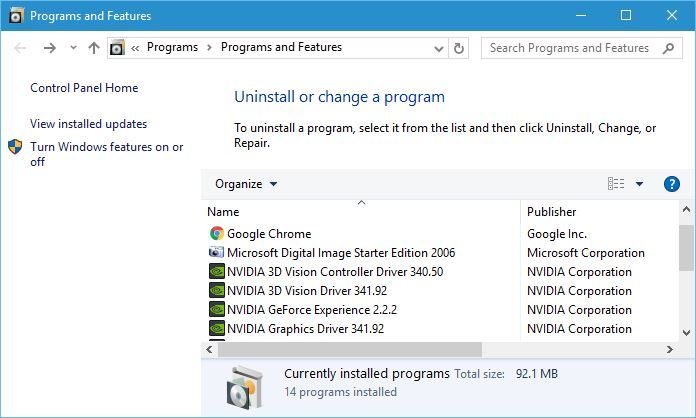
Users an uninstall those software via the Programs and Features Control Panel applet, which they can open by pressing the Windows key + R hotkey and entering ‘appwiz.cpl’ in Run’s text box.

2. Edit the Hosts File

Error 3194 often arises for users who have jailbroken their mobiles. Jailbreaking an iPhone alters how iTunes connects with Apple’s activation server when users try to restore iOS.

Therefore, editing the hosts file can often fix error 3194. Follow the guidelines below to edit the hosts file.

  • First, close iTunes if that software is running.
  • Click the File Explorer button on Windows 10’s taskbar.
  • Then open this path in File Explorer: C: > Windows > System32 > drivers > etc.

  • Right-click the hosts file and select Open with.

  • Select to open hosts with Notepad. Press the OK button to open hosts as shown directly below.

  • Those users who can see 74.208.105.171 gs.apple.com at the bottom of the text file should enter a # just in front of 74.208.105.171 gs.apple.com as in the snapshot below.

  • If there isn’t an 74.208.105.171 gs.apple.com line at the bottom of the text file, enter 74.208.105.171 gs.apple.com at the bottom of the file instead.

  • Click File > Save in Notepad, and then close the text editor.
  • Restart Windows after editing the hosts file.

3. Turn Off the Windows Defender Firewall

Error 3194 can be due to firewalls blocking iTunes’ connection with Apple’s update server. So, turning the Windows Defender Firewall off might also resolve error 3194. U

sers can turn off WDF as follows:

  • Open Cortana with its Windows key + Q hotkey.
  • Enter the keyword ‘firewall’ in the search box.
  • Select Windows Defender Firewall to open the Control Panel applet in the snapshot directly below.

  • Click Windows Defender Firewall on or off to open the options shown below.

  • Select both the Turn off Windows Defender Firewall options there, and press the OK button.
  • Users can turn the firewall back on after restoring iOS by selecting the Turn on Windows Defender Firewall settings.

4. Turn Off Antivirus Software

Remember that third-party antivirus software can also include additional firewalls. So, some users might also need to disable third-party antivirus utilities. To turn off antivirus software, right-click its system tray icon.

That will open a context menu from which users can usually select a stop, disable, shut down, or other turn off option.

For example, Avast users can right-click the antivirus software’s system tray icon and select Avast shield controls > Disable for 1 hour.

5. Fix Restore Error 3194 With iMyPhone

The iMyPhone TunesFix software can fix lots of iTunes’ error messages. Therefore, that software might also resolve error 3194. The full version is currently retailing at $14.95 on the publisher’s website.

Users can click Try it Free > Windows on the software’s website to download and install the trial version. Then click Fix Other iTunes Problems > Repair in iMyPhone’s window.

6. Restore the iPhone via iCloud

  • Users can also restore iPhones via iCloud instead of iTunes. To do that, log in to the iCloud website.
  • Select the Find iPhone service within iCloud.
  • Then click All Devices, and select the device to restore.
  • Select the Erase option to restore the device to its default configuration.

Those are some of the best resolutions for fixing error 3194. Note that users can also restore iOS devices to default settings with alternative third-party software, such as PhoneRescue for iOS and Dr. Fone.

RELATED ARTICLES TO CHECK OUT: 

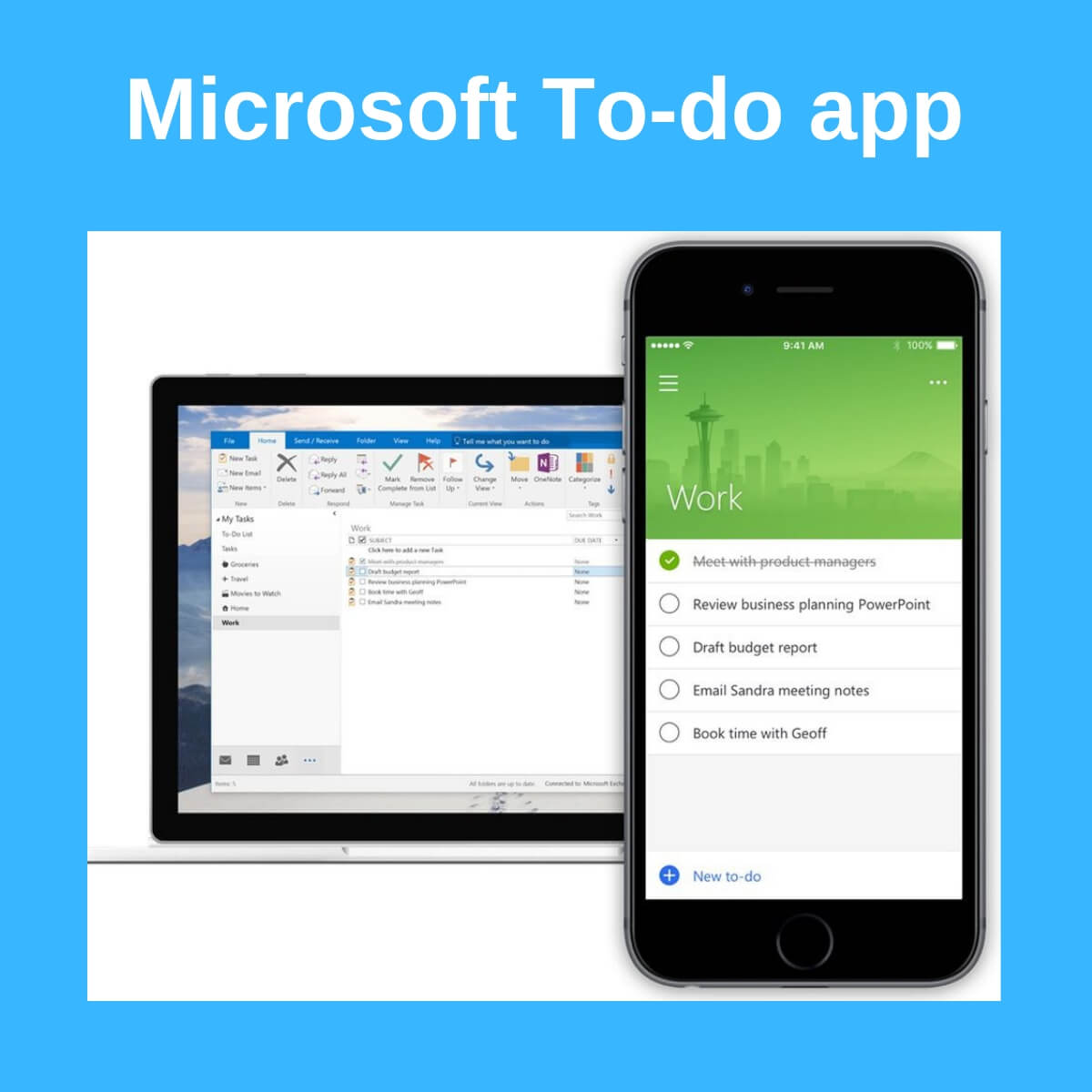
Microsoft To-Do App multiple account support is now available for users

Microsoft To-do app on Windows 10 now supports the most awaited feature “signing in with multiple accounts“.

The new feature helps users to use both of their work and personal accounts on the go by keeping their data separate. Currently, the feature is restricted to just Windows Insiders. 

Although this is a major change, Microsoft has not released any changelog for the updated Microsoft’s To-Do app version 1.51.2505.0. You can use the hamburger menu to identify the account that is currently being used as it shows your email address.

However, switching between accounts is just a few clicks away by using the drop-down menu. The feature comes as a lifesaver for those who have to constantly keep up with personal tasks and work.

Multiple account support was a high in demand feature

The feature was high is demand from Windows users as a similar feature was officially announced by Microsoft last year in December. An official announcement was made on Microsoft To-do’s Twitter handle.

“Movies we should watch together”, “Chores” or that “New job search” list —scared of accidentally sharing a list with your boss? We now support multiple accounts on Android (update 1.45), so you can keep your personal life separate from your work life.

The feature allowed the users to switch between different accounts the same way as it was being done in other Microsoft apps. Users are able to use the hamburger menu to view the account they are currently using to sign in.

The top of the menu featured the profile icon and email address and the drop-down menu is used to switch between accounts. 

Microsoft is also working on the new task manager app. The tech giant has not yet shared any details regarding the mass rollout of the feature.

It seems like iOS will still have to wait for a couple of months to the feature to be available in the app. Microsoft’s To-Do app for Windows is now available on Windows Store. 

RELATED ARTICLES YOU NEED TO CHECK OUT:

Windows 10 build 18346 issues: Slow download and installation errors

Microsoft has just released Windows 10 build 18346 for the Fast Ring. This is actually the third build in a week. The build brings a couple of bug fixes, improvements and known issues for the Windows 10 users. Insiders in the Slow ring have not yet received the update. 

Surprisingly, users started reporting issues within a few hours after its release. They faced a bunch of issues while downloading and installing Windows 10 build 18346. If you are one of them, this article provides you with a complete roundup of the issues that have been reported so far.

Windows 10 build 18346 reported bugs

1. Missing Settings Banner

As soon as Windows 10 users finished installing build 18346 they took to the Windows forum and started reporting that the Settings banner is no longer available.

The settings banner kept appearing and disappearing for different users. This is not a major problem that can cause any potential issues in the operating system.

One users described the same bug that he has experienced in the latest build.

On 18343 I had a banner; during the download of 18346 it disappeared; then when 18346 booted I have got half a Banner, just 2 Icons?

There is no official confirmation from Microsoft yet but a fix is expected to be available in the next release.

2. Build 18346.1 fails to install in VMware

It seems like this build has some compatibility issues with VMware. The VMware installation bug is being faced by most of the users and we can understand its frequency from the fact that users created a separate thread for this issue.

The issue is explained as follows:

This is the first build that will not install in VMware by either total clean install via ISO or upgrading from previous build. It gets to the windows logo and freezes there. No spinning dots, etc. On upgrade, on first reboot it freezes at same windows logo. Confirmed with another Insider on the Insider Forum using VMware.

3. Slow Download & installation fails

A couple of users reported that they are facing installation failure and slow downloads for the 32-bit version.

One of the users reported that the installation screen is stuck at 70% for a long time.

Similar time here for 32bit. Several fails; stuck at 70% GTR for a long time; slow download and install. But for the moment no reliability problems.

Currently, there is no workaround for the installation failure issue and it mainly depends on your existing Windows version. Check if your existing version is supported by build 18346.

Furthermore, use a fast internet connection, as you may experience slower downloads if you have a slow internet connection.

4. White taskbar icons bug

Although the issue has not been reported by most of the users still it can be annoying for most of us.

While switching to the white theme the taskbar icons might remain white, making them hard to see for most of the users.

Switching themes from dark to white, the icons in taskbar remain white and hard to see. 

It’s a temporary bug and it can be resolved easily by restarting your system.

5. “This can’t run on your machine” error

You might come across the issue that restricts you from installing the latest build.

 I just re-tried it on a PRO version letting it default to “ALL”.  Got the same “this can’t run on your machine”.  Beats me.

This is actually a silly error and prompts the users if they are trying to install arm64 on a 32-bit version of Windows 10.

Just like all other builds, Microsoft has acknowledged some known issues in Windows 10 build 18346.

One of the most important issues is that the users might encounter a Green Screen of Death while playing those games that are available with anti-cheat software.

Moreover, another issue that has been mentioned by Microsoft is related to Creative X-Fi sound cards that aren’t working correctly. Both of these issues are currently being addressed by Microsoft.

Comment down below if you are experiencing any other issues apart from those mentioned in this article. Have you found any solution?

RELATED ARTICLES:

Windows 10 build 18346 is all about bug fixes

Fast Ring Insiders can now test a new Windows 10 build but don’t get too excited about it. Windows 10 build 18346 focuses only on fixing the issues reported by Insiders in previous build releases.

Yes, there are no new features, but there’s a long list of fixes and improvements that will make the OS more reliable.

Windows 10 build 18346 changelog

  • Microsoft fixed the issue which caused the Bluetooth Hands-Free audio driver to hang.
  • The bug resulting in some Insiders not being able to access the Quests section of the Feedback Hub has been fixed.
  • Settings should no longer crash if you click “Pick your insider settings” button under Windows Insiders Program Settings.
  • The PowerShell .GetType method should no longer trigger errors.
  • The company fixed an issue where in certain languages if you pressed WIN+V before having opted into clipboard history the clipboard history UI would be truncated.
  • Microsoft also fixed the issue where, when friendly dates were enabled in File Explorer, in certain languages (such as Japanese and Chinese) Insiders would see the wrong day name displayed.
  • The issue resulting in an unexpected and non-functional Family Safety icon in the notification area of the taskbar has also been fixed.
  • At the same time, Microsoft also fixed an issue that could result in the taskbar search box text becoming black on a black background.
  • The Start menu should no longer crash when using Narrator to navigate pinned folders in Start.

Windows 10 build 18346 known issues

At the same time, this build release also bring issues of its own. Microsoft already published a list of known bugs that includes:

  • Launching games that use anti-cheat software may trigger a bugcheck (GSOD).
  • Creative X-Fi sound cards are not functioning properly. We are partnering with Creative to resolve this issue.
    For display calibration scenarios, monitors may be missing in the built-in Color Management application. As a work around, please use the
  • Settings app to select color profile instead, under the Display Settings page.
  • Some Realtek SD card readers are not functioning properly. We are investigating the issue.
  • In Windows Sandbox, if you try to navigate to the Narrator settings, Settings app crashes.
  • Mouse pointer color might be incorrectly switched to white after signing out and signing back in.
  • Chinese version of multiple games is not working.

Download Windows 10 build 18346

You can download Windows 10 build 18346 via Windows Update. Just hit the ‘Check for updates’ button and the download process will start automatically.

If you’re an Insider and you already installed the latest Windows 10 build on your computer, do tell us more about your experience in the comments below.

RELATED STORIES TO CHECK OUT:

Microsoft and 5G take center stage at MWC

The rollout of a new mobile telecommunications standard that will eventually replace 4G appears to have broader implications than just speeding up downloads on smartphones.

During Mobile World Congress this week, Microsoft and its PC manufactuers used the convention to shine some light on how 5G will power more mobile devices beyond smartphones.

In a recent blog post, the Vice President of Platforms Engineering at Microsoft Erin Chapple sums up the company’s efforts to hone 5G as such:

With all of this going on, we’re very excited about some of the big announcements from our partners and device makers here at MWC. Partners are critical to making this a reality—device makers, silicon manufacturers, mobile operators, eSIM enablers, mobile device management providers (MDMs) and ISVs, all need to establish a new “connected computing” approach to business. And we’re hearing that’s just what they’re up to.

Microsoft and its partners are looking at producing devices that come with 5G modems capable of faster connectivity for items such as LTE enabled PCs, laptops, tablets, IoT, ambient computing and smart speakers among others.

More specifically, Microsoft sees 5G helping boost its cloud services strategiesby enabling PC users to tap into speeds of connectivity that renders the cloud latency a moot point.

PCs connected to a cloud service via 5G, with all of that computing power served up as if you were right there at the server farm. They also announced Wi-Fi 6, which will play an important role for both consumers and in the enterprise.

Microsoft and its PC partners have been laying the foundation of 5G adoption with eSim inclusions in select devices since 2016, with one of the highest profile implementations came with the Surface Pro LTE and Surface Go.

At MWC 2019, eSims are playing a big roll as serveral manufacturers unvieled plans to implement in devices and connect them through Microsoft’s “Mobile Plans” app.

This week, several of these players are announcing new releases and partnerships within this category at MWC. As an example, IDEMIA and Mobile Iron will be sharing the offering for their common customers and mobile operators in support of the Windows commercial solution for eSIM.

Wandera showcased its Windows connected PC solution, which helps enterprise customers define policies that govern how mobile data can be utilized by both users and mobile apps across a variety of network scenarios (physical SIMs, eSIMs, Wi-Fi, etc.). We are also excited to continue to work with mobile operators, such as C Spire and KDDI, as we get closer to deploying eSIM within the organizations of their customers.

Aside from foldable phones, Mobile World Congress has been cornucopia of future looking technologies and Microsoft hardware and services seem to be at the center of many.


Microsoft Build registration begins at 9am PST today, Feb 27

This year’s Build, Microsoft’s annual developer conference, slated for May 6-8 in Seattle, is just about to open its doors for registration:

You can learn more about Build and register on the official Build 2019 website. We’ll learn more soon about pricing, etc., but this year’s event should be a doozy, with lots of info about “Windows Lite,” the new Chromium based Edge browser, and lots more. Stay tuned to OnMSFT.com for all the latest on Build and beyond!

Deal: Buy Spider-Man: Into the Spider-Verse digitally and get 2 weeks of Xbox Game Pass free

The Academy Award-winning animated film, Spider-Man: Into The Spider-Verse, is now available to watch digitally within the Microsoft Movies & TV apps on Windows 10 devices, Windows 10 Mobile smartphones, and Xbox One consoles.

To help promote this release, Microsoft is giving everyone who buys the film digitally between February 26th through to March 11th two free weeks membership of the Xbox Game Pass subscription service. The code for the free two weeks will be sent as a message to the associated Xbox user after the purchase has been made.

Spider-Man: Into The Spider-Verse is available to buy digitally in the Microsoft Store in SD, HD, and UHD and each version costs $19.99. This pricing is notable as usually the UHD version of a film costs around $5 more than the HD version.

The film is set within its own universe, separate from the live action Marvel Cinematic Universe films, and follows Miles Morales as he becomes a new Spider-Man and meets a variety of superhero counterparts from alternate universes.

Spider-Man: Into The Spider-Verse was pretty much universally acclaimed by both cinema-goers and critics and took home the Academy Award for best Animated Feature earlier this week.

Are you going to buy Spider-Man: Into The Spider-Verse digitally in the Microsoft Store? Which version will you buy? Let us know in the comments below and then follow us on Pinterest for more Microsoft news.

Trials Rising video game is now live on Xbox One consoles

Trials Rising is now live and ready to be played on Microsoft’s family of Xbox One consoles. The game is the latest in the Trials racing/stunt franchise and features a variety of new courses set in real-world locations in numerous countries.

Here’s the official game description and launch trailer:

Explore over-the-top action and physics-bending motorcycle racing in Trials Rising, the latest edition of the Trials franchise. All new features, more competitions, and more tracks mean new challenges! Ride challenging tracks around the world – from the Great Wall of China and New York City to the Eiffel Tower and everywhere in between. With the new hilarious Tandem Bike mode, partner with a friend and try to control one bike with two riders. From your local backyard to worldwide stadiums, defeat all your opponents online and rise to glory. Create unique levels in Track Central using hundreds of different components. The possibilities are endless – and so is the fun!

Trials Rising is available in two version; a regular edition and a Digital Gold Edition that comes with the main game and the Expansion Pass which includes over 55 new tracks.

Are you a fan of the Trials games and have you had the chance to play Trials Rising yet? Let us know if you’re enjoying it (or not!) in the comments below and then follow us on Pinterest for more Xbox gaming content.

The app was not found in the store. ?


The app was not found in the store. ?

How do I get Steam to recognize my PS4 controller?

The PlayStation 4 DualShock controller is among the best gamepads for gaming. Players can also play Steam games in Windows 10 with PlayStation 4’s gamepad.

However, players will need to register the DualShock controller with Steam first before they can play games with it. This is how users can get Steam to recognize their PS4 controllers.

How to Set Up the PlayStation 4 Controller for Steam Games

  • First, make sure that the Steam client software is the very latest version. To do that, players can click the Steam menu button and select the Check for Steam Client Updates option.
  • Restart the Steam software if it gets updates.
  • Thereafter, click the Big Picture Mode option at the top right of Steam’s window.
  • From there, click the cog button at the top right of the window.

  • Select Controller Settings to open the options shown below.

  • Then select the PS4 Configuration Support option.
  • Next, plug the PlayStation 4’s USB cable into a USB slot on the desktop or laptop.
  • A small window will then appear that includes some personalization options for the gamepad. Enter a title for the connected gamepad in the text box on that window.
  • There players can also adjust rumble and light preferences for the gamepad.
  • Press the Submit button to register the controlpad with Steam.
  • Thereafter, players can customize the gamepad further by clicking Settings and Base Configurations in Steam.

— RELATED: Connect PS4 Controller to Windows 10 [How to]

How to Set Up a Wireless PlayStation 4 Controller for Windows Gaming

Those players who want to play Steam games wirelessly will need to configure the gamepad for Bluetooth connectivity in Windows 10 first.

Some players might need a PlayStation 4 wireless adapter, or USB Bluetooth dongle, if their laptops or desktops don’t support built-in Bluetooth.

Follow the guidelines below to set up a PS4 gamepad as a Bluetooth device for Windows gaming.

  • Press the Share and PS buttons on the gamepad at the same time to establish Bluetooth connectivity mode. Then the controller’s light should start flashing.
  • Press the Windows + Q hotkey to open Cortana’s search box.
  • Enter the keyword ‘Bluetooth’ in the search box.
  • Click Bluetooth and other devices settings to open the window shown directly below.

  • Turn the Bluetooth option on if it’s off.
  • Press the Add Bluetooth or other devices button to open the window in the image directly below.

  • Select the Bluetooth and Wireless Controller options.

So, that’s how players can play their favorite Steam games with the PlayStation 4 DualShock gamepad. Players can also play PlayStation games in Windows with the PS4 controller via PlayStation Now streaming.

RELATED ARTICLES TO CHECK OUT: 

Dynamics 365 Guides is the perfect tool for onboarding processes

Microsoft just unveiled Dynamics 365 Guides  — a mixed reality application that allows employees to learn new skills in a practical environment by completing various tasks.

The app will be rolled out to the general public next year. This mixed reality training tool has been developed targeting business customers.

Dynamics 365 Guides Features

1. Hands-on learning

Employees will be able to learn new skills with the help of the  step-by-step instructions provided by the app. It helps them to get familiar with the tasks and tools that they are going to use during the course of their work.

In other words, employees will be able to understand how to use the tools in a practical environment.

2. Improves training effectiveness

As a company, you can covert institutional knowledge into a tool that can enhance their learning capabilities. This tool can be used repeatedly for training your employees.

It helps you to attach photos and videos, create interactive content, customize training and import 3D models.

3. Use data to enhance employee performance

Dynamics 365 Guides news

Employers can use the app to improve the processes and track employee and company performance. It will help them to identify where their employees are lacking behind by looking at employee performance data on their Power BI dashboards.

As you can see, the app serves a dual purpose. It not only allows the employers to have a complete track on the performance of their employees but also helps employees to improve their skills.

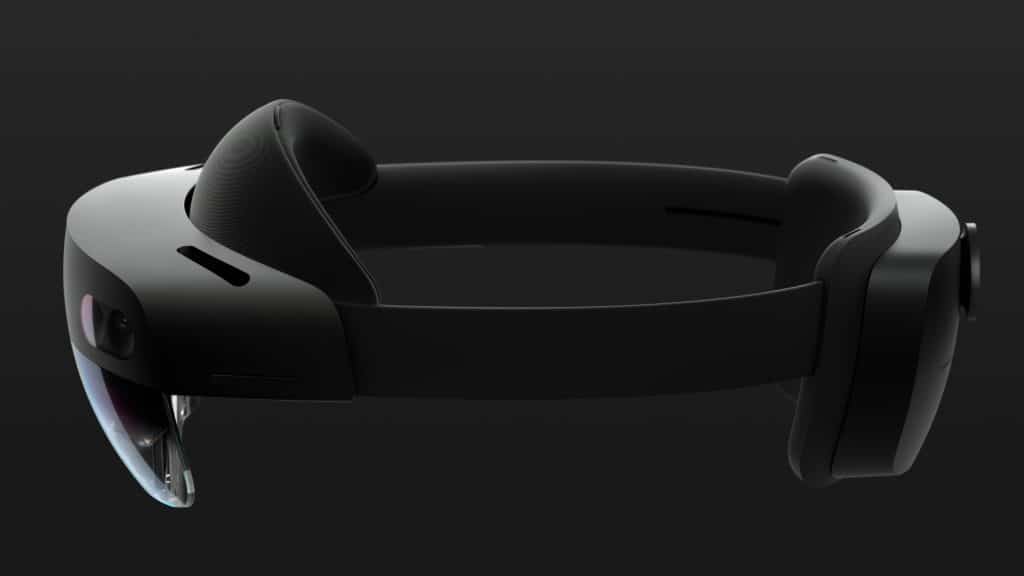
Microsoft claims that the app actually increases efficiency for mission-critical processes and equipment and also helps to minimize downtime. The applications offer support for both the new HoloLens 2 and HoloLens.

For more information on how to get started with Dynamics 365 Guides, go to Microsoft’s support page.

Apart from Dynamics 365 Guides, Microsoft also announced HoloLens 2, Azure Kinect Developer Kit (DK), and Azure Mixed Reality Services. Microsoft is also working to enhance the capabilities of HoloLens 2 by bringing a prototype of the Firefox Reality browser.

It is interesting to see how Microsoft is setting new industry standards by bringing new technology to the users. Let’s wait and see what the company has in its basket to announce later this year.

RELATED STORIES TO CHECK OUT:

Microsoft’s new Lite OS get first mockup, will reportedly enter “wider testing” this summer

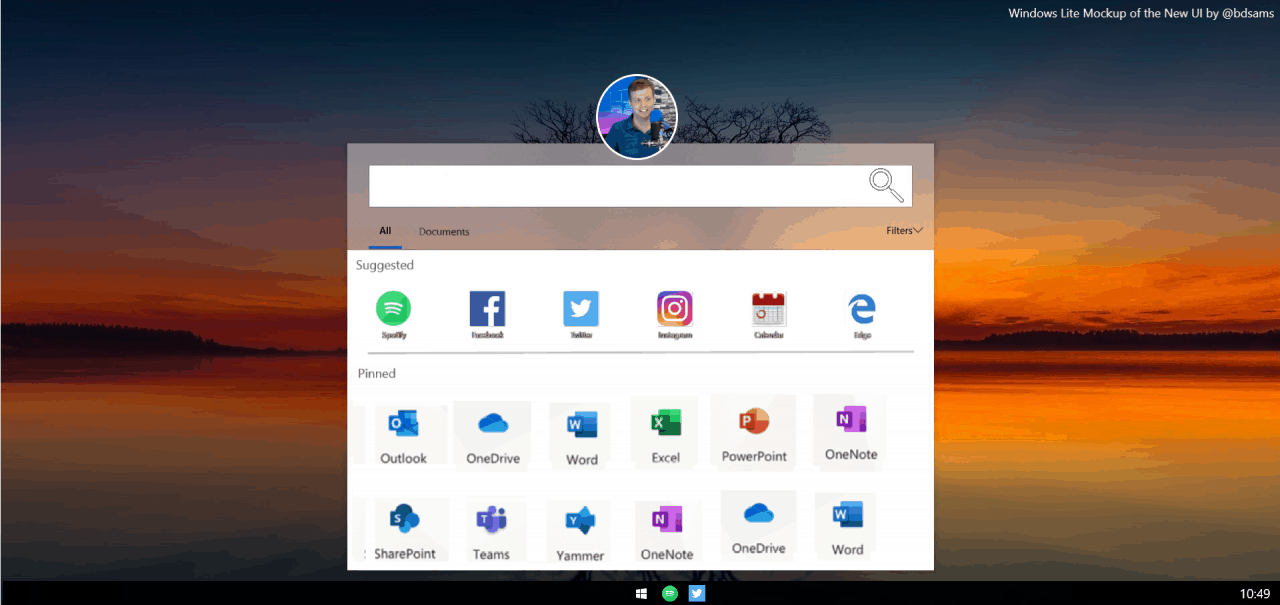
Microsoft may already be pretty busy with its bi-annual updates for Windows 10, but the company reportedly has other exciting software projects on its plate. One of these is “Lite OS,” a new lightweight operating system designed for a world where thin clients like Chromebooks are increasingly popular.

Lite OS, apparently code-named “Santorini,” is reportedly based on Windows Core OS, the modular version of Windows that will drop legacy components to better adapt to new form factors. Petri’s Brad Sams, who claims to have seen this new Lite OS in person, published the above mockup today.

Compared to the traditional Windows 10 desktop, Lite OS should have a simpler UI while keeping some familiar elements. The bottom task bar will apparently lack the system tray, and the Start menu will also look different, with no more Live Tiles. However, classic Windows features like File Explorer and windowed apps will still be there.

On the apps front, Lite OS is said to be only supporting UWP apps and Progressive Web Apps as of today, though both Sams and ZDNet’s Mary Jo Foley have been hearing that legacy 32 apps could become accessible via containerization and/or streaming. No support for Win32 apps would likely make Lite OS a tough sell for PC-like devices. Because yes, Lite OS will reportedly be able to run on various form factors, and Microsoft has already built support for both Intel and ARM chips.

There are still a lot of unknowns about Lite OS, but Sams said today that Microsoft could unveil the OS in the coming months:

I expect Microsoft to begin talking about the operating system this year in the spring, likely at its Build conference in May but more importantly, the company will begin wider testing this summer. While I don’t know if that will include a public preview, Windows Lite is moving forward at a feverish pace as the company understands the importance of this new platform. (…) I’m also hearing that the company plans to seed out hardware with the new OS. That being said, I’m not quite sure to what scale or when they will distribute the hardware but it is being considered at this time.

In a world where there are already more than 1 billion iOS and Android devices in the wild, and still less than 1 billion Windows 10 active devices nearly four years after the OS launched, it will surely be very difficult for Microsoft to introduce a new platform. We still don’t have much details about this new Lite OS, but the Redmond giant may also have a hard time explaining to consumers the purpose of Lite OS. Windows 10 draws its strength from its openess and vast ecosystem of apps, and this is probably what consumers expect from a new Microsoft platform. We’ll see what happens, but Build 2019 could definitely be one of the most interesting developer conferences this Spring.

Microsoft announces two more Xbox One Backward Compatibility titles—Hydrophobia and Marathon: Durandal

If the Lost Planet video games or Resident Evil: Code Veronica didn’t catch your attention last week, perhaps these new titles will. Microsoft is adding two more to the backwards compatibility library, further expanding the number of legacy Xbox 360 games on the newer Xbox One system.

The first title, Hydrophobia, is a survival adventure series by Dark Energy Digital but published on the Xbox 360 by Microsoft Studios in 2010. It features realistic water animations especially when compared to other games released around that time. Thanks to Microsoft making this title work with the Xbox 360 hardware emulation within the Xbox One console, you can now play this on your newer generation system.

If you’re into more classic first person shooters, Marathon 2: Durandal could be a nice game to play on your Xbox One now that it’s backward compatible. The game was released during the days of Windows 95 but started on the original Apple Macintosh computer, and later became available on a host of other platforms including the Xbox 360, Windows, Mac, and now your Xbox One console.

Those games are available to buy for less than $10 each on the Xbox marketplace for those interested. And as Microsoft has released as many as five titles within the span of a week for the backward compatibility list, the company could likely easily reach over 600 games before the year’s end.

Assassin’s Creed Odyssey, Far Cry 5 and many other Ubisoft games are on sale on Xbox One this week

In a post on Twitter, Xbox’s Larry Hryb, also known as Major Nelson, announced the latest Deals with Gold for Xbox Live Gold subscribers. This latest round of Deals with Gold features three games that are available for deep discounts, including Halo Wars 2 ($20), Darksiders III ($44.99) and a specially priced Far Cry 5 and Far Cry New Dawn bundle (both games for $59.99). For $20 Halo Wars 2 is a steal. Halo Wars 2 is an Xbox Play Anywhere game title so you can buy it once and play it either on Xbox One or Windows 10.

In addition, there are many discounts available for on other Ubisoft game titles, including Assassin’s Creed Odyssey, Hitman 2, and more. There are discounts available on more than 150 games. The Far Cry 5 and Far Cry New Dawn bundle is too good to pass up! Take a look at these three games and get them before this Deals with Gold sale ends at 12:00 AM EST on March 4, 2019.


Darksiders III
Darksiders III
Developer:
THQ Nordic
Price:
$39.99


Delete Defaultuser0 on Windows in 4 Different Ways

Sometimes when installing the new version, you might get a new user account. This is usually Defaultuser0, and many are wondering how to delete Defaultuser0.

This account can cause problems, and many reported that deleted user accounts keep appearing, so let’s see how we can fix this problem.

What is defaultuser0?

  • This is a temporary account created by Windows.
  • It’s created when installing Windows, and it’s necessary for the installation process.
  • Windows out-of-the-box experience creates it if there are no other accounts on the PC.
  • The account is password protected, so it can’t be accessed.

How can I delete defaultuser0 in Windows 10?

1. Enable hidden administrator account

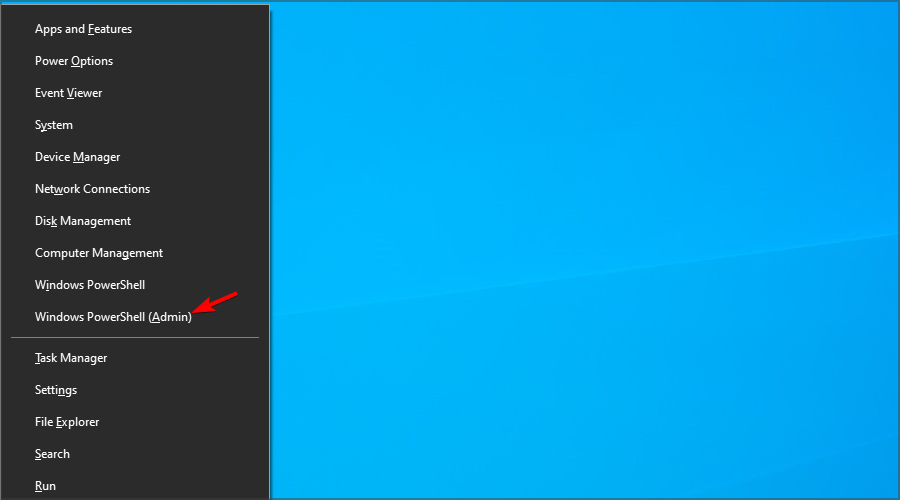
  1. Press Windows key + X and select Windows PowerShell (Admin).
  2. Now run the following command: net user administrator /active:yes
  3. This will enable the hidden administrator account.

In case this doesn’t work, you need to run this command in Command Prompt in Recovery Mode. We have

After doing this you should have enabled the hidden administrator account. Now you can use administrator account to create new users accounts and delete Defaultuser0 account.

In addition, when you start Command Prompt you can create new account right from there by typing the following lines and hitting Enter after each line:

net user "Jack" xxyyzz /add
net localgroup administrators "Jack" /add

This will create a user Jack with xxzzyy password and add it as an administrator.

2. Delete the Defaultuser0 account

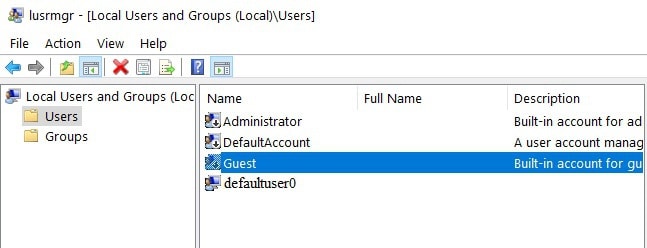
  1. Go to Start and type lusrmgr.msc. open the Local Users and Groups folder.
  2. Right-click on the defaultuser0 account and select Delete.
    delete defaultuser0
  3. Go to C:\Users
  4. Locate the defaultuser0 folder and delete it.

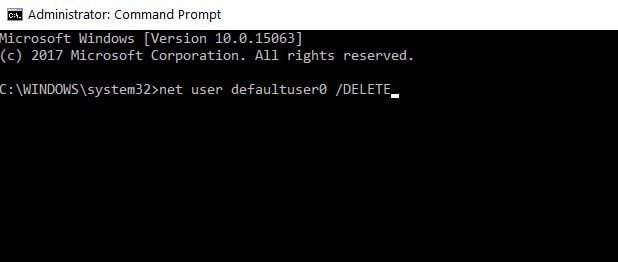
You can also delete it with Command Prompt:

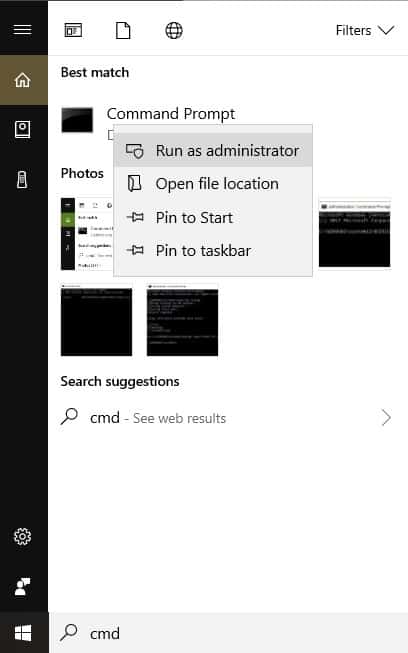
  1. Go to Start and type CMD.  Right-click on the first result and select Run as Admin.open command prompt
  2. Type the following command and hit Enter: net user defaultuser0 /DELETEdelete defaultuser0 windows 10
  3. Close the Command Prompt.

Many reported that they can’t add a new user account, and if you’re having this issue, we have a special guide that can help you.

3. Run Delprof2

  1. Download Delprof2.
  2. Run the software.
  3. It will scan your PC for any inactive accounts.
  4. Use it to delete defaultuser0.

4. Perform Windows 10 custom install

  1. To perform this, you’ll need Windows 10 DVD or USB with Windows 10 setup. Just start the setup and follow the instructions.
  2. When you get to the Which type of installation window, choose Custom install.
  3. Before using this option make sure that you backup your files.
  4. Make sure to choose the right partition to install Windows 10, usually the Primary partition. If you don’t format your hard drive, your documents and files will be saved. However, all of your installed applications will be removed.
  5. Follow the instructions and wait for the installation to finish.

If you don’t know how to make a bootable drive, read our guide on how to create a bootable Windows 10 UEFI USB drive.

Also, if you want to back up your data, read our guide on how to create a Windows 10 backup.

That would be all, I hope this article helped you delete defaultuser0 from your PC.

If you need help concerning a particular upgrade issue, tell us more about the problem you’re experiencing, and we’ll try to find a solution.

Rivals Microsoft and VMware reportedly working on partnership to bring private cloud software to Azure

Microsoft and VMware, the cloud and virtualization service company, have long been rivals, competing to help manage companies’ private data centers as they begin to move to the cloud. Up until now, it’s been difficult to run VMware software on Azure, but that could be about to change, according to a (paywalled) report from The Information.  Amazon’s AWS has had an agreement with VMware since 2016, but these new agreements could give companies some choice in where they end up in the public cloud.

One of VMware’s principle products allows companies to create virtual servers, and Microsoft’s Hyper-V server virtualization was in part a response to VMware’s dominance in that segment of the market. While it’s possible to get the VMware virtualized servers running in Azure, which is preferable for some companies to AWS on the whole, currently it takes a lot of work and requires “extensive technical work.” The new partnership announcements would make it much easier for companies to run VMware virtual servers in an Azure cloud.

VMware is already being pressured to allow the use of Azure by customers, reports The Information:.

“VMware CEO Pat Gelsinger told CNBC last June that his customers were asking for compatibility between VMware’s software and Azure, as well as Google Cloud.”

Microsoft has built Azure into one of the main pillars of its business, but still trails Amazon’s AWS by a wide margin when it comes to corporate cloud services. A VMware agreement could help to level the playing field.

Microsoft announces new social entrepreneur accelerator program; pilot to roll out in India and France

Microsoft Corporation has announced the rollout of the Microsoft-Ashoka Accelerator, a new social entrepreneur accelerator program in partnership with Ashoka, the world’s largest network of leading social entrepreneurs with more than 3000 fellows.

The program, a part of the company’s worldwide Tech for Good initiative, aims to nurture and grow an ecosystem of tech-enabled startups focused on social and environmental issues.

The Microsoft-Ashoka Accelerator will provide high-potential startups technology access, AI and cloud expertise, and customized mentoring to accelerate the development of intelligent and effective solutions for social issues. Moreover, Microsoft for Startups will extend the benefits of its flagship program, ScaleUp, to help the shortlisted startups scale their projects.

Launched under the aegis of the Microsoft Technology for Social Impact (TSI) team, India and France will be the first countries to pilot the program in March 2019. Launched in September 2017, the Microsoft TSI group serves nonprofit organizations worldwide by making its cloud technology accessible and affordable to nonprofits and helping them move to the cloud so that they can drive greater impact.

Simplon.co, renowned for enabling digital transformation in the nonprofits sector, will lead the on-ground management of the program in India. Simplon is also Microsoft’s partner in deploying AI Inclusive schools for underprivileged youth in France.

The tripartite partnership brings complementary skills to the table – Ashoka Foundation brings the entrepreneurs, Simplon brings the understanding of IT and social entrepreneurship, and Microsoft brings the much needed AI and intelligent cloud technology expertise.

Microsoft’s partnership with Ashoka and Simplon will enable young social entrepreneurs to tackle global issues and help them build data-rich organizations that are fueled by cloud and AI technology.

Digital pre-orders open for Final Fantasy VII, X, X-2, and XII on Xbox One

The digital pre-orders for the Xbox One releases of Final Fantasy VII, Final Fantasy X/X-2 HD Remaster, and Final Fantasy XII The Zodiac Age are now all live within the Microsoft Store and the Store section on the Xbox One dashboard.

Final Fantasy VII will be the first of the three to release on the Xbox One and will launch on March 26th for $15.99. Unlike the other two games, this release is a direct port of the original Final Fantasy game and only comes with three improvements; 3x speed mode, the ability to turn battle encounters off, and a battle enhancement mode.

Final Fantasy X/X-2 HD Remaster, as its title suggests, is a two-in-one package containing HD remasters of Final Fantasy X and its sequel Final Fantasy X-2. It’s due for release on the Xbox One on April 16th and will retail for $49.99. Both games feature HD remastered game assets and cutscenes in addition to a newly-created modern audio option.

Final Fantasy XII The Zodiac Age will come out on Xbox One on April 30th and is also priced at $49.99. In addition to the HD remastering, this version of Final Fantasy XII contains a variety of added content that was unavailable in the original release.

Are you a Final Fantasy fan? Let us know which one’s your favorite and if you’ll be buying any of these re-releases in the comments below and then follow us on Pinterest for more Xbox gaming content.

FINAL FANTASY VII
FINAL FANTASY VII
Developer:
SQUARE ENIX
Price:
$15.99


FINAL FANTASY X/X-2 HD Remaster
Developer:
Square Enix
Price:
$49.99


FINAL FANTASY XII THE ZODIAC AGE

Microsoft Forms Pro lands this Spring: Here’s what’s new

Good news, folks! Microsoft Forms is all set to get a Pro version very soon. According to Microsoft, the Microsoft Forms Pro will be available to Windows Insiders this Spring.

The tool offers complete integration with Office 365, Dynamics 365, and Microsoft Power Platform. The feature is expected to be released as a part of the existing Forms service.

Notably, the tool can be used to create content in minutes that is definitely going to be helpful for Educators and Professionals. Companies and enterprises will be able to use Microsoft Forms Pro to analyze the results in real time. 

A Glimpse Of Microsoft Forms Pro

The organizations can use the surveys, quizzes, and polls for collecting feedback across customer touchpoints by using this enterprise survey tool. The organizations will be able to promote an engaging, collaborative work environment by measuring employee satisfaction and sentiments.

Both of these features are measured during the entire process onboarding to exit. Furthermore, companies can embed feedback requests for the identification of product enhancements and features. 

The tool also provides deep insights that are deduced from the collected data. Microsoft Forms Pro allows users to correlate business transactions with provided feedback.

Microsoft describes the tools as:

Capture and analyze feedback to improve how you engage across your business with this simple, yet comprehensive survey solution.

Microsoft Forms Pro currently offers the following features:

  • Easy to set up and configure
  • Trigger surveys around specific events
  • Collect feedback across channels
  • Embed surveys across apps, web, and mobile
  • Identify sentiments automatically
  • Analyze feedback for impactful insights

For now, the tech giant has just provided a glimpse of the product so that the users can have an idea about its features. The rollout of the feature is expected to bring it in direct competition to Google Forms.

An online leak has already provided a roadmap for Microsoft Forms in this respect last year. You can expect Microsoft Forms Pro to have the folder support, progress base, a mobile version of forms, as well as an insert ability.

There are more changes coming, and you can elevate your forms as Microsoft’s integration of Excel files redefines possibilities.

Well, all those Google Forms users Out there? Are you excited for a brand new tool? Looks like the tool is going to offers what Google Forms failed to provide you with so far.

Microsoft’s working on a new OS for dual-screen devices

Recent reports provide an indication that Microsoft is potentially working on a new version of Windows Shell that is expected to be running on top of Windows Core OS. Moreover, dual-screen devices hardware and software devices are currently under development.  We can expect a new product category to be released later his year.

Microsoft plans to offer tough competition to Google’s Chromebook launched for the educational sector. The tech giant is reportedly working on an upcoming version of Windows that has been aimed to target low-end affordable devices and dual-screen laptops. 

All these efforts are being done in order to enhance the modularity of the Windows operating system.

There’s a new project in the pipeline

Rumours suggest that Microsoft has been working on a couple of breakthrough projects right now. The first one is  ‘Andromeda‘ (a dual-screen mobile device), a larger dual-screen device that is reportedly codenamed ‘Centaurus’.

Centaurus is expected to come with two large displays. Microsoft has not shared any details regarding the development of Centaurus but it is expected to hit the store in April 2019.

Moreover,  the company is also working to make Windows more modular with the development of the Windows Core Operating System (Windows Core OS/WCOS).

Code names everywhere

Each form-factors will be comprised in different shells in Windows Core OS. For example, AndromedaOS is the first one, the second one is Surface Hub 2 Shell codenamed  ‘Aruba’ and finally, Oasis is the codename for Holographic Shell for HoloLens 2.

Furthermore, Microsoft plans to bring significant changes with the introduction of a simplified version of Windows named as ‘Windows Lite‘ or simply ‘Lite’.

According to Mary Jo Foley, a combination of Lite’s Shell and Windows Core OS might be codenamed as Santorini. The report further stated that Santorini is expected to be the Lite shell and run on dual-screen devices.

We can expect the things to be simpler with the release of respective devices as all those codenames are intended for internal development. 

The report also suggests that Microsoft plans to ensure that Santorini still supports Win32 apps. The platform will be able to run those apps in containers for safety reasons. While these applications will be available to the users directly from any download site. The tech giant is still looking for ways to make that happen. 

All these latest versions of windows that are currently under development aim to target separate markets. While it remains to be seen that when they are going to be launched for the users as the implementation has already been delayed various times.

Comments down below do you think that all those implementations are really going to make any difference?

 RELATED ARTICLES YOU NEED TO CHECK OUT:

Microsoft combines DirectX and PowerShell to prep for native Xbox gameplay on a PC

A handful of Windows observers and journalist such as Brad Sams, Rafael Rivera and NazmusLabs on Twitter seems to have unearthed some rather incredible news for the gaming community.

In a recent post, Sams walks through what Microsoft’s latest DirectX update means for the company’s gaming future, and it appears the company is prepping a full migration of the Xbox One installation into Windows via Windows 10’s new PowerShell enhancements.

What that boils down to is a more native Xbox One gaming experience from a PC.

Through Microsoft’s recent limited State of Decay 2 testing for Windows 10 Insiders on builds 18334 and later, we get a glimpse at how the company plans to bring native Xbox gaming to PCs.

When you download State of Decay, the oddities begin immediately. Instead of downloading from the Microsoft Store server, serverdl.microsoft.com, where all content comes from including PlayAnywhere titles, the game downloads from assets1.xboxlive.com.

What it looks like Microsoft is doing, instead of porting each Xbox feature back to the PC one by one, they are simply dumping the entire Xbox one installation/servicing plumbing and making it the primary installation for Windows.

When you install State of Decay, you get a legacy DX installation setup prompt that does a classic, non-sandboxed, and non-store based installation of DirectX dependencies to your system directory. 

In conjunction with the recent appearance of the Gaming Service App, there is mounting evidence that Microsoft is fairly deep in the weeds in its merging of Xbox and Windows platforms into a single binary for game developers to target.

Streamlining the delivery mechanisms for games on PCs and consoles appears to be a large part of the company’s end game to bolster its gaming audience. Arguably, Microsoft has lost this generations console war, but if the company maneuvers its recent consumer-focused pivot successfully, it could render Sony’s current hardware win a pyrrhic victory.

With this much groundwork already laid, it’ll be interesting to see what Microsoft shows off during this year’s E3 convention as the company has the stage alone to further cultivate its combined PC and console gaming narrative.

Download Comfort Clipboard Pro for Windows

Saving, organizing, and accessing files or text within your clipboard is an important thing in a lot of different workflows. Professional users know that quite well.

Clipboard managers come in various measures and with a variety of features but it’s hard to find a reliable and feature-rich tool like Comfort Clipboard Pro.

This premium Clipboard Manager is what you’re looking for in case you need a tool which does it all.

Besides the standard clipboard-management traits, Comfort Clipboard Pro comes with an advanced and reliable clipboard history section.

There’s a dozen different information about the content you’ve copied, including the detailed preview area, source applications and much more.

In addition, you can edit everything you’ve copied, be that an image or text, with annotations and drag-and-drop fragment transfer.

If we add the autosave feature which prevents losing clipboard content in case of a sudden shutdown, we have a full package at your disposal.

You have a trial period to try it out and if you deem it irreplaceable (which we’re sure you’ll do), purchasing it is the next obvious step.

Best clipboarding tool
download comfort clipboard free
  • Keeps clipboard history
  • Supports all clipboard formats (text, link, image)
  • Paste multiple elements at once

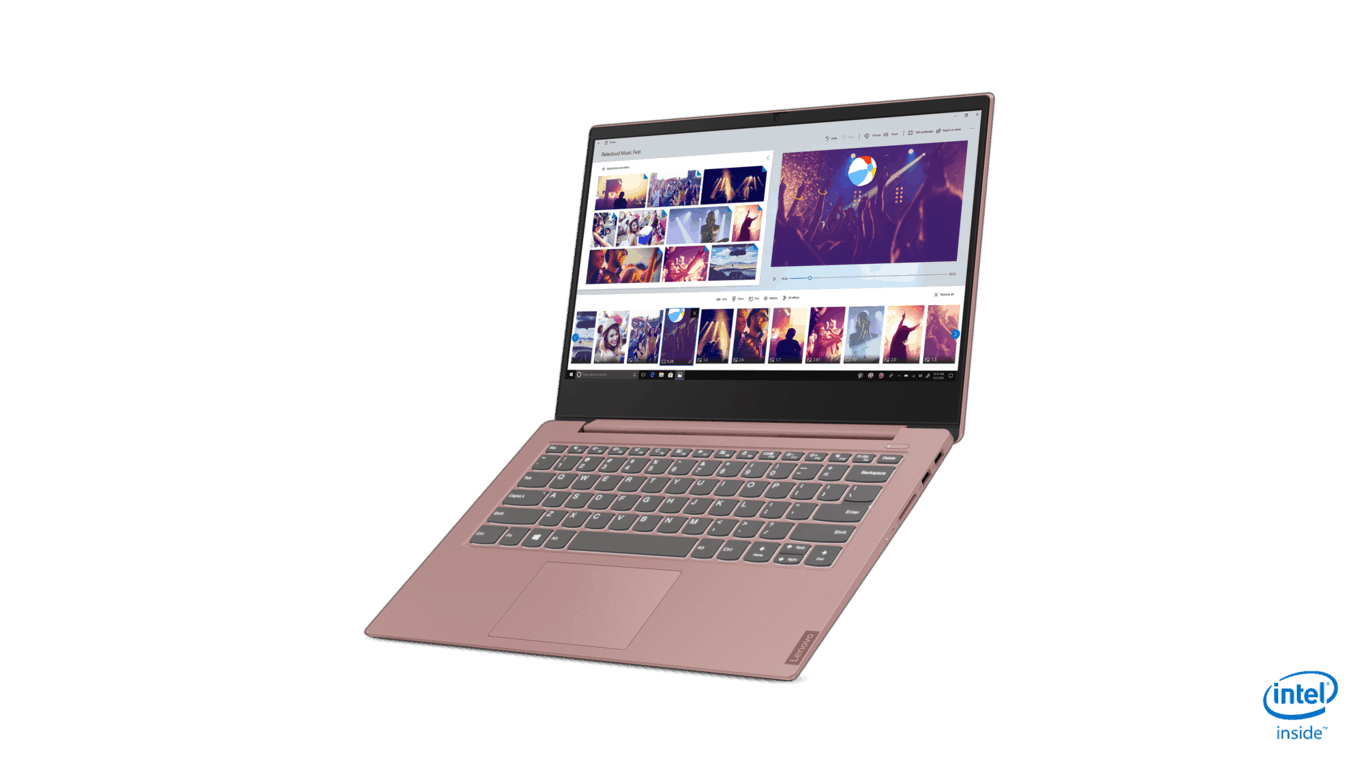
Super cheap Lenovo IdeaPad S340 laptops debut at MWC 19

Thin and budgeted seem to be an ongoing mantra in Lenovo’s laptop designs as of late.

The Lenovo IdeaPad S340 is coming in at $369.99 for the cheapest offering and at $449.99 for a slightly beefed up version and in under 3.7lbs for the average computing user.

Here are the details Lenovo has offered on the S340 thus far:

  • Upgraded Intel & AMD processors & graphics
  • Up to FHD IPS Touch Display
  • New 3 side narrow bezel >20% thinner than predecessor
  • New TrueBlock privacy shutter for webcam
  • Up to NVIDIA GeForce MX250 or Integrated graphics
  • Chassis Materials: Carbon fiber (CFRP) with an aluminum finish on the cover and soft touch deck
  • Dolby Audio Premium (2 x 2W Speakers)
  • 2 x USB 3.0 (one supports charging), 1 x USB-C, HDMI™, DC Jack (round), 4-in-1 SD Card Reader, Combo Audio Jack
  • Optional Backlit keyboard
  • All day battery life (10 Hour)  with New RapidCharge technology that gives you 80 percent capacity in 1 hour
  • Windows 10 Home Operating System
  • Up to 12GB DDR RAM
  • Up to 2TB HDD SATA storage

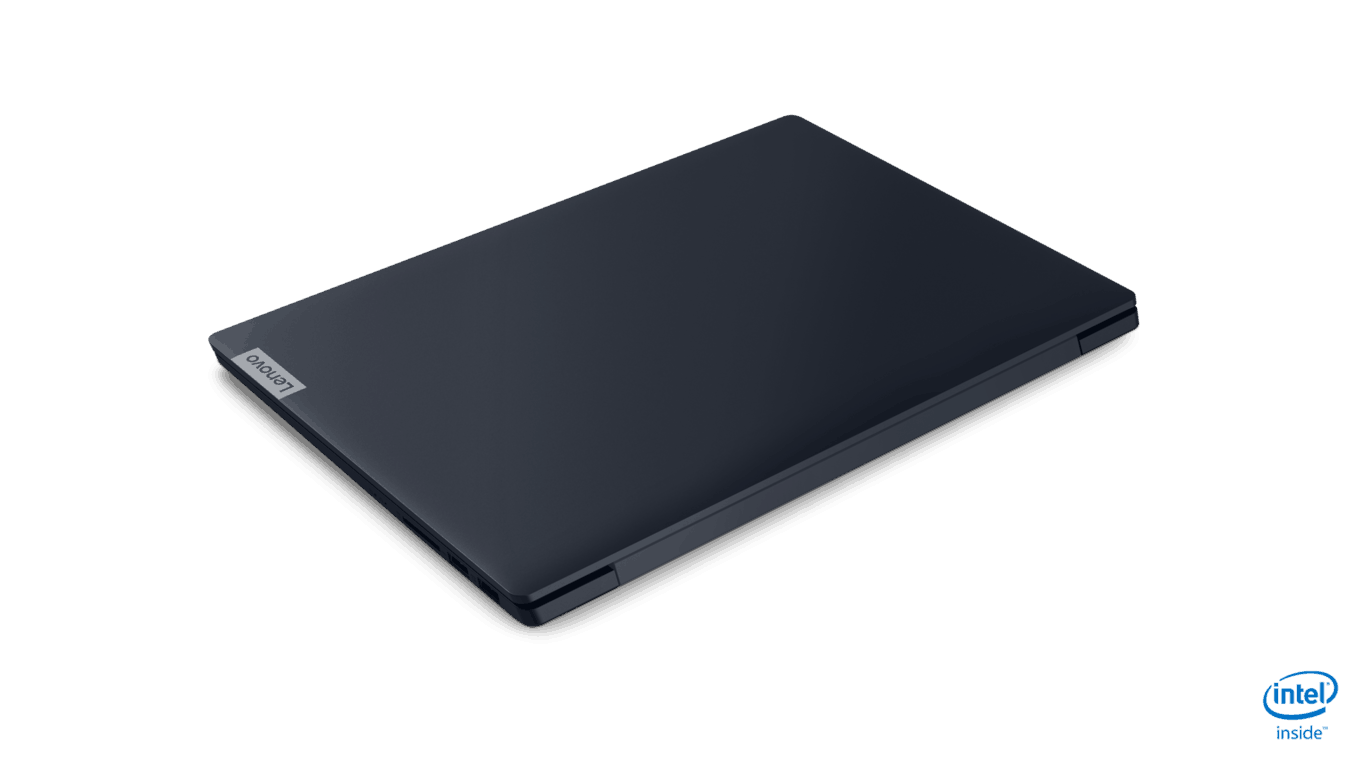
Customers will be able to choose between Onyx Black, Abyss Blue, Sand Pink, and Platinum Grey, starting in March for participating EMEA markets and in April for the US.

Microsoft is bringing Xbox Game Pass and app to Nintendo Switch

Recent rumors suggest that both Nintendo and Microsoft are allegedly teaming up to work together on a very exciting project. The details regarding partnership should be unveiled later this year.

The rumour came out from Direct-Feed Games, that has a strong track record as far as the reliability of rumors is concerned. 

Direct-Feed Games leaked some of the details regarding Microsoft’s plans to push more users to the Switch. Moreover, a dedicated Xbox App would be released on the Nintendo Switch. 

Microsoft also plans to support Project xCloud and offer access to its Game Pass subscription service. The service will allow the gamers to play those games that are currently unavailable on the Switch.

The Switch would be able to use streaming technology to run more powerful games. It will allow users to play their favorite games on various devices they have with them.

The tech giant also plans to start working on numerous titles that would be published directly on the Switch under its own banner. These games are expected to be native to the platform to achieve better results. Microsoft also aims to expand its service by collaborating with Sony for cross-play on the PlayStation 4. 

It is definitely going to be a major step that would act as a game changer for Microsoft. Most of the popular third-party games are currently not available on the switch, so the Game Pass will boost up the existing collection.

Microsoft can end up with an increase in its revenue through its extended subscription service.  It is difficult to enjoy the delightful gaming experience that is associated with each game for those with a tight budget. It is definitely going to be a perfect solution for gamers.

It seems like Microsoft has some big plans for a great year ahead. Keeping in mind the fact that it is concentrating more on the streaming and service business, we can expect that the company might slowly limit its console market.

Only time will tell that to what extent the speculations will be turned into a reality. If the rumors are correct, we can expect an official announcement from Microsoft during Game Developers Conference or E3.

All those PS fans out there? Are you excited to play games on Nintendo Switch? 

RELATED STORIES TO CHECK OUT:

The Lenovo IdeaPad S540 is an afforable ‘everyman’ PC

The benefit and the pain of the Windows-partner ecosystem is the level of variety and price points offered to customers. Overchoice or the Paradox of Choice can be a real anxiety trigger for Windows users looking for their next device, but fortunately, the homogony of quality specs used by device makers might help ease the pressure of finding that perfect laptop.

Enter the Lenovo IdeaPad S540 14″ & 15″

For a starting price of $729.99 customers get the following:

  • Up to 8th Gen Intel Core i7 and AMD Ryzen 7 3700U processors
  • NVIDIA GeForce GTX 1050/ GeForce MX250/ Intel Integrated graphics/ AMD Radeon RX Vega graphics
  • Privacy Shutter for webcam
  • 25% slimmer screen bezels
  • Dolby Audio speakers
  • Dual-action cooling fans
  • All-day battery life (12 hours) with Rapid Charge technology. 80% battery charge in as little as 60 mins.
  • Windows 10 Home operating system
  • 14″ FHD or 15″ FHD Anti-Glare 30o-nits display
  • Up to 12GB DDR RAM
  • Up to 1TB SSD Storage
  • 1 x USB-C (USB 3.1 Gen 1), 2 x USB 3.0 (One Always-On), HDMI™ 2.0b, Audio Combo Jack, SD Card Reader, Fingerprint Reader
  • Starting at 3.3lbs (1.5 kg)

The Lenovo IdeaPad S540 will be available in Abyss Blue, Copper, and Mineral Grey, sometime in April for US customers and March for some participating EMEA regions.

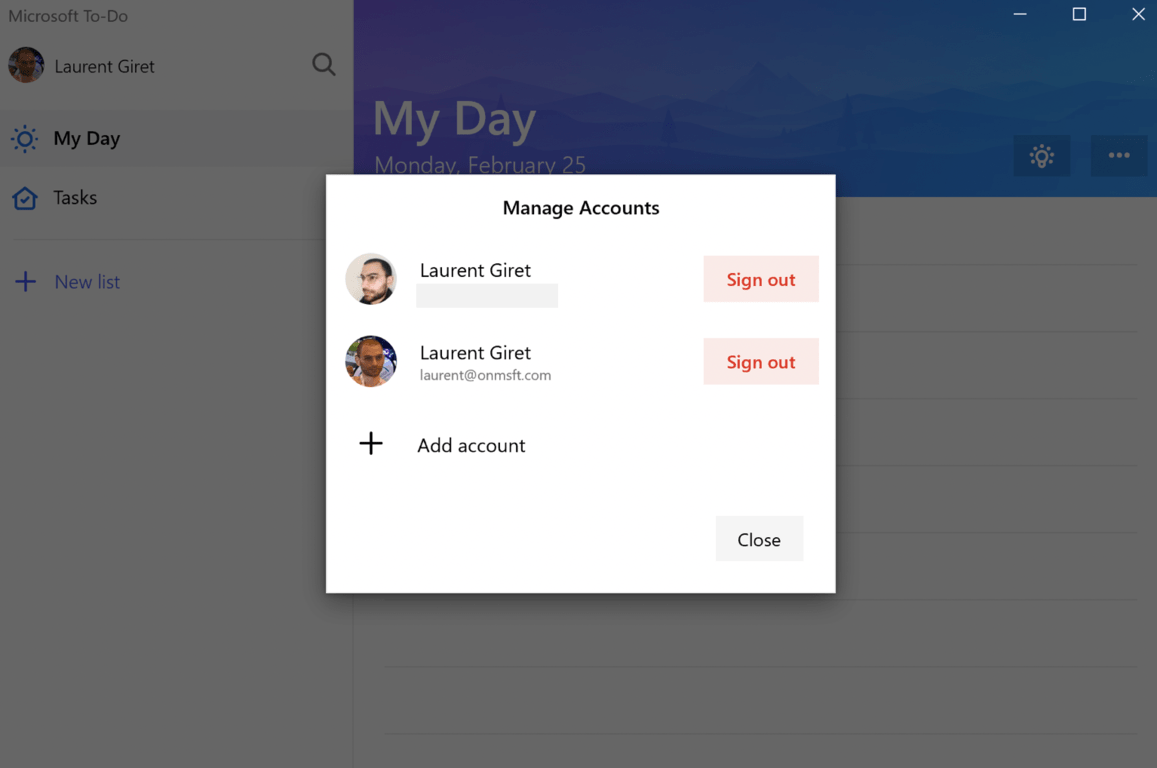
Microsoft To-Do now supports multiple accounts on Windows 10, option to show Flagged Items from Outlook coming soon

The Microsoft To-Do Android app gained support for multiple accounts a couple of weeks ago, and the same feature is now available on the Windows 10 app. After installing the new version 1.51, you’ll be able to add multiple personal Microsoft accounts in Settings, as well as your Office 365 work or school account.

The Windows 10 app lets you easily switch between accounts by clicking on your profile picture on the top left corner of the app. Unfortunately, it’s not possible yet to have one combined view that brings together all of your lists across different accounts, but the Microsoft To-Do team is open to feedback and this may eventually come in the future.

Microsoft has been iterating fast on its new task manager app, and many new features are in the pipeline, such as flagged email integration. Briging flagged emails as tasks is currently one of the top requested features on the Microsoft To-Do uservoice website, and the team confirmed yesterday that it’s “on the way.”

Updated February 26: We initially wrote that Microsoft had just opened up testing for flagged email support, but this was inacurrate. “Like our other new features, we will ship it to Insiders first,” the Microsoft Team said to us. We apologize for the error.

Lenovo showcases new Intel and AMD Ideapad models at MWC 19

While a laptop may not be the first thing to surface to the top of your mind when thinking about Mobile World Congress, the form factor is still mobile, of sorts.

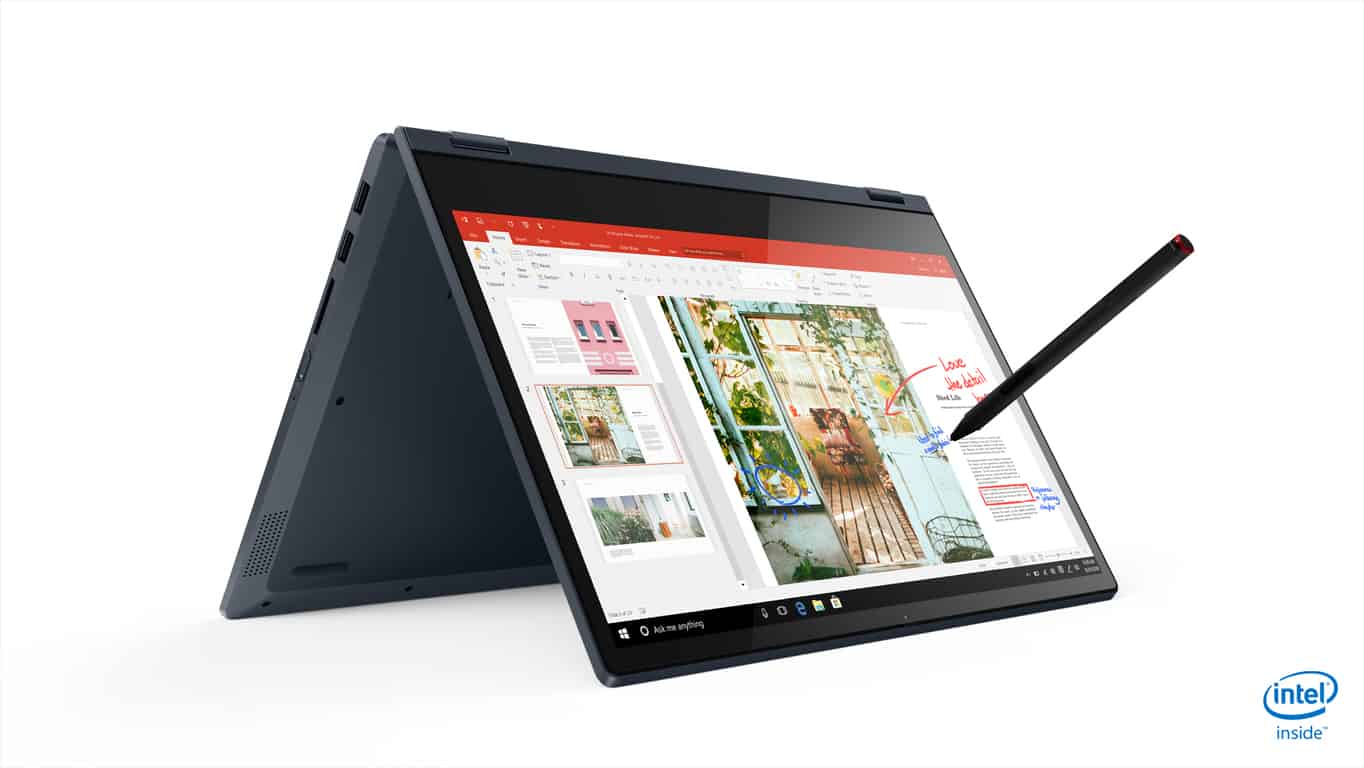
Seeing an opportunity to squeeze in some awareness of its more mobile computing platform, Lenovo shuttled in the unveiling of its next line of Ideapads that include 14″ and 15″ inch versions, as well as Intel and AMD, powered devices.

Here is what we know so far:

Lenovo IdeaPad C340 14″ & 15″

While the IdeaPad C-models are quickly becoming synonymous with Lenovo’s Chromebook ambitions, the C340’s are Windows 10 Home offerings.

  • 8th Gen Intel Core & AMD Ryzen 7 Processor options
  • NVIDIA GeForce and AMD Radeon RX graphics options
  • 8-hour battery life with Rapid Charge technology for an 80% charge in 60 mins
  • Privacy Shutter over the webcam
  • 2x USB 3.1/ 1 Type-A/ 1 x USB Type C/ HDMI port/ 3.5mm headphone & Mic combo jack/ Card Reader
  • Glass Fiber lid
  • Reduced screen bezel
  • Screen options ranging from 14″ FHD & 220 nits to 15″ FHD & 250 nits
  • Backlit Keyboard and Fingerprint reader options
  • Storage options ranging from 128 PCIe SSD to 1TB SATA/PCIe SSD
  • Memory options ranging from 4GB DDR to 16GB
  • Starting at 3.64lbs

The IdeaPad C340 will be offered in Abyss Blue, Platinum Grey, and Onyx Black with a starting price if $499.00 and availability sometime in April in the US, but as early as March for participating EMEA regions.

Telefónica and Microsoft announce expanded partnership at MWC

Today, Microsoft and Telefónica, one of the largest telecommunications company in the world, announced a strategic partnership at MWC 2019 in Barcelona, Spain. The partnership with Microsoft will help Telefónica improve customer experiences and integrate the use of intelligent technologies. Microsoft’s CEO, Satya Nadella noted that the partnership will improve Telefónica’s networks reach to more locations throughout the world.

“Telefónica has been a leader in using AI to transform customer engagement, and the strategic partnership we announced today builds on this history of innovation. Together, we will apply the power of Azure and Azure AI to create new, innovative experiences for millions of Telefónica customers around the world and shape the future of Telefónica’s network.”

José María Álvarez-Pallete, chairman and CEO of Telefónica, added that the new partnership will help its company improve its technology with the help of Microsoft AI.

“Telefónica is applying cutting-edge technology to its ongoing transformation, pioneering virtualization and software to develop smart, liquid networks ready to be powered by AI. Specifically, we are already using AI to enhance our customer relationships and are really excited to work with Microsoft to further harness the power of Azure AI. This agreement strengthens our relationship and our common belief that AI technology and the use of data should be based on solid ethical principles and empower people to control their digital lives.”

Telefonica and Microsoft will employ an intellectual property model based on Microsoft’s Shared Innovation Initiative. By using Microsoft’s initiative, Telefónica will be able to protect the co-creation of technology and intellectual property with Microsoft. Microsoft will be able to help Telefónica improve its customer engagement and business processes by expanding the use of Azure Cognitive Services for customer engagement and business processes, create new AI-powered, in-home experiences for customer engagement, and help transform Telefónica’s network by using AI, blockchain, 5G, and edge computing to expand and protect Telefónica’s telecommunications network.

Microsoft’s Spatial Anchor is a cloud AR platform that supports ARKit and ARCore

As part of Microsoft’s extensible push into more open development, the company introduced its new cloud AR platform dubbed Spatial Anchor.

Spatial Anchor is being billed as a cloud-powered spatial awareness apparatus for its latest HoloLens AR headset release. During the unveiling of HoloLens 2 at Mobile World Congress in Barcelona, Microsoft covered a ton of new initiatives designed to support HoloLens development and buried among the pile of news was Microsoft’s effort to create cloud-based spatial recognition system that would not be persistent marker of augmented elements at all times, but in bigger news, the company is looking to support competition AR efforts from ARCore and ARKit.

According to Microsoft’s Mixed Reality documentation, “a spatial anchor represents an important point in the world that the system should keep track of over time.”

Each anchor has a coordinate system that adjusts as needed, relative to other anchors or frames of reference, in order to ensure that anchored holograms stay precisely in place. Rendering a hologram in an anchor’s coordinate system gives you the most accurate positioning for that hologram at any given time. This comes at the cost of small adjustments over time to the hologram’s position, as the system continually moves it back into place relative to the real world.

https://twitter.com/albtaiuti/status/1099729384213229570?s=20

As part of Microsoft’s Mixed Reality documentation, we get some insights into how Microsoft Azure Spatial Anchors will work and implemented.

You can also persist and share spatial anchors across app sessions and across devices:

  • By saving local spatial anchors to disk and loading them back later, your app can reason about the same location in the real world across multiple app sessions on a single HoloLens device.
  • By using Azure Spatial Anchors to create a cloud anchor, your app can share a spatial anchor across multiple HoloLens, iOS, and Android devices. By having each device render a hologram using the same spatial anchor, all users will see the hologram appear at the same place in the real world. This allows for real-time shared experiences.
  • You can also use Azure Spatial Anchors for asynchronous hologram persistence across HoloLens, iOS, and Android devices. By sharing a durable cloud spatial anchor, multiple devices can observe the same persisted hologram over time, even if those devices are not present together at the same time.

Despite its relatively new public awareness, Microsoft has amassed several details and best practices for implementing spatial in its Mixed Reality documentation here.

With Microsoft’s focus and market share in enterprise development, it may behoove companies such as Apple and Google to adopt Microsoft Spatial Anchors as a quick way to access that crowd for its own augmented reality efforts.

Here are the main specs for Microsoft’s HoloLens 2 headset, Azure Kinect

Microsoft’s Alex Kipman unveiled the company’s new HoloLens 2 headset today at Mobile World Congress, and the new device is a significant improvement over the original version. The new device has a HoloLens 2 has a new depth sensor that more than doubles the field of view, and it also comes with fullly articulated hand tracking as well as eye tracking. Microsoft also more than tripled the comfort of the device by adjusting the center of gravity so the device should be literally “float on your head.”

Kipman didn’t go into details about the specs of the HoloLens 2 during the press conference, but the full specs have been published on this page. As expected, the new headset comes with a Qualcomm Snapdragon 850 SoC, but Microsoft only promises 2-3 hours of active use, which isn’t really much. In addition to the new ARM chip, HoloLens 2 features a 2nd Generation Custom-built Holographic Processing Unit, 2k 3:2 screens, a new Azure Kinect sensor, various sensors (Accelerometer, Gyroscope, Magnetometer) and cameras that can shoot 8MP stills and 1080p30 video.

On the connectivity front, HoloLens 2 supports WiFi 802.11ac 2×2, Bluetooth 5.0, and the headset also comes with a USB Type-C that supports fast charging. Unfortunately, we don’t have more details about RAM and storage for now. Microsoft says that HoloLens 2 runs “Windows Holographic OS,” and we’ve seen various demos showing holograms that you can easily rotate and resize using touch gestures. Thanks to the new eye and hand tracking recognition technology, HoloLens 2 is now able to recognize you and the world around you, and there’s also support for voice commands by using natural Language with internet connectivity.

Microsoft also released a fact sheet for the Azure Kinect, another new device announced at MWC. This next-generation Kinect, a PC peripheral, features a 1MP Time-of-flight Depth Camera, a “12MP CMOS sensor rolling shutter” RGB camera, a 7 microphone circular array, and USB C.

We’re hoping to learn more about HoloLens 2 during our time at MWC 2019, so stay tuned to OnMSFT for more HoloLens news.

Windows 10 news recap: Microsoft Edge caught running Flash on Facebook without permission, Google Chrome adds Windows Mixed Reality, and more

Welcome back to our Windows 10 news recap, where we go over the top stories of the past week in the world of Microsoft’s flagship operating system.

Microsoft Edge runs flash on Facebook without your permission

Microsoft’s web browser, Microsoft Edge, has been found to be running Flash on Facebook and many other websites without requesting permission from the user, despite Flash not supposedly being able to run without permission, for privacy and security reasons.

Microsoft’s new Office app for Windows 10 is now available for all users

A new Office app has been launched in the Microsoft Store on Windows 10. It acts as a central hub to access all of your other Office apps, similar to office.com.

Google Chrome gets Windows Mixed Reality support, available now for Canary testers

Google Chrome is adding support for Windows Mixed Reality. Users of Google Chrome’s Canary builds can now make use of the newly-added support, This allows virtual reality within Google Chrome to be used with Windows Mixed Reality devices.

Microsoft’s Windows Timeline feature comes to Google’s Chrome browser

Microsoft has launched a new extension for Google Chrome. The extension, called Web Activities Chrome, adds support for Windows Timeline to Chrome, helping bring all of your Chrome browsing history to Windows Timeline.

Web Activities Google Chrome extension from Microsoft

That’s it for this week. We’ll be back next week with more Windows 10 news!

Obsidian Entertainment begins hiring for its first game since joining Xbox Game Studios

Back in November 2018, Microsoft announced that it had acquired RPG development studio Obsidian Entertainment and that it would be joining under the umbrella of what was once known as Microsoft Studios, now Xbox Game Studios.

We’re now 2 months into 2019 and it looks like Obsidian Entertainment is well on its way to working on its first title as part of Xbox Game Studios. According to a LinkedIn job listing, Obsidian is working on a new multi-platform RPG.

The job listing says:

Obsidian Entertainment is currently looking for an experienced Producer to join the development team making our next great multi-platform RPG.

If you are interested in the role, you can view the full job listing here.

2019 is looking to be a big year for the Xbox brand as a whole. We’re expecting information on the next console, new games from recently acquired studios, and of course, Microsoft recently rebranded Microsoft Studios to Xbox Game Studios, solidifying the brand further.

Microsoft’s MWC event kicks off at 9AM PST today, watch it here

Microsoft is coming back to Mobile World Congress in Barcelona this year, and the company’s press event will kick off today at 6:00 p.m. CET/9:00 a.m. PT. We’ll be attending the event and share the news as it happens, but we also to invite you to watch it all live below.

Microsoft CEO Satya Nadella, CVP of Azure Julia White and HoloLens inventor Alex Kipman have all made the trip to Barcelona for this first big Microsoft event of 2019. The company is expected to announce a new HoloLens headset featuring an ARM processor, an AI processor and a new depth sensor. The dedicated page for the event mentions “new innovations for the future of computing,” so Microsoft could well have other surprises for today.

Do you expect some mobile/PC news from Microsoft today, especially since MWC is mostly about smartphones and other mobile products? Sound off in the comments below.


Here’s how to fix high CPU usage by SQL server

When your SQL server skyrockets in regards to CPU usage, chances are you’ll be able to find out what’s happening rather simply. If the server restart isn’t an option at the time being, the steps below should help you easier determine what’s causing high CPU usage.

If you’re unable to find your way around on your own, consider contacting your server administrator.

How to reduce high CPU usage by SQL server

The second thing you need to do is examine the ring buffers to get the historical data. Since SQL stores all historical data, you can query for a report about the recent activity. This way, we can find out what’s causing enormous CPU spikes.

The next step is to determine which exact inside process is consuming data. Common reasons for high CPU activity on a SQL server are System tasks, Excessive Compilation/Recompilation of queries, or Query executing.

Now you’ll need to check all currently executing queries on your server. Once you’ve got the list of all available queries, it’s rather simple to determine which exact query execution is causing the error.

The best way to do all this is with the SQL Server 2005 Performance Dashboard Reports utility. It provides you with both numerical and graphical feedback.

Of course, it’s important to check other system services and determine that SQL perfmon is causing the problem. With that said, we can conclude this article.

If you’re unable to resolve the problem, consider posting on a variety of dedicated forums where professionals and tech-savvy users can help you.

RELATED STORIES YOU SHOULD CHECK OUT:
Download Windows 10 KB4491101 to fix OS stability issues

Microsoft just released cumulative update KB4491101 for those who are running Windows 10 V1507 (RTM version). The update is just restricted to the users of Windows 10 Enterprise LTSC, so you are eligible to receive the update if you have any other OS. 

At the same time, KB4491101 update bumps up the current Windows 10 build to 10240.18135.

What’s new in KB4491101?

We’ll list some of the major changes that have been offered in the recent update below.

1. IE Image Upload Bug Fix

The update has resolved an issue that was introduced by the previous builds, preventing Internet Explorer from loading images. The bug was spotted with images having a backslash () in their relative source path. 

2. Reliability Problem

A reliability issue in win32kfull.sys has also been addressed in KB4491101. The bug was initially spotted in KB4487026.

KB4491101 known issues

Microsoft has acknowledged two known issues that might be encountered by the users during the installation of KB4491101.

1. Date Parsing Issues

Users might face date parsing issue because the system might not recognise the first character of the Japanese era name as an abbreviation.

The tech giant has suggested a temporary workaround for the issue while a permanent fix is expected to be available in the upcoming release.

The two-character abbreviation for Japanese Eras should be used to modify the registry with the following keys. 

[HKEY_LOCAL_MACHINE\SYSTEM\CurrentControlSet\Control\Nls\Calendars\Japanese\Eras]
“1868 01 01″=”明治_明_Meiji_M”
“1912 07 30″=”大正_大_Taisho_T”
“1926 12 25″=”昭和_昭_Showa_S”
“1989 01 08″=”平成_平_Heisei_H”

2. Apps Randomly Stop Working

Those applications that are using Microsoft Jet database with the Microsoft Access 95 file format may experience a bug. Your apps can also fail to work in that case.

One of the easiest solutions suggested by Microsoft to resolve the issue is “Converting the database to a newer .mdb file format”. Notably, you should have the Microsoft Access 2007 runtime or Microsoft Access 2007 to resolve the bug.

First, the older file format database should be opened by using Microsoft Access 2007. Secondly, decline the conversion request by selecting No. Finally, navigate to Office Button >> Save as >> Access 2002-2003 Database.

Microsoft promises to provide a permanent fix to the solution in March 2019.

It would be interesting to know that both of these bugs have been fixed in the latest release. The Update is automatically available to the Windows 10 users’ latest SSU (KB4093430). 

You can manually download the update from the Microsoft Update Catalog. The latest Servicing Stack Update (SSU) should be installed on your system before you attempt to download the recent cumulative update. It will not only help you in mitigating potential issues during the installation process but also enhances update reliability.

RELATED ARTICLES:

4 solutions to fix HP Connection Manager fatal errors

KB4487011 and KB4487006 fix unresponsive app issues

What can I do if my Taskbar is not working on my Windows PC?

This version of Office has been deprovisioned [FIXED]

It is certainly annoying to face issues in your system when you have to finish off the most important task that has been assigned by your boss. If you are reading this article, you must have come across with the activation error stating This version of Office has been deprovisioned.

Deprovisioning is basically revoking access, licenses, or credentials from a user. It is often done to avoid security breaches when an employee leaves the office. Moreover, there are some other reasons behind this activation error. 

How do I fix deprovisioning in Office 365?

  1. Check your Subscription Status
  2. Troubleshoot Office Activation
  3. Check your computer’s date, time, and time zone
  4. Check for multiple copies of Office
  5. Perform a full repair of your Office installation

Solution 1: Check your Subscription Status

One of the most obvious reasons for the issue is that your subscription might have expired. Either you are using a subscription provided by your organization or just using your individual purchased version of the Office, you have to make sure that it’s still active.

In case the subscription has expired, just renew your subscription before moving to the next steps. 

Office 365 users can simply renew their subscription by following these steps:

  1. Navigate to the Services & subscriptions page. 
  2. Sign-in to your account by using the credentials linked with your Office 365 subscription. 
  3. Navigate to the Cancelled subscriptions section and Subscriptions section to review the details.
  4. If your subscription has been expired visit Office.com to renew it.

— RELATED: 8 best antivirus for Office 365: Here’s what to use in 2019

Solution 2: Troubleshoot Office Activation

Microsoft offers an activation troubleshooter that runs to fix activation errors for Office Home & Business, Office Professional, and Office Home & Student. It also helps to fix issues related to other individual Office apps including Word, Visio, Outlook and Project.

The Office 2019, Office 2016 and Office 2013 users can use these solution to download the troubleshooter for their respective versions. While those who are using Office 365 can use Support and Recovery Assistant to fix these problems.

  1. Download Support and Recovery Assistant and open the downloaded file.
  2. As soon and the file opens click Office, and then click the Next button.
  3. Now you have to click the following option “I’ve installed Office, but I can’t activate it” and click the Next button.I've installed Office, but I can't activate it
  4. You can easily troubleshoot the activation issues by following the prompts.

Solution 3: Check your computer’s date, time, and time zone

Often the date and time zone issues are the reason behind the activation issues in as the incorrect settings can cause your activation to fail. You can follow these steps to correct the settings.

  1. Close all the currently opened Office apps.
  2. Select date or time that is available at the bottom right-hand corner of your screen. 
  3. Now click Date and time settings. 
  4. You can either choose to Set time automatically or correct the date and time settings using Change date and time. 
  5. In the end, you have to restart your office application to check if the issue has been resolved.

— RELATED: Recent Office 365 updates cause Outlook to freeze?

Solution 4: Check for multiple copies of Office

You might not know that you have multiple copies of Office currently installed in your PC. These versions might conflict and could be a cause of the issue so we first have to uninstall them.

  1. Open Start menu and search for the Control Panel. 
  2. You will see a list of search results, open Control Panel from the list.
  3. Once it is opened navigate towards Programs and Features.
  4. Search for office in the Search bar and you might be able to see the multiple versions installed in your PC.
  5. Right-click the version of Office and click Uninstall and reboot your system after the completion of the process.
  6. Finally, open your Office application and complete the Sign-in process if required.

Solution 5: Perform a full repair of your Office installation

Performing a full repair of your Office installation is a comprehensive fix to any issues that exist in the software.

  1. Open the Start menu and navigate towards Control Panel >> Programs and Features. 
  2. Now you have to find Microsoft Office from the list of your installed applications.
  3. Click the ‘Change’ button that is available at the top. It will open a dialogue box.  
  4. Finally, click the ‘Repair’ button that you can see in the dialogue box. Choose the Online Repair method. repair office 2016

We hope one of these solutions helped you to fix this issue.

RELATED STORIES TO CHECK OUT: