The Sims 4 not saving on Xbox One? Here’s a possible solution

The Sims 4 is now available on the Xbox One, but many gamers already regret purchasing the game due to one game-breaking bug: progress won’t save. As a matter of fact, this problem pushed many gamers to write negative reviews about the Xbox One edition of The Sims 4.

At the time of writing this article, the game has a 2.1 score on Metacritic. That says a lot!

the sims 4 xbox one


EA’s working on a fix

The good news is that EA officially acknowledged the issue and confirmed that a hotfix would be rolled out as soon as possible.

Thanks to everyone who answered my questions to help us investigate this problem. We do not need more information at the moment, but again, thanks for taking the time to explain what you did in your games before it stopped saving! For those of you who are wondering, in case you missed my previous posts – yes, the team is working on this, that’s why I asked you for information

How to fix The Sims 4 saving issues

Meanwhile, a resourceful gamer found a workaround that you can use to solve the problem. Here are the steps to follow:

  1. Instead of saving your game progress, select “Manage worlds” > go to Worlds without saving.
  2. Press the menu button and return to the main menu without saving.
  3. Go back and load the autosave for your character.
  4. You should now be able to save your game progress.

Many players confirmed that this solution works. So, if The Sims 4 won’t save on your Xbox One, do follow the steps listed above and let us know if you managed to solve the problem.

Should you encounter the same problem on PC, we have a dedicated article on how to fix this issue.

RELATED STORIES TO CHECK OUT:

Fix: ‘Get Windows 10 App’ Icon Disappears

Microsoft released Get Windows 10 app for all genuine Windows 7 and Windows 8 users to reserve a free copy of Windows 10 for themselves. But what if somehow ‘Get Windows 10’ icon disappears from the taskbar? Don’t worry, there are a couple of solutions that could fix this issue.

Get Windows 10 App Icon is missing, here’s how to restore it

Many users reported that Get Windows 10 app is missing on their PC, and in this article we’ll show you how to fix the following problems:

  • Windows 10 update icon not showing – Many users reported that Windows 10 update icon isn’t showing at all on their PC. If you’re having this problem, you might be able to fix it by using one of our solutions.
  • Get Windows 10 app icon not working, appearing, visible, loading, opening, displayed, currently active – Users reported various problems with Get Windows 10 app, and according to them, the app isn’t working at all on their PC.
  • Get Windows 10 icon missing, disappeared – Several users reported that Get Windows 10 icon is missing from their PC. According to users, it seems that the icon has disappeared completely.
  • Get Windows 10 app white screen – Several users reported only a white screen while using Get Windows 10 app. This is a big problem that will prevent you from upgrading to Windows 10.
  • Get Windows 10 app taking a long time – Many users reported that Get Windows 10 app is rather slow on their PC. If you have this problem, you might want to try some of our solutions.
  • Get Windows 10 app opens then closes – Users reported that Get Windows 10 app crashes on their PC. This can be a big problem and prevent you from upgrading to Windows 10.

Solution 1 – Show all icons on the taskbar

There’s a possibility that Get Windows 10 icon is still there, but hidden. To check if this icon is hidden, do the following:

  1. Right-click on date/time section in the right corner of taskbar.
  2. Select Customize notification icons.
  3. Check Always show all icons and notifications on the taskbar.

If your Get Windows 10 icon is hidden, it will show up now, otherwise try some other solutions listed below.


Solution 2 – Enable Get Windows 10 in Registry Editor

There’s a registry tweak which enables or disables Get Windows 10 app and its icon. It might be that a registry settings on your computer is set to hide the icon. To perform this registry tweak, follow the instructions listed below:

  1. Press Windows Key + R. Enter regedit and press Enter or click OK.
    Windows 10 update icon not showing
  2. Navigate to the following path:
    • HKEY_LOCAL_MACHINESOFTWAREPoliciesMicrosoftWindowsGWX
  3. Find DWORD named DisableGWX and set its value to 0. Click OK to save changes.
    Get Windows 10 app icon not appearing
  4. You maybe don’t have GWX folder in your Registry, in that case go to the following path:
    • HKEY_LOCAL_MACHINESOFTWAREMicrosoftWindows NTCurrentVersionAppCompatFlagsUpgradeExperienceIndicators
      Get Windows 10 icon disappeared
  5. Find UpgEx and UpgExU and make sure their values are set to Green.
  6. Also make sure that the value of Genuine is set to 1.
  7. Close the Registry Editor and restart your computer

Solution 3 – Manually Run Get Windows 10 App

If none of above workarounds did the job, you can try to manually run Get Windows 10 App. Here’s what you need to do:

  1. Press Windows Key + R and enter cmd. Press Enter or click OK.
    Windows 10 update icon not showing
  2. Enter the following command and press Enter:
    • C:WindowsSystem32GWXGWXConfigManager.exe /RefreshConfig
      Get Windows 10 app icon not working
  3. Now add this command and press Enter:
    • C:WindowsSystem32GWXGWX.exe /taskLaunch
      Get Windows 10 icon missing

Solution 4 – Make sure that your Windows is compatible for Windows 10 upgrade

If Get Windows 10 App icon is missing from your Taskbar, you need to be sure that your Windows is eligible for Windows 10 upgrade. In order to upgrade to Windows 10, you need to have a genuine copy of Windows 7 or Windows 8. If your Windows isn’t genuine, you won’t see Get Windows 10 App icon at all.

In addition to having a genuine Windows, you need to have the latest major update installed. If you’re on Windows 7, you need to have Service Pack 1 installed in order to upgrade. As for Windows 8, you’ll need to install Windows 8.1 upgrade before you can upgrade to Windows 10.

If your Windows is genuine and you have Windows 7 Service Pack 1 or Windows 8.1, the Get Windows 10 App icon should appear soon.


Solution 5 – Download the latest updates

If Get Windows 10 App is missing, that might be due to missing updates. As previously mentioned, in order to upgrade to Windows 10, you need to have Windows 7 Service Pack 1 or Windows 8.1 installed.

However, that’s only one requirement. Get Windows 10 App is distributed via Windows Update, and in order to install it, you need to download and install the latest Windows updates.

If your Windows isn’t up to date, be sure to download the latest updates. After installing the missing updates, restart your PC and check if the Get Windows 10 App icon appears.


Solution 6 – Check your hardware

Windows 10 has certain software requirements, but there are also hardware requirements you need to fulfill in order to upgrade to Windows 10. If Get Windows 10 App icon is missing, the reason might be your hardware.

According to users, Get Windows 10 App icon won’t appear unless your PC meets the hardware requirements. If your PC doesn’t meet the hardware requirements, you might not be able to upgrade. If that’s the case, you might want to consider upgrading your hardware.

Few users also reported that Get Windows 10 App icon will become available even if your hardware isn’t fully compatible, so you just have to be patient.


Solution 7 – Install the latest version of Internet Explorer

Many users reported that Get Windows 10 App icon is missing from their Taskbar. If you have the same problem, the issue might be Internet Explorer. If you’re using Windows 7, you need to install Internet Explorer 11 before you can upgrade to Windows 10.

If you don’t have the latest version of Internet Explorer, be sure to download it and check if that solves the problem. Keep in mind that this issue affects only Windows 7 users. If you’re using Windows 8.1, you already have Internet Explorer 11, so there’s no need to update it.

Solution 8 – Check if Internet Explorer is enabled

As previously mentioned, Get Windows 10 App requires Internet Explorer, and if Internet Explorer is disabled, you won’t be able to upgrade. To check if Internet Explorer is enabled on your PC, you need to do the following:

  1. Open Control Panel.
  2. Once Control Panel opens, navigate to Programs and Features.
    Get Windows 10 app white screen
  3. When Programs and Features window opens, click on Turn Windows features on or off from the menu on the left.
    Get Windows 10 app taking a long time
  4. When Windows Features window opens, locate Internet Explorer and make sure that it’s checked. Now click on OK to save changes.
    Get Windows 10 app opens then closes

After making these changes, be sure to run Windows Update in order to update Internet Explorer to the latest version. Once Internet Explorer is updated, check if the issue appears.


Solution 9 – Install the required updates manually

If Get Windows 10 App is still missing, you might be able to fix the problem simply by manually installing the required updates. In order to upgrade to Windows 10, you need to download KB3035583 update first.

The update is available for free, and you can download it right from the Microsoft’s website. There are two versions available, for Windows 7 and Windows 8. In addition, both versions are available for 32-bit and 64-bit systems, so be sure to download the version that matches your system’s architecture.

If you already have this update installed on your PC, be sure to reinstall it and check if that solves the problem.


Solution 10 – Use Get Windows 10 App Troubleshooter

If the Get Windows 10 App doesn’t appear on your PC, you might be able to fix the problem by using the Get Windows 10 Troubleshooter. Microsoft is aware of this problem, and it has released a troubleshooter that can help you to diagnose and fix the issue. To use the troubleshooter, do the following:

  1. Download Get Windows 10 App Troubleshooter.
  2. Once you download the file, double click it to run it.
  3. When the troubleshooter opens, click on Next.
    Get Windows 10 app white screen
  4. Troubleshooter will now scan for problems and try to fix them.

After the troubleshooting process is finished, check if the issue still appears.


Solution 13 – Create a Command Prompt script

If the issue still appears, you might be able to solve it simply by creating a Command Prompt script. To do that, just do the following:

  1. Open Notepad.
  2. Paste the following lines:
    • REG QUERY “HKLMSOFTWAREMicrosoftWindows NTCurrentVersionAppCompatFlagsUpgradeExperienceIndicators” /v UpgEx | findstr UpgEx
    • if “%errorlevel%” == “0” GOTO RunGWX
    • reg add “HKLMSOFTWAREMicrosoftWindows NTCurrentVersionAppCompatFlagsAppraiser” /v UtcOnetimeSend /t REG_DWORD /d 1 /f
    • schtasks /run /TN “MicrosoftWindowsApplication ExperienceMicrosoft Compatibility Appraiser”
    • :CompatCheckRunning
    • schtasks /query /TN “MicrosoftWindowsApplication ExperienceMicrosoft Compatibility Appraiser”
    • schtasks /query /TN “MicrosoftWindowsApplication ExperienceMicrosoft Compatibility Appraiser” | findstr Ready
    • if NOT “%errorlevel%” == “0” ping localhost >nul &goto :CompatCheckRunning
    • :RunGWX
    • schtasks /run /TN “MicrosoftWindowsSetupgwxrefreshgwxconfig”
  3. Click on File > Save as.
    Get Windows 10 app taking a long time
  4. Choose a save location for your file. The best location might be a root directory, such as C:, since you’ll need to run the script. Set Save as type to All Files and enter w10.cmd as the File name. Now click the Save button.
    Get Windows 10 app opens then closes
  5. Start Command Prompt as administrator. To do that, press Windows Key + X and choose Command Prompt (Admin).
    Windows 10 update icon not showing
  6. When Command Prompt starts, you need to navigate to the directory where w10.cmd is saved. If you saved the file in C: directory, you need to enter the following:
    • cd C:
    • w10.cmd
      Get Windows 10 app icon not visible

After running the script, it will take about 10-30 minutes for the process to finish. If using this script doesn’t solve the problem, your PC probably doesn’t have the necessary software requirements to install Windows 10.


Solution 12 – Use Media Creation Tool

If you still have this problem and you can’t access Get Windows 10 App, you might want to try using a different application. Microsoft released a standalone tool for upgrading to Windows 10 called Media Creation Tool.

This is a free and simple tool that will download the necessary files and upgrade your PC to Windows 10 without affecting your files. If the previous solutions didn’t work for you, be sure to try using Media Creation Tool to upgrade to Windows 10.

That’s it, at least one of these workarounds should solve your problem with the missing Get Windows 10 app, otherwise, reach for the comments, and we’ll try to provide you with additional support.


READ ALSO:


Latest Windows 10 Insider build 17040 includes Windows Timeline features

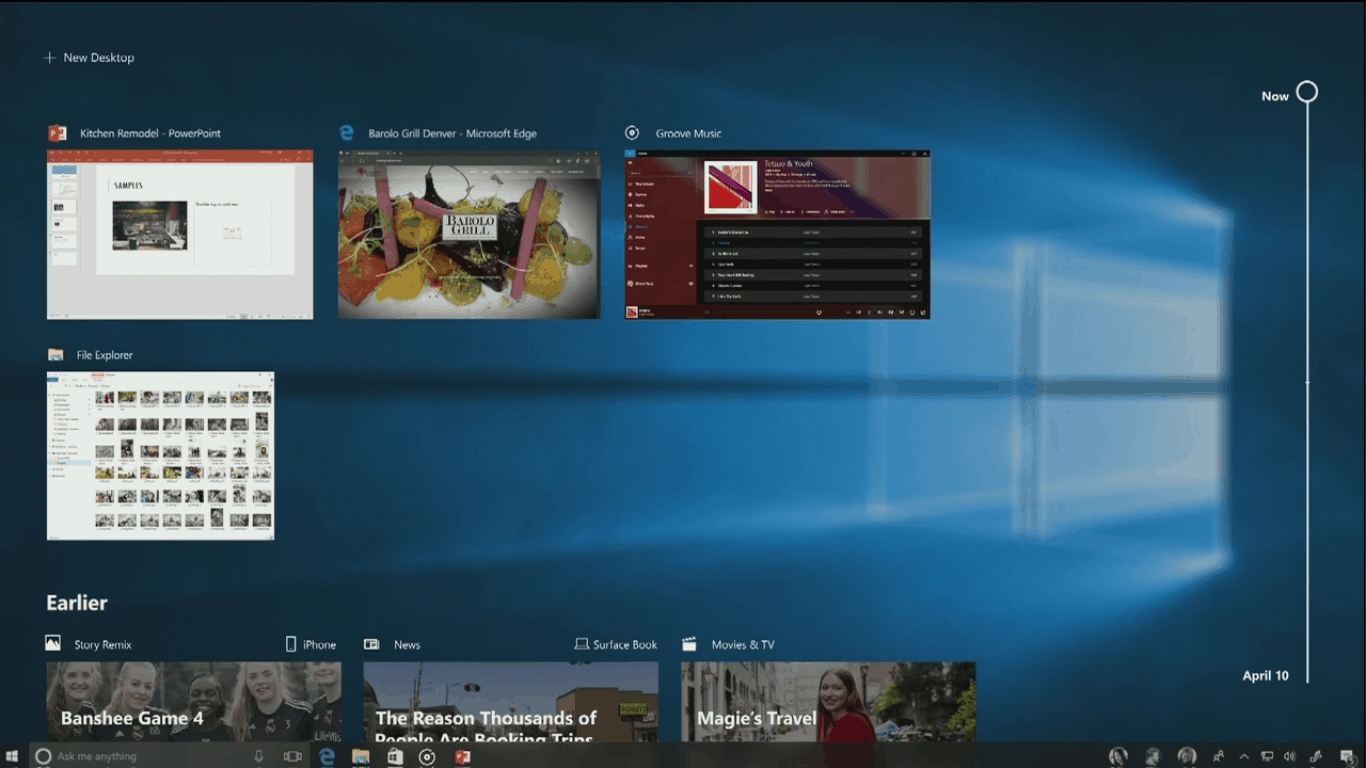
Back at Build 2017, Microsoft’s Joe Belfiore demoed Windows Timeline, a feature intended for the Windows 10 Fall Creators Update, meant to help a user resume apps and content from their other (iOS, Android, and Windows) devices. Unfortunately, the feature didn’t make the cut and instead is being developed for the upcoming Spring Redstone 4 release.

As expected, the latest Windows 10 Insider build includes some functions for Windows Timeline, putting in place the necessary settings and links to control future Timeline content (via ITPro.)

In Windows Insider build 17040, these settings are accessible by navigating to Privacy, and then selecting activity history from the sidebar. There’s a helpful explainer on the page, detailing the settings are for Activity History, eventually allowing the user to “jump back into what you were doing with apps, docs or other activities on your PC or your phone.”

Seen below, the user can turn this off from, or clear a device’s activity history altogether. Again, to be clear, there is still no user interface elements for Windows Timeline, but just a settings page for it, likely meaning the final feature could be coming soon.

Activity History settings

Interestingly, the setting page also includes a link to manage activity information, which takes the user to an updated Microsoft Privacy Dashboard. This page shows all information which the user granted permission for Microsoft to collect, including the full audio playback of Cortana searches, Bing searches, and location history. The data can be deleted, and this is not some jaw-dropping stuff, but it is obviously the content which will be a crucial part of Windows Timeline in the future.

Privacy Dashboard

Given these settings and the updated Privacy Dashboard, one can hope that Windows Timeline will come to its full fruition soon in the Spring. For now, users interested in continuing their experiences across devices can try out the Edge app on iOS and Android, the Continue on PC app, or the new Near Share feature for Windows Insiders.

Microsoft Launcher reaches one million active users, was the #1 trending app in Google Play Store last week

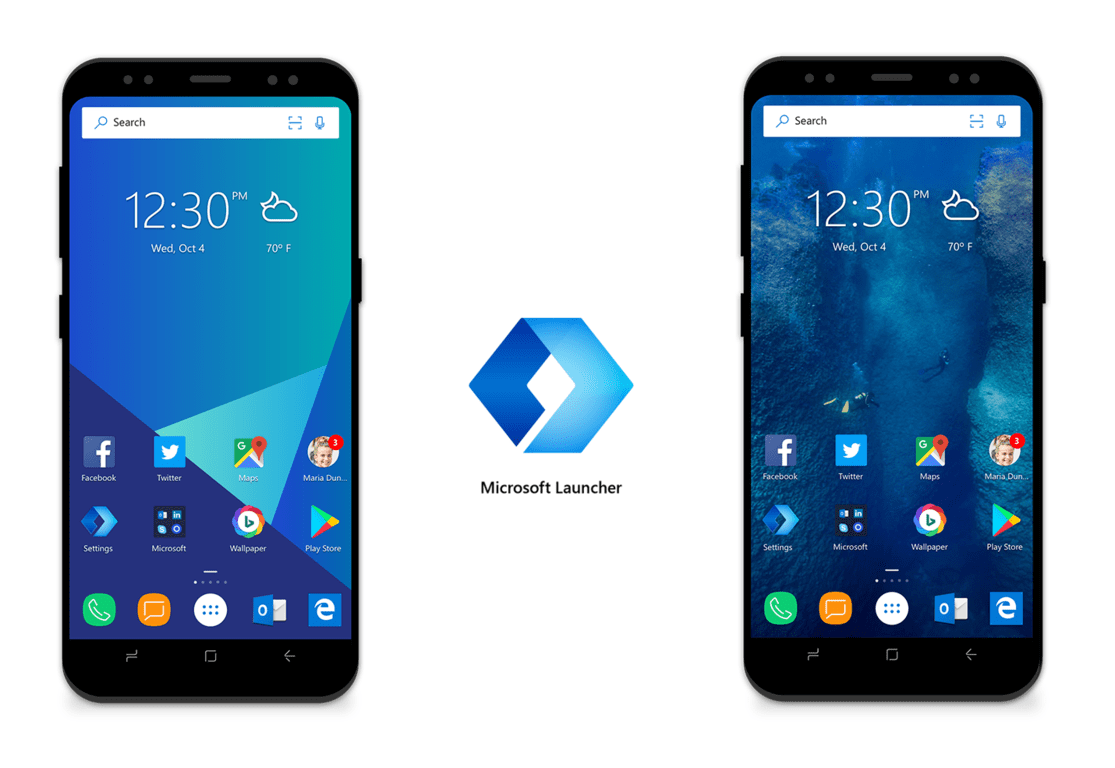
The Microsoft Launcher has gone a long way since its debut as the “Arrow Launcher” under the Microsoft Garage banner. The app is now a key part of Microsoft’s new mobile strategy, which aims to better integrate its various services on iOS and Android devices.

A little more than a month after Microsoft officially unveiled it, the new Microsoft Launcher now has 1 million active users according to Microsoft UX Designer Joshua Bradley. Even better, the launcher was the #1 trending app in the Google Play Store last week, though that’s no longer the case at the time of this writing.

https://twitter.com/jshbrdly/status/931611673269374976

According to the store listing on Google Play, the app launcher has been downloaded more than five million times and it currently has a 4.6 rating. The app can be a nice replacement for your default Android home screen, offering Bing wallpapers that refresh daily, a personalized feed to check the news, events, and contacts you want to see and plenty more customization options. More importantly, the Microsoft Launcher can link your Android phone to your Windows 10 PC, letting you instantly push photos or documents to the bigger screen.

One million active users doesn’t seem much compared to the 2 billion monthly active users on the Android platform, but it’s still impressive considering that Microsoft has just started to actively promote this app to Android users. The company is also iterating fast with frequent updates, and the app should soon become a must-have for the Microsoft fans moving to Android.

Do you already use the Microsoft Launcher on your Android phone? If you don’t, we invite you to give it a try with the download link below.

Microsoft Launcher
Microsoft Launcher
Price:
Free

Speech therapy/language training software for Windows

Language training or speech therapy software assists individuals to regain their speech skills that have been impaired due to brain injury, strokes or learning difficulties.

Fortunately, these days our computers are able to help us with communication, and they can provide necessary therapy to those in need who have issues with their communicating and understanding abilities.

Such speech therapy programs are able to maintain progress following speech therapy, and they can also help patients boost their self-esteem which is an essential factor to consider.

There are various speech therapy tools out there, and we gathered five of the best ones.

Speech therapy software for better articulation skills

  1. Bungalow software

The Bungalow speech and language software works pretty similar to the way a speech therapist provides this kind of therapy.

The program is based on clinically proven therapy techniques, and until now, it managed to help more than 20,000 patients.

Take a look at the most important features of this speech therapy software:

  • The program prompts the patient with a cue that can be a picture, a spoken question, a movie or a story.
  • The patient will respond by answering a question.
  • The software evaluates the answer, and it provides feedback.
  • The patient can try again and again until they provide the right answer.
  • This program can help patients improve their speech and language skills as well.
  • The program is interactive, and it provides feedback and helpful hints for the patient.
  • Patients can work with Bungalow at the limit of their ability to make some real progress.
  • Patients are able to work at their own pace.
  • The program can be used both at home or in the clinic.
  • Bungalow can provide fantastic home therapy practice.
  • The software can help extend speech therapy.

Bungalow’s programs mimic perfectly the practice speech therapy that experts use with their patients.


2. Video Voice Speech Training System

The Video Voice Speech Training System is able to turn your computer into a robust, comprehensive speech development tool.

Its therapist-defined content and the adaptable operation of this service make it really useful for ages ranging from early childhood to geriatric.

Take a look at the most impressive features that come along with this software:

  • This is an innovative and flexible speech therapy software.
  • You will get regular software updates for free.
  • The latest release includes a new International/Simplified operating mode.
  • This service offers a wide variety of entertaining, motivational, and graphics displays.
  • It also includes lots of games and many apps for developing speech skills.
  • There is visual feedback on volume, pitch, vowel production and more.
  • The multi-frequency displays will help work on high-frequency sound distortions.
  • This software is easy to learn and navigate.
  • It comes with built-in documentation.
  • The mouse tool tips and more visual cues make using this tool effortlessly.
  • It also provides recommended strategies for success.

The displays and games improve therapy results with speech issues that are related to apraxia, autism, head injuries, strokes, hearing impairment, cerebral palsy, mental or emotional challenges, oral motor articulation deficits and more disabilities.


3. lingWAVES

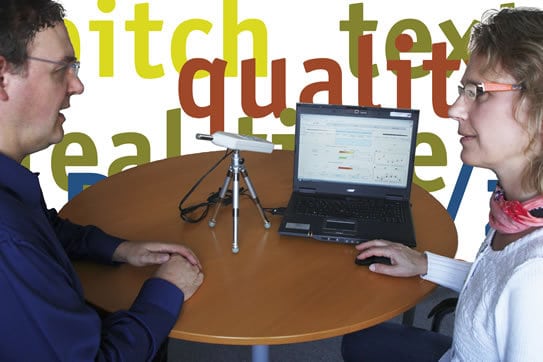
This is a leading tested product for voice and speech analysis, documentation, and biofeedback. lingWAVES managed to become one of the most popular systems for professional voice and speech analysis on the market.

Check out the service’s most important features below:

  • The program is a combination of standard and the latest technical analysis.
  • It mixes processing together with an easy handling.
  • This system includes different modules that are managed by this software’s user interface.
  • A client manager will allow a patient based analysis and documentation, comparing the results over time.
  • A wide range of users is able to use this system’s speech and language therapy.

The program comes with a really easy to use interface, and this is one of the reasons for which the service has become so popular. lingWAVES includes modules that are all managed by the single Voice Diagnostic Centre interface.


4. React 2

React 2 is created by a team of professional speech therapists and also IT experts who all combined their medical experience and software development skills. The program successfully addresses real-life challenges that people are facing with aphasia after a stroke or a head injury. Take a look at the program’s most important features below:

  • It allows users to work at their own pace and also in their own time.
  • The program is an interactive online tool that works for home users and healthcare professionals.
  • It provides more than 8,000 exercises to choose from.
  • It can be used by patients at all levels, and everyone can get a tailored program of activities.
  • Patients are able to monitor their own progress with how their speech therapy is coming along.
  • Patients are also able to see their results in the result section, and they can see exactly how they are doing.

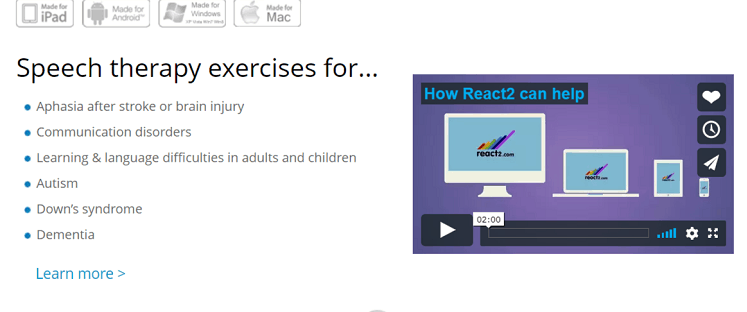
React 2 provides speech therapy exercises for Aphasia after stroke or brain injury, Communication Disorders, Learning and language difficulties in both adults and children, Autism, Down’s syndrome, Dementia and more.

The program is designed for every patient’s needs, and they can get frequent and intensive therapy exercises in their own home created by experienced professional therapists.


5. Fast ForWord

This speech therapy software provides extra processing and listening practices. The software targets the processing-based deficits that cause speech delays in children. Take a look at the most helpful features that are included in this program:

  • It is excellent for speech-sound disorders that involve problems with articulation, sound patterns, inability to relate stories and so on.
  • The program can also help patients overcome childhood apraxia of speech which is a motor speech disorder.
  • It can help children who know what they want to say but are not able to do it, overcome their problems.
  • The system can also eliminate stuttering which affects the fluency of speech.
  • More benefits if using the software include better reasoning, perception, and knowledge.
  • Improved listening will allow the child to enhance the ability to hear how others communicate and over time this will translate into better overall communication with the others.

Speech and Language pathologists have adopted the Fast ForWord software as a speech therapy program. Now it can also be found online, and it is able to improve language processing skills by using self-paced exercises that will work great. Patients who use this software will find it easier to participate in conversations, will experience significant vocabulary gains, improved articulation and conversational skills as well.

These are the five best speech therapy programs that are compatible with Windows and that are able to be used at home by the patients themselves and by their families.

All of them come with their own features targeted at specific speech issues that have developed due to all kinds of reasons. You will have to take into consideration the exact speech problem you or a member of your family have before being able to pick the ideal speech therapy software for helping you/or loved one overcome the current health-related issues.

Good luck!

RELATED STORIES TO CHECK OUT:

Windows 10 news recap: Apple hits back at Satya Nadella, Apple fangirl unboxes the Surface Book 2 and more

Welcome back to our Windows 10 news recap. We are continuing the trend of our weekly “Windows 10 news recap” series where we go over the top stories of the past week in the world of Microsoft’s flagship operating system.

Windows Insiders can take these LinkedIn Learning Courses for free, but act fast

As a small gift to Windows Insiders, Microsoft has sent an email newsletter out offering up some select LinkedIn Learning Courses through its video-on-demand learning platform for free.

An external drive for all your games, the Seagate Backup Plus Hub 8TB for Windows 10 and Xbox One

In need of more storage space? Seagate has launched its Seagate backup Plus Hub, delivering 8TB of storage, with support for Windows 10 and Xbox One.

Microsoft, Windows 10, Xbox, Xbox One X

Apple hits back at Satya Nadella jab with “What’s a computer?” video

After Satya Nadella made a comment that an Apple computer isn’t a real computer, instead recommending Windows-based PCs, Apple has hit back with a video called “What’s a computer?” that shows off the iPad Pro.

Self-proclaimed Apple fangirl iJustine unboxes the Surface Book 2 and comes away impressed

YouTuber iJustine, who is known and self-proclaimed to be an Apple fangirl, unboxed a Surface Book 2 and has said she is impressed with the device.

That’s it for this week. We’ll be back next week with more Windows 10 news!

Xbox news recap: Gifting is now live, Xbox One X had an “amazing first week” and more

Welcome to our weekly Xbox news recap series, where we go over the top stories of the past week in the world of Xbox. Let’s get started.

Gifting now live for everyone on Xbox One

People have been wanting gifting as an Xbox Live feature for years. Now, near the 15th anniversary of Xbox Live, the feature is finally live. You can see the option to “buy as gift” when you hover over a game in the Microsoft Store, and get those games out to whoever you’re trying to treat. The feature comes just in time for the holidays, so Microsoft will almost certainly make a killing off of it.

Xbox One X had an “amazing first week”

According to Aaron Greenburg, the Xbox One X is enjoying a ton of success in its first week out on shelves. The console ended up reaching 80,000 units sold in the UK alone – a number that the PS4 Pro took nearly a month to reach. Greenburg’s tweet tells us that the console has been getting “similar results” across the globe, with North America’s numbers being “much bigger.” We thought that the console was pretty great, and it’s exciting as Xbox fans to see people rally behind the premium console.

Xbox Live turns 15

Xbox Live has turned 15 years old this week, giving all of us an anniversary that makes us feel really, really old. While Microsoft didn’t have any kind of formal celebration to commemorate our favorite online gaming service, a ton of Twitter users enjoyed taking to Twitter and sharing a screenshot of their profile. For people who have been around since the start, a proud “15” was plastered on their page for everyone to see.

Xbox Insiders now have more filtering options in the Store

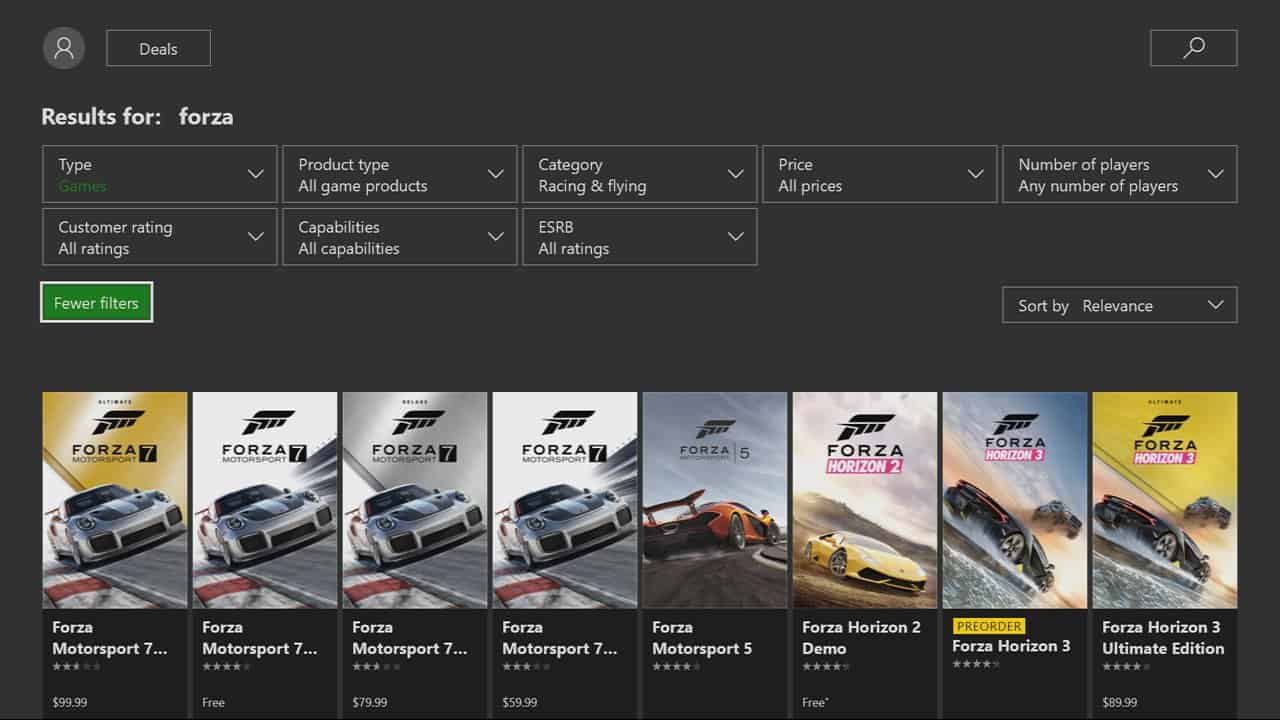
Xbox Insiders now have a quality of life update that will help them find games on the Store a bit faster. Insiders can now filter out games by price, star rating, and some capabilities. You also have access to things like ESRB ratings if you’re buying games for a family, and a few more basic filters that you may be more used to. The new filters are enabled on all Insider rings, so anyone who’s an Insider can play around with them.

Thanks for joining us. To keep up to date with all the latest Xbox news, keep a close eye on our Xbox One tag.

Grocery Shopping List Apps: 6 Best to Use in 2026

Have you tried shopping for groceries lately? You must have misplaced your paper grocery list. This post is for you.

It is usually difficult to use paper grocery lists because they easily get misplaced or lost. This makes it necessary to use grocery list software on your Windows PC or Windows mobile.

However, there are a lot of features on your Windows devices that can help you organize your shopping, create master lists of things you wish to buy when you go to a store and even share lists with your with a friend.  But, we have compiled this grocery list software for you.

Here are six great grocery list apps you can use on your Windows PC:

  • Free Grocery List Maker
  • Google Keep
  • Wunderlist: To-Do List & Tasks
  • Grocery List Organizer
  • The Grocery List
  • Shopping List

Best grocery list software for Windows

  1. Free Grocery List Maker

grocery list softwareOne of the easiest ways to create grocery lists is to use the Free Grocery List Maker software. As its name suggests, this Windows software is free. Free Grocery List Maker helps you keep track of items you intend to purchase at the physical market.

Key features include:

  • speech recognition to ease data input
  • share grocery lists with friends by email or SMS
  • grocery and shopping mall templates

You may decide to share the lists with friends or other members of your household. Items on the list can be added or deleted as needed. And also, you can create as many lists as you desire. However, Free Grocery List Maker software is only available on Windows Phone 8, Windows Phone 8.1, and Windows 10 Mobile.

Download Free Grocery List Maker here

Read Also: These 8 secure online shopping tips are so simple, your kids can do it


  1. Google Keep

google keep shopping list

Google Keep is a web based grocery list application which can be used in keeping grocery list, as its name suggests. However, Google Keep is not compatible with Windows OS but it can accessible online even on your Windows devices

Unfortunately, you can’t share your grocery list with this app, because it synchronizes your lists to your Gmail account. However, you can share your list using your Gmail account.

Your grocery list can be accessed on the web through Google Keep. So, you can easily update your grocery list using a computer.

Go to Google Keep’s website here


  1. Wunderlist: To-Do List & Tasks

grocery list softwareThis is another great software which you can use to create grocery lists on both Windows PC and Windows mobile devices. Wunderlist allows you create to-do lists with alarms and due dates.

Also, you can create and also use one or more lists for your groceries. It is designed for organizations and businesses, with more advanced collaboration features.

Some key features of Wunderlist: To-Do List & Tasks include:

  • My Day planner
  • Access grocery lists on your mobile devices and on the web
  • Syncs with Microsoft Outlook

Read Also: Microsoft Store is set to reach Windows 10 Mobile

Your lists can be shared with others who make use of the Windows mobile app, and they can check, add and edit items. Once you are done shopping, delete the items you would not need again and uncheck the completed items you will need on your next trip to the grocery store.

In addition, Wunderlist: To-Do List & Tasks grocery list software is compatible with Windows Phone 8.1, Windows 10 Mobile, and Windows 10 PC.

Wunderlist: To-Do List & Tasks displays an auto-complete list immediately you start typing to add a new item. When the auto-complete list is displayed, tap an item to add it.

Download Wunderlist: To-Do List & Tasks from Microsoft Store


  1. Grocery List Organizer

grocery list softwareThis premium software is very good for making a grocery list; break down your grocery list by store section.

Grocery List Organizer is useful if for saving time, money, and food; you do not want a separate app just for groceries

In addition, Grocery List Organizer groups items in your list by store sections: Dairy, bakery, frozen food, meat and so on. You can create several lists—one for each store you usually visit—your list can be shared with others who use the app.

Recipes can also be included, so each item needed gets added to your grocery list. However, Grocery List Organizer is only available on Windows 10 OS.

Buy Grocery List Organizer from Microsoft Store for just $2.99


  1. The Grocery List

grocery list softwareThe Grocery List software is user-friendly grocery list software with drag-and-drop interface. It can be used for creating grocery lists and can save you a lot of money.

One of the intriguing feature of this grocery list software is that, you get a “Shopping” list for all the items you need right now, and also you get a “Saved” list for items you need later.

Read Also: 5 best free PDF reading software for Windows 10

In addition, The Grocery List software is cloud enabled; hence, you can get to use the software online and also offline as well. However, items you saved while offline will be synced to the cloud storage immediately you are get an Internet connection.

Also, this software is not intrusive unlike other grocery list software that display ads and prompts you to install unwanted software during installation. You can use The Grocery List software on Windows devices such as Windows 10 Mobile and Windows 10 PC.

Download The Grocery List software here

  • ALSO READ: Amazon’s browser extension for Microsoft Edge helps you make better decisions when shopping

  1. Shopping List

grocery list softwareSaving the best for the last, Shopping List software is one of the best grocery list software on the market. This software helps organize all your shopping lists and check lists in an easy and mobile way.

As its name suggests, you can prepare shopping lists for groceries that you intend to purchase.

Some features of Shopping List include:

  • Setup grocery list on your PC
  • Create shopping lists via dictation
  • Search and Sort function
  • Edit any shopping list
  • Add items through barcode scan
  • Synchronize grocery list through vpFriends or mail
  • Share between different Windows Phones

With Shopping List, it is possible to share lists with your friends via vpFriends. Also, if you desire to share your grocery list with someone who doesn’t have the app, it can be emailed.

Whether you are cooking or shopping, you’re better off using Windows mobile devices when making use of this app. Furthermore, Shopping List is only compatible with Windows Phone 8, Windows Phone 8.1, and Windows 10 Mobile

Download Shopping List here


In conclusion, with all these grocery software we mentioned above, you can totally keep away those paper lists that you keep forgetting.  These grocery lists software are very easy to use and they allow you share your lists with family and friends.

Your grocery lists are virtually safe for use whenever you need them even when your shopping app is not working.

Also, some of them contain recipes which can help your cooking to improve greatly. Lastly, most of them are free for the basic services and only cost a little for more advanced services.

Put all your grocery lists on your Windows mobile devices or PC and make your groceries shopping much easier.

RELATED STORIES TO CHECK OUT:

Xbox Insiders now have more options to filter by in the Store

Microsoft has enabled new filtering options for all of their Xbox Insiders. Those on the Xbox Insider Preview Program will now be able to fine-tune their searches in the Xbox Store to find exactly what they’re looking for.

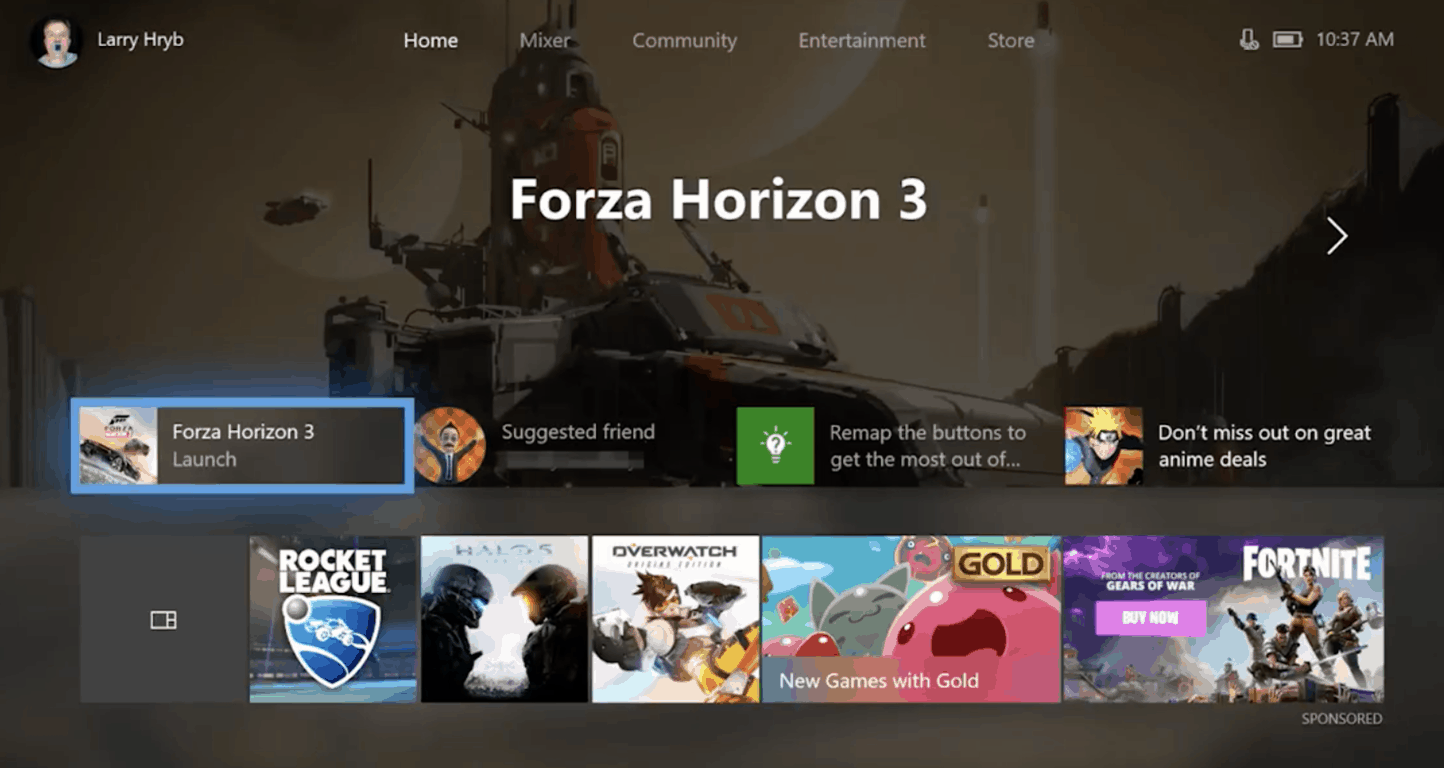
Announced by Larry Hryb (“Major Nelson”) on Twitter, Xbox Insiders now have access to the following filtering options:

  • Price
  • Star rating
  • Capabilities
  • Number of players
  • ESRB rating

These new options should make it far easier for all users to find what they’re looking for, be it a family-friendly game, a low-cost game or 4K HDR enabled games.

3 easy torrent making software and how to use them

Making torrents and using torrents is not illegal as long as you are not downloading or sharing pirated content that is copyrighted. With that disclaimer out of the way, let’s get to the subject at hand.

If you ever felt the need to contribute to the massive torrent community by creating your own torrents, then you will need a torrent making software.

Now creating torrents isn’t exactly an every day practice for most, therefore it might prove difficult to find applications that are capable of performing such actions. So, I compiled a list of useful torrent making software that you can use to help share your content to the world. In addition, I added some easy to follow instructions that will help you create a torrent file on each program.

OK, let’s get started with the most popular and well known torrent downloader and creator.

Torrent creation software

1. uTorrent

This application is perhaps the most popular software to download content via torrent files. However, unbeknownst to most users, you can also create .torrent files using the same program.

The functions for creating torrents are pretty basic as the software is primarily built for downloading files through torrents. But for most people uTorrent provides everything they need in a torrent maker.

uTorrent is extremely popular because of it’s many torrent downloading features. Let’s talk about these features.

The two major features are uTorrent Remote and RSS Downloader.

The uTorrent Remote feature is pretty straightforward. You can use it to monitor, start, and stop torrents from your phone or other mobile devices by using any internet browser. This obviously can prove useful any a number of ways.

For instance, maybe you have a limited internet plan and want to save precious bandwidth or you want to only download some files at a time. In any case, the remote access feature will certainly prove to be helpful.

The RSS Downloader function on the other hand lets you automatically download torrent files from a feed. This works perfectly with recurring files.

All in all, uTorrent is the perfect software if you are looking for something that can both create and download content from torrent files.

Here’s how you create a torrent using uTorrent:

  1. Go to the file section located on the top left corner of the uTorrent Window. Alternatively, you can press Ctrl + N on your keyboard when the uTorrent Window is open.
  2. Choose the file you want to create a torrent file of by clicking on add file or add directory.
  3. Next you will need to find trackers. You can use multiple trackers, yet one tracker is typically enough.
  4. If you are using a private tracker, then you will need to tick the box for private torrent.
  5. After you’ve completed the above steps, you can save the torrent file and share it.

MORE: How to fix uTorrent not responding in Windows 10


2. TDMaker

If you are looking for lightweight program to create torrents, then you will want to try out TDMaker. It has a very simple, basic design. There are no special graphics to make the program more pleasing on the eyes. Yet, it offers a number of useful features.

It is important to note, that this software is different from uTorrent as it is built specifically for creating torrents. In other words, you will not be able to download content from torrent files using TDMaker.

There are several unique features that this software offers. For instance, you can generate screenshots, get movie info, copy media information, and of course create torrents. The download file is only 3.4 MB.

Here’s how you make a torrent using TDMaker:

  1. It is pretty simple to create a torrent on TDMaker. All you need to do is browse or drag whatever file you want to create a torrent file of into the “Input” section.
  2. Next click on Create torrent on the bottom of the Window.

There are of course many ways you can customize your torrent through TDMaker. Check out the other sections for additional features.

MORE: The best free torrent clients for Windows PC


3. BitComet

BitComet is another powerful software that you can use to both download and create torrent files. The program features a seeding technology that allows BitComet to find more seeds, which translates into faster download speeds.

However, the most unique thing about BitComet is that you will be able to preview a video file you are downloading. The software purposely downloads the front and back part of the video file so that you can preview it more easily.

Here’s how you create a new torrent file using BitComet;

  1. Press Ctrl + M on your keyboard. You can also find the create torrent option in the File section.
  2. Select your file.
  3. There will be a dropdown box, click on it and choose enable public DHT networks. This is an unique feature as it allows your PC to be the tracker for the torrent file, just in case the public tracker goes offline.
  4. Once again you will need to add a public tracker.
  5. Download and save the new torrent file.

Conclusion

Now that you know how to create torrent files you have a great way to share your files with friends and family. You do not have to share your files on a public website, rather you can just directly send the file to specific people if you want to keep the content private.

MORE:

Xbox Live Gold members get early access to massive Black Friday game sale

Starting today, Xbox Live Gold subscribers can take advantage of up to 85% discounts on a massive selection of Xbox One and Xbox 360 games. The catalog includes fresh titles such as FIFA 18, Assassin’s Creed Origins, Destiny 2 and Wolfenstein II: The New Colossus, while classics like Forza Horizon 3, Rise of the Tomb Raider and Gears of War 4 are more affordable than ever.

We’ve listed some of the most interesting deals below, but you can check out the full list on this page:

If you’re not an Xbox Live Gold subscriber, all-access to this Black Friday game sale will begin on Tuesday, November 21. For a limited time, we remind you that can join Xbox Live Gold for just $1 for your first month of subscription.

Razer’s Limited Time Offer brings discounts of up to $300

If you can’t wait until Black Friday to get your hands on new gaming hardware, we have a good piece of news for you.

Razer is running a Limited Time Offer that brings a bevy of interesting discounts to the table.

Hurry up because the offer ends on November 18!

Check out Razer’s Limited Time Offer

  • Razer Blade Pro is now available for US$1,999, down from US$2,299.
  • Razer BlackWidow Tournament Edition Chroma is now available for US$111.99, down from S$139.99
  • Refurbished Razer Blade V5 – QHD (256GB) can be yours for US$1,839.99, down from US$2,099.99
  • Razer Blade Stealth brings you US$350 instant savings. You can buy this beautiful device for US$1,249.99, down from US$1,599.99
  • The New Razer Blade is available for US$1,899.99
  • Refurbished Razer Blade Stealth V1 – QHD (128GB) is available for US$749.99, down from US$999.99
  • Razer Blade V5 – QHD+ (512GB) can be yours for US$2,099.99, down from US$2,299.99
  • Refurbished Razer Blade V5 – QHD (256GB), available for US$1,839.99, down from US$2,099.99
  • Refurbished Razer Blade Pro – UHD – 512GB, available for US$2,999.99, down from US$3,699.99
  • Refurbished Razer Blade Stealth – i7 – QHD (256GB), available for US$1,069.99, down from US$1,249.99

These are the offers available at the time of writing this article. There are already many products that are now out of stock, so if you want to take advantage of Razer’s Limited Time Offer, hit the buy button now.

Go to Razer’s discount page and upgrade your gaming gear.

razer discounts

Also, don’t forget that Black Friday is just around the corner.

We’re sure that Razer will unveil more interesting offers on November 24, so stay tuned!

Best Anti Cheat Software to Use in 2026

If you enjoy playing online games, then you must have encountered players who use cheating to sabotage fair game-play. Today, we have come up with five best anti cheating software which you can use.

Online game cheating takes various forms and designs most especially in multiplayer online games. Some players use various third-party tools and software to gain an unfair advantage over their opponents.

However, anti cheating software prevents online game players from using any tools and techniques to cheat in online games. These programs run securely on your Windows PC and prevent game exploits due to vulnerabilities.

We have compiled the best anti cheating software which you can use on your Windows PC.

Anti cheating software to block game cheats for good

  1. Valve Anti-Cheat (VAC)

valve anti cheat software

Valve Anti-Cheat (VAC) is a popular anti cheating software. This software was developed by Valve Corporation in 2002 as an element of the Steam platform. Detected cheats leads to player ban and additional restrictions from the game.

Some of the features of VAC include:

  • Detects errors in system’s memory or hardware
  • Notifies players’ after detecting cheats
  • Prevents banned players from sharing video game library or trading their game inventory
  • Banned players face additional restrictions on Steam
  • Banned users cannot contribute to new translations of steam.

VAC anti cheating software is compatible on Windows XP, Windows Vista, Windows 7, Windows 8, and Windows 10 OS. You can download VAC here.


  1. nProtect GameGuard

nProtect Game Guard anti cheat software

This anti cheating software was developed by INCA Internet. In addition to preventing cheating on online games, you can also block malwares. nProtect GameGuard (sometimes called GG uses rootkits to prevent cheat programs from running. Other features of GG include:

  • Monitors changes in PC’s memory
  • Auto-Update feature
  • Comes with antivirus/antispyware capacity
  • Comes with antikeylogging software i.e. nProtect Key Crypt

However, one of the downside of this software is that; while nProtect GameGuard is running, you cannot install or activate eternal peripherals such as mouse. Meanwhile, nProtect Game Guard can be downloaded here.

  • Read Also: 5 of the best flight simulator games for PC

  1. PunkBuster

punkbuster

Another anti cheating software which you can also use is PunkBuster. PunkBuster was developed by Even Balance, Inc. This software prevents violation of online gaming activities. This program scans the PC’s memory and once it detects cheats, it bans the PC from accessing the server.

Some of the features of Punk Buster include:

  • Real time memory scan
  • Auto-update system to provide latest updates
  • Optional “bad name” feature which prevents offensive player names
  • PunkBuster Admins can manually remove players from the game
  • The PunkBuster Servers comes with built-in HTTP web server which enables game server to be accessible via a web browser
  • The PunkBuster hardware bans which prevents specific hardware from running during online gaming activity

However, PunkBuster is Windows-friendly. You can run it on Windows OS such as Windows XP, Windows Vista, Windows 7, Windows 8, and Windows 10. You can download PunkBuster here.


  1. BattlEye (BE)

battleye anticheat tool

BattlEye (BE) was developed, by Bastian Suter in October 2004. This anti cheating software is a user-friendly program which has small system requirements such as RAM, CPU, and network bandwidth. However, BattlEye (BE) comes with the game files. It is not necessary to download it.

Some of the features of BattlEye (BE) include:

  • Proactive cheat detection system
  • Secure global banning system
  • Dynamic PC scanning in both user and kernel modes
  • Secure auto-update system
  • Customized solutions for supported games

Get more information about BattlEye here

Also Read: 5 of the best Recycle Bin cleaners for Windows 10


  1. HackShield

HackShield was developed in 2001 by AhnLab Inc. Popular games such as Counter-Strike Nexon: Zombies, MapleStory, Mabinogi, War Rock, Kal Online, Ace Online, Combat Arms, and Dragonica utilizes HackShield. The aim of this program was to enable game developers prevent cheating on MMO or online games.

This anti cheating software run securely on your Windows PC and prevent game exploits caused by game vulnerabilities Meanwhile, HackShield is regularly updated making it a relevant anti cheating software.

In conclusion, these were five best anti cheating software for your Windows PC. Do share with us your experience while using any of the above named anti cheating software. Comment below if you have any question.

RELATED STORIES TO CHECK OUT:

5 best event management software for a headache free event

Are you an event planner? Or do you intend to organize an event or maybe a party? Do not worry, this post is meant just for you.

Sometimes the process of organizing an event can be tedious and stressful. However, the process can be automated by organizing all the details and information regarding the event. Hence, you need to use event management software.

Event management software is a software application tasked with the process of taking records, computing expenses, organizing tasks, and virtually managing events.

Windows Report has compiled this list of the very best event management software which you can use on your Windows PC.

Top event management software for Windows PCs

  1. EventLeaf

event management softwareThis software enables you to host offline native software or run your event management system online. If your PC has Windows Vista and accepts no warranty or tech support, you will be able to enjoy the benefits of EventLeaf.

This event management software by Jolly Tech’s was initially an online platform but can now be run offline on your system at your command. It still has all its old features such as badge creation and on-site event attendee registration, although it has a more polished look.

Key features:

  • Ticketing
  • Custom branding
  • Event schedules
  • Social media integration
  • Website integration
  • Email marketing
  • Data management
  • Registration restrictions
  • Badges
  • Mobile access
  • RFID support

Download the free trial from JollyTech.


  1. Evite (Online App)

event management softwareThe free version of Evite web based event management software is effective for an invitation and RSVP system. The ad-supported option has large selection of designs with a limit of 750 invitations.

The premium version (number of guests usually cause a variation in price) enables you to customize invitations.

Key features:

  • Email invitations
  • Custom branding
  • Pre-made design templates

Check out eVite’s official webpage.


  1. RSVPify (Online App)

event management softwareRSVPify, as advertised on its main page, may be geared towards weddings, however, it can be used for any type of event. This software offers a free plan which covers up to 100 RSVPs, customization options, a custom URL, data imports, and many other features.

For unlimited guest tracking, unlimited RSVPs and high-end features you have to upgrade to a paid plan which costs about $35 for a single event or $59 for planning every month.

Key features:

  • 100 free RSVPs
  • Custom branding
  • Custom URL
  • Attendee surveys
  • Email notifications
  • Data management
  • Mobile Access

Check out RSVPify’s official webage.


  1. 123ContactForm

123contactform

123ContactForm is web based event management software which you can use to create event registration forms. It has about five forms, with up to 10 fields in each for just one user.

You can collect up to 100 submissions every month. To receive payment integration, you have to upgrade to the Diamond or Platinum versions.

One great benefit of 123ContactForm is that it integrates with WordPress and lots of other publishing platforms, as well as Twitter, Facebook and Hootsuite.

Key features:

  • Web forms
  • Data management
  • Event schedules
  • Custom branding
  • Notifications
  • Third party app integration
  • Multilingual access

Check out 123ContactForm’s official website.


  1. Eventsbot

Eventsbot event management software

This is web based event management software. On the EB basic level, event management is completely free. It has a wide range of features which includes event registration, a page for events and up to 500 email invitations.

You are presented with various options to collect payments, which can go directly into your PayPal account. You can also track progress effectively and produce reports.

To get automated invoices and payments online, have a customized events page, remove ads or provide an offline payment option, you will have to upgrade to the premium version, which has a 2% per ticket fee.

Key features:

  • Custom branding
  • Ticketing
  • Event schedules
  • Data management

Check out Eventsbot webpage.

In conclusion, these were the top event management software. Most of them are free and easy to use. Apart from these five event management software, there are others such as; Odoo, ConfTool, Open Source Event Manager, etc.

Do share with us your experience in using any of them. We look forward to your question regarding any of the event management software when you comment below.

RELATED STORIES TO CHECK OUT:

The Windows Insider team offers new app preview survey to gauge release methods

Perhaps, it’s the evolving nature of the Insider program or the seeming lack of upvote and bug reporting participation but it looks like the Windows Insider team is finding new ways to foster valuable feedback from the community.

Instead of relying on Insiders to chime in with their wants, needs, and suggestions via the feedback hub, the Windows team is tossing in a complementary survey to gauge how they might deliver core OS apps to testers in the future.

Windows Insiders running the latest Insider Preview builds have also been able to try out early versions of Windows apps like Mail and Calendar, Skype, Photos and People. In an effort to improve this experience, we’re asking Insiders to complete a quick survey. The survey only takes 1-3 minutes to complete. As with all our surveys, the feedback you provide will not be will not be shared outside of Microsoft or associated with any personal information unless you choose to provide your Microsoft account email (MSA). Feedback from this survey will help us enhance the app preview experience with more timely app updates, more informative news announcements and other benefits.

For those of you who have yet to try out the new build or take the survey, I may be ruining the experience by saying it takes a little more than 3 minutes to complete but is fairly straightforward and the line of questioning is very concise. If you like getting early access to features in the Mail, Photos, Edge and more, then give the survey a quick spend and help let the Windows team know we want our app feature updates more often than we’re currently getting them.

October Xbox Insiders releases and a Blu-Ray fix now rolling out to all Xbox users

The Xbox team is rolling a new update for the Xbox One OS today. The 1711 update brings a couple of new features that have been successfully tested with Xbox Insiders including cloud settings backup, idle notifications, more granular parental controls and more. Additionally, this update fixes the blu-ray issues that some users have been experiencing recently.

In a separate tweet, Xbox Preview Program Manager Brad Rossetti shared that the update was optional for now, though you can download it right now by going into Settings > System > Updates. It’s not clear why Microsoft isn’t pushing this update to everyone for now, but the changelog mentions some know issues for Narrator, Avatars on Home and Xbox Live Tournaments.

In case you missed, the Xbox team also enabled digital game gifting on the Microsoft Store earlier this week, and you don’t need to install this update to use this feature. As the redesigned Xbox Live avatars have now been delayed to early 2018, it remains to be seen if the Xbox One will get another system update before the end of the year.

Have you already installed this latest update on your Xbox One? If so, let us know in the comments if you’re having any issues after proceeding.

Microsoft improves Xbox Live analytics report for game devs

Microsoft today announced they have updated the Xbox analytics report with a new Xbox Live service health tab. According to the company, the new tab will help gave devs and will provide them a better look at Xbox Live’s service responses.

With the improvements, helps game devs can now understand the impact of Xbox Live client errors, including rate limiting. The other improvements provide an overview tab to show how players are engaging with Xbox Live features such as gamerscore, accessory usage, and achievement unlocks. Microsoft explains:

  • You are now able to drill down by endpoint and status code to more effectively fix issues. This includes exempt rate limited requests to see potential impact in cases of high volume of these services. The report also provides a view on Xbox Live’s service availability for your title, so you can quickly determine whether an issue is due to your title’s code or a service outage.
  • The Xbox analytics overview tab shows who your players are and how they’re engaging with Xbox Live features, so you can make key business decisions for your Xbox titles. For many of these statistics, we also show the Xbox average, so you can easily see how your customers interact with Xbox compared to the average Xbox customer.

Interesting to see Microsoft providing developers with the tools necessary to learn more about their players. Game devs can find out more information about the Xbox Live analytics report by checking here.

Microsoft Outings, a personal travel guide app from Bing, leaks ahead of launch

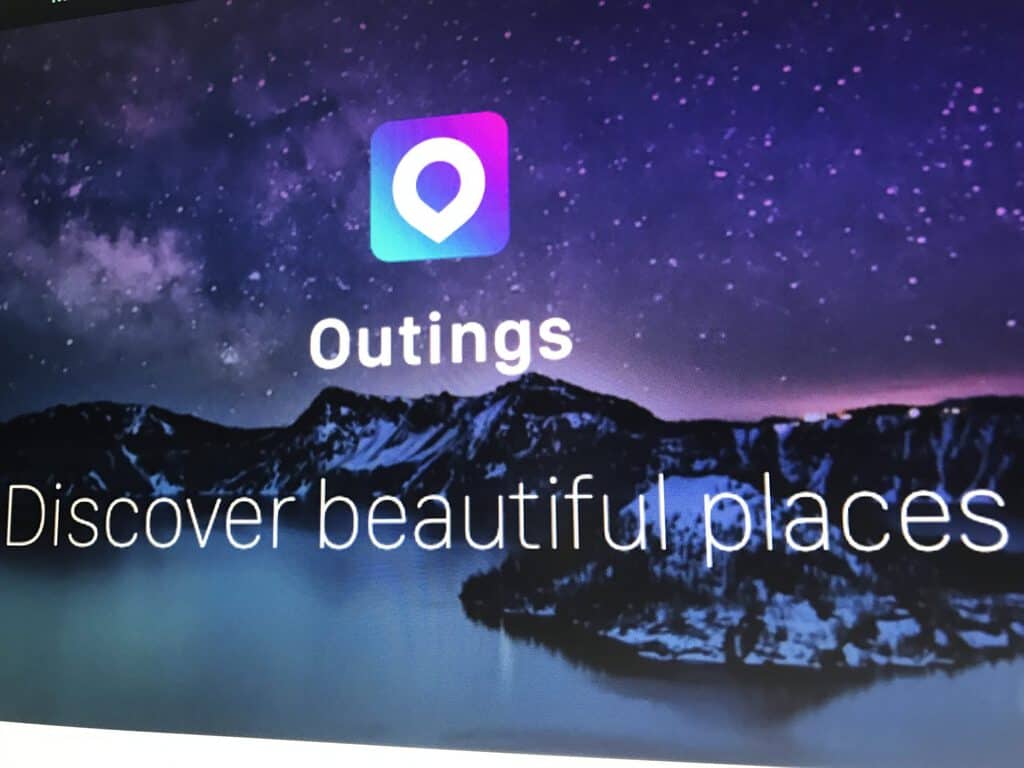
Well known Microsoft leaker WalkingCat is at it again, revealing the once-secret Microsoft Outings app for iOS and Android. The application is supposedly designed by the Bing team and is a personal travel guide meant to give users a fun way to discover new places to visit.

https://twitter.com/h0x0d/status/931025791722201088?s=09

Although not yet officially available for download on the iOS or Android app stores, the app can be downloaded by following WalkingCat’s links. App desciptions in the linked pages reveal that Outings features high quality stories about places based on a user’s interests, and the ability to build bucket lists. Microsoft appears to be partnering with travel companies to invite them to add their content to the app. Other features can be seen below.

Outings makes planning easy by showing you all the relevant details and pictures – all in one place. Powered by curated stories and topics aggregated from travel blogs, Outings will ensure that you have a steady stream of new places to visit and can share your adventures with fellow roamers.

You can expect for Microsoft to announce the app soon, but for now those who are adventurous enough can install the app by visiting the links above. Please be warned, though, that installing unsigned apps from unknown sources can be particularly risky.

Windows Insiders can take these LinkedIn Learning Courses for free, but act fast

If you’re a Windows Insider, you may have received a newsletter this week telling you everything about New Windows 10 Insider Preview features, information for developers and IT pros and more. Among all the different Insider news, you’ll also find that Microsoft is currently offering Windows Insiders select LinkedIn Learning courses for free for a limited time.

“These on-demand video courses provide a fast, effective way to learn the most in-demand business, tech and creative skills from industry experts,” the newsletter rads. Here are thee four courses that will be available for free through December 15, 2017:

It good to see some synergies between the Windows Insider program and Microsoft’s LinkedIn acquisition. Under the leadership of Dona Sarkar, it’s true that the initiative has gone beyond beta testing Windows 10 preview builds: many Windows Insiders are qualified developers or IT Admins, and Microsoft is aware that many of them are willing to learn new things. Will you take advantage of these free LinkedIn Learning courses, and do you think this is Microsoft should offer more free courses for Windows Insiders? Let us know what you think in the comments below.

Microsoft Translator adds 10 languages to AI powered NMT, providing “major advances in translation quality”

Ever since a release of neural machine translation (NMT) to everyone last year, the Microsoft Translator team has been hard at work to improve translations in Microsoft Translator and its supported products. It was announced yesterday via the Microsoft Translator blog that a milestone has been reached, as NMT was used to make translations more accessible in 10 new languages, and much more.

NMT now powers translations of Bulgarian, Czech, Danish, Dutch, Hindi, Norwegian, Portuguese, Romanian, Sweedish, and Turkish. This brings the list of NMT powered translations to 21 languages. Additionally, all of the API traffic for Chinese and Hindi is now powered by NMT by default and developers do not need to take any actions to use it.

Microsoft notes that thanks to NMT, there is an increase in translation quality:

Because of the scarcity of available training data between languages and the exponential complexity of building and running dedicated systems for each language pair, machine translation systems use English as a “pivot language” to translate from one language to the other. This means that each time you ask a machine translations system to translate from, say, Chinese to Spanish, the translation system usually translates Chinese to English, then translates the English to Spanish.

NMT powered translations can be demoed right now on Translator for Bing, the Microsoft Translator apps, the Translator PowerPoint add-in, and the Microsoft Translator Text and Speech APIs.

ReCore’s Xbox One X update is now rolling out to gamers

The Xbox One X update for the ReCore video game has begun to rollout to current owners. This update will add the game to the official list of Xbox One X Enhanced titles and while this update won’t give the game 4K visuals, the resolution is getting an upgrade to 1440p which is notable.

ReCore recently received another free update which added HDR lighting when played on an Xbox One S (and also Xbox One X) and loads of additional in-game content and gameplay refinements. This update rebranded the title as ReCore: Definitive Edition and is considered to be the true vision of ReCore that was initially planned.

ReCore is an Xbox Play Anywhere title and can be played on Xbox One consoles and Windows 10 PCs. Are you a ReCore fan? Let us know in the comments below. Would you like a sequel?

ReCore
ReCore
Developer:
Xbox Game Studios
Price:
Free

Digital pre-orders for Okami HD open on Microsoft’s Xbox One console

The remaster of the classic Okami video game, Okami HD, can now be pre-ordered on the Xbox One ahead of its December 12th release date.

This new version of the game will be given a new widescreen presentation, HD graphics, and 4K resolution when played on Microsoft’s new Xbox One X console. Here’s the official game description:

Experience the critically acclaimed masterpiece with its renowned Sumi-e ink art style in breathtaking high resolution. Take on the role of Amaterasu, the Japanese sun goddess who inhabits the form of a legendary white wolf, on a quest to defeat Orochi, an eight-headed demon and tyrannical monster responsible for turning the world of Nippon into a ruined wasteland. Players will be able to choose between modern widescreen format or the original release’s 4:3 ratio. Interactive loading game screens from the original game are also included.

Are you planning to buy Okami HD or have you already pre-ordered it? Let us know in the comments below.

ŌKAMI HD
ŌKAMI HD
Developer:
CAPCOM CO., LTD.
Price:
$19.99

EdgeDeflector redirects Microsoft Edge links on Windows 10

EdgeDeflector is an open source program for Windows 10 that unlocks the option to open hand coded Microsoft Edge links with other browsers. The initial version of Windows 10 lacked browsing restrictions, but now you have the ability to set a default browser in which you’ll be able to open any link.

Hardcoded links only open in Microsoft Edge with an update

Microsoft introduced hardcoded links that were only able to be opened in Microsoft Edge via an update. In other words, Cortana or Help file links would open in Edge regardless of which browser was set as default.

Microsoft created a particular protocol that masked regular URLs so that they would only open in Edge. You could modify the protocol by heading to Settings – Apps – Choose default apps by protocol, but only apps from the Store were able to be selected.

EdgeDeflector features

EdgeDeflector for Windows 10 unlocks the functionality to open those links in another browser than Edge. What this program does is register itself with Microsoft Edge protocol and in this way, becomes the default program to open the URLs on the Windows 10 system.

The program then parses the links, rewrites them and passes them on to Windows. The OS will open the link using the default browser on the system.

When you install EdgeDeflector, you will also have to pick an app with which you want to open Microsoft-Edge protocol URLs. Here, select EdgeDeflector. You can check out if things worked out by opening the default apps by protocol page.

EdgeDeflector will not run in the background but rather will become active each time you open URLs that use the protocol on a Windows 10 system. This is redirector app that is able to send the target URL to the default system browser.

You can download EdgeDeflector from GitHub.

RELATED STORIES TO CHECK OUT:

Set up a new calendar with personalized calendar software

The new year is approaching (at time of writing), so this might be a good time to get a new 2018 calendar. Why not make your own calendar for the new year?

You can design and print out a customized calendar that includes your own photos with personalized calendar software. These are five programs for Windows with which you can set up a personalized calendar.

Create your own personalized calendar with these tools

1. WinCalendar

WinCalendar is software that enables you to set up Word and Excel calendars. Thus, the software integrates itself with those applications by adding a new WinCalendar tab to them. WinCalendar has basic, standard and pro versions that are retailing from $32-$99. You can download a trial version from this website page.

This is a straightforward program that you can quickly set up Word and Excel calendars with. WinCalendar users can insert calendars by pressing a Make Calendar or Schedule button on the WinCalendar tab. That opens a window from which you can select various calendar types and date ranges. The calendar creator window includes options for print orientation, primary colors, fonts and to display alternative national holidays. You can also select to import Outlook, Yahoo and Google Calendar data in the standard and pro versions of the software.


2. Photo Calendar Studio

photo calendar software

Photo Calendar Studio is a calendar design package that has had rave reviews. With this software, you can quickly set up custom calendars that include your photographs. Photo Calendar Studio is compatible with Windows platforms from XP to 10, and the software is retailing at $29.95. You can try out a demo of PCS by pressing the Download button on this website page.

Photo Calendar Studios enables its users to design calendars with their own photographs, which it includes editing options for. This software provides you with lots of creative options and effects for calendar backgrounds and images, such as Blur, Texture, Frame, Shadow, Vignette, etc.

You can quickly set up a new calendar with one of the many pre-designed templates, or design your own one from scratch. It has a drag-and-drop UI so that you can drag images, shapes and other clip art items onto the pages. Thus, PCS is more like a WYSIWYG editor that has plenty of design tools and options for calendars.


3. DigiLabs Calendar Software

DigiLabs Calendar Software for Windows and Mac is a program with which you can design calendars, albums and greetings cards that include your photos. The software’s freeware version has almost every option included, except that you can’t print anything with your printer. The non-commercial registration key for the software is retailing at $24.99. Click Windows Download on this web page to save the program’s installer.

The DigiLabs Calendar Software provides extensive customization options for calendars so that you can add images to the top of pages, to the date boxes or as faded backgrounds. You can add separate photographs for each month, adjust colors of all elements within the calendar, customize the date table shape, add logos and crop and fade images within calendars with the software. Furthermore, this software also comes with a variety of templates to select from; or you can quickly set up a calendar with its wizard. In addition, you can get your personalized calendars printed in various sizes at DigiLabs’ photo lab.


4. Photo Calendar Creator 10.0

Photo Calendar Creator 10.0 is design software with which you can set up a variety of alternative calendar types. This software has a standard and pro edition, which includes extra PDF export and CMYK layout options for calendars. Photo Calendar Creator is available for $39 and $59. You can try out a 10-day trial of the software by pressing the Download button on this web page.

Photo Calendar Creator 10.0 boasts more than 150 templates for you to choose from. PCC users can select to set up wall, desk, pocket, monthly, promotional, yearly and other custom calendars with its Calendar Design Wizard. The software includes plenty of customization options on its primary design window for adding photos, clip art and text to personalized calendars. You can add holidays from several countries and customize those dates with the holiday editor. PCC also supports numerous image file formats and can translate calendars between 11 languages.


5. EZ Photo Calendar Creator 2

EZ Photo Calendar Creator 2 is another program that you can design different types of custom calendars with. There is only one version of this software, which is retailing at $24.95. There is an unregistered version of EZ PCC that you can add to most Windows platforms by clicking free trial on this page. The trial package adds “Created by EZ Photo Calendar Creator” text to printed calendars.

EZ Photo Calendar users can set up annual, wall, mini wall and CD case calendars. The software boasts more than 40 layouts, 300 pre-designed backgrounds and 200 stickers for calendars. It provides customization options for most parts of the calendar, including month/year text, captions, header bar colors, grid line colors and photo borders.

You can add BMP, JPG, TIF, PNG, DIB and ICO images to EZ Photo Calendar Creator’s calendars. EZ PCC has a straightforward drag-and-drop UI design so that you can drag your photos onto the calendars, resize and rotate them. EZ Photo Calendar users can also edit the images with the software’s Crop, Rotate, Black and White and Sepia editing options. So this program has plenty of options, and its publisher also provides a printing service.

Those are a few of the software packages that you can design a custom calendar for new years with. Although there are plenty of calendar apps for Windows, many of them lack the customization options you can select in personalized calendar software.

In addition, you can also show off your favorite photos on customized calendars.

SteamVR games launching in early preview on Windows Mixed Reality headsets

A week ago, we learned that Microsoft’s Windows Mixed Reality platform would be getting support for SteamVR video games on November 15. Well, the day has finally arrived, and Microsoft’s teams have signed off on the Steam VR Bridge for Windows Mixed Reality.

SteamVR content doesn’t seem to be available in Windows Mixed Reality at the time of our writing, but there are a couple of things you should know before getting started. First of all, Microsoft is recommending to use a PC with a GTX 1070 graphics card (or equivalent) and an Intel Core i7 processor for the best SteamVR experience in Windows Mixed Reality. PC requirements may vary by apps and other content on Steam, but it’s best to check the minimum requirements on a per title basis. Anyway, Steam and Microsoft will not be blocking PCs which don’t meet these requirements, but the performance of the overall experience may be impacted if used on a computer with a lesser powered processor.

To set up the SteamVR experience once it has gone live, you’ll need to create a Steam account and Install both Steam and SteamVR on your PC, as well as Windows Mixed Reality for Steam VR. Download links and steps on how to install and use Steam VR with the Windows Mixed Reality controllers are available here.

Keep in mind that the SteamVR bridge for Windows Mixed Reality is a work in progress, so there will likely be performance and other issues. Noted by Microsoft here, you also can expect SteamVR to stay in early access for a while until developers have the chance to properly port their titles and experiment with Windows Mixed Reality.

Given that the Windows Store is not packed with VR content as of yet, this is a step forward towards making Windows Mixed Reality more mainstream. We’ll be experimenting with SteamVR in the weeks ahead, so be sure to keep tuned for more.

Grab Deadfall Adventures for free on Xbox One right now

The Xbox 360 video game, Deadfall Adventures, is now free to download and play for Xbox 360 and Xbox One console owners who have an Xbox Live Gold subscription. Here’s the official game description and download link.

“All things live forever, though at times they sleep and are forgotten.” You are James Lee Quatermain, descendant of the legendary adventurer Allan Quatermain. Reluctantly, Quatermain agrees to help the US government find a powerful artefact before the Nazis or the Russians do. Its pieces are hidden in ancient temples across the globe, protected by deadly traps and raging mummies. Ready your guns, because the hunt is on. Classic action-adventure story set in exotic locations around the globe – Egypt, Arctic and forgotten ruins of the Maya Inspired by the novels of H. Rider Haggard Levels full of traps, puzzles and hidden treasures.

Download Deadfall Adventures here

Tales from the Borderlands Complete Season is also free to download for Xbox Live Gold members today. Have you played either of these titles yet? Let us know which one you’re playing first in the comments below.

5 best language training software for Windows

Language training software are online programs that are able to teach you another language, and you can also use such software to brush up on a language that you are also familiar with.

Each program comes with different strengths, interfaces and also approaches to teaching and choosing the best one for yourself will definitely depend only on your goals and preferences.

Whether you are a total beginner or a more experienced speaker, you will want a program that is the right one for your education level.

Language training software for PC

1. Rosetta Stone

This is one of the most efficient language learning programs on the market, and it comes with 30 language courses that include German, French, Italian and Spanish. Currently, this program is used by the US military, government agencies, learning institutions and all kinds of top business around the globe to help eliminate language barriers. Take a look at the most important features that it comes with:

  • It comes with a pattern-based learning method.
  • Learning is divided into five levels that determine the content of each package.
  • The software comes with CDs, online coaches, voice recognition software and more.
  • It also comes with mobile apps that provide students a more extensive choice of media.
  • You can also download the complete course.
  • Rosetta Stone comes with a headset, voice recognition software, and microphone.
  • The Live Conversation feature will help users refine their conversation skills.

Rosetta Stone is ideal for entry-level users or people who don’t have any prior experience with a particular language. The program’s methodology allows discovering patterns, and it starts by building a simple vocabulary that will progress into phrases and so on. The course is also reinforced with images.


2. Transparent Language Software

Transparent Language Software started way back in 1991, and it managed to develop into software that mainly focuses on providing language services to government, corporate and to the general public as well. It consists of a comprehensive learning course that offers over 100 languages, and it also comes with a free trial version for beginners and EveryVoice feature for speaking practice. Check out more essential features:

  • There are various plans for each course including Transparent Language Online, Everywhere Audio Course, Byki Mobile, Transparent Language Complete, and Transparent Connect Live Tutoring.
  • The program comes with its unique language teaching strategy.
  • You can adapt and customize the learning programs to meet your skill level and proficiency.
  • It comes with a friendly-user interface.
  • The program’s features are designed to make learning a new language as simple as possible.
  • The teaching methodology is suitable for teaching children as well.
  • The software’s lessons are created by linguist experts.
  • The lessons are based on neuroscience to ensure maximum effectiveness.

Transparent Language is one of the most popular language software services used to meet personal and corporate users’ needs. It provides the latest technology and easy learning as well.


3. Fluenz Language Software

This software takes a comprehensive and more advanced approach toward teaching users a new language. Fluenz deals with how the language is being used by a native speaker and this is sometimes quite different compared to how the English language is structured. Building a vocabulary via memorizing is not enough, and this program also teaches you how to structure sentences correctly. Here are the most important features:

  • The course utilizes all available media to create a comprehensive learning program.
  • You will be able to learn via videos, written material, and audio.
  • It also comes with a voice recognition program that will keep track of your progress,
  • There is also a classroom mode where a tutor motivates you.
  • You will be immersed in a world of multimedia.
  • The program will use sound and sight to fully engage you.
  • Fluenz provides lots of exercises just enough to keep you interested.

The program’s courses are designed to work from a native speaker’s perspective who wants to learn a new language. That particular language is broken down into its components, and you can study how it works. You will have a different approach for each language according to its features. You will also get explanations on the way that sentences are structured and also an overview of more aspects of the language.


4. Pimsleur Language Software

This is a language course developed by Dr. Paul Pimsleur who is a recognized expert in the field of linguistics. The program offers over 50 languages. The most exciting thing about this software is that it claims that you only need 30 minutes per day to learn a new language. The software is mainly audio-based, and you are advised to listen to daily lessons. There are 30 daily lessons for each level and five levels in a complete course. Here are more essential features of this software:

  • If you are a visual learner, there is also an enhanced version of the program with interactive components called Pimsleur Unlimited.
  • The program focuses on organic learning and the way that children acquire their communication skills.
  • New words are gradually introduced with increasing intervals of time.
  • The program provides Graduated Interval Recall for building your memory.
  • It’s based on the Principle of Anticipation for triggering automatic brain responses.
  • The Core Vocabulary is focused on learning.
  • The Organic Learning feature provides a personalized manner of learning.

Pimsleur is an excellent way to start learning a new language, and it’s also great for students. This is definitely one of the best language programs on the market these days.


5. Linguotica Language Software

Linguotica is a language learning service that teaches you French, German, Spanish, Portuguese, Italian and Chinese o students all over the world. This learning platform provides students the opportunity to learn a new language at home and the software comes with a seven-day free trial period. The teaching method is based on the individual learning curve, and each one of the sessions strengthens memory and language comprehension. Check out the essential features of this program below:

  • The program has its own language learning science that is designed to bring the most learning for each session.
  • The software uses smart learning science that can adapt to a student’s learning pace and skill level as well.
  • The learning process allows you to start from where you left off.
  • The program also tracks your learning progress.
  • Linguotica provides a fun and productive learning process via leaning sessions and tests.
  • It provides extended flexibility to adapt to each individual’s needs.

Overall, Linguotica is the perfect choice for students who work best by studying on their own. This language learning method is designed with speed and flexibility in mind, and its smart learning science provides different sets of learning curves. This is the ideal choice for students who want to learn a new language in the comfort of their home and at their own pace away from the highly structured learning process that is currently being used in traditional schools.

These are the five best language training programs for Windows, and they all have their own unique features and learning methods appropriate for all kinds of users. Depending on the type of user you are and on your skill level, you should analyze all these programs’ features and choose the best software for your needs and preferences in learning a new language. Good luck!

RELATED STORIES TO CHECK OUT:

Remastered L.A. Noire is now available on Xbox One

Remember L.A. Noire? The standout Rockstar title is now available on Xbox One, and it has some enhancements for anyone who’s sprung for an Xbox One X. It has HDR and 4K capabilities, making it even prettier than it was when it came out all those years ago. If any of you have as many fond memories about LA Noire as I do, you’re going to be tempted to drop the $40 on this new version of the game – complete with all post-launch content.

L.A. Noire is, just like it sounds like, a game that’s based firmly in noir mystery thrillers. It has a compelling story, gameplay that’s fueled by mystery solving, and a pretty fascinating system that lets you read the (fully mo-capped) faces of NPC’s to tell whether or not they’re lying to you. The game is flawed for sure, but it’s one that you’re likely to remember years after playing it.

Lenovo announces ThinkStation P520, P520c, and ThinkPad P52s at Autodesk University in Las Vegas

Today at Autodesk University in Las Vegas, Lenovo announced the ThinkStation P520, P520c, and the ThinkPad P52s. Focused on ultimate scalability within the range, the ThinkStation P520 and compact P520c tower workstations feature intense speeds up to 4.5 GHz, and 18 cores for massive computing power. The ThinkPad P52s, meanwhile, is Lenovo’s thinnest and lightest quad-core mobile workstation offering ever. Available at the end of January with pricing varying by region, here’s what you need to know about the new units.

ThinkPad P52s:

  • 8th Generation Intel Core i5/i7 Processor
  • Windows 10 Pro
  • Battery: 4-Cell Front (32WHr)/ 3-Cell Rear (24WHr)/ 6-Cell Rear (48WHr)/ 6-Cell Rear (72WHr)
  • NVIDIA Quadro P500 Graphics
  • IR Camera/Touch Fingerprint Reader/ThinkShutter option
  • Up to 2TB HDD or 1TB SSD
  • Up to 32GB DDR4 RAM
  • 4GB/8GB/16GB Memory DIMM
  • Integrated 4-in-1 SD Card Reader
  • Display: FHD (1920 x 1080) IPS, 250nits or FHD Touch (1920 x 1080) IPS, 250nits or 4K UHD (3840 x 2160) IPS, 300nits
  • (2) USB 3.0, 1 Always-on Charging (1) USB-C (1) Intel Thunderbolt™ 3 (1) HDMI 1.4 (1) RJ45 Gigabit Ethernet (1) Side Docking Connector (1) Mic/Headphone Combo Jack (1) Smart Card Reader
ThinkPad P52s:

ThinkStation P520:

  • Intel Xeon W Series Processor (Up to 18 cores, Up to 4.5GHz)
  • Windows 10 Pro for Workstations/ Ubuntu Linux (pre-load)/ Redhat Linux (certified)
  • Up to 2x NVIDIA Quadro P6000
  • Up to 256GB DDR4 RAM 2666 MHz, 8 DIMM Slots
  • 8 GB / 16 GB / 32 GB RDIMM
  • 3.5” SATA 7200 RPM Up to 6TB/ 2.5” SATA SSD Up to 2TB/ 2.5” SAS HDD Up to 600GB/ M.2 PCIe SSD Up to 1TB
  • 0, 1, 5, 10 RAID
  • 690W Power Supply 92% efficient/ 900W 92% efficient
  • Intel C422 Chipset
  • Front Ports: (4) USB 3.1 Gen 1 (Type A) (1) Mic / Headphone Combo Jack (1) Thunderbolt 3 (Type C)
  • Rear Ports: (4) USB 3.1 Gen 1 (Type A) (2) USB 2.0 (2) PS/2 (1) Gigabit Ethernet (1) Audio Line-In (1) Audio Line-Out (1) Microphone-In (1) eSATA2 3 (1) Firewire2 3
  • Removable Storage: (1) 15-in-1 Media Card Reader5 (1) 9.0mm Slim ODD2 (1) Front Accesible Drive Tray
  • Expansion Slots: (2) PCIe x16 Gen 3 (1) PCIe x8 Gen 3 (2) PCIe x4 Gen 3 (1) PCI
ThinkStation P520:

ThinkStation P520c:

  • Intel Xeon W Series Processor (Up to 18 cores, Up to 4.5GHz)
  • Windows 10 Pro for Workstations/ Ubuntu Linux (pre-load) /Redhat Linux (certified)
  • Up to NVIDIA Quadro P5000
  • Up to 128GB DDR4, 2666MHz, 4 DIMM Slots
  • 8 GB / 16 GB / 32 GB RDIMM
  • Up to 6 total drives Max 3.5” = 4 (16TB) Max 2.5” = 4 (8TB) Max M.2 = 2 (2TB)
  • 3.5” SATA 7200RPM Up to 4TB/ 2.5” SATA SSD Up to 2TB/ 2.5” SAS HDD Up to 600GB/ M.2 PCIe SSD Up to 1TB
  • 0, 1, 5, 10 RAID
  • 500W Power supply 92% efficient
  • Intel C422 Chipset
  • Front Ports: (2) USB 3.1 Gen 1 (Type A) (1) Microphone (1) Headphone (1) Intel Thunderbolt 3
  • Rear Ports: (4) USB 3.1 Gen 1 (Type A) (2) USB 2.0 (2) PS/2 (1) Gigabit Ethernet (1) Audio Line-In (1) Audio Line-Out (1) Microphone-In (1) eSATA2 (1) Firewire
  • Removable Storage: (1) 9-in-1 Media Card Reader2 (1) 15-in-1 Media Card Reader2 (1) 9.0mm Slim ODD2 (1) Front Accesible Drive Tray
  • Expansion Slots: (2) PCIe x16 Gen 3 (1) PCIe x8 Gen 3 (1) PCIe x4 Gen 3
ThinkStation P520c:

The ThinkStation P520 and P520c will likley deliver the performance, reliability and optimized acceleration that professionals expect, espcially thanks thanks to the most powerful Intel Xeon W processors, and the NVIDIA Quadro P6000 graphics. Finally, the ThinkPad P52s will also likley be a good match for any professional that constantly finds themselves on the go with the need for raw CPU and GPU processing power.

Microsoft extends support for Windows 10 version 1511 for education and enterprise

A month ago, Microsoft announced that Windows 10 Version 1511 has reached the end of support and would no longer receive security or quality updates. Still, the “November Update” received a new cumulative update two weeks ago, showing that Microsoft could well push back support for this older version of Windows 10.

As it turns out, Microsoft confirmed today that it’s extending support for Windows 10 version 1511 until April 2018, but it’s only doing so for users of Windows 10 Enterprise and Windows 10 Education. The reason for the extended support is to help early enterprise and education customers who are still finishing their transition to Windows as a Service. Microsoft’s Michael Niehaus notes the issue on the TechNet blog, mentioning that enterprise and education users with version 1511 will have access to Patch Tuesday updates until April 2018:

We will be providing a supplemental servicing package for Windows 10, version 1511 for an additional six months, until April 2018, providing updates to address critical and important security issues that arise during that time. These updates will be available to anyone using Windows 10 Enterprise, version 1511 or Windows 10 Education, version 1511. Updates will be offered via all normal channels, including Windows Update, WSUS, Configuration Manager, and the Windows Update catalog.

Again, this change only impacts the education and enterprise SKUs of Windows 10 version 1511. Customers running Windows 10 Pro or Windows 10 Home version 1511 should still immediately update to the latest version of Windows 10 in order to receive the latest and greatest features as well as security and other quality updates.

Microsoft shows off Surface Book 2, Precision Mouse in new video ads

Microsoft is showcasing the Surface Book 2 and Surface Precision Mouse in a pair of new videos on YouTube. The Surface Book 2 video shows a scientist using the Surface Book 2 to visualize and design a robot, while touting the up to 17 hours of battery life and powerhouse performance of the Surface device.

Coming in at just under 30 seconds, the Surface Book 2 ad is rather underwhelming, compared to the 2017 Surface Pro video. After watching the 2017 Surface Pro video, I bought one almost immediately. Seeing the Surface Book 2 in action is great, but I think consumers would be more attracted to an ad showing off Surface Book 2 technical specs and snappier music, but that is just my opinion.

The Surface Precision Mouse video is more seductive. Set to classical music, Microsoft shows you the inner workings of the Surface Precision Mouse and what you can do with it.

Smooth scrolling, detent scrolling, 4 customizable buttons, and you can use the Surface Precision Mouse with up to 3 devices simultaneously? I’m sold. There is also a new Surface Pro video available showing Leann Emmert, who is in charge of scouting locations for Pacific Rim: Uprising (in theatres in March 2018).

The Surface Book 2 and Surface Precision Mouse are both available through the Microsoft Store.

Buy Surface Book 2

Pre-order Surface Precision Mouse

Star Wars’ John Boyega to play Battlefront II in latest Mixer Xbox Live Sessions

Microsoft yesterday announced Star Wars’ John Boyega as the next celebrity guest in Mixer’s Xbox live Sessions. Fittingly, he will be playing EA’s Star Wars Battlefront II on November 15th, two days before the game launches.

As is routine in the Mixer Xbox Live Sessions, viewers will have the chance to to interfact with John Boyega and ask him questions, as well as win special prizes. The entire session will be hosted by by Microsoft Studios Community Manager Rukari Austin, so be sure to tune on on the Xbox Mixer Channel on Wednesday, November 15 at 11 a.m. PT.

Prior guests on Xbox Live Sessions included actress Megan Fox, Verizon Indycar series champion Josef Newgarden, American record procucer DJ Khaled, and Chandler Riggs from AMC’s The Walking Dead. Great to see that Microsoft is managing to book these Hollywood A-listers, as it gives the Xbox One X some well needed publicity ahead of the holiday season.

Microsoft pledges to cut carbon emissions by 75 percent by 2030

Microsoft today detailed a pledge to cut the operational carbon emissions at the company by 75 percent by the year 2030. The new promise sets Microsoft on the goals of the Paris climate agreement and is part of the company’s ongoing commitment to using renewable energy and investing in energy efficiency.

According to Microsoft president Brad Smith, the company will be turning to renewable energy because “it is a clean power source and gives us better financial predictability.” But even with this new goal, Microsoft already has been reducing energy emissions, as Brad Smith explains:

Our cloud-based programs to reduce resource consumption have already cut energy consumption at our main campus in Redmond, Washington by nearly 20 percent, reducing emissions and our power bill. The data we’ve collected on our energy consumption laid the groundwork for us to now buy our own clean energy at market rates, and we’ll soon be powering our Puget Sound campus with 100 percent carbon-free energy. Put simply, the environment and our business both benefit each time we’ve implemented sustainability targets and goals.

The goal of reducing operational emissions by 75 percent by 2030 is set against a 2013 baseline. Microsoft is planning on accomplishing the goal against their carbon neutrality and renewable energy commitments. The company also hopes that their pledge will inspire other groups and companies in setting goals and reducing carbon emissions to help reach the goals the Paris climate agreement.

Microsoft unveils new Skype Professional Account for remote service providers

Following a recent redesign that brought photo filters and a Snapchat Stories clone to Skype, it seems that Microsoft hasn’t forgotten Skype’s roots as a “prosumer” app. Indeed, many business users still use Skype to chat with co-workers and clients, but the video chat app is also used by instructors and remote service providers who like it for its ease of use and ubiquity.

If you do use Skype to do business online, Microsoft has just announced the Skype Professional account, a new desktop client that should better suit your needs. “The Skype Professional Account desktop client, soon to be released in preview in the U.S., adds powerful new features to Skype to make doing your online business a whole lot easier, the Skype team explained in a blog post. “In addition to meeting with your clients as you have been on Skype, you can also book those meetings, accept payments, and keep notes—all in one place.”

To be clear, this is a different offering from Skype for Business, the enterprise communication app available with Office 365 and that will soon be replaced by Microsoft Teams. Skype Professional account is just a new Skype client designed for all service providers conducting their online business on Skype, helping them be more efficient with the benefit of having a professional identity on Skype.

In addition smart scheduling and easy payment tools, the new client will also make it easier to connect business users with customers. “We’ve added an enhanced profile page to help improve your online presence and a dedicated website for your small business right in Skype, the team explained. “Your contacts will be able to see pertinent info like your hours and business offerings,” the blog post continued.

If you’re interested in trying the new Skype Professional account, you’re invited to fill out a survey on the dedicated website to get access to the closed preview. Microsoft says that all business features will be free to use during the preview, but it remains to be seen if the app will remain free to use once it becomes generally available.

Fix: Train Simulator Stuck on Loading Screen

Microsoft’s Train Simulator is one of the most popular games designed for the Windows platform. A game made especially for Windows should run without any problems, and any possible bugs or errors should be addressed without hassle.

Thus, if you are currently trying to play Train Simulator on your Windows 10 device but can’t because of a stuck loading screen, don’t panic; we are going to explain what are the troubleshooting solutions that should be applied in this situation.

But, right from the start one thing must be clarified: the stuck loading screen is a problem caused by your own system and not by the game itself.

Mostly, we are talking about a screen resolution problem or a driver malfunction. So, as you can tell, the fixes detailed below will focus on repairing these particular aspects.

What can I do if Train Simulator is stuck on loading screen?

1. Update graphic drivers

An outdated graphic driver might be the reason why you cannot play properly play Train Simulator. Here is how you can update your graphic drivers:

  1. Right-click on the Windows Start icon.
  2. From the list that will open select the Device Manager entry.open device manager windows 10
  3. From Device Manager extend the Display adapter entry.
  4. Right-click on your graphic drivers and select ‘Update Driver software..’.update remove driver device manager
  5. Close the window when done and reboot your computer.
  6. Now, try your game as the stuck loading screen error should have been fixed.

2. Remove and reinstall graphic drivers

If updating the drivers isn’t addressing the Train Simulator problems, try to manually reinstall the driver software. Only in this way you can fix a corrupted driver which isn’t running as it should.</p>

  1. Go to Device Manager as already explained above.
  2. Right click on your drivers and this time choose ‘Uninstall’.
  3. Then, access Control Panel: right-click on the Windows Start icon and select Control Panel.
  4. From Control Panel switch to Category tab and under Programs click on Uninstall.The exclusive semaphore is owned by another process
  5. Find the programs related with your graphic driver and remove it.
  6. Restart your Windows 10 system in the end.
  7. Now, access your manufacturer official web page and from there download the drivers for your system.
  8. Manually install the software and reboot.
  9. Verify if the stuck loading screen issue is still there.

3. Adjust screen resolution

As already pointed out, the loading screen that’s stuck is a problem related to your own system and not to the Train Simulator game. So, you can also try to properly adjust your screen resolution as this might fix the bug:

  1. First, access the folder where the game is installed.
  2. Then, go to Railworks and access the content sub-folder.
  3. From there, delete or just rename the playerprofiles.bin file.
  4. You have to set default monitor resolution on your Windows 10 system.
  5. When done, restart Train Simulator and, if asked, check default resolution option.
  6. Now, your game should run without any other loading problems.

There you have it; those are the troubleshooting solutions to help you fix the Microsoft Train Simulator loading screen stuck issue.

If you experience any other Train Simulator problem, don’t hesitate and describe the error in detail in the comments field from below. Based on provided info we will try to find the perfect solutions for your problems.

Fix: Netflix not working on Xbox One

Netflix users who use their gaming consoles to stream movies or shows may one time or another experience issues with Netflix not working on Xbox One, or whatever console they prefer.

In case you are using Xbox One and cannot stream Netflix on your console, check first whether you meet the minimum streaming requirements before trying any of the solutions recommended below.

Here are the minimum requirements for streaming Netflix:

  • For Internet download speed, you need between 0.5 Mbps to 25 Mbps depending on whether it is broadband, SD, HD or Ultra HD quality.
  • If watching in HD, ensure you have a HD plan, and then set video quality to Auto or High, but ensure you have a speed of 5.0 Mbps or faster.

So this is where you really need to start before trying to fix the problem.

Note: higher video quality uses up more bandwidth, so if your ISP caps on data or bandwidth, change the video quality settings to Low or Medium so you can use less data.

Once the above requirements are met, try the solutions below to resolve the Netflix not working on Xbox One problem.

How to fix Netflix not working on Xbox One

Solution 1: Check your connection speed

Use the steps below:

  • Go to Netflix.com home page
  • Go to Settings (gear icon if available)
  • Click Check your network

Netflix app will confirm you can connect to the internet, and reach Netflix servers, while checking your connection speed.

Once this is done, check the internet speed requirements above to see that they’re met.


Solution 2: Restart home network

Follow the steps below to do this:

  • Unplug your Xbox console or home network equipment for about 30 seconds
  • Plug back each device
  • Turn off or unplug your console
  • Unplug the modem or router from power supply for 30 seconds
  • Plug in the modem or router
  • Wait until lights are all blinking.
  • Turn on your console
  • Try to stream Netflix again

Does this fix the problem? If not, try the next solution.


Solution 3: Connect the console directly to your modem

If you’re using a wireless router connected to your modem, but you cannot connect after solution 2, try and bypass the router to identify the cause of the problem. This works by eliminating the router problem as a possible cause of the main issue.

Note: You need Wii LAN adapter (for Wii and Wii U) to do this.

Here are the steps:

  • Turn off the console
  • Plug the console directly to your modem using an Ethernet cable
  • Unplug the modem from power for 30 seconds
  • Plug back the modem
  • Wait until all lights are on
  • Turn on your console
  • Try Netflix again

If it did help fix Netflix not working on Xbox One problem, then your router may be the source of the problem. Bypassing is not a perfect solution though, so check with the contact who set up your home network so as to reset or reconfigure router settings.

If it didn’t work, check with your equipment provider to ensure the modem and internet work properly.

If you didn’t manage to use this solution, try the next solutions.


Solution 4: Restore ISP default settings

If you’re using a Virtual Private Network (VPN), disable and connect directly to your home internet. However, if you changed your device to a custom DNS setting, reset it to acquire DNS automatically. You can contact your device’s manufacturer for further assistance on this.


Solution 5: Improve Wi-Fi signal

Here’s how you can do this:

  • Move your router to a different location or room to improve signal strength
  • Move any wireless devices away from your router as wireless interference can cause connection problems
  • Elevate your router from the floor to a desk or top of a shelf for better reception

Solution 6: Check with the person who set up your home network

If none of the first five solutions work and Netflix not working on Xbox One persists, contact the person who set up your home network so as to resolve connectivity issues on the network, and determine if your router is properly set up.

Share with us in the comments section below whether any of these solutions helped.

RELATED STORIES TO CHECK OUT: