Windows 10 keeps resetting default browser [Solved]

Windows 10 comes with some great applications, but many users reported some issues while trying to change the default applications.

Users reported that Windows 10 keeps resetting the default browser. This can be an annoying issue, and in today’s article, we’re going to show you how to fix this problem.

How do I stop Windows 10 from changing my default browser?

1. Try Opera One

Opera One is a well-known web browser, and since it’s built on a Chromium engine it’s quite similar to Chrome. The browser also works with Chrome extensions which is a major plus.

The browser offers tracking protection and a built-in ad blocker that should make your browsing experience more enjoyable.

Speaking of the browsing experience, Opera One allows you to organize tabs into workspaces, and you can even search for open tabs with ease.

For extra privacy, the browser has a built-in VPN with unlimited bandwidth, so you can rest assured that your online activity is safe from your ISP.

Opera One is a great browser, and if you’re having issues with your current browser, we suggest trying out Opera One as an alternative.

Other great features of Opera One include integrations for Messenger, Twitter, and Instagram, a video pop-out, and even a built-in AI.

It is worth mentioning that Opera One will offer qualitative browsing features with modern built-in elements on the homepage that makes everything more comfortable.

⇒ Get Opera One

2. Start File Explorer as administrator

  1. Open Task Manager.
  2. Locate Windows Explorer, right-click it and choose End Task.
     
    end task windows explorer windows 10 keeps resetting default browser
  3. Go to File  > Run new task.
    run new task windows 10 keeps resetting default browser
  4. Enter explorer and check Create this task with administrative privileges. Click OK or press Enter.
    create new task window windows 10 keeps resetting default browser
  5. No go to Settings app > Apps > Default Apps and try to change the default web browser.
    web browser windows 10 keeps resetting default browser

For a quick walkthrough on applying this setting, follow our guide to set default browser in Windows 10.

3. Turn off Internet Explorer

  1. Press Windows Key + S and enter features. Select Turn Windows features on or off.
    turn windows features windows 10 keeps resetting default browser
  2. Now locate Internet Explorer 11 and disable it. Click OK to save changes.
    Internet explorer 11 windows 10 keeps resetting default browser

After doing that, check if the problem is resolved.

If Windows 10 keeps resetting the default browser, be sure to try installing a new one, such as Opera One, or try our other solutions.

How to reduce ping in PUBG Mobile (Android & iOS)

PUBG Mobile is one of the most popular battle-royale games that you can play on your smartphone or tablet for free.

Unfortunately, many players experience high ping and latency issues, which prevent them from fully enjoying the game.

If you’re one of them, check out our 10 easy solutions to reduce PUBG Mobile high ping, latency, and lag spikes so that you can quickly get back to your game.

How do I check my ping in PUBG Mobile?

Without using any special tools, you can check your PUBG Mobile ping in the lower-left corner of the screen during a match.

Ideally, it should be below 100ms.

How do I reduce my ping in PUBG Mobile?

1. Connect to the nearest game server

After the login screen, PUBG Mobile automatically selects the nearest game server to your current location.

If you want to eliminate high ping issues, make sure you pick this one instead of exploring others.

2. Update the game and your OS

If you haven’t played PUBG Mobile for a long time and missed the auto app updates, it’s possible that you’re behind.

Visit the Play Store or App Store and make sure to download the latest version of PUBG Mobile.

Similarly, you should update your operating system to take advantage of the latest features, improvements, bug fixes, and security patches.

3. Check your Internet connection

Your PUBG Mobile experience is only as good as your web connection. Get started by running an Internet speed test on your mobile device using a network app like Fing to check the download and upload speed.

If the results are not satisfactory, consider the following to reduce ping in PUBG Mobile: move closer to the router to get a better signal, connect to another WiFi network, or switch to mobile data if you can afford it.

4. Close all other apps

If you have multiple apps running on your smartphone or tablet, it could be the reason why you’re experiencing PUBG Mobile high ping.

To fix this, simply close any unnecessary apps that need an Internet connection, such as Facebook, Instagram, Twitter, banking, or other games.

5. Turn off background syncing and auto updates

By default, your device silently runs updates in the background, whether we’re talking about the OS or apps.

This could take a heavy toll on the system resources, especially when playing a battery-draining game like PUBG Mobile.

But you can handle this problem by disabling background syncing and app updates.

6. Clear storage on your device

If you’re running low on storage, it could be why PUBG Mobile has high ping. Just like a desktop operating system, your mobile OS needs free disk space to run tasks.

Therefore, you should clear storage on your device and check your PUBG Mobile ping again to see if it worked.

If you have trouble deciding what to delete, consider old photos and videos that were already backed up to the cloud. You can also uninstall unused apps.

7. Repair PUBG Mobile

The main screen of PUBG Mobile has a Repair button to fix any in-game issues, including high ping and latency. But you have to log out to see it.

If you’ve already downloaded the latest game files, you can skip the Routine Repair option and proceed with Restore Default Settings, Initialization, and Repair Resources.

8. Use a game booster

We don’t necessarily recommend using a game booster for Android, iOS, or other mobile operating systems.

That’s because these tools usually perform the same tasks that you can do on your own if you spend a little time exploring your device’s features.

Furthermore, free apps are typically filled with ads and end up doing more harm than good.

Nevertheless, you can explore game boosters in the Play Store or App Store to see if you can find one that can reduce your PUBG Mobile high ping.

9. Use an Android or iOS emulator

If your iPhone, iPad or Android device is too old, it might simply not meet the system requirements of PUBG Mobile, leading to connectivity issues.

In that case, a cool workaround is to use an iOS or Android emulator on your desktop (until you buy a new smartphone or tablet, at least).

Check out the best PUBG Mobile emulators for PC.

10. Use a VPN

Finally, if everything else fails, consider installing a VPN for Android or iOS.

Using a VPN can improve ping and fix PUBG Mobile lag caused by network congestion, such as a crowded server.

However, just like in the case of the game booster, we advise you against using a free VPN.

In addition to the malware risks associated with ad-supported apps, a free VPN could collect details about your network traffic and share it with third parties.

If you want to take our word for it, use Private Internet Access (PIA). It’s a premium VPN created by Kape Technologies, which you can get at an affordable price.

PIA reroutes your traffic to another server that’s closer to the PUBG Mobile servers, which could also mean reduced latency. It’s ideal to lower your ping when playing in other regions.

More about PIA:

  • +15,700 servers in 74 countries
  • Supports iOS and Android
  • No logs or leaks
  • 24/7 live chat support
  • 30-day money-back guarantee (no free trial)
Private Internet Access

Private Internet Access

Lower your ping in PUBG Mobile, especially when playing in other regions, using this reliable VPN.
$2.69/mo. Buy it now

In conclusion, if you have high ping issues when playing PUBG Mobile, the 10 solutions we listed above should set you on the right path, including a ping reducer.

And, if you have other suggestions, please don’t hesitate to drop us a comment in the section below.

7 Best 4K Monitors For Windows 10/11 [2026 Guide]

Evolution in display technology has taken a huge turn in the past few years, and things keep on getting better and cheaper every year. A few years ago, the Korean tech giant LG introduced the world’s first 3D UHD TV using the 4K system, and now almost all manufacturers have followed the bandwagon.

We even have 4K monitors that have taken computer resolution to a whole new level. But what exactly is 4K? Used correctly, 4K describes the 4096 X 2160 resolution first introduced in theaters. That resolution has been standardized to 3,840 X 2160 which is also known as Ultra HD and targets consumer electronics.

Recall that your laptop or HDTV has a native resolution of 1920 X 1080 pixels. This makes 4K monitors 4 times brighter and more colorful than what you are used to seeing. The digital arena has also been marked by other high-end monitor display technologies that are here to further refine the 4K resolution.

We now have 4K IPS monitors and OLED (Organic Light-Emitting Diodes) monitors. After defining a new era in TV technology, OLED displays have finally transcended to computer monitors. In this article, we will discuss the best 4K monitors for Windows 10.

The Best 4K Monitors for Windows 10

Philips 276E8VJSB

  • More than 1 billion colors
  • 27 inches LED screen
  • Lowblue Multiview technology
  • Active dual connection
  • 4-years warranty
  • Some small light bleeding issues

The Philips 276E8VJSB is a 4K monitor that offers you image quality using more than 1 billion colors, encased perfectly using ultra-narrow borders.

Having ultra-narrow borders enables you to focus your gaze without any issues on the 27 inches 4K monitor.

You can enjoy your favorite movies, TV shows, and games without having issues with your eyes, thanks to the Low blue Multiview technology used in this beautifully-designed monitor.


Asus VP28UQG

  • 28 inches screen
  • 3840 x 2160 resolution
  • 1 ms DP HDMI
  • Adaptive-Sync/ FreeSync
  • Eye Care Monitor
  • Occasional flickering has been reported in some remote cases

The VP28UQG monitor from Asus offers you 4K/UHD image quality at a 3840×2160 resolution, while also protecting your eyes from any harm with the incorporated Eye Care Monitor feature.

This slick monitor displays the image on a 28-inch display, while also ensuring that the response time is an astonishing millisecond long, and tops it off with an Adaptive-Sync/AMD Free sync feature that ensures crisp visuals.

You can easily control all the settings of your new monitor by using the 5 way OSD joystick, enabling you to quickly activate the useful Asus Game Plus without the need to change your computer’s settings.


SAMSUNG LU32R590CWNXZA

  • 32 inches screen
  • Split-screen function
  • 2500:1 contrast ratio
  • 1 billion colors
  • Game-mode included for automatic image optimization
  • The curvature of the screen stops 6 inches from the sides

The Samsung LU32R590CWNXZ curved gaming monitor takes your immersive gaming experience to the next level, effectively covering your field of view.

This monitor features a 32-inch screen that will surely help you experience the virtual word – no matter if it’s games, videos, or browsing, at a totally different level.

One very useful feature of this monitor is that it offers split-screen functions so you can connect it to two different devices simultaneously.

It has won the CES 2019 Innovation Award because of the revolutionary UHD curved screen and the amazing 178 degrees Wide Viewing Angle.


LG 24UD58-B

  • 24 inches LCD screen
  • 3840 x 2160 resolution
  • FreeSync
  • Screen split option
  • Only 1 year warranty

The LG 24UD58-B is a great 24-inch UHG 4K monitor that offers you, as some of the previous mentions in this guide, access to FreeSync technology as well.

It has a 3840 x 2160 resolution with IPS, and a brightness of 250 cd/m2, ensuring that your gaming experience will never lack depth and beautifully contoured colors.

Offers you quick access to a split-screen 2.0 feature, and also a very useful Game Mode and Black Stabilizer option which automatically calibrates the settings to fit the respective game.


Asus VA32UQ

  • 31.5 inches screen
  • 3840 x 2160 resolution
  • 178 degrees viewing angle
  • Narrow bezel design
  • Some functions only work on a Windows 10 operating system

The Asus VA32UQ monitor offers you very good image quality on its 31.5-inch screen, allowing you to enjoy long movie-watching or game-playing sessions without putting a strain on your eyes.

This is ensured by the included Eye Care technology, which considerably reduces the amount of blue light that it emits, without affecting the image quality.

This amazingly designed monitor allows you 178 degrees viewing angle and ensures that you make the most out of its size by using a very narrow bezel design.

Beyond this, it also features adaptive-sync/free sync technology to reduce the appearance of choppy frame rates to a bare minimum.


AOC CU32V3

  • 3840 x 1260 resolution
  • Super-curved screen
  • Wide range of colors
  • LowBlue mode to protect your eyes
  • Screen is glossy

The AOC CU32V3 monitor is another super-curved 4K device that enables you to cover your entire field of vision while playing games, watching movies, or just exploring your favorite websites.

It features a 32-inch screen with 4K UHD capabilities at 3840 x 2160p, resolution.

Offers you a super-color at 121% sRGB, to ensure that you will experience the most intense color nuances you have ever seen., being the perfect choice if you are working in the image processing software.

Beyond this, it also has a LowBlue mode that enables you to protect your eyes from the harm of blue light and also ensuring that your circadian rhythm is not affected even if you’re working late in the night.


UPERFECT Gravity Sensor

  • 3840 x 2160 px resolution
  • 10-point touchscreen
  • 100% sRGB color gamut
  • 16.7M colors
  • Super-slim 5mm profile
  • Not battery powered

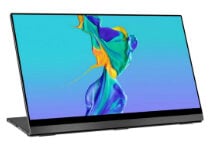
The UPERFECT Sensor monitor is a very cool-looking display that offers you a 15.6 inches display with 10-point touch UHD capabilities, at a resolution of 3840 x 2160px.

It features an HDMI and a dual-USB C connection that ensures fast transfer speeds, and a frameless design that allows you to use the entirety of the display.

Also featuring a FReeSync and HDR feature, you will get a 1000:1 contrast ration, 100% sRGB color gamut, and a whopping 16.7M colors.


Given all the buzz making the rounds about 4K and Ultra HD displays, you may probably have heard a thing or two about this technology.

You got to believe the hype because this technology is awesome, suffice it to say that 4K is the future of displays.

Some of the renowned streaming services like Vudu, Amazon Instant Video, YouTube, and Netflix have already begun streaming 4K content.

And since 4K TV’s are a bit expensive, you can enjoy the dazzling images on a good and cheaper 4K monitor. The list above is by no means exhaustive, but it highlights the trailblazers in 4K display monitors.

[wl_navigator]

How to block Programs list ads on Microsoft Edge

Finding all your apps and programs in Windows 10 is a simple task. You just need to select the Start button and scroll through the alphabetical list on the left.

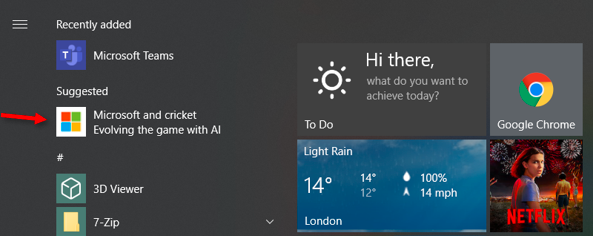
However, things could get confusing since Microsoft started to place ads in the Programs list when using Microsoft Edge and not only.

The company often promotes its services within Windows, yet this latest change doesn’t seem to make all users happy. Here’s what one of them says:

Microsoft now putting ads in the programs list. Yes, they only open in Bing and Microsoft Edge.

How can I block Programs list ads on Edge and Bing?

remove ads from the Programs list
  1. Find your way into Settings.
  2. Up next, go to Personalisation > Start.
  3. Finally, you need to disable Show Suggestions occasionally in Start.

There are quite a few users who became so accustomed to ads on the Internet that a few more in the Programs list won’t bother them at all.

Anyway, if you’re determined to remove ads from the Programs list, simply apply the above steps. You can also right-click the notice, go to Settings, and disable Suggestions this way.

The above tricks work if you usually scroll through the alphabetical list or if you select any letter in the alphabetical list, and then select the letter that the name of the app begins with.

In both cases, you can return to an ad-free experience in both Bing and Microsoft Edge. And if you’d like to forget all about pop-ups and adware on Edge, apply the tips from this detailed guide too.

Let us know if you’ve encountered these ads as well and if you find them intrusive. The comments area is waiting for you.

[wl_navigator]

8 Best USB-C SD Card Readers for Ultra-Fast Transfers

An SD (Secure Digital) card is a little gadget that is used to increase the storage capacity for different digital devices such as smartphones, tablets, and others.

The benefits that make an SD card popular include portability, fast data transfers, and hot-swapping functionality.

In order to access any files on the SD card, you need an SD card reader, and with technological advancements, today’s market is warming up to the type-C connector or port, so you will need the best USB-C SD card readers to access files on modern devices.

Card readers come in different sizes, shapes, colors, and builds so that they can be easily carried wherever you go, and add convenience to your life.

When looking for the best USB-C SD card reader, you need to consider factors such as speed, portability, aesthetics, compatibility with other devices and operating systems, multiple functionalities such as extra ports for charging your phone or other tasks, and multiple slots to cater for different card storage capacities.

What are the best USB-C SD card readers to use?

uni SD card reader

  • Up to 5 Gbps transfer rate
  • USB 3.0, USB 2.0
  • Simultaneous read & write on two cards
  • Functionality issues with iPad Pro although it's advertised as fully compatible

What you’ll get with this SD card reader mainly is On the Go, plug-and-play card access to all your media in just a matter of seconds, wherever you are.

The device is sturdy, made of aluminum, tested for repeated outdoor use, and doesn’t compromise data transfer speeds.

The two card slots can take SD, SDHC, SDXC, MicroSD, MicroSDHC, MicroSDXC cards of up to 2TB, and can be used simultaneously to read and write information.

The Type-C USB connection ensures wide compatibility with most laptops, smartphones, and tablets. Besides, the device also has backward compatibility with USB 2.0 ports, in which case it only runs at 480Mbps, reading UHS-II cards at UHS-I speed.

Vanja

  • 3-in-1 USB port compatibility
  • Compact design
  • Runs on Windows 10, 8, 7, Vista and XP, macOS 10.4.6 and above, Android OS.
  • Not compatible with iOS

This comes as the second-best USB-C SD card reader in terms of user reviews and popularity. It has a USB 2.0 SD/micro SD card reader for data transmission, and management of all your data from, to, or on different devices and across multiple platforms. This means you can create, copy, edit, move, delete, rename, and open in among other tasks.

This USB-C SD card reader is compatible with all USB Type-C devices and tablets or smartphones that support the OTG function.

While trying to access your files, you can also connect your devices and playback videos or music from external memory without taking up so much space, and it doesn’t need more power supply, nor does it need additional software installation.

Read your memory cards with the speed and convenience you desire using this excellent quality, durable, and high-grade USB-C SD card reader. Back up your important media and digital files, and carry it around wherever you want – that’s the convenience that comes with it.

It also has a document viewer for all major file formats, and you can store and share all your digital content securely.

Lention

  • Transfer speed of up to 95MB/s
  • Three colors
  • Can take up to 3 USB simultaneous devices
  • Users reported interference with the Wi-Fi adapter/router

If you want the best USB-C SD card reader but with added functionality, this is your best bet. This card reader features a multi-port hub with one SD card reader, micro SD/TF card reader, and three USB 3.0 ports with high-speed data transfers of up to 5 Gbps.

You can also connect a maximum of three USB devices at the same time while you transfer data from your SD card.

Its benefits include its lightweight, portability, plug and play so you don’t need external drivers or power before using it, plus it is widely compatible with most major devices and computers.

With a sleek unibody, aluminum alloy exterior, ionized finish, reinforced TPE cable coating, and EMI protection to prevent interference with wireless devices, there’s no betting on this one – it’s a sure winner.

It comes in three colors: Rose Gold, Silver, and Space Gray.

Cable Matters USB-C SD card reader

  • USB 3.1 data transfer rate of 5 Gbps
  • Dual slots that can be used simultaneously
  • 6-inch cable tail
  • Reportedly disconnects and corrupts SD saved files

This is one of the top brands when it comes to the best USB-C SD card reader and other useful USB-C devices such as the USB-C Gigabit Ethernet adapter and many others.

Features include a dual-slot USB-C SD card reader with convenient access to SD, SDHC, SDXC, and micro SD cards from your computer or smart device that also has a Type-C port. The card reader can access data from two cards at the same time to download files from your video camera to your computer, at fast speeds and a transfer rate of up to 5 Gbps.

It is ideal for an OTG-enabled smartphone that doesn’t have a micro SD card slot.

Other features include a 6-inch cable tail for easy access to insert and remove SD cards, hot swap support on the SD adapter to eliminate the need for unplugging and/or re-plugging when switching cards, a portable bus-powered card reader, and portable memory expansion.

It is your best companion for all your essential data storage needs and is compatible with a wide variety of smart devices and computers.

The advantages of having this USB-C SD card reader include twice the memory migration, multi-tasking for data migration, and can download more data to save time. It is also lightweight, cute, and portable so you can go with it anywhere.

It is available in black and white color options.

uni USB C card reader & adapter

  • Backward compatible with USB 2.0 and USB 1.1
  • Simultaneous double microSD/SD card access
  • Wide compatibility with most USB-C / A devices
  • Functionality issues reported with various SD cards

Yet another excellent card reader from uni, this time in a different design, but equally reliable.

First of all, the design looks very slick, and the fact that it’s so compact makes it extremely easy to carry in your pocket, thus enabling very good portability.

Users have highly appreciated the compact design that allows for an easy carry-around and prevents blocking other ports.

With this small card reader, you can store, view, edit, and transfer files with your USB-C and USB-A laptops in standard UHS-I, on the go or whenever it’s convenient for you.

Just as it was the case with the first card reader, this one too supports simultaneous management of two cards, to save you repeated plugging/unplugging.

best USB-C SD card reader

Satechi is another known brand when it comes to gadgets. In this best USB-C SD card reader category, Satechi doesn’t disappoint.

It features an SD card slot, Micro SD card slot, aluminum design, and a compact size for portability. It is also compatible with most modern laptops and other type-C devices.

Besides file transfers and reading, you can also take advantage of the super-speed USB 3.0 ports that deliver maximum performance.

It comes in two color options: Silver and Space Gray and has a 1-year manufacturer warranty tagged to it.

⇒ Get Satechi USB-C SD Card Reader

STARWARE

Starware’s card reader boasts wide compatibility with most memory cards without transfer speed loss, among them SDXC/SDHC/SD/MMC/RS-MMC/Micro, SD/TF/Micro, SDXC/Micro, or SDHC/UHS-I cards.

The curved edges of this card reader make it look very slick, and the materials from which it is built offer a good feel, and fit any setting, no matter if you’re using it in the office or at home.

In terms of devices that can take it, we’re talking about most USB-C devices, including older macOS devices, iMac 2017, Mac mini 2018, iPad Pro 2020, as well as various smartphone models.

The high-level material (aluminum) ensures durability and resistance to repeated usage over years. As a matter of fact, this one detail is the most appreciated aspect of this device.

⇒ Get STARWARE USB C to SD/microSD Card Reader

Anker

Our last pick is an ultra-compact SD/microSD card reader, compatible with most USB-C devices, and the design looks incredibly good.

The compact metal-finish casing offers a more professional look to this useful device, and the materials used to build it are clearly good quality.

It comes as an excellent choice for expanding your smartphone’s memory and getting access to large media or other important files.

Other perks of Anker’s card reader are the 18-month warranty in case something doesn’t work as it should and the friendly customer service.

⇒ Check price on Amazon

So, have you found in this list the USB-C SD card reader that suits your needs?

To ensure you’ll make the best decision, make sure to read the description and information described above carefully.

Share with us more in the comments section. We’d also love to hear about your experience with any of these SD card readers, or if there’s one you feel should have made the list, tell us about it.

Windows 10/11 bugs affect connectivity and Start Menu

As it turns out, Windows 10 hosts a couple of new bugs, and Microsoft already identified them and started to work on a fix. One of the issues disrupts the users’ network connectivity upon trying to use VPN or access the Microsoft Store.

The other problem affects tiles in the Start Menu. Users of affected systems may notice certain tiles in their Start Menus are greyed-out. Furthermore, the broken tiles display a progress bar regarding an ongoing (and apparently never-ending) app update.

Microsoft fixed previous VPN issue

Reportedly, a troublesome combo between a Windows 10 2020 May Update and a cumulative update triggered some connectivity issues for some Windows 10 users. VPN users who would rely on EAP-MSCHAP v2 (Secured Password) as the authentication mode and toggled the automatic login feature, to be more precise.

KB4580364 VPN fix

This combination of features would sometimes fail to establish a connection, prompting users with an authentication dialog, asking them to input credentials incorrectly.

Microsoft has zeroed in on this problem and has already issued a fix for it, as the KB4580364 highlights show.

Windows 10 apps connectivity issues

On the other hand, Microsoft still has to fix a series of issues that affect Internet connectivity in certain situations. For instance, it seems that users who attempt to establish a VPN connection or launch the Microsoft Store might lose connectivity randomly.

Furthermore, some users reported issues with reaching the Internet while using various apps, such as Microsoft 365 or Spotify. There’s no ETA on these fixes, but given their severity, we can expect that Microsoft will issue an update as soon as possible.

Start Menu tiles can be fixed

Last, but not least, it appears that Windows 10 has a bunch of functionality issues regarding tiles in the Start Menu. While some of them work flawlessly, other suddenly decide to give up and show a gray tile instead.

More so, the tile always seems to be displaying an update message that never progresses, which can be mildly unnerving for some.

Luckily, we have an easy fix for this issue. Just unpin the greyed-out tile and pin it once again in order to reset its former functionality.


Did you also experience some (or all) of these issues? Tell us if and how you managed to fix them in the comments section below.

[wl_navigator]

HP Envy 15 Review: The real ultimate laptop, with everything I want in the next Surface

Last year, I reviewed the Surface Laptop 3 for Business and called it “the ultimate laptop I’ve always wanted.” For the $1,300 price, it definitely was a good laptop for me. That’s thanks to its spacious 15-inch screen, the 3:2 aspect ratio display, and the Intel Core i5 Ice Lake processor inside. But recently, with the release of Microsoft Flight Simulator 2020, I was itching for a new laptop with more power.

My old XPS 15 with a GTX 960M inside just wasn’t cutting it and, my Surface Laptop 3 could not play the simulator at all. Looking at all the options available, including a Surface Book 3, I decided to sell my Surface Laptop 3 to my colleague, and settled for buying the HP Envy 15 ep0098nr, instead.

For the sale price of $1,600 ($1,700 normally,) this laptop offers a lot of value. From its CPU, RTX 2060 Max-Q graphics card, AMOLED display, and overall performance, it’s one big beast. In the long run, I even think it even has everything that should come in the next Surface Laptop or Surface Book.

The specs, the price, and the options
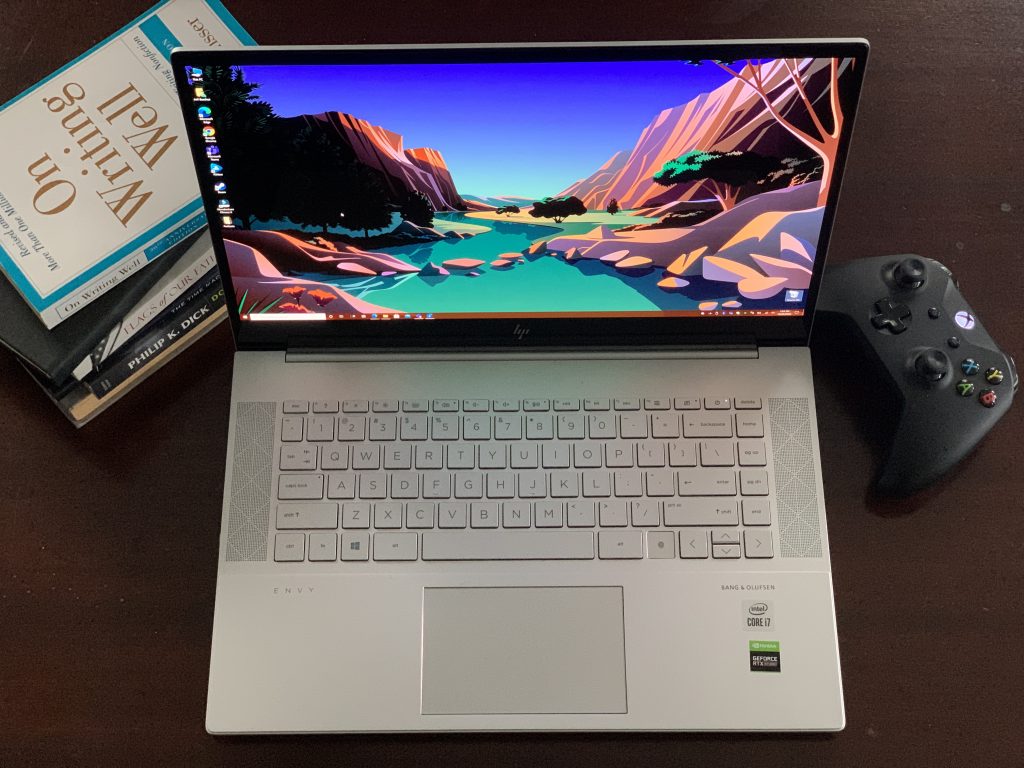
Hp Ency 15 Laptop Desktop

To begin my review, I’ll start first with the specs and a bit of a tangent. But, please, do stay with me. As a Surface fan, I think the HP Envy 15 departs from anything Microsoft has to offer from the Surface lineup. After using it as my main machine, I do hope Microsoft could make some changes for its next-generation Surface Book devices, or the Surface Laptop 4.

My top-range Envy 15 model from HP (there’s another model with more storage and RAM on sale at Costco) comes configured with the 10th Generation Intel Core i7-10750H processor, clocked at 2.60 GHz. It should be noted that this is a 6-core processor that can turbo-boost to 5 GHz when needed.

The Envy 15 also comes configured with 16GB of RAM, a 512GB SSD with 32GB of Intel Optane storage boost. Both RAM and storage are upgradeable by removing the screws at the bottom of the laptop and prying the casing off. There’s also the star of the laptop, the Nvidia GeForce RTX 2060 Max-Q graphics card with 6GB of VRAM. The display, meanwhile, comes in at 15.6 inches, 4K Resolution. It’s also an AMOLED panel, as well. Full specs are listed below.

Type Specs
Processor Intel Core i7-10750H (6-cores, 1.6G GHz, 5GHz Turbo Boost)
Graphics Integrated Intel UHD Graphics
Nvidia GeForce RTX 2060 Max-Q with 6GB GDDR6 VRAM
Display 15.6 inch 4K OLED, multi-touch, 400 nits of brightness
RAM 16GB DDR4-2933 SDRAM (User upgradable)
Storage 512GB Intel SSD + 32GB Intel Optane Memory
(User upgradable, second SSD slot available)
Connectivity Intel WiFI 6, Bluetooth 5 Combo
(Soldered to motherboard, non-upgradable)
Ports 2 Thunderbolt 3 with SuperSpeed USB Type-C
1 SuperSpeed USB Type-A
1 HDMI 2.0
1 headphone jack/microphone combo
1 AC smart pin
1 microSD Card reader
Camera HP Wide Vision HD Camera with a kill switch on keyboard
Weight and Dimensions 14.09 x 9.32 x 0.73 in
4.74 lb
Speakers Audio by Bang & Olufsen; Dual speakers
Battery 6-cell, 83 Wh Li-ion polymer

Looking at the Surface Lineup, this is where there’s a lot of value for the price in the HP. Microsoft’s own 15-inch Surface Laptop doesn’t come with a dedicated graphics card inside. Keeping that difference in mind, configuring a 15-inch Surface Laptop 3 with Ryzen 7, 16GB RAM, and a 512GB SSD will push the price to well over $2,099. The 15-inch Surface Laptop 3 for Business, meanwhile, comes in at $2,200 for a model with 16GB of RAM, 512GB SSD, and the Intel Core i7 processor. Again, all these models come without a dedicated graphics card.

With just the Surface Book 3, meanwhile, the difference is quite astounding. This is one of the closest Surface devices to the Envy 15, in terms of specs. It is true that the Surface Book 3 has the benefits of a detachable screen and tablet or inking (the HP Envy 15 doesn’t support pens) but when it comes to raw power, this HP is hard to beat for this price.

For $2,300, Microsoft’s Surface Book 3 comes configured with an Intel Core i7-1065G7 processor. This is still a 4-core processor, to be clear. It also has 16GB of RAM and only 256GB of Storage. The GPU, meanwhile, maxes out at the Nvidia GeForce GTX 1660 Ti Max-Q with 6GB VRAM.

Now for the TL;DR version. For $1,700 (or $1,600, as I paid, when on sale,) the Envy 15 is an absolute steal. It comes with a better graphics card, a better 6-core processor, and a better AMOLED panel, too. Not to mention, you can upgrade the RAM and the storage on the Envy, which isn’t an easy task on a Surface.

Though I don’t own one, reviews have shown that the Surface Book 3 is its own monster, and is great for video editing and even gaming, However, the $600 difference between Surface and HP can make a huge difference when looking for a device with raw power.

The Surface comes at a premium, but Microsoft really could make some gains by including a graphics card in the next Surface Laptop, or buffing up the Surface Book 4 with a heftier GPU, even if it means changing up the design. This review will show lessons to learn for Microsoft and potential Surface buyers. There are indeed better laptops out there for the price you pay for a Surface.

The design, keyboard, and trackpad
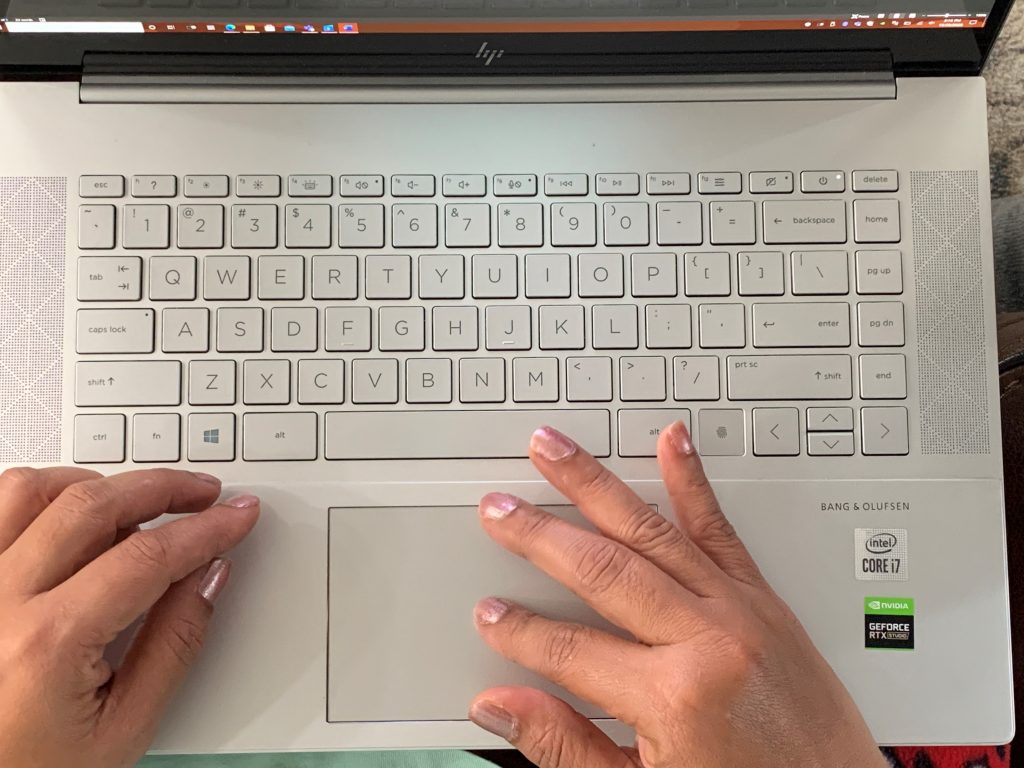
Hp Envy 15 Design

Speaking of design, Microsoft’s Surface lineup has always been associated with premium look and feel, and HP’s Envy 15 is no different. Microsoft opts for an aluminum enclosure on its Surface Laptop devices, and magnesium on the Surface Book and Pro lineup. HP looks to have learned from this and applies that to the Envy 15. Tl;DR, this feels like a Surface device.

All around, the Envy 15 sports a minimalist look. It features an aluminum silver-colored chassis which looks just like a MacBook, or a Surface Laptop from afar. For this high-end price, there are no cheap materials. The Envy is built like a tank, including the keyboard deck, as well as the display itself.

But I say “built like a tank” because the Envy 15 is a heavy laptop. At nearly 4.7 pounds, and with a dedicated GPU inside, it’s heavier and a lot thicker than a Surface Laptop 3, which is what worries me if Microsoft ever decides to add a dedicated graphics card to the Surface Laptop lineup. It’s also heavier than a Surface Book 3, too, which comes in at 4.2 pounds.

Still, the Envy 15 still plenty portable when you compare it to other gaming laptops with RTX graphics like the ASUS ROG Zephyrus S GX701GX. It is more like the Razer Blade 15 and has a compact look when sitting on the desk. Silver look and all, it is so much more of a professional look and slimmer profile than most gaming laptops. And, the lid is easy to open with just one hand, too.

Hp Envy 15 Keyboard

The keyboard on the Envy 15 meanwhile, is one of my all-time favorites on a laptop. While I appreciated the keyboard on the Surface Laptop 3 (finding it was as comfortable as the Surface Type Cover) HP manages to take things up a notch with the Envy 15. The keyboard is in a chicklet-style layout, and tapping on the keycaps gives a nice soft-feeling, a little softer than what you get on a Surface. I was able to get to 75 words per minute on Bing’s typing test.

Unlike Surface, the keycaps are silver on gray, though. This means that it might be hard for some to see, especially when the two levels of backlighting are turned on at night. But to rescue itself, HP integrates a webcam kill switch and a microphone kill switch on the keyboard. This disables both camera (it puts a physical shutter in front of it) and microphone in the device manager, a nice thing to have when we’re spending most of our time in meetings these days.

Moving to the Trackpad, now. It is just fine. With Surface devices, the Trackpads always feel like they’re solid and integrated into the keyboard deck. The Envy 15’s trackpad, while does feature Microsoft precision drivers, fee,s a bit light and “cheap.” It makes a hollow clicking noise, which I hate. Most times I did try to use a Bluetooth mouse with the Envy.

Oh, and let me not forget! There’s a fingerprint reader on the keyboard, too, since the Envy 15 lacks a Windows Hello webcam. I liked having this for quick and easy logins, just like Windows Hello on my old Surface. Just tap the fingerprint reader and login in a hurry. No passwords are necessary.

The Ports
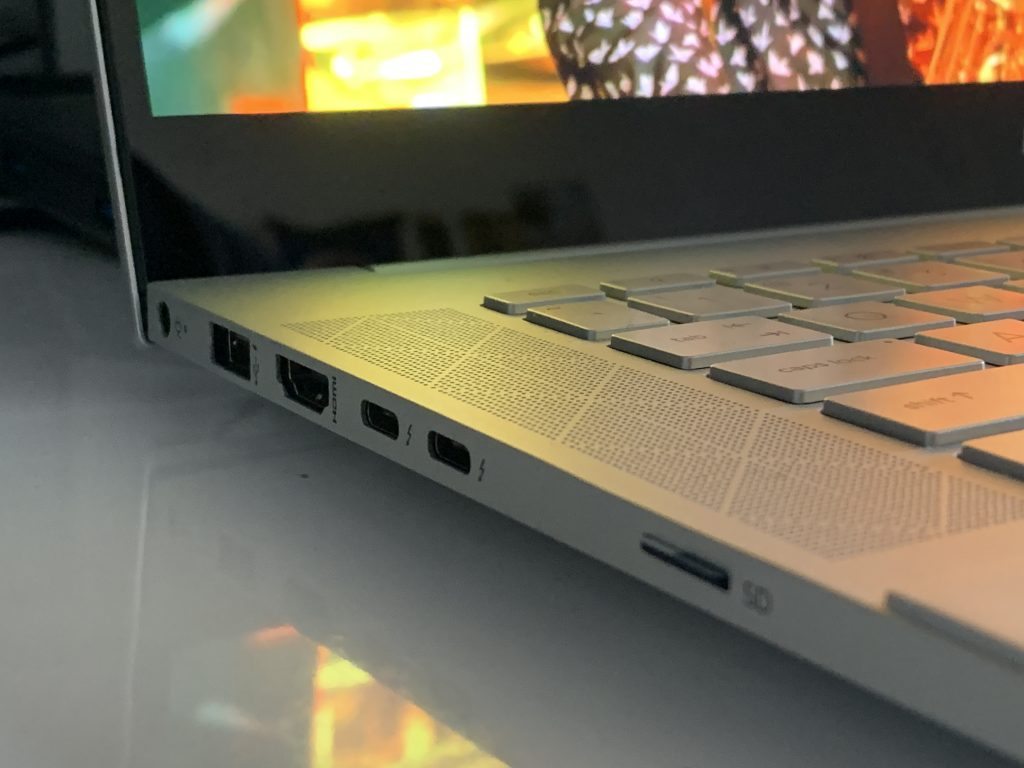
Hp Envy 15 Ports Left

Looking at the ports onboard the Envy 15, there is a lot to go around. You won’t ever need a dongle if you buy yourself this laptop. It comes with 2 Thunderbolt 3 USB-C ports, an HDMI port, and 2-USB-A ports, too. Of course, there’s also a headphone jack as well. Oh, and there’s even a microSD card port for expansion, too.

This is where the Envy 15 doesn’t feel like it has wasted space. Unlike what you get on a Surface Laptop (USB-C and USB-A and no expandable storage) there’s a port for everything you need. It comes closer to what Microsoft has on the Surface Book 3 (2 USB-A, 1 USB-C,  2 Surface Connect, and full-size SD card reader.) For content creators, which both Surface Book 3 and the Envy 15 target, that’s a nice mix of ports, though some folks might have wanted a full-size SD card reader instead of micro SD on the Envy.

There is still one flaw, though. While all modern Surface devices with USB-C can be charged through the port, the Envy 15 can not. It only will charge up through its 200-watt proprietary pin charger. This makes a lot of sense because of the dedicated power-hungry RTX graphics card, but it is a bummer for this price. It would have been great to be able to charge the laptop up on the go.
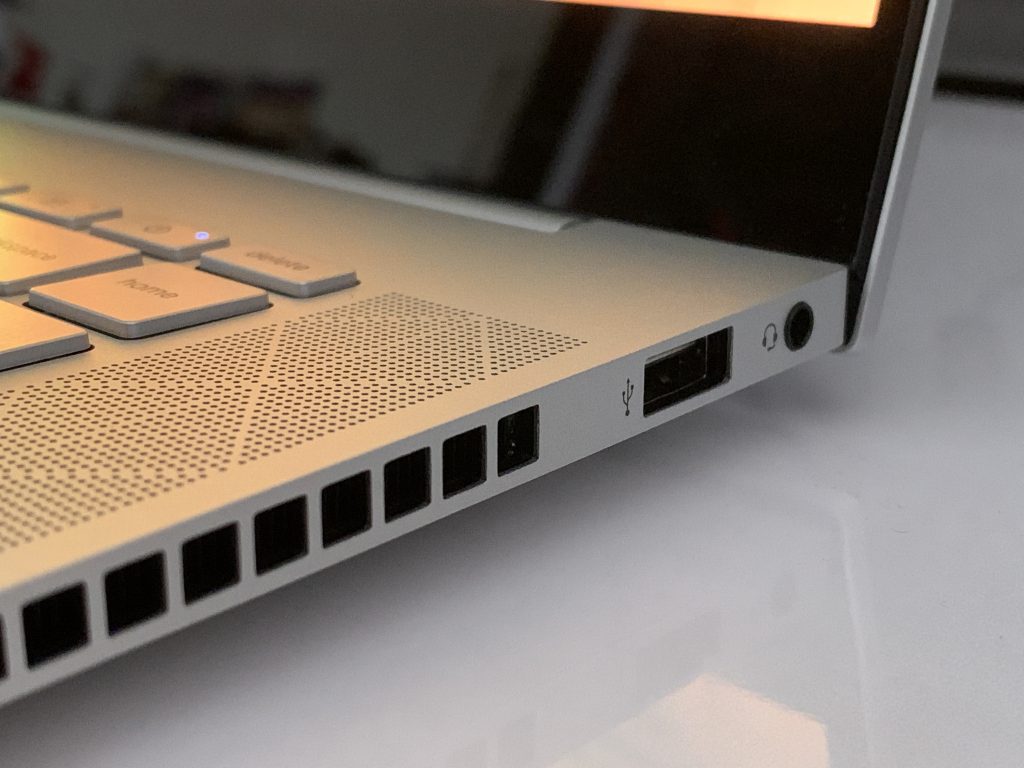
Hp Envy 15 Ports Right

Related to ports are the speakers, webcam, and connectivity. In these areas, the HP feels a bit different from a Surface. I loved the speakers on my Surface Laptop 3, but with the HP, speakers are buried under the laptop chassis and are downward-firing. I often had to turn the sound up to high levels just to feel immersed.

The webcam is also just like what you get on a Surface as it is 720p. However, the HP Envy doesn’t have a dual far-field microphone as you’d find on a Surface. It’s noticeable when you’re on web calls. I had to plug in an external microphone when I do my weekly Podcast for OnMSFT.

As for wireless, the Envy sports support for WiFi 6 and Bluetooth 5. No issues there, as this is routine for most laptops in 2020.

The performance and gaming
Hp Envy 15 Performance Gaming

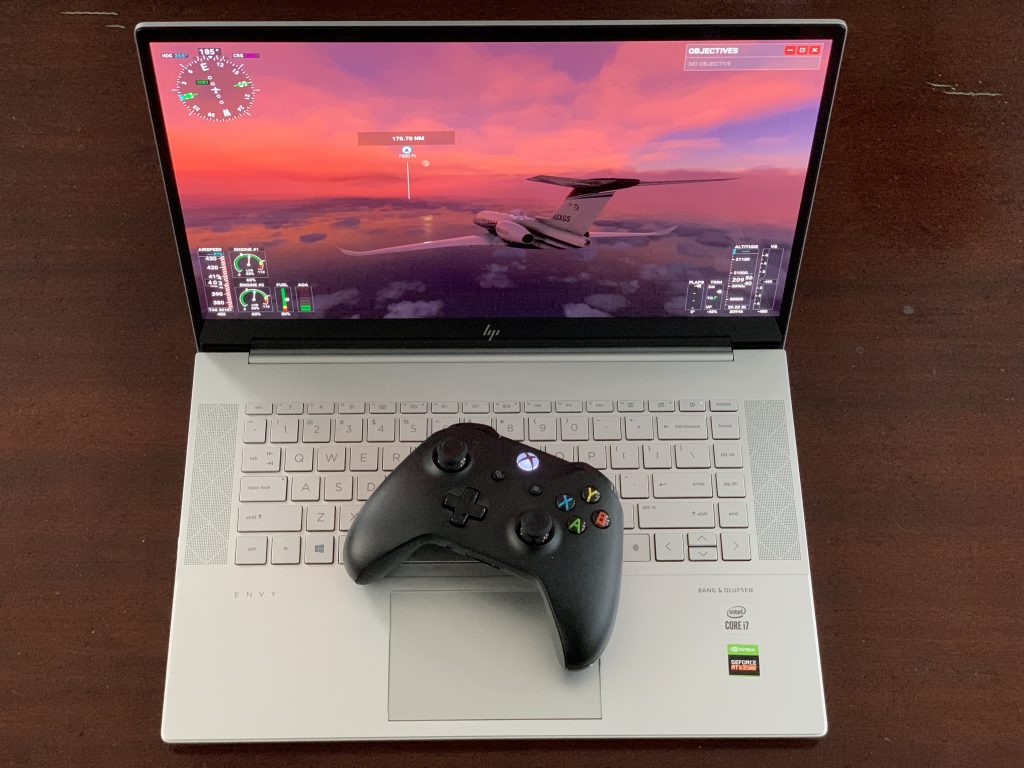
One of the reasons I purchased my HP Envy 15 was for gaming and enjoying Microsoft Flight Simulator 2020. In this area, the Envy does not disappoint. I may be repeating myself, but it’s one heck of a machine, with specs that can handle almost any game.

But to be clear, though, HP doesn’t advertise this as a gaming laptop. Instead, it’s meant as a studio laptop, for coding, designing games, and videos. This is evident when you boot up the laptop and open the Nvidia GeForce Experience. There are no game-ready driver updates for download, as you’d see on most gaming laptops.

Like most of my reviews, I don’t want to dive too deep into technical testing and aspects. Generally speaking, I will just mention how I used the HP Envy 15. For me, that’s casual computing and work, as well as gaming.

For work and casual computing, the Envy 15 doesn’t disappoint. Generally, I have a workflow in Edge of 10-15 tabs. Sometimes its media-heavy content, and other times, it’s webpages with lots of images. Here, the Envy blasts through everything. That’s evident with its Basemark web score of 765 as well as the obvious advantages of having a 6-core Intel Core i7 processor inside. There’s no need for Geekbench, here.

Hp Envy 15 Onmsft Side By Side

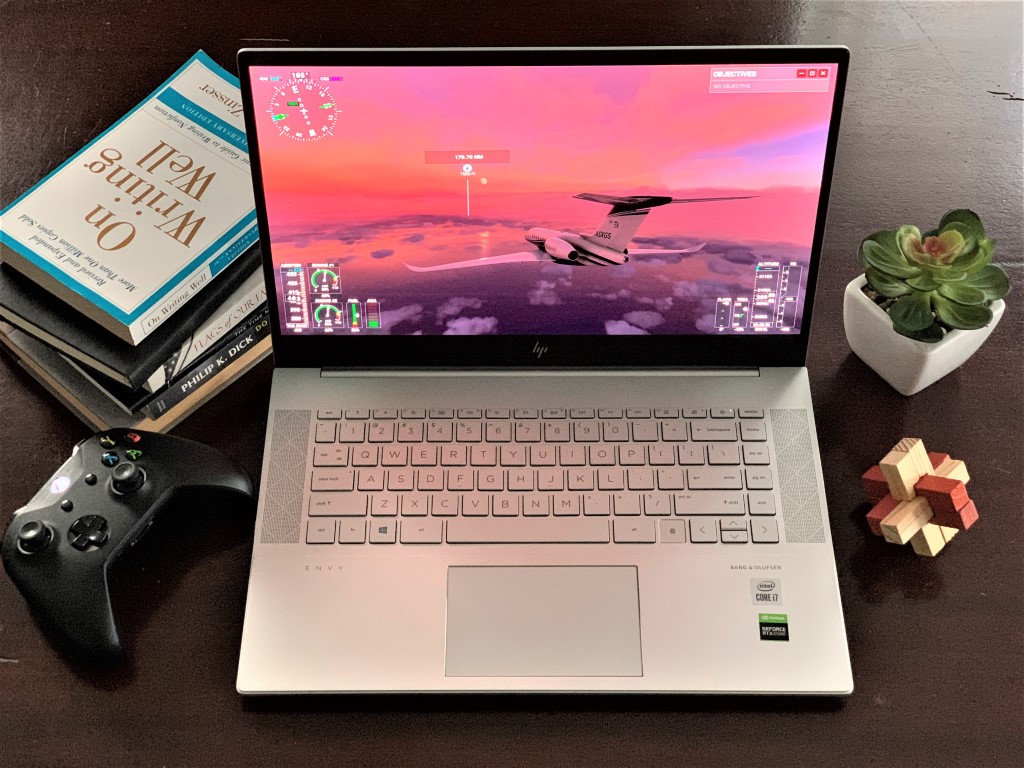
For gaming, the Envy 15 tackles every game I threw at it. In Microsoft Flight Simulator, I did not get any lag when playing on “High-End” settings at the native 4K resolution. The lands below my airplane loaded just fine, and it looked great when flying through New York City and taking in all of my home town’s details from the skies above. I thoroughly enjoyed cross-country flights, flying over Pakistan, Disney, and even Downtown Los Angeles, not to mention the realistic feeling of flying through a hurricane.

Again, the HP Envy 15 isn’t designed to be a gaming laptop, but with RTX graphics inside, there’s no reason why it can’t be one. It was able to play some games on Steam at excellent frame rates. I downloaded Metro: Exodus on Steam, and it hit about 40 frames per second on ultra settings with ray-tracing enabled, and 38 without it enabled. It’s amazing to see that game push out such high frames.

Finally, for video-editing, the Envy 15 doesn’t disappoint, either. When I encoded a 38 minute long 1080p 30 frames per second video (the weekly OnMSFT Podcast) the HP Envy took around 2 minutes to push it out to completion. My MacBook Pro typically takes about 30 minutes to do this same task.

I do also want to mention the cooling, here, as well. HP is using “vapor cooling” technology on the Envy 15. This is usually reserved for higher-end gaming laptops, and I think it works well with this Envy, too. The Envy never felt too hot to the touch, especially when I was gaming and playing Microsoft Flight Simulator.

HP’s own Performance Control app will also give full control of the systems’ fans to help cool down the laptop when gaming. The fans might come on full-speed when plugged in and gaming, but it does it for a purpose — keeping the laptop cool. Air will pass through the sides and the vents on the rear, as well as the vents on the top of the keyboard, too, ensuring the laptop never turns into a stovetop.

The display

Hp Envy 15 Display

These days on a laptop, it’s all about the bezels and image quality. While Surface Book 3 and Surface Laptop 3 do have thicker bezels than laptops like the XPS 15, HP’s Envy 15 is on a similar footing. The bezels along the side are slim, but there’s an ugly chin at the bottom of the display. However, the 4K AMOLED Panel (which supports HDR) makes up for this in every single way.

Though I praised the PixelSense display on the Surface Laptop 3 when I reviewed it, the Envy 15 kicks things up a notch. Thanks to the AMOLED panel, it pushes out some very accurate colors and deep blacks. On the first day I unboxed the laptop, I watched a sample video to test the 4K HDR quality, and I was amazed. The yellow and golds in the saxophone in the video were super vibrant and lively. Not to mention, the accurate brightness of the colors on the DJ’s stage. I felt like I was in the scene with these musicians.

I’ve yet to see a laptop with this type of color accuracy and vibrancy. Microsoft’s PixelSense displays are great for inking, but 4K OLED is even better, especially for creators. HP says it can hit 100% of the DCI-PC color gamut, and total brightness of 400 nits. Just be aware, there’s no screen-technology for gamers, here. You won’t find Nvidia’s G-Sync on board and the screen is locked to 60Hz.

The display does have some faults, though. One of which is battery life, as we’ll discuss next. The other is its aspect ratio. Coming from using a Surface Laptop 3, I really do miss the 3:2 aspect ratio. On this HP, with a 16:9 aspect ratio, it feels like I am losing a lot of vertical space. If the bottom chin was cut out, this problem probably would have been solved.

The battery life
Hp Envy 15 Battery

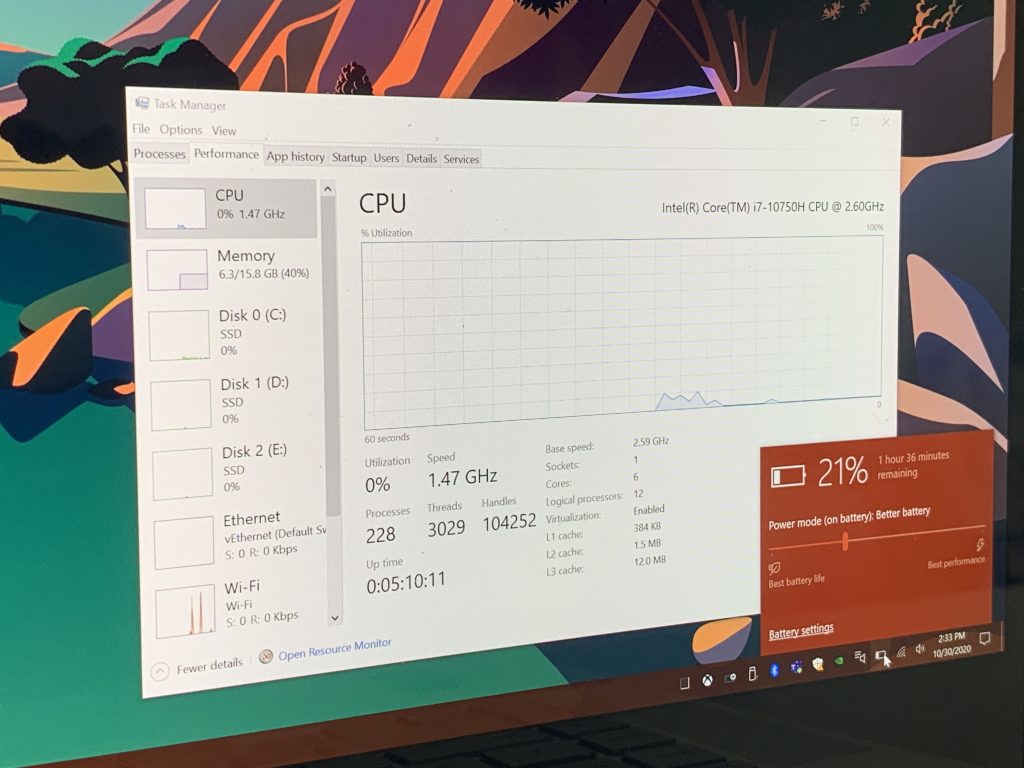
To end this review, there’s the all-important battery life segment. Here’s where there’s a mixed bag. AMOLED and 4K displays are known to consume a lot of power. And, with this HP Envy 15 having a power-hungry RTX graphics card inside, the combination doesn’t quite equate to good battery life.

Keeping the display brightness down to around 20 percent, and setting Windows to “better battery” I received about 5-6 hours of screen-time for my general day-to-day productivity. When gaming on the battery (which I would not recommend because the HP isn’t able to use the full power of the RTX GPU) I got half that, with the performance settings set to “best performance.” Considering this is more of a workstation and desktop replacement, rather than an ultrabook. This is still good battery life considering the specs, though.

The end: Better than a Surface

If you’re looking for a powerful laptop that’s under $2,000, but also has enough power for gaming, video editing, and even managing virtual machines, then this HP Envy 15 is you. Compared to Microsoft’s top-end Surface devices, there’s a lot of value here for the price.

For sure, you do lose some things from Surface with the HP. That includes a 3:2 aspect ratio, pen support, and the tablet form factor, along with battery life. However, in terms of raw power, the HP Envy 15 is unmatched for it’s $1,700 (and when on sale $1,600) price. You’ll get better RTX graphics, a fantastic display, and the versatility of a six-core Intel processor.

It could be lessons learned for Microsoft, too. The company’s own Surface Laptop 3 lacks a dedicated GPU, and when compared to the Envy 15, the Surface Book 3 sports a lesser-powered GTX graphics. Here’s to hoping the next Surface packs more power.

How to try out Minecraft Java Edition for free

In terms of sheer popularity, few games come close to what Minecraft has managed to achieve, as it is currently the most popular game on the market.

This can be attributed to the fact that it is available on any platform imaginable, or maybe it is because the system requirements are very forgiving, even for those with dated PCs.

One can even argue that so many players love Minecraft because of the unique approach to the crafting and building genre, but that’s a different story.

Well, it seems that Minecraft has taken a step forward, and it is set to reinforce its place as the most popular video game ever.


Minecraft Java Edition now offers a free trial

The current player base is already large on PC, but the main goal of every game is to draw in newer players constantly.

On that note, Mojang decided to offer up Minecraft: Java Edition to be tested during a trial period so that new players can get a taste of the game before deciding to buy it.

The Minecraft Java Edition free trial is available on Android, PlayStation 4, PlayStation 3, Windows 10, and Vita

The Minecraft trial is available for Android, PlayStation 3, PlayStation 4, Windows 10, and the Vita console.

While PC players will gain access to Minecraft Java Edition, the other players will receive a trial version of the Bedrock version.


How do I download the Minecraft free trial?

  1. Go to the official Minecraft website
  2. Hover your cursor over Games
  3. Select Minecraft from the list
  4. Select Try for free
  5. Scroll down the page and select Download now
  6. Follow the on-screen instructions provided by the installer

There you have it, now you can try out Minecraft before you buy it, and chances are you might actually end up liking it.

Keep in mind that trying Minecraft out requires that you also create an account and that by next year you will need a Microsoft account in order to play Minecraft.

That being said, might as well create one from the very beginning so you don’t have to worry about migrating when the deadline comes.


Have you tried Minecraft yet?

Give it a go and let us know whether you got hooked into playing it or not by leaving your thoughts and feedback in the comments section below.

[wl_navigator]

How to check real / fake followers on Instagram [Full Guide]

Instagram and other popular social media channels have their very own personalities with large following groups. However, it comes a time when checking fake followers is necessary.

Some of you may simply be suspicious about the number of followers someone has, while others are marketing professionals researching for the safest ways to advertise their brand.

In both these cases, there’s something that you need to understand from the very start. Most Instagram accounts have quite a few fake followers these days.

Many of these accounts are created by bots and no actual interaction is ever expected from them. However, buying followers is also a common practice among influencers worldwide.

That’s far from harmless if you plan to reach out to a larger audience with their help. That impressive total amount of unique followers they brag about may be far from reality.

You clearly need to find genuine influencers or else you won’t be able to truly spread your brand’s message.

Moreover, if you’re a travel or food blogger, an agency, and so on and you’re wondering how many of your followers are real, rest assured that we can help you out.

Take a closer look at the below procedure in order to achieve your goal with ease.

How many of my Instagram followers are fake?

1. Detect an inauthentic audience by using Instagram Growth tool from Combin

  1. At first, download Combin Growth and install it on your PC.
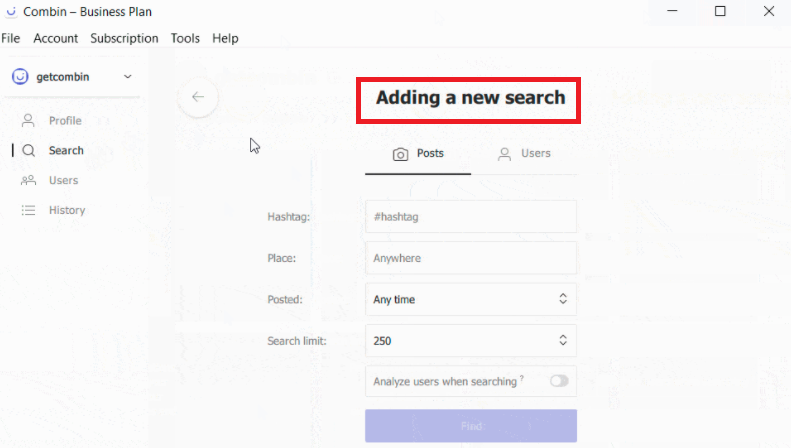
  2. After opening the app, you can look for the Search tab and start a new search. While there, select User search by followers.Search tab
  3. Type in your username into the specialized field. You may also enter the username of an influencer whose audience quality you’d like to check.
  4. Up next, specify the number of search results. You can also sort them by engagement rate or follow ratio to find the most high-quality ones.
  5. With the search analysis enabled, simply click Find.
  6. After getting the first batch of 500 followers, feel free to hit the Refresh button in order to get more results.
  7. You can now browse the extensive list of followers. It’s extremely easy to interact with the followers  or find out who of them are irrelevant to you.

If you want to easily determine the number of fake Instagram followers, it’s clear that searching through followers and comparing engagement rates manually isn’t a solution to consider.

Make sure to use an automated tool instead, one such as Combin Growth. With this powerful tool, you’ll get a more focused approach to discovering all about your followers.

You’ll be surprised to see that some of them have strange usernames consisting of random numbers and letters.

The irrelevant accounts also include those that are completely empty or, quite the opposite, stuffed with scam content.

With an easy-to-use interface, Combin offers detailed information about any Instagram account and more useful features with the Instagram Growth tool.

It is so effective at providing valuable feedback regarding the followers’ authenticity thanks to an advanced machine-learning enhanced analysis.

This takes into consideration a wide range of attributes, including the following quantity ratio, amount of posts, advertisement presence, and different interrelationships between all these factors.

Combin Growth

Combin Growth is a reliable service that provides follower analytics for Instagram accounts. Do give it a try!
Free trial Visit website

2. Pay attention to a few red flags

red flags

Besides using a tool that offers a wealth of insights into any Instagram account, there are also a few great tips to take into consideration:

  • If an account has thousands of followers – and we do mean literally thousands – then verify them. When an influencer is followed by users with no profile picture, you may as well assume that these followers aren’t real. Spammy usernames are also a red flag.
  • People creating fake accounts don’t put much effort into having realistic profile sections. You should pay attention to those that are empty or hidden.
  • Even if an influencer has a ton of comments, don’t take them for granted. If the comments are clearly clueless, they may come from fake followers.

Chances are not to identify 100% real and engaged Instagram followers. However, getting an answer is a must, so let us know if the numbers are as expected or not in the comments area below.

Elsewhere, if you’d like to curate your X timeline, get the Sky Follower Bridge extension so that you can follow users with similar interests.

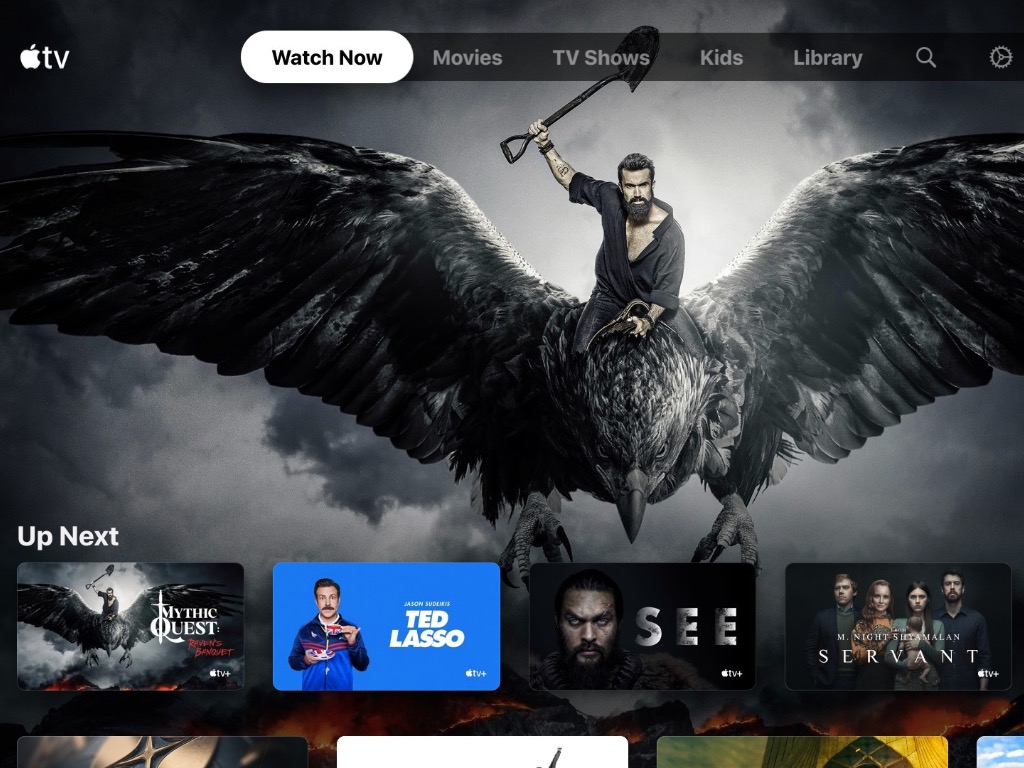
Apple TV is coming to Xbox One and Series X/S consoles on November 10, with 100,000 movies and shows to buy or rent

The Apple TV app is finally coming to Xbox consoles on November 10, right for the launch of the Xbox Series X and Series S. The Apple TV app will join Netflix, Amazon Prime Video, Disney+, HBO Max, YouTube TV, and many more subscription-based video apps already available on Xbox One, in addition to free apps like YouTube, Twitch, or Spotify.

“The Apple TV app gives you access to thousands of shows and movies from one convenient location, allowing you to enjoy Apple TV+, Apple TV channels, brand-new and popular movies, and personalized entertainment recommendations,” Microsoft explained today. Interestingly, the Apple TV app will allow Xbox users to “buy or rent more than 100,000 movies and shows,” making it compete directly with Microsoft’s own Movies & TV store.

Just like other media apps on Xbox consoles, the Apple TV app will also support Dolby Vision and Dolby Atmos, and it’s currently much easier to find content that supports these advanced audiovisual technologies on Apple TV/iTunes than it is on Microsoft’s Movies & TV store. In the long run, we have to wonder if it makes sense for Microsoft to continue selling movies and TV shows on the Microsoft Store when there are so many great alternatives.

Ironically, the Apple TV app will also launch on Xbox consoles at a time when Apple isn’t allowing Microsoft to bring its Cloud Gaming service (Project xCloud) to the iOS App Store. Apple clearly has a power advantage here with iTunes being one of the biggest digital storefronts for movies and TV shows. If Apple’s new TV+ subscription which includes the company’s original shows has yet to really make its mark, it’s great to see all the movies and TV shows from iTunes finally coming to Xbox consoles through the Apple TV app.

5+ Best Lenovo Deals to Buy [Cyber Monday Deals & Sales]

In case of looking for a new laptop, we’ve got the best picks for you. These are all powerful Lenovo models you can rely on, whether you’re working from home or you simply want to buy a gaming laptop.

Even if we’ve selected a few premium models, rest assured that there are plenty of options for those on a limited budget as well. Just take a closer look at our list below and get ready to make an informed choice.

What are the best Lenovo laptops to buy?

Lenovo IdeaPad A6-9220e

  • 4GB DDR4 memory
  • 64GB eMMC flash memory
  • Windows 10 Home 64-bit English
  • Nice design
  • Good product for its price
  • Issues while resetting the hard drive

This Lenovo IdeaPad AMD A6-9220e laptop is a great choice for all those who like the idea of enjoying a vivid 14″ display typical 1366 x 768 HD resolution with an energy-efficient LED backlight.

Its ultra-compact memory system is recommended for applications, providing enhanced storage capabilities, support for high-definition video playback, as well as incredibly fast boot-up times.

Moreover, it isn’t just a computer that could help you complete your projects. It’s a modern laptop that packs a superfast processor that gives it high speed to save ample time and multitask.

Lenovo Ideapad 330S

  • Narrow-bezels widescreen display
  • 8th gen Intel Core i3-8130U processor
  • Built-in HD webcam with integrated microphone
  • Wireless-AC and Bluetooth combo
  • Fast charging
  • Not made of premium materials

The newest Lenovo Ideapad 330S 15.6” HD narrow-bezels widescreen laptop comes with a 15.6″ energy-efficient LED-backlit widescreen display and packs an 8th gen Intel Core i3-8130U dual-core processor.

This laptop boots quickly and runs all the latest games fast and smoothly. Moreover, the video is clear and bright at 1080p.

No less important, it has been upgraded to 8GB high-bandwidth RAM to smoothly run countless applications and browser tabs all at once.

Lenovo Ideapad S340

  • 4MB SmartCache
  • 128GB NVMe SSD
  • Integrated Intel UHD Graphics 620
  • Webcam privacy
  • Backlit keyboard
  • Comes with Windows in S mode

The Lenovo Ideapad S340 15.6″ HD laptop is powered by the 8th gen Intel Core i3-8145U with 4MB SmartCache, so it can handle pretty much any task with ease.

This laptop can easily bring your audio experience alive with the unbeatable theater-like sound of Dolby Audio. You’ll love it for that.

Being a perfect laptop for business and daily use too, its look has been designed keeping in mind a few essential things. It is thin and light for easy portability, while the narrow bezels are a major advantage. 

Lenovo S340 HD Premium

  • Anti-glare screen
  • Intel Quad-Core i5-8265U processor
  • Dolby Audio Premium
  • Up to 8.5 hours of battery life
  • Front-facing 720p HD webcam
  • No touch screen

Another laptop worthy of your attention is the Lenovo Ideapad S340 15.6″ HD premium home & business laptop that has a 15.6″ HD LED-backlit anti-glare non-touch display.

Moreover, it comes with 2 x 2W speakers with Dolby Audio Premium for crystal clear sound clarity when chatting with friends and family members.

Another feature that makes it different from the rest of the lot is its front-facing 720p HD webcam with integrated dual array digital microphones.

Lenovo Thinkpad E590

  • 16GB DDR4 RAM
  • 512GB PCIe NVMe M.2 SSD
  • Front-facing HD webcam included
  • Whiskey Lake-U CPU
  • Lightweight
  • Wavy frame holding the screen

Another great Lenovo laptop is the Thinkpad E590 one. Chances are to appreciate its 15.6-inch anti-glare (1366×768) display with a front-facing HD webcam.

The power comes from an Intel Quad Core i5-8265U at 1.6 GHz that comes with Turbo 3.90 GHz, 4 Cores 8 Threads, and 6MB SmartCache.

Even more, it runs on Windows 10 Professional 64-bit, therefore it is a recommended choice for home, professionals, small businesses, students, and teachers.

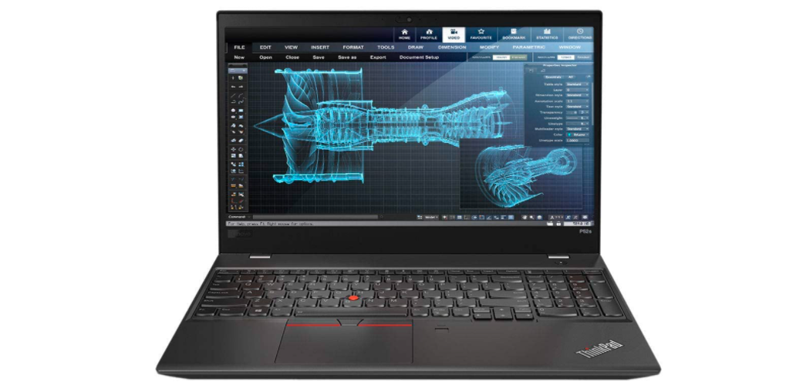
Lenovo ThinkPad P52s

ThinkPad P52s

This Lenovo ThinkPad P52s ultrabook laptop gets its power from an 8th generation Kaby Lake R Intel Core i7-8550U quad-core processor.

Users are also excited about the good quality full-size backlight keyboard, with a numeric keypad and responsive touch.

After the initial setup and fine-tuning, you’ll get used to it in no time. You’ll see that by yourself. As far as packaging, it arrives well-packaged, so there’s no reason to be worried about.

⇒ Get Lenovo ThinkPad P52s

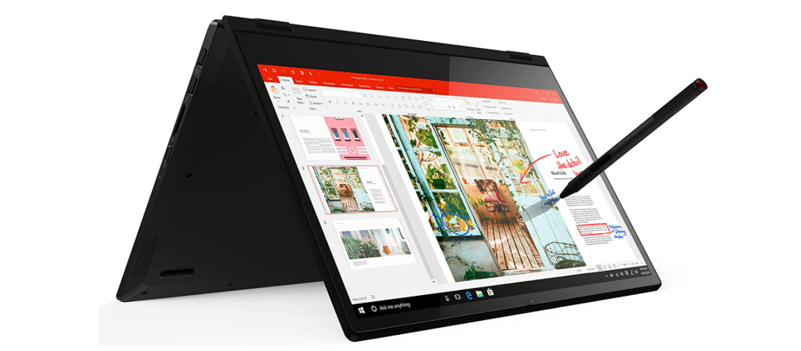
Lenovo Flex 14 2-in-1

Lenovo Flex 14 2-in-1

This Lenovo Flex 14 2-in-1 convertible laptop may also be a great choice for some of you. The full HD touch display and the AMD Ryzen processor lets you work, stream, game, and edit videos with ease.

The convenient TrueBlock privacy shutter allows you to physically close your webcam when you’re not using it.

As for the Active Pen, that’s actually your chance to draw or take notes directly on the screen, at home, or anywhere you need to go.

⇒ Get Lenovo Flex 14 2-in-1

Lenovo Yoga 730 2-in-1

Lenovo Yoga 730

This Lenovo Yoga 730 2-in-1 touch-screen laptop comes with a 15.6″ FHD IPS touchscreen display and an integrated fingerprint reader.
Moreover, its power comes from an Intel i5-8250U processor with 8GB DDR4 RAM and a speedy 256GB PCIe SSD.

As for the actual keyboard, the key travel is responsive. This style seems to be standard now and the back lit keys are a must for most users.

⇒ Get Lenovo Yoga 730 2-in-1

Lenovo Miix 630

Miix 630

If you’re looking for a laptop with great battery life and 2 in 1 feature, this Lenovo Miix 630, 12-inch Windows laptop is an ideal choice.

Do note that is just 2.9 inches thin and weighs only 1.7 pounds, therefore you can enjoy the power of a full-fledged laptop and the mobility of a tablet with a unique fanless design.

As for the generous battery life, it’s your chance to leave the charger at home and travel for as long as you’d like.

⇒ Get Lenovo Miix 630

These are the very best Lenovo laptops you can find on the market these days. Do note that this article is part of a larger selection of great laptops, so rest assured that you’ve got even more options to pick from.

Don’t hesitate to let us know your final Lenovo choice by using the comments area below.

Epic Games announces Fortnite’s Xbox Series X|S enhancements ahead of November 10 launch

The next-gen version of Fortnite will launch alongside Microsoft’s Xbox Series X and Series S consoles on November 10, and today Epic Games detailed what kind of upgrades early adopters can look forward to. As expected, the Xbox Series X will be able to run the game at a 4K resolution at 60FPS, while the Xbox Series S will be limited to 1080p with the same FPS target.

Epic Games is also teasing dynamic visuals and physics on the Series X, including ” a more dynamic and interactive world with grass and trees responding to explosions, enhanced fluid simulations for smoke and liquid (cooler-looking smoke and liquid effects), and all-new Storm and cloud effects.” The less powerful Series S will “support most of the visual enhancements available on the Series X,” Epic said today.

There’s won’t be any ray-tracing support on the Series X for now, even though the PC version of the popular battle Royale game now supports it. However, Fortnite on the Series X|S will get other enhancements including faster loading times and 60 FPS support for Split Screen. Epic mentioned similar upgrades for the PlayStation 5 version of the game, with the addition of exclusive DualSense features and the ability to launch the different modes right from the PS5 home screen.

To get an idea of Fortnite’s next-gen visual enhancements, Epic Games published the following PS5 gameplay video back in September:

Last but not least, Fortnite on next-gen consoles will still support cross-saves and crossplay, and the game on the Xbox Series X|S will also still require an Xbox Live Gold subscription. That will remain a notable difference with Sony’s consoles, where the game has always been free to play.

Microsoft Teams is getting a pre-release channel to let employees test new features

Microsoft will soon launch a public preview program for Microsoft Teams to allow administrators to provide early access to unreleased features for employees in their organization. The new pre-release channel will start rolling out in mid-November, and it should hit all tenants by the end of this month.

Microsoft Teams Admins will be able to enable preview features by signing in to the Microsoft Teams admin center and enabling the Show preview features setting. However, it will be up to the Office 365 Admins to create custom policies to assign preview directly to one or more users in their tenant.

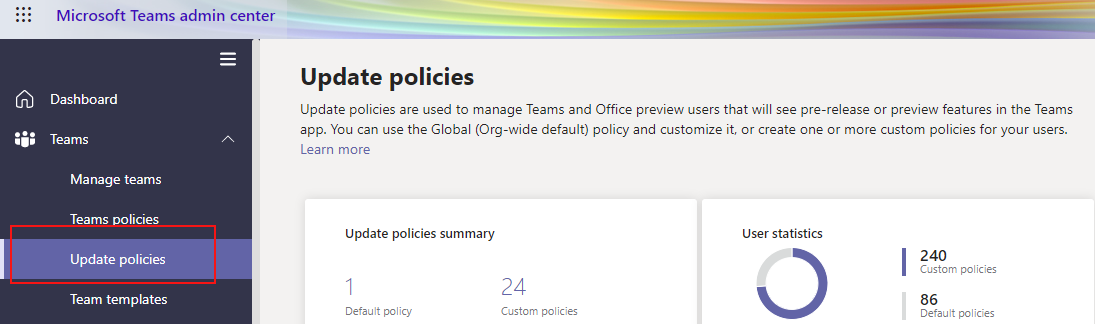
“Public preview is enabled for each user, and the option to turn on public preview is controlled in an admin policy. Update policies are used to manage Teams and Office preview users who will see pre-release or preview features in the Teams app. You can use the Global (Org-wide default) policy and customize it, or create one or more custom policies for your users,” the company explained.

Select the Update policies option

To get started with enrolling in the Teams public preview program on Windows 10, macOS, and the web, Teams users will need to click on their profile picture in the upper right corner of the screen. They will then select the public preview option on the bottom.

Unlike the Teams developer preview program, this program has been specifically designed for end-users to make it easier for them to explore and test upcoming features new features before they are generally available. If you are interested, feel free to check out this Microsoft Teams preview program support page to learn more.

What’s the difference between data warehouse vs. database?

Databases are undoubtedly a necessity to store records for the vast majority of organizations. However, not all organizations have data warehouses. Some enterprises might wonder why they need to establish data warehouses. Yet, data warehouses can be invaluable for business analysis purposes.

A standard database is a collection of data records for the purposes of storage, transactions, and retrieval. For example, libraries have book databases so both staff and customers can search for and find books in them. Customers can usually search for books by entering queries into the database from a library PC.

Standard databases are typically SQL relational ones. Relational databases are based on a series of linked and inter-related data tables. The relational table design eliminates duplicated, or redundant, data in databases.

Access database software data warehouse vs database

A data warehouse is an entirely different database breed that pools together data within an organization from multiple database sources. It is a data management system primarily established for statistical data analysis presented in the form of reports and graphs.

A data warehouse is more like an additional layer to a company’s standard databases. Companies with data warehouses can analyze historical data included within them in many different ways. So, the data warehouse is a type of management information system.

Here are the main differences between data warehouse vs. database

Different processing types

Standard relational databases are based on Online Transactional Processing (OLTP) that responds immediately to user requests. Library databases get frequently updated with OLTP for books loaned and returned.

A data warehouse has different OnLine Analytical Processing (OLAP) that enables it to analyze large volumes of data much more efficiently than OLTP databases. This enables data warehouse users to quickly collate data with various calculations applied.


Design and data organization

Relational databases are normalized to eliminate, or at least reduce, data redundancy, which saves hard drive space and reduces transaction response times. However, normalized databases are much slower and more cumbersome to query than data warehouses.

Data warehouses have denormalized designs with fewer tables and more duplicated data. Their denormalized designs ensure much faster analytical response times than relational databases. Thus, data warehouses prioritize read operations.


Uptime flexibility

Standard databases need to be available almost all the time for organizations. So, their uptime availability needs to be close to 100 percent. For example, a library would have to close early if its database went down before its usual closing time.

However, data warehouses have greater uptime flexibility as they are not linked to front-end operations like standard databases are. Organizations’ data warehouses can go down almost once a day if needed to refresh data from their sources.


Concurrent user base

Standard databases support a much wider concurrent user base than data warehouses as they’re often linked with transactions. So, they’re designed to support potentially thousands of concurrent users.

Data warehouses aren’t connected with transactions and are usually required to process much more detailed queries. Therefore, they can’t support as many concurrent users as their queries are usually much more system resource-heavy.


Software

Jet Enterprise (Analytics) data warehouse vs database

Most users will be more familiar with database applications that are usually a part of office suites, such as MS Office and LibreOffice. Applications like MS Access enable users to set up relational databases with multiple linked data tables. However, you can’t set up data warehouses with relational database software.

To set up a data warehouse, you’ll need dedicated data warehouse software. Software like Jet Analytics provides users with pre-built data warehouses that incorporate extensive report library templates for displaying data.

Those are the five main differences between databases and data warehouses. Although not as essential as databases, data warehouses are invaluable extensions of them for organizations that need to analyze their data in greater detail.

[wl_navigator]

6 Best Waterproof SD Cards [Ranked by Popularity]

SD cards are essential accessories for mobile phones, tablets, camcorders, digital cameras, and many other gadgets that have a memory card slot.

They also offer a secure and affordable way to expand the memory capacity of any laptop since most modern day laptops come with an SD card slot.

And since some of these cards come with high storage capacity to the tune of 512GB, are portable and some even waterproof, they are more preferred to the other bulky storage alternatives. Yes, you heard that right, waterproof SD cards exist, and we’ll cover that shortly.

When buying SD cards, it’s very important to consider the speed and capacity. A class 6’ memory card is capable of writing at 6MB/S which is sequential for writing large amounts of data.

Most devices that record HD video require 10MB/S and this is where the UHS (Ultra High Speed) SD cards come in.

But in order to benefit from such high speeds, you’ll need a device that is compatible with the UHS standard.

Some of these high-end SD cards come with other premium features and are also waterproof. In this roundup, we will highlight the best waterproof SD cards.


Which are the best waterproof SD cards?

SanDisk Extreme PRO

  • Temperature proof, water-proof, shock-proof, and X-ray proof
  • Shot speeds up to 90MB/s, transfer speeds up to 170MB/s
  • Sustained video capture rate of 30MB/s
  • Perfect for shooting 4K UHD video
  • Great for burst-mode photography
  • Requires proprietary technology to achieve the full 170MB/s read

If you’re into outdoor photography and filming, facing the harsh elements is something you may be doing on a daily basis.

That is why an SD card like the SanDisk Extreme PRO can come extremely handy, given how it is shock, water, hear, and X-ray proof.

It doesn’t fall in the performance department either, being capable of handling high transfer speeds, making it great for long filming sessions, even in 4K.


SAMSUNG EVO Select

  • Water-proof, temperature-proof, X-ray-proof, magnetic-proof
  • Up to 100MB/S Read and 20MB/S Write Speeds
  • UHS Speed Class U3 and Speed Class 10
  • Comes with an included full-sized adapter
  • 10-year limited warranty
  • May heat up when recording above 4K

With a legendary brand comes great products and that’s what Samsung has proved with their EVO Select rated SD card. With a generous capacity of up to 64GB, this card can deliver data at a read and write speed of 100Mbps and 20Mbps, respectively.

At such high speeds, it can record and process 4K video easily. In addition to speed, the SD card is shockproof, waterproof, magnetic-proof, and can withstand extreme temperatures.

To substantiate their claims, Samsung gives a whopping 10-year warranty on this card.


Samsung Pro Endurance

  • Designed for video monitoring cameras including dash cams, surveillance, and more
  • Shockproof, waterproof, temperature proof, x-ray proof, and magnetic proof
  • Gives you long-lasting endurance up to 43,800 hours of 4K and Full HD
  • Continuous recording up to 25x longer than speed-focused cards
  • Up to 100MB/s read and 30MB/s write speeds
  • Speeds may be inconsistent at times

The Samsung Pro Endurance is one of the best waterproof SD cards around. In addition to waterproofing features, the SDHC Pro is also temperature proof, X-ray proof, and magnet proof.

Temperature proof means the card will operate in temperatures from -250 C to 850 C. Durability is one of its strongholds. It’s well-crafted with tough materials and can be thrashed around without impactful damages.

The card is available in 32GB, 64GB, and 128GB. It features high read and writes speeds of 95 and 90Mbps. And just like in other high-end SD cards by Samsung, you also get a 10-year warranty on this card.


Sony UHS-1 Micro SDXC model SR64UY2A/TQ

  • Waterproof and are designed to perform under a wide range of temperatures
  • Includes supplied adapter for use in SDHC/SDXC compatible devices
  • File Rescue downloadable software helps recover photos and videos
  • Tested to achieve high levels of reliability and data integrity
  • Up to 70 MB/s transfer speed
  • May have compatibility issues with certain devices

Sony is well known for the manufacture of high-quality consumer electronics and their UHS-1 SDXC SD card further perpetuates that pedigree.

The 64GB SDXC memory card has a class 10’ rating and a super-fast transfer speed of up to 70MB per second. Users have also reported that it delivers at a faster speed than advertised and is very good for the money.

Being the newest member of the family, the card is waterproof and operates within a wide range of temperatures.


Sandisk Extreme

  • Saves time transferring high-res images and 4K UHD videos
  • Rated A2 for faster loading and in-app performance
  • Up to 60MB/s write speeds for fast shooting
  • Up to 160MB/s read speeds
  • 4K UHD and Full HD-ready
  • Requires compatible devices capable of reaching such speeds

This 64GB memory card from Sandisk is a class 1 rated card and meets all the new specifications for the UHS-1 cards. It delivers high-speed data transfers at a read and write speeds of 60Mbps and 160Mbps respectively.

The card is designed for use in extreme temperatures and is also shockproof x-ray proof, and waterproof.

This card can deliver full HD and 4K Ultra HD video recording and playback and has garnered very high customer reviews on Amazon.


PNY EliteX

  • Record and transfer videos, photos, music files, and more from Micro SD enabled devices
  • Read speeds up to 100MB/s for fast and smooth burst mode HD photography
  • Performance A1 provides minimally 1500 IOPS (read) and 500 IOPS (write)
  • Included SD Adapter for compatibility with SD enabled host devices
  • Great for 4K Ultra HD Videography
  • Not as fast as the other entries on our list

This powerful class 10 UHS-1 memory card from PNY boasts of a whopping 100MB per second transfer rate and 64GB capacity. It is designed for high-performance video recording and photography and works well with a wide range of devices including drones.

Capable of storing over 22,000 photos, this SD card is also waterproof, temperature proof, magnet proof, and shockproof. It sells at a reasonable price and is compatible with micro SDXC devices.


When buying memory cards, bear in mind the market is flooded with counterfeit SD cards. It is, therefore, advisable to stick to the well-known brands that offer warranties on their cards and don’t compromise on quality.

Such brands include Sony, Samsung, SanDisk, Kingston, and Lexar among others.

Also, check the maximum capacity that your device can hold as devices that are not SDXC can only support up to 32GB SD cards.

Our review of the best waterproof SD cards should guide you in making the right decision. Feel free to comment and share.


  1. Class 2 (minimum write speed of 2MB/s)
  2. Class 4 (4MB/s)
  3. Class 6 (6MB/s)
  4. Class 10 (10MB/s)

To match their performance, you will need equally-good card readers as well.

  • What SD memory card is best?

To learn which are the best SD cards on the market, check out our dedicated guide.

  • What are SD cards used for?

SD cards are used for expanding the storage space of devices. If you are using a  PC, you are better off using an HDD are an SSD with a lot of storage.

[wl_navigator]

4 Best Email Migration Tools for Business [Free, Paid]

Are you in search of the best email migration tool for your business? Windows Report has got you covered.

In the early stages of a small-scale business, utilizing a particular email client could be sufficient for the business needs. However, due to several reasons, it could be a necessity to switch from one email client to another most especially for expansion needs.

However, the process of migrating from one email client to another could be cumbersome. Besides, email data such as contacts, tasks, calendars, emails, etc. could be lost during the migration process. With an email migration tool, email users can migrate their email data from one particular email client to another.

What email migration software should I use?

Mailbird – Cool UI

email migration tool

Mailbird is acknowledged by many as one of the top email clients for Windows OS due to its myriad of features. This email client has a cool user interface as well as a unified inbox for all your inboxes enabling easy sorting of emails from different accounts.

In addition, Mailbird comes with keyboard shortcuts that enable easy navigation on the platform. Also, this email migration software seamlessly integrates with popular software such as Facebook, Slack, and other top services.

Furthermore, Mailbird has a free lite version and the Pro version which contains more features for a premium fee such as access to unlimited accounts.

Here is how to use the Mailbird email migration tool:

  • Download and install Mailbird
  • Launch the Mailbird application
  • On the home page, click on the Mailbird menu on the top of the screen
  • Select settings, click on the accounts tab, and select the “Add” menu
  • Select the import button and choose the account that you want to import.
  • Insert your password and then click on the continue button for the import process to begin.
  • After the import process is completed, you should be able to see the messages and files on your Mailbird account.

Mailbird

It doesn’t matter if you need a simple email client or an email management suite, Mailbird fits both criteria!

eM Client – User-friendly

email migration tool

This is one of our favorite email migration software on the list which also doubles as an email client. eM client helps you to keep track of your email messages and offers support integration with Facebook.

Its user-friendly interface makes it easy to navigate on the platform while keeping up to speed with emails. Furthermore, there are also options such as communication history and its fast search feature.

Nevertheless, eM Client has a free version that allows a maximum of 2 accounts to be managed. The Pro version gives more features and unlimited accounts with a 30-day free trial and costs $49.5 to purchase outrightly.

Furthermore, its email migration feature allows users to migrate from different email clients such as Windows Mail, Thunderbird, Outlook Express, and more. Besides, the migration process takes little time as eM Client offers walkthrough assistance in the migration process.

Here is how to use eM Client:

  • Download and install eM Client
  • Launch the application, and then click the file at the home menu
  • Select the Import option which would open different options for importing data
  • Select from the drop-down list for the right platform (Thundermail, Outlook. Outlook Express and Windows Mail)
  • Click on your preferred option, while eM client searches for the files to import.
  • After processing, click on finish.

eM Client

Migrating your emails from one place to another when you use a service like eM Client!
Free Trial Visit Website

Aid4Mail – Recovery option

email migration tool

Aid4Mail is a powerful email solution that offers different tools such as email migration, recovery, conversion, and archiving. This email migration tool is compatible with over 45 email clients. For instance, Aid4Mail is fully supported for migrating email on popular email clients such as MS Outlook, Yahoo, Thunderbird, etc.

Also, this email migration tool comes with a built-in file converter that can convert EML to MSG, DBX to PST and other formats. Nevertheless, Aid4Mail comes with a limited trial period before purchasing to unlock its full features.

⇒ Get Aid4Mail

Enstella – Simple app

email migration tool

Enstella, just like Aid4Mail, is an email solution tool that offers diverse solutions from email recovery, migration, and backup.

With a user base of over 20 million, Enstella is well known as an effective email migration tool with over 10 years of experience in developing email solutions.

This email migration software has tools that support migration between popular email clients and can convert from PST to EML and vice versa.

With its myriad of features, Enstella is handy for large-scale businesses as its tools work efficiently.  In addition, this email migration tool supports over 30 email clients and is a handy tool when converting a large number of files. Also, Enstella is free to download with a trial period before purchasing outright.

⇒ Get Enstella

All these tools are incredibly simple to use, so they are great to use if you’re migrating from Hotmail to Outlook or from any other webmail service. You can also use the GWSMO tool if you like Outlook’s interface but integrated with Gmail.

Have you made use of any of the email migration tools we mentioned above? Feel free to comment below.

Windows 10 news recap: Windows 10 redesign “Sun Valley” could be on the way, Adobe Flash says farewell, and more

Welcome back to our Windows 10 news recap, where we go over the top stories of the past week in the world of Microsoft’s flagship operating system.

Microsoft to change how Windows 10 manual driver updates work on November 5

Improvements to how driver updates are managed on Windows 10 are coming in early November. For automatic driver updates, these will continue to function as normal, installing either when you connect a peripheral for the first time, or if the manufacturer publishes a driver to Windows Update. But for manual driver updates, these will only install if you specifically request them fromSettings > Update & Security > Windows Update > View optional updates.

Windows Update Optional Updates

Adobe Flash removed for good with latest Windows 10 optional update

A new optional update for Windows 10 does away with Adobe Flash for good. The optional update to remove Adobe Flash is also available for all supported versions of Windows 8.1 and Windows Server. This only removes Flash from Internet Explorer and legacy Edge, other browsers that come with it as a built-in component may continue to have Flash available.

Adobe Flash

Alexa for Windows 10 gets new look, new features

Amazon’s Alexa app for Windows 10 has received a design overhaul, implementing a new design language, in addition to bringing some new features, such as adding support for Drop in to video calls.

Microsoft is reportedly planning big Windows 10 redesign codenamed “Sun Valley”

A design overhaul could be heading for Windows 10 in the future. According to a new report, Microsoft is planning a design overhaul codenamed “Sun Valley” which could be coming in the Windows 10 “Cobalt” update, expected in Fall 2021.

Windows 10x Start Menu

That’s it for this week. We’ll be back next week with more Windows 10 news.

You must be signed in to your EA account to access online

Some players have posted about a You must be signed in to your EA account to access online features of this game error on EA’s forum.

In the case of some users, they can’t connect to EA servers whatsoever, no matter what games they are playing.

This error arises when players try to log in to EA games, such as Star Wars Battlefront. As a consequence, players can’t play online EA games for which the issue arises.

How can I fix the You must be signed in to your EA account to access online features error? 

1. Reset your router

  1. First, look for the small reset button on your router. The reset button will usually be on the back of the router.
  2. Find and unfold a paperclip to press the reset button with.
  3. Then press the router’s reset button with the paperclip.
    A reset button you must be signed in to your ea account to access online features
  4. Hold down the reset button for about 30 seconds before releasing it.

Note: Resetting routers also resets their Wi-Fi and web interface passwords to the default ones.


2. Flush the DNS cache

  1. Hold the Windows key and press R to launch Run.
  2. Input cmd in Run’s text box, and press the Ctrl + Shift + Enter hotkey.
    ipconfig command you must be signed in to your ea account to access online features
  3. Next, type in the following commands separately (press Enter after each one):
    ipconfig /registerdns
    ipconfig /release
    ipconfig /renew
    netsh winsock reset
  4. Restart Windows after you’ve run the above commands.

3. Disable firewalls

  1. Click the Type here to search button, which is on the left side of Windows 10’s taskbar.
  2. Enter firewall into the search box.
  3. Click Windows Defender Firewall to open the applet shown directly below.
    Windows Defender Firewall applet you must be signed in to your ea account to access online features
  4. Click Turn Windows Defender Firewall on or off to open further settings.
    The Turn off Windows Defender Firewall settings you must be signed in to your ea account to access online features
  5. Select the Turn off Windows Defender Firewall radio buttons, and click OK to exit.

Users with third-party firewall software installed should disable them. You can disable antivirus utilities that incorporate firewalls by right-clicking their system tray icons and selecting disable context menu options.

Then, you can try logging into your EA games with your firewall software fully disabled.


4. Clean boot Windows 10

  1. Right-click Windows 10’s Start button and select Run on the menu that opens.
  2. Type msconfig in Run and press Enter to open the window in the snapshot directly below.
    The General tab you must be signed in to your ea account to access online features
  3. Next, click the Selective startup radio button on the General tab.
  4. Uncheck the Load startup items checkbox to deselect it.
  5. Make sure the Load system services and Use original boot configuration settings are selected.
  6. Then click the Services tab shown directly below.
    The Services tab you must be signed in to your ea account to access online features
  7. Click Hide all Microsoft services to select that option.
  8. Press the Disable all button.
  9. Select the Apply option.
  10. Click OK to exit MSConfig, and press Restart when the dialog box opens.

Those are resolutions players have confirmed can fix the You must be signed in to your EA account error.

If you still need further fixes for that error, however, you can send a support ticket from the EA Help page.

Select a game there and click Contact Us to send a support ticket.

[wl_navigator]

Spotlight feature improvements, pinned posts, and more. Here’s what’s new in Teams for October 2020

With Halloween now just one day away, the month of October is coming to a close. That means it’s time to look back at everything that was new in Microsoft Teams in the month of October. From improvements for the spotlight feature, pinned posts, and more, here’s what you need to know.

Calling features

Microsoft Teams Spotlight

We’re starting first with the calling features. This month, Microsoft added live captions to Teams with speaker attribution, so that you can see who is speaking during a call. Also new is the spotlight feature for all attendees in a meeting. With this, presenters can pin an individual video feed for everyone in a meeting, and spotlight them.

Another feature added for calling is the ability to prevent attendees from unmuting in Teams Meetings. Thanks to this, meeting organizers and presenters can now prevent attendees from unmuting during the meeting and enable specific attendees to unmute when they raise their hands.

There were also some smaller features, too. Microsoft Whiteboard picked up a read-only mode, to allow for more reliability, and it became possible to save teams meeting and call recordings in OneDrive for Business or in SharePoint.

Chat features

Pinned Posts (2)


Next up are the chat and collaboration features. The biggest one here is pinned posts. With this feature, you can pin a message in a channel, so that it appears in the channel information pane for everyone to see. There are also some little things, too. This includes a new offline presence status, language-aware proofing, templates for creating a new Team.

Of course, we can’t forget the new file sharing experience, too. Now you’ll be able to create a sharable link for any file stored directly in Teams and get the appropriate permissions.

Some of the other things added in October in relation to chat include an Updated SharePoint pages app and new and simplified global notification settings to make it easier to tweak your Teams experience so you’re not constantly being notified about things.

Education features and Firstline Workers

Grading

Moving along, there’s features for Teams for Education and Firstline features. With education, Microsoft added special features for teachers and students. This is the ability to anonymously grade and mark assignments. In addition, teachers and students can also now see upcoming assignments by class, too.

As for Firstline workers, Microsoft delivered on off-shift access controls. Thanks to this, IT Admins can configure Teams to let workers know that they’re opening the app on their personal device outside of working hours.

Other features

We’ve only touched on some of the core features added to Teams in October, but there’s a lot we can’t possibly touch on in just one post. The list includes a native ARM64 app for Microsoft Teams, new capabilities for Microsoft Teams Rooms, a new Power Automate app for Teams, and more. Head over to Microsoft to see the full list, and remember to check out our news hub for all the latest Microsoft 365 news and information.

This is how you can fix most Watch Dogs: Legion issues

Watch Dogs is a game franchise created by Ubisoft that has been entertaining gamers around the world since 2014.

Well, the third entry in the franchise, also known as Watch Dogs: Legion was launched on October 29 2020, and players swarmed on all of the available platforms to take a swing at it.

Unfortunately, like any game that has just been launched, bugs are plenty, and players aren’t too happy about them.

Fortunately, some of these can be dealt with, and we will be showcasing some of the most common bugs and how to handle them so that you can finally enjoy saving London!

How do I fix the most common Watch Dogs: Legion bugs?

1. Audio keeps cutting out

While visual bugs are the main theme of the game, the audio also seems to be having some problems, as reported by some players.

For example, many have been reporting that their audio would randomly cut out, becoming frustrating eventually:

The audio keeps cutting out for a second in my game and its really annoying does anyone have any ideas how to fix.

Solutions:

Try updating your audio drivers to the latest version, and restart the game afterward.

The fastest way to update your drivers is via a third-party tool like Outbyte Driver Updater.

It gets the job done fast, efficiently, and it handles all of your drivers, not just the audio ones.

⇒ Get Outbyte Driver Updater

2. Hitting obstacles while on scooters makes you lose control

Vehicle control is important in Watch Dogs: Legion and many players have been reporting that they sometimes randomly lose control of their vehicles when they hit bumps and curves, as showcased in this video.

Solution:

Unfortunately, this erratic behavior is all because of bad coding, so a player’s only option is to wait for a patch fix, or simply be more careful with how they drive.

3. Issues with the auto-save

Many players reported losing progress with the game because the auto-save function didn’t trigger once.

This can cause a lot of frustration, especially if you binge-play for long hours, knowing that the auto-save should be working:

So apparently the game didn’t save a single time over the course of like 4 missions, recruiting’s, and exploring London etc

Solution:

Until the auto-save issue is fixed in the next patch, players will need to periodically save their game manually after each important event just to be extra safe.

4. Underwater environments are glitched

Many gamers posted videos of themselves jumping into water inside Watch Dogs: Legion only to show that beneath the surface, the entire environment is rendered as if there was no water.

This means that once players dive under the surface, they can simply walk or run along the bottom as if on land.

Solution:

Since this is obviously an error in the game’s code, a complete reinstall or a patch fix are the only things that can fix it.

5. The player gets attacked by invisible assailants

Players also showcased videos where the NPCs would sometimes turn invisible, which can be quite troublesome when you are engaged in a fight with them.

Solution:

Luckily enough, while the NPC itself is invisible, their shadow isn’t, so if you draw them out somewhere with light, you can still fight them by directing your attacks in the direction of where their body should be compared to their shadow.

6. Game shows a BSoD on PS4 and PS4 Pro

Second only to games that don’t save, games that crash are probably the worst thing that a player can encounter.

Well, that’s what many PlayStation players have been reporting, as they state that their game would show a blue screen of death, and then crash altogether:

WDL has crashed on my PS4 pro like 4 times all with the same error code (ce-34878-0) is anyone else having this issue

Solutions:

Players could try one of the following to remediate this problem:

  • Re-download and install the game from scratch
  • Reset their PS4/PS4 Pro console the download the game
  • Wait for a patch fix

7. Game saves get corrupted and voices glitch out

In one video showcased on Reddit, one user showed how their character would speak using an AI voice instead of a regular pre-recorded one.

Solution:

Given that this is nothing but a coding problem, the only solution is for players to wait for Ubisoft to release a patch as soon as possible.

8. Game crashes on Xbox

Xbox players aren’t spared from the bugs either, as they have been reporting that their game would always crash at important moments, effectively not allowing them to progress with the story.

I’ve played it for a while now and it keeps on crashing at important moments and one of the crashes stops me from completing a level altogether. I was wondering if this has happened to anyone else and if anyone can help me fix it.

Solutions:

As with the PS4 BSoDs, Xbox players are left with three solutions:

  • Re-install the game
  • Reset their console, update its firmware, and then re-install the game
  • Wait for a patch fix

9. Watch Dogs: Legion Ultimate Edition content disappears

Yet another issue where players lose content, many have been reporting that once they load back into the game, any Ultimate Edition content they may have had disappeared without a trace:

I played for about 2 hours last night and had all the ultimate edition content (the new operators etc) but when I logged in today it was all gone? 

Solutions:

Unfortunately, players will just have for Ubisoft to patch this one up.

These are just some of the most common bugs that players have been reporting so far regarding Watch Dogs: Legion.

We will be updating the list periodically, adding new issues and relevant solutions to them as soon as they appear.

Have you tried Watch Dogs: Legion yet?

Let us know how you would rate the game from a quality point of view by leaving us your feedback in the comments section below.

[wl_navigator]

How to fix the recover webpage error in Internet Explorer

Some Internet Explorer users have posted on Microsoft’s support forum about a recover webpage error.

That’s a webpage crash that arises for some users when viewing pages in IE. When the issue arises, Internet Explorer provides a recover webpage option to restore the page that crashes.

However, clicking the recover webpage option doesn’t always restore the page. Instead, Internet Explorer displays a website is not responding error message. Therefore, IE users can’t view pages, or at least lose data, when the recover webpage error arises.

How can I easily fix the webpage recovery error in Internet Explorer?

1. Turn off Internet Explorer’s add-ons

  1. Click the Tools button at the top right of Internet Explorer’s window.
  2. Select Manage add-ons to open the window shown directly below.
    Toolbar and Extensions tab How to fix recover webpage error in internet explorer
  3. Select Toolbars and Extensions on the Manage Add-ons window.
  4. Select an add-on to turn off.
  5. Press the Disable button to turn off the selected add-on.
  6. Then disable all other third-party add-ons listed on the Toolbars and Extensions tab.
  7. Click Close to exit Manage Add-ons.
  8. Restart the Internet Explorer browser.

2. Check your proxy settings

  1. First, open your Run accessory, which you can do by pressing the Windows and R keys at the same time.
  2. Type inetcpl.cpl in Run and press Enter to open the Internet Properties window.
    Internet Properties window How to fix recover webpage error in internet explorer
  3. Click the Internet Properties window’s Connections tab.
  4. Press the LAN settings button to open the window in the screenshot directly below.
    Local Area Network Settings window How to fix recover webpage error in internet explorer
  5. Uncheck the Use a proxy server for your LAN checkbox if it’s selected.
  6. Select the Automatically detect settings checkbox.
  7. Click the OK option to exit the Local Area Network (LAN) Settings window.

3. Open Internet Explorer with its safe mode

  1. Press the Windows and X keys simultaneously to open a Win + X menu.
  2. Click Run on the menu to open that accessory.
    Run window How to fix recover webpage error in internet explorer
  3. Next, type this Run command in the Open box: “C:\Program Files\Internet Explorer\iexplore.exe” -extoff
  4. Press the OK button to open Internet Explorer in its safe mode, which disables add-ons.

4. Reset Internet Explorer

  1. Close Internet Explorer if it’s open on your taskbar.
  2. Press the Windows + S keyboard shortcut, which will open Windows 10’s Type here to search box.
  3. Input the keyword internet options to search for.
  4. Click Internet Options to open its window.
  5. Select the Advanced tab that’s shown directly below.
    Advanced tab How to fix recover webpage error in internet explorer
  6. Click the Reset option.
    Reset Internet Explorer Settings How to fix recover webpage error in internet explorer
  7. Then press the Reset button to restore Internet Explorer to default.
  8. You’ll also need to restart Windows after resetting Internet Explorer for changes to take effect.

5. Select automatic IP address settings

  1. Press the Type here to search button on your taskbar to open that utility.
  2. Input network in the search box.
  3. Click View network connections to open that Control Panel applet.
    Network Connections applet How to fix recover webpage error in internet explorer
  4. Right-click your net connection to select Properties.
  5. Select Internet Protocol Version 4 on the Networking tab that opens.
  6. Click Properties to open the window in the snapshot directly below.
    The Obtain an IP address automatically setting How to fix recover webpage error in internet explorer
  7. Select the Obtain an IP address automatically radio button if it’s not already selected.
  8. Select the OK option.

6. Reset your network adapter

  1. First, press the Windows and X keys at the same time, which will open a menu that includes various shortcuts.
  2. Click the Run shortcut.
  3. Enter cmd in Run’s Open box.
  4. To open an elevated Command Prompt, press the Ctrl + Shift + Enter keys at the same time.
  5. Next, type in these four separate network reset commands in your Command Prompt pressing Enter after each one:
    netsh advfirewall reset
    netsh int ip reset
    netsh int ipv6 reset
    netsh winsock reset

  6. Restart Windows after you’ve run all those commands.

Those are some of the more likely fixes for the recover webpage error.

Disabling third-party IE add-ins and resetting Internet Explorer is among the most widely confirmed resolutions.

So, give those resolutions a shot before trying the others.

[wl_navigator]

5 Best Desktop Computers With SSD

When embarking on a mission to buy a new PC, storage space has always been a key factor to look out for.

In a situation where every other box is checked, but you’re not satisfied with the PC’s in-built storage capacity, you can always compromise by getting one with an SSD.

In essence, it is a handy portable storage unit for keeping multiple forms of data ranging from graphics to word documents.

Getting a desktop computer with SSD is the best alternate route to take when your desktop cannot handle all the data you require working.

For this reason, we have compiled a short list of the top 5 desktop computers with SSD from Amazon.

NOTE: Deals are subject to change. Keep in mind that the price tag often varies. We recommend going on the vendor’s website to check the price. Some of the products may be out of stock by the time you’ve made your purchasing decision. So, hurry up and hit the buy button.

What are the best desktop computers with SSD?

OEM Lenovo M630e

  • Processor: Intel Quad Core i5-8265U
  • Graphics: Intel UHD 620
  • Tiny desktop
  • Dust shield
  • Minimal room for internal expansion

The ThinkCentre technology gives you great flexibility. The accessories are easy to install, and let you attach your ThinkCentre M630e Tiny to a projector, a wall, or a desk.

The chassis has a bracket for a 2.5-inch SATA hard drive or SSD, and more storage can be anytime added.


  • 6th generation Intel Core i5-6400 Processor
  • 1TB hybrid hard drive with 8GB SSD
  • 4K ultra HD multitouch-enabled LED-backlit display
  • Ultra slim-tray
  • Keyboard often lags in response

The Lenovo IdeaCentre AIO 700 is a powerful all-in-one home PC that balances your productivity and relaxation time needs nicely.

This great PC offers plenty of ports, starting with two USB 3.0 ports (one with fast charging), an SD card slot and a headphone/mic jack.

All-in-one PCs are better-known for being suitable rather than truly exciting, but that trend is starting to change.


Lenovo ThinkCentre M720e

  • Processor: Intel Hexa Core i5-9400
  • Hard Drive: 500GB SSD
  • RAM: 16GB DDR4-2666MHz
  • Graphics: Intel HD 630
  • Does not come equipped with a HDMI port

The Lenovo Thinkcentre M710e is a great desktop to go with for business purposes. With high-encryption power and ultra-fast processing speed, it makes light work of high amounts of data without compromising the quality of the end product.

The machine is made a lot more compact than its predecessors, thereby freeing up work space, but is just as stable and efficient.


  • Fast Processor - Intel Core i7-7700T
  • 16GB RAM
  • 512GB SSD
  • Composed double memory sockets
  • No front panel ports

The HP 460 Desktop Computer is a Mini Tower model that is designed to enable high performance multi-tasking.  This desktop offers incredible speed, and seamless functionality.

Its high performing quality is exemplified by how fast it boots up, wasting as little time as possible.

The sheer efficiency and functionality of this product is enough to bring popularity to this amazing desktop computer, which is why it’s on the list.


Acer Aspire TC-885-UA92

  • 9th Generation Intel Core i5-9400 Processor
  • 12GB DDR4 Memory
  • 512GB SSD
  • 8x DVD-Writer Double-Layer Drive
  • Limited power supply of 300 watts

The Acer Aspire TC-885-UA92 Desktop is the perfect computer for those seeking high functionality at a bargain price.

The wireless technology offers speeds up to three times faster than the previous-generation wireless technologies, with an elegant black housing front panel offering both visual and functional enhancements.


If you’re a prosumer, an average user, or just seeking an affordable PC with SSD to work with, there is a perfect option out there for everyone that provides exactly what you need.

There are multiple desktops listed on Amazon, however, we listed the best options we think have the right balance between functionality, price, and durability.

[wl_navigator]

FIX: Netflix incognito mode error in Chrome [Best Solutions]

Netflix is used worldwide and has gained a lot of popularity being known as one of the best streaming services.

As with all great services, Netflix has not been problem-free and many users are complaining about getting the M7399-1260-00000024 error code.

This is an error that occurs when a user tries to run Netflix in a browser, in the incognito mode.

The reason for why this error appears seems to be still under questioning as the operator does allow for the service to be used in incognito mode.

Nevertheless, there are some easy through which you can get rid of this error and we will offer you more details below.

How can I fix the Netflix incognito mode error in Chrome?

1. Check for available storage space

  1. Go to the Windows icon and launch the Start menu.
  2. Next, choose the Settings option and click on System.
  3. Select the Storage option and check if the available storage space is greater than 1000 MB.

If the storage space is lesser than 1000 MB then you will need to free up some space on your device in order to be able to watch Netflix.


2. Close all browsers

First of all, make sure to close all the Chrome windows, including the incognito ones.

Next, try to connect to your Netflix VPN and see if the same error appears. The VPN service will also give you extended access to the Netflix libraries.

If you don’t have one already, all you need to do is subscribe to a VPN service, connect to the server, and enjoy your favorite shows and movies.

In deciding which VPN to choose we would recommend that you pay attention to how many servers it will allow you to connect with.

In this way you can connect to any country’s server which will allow you to access multiple Netflix libraries.


3. Restart your device

It can happen that this error is something temporarily that could be as a result of some glitches or minor things that could be easily solved by restarting your device.

We would recommend that you simply restart your device and open a new Chrome incognito window. Connect again to your Netflix account and see if the error persists.

Users report that after restarting their device and reopening the Chrome incognito window they managed to connect and watch Netflix without getting the error message.


4. Clear all browsing data

configure notifications in chrome

  1. Open the Chrome window and go to the three dots button on the top right.
  2. Choose the Settings option and go to the Advanced tab.
  3. Search for the Privacy options and select Clear Browsing Data.
  4. Next, click on the Advanced tab and go to the Time Range list.
  5. In here select the All time option and Media Licenses.
  6. To finish, click on the Clear Data button.

5. Enable Protected Content

  1. Launch Chrome and go to the Settings option.
  2. Select the Privacy and Security option.
  3. Next, click on Site Settings and select Protected Content.
  4. Click on the toggle to allow the Protected Content streaming and set it on OK.

6. Reinstall Chrome

  1. Press the Windows + R key to open the Run box.
  2. Type in appwiz.cp in the run box.
  3. Right-click on Chrome and select Uninstall.
  4. Once the process is completed, restart your device.
  5. Download and reinstall Chrome.

After Chrome has been reinstalled on your computer, open a new incognito window and try to connect to Netflix and see if the error is still there.


There you have it. these are some easy ways that will help you fix the M7399-1260-00000024 error when you try to watch Netflix in incognito mode.

As mentioned above, Netflix does allow for its services to be accessed incognito which means that usually the problem should be in regard to your browser or other settings.

You can either clean Chrome’s cache and browsing, use a VPN service and check if there is enough space on your device to be able to stream on Netflix.

Uninstalling and reinstalling Chrome could also help, simply follow the steps we have outlined above.

By following the above steps you should eliminate all causes for not being able to watch Netflix in incognito mode.

Let us know in the comments section below if you have additional recommendations and which solution worked best for you.

[wl_navigator]

Microsoft to change how Windows 10 manual driver updates work on November 5

Microsoft is changing the process of installing manual driver updates on Windows 10 next month. In a post on the Windows IT Pro Blog (via Neowin), the company explained that starting November 5, 2020, Windows Update will better differentiate automatic and manual drivers updates.

Earlier this year, Microsoft rolled out a change in Windows 10 that made optional driver updates appear in a new page under Settings > Update & Security > Windows Update > View optional updates. But as of today, when a user connects to a Windows 10 PC a new peripheral that has a manual (previously optional) driver update available on Windows Update, this driver is automatically installed without any input from the user.

Microsoft has acknowledged that this isn’t ideal, and the company will now give users more control over manual driver updates with the Windows Update change that will roll out on November 5. Here’s what’s changing for PCs that are open to receive driver updates directly from Windows Update:

  1. Automatic driver updates will automatically be installed on your machine either when you plug-in a peripheral device for the first time, or when a device manufacturer publishes a driver to Windows Update. In other words, there will be no change to the plug-and-play scenario when an automatic driver is available on Windows Update.
  2. Manual driver updates can be installed manually on your machine if you specifically request them by navigating to Settings > Update & Security > Windows Update > View optional updates.

This is an important next step in the transformation of driver servicing that Microsoft kicked off on Windows 10 earlier this year. However, this upcoming Windows Update change won’t impact IT Pros currently managing drivers on behalf of their organizations.

5 Best Dual Bay Hard Drive Enclosures [2026 Guide]

Sometimes you need to transfer data from an old hard drive, and this is where hard drive enclosures can come in handy. That’s what you had in mind too, right?

If you’re having a hard time deciding, then we can only suggest that you read on and find out what is the best dual bay hard drive enclosure to buy right away.

What are the best dual bay hard drive enclosures?

Mediasonic ProRaid USB 3.0

  • Supports 3.5-inch drives
  • Transfer speed up to 6Gbps
  • USB 3.0 interface
  • S.M.A.R.T function
  • Max size per drive is 10TB
  • The fan can be noisy

Let us tell you from the start that this enclosure supports all types of 3.5-inch hard drives and it can deliver speeds up to 6Gbps.

Regarding the maximum storage, Mediasonic ProRaid USB 3.0 supports drives up to 10TB, not to mention the UASP technology for faster transfer rate and S.M.A.R.T. functions with built-in thermal sensor control.

There’s RAID support included too. The following modes are supported: Single Mode, JBOD Mode, Raid 0, and Raid 1.


Yottamaster aluminum alloy 4

  • Made from aluminum alloy
  • Transfer speed up to 5Gbps
  • Maximum supported size of a single drive - 10TB
  • 80mm silent fan
  • Powered by external 12V 4A power supply
  • The power button is hard to reach

This Yottamaster aluminum alloy 4 bay external dual-bay hard drive enclosure uses USB 3.0 standard and it will provide you with transfer speeds up to 5Gbps.

As expected, the enclosure supports the UASP protocol that will offer extra speed while reducing the CPU utilization.

The maximum size of a single drive is set at 10TB, which should be enough for most users. The enclosure has over-voltage, over current, overheating, short circuit, leakage, and other protections available.


Cable Matters aluminum dual bay

  • Dual bay enclosure for 2.5-inch drives
  • Transfer speed up to 10Gbps
  • Thunderbolt 3 support
  • Compatible with Windows and Mac OS
  • Four RAID modes
  • Only works with 2.5-inch drives

This Cable Matters 10Gbps aluminum dual-bay hard drive enclosure is made for 2.5-inch drives and it uses a modern USB 3.1 Gen 2 interface.

As a result, the transfer speed can go up to 10Gbps. This is a USB-C device, so it’s fully Thunderbolt 3 compatible.

Moreover, do note that the case is made from aluminum, so it will reduce the electromagnetic noise. It’s also worth mentioning that this drive supports RAID 0/1, BIG, as well as JBOD modes.


Mediasonic ProRaid USB 3.1

  • Works with 2.5-inch and 3.5-inch drives
  • Offers transfer rate up to 10Gbps
  • Uses USB 3.1 Gen 2 standard and USB-C connector
  • 4Kn hard drive is supported
  • Max size of a single drive is 16TB
  • Fan noise

The Mediasonic ProRaid USB 3.1 2 bay hard drive enclosure uses USB 3.1 Gen 2 standard and it offers transfer rates up to 10Gbps.

When it comes to supported drives, it works with both 2.5-inch and 3.5-inch drives. We also have to mention that the maximum size per drive is 16TB, which should be more than enough for daily use.

This is a USB-C device and it comes with USB-C to USB-C cable. Of course, all standard RAID modes are supported here as well.


Ineo USB 3.1 gen 2

  • Maximum size of each drive is 4TB
  • USB3.1 Gen 2 (10Gbps) adapter cable
  • Four RAID modes
  • USB-C connector
  • Stylish aluminum case
  • Instruction manual could be better

This enclosure uses USB3.1 gen 2 technology, and it can achieve speeds up to 10Gbps. The enclosure can support up to two 2.5-inch drives.

This is a USB-C device and it comes with a USB-C cable, so you might need an adapter if you want to connect it to your PC. As for RAID, all standard RAID modes are supported too.

Moreover, using it is all about plug and play, as no rebooting and extra drivers are necessary. When it comes to compatibility, you can use it on Windows XP, 7, 8, 8.1, 10 or above, as well as Mac OS X 10.6 and up.


There you go, these are the best dual bay hard drive enclosures that you can get, so be sure to consider all models on our list.

Don’t hesitate to let us know your final pick in the comments area below. Moreover, do share your experience with similar dual bay hard drive enclosures.

[wl_navigator]

FIX: Chrome failed to startup with an unexpected error

Chrome is a great web browser, one of the most popular in the world. In general, this browser is reliable and very easy to use by anyone.

However, it does come with its share of error messages that could make anyone start looking for other options as well.

Many users report starting on their device only to get the Chrome failed during startup with an unexpected error message.

This error appears without further details or information on how to fix it which makes users feel frustrated.

In this article, we will show you a few simple steps that you can make in order to fix it.

What can I do if Chrome failed to start up?

1. Scan your device

It’s not uncommon for malware to have corrupted Chrome. So, it is a good idea to run a virus scan.

You can use Windows Defender for this, but for more accurate results, we recommend you to use a third-party antivirus with high detection rates.

Dedicated tools typically use multiple layers of protection and have bigger threat databases which enable them to protect you on all fronts and detect suspicious activity quicker.

Make sure to use an antivirus that doesn’t take up to many system resources, and that has a good privacy policy. Run a full system scan and remove/quarantine any threat found.

Reboot your PC and see if the problem persists.

2. Clear the cache

  1. Open Chrome.
  2. Press Ctrl + Shift + Delete to open the Clear browsing data menu.
  3. Next, choose the Advanced tab.
  4. Under the Time range, select All time.
  5. Check the Cookies and other data site box.
  6. Finally, click Clear data.

3. Reset your browser

  1. Open Chrome and click on the 3-dot menu to open Settings.
  2. In the Search bar, type Reset and click on the Restore settings to their original defaults.reset browser
  3. Click Reset settings.

4. Update your browser

  1. Open Chrome.
  2. Click on the three-dot menu in the top right corner and click on Help.
  3. Next, select the About Google Chrome option.
  4. The check-up will start and if there is an official update available, then your Chrome will be updated.

5. Turn off the compatibility mode

  1. Right-click on the Google Chrome shortcut.
  2. Select the Compatibility tab.
  3. Deselect the Run this program in compatibility mode option.
  4. Click Apply.
  5. Press the OK button to exit the window.

6. Reinstall Chrome

  1. Open the Run accessory with the Windows key + R keyboard.
  2. Enter appwiz.cpl in the Run box.
  3. Select the OK button and click on Uninstall next.
  4.  Before reinstalling Chrome, Restart Windows
  5. Open Google Chrome’s webpage in another browser.
  6. Click Download Chrome to get the installer for the latest version.
  7. Open the installer to add Google Chrome to Windows.

Sometimes reinstalling Chrome could solve the Chrome failed during startup with an unexpected error message.

Before doing this though, don’t forget to save all your personal data. There are several ways to uninstall it, as you can do it either manually or use uninstaller software.

Using a dedicated tool to uninstall the browser will also delete any temporary files or old registry files that may have been left on your device.

This will both free a lot of valuable space on your device and ensure there will be no problems when you reinstall the browser again on your device.

With this we will conclude our list of steps. As you can see, solving the Chrome failed during startup with an unexpected error message can be done fairly simple and fast.

You can check your browser history and cache, reset the settings or, as a last resort, you can simply uninstall and reinstall the browser again.

Although many users are facing this error from time to time it does not seem to be an official answer as to why this is happening.

Which one of our solutions helped you? Do let us know in the comments section below if you have additional suggestions or recommendations.

Microsoft releases PowerToys version 0.25 with localization and accessibility improvements

Microsoft PowerToys users are getting a new update, moving to version 0.25. This release is focused on making stability, quality, and some major accessibility improvements for both end-users and developers. This time, the company has also completed the first pass of localization of its tool in 17 different languages.

Furthermore, the company noted that the Video Conferencing Mute utility will be released next week, and it’s not included in this version. “This will be coming in about a week’s time. We need additional work done here to ship this out. It will be 0.26 Experimental and will be 0.25 + The video conference utility,” said Clint Rutkas, Program manager lead on PowerToys.

Here is the full changelog for PowerToys version 0.25:

General

  • First pass on localization complete. 17 different languages. We know there will be some rough areas, please make us aware so we can correct them.
  • Logging added into the installer
  • Large sums of accessibility issues fixed.
  • Less notifications for installing
  • FxCop work is almost fully wrapped up

Color Picker

  • Additional color style selections such as CYMK and HSL

FancyZones

  • Multiple bugs fixed
  • Better zone drawing improvements

Keyboard manager

  • Fixed terminal input map failure
  • Better app compat
  • Multiple bug fixes
  • Ability to directly disable keys/shortcuts

PowerToys Run

  • expanded environment var searching such as %windr%
  • multiple crash bug fixes
  • Improvements on calculator plugin
  • Directly able to override theming
  • Windows will open to what shell you want
  • Better action key support
    • = for direct calculator
    • ? for direct file searching
    • . for direct for applications
    • // for direct URL
    • < for running processes
    • > for shell processes

Dev docs

    • Added multiple developer related docs.

The company is seeking user feedback to improve the localization of its PowerToys suite of tools. If you find an issue, be sure to report it to the development team. To get the latest version of the service, users can head to the official GitHub page.

16 Best Docking Stations for Windows Laptops

Laptop docking stations are extremely useful devices because they allow you to attach additional peripherals to your laptop.

Docking stations are used if you want to transform your Windows 10 laptop into a standard desktop PC by attaching other peripherals, and today we’re going to show you our top picks.

What is a docking station and why do I need one?

Laptops don’t have large screens and if you feel the need to increase your viewing area, there is only the choice of adding one or more external displays.

Also, many laptops lack the necessary ports for your external devices such as memory sticks, external drives, and many more.

That’s where the docking station comes into play. It ads more video ports for your displays and data ports for other devices.

We looked on the market for the best docking stations for Windows laptops and we provide you with our selection.

What are the best laptop docking station?

Hiearcool USB C Hub Laptop Docking Station

  • Pro-level triple display multiports
  • Cross-device compatibility (laptops, tablets, iOS phones)
  • Dual 4K HDMI display ports
  • Last-generation chip to shorten charging time
  • Does not support USB-C display output

This one-of-a-kind docking station incorporates multiple ports in order to achieve a triple display (video, extend, and mirror modes), thus transforming the conventional USB-C hub.

Highly versatile, this gadget extends its compatibility across devices for your convenience, it’s lightweight and portable plus it requires no complicated installation thanks to the plug-and-play feature.

Fully geared with a smart chip, dual HDMI display, 2 x USB 3.0 ports for super-fast data transmission, Ethernet port to streamline your internet connection, and more, this powerful multi-purpose gadget just keeps on delivering the best possible results.

UGREEN USB C Docking Station

  • 9-in-1 Dual 4K@ 60 Hz extended DP dock
  • 2 DP & 2 HDMI ports
  • 10 Gbps USB C and USB-A data ports
  • 100W PD charging
  • Gigabit Ethernet port for cable connection
  • May be considered expensive

The UGREEN USB C Docking Station, 9-in-1 Dual 4K@60Hz extended DP dock may be the perfect choice for both Windows PCs and MacBooks.

Not only that it comes with 2 DP and 2 HDMI ports, but it also features a very convenient 100W PD charging port for PC, Mac, or other devices.

In case your laptop doesn’t have an Ethernet port, the UGREEN USB C Docking Station has one ready for you.

The cherries on top are the 10 Gbps 2x USB-A 3.2 Gen 2 and the USB-C 3.2 Gen 2 ports that provide the ultimate transfer speed to any external drive.

And if you’re traveling, the gadget is small enough to fit in the bag, beside your laptop.

Plugable USB-C Triple Display Dock

  • Dual display through 2 HDMI ports (4K and 2K video)
  • Supports data transfer (USB Type-C port)
  • Gigabit Ethernet connection supported
  • Highly versatile product
  • 4K resolution is not available when using the adapter

Unlike other entries on our list, Plugable USB-C Triple Display Dock can work with up to three displays at the same time.

The device is 6.9 inches tall and it comes with a built-in stand, so you can only use it in an upright position.

Regarding the ports, the dock has two HDMI ports, one for 4K video and one for 2K video.

There’s also a DVI port, Ethernet jack, three USB 3.0 ports, and USB Type-C port to connect the docking station to your laptop.

We have to mention that USB Type-C port is used for both charging and data transfer.

The front side of the device has USB Type-C port, USB 3.0 port and headphone and microphone jacks.

The docking station comes with USB Type-C cable, DVI-to-VGA adapter, and power adapter.

If you require 4K resolution and if you have a laptop with Type-C port, Plugable USB-C Triple Display Dock is the perfect device for you.

Plugable USB 3.0 Universal Laptop Docking Station for Windows

  • Built-in HDMI and DVI outputs
  • Plug-and-play technology
  • 2 X USB 3.0 ports and 4 X USB 2.0 ports
  • 2-year warranty
  • Does not support HDCP

This universal docking station is all about productivity and performance. With just one cable, you get up to 11 additional ports to support all your peripherals.

With Built-in HDMI and DVI outputs, USB 3.0, and USB 2.0 ports you get to boost up your work efficiency instantly.

What’s more, the sleek horizontal design will help you spare a lot of space on your desk as well and avoid clutter.

Plugable UD-3900

  • Includes DVI to VGA and DVI to HDMI adapters
  • Resolution up to 2560x1440 via HDMI port
  • Dual video outputs
  • Supports wired Gigabit Ethernet
  • Does not support DisplayPort

Pluggable UD-3900 is 7.5 inches tall, and it comes with a solid design. This dock can’t be rotated, so you’ll have to keep it upright while using it, which can be a flaw to some users.

This docking station allows you to connect two monitors thanks to one DVI and one HDMI port on the back.

Additional backports include four USB 2.0 ports and one USB Type-B port that connects the device to your laptop.

On the back, there’s an Ethernet port as well as a power port. The front side has two USB 3.0 ports as well as headphones and microphone jacks.

We have to mention that this device also comes with a DVI-to-VGA adapter, so you can use this device even if you have an old VGA monitor.

The dock supports 2560×1440 resolution while using HDMI. DVI supports 2048×1152 resolution, but if you decide to use a VGA adapter you’ll be limited to 1920×1200 resolution.

Dell WD15

  • Mini DisplayPort and VGA port
  • Kensington lock slot available
  • Supports 4K monitors
  • 3 X SuperSpeed USB 3.0 Ports
  • Devices with more than 130 watts require extra power adapters

Dell WD15 comes with a black rectangle design, so it looks rather elegant. The bottom of the docking station is made from a non-slip material that will prevent your docking station from moving.

The dock also comes with 130W power brick that can be used to power your laptop.

Regarding the available ports, this device has HDMI, mini DisplayPort, and VGA port on the back. There’s also an Ethernet port, two USB 2.0 ports, and one USB 3.0 port.

Of course, there’s a 3.5mm audio jack and power port as well. On the front, there are two USB 3.0 ports as well as a headphone and microphone combo jack.

If you need to protect the device, there’s a Kensington lock slot available.

The device supports 4K monitors, but you can use only one 4K monitor at a time. If you decide to attach two monitors, you’ll be limited to 1080p resolution.

WAVLINK USB 3.0 Universal Laptop Docking Station

This all-in-one docking station will provide the ultimate HD experience and is ideal for both office and home.

Packed with 6 USB 3.0 ports to accelerate data transfers to the maximum, a Gigabit Ethernet port, and 2 HDMI dual video outputs, you can rest assured that your money is well invested should you decide to purchase this amazing product.

Fully compatible with both Windows and Mac infrastructures as well as USB Type-C and Type-A, the dock is also appealing when it comes to looks thanks to its sleek and modern design.

⇒ Check price on Amazon

VAVA USB C Docking Station

The VAVA docking station is a fully functional 12-in-1 USB-C hub designed to boost your work productivity as well as your entertainment habits.

With ultra HD 4K video and dual display ports, you are on your way to discovering a truly optimized visual experience.

You will also enjoy the benefits of some nifty bonus features including an audio & mic slot, a Type-C charging output for your phone, USB 3.0, USB 2.0, Ethernet and HDMI ports, and more.

Power saving, faster data transfer speeds, streamlined internet access,s and all your peripherals in one place – these are just some of the great advantages this product brings.

⇒ Check price on Amazon

Dell D3100

If you need to connect up to three displays, Dell D3100 is the perfect docking station for you. The device has two USB 2.0 ports on the back along with a headphone input.

On the back, there’s also one DisplayPort and two HDMI ports. If you use a DVI monitor there’s HDMI to DVI adapter included. Of course, an Ethernet port is also available along with three USB 3.0 ports.

The device supports up to three external monitors, and you can have 4K resolution on one monitor and HD resolution on the two remaining displays.

The device is compatible with most Dell laptops, so if you have a Dell device you might want to consider this docking station.

 ⇒ Check price on Amazon

WAVLINK USB 3.0 Universal Laptop Docking Station Dual Display

Plug-and-play based WAVLINK docking station aims to take flexibility to unprecedented levels.

With a dedicated Ethernet port for fast, stable internet access, 2 USB 3.0 ports that accelerate data transmission speeds, and 4 USB 2.0 ports to attach all your peripherals, you simply cannot go wrong with this product.

The dock also provides built-in HDMI and DVI outputs and DVI to VGA and DVI to HDMI adapters to make sure no device is left uncovered.

⇒ Check price on Amazon

Kensington USB 3.0 Docking Station

According to its manufacturer, Kensington USB 3.0 Docking Station works with both Windows and Mac laptops.

The device has four USB 2.0 ports on the back along with DVI and Ethernet connectors. On the front, there are two USB 3.0 ports available as well as microphone and headphone jacks.

We have to mention that there’s no HDMI port available, which can be a problem for some users.

Fortunately, DVI to HDMI and DVI to VGA adapters are included so you can connect almost any monitor.

This device supports multiple displays, but if you want to use that feature, you’ll need to purchase a special adapter separately.

⇒ Check price on Amazon

Lasuney Triple Display USB Type C HUB

Lasuney delivers an ultra-powerful dock with multiple displays and 4K output that can transform your visual routine into a cinema-like experience.

Mirror or extend your screen via the dedicated HDMI and DP ports and enjoy 4 different displays with one single device.

With full USB 3.0 support to maximize data transmission, an Ethernet port to optimize internet connection and built-in TF and SD slots, you can get even more out of your USB Type-C hub.

Cross-platform compatibility ensures you will be able to extend Lasuney’s benefits to all your devices including laptops, MacBooks, Apple iMac, and more.

⇒ Check price on Amazon

Wavlink Aluminum USB 3.0 Universal Laptop Docking Station

This multi-purpose gadget is all about performance. Starting with the vertical design that saves a lot of space on your desk all the way to its powerful features, the Wavlink Universal Docking Station is set to impress.

Built-in HDMI and DVI outputs for extra flexibility, 6 USB 3.0 ports optimized for fast data transmission, dedicated Ethernet port, and DVI to VGA adapters – all these and more are included in the all-in-one tool that will boost your working routine.

Enjoy resolutions of up to 2560×1440 (via HDMI port), attach all your peripherals, and enjoy super-fast connectivity and transmission speeds with one single product.

⇒ Check price on Amazon

StarTech Thunderbolt 3 Dual-4K Docking Station

Thunderbolt 3 Dual-4K is a powerful docking station, and it allows you to use two 4K monitors.

The device supports 3840 x 2160 resolution and 60Hz frequency on each display. This dock also supports a single 5K monitor with 5120 x 2880 resolution.

This device uses Thunderbolt 3 USB-C port to connect to your laptop, and it has two Thunderbolt 3 USB-C ports on the back.

In addition, there’s a single DisplayPort and one USB 3.0 Type-C port available.

There’s also a single USB 3.0 Type-A port, 3.5 mm mini-jack, and Ethernet connector available.

⇒ Check price on Amazon

TOTU Triple Display Docking Station

With full support for USB C 3.1, DisplayPort, and Power Delivery, the TOTU docking station is a super flexible gadget that allows you to connect up to 3 external monitors at the same time.

Its versatility can only be matched by its ease of use owned to the plug-and-play design.

Numerous ports including 4K HDMI, DisplayPort, Ethernet, 3 USB 3.0, 2 USB 2.0, SD&TF card reader, USB-C to USB-C cable – all of these and more are there to guarantee you can attach all your peripherals and transform your laptop into a fully operational working station.

⇒ Check price on Amazon

USB C Docking Station Hiearcool 4K Triple Display

The Hiearcool USB C Docking Station will expand the capabilities of your laptop with unparalleled performances.

Combining 17 different ports including USB 3.1, 4K HDMI, USB 2.0, VGA, DP, and Gigabit Ethernet, you simply cannot go wrong.

This powerful docking station is conveniently simple to use thanks to its compact, plug-and-play design – hurry up and give it a try!

⇒ Check price on Amazon

Laptop docking stations are extremely useful devices, especially if you want to connect additional peripherals or external monitors with your laptop.

Choosing the best docking station isn’t a simple task, but we hope that you’ll find a suitable docking station on our list.

For additional options and in-depth comparisons, check this guide on the best Surface Pro docking station adapters.

If you want to see more options beyond this list, take a look at the best Dell docking stations for powerful setups and reliable connectivity.

Jump Force, PUBG, and Dead by Daylight are free to play on Xbox One consoles right now

The popular Jump Force, PlayerUnknowns Battlegrounds (PUBG), and Dead by Daylight: Special Edition video games are currently free to play on Microsoft’s family of Xbox One consoles from now until end of Sunday for all gamers with an active Xbox Live Gold subscription.

As with previous Free Play Day campaigns, each title can be played in full and all progress will save to the cloud for future sessions for those that choose to buy the titles outright further down the line.

To encourage players to buy these games, both PlayerUnknowns Battlegrounds (PUBG) and Dead by Daylight: Special Edition have been discounted within the Microsoft Store online storefront. PUBG has been given a whopping 75% discount, bringing its price down to just $5 while Dead by Daylight: Special Edition is now down to $12 with its 60% discount.

The Dead by Daylight: Silent Hill Edition has been discounted by 30% and costs just $27.99.

Are you going to give any of these games a go this weekend? Let us know which ones in the comments below and then follow us on Twitter and Facebook for more Xbox gaming news.


PUBG: BATTLEGROUNDS
PUBG: BATTLEGROUNDS
Developer:
KRAFTON, Inc.
Price:
Free


Dead by Daylight
Dead by Daylight


The first Games With Gold for the Xbox Series X include LEGO Indiana Jones, Aragami, and more

The November 2020 Games With Gold video games have been announced. First up will be Aragami: Shadow Edition and the OG Xbox’s Full Spectrum Warrior on November 1st with Swimsanity and the Xbox 360’s LEGO Indiana Jones unlocking on November 15th.

All four titles will be playable on Microsoft’s family of Xbox One consoles and the new Xbox Series X and Xbox Series S consoles which are set for release just over a week from now. This will be the first batch of Games With Gold titles released during the next (soon to be current) console generation.

Here’s a brief description of each title along with links to their online store pages.

Aragami: Shadow Edition

Aragami: Shadow Edition includes Aragami: Nightfall, a story campaign which takes place before the events of Aragami, and all content released so far for Aragami. You are Aragami, a vengeful spirit with the power to control the shadows. You’ve been summoned by Yamiko, a girl imprisoned in the city fortress of Kyuryu. Embark on a dark journey full of blood and secrets to discover the truth about aragami. Infiltrate the occupied city of Kyuryu with your supernatural powers and fight Light with Shadow. Uncover a story about twin souls bound together by destiny that surpasses time and memory.

Full Spectrum Warrior

The U.S. Army is the most powerful ground force in the entire world. The backbone of a ground invasion is the U.S. Army Infantry, and in the midst of combat, their skills, courage, and teamwork are put to the test. While readiness continues to be the U.S. Army’s top priority, how it goes about its business is changing. Full Spectrum Warrior began as a training aid for the U.S. Army to reinforce Army doctrine and team effort within the troops. It is the most realistic portrayal of Infantry-level urban warfare via unique tactical action gameplay. Players become the Squad Leader, commanding Alpha and Bravo squads. There is potential for danger down every alley, behind every window. Watch those angles folks, we’ve got a job to do here. Hooah! Unique combination of tactical and action gameplay. Authentic implementation of U.S. Army Infantry doctrine. Simple control scheme lets you command eight soldiers in real time. Squad equipment reflects real weaponry and equipment currently in use by the U.S. Army. Immersive urban environments with danger around every corner. 2-player co-op, each player controls one fire team.

Swimsanity

Swimsanity! is a multiplayer underwater shooter with action-packed Co-Op and Versus game modes, all supported by online and local play. You play as our hero Mooba, who uses a variety of unique power ups and weapons to survive in this aquatic world. Whether you’re teaming up with friends to swim into Adventure mode, or clashing in competitive matches such as Last Mooba Standing, there’s more than 150+ challenges to complete across 8 action-packed Game Modes in Swimsanity! All modes can be played online or locally.

LEGO Indiana Jones

LEGO Indiana Jones: The Original Adventures takes the fun and creative construction of LEGO and combines it with the wits, daring and non-stop action from the original cinematic adventures that enthralled audiences everywhere (Indiana Jones and the Raiders of the Lost Ark, Indiana Jones and the Temple of Doom and Indiana Jones and the Last Crusade). With a unique tongue-in-cheek take on the original adventures, LEGO Indiana Jones follows the escapades of Dr. Jones through the jungles of South America to the mountaintops of India. Fans can build, battle and brawl their way through their favourite cinematic moments, from Indy’s entanglements with snakes to his dashing boulder run. Additionally, players can also mix and match the body parts of more than 60 playable characters to create new heroes in more than 18 different levels that mirror the classic films.

Games With Gold titles are video games that Xbox Live Gold subscribers can claim and keep for as long as their subscription remains active. Each title must be claimed during its active period to be added to a user’s games library though which means that those who want to build up their collection need to check in at least once a month to see what’s on offer.

Are you’re an Xbox Live Gold subscriber? Let us know if any of these games interest you in the comments below and then follow us on Pinterest and Twitter for more Xbox gaming news.

Aragami: Shadow Edition
Developer:
Lince Works
Price:
$24.99


Full Spectrum Warrior
Developer:
THQ Nordic
Price:
$14.99


Swimsanity!
Swimsanity!
Developer:
Decoy Games, LLC
Price:
$14.99


Fix: DVD player says no disc [Sony, Samsung]

Many users are still using DVD players or portable DVD players for their multimedia, however, some reported that DVD player says No disc even though the disc is inserted.

This issue will prevent you from playing your DVDs, but there might be a way to fix this issue, and today we’ll show you how to do that.

What do I do if the DVD player says No disc?

1. Use third-party software

If your DVD player says No disc, your player may be faulty. However, that doesn’t mean that your multimedia is lost, and you can recover it with professional DVD ripper software.

A software that is designed to rip DVDs to your PC allows you to save the video in H.264, AVI, HEVC, MPEG, MOV, and M2TS format. Of course, there is a plethora of presets available in different apps for different devices.

It’s important to mention that an asset like a DVD ripper for Windows 10 and 11 has a multitude of copying modes, so you can clone the entire DVD to a folder or a disc image, or just extract the multimedia content.

Using professional DVD ripper software as an alternative and when you’re having issues playing DVDs on this tool is a choice for a better outcome.

2. Check the disc tray

  1. Open the disc tray.
  2. Check if the disc tray opens slower than usual.

If the disc tray opens slower than usual, something may be jamming it, so make sure that the tray is tightly closed before trying to play your DVD. If needed, clean the disc tray.

3. Clean the disc and laser

  1. Remove the disc.
  2. Use a slightly damp non-linen cloth and clean the disc from the center towards the edges.
  3. After you’ve cleaned the entire surface, try playing the disc again.
  4. If the issue is still there, open the disk tray and use the pressurized air to clean the laser.

If the problem is still there, it’s possible that the laser reader is faulty and it needs replacement.

It’s easy to fix the No disc message on your DVD player, and hopefully, you managed to fix this problem using our solutions. If you run into any additional problems with your DVD Player, feel free to leave a comment in the section below.

5 Best Universal USB Cable Kits For PCs

These days you can make your life much more comfortable with the help of a high-quality USB data transfer compatible cable.

There are lots of kits on the market; this is why we wanted to make things easier for you when it comes to picking the best universal USB cable kit for your needs.

We have gathered five of the best universal USB cable kits for PCs to buy right now. Take a look at each and every one of them and decide which one you want to get.

What are the best universal USB cable kits to buy?

ANiceS OTG F/M converter USB kit

  • High quality USB data transfer compatible cable
  • 100% brand new
  • Multiple configurations
  • Free shipping from US
  • Good value for price
  • Random issues with the metal part

You need to know from the start that this is a high-quality USB cable that you can use for a lot of devices. The kit is handy for transferring data and it’s effortless to carry around wherever you go.

There are quite a few different USB male, micro USB male, USB female, mini USB female configurations in this kit.

As for the price, it is another advantage to consider since you could spend more than the price of this entire kit just chasing down one adaptor for one function.


BHSKJSZ USB type C adapter

  • Different functions for universal devices
  • Fast charging
  • Full synchronization
  • High standard USB components
  • Multiple uses
  • Minor USB OTG support issues

This BHSKJSZ USB type C micro USB to USB C adapter is also worthy of your attention. Well, it contains 5 different functions for universal devices and USB-C data transfer cables, micro-USB, USB-C, and USB-OTG adapters.

The all-round adapter allows you to connect a USB C device with a standard Micro USB cable for charging, sync, as well as data transfer.

Moreover, there’s also a 56 kilo-ohm high-performance resistor, to ensure extra safety while using it. And the high-quality aluminum housing guarantees maximum reliability as well.


Mini changers USB adapter kit

  • Different high-speeds USB2.0 adapters
  • Generous 40 Pack
  • Plug & Play
  • Free replacement
  • Full refund option
  • Packed in a ziplock baggie

This 40 pcs USB adapter kit is next on the list since the USB adapters can meet almost all USB2.0 adapter needs you may require.

It is easy to use and compatible with computers, as well as phones, printers, laptops, and other devices found in meeting rooms or at home.

Moreover, if you happen to have any quality issue, you will get a free replacement or full refund at any time.


AmazonBasics micro USB adapter

  • Fast data transfer
  • Compatible with Samsung, LG, and more
  • Durable aluminum housing
  • Certified by USB-IF
  • Plug & Play
  • Not compatible with certain Micro USB peripherals

This 4-pack of micro USB (Female) to USB-C (Male) adapters for charging and powering USB Type-B devices is also a great choice.

In fact, that’s your chance to quickly sync data, music, videos, and more, without worrying about a thing. After all, the product is certified by USB-IF to be compliant with USB 2.0.

And yes, you simply need to plug in and power up your devices when using this AmazonBasics micro USB (Female) to USB-C (Male) adapter 4-pack. Nothing else is required from your part.


GE Universal USB 2.0 adapter kit

  • Includes 4 adapters
  • 10 feet long
  • Compatible with Windows and Mac OS
  • Lifetime warranty
  • Extremely versatile solution
  • Does not cover all USB plugs

This cable kit comes with six assorted adaptors that you will be able to use for lots of devices. It works with a lot of computers/devices and this is a major advantage from the start.

You can carry just one cable for all your USB needs, and you will not need any more cables with you. The kit is compatible with any USB device.

Before trying to use it, it’s best to check your phone or tablet carefully, just to make sure that you understand what type of plug it comes with.

The small and square yip is a mini B connector that is usually used for specific digital cameras, mp3 players, card readers, cell phones and USB hubs as well.

Anyone who has devices, tablets, smartphones or even smaller gaming devices, such as handheld gaming consoles, will definitely appreciate this kit.

Long story short, it’s simply great to have an extra plug/adapter when your original one is damaged or lost.


These were the five best universal USB cable kits that you can find at the moment on the market.

Do not hesitate to decide which one is the best for your needs and get it as before stocks are depleted. Then, tell us all about your experience in the comments area below.

[wl_navigator]

GIMP won’t let me draw / tools not working

There are many great drawing applications, but if you’re looking for a powerful drawing tool and image editor in one, then your best choice would be GIMP.

Sadly, many users reported that GIMP won’t let them draw at all. This can be a big problem, but today we’re going to show you how to fix this issue for good.

What can I do if GIMP won’t let me draw?

1. Make sure you have the correct layer selected

  1. Double-check if you have the correct layer selected in GIMP.
     layers GIMP gimp won't let me draw
  2. Go to Select > None and ensure that you don’t have an area selected on the current layer.
    select none gimp won't let me draw

These are some basic rules that you need to follow, but you’ll be surprised by how many users forget about these types of things.


2. Make sure that you’re not using a Clipboard brush

  1. In GIMP, select the Brush tool.
  2. Now select any other brush except the Clipboard Image brush.
    clipboard image gimp won't let me draw

After selecting a different brush, you should be able to draw without any issues.


3. Check the Brush tool settings

  1. Select the Brush tool.
  2. Now check the Mode and make sure that it’s set to Normal.
  3. As for Opacity, make sure that it’s set to 100.
  4. As for additional settings, be sure to check Size and Hardness and ensure that their values aren’t too low.
    brush settings gimp won't let me draw

These settings affect other tools as well, so be sure to always check them.


4. Make sure that your layers aren’t locked

  1. In GIMP, locate the Layers panel.
    lock layer gimp won't let me draw
  2. Now inspect all layers and make sure that your currently selected layer isn’t locked.

For the layer to be completely unlocked, it’s important that all three icons aren’t selected. However, for drawing, only the brush icon needs to be unselected.

This isn’t the only issue, and if libgimp-2.0-0.dll is not found on your PC, you might not be able to run certain plug-ins at all.

There are several reasons why GIMP won’t let you draw, and we hope that you managed to fix that problem with our solutions.

5 Best Wireless Microphones For Any Occasion

Having a wireless microphone comes with its fair share of advantages and disadvantages. While it may allow you to roam freely without fear of stepping or tangling any cables, you are limited in terms of signal strength and battery life.

However, there are situations when having a wireless microphone is your only option. As such, if you’re going to buy one anyway, you might as well make the best picks.

We’ve compiled here a list of what we think are the best wireless microphones available, in terms of quality, price, and customer feedback.

Make sure to check out all the options presented below in order to be able to make an informed decision.

The list includes a very useful Pro and Cons segment that will give you a quick overview and making it easier for you to quickly explore this guide.


Which are the best wireless microphones available?

TONOR UHF

  • Clear and pristine sound quality
  • Stable signal
  • Sturdy and rugged design
  • No mute button, so you’ll have to power off/on for privacy

The TONOR TW820 is a handheld wireless system that combines professional-quality sound with a simple setup and an intuitive interface. This allows for an excellent audio performance experience for a night to remember.

One advantage of these microphones is that they provide more distance and more available frequencies for use at the venue, minimizing the possibility of interference from other signals.

Added to this, the TONOR TW820 allows incredibly crisp sound quality, very good sound volume, and a very interesting design.


Fifine UHF

  • Extremely wide operating range
  • The wireless receiver allows for 3 vocalists to sing together
  • Adjustable echo effect
  • The system can support 3 vocalists but comes with only 2 microphones

This package comes not with one, but two microphones, as well as a wireless receiver, cables, batteries and more.

The range of the microphones as well as the long-lasting battery life makes it so that you and your partners can enjoy a long night of singing without issues.

The design of this set is also very important, making it easily usable and maximizing the sound quality in the meantime as well.


NASUM UHF

  • Signal distance is 98 Feet
  • Built-in sponge filter
  • Long-lasting batteries
  • Some users experienced early voice cut-outs

The NASUM UHF wireless microphone equipment is ideal for church, various parties, conferences, happy karaoke nights, speech, classroom, and so on.

The long operating distance of up to 98Ft allows you to move freely deliver your speech or sing your heart out, making it great for presentations in front of an audience.

The long-lasting batteries that power this great microphone also enables you to take full advantage of the operating distance mentioned above. You don’t need to worry about running out of power while singing or making your inspired speech.


Bietrun wireless microphone

  • Built-in high sensitivity professional Dynamic microphone
  • Transmission distance upgrade to 260 feet (80M)
  • Signal stability
  • The sound may seem uneven between the two mics

Yet another package that comes with multiple microphones, these ones feature a Cardioid Polar Pattern.

This allows the microphone to be isolated from unwanted ambient sound and gives much more resistance to feedback than omnidirectional microphones.

Because of its design, it can be used in conferences, speeches, Web podcasts, YouTube recordings, and more.

The distance at which this set of microphone works is also incredible, allowing a 260 feet distance from the recording base, thus freeing you to walk and present while also offering great sound recording capabilities.


FIFINE K025

  • UHF wireless capability
  • Plug and play
  • 1-year warranty
  • The plastic casing seems to be very fragile

The FIFINE K025  is the typical wireless microphone that will give you the mobility and freedom of movement during energetic and active performances.

This makes it great for smaller live performances on stage, weddings, professional engagements, or other venues where professional tools aren’t really necessary.


Wireless microphones come with great advantages, making them especially desirable when you are prone to being active while using them.

We prefer wired microphones for their sound quality, but I have to admit that getting tangled or maybe even tripping on cables also can be quite embarrassing.

Thus, if you are looking to add a wireless microphone to your collection, try to balance out the pros and the cons of having one.

Don’t hesitate to share your experience and opinions with us by using the comment section found below this guide.

[wl_navigator]

12 Best Windows 10/11 Hybrid Devices To Explore [2026 Guide]

Since 2-in-1s are a big part of the Windows 10 market, a lot of users plan to buy a new device of this kind for themselves. Are you one of them as well?

Some potential buyers are not sure which is the right device for them. So, we’ve created this list of great Windows 10 hybrid devices, in order to help those who still have to decide which companion should they buy.

Therefore, let’s jump to our list of the best Windows 10 convertibles. Yes, these are laptop models that act as a tablet and not only, so efficiency is guaranteed.

What are the best Windows 10 hyrbid devices to get?

Lenovo Flex 5 2-in-1 laptop

  • 10-point IPS touchscreen
  • 4-side narrow bezel
  • Tent mode for sharing things
  • Stand mode for binge-watching
  • Tablet mode for intuitive interaction
  • Questionable quality control

This Lenovo Flex 5 14″ 2-in-1 laptop takes this top place for a good reason. Firstly, it is equipped with a powerful AMD Ryzen 5 4500U mobile processor with Radeon graphics.

With more cores as part of the package, you can enjoy increased productivity, gaming, and content creation activities with ease.

After all, as you can clearly see, this isn’t your typical laptop – it’s a Lenovo one, it looks amazing, and works flawlessly. Even switching from desktop to tablet mode in Windows is incredibly easy.


HP Pavilion 2-in-1 laptop

  • Dual speakers
  • Intel Turbo Boost Technology
  • B&O PLAY
  • HP Audio Boost
  • Windows 10 Home 64bit
  • Strange fan noises

This great Pavilion 2-in-1 15.6″ HD laptop from HP comes with a 15.6″ diagonal HD SVA micro-edge WLED-backlit multitouch-enabled (1366 x 768) display.

Moreover, it is equipped with a HP Wide Vision HD camera with integrated dual array digital microphone, so that you can continue video chatting with your loved ones on a daily basis.

As for the Intel Core i5-8265U, do note that the Intel Turbo Boost Technology makes a huge difference in terms of power and speed.


Samsung Galaxy Book 2-in-1 PC

  • S-Pen included
  • Intel Core i5 processor
  • Super AMOLED screen
  • 13MP rear camera
  • Samsung Flow
  • Not quite stable in laptop mode

This Samsung Galaxy Book 12” Windows 2-in-1 PC is also worthy of your attention. You need to know from the start that you’re about to get 11 hours of video playback on a single charge.

Then, feel free to get back up to a full charge with less than three hours of Adaptive Fast Charging. No less important, Samsung Flow connects the Galaxy Book and your smartphone with a touch.

And if you happen to be clumsy, rest assured that the pressure-responsive S Pen lets you navigate with ease.


ASUS 2-in-1 convertible laptop

  • 360 design
  • Front-facing VGA web camera
  • Full-size chicklet keyboard
  • NVIDIA GeForce 940MX - 2GB
  • 1 TB HDD + 128GB SSD
  • No optical drive

After buying the ASUS 2-in-1 15.6″ Full HD convertible laptop, people are completely thrilled with the quality and functionality of this model.

The included 7th Generation Intel Core i5-7200U dual-core processor 2.5 GHz makes a statement on its own, while the 1 TB HDD + 128GB SSD Hybrid Hard Drive combo seems to be a perfect match.

Also, do keep in mind that the display is very clear and the colors look nice and sharp, so you’ll enjoy an enhanced viewing experience with this ASUS device.


Acer Chromebook R 11 laptop

  • Chrome OS
  • Intel Celeron N3060
  • 11. 6 inches HD touch Display
  • Up to 10-hour battery life
  • Elegant design
  • Random printing issues

You could also go for this Chromebook R 11 convertible laptop coming for Acer and chances are to love its lightweight, foldable design.

Do note that it comes with built-in storage for offline access to your most important files, along with an additional 100GB of Google Drive space to ensure that your data is backed up automatically.

No less important, it has built-in virus protection and updates automatically, to make sure that it runs smoothly all the time.

Microsoft Surface Go

Microsoft Surface Go

If you want a high-res 10-inch PixelSense display designed to be viewed, touched, and written on, then you can’t go wrong with this Microsoft Surface Go laptop.

You need to know from the start that it is designed for the latest Windows laptop operating system and Office 365, while the Surface Pen lets you write and draw naturally.

Moreover, it is extremely portable and fits easily in your bag. This doesn’t mean that it doesn’t give you laptop performance with tablet portability. That’s precisely what you’re about to get.

⇒ Get Microsoft Surface Go

ASUS ZenScreen MB16ACE screen

ASUS ZenScreen MB16ACE

Don’t hesitate to check out this 15.6-inch Full HD (1920×1080) portable anti-glare IPS display with an ultra-slim and thin design for those times when you’re on the go.

Do note that it is designed to keep you productive, wherever you are. It only requires a single USB connection for both power and video transmission from the host device.

As for the exclusive ASUS Ultra-Low Blue Light technology, it protects you from harmful blue light and prevents eye fatigue.

⇒ Get ASUS ZenScreen MB16ACE

RCA Cambio 2-in-1 tablet

RCA Cambio 2-in-1

This RCA Cambio 2-in-1 10.1″ Touchscreen Tablet is simply amazing if you want to enjoy portability, speed, and power at the same time.

With an Intel Atom Z8350 Quad-Core Processor 1.44 GHz up to 1.92GHz and a detachable keyboard, chances are to forget that you’re working on a tablet.

Moreover, it is preloaded with Windows 10, not to mention that it boasts a clean user interface. Even newbies can get used to it in no time.

⇒ Get RCA Cambio 2-in-1

Lenovo Yoga 910 laptop

Lenovo Yoga 910 Touchscreen Laptop

Here’s another great touchscreen laptop coming from Lenovo. This Lenovo Yoga 910 14″ FHD IPS model features a premium all-metal unibody design and it’s as durable as it is sleek.

Featuring a nearly edgeless 4K high-definition touchscreen, you can rest assured that it displays everything in crisp resolution.

And since it is just .56” (14.3 mm) and weighs only 3.04 lbs (1.38 kg), feels free to carry it with you everywhere.

⇒ Get Lenovo Yoga 910

Samsung Galaxy TabPro S laptop

Samsung Galaxy TabPro S

Do note that this Samsung Galaxy TabPro S convertible 2-in-1 laptop packs a 12″ Full HD+ touchscreen super AMOLED display (2160 x 1440) and a 6th Gen Intel Core m3-6Y30 0.9GHz dual-core processor.

Therefore, it is the perfect companion if you want to keep the workflow until finishing your new project or simply have a break and watch some funny videos on YouTube.

Moreover, this brilliantly designed two-in-one device lets you start gaming sessions without worrying about having to charge it. After all, there’s a battery life of around 10.5 hours waiting for you.

⇒ Get Samsung Galaxy TabPro S

Huawei MateBook Signature Edition tablet

Huawei Mate Book

Huawei Mate Book for the first time sports a 12-inch screen with a solid resolution of 2,160×1,440 and is 6.9mm thick, which is pretty good for a 12-inch device.

This device irresistibly reminds users of iPad Pro with a folding keyboard case, a pressure-sensitive digital pen, and a fingerprint scanner on the side.

Even more, it supports a pressure-sensitive digital pen with 2,048 levels of pressure sensitivity, which is twice as Microsoft’s Surface Pro 4 offers. The stylus also features a laser pointer, which is great for conference meetings.

With all these features, accessories, and specs, this Huawei device will be a pretty good option for business users who want a cheaper alternative for Microsoft’s Surface Pro 4 device.

⇒ Get Huawei MateBook Signature Edition

Toshiba Satellite Radius laptop

Toshiba Satellite Radius

The biggest advantage of this unusually large, 15-inch Windows 10 convertible is its stunning 4K screen, with a resolution of 3840 x 2160 pixels.

So, if you want to watch movies on your tablet, or do some graphics design, you can’t go wrong with the Toshiba Satellite Radius 15.

When it comes to specs and performance, it packs only an Intel Core i7 dual-core processor, but it has an amazing 12GB of RAM to cover that.

One of its main disadvantages is that it doesn’t have a detachable keyboard, so using it in tablet mode may feel a little awkward. It’s also unusually heavy, which affects the tablet experience, as well.

However, if you know that you’re getting a Toshiba device with a great UHD 4k display, and exceptional performances, so it is indeed an amazing value for the money.

⇒ Get Toshiba Satellite Radius

That’s our list for today. Do you feel like we should have some other device included as well?

Do note that this article is part of our generous selection of great laptops. You might also want to check it out, then let us know all about your choice in the comments area.