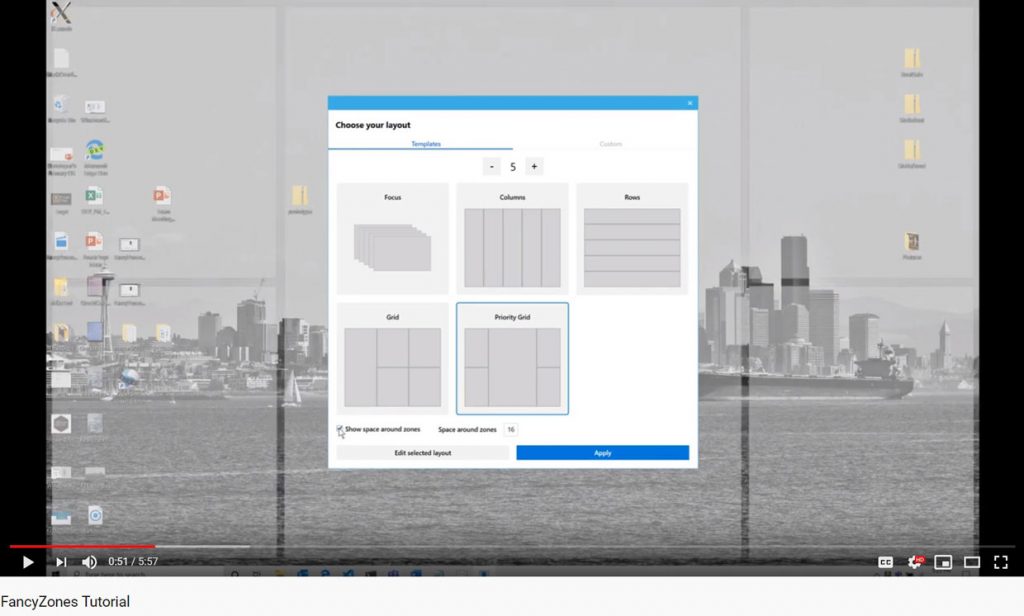
Windows 10 Xbox Game Bar gets new Resources widget

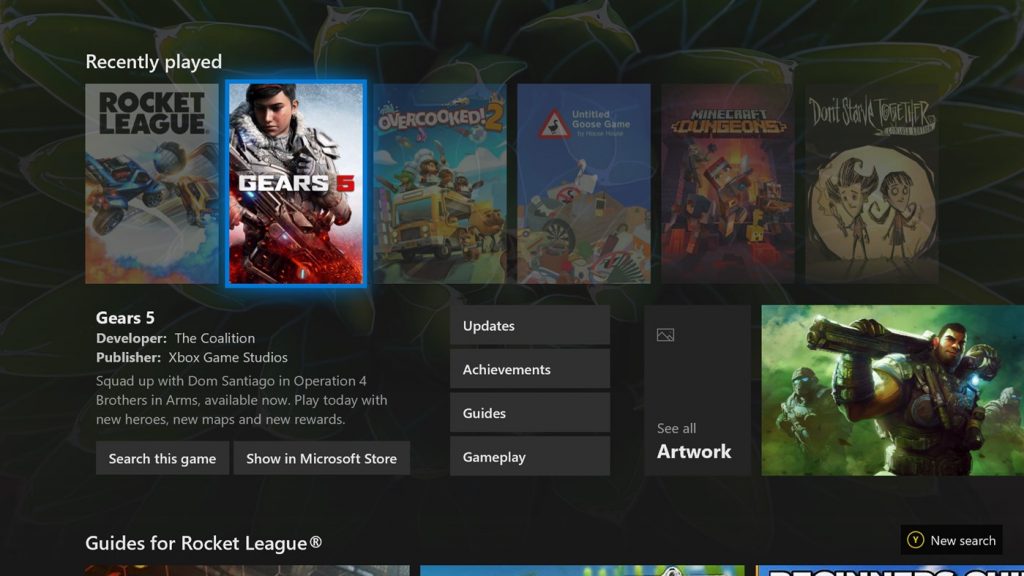
A new update for the Windows 10 Xbox Game Bar is introducing a new Resources widget that let PC gamers see at a glance which apps are using too many resources. This is a handy alternative to Task Manager for closing apps certain apps, and this Resources widget includes a two-columns compact view displaying an “Impact level” for every background apps, as well as a more detailed view displaying CPU, GPU, RAM, and disk usage for each app.

In addition to this new Resources widget, this latest Game Bar Update adds a new GPU usage indicator to the Performance widget, and the Settings section will also tell you if your PC supports Microsoft’s new DirectX12 Ultimate API. You can find the full release notes below:

  • The new Resources Widget helps you identify and manage which apps are using system resources like CPU, GPU, RAM, and Disk. At a glance, or digging into the details, be sure you’re making the most of your system without leaving the game.
  • DirectX 12 Ultimate enables the latest cutting edge graphics features, and you check the Gaming features Hub within Game Bar settings to make sure you’re ready for the future.
  • The Performance widget now includes GPU Memory usage monitoring
  • It’s now easier to see what you’re recording using the Capture widget, which will now show the current target app.

Microsoft’s Xbox Game Bar overlay recently gained a third-party widget store which already includes widgets from Razer, Intel, XSplit. It also remains a neat tool for taking game captures, controlling audio devices, and chat with friends on Xbox Live, and it’s great to see Microsoft adding new features at a regular pace.

Your WinZip free trial has expired? Try these solutions

The problem with most good high-quality software is that you rarely ever find it for free, and even if you do, it’s probably open-source and very unstable because of the wide variety of contributors.

WinZip also falls under the category of high-quality software, and one testament to that is that you do indeed have to pay for it.

Fortunately enough, the software can be used over a period of  30 days for free, during which you have plenty of time to test out its functionality.

However, that begs the question: What should you do after the WinZip trial ends?

Since WinZip is so widely used around the world and pretty much everyone started off with the trial first, we decided to create this step-by-step guide to show you what you can do after WinZip’s trial expires.

What do I do if my WinZip trial has expired?

1. Try an alternative to WinZip

Depending on what exactly you were looking for when you first started off using WinZip, there are several alternative tools that you can choose from.

If you were using WinZip for compressing and decompressing data, we recommend you try one of the following:

  • WinRAR
  • 7-Zip
  • NXPower Lite Desktop

For more similar products, check out this article for a list of the best file compression tools on the market.

If you were using WinZip for encrypting data, we recommend you try one of the following:

  • File Lock Pro
  • File Lock Lite
  • Privacy Drive

For more similar products, check out this article for a list of the best file encryption tools on the market.

If you were using WinZip for data backup, we recommend you also give one of the following a try:

  • Stellar Data Recovery
  • Acronis True Image
  • Paragon Backup & Recovery Advanced

2. Purchase the full version of WinZip

The main reason why you applied for the 30-day WinZip trial is because of the incredible toolset that the program has.

However, you’ve probably tested that out yourself since you did have 30 days at your disposal, but did you manage to discover the full extent of WinZip’s capabilities?

Many users probably remember WinZip’s first iterations when it was just a simple archiving tool similar to WinRAR or 7-Zip.

This is no longer the case since now WinZip is much more than that:

  • It has expanded its list of supported file formats to include almost all user-grade compression formats, including one that is proprietary to WinZip.
  • More so, it now also includes banking-level encryption, allowing you to both compress and protect your data from unauthorized access.
  • The list of protective features also includes data backup capabilities, allowing you to create copies of even the largest files or folders.
  • The program now also features cloud service integration with some of the most popular cloud clients out there, including Google Drive and OneDrive.
  • Lastly, you can also use WinZip to organize your files better, since it has all the tools of a basic file manager as well.

With so many tools that you probably haven’t thought about using yet, continuing to use WinZip does indeed seem like the best course of action.

Those who prefer not to continue with the paid version can easily remove the program from their system. Learn how to uninstall WinZip completely on Windows 11 with our quick step-by-step guide.

For a complete list of the best data backup software available, as well as a description of each one’s pros and cons, check out the step-by-step guide.

Now you know what can be done after WinZip’s trial has expired, and it should be easier for you to make a decision based on the facts stated.

Let us know what solution did you choose by leaving us a message in the comments section below.

[wl_navigator]

How to zip a file on Windows 10 [Full Guide]

Zipping and archiving files is an excellent way of both saving disk space and facilitating the process of file transfers, especially when you are dealing with services that don’t allow the transfer of folders.

That’s where zipping can come in handy, since it basically transforms your folder into a singular file, and it also reduces its size to make the transfer itself faster and easier.

If you were wondering how to zip files with Windows 10, it can be done and it can be done with ease.

The only question is how advanced file compression we are talking about, as the built-in File Explorer compression isn’t exactly something you would call feature-rich.

That’s where third-party tools come into play, but you can also use some of your OS’s native features to perform the task.

So, if you want to know how to zip a file on Windows 10, we got your back. And, as a bonus, we offer a more complex approach for those of you who want to step up their compression game.


How do I make a zip file on Windows 10?

1. Use a third-party archiving tool

Using an alternative zip application such as WinZip is an effective approach since third-party tools obviously bring many more features when compared to the system utility.

It’s not just about the popularity of this tool, but it is really more than a just simple compression tool. It also allows users to share, manage, protect, and backup files.

WinZip is an all-in-one file manager that allows you to compress and decompress to save space on your hard drive, encrypt and password-protect your zip files and folders, manage and organize your files and so on.

Compatible with all major file formats, this tool allows provides you with a complete file management suite to handle your files effortlessly, share them, back them up and protect them according to your wishes.

Here’s a quick guide to zipping a folder with WinZip:

  1. Open the WinZip app
  2. Select the folder you want to compress with the tool’s pane
  3. Click the Add to Zip option
  4. Save your zip file in the desired location

Now, let’s quickly look at its key features:

  • Compatible with all major formats including Zip, Zipx, RAR, 7Z, GZ, ISO, TAR, IMG, and more
  • Encryption and password-protect ZIP files
  • Integrated File Manager and File Splitter
  • Data back-up and sharing options
  • Powerful compression tools
  • Extract multiple files
  • Repair ZIP files
  • Archiving tools

”WinZip”

”WinZip”

”Zip
”Free
&aff_sub2=Native” current_url=”true” button_text=”Visit website” image=”https://windowsreport.com/wp-content/uploads/2017/11/WinZip-button-210×160.png”]

2. Use Windows resources

  1. Navigate to the location where files that you want to compress are stored.
  2. While pressing and holding CTRL on your keyboard, click on the individual files.
  3. After you choose what files are going to be contained in the compressed folder, right-click on one of the files and choose to Send to > Compressed (zipped) folder from the contextual menu. zip files with Windows 10
  4. In case you want to unzip the newly-created zipped folder, just double click on it to open it.
  5. Once there, click Extract all and choose the extract destination. As simple as that.

3. Zip the file using command-lines

Unlike the previous solution where you didn’t need any third-party help, Windows 10 doesn’t come with a command-line zip program.

However, this can still be done if you use a third-party archiver that supports a command-line executable, such as 7-Zip.

This program is open-source, and while it may not have the same rich toolset as our previous entry, it still gets the job done.

It supports many different archive file formats, and it even has its own proprietary file format as well that provides you with superior compression ratios when compared to traditional zip files:

Here’s how you can use 7-Zip’s command-line executable to zip a file:

  1. Download and install 7-ZIp
  2. Add the path to 7z.exe to your PATH environment variable
  3. Within 7-Zip, open a new command prompt window and use the following command:
7z a -tzip {yourfile.zip} {yourfolder}

By following these 3 listed solutions, you should be able to zip and unzip files in Windows 10 in no time.

Try out all of the methods, and let us know which ones did you find to be the most effective by leaving us your feedback in the comments section below.


[wl_navigator]

How to unzip ISO files on Windows 10 & Mac [Quick Guide]

As most of you know, ISO images are DVD images of installation media. For applications that are large, providers usually supply the files in an ISO image format.

They basically have everything you need to install the product, but you need a specific utility to unzip ISO files on Windows 10 or Mac.

Once you have downloaded your ISO image files, you can install the application, view, and access files without first needing to burn the file to a disc.

Therefore, in this article, we explore the quickest methods to unzip ISO files on both Windows 10 and Mac.

How to extract ISO files on Windows 10?

WinZip
  1. Download WinZip and install it on your PC.
  2. With the ISO file already saved to the desktop, launch WinZip from your Start menu.
  3. Up next, click File > Open in order to open the compressed file. If your system already has the extension associated with the WinZip program, you can also choose to double-click on the file.
  4. Select all the files and folders inside the compressed file.
  5. Then, click 1-click Unzip and choose Unzip to PC or Cloud in the WinZip toolbar.
  6. You can now modify the location or accept the default one.
  7. Click the Unzip button and wait for the procedure to complete.

If you are looking for the quickest way to extract ISO files on Windows 10, then don’t hesitate to let WinZip handle this task for you.

You basically need to complete the above procedure and you should have the files extracted in no time. As a bonus, WinZip’s interface is never a hassle, not even for those who lack the experience.

On top of that, if you prefer to keep your data safe, WinZip’s strong AES encryption will most likely sound like music to your ears.

For Windows 11 users, check our guide on how to unzip files to handle archives quickly using built-in tools or third-party software.

”WinZip

”WinZip

”Looking
”Free
&aff_sub2=Native” current_url=”true” button_text=”Get it now” image=”https://windowsreport.com/wp-content/uploads/2020/09/winzip-logo-210×160.png”]

How to extract ISO files on Mac?

extract ISO files on Mac
  1. Download WinZip and install it into your computer.
  2. Save the ISO file into an easy-to-access location. If the file was downloaded from a website, you may find it in the Downloads folder.
  3. Launch WinZip and open the compressed file by clicking File > Open.
  4. You can also right-click on the ISO image file and pick WinZip.
  5. Select the files or folders you want to open by holding the CTRL key and left-clicking on them.
  6. Click 1-click Unzip next, then choose the Unzip to PC option.
  7. Select the destination folder and click the Unzip button.
  8. The Extraction screen will reveal the progress and how long the extraction is supposed to take.

Once again, if you’re on a similar mission, but on a different OS, WinZip is the perfect tool for the task. Just check out the above steps and you’ll know how to extract ISO files.

You’ll eventually find your extracted ISO files in the destination folder. Then, feel free to enjoy banking-level encryption and the possibility to zip new files instantly.

WinZip for Mac

WinZip for Mac

If you want to easily extract ISO files on Mac, look no further. WinZip is your safe choice for that!
Free trial Visit website

If you have any questions about the above procedures, feel free to drop them in the comments section below. We’ll be eager to help you out.

[wl_navigator]

WinRAR Access is denied error in Windows 10/11

In spite of using WinRAR for years, countless users complain about getting the Access is denied error in Windows 10.

Some describe trying to back up an old drive from a WinXP machine in Windows 10 just to keep on getting the same message in a lot of the folders they’re trying to include.

Other users simply downloaded a WinRAR file from the Internet. Extracting the files from it should easily work, yet that’s not the case.

WinRAR files often get damaged and refuse to run showing this message when the download is complete due to software malfunction, a sudden system turn off, removal of the storage media, and more.

If you also see this Access is denied error, it’s time to take immediate action. We offer you a few troubleshooting tips that should resolve the issue, so check them out below.

How to fix WinRAR access is denied error?

1. Try out a different file compression tool

WinZip

An archive might have dozens of files compressed in it and is it required to safely keep them there until you want to access them.

This can only be achieved by making use of a reliable file compression tool like WinZip. Give it a try too and you’ll see how simple it is to compress/decompress, protect, and share your files.

Yes, if your priority is security, then do keep in mind that WinZip protects your data with banking-level encryption.

This archiver also has quite a few nifty features to organize your photos in the cloud and it gives you the chance to access and edit files shared with you by others.

By taking into consideration all these aspects and the fact that it will keep you away from the Access is denied error, do consider downloading WinZip and using it as a WinRAR alternative.

”WinZip”

”WinZip”

”Looking
”Free
&aff_sub2=Native” current_url=”true” button_text=”Get it now” image=”https://windowsreport.com/wp-content/uploads/2020/09/winzip-logo-210×160.png”]

2. Try to re-download the WinRAR file

re-download the WinRAR file

When encountering such issues, you could also re-download the WinRAR file. As said before, this might be caused due to various reasons including interruption during download and system shutdown.

In spite of that, this doesn’t mean that your file is corrupt and cannot be fixed. Just re-download it and once again try to extract the files off it.

This should eliminate potential issues from your WinRAR file during the first download, especially if you compare the file size of the downloaded file with the original one and you notice any differences.

3. Deselect Read-only

deselect Read-only

There are times when the culprit isn’t as dangerous as imagined. Instead of repeatedly trying to access the file, just to get the same error, right-click on the archive.

Then, find your way into Properties and in the attributes, simply deselect Read-only.

4. Use the WinRAR Repair function

Use the WinRAR Repair function
  1. Browse to the WinRAR file’s location.
  2. Then, select the file and click on the Repair button found in the toolbar.
  3. You can now choose Treat corrupt archive as RAR from the pop-up window that shows up next.
  4. Wait until the repair process is completed. Then, click on the Close button.
  5. Finally, select the newly rebuilt archive to extract the files that you initially had in mind.
  6. Choose Extract without confirmation and the procedure should start right away.

When bothered by this issue, you can also try to use the official WinRAR repair tool. As you can easily imagine, it is specifically designed to fix problems like yours.

Do give it a try by using the above procedure and let us remind you that it’s safer to stay away from potentially tricky methods and unofficial third-party tools that claim to reliably repair all kinds of errors.

Don’t forget to tell us whether one of the solutions helped you this time. In addition, keep in mind that while closing the WinRAR file, it is essential to use the Exit option under the File menu.

If you terminate it directly, then there are chances for the RAR header to get affected, which can trigger RAR files to display such Access is denied error messages.

In case you have any suggestions related to the subject, please let us know in the comments area below.

[wl_navigator]

New Microsoft Bing app for Xbox One gives gamers more ways to earn Microsoft Rewards points

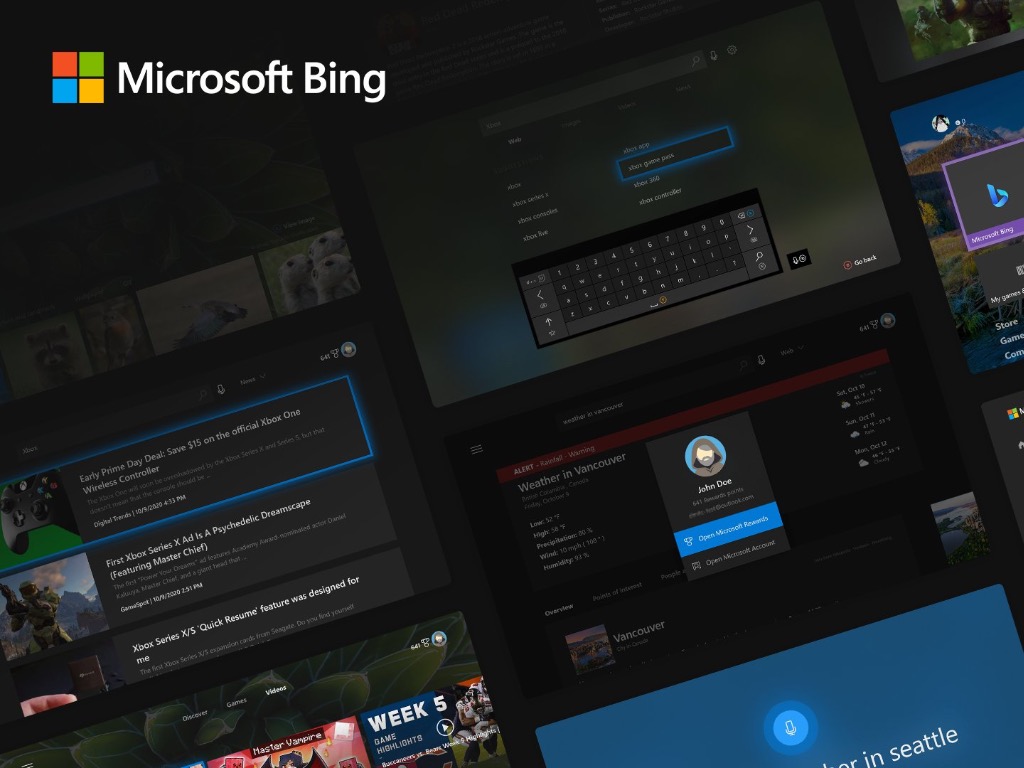
After an initial US preview back in June, Microsoft is now announcing the general availability of the Bing app for Xbox One. The new app is still US only, for now, but provides a clean hub to search the web, find content, and even earn Microsoft Rewards points for doing so.

Alongside the search features to find photos, videos, and other content on Bing, the app has a few other interesting capabilities, too. First off, the app is able to combine Microsoft Bing data on games with information from Xbox. This includes your in-game progress and your Xbox friends who are playing a given title.

Microsoft Bing Xbox One App

Secondly, Microsoft Rewards is integrated with the app, too. Just like on desktop and mobile searches on the Bing app on Xbox can help you earn points for redeeming gift cards or donating to charities. For those who have a headset or media remote, you also can use your voice to run searches, and there’s even some special quizzes and polls, too.

The app is available for download remotely here. Or, you can search for Microsoft Bing in the store on Xbox to find it. For those outside the U.S., Microsoft says it is planning to bring the Bing app on Xbox one to more markets soon.

How to extract multiple RAR files [Complete Guide]

Many of you are wondering if it is possible to extract multiple RAR files in a directory to their respective folders/subfolders. That’s precisely what this guide is about.

The RAR files practically are a data container that can store a large number of files in compressed form. Extracting them at once could have clear benefits in terms of both speed and efficiency.

Therefore, we can only encourage you to take a closer look and try the various methods discussed below.

How do I extract multiple RAR files from different folders?

1. How to extract multiple RAR files with 7-Zip?

  1. Use 7-Zip to extract multiple RAR files
  1. Firstly, group all the volumes of the file to extract in the same folder.
  2. Up next, right-click the one with the lowest number and select 7-Zip > Extract the files from the menu that appears.
  3. You can now select the folder to extrapolate the files by clicking on the button (…).
  4. Confirm your action and the extraction procedure should immediately start.

In order to complete the procedure, simply apply the above steps. However, if the file happens to include a volume that does not have numbers in its name, select that instead of the actual files that end in 00 o 01.

2. Use WinZip to extract multiple RAR files

WinZip, the world’s best file archiver and unzipper, allows you to extract a wide range of file formats of compressed files in an extremely easy way.

All you need to do is to download and install WinZip on your computer and double click on the RAR file icon to open it in WinZip.

Up next, simply select all the contents inside the RAR by holding down the CTRL key during selection. Right-click to choose the extraction option and provide a destination path for saving the output.

That’s how simple the procedure really is. WinZip is known for the ability to process split (multi-volume) RAR files in their entirety as long as they have been saved in the same folder and strong AES encryption.

On top of that, it includes duplicate file detection and seamless integration with Microsoft Teams to improve your daily workflow, so feel free to choose over 7-ZIP.

Moreover, besides the great and fast functionality of extracting your files, you benefit from a user-friendly service and intuitive process of extracting RAR files.

3. Extract all RAR files in subfolders

For those of you who don’t know, unpacking RAR files in the subfolders of a source folder can be easily done directly with Rar.exe.

More precisely, Rar.exe currently supports wildcards on decompressing RAR archive files. Do note that the option -ad can be removed from the RAR command line if all archives contain a unique folder name.

That’s the actual batch script:

@echo off
set "SourceFolder=C:\Users\Unpack"
set "TargetFolder=C:\Users\New-Location"
if not exist "%TargetFolder%" md "%TargetFolder%"
"%ProgramFiles%\WinRAR\Rar.exe" x -ad -cfg- -idq -r -y "%SourceFolder%\*.rar" "%TargetFolder%"
del /F /Q /S "%SourceFolder%\*.rar">nul
for /D %%D in ("%SourceFolder%\*") do rd "%%D" 2>nul

4. Extract multiple ZIP files PowerShell

  1. Press Start.
  2. Up next, type in powershell in order to launch PowerShell with Administrative privileges.
  3. Type in the following command and press Enter:
PARAM (
    [string] $ZipFilesPath = "X:\Somepath\Full\Of\Zipfiles",
    [string] $UnzipPath = "X:\Somepath\to\extract\to"
)
 
$Shell = New-Object -com Shell.Application
$Location = $Shell.NameSpace($UnzipPath)
 
$ZipFiles = Get-Childitem $ZipFilesPath -Recurse -Include *.ZIP
 
$progress = 1
foreach ($ZipFile in $ZipFiles) {
    Write-Progress -Activity "Unzipping to $($UnzipPath)" -PercentComplete (($progress / ($ZipFiles.Count + 1)) * 100) -CurrentOperation $ZipFile.FullName -Status "File $($Progress) of $($ZipFiles.Count)"
    $ZipFolder = $Shell.NameSpace($ZipFile.fullname)
 
 
    $Location.Copyhere($ZipFolder.items(), 1040) # 1040 - No msgboxes to the user - https://msdn.microsoft.com/en-us/library/bb787866%28VS.85%29.aspx
    $progress++
}

In order to unzip multiple files in a folder, you can also use a quick PowerShell function. Refer to the above steps in that regard.

So, these are some effective methods to extract multiple RAR files. As for the actual procedure, do keep in mind that it’s more intuitive to go for WinZip from the very start.

If you have any other suggestions or questions, feel free to leave them in the comments section below.

Microsoft extends Xbox Elite Controller Series 2 warranty to one year due to reliability issues

Microsoft launched a brand new Xbox Elite Controller Series 2 last year, and many Xbox fans were hoping that it would be more reliable than the 1st gen Elite Controller which had some quality issues. Well, it seems that the company’s Elite Controller Series 2 also has its own set of problems, as Microsoft has quietly extended the warranty for the controller from 90 days to one year.

“We’ve received claims that a small percentage of our customers are experiencing mechanical issues when using their Xbox Elite Wireless Controller Series 2. To ensure your satisfaction, we’re extending the warranty coverage period on Elite Series 2 controllers from 90 days to 1 year from the date of purchase,” the company explained in a support page (via Windows Central).

This extended warranty also applies to all Elite Series 2 controllers that have been sold since launch, and Microsoft will also refund consumers who previously paid to repair faulty controllers by October 31, 2020. Microsoft’s Elite Wireless Controller Series 2 is currently priced at $179.99, and it will be backwards compatible with the company’s upcoming Xbox Series X and Series consoles.

Since launch, many customers have been complaining about a “stick drift” issue that has also been affecting the Nintendo Switch’s JoyCons. The problem is apparently so bad that Microsoft will have to deal with a class-action lawsuit that has been filed over “drifting” issues back in April 2020.

The Xbox Series X and Series S consoles will launch with a slightly redesigned controller, and we hope that it won’t be plagued by the same reliability issues. In addition to a new Share button, the next-gen controller will come with a redesigned D-pad inspired by the Elite Controller Series 2, and it will also use a USB-C port for charing.

WinRAR Unexpected end of archive error

While starting a downloading process and after successfully getting a few GBs or MBs, have you ever faced a sudden interruption accompanied by the Unexpected end of archive error?

Countless users are in the same boat and look for a quick solution to solve this WinRAR issue. Some of them even describe that they’ve been able to complete the download.

However, the same error message pops up when trying to open that archive file or extract it using WinRAR.

In certain cases, the download process was not fully complete. However, an unstable Internet connection, a virus, an unknown file format, or WinRAR itself are also potential culprits.

No matter what the actual cause is, rest assured that there are a few quick solutions that you can apply. Just check them out below.

How to fix WinRAR Unexpected end of archive?

1. Use a specialized file archiver utility

Both tech-savvy users and less experienced ones can give it a try to WinZip whenever encountering this Unexpected end of archive error.

That’s the quickest way to nail down the culprit. If it’s a WinRAR-related issue, then don’t hesitate to make the switch to this file archiver program right away.

Besides proving to be helpful in solving such errors encountered in similar utilities, do keep in mind the fact that it’s a safe and reliable solution that provides exactly the desired results while being used.

You can easily access and manage your files on a computer or on cloud, while the interface is user-friendly.

Winzip

Install WinZip to easily get rid of the Unexpected end of archive error.
Free trial Visit Website

2. Check the Internet connection

Internet speed remains an essential factor when trying to download an archive. Wireless Internet seems to have deteriorated severely in terms of quality of service in the past few years.

If you see the Unexpected end of archive error, then make sure that your Internet connection is indeed stable.

When the network is not connected, the download process immediately stops and may display a complete download, even if that’s not the case.

No matter what your next activity should be – browsing, streaming, and so on – it cannot take place when the connection drops every five seconds or so.

3. Use a powerful anti-malware solution

There are plenty of viruses and malware that may be causing RAR file corruption and leading to errors like the one that you are dealing with at the moment.

That’s why it seems like an ideal time to perform a full scan of your system or even install a better antivirus program to remove them right away and get top-notch protection.

This is why we recommend you perform a full system scan with the help of an antivirus with a high detection rate.

Many threats don’t act right away, they just slowly run in the background and cause progressive damage to your PC.

A professional security tool is the best option to make sure all threats are found and securely removed.

4. Try to re-download the file

Such errors happen for a variety of reasons, so don’t postpone checking the file size. Therefore, compare the file size of the downloaded file with the one in the original link.

If you discover that the downloaded file is smaller, this is a sign that your file is corrupted. In this case, try to download it once again.

5. Repair the file using the WinRAR inbuilt function

  1. Firstly, browse to the drive or folder where your corrupt RAR file is present.
  2. Up next, select the RAR file and click on the Repair button from the toolbar.
  3. From the new window pop-up, just choose Treat corrupt archive as RAR.
  4. After the repair process is finalized, click on the Close button.
  5. Now, in order to extract your files, simply select your new rebuilt archive.
  6. Choose the option that says Extract without confirmation and the procedure should start immediately.

You’ve seen that you have a reliable WinRAR alternative on hand for opening file archives. However, if you want to give WinRAR a second chance, try to repair the files is by using the inbuilt function.

Follow the above steps and if everything goes well, your RAR or ZIP file should be repaired in no time.

After completing the above procedures, the Unexpected end of archive error message should no longer appear when opening your archive file.

Which of our tips proved to be helpful? Let us know in the comments area below.

Some Windows 10 Insiders reporting pre-installed PWA versions of Office apps

It looks like Microsoft is automatically downloading Office PWAs on some Windows 10 Insider PCs, even without explicitly asking from the users. According to a report from Windows Latest (via ZDNet), the company appears to be testing this approach selectively on some Windows 10 devices that are enrolled in the Windows Insider Program.

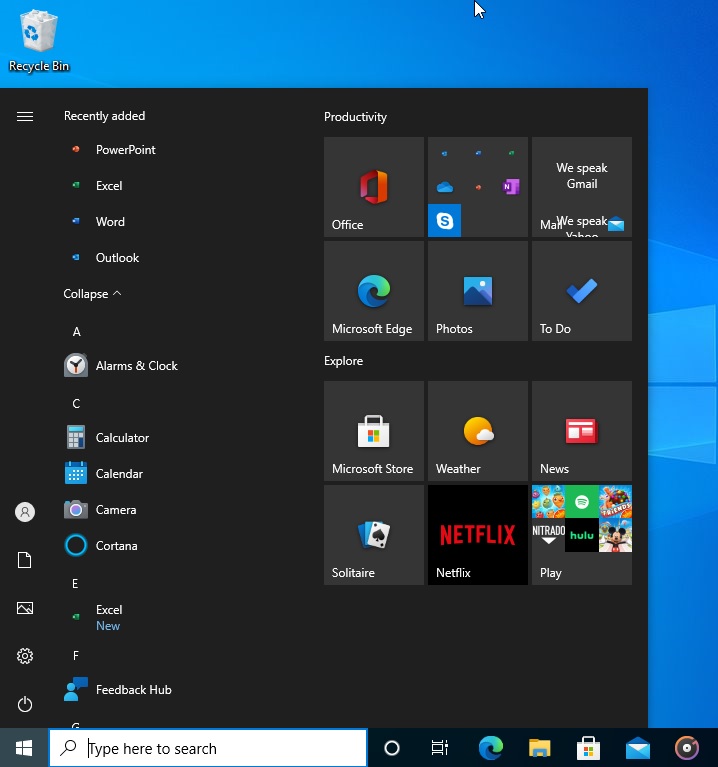
As it turns out, the company launched the forced installation process last week. Many users complained about getting dedicated entries for Word, Excel, PowerPoint, and Outlook in the Start menu on their machines without requesting so. More specifically, all PWAs appeared under the recently installed section in the Start menu.

Office web apps in Start Menu
Source: Windows Latest

As Windows Latest notes, the forced installation is currently being tested as a part of an A/B test effort, with only some users receiving the new PWAs. All PWAs that were installed quietly on Windows 10 machines came from Microsoft Edge. However, it remains to be seen if this also happened on PCs where the new Microsoft Edge isn’t set as the default browser.

It is worth noting that the PWA Builder and Microsoft Edge teams are currently collaborating to launch Edge-based PWAs in the Microsoft Store. So, it remains to be seen if the new collaboration has something to do with these reports.

If you don’t want to use Office web apps, you can easily uninstall the PWAs by heading to the Programs and Features setting page in Microsoft Edge or the Windows 10 control panel. Did you notice this change on your PCs? Sound off in the comments section below.

Age of Empires III Definitive Edition review: A great remaster for both fans and newcomers

Fifteen years after its original release on PC, Age of Empires III: Definitive Edition is launching today on the Windows 10 Microsoft Store, Steam and Xbox Game Pass for PC. The game follows the previous releases of Age of Empires: Definitive Edition and Age of Empires II: Definitive Edition, and Microsoft has launched a new Age of Empires Definitive Collection that includes the three remastered games for $44.99.

As someone who loved previous episodes but never played the original Age of Empires III, I was quite excited to go hands-on with this remaster. Until now, my favorite Age of Empires game was Age of Mythology from 2002, which I still prefer over the Age of Empires I and II remasters. Despite the impressive visual overhaul and real attention to detail, I found that the core gameplay of the two Age of Empires games didn’t Age really well.

For this review, I want to first go through the gameplay changes introduced by Age of Empires III, then detail all the improvements brought by this new Definitive Edition of the game. If you never got the chance to play the original Age of Empires III, I’d say that there’s definitely a learning curve, though people familiar with the series should have no real trouble to adjust to the new gameplay.

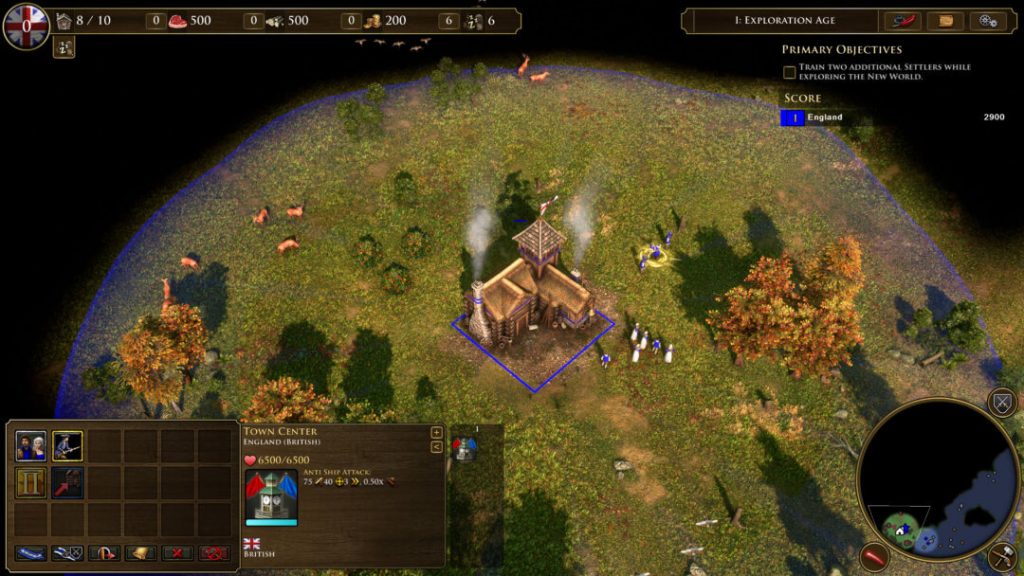
Age Of Empires Iii 1

A more complex but satisfying gameplay

Coming from Age of Empires 2 and Age of Mythology, there are a couple of things that confused me when I started playing Age of Empires III: Definitive Edition. First of all, resources gathered by villagers are immediately added to your stockpiles, and it’s no longer necessary to build dedicated buildings for collecting food, wood, or gold. Moreover, you can now assign up to 10 villagers to collect food on a farm, instead of 1 villager per farm like in previous Age of Empire games.

Another notable improvement compared to previous episodes is that military units are created in batches instead of one by one. This makes it much easier to quickly build an army. Moreover, this should also prevent your new units from being slaughtered by enemies when you automatically send them to the battlefield.

If Age of Empires II focused on the middle-ages, Age of Empires 3’s story is all about the European colonization of the Americas. This impacts the gameplay in many new ways, with each map containing villages of native tribes where you can build Trading Posts. Doing so will grant you access to unique units from allied tribes which can make a real difference on the battlefield.

Age of Empires III: Definitive Edition

In Age of Empires III, you’ll also need to select a different type of politician every time you’ll advance to the next age. Each politician grants one-time bonuses including resources, units, and military upgrades, and you’ll need to choose carefully if you want to speed up your progression.

Another big change in Age of Empires III is the ability to send shipments from your home city to the new world. You’ll unlock more powerful shipments as you progress through the different ages, which will provide resources, units, and other bonuses. At the end of a game, you can also visit your home city and choose new shipment types, called cards.

This is really a core new gameplay element in Age of Empires III, as you can also pre-select a ‘Deck’ of cards to send to your colony during all future games. Every civilization has a unique set of cards, making the 16 different civilizations slightly more different than in previous games.

Age Of Empires 3 De 2

What’s changed in this Definitive Edition

Age of Empires III: Definitive Edition includes all 8 campaigns from the original game and all expansions, and Microsoft did some work to revisit the Native American storylines to make them more historically accurate. The 16 civilizations include two new ones, the Incas and the Swedes, and each civilization has its own units, buildings, and city shipments.

On the graphics side of things, this Definitive Edition made the jump from DirectX 9 to DirectX 11, bringing support for 4K graphics, new particle effects, lighting, shadow, and destruction systems. The in-game cinematic have also been re-rendered with higher fidelity, and the music and sounds have been remastered. The UI has also been overhauled with 3 distinct layouts to choose from, and the camera is also more flexible and allows players to zoom in and out even further.

In this Definitive Edition, developer Tantalus Studios also made the choice to completely unlock the Shipment Orders (cards) and the Age-up Politicians. “In the original game, you had to grind for hundreds of hours to unlock all the good cards for each Civilization, and we felt that it gave an unfair advantage to experienced players,” explained Joss Ellis, Director of Development at Tantalus in an interview.

In addition to the different campaigns and multiplayer modes, Age of Empires III Definitive Edition also introduces new tutorials, historical battles and “Art of War” challenge missions. All these solo modes should benefit from better AI which should better react to what’s happening on the battlefield. There’s also a new “Extreme difficulty level which should be more challenging than the “Expert” level in the original game.

There are a lot of welcome changes for the multiplayer modes as well, including a new server-based system, Spectator mode, integrated leaderboards, ranked ladders, and matchmaking. The game also supports crossplay between Steam and the Windows 10 version, and I had no matchmaking issues during my tests.

Last but not least, Age of Empires III Definitive Edition will support mods, and a few of them built for the original game will still be compatible. For convenience, Tantalus Studios added a central hub at ageofempires.com/mods where players can upload their mods and browse for content.

Age Of Empires Iii De 3

There’s still more work to do

Age of Empires III Definitive Edition is an enjoyable RTS game overall, but I can’t conclude this review without outlining some issues that can be quite irritating. First of all, the pathfinding problems that plagued the Age of Empires I and II remasters are also present in AoE III: DE, and you may regularly need to help some lost units reach their destination. In one occasion, some of my units also became stuck in a wall, and I had no choice but killing them.

I hope developers will address these pathfinding issues with post-launch patches, but I also have some complaints about the AI. During battle, I often saw some of my units standing there doing nothing while the rest of them are fighting enemies. More often than not, units also focused on attacking buildings instead of the enemies currently attacking them, so you can’t really count on the AI to do what’s best on the battlefield. Obviously, the revamped AI that the developers introduced in this remaster still needs some work.

Still, Age of Empires III remains a great RTS game, and it has now beaten Age of Mythology as my favorite Age of Empires game. The gameplay improvements, graphical upgrades, and Cards system really make a difference, making Age of Empires III: Definitive Edition an enjoyable strategy game by 2020 standards. Microsoft will continue to support AoE III: DE after its release, and I hope the aforementioned problems will be fixed.

Age of Empires III: Definitive Edition is a $19.99 purchase on the Windows 10 Microsoft Store and Steam, and it’s also available on Xbox Game Pass for PC starting today. For new subscribers, we remind you that you can get your first month for just $1 instead of $9.99.


PC Game Pass
PC Game Pass
Price:
$1.00


Top ways to customize Microsoft 365 online to your liking

If your company just came on board with Microsoft 365, then there’s a lot ahead for you. Not only can you enjoy email in Outlook, and Ofice apps like Word and Excel, but there’s also the power of Teams and other apps. But, what if you’re looking to customize the Microsoft 365 online experience and make it your own? Here’s a look at some of the ways to do that.

Customize your theme

Themes Microsoft 365

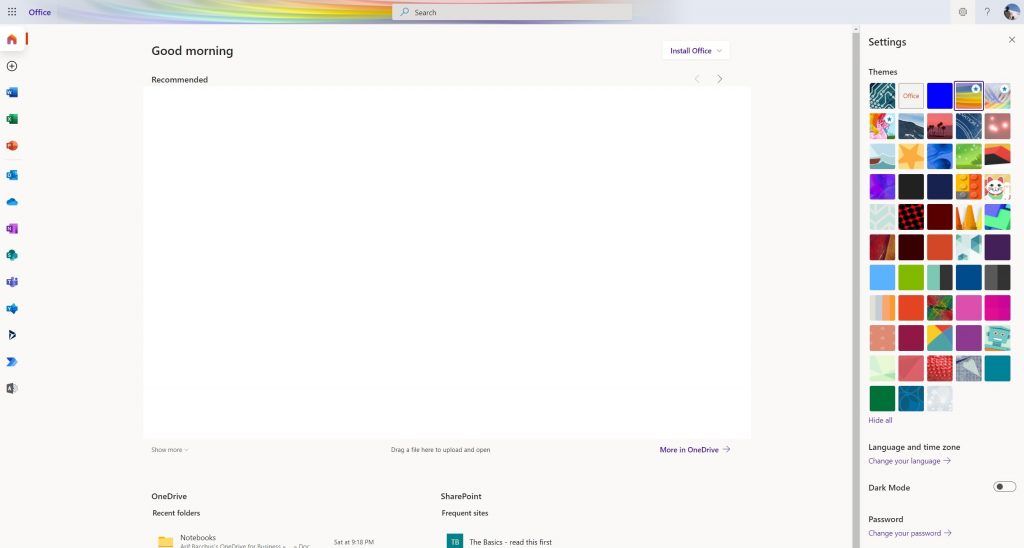
You likely know how to customize your PC to your own look, but did you know you could do that to Microsoft 365, too? It’s easy.

Just head to Office.com and sign in with your Microsoft 365 account. Then, click the settings gear at the top of the page. From there, you should see some Themes options. Click this, and then choose a new theme. There are various pre-sets like High Contrast, Rainbow, Blueprint, and more.

As you click the themes, the top bar in Microsoft 365 will change across apps like Planner. If you want, you can also click View All to see more themes. There’s a total of 52 to choose from, and the possibilities are endless.

Turn on dark mode

Office Dark Theme

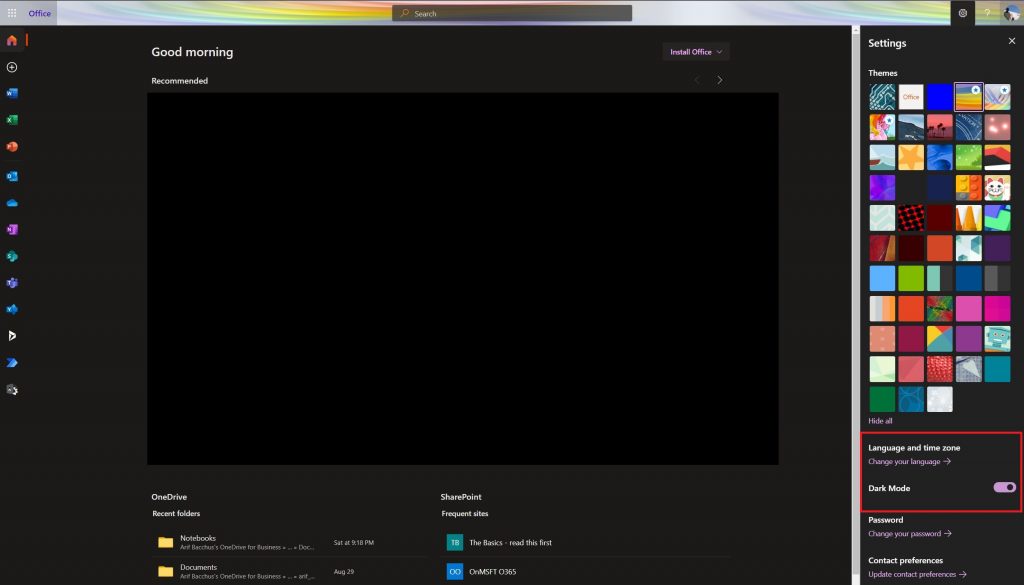
Working late at night? Or maybe you’re studying late at night? The last thing you want is a white screen to blind your eyes as you sit in the dark. Office has a lot of white space, but once you turn on dark mode, the experience changes drastically.

To turn on dark mode, visit Office.com and log in. Then, click the settings cog at the top right of the screen. From there, you can turn on Dark Mode with the toggle switch. Everything will instantly change, and become easier to view.

Pin or move apps to the launcher

Pinned Apps

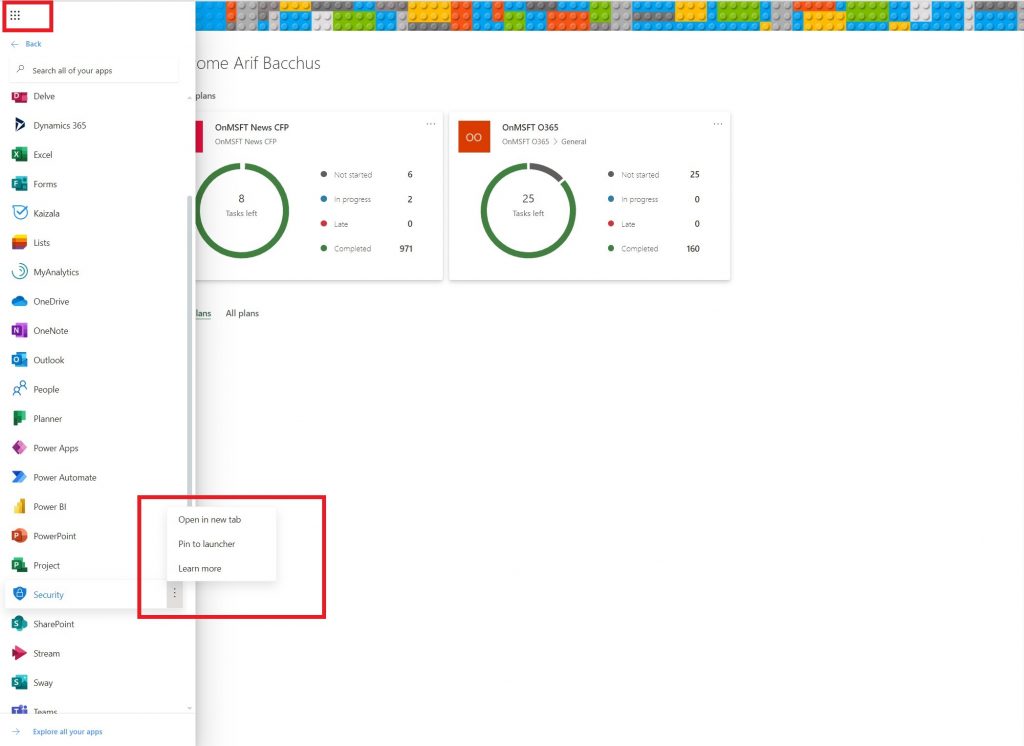
Next on our list is another simple tip. If you use certain Microsoft 365 apps more than others, then you can pin apps to your launcher so you can access them more frequently. Say, if you use Teams more than Word, or Planner more than Excel.

To do this, visit Office.com and click the All Apps icon at the top left side of the screen. Then, scroll through the list, and find the app you want to add to the launcher. Hover over that app, and then right-click on it. Some apps might be pinned already and you can unpin them by right-clicking. If the app you want isn’t pinned, right-click, and choose Pin to launcher. Now, every time you click the launcher, you’ll see that app is pinned for quicker access.

Change your time zone and language

Microsoft 365 Laungauge Settings

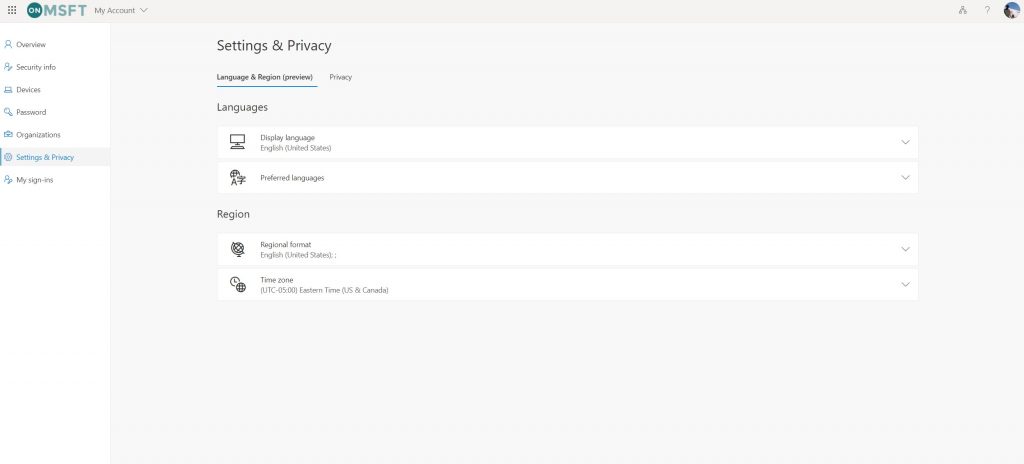
If you have a remote job or are schooling remotely, then you might not be in the same time zone or speak the same language or the location that you’re school or work is based in. Usually, Microsoft 365 is configured to the Time Zone that your organization is based-in, but you can set it up to your own location, too.

To set the time zone, click the settings cog after going to Office.com and then choose Language and time zone. Click the link that says Change your language. You’ll then be taken to this page, where you can configure settings and privacy. They’ll be a link that says Display Language. From here you can swap the language out to your native one. You also can change the region and the Time Zone, too. Just choose Time Zone from the list.

We have you covered

This is just our latest entry into our Microsoft 365 series. If you’re looking for more tips and tricks, check out our dedicated news hub. And, if you have anything else to share, let us know in the comments below.

WinRAR not extracting .exe files in Windows 10/11

If you have tried to extract a .exe file from an archive on your Windows 10 device only to get an error message, rest assured you are not the only one.

Although WinRAR is widely used, it does come with its share of errors, unfortunately.

There are many reasons why you could not extract the .exe file and the most common ones are faulty files due to an interrupted download process or even to viruses.

Nevertheless, we’ve got you covered in both cases.

In this article we will present you some easy steps that will allow you to extract .exe files in no time.

What can I do if WinRAR is not extracting .exe files?

1. Give WinZip a try

Before going into the detailed solution steps, it could be a good idea to think about using a different tool to extract your files.

There are several other great software out there, but after several tools, we would like to recommend you give WinZip a try.

This is an all-in-one tool that goes way beyond simply offering some compression features. With WinZip, you can share, manage, and password-protect your files while you compress them.

Moreover, if in the compressing process the quality of the file is compromised, then there is no use in proceeding with such a process. This is another great feature of using WinZip.

Your videos and images quality will remain intact, regardless of how large the files are.

WinZip easily connects with Dropbox, Google Drive, or OneDrive for better workflow and file management.

Here are some key features:

  • Advanced compression features.
  • Strong encryption level.
  • Signature of new and existing PDF.
  • Microsoft Teams integration.
  • Background tools.
  • File deletion for duplicate files.
  • Advanced file management features.

”WinZip”

”WinZip”

”Extract
”Free
&aff_sub2=Native” current_url=”true” button_text=”Get it now” image=”https://windowsreport.com/wp-content/uploads/2017/11/WinZip-button-210×160.png”]

2. Use the Repair option

  1. Locate the corrupted RAR file and right-click on it.
  2. From the options, select Open with WinRAR.
  3. Click on the Tools option and select Repair archive.
  4. Next, choose the destination where you want the repaired RAR file to be saved.
  5. After the repairing process has been completed, click OK.

3. Check your Antivirushow to fix antivirus blocking powerpoint recover

It’s not uncommon for different extracting errors to appear due to your antivirus software. 

Therefore, checking if the issue is caused by it or not, is an important step before moving forward.

In order to check if the error is caused by your current security software, make sure to disable it from the program’s settings and try to extract the files again.

If it did not work, we would suggest you try installing different antivirus software and then see if the process works.


4. Update WinRAR

  1. Launch WinRAR on your Windows PC.
  2. Next, click on Help and then select About WinRAR.
  3. In the About WinRAR window, look for the WinRAR version info and the edition.
  4. Go to the WinRAR download page and open it on your PC.
  5. Click the Latest version of WinRAR under English WinRAR and RAR releases. Make sure to choose the correct edition 32-bit/64-bit depending on your PC’s Operating System.
  6. Click Continue to download WinRAR.
  7. Run the installer and proceed with the installation. Make sure you have closed the WinRAR app before running the installer to prevent any errors.

5. Uninstall and re-install WinRAR

Reinstall the problematic games

  1. Press the Windows key + R.
  2. Type appwiz.cpl and click OK.
  3. Next, in Control Panel, select WinRAR.
  4. Click on Uninstall. Make sure to confirm the action by clicking on Uninstall/Yes.
  5. Once uninstalled, reboot the computer.
  6. Download and reinstall the app from the official WinRAR page.

5. Download the RAR file again

If the archive has been corrupted due to a faulty download process, then this may be the reason to why you cannot extract the .xls file.

Before proceeding with downloading the archive, make sure that your are connected to the Internet and that your connection is stable.

Depending on the file size you will need to wait a bit longer for the download to be finished.

We recommend that you indicate a different location for the file to be extracted to.

With this last step, we conclude our list of suggestions. We hope that one of them has helped you extract the .exe file from your WinRAR archive.

If you have additional suggestions or recommendations, please let us know in the comments section below.

[wl_navigator]

How to fix WinRAR not working on a mapped drive

WinRAR is great archiving software with an abundance of features, but some users reported that WinRAR is not working on a mapped drive.

This can be a problem for some users, and in today’s article, we’ll show you a couple of methods that you can use to fix this issue for good.

What do I do if WinRAR is not working on a mapped drive?

1. Use WinZip

ffind files winzip

If WinRAR is not working on a mapped drive, you might want to try using WinZip instead. The software works with over 24 different file formats, and that includes RAR files as well.

The application is pretty simple to use, and you can unzip or archive files with just a couple of clicks. It’s worth mentioning that the software has an encryption feature, so you can encrypt your archives.

There’s 128-bit and 256-bit AES encryption available, allowing you to password protect your files with ease. Another feature is the ability to convert PDF files to Word files, and vice versa.

The software also works as a file manager, so you can organize your files, and there’s even a file splitting feature, so you can easily split large files in order to send them faster.

Overall, WinZip is great file archiver software, with a wide array of features, so be sure to download it and try it out.

Other useful features:

  • Easy file sharing
  • Support for cloud storage
  • Ability to access and manage files on local PC and network devices
  • Available on Mac and PC
  • Compatible with over 24 different file types

”WinZip”

”WinZip”

”WinZip
”Free
&aff_sub2=Native” current_url=”true” button_text=”Get it now” image=”https://windowsreport.com/wp-content/uploads/2020/09/winzip-logo-210×160.png”]

2. Disable SMB2

  1. Press Windows Key + X and select Windows PowerShell (Admin).
    powershell admin winrar not working on mapped drive
  2. When PowerShell starts, enter the following command:
Set-SmbServerConfiguration -EnableSMB2Protocol $false

After the command is executed, MB2 will be disabled and the problem with WinRAR not working on the mapped drive will be resolved.

Note: Disabling SMB2 permanently isn’t advised, and you can enable SMB2 by running the following command:

Set-SmbServerConfiguration -EnableSMB2Protocol $true

3. Extract the files on a local drive

hard drive winrar not working on mapped drive
  1. Extract the files on the local drive.
  2. Once the process is finished, move the extracted files to a mapped drive.

This is just a workaround, but several users reported that this method worked for them, so you might want to try it out.

If WinRAR isn’t working on a mapped drive, most likely there’s an issue with the SMB2, but if you don’t want to disable it, we suggest using WinZip instead of WinRAR.

[wl_navigator]

How to share large photo files [Google Drive, Dropbox]

Photos are a great way of preserving memories, and they are also important for work, especially if we’re talking about high-quality ones.

However, while storing a large photo file can be easy, sharing it with others can be especially troublesome, especially if you are doing it online via cloud hosting or storage services.

First, there is the problem of how much time it takes to upload and then download the file to and from the cloud.

Secondly, there’s always the matter of security when it comes to sharing data online.

That being said, we’ve constructed this step-by-step guide that will show you exactly how you can share large photo files via some of the most common cloud storage services.


How can I share large photo files efficiently?

Use a third-party tool to help you

ffind files winzipIn order to drastically reduce the upload and downloads times of your photo files, you will first have to reduce the disk space that they occupy.

The best way to reduce the size of your photo file is via a file archiver, and we recommend you try out the best there is, namely WinZip.

Not only is WinZip incredibly good at archiving all types of data, but it gives you a wide variety of archive formats to choose from, depending on your taste.

The next step is to protect your data via encryption, and WinZip also happens to support encryption that it describes as being banking-level.

Next up it is time to take the archive and share it via either cloud or email.

This is yet another feature that WinZip shines att, as it allows direct integration with some of the most well-known cloud storage services, such as Google Drive and OneDrive.

How can I send large photo files via email?

A great way of sending data via email is if your base program features email integration. This makes it so that you don’t have to open multiple programs in order to perform a single task.

Here’s how you can use WinZip to perform all of the tasks listed above with one simple command:

  1. Download and install WinZip
  2. Navigate to where the photo file is stored
  3. Right-click the file and select Zip and Share (WinZip Express)

In the next WinZip windows that appears, you will gain access to everything you need to perform all of the tasks described earlier in the article, including:

  • The ability to archive the file, and choosing in what format
  • The possibility of archiving the file
  • Choosing whether to save the new zip file on PC, send it to the Cloud, or export it via Email.

”WinZip”

”WinZip”

”Sending
”Free
&aff_sub2=Native” current_url=”true” button_text=”Get it now” image=”https://windowsreport.com/wp-content/uploads/2017/11/WinZip-button-210×160.png”]

Note: In order to make use of this functionality, you need to have the desktop client of the Cloud service installed on your PC.

Additionally, in order to send the files via email, an email address needs to be provided and linked with WinZip.


By following these steps, you should now be able to send large photo files faster, and in a more secure way, all thanks to just one tool.

Let us know what other methods you use to make sending large photo files more efficient by leaving us a message in the comments section below.


[wl_navigator]

How to unzip/extract XZ files [Windows 10, Mac]

File compression can come in a variety of forms, and they all depend on what exactly you are looking for when creating them.

For example, some users may want maximum compression, even if it does mean using more time to archive and unzip it.

On the other hand, there are those that prefer lossless compression, and that’s precisely what you can get if you opt for the XZ compression format.

This file format is a single-file compression format, so it doesn’t offer any archiving capabilities. However, it does offer lossless compression, making it ideal for those that want to preserve the data exactly how it was.

Of course, you can’t talk about compressed data without knowing a method of unzipping it, so we created this article to teach you precisely how you can unzip an XZ file on both a Windows 10 PC and a Mac.


How do I open an XZ file?

1. How do I unzip an XZ file on Windows?

Use a third-party archiving tool

XZ file is a compressed file format, and therefore gaining access to its contents involves extracting or unzipping it with a dedicated tool.

Since we like using the best available, we also urge you to try WinZip for this particular task, since it is lightweight, powerful, and very versatile in terms of what it can do and what kind of files it can handle.

For example. since you may be using XZ files for the sake of lossless compression, WinZip will provide you with safe decompression at incredible speeds, so you don’t have to worry about wasting time.

More so, WinZip can also encrypt your data, so your data will also be secured from unauthorized access.

Here’s how you can use WinZip to open an XZ file:

  1. Download and install WinZip
  2. Navigate to where your XZ file is located
  3. Right-click the file, and select WinZip from the context menu
  4. Select what type of action you want to take, and where to extract the data if that is what you need.
  5. Depending on the file’s size, you’ll have to wait for WinZip to decompress it
  6. Go to where the data was extracted and inspect whether everything is functional.

”WinZip”

”WinZip”

”The
”Free
&aff_sub2=Native” current_url=”true” button_text=”Get it now” image=”https://windowsreport.com/wp-content/uploads/2017/11/WinZip-button-210×160.png”]

2. How do I extract an XZ file on Mac?

Use a third-party archiving tool

Similar to the Windows solution, if you’re not an expert in command lines, and prefer GUI-based software, we recommend you give a third-party unarchive a try, and one of the best on the market is ironically called The Unarchiver.

Here how you can use The Unarchiver to extract XZ files:

  1. Download and install The Unarchiver
  2. Right-click your XZ file and select Open With…
  3. Select The Unarchiver from the context menu
  4. Choose a file location to extract the file
  5. Wait for fr the unzipping to be complete, and then review the contents

These are the most basic solutions if you ever need to open or extract an XZ file on either a Windows or a Mac PC.

If you know of other methods that can be used to help, let us know by leaving your suggestions in the comments section below.


[wl_navigator]

FIX: Undertale won’t launch

Undertale is one of the best if not the best indie game Steam has to offer. From the moment the game was introduced, it received worldwide recognition that led to multiple awards and millions of sold digital copies.

If there is a super-undemanding-stable game category, Undertale must be at the leading spot.

However, there are issues that may prevent you from enjoying this amazing game. It seems that the game won’t launch for no apparent reason.

But, don’t worry, we prepared a few workarounds to help you overcome this issue.

What can I do if Undertale won’t launch?

  1. Use the Steam tool to repair local files
  2. Start the game from its folder instead of Steam
  3. Delete the Steam_api.dll file
  4. Extract Undertale.exe file
  5. Install DirectX and the latest redistributables
  6. Reinstall the game

1. Use the Steam tool to repair local files

  1. Open the Steam Client.
  2. In Library, right-click Undertale and open Properties.
  3. Open the Local files tab.
  4. Choose Verify integrity of game files.
  5. Restart Steam and try running the game.

2. Start the game from its folder instead of Steam

  1. Close the Steam client and exit from the notification area.
  2. Open Task Manager and stop the Steam process.
  3. Find your way to the Undertale installation folder.
  4. Double-click Undertale.exe and run the game.

As we all know, with the implementation of the Steam desktop app, all the games run through the client. However, on some occasions, the Steam app can provoke a lot of problems.

Note: Have in mind that the Steam client may start, nonetheless. If that is the case and the game is still faulty, move on to the next solution.

3. Delete the Steam_api.dll file

  1. Close your Steam and kill all its related processes in Task Manager.
  2. Go to the Undertale installation folder.
  3. Find the steam_api.dll file and back it up.
  4. Delete the files from the folder.
  5. Start the game using Undertale.exe.
  6. Additionally, you may try and run it through Steam if Undertale.exe won’t start the game.

Note: This may prove harder to do for many games, but the Undertale should function well. If things take a wrong turn, you can always restore a file from the backup location.

It’s quite hard to play Steam games independently, without Steam DRM. However, there are some games that are DRM-free, and luckily, that is the case with Undertale, too.

4. Extract Undertale.exe file

  1. Close the Steam app and kill all its processes in Task Manager.
  2. Find your way to the Undertale installation folder.
  3. Right-click on Undertale.exe and choose Extract here with WinZip.
  4. When asked to replace or rename Undertale.exe, choose rename and change its name to UndertaleOld.exe.
  5. The new Undertale.exe that is extracted is your new game launcher.
  6. Try launching the game.

Note: Some witty users from Steam community forum presented this interesting solution for this issue. Namely, it seems that the game’s exe file can be extracted with WinZip. 

In the case of any problems, you can delete the newly appointed launcher and rename UndertaleOld.exe to just Undertale.exe.

⇒ Get Winzip

5. Install DirectX and the latest redistributables

Also, an important thing, besides your graphics drivers being up to date, is to install the latest version of DirectX and C++ Redistributables.

The absence of those might lead to you experiencing a plethora of issues with Undertale.

The latest version of DirectX can be downloaded from the dedicated Microsoft website.

When it comes to the Visual C++ Redistributables, you can download the latest version from this Microsoft page.

6. Reinstall the game

  1. Go to the Steam client.
  2. Open Library and right-click Undertale.
  3. Choose Uninstall.
  4. Open the Steam client and Library.
  5. Find Undertale and select Install.

We came to the last resort. If you haven’t solved your Undertale issues with the previous workarounds, reinstallation is the only viable option.

After the process is finished, you should be able to play the game seamlessly.

We hope you were able to start the game by using these workarounds. In addition, if you have any questions or suggestions, please be free to tell us in the comments below.

Explore our excellent Gaming section for the latest tiles and tips.

Our Tech Troubleshooting Hub is the ultimate source of PC, software, and gaming solutions.

Top 7 Dual-Pane File Managers for Windows in 2026

Windows File Explorer is a decent file manager, but many users prefer those using dual-pane.

These types of file managers have their advantages, and many of them offer some advanced features that File Explorer lacks.

Since these applications can be so useful, today we’re going to show you several great dual-pane file managers for Windows 10.

What are the best dual-pane file manager for Windows 10?

WinZip

Winzip

WinZip is known as the best archiver tool ever made, but did you know that it’s also a great file manager software?

First of all, this tool is great at protecting your files safe using banking-level file encryption. And you can also convert your files to pdf using WinZip to pdf and then password-protect them. 

Do you want to share your files? It’s easy as selecting your files and adding to a ZIP file big enough to be sent as an attachment to an email. 

WinZip also has awesome cloud integration so you can upload the files to any of you cloud storage platform like Dropbox, Google Drive, OneDrive and more, and then send the link to anybody.

This modern file manager software also helps you regain a lot of your hard drive space by compressing your older files or the ones that you don’t use very often.

It also helps you compress MP3 files so that you can save space on your audio device. It’s easy as selecting your audio file and selecting the location you want to save it to.

WinZip can also help you backup your files really fast. You can just archive and save the files to a safe location but you can also make this process automatic.

Here are a few important features of WinZip:

  • Best compressing and decompressing speed
  • Compatible with a lot of file types
  • Cloud storage integration
  • Dual-pane user interface
  • High security encryption

”WinZip”

”WinZip”

”WinZip
”Free
&aff_sub2=Native” current_url=”true” button_text=”Get it now” image=”https://windowsreport.com/wp-content/uploads/2020/09/winzip-logo-210×160.png”]

WinNc

WinNc is another dual-pane file manager for Windows 10. The application has a tabbed interface allowing you to open multiple directories.

Using this tool, you can perform basic tasks such as copying, moving or deleting, but you can also compress or uncompress files and create links.

The application also supports some advanced options such as disc burning and it can even create ISO files. In addition, you can also convert audio or create self-extracting .exe files from .zip archives.

WinNc uses different colors for different actions, so you can easily distinguish files that are being copied or moved. In addition, you can queue your actions and perform multiple tasks with ease.

There’s also a built-in file viewer, slideshow viewer, and multimedia player so you can preview your files with ease.

Find some other notable features of WinNc:

  • Quick Access feature that lets you open frequently accessed folders with ease
  • Favorite folders
  • FTP support
  • Modern, easy-to-use interface
  • Built-in file viewer

⇒ Download WinNc Commander


AB Commander

Another great dual-pane file manager that we want to show you is AB Commander. The application offers support for tabs, so you can switch easily between several open directories.

It also supports all standard file management options while offering some advanced features like a built-in image viewer as well as a text editor.

Speaking of images, you can change their resolution or rotate them. We have to mention that there’s also support for file splitting and folder synchronization.

Each pane has a folder tree so you can easily navigate through your directories. Speaking of navigation, the application has history and favorites lists,  allowing you to easily access your favorite folders.

Other notable features of AB Commander:

  • Multiple file renaming
  • File type filter
  • Advanced search for specific strings
  • File splitting
  • Folder synchronization

⇒ Download AB Commander


One Commander

Another useful dual-pane file manager is One Commander. The application has a modern design, so it looks visually appealing and supports two different themes that you can easily switch between.

You can use the column view if you prefer the dual-pane view along with tab support tabs so you can work with multiple folders easily.

The application has an address bar that shows you all available subfolders and works similarly to a folder tree, a great feature since it allows you to navigate to any folder with ease.

Although this feature is useful, it might take some users a while to get used to it. Fortunately, you can minimize the address bar and it will work like a standard address bar in File Explorer.

One Commander’s other interesting features:

  • History panel to access any previously visited folder
  • Droplist for storing files
  • Built-in audio, video, and text preview
  • Unique design
  • List of favorite folders for easy access

⇒ Download One Commander File Manager


Total Commander

Probably one of the most popular file managers for Windows is Total Commander. This is another dual-pane file manager, and like most entries on our list, it fully supports tabs.

The application supports the drag and drop method, so you can easily use both File Explorer and Total Commander simultaneously.

If you’re an advanced user, you’ll be happy to hear that there’s a built-in command line that you can use to start programs with different parameters.

The application has a built-in file viewer so you can view any file in hex, binary, or text format. There’s also a Bitmap viewer as well as an HTML viewer.

You can switch between several different views and show thumbnails if needed. It’s worth mentioning that Total Commander supports multi-rename so you can easily rename several files at once.

Notable features of Total Commander:

  • Native support for ZIP, ARJ, LZH, TAR, GZ, CAB, RAR, and ACE archives
  • Built-in FTP client
  • Enhanced search feature
  • Perfect for both basic and advanced users
  • File comparison and folder synchronization

⇒ Download Total Commander


Free Commander

Another great file manager that we have to mention is the Free Commander. The application allows you to choose between dual-pane or single-pane view and there’s also support for tabs.

In addition, you can also show a folder tree for each pane and use it to navigate to the desired directory with ease.

The application also has a built-in file viewer so you can easily view images or any other file in hex, binary, or text format.

We have to mention that Free Commander works with ZIP archives, and you can easily view files and images inside an archive. If you want to work with other types of archives, you can do that via various plug-ins.

The application offers a powerful search engine, and you can use it to search through folders and archives alike.

Other Free Commander features:

  • Create and verify MD5 checksums
  • Folder comparison and synchronization
  • Built-in DOS command line
  • Folder splitting
  • Visually appealing user interface

⇒ Download Free Commander


File Voyager

If you’re looking for a free file manager, we have to recommend FileVoyager. This is a dual-pane file manager with a tabbed interface so you can easily open multiple directories.

The application allows you to browse disks, folders, and archives, and there’s also an FTP feature available. All standard file management options are available and you can access them with a single click.

The application can work with various file archives, but it can also play both audio and video files. We have to mention that FileVoyager requires codecs to do that, so be sure to install them.

As for additional features, the application allows you to compare files and folders, and there’s also a folder synchronization feature.

Here are a few other mentionable features of FileVoyager:

  • Each pane can be turned into a preview pane
  • Preview audio, video, images, and ebooks
  • Ribbon toolbar and breadcrumbs navigation
  • Syntax highlighting
  • File viewer in text, binary, or hex formats

⇒ Download FileVoyager

If you’re looking for a file manager that offers more features than File Explorer, we suggest that you try any of the tools from our list. We also have a guide on the best file manager for Windows 11, so don’t miss it.

Many file managers on our list are completely free, so feel free to try them.

Monster Hunter World packet loss: How to fix it?

Monster Hunter: World is an awesome video game where you hunt epic monsters in various regions. You can either kill or trap the monsters you’re assigned to hunt, depending on your preferences.

Alright, that may not sound exactly great, but get this: the game rewards you with parts from each monster you hunted. You can use the parts to craft more and more powerful gear, needed to hunt more dangerous beasts.

Last, but not least, Monster Hunter: World comes in two flavors. Depending on your social needs, you can be a lonely wolf and hunt by yourself, or team with up to 3 more players to take out monsters together.

Naturally, playing in a party will also increase the difficulty of the monsters you’re hunting. But look at us derailing from the real topic we wanted to discuss, which is packet loss in Monster Hunter: World.

What is packet loss in Monster Hunter: World?

Packet loss is the same, regardless of where you encounter it. It happens whenever packets of data get lost somewhere along the way and never make it to their destination.

Many mistake it for high latency, and they’re not to blame, considering that they cause similar issues. But truth be told, these two events couldn’t be more different. For once, when your connection has latency, the packets eventually make their way to their destination.

In packet loss, well, they get lost for good. So strictly from a resource management standpoint, it’s worse to experience packet loss. The symptoms of packet loss in Monster Hunter: World include:

  • High latency
  • Sluggish character movement
  • Unresponsive menus
  • Sudden game freezes and FPS drops
  • Rubberbanding (when characters get stuck for a while and then suddenly teleport)
  • Game crashes or disconnections

As you can see, it’s not exactly a joking matter, especially if you’re just about to deliver the killing blow to an epic monster with your friends.

What can cause Monster Hunter: World packet loss?

There’s a huge number of reasons you may experience packet loss in Monster Hunter: World. However, one of the most frequent causes of packet loss is network congestion.

To put it shortly, this phenomenon can be observed whenever a certain portion of your connection gets overcrowded. For instance, if your ISP can’t handle traffic properly, you may notice slowdowns at certain times of day. That’s definitely network congestion.

However, this is absolutely not the only thing that can trigger packet loss. These are some of the most common causes:

  • Subpar connection quality (cheap Internet subscription plans)
  • Using Wi-Fi instead of wired connections
  • Old, worn-out Ethernet cables
  • Outdated network adapter drivers on your system
  • Improper router configuration (even being behind a double NAT can slow you down)
  • Outdated router firmware
  • Using a physically limited router (i.e. using a 150 Mbps router on a 300 Mbps connection)
  • Game server issues (you should check for those on forums)
  • ISP bandwidth throttling and improper traffic routing

It’s worth to be mentioned that the underlying issue can occur anywhere between your PC and the game server. Which is exactly why diagnosing and fixing packet loss is usually no walk in the park.

How to fix Monster Hunter: World packet loss?

1. Use a trustworthy VPN service

  1. Buy a premium VPN subscription (we highly recommend Private Internet Access)
  2. Download and install the VPN on your PC
  3. Launch the VPN and log into your account
  4. Connect to a fast server of your choice (nearby servers are usually the fastest)
  5. Launch Monster Hunter: World
  6. Check if there’s any improvement

Note that using a VPN service such as Kape Technologies’ PIA can do wonders for connectivity issues, but only if they’re not on the farther ends of the connection.

To be more specific, if you’re getting packet loss because of chewed-up Ethernet cables, a VPN won’t help. However, replacing the cables will.

Private Internet Access

Private Internet Access

Looking for a VPN to fix packet loss in Monster Hunter: World? PIA might be just the one you need.
$2.69/mo. Buy it now

Same goes if the issue is on the game server’s host side. A VPN will still use the origin and destination points of your connection but will try to find a way around your ISP’s default connection.

Thus, it goes without saying that using a VPN to fix packet loss will only work if your ISP is somehow responsible for this situation, either through bandwidth throttling or other ways of limiting your connection.

2. Flush your DNS

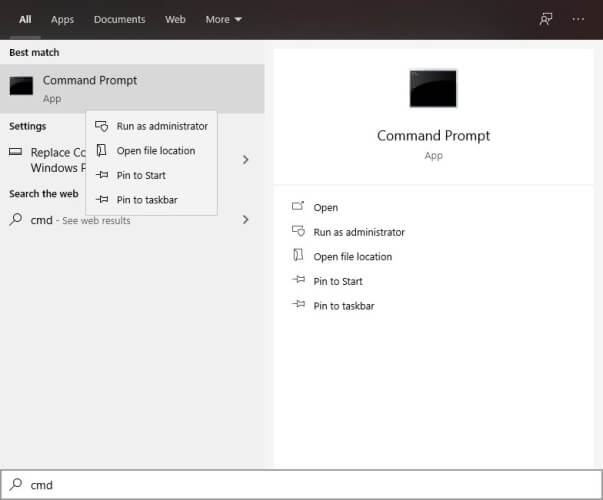
  1. On your Windows PC, launch CMD as administrator
  2. Type the following commands in this exact order:

ipconfig /flushdns
ipconfig /registerdns
ipconfig /release
ipconfig /renew
netsh winsock reset

Now it’s very important that you restart your Windows PC as soon as the last command is executed. Only after rebooting you can launch Monster Hunter: World once more and check if the packet loss issue is still there.

Often times, cached data gets stacked in unhealthy build-ups, which can interfere with your connection’s well-being. To prevent that from happening, you can flush and renew your DNS, as well as use the Netsh Winsock reset command.

We also recommend switching from your ISP-assigned DNS to a public, free DNS. We’ve tested Google’s Public Free DNS, Cloudflare, and OpenDNS, and they’ve all shown promising results.

You can, of course, choose whichever you prefer.

3. Manually troubleshoot

  • Restart the game, your PC, router, and/or modem, if necessary
  • Call your ISP and ask them nicely if they can look into the issue and maybe even fix it
  • Check if the Monster Hunter: World servers are up and running, and not undergoing maintenance
  • Inspect your end of the connection thoroughly and look after any malfunctioning component
  • Replace or fix any troublesome component on your end of the connection
  • Check the quality of your Ethernet cables and upgrade them if necessary (for instance from Cat 5 to Cat 6)
  • Always use wired connections instead of Wi-Fi (Wi-Fi packet loss happens way more often)
  • Contact Monster Hunter: World if you think there’s something wrong on their side
  • Avoid peak hours if you suspect your network is congested (or use a VPN to avoid it)
  • Update your system drivers (especially network adapter drivers)
  • Lower the quality settings of the game
  • Close any programs or services on your PC that might be heavy on the bandwidth (torrent & VoIP clients)
  • Choose a different broadcast channel on your wireless router if you’re using Wi-Fi
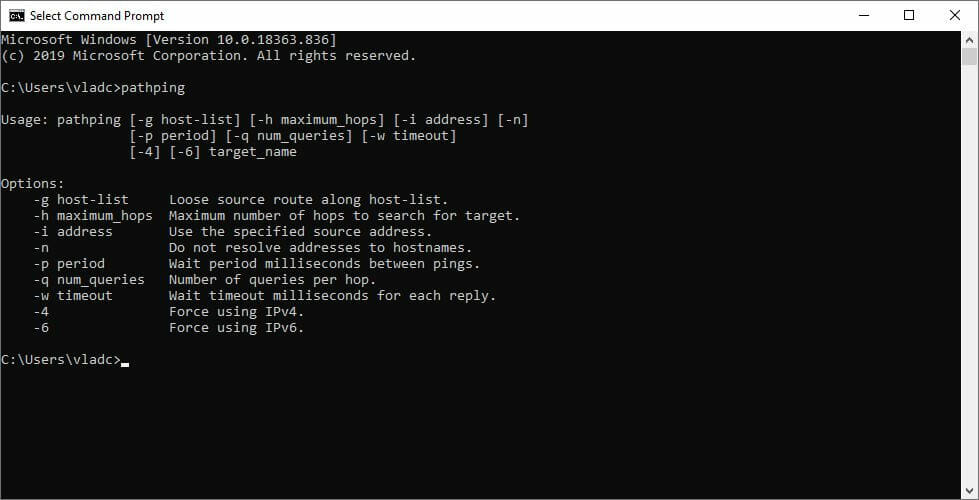
  • Run a pathping test to see if you’re leaking packets on your end of the connection
CMD pathping

There you have it, a list of suggested fixes that may help you alleviate your Monster Hunter: World packet loss issue. Keep in mind that not even taking all these suggested steps might fix your issue, especially if you have no clue on what’s causing the leak.

However, performing as much steps as you can from the list above may help you increase the quality of your connection. That, in turn, may help you reduce the percentage of lost packets, and even increase your connection’s speed.

Final thoughts on Monster Hunter: World packet loss

All things considered, packet loss can be a bummer, whether you encounter it in Monster Hunter: World or any other place. However, with enough patience and determination, things can significantly improve.

It’s worth noting that, while using a VPN is still one of the most popular fixes for packet loss, it may not help at all if there’s something wrong on your end, or if the game servers have issues.

[wl_navigator]

How to fix Salesforce after the latest Edge update

A lot of trouble seems to have emerged after Edge rolled out the latest stable version last week (v86).

As shown recently, the changes implemented in the downloading process generated some discontent.

Similarly, users have taken to the forums to point out that Salesforce has become unusable for the past few days.

When I click on an url, a new tab is opening in a visual force page. It looks like the app lay-out is not supported or something like that.

Another user is offering more details:

I am working in the version:  86.0.622.38. It looks like the apps in Salesforce are no longer supported in the latest version of Microsoft Edge.

Quick tip:

Whenever an app proves faulty in a specific browser, the easiest solution is to test it in a different one

On this note, we’re pretty sure that Salesforce is perfectly functional in Opera.

Not only it is faster, and considerably lighter compared to Edge, but it comes with multiple exclusive features such as ad blocker, built-in messenger apps, customizable speed dials,  separate workspaces, or visual bookmarks.

The built-in free and unlimited VPN is also one of the main perks of the free, user-friendly browser.

Opera

Opera

Use Salesforce in Opera to improve your workflow and take advantage of all the exclusive features this browser offers.

How do the changes in Edge affect Salesforce users?

How do the changes in Edge affect Salesforce users?


More specifically, with the release of Edge 86, SamesSite cookies are set as SameSite=Lax by default. (Until the Edge 86 release, the default was SameSite=None; Secure. )

This means that any website using non-secure access (HTTP) is blocked and also that custom Salesforce integrations relying on cookies can’t be accessed anymore.

Salesforce has notified its users about the upcoming changes while also mentioning that all editions of Lightning Experience and Salesforce Classic are impacted.

What should I do to make Salesforce work in Edge?

fix salesforce not working on edge 86


1.Revert the changes

According to Salesforce, developers can opt in to explicitly use setting SameSite=None; Secure. However, this might affect the security of the used apps.

2. Switch to HTTPS connection

First, one can check the connection type used in their org. From Setup, in the Quick Find box, enter Session Settings, then select Session Settings.

If some sites or portals are still using HTTP connection (although the secure one should have been enabled by default), you can request the changes as follows:

  1. From Setup, in the Quick Find box, enter Sites, then select Sites.
  2. Click the site you want to edit, and ensure that the Require Secure Connections (HTTPS) checkbox is selected.

One can also run some tests in a sandbox as suggested in this Trailblazer Community article.

Note that resetting the Edge settings or clearing the browser cookies and cache will not solve the issue.

We hope that the problem is clarified now. If you have any comments on this topic, please use the dedicated section below.

We’ve also covered a similar topic with Salesforce not working in Chrome, so you might want to check that out as well.

[wl_navigator]

How to Fix WinRAR No Archives Found Error Quick & Easy

Using WinRAR is fairly common for reducing the size of large attachments and even saving some storage space on the PC.

However, users report getting a strange error message No archives found or  Does not appear to be a valid archive when trying to extract files through WinRAR.

These are some of the most common error messages found during WinRAR extraction.

Several reasons could have led to this message, such as viruses on your device, an incomplete download process, or using untrustable third-party tools for performing the file compression.

Don’t worry; we’ve got you covered in all cases. In this article, we will explore in more depth what you need to do to fix the error and safely extract your files.

How can I fix the No archives found error in WinRAR?

1. Use a dedicated software

The No archives found error usually appears when the initial compression of the files has been corrupted or if you have some viruses on your device that may have altered the file structure of the RAR file.

There are several tools out there that you can use to compress large files, but to avoid getting this kind of error, we would recommend that you use a reliable tool, such as WinZip.

This amazing tool allows you to compress, manage, and share all your files quickly and without compromising their quality.

Sharing, editing, watermarking, or moving the files stored on your PC or in the cloud service are other useful features you will have access to after installing this software.

If you are concerned about the privacy of the compressed files, we have good news.

WinZip uses a protection algorithm similar to the one used for bank protection. Your files will remain confidential throughout the entire process.

Using this software is very easy; all you need to do is download it and run the installation package on your device. Afterward, you can select the files or folders that need to be compressed.

Let’s have a look at some of its key features:

  • File splitter features.
  • Repairs faulty ZIP file.
  • Extract multiple files option.
  • Compression features.
  • Password protection feature.
  • Data back-up and sharing options.
  • Supports multiple compression formats: Zip, Zipx, RAR, 7z, TAR, GZIP, VHD, XZ, and more.

WinZip

Compress, store, and share all your files with this error-free software. Get the best deal now!
Free Trial Visit Website

2. Use WinRAR Repair

  1. Launch WinRAR and then select the location where the corrupted file is saved.
  2. Next, click on the corrupted archive file (RAR or ZIP file).
  3. Click on the Repair button in the tool and choose the repair archiver from the drop-down list that appears.
  4. Choose the location that you want to save the new archive after repairing the file.
  5. Next, click on OK to save settings.
  6. After the repair process is completed, go to the folder chosen as the location for the new archive and access the repaired file.

3. Use the shortcut menu

  1. Launch WinRAR.
  2. Right-click on the corrupted archive.
  3. Click on extract files in the shortcut menu that pops up.
  4. Move to the Extraction path and options menu.
  5. Next, select a folder to save decompressed archives.
  6. Check the box indicating keep broken files in Miscellaneous.
  7. Click OK to start the extraction process.

Note: Although this method works well in some cases, trying all the alternative methods listed above is recommended before resorting to this method to repair archived files.

4. Open the file with File Explorer

  1. Click on the corrupted ZIP file.
  2. Select Properties, on the Home tab and open it.
  3. Set Open with File Explorer, on the General tab,
  4. Next, at the bottom unblock the Security option and click OK.
  5. Go to Extract in the View tab on the selected file and click Extract All.

This is all. You can easily fix the No archive found error using a dedicated error-free tool such as WinZip or by using one of the other alternatives we’ve described in this article.

We hope one of our suggestions helped you solve the error, and if you have additional comments or suggestions, please let us know in the comments section below.

[wl_navigator]

Why does WinRar never expire? Let’s find out

In the new digital age, most of our communication has transitioned to the online environment. Managing your documents on your Windows 10 device is not always as easy as it seems.

Having some easy ways to transfer large files or store them without compromising on their quality, has become a priority for almost everyone.

While any archiving software can simply unzip and zip files, there are plenty of other options available on the market that don’t do only that but offer you a wide array of other incredibly useful features.

Quick tip: Use WinZip

If you want to have access to a full set of features that include a variety of options, you don’t have to look any further than WinZip.

WinZip has some amazing features to offer and can help you unzip files easily, encrypt the data, break up archives, and also rebuild them easily. Besides the seamless integration with iCloud Drive, Dropbox, Google Drive, it also works perfectly with ZIP, ZIPX, RAR, LHA, 7Z, JAR, and WAR formats.

One of the most important features of this app is the ability to repair ZIP files, includes a powerful cleaner tool, and everything is wrapped nicely into a user-friendly and beautiful interface.

All in all, if you want an error-free tool that will extract RAR and ZIP files fast and efficiently, then WinZip is the best way to go.

”WinZip”

”WinZip”

”Archive,
”Free
&aff_sub2=Native” current_url=”true” button_text=”Get it now” image=”https://windowsreport.com/wp-content/uploads/2020/07/winzip-logo-e1594725366607-210×160.png”]

How come WinRar never expires?

The team behind WinRar chose this way of promoting their product, which doesn’t involve stopping your access to the software entirely.

WinRar just limits the number of features available for you and keeps reminding you that you can buy it every time you open the software.

This can surely get annoying over time, thus our recommendation of the powerful WinZip.

Is WinRar free software?

WinRar is not a free software, but they have chosen the strategy of letting users have access to the trial version indefinitely, in order to improve the chances that the user will at some point want to buy the product.

The fact that WinRar does actually accommodate the basic needs of archiving and unzipping files is unquestionable and while it’s free to use, allowing it to remain like this, could create a better possibility for the user to spend some money at some point.

We hope that this article has offered more in-depth details about RAR files and their utility.

If you have additional comments and suggestions, please let us know in the comments section below. title here

Why does WinRAR last forever?

Even though the capabilities of the WinRar software are not fully-fledged as a trial version, it still offers some basic archiving options, and this makes most of the users satisfied with using it.

Because the market is over-saturated with a variety of software options, most people tend to stick with the one they have been using for a while.

If you’d like to take your archiving experience to the next level, we recommend that you try out WinZip by clicking the link above.

[wl_navigator]

How to fix Among Us game bugs easily

Among Us is a very surprising game for all intents and purposes.

It was first released 2 years ago but fell into obscurity quite fast, but now it is among the most popular games on Steam and Itch.io.

However, it doesn’t matter how long a game has been on the market, bugs are still something that can be found.

Because of Among Us’s sudden surge in popularity, we’ve decided to cover some of these bugs, as well as provide you with solutions to fixing them.


Quick tip:

Among Us is one of those pocket-sized games that can deliver hours of fun.

Join hundreds of thousands of players in the hottest game of the season!

Among Us

Among Us

A game of deception and betrayal where you never know who to trust. Get Among Us today and play on!

How do I fix common bugs in Among Us?

1. Stuck in the wrong region bug

According to the Steam forum reports, there is a bug that is triggered by changing your region mid-connection:

There is a bug where if you change regions while connecting, the game may overwrite your region data with the wrong region. This makes you connect to the wrong region later. It can easily cause room codes to not be found.

While this scenario is probably hard to replicate on a daily basys it is still something worth noting.

Solution:

Luckily enough, the same post provided users with a solution. If you own the Steam version of Among Us, all you need to do is delete the serverInfo2 file.

It is located in the following location:

%appdata%\..\LocalLow\Innersloth\Among Us


2. Innocents can sometimes vent

According to a Reddit post, there have been reports of games where innocents could sometimes vent:

On the map MIRA HQ we had a game where an innocent was able to vent. When we voted him off, he was counted as an innocent.

Solution:

Unfortunately, this seems like a glitch in the game’s coding and not a client issue on the user’s side. As such, the only thing you can do is wait for a hotfix.


3. Dead players could call meetings with other players

One mechanic-breaking bug was also reported on Reddit where users stated that they could call on meetings in otherwise impossible situations:

This has happened to me only a handful of times, but in (2 imposter) games, there were times that i found one imp kill someone and I report the body, only to notice the second imp killing me before the players convene.

So literally a dead player calling a meeting of players. Imps go scot free cos no crewmates witness the crime and i can’t communicate with them. Is this, like the title suggests, a glitch or an intentional game mechanic?

Solution:

Just like with the previous issue, this seems like a glitch in the game’s coding and not a client issue on the user’s side. As such, the only thing you can do is wait for a hotfix.


4. Players getting kicked randomly out of matches

Sometimes Among Us matches can be cut short because of error messages, as per the reports of some players:

Can you help me? When I join a game, 9 seconds in I get kicked because of ‘sent 6 pings that remote server can not respond to’. How do I fix this

Solution:

This issue is most likely caused by faulty Wi-Fi settings, so try resetting your router and connect to the game again.


5. Role distribution RNG seems off-balanced

Many Among Us players have reported that sometimes they can go for up to 20 games without ever playing an imposter:

I’ve played 20-25 games with my friends so far and not once have I ever been imposter. I joined 3 imposter games and still haven’t been imposter once after 5 more games. Is there a setting or something that prohibits that?

Solution:

This itself is not much of an issue but rather poor luck in terms of RNG. Since the number of crewmates is much higher than that of imposters, it goes without saying that the chance of you being given the role of the imposter is also very low.

Because of the randomness, this already slim chance can seem even lower.


6. Characters walk out of cameras

Since the game is all about navigating throughout the ship, bugs that limits your movements and ability to participate in events can mean a lost match.

That’s exactly the case with a  bug reported by users where their characters would become uncontrollable:

Strange bug, my character keep walking out of camera, I couldn’t do anything and couldn’t participate in the ensuing votation. […]

Solution:

This is more of a workaround rather than a solution, but whenever you move your character, try to keep your camera on him, and never pane away so that he never ends up off-screen


7. Players get kicked out of the ship randomly

Apparently, players could end up outside the map and could no longer go back inside until the end of the match:

I was off the map and couldn’t get back on, there was a barrier. So was green

Solution:

Unfortunately, this is a visual bug that has more to do with the game’s coding. If you do encounter this bug, all you can do is wait for the next game hotfix.


8. Imposters kills everyone in seconds

The purpose of the game is to either kill everyone as an Imposter or find the imposters as Crewmates.

That being said, a bug where an imposter can kill everyone in mere seconds means a ruined game, and that’s what some players have been reporting:

There were 3 of us together, and the impostor killed all 3 our us at the same time in like 2 seconds

Solution:

Unfortunately, it is unknown whether this happens because the imposter is exploiting a bug, or if he is hacking.

As such, the only long-term solution would be to report the player after the match.


That pretty much wraps up our list of common bugs and issues found in Among Us.

If you know of any other bugs that broke the game for you, let us know by leaving us a message in the comments section below.


[wl_navigator]

WinRAR not responding / stuck when opening archive

The popular data compression, encryption and archiving tool WinRAR for Windows can stop working when extracting a large zip or RAR file. It will show a not responding error message when it’s at about 98%.

WinRAR can get stuck or stop responding due to several reasons. One of the reason is download error where the file can get corrupted during the download The issue can also occur with zip files with a changed file extension.

In this article, we explore a few troubleshooting steps to help you resolve the WinRAR not responding problem.

How do I fix the WinRAR not responding on Windows 10 problem?

1. Use WinZip for file compression

WinRAR not responding

WinZip is a popular compression software that can help you fix the WinRAR not responding issue. Using a good WinRAR alternative, like WinZip, can help if there is a glitch with the app during file extraction.

Apart from the best-in-class file compression, WinZip also offers some additional features. For one, it comes with a versatile file management system on Windows computers and devices.

It also comes with easy sharing by email, cloud, social media and IM, PDF conversion, watermarking, and excellent encryption to protect your personal data. With Dropbox, Google Drive, and OneDrive integration, it offers access to cloud storage accounts.

Key features of WinZip:

  • Supports all major file formats including Zip, RAR, 7Z, and GZIP.
  • Bank-level encryption for file protection.
  • Built-in file manager to access and manage files on your PC, network, and cloud.
  • PDF conversion, watermarking, and easy sharing features.

”WinZip”

”WinZip”

”Avoid
”Free
&aff_sub2=Native” current_url=”true” button_text=”Get it now” image=”https://windowsreport.com/wp-content/uploads/2017/11/WinZip-button-210×160.png”]

2. Check your antivirus software

WinRAR not responding

If you are noticing your PC to have stopped responding along with WinRAR, check your antivirus. Your antivirus software may have started scanning the zip file to protect your PC from malware and adware.

To confirm if the antivirus is causing the issue, do the following.

  1. End the WinRAR extraction process. Open Task Manager and then kill the WinRAR process.
  2. Right-click on your antivirus icon by expanding the system tray.
  3. Select Disable temporarily or similar options.
  4. Once the antivirus is disabled, try extracting the file again with WinRAR.

Once completed, turn on your antivirus again and then try compressing or unzipping the file. If the issue persists with the antivirus on, install a different antivirus and see if that resolves the error.


3. Update WinRAR

WinRAR stuck archiving file

  1. Launch WinRAR on your Windows PC.
  2. Click on Help and then select About WinRAR.
  3. In the About WinRAR window, look for the WinRAR version info and the edition.
  4. Next, open the WinRAR download page on your PC.
  5. Click the Latest version of WinRAR under English WinRAR and RAR releases. Make sure to choose the correct edition 32-bit/64-bit depending on your PC/OS.
  6. Click Continue to download WinRAR.
  7. Run the installer and proceed with the installation. Make sure you have closed the WinRAR app before running the installer to prevent any errors.

Once installed, unzip a file and check if the app continues to get stuck or stops responding.


4. Check for permission issues

WinRAR not responding

  1. Press the Windows key, and type WinRAR.
  2. Right-click on the WinRAR app and select Run as Administrator.
  3. Try compressing any file and check for any improvements.

If running WinRAR as administrator fixes the issue, do the following.

File compression stuck at 99%

  1. Right-click on WinRAR desktop shortcut and select Properties.
  2. In the Properties window open the Compatibility.
  3. Under Settings, check Run this program as an administrator.
  4. Click Apply and OK to save the changes.
  5. Launch WinRAR and check for any improvements.

5. Reinstall WinRAR

File compression stuck at 99%

  1. Press the Windows key + R.
  2. Type appwiz.cpl and click OK.
  3. In Control Panel, select WinRAR.
  4. Click on Uninstall. Confirm the action by clicking on Uninstall/Yes.
  5. Once uninstalled, reboot the computer.
  6. Download and reinstall the app from the official WinRAR page.

The WinRAR not responding/stuck when opening archive problem can occur due to outdated WinRAR version or permission issues. Updating the app to the latest version can fix the problem. 

[wl_navigator]

Microsoft Word, Outlook, and PowerPoint to get state-of-the-art image captioning technology

Microsoft announced today that it has developed a new image captioning system that can generate captions for images automatically. The new capability is launching first in Azure Cognitive Services today and will propagate soon to Microsoft Word, Outlook, and PowerPoint, the company said this morning.

The AI model was trained with a huge dataset of images paired with word tags, and each tag was mapped to a distinct object in an image. Then the researchers fine-tuned the pre-trained model for captioning on the already captioned images dataset. The training process helped the model to learn how to compose a sentence. The new AI model leverages the visual vocabulary to generate captions for images containing novel objects accurately.

While the researchers admit the AI isn’t perfect, but it’s two times better than the image captioning model currently being used in the company’s products and services. The researchers found that it can create captions that are more descriptive and accurate than the captions written manually by humans.

“We’re taking this AI breakthrough to Azure as a platform to serve a broader set of customers,” said Xuedong Huang, a Microsoft technical fellow and the chief technology officer of Azure AI Cognitive Services in Redmond, Washington. “It is not just a breakthrough on the research; the time it took to turn that breakthrough into production on Azure is also a breakthrough.”

Since the last couple of years, Microsoft has been working on an ambitious goal to infuse the power of AI across several of its products and services to improve productivity. With this new automatic image captioning system, Microsoft aims to help all users access the vital content in any image for people with vision impairment.

What do you think about the project, and how the researchers can improve it? Let us know in the comments down below.

Microsoft rolls out Windows Search Box improvements for the Windows 10 May 2019 update and higher

Along with a new Dev channel build today, Microsoft is rolling out a small change for Windows 10 that most people should notice. Indeed, the company announced some improvements for the recent searches experience in the Windows Search Box, detailing it should make them easier to get back to.

Rolling out in a server-side update for Windows 10 version 1903 (the May 2019 Update) and higher, there are is just one thing to note. According to Microsoft, you can now remove individual items in the recent search list in Windows Search by clicking the “x” that shows when you hover your mouse over the items. You also will notice that the recent list still shows the last four items that you’ve searched for and opened from Windows Search Box.

Windows 10 Search

You’ll be able to turn this feature off if you don’t like it. Simply click Search history on this device under Settings, Search, and Permissions and History. Please be aware, though that if you’ve not used Windows Search Box before and have 0 recent items, the recent list will be hidden.

Windows 10 Insider build 20236 adds new option to change your display’s refresh rate in the Settings app

Microsoft has just released the Windows 10 preview build 20236 for Insiders in the Dev Channel, which brings a new option for changing the refresh rate of your display right from the Settings app. The new option is available in Settings > System > Display > Advanced display settings, the available refresh rates in the dropdown menu will vary depending on your display.

That’s the only new feature in this build, and it’s nice to see another option from the legacy Control Panel being added to the Windows 10 Settings app. This new build also includes a long list of fixes and known issues, including a fixed for a bug causing File Explorer to crash when renaming a file. The Windows Insider team has also fixed another issue causing the same app updates to appear repeatedly in the Microsoft Store app. You can find the full list of changes, bug fixes, and known issues in the build 20236 below:

Changes and Improvements

  • To improve accessibility of PDFs for Narrator and other screen reader users, in the cases where Unicode is not provided by the printing application, we’re updating our Microsoft Print to PDF option to make an attempt to convert the provided font glyphs to Unicode.

Fixes

We’ve fixed an issue where after taking recent builds some Insiders received an unexpected Compatibility Assistant notification that “Microsoft Office is no longer available”.

  • We’ve fixed an issue where some Office applications were crashing or missing after updating to a new build.
  • We fixed an issue that could result in the same app update installing repeatedly on the previous build.
  • We’ve fixed an issue where some devices are experiencing a DPC_WATCHDOG_VIOLATION bugcheck
  • We fixed an issue resulting in some Insiders experiencing an UNHANDLED_EXCEPTION in dxgkrnl.sys bugcheck in the last few builds.
  • We fixed an issue that could result in a 0x800F0247 error when installing driver updates.
  • We fixed an issue that could result in sihost.exe crashing when trying to share an app via the Share option when right clicking a tile in Start.
  • We fixed an issue where if “Animate controls and elements inside windows” was turned off in Performance Options, dragging a tile to another tile group in Start would result in the dragged tile no longer responding to mouse click.
  • We fixed an issue resulting in Narrator sometimes reading out an incorrect number of nodes in File Explorer’s navigation pane (for example, saying 1 of 2 items, instead of 1 of 4 items).
  • We fixed an issue that could result in the icon next to “Scan with Microsoft Defender” (when right clicking a file in File Explorer) being very small or large.
  • We fixed an issue where the icon next to “Scan with Microsoft Defender” when right clicking a file wasn’t updating to reflect high contrast when high contrast was enabled.
  • We fixed an issue that could result in File Explorer crashing when renaming a file.
  • We fixed an issue from recent builds resulting in clicking on items in Timeline not launching the corresponding app.
  • We fixed an issue from recent builds impacting certain apps with search boxes, where the search box would disappear when scrolling the app even if it was supposed to stay visible.
  • We fixed an issue resulting in intermittent connectivity loss when connecting to a PC via remote desktop connection, as a result of the connected PC attempting to sleep.
  • We fixed an issue where when using the windns.h API to discover services on the local network, the TTL value of the discovered service wasn’t used – instead using the default value of 120 seconds.
  • ]We fixed an issue where the “Listen to this device” checkbox state in microphone properties wasn’t persisted on upgrade and would revert to default.
  • We fixed an issue where adjusting volume also muted/unmuted when “App volume and device preferences” was open.
  • We fixed an issue that could result in the Network & Internet Settings Status page sometimes unexpectedly not showing all current connections.
  • We fixed an issue that could result in your cursor disappearing when typing into Command Prompt with a Chinese IME active.
  • We fixed an issue that could result in the touch keyboard sometimes not making any sounds while typing even though the setting to have sound while typing was enabled.
  • We fixed an issue where the French AZERTY touch keyboard layout was French keyboard is missing number hint labels on the A/Z keys, and the Select All/Undo labels were at the top instead of bottom.
  • We fixed an issue where the child keys on the Japanese 12-key touch keyboard layout weren’t following the updated key design.
  • We fixed an issue where Narrator was unexpectedly saying “Expressive Input Panel” when you touched a text candidate in the touch keyboard.
  • We fixed an issue that could result in the touch keyboard getting stuck in a suspended state after waking a PC from sleep, leading to it not invoking automatically when setting focus to a text field.
  • We fixed an issue with the updated touch keyboard design where when using Arabic the clipboard icon would appear on the wrong side of the copied text in the candidate bar.
  • We fixed an issue with the Thai touch keyboard layout, where the shift-state characters were placed in inconsistent locations on the keys.
  • We fixed an issue where when using the updated Emoji Panel design, Narrator wasn’t reading the category names in the Most Recently Used section.
  • We fixed an issue with the Emoji Panel when using Narrator, where after inserting an emoji, Narrator would then stay silent on navigating further to other emoji.
  • We fixed an issue where it wasn’t possible to use the arrow keys to navigate through the gif section of the Emoji Panel.
  • We fixed some contrast issues in the updated Emoji Panel and touch keyboard expressive input area when using high contrast.
  • We fixed an issue that could result in the Voice Typing settings menu drawing off screen.
  • We fixed a regression that was breaking NVIDIA CUDA vGPU acceleration in the Windows Subsystem for Linux. Please see this GitHub thread for full details.

Known issues

  • We’re working on an issue where new applications will fail to install with a Windows Installer service error on x86 systems. Windows x64 isn’t affected.
  • We’re working on an issue where when attempting to perform a Reset this PC using the Keep My Files option will fail with the error, “There was a problem resetting your PC. No changes were made”.
  • We’re looking into reports of the update process hanging for extended periods of time when attempting to install a new build.
  • Live previews for pinned sites aren’t enabled for all Insiders yet, so you may see a grey window when hovering over the thumbnail in the taskbar. We’re continuing to work on polishing this experience.
  • We’re working on enabling the new taskbar experience for existing pinned sites. In the meantime, you can unpin the site from the taskbar, remove it from the edge://apps page, and then re-pin the site.
  • We’re working on a fix for an issue causing some devices experiencing a KMODE_EXCEPTION bugcheck when using certain virtualization technologies.
  • We are working on a fix for an issue where selecting an IME candidate or hardware keyboard text prediction candidate may insert the candidate adjacent to the one selected.
  • We’re investigating an issue reported by some Insiders wherein the taskbar is obscuring the Power button in the Start menu. If this is happening on your PC, you may need to use the Windows key plus X menu to shutdown for the time being.
  • We’re investigating reports from some Insiders that they’re experiencing APC_INDEX_MISMATCH bugchecks.

Lastly, the Windows Insider team announced today some Windows Search improvements that are rolling now to all Windows 10 users running the May 2019 Update or higher. This is a server-side change to display some of your recent searches when you open Windows Search Box, and you can learn more in our separate post.

Zoom announces new features, including Teams Together Mode-like “Immersive scenes”

While Zoom has become a verb in this new era of rampant video conferencing, it seems with its latest round of feature updates that the platform is officially tossing its hat into the ring for serious enterprise alternatives.

Announced via its blog today, Zoom unveiled a slew of new features that are available now and some, that will be available in the near future that should put it on par with the likes of Microsoft Teams, Slack, and Google Hangouts.

As Zoom has whimsically called it, Zoomtopia 2020 is the branding for a full platform introduction of new features that include Immersive scenes, new reactions & animations, video waiting rooms, recording highlights, and high-fidelity audio.

Drilling down into just some of the new features, the addition of Immersive scenes is reminiscent of Microsoft Team’s recent partnership with the NBA, as it mimics what used to be in-person-like settings. Perhaps, more applicable and useful than being an audience at a stadium will Zoom’s replica classroom setting for the millions of families now homeschooling.

Classroom

Zoom’s new customized lobbies also add a bit more professionalism as well as adding lower thirds to more clearly identify who is speaking at times.

Other high-level features coming to Zoom also include a new Nomadic E911 for Zoom Phones which will automatically initiate protocols to alert internal safety team members and E911 dispatchers simultaneously.

The designated internal safety team member also gets an alert on Zoom Chat. A safety team member can listen in and then connect to the call to offer assistance to the person who needs help, or to provide additional instruction to the emergency responders. To assist the emergency responders further, the safety team can trigger Zoom Rooms Digital Signage to help locate the person needing help.

In addition, Zoom Phone will also get SMS integration by allowing members in a call queue to transfer text responses between team members. This new feature should reduce redundancy for members who communicate across several messaging apps. Unfortunately, Zoom Phone SMS is only in beta right now but should start rolling out more widely in early 2021.

AI is also coming to Zoom to help with spam detection. Admins will be able to set a threshold for AI-based spam detection to reduce the number of spam calls winding up in voicemail boxes.

Beyond all of the consumer-facing updates, Zoom is also working to implement Zapps, the company’s new third-party app development platform as well as OnZoom which is aimed at attracting content creators.

According to a report from ZDNet, “Zapps is about bringing apps into the Zoom experience with a click.” In a similar platform expansion model, OnZoom looks to be the company’s attempt to create a dashboard for event creators who host events on the platform. With OnZoom, creators can track items such as ticket sales, gross income, cancellations, event minutes, and total tickets sold among other things.

The two initiatives highlight’s Zoom’s broader ambitions for the platform that look beyond being a go-to resource during a pandemic but to become a pillar platform for future communications of all types. It’ll be interesting to see how Microsoft evolves Teams to keep parity and mindshare with Zoom going forward.

How to fix Pinnacle Game Profiler not opening in Windows 10

For those who don’t know, Pinnacle Game Profiler is software with which you can set up custom controller profiles for Windows games.

However, some users have stated in forum posts that Pinnacle Game Profiler doesn’t start for them in Windows 10. All sorts of errors occur out of the blue.

The software often crashes upon launch as well. These are a few resolutions that might fix PGP when it doesn’t start.

How can I fix Pinnacle Game Profiler startup issues?

  1. Disable your antivirus software
  2. Run Pinnacle Game Profiler as Administrator
  3. Update your Pinnacle installation
  4. Reinstall Pinnacle Game Profiler
  5. Adjust the date in Windows 10

1. Disable your antivirus software

  1. Press the Windows key + X hotkey, and then open Task Manager from the Win + X menu.
  2. Select the Start-up tab in the snapshot directly below.
  3. Then select your antivirus software there, and press the Disable button.
  4. Restart Windows after removing the antivirus utility from the startup.

Some antivirus software, such as Norton packages, can also conflict with PGP. Thus, turning off antivirus utilities might also fix PGP.

You can usually temporarily disable an antivirus utility by selecting a disable or turn off setting on its system tray icon’s context menu. Or you can temporarily remove the utility from the Windows 10 startup as outlined above.

After doing so, think of using an antivirus solution such as Vipre since it works quietly in the background and never leads to such Pinnacle Game Profiler startup errors.

Besides that, make sure that there’s no compromising involved when it comes to keeping your PC safe from malware, ransomware, and other online threats.

Quite the opposite, you’re about to enjoy top-rated protection and preconfigured settings – yes, they are part of the package for those who aren’t exactly tech-savvy.

In case you need to switch to a more efficient antivirus that doesn’t interfere with the Pinnacle program, you can choose from the best antivirus software on Windows 10.

2. Run Pinnacle Game Profiler as Administrator

  1. Right-click your Pinnacle Game Profiler shortcut and select Properties.
  2. Select the Compatibility tab shown directly below.
  3. Select the Run this program as an administrator option.
  4. Click the Apply button, and press the OK button to close the Pinnacle Game Profiler Properties window.

First, note that you need to run Pinnacle Game Profiler as an administrator. You can run PGP as admin by right-clicking its shortcut and selecting Run as administrator.

You can also configure the software to run as an Administrator. In order to do so, just take a look at the above steps.

3. Update your Pinnacle installation

  1. Some users have fixed PGP by updating the Pinnacle installation. To do that, right-click the Start button and select Run.
  2. Enter appwiz.cpl in Run’s Open text box and click OK to open the Programs and Features applet shown directly below.
  3. Select Pinnacle Game Profiler and press its Uninstall/Change button.
  4. Then select the Update Pinnacle Installation option there.
  5. Press the Next button.
  6. Note that the InstallShield Wizard window includes a Repair Pinnacle Installation option, which might also come in handy for fixing PGP.

4. Reinstall Pinnacle Game Profiler

Some users have confirmed that reinstalling Pinnacle Game Profiler has gotten the software up and running. Uninstall your current PGP software with a third-party uninstaller.

If you’re not sure what to do next, it is always a good idea to rely on powerful uninstaller software to remove certain programs and apps from your PC.

To find the most reliable solution for reinstalling the PGP program, try out the best uninstaller software on the market.

5. Adjust the date in Windows 10

  1. Open Cortana’s search box by pressing the Type here to search button.
  2. Enter the keyword date in the search box, and then select Change the date and time.
  3. Toggle both the Set the time automatically options off if they’re on.
  4. Then you can press the Change button to open the window in the snapshot directly below.
  5. Select a date about one month back, and press the Change button.

A few users have also stated that they’ve fixed PGP not starting by adjusting the Windows system date to a month prior to the actual date before opening the software.

That’s a curious fix that probably won’t work for everybody, but it’s worth a shot. Just refer to the above procedure in order to adjust the date in Windows.

Those are some of the resolutions that some users have kick-started Pinnacle Game Profiler with. If you’ve fixed PGP with an alternative resolution, feel free to share it below.

New PowerToys pre-release version improves Video Conferencing Mute feature, and more

Microsoft has rolled out a new experimental build (version 0.24) for its PowerToys utilities for Windows 10. The update aims explicitly to address existing issues affecting the new Video Conferencing Mute tool and includes all the fixes introduced in version 0.23.2.

The changelog for this release also mentions “telemetry for settings,” but the company hasn’t provided more details about it yet.

Here’s the full list of improvements and fixes in PowerToys version 0.24:

Software/Hardware compatibility:

Camera overlay image:

  • image dialog doesn’t work when running settings as admin

Status toolbar:

  • it shows always, even when the option to hide it is on
  • it always use the light theme
  • always open on startup even when disabled #6396

Microphone:

  • not all microphones are muted
  • offer option to select which microphone to mute

Settings UI:

  • settings info for hotkeys valid modifiers – #6246 (comment)
  • Fixed possible crash in PowerToys when the module is turned off

Code cleanup:

  • move VideoConferenceViewModel.cs from Settings.UI to Settings.UI.Lib
  • move toolbar out of the VideoConferenceSettings

Telemetry:

  • add telemetry for settings

It is important to note that it’s a download-only release, and users will not be able to install it via WinGet. “This release will not be on WinGet due to the driver still prompting for permission during install time,” the company explained.

Those who are interested in installing the experimental version can head to the GitHub page now to download the tool.

TY the Tasmanian Tiger just got an HD re-release on Xbox One and Xbox Series X

The classic video game, TY the Tasmanian Tiger, just received an HD re-release on Microsoft’s family of Xbox One consoles. This game, like most Xbox One titles, will also be playable on the upcoming Xbox Series X and Xbox Series S consoles as well.

As its name suggests, TY the Tasmanian Tiger HD is an HD remaster of the original game which came out on the OG Xbox console way back in 2002. Very little appears to have been changed beyond the slight visual upgrade which should appease gaming purists. Xbox Achievements have also been added.

Here’s the game description:

G’day, mate! Are you ready to explore the wilds of the Australian Outback in this remastered version of the classic game, TY the Tasmanian Tiger? Join TY on a RIPPER of an adventure to free his family from the DREAMING and stop the nefarious evil genius BOSS CASS from removing mammals from the top of the food chain.

To help you on your quest, you’ve got a BEAUT arsenal of boomerangs, sharp teeth, and the help of a few friends! So don’t be a galah – let’s head down under, and have a CORKER of a time! BEAUTY, BOTTLER, BONZA!

Are you a long-time fan of TY the Tasmanian Tiger or will this be your first time playing? Let us know in the comments and then follow us on Twitter and Facebook for more Xbox gaming news.

TY the Tasmanian Tiger HD
Developer:
Krome Studios Inc
Price:
$29.99

Twitter updates on Windows 10 and web in preparation for the USA election

The official list of changes that have been made to the Twitter web app over the past month or so has been released and the developers seem to have been a lot busier than what many assumed.

In addition to a variety of accessibility improvements, trending topics were given more information, the Settings UI was made a lot quicker to navigate, and preparations have been made for the disabling of regular RTs in the USA during the weeks leading up to the election.

Here’s the full list of changes:

New

  • Accessibility: We’ve improved accessibility for tab components on Twitter.com! You can now use the left and right arrow keys to navigate across individual tabs when the tab component is focused, and enter to select a new tab. Tab navigation will move you to the selected tab, and then into its contents.
  • Elevating the Quote Tweet composer: Beginning October 20 through at least the end of Election week in the US, we’ll be making changes to encourage consideration when amplifying Tweets. The Retweet action will now open the Quote Tweet composer directly. If you don’t add anything to the composer, it will still appear as a Retweet. You can find more information about these changes here.
  • Trends: For topics that are trending with multiple terms, we now render the additional context under a “Trending with” footer. These additional terms will link to the appropriate search page.
  • Settings: We’ve given our settings screens a refresh! Discoverability and navigation should be improved as we’ve reduced the number of steps needed to find your Privacy and safety settings. We’ve also grouped settings differently to increase clarity and better match user expectations. Sections are now represented with icons which adds a bit of flair, and helps with visual delineation.

Updated

  • Accessibility: Added improvements to the composer so that screen reader announcements when you’ve gone over the character limit are less aggressive. The announcements will also let you know how many characters you’ve gone over.
  • Conversation Controls: You will no longer see the conversation controls education prompt for every Tweet in a conversation.
  • DMs: We’ve rolled out a number of updates to DM conversations. 1-1 conversations now include a header with user profile information, and group conversations without titles will now list participants. We’ve also consolidated block and report actions on message requests.
  • DM Drawer: The DM drawer will now animate when you open and close it.
  • Navigation: Some items in the side navigation may now shrink or appear under the “more” menu to prevent vertical scrolling when the window is short.
  • Toasts: Muting and unmuting accounts will now cause the account name to be shown in the toast.
  • Toasts: Saving and deleting searches will now display toasts.

Fixed

  • Accessibility: We’ve fixed issues with focus rings being present on parent elements when focusing their children. Focus states on parents and children will now behave more consistently, and we’ve added focus rings to elements that didn’t have them previously.
  • Accessibility: The video player volume slider will now open when you’ve focused the volume button.
  • Accessibility: Quote Tweet contents will now be read by screen readers as part of the content of the parent Tweet.
  • Composer: When composing a Tweet with multiple URLs, the card that’s shown in the composer preview will match the card that’s shown after the Tweet is sent.
  • DMs: Fixed an issue where cards would resize rapidly in DM conversations due to the presence of scrollbars. This would cause a strobing effect, and was an uncommon occurrence.
  • Events: Fixed an issue with the Events header where longer titles in right-to-left languages would be truncated in the wrong spot.
  • Lists: List screens will no longer show faulty error states when there’s data available.
  • Scrolling: Your scroll position in timelines will no longer be lost when you have the DM Drawer open.
  • Tweets: The action menu will now close after clicking “Why am I seeing this ad?”.
  • Tweets: Fixed issues with Tweets that were in scheduled or drafted states not displaying the correct Quote Tweet when being updated in the composer.
  • Typeahead: On Safari, spelling suggestions should no longer interfere with the suggestions popover menu.
  • Typeahead: Prevent scenarios where selecting a suggested item would actually select the previous item in the list.
  • Typeahead: Fixed an issue where automatically completing an item would sometimes leave two copies of the mentioned item.
  • Video: Carousels with video will now play properly when moving between items with reduced motion enabled.
  • Video: When viewing video at smaller screen sizes, the control bar elements and buttons will now dynamically resize to prevent overlapping controls.

Have you noticed any of these changes in the Twitter web app or do they all come as a surprise? Let us know in the comments below and then follow us on Twitter for more tech news.

Twitter
Twitter
Developer:
Twitter Inc.
Price:
Free

Best File Manager for Windows 10 [Out of 15 Tested in 2026]

Many tech-savvy users aren’t happy with Windows Explorer and this is why many are choosing a different file manager software.

Windows Exporer lacks certain features that third-party file managers have such as advanced search, bulk rename, FTP client, tabbed interface, dual panes, and this can be a deal-breaker for some advanced users.

If you’re looking for the best file manager software for Windows 10, read on to find out.

What’s the best file manager software for Windows 10?

1. WinZip

WinZip is by far the most well-known archiver software but it’s also an excellent file management software.

This software is very good at protecting your files because it can encrypt them with banking-level technology. WinZip can also convert your files to the PDF format which you can password afterward. 

Managing your files also implies sharing them and WinZip also has cloud integration with Google Drive, OneDrive, Dropbox, and more. You can upload the files and send the link to anybody.

Another easy way of sharing the files is to ZIP them in a smaller file that can be sent as an attachment to an email. 

Backing up your files will be also easier by compressing them with WinZip and depositing them to the chosen location but this process can be also automatic.

Let’s review some of the best features of WinZip:

  • Decompress almost any major file formats, including ISO
  • Unsurpassable compression and decompression speed
  • Old and unused files detection with built-in Cleaner Tools
  • Compress files to reduce email attachment size
  • Easy access and management of your local, network, or cloud files
  • Splitting and joining files options

”WinZip”

”WinZip”

”WinZip
”Free
&aff_sub2=Native” current_url=”true” button_text=”Get it now” image=”https://windowsreport.com/wp-content/uploads/2020/09/winzip-logo-210×160.png”]

2. Frigate3


If you’re looking for the best file manager for Windows 10, you should also check out Frigate3.

This is a highly configurable software that also features a modern, transparent interface.

An interesting feature for Frigate3 is the built-in size-manager feature. It’s extremely useful to find big files on your PC so that you can delete them and regain a lot of hard disk space.

Another nice addition to this software is a built-in text editor which can come in extremely handy if you’re not a big fan of Notepad.

Here are other notable features of Frigate3:

  • Ability to view FTP and files and archives easily
  • Built-in file viewer for popular file types
  • Compatible with all major archive file types
  • Folder comparison
  • Advanced search system
  • Multi-rename feature

⇒ Download Frigate3


3. Directory Opus

Another file manager that you should try is Opus Directory. It’s easy to use and customize.

Some interesting features of this file manager are the ability to edit the metadata and the built-in FTP client, so it can be really helpful for more advanced users. 

To really take advantage of the dual pane feature, Opus Directory comes with a viewer pane that lets you preview files and single or dual file display with single or dual folder trees.

This tool also features folder tabs so you can manage directories in a similar way as the tabs in a browser.

Here are several most notable features that this software offers:

  • Ability to easily sort, group, or filter files
  • Can assign status icons, colors, ratings, or tags to your files in order and organize them easier
  • Support for various archive formats, such as Zip, 7-Zip, RAR
  • Synchronization and duplicate finder features
  • CD/DVD burning
  • Support for jump lists and indexed search

⇒ Download Directory Opus


4. Total Commander

Total Commander is one of the most known and probably the best file manager for Windows 10. This application has a long history and an abundance of features.

This tool has a Drag and Drop interface compatible with File Explorer and it also has Command-line support that allows you to launch programs with certain parameters.

Other features for advanced users is the built-in file viewer that allows you to view files in hex, binary, or text format and the FTP client.

Total Commander also has the ability to split or combine large files.

As for other features, here are few notable ones:

  • Multi-rename tool
  • File compare feature
  • Ability to split or combine large files
  • Duplicate finder
  • Advanced file search that can search inside archives
  • Ability to handle all popular file archive types

⇒ Download Total Commander


Looking to organize your files better? Check out the best file rename software in this article


5. FreeCommander

Another great file management software is definitely FreeCommander. It’s convenient to use because the dual-pane can be configured horizontally or vertically and you can also switch to a single pane mode.

The user interface is also smart, using tabs to allow you to work with multiple folders easily and the optional tree view also helps organizing your files a lot better.

As for Windows integration, FreeComander offers quick access to system folders, Control Panel and Start Menu and even a DOS command line.

Here are some of the other features of FreeCommander:

  • Support for ZIP archives, other formats require plugins
  • Structureless view for both files and folders
  • Quick access to system folders, Control Panel and Start Menu
  • Ability to easily copy, move, delete, or rename files/folders
  • Ability to search files inside archives
  • Checksum verification
  • Works with file paths larger than 255 characters
  • Built-in FTP/SFTP client

⇒ Download Free Commander


6. One Commander

Unlike other entries on our list, One Commander is available as both a Universal app and the Win32 application.

This tool has a minimalistic user interface but can also work in columns and dual-pane layouts and features tabs.

If you have a complicated file structure, you’ll be happy to hear that One Commander can work with file paths longer than 260 characters and supports batch file operations.

If you’re interested in other features, look below:

  • Built-in file and picture preview
  • Ability to organize favorites into groups
  • Quick filtering feature for currently opened folder
  • Ability to add todo tasks and notes to any folder
  • Ability to view metadata
  • Can monitor folders for changes

⇒ Download One Commander


7. XYplorer

XYplorer is probably the best file manager for Windows 10 in regards to features and it doesn’t even need installation.

Its interface is very smart, using tabs that allow you to work with multiple folders, and dual Breadcrumb bars for easy navigation.

All it’s even easier to see with the Mini Tree built-in feature that lets you access visited folders quickly.

For better file organization, XYplorer also comes with tag-based and color-mode management and the ability to queue file operations.

Here are few of other worth-mentioning features:

  • Fully compatible with ZIP archives
  • Advanced and fast file search
  • Duplicate file finder
  • Can check hash values of files
  • Multi-level undo/redo
  • Wipe feature that can permanently delete files

⇒ Download XYplorer


8. Xplorer²

If you need an alternative file manager software for Windows 10, Xplorer² might be just what you need.

This nice tool offers instant preview for text, graphics, audio, and video files, but also easy access to the file metadata.

It’s easy to edit a text file because Xplorer² comes with a built-in text editor.

This tool also comes with advanced file management features such as splitting, merging, shredding, etc.

Regarding the features, here are the most notable ones:

  • Extensive search feature
  • Ability to search for specific keywords in documents
  • Ability to manage files from multiple folders by using scrap containers
  • Folder comparison and synchronization
  • Support for DOS commands and scripts
  • Visual filters that allow you to easily manage large folders
  • Support for both concurrent and queued file transfers

⇒ Download Xplorer²


Having problems with corrupted files on Windows 10? Check out the best repair tools available today


9. Altap Salamander

Altap Salamander is probably a less-known file management software but it comes with a lot of features.

This smart software is free even for commercial use so don’t have to worry about a licence to use it at your office.

A nice feature is that Altap Salamander can execute external commands using the User Menu or the Command Shell window.

If you’re looking for a password manager, look no further because this tool also has a built-in one.

Here are some of its other important features:

  • Folder comparison
  • File encoding conversion
  • Windows Encrypting File System (EFS) is supported
  • File shredding using Gutmann or DOD 5220.22-M methods
  • Clean and sleek user interface
  • Extensive keyboard navigation options

⇒ Download Altap Salamander


10. Windows File Manager

We left Windows File Manager last because we all know it from a previous era. Although you can still download and use it, it has been long replaced by its more advanced counterpart, Windows File Explorer.

This old tool has an extremely simple, dual pane interface but working with it is very simple and intuitive.

As you would expect, Windows File Manager is natively compatible with Windows OS so it’s also very well integrated.

For instance, you can easily start Command Prompt or Powershell from the menu, and the same goes with accessing network drives.

This software is very basic, but you can easily organize your files and folders with it.

Let’s review some of the Windows File Manager’s best features:

  • Dual-pane window
  • Hard drive management controls
  • Native full integration with Windows OS
  • Quick access to the folders and files that you use frequently
  • Easy starting for Command Prompt and PowerShell
  • Simple and straightforward user interface

⇒ Download Windows File Manager

This wraps up our list of the best file management software to use in Windows 10. If you’re on Windows 11, check our guide on the best Windows 11 file manager software that you can use.

If you have any other suggestions or questions, don’t hesitate to leave them in the comments section below and we’ll be sure to check them out.

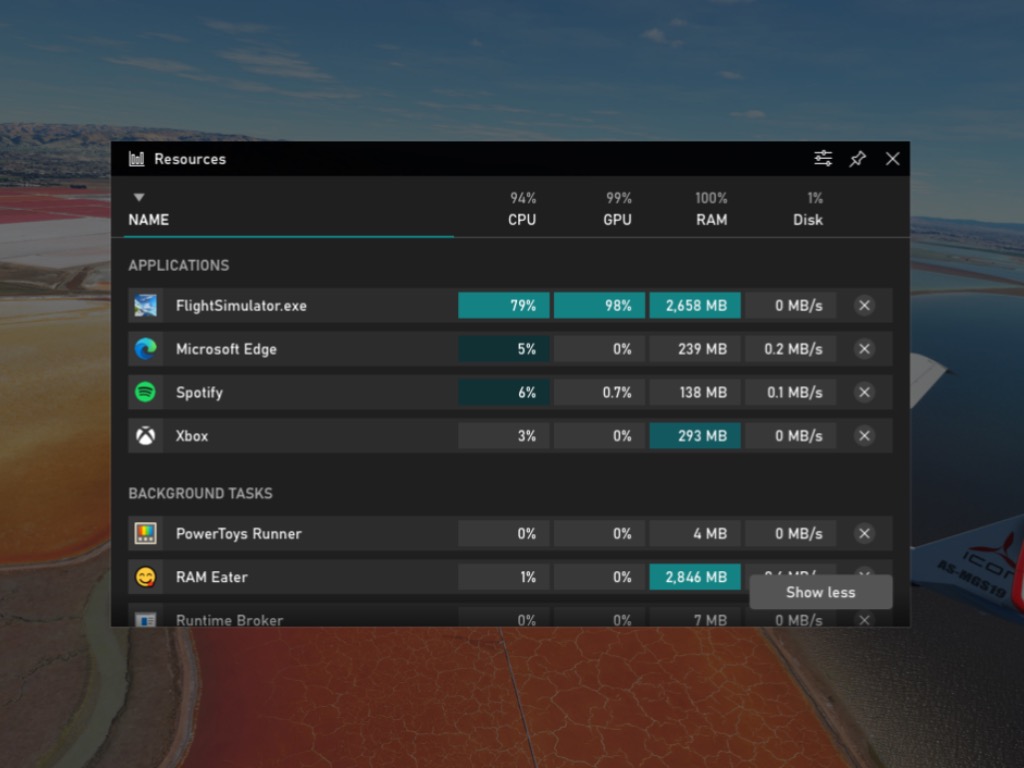
How to set up Chromecast without location services

For those of you that haven’t got your hands on these devices yet, Chromecast is a line of digital media players developed by Google.

These devices are made to be small dongles that allow you to stream digital content off of the Internet on HD TVs and Home Audio systems.

Users can also get to control the device connected to the dongle via their mobile or through web apps that support Google Cast technology.

However, as fun and entertaining as these devices may seem, many users have a few issues when it comes to installing them.

For example, many are complaining about the fact that you need to activate location services in order to make the Chromecast work:

My mom recently bought chromecast for her house and is trying to set it up. However, in order to set it up through google home on her phone she has to give location access to the app, which she doesn’t want to do. When I set my chromecast up about a year ago I don’t think this was the case. Is there really no way of setting up her chromecast without giving google access to her phone’s location?

Since privacy is a sensitive issue and Chromecast is becoming more and more popular, we’ve decided to create this detailed guide where we will be showcasing exactly what you need to do in order to install and use your Chromecast device without needing location services.

How do I set up Chromecast without location services?

1. Manually disable Location Services after Chromecast setup

1.1. Set up Chromecast as normal

  1. Plug in your Chromecast device into your TV
    • Only use the provided AC adapter
  2. Download the Google Home app on your mobile device or tablet
  3. Connect the mobile device or tablet to the same Wi-Fi network as the Chromecast dongle
    • For Chromecast Ultra, connect directly to the network via an Ethernet cable
  4. Open the Google Home app
  5. At the top left of the Google Home app home screen, tap Add
  6. Select Set up device and then choose Set up new devices

Your Chromecast device should now be ready to use, but it is currently using your location services by default.

1.2. Manually turn off location services after setting up the Chromecast device

  1. Access the Location History section of your Google Account
  2. Choose whether your account or your devices can report Location History to Google
    • Your account and all devices:
      • At the top, turn Location History on or off.
    • Only a certain device:
      • Look under This device or Devices on this account, and turn the device on or off.

2. Use a VPN after setting up your Chromecast

2.1 Use the VPN on your device and use Cast Tab or Cast Desktop

  1. Set up Chromecast as presented in solution 1.1.
  2. Open the Google Home app and select Cast Tab or Cast Desktop before you connect the VPN

Once the VPN is connected, they will be on separate networks and your PC won’t be able to find the Chromecast device.

Basically, you are connecting the PC to a VPN, then casting the screen via the Chrome cast device.

2.2. Install a VPN on your router

Some VPN developers allow you to install their VPNs straight to the routers, allowing all the devices connected to its network to benefit from it.

Speaking of which, if you’re on the market for a solid VPN choice, we recommend you try the most suited for streaming content.

However, this particular solution is not as effective due to the inherent speed limitations of a router-based VPN connection. Many routers may connect to an external VPN, which allows everything on your local network to use the VPN, but not speed it up.

That is why using a VPN service that is great for streaming can be necessary.

To put your entire home network behind a VPN, install the software on your router or as a separate hardware device.

Routers that enable VPNs typically do not require any software to be installed; they are already capable of connecting to the VPN. You simply need to specify the settings.

  • Do you need a Google account to set up Chromecast?

Yes, you cannot use a Chromecast device without a Google account.

  • Can I set up Chromecast without the Google Home app?

No, you cannot set up Chromecast without using the Google Home app.

By following these steps, you should now be able to enjoy your Chromecast device without having your Location services setting activated.

Let us know which solution you used and how effective it was for you by leaving us a message in the comments section below.

KB4577671 causes update errors with Windows 10 1903/1909

The October Patch Tuesday updates were just released so everyone is looking at the changes affecting their OS.

The most important features were applied to all the versions of Windows 10, but of course, there are major differences between the versions, especially the older ones, Windows 10 v1507, and the newest, Windows 10 v2004.

As you might have guessed, some versions of Windows 10 have received more attention, while others turned up to have even more issues after the update.

That’s precisely the face with KB4577671, this month’s cumulative update to Windows 10 v1909.


KB4577671 may remove some optional features

This patch may have the same effect on Windows 10 version 1903, not only v1909 and the issue produces the same effect. 

Microsoft states in the release note that when you’re trying to update to both above mentioned Windows 10 versions, you could receive a dialogue with the title What needs your attention at the top.

This dialogue will also be accompanied by the error, Continuing with the installation of Windows will remove some optional features. You may need to add them back in Settings after the installation completes.

This error will appear when trying to update from an older Windows 10 version to versions 1903 or 1909.

Microsoft also specifies the possible cause of this issue:

You might receive this compatibility warning when LOCAL SYSTEM accounts are blocked in a firewall from accessing the internet via HTTP.

This is caused by the Windows 10 Setup Dynamic Update (DU) being unable to download required packages.

The Redmond giant didn’t provide a solution for this problem but has promise to find one and publish it in the next update.


It is important to understand that whether or not a certain cumulative update comes with a few issues, it is important to install them nonetheless for security reasons.

Of course, if you want to avoid any problems while applying the updates, you should follow a few steps in order to apply these patches, otherwise, they may end up needing to use the Windows Update Troubleshooter.

Those of you running this version of the OS should nevertheless get this update as soon as possible at least for the security improvements.

To do that, simply head over to this article we’ve created where you can read the changelog of all other cumulative updates, as well as get direct download links to the required updates.

However, you can also read the full history of the Patch Tuesday changelogs in this complete list.

What are your thoughts about this cumulative update? Let us know if you’ll be applying the update as soon as it becomes available in your region by leaving us a message in the comments section below.

[wl_navigator]

Users May face Drivers issues after Patch Tuesday updates

The monthly Patch Tuesday updates are finally here, bringing much-awaited new features, fixes, improvements, and important security updates.

As you may know, Patch Tuesday means the release of cumulative updates for all major versions of Windows 10, so everyone will be receiving them.

Keep in mind that each version of Windows 10 is different from the other, and this also applies to the cumulative updates.

However, once in a while it so happens that all cumulative updates may come with driver issues and not only, and that’s precisely the case with this month’s updates.

The October Patch Tuesday may cause driver installation issues

According to the official Microsoft changelog regarding each cumulative update, it seems that installing these latest cumulative updates may lead to problems when installing third-party drivers.

When installing a third-party driver, you might receive the error, Windows can’t verify the publisher of this driver software.

You might also see the error, No signature was present in the subject when attempting to view the signature properties using Windows Explorer.

This issue is present in the cumulative updates for all major versions of Windows 10, ranging from the oldest, 1507, up to the newest, 2004.

That being said, until Microsoft manages to release a set of patch fixes within the following days, users are advised to ask the driver vendor or device manufacturer for a correctly signed and updated driver.

If you want to speed up the process, rest assured that we can help you out.

How to update drivers in Windows 10?


As said before, contacting the driver vendor or device manufacturer isn’t always the quickest solution. If you lack the time to do so, simply download Outbye Driver Updater and update all your drivers with just a few clicks.

More precisely, you need to install and launch the tool. At this point, Outbyte Driver Updater will go through a complete scan of your system and find out how many out-of-date drivers you have in mere seconds.

Then, it will reveal all scan results, and finally, download the selected drivers within the program itself.

Do keep in mind that Outbyte Driver Updater doesn’t simply update drivers to the correctly signed, latest versions, but also fixes corrupted ones.

And since its database is of 18 million driver files and you can even schedule driver scans, rest assured that all your hardware devices will use the appropriate drivers.

⇒ Get Outbyte Driver Updater

If updating your drivers isn’t your current priority, remember that Patch Tuesday is very important.

Not only does it bring the functionality improvements that avid Windows users wait for, but the improved security is a welcome addition, especially to those that rely on Windows Defender.

If you want to download the latest cumulative update, visit this detailed guide where we’ve showcased not only a detailed changelog, but we have also provided you with direct download links to the Windows Update Catalog.

What’s your take on this latest cumulative update? Let us know your opinion by leaving your feedback in our comments section below.