Someone got Xbox cloud gaming working on their Samsung smart fridge

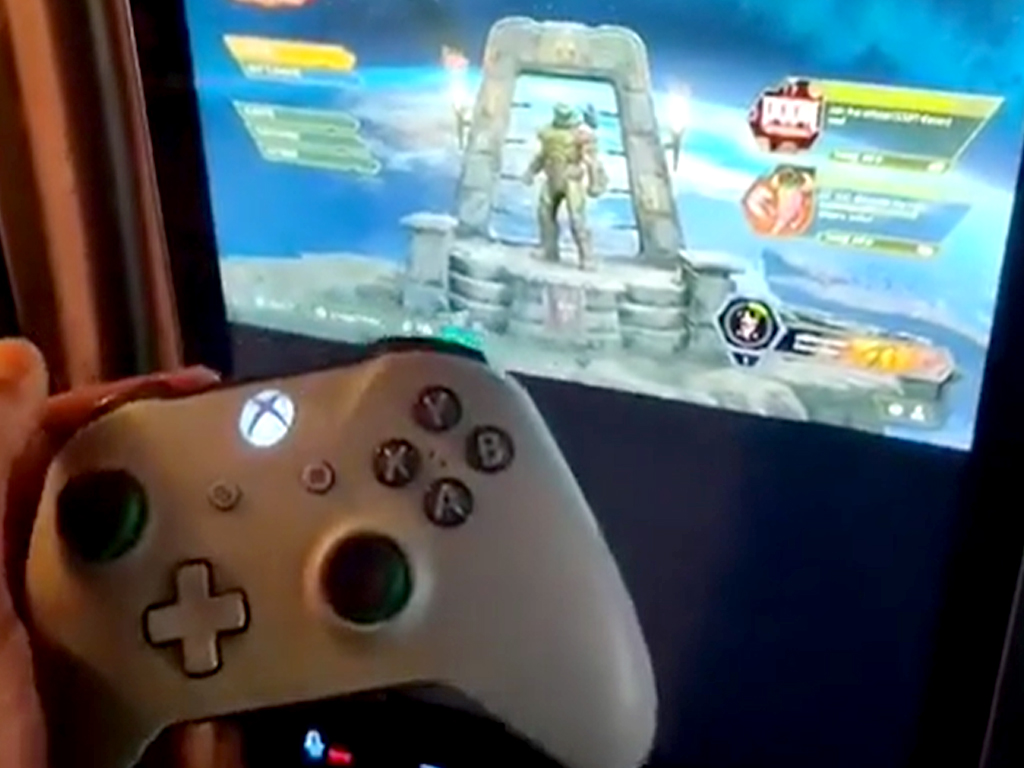
It was only a matter of time but someone has now gotten Microsoft’s new Xbox cloud gaming service working on a fridge.

That someone is the YouTuber, VapingwithTwisted420, who posted a quick photo and video of the video game streaming service running on his Samsung smart fridge on his Instagram. A full video about the achievement is promised later this week.

Getting Xbox cloud gaming (previously referred to as Project xCloud) working on a smart fridge may seem crazy but it’s actually something that many have been wondering about for a while given that the app is an Android app and Android apps can theoretically work on the Tizen operating system (the OS used by Samsung’s smart fridges). It will be interesting to see what method VapingwithTwisted420 used when he releases his full video in a day or two.

Microsoft’s Xbox cloud gaming service recently launched on Android smartphones and tablets in several regions and it’s expected to expand to Windows 10 and Xbox consoles in the near future. After hitting a roadblock with Apple’s App Store policies, the game streaming service is also set to come to iPhones and iPads though via web browsers instead of a dedicated app.

While no official confirmation has been made, an Xbox cloud gaming release on Android-powered smart TVs is also expected given the announcement earlier this year of Samsung working with Microsoft on a cloud-base streaming service.

Where would you like to play your Xbox video games? Share your thoughts with the community in the comments below and then follow us on Twitter and Facebook for more Xbox gaming news.

Xbox Game Pass
Xbox Game Pass
Price:
Free

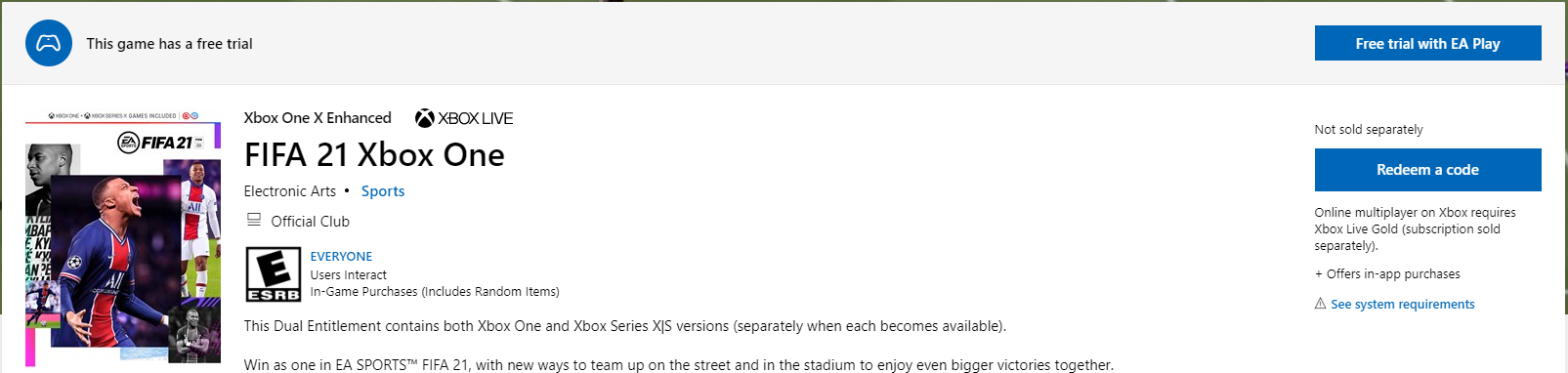
How to fix FIFA 21 common issues [PC, Xbox & PS4]

Everyone is hyped about the soon-to-be-launched FIFA 21 game, and many players have already bought the Early Access package to get a 10-hour trial ahead of the official October 9 launch date.

However, in traditional FIFA fashion, bugs were abundant, with some being more or less game-breakers than others.

Because FIFA 21 is such an astounding game, we decided to compile a list of the most prevalent bugs and issues that players have encountered, as well as solutions to them if they are available.


Quick tip:

EA has really outdone themselves with this game, and have set new standards for the franchise.

You don’t have to believe us, just get the game and you might end up having trouble putting your controller down afterward.

  • 700+ teams
  • 30 official leagues
  • Unparalleled graphics
  • 17,000+ authentic players
  • Have a career in professional football and grow
  • Play as one of the best football teams of the 2021 season
  • Playing online can be a pain with an older PC

What are the most frequent issues in FIFA 21?

1. Users can’t find all players when editing the teams to build up a personal squad

Building up your team is a core-element of FIFA 21, and many users reported that they sometimes cannot find all the players when editing a team:

However, in the Trial version (EA early access), when editing the teams, we cant find all players, like Kanté, Laporte, Messi, and Ter Stegen. They are in the game, but we can’t find then in the editing teams menu to build up our squad. We notice that the missing players are all in the Adidas Stars squad. 


2. FIFA 21 10-hour trial not showing in EA Play

EA Play is the console version of Origin, and many users tried to install FIFA 21 through it. The only problem is that many of them reported that the 10-hour trial of FIFA 21 doesn’t even appear in it.

Hi I’m trying to download the 10 hour access so I can play it today at 4 when it’s released but when I search it up on my Xbox on ea play I can’t find fifa 21 can you help please so I can play the 10 hour access

Solution:

EA recommends that players that encounter this particular issue should skip browsing for the 10-hour trial via EA Play and instead download the game straight from the Microsoft Store.


3. The release date still says October 9 instead of offering the 10-hour trial

Somewhat related to the previous entry, users that have pre-downloaded the game and even have EA Play installed have pointed out that the game still states the official release date instead of offering up the 10-hour trial.

Solution:

Instead of using the EA Play app on your console, try accessing the FIFA 21 trial by opening Origin, going to the EA Play tab, and browse for it in the Game Trials dropdown.


4. Issues with Pro clubs and Cooperative mode

PC users reported that Pro Clubs matches are inaccessible to them due to an error message:

Both myself and my friend are unable to play a pro clubs match. When we attempt to play in the same team through the “play match” feature in the club screen, we are given the error message“an unexpected error occurred while attempting club operation”.

Solutions:

EA tech support recommends that users try one of two things:

  • Deleting their profile and then everything in their profile that isn’t in the Career Mode save file
  • Clearing their Origin client cache

5. FIFA 21 crashes on PC

Probably the only issue on our list that wasn’t caused by the game itself, but rather by miscommunication.

Many FIFA 21 players reported that their game would constantly crash when loading:

I have it on PC and every time i open the game i see the loading screen and then the game shuts down, can somenone give me any help? My PC is better that the recommended requirements for the game BTW.

Solution:

Apparently, an EA representative went ahead and confirmed that the minimum system requirements written on both the help.ea.com and Steam were incorrect.

Thus, those of you that have a processor equal to AMD Phenom II X4 965 @ 3.4 GHz or lower are beneath the system requirements.


6. Volta Squads matchmaking error

A number of players have been reporting an error message when trying to enter a match in Volta Squads.

It seems that they would get a matchmaking error, and an instant loss will then be attributed to their account:

Error entering the match and will give you a loss. We tried searching for a game 5 times and never managed to get one, it said error and gave us a loss five times.

Solution:

Unfortunately, no one has found a fix for this issue, so if you are affected, your only choice is to avoid Volta matches for the time being and wait for EA to release a patch fix.


7. FUT draft glitches

A bug somewhat related to the rise in cheaters in FIFA games, it seems that many players have been reporting glitches when playing FUT Draft matches.

So another year same FIFA Bug. There are some players abusing some cheats or glitch in FUT-Draft. You get a instant lose within the first seconds of the game. Why is this Bug or cheat existing since FIFA 17? Why it is still around? 

Solutions:

According to FIFA Support, this issue can be solved with simple connectivity troubleshooting methods that include:

  • Using a wired connection over a Wi-Fi
  • Changing your Wi-Fi channel to a faster one
  • Moving the router closer to your console or PC

8. Players don’t get skill points from matches

Playing and winning matches should normally award skill points. However, some players have reported that this isn’t the case and that they aren’t getting their skill points at all.

Not getting any skill points even when playing a lot of matches and I didn’t get any skill points in the beginning when my friends did. And yes I’ve played pro clubs fifa 20 on the same account.

Solution:

  • One player has reported that a workaround somehow fixed the issue for him:
  • Be signed in to your main profile and a second profile
  • Start  FIFA 21 on your main profile
  • Delete your profile from the settings menu
  • Press the Start button and switch to your second profile
  • Go into Pro clubs but don’t make a Pro club
  • Go back out to the main menu, then press Start and switch profiles to your main account.
  • Create your Pro club and you should have 15 skill points that you can spend
  • Complete any match and you will also get all the skill points you have missed out on

This pretty much wraps up our list of most common FIFA 21 bugs and issues encountered so far.

Keep in mind that these are just the bugs found by the few that have gained access to the Early Access, so the number of bugs should increase once everyone gets their hands on the game.

That being the case, stay tuned as we will be updating this article with more and more entries, as well as adding solutions to the ones already existent here.

What issues did you find while trying out FIFA 21? Leave us your feedback in the comments section below.


[wl_navigator]

Is ZenMate VPN safe? Here’s our honest review

ZenMate VPN is an efficient VPN service from Kape Technologies, but is ZenMate VPN safe? Perhaps the most important feature of any decent VPN service is its safety rating.

This safety rating can be gauged by taking various factors into consideration, ranging from privacy policies and fair terms of usage to lack of sensitive data leaks and popular security protocol support.

That’s what we’re going to do today: we’ll benchmark ZenMate VPN’s safety by performing a thorough analysis of what it has to offer. Don’t worry, though, we won’t bother you with all the technical gibberish.

Is ZenMate a good VPN? Let’s find out

1. Privacy

As we’ve mentioned above, privacy is one of the pillars of VPN safety. A VPN that can only mask your IP address, but keeps logs of your Internet activity and can single you out if the need arises is no good, in our opinion.

VPN Privacy Policy

That’s why we give ZenMate VPN‘s privacy policy and terms of service a good, thorough read. Here’s what we found out:

  • You must use an accurate, valid email address for registration
  • ZenMate VPN‘s free version might include ads

What data does ZenMate VPN collect?

Personal info:

  • Name
  • Email address
  • Username
  • IP address (stored in an anonymized format)
  • Country (approximate location)
  • Payment information (billing method, purchased items, partial credit card details)

Non-personal info:

  • Browser type and version
  • Operating system
  • Referrer website (the one you used to reach ZenMate)
  • Date and time you accessed the website
  • IP address
  • ISP
  • Sub-websites

ZenMate VPN claims not to be harvesting data regarding activities you engage in while connected to the ZenMate VPN service. More so, it claims that the data it collects is never associated with your online activity while using the VPN.

Reportedly, ZenMate VPN uses the data it gathers from its customers to provide you with the service, improve its overall quality, and inform you of various events, promos, or updates regarding the service.

2. Security

The importance of a VPN’s security is a close tie to its privacy. In our opinion, privacy and security must always work in conjunction to deliver you with top-notch anonymity.

Privacy can quickly become worthless if the VPN’s security is not airtight. Picture a VPN with ironclad privacy policies and almost no security.

Even if the VPN provider will keep your activities on the hush, hackers (or other malevolent agents) could slip past the system’s weak defenses and gather data themselves.

VPN security

ZenMate VPN provides you with a great level of security, with its military-grade AES 256-bit encryption. Reportedly, the ZenMate VPN Chrome extension used to have 128-bit encryption (which is still nearly impossible to crack), but now it’s been aligned to the desktop and mobile versions’ encryption standards (i.e. 256-bit).

Last, but not least, you’ll be glad to know that we’ve put ZenMate VPN against a battery of security (leak tests). The service we’ve used are:

The results were nothing short of great, as we noticed absolutely no sensitive data leak. No IP, DNS, Flash IP, location, or WebRTC data leaks occurred on ZenMate VPN‘s watch.

3. Flexibility

ZenMate VPN fairs well when it comes to flexibility. It has an impressive network of 3,500 servers you can connect to, located in over 74 countries. Thus, you’ll have plenty of elbow room if certain locations just don’t seem to work well for you.

More so, ZenMate VPN is perfectly capable of unblocking various streaming services for you. For instance, you can use it to access the US and UK Netflix, HBO Now, Hulu, BBC iPlayer, and Amazon Prime.

ZenMate VPN works on multiple device types, including Windows, Mac, iOS, and Android, but also offers extensions for Chrome, Edge, and Firefox.

VPN flexibility

Furthermore, the full version lets you use it on an unlimited number of devices, as opposed to the demo, which is limited in several other ways, as well.

This service also lets you engage in P2P and torrenting activities and has a killswitch, which is crucial to keep your VPN connection leakproof.

Unfortunately, ZenMate VPN doesn’t work in China or other regions where VPN usage is restricted. The provider even recommended residents of China, Iran, and Saudi Arabia to refrain from purchasing premium ZenMate VPN subscriptions, even if they can download the app.


Looking for a VPN with China servers? Check out our top picks.


Long story short: ZenMate VPN is flexible enough, but might not work in restricted countries.

Final thoughts on whether ZenMate VPN is a good VPN

All things considered, ZenMate VPN will certainly keep you safe and not pry into your Internet business while you’re connected to their servers. Its zero-logging policy, combined with its military-grade encryption protocols is more than enough for a worry-free experience.

Flexibility-wise, you’ll be glad to know that ZenMate VPN can bypass geoblocking enough to let you access US & UK Netflix, Hulu, Amazon Prime Video, and BBC iPlayer. Furthermore, you can install ZenMate VPN on unlimited devices on the same account.

However, if you plan on using this VPN from China, Iran, or Saudi Arabia, you might want to reconsider. Even the provider recommends that residents of these countries shouldn’t purchase premium subscriptions, regardless if downloading the app is possible or not.

[wl_navigator]

Microsoft goes after “largest botnet in the world,” citing trademark law

In the days leading up to the 2016 election in the United States, there were several nation-run and sanctioned efforts from various international actors used to interfere with the election at the time. Through investigations, it would seem the most prominent actors perpetrating targeted misinformation attacks aimed at American voters were Russian based aggressors.

As the 2020 election cycle winds down to a close with a US voting date just weeks out, Microsoft managed to disrupt a repeated effort by a Russian criminal botnet to lock up voter registration systems.

According to the Washington Post, “Microsoft has taken legal steps to dismantle one of the world’s largest botnets, an effort it says is aimed at thwarting criminal hackers who might seek to snarl up state and local computer systems used to maintain voter rolls or report on election results.”

Specifically, Microsoft was able to get a federal judge from the Eastern District of Virginia to grant them access to take on the infamous global Trickbot botnet network and jam up their efforts to mess with US elections in the coming weeks. Microsoft’s newly granted order allows them to seize Internet addresses from eight hosting providers that were leveraged in the US by utilizing a workaround that includes claiming copyright infringements for the botmasters who used malware that included Microsoft code. In addition, Microsoft was also allowed to block efforts by operators to lease or buy replacement servers thus mitigating Trickbot’s ability to reassert its malware computer army’s strength in time for the November 3rd election date.  Microsoft is looking to replicate its success in other countries to further cripple Trickbot’s network.

Microsoft Cybersecurity Cropped

While not the most sophisticated implementation, Trickbot’s growing number of malware-infected PCs used to launch malicious software or ransomware on healthy computers, is troubling to US officials. Moreover, with governors limiting the number of voting precincts leading up to voting day, one successful attack from Trickbot’s previous efforts could have invalidated the voting ballots for entire counties within a state, putting an already fraught election cycle into more turmoil.  Tom Burt, Microsoft’s VP of customer security and trust echoes the fears many responsible for maintaining election integrity are concerned with Trickbot’s attempts.

“Having just a few precincts report that they got disrupted and locked up and people couldn’t vote or their ballots can’t be counted — it’d just be pouring kerosene on the fire.”

While successful this go around, Trickbot is nowhere close to being finally dealt with and it’s proven itself resourceful and still dangerous as evident by its Ryuk ransomware attack that crippled Universal Health Services in 400 facilities across the US and Britain. Microsoft and government officials will need to remain vigilant over the next few weeks and even into the new year as ballot counting and recording and practically every other facet of voting will be under scrutiny this election cycle.

Recover deleted emails from Trash [Gmail, Outlook, Yahoo]

Once you deleted an email it can easily be recovered from the Trash folder.

Deleting it from the Trash folder as well, due to security or personal reasons in most cases, makes it unrecoverable though.

Usually, when an email has been deleted from the Trash folder, there is no other action that can be done, that would help restore the lost email.

This action cannot be reversed in most cases but fortunately enough there are several workarounds that will help you restore these emails.

Depending on what client account you are using, the solution can be slightly different.

We will explore how you can recover deleted emails if you are using Gmail, Outlook, and Yahoo so keep reading.

How can I recover my deleted emails from trash?

1. Use SysTools Backup

Gmail does not backup data by itself, which means that all the deleted emails or messages will be wiped out from the Bin folder automatically, after 30 days from the deletion date.

There is no other way to restore deleted emails from the Gmail account, except a local backup file.

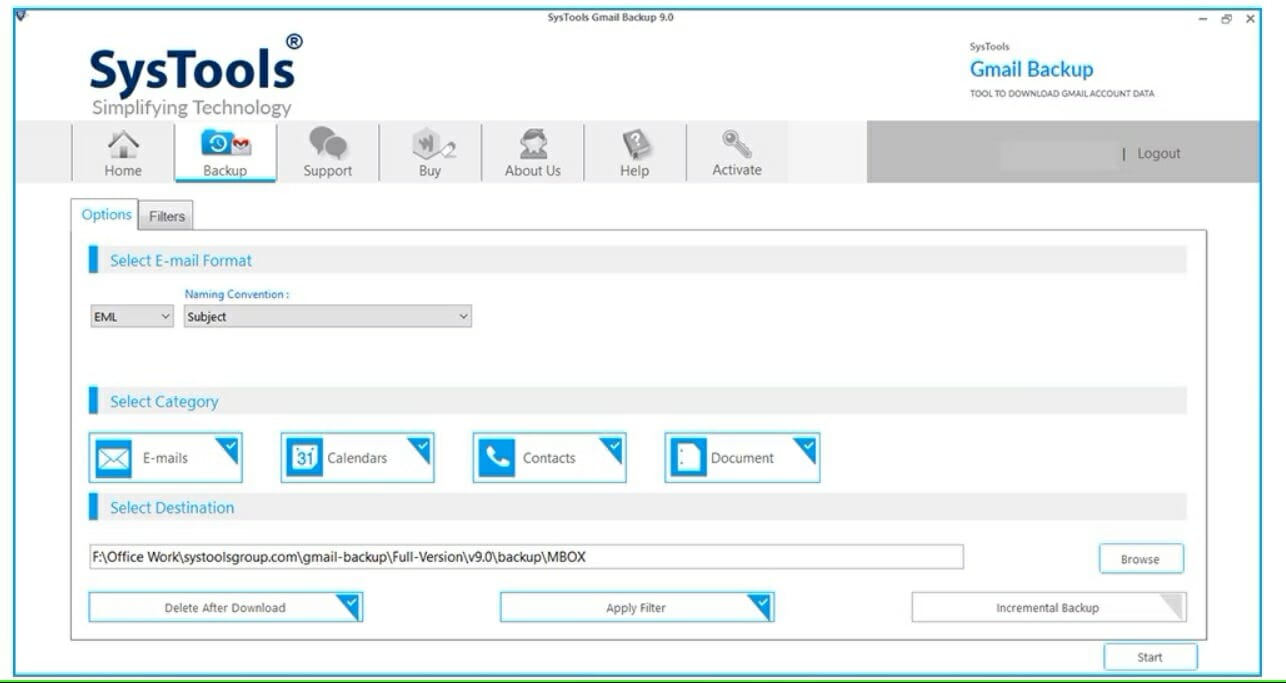
This could be done by a dedicated tool, such as SysTools that will backup all your emails, including attachments, all in PDF format.

SysTools will save the emails from your account into different outputs: Outlook PST, MSG, MBOX, and EML. This will facilitate the migration to other email accounts, such as  Thunderbird or others.

Moreover, you will have a back for all your Gmail folders: Inbox, Important, Sent Mail, Starred, Bin, and Drafts, including all your created folders.

The advanced technology of SysTools allows it to back up your Gmail contacts and calendars on your local system. This is a great feature, as they are equally important.

SysTools Backup

Easily back up all your Gmails, contacts, calendars, and documents with this all-in-one tool.

2. Use Stellar

If you are looking for advanced email recovery software then StellarUndeleteEmail for Outlook is the right tool for you.

With this tool, you can recover deleted items even if the files are password protected or encrypted.

Once the messages are recovered, you get an enhanced preview of all recoverable Outlook mailbox items. For example, it highlights the deleted emails, with the option to filter items while saving the repaired PST.

Moreover, the repaired file can be saved in multiple formats such as PST, MSG, EML, RTF, HTML, and PDF.

The software previews the deleted emails after finishing the scan and it allows you to select and save the desired emails stored in the Outlook Data file, be it OST or PST.

This is an amazing feature that helps you to save time if you want to recover only some specific emails.

Stellar Undelete Emails for Outlook is a very convenient tool as you can save and load the scan information result in a DAT file.

From there, you can load the information in the software at a later moment, and reinstate the process of recovering deleted emails.

Stellar

All of your Outlook files will be completely recovered if your use this dedicated tool from Stellar.
Free Trial Visit Website

3. Use the restore option

If the email client you are using is Yahoo, then we have great news for you. As you probably know already, Yahoo will automatically delete your Trash emails after seven days and spam emails after 30 days.

If the deleted message from the Trash folder is within a seven days grace period, then you can submit a request to Yahoo to help you restore the lost emails.

You can send the restore request via the Yahoo Help Central option. It will be necessary that you mention an approximate time frame for when you deleted the messages.

Make sure to fill in all the details requested, including the Yahoo ID and your email address along with a description of the issue you are having.

Once the request is solved, you will see the deleted email back in the folder it was initially. If not, make sure to also check in your Trash folder and select to see the messages by date.

If you do not receive a response from a Yahoo! technical support agent, make sure to check your spam or junk folder as well.

There is also the option to recover your Outlook emails using OST to PST Converter. The guide will certainly offer a lot of useful information.

With this last solution, we complete our guide for how you can recover deleted emails from the Trash folder, depending on the email client you are using.

We hope one of our solutions has helped you recover lost emails. If you have additional suggestions or recommendations, please let us know in the comments section below.

Cannot Generate SSPI Context: How to Fix it Quickly

The target principal name is incorrect – cannot generate SSPI context error on SQL Server occurs when trying to make a connection on SQL Server from a remote server with a Windows account. 

This is a generic error. It can be triggered due to many reasons, including an outdated password, clock drift, failure to register an SPN, or Active Directory access permission.

In this article, we take a look at a few troubleshooting steps to help you resolve the cannot generate SSPI context error on the Windows server.

How can I fix the cannot generate SSPI context error?

1. Change SQL Service User

Try changing the SQL SERVICE user with the one that is Domain Admin. When you shut down the service, you need an account with privileges to create a new SPN (Service Principal Name).

When a service starts without it, it will trigger the error. Changing the privileges of your system account can fix the error.

However, it is always recommended for service accounts to give them the least privileges due to security reasons. Follow the steps below to remove the SPN entries from AD users and computers:

  1. Open the Active Directory User and Computers in Advanced View.
    active directory
  2. Look for the SSPN entries for MSSQL Svc.
  3. Remove all the entries associated with MSSQL Svc.
  4. Close AD User and Computers and check for any improvements.
  5. Change Active Directory permission.

2. Check your password

The error cannot generate SSPI context can occur due to password issues. If you have recently changed your password but haven’t logged out of your account, it can trigger the error.

Try logging out and then signing in with the new password to fix the error.

In other instances, the issue could be due to password expiration. Change the expired password and log in with the new credentials to see if that resolves the error.

3. Change Active Directory permission 

  1. Run Adsiedit.msc from the Run dialog box.
    adsiet
  2. In the Active Directory Service window, expandDomain [YourDomainName],  then expand DC = RootDomainName, and then CN = Users.
  3. Right-click on CN= [YourAccountName] and select Properties.
  4. Open the Security tab.
  5. Click on the Advanced option.
  6. Select any one of the SELF rows.
  7. Click Edit and then the Open Permission Entry window.
  8. Here, make sure the Principal is set to SELF, Type is set to Allow, and Applied to is set to This Object Only.
  9. In the Properties section, select the following:
    • Read servicePrincipalName
    • Write servicePrincipalName
  10. Click OK to apply the changes and exit.

Try establishing a new connection and check if they cannot generate the SSPI context error resolved. Make sure you restart the SQL Services that are associated with the current account to apply the changes.

Changing the Active Directory permission is a safe option than changing the SQL server user. However, before you proceed to change the permission, make sure the problem is triggered due to permission issues.

Log in to the server where your SQL instance is running, and then check the error logs to check if the error is triggered due to permission problems.

The error that cannot generate SSPI context can occur due to permission as well as expired credentials issues. Changing the password and permission should help you fix the error and log back into your SQL server.

If you are facing other issues like Microsoft SQL Server error 18456, check our detailed guide to fix it.

Feel free to let us know the solution that helped you fix this issue in the comments below.

VLC Merge Videos not Working? Here’s How to Fix it

VLC is one of the most flexible media players for Windows. With its command-line video merge tool, that media player enables users to merge multiple videos into one clip.

The Merge videos together page on VLC’s support site includes guidelines for how to merge videos with VLC.

However, VLC’s merge videos feature won’t work if the source files for the merged video aren’t of the same format and if any of them have portrait orientations (such as clips recorded with mobiles).

Furthermore, VLC’s video merging might not work for users who need to update that media player’s codecs.

What can I do if the VLC video merge option is not working?

1. Change portrait source videos to landscape ones

  1. Open a portrait video you need to rotate to landscape orientation in the VLC media player.
  2. Click the Tools menu, and select the Effect and filters option.
  3. Next, select the Video Effects tab and go to the Geometry sub-tab.
  4. Select the Transform option, then select the Rotate by 90 degrees option.
  5. Press the Save, then Close buttons.

Save the rotated video

  1. Click on the Tools menu, and select Preferences.
  2. Click the All option under Show settings.
  3. Then click Sout stream and Transcode to open video filter options.
  4. Select the Video transformation filter checkbox.
  5. Press the Save button.
  6. Select the Media menu’s Convert / Save option.
  7. Click the Add option, and select the video you’ve rotated.
  8. Press the Convert/Save button to open a Convert window.
  9. Select a destination folder by clicking Browse.
  10. Click the Start button.
  11. After saving the rotated video, click the Reset Preferences button on VLC’s Interface tab to undo the rotation settings.

2. Update VLC’s video codec

  1. Open the VLC media player.
  2. Click the Help menu and click the Check for updates option.
  3. Press the Yes button if an update is available and choose a folder to download to.
  4. Click the Select Folder option.
  5. Thereafter, click the Install button on the Update VLC media player prompt.
    Update VLC media player prompt vlc merge videos not working
  6. Then install the software update via the VLC media player Setup window.

When all your source clips are of the same format and have landscape orientations, you should be able to merge them with the latest VLC version.

3. Use a third-party video converter

Any Video Converter vlc merge videos not working

Any Video Converter Ultimate (AVC) is ideal for batch-converting videos to a required file format. That software enables users to convert video and music files to various alternative multimedia formats (including various output presets for numerous devices).

AVC Ultimate also incorporates numerous editing options for videos. Its users can crop, clip, flip, and add effects to the converted video output.

Other useful features

  • Records online streaming movies
  • Converts ISO files to alternative formats
  • Enables users to download videos from YouTube and other websites
  • Includes a DVD-burning utility
  • Enables users to set up DVD movies with custom templates

Note: You can also merge videos with AVC.

Any Video Converter Ultimate

Merge videos in just a few easy steps with the Any Video Converter Ultimate software!

If not, one of your source files for the video might be corrupted. So, also check that all the video source files play ok before merging them.

In case VLC is not working in Windows, the highlighted guide will help you fix it quickly.

Feel free to use the comments section below and let us know if you have any other solutions or questions.

Surface Duo’s Microsoft Launcher gets its first quality update

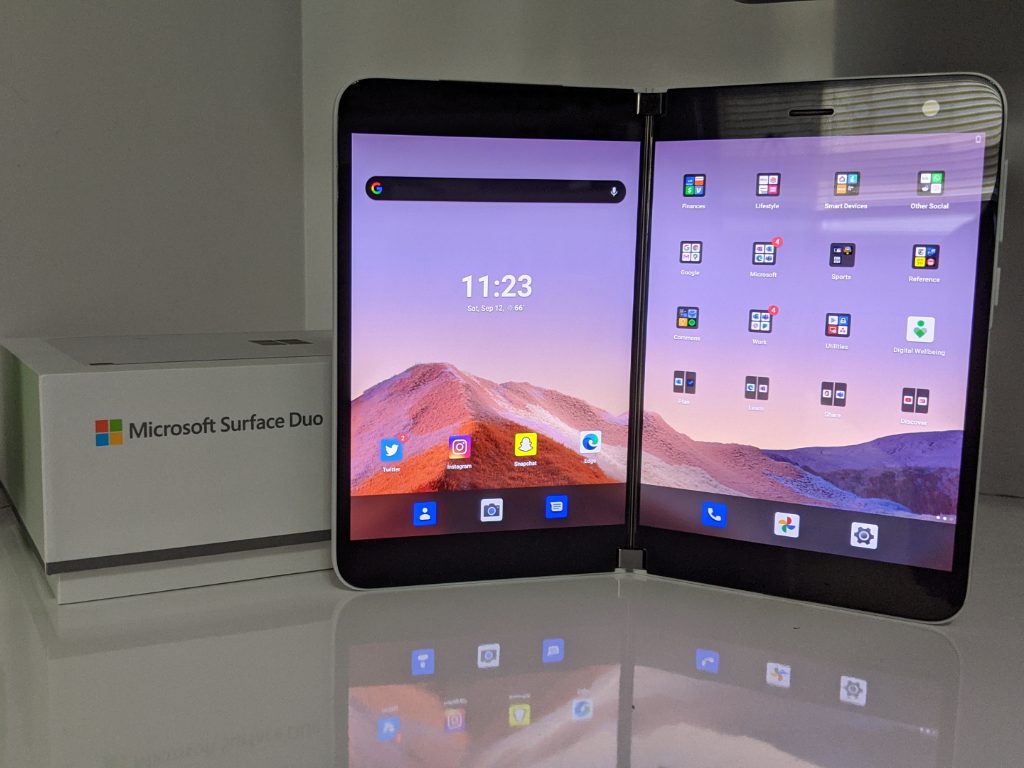
Almost a week after it got its first monthly software update, Microsoft again is delivering on patching the Surface Duo. This time, the company updated the Microsoft Launcher app powering the device via the Google Play store, squashing some bugs, and improving the overall experience for Duo users (via Windows Central.)

Now up to version 6.2.200902.91394, this is the same version of Microsoft Launcher that can found on other Android phones. According to the changelogs, this latest version updates app icons and fonts, improves app folder layout and gesture support, as well as improves the overall performance.

Interestingly enough, previously, it looked as though Microsoft Launcher updates would be linked to the Duo’s own monthly Android updates. That’s because a visit to the Google Play Store would show Microsoft Launcher as incompatible with the Duo. However, now that Duo users are getting the same version of Microsoft Launcher as everyone else via the Play Store, it looks like Microsoft could be committing to more launcher patches, more often.

As always, if you don’t have auto-update turned on for your apps on your Duo, you can manually update Microsoft Launcher now. To do this, open the Google Play Store, click the hamburger menu in the top left, choose My Apps and Games, and then click the update button next to Microsoft Launcher.

Microsoft Launcher
Microsoft Launcher
Price:
Free

Fix: Game Security Violation Detected Fortnite (#0000000D)

The game security violation detected on the Fortnite error message relates to your system’s compatibility with the Easy Anti-Cheat feature of the game.

So, as you can see, it’s nothing to worry about. Being one of the most played games, it’s no surprise that Fortnite is a massive target for hackers.

Players often use gaming cheats to spawn their way through the game, and Easy Anti-Cheat is the measure Epic Games put in place to curb cheating.

Sadly, technology is not yet perfect, and this feature affects users who aren’t cheating and prevents them from enjoying Fortnite.

If you’re experiencing the game security violation detected Fortnite issue, here’s how to fix it.

Here is another related issue, thus having the same troubleshooting steps:

  • Game security violation detected Fortnite when exiting launcher (#00000001 / #0000000D) – this issue is mostly related to the SelLedV2.exe process, which is used by the RGB Fusion tool from GIGABYTE. Fix the problem by uninstalling it.

How to fix the Game security violations detected Fortnite error?

1. Reboot your computer

game-security-violation-detected-Fortnite-reboot-computer


The error may be caused by outdated software, such as drivers for your controllers or input devices.

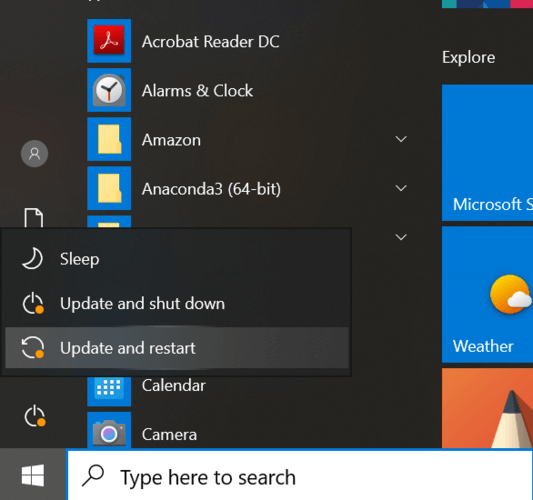
Alternatively, it could be that gaming software has updated in the background and needs to reboot to function correctly.

Either way, rebooting your computer (two or three times) has solved the issue for many users.

2. Uninstall or disconnect the culprit

game-security-violation-detected-Fortnite-uninstall-remove-culprit


What sucks most about this issue is that it can be caused by a variety of peripherals or programs that can be used to gain an unfair advantage.

For instance, certain RBG controllers and motherboards are the usual suspects. In this solution, we’ll locate the cause of the problem and disconnect, uninstall, or update it.

  1. Close all open applications on your PC.
  2. Play Fortnite and wait until the error shows up.
  3. Press the CTRL + ALT + DEL combination.
  4. Click on Task Manager.
  5. Find a running gaming-related process.
  6. Right-click on the process and hit End Process.

For this solution, you may also disconnect your current controller and try to get the game security violation detected Fortnite error with a different pair of controllers.

3. Update your games and launcher

Similar to the first solution, if rebooting your system doesn’t fix the game security violation detected Fortnite problem, you may have to take matters into your own hands. If you’ve tried the first two fixes with no luck, then updating your game as well as your game launcher software will get rid of the error.

Epic, Uplay, and Steam games update automatically, but who knows? A setting may be preventing the auto-update. Remember, updating the game will also fix Error Code 91 in Fortnite and Unable to join party Error code 83.

You now know what causes the game security violation detected by the Fortnite prompt and how to get rid of it.

The fixes we provide in this guide have worked for many players and will definitely remove the error.

To learn more about Anti Cheat software, read this post. Also, whenever you get this error message, report it to Epic.

Hopefully, we’ll get a smarter Easy Anti-Cheat soon.

New Tasks app in Microsoft Teams is now generally available

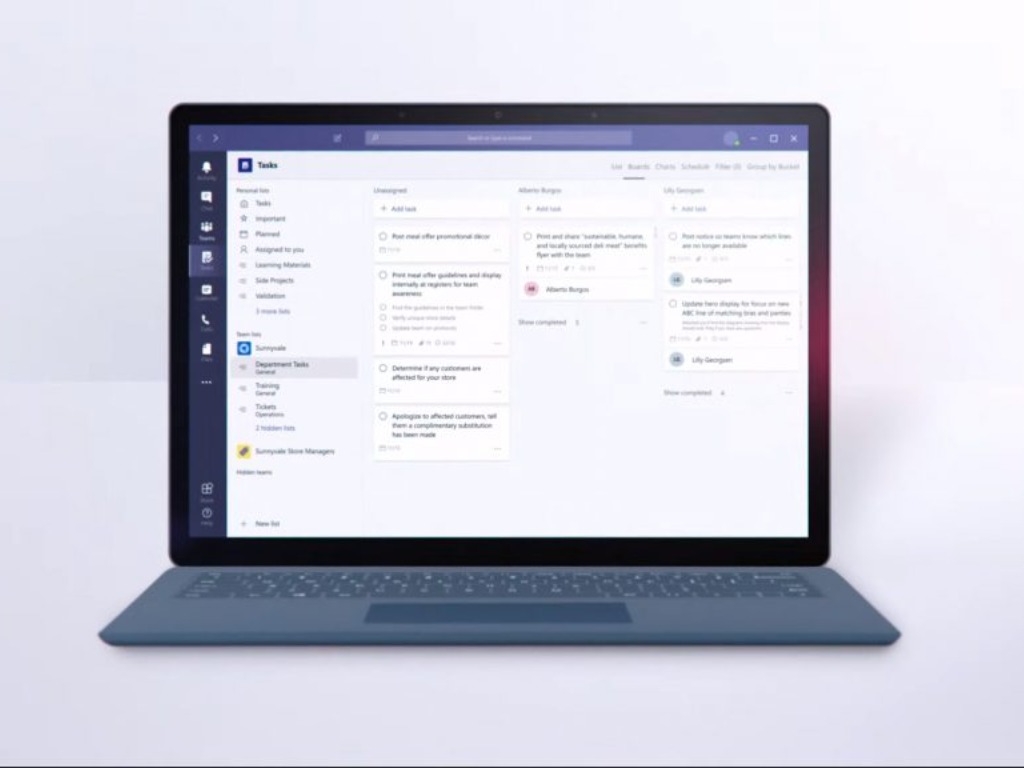
Microsoft has officially announced that the new Tasks app is now generally available to all Microsoft Teams users with a Microsoft 365 subscription. The company says that the new Tasks experience should be available in the desktop and web versions of Teams to all non-government tenants.

As a reminder, the rollout of the new Tasks app started back in July and happened gradually through September. The task management app is essentially a rebrand of the Microsoft Planner app in Teams. However, the new experience comes with a bunch of new features, including a new list view, and the ability to edit multiple tasks at once.

Furthermore, Microsoft is also working to bring the app to government cloud offerings, though this will happen later this year. The company has promised that the Tasks app will shortly begin rolling out to all iOS and Android users in non-government clouds.

“This announcement also moves us to the next stage in our naming sequence, where the app name in Teams changes to Tasks by Planner and To Do in desktop and Tasks in mobile. We will make this change over a weekend to reduce the likelihood of users seeing different names as the name change rolls out, and we expect to make the change by the end of October. We will make an update to our Message Center post when we kick off this change,” the company explained.

If you are interested to learn more about Tasks in Teams, we invite you to check out our explainer post for all the details.

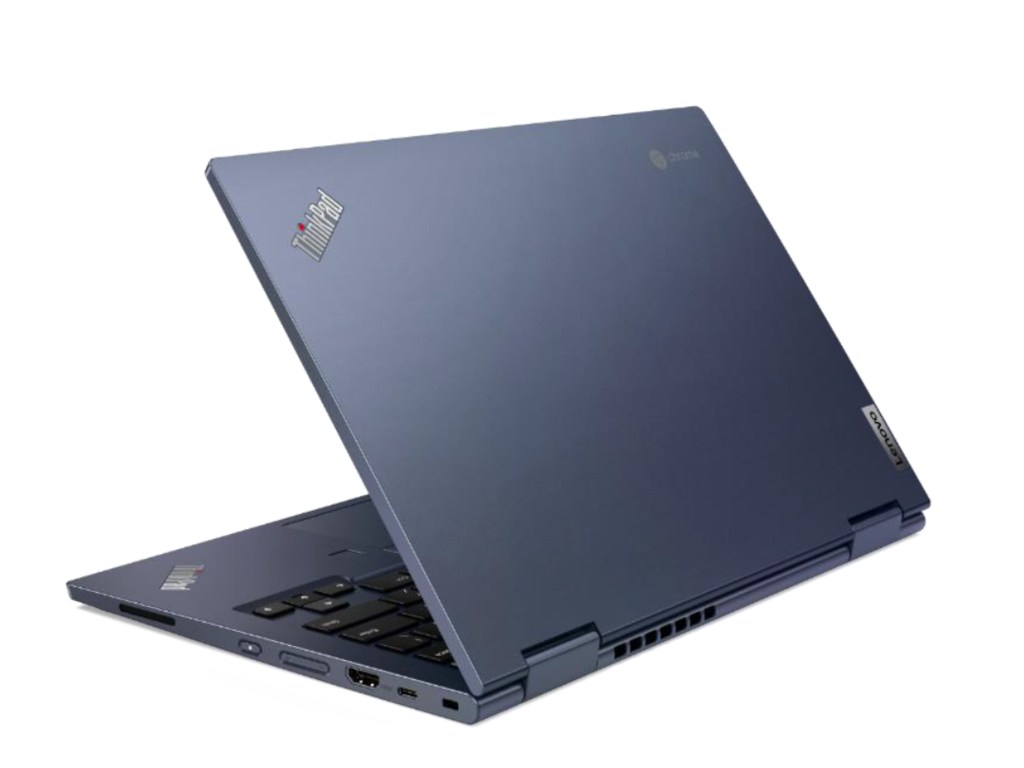
Lenovo unveils its new enterprise Chromebook, the ThinkPad C13 Yoga

While most of the discussions regarding Chromebooks and ChromeOS center around it’s the relative price and ability to scale as an educational resource, Lenovo has far grander visions for the platform.

Today, Lenovo took the wraps off its new ThinkPad C13 Yoga Chromebook Enterprise that blurs the line between a ThinkPad’s perceived business status and the streamlined consumer experience of ChromeOS.

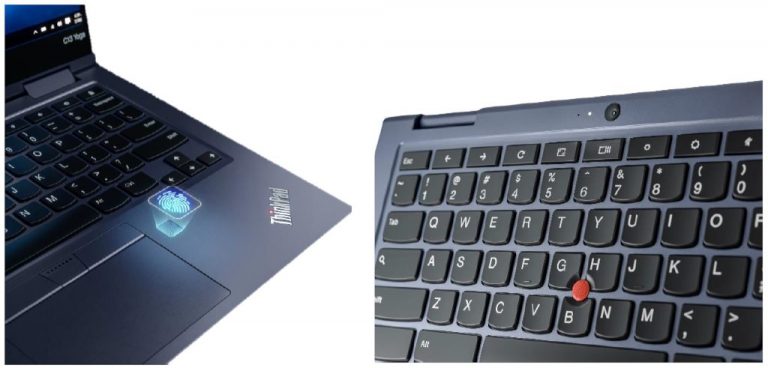
The C13 Yoga isn’t just a rebranded Windows PC as some OEM’s tend to produce as a measure of manufacturing processing optimizations. Instead, the C13 comes out of the gate powered by up to AMD Ryzen 7 3700C Series mobile chips which Lenovo claims are optimized for enterprise ChromeOS upgrades. Users also get a 360-hinge design with slimmer bezels than come on most Chromebooks as well as a 13.3-inch FHD touch panel. With the FHD touch panel comes support for a pen on the C13 Yoga.

Other features of the C13 Yoga include a 3.3lb chassis, webcam with Lenovo’s patented shutter switch, optional touch fingerprint reader, optional world-facing camera, Wi-Fi 6, and Bluetooth 5.0 connectivity and a port selection that includes 2 USB 3.2 ports, 2 Type-C ports, 1 USB Type-A and an HDMI 2.0 port.

Thinkpad C13 Cropped

The ThinkPad C13 Yoga comes in the single-color option of Abyss Blue aluminum and starts at $579. As of now, there is no set date for availability, but Lenovo says the C13 Yoga should be available “soon” for purchase.

Tips and tricks for getting the most out of Microsoft Teams on Surface Duo

One of the biggest selling points of Microsoft’s Surface Duo is its dual-screen setup. With two screens, you can accomplish a lot more, and stay productive just like you can on a Windows desktop.

These days, though, the app that’s the center of all that productivity is Microsoft Teams. You need it to keep in touch with work, for important meetings, and a lot more.

But did you know that Teams is one of the many Microsoft apps optimized for Surface Duo? Well, in our latest guide, we’ll give a look at some of our favorite tips and tricks for getting the most out of Microsoft Teams on your new Surface Duo.

Tip #1: Span the app!

Surface Duo Teams Spanned

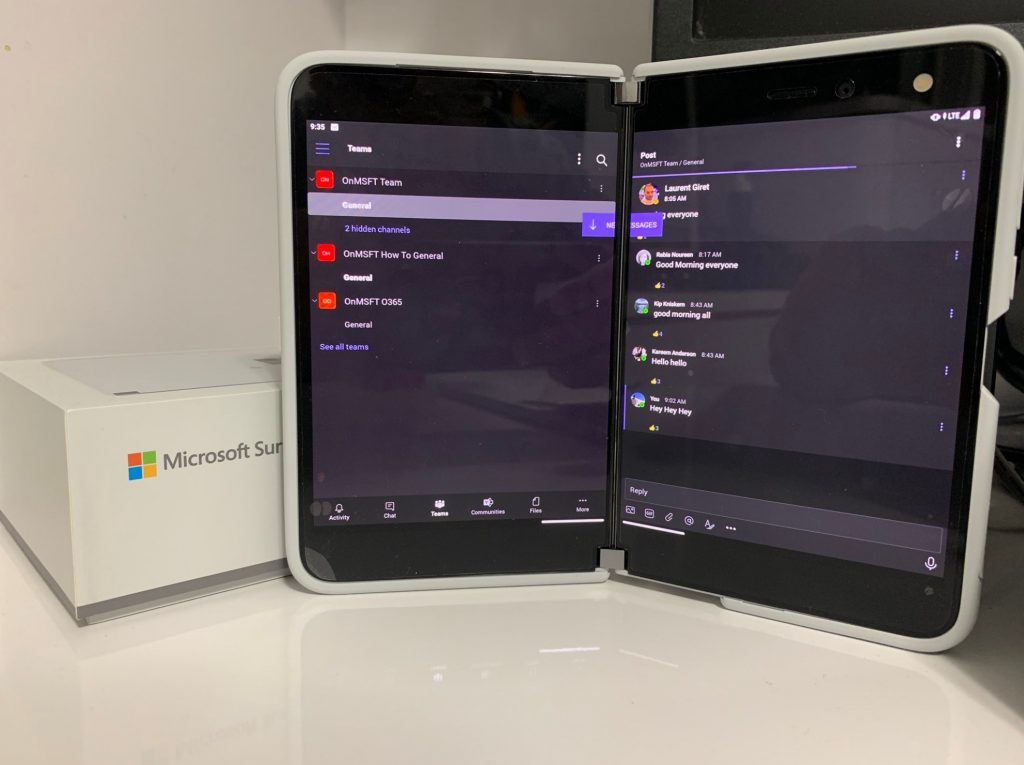
Our first tip is one of the most obvious, spanning the Microsoft Teams app across the two screens. To do this, simply open the app on either the left or right screen, and then pull it up as if you were going to close it, then, grab the app and drag it to the middle hinge and hold it. After you do that, the app will expand out like a book.

With this spanned mode, you’ll be able to see your main feed on the left screen, with your list of Team channels. You’ll also see the bottom control and navigation bar on the left screen. Then, you’ll see that as you click on items on the left screen (like a channel, or a chat) it’ll open on the right screen. This functions almost as it would on the desktop app, where you have your navigation bar to the left, and your feed in the right. It also gives you more room to see more content and messages, too.

Tip #2: Pair Teams up with another app

Surface Duo Apps Span With Teams

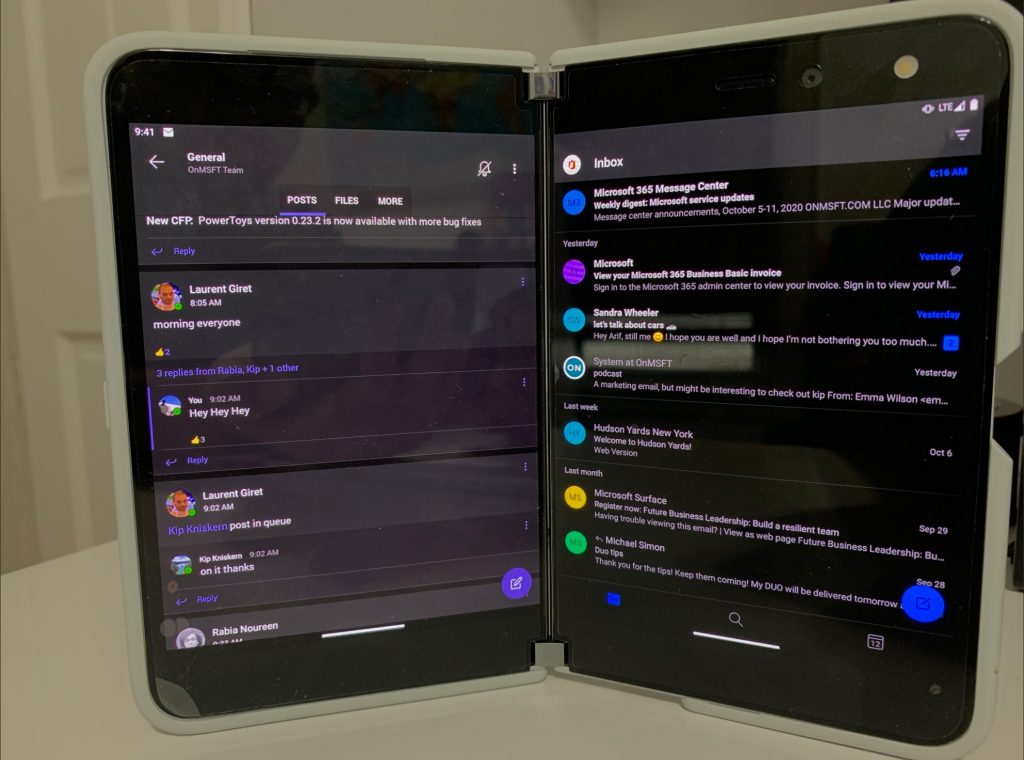
As we explained in our Surface Duo review, one of the best parts of the Duo is the “Book Mode.” In the book mode, you can stack your apps side by side, with one app on the left screen, and another on the right. This works with any app you have installed on the phone, and Teams is no exception.

To get started, you can open Teams on either the left or right screen on the Duo. Then, on the screen that’s not being used, swipe up to open the app launcher, and then choose another app. In most cases, this can be Outlook (to check an email,) Edge (to do some research or look for something online) or another productivity app. The apps will then be paired side by side and stay updated in real-time allowing you to get more done without missing out on anything important.

Tip #3: Use Teams in compose mode

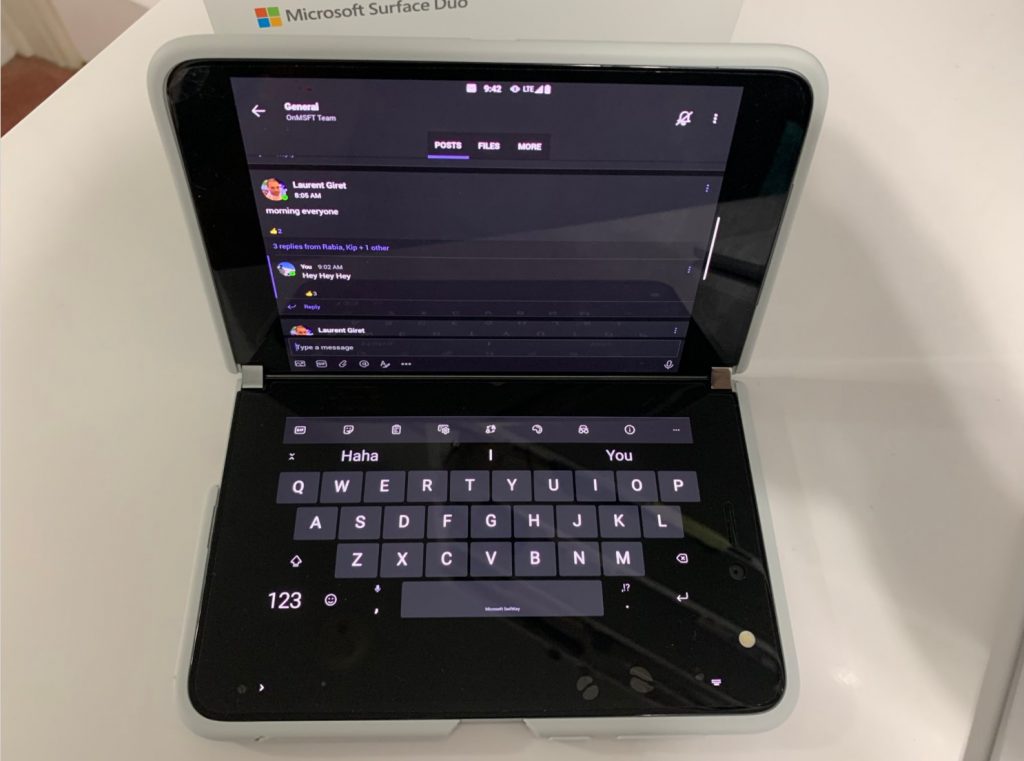
Surface Duo Teams Compose Mode

Asides from book mode, Surface Duo has different modes of use. One of these is “compose mode.” With compose mode, you can hold the Duo like a laptop, with an app on the top screen, and a keyboard on the bottom. This makes Teams on the Duo feel a bit more familiar if you’re looking for something that feels like a Windows PC.

To use Teams in compose mode, all you need to do is open Teams on the left screen or right screen. Then, make sure auto-rotate is turned on from Android’s drop-down notification menu. You can then turn your Duo over like a laptop, and tap anywhere in the Teams app to bring up the keyboard. Pretty cool, right?

Tip #4: Get the most out of Teams’ calls on your Duo

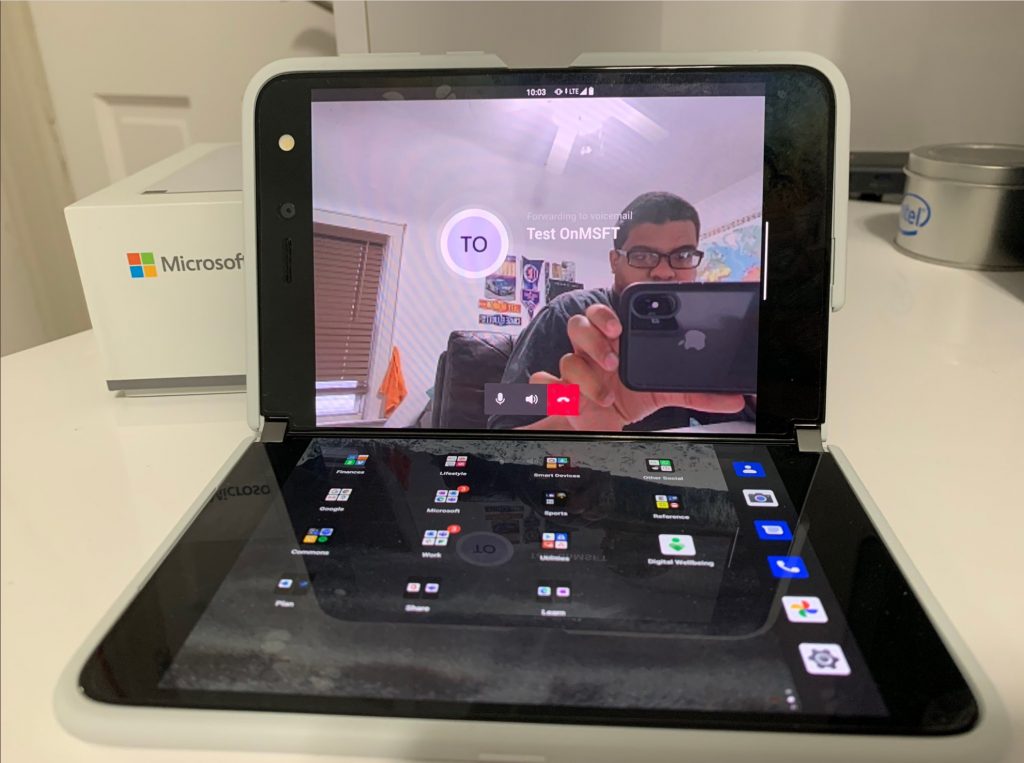
Surface Duo Teams Calling

Now that you know how to use Teams in compose mode, we have a related tip. Flip the Teams app over to the right screen on the Duo when it is open. Then, once the Duo is on the right screen, you can then rotate it and start a video call.

The Duo is smart enough to recognize the orientation you’re holding it in. Since the camera and Teams are open on the right screen, if you hold the Duo in compose mode, it’ll rotate the camera and you can use it just like a webcam. This is a great way to show off your Duo, as the 11-megapixel front-facing camera is better than the 720p webcams you’ll find on most laptops. You’ll look crystal clear during those important meetings!

Check out our other Surface Duo tricks and tips!

Although our guide has mainly covered the Teams experience on the Duo, we have some other tips, too. These include running Microsoft Remote desktop to run Windows 10 on the Duo, Gboard for handwriting recognition, and more. Check it out here, and let us know if you have some tips of your own by dropping us a comment below.

Xbox fans can now register for exclusive Xbox FanFest digital experiences

As the ongoing coronavirus pandemic continues to make it very difficult to organize in-person events around the world, Microsoft announced that Xbox Fanfest is going digital this year. Starting today at 6PM PT, Xbox fans can register at xbox.com/FanFest and opt in to participate to a series of exclusive experiences, starting with a first-ever all-digital trivia event.

“While our in-person events are on hold, we decided what better time than now to expand FanFest in a way that allows more fans the opportunity to come together throughout the year,” explained Brina Hatcher, FanFest Lead at Xbox. By registering on the dedicated website today, fans will get access to exclusive digital and physical experiences, sweepstakes, merchants drops, and more.

The first FanFest trivia event will only be available for the first 25,000 Xbox fans that will opt in and confirm their sport today. You can also earn 100 Microsoft Rewards points upon registration and continue to earn points by participating to other upcoming FanFest activities.

Microsoft’s series of Xbox FanFest events started six years ago, going all digital this year will allow even more Xbox fans to join the fun. We’re now just a month away from the launch of Microsoft’s Xbox Series X and Series S consoles, and we hope the company will have a couple of cool surprises for FanFest participants.

FIX: Asus Number Pad has driver problem [GL704GW, GL502VMK]

Some ROG GL704GW and GL502VMK laptop users have posted on the Republic of Gamers forum about a Number Pad driver issue.

These users have encountered ASUS Number Pad driver issues after Windows 10 build updates. Consequently, their laptops’ keyboards stopped working.

In today’s guide we will explore the best methods to apply in order to resolve this issue quickly.

How can I fix the ASUS Number Pad driver issue?

1. Reinstall the ASUS Number Pad driver

  1. Press the Windows key + X hotkey.
  2. Click Device Manager on that menu.
  3. Click the View menu.
  4. Select the Show hidden devices option.
    Show hidden devices option asus number pad has a driver problem
  5. Double-click Keyboards to open its device list.
  6. Right-click ASUS Number Pad to select the Uninstall device option.
    Device Manager window asus number pad has a driver problem
  7. Then click Uninstall to confirm.
  8. Windows 10 will reinstall keyboard device drivers when you restart your PC.

2. Update your drivers

This error might be the result of outdated or faulty drivers. Performing an update can quickly fix this issue. You can do so manually, by selecting the ASUS Number Pad driver from the Device Manager.

Alternatively, you can use a third-party driver updater utility that aims to resolve various driver issues. The software will quickly scan your laptop for antiquated, corrupted, or missing drivers and automatically update them.

3. Select the HID keyboard device

  1. Open the Device Manager window from the Win + X menu as outlined for the previous resolution.
  2. Click Keyboards to open that device category.
  3. Right-click Asus Number Pad and select Update driver to open the window shown directly below.
    Update Drivers window asus number pad has a driver problem
  4. Click the Browse my computer option.
    Let me pick from a list of available drivers option asus number pad has a driver problem
  5. Select the Let me pick from a list of available drivers option.
  6. Then select HID Keyboard Device, and click Next to install.

Rollback a recent Windows 10 build update

  1. Press the Windows and S keys simultaneously to open a search utility.
  2. Type Windows Update in the search box that opens.
  3. Click Check for updates to open the Windows Update tab in Settings.
    Check for updates option asus number pad has a driver problem
  4. Press the Get started button to restore your previous Windows 10 build version.

Note: You can only select the Get started button for 10 days after a feature update. You don’t have to update Windows 10 to the latest version until Microsoft no longer supports your build.

Those are some of the potential resolutions that might fix the Asus Number Pad driver problem.

Aside from those resolutions, running the Keyboard troubleshooter and clean-booting Windows 10 might also fix ASUS keyboards that stop working.

VLC interactive zoom not working? Here’s how to fix it

The VLC media player has a lot of useful features that make it one of the best video players that is out there.

The interactive zoom option allows users to zoom videos, as the name suggests. The feature allows you to get a preview image in the top left corner with a rectangle indicating which portion of the video is zoomed in.

It appears as though that for many users this option is not always working as it should. There are two main situations for the interactive zoom problem:

  • VLC zoom can’t move the video when in portrait mode: the VLC interactive zoom fails when VLC opens the vertical or portrait video from the phone.
  • VLC zoom is not working in landscape mode: the VLC zoom box is stuck with landscape iPhone videos or video files that you receive from others

In both cases though, the way to fix it is the same. In this article we will guide you on how to do that in just a few easy steps, so make sure to keep on reading.

What can I do if VLC interactive zoom doesn’t work?

1. Update VLC to the latest version

Fix MSVCR100.dll MSVCP100.dll missing after Windows 10 upgrade

When it comes to VLC you should always use the latest version as there are additional features and security updates that only the updated version offer.

Some users confirmed that after updating VLC to the latest version, the interactive Zoom option actually started to work properly.

Usually, you should see a notification pop up whenever there is any update available. In case this does not happen, go to Help and select the Check for update option.

If a new version is found, make sure to press Yes when asked if you want to install it.


2. Remove the rotation parameter in the video

It seems as though this is a specific issue that happens because of some specific video parameters. Some videos, especially those recorded with smartphones come with a 90-degree rotation parameter.

If you try to play the video in Media Player, for example, you will see it plays upside down.

Although VLC can see the rotation parameter and rotate the video, due to this issue interactive zoom won’t work.

There are several programs that can help you remove the rotation parameter in the video. Test and download the most effective software that will help you rotate your video.

Afterward, the video will play normally in VLC and the interactive zoom will work properly.

When you will now open VLC and enable interactive zoom, the moving box should not be stuck and work normally.


We hope that the presented solutions helped you fix the VLC interactive zoom not working.

There are several situations that can cause this issue to happen but fortunately enough they can both be solved using the same steps.

If you tried any of the above, let us know how it worked in the comments section below.

[wl_navigator]

Service Registration Is Missing or Corrupt: 10 Ways to Fix It

Every version of Windows relies on certain services to run properly, and Windows 10 is no exception. Unfortunately, our readers reported that they are getting the Service registration is missing or corrupt error on Windows 10, so let’s see how to fix it.

What does service registration is missing or corrupt mean?

The Service Registration is missing or corrupt message usually comes with the error code 0x8024402c, and it is triggered when some damaged or corrupt system files prevent the installation of an update.

Luckily, we have gathered a lot of solutions to fix this problem on your Windows 10 PC.

What can I do if Service registration is missing or corrupt on Windows 10?

1. Change values in the Registry

Note icon NOTE
We recommend creating a backup of the registry file before attempting this solution.
  1. Press the Windows key + R, enter regedit, and press Enter or click OK to open the Registry Editor.
  2. In the left pane, go to the following path: HKEY_LOCAL_MACHINE\SOFTWARE\Microsoft\WindowsSelfHost\Applicability
  3. In the right pane, locate the ThresholdOptedIn and RecoverFrom values, and if there are, delete them.
  4. Now, right-click the empty space in the right pane, and choose New, then select String Value.
  5. Enter BranchName as the name of the new string and double-click it.
  6. In Value data, enter fbl_impressive and click OK to save the changes.
    service-registration-missing-corrupt-value-1
  7. Create a new String called Ring and set the Value data to low.
    service-registration-missing-corrupt-value-2
  8. After you’re done, close the Registry Editor.

2. Restart the Windows Update services

  1. Search for command and click on Run as administrator to start Command Prompt.
  2. Type or paste the following commands and press Enter after each one:
    • net stop wuauserv
      net stop cryptSvc
      net stop bits
      net stop msiserver
      ren C:\Windows\SoftwareDistribution SoftwareDistribution.old
      ren C:\Windows\System32\catroot2 catroot2.old
      net start wuauserv
      net start cryptSvc
      net start bits
      net start msiserver

After all the processes are finished, close Command Prompt and check if the problem is resolved.

3. Remove your antivirus tool

Antivirus software can interfere with core Windows 10 functions, thus causing Service registration is missing or corrupt error to appear.

Users reported that McAfee antivirus can cause this issue to appear, and to fix it, it’s recommended to remove the McAfee antivirus software.

Bear in mind that almost any third-party antivirus software can cause this error to appear, therefore even if you don’t use McAfee, you might want to try removing your antivirus software.

The most simple way of completely uninstalling the antivirus is to use specialized software. This kind of tool is easy to use, and after it does its job you can be sure you won’t see any leftovers.

After you have a clean slate, you can install a more reliable antivirus solution that won’t interfere with Windows 10’s service registration. That’s why we recommend reading our guide to find the best antivirus software for all your needs.

4. Perform an SFC scan

  1. Click the Start button, type cmd, and select Run as administrator from the results.
  2. Type the following command and press Enter to run it: sfc /scannow
  3. Wait for the process to complete, close Command Prompt, and check if the error is resolved.

Alternatively, you can always rely on specialized repair software to scan your computer and automatically replace any broken files they encounter.

Not only that but these powerful tools can easily be used in the long run as maintenance tools so you never have to worry about these issues again.

5. Check if the required services are running

  1. Press the Windows key + R, type services.msc, and press Enter or click OK.
  2. Locate the Windows Update service and double-click it to open its properties.
  3. In the Startup type section select Automatic from the menu. In the Service status section click the Start button. Click Apply and OK to save changes.
  4. Repeat the same steps for Background Intelligent Transfer Service and Cryptographic Service.

6. Change settings in the Group Policy

  1. Press Windows key + R and enter gpedit.msc. Press Enter or click OK.
  2. In the left pane navigate to Computer Configuration, then to Administrative Templates, and select System.
  3. In the right pane, double click the Specify settings for optional component installation… setting.
  4. Select Enabled and enter the location that you want to use for repair. Click Apply and OK to save changes.

7. Reset the Microsoft Store cache

  1. Press Windows key + R and type wsreset.exe.
    service-registration-missing-corrupt-wsreset
  2. Press Enter or click OK and wait for the process to finish.

Some of our readers managed to fix the Service Registration error by resetting the Microsoft Store, so it’s worth a try.

8. Create a new user account

  1. Click the Start button and select Settings.
  2. Go to Accounts, then go to Family & other users.
  3. Click Add someone else to this PC button.
  4. Click I don’t have this person’s sign-in information.
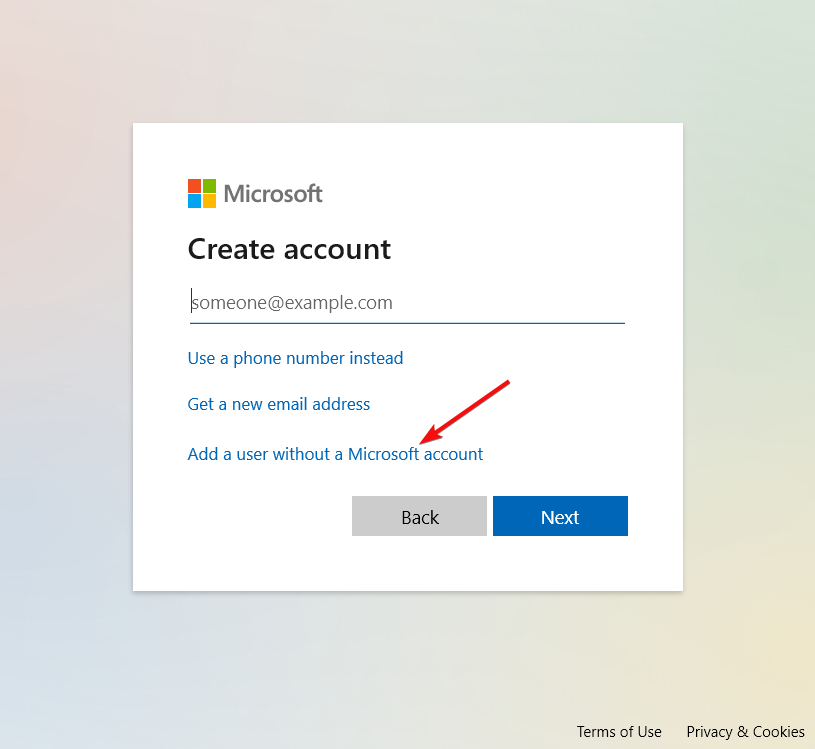
  5. Click Add a user without a Microsoft account.
  6. Enter the name of the new user. If you want, you can also add a password to protect the new account. After you’re done, click the Next button.
  7. After creating a new user, switch to that account and check if the issue persists.

If the problem doesn’t appear on your new user account, you might want to move all your personal files and switch to it permanently.

9. Restart the Windows Update service using Command Prompt

  1. Click the Start button, type cmd, and choose Run as administrator to launch Command Prompt with full privileges.
  2. Enter the following command and press Enter: net stop wuauserv
  3. After that, enter the following command to detect and download the necessary updates, and press Enter: wuauclt /detectnow

Note: This is just a potential workaround, and it might not be the permanent solution, but you can still try it on your PC.

10. Match the EditionID with the ProductName

  1. Press the Windows key + R to start the Run console, type regedit and press Enter.
  2. Go to the following key: HKEY_LOCAL_MACHINE\SOFTWARE\Microsoft\Windows NT\CurrentVersion
  3. In the right pane, find the following strings: EditionID and ProductName. Make sure that EditionID and ProductName match the version of Windows 10 you’re using. In our case, EditionID is set to Professional while the ProductID is set to Windows 10 Pro.
  4. If the values don’t match your version of Windows 10, change them.

For some unknown reason, values in your registry can change, and that can cause this problem to appear. According to users, EditionID and ProductName have changed from Windows 10 Pro to Windows 10 Enterprise, and that caused this error to appear.

Service registration is missing or corrupt error can cause many problems on your Windows 10 PC, but as you can see, this error can be fixed by using one of our solutions.

Get the Windows 10 October Patch Tuesday updates today

The second Tuesday of October is now here and that means that Microsoft will soon release its monthly batch of major updates called the Patch Tuesday Updates.

Like with the other previous 9 months, these updates are long-expected because they bring much-needed fixes to Windows 10.

However, the core of these updates is the security updates that come with them as well, especially the ones concerning CVEs for Microsoft and Adobe products.

Speaking of which, another highlight of this month is to see if the trend of the increasing number of CVEs continues, or if it has finally come to a stop.


What should users be expecting from this month’s updates?

A common trend in Patch Tuesday updates is the implementation of what has been in the testing phase within the Windows Insiders program.

Another trend is the fixing of new features that may have been implemented in the last round of Patch Tuesday updates.

All in all, here are some highlights of what has transpired over this past month with Microsoft and its products, and maybe you can get an idea of what’s to come during this month’s update:

Unfortunately, this is nothing more but guesswork until the updates actually hit live at 10 PM PST.

Keep in mind that the Patch Tuesday updates are important because of the added protective features that they bring.

That being said, if you aren’t a fan of updating your OS and have decided to pause your Windows Update feature, you should make an exception right now.

This is for your own protection, and it can prevent any damage and cyberattacks that usually follow during Exploit Wednesday and Uninstall Thursday.


Are you eager about what the latest updates will bring? Let us know what your expectations are by leaving us a message in the comments section below.

[wl_navigator]

FIX: FIFA 21 in-game stuttering and freezes

FIFA 21 is the latest installment in the critically acclaimed FIAF series of football simulation games created by EA Sports, a subdivision of Electronic Arts.

A new game comes out year after year, and while the features and graphics are always new and fresh, so is the number of bugs users have been experiencing.

One example is an issue that can be encountered in most modern-day games, and that is freezes and the occasional screen stuttering that many players have been reporting:

Iv been having a stutter/freezing issue with fifa 21 and despite my best efforts i cannot solve it. The issue ONLY happens in fifa and i play many other games that range from CPU to GPU intensive. I have attempted all known solutions as well as some unorthodox attempts to fix it but to no avail,[…]

This issue is quite frustrating to run across, especially during an online game, since it can ruin your score and overall rating.

Another common related issue is one that players notice while exiting the game.

It would seem that FIFA 21 takes up their entire SSD memory and thus freezes.

I’m having problems with FIFA21, when i’m playing something like squad battles the game will freeze for a few seconds and then resume. I opened Task Manager on another window and set it to the performance TAB and that’s when I could see that the SSD (My C Drive) was running at 100%. I then switched FIFA21 to my Game Drive (Drive D) and the same thing happens.

Because FIFA 21 is such a popular game, we took it upon ourselves to solve this issue and present to you a few things that you can try to make the game run smoothly again.


Quick tip:

FIFA 21 is an amazing game, and despite the rough starts in the first few weeks, the game eventually gets fixed and runs without issues.

That being the case, don’t hesitate to get it and join millions of other players in the biggest virtual football environment in the world!

  • 700+ teams
  • 30 official leagues
  • Unparalleled graphics
  • 17,000+ authentic players
  • Have a career in professional football and grow
  • Play as one of the best football teams of the 2021 season
  • Playing online can be a pain with an older PC


How do I fix freezes in FIFA 21?

1. Update your drivers

Outbyte Driver Updater-Banner

Sometimes old device drivers can lead to low performance in games, which in turn can also lead to performance spikes such as brief freezes.

This is especially the case with your video card drivers, and that is why updating them is mandatory.

While you could opt to manually update your drivers via Windows Update or by going to each manufacturer’s website, this can be time-consuming, and you can always download the wrong driver or a driver version that isn’t the latest.

That is why the quickest and safest method is to use a third-party driver updater that can do it for you, one like Outbyte Driver Updater.

Outbyte Driver Updater automatically update drivers

Not only will this tool update your older drivers, but it will also fix the ones that you already have.

That being the case, simply download and install Outbyte Driver Updater, run it, and let it do the job for you.

Outbyte Driver Updater

Outbyte Driver Updater

Old video card drivers can translate into stuttering and freezes in games, so fix them with Outbyte Driver Updater!
Free trial Visit website

2. Check your antivirus

Sometimes your antivirus software can have on-access scanning, meaning it will start running as soon as you activate FIFA 21.

This excess load of tasks can cause your freezes, so your only solution would be to either disable the feature or temporarily disable your Antivirus while playing FIFA 21.

We recommend you give Vipre antivirus a try, since not only does it offer top-notch protection, but it is also very easy to control, especially when it comes to enabling and disabling its features.

More so, when you decide to activate it, your digital protection level will be at an all-time high, so you don’t have to worry about malware.

Vipre Antivirus Plus

Vipre Antivirus Plus

An antivirus tool is meant to protect your system, not interfere with it Get Vipre Antivirus Plus today!
Free trial Visit website

3. Modify a few FIFA 21 files

  1. Go to Documents/FIFA 21 folder
  2. Open with FIFA setup text file
  3. Change DirectX from 1 to 0 as seen in the image
  4. Save changes and then try running the game again

4. Tweak your Nvidia Control Panel settings

4.1. Set V-Sync to Adaptive

  1. Press Start
  2. Type in Nvidia and launch the Nvidia Control Panel
  3. Select manage 3D Settings
  4. Select Program settings and browse for FIFA 21
  5. Change the Vertical sync feature to Adaptive

4.2. Reset your Nvidia Control Panel Program settings completely

  1. Press Start
  2. Type in Nvidia and launch the Nvidia Control Panel
  3. Select manage 3D Settings
  4. Select Program settings and browse for FIFA 21
  5. Select Restore Defaults in the top right

5. Close background processes

  1. Press Ctrl + Shift + Esc to open the Task Manager
  2. Look for whatever process is taking up most of your CPU and RAM
  3. If FIFA 21 is not using it, close it, and resume the game

6. Make sure your PC meets the minimum system requirements

FIFA 21 is quite a resource-intensive game, so make sure that your PC can actually handle it.

Remember that if you pre-ordered FIFA 21 long before the official launch, there may be a chance that your PC may not actually meet the minimum requirements to run it.

This is because of a mistake where the official Steam page of FIFA 21 had other minimum system requirements than the real ones.

If so, go ahead and check out the system requirements once more and see if your PC is still capable of running the game.

If you notice that it isn’t, then maybe you should consider giving your PC a little upgrade.

However, if you don’t have the budget for an entire PC, you could settle for upgrading your weakest components.

In the case of gaming, don’t forget that the most important components are:


7. Disable Radeon software features

  1. Press Start
  2. Type in radeon and open the Radeon Software menu
  3. Press on the Gear icon in the top right
  4. Select the General tab
  5. Disable the Instant GIF feature

By following these solutions, you should be able to handle any freezes and micro-stutters that you may encounter while playing FIFA 21.

Let us know which solution helped you out by leaving us a message in the comments section below.

That way, other users will know what solutions to start off with first.


[wl_navigator]

Windows 10 news recap: Windows 10X out of box experience shown off in new video, Xbox Cloud Gaming still coming to Windows, and more

Welcome back to our Windows 10 news recap, where we go over the top stories of the past week in the world of Microsoft’s flagship operating system.

New video shows Windows 10X out of box experience in latest Insider build

A new Windows 10 Insider build was released this week, but some exciting future improvements were teased by the team. Not long after, a Windows enthusiast, Albacore, found a new video that shows the out of box experience of Windows 10X on desktop.

Phil Spencer confirms that cloud gaming for Windows PCs and Xbox consoles is still on the way

Xbox Cloud Gaming has been confirmed to still be on the way for both Windows PCs and Xbox consoles, allowing players to stream games instead of having to download them. It doesn’t appear to be the highest priority for the team, but it is something they are still looking to do, according to Phil Spencer.

Microsoft makes it easier to find support articles and release notes for Windows 10 and Microsoft 365 services

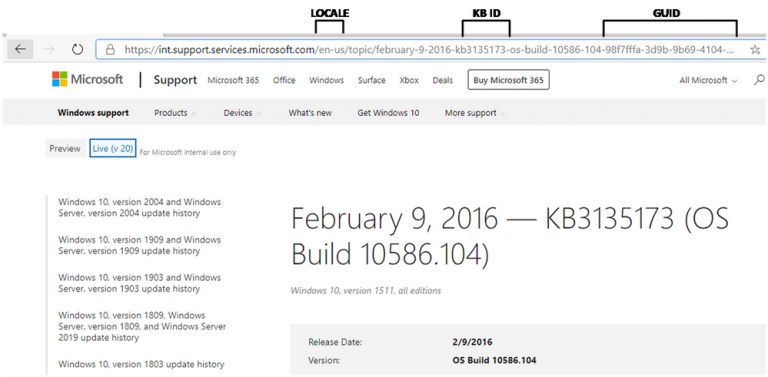
Getting support for either Windows 10 or Microsoft 365 is getting a bit easier, as Microsoft has made it easier to locate support articles and release notes. Changes include implementing a new URL structure will allow for finding knowledgebase articles by ID when searching.

Microsoft Knowledgebase Id Search

That’s it for this week. We will be back next week with more Windows 10 news.

Microsoft news recap: Microsoft News brings $1B revenue for publishers, work from home becomes permanent option, and more

Microsoft news recap is a weekly feature highlighting the top Microsoft news stories of the past week. Sit back, grab some coffee, and enjoy the read!

Microsoft reveals new Xbox Series X/S launch trailer ahead of TV debut this weekend

A new Xbox Series X and S launch trailer was unveiled this week, Power Your Dreams.

Work from home becomes permanent option for some Microsoft employees

Microsoft has made its work from home policy more permanent, in light of the Coronavirus pandemic. Some employees will now be able to opt to work from home permanently, if they wish to do so.

Microsoft Store Associates Working From Home Cropped

Microsoft to bring Xbox cloud gaming service to iPhone and iPads via web browsers

After we all thought that Apple’s strict App Store policies had put a stop to Microsoft’s Xbox Cloud Gaming coming to iPhone and iPad, Microsoft has now said it is planning to bring its game streaming to Apple devices through web browsers.

Microsoft News brings in over $1B in revenue for publishers

Publishers have seen over $1 billion in revenue as a result of Microsoft News, whereby publishers receive a share of the revenue generated from their stories.

Msn Front Cropped

That’s it for this week. We will be back next week with more Microsoft news.

Fix: Realtek High Definition Audio Driver has a problem

When it comes to PC audio, many users are using the Realtek audio drivers, but Realtek drivers also have their share of issues.

Many reported the Realtek has a driver problem message, and in this article, we’ll show you the best ways to fix this problem for good.

What do I do if Realtek has a driver problem?

1. Disable the audio device temporarily

  1. Open the Device Manager.
  2. Locate the Realtek audio driver, right-click it, and choose Disable device.
    disable device realtek has a driver problem
  3. Wait for a few moments and then right-click the Realtek driver again, but this time choose Enable device.
  4. After doing that, check if the problem is still there.

Keep in mind that this is just a workaround, but few users reported that it worked for them.

2. Update your audio drivers

  1. Click on the Start button and select Settings
  2. Select Update & Security
  3. Click on Check for updates
  4. Select the Driver updates section and expand it
  5. Choose the audio drivers
  6. Click on the Download and install button
  7. Restart your computer

Realtek has a driver problem message usually appears if your drivers are corrupted. The simplest way to deal with that is by installing their latest versions. You can do so manually by following the above steps.

Alternatively, we recommend using an all-in-one tool that will scan your computer and list all the drivers that are out of date. With a few clicks, you can select the drivers you want to update and the software will do the rest.

This dedicated software will also assure drivers backup, fix corrupted drivers, and automatically install or update any driver from your PC.

Moreover, updating your drivers is essential for an optimized system. Thus, it is recommended to efficiently perform this with specialized programs.

⇒ Get Outbyte Driver Updater

3. Reinstall the driver

  1. Press Windows Key + X and choose Device Manager.
    device manager realtek has a driver problem
  2. Locate Realtek driver, right-click it, and select Uninstall driver.
    uninstall device device manager
  3. When the confirmation dialog appears, choose the option to remove the driver software and click on Uninstall.
    uninstall confirmation realtek has a driver problem
  4. Restart your computer and the default audio driver will be installed.

Alternatively, you can install the latest Realtek driver from your sound card or motherboard manufacturer’s website.

In some instances, using an older version of the driver might fix the problem as well, so be sure to also consider that.

Realtek has a driver problem message will cause audio problems, but you should be able to fix this and other audio problems with our solutions.

Fix: There is a Problem with your Tablet Driver [Wacom]

If you drawing on your computer, you’re most likely using a drawing tablet. However, issues can occur, and some users reported There is a problem with your tablet driver message.

This message will prevent you from using your tablet, and in today’s article, we’re going to show you how to fix this problem for good.

How can I fix There is a problem with your tablet driver error message?

1. Update drivers

There is a problem with your tablet driver message that can affect Wacom tablets, and the problem is usually caused by corrupted or outdated drivers.

Updating your drivers is not a difficult task, but you have to make sure you know what you are doing and install the corresponding driver version for your hardware. Otherwise, you may end up with major system issues.

To manually update your drivers, type device in the taskbar and open the device manager. Find your tablet driver in the list, right-click on it and select update. Wait for the process to finish and reboot your PC.

The task can be a little time-consuming if you have to update multiple drivers. Plus you will have to keep an eye on your drivers on a regular basis. This is where Outbyte Driver Updater can come in handy.

The software will automatically scan your PC and give you a detailed report on all outdated drivers. Now you just need to select which drivers you want to update and that’s it.

Outbyte Driver Updater is almost completely automated, and you can schedule the software to automatically scan and update all your drivers.

Other useful features:

  • Incredibly fast
  • Online database has more than 18 million driver files available
  • Driver backup
  • Download manager for driver downloads

⇒ Get Outbyte Driver Updater

2. Remove the driver completely and reinstall it

  1. Open the Settings app > Apps and uninstall all Wacom software.
    uninstall software there is a problem with your tablet driver
  2. If asked to restart your PC, choose not to.
  3. Locate the following folders and remove them. Keep in mind that some of them might be hidden so you’ll need to reveal them:
    C:\Program Files\Tablet
    C:\Users<user>\AppData\Roaming\WTablet

    C:\Users<user>\AppData\Local\Temp\wactemp
    C:\Users<user>\AppData\Local\Wacom
  4. Now go to the following directory:
    C:\Windows\System32
  5. Locate and remove all wacom_ Usually, there is only a wacom_tablet file, but if you have more, be sure to remove them all. Here are the files that can appear and that you need to remove:•
    • WacDriverDLCoinst.dll
    • Wacom_Tablet.dll
    • Wacom_Touch_Tablet.dll
    • WacomMT.dll
    • WacomTabletUserDefaults.xml
    • WacomTouchUserDefaults.xml
    • Wacom_Tablet.dat
  6. Press Windows Key + X and select Device Manager.
    device manager there is a problem with your tablet driver
  7. Expand the Human Interface Devices section and uninstall all devices with HID, USB, and Wacom in its name. To do that, right-click the device and choose Uninstall device.
    uninstall device there is a problem with your tablet driver
  8. After removing all devices, restart your computer and the drivers should be reinstalled automatically.
  9. Optional: For the best performance, it’s advised to download and install the latest Wacom driver.

This is a simple solution that has worked for some users, but keep in mind that uninstalling your USB devices might disable your mouse/keyboard until you restart your PC.

3. Remove All User Preferences

  1. Locate Wacom Preference File Utility and start it. It should be located in the Wacom installation directory.
  2. When the software opens, click on the Remove button in the All User Preferences section.

After doing that, the Wacom There is a problem with your driver error will be gone. Keep in mind that this solution might only work for older Wacom models.

4. Restart Wacom service

  1. Press Windows Key + R and enter msc. Press Enter or press OK.
    services run window there is a problem with your tablet driver
  2. Locate the Wacom service on the list, right-click it and choose Restart from the menu.
    restart service there is a problem with your tablet driver

Keep in mind that this is just a temporary solution, and you’ll have to repeat it whenever this error message appears.

Wacom There is a problem with your driver error message will prevent you from using your tablet, but after using our solutions, the problem should be completely resolved.

Want to learn more about Wacom devices? There are some great articles in our Wacom section.

Have issues with your peripherals? We have a whole Peripherals Hub dedicated to them, so you might want to check it out.

How to recover deleted Line account [3 easy steps]

Line is a world-known communication app for anyone using a smartphone, tablet, or Windows 10. What makes Line amazing is that users can enjoy not only communicating via text messages but also free voice calls from wherever they are.

Reshaping communication nowadays is definitely a difficult task but Line did it gracefully, by allowing international calls with more than 100 users at the same time. All completely free.

Deleting a line account though makes some irreversible changes, and users are looking for ways to restore it or get back their data.

Losing all data, chat history, and earnings are some of the actions that you can’t revert once an account has been deleted.

If you are wondering what can be done in such cases, don’t worry, we’ve got you covered.

In this article, we will explore how you can have back a Line account if you deleted it previously.

How can I recover my deleted Line account?

1. Check the account status

Before we go on to the next steps, it’s important to mention that, if you have uninstalled or deleted the app, that does not constitute as a deleted account.

An account can be deleted by going into Home, opening the account settings menu, and choosing the Delete option. Only if you have followed these precise steps, you can consider that you have deleted the account.

Keep in mind that once an account has been deleted all the stored data will be lost as well.

Here are the pieces of data that you won’t be able to recover once you delete your account as mentioned above:

  • Purchased stickers
  • Coins
  • Registered phone numbers
  • Friends list
  • Groups
  • Chat history
  • Registration with other authorized apps (LINE games, LINE apps).

The email address you used for registering for LINE will also no longer be available.

Note: If you deleted your account and you reinstall the LINE app, you will not be able to transfer the data from the old account to the new one.

Moreover, if you have a LINE Pay account, is advised that you delete it before you delete your LINE account.

To conclude, once you deleted your account you can not restore it.

Not all is lost though, as the name used for your ID will become available again. Follow the steps below to set it up again.


2. How to re-use the same Line ID

  1. Go to the Home or More tab and select Settings.
  2. Select the Edit profile option and go to ID.
  3. Enter your ID and select the Check option.
  4. You should see the message This ID is available.
  5. Select Save.

Since the ID will become available once again after the accounts they were registered have been deleted, you can follow the above steps to use the ID again.

If you want to start off fresh, the solution below will ensure that you do so successfully.


3. Register a new Line account

  1. Go to your smartphone, on the LINE app, and register your email address.
  2. Download LINE for PC.
  3. Log in using the email and password used for registering on your smartphone.

Note: If you are getting an error when entering your email address or password, make sure that your password does not include any unnecessary spaces or you didn’t enter only half-width characters.

If you checked all these but you still see an error message, then make sure to reset your password and then try the steps again.


As you can see, there are several ways to check the status of your account. Only by simply deleting or uninstalling your app it does not necessarily mean you have permanently deleted the Line account.

But if that is not the case, and you have deleted it from the settings menu, then it’s important to remember that all the data will be lost and that your account cannot be recovered.

You can either create a new account or simply wait for the ID you already have to become available and use it once again.

Of course, there is always the option to create a new Line account from scratch baring in mind that this will not automatically transfer any data from the past chat history or previous earnings to the new one.

We’d love to hear if the solutions and information mentioned in this guide have proven useful for you.

If you have additional suggestions or recommendations, please let us know in the comments section below.

[wl_navigator]

Microsoft warns against new ransomware attack on smartphones

Mobile ransomware is the latest security danger known in the industry, and although it’s not new, it keeps evolving.

In a recent security report, the researchers in the Microsoft Defender Team warn against new ransomware tricks used on Android smartphones.

[…] We found a piece of a particularly sophisticated Android ransomware with novel techniques and behavior, exemplifying the rapid evolution of mobile threats that we have also observed on other platforms. […]The new variant caught our attention because it’s an advanced malware with unmistakable malicious characteristic and behavior and yet manages to evade many available protections, registering a low detection rate against security solutions.

This new ransomware type is called MalLocker.B and just like any other malware version, it can be caught from random websites or can come disguised as popular third-party apps, cracked games, or video players.

How does the new ransomware version behave?

MalLocker.B ransomware

Unlike other ransomware attacks that abuse permission requests or launch annoying pop-up windows, the new techniques involve blocking the user on the home screen or on the details of an incoming call.

More specifically, first, the attack uses a call notification to get the user’s immediate attention.

At this point, one might tap on the call and the malware will show a window that covers the entire screen with details about the incoming call.

Then, the attack uses the onUserLeaveHint() function, which is triggered when the user wants to push back an app to open a new one and might go to the Home screen.

As the report shows, these tricks don’t trigger cascading windows that can make the user suspicious, and so the attack can continue at ease.

The full code of the attack is explained in the mentioned report.

These are new tricks and as a result, MalLocker.B has been included in the list of attacks monitored by Microsoft Defender for Endpoint on Android.

What’s your intake on this topic? Share your opinion with us in the comments below.

[wl_navigator]

Patched Windows Boot Loader Detected: 5 Solutions to Use

More and more game studios implement various anti-cheating software with the EAC (Easy Anti-Cheat) leading the group. While in most cases, it works out seamlessly on the user’s end. Sometimes they come across the Patched Windows boot loader detected error.

The problem affects a wide number of titles, and as a result, the games won’t launch, throwing the error each time. But it’s easily fixable, given you follow the right approach. Let’s find out.

What does Patched Windows boot loader detected message mean?

The Fortnite Patched Windows boot loader detected message indicates an issue with the installed OS, most likely, piracy. The problem affects users playing games directly installed on the PC or even via clients like Steam. Here are a few reasons for it:

  • OS is not activated: In most cases, users realized that the OS was not activated or the license had expired, which resulted in the error.
  • Running an outdated version of Windows: Having an older version of Windows limits the PC’s performance, puts it at risk, and even leads to such errors.
  • Issues with the BIOS: For many users, it was a misconfigured or outdated BIOS that triggered Patched Windows boot loader detected in Brawlhalla. So check for BIOS updates.
  • EAC acting up: EAC or Easy Anti-Cheat could also be wrongly identifying it as a cheating instant, and waiting for a while before relaunching do.

How do I fix the Patched Windows boot loader detected error?

Before we proceed, here are a few quick things to try:

  • Restart the computer.
  • Check for pending Windows updates and install them. Once done, verify whether the Rust launcher error Patched Windows boot loader detected is fixed.
  • Scan your PC for malware using the built-in Windows Security or a reliable third-party antivirus.
  • Make sure you are running a licensed and activated version of Windows.
  • Update the BIOS on the PC, but be cautious during the process. If you are unsure, seek professional help.

If none work, move to the solutions listed next.

1. Repair corrupt system files

  1. Press Windows + R to open Run, type cmd, and hit Ctrl + Shift + Enter.cmd
  2. Click Yes in the UAC prompt.
  3. Paste the following three commands individually and hit Enter after each:DISM /Online /Cleanup-Image /CheckHealth DISM /Online /Cleanup-Image /ScanHealth DISM /Online /Cleanup-Image /RestoreHealth
  4. Now, execute this command to run the SFC scan:sfc /scannowsfc scan to fix patched windows boot loader detected

When it’s the corrupt system files to blame for the Patched Windows boot loader detected error, running the DISM commands and SFC scan worked for many users.

2. Add an exclusion for the EAC file

  1. Press Windows + S to open Search, type Windows Security, and click on the relevant result.windows security
  2. Click on Virus & threat protection.virus & threat protection
  3. Now, click on Manage settings.manage settings to fix patched windows boot loader detected
  4. Click on Add or remove exclusions.add or remove exclusions
  5. Click the Add an exclusion button and choose File from the menu.add an exclusion to fix patched windows boot loader detected
  6. Now, navigate to the game folder, select the EasyAntiCheat.exe file here, and then click Open.easy anti cheat

Adding the game’s EAC file as an exclusion in the antivirus should help when getting the Patched Windows boot loader detected error. Remember the steps listed here are for Windows Security, the built-in antivirus. If you are using another one, check the official website for the exact process.

3. Repair the game files (for Steam games)

  1. Launch Steam, and navigate to the Library.steam
  2. Right-click on the affected game, and select Properties.properties
  3. Now, go to the Local Files tab, and click on Verify integrity of game files.verify integrity of game files to fx patched windows boot loader detected
  4. Wait for the process to complete. It shouldn’t take more than a few minutes. wait
  5. Once done, launch the game and check whether it now runs.

4. Reinstall the game

  1. Press Windows + R to open Run, type appwiz.cpl in the text field, and hit Enter.appwiz.cpl
  2. Select the game throwing the error, and click on Uninstall.uninstall to fix patched windows boot loader detected
  3. Follow the on-screen instructions to complete the process.
  4. Now, head back to the official source of the game, be it a gaming client like Steam or the website, to download and install it.

If the previous solutions didn’t help, it could be the game installation to blame for the Patched Windows boot loader detected error. In this case, uninstalling the app and then downloading a fresh copy of it might do the trick.

5. Reinstall Windows

When nothing works, the last option is to reinstall the OS. All you need to do is create a bootable USB for Windows 10, connect it to a working port, boot the computer through it, and then follow the instructions on the setup to complete the process.

Installing Windows from a bootable USB

Though it looks complex initially, the process is simple but may take a few hours to complete. And while reinstalling Windows, make sure the keep the activation key handy in case you are asked to provide it.

After you have fixed the Patched Windows boot loader detected error, do not forget to check some great tips on optimizing Windows for gaming to get the best performance.

For any queries or to share more solutions with us, drop a comment below.

Microsoft now allows Teams meeting organizers to download participant reports after a meeting

Microsoft Teams will now let meeting organizers download a list of participants in the app at the end of a meeting. In an update to the Microsoft 365 Admin Center message, the company noted that the feature is gradually rolling out to Windows 10, Mac, and the web clients.

As a reminder, the ability for meeting organizers to download a meeting attendance list in Microsoft Teams rolled out back in May 2020. Prior to the recent update, it was only possible to download the participant report while the meeting was in progress, and attendees were still present. However, this restriction has been removed in this release.

Notably, if the meeting participant reports are already disabled in your tenants, Office 365 admins will need to enable this feature in their organizations manually. To do this, run the following PowerShell cmdlet to turn on this feature:

Set-CsTeamsMeetingPolicy -Identity Global – AllowEngagementReport “Enabled”

Once enabled, the meeting organizer will be able to access the list of participants after the meeting within the Meeting Chat. If the meeting is recorded, the app will automatically group the recording, transcript, and participant list in the meeting chat. Otherwise, only the participant list will be available to download.

Download participant list

The improved functionality for downloading participant reports is not the only update that Microsoft has recently brought to Teams. The company has also added new data into the report to make it easier for Teams meetings organizers to manage their attendance. The participant report now provides additional information such as duration, email address, meeting start time, and meeting title.

This new experience is really helpful in education tenants where teachers need to know who had attended their meeting. While the improved functionality began rolling out last week, it will be generally available by the end of this month.

Microsoft reveals new Xbox Series X/S launch trailer ahead of TV debut this weekend

Microsoft kicked off a global “Power your Dreams” ad campaign ahead of the launch of its Xbox Series X and Series S consoles on November 10, and today the company unveiled a new “Us Dreamers” launch trailer featuring Hollywood actor Daniel Kaluuya. The trailer will get its broadcast debut this weekend on Sunday Night Football around 5:30 PM PT.

The ad features Daniel Kaluuya experiencing an immersive gaming dream after picking up his Xbox controller. The music in the video is a catchy brand new track from Labrinth, a British musician who previously composed the score for the critically-acclaimed HBO drama series Euphoria.

“Power Your Dreams speaks to the idea that when we game – whether on console, PC or phone, we dream. Sometimes we dream about being someone else or about being our true selves. Sometimes we dream of an epic win with a group of friends or a solo adventure that challenges what we think we’re capable of. And sometimes we dream of first place or making this world a better place,” the Xbox team explained.

Microsoft opened pre-orders for its Xbox Series X and Series S consoles last month, and after seeing “record-breaking demand” the company promised to have more units available ahead of November 10. It’s good to see that the company’s global marketing campaign for the new console is still going strong, though with Halo: Infinite now being delayed to 2021, we have yet to see how other next-gen launch titles will run on the Series X.

FIX: Can’t find the FIFA 21 trial in the EA Play library

FIFA 21 is the latest in a long line of football manager games developed by EA Sports, a subsidiary of Electronic Arts.

Like every year, the hype grows as the game release date draws closer and closer, and pre-orders and early-access is something that everyone wants.

Well, that seems to be a problem this year since many FIFA 21 players reported that they are having a problem accessing the 10-hour trial of FIFA 21:

Hi I’m trying to download the 10 hour access so I can play it today at 4 when it’s released but when I search it up on my Xbox on ea play I can’t find fifa 21 can you help please so I can play the 10 hour access

Apparently, the problem itself is that the 10-hour trial doesn’t seem to appear on the EA Play gaming library, so naturally, players can’t access it.

We’ve researched the matter even further and have found a solution to this problem that has also been recommended by EA technical support as well.


Quick tip:

The Free trial of FIFA 21 will continue to be available even after the official launch of the game for everyone that wants to test it before they buy it.

However, if you’ve already decided on buying it, then take advantage of the best prices available!

  • 700+ teams
  • 30 official leagues
  • Unparalleled graphics
  • 17,000+ authentic players
  • Have a career in professional football and grow
  • Play as one of the best football teams of the 2021 season
  • Playing online can be a pain with an older PC


How do I install the FIFA 21 trial without EA Play?

  1. Go to the FIFA 21 Microsoft Store page
  2. Log into your Microsoft/Xbox account
    • The account needs to have an EA Play Console subscription and has pre-ordered or pre-installed FIFA 21.
  3. Scroll down the page and click on the Free Trial with EA Play button
    • If you are taken to the EA Play subscription page, navigate back to the FIFA 21 Xbox One page
  4. The Free Trial with EA Play button should now be labeled Install on my devices
  5. Press Install on my devices
  6. Press the (…) button next to the Install on my devices button
  7. Click on Free Trial
    • If FIFA 21 is not installed on your console, simply follow the on-screen instructions to download it
    • If FIFA 21 is installed on your console, you should be able to launch and play the 10-hour trial without any issue
  8. Restart your console to apply the changes

By following these steps, you should be able to install the FIFA 21 10-hour trial without having to rely on the EA Play app.

Let us know if this solution worked for you, and tell us about your experience trying out FIFA 21 by leaving your feedback in the comments section below.


[wl_navigator]

FIFA 21 Gold Packs: What are the probability values?

Doing Squad Building Challenges is probably the best way of acquiring good players within FIFA 21.

These challenges become crucial once a new season starts, and players all around the world are planning on creating their ultimate Starter Team.

The problem is that besides all the grinding and the entire math they need to do to figure out good player positioning, players need to deal with the RNG aspect of pack drops.

For those of you who don’t know, RNG stands for Random Number Generator, which is basically, a gamer’s version of luck.

Players aren’t exactly thrilled about the RNG elements for FIFA 21 packs (known as pack weight), as they feel like good drops happen less often than before.

Never, ever known it to be this horrifically low at this point in the game in past years.

Every single pack is full of absolute ****. EA are getting worse which each passing day, they really are.

In the end, it all seems to be based around the luck you have, and even users are admitting it is just luck.


Quick tip:

With or without buying Gold Packs, it is undeniable that FIFA games are extremely enjoyable.

That being the case, get your hands on the latest entry and let the world know who the true champion is!

  • 700+ teams
  • 30 official leagues
  • Unparalleled graphics
  • 17,000+ authentic players
  • Have a career in professional football and grow
  • Play as one of the best football teams of the 2021 season
  • Playing online can be a pain with an older PC


What are the FIFA 20 Pack weight values?

It would seem that this is an age-old story that has been going on for years and years since FUT has been implemented. Then again, users shouldn’t be surprised at the apparent randomness of drops.

They are extremely low, as you can see from the official drop rates listed below:

Premium Gold Pack probabilities

  • 75+ 100%
  • 82+ 18%
  • 84+ 4.2%

This is a great decrease compared to last year’s Premium Gold Pack probabilities:

  • 75+ 100%
  • 82+ 19%
  • 84+ 4.7%

It would seem that not much has changed and the pack weights have stayed pretty much the same.

Some think that the drop chances are way too low.

Others think this is just EA trying and coerce players into giving up and paying real-life money for the packs.

Whether this is true or not, avid FIFA players that play the game for the fun of it won’t mind rarely getting good drops.

On the other hand, players fixated on certain builds and synergies will just have to farm over and over.

They may even have to spend some extra money if they really want to build the team of their dreams.


[wl_navigator]

FIFA 21 menus are lagging? Try these solutions

FIFA 21 is the latest entry in the long-lived FIFA game series.

However, like all of its predecessors, it is plagued by plenty of issues, especially those of a graphical nature.

All manner of problems form low FPS to black screens and crashes at launch have been reported.

Now, a new issue has been reported on the official forums.

Players have been reporting that they are experiencing lag in the FIFA 21 menu, both on the Xbox console as well as on PC.

Who the h*ll approved this? Is there even any quality testing? Who even asked for this? Why does it get worse every year??? It’s like the game is running on windows 98 i dont understand how this even happens. So slow and laggy i cant believe it

Because FIFA 21 is such a hot topic, we’ve decided to create this step-by-step guide to help you deal with lag issues efficiently.


Quick tip:

FIFA 21 is the biggest sports-oriented game on the market, and with all of its launch issues, it still manages to stay viable.

Get your hands on the game now and see what it is like to be a pro football manager!

  • 700+ teams
  • 30 official leagues
  • Unparalleled graphics
  • 17,000+ authentic players
  • Have a career in professional football and grow
  • Play as one of the best football teams of the 2021 season
  • Playing online can be a pain with an older PC


How do I fix FIFA 21 lag issues?

1. Update your video drivers

1.1 Update your video drivers with Windows Update

  1. Press Windows
  2. Select Settings (cogwheel icon near the bottom)
  3. Choose Updates & security
  4. Click Check for updates

FIFA 20 menu lag Windows check updates

1.2. Update your video drivers using the Device Manager

  1. Press Windows + X
  2. Select Device Manager
  3. Select Display adapters
  4. Right-click them and select Update driver
  5. Choose Search automatically for updated driver software
  6. Update driver automatically

FIFA 20 menu lag Update driver automatically

1.3. Update your video drivers from the manufacturer’s website

For a complete list of the most common video drivers, check out the links below:

Head over to your graphics card manufacture’s website and download the latest driver for your device

  1. Press Windows + X
  2. Select Device Manager
  3. Select Display adapters
  4. Right-click them and select Update driver
  5. Choose Browse my computer for driver software
  6. Browse for where you installed the driver in step 1
  7. Wait for it to update

1.4. Use a dedicated driver updater

Outbyte Driver Updater-Banner

All of the solutions listed above are viable, but using a third-party driver updater and fixer la Outbyte Driver Updater is the way to go if you want things to be done fast and efficiently.

Outbyte Driver Updater automatically update drivers

Not only will you not lose time going to each manufacturer’s website, but driver updaters will also always get you the latest version and the right driver for your hardware.

Besides, Outbyte Driver Updater can also fix the drivers you already have or the ones that are missing thanks to the online libraries that power it.

All in all, if you have any driver-related issue, then Outbyte Driver Updater is what you need.

Outbyte Driver Updater

Outbyte Driver Updater

If old or broken drivers are causing lag in FIFA 21, then Outbyte Driver Updater will fix that for you in no time at all!
Free trial Visit website


2. Check to see if your PC can actually handle FIFA 21

There are many players out there that aren’t aware of FIFA 21’s minimum system requirements.

If you’re not exactly sure what the values are, head over to EA’s official website and check FIFA 21’s system requirements

FIFA 20 menu lag DxDiag


3. Close any background processes that may be causing the issue

  1. Press Ctrl + Shift + Esc
  2. Locate the process
  3. Select End Task
  4. Go back in-game and observe that the lag has disappeared.

Origin Help Center End Task

It would seem that the issue is caused by a background process belonging to the Origin client.

As such, switching it off will make the FIFA 21 menu lag disappear.


2. Turn on Directx12

  • Navigate to : Documents/fifa 21
  • Open fifasetup.ini
  • Change : “DIRECTX_SELECT = 0” to : “DIRECTX_SELECT = 1”
  • Then save, and try to launch the game.

This forces the game to launch using DirectX 11.


The methods listed above will also help you if you are experiencing black screen issues or crashes when launching FIFA 21.

Which one of these solutions did you try in order to fix your laggy FIFA 21 game? Let us know by leaving us some feedback in the comments section below.


[wl_navigator]

How to fix FIFA 21 black screen issues on PC

FIFA 21 is the latest entry in the FIFA games series, and it brings plenty of new features with it.

However, the series has a history of being plagued with bugs the first weeks of every new release’s launch.

A lot of players are reporting that every time they try launching their FIFA 21 game, their screen goes all black and nothing happens.

It seems that this problem is quite persistent, as the official forums are filled with people reporting this issue.

i donwloaded Fifa 21 yesterday but when i try to launch the game it opens but it’s just a blackscreen nothing really happen. I tried a lot of troubleshooting steps, i reinstalled and everything but still nothing.

As far as users describe the problem, the game simply launches into a black screen and doesn’t actually crash.

Usually, when a game behaves as such, it has something to do with the graphics card.

This article contains a list of possible solution which you can try if you are experiencing the same issues.


Quick tip:

Bugs and issues aside, FIFA 21 is really an amazing game, and the likeliness of these bugs happening to you are very slim.

Thus, go ahead and buy it, and join the pro-league of virtual football!

  • 700+ teams
  • 30 official leagues
  • Unparalleled graphics
  • 17,000+ authentic players
  • Have a career in professional football and grow
  • Play as one of the best football teams of the 2021 season
  • Playing online can be a pain with an older PC

How do I fix black screens in FIFA 21?

1. Update your video drivers

1.1 Update your video drivers with Windows Update

  1. Press Windows
  2. Select Settings (cogwheel icon near the bottom)
  3. Choose Updates & security
  4. Click Check for updates
Windows 10 Check for Updates

1.2. Update your video drivers using the Device Manager

  1. Press Windows + X
  2. Select Device Manager
  3. Select Display adapters
  4. Right-click them and select Update driver
  5. Choose Search automatically for updated driver software
Update driver automatically

1.3. Update your video drivers from the manufacturer’s website

For a complete list of the most common video drivers, check out the links bellow:

Head over to your graphics card manufacture’s website and download the latest driver for your device

  1. Press Windows + X
  2. Select Device Manager
  3. Select Display adapters
  4. Right-click them and select Update driver
  5. Choose Browse my computer for driver software
  6. Browse for where you installed the driver in step 1
  7. Wait for it to update</li>
Update driver manually

1.4. Use a third-party driver updater

Outbyte Driver Updater-Banner

You could try the methods mentioned above to update your drivers, but there’s always the chance of human error.

However, if you go for a third-party driver updater such as Outbyte Driver Updater, that will all go away.

Outbyte Driver Updater automatically update drivers

This is because Outbyte Driver Updater saves you the tame you would waste manually visiting each manufacturer to download the drivers.

More so, DirverFix always downloads the right driver, as well as the latest available version for it.

Lastly, the libraries that power Outbyte Driver Updater allow it to also handle missing or broken drivers on your system, allowing your PC to become 100% efficient form a driver’s point of view.

Outbyte Driver Updater

Outbyte Driver Updater

Old drivers, particularly the video card ones, are often the cause of black screen issues in many games. Solve the problem with Outbyte Driver Updater!
Free trial Visit website

2. Check to see if your PC can actually  handle FIFA 21

Run a Dxdiag by doing the following:

  1. Press Windows
  2. Type in dxdiag
  3. This will prompt  DxDiag to open, check to see if there’s a button that says Run 64-bit DxDiag
    • If it exists, click it
    • If it doesn’t, DxDiag will just run the 32-bit version by default
  4. Wait for the green bar on the bottom of the window to fully load.
  5. When the bar loading is finished, lookup your system’s information
FIFA 20 black screen DxDiag

While this may sound obvious enough, many players aren’t aware of FIFA 21’s minimum system requirements.

If that’s the case, head over to EA’s official website and check FIFA 21’s system requirements

If your system requirements are way below FIFA 21’s minimum requirements, the game won’t even load properly.

If you also experience problems with the companion app, see our dedicated fixes in this NFL Fantasy Football app not working guide to troubleshoot crashes and server issues.


3. Set the game to the lowest possible settings, and run it again

If the difference between your system’s specs and the minimum requirements isn’t too great, you could try running the game with the lowest possible video specs available.


4. Wait for a patch

Games are not always optimized upon launch, so keep a close eye on the Electronic Arts forums to see the latest FIFA 21 patch notes.


By following these steps you should now be able to play FIFA 21 properly without encountering any more black screens.

Lets us know which method you used that helped by leaving us a heads-up in the comments section below.


[wl_navigator]

Mortal Kombat 11 Ultimate will be a free Xbox Series X upgrade for Xbox One owners

A new version of Mortal Kombat 11, Mortal Kombat 11 Ultimate, has just been announced for both the Xbox One and Xbox Series X generations of Xbox consoles.

Mortal Kombat 11 Ultimate, like most “ultimate” editions of video games, will come with the base game and all of the post-launch downloadable content (DLC) that’s been released to date. In this case, that includes Kombat Pack 1, Kombat Pack 2, and Aftermath.

The Xbox Series X version of Mortal Kombat 11 Ultimate will feature a variety of improvements over the Xbox One version such as (dynamic) 4K resolution, improved graphics, and faster loading times.

As a welcome bonus, those who buy the Xbox One version will receive the Xbox Series X version for free.

Mortal Kombat 11 Ultimate is set to launch on Xbox One and Xbox Series X on November 17th and pre-orders will open on October 15th. Those who pre-order on Xbox will actually get the base game, Kombat Pack 1, and the Aftermath content unlocked on their Xbox One console immediately. The Kombat Pack 2 DLC, which features Mileena, Rain, and Rambo, will unlock on November 17th.

Kombat Pack 2 will be available to buy as a separate purchase for those that already own the base game and all of the other Mortal Konbat 11 content.

Digital pre-orders will also receive the Time Warriors Skin Pack on November 17th. This pack contains alternate outfits for Liu Kang, Noob Saibot, and Skarlet.

Are you planning to buy Mortal Kombat 11 Ultimate? Let us know why or why not in the comments below and then follow us on Pinterest and Facebook for more Xbox gaming news.

Microsoft to bring Xbox cloud gaming service to iPhone and iPads via web browsers

It’s no secret that the launch of Microsoft’s Xbox cloud gaming service on iOS devices has been delayed due to Apple’s strict App Store policies. Fortunately, Microsoft appears to have found a way around Apple’s rules by bypassing the App Store completely.

According to BI, Microsoft’s Phil Spencer has apparently told employees that they’re going to shift to a web-based solution to cloud gaming on iOS instead of relying on an app like the one that’s currently used on Android smartphones and tablets.

A 2021 release for Xbox cloud gaming on iOS is said to be expected.

Providing Xbox cloud gaming via a web browser may sound surprising to some at first but it’s actually entirely possible as seen by Google’s game streaming service, Stadia, which currently works within a web browser. Similarly, Amazon’s recently announced Luna game streaming service will also be available via web browsers on iOS devices when it launches in the near future.

The fact that so many video games will be fully available to iPhone and iPad users without the App Store will definitely put Apple in an interesting position. The tech giant is currently in a legal battle with Epic Games over the recent removal of the hit video game Fortnite from the platform but if Epic Games were to simply offer Fortnite via a cloud streaming service such as Xbox cloud gaming, Stadia, or Luna, Apple’s going to have very little power in the negotiations.

During the same meeting (via TV), Spencer apparently also mentioned a 2021 release for Xbox cloud gaming on Windows 10. It would be odd if cloud gaming didn’t come to Windows 10 devices by the end of next year as the app has already been spotted and is apparently in testing.

In addition to Android, iOS, and Windows 10, Xbox gaming streaming will also be launching on Xbox consoles though no release windows have been leaked or announced yet. Still, it would be incredibly odd if it doesn’t roll out to consoles by the end of 2021.

Are you excited for Xbox cloud gaming? Let us know why or why not in the comments below and then follow us on Pinterest and Twitter for more Xbox gaming news.

Xbox Game Pass Ultimate

FIX: This service is temporarily unavailable-ak1213

Many people use USPS for package delivery, but unfortunately, some of them reported This service is temporarily unavailable-ak1213 message while trying to track their order.

This can be a big problem for some, and in today’s article, we’re going to show you how to fix this problem once and for all.

How can I fix This service is temporarily unavailable-ak1213 error?

1. Use the mobile website

  1. Go to the USPS mobile website. You can do that in any web browser.
    USPS mobile this service is temporarily unavailable-ak1213
  2. Now enter the tracking number in the available field and press Enter.

You should now see the required tracking information. While this method works in any web browser, we suggest using Opera One for the best user experience.

Opera One is a lightweight and fast browser built on the Chromium engine, so it’s pretty similar to Chrome. In fact, it can even support Chrome extensions.

The browser has a built-in ad blocker, tracking protection, as well as a free unlimited VPN, so it’s a perfect choice if you want to protect your privacy online.

Other useful features:

  • Available on PC, Mac, Linux, iOS, and Android
  • Battery saver feature
  • Workspaces and tab Islands
  • Native AI and modular AI-ready design
  • Integrated messenger, Twitter, and Instagram

Opera One

Opera One is a lightweight Chromium browser that offers great security and privacy features.
Free Download Visit website

2. Use the mobile app

USPS mobile app this service is temporarily unavailable-ak1213
  1. Download the USPS Mobile app.
  2. After installing the app, open it, and enter your tracking number.

3. Disable proxy

  1. In Firefox, open the Preferences Or just visit the following page:
    about:preferences#general
  2. Scroll down to the Network Settings and click on the Settings button.
    network settings this service is temporarily unavailable-ak1213
  3. Select No proxy and save changes.
    no proxy firefox this service is temporarily unavailable-ak1213

In addition, you can also disable proxy system-wide by doing the following:

  1. Open the Settings app and go to Network & Internet.
  2. Now go to the Proxy tab and make sure that proxy is completely disabled.
    turn off proxy windows 10 this service is temporarily unavailable-ak1213

Users reported that this issue affects only Firefox, so if you’re using Firefox, be sure to try this solution. If the problem appears in other browsers, try to disable proxy for each browser.

4. Check antivirus settings

  1. Open your antivirus settings.
  2. Now look for HTTPS scanning or Secure connection intercept feature and disable it.
  3. After doing that, check if the problem is resolved.

Not all antivirus applications have these features, but Avast, Kaspersky, BitDefender, ESET, and many others have, so if you’re using them, be sure to check their settings.

5. Wait it out

It’s possible that there’s an issue with USPS servers, and that’s what’s causing the error to appear. Sadly, there’s not much you can do but wait for the USPS to fix the issue.

If you want, you can always contact them and let them know about the issue, so they can start working on it right away.

This service is temporarily unavailable-ak1213 error will prevent you from tracking your packages, but you should be able to fix it by using our solutions.

FIX: Dolphin Traversal Server connection error [Netplay]

If you’ve encountered a Dolphin Traversal Server connection error, here’s where you can find out more about this issue, and probably even learn how to fix it.

Many Dolphin users complained about getting a Traversal Server connection error message whenever they tried accessing Dolphin’s Netplay feature. The issue seems to be affecting more than just one user when it occurs.

What is Dolphin?

Assuming you don’t want to find more about the aquatic mammal, Dolphin is an awesome emulator for Nintendo‘s popular GameCube and Wii consoles. The emulator runs on Windows, Android, Linux, and macOS.

As you probably figured out by now, you can use Dolphin to play both GameCube and Wii commercial releases. Some would argue that Dolphin does more justice to these titles in terms of audio/video quality.

Is Dolphin legal?

Emulators are still in a somewhat gray area, but with Dolphin, things are quite different. The code of the emulator is perfectly legal, so this is good enough reason for Nintendo not to pursue it and take it down.

You can rip your own Wii or GameCube discs and play the games using Dolphin. Downloading pirated games and playing them on Dolphin, on the other hand, is not legal and you may get in trouble for doing it.

Dolphin Netplay lets you go multiplayer

If some of the games you own are intended to be played in multiplayer mode, Dolphin has you covered. The Netplay feature lets you set up online sessions with your buddies, as long as the GameCube or Wii title has a local multiplayer mode.

The advantage of using Netplay is that you don’t need a Wi-Fi connection or a Broadband adapter to connect with your friends.

However, note that while the GameCube Netplay feature should be free of errors, the same thing can’t be said about the Wii one.

How to fix the Dolphin Traversal Server connection error?

1. Forward the required ports

If you host a Netplay session, you must head to your router’s management page (default gateway in your browser) and make sure you forward the required ports. This will ensure that your friends can connect to your server.forward ports in your router
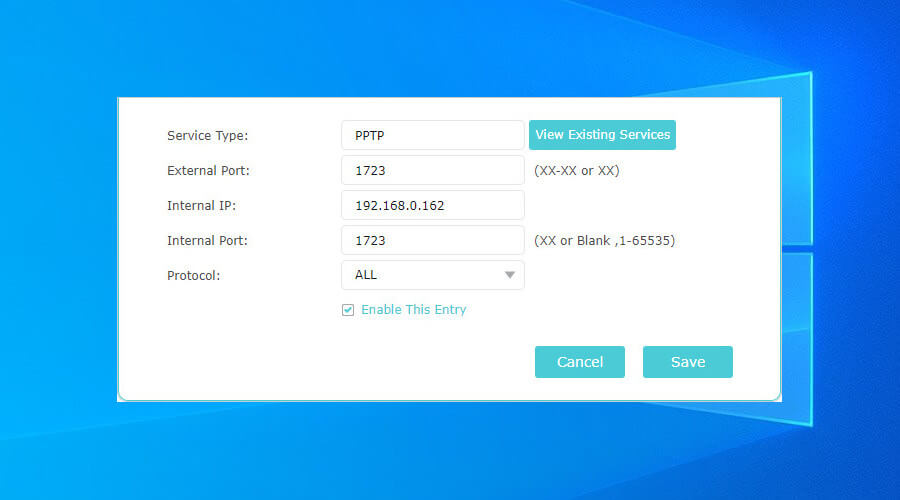
Note that you can use Direct Connect and Traversal Server as hosting methods. Reportedly, using Traversal Server might spare you the hassle of port forwarding, but that strictly depends on your router.

If this doesn’t seem to work, check if you’re not behind a double NAT.

2. Make sure you use the right Dolphin version

Getting the Traversal Server connection error might also mean you’re not using the right version of Dolphin. The latest versions usually comprise fixes for Netplay, which might curb the occurrence of the Traversal server error.

More so, you should check if you and your friends are using the same Dolphin version. By default, Dolphin won’t allow you to use different versions, so as to avoid compatibility issues and de-synchronizations.

3. Check your security software

Some security software (antivirus, firewalls) can get overzealous and block things they’re not supposed to. Check your firewall and make sure it doesn’t have any rules configured against Dolphin. If it does, just remove them.

The same goes for your antivirus. Some antivirus/antimalware services deem emulators as pure evil, so they keep them from being executed on the target computer. As a result, your ability to host/join Netplay sessions might be hampered.

Temporarily turn off your security software and try hosting/joining the Netplay session once more.

4. Use a VPN

  1. Purchase a premium VPN subscription (we recommend Private Internet Access)PIA
  2. Download the VPN installer on your PC
  3. Deploy the app on your computer
  4. Launch the VPN client
  5. Log into your account using your credentials
  6. Connect to a fast server (servers that are physically close are faster)
  7. Launch Dolphin
  8. Try accessing the Netplay feature again
  9. Check if there’s any improvement

Private Internet Access is an excellent VPN service brought to you by Kape Technologies. It’s one of the few VPN services that provides its customers with 24/7 live chat support.

Using a VPN can sometimes fix connectivity issues, especially if your connection is limited, even by accident. If, for instance, your ISP blacklists Dolphin servers or ports, you can easily bypass this limitation by using a VPN.

Private Internet Access

Private Internet Access

Getting the Traversal Server connection error in Dolphin? Private Internet Access could come in handy.
$2.69/mo. Buy it now

The same goes for network congestion. If there are a lot of users on your network, your connection can take a serious blow.

This, in turn, may impede your attempts to use some services, including Dolphin and its awesome Netplay feature.

It goes without saying that this fix won’t work every time. Sometimes, it’s actually the opposite, and you might need to switch your VPN server or close the service altogether to access certain services.

5. Flush your DNS

Cached data on your system can really mess up with your connectivity. To prevent that from happening, a little maintenance work is required from time to time.

For this scenario, flushing your DNS might just do the trick. If you have no idea what that means, don’t worry, we’ll show you exactly how to perform this task.

  1. Launch a CMD instance as administrator on your PC
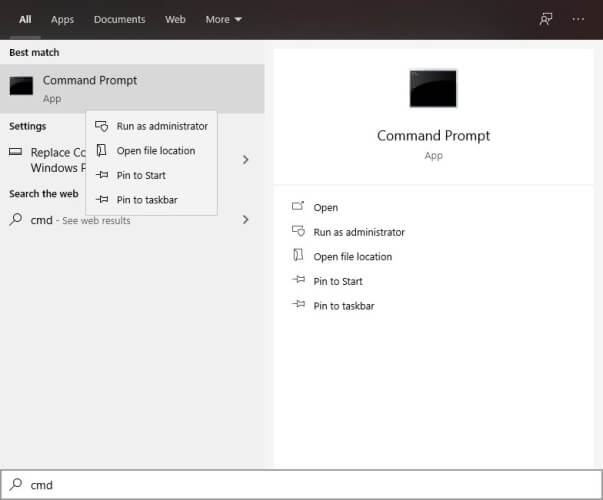
  2. Type the following commands, one by one, in this precise order:

ipconfig /flushdns
ipconfig /registerdns
ipconfig /release
ipconfig /renew
netsh winsock reset
exit

Now restart your PC, and once the boot sequence completes, launch Dolphin and check if there’s any improvement. Remember that flushing your DNS is not Dolphin-specific and could get you out of many more similar situations.

6. Wait it out

No service is perfect, and Dolphin might make no exception. Bugs, errors, and glitches happen from time to time, and you need to learn how to live with them. Until they get fixed, that is.

For instance, it so happens that a few years back, Dolphin’s Traversal Server feature had a bug, and got stuck in an infinite loop.

If that’s the case, you probably can’t do much about it, other than post on forums and ask what’s wrong.

Final thoughts on fixing Dolphin Traversal server connection error

To sum it up, if you planned on getting your game on with your peers on Dolphin and receive the infamous Traversal Server connection error, don’t despair just yet.

There are a few fixes that could bring you Dolphin’s Netplay feature back in no time. Although some of these suggested fixes might seem feeble, you may want to try them all out before calling it quits.

Sometimes, even as little as restarting your PC could fix a seemingly impossible issue.

Last, but not least, a VPN could save you from a lot of hassle, especially when it comes to connection issues.

However, note that these tools alone can’t do wonders, especially if the underlying issue is on your end, or on Dolphin’s developers’ side.

[wl_navigator]

FIFA 21 system requirements mistake ruined the game for many

Whenever a new AAA game is launched, the first thing on every PC  gamer’s mind is whether or not their hardware cand handle the new title.

That’s precisely why most games post a game’s minimum and recommended system requirements ahead of time so that everyone can have time to upgrade their PC.

The same thing applied to FIFA 21, as the system requirements have been posted for some time already.

However, a slight mistake in communication made it so that different platforms had different system requirements written on them.


EA posted lower system requirements by mistake

On EA’s answers page, users have been complaining that their game would crash at launch for no apparent reason:

I have it on PC and every time i open the game i see the loading screen and then the game shuts down, can someone give me any help? My PC is better that the recommended requirements for the game BTW.

Unfortunately, it seems that the issue was not hardware-related at all, but rather that players with lower system requirements attempted to launch the game.

An EA representative went on to clarify the situation:

First of all, sorry for taking so long to get back to you on the Minimum requirements mix-up. After investigation we can now confirm that the correct system requirements can be found on the Origin site here. The ones shared on help.ea.com & the steam client are incorrect at the time of this post and we are working with the concerned teams to get these updated.

We know that a lot of you have shared their DxDiags which allowed us to see that a lot of you are using the same processor.

Those who have AMD Phenom II processor are below requirements and will not be able to run this game.

The representative then provided links to the refund pages to all the platforms where players might have bought the game from, including Steam and Origin.


As of the writing of this article, the issue has not been dealt with yet, and the Steam page still displays the old, outdated minimum system requirements:

  • Requires a 64-bit processor and operating system
  • OS: Windows 10 – 64-Bit
  • Processor: Core i3-6100 @ 3.7GHz or AMD Phenom II X4 965 @ 3.4 GHz
  • Memory: 8 GB RAM
  • Graphics: NVIDIA GTX 660 2GB or AMD Radeon HD 7850 2GB
  • Storage: 50 GB available space

On the flip side, the Origin website has the correct minimum system requirements also displayed:

  • OS: 64-bit Windows 10
  • Processor (AMD): Athlon X4 880K @4GHz or Equivalent
  • Processor (Intel): Core i3-6100 @3.7GHz or Equivalent
  • Memory: 8 GB
  • Graphics card (AMD): Radeon HD 7850 or Equivalent
  • Graphics card (NVIDIA): GeForce GTX 660 or Equivalent
  • Online Connection Requirements: 512 KBPS or faster Internet connection
  • Hard-drive space: 50 GB

That being the case, if you too encounter similar crashes as described above, make sure that your PC meets the system requirements recommended by Origin, and not the ones on the Steam page.

The same goes for those that haven’t bought the game yet, as they should pay attention to the right system requirements.

For more bugs and issues that plague FIFA 21, as well as some solutions to some of them, check out this detailed article.


What’s your take on this interesting turn of events?

Let us know if you too needed to get a refund by leaving a message in the comments section below.


[wl_navigator]