Ignite 2020: Microsoft Edge is coming to Linux in public preview next month

Microsoft has kicked off its Ignite digital conference this morning with lots of news about Azure, Microsoft 365, as well as Windows, macOS, and even Linux. That’s right, the company’s new Chromium-based Edge browser is finally coming to Linux in public preview starting next month. Linux users will be able to download the Microsoft Edge Dev channel for Linux from the Microsoft Edge Insider website or from the native package manager.

The new Microsoft Edge is currently available on Windows 10, Windows 7 and 8, macOS, as well as iOS and Android. A Linux version has been a top request from developers and IT Pros looking to test their websites on the new browser, and it’s good to see that Microsoft has been listening. If the legacy Microsoft Edge was only available on Windows 10, choosing the leverage the Chromium open-source project allowed Microsoft to quickly bring its new Edge browser to more platforms.

In addition to this new Linux version, Microsoft also announced some upcoming PDF updates for Microsoft Edge. Users will soon be able to view and validate certificate-based digital signatures on PDF files, and add notes to PDF for future recall. Additionally, the Microsoft Edge PDF viewer will get support for interactive tables of content, allowing users to quickly navigate PDF files. All these PDF improvements features will start rolling out to Edge users in October.

Ignite 2020: Microsoft’s Surface Hub 2S digital whiteboard is getting a new 85-inch variant next year

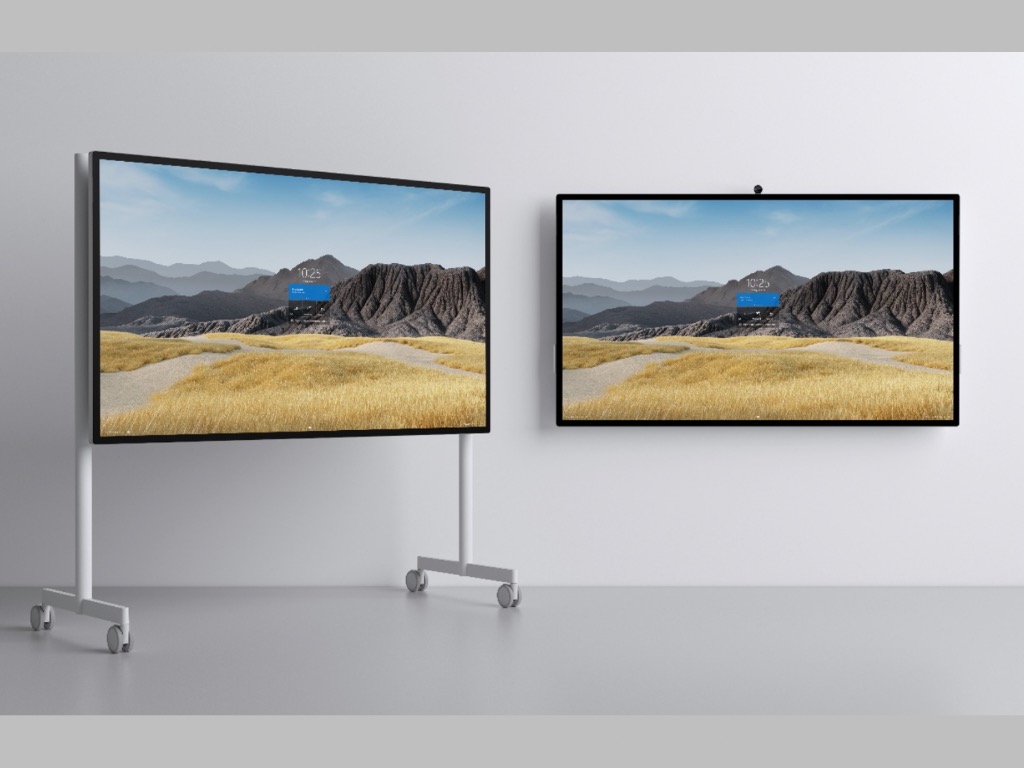
Microsoft has announced a new 85-inch variant of its Surface Hub 2S digital whiteboard today, which will join the existing 50” version that the company unveiled two years ago. This new 85-inch model will be priced at $21,999.99, and it will support the same features already present in the 50-inch version, including a Microsoft Teams meeting integration, multi-user sign in, Microsoft Whiteboard, as well as a growing ecosystem of third-party apps available on the Microsoft Store.

Commercial customers in the US can pre-order this new 85-inch Surface Hub 2S starting today, with shipments to begin in January 2021. In the meantime, Microsoft plans to release the Windows 10 Team 2020 Update for all Surface Hub devices next month. This free update will improve improves IT integration, device deployment and management capabilities, the Teams meeting experience, and also bring the new Microsoft Edge browser to all Surface Hub devices.

As we reported earlier this month, Microsoft is also allowing Surface Hub 2S owners to run Windows 10 Pro or Enterprise on the digital whiteboard instead of the Windows 10 Team OS. Doing so will allow enterprise customers to install any app they want on a Surface Hub 2S and use any Windows 10 compatible accessory. As the 50-inch Surface Hub 2S can be configured with a Roam Stand and a mobile battery, enterprise users can now transform the device into a massive Windows 10 PCs that can be used completely unplugged.

Ignite 2020: New Windows enhancements for developers coming

Azure is without a doubt Microsoft’s future, but it doesn’t operate in a vacuum and at Ignite 2020 the company paid recognition to its former flagship platform Windows by announcing a plethora of developer-friendly features at its enterprise cloud conference.

For starters, the latest version of React Native for Windows is now generally available for use as version 0.63 and now includes automatic linking of native modules and better debugging.

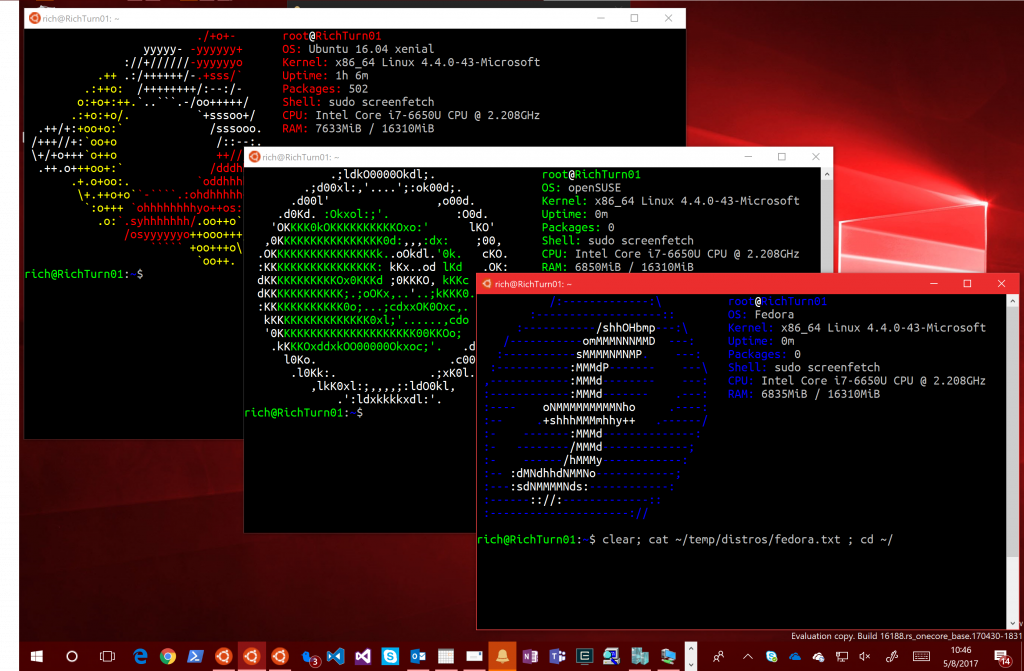
Next up are new features for Windows Subsystem for Linux (WSL) include fast file performance speeds and full system call capability through distribution support for version 2 to Windows 10 version 1903 of higher for x64-based systems.

Microsoft claims that Windows Terminal Preview now has hyperlink support for default browsers as well as the addition of jump list into the Start Menu and Taks Bar search. Windows Terminal also gained a new command palette but only in Preview for now.

A new CsWinRT Tool update will be rolling out allowing to more C# .NET5 developers to build Runtime components soon. As of now, it’s been in public preview starting at the beginning of the month and enabled developers to run components that can be used by developer languages that include C++, Rust, JavaScript and Python.

New capabilities for MSIX will also be made available for developers to share and update apps and integrate workflows for app development.

The MSIX team is also releasing an Azure DevOps extension that will automate and simplify building, packaging, signing and deployment of MSIX packages. Integrating build and deployment workflows for apps that need to be packaged as MSIX into Azure Pipelines can be time-consuming; the new extension, available later this year, streamlines that process and is simple and intuitive to use.

Lastly, the Windows SDK team will be releasing later this year NuGet packages for C++, and SDK build tools to enable building of Windows apps in (CI/CD) pipelines.

Ignite 2020: Microsoft Search is coming to Windows Search, Graph Connectors now generally available

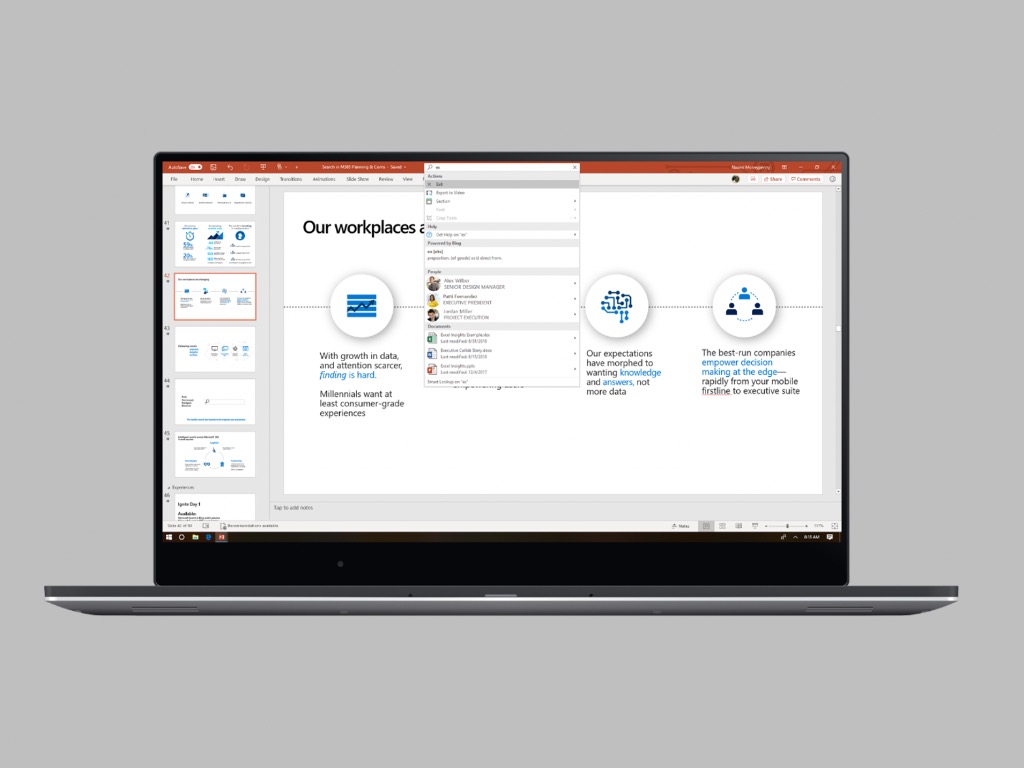
Microsoft announced this morning some important updates for Microsoft Search, the company’s new cohesive search experience that delivers personalized search results across Office 365, Windows, and Bing. First of all, the Windows Search experience will soon integrate Microsoft Search to provide the same search experience currently available on Bing, Microsoft Edge Office.com or SharePoint.

Microsoft Teams, the company’s team collaboration hub that has been growing very fast since the beginning of the Covid-19 pandemic will also get a new search experience later this year. Thanks to Microsoft Search, the app will be able to help users find answers, people, files, and messages in the context of a specific chat or Teams channel.

The software giant also announced the general availability of Microsoft Graph Connectors today, including a new connector from Microsoft for Salesforce. The purpose of Graph Connectors is to allow users search external services beyond Microsoft 365, and Microsoft Search already supports over 100 unique connectors from partners.

Lastly, Microsoft Search now benefits from a new AI-enriched image search, as well as an integration with Azure Cognitive Search. You can learn more about all these Microsoft Search updates on this post.

Ignite 2020: Welcome to the Azure Show

If you watch today’s keynotes and sessions, one word you’re almost for sure going to get tired of hearing is Azure. Azure Azure Azure. Azure This, Azure That, Servers and Services and IoT and Zones and Even More Azure. Not that it’s a bad thing. Microsoft has built its cloud into a behemoth, good enough to convince (well maybe) the US Department of Defense to use it over Amazon, and certainly good enough to focus most of Ignite on all things Azure.

If you’re an IT pro, we strongly urge you to pay attention to today’s announcements, there’s a lot of good stuff here, from cognitive search to Cosmos DB, Microsoft is making improvements and making announcements all across the board. While it’s a little hard for the non-professional to digest, we’ve picked out a few key items being featured in this week’s virtual Ignite.

First up is Azure Communication Services, announced today. Microsoft is calling it “the first fully managed communication platform offering from a major cloud provider.” What’s interesting about Azure Communication Services is that Microsoft is basically taking its Teams low latency global communications network, all built on Azure, and releasing it to the world. That is, with Azure Communications Services, you can build your own version of Teams, adding high quality audio and video, and real time chat to your apps and platforms “with just a few lines of code.” Microsoft provides the services backend and “developer friendly” APIs and SDKs to “make it easy to create personalized communication experiences in a matter of minutes. Microsoft has a hit on its hands with Teams, partly because it’s built on a solid foundation built on Azure.

Way back in 1988, Microsoft developed a new enterprise level database for IBM’s new operating system, OS/2, called SQL Server. The database came to Windows NT in 1993, and Microsoft has been expanding on its enterprise level database play ever since. Now, over 30 years later, Microsoft continues to develop new ways to work with SQL, and is announcing the general availability of Azure SQL Edge. Microsoft describes SQL Edge, optimized for the Internet of Things running on the Edge (no, not the browser, rather small smart devices like sensors and modules connected via the internet) as “a small footprint container – less than 500mb – running on ARM- and x64-based devices in connected, disconnected, or semi connected environments.” These Edge devices can now run their own tiny versions of SQL server, performing database functions even as they’re disconnected from the internet.

If this all seems above your head, then maybe Azure Orbital Services is for you. The new managed service provides access to satellite communication capabilities and is now available to select customers in private preview.

As companies become more and more used to hosting their businesses in the cloud, those businesses are finding greater needs to evolve their cloud presence, moving up or across in the Azure world. Azure Resource Mover, now in public preview, allows them to do just that, helping to move multiple Azure resources between regions, something that in the past would be difficult or near impossible.

Azure App Services, Microsoft’s solution for building and scaling web services, is getting a number of new updates, including the general availability of Windows Containers, and GitHub Actions integration.

Visual Studio 2019 is also getting GitHub Codespaces support, now in beta. This new integration allows developers to be more productive working remotely, managing the GitHub Codespaces from within VS 2019, bringing these capabilities up the chain from Visual Studio Code.

Azure Backup Center, now in public preview, brings a single unified experience to backing up Azure based resources across subscriptions, locations, and tenants. Azure Backup is also getting Cross Region Restore and an Azure Resource Mover solution to move managed disks and more across regions.

The Azure Sphere cellular guardian device is an AT&T powered product that can allow customers to connect to the cell service without relying on WiFi. Enterprise customers in 200 countries across 500 AT&T managed carrier services can connect devices, with the secure cellular network extending the secure architecture of Azure Sphere.

While it’s a lot to absorb, these are only a few of the announcements across the breadth of Azure’s influence in the cloud. To learn more, we encourage you to take advantage of Ignite 2020’s free online sessions.

Best Windows Equalizer Settings for Music

Best Equalizer Settings for Music

Dialing in the right EQ can make your tracks feel wider, clearer, and more dynamic. You can get excellent results on Windows using the built-in tools, then go further with a dedicated equalizer if you want fine-grained control.

Optimize Music EQ With Built-In Windows Tools

Windows exposes basic EQ controls through the sound device properties or your audio driver utility. Use these steps to access and tune your music profile:

  1. Open Sound settings
    Right-click the speaker icon on the taskbar and select Sounds.
  2. Select your playback device
    In the Playback tab, choose your headphones or speakers and click Properties.
  3. Enable the Equalizer
    Open the Enhancements tab, check Equalizer, and load a starting preset such as Pop or Rock.
  4. Fine-tune frequency bands for music
    Open Settings for the EQ and adjust sliders while a familiar song plays:
    • Sub‑bass (30–60 Hz): +1 to +3 dB for weight without rumble.
    • Bass (60–250 Hz): +2 to +4 dB for punch and groove.
    • Low mids (250–500 Hz): −1 to −3 dB to reduce muddiness.
    • Mids (500–2 kHz): 0 to +2 dB to keep vocals present.
    • Upper mids (2–4 kHz): +1 to +3 dB for guitar and vocal clarity.
    • Treble (4–8 kHz): +1 to +2 dB for detail and air.
    • Brilliance (8–12 kHz): 0 to +2 dB for sparkle without hiss.
  5. A/B test and save
    Toggle the EQ on and off at the same volume to confirm improvements, then save your profile.

Streaming services may apply their own EQ or normalization. If you listen on Spotify, match your system profile with these best equalizer settings for Spotify for consistency across devices.

Quick Music Presets You Can Try

  • Balanced hi‑fi: +2 dB at 60–120 Hz, −2 dB at 300–400 Hz, +2 dB at 2–4 kHz, +1 dB at 8–10 kHz.
  • Bass boost: +3 to +5 dB at 60–120 Hz, −2 dB at 300–400 Hz, +1 dB at 2–3 kHz.
  • Vocal clarity: −2 dB at 120–200 Hz, +2 to +3 dB at 1–3 kHz, +1 dB at 6–8 kHz.
  • EDM/Pop V‑shape: +4 dB at 60–120 Hz, −2 dB at 500–800 Hz, +3 dB at 6–10 kHz.
  • Acoustic/Jazz: +1 dB at 80 Hz, 0 dB at 250–500 Hz, +2 dB at 2–4 kHz, +1 dB at 8–10 kHz.

If your system includes Realtek or another vendor panel, you may get extra bands and presets. For broader choices and advanced controls, see this roundup of audio equalizer software for Windows.

Use a Dedicated Equalizer for More Music Control

Boom3D is a system‑wide equalizer and enhancer that gives you precise music shaping beyond the basic Windows panel:

  • 31‑band EQ to sculpt bass, mids, and treble with fine steps.
  • Music‑focused presets you can tweak per genre and taste.
  • 3D surround for a wider stereo image and perceived detail.
  • Per‑app control and safe volume boosting for quiet masters.

With Boom3D, you can preserve vocal clarity while adding controlled low‑end and airy treble, then save profiles for headphones and speakers separately.

Boom 3D

Boom 3D

Download Boom3D today and elevate your music with studio‑grade control.
Try now! Visit website

Conclusion

Start with Windows’ EQ to build a clean, balanced music profile, then refine by genre using the quick presets above. When you want surgical control and richer soundstage, a dedicated tool like Boom3D helps you lock in the exact tone you prefer and keep it consistent across your library.

Ignite 2020: Microsoft Defender and Application Guard get updates

As with most things announced at Ignite 2020, Microsoft is making some sweeping changes to its protection portfolio as well.

Coming soon are some new features to help prevent, detect, and respond to threats across identities, endpoints, and applications in both Microsoft 365 and Azure platforms.

One of the first updates to Microsoft Threat Protection is its name. Microsoft Threat Protection will now be referred to as Microsoft 365 Defender and the branding expands to both Endpoint and Office 365 as well as Azure Security Center morphing into Azure Defender.

Aside from the new branding experiment, Microsoft 365 Defender will be “protecting every major OS.”

Microsoft Defender for Endpoint and is extending protection for the rapidly evolving world of mobile threats. For Android, it provides protection against phishing, offers proactive scanning of malicious applications and files, blocks access to corporate resources to mitigate the impact of breaches, and gives security teams visibility into mobile threats and alerts via the security center. For iOS, customers will also get phishing and web protection and the same unified SecOps experience. Support for macOS has been expanded with the public preview of threat and vulnerability management. (Learn more about cross-platform endpoint protection.)

In addition, protections will be extended to email accounts as well as offering hybrid identity threat protection.

As for cloud securities, Azure Defender will now protect SQL servers on-premises and multicloud environments. The new Azure defender will also bring enhanced protection for containers, specifically Kubernetes-level policy management and workloads that include continuous scanning of container images to minimize the exploitation of running containers.

Microsoft will also be adding some protections for IoT by leveraging some recent company acquisitions that involve the inclusion of Cyber X. Now Azure Defender will offer agentless security for IoT devices in operations across safety, health, food, water, energy, transportation, and national defense.

Lastly, Microsoft is integrating Application Guard with office and connecting the whole plot to Safe Documents. Customers can now edit, print, and save changes to Office documents from outside their organizations while still being protected with hardware-backed security.

Despite the announcement at Ignite 2020, the integration of Application Guard into Office has been under way for a little bit of time. Microsoft 365 E5 customers can now test out new features in a public preview currently.

Xbox Game Pass welcomes Halo 3: ODST on PC and Destiny 2: Shadowkeep & Forsaken on Console and Android

Microsoft’s Xbox Game Pass subscription service, which recently crossed 15 million subscribers three years after its launch is welcoming some new big games today. On Console and Android devices, Xbox Game Pass Ultimate members can now play Destiny 2’s Shadowkeep and Forsaken expansions.

Beyond Light, Destiny’s fifth expansion, will also join Xbox Game Pass on November 10, right for the launch of Microsoft’s Xbox Series X and Series S consoles. The base Destiny 2 remains free-to-play on Xbox One and other platforms, but Xbox Game Pass members can get the best experience with free access to the game’s latest expansions.

Halo 3: ODST is also available on Xbox Game Pass for PC starting today, in addition to the Windows 10 Microsoft Store and Steam. This Halo 3 spinoff released back in 2008 on the Xbox 360 didn’t get the same level of critical acclaim as previous Halo games, but its campaign which features a team of human soldiers known as “Orbital Drop Shock Troopers” (ODST) instead of the usual Master Chief hero remains quite memorable.

Microsoft has also released a new update for Halo: MCC on PC and Console today, and we invite you to check out the full patch notes on this page. Now that Halo 3: ODST is out on PC, Halo 4 is next in line and we hope to see it released on PC before the end of the year. 343 Industries is still working on additional improvements for Halo: MCC on Console and PC, including support for cross-play multiplayer and mouse and keyboard input on Xbox One.

As a reminder, gamers who have yet to try Xbox Game Pass can get their first month of Xbox Game Pass Ultimate for just $1. The Ultimate tier now includes Xbox Game Pass for Console, Xbox Game Pass for PC, Xbox Live Gold, plus access to over 150 Xbox One games on Android thanks to Microsoft’s new Cloud Gaming (Project xCloud) technology.

FIX: Alarm sound not working in Windows 10/11

As time goes by personal computers evolve more and eliminate the need for other equipment like TVs, a home theatre setup, audio stations, and even alarm clocks.

But PCs aren’t always that reliable and when you’re trusting it with your daily schedule and job you want to make sure it works as expected.

If your alarm sound is not working properly in Windows 10, that can be a big problem, and speaking of problems, here are some similar issues that users reported:

  • Windows 10 timer not working – In most cases you can fix it simply by installing the latest updates.
  • Windows 10 alarms not going off – To fix this problem, make sure that all your notifications are enabled and working properly.
  • Alarm sound not working Windows 10 ASUS, Dell, HP, Vaio – This problem can occur on almost any PC brand, and if you encounter this issue, be sure to try some of our solutions.
  • Windows 10 Alarms and Clock not working – You can simply reinstall Alarms and Clock app to fix them.

In this article, we’ll show you how to troubleshoot problems with the Alarm & Clock application in Windows 10.


How can I fix the Alarm sound not working on Windows 10?

1. Check sound card driver


To ensure that audio issues don’t appear on your system, it’s highly advised to update your audio drivers.

You can do that manually by searching for the audio drivers for your sound card.

However, this can be a bit tedious, so a faster solution would be to use a third-party software such as Fortect Driver Updater.

This software is portable and extremely easy to use. Once installed, it will automatically download all the missing drivers with just a single click.

It will also keep you safe from downloading and installing the wrong driver versions, thus potentially damaging your system.

Moreover, Fortect Driver Updater will compare the existing drivers on your system with the ones from its built-in library, to make sure it has identified and fixed all broken or missing drivers.

Fortect Driver Updater

Keep all your drivers updated with this amazing tool and fix all your alarm issues.
Check Price Visit Website

2. Check the volume and speakers


The sound volume is something we fiddle with all the time, turning it up when listening to a song and turning it down when we want to concentrate on work.

It is always a good thing to check that it is at the correct level before setting up the alarm.

If you’re using external speakers you might also want to check their volume status and that they are turned on.

It’s easy to forget them turned off when you don’t use them. Also, check that headphones aren’t connected to the computer as the alarm sound might play on them and will be hard to hear.


3. Activate the alarm

Windows 10 timer not working


Alarms need to be activated in order for them to work and even though this seems like a logical step you might forget about it if you’re in a rush or very tired.

The status of each alarm is displayed on the right side of the Alarm & Clock application as you can see in the image below.


4. Prevent your PC from hibernating or going to sleep

  1. In the Settings window select System.
  2. Next, select Power & Sleep.
  3. Make sure that the computer is set to Never go to sleep.
Alarm sound not working Windows 10 HP


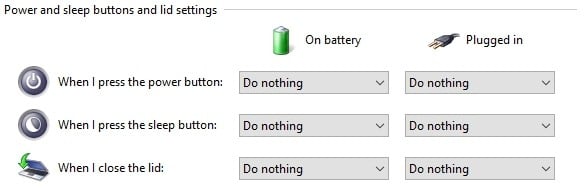
If you’re using a laptop and you usually keep the lid down, make sure it doesn’t go to sleep when you close it.

  1. Click on Additional power settings
  2. Next, select Choose what closing the lid does from the left pane.Windows 10 Alarms and Clock not working
  3. Check that Do nothing is selected as an action for When I close the lid.
Windows 10 timer not working


If you’re using a laptop or a tablet also make sure that it is plugged in so it won’t shutdown when the battery level gets too low.

Alarms won’t work if your computer isn’t turned on. Also, they won’t work if you put it in sleep mode or to hibernate.

You could activate a timer inside your BIOS to wake up your computer at the correct time but not all computers support this feature and you might also need to login to Windows before alarms can be processed.

You can check your power options by clicking on the Start menu button and selecting Settings.


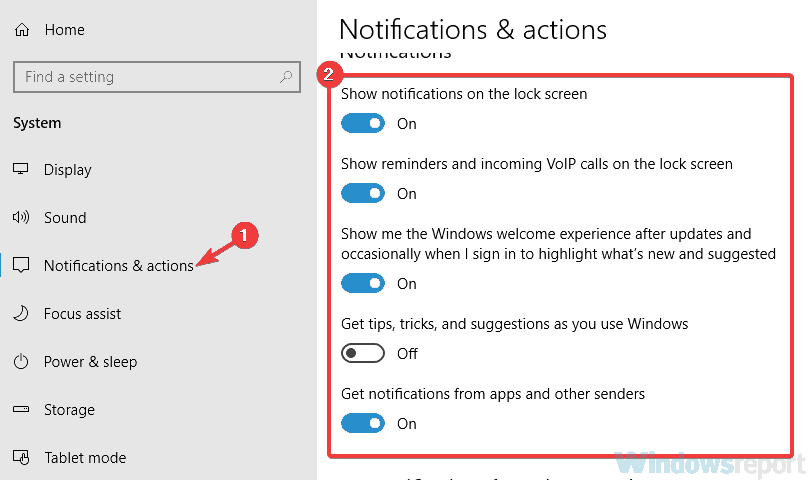
5. Make sure that your notifications are enabled

  1. Open the Settings app. The fastest way to do that is to use Windows Key + I shortcut.
  2. Now navigate to the System section.
    Windows 10 timer not working
  3. From the menu on the left, pick Notifications & actions.
  4. Enable all options like on the screenshot below.
    Windows 10 alarms not going off
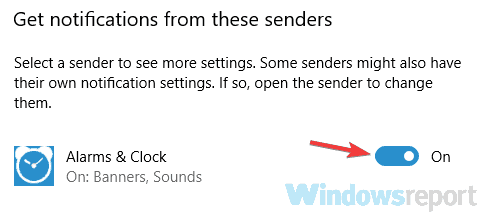
  5. Now scroll down to Get notifications from these senders section and make sure that notifications for Alarms & Clock are enabled.
    Alarm sound not working Windows 10 Dell

After doing that, the notifications should be completely enabled and the problem will be resolved entirely.


6. Reinstall Alarm and Clock app

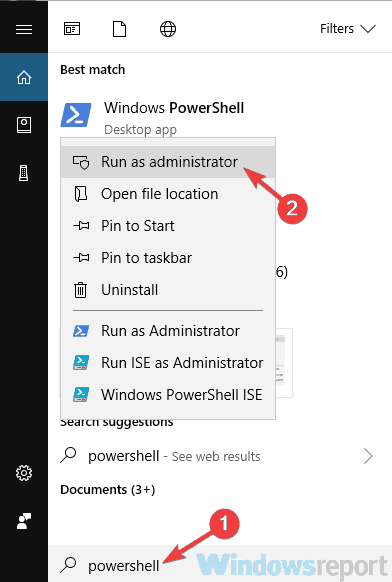
  1. Open PowerShell as an administrator. Press Windows Key + S, type powershell, right-click Windows PowerShell from the list
  2. Next, choose Run as administrator.
    Windows 10 Alarms and Clock not working
  3. When PowerShell starts, run the get-appxpackage *Microsoft.WindowsAlarms* | remove-appxpackage command to remove the Alarm and Clock app from your PC.
  4. After the app is removed, head over to the Microsoft Store and download it again.

7. Install Media Feature pack

Windows 10 Alarms and Clock not working


There are several versions of Windows 10 available, and the versions for the European and Korean markets lack certain features.

Sometimes due to the lack of these features, the alarm sound might not work properly on your PC.

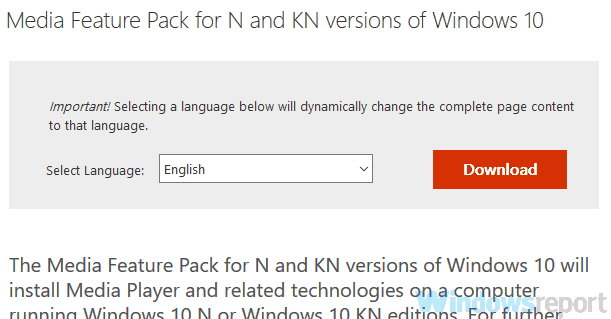
However, these features are available for download in form of Media Feature Pack. To fix this issue, you just have to download Media Feature Pack from Microsoft’s website and the problem should be resolved.

Keep in mind that you’ll need to download the media feature pack that matches your system architecture or else you won’t be able to install it.

After you install the Media Feature pack, the problem should be resolved. Some users are suggesting to reinstall the Alarm and Clock app after installing the Media Feature pack, so you might want to try that as well.


8. Try changing the alarm sound


According to users, sometimes certain alarm sounds won’t work with the Alarm and Clock app. If that the case, you won’t hear any alarm sound when your alarm rings.

This can be an annoying issue, but simply change your alarm sound and check if that helps.

According to users, only the default alarm sound works for them, so be sure to try using it as your alarm sound.


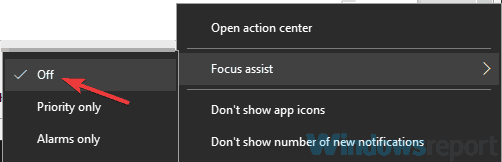
9. Make sure that Focus Assist is turned off

  1. Right-click the Action Center icon in the bottom right corner.
  2. When the context menu appears, choose Focus assist and make sure that it’s set to Off.
    Alarm sound not working Windows 10 ASUS

After doing that, this feature should be disabled and you’ll be able to hear your alarm without any problems.

If you want to keep using this feature, you can select Alarms only option and you’ll be able to hear your alarms without any problems.


10. Install the latest updates

  1. Open the Settings app and go to the Update & Security section.
    Windows 10 alarms not going off
  2. In the right pane, click the Check for updates button.
  3. If any updates are available, they’ll be downloaded automatically in the background.
    C:UsersmetalPicturesWork picturesFix Alarm sound not working in Windows 10

After you download the updates, restart your PC to install them.

Once your system is up to date, check if the problem with the alarm sound is still there.


11. Try a different application


If all else fails you could also try using a different application. If you’re connected to the Microsoft Store you can download the Alarm Clock HD app.

Its a nice little application with great feedback and it can even be installed on ARM devices running Windows RT.

If you want to go the old fashioned way then you can use an application called Windows Alarms & Clock, the application is free of charge and can be downloaded from the Microsoft Store.

If you’re still facing problems with alarms in Windows 10 please use the comment section below to give us more details so we can help you fix them.

How to Back Up ESXi Host Configuration [Easy Guide] 

It is essential to take a periodic backup of any system, especially a server, to maintain a functional operation of your IT infrastructure.

Servers that are run as virtual machines (VMs) on an ESXi host give a major advantage when taking a VM data backup. Therefore, having a healthy ESXi host is essential to run a virtual machine successfully.

To guard against any future disaster, taking an ESXi configuration backup is vital because one can quickly restore the system to its initial ESXi configuration.

In this post, we’ll show you the best ways to make a backup for ESXi host configuration.

How do I back up my ESXi Virtual Machine?

1. Back up ESXi using VMWare

VMWare is the number one virtualization and computing software that reduces server workloads by distributing a server’s work across the different physical hosts.

VMWare is primarily used by developers as well as regular system administrators to test programs in a sandbox before applying them to physical computers.

Further, you can easily carry out an ESXi host configuration backup using this application. Below are some reasons why you may want to back up ESXi host configuration using VMWare.

  • It is fast and reliable
  • Offers speed when taking backups
  • Allows users to run multiple virtual server instances.
  • You are assured of good networking and security.
  • VMWare has a vast ecosystem.

VMware Workstation 17

VMware Workstation 17 enables you to easily back up any ESXi VM with just a few clicks, so make sure you give it a try.
Check price Visit Website

2. Back up ESXi host configuration with the ESXi Command Line

  1. Connect to your ESXi host via SSH.
  2. Since ESXi configuration is automatically saved to /bootblank/state.tgz file, ensure your current ESXi configuration is written to the ESXi configuration files, run this command; vim-cmd hostsvc/firmware/sync_config
  3. Run this command: vim-cmd hostsvc/firmware/backup_config
  4. It then sends a link to download the tgz archive from the ESXi host.

Note: You should replace the asterisk with your ESXi host’s IP address in the download link. Get it from ESXi direct console or by inputting the command. 

  1. Quickly locate the ESXi configuration backup in /scratch/downloads directory as it won’t stay there for long.

3. Back up ESXi host configuration using PowerCLI

back up ESXi host configuration powercli
  1. Download and install PowerCLI here. Launch it as an administrator.
  2. Establish a connection to the host with the following command: Connect-VIServer 168.32.11 -user root -password <ZxAzbd>
  3. Run the Get-VMHostFirmware cmdlet with c:\esxi_backups folder as the destination:Get-VMHostFirmware -vmhost 192.168.28.10 -BackupConfiguration -DestinationPath c:\esxi_backups
  4. Input is the c:\esxi_backups folder.
  5. Locate the host configuration file in the folder above; it is a TGZ file format.

Note: Replace 192.168.32.11 with your host user/IP and ZxAzbd with your password in Step 2/3.

4. Back up ESXi host configuration with vSphere CLI

  1. Download both vSphere CLI here and Perl interpreter here or here.
  2. Open your Command Prompt as an administrator
  3. Run this command: cd \Program Files (x86)\VMware\VMware vSphere CLI\bin
  4. Run: vicfg-cfgbackup.pl –server=<host IP address> –username=root -s <backup filename>
  5. Input your ESXi‘s root password when requested.

Note: Find out how to avoid DLL issues with your version of the Perl interpreter. 

The above methods for backing up ESXi host configuration will all work.

Hence, you can try out anyone that it’s most straightforward for you.

In case you are facing the No coredump target has been configured. Host core dumps cannot be saved error; read this guide to get the detailed solutions.

If you have any questions regarding backups for ESXi host configuration, kindly let https://windowsreport.com/no-coredump-target-has-been-configured-host-core-dumps-cannot-be-saved/(opens in a new tab)us know in the comments below.

Microsoft Surface Go 2 review : Nailing the convergence

There appears to be a convergence of mobile technology that’s been gradually happening right before our eyes. Large technology things becoming smaller, and smaller technology things becoming larger, all in an attempt to hit a moving target that is mobile personal computing.

Some of the highlights of this more modern convergence include the introduction, ridicule, and eventual market acceptance of Samsung’s Galaxy Note series, where the South Korean multinational conglomerate made headwinds in advancing the screen size and productivity output of the smartphone industry. Another is Apple’s iPad which, for all intents and purposes, blew up the highly regarded iPhone experience to 9 and 10-inches, so people could explore their previously pocketable smartphone experiences in a more casual environment.

Ipad Vs Tablet

Next was Microsoft’s Surface Pro experiment that shrunk a potential dual 27-inch monitor workstation or 13-14-inch laptop experience down to a more backpack-friendly 10 and 12-inch affair. Google had its moment with its Nexus 7 tablet that allowed Android users to have a taste of the iPad life and free their android app experience from its previous 6-inch constraints. In the last decade, almost every hardware manufacturer with a software leg has thrown a different sized screen at consumers hoping that it can capture that elusive mobile computing sweet spot.

Enter the Microsoft Surface Go 2.
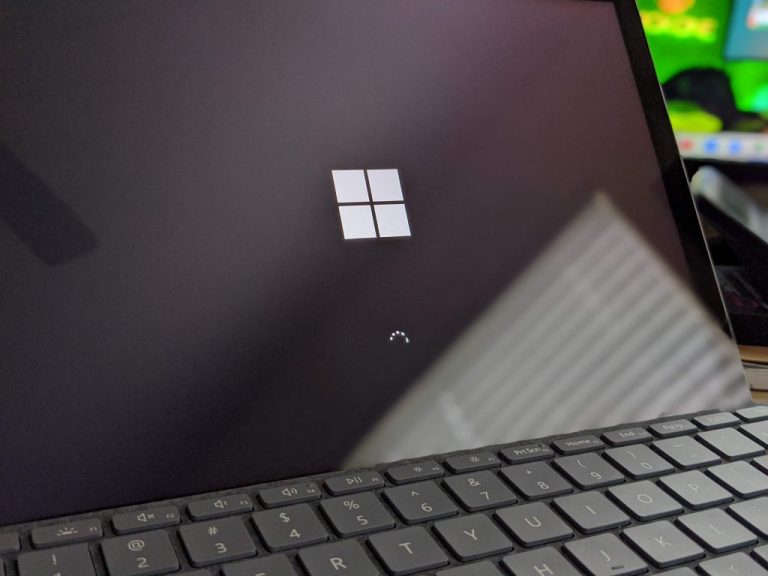
00100lrportrait 00100 Burst20200603132547225 Cover

Microsoft’s second attempt at further shrinking the traditional Windows experience down to a more pocketable and mobile device has produced the Surface Go 2.

Copy of Surface Go 2 Tech Specs

Scenarios Improved speed for everyday tasks, streaming movies, music and shows, shopping, browsing, emails, and homework Network Nano SIM Tray 4G LTE Advanced3 (Bands 1, 2, 3, 4, 5, 7, 8, 12, 13, 14, 19, 20, 25, 26, 28, 29, 30, 38, 39, 40, 41, 66) GPS/GLONASS: Standalone and assisted GNSS, accuracy up to 3 meters
Dimensions 9.65” x 6.9” x 0.33” (245 mm x 175 mm x 8.3 mm) Storage4 eMMC drive: 64GB, or
Solid-state drive (SSD): 128GB
Display Screen: 10.5” PixelSense™ Display
Resolution: 1920 x 1280 (220 PPI) resolution
Aspect ratio: 3:2
Contrast ratio: 1500:1
Touch: 10 point multi-touch
Corning® Gorilla® Glass 3
Battery life WiFi: Up to 10 hours of typical device usage
LTE Advanced:³ Up to 10 hours of typical device usage
Memory 4GB or 8GB RAM Graphics Intel® UHD Graphics 615
Processor Intel® Pentium® Gold Processor 4425Y
8th Gen Intel® Core™ m3 Processor
Connections 1 x USB-C®
3.5 mm headphone jack
1 x Surface Connect port
Surface Type Cover Port⁶
MicroSDXC Card Reader
Compatible with Surface Dial*
Security Firmware TPM
Enterprise-grade protection with Windows Hello face sign-in
Cameras, video and audio Windows Hello face authentication camera (front-facing)
5.0MP front-facing camera with 1080p Skype HD video
8.0MP rear-facing autofocus camera with 1080p HD video
Dual Studio Mics
2W stereo speakers with Dolby® Audio™
Software Ambient light sensor
Accelerometer
Gyroscope
Magnetometer
Exterior Casing: Magnesium
Color: Platinum
Physical buttons: Volume, Power
What’s in the box Surface Go 2
Power Supply
Quick Start Guide
Safety and warranty documents
Warranty 1-year limited hardware warranty
Weight Wi-Fi: Starting at 1.2 lbs (544 g), not including Type Cover*
LTE Advanced³: Starting at 1.22 lbs (553 g), not including Type Cover*
Best-in-class support from Microsoft Store 30-day return policy
90 days of free technical phone support
12 months in-store support and technical assistance
1 free training session to transfer data and optimize performance.

The Surface Go 2 is the refinement of a concept Microsoft seemingly shied away from when dumping its supposed 7″ Surface Mini project. Shrinking the bezels and adding a more capable processor goes a long way in addressing some of the issues from the release of the first Microsoft Go, just a year prior.

It should be noted, the model I’m using isn’t the budget-friendly deal Microsoft will publicly market, but it is a good marker for the experience customers could receive if they spring for the arguably more capable device.

Overview

With everything included, the actual price tag for the experience Microsoft is marketing will run $750 including additional Type Cover. Admittedly, the $750 price tag is steeper than your low-budget laptops, but the actual software and mobility experience from the Surface Go 2 will be hard to match.

With that said, the Intel Core M3 powered Surface Go 2 with 128GB SSD and 8GB’s of RAM allowed me to leave my laptop in different rooms for hours without worrying about switching devices when I needed to be on a conference call, draft up long-winded emails, plug-in to power a dual monitor experience or mark up some marketing ads for work.

Microsoft claims the new m3 processor is up to 64% faster than the previous Pentium Gold processor Intel grabbed from its budget bin for the original Surface Go and in real-world use, there is a noticeable performance boost.

Hardware-wise, the Surface Go 2 retains an almost identical exterior make up as the original Surface Go with its FHD 5MP camera, dual far-field studio microphone array, signature 165-degree kickstand, Surface Type Cover pogo pins, USB-C port, and proprietary charging port.
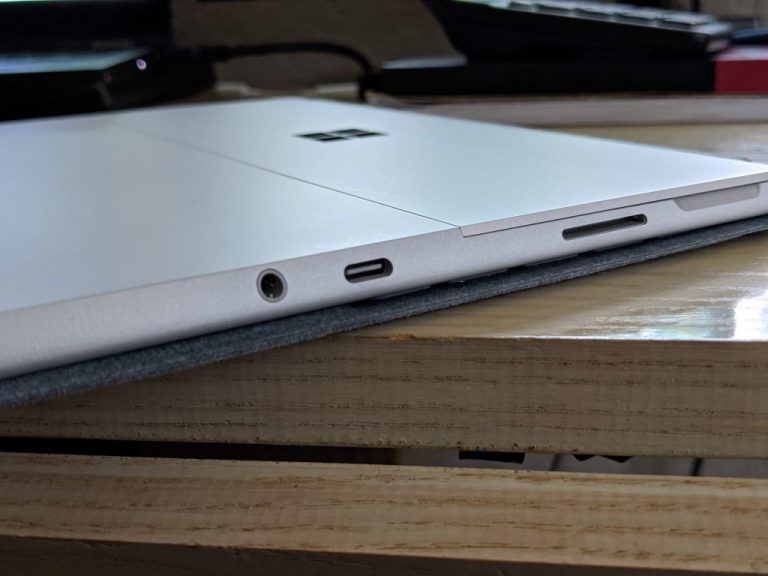
00000img 00000 Burst20200603132423919 Cover

In a crude weight test looking beyond the back of the box claims, the Surface Go 2 feels identical to last year’s model, no lighter or heavier than before, however, with the increased screen real estate, there is a bit of cognitive dissonance that happens when handling in tablet mode. The device figuratively “feels” lighter because you are handling more screen, but its actuality, just about the same.

Speaking of the screen, customers now get a 10.5-inch PixelSense experience that pushes out a 1920 x 1280 (220 PPI) resolution at the sweet 3:2 aspect ratio with the same 10 point multi-touch support and Corning Gorilla Glass 3 as last year’s model.
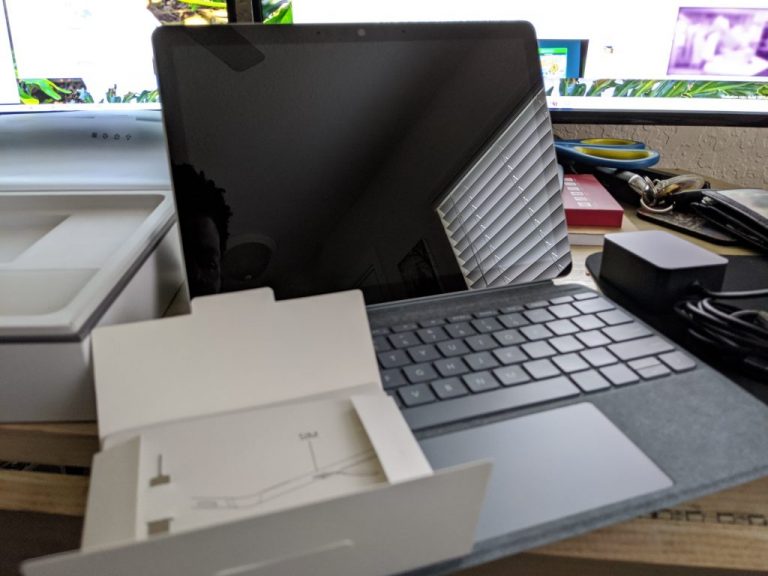
Img 20200603 132144

The Convergent Device

I spoke earlier of device makers looking for the mobile sweet spot for portability vs. productivity and I feel the Surface Go 2 might be just that and I say this in the shadow of the Surface Duo release.

The 10.5-inch screen is small enough to toss anywhere while also being big enough to address the dreaded lapability concerns review journalists seem keen or rehashing over and over. Furthermore, since it’s a Windows 10 powered device, you get a full desktop experience (albeit Windows 10S out of the box).
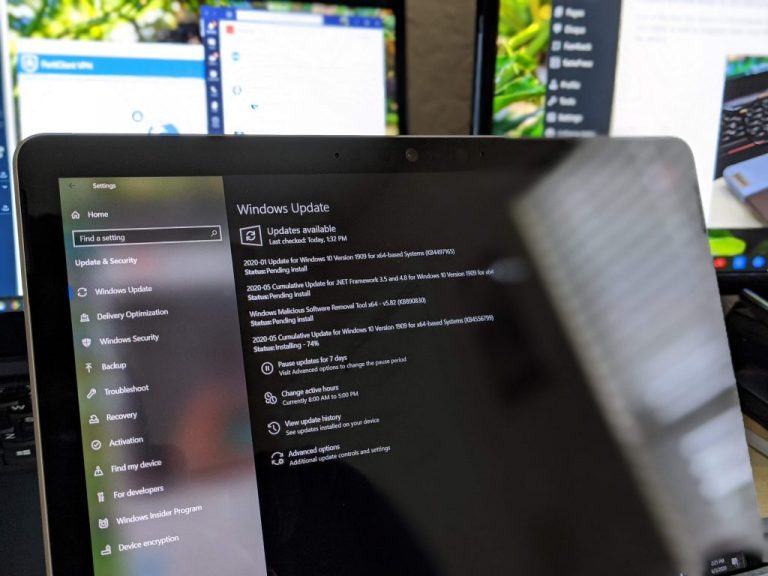
00100trportrait 00100 Burst20200603142138650 Cover

In May, I took the Surface Go 2 and my Lenovo ThinkPad X1 Carbon on a road trip from Florida to New Hampshire to escape the growing Floridian COVID-19 increase in cases. I used my device in an almost 70/30 split with the Surface Go 2 being the go-to device I would tote up and down stairs, plugin for conference meetings, and power my makeshift dual monitor setup at my in-laws. Using the Surface Go 2 in Windows 10S mode was a pleasure. Obviously, anyone operating in Windows 10S mode should be made aware of the Microsoft Store and the ability to pin Edge web apps to the Start Menu and Taskbar. Perhaps, a tutorial at the start of the Surface Go 2 experience detailing the web app and Microsoft Store experience my go a long way to expanding its viability as ChromeOS alternative.

Venturing out of Windows 10 S into regular Windows 10 was a little bit choppier of an experience but only as choppy as a normal Windows 10 OS experience can be. I also dabbled in Insider builds which affects my review of the Surface Go 2 as a “regular” device, but all-in-all, the Surface Go 2 handled 90 percent of what I threw at it. As for the other 10 percent, well, that was an admitted slow and laggy affair with some apps taking up to 45 seconds to open. That’s right, 45 seconds.

However, Microsoft’s account sync paired with the new chromium-based Edge browse’s sync makes shifting your desktop to the device fairly hands-off. As files are transferring, customers may want to keep an eye on storage, because it is limited, but tossing in a microSD helps alleviate any of that related anxiety.

Screenshot 2020 09 20 220214

The extra screen real estate offered by the Surface Go 2 over a typical sized smartphone aided in me using it for more than work. Instead of doom scrolling Twitter on my phone, I would open an instance of Twitter and HBO Max to distract myself with the new Harley Quinn show when COVID-19 news became too overwhelming. I would also pair up my favorite CBZ reader (Cover) with Netflix as I referenced the source material for Netflix’s The Old Guard.
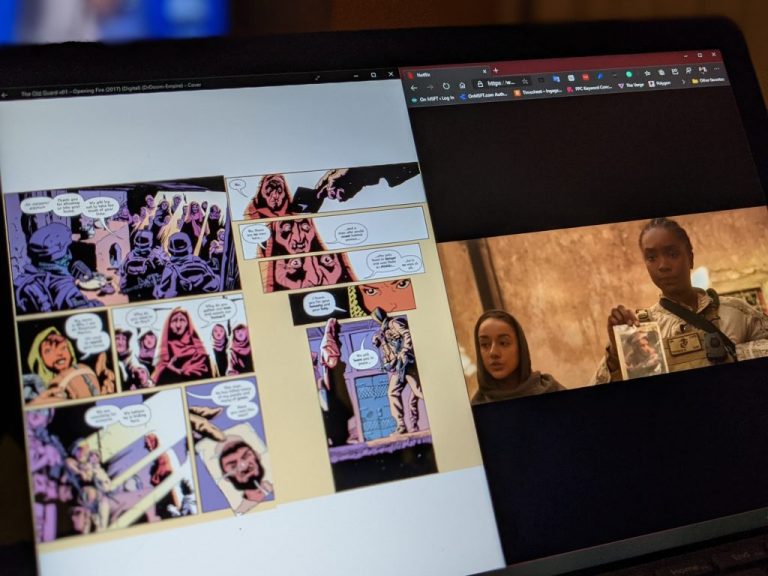
Pxl 20200921 015506481.portrait 01.cover

On breaks, I would use the built-in LTE to take the Surface Go 2 on hikes with me where I could get a little bit of work or leisure accomplished without being tied to my in-law’s lake house, because after two straight weeks indoors, for this lazy reporter, going on a hike felt like its own mini-vacation. In addition, using the LTE option buttresses the idea that while folding phones help the transition from a 6-inch slap to a tablet, a tablet with telephony ability may be the invertible destination. Pairing my Pixel 4XL with the Your Phone app to make and receive calls from the Surface Go 2 while out on a hike or even a boat ride was transformative.

Cltmy2c84qvder56veeg

In Conclusion

While Microsoft continues to iterate on its Surface Laptop with varying screen sizes, the Surface Book, Surface Pro, Surface Pro X and now Surface Duo, looking to nail the coveted convergent mobile productivity device, I think they may have stumbled across it already with the Surface Go 2. Perhaps, tossing in an upgrade M3 or AMD’s latest in next year’s model might make it the powerhouse replacement that could be the best of both portability and mobility for the average consumer.
Img 20200603 132334

The Surface Go 2 is a very capable laptop and workstation replacement, tablet alternative (if you know which Store and web apps to use), and phone substitute in a pinch.

The convergence of a single, do-it-all mobility workstation is still around the corner, but the Surface Go 2 puts it that much closer into reach.

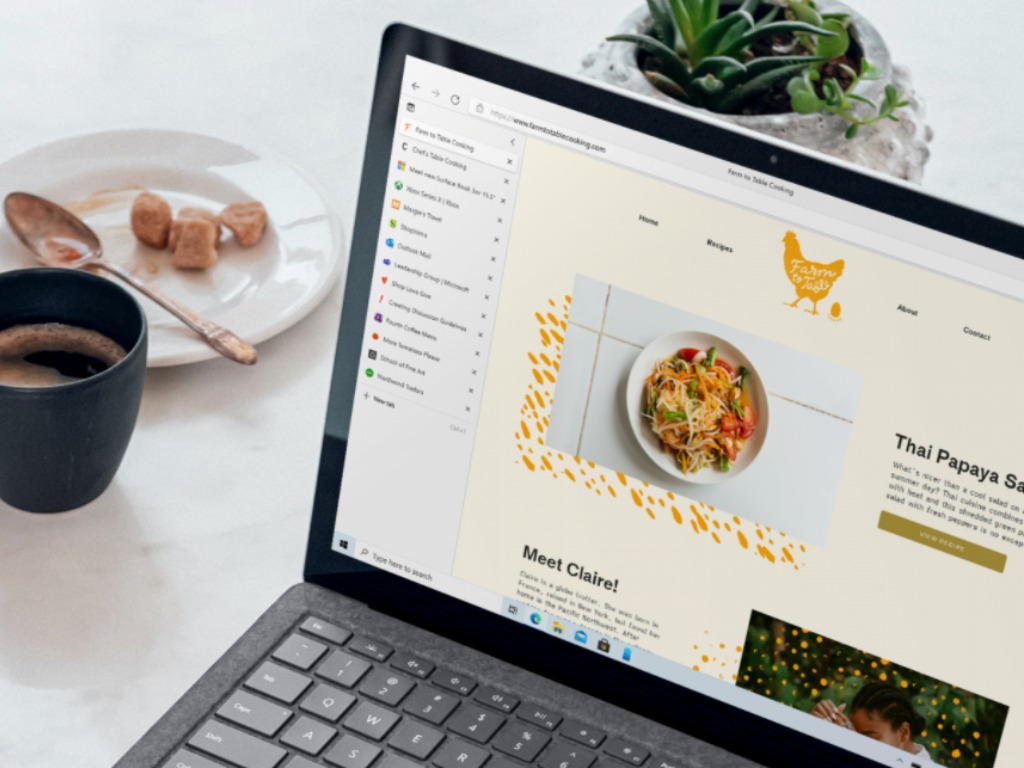
5 Best Audio Volume Booster Software for Windows 10

Enjoying in high-quality sound is important for some users, and you can get more out of your sound card with good software.

Speaking of audio software, in today’s article we’re going to show you the best audio/sound volume booster software that will improve your sound quality.

Here are the best PC volume booster software

Boom 3D

Boom 3D sound volume booster

Boom 3D is a PC volume booster software that can easily increase the volume beyond its limits and give you a better sound quality.

The software also supports virtual 3D surround sound technology, and using it you can easily enhance your entire multimedia experience with this feature.

For fine-tuning, there’s a 31-band equalizer, so you can adjust the sound as you like. The software also comes with various presets, so you can quickly choose a preset that matches your selected genre.

It’s important to mention that the software comes with various audio effects, its own music player, and the ability to control the sound volume of all open applications.

Overall, Boom 3D is a great sound volume booster with a wide array of features, so be sure to try it out.

Boom 3D features:

  • Volume booster
  • Virtual 3D surround sound
  • 31-band equalizer
  • Various effects
  • Built-in audio player
Boom 3D

Boom 3D

Boom 3D is a volume booster software that will increase the sound volume and sound quality on your PC.
Check priceVisit website

DeskFX Audio Enhancer

DeskFX Audio Enhancer Software audio volume booster

DeskFX Audio Enhancer is an audio enhancer software, and it will enhance all sound on your computer before it gets played on the speakers.

The software supports various effects, such as equalize, amplify, reverb, chorus, vibrato, and many more.

To enhance your audio, there’s a 20-band equalizer available, and you can switch between visual, graphic, or parametric equalizer modes.

If needed, you can lower the unwanted noise with low and high pass filters. It’s important to mention that you can combine the effects in order to achieve some amazing results.

DeskFX Audio Enhancer offers great features, and it will be a great choice if you’re looking for an mp3 audio volume booster software.

DeskFX Audio Enhancer features:

  • Support for various effects
  • 20-band equalizer
  • Ability to remove unwanted noise
  • Can combine multiple effects
  • Works with all music playing apps
DeskFX Audio Enhancer

DeskFX Audio Enhancer

DeskFX Audio Enhancer is a simple to use tool that lets you boost your sound volume and optimize your sound.
Check priceVisit website

FxSound

FxSound sound volume booster

Another MP3 audio volume booster that you should consider is FxSound. The application has an incredibly simple interface, so even the first-time users won’t have any issues with it.

Just select the genre of music that you’re currently listening to, your type of audio device and that’s it, the software will do the rest.

It’s important to mention that FxSound will automatically boost your sound, volume, as well as bass. The software works with all types of multimedia, including music, video games, TV, and movies.

Regarding the hardware, you don’t need any special hardware, and the software should work with all types of speakers and headphones on your PC.

FxSound is incredibly simple to use, and it’s a perfect solution if you need a simple volume booster for your PC.

FxSound features:

  • Incredibly simple to use
  • Supports all audio devices
  • Works with all types of multimedia
  • Can boost your sound quality, volume, and bass
  • Requires zero configuration

⇒ Get FxSound

Letasoft Sound Booster

Letasoft Sound Booster sound volume booster

If you’re looking for a simple sound volume booster application, Letasoft Sound Booster might be what you need.

The software is simple and it can raise the volume before it gets to your speakers up to 500%. The software also has distortion detection, so it should minimize distortions.

Regarding the compatibility, the software should work with all applications, so you can raise the volume of your web browser, audio player, or instant messaging software.

The application is easy to use, and you can control the volume level using the pop-up slider in the system tray. Of course, support for global hotkeys is also available.

Letasoft Sound Booster is an incredibly simple but useful tool that should boost your PC volume with ease, so you might want to try it out.

Letasoft Sound Booster features:

  • Ability to increase volume up to 500%
  • Incredibly simple to use
  • No sound distortion
  • Automatically starts with Windows
  • Two different methods for sound boosting

⇒ Get Letasoft Sound Booster

Equalizer APO

Equalizer APO sound volume booster

Another great software that can work as a sound volume booster is Equalizer APO. The application is completely free, so you can use it without any restrictions.

The software works on any number of channels, and thanks to the low CPU usage, you won’t even notice that it’s running in the background.

Filter support is also available, and you can have an unlimited number of filters. Regarding the customization, the software has VST plugin support, so you can further enhance the sound.

The modular graphical interface is simple to use, so you should be able to customize your sound with ease. In addition, the software can be integrated with Voicemeeter, which can come in handy.

Equalizer APO is a great software that can boost your audio volume, and since it’s completely free, there’s no reason not to try it out.

Equalizer APO features:

  • Completely free
  • Supports any number of channels
  • Support for unlimited filters
  • VST plugin support
  • Integration with Voicemeeter

⇒ Get Equalizer APO

Audio volume booster software can help you get a better sound from your speakers without having to upgrade your sound card, and this is why many users tend to use it.

If you’re looking for such software, be sure to try Boom 3D, DeskFX Audio Enhancer, or any other software from this article.

Fix: Realtek RTL8188EE 802.11 bgn Wi-Fi Adapter Problems

Wireless connections are great, especially if you don’t want to deal with wires, but many users reported that the Realtek RTL8188ee 802.11bgn WiFi adapter is experiencing driver or hardware related problems.

This can be a problem, and in today’s article, we’re going to show you how to fix this issue once and for all.

What can I do if the Realtek RTL8188ee 802.11bgn adapter is having driver or hardware problems?

1. Use Fortect Driver Updater

One way to fix all your driver-related issues is by using Fortect Driver Updater software. To install the application, make sure that you’re using an Ethernet connection to connect to the Internet.

The software will automatically scan your system for any missing drivers and give you a detailed report, allowing you to easily see all outdated drivers on your PC.

Once the scan is completed, you can download the outdated drivers from the Fortect Driver Updater database and install them automatically.

The database consists of million of drivers, so you should be able to find all the drivers that you need. If needed, you can also back up your drivers, or schedule a scan to check for driver issues.

Fortect Driver Updater is incredibly simple to use, and with its friendly user interface, you should be able to fix all your driver issues in a matter of moments.

Fortect Driver Updater

Fix Wi-Fi adapter problems easily with this powerful software!
Check Price Visit Website

2. Download driver manually

  1. Connect to the Internet using an Ethernet connection.
  2. Visit the manufacturer’s website, and download the latest drivers for your Wi-Fi adapter.
  3. Install the drivers and check if the issue is resolved.

Alternatively, you can install the drivers like this:

  1. Connect your device to the Internet using the Ethernet connection.
  2. Press Windows Key + X and choose Device Manager from the list.
    device manager realtek rtl8188ee 802.11bgn wifi adapter driver hardware problems
  3. Locate your network adapter on the list, right-click it, and choose Update driver.
    update driver realtek rtl8188ee 802.11bgn wifi adapter driver problems
  4. Now select Search automatically for drivers and let Windows download the appropriate driver.
    search automatically for updated driver software realtek rtl8188ee 802.11bgn wifi adapter hardware related problems

3. Change adapter settings

  1. Open Device Manager.
  2. Locate your Wi-Fi adapter and double click it to open its properties.
  3. Navigate to the Advanced tab.
    advanced settings realtek rtl8188ee 802.11bgn wifi adapter driver or hardware problems
  4. Select 802.11n channel width for 2.4GHz and set it 20MHz Only.
  5. Click OK to save changes.

After doing that, the problem with the Realtek RTL8188ee 802.11bgn Wi-Fi adapter should be fixed.


4. Use a USB Wi-Fi adapter

  1. Get a USB Wi-Fi adapter.
  2. Connect it to your PC.
  3. Check if the problem is resolved.

This is a workaround, but many users reported that this was the only option for them, so you might want to consider it.

If your device is still under warranty, you can also send it to the official repair center.

Realtek RTL8188ee 802.11bgn WiFi adapter is experiencing driver or hardware related problems error can be problematic, but you should be able to fix this issue by updating your drivers.

[wl_navigator]

Watch: Check out the Xbox Series X controller’s new Share button for capturing clips and screenshots

Microsoft has released a new video showcasing the new Xbox Wireless Controller model that will replace the existing version when it releases alongside the Xbox Series X and Xbox Series S consoles in November.

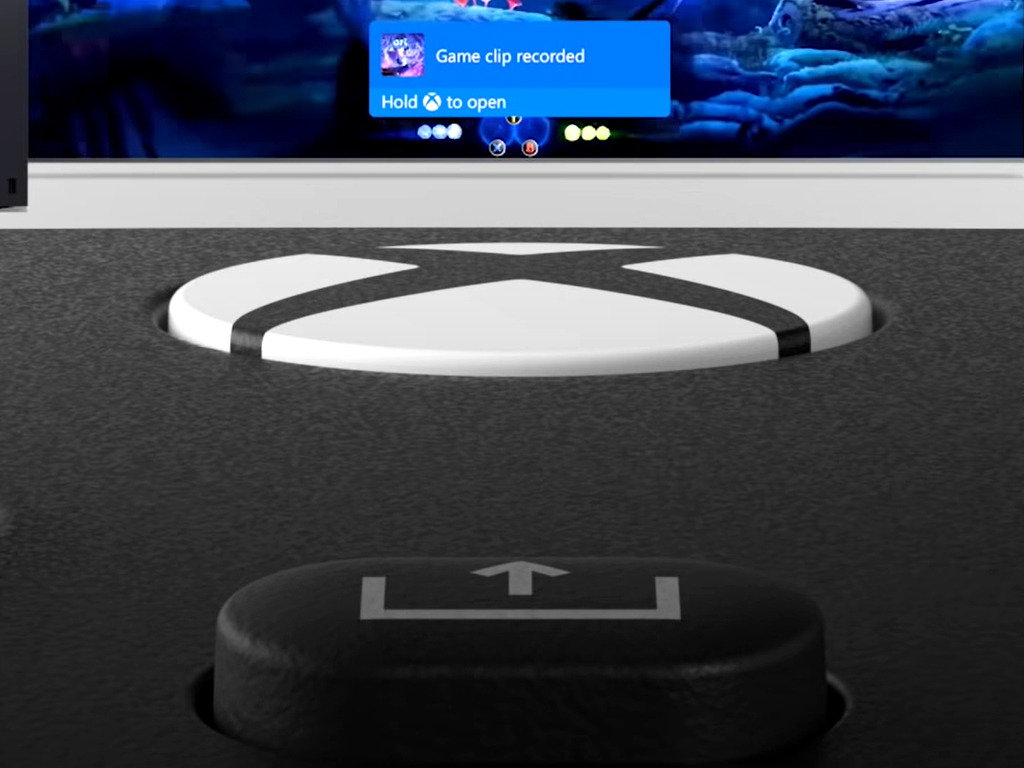
The main focus of the video is the new Share button which allows gamers to take a screenshot with a quick tap or record video with a longer press.

The function is identical to the existing method which can be activated by voice commands or via the tapping of the X and Y buttons after opening up the system menu, it simply gives people a quicker physical option.

Here’s the video:

The new Xbox Wireless Controller will release in a black, blue, and white option and will support Windows 10 computers, smartphones, and both Xbox One and Xbox Series X console generations. The Share button will also work on both gens as long as the latest operating system update is installed.

Are you excited for the new Xbox Wireless Controller and do you like the new Share button? Make sure to let us know in the comments below. Interested in pre-ordering this new controller? It’s now available here.

Age of Mythology Black Screen Error in Windows 10

Even though we got into a phase where the latest games are like cinematic interactive stories, some people like to embark on the nostalgia train and play some beloved classics.

Age of Mythology is an amazing game, a revolutionary RTS from the beginning of this century. Arguably, one of the best games in the genre, as it stands the challenge of time quite well and it’s still very much playable.

However, Age of Mythology does have some issues on Windows 10, and one which is quite common is the black screen. This occurs during the game‘s initialization.

If you’re stuck with this error, feel free to check the solutions we provided below. Hopefully, we’ll be able to help you resolve it.

Table of contents

  1. Check the GPU drivers
  2. Run the game with the non-CD executable
  3. Run the game as Administrator and in a compatibility mode
  4. Install DirectX and Redistributables
  5. Disable the intro cinematics
  6. Reinstall the game
  7. Consider acquiring the Extended Edition

How can I fix Age of Mythology black screen issues?

1. Check the GPU drivers

A possible reason for the black screen in Age of Mythology might be due to a failing graphics card. Now, drivers are a common reason for this occurrence, even if you’re positive that the latest supporting software is installed.

Generic drivers which Windows Update provides automatically are not always the best suited for the job. Especially if you’re an avid gamer.

For that reason, we suggest navigating to the official OEM’s website and getting the latest supporting software, including drivers. Avoid downloading drivers from third-party websites, and stick with the official ones.

Here’s the list of 3 major graphics cards manufacturers you might want to check:

It might happen that on the official sites you won’t find the right driver version, especially if you have an older GPU.

In this case, downloading and installing the drivers you are not sure are the good ones, might damage your system. We recommend you to try to check for the right drivers with dedicated software.

A driver updater software is able to scan your PC for outdated and damaged drivers. Then, it will search for the latest driver version that is compatible with your hardware, download and install it.

Such tools can save you plenty of time and hassle. They are typically very easy to use and lightweight. You can set them up to regularly update and repair your drivers so you won’t face this type of issue in the future.

⇒ Get Fortect Driver Updater

2. Run the game with the non-CD executable

This game, like so many others from that era, requires a CD to run. Now, this hardly leads to any issues, but just for the sake of precaution, we suggest installing a third-party virtual drive emulator.

That way, you can create an ISO copy of your physical CD and run it directly. By doing so, you’ll avoid a halt caused by damaged CD.

Here’s how to create an emulation of the installation disk and run it virtually:

  1. Download and install PowerISO.
  2. Open the tool and make sure your Age of Mythology disk is in the drive.
  3. Choose to copy the disk and select the ISO as the output format.
  4. Now, once you’ve copied the CD, open This PC.
  5. Right-click on the newly created Virtual Drive device and mount the ISO file.
  6. Start the game and look for changes.

3. Run the game as Administrator and in a compatibility mode

  1. Right-click on the Age of Mythology shortcut and open Properties.
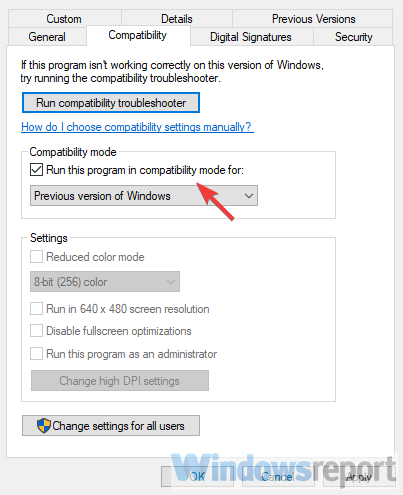
  2. Choose the Compatibility tab.
  3. Check the Run this program in compatibility mode for box and select Windows XP SP2 from the drop-down menu.
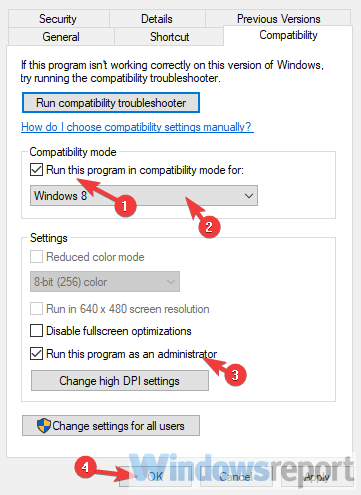
  4. Now, check the Run this program as an administrator box and confirm the changes.age of mythology windows 10 black screen
  5. Try starting the game and look for improvements.

4. Install DirectX and Redistributables

Now, it’s obvious that you need to install a game in order to play it on a Windows platform. However,  a lot of people neglect the importance of DirectX and Redistributables.

In some cases, you’ll need additional software, like launchers, to get the game up and running. Not in this case. You’ve already met the system requirements, so that’s out of the picture.

However, installing DirectX and Microsoft Visual C++ redistributables is a must.

So, make sure to install even the oldest redistributable and update your version of DirectX. You might have the latest version of DirectX 12, but Age of Mythology will run on 9.0 either way.

5. Disable the intro cinematics

  1. Right-click on the Age of Mythology desktop shortcut and open Properties.
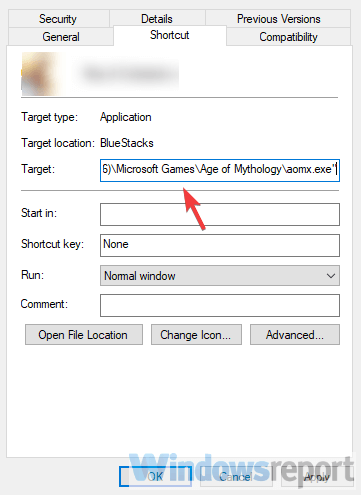
  2. Under the Shortcut tab, look for the Target line.
  3. What you’ll need to do is copy-paste the following line at the end of the current entry: xres=640 noSound noIntroCinematics bpp=16 window lowend terrainHalfDensity lowPoly waterbump skipMipMapLevels=1 graphicDetail=2age of mythology windows 10 black screen
  4. Confirm changes and start the game.

6. Reinstall the game

  1. Backup the saved games.
  2. Open Start, right-click on the Age of Mythology, and choose Uninstall.
  3. This will take you to the Uninstall a program section in Control Panel. Remove the Age of Mythology and delete saved files.
  4. Restart your PC.
  5. Right-click on the installer and run it in compatibility mode for Windows XP (if available).age of mythology windows 10 black screen
  6. Wait until the game installs and give it another shot.

7. Consider acquiring the Extended Edition

In the end, if the outdated version won’t work on your Windows 10 PC, the only remaining thing we can suggest is giving Extended Edition a try. This is basically a revamped version of the classic game optimized for the latest Windows version.

And, on that note, we can conclude this article. If you have any questions or suggestions, feel free to tell us in the comments section below. We look forward to hearing from you.

Twitter’s image algorithm prefers Microsoft’s Windows phone and Xbox Series X over iPhone and PS5

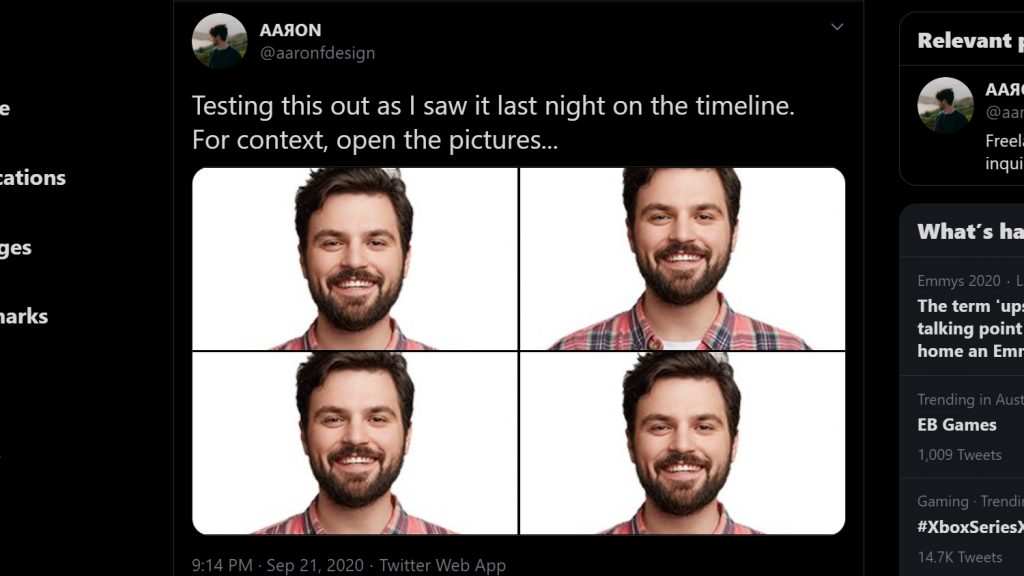
The Twitter social network made headlines this past week after numerous users began discovering that its algorithm for determining what part of an image would be shown in a thumbnail preferred White faces over Black ones.

This isn’t the first time users have noticed such algorithmic quirks as it’s been well-known for a while now that a Twitter thumbnail will zoom in on any text or faces in an image compared to other parts no matter what the actual subject is. This is the first time, at least for the majority of the userbase, that the topic of preferred ethnicity has been discussed at large however.

Twitter racial bias example.

Twitter has since confirmed that they’re taking this very seriously and are looking to remove this unintentional bias from the platform.

While the topic of racial bias in tech is very much a serious one, the discussion has given way to some admittedly amusing viral experiments on the platform involving users comparing various subjects in a post to see what the algorithm decides is more important.

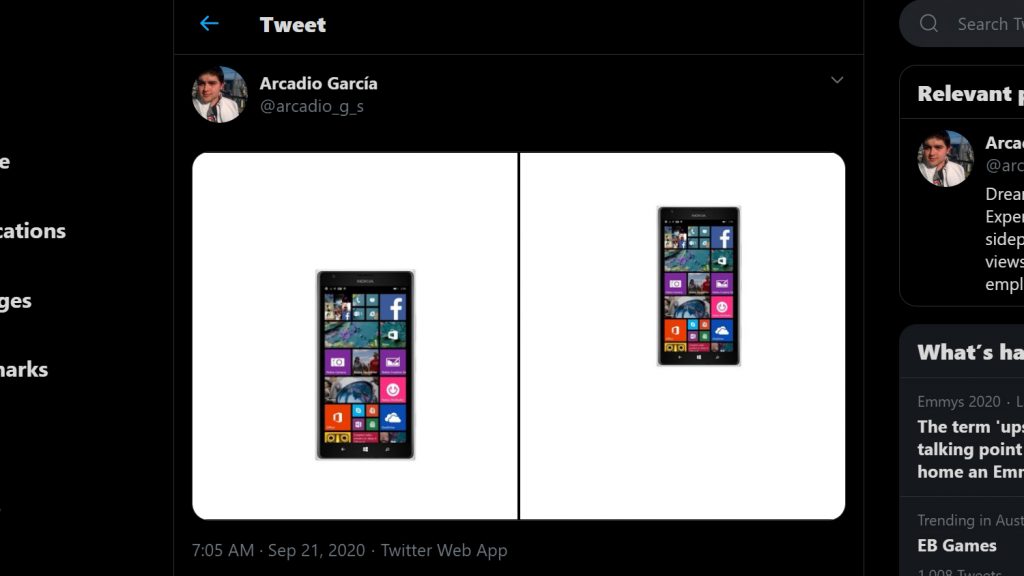
One of the more entertaining posts has been this one below (screencapped due to the upcoming algorithm change that may alter its appearance) which shows Twitter preferring Microsoft’s discontinued Windows phone over Apple’s iPhone.

Windows phone on Twitter.

While Windows 10 Mobile may be no more, at least fans of the platform have this tweet.

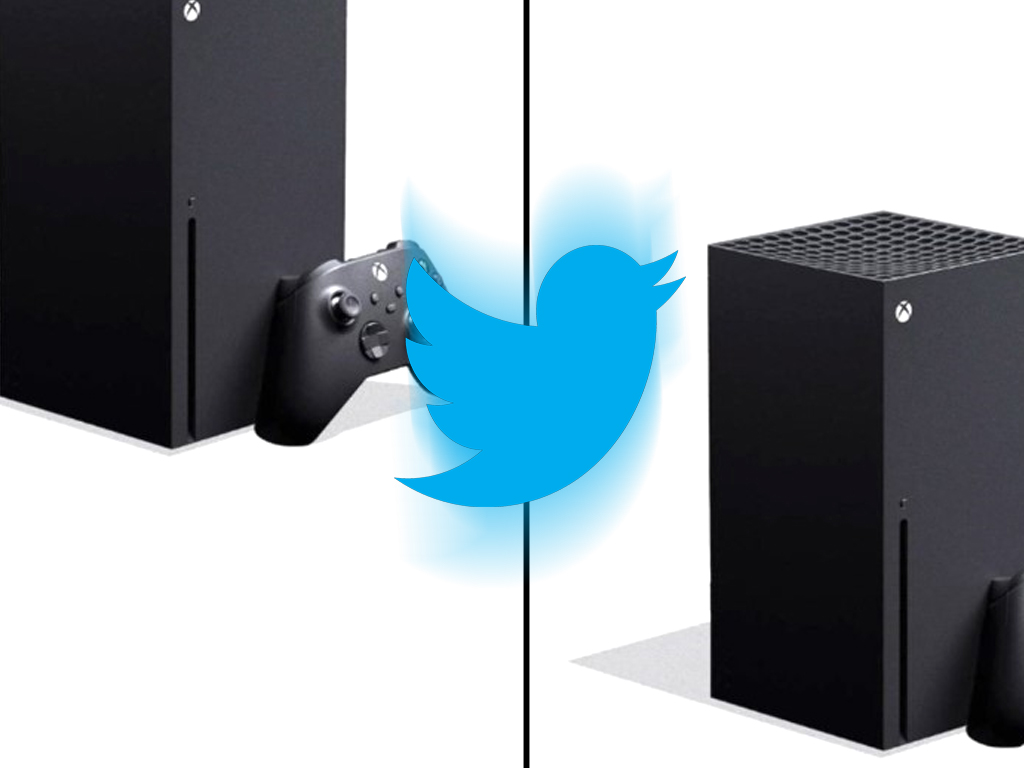
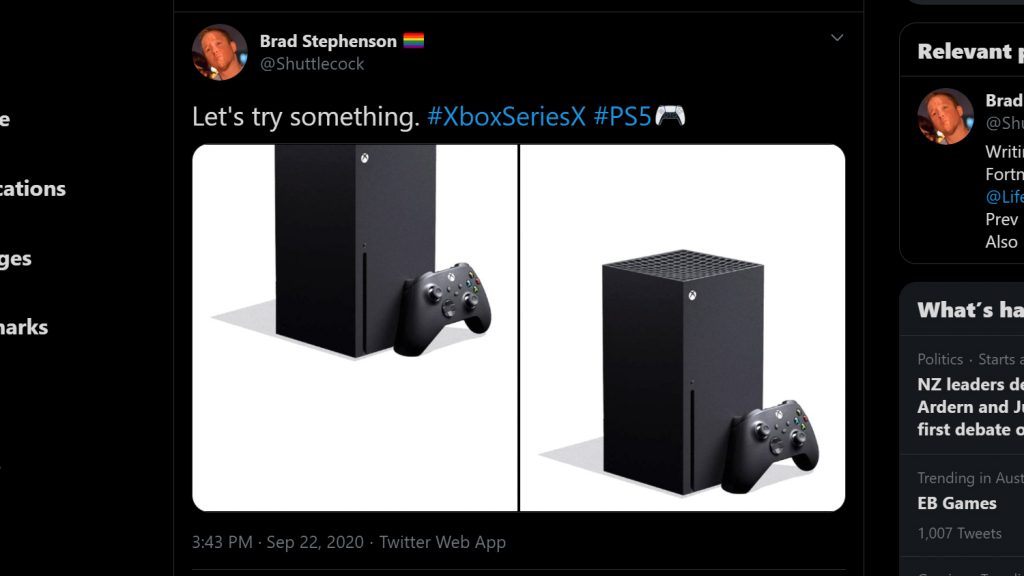
Curious, I decided to make a comparison tweet myself using images of Sony’s PlayStation 5 console and Microsoft’s Xbox Series X. The results should please all OnMSFT readers.

Xbox Series X on Twitter.

Have you experimented with the Twitter image algorithm? Have you experienced any bias when uploading images yourself? Let us know what you’ve encountered in the comments below and then follow us on Twitter for more Microsoft content.

How to unblock TikTok anywhere & bypass country bans

Recently TikTok has faced the threat of being banned in the US. The app is quite popular, so it’s no surprise that a lot of people have started protesting online against the unpopular decision.

And we get it, truly. Imagine waking up to a world where YouTube is no longer available. Or Spotify, or Netflix, or any other popular service, for that matter. Wouldn’t be too pleasant, now would it?

Right now, things aren’t exactly certain, as the US administration hinted at reaching an agreement with TikTok. But don’t worry, we’ve got just the trick for you to help you bypass country bans and unblock TikTok in no time.


How can I unblock TikTok anywhere?

Use a VPN

  1. Purchase a premium VPN subscription plan (we recommend Private Internet Access)TikTok PIA
  2. Download the PIA VPN client
  3. Install the VPN on your devices
  4. Log into your PIA account
  5. Connect to a suitable server
  6. Enjoy using TikTok without restrictions

Kape Technologies’ Private Internet Access is an excellent VPN service that can help you stay private and secure your connection in no time.

It features 24/7 customer chat support and is actually one of the few VPNs that offer this kind of service.

Note that, depending on the device you want to access TikTok from, you’ll need to adapt your PIA usage/installation.

Private Internet Access

Private Internet Access

Wondering how to unblock TikTok? PIA can quickly do it for you.
$2.69/mo. Buy it now

For instance, if you plan on using TikTok on your phone, it goes without saying that you must deploy the VPN on that very device.

Or, to simplify matters, you can configure the VPN on your router. Therefore, all devices you’ve connected to the router will benefit from the VPN‘s privacy, security, and geoblock-bypassing features in no time.

Choose a non-US server

It’s worth mentioning that we’re talking about TikTok being banned in the United States. Therefore, it goes without saying that using a US VPN server will probably not work.

For that reason, try choosing any non-US VPN server if you want to unblock TikTok and bypass its US ban. Note that the closer a server is to your physical location, the faster it will be.

PIA comes with one of the largest server networks (more than 11,000 servers in almost 100 locations). Therefore, even if TikTok doesn’t seem to work with the server you chose, just pick another one.

Bonus: this method can help you unblock other region-restricted services, as well.

Use a Smart DNS service

If you’re not totally on board with installing and using a VPN to bypass geo-restrictions, you might want to use a Smart DNS service. From a geoblock-bypassing standpoint, it might work even better than a VPN.

However, it’s very important that you understand that Smart DNS services have no encryption. Therefore, you’ll have a faster connection but all your traffic will be visible to your ISP.

Final thoughts on unblocking TikTok

All things considered, if you’re not ready to give TikTok up, you don’t need to anymore. Even if TikTok’s US ban remains in place, there are ways to circumvent this unfortunate restriction.

You can use a VPN to unblock TikTok, no matter where you are. However, make sure to select an appropriate server, depending on your location. For instance, if you’re in the US (and TikTok is still banned when you’re reading this), try using a non-US server.

[wl_navigator]

5 Best Photo Location Finder Tools

We take photos frequently, but sometimes, you need to find out the location where a photo was taken. Luckily for you, specialized tools can help you with that.

Various tools can be used for this purpose, and in today’s article, we will show you the best photo location finder tools you can use.

What are the best photo location finders?

Pic2Map

Pic2Map photo location finder

Pic2Map is a simple service that lets you upload your images and see the location where the picture was taken. This is done by analyzing EXIF and GPS data from the image.

The service analyzes EXIF data, and it shows you the exact location on the map where the image was taken. You can also use Pic2Map to view EXIF information, such as the camera model, shutter speed, etc.

Regarding the location, you can see the name of the city or town where the image was taken, as well as the name of the state/country.

Remember that the service makes all your images public, so you need to check the privacy option when uploading them to keep them away from search engines.

Pic2Map is a simple but powerful service, so you should try it out.

Pic2Map features:

  • Simple to use
  • Can determine the location of the image based on EXIF and GPS data
  • Can show you EXIF data of an image
  • Will show you the exact coordinates and location on the map

=> Visit Pic2Map

GeoImgr

GeoImgr photo location finder

Another great photo location finder service is GeoImg. The service uses your uploaded images to read their EXIF data. After reading the data, you should see a location on the map where the photo was taken.

The service also allows you to add geotags to your images by selecting the location on the map where the image was taken.

The service is incredibly simple, but the free version allows you to upload only 5 images per day, which may be a problem for some users.

GeoImgr features:

  • Simple to use
  • Ability to find image location from the EXIF data
  • You can add geotags for images without them
  • Support for bulk uploads

=> Visit GeoImgr

Photo Location

Photo Location photo location finder

If you need to discover the location of a certain picture, you can always use the Photo Location service. The service will read the EXIF data and GPS coordinates and try to determine the location of the picture.

If your pictures don’t have geotags, you can use Photo Location to add geotags to your images so you don’t forget where the picture was taken.

On the other hand, if you want to protect your privacy, you can remove geotags with this tool or change them. This is important if you plan to share your pictures with the public.

Photo Location is a simple but powerful service, and if you want to find the location of a certain image, you should try it out.

Photo Location features:

  • Ability to view saved geotagging information
  • Can add geotags to images without them
  • Can be used to remove or change geotags of images

=> Visit Photo Location

Metapicz

Metapicz photo location finder

Another great service that works as a photo location finder is Metapicz. The service allows you to upload your own images, or you can paste the URL to the image.

After uploading your image, you can view all EXIF data such as the camera model, exposure, focal length, aperture, ISO speed, etc.

In addition, if geotag was enabled, you’ll be able to see the GPS coordinates where the image was taken along with the exact location on the map.

Metapicz is an incredibly simple tool, but it will get the job done, so be sure to consider it.

Metapicz features:

  • Incredibly simple to use
  • Supports image upload and image URLs
  • Can show you EXIF and geotag data

=> Visit Metapicz

Whereisthepicture

whereisthepicture photo location finder

Whereisthepicture is another photo location finder service that can easily find the location where the picture was taken.

The service is pretty simple to use and to find the location where the image was taken, you just need to upload the image and the service will do the rest.

Whereisthepicture will analyze geotag and EXIF data and show you the exact location where the image was created on the map.

Overall, the service doesn’t offer any extensive features, but it does its job well, so you might want to try it out.

Whereisthepicture features:

  • Straightforward to use
  • Will read geotagging information from your pictures
  • Will show you the location of the picture on a map

=> Visit Whereisthepicture

Finding the location of a picture is pretty simple as long as you have a photo location finder tool available. We covered some of the best tools for this task in this article, so be sure to consider them.

Should you encounter other GPS-related issues where the AT&T family map is not working, don’t hesitate to check out our expert article for solutions.

Here are all the next-gen Xbox accessories that will be available for pre-order tomorrow

Today is a very busy day for the Xbox team, which has already announced the acquisition of Bethesda, 15 million subscribers for Xbox Game Pass, Xbox remote play launching with the new Xbox beta app for Android, and the rollout of the new Microsoft Store to all Xbox One owners. That’s not all, as the company has now followed up with more details about the next-gen Xbox Accessories that will be available for pre-order starting tomorrow, September 22.

First of all, the next-gen Xbox Controller with the new Share button and USB-C charging will be available in three colours, Carbon Black, Robot White, and a never seen before Shock Blue variant. The redesigned controllers come with textured grip on the bumpers, triggers, and back case, an Elite controller-inspired hybrid D-pad, and a new convenient Share button. Moreover, the next-gen Xbox controllers will support Microsoft’s new Dynamic Latency Input technology and allow users to easily pair and switch between Xbox consoles, Windows 10 PCs, and Android devices.

All three controllers will be to pre-order tomorrow at 8AM in your local time, with the same $59.99 starting price as existing Xbox controllers. If Microsoft will continue to ship its next-gen Xbox controllers with AA batteries, a refreshed rechargeable battery and its USB-C cable will also be available for pre-order tomorrow at $24.99. For PC gamers, Microsoft will also offer two Controller bundles with either a USB-C Cable or Microsoft’s Xbox Wireless USB adapter. All shipments will start on November 10 along with the Xbox Series X and Series S consoles.

Xbox rechargeable battery

For now, there’s no information about replacements for the official Xbox Stereo headset, Chatpad, and Media Remote that launched with the Xbox One seven years ago. However, the Xbox team announced an important update for the Xbox Design Lab, which currently allows Xbox fans to buy a customized Xbox One controller. The Xbox Design Lab which go offline starting October 14 to prepare for its 2021 comeback, and the Xbox team is inviting Xbox fans to make sure to purchase their personalized current-gen controllers before October 13.

As a reminder, the upcoming Xbox Series X and S console will support all existing Xbox One accessories, so those of you who have been collecting controllers over the years will be able to use them on the new console. According to a previous tweet from The Verge’s Tom Warren, Microsoft also plans to bring its Dynamic Latency Input technology to current-gen controllers next year via a firmware update.

What is a Pre-Shared Key and how do you get it [VPN]

Nowadays, VPNs have become somewhat of an epitome of privacy and security. Of course, this type of service wouldn’t have reached this level of trust, was it not for strong security measures.

If you’re familiar with VPNs, you probably know that they encrypt traffic. More so, you can’t just waltz yourself inside a VPN server, as you’d most likely need some sort of authentication.

Most services tackle this issue by making you create accounts, which are subsequently whitelisted, so you can access the VPN without an issue. But there’s way more to it than sees the eye.

Pre-shared keys (PSK), for instance, are a great example of additional security measures that you’ve probably never even heard of.

What is a Pre-Shared Key?

A Pre-Shared Key (PSK) is a string of characters (so basically a password) that various services, including VPNs, rely on as an authentication method. However, note that PSKs are not exactly secure by themselves.

After its creation, the PSK needs to be shared with every device that has to use it. However, great caution must be practiced upon sharing the PSK, as revealing it to third-parties might easily jeopardize the security of your connection.

Furthermore, since the PSK needs to be exactly the same on all devices, it’s like a password that you use for multiple accounts (bad idea). All it takes is one device to be compromised for the PSK to become useless, or rather dangerous.

For those reasons, Pre-Shared Keys are used in conjunction with other similar security measures, such as traditional usernames and passwords.

Also, to increase their level of security, they must be long and random, to prevent them from being cracked by brute-forcing.

How to get a preshared key for your VPN?

There’s a lot of confusion when it comes to PSK. Most users believe that you have to acquire the PSK from a special place, but in fact, the PSK can be anything you want if you’re a VPN host.

On the other hand, if you’re about to connect to a VPN server, you might need a PSK, which you can get by asking the VPN server host.

For instance, your workplace might have a dedicated VPN that you can connect to, in order to be on the same network with your colleagues and share company resources. If that’s the case, just ask the network administrator for the Pre-Shared Key.

Last, but not least, you can use third-party tools such as password generators to create complicated keys. They’re usually more secure than coming up with your own password, which, let’s be serious, is almost always something easy to remember.

How to find Shared Secret VPN Windows

You can configure a Pre-Shared Key easily, especially if you’re using Windows’ built-in VPN feature. We’ll teach you how to find the Pre-Shared Key in a few easy steps:

  1. Press the Win key on your keyboard
  2. Type VPN
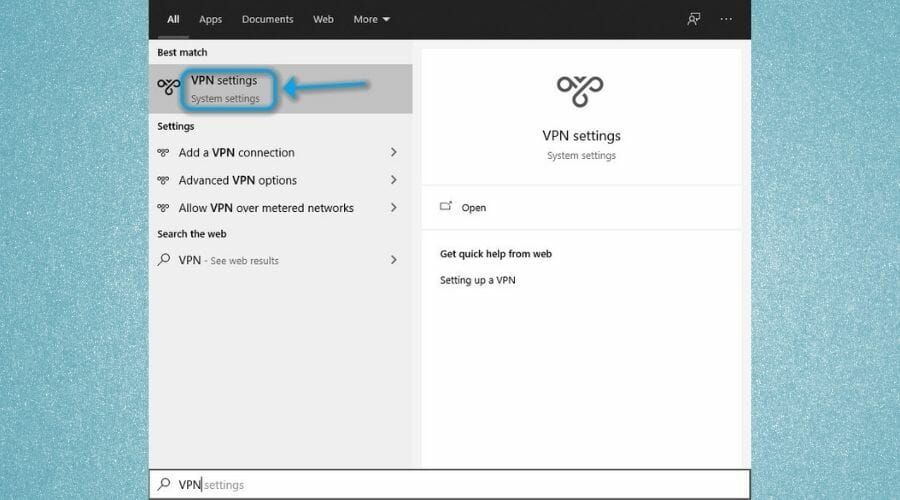
  3. Click VPN settingsStart menu VPN settings
  4. Select your secured VPN connection from the list
  5. Click Advanced options
  6. Press the Edit button
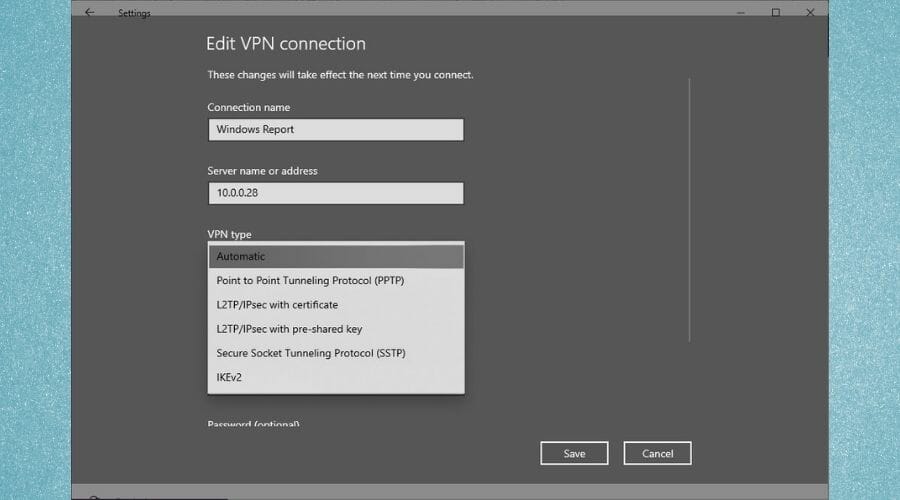
  7. Select L2TP/IPsec with pre-shared key from the VPN type menuL2TP edit VPN connection
  8. Type the PSK in the appropriate field

Alternatively: create a new VPN connection, if necessary, but make sure to choose L2TP/IPsec as the VPN type if your network uses a Pre-Shared Key.

If you were looking for ways to reveal a hidden PSK from an existing VPN connection, there’s no way to do that. Back in the day, you could’ve used an asterisk password revealer, or something similar.

However, those tools haven’t been working for a while, so there’s no way to reveal a PSK that’s been already saved to a VPN connection.

The VPN shared secret is incorrect

If your Pre-Shared Key is not typed correctly in the field we’ve mentioned above, you won’t be able to establish the connection. This could happen for two reasons:

  • You didn’t copy/paste the PSK correctly within the appropriate field
  • The VPN server administrator changed the key, and you need to acquire the new one

Can’t connect to L2TP VPN on Windows 10? Check out our guide to fix the issue quickly.


It’s not uncommon to paste your password all wrong, it happens to everyone once in a while. Just make sure you didn’t include any spaces before or after the PSK.

Final thoughts on VPN Pre-Shared Keys

All things considered, PSKs are quite useful tools that can help you secure a server with an additional security layer. Keep in mind that a PSK is not even near enough to secure things, especially given that multiple devices can use it.

However, setting a long, random PSK and changing it on a regular basis can definitely help you increase the security of your VPN server.

[wl_navigator]

FIX: Cannot communicate with Canon scanner in Windows 10

A scanner is an indispensable device in any office. There’s always a need to do some paperwork. Therefore, the scanner needs to be up and running smoothly.

Unfortunately, many of them are affected by various issues. Cannot communicate with scanner is a common error message that can appear with Canon scanners on Windows 10.

This can be a big problem, and in today’s article we’ll show you how to fix it.

How can I fix the Canon scanner error message in Windows 10?

1. Run the troubleshooter

cannot communicate with scanner canon windows 10
  1. Press Windows Key + I to open the Settings app.
  2. Go to the Update & Security section.
  3. Choose Troubleshoot.
  4. Select Printer and click Run the troubleshooter.
  5. Follow the on-screen instructions to complete it.

2. Update your drivers

According to users, if you keep getting Cannot communicate with scanner message on your Canon scanner, the issue might be outdated drivers.

To fix the problem, it’s advised to visit Canon’s website and download the latest drivers for your scanner. After updating the drivers to the latest version, the issue should be completely resolved.

We strongly recommend using a specialized driver updating tool to fix your drivers in order to avoid damage to your PC by manually downloading the wrong driver versions.

It scans your system and lists all existing and possibly missing drivers. The tool also detects if there is already a new version for current records. If necessary, these can be updated directly via Fortect Driver Updater.

⇒ Get Fortect Driver Updater

3. Reinstall the drivers

cannot communicate with scanner canon windows 10
  1. Press Windows Key + I and select Device Manager.
  2. Locate your Canon driver, right-click it and choose Uninstall device.
  3. Check Remove driver software for this device and click the Uninstall button.
  4. Click the Scan for hardware changes button, and Windows will install the missing drivers.

4. Perform a Clean boot

cannot communicate with scanner canon windows 10
  1. Press Windows Key + R, type msconfig. and click OK.
  2. Go to the Services tab.
  3. Check Hide all Microsoft services and click Disable all button.
  4. Go to the Startup tab and click Open Task Manager.
  5. Right-click the first entry on the list and choose Disable.
  6. Do the same for all entries on the list.
  7. Close Task Manager and go back to the System Configuration window.
  8. Click Apply and OK, and restart your PC.

In some instances, third-party applications can interfere with your hardware and cause Cannot communicate with scanner message.

To fix this problem, users are suggesting to disable all startup applications and services. After your PC restarts, check if the problem is still there.

If the issue doesn’t reappear, the cause is one of the disabled applications or services. To find the exact cause, you need to enable disabled applications one by one or in groups until the problem reappears.

5. Enable bidirectional support

cannot communicate with scanner canon windows 10
  1. Press Windows Key + S, type control panel and select it.
  2. Go to Devices and Printers.
  3. Locate your printer and right-click it.
  4. Choose Printer properties from the menu.
  5. Go to the Ports tab and check Enable bidirectional support.
  6. Click OK to save changes.

6. Move the problematic directories

  1. Go to the C:twain_32 directory.
  2. In there you should see two PIXMA directories and a wiatwain.ds file.
  3. Leave PIXMA and wiatwain.ds alone, and move other files and directories to a new folder on your desktop.
  4. After moving the files and directories, restart your PC.

Once your PC restarts, your printer/scanner will recreate the missing files and the problem with scanning should be completely resolved.

Users claim that they fixed this error on Canon PIXMA MG5420, simply by moving a couple of directories. Although this solution works for the aforementioned model, it might also work for other Canon devices.

7. Switch to the Power-saving mode

  1. Press Windows Key + S and type power settings.
  2. Select Power & sleep settings.
  3. Click on Additional power settings in the Related settings section.
  4. Select Power saver mode from the list.

After doing that, your scanner should start working again. We have to admit that this is an unusual solution, but several users claim that it works, so feel free to try it out.

We hope at least one of these solutions was helpful. In case you have any subject-related questions or suggestions, just reach for the comments section below.

Fingerprint reader not working after sleep in Windows 10/11

One of the best ways to protect your Windows 10 device from unauthorized access is to use a password, or better yet – a fingerprint.

Unfortunately, few users have reported that the fingerprint reader is not working after Windows 10 wakes up from sleep, so let’s fix that.

This issue is particularly common on the following manufacturers’ devices: HP, Lenovo, Asus, Dell.

What can I do if the fingerprint reader is not working?

  1. Download the latest drivers for your fingerprint reader
  2. Check power management settings
  3. Disable and enable Credential Manager service
  4. Disable and enable your fingerprint reader
  5. Lock your device manually
  6. Switch to local account / create a new account
  7. Prevent your PC from turning off USB devices
  8. Uninstall fingerprint software
  9. Remove and recreate your PIN
  10. Update your BIOS

1. Download the latest drivers for your fingerprint reader

If the fingerprint reader isn’t working after you wake up your computer from sleep, maybe it’s time to perform a driver update.

To perform this task, you basically need to go to your laptop manufacturer’s website, look for the most recent drivers, and download them.

If you’d like to avoid the hassle of searching for drivers on your own, you can use a dedicated tool that will do this for you automatically.

After the scan is complete, you get a report on all drivers that need your attention, so feel free to update only the fingerprint reader drivers or the complete driver’s batch.

2. Check power management settings

  1. Press Windows Key + X and choose Device Manager from the list.
    device-manager
  2. When Device Manager opens, locate your fingerprint reader. It should be located in Biometric Devices section.
  3. Right-click your fingerprint reader and choose Properties.
    properties-driver
  4. Navigate to the Power Management tab and uncheck Allow the computer to turn off this device to save power.
    allow-computer-to-turn-off-this-device
  5. Click OK to save changes.

If your fingerprint reader isn’t working after you wake up Windows 10 from Sleep Mode, you might want to check its power management settings. To do that, follow the above steps.

3. Disable and enable Credential Manager service

  1. Press Windows Key + R shortcut to open the Run dialog. Type services.msc and click OK or press Enter.
    run-services
  2. When the Services window opens, locate Credential Manager service and double click it.
    services-credential-manager
  3. The Credential Manager Properties window will open. Go to the Service status section and click on Stop.
    credential-manager-properties
  4. After you’ve stopped the service, click on Start to restart the service.
  5. Click Apply and OK to save changes.

Sometimes problems with fingerprint readers can be fixed if you restart certain services.

Users have reported that they have managed to fix this issue by disabling and enabling the Credential Manager service, and you can do that as well if you follow the above steps.

4. Disable and enable your fingerprint reader

  1. Open Device Manager.
  2. Locate the Biometric Devices section and expand it.
  3. Find your fingerprint reader, right-click it, and choose Disable from the menu.
    device-manager-disable
  4. Right-click the fingerprint reader again, but this time choose Enable.

Certain problems with the fingerprint reader can be fixed simply by disabling it and enabling it back again. To do that, follow the given procedure.

5. Lock your device manually

This is a simple workaround if your fingerprint reader isn’t working after sleep mode.

In order to avoid any problems with the fingerprint reader, just lock your laptop (by pressing Windows Key + L on your keyboard) before you close the lid.

Users have reported that using the Windows Key + L shortcut on the lock screen fixes the problem with the fingerprint reader.

However, we have to mention that you’ll have to use this shortcut every time you put your computer to sleep. This might not be the most practical solution, but users are reporting that it works.

6. Switch to local account / create a new account

  1. Go to Settings and click on the Account icon.
  2. In your account click Sign in with a local account instead.
  3. You’ll be asked to enter the current password. Now click on Next.
  4. Set your user name, the password for your local account. After doing that, click on Next.
  5. Now click on Sign out and finish.

Some users reported that switching to a local account resolves this issue. And that’s exactly what we’re going to try now. Use the above steps to switch from your regular Microsoft account to a local account.

7. Prevent your PC from turning off USB devices

  1. Open Device Manager.
  2. Go to the Universal Serial Bus controllers section and double click USB Root Hub.
  3. Navigate to the Power Management tab. Now uncheck Allow the computer to turn off this device to save power. Click on OK to save changes.
  4. Repeat these steps for all USB Root Hub devices that you have on your PC.

There’s a chance your computer is set to automatically disable USB devices. If that’s the case, you’ll have to change that.

8. Uninstall fingerprint software

  1. Open the Settings app. You can do that quickly by using Windows Key + I shortcut.
  2. The Settings app will now appear. Navigate to the Apps section.
  3. Locate the fingerprint reader software on the list and select it. Now click the Uninstall button.
  4. Follow the instructions on the screen to complete the uninstallation process.

Reinstallation is a good old solution for just about any problem. And we’re going to give it a try. Uninstall your fingerprint software by following the above procedure.

9. Remove and recreate your PIN

  1. Open the Settings app and navigate to the Accounts section.
  2. Select Sign-in options from the menu on the left. In the right panel go to the Windows Hello section and click on the Remove button under Fingerprint.

After removing fingerprints, you need to remove your fingerprint driver. Now you need to download and install the latest driver for your fingerprint reader.

Lastly, you need to register two new fingerprints. To do that, follow these steps:

  1. Go to Settings app > Accounts > Sign-in options.
  2. Make sure that you have a PIN set up. If not, set up your PIN now.
  3. Go to the Windows Hello section in the right pane and click on the Setup button.
  4. Follow the instructions on the screen to set up your fingerprint.
  5. After adding a fingerprint, go to the Windows Hello section and click on Add another button.
  6. Follow the instructions on the screen to add another fingerprint.

10. Update your BIOS

And finally, if none of the solutions above resolved the problem, one final thing you can try is updating BIOS.

But remember, this should be your last resort, because updating BIOS is a risky business, and one wrong step can basically render your computer unusable.

If you want to find out more about updating BIOS, check out the link below. But still, if you’re not sure in what you’re doing, ask a professional for help.

Although the fingerprint reader provides the best security for your Windows 10 device, some problems, such as this one, can occur.

If you have any problems with the fingerprint reader and sleep mode, feel free to try some of our solutions.

As always, for more suggestions or questions, Don’t hesitate to reach out for the comments section below.

OneDrive Videos are not Playing: 5 Quick Ways to Fix

One of the great things about OneDrive cloud storage is that you can play videos in it. As such, you don’t need to save the videos to your own hard drive to play them.

Storing videos in OneDrive can save quite a bit of HDD space. However, videos don’t always play in OneDrive.

Some of our readers have stated that some videos pause when playing them in OneDrive. This is how you can fix OneDrive videos that aren’t playing.

Why won’t OneDrive play videos?

Here are some of the main reasons why OneDrive might not play your videos:

  • Corrupt video file – If the video file is not playing in OneDrive, check the original file from the source and see if that is playing. It might have been damaged when it was copied.
  • Incompatible format – You may upload any file type in OneDrive, but it has limited file support for playback. We have a solution below for converting it to a suitable format.
  • Connection problems – A poor internet connection will cause the video to stop playing, so you should check it first.

Now that we know what we’re dealing with, let’s see what we can do if OneDrive is not playing your video.

What can I do if OneDrive won’t play videos?

Before starting any tweaking on the file, consider working around the problem using these simple methods:

  • First of all, make sure that you have a strong internet connection. If that is weaker, try to adjust the resolution and quality of the video to use less bandwidth.
  • Try playing the video offline from your computer. This way, you will use your own video player, and you will no longer rely on an internet connection.
  • Restart your PC. Although it seems pointless, many problems vanish after this simple operation.

If the videos are still not playing, consider performing the solutions below.

1. Clear the cache and cookies from your browser

  1. Open Google Chrome, click the Menu button from the top-right corner of the window, and select Settings.
  2. Select Privacy and security from the left pane, then click on the Clear browsing data option.
  3. Lastly, select the Time range, if you want, check the boxes for the objects you want to delete, and hit the Clear data button.

If you’re opening the video in OneDrive from your browser, make sure you clear the cache and cookies because sometimes, they can interfere with the process.

We described how to do that in Google Chrome, but the process is similar on all the other popular browsers.

2. Convert the video to a compatible format

Although you can upload most video formats to OneDrive, remember that, unfortunately, it supports a limited number of file formats for playback.

These are the supported OneDrive video (and audio) playback formats: MP4, WMV, AVI, ASF, M4A, M4V, MOV, WAV, AAC, WMA, SMI, 3G2, 3GP, ADTS, SAMI, MP3.

You need to convert an incompatible OneDrive video to one of those compatible formats. The best tool for the job is none other than WinX HD Video Converter Deluxe.

Our top recommendation is an easy-to-use yet powerful converter since it can transcode any video to any format, with no CPU overuse/overheating to worry about.

The best widely supported format to convert a video to is probably MP4, but there are plenty of other options.

WinX HD Video Converter Deluxe

WinX HD Video Converter Deluxe

Get started on fixing your OneDrive videos with the help of this tool. There are plenty of compatible formats at your disposal!
Free trial Visit website

3. Check if the video has DRM protection

  1. First, open the video’s folder in File Explorer.
  2. Then right-click a video and select Properties.
  3. Select the Details tab on the Properties window.
  4. Then scroll down to the Protected category shown directly below. A video is DRM protected if you see Yes in that detail category.

Another thing to note is that OneDrive doesn’t play videos with DRM (Digital Rights Management) keys. Thus, a video with a compatible format will still not play in OneDrive if it has a DRM key.

You can remove DRM protection from a video for OneDrive playback with third-party software but note that removing DRM might not be within the terms of use for a digital product.

We have a list containing the best video optimizer software that may help you with that. Most of them have conversion features and can remove the DRM protection in the process.

4. Consider using a different cloud hosting service

If you still can’t play the videos in OneDrive, maybe you should consider replacing it with a different cloud service that doesn’t have as many issues.

We have a handy list containing the best personal cloud storage services that will work seamlessly.

5. Fix the video with a third-party tool

At this point, if none of the solutions above worked, you may also consider that the file uploaded on OneDrive is corrupted. If you have the opportunity, test if the source file is also corrupted.

If yes, you may still use a dedicated tool to fix it. We have a list of the best video repair tools that can save the clip.

Were these tips helpful? Let us know in the comments area below.

Top 5 Surface Duo Tips and tricks to make you a dual-screen believer

If you just purchased (or are thinking about purchasing) a Surface Duo, then there’s a lot that awaits you. Thanks to its two screens, you’re able to accomplish a lot more than you can with a traditional Android phone. From running Android on one screen, and Windows on another, or using Gboard to ink to reply to texts, here are our top 10 tips and tricks for the Surface Duo.
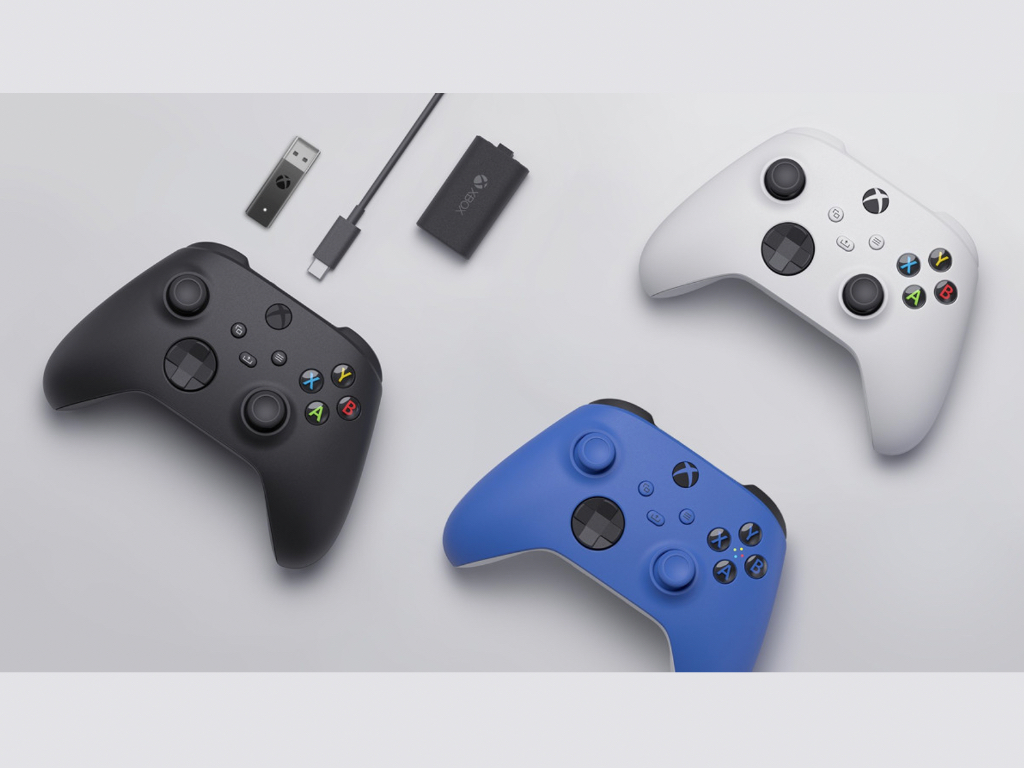
Tip #1: Use Microsoft Remote desktop to run Windows 10 on your Duo

Duo Windows 10

You probably heard the rumors and saw the articles that at one point, a Windows-based OS was the operating system for project Andromeda, the device the Duo is based on. This eventually got canned in favor of Android, but there’s no reason why you can’t run Windows on your Duo.

Thanks to the Microsoft Remote Desktop app, you can run Windows 10 on your Duo through your in-home network. The app is available in the Google Play Store, and while it’s not currently optimized for the Duo, it brings the same desktop experience you’re familiar with over to the Duo’s screens. The app even scales your desktop to fit the Duo’s display so it’s like you have a mini desktop! And, you can fold your Duo’s screen over and get Windows 10 just like you would on a modern Windows 2-in-1!

To set the Remote Desktop up, find your IP address from your PC by opening an elevated admin-level command prompt and typing “IPCONFIG” When you find your IP address (it should be under Wireless LAN adapter Wi-Fi) note it down. Then, click the (+) icon at the top of the app and choose Desktop. Enter your IP address, and your user name (email and Microsoft account password if you’re using a Microsoft Account) and then click Save. You should then be able to tap the entry in the mains screen and connect to your PC from your Duo!
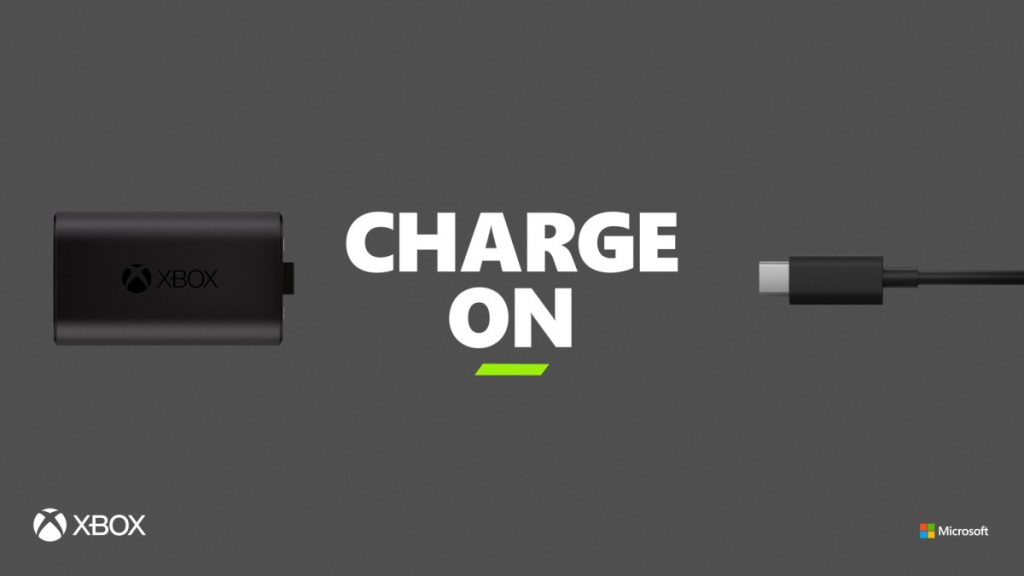
When set up, you can run the Remote Desktop app on one screen, and Android on another. It’s quite an amazing experience to see two of the world’s most popular operating systems running on one device (even if it’s just streaming through the internet.)

Remote Desktop
Remote Desktop
Price:
Free

Tip #2: Use Gboard for handwriting recognition on Surface Duo

Duo Inking

Another great selling point of the Surface Duo is its support for the Surface Pen. That means you can ink on the screen. But, did you know you can turn your inking on the screen into actual text in a text field? With Gboard on Surface Duo, that’s what you’ll be able to do!

To get this setup, you’ll have to install Gboard for free from the Google Play Store. Once installed, follow up the settings you get on the screen to enable the Gboard on Surface Duo. When finished, you can switch to Gboard as an alternative keyboard by tapping the tiny keyboard icon in the lower right corner of the Duo’s screen whenever inside a text box.

Then, from there, click the settings icon on Gboard. You’ll then want to select Languages and choose English (US) QWERTY, then select Handwriting. Now, every time you want to ink in a text field, you can switch between Swiftkey and Gboard with the little keyboard icon in the bottom right of the screen.

Gboard - the Google Keyboard

Tip #3: Turn on the 3 button navigation

Duo Gestures

A lot of early reviewers of the Duo have had issues with the way gestures work on the device. Swiping appears to be quite confusing for some people, which is why we suggest turning on Android’s 3-button navigation. Doing so will give you three icons at the bottom of the screen, functioning as visual buttons. This lets you go home. back and see your open apps more easily.

To turn on the 3 button navigation, go to Settings. Then, from there, head into System. And, then click Gestures followed by System navigation. From there, you can choose the three-button navigation. Just be aware, when enabled, you’ll lose some screen real estate on the bottom of the screen for the buttons.

Tip 4: Speed up your Duo by reducing animations

Duo Developer Options

Another common complaint from a lot of people who have adopted the Surface Duo is its sluggish performance. Although we have yet to experience performance issues, there are a few settings that can be changed to fix the overall performance of Surface Duo. Just be warned, these involve going into Developer options, which isn’t exactly recommended. These settings are for experienced users only.

First, activate Developer Mode by going to Settings, tapping About, and then scrolling down to the Build number. Tap five times on that number, and enter your PIN. You should see a new Developer Options setting under Settings.  Here’s where you want to be at.

We suggest changing a couple of different things. Go to Drawing under Developer Options and then change the Windows animation scale, Transition animation scale, and Animator duration scale to .5x. You can always reset it to 1x later, but you should feel that the Duo is a bit more responsive now.

Tip 5: Get a tablet mode for most Android apps, or make apps look smaller on the screen

Duo Brightness

The Duo is a phone with a super high-resolution display. Most apps are not able to properly adapt to this display resolution and aspect ration. However, you can force apps to adapt by changing your display settings. This makes text and other items smaller on the screen, but it also will force some apps (like Instagram) into their tablet modes and show more text on the screen.

To do this, click Settings followed by Display. Make sure you change the Display Size to small. You should then see apps begin adapting to the change in setting.

Other tips, and join the community!

We can’t give our all our Surface Duo tips and tricks in one page, but there’s a lot more we’d like to discuss. Surface Duo users have put together a nice guide on Reddit with their favorite top tricks. The list includes the ability to use the Duo with a monitor, use GCam on the Duo for better photos, as well as pairing the Duo with a smartwatch for NFC functionality. Check out the full thread on Reddit, and join the discussion.

Outlook for Windows is getting Roaming Signatures next month

Outlook for Windows will finally get cloud syncing support for email signatures next month (via Dr. Windows). The company has posted an update on the Microsoft 365 admin center stating that this feature’s deployment has been delayed, and it’s now timed for a rollout beginning in late October.

Microsoft first revealed the upcoming change in May of this year. The software giant was earlier expected to begin rolling out the cloud syncing option in June and make it available to all Windows desktop clients in late June. The much-anticipated functionality has been delayed several times, and now the company changed the rollout timelines to October. Notably, Microsoft has also updated its Microsoft 365 Roadmap to reflect this change.

With Signature cloud settings, users will be able to configure an email signature and have it saved in the cloud, allowing users to have a consistent experience across devices. The feature will roll out first for Outlook for Windows clients, and it will be available only for Microsoft 365 and Office 365 subscribers. The company plans to bring this functionality to other platforms, including Outlook for Android and Outlook for iOS, at later dates.

Invalid request: video was rejected/authentication expired

YouTube is not only one of the largest video platforms in the world, but also the second largest search engine. It offers a versatile alternative when nothing suitable is on TV.

But many YouTube users encounter the Invalid Request, authentication expired error message while trying to publish videos on the platform.

The issue is typically reported occurring when the user tries to publish them by making the video Public.

You will find in this article suitable solutions to fix this annoying message error.

How can I fix the Invalid request video was rejected error?

1. Enable HTML5 video player on the YouTube website

  1. Go to the dedicated YouTube support page.
  2. Under What is supported by this browser check out which relevant standards your browser already supports.
  3. If your browser does not yet support the HTML5-Player by default, you can submit a request for it there.
  4. Follow the on-screen instructions if you want to use this option.

Until some time ago, Flash Player was mainly used to play YouTube videos. In the meantime, however, it has been replaced by the modern HTML5 video player.

As a result, browsers can have problems with certain YouTube videos if the newer standard is not yet integrated.


2. Refresh your browser

Google Chrome

Invalid request: video was rejected update chrome

  1. Launch the Chrome browser.
  2. Check out the button of the three-point menu in the upper right corner.
  3. If the corresponding icon is colored, an update is available.
  4. Click on the button of the three-point menu, and select Update Google Chrome.
  5. Follow the on-screen instructions, and restart Chrome.

Mozilla Firefox

Invalid request: video was rejected update firefox

  1. Launch the Firefox browser.
  2. Open the main menu of the browser.
  3. Check out the button of three bars on top of each other in the upper right corner.
  4. Click on the question mark symbol, and select About Firefox.
  5. If updates are available, they will be downloaded automatically.
  6. Restart Firefox.

You should always check that you are using the latest version of your web browser. If not, then you should probably update it. Follow the steps above to ensure that your browser is up to date.


3. Don’t log into a different YouTube account while uploading

Invalid request: video was rejected in youtube

You’ll only need to upload the video again and make sure that you’re not logging into a different Google account while the uploading of the video is in progress.

Note: Keep in mind that logging into a different YouTube account from an incognito tab or a different browser will produce the same error since Google will still see the same IP.


4. Delete browser cookies and cache

Google Chrome

fix Invalid request: video was rejected/authentication expired

  1. Launch the Chrome browser.
  2. Open the three-point menu, and use the menu path More Tools.
  3. Go to Clear Browser Data.
  4. Select the time period from which the saved browser data should be deleted.
  5. If you don’t need any of the data anymore, just select Total time.
  6. Now also check the boxes Cookies and other website data and Images and files in cache.
  7. Finally, click on Delete data.

Mozilla Firefox

  1. Launch the Firefox browser.
  2. Open the three-line menu in the upper right corner, and follow the menu path Library.
  3. Go to Chronicle, and click on Delete Newest Chronicle.
  4. Select the time period from which the browser data should be deleted.
  5. If you no longer need all the data, select All in the selection bar, and click Delete data.

So-called cookies and the cache buffer can also cause problems that slow down YouTube. Therefore, try clearing your browser‘s cache and cookies to fix the problems. You can then check again to see if YouTube is working properly again.

If you have any more questions or suggestions, feel free to leave them in the comments section below.

[wl_navigator]

Full Fix: Windows 10 Boot Loop After Update

Windows 10 was a fresh new iteration to the lineup of the Windows operating system for PC, laptops, and other systems.

Windows 10 came with some really nice features that were not only great for desktop users but, this time, Microsoft had actually found a proper way to integrate support for touch-based system on Windows 10, and both desktop, as well as touch experiences, were kept separate from each other this time which allowed users to use Windows 10 the way they want to use it.

But even Windows 10 wasn’t perfect at release. Several bugs made sure that people run into all sorts of issues from time to time.

But Microsoft has been quite active in releasing fixes related to these bugs. One such bug was of an update that made many PC and laptops go on a spin after the update was installed.

The systems on which the update was installed were facing issues related to the boot loop where the PC would keep rebooting and not really going past the boot process.

This made many systems useless and of course, people who were facing this problem were quite pissed. Let us see what caused this issue and how Microsoft managed to fix it.

How do I fix a Boot Loop after a Windows update?

Boot loop in Windows 10 can be quite problematic and prevent you from accessing Windows. Speaking of boot issues, here are some common issues that users reported:

  • Reboot loop Windows 10 – This is a relatively common problem, and it’s usually caused by a problematic update. If you’re having this issue, simply remove the problematic update and install it again.
  • Windows 10 boot loop after reset – Sometimes you might get stuck in boot loop due to your drivers. Outdated drivers can cause this problem, and in order to fix the issue, you need to update them and check if that helps.
  • Windows 10 continuous reboot – Sometimes this issue can occur if you’re having issues with damaged system files. However, you can fix that simply by running a couple of commands in Command Prompt.
  • Windows 10 boot loop automatic repair – Your BIOS settings can also cause this issue to appear. Several users reported that the Secure Boot feature caused this issue, and in order to fix it, you just need to disable this feature.
  • Windows 10 boot loop blue screen, black screen, BSOD – Sometimes a blue screen can appear and force your PC to restart. To fix that, you’ll need to write down the error message and do a bit of research to see how to properly fix the problem.

1. Use Command Prompt

  1. Restart your PC few times during the boot sequence.
  2. Now go to the Troubleshoot > Advanced Options > Command Prompt.
  3. When Command Prompt opens, enter the following commands:
  • C:
  • cd WindowsSystem32config
  • MD backup
  • copy *.* backup
  • cd regback
  • copy *.* ..

Sometimes you might encounter a boot loop due to corrupted system files. However, there’s a way to fix this issue. Windows makes a copy of certain system files, and if anything goes wrong, you can easily restore your system files.

When asked to overwrite the files, just press the A key and then press Enter. After the process is finished, type exit and the issue should be resolved.

2. Use Safe Mode

  1. Let your PC restart a couple of times during the boot sequence.
  2. Now you should be presented with a list of options. Select Troubleshoot > Advanced options > Startup Settings from the menu. Now click Restart to proceed.
  3. Once your PC restarts, you’ll be presented with a list of options. Select Safe Mode with Networking by pressing the appropriate key on your keyboard.

If you’re stuck in a boot loop on your PC, you might be able to solve the problem simply by using Safe Mode. As you know, Safe Mode is a special segment of Windows that runs with default settings, and in case you have a problem with Windows, Safe Mode is a perfect place to start troubleshooting.

Once you enter Safe Mode, check if the problem is still there. If the issue doesn’t appear in Safe Mode, you can use the Safe Mode in order to troubleshoot the issue further.

3. Make sure that your drivers are up to date

If you’re stuck in a boot loop, the problem might be your drivers. According to users, outdated drivers can cause this issue to appear, and in order to fix it, you need to update your drivers to the latest version.

The issue is usually caused by graphics card drivers, but your hard drive or SSD drivers can cause this issue as well.

To be on the safe side, it’s advised to update as many drivers as you can and check if that solves the problem.

Updating your drivers manually can be a tedious task, especially if you have to update multiple drivers. However, you can speed this up by using Fortect Driver Updater.

This is a special application that will scan your PC for outdated drivers and then update them automatically with just a couple of clicks.

More so, if you have drivers that are either broken or missing altogether, Fortect Driver Updater will handle those as well thanks to the massive associated database that powers it.

All you need is a stable Internet connection, a system Restart once FortectDriver Updater does its job, and you’re done.

⇒ Get Fortect Driver Updater

4. Disconnect the unnecessary USB devices

We all use all sorts of USB devices on our PCs, but sometimes these devices can cause a boot loop to occur. However, you can fix the problem simply by disconnecting unnecessary USB devices from your PC.

As a rule of thumb, you should keep only the default devices connected to your PC during the update process.

Devices such as external hard drives, Wi-Fi adapters and similar can cause this issue to appear, so be sure to disconnect them.

Several users reported that a USB dongle for wireless keyboard caused this issue to appear, but after disconnecting it, the issue was resolved completely.

Once the problematic device is disconnected, your PC should be able to boot and the problem with boot loop will be fixed.

5. Disable Secure Boot in BIOS

If you’re stuck in a boot loop after Windows Update, the problem might be your BIOS. The most common cause for this problem is a Secure Boot feature, and in order to fix the issue, you just need to find and disable this feature.

To do that, you just need to follow these steps:

  1. Let your PC restart a couple of times during the boot sequence.
  2. Now choose Troubleshoot > Advanced options > UEFI Firmware Settings. Click the Restart button.
  3. Once your system restarts, you’ll boot directly to BIOS.
  4. Locate Secure Boot feature and disable it. In addition, you can also disable the TPM feature.

After making these changes in BIOS, you should be able to boot to your PC.

6. Disable your Internet connection

According to users, sometimes you might get stuck in boot loop due to your Internet connection.

Sometimes the update process can fail, but if you’re connected to the Internet, your PC will try to download the update again causing you to get stuck in boot loop.

This can be a problem, but you can fix it simply by disabling your Internet connection. If you’re using an Ethernet connection, simply unplug the cable from your PC and try to boot your PC again.

In case you’re using a wireless network, simply turn off your router during the update process.

After you disable your Internet connection, the upgrade process will be completed and you’ll be able to boot to your system.

7. Remove the problematic updates

  1. Start Windows 10 in Safe Mode.
  2. Open the Settings app by using Windows Key + I shortcut.
  3. Now go to the Update & Security section.
    Windows 10 boot loop after reset
  4. Select View update history.
    Windows 10 continuous reboot
  5. You should now see the list of recent updates.
  6. Write down or memorize a couple of recent updates and click Uninstall updates.
    Windows 10 boot loop automatic repair
  7. List of updates will appear.
  8. Double-click the update you want to uninstall and follow the instructions on the screen to complete the process.
    Reboot loop Windows 10

According to users, this issue appeared after installing a certain update. To fix the problem, you just need to find and remove the problematic update.

According to users, KB3081424 was the cause of this problem, but keep in mind that almost any other update can cause this problem to appear. If you’re having issues with the aforementioned update, simply install KB3081436 update and the problem will be resolved.

If you decide to remove an update, keep in mind that Windows 10 might try to install it again automatically. By default, Windows 10 will automatically install the missing updates, so be sure to block Windows from automatically installing the updates.

Being stuck in a boot loop can be a big problem, but we hope you managed to fix this issue using one of our solutions.

How to fix screen problems in Windows 10

Ever since Windows 10 was in its testing phase, users were facing screen problems. We already showed you how to solve black screen and flashing screen problems in Windows 10, but with the final release of the system, new problems appeared.

So, in this article, we’ll try to solve a couple of screen problems in Windows 10.

But first, here are some more examples of this issue:

  • Windows 10 screen flashing on and off – Your screen may not flash constantly, but only in certain time intervals.
  • Windows 10 flickering start menu – There’s a chance your screen will flash only when you open the Start Menu.
  • Black screen windows 10 with the cursor – Black screen usually appears if you have two monitors. Simply detach one of your monitors and the problem should disappear.
  • Windows 10 black screen without cursor – In some cases, you won’t even see a cursor when the black screen appears. This can be caused by your BIOS configuration. To fix the problem, you need to check BIOS configuration and make sure that you’re using only the dedicated graphics.
  • Windows 10 white screen crash – If your computer crashes after a white screen, it’s possible that your graphics card is faulty, so be sure to test it and replace it if needed.

How do I deal with screen problems in Windows 10?

  1. Black screen during Windows 10 installation
  2. Flashing screen in Windows 10
    1. Check if your drivers are compatible
    2. Change monitor refresh rate
    3. Disconnect all the peripherals
    4. Update Windows 
    5. Run the Troubleshooter
    6. Run the SFC scan

1. Black screen during Windows 10 installation

  1. Restart your computer and press the key for entering BIOS (Probably DEL)
  2. Go to Advanced BIOS Features (or something like that)
  3. Select Video Configuration or Internal Graphics
  4. Look for an option Primary Video Adapter
  5. Select PCI to switch to your PCI graphics card
  6. Save changes and exit BIOS

This issue doesn’t usually appear on regular computers. All people who reported black screen during the Windows 10 installation also said that they have two graphics cards or two monitors connected to the computer.

So the solution is very simple, just unplug the second monitor or disconnect the second graphics card, and you should be able to install Windows 10 normally.

While disconnecting the second monitor is easy (you just have to unplug the cable), to disable the second graphics card (probably integrated) you’ll have to go to BIOS.

In most cases, people told us that one of these methods worked, and I hope that it will work for you too. However, if you have black screen problems after you installed Windows 10, check for the solution below.

2. Flashing screen in Windows 10

2.1. Check if your drivers are compatible

Users are having driver compatibility problems ever since upgrading to Windows 10, because a lot of older graphic cards still don’t have compatible drivers.

Also, even if there are Windows 10-compatible drivers for your graphics cards, maybe you didn’t download them.

So reach for the Device Manager and see if your drivers are updated.

Update drivers automatically

Searching for drivers on your own can be time-consuming. So, we advise you to use a tool that will do this for you automatically.

Using an automatic driver updater will certainly save you from the hassle of searching for drivers manually, and it will always keep your system up to date with the latest drivers.

For example, a third-party driver updater and repair tool like Fortect Driver Updater could do the job much faster and better.

Just download and install it on your PC, and launch it to start a full system scan to identify all the outdated, broken, or missing drivers.

Once the scan is finished simply select which drivers you need taken care of, and let Fortect Driver Updater do the rest.

After the new drivers have been downloaded and installed, restart your PC for good measure, and you’re all set.

Concluding here, using automated support to manage drivers and update them accordingly can fix display issues with your Windows 10 PC.

⇒ Get Fortect Driver Updater

2.2. Change monitor refresh rate

  1. Right-click on Desktop and click on Display Settings
  2. Go to Advanced display settings
  3. Under Related settings, go to Display adapter properties
  4. Go to Monitor tab and select another refresh rate from Screen refresh rate:
  5. Click OK

Some people reported that reducing the monitor refresh rate helped them to get rid of the flashing screen in Windows 10. So it won’t hurt if we try this solution as well.

2.3. Disconnect all the peripherals

Some users reported that certain peripherals may cause the screen issue. To eliminate the doubt, simply disconnect all your peripherals to see if it makes any difference.

If a peripheral indeed causes the problem, search online for some further troubleshooting steps.

2.4. Update Windows 

If this is a widespread problem, Microsoft usually acknowledges it relatively fast. That means the company will release a workaround in form of an update. To make sure you get that update, simply go to Settings > Windows Update, and check for updates.

2.5. Run the Troubleshooter

  1. Go to Settings.
  2. Head over to Updates & Security > Troubleshoot. 
  3. Select Hardware & devices, and go to Run the Troubleshooter. 
  4. Follow further on-screen instructions and let the process finish.
  5. Restart your computer.

If none of the previous solutions resolved the issue, let’s turn to troubleshooters. The first one we’re going to try is Windows 10’s own troubleshooting tool.

This feature can help you deal with various system issues, including our problem with the screen.

2.6. Run the SFC scan

  1. Go to Search, type cmd, right-click Command Prompt, and select Open as Administrator.
  2. Enter the following command, and press Enter: sfc/scannow
  3. Wait for the process to finish.
  4. Restart your computer.

The next troubleshooter we’re going to try is the command-line tool called the SFC scan. As its name says, this tool scans your computer for various system issues. Hopefully, it’ll also be able to resolve our screen problem.

That would be all, I hope this article covered all reported screen problems in Windows 10 so far. But, if none of this solved your problem, you can search for the solution in the above-mentioned black screen and flashing screen articles as well, or you can tell us in the comments if you need further assistance.

If you have any other Windows 10-related issues you can check for the solution in our Windows 10 Fix section. Moreover, if the selection rectangle isn’t working properly, we can help out.

Expeditions Viking Mouse Problem: 4 Fixes That Will Help

Expeditions: Viking is a game that takes you back to 790 AD. A group of Norse warriors lands on the shores of England, and you, as their leader, must guide them. Your choices will dictate how history remembers you.

Players have reported that the game is sometimes affected by various issues limiting the gaming experience. In this article, we will solve the most common Expeditions: Viking mouse problem and show you what triggers to avoid.

Why am I having Expeditions Viking mouse problem?

After investigating the game-related problem, we conclude several elements will trigger mouse issues. At the top of the list are the following:

  • Graphic settings – A few graphic settings will cause lag, especially on lower-performing computers. When activated, you may have issues using your mouse.
  • Driver issues – The most common issues triggering this problem are outdated or corrupted drivers. Since these are essential software that helps link hardware with the OS, we recommend always using up-to-date versions.
  • Mouse settings – If you alter the setting of your mouse from your computer, you may change how it usually functions. It is safe to change settings only if you know what you are doing.
  • Hardware issues – You may be dealing with a bad mouse. In most cases, you should be considering an excellent mouse replacement.

What are other common Expeditions Viking issues?

Expeditions: Viking is a great game but suffers from various issues. Speaking of issues, here are some common problems that users reported:

  • Expeditions Viking crash – Crashes can occur for various reasons, and the most common problem is your antivirus. If the antivirus isn’t the issue, you might have to make a few changes in the config.ini file.
  • Expeditions Viking quest bug – The game itself usually causes this issue, and to fix it, we advise you to download and install the latest patches.
  • Expeditions Viking no sound – Many users reported sound issues while playing the game. If that happens, update your drivers and check if that solves the problem.

How can I fix Expeditions Viking mouse problem?

Before using the solutions below:

  • You should restart Steam. This simple workaround will force some stubborn processes to end and can easily correct the mouse problem.

1. Update your graphics card drivers

  1. Press Windows + R, type dev, and hit Enter.
    expeditions viking mouse problem
  2. Expand the Display adapters category, right-click on your graphics card, and select Update driver.
    expeditions viking mouse problem
  3. Select the Search automatically for drivers option.
    expeditions viking mouse problem

Your graphics card drivers are crucial for gaming, and if you experience any Expeditions Viking mouse problems, this fix may be your first call.

However, the above process is manual; in some cases, you need to find the model of your graphics card and download the latest drivers from the manufacturer’s website.

Downloading drivers manually can sometimes be a complicated process. So, if you want to update your drivers quickly, you might want to use a tool such as Fortect Driver Updater that will update all your drivers automatically.

The product is incredibly easy to use, as you only need to click it 2 or 3 times to go from old and broken drivers to new and functional ones.

⇒ Get Fortect Driver Updater

2. Check your antivirus/firewall

  1. Type windows defender firewall on Windows search, and click on Windows Defender Firewall.
    expeditions viking mouse problem
  2. On the left pane, select Allow an app through Windows Defender Firewall.
    expeditions viking mouse problem
  3. Click the Allow another app button.
    expeditions viking mouse problem
  4. Choose Browse and select the Expeditions: Vikings folder, then click Add.
    expeditions viking mouse problem
  5. Click on the Private and Public checkboxes for the game and click OK.

The process above works for the inbuilt Windows Defender Firewall, but the same principle applies to other firewalls you may use. However, the process and steps may vary slightly.

Also, note that the two directories below should be included in the exceptions list regardless of the antivirus or firewall you use:

steamapps\common\Expeditions Viking_Data\Managed
steamapps\downloading\Expeditions Viking_Data\Managed

3. Perform a Clean boot

  1. Press Windows Key + R and enter msconfig.
  2. Now press Enter or click OK.
    Expeditions viking no sound
  3. When the System Configuration window opens, go to the Services tab.
  4. Now check Hide all Microsoft services and click Disable all.
    Expeditions Viking crash
  5. Now go to the Startup tab and click Open Task Manager.
    Expeditions Viking mouse problem
  6. Select the first entry on the list, right-click it, and choose Disable.
  7. Repeat this step for all entries on the list.
    Expeditions Viking quest bug
  8. Once you disable all startup applications, close Task Manager and go to the System Configuration window.
  9. Now click Apply and OK to save changes.
    Expeditions viking no sound
  10. Restart your PC.

Sometimes third-party applications can interfere with the game and cause various Expeditions: Viking mouse problems.

Once your PC restarts, check if the problem is still there. If not, you might want to enable disabled applications and services individually until you find the one causing the problem.

After you find the problematic application, please remove it from your PC. The best way to do that is to use dedicated uninstaller software.

Such tools scan your PC for any leftover files related to the app you want to remove and permanently remove them.

4. Install the latest Windows updates

  1. Press Windows Key + I to open the Settings app.
  2. Go to the Update & Security section.
    Expeditions Viking mouse problem
  3. Now click the Check for updates button.
    Expeditions Viking crash

Windows will now check for any available updates and download them automatically. Once the updates are downloaded, they’ll be installed when you restart your PC.

According to users, mouse issues with Expeditions Viking and other games can sometimes occur if you don’t have the latest Windows updates installed.

We hope the suggestions above helped you fix the Expeditions Viking mouse problem you’ve encountered.

If you’ve encountered other workarounds to fix this issue, please list the troubleshooting steps in the comment section below.

Photo Backup Software for Windows 10 & 11: Best 5 to use

Most of us have hundreds of images in our computers, and backing up all these files manually can be a tedious task that we don’t perform as often as we should.

But what if there’s a faster way to back up your images? In this article, we’ll show you the best image and photo backup software that will make backing up your images fast and simple.

What is the best image and photo backup software?

Acronis Cyber Protect Home Office

Acronis Cyber Protect Home Office is a well-known file backup software, and it’s one of the best tools on the market. The application allows you to back up your files easily, which can come in handy for image backup.

The software also has dual protection, allowing you to automatically back up your files to the cloud. By doing so, you’ll have two copies of your backup created automatically.

It’s worth mentioning that the application will perform continuous backups in the background without affecting your performance, allowing you to focus on more important tasks.

If you’re looking to automate the backup process, you’ll be pleased to hear that software supports backup scheduling as well as event-based backups.

This is incredibly powerful backup software, and if you want an application that can back up your files or your entire system, Acronis Cyber Protect Home Office is the right way to go.

Acronis Cyber Protect Home Office features:

  • Ability to back up individual files and directories
  • Can clone your active disk
  • Constant backups that don’t interfere with your everyday work
  • Ability to upload backups to the cloud
  • Event-based backups

Acronis Cyber Protect Home Office

A professional backup software that can backup files, photos, system drives and partitions. Try it now!
Check price Visit website

Aomei Backupper

Aomei Backupper image and photo backup software

If you’re looking for image and photo backup software, then Aomei Backupper might come in handy. The software allows you to back up individual files and folders with ease.

Thanks to the file sync feature, you can rest assured that your files are perfectly backed up at all times. In addition to files, you can back up your system drive, disks, partitions, and volumes.

The software also supports scheduled backups, so you can completely automate the backup process. On a side note, event-triggered backups are also available.

It’s important to mention that the software won’t interfere with your system in any way, and thanks to the Hot Backup feature, you can create backups while using your PC.

Aomei Backupper is great backup software, with a wide array of features, so we encourage you to try it out.

Aomei Backupper features:

  • Extensive directory and file backup feature
  • Mirroring sync, two-way sync, and real-time sync
  • Can back up system drives, disks, partitions
  • Command-line support
  • Can store backups on local/external/network drives, NAS, and cloud

Aomei Backupper

Aomei Backupper is a professional backup software that can be used to back up images and other files.
Check price Visit website

Handy Backup

Handy Backup image and photo backup software

Another great software for photo backup is Handy Backup. This application will back up Windows files, directories, apps, photos, videos, documents, and other files. There’s even support for email backup.

Regarding the backups, you can store them on your local or external hard drive or upload them via FTP. There’s also support for NAS, cloud storage services, and WebDAV protocol.

Task scheduling is available, allowing you to automate the backup process completely. Speaking of backups, there’s support for full, incremental, and differential backups.

If you’re backing up files such as images, for example, you’ll be pleased to hear that there’s support for synchronization and data mirroring, so your data will remain perfectly backed up.

Handy Backup is great for file and image backup, and if you’re looking for versatile backup software, we encourage you to try it out.

Handy Backup features:

  • Ability to back up files, apps, photos, videos, documents, and more
  • Task scheduling
  • Can store backups on local/external drive, FTP server, NAS, and cloud storage
  • File encryption and compression
  • File syncing

Handy Backup

Handy Backup is a powerful backup software with a special focus for individual file and image backup.
Check price Visit website

Ashampoo Backup Pro 14

Ashampoo Backup Pro image and photo backup software

Ashampoo Backup Pro is another useful software that might come in handy for image and photo backup. The software can back up selected files and folders, but it can also back up partitions and disks.

In addition, you can use this tool to back up and restore your Windows systems. As for storage, you can store backups on local/external drives, online storage, NAS, and cloud services.

The software supports both full and incremental backups, and it also allows you to create system disk images. Support for versioning and automatic synchronization is also there, which will surely be useful.

As for additional features, we have to mention 256-encryption, file compression, password protection, extensive email reports, and task scheduling features.

Ashampoo Backup Pro is great backup software, and it will be useful if you want to back up your images or an entire PC.

Ashampoo Backup Pro features:

  • Ability to back up individual files and directors
  • System, partition, and disk backup
  • Can store backups on local/external drives, NAS, and cloud services
  • Support for full and incremental backups
  • Automatic synchronization and scheduling support

Ashampoo Backup Pro 14

Ashampoo Backup Pro offers extensive backup features as well the ability to back up photos and individual files.
Check price Visit website

FBackup

FBackup image and photo backup software

If you’re looking for free software to back up your images and photos, FBackup might be just what you need. The software has a simple and friendly user interface, so you can create backups with ease.

FBackup has a mirror backup feature that will allow you to create exact file backups, without compressing them. Regarding the backups, you can store them on both local/external/network drives.

In addition, cloud storage support is also available. The application also allows a certain level of automatization, so you can assign certain actions to occur before and after a backup.

It’s important to mention that the software can back up open files, so the backup process won’t interfere with your everyday tasks.

FBackup is solid backup software, and since it’s completely free to use, there’s no reason not to try it out.

FBackup features:

  • Completely free to use
  • Ability to back up files and directories
  • Supports mirror backups without compression
  • Can store files on local/external/network drives and cloud
  • Simple to use interface

⇒ Get FBackup

Backing up your photos and images doesn’t have to be hard, and if you want to back up your files like a pro, be sure to try any of the tools mentioned in this article.

This is the best Windows 10/11 foldable laptop to buy

The evolutions of portable computers aka laptops is staggering, to say the least. From fitting a large desktop power into your backpack (Dulmont Magnum) to becoming featherweight with the latest Nvidia desktop GPU running inside, the laptops have come a long way.

However, the laptop manufacturers are pushing the technology a notch higher with the introduction of foldable laptops.

Leading the way, it is Lenovo that has taken the first step into the world of foldable laptops. Lenovo unveiled a preview and demo of the world’s first foldable laptop back in May 2019.

Now if you are in the market for the best foldable laptop or simply curious about the future of laptop technology, here is what we know about the upcoming foldable laptops so far.


Here is the best foldable laptop on the market

Lenovo Thinkpad X1 Fold

As mentioned earlier, Lenovo has unveiled a working prototype of the world’s first foldable Laptop in May 2019. According to Lenovo, the laptop is made for highly mobile, tech-savvy professionals looking for compact-sized powerhouses to get their work done on the go.

The premium foldable laptop is reported to join the Thinkpad X1 family without any compromises in productivity and reliability.


The specifications

About the specification, nothing much is known except that the laptop will sport a 13.3 inch 2K OLED display that is made in collaboration with LG Display. The display is capable of folding half by reducing the laptop width by 50 percent.

The ThinkPad foldable laptop is also said to pack the latest Intel processors and the Windows OS will keep the lights on. The functional prototype unveiled by Lenovo seems to have responded fine to the inputs.

The biggest advantage of a foldable laptop is the compact form factor it offers. You can fold the laptop and use it as a book with display (provided that the company offers software for it) or simply unfold it use it for watching multi-media content.

On the flip side, the working prototype still does not inspire confidence with its folding mechanism. However, we expect Lenovo to make it better by the time they are ready to launch it. Which is expected to be somewhere in 2021.

On the accessory front, this laptop will come with a built-in kickstand that lets you prop up the display on a table to use with the included wireless keyboard and trackpad.

  • Multiple-uses: laptop, tablet, split-screen experience, or one huge display
  • Enhanced your experience with (optional) keyboard & (optional) pen
  • Powered by Intel® Core™ processors with Intel® Hybrid Technology
  • Designed and tested for performance and durability
  • Delivers whatever your busy day demands
  • Stylish, extremely compact, and portable
  • Built-in ThinkShield security solutions
  • The world’s 1st foldable PC
  • Winner of 43 CES awards
  • 13-inch 2K OLED display
  • Issues with the pixels are expected, especially around the folding region

The folding tech is still a long way to go before it can be called reliable. As of now, only a few smartphone manufacturers are working on a foldable smartphone. But, like everything we expect the technology to improve over time and become reliable.

To answer more questions, we probably need to wait till 2020 to see the first production version of the foldable computer and hopefully, we will have more than one foldable laptop to compare with each other.

What do you think of foldable laptops? Is it just a gimmick or you see real-life use to them. Do let us know your thoughts in the comments.

We’ll update this post as soon as new information is available on new foldable laptop models.

This specific deal is part of our bigger selection of the best laptop deals you can find. You might also want to check out our dedicated Black Friday hub for tech deals.


How to fix the Item is unplayable 0xc00d36e5 error

Some Windows Media Player and Movie Maker users have said in forum posts that an 0xc00d36e5 error arises when they try to play MOV, MP4, and other video formats recorded on camera devices.

A Can’t play error message pops up stating: Item is unplayable, please reacquire the content. 0Xc00d36e5. Users’ videos don’t play when that error message pops up.

This article also covers the following issue:

  • Can’t play item is unplayable please reacquire the content 0xc00d36e5

How can I fix the 0Xc00d36e5 error?

1. Repair the video

It might be the case that the video files error 0Xc00d36e5 arises for are corrupted. Users can fix corrupted videos with Stellar Repair for Video, which they can download by clicking Download on that program’s webpage.

  1. Open the program’s installer to add Stellar Repair for Video to Windows.
  2. Launch Stellar Repair for Video, and click the Add file button on its window.
  3. Select a video file to repair.
  4. Press the Repair button.

Stellar Repair for Video

Don’t lose hope when you see that your video files are corrupted. Retrieve them easily with this amazing tool!
Free trial Visit website

2. Play the video in an alternative media player

Windows Media Player doesn’t support the widest variety of movie file formats without extra codec packs installed.

If the 0xc00d36e5 error arises for video formats other than MOV or MP4 in Windows Media Player, try playing the same clips with 5kPlayer instead.

5kPlayer solution will help you watch your files, supports a mixture of video formats, and work as a music player and Airplay media streamer as well.

This efficient player will run your video files seamlessly at the high quality of 4K, 1080p, or 360° videos. Plus, you can also play MP3, AAC, APE, FLAC music files without any trouble.

Therefore, with this complete UHD video player, you will avoid video formats issues and enjoy videos of maximum quality too.

⇒ Get 5k Player

3. Convert the video to another format

When it comes to converting video files from one file format to another, it is a good idea to choose a tool that will manage the transformation without quality or data loss, and in as little time as possible.

One tool that fits all of these criteria is WinX HD Video Converter Deluxe.

The program makes use of your PC’s GPU to speed up the conversion process, and this also allows it to handle very large videos, such as those that are 4K quality.

Using the program will not be a problem since the interface caters to users of all experience levels, as it is as simplified as possible.

⇒ Get WinX HD Video Converter Deluxe

4. Add the movie file to alternative USB drive

The 0Xc00d36e5 error often arises for users who try to play video files from corrupted external storage devices, such as USB drive. Some users have confirmed they’ve fixed the issue by changing their USB sticks.

So, try moving the video files onto another USB drive and then play them from there. Alternatively, users can copy the files onto the laptop’s or desktop’s hard drive storage and play them from there.

5. Run a SFC Scan

  1. Press the Windows key + X hotkey in Windows 10.
  2. Click Command Prompt (Administrator) to open an elevated Prompt window.
  3. Enter this line in the Command prompt and press the Return button.:
    • DISM.exe /Online /Cleanup-image /Restorehealth
  4. Then enter sfc /scannow in the Command Prompt and press Return to initiate the System File Checker scan.The sfc /scannow command item is unplayable 0xc00d36e5
  5. When the SFC scan is finished, restart Windows 10 if a Command Prompt message states, Windows Resource Protection found corrupt files.

Corrupted system files can also be another factor behind 0Xc00d36e5 errors.

6. Clean Boot Windows 10

  1. Press the Windows key + R hotkey to open the Run accessory.
  2. Enter msconfig in Run and click OK.The System Configuration window item is unplayable 0xc00d36e5
  3. On the General tab, select the Selective Startup option and the Load System Services and Use original boot configuration checkboxes.
  4. On the Services tab, select the Hide all Microsoft services setting.The Services tab item is unplayable 0xc00d36e5
  5. Click the Disable all button.
  6. Press the Apply and OK buttons, and restart Windows.

Some users have also confirmed that they’ve fixed the 0xc00d36e5 error by clean-booting Windows, which might remove conflicting software from the system startup.

Those are a few resolutions that might fix the 0xc00d36e5 error for some users. Users who have fixed the same issue with other resolutions are more than welcome to share their fixes below.

What is Digital TV Tuner Device Registration Application

For those of you that are fans of watching cable TV on your PC, you probably already know what a Digital TV tuner device registration application is.

You use them every day to watch cable content on your PC, and you’re probably happy with it too.


What is a Digital TV tuner device registration app?

For those that don’t, a digital TV tuner device registration application is a scheduled task that is part of the Windows Media Center. It allows you to watch premium digital cable channels from your cable provider straight from your computer.

The app always runs in the background, constantly scanning your PC for TV tuners that may have been attached. The only problem with this type of apps is that they have a bad habit of slowing down a PC.

More so, they are usually picked as threats by third-party antivirus tools, and you’ll find yourself with alert messages every few minutes.

Because of this, it would be wise if you would remove it, and manually activate the TV Tuner whenever you actually need to use it.

The app itself does not pose any type of security threat, but the performance hindrance that it brings overcompensates its usefulness.


For great Windows Media Center alternatives, check out this detailed article. 


1. Do I need to remove the Digital TV tuner device registration app?

  1. Press Ctrl + Shift + Esc
  2. Go to the Processes tab
  3. If you see a process named ehprivjob.exe taking up too much CPU, that is the Digital TV tuner device registration app

The performance issues are not universally true. You should only remove the app if you see it taking up too much CPU.


2. How do I remove a Digital TV tuner device registration app?

  1. Press Windows + R
    • This will open the Run dialog box
  2. Type in appwiz.cpl, and hit Enter
  3. Click on Turn Windows features on or off
  4. Expand the dropdown menu associated with Media Features
  5. Remove the checkpoints next to Windows Media Player and Media Features
  6. Click Yes to confirm your action
  7. Click OK to make the changes take effect

By following these steps, you should now have disabled the Digital TV tuner device registration app from booting up again. However, keep note that now that the program is no longer running, you will need to activate your TV Tuner yourself whenever you want to use it.

Fortunately, this is just a minor inconvenience compared to the performance issues you had when the Digital TV tuner device registration app was constantly running in the background.

Do you usually let the Digital TV tuner device registration app run in the background or did you disable it as well? Tell us more in the comment section below.


[wl_navigator]

How to fix FFXIV error 6001 [Best solutions]

If you’ve encountered the dreaded error 6001 while playing FFXIV and wonder how to fix it, you’ve come to the right place.

Encountering errors mid-game can be downright infuriating, especially if you’re engaged in some time-consuming activity.

In FFXIV, you can do dungeons, and trials, which are both great ways to grind for gear and XP points. The only downside is that they can take quite a while, especially as a new player.

Now imagine you’re mid-dungeon when all of a sudden you get disconnected by a rude error. The only thing you know is that you can no longer establish a connection with the lobby server and the code of the error: 6001.

Usually, you can look up an error by its identification code and find more about it. However, querying for FFXIV error 6001 only brings back countless threads made by players who encountered the same error.

What is error 6001?

Reportedly, a while ago, Square Enix’s servers were targeted by a series of merciless DDoS attacks.

These had a huge impact, with numerous players being disconnected as a result, with no chance of getting back into the game (until the attacks dropped).

More so, not everyone saw the same error code while being disconnected. Apparently, a series of disconnection error codes were encountered by FFXIV players. Namely:

  • 6001
  • 2002
  • 90002
  • 5006
  • 20002

Thus, it’s safe to assume that 6001 is a code for a common disconnection error. It’s most likely used by the Square Enix technical crew to troubleshoot the connection easier.

How to fix error 6001 in FFXIV?

Reconnect to the data center

Some players reported that disconnecting from the data center and immediately connecting to it temporarily solved the issue.

However, given that the error already disconnected you from the game, all you have to do is simply try to log back in.

If you can’t reconnect to the data center you’ve been disconnected from, try our next suggested step.

Choose another data center

If you’re not 100% invested in your current character, have a secondary one, or don’t mind starting from scratch on another server, try switching data centers.

Note that you won’t be able to switch to a Korean data center, as the FFXIV Korean client is different than the global version (NA, EU). You’ll also need a Korean Social Security Number, ID, and phone number to register.

Note that the International (NA, EU) version of the game is also region-blocked in Korea.

Wait it out

Like we said earlier, error 6001 in FFXIV has nothing to do with you or your ISP, and is a server-side Square Enix issue. The most popular error 6001 outburst was during a DDoS attack a while ago.

Therefore, you may not be able to do anything to fix error 6001 other than patiently waiting for an update from company reps.

Check the forums, see if other players encounter the same error, and try not to log in while the server’s down.

Remember, any log-in attempt might put additional strain on the server, which will make it even harder to restore.

Final thoughts on fixing error 6001 on FFXIV

All things considered, you may be out of luck if you encounter error 6001 while playing FFXIV. Sometimes, the issue can occur randomly and can be easily fixed by reconnecting to the data center or choosing a different one.

However, most of the time the issue affects Square Enix’s servers directly, which means that there’s nothing much you can do about it other than waiting for it to pass.

[wl_navigator]

Best Wi-Fi adapters compatible with Linux [USB Wireless]

Wi-Fi connections are great, especially if you want to keep your workspace neat, but in order to use a wireless connection, you need to have a Wi-Fi adapter.

Not all wireless adapters work on all platforms, and this is especially the case for Linux, so in today’s article, we’ll show you the best Linux compatible WiFi adapters.

What is the best Linux compatible WiFi adapter?

TP-Link Nano USB Wifi Dongle

TP-Link Nano USB Wifi Dongle linux compatible wifi adapter

TP-Link Nano USB Wifi Dongle is a USB Wi-Fi adapter, and it can provide you with transfer speeds up to 150Mbps which should be more than enough for basic needs.

The device has a high-gain antenna, so it will provide you with a stable connection and long range. The antenna can be detached, rotated, and adjusted as needed which will be quite handy.

It’s important to mention that the adapter supports both Infrastructure and Ad-Hoc methods. There’s also a WPS button available, so you can easily connect to a Wi-Fi network.

As for the compatibility, the device should work with Windows, Mac, and Linux computers right of the box.

Overall, TP-Link Nano USB Wifi Dongle is a solid Wi-Fi adapter, and if you’re a Linux user, be sure to consider it.

  • Up to 150Mbps transfer speed
  • High-gain antenna
  • WPS button
  • Compatible with Windows, Mac, and Linux
  • Minor driver issues on some Linux computers

EDUP USB WiFi Adapter

EDUP USB WiFi Adapter linux compatible wifi adapter

This adapter uses a 2.4GHz connection and it can provide you with a transfer rate up to 150Mbps. Regarding the range, the device can cover up to 50-150 meters thanks to the high-gain antenna.

As for security, there’s support for 64/128/152bit WEP, WPA/WPA, TKIP, as well as IEEE 802. 1x. The device also supports Soft AP mode, but this feature is only available on Windows computers.

It’s worth mentioning that the adapter is incredibly simple to use, and you just need to install its driver first, and then connect the adapter to your computer and it should start working immediately.

As for the compatibility, it should work on all versions of Windows and Mac as well as on Linux.

EDUP USB WiFi Adapter is a great little Wi-Fi adapter, and since it’s so simple to use, it’s a perfect choice for Linux users.

  • Uses 2.4GHz connection
  • Up to 150Mbps transfer speed
  • Compatible with all versions of Windows and Mac OS
  • High-gain antenna for long range
  • The antenna isn’t rotatable

Cudy AC 650Mbps USB WiFi Adapter

Cudy AC 650Mbps USB WiFi Adapter linux compatible wifi adapter

This is a dual-band 802.11ac Wi-Fi adapter, and it can provide you with up to 433Mbps on a 5GHz network and up to 200Mbps on a 2.4GHz network.

The device has a small form factor, so you can easily connect it to your PC or laptop and completely forget about it. Regarding the size, the device measures 0.79×0.59×0.31 inches.

Cudy AC 650Mbps USB WiFi Adapter can also work in a Soft AP mode, and it can turn your PC into a Wi-Fi hotspot for other wireless devices.

The adapter comes with all the necessary drivers, and as for the compatibility, it should work with Windows, Mac, and Linux computers.

Cudy AC 650Mbps USB WiFi Adapter is a small but powerful adapter, and if you’re looking for a dual-band adapter for Linux, be sure to consider this model.

  • Supports 802.11ac standard
  • 433Mbps on 5GHz, 200Mbps on 2.4GHz network
  • Small form factor
  • Compatible with Windows, Mac, and Linux
  • Speed drops with increased distance for some users

Cudy WU1300S

Cudy WU1300S linux compatible wifi adapter

Cudy WU1300S is an 802.11ac wireless adapter, and it can provide you with up 400Mbps on 2.4GHz and up to 867Mbps on 5GHz networks.

It’s worth mentioning that this is a USB 3.0 device, so if you want to achieve the maximum speed, it’s necessary to connect the device to a USB 3.0 port.

Cudy WU1300S is rather small, and it won’t block other ports on your computer. In fact, you should be able to connect it and completely forget about it due to its small size.

The adapter also supports Soft AP mode, so you can turn your PC into a hotspot with ease. Regarding the compatibility, this device works on Windows, Mac, and Linux computers.

Cudy WU1300S is a great wireless adapter, and it offers amazing speed, small size, plus it’s compatible with Linux, so be sure to consider it.

  • Support for 802.11ac standard
  • Up to 867Mbps on 5GHz and up to 400Mbps on 2.4GHz network
  • USB 3.0 device
  • Small form factor
  • Minor driver issues for some users

Nineplus Wireless USB WiFi Adapter

Nineplus Wireless USB WiFi Adapter linux compatible wifi adapterThis Wi-Fi adapter comes with dual 5dBi high-gain antennas in order to provide you with a high range and stable signal at all times.

The adapter uses 802.11ac standard, and it will provide you with up to 867Mbps on 5GHz and up to 300Mbps on 2.4GHz wireless network.

Keep in mind that this is a USB 3.0 device, and in order to achieve the maximum speeds, you need to connect it to a USB 3.0 port.

The device can also work in Soft AP mode, and turn your PC into a wireless hotspot. Regarding the compatibility, this device works with Windows, Mac, and Linux computers.

Nineplus Wireless USB WiFi Adapter offers great transfer speeds, and it’s a perfect device if you need a fast Wi-Fi adapter for your Linux computer.

  • Support for 802.11ac standard
  • Two high-gain 5dBi antennas
  • Up to 867Mbps/300Mbps on 5GHz/2.4GHz connection
  • Compatible with Windows, Mac, and Linux
  • Some installation issues for Mac users

Choosing the best Wi-Fi adapter for your Linux computer isn’t always easy, but we hope that you found our guide helpful and that you managed to find the right adapter for you.

[wl_navigator]

NieR: Automata resolution issues on Windows 10

NieR: Automata is a fun and challenging game to play, but not all players can run it at their monitors’ native resolution on fullscreen.

This is actually a frequent issue affecting quite a significant number of players.

Here’s how one user describes this problem:

When I first played the game, I was wondering why it was so blurry, steam overlay was crazy too, but I was at my native, which is 900p. Every other resolutions get blurry since they’re not my native, but this one too. It’s like you play at 1599×899 for example. The missing pixels are here, stretched to fit your actual screen, and it messes up the actual display I guess!

Some other common display problems that users reported ar the following:

  • NieR Automata won’t go fullscreen – To fix that, you just need to get the FAR mod, configure it and start the game.
  • NieR Automata far not working – When the FAR mod isn’t working,  try running the game in Windowed mode and using the Windowed Borderless Gaming software.
  • NieR Automata fullscreen black bars – You can fix the problem by changing your GPU Scaling settings.
  • NieR Automata fullscreen crash, blurry, not working – You should be able to fix most of them by using one of our solutions.

How to fix NieR: Automata fullscreen resolution bug?

1. Update your drivers

If you’re having NieR: Automata fullscreen issues, the problem might be your graphics card driver. To fix the problem, it’s advised to update your drivers to the latest version.

To do that, you just need to visit your graphics card manufacturer and download the latest driver for your model.

If downloading drivers manually seems like a complicated task, you can always use a third-party tool, such as Fortect Driver Updater to quickly and easily update all drivers on your PC.

It will not only save you time and patience, but you can use it for future similar processes, as well.

Drivers get outdated regularly, and with Outbyte Driver Updater you simply scan your device and get professional recommendations on the best components you can get.

⇒ Get Fortect Driver Updater

2. Use FAR mod

The gamers’ community mentions that many of NieR: Automata’s fullscreen resolution bugs can be easily fixed by using the FAR mod.

It’s completely free to download. Additionally, you just need to follow these steps:

  1. Start the game.
  2. Set the game to run in windowed mode and choose the resolution that matches your monitor’s resolution.
  3. Now press Ctrl + Shift + Backspace to open the FAR control panel.
  4. Go to the Windows Management section.
  5. Enable Borderless, Fullscreen (Borderless Upscale), and Keep Inside Window options.
  6. Restart the game.

This solution might seem a bit complicated, but if you follow the instructions carefully, you should be able to perform it without too much hassle.

3. Use Windowed Borderless Gaming software

Step 1:

  • Start the game and set it to run in windowed mode. (You can make this change from the Screen settings menu in the game).
  • After doing that, download and run Windowed Borderless Gaming software.

Step 2:

  • Start Windowed Borderless Gaming software.
  • Start NeiR: Automata.
  • The game should start in the windowed mode. Now go to your system tray in the bottom right corner and click the Windowed Borderless Gaming. Choose Add window from the menu.
  • Now click NieR: Automata window and the game will switch to the borderless window mode.

As you can see, this is a relatively simple workaround, and even though it won’t run the game in the fullscreen mode, it will allow you to run the game in borderless windowed mode, which is similar enough to the actual fullscreen mode.

Keep in mind that this isn’t a permanent solution, so if this method works for you, you’ll have to repeat it every time you want to start the game.

4. Change your GPU scaling settings

According to users, you might be able to fix this problem simply by turning on GPU scaling for your GPU.

To do that, simply open your graphics card control panel and locate the GPU scaling setting.

Set GPU scaling to the Full panel and save changes. After doing that, the issue should be resolved.

In addition to GPU scaling, some users are recommending to enable the Virtual Super Resolution feature, so you might want to try that as well.

Many users confirmed that this solution works for AMD graphics cards, so be sure to try it out. If you have Nvidia graphics, you should find similar settings in the Nvidia Control Panel.

5. Use the Alt + Enter shortcut

The Alt + Enter shortcut might fix the resolution issue.

Simply change the game settings and start the game in Windowed mode. After doing that, press Alt + Enter and the game will change to the Fullscreen mode.

Again, this is only a workaround, but if it works for you, you’ll have to repeat it every time you want to start the game.

6. Disconnect the second monitor

Many gamers prefer using two monitors during their gameplay sessions, but sometimes a second monitor can cause problems with NieR: Automata.

So just disconnect one monitor and restart the game.

If disconnecting the second monitor seems like a hassle, you can always disable the second monitor from the Settings app and then try to start the game.

This has worked for some users, so why not try it out yourself?

All in all, NieR: Automata is a great game, but a full-screen resolution bug can severely affect your gaming experience. However, you should be able to fix that problem with one of our solutions.

Tell us which one worked for you in the comments section.