Microsoft Update Catalog Not Downloading: How to Force it

Many reported that the Microsoft Update Catalog is not downloading updates, which can be a big problem, especially if Windows Update is not working.

This can leave your system out of date or vulnerable, so it’s important to fix this issue, and this guide will do just that.

Why can’t I download Microsoft updates?

  • Browser extensions can prevent certain websites from working properly, including Update Catalog.
  • Incorrect date or time might cause various update problems.
  • Certain antivirus or firewall settings can interfere with the download process.
  • The update database might be damaged.

How can I fix Microsoft Update Catalog if it’s not downloading?

1. Disable pop-up blocker

  1. Open Edge.
  2. Click on the More button (the three dots near the top right).
    windows 10 updates wont install
  3. Click on Settings as shown.
  4. Scroll down until you see View Advanced Settings and click.
    windows 7 wont download updates
  5. Drag the slider below the Block pop-ups tab to the left. Again this deactivates the pop-ups. 
    windows 7 update wont install

If you’re using a different browser, the steps might be slightly different.

2. Use an alternative browser

For many years, the Update catalog website was exclusively working on Internet Explorer. But now, the modern-day iteration of the site supports other popular browsers pretty well.

Plus, it no longer needs an ActiveX control, so you can try to download updates using Google Chrome, Mozilla Firefox, Opera One, or any of your favorite internet browsers if the error won’t budge.

We recommend using an all-in-one browser with powerful privacy features and customizable settings that allow you to be in complete control of your browsing experience.

⇒ Get Opera One

3. Turn off existing browser add-ons

  1. Click the Extensions icon and choose Manage extensions.
  2. Now click the switch next to extension name.
  3. Do this for all available extensions and check if solves the problem.

4. Adjust the system’s date and time

  1. The time icon is located on the bottom-right side of your screen. Right-click on it and choose Adjust date/time.
  2. Disable Set time automatically.
  3. Wait for few moments and enable this feature again.

5. Run Windows Update Troubleshooter

  1. Download the Windows 10 Update Troubleshooter . Choose either Open or Save when prompted by the pop-up window.
  2. Once the file is downloaded, run it.
  3. Select Next then follow the steps to eliminate Windows Update catalog issues.

6. Repair the update database

  1. Press Windows key + X and choose PowerShell (Admin).
  2. Run the following commands:
    net stop wuauserv
    net stop cryptSvc
    net stop bits
    net stop msiserver
    Ren C:\Windows\SoftwareDistribution SoftwareDistribution.old
    Ren C:\Windows\System32\catroot2 Catroot2.old
    net start wuauserv
    net start cryptSvc
    net start bits
    net start msiserver
  3. Exit the Command Prompt and retry the update process.

7. Disable your security applications (antivirus and firewall)

  1. Go to Start then click on Settings.
  2. Choose Update & Security then Windows Security.
    how to install security catalog driver
  3. Choose Virus and threat protection.
    windows 7 updates fail every time
  4. Click either Manage settings or Virus /threat protection settings (depending on your version)
  5. Set Real-time protection Off.
    Microsoft Update Catalog Won't Install

Third party antivirus

  1. Locate the Antivirus icon and right-click on it.
  2. Choose Disable, Shut down, Stop, exit or something of the sort to disable it. Sure, for some you to open the program’s menus but this method work for quite a number.
    Microsoft Update Catalog Won't download
  3. If this solves the problem, enable your antivirus again once done.

Keep in mind that this steps might be different depending on the antivirus software you’re using.

Turn off firewall

  1. Click the Start button, and type Firewall. Select Check firewall status.
    microsoft fixit tool for windows update
  2. Select Turn Windows firewall off/on.
    windows 10 latest security update
  3. Click Turn off firewall (under the two settings).
    KB3172985 won't install, can't get update on catalog
  4. Click OK.

To avoid these types of issues, check our guide on how to access Microsoft Update Catalog properly. With it, you can easily manually install Windows 10 update, or even update Windows 10 offline.

To avoid these types of issues, check our guide on how to access Microsoft Update Catalog properly. With it, you can easily manually install Windows 10 updates or even update Windows 10 offline.

How did you fix this issue? Let us know in the comments below.

OnMSFT.com featured in the latest installment of The Azure Podcast

Over the New Year’s holiday, as you may know, OnMSFT.com moved to a Virtual Machine (Ubuntu 18.04, Nginx, MySQL, WordPress) running on Azure. So far we’ve been very happy with the move: everything works, and we’re paying about half what we were paying, including the VM, a 256GB virtual SSD, and daily backups, as well as all the advantages that Azure, especially the Azure Portal, gives to you. We haven’t had any hiccups yet, but we can quickly monitor CPU use, disk in and out, network traffic, and a number of other parameters from within the Azure Portal:

When we made the move, I wrote a quick post on what we were doing, and the folks at The Azure Podcast, all Microsoft employees but all doing this as a side gig, took notice, and the other day we chatted about our move, about OnMSFT.com, and about Microsoft.


Feel free to take a listen, and to head over to The Azure Podcast to hear more about Azure from the people that run it and the people that use it. Have any questions about our move to Azure? Sound off in the comments below.

Lenovo IdeaPad 730S: The price of the ultrabook is coming down

The 2019 PC manufacturing engine is beginning to churn and out of the gate, Lenovo is attempting to set a benchmark for what customers should come to expect from their ultrabook purchase this year.

Welcome to the 2019 year of reviews

As I review various devices over the year, I like to treat my write-ups as though it’s a seasonal experience for the readers with comparisons to previous reviews and other hardware.

Fortunately, the Lenovo IdeaPad 730S marks the first device of 2019 that I’m reviewing and this ultrabook will seemingly function as my baseline for features, specs, and performance that laptops should match, if not exceed.

Feel the pitch

As with every review I undertake, I try and start based on the featured spec or pitch from the company and the Lenovo IdeaPad 730S is being sold as the “thin, thinner, thinnest notebook yet.”

At just 2.43 lbs/1.1kg and just 11.9mm, the 730S is impressively light and Lenovo delivers on its pitch.

Contributing to its consummate thinness is a new cooling system architecture that involves putting a secondary vent hidden within the keyboard that allows Lenovo to fit more into this slim chassis.

Compared to my one of my favorite reviewed laptops of last year in the Yoga C930, I find the 730S to be feather-light figuratively. The C930 was far from being considered a heavy device, resting at just 3 lbs/1.38kg, but the way Lenovo has managed a design for its 730S it makes any laptop from last year hovering around that high 2lb or over 3lb mark, feel like a relative brick.

Traveling with the 730S was a pleasure and a sometimes found myself over packing my backpack to just to get back to the weight I got used with other laptops, adding an extra book or notepad or battery charger to my everyday carry.

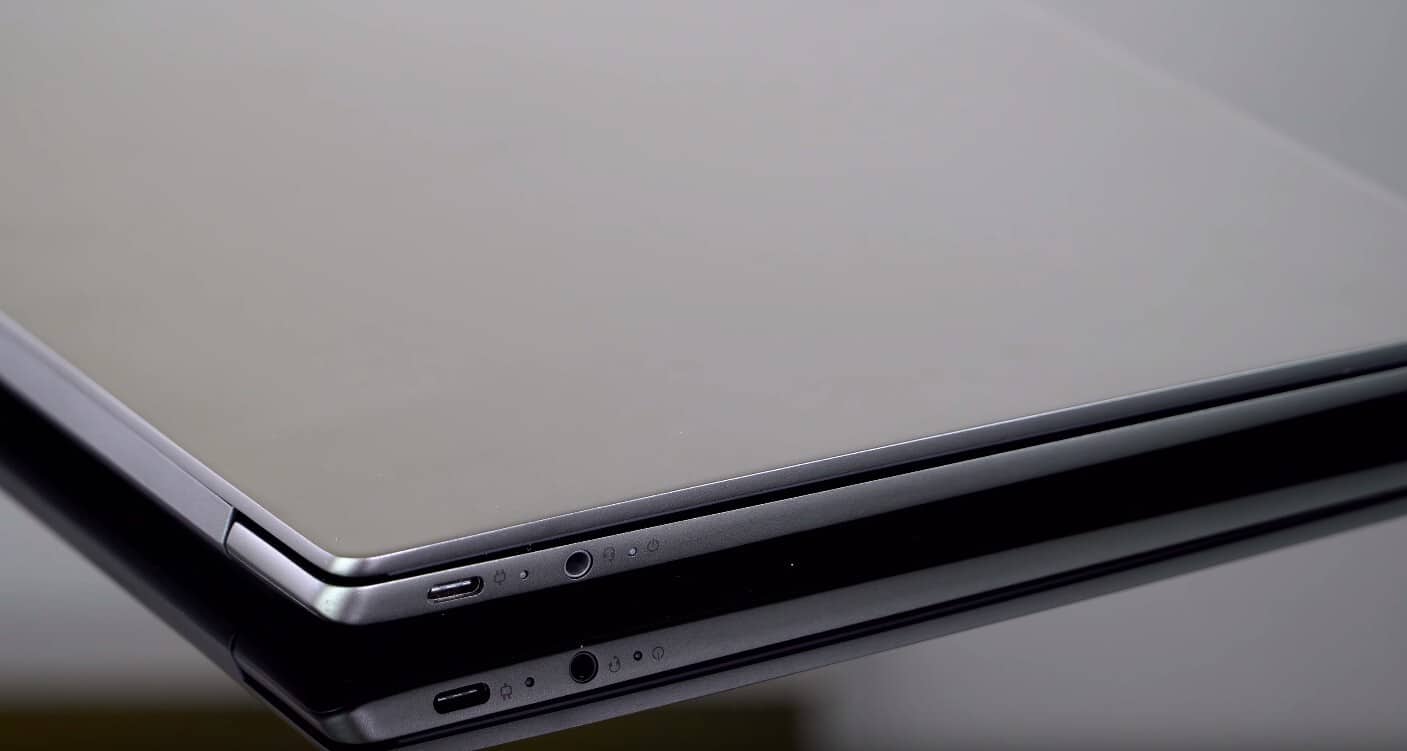
For anyone concerned about space and weight as they lug stuff across a campus, travel by train or bus, or bike ride or skateboard places or simply want flexibility in luggage choices, Lenovo has hit the mark with its design of the 730S. Going forward, any laptop that comes in weighing more than the 730S will have a hard time justifying it as Lenovo also packs a 13.3 FHD display, battery with up to 10 hours and Rapid Charge technology and several USB-C ports.

The Standard for 2019

As I just mentioned, the Lenovo IdeaPad 730S packs a lot for its size and price. While the design of the laptop is a slight refinement over previous models within Lenovo’s lineup, it does feel like Lenovo has found its laptop motif and is now in a polishing phase of production, for better or for worse.

Some people may find the dark grey aluminum 13″ slab design of laptops boring, I find it refreshing. Similar to the Einstein wardrobe philosophy, keeping the design simplistic and standard allows the device to fad into the background and offers the customer the option of personalizing or customizing the device to their liking. In hindsight, Apple may have nailed it with their arguably boring grey aluminum design, as the market for 3rd party decals, covers and keyboard mats is abundant.

Screen

The Lenovo IdeaPad 730S sports a 13.3″ FHD (1920 x 1080) IPS Anti-Glare display that supports up to 4K playback in YouTube (for those concerned about that sort of thing). Unfortunately, the display on gets as bright as 340 NITS, which falls fairly short of the 500 NITS some devices have been topping for the past few months.

The panel on the 730S does support 100% SRGB and about 75% Adobe RGB, enabling some decent photo and video editing depending on the memory configuration a customer gets.

The bezels have been further trimmed on three sides of the screen from top to both sides, however, the bottom lip remains an uneven sized eyesore for people who prefer symmetrically thin bezel displays.

The screen supports 10-finger touch input but its unclear to what the level of sensitivity the screen will support with pen input.

Unlike Lenovo’s slightly more expensive Yoga series, the 730S screen does not fold 360 degrees but rather tops out at the traditional clamshell angel of 180 degrees.

Processing and storage

The Lenovo 730S comes with models that sport either an Intel i5 8265U processor or the i7 8565U variant both able to Turbo Boosts and 6MB and 8MB cache respectively.

While Intel has already become a standard in the processing sector for laptops, the fact that Lenovo is not mucking around with the M-series or tricking customers with i3 variants is something to be acknowledged. Historically, laptop vendors have justified their skimping on processing power by pointing to low price points, but the 730S hits a great price point while offering customers real-world processing functionality.

As for storage, I would have preferred to larger capacity options, but it seems every and their mothers are leaning hard into the use of cloud storage or the evolving market of external storage.

The 730S offers a single model with 128GB solid-state drive (SSD) storage while the other remaining options top out with 256GB SSD selections. Fortunately, the price of external SSD has also come down over the years and supplemented my usage with a  1TB Samsung T5 SSD I got on sale at Amazon.

As for the speed of the device, the model I reviewed came with 8GB LPDDR3 memory and handled fairly decently. Lenovo does offer a 16GB version, but for most people, I believe 8GB can be more than enough to last for 4 to 5 years of college or office work, (dependant on enterprise software).

For my usage, the 730S managed to keep up with my testing of various Fast Ring Insider builds, macros-enabled Excel workbooks, web development, and amateur Visual Studio tinkering.

Where the system seemed to bog down a bit was having both Office applications and Adobe’s Creative Cloud suite open together. While unfortunate, perhaps, not a dealbreaker for most as my situation was compounded by utilizing both suites on a PC that was running an unstable Insider build.

Other intangibles

Despite the futuristic feel of an infrared facial recognition camera for Windows Hello bio-authentication, most OEMs have opted for the more practical fingerprint reader and that trend continues with the Lenovo 730S.

I had little trouble using the fingerprint on the Lenovo 730S despite my sausage-like digits that have given some readers difficulty with recognition.

Going forward, fast and reliable fingerprint readers should be as standard as USB-C ports as well as quick charge, which is another feature of the 730S.

If Windows OEMs can’t overcome the battery usage dilemma that occurs between their stated terms and real-world usage, the next best thing is a laptop that charges that underwhelming battery quickly.

While Lenovo claims the battery should last up to 10 hours, the reality was that I was seeing six reliable hours of mixed usage that included Office 365 apps being open, over 10 Edge browsing tabs open, Twitter PWA, Spotify and a steady stream of tech review videos playing on YouTube via a web browser.

However, with the 730S charger usually within reach, I was able to get about 80% of battery recovery with only about an hour of charging.

Summary

The Lenovo IdeaPad 730S is perhaps the most straightforward ultrabook I’ve encountered in while. The 730S isn’t pitching anything beyond its rather thin footprint (not to be mistaken with uber claims such as the LG Gram) and relatively affordable price.

Customers looking for a detachable, foldable, speakers built-into the hinge mechanisms, OLED screens, massive battery claims or an Always Connected experience should look elsewhere.

Instead, the Lenovo IdeaPad is the go-to device for everyone else. The 730S is a natural fit for former MacBook Air converts, anyone upgrading their Windows 8 device, first-year or graduating high school or college students, and any employee tasked with finding a replacement laptop within a budget.

What customers get for around $750.00 US is a baseline laptop that comes with 2019 baseline specs and features that include standard bio authentication, future-proof USB-C ports, thinner bezel screens, rapid charge technology, and the latest Intel processors.

In 2019, any and every OEM offering a laptop should be able to slot a device in their line up that matches the Lenovo IdeaPad 730S; a no-nonsense feature packed ultrabook for under $800.00 US.

We Hit A Snag Loading Your File: How to Fix it

Skype is certainly one of the best video conferencing software, and one of the reasons is its stability across multiple devices-computers, mobile, and tablets. But many reported getting the We hit a snag loading your file error in Skype when accessing shared files.

The problem has been present for a long time and usually has to do with an issue at the user’s end, even though it doesn’t seem that way. So, let’s find out how you can get things up and running in this case!

Why do I see We hit a snag loading your file?

The issue mostly arises when one tries to download some files from old conversations, meaning you cannot save the relevant files on your devices.

This could be a result of several factors, including:

  • The sender being inactive on Skype: This error has been quite common among Skype users whose partners are no longer on Skype. This means you may not be lucky if the party who sent you the concerned files has deleted their Skype account.
  • Using an incompatible version of Skype: It’s always advisable to use the latest version of any software. So, if an update failed or you just haven’t looked for newer versions recently, update Skype.
  • Skype conversations are stored for only 30 days: A common reason for this error is that Skype stores files, voicemails, and even call recordings on its cloud for only 30 days. Consequently, any content older than 30 days are automatically erased from Skype servers.

What can I do when Skype reads We hit a snag loading your file?

Before we head to the slightly complex solutions, try these quick ones first:

  • Update Skype from Microsoft Store, or if you are using the version downloaded from the web, check for updates from within the app.
  • Ask the sender to log in to their Skype account, and make sure their status is set to online.
  • Access Skype Web and download the file.
  • Disable any VPN or third-party firewall configured on the PC.
  • Make sure you have a fast Internet speed. Also, you could use a wired network if currently accessing the Internet via Wi-Fi.
  • Head to Skype’s status page and make sure the services are up and running.

If none work, move to the fixes listed next.

1. Change the file storage path

  1. Launch Skype, click on the ellipsis near the top left, and select Settings.settings
  2. Go to the Messaging tab, and click on Change Directory.change directory to fix we hit a snag loading your file
  3. Now, choose another directory (folder), and click on Select folder.select folder
  4. Once done, restart the PC for the changes to come into effect, and then try accessing the file.

Users often see the We hit a snag loading your file Skype error when the configured download directory has been deleted or the path is changed. In this case, it’s best that you change the directory.

2. Repair or reset Skype

Tip icon Tip
This solution only works for the Microsoft Store version of Skype. If you downloaded Skype from the web, uninstall the app, and then get it from Microsoft Store.
  1. Press Windows + I to open Settings, go to Apps from the navigation pane, and click on Installed apps.installed apps
  2. Locate Skype, click on the ellipsis next to it, and select Advanced options.advanced options
  3. Now, click on Repair and wait for the process to complete.repair to fix we hit a snag loading your file
  4. Verify whether the problem is resolved.
  5. If not, click on Reset.reset to fix we hit a snag loading your file
  6. Again, click Reset in the confirmation prompt.

The Repair and Reset feature for built-in apps and those downloaded from the Micorosft Store are highly beneficial when fixing errors, including We hit a snag loading your file when downloading files in Skype.

3. Install Classic Skype

Interestingly, downloading Classic Skype does, from time to time, isolate the issue. This will work as a workaround until a patch for the problem is released.

Just remember to log in using your usual Skype ID afterward, and you should be able to access all files that couldn’t be downloaded earlier.

While Skype is one of the most robust communication apps around, it’s not perfect and will have its issues, such as the We hit a snag loading your file.

And if you are looking for alternatives, check our curated list of the most secure video conferencing apps for a safer experience.

For any issues or to share what worked for you, drop a comment below.

Error 0x87dd0006 is back: Xbox Live is down again

Folks, we have a piece of bad news for you today: error 0x87dd0006 just reared its ugly head again. Thousands of Xbox users can’t sign in to their accounts or access previously purchased content.

Microsoft is aware of this issue and is working on a fix.

If you’re running into errors attempting to sign in or access previously purchased content, our teams are aware and working to identify the cause. We’ll update here when we have more to provide.

How to fix Xbox error 0x87dd0006

Meanwhile, you can try to fix this problem by following the troubleshooting steps listed in our  guide.

Or you can simply wait for Microsoft to fix this problem on their end.

This is actually the second time that error is preventing Xbox users from connecting to Xbox Live. Needless to say, users are very angry with Microsoft:

I am entitled to compensation. This has been very poor and has happened several times from Xbox over the last 2-3 days. We the players pay for a service but can’t access it. If we can’t sign in, then we can’t play games. We demand compensation.

We’ll update this news report as soon as new information is available.

UPDATE: It seems that Microsoft has fixed this issue. The majority of Xbox Live users can now access their accounts.

You have one year to upgrade from IE10 to IE11

Windows users, may I have your attention please? Microsoft is giving you a final chance to upgrade to the newer Internet Explorer 11. Internet Explorer 10 is not going to receive any new security upgrades after 2020, as it is moving towards its official end of support.

Initially, Microsoft plans to roll out Internet Explorer 11 Windows Embedded 8 systems and Windows Server 2012  from spring this year. This expected move by the company is expected to bring Windows Server 2012 and Windows Server 2012 R2 in-line with each other. 

The users of Windows Embedded 8 systems and Windows Server 2012 will use pilot rings or test environments to run Internet Explorer 11. It will be done to ensure the smooth running of everything on the safest web browser version.

According to Microsoft, Internet Explorer 11 is going to be the latest version of Internet Explorer. Moreover, any version before Internet Explorer 11 is no longer going to receive any new updates. It’s a part of Microsoft’s latest tactic to push users towards Edge or IE11. 

Microsoft stated that most of its consumer PCs are already running either IE11 or Microsoft Edge apart from Google Chrome. All versions of Windows Embedded 8 Standard and Windows Server 2012 are going to receive IE11 through Microsoft Update Catalog.

Furthermore, Windows Update and Windows Server Update Services (WSUS) will be used to publish the upgrade. It will be a lot easier for the users to migrate to Windows 10, Windows Server 2016 or 2019, or Windows 10 IoT as a result of an upgrade to IE11. 

It is highly recommended that you should not compromise the security of your sensitive data that is being shared through your web browser from time to time. If you are interested in receiving free security updates, you should upgrade to IE11 until January 2020.

Trust us, you are definitely going to love the fluid, faster, greater, performance of IE11 on your PC. You can easily download the update from either Windows Update or Microsoft Update Catalog. 

RELATED ARTICLES:

How to fix GOM Player crashes on Windows 10/11

GOM Player is a highly rated media player that incorporates its own codec system so that it can play most video and music files. Yet, GOM Player still crashes for some users. Some users have stated that the media player crashes when they launch it or when they play a file in it. These are some of the error messages that GOM can throw out:

  • “Wldcore.dll not found”
  • “GOM Player has stopped working”
  • “GOM Player Error 0X00000059”

So GOM Player can throw out a few alternative error messages much the same as other software. There are various potential resolutions for GOM crashes. This is how users can fix GOM crashes.

Potential Fixes for GOM Player Crashes

1. Reinstall GOM Player

When GOM Player crashes at launch, a “GOM Player has stopped working” error message might pop up. Then reinstalling the software can often be one of the best resolutions. That will replace the program’s files and ensure it’s the latest version. Follow the guidelines below to reinstall GOM.

  • Right-click the Start menu button to select Run.
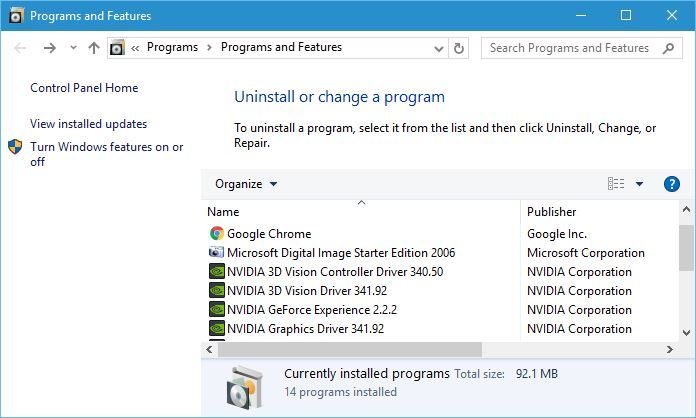
  • Enter ‘appwiz.cpl’ in Run’s text box and click OK to open the uninstaller.

  • Select GOM Player in the uninstaller window, and click the Uninstall button.
  • Select Yes to provide further confirmation.
  • Restart Windows after uninstalling GOM.
  • Thereafter, click Download on GOM Player’s webpage to get the installer for the latest version of the media player.
  • Then open GOM’s installer to reinstall the media player.

— RELATED: 6 of the best 4K media players for Windows 10 to use in 2019

2. Close Background Software

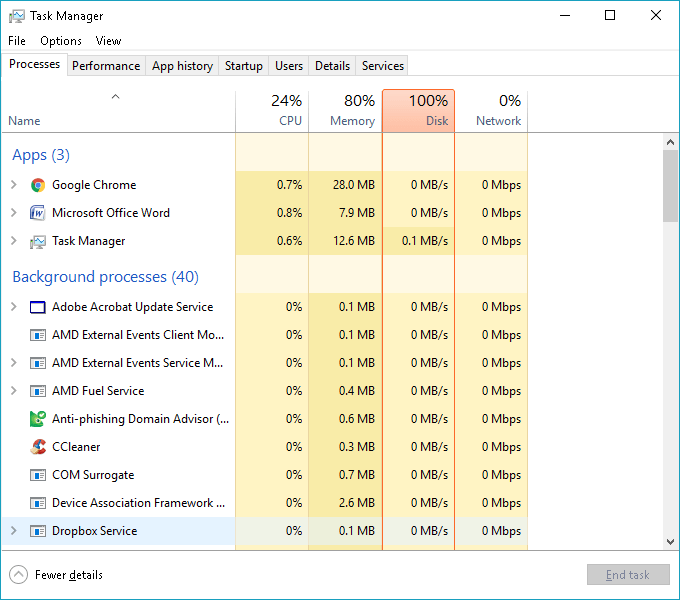
GOM Player crashes can be runtime errors triggered by conflicting software. As such, closing third-party programs that might be conflicting with GOM can fix the media player. Closing other programs will also maximize system resources for the media player. Users can close software with Task Manager as follows.

  • Press the Windows key + X keyboard shortcut to open a menu.
  • Then select Task Manager to open the window shown directly below.

  • Then select programs listed under apps on the Processes tab.
  • Click End task to close the selected software.
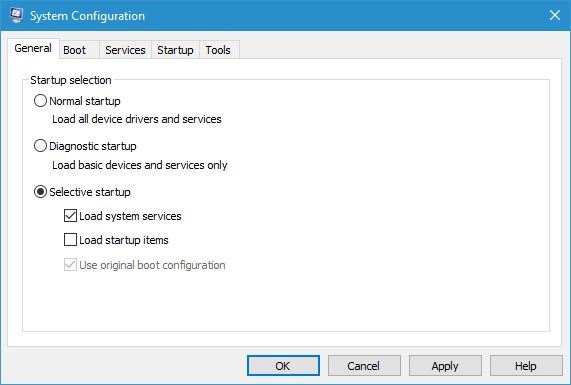
  • Users can also clean boot Windows to remove third-party software and services from the Windows startup. To do that, enter ‘msconfig’ in Run and click OK.

  • Click the Selective startup radio button.
  • Deselect the Load startup items option.
  • Select the Load system services and Use original boot configuration settings.
  • Select the Services tab shown in the shot directly below.

  • Then click the Hide all Microsoft services option.
  • Click Disable all to deselect all the selected third-party services listed on the tab.
  • Press the Apply button.
  • Click OK to close the System Configuration window.
  • A dialog box will then pop up that includes a Restart option. Press the Restart button.

3. Uninstall Third-Party Codec

GOM Player crashes can also be due to conflicting third-party codecs. As GOM incorporates plenty of built-in codecs, additional third-party ones aren’t usually essential for the media player.

Users can remove third-party codecs by entering ‘appwiz.cpl’ in Run and selecting to uninstall them via Programs and Features.

— RELATED: The best cross-platform media players to use

4. Fix the Corrupted Media File

Corrupted media files can also crash GOM Player when users try to play them within the software. If the software crashes when playing video formats it certainly supports, such as MP4, users might need to repair some corrupted files. Users can fix corrupted media files with Stellar Repair for Video, which is retailing at $49.99. However, users can utilize the trial version of Stellar Repair for Video to preview repaired files that are less than 10 megabytes.

  • Click Free Download on the Stellar Repair for Video page. Then add the software to Windows with its installer.
  • Click Add Files to select the media files that don’t play in GOM Player.

  • Press the Repair button to fix the corrupted files.
  • Then users can click Preview to preview the repaired videos.

  • Users can then click Save Repaired Files in the full Stellar Repair for Video version.

Alternatively, check out the Fix.Video web app that fixes corrupted video for $6. That app fixes MOV, MP4, and 3GP files. Click the Upload button on the Fix.Video page to fix corrupted clips.

5. Fixing GOM Player Missing DLL Errors

GOM Player can also throw out missing DLL error messages. Those error messages usually state that a specific DLL file cannot be found. GOM probably won’t start when a DLL error message pops up. Those types of error messages are often due to a corrupted or missing (deleted) DLL file. Thus, users can fix missing DLL errors with the System File Scanner, which repairs corrupted files, or by replacing the missing file with a new DLL.

  • To fix corrupted DLL files with the System File Checker, press the Windows key + X hotkey and select Command Prompt (Admin).
  • Enter ‘DISM.exe /Online /Cleanup-image /Restorehealth’ in the Command Prompt and press return to run Deployment Image Servicing.
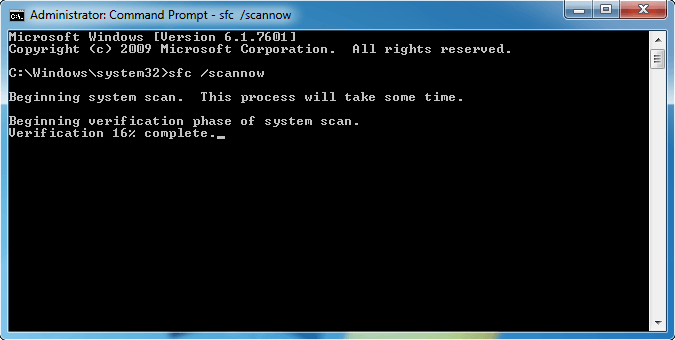
  • Then input ‘sfc /scannow’ in the Prompt, and press the Enter key.

  • Windows Resource Protection might repair corrupted system files. Restart Windows 10 if it does.

DLL error messages pop up when a required DLL for the software has somehow been deleted. Users can get a replacement DLL for the missing one from numerous DLL directory websites. Not all those sites might be entirely reputable sources, but DLL-Files.com is among the more reputable DLL file providers. Follow the guidelines below to get a new DLL from DLL-Files.

  • Open the DLL-Files.com website in a browser.
  • Enter the file title in the site’s search box, and press the Search DLL file button.
  • Then click the DLL file link found.

  • Click Download to download the latest DLL file version. Note that users with 32-bit Windows platforms must download a 32-bit DLL.
  • Open the DLL’s ZIP file in File Explorer.
  • Press the Extract all button to open the window below.

  • Click Browse to select a folder path to extract the ZIP to.
  • Then click the Extract button.
  • Open the extracted ZIP in File Explorer.
  • Thereafter, drag the DLL file into either the C:WindowsSysWOW64 or C:WindowsSystem32 folder. The SysWOW64 folder is for 32-bit files and the System32 is for 64-bit DLL files.
  • Select the Replace the file in the destination option if a Replace or Skip Files dialog box window opens.

  • Click Restart on the Start menu to reboot.

Those resolutions can fix various GOM Player crashes in Windows 10. Remember, however, that there are still some great freeware alternatives to GOM. VLC, 5K Player, and KMPlayer are three of the best alternative media players that play the vast majority of video and music file formats and include a plethora of multimedia options.

RELEATED ARTICLES TO CHECK OUT: 

Windows 10 19H1 Build 18329 is out with Windows Search Improvements, Win32 apps support in Windows Mixed Reality

It’s quite unusual for Microsoft to release a new Windows 10 Insider build so late on a Friday, but here it is: the 19H1 build 18329 is now available for Fast Ring Insiders, though this time the team hasn’t been able to compile it in all languages for all different Windows 10 editions.

Unfortunately, if you’re using Windows 10 in one of the following languages, you won’t be able to download this build today:

  • Windows 10 Home: RO-RO, SK-SK, SL-SI, SR-LATN-RS, TH-TH, UK-UA
  • Windows 10 Home N: RO-RO, SK-SK, SL-SI
  • Windows 10 Pro: FR-CA, IT-IT, JA-JP, KO-KR, NL-NL, PL-PL, SR-LATN-RS
  • Windows 10 Pro N: RO-RO, SK-SK

The most interesting new feature in the build 18329 is the new support for legacy Win32 apps in the Windows Mixed Reality environnement. This means that it’s finally possible to run desktop apps like Google Chrome, Spotify or Visual Studio Code in Windows Mixed Reality. All these apps will be available when you open the Pins Panel, then go to all apps and open a folder named “Classic Apps (Beta).”

Microsoft recently separated Cortana from Windows Search, and in the build 18329 you’ll notice that the apps you use the most should now appear in a “Top Apps” section above your recent activities. Microsoft says that this is a server-side change, so you should also see this change on previous 19H1 builds.

The build 18329 also introduces ADLaM and Osage keyboard support, and the new Dark Mode improvements in Mail and Calendar that recently shipped to select insiders (including the dark background when you compose a new email) should now roll out to everyone on the Fast Ring.

Last but not least, this build comes with a long list of bug fixes and known issues which you can read below. Please note that Microsoft has also solved an issue causing Win32 apps to take much longer to launch in previous builds:

General changes, improvements, and fixes for PC

  • REMINDER: The new tamper protection setting in the Windows Security app protects your device by helping to prevent bad actors from tampering with the most important security settings. The setting is designed to be on by default, however the default state is not currently in effect for current Insider Preview builds. You may see a new recommendation in the Windows Security app suggesting you turn this setting on.
  • We fixed an issue resulting in many Win32 apps having an unexpectedly long launch time due to being incorrectly suspended by the OS in the last two flights.
  • We fixed an issue where the Windows Insider Program settings pages via Settings > Update & Security > Windows Insider Program had a bug preventing Narrator and Screen Reader programs from properly reading the page.
  • We fixed an issue from the previous flight where Desktop Window Manager would crash if multiple Office and/or video playback applications were running on the same screen on devices with Multiplane Overlay Support.
  • We fixed an issue resulting video playback going black after rotating a device from landscape to portrait.
  • We fixed an issue resulting in a green screen with error Kernel_auto_boost_lock_acquisition_with_raised_irql when using an Xbox controller with your PC.
  • We fixed an issue resulting in USB devices, including mice and keyboards, potentially not working after updating to recent builds.
  • We fixed an issue resulting in intl.cpl hanging when copying settings.
  • We fixed an issue resulting in Microsoft Edge not being able to access local IPs.
  • We fixed an issue resulting in not being able to extend your monitor to a second screen connected via Miracast.
  • We fixed an issue where when you opened a new Notepad window and pressed CTRL + F, the Find window would unexpectedly be populated with the search query from the last time the Find window was used in a previous Notepad instance.
  • We fixed an issue from the previous flight that caused consistent black screens when using Remote Desktop, DisplayLink, or Miracast if you are on an AMD or Nvidia driver.

Known issues

  • The Windows Security app may show an unknown status for the Virus & threat protection area, or not refresh properly. This may occur after upgrade, restart, or settings changes.
  • Launching games that use anti-cheat software may trigger a bugcheck (GSOD).
  • Creative X-Fi sound cards are not functioning properly. We are partnering with Creative to resolve this issue.
  • While night light functionality is back up and running, you may still find issues with other blue light reduction software not working.
  • When performing Reset this PC and selecting Keep my files on a device that has Reserved Storage enabled the user will need to initiate an extra reboot to ensure Reserved Storage is working again properly.
  • Some Realtek SD card readers are not functioning properly. We are investigating the issue.
  • The value in Narrator Settings “Change the level of detail Narrator provides about text and control” might be empty. To work around this issue, use the Narrator command Narrator key + v to change the verbosity level, then close and reopen Settings app again.
  • After upgrade, there might be two Narrator voices talking at the same time. Reboot the machine once, this issue will go away.
  • Windows Sandbox may launch to a black screen for some users.
  • Taskbar icons may stop loading and appear blank.
  • Some of the Real-Time Protection options for Malwarebytes Premium are not able to be turned on.
  • You may see an error when unzipping files.
  • The brightness slider may not work.
  • Opening Color filters setting in the Ease of Access setting will crash the Settings app.

Known issues for Developers

If you install any of the recent builds from the Fast ring and switch to the Slow ring – optional content such as enabling developer mode will fail. You will have to remain in the Fast ring to add/install/enable optional content. This is because optional content will only install on builds approved for specific rings.

Microsoft chose to release this new build while the 19H1 Bug Bash is still ongoing, and you still have until Sunday, February 3 to complete Quests in the Feedback Hub. As usual let us know in the comments if you encounter any issues after updating.

Top 5 emulators to use for Nvidia Shield TV

The Nvidia Shield TV is an incredibly versatile entertainment console that runs on Android TV OS and offers a great range of features. You can use Shield as any other media player, to watch your favorite TV shows, movies and YouTube clips, but what makes this console stand out from the crowd is its ability to offer a gaming experience as well.

This console comes in  different packages, each tailored to fit the needs of different types of users. You also have the option to buy the basic Shield TV package, and then you can add the Shield controller. You can also buy separate Shield stands or remotes.

Here are some other pre-made configurations offered on the official website:

  • Shield TV package – contains the SHIELD remote and Google Assistant 
  • Shield TV Gaming Edition – includes SHIELD remote and controller with the Google Assistant with hands-free capabilities
  • Shield TV Smart Home Edition – has SmartThings Link for adding other compatible devices, SHIELD remote and Google Assistant
  • Shield TV Pro – has a 500GB built-in hard drive for Plex Media Server, and also has the SHIELD remote and the controller with hands free feature

Because of the fact that the Nvidia Shield has a first party controller, developers can adapt the way they emulate games in order for you to have the best experience possible.

One of the best features of this media player is the fact that you can play retro games from multiple platforms – NES and SNES, Game Boy, PlayStation, Sega CD, N64, and many others, by using an Android emulator.

In order to get started emulating Android games on your Nvidia Shield TV, you will need a compatible emulator software, a good Android file explorer like Solid Explorer , and a spare USB drive on which you will load your ROMs. It is worth noting that the USB drive you decide to use has to be formatted as NTFS, exFAT or FAT32.

In this article, we will explore some of the best emulator software options on the market, that are compatible with your Nvidia Shield TV. First, we will start with software that can emulate a varied range of gaming consoles, and then we will look at some other software options that have specific compatibility requirements.

5 amazing emulators for Nvidia Shield in 2019

RetroArch

RetroArch - emulators for Nvidia Shield

RetroArch is a great emulator that can adapt easily to various game engines and media players, and is fully compatible with the Nvidia Shield TV. This emulator allows you to run classic games from a good looking user interface that organizes your game collection in one easily accessible screen.

Using this software you can emulate a wide range of consoles – PlayStation 1 (PS1), Super Nintendo (SNES), Nintendo Entertainment System (NES), Sega Master System/Sega Game Gear, GameBoy/Gameboy Color, Nintendo 64 (N64), and others.

Here are some of the best features of RetroArch:

  • Automated scanning and sorting of your collections
  • Great app library with constantly expanding apps and built-in Core Updater
  • Can also run on Android phones and tablets, and also gaming consoles like PS3, PSP, etc.
  • Quick response time with no latency
  • Great customization options
  • Joypad auto configuration
  • Shaders – graphical filters that render your old games to better quality
  • Can host and join network gaming sessions
  • Recording and streaming abilities to Twitch.tv or YouTube

Even thought this app has such a wide range of features and compatibility options with different gaming platforms, RetroArch is not a very user friendly application, as the interface can be tricky to understand and use by beginners.

If you have any questions regarding the use of this software, you can check out the official RetroArch FAQ webpage , or if you want to ask your own questions, visit the official forum.

— RELATED: 5 best emulators for PUBG Mobile on PC for a new gaming experience

ClassicBoy

ClassicBoy - nVidia Shield emulators

ClassicBoy is another great emulator software that allows you to play your favorite old-school games on your Nvidia Shield TV.

Even though the name might make you think that this app is only for emulating Nintendo games, this app has a wide range of emulating capabilities that include different consoles – PlayStation 1, Nintendo 64, Gameboy Classic, Color, and Advance, NES, and Sega Genesis.

All the above mentioned platforms are built-into this software, but if you want to emulate games from Super Nintendo platform as well, you will need to manually download it from the Plug-ins tab.

ClassicBoy has all the emulation capabilities of the RetroArch emulator, but it has a much more user-friendly interface that makes it easy to organize your games collections.

Let’s explore some of ClassicBoy’s features:

  • Can save your game progress and allows you to instantly resume gameplay
  • Cheat codes capabilities for all emulators
  • Can customize controls and multiplayer capabilities
  • Customize rendering resolution for a better visual quality
  • Great performance in emulation with up to 60fps
  • External joystick and keyboard input by key mapping

Download ClassicBoy from GooglePlay

— RELATED: 3 Android emulators without ads to install on Windows 10

MD.emu

MD.emu - nVidia Shield emulators

MD.emu is a great emulator software that is fully compatible with your Nvidia Shield TV, and allows you to emulate Sega games.

With this software, you can emulate Sega games, and also Master System gaming platforms.

Here are some of MD.emu’s most notable features:

  • Accurate sound emulation with high-quality resampling
  • Supports cheat codes using .pat file format
  • Can backup and load saved states
  • SVP chip support – requires a fast device
  • 6-button controller and 4-player multitap support
  • Supports ROM-based games in .bin, .smd, .gen, and .sms formats
  • Customizable multi-touch controls
  • Supports HID Bluetooth/USB gamepads and keyboards, and also Wii controllers

If you want to try out this emulator and don’t have any ROMs at hand, you can try out some public domain demos and games, by clicking here.

You can download the games you want to your hard-drive or USB stick, and then easily transfer the files.

Download MD.emu from GooglePlay

— RELATED: 4 great Linux emulators for your Windows 10 PC

My Boy!

MyBoy! - nVidia Shield emulators

My Boy! is another useful emulator that is compatible with your Nvidia Shield TV, and allows you to emulate Game Boy Advance games with ease.

This software can emulate your favorite games fast, and this allows you to save battery and not waste any time trying to figure out how it works. MyBoy! is compatible with almost all GameBoy Advance games, and it allows you to emulate your devices through cable, Bluetooth, or Wi-FI.

Let’s explore some of the best features found in MyBoy:

  • Multiline cheat codes from GameShark, ActionReplay, CodeBreaker
  • Great BIOS emulation without any BIOS files needed
  • IPS/UPS ROM patching
  • OpenGL compatibility for devices with GPU, and normal rendering on devices without CPU
  • GLSL shaders – great video filters
  • Can save the game at any time and sync them with Google Drive
  • On-screen keypad
  • Screen layout editor – allows you to customize the position and size of all on-screen controls
  • External controller support
  • Key mapping with the ability to save settings and re-load them when needed

If you want to emulate GameBoy Color games, you will need to download the My OldBoy! emulator from the same company . You can download the emulator for GB Color from the GooglePlay Store.

Download the paid MyBoy! version from GooglePlay

Download the free MyBoy! version from GooglePlay

— RELATED: Windows 10 ARM emulator: What it is and what it does

PPSSPP

PPSSPP - nVidia Shield emulators

Last but not least, the PPSSPP emulator is another great software option that gives you the power to play PSP retro games on your Nvidia Shield TV.

In order to get you started as fast as possible, this emulator offers great support and controller auto-mapping features, can run a wide range of compatible games, and does it with high definition quality.

You can get your real PSP game collection and turn them into .ISO or .CSO files in order to play them on your Shield media player, by transferring them to your SD card or USB storage.

You can find a great range of guides on the official help webpage , or access the PPSSPP forum.

Download PPSSPP from GooglePlay

Conclusion

Have you ever wanted to play your favorite old school classical games on your Nvidia Shield TV, but didn’t know how to go about it? With the information we provided you in this article you are surely able to make an informed decision regarding which emulator would work best for you.

If you just want to start playing as fast as possible, we recommend that you get either RetroArch or ClassicBoy, as these options offer a far more varied set of emulating capabilities with different old school gaming platforms.

You can use MD.emu to easily emulate and play Sega games, and also MyBoy! to play GameBoy Advance games. In case you want to to emulate GameBoy Color games, you will need the My OldBoy! emulator, or the PPSSPP emulator for playing classical PSP games .

We would love to know what Nvidia Shield TV emulator you chose from this top 5, and how it performed for you. Please feel free to let us know what your opinions are in the comment section below.

RELATED GUIDES YOU NEED TO CHECK OUT:

9 best VR zombie games to play on Steam

Steam is a very rich resource for VR zombie games. The gaming platform regularly updates its offer to bring you the latest games. We’ve already reported about a series of zombie games currently available on Steam, and now we’re going to list the best VR zombie games you can find on this platform.

Best VR zombie games to play on Steam


1. Arizona Sunshine

arizona sunshine vr zombie game


Arizona Sunshine sends you right in the middle of a zombie apocalypse. Move around and explore a post-apocalyptic world, while making sure that the undead go back to their graves.

The game offers co-op multiplayer support. Of course, more brain means that more hungry undead will attack you. Work together and neutralize the waves of undead who are trying to get you.

Arizona Sunshine is developed from the ground up for HTC Vive and Oculus Touch. You’ll enjoy the best VR experience on an Intel Core i7 processor computer or equivalent.

You can purchase Arizona Sunshine for $39.99 from Steam.


2. Zombie City Defense 2

Zombie City Defense 2 game

If you’re looking for a more challenging VR zombie game, then Zombie City Defense 2 is the right choice for you. The game is set in a world devastated by a virus turning humanity into zombies. You are humanity’s last hope, as you travel the world to find resources, help people and find answers.

Build your strategy as you deploy your units on the field, improve your base, fortify buildings to place your snipers there and do medical research to find a cure for this terrible disease. The weather and the environment can influence the success of your missions.

You can buy  Zombie City Defense 2 for $9.99 from Steam.


3. HordeZ

HordeZ game


If you want fast and simple gamplay action, check out HordeZ. The game will immerse you in a creepy world of zombies and demons and you need to use your skills to survive and climb the leadboards.

In a nutshell, HordeZ offers a non-stop VR carnage experience. Practice your shooting skills in order to perfect your headshots. You can use them to immediately take out zombies.

HordeZ is one of the few games that allow you to blow up both zombies and demons. There is also an impressive variety of weapons available, that includes: katana, guns, machineguns or grenades.

You can buy HordeZ for $19.99 from Steam.


4. Survival VR

survival VR game

Survival VR is a VR zombie shooting survival game designed for the HTC Vive. As a player, you task is to kill waves zombies in order to survive. Don’t be nice, shot them in the head and struggle for survival. This is indeed a very creepy game, and you are under constant attack from all directions.

However, do manage you bullets wisely, because you’ve only got two guns and limited bullets. Survival VR features easy controls and a nice damage system that make this game easy to master. The only disadvantage of this game is the limited number of weapons, but Newsight Games already promised it would add more weapon models in the future.

You can purchase Survival VR for only $2.99 from Steam.


5. Killing Zombies

Killing Zombies VR game

Yes, the title of this game says it all. Your tasks is to stay alive in a hard environment where the undead are coming in from all angles. Your mission is simple: kill them all.

Killing Zombies is a 4 player online co-op zombie shooter for the HTC Vive. There are 30 varieties of weapons to choose from, and you’ll gain points as you survive the massive waves of zombies coming from all directions.

You can buy Killing Zombies for $4.99 from Steam.


6. One of the Last

One of the Last VR zombie game

As the game‘s title suggests, you are one of the few humans not yet affected by the zombie virus. You can play online or on your own and explore a world full of challenges and puzzles. Don’t spend too much time looking for clues or admiring the view because hoards of zombies are coming to get you.

As you explore your environment, you’ll find ancient relics. Use them to enhance your weapons and bring down curses upon the undead. It is worth mentioning that One of the Last is currently an Early Access game and supports only the HTC Vive VR headset. Nevertheless, this title is more challenging and complex than many other zombie games out there.  You can buy it for $12.99.


7. Armed against the Undead

Armed against the Undead

Armed against the Undead brings hordes of zombies and other monsters. The only chance to stay alive is to grab your guns, and shoot the zombies with no mercy. Fortunately, there’s a wide array of weapons you can choose from.

You’ll encounter various scary creatures such as zombies, creepers, ghasts and giants, and they’re not at all friendly. Making it out of the city is definitely not an easy task. The game is compatible with the HTC Vive.

You can buy Armed against the Undead for $19.99 from Steam.


8. Zombie Riot

Zombie Riot

ZR is a survival game that puts your wits to the test. If you want to stay alive, you need to use your surroundings to hide from vicious zombie attacks as well as find weapons to destroy the walking dead.

If you prefer quick solutions, you can simply purchase powerful weapons, such as Dual Pistols or assault rifles.

Get ZR from Steam


9. Zombie Buster VR

Zombie Buster VR

Zombie Buster VR is a game that offers excellent graphics. You’ll fall in love with this shooting VR game from the first minute of gameplay.

The action takes place at the last stage of the Mars colonization project in AD 2075. A rare mutant bacteria creates mutant zombies and monsters that killed absolutely all the scientists who worked on Mars. You’re part of a secondary investigation team whose mission is to eliminate all those naughty monsters.

Get Zombie Buster from Steam

That’s about it for our VR zombie game list. Happy zombie hunting!

RELATED STORIES YOU NEED TO CHECK OUT:

LEGO Batman 2 and Port Royale 3 video games gain Xbox One backwards compatibility

The Xbox One’s library of backwards compatible Xbox 360 video games continues to grow with LEGO Batman 2: DC Superheroes and Port Royale 3 both being added today.

LEGO Batman 2: DC Superheroes is the first sequel to the original LEGO Batman 2 video game. It continues the LEGO-style Dark Knight crime-fighting gameplay of the original but also introduces a large number of other popular DC Comics characters into the mix such as Superman and Wonder Woman that add more character and playstyle variety.

Port Royale 3 is a naval battle video game set in the Caribbean which gives the player the option of focusing on building trade routes or attacking and stealing from rival ships and their crews. The game originally came out on the Xbox 360 in 2012, and it shows, however it will still appeal to those who are searching for a strategy and simulation title set at sea.

Do you own either of these games and will you now be playing them on the Xbox One? Let us know in the comments below and then follow us on Pinterest for more Xbox gaming content.


Port Royale 3
Port Royale 3
Developer:
Kalypso Media
Price:
$19.99

Android and iOS Xbox apps add ability to download screenshots and clips

After testing for the two features began on the Xbox beta apps just a few days ago, the main Xbox apps for Android and iOS devices can now download screencaps and game clips and share them via social media beginning today.

These features came as part of today’s updates to the Android and iOS apps which should be available in all regions by now.

Here’s the full release notes:

  • Share game captures with friends. In response to your feedback, we’ve added the ability to share game captures with friends and across social media
  • Easily save to phone. Save your game clips and screenshots to your phone
  • From your Captures page, click the existing share button to view these new options

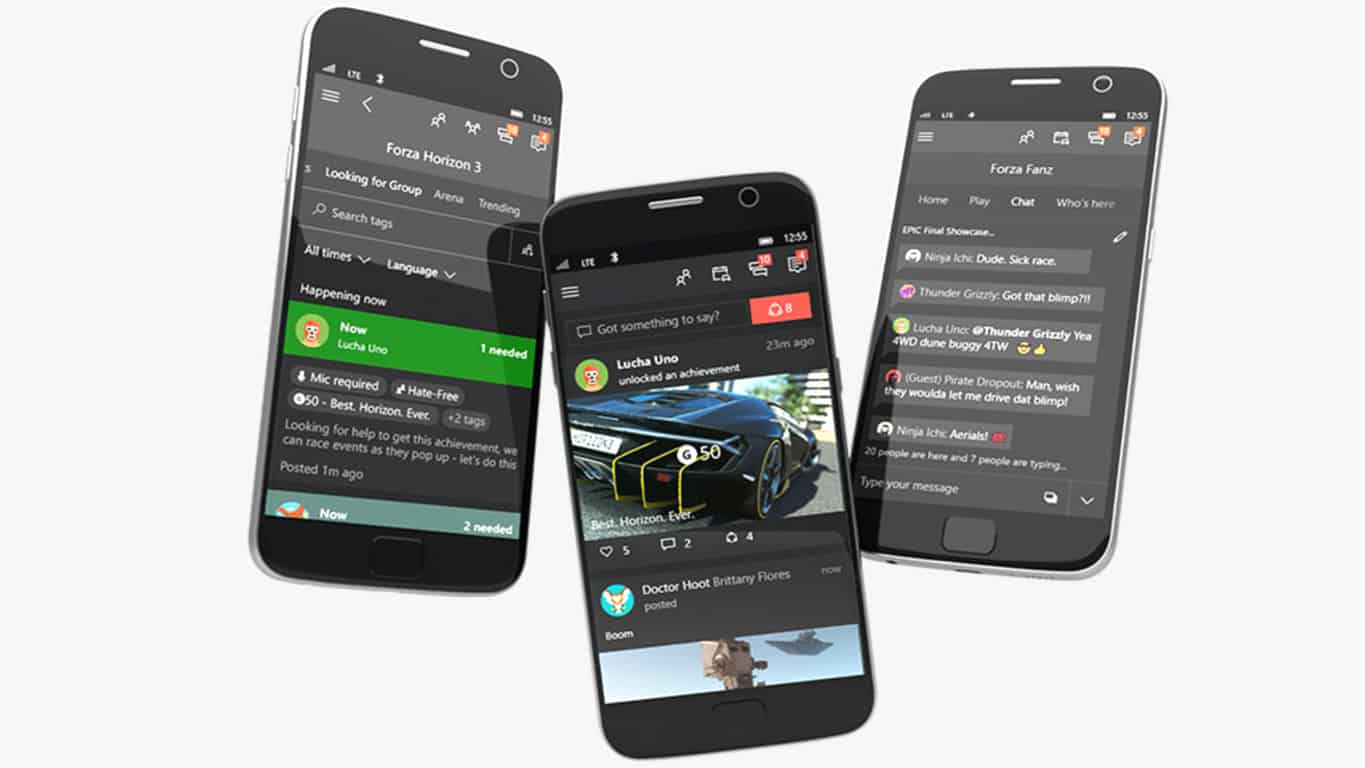
The official Xbox apps are a convenient tool for Xbox One loyalists as they let gamers add and remove friends, view friend activity, and activate game downloads without having to start up their consoles.

Do you use the Xbox app on your smart device? Let us know what you think of these new features in the comments below and then follow us on Pinterest for more Xbox gaming content.

‎Xbox
‎Xbox
Price:
Free


Xbox
Xbox
Price:
Free

Xbox Live Multiplayer is free on Xbox One and Xbox 360 this weekend

Starting today and continuing through the weekend, Microsoft is enabling online multiplayer for all users of its Xbox One console, with or without a subscription to Xbox Live Gold. This means a subscription will not be required to play on multiplayer-only titles, such as Fortnite, Overwatch, and Elder Scrolls: Online, or any other other multiplayer game for that matter.

If you’ve been trying to convince a friend who isn’t willing to shell out the few bucks a month for Xbox Live Gold, now’s the chance to try out online multiplayer in action to help him or her realize they can’t live without it. The promotion is running for just four days only, starting today (January 31) and ending on February 3.

This is also a good way to help pass the time before the next season of Inside Xbox, which will be livestreamed February 5. As we already mentioned, you’ll be able to stream it on Mixer, plus other platforms such as Twitch, YouTube, Facebook, and Twitter, and earn free goodies if you use Microsoft’s streaming alternative over the others.

How will you be taking advantage of the promotion? Do you know any body that would benefit from it? Your thoughts are welcome below.

Office 365 to set Office.com as start page for all Office 365 commercial users

Microsoft is about to make Office.com the default landing page for Office 365 customers when they log in. The company announced the change on its Microsoft 365 roadmap this week, and Office.com should become the default start page for all Office 365 commercial users in March.

As of today, it’s possible for Office 365 customers to set their own start page when they log into Office 365. But as Microsoft updated Office.com to highlight recently used apps as well as recommended files and places, it seems that the company now considers Office.com as a good enough landing page for all commercial users.

This arbitrary change is likely to be problematic for some Office 365 customers, as is the recent move to make OneDrive/SharePoint Online the default save location for Office 365 files. There are probably many Office 365 customers who never check Office.com, though adding your favorite Office 365 apps to your bookmarks should be a good-enough workaround for most users.

Will you be bothered by this change, and do you think Microsoft should continue to let Office 365 customers choose their favorite landing page? Sound off in the comments below.

Former Google Cloud exec to head up Microsoft’s GitHub

Open source repository GitHub has announced the hire of former Google Cloud Platform product management director Shanku Niyogi as its head of product development.

Niyogi, who spent the past the last year working on Google’s Cloud product development, is essentially returning to Microsoft in a different capacity. Prior to his year at Google, Niyogi spent a twenty-year chunk of his career working for Microsoft as a general manager and director for Visual Studios.

Now that Microsoft has become the parent company of GitHub, Niyogi’s hire seems a like match made in heaven as his relationships with the IDE community of Visual Studios may help him integrate needed bridges to the open source development community he’ll now be advocating for.

“At GitHub, we want to be the home for all developers. Over the years, I’ve had a chance to work on a number of developer products- including Visual Studio Code, Typescript, .NET, Kubernetes, Go, and Chef. None of those would have had the impact they did without passionate developer teams, strong open source communities, and the homes they had on GitHub.”

Microsoft has already done some of the heavy lifting in attempting to merge the two historically opposing worlds of open source and Windows development by putting Visual Studio Code on GitHub and open sourcing that project.

However, as Microsoft’s reliance on Windows continues to dwindle, it seems Niyogi’s future may be more of spurring Microsoft-friendly enterprise development and specific tools for the company’s new revenue hoarder, Azure cloud.

“Businesses of every size are becoming software organizations and finding that they have to innovate faster than ever. Doing so doesn’t just require the right tools-companies also need the right talent. With GitHub, every enterprise has the potential to connect with a community of more than 31 million developers, their code, and their software practices, securely and effectively.”

GitHub and Microsoft’s future ambitions appear to be on parallel tracks and it seems as though its only a matter of time before they converge fully.

Microsoft’s Xbox Adaptive Controller to get more airtime with new Super Bowl ad

Microsoft posted a video online which is expected to run during the Super Bowl this Sunday (via MSPU). The commercial featured differently-abled children as they struggle to use traditional Xbox wireless controllers. In the commercial, one of the boys says that “I never thought that it was unfair, I just thought this was the way it is, and it’s not going to change.”

However it’s hard not to feel the heartwarming message when Microsoft gives these children their Xbox Adaptive Controller, allowing them to play just as competitively as others. It shows the company’s commitment to support all gamers, no matter their ability. You have to see for yourself in the video:

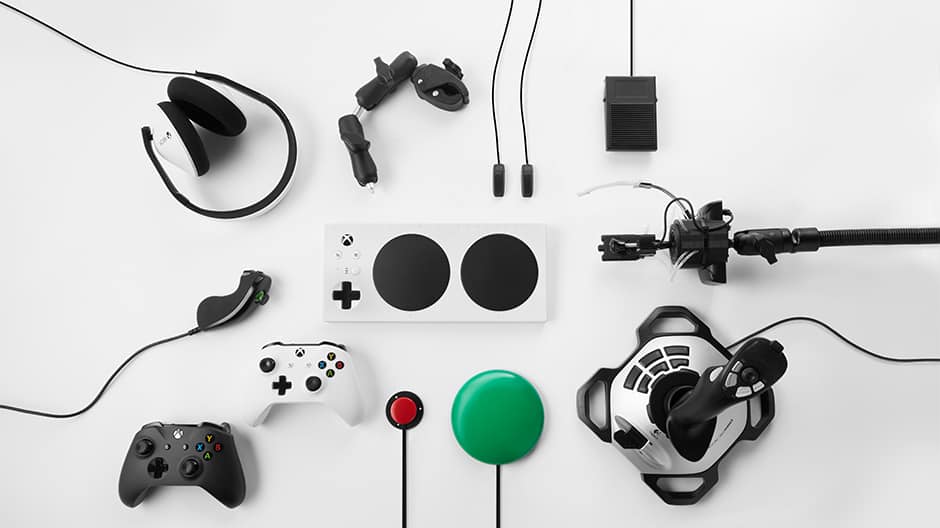
The Xbox Adaptive Controller was released last fall to support people who don’t sport the same mobility as the rest of us. In addition to its programable touchpads, the controller supports additional switches, buttons, joysticks, and mounts to support additional accessibility.

Xbox Game Pass starting to pay off as gaming revenue had best quarter ever

Xbox Game Pass is starting to pay off for Microsoft, at least that’s according to a report by gamesindustry.biz. As noted in the report, Microsoft CEO Satya Nadella said that this is the “largest gaming revenue quarter” in Microsoft’s history, as part of yesterday’s earnings call.

In a three-month period that ended on December 31, 2018, Microsoft earned revenue in the amount of $4.23 billion from its Xbox games, which is a 8% increase in revenue from last year. Most of the revenue increase came from Microsoft software and services, including a 31% increase in sales revenue from third-party games sales, Xbox Game Pass and Xbox Live Gold subscribers.

Nadella commented on the revenue increase in represented “the highest number of mobile and PC users to date.” Nadella added that Microsoft sees a positive outlook for gaming on Xbox and other platforms.

“Our investments in content community and cloud services across every endpoint drove both record user engagement and record average revenue per user and contributed to our largest gaming revenue quarter ever, driven by software and services. Xbox Game Pass subscribers and Mixer engagement also hit new all-time highs.”

Also in the second quarter, Microsoft bought two more game studios, Obsidian Entertainment, and inXile Entertainment. In all, Microsoft now has 13 internal game development studios. In the last six months, Microsoft more than doubled its first-party game content capacity for Xbox One and Windows 10 PCs. Since Sony will not be attending E3 2019, Microsoft hopes to continue to gain revenue in the next year with gaming on Xbox and Windows 10. Stay tuned.

Microsoft will increase investments in North East India to help in the region’s digital transformation

Microsoft India has announced plans to increase investments in the eight north-eastern states of India. The company aims to leverage the power of its AI and cloud technologies to partner the region in its digital transformation.

The company will focus on the education sector, enhancing transportation and utilities, and enabling better citizen services in the North East by harnessing the power of artificial intelligence and cloud technologies.

Microsoft has also signed an Memorandum of Understanding (MoU) with the Government of Sikkim today to revamp the educational system in the state. Under the MoU, Microsoft will support the state of Sikkim to build new age tech capacity among students and faculty in government schools in the state. The company will integrate IT content in the state board curriculum for grades 6 to 10 to build student capacity and build teacher capacity through the Microsoft Educator Network and Innovative Educator Program.

As part of the Microsoft Innovative Schools Program, the company will adopt two schools nominated by the government to train their teachers and students on Microsoft’s curriculum on creative coding and gaming through apps, robotics, entrepreneurship and tools for collaboration, creativity, and communication.

As part of its Innovative Educator Program, Microsoft will train all educators of primary, secondary, vocational and tertiary education to help them use ICT effectively and innovatively in the classroom.

To enhance digital literacy and digital citizenship, Microsoft will train a batch of 20 District Education officers (DEO) and Principals of the Government Schools nominated by the government on Microsoft Digital Literacy Curriculum & Certification who will go on to further train other schools within their district. Microsoft shall share an online platform to undertake a digital literacy certification after successful completion of the course.

Microsoft, the only provider of services across all three clouds in the country – private, public, and hybrid cloud, was the first global public cloud service provider to be accredited by the Ministry of Electronics and Information Technology (MEITY) and has three datacenters within the country – in Pune, Mumbai, and Chennai.

Microsoft cloud currently powers close to 150 government departments and State Owned Enterprises countrywide and has also recently been empaneled by the Government of Punjab for its cloud services.

Line chat app updates on Windows 10 with funky DM background effects

The official Windows 10 Line app updated today with a similar feature present in Facebook that activates special animations when certain words are used in chat. This update also added a new option for adjusting video playback speed and fixed the usual ambiguous bugs and glitches.

Here’s the official release notes for the Version 5.13.0 Line update:

  • Added fun chat background effects for special occasions or when certain keywords are used.
  • Playback speed can now be adjusted in the video player.
  • Minor bug fixes and other small improvements

Line is one of the most-popular chat apps right now though most of its userbase is located in Japan, Taiwan, and South Korea. It’s had an official app on Windows 10 for a while now that’s mostly been ignored but it’s recently been getting a significantly higher level of support with more frequent updates and new functionality being added.

Recent Windows 10 Line updates added Timeline post and chat translations, markdown support for chats, native Windows 10 notifications, new report options, and paid emoji.

Do you use Line on your Windows 10 device? Let us know in the comments below and then follow us on Pinterest for more Windows 10 app content.

(Old)LINE
(Old)LINE
Developer:
LINE Corporation
Price:
Free

February’s Games With Gold video games are now live on Xbox One consoles

February’s Games With Gold video games are now available to claim and download for Xbox Live Gold subscribers on the Xbox One one day early.

The first game is Assassin’s Creed Rogue which originally launched on the Xbox 360 back in 2014. It eventually got a remastered re-release for the Xbox One so it’s important to note that the one being given away today isn’t that one but the original Xbox 360 version.

The second game is Bloodstained: Curse of the Moon, an Xbox One title that just came out in mid-2018. It’s a 2D action-platformer that draws heavily from retro arcade games such as Castlevania. Given that it usually sells for just $9.99, this free giveaway isn’t too exciting but free is free and it is an Xbox One game that not many would have played.

Are you happy with February’s first Games With Gold titles? Let us know why or why not in the comments below and then follow us on Pinterest for more Xbox gaming content.

Assassin's Creed® Rogue
Developer:
Ubisoft
Price:
$29.99


Bloodstained: Curse of the Moon

Google Chrome will support mixed reality headsets

Mixed reality is Microsoft’s alternative virtual reality that the company introduced with the launch of the HoloLens headset in 2016. Most web browsers currently do not support mixed reality headsets.

However, two recent Chromium Gerrit (code collaboration tool) commits highlight that Google will soon enable mixed reality support for Chromium and other Chromium-based browsers.

Two January commits (code modification references) on the Chromium Gerrit give a lot away about upcoming Chrome mixed reality support. One of the commits states, “Add MixedRealityDevice to support Windows Mixed Reality.” Another commit reference states, “Add a flag for Windows Mixed Reality support.” Therefore, Google intends to add a Windows Mixed Reality flag to Chromium-based browsers, such as Chrome, with future updates.

Chrome support for Windows Mixed Reality might be a consequence of Microsoft’s announcement that future Edge versions will incorporate the Chromium engine. At the end of 2018, Microsoft’s Mr. Belifore stated:

We intend to adopt the Chromium open source project in the development of Microsoft Edge on the desktop to create better web compatibility for our customers and less fragmentation of the web for all web developers.

So, Google is now enabling mixed reality support for all Chromium-based browsers, which Edge will soon become.

Chromium support for mixed reality is great news for Microsoft’s HoloLens 2. That is the upcoming mixed reality headset Microsoft has in the pipeline. Now users will be able to utilize the HoloLens 2 with Chrome after Microsoft releases that headset.

Google has scheduled the next Chrome version updates for March and April 2019. Thus, Google Chrome might support Windows Mixed Reality by the summer.

RELATED STORIES TO CHECK OUT:


Surface Go Won’t Turn on: 3 Ways to Force It

Surface Go is a great device, but some users reported that Surface Go won’t turn on. This can be a problem, and in this article, we’ll show you how to fix this issue.

Not being able to turn on your Surface Go device can be a huge problem, which is closely related to Surface Go not charging issue.

However, there are ways to fix this problem, and today, we will show you how to do it.

Why won’t my Surface turn on?

  • Insufficient charge or a bad power cable
  • Issues with the power outlet
  • Attached USB devices can cause power issues and trigger a black screen on Surface Go 3.
  • Dirty connectors
  • Various device glitches

What can I do if Surface Go won’t turn on?

Before we start fixing this issue, there are a couple of quick fixes that you can try:

  • Make sure that the device is properly charged. If needed, charge it for an hour and try again.
  • Connect the Surface to a different outlet and check if it charges.
  • Disconnect all USB devices and memory cards that you have connected and try again.
  • Check the power cable and make sure LED lights up while using it.
  • Clean the connectors carefully with a pencil eraser and rubbing alcohol.

1. Press and hold the Power button for 30 seconds

  1. Press the Power button.
  2. Hold it for 30 seconds.
  3. After 30 seconds have passed, release it.

Alternatively, you can disconnect and reconnect the Surface Go from the dock and then try holding the Power button.

2. Try performing a hard restart

  1. Press and hold the Power button and Volume up key for about 15-20 seconds and then release the buttons.
  2. Wait for about 10 seconds or so, and then press the Power button to start the device normally.
  3. Check if the issue is still there.

Bear in mind that you need to hold these buttons pressed for 15-20 seconds even if the screen lights up and the Surface logo appears.

3. Use a keyboard shortcut

  1. Press Windows key + Ctrl + Shift + B.
  2. If you’re in Tablet mode, press Volume up and Volume down quickly three times.
  3. Check if the problem is gone.

Not being able to turn on your Surface Go device can be a big problem, but we hope you solve this problem after using one of our solutions.

Unfortunately, this isn’t the only issue, and many reported that Microsoft Surface is overheating, but we covered that issue in a separate guide.

What method did you use to fix this problem? Share it with us in the comments below.

Secure Boot Failure: How to Bypass This Error

Secure Boot prevents malware from affecting your bootloader, but what if Secure Boot failure occurs? If this happens, your PC won’t be protected against these attacks.

This can be a problem since malware can run on your PC even before Windows starts, so it’s essential to fix this issue as soon as possible. and this guide is going to show you how to do it.

How do I fix Secure Boot failure?

1. Turn Off Windows 10 Secure Boot

  1. Force shut your PC by long pressing the power button.
  2. Now switch on the computer and access the BIOS This is by typically pressing a specified key on the keyboard during the boot-up sequence. The commonly used BIOS access keys are F1, F2, F10, F12, and Esc depending on the manufacturer and computer model.
  3. Now locate the Windows 10 Secure Boot setting mostly found under Security.
  4. Using the right key, change it to Disabled.

  5. Save the changes, exit, and retry boot.

In certain instances, you may have to additionally change other firmware to enable legacy support and load the Compatibility Support Module (CSM).

An alternative way to disable Secure Boot

  1. While holding down the Shift key, go to start then choose Restart.
  2. From the next screen, Go to Troubleshoot.
  3. Select Advanced Options. 

  4. Then click UEFI Firmware Settings.
  5. Again find the Secure Boot option, and switch it to Disabled.
  6. Save these changes and exit to allow the PC to reboot.

Overall, since you disable Secure Boot via the PC’s BIOS menus, the procedure for disabling varies among PC manufacturers.

How to re-enable Secure Boot

  1. Uninstall any hardware, drivers, or apps you suspect caused the problem.
  2. Restart the computer.
  3. Go to the PC BIOS menu by starting to press the correct BIOS entry key ( F1, F2, F12, F10, or Esc) immediately after the computer returns.
  4. Look for the Secure Boot setting in the Security tab and set it back to enabled.
  5. Save your new settings and proceed to boot.

If the PC denies you the option to enable Secure Boot, do a factory reset (see the steps later).

2. Use System Restore

  1. Press the power button to turn off the PC.
  2. Then bring it back on by again pressing on the power-on
  3. Wait until the computer brings the sign-in screen.
  4. Now, while holding down the Shift key, click start then power button before choosing restart.
  5. Your PC restarts to a new screen inviting you to Choose an option.
  6. Click Troubleshoot then Advanced options.
     
  7. Now select System Restore.
  8. Again the PC restarts, this time to the System Restore option. Choose your account and enter the password.
  9. Choose a recent restore point from the list shown.
  10. The system will hopefully restore its earlier working settings and henceforth successfully boot.

Alternatively, you can always rely on professional third-party software designed to initiate a complete system restore and optimize your device.

This type of tool performs this complex action automatically, without harming your user data in any way.

3. Run Startup Repair

  1. Repeat steps 1-5 as enumerated in Solution 2.
  2. Click Advanced options.
  3. Choose Startup Repair.

  4. The computer self-diagnoses and attempts to heal whatever is causing the secure boot hitch.

4. Run SFC

  1. Repeat steps 1-5 as enumerated in Solution 2.
  2. Click Advanced options.
  3. Select Command Prompt.

  4. Type sfc/ scannow in the displayed cmd.exe screen then press Enter.Secure Boot Failure Windows 10
  5. Be patient as the tool detects and eliminates pending bugs.

In some instances, sfc /scannow can stop, but that can be easily fixed.

5. Recover Windows 10 from the from a System Image

  1. Insert your external hard disk/DVD into the appropriate drive.
  2. Click the Start
  3. Type backup and restore in the search dialogue box.
  4. Click the backup and restore (windows 7) option.Secure Boot Failure Windows 10
  5. Select create a system image.Secure Boot Failure Windows 10
  6. Choose on a hard disk/one or more DVDs to create the image on a DVD.Secure Boot Failure Windows 10
  7. Click next then start backup.Secure Boot Failure Windows 10
  8. Wait for the image backup creation to finish.

How to use the disk image

  1. Insert the external hard drive/DVD you just created into the USB/DVD drive.
  2. Repeat steps 1-5 as enumerated in Solution 2.
  3. Click Advanced options.
  4. Select System image recovery.
  5. Then click select a system image in the next select.
  6. Click next.
  7. Select the image location (hard drive/DVD) from the next screen and again click next.windows 10 secure boot
  8. Be patient as windows 10 executes the recovery boot. (Click retry if you receive the re-image your computer error ).Windows 10 secure boot failed

In case you’re not familiar with disk images, we have a great guide on what is a disk image that can give you more information.

6. Reset the PC

  1. Repeat steps 1-5 as enumerated in Solution 2.
  2. Now choose Reset this PC (not advanced options as above).
  3. Choose to either Keep my files (to retain your data) or Remove everything as shown.
  4. Confirm that you want to reset by clicking Reset in the next window. 

7. Perform a clean install of Windows 10

If all fails, it could be time to do a fresh installation of Windows 10. And while this will take more time than the previous solutions, it’s 100% guaranteed to work.

For a step-by-step guide on clean install the OS, follow the instructions listed in Windows 10 reinstall guide.

You will, of course, need to reinstall everything, including hardware drivers.  You can always your files from the backup in the Windows.old folder.

Is Secure Boot really necessary?

  • Secure boot validates the software on your PC and prevents unverified software from running.
  • While it provides certain security benefits, it can cause issues with dual boot.
  • It can also cause issues if you willingly try to run uncertified software.

While the feature is helpful for its security benefits, it’s not mandatory to use it, but unless you’re using dual boot or uncertified software, there’s no reason to disable it.

Secure boot failure can leave your system vulnerable, so addressing this issue as soon as possible is essential. This isn’t the only issue, and many reported that Secure Boot is enabled, but not active, and others a SECURE_BOOT_VIOLATION error but we tackled these issues in separate guides.

What method did you use to fix this issue? Let us know in the comments below.

How to fix Legacy Boot issues on Windows 10/11

There are two options when it comes to BIOS firmware. You might go for the more-recent firmware UEFI or stick with the Legacy BIOS. Your choice depends on various factors but we won’t suggest meddling with firmware if you don’t have enough experience.

The common issue is switching from one to another option, as some users are unable to boot with the Legacy boot. There are multiple reasons for that and we provided some solutions below.

What to do if Legacy Boot won’t work

Solution 1 – Disable Raid On and Secure Boot

If you’re unable to boot with the Legacy boot and, for some reason, need to avoid UEFI, our first suggestion is to disable both RAID and Secure boot in boot settings. Once you’ve done that, reboot your PC and try booting again. Of course, make sure that Legacy boot is enabled in boot settings.

If you’re not sure how to access BIOS settings on Windows 10, follow these steps:

  1. Restart your PC 3 time forcibly to access the Advanced Recovery menu.
  2. Choose Troubleshoot.
  3. Select Advanced options.Advanced options
  4. Choose UEFI Firmware settings.
  5. And finally, click Restart.
  6. Once in BIOS/UEFI Settings, disable Secure Boot and RAID On (enable AHCI).

Solution 2 – Repair or rebuild bootloader

Issues with booting with the Legacy BIOS might lie in the bootloader corruption. Instead of MBR, which runs with UEFI, we’ll need you to repair GPT. For this, you’re going to need the Windows 10 installation media created with Media Creation Tool. After you’ve successfully made a bootable drive, follow the steps we listed below:

  1. Boot with the bootable media.
  2. Click Repair.
  3. Choose Startup repair.
  4. Enter the following commands and press Enter after each:
    • diskpart
    • list disk
    • select disk 0
    • list partition
    • select partition 1
    • active
    • exit
  5. Now, just type bcdboot C:windows and press Enter.
  6. Exit the command line and restart your PC.

Solution 3 – Convert HDD to GPT

Finally, if you’ve previously used UEFI boot firmware to install a system on your HDD, you won’t be able to boot into a legacy mode. This drive is probably using MBR which won’t boot as it requires GPT. This can be resolved but, sadly, it requires formatting your drive in order to convert it to GPT partition.

Here’s what you need to do:

  1. Open Command Prompt from the Advanced Recovery menu.
  2. In the command line, type the following commands and press Enter after each:
    • diskpart
    • list disk
  3. Now, remember the number alongside the volume you want to convert. The easiest way to determine which is which is to check the storage space. We’ll use 1 as an example below.
  4. In the command line, type the following commands and press Enter after each:
    • select disk 1
    • clean
    • convert mbr
  5. Reboot PC and try installing Windows 10 again.

With that said, we can conclude this article. In case you have any questions or suggestions, feel free to tell us in the comments section below.

Microsoft’s FY19 Q2 Earnings highlight Azure and Surface increases, Windows declines

Microsoft has just released its earnings report for its second fiscal quarter ending December 2018 and as many predicted, the company’s numbers are up on the whole.

As for the actual earnings details, once again Microsoft’s Azure cloud is the tide that is figuratively lifting all of the company’s other boats this quarter.

Intelligent Cloud

Microsoft’s Intelligent Cloud division which houses its server products and cloud services including Azure saw 20% revenue growth in year over year comparisons for the quarter. More specifically, Azure revenue saw a 76% revenue spike this year while other server products and cloud servers saw a modest 24% increase.

Another underreported area of growth for Microsoft’s Intelligent Cloud business is its Enterprise Mobility install base which also saw significant growth to the tune of 94 million seats in total or 57% growth.

Productivity and Business Processes

The move to a subscription-based Office offering in Office 365 continues to pay off with the Office Commerical still growing revenue by 11% for the quarter as well as Microsoft Dynamics growing its revenue stream by 17%.

However, the consumer side of Office was hit by a softening PC market and only manage to grow its revenue by a modest 1%. On the flip side, Office 365 consumer base has risen to 33.3 million users which is an increase from its 32.5 million last quarter.

More Personal Computing

Perhaps the more volatile of Microsoft’s business divisions and subsequently the most entertaining to report on saw an overall 7% growth in revenue from its Surface and Gaming efforts. Weighing down the division’s numbers is its Windows OEM Pro revenue that saw a 5% decline for the quarter which matches the decline PC manufacturers are also seeing in the market. Complicating things even further are the numbers for Windows OEM non-Pro revenue which tumbled 11% in revenue earnings and Microsoft was forced to admit that entry-level category devices (presumably Chromebooks) are sapping the businesses momentum.

On a brighter note, Microsoft’s Surface line is no threat of being canned anytime soon, as some writers have alluded to over time. The Surface brand and division post close to $2 billion in revenue earned for the quarter. A successful holiday line that included an updated Surface Pro 6, Surface Laptop, Surface Headphones, Surface Studio and Surface Laptop 2 made for a profitable quarter for Microsoft proving that demand for the brand continues to be strong.

On the gaming side of things, Xbox Live monthly active users have increased from 57 million in the previous quarter to 64 million in Q2. The increase in Live subscriptions helps lead the division to a 31% increase in gaming revenue for Xbox software and services.

Honorable mentions go out to Microsoft Search advertising with revenue growth of 14% with an asterisk, excluding traffic acquisition costs. The other notable Microsoft business earning highlight comes from the recent acquisition of LinkedIn which grew its revenue by 29% and has shown record levels of engagement, according to Microsoft’s report.

Recent Xbox Live outage forces users to reboot hardware to fix

Xbox Live outages are an unfortunate reality of the gaming community, to the Xbox servers credit, they are an infrequent occurrence for the most part and have relatively minimal impact on most gamers days.

However, the latest Xbox Live outage has been a bit more crippling for owners of Xbox One consoles. Rather than simply negating the use of some online aspects of the platform such as multiplayer games or game broadcasting and streaming, the latest outage has effectively render consoles unusable from a navigation standpoint.

According to an Xbox One subreddit that’s growing with complaints, users of the Xbox One console hardware are experiencing issues that range from issues signing into accounts to complete black screens immediately after boot up.

Fortunately, the issues appear to be tied to the Xbox Live software and not hardware related. Some people in the Xbox One Reddit thread have come up with homespun solutions such as disconnecting ethernet cords or doing a series of settings adjustments to reestablish normal Xbox One behavior.

Over the past hour or so, the Xbox team has officially addressed the outage and offered their own rather simple workaround.

The support team is still looking into the matter and we expect Microsoft to offer reasoning to this rather severe outage today.

Microsoft begins pushing its “Power Platform:” Power BI, Power Apps, and Flow

Microsoft CEO Satya Nadella is once again ringing the bell of platform cultivation for the company’s many software services and his new highlight is the “Power Platform.”

Unfortunately for comic book fans, Nadella isn’t talking about some collection of superheroes, but instead about how Microsoft’s Power BI, PowerApps and Flow all come together to help build a platform atop the company’s Azure cloud services.

Fortunately, other Microsoft executives have taken up the mantle of further pitching the virtues of the company’s Power Platform and corporate vice president of business applications group James Phillips helps lay out Microsoft’s vision for the platform as well as the specifics of how each individual application can be applied to strengthen the whole.

Our vision for the Power Platform started from the recognition that data is increasingly flowing from everything, and a belief that organizations that harness their data – to gain insights then used to drive intelligent business processes – will outperform those that don’t.

Of the three applications, PowerBI may be the most well known and used as it has become a self-service businesses intelligence visualization solutions for tens of thousands of companies. Supporting 43 languages in over 18,000 cities across the world, PowerBI holds nearly 10 petabytes of data from various sources that include tried and true Excel docs, Oracle databases, SAP or Salesforce applications and hundreds of proprietary technologies.

Next up are PowerApps which is best described as a ‘citizen application development platform.’ PowerApps tie into PowerBI data to help produce web and mobile apps catered to the specific data collected and processed. With a closed-loop development cycle between PowerApps and PowerBI, businesses can continually analyze and redistribute data from the cloud to apps.

Last but not least is Flow which a product that was developed to cater to the growing interest of Robotic Process Automation (RPA) which allows employers to automate workloads. Simple automation has a growing an interest in businesses as they look to optimize simple tasks to lower expense costs.

When combined, the Power Platform will allow businesses to unlock insights and intelligence that many can then convert to intelligible action plans across the web and mobile applications while simultaneously identifying areas of streamlined opportunity through automation, creating what Philips refers to as a “powerful system of continuous improvement.”

Microsoft is planning a Virtual Launch Even that is open to whoever is interested in the company’s developing Power Platform. The Power Platform launch event is scheduled for April 2, 2019, with more details to be announced over the coming months.

Earnings Preview: Microsoft’s FY19Q2 will be marked by continued cloud growth and Surface hardware revenue

As the United States and China enter their 9 straight months of trade warfare that include tariff disputes, some US-based tech companies are begin forced to confront the realities of stalled negotiations as they report earnings to investors each quarter.

A primary example has been the readjusted earnings outlook Apple was forced to inform investors about in late 2018, and as Microsoft steps to the earnings stage, it’ll be interesting to see how their fiscal quarter has been affected, if at all.

NASDAQ.com has issued an early assessment of expected earnings of $1.09 a share on revenue of 32.49 billion for the quarter ending in December 2018 for Microsoft.

Putting things in perspective, a quarter for quarter comparison puts Microsoft’s assessed share price at an increased $.013 a share as well as an increased $5.57 billion in revenue for the quarter. Microsoft’s 2nd quarter earnings call, coming this afternoon, is shaping up to be another great one. 

Unlike Apple, Microsoft has effectively ousted out China through Windows copyright infringements and hasn’t been as reliant on the country as a growth sector for its pivot to the cloud. Reflecting that regional independence has been the three-week-long 13% share price increase from bullish Wall Street investors.

As noted by the NASDAQ assessment, part of the long term confidence from investors comes from the clear, diversified and growth portfolio of businesses Microsoft undertakes.

Microsoft is now more balanced and diversified than ever before, especially when factoring LinkedIn revenue, which is now tied to CEO Satya Nadella’s compensation.

All told, having expanded its reach over the years beyond software and personal computing, Microsoft is posting strong revenue and profit growth and seemingly operating on all cylinders. The company has fully transitioned towards faster-growing businesses

While Microsoft may continue to see growth on its current path, on the horizon competition and a saturated market may squeeze the company’s portfolio.

With the company’s cloud business growth marked at a 24% growth from year over year quarterly comparison in 2017 and 2018, competitors such as Amazon, IBM, Google and Alibaba will be sure to cut into that level of growth as more data points from Intel’s recent earnings reports indicate a leveling off of data center sales demand.
Microsoft is still set to accelerate its cloud growth throughout the rest of 2019 as it continues to sign big name retail brands, government contracts and scientific partnerships around the world.

Microsoft’s Inside Xbox web show to return next week, Teaser trailer launched

Microsoft is preparing to premier its second season of Inside Xbox show next week. As noted by the Xbox team, the new episodic series will feature “exclusive news, content, reveals, interviews and footage,” for fans of the company’s gaming systems.

The series will air live on Twitch, YouTube, Facebook, Twitter, and of course, Microsoft’s own Mixer streaming service. In fact, for those who use the tech giant’s streaming service over Amazon’s (that’s Twitch, for those of you who might not know), the company will be giving away free goodies via their “MixPot” reward system, plus additional behind-the-scenes video not found anywhere else for those who log into the streaming service.

As far as what will be on the main show, the creative director of Crackdown 3, Joseph Staten will be on the show to discuss details of the new game mode landing on the game, which has yet to be released on February 15 on Xbox Game Pass. Plus additional details of what’s to come on other titles such as Mortal Kombat 11, Sea of Thieves, and Metro Exodus will me mentioned in the livestreams, as well.

The show will begin live at 2 P.M. Redmond-time next Tuesday for those interested, and Microsoft encourages those who don’t yet have a Mixer account to create one now if they want the free goodies from their giveaway. In the mean time, you can always watch the teaser trailer above, and let us know your thoughts below.

Chrome blocks drive-by-downloads to prevent accidental downloads

After browsers like Firefox and Internet Explorer blocked drive-by-downloads, Chrome 73 is going to do the same.

Google Chrome is a gigantic browsing platform that offers unlimited browsing worldwide. Since it operates millions of users across the globe, Google takes every step necessary to ensure secure browsing with maximum productivity.

Google already introduced other safe features such as Safe Browsing, Sandboxing and site isolation. The company took this safety strategy one step further and introduced a new Chrome security update that will block down drive-by-downloads for safe browsing.

Drive-by-downloads are unintended downloads. In other words, the downloads that occur without the consent of the user. These downloads, mostly those originating from iFrames, contain malicious code which can threaten the personal information of the user.

In a public document, Google imparts to block only those drive-by-downloads that originate from iFrames and lack user gesture. According to the officials, “We plan to prevent downloads in sandboxed iframes that lack a user gesture, and this restriction could be lifted via an ‘allow-downloads-without-user-activation’ keyword if present in the sandbox attribute list.”

The new security update puts an end to those drive-by-downloads which satisfy the following conditions:

  • The download is triggered via or navigations.
  • Those are the only types of download that could happen without user gesture.
  • The click or the navigation occurs in a sandboxed iframe unless the tokens contain the “allow-downloads-without-user-activation” keyword.
  • The frame does not have a transient user gesture at the moment of click or navigation.

In case you want to be secure while surfing the internet, you will need to get a full-dedicated tool to secure your network.  Install now Cyberghost VPN and secure yourself. It protects your PC from attacks while browsing, masks your IP address and blocks all unwanted access.


The document issues by Google also communicates that the security update will fail the drive-by-downloads without making any notable change. However, developers will receive a console-error.

For the non-technical visitors of WindowsReport, iFrame is an HTML element that is used to embed another webpage inside one webpage. These iFrames are hidden within the layout of the webpage and can install malware without your authorization.

This new update would be available on all platforms by March or April excluding iOS. This is because this kind of security is not supported on WebKit(iOS is based on WebKit engine).

RELATED GUIDES YOU NEED TO CHECK OUT:

How to fix wmpnetwk.exe wasting system resources in Windows 7


You can fix  wmpnetwk.exe high CPU usage by:

  1. Adjusting the Media Player Network Sharing Startup Settings
  2. Uninstalling Windows Media Player
  3. Scanning for Malware

The wmpnetwk.exe is a process that connects Windows Media Player with external networks. It is a process for a service needed for WMP streaming. However, some Windows 7 users have stated that wmpnetwk.exe can hog more than 50 percent RAM. In which case, those users need to fix that process wasting system resources. These are a few fixes for wmpnetwk.exe wasting system resources.

Solutions to fix Wmpnetwok.exe high RAM/CPU usage

1. Adjust the Media Player Network Sharing Startup Settings

Wmpnetwk.exe is the process for the Windows Media Player Network Sharing Service in Win 7. Thus, users can configure that service’s startup to fix its system resource wastage. Follow the guidelines below to adjust the Windows Media Player Network Sharing Service’s startup.

  • Open the Run accessory with the Windows key + R keyboard shortcut.
  • Input ‘services.msc’ in the Open text and click OK to open the window in the snapshot directly below.

  • Double-click the Windows Media Player Network Sharing Service to open the options shown directly below.

  • Select Manual on the Startup type drop-down menu. That will ensure the service only starts when users utilize Windows Media Player for streaming.
  • Alternatively, users can turn off the service by selecting Disabled on the Startup type drop-down menu.
  • Click the Apply and OK buttons.
  • Thereafter, restart Windows 7.

— RELATED: Looking for the best Windows 7 audio player? Here are our top picks

2. Uninstall Windows Media Player

Users who never utilize WMP can also uninstall Windows Media Player to fix wmpnetwk.exe wasting system resources. However, users can’t uninstall Windows Media Player in the same way as third-party software. Follow the guidelines below to turn WMP off.

  • Open the Run accessory.
  • Input ‘appwiz.cpl’ in Run’s text box, and press the OK button. That will open the Programs and Features Control Panel applet below.

  • Click Turn Windows features on or off on the left of the window.

  • Double-click Media Features to expand that category.

  • Then users can deselect Windows Media Player to uninstall it.

3. Scan for Malware

Note that malware also disguises itself as the wmpnetwk.exe process. As such, it might be the case that the wmpnetwk.exe process with excessively high system resource utilization is malware.

Users can scan for and eradicate malware with the freeware version of Malwarebytes. Click Free on the Malwarebytes page to download the freeware version, which is also includes a 14-day trial for the premium package. Open the software’s installer to add it to Windows. Then click the Scan Now button when you’ve opened the software.

So that’s how users can fix wmpnetwk.exe wasting system resources in Windows 7 and 10. The fixes above will free up RAM for other software.

RELATED ARTICLES TO CHECK OUT: 

How to get quick answers to Windows 10 questions with Bing

Microsoft’s Bing Search engine has always been especially useful for Windows 10 users. It’s integrated in the tech giant’s Cortana virtual assistant as well as Microsoft Edge, so it’s no secret that anyone with Windows 10 has likely used it at least a couple of times to perform quick searches.

However, what might not be common knowledge is that Bing can be used as a way to get a quick answer if a user needs to perform an action in Windows 10 and might not know how. The results are a combination of hand written results provided by the Windows content team as well as other results obtained through machine learning, Microsoft told us. There are two easy ways to access Bing when a users has a question about their system.

The first method is though Windows search, located on the bottom left of the taskbar between the Windows and Timeline buttons. From there, just click or tap and type in your question. In our example, we asked “how to change the desktop colors” in Windows 10. The result is a quick, step by step guide on the Microsoft Help website on how to do just that.

A user who wants to change system colors, for example, can find the instructions quickly with Bing though Windows search.

Another way to get answers is by using Bing on Microsoft Edge. You can simple find an answer by opening Edge and typing your question in the URL form. This is especially useful when you have a more complicated answer, because sometimes the answer at the top isn’t always the most relevant. In our case, we asked it “how to delete user account in Windows 10” and instead got a result for how to close an entire Microsoft account. Luckily for you we here at On MSFT already have you covered as you can see our more relevant how to right below.

The first seach result isn’t always the most relevant, so its good there are always others down below.

Microsoft’s Bing is always improving, though. So what might not be the best result now might be so tomorrow. For now, its best for quick answers to simple questions, such as how to make a quick system change or perform a simple action. For more complex tasks, you might have to click the full article or find a more relevant third-party article.

It’s worth noting that these features are not entirely new, and have been a feature in Bing for a couple years now. However as Microsoft has spent this time refining the feature, it has come to our attention that its good enough for most basic tasks for users who need quick info about Windows 10.

What do you think about Microsoft Bing as a quick lookup tool for Windows 10? Feel free to share in the comment area below.

Internet Explorer 10 users encouraged to upgrade to IE11 by 2020, when security updates end

Microsoft is getting ready to officially end support for Internet Explorer 10, which will no longer receive security updates after next year. To speed up the process of moving all users to the newer Internet Explorer 11, the company will be providing users of Windows Server 2012 and Windows Embedded 8 systems with the option to run IE11 in either test environments or pilot rings, so they can make sure everything works in the new and more secure web browser.

Microsoft has stated that Internet Explorer 11 will be the last version of the company’s older web browser. As such, any version before that will stop receiving updates, and the company will push users to use either IE11 or the newer Edge web browser.

Users will have until January 2020 to make the change to IE11 if they wish to keep receiving free security updates. Additionally, with Microsoft bringing Chromium’s Blink browser engine over to Edge, it seems it won’t be long until the total desolation of the company’s legacy web browser.

According to Microsoft, anyone who wishes to upgrade to the newer browser can do so via the Microsoft Update Catalog or in Windows Update, and will later also be able to do so via Windows Update and WSUS as well. Additionally, companies will be able to use Enterprise Mode in IE11, which will allow IE10 dependent web apps to run in the newer version of Internet Explorer until they are updated to support IE11 or another browser.

New AdDuplex survey sees 12.4% of Windows 10 PCs running the October 2018 Update in January

Nearly two weeks ago, Microsoft finally kicked off the “phased rollout” of the Windows 10 October 2018 Update. This means that the major release should be available to download for all users who manually check for updates in Windows Update, assuming there are no hardware of software incompatibilities.

After a slow start, the propagation of the Windows 10 October 2018 should finally accelerate, but it’s not that obvious when you take a look at AdDuplex’s latest data. The ad network for Windows Store apps and games has just published new data for the month of January, and this time only 12.4% of more than 100,000 surveyed PCs are running the October 2018 Update (up 5,8% points).

“While this number is almost double of what we’ve seen last month, it’s still far away from the dominating April 2018 Update (80.2%), noted AdDuplex. “With only a few months to go until the next Windows 10 update is supposed to go mainstream, it is unclear if some PCs may have to install two major updates within a short period of time or go straight from A18U to 19H1.”

Considering that AdDuplex’s pool of surveyed PCs only represents a blip in the sea of 700 million Windows 10 PCs, we always prefer to take the company’s data with some extra caution. Still, the company did insist this month on the fact that the rollout of the October 2018 Update “needs to accelerate in February or be scrapped altogether in favor of going straight to 19H1.” And as you can see in the image below, what the company has been seeing with the October 2018 update is pretty unique in the history of Windows 10 updates.

Unfortunately, Microsoft doesn’t share hard data about the different versions of Windows 10 still in use, so there’s no way to tell if the October 2018 Update really crossed a double digit market share. We really wish Microsoft took a page from Google’s playbook, as the latter regularly shares information about the relative number of devices running a given version of Android. In the meantime, we’re going to ask you directly if you have already received the Windows 10 October 2018 Update, please tell us in the Twitter poll below and feel free to share more details in the comments section.

Former Nintendo exec joins Microsoft to head up Xbox portfolio

Shortly after its bungled Xbox One announcement, Microsoft’s Xbox division quickly course corrected and began putting an emphasis on its more gamer-centric decisions within the company.

From enabling backward compatibility with older Xbox 360 titles and platform flexibility with Play Anywhere to the introduction of its relatively successful Game Pass subscription service, the Xbox One team has been making its games and its gaming experience a priority.

While the aforementioned feats have all laid a solid foundational starting point for next-generation gaming experiences, actual coveted game titles are still something the Xbox One team is struggling with, but they may be getting some veteran help with that soon.

Damon Baker, the former head of partner management at Nintendo America announced his departure from the business and is now the head of portfolio for Xbox.

According to a recent Twitter post, Baker will be overseeing 2nd and 3rd party content for the Xbox One platform.

While acquisitions such as these are never a 1:1 exchange of impact, Bakers expertise and vision should help foster and cultivate a Nintendo like-community of 2nd and 3rd party gaming experiences possibly coming from the Xbox divisions newly acquired Obsidian Entertainment and Ninja Theory studios among others.

Nabisco to give away OREO-themed Xbox One X to lucky winners

Taco Bell may no longer be giving away their exclusive platinum Xbox One X consoles anymore, but that doesn’t mean you’re completely out of luck. If you enjoy Oreo cookies, than Nabisco has a sweet deal for you. The company will be giving away 10 custom-designed Oreo Xbox One X consoles to lucky customers who buy a pack of their iconic sandwich cookies, plus they’re also giving away plenty of free trials of Xbox Game Pass as well, so you’re odds of getting at lease something is pretty decent.

The giveaway is part of their “Stuf Inside” promotion, which is also offering other prices as well including a new Jeep vehicle or some Oreo-branded headphones, with a different prize being given out each day. However as Xbox fans ourselves, we thought this particular one was the most interesting.

To participate in the giveaway, you must scan the code provided on your eligible Oreo package at their promotional website, or you can head over there to see how you can enter for free (and to read the fine print). It starts on February 4th and runs for just 30 days, which puts March 6 as the last day to enter. However, only one of those 30 days will be offering the limited Xbox console, and the company wasn’t ready to reveal the exact date.

It’s certainly a worthwhile promotion for people who are fans of the cookies and Xbox gaming. Is this something you’re interested in? Let us know in the comment area below.

Now if you’ll excuse me, I am going to head to the nearest convenience store a purchase a pack or Oreos.