Windows Device Portal to gain support for Mixed Reality Tooling and more with the Fall Creators Update

As we’re getting closer to the release of the Windows 10 Fall Creators Update, Microsoft unveiled yesterday several new tools to be added to the Windows Device Portal. First of all, the diagnostic platform will soon support Location Based Testing for UWP apps, with a new Location tool allowing developers to change the location that Windows reports to apps. Even better, this new Location tool won’t change the locale of your PC, and it will also work for web pages in Microsoft Edge.

For those of you using Device Portal to configure devices over a USB connection, the new USB Devices tool will now give you a complete view of your systems USB hubs, controllers and peripherals.

Developers leveraging the UWP Streaming App Installation feature will also be able to use a new Streaming Install Debugger tool in Device Portal. “In it you’ll be able to edit the states of the content groups so you can test your apps behavior as streaming install is being simulated and ensure it behaves correctly when content groups are missing,” explained Microsoft.

Last but not least, Device Portal is gaining new 3D View and Framerate counter tools for developers of mixed reality apps, as well as an Installed Apps tool to easily launch apps in a mixed reality headset attached to a PC. “While fully immersive apps will always run in Mixed Reality, this new button is particularly useful for 2D UWP apps (or apps that switch between 2D and immersive) when you want to test them in Mixed Reality,” explained Microsoft.

The updated Device Portal will ship with the Windows 10 Fall Creators Update, but developers can already suggest new features and suggestions on the dedicated UserVoice website.

Dungeons & Dragons: Chronicles of Mystara leaves Xbox Game Pass

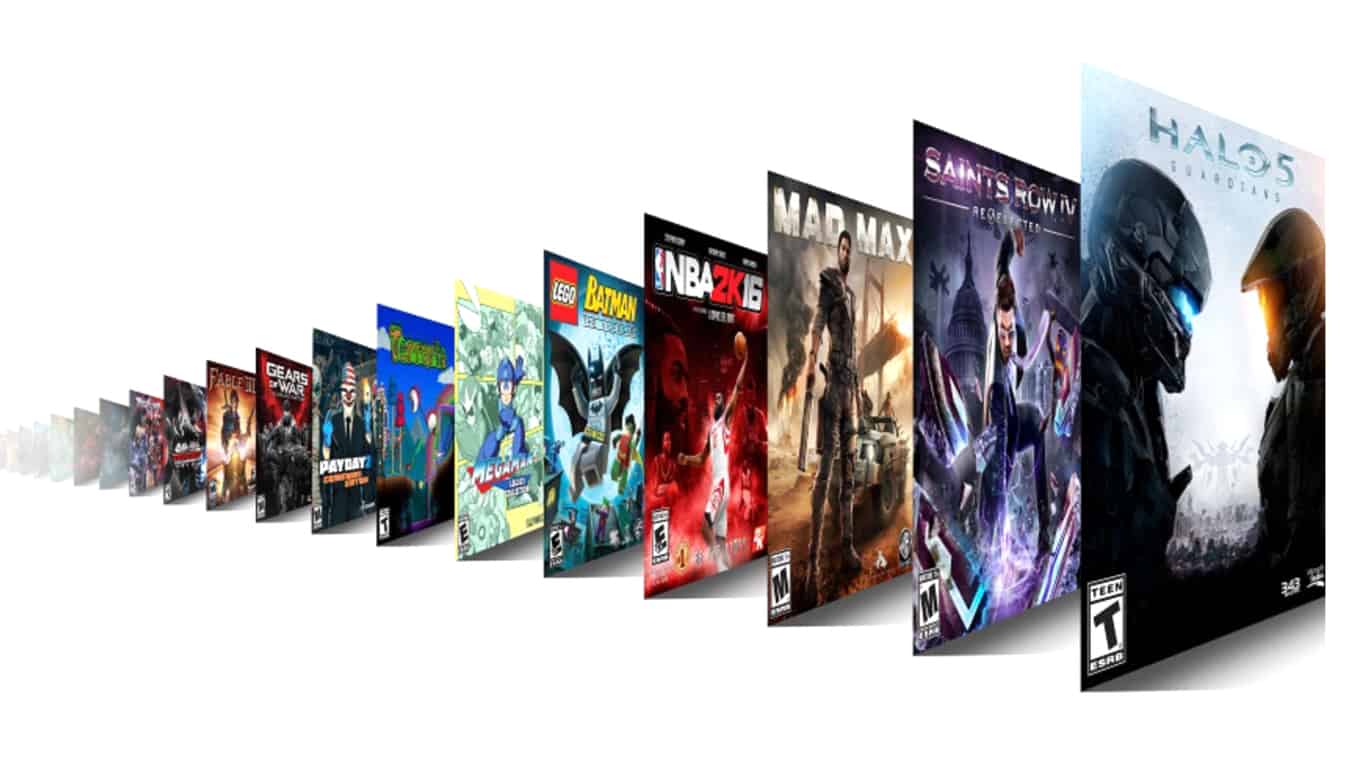
The Xbox Game Pass is a recently launched subscription based library with over a hundred titles for gamers to browse through. One of the reasons the Xbox Game Pass is so popular is that it has a little something for everyone with a grab bag of classic, backward compatibility, and newer titles. Now users are reporting that some games are vanishing from the library without warning from Microsoft.

Specifically, Dungeons & Dragons Chronicles of Mystara has vanished from the Xbox Game Pass library. Users are reporting that the game originally available on the program’s release is now unavailable and it has some more than upset that there wasn’t a statement on it.

Dennis Ceccarelli from Xbox Daily did say during E3 that games would be removed eventually but that it wouldn’t start until November.

“While there’s not one set amount of time that a game will be in the catalogue, and some titles will leave the catalogue eventually, I want to put some fears at rest because our first games won’t be leaving the catalogue until late November”

The idea is for the games to rotate with fresh titles, encouraging purchases of the games that users enjoy and providing new experiences for the price, similar to the EA Access vault. With this title disappearing without a trace, consumers are left wondering when the titles they are currently playing might get pulled abruptly by Microsoft.

There are other reasons that could have resulted in the game disappearing from Xbox Game Pass such as licensing issues. We’ve reached out to a Microsoft spokesperson for more information. Let us know your opinions in the comments below or tweet us @OnMSFT.

Dungeons & Dragons: Chronicles of Mystara

Windows 10 Xbox app gains new chat volume controls, a Light Theme, removes Avatars

Microsoft’s official Xbox app has updated on Windows 10 with some improved volume controls for chat and the new Light Theme that had been tested in the Xbox Beta app. Like with the Xbox Beta app, the main Xbox app has now removed the animated Xbox Avatars, likely preparing for the rollout of the revamped Avatars which are due sometime before the end of 2017. Here’s the official release notes:

  • New for party chat: Control your party’s chat volume, and choose a specific audio device.
  • Get the bird’s-eye view: Brackets have been added for Killer Instinct tournaments.
  • We now take you live! Watch game broadcasts in clubs.
  • Co-stream with friends: Once you get an invite, just accept to go to Mixer.com and co-stream.

Have you noticed any other changes with this app update? Let us know in the comments below.

Xbox Console Companion

How to Backup Google Chrome Extensions

Has it ever happened to you? Your hard drive fails on you, and all those extensions you spent the last three years adding to your Chrome browser are lost with it. There are, sadly, several more ways this can happen. You can be a victim of a cyber attack, data theft, or several cyber misfortunes that have been known to happen.

Adding all your extensions back on takes a lot of work and time you may not have. If only there was a way to back up all your extensions and stop this sort of predicament from happening to you. Well, there is a way.

Maybe you’re here because those cyberweasels who have been causing such havoc online have already got to you. There is no better time to back up those super convenient extensions, which you can’t function without, than the present. Let’s get them backed up, shall we?

How to back up your Chrome extensions?

Here’s exactly what you need to do to backup your Chrome extensions:

  • Locate the extensions folder on your Windows computer’s Drive C. For that, you go to the Windows start icon and, in the search bar, type in ‘run’ to access the Run dialog box. Now paste this string > %UserProfile%AppDataLocalGoogleChromeUser DataDefault < in the Run dialog box. You should get this little screen:

  • After hitting the OK button you should get this screen:
  • Now look for your Extensions folder. It should be somewhere in there. Here is mine, highlighted below:
  • Go ahead and make a copy of the Extensions folder. You can copy it to a flash disc or any storage medium you prefer.

That saved folder will be your Chrome Extensions backup. It will keep your essential business add-ons secure, such as ZoomInfo. You won’t exactly look forward to your hard drive dying or your extensions failing to load, but at least you now know you have the backup should that ever happen.

How to restore your Chrome extensions?

If your hard drive has indeed been wiped or corrupted, first, make sure your hard drive is now clean and safe to use. Assuming that, close all the open Chrome tabs and copy the backup file’s contents into the extensions folder we located earlier. That should restore all your Chrome Extensions.

Another thing to remember, though, is that the older extensions may not work like before because there is a good chance they may have since been updated. You will want to trash those that are over a year old and add them afresh. And to avoid having to do this, you can do a fresh backup every few months.

With all your extensions being up to date, you should be ready.

Netflix stream stuck? Here’s how to fix this issue [EASY GUIDE]

Ever since its advent, Netflix has changed the way we access content, be it the initial DVR service or the current streaming model. In fact, the online streaming service has become so popular that it has become an integral part of our lifestyles.

The whole Binge Watching culture was a direct result of Netflix’s exhaustive catalogue and addictive shows. As we already know Netflix is available across several devices including smartphone, tablets, Xbox and also the smart TVs.

Most of the OEMs are also gearing up to ensure that their smart TV is optimised for Netflix.

A couple of weeks ago as I was about to slouch on my couch and start binging on Netflix something very unexpected happened. The Streaming progress was stuck at 25%.

I thought the internet connection was to be blamed but upon checking further I found everything to be fine. A speed check told me that the current bandwidth is hovering in the 15Mbps-20Mbps.

The basic troubleshooting didn’t yield any results and finally, after a lot of frustration, the Netflix could stream as before.

What’s happening?

Well, in this case, it’s very difficult to pinpoint the exact problem, apart from the internet issues, it’s quite possible that the problem persists in the Netflix app.

I have observed similar issues earlier especially while the band width is being shared. Let’s plunge deep right into the problem and try to resolve it.

Check your Internet

Restart your router and check the internet connection. Are you able to use the other streaming applications? If not, try restarting the Wi-Fi router.

If you need to configure some router settings but you don’t know how to do it, check out these software tools that will help you set it up.


Fix your internet connection right now by following the steps in this complete guide!


Suppose even after restarting the internet doesn’t work reset the router. In case your router is the problem, and you cannot fix it, we recommend you to start looking for another one.

You can find a list of the best ones right here.

Does this make your Netflix work? No, fret not we will walk you through a couple of other steps.

Device check

Are you trying to use Netflix on a smartphone? If yes, clear the temporary files and restart the device. This should resolve the streaming issue, yet another way is to completely uninstall Netflix and reinstall the same.

Also, try reducing your streaming quality this may help the buffer free up and try changing the connections to different ISP. In most cases, this should help you solve Netflix Stream issue.

Netflix streaming via Chromecast stuck on TV

Well, this is something that has happened to me for a couple of times and every time the only thing that would sort the issue is resetting the Netflix app.

I stream Netflix to my TV using Chromecast and the Chromecast comes with a small reset button that needs to be pressed continuously for more than 15 seconds. This has always sorted the buffering issue for me.


Your PC can’t find the Chromecast? Don’t worry, we’ve got the solution for you.


Troubleshooting Netflix Stream issues on Smart TV’s

Whenever Netflix stream is stuck the first thing you must be doing is turning off the TV, unplugging it completely for a while and then plugging it back. If this doesn’t sort the issue for you then try uninstalling the Netflix and reinstalling the same on the TV.

As a last resort, you can reset the TV to its factory settings by heading over to the settings menu, however, be forewarned that this will erase all the data and settings on your smart TV.

If you encounter audio syncing errors with Netflix, you can easily solve them by following this guide.

Fix Xbox 360/One Netflix stream issues

Needless to say, Netflix exhibits this issue consistently across different devices and platforms. Even Xbox is not spared.

Well, the first step would be to reset the app settings and restart the Xbox. If the problem persists uninstall the Netflix app by following the steps given below,

  • Go to Xbox Dashboard
  • Navigate to Apps and Select My Apps
  • Hover on the Netflix app and press the “X” button for app details
  • Select Delete and press “Yes” to confirm
  • After uninstalling Netflix from Xbox once again head over to the Dashboard and install the app.

Alternatively also confirm your Xbox’s DNS Settings by heading following the steps below

  • Go to Settings>System Settings
  • Choose Network Settings
  • Select the network and click on “Configure Network.”
  • In the next step select “DNS Settings” and select the “Automatic”

If you need more info on how to solve Netflix issue on Xbox, take a look at this in-depth article.


Restart your Xbox and try Netflix again. The steps mentioned above should help you troubleshoot the Netflix streaming issues, happy Binging!

For any other questions, don’t hesitate to reach for the comments section below.

RELATED STORIES YOU NEED TO CHECK OUT:

Unity, the “creation engine for gaming,” announces Xbox One X support

Developers are now able to create Unity projects and new games for Xbox One X. Announced today, Unity now has support for Xbox One X with 4K HDR output and increased power for the next Microsoft console.

The Xbox One X revealed at E3 2017, formerly and fondly named Project Scorpio, is the next console in the video game industry. Microsoft has decided to continue the Xbox line with higher benchmarks compared to the Xbox One S. Games developed for the Xbox One X will also be compatible with the original Xbox One and Xbox One S.

The Xbox One X support was added to the existing Xbox One family development kit. Independent developers will need to register for the ID@Xbox publishing program to access the Xbox One forum for Unity. This is where you can access resources and the download for the Xbox One Unity editor add-on, as well as a bustling community to interact with.

Read more about Xbox One X development with Unity from its official site.

Microsoft expands Azure to two new Australian regions

Microsoft announced today that it is expanding its Azure cloud computing service to two new regions in Australia, to be available in the first half of 2018. With these latest additions, Microsoft Azure will soon have 42 regions worldwide, which is more than any other cloud provider.

The two new Azure regions will be located within data centres in Canberra, and Microsoft says that it will be the only major cloud provider in the country to be able to handle unclassified and protected government data. This a result of a partnership with Canberra Data Centres (CDC), a local specialist datacenter provider for secure government data.

“This announcement builds on recent news that dozens of Microsoft Azure services have received certification by Australian Signals Directorate, including services for machine learning, internet-of-things, cybersecurity, and data management,” explained Tom Keane, Azure’s Head of Global Infrastructure. “Along with Australian certifications for Office 365 and Dynamics 365, Microsoft is recognized as the most complete and trusted cloud platform in Australia,” he added.

Windows 10 news recap: View 3D brings 3D models into the real world, 71% of of users share diagnostic data and more

Welcome back to our Windows 10 news recap. We are continuing the trend of our weekly “Windows 10 news recap” series where we go over the top stories of the past week in the world of Microsoft’s flagship operating system.

View 3D gains ability to superimpose 3D models into the real world in latest update on Windows 10

In an update for those on the Windows 10 Insider program on the Fast Ring, Microsoft has released an update that adds the ability for users to superimpose 3D models into the real world via a camera.

71% of Windows 10 users share all of their diagnostics data with Microsoft

Microsoft has claimed that 71% of users of its Windows 10 operating system have opted to share diagnostic data with the firm, helping to provide information on crashes and issues experienced by users.

Windows 10 Logo White Featured Hero Generic

New privacy features in Windows 10 Creators Update have been positively received by users, Microsoft says

After reporting that 71% of users have opted to share Windows 10 diagnostic data with Microsoft, the company has also said that new privacy features in its operating system have been received positively by users.

VP of Microsoft devices doubles down on recent Consumer Reports claims, “We stand behind Surface”

After Consumer Reports pulled its recommendation of Microsoft’s Surface product line entirely, the Vice President of Microsoft devices, Panos Panay, has stated that they “stand behind Surface”.

Surface Book Panos Panay

That’s it for this week, we’ll be back next week with more Windows 10 news!

Microsoft news recap: Band owners continue to experience problems, Kaspersky drops antitrust complaint and more

Microsoft (MSFT) news recap is a weekly feature highlighting the top Microsoft news stories of the past week. Sit back, grab some coffee, and enjoy the read!

Microsoft is giving away 500 Rewards points for free to apologize for the system being slow to grant rewards

In response to Microsoft Rewards being slow at granting rewards upon redemption, the company is offering 500 Rewards points for free, as an act of apology.

Some Microsoft Band owners are still experiencing sync problems, and Microsoft is still working to fix it

For about a week now, Microsoft Band owners have been complaining of problems with synchronisation. The company has said they’re investigating and are working on a fix for the issue.

Microsoft introduces Coco Framework, makes blockchain networks enterprise ready

As Microsoft pushes further into blockchain, the company has introduced a framework called the Coco Framework. It aims to deliver performance and processing power that enterprises need for blockchain networks, and is open source.

“We have listened to the needs of our customers and the blockchain community and are bringing foundational functionality with the Coco Framework. Through an innovative combination of advanced algorithms and trusted execution environments (TEEs), like Intel’s Software Guard Extensions (SGX) or Windows Virtual Secure Mode (VSM), we believe this takes the next step toward making blockchain ready for business.”

Kaspersky drops its antitrust complaint after Microsofts agrees to cooperate with AV vendors

After a months-long fight, Kaspersky Labs has dropped an antitrust complaint it lodged against Microsoft, after the company has reportedly agreed to cooperate with vendors of anti-virus software in Windows 10, with the following key points:

  • We will work more closely with AV vendors to help them with compatibility reviews in advance of each feature update becoming available to customers. This means customers can expect we will have worked through compatibility issues with AV providers before offering the update to customers running that AV.
  • We will give AV partners better visibility and certainty around release schedules for feature updates. This includes increasing the amount of time AV partners will have to review final builds before the next Windows 10 feature update is rolled out to customers.
  • We will enable AV providers to use their own alerts and notifications to renew antivirus products before and after they have expired.
  • We have modified how Windows will inform users when their antivirus application has expired and is no longer protecting them. Instead of providing an initial toast notification that users could ignore, the new notification will persist on the screen until the user either elects to renew the existing solution or chooses to rely on Windows Defender or another solution provider.

That’s it for this week, we’ll be back next week with more Microsoft news.

Microsoft details updates to the Bing Maps Web Control

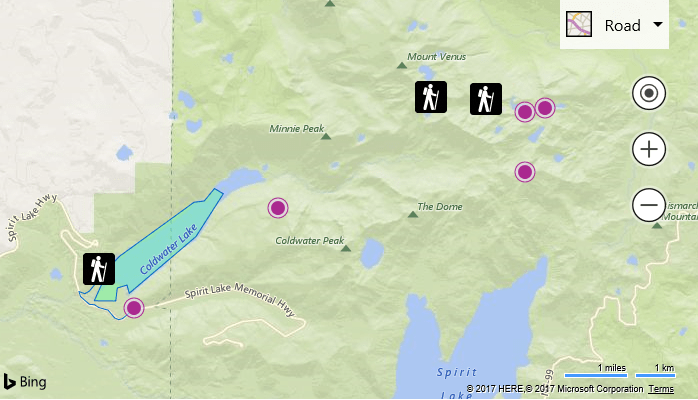
Throughout the summer, Microsoft has been releasing updates to the Bing Maps Web Control, which is essentially the Bing Maps seen on the web and in apps. In a post on the Bing Blog, the company gave an overview of the new features that have been added.

Known as Bing Maps V8, the eight version of the web control, it’s a competitor to Google Maps, and in comparison to the search market share, Bing also comes second in the maps world. Here’s a rundown of the updates that have been made available:

Custom Map Styles

Customize the look and feel of the road maps inside of your application. Change the colors of the roads and land, hide certain types of labels. Create a style that aligns with your applications UI, company branding or change it just for fun. Not only are these available in the Bing Maps V8 Web Control, but you can also use custom maps styles with the Bing Maps REST Imagery service (static map images) and with the Windows UWP map control.

GeoXml Module

Easily import and export common spatial file formats such as KML, KMZ, GeoRSS, GML (via GeoRSS) and GPX. Load it as a layer on the map or directly access the data with just a few lines of code.

Ground Overlays

Overlay georeferenced images on top of the map so that they move and scale as you pan and zoom the map. This is great for building floor plans, overlaying old maps, or imagery from a drone.

In addition to these updates, Microsoft released an open source project that contained more than 160 code samples for using Bing Maps Web Control. Now, that project hosts over 200 samples; these samples include an SVG Pushpin Maker, a Solar Terminator Module and more.

To see the updates in detail and try out some examples, take a look at the post on the Bing Blog.

Mixer’s popularity among gamers rises big time thanks to user-oriented approach

Mixer is Microsoft’s interactive game streaming platform. Surprisingly, the tool experienced an incredible growth lately.

The Mixer service timeline

Microsoft first launched the service as Beam back in 2016, and then rebranded it into Mixer due to some legal issues in some countries. Shortly after Microsoft bought it, the company started to work on integrating the Mixer service into Windows 10 and Xbox One through the new Game-Broadcasting feature. The result seems to be a fantastic growth according to Matt Salsamendi, the co-founder of the service.

Salsamendi stated that it wasn’t much about the numbers from the beginning, but more about the communities that they were building. He confessed that after the integration in Windows 10, “we’ve seen crazy awesome growth.”

Salsamendi also said that the team would continue to focus on the community and improvements for the main USP – the interactive platform. Mixer will still be working on improving its platform in such a way that it will operate at a larger scale.

He says that this is the first company to do low-latency and large-scale streaming. He also referred to the E3 when 200,000 concurrent people watched E3 in 4K. The pipeline held up great, and the chat was the only thing that has a bit of trouble regarding the scale.

Mixer has strong competitors

The words used by Salsamendi “crazy awesome” don’t exactly provide us with a crystal-clear idea of the company’s actual user base and usage data. On the other hand, the Windows 10 and the Xbox One integration did result in a huge boost for the platform. An important thing to consider is the fact that having platforms such as Twitch (backed up by Amazon) and YouTube Gaming (supported by Google), Mixer has a powerful competition to deal with, but hopefully, it will do just fine.

RELATED STORIES TO CHECK OUT:

View 3D gains ability to superimpose 3D models into the real world in latest update on Windows 10

For those in the Windows 10 Insider program on the Fast Ring, an update to the View 3D app is making its way down the lines and into the Windows Store, delivering a new feature that Microsoft promised previously – the ability to superimpose 3D models into the real world.

via Aggiornamenti Lumia

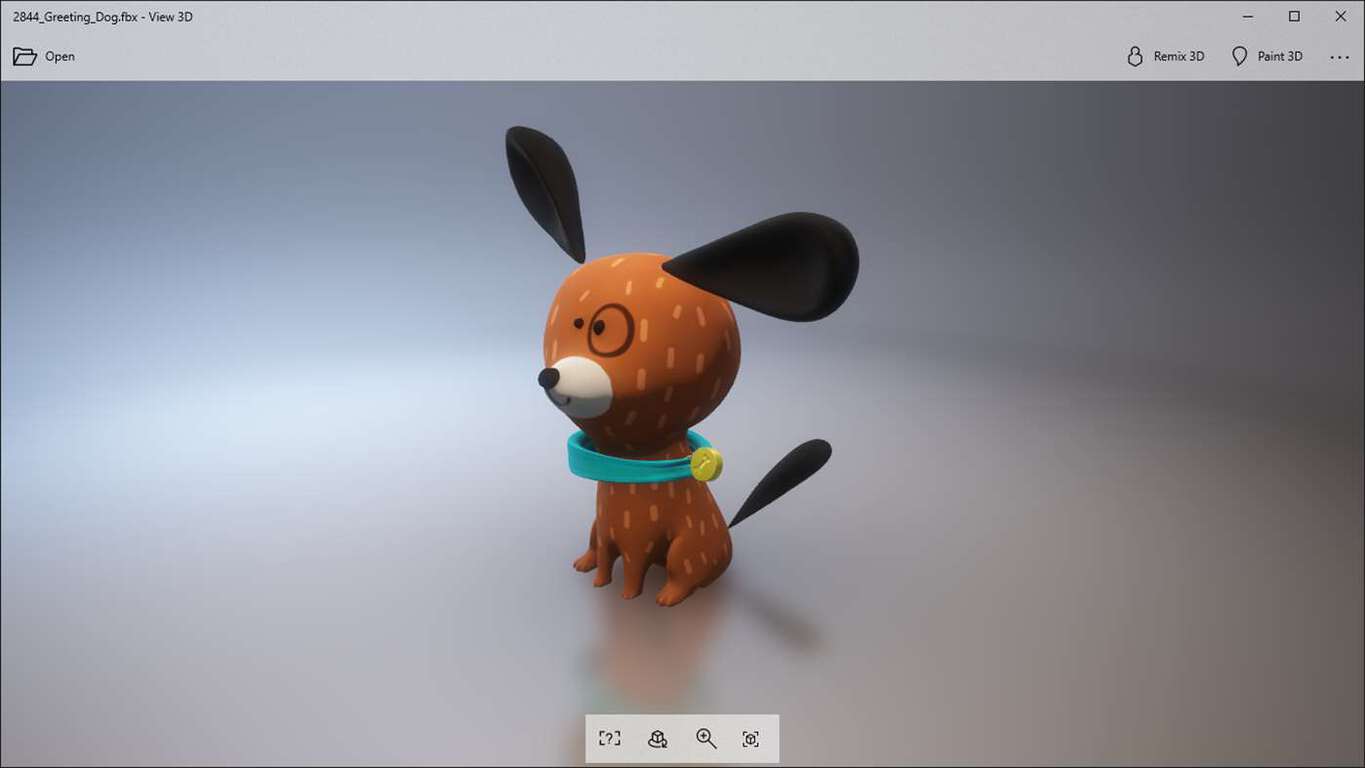
With this update, several 3D models are made available, such as the Curiosity Rover, Harajuku girl, elephants and more, as well as objects that have been downloaded via Remix 3D.

After selecting a 3D model of your choosing, there’s now a button that will open the camera/webcam of your device, and allow you to begin placing the 3D model into the picture.

This update is only available on Windows 10 PCs and tablets. No word on Windows 10 Mobile at this time.

Go wild – show us your creations in the comments below!

3D Viewer
3D Viewer
Price:
Free

Fix: Computer Shuts Down when USB Device is Plugged In

We use all sorts of USB devices on a daily basis, however, sometimes, issues with USB devices can occur. Several users reported that their PCs shut down after connecting a USB device. This can be a significant problem, but there is a way to fix it.

What can I do if the computer shuts down when USB device is plugged in?

1. Check your power supply

According to users, sometimes this problem can occur due to your power supply. Users reported that the issue was a failing power supply, and after replacing it, the problem was resolved.

Remember that replacing the power supply is an advanced procedure, so if your PC is under warranty, be sure to take it to the official repair center and ask them to replace it. If you’re tech-savvy, you can replace the power supply on your own, but remember that changing the power supply will violate your warranty.

Replacing the power supply can also cause damage to your PC if you’re not careful or don’t know how to do it properly. It might be best to contact a professional to avoid any damage to your PC.

2. Check your cable

You might want to check your cable if you’re using a cable to connect your USB device to your PC. Sometimes, your cable might be damaged, and that can cause your PC to turn off. To fix this problem, you need to replace your USB cable with a new one and check if that solves the issue.

3. Reinstall your USB drivers

In some cases, this problem can be caused by problematic drivers on your PC. To fix the issue, you need to reinstall your USB drivers. This is rather simple, and you can do it by following these steps:

  1. Press Windows Key + X to open Win + X menu. Select Device Manager from the menu.
  2. Once Device Manager opens, go to View and check Show hidden devices option.
  3. Locate your USB drivers. After doing that, right click any driver and choose Uninstall device.
  4. A warning message will appear. Click on Uninstall to remove your driver.
  5. Now repeat these steps for all other USB drivers.
  6. Optional: Some users recommend uninstalling USB Controllers, Disk Drives, and Storage Volumes, so you might want to delete their drivers as well.

After removing all USB drivers, you need to restart your PC. Once your PC restarts, Windows 10 will install the missing drivers.

As per our WR experts, reinstalling the USB drivers can fix various USB-related problems like USB devices keep disconnecting and reconnecting; read this guide to know more.

4. Try your device on a different PC

If this problem appears with devices that require high power, such as portable hard drives, it’s possible that your PC isn’t providing enough power. To fix the problem, you can try connecting your device to a different PC that has similar hardware.

If the problem doesn’t appear on the other PC, it’s most likely that your device isn’t getting enough power or that your power supply is failing.

5. Try using a USB troubleshooter

In some cases, this can be a software issue, and you might be able to fix it by running a troubleshooter. The troubleshooter can fix common software problems with the USB, so you might want to try it out. To run the troubleshooter on Windows 10, do the following:

  1. Press Windows Key + I to open the Settings app.
  2. When Settings app opens, navigate to Update & security.
  3. Go to the Troubleshoot section. In the right pane select Hardware and Devices and then click on Run the troubleshooter button.
  4. Once the troubleshooter starts, follow the instructions on the screen to complete it.

You can also run the troubleshooter by using Control Panel. To do that, follow these steps:

  1. Press Windows Key + S and enter control panel. Select Control Panel from the menu.
  2. When Control Panel opens, click on Troubleshooting.
  3. Once Troubleshooting window opens, click on View all.
  4. List of options will appear. Click on Hardware and Devices.
  5. Troubleshooter window will now start. Click on Next and follow the instructions on the screen.

6. Disable the USB ports

This is a simple workaround, and if you can’t use your PC due to this error this solution might help you. To disable your USB ports, do the following:

  1. Open the Device Manager.
  2. When Device Manager opens, check the option to show hidden devices.
  3. Locate your USB drivers, right-click a driver, and choose Disable device.

Once you disable all your USB ports, the problem will disappear, and you’ll be able to use your PC without any problems. This is just a crude workaround, so keep in mind that you still need to find a cause for this problem.

7. Check the USB connectors

In some cases, this problem can appear due to issues with your USB connectors. Sometimes, your USB connectors can become loose, and that can cause this problem to appear. In addition, the problem can also appear if metallic contacts are touching.

This can be a big problem, and you might need to contact a professional in order to fix it.

Several users reported that this problem can occur with front ports on your PC, especially if they aren’t fully connected. After connecting the front ports properly, the issue was resolved.

Keep in mind that this solution requires you to open your computer case for hardware inspection, and by doing that you’ll violate your warranty.

8. Scan your PC for malware

Although unlikely, malware infections can sometimes cause your PC to turn off when connecting a USB device. To fix the malware problem, you need to perform a detailed system scan. Keep in mind that some viruses are harder to detect than others, so you might want to try scanning your PC with two or more antivirus tools.

As previously mentioned, malware infection is an unlikely cause for this problem, but few users claim they fixed the issue after removing the malware from their PC.

There are many reasons why your PC restarts after plugging a USB device. In most cases, the problem is your power supply or USB connectors, so you should perform a hardware inspection and replace the faulty components.

5 best tools for free calls and messages on PC

Unlike the olden days when we had to shell out a ransom for making calls to our family and friends, things are pretty much sorted now. Apart from the cheaper calling rates (in some countries) we also have a ton of apps like Skype and WhatsApp that let us connect to our friends free of cost. Well, the apps certainly do use data and are not free per say but again the costs are negligible, especially for voice calls. In this segment lets take a look at some of the best apps to make free calls and send free messages from PC.

Viber

Yes, its the same Viber that some of us use on our smartphones. However, not many of them are aware that Viber has a PC app that will let you call anyone by using PC. VoIP calls are free of costs across Viber users. However, if you want to call local or international mobile/landline numbers Viber Out is the way to go. Viber also offers competitive tariffs for calls to all the countries and the call quality has been satisfactory.

After signing in Viber automatically syncs your contacts on the phone and also separates the phone contact from the PC contacts. Apart from voice, one can also send a photo, sticker messages and text from their PC.

Download Viber from the Windows Store.


uTox

Afraid about the hackers lurking around and trying to intercept your call? Well fret not if you are a privacy advocate here is the best bet for you. The threats from Malware, Ransomware and snoopers are looming large and during such times its always good to use tools that offer encryption. uTox is proclaimed to be one of the most secure messaging apps and its free for lifetime, yes completely free!

The cornerstone of Tox is that it runs without the need for centralised servers and this in itself eliminates a big security threat. Tox works on the P2P model and offers end-to-end encryption. Since safety is the precinct there is no switch to toggle off the encryption.

Download uTox for Windows.


Line

Line was a very popular messaging app and even today in places like Japan it is one of the most popular messaging services. I have personally used Line on my Android smartphone for a while and the only reason I stopped using is that not many of my contacts used Line. That apart Line also has a powerful Windows app to its credit, it is with this app that one can do free audio and video chats with their contacts.

The line was one of the first messaging services to come up with stickers. Line users can share photos, other media. One thing I liked about the Line is that it lets you be as expressive as possible with the stickers and emoji collection. The call quality is pretty decent but unlike some of the other services listed here, you cannot directly call on the cellular network.

Download Line from the Windows Store.


Tango

Tango is a lesser known app that lets you call and message from PC. The app offers free video calls, voice calls and also allows you to share photos. Well the standout features of the Tango include the ability to share songs via Spotify, The app also offers group chat and free calls to mobile and landline. So far Tango has fared very well when it comes to quality of the calls. The quality of call on Tango is commendable and the call drops dont play spoilsport.

Apart from the calling feature Tango also offers the usual stickers, social sharing and it works across a range of platforms and devices.

Use the web version of Tango.


Jitsi

Jitsi is a pretty powerful program that offers a slew of features. First things first Jitsi is open source and is specipically built for audio calls and video chats. That being said the program in itself is not easy to use. Jitsi is end-to-end encrypted, supports echo cancellation and it also comes equipped with a screen sharing feature. Jitsi supports third party clients including Facebook, Yahoo and Bonjour.

Try Jitsi here.

RELATED STORIES YOU NEED TO CHECK OUT:

Here’s how this Wii U console emulates a PC

A modder managed to make his Wii U console emulate a PC. The modder goes by the name Banjo Kazooie, and he posted his work on Sudomod.

Some of you may already be familiar with what he does considering the fact that he posted a RetroPie Wii U mod. That time, he concocted his very own RetroPie console from the husk of a Wii U controller, and this was an original demonstration of how you can recycle hardware to a perfectly suited purpose.

He then used an original shell for his build, but in case you have a broken controller in your drawer, or if some of your friends have one, you can also use it. He used a Raspberry Pi 3 for this operation featuring a 6.5-inch display, a Teensy 2.0 setup for the inputs, dual 3400 mAh batteries, a headphone jack, an external SD card slot and lots of hard work on the power supply circuit. Initially, he just wanted to check out if his idea was possible, and it all ended up working beautifully after three months of work.

This Wii U console emulates a PC

Now, back to his latest project. For this one, he used an Intel Compute stick with an Intel m5 processor, 4GB of RAM, a 64GB SSD, and a 2K LCD touch display. It also has a Bluetooth connection, Wi-Fi support and it can monitor battery life. It features LED joysticks for good measure, as well.

He loaded the modded Wii U with Windows 10, and then he installed Cemu which is a Wii U emulator. As a result, he could use the Wii U as a handled PC, and at the same time, the device also retained its original functionality. The utility of this concoction depends on what you plan on doing with a Windows 10 handheld.

RELATED STORIES TO CHECK OUT:

How to remove ctfmon.exe from PC

Have you ever wondered what the mysterious ctfmon.exe is? That’s a Microsoft background process which activates both the Microsoft Office Language Bar and Alternative User Input TIP. This process checks if a running program ever needs an alternative user input service, such as pen tablet, speech or onscreen inputs for foreign languages.

Those who ever make use of the Microsoft Office Bar, pen tablets and other input devices will certainly need to keep cftmon.exe on. However, if you never need the Office Language Bar or other input device, you might as well switch the ctfmon service off to free up some RAM if nothing else. Furthermore, cftmon can also crash Windows with certain installed languages.

Here’s how to remove ctfmon from PC

Turn off advanced text services in Windows XP

Windows XP includes a Turn off advanced text services setting that you can switch ctfmon.exe off with. However, more recent Windows platforms don’t have that option. XP users can configure advanced text services as follows.

  • First, open the Windows XP Control Panel.
  • Click Regional and Language Options to open a Regional and Language Options window.
  • Select the Languages tab on the window.
  • Then you can press a Details button to open a Text Services window.
  • Click the Advanced tab, and then select the Turn off advanced text services option. That will close the ctfmon process.

Remove ctfmon.exe from Windows Startup

You might find ctfmon listed in the startup items. If that’s the case, the process is starting with Windows. This is how you can remove ctfmon from the OS startup.

  • Open the Task Manager by right-clicking the taskbar and selecting Task Manager.
  • Click the Start-up tab to open the list of startup software below.

  • If the Start-up tab lists ctfmon, select it and press the Disable button.
  • In earlier Windows platforms, you can open the Startup tab in MSConfig. Press the Win key + R hotkey, and enter ‘msconfig’ in the Run text box.
  • Press the OK button, and then you can click a Startup tab on the System Configuration Window.

Remove ctfmon with CTFMON-Remover

CTFMON-Remover is software that purges the ctfmon process from Windows. The software tells you if the process is installed, running and starting automatically. You can add the program to Windows by clicking CtfmonRemoverEN-v2.3.zip on this page. CTFMON-Remover is compatible with the latest Windows platforms.

  • When you’ve saved the Zip to a folder, open File Explorer.
  • Open CTFMON-Remover’s compressed folder, and press the Extract all button.
  • Press the Extract button to extract the folder.
  • Click CtfmonRemover to open the software as in the snapshot directly below.

  • Press the Deactivate CTFMON-Remover button to terminate the ctfmon process.
  • You can press Restore CTFMON.EXE to restart ctfmon.exe if required.

Unregister DLLs

You can unregister the DLLs needed for alternative input services. That might also effectively terminate ctfmon.exe. Press the Win key + R hotkey to launch Run. Input ‘Regsvr32.exe /u msimtf.dll’ in the Run text box, and press OK. Then enter ‘Regsvr32.exe /u msctf.dll’ in Run’s text box. Thereafter, restart the Windows OS.

So that’s how you can remove the ctfmon.exe service in Windows. When you’ve deactivated ctfmon.exe, it should no longer be listed on the Processes tab in Task Manager.

RELATED STORIES YOU NEED TO CHECK OUT:

Yooka-Laylee updates on Xbox One with loads of fixes and changes

Yooka-Laylee received its first major update on Xbox One. I know that Yooka-Laylee is not exactly a well-known Xbox One game. However, it remains one of the most funded UK games on Kickstarter ever produced, raising more than £2,090,104 of its £175,000 goal.

Yooka-Laylee is a 3D platformer that is the “spiritual successor to Banjo-Kazooie.” Banjo-Kazooie was a Nintendo 64 (N64) game featured in Xbox One’s Rare Replay game. In a post on Reddit and on Playtronic Games’ official website, there is an extensive list of all the updates and bug fixes for Xbox One. Most notably, the new update fixes camera design issues that players experience throughout gameplay.

One downside to Yooka-Laylee is that it lacks Xbox Play Anywhere support, otherwise Yooka-Laylee is a solid 3D platformer on Xbox One and Windows 10.

Buy Yooka-Laylee on Xbox One.

Buy Yooka-Laylee on Steam.

Have questions for the Windows Insider team? Ask them now for their next webcast on Mixer

The Windows Insider monthly webcast has become the new monthly rendezvous that Windows 10 enthusiasts don’t want to miss, and this month you’ll once again be able to ask your burning questions to the team. This time, you’re invited to submit your questions about Microsoft’s Engineering Systems operations, including how Windows 10 is built, everything automated testing and more.

You can submit more than one question if you want to, though be aware that feature suggestions or questions about product bugs won’t be addressed during the podcast. As usual, you’ll be able to follow the webcast on Mixer and we’ll let you know when the date has been set.

Over 2.6 million people have downloaded Slime Rancher on Xbox One

Last week, the popular simulation video game Slime Rancher became available for free for Xbox Live Gold subscribers. After its highlight in Games with Gold, developer Nick Popovich announced that now it has over 2.6 million downloads via Xbox One.

The game has been building steam since its early access began in January of last year culminating in its official release on August 1 for Windows, macOS, Linux, and Xbox One. Slime Rancher has also been announced to be heading straight for the Windows Store, eventually hoping to become an Xbox Play Anywhere title.

Slime Rancher is available for free right now on Xbox Live Gold or you can pony up the $19.99 to join in the fun. Learn more about it in the store link below.

Slime Rancher
Slime Rancher
Developer:
Monomi Park
Price:
$4.99

Xbox’s Major Nelson shares his personal Spotify playlist

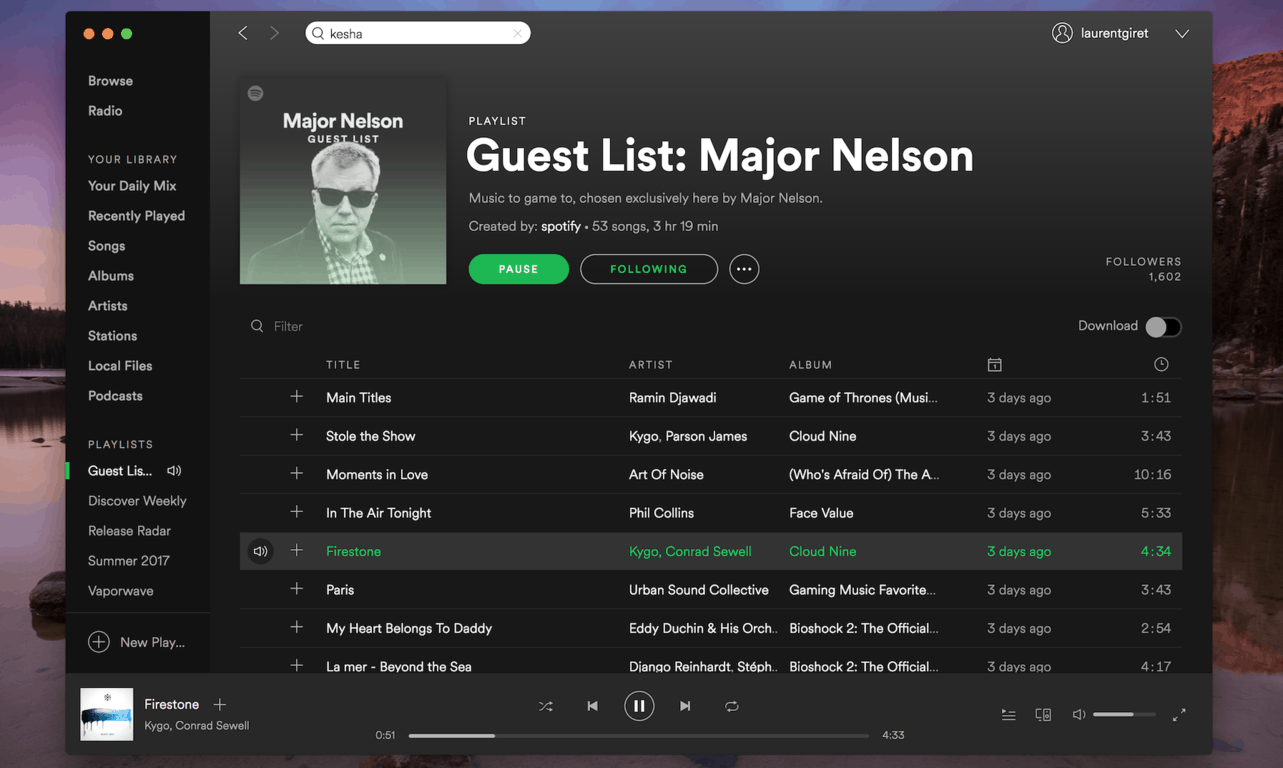
Earlier this week, the much-anticipated Spotify for Xbox One app finally launched on the Xbox Store, which was a pretty great milestone for the gaming console. While Spotify did not release the native UWP app that many would have like to see, Microsoft has been promoting the new Xbox One app pretty heavily these days. You may have seen the new app being prominently featured in the Xbox store, and even Xbox’s Major Nelson shared his first public playlist this week:

For those unfamiliar with Spotify, the service has many social features including public playlists, collaborative playlists and more. That’s why many brands and public figures are now creating public playlists (even Barack Obama did at some point), so the launch of the Xbox One was a good opportunity for one of Xbox’s well-known ambassadors to step in.

Major Nelson’s first public playlist kicks off with Game of Throne’s popular opening theme music, and it includes some cool video game music from Gears of War 4, Mass Effect 3 as well as some modern and old-school pop music. The exec shared on Twitter that he will refresh the playlist at some point, and your suggestions are welcome. Additionally, he’s also working to bring his podcast to the service, so you’ll be able to listen to it on any device including your console.

This is all good news for Spotify users, but we can’t avoid the elephant in the room here: yes, Spotify is currently much better than Microsoft’s own Groove Music app, and the company seems well aware of it. Spotify has pretty much all the music you want (including video game music), a great collection of podcasts, and it’s completely free to use (with ads). It’s great to see that Microsoft is promoting it, but we can’t help but wish that Groove Music received the same kind of support over the years.

Update: Major Nelson’s podcast is now on Spotify, and you can subscribe here.

How to Restore Accidentally Deleted Files on Windows 10

Deleting important files by accident can be a big problem, but sometimes, there might be a way to restore those files. Deleting files doesn’t remove them entirely from your hard drive, so there are some ways to recover them.

Restoring deleted files is not that hard, given you know what to do and have the right tools, in this article, we will guide you through the process and hopefully help you restore accidentally deleted files on Windows 10 or Windows 11.

Before we start, we must mention that many SSD drives use a TRIM feature that permanently removes your files and significantly reduces the chance of file recovery with third-party tools. On the other hand, magnetic hard drives don’t have this feature, so you can restore your files if they were deleted recently.

That being said, you can try restoring your files using one of our solutions.

Is there a way to restore accidentally deleted files on Windows 10?

1. Check the Recycle Bin

One of the simplest ways to restore your files is to check your Recycle Bin. In most cases, your files will be moved to the Recycle Bin once you click the Delete button, so there’s a chance to restore them.

When you choose the Delete option in Windows, your files are automatically moved to the Recycle Bin. The Recycle Bin offers limited storage, and it will temporarily keep your files there. If you didn’t empty your Recycle Bin manually, it’s somewhat likely that your file is still there. To restore your files from the Recycle Bin, do the following:

  1. Open the Recycle Bin.
  2. When Recycle Bin opens, you’ll see a list of all deleted files. If your file is available, right-click it and choose Restore.

Keep in mind that Windows has a limited amount of storage dedicated to Recycle Bin, so it won’t keep your files permanently there. Sometimes, your deleted files can be in Recycle Bin for weeks or months before they are deleted, so it’s always a good idea to try restoring them.

2. Restore files from the backup

In some cases, you might be able to restore your files from the backup. Remember that this solution works only if you have Backup and Restore feature enabled. If you don’t use this feature, this solution won’t apply to you. To restore files using the Backup and Restore feature, do the following:

  1. Press Windows Key + S and enter control panel. Choose Control Panel from the list.
  2. When Control Panel opens, select Backup and Restore (Windows 7).
  3. Select Restore my files option and follow the instructions on the screen.

Once again, you can only restore files if Backup and Restore was enabled when you deleted the file. If you don’t use this feature at all, this solution doesn’t apply to you, so you can skip it.

3. Use Stellar Data Recovery

If you’re looking for a third-party solution to recover your files, you might want to consider Stellar Data Recovery. This amazing tool can recover deleted files and files from damaged disks alike.

Stellar Data Recovery is a professional tool that can help you recover data on  Windows, Mac, Android & iOS. This software can help you in many situations that might have caused a loss of data, such as system crashes, formatting, accidental deletion, virus attacks, partition loss, and drive errors.

Stellar Data Recovery

Recover your lost data from any disk with this professional and powerful software.
Check Price Visit Website

4. Use Restore previous versions option

If you accidentally deleted a file, you might be able to restore it simply by using Restore previous versions option. Keep in mind that this feature is related to both Backup and Restore and System Restore, so if any of these features weren’t enabled when you deleted the file, this solution probably won’t work for you. To restore the deleted file, do the following:

  1. Locate the directory that contained the deleted file. Right-click the directory and choose Restore previous versions from the menu.
  2. List of previous versions should appear. Locate the desired version and double-click it.
  3. Now locate the desired file and drag and drop it to a new location.

This is an easy way to restore deleted files, but since this feature is related to System Restore and Backup and Restore, this method might not always work.

5. Check cloud storage services

Windows 10 comes with OneDrive service enabled by default, so it’s possible that your file was backed up to OneDrive before you deleted it. Be sure to visit OneDrive’s website and check if your file is available in the Trash section.

If you use any other cloud storage service, repeat the same steps for it as well. This isn’t the most reliable method to restore files, but it’s worth checking out.

6. Check File History feature

Windows 10 has a useful File History feature that allows you to restore your files. Unfortunately, this feature isn’t enabled by default, so if you didn’t enable it manually, you won’t be able to use it to restore the file. To restore files using File History, do the following:

  1. Open the directory that contained the deleted file.
  2. Once the directory opens, click on Home tab and choose History from the menu.
  3. Follow the instructions on the screen to restore the file using File History feature.

7. Use Ubuntu Live CD or USB to restore your files

If you’re using a regular hard drive and not an SSD, you might be able to restore your files using Ubuntu Live CD. There’s a chance your file isn’t physically deleted from the hard drive, and you might be able to restore it if you don’t overwrite its sector on the hard drive. To ensure that, turn off your PC and don’t install or download any additional software.

Now you need another PC to download Ubuntu Live CD or USB. After doing that, connect the Ubuntu Live USB to your PC and boot it from it. Look for ntfsundelete and photorec tools. These are powerful tools that can help you restore deleted files.

We must warn you that this is an advanced solution, so if you’re unfamiliar with Ubuntu Live USB and command line tools, you might want to skip this solution.

8. Try any other third-party recovery software

Many other tools can help you restore accidentally deleted files. Some of these tools offer a free trial, while others are free. We also have to mention that some tools might be more effective than others, so you might want to try using two or more tools to restore your files. We already wrote about the best file recovery apps, so feel free to try any of them.

To increase the chance of file recovery, download these tools on a different PC and install them on the USB flash drive. Not all applications can work from a USB flash drive, so choose ones that support portable installation.

Keep in mind that sometimes Windows can automatically delete your files, especially if you enable Storage Sense on Windows 10.

Recovering accidentally deleted files isn’t as complicated as you think, and you might be able to do it using one of our solutions. To reduce the chance of file loss in the future, be sure to use File History or Backup and Restore features and back up your files frequently.

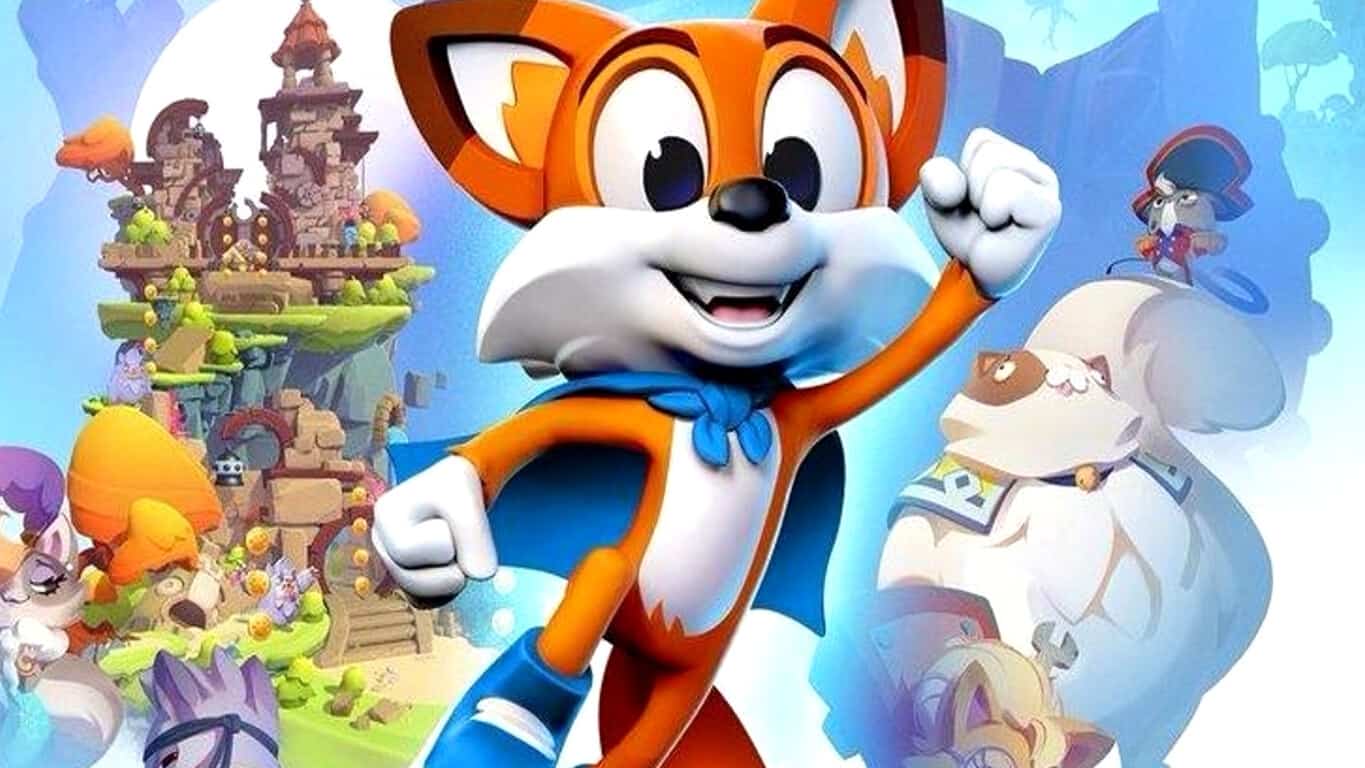
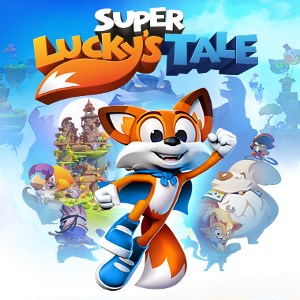
4K Xbox One X platformer Super Lucky’s Tale now available for digital pre-order

Super Lucky’s Tale is now available to digitally pre-order in the Windows Store. The game is part of the Xbox Play Anywhere initiative which means that buying it on Windows 10 or the Xbox One will automatically unlock it on the other device. Data will also transfer between each version allowing for players to begin a game on their Surface Pro, for example, and continue it on the Xbox One. Here’s the official game description & teaser video:

Welcome to Adventure! “Super Lucky’s Tale” is a delightful, playground platformer for all ages that follows Lucky, the ever-optimistic, energetic, and lovable hero, on his quest to find his inner strength and help his sister rescue the Book of Ages from Jinx. Jinx is the scheming and mysterious villain trying to reshape the world, but for what reason? Along the way, encounter a hilarious supporting cast of friends and adversaries. Lucky must confront the nefarious Kitty Litter, Jinx’s mischievous kids – self-taught villains who might not be getting Jinx’s plans quite right. Lucky meets friends and allies along the way too. He meets misplaced Yetis, Kookie Spookies, a village of farming worms, and other colorful friends inhabiting the Book of Ages.

Test your skills with carnival attractions mini-games and nerve-wracking obstacle courses. Plus, surprise “Jinx Levels” popping up when you least expect them, drawing Lucky into a fiendish game of life and death. Explore hidden secrets of new worlds with Lucky’s signature burrow move. Dive into unpredictable foxholes, or try devilish side scrolling challenge levels to unlock additional rewards. Head back to the era of classic platformers with challenges players of all skill levels and all ages can enjoy.

Super Lucky’s Tale was announced for the Xbox One at this year’s E3 and it will be one of the first video games to offer 4K resolution imagery when played on Microsoft’s new Xbox One X console. The game is due for release on November 7th just two weeks before the launch of the Xbox One X.

Are you going to pre-order Super Lucky’s Tale? Let us know in the comments below.

Super Lucky's Tale
Super Lucky's Tale
Developer:
Xbox Game Studios
Price:
Free

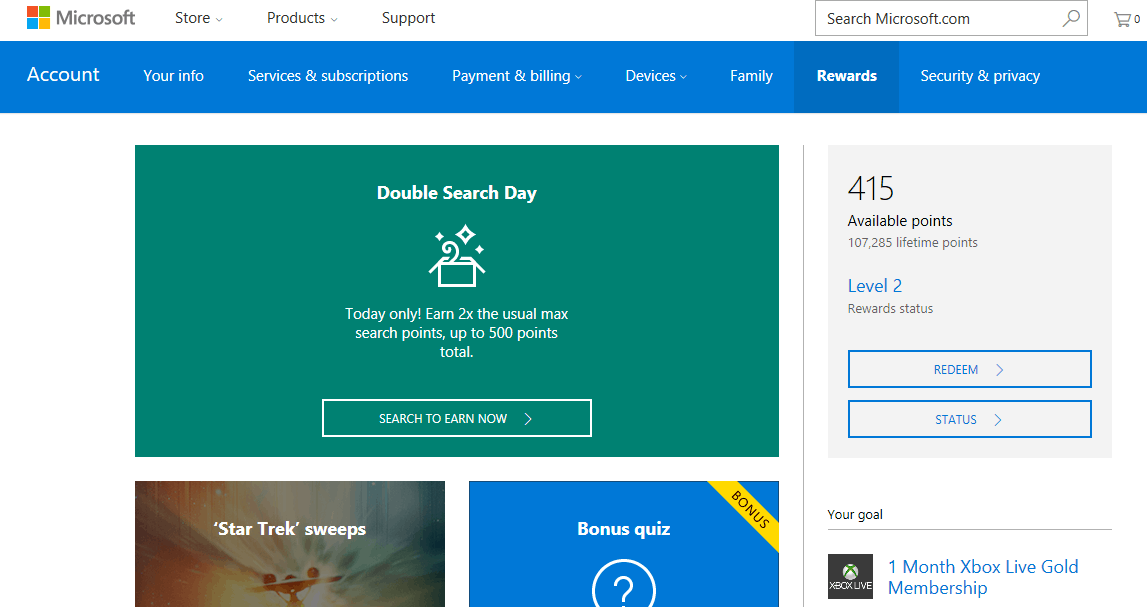
Microsoft is giving away 500 Rewards points for free to apologize for the system being slow to grant rewards

If you’re a Microsoft Rewards Member, check the email linked to your account now for a little points bonus from the folks at Microsoft. The company is giving away 500 Microsoft Rewards points for free to certain members as an apology for the rewards system recently being slow.

Notice of the 500 point bonus is being sent out in an email from Microsoft with the subject line “Sorry about that!” We received the email around 6PM ET today, and we’ve also included Microsoft’s apology note for you below.

You may have noticed recently that our system was slow to grant your points while searching, shopping, and browsing with Microsoft. We’ve fixed the issue and would like to offer you this 500-point bonus to make up for the inconvenience. Our sincerest apologies for the trouble.

The Rewards Dashboard and the email

To receieve the 500 points, make sure you’re logged into your Microsoft Rewards Account. After you do so, you can then click on the link in the email. Your browser of choice will open, sending you on to the Rewards Dashboard, where you can click on the green “our apologies” offer to cash the points in to your account.

The last time the Microsoft Rewards service acted up was eight months ago, and Microsoft had given members a 1,000 points bonus as an apology. If you’re not already a Microsoft Rewards Member, you can still sign up now. It’s fast and easy, and sometimes fun! Once you’re up and running, you can check out our guide on how you can earn those points quickly.

Here’s how to get a new Surface device with low monthly payments

Microsoft recently launched the Surface Plus program, aiming to make buying Surface devices more affordable. This new program involves flexible options targeted at helping more businesses and individuals to take advantage of the Surface’s power. It’s a mix between zero-percent financing and an 18-month update cycle.

For instance, users can get a Surface laptop on a 24-month finance with 0% interest charged and then they have to upgrade the device to the latest version every 18 months.

The Surface Plus program: Who benefits from the offer more?

The numbers will be in Microsoft’s favor because when you upgrade to the latest model after 18 months, the company will require that you return the previous functional device in an optimal condition. In other words, you have made 18 months of payments for a device that you will no longer own. The new device, on the other hand, will be sold to you at its full price under the same 24-month interest-free finance agreement.

This means that you can save more money by selling your original Surface on the second-hand market than buying the latest model on a fresh contract.

The finance agreement needs close attention

Microsoft describes the interest-free period as being a promotional one that applies only to accounts with financing service Klarna held up to the 24-month period. In case you miss a payment, or if you fail to pay the balance off at the end of the 24 months, the interest will jump to 19.99% APR.

The Surface Plus for Business program

Surface Plus for Business was also announced and here’s what you need to know. Based on the consumer Surface Plus program, the business option provides more flexibility. It includes 18, 24, or 30-month financing terms and a reduction to 12 months for upgrade eligibility on the 18-month contract. This variant has no interest applicable, and it also covers the full Surface range including the Surface Studio and the Surface Hub families.

For now, both the Surface Plus and the Surface Plus for Business programs are only available in the US. We don’t have any information if they’ll ever go international.

RELATED STORIES TO CHECK OUT:

Hearthstone August Patch issues: game crashes, Arena disconnects, and more

Blizzard recently released a new patch for Hearthstone to prepare players for the upcoming Knights of the Frozen Throne expansion. The new patch teases users with some of the upcoming features, and fixes a few known issues.

However, besides bringing all these positive things, the August 8 patch also causes some problems of its own. A few users complained about certain issues on the forums. In this article, we’re going to round up the complaints in order to give you the idea of what needs to be resolved before the long-awaited expansion arrives.

Hearthstone August 8 patch issues

First of all, one of our game testers played Hearthstone upon installing the patch. He noticed a strange issue that we haven’t found on the forums. Of course, if you already saw someone else complaining about it, feel free to post the thread link in the comments.

Namely, animations from the cards like Mimic Pod for Rogue, or Druid “choose one” cards+ Fandral Staghelm are slower, thus the players’ turn-time is less. This is a very annoying issue for the professional players, because they’ll have won’t have enough time to think during their turns while competing in tournaments and championships. We’re sure LifeCoach will have something to say about this.

And now, on to the reported issues.

Unable to launch the game

The major problem with the latest patch, and the problem that causes headaches to Hearthstone players who installed is the game-launching issue. Namely, numerous players have reported that they’re unable to run the game, for various reasons. Here’s what just some of them said:

“I need some help whenever i start hs i go into the menu and after a few seconds i get disconnected from hs I redownloaded the game and verifed it as well nothing has worked so far i could really use some help”

“My Hearthstone doesn’t work it start up and ask me to sign in and then it say i have to Update but its already Update 
I have talen screen shot but im not sure hos to attach it”

“I can not login hearthstone on my pc, game is crashed. But i can login with another account with the same pc. Also i can login with my iphone with both accounts. What is the solution of that?”

Blizzard technicians haven’t been so helpful on this one so far. They mainly suggest updating Windows 10, and installing all the latest updates and drivers for the system. But we’re not sure how helpful this solution is. We can recommend you to check out our article about launching issues with Hearthstone, but we cannot guarantee any of them will work in this case.

Lags during gameplay

A lot of players also reported strange lags during gameplay. Here’s what one of them said:

“For a while now my hearthstone has felt choppy and freezes/spikes randomly. This occurs in the menus and while in game, it is only a slight lag spike or frame delay but it really ruins the feel of the game making it almost unbareable to play.

Any ideas on how to fix this?”

Unfortunately, no one had a proper solution for this problem. So, we hope the expansion will actually feature the fix.

Issues with card and player names

One player said that player and card names disappear when he plays the game:

“This appeared after some patch a few weeks ago. All my card names, player names, quest progress, and other text gets “scrambled”. It can be partially fixed by setting another resolution, but when another card is drawn or played, it will be scrambled again. It hasn’t been much of a problem until now but with the new expansion coming out, not knowing the card names will be a real detriment. Is there any way I can fix this?”

Arena disconnects

And finally, there are also reports saying that the Arena mode is prone to disconnecting after installing the August 8 patch:

“Hello guys I got disconnected from arena twice in a row. 
My internet is perfectly fine, used terminal to ping at that time, every other sites/streams worked well except – eu.battle.net.
Are you having any technical problems that disrupted my games?
Thanks for answers, it’s kinda sad that I spent gold for nothing but well, happens.”

Unfortunately, this issue also remains unresolved, as no one from the forums had a proper solution for it.

That’s about it for the most serious problems that occurred after the August 8 patch for Hearthstone. As you can see, the August 8 patch is quite troublesome for such a minor update. So, developers definitely need to do some work, if they don’t want to spoil the fun of players anticipating the Knights of the Frozen Throne expansion.

Have you noticed any problems upon installing the latest patch? What do you expect from tomorrow’s expansions? Let us know in the comments below. 

RELATED STORIES YOU NEED TO CHECK OUT:

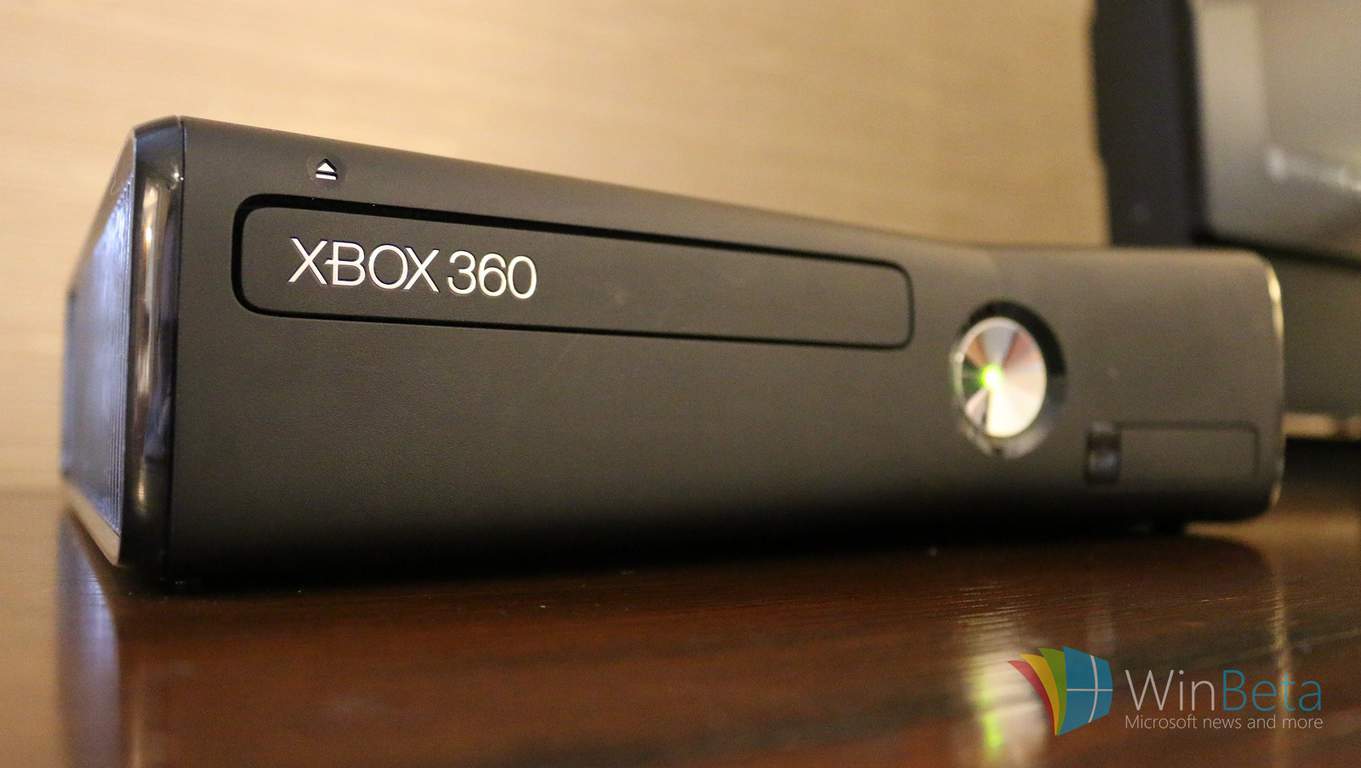
The Xbox Live Indie Games program is shutting down next month

This is a reminder that the Xbox 360 program Xbox Live Indie Games created to encourage developers on the platform is wrapping up next month (via Neowin). The program is scheduled to be decommissioned and all the games from it unlisted in the Xbox 360 store in September following up on a plan released two years ago.

Many popular titles that have come out through the Xbox 360 era such as Super Meat Boy, Limbo, and more have already converted over to the Xbox Backward Compatibility program. While the titles won’t be available in the store anymore, gamers can still play their purchases still downloaded on their devices.

The program will have ran for eleven years. Indie developers are being encouraged to join the ID@Xbox platform now instead, ushering in an improved way to create video games for Xbox One and Windows 10. You can read more details about the ID@Xbox program here at OnMSFT.

Xbox Creators Program is now live in the Xbox Store

Earlier this year at GDC, Microsoft unveiled the Xbox Live Creators Program, a new initiative to make it easier for indie developers to publish their games on the Windows and Xbox stores. Compared to the pre-existing ID@XBOX program, developers joining the new initiative will be able to integrate Xbox Live into their game (with some exceptions such as Achievements or Internet multiplayer) and publish to Xbox One and Windows 10 without the need for concept approval.

Today, the Xbox team announced that the first wave of Creators Program games are now live in the Windows Store, starting with nine games. All of them are UWP apps, but some are actually available on Xbox One, Windows 10, Windows 10 Mobile and even HoloLens:

If you’ve never heard of these games before, that’s normal, and the Xbox team says that you should expect “games that can be quirky and have varying degrees of polish, but are always interesting.”

As these games don’t have to respect the same quality standards as ID@XBOX games, they won’t be proeminently feature on the Windows Store. On a Windows 10 PC, Creators Program games will appear in the Games category, but on the Xbox One they will be regrouped into the Creators Collection section of the Xbox Store. “This gives us all the best of both worlds: A curated store and a fully open marketplace in the Creators Collection,” explained the Xbox team.

It will be interesting to see if many game developers embrace this new initiative, but Microosft promises to “regularly add new games as developers finish their work.” If you’re a game developer, you can learn more about the program on the dedicated website.

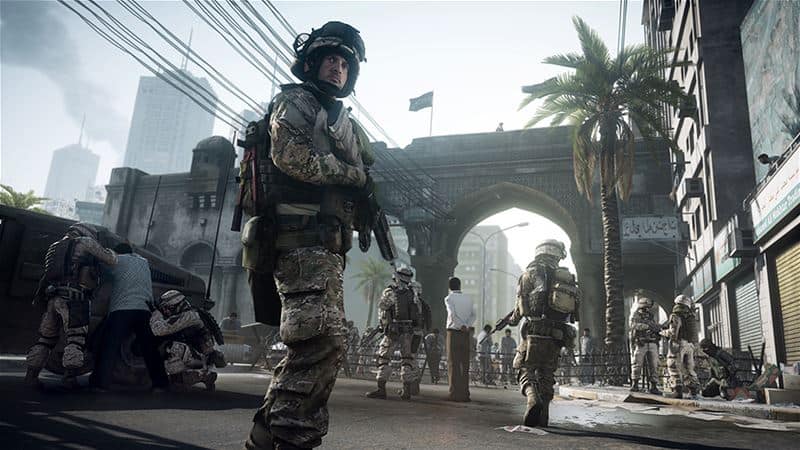
Battlefield 3 is now available for ALL Xbox One owners to play

If you were bummed to find out that Battlefield 3 was only available through EA Access or disc when it was added to the backward compatibility list, you’ll be happy to know that’s no longer the case.

As bullets whiz by, walls crumble, and explosions throw you to the ground, the battlefield feels much more alive and interactive than ever before. In Battlefield 3, players step into the role of the elite U.S. Marines where they will experience heart-pounding single player missions and competitive multiplayer actions ranging across diverse locations from around the globe including Paris, Tehran, and New York.

As of today, a digital copy of Battlefield 3 can be accessed via the Xbox Store. The twelfth installment of the franchise was released in 2011 with both single-player and cooperative campaigns and all the destruction you could ask for from its generation.

Battlefield 3™
Battlefield 3™
Developer:
Electronic Arts
Price:
Free

Battlefield 1 has been added to the EA Access vault on Xbox One

Battlefield 1, one of the biggest blockbuster games released on the Xbox One this year, is now available to play for EA Access subscribers (via Neowin). The WW1 shooter follows Titanfall 2, which was added to the EA Access vault last week. Battlefield 1 is still priced at $59.99 on the Microsoft Store today, so it’s now much cheaper to try the game by subscribing to EA Access.

Here is the game’s official description:

Fight your way through epic battles ranging from tight urban combat in a besieged French city to the heavily defended mountain forts in the Italian Alps or frantic combats in the deserts of Arabia. Discover a world at war through an adventure-filled campaign, or join in epic multiplayer battles with up to 64 players, and adapt your tactics to the earth-shattering destruction and dynamic weather. Fight as infantry, lead horse charges or take control of amazing vehicles on land, air and sea, from tanks and biplanes to the gigantic Behemoths – some of the largest vehicles in Battlefield history.

In addition to Battlefield 1 and Titanfall 2, the EA Access Vault recently welcomed FIFA 17, Dragon Age: Origins as well as all four Star Wars Battlefront expansions. As a reminder, the gaming subscription service is still $4.99/month or $29.99/year.

Xbox could be moving away from Achievements, embracing “gaming history” instead

Since Microsoft introduced Xbox Live Achievements with the Xbox 360 more than 10 years ago, the gamification system has pretty much become a game within the game for many players. For some, it has even become a real life competition: Ray “Stallion83” Cox, long time owner of the world’s highest Xbox Gamerscore recently reclaimed his crown after losing it to Stephen “smernov” Rowe during his honeymoon (you can check the global Gamerscore Leaderboards on this site).

But does your Gamerscore really represent your true achievements as a gamer, including your dedication to playing your favorite titles? You could argue that the current Gamerscore system doesn’t necessarily reward the most passionate and skilled gamers out there, and it seems that Microsoft now agrees with that.

Mike Ybarra, Corporate Vice President of Gaming at Microsoft recently explained that the Xbox team is thinking about revamping Xbox Achievements to better reflect your gaming accomplishments, independently from your own Gamerscore level. This is what he said during the Xbox Two Podcast yesterday:

Those are all small things that we can do to the system, and the team looks at them. They’re in our backlog of things that we want to get done, but there’s actually bigger, more bolder changes that we have in mind. Nothing that I can talk about now, but something that fundamentally changes the concept … we are working towards a bigger, more meaningful change about somebody’s gaming accomplishments in history, as a gamer on Xbox.

We can do a lot more to reflect and let people show their gaming history and their status. Whether it’s somebody who only plays multiplayer in Halo 5 at a professional level, maybe they only have 2,000 Gamerscore, you want to be able to celebrate that person. You want people to be in the know. This person doesn’t play a lot of games, but they’re world top ten at Halo 5. All the way to people [with over a million gamerscore]. It’s that range that we really need to look at and celebrate … we’re going to go big in the area of letting people show off and represent their gaming history and the type of gamer that they are, far more than we do with Gamerscore.

It’s not exactly clear what the Xbox team has in mind, but we guess it could mean making better use of your personal gaming data to surface interesting facts that are not already rewarded with Xbox Achievements. This is something that the company already tried to do in the past, and you may remind the recent Gamercrest website that gave you a lot of insights on your overall activity on Xbox Live. Hopefully, the Xbox team is working on something much more ambitious and interactive for the future.

New Xbox One Preview BETA build 1706.170807-1737 fixes a set-up bug

Build 1706.170807-1737 will be rolling out to Xbox Insiders in Preview BETA today. It’s a fairly minor update that doesn’t add any exciting new features and make grand sweeping changes but it does fix a glitch that was occurring on systems during the initial set-up phase. Here’s the official notes:

HOW TO GET IT

If your console is in Instant-On mode and you have been selected to receive the update, it will download and install the update and reboot to standby.

NOTE: Once the update is available to you, you can manually begin the update by launching the Guide and navigating to All Settings > System > Updates.

If your console hasn’t downloaded and installed the update by 1:00 AM PDT 8/11/2017 (8:00AM GMT 11/8), you will be prompted to do so at that time.

DETAILS

OS version released: rs2_release_xbox_1706.170807-1737

Available: 6:00PM PDT 8/9 (1:00AM GMT 10/8)

FIXES:

Console Set-up

Fixed an issue which could cause graphical glitches to appear during the initial console set-up experience.

Have you got this update yet and noticed anything surprising? Share your findings in the comments.

Microsoft could finally be bringing Windows 8 Live Tiles to the Xbox One

In an interview on the Xbox Two Podcast, Microsoft’s Mike Ybarra spoke about the upcoming redesign of the Xbox One dashboard and how it could evolve even further in the future. Something that particularly stood out was his description of the new Content Blocks which would allow Xbox One users to pin specific content to special areas on the dashboard.

“You can imagine a world where you have a Twitter Content Block, and you can see your latest Tweets there or DMs that you want to see,” Ybarra explained. “That’s just one example I made up here. But certainly as we go forward, we think the Content Block idea of giving gamers the ability to customize their home is something that not only apps and game developers will embrace, but consumers will embrace as well. So you’re seeing just the cusp of what we really want to do here.”

His mention of Twitter integration on the dashboard bears a striking resemblance the Live Tiles that were first introduced on Windows 8 devices and Windows Phones and allowed for the display of live, updated content, directly from the Start Screen. Windows 10 devices and current Windows phones still make use of the feature and it’s been something many Xbox One users have been wanting to see for years now, just check out this User Voice suggestion from 2014. Honestly it’s surprising it hasn’t happened before now.

Do you think Microsoft will finally bring Live Tiles to the Xbox One or will this be something completely different? Maybe an evolution of the Live Tile concept? Let us know in the comments below.

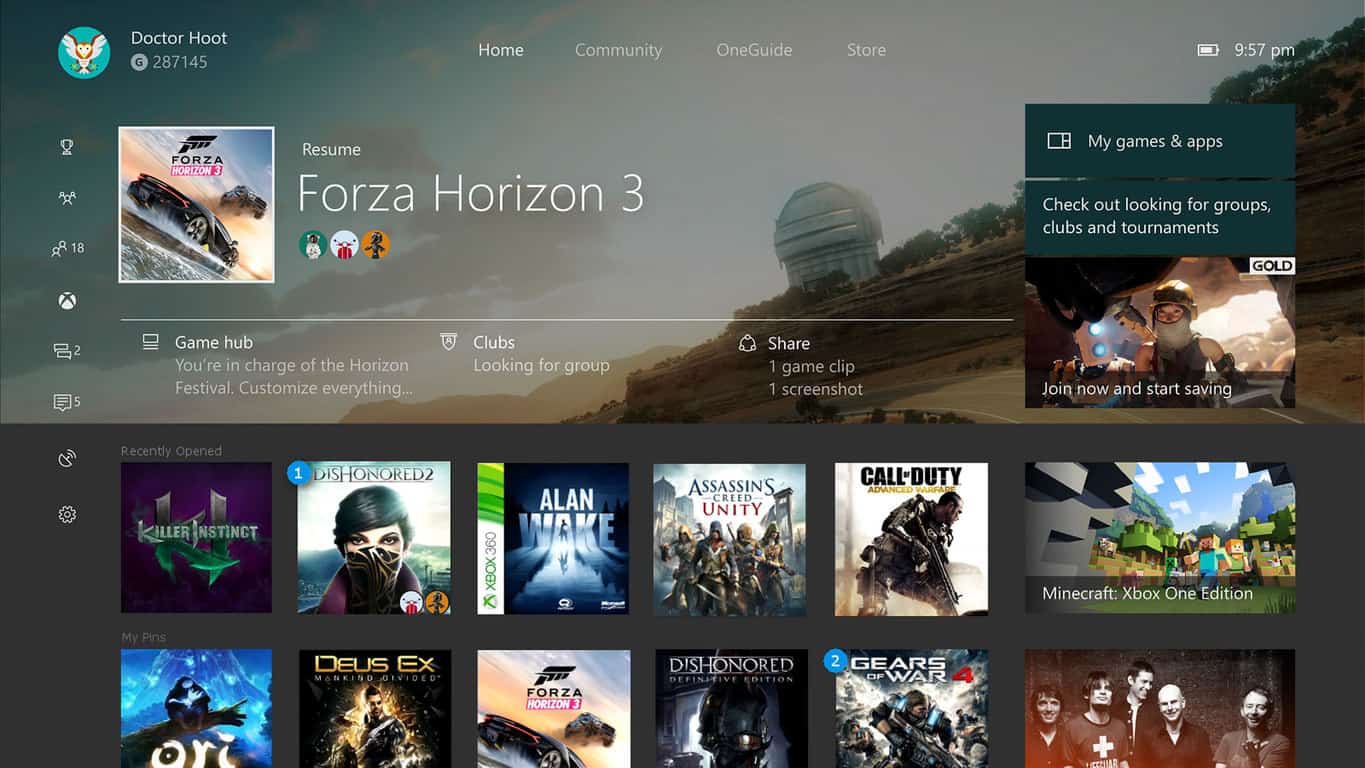
Gamers want the Xbox One dash to look like this. What do you think?

Microsoft unveiled their upcoming visual redesign of the Xbox One dashboard earlier this week and the response from users has been fairly mixed. While most console owners are excited about the new customizable areas, many have begun to voice their dislike of the overall look and are hoping that Microsoft will make some adjustments before the change is rolled out to the general public.

One group of Xbox One users on Reddit in particular have begun commenting heavily on a fan-made image of a potential new Xbox One dashboard that mixes elements of the current look with more conveniently placed recent and custom pins (see the image above).

Microsoft’s own Larry Hyrb has already seen this suggestion and commented on it publically in the thread. “I’ll pass this along, but do know members of the Xbox team browse here frequently – so it’s probably already been seen internally,” he wrote.

The Xbox team at Microsoft constantly takes feedback from users online and in particular those who are Xbox Insiders (select members of the community who have opted-in to test features and changes). What changes would you like to see made to the Xbox One dashboard? Share your thoughts in the comments below.

KB4034674 (OS Build 15063.540)

Microsoft recently rolled out cumulative update KB4034674 to Windows 10 version 1703, bringing a series of useful bug fixes and improvements. This update fixes the annoying crashes triggered by Applocker and adds a bevy of security improvements to many Windows OS components. The update takes the OS build to version 15063.540.

KB4034674 official change log

  •  Addressed the issue where the policies provisioned using Mobile Device Management (MDM) should take precedence over policies set by provisioning packages.
  • Fixed the issue where the Site to Zone Assignment List group policy (GPO) was not set on machines when it was enabled.
  • Addressed the issue where the AppLocker rules wizard crashes when selecting accounts.
  • Addressed the issue where the primary computer relationship is not determined when you have a disjoint NetBIOS domain name for your DNS Name. This prevents folder redirection and roaming profiles from successfully blocking your profile or redirects folders to a non-primary computer.
  • Addressed the issue where an access violation in the Mobile Device Manager Enterprise feature causes stop errors.
  • Security updates to Microsoft Edge, Microsoft Windows Search Component, Microsoft Scripting Engine, Microsoft Windows PDF Library, Windows Hyper-V, Windows Server, Windows kernel-mode drivers, Windows Subsystem for Linux, Windows shell, Common Log File System Driver, Internet Explorer, and the Microsoft JET Database Engine.

There is also one known issue on the list. More specifically, this update may change Czech and Arabic languages to English for various apps. For the time being, there is no workaround available to solve this problem. Microsoft is already working on a fix and will provide an update in an upcoming release.

Download KB4034674

Windows Update will automatically download and install this update as part of the official Patch Tuesday. You can also download the stand-alone package for KB4034674 from the Microsoft Update Catalog website.

Have you downloaded KB4034674 on your PC? Did you encounter any issues after you installed the update? Let us know in the comments below.

RELATED STORIES YOU NEED TO CHECK OUT:

[wl_navigator]

Windows 10 version 1511 update KB4034660 now available for download

Microsoft just released cumulative update KB4034660 for Windows 10, as part of this week’s Patch Tuesday. Cumulative update KB4034660 is for Windows 10 version 1511, and is one of four updates that each supported version of Windows 10 received this week.

The new update brings no new system features to the table, but instead focuses on resolving some of the known problems. More precisely this update deals with deployment issues with apps using AppLocker, and problems with launching apps after waking up from Connected Standby Mode.

Here’s the complete changelog of cumulative update KB4034660 for Windows 10 version 1511:

  • “Addressed issue where, when deploying an application to a device that is managed by AppLocker, the application deployment fails. 

  • Addressed issue introduced in the June updates where some applications may not launch when a device resumes from Connected Standby mode. 

  • Security updates to Windows kernel-mode drivers, Microsoft Graphics Component, Microsoft Windows Search Component, Microsoft Windows PDF Library, Microsoft Edge, Internet Explorer, Microsoft Scripting Engine, Windows Server, Common Log File System Driver, Windows Hyper-V, and the Microsoft JET Database Engine.”

Since this is a cumulative update, it contains all previously-released bug fixes and system improvements. So, if you missed some of the previous updates for your system, you should get everything you need with this one.

Besides cumulative update KB4034660 for Windows 10 version 1511, Microsoft also released cumulative updates for all other supported versions of the system. Users of Windows 10 version 1703 received cumulative update KB4034674, Windows 10 version 1607 got cumulative update KB403465, while cumulative update KB4034668 was released for the initial version of Windows 10 (July 2015 release).

To obtain the latest cumulative update for Windows 10 v1511, just go to Windows Update and check for updates.

For more info about this, and all other updates released this Patch Tuesday, visit Microsoft’s official Update History Page. 

RELATED STORIES YOU NEED TO CHECK OUT:

The latest Surface Pro 4 update fixes Windows Hello camera issues

A couple of weeks ago, Microsoft released a large batch of firmware and driver updates targeted at the Surface Pro 4. It’s not clear yet if these updates are the culprits, but many users began reporting that the Windows Hello camera stopped working. Microsoft didn’t release an official statement about this issue and the presumed cause.

Windows Hello camera issues

It seems that the root-cause of the problem was a faulty driver that came with the July 21 update, version 1.0.65.1 and this was not documented in the changelog. The workaround was to simply roll back the driver via the Device Manager. Anyway, Microsoft recently rolled out a fix for this problem.

The official changelog for the Surface Pro 4 update history page said that the version 1.0.75.1 version fixes the Windows Hello experience error.

According to the value indicator chart, the update enhances reliability, and it will not affect the following factors: battery life, performance, connectivity, compatibility, or security.

Getting the new Surface Pro 4 update

To grab the latest update, you have to go to Settings – Security & updates – Windows Update – Check for updates.

You should know that if you update the OS on your Surface, this will erase all of your current update history. Another important thing is that firmware updates cannot be uninstalled or reverted to a previous version.

When the Windows Update service provides the Surface updates, they are delivered in stages to the Surface users. Therefore, not every device will get the update at the same time, but be sure that all devices will receive the update eventually. In case you haven’t received your yet, you are advised to check the Windows Update manually later.

RELATED STORIES TO CHECK OUT: