Instagram is a popular mobile video/photo sharing and social networking service that allows users to take videos and pictures and share them either privately or publicly. At the same time, the application comes with a simple user interface, which will make life easier for new users.
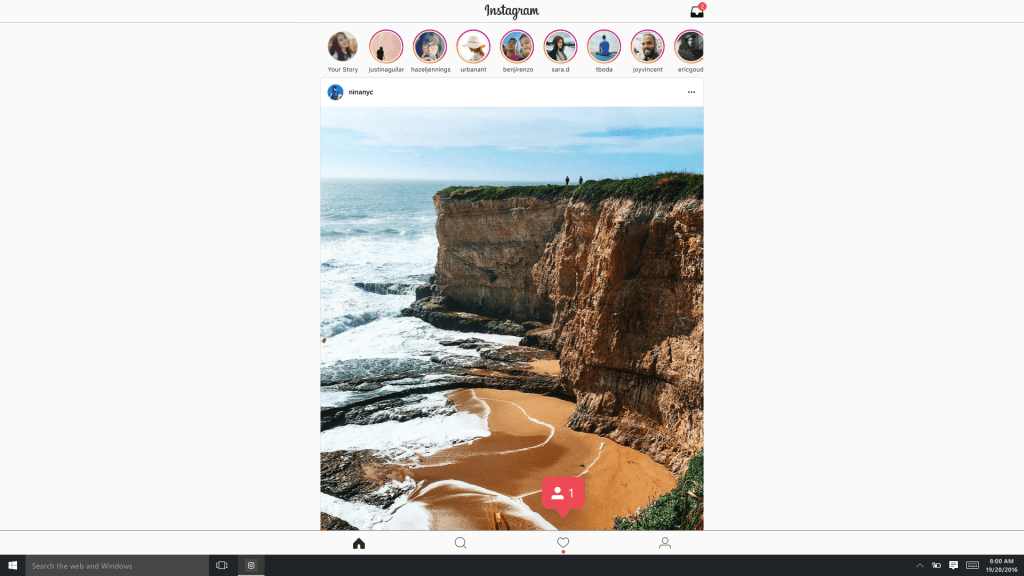
The Instagram application for Windows 10 has just been updated and it can now be installed on both tablets and PCs. It is good to know that the new Instagram application is almost identical to the mobile version.
However, it seems that posting a photo or video content on Instagram from a tablet or PC that runs on Windows 10 will be limited to devices with backwards facing camera and touchscreens (such as the Surface Pro line and Surface Book). This is mostly because the user interface of Instagram is influenced by the smartphone application design.
Here are more features that the Instagram application for tablets and PCs running on Windows 10 comes with:
Post and edit photos – Instagram makes sharing moments with everyone in your world easy, speedy, and fun.
Stories – Stories from people you follow will appear in a row at the top of Feed.
Instagram Live Tile – Find out what your friends and family are up to at a glance.
Rich, native notifications – You will receive the notifications you want to see so that you don’t miss important updates.
Instagram Direct – Instagram Direct lets you exchange threaded messages with one or more people, and share posts you see in Feed as a message.
Full featured Search, Explore, Profile, and Feed.
It seems that Instagram is getting more and more popular and now the company wants to expand its services on any platform.
Are you using Instagram to share your videos and photos with your friends? Tell us your thoughts about this social network!
Microsoft (MSFT) news recap is a weekly feature highlighting the top Microsoft news stories of the past week. Sit back, grab some coffee, and enjoy the read!
Microsoft files for EU approval of LinkedIn acquisition
Salesforce has recently tried to block Microsoft from the LinkedIn acquisition in the EU by hiding behind antitrust issues. They are doing everything they can to crush their competition, as the LinkeIn deal could badly hurt them.
Microsoft now files for EU approval of the deal to shut Salesforce up and the deal has already been approved by government antitrust regulators in the United States, Canada, and Brazil which means that it should go well for the approval in the EU too.
Microsoft shows off cloud based data in feature on transforming golf
It seems like Microsoft may actually be into golf. Microsoft is thinking outside the box again and has announced that they now focus on golf enthusiasts by using cloud data. The data will be available by using the Microsoft Course IQ app and it will contain maps for over 30,000 different golf courses together with specific features for golf like score tracking and more.
With this information, golfers will be able to play the sport even easier, as they won’t have to worry about a lot of difficulties that they usually may have to deal with.
Indian government grants Microsoft cloud a rare provisional accreditation
Microsoft can now do more to support the government of India. Microsoft has officially obtained a rare provisional accreditation from The Ministry of Electronics and Information Technology in India, which means they now deliver a cloud computing solution in India that provides truly innovative digital services to a wider range of customers.
Microsoft involving itself into different governments is nothing new, but now, the company has a pretty good position over in one of the fastest technology-growing countries in the world.
Images of the apparently cancelled Band 3 published
Microsoft may have ended the Band product line, but that doesn’t stop leaks from happening. Windows Central got their hands on images of the cancelled Band 3, with even more images following a few days later. It is a shame that a product so good has potentially been buried alive.
Microsoft tapping Pegatron as its high-end Surface AIO manufacturer
One product may have apparently been killed off, but that doesn’t mean other ones can’t Surface. The Surface AIO device has been rumoured for quite a while and now, we might finally know who will manufacture them. The rumours say that Pegatron may be the company for the job, and Microsoft seems to trust them in the production of their flagship brand.
That’s it for Microsoft this week – we’ll be back next week with more.
Updating can be sometimes quite annoying, especially if you have some important things to do on the computer. There are many users and administrators out there who run into updating issues on Windows machines.
For example, in the past year, we’ve seen many updates that caused some several issues on Windows 10 OS. For example, the updates KB3081424 and KB3194496 have caused issues on computers all over the world.
Because of this, Microsoft has also released a “Reset Windows Update Agent, which is a tool that is designed to fix the updating problems. So, if the Windows Update doesn’t work correctly, this is a great tool that you can use in order to make sure that your updates are installed properly.
How To Check Windows Update Errors Fast And Easy
It is good to know that Windows is keeping an update log where it is listing all update-related events. These logs can be found in C:\Windows\Logs\WindowsUpdate and they can be analyzed by using various tools.
However, you can also use a simple PowerShell command in order to turn the Event Trace Log files into a single text log that you can then check for errors or other issues that are related to the updates on Windows.
Here is how you can do that:
On Windows 10 OS, press the Windows-key and type cmd.exe, but make sure that you hold down Shift and Ctrl and hit the Enter key. If you do this, a command prompt will open with “Administrator” rights
Type powershell and hit the Enter key
Now write the command: get-WindowsUpdateLog –verbose
After doing a WindowsUpdate.log file will be created on the desktop which you will be able to load it once the process finishes (using any type of editor – we suggest you to use NotePad++).
Microsoft introduced folder libraries in Windows 7, which have remained a part of File Explorer. The libraries give you a central place to manage folders. File Explorer includes default Videos, Pictures, Documents and Music libraries. The Music Library gives you quick access to music folders in multiple locations, which can come in handy.
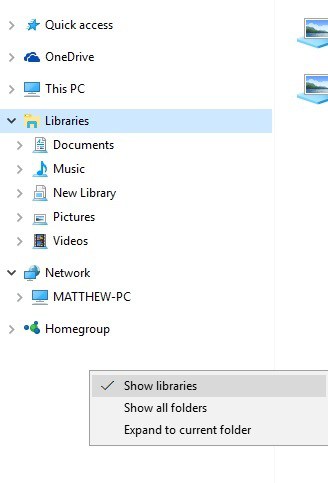
Note that the Music Library is not included on the Windows 10 File Explorer sidebar by default. To restore Libraries File Explorer’s navigation bar, select This PC. Then you should right-click an empty space in the left sidebar and select Show libraries from the context menu as below. Then you can select Libraries > Music in the sidebar.
However, the Music Library might not always work. When the Music Library doesn’t open, a Windows Libraries window pops up stating: “Music.library-ms is no longer working. This library can be safely deleted from your computer. Folders that have been included will not be affected.” You can fix the Music Library as follows.
First, open File Explorer (or Windows Explorer) and click Libraries on the left of the window to open them as below.
Then right-click the Music Library and select Delete from the context menu.
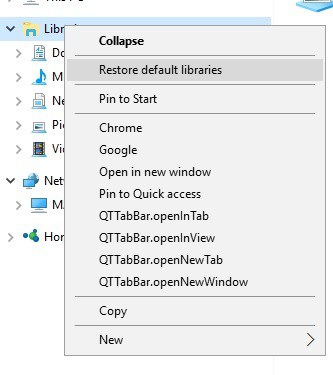
Next, you should right-click Libraries on the navigation sidebar to open the context menu shown directly below.
The context menu includes a Restore default libraries option. Click the Restore default libraries option.
Now click on the restored Music Library to open it.
So that’s a quick fix for the Windows Music Library. Note that you can fix any File Explorer library folder much the same. Just delete the library folder that isn’t opening and select Restore default libraries.
Wireless adapters are essential for connecting your PC or laptop to Wi-Fi networks. However, many users face issues when their wireless adapters are incompatible with Windows 10 or Windows 11. This often results in dropped connections, error messages, or complete inability to detect Wi-Fi signals.
Why Wireless Adapters May Not Work With Windows 10/11
Several factors can cause incompatibility between wireless adapters and Windows 10/11. Common reasons include outdated drivers, lack of manufacturer support, missing protocols, or unsupported hardware. In some cases, a wireless adapter that worked with Windows 7 or 8 may stop working after upgrading to Windows 10 or 11.
Driver support dropped: Some manufacturers no longer provide updated drivers for older adapters.
Protocol mismatch: Adapters that only support outdated standards like 802.11b/g may not perform correctly.
Hardware limitations: Older chipsets may not fully support Windows 10/11 networking features.
Secure boot or compatibility issues: Windows security improvements can block unsupported drivers.
Common Wireless Adapters Known To Cause Issues
Based on user reports and official manufacturer notes, several wireless adapters have been flagged as problematic or outright incompatible with Windows 10 and Windows 11:
Broadcom 802.11n adapters – Known for frequent disconnects and missing driver updates.
Qualcomm Atheros AR956x – May fail to recognize Wi-Fi networks after upgrading.
Realtek RTL8188/8192 series – Users report driver crashes and unstable speeds.
Intel Centrino Wireless-N 1000/1030 – No official Windows 10/11 drivers available.
Older USB Wi-Fi dongles – Many generic brands lack long-term driver support.
How To Check If Your Wireless Adapter Is Compatible
Before upgrading to Windows 10 or 11, it’s important to confirm whether your wireless adapter will work properly. You can check compatibility using these steps:
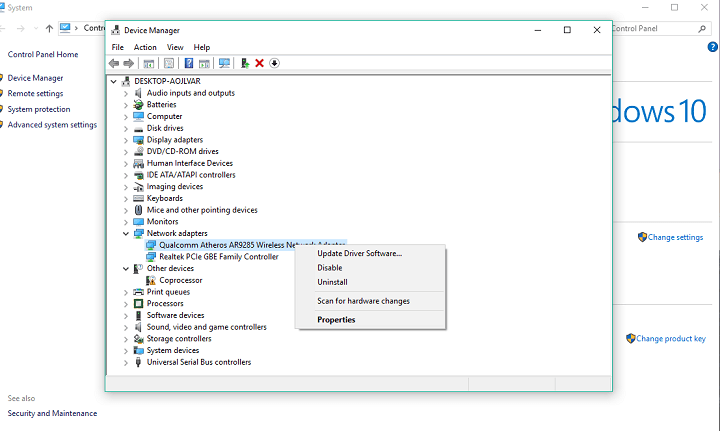
Open Device Manager → Expand Network Adapters.
Note the model number of your wireless adapter.
Visit the manufacturer’s website to see if Windows 10/11 drivers are listed.
If only Windows 7/8 drivers are available, compatibility issues are likely.
Howow to fix internet connection problems for older Wi-Fi adapters in Windows 10
The main gap between Windows 10 and your old Wi-Fi adapter is an outdated driver. If you current driver is not compatible with Windows 10, there’s no chance you can connect to internet normally. So, the solution for this problem is obvious, you just need to update your Wi-Fi adapter driver, and you should be able to connect to internet in Windows 10.
However, updating a driver for an older piece of hardware is slightly more complicated than updating a driver for newer software. The method is still quite similar, but it requires more work. So finally, here’s what you need to do to properly update your older Wi-Fi adapter’s driver in Windows 10:
Go to your wireless adapter manufacturer’s website, and find and download the latest driver for your Wi-Fi router. Even if it says that the driver is only compatible with older versions of Windows.
It will probably come as a .zip file, so extract everything from a zip file to an empty folder.
Now, go to Search, type devicemng, and open Device Manager.
Find your wireless adapter from the list of installed hardware, right-click it, and select Update Driver Software.
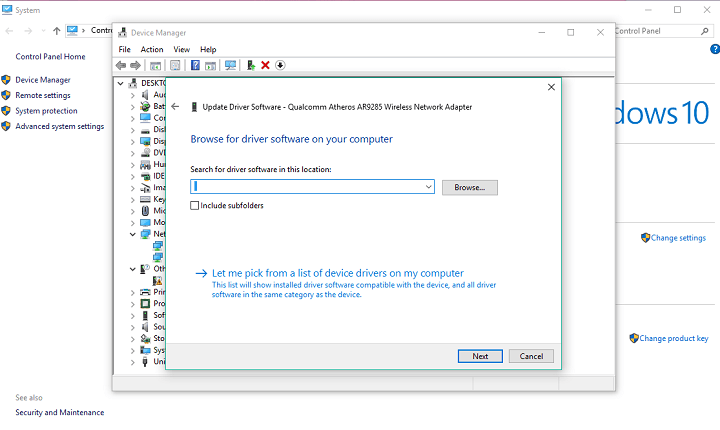
Now, instead of searching for a driver automatically, click Browse my computer for driver software.
Click Browse to locate the adapter driver.
Check the Include subfolder option.
Click Next to complete the task and install the new driver.
Restart your computer
Even after performing this, there’s no guarantee that your Wi-Fi adapter will start work normally. Solution for that is to actually keep experimenting with different versions of a driver for your Wi-Fi adapter. So, if one version doesn’t get the job done, download anther one, and repeat the process, don’t get discouraged if the first try fails. You’ll have to do this until a manufacturer releases a Windows 10-compatible driver for your device. If that ever happens.
Also, even if you managed to get your Wi-Fi adapter working with the current version of Windows 10, there’s no guarantee that it will stay functional after Microsoft releases a new major update for Windows 10, like the Redstone 2 update.
In case a major update causes your Wi-Fi adapter to stop working again, the only solution you’ll have is to actually replace it with a new one. At the end of the day, that shouldn’t be a problem either, as Wi-Fi adapters are not that expensive, plus you’ll be saved from the pain of installing driver software over and over again.
That should be all for our article about fixing compatibility problems with older Wi-Fi routers. In case you have any comments, questions, or suggestions, just let us know in the comments below.
Update KB3185330 is the first Monthly Update Rollup for Windows 7. From October onwards, Microsoft changes the manner in which it pushes security and reliability updates to Windows 7 and 8.1. As a result, the Monthly Update Rollup KB3185330 includes improvements and fixes from previous updates, as well as the patches brought by KB3192391, the latest Windows 7 cumulative update.
However, not all Windows 7 users have been able to install the first Monthly Update rollup for the OS. For many users, KB3185330 failed to update with error code 80004005. Usually, the install process advances until it reaches 70% or more, but then gets stuck. When it advances up to 100%, it fails and the error code 80004005 appears on the screen.
Windows 7 users can’t install KB3185330 due to error 80004005
KB3185330 Failed to Update w/Error Code 80004005. I’ve been trying all kinds of fixes through this site and Mr. Google, but I can’t get this to install. After a restart, it seems to get up to 71% and stay there for a long time. Then when it finally advances up to 100%, it fails and reverts back. How can I fix this? Any help will be most appreciated.
Other users quickly offered possible workarounds to fix this issue, but it appears non of them got the job done. For the time being, it seems there is no solution available to fix the 80004005 error and complete the installation process of KB3185330.
Microsoft’s Support Team hasn’t yet replied to the posts from this forum thread. More than 400 Windows 7 users viewed the thread, which suggests this is not an isolated issue.
If you’ve come across a fix for this bug, you can list the troubleshooting steps in the comment section below.
Throughout the past few years, CDs have lost their popularity. And the reduced usage of the drive led to multiple issues. A common problem many users face is when the CD is stuck in the laptop.
This could happen to anyone and is usually seen when the CD drive is not used often. In some cases, the CD drive was not opening, while for a few, the tray opened but was empty. This indicates that the CD is stuck inside the body. Let’s find out how you can fix things in both cases!
What can I do if the CD gets stuck in the laptop?
Before we move to the slightly complex solution, here are a few quick things to try:
Restart the computer and then try opening the stuck CD drive.
Check for a small hole on the CD drive used to eject it forcefully. If there’s one, insert a pin or paper clip into it, wait for a click sound, and the drive will open.
If none work, head to the solutions listed next.
1. Try ejecting from Windows
Open File Explorer.
Go to This PC.
Right-click on the CD/DVD drive, and choose Eject.
If you’re unable to eject your CD ROM by pressing the physical button, you can do the same thing by Windows to eject a CD automatically. This should be the primary approach when the CD is lost inside the computer.
2. Try to eject on reboot
Press Ctrl + Shift + Esc to open the Task Manager.
Identify any programs you think might be responsible for the problem, right-click on them, and click End task.
Check if you can now eject the drive.
In case not, restart the PC and try ejecting the drive before Windows boots up.
Some manufacturers even have an eject function in the BIOS. So if your laptop is one of these devices, there’s a chance that CD ROM will even automatically eject on the next start-up.
That way, no program will be able to prevent your CD ROM from working and will help you in removing a stuck CD from the laptop.
3. Check for Driver updates
Go to Search, type Device Manager, and open the tool.
Find your CD ROM from the list of installed hardware.
Right-click on it, and choose Update Driver.
Let the wizard search for available drivers. If a driver is found, let the wizard install it
Restart your computer
If you have an older laptop and, therefore, an older CD drive, there’s a chance that your hardware isn’t compatible with the installed version of the OS and needs a driver update. The only way to check this is to actually update the driver for your CD ROM.
If all your drivers are up to date, and no program blocks your CD from being ejected, then the problem is not in Windows but in the hardware.
If nothing works or you have to use a wire to remove a CD every time, it’s a sign that the drive is damaged, or there’s a CDrom.sys error, resulting in the CD getting stuck on the laptop.
So, you should consider changing it. Contact your nearest service and consult them about getting a new CD tray for your laptop.
Be aware that laptops are not as easy to replace as drives from regular PCs. So, unless you know what you’re doing, asking a professional for help is highly advisable.
And since most laptops now come without a built-in one, check our curated guide listing the best-rated external CD drives and get one today!
If you have any comments, questions, or suggestions, let us know in the comments below.
Welcome back to our weekly “Windows 10 news recap” series where we go over the top stories of the past week in the world of Microsoft’s latest operating system. Let’s get started.
Samsung launches new Windows 10 2-in-1, the Galaxy TabPro S Gold Edition
Facebook’s Messenger beta app for Windows 10 PC gains calling option
Windows 10 users on both PC and mobile have been longing for Facebook to bring its calling feature to its Windows 10 apps, however, up until now, we hadn’t seen any official support for the feature. This week, the company released calling functionality to the beta version of its app on PC.
via Windows Latest
Instagram app for Windows 10 now works on PC and tablets
Another Facebook-owned app update, Instagram, has added support for PC and tablets running Windows 10. Now users on PC and tablet can post photos to Instagram and view others, just like they would on their Windows 10 Mobile. This marks a stark change in Facebook’s previous policy of only being able to post photos via a mobile device.
HP announces new holiday lineup of Windows 10 PCs
In time for the holiday season, HP has announced a slew of new Windows 10 PCs. All featuring Intel Core i5’s or higher, these PCs pack some serious specs, however, they are certainly not for the budget-minded.
Here is a look at one of those PCs, the HP Envy 27-inch All-in-One:
Early version of new Windows 10 Paint app leaks
Last week, we reported that Microsoft is working on an overhaul to the classic Paint program in Windows. Earlier this week, we reported that an early build of the all-new Paint app for Windows 10 has been leaked. To find out how to obtain this early build, read our coverage of the leak here.
Many Windows Mail client users who tried to add a new iCloud account recently couldn’t complete the action due to error 0x800706be or infinite loading times.
Users quickly searched for a solution to fix this problem, and tried various workarounds they could find on the Internet, such as rebooting their computers, running a system file check, but none of these solutions really worked.
Windows Mail users can’t add a new iCoud account
I have a gmail account that I have had on my windows 10 mail app for a long time and it works perfectly. However, I tried to add my old (but still very much needed) iCloud email account to the app many times with no success. I’ve tried using the default “iCloud” preset and also customizing the servers and ports myself to what I’ve found online. I’ve used my regular password and the app-specific password apple provides for accounts with two factor auth enabled. I’ve tried reinstalling with powershell. I’ve tried rebooting. I’ve tried running a core file check with SFC and it comes out clean.
Users reported that Microsoft’s Support Team was overwhelmed, spending hours remoting into their machines, reinstalling apps and performing troubleshooting actions – all to no avail.
Fortunately, one Windows Mail user found a workaround that appears to solve this issue. When you add the iCloud account in the People app, it adds successfully and you can then add the account anywhere: “It works!! When you add the iCloud account in the ‘People’ app it adds successfully and then when you go back to the calendar app the account is there!”
If you’ve also encountered this issue, try the workaround mentioned above and tell us if it solved the problem for you.
Another week, another Windows 10 Preview build. This time, Microsoft released build 14946 to all Windows Insiders on the Fast ring. This is the feature-richest Redstone 2build so far, as it introduced a lot of improvements for Windows 10, and its default apps.
However, new features and system improvements aren’t the only thing that landed on Insiders’ computers with build 14946. The new build also caused a lot of problems to Insiders, who have been complaining on Microsoft’s forums ever since build 14946 got released.
Microsoft revealed its own list of known issues in Windows 10 Preview build 14946, but it appears that more problems are bugging users in this release. So, as we usually do, we prepared a report article containing all user-reported problems in Windows 10 Preview build 14946. We’re going to tell you what to expect from this build, in case you haven’t installed it yet, and try to solve at least some of these problems.
Windows 10 Preview build 14946 reported issues
Traditionally, we start off with reports about installation issues, so let’s not break the tradition now. Numerous users complained about various build installation issues, including installation fails, stuck installs, and more. Here’s what some of them said on the forums:
“When installing the build my system hangs at 78% on about the third “Reboot”. It doesn’t move even if I wait a several hours. I have to “Reset” it at which time it to returns to the previous build.”
“This machine has two drives, a 500 GB ssd which hosts the os and key data, plus a 4 TB data drive, which is a spinning disk. The last two builds of the Technical Preview series, 14942 and 14946 won’t install. I just keep getting the message:
There were some problems installing updates, but we’ll try again later. If you keep seeing this
and want to search the web or contact support for information, this may help: (0x80240439)”
As you can see, the installation problem occurs for various reasons. Because of that, we can’t say what is the most effective way to solve it, but we can recommend using the WUReset script, and removing a third-party antivirus software.
One of the solutions for installation issues is to install the build on another computer, create a bootable drive, and install it manually. However, it seems impossible for some Insiders in build 14946, as one user reported that when he tries to create a bootable media, a wrong version of the system is mounted:
“I upgraded my Insider Computer to build 14946 with no known issues. I decided to create a normal ISO for from the ESD file for backup as a I normally do. For some reason the iso it created reports version 14936.1000.160923-1700. I have not burned it yet. Has anyone tried a clean install from the 14946 esd to iso yet? What version did it actually install?”
Unfortunately, no one had a proper solution for this odd issue, so if you know what’s going on, please let us know in the comments.
“On build 14946 Facebook will force close on Internet Explorer 11, even when added to Compatibility Settings. No problems on Edge.”
Once again, other Insiders from the forums remained silent about solving this issues.
Speaking of Microsoft Edge, Windows 10’s default browser causes problems in build 14946, as well, but this time on Mobile. Namely, Microsoft Edge crashes shortly after being opened, making it impossible for some Insiders use it. Apparently, this problem happens on the Lumia 950 XL. Here’s what one Insider said about this issue:
“This is on a Lumia 950 XL. On the latest build 14946 the Edge Browser crashes shortly after the splash screen. No page is loaded. This also has happened to a number of other apps. If the app that is crashing can be uninstalled and then re-installed that seems to fix the problem, HOWEVER….the Edge Browser cannot be uninstalled and then re-installed. I have tried soft and hard resets on the phone (multiple times), no change to how the Edge Browser is behaving. The edge browser will also crash if another app calls it to open a website.”
Although this is a serious problem, nobody had a solution for it. So, if you’re encountering Edge crashes on your Windows 10 Mobile device, probably the best solution is to roll back. But be careful, it can be a tricky process.
And last, but not least, one user said that he’s unable to download speech packs since installing build 14946:
“Hi, on build 14946 i cannot install speech pack. It remains on 0%, download not start and i cannot delete it on language settings. Thanks!!”
As you can see, problems reported in Windows 10 Preview build 14946 are not so serious (except the Edge crashing issues on Mobile), and users are able to test the build despite them. We just hope that the future builds will be relatively stable, as well, so Insiders will have easier job testing them.
In case you’ve encountered some problem we didn’t list in this article, feel free to let us know in the comments below.
Mantis Burn Racing is developed by VooFoo Studios as a high-end racing game with highly detailed tracks, dangerous races, four players local play either with a split screen or online with up to eight players. Mantis Burn Racing offers an in-depth vehicle upgrade system to change the wheels, suspension, nitro and engine component. Thanks to these upgrades, players can win races and improve their driving skills. But there’s always room for advice and we’re here to tell you about a few strategies that will help you out in this game.
If you create a fast vehicle, it doesn’t mean it will be easy to control it. Be careful when making turns not to turn the wheel too much and skid.
Study the track’s characteristics before entering the race circuit to make sure your vehicle is suited for it.
Take shortcuts only when they’re safe enough and not slippery and don’t panic when losing traction.
Don’t ignore heavyweights because they reach a top-end speed/
If you want a boost in speed, draft behind fast-moving vehicles.
If you add too many upgrades, your vehicle will become too fast and unpredictable so be careful.
If you upgrade your vehicle’s suspension, it will soften the blow of heavy landings while reducing the air gained off of big jumps and lose speed when catching air.
Don’t hesitate to update old upgrades with newer ones. The more you play, the more powerful upgrades you’ll get.
Use the mini-map until you’re familiar with the tracks.
You’re allowed to quit Time Trial anytime you want — you won’t lose your fastest recorded time.
Shadow Warrior 2 is one of the most popular games of the moment. Tens of thousands of gamers are engaged in this impressive game trying to uncover the secret behind a series of fierce demonic invasions. As a player, your task is to constantly upgrade your weapons and kill all the demons so that you can banish evil back into the darkness.
Shadow Warrior 2 is a captivating game, but not yet perfect. Many users complain that sometimes the game won’t load, they can’t save their progress, and VSYNC doesn’t work properly.
Fortunately, the game developers already offered a series of workarounds for common issues reported on Xbox One and Windows PC. They also promised to push a patch as soon as possible since not all the issues can be solved using quick workarounds.
Fix frequent Shadow Warrior 2 issues
SLI/Crossfire, Freesync/GSYNC or HDR displays don’t work
To fix this bug, you should enable exclusive full screen. Go to Options > Video > Display Mode > set to Full screen.
Stuttering or VSYNC issues
These issues should be fixed when full screen and full screen window are enabled
Shadow Warrior 2 won’t start
First, launch the game without Steam and see if it shows a missing DLL error. If this happens, install either the Media Feature Pack for Windows 10 or Visual Studio Redist 2012. This type of issues was mainly reported by users running Windows 10 N editions. If you’re running the Windows 10 Anniversary Update OS, you should then download cumulative update KB3133719 which installs the Media Feature Pack for N editions of Windows 10 version 1607.
More specifically, here are the steps to follow to install Redist:
Go to C:Drive> Program Files > Steam > Steam Apps > Common > Shadow Warrior 2 >_CommonRedist > vcredist > 2012
Click on all of the vcredist programs in that folder. If they are not installed yet, you’ll be asked to download them. Click “Yes” to all of these programs. That should fix the problem.
However, if you installed the programs, but the game still won’t start, proceed with the following steps:
Click on the vcredist programs in the folder. You’ll be asked if you want to uninstall the programs.
Uninstall all the programs and then delete everything within that folder.
Check the game cache in Steam. All the vcredist files that you deleted will now be restored.
Go back to the folder you just deleted everything from, and you should see the same vcredist programs you deleted before.
Click on each program. A prompt to install them should appear.
Accept the installation. Once all the programs are installed, you should be able to run the game.
If the game won’t start, you can also create a new Windows user account and then start the game. Shadow Warrior 2 won’t work if two user accounts are active at the same time.
Error “DX11 Device not found”
If this error appears on the screen, go to C:\Users\*\Saved Games\Flying Wild Hog\Shadow Warrior 2\profiles\steam_*/config.cfg
Find the line r_fullscreen_monitor 1 and change it to r_fullscreen_monitor 0. If you can’t find this line, you can simply add it.
Shadow Warrior 2’s developers are actively working on a first quick patch to fix the issues listed above, as well as other minor issues. Shadow Warrior 2 Patch 1.1.1.0 is expected to land on October 18 and will fix the following issues:
Cutscene FOV, when playing with non standard FOV
Game stuck on loading on 2 core CPUs
Safe mode will be added. This will allow gamers to disable AlienFX and other videos that cause the game to crash on startup
PAX MP avatar skin issues.
As a quick reminder, NVIDIA recently updated its drivers for Gears of War 4, Mafia 3 and Shadow Warrior 2. Install the latest drivers to make sure your system is properly configured to run Shadow Warrior 2.
Microsoft just released a new build for Windows 10 Preview and Windows 10 Mobile Preview. The new build is labeled 14946 and is available to all Insiders on the Fast Ring.
Build 14946 brings a handful of system improvements and a few new features, so we can finally say that we have a legitimate Redstone 2 build. Each previous Redstone 2 build included some improvement but build 14946 is the most feature-rich build so far. Of course, the Redstone 2 update is still in its early development phase, so we expect even more additions in future releases.
When it comes to content, this build’s main highlight is improved touchpad gestures customization. Users now have the ability to set up what three and four finger gestures do. Gestures can activate Cortana, switch between apps, open the Action Center, play/pause playback, and more. Read more about improved touchpad gestures here.
Microsoft continues to bring improvements to Windows 10’s Settings app, on both PC and Mobile. This time, the new build improves the Wi-Fi settings page, as users can now set up a timer to have it turned on automatically.
The new build also brings some handy improvements to Mobile, more precisely in its typing experience. Starting with Windows 10 Mobile Insider Preview build 14946, it is easier for users to use auto-correct when typing.
To download build 14946, just head over to the Settings app > Updates & security and check for updates. Once again, you’ll only receive this build if you’re on the Fast Ring.
Windows 10 Preview build 14946 improvements and issues
As always, Microsoft released the list of known issues and other improvements in build 14946. While the list of improvements for both versions of the system is long, Microsoft reported just one known issue for Mobile and One for PC.
Here’s what’s improved for PC in Windows 10 Preview build 14946:
Optional components such as Hyper-V and Bash should remain installed after updating to this build.
We have fixed the issue where signing into games that use Xbox Live would not work. You should be able to sign-in to Xbox Live in games in this build.
We fixed the issue causing Microsoft Edge to sometimes crash on launch, or when you type in address bar or try to open a new tab. You no longer need to run the PowerShell script.
We fixed the issue causing touch scrolling to be too sensitive in Windows 10 apps, such as Microsoft Edge.
We fixed an issue where Explorer.exe would hang when attempting to open considerably large .MOV files.
We fixed an issue that could result in the network icon occasionally getting into a state where a red X would display in the taskbar despite an active internet connection, until the device had been restarted.
We fixed an issue where if the device’s brightness was automatically adjusted after being woken from sleep, the brightness level shown in the Action Center’s Brightness Quick Action might not reflect the current brightness of the device.
We fixed an issue leading to Narrator not tracking focus on the Start Menu All apps list or tiles.
We fixed an issue potentially resulting in the “Open with…” dialog displaying with two entries for Calculator after tapping the Calculator key on a keyboard or running the Calculator app.
Here’s what’s improved for Windows 10 Mobile:
We fixed the issue causing you to get into a state where text messages will fail to send.
When your phone is connected to your PC, long lists of captured photos will now load significantly faster in File Explorer.
We’ve updated Narrator’s reading order for Windows 10 apps which display an app bar on the bottom of the app, for example OneDrive, so now the contents of the page will be read before the contents of the app bar
We fixed an issue resulting in video thumbnails sometimes not being shown in WhatsApp – videos received from this build onwards will display a thumbnail.
We fixed an issue resulting in Camera app video recordings having a slight crackle to their audio in recent builds.
Known issues for PC:
“If you have 3rd party antivirus products such as Bitdefender, Kaspersky Antivirus, F-Secure Antivirus and Malwarebytes installed on your PC – your PC might not be able to complete the update to this build and roll-back to the previous build.
Larger Windows Store games such as ReCore, Gears of War 4, Forza Horizon 3, Killer Instinct and Rise of the Tomb Raider may fail to launch.”
Known issues for Mobile:
“If your phone has additional speech packs installed – this build will fail to install on your phone with an 0x80188319 error. This is why we polled Insiders about language pack usage this week. Based on the response, we decided to push forward and send the latest bits. This issue will be fixed in the next build we release. NOTE: Removing speech packs will not correct the issue. Your device will continue to try and download and install the update and fail. It is recommended you move to the Slow ring until this issue is fixed.”
We’re sure these issues won’t be only problems to plague Insiders who install the latest build on both platforms. Look out for our article on what problems the build really causes.
In case you’ve already installed the build on your computer and have encountered problems not listed as a ‘Known issue’ by Microsoft, feel free to let us know in the comments.
Microsoft’s legal team aren’t out of the woods just yet, despite the preliminary ruling a three-judge panel from the Manhattan 2nd Circuit Court of Appeals granted the company regarding the issue of data stored on servers in Ireland.
For some time now, Microsoft has been fighting the case that email, data, and content stored on overseas servers that the company manages, should not be held to warrants or search and seizure practices from the US despite being a US-based company, but instead the company should be regarded as data-sovereign.
Late Thursday, the US Justice Department again attacked Microsoft’s stance on international data security by asking “the full appeals court the Southern District of New York to review a decision that upheld Microsoft’s refusal to comply with a search warrant for an alleged drug trafficker’s emails held on a server in Ireland”, according to the Washington Post.
The original argument for allowing the US Justice Department to issue Microsoft a warrant compelling the company to comply with its investigation stemmed from the notion that regardless of where the Washington State software company held its servers internationally, the transaction of an email data exchange would remain a US-based occurrence.
Microsoft, presumably not keen on the idea of losing its international business due to a perception of US collusion, is asking that in the future, governments both international and domestic file data request through a mutual legal assistant treaty (MLAT) at the very least. Microsoft, along with others, have admitted that the MLAT treaty isn’t an end-all-be-all solution but rather a first step in reforming data-sharing practices and addressing the deficiencies in Stored Communications Act of 1986 in the US.
Whether or not the full appeals court will take the time to revisit the earlier ruling is yet to be determined, but much is stake depending on which side comes out of this ultimately victorious.
If you’re not aware of it, Splitwise is a popular service for friends and coworkers to track bills and shared expenses in one place so that everyone can see who they owe and everyone gets paid back.
I’m a big fan, and use it to keep a log of shared expenses with friends, especially on trips. Trouble is, Splitwise does not have an official app for Windows. Additionally, their site does not offer the best experience on mobile. When I first started using the service, I looked around and found a few third-party Splitwise clients. None of them were really great, and none had been updated for Windows 10, so I gave up.
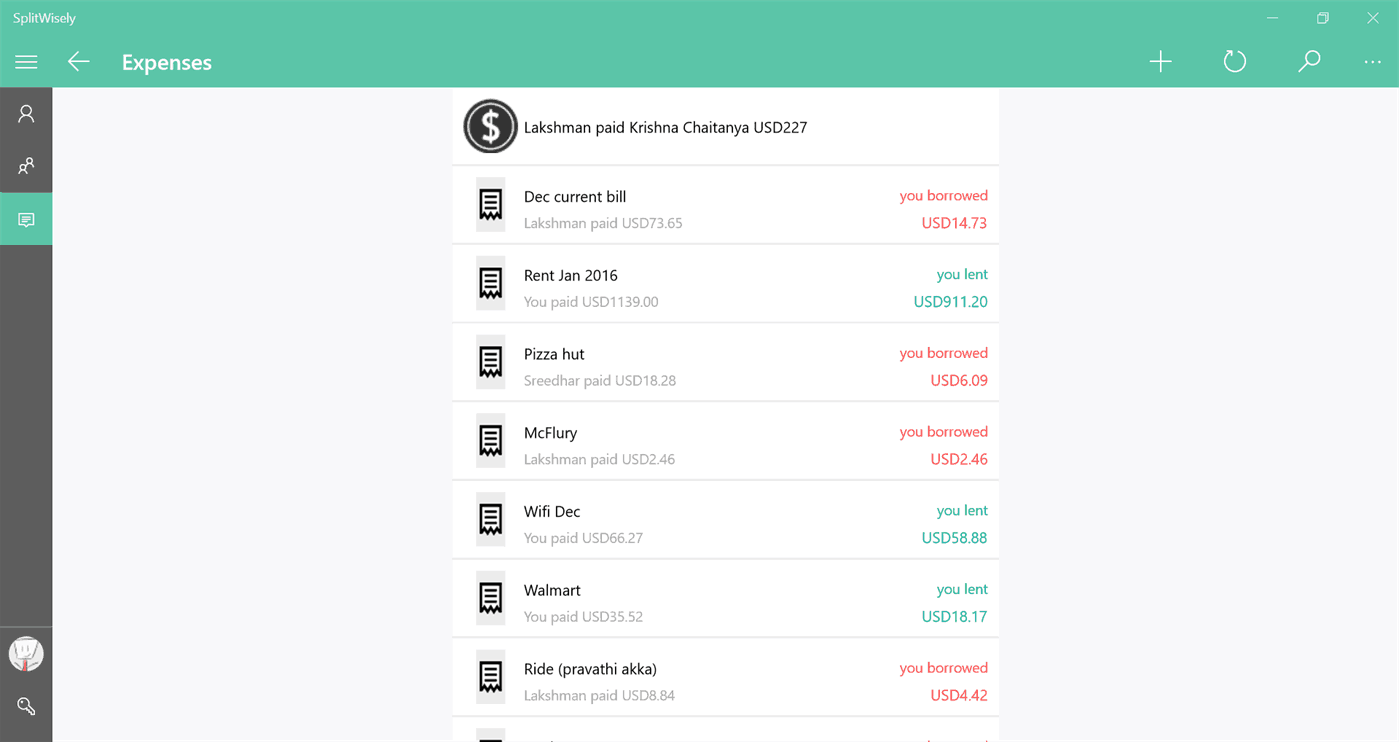
Developed by an indie developer, Krishna Chaitanya, SplitBook is a universal Windows 10 app and available for both Windows 10 and Windows 10 Mobile. I recently discovered it, and the UWP adds offers a seamless and intuitive way to add expenses as well as manage friends and groups.
SplitBook – Splitwise app for Windows 10
Now a mature app, in v2 at the moment, SplitBook is the only Splitwise client on Windows Store that offers Tile, Toast, and Badge notifications as well as have the ability to add, update, and save expense receipts. The latter is quite useful if you want to dive deep into expenses at a later date or file expenses at work.
SplitBook is a pretty good app with a clean Splitwise-inspired UI and offers a great, snappy user experience. If you are a Splitwise user, I highly recommend you to give it a whirl and let us know of your experience in the comments below.
Mahjong is one of those casual games that can either relax you, or leave you frustrated beyond words. The classic title-matching game has long a been a favorite of computer gamers, and Microsoft has a nice version available for Windows 10. Today, the Xbox blog let us know that the game’s received a rather nifty update.
Here’s everything that’s new in Mahjong for Windows to in today’s update:
Variety of New Themes – Enjoy gorgeous graphics and relaxing sounds with multiple visual themes to choose from. Complete puzzles at four levels of difficulty – perfect for Mahjong beginners and experts alike.
Daily Challenges – Take your tile-matching skills to the next level as you work your way through Daily Challenges, including unique gameplay modes such as Golden Tiles, where your goal is to uncover and match the hidden pairs of golden tiles. You can also earn special badges by completing!
Undo System – You can rewind the game back to any spot to fix mistakes or take a different approach.
Xbox Live Integration – With added Xbox Live integration, fans can earn Achievements and Gamerscore, compete with your friends on the leaderboards and track your personal statistics. Plus, if you sign in with a Microsoft account, your progress is stored in the cloud, so you can play the game on any device without missing a beat.
The game is free to play via the link below. Let us know in the comments what you think of today’s update.
Today, Microsoft filed for the European Union’s (EU) approval regarding their recent purchase of LinkedIn for $26.2 billion. Recently, Salesforce moved to block Microsoft’s acquisition of LinkedIn in the EU, citing antitrust issues. In a statement, Salesforce Chief Legal Officer Burke Norton said the sale would make Microsoft “anticompetitive” and “threatens the future of innovation and competition.” Salesforce believes that the sale would also give Microsoft an “unfair competitive advantage.”
Microsoft company spokesperson Robin Koch stated, “We [Microsoft] filed today.” The European Commission has until November 22, 2016, to view the case and decide whether or not any action needs to be taken. Microsoft’s purchase of LinkedIn has already been approved by government antitrust regulators in the United States, Canada, and Brazil.
Have you ever attached files to an email only to find that they eclipse the maximum size for attachments? If you need to share larger files, file-sharing software can come in handy. File-sharing applications enable you to share files over networks without any size restrictions. There are loads of them to choose from, but not all are open-source software packages. These are some of the more notable open-source file sharers for Windows.
Ares Galaxy
Ares Galaxy is a file-sharing package based on P2P, otherwise peer-to-peer, network technology. Its own decentralized network gives the software an edge over other alternatives, and it boasts an efficient built-in search tool that enables users to find content very quickly. The software also comes with a variety of extra bells and whistles such as its chat module, directshow media player and library manager. Users can preview downloaded audio and video files with the media player. In addition, Ares Galaxy also works with firewalls so you don’t need to reconfigure them. Click Download on this Web page to save its installer.
Deluge
Deluge is a BitTorrent client, which is one of the best P2P protocols. The software offers full encryption for files. Another good thing about this program is that it has three alternative UIs. Aside from its desktop mode, Deluge also has a Web UI for browsers and a command line console UI. That gives the package greater flexibility than other alternatives, and you can also add numerous plugins to it to further enhance the software. Click the Downloadnow button on the Deluge site to save its installer to Windows, Mac OS X or Linux.
qBittorrent
The qBittorrent software is another BitTorrent client file sharer. This is an open source alternative to uTorrent, which has an extensive user base. Consequently, it has a comparable UI to uTorrent. It comes with its own built-in search engine that provides a better alternative to the torrent search sites. You can access the qBittorent server with the software’s Web UI option. Furthermore, users can enhance qBittorrent with some of its extensions. Click qBittorrent v3.3.7 installer and PGP signature on this site page to add this software to Windows 10.
FileZilla
FileZilla is undoubtedly one of the most highly rated FTP clients for Windows and other platforms. Firstly, the software has an intuitive tab-based UI and users can also drag and drop files between server and desktop. It’s a reliable and fast file sharer that the developers regularly update. It provides more advanced file settings for configuring transfer speeds. The software also enables its users to resume larger file downloads if needed, which can also come in handy. You can select to add a FileZilla client or server to Windows by pressing the pertinent download button on this page.
Shareaza
The Shareaza website boasts that this file sharer is, “the ultimate P2P client” primarily because of its multi-network support. The software can connect with four separate P2P networks at the same time. As such, with this program you can share files via BitTorrent, EDonkey 2000, Gnutella and Gnutella2. The software also includes a media player that enables you to preview file downloads and play video and audio. In addition, Shareaza boasts a customizable UI with its skins and has extra plug-in modules. Open this page to download 64 or 32-bit Shareaza versions to Windows 10.
These open-source software packages will certainly come in handy for sharing larger files. However, note that some might host illegal downloads and proliferate viruses.
Microsoft has announced today that it has partnered with theSkimm, a popular business newsletter , to create new integrations with Office 365 and Skype. By leveraging Office 365 Connectors, theSkimm will allow Office 365 users to receive daily highlights of the newsletters into their Group Inbox in Outlook. From there, users will be able to share and discuss the content with co-workers within Office 365 Groups.
theSkimm Connector for Office 365.
To set up the integration, Office 365 users will have to search for the new theSkimm Connector in the Connectors catalog on Outlook on the web. Once the Connector has been added, users will be asked to visit theSkimm site and enable the integration with Office 365.
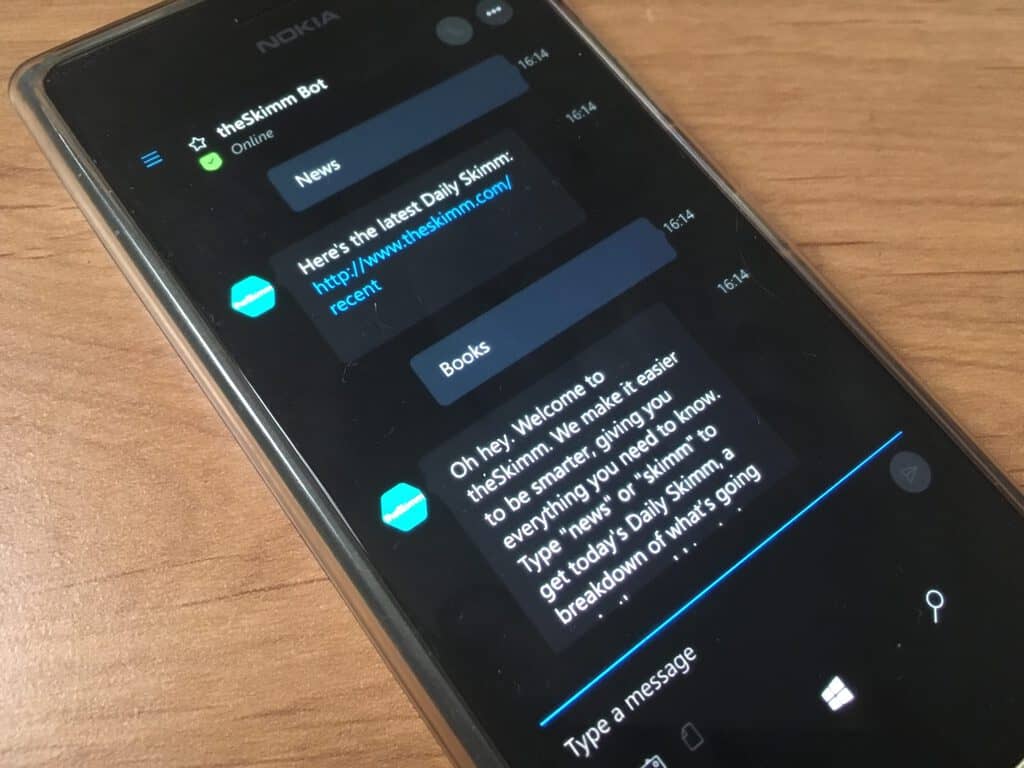
Additionnally, theSkimm has also launched a new Skype bot in early preview: it’s pretty limited for now, but the bot can provide users editorial content and book recommendations when typing simple commands such as “news” or “books”. To try it, users can add theSkimm bot from the messaging app’s bot directory
theSkimm Skype bot is in early preview.
A New York-based startup, theSkimm raised $500,000 last month from a group of investors including the New York Times (via ReCode). In the blog post announcing the news, Daneille Weisberg, one of theSkimm’s founders explained that “we’re always looking for ways to bring our unique content to new platforms to reach more people. We are excited to partner with Microsoft on theSkimm’s integration into the company’s productivity and communications tools.” As Office 365 is enjoying increasing popularity among Fortune 500 companies and SMBs, it makes sense for the business newsletter to try to reach its readers where they are.
Windows 10 has been one of the biggest changes to Microsoft’s operating system for decades. It features an all new design, a bunch of new features, a new personal assistant, a notification center, and a whole new platform. That platform, which perhaps marks the biggest change with Windows 10, is called the Universal Windows Platform, and it’s a replacement for the old, so-called, Win32 platform that has been in use since 1993.
The current state of UWP
Now, you may think how stretched out mobile apps can replace serious programs like Adobe Photoshop or Visual Studio. Short answer: they can’t. Not for now, in any event. The Universal Windows Platform, typically shortened to UWP, is in a very early stage. It has fewer Application Programing Interfaces than Win32, and therefore can’t be as functional.
APIs allow for everything from starting up an app to breaking your system. UWP apps slowly gain new APIs with every major Windows 10 release, like the Anniversary update. With each release, UWP apps are closer to replacing the legacy Win32 code that may be seen as superior today, but definitely won’t be in the future.
Minecraft now
Minecraft in 10 years
Currently, UWP is a more limited addition to the programs likely already running on your computer. There is a good chance that you’re using Chrome to read this article, for example, as it is the most common browser used to view our site. Chrome is a Win32 program. So are Word, Spotify, GIMP, 7zip and many other utilities that are usually installed immediately after getting a new computer.
Replacements exist for some of those apps, like Edge, Word Mobile, Groove Music, Photoshop Express, and 8zip, respectively, but those are usually relatively underpowered and not enough for the power user. Fundamentally, this is caused by the lack of APIs. Developers simply can’t yet make the apps better because there is nothing to “plug into.”
What’s next?
It’s not a secret that Microsoft is now focusing on UWP and the API expansion. Microsoft is now focusing mostly on UWP apps, and many people are not happy about that decision because they only see the present, not the future. The future is a clean and non-fragmented Windows, running on all your devices. On your phone, gaming console, computer, laptop, tablet, you name it. Unlike Win32, UWP will support all of these devices, and thanks to the development of the platform, these platforms could get a lot more serious than a Starbucks app.
With declining PC sales, desktop computers may come to an end in the future and get replaced by other form factors. Some suspect it may be tablets that will take the crown, and some suspect that it may be our smartphones with features like Continuum. However, I don’t think it will be any of these two and neither does Microsoft. This is why they are so heavily investing into the new universal platform.
The revolution
The original 2007 iPhone
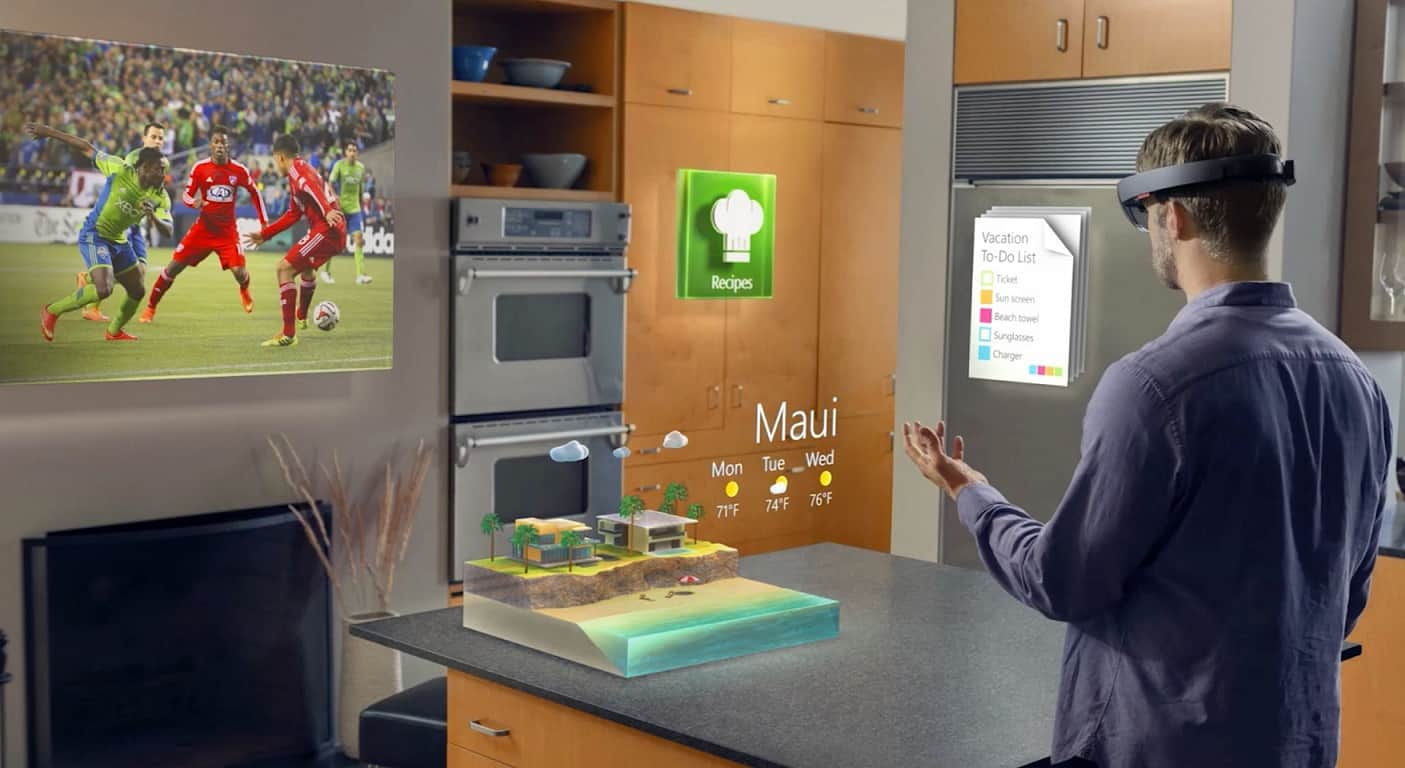
The original 2016 HoloLens
Back in 2007, Apple announced something “ridiculous and pointless” as some people thought: the iPhone. It was called a failure by many tech sites and companies, and even Microsoft’s former CEO, Steve Ballmer, ridiculed the device. He publicly stated, in an interview, the quote below and regretted it a few years later:
There’s no chance that the iPhone is going to get any significant market share. No chance. It’s a $500 subsidized item. They may make a lot of money. But if you actually take a look at the 1.3 billion phones that get sold, I’d prefer to have our software in 60% or 70% or 80% of them, than I would to have 2% or 3%, which is what Apple might get.
But his thinking was quite logical, actually, at least based on the information available at the time. The iPhone was expensive, it lacked features that regular cell phones enjoyed, and it was big, different and weird. And here we are now. It’s 2016, and Apple is the most valuable tech company in the world. They revolutionised the personal computing market by entering it with something new and different. And now, so has Microsoft.
Today, nobody can imagine themselves walking around with a big HoloLens on their head or spending $3,000 for one. But as opposed to Apple, Microsoft has announced the product before releasing it. Microsoft made a Developer Kit and priced it so high to make sure regular customers don’t get the unfinished software and hardware and then start judging it by the flaws that would result in Microsoft losing this market.
Holograms are something science-fiction movies have made us believe will be a standard in the future. And why not? The HoloLens may replace all your devices with just one in the next 10 years. The form factor may be as thin and small as today’s sunglasses are, the look may be less weird, the battery may be much better, and so on.
But just as with this article, these are just speculations. The iPhone was in an almost identical state as the HoloLens is now–in a very early stage.
What will happen to UWP?
But where will Windows 10 be in a year? Probably not in a much different position than it is today. The Mobile version of the operating system will continue in decline, Xbox will grow, PC sales will continue to fall, and so on. A year is often said to be a lot of time in the tech industry, but not in this case. Microsoft is aware that they lost most of their markets. PCs are dying out and their smartphone OS is almost extinct. That is why they are thinking about the future battle instead of winning this one.
Coding tools of the present
But let’s say that Microsoft might try to fight a little in the mobile market, too. How could they do that? The Islandwood bridge for iOS apps is clearly not working. And so what is working?
The answer is simple: the $400 million Xamarin acquisition that Microsoft made back in February. If developers want to reduce the work that needs to be put into their apps for iOS and Android, they can use Xamarin, which is now free for everyone. The next big thing may be coded using Xamarin.
Coding tools of the future
While most developers don’t target their apps towards Windows 10 Mobile, they would automatically do so by using Microsoft’s tool. Fully 90% of the work to develop a Windows app would already be done, and so why not do that 10% yourself and “get over it”? That would automatically work on Xbox, Windows 10, Windows 10 Mobile, HoloLens, Hub, IoT, and more. Most developers would consider the extra effort well worth it–there’s not much work, after all. This may cause the next “Snapchat” to be released for Windows alongside its Android and iOS siblings.
This also leads back to HoloLens. If an app would work on Windows 10, it would work on the holographic unit too.
The future of personal computing
Imagine Windows 10 in ten years. It will most probably be called just “Windows.” You won’t have a traditional desktop PC in your room, but rather all you will have is a HoloLens. If you need to sit down and work in front of a desk, you just fire up Word and use your Bluetooth keyboard and mouse to do what you have to do. Think of it like Continuum for Phones, but a step further. You won’t even need a screen anymore. You will have all your files in the cloud, and by using the glasses, you will just edit them wherever you go without begin limited to any device except your head.
Gaming on HoloLens
Then, what about Xbox? My prediction has been that it would gain users over the course of a few years. But Microsoft isn’t interested in hardware, and so why would they continue making the Xbox? Well, HoloLens may once more be the answer. You can already stream your Xbox One to the HoloLens and play it from there, technically, without a screen. All you need is the Xbox, HoloLens, and a Bluetooth Xbox One S controller.
In the future, gaming may be fully in the cloud. Some Win32 services have already shown up offering an entire library of games streamed to your console for a monthly fee. What if that streaming became a standard? Then you could play Final Fantasy XXIII on your sunglasses.
Conclusion
Now, I can understand that such forward thinking may be a little much at first. But the point isn’t to understand the logic behind it. That is Microsoft’s job. The point is to understand the result. Thank you so much for reading. And stay tuned for part two.
Any files in use or open within another software package are automatically locked. Consequently, if you try to delete or remove a locked file, then a Folder in the use window pops up stating the action can’t be completed because a file in it is open with a running program.
An obvious way to erase locked files is to close the running software to unlock them. However, it might not always be entirely clear what’s locking the file. So this is how you can delete locked files in Windows if you need to.
There are a few ways to remove locked files in Windows. You can try out software packages that enable you to delete locked files. The Command Prompt gives you another way to remove locked files, but this is how you can remove them with LockHunter.
First, click on the … button and select Browse for a file.
Select a locked file you need to delete. Then LockHunter will show you the software or background processes that are locking the file as below.
First, click on the … button and select Browse for a file.
Select a locked file you need to delete. Then LockHunter will show you the software or background processes that are locking the file as below.
You can also right-click a file in Explorer and select What is locking this file? That will also open the LockHunter window with processes and software listed.
Now there are few things you can do with LockHunter’s options. To remove the locked file to Recycle Bin, click the Delete button and press Yes to confirm.
Alternatively, you could press the Unlock It button instead. That will effectively close the file in use so you can delete it within File Explorer.
Press the Other button for further options shown in the snapshot below.
Note that you can also select a Terminate Locking Processes option if required. That will also unlock the file for deletion.
Or you could select the Delete At Next System Restart option to remove a locked file.
As an alternative, you can use more effective methods to remove locked files easily without any complicated actions. We do suggest different performant software to force delete locked files on your PC.
The Xbox One video game, Firewatch, has finally launched in the Australian and New Zealand Xbox game region after significant delays caused by each country’s ratings system. Firewatch should now be discoverable within the Windows Store for the majority of Xbox One users around the world. Here’s the official game description for Firewatch:
Firewatch is a single-player first-person mystery set in the Wyoming wilderness. The year is 1989. You are a man named Henry who has retreated from your messy life to work as a fire lookout in the Wyoming wilderness. Perched high atop a mountain, it’s your job to look for smoke and keep the wilderness safe. An especially hot, dry summer has everyone on edge. Your supervisor, a woman named Delilah, is available to you at all times over a small, handheld radio—your only contact with the world you’ve left behind. But when something strange draws you out of your lookout tower and into the world, you’ll explore a wild and unknown environment, facing questions and making choices that can build or destroy the only meaningful relationship you have.
Several tech sites have begun to discover that Sony’s new virtual reality device, PlayStation VR, actually works with Microsoft’s Xbox One console. It even appears to work with Nintendo’s WiiU video game console.
While all three companies’ consoles are significantly different in design, the cross-compatibility functions due to the basic connectivity of the HDMI cable. The Xbox One and WiiU simply detect it as an external monitor and consequentially send whichever visual and audio data is being output to the PlayStation VR instead of the usual television screen.
Naturally, there are no Sony PlayStation VR video games on the Xbox One or WiiU so 360 degree motion detection has no effect on the visuals which float in a static location in front of the user’s eyes. Earphones can also be connected directly into the headset to allow for a more immersive sound but as Polygon’s Allegra Frank points out, any sound produced will be in basic stereo and not the 360 degree sound of compatible games.
PlayStation VR may not convert Xbox One video games into virtual reality experiences but this media output functionality does make it a very viable option for gamers to use when a television set or the Windows 10 / Xbox One streaming is unavailable for whatever reason.
Can you see yourself using a PlayStation VR with your Xbox One like this? Let us know in the comments below.
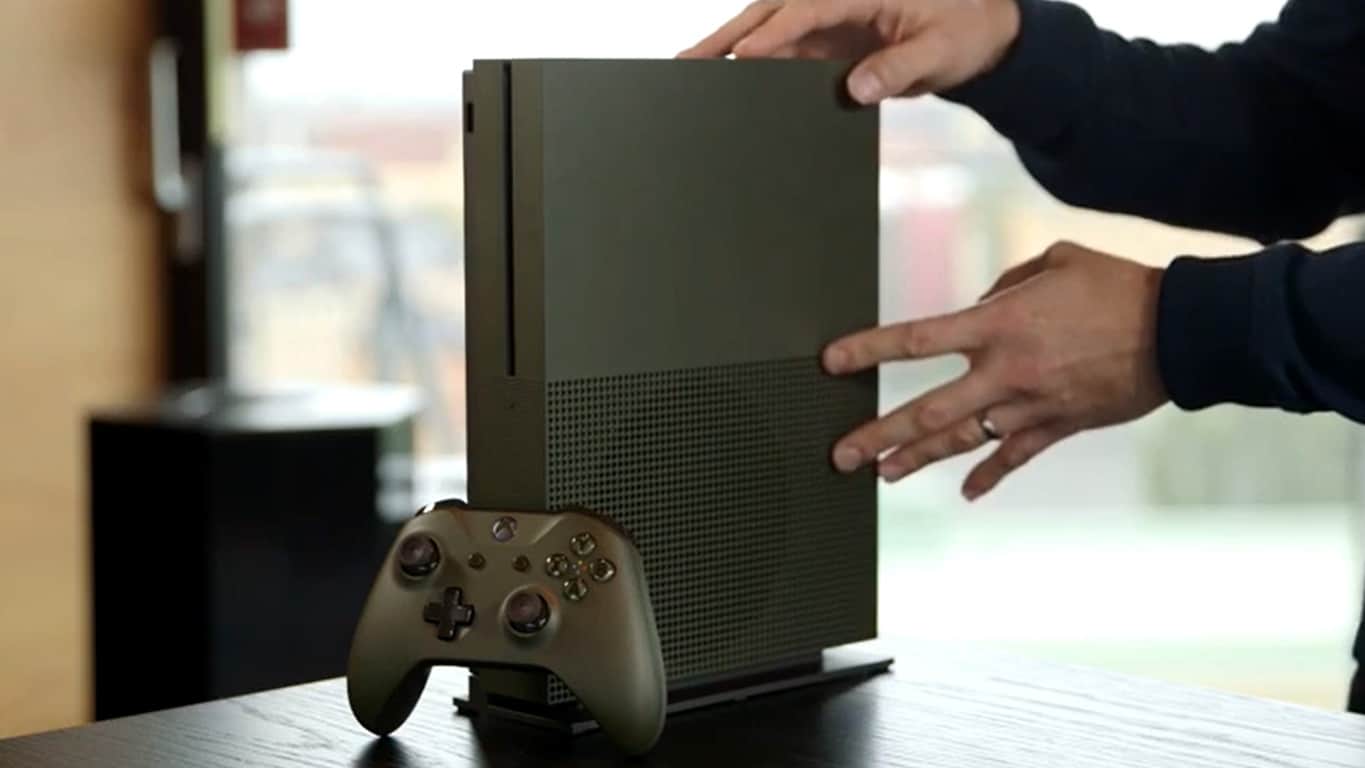
The Xbox One S Battlefield 1 Special Edition Bundle is due out on October 18th and Microsoft has begun to really promote its release with a new unboxing video on the official YouTube channel featuring Xbox’s Graeme Boyd.
In the video, which can be watched right here on this page, Boyd recaps the benefits of the newer Xbox One S console over the original Xbox One (internal power supply, smaller size, new controller, etc) and introduces the Battlefield 1 Special Edition version which boasts a Military Green color scheme over the regular white and one TB of memory for games and data.
This Special Edition also comes with a customized controller which matches the look of the console, Battlefield 1: Early Enlister Deluxe Edition game download, early access to the Battlefield 1 game on October 18th, Hellfighter, Red Baron, and Lawrence of Arabia downloadable content, three exclusive in-game large vehicle designs, and five in-game Battlepacks. Buyers of the bundle will also receive one month membership for EA Access.
Are you going to pre-order this bundle? Do you like this sort of product at all? Let us know what you think about limited edition console designs in the comments below.
You probably know that when you delete something in Windows, it’s not deleted but rather moved to the Recycle Bin. That’s how it was in the initial versions of Windows, and that’s how it will be. But you can automatically empty the Recycle Bin in Windows 10.
Many ask, why do you need to empty the Recycle Bin automatically? The answer is to free up disk space on the PC. So, let’s find out how you can do that within minutes.
Does Recycle Bin delete files after 30 days?
No, the Recycle Bin does not delete files automatically unless it has been configured to do so. The feature to delete files in the Recycle Bin after 30 days is often why you find it empty.
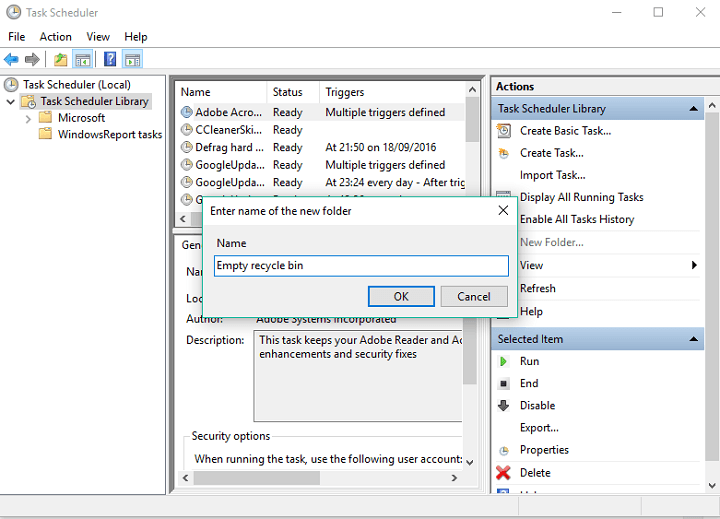
Open Start, do a search for Task Scheduler, and press Enter.
Right-click Task Scheduler Library and select New Folder.
Name the folder however you want, but it’s better to name it something descriptive for better management.
Right-click the newly created folder and select Create task.
On the General tab, enter a name for the task, such asEmpty Windows Recycle Bin. Once again, you can name it however you want, but we assume it’s the most logical name in this case.
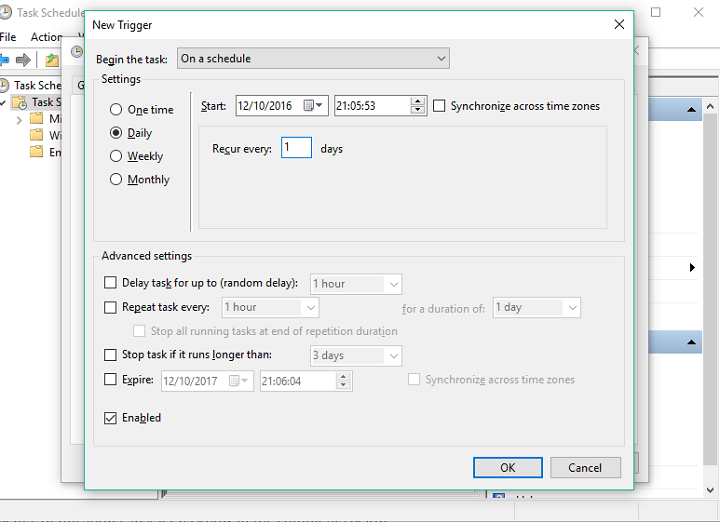
On the Triggers tab, click New to create an action that will trigger the task.
Here you can pick a proper trigger action of when you want the task to be performed. You can choose At log on, At startup, ON an event, but we’ll choose On a schedule, and set a specific time of emptying the Recycle Bin.
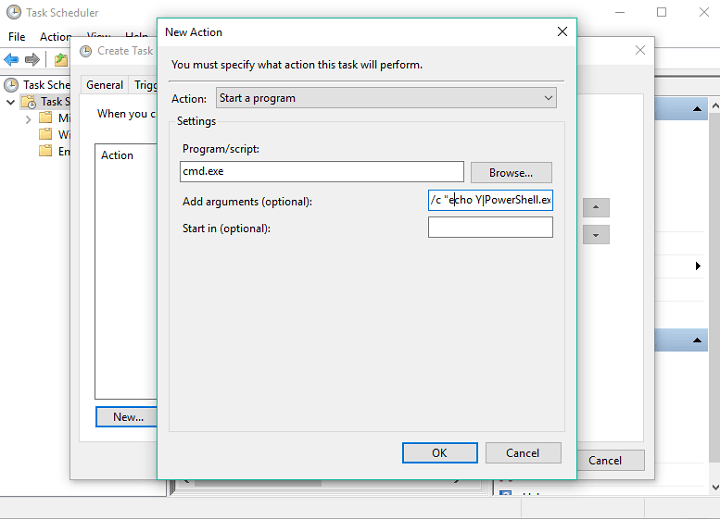
Now, on the Actions tab, click New.
Under Settings, on Programs/script enter cmd.exe.
In Add arguments, type in the following and click OK: /c "echo Y|PowerShell.exe -NoProfile -Command Clear-RecycleBin"
Click OK to complete the task.
That’s it! After you have created a task, Windows 10 will automatically empty the Recycle Bin on the chosen schedule. Also, do check how to create more tasks in the Task Scheduler.
2. Delete files directly
Right-click on the Recycle Bin icon, and select Properties.
Select the Don’t move files to the Recycle Bin. Remove files immediately when deleted option and click OK.
If creating a task sounds like too much trouble, you can set Windows 10 not to move files to the Recycle Bin and automatically delete them. And for those of you who want to stop Recycle Bin from emptying automatically, check for these two aspects and revert them.
Mantis Burn Racing is now available on the Xbox One console. You can now participate in fast-paced bumper-to-bumper races and drive incredible vehicles across highly detailed, visually stunning tracks.
You can first polish your driving skills in an extensive career mode and then take on friends with 4-player local split-screen racing and online modes for up to 8 players. Feedback for Mantis Burn Racing is overwhelmingly positive, but gamers also detected some minor issues. The good news is that overall, unlike other titles recently launched, Mantis Burn Racing is a stable game.
Mantis Burn Racing rare issues on Xbox One
Loading times can reach one minute. Sometimes, you’ll need to wait one minute before jumping into action. The good news is that once the game loads, it doesn’t freeze nor crash, allowing you to drive smoothly until you finish the race. Longer loading times over seamless races seem to be a fair trade-off.
Split screen hides game information. Not all information is available in split screen, which means that sometimes players don’t really know what position they are in. This type of information is important as it allows gamers to know how well they’re doing and change their racing strategy if necessary.
Download issues. A few gamers reported download issues, but eventually they managed to download and install the game after several attempts.
As you can see, the list of issues is quite short. Mantis Burn Racing is a stable and reliable game, with zero crashes. If you want an indie alternative game for Forza Horizon 3, then this is the right choice for you.
However, many gamers also complain that Mantis Burn Racing tends to be quite boring sometimes. The campaign is nearly 100 events long, but the whole action takes places on only 8 tracks. As a result, the game looks pretty repetitive after you’ve raced on all 8 tracks. The good news is that new tracks should be available with the upcoming game updates.
The Windows Developer blog over at Microsoft released a How-To today for developers looking at creating with Vuforia. For those that don’t know, Vuforia is the world’s leading augmented reality platform with already over 250,000 developer licenses. It’s most commonly known as a tool that can attach images to 3D models using the HoloLens’ augmented reality.
Adding onto the already successful AR platform, Vuforia teamed up with Microsoft to become a Universal Windows Platform. As a UWP, the tool is available to a larger audience of developers looking to create new experiences. Essentially, it can be used for all Windows 10 devices by using cameras or the HoloLens headset to view attached models of real-world objects and images. Straight from the Unity engine, developers can install the Vuforia plug in and go.
This is the same tool that made playing the popular Yu-Gi-Oh! Cardwith the use of holographic monsters possible. Looking at each card summons the monster in front of you similar to the anime’s plot. Vuforia’s image recognition isn’t entirely bug-free, but it is highly impressive. Another splendid example of the tool being used in Unity can be seen in a presentation at Microsoft’s developer conference, Build earlier this year.
If you’re looking to get started, the tutorial on the blog is a good stepping stone. It will walk you through the instructions on how to place a 3D model of a yacht onto a magazine image. This is just the beginning. With practice, you can either use the assets in the Unity store or create your own to start developing your unique projects.
The word ‘transform’ seems to be a popular analogy for Microsoft lately. From education to internet connectivity, the tech company has a diverse interest in changing how our culture interacts with cloud-based data. Its foray into professional sports such as NASCAR and NFL has not only improved their marketing but evolved the sidelines to more efficient entertainment.
Now Microsoft is thinking outside the box yet again. Through a paid advertisement on Wall Street Journal, they’ve announced a brand new focus for golf enthusiasts.
All of this data is being pulled together into the Microsoft Course IQ app, an experience that you can view online as of today. The tool has maps of over 30,000 golf courses taken by drones and mapped out in 3D. It contains information such as architect summaries, average scores, common weather conditions, and soil makeup. It even shows you how far down bedrock is at each golf course, in case that’s something you’ve been wondering to yourself. The soil information might seem a bit in left field at first, but these little points of cloud-based data are what really weaves the full picture that Microsoft wants to provide.
With this information, designers will be able to estimate golf course maintenance, how challenging the course might be, and length of play time. Check out the Microsoft Course IQ app available in your browser and let us know what you think about it.
While it has already been a busy day when it comes to Windows 10 Insider news, there was an extra set of words for Windows Insiders in today’s initial 14946 blog post. Microsoft has issued server-side fixes for misconfigured Windows Insider PCs.
Simplifying the words Dona and the Windows Insider team published, the fix will help those who are not targeted correctly for receiving updates by putting them in the slow ring. However, in more technical and official terms:
Some Windows Insiders who have pre-release builds on their PCs are not targeted correctly for receiving updates because they have not opted into receiving Insider Preview builds by having selected a valid ring or are in some other misconfigured state. To re-target these PCs, we are making a server-side change that will put these PCs in the Slow ring so that they can receive updates. Specifically:
Going forward, any build from our Development Branch installed on a PC will be put into the Slow ring. This includes if you installed a Development Branch build from an ISO or later reset the device.
For PCs on the Windows 10 Anniversary Update that were previously opted in to receiving builds but see a “Fix me” button on the Windows Insider Program settings page because they no longer have a registered Microsoft account attached will be put in the Release Preview ring.
According to Dona, you can adjust these settings by going to Settings > Update & Security > Windows Insider Program. Will the server side fix affect you and your PC? Drop us a comment below to let us know!
Fresh of the presses is a new Windows 10 Insider build for both PC and mobile devices. Today, October 13, 2016, the Windows team has released build 14946 which brings with it some nifty Settings features for customizing the trackpad for PC users as well as the ability to remove words from the user dictionary on mobile devices, among other items.
Customizing your precision touchpad experience (PC): Last week, we announced that we’d been working on refining your touchpad experience. This week, we’re taking that one step further. When you go into Settings > Devices > Touchpad, you will now find a section called “Other gestures”. In this section, you now have basic customization options for your three and four finger gestures. For taps, you can select between Cortana, Action Center, play/pause or middle mouse button, and for left/right swipes, you can select between switching apps or switching virtual desktops. Try it out and let us know what you think!
Updated Trackpad settings
However, we know that some of our Insiders prefer even more control over their experience, so for those Insiders (and power users) we have added a new Advanced Gestures Configuration page. The page can be accessed via a link at the bottom of Touchpad settings page.
Advance configurations
The Advanced Gestures Configuration page has more configuration options, including hooking gestures up for next/previous song, creating/deleting virtual desktops, or snapping windows. In addition to these new options, we’ve also updated the Touchpad settings to include reference diagrams to remind you of what to expect when you swipe with three or four fingers in a particular direction.
Known issues to look out for with your touchpad: since the last flight, we’ve fixed the issue resulting in touchpad scrolling being too sensitive in Windows 10 apps – appreciate everyone who shared their feedback on the subject. There’s one other known issue we’re looking into right now that click and drag with your precision touchpad might get misrecognized as right-click in this build. You’ll also notice that there’s a “custom keyboard shortcut” option in settings – that hasn’t lit up yet, but we’ll let you know when it does. Keep the feedback coming!
Separate screen time-out settings when using Continuum for Phone (Mobile): Today, we are happy to announce the availability of a top user request for Continuum for Phone. With this update, you will now be able to turn off whichever screen you are not using with Continuum – saving battery and preventing screen burn-in. If you are working on a Word document, your phone screen will sleep without any impact on your Continuum session. If you make a call, hang-up, or press the phone power button, you can keep right on working in Word with Continuum. And, if you prefer longer or shorter timeout values, you can change them independently for the phone and connected screen, using the settings found under Settings > Personalization > Lock screen. Have fun, and keep sending us great feedback on Continuum!
Updated Wi-Fi Settings page (PC and Mobile): We continue to make Settings more similar across Windows devices. We have added a new setting to the Wi-Fi settings page. When you go to Settings > Network & Internet > Wi-Fi on your PC, then turn Wi-Fi off, you can now select a time under “Turn Wi-Fi back on” to have it turn on automatically after the amount of time you choose. It’s set to Manually by default in this build.
New Wifi Settings page
We are also continuing to move functionality from the Wi-Fi (legacy) screen to the new Wi-Fi settings screen on Mobile. After you turn off Wi-Fi, choose a time under Turn Wi-Fi back on to have it turn on automatically after the amount of time you choose. Based on what we heard from customers in the Windows 10 Anniversary Update, we changed the default setting from “In 1 hour” to Manually in this build.
Option to prevent autocorrection (Mobile): On your phone, if you see that an autocorrection is going to happen (i.e. the first candidate is bolded) and it’s not what you intended, you will now see what you originally typed as the second candidate. Tapping on that candidate will prevent the autocorrection, and the system will learn your vocabulary and get smarter over time.
Option to remove a word from user dictionary (Mobile): We learn from your typing on the phone and build up a local user dictionary that adapts the keyboard prediction, autocorrection and shape writing experiences to your language style. Sometimes you may type a misspelled word and send it as is, sometimes you may tap on a red squiggled word and then tap the “+” sign by accident. Both save the unwanted word into your user dictionary, and it may appear when you type something similar in the future. Now you have a way to manually remove bad entries: tap on the word you don’t like in the text box, and you will see a candidate that is the word with a “-“ sign before it. Tapping on that candidate will remove the word completely from your user dictionary and no longer suggest it.
Important note about a change to automatic backups of your phone (Mobile): We have changed the frequency of scheduled backups for Mobile to once a week. Initiating a backup manually by clicking the “Back up now” button remains unchanged and works as expected. You can do this via Settings > Update & security > Backup and clicking the “More options” link at the bottom. As always, it’s good to do a backup of your device before updating to a new build.
There you have it, a sizeable list of additions for this week’s build release. To find out what else has been fixed or broken for either PCs or Mobile devices with this build, please visit our other postings regarding this release.
You’re probably familiar with reopening closed tabs in browsers. That’s one of the most used commands in pretty much every browser, and there’s nothing unusual about that. But, did you know that you can do the same thing with files and folders in Windows 10?
Of course, the system itself doesn’t offer a restore option for folders and files. So, if you relay solely on Windows 10, once a folder is closed, it’s closed, and all you can do is to open it once again, but all your work will be lost.
What you can do to be able to reopen closed files and folders in Windows 10 is to install a third-party program. There are a couple of tools that allow you to literally reopen files and folders in Windows 10, just like you do in a browser. So, if you’ve accidentally closed a system folder with a complicated path, for example, you don’t need to go through the whole path once again, just use one of these tools, and get back right where you left off.
We picked three programs, that we believe are the best for this purpose. So, check them out, and see if you’d use any of these tools.
Best tools for reopening folders in Windows 10
AlomWare Undo
AlomWare Undo is arguably the best program for restoring pretty much everything on your computer. This tool has the ability to reopen files, folders, apps, documents, and even restore clipboards. So, if you’ve accidentally closed a folder, or a document, just reach for AlomWare Undo’s help, and you’ll be saved.
This program records everything that happened on your computer for the last two hours. You basically can hit the rewind button, and get back to what you were doing an hour ago. As we said, this program is not limited to reopening folders only, so you practically won’t need anything else, to manage your closed processes.
As the developer says, you can even use AlomWare Undo for spotting potential malicious software on your computer. Because the program record every action, you can search through history for any potential suspicious process. Additionally, if you accidentally copied new text over the text you originally had in the clipboard and actually wanted to copy, just open AlomWare Undo, and you’ll be able to restore it.
Don’t worry, even though the program records everything, it doesn’t share your info with anyone, so you can also use it when you’re offline. AlomWare Undo is perfectly compatible with Windows 10.
AlomWare Undo is available for free, and you can grab it from this link.
GoneIn60s
GoneIn60s doesn’t offer as many options as AlomWare Undo does, but it’s still quite useful, yet very simple tool for reopening files and folders in Windows. This records everything you’ve closed in past 60 seconds, and makes it available for you to reopen it.
After 60 seconds, the history is being deleted, and you won’t be able to reopen your files and folders. So, we can say this tool is aimed at those who accidentally closed a file or folder, and want to quickly get it back. If you want deeper history of your past actions, it’s better to choose some other tool.
GoneIn60s runs in background, and is available as a taskbar tray icon. If you want to restore a certain folder or file, just right-click on the GoneIn60s try icon, and choose it from the context menu. If you want to reopen everything that you’ve closed in last 60 seconds, just double-click on the try icon, and every file or folder from the last 60 second will show up.
As its name says, the program is set to delete history after 60 seconds. However, you can change the interval, by going to settings. So, if you feel that 60 seconds isn’t enough, just go and change it.
GoneIn60 is a 1-hour freeware, and you can download it from this link.
UndoClose for Windows
UndoClose is another simple tool for reopening closed files and folders in Windows 10. It does pretty much the same thing as GoneIn60, but unlike that tool, UndoClose doesn’t have a time limit, which will make this tool an even better option for some users.
Using UndoClose is very simple, you practically don’t need to do anything, but use two keyboard hotkeys, just like you do in browsers. UndoClose allows you to set up two hotkeys, one for folders, and one for apps, and restore recently closed ones, just by pressing these hotkeys. As simple as that.
User interface of this program is very clean and neat, besides the ability to set up hotkeys, it also shows you recently closed apps and folders, and has the option to launch UndoClose on startup.
Another plus or UndoClose is that it comes as a portable tool, so you don’t have to install it, and can carry it with yourself wherever you go. You can download UndoClose for free from this link.
UndoClose concludes our mini-list of the best file and folder re-opening tools for Windows 10. Each one of these tools offers something unique, and is quite easy to use. So, you can pick up the best option for you, according to your needs.
Do you agree with our choices? Or you have some even more effective programs? Tell us in the comments.
Microsoft pushed Windows 10 Insider Preview build 14946 to the Fast Ring today for both PC and mobile, with a number of new features and the usual list of known issues. The build also resolved some issues introduced in previous build, making this a passel of bits you’ll want to get installed if you’re a Fast Ring Insider.
Optional components such as Hyper-V and Bash should remain installed after updating to this build.
We have fixed the issue where signing into games that use Xbox Live would not work. You should be able to sign-in to
Xbox Live in games in this build.
We fixed the issue causing Microsoft Edge to sometimes crash on launch, or when you type in address bar or try to open a new tab. You no longer need to run the PowerShell script.
We fixed the issue causing touch scrolling to be too sensitive in Windows 10 apps, such as Microsoft Edge.
We fixed an issue where Explorer.exe would hang when attempting to open considerably large .MOV files.
We fixed an issue that could result in the network icon occasionally getting into a state where a red X would display in the taskbar despite an active internet connection, until the device had been restarted.
We fixed an issue where if the device’s brightness was automatically adjusted after being woken from sleep, the brightness level shown in the Action Center’s Brightness Quick Action might not reflect the current brightness of the device.
We fixed an issue leading to Narrator not tracking focus on the Start Menu All apps list or tiles.
We fixed an issue potentially resulting in the “Open with…” dialog displaying with two entries for Calculator after tapping the Calculator key on a keyboard or running the Calculator app.
As usual, you can get updated by going to Settings > Update & security and hitting the update button. Let us know in the comments if you find anything else that’s new and improved.
In case you missed it, Dona snuck the reference into her PowerPoint slide deck, which you can see in the lower left corner:
14946 incoming
No word on whether this new build will be a combination PC/Mobile build, as Insiders have been waiting for a new mobile build for a week, but we shouldn’t have to wait long to find out. Get your Insider machines ready, and start hitting refresh, we should be seeing a new build hopefully around 10am Pacific time!
As always, stay tuned to WinBeta for all the latest on Windows Insider builds and more!
The Xbox One got a new racing video game today in the form of Mantis Burn Racing. The game features four-player local and eight-player online multiplayer and a variety of different play modes and style with a roleplaying game-esque levelling system. Here’s the official game description:
The race is on in Mantis Burn Racing, where fast-paced bumper-to-bumper racing combines with intuitive, tactile gameplay and stunning visuals in one of the best-looking and most immersive top-down racers around. Drive incredible built-for-racing vehicles across highly detailed, visually stunning tracks, in high-risk, high-speed races where winning is everything. Prove your skills in an extensive career mode and take on friends with 4-player local split-screen racing and online modes for up to 8 players in ‘one-more-go’ style competitive racing. With a RPG-style upgrade system providing players with deep tactical choices and excellent replay-ability, this is racing at its rawest but most exciting!
A new Windows 10 app has just launched in the Windows Store called, Betrayal Companion. As the name suggests, this app works as a companion to the board game, Betrayal at House on the Hill, and features functions such as the ability to manage explorer traits, track the game’s haunt level, and reveal the haunt and traitor automatically. The app also contains digital versions of the user manuals and contains a dice roll function. Here’s the official app description:
Betrayal Companion is first fully featured companion app for the popular board game Betrayal at House on the Hill. The app is designed to replace the need for multiple game pieces used within the board game. Use your phone, tablet, or PC to manage your explorer’s traits; keep track of the haunt level (large screens only); make virtual dice rolls; reveal the traitor and haunt number; and access the Secrets of Survival and Traitor’s Tome game manuals.
Last week, we reported about the resurrection of the dreaded KB2952664 and KB2976978 updates aimed at “helping” Windows 7 users to upgrade their OS. The upgrade nightmare appears to be back since Microsoft re-released KB2952664 as part of the October non-security update package.
The Windows 7 users who want to keep their systems fully updated will soon be unable to avoid installing KB2952664. Monthly update rollups include all the previous system updates, and by agreeing to install the rollup you also install the whole content of the update package. Now, if you want to keep KB2952664 away from your computer, the safest solution is to simply avoid monthly rollups via Windows Update and install only stand-alone update packages.
Here’s what KB2952664 does, according to Microsoft:
This update performs diagnostics on the Windows systems that participate in the Windows Customer Experience Improvement Program. The diagnostics evaluate compatibility on the Windows ecosystem and help Microsoft to ensure application and device compatibility for all updates to Windows. There is no GWX or upgrade functionality contained in this update.
In other words, there should be no difference between the October version of KB2952664 and its September version. However, users remain suspicious of this update and refuse to install it. This is actually a completely normal reaction, given their previous Windows 10 upgrade experience.
The majority of Windows 7 users consider that KB2952664 is Microsoft’s snooper patch, and are intrigued by its multiple appearances in the Windows Update Center. As a quick reminder, this is the second time KB2952664 appears this month, while it hit four times this summer, when the free upgrade offer was still valid.
The most interesting element in these KB2952664 snooper patch allegations is Microsoft’s silence. Users have been waiting for a clear answer about this issue for a long time, but are tired of hearing the same fancy corporate-speak side-stepping that uses a lot of words to say nothing. Unfortunately, Microsoft’s stance about this matter only weakens users’ trust in the update system and the company itself.