Microsoft Offers Six-Month Security Updates for Exchange and Skype Beyond 2026

Microsoft is giving IT teams a little more breathing room. With support ending for multiple Windows 10 versions and enterprise tools like Skype for Business 2015/2019 and Exchange 2016/2019 on October 14, 2025, the company has confirmed new Extended Security Update programs for organizations still in transition.

The ESU program isn’t a blanket extension. Instead, it’s meant for organizations actively migrating to the Subscription Editions of Skype or Exchange and who’ve requested more time. The company said that it will offer up to six months of Critical and Important security patches, running through April 2026.

To enroll, companies will need to contact Microsoft starting August 1. Updates won’t arrive via Windows Update or public channels; they’ll be delivered privately to ESU participants. And if no high-severity vulnerabilities are found, there may not be a patch that month at all.

Remember, the ESU is a limited-time buffer, not a long-term crutch. There will be no extensions past April 2026. If you’re still running these older server products, Microsoft recommends speeding up your migration plans now.

Firefox 141 Finally Brings WebGPU Support on Windows

Firefox users are finally getting access to WebGPU, years after Chrome introduced it. Starting with version 141, which arrives July 22, Mozilla is rolling out support for the high-performance graphics API, starting with Windows.

The official announcement confirms this initial rollout is just the beginning. Mac, Linux, and Android support is on the way, but not part of the current release. For now, developers on Windows will be able to run compute-heavy 3D applications, games, and simulations with GPU acceleration directly in the browser.

Under the hood, Firefox’s implementation uses WGPU, a Rust-based abstraction layer that translates WebGPU instructions into native graphics API calls, Direct3D 12 on Windows, Metal on macOS, and Vulkan elsewhere. That means cross-platform support is planned, but one step at a time.

While this release marks a big leap forward for Firefox’s graphics capabilities, Mozilla says it’s still ironing out some issues. A fix for inter-process communication overhead is slated for Firefox 142, and there’s ongoing work on improving GPU task tracking and support for importExternalTexture.

So while Firefox still lacks other developer features like WebUSB and full PWA support, getting WebGPU in place is a major milestone. Developers building graphics-intensive experiences now have a new browser to target, one that’s been playing catch-up, but finally has a foot in the door.

How to Edit Videos in Windows 10 in 5 Steps

Want to trim, cut, or add music to videos without extra software? Windows 10 includes free video editing features that are easy to use – even for beginners.

Use the Built-In Video Editor in Photos App

1. Open the Photos App

  • Click Start > type Photos > open the app

2. Start a New Video Project

  • Click Video Editor at the top
  • Select New video project
  • Give your project a name

3. Add Videos to the Project

  • Click + Add > From this PC
  • Choose the video(s) you want to edit
  • Drag them to the Storyboard

4. Edit Your Video

  • Trim: Cut the beginning or end
  • Split: Divide into clips
  • Text: Add animated text
  • Filters: Apply visual effects
  • Music: Use built-in background music
  • Motion: Add zoom or pan effects

5. Save and Export

  • Click Finish video
  • Choose quality (1080p, 720p, 540p)
  • Click Export to save the edited video

Optional: Use Clipchamp (Advanced Editing)

  • Clipchamp is a free Microsoft tool with more effects and templates
  • Go to clipchamp.com or launch it from the Start menu
  • Offers timeline editing, transitions, stock footage, and social media formats

FAQs

Can I edit videos without downloading software in Windows 10?
Yes, the built-in Photos app includes a simple video editor.

Does Windows 10 include Movie Maker?
No, Movie Maker was discontinued. The Photos app replaced it with similar features.

Is Clipchamp safe and free?
Yes, it’s now owned by Microsoft. The free version is powerful enough for most users.

CPU Temperature Monitor for Windows 10 (Free Tools & Tips)

Worried your PC is running too hot? Learn how to monitor your CPU temperature in Windows 10 using free, accurate tools and avoid overheating damage.


🔍 Why Monitor CPU Temperature in Windows 10?

High CPU temperatures can slow down your system, cause random restarts, or even permanently damage components. By monitoring your temps, you can:

  • Prevent thermal throttling
  • Avoid system crashes and shutdowns
  • Extend your CPU and motherboard lifespan
  • Maintain stable gaming and heavy-load performance

✅ Ideal for gamers, video editors, crypto miners, and power users.


🛠️ Best Free CPU Temperature Monitoring Tools (Windows 10)

Here are top-rated and lightweight apps that give real-time temperature readings and more:

1. Core Temp

  • Minimal interface focused only on CPU temp
  • Shows per-core temperature
  • Can run in tray for background monitoring
    ➡️ Read more & download

Learn more about setup and advanced options in our Core Temp application guide.

2. HWMonitor

  • Displays CPU, GPU, motherboard, SSD temps
  • Lists voltages, fan speeds, and power draw
  • Great for full system diagnostics
    ➡️ Also featured in PC performance software roundup

3. MSI Afterburner

  • Primarily for GPU overclocking, but includes CPU monitoring
  • Useful for gamers with on-screen display (OSD)
  • Supports temperature logging
    ➡️ Check it out in our PC temperature guide

4. Speccy

  • Clean dashboard with system summary
  • Quick check of CPU, RAM, storage health
  • Developed by Piriform (makers of CCleaner)

🖥️ How to Monitor CPU Temperature in Windows 10 (Step-by-Step)

Method 1: Using Core Temp

  1. Download & install Core Temp
  2. Launch the app – it auto-detects your processor
  3. View core-by-core temperature in °C
  4. Enable tray icon for constant temperature display

Method 2: Using BIOS/UEFI

  1. Restart your computer
  2. Press F2, DEL, or ESC to enter BIOS/UEFI
  3. Look for Hardware Monitor or PC Health Status
  4. View CPU temperature under system info

⚠️ This shows temp only during idle state, not during normal Windows use


StateSafe Temp RangeCritical Temp
Idle/Desktop30–50°C>70°C
Gaming/Load60–85°C>90°C
Rendering/Max80–90°C>95°C

🧊 Keep your CPU under 85°C during load for safe long-term use.


🔄 How to Lower High CPU Temperature

If your CPU runs hot, try these:

  • Clean CPU fans and vents of dust
  • Reapply thermal paste every 2–3 years
  • Improve airflow in your PC case
  • Use a laptop cooling pad (for laptops)
  • Disable background apps via Task Manager

📚 More Helpful Guides from WindowsReport


FAQs

Does Windows 10 have a built-in CPU temperature monitor?
No, but you can monitor temps using third-party apps like Core Temp or HWMonitor.

Can I leave temperature monitor apps running all the time?
Yes – many apps run in the background and show temps in your taskbar tray.

Is 90°C too hot for a CPU?
Yes – sustained temps above 90°C can cause damage or reduce performance.

Can I use Task Manager to check CPU temp?
No. Task Manager shows CPU usage, not temperature. Use dedicated software.

How to Log in to Your Best Buy Account: 3 Ways to do it

After you log in to Best Buy, you can access your orders, saved products, and account details. This guide will show you how to do that on all your devices.

How do I login to Best Buy?

1. Use your PC

Best Buy’s website works on Windows, Mac, Chromebook, and most modern browsers. You can sign in before shopping or during checkout.

  1. Open your browser and visit BestBuy.com.
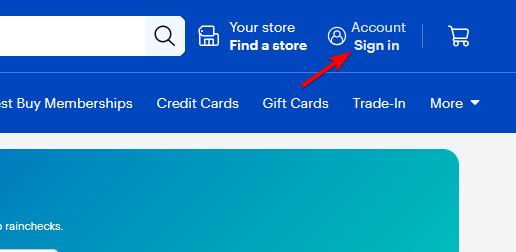
  2. Select Account near the top of the page.
     
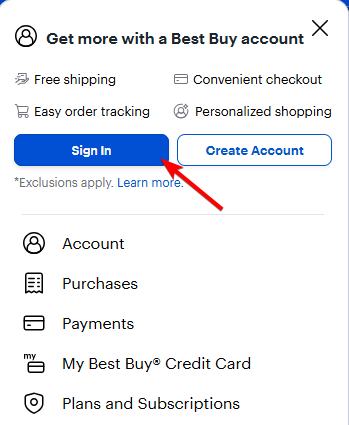
  3. Choose Sign In.
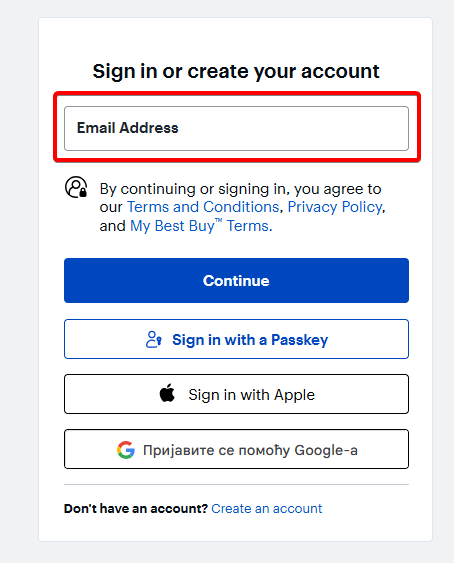
  4. Enter the email address linked to your Best Buy account.
  5. Enter your password, then select Sign In.

If your credentials are correct, Best Buy should take you directly to your account.

Tip: Check the website address before entering your password. Avoid signing in through links from unfamiliar emails or messages.

2. Use the Best Buy app

You can also access Best Buy on phone:

  1. Install the official Best Buy app from your device’s app store.
  2. Open the app and select the account or sign-in option.
  3. Enter your email address and password when prompted.
  4. After signing in, access your account information, purchases, and other details in the app.
  5. Use the app to track orders and manage purchases while on the go.

3. Use your mobile browser

If you don’t have the app installed, you can access the service from your mobile browser:

  1. Open Chrome, Safari, Edge, or another supported browser and visit BestBuy.com.
  2. Open Account, then select Sign In.
  3. The mobile website is a convenient alternative if the Best Buy app is unavailable or not working properly.

Forgot your Best Buy password?

You don’t need to create a new account if you forget your password.

Select the password recovery option on the Best Buy sign-in page and follow the instructions sent to your registered email address.

If you no longer have access to that email account, recovery may require additional verification.

Why Your Best Buy Login Might Fail

Login problems can occur even when you believe you’re using the correct password.

A temporary website issue may prevent authentication, while cached browser data or extensions can sometimes interfere with the sign-in page.

Try these fixes:

  • Recheck your email address and password.
  • Reset your password if your credentials are rejected.
  • Clear your browser cache and cookies.
  • Try another browser or private browsing mode.
  • Switch between Wi-Fi and mobile data.
  • Update the Best Buy app if you’re using a phone.
  • Check whether Best Buy is experiencing a wider service outage.

If the problem continues across multiple devices or browsers, contacting Best Buy support may be the next step.

Best Buy login should normally take less than two minutes. The most common problems are incorrect credentials, temporary browser issues, or problems with the Best Buy website or app.

Whenever possible, sign in through the official Best Buy website or app. Keep your password private and avoid saving login details on shared or public computers.

If you still can’t access your account, resetting your password or contacting Best Buy support should help you determine whether the problem is with your credentials or the account itself.

We also have guides explaining how to subscribe to Amazon Prime and how to cancel your Amazon Prime subscription.

Best Buy Login FAQs

1. Can I use Best Buy without an account?

Yes. You can browse and shop for products without signing in. A Best Buy account is mainly useful for managing orders, saved information, memberships, and other personalized features.

2. Why does Best Buy keep rejecting my password?

Check the spelling and capitalization of your email address and password. If the password is still rejected, use Best Buy’s password recovery process to create a new one.

3. Can I sign in to Best Buy from my phone?

Yes. You can sign in through the Best Buy mobile app or visit BestBuy.com using your phone’s browser.

4. Is my Best Buy account the same across devices?

Yes. You can use the same Best Buy account credentials across supported devices, browsers, and the Best Buy app.

Copilot Vision can now see your whole desktop in Windows 11

If you’re using Copilot on Windows 11, you’re about to get a smarter AI that can finally keep up with what you’re doing on screen.

Microsoft has started rolling out an update to the Copilot app, version 1.25071.125, that gives the Vision feature full access to your desktop. That means Copilot can now “see” everything open on your screen, not just individual apps.

This update is now live for all Windows Insiders, no matter which channel you’re on. The feature works by hitting the glasses icon in the Copilot composer, selecting your desktop, and then asking away. You can ask for help with UI elements, suggestions about a specific app, or even request analysis based on what’s on screen. Copilot will respond based on exactly what it sees, just like you would expect a human to do.

There’s also a more natural way to launch Copilot Vision: voice. If you’re talking to Copilot using your mic, you’ll now see the glasses button pop up during that conversation, too. That’s meant to make it easier to switch over to screen-aware help on the fly, without having to click through menus.

Microsoft noted in its announcement that while the rollout is available to all insiders, it still depends on your region. Copilot Vision’s desktop sharing is limited to countries where the feature is currently supported, and it might take a few days before the update shows up on your device.

KDE Plasma 6.4.3 Fixes Bugs on Wayland, Lock Screen, and More

KDE Plasma 6.4.3 is out, and while it’s not packed with new features, it brings a solid round of stability fixes you’ll notice right away. According to the official changelog, the update focuses heavily on cleaning up bugs across Plasma Desktop, Wayland, and the KWin window manager.

If you’ve been running into weird resizing behavior on high-resolution displays, especially with fractional scaling on Wayland, that chaos is now resolved. KWin also fixes a bug where clicks were ignored if a tooltip was showing, and it no longer crashes when handling tablet events with relative dials. Even a memory leak in the DRM backend has been patched, which should improve performance long-term.

On the Plasma side, the lock screen finally behaves consistently, no more random password prompts depending on your session type. X11 users can also breathe easier now that the “Minimize All Windows” widget works again. Discover, the software center, gets snappier too: selections respond on press, not release.

Smaller updates polish other areas. Spectacle, KDE’s screenshot tool, no longer messes with how Qt apps launch afterward. Orca screen reader support has been refined, and a crash involving the built-in RDP server is also fixed. KDE Plasma 6.4.3 is now rolling out to supported Linux distributions, especially those on a rolling release cycle. If your system hasn’t pulled it in yet, you’ll likely see it in the next few days.

How to Use Microsoft Teams Step-by-Step for Beginners

Find out how to use Microsoft Teams, from start to finish. You’ll learn how to sign up, what devices it works on, and how to start using Teams for meetings, private chat, file sharing, and calendar scheduling. Whether you’re on Windows, Mac, iPhone, Android, or just using a browser, these beginner-friendly instructions for using Microsoft Teams will walk you through it all step by step.

How to Use Microsoft Teams from Start to Finish

What Is Microsoft Teams?

Microsoft Teams is a collaboration platform used for chat, video calls, file sharing, and team management. It is widely used by businesses, schools, and remote teams to stay organized and communicate in real time.

No matter if you’re using Teams for work or study, it supports private messaging, video conferencing, and document collaboration across Windows, Mac, iOS, Android, and web browsers.

Getting Started with Teams

To begin using Teams, follow these steps:

If you’re using a Chromebook, follow this guide on how to use Microsoft Teams on Chromebook. For Android users, see our full walkthrough on how to install and set up Teams on Android.

Once logged in, you’ll see tabs like Activity, Chat, Teams, Calendar, and Files. You can set your status (Available, Busy, Do Not Disturb) by clicking your profile picture at the top right.

Creating and Managing Teams

A Team is a workspace for a group such as a department, project group, or class.

To create a new team:

  1. Click the Teams tab
  2. Select Join or create a team
  3. Click Create team, then choose to start from scratch or from an existing group
  4. Name your team, add members, and set privacy options

You can also join existing teams with a code or an invite link.

Organizing Work with Channels

Each team can include multiple Channels, which help organize conversations by topic.

To add a channel:

  • Click the ••• next to the team name
  • Choose Add channel
  • Name the channel and set privacy (Standard or Private)

Channels include tabs for Posts, Files, and Meetings. Use them to keep discussions focused and content organized.

Using Private and Group Chats

The Chat feature allows direct messaging between individuals or small groups.

To start a chat:

  1. Click the Chat tab
  2. Select the New chat icon
  3. Enter names and begin messaging

You can also start voice or video calls, share files, and schedule meetings within any chat. Use @mentions to get someone’s attention, and view read receipts to confirm messages were seen.

Scheduling and Joining Meetings

The built-in Calendar helps you organize and join meetings easily.

To create a meeting:

  1. Go to the Calendar tab
  2. Click New meeting
  3. Add a title, invite participants, set the time and date
  4. Click Save to send invites

In meetings, you can:

  • Share your screen
  • Use chat and reactions
  • Enable live captions
  • Record the meeting for future playback
  • Start a Microsoft Whiteboard for collaborative brainstorming

If you don’t have a Microsoft account, you can still join a Teams meeting without signing in. Want to join from an Android phone? Here’s how to create or join a Teams meeting on Android.

Sharing Files and Collaborating on Documents

Microsoft Teams makes it easy to upload and work on files with your team.

  • Use the Attach icon in any chat or channel to upload files
  • Files shared in chats are stored in OneDrive
  • Files shared in channels go to SharePoint

You can collaborate in real time on Word, Excel, and PowerPoint documents without leaving Teams.

Using the Whiteboard

To create a shared space for drawing or planning:

  • Click Share during a meeting
  • Select Microsoft Whiteboard
  • Everyone can sketch, write, or draw together

This tool is perfect for brainstorming, diagrams, or visual explanations.

Managing Presence and Notifications

You can control how and when you appear available to others.

  • Click your profile image to set your status manually (Available, Busy, Do Not Disturb, etc.)
  • Add a custom status message if needed
  • Go to Settings > Notifications to control alerts for chats, mentions, and meetings

Presence indicators let others know your availability, and read receipts give you insight into message delivery.

How to Use Microsoft Teams Integrations and Advanced Features

Microsoft Teams becomes even more powerful when you connect it with Microsoft 365 apps and third-party tools. Here’s how to make the most of these features.

Microsoft 365 Integrations

  • Outlook: Use Outlook to schedule or join Teams meetings directly from your calendar.
  • OneDrive: Access and edit files shared in chats through the Files tab or OneDrive.
  • SharePoint: Open channel files in SharePoint to manage folders and permissions.
  • Planner and Tasks: Add the Tasks by Planner and To Do tab to track assignments in channels.
  • Power BI: Use the + button in a channel to embed live Power BI dashboards.
  • Power Automate: Automate tasks such as posting a message when a form is submitted or syncing calendars.

Third-Party App Integrations

  • Project management: Install apps like Trello, Asana, or Jira from the Apps menu
  • CRM tools: Connect Salesforce, HubSpot, or Zoho to manage leads and customers inside Teams
  • Cloud storage: Go to Files > Add cloud storage to connect Google Drive, Dropbox, or Box
  • Bots and productivity tools: Add Polly for polls, Karma for peer feedback, or other helpful bots to automate tasks and improve engagement

Advanced Capabilities

  • Whiteboard: Share and draw in meetings for group collaboration
  • Breakout rooms: Divide large meetings into smaller sessions by clicking Breakout rooms in the meeting toolbar
  • Webinars and live events: Schedule a Webinar from the Calendar tab to manage registrations and run professional presentations
  • Custom tabs: Pin important tools like apps, files, or websites to any channel using the + icon
  • Power Apps: Build or connect low-code apps using Power Apps and add them as tabs inside your workspace

If you’re using a Linux machine, follow this guide to install Microsoft Teams on Linux. If you’re an administrator, we have a great article on how to log in and use Microsoft Teams Admin Center, so feel free to check it out.

Conclusion

Using Microsoft Teams effectively means more than just sending messages or joining meetings. Once you understand how to create teams, manage channels, collaborate on files, and connect third-party tools, Teams can become a useful digital hub for productivity and collabs.

FAQs

Can I use Microsoft Teams without downloading the app?

Yes, you can use Microsoft Teams in any supported browser like Edge or Chrome without installing it.

Do I need a Microsoft 365 subscription to use Teams?

No. There is a free version of Teams available that includes chat, meetings, file sharing, and limited storage.

Can guests join a Teams meeting without a Microsoft account?

Yes, guests can join meetings via invite links and use their name to enter without signing in.

Is Microsoft Teams available on Linux?

Yes, Microsoft Teams offers a Linux desktop client. You can also use the web version on Linux systems.

How can I recover deleted Teams messages or files?

Deleted files can be recovered from the Recycle Bin in SharePoint or OneDrive. Messages generally cannot be restored unless retention policies are set by an admin.

Windows 11 Clean Installs Now Include Fully Updated Apps Out of the Box

Microsoft is finally making changes to how Windows 11 ships with its stock apps. This shift is more than just a cleanup. In a new blog post, Microsoft confirmed that newer Windows Media images now include fully updated versions of inbox apps. That means you won’t have to wait for the system to pull them from the Microsoft Store the first time you launch them.

Previously, many of these apps were basically stubs. You’d open something like Calculator or Notepad, only to trigger a download. It saved time during setup, but it wasn’t ideal. Now, Microsoft says the change is about two things: security and convenience.

Updated apps mean fewer vulnerabilities tied to old versions sitting in the default installation. And with everything ready from the get-go, there’s no more waiting for app downloads on a fresh install.

The new experience is rolling out with Windows 11 version 24H2. It includes pre-installed updates for 36 apps, like Snipping Tool, Clipchamp, Photos, Media Player, Paint, Notepad, and Xbox Game Bar. The Microsoft Store itself also gets the same preloaded treatment.

On the enterprise side, Windows Server 2025 install media will now ship with the latest App Installer and Windows Security tools built in. For users doing clean installs, you can grab the refreshed Windows 11 image using the Media Creation Tool. IT pros and admins can find the updated media via the Microsoft 365 admin center or Azure Marketplace.

Microsoft’s Clipchamp makeover nearly complete, Stream gets fresh new face

Microsoft’s new video experience for Microsoft 365 is finally here. After announcing the plan last year to merge Stream and Clipchamp, the rollout has begun, and changes have finally started to show up.

Clipchamp is now the main app for editing and watching videos across Microsoft 365. It combines Clipchamp’s creative tools with playback features from Stream. Users won’t need to switch between apps anymore. Everything’s now built into one interface.

Clipchamp is now the central video hub in Microsoft 365. The first thing you’ll see is a new Clipchamp start page. Whether you launch it from the Stream shortcut or the Clipchamp link, it now takes you to the same space. This hub collects your personal edits, Teams meeting recordings, and shared videos in one place.

Microsoft is also updating the design across all video tools. The new Clipchamp player includes its logo, color scheme, and a banner noting the platform change. Clipchamp gets new tools, Copilot support, and admin controls. This isn’t just a branding shift; new features are landing too. Microsoft 365 Copilot in Clipchamp can now summarize videos or answer questions about the content. A Copilot license is required, though.

You can also trim and send parts of a video as separate clips. The screen, webcam, and audio recording tools now carry Clipchamp’s design. Admins have new toggles to manage those features—what used to be listed under Stream settings now appears as “video” settings.
Video links in Teams and Outlook are being updated, too. Buttons that once said “Open in Stream” now say “Watch in browser.” Export options are changing to match. Not to forget, help docs and blog content get rebranded too.

Microsoft is updating support articles and documentation to reflect the new Clipchamp identity. Stream’s support content on Microsoft Learn and Microsoft Support is being updated throughout July. The Stream blog is also being refreshed.

If you try visiting the Stream homepage, you’ll now be redirected to the Clipchamp Video Editor site. It’s divided into sections for creating and viewing videos. In late August, Microsoft will start rolling out a new Clipchamp video hub for managing projects. It’s already live in preview if you want to check it out early.

Microsoft says the changes won’t remove any features. The goal is to streamline everything and make video tools easier to find. You can send feedback using this portal. More details are available in Microsoft’s brand update and their earlier post on the future of video.

How to Install Microsoft Teams [All Devices, Step-by-Step]

Here’s how you can install Microsoft Teams desktop or mobile apps quickly on any device. Whether you’re using a laptop, PC, iOS, Android, Linux, or Chromebook, the steps below show how to install it for free and set up Teams for the first time.

How to Install Microsoft Teams

Steps to Install Teams on Windows PC or Laptop

  1. Visit teams.microsoft.com/downloads
  2. Click Download for desktop
  3. Run the downloaded installer
  4. Follow the setup instructions
  5. Sign in with your Microsoft account

If you don’t have an account, here’s how to sign up for Microsoft Teams for free. Should you encounter a Microsoft Teams installation has failed error on Windows, use this guide to troubleshoot setup problems and complete the install successfully.

Install Teams on macOS: (MacBook or iMac)

  1. Go to teams.microsoft.com/downloads
  2. Select Download for macOS
  3. Open the .pkg file
  4. Follow the installation prompts
  5. Launch the app and sign in

Download Microsoft Teams on iOS (iPhone or iPad)

  1. Open the App Store
  2. Search for Microsoft Teams
  3. Tap Get
  4. Open the app after installation
  5. Log in with your account

To join meetings without signing in, follow this guide to join Teams without an account.

Install Teams on Android (Android phones and tablets)

  1. Open the Google Play Store
  2. Search for Microsoft Teams
  3. Tap Install
  4. Launch the app after install
  5. Sign in to start using Teams

See the full Teams setup steps for Android, and learn how to join meetings on Android using links, invites, or codes.

Steps to Install Teams on Linux (Ubuntu, Debian, Fedora)

  1. Visit teams.microsoft.com/downloads
  2. Download the .deb or .rpm package
  3. Open with your system’s package manager
  4. Complete the installation
  5. Open Teams and log in

More details are available in our Microsoft Teams Linux installation guide.

How to Install Teams on Chromebook (ChromeOS)

  1. Open the Google Play Store
  2. Search for Microsoft Teams
  3. Tap Install to download the Android version
  4. Launch the app and log in

Alternatively, you can use the web version of Teams on Chromebook through your browser at teams.microsoft.com.

Wrap-Up

You can install Microsoft Teams on any major platform in minutes—Windows, macOS, Android, iOS, Linux, or Chromebook. Once installed, you’re ready to chat, meet, and collaborate instantly. If you’re new to meetings, here’s how to join a Microsoft Teams meeting step-by-step from any device.

FAQs

Can I use Teams on a Chromebook without installing the app?

Yes, simply open teams.microsoft.com in Chrome and use the full web version without installing anything.

Is there a difference in features between Android and iOS Teams apps?

Core features are the same, but interface elements may differ slightly. Both support meetings, chats, calls, and file sharing.

What happens if I install Teams but don’t have a Microsoft account?

You’ll need to create a free Microsoft Teams account to access most features, though guest access is possible for joining meetings.

Does the Teams mobile app sync with the desktop version?

Yes, Teams syncs across devices, so your chats, meetings, and files are available whether you’re on a laptop or smartphone.

Microsoft Admits Windows 11 Firewall Bug Still Isn’t Fixed

Some Windows 11 users might’ve breathed a sigh of relief last week, thinking their nagging firewall error was finally gone. Turns out, that’s not the case. Microsoft now says the “fix” it announced was published by mistake—and the bug is still alive.

If you’ve been seeing weird firewall logs ever since installing the June non-security preview update (KB5060829), you’re not alone. Event Viewer keeps reporting a “Config Read Failed” message under Event ID 2042, along with the line “More data is available.”

Microsoft initially told users to ignore it, claiming it’s tied to a future feature still in development. It doesn’t actually break anything on your system, but it’s been throwing off users who spot the error after every reboot.

Well, on July 8, Microsoft dropped its usual Patch Tuesday update (KB5062553) and quietly updated its Windows Release Health dashboard to say the problem was fixed. Users quickly pushed back, saying the bug was still very much there.

Turns out they were right. Microsoft now admits that the update to “Resolved” status was made in error. The company has rolled back the update status to “Confirmed” and says it’s still working on a proper fix. There’s no timeline yet, only that it’s expected “in the coming weeks.”

7 Best Windows 11 Password Reset Tools (2026 Guide)

Locked out of your Windows 11 PC? Whether you’ve forgotten your local admin password or need to access a Microsoft account, password reset tools can save you from a full system reinstall. In this guide, we’ve reviewed the best Windows 11 password reset tools based on ease of use, compatibility, and effectiveness.


🥇 Best Windows 11 Password Reset Tools – Quick Comparison

ToolBest ForPrice
EaseUS Partition MasterMost Windows users$19.95 one-time
PassFab 4WinKeyMicrosoft/domain accounts$29.95–$59.95
imyPass / LazesoftWizard-style local password resets$15–$32 one-time
OphcrackFree recovery of short passwordsFree
Offline NT chntpwTech-savvy command-line resetsFree
Kon-BootTemporary access (no reset)$30–$40
Passware / ElcomsoftEnterprise-grade forensic recoveryPremium pricing

1. EaseUS Partition Master

🔗 Try Now

Best for: General users who want a safe, all-in-one GUI tool.

EaseUS Partition Master isn’t just for disk management—it includes a password reset utility that works through a bootable USB or CD. Once booted into WinPE, users can remove or reset local Windows 11 passwords in just a few clicks.

Pros:

  • Easy to use with a visual interface
  • Works with most Windows versions
  • Comes with disk cloning and partition repair tools

Cons:

  • Password reset requires paid version
  • Doesn’t support Microsoft accounts

Price: From $19.95 one-time


2. PassFab 4WinKey

🔗 Try Now

Best for: Resetting Microsoft or domain account passwords.

PassFab 4WinKey is designed for more advanced reset tasks, including handling online Microsoft accounts and domain logins. It allows you to reset, remove, or create user/admin accounts easily from a bootable USB.

Pros:

  • Supports local, Microsoft, and domain accounts
  • No data loss
  • Quick bootable media creation

Cons:

  • Subscription pricing
  • Some steps require basic tech knowledge

Price: $29.95–$59.95/month


3. imyPass / Lazesoft

🔗 Try imyPass

Best for: Beginners looking for a guided, wizard-based reset.

imyPass and Lazesoft are very similar: both provide simple interfaces for creating a password reset disk. They guide the user through a 3-step process and can also manage user accounts.

Pros:

  • Designed for non-technical users
  • Resets local Windows passwords
  • Offers free trials and lifetime licenses

Cons:

  • Requires a second PC to create the USB
  • Doesn’t support Microsoft accounts

Price: From $15.96/month or $31.96 lifetime


4. Ophcrack

🔗 Download Now

Best for: Free password recovery of weak or short passwords.

Ophcrack doesn’t reset your password—it recovers it by analyzing hashes using rainbow tables. It’s a free, open-source option that boots from USB/CD.

Pros:

  • Free and open-source
  • Doesn’t change anything on your PC
  • Useful for offline recovery

Cons:

  • Doesn’t work with Microsoft accounts
  • Struggles with long or complex passwords

Price: Free


5. Offline NT Password & Registry Editor (chntpw)

🔗 Download Now

Best for: IT pros who want full control.

chntpw is a command-line utility that boots from USB and lets you clear or reset local passwords on Windows systems. It’s incredibly powerful but lacks a user-friendly interface.

Pros:

  • Completely free
  • Clears passwords, doesn’t just reset
  • Lightweight and fast

Cons:

  • Command-line only
  • Doesn’t support Microsoft accounts or BitLocker

Price: Free


6. Kon-Boot

🔗 Visit Site

Best for: Quick, temporary access without password reset.

Kon-Boot doesn’t reset your password—it bypasses the login screen altogether. This is perfect for temporary access without changing the user’s credentials.

Pros:

  • Instant login bypass
  • No changes to user profile
  • Works on most Windows versions

Cons:

  • Doesn’t set a new password
  • Paid-only tool

Price: $30–$40


7. Passware Kit / Elcomsoft

🔗 Visit Passware
🔗 Visit Elcomsoft

Best for: Enterprise or forensic-grade password recovery.

Passware and Elcomsoft offer GPU-accelerated tools for password cracking, including encrypted drives, system images, and more. They’re expensive, but critical for law enforcement, security firms, and enterprises.

Pros:

  • Works on encrypted files and OS images
  • Advanced decryption and brute-force options

Cons:

  • High learning curve
  • Premium pricing

Price: Enterprise-only


Things to Know Before Resetting

  • BitLocker: None of these tools will work if BitLocker is enabled unless you have the recovery key.
  • Microsoft Accounts: Tools like EaseUS or chntpw won’t reset online accounts—you’ll need PassFab or to reset via Microsoft’s website.
  • Bootable USBs: You’ll need access to another PC to create the boot disk.
  • UEFI/Secure Boot: Some tools may require you to disable Secure Boot in BIOS to function.

FAQs

Can I reset a Microsoft account offline?
No. Microsoft account resets must go through Microsoft’s recovery portal or use a supported tool like PassFab 4WinKey.

Do these tools delete my files?
No. Reset tools like EaseUS, imyPass, and chntpw don’t affect your data when used properly.

What’s the best free option?
Ophcrack for password recovery; chntpw for actual resets (command-line).

Which tool works best for quick access?
Kon-Boot—instant login without changing passwords.


Final Verdict

  • Best Overall: EaseUS Partition Master – easy to use, powerful, and affordable
  • Best for Microsoft accounts: PassFab 4WinKey
  • Best free tools: chntpw (reset) and Ophcrack (recovery)
  • Best for urgent access: Kon-Boot
  • Best enterprise option: Passware Kit / Elcomsoft

Choose the one that matches your skill level and account type, and you’ll be back into Windows 11 in minutes.

PlayStation kicks off Summer Sale with massive discounts on your favorite titles

Some gamers wait all year to grab that one title they missed. If you’re one of them, Sony just kicked off its big PlayStation Summer Sale. It’s live now and runs through August 13, but heads up, some of these deals vanish after July 29. That’s because Sony plans a mid-sale refresh, meaning new games will join the rotation, and a few of the current ones might disappear.

PlayStation Summer Sale is live with steep discounts

Over at the official Summer Sale page on the PlayStation Store, you’ll find hundreds of PS5 and PS4 digital games and add-ons on sale. EA Sports FC 25 Standard Edition is 79% off. Call of Duty: Black Ops 6 – Cross-Gen Bundle is down 45%.

You can also grab Assassin’s Creed Shadows Digital Deluxe Edition at 25% off, Forza Horizon 5 at 25% off, and even Clair Obscur: Expedition 33 at 10% off. Just keep in mind that these are digital-only discounts. So if you prefer physical discs, it’s smart to check local store listings before clicking purchase. Sometimes boxed versions go cheaper.

Sony’s also made it easier to keep tabs on what you want. Add games to your wishlist and you’ll quickly see if they go on sale during the second round. With 208 pages of deals listed in the UK store alone, there’s a good chance you’ll find something worth picking up.

The sale has started at midnight local time globally, so don’t forget to head over to the PlayStation Summer Sale and dive in.

How to Use Microsoft Teams Online (Beginner Guide)

Here’s how you can use Microsoft Teams online without downloading the app. Whether you’re joining a meeting or accessing chat features, the web version works smoothly in any browser. Follow the steps below to get started in seconds.

How to use Microsoft Teams On The Web

Step-by-Step: Using Microsoft Teams in Your Browser

  1. Visit the official site

    Go to https://teams.microsoft.com in any modern browser like Chrome or Edge.

  2. Sign in or create an account

    Log in with your Microsoft account. If you’re new, choose Sign up for free to create a Teams account for personal or business use.

  3. Access the dashboard

    Once logged in, you’ll see your Teams dashboard with chats, meetings, and calendar tools.

  4. Join or start a meeting online

    Click Calendar > Join or New Meeting to use Microsoft Teams online without the desktop app.

  5. Use core features in-browser

    You can chat, call, share screens, and collaborate on files—all directly in the browser without needing to install anything.

Note icon NOTE
You can also join a Microsoft Teams meeting without an account if you’re invited as a guest.

FAQs

Can you access Teams online?

Yes. Visit teams.microsoft.com and sign in, no installation needed. If Teams won’t connect to a meeting, follow this step-by-step fix for meeting issues in Teams to troubleshoot.

Do I join a meeting in Microsoft Teams online or need the app?

You can join directly online by clicking the meeting link, no download required. For mobile users, here’s how to create or join a Teams meeting on Android.

Is using Teams in a browser fully functional?

Most features are available via browser, including meetings, chat, and file sharing. If you’re unsure how to get started, here’s a full guide to joining a Teams meeting.

How do I change Microsoft Teams from offline to online?

Check your status in the top-right corner of the Teams web app and select “Available” from the dropdown.

Is there a Teams tutorial for beginners?

Yes, Microsoft offers a built-in help section and tooltips in the web version. You can also check this Teams free signup tutorial to set up your account properly.

Wrap-Up

Now you know how to use Microsoft Teams online easily. Whether you’re joining a meeting, chatting with coworkers, or trying Teams for the first time, using Teams via browser is quick and efficient. If you haven’t already, follow this guide to create a free Teams account and start collaborating instantly.

How to Signup to Microsoft Teams for Free (Simple Guide)

You can sign up for Microsoft Teams for free and get a reliable space for chatting, video calls, and collaboration without paying a cent.

It’s a great option for students, freelancers, and small teams. This step-by-step guide walks you through creating your account, using Teams in your browser, and getting started with its core features.

Step-by-Step: Create Your Free Microsoft Teams Account

1. Visit the Microsoft Teams Signup Page

This is where you’ll begin the free signup download Teams journey.

2. Enter Your Email Address

  • Use a personal or work email to get started
  • Microsoft will check if you’re already in their system
Tip icon Tip
Tip: For business use, use your work email to access free Teams account for business.

3. Choose Why You’re Using Teams

  • Select: For work, For school, or For friends & family
  • If you select work, you’ll access the business version of Teams web

4. Create or Sign in with a Microsoft Account

  • If you don’t have one, you’ll be prompted to create a Microsoft account
  • This becomes your Teams login for future use

5. Complete Account Setup

  • Set a password and verify your identity via email
  • Enter your name, organization (optional), and other details

You’ve now completed your Teams account create process.

6. Start Using Teams on the Web

  • You can instantly begin using Teams on web (no download required)
  • Click “Use the web app instead” when prompted

If you’re having issues connecting, follow this guide to fix Teams not connecting to a meeting.

6. Optional: Download the Teams Desktop App

While Teams web works well, you can download the app for better performance:


What Is the Difference Between Free and Paid Microsoft Teams?

FeatureFree PlanPaid Plan
Participants per meeting100Up to 1000
Meeting duration60 minutesUp to 30 hours
Cloud storage5 GB/user1 TB/user
Admin tools & policiesBasicAdvanced admin & security tools
Microsoft apps integrationLimitedFull suite (Word, Excel, PowerPoint)

This comparison helps you understand what the difference is between free and paid Microsoft Teams at a glance.

To get ahold of the full process of accessing calls or invites, read our detailed guide on how to join a Microsoft Teams meeting.

FAQs

Can I create a Teams meeting with a free account?

Yes! The free plan lets you schedule or start a meeting directly from Teams, including sending invites via link or email. If you’re on Android, here’s how to create or join a Teams meeting on Android.

How can I use Microsoft Teams for free?

Go to the official Teams site, choose the free plan, and create an account using your email.

Can I use Teams login credentials across devices?

Yes. Use the same login for Teams web, desktop app, and mobile.

Do I need a Microsoft 365 subscription?

No. The Microsoft Teams free signup does not require any subscription.

Is Teams free for businesses?

Yes, there is a free Teams account for business with limited but powerful collaboration tools.

Can I join a meeting without a Teams account?

Absolutely. Learn how to join a Teams meeting without an account using just a meeting link.

Wrap-Up

Signing up for Microsoft Teams for free is quick, easy, and gives you access to powerful collaboration tools without any cost. Whether you’re using Teams on web or the desktop app, you can chat, host free video conference Teams calls, and manage projects efficiently, no subscription required.

How to Join a Microsoft Teams Meeting by Link, Code, or Invite (Browser & App Guide)

Joining a Microsoft Teams meeting is easy whether you’re using the desktop app or a web browser. You can join by clicking a link, entering a meeting code, or using the invite info provided in your calendar or email.

This guide will show you how to join via browser or desktop app, even if you’re just connecting to a call for the first time.

How to Join a Microsoft Teams Meeting Explained Step-by- Step

Join a Microsoft Teams Meeting in a Browser

Steps:

  • Open the meeting invitation link from your email or calendar.
  • When prompted, click “Continue on this browser”.
  • Allow microphone and camera access if requested by the browser.
  • Enter your name, adjust your audio/video settings.
  • Click “Join now” to enter the meeting.

This method works best on Microsoft Edge, Google Chrome, and Safari. If you run into connectivity issues, here’s how to fix Microsoft Teams not connecting to a meeting.


Join a Microsoft Teams Meeting in the Desktop App

Using the desktop app provides smoother performance and access to more features.

Steps:

  • Download and install the Microsoft Teams app from teams.microsoft.com.
  • Open the app and sign in with your Microsoft or work account.
  • Click the meeting link from your calendar, email, or chat.
  • The app will open automatically and direct you to the meeting lobby.
  • Review your audio/video settings and click “Join now”.

You can also enter a meeting using a meeting code or access scheduled meetings directly in the Calendar tab. On mobile? Follow this guide to create or join a Teams meeting on Android.


FAQs

Can I join a Microsoft Teams meeting without an account?

Yes. You can join a Teams meeting without a Microsoft account using the browser option as a guest.

Is the desktop app required to join Teams meetings?

No. The browser option works well, but the app offers additional features.

What if the meeting link doesn’t work?

Try copying and pasting the link into a different browser like Edge or Chrome.

Wrapping up

Joining a Microsoft Teams meeting is quick and flexible. Whether you use a meeting link, call, invite info, or a code, Microsoft Teams makes it easy to connect. Choose the method that best fits your device and join your next meeting without any hassle.

Can You Block Fox News on msn.com or Bing News?

No – on the main MSN.com or Bing News website, you can’t block individual sources like Fox News. It’s an automated, one-size-fits-all feed, so hiding them won’t work. That’s by design.


✔️ Here’s What Actually Works

1. In the Windows News App or Microsoft Start

These apps let you hide specific sources:

  • Click the three-dot menu (…) on an article.
  • Select “Hide stories from [source]” (e.g. Fox News) and confirm.
  • The source won’t appear in your feed anymore—but this only applies to the News App/Start, not msn.com or Bing.

2. In Microsoft Edge (on New Tab / Widgets page)

You can disable the entire news feed:

  • Open a new tab in Edge.
  • Click the gear icon (⚙️) to access settings.
  • Change “Show content” (or “Show news”/“MSN content”) to Off.
  • This removes the news – including Fox – but it’s all or nothing.

Here’s a Reddit-backed hint that works well:

“On the new tab page, click the gear (settings) icon. Set ‘Show content’ to off …”


🎥 Quick Video Guide

Want a visual walkthrough? Here’s a helpful (non-Fox-specific) video on disabling the News feed in Edge:


🧭 Summary Table

ScenarioOption 1: Hide Fox OnlyOption 2: Remove Entire News Feed
msn.com or Bing.com❌ Not possible✅ Only full feed removal via Edge settings
News App / Microsoft Start✅ Yes – hide specific sources❌ Not needed (already hides sources)
Edge New Tab or Widgets❌ Can’t hide single source✅ Yes – turn off content via ⚙️ gear menu

✅ What You Can Do Now

  1. If you’re in the Windows News App or Microsoft Start:
    • Use the three-dot menu on a Fox News article → “Hide stories from Fox News.”
  2. If you’re viewing MSN.com or Bing.com:
    • You can’t block Fox—consider using the News App or disabling feed entirely in Edge.
  3. If you don’t want any news feed in Edge:
    • Open a new tab → click ⚙️ → set Show content to Off.

📝 Final Takeaway

  • Blocking single news sources (like Fox) is only possible in the News app or Microsoft Start.
  • On msn.com or Bing, the feed is monolithic—either it’s all included or none.
  • Want a clean browsing experience on Edge? Turn off the feed completely via the new tab settings.

How to Use System Restore on Windows 10 and Windows 11 PCs

Learning how to use System Restore on Windows 10 and Windows 11 PCs can save you hours of frustration. This is especially useful at times when your system starts acting up after a bad update, failed driver install, or broken registry tweak; you don’t always need a full reset. It lets you roll your PC back to an earlier, working state, without losing your personal files.

System Restore works by creating snapshots, called restore points, that capture your system settings and configurations at a specific time. However, many users don’t realize the feature is disabled by default.

If you don’t turn it on manually, your PC won’t create restore points automatically. That means no backups to return to when things break. So, in this guide, we’ll walk you through steps to enable and use system restore and create a restore point on Windows 10 and 11 PCs.

How to Enable System Restore on Windows 10

It’s worth noting that System Restore isn’t always enabled by default. Therefore, if you want to restore your system in Windows 10 or prepare for a system rollback, you need to enable it first. Here’s how to get it done.

  1. Open the Start menu and type Create a restore point.
  2. Click the top result to open System Properties.
  3. Under Protection Settings, select your primary System drive (usually C:).
  4. Click Configure.
  5. Select Turn on system protection.
  6. Adjust disk space usage if needed with the slider.
  7. Click Apply, then OK.

How to Create a Restore Point on Windows 10

Once you’ve enabled System Restore on Windows 10, your PC will automatically create restore points during key events like updates or software installs. Here’s what you need to do to create a system restore point on Windows 10

  1. Open Start, search Create a restore point.
  2. In System Properties, click Create under Protection Settings.
  3. Type a name like Before GPU driver update.
  4. Click Create, then wait a few seconds.
  5. Once done, click Close.

You can now restore Windows 10 to this point if needed. Just in case it’s not working, make sure to check our guide to fix System Restore is Not Working in Windows 10.

How to Enable System Restore on Windows 11

The process for System Restore in Windows 11 is very similar to that of Windows 10. Here’s how to do it step-by-step:

  1. Click on Start, search Create a restore point, and open the result.
  2. Under Protection Settings, select the System (C:) drive.
  3. Click Configure.
  4. Choose Turn on system protection.
  5. Use the slider to adjust space usage for restore points.
  6. Hit Apply, then OK.

If you’ve got multiple drives, repeat the steps for each one. If System Restore on Windows 11 is experiencing delays, make sure to check our guide to speed it up.

How to Create a Restore Point on Windows 11

To manually create a restore point on a Windows 11 PC, you must follow the steps given below. This gives you an instant rollback option if things break.

  1. Open System Properties via Create a restore point search.
  2. Click Create under Protection Settings.
  3. Enter a name like Before registry edit.
  4. Click on Create, then Close after it’s done.

How to Use System Restore on Windows 10 & 11

Whether on Windows 10 or 11, restoring is easy:

  1. Click on Start, search for Create a restore point.
  2. In the System Properties window, click System Restore.
  3. Choose Next, then pick a restore point.
  4. Click Scan for affected programs to review changes.
  5. Click Next, then Finish.

Your PC will reboot and restore system files to the selected state.

Conclusion

If your system starts acting up, don’t panic; System Restore is your safety net. Whether you’re on Windows 10 or Windows 11, enabling protection and creating restore points takes just a minute, but can save hours of troubleshooting. For times when you hit the wall, we have a guide to help you fix System Restore doesn’t complete successfully. All that said, if some of you want to pause System Restore, check our guide to undo it easily on Windows 11.

For broader fixes before rolling back, see our repair Windows 11 guide with step-by-step tools like SFC, DISM, and Startup Repair.

FAQs

How to use System Restore on Windows 10 and Windows 11?

To use System Restore, open the Start menu and search for “Create a restore point.” In the System Properties window, click System Restore, choose a restore point from the list, and follow the prompts. Your PC will restart and roll back system files to the selected state. This won’t affect personal documents or files.

What is the difference between system recovery and System Restore?

System Restore is a targeted recovery tool that rolls back Windows settings, drivers, and system files without touching your data. In contrast, System Recovery is a full reset or reinstall of Windows. It often deletes all files and apps, restoring your PC to factory condition. Use System Restore for smaller issues.

How do I do a full System Restore on my computer?

A full System Restore involves selecting a restore point that was created before a major issue started. This restores system files, drivers, and registry settings. You can do this through the System Restore wizard in Windows or via recovery mode if Windows won’t boot. It’s safe and doesn’t remove your personal files.

How do I boot up System Restore?

You can boot System Restore either from within Windows or through Advanced Startup. To use it when Windows won’t boot, hold Shift and click Restart from the login screen or Start menu. Then go to Troubleshoot > Advanced Options > System Restore. Follow the steps to pick and apply a restore point.

Can I restore a Windows 10 backup to a Windows 11 PC?

You can’t directly use a Windows 10 System Restore point on a Windows 11 install because they rely on different system files. However, you can still recover personal files using File History or OneDrive if you backed them up. For full system backups, use a third-party tool that supports OS migration.

How to boot into recovery mode in Windows 11?

Click Start, hold the Shift key, and click Restart. This will take you into the Windows Recovery Environment. From there, choose Troubleshoot > Advanced options > System Restore. It’s the easiest way to get to recovery tools without needing a separate USB or installation media.

How to use the Restore previous versions in Windows 11?

Right-click on a file or folder and select Restore previous versions. If System Protection or File History is enabled, you’ll see older versions listed. Select one to view or restore it. This is helpful if you’ve accidentally overwritten or deleted part of a file.

How to restore files from Windows 10 after upgrading to Windows 11?

If you upgraded without wiping the drive, your old files may be in Windows.old folder on your C: drive. Open File Explorer and navigate to C:\Windows.old\Users\YourName to find them. You can also recover files using File History or a cloud backup if it was enabled in Windows 10.

Microsoft is Reportedly Paying Big for AI Talent While Laying Off Others

Despite laying off thousands this year, Microsoft is shelling out massive salaries, especially to workers involved in artificial intelligence. A new report from Business Insider details just how far the company is willing to go to retain top talent in a field it’s betting the future on.

While traditional roles in sales and marketing have seen cuts, those working in AI-focused positions are being rewarded. According to U.S. visa filings from early 2025, software engineers at Microsoft can earn a base salary of up to $284,000. Product managers land just slightly below that, with some paid up to $250,000. But the highest numbers come from roles tied to AI and machine learning.

At LinkedIn, senior engineers working in machine learning can earn as much as $278,000. Staff-level engineers in a similar position push even higher, up to $336,000 in base pay alone. These figures don’t even include bonuses or stock awards, which are typically significant at Microsoft.

Other technical roles also draw large cheques. Data scientists are making up to $274,500, while electrical engineers earn as much as $247,650. Those in cloud solution architecture, SRE, and program management are also comfortably getting the six-figure range.

Even as the company trims jobs in lower-growth positions, it’s asking managers to offer retention bonuses to top AI performers. This move comes as Microsoft doubles down on its Copilot tools, while also facing growing pressure from partners like OpenAI and rivals like Google.

Google’s AI agents are already stopping real-world cyberattacks

Google is stepping into this summer’s cybersecurity conference season with a wave of updates, demos, and real-world wins for AI-powered security. In a new blog post, the company shared how its agentic AI tools, like the Big Sleep agent, are already identifying vulnerabilities before hackers can exploit them.

Big Sleep, first announced last year, recently found a critical SQLite flaw (CVE-2025-6965) that was previously known only to threat actors. With intel from Google’s Threat Intelligence team, the AI predicted an imminent attack and blocked it preemptively, possibly a first in public cybersecurity history. That same AI now supports open-source security, helping plug holes across the broader internet.

At Black Hat USA, Google plans to demo new AI capabilities including Timesketch (an incident response tool powered by Sec-Gemini) and FACADE, which detects insider threats across billions of events a day. The company will also join Airbus for a DEF CON Capture the Flag event pairing human players with AI assistants.

Google is donating data from its Secure AI Framework to help drive industry-wide security efforts under the Coalition for Secure AI. And next month, it will wrap up its two-year AI Cyber Challenge with DARPA, where finalists will show off tools built to secure open-source software.

While the tech itself is impressive, Google says none of it matters without responsible deployment. The company is pushing secure-by-design practices, transparency, and human oversight to ensure AI stays an asset, not a liability.

Xbox Game Pass Adds Grounded 2, RoboCop, Wuchang in July Wave 2

Microsoft’s back with its mid-month Xbox Game Pass update, and this one’s packed with new releases. First up, Grounded 2, Obsidian’s sequel to its backyard survival hit, is launching into Game Preview on July 29. You’ll be able to try it early on Xbox and PC.

Also coming this month is Wuchang: Fallen Feathers, the moody Soulslike from 505 Games and Leenzee. It’s coming day-one to Game Pass on July 24, alongside two more first-day additions: Grounded 2 and the quirky racing sim Wheel World, which hits July 23.

Other new arrivals include High on Life, which is already available, RoboCop: Rogue City arriving July 17, and Farming Simulator 25, which joins the lineup on August 1. Rounding things out are My Friendly Neighborhood and Back to the Dawn, both dropping this week, with Abiotic Factor following on July 22.

All of these games are coming to Xbox, PC, and the cloud depending on platform compatibility. It’s another strong month for day-one drops, giving subscribers immediate access to titles the same day they hit digital storefronts.

Not everything’s sticking around, though. Microsoft confirmed three games are leaving Game Pass on July 31: Gigantic, Kunitsu-Gami: Path of the Goddess, and Turnip Boy Robs a Bank. So if any of those are on your list, you’ve got two weeks left to jump in. You can expect more updates in early August, but until then, there’s plenty to play.

Microsoft Brings Security Copilot to Surface Management Portal for IT Admins

Microsoft is officially rolling out Security Copilot in the Surface Management Portal (SMP), expanding its AI-powered cybersecurity platform to a key hub inside the Intune admin center. For IT admins managing Surface devices, this means faster, smarter insights, without jumping between tools.

This update builds on the general availability of Security Copilot for Entra, which focuses on identity, access, app protection, and posture monitoring. Now, with Surface integration, Security Copilot adds a conversational layer to device management, letting admins ask natural language queries like:

  • “Which devices are out of compliance and out of warranty?”
  • “Show devices with TPM disabled and BitLocker off.”
  • “Estimate carbon emissions from our Surface fleet”

The integration brings together Microsoft’s hardware, firmware, and software signals. As explained by Rohan Brooker, it creates a “richer, real-time context” across Surface, Windows, Intune, and Security Copilot, all within a single view.

Admins using the feature during preview reported clearer insights and quicker action. Tasks that previously required diving into multiple dashboards can now be initiated with a single prompt.

To get started, IT pros need to enable the SMP plugin and assign Security Compute Units (SCUs) as outlined in Microsoft’s official documentation. Microsoft encourages feedback through the portal as the tool evolves post-preview.

Windsurf Joins Forces With Cognition After Google Deal

Windsurf, the agentic IDE that lets users turn natural language into working code, is entering a new chapter, this time under Cognition. To catch you up, it’s the same startup that’s behind the autonomous dev agent Devin.

In an announcement shared on Windsurf’s blog, the company confirmed it’s merging with Cognition to create what they call a new “human-AI collaboration model.” This combo pairs Devin’s ability to take on entire engineering tasks with Windsurf’s intuitive IDE features like Tab and Cascade, designed to support hands-on developers who want help without losing control.

According to new Windsurf CEO Jeff Wang, the vision is clear: let “a team of Devins” handle big chunks of work, while devs use Windsurf for the hard parts, then bring it all together in one space. It’s not full automation, they say, but “human-AI amplification.”

This news comes just days after Windsurf’s former CEO and key researchers left for Google in a $2.4 billion deal that included a non-exclusive license to Windsurf’s tech. Now, the big question is what happens to Windsurf’s free tier?

At the time of writing, users still get unlimited access to SWE-1-Lite, a powerful coding agent inside the IDE. But Devin doesn’t have a free plan, and the cost of running AI code tools at scale is no joke. There’s a good chance Windsurf’s generous access could shrink, now that it’s aligned with a more commercial model.

Windsurf says the goal is to support developers, not replace them. But in practice, fewer people will likely be needed to build more. Whether this partnership shapes the future of coding or just pricing tiers remains to be seen.

Amazon Launches Kiro, Its AI-Powered Code Editor Built on VSCode

Amazon has jumped into the AI coding race with the launch of Kiro, a new IDE designed to streamline software development using built-in intelligence. It’s built on Code OSS, the open-source base of Microsoft’s VSCode, and adds a few sharp twists of its own.

Amazon Kiro IDE (1)
Image: Amazon

At the core of Kiro are two features: Specs and Hooks. Specs let you write out project requirements inside your editor, which Kiro’s AI agents then use as guidance. Hooks are automation triggers that kick in when you perform basic actions like saving or deleting a file, automating things like doc generation or code updates quietly in the background.

There’s also a smart task manager built into the interface. You can run tasks like generating data flow diagrams, design docs, or API endpoints, then check inline updates and execution history as Kiro works behind the scenes.

Kiro isn’t just another AI helper bolted onto an editor. It’s designed to work with agentic workflows, meaning the AI can act more independently with the context you give it. It supports the Model Context Protocol, lets you set custom AI rules, and offers the usual coding chatbot for one-off help.

And because it’s built on Code OSS, you won’t lose your favorite setups. You can bring over VSCode settings and plugins without a hitch. Kiro is now available to download in preview form. It’s free during this period, with tiered plans, Free, Pro, and Pro+, expected once the preview ends.

Windows 11 Dev & Beta Builds Add AI Image Tool, Admin Guard, and More

Microsoft is testing a fresh round of Windows 11 preview builds with a shared changelog across the Dev and Beta Channels. Dev users are getting build 26200.5702 (KB5062653), while Beta users can try build 26120.4733 (KB5062651). These updates introduce a few key changes, including new AI support in Click to Do, improved admin protection, and several usability tweaks.

Click to Do now lets users on Copilot+ PCs describe images using a locally running model. That means no photos are sent to Microsoft’s servers, and descriptions are generated faster on-device. Right now, the feature is limited to Snapdragon-powered systems with Copilot enabled.

Microsoft is also rolling out Administrator protection. This aims to prevent apps and users from casually accessing elevated privileges by offering just-in-time admin rights. The feature doesn’t come enabled by default. To use it, users can toggle it through Windows Security under Account protection or configure it via Group Policy.

A few smaller changes round out the builds. Privacy popups now dim the screen when asking for access to the camera, location, or mic, making the prompt more obvious. Smart App Control may auto-enable itself for users in Evaluation Mode. Lastly, PowerShell 2.0 has been removed entirely from the Beta build, following years of deprecation.

Windows 11’s New Adaptive Energy Saver Now in Preview for Laptops and Tablets

Microsoft is rolling out an intelligent approach to battery saving in the latest Windows 11 Canary build. The new adaptive energy saver, which the company has been testing for a long time, is now available in preview for laptops and tablets, offering a more dynamic way to extend battery life beyond the current static percentage-based system.

energy_saver
Image: Phantomofearth

Unlike the traditional battery saver that kicks in at a set battery level, say 20%, adaptive energy saver adjusts based on real-time power conditions and system load. That means your device might conserve energy even with plenty of battery left. The biggest change? It won’t dim your screen by default, which should appeal to anyone using a portable device in brighter environments.

Microsoft first acknowledged the feature weeks ago but said it wasn’t functioning correctly at the time. With Windows 11 build 27898, that’s changed. It’s now available as an opt-in setting under System > Power & Battery, though some Windows Insiders may find it toggled off automatically as part of Microsoft’s experimental settings rollout.

This comes just after Microsoft’s recent push to make Windows 11 more efficient on handheld gaming PCs. The timing suggests the company is serious about shedding its reputation for resource-hungry software on portable devices. For now, the adaptive saver is off by default, but if you’re running a preview build, you can give it a try.

Microsoft Makes Security Copilot in Entra Generally Available for IT Admins

Microsoft is bringing its Security Copilot feature out of preview and into general availability for Entra users. The AI-powered tool, first launched in 2023, is now fully integrated into Microsoft Entra and accessible to IT admins looking to simplify identity security tasks with natural language queries.

As outlined in Microsoft’s official blog post, Security Copilot can now analyze and respond to complex security scenarios across four major categories:

  • Identity insights and investigation: From sign-in logs to risky users and audit trails, admins can use plain English to dig into identity behavior.
  • Access governance: Security Copilot offers suggestions for trimming excess permissions and reviewing access packages and roles.
  • App and resource protection: It flags risky app behavior, misconfigured integrations, and inefficient license usage.
  • Monitoring and posture: Admins can spot misconfigurations, domain-level risks, and gaps in MFA enforcement.

Microsoft says the Copilot now delivers better accuracy and clarity than it did during the preview period. It has improved how it interprets natural language queries and will continue evolving to support even more Entra-specific workflows.

With this rollout, Microsoft is aiming to reduce friction in daily IT operations by putting a smarter security assistant right into the admin toolkit. The feature is available now for all Entra customers.

Microsoft 365 Copilot Just Got Smarter with Memory and Instruction Controls

Microsoft is giving its AI assistant a serious personalization boost. Starting this month, Microsoft 365 Copilot will get the ability to memorize things, making it more personalized and conversational across your work apps.

This follows the memory feature already built into the Copilot app in Windows. Now, it’s coming to the 365 version too, enabling it to hold onto key details like your tone preferences, frequently discussed topics, or even how you like your images formatted. Microsoft says this new memory system will cut down on repeated inputs and make the overall Copilot experience smoother.

Memory settings Microsoft 365 Copilot
Image: Microsoft

Alongside memory, Microsoft is rolling out Custom Instructions, letting you shape how Copilot responds, all in natural language. Want it to be more concise? Witty? Or just a little more conversational? Simply ask it, and it will follow the instructed tone. These instructions act like a baseline personality setting for how Copilot talks to you in Word, Excel, and other 365 tools.

Custom Instructions settings
Image: Microsoft

You’ll always know when Copilot remembers something, thanks to a subtle prompt. You can review, edit, or delete these memories anytime from the settings panel. You can also shut memory off completely if you prefer Copilot not retain anything personal.

The feature will be on by default, but IT admins can disable it for individuals or across an organization. Microsoft says audit logs for memory actions will be available through Purview eDiscovery for compliance oversight.

Microsoft Promotes Edge’s Features in a New Comparison Banner When You Search for Chrome on Bing

Microsoft has plenty of tricks and marketing campaigns to promote Edge over Chrome. We’ve seen a lot already. The company is now taking a fresh approach to Google Chrome within Microsoft Edge’s Bing search results.

Microsoft Edge is the default browser on Windows, and Bing is the default search engine in Edge. This gives Microsoft the license to promote Edge aggressively. Since most users around the world use Google Chrome, it’s no secret that Microsoft wants users to switch to Edge.

Most users try to download Chrome or another browser from Bing while using Edge. When they do, Microsoft, long known for showing Edge download popups, has started something new to entice users to discover Edge features by comparing with Chrome.

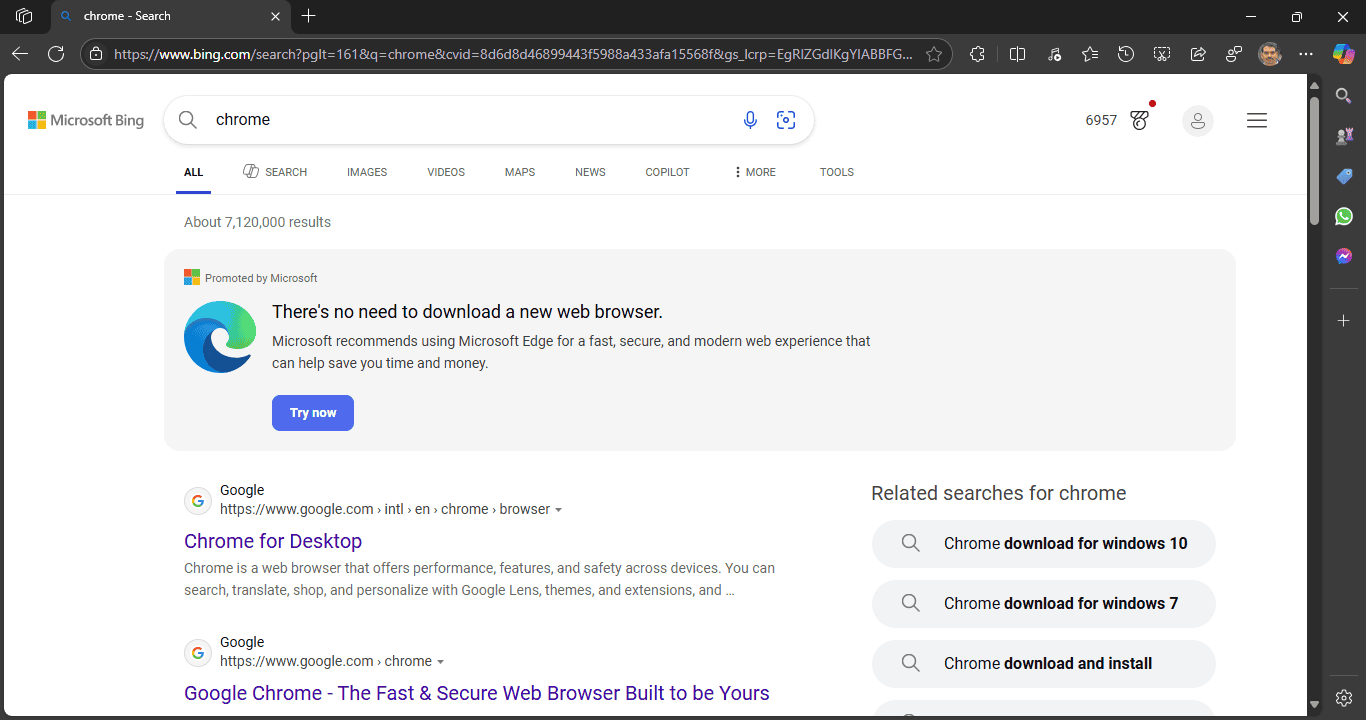
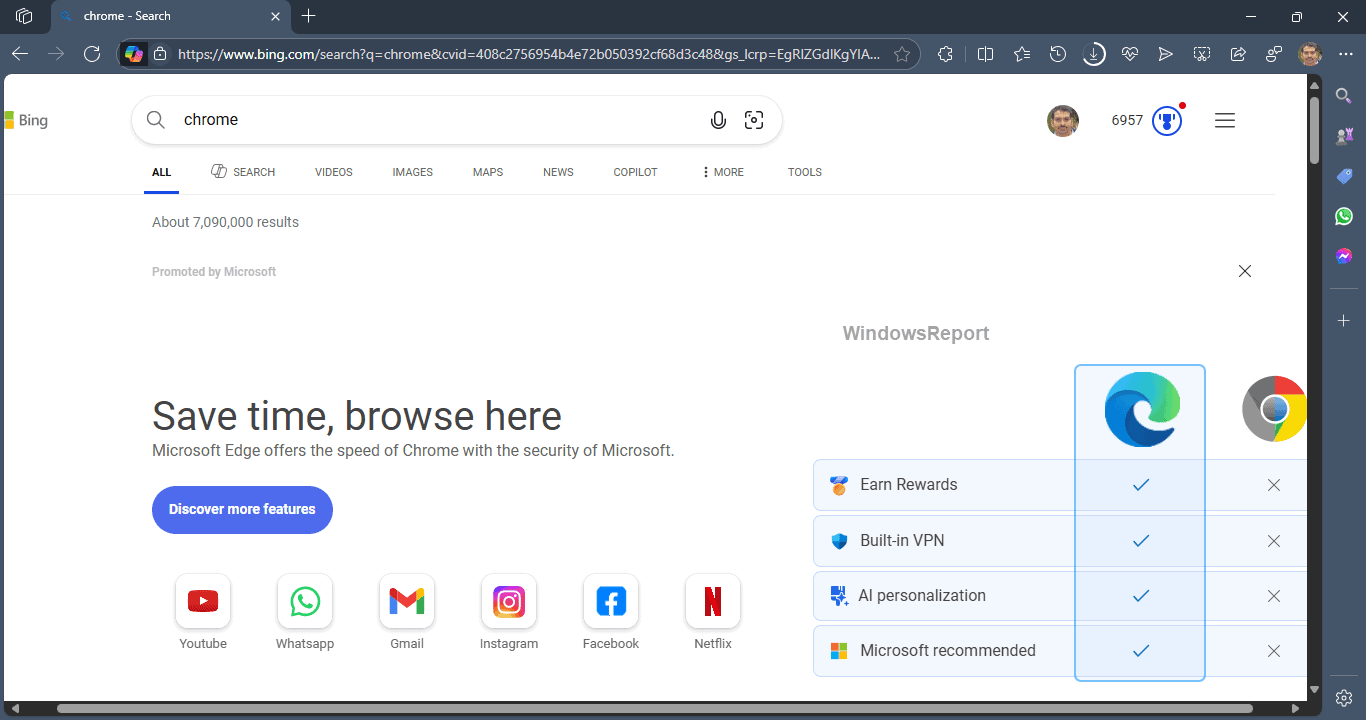
We noticed that if you search for “Chrome” in Microsoft Edge, Bing now shows a comparison between Edge and Google Chrome right at the top of the page, above the organic search results.

The banner displays the message “Save time, browse here,” claiming that ” Microsoft Edge offers the speed of Chrome with the security of Microsoft”. A “Discover more features” link leads to another page that showcases Edge’s features using AVIF images.

Interestingly, the comparison highlights that Edge offers Microsoft Rewards, includes a built-in VPN (though not yet available in all regions), supports AI personalization, and is Microsoft-recommended, while Chrome is left blank in contrast.

New Edge vs Chrome comparison ad shown on Bing when users search for Chrome

The comparison highlights that Microsoft Edge includes:

  • Microsoft Rewards
  • Built-in VPN (availability may vary by region)
  • AI personalization
  • Microsoft-recommended browser label

In contrast, Chrome is shown without any checkmarks, downplaying Chrome’s Strengths.

The ad appears as a promoted result and includes a small ‘Close’ button, allowing users to dismiss it if desired.

The “Discover more features” link leads to a page titled “Get to know Microsoft Edge”. While the standard Edge tutorials remain available, Microsoft now prominently highlights Edge as an AI-powered browser that provides a smarter way to find, search, protect, browse, game, shop, learn, create, and more.

Image Credit: Venkat/WindowsReport.

Earlier, Microsoft promoted Edge through simple pop-ups or text nudges in Bing when users searched for Chrome.

Is this new comparison prompt enough to make you consider Edge over Chrome? Share your thoughts with us in the comments below.

MM2 Values List: Knife & Gun Trading Guide

What Is MM2?

MM2 stands for Murder Mystery 2, one of Roblox’s most popular games. Players take on roles of murderer, sheriff, or innocent and collect unique knives and guns along the way. These items can be traded, and their values change frequently based on demand, rarity, and event history.


MM2 Value Tiers Explained

Godlies

Rare, high-value weapons usually from crates or game passes.

  • Example: Chroma Weapons, Eternal Series

Ancients

Ultra-rare tier above godlies, often tied to special events.

  • Example: Niks Scythe, Elderwood Scythe

Collectibles

Seasonal or legacy items no longer obtainable. Value based on age and exclusivity.

  • Example: Halloween 2015 Knives, Gifts from Christmas Events

Commons to Legendaries

These lower tiers still matter in bulk trades. Some become rare over time.


Latest MM2 Values Snapshot (2025 Edition)

Item NameTypeEstimated Value (Seers)Notes
Chroma LightbringerGodly120High demand, fluctuates
Eternal IVGodly60Game pass exclusive
Niks ScytheAncient1500One of the rarest in-game
Elderwood ScytheAncient700Halloween event item
IcebreakerGodly200Winter event, strong demand
Hallows EdgeGodly75Classic Halloween knife
Red SeerCollectible250Retired from circulation
Green LugerGodly300Limited skin variation

Values based on trade trends and demand as of mid-2025.


Trading Tips

  • Always compare demand and rarity, not just value
  • Bundle low tiers for better deals on high-demand godlies
  • Use trusted MM2 value calculators to avoid being scammed
  • Look for seasonal trades: Halloween and Xmas items spike in value
  • Don’t overpay for chromas unless you’re a collector

Frequently Asked Questions

What is a “seer” in MM2?
A “seer” is a common value unit used to compare items. It’s often used as a trade baseline.

Are MM2 values fixed?
No. They fluctuate based on item supply, demand, and market trends.

Where can I check MM2 values?
In-game experience, trusted value charts, and trade community discussions.

Are chromas always the best?
Not necessarily. Some godlies and ancients outclass chromas in rarity and demand.

What’s the best way to start trading?
Collect unboxed godlies, learn trade trends, and build a reputation as a fair trader.


Final Word

Mastering MM2 values is key to dominating the Murder Mystery 2 economy. Keep up with current value charts, know what’s hot, and trade with confidence.

Roblox FPS Unlocker Download in 2026

Roblox FPS Unlocker (RFU) is a free, open-source tool created by developer axstin that removes the default 60 FPS limit in Roblox games. It doesn’t modify Roblox files – it simply unlocks framerates through memory access.

  • Latest version: v5.1 (supports 64-bit clients)
  • Display FPS in-game with Shift + F5
  • Does not boost performance – just uncaps frame limit

Is Roblox FPS Unlocker Safe?

Yes, if downloaded from the official source. Here’s why:

  • ✅ Open-source code – transparent & verifiable
  • ✅ Roblox devs confirmed on forums: it’s allowed when used responsibly
  • ✅ Used by millions with no bans reported

Potential Risks

  • False-positive antivirus flags (especially on 32-bit version)
  • Could cause CPU/GPU strain on older devices
  • Don’t download from unofficial sources

Related: Is Roblox FPS Unlocker Safe?


How to Install Roblox FPS Unlocker (Step-by-Step)

  1. Visit the official FPS Unlocker source
  2. Download the latest .zip version (use 64-bit)
  3. Extract the folder to your desktop
  4. Run rbxfpsunlocker.exe
  5. Launch Roblox – FPS is now uncapped

Tip: Add the folder to antivirus exceptions to prevent false flags.


Alternative: FastFlag JSON Method

If you don’t want to run an .exe tool, Roblox allows framerate changes via client settings:

  1. Navigate to Roblox install folder > Versions
  2. Create a file named ClientAppSettings.json
  3. Paste:
{
  "DFIntTaskSchedulerTargetFps": 240
}
  1. Save and restart Roblox

This method is 100% safe, but doesn’t always work reliably with updates.

Compare: FPS Unlocker vs FastFlag


FPS Unlocker Not Working? Try This:

  • Run as administrator
  • Whitelist in antivirus/firewall
  • Restart PC and try again
  • Try FastFlag JSON as backup option

Read: How to Fix FPS Unlocker Crashes


FAQs

Is Roblox FPS Unlocker allowed?
Yes. Roblox developers confirmed it’s not bannable.

Will it damage my PC?
No. But unlocked FPS can strain low-end systems.

Does it improve performance?
No. It removes the 60 FPS cap – it doesn’t boost hardware speed.

Is the FastFlag method safer?
Yes. It’s file-based and doesn’t run executables.

Can I use both methods?
Yes, but FPS Unlocker will take priority.


Final Thoughts

Roblox FPS Unlocker is a legit, open-source tool to enhance your Roblox experience. Use it responsibly, and always download from the official source.

Robloxplayer.exe Explained: Safe to Use or Malware Risk?

What is robloxplayer.exe?

robloxplayer.exe is the official launcher for Roblox games on Windows. It connects your device to the Roblox platform and executes the game client whenever you click “Play” on a game.

It’s bundled with RobloxPlayerInstaller.exe, which downloads and installs robloxplayer.exe during the setup process.


Is robloxplayer.exe Safe?

Yes — if it comes from the official source (roblox.com), it’s completely safe. Here’s how to verify:

  • ✅ Digital Signature: Right-click file > Properties > Digital Signatures. It should say: Roblox Corporation
  • ✅ File Path: Legit file installs in %AppData%\Local\Roblox\Versions
  • ✅ Size: Usually ~60MB. Outliers should be scanned.
  • ✅ VirusTotal Scan: Upload suspicious versions to VirusTotal

⚠️ If you downloaded robloxplayer.exe from third-party sites, delete it. Some malware disguises itself under this filename.

Related: RobloxPlayerInstaller.exe Safety Guide


How to Install robloxplayer.exe

  1. Go to roblox.com and log in
  2. Click Play on any game
  3. The browser downloads RobloxPlayerInstaller.exe
  4. Run the installer – it auto-downloads robloxplayer.exe
  5. Roblox opens, and the launcher is ready to go

Tip: Keep the installer in case you need to reinstall later.


Common robloxplayer.exe Errors & Fixes

❌ robloxplayer.exe Not Found

  • Reinstall Roblox from roblox.com/download

❌ robloxplayer.exe Access Violation

  • Run as Administrator
  • Temporarily disable antivirus or whitelist Roblox

❌ Roblox Won’t Launch

  • Clear Roblox cache: delete %LocalAppData%\Roblox
  • Use Windows Settings > Apps > Reset Roblox

Read: Full Guide to Fix Roblox Errors


Why Is robloxplayer.exe Flagged by Antivirus?

Some antivirus tools (especially free ones) falsely flag robloxplayer.exe due to its behavior (internet connection, frequent updates).

Fixes:

  • Update antivirus definitions
  • Whitelist robloxplayer.exe in AV settings
  • Submit a false positive report to your antivirus vendor

Roblox has an official article about this: Roblox Help – AV Flags

More: Roblox & Antivirus Conflicts


Can robloxplayer.exe Be Malware?

Only if it’s a fake version.

Check ThisSafe Version?
File path = AppData/Roblox✅ Yes
Publisher = Roblox Corp✅ Yes
Downloaded from roblox.com✅ Yes
Found in System32 folder❌ No
Publisher unknown❌ No

When in doubt, delete and reinstall from official site.


FAQs

Is robloxplayer.exe required to play Roblox?
Yes. It launches the game client.

Is robloxplayer.exe a virus?
No, unless you downloaded it from unofficial sites.

Can I delete robloxplayer.exe?
Yes, but you won’t be able to play Roblox games until you reinstall.

Why does robloxplayer.exe keep reinstalling?
It auto-updates to ensure compatibility with Roblox servers.

What’s the difference between RobloxPlayerInstaller and robloxplayer.exe?
The installer fetches the launcher. robloxplayer.exe runs the game.


Next Steps

Explore related troubleshooting and safety guides:

  • How to Fix Roblox Installation Errors
  • RobloxPlayerInstaller.exe: Is It Safe?
  • Roblox Flagged by Antivirus: What to Do

Recommended: Bookmark %AppData%\Local\Roblox to access launcher files faster.


Ethernet Cable Types: Which Cat Should You Choose in 2026?

What Are Ethernet Cable Types?

Ethernet cables come in categories (“Cat”) that define speed, frequency, and shielding. Choosing the right one means better performance, less lag, and reliable connections.

This guide covers Cat 5e through Cat 8, explains shielding (UTP vs STP), and includes a buyer checklist to help you pick the perfect cable.


Ethernet Cable Categories (Cat 5e to Cat 8)

1. Cat 5e (Enhanced)

  • Speed: Up to 1 Gbps
  • Frequency: 100 MHz
  • Max Length: 100 meters
  • Ideal for: Home networks, basic streaming, light gaming

2. Cat 6

  • Speed: 1 Gbps (10 Gbps for short distances)
  • Frequency: 250 MHz
  • Max Length: 55 m @10 Gbps
  • Ideal for: Moderate gaming, smart homes

3. Cat 6a (Augmented)

  • Speed: 10 Gbps
  • Frequency: 500 MHz
  • Max Length: 100 m
  • Ideal for: Future-proofing homes and small businesses

4. Cat 7 / 7a

  • Speed: 10 Gbps (potentially more)
  • Frequency: Up to 1,000 MHz
  • Special: Uses GG45 or TERA connectors (not standard RJ45)
  • Ideal for: High-interference zones, commercial installs

5. Cat 8

  • Speed: 25–40 Gbps
  • Frequency: 2000 MHz
  • Max Length: 30 m
  • Ideal for: Data centers, high-speed servers, short runs

UTP vs STP vs S/FTP: Shielding Explained

Unshielded Twisted Pair (UTP)

  • Most common for Cat 5e and Cat 6
  • Easier to install, cheaper
  • Good for home/office without electrical interference

Shielded Twisted Pair (STP or S/FTP)

  • Each pair is shielded + cable has full outer shield
  • Reduces EMI and crosstalk
  • Needed in industrial, PoE-heavy, or outdoor runs

Flat vs Round Ethernet Cables

Flat Cables

  • More flexible
  • Easier to route under carpets
  • Less shielding = more interference risk

Round Cables

  • Better for long distances
  • Includes more insulation and shielding
  • Preferred for durability and performance

Ethernet Pinout: T568A vs T568B

Both are standards for wiring RJ45 connectors:

  • T568A: Preferred in residential setups
  • T568B: More common in business installations
  • Note: Use the same standard on both ends unless making a crossover cable

Use-Case Comparison Table

Use CaseRecommended CatShieldingNotes
Gaming + StreamingCat 6aUTPLow latency, supports 10 Gbps
Office NetworkingCat 6 / 6aUTP or STPVersatile and future-proof
Outdoor SetupCat 6 / 7STPUse weatherproof jacket (LSZH)
PoE Cameras/DevicesCat 6 / 6aSTPPrevents interference and heat buildup
Data Center / ServersCat 8S/FTPHigh-speed, short length limitation

Power over Ethernet (PoE) Considerations

If powering devices through Ethernet:

  • Use Cat 6 or higher for PoE+ or PoE++
  • Shielding helps prevent power loss and heat
  • Confirm cable supports IEEE 802.3af/at/bt standards

Ethernet Cable Buying Checklist

  • ✅ Choose cable Category (Cat 6 or higher recommended)
  • ✅ Match Shielding to your environment (STP for interference)
  • ✅ Check jacket rating: Plenum (CMP), LSZH for safety
  • ✅ Confirm connector: RJ45 (standard) or GG45 (Cat 7+)
  • ✅ Opt for pre-terminated or bulk roll based on length needs


FAQs

What is the best Ethernet cable for gaming?
Cat 6a is best for gaming thanks to 10 Gbps support and reduced interference.

Is Cat 7 better than Cat 6a?
Not always. Cat 7 has shielding, but uses uncommon connectors and is less compatible.

Can I use Cat 8 at home?
Yes, but it’s overkill unless you have 25+ Gbps equipment and short cable runs.

Do flat Ethernet cables affect speed?
They can. Flat cables lack shielding, which may cause more interference.

How long can an Ethernet cable be?
Standard limit is 100 meters (328 ft) for most categories.


Final Tip

If you’re unsure, go with Cat 6a UTP – it’s fast, affordable, and supports future upgrades.

Microsoft 365 Apps to Stop Getting New Features on Windows 10 in 2026

If you’re still using Microsoft 365 apps on Windows 10, you’ll want to mark your calendar. Starting in 2026, Microsoft will be cutting off new features for Office apps like Word and Excel on the aging OS.

As spotted by The Verge, Microsoft quietly confirmed this change in a support document. While the company had already committed to keeping security updates going until October 2028, this marks the beginning of a feature freeze aimed at nudging users away from Windows 10.

It’s worth noting that the feature updates will stop at different times, depending on your update channel. Users on the Current Channel, including most home subscribers, will stop getting new features in August 2026.

Enterprise users on the Monthly Enterprise Channel follow in October, while those on the Semi-Annual Enterprise Channel will see the tap shut off by January 2027.

After these dates, all new development will be halted. Microsoft 365 apps on Windows 10 will be locked to Version 2608, with only security patches continuing. Microsoft is still keeping things safe, but making it clear that new tools and features will live only on Windows 11.

New AI Tool Predicts Blood Sugar Without Tracking Your Personal Health Data

Researchers backed by the U.S. National Science Foundation are developing a new AI tools that could help people with diabetes track their blood sugar more accurately — and do it without giving up privacy.

The tech uses federated learning, a method where AI models train across many users’ devices without sending raw data to a central server. Instead of gathering everything in one place, the system learns from patterns on each device and shares updates across the network. That means no personal health data gets exposed, which is a big deal in healthcare.

To improve the model’s accuracy, the team grouped users by how much carbohydrates they typically eat. Turns out, people with similar eating habits also show similar blood sugar patterns, which made predictions better and more personalized. They tested the idea using an FDA-approved Type 1 diabetes simulator, and the results showed that even limited data was enough to start building useful models.

The team says they’ll expand the tool to include exercise and medications next. Long term, they hope this approach could work for other chronic conditions too, like asthma or heart disease, where privacy and personalization both matter.

With diabetes costing over $300 billion a year in the U.S., these kinds of tools could lead to earlier help, fewer complications, and better care overall.