4 Ways to Fix the Shards Error in Nightingale

Any game in its initial stages is prone to errors and Nightingale seems to be the latest entrant most recently throwing a shards error. This error appears on the loading screen and prevents you from playing.

The issue seems to be server-related so the developer may be working on new updates or maintenance but it’s also possible that there’s an overload of traffic. Other possible causes include the Nightingale network error or even corrupt game files.

How do I fix Nightingale’s shards error?

1. Verify the game files

  1. Press the Windows key, type steam in the search box, and click Open.
  2. Go to Library, locate and right-click Nightingale, and select Properties.Properties of game - Nightingale Network Error
  3. Navigate to the Installed Files tab and select Verify Integrity of Game Files. This option will repair or download missing game files that are causing issues.Verify integrity

Verifying game files is an important step to ensure the game files match those from the developer. A mismatch can lead to a miscommunication and hence cause the shards error in Nightingale.

Once verified, check the server status and any maintenance schedules before restarting the game.

2. Update your network drivers

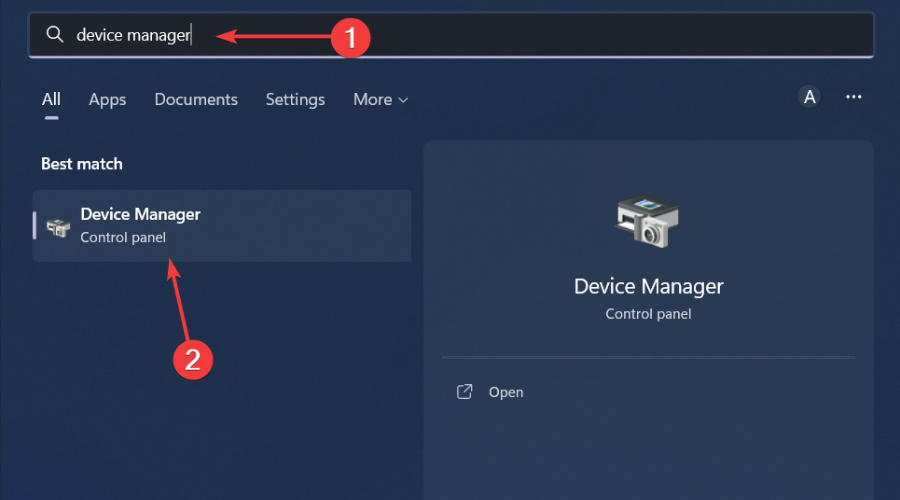
  1. Hit the Windows key, type Device Manager in the search bar, and click Open.device manager w11
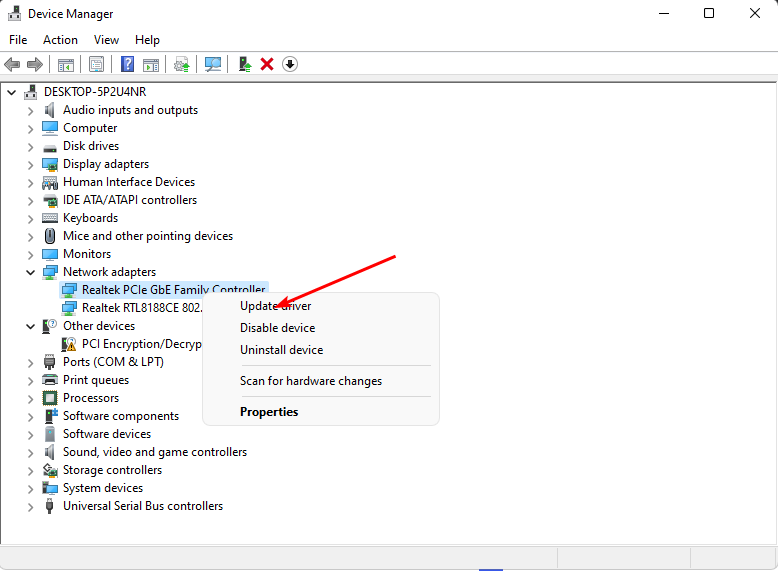
  2. Navigate to your Network adapter, right-click on it, and select Update driver.
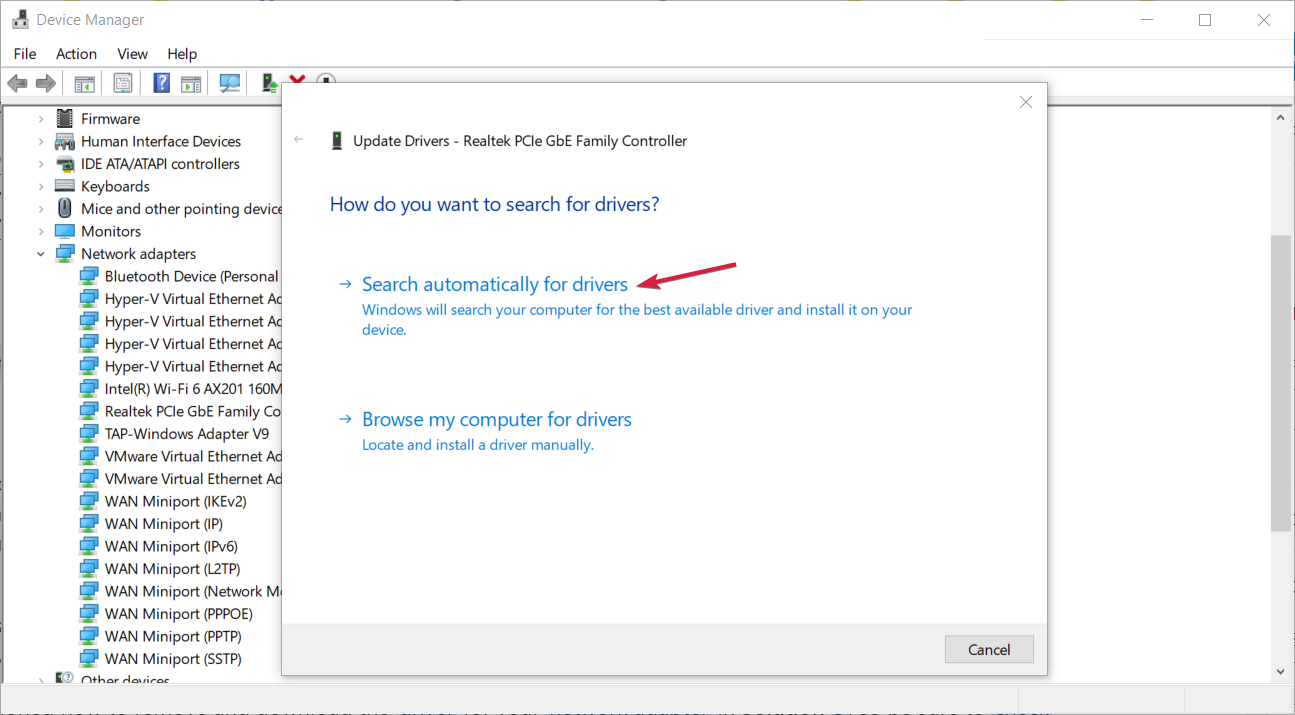
  3. Select Search automatically for updated drivers.
Other than updating your drivers manually, I also suggest trying a third-party updater. This tool will help you scan your device for outdated or malfunctioning drivers and automatically update them with the latest driver options.

⇒ Get Fortect Driver Updater

3. Reinstall your network drivers

  1. Click on the Start Menu icon, type Device Manager in the search bar, and click Open.device manager w11
  2. Navigate to your Network adapter, right-click on it, and select Uninstall device.
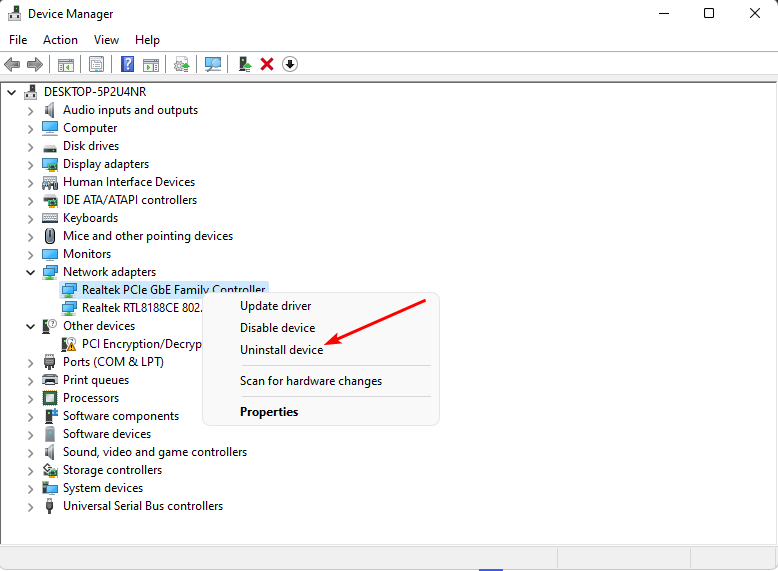
  3. Confirm Uninstall in the next confirmation dialog.
  4. Restart your PC, and your drivers will be automatically reinstalled.

Your network frequently disconnecting is one of the reasons you might spot the shards error while playing Nightingale. Difficulties connecting to the game could indicate a corrupt driver and a reinstallation ensures you have the right one.

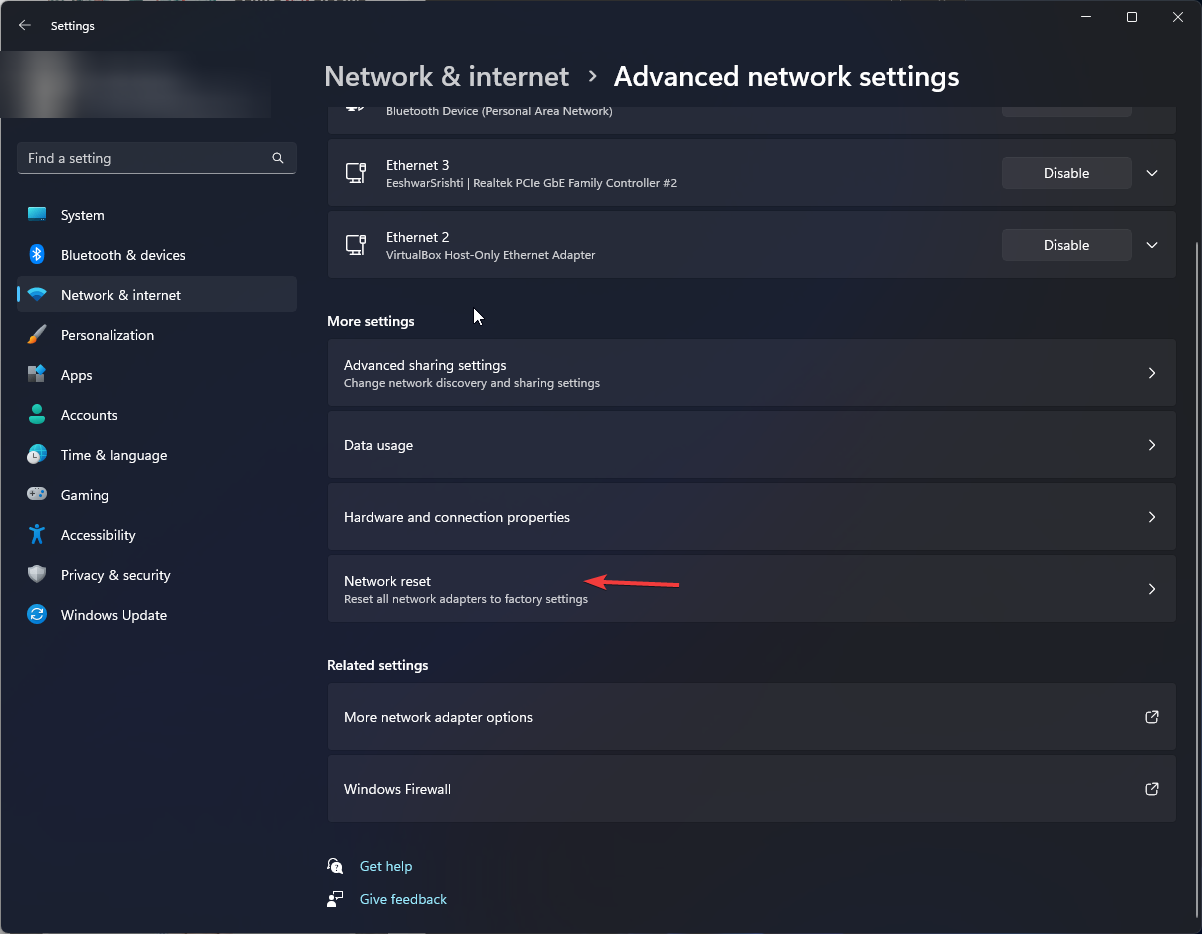
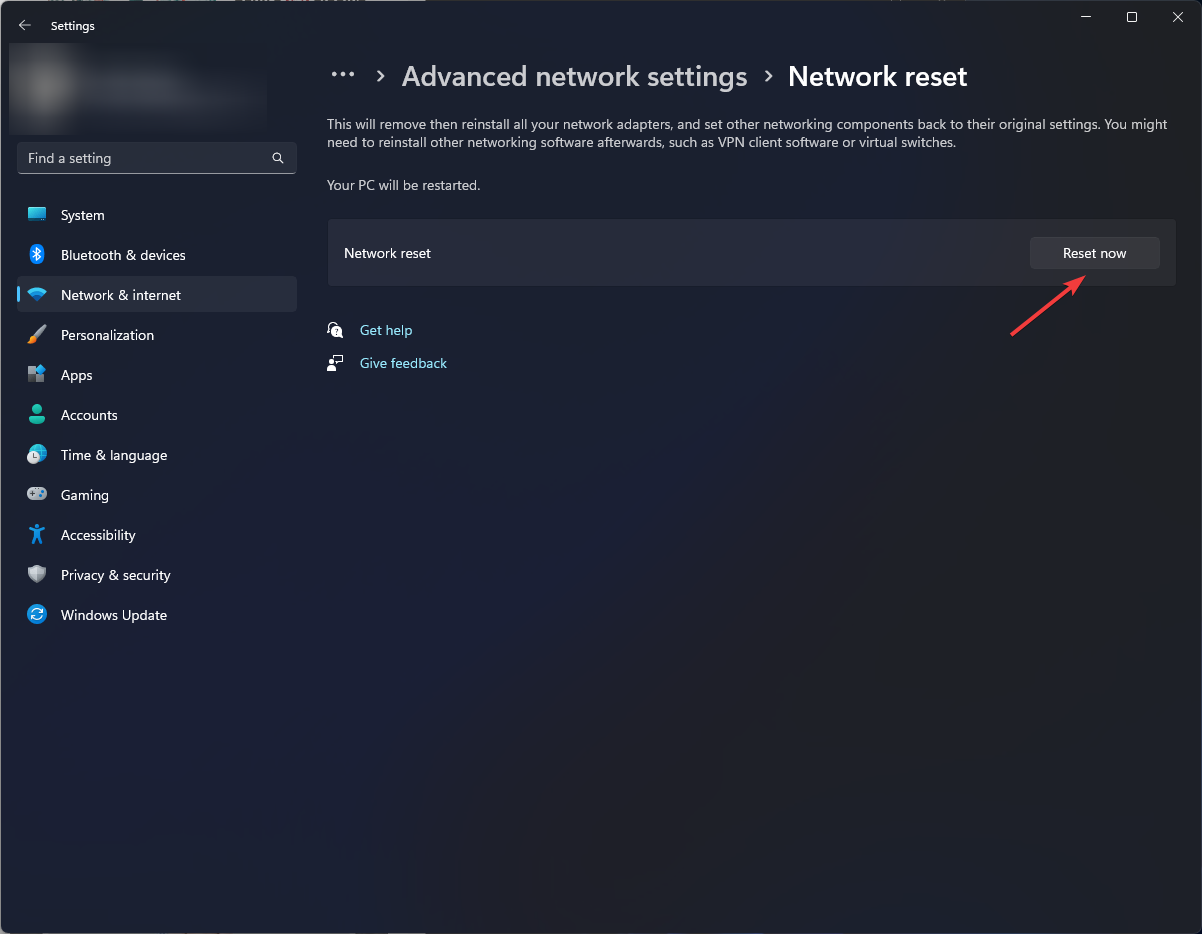
4. Reset your network

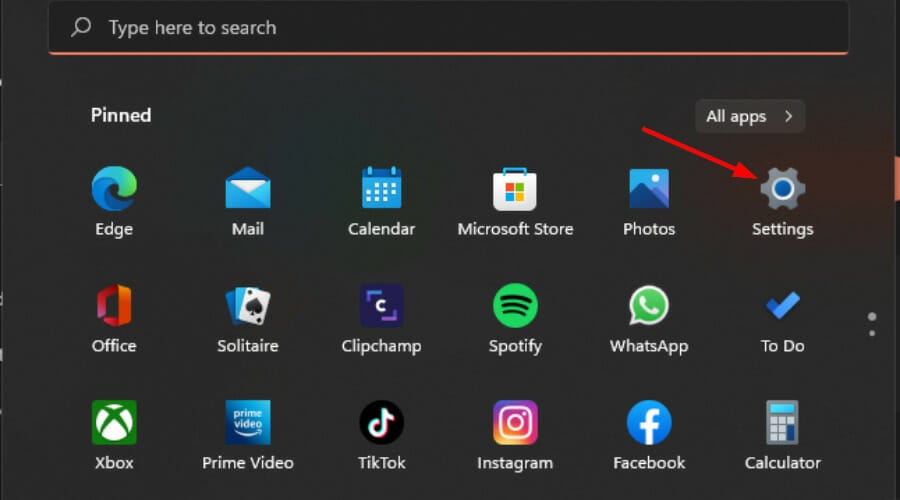
  1. Click on the Start Menu icon and click on Settings.settings windows 11
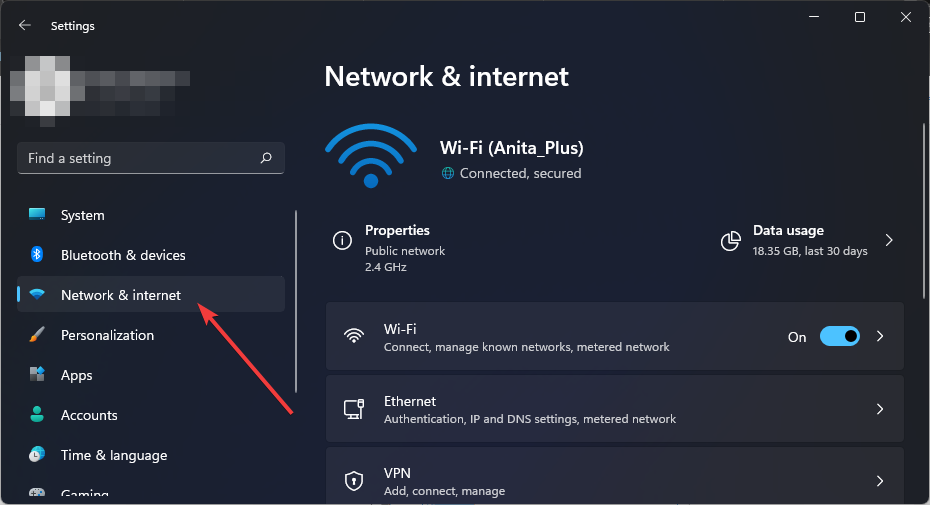
  2. Navigate to Network & internet.
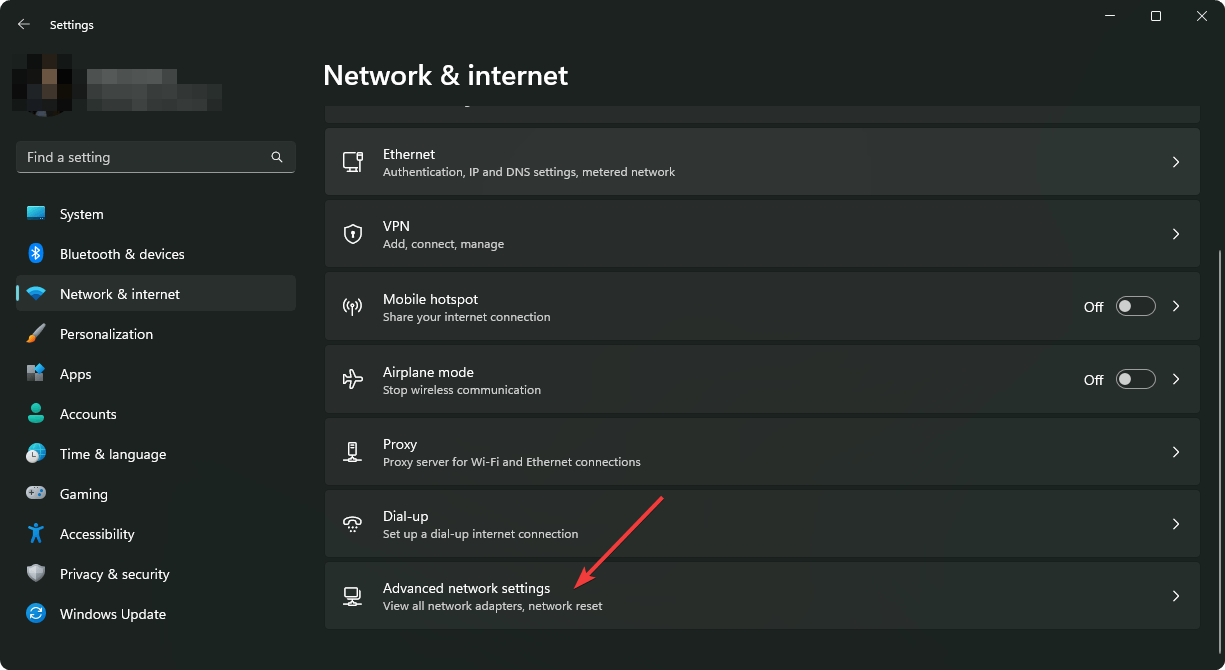
  3. Select Advanced network settings.going advanced network settings win11
  4. Click on Network reset.Network Reset 1
  5. Next, hit the Reset now button.Network Reset now

While gaming, ensure you always terminate superfluous background programs that might be hogging the bandwidth on your computer.

Also, switch from a wireless to a wired connection where possible as Wi-Fi tends to be slower than Ethernet, and move closer to your router.

Hopefully, one of these solutions has helped you resolve the shards error in Nightingale. If not, you’ll just have to wait until the server is up and running again.

You can also keep checking on the community page for any updates on the error as other players are quite resourceful when it comes to temporary workarounds. As you wait, be sure to check out other survival games that deliver the same thrill just like Nightingale.

Should you have any other tricks up your sleeve on how to bypass this error, we’d love to hear from you. Drop us a line below.

Your PC won’t need a reboot to install Windows updates, Microsoft reportedly working on Hot Patching

Soon, you won’t have to restart the computer to install Windows updates. Presently, there is a Restart now button in the Windows Update settings that does the job. But it will be gone in the future versions of the OS!

As per Windows Central, Microsoft is reportedly working on a Hot Patching feature that lets Windows updates install even without a reboot. It’s already present in a few versions of Windows Server and Xbox consoles.

Microsoft’s official document tells us that Hot Patching basically eliminates the need to reboot and quickly installs the update. It does so by patching the in-memory code of active processes.

For Windows 11 Insider Preview Build 26058 (Canary and Dev Channels), you won’t have to restart the PC to install Build 26058.1400 (KB5036080) if Virtualization Based Security (VBS) is enabled.

To enable VBS, press Windows + S to open Run > type gpedit.msc > hit Enter > expand Administrative Templates under Computer Configuration > double-click on System > select Device Guard > choose Turn on Virtualization Based Security > select Enabled > click Apply and OK to save the changes.

Turning on VBS in Local Group Policy Editor

Soon, the functionality may be deployed in Windows 11, version 24H2, the upcoming version of the latest iteration.

Will Hot Patching work with all updates?

As per the available information, Hot Patching won’t apply to all updates but the monthly security ones. You will be required to reboot after a new baseline is installed or if the update requires it.

It’s expected that reboots will be required only once every three months.

Besides that, any critical update or one with a patch may require a reboot because your applications remain unaffected during the hot patching.

So, while Hot Patching may not altogether eliminate the need to reboot, it will significantly reduce the instances, once introduced on the regular Windows version.

However, it remains to be seen if and when the feature will be available to you. Because, at present, it’s unclear if all or specific Windows editions will get the functionality.

In our view, eliminating the need for a restart to install Windows updates is a welcome step. Rebooting takes time, affects the workflow, and often leads to errors and, in rare cases, data loss.

What’s your view on Microsoft introducing Hot Patching in Windows 11 24H2? Share with our readers in the comments section.

Is Microsoft working on an all-digital Xbox Series X? Leaker says yes!

According to an X post by eXtas1s linked to Exputer, Microsoft has an all digital Xbox Series X console in the works that will be launched in June or July this year.

It all goes back to last year’s documents that were disclosed during the Microsoft vs. FTC fight and which depicted an adorably all-digital Xbox Series X console code-named Brooklin.

At that time, Xbox’s Phil Spencer denied the rumours basically saying that the leaked document is old and meaningless.

Is really Microsoft launching an all digital console in summer?

Exputer doesn’t really have much to show about this leak except mentioning the $499 U.S. price that shows up in the old document and a 1 TB storage space, based on confidential footage.

The story doesn’t seem unbelievable but it’s certainly not about the upcoming Xbox handheld console touted as the biggest generational leap for an Xbox console ever.

Allegedly, the new Series X console will not be cylindrical, but almost identical to the current Xbox design only in white instead of black.

The leak doesn’t include any actual pictures of the console, but it mentions an improved heatsink and an upgraded Nexus card.

If the story will prove to be true, we will see new details about it soon enough.

What do you think about a new all-digital Xbox console? Let’s discuss about it in the comments section below.

Can’t upgrade Xbox Live Gold to Game Pass Ultimate? The new conversion ratio is 3:2

Earlier, you could convert all your Xbox Live Gold months to a Game Pass Ultimate subscription in a 1:1 ratio at a small additional cost using a quick hack. But the recent hike in prices of Xbox Game Pass Ultimate from $14.99 to $16.99 changed the equation!

While the hack still exists, you no longer get the 1:1 ratio. It’s now 3:2 to accommodate the increased prices. Also, you will have to pay for 1 month of Xbox Game Pass Ultimate instead of $1, as was the case earlier.

This left many concerned, and they were unsure if this was a glitch or a problem at their end.

But we confirmed it from many who recently used the hack. It’s still applicable, but the conversion rate is changed to 3:2 instead of 1:1. Some are surely not happy about it, but the fact remains that the conversion is still a viable deal.

My GPU expired last month so I bought a year of Gold/Core and then bought a month of Ultimate. It converted 12 months Core down to 9 months Ultimate, I think.
I did the 3 year trick 3 years ago and was bummed to hear they nerfed it. Still a good deal though.

So, 12 months of Xbox Live Gold/Game Pass Core will now upgrade to 8 months of Xbox Game Pass Ultimate. Add the other month of the latter that you paid for, and it takes the final total to 9 months of Xbox Game Pass Ultimate.

Remember, this hack is applicable for up to 36 months of Xbox Live Gold/Game Pass Core, and for maximum benefits, you should go with this period.

Besides, the transition from Xbox Live Gold to Xbox Game Pass Core doesn’t affect the conversion. The annual subscription vouchers are available for $59.99 on third-party websites.

You just have to pay slightly higher, but it’s still a cost-effective solution, as opposed to directly subscribing to Xbox Game Pass Ultimate.

For those who don’t know, you can also get Xbox Game Pass Ultimate for free by using reward points.

Were you able to convert Xbox Live Gold/Game Pass Core to Xbox Game Pass Ultimate? Let us know in the comments section.

EA Sports College Football 25 will feature all of the FBS teams

According to a post on X, the new EA Sports College Football 25 will feature all 134 FBS teams. Also, football players will have the opportunity to join the game. In addition, they will get compensation for being a part of it.

By the way, the first official trailer is out, and you can watch it right away.

Will NCAA 25 be on PS4?

NCAA 25 or EA Sports College Football 25 will be available on PS5 and Xbox Series X and S. Unfortunately, there are no announcements about the game being available on PS4. However, we need to wait till May for a full game reveal.

EA Sports will give 11,000 players the chance to be part of the game. Also, each of them will get a $600 reward and a copy of NCAA 25 valued at $60. However, if there are any football players who would like to pass on this opportunity, their character won’t be an option in the game. Additionally, athletes will be able to appear in future versions of the game until they decide to opt-out. Furthermore, according to CBS, EA will use both men and women athletes to promote College Football 25.

NCAA 25 is going to be the first game released since NCAA 14. Unfortunately, the game creators had to end the project due to an antitrust lawsuit against the National Collegiate Athletic Association. Hopefully, there won’t be any lawsuits threatening the future of the series. In addition, in 2021, the NCAA changed their policies. Thus, we might see new games similar to EA Sports College Football 25.

In a nutshell, EA Sports College Football 25 is making a comeback, and the game is here to stay. In addition, we hope there won’t be any issues threatening the game’s future anymore. Furthermore, the full reveal of the game is going to be available in May.

By the way, here’s what to do if you are unable to connect to EA servers. Moreover, this is how you can open ports in EA sports.

What do you think? Are you excited for the news about NCAA25? Let us know in the comments.

Nvidia’s new 474.89 and 474.82 drivers are for old cards and Windows versions

Nvidia didn’t forget about unsupported cards and Windows versions, and they released the 474.89 and 474.82 drivers. So, if you use Kelper architecture drivers or Windows 7, 8, or 8.1, grab the latest update.

However, you shouldn’t get your hopes up. After all, the drivers are mostly security updates to protect your device from critical system vulnerabilities. So, you might still experience problems with them.

What’s new about the new 474.89 and 474.82 drivers?

According to official documents about the 474.89 and 474.82 drivers, a few features were added. For example, both drivers got support for CUDA 11.4. In addition, the new versions of drivers for unsupported cards have an updated scaling resolution in Nvidia image sharpening. However, the 474.82 drivers received support for the Nvidia GeForce RTX 2060 12 GB.

This update is mostly about security and is the first element in the highlights section. In addition, Nvidia mentions that the new drivers are for the unsupported drivers and older Windows versions. After all, they no longer receive help from the Game Ready Drivers.

Also, you should know that the 474.82 drivers are for the unsupported GeForce 600 Series, GeForce 700 Series, and some GeForce 800M models running on Windows 10 and 11. Also, critical security updates are going to be available for Windows 7 drivers later on, in September 2024.

By the way, the 474.89 doesn’t have a WHQL certification because Microsoft no longer accepts submissions for Windows 7.

In a nutshell, there is nothing great about the 474.89 and 474.82 drivers. However, they have two new features and improved security. Yet, you might still experience unfixed bugs, issues, and errors. In addition, only the graphics cards compatible with Windows 10 and 11 are getting slightly better.

If you want to upgrade to a new gaming device, check out this budget laptop for gaming. Also, check these seven ways to fix Nvidia drivers not installing on Windows 11.

What are your thoughts? Are you going to upgrade to new graphics cards? Let us know in the comments.

How would you like to get cryptocurrency just by using a browser?

Brave browser will send your self-custody Basic Attention Token payouts for Brave rewards through the Solana blockchain. Unfortunately, this system is available just for a select group of people. However, according to Brave, this feature will become an opportunity for all of us soon.

How do you get bat rewards in Brave?

To get the BAT rewards in Brave, you will have to opt to watch ads on their application. In addition, you will have to connect a Brave custodial partner’s account to your rewards profile. However, to connect a Solana address to your Brave Rewards will need to use your Brave Wallet or a third party one like Phantom. On top of that, by connecting to Solana, you will receive your rewards directly without a custodial partner.

The reason why Brave is using Solana is due to low fees and fast services. In addition, you will be able to receive BAT rewards directly into your wallet due to the self-custody policy of Brave. Furthermore, this decision will increase your reward security and promote a relationship with the blockchain ecosystem. By the way, always check your rewards panel for an invitation.

The advantage is that you will be able to use your BAT rewards directly on chain. Thus, with them you can support Brave creators, use the swap feature to exchange tokens, and buy NFTs and earn trading fees with SPL-BAT. However, these are just a few of the options available.

Ultimately, Brave is looking for a way to improve the Solana ecosystem and to integrate more people. Moreover, with this innovation, Brave empowers users and contributes to the democratization of the digital economy. In addition, if the Brave rewards will be a success, we might see a shift in other browsers as well. So, we might see a better synergy between browsers and blockchains.

By the way, if you can’t download the Brave browser, here’s what to do.

What are your thoughts? Are you going to wait for this feature? Let us know in the comments.

Avast sells your browsing data for advertising without consent

The U.S. Federal Trade Commission will ban Avast from selling or licensing your browsing data for advertising purposes. In addition, Avast will need to pay $16.5 million for the damage. After all, they promise that our data is safe, and they did the opposite. On top of that, Avast didn’t even ask for our consent in this matter.

Does Avast still sell data?

According to Avast’s privacy policy, they may provide our data for the purpose of distribution, sale, or management of their products. However, Avast didn’t specify that they would sell our data to other companies. Additionally, Jumpshot, Avast’s subsidiary, got more than eight petabytes of browsing data from the parent company since 2014.

Avast closed Jumpshot in 2020 after past allegations from the FTC. However, Avast didn’t delete the user data. Furthermore, there are various types of data, such as unique identifiers for each browser, timestamps, our city, state, and country, and the type of device and browser. On top of that, Avast also gathered a combination of info from every site.

In addition, in a random sample from the data entries, the FTC discovered searches for Google Maps directions, a unique member ID for a French dating site, and an announcement for a presidential candidacy.

Unfortunately, according to the FTC complaint, more than 100 companies have access to our past data. However, there is some good news. Soon, the company won’t be able to sell our data to others anymore. Furthermore, they have to drop any products or algorithms that use our information. Additionally, they have to delete all of the data they share.

Ultimately, we should be careful without data and extensions, especially if we use antivirus services like Avast. After all, most of us install various extensions, and not all of us check them thoroughly. However, in this case, if Avast used our data, they will have to notify us according to FTC.

After this incident, you might want to learn how to uninstall Avast Secure Browser.

What do you think? When was the last time you used Avast? Let us know in the comments.

Edge adds support for opening Links on Windows 11 in Web Apps

Microsoft is integrating Edge browser web Apps with Windows 11 to make sure supported links always open in their respective Web apps whenever you click.The Microsoft Edge Web App link handling and integration with Windows features are being tested in Edge Canary.

Recently, we reported that Microsoft has made the PWA install dialog in Edge browser easier to understand to drive more Web App installs. Microsoft is now testing another PWA feature on Windows that encourages users to switch to Web apps rather than viewing related content in the web browser.

Microsoft Edge is making it easier to open links in Web Apps on Windows 11

Progressive Web Apps that work offline, support push notifications, and do more are supported in Edge and Chrome browsers on Windows 11. You may have experienced this: even if you have installed a web app, supported links on Windows may open in the default browser rather than the Web app itself. Microsoft is now changing this.

For example, if you’ve installed YouTube in the Edge browser and click on a YouTube link you received via email in an app on Windows 11, it will open in the YouTube app rather than in the default web browser.

Going forward, Microsoft Edge on Windows 11, Linux, and Mac platforms may allow supported links to always open in installed web apps rather than in the browser. For this, Microsoft is working to register installed web apps as URL handlers with the operating system.

With this, email attachments, social media links, and specific website links such as those of YouTube, open in corresponding web apps. This avoids switching between web apps and the browser.

Enable Microsoft Edge to open links directly in Web Apps on Windows 11

  1. Open Microsoft Edge Canary
  2. Go to edge://flags.
  3. Search for “Enable opening supported links with installed web apps” and “Enable OS integration for web app link handling” flags.


  4. Enable both flags and restart Edge.
  5. If you have a number of Web apps installed in the Edge browser, start clicking app links on Windows 11 and see how Edge opens them in your preferred web apps

Enable opening supported links with installed web apps
If a link opened from the OS is within the scope of an installed web app, the web app can be launched to handle the link navigation. – Mac, Windows, Linux. edge-webapp-link-handling

What’s your take on Microsoft improving PWA experience in Windows?

4 Ways to Fix Nightingale Network Error

Many users have reported encountering A network error has occurred while launching Nightingale. The issue usually occurs due to poor internet connection, outdated network drivers, server issues, or corrupted game files.

To fix it, you need to restart your router & device,check server status, update your game and the network driver, or verify your game files.

How can I fix the network error in Nightingale?

1. Run the game and client as administrator

  1. Right-click the game and select Properties from the context menu.
  2. Go to the Compatibility tab, under Settings, and click Run this program as an administrator.Run as admin -  Nightingale Network Error
  3. Click Apply and then OK to save the changes. Follow the same steps to run Steam as an administrator.

2. Verify the game files

  1. Press the Windows key, type steam in the search box, and click Open.
  2. Go to Library, locate and right-click Nightingale, and select Properties.Properties of game - Nightingale Network Error
  3. Navigate to the Installed Files tab and select Verify Integrity of Game Files. This option will repair or download missing game files that are causing issues.Verify integrity

3. Reset network

  1. Press Windows + I to open the Settings app.
  2. Go to Network & internet, and select Advanced network settings.Network Internet - Nightingale Network Error
  3. Under More settings, click Network reset.Network Reset 1
  4. Locate Network reset and click Reset now.Network Reset now

4. Update/reinstall the network driver

  1. Press Windows + R to open the Run window.Device Manager Run command - nightingale network error
  2. Type devmgmt.msc and click OK to open the Device Manager app.
  3. Go to Network adapters, and click it to expand the category.
  4. Right-click the driver and select Update driver.Update Network driver - Nightingale Network Error
  5. Click Search automatically for drivers. Follow the on-screen instructions to complete the process.Search automatically

If it doesn’t help, follow these steps need to reinstall the driver, follow these steps:

  1. Go to Network adapters and click it to expand the category.
  2. Right-click the driver and select Uninstall device.Uninstall Network driver -Nightingale Network Error
  3. Next, go to Action and select Scan for hardware changes to reinstall the driver.Action scan for hardware changes

Driver updates can be quite a chore sometimes and they keep you out of having fun, like in this case. You can easily streamline the whole process by having third-party software, such as Fortect Driver Updater, that can update all your drivers automatically with the newest versions.

5. Disable the Firewall temporarily

  1. Press the Windows key, type control panel in the search bar, and click Open.Control Panel start menu - Nightingale Network Error
  2. Select View by as Category, & click System and Security.System &  Security and select Category -
  3. Click Windows Defender Firewall.
  4. Click Turn Windows Defender Firewall on or off.Turn on or off defender
  5. Place the checkmark next to Turn off Windows Defender Firewall (not recommended) for both Private & Public network settings.Turn on or off, click OK - nightingale network error
  6. Click OK

In case the game and Steam are working fine after disabling the Firewall, follow these steps to add both of them to the Allowed apps list of Firewall:

  1. In the Control Panel window, go to Windows Defender Firewall.
  2. Select Allow an app or feature through Windows Defender Firewall.aLLOW AN APP THROUGH FIREWALL
  3. Click Allow another app.Allow another app
  4. Now click Browse and select the executable file.Browse
  5. Click Add.Add browse -Nightingale Network Error
  6. Once it is added to the list, ensure Private and Public are selected.
  7. Click OK to confirm the changes.

In conclusion, to avoid network or server-related errors while playing Nightingale, ensure a reliable network connection, check the game server status, and restart your game.

To enhance your PC for optimal gaming performance and achieve the best experience while playing your preferred games, refer to this guide for detailed steps. If you are looking to increase FPS on your Windows 11 PC, we have a separate guide for you.

If you have any questions or suggestions about the subject; feel free to mention them in the comments section below.
How to Use Generative Erase in Windows 11 Photos App

For a long time, Spot Fix has been the go-to feature to remove unwanted elements in Photos. But now with Generative Erase making an entry and giving it a boost, you get to enjoy advanced features with little to no extra work on your part.

Although you can always crop out an image to get rid of unwanted sections, this may not always work in your favor because some appear close to the image. This is where Generative Erase comes in because it is selective in removing these sections while preserving the resolution.

How do I use Generative Erase in the Photos app?

1. Automatic erase

  1. Hit the Windows + E keys to open File Explorer.
  2. Locate the Photo you’d like to open in its select folder, right-click on it, and select Open with> Photos.
  3. On the top menu, click on the Edit Image option.
  4. Next, select Erase and the Generative Erase option will open to the right of the image.
  5. Auto Erase is enabled automatically once you start using the tool so all you have to do is select and adjust the brush size to your desired precision.
  6. Using the slider, adjust the brush size until you get your desired operating size. For precision, opt for a smaller size and zoom in to get a cleaner job.
  7. Brush over the object to erase the unwanted elements in your photo and release your mouse for automatic erase.
  8. Generative Erase works by removing the brushed-over section with a similar background that blends into the picture. If you’re unsatisfied with the first erase, continue brushing over until you’re satisfied.

2. Manual erase

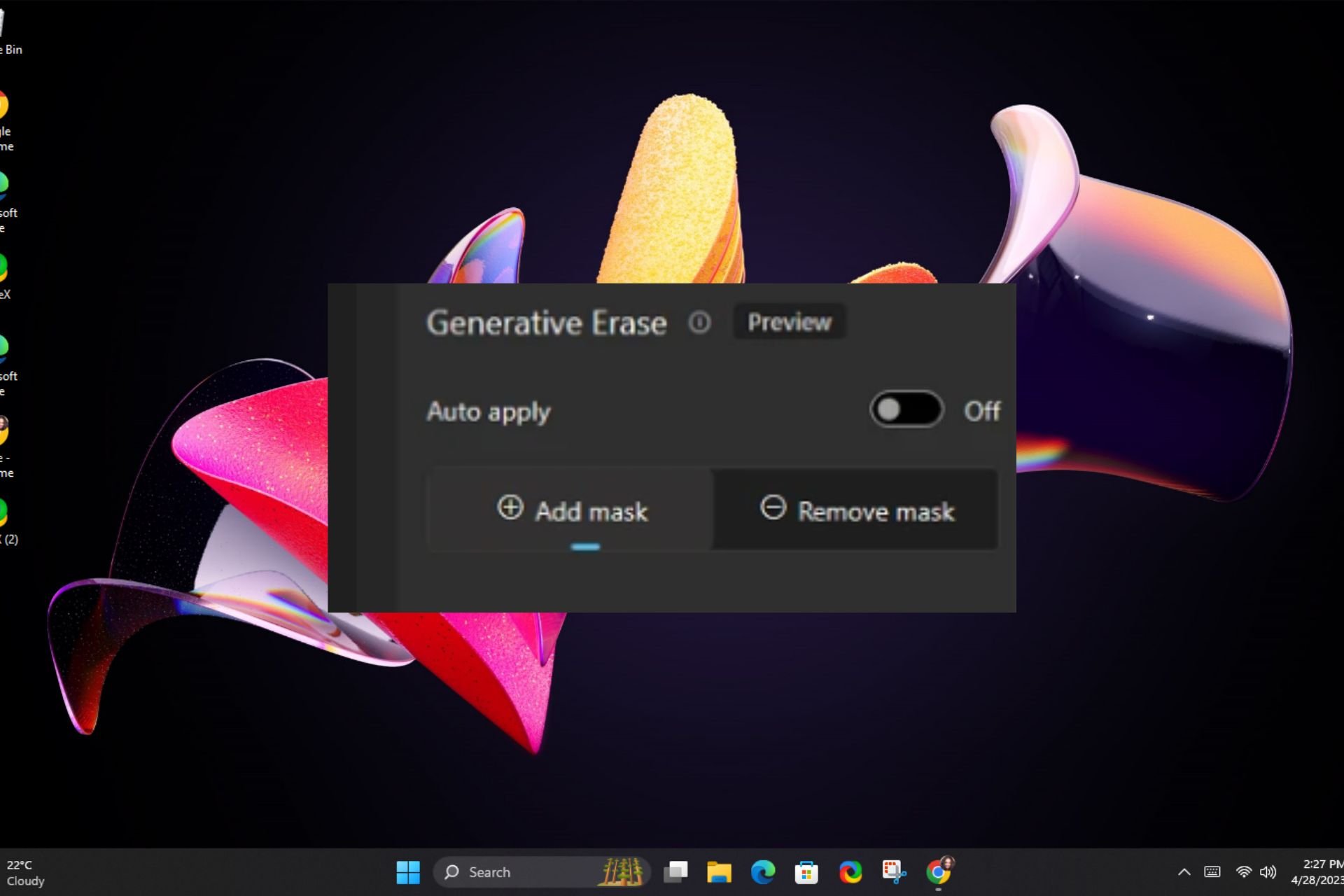
  1. Start by switching off auto-apply by toggling off this option.
  2. Adjust your brush size via the slider if necessary and start brushing over your unwanted area on the photo.
  3. You can select multiple areas but if you accidentally brush over an area you wish to keep, click on the Restore button and brush again to deselect. Clear deselects all areas so you can restart.
  4. Once you’re satisfied with the areas to erase, click on the Erase button.
  5. You can select the areas again to erase and get a sharper and cleaner look that blends with the image but you can also undo all changes.
  6. Next, click on Save options and select Save as copy so that you can retain the original and edited images.

You can later sort out your Photos by favorites not only for photo organization but also to help you distinguish your editing results. By closely examining those between auto-erase and manual erase you can easily sift which ones work best with either or both options.

Tips and best practices for effectively using Generative Erase

  • Editing any photo usually results in the loss of quality eventhough it might be insignificant in most cases. To avoid this, always use high-quality images when using Generative Erase.
  • For best results, use the brush slider to erase complex and hard-to-reach areas for a clean job.
  • While Generative Erase does a good job, it may not be sufficient for a perfect job. Combine with manual erase for sections Generative Erase may have missed.
  • Consider repeating the erase job multiple times when necessary to refine the job. Finally, keep a copy of the original image to do a side-by-side comparison and check areas that may need adjustment.

Generative Erase represents the evolution of image editing tools, particularly built-in Windows tools. As technology advances, we may not need to download third-party image editing tools to achieve perfection.

Still, if you’re looking to enhance your images, there are a host of AI image editors that will transform your image from basic to stunning with little to minimal input from you.

Once you’re done with erasing unwanted objects from your image, you may also be interested in color correction software. This will ensure your images remain vibrant.

The Generative Erase feature is fairly new in the Photos app but we’re eager to hear your thoughts about it. Have you used it and do you think it’s an upgrade from Spot Fix? Let us know your thoughts in the comment section below.

Riot finally kills LoL on Windows 7 & 8.1 and Microsoft is to blame

League of Legends has millions of players worldwide, and until the recent patch, it was available on almost any version of Windows.

Sadly, that’s no longer the case, and Riot Games has dropped support for Windows 7 as well as Windows 8 in its entirety.

League of Legends bids farewell to Windows 7 and 8.1 support following the latest patch

Windows 7 and Windows 8.1 have reached their end of life, and Microsoft is no longer fixing bugs or security flaws.

Steam has dropped support for Windows 8.1 as well as Google, and now Riot Games and League of Legends are following suit.

This isn’t anything new, and we already saw a post on the Riot Games Support Page stating that the game won’t run on older operating systems to align with the list of Microsoft’s supported products.

The new Patch 14.4 is here, and it brings balance changes, as well as various bug fixes and quality improvements. Of course, support for Windows 7 and 8.1 is no longer here, and here’s what patch notes say:

As of this patch, our minimum system requirements have been updated and we will no longer be supporting Windows 7, 8, and 8.1 for all League of Legends and Teamfight Tactics games.

To maintain the stability and performance of our games, we sometimes need to deprecate support for legacy operating systems that aren’t widely used by our players

This comes as no surprise since Windows 7 and 8.1 are losing popularity, as we can see from Windows 11 market share in 2023.

Maintaining the game for unsupported systems requires extra effort by the developers, so we can’t blame Riot Games for doing this.

If you’re on Windows 7 or 8.1, your only option is to upgrade if you want to continue playing. Reddit users managed to run League on 8.1 using the 10.0 kernel, but this requires using an informal build and it’s not a reliable solution.

On the bright side, RIOT is working on a new game called 2XKO, so that’s something to get excited about.

What are your thoughts on this? Will you upgrade to Windows 10 to continue playing LoL? Let us know in the comments!

Microsoft Office 2026 is coming, and you can try it now

Microsoft 365 is one of Microsoft’s most important products, and it has become popular among organizations and individuals, too, as it offers all the productivity tools at a low monthly price.

However, getting a monthly subscription doesn’t work for all. Therefore, Microsoft has an Office suite in place. But after Office 2021, there has been no new release, which led us to think that Microsoft has forgotten all about it.

Fortunately, XDA developers found evidence that Microsoft is working on Office 2024; however, there has been no official announcement about the software suite so far.

If you are too curious to find out what the new version of Office will be like, you can follow this guide to download the Microsoft Office 2024 Preview right now.

Microsoft Office 2024 looks the same as Office 2021, but you can expect almost all the features to show up in this software, which was released to Microsoft 365 in the past three years.

Are you excited to use Office 2024? Share your thoughts in the comments section below.

How to try Microsoft Office 2026 Preview?

Microsoft has not released any new version of Office since Office 2021, which led many to believe that the company will only focus on Microsoft 365 products. However, thanks to XDA developers’ discovery, there seem to be chances of Microsoft Office 2024. In this guide will discuss how to download the Office 2024 preview on your computers.

How can I download & install Microsoft Office 2024 preview?

1. Download Office binaries

  1. Go to abbodi1406’s WHD/master repository on GitHub.
  2. Locate Yet Another Office Click To Run URL Generator (YAOCTRU) zip archive and click the down arrow to download it; at the time of download, the current version was YAOCTRU_v9.0.zip.Download YAOCTRU - Microsoft Office 2024 Preview
  3. Go to the downloaded zip file, right-click it, and select Extract All.Extract all
  4. On the following page, click Extract.Extract

2. Execute the YAOCTRU_Generator.cmd file

  1. Open the extracted folder and double-click the YAOCTRU_Generator.cmd file.YAOCTRU_Generator.cmd file
  2. In case you see a warning from Microsoft Defender SmartScreen, click More info and choose Run anyway.
  3. On the Command Prompt window, type 7 to select the DevMain Channel and hit Enter.7 to select the DevMain Channel - download & install Microsoft Office 2024 preview?
  4. Next, you will be asked to select the operating system you are using, type 1, and press Enter if you are using Windows 11. At the time of writing, the latest build available was 16.0.17420.20002.Select 1
  5. Now, you will be prompted to select a 32-bit or 64-bit version of Office. To choose the preferred one, type the number and hit Enter.64-bit version of Office
  6. Type the number next to the language pack you want and press Enter.Number next to the language - download & install Microsoft Office 2024 preview?
  7. Now type 1 to download Full Office Source and hit Enter. Full Office Source
  8. You will get options such as  aria2, wget, cURL, and text files to download scripts; type 4 to download the text file with download instructions. We typed 3 for cURL and pressed Enter.ions such as  aria2, wget, cURL - download & install Microsoft Office 2024 preview?
  9. Now press any key to exit the file.Exit - download & install Microsoft Office 2024 preview

3. Run the 16.0.17420.20002_x64_en-US_DogfoodDevMain_curl.bat script file

  1. Locate and double-click 16.0.17420.20002_x64_en-US_DogfoodDevMain_curl.bat in the YAOCTRU_v9.0 folder to download the Office files. This process may take some time, depending on your internet speed.16.0.17420.20002_x64_en-US_DogfoodDevMain_curl.bat - Microsoft Office 2024 Preview
  2. Once it is done, you will get the Office files in the C2R_DogfoodDevMain folder in the YAOCTRU_v9.0 directory.Office

4. Download Yet Another Office Click To Run Installer (YAOCTRI)

  1. Go to this page and download YAOCTRI. At the time of writing, the latest version was 10.7. Locate it and click the downward arrow from the right pane.Download
  2. Locate and right-click the YAOCTRI_v10.7.zip, then select Extract All.Extract all
  3. On the following page, click Extract.Extract -  download & install Microsoft Office 2024 preview

5. Install Office 2024

  1. Open the extracted folder, select Reference-C2R_Config.ini, YAOCTRI_Configurator.cmd, and YAOCTRI_Installer.cmd, and press Ctrl + X.YAOCTRI_Configurator.cmd, and YAOCTRI_Installer.cmd
  2. Now open YAOCTRU_v9.0, navigate to C2R_DogfoodDevMain, and press Ctrl + V to paste the files.Paste them to the YAOCTRU_v9.0 folder - Microsoft Office 2024 Preview
  3. Right-click the YAOCTRI_Configurator.cmd file and select Run as administrator. If you see the SmartScreen warning, follow the same steps.
  4. On the Terminal window, press 1 to install the Microsoft Office suite.YAOCTRI_Configurator.cmd file
  5. To select Office ProPlus 2024, type G followed by 0.G followed by 0
  6. On the next screen, you can choose to add or remove Office apps from the installation using the respective key.add or remove Office apps - Microsoft Office 2024 Preview
  7. Once done, press 0 to continue.
  8. Type 7 to select DevMain Channel to get enrolled.7 to select the DevMain Channel - download & install Microsoft Office 2024 preview?
  9. Now press 0 to confirm the settings.
  10. To Select Install Now, press 1.Install Now, press 1.
  11. The installation will start, and the process may take some time, depending on your computer and internet connection.
  12. Once Office is installed, you can launch any of the Office apps, and click Accept.Accept
  13. Go to File, and select Account & check if you see Office 2024 LTSC Professional Plus 2027 Preview as the product name.Account

Remember that, as of now, you can’t activate this version of Office using a retail key. The reason behind this is that as we downloaded it from a volume licensing channel, only KMS keys can be used, implying that you have been in a business environment.

Also, if you want to revert back or reinstall the earlier version of Office that you had, you should use the Office Scrubber project for this developer. To do that, just download the latest version of the script, execute it, and reboot your PC. Now install the earlier version of Office and let it get installed.

If you can’t get the installer file of your Office, follow these steps to install Microsoft Office in this guide. Also, if the Office app is not opening issue, we have tackled this issue in a separate guide.

Stuck somewhere while following the steps? Feel free to mention your queries in the comments section below. We will be happy to help!

Despite renaming it, the new game from Riot Games still has a very confusing name

Riot Games is set to release a new action game, set in the world of Runeterra, the same world that hosts the character and lore of the popular League of Legends game.

This new game has been teased out by Riot Games for a while, under the name of Project L, and now has been renamed to 2XKO, which is an equally confusing name, if you ask us.

In the teaser trailer, which depicts some of the gameplay, users are somehow baffled by the renaming, saying the old name, although confusing as well, sounded much better than the current one.

It’s crazy how project L is a better name.

YouTube user

Project L team, I have been insanely excited for this game to come out and want nothing but success from it. Ya’ll gotta change the name. It’s not too late. 2XKO is terrible and it’s going to be a marketing nightmare.

YouTube user

Not gonna lie, the placeholder name is better. If you can’t even know how to pronounce a name at a glance, idk, someone thought this up and someone approved it, and both were paid to do so.

YouTube user

As you can see in the trailer, Project L, erhm, sorry…, 2XKO (Project L still sounds better, though), will be a very Mortal Kombat-inspired game, featuring many of the League of Legends iconic characters such as Jinx and Ahri.

The game is slated for release in 2025, on Xbox Series X|S, Windows PC, and PlayStation 5, and more details about the game will be revealed in 2024, possibly in November, when the second season of the highly acclaimed Arcane series will be released.

However, it’s still not too late for Riot Games to take it back, and let 2XKO be Project L. What do you think of the title?

Someone installed Windows 11 on a 16-year-old MacBook and here’s how it looks

While many Windows users are still reticent towards upgrading to Windows 11, with the operating system reaching 400 million users only recently, there are people out there who would try everything to install the operating system.

Such is the tale of this Reddit user who tried repeatedly over 3 days to install Windows 11 on a 16-year-old MacBook laptop and lived to tell the tale (of how he did it, of course).

While this is by no means an easy Windows 11 installation (if you’re looking for that, check out this guy who managed the break the record of the fastest Windows installation ever, at just 104 seconds), it can be relatively easily done if you have some tools available:

You’ll need:

  1. Windows 11 ISO
  2. Windows 10 ISO
  3. Windows 7 ISO
  4. Rufus
  5. And a 16-years-old MacBook (this is obvious, by you can try similar models, as long as they’re Apple.)
  6. Time, and nerves of steel. And a lot of patience.

The Reddit user explained how he did it:

So, my steps:

First, I installed Windows 7 via WinClone, this video, in Russian, but I think it will be understandable if just looking at what he’s doing.

Second, I installed Windows 10 using a windows iso, unpacked it. Then run the setup.exe NOT IN BOOT PICKER, in the OS

Then, I used rufus (the newest version required) to burn a copy of windows 11 on a USB and there was an option to disable tpm, secure boot, etc. Then run the setup.exe on the USB, and again, DON’T BOOT THE BOOT PICKER, it won’t work

Then I installed some drivers, and that’s all

soy_de_ohio, on Reddit

We have to tell you: the results look good. Windows 11 seems functional on the ancient MacBook, and the Reddit user agrees, as well, although it’s still quite slow:

They do, everything works slower than windows 7, but it somehow works

soy_de_ohio, on Reddit

There is not a lot to say about it, other than the next Windows update, now renamed to 2024 Update, will probably make this kind of installation impossible on such devices. The MacBook in question sports an Intel(R) Core(TM)2 Duo CPU T7300 processor which will not be supported by the next Windows 11 version.

However, this is quite awesome, nonetheless, and a lot of people in the Windows community agree. Check out the Reddit thread.

Install Google Workspace Sync For Microsoft Outlook [How to]

Today we’ll walk you through the steps you need to take to integrate G-suite with Outlook and get the best of both worlds.

To get the full features of GWSMO, your device should be up-to-date, and ensure you’re using the latest version of Outlook. You can check other system requirements so that you don’t run into any compatibility issues.

How can I install Google Workspace Sync For Microsoft Outlook?

1. For personal accounts

  1. Start by disabling your firewall or any security software and close all instances of Outlook.
  2. Navigate to your browser and download GWSMO.
  3. Launch the installer file, type in your Gmail email address, and follow the on-screen prompts to allow the integration.
  4. Once successful, you’ll get the following message.
  5. Next, click on Create a profile.
  6. Once the setup is complete, click on Start Microsoft Outlook.
  7. If you have multiple Outlook profiles, choose one that you’d like to sync with Google. Synchronization for your contacts, calendar, and mail will begin. Depending on the amount of data, this process can take a significant amount of time to import so be patient.
  8. Once the progress bars are full, click on Close.
  9. Close Outlook then restart after a minute.

2. For work/school account

2.1 Enable access

  1. Navigate to a browser and sign in to your Google Admin console.
  2. Once logged in, navigate to Apps > Google Workspace > Gmail > End user access.
  3. Click on the Enable Google Workspace Sync for Microsoft Outlook for my users check box to turn it on.
  4. Next, log into your Google Workspace email account to start the migration process.
  5. Check the Calendar, Contacts, and Email messages checkboxes and hit Migrate.

2.2 Import data

  1. You can import from a profile or from a PST file.
  2. For a PST file, open Microsoft Outlook and click on File.
     
  3. Go to Open & Export. In the right pane, click on Import/Export.
  4. Select Import from another program or file and click Next.
  5. Choose Outlook Data File (.pst) and click Next.
  6. Click on Browse and locate your PST file on the drive.
  7. Select how you want to handle duplicates.
  8. Lastly, select if you want to add this data to the current folder or to your mailbox.

What are the key features of Google Workspace Sync for Microsoft Outlook?

  • Email sync: You don’t have to log into your Google account to access your Gmail messages.
  • Calendar sync: All your Calendar events both on Google and Outlook are synchronized in one place.
  • Contacts sync: All your Google contacts will be integrated with Outlook so that you don’t have to import from one platform to the other.
  • Administrative controls: If you have a work/school account, your administrator will have control over the installation and configuration of your GWSMO.
  • Offline access: Another winning feature is that even without the internet, GWSMO allows you to access your Google Workspace data such as emails, calendar events, and contacts.

Also, if you have old emails, you can import them to Gmail. If Outlook and Gmail are not a combination you’re interested in you can make use of other email migration tools for other email clients. You can also use it with multiple accounts.

Moreover, you can convert your Outlook email into Thunderbird and Yahoo if you’re using these email clients.

NVIDIA releases open Beta for its new app, set to integrate existing products

NVIDIA recently released the public Beta version of its app, which will integrate three of its current offerings, NVIDIA Control Panel, GeForce Experience, and RTX Experience.

The company will bring all vital features from the three to the new NVIDIA app, but some will miss out on the transition and will, ultimately, not be available. During the beta phase, you can download the three apps separately.

The primary reason behind the integration and development of a unified app is to deliver an enhanced user experience and boost performance.

What’s new in the unified NVIDIA app?

  • Offers a centralized control center: You will have higher and more streamlined control over the modifications. As was the case earlier, you can do it per app or system-wide.
  • Easily accessible driver information: The new NVIDIA app lists all driver and related information in a more straightforward and organized manner. Also, it brings a dedicated What’s new and What’s fixed section.
  • Improved in-game overlay: Better positioning, user-oriented interface, Shadowplay 120 FPS video capture, and the ability to customize available metrics listed during the session.
  • AI-powered filters: The new NVIDIA app allows you to personalize the visuals with AI-powered filters in over 1200 games. It’s on a per-game basis, meaning you can set custom settings for each title.
  • Redeeming rewards made simpler: You can now get exclusive in-game content rewards, GeForce NOW membership offers and more in the dedicated Redeem tab.
Image source: NVIDIA

System requirements of the new NVIDIA app

OSWindows 11, Windows 10
RAM2 GB
Minimum storage600 MB
DriverGeForce 551.52 Driver (or newer)
CPUIntel Pentium G Series, Core i3, i5, i7 or AMD FX, Ryzen 3, 5, 7, 9, Threadripper (or higher)
GPUGeForce RTX 20, 30, and 40 | GPUsGeForce GTX 800, 900, 1000, 1600 | GPUsGeForce MX100, MX200, MX300, 800M, and 900M

You can download the Beta version of the new NVIDIA app from the official website. Get the NVIDIA_app_beta_v10.0.0.499.exe setup, run it, and follow the on-screen instructions to complete the installation.

NVIDIA has been in the news a lot recently. First, there were reports of NVIDIA setting up a chip unit, soon it released Chat with RTX, and then NVIDIA became the world’s fourth-largest company by market share after recording a $277 billion rise in stock market value. Things sure look very promising!

Have you tried the new NVIDIA app? Share your review with our readers in the comments section.

Microsoft will provide extensive logging to government agencies following the latest security breach

Microsoft is vigilant when it comes to the security of its systems, and the company is collaborating with the Federal government to boost its security.

This collaboration should bring free and extensive logging to government agencies thus helping officials find any exploits and vulnerabilities on their networks.

Microsoft will help the US government by providing free and advanced logging

Microsoft and its services are often targets of cyberattacks, and recently there was malware that was spreading via Windows Installer. Since many organizations are using Microsoft’s infrastructure, it’s no surprise that the company is ready to help them address any security issues.

According to WinBuzzer, Microsoft is working with the Federal government to enhance its security. Per the agreement, Microsoft will enable extensive logs on customer accounts and double the log retention period to 180 days.

This will provide additional telemetry data and allow agencies to meet the necessary logging requirements without any additional charges or configuration.

We can’t say we’re surprised by this change, especially since hackers were able to access government emails without being detected, for the most part.

Agencies that had Microsoft’s Purview Audit Premium were able to identify the attack, and this is the reason why CISA is forcing Microsoft to change its policies.

Following this change, the company will provide access to enhanced logging with no additional cost to detect breaches such as this more effectively in the future.

Speaking of security issues, Microsoft is using AI to combat cyberattacks, and hopefully, that will be enough to keep its infrastructure secure.

The Planner app inside Microsoft Teams will be enhanced with several AI capabilities

A couple of months before the end of 2023, Microsoft announced Copilot would be integrated into Microsoft Planner, a platform that helps users keep track of tasks, plan tasks, and check them as solved once they’re done.

The Redmond-based tech giant actually announced dozens of new features, including a new design, for the platform, and Copilot would use managers to create and organize plans with natural language. These hints were released as entries in the Microsoft 365 Roadmap, pinpointing to a March 2024 release.

Well, according to Petri, the first hints of the new Planner have already been released in the Microsoft 365 Center, as Microsoft posted a message there, saying:

It brings together the simplicity of Microsoft To Do, the collaboration of Planner, the power of Microsoft Project, and the intelligence of Microsoft Copilot for Microsoft 365 into a single, simple solution that spans from individual task management and frontline task management to enterprise and professional project management.

Microsoft

The AI capabilities would be used to streamline workflows and enhance productivity in Microsoft Teams’ Planner app, and while they will be released in March 2024, the roll-out will last until May 2024, for all those customers who have a Microsoft 365 license.

For those organizations that don’t have a Microsoft 365 license, users won’t be able to use the new Planner. Instead, Microsoft will offer the choice to subscribe to the platform or try the free To-Do app.

The Redmond-based tech giant also plans to release the new Planner web app by the end of 2024, and according to Petri, this app will support many features, such as lead-lag capability, portfolios, and baselines, but it will only be available to Premium users.

If you want to find out more about the upcoming Microsoft Planner features inside Microsoft Teams, head over to our article about them.

Is AI a looming threat? Microsoft’s President Brad Smith expresses concern

When we think of AI (Artificial Intelligence), ChatGPT or Microsoft Copilot is the first thought that comes to mind. That’s primarily because, for most of us, it’s the only interaction we have had with one of the most significant developments of the 21st century. But AI is a lot more!

In recent months, we have witnessed considerable improvements, Sora AI by OpenAI being a prime example. Subsequently, the number of people raising concerns has been on the rise. And it’s coming from those who have worked closely with the technology right from the start.

Geoffrey Hinton, known as the Godfather of AI, last year quit Google to warn the world about the risks posed by AI in the absence of stringent regulations.

Another ex-Google employee, Mustafa Suleyman, has expressed concern that AI could be used to create another pandemic-like situation, one much worse than Covid-19.

What did Microsoft’s President Brad Smith say about AI?

In an interview with EL PAIS, Smith’s response, when asked if AI could result in a large percentage of the workforce losing jobs, was rather reassuring.

Use this new technology to exercise better judgment, to be more creative, to develop ideas, to help with writing but not delegate or outsource thinking or writing to a machine. If we use it well, it can be an accelerator for people and the kinds of work they do.

This has been the stance of most experts in the field. AI is a tool, and it should be used as such to boost productivity and improve output!

Smith also emphasized adapting to the changing world of technology, utilizing the potential of AI, and employing it in whatever role you can. Harnessing the technology is the key!

Coming to the regulation brought in by the EU (European Union) for AI, Smith was optimistic that it would set a benchmark for safety and security standards and provide protection.

When we buy a carton of milk in the grocery store, we buy it not worrying about whether it’s safe to drink, because we know that there is a safety floor for the regulation of it. If this is, as I think it is, the most advanced technology on the planet, I don’t think it’s unreasonable to ask that it have at least as much safety regulation in place as we have for a carton of milk.

Smith emphasized a safety brake for AI. He had brought up the subject previously in the U.S. Senate.

We better have a way to slow down or turn off AI, especially if it’s controlling an automated system like critical infrastructure.

Another concern raised during the interview was how the use of deep fakes could affect us, especially in a year when roughly 64 countries are going to poll. Smith underscored the steps taken by Microsoft to tackle deepfake and the need to educate people.

The more powerful the technology becomes, the stronger the safeguards and controls need to become with it. I think that all of us are going to have to push ourselves. The biggest mistake the tech sector could make is to think that it’s already doing enough and it can just do what it needs to be done if it’s left alone.

Regarding countries using AI for conducting cyberattacks, Smith had an insightful response citing how AI can be used to counter such issues.

We’re not going to let nation state actors that engage in this kind of adversarial and harmful conduct have use of our applications because we regard that as something that is likely to do harm to the world. But we also need to use AI to fight back and create stronger cybersecurity protection.

Is AI really a threat?

Whether you believe it or not, AI is still in its infancy, and over the years, its integration with everyday tasks will increase even more. Surely, it will lead to job losses, but so does every technological advancement!

It’s rather early to discuss whether AI poses an existential threat to humanity. But there must be safeguards and regulations because there are other more pressing issues of the day that these can address. Be it deepfakes, cyberfrauds, or harassment!

Another concern is the biased training of AI models. At the time of writing, a recent example is Google’s Gemini image creator, which many reported had a bias. After a massive uproar, Google temporarily halted the AI-tools ability to generate images of people.

So, we must learn how to harness and better utilize AI and, at the same time, introduce safeguards to protect us from any unfavourable scenarios.

What do you think of AI and the threats posed by it? Share with our readers in the comments section.

Keep the console wars going on, cause Xbox’s response to the PlayStation 5 discount is a huge discount to Xbox Series X

After several retailers have offered massive discounts on PlayStation 5 (you can still purchase the discounted consoles here, and here), dropping its price to around £409 ($518) from £479 ($606), Xbox swiftly followed with a massive discount to its most powerful console, Xbox Series X.

On Amazon, the console can be currently purchased at a staggering price of just $351.30, but you need to make your decision now, as this might be the final discount before it goes back to its original price of around $450-$600, depending on the model.

The discount has been going on for days now, and there’s a strong chance it will last this weekend, and then it’s gone, so if you’re thinking about buying an Xbox Series X, now is your chance.

These discounts are largely due to tight competition between the two rivals, PlayStation and Xbox. Microsoft announced recently that all Xbox exclusives will be released in a multi-platform version, meaning Xbox games can be played on other platforms, such as the PlayStation console.

The news was received negatively by some Xbox fans, claiming that Xbox is going on a bad road and that there is no point in owning an Xbox if its exclusive games can be played on PlayStation, which many believe might be the superior console.

However, Xbox might not be too bothered by it, as Phil Spencer, the head of the studio, claimed he wanted to see Xbox everywhere, on every platform. Plus, recent successes such as Palworld, have solidified Xbox’s power on the console market.

Xbox also has a winning card in Xbox Game Pass (which you can easily get for free), its subscription-based program, that allows subscribers to access hundreds of games on their Windows PCs, and Xbox consoles: it currently has over 34 million subscribers.

Over 5000 new games are in development for Xbox, and all of them will be coming to the Game Pass, so it’s clear that the model is here to stay. Plus, Microsoft will make it possible to play owned games on its XCloud program, which is included in the Game Pass model.

Xbox has more than it needs to operate on its own, but the company is expected to release its next-gen console in the next 2 years. Xbox users should expect news and details about it soon, according to the Xbox Business Update, which also revealed that the console will be the biggest technological advance in Xbox’s history.

So, ultimately, there is a console war, and the only ones that gain from it are the users who sometimes have these huge discounts. But, overall, whether Xbox decides to play the game or not, the studio is already winning on many sides.

How to Install Atlas OS in Windows 11 [Guide]

Atlas OS in Windows 11 brings a lot of modifications and is designed for gamers. You install it on top of the existing OS installation as a mod app layer and get more game performance with improved FPS and latency.

Atlas OS requires activated Windows 11 before the installation. Therefore, pirated copies of Windows will not work.

How do I install Atlas OS on Windows 11?

1. Download Windows 11 ISO

Atlas OS needs a fresh reinstallation of Windows 11 to perform optimally. Therefore, you must first download Windows 11 ISO and save it locally on your computer. After that, please move to the next step, creating an installation media, before installing it on your PC. 

2. Create installation media

2.1 Prerequisites

  • A 16 GB USB drive with more than 12 GB free space.
  • Download Rufus, a third-party installation media creator.

2.2 Create Windows 11 installation media

  1. Plug your USB drive and then launch Rufus on your computer.
  2. Select the plugged-in USB drive under device.
  3. Then, select Disk or ISO image in the Boot Selection and then click select to locate the Windows 11 ISO file you downloaded earlier.
    Install Atlas OS in Windows 11
  4. Give your USB drive a name, and then click start.
  5. Untick Create a local account with username and then click OK in the prompt. The Windows 11 installation media will created in a few minutes.
    Creating bootable media

3. Install Windows 11

  1. Keep the installation media USB plugged in, and then restart the computer.
  2. Press the boot menu key to select the USB to load Windows 11 files for installation.
  3. Let the Windows logo appear and follow the on-screen instructions to proceed forward.
    Loading Windows 11
  4. Enter a serial if you have one on you or received it with the computer. Else select, I don’t have a product key.
    Enter serial key
  5. Select Custom: Install Windows only (advanced) and then follow the on-screen instructions.
  6. Once on the partition page, select a partition with 30 GB or more of free space and then click next.
    Select partition
  7. Now, you can sit back and let Windows 11 get installed.
  8. After everything is installed, follow the on-screen instructions to log in to your Microsoft account for digital activation, along with other standard settings.
  9. Connect to the internet and let it automatically install drivers.

If you have not entered the serial key during Windows installation, then it will activate through a digital license by connecting to the internet.

4. Install Atlas OS on Windows 11

  1. Open Microsoft Edge and download Atlas Playbook and AME Wizard from the Atlas OS official site.
  2. Extract both the files to the desktop and then launch AME Wizard Beta.
  3. Click on drag .apbx file to load PlayBook.
    Launch Atlas AMZ
  4. After that, open the AtlasPlaybook file that you extracted earlier.
    Open Atlas Playbook file
  5. Once the Atlas Playbook file is loaded in the wizard, click next to start the installation process.
    Atlas OS Playbook
  6. Carefully go through the configuration options on each step.
    Atlas OS final setup
  7. Your computer will restart once the installation is complete.
    Final Atlas OS setup
  8. Now, you have successfully installed Atlas OS on Windows 11. You can improve performance on the operating system for day-to-day usage as well as for gaming.
    Atlas OS installed in Windows 11

You can install your essential apps from the Microsoft Store and through third-party sources. Atlas OS, on top of Windows 11, is relatively faster. There are zero unwanted apps, and you can start fresh by keeping files and apps that you want.

So, this is how you can install Atlas OS on Windows 11 and free up resources previously taken by unnecessary bloatware and Microsoft services.

Since you are starting fresh, here is a list of the best apps to install on Windows 11. After that, consider adding a unique look to the desktop with these themes and skins.

We talked about AtlasOS more in our guide on the best Windows for old laptop guide, so feel free to visit it for more information.

If you need help with any step during the installation or have doubts, let us know through the comment section.

Microsoft pets NVIDIA on the back and pushes its new AI chips and infrastructure at NVIDIA GTC

The Redmond giant unveiled their new Maia AI-infused chips at Microsoft Ignite and just showed of a new partnership with NVIDIA to create network hardware.

Now, Microsoft invites business leaders to join the NVIDIA GTC AI Conference on March 18-21 to discover all the cutting-edge Azure AI services and supercomputing infrastructure.

What is going to happen an NVIDIA GTC?

First, Microsoft reiterates Satya Nadella’s message about AI empowering businesses and pushing growth in any organization operation. However, another purpose of this event is to show everyone that they stand by their partnership with NVIDIA.

According to Microsoft’s announcement, here are the main goals of the NVIDIA GTC event:

  • Get to know the core Azure AI services and technologies that power some of the world’s largest and most complex AI models and applications.
  • Discover how to accelerate the delivery of generative AI and large language models.
  • Explore how Azure AI Studio and purpose-built cloud infrastructure can accelerate AI development and deployment.
  • Learn from best practices and customer experiences to speed your AI journey.
Microsoft Azure blog

Apart from Copilot and Azure AI services, Microsoft will also be talking about their new custom-designed chips, Azure Maia 100 and Azure Cobalt 100, but also the NVIDIA H100 and H200 Tensor Core GPUs customized for the Azure virtual machines.

They don’t leave behind the NVIDIA AI foundry service on Azure that was designed to tune custom generative AI applications for enterprises.

If you will attend NVIDIA GTC, you will also benefit from some hands-on training with NVIDIA specialists to get a real feel of the new GPU-accelerated servers:

Microsoft is proud to host NVIDIA Hands-On Training at GTC. Attend full-day, hands-on, instructor-led workshops offered onsite and virtually. Participants will have access to a fully-configured GPU-accelerated server in the cloud and the chance to earn an NVIDIA certificate of subject matter competency.

Microsoft Azure blog

However, the main focus will be on Microsoft’s Azure AI Studio which is now in the preview stage. The Redmond giant wants to turn it into a great platform for enterprises to deploy AI solutions for their businesses.

Will you attend NVIDIA GTC? Let’s talk about this topic in the comments section below.

Microsoft releases PyRIT to test a generative AI model

Recently, Microsoft released an open automation framework, PyRIT (Python Risk Identification Toolkit for generative AI), which aims to empower security experts and ML engineers to identify risks and stop their gen-AI systems from going rogue.

The tool is already used by Microsoft’s AI Red Team to check risks in its generative AI systems, including Copilot.

In the announcement, the company emphasized that the release of the internal tool for the use of the general public and other investments made in red teaming AI is part of its commitment to democratizing AI security.

What is the need for Automation in AI Red Teaming?

Red teaming AI systems involves a complex multistep process, and Microsoft’s AI Red Team has a dedicated interdisciplinary group of security experts for this purpose.

However, Red-teaming generative AI systems are different from conventional AI systems; here are some major ones:

Different architecture
  • Addresses security and responsible AI risks at the same time – The traditional AI systems mainly focus on determining security failures; however, the red-teaming generative AI systems check for both security risks and responsible AI risks, including inaccuracies, fairness issues, or content generation problems.
  • Different architecture – The architecture of gen-AI systems varies from standalone apps to integration in existing apps with varied input & output modalities like audio, images, text, and videos.
  • Probabilistic nature – Unlike classic AI systems, the same input can produce different outputs in gen-AI systems due to various factors like app-specific logic, orchestrator dynamics with extensibility, the variability of the generative AI model, and language input nuances.

This is why PyRIT was introduced, as it can address all the challenges posed by gen-AI red teaming.

How does PyRIT work?

First, PyRit Agent sends a malicious prompt to the Targeted Gen AI System; when it receives a response from the Gen AI system, it sends a response to the PyRIT scoring engine.

Next, the scoring engine sends the response to the PyRit Agent; then the agent sends a new prompt based on the feedback from the scoring engine.

This automation process continues until the security expert gets the desired result.

how PyRIT works

In a red teaming exercise, the Microsoft team picked up a harm category, generated thousands of malicious prompts, and used PyRIT’s scoring engine to evaluate the output from the Copilot system in a few hours instead of weeks using manual methods.

The results showed that using the tool can increase security experts’ efficiency in finding loopholes and preventing them from being exploited.

The Redmond tech giant also mentioned that PyRIT is not a replacement for manual red teaming but serves as a complement.

It augments the expertise of the security professionals, automates daily tasks, and makes them more efficient. At the same time, control of the strategy and execution of the AI red team operation always remains with the security experts.

PyRit consists of five components: Targets (supports various gen AI target formulations), Datasets (Allows encoding of static or dynamic prompts), Scoring Engine (scoring outputs using a classical machine learning classifier or an LLM endpoint), Attack Strategy (supports both single-turn and multi-turn attack strategies), and Memory (Saves intermediate input and output interactions for in-depth analysis).

You can download the toolkit from the GitHub website, and to get accustomed to it, the initial release includes demos, & common scenarios.

Have you tested your Gen AI system using PyRIT yet? If yes, share your experiences in the comments section below.

Microsoft Copilot is accused of spreading biased information about disputed islands

Copilot now finds itself in the middle of a controversial situation, after the AI tool was accused that it’s spreading biased information about the disputed islands of Dokdo, a set of islets located in the Sea of Japan, whose sovereignty is claimed by both South Korea and Japan.

South Korea calls the islands ‘Dokdo’, while Japan refers to them as ‘the Liancourt Rocks’, or ‘Takeshima’, and Copilot, it seems, prefers the latter names when asked about the topic.

According to International Business Times, Professor Seo Kyoung-duk of Sungshin Women’s University discovered that searching for these islands on Copilot in the US region displays the ‘Liancourt Rocks’ or ‘Takeshima’ rather than ‘Dokdo’. The professor said that the isles are also presented as disputed territory between the two countries, when in fact, they should be referred to as Korean.

Searching for the Dokdo islands on Bing displays different results, depending on where the user is located. In South Korea, for instance, the results use the Korean term “독도” and describe the islands as situated in the East Sea. In India, on the other hand, there are different results, as you can see below:

We even tried looking for the Dokdo islands, on Microsoft Edge, using Copilot, and we’re located in Europe, and this is what Copilot displays. Microsoft Copilot dokdo

The Dokdo Islands, also known as the Liancourt Rocks or Takeshima, are a group of islets located in the Sea of Japan. The islands have been the center of a diplomatic dispute between South Korea and Japan for more than 300 years. Despite the dispute, many South Koreans visit the rocks to exercise what they see as a civic duty.

Copilot

The AI tool also displays some highlights regarding the region, mentioning its disputed state:

Administration: While the islets are administered by South Korea, their sovereignty is contested by Japan.

Copilot

International Business Times also says that Professor Seo Kyoung-duk plans to file a formal complaint to Microsoft highlighting the issue, and urged the company to address it as soon as possible.

Copilot on Microsoft Edge is based on OpenAI’s GPT-4, and it uses the Internet to answer different questions. In our case, most of the referenced text on the issue was based on Wikipedia and other news sources.

Microsoft hasn’t addressed this issue, but the company will most likely update the tool to show as little biased information as possible.

Chrome’s Memory Usage in Tabs is annoying? Google now lets you disable it

Google has recently updated Chrome to show the memory usage of the active tab in Hover cards. This feature has been built on the Memory Saver mode.

The company is now introducing an option to control the visibility of Memory usage in Hover cards through a preference in the Appearance settings in Canary. This preference, however, doesn’t affect the high memory usage notification that appears over the hovercard when memory reaches a certain threshold.

Google Chrome, notorious for being a memory hog, has received memory and performance improvements with the Memory Saver mode and Energy Saver. When the Memory Saver mode is active, Chrome frees up memory from inactive tabs, which can then be used for other tasks on the system.

Adding to the above and building on the Memory Saver mode feature, Google has added the ability for Chrome to show a web page’s memory usage. This helps users to identify which tabs are consuming a lot of resources.

This was useful until users found it annoying to notice each tab when they hovered, in addition to the already visible tab hover card images. After receiving a lot of feedback and reports, Chrome has added an option to disable Tab Hover Card images in Settings. Now, Google has added a toggle to control whether regular memory usage should be shown or not in Tab hover cards from the Chrome settings.

If you don’t want Chrome to show memory usage info in each tab, follow the instructions below:

Disable or hide memory usage in Tab Hover Cards from Google Chrome

  1. Launch Chrome.
  2. Click on Menu and select Settings.
  3. Click on Appearance.
  4. Under Tab Hover Cards, toggle the new Show memory usage switch to OFF.
  5. Voila! no more memory usage info in tab hover cards.

To show memory usage for tabs in hover cards again, turn on the above option.

The High Memory usage notifications will still be shown by Chrome

That said, regardless of preference, high memory usage will not be affected, says Google. Here’s what that means: when a tab uses normal memory usage, the tab hover card may not show it when you disable the preference. However, Chrome will still show a high memory usage notification via the hover card when the tab uses memory above the threshold.

Do you find Chrome’s Tab Memory usage helpful or distracting? Let us know your thoughts in the comments below.

People’s Choice: These are the best Xbox Game Studios

Xbox (as an integral part of Microsoft) is notoriously known as being the company that buys other game studios and brings them under its wing. The company even had a Developers to Watch list at some point, highlighting the game studios that could potentially be bought by Microsoft.

Xbox doesn’t shy away from getting its hand on big players as well: Ninja Theory, the well-known game studio behind the popular Hellblade: Senua’s Sacrifice title, was bought by Microsoft in 2018, for a $117 million sum.

More recently, the gaming industry’s largest acquisition was also made by Microsoft when it bought the ABK triad (Activision-Blizzard-King) for the gigantic sum of $69 billion.

The Redmond-based tech giant currently owns 40 game studios around the world under the Microsoft Gaming flag, separated into three major departments: Xbox Game Studios, ZeniMax Media, and Activision Blizzard.

Today, we’ll take a look at the people’s choice for the best Xbox Game Studios from within the eponymous department, which encompasses 15 studios, according to public sources. These are:

The people’s choice for the best Xbox Game Studios was discussed in a Reddit thread and almost all of these studios mentioned above made it to the list. But let’s see what they have to say.

The best Xbox Game Studios, according to people

Obisidan Entertainment

The studio is responsible for titles such as New Vegas, The Outer Worlds, or Pillars of Eternity.

For me, it’s Obsidian Entertainment. Between New Vegas, The Outer Worlds, Pentiment, Pillars of Eternity and (much to my surprise) Grounded, they’ve consistently crafted games that I’ve poured countless hours into.

Reddit user

Obsidian for me, they are very consistent and hit the right buttons for me.

Reddit user

Playground

The studio developed some of the Forza Horizon titles.

Playground has been constantly pushing the limits. They are the studio to beat IMO

Reddit user

I guess Playground.

Reddit user

Playground games with Forza never disappoints me. Many people have said that they could be Xbox’s insomniac if Fable lives up to the hype.

Reddit user

Playground. They care more about Forza’s success than Turn 10 themselves and at this point, Horizon is the face of the Forza series, not Motorsport.

Reddit user

It’s worth mentioning here that the Turn 10 Studios might earn a bad reputation due to the way the company hires talent to work on the Forza games.

343 Industries

This legendary studio is the one behind the Halo franchise, along with Bungie.

343 Industries. I love Halo a lot and I know that they have had rough patches 100%, but Halo is special to me.

Reddit user

343 Industries. Now for 343 Industries, I still say they’re getting there but HALO 4 was one of their best HALO games I’ve played since the 360.

Reddit user

343i have been improving a lot since the change in leadership and I love Halo so I guess they’re up there

Reddit user

Ninja Theory

The studio’s most popular title is Hellblade: Senua’s Sacrifice and its sequel is expected to come out this year on Xbox consoles.

Ninja Theory, Hellblade on its own is outstanding.

Reddit user

These are the most popular choices made by Reddit users. You can also follow the Reddit thread, to see what other choices there are. In the meantime, what is your favorite Xbox Game Studio? Let us know in the comments section below.

Microsoft fixes the POPCNT bug, big relief for MS Store app users on Windows 10

We recently reported how users on unsupported legacy CPUs can’t upgrade to Windows 11, even after trying to bypass the system requirements, due to POPCNT, an SSE 4.2-based instruction, being made mandatory.

This also affected other parts of the OS, primarily on Windows 10. Many got File system error (-2147219196) when launching Microsoft Photos, Calculator, Movies & TV, and Feedback Hub, amongst other Microsoft Store apps.

File system error (-2147219196)

Soon, it became apparent that the problem was linked to a regression in the Visual C++ Libraries (version 17.8.0) framework package that many MS Store apps rely on. It affected legacy devices that do not support SSE 4.2 instructions.

Finally, Microsoft has a fix

The latest Visual Studio 2022 version, 17.9.1, comes with a patch for the POPCNT bug that affected Microsoft Store apps.

As per the release notes on the official website, here’s what new in version 17.9.1:

  • Fixed a bug where the libconcrt.lib used when static linking could contain an SSE 4.2 instruction that was illegal on older X64 systems.
  • Updated the 16.11 MSVC toolset to 16.11.34 (14.29.30154.0) for customers who use the 16.11 C++ toolset with VS 17.9.
  • Added support for char8_t as a built-in type for C++20 with /clr.

So, all you have to do is download the latest version of Visual Studio 2022 from the official website and install it.

Besides, you could simply install the latest OS update. To do that, press Windows + I to open Settings > choose Update & Security > go to Windows Update from the left > click Check for updates > download any available newer version of the OS.

To summarise, you can now run apps without getting a File system error, but Microsoft hasn’t yet addressed the part about installing Windows 11 on unsupported CPUs.

Microsoft’s earlier stance was that unsupported PCs could run Windows 11, but they may not receive security updates. Seems like that has changed now, and Microsoft is making sure only processors supporting POPCNT can upgrade to Windows 11.

Remember, computers manufactured in recent years support POPCNT, so this requirement shouldn’t be a problem for most of you!

If you are still getting the (-2147219196) File system error, let us know in the comments section below.

Nobody’s fight: It’s not Meta & Microsoft vs Apple, but more Apple vs EU rules

As per reports, Microsoft and Meta are lobbying the EU to reject Apple’s new terms in response to the DMA (Digital Markets Act). With the March 7 deadline for compliance fast approaching, it looks like Apple will be forced to make changes to its new policy.

The new €0.50 Core Technology Fee levied on developers is supposedly the bone of contention between the tech giants. According to the new terms released by Apple, iOS apps distributed from the App Store and/or an alternative app marketplace will pay €0.50 for each first annual install per year over a 1 million threshold.

This led to Xbox repealing its decision to launch Cloud Gaming on iOS. Others across the tech community share similar sentiments. Daniel Ek, CEO of Spotify, calls Apple’s new terms vague and misleading. Epic Games CEO Tim Sweeney calls it a “devious new instance of Malicious Compliance.”

But it’s not just the developers who are affected. Consumers like us, too, will miss out on safeguards and the ability to go with third-party developers offered by DMA if Apple’s new terms are accepted.

What’s the general consensus on the whole EU vs Apple situation?

Surprisingly, people are more aware of the situation than we expected. And they are calling out Apple! Here’s what the majority of the people wrote in a Reddit post,

This isn’t Meta vs Apple. If the EU decides charging a fee for every app install is illegal, it’s a win for consumers. If the EU decides crippling web apps is illegal, it’s a win for consumers.

Apple is also the only company that gives you no option but to use their App Store on their general computer ecosystem. I can install Gog on my Steam Deck and PC. Apple makes that impossible on their OS.

The more is Apple pushed by EU the better for both end consumers – Apple users – and app developers like me.

I think most Apple users don’t really have problem with that, if they did then they would not be on Apple in the first place. In fact, Apple users are fine paying extra just to use these restrained “premium devices”.

I’d love it if my relationship with Apple could be where I pay them directly for the products and services they provide and I pay everyone else directly for the products and services they provide.

It seems people are more worried about their favourite apps not coming to iOS, say Xbox Cloud Gaming. Developers, on the other hand, are concerned about the added expense in the form of fees paid to Apple.

As per Apple’s estimate, under the new terms, 99% would pay the same or lower fee while less than 1% would be charged the Core Technology Fee. Major developers, however, believe that they will end up paying more than they can actually generate after deploying their apps on iOS.

A few support Apple’s decision

Some have surely come out in support of Apple, citing a more secure infrastructure if app deployment and payments are processed through Apple’s native App Store.

But as a consumer I chose Apple because I knew apps would only have to be installed from one trusted source, not worry about loading up random app stores or having developers only let me get theirs from secondary untrusted sources. If I wanted different I would choose android.

Only a very tiny sub-section of almost two billion iOS users would be “losing” here, whatever that means. The overwhelming majority of consumers outside the tech community would much rather prefer a centralized app store and payment system where all their downloads, purchases, and subscriptions are in one place

It remains to be seen how the EU will respond to Apple’s updated terms. It could outright reject them, citing non-compliance with DMA, and impose a fine or give the Cupertino-based tech giant another deadline to comply.

The latter seems most likely as it will amicably settle the dispute. A fine, on the other hand, will be contested by Apple, and we may witness another long-drawn legal battle.

Though it won’t be the first time Apple is fined by the EU. Reports claim that the EU may slap a €500 million ($539 million) penalty on Apple after a complaint by Spotify.

Do you believe Apple is right in its response to DMA or whether the new terms need a complete overhaul? Share with our readers in the comments section below.

Windows Photos’ new Generative Erase helps users edit photos as if they were experts at it

Enlisted users in the Windows Insider Program, for both Windows 11, and Windows 10, now experience the new updated Windows Photos app with the Generative Erase ability, plus several other AI features such as Blur background, and Remove and Replace background.

The new Generative Erase capability, especially, is impressive, as it gives all the tools regular Windows users need to fix and edit their photos the way they need, in a professional manner. Microsoft says the feature is based on the Spot fix tool, actually the tool has been updated with AI features, and renamed to Generative Erase.

Basically, users will be able to remove background elements that won’t fit in the overall feeling of a photo, but compared to the Spot fix tool, Generative Erase creates much more realistic results, says Microsoft.

Our well-known Spot fix tool has received a boost with the help of AI and is now known as Generative erase in the app. This feature allows you to fix and remove distractions from your photos, like background objects or miscellaneous visual clutter. Compared to Spot fix, Generative erase creates a more seamless and realistic result after objects are erased from the photo, even when erasing large areas.

Microsoft

As you can see in the comparison below, the Redmond-based tech giant means it.

Users will have all sorts of control over Generative Erase: the feature is available to access through the Edit Image panel and to remove unwanted objects, users will only have to brush over them.

Generative Erase allows for control over the brush tool, and it can be customized at will. If multiple objects and areas need to be removed, the capability also has the Auto-Apply feature, which will automatically take care of the marked areas.

Microsoft also released AI improvements and enhancements to the existing apps in Windows 11, and Windows 10, including:

  • All of the current Photos app AI edit features, including Blur background, Remove and Replace background, and Generative erase are now available in the Photos app for Windows 11 for Arm64 devices.
  • For the first time, Windows 10 will be receiving all of the AI editing features that were previously available only on Windows 11, including Blur background, Remove and Replace background, and Generative erase.
  • Various stability fixes and improvements.

Yesterday, Microsoft released new builds to the Canary and Dev channels. The two channels no longer received the same build. Instead, Canary users got the first taste of the new WI-Fi 7 capability, and the Dev channel got two new servicing builds that are meant to stabilize the channel, rather than offer new features.

How to Use Explain With Copilot in Notepad on Windows 11

Recently, AI made its way to Notepad through the Explain with Copilot feature. You can use it to get insights into large documents, simplify complex subjects, and more. A right-click in the document lets you access the feature.

You cannot yet access it in Notepad on the standard version of Windows 11. It is only available to Windows Insider program users running Canary and Developer preview builds.

How do I use Explain with Copilot in Notepad on Windows 11?

  1. Launch a notepad document with the text. You can also open a blank notepad and paste text from different sources.
  2. Right-click anywhere in the document and select Explain with Copilot.
    Explain with Copilot in Notepad
  3. Then click send to give consent to send your information to Copilot.
    Send to Copilot
  4. After that, the Copilot will generate a response in the sidebar on the right. You will have to scroll down to see the complete information.
    Explanation by copilot

You can counter questions and also ask for detailed questions based on your text. Copilot will give you answers with online references.

How to enable Explain with Copilot in Notepad?

You can enable Explain with Copilot in Notepad by joining the Windows Insider program. But before moving forward, back up your data, as Windows insider builds may have bugs and errors that result in losing your important files.

  1. Head to Settings from the Start Menu.
  2. Go to Windows Insider Program from the Windows Update menu on the left bar.
    Windows 11 Inside builds
  3. Click Get Started inside the Windows Insider program.
    Windows Insider Program
  4. After that, select your Microsoft account and select Dev Channel, which is ideal for enthusiasts.
    Get started with Insider program
  5. Then restart the computer, and Windows 11 will start downloading and installing insider preview builds.
  6. Once the updates are installed, you will get Explain with Copilot in Notepad.

    Do remember that it may take some time before it becomes available to all the users in the preview build, as Microsoft has acknowledged in their release post. 

So, this is how you can use Explain with Copilot (Preview version) on Windows 11. If you are not interested in joining the Windows Insider program, use Copilot as a standalone app, which is available across most versions of Windows 11.

You can also use Copilot directly inside Microsoft Word to draft text, summarize long sections, and refine your writing, and we walk you through the full setup in our step by step guide on how to use Copilot in Word.

You can launch Copilot with a shortcut key on Windows 11. There is also a premium version, so you can compare Microsoft Copilot and Copilot Pro and get more out of the AI companion.

Let us know if you have any doubts or problems using Explain with Copilot in Notepad through the comment section.

Scene Landmark Detection might soon improve Camera Localization

Soon, Camera Localization might get some improvements based on Scene Landmark Detection, according to Microsoft research.

So, we might see some new updates for AR, robotics, and navigation in general. In addition, unlike the older camera localization methods, the new one should be faster. Also, the new method should preserve your privacy and require a smaller storage.

How will the new Scene Landmark Detection method work?

The new method based on Scene Landmark Detection is to train a convolutional neural network (CNN) to establish the position and orientation of the camera. However, trainers need a SLD with a strong processor to face its limitations.

After all, the model they use needs to be fixed with accuracy and power. On top of that, it has noisy training labels. In addition, it requires more data about its environment to adapt to dynamic and unfamiliar settings.

To fix the limitations, researchers decided to use multiple networks and train each on a subgroup of landmarks. Additionally, researchers might also use scene-specific 3D points with pre-defined landmarks.

In addition, researchers are thinking of changing the architecture of their prototype based on Scene Landmark Detection. With it, they hope to improve its proficiency and memory efficiency. On top of that, researchers managed to reduce its storage needs. Also, they improved the model’s accuracy to match the 3D structure-based methods on the INDOOR-6 dataset.

In a nutshell, the method based on Scene Landmark Detection to improve the Camera Localization looks promising. In addition, the models might soon adapt to dynamic and unfamiliar environments. Soon, we might see a better version of this model in future AR technologies or devices meant to help people do their daily tasks. Also, Microsoft cars could use an updated version of the SLD model. However, the model is not well suited for real-time applications and needs some work to get there.

If you want to learn more about the research check this GitHub article.

What are your thoughts? Do you think that the new method based on Scene Landmark Detection will improve the Camera localization? Let us know in the comments.

Mastodon got targeted by spam attacks coordinated on Discord

Mastodon and other social networks are having trouble dealing with spam attacks from hackers. In addition, they are using Discord to coordinate their attacks.

However, it seems like Discord is not taking any actions. Furthermore, the platform did not remove the server in which the hackers coordinated. Thus, the social networks leader think that Discord might not be ready to deal with such issues.

Who targeted Mastodon with spam attacks?

Some reports on Mastodon claim that the hackers were some angry teenagers from Japan. The whole problem started as a conflict in which one of the teenagers wanted to cyberbully the other by using spam bots.

Unfortunately, the attack is not the only problem. After all, it shows that there are various vulnerabilities hackers can exploit. Also, it shows that cybersecurity is no longer just an option, especially for decentralized social networks. After all, they allow us to control our data, move between servers, and create our own.

On the other hand, Discord does nothing to stop threat actors from coordinating spam attacks on Mastodon or other platforms. Moreover, Emelia Smith, a software engineer of the Fediverse, tried to contact Discord on their official channels. However, she got some generic messages back.

According to Eugen Rochko, the spam attacks targeted small servers on Mastodon. On top of that, these servers don’t have any registration requirements, and experts don’t have the right tools to deal with them. Moreover, the Mastodon team can’t deal with the servers they don’t own. As a result, admins could face unexpected bills since their servers increased in size.

Ultimately, this incident shows many vulnerabilities regarding decentralized social networks. Furthermore, it puts Discord in a bad light since the company doesn’t put an end to malicious servers. So, the best way to stay protected is to create servers with registration requirements. On top of that, this problem shows the importance of implementing cybersecurity methods to protect yourself.

If you want to find more about this, check Kevin Beaumont’s post. In addition, you can also read the whole timeline of events.

What are your thoughts? Are you using decentralized platforms? Let us know in the comments.

WhatsApp got new text formatting options, and they are great

Meta added a few new text formatting options to WhatsApp to improve our messages. From now on, you can send lists with numbers and bullets, block quotes, and inline codes to highlight your messages. In addition, if needed, you can also break the text to make reading it easier.

The new text formatting options for WhatsApp are available for WhatsApp for Android, iOS, Web, and Mac.

How to use the new text formatting options on WhatsApp?

Fortunately, you can access the new text formatting options on WhatsApp easily by using a few symbols.

FeatureHow to use?
Bulleted List“-” + space + text
Numbered List“digit.” or “two digits.” + space + text
Block Quotes“>” + space + text
Inline Code“`text`”

The bulleted and numbered lists are helpful text formatting options. After all, they make it easier for us to keep track of everything we need. On top of that, the numbered lists will simplify sharing steps with your friends and coworkers. Furthermore, you can start your numbered lists with any two digits. Yet, we hope that the function will get some improvements to add more digits in the future.

You can personalize your text further by using block quotes. With them, you can highlight important messages, and it will be easier to find them while scrolling through messages. Also, this feature becomes even more useful when you can’t use the search option.

By the way, the Inline Code feature is primarily for coders. However, if you aren’t using code, you can still highlight your text with it. Additionally, we think that it is better than the block quotes feature.

In a nutshell, the text formatting options for WhatsApp are very accessible. So, you’ll be able to teach anyone how to use them if needed. In addition, you can personalize your messages by combining the numbered and bulleted lists with the block quotes and inline code functions. As a result, you will be able to highlight the most important items.

Unfortunately, on some devices the options might not trigger while you are typing them. However, you will see them in the text.

What do you think? Are you going to try the new WhatsApp text formatting options? Let us know in the comments.