Enabling BitLocker on a computer is relatively easy. Once enabled, the computer will require you to enter a password or insert an encryption key when you restart the computer. But is this something that we always want?
If it happens occasionally, it’s okay, but if you frequently have to input your password, it can get tiresome. Luckily, you can use Microsoft’s Bitlocker Auto Unlock feature to automatically unlock your PC during startup without entering your password, and here’s how to go about it.
So why enable or disable Bitlocker Auto Unlock? If it’s a personal computer, you do not need to key in your password anytime you boot your PC because it slows down the login process. It also comes in handy if you easily forget your passwords.
On the downside, you introduce security risks because it gives access to unauthorized persons. They don’t have to authenticate their information first and will be able to access anything on your PC.
How do I turn on or off Bitlocker auto unlock on Windows 11?
1. By using the Control Panel
Hit the Windows key, type Control Panel in the search bar, and click Open.
Select System and Security, then click on Bitlocker Drive Encryption.
Find the drive you wish to enable/disable auto-unlock and click on Turn on auto-unlock/Turn off auto-unlock.
Note: This feature requires administrator privileges on each encrypted drive to be set up before using auto-unlock.
2. By using the Command prompt
Hit the Windows key, type cmd in the search bar, and click Run as administrator.
Type the following command and hit Enter. Remember to replace F with the actual drive letter you wish to auto-unlock: manage-bde -autounlock -enable <F>:
To disable, type in this command and hit Enter: manage-bde -autounlock -disable <F>:
Hit the Windows key, type PowerShell in the search bar, and click Run as administrator.
Type in the following command and hit Enter. Remember to replace F with the actual drive letter you wish to auto-unlock: Enable-BitLockerAutoUnlock -MountPoint "<F>:"
To disable, type in this command and hit Enter: Disable-BitLockerAutoUnlock -MountPoint "<F>:"
If it’s a removable data drive, once you insert it and are entering in your login credentials, ensure to also check the Automatically unlock on this PC box and repeat the same when you want to disable it.
How does Bitlocker auto-unlock work?
The BitLocker auto-unlock feature allows users to automatically unlock their encrypted drive on a computer where they have logged on at least once before by using the same Microsoft account on the same device.
This allows users to bypass having to enter their PIN or password whenever they want to access their encrypted drive if they use only one device. This feature only works on systems with a Trusted Platform Module (TPM) version 2.0 and above.
As a precaution, we recommend enabling this feature for non-operating system drives and others that do not contain sensitive information.
Hopefully, this article has taught you how to enable or disable Bitlocker Auto Unlock on a Windows 11 device. If the steps seem too cumbersome, perhaps unlocking your BitLocker without a password or recovery key may be of interest to you.
Better yet, you can disable BitLocker altogether if you’ve ascertained there are no risks of unauthorized access to your PC or your hard drive being stolen. And if you have trouble turning off your BitLocker, don’t hesitate to check out our helpful guide.
Have you enabled or disabled the auto-unlock feature on BitLocker? What are your reasons for your stand? We’d love your input on this topic, so share your response in the comment section.
2-in-1 convertible laptops are a popular choice, and they should automatically switch to tablet mode when the screen is flipped. But that’s not always the case, and we often see instances where the HP Spectre’s tablet mode is not working.
Remember, the Tablet Mode settings have changed in Windows. While Windows 10 allows users to configure Tablet Mode, Windows 11 automatically adjusts the settings when you flip the screen or detach the keyboard. And this is when problems start to appear.
Why is my laptop entering sleep when in tablet mode on Windows 11?
The tablet mode settings or the related Registry entries are misconfigured.
You are running outdated or buggy drivers.
The sensors (HID Sensor Collection V2) are disabled.
The hardware is malfunctioning.
A glitch in the OS or corrupt system files.
Keep reading to find out how to fix things when your HP Spectre laptop goes to sleep in tablet mode.
What can I do if my HP Spectre goes to sleep when in tablet mode?
Before we head to the slightly complex solutions, try these quick ones first:
Make sure to check the documents on compatibility and verify your laptop supports tablet mode.
Completely discharge the battery, plug in the power adapter, and turn on the computer.
Turn off the HP Spectre laptop, hold the power button for 30 seconds, and then turn it back on.
Press Windows + I to open Settings, and click on Display in the System tab.
Now, select Portrait from the Display orientation dropdown menu.
2. Enable the sensors
Press Windows + R to open Run, type devmgmt.msc in the text field, and hit Enter.
Expand the Sensors entry, right-click on the HID Sensor Collection V2 device listed here, and select Enable device.
Similarly, enable all the other devices listed here, then restart the computer and check if the problem is resolved.
3. Update the drivers
Press Windows + S to open Search, type Device Manager in the text field, and click on the relevant search result.
Expand the System devices entry, right-click on Intel(R) Integrated Sensor Solution, and select Update driver.
Click on Search automatically for drivers and let Windows locate and install the best driver available locally.
Finally, reboot the PC.
A driver update can do wonders when the HP Spectre is stuck in laptop mode and doesn’t switch to tablet mode when flipped. If Windows can’t find the relevant drivers, you can always head to HP’s official website, choose your laptop, locate the latest version, and manually install the driver.
4. Roll back the drivers
Press Windows + X to open the Power User menu, and select Device Manager from the list of options.
Double-click the System devices entry, right-click on Intel(R) Integrated Sensor Solution, and select Properties.
Go to the Driver tab, and click the Roll Back Driver button.
Finally, select a reason for rolling back the driver version or enter one in the text field, and click Yes to proceed.
Once done, restart the computer for the changes to apply.
Users often report that the HP Spectre laptop turns off tablet mode automatically, and this could be due to a buggy driver. In this case, rolling back the driver will get you to the previous stable version.
5. Modify the Registry
Press Windows + R to open Run, type regedit in the text field, and click OK.
Click Yes in the UAC prompt.
Now, paste the following path in the address bar and hit Enter: HKEY_LOCAL_MACHINE\SOFTWARE\Microsoft\Windows\CurrentVersion\AutoRotation
Double-click the Enable DWORD on the right, enter 1 under Value data, and click OK.
Change the Value data for the LastOrientation DWORD to 0, and save the changes.
If the SensorPresent DWORD is available, set its Value data as 1.
Finally, restart the computer and verify whether the tablet mode issue is fixed.
Double-click the ISO file and click Open in the confirmation box.
Run the setup.exe file.
Click Yes in the UAC prompt.
Click Next in the setup window to proceed.
Now, click Accept to acknowledge Microsoft’s license terms.
Finally, check whether the Windows 11 Setup reads, Keep personal files and apps, and click Install.
Wait for the process to complete. It may take a few hours.
An in-place upgrade will fix any software-based inconsistencies or misconfigured settings that led to the HP Spectre’s tablet mode not working. It’s as good as reverting to factory settings, and the best part is that you don’t lose the installed apps or stored files.
While Windows 11 supports tablet mode, there’s a likelihood that your laptop is not able to effectively run the OS. And switching to an iteration where it worked is the best course.
Tip
If the problem remains unresolved, it’s likely a hardware issue to blame. We recommend you get the automatic detector sensors and other components inspected. Contact HP if the laptop is under warranty.
How do I force Windows 11 tablet mode?
There’s no way you can force the Windows 11 tablet mode. The functionality has changed in the latest iteration, and flipping the screen or detaching the keyboard will turn on tablet mode.
Similarly, you can’t force disable it when stuck in tablet mode. Just do the reverse: move the screen to the normal/original position or reattach the keyboard.
This completes our list of solutions when tablet mode is not working on an HP Spectre laptop. Remember, when we looked at forums, users highlighted that the problem usually appeared after the laptop was sent for repair.
So, you can’t rule out any angle. Check every aspect and let us know what worked for you in the comments section.
Microsoft released a blog post explaining the behind-the-scenes acquisitions from the incident on July 11, 2023, in which a China-based threat actor named Storm-0558 compromised the security of Microsoft accounts.
But in April 2021, there was a computer crash, and something important called a “consumer signing key” got mixed up in the crash report. This key was not supposed to be in the crash dump but was due to a race condition. This key material was moved to the corporate network’s debugging environment without detection.
Compromise of an Engineer’s Account
After this key was moved, the group Storm-0558 could hack into an engineer’s Microsoft account. This engineer had access to the part of Microsoft’s computers with the key. The text suggests that no specific logs prove this exfiltration, but it is the most likely way the threat actor acquired the key.
Why a Consumer Key Accessed Enterprise Mail
Microsoft explains that they introduced a common key metadata publishing endpoint in September 2018 to support applications for both consumer and enterprise accounts. However, a mistake was made in updating libraries and documentation related to key scope validation. This meant the hackers could use a regular key to get into business email.
Microsoft outlines the actions taken to address the incident. These include identifying and correcting the race condition issue, enhancing prevention, detection, and response mechanisms for handling key material in crash dumps, improving credential scanning, and releasing enhanced libraries to automate key scope validation in authentication libraries.
In a recent announcement, Microsoft stated it would back its AI product users in the face of copyright infringement litigation. The announcement comes after the tech giant launched its advanced AI tool, the Copilot, designed to generate content drawn from pre-existing work.
The move aims to alleviate worries about using its AI services that could inadvertently infringe copyright laws. Hossein Nowbar, General Counsel, Corporate Legal Affairs, and Corporate Secretary at Microsoft, released a statement Thursday detailing the Copilot Copyright Commitment.
According to Nowbar, this guarantee will safeguard users who utilize the protective measures Microsoft implemented, such as specially designed filters integrated within its AI products.
Additionally, Microsoft shared that it would assume responsibility for any related fines or settlements and has taken substantial measures to warrant its Copilots obey copyright rules. The software giant disclosed that it has embedded filters in its AI tools to minimize potential infringement.
If a third party sues a commercial customer for copyright infringement for using Microsoft’s Copilots or the output they generate, we will defend the customer and pay the amount of any adverse judgments or settlements that result from the lawsuit, as long as the customer used the guardrails and content filters we have built into our products.
The Microsoft 365 Copilot, a user-friendly application that integrates generative AI into core Microsoft products like Word, Excel, and PowerPoint, promises to streamline day-to-day processes. By automating tasks like data analysis or document conversion, the application increases overall productivity.
Similarly, GitHub Copilot aims to relieve developers of monotonous coding, allowing them to devote their time and energy to creating innovative and unique outputs.
The rise of generative AI applications has stirred up an array of copyright issues, calling into question the legality of using pre-existing content without explicit permission. Used extensively in various industries, these AI tools can convert available content like art, articles, and programming code into fresh, unique creations, making manual processes obsolete.
Microsoft, in collaboration with OpenAI Inc., is incorporating this technology in some of its key products like Office and Windows. Although this potentially opens up customers to legal risk, the latest commitment is a clear signal of reassurance to its users.
Nevertheless, the promise of legal protection doesn’t eliminate all the turmoil surrounding this issue. Several artists, writers, and software developers have been vocal about their dissent, filing lawsuits and objections about their work being used unauthorized.
Now, it’s time to see how effectively the new Copilot Copyright Commitment fulfills its purpose in this contentious landscape.
The Entertainment Software Association (ESA) has announced that it will no longer be working with ReedPop on future E3 events. The two had entered into a partnership to relaunch the Electronic Entertainment Expo after it had gone on hiatus. Those efforts ended in failure however, as several major game publishers dropped out of the event.
The ESA also announced that E3 2024 will not be held at the Los Angeles Convention Center—the event’s traditional home. Note that the 2024 edition of the event itself has not been officially canceled at this point. As reported by GamesIndustry.biz, the ESA is planning “a complete reinvention of the E3 show for 2025.”
ESA president and CEO Stanley Pierre-Louis said in a statement,
We appreciate ReedPop’s partnership over the past 14 months and support their ongoing efforts to bring industry and fans together through their various events.
While the reach of E3 remains unmatched in our industry, we are continuing to explore how we can evolve it to best serve the video game industry and are evaluating every aspect of the event, from format to location. We are committed to our role as a convenor for the industry and look forward to sharing news about E3 in the coming months.”
It will be interesting to see what new form the convention might take in the years to come.
Madden NFL 24: NFL+ Edition Xbox Series X|S & Xbox One
Play Madden NFL 24 for free during Xbox Free Play Days from September 7-10. Then maximize your football experience with the Madden NFL 24: NFL+ Edition that includes 3 months of NFL+ Premium and 3 monthly MUT packs (1 per month from September-November).—Xbox Wire.
Take on the role of Jesse Faden as you investigate a corruptive presence that has invaded the Federal Bureau of Control. Do you have what it takes to regain control? Time to find out in this award winning third-person action adventure from the team at Remedy Entertainment and 505 Games. What’s more, enjoy 75% off for a limited time.—Xbox Wire.
Hey buddy, grab your weapon, put on your cowboy boots, and walk into Rockay City like a boss! Take on the role of Travis Baker (Michael Madsen) who has his sights set on becoming the new King of Rockay City. Choose your crew based on their skills and expertise and execute daring missions with the hopes of walking away with the cash, the turf and, ultimately, the crown. For a limited time, Crime Boss: Rockay City is 30% off!—Xbox Wire.
Learn more about Xbox Free Play Days
Xbox Free Play Days brings a lineup of games almost every week for members to try out at no additional charge. It’s a great way to try something new a maybe even find a new favorite. Find out more about the program over on the Xbox Free Play Days FAQ page.
But given the sheer magnitude of the hype and anticipation that surrounded Bethesda’s AAA space RPG, it’s popularity is really no surprise.
Microsoft Gaming CEO Phil Spencer took to X (Twitter) to thank all those who have played Starfield so far, while congratulating Bethesda Game Studios on the landmark release.
Starfield exceeded 1 million concurrent players across all platforms today. Thanks to all the players who helped us reach this great milestone and congrats to the @BethesdaStudioshttps://t.co/5jFaCyPz4G
As seen in our Starfield review roundup, the game was met with a decidedly positive critical reception. Starfield will no doubt be a stout game of the year contender, and some are even calling it the “game of the generation.”
Whether the open world(s) action-RPG will live up to that designation only time will tell. But given the sheer scope of Starfield, it is safe to say that people will be playing it for years to come like other Bethesda RPGs of the past (case in point: Skyrim).
Starfield is now available for Windows and Xbox Series X|S, and can be accessed with Xbox Game Pass.
The OTB fashion group held its first Artificial Intelligence Day with Microsoft Italia, Bain & Company, and Adobe Italia to promote awareness and encourage discussion. The event involved over 50 managers from OTB’s holding company and various brands. It took place at the Microsoft Italia headquarters in Milan.
The event delved into artificial intelligence’s opportunities for the fashion and luxury sector. AI is recognized as a fundamental element in luxury companies’ value chains and processes. It plays a role in product development, merchandising, marketing, supply chain management, sales, distribution, and customer relations.
Here is how AI can play a pivotal role in these sectors:
Product development: AI can analyze customer data to identify trends and preferences. This information can then be used to develop new products that are more likely to succeed.
Marketing: AI can personalize marketing campaigns, boosting engagement and conversion.
Supply chain management: AI can optimize supply chains by forecasting demand, managing inventory, and tracking shipments. This can help reduce costs and improve efficiency.
Sustainability: AI can be used to reduce the fashion industry’s environmental impact. For example, AI can be used to design more sustainable materials and to optimize production processes.
Renzo Rosso, founder of OTB, believes that while technology and AI are important for fashion and luxury, they should not replace craftsmanship, creativity, and essential skills.
Microsoft Italia’s CEO, Vincenzo Esposito, emphasized the significance of AI in business, particularly in the fashion and luxury industry. Microsoft works with companies to help them with digital transformation, discover AI use cases, and leverage new technologies to drive growth and innovation.
The event showcased the increasing importance of artificial intelligence in the fashion and luxury industry. OTB demonstrated its dedication to staying at the forefront of technological advancements in this sector by collaborating with leading technology partners and academic institutions.
We believe that AI has the potential to make a significant positive impact on the fashion industry. It can help to make the industry more efficient, sustainable, and customer-centric.
Microsoft is set to introduce a feature to their Edge browser for Android that has been in high demand amongst users – a native web capture tool.
The update, brought to light by tech enthusiast @Leopeva64, will allow users to share chat responses directly from Bing.
In Edge for Android Bing Chat lets you share a “Web capture”, you can share the current view or the full page, there is also an option to crop the screenshot:
When it comes to Android browsers, Microsoft Edge has steadily been growing its reputation and user base. Streamlined, fast, and user-friendly, it offers an alternative to the stronghold of Google Chrome.
A significant part of Edge’s appeal lies in the tech giant’s responsiveness to user feedback rather than a pre-determined development plan. And it seems once again, Microsoft has listened to users’ demands.
One of the most frequently requested features was the ability to capture and share web content without resorting to screenshotting. And now, that feature is making its debut on the Edge Canary version, an experimental channel where new functionality is tested before being rolled out more widely.
So, how does this new feature work?
When having a conversation with Bing Chat, users can click the three dots on the right side of the chat bubble and select Share. This prompts several options, including Capture current view and Capture full page, and allows to crop or save the image before sharing it further.
In Edge for Android Bing Chat lets you share a "Web capture", you can share the current view or the full page, there is also an option to crop the screenshot:https://t.co/EEdlaxk3uxpic.twitter.com/Uu6T829XQd
The move might seem like a minor one, given the prevalence of smartphone screenshotting. However, the subtlety of the feature deserves recognition.
With this update, sharing a quick snippet of an online conversation can be done without filling the phone’s gallery with unnecessary screenshots. While the feature is undergoing testing on the Edge Canary channel on Android devices, its cascade to other platforms is just a matter of time.
Stay tuned for more updates as Microsoft continues to enhance the browsing experience through Edge.
Speculation has been rampant lately regarding the as-yet unannounced successor to Nintendo’s absurdly popular Switch console. With that hardware now well into its sixth year on the market, many are expecting the “Switch 2” to release sometime in 2024.
Apparently the new console was demoed at last month’s Gamescom event, where Nintendo held presentations for developers showing off what the new system was capable of. Specifically, a tech demo featuring an enhanced version of the Switch smash hit The Legend of Zelda: Breath of the Wild was showcased.
Reportedly, some developers already have access to Switch 2 development kits. Among the rumored features coming to the new console are backward compatibility with Switch games and a camera. Whether this latter could have some kind of gameplay integration remains unknown. Of course, this is all just speculation and is to be taken with the customary grain of salt. However it is safe to say that the Switch 2 will boast a performance boost with upgraded hardware.
Super Mario Bros. Wonder
Meanwhile, the Switch is still going strong, with an exciting lineup for the remainder of 2023 headed up by Super Mario Bros. Wonder. The hybrid console has sold in excess of 125 million units worldwide.
Microsoft has provided information regarding the end-of-servicing plan for third-party printer drivers on Windows. This is an important development in the Windows print platform, which aims to enhance reliability and performance while reducing the need for third-party printer driver installations.
Printer manufacturers can still submit printer drivers through the Partner Center hardware tool for validation and signing. Even after the end of servicing, existing printer drivers can still be installed on Windows PCs. In addition, Windows will continue to allow vendor-supplied printer drivers to be installed via separate packages. This change applies to all versions of Windows.
Windows 10 21H2 now supports Mopria-compliant printers through Microsoft IPP Class Driver, eliminating the need for manufacturers to provide installers, drivers, and utilities.
Print Support Apps are now used for device experience customization, improving reliability and performance. This solution is supported on all Windows versions and editions, reducing the need for software rebuilds.
Microsoft has provided a timeline for guidance on the end of the servicing roadmap:
In September of 2023, it was announced that the servicing plan for legacy v3 and v4 Windows printer drivers would end.
By 2025, no new printer drivers will be available on Windows Update, although existing ones can still be updated.
In 2026, the printer driver ranking order will favor the Windows IPP inbox class driver.
By 2027, third-party printer driver updates will not be allowed except for security-related fixes. However, existing drivers can still be installed from Windows Update or manufacturer installer programs.
Microsoft will continue to provide security updates for the legacy printer driver platform throughout the Microsoft Support Lifecycle. Print features related to the legacy driver platform will not be disabled.
The move to Microsoft IPP Class Driver and Print Support Apps simplifies the user experience, boosts reliability, and enhances security on Windows. It guarantees consistency, eases manufacturer maintenance, and supports Mopria certification while also contributing to eco-friendliness.
Microsoft recently announced the roll-out of a new feature for its Teams Public Preview and Microsoft 365 Targeted Release users possessing a Teams Premium license.
We’re very pleased to announce that Microsoft Teams Public Preview and Microsoft 365 Targeted Release users with a Teams Premium license can now use live translated transcript in Teams meetings.
Live Translated Transcripts
The new feature permits users to translate meeting transcripts into languages different from the ones spoken in the meeting. Now, participants in a Teams meeting can select from over 30 currently supported languages.
The translated transcript materializes on the meeting’s side panel—a feature that boosts productivity and inclusivity by overcoming lingual barriers.
So how does it function?
Simple Steps to Utilize the Feature
During the Teams meeting, click on Meeting.
Select More (…)
Choose Record and Transcribe, and then press Start Transcription.
When the transcription appears at the right-hand side of the meeting pane, press Settings > Transcript > Transcript language, and select the language you want the transcripts to appear in. By default, the transcriptions will be in the chosen Spoken language.
Enhancing the Experience
You can toggle the Show both original and translation button to view the original language and the translated version simultaneously. However, it is noteworthy that admins have the authority to control the Transcription setting. You can enable or disable it in your meeting policy under Meetings > Meeting policies. The default setting, however, is OFF.
To avail themselves of this feature, users must be part of the Teams Public Preview or Microsoft 365 Targeted Release, have a Teams Premium license, and use the Windows, macOS, or web (Edge, Chrome) Teams client. However, other meeting participants are not required to be members of the Teams Public Preview.
Whether you want to avoid auto-renewal or switch to another productivity suite, you need to cancel a Microsoft 365 subscription.
In this guide, we will discuss some of the easy steps to ensure hassle-free cancellation for annual subscriptions for Personal and Business editions.
Can you cancel your Microsoft subscription at any time?
You can cancel the free trial or your annual or monthly subscription anytime to prevent the auto-renewal charges on your account.
However, if you cancel the plan after you have been charged, you will get a prorated refund in 3-5 business days. Also, make sure you turn off the recurring billing within 7 days after the renewal.
How do I cancel my Microsoft 365 subscription?
1. Use Microsoft 365 admin center (Microsoft 365 Business)
On the Microsoft 365 admin center, click Billing from the left pane.
Click Your Products.
On the right pane, go to Microsoft 365 and click it.
Under subscription status, click Cancel subscription.
Select the reason to cancel and click Cancel.
If you cancel an active subscription, it skips the Expired stage and goes to the Disabled stage directly. Instead, Turn off the recurring billing option and use the services until the current subscription term expires.
Remember that after canceling Microsoft 365 for business service, your account will lose the subscription benefits.
Normal users can only access the data for 30 days, whereas administrators can access the Admin page and back up the company’s data within 90 days after cancellation. So, ensure you back up the data before discontinuing the service.
On the Microsoft account page, go to Services & subscriptions from the top menu bar.
Locate the Microsoft 365 subscription and click Manage.
Click Cancel the subscription.
Select I don’t want my subscription.
You will receive a confirmation message displaying that the plan has been canceled, and you can use the service until it expires.
You can use the same steps to cancel your trial subscription as well.
3. Use the Settings app (Personal or Family)
Press Windows + I to open Settings.
Go to Accounts and locate Microsoft 365 Family or Personal.
Click Manage.
You will be directed to the Microsoft account page and might have to sign in. Click Cancel subscription.
Select I don’t want my subscription.
You will receive a confirmation message displaying that the subscription has been canceled.
If you have second thoughts about canceling and need help deciding whether to get Microsoft 365 Personal or Family, check this guide and make an informed decision.
Why can’t I cancel Microsoft 365?
The Microsoft account you are using is not linked to the purchase.
Technical glitch.
Purchase made via a third-party provider.
The payment method needs to be updated.
For a business subscription, the reason could also be a contractual agreement or the absence of necessary permissions.
If your Spacebar, Enter, or Backspace keys are not working on your Windows 11 computer, this guide can help! The issue is mostly reported by Lenovo desktop and laptop users.
We will provide you with troubleshooting steps to fix the issues and get your keyboard working in no time.
Why is my Backspace, Enter, and Spacebar not working?
Physical damage – spills, dirt, or wear & tear could cause the device to malfunction
Outdated or conflicting keyboard driver.
Pending Windows updates
Misconfigured keyboard settings like enabled Sticky keys.
Loose connection between the CPU and keyboard.
How can I fix the Spacebar, Enter, and Backspace keys not working on Windows 11?
Before proceeding with any detailed steps to fix the problem, go through the following preliminary checks:
Replug all the cables connected to your computer and clean the dirt & debris from your keyboard.
Restart your computer and press the Backspace, Enter, and Spacebar at once for 5 seconds.
Go to Settings>Accessibility>Keyboard>Turn on On-screen keyboard.
Follow the onscreen prompts and wait for the process to complete. However, if you can’t find the Keyboard troubleshooter in Settings, follow these steps instead:
Press the Windows key, type cmd, and click Run as administrator.
Copy & paste the following command to invoke hardware troubleshooter and hit Enter: msdt.exe -id DeviceDiagnostic
On the Hardware and Devices window, click Advanced.
Select Apply repairs automatically and click Next.
The tool will scan to find the issues; click Apply this fix. Now, wait for the process to complete.
Your PC may restart to complete the process, so make sure you save all the work and close other applications before applying the fix.
2. Disable Sticky keys & Filter keys
Press Windows + I to open Settings.
Go to Accessibility, then Keyboard.
Locate the Sticky key option and disable it.
Now find the Filter key option and turn it off.
3. Update/reinstall the keyboard driver
Press Windows +R to open the Run dialog box.
Type devmgmt.msc and click OK to open Device Manager.
Locate and click Keyboards to expand it.
Right-click the keyboard from the list and choose Update driver.
Click Search automatically for drivers, and follow the onscreen instructions.
If this doesn’t help, you need to reinstall the keyboard driver; for that, follow these steps:
On the Device Manager, locate and click Keyboards, right-click the keyboard from the list, and choose Uninstall device.
Once it is done, go to Action, then click Scan for hardware changes. The device driver will be reinstalled.
Restart your computer and check if the issue persists. Reinstalling the driver can resolve similar issues, like the Ctrl key not working.
Type msconfig and click OK to open System Configuration.
Go to the Services tab, place a checkmark next to Hide all Microsoft services, and click Disable all.
Switch to the Startup tab, and click the Open Task Manager link.
For each unwanted Enabled item, select it and click Disable, then close the Task Manager.
On the System Configuration window, select Apply, then OK.
Click Restart.
Your Windows will restart with minimal functionality; now check if the Spacebar, Enter, and Backspace keys not working issue persists. If not, then the issue could be due to a third-party software conflict.
To restart your computer normally, reverse engineer the process mentioned above.
5. Perform a system restore
Press Windows + R to open the Run dialog box.
Type rstrui.exe and click OK to open the System Restore window.
Select Choose a different restore point and click Next.
Choose the desired one from the list and click Next.
Click Finish, and your computer will revert the settings to a previous version.
Use this method only if you know when the problem started, and select the restore point before that time to fix it.
If these troubleshooting steps didn’t work for you and you were not able to determine physical damage on the keyboard, the problem could be system configuration; therefore, you might have to reinstall the operating system.
What is the alternative key for Spacebar, Enter, or Backspace?
As an alternative to the Spacebar, turn on the Num lock, press and hold the Alt key, and type 32 or 255, then release the Alt key, and you will get space.
For the Backspace key, select the characters you want to remove and use the Delete key to remove them. In place of the Enter key, press and hold the Alt key, type 013, then release the Alt key to go to the next line.
If you have a lot of printers in your office, the printer list can get quite long and make it tedious to get work done. What’s more, multiple printers usually mean similarity in names which can be a bit confusing.
The last thing you want is to scroll through an endless list and still end up sending a print job to the wrong printer. Luckily, you can solve all this with a simple renaming trick we’ll show you below.
How do I rename my printer in Windows 11?
1. By using the Settings app
Hit the Windows key and click on Settings.
Click on Bluetooth & devices, then select Printers & scanners.
Select the printer you wish to rename.
Click on Printer properties.
Navigate to the General tab, type in the new name, then hit Apply and OK to save the changes.
2. By using the Control Panel
Hit the Windows key, type Control Panel in the search bar, and click Open.
Click on Hardware and Sound >select Devices and Printers.
Right-click on the printer you wish to rename and select Printer properties.
Navigate to the General tab, type in the new name, then hit Apply and OK to save the changes.
3. By using the Command Prompt
Hit the Windows key, type cmd in the search bar, and click Run as administrator.
Type the following command and hit Enter. Remember to replace CURRENT-PRINTER-NAME with the printer name you wish to change: cscript %WINDIR%\System32\Printing_Admin_Scripts\en-US\prncnfg.vbs -x -p "CURRENT-PRINTER-NAME" -z "NEW-PRINTER-NAME"
Hit the Windows key, type PowerShell in the search bar, and click Run as administrator.
Type in the following command to get a list of printers and hit Enter: Get-Printer | Format-Table Name
Next, type in the following command and hit Enter. Remember to replace CURRENT-PRINTER-NAME with the printer name you took note of in 3 above: Rename-Printer -Name "CURRENT-PRINTER-NAME" -NewName "NEW-PRINTER-NAME"
What are common problems when renaming a printer in Windows 11?
This is usually caused by outdated device drivers. You can update them using Windows Update or manually download them from the manufacturer’s website and install them manually.
Better yet, you can enlist the assistance of a third-party driver updater. Outbyte Driver Updater has the ability to scan and detect outdated, missing, or damaged drivers and replace them with the correct ones.
2. Print jobs refusing to send to newly-renamed printers
This can happen if the driver for the old name has been removed from memory. If this happens, try restarting your computer and if it doesn’t work, you will have to re-install the driver.
3. The printer name is not visible after changing it
This problem usually occurs when you have changed the name of your printer, but it hasn’t been updated on all devices yet.
You may have changed the name of an offline printer. Try restarting your devices and make sure it is online or add your printer by IP before renaming it.
So, if, for whatever reason, you need to rename your printer, the steps are actually quite simple. Speaking of changing names, you can also rename your PC on Windows 11 or change your Bluetooth name if you’d like to customize your PC.
Have you tried to rename your printer before? Was it easy, or did you face any challenges? let us know in the comment section below.
The antivirus market is bolstered by a number of vendors and a variety of service offerings. But what is the exact value of this growing industry and how large is it?
In this report, we’ll focus on getting complete insights into the antivirus industry, including its growth, trends, statistics, and future forecasts.
As of 2023, the antivirus market is valued at $4.444 billion. In recent years, the need for various types of protection has increased considerably, and different companies have presented their products so as to supply this demand.
The COVID-19 period most notably catapulted this growth, given the number of people working from home and staying online for other activities. According to research from Statista, a 3.6% growth was registered between 2021 and 2022.
What is the current Antivirus software market share?
1. North America Antivirus Market Share
The North American region is the largest market share holder in the antivirus software industry. And while it is not the region with the largest population, it has a good number of active computers.
More computers mean more viruses and malware, which translates to more people using security software. Another reason is that North America also hosts the top first-world countries, meaning the demographic has a lot of disposable income.
Most companies that sell software will target their products in countries with high demand for their products, and their users are more than willing to pay for extra security features and services.
2. South America Antivirus Market Share
The antivirus market in South America has been witnessing substantial growth over the last few years due to the increasing adoption of mobile devices and growing focus on the Internet of Things (IoT).
Other factors, such as rising awareness about cyber security and increasing internet penetration rate in the region, have also played a role.
The antivirus market is highly competitive, and there are many products available. Even as various regions boast of controlling the market share on a global scale, these numbers are highly dependent on the digital population.
The more people active on the internet, the more likely they are to install an antivirus program.
The number of internet users is not the only driving force. For one, there are more devices than ever connected to the internet. This leaves them more vulnerable to cyberattacks than ever before.
If we’re looking at the screen time statistics, the average internet user spends at least two hours online every day and uses multiple devices: computers, smartphones, tablets, and smartwatches. This means that you will need an antivirus installed on all your devices.
This means that mobile users need to be sensitized to the importance of an antivirus. Still, all is not lost because if the projected growth is anything to go by, these numbers will shift towards an upward trend sooner rather than later.
Who are the key antivirus market players?
1. Norton 360
The antivirus market is dominated by Symantec Corp., a U.S. antivirus software company. Its technology and services are designed to protect against sophisticated threats across endpoints, networks, and cloud.
This versatility makes it control a huge chunk of the market. Its credibility and customer satisfaction are well embedded in its achievements. Norton 360 has consecutively scooped the best protection and security award in the last six years.
McAfee is the second largest security software company in the world, after Symantec. The company’s flagship antivirus product is called McAfee Antivirus Plus, and it is available for Windows, macOS, and Android devices.
In addition to its core antivirus products, McAfee offers several other security suites that include additional features like backup and device control. Its extensive catalog puts it ahead of its competitors, and its subscriber base is continuously growing.
ESET is a market leader in the cybersecurity industry with a global reputation for innovation, reliability, and trustworthiness. One of the factors that make a product successful is consistent profits, and ESET has a proven track record in this area.
For instance, in 2020, it registered a 13% profit increase. This not only implies a satisfied consumer base but also an increase in market share.
While these are the top contenders overall, Some products perform better as standalone that are worth mentioning. According to a Help Net Security report, some companies with a wide subscription base include:
Antivirus
Market Share
Norton 360
97.5
McAfee
96.3
Eset Internet Security
96.3
Microsoft Security Essentials
96.0
COMODO
92.0
What does the forecast period for the global Antivirus Software Market look like?
The market for antivirus software is always changing. The introduction of cloud-based antiviruses is a huge step in offloading the PC. However, in equal measure, data privacy concerns and security threats still hamper this market’s growth over the forecast period.
And as the number of developed countries continues to soar, the number of users is also growing. Tech companies are also not left behind as they strive to meet the growing demand for devices. This means the number of computers in the world will continue increasing.
However, only the active and connected to the Internet devices will be affected. As of 2023, there are at least 15.4 billion active devices.
And since the number of active devices is projected to hit the 29 million mark by 2030, the antivirus market is also expected to experience exponential growth. In turn, this increases the number of potential entry points for malware.
Since reports from the cyber attack statistics indicate that businesses are at a higher risk of ransomware attacks, they are investing more money into securing their systems by employing better security measures.
Individual users are also not left behind as they are no longer asking whether your Windows 11 needs an antivirus. They have become aware of the risks involved in using a computer without an antivirus installed and securing their devices.
Ultimately, the consumer segment will continue to grow, but businesses will overtake personal users since they are more concerned about data protection.
What are the key drivers for the Global Antivirus Software Market Shares?
The growing popularity of mobile devices and the increasing usage of smartphones and tablets.
Increased use of the internet and the popularity of social networking sites have birthed numerous hacking techniques.
Dynamic and rising malware, viruses, spyware, and adware threats.
Growing popularity of cloud computing necessitates the development of better data protection technologies.
As antivirus companies strive to provide the most powerful and effective program, achieving this in today’s market can be difficult. The sheer variety of available products complicates the purchasing decision, even for tech-savvy consumers.
You only need to install an antivirus that meets your needs. For instance, if it is based on operating systems, you can choose the best antivirus for Windows 10 or the best antivirus for Windows 11. Ultimately, it boils down to user needs and preferences.
What’s more, antiviruses can be hacked, so it’s important to be vigilant about security. You can employ a multi-layered approach, such as firewalls and a proxy, to get all-rounded protection.
There you have it. What do you think of the growth in the antivirus industry? Is there something that needs to be done to get everyone on board to secure their devices? Share your thoughts with us in the comment section below.
Many reported that their interface is changed due to OneLaunch software. Of course, many users were converted and are left wondering if OneLaunch is malware.
In today’s guide, we’re going to take a closer look at this tool and tell you everything you need to know about it.
What is OneLaunch?
OneLaunch is a productivity software meant to improve the Windows experience. It has a dedicated dashboard, a search bar, a custom browser, lists recent items, displays clipboard history, and more.
OneLaunch’s interface (Image source: Microsoft Store)
Is OneLaunch a malware?
As per experts, OneLaunch can’t be categorized as malware, but it’s an unwanted program and falls in the same set as Windows bloatware.
But anyone concerned about security, privacy, and discreetness should know the ins and outs of OneLaunch and the effects it has on the PC.
What is OneLaunch used for?
OneLaunch works as a customization software that allows users to personalize the desktop and ensure a seamless experience. Be it accessing recent files or searching the web directly from any screen!
But its after-effects are concerning. The application has numerous permissions, it has it’s own startup task in Task Scheduler, and it can slow down your PC.
Besides, as per OneLaunch’s Terms of Use, it stores user data and uses it to serve pop-up ads or promote third-party services.
Searching with OneLaunch (Image source: Microsoft Store)
Types of malware related to OneLaunch
Adware software: The software presents many ads, some of which are intrusive and may redirect users to suspicious sites.
Browser hijackers: OneLaunch may change your PC’s default browser or search engine and set its own.
Rogue software: OneLaunch, though developed by a reputable company, is an unwanted software, given its functioning.
Search engines with unwanted extensions: The custom OneLaunch browser is not as safe as the other popular browser options, though its integration is user-oriented.
Potential dangers of having OneLaunch installed
Data security risks: When any program stores data, there’s always the risk of a breach, no matter how secure their system is.
Reduced computer performance: Based on user feedback, the primary disadvantage of OneLaunch is reduced PC performance.
Increased risk of infection from malicious software: Third-party programs can always result in suspicious files, malware attacks, and a wide array of security threats.
How do I get rid of OneLaunch on my computer?
Press Windows + I to open Settings, go to Apps from the navigation pane, and click Installed apps on the right.
Locate OneLaunch from the list, then click on the ellipsis next to it, and select Uninstall.
Again, click Uninstall in the confirmation prompt.
By now, you should understand whether the software is a virus or the OneLaunch browser a malware. Our take, it poses no immediate threat or critically affects the PC directly.
The security aspect can be further solidified, given that OneLaunch is available on the Microsoft Store. The apps listed here undergo several security checks, as detailed in this official guide. So, if you want to install OneLaunch, get it from the Microsoft Store instead.
You can also use PUP remover tools to ensure that this and other applications never appear on your PC again. We also have a guide on how to block potentially unwanted apps on your PC, so don’t miss it.
For any queries or to share your thoughts on OneLaunch, drop a comment below.
If you’re currently in the market for a new laptop or tablet, you might have encountered various options falling within the Windows on Arm ecosystem. But what exactly does ‘Arm’ refer to? In simple terms, it’s a computer processor architecture that powers numerous portable electronics, including your smartphone. However, it hasn’t yet made a significant impact in the desktop PC arena.
Demystifying Windows on Arm
Windows on Arm refers to Microsoft’s Windows operating system running on computers powered by Arm processors, in contrast to the dominant x86 chips provided by Intel and AMD. This platform initially brought Windows 10 to Arm-powered laptops and tablets back in 2017, and it has since been updated to support Windows 11 as well.
Compared to traditional Windows laptops, Windows on Arm promises superior battery life, lasting more than a day, and constant internet connectivity through 4G or 5G. It also boasts lightning-fast boot times and offers chipset-level support for security features like Windows Hello. However, it’s essential to consider some platform limitations, including limited gaming support, occasional driver issues, and software emulation that may not cover all your needs.
Essentially, Windows on Arm means Microsoft Windows running on Qualcomm’s 4G and 5G laptop-tier processors. Currently, Qualcomm is the exclusive system-on-a-chip (SoC) vendor offering Windows on Arm chipsets. These belong to their Snapdragon 7c, 8c, and 8cx families, which have been adopted by various manufacturers. Even Microsoft’s processors in the Surface Pro X are essentially modified versions of Qualcomm’s Snapdragon 8cx lineup.
Windows on Arm vs. Traditional Windows x86
In terms of the Windows user experience, Windows on Arm is functionally equivalent to traditional Windows 10 and Windows 11. This isn’t a return to the days of Windows RT, which had a limited app ecosystem.
With Windows on Arm, you can run virtually all your favorite apps. While an increasing number of apps are built specifically for this platform, you can also emulate x86 applications. We’ll explore the implications of software emulation in the following sections.
The move to Arm isn’t just about CPU power; it’s also linked to the growing divide between traditional CPUs and SoCs (System-on-Chip) that offer a more comprehensive platform. Arm-based SoCs integrate graphics, modems, machine learning capabilities, image processing, sensor hubs, and security technologies into a single package. In contrast, Intel and AMD processors still require additional external components for broader use cases, such as 5G networking.
In other words, Arm-based SoCs provide integrated solutions with benefits beyond performance and energy efficiency.
Emulating older apps with Windows on Arm
The core Windows experiences, including the Start menu and File Explorer, are all designed to run natively on Arm chips, ensuring maximum performance. They operate directly on the processor without translation or emulation, similar to how they function on an x86 PC.
Windows also supports native applications optimized for Arm hardware. The list of native apps continues to grow and includes popular names like Microsoft Edge, Firefox, Adobe Photoshop, Netflix, VLC, and Zoom.
However, for apps that don’t have native Arm support, emulation becomes crucial. Emulation takes software compiled for one architecture (e.g., x86) and converts it into machine code compatible with a different processor architecture, in this case, Arm. While this enables compatibility with a wide range of older applications, there is a slight performance penalty associated with emulation.
Windows 10 on Arm initially provided emulation for 32-bit (x86) apps but couldn’t run non-native 64-bit applications. Windows 11 introduced 64-bit (x86-x64) emulation, expanding the range of compatible applications significantly.
Should you make the switch to Windows on Arm?
Is Windows on Arm the right choice for you? Windows on Arm offers several advantages, but it may not be suitable for every use case, at least not yet. It struggles with playing demanding games and resource-intensive software like CAD applications. However, it excels in portability, delivering ample performance for tasks like document editing and web browsing while offering all-day battery life. If you need a device for on-the-go work, Windows on Arm is a compelling choice.
Devices running Windows on Arm
The Windows on Arm ecosystem is relatively small, with a few notable options, including:
You can also check the Snapdragon website for more hardware options on Windows 11. Please note that some older models, like the HUAWEI Matebook E 2019, Lenovo Flex 5G, Lenovo Miix 630, and Lenovo Yoga C630, have been discontinued.
The future of Windows on Arm
Windows on Arm represents a promising shift in the world of computing, offering a host of advantages over traditional x86 architecture. With enhanced power efficiency, longer battery life, and sleek, portable designs, Arm-based devices are well-suited for on-the-go professionals seeking productivity and connectivity. While there are some limitations, such as gaming support and occasional software emulation challenges, the future of Windows on Arm appears bright.
As the ecosystem continues to grow, with notable devices like the Microsoft Surface Pro X laying the groundwork, users have more choices today than ever before. Ultimately, the decision to switch to Windows on Arm depends on your specific needs and priorities. If portability and everyday productivity are high on your list, Windows on Arm could be the perfect fit, ushering in a new era of computing convenience and efficiency.
Back in February, Microsoft announced a pretty major change for Microsoft 365 Outlook and Teams. The Redmond company said that Outlook, and in the future Teams, would open browser links by default on Microsoft Edge.
Microsoft later explained in detail why it was making such a change in a support article, so there was no confusion.
To improve your experience between email and browsing—letting you see them both at the same time, in the same place. No more switching back and forth between apps.
To provide a unique experience—at Microsoft, we strive to create the best customer experience across our products.
To reduce task switching and improve workflow and focus—by opening browser links in Microsoft Edge, the original message in Outlook can be viewed alongside web content to easily access, read, and respond to the message, using the matching authenticated profile.
So, the emails will open in the Outlook app in the Edge sidebar. Links will open in Microsoft Edge even if it is not the system’s default browser in Windows. But there is a way to stop it. With just a few clicks, you can set up your Outlook to open links with your system’s default browser.
Here’s how to stop Outlook from opening email links in Edge
Before we start, you should know that only links set to open via a web browser are affected. Links that are set to open in a client app or within Outlook itself will continue to do so.
On your Outlook app, click on the View panel, and then select View Settings.
On the Setting page, head over to Advanced, then Link Handling, and select the Open hyperlinks from Outlook option.
Select your preferred or default browser.
That’s it. From now on, your default browser will open up any hyperlinks that come in your emails. While it is frustrating that Microsoft would only want you to use Edge when handling emails on Outlook, at least the Redmond-based tech giant is giving you the option to actually choose your default browser.
In many ways, Edge is a very performant browser, especially due to all the features that Microsoft has been pouring into it. However, Edge is not yet popular, and many people prefer to use alternatives such as Chrome, Opera, or Firefox.
So this sort of feature is can frustrating, considering you’ll have to look up a guide, such as this one, on how to change Edge for your default browser.
A simple search on Reddit, for example, would show you a lot of users who are mad and upset about it, and rightfully so.
But even so, Microsoft has not listened to the community, and the Redmond-based tech giant keeps on pushing its products and apps on every corner of their software.
What do you think about this feature in particular? Do you mind if Edge is the one browser opening up your Outlook hyperlinks, or not? Let us know your opinion.
However, it seems that some Modern Warfare 2 has not working in the Windows 11 Insider Program, ever since the last update patch to the channel. Many users reported this issue, and it seems that the problem is a general one. Activision is looking into fixing it, as we speak.
When trying to open Modern Warfare on Windows 11, while being enlisted in the Windows Insider Program, you’ll get hit with a pop-up saying that your Windows 11 is not supported by Modern Warfare 2.
Your operating system Windows 11 is not supported by Call of Duty: Modern Warfare II. We recommend upgrading to Windows 10, version 1909 or newer. Would you like to visit Activision Support for more information?
If you run into this problem, apparently there is a quick fix, until there is an official solution that will handle it.
Uninstalling the May Beta updates fixed the problem for some of our readers so you should try that before anything else.
Modern Warfare 2 not working in Windows 11 Insider? Here’s what you can do
If you’re enlisted in the Windows Insider Program, and you have installed the Windows 11 Insider Preview 10.0.22623.1180 (ni_release) build, then a Reddit user who faced the same issue, solved by uninstalling the latest updates.
I found a fix and it works for me. I’m on Windows 11 Insider Preview 10.0.22623.1180 (ni_release). Settings > Windows update > Update History > Uninstall Updates. I uninstalled all updates, and restarted the PC and the game is working for me
Others have tried this method, and it seems it’s working.
Yup, just turn off Windows Insider (Next Update Option), go where Hot_Relief9611 said and just uninstall any that say Beta Build in their name. There are different levels of preview builds, so they may be named differently for Dev Builds and the other levels Microsoft Offers. I had to uninstall 4 different Beta KBs and reboot and it worked. It isn’t either company’s fault, btw. These are Beta Builds. Can’t expect everyone to adopt Beta Builds, since they are subject to change anyway. That would just be a lot of extra work.
Microsoft is adding various features to Windows via the PowerToys app, and if you aren’t familiar with this software, today we’ll show you the best PowerToys utilities to use.
Many of these features will make your workflow faster and allow you to multitask better, so be sure to keep on reading to learn more about the best PowerToys features.
What are the best PowerToys utilities I should use?
Always On Top – Keep any window on top
Using this feature you can easily keep any window at the top. To activate it, simply select the desired window and press Ctrl + Windows key + T. You can use the same shortcut to disable it.
The feature has several customization options:
The ability to change the size, opacity, and color of the border.
Exclusion list for apps.
Sound notification whenever this feature is enabled/disabled.
Awake – Ignore your power plan and keep your PC awake
With Awake, you can prevent your PC or monitor from going to sleep and ignore PC sleep settings. This feature has its icon in the system tray, so you can easily configure it.
As for configuration, the following options are available:
Ability to turn the monitor off or keep it on.
Keep the monitor or PC awake until the specified date, time, or interval.
You can quickly turn the selected power mode on or off.
Peek – Preview files without opening them
With Peek, you can preview any file simply by using Ctrl + Space shortcut. The file will be opened in a new window so you can easily see its contents.
This feature can do the following:
It supports a wide array of file formats.
Instantly closes as soon as you click away.
Can be configured to stay open even if you click away.
Has a button to open the file using the default software
PowerToys Run – Launch any application instantly
PowerToys Run works as a quick launcher for files and applications, and you can start it instantly by using the Alt + Ctrl shortcut. The search is fast and in our opinion more handy than Windows search.
Regarding other features, this feature can do the following:
Ability to perform web searches.
Can be used to run system commands.
Supports registry searching.
Can search and start services.
Supports various plugins.
PowerRename – Rename multiple files from File Explorer
With this feature, you can rename multiple files easily. Simply select the files, right-click them, and choose the PowerRename option from the menu.
The feature offers the following:
Support for regular expressions.
Ability to perform text formatting.
Preview of original and renamed file names.
Placeholders for date, time, and counters.
Image Resizer – Resize and optimize images quickly
Using the image resizer, you can quickly and easily resize images without using image editors. To resize pictures, simply select them and choose Resize Pictures from the context menu. It’s that simple.
These are the available features:
Ability to configure custom resizing presets.
Support for multiple encoding types.
Image compression.
Creates resized images as copies.
Fancy Zones – Create custom window layouts
Fancy Zones works as a window manager and it allows you to create and customize layouts. This works better than the default snapping feature since you can make an unlimited number of presets, columns, and rows. To activate this feature, simply drag the window while using the Shift key.
Other features that we need to mention:
Ability to override Windows Snap shortcuts.
Zone color and opacity can be easily adjusted.
Support for layout switching with shortcuts.
Color Picker – Get color codes from your screen
If you’re a designer, you’ll find this feature incredibly helpful. Simply press Ctrl + Windows key + C and pick the color from the screen. The color editor will now open and you’ll be able to customize it or copy it in one of many available formats.
Other features of Color Picker:
Ability to see the color name when picking a color.
You can instantly copy the color code without using the editor.
Support for 14 color formats.
Screen Ruler – Measure distance between elements easily
Another useful tool for designers is the Screen Ruler. You can start this tool with the Windows key + Shift + R. After that, just select what you want to measure, move the mouse cursor to the desired location and you’ll get the distance between the elements.
Screen Ruler comes with the following features:
Ability to measure bounds.
The feature can measure both horizontal and vertical spacing.
You can adjust the pixel detection tolerance and ruler color.
File Locksmith – Unlock files with a single click
If you can’t end a certain process because another file is using it, File Locksmith is here to help. Right-click the file in the File Explorer and select What’s using this file from the context menu to see all the information.
Other features of File Locksmith:
Ability to see the process ID and the user that uses it.
The process can be easily ended with a click of a button.
If necessary, you can restart the process with administrative privileges right from there.
Top 5 reasons to use PowerToys utilities on Windows 11
It bundles individual tools from several developers into a single software.
The software lets you improve your productivity by adding additional functionality to Windows.
You can access most features with keyboard shortcuts instantly.
Some functions are added to the context menu and can be accessed natively.
The software is free and published by Microsoft.
What are the alternatives to PowerToys utilities?
While there’s no alternative for PowerToys software as a whole, there are alternatives for the following utilities:
Displays are the second most affected aspect of the PC, only next to performance. Speaking of which, many users found that their Windows 11 screen goes black for a second when the AC adapter is plugged in or unplugged.
It appears as if the laptop turned off, but the display brights up within a few seconds. And for users who don’t always have the power cord plugged in, this is a major problem.
Why does my laptop screen go off when I plug in the charger?
A damaged cord can affect the power supply
The laptop screen goes black when plugged in due to a bug, as reported in Windows 10.
Outdated, corrupt, or incompatible graphics driver
Windows 11 HDR settings are set to optimize for battery life
What can I do if my laptop screen turns off when charging?
Before we head to the slightly complex solutions, try these quick ones first:
Make sure the power cable is not damaged and the power source is not faulty. If possible, use another cord or plug the adapter into another socket.
In case an external monitor goes black for a few seconds when plugged into charging, reconnect it or revert to the default monitor configuration.
Check for any pending Windows updates and install them. Also, increase the brightness level on the laptop.
Discharge the battery, press the power button to turn off the PC, unplug the battery, then put it back in, and turn on the PC.
If none work, move to the fixes listed next.
1. Switch to another power plan
Press Windows + I to open Settings, and click on Power & battery on the right in the System tab.
Select Best performance or Best power efficiency from the Power mode dropdown menu.
Restart the computer when done.
When you plug in the charger and the laptop screen turns off on Windows 11, switching the power plan may help. Also, use the Ultimate Performance power plan for best results and to get rid of the issue.
2. Reset power plan settings to default
Press Windows + R to open Run, type cmd, and hit Ctrl + Shift + Enter.
Click Yes in the UAC prompt.
Paste the following command and hit Enter to reset the power plan configuration:powercfg -restoredefaultschemes
3. Set a uniform refresh rate
Certain apps, especially those that come pre-installed on the Windows 11 device, change the refresh rate when the laptop is plugged in, and the display, subsequently, blacks out momentarily. This includes the MSI Action Center and Intel Graphics Command Center.
You will have to reconfigure the display and advanced power settings in these two. Here’s how:
MSI Action Center: Open Settings > go to Features > turn off Display Power Saver.
Intel Graphics Command Center: Disable Auto-refresh or the equivalent setting.
If that doesn’t work, uninstall the app, whichever is installed on the PC, and check for improvements.
4. Change Windows HDR settings
Press Windows + I to open Settings, and click Display on the right.
Click on HDR.
Now, under Battery options, choose Optimize for image quality.
When you have Optimize for battery life selected under Battery options, it will disable HDR when running on battery power, and this sudden change in refresh rate might cause the Windows 11 laptop screen to turn off when the charger is plugged in.
5. Reinstall the graphics driver
Press Windows + X to open the Power User menu, and select Device Manager from the list of options.
Expand the Display adapters entry, right-click on the active graphics adapter, and select Uninstall device.
Tick the checkbox for Attempt to remove the driver for this device, and click on Uninstall.
Once done, restart the computer and let Windows install a fresh copy of the driver.
Press Windows + R to open Run, type devmgmt.msc in the text field, and hit Enter.
Locate the active graphics adapter under the Display adapters entry, right-click on it, and select Update driver.
Now, choose Search automatically for drivers and let Windows search the computer for the best available version and install it.
After the new driver is installed, reinstall the computer for the changes to apply.
If the screen is turning black when you plug or unplug the charger, updating the graphics driver will help. When the OS can’t find a newer version, check Windows Updates or head to the manufacturer’s website, locate the latest version, and manually install the driver.
7. Perform an in-place upgrade
Go to Microsoft’s official website, choose the product language and edition, and then download the Windows 11 ISO.
Double-click the ISO file and click Open in the prompt.
Run the setup.exe file.
Click Yes in the UAC prompt.
Click on Next in Windows 11 Setup to proceed.
Now, click on Accept to agree to Microsoft’s license terms.
Verify the setup reads, Keep personal files and apps, and click Install to start the in-place upgrade.
An in-place upgrade takes a few hours to complete, so let the process run unhindered. Remember, it’s like a Windows reinstall, but you don’t lose any installed apps or stored files. And it should fix things when the monitor turns off and goes black for good!
Tip
If none of the fixes work, the problem, in all likelihood, arises due to a hardware issue. In this case, we recommend you contact the manufacturer or get the PC inspected by a professional.
Why is my laptop underperforming when charging?
If the laptop underperforms when plugged into charging, it could be the high temperature to blame. Batteries tend to warm up when charged, which might increase the CPU temperature. To fix the problem, put your laptop into sleep mode while charging.
Besides, you could be using an adapter that delivers higher power compared to your laptop’s specifications. Check that as well!
If the screen turns off when the charger is plugged in on Windows 11, be it a laptop or a desktop, it’s usually a driver issue or a problem with the power options. But things are a lot different when the laptop screen goes black on connecting an external monitor.
Since the pandemic, I’ve reevaluated the convenience of a traditional glass flat screen tv viewing experience versus the flexibility projector systems offer, and until recently the single prohibitive obstacle to making the modern leap has boiled down to price.
Between the absorbent price of a projector hardware itself, auxiliary sound equipment, projector screens and stands, and dedicated streaming sticks or services, switching to projector viewing experience it typically a costly investment, which was until I reviewed the KJM K3 Certified JBL & Netflix Projector.
Unlike most home theater projectors in the market currently, the KJM K3 ops for a more natural and inviting design that emphasizes a rounded-corner aesthetic and part fabric material back versus the angular fiber glass and metal construction of most.
The KJM K3 can tend to resemble an oversize Nest Max speaker with a single glowing circular light facing out depending on where it’s positioned in the home. The discreet design allows the mini subwoofer-sized projector to blend into a modern home aesthetic with its two-tone dark grey coloring and minimal lines with relative ease.
As with many other projectors, the KJM K3 tucks its ports in the upper back of the device which houses 2 HDMI, 2 USB-A, USB-C, DC-IN, ethernet jack, 3.3mm audio, and IR receiver.
The KJM K3 doesn’t host very many tactile or manual controls on the device itself, so much of the tweaking and navigation of the projector comes from the included control. However, the first thing the KJM K3 does when plugged in and the lens cap is taken off is auto focus based on distance, projector screen size and suggested clarity.
The autofocus process can take as long as 20 seconds or as few as 3 depending on your own personal set up.
Once focused, the next thing users are greeted with is the overly simplistic Linux-powered menu system that walks viewers through a three-selection prompt journey to setting up their system which the projector stores options in memory.
Once the settings are in place, it’s off to the races with content features that include Netflix, Prime Video and YouTube support out of the box. There are other streaming apps that are included in the content menu but are much smaller in scale and notoriety than the big three such as TikiLive, and TC for kids.
For those who haven’t invested in a streaming stick or just want to use their preferred apps over the ones included with the KJM K3, there is the screen casting feature that connects the projector to a smartphone with a three-button selection. Android, iPhones, Windows and MacOS platforms are all supported and appear instantaneously and present an almost lag free viewing experience.
The smart controller included with the KJM K3 looks like a standard app-enabled handheld with dedicated buttons for quick access to Netflix, YouTube, Prime Video, and casting alongside a four-area navigation wheel as well as buttons for power, Home, and volume.
Another distinguishing feature of the KJM K3 is its actual weight. While the projector is not as light as a pillow, it is surprisingly light for its appearance, enough so that my five-year-old could effortlessly move the device around the house at will. The roughly eight-pound projector evenly distributes its weight between the speaker arrangement and lens design which makes positioning or transitioning the projector around the house, backyard, or park environments pretty easy.
Image and Soud quality
The out-of-the-box set up process for the KJM K3 was about as streamlined as any traditional flat panel TV, which consisted mostly of connecting a power source, attaching a streaming box or stick (if desired) and selecting some settings info from the three prompts that appear in sequential order on the screen.
A lot of projectors opt for Dolby Vision support rather than HDR10 but when using the KJM K3, the slightly upscaled DV support wasn’t missed as the projectors HD10 images were vibrant and as close to DV support one can get without having to tweak and tune their settings out of the box.
Coupled with expansive color gamut and contrast ratio, the KJM K3 also boasts one of the brightest pictures available at 1500 ANSI Lumens for an LCD projector at this price. Watching content in both dark and lit rooms was easy and convenient and didn’t require a secondary light filter or adjustment moment for the KJM K3 as some other projectors may need when transitioning between lighting scenarios.
Admittedly, this is still a projector so daylight viewing is still obscured a bit by outside light and dark scenes can still tend to be washed out when viewing, despite its high Lumens count, but the HDR contrast helps salvage some of that viewing experience.
Some other convenient features of the KJM K3 include its Keystone correction, which is done electronically and, on the fly, to clear up some of the fuzzy edges that can appear when readjusting the distance between the projector and the screen.
In addition to lens correction, another key feature I found very useful was the speed at with the KJM K3 auto focused out of the box are anytime the positioning of the image was affected. Again, with an antsy five-year-old in the house, a projector can get bumped or displaced accidentally, but the KJM K3 was able to auto focus in under 3 seconds to maintain its clear picture throughout viewings.
There are viewing modes in the settings that offer a bit more tweaking that include a Gaming Mode, Sports, and Cinema, but they’re mostly a gradient of shading. The picture quality between the options doesn’t fluctuate much, which would be an issue if the out-of-the-box clarity needed more adjustments.
The KJM K3 is a forward-facing light projector with a large 3.4-inch lens that provides one of the clearest HDR10 supported images out of the box. The image from the KJM K3 can scale from 50 to 200-inch surfaces with a native 1080p resolution.
The biggest selling point of the KJM K3 is its JBL certified audio that delivers, especially when considering the cost of a home audio setup.
In addition to the JBL tuned speaker arrangement, the KJM K3 also supports Dolby Digital sound technology that ramps up the clarity of sounds and offers a facsimile of a three-point surround sound setup. Depending on where the KJM K3 is positioned in a room, viewers can experience a pretty immersive soundscape just from the speakers onboard the projector, however, there is support for 3rd party wired and wireless audio.
The sound from the KJM K3’s Speaker Mode is full and robust. The KJM K3 may lack a bit of the bass as dedicated subs, but it’s more than suitable for a single-family living room viewing experience as well as eliminating any lag that comes from directing video and audio through multiple sources.
Netflix shows like the Witcher, Bodyguard, and Luther: The Fallen Sun were all particularly good test beds for KJM K3 as they fluctuate between light and dark scenes as well as annoyingly soft whispers and loud action arrangements and the KJM K3 handily all with ease.
The biggest downside is the fan noise coming from the KJM K3. It’s loud and noticable when sitting next to the projector. If you happen to be privilaged enough to have the space to position it a few feet away, the fan noise becomes less of an issue.
The air filter in the KJM K3 is relatively thick and may be contributing to the loud fan noise as the projector tries to suck in and vent air through the device’s body.
Summary
When most home projector units’ range between $500 and $3,000, the KJM K3 is a steal with an early bird special price of $279. Even at a normal price of $558, the KJM K3 checks all the basic features list items as well as including some extras such as JBL tuned speakers, auto focus, Dolby Sound support and HDR 10 out of the box.
If you’re looking to replace an aging projector or if this is your first projector, I’d recommend giving this Indiegogo project a look. I’ve managed to use the KJM K3 at a park for my daughters Girl Scouts movie night and at home in various rooms for both gaming and movies.
If you’re considering a living room renovation and replacing your 50 to 60-inch flat screen with something a bit more flexible, the KJM K3 at $279 is a great testing device in my opinion.
MSI has identified and resolved the “unsupported processor” Blue Screen of Death (BSOD) issue with their Intel 700 and 600 Series motherboards. This issue seemed to be related to firmware settings associated with Intel Hybrid Architecture, and it only affected Intel’s 13th Gen Core i9 processors with specific versions of Windows 11 and Windows 10 updates.
According to a report from last month, after updating to Windows 11 KB5029351, certain MSI motherboard users have experienced a “Blue Screen of Death” error. Upon installing the update, some Windows 11 users have been confronted with this error message: “UNSUPPORTED_PROCESSOR.”
The Blue Screen of Death (BSoD) is a screen of error that appears unexpectedly on a Windows computer. It is caused by a fatal error in Windows that prevents the computer from continuing to run.
MSI has taken action to resolve a problem by releasing BIOS updates for affected motherboards. These updates contain an update to the Intel CPU uCode, which will prevent any further “UNSUPPORTED_PROCESSOR” error messages. If you’re experiencing this issue, you can expect the updates to be available on MSI’s official website. All affected motherboard models will receive updates by the end of September.
The digital world is not just about social connectivity or endless repositories of information, it’s a versatile battlefield where countries wage silent wars.
Microsoft Threat Analysis Center (MTAC) has shared an alarming example by publishing a report that underscores how Russia uses the internet to fuel political instability worldwide.
Today we are sharing a report from the Microsoft Threat Analysis Center (MTAC) on Russian influence operations in Africa, principally focused on the Niger coup. We believe it is vital there is a wider understanding of the ways in which the Internet is being used to stoke political instability around the world.
MTAC’s recent focus has been Africa, a continent stained by a rash of military coups in nations like Mali, Guinea, Burkina Faso, Niger, and Gabon.
One of the pointed-out events was the palace coup in Niger. The leaders cherry-picked oppressive measures to consolidate power – suppressing protests in Niamey, instating a curfew, and sealing the borders.
However, counter-protests emerged, proliferating pro-Russian sentiments and blaming France for the unrest. Behind the screens of these demonstrations, two distinctly pro-Russian organizations drew attention — PARADE Niger and the Union of Pan-African Patriots.
PARADE Niger, appearing to be a construct of the Russian Ministry of Foreign Affairs, masquerades as a local group, and the Union of Pan-African Patriots serves as a political vessel for one individual.
These entities have vociferously defended the coup, promoting a stronger allegiance with Russia while orchestrating and amplifying offline protests.
In the grand scheme of things, MTAC identified six primary ingredients in Russia’s “African coup cookbook.”
Long-term Influence Campaigns: Russia and its African allies consistently churn out content that maligns France and glorifies Russia, focusing on polarising colonial-era issues.
Alliance with the Putschists: Upon a coup’s occurrence, Russian entities rapidly announce support for the coup leaders, often through intermediaries.
Narrative Control: Post-coup, Russian communicators monopolize the plot, exploiting the information vacuum by eulogizing the military and coup heads while derogating France.
Amplifying Affiliates: With Africa being a longstanding playing field for Russian influencers, it’s easy to mobilize an array of figures to amplify their narrative and drown out competing discourse.
Supporter Mobilization: Pro-coup demonstrations waving Russian flags to project an illusion of a widespread alliance between the masses, the coup, and Russian interests.
Media Blackout: The immediate silencing of Western French-language news outlets like Radio France International and France 24 guarantees the repression of opposing narratives.
The report paints a grim picture of cyberspace hijacked for geopolitical maneuvering. With this revelation uncovered by MTAC, one can only hope that this insight could strengthen global cybersecurity measures and counter similar influence operations effectively in the future.
The Payday 3 open beta begins 7am PT/10am ET/3pm BST. Besides being a great promotional tool, the beta will server as a server stress test. You can learn more, including where to sign up, over on the game’s official website. Payday 3 releases on September 21 for Windows, PlayStation 5 and Xbox Series X|S.
As for the Party Animals open beta, this will be on a limited basis, so you’ll need to act quick if you want to take part. The beta opens at 5am PT/ 8am ET/1pm BST on Friday. The game launches on September 20. To learn more, including preorder info, check out this press release.
The European Union has announced new digital rules, the Digital Markets Act (DMA), to regulate online companies’ market power. These rules target six major tech companies, which have been classified as “online gatekeepers.” The six companies include Apple, Amazon, Microsoft, Google’s parent company Alphabet, Facebook’s owner Meta, and TikTok’s parent company ByteDance.
Gatekeepers? The DMA focuses on the most prominent digital platforms within the EU, commonly called “gatekeepers.” These encompass online search engines, app distribution platforms, and social media networks.
Things have barely begun, and Microsoft and Apple are already claiming that Bing and iMessage shouldn’t be considered “gatekeepers” as they are not big enough. Bing has a market share of 3% in the EU. In contrast, iMessage potentially has around 1 billion global users, though Apple has not disclosed recent figures.
Under the DMA, these gatekeeper companies will face the highest scrutiny within the EU. The DMA outlines regulations to prevent tech giants from dominating digital markets. It includes the possibility of imposing substantial fines and even requiring Big Tech companies to divest parts of their businesses to continue operating in Europe.
The Digital Markets Act (DMA) is a set of rules that will force these companies to make changes to the way they operate, such as:
Not stopping consumers from connecting with businesses outside their platforms.
Requiring messaging services to work with each other.
Banning platforms from ranking their products or services higher than their rivals’ in search results.
Not combining a user’s data to build a profile for targeted advertising.
Not installing essential software or apps, such as web browsers and the operating system, by default.
Companies that violate these rules may be fined up to 10% of their annual global revenue. Repeat offenders could face fines of up to 20% or divestiture.
In a world where technology continues to lead every aspect of our lives, Microsoft takes another leap forward. The tech giant has recently upped the ante by unveiling a trailblazing suite of four new artificial intelligence compilers.
Clad in the appellation of the Heavy Metal Quartet: Rammer, Roller, Welder, and Grinder, these tools are certain to elicit a headbanging response in technology.
The fresh batch of compilers has been forged in the foundry of Microsoft Research in synchrony with various esteemed academic institutions. These new tools are formulated to optimize AI models’ performance by redefining the compilation process.
The compilation, fundamentally, is the transformation from source code—the human-readable—into machine code—the computer-executable, or a series of ones and zeros.
Microsoft Research blog post gleams with the breakthrough achievements of these AI compilers. Jilong Xue, Principal Researcher at MSR Asia, elucidates their functions.
The AI compilers we developed have demonstrated a substantial improvement in AI compilation efficiency, thereby facilitating the training and deployment of AI models.
In the future, these large-scale models themselves may inherently assist in achieving optimization and compilation.
The Heavy Metal Quartet: Optimizing AI Workloads
Each member of Microsoft’s “Heavy Metal Quartet” tackles distinct conundrums in the sphere of AI workload optimization.
Rammer: This system maximizes hardware parallelism, a pivotal component in performance. Consider it like many hands working simultaneously to lighten the load and enhance efficiency.
Roller: Roller focuses on fast-tracking the compilation process using a rapid construction algorithm. It is designed to create the AI program you need in seconds, not hours.
Welder: It is the band’s memory conserver. Welder aims to mitigate memory-related overheads by connecting operators in a concentrated pipeline.
Grinder: Grinder syncs control-flow execution with data flow, resulting in optimization across control flow boundaries—a maestro of sorts.
Testing of these compilers shows an impressive advantage over existing solutions. Rammer and Roller outperformed their competition by 20x and reduced time frames by orders of magnitude, respectively. Welder left its peers, including PyTorch, trailing with up to 21x efficiency on GPUs. Grinder, not left behind, accelerator models with control flow by an outstanding 8x.
Microsoft’s ‘heavy-metal quartet’ represents the company’s pioneer advancements in the AI industry. With the ongoing growth of the AI sector, these four tools could potentially solidify the company’s standing as a significant contender in the tech world.
The grueling wait for one of the most highly anticipated games in recent memory is finally over as Starfield’s release date is at last upon us. The early access period is over and the reviews are in. While it isn’t a complete blowout for Starfield in terms of the critical reception, overall the game has been received very positively. No doubt legions of gamers are raring to dive into Bethesda’s epic space RPG. If you happen to be one of them, then here are some things you need to know before playing Starfield.
How to Play Starfield
Starfield is available for Xbox Series X|S and Windows PC. It is a day one release on both console and PC versions of Xbox Game Pass. Various upgraded editions are also available on Xbox.com and other retailers.
The early access period for those who purchased the Premium Edition started on September 1. For the rest of us, today’s full general release is here at last. The following are the release times for various time zones.
And on that same note, below are the minimum PC specs you’ll need if you are playing the Windows version.
OS: Windows 10
Processor: AMD Ryzen 5 2600x, Intel Core i7-6800K
Memory: 16 GB RAM
Graphics: AMD Radeon RX 5700, NVIDIA GeForce 1070 Ti
Network: Internet connection required
Disk Space: 125 GB available space
Direct X: Version 12
Additional notes: SSD Required
Architecture: Requires a 64-bit processor and operating system
Some essential gameplay tips for Starfield beginners
Get in the habit of hard saving your game. Its a dangerous galaxy out there, and you never know when things might go sour. Don’t rely on the autosave feature.
Scan everything. As in similar games like No Man’s Sky, you can use your helmet sensor to scan things with a tap of the LB shoulder bumper including flora, fauna and entire planets. Use it.
Rest often. Like with past Bethesda RPGs, you can sleep to pass time and heal your character. Sleeping also bestows the “well-rested” buff which grants more XP. Don’t underestimate how much this will cumulatively add up if you rest often.
Remember to map favorite weapons and items. Also with other Bethesda titles, namely those in the Elder Scrolls and Fallout franchises, you can map weapons and items to the D-pad. This will make your life in Starfield much easier, especially in the midst of a firefight.
Put your companions to work for you. While they can be used a pack mules, companions can also be useful as fighting comrades if you take the care to manually equip them with some solid gear and weaponry.
Don’t be afraid to explore, but don’t forget the main storyline either. There are some worthwhile side quests with some worthwhile loot to be found. And since explorations is such a core part of Starfield, it would be a shame to miss out on what the game has to offer by simply sticking to the main quest. That said, the main quest is upwards of around 40 hours long. So it’s probably best to not get lost in those 1,000 or so planets to the point where you forget about the main objective. Rather, try to alternate between the main quest and gaining more XP and abilities through completing side missions and pure exploration for a smooth experience.
And there you have it—just a few essential tips that will prove particularly helpful for anyone who hasn’t experienced a Bethesda RPG before. Lastly is the most important tip of all: have fun out there in space.
Are you playing Starfield? What are your first impressions? Let us know in the comments below.
Microsoft Edge frequently introduces fresh enhancements to enhance user satisfaction and bolster security. However, some of these additions might initially appear perplexing, such as the innovative “Save Screenshots of Sites for History” feature, which automatically captures and stores screenshots of the websites you visit.
In this blog, we will see how to stop Microsoft Edge from automatically capturing screenshots.
How does it operate?
The “Save Screenshots of Sites for History” feature in Microsoft Edge Microsoft Edge 117, currently accessible in the Canary, Dev, and Beta channels, incorporates a feature that captures a screenshot of every website you visit and appends it to your browsing history. This allows you to conveniently revisit a site by simply hovering over it in your history and selecting the thumbnail of the screenshot.
Nevertheless, the name and description of this feature have induced some confusion among users. The term “Save Screenshots of Site for History” might give the impression that the browser will automatically snap screenshots of every webpage you explore. However, Microsoft has not issued any statements to confirm this.
Microsoft has not yet announced a release date for this feature in Edge Stable. Hopefully, they will introduce it in a refined form, along with an option to prevent the browser from capturing screenshots of specific websites.
How to stop Microsoft Edge from automatically capturing screenshots of the web pages you visit
Not everyone would want to have this feature, especially those who are content with the old history browsing method; if you’re one of those, do this:
1. Disabling Edge’s Screenshot Capture by Adjusting Edge Settings
The “Save Screenshots of Sites for History” feature remains deactivated by default in preview channels. However, suppose you have inadvertently enabled it, or Microsoft will retain it in the stable version. In that case, you can turn it off by following these steps:
To launch Edge, click on the three horizontal dots at the window’s top-right corner.
Select Settings.
Navigate to Privacy, Search, and Services in the left sidebar.
Toggle off the switch next to Save Screenshots of Site for History.
That’s all there is to it! Microsoft Edge will no longer take screenshots of every website you visit.
2. Disabling Edge’s Screenshot Capture via Registry Editing
You can also prevent Edge from capturing screenshots of all the websites you visit by editing the Windows registry. Here’s how to do it:
Please be aware that editing the registry carries inherent risks, as a single incorrect edit can potentially destabilize your computer. Therefore, it is essential to back up the Windows registry and create a restore point on Windows before proceeding with the following steps:
Press the Win + R keys simultaneously to open the Run dialog box.
Type in the word “regedit” in the search bar and tap “OK.”
In the Registry Editor, go to this location: Computer\HKEY_LOCAL_MACHINE\SOFTWARE\Policies\Microsoft
Right-click the “Microsoft” key, hover over “New,” and select “Key.”
Name the key “Edge.”
Right-click the “Edge” key, hover over “New,” and choose “DWORD (32-bit) Value.”
Name the value “ShowHistoryThumbnails.”
Double-click the “ShowHistoryThumbnails” value in the right pane, set its value to “0,” and click “OK.” Then, restart your computer to apply the changes.
After rebooting your computer, you notice a lock icon next to the “Save Screenshots of Site for History” toggle. Hovering your cursor over the lock icon will reveal the message, “Your organization manages this setting.”
To reverse these changes, set the “ShowHistoryThumbnails” value back to “1” and click “OK.”
Preventing Microsoft Edge From Capturing Your Online Activity
The “Save Screenshots of Sites for History” feature is still in testing and has garnered mixed user reviews. Hopefully, Microsoft Edge will introduce a more polished version of this feature in its stable release. You can download Microsoft Edge from here.
Additionally, suppose it is enabled by default in the stable version of Edge. In that case, you can easily turn it off using the steps outlined above.
Note: as pointed out by Leopeva64, there’s actually a third way to turn these screenshots off, by opening the History Hub and toggling the “Turn off images on hover” button.
Welcome to the first Tip of the Week article here at OnMSFT! I have recently joined the team having recently retired from Microsoft after more than 25 years. Since December 2009, I’ve been writing a weekly email that went out to thousands of ‘softies internally, and eventually made its way online and to LinkedIn. The Tips have always been about sharing something that readers might not have seen or known about previously, usually to do with Windows & Office, browsing and mobile. The tone is slightly irreverent and Tips are often peppered with links to funny or impudent links to other stuff, as well as referencing content that expands on a topic.
I’m delighted to bring the format here, and would love to hear your feedback or even ideas for future tips that we could share!
Every power user loves a function key or keyboard shortcut, right? Windows 11 has plenty of them, from the simple and venerable (Win+L to lock your computer, for when you’re in a shared space) to the more modern and esoteric (Win+Alt+B, to turn HDR on and off). Next time your laptop inexplicably has a blank screen yet you can tell it’s still running as the keyboard lights are still working, you could try force-restarting the graphics driver by pressing Win+CTRL+SHIFT+B. Yes, I bet you won’t remember that for the one time in a blue moon that you actually need it.
Of course, many apps have lots of shortcuts too – press the ALT key on its own in Microsoft Office apps and you’ll see, next to menu options, which key you could combine with ALT to invoke that command. Note that in the Quick Access Toolbar at the top, the commands can be started by pressing ALT+number, corresponding to each icon’s position in the toolbar.
A similar principle applies in all kinds of other places, too – in Outlook and Teams, for example, CTRL+number will jump to the nth option on the vertical bar to the left side (so unless you’ve reordered things, in Outlook, CTRL+1 normally willl give you mail, CTRL+2 calendar etc).
Of course, shortcut keys were predated with physical function keys, 12 of which are typically arrayed along the top of a standard PC keyboard. IBM used to have 1 or 2 rows of 12 “Programmable Function” or PF keys on their mainframe terminals, and applications could assign regular functions to each – which explains why the Function keys made it across to PCs, and even some of the default functions carried over – F1 for Help, for example.
Some function key combos go back to the very early days of Windows – like ALT+F4 to close an app or CTRL+F4 to close a window (other combinations were considered).
Function keys are a bit less relevant in the modern era since more users interact with mouse or touch than relying on shortcut keys, and lots of laptops have dispensed with dedicated function keys, preferring instead (like the Surface line) to double up F1-F12 with other keys dedicated to things like volume or screen brightness control.
And of course, when you want to use the actual Fn key, you need to make sure the Fn lock button is lit up on Surface laptops and the likes.
Still, if you can suffer the need to remember to enable Fn rather than turn the volume up, F4 on its own has a long and yet surprisingly little-known history in some Office applications – it repeats the last thing you did, if possible. It’s most useful for formatting tasks, like applying a specific color to a selected cell in Excel, or setting a style on a block of text in Word, especially when you need to repeatedly apply the same thing throughout a document.
Repeat the last command
Use cases for the “repeat command” function might be a little niche – if you wanted to make text bold or delete a line, it’s pretty straightforward to do it with other keyboard shortcuts, and it’s possible to use the Format Painter feature to apply the style of one block of text to another. But things like setting the same table style, or removing entire lines in Excel (for which there is no single-shot function or shortcut… there are several steps to invoke it and if you were taking out the occasional line throughout a large sheet, it can be pretty laborious).
Also, the “last command” is literally that – so if you made 2 or 3 changes to a shape or a block of content, then it would only apply the last one… unless all the changes were in a single dialog, like the Font dialog in Word (where you’d set numerous options on choice of font, size, color etc) or Format Cells dialog in Excel – if you apply a set of designs and Apply them, that will collectively count as a single action so F4 can be used to repeatedly assign them to whatever else you select elsewhere in the document.
Whether you are a teen or a septuagenarian, we all enjoy spending time in front of screens. Mobile phones, tablets, laptops, TVs, and computers are the most popular screens.
With the advancement of technology, it has become essential to explore the ever-evolving digital landscape and the alarming rates of screen usage.
This comprehensive guide will shed light on screen time statistics over the years with long-time insights, facts, and data supporting how it has affected our lives.
According to the American Academy of Pediatrics, a child between 2 and 5 should only be allowed to use the screen for 1 hour per weekday & 3 hours per weekend.
The younger kids should not have screen time at all. The school children’s daily screen time limit should be only 2 hours for non-school work.
In 2022, the average time spent on screen worldwide is 6 hours 37 minutes, and since 2013, the daily screen time has increased by 28 minutes per day.
This is a report issued by GlobalWebIndex (GWI) indicating the rise and fall of screen time from 2013 to 2022:
Year
Time ( HH: MM)
Relative Y-o-Y change (%)
2013
06:09
–
2014
06:23
3.8
2015
06:20
-0.8
2016
06:29
2.4
2017
06:46
4.4
2018
06:48
0.5
2019
06:38
-2.5
2020
06:55
4.3
2021
06:57
0.5
2022
06:37
-4.8
With the COVID-19 pandemic, the world was in lockdown, and there was a striking surge in device usage and daily screen time globally.
It increased to 6 hours and 55 minutes in 2020, rose to 6 hours and 57 minutes in 2021, but decreased to 6 hours and 37 minutes in 2022 as everything started to normalize, a minute less than the time in 2019.
Another alarming impact of the lockdown was a 52% increase in average screen time consumption among kids, primarily due to online classes and their home confinement.
A study by JAMA Pediatrics shows that pre-pandemic, screen time, including televisions, computers, and smartphones, was an average of 162 minutes per day, which jumped to 246 minutes during the pandemic (more than 4 hours).
Mobile Device Usage Statistics
According to the Jan 2023 DataReportal report, the average mobile screen time of a user worldwide based on all activities is 5 hours per day.
If this average is to hold true, then we collectively spend 10 trillion hours on our mobile devices every year, which equates to 1.1 billion years of entire human existence.
The Indonesians spend 5 hours and 39 mins, the highest, and Chinese people spend 3 hours and 33 minutes, the lowest of all countries. Here is the complete data:
Country
Time spent (HH: MM)
Indonesia
05:39
Brazil
05:19
Saudi Arabia
05:18
Singapore
05:18
Average
05:01
South Korea
04:59
Mexico
04:56
Australia
04:54
India
04:51
Japan
04:48
Thailand
04:40
Canada
04:38
U.S.A
04:21
Turkey
04:18
U.K.
04:14
France
03:52
Argentina
03:51
Germany
03:36
China
03:33
An average user spends 30% of their waking lives using their smartphones.
According to Statcounter, in 2013, only 14.35% of the total web visits were by mobile, and it has surged to 55.45% as of August 2023, which is truly remarkable.
According to Statista, in January 2023, Facebook, with 2958 million monthly active users, remains on the top of the chart, followed by YouTube with 2514 million and WhatsApp with 2000 million.
Here are the most popular social networks globally ranked by active users per month:
Users in the US spend 55.8 minuteson TikTok in 2023, making it the most-used app in the region. Here are the details for all popularly used apps:
With this, in January 2023, according to DataReportal, TikTok is also the most used social media app globally, with 23.5 hours of time spent per month. Here are the details:
Social media app
Time spent in hours/month
TikTok
23.5
YouTube
23.1
Facebook
19.7
WhatsApp Messenger
17.3
Instagram
12.0
Line
11.0
Twitter
5.5
Telegram
4.0
Snapchat
3.2
Facebook Messenger
3.1
The highest social media usage was recorded in the Philippines at 4 hours and 12 mins, followed by Brazil at 3 hours and 39 mins, Columbia at 3 hours and 34 mins, and Nigeria at 3 hours and 26 mins. Here are the top 15 countries with social media usage in hours:
Country
Time spent (HH: MM)
Philipines
04:12
Brazil
03:34
Columbia
03:31
Indonesia
03:26
Argentina
03:18
Nigeria
03:17
Mexico
03:12
Thailand
03:11
Ghana
03:07
Egypt
03:04
Malaysia
03:04
UAE
03:01
Kenya
02:59
South Africa
02:59
Turkey
02:53
In 2013, digital users were spending an average of 1 hour and 37 minutes per day on social media, and it increased to 2 hours and 31 mins in 2022.
Video Game Usage Statistics
As per the Global Overview Report by DataReportal, the percentage of people playing games worldwide is 81.9%. Here is the list of countries with the same data:
Country
Percentage of people playing video games
Philippines
95.8%
Indonesia
94.8%
Vietnam
93.1%
Thailand
93%
Turkey
92.3%
India
91.9%
Mexico
91.3%
Taiwan
91.3%
Saudi Arabia
90.1%
South Africa
89.7%
Brazil
88.4%
U.A.E
88.2%
Chile
87.6%
Malaysia
87.4%
Greece
86.3%
Colombia
84.8%
Portugal
84.7%
Egypt
83.4%
Romania
83.3%
Hong Kong
83.1%
U.S.A
82.9%
Singapore
81.7%
Poland
80.9%
France
80.8%
Italy
80.6%
Argentina
80.2%
Spain
79.8%
Canada
79.5%
Russia
79.5%
Sweden
78.4%
Israel
78.3%
South Korea
77.9%
Switzerland
77.6%
New Zealand
75.9%
Czechia
75.5%
Austria
75.2%
Netherlands
75%
Australia
74.6%
Germany
74.3%
Denmark
72.7%
U.K.
72.4%
China
72.1%
Ireland
72.1%
Belgium
69.5%
Japan
66.4%
Don’t you think every country on the list should take a preventive measure, given the long-term adverse effects?
If we talk about the age distribution of individuals playing video games on any device, 89.7% of males and 87.3% of females between the age of 16-24 are leading the statistics. Here is the complete data as of January 2023:
US vs. The Rest of the World Screen Time Statistics
In 2022, upon segregating the daily screen time for users aged 16 to 64 on any device across different countries, it was found that South Africa had the highest screen time, i.e, 10 hours 46 mins, while Japan had the lowest, with 4 hours 26 mins, and the U.S.A with 7 hours 5 mins.
However, the latest report from GWI in January 2023 indicates that the numbers are going down, suggesting that the pandemic impact is slowly wearing off.
The updated average screen time by country statistics shows the United States at 6 hours 59 mins, South Africa still leading with 9 hours and 38 minutes, Japan still maintaining its position at 3 hours and 45 minutes, while the global average time spent is 6 hours and 37 minutes, which is 21 minutes less than in 2022. Here is the latest data for all countries:
Country
Time spent (HH: MM) (2022)
Time spent (HH: MM)(2023)
South Africa
10:46
09:38
Brazil
10:19
09:32
Philippines
10:27
09:14
Argentina
09:38
09:01
Colombia
10:03
09:01
Mexico
08:55
08:07
Malaysia
09:10
08:06
Thailand
09:06
08:06
Russia
07:50
07:57
Indonesia
08:36
07:42
Egypt
08:02
07:41
Portugal
07:56
07:37
U.A.E.
08:36
07:29
Turkey
08:00
07:24
Saudi Arabia
08:05
07:20
Taiwan
08:07
07:14
Israel
07:35
07:08
Romania
07:09
07:03
U.S.A.
07:05
06:59
Singapore
07:29
06:59
Poland
06:39
06:42
Canada
06:45
06:35
Hong Kong
06:46
06:26
India
07:19
06:23
Vietnam
06:38
06:23
New Zealand
06:23
06:12
Sweden
06:22
06:02
Greece
06:06
06:00
Ireland
06:30
05:59
Italy
06:09
05:55
Australia
06:13
05:51
U.K.
06:12
05:47
Spain
06.04
05:45
Switzerland
05:44
05:38
Belgium
05:45
05:27
Netherlands
05:11
05:27
France
05:34
05:26
China
05:12
05:25
Austria
05:42
05:22
South Korea
05:29
05:21
Germany
05:22
05:12
Denmark
05:02
04:58
Japan
04:26
03:45
The average time spent has decreased for most of the countries except China (5:25) and the Netherlands (05:27).
On an average, Americans check their smartphones every 4 minutes.
With a whopping 44.39% daily screen time, Indians use social media the most, followed by Indonesians, i.e, 42.86%, while the average screen time worldwide is 38.04%
And, with an average of 2 hours and 16 minutes, Americans use 32.46% of their screen time with social media, followed by the British, whose 1 hour and 56 minutes are taken up using social media platforms.
A US teenager spends 7 hour 30 minutes in front of a screen every day.
Based on Pew Research conducted from Jan 2021 to Feb 2021, this study also indicates that 31% of Americans are always online, and 48% go online several times a day. Here is the data:
Approixmately 49% of 0 to 2-year-olds engage with smartphones
68 percent of children between the age of 7-18 own or have access to different devices, including mobile phones, tablets, gaming consoles, and handheld players. Here is the detailed data
Devices
Access
Own
Tablet
74%
59%
Laptop or Notebook
67%
43%
Games console/player
77%
68%
Smart speaker
56%
35%
Desktop
51%
23%
The majority of children aged 3-17 (85%) watched programs or movies using a TV set, but a substantial portion (80%) also accessed the content via other devices, including 50% of them using tablets and 46% a mobile phone. Here are the details:
Device
Percentage used to watch TV or films
Television set
85%
Tablet
50%
Mobile
46%
Games Console
26%
Computer
23%
US teen (13-18) spends an average of more than 8 hours per day on screen for entertainment; tweens (8-12) are reported to be looking at the screen for approximately 5 hours daily, apart from their school work.
Despite YouTube claims that it is intended for aged 13 or older, 76% of 8 to 12 years old watch videos on the site, the rest mentioned using the YouTube Kids app.
As the device most used by kids, we have divided them into five groups 3-4-year-olds, 5-7-year-olds, 8-11-year-olds, 12-15-year-olds, and 16-17-year-olds. Here are the details:
Increase in Mobile Phone, Tablet, and PC Use During the Pandemic
According to GWI report 2022, the pandemic profoundly impacted global television habits, and popular online streaming platforms like Netflix and Disney+ took up to 45% of the total TV viewing time of working-age internet users.
However, traditional television (cable channels and broadcast) still occupies the other half.
According to DataReportal Global Overview report in January 2023, 56.9% of daily time spent on the Internet by users aged 16 to 64 globally is via mobile while 43.1% is on computers.
Research by the National Library of Medicine indicates that Americans in their early twenties spent an average of 28.5 hours per week on their smartphones in 2020, 2.6 hours more than in 2018.
A broad survey by GWI in 2021 indicates that despite the decline in ownership of laptops and desktop, it is still used the most to go online; here is the data to specify the time spent on devices over the years:
Devices Used
2021
2022
2023
Mobile Phone (Any)
97.1%
96.6%
92.3%
Smartphone
96.6%
96.2%
91.0%
Laptop/Desktop
64.4%
63.1%
65.6%
Connected Television
14.4%
15.5%
31.9%
Smart Watch or Smart Wristband
23.3%
27.4%
28.6%
Tablet device
34.3%
34.8%
27.3%
Smart Home device
12.3%
14.1%
15.4%
Games console
21.4%
20.8%
12.7%
Feature phone
9.0%
8.8%
5.2%
Negative Effects of Too Much Screen Time
The latest screen time statistics show that the amount of time spent in front of a screen decreases to an extent as the world adjusts to the new normal.
However, the numbers are still concerning, as excessive screen time could have harmful effects, especially if it becomes a habit. Some of the adverse effects are:
It might disrupt your sleep as the blue light may interfere with melatonin production, making it difficult to slow.
Symptoms of anxiety, depression, or feeling lonely.
May reduce face-to-face conversation, affecting interpersonal & social skills.
Replaces the physical activities, leading to a sedentary lifestyle.
Decreasing screen time is important for our mind and body’s health and development. If you can’t control your screen time, use an app to help you remind you or switch from normal mode to focus on your device to avoid distractions.
If you have any questions about the data presented or want more information about screen time statistics, please mention them in the comments section below.
Transparency effects enhance the visual appeal of Windows 11, especially the Taskbar, Start Menu, and sign-in screen. But we all have different preferences. And for those who don’t like it, disabling transparency effects in Windows 11 won’t take much time.
When disabled, the background colors won’t influence the color scheme of the OS components, and it would take a rather opaque form. Besides, here are the primary benefits of disabling transparency effects in Windows 11:
Transparency effects in Windows 11 may affect performance and slow down older PCs.
Increased power consumption and reduced battery life, though it’s not noticeable in most cases.
Animations feel smoother and seamless.
How do I turn off transparency effects on Windows 11?
1. From the Personalization settings
Press Windows + I to open the Settings app, go to Personalization from the navigation pane, and click on Colors.
Turn off the toggle switch for Transparency effects, and you should immediately notice the taskbar or search bar change color.
2. Via the Accessibility settings
Press Windows + I to open Settings, select Accessibility from the left, and then click on Visual effects.
Disable the toggle for Transparency effects.
When you turn off transparency effects in Windows 11, the Settings app becomes slightly dull and loses that default bright appearance, and the same applies to taskbar transparency.
Before you proceed, create a restore point to be able to revert the changes in case something goes wrong.
Press Windows + R to open Run, type regedit in the text field, and hit Enter.
Click Yes in the UAC prompt.
Paste the following path in the address bar and hit Enter: HKEY_CURRENT_USER\Software\Microsoft\Windows\CurrentVersion\Themes\Personalize
Double-click the EnableTransparency DWORD on the right, enter 0 under Value data, and click OK to save the changes.
Re-login to the user account or restart the PC for the changes to come into effect.
If you want to re-enable the transparency feature, simply change the Value data for EnableTransparency to 1 or modify the dedicated setting.
Remember, you don’t necessarily have to disable transparency effects across Windows 11. You can have a transparent taskbar while other elements remain translucent or opaque, achievable through the Registry Editor.
Microsoft Teams is introducing Recording and Transcript APIs to enhance the meeting experience and provide valuable insights for developers and users.
Developers can use these APIs to quickly generate meeting summaries, including key points, action items, and questions, and even capture meeting highlights. This feature can ensure that important information from meetings is not lost and can be easily referenced later.
These APIs can help you understand how people in a meeting feel and how engaged they are. It’s like understanding whether they are happy, excited, or bored during the conversation. This information can help determine how well the meeting is going and how people react to the discussion.
By analyzing previous meeting content, these APIs enable the generation of insights for follow-up actions. For example, in a sales context, the API could suggest what topics or strategies to discuss in the next sales call based on the outcomes of previous meetings. In the case of interviews, it can provide insights for improving the interview process.
The pricing for the Microsoft Teams Recording and Transcript APIs, as of September 1, 2023, is as follows:
Recording API: This API is priced at $0.03 per minute. This pricing applies to fetching and managing meeting recordings programmatically using the API.
Transcription API: The Transcription API is priced at $0.024 per minute. Transcription involves converting spoken words in the meeting into text, making it searchable and accessible.
The pricing seems to be reasonable. These features ultimately aim to make meetings more productive by automating tasks like note-taking and action item tracking, allowing users to focus on collaboration and problem-solving.
In a development planned to buoy tech developers, Microsoft is set to infuse new life into its Copilot services. The tech giant recently announced its latest endeavor – the “AI and Copilot Extensibility Dev Program.” This initiative is aimed at supporting developers as they delve into and expand Microsoft’s AI-based Copilot services.
At the heart of this innovative program will be a well-recognized face—Dona Sarkar. Renowned for her leadership at the Windows Insider Program, Sarkar spilled the beans on her new role through a LinkedIn post.
I started writing code in 1998 (!) and over the past 25 years (!!) I have seen the magical things that being a developer can do…I’m headed back to my dev roots.
The role will see Sarkar report directly to Microsoft’s office of its Chief Technology Office and all of Copilot’s owners. Designed to facilitate third-party developers, the program is intended to broaden access and enhance the functionality of Copilot services.
According to her, the goal is to enable developers to leverage their data to create AI-fueled products.
A Sneak Peek Into Future Endeavors
In anticipation of progress, Sarkar promised:
You will be seeing a lot of tutorials, blogs, videos, code samples, skilling stuff and experimental content from me in the upcoming weeks culminating in a big launch moment at MS Ignite on November 15th.
The official program launch is planned for Microsoft’s Ignite conference scheduled for November 15.
Sarkar’s leadership of the Windows Insider Program spanned over three years until her transition in 2019 to oversee the advocacy and evangelism for the Microsoft Power Platform. She made another strategic move in 2021, assuming the role of Director of Tech for Microsoft Accessibility.
Balancing Excitement and A Tinge of Sadness
While expressing immense excitement about this new opportunity, Sarkar also revealed a sense of sadness. She remarked:
I have loved my 2.5 years in Accessibility. I have never learned so much about the human impact of tech before, and you know I will forever focus on making sure that people with disabilities, neurodiversity, and mental health have equitable access to tech.
Developers intrigued by the possibilities of extending Copilot services are invited to take part in a poll. Sarkar encourages participation, as it provides valuable insights to inform her AI developer strategy.
The move presents an exciting new chapter at the intersection of AI and the developer community. Stay tuned for more updates as the story unfolds.
In a recent press release, Zoom revealed exciting updates to its AI-powered assistant Zoom IQ now rebranded as the AI Companion.
The update aims to provide users with an improved, immersive communication experience by integrating AI Companion into the Zoom ecosystem, including Zoom Whiteboard, Zoom Team Chat, and Zoom Mail, Tech Crunch Reported.
Zoom’s goal is to invest in AI-driven innovation that enhances user experience and productivity while prioritizing trust, safety, and privacy.
Initially, the AI Companion will function as a ChatGPT-like bot, expected to launch in spring 2024. The conversational interface integration allows users to directly chat and question the AI Companion about past meetings and chats or even perform actions on their behalf.
For example, users can inquire about the project’s status or ask for meeting summaries.
Apart from this, the AI Companion offering suggestions in Team Chat is another anticipated feature that will provide real-time evaluations of users’ presence in meetings and coaching on their conversational and presentation skills.
However, considering potential privacy concerns, Zoom assures that these real-time feedback services can be activated or deactivated by an account owner or administrator according to their preference.
Complementing Zoom’s messaging app, Zoom Team Chat, users will soon be able to summarize chat threads through the AI Companion. Moreover, by early 2024, auto-complete chat sentences will be incorporated, providing an experience similar to Microsoft Teams and Google Meet’s AI-generated replies.
Zoom Whiteboard, the company’s collaborative whiteboarding tool, will also receive an AI-infused update by spring 2024, where the AI Companion will populate templates and generate images. However, what AI model will power this feature remains unclear.
In terms of email client Zoom Mail, users will receive AI-generated email suggestions from the AI Companion by early fall, similar to the previous provision by Zoom IQ. Furthermore, the feature to add meeting summaries and summarize SMS threads from Zoom’s VoIP service, Zoom Phone, is expected by spring 2024.
The AI Companion features will primarily be accessible from Zoom’s app’s side panel. However, the catch here is that only paying Zoom customers will be able to take advantage of them.
Zoom also announced the rebranding of ‘Zoom IQ for Sales’ to ‘Zoom Revenue Accelerator.’ Initially poorly received due to controversial sentiment analysis algorithm usage, Zoom shifted its focus towards more common use cases.
New features include a “virtual coach” to simulate conversations for onboarding and training the sales team, deal risk signals, and competitor mention trends.
With these cutting-edge updates, Zoom is undoubtedly trying to regain its video-communication market share, leveraging advanced AI technology to enhance the virtual experience of its users. Time will tell how well these new features, especially the AI Companion, will be adopted by users worldwide.

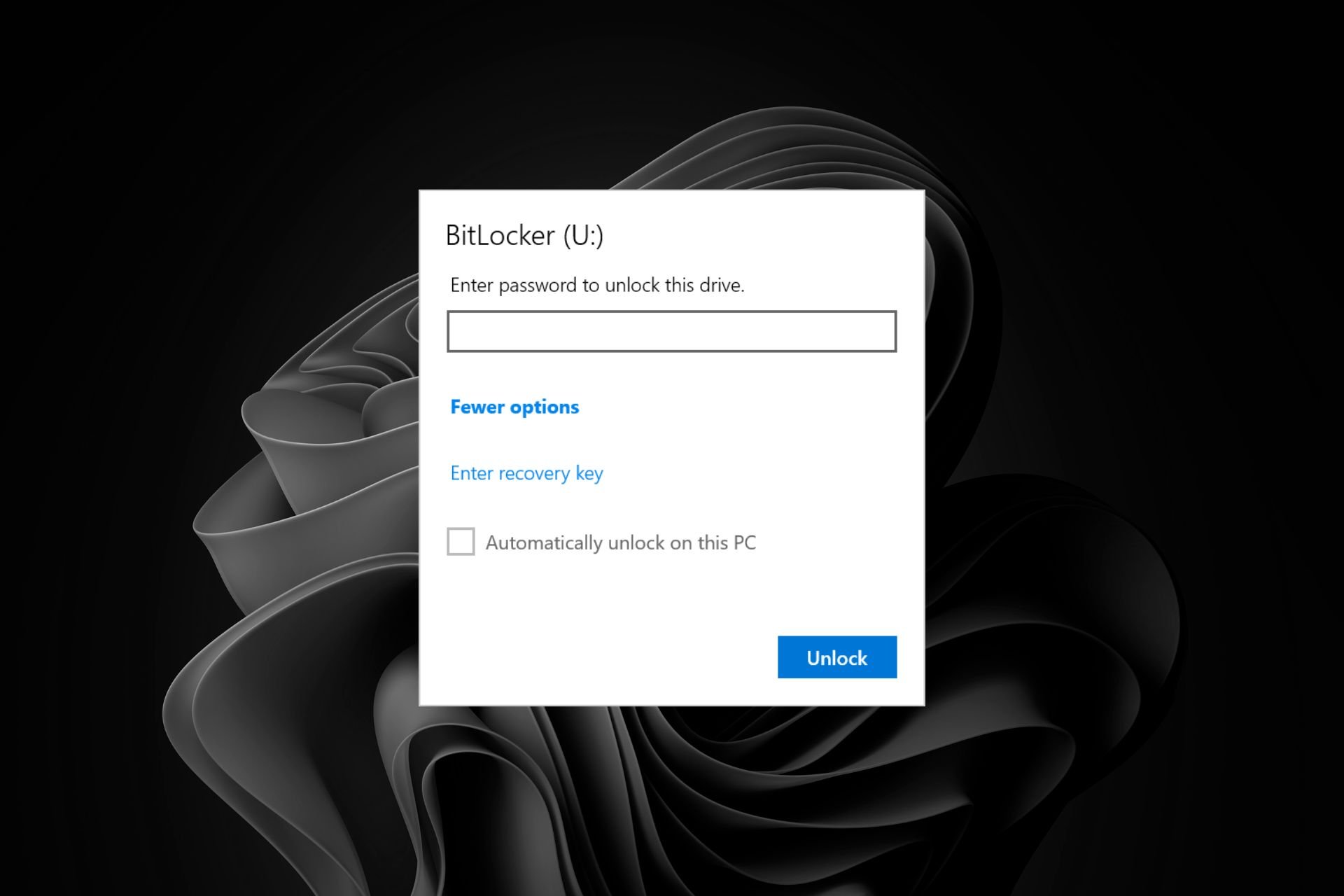
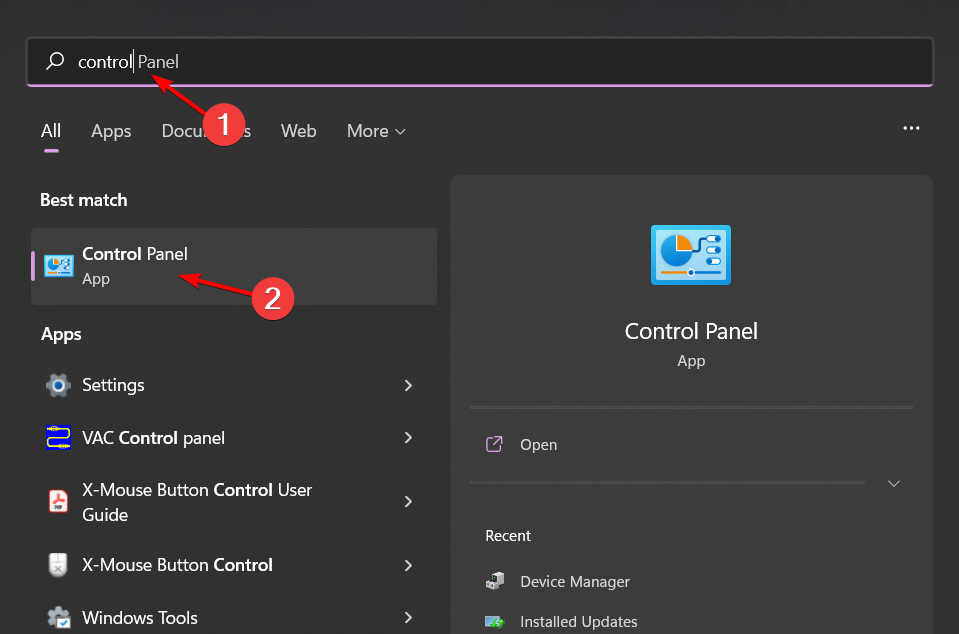


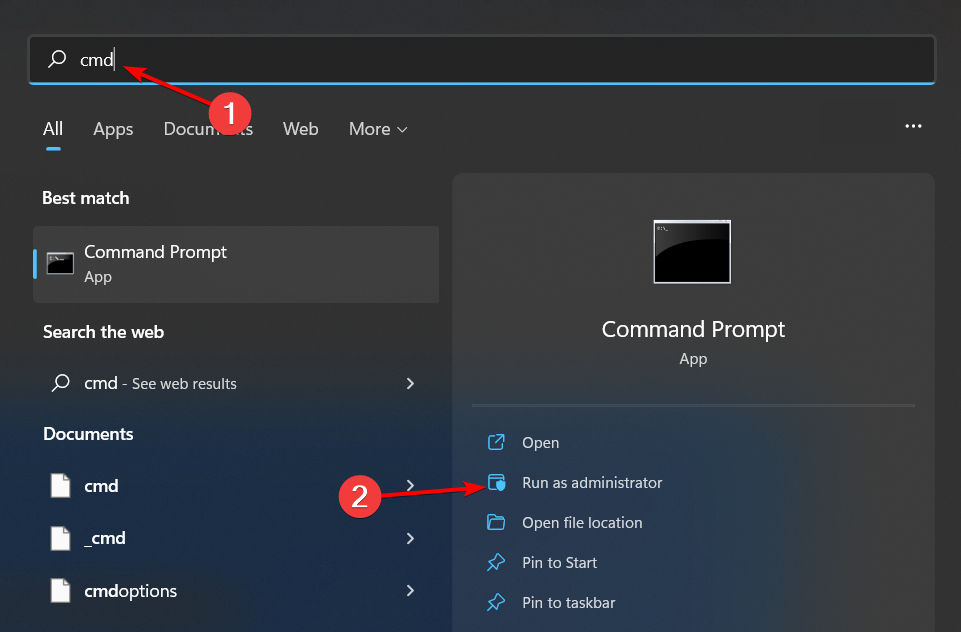
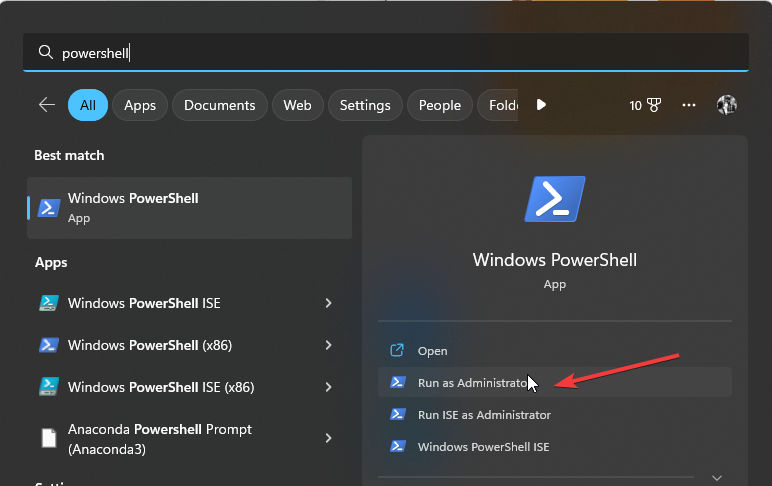







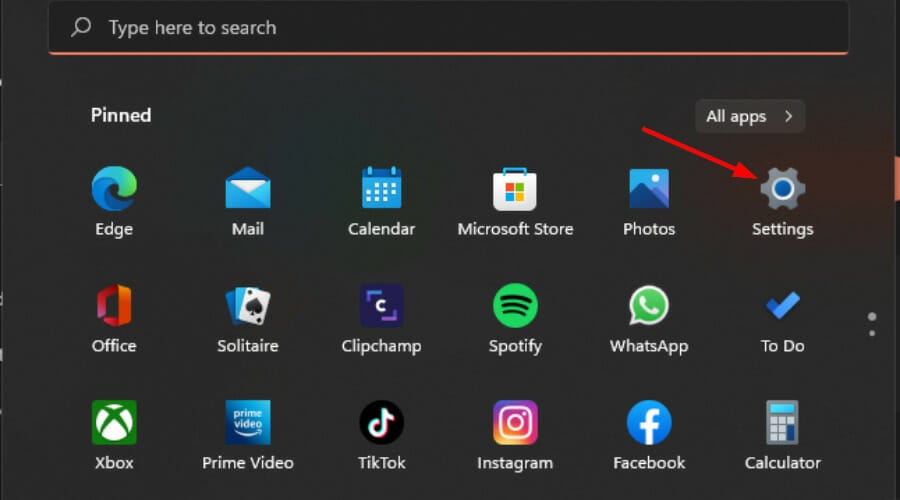


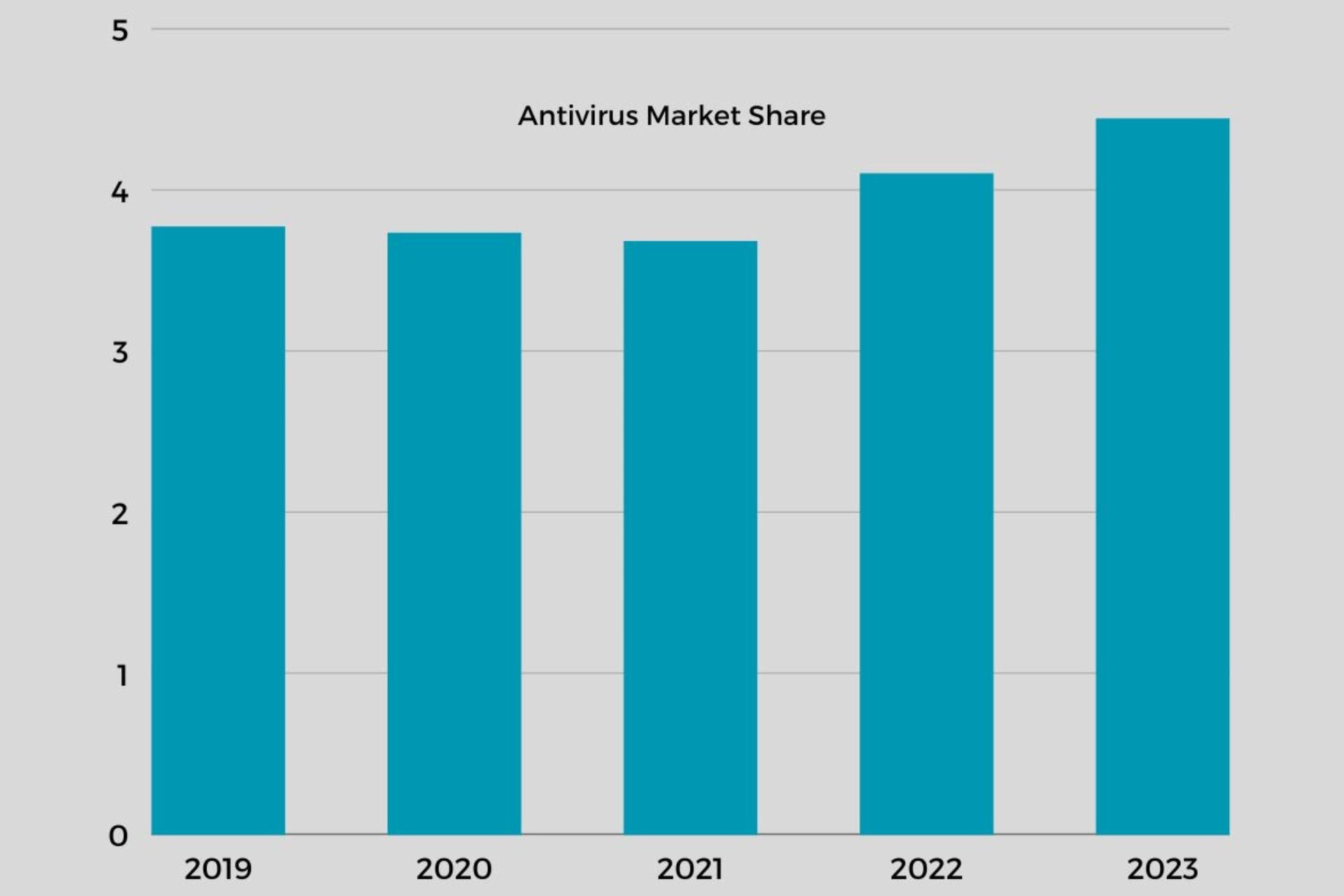


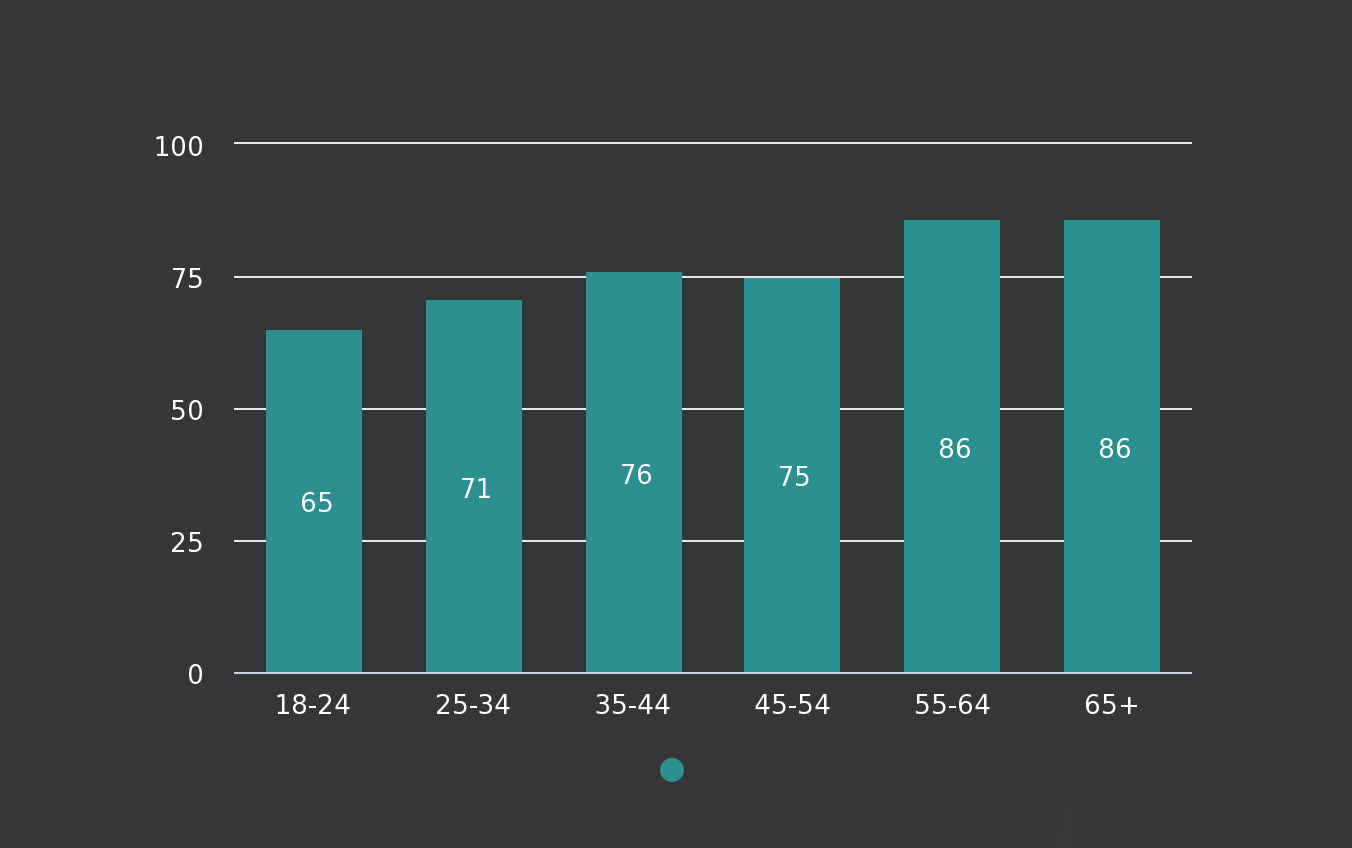


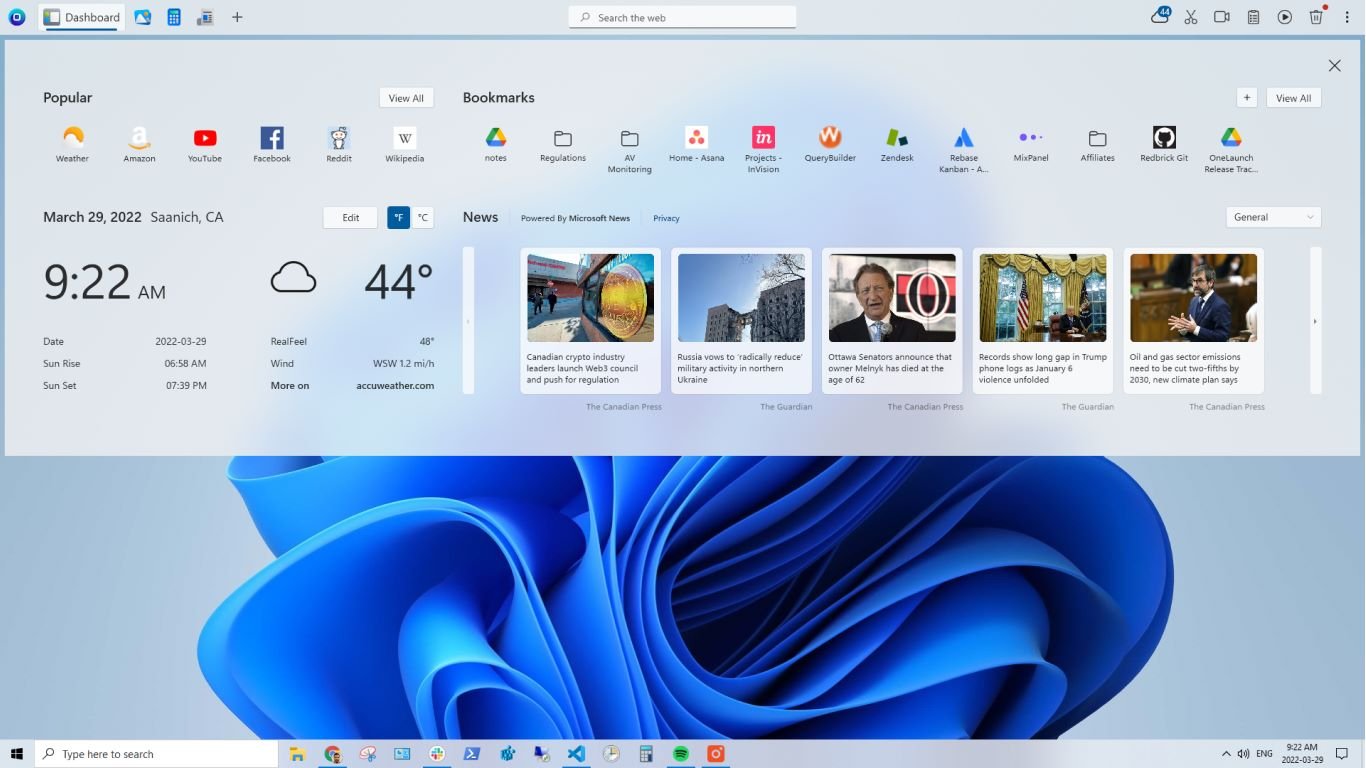
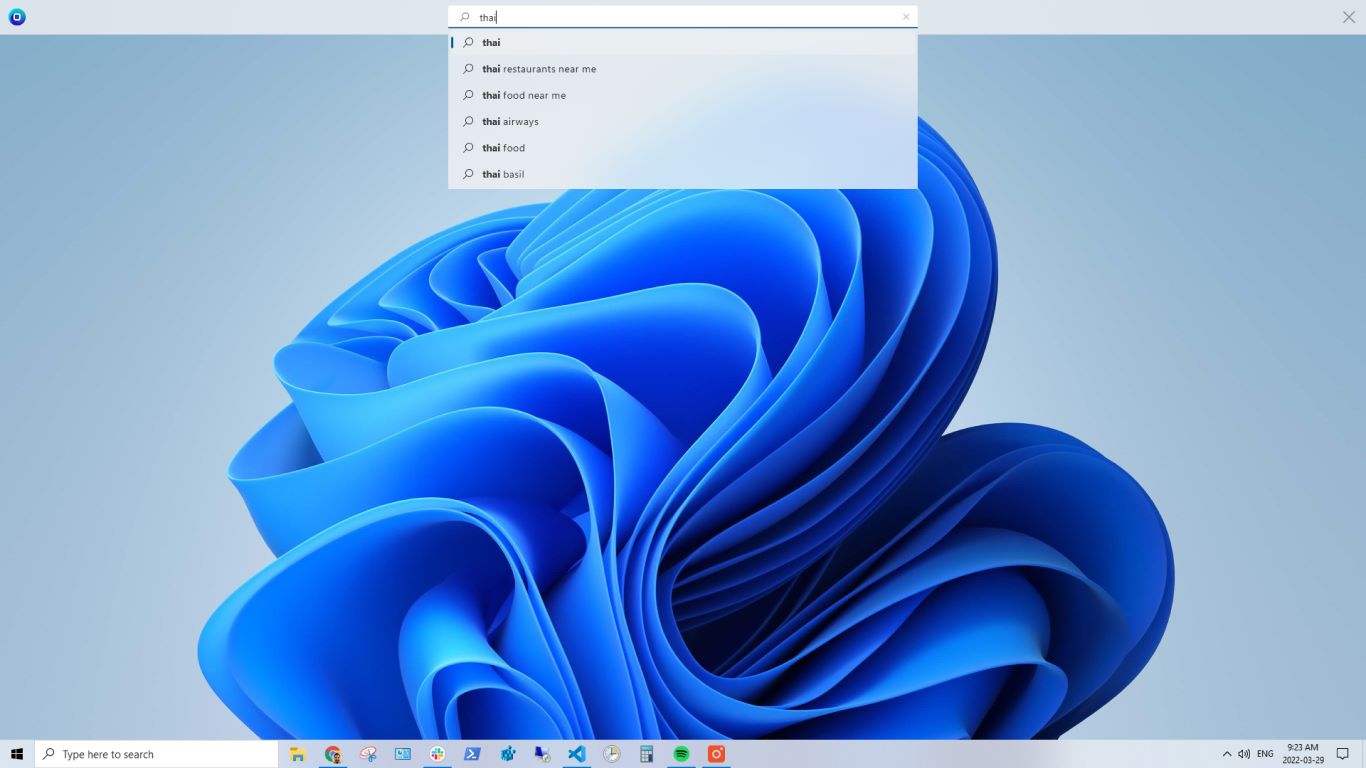


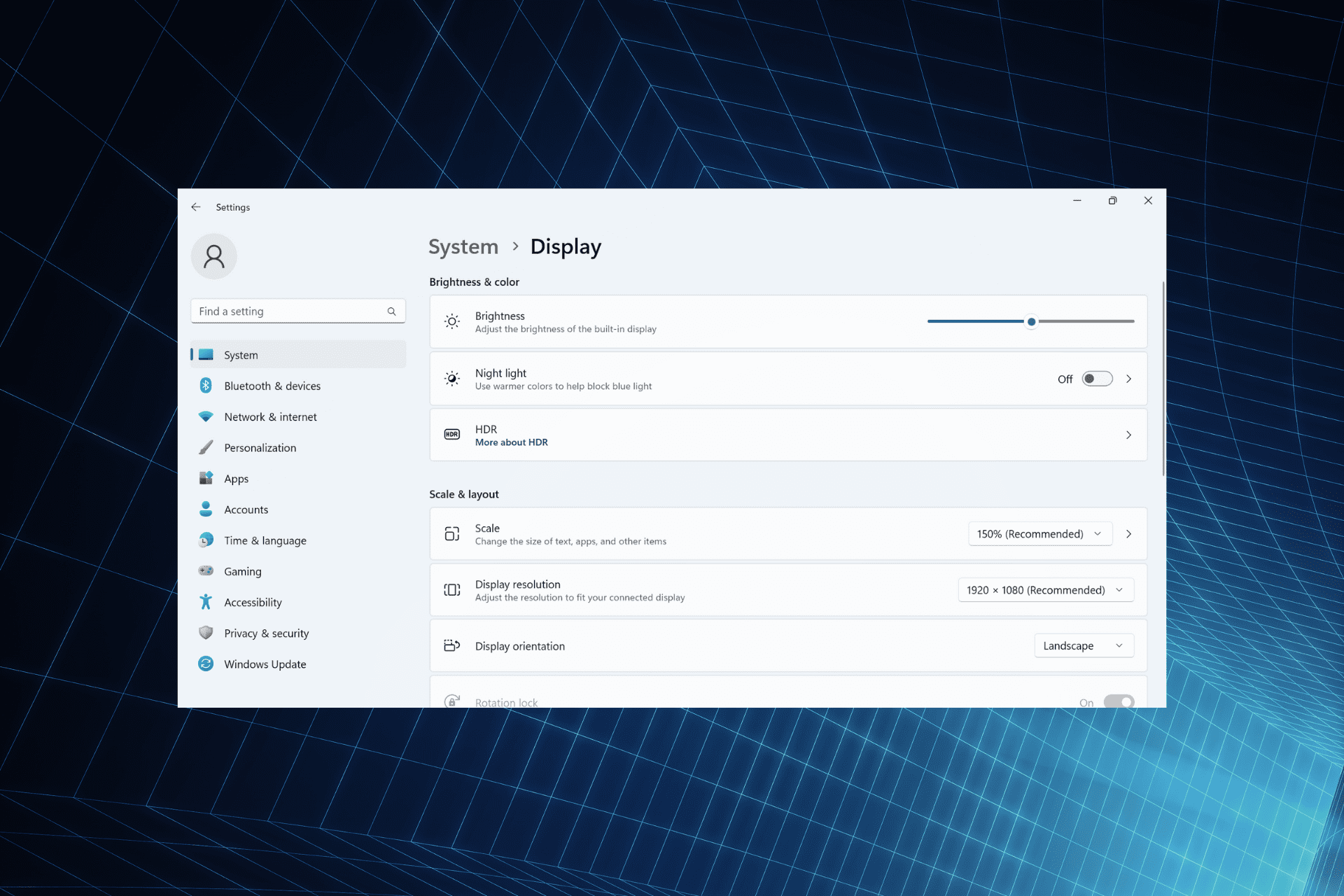


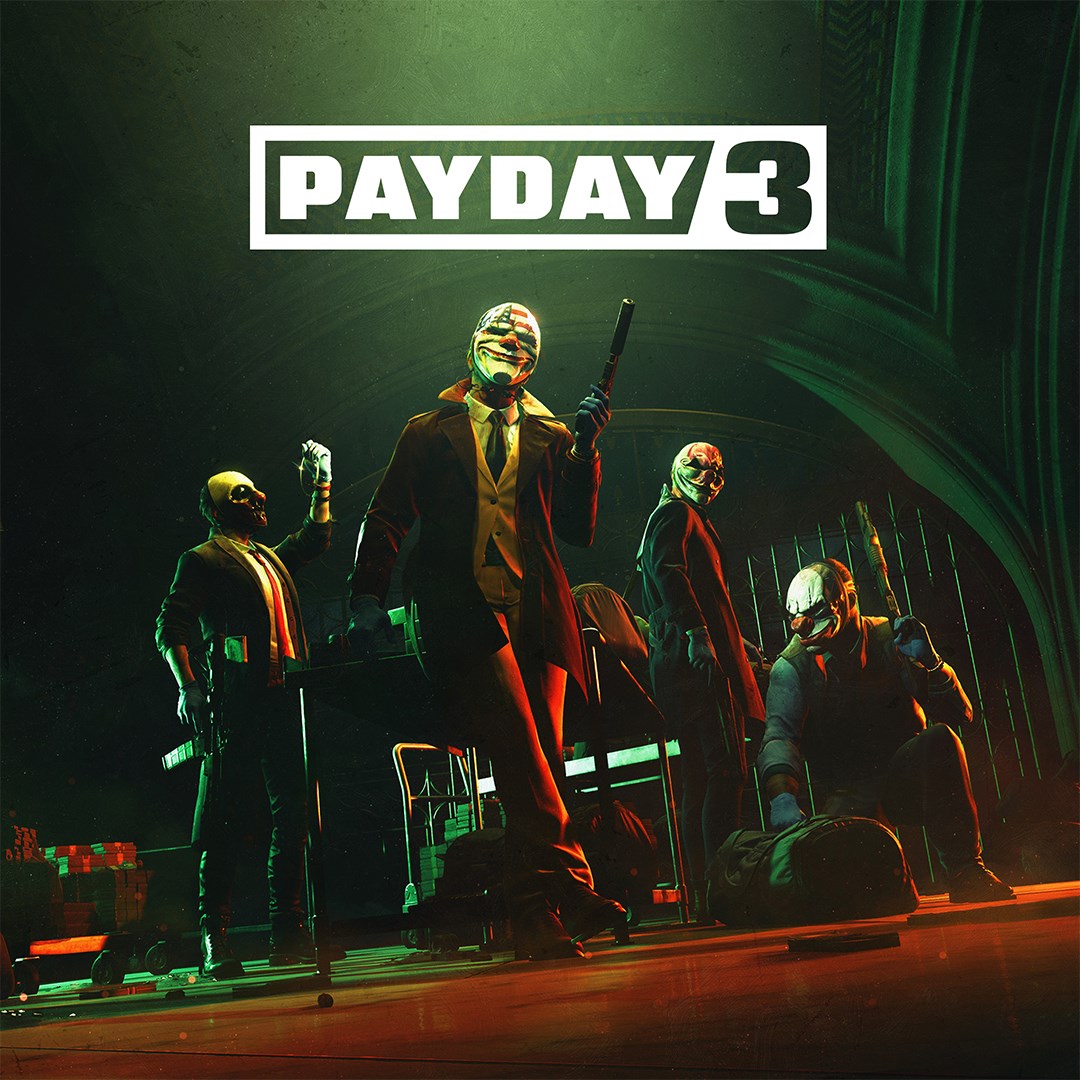


 Of course, many apps have lots of shortcuts too – press the ALT key on its own in Microsoft Office apps and you’ll see, next to menu options, which key you could combine with ALT to invoke that command. Note that in the Quick Access Toolbar at the top, the commands can be started by pressing ALT+number, corresponding to each icon’s position in the toolbar.


 Function keys are a bit less relevant in the modern era since more users interact with mouse or touch than relying on shortcut keys, and lots of laptops have dispensed with dedicated function keys, preferring instead (like the Surface line) to double up F1-F12 with other keys dedicated to things like volume or screen brightness control.
 But things like setting the same table style, or removing entire lines in Excel (for which there is no single-shot function or shortcut… there are several steps to invoke it and if you were taking out the occasional line throughout a large sheet, it can be pretty laborious).