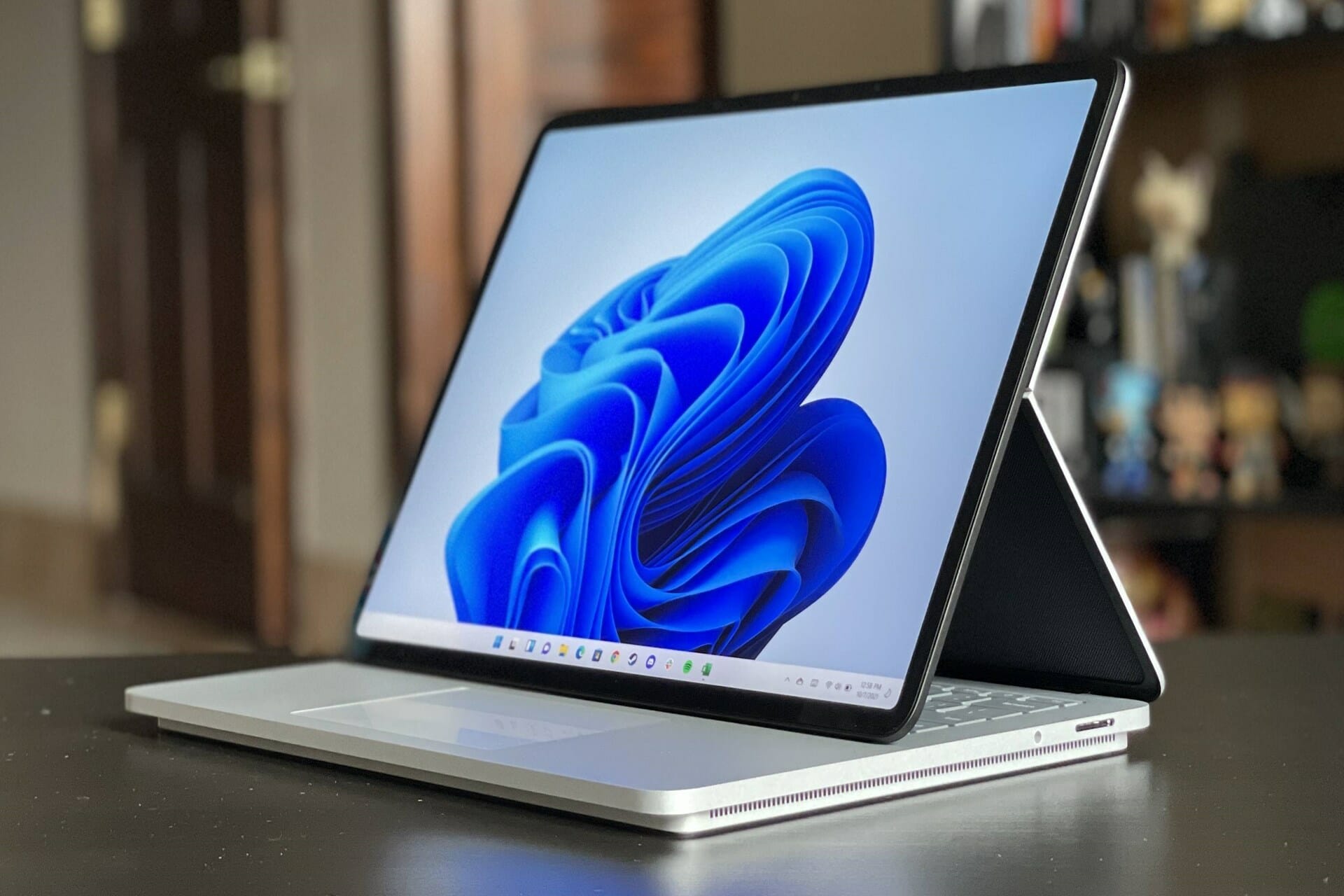
Microsoft has started to roll out a new Windows 11 Media Player app to Windows Insiders in the Dev Channel, which will replace the Groove Music app that’s been around since the release of Windows 10. This brand new Media Player is designed for watching videos and listening to music, and your music collection in Groove Music will automatically migrate to the new app.
“Media Player beautifully showcases your local music and video collections and compliments the new look and feel of Windows 11,” the Windows Insider team explained today. The music playback experience offers rich album art and artist imagery, and a mini player is also available.
This new Media Player will also be able to display all videos in the dedicated folder on Windows 11, but users will also be able to make the app look for additional content. “We have also optimized for accessibility, with improved keyboard shortcut and access key support for keyboard users and with other assistive technologies,” the Windows Insider team explained.
The team is aware of a couple of issues affecting this new Media Player app, including a bug preventing playback from network locations. Moreover, there are other issues causing problems when editing album metadata, sorting library content with accented characters, and UI elements not respecting your app theme preference.
This is just the beginning for this new Media Player app, and the Windows Insider team will listen to feedback to improve it over the coming weeks. If you’re worried about the legacy Windows Media Player, be aware that the app will remain available in Windows Tools.
Unfortunately, errors and problems are quite common with Windows operating systems and this is just the same on Windows 10.
However, we try to find solutions to these problems, here, on Windows Report.
Today we will be talking, reporting and trying to find a fix for an issue that has been affecting thousands of Windows 10 users being related to the work of their printers.
The active directory domain service is currently unavailable message appears in various situations.
When a new printer gets connected for the first time, after the install of the needed drivers for the printer, when trying to find the printer and activate and many other situations.
Some potential fixes for this annoying Windows 10 printer problem:
Log in as administrator
Check network install
Give your account full control of PrinterPorts and Windows
Run the built-in Printer troubleshooter
Repair your registry
Update your OS
Fix One or more network protocols are missing on this computer
The problem doesn’t seem to appear to a certain type of printers, as I’ve seen it getting reported by HP, Canon, Brother, Lexmark and other various users.
This issue has been present with Windows 7 users, as well, so it’s not a novelty and hasn’t appeared only with the release of Windows 10.
Here’s what some frustrated users are saying with regards to it:
I lost capability to print to my HP 1210 printer from windows 8. The message Active Directory Domain Services is currently unavailable appears.
I have tried to fix by removing the printer via the control panel, and then adding the printer, but no luck. The printer works, the computer works, but I cannot print from the computer. HELP!
And somebody else who owns a Canon printer weighs in, as well:
I have recently bought a basic printer Cannon Pixma MG2250 which came with the disc to install, however my laptop does not have a cd drive, but I was told I could just attached the printer to my laptop and I would be able to print.
When I go to print the printer is listed but says it is offline? I click on the printer then another message overrides this which states Active directory domain service is currently unavailable.
How can I fix Active directory domain services currently unavailable error?
First of all, you need to make sure that you are logged in as an administrator. Next, the easiest thing to do is to troubleshoot the printer. To do this, perform the following:
Windows Key + S key on the keyboard or just open the Search charm
Type troubleshooting
View all & select Printer.
Next and then follow the on-screen instructions.
2. Check network install
If this hasn’t solved your problem, then you need to check network installation. For that, open the Control Panel>Printers>Add New Printer.
Then, click Network Printer and Browse for Printer; see if you can find it and if it works.
Some have suggested reinstalling the Office suite; I don’t see how this has any connection, but give it a try, just in case it might work out for you.
Next, give it a try with reinstalling the drivers; if it doesn’t work, try the following steps:
Press Windows Key and R key together in order to open the run window.
Type in services.msc and press Enter
Select Print Spooler
Right-click this>Properties
Startup Type should be Automatic
Service Status should be Running
If it’s already running, stop and the restart
If the issue persists, you can try to reboot your router and turn the firewall off for a short while; just in case it’s somehow blocking the printer application.
Having performed all of the above steps, restart your Windows 10 system, then follow these steps: Control Panel > Printers > Add New Printer > Network Printer > Browse for Printer > Add the device.
If your Print Spooler service is not running on your Windows 10 PC, check out this quick guide to solve the problem.
3. Give your account full control of PrinterPorts and Windows
To do this, we’re going to open the Registry Editor and change the PrinterPorts and Windows permissions. Before you follow the troubleshooting steps listed below, create a system restore point.
In case anything goes wrong, you’ll be able to use this tool to restore a functional version of Windows. Now, here are the steps to follow to give your account full control of PrinterPorts:
Go to Start > type regedit > launch the Registry Editor
Expand the CurrentVersion menu > Right-click Devices > select Permissions
Check the Full Control box
Now, repeat the steps above to set permission to full control on both PrinterPorts and Windows.
Test your printer to check if the error persists.
4. Run the built-in Printer troubleshooter
Microsoft offers a series of dedicated troubleshooters that help you to fix common issues affecting the OS.
You can also use the built-in Printer troubleshooter to fix the Active Directory Domain Services Currently Unavailable error.
If you’re running Windows 7 or Windows 8.1, you can download the printing troubleshooter from Microsoft’s website.
If you’re running Windows 10, you can go to Settings > Update > Troubleshoot. Under the first section, Get Up and Running, you’ll find the printer troubleshooter. Run it and then test your printer to see whether the error persists or not.
5. Run a full system scan
Malware may cause various issues on your computer, including printer errors. Perform a full system scan in order to detect any malware running on your computer.
Here’s how to run a full system scan on Windows 10 Creators Update:
Go to Start > type ‘defender‘ > double click Windows Defender to launch the tool
In the left hand panel, select the shield icon
In the new window, click the Advanced scan option
Check the full scan option to launch a full system malware scan.
Need additional info on how to scan your PC with Windows Defender? You can simply find out how to scan your Windows 10 PC using Windows Defender offline to see if there are any threats.
You can use Windows’ built-in antivirus, Windows Defender, or other efficient antivirus programs for your Windows 10 computer.
6. Update your OS
Make sure that you’re running the latest Windows OS updates on your machine.
As a quick reminder, Microsoft constantly rolls out Windows updates in order to improve the system’s stability and fix various issues.
To access the Windows Update section, you can simply type update in the search box.
This method works on all Windows versions. Then go to Windows Update, check for updates and install the available updates.
7. One or more network protocols are missing on this computer
If you can’t install your printer because the PC can’t find it, you may also get the One or more network protocols are missing on this computer error.
Although at first sight, this error doesn’t seem to have anything to do with your printer issues, once you fix it, you’ll be able to use your wireless printer.
Here are the steps to follow:
Go to Settings > Network & Internet -> Ethernet or Wi-Fi (depending on the type of connection that you’re using)
Go to Change adapter options > Right-click the one you are having issues with
Go to Properties > Install… > Protocol
Now, install all the protocols that are available there
Test your printer to see if the issue persists. If this is the case, try restarting your PC, and then the printer again.
8. Repair your registry
The simplest way to repair your registry is to use a dedicated tool, such as CCleaner or Wise Registry Cleaner. Don’t forget to first backup your registry in case anything goes wrong.
You can also use Microsoft’s System File Checker to check for system file corruption. The utility verifies the integrity of all protected system files and repairs files with problems when possible.
Let us know by leaving your comment below if this has helped solve your problem. If not, describe your issue thoroughly and we’ll try to find a fix together.
If you have any other suggestions or questions, leave them there as well.
This weekend a select few people were given some time to experience the amazing world of The Lands Between in the Elden Ring Closed Network Test. Each test moment was only 3 hours long and came at some inconvenient times depending on your timezone, but we still had about 7.5 hours worth of playtime. Let’s discuss!
Better set your alarm clocks!
Elden Ring is the next souls-like by FromSoftware, the inventors of the genre with their famous titles like Demon’s Souls, Dark Souls, Bloodborne, and Sekiro. Players who are familiar with their games know what to expect: brutally difficult gameplay with even regular enemy encounters posing a lethal threat and bosses taking multiple tries to defeat.
Story time
One of the elements that were used to really build some hype around Elden Ring was the involvement of George RR Martin, who you might know as the author of A Song of Ice and Fire which was translated into Game Of Thrones, the massively popular TV show. He’s working on the script of the game, but this test was pretty light on lore and storytelling.
Melina – your finger maiden
Having to dig for the story has been somewhat of a Dark Souls staple, with most of the lore hidden in the world through item descriptions and the occasional conversation with one of the NPCs. The same is true in Elden Ring, but luckily Melina blesses us with some of her knowledge and insights whenever she visits at a save point.
Melina plays the role of your Finger Maiden, but what exactly that means wasn’t entirely clear from the limited story included in that network test. What was clear though, is that many of Dark Souls’ elements have been copied over, albeit with new names.
You no longer have Estus Flasks to restore your health, but you can now choose how to divide your four held useable items between Crimson Flasks (HP restoring) and Cerulean Flasks (FP restoring).
You’re no longer called a Chosen Undead, but you’re called Tarnished. And you don’t save your game and level up at a bonfire but instead, do so at a Touch of Grace.
Touch Grace
It’s like a find and replace with mechanics copied over but being given a new name. But you know what they say; if it ain’t broke, don’t fix it. And what I’ve gotten to play here is far from broken.
More forgiving
Perhaps the biggest improvement for me, as someone who shouldn’t be labeled as a pro-souls-like player, is that the game is far more forgiving. The above-mentioned save points are far more common than in any other FromSoftware title I’ve played and they even throw in additional checkpoints.
This is godsent and makes the entire experience a lot less frustrating with minimal backtracking needed to go back to where you perished the previous time. And you will die. A lot!
When you do get killed, you’ll drop all of your gathered Runes, which replace the titular Souls from Dark Souls (see, another word they replaced), and which is the game’s main currency. Runes are used both for leveling up at bonfir… Err, I mean Touch of Grace savepoints, as well as buying new spells and gear at merchants.
And you only get one shot at reclaiming those lost runes because if you die on the way to retrieve them, they are gone for good.
Elden Ring – Bloody Wolf in action
Combat plays out much like in a Dark Souls title as well, slower and more methodical than Bloodborne for instance. Depending on which characters class you picked at the start of the game, you’ll be blocking and parrying enemy attacks, dodge rolling out of the way, or simply staying at a safe distance and throwing magic spells at them.
Satisfying combat
I’ve tried my hand at multiple character classes and all of them felt great to control, with unique abilities and equipment load-outs vastly changing the way you face enemies in combat.
Warrior is a Dexterity based class which can be hard to use, but is great with bow & arrow or crossbows.
Enchanted Knight is a Sorcery using class that can use ranged Spells or go into the defensive with a strong shield.
Prophet is the strongest user of faith-based Spells like Beast Claw, allowing you to keep a safe distance.
Bloody Wolf is a more typical Dark Souls-like knight class with heavy armor and giant swords.
Champion has a unique firebreathing spell that spews dragonfire and roasts enemies.
(We’ll have a more detailed Character Class breakdown up soon, with their strengths and weaknesses)
Character Selection
But looking at the combat as a whole, I was less inclined to keep my eyes trained on the HP, FP, and Stamina bars as much as in the other titles, which loops back to the game feeling more forgiving. Enemies seem to die in fewer hits and your character is able to endure more attacks as well.
You’ll still need to play it smart and approach every combat situation with the utmost care, but you have multiple tools at your disposal to handle them and it rarely feels unfair. With the proper player skill, everything is very manageable and won’t require grinding for runes to level up your character too much.
Summoning a falcon with swords for talons. Nice!
Freedom to experiment
While each class has its own advantages, I didn’t feel held back to experiment with various load-outs at all. I played most of the game as a Bloody Wolf, which should normally face enemies head-on and slay them with giant swords, yet I found myself casting Lightning Bolts from a safe distance more often than not.
That particular spell was imbued onto my sword through what’s called an Ash of War. These are weapon enchantments you can find throughout the world and they all look amazing and were pretty powerful attack options. Visually, I really liked the Glint one that was slow to cast but magically enlarged my sword to 4 times its size and killed almost all regular enemies in a single hit.
There was a large number of bosses in this test environment and I doubt I was even able to find them all, as I focused more on experimenting with the various classes in what limited time I had available. It’s clear that some are weaker to magic than others and each of them had multiple ways you could tackle the fight. It was thrilling!
This guy was very hands-on
Even the regular enemy encounters could be handled using different approaches. If you had a build like the Bloody Wolf that wasn’t very suited to handle packs of wolves, you could still single them out or lure them into a more narrow region to face them one by one.
Spotted an enemy encampment? You could just run into the middle and spam your Dragon Breath or Beast Claw attacks if you had the corresponding class, or you could sneak up behind enemies and take them out with a sword strike through the spine. It was very liberating to have this amount of choice and there rarely was a good or bad approach.
Another example: in the castle environment, there were enemies throwing bombs at explosive barrels. You can tempt them to throw their projectiles and then face them when most of the barrels have been cleared, or you could rush towards them and catch them by surprise.
Open world and spiralling castle corridors
Perhaps the biggest stand-out in any of the FromSoftware titles besides the memorable bosses is their excellence at level design. Dark Souls is still among my favorite videogame titles ever and it was mostly because of how they handled opening up shortcuts and how the levels were vertically built to loop back to previous areas.
In Elden Ring, you start in a training dungeon, but it doesn’t take long until you exit and are greeted with a vast open world. Sure, the network test had some invisible walls gating the experience off, but it still managed to impress me with how open it was, while still having very distinct and memorable areas.
Giddy-up!
To help you traverse this wide-open area, you’re given a horse that even has a double jump of its own. With the increased speed, you can ignore most enemy encounters altogether (but you’d be missing out on a lot of runes).
It’s hard to express the wonder I can still feel at a game-opening up to me like that, and after all these years, from all the way back to getting Epona in The Legend of Zelda: Ocarina of Time until now, it remains a powerful experience.
And it’s not because these plains are so open that there isn’t anything to discover, you’ll find hidden catacombs, dangerous enemies to face, and even a caravan with a carriage being pulled by two giants and a wake of undead warriors following closely behind. Truly an impressive sight to behold.
Ignore them or find out what’s in the chest?
Now, players who’ve been keeping a close eye on the game since its announcement may not have seen many new screenshots here yet, but that’s because the Xbox Series X|S and PS5 versions of the game had capturing footage disabled. Sadly it wasn’t possible to screenshot the game or record small clips without an external capture card.
I did whip out the camera when I arrived at the castle gates, however, as this was truly a sight to behold:
— BloodyGoodReviews™ | Pirate PR ?☠️ (@BloodyGoodRev) November 14, 2021
The castle offered a more traditional Dark Souls experience, with winding corridors and branching paths that eventually looped back into the same locations. But the level design is truly outstanding, with new secrets around every corner. It’s very much worth taking your time with a game like this and exploring every nook and cranny, but the nature of this limited-time test made that feel somewhat more rushed.
One last thing to mention in regards to getting around: you could fast-travel to any Touch of Grace you’ve rested at on the map, which prevented you from saving yourself into a corner when you’re not leveled enough to face a challenging encounter.
Online elements
It’s called a network test for a reason though, and that is because it already allowed some multiplayer components that will also be in the final game. You have the famous messages that you can leave behind to warn other players, eg: Explosives ahead, use roll, but more often than not these were just people trolling, eg: Try jumping at the edge of a cliff that only leads to certain doom.
Try petting it
New for me, were the Bloodstains, which showed you how a player before you had met their untimely demise. This was especially useful to learn what NOT to do.
And if you faced a difficult boss, you could either allow other online players to join you or you could summon an AI-controlled NPC of a certain class brawl alongside you. It’s definitely useful to have someone drawing most of the attention to themselves when you get in some hits from behind.
In the full games, this multiplayer aspect was something I mostly kept for the endgame, joining rookie players and offering them a helping hand, or allowing myself to be invaded by enemy players for some good old PVP action.
First impressions on Elden Ring
Pros
Visually impressive world with expert level-design
Fascinating enemy designs that put your skills to the test
Lots of classes, gear, and abilities to experiment with
Cons
3-hour timeslots didn't allow for slow exploration
It's not February 25 yet
While this was only a small taste of what’s to come for Elden Ring, I couldn’t help but already feel the magical touch of FromSoftware and I’m certain this will be one of their best releases yet. It was like getting an early look at a timeless classic and I’m almost certain that Elden Ring will be a strong contender for Game of the Year 2022.
The game looks fantastic, from its gruesome enemy encounters to the stunning semi-open-world design and brilliant level-building. It also offers players the freedom to experiment with various classes and playstyles and even in this small sliver of what will undoubtedly end up being a sprawling RPG with hours upon hours of content, it was already clear it will be an exceptionally great title to replay over and over.
February 25 can’t get here soon enough…
Elden Ring is scheduled to release on 25 February 2022 and will be playable on Xbox One and Series consoles, Playstation 4 and PlayStation 5 and Windows PC. Preorders are available for the regular version (€59.99) as well as a Deluxe edition (€79.99)
*Disclaimer: previewed on Xbox Series X. Review copy provided by Bandai Namco EU.
Nowadays, there are hundreds of streaming and on-demand platforms for media and entertainment, from popular radio, and webcast stations, to blockbuster new movies, videos, and podcasts.
However, there are only a handful of tools to manage them all and that’s how we got to Audials One 2022, the best media recording and management solution you can get right now.
This software piece not only looks and feels like a great entertainment platform but also comes with a great player and convertor that can handle any media you would throw at it.
We must tell you right now that the newest version is ready for Windows 11 so if you already upgraded to the new OS, this tool will fit right in.
That being said, let’s get close and personal with the Audials One 2022, explore its features, and test its awesome capabilities.
What is Audials One 2022 and how can it help you manage your media?
A short description of Audials One 2022 would be the ultimate streaming recording software for your PC.
However, that wouldn’t bring it full justice since it can do a lot more than that. In fact, with this solution, you won’t be needing any other media tool.
That’s because Audials One 2022 can play almost any media, convert your audio and video files in seconds and the built-in audio and video players are simply awesome.
Let’s not forget the built-in video editing tool that can help you turn your recordings into professional-looking movies in seconds.
Plus, it’s a great cinema buff tool because it can stream movies from a bevy of streaming and on-demand platforms and even add subtitles very easily.
Moreover, it saves your favorite video stream from Amazon Prime, Hulu, and all the other on-demand platforms as well as records your favorite music from Spotify, Deezer, and more.
Audials 2022 is new and just got released so first, we’re going to talk about its new features.
What are the Audials One 2022 new features?
1. New browser recorder
Audials One 2022 works just like a web browser and helps you to search for movies and series from any video streaming service and then play them back so you can watch the video while being recorded.
Select the Rec from beginning option to save the entire movie. Of course, you may also record it in the background in order to continue to use other functions in the meantime.
We’ve shown you how it looks on Netflix but you can do this for any video streaming website. It’s simple as selecting the video and hitting the Record now button.
The browser comes with a brand-new overview of streaming sources that makes it a lot easier to find your favorite.
However, the best parts are that you’re now able to record Netflix with 5.1 surround sound and any streaming source super-fast at twice (2x) the speed.
There’s also a batch recording available that does exactly what it says: records multiple movies or episodes of a show at the same time.
That’s a great feature if you want to seamlessly get a whole series or a library of movies overnight. And if the streaming service permits, you can even save them in up to 4K resolution.
2. Simple and precise video editor
Depending on the streaming source you choose the movie you record can be interrupted by all sorts of commercials and adverts but that’s where the new editor steps in.
Just clicking on a video on your library and selecting the scissors tool will get you to the brand-new video editor to cut out the unwanted pieces.
You only need to select the start and finish point and hit the Apply button to make the cut. And you are free to make the selection within a split of a second margin thanks to the zooming slider from the bottom-left.
If you want to reencode the video, just do that with a simple click also, but this process will take some time, depending on the video length and resolution, of course.
And that’s not all. If you recorded a video with Audials, the tool automatically detects trailers or ads, and it highlights them in the editor in order to cut them straight away.
Some videos from certain sources will record with black bars but you can eliminate those too with the simple to use cropping tool.
3. Subtitles search engine
Gone are the days when you were endlessly searching online for the right subtitle for your new movie because Audials One 2022 comes with a built-in subtitles search engine.
This feature helps you to find subtitles in almost any language and add them to your recordings with pinpoint accuracy.
And you don’t need to finish recording either because you can automatically insert subtitles during the process.
Also, Audials One 2022 lets you choose your preferred languages, and it detects the ones that match it. But you may switch between languages with a single click. It can’t get easier than that, right?
4. New music main screen for artists, genres, and top charts
Audials One 2022 comes with a newly designed main screen for artists, genres, and top charts for your music.
You may browse, edit, and listen to your own library of songs on your PC or stream and download tunes from any source in a very simple fashion.
There’s absolutely nothing left out from this main console. You just indicate the music folders from your PC and Audials will get it straight away.
As for getting your favorite songs, just hit the Load button and search for your preferred artists or songs and you can then stream them, download them or add them to a playlist with a drag-and-drop motion of your mouse.
It is up to you to look at the charts for any genre to keep up with the trends and listen to the newest hits. There’s even an option to look for related artists and news from your favorite ones.
So, you are also one step away from buying tickets to their new gigs from all over the world.
All looks awesome because Audials One 2022 automatically fetches the album covers for you and associates the songs to their respective albums.
5. Download and record music streams
Just like with videos, with Audials One 2022 you are just one click away from recording your favorite music from any audio streaming source like Spotify, Deezer, Amazon Music, YouTube, Pandora, SoundCloud, and many more.
Then, you can tag them or let Audials do that automatically. Just make sure you log into your account in the streaming service, and you have permission to download the songs.
If not, just stream them or add external links for downloads, it’s up to you.
The new version of Audials has extensive support for Tidal now. Download music from Tidal with drag-and-drop, but you may also do that in Spotify, Soundcloud, and other streaming services.
6. Great music management
If you’re an audiophile, Audials One 2022 will swiftly become your preferred player and that’s simply because of the friendliest but complex music management window.
It’s up to you to decide if you’re going to go with an old-style playlist set or organize your music collection with styles, tags, genres, and feels.
Audials will set it all up, but you can customize all the playlists and songs to your entire collection in a few seconds.
The software lets you choose if you want to organize your recordings into folders and then decide on what information the folders should include.
And when you’re done organizing the playlists, you have the option to export them back to a streaming service or another music player installed on your PC.
As your collection grows bigger, Audials helps you find and delete duplicates or prioritize the versions you like better.
You will be prompted to download an executable file. After download, running it will start the setup procedure. Just select your preferred language and hit the Install button.
The app will start installing and at the end, it will start.
The download and installation process is incredibly simple. It just takes a couple of seconds from your time and a little empty space on your drive.
You should know that simply downloading the app will get you the Demo version that will allow you to see all its features, but it will only download 10 minutes of a movie in this version.
For unlimited usage, you will need to purchase the full version by hitting the Buy now button you will see on the bottom left of the main window.
You can go with an annual subscription or purchase the product with one fixed amount and use it forever.
Audials One 2022
Download, play, edit, and organize all your media with this amazing tool that will become your entertainment center!
So, you’ve got a tool that downloads audio and video from any streaming service, a great video player that will get you the subtitles even from the latest movies, a video editor that will cut commercials like a knife through butter, and an awesome audio player and organizer.
All of those and many others are included in Audials One 2022 so what more would we need? Oh, and we didn’t mention the podcasts and TV stations search and streaming and the seamless file convertor.
How about a file browser that will help you go through your PC and find all the content convenient? Yeah, Audials has that too.
We were simply impressed by this software and the fact that it’s optimized even for the new Windows 11 is definitely a great plus.
If you already installed Audials One 2022 tell us about your experience in the comments section below.
However, EapHost is a Windows networking component that authenticates connections such as Point-to-Point (P2P) and 802.1X.
Also, Windows users who experience this error problem do not have any connectivity problems but they experience software conflicts issues in the long run.
The probable cause for the error message is uninstalling CISCO modules, invalid/missing Windows Registry keys, incomplete installation of CISCO modules, etc.
Below, you’ll find a few solutions to help you get over the Microsoft Windows EapHost 2002 error.
Find the Services tab, and then select Hide all Microsoft services box
Click Disable all
Go to the Startup tab and click Open Task Manager
Close Task Manager then click OK
Finally, reboot your PC.
Alternatively, we do recommend that you use a program uninstaller to clean your PC from unused apps. And to find a full-featured tool it’s better to pick from the best uninstaller software on Windows 10.
This is the surest method to completely remove unwanted programs and prevent leftover files from further interfering with other programs or fresh installs.
2. Use third-party repairing software
If you believe that manually resolving Windows bugs and issues is counterproductive, we perfectly understand. It allows for a significant amount of human error and oversight.
Wait for the scanning process to complete and then restart your computer. All corrupted files will be replaced on reboot.
4. Update network adapter drivers
Press the Windows key + R, type devmgmt.msc, and then hit Enter. (Alternatively, you can right-click on the Windows key and select Device Manager).
In the Device Manager window, expand the Network adapters section.
Then, right-click on your Network adapter and select Update Driver Software.
Click Search automatically for updated driver software.
Once the steps are complete, click Close and restart your device.
Note: If Windows doesn’t find a new driver, you can visit the device’s manufacturer website so as to download the latest network adapter driver from there.
Downloading drivers manually is a process that carries the risk of getting the wrong driver installed, which may lead to serious malfunctions.
The safer and easier way to update drivers on a Windows computer is by using an automatic tool such as Outbyte Driver Updater, as recommended in the first solution.
This tool will scan all your devices and will give you an exhaustive list of all your drivers. Using an extensive database, will update them to the latest version if you want, but it also allows you to select which driver to update.
Alternatively, you can also revert back to the old driver versions if updating the driver does not fix the issue.
5. Run system restore in safe mode
Shut down your PC and turn it on again, pressing the power button for a few seconds. Repeat this procedure three times. On the third time, you should get a blue screen with some options.
Navigate to the Run in Safe Mode option and hit Enter.
Go to Start and type system restore and then hit Enter.
Follow the prompts to revert back to a certain restore point.
Wait for the process to complete, and then reboot.
The system restore does not affect any of your files, documents, and personal data.
Note: Ensure you are able to identify the restore point dated before the Microsoft Windows EapHost error 2002 display.
6. Install the latest Windows updates
Go to Start and type update in the search box to open Windows Update.
Check for updates and install the available ones.
After the update is complete, restart your Windows PC.
Microsoft constantly releases new Windows updates that improve your system’s performance and fixes various issues and errors on your Windows PC.
They are installed automatically, however, it is possible that the process failed sometimes.
7. Reset the PC
Hard power off your PC three times until the Advanced Recovery environment appears.
Choose whether you want to keep or delete your files and apps.
Click Reset to proceed.
Note that this is an advanced procedure that restores your PC to its factory settings. Make sure you have a backup of your apps and programs, if necessary.
We hope that the solutions listed above helped you to fix the annoying Microsoft Windows EapHost 2002 error.
You can post back with the status of the issue and we will be glad to assist you further. Feel free to comment below if you have any questions.
You’ll find more easy-to-follow tutorials in the Windows 10 Troubleshooting Hub. In the How-To section, we offer reliable and complete tech guides to make your digital life easier.
There are plans underway to help Microsoft block the provision that allows users to open the Start menu search results in a browser other than Edge. users got familiarized to the workaround thanks to the Edge Deflector.
The Edge Deflector allows users to evade some of the built-in-browser restrictions in Windows 11 and Windows 10. Mozilla and Brave had previously intended to use the same technique, that would allow users to access the Start menu results in the respective browsers. However, they have since changed the plans.
Microsoft confirms the block
The block was initially viewed as a mistake by users during last week’s Windows 11 preview build. Later on, Microsoft confirmed that the move they had made was intentional.
Windows allows users to access applications and services on their platform. They also provide users on Windows 11 and Windows 10 with end to end customer experiences.
End-to-end experience
As such, the search experience from the taskbar is one example of the end-to-end experience which is not designed to be redirected. Therefore, they immediately resolve the problem because of the improper redirection.
Developers affected by the move were quick to point fingers at Microsoft for the move. They termed the company as inattentive, they mostly care about ads, bundleware and service subscriptions.
Mozilla criticized Microsoft for the move they made, in that, they felt that they were compelling the users to use certain browsers as defaults. There was a code in place that helped launch Firefox when the Microsoft-edge protocol was used for those users that had already set Firefox as their default browser. However, this is no longer possible.
Microsoft should finally let Edge be independent. Users should be able to use the browser they want without any restrictions. People are still unsure about Microsoft’s priorities. It is quite difficult for one to switch the set default browser in Windows 11.
Users should be able to use a different browser, rather than having them reachout to Windows.
What is your take on Microsoft’s move? Share your thoughts with us in the comment section below.
Now, for most users, the Blue Screen of Death may not be a pleasant occurrence, but they have since gotten used to the color of the screen as blue whenever they encounter such an issue.
Microsoft had made an announcement earlier in the year that they would be changing the screen permanently to black. It now appears that the black screen was short-lived as the company is now reverting to blue.
Several updates have been part of the BSOD over the years, but one thing that has remained unchanged for a long time is the screen – it has always been blue.
Rapid change
When Microsoft decided to change the blue screen to black, they never really gave an explanation as to why it made such a drastic change.
The company is now again rolling back that color change, as spotted in the latest Windows 11 preview on both the Beta and Release preview channels last Friday.
“We changed the screen color to blue when a device stops working or a stop error occurs as in previous versions of Windows.”
Triumphant return
While Microsoft has still not given a reason as to why it has decided to revert to its original blue color, it has hinted in a new update that the changes will be received soon enough.
The update will not only revert the BSOD but will also include fixing other bugs. The update will also fix various issues with the OS.
Issues with the new Taskbar, Start menu, Bluetooth audio volume control problems, among others, have also been addressed.
Do you prefer the Blue Screen of Death or the Black screen? Let us know in the comment section below.
Who wouldn’t like to take advantage of the latest USB 3.0 devices available on the market now? With the new transfer speed, USB 3.0 works wonders.
However, it seems that after installing the new Windows 10 operating system, PCs or laptops fail to detect the USB 3.0 ports. This is not an issue specific only to Windows 10, Windows 8.1 and Windows 7 are affected as well.
Luckily for us, there are very easy fixes for the USB 3.0 issue on Windows 10, 8.1, and 7 which we will list in the tutorial below.
But first, we need to make sure that our hardware is working properly. For example, if you have an issue with your motherboard or the USB 3.0 ports are damaged, well in this case you will have to go to the store you bought the PC or laptop from and fix it there.
SOLVED: USB 3.0 port not recognizing hardware
The USB 3.0 detecting issues usually come alongside the upgrade to Windows 10, Windows 8 Pro, or Windows 8 Enterprise. In order to fix this issue, we get on our Windows 10 or Windows 8.1 operating systems, we will need to go to device Manager.
Solution 1 – Reinstall your USB 3.0 drivers
Click(left click) on the “Start” button in the lower right corner of the screen.
Type in the search box you have in the “Start” menu the words “Device Manager”.
Click(left click) on the “Device Manager” icon that pops up after the search.
In the “Device Manager” window, search for any third party USB 3.0 drivers and remove them from your Windows 10, 8 system. Note: Also look for any third-party program that might be installed for your USB 3.0 ports and uninstall that one as well.
Reboot your Windows 10, 8 PC or laptop.
After you rebooted the Windows 10, 8 PC, you will have to wait for approximately 5-10 minutes for the system to install the necessary drivers for the USB 3.0 ports.
You also have the option to use dedicated software such as Outbyte Driver Updater. It is a lightweight tool that will find any missing, damaged, or out-of-date drivers on your PC and automatically fix them.
Outbyte is a quicker and also safer alternative because it can always find the corresponding driver version for your hardware, eliminating the problems caused by faulty drivers.
Solution 2 – Run the Hardware and Devices troubleshooter
If the issue persists after reinstalling your USB 3.0 drivers, try running the Hardware and Devices troubleshooter. If you’re running Windows 10, go to Settings > Update & Security > Troubleshoot > locate and run the troubleshooter.
If you’re running Windows 7 or Windows 8.1, you can launch the troubleshooter from Control Panel. Open Control Panel > type ‘troubleshoot’ in the search bar > click on Troubleshooting > View all to list all the available troubleshooters. Then select the Hardware and Devices troubleshooter to run it.
Solution 3 – Additional workarounds
If you still can’t use your USB 3.0 ports, here are some additional solutions to fix this issue:
Disable USB selective suspend setting
Tweak your Registry
Use a different cable
Change the drive letter (if the issue is affecting your external driver).
After you followed this tutorial, you should have fixed USB 3.0 port detection issues in Windows 10, 8.1. Leave us a message in the comments below if this tutorial helped you with your USB 3.0 problems. Tell us which solution worked for you.
A landing page generates leads for your business by capturing the lead’s information and then using this to move them along the sales funnel.
Landing pages are a must-have if you want a digital brand or business.
Ideally, any online brand for business purposes needs to have a digital strategy, which includes objectives such as increasing traffic to the website, uploading relevant and valuable content, and lead generation.
Landing pages help with capturing leads by drawing them into the sales funnel. This is quickly done as the page is designed in such a way as to collect information such as emails, names, and/or contact details used for further communication about your brand.
This is something your blog content alone cannot do, thus the need for landing pages.
While they may look complicated in terms of design, coding, and everything that comes with it, landing pages are the opposite – if you use landing page software.
The beauty about landing page software is that you get pre-designed templates, or create custom designs for your brand based on your preferences and your target audience.
So, if landing pages seem hard to create from scratch, or you are looking for higher conversion rates, then the landing page software is your friend.
To build killer landing pages for your online business, landing page software can hack it in minutes, instead of hiring someone to do it, which costs more money and takes longer to get done.
What you need to consider when choosing a good landing page creator software
Whether you’re a marketer, blogger, or online business owner, there are a few factors you need to keep in mind when deciding on the best landing page software tool to use.
These include, but are not limited to:
➡ Templates: verify the available templates, including their responsiveness, look and feel, call-to-actions, layout, and other design features. Check that the landing page software offers responsive designs you can use and/or customize with a few tweaks here and there.
➡ Landing page capping: does the landing page software give you more in terms of the number of landing pages you can build or does it have a cap on it?
➡ Analytics: this is how you measure the impact of your landing pages so you need software that has this feature otherwise you may never know the real-time results of your landing pages.
➡ A/B testing: this is also an important feature so you can do split tests between different versions of your landing pages to know which one converts higher and faster and go with it
➡ Custom code features: this includes adding tracking pixels for analytics and retargeting
➡ Integration capabilities: does the tool integrate seamlessly with other tools such as WordPress, Facebook, Email, AdWords, Google Analytics, and others?
➡ Additional media and dynamic content: check if the tool allows you to use different media such as videos, which are a great way of gaining visitor attention, and creating interactive landing pages. If you can add contests, countdowns, payment options, and other content, even better.
➡ Automation: a good landing page software should ease the conversion process down the sales funnel by moving visitors from the page to automation, through linking forms to existing lists in a short time.
➡ Branding: the tool should allow you to add your own brand’s features for easier identification, and matching the look and feel of your business.
What is the best landing page tool for a successful website?
The name of this landing page software speaks to the bounce rate problems most websites have, so it is a tool you want to use to keep visitors on your pages instead of the ‘bouncing off’ of them.
Some of the amazing features you can get with Unbounce include a drag and drop builder, a user-friendly and simple interface, easy pickup and dragging of elements such as text boxes, forms, and images to the landing page, and editing to your preferences.
Also included are Unbounce Convertibles with tools like overlays and sticky bars to drive more conversions on each page. The landing pages you create using this tool are also responsive, so they’ll also work on mobile platforms and increase conversion rates.
You can also add forms to the landing page as one of the content builder functions in this tool, which is not just fillable, but appealing and attractive to your site’s visitors.
Unbounce’s built-in A/B testing feature lets you see which of your designs work best with your target audience and optimize accordingly. Analytics are included so you can see the overall statistics for each page you create, including the results from the A/B test so you can know when to stop the testing.
A variety of over 125 fully customizable landing page templates are available for you to view (no sign-up needed), plus you can see what other visitors and users have upvoted, sort them out by industry, and/or purpose.
You can get this tool for a free 30-day trial to check out its features or buy different plans (Essential, Premium, or Enterprise) at different prices, based on your business type and needs. Unbounce can be integrated with WordPress, MailChimp, and Google Analytics.
Unbounce
Easily create amazing landing pages that reduce the bounce rate for your website with this amazing tool.
This landing page software comes with features that let you get lead generation results when you need them. With an intuitive drag and drop visual editor, over 100 customized and ready-to-use templates, you can create high converting, responsive landing pages in minutes.
It also comes complete with more than 1000 free iStock images for your use which you can edit with its built-in image editor for a perfect finish.
You also get to switch between mobile or desktop view workspace so you can optimize your landing pages for more conversions as you get to see how your visitors view the pages.
You don’t need technical skills like coding or design to use this landing page software, as every element is designed to be intuitive and visual. If you can use a Windows OS, then you will be able to use this software as well.
It also comes with A/B testing, analytics, built-in web forms, flexible publishing options to your domain of choice, and it integrates with your favorite platforms for better performance.
To round this software up completely, besides the capability to create amazing landing pages, you also get access to email marketing features like autoresponders, analytics, transactional emails, and more.
The AI-powered website builder with predesigned templates and domain management ensures you have all the tools you need just a few clicks away.
The marketing automation features ensure that the workflows will always be effective and allow easy management of any lost sales, tracking website visitors, and product recommendations.
GetReponse
Get great lead-generation results by using this user-friendly software to create amazing landing pages.
If you prefer to use contests as a landing page, compared to forms and other designs, this landing page software is the best to use.
It features specialized landing page templates in which you can create social media contests and also ensures a hub on which to host your contest.
The contests are only limited by your imagination, as you can run hashtag contests and comment-to-enter sweepstakes which are almost sure to entertain and engage your customers and potential customers without seeming pushy.
Added to this, you can also allow your customers to access special coupon codes ensuring that visitors are guided through specific virtual doors. This can be done through email, set up instant win contests, or simply to share them with the people after filling out a specific form.
Besides engagement and increased attention, these elements can ensure that you get lead generation information such as names, contact, and email addresses to help you move leads further into your sales funnel.
As everybody likes to play games, Shortstack allows you to create an interactive and fun puzzle or knowledge-based quiz, which ensures you can capture leads without giving away anything, but some instant gratification.
You can also promote your content across different platforms and channels by sharing one link, including Pinterest and YouTube.
Other features include analytics and integration with other software, plus you can start with ShortStack’s free plan before you subscribe.
ShortStack
Start creating a great landing page by using amazing templates with this software.
This landing page software is definitely about generating leads as its name suggests. It is popular with most marketers online and comes with unique features unlike some of the tools mentioned above.
These features include templates (priced) which can be sorted by conversion rate through a variety of useful and engaging features that are extremely easy to set up thanks to the user-friendly and intuitive interface.
This code-free software allows you to create high-quality websites and landing pages that, thanks to the pre-built conversion-optimized and mobile-responsive templates, ensure that no customer will leave the page without leaving some useful information.
After choosing the perfect template, you can easily edit almost every element to make it your own, ensuring that your website will look the part across the web.
Optimization can be performed on all conversion tools, including pop-ups, alert bars, checkout forms, page grouping, lead backups, image library, lead routing, etc.
To be able to manage your landing page performance, you will need to have access to analytics and other performance tracking tools, which this software provides.
The normal analytics metrics that you would expect from a tool like this combined with a visual editor with a simple and user-friendly content builder, could be enough for most people.
Leadpages also adds split A/B testing, lead boxes that pop up when a visitor clicks on a link within your blog content, and so much more features that will ensure you can create the perfect landing page, and score high in efficiency around the clock.
Leadpages
Generate leads constantly by taking advantage of all the tools contained by this great software.
This software is a thin bar that stretches on the top part of your website and is useful for collecting emails and helping with lead conversions in email marketing, but that’s not all.
HelloBar can increase visitor engagement, collect high-quality emails, and also reduce cart abandonment by using some great visual and interactive options.
Customization is key in this field, and this software doesn’t disappoint in any way, as you can customize the way pop-ups appear on your potential lead’s screen without too much hassle.
You can choose from bars appearing at the top of the page which moves when the visitor scrolls, and modals that appear as specific moments to capture the visitor’s attention.
Added to that, you can also create pop-ups that appear as alerts, providing a small floating message that ensures engagement, sliders that rotate through related content, and also page takeovers, which will cover the entire screen of the visitor.
Simply link your landing page together with a strong call to action and get traffic streaming into your page effortlessly, and unobtrusively to your web content. You can also send out display messages such as discounts to your target audience or web visitors.
Every feature in this app is capable of being customized to fit your needs, and you can do so by using engaging themes, a variety of styling options, and also provides you with a full-on design assistant for those moments when you need a bit of inspiration.
Besides this, you also have a set of tracking and optimization features that offer analytics data, custom reports, and A/B tests.
It is available for free after creating an account with your domain name on the HelloBar homepage, then choose the type of HelloBar you want.
HelloBar
Optimize your landing page call-to-action elements and traffic streaming services with this powerful tool.
Just as its name suggests, this landing page software is a drag and drop, easy-to-use tool for online businesses.
Whether you know how to design or not, or your business is a startup or SME, you can create a killer landing page with Lander as you don’t need CSS or HTML knowledge to use it.
Besides its fully customizable landing page templates designed for conversions, Lander’s visual editor makes it easy to design and customize templates by dragging and dropping elements where you want them to be placed and create high converting, beautiful landing pages in no time.
Other salient features include the A/B testing tool with which you can test up to 3 different versions of your landing page, the copy, images, calls to action, colors, and other elements, plus make changes in real-time for quick results. It has a Dynamic Text Replacement feature that lets you match your PPC ad keywords with your PPC ad’s landing page and save time and money on your PPC campaigns.
Lander’s landing pages also integrate with your Facebook page by creating your tabs on Facebook without any coding or app knowledge.
Follow 4 simple steps to integrate your Facebook tab, have it published live and go viral ASAP!
Other features include auto-fill forms, email integration, analytics, mobile-ready landing pages, confirmation pages, welcome emails, conversion charts, a countdown, Google Fonts, and Maps, as well as integration with PayPal so your online shoppers can pay and checkout from your page.
This landing page software gives you more than 60 choices of conversion-optimized landing page templates to build yours from. Its features include a page editor from which you can custom design with your images, fonts, videos, and so much more.
Other features include an automated email responder, popup on exit, built-in thank you page, advanced analytics with data from conversion metrics, social and demographic data.
This tool also comes at a cost with three different plans: Starter, Premium, and Business with an acceptable price that provides access to everybody.
This landing page software is mainly used for creating ‘coming soon landing pages such as those on new sites or sites undergoing upgrades, but can also be used for businesses trying to gauge product interest, hence the name Launchrock.
With this tool, all you need to do is pick out a theme you like, edit the message copy, and voila!
This is another popular landing page software tool. Instapage, unlike other landing page software tools, comes with a cheaper basic plan, but a limited free plan (not a free trial).
Its pages are responsive, with a drag and drop builder so you can easily add or remove or reposition elements within your page. Other features include A/B testing, a simplified visual editor, and integration with WordPress, which you can use to sync the landing page from Instapage to your website.
If you want to design landing pages from scratch or use an existing template, PageWiz is another landing page software tool you can opt for. Its features include fully conversion-optimized and responsive templates, survey feedback, mapping to your domain, A/B testing (automated), real-time analytics, and data exporting.
With this tool, you get a 30-day free trial, after which you can opt to pay a monthly subscription on the plan of your choice from the Basic plan, Standard, Plus, and the all-encompassing Pro plan, offering you a variety of features and customization options.
This landing page software is touted as one of the best for split testing. Its features include a content builder with editing options (image, text, etc.), conversion performance analytics, plus results on split A/B testing.
You can also start with Optimizely’s free plan to learn how it works, and later go with a paid plan suitable for you.
This landing page software comes as a plugin for WordPress so you can create opt-in or sales pages for lead generation and high conversion rates. It has a simple drag and drops visual editor in WordPress’s dashboard, with elements you can use on over 100 customizable design templates.
Other features include integration with email marketing, and the ability to create matching thank you and email confirmation messages with a similar look and feel to your landing pages.
Customization is one of the most important elements when creating a website or landing page, allowing you to stand out from the crowd and offer your visitors an engaging and visually-pleasing experience from start to end.
This, in turn, can make your conversion rate improve drastically, and will affect the overall feel of the user, while also ensuring that leads are created, maintained, and strengthened.
Another essential element when creating a landing page is the analytics data that you can gather, thus allowing you to improve and tweak all aspects of the way you’re presenting your product.
This as well can make an enormous difference when it comes to how you’re going to create leads and how stable those leads will be across time.
Considering these two very important elements, and combined with some great online selling software, all the products we discussed in this list offer them, and even more, add some immersive and lead-generating ideas that can give you an edge in today’s competitive market.
Even though almost all these software options offer an analytics feature, you will also need great SEO reporting software to ensure that your landing page is perfectly optimized to capture as many leads as possible and turn them into sales with ease.
Have you found the landing page software you want to start using today? Let us know your favorite, and why, in the comments section below.
If you’re sending an important email message, it is always good to be able to tell when the email has been open. A windows 10 mail read receipt is the perfect tool for that.
This feature comes in extremely useful if you’re applying for jobs online, if you’re waiting for an important customer to reply to your email, etc.
The great part is that you can choose to activate a Windows Mail read receipt only for an individual email message or set it as the default option for all emails.
This allows you to selectively choose when this feature is activated. However, you need to keep in mind that there is nothing you can do if your contacts don’t agree to send you a read receipt.
A read receipt confirms that your message was opened. In Outlook, the message recipient can decline to send read receipts. There are other scenarios where read receipts are not sent, such as if the recipient’s email program doesn’t support read receipts. There is no way to force a recipient to send a read receipt.
So, a read receipt Windows 10 Mail will notify you when people open and read your emails. Without further ado, here’s how to request a read receipt in the mail for Windows 10.
How do I get a read receipt in Windows 10 Mail?
1. Use a third-party email client that supports read receipts
Geared with email tracking features that you can turn on and off, Mailbird is ideal for this task. This email client is available in both desktop and web form, and both behave equally well. The customizable UI is not just for looks and tastes but also lets you improve your workflow by allowing a tailored organization of your emails, no matter how many accounts are registered to it.
Check the box next to Enable Email Tracking by default.
2. Use Outlook
Create a new message.
Click on Tools from the menu.
Check the box saying Request Read Receipt.
Send the message normally.
When your contact receives the email you sent, he will be asked to confirm that he agrees to you receiving the receipt, and that’s it.
For a complete walkthrough with more setup details, see how to request a read receipt in Outlook and track when recipients open your emails.
There you go, that’s how to add read receipt in Outlook. Unfortunately, you cannot add a Windows 10 mail read receipt. But that does not mean you cannot enjoy this feature.
By following these steps, you should be able to add read receipts to your sent emails, so that you never lose track of who received them. Do let us know which method you used in the comments section below.
As many of you probably already know, Microsoft designed the Windows 11 Home and Pro operating systems to automatically encrypt user data.
That’s not all that bad, except it could become dangerous because if a PC were disabled with encryption on, even a repair shop would be unable to copy its data to another PC.
Well, unless the owner could come up with an encryption key that Microsoft hasn’t really thoroughly explained.
However, there are Windows 11 users that said they were surprised to find that their PCs had not automatically encrypted their data.
How do I know if I can avoid encryption?
So, basically, this loophole in the new operating system is making it possible for some users to choose if they want to activate this security feature, instead of it being activated by default.
How do you find out if you have one of those non-encrypting PCs? It’s pretty easy, just make sure that you are running Windows 11 Home on your device.
Press Win + I to access the Settings app.
Click on Privacy & Security and search for Device encryption.
That being said, if you can’t find this option within this category of the Settings app, your PC can’t encrypt data.
Why can’t these PCs encrypt data?
Apparently, this has to do with an unrelated PC feature called sleep mode. This built-in tool allows an idle computer to operate on minimal electrical power.
The PC appears to be off, but upon reawakening, it turns on its screen and shows the same open applications as before.
This process is relatively fast, but don’t think of it as instantaneous. Thus, PC manufacturers added a new feature called Modern Standby that makes a device reawaken almost instantly.
And the device does that by keeping some PC activities constantly running during sleep. And, as it turns out, Modern Standby is directly linked to device encryption in Windows 11 Home.
So, if your PC doesn’t have Modern Standby, device encryption won’t work. Windows 11 Pro uses a different form of encryption called BitLocker, and it works even if you don’t have Modern Standby.
It’s kind of hard to tell how many users will be able to avoid encryption because it’s hard to tell the exact number of PCs have Modern Standby.
Just keep in mind that anyone who downloads Windows 11 Home or Pro still needs to be on the lookout for unwanted automatic encryption.
Another factor to take into consideration is that, as more people buy new PCs that have Modern Standby, the unwanted encryption problem will spread further.
Although there are a lot of email clients out there, Outlook is still very popular, especially in the business sector.
The app is available with Microsoft 365 but you can also use it online for free if you have a Microsoft account.
The problem is that Outlook still has a lot of bugs and a lot of users have complained about losing their emails or not being able to access their Inbox folder because it grows in size every year.
Luckily, there are solutions like Recovery Toolbox for Outlook that can help you repair it with just a few clicks, and in this article, we’re going to explain its features and show you how to do that.
What is Recovery Toolbox for Outlook and how it can help?
Recovery Toolbox for Outlook is a small and ingenious app that can repair damaged Microsoft Outlook PST and OST files or extract mailbox elements from your account.
If you were wondering, the OST and PST files are the data storage files of Outlook. The OST files are in charge of storing the offline data and PST covers the information stored on your local disk.
Another important piece of information is that the two file types can be converted into each other if needed.
Now, except for recovering these files, Recovery Toolbox also ensures this conversion and can help you recover and convert the encrypted and password-protected files.
This Microsoft Outlook PST repair tool comes with an online version but if you download and install the desktop version you will have no limit for size and number of repaired files.
How can I repair Outlook using Recovery Box?
Open Recovery Box for Outlook from the Start menu.
Click on Search for .pst & .ost files.
If you don’t know exactly where the file is, just indicate the closest possible location like Program Files and hit the Search Now button.
Select the file that you want to repair and hit the OK button.
Now that you selected the file, just click the Next button.
Next, you have three options available. The Recovery mode will fix your damaged OST or PST file, the Converter mode will transform the OST into a PST file and will let you see its contents and Scan for deleted data will search for data and retrieve the deleted emails, contacts, appointments, and other objects. Let’s go with the first option, then click Yes.
In the next window, you will see the list of the possible retrievable files. Just select the ones you want to restore and click Next. You also have a Check /Uncheck all button below to select all the files.
Now, select a folder where you want to save the data and hit Next.
The last step is to choose the type of the recovered data. You can save them into a PST file that you can access with Outlook or into separate files. After you make the choice, click the Save button.
In the last window you will see a log of the recovery process.
And this is how to repair a PST file with just a few clicks and no effort at all.
Other important features of Recovery Toolbox for Outlook
This great Microsoft Outlook repair tool doesn’t just simply fix PST and OST files but all its contents from emails like contacts, attachments, and so on, and it does that from all versions of Microsoft Outlook.
For instance, if you still have the old Outlook 97 in Windows XP, you can still repair its ANSI PST files. The same goes for the UNICODE PST files from Outlook 2003 and higher.
And if the PST files are password-protected, that’s not a problem for this tool either. It retrieves them even if they are encrypted.
When we said all content, it also means contacts, appointments, attachments, tasks, notes, calendars, journals, and other data from a corrupted Outlook Personal Store Folder.
After it recovers the data, it can save it in PST/MSG/VCF/EML/TXT formats, depending on your requirements.
If you’re not familiar with the 0x8004010F error with the message Outlookdata file cannot be accessed, Recovery Toolbox can fix that problem too.
This software is a lifesaver if you’ve just lost some important emails, attachments, and contacts from your inbox so you should definitely try it for yourself.
In the next window, click on the Download button. We remind you that you can also do this online by clicking on the Repair online button from the right.
You will get an executable file. After the download finishes, run the file to start the installation process. The first step is to select the language and click OK afterward.
Next, accept the licence agreement and hit Next.
Now, check the boxes if you want to create a desktop icon and a Quick Launch shortcut and click Next.
Hit the Install button to start the process.
Click the Finish button to start Recovery Toolbox for Outlook. Of course, you can uncheck the launching box if you want to start it later.
That’s it. You’re good to go and start to retrieve the data from your damaged Outlook files.
As you can see, it’s extremely easy to download and install this tool and you probably also noticed that there are a lot of apps from Recovery Toolbox that can repair a lot of other apps.
However, keep in mind that by following the steps above, you will only get a Demo version. It’s perfectly capable of repairing your Outlook but for unlimited usage, you will have to purchase a license.
Recovery Toolbox for Outlook
Recover all your emails and content from any version of Outlook with just a few clicks with this amazing tool!
There are three types of licenses that you can buy:
Personal License – It’s the most affordable and obviously dedicated to personal use and noncommercial purposes
Business License – For legal use in enterprise, commercial and governmental environments
Site License – For using on up to 100 devices on different locations
Pros
Recovers any emails and their contents
Compatible with any Microsoft Outlook version
OST to PST converter
Built-in OST viewer
Easy to use PST viewer
Save the recovered data in PST/MSG/VCF/EML/TXT formats
Cons
For unlimited usage and features you need to buy a license
Final notes
When Microsoft Outlook works fine, there are no worries in the world and you keep going around your business but when it starts failing, there are reasons to panic.
Or not! But that’s only when you’ve got a tool that really does a great job in restoring things to normal and retrieving your lost data.
Recovery Toolbox for Outlook covers all bases when it comes to recovering all your emails and items they contain.
The software is extremely easy to use, it’s fast, and if you’re planning on sticking to Outlook, you should keep it as a trusted friend in need on your PC.
Now you know how to repair Microsoft Outlook using a simple but efficient tool that will put your mind to rest.
If you have used it already, we would welcome the story with your experience in the comments section below.
Microsoft really wants people to use Microsoft Edge in Windows 11. After the company made it harder to swap out the default web browser, and Firefox developed its own workaround, third-party developers came up with apps like EdgeDeflector, which makes it easy to not use Microsoft Edge in Windows 11 for functions like search in the Taskbar.
Microsoft doesn’t seem too happy about all this and has now blocked Edge Deflector, according to The Verge. The block was initially spotted in Windows 11 Build 22000.346 for the Release Preview and Beta Channels. In the release notes, Microsoft mentioned that “we fixed an issue where OS functionality could be improperly redirected when microsoft-edge: links are invoked.”
That’s an obvious nod to Edge Deflector, but Microsoft confirmed to The Verge that the change will also arrive for all Windows 11 users in the coming weeks. With the change, app developers can no longer invoke microsoft-edge protocol links. According to Microsoft:
Windows openly enables applications and services on its platform, including various web browsers. At the same time, Windows also offers certain end-to-end customer experiences in both Windows 10 and Windows 11, the search experience from the taskbar is one such example of an end-to-end experience that is not designed to be redirected. When we become aware of improper redirection, we issue a fix.
Microsoft seems to be pulling the security card in its decision and doesn’t appear too keen on key Windows functions being redirected away from its own browser. However, EdgeDeflector developer Daniel Aleksandersen says that there are nearly 500,000 users of EdgeDeflector so, knowing Microsoft’s antitrust issues with Internet Explorer in the past, this saga could become bigger.
The Xbox brand is celebrating its 20th anniversary today, November 15, 2021. The original Xbox console was released exactly 20 years ago, and it launched with an iconic game that changed the landscape of console shooters forever: The unforgettable Halo: Combat Evolved from Destiny developer Bungie.
The original Xbox console was quite a risky bet for Microsoft back in the day, with the company having no prior experience in the console market except for an attempt at creating development tools for Sega’s Dreamcast console. Still, as consoles like Sony’s PlayStation 2 had evolved into all-in-one entertainment systems that could rival PCs, the Redmond giant saw an opportunity to create its own gaming console that would leverage the company’s PC-based DirectX technology.
When the first Xbox console was launched on November 15, 2001, it was pretty much ahead of its time. It used standard PC components including a hard-disk drive and a custom Intel Pentium III CPU, and it also came with an Ethernet port for online connectivity. Xbox Live launched a year later on November 15, 2022, and made online console gaming really seamless, but Xbox gamers could already use the “System Link” feature to connect up to 4 Xbox consoles for LAN parties before that.
Halo: Combat Evolved and its successor Halo 2 were true system sellers on the original Xbox, and they were fantastic multiplayer games. Split-screen support was there when you wanted to play with friends on the same console, but you could also play these games in a LAN environment with System Link, or online via Xbox Live. Halo: CE was a defining moment for console multiplayer games, and the upcoming Halo: Infinite will continue this legacy by being the first Halo game with a multiplayer mode that is entirely free-to-play on Xbox and PC.
Xbox is now a core business for Microsoft
If the original Xbox wasn’t a blockbuster success like Sony’s PlayStation 2 was, the Redmond giant iterated fast and released its Xbox 360 in fall 2005, a year before Sony’s PlayStation 3. Things didn’t start so well with the infamous “Red Ring of Death” that probably alienated some early adopters, but the Xbox 360 saw multiple revisions to improve its reliability. To this day, the second Xbox 360 remains the best-selling Xbox console with over 80 million units sold, and it really solidified Microsoft’s position in the console market.
The Xbox 360 pioneered things like game achievements, digital game distribution with the Xbox Live marketplace, and new ways to play games with the Kinect motion capture camera. The console also saw the growth of other Xbox exclusive franchises such as Gears of War and Forza Motorsport. The Xbox 360 also became the best console to play some cross-platform games thanks to better development tools and marketing deals with publishers such as Activision for the Call of Duty series.
Unfortunately, Microsoft didn’t manage to replicate the success of the Xbox 360 with the Xbox One back in 2013. The company shot itself in the foot multiple times with confusing messages about DRM policies, an excessive focus on TV use cases, and the inclusion of Kinect that made the Xbox One $100 more expensive than Sony’s PlayStation 4. Current Xbox head Phil Spencer did a lot of things right to win back disappointed fans after getting the job back in 2004.
For many years, though, several industry analysts and commentators believed that Microsoft had dropped the ball and should just spin off its Xbox business. Phil Spencer eventually convinced Microsoft CEO Satya Nadella to go all-in on gaming, and Spencer got his seat on Microsoft’s Senior Leadership team back in 2017. We’ve since seen Microsoft launch a new gaming subscription service with Xbox Game Pass, a new console generation with the Xbox Series X and the Series S, as well as a new cloud gaming service that’s currently available on PC and mobile devices.
“As a company, Microsoft’s all-in on gaming. We believe we can play a leading role in democratizing gaming and defining that future of interactive entertainment, quite frankly, at scale. There are really three, I think, areas or key areas where we believe we have an incredible competitive advantage. First is our leadership in cloud computing; second, the resources we have to build out the subscription value with Xbox Game Pass; and third is our overall focus on empowering creators. I’m really excited about the opportunity in gaming,” Microsoft CEO Satya Nadella explained back in June.
A good start for the Xbox Series X|S consoles
Despite the lack of a strong lineup and exclusive games and the ongoing global chip shortage, Microsoft’s new Xbox Series X|S consoles are the fastest-selling Xbox consoles in the history of Xbox. There’s no official data from Microsoft, but Niko Partners analyst Daniel Ahmad gave an estimation of over 8 million box Series X|S units sold last month. That’s less than the 13.5 million PlayStation 5 units Sony sold since launch, but the Japanese company kicked off this new console generation in a stronger position thanks to a bigger PS4 install base.
So far, the Xbox Series X’s power advantage over the PlayStation 5 didn’t really make a big difference on cross-platform games, but Microsoft’s flagship Xbox console has other killer features. Quick Resume is a great innovation that lets Series X|S owners switch between a couple of Xbox games almost instantly, and Microsoft continues to pioneer new technologies such as Dolby Atmos and Dolby Vision for Gaming.
Xbox Game Pass also remains a very attractive proposition with all new Xbox Game Studios titles plus several high-profiles third-party games joining the service on day one. Microsoft is now committed to releasing one new Xbox Game Studios title on Game Pass every quarter, and the company is currently on a streak of exciting releases with Microsoft Flight Simulator, Psychonauts 2, Age of Empires IV, Forza Horizon 5, and (soon) Halo Infinite. Even if you can’t afford an Xbox console right now, you can play all these games on day one via Xbox Cloud Gaming with an Xbox Game Pass Ultimate subscription.
We’re still at the beginning of this new console generation, and the Xbox team still has a lot of work to do. Xbox Cloud Gaming will officially launch on Xbox consoles before the end of the year, and this will also allow Xbox One gamers to play next-gen games without purchasing a new console. Microsoft also needs to improve features like Game DVR and live streaming, and give us more games that really showcase the power of the Xbox Series X. Microsoft Flight Simulator and Forza Horizon gave us a glimpse of what’s possible, but other studios such as Mojang have yet to really make use of these 12 teraflops.
The Xbox 20th anniversary celebration starts later today
To celebrate 20 years of Xbox, Microsoft is holding a special 20th anniversary live stream at 10am PT / 1pm ET / 5pm GMT later today. The company already said not to expect new games announcements, and the event will largely focus on “the memories we’ve shared with the Xbox community over the years.” There should definitely be a lot of Halo, especially as we’re getting closer to the release of Halo Infinite. The latest rumors are actually suggesting that Halo Infinite’s multiplayer mode may launch as soon as today after Microsoft managed to fix some last-minute bugs. We’ll see what happens, but this would definitely be a great surprise to celebrate the 20th anniversary of the release of Halo: Combat Evolved on the original Xbox.
According to recent changes spotted by data miners on the Xbox Store, Microsoft could also use today’s event to announce some new backwards-compatible games. Several existing Xbox 360 backwards-compatible games including Fallout New Vegas, Dead Space, and Dragon Age Origins have also received mysterious updates over the past couple of days, and it’s possible that Microsoft could be getting ready to enhance these games for Xbox Series X|S consoles. Microsoft’s latest backwards-compatibility updates have entirely focused on FPS Boost for select Xbox One games, and maybe it’s time for older Xbox games to receive some love as well.
We’ll be covering the biggest news coming from the event later today, so stay tuned to OnMSFT for more Xbox news. In the meantime, feel free to let us know in the comments what do you expect to see during this special livestream.
The Office Suite is powerful enough to support both Windows 10 and Mac users, but that does not mean that it does not come with its fair share of problems.
A while ago, Microsoft had released an official web page with the most known issues concerning Office and Windows 10 and has provided a couple of fixes for the aforementioned.
We’ve decided to add some more to the list. So without further ado, here are some useful methods to solve Microsoft Office 365 known issues.
How to fix common Office 365 issues and errors
I. Microsoft Office 365 login issues
1. Check your credentials and try changing the login format
You might be able to solve this problem simply by changing the login format. Instead of your email address, use:
Also, the issue might come from a Generic Credential with a Persistence set to Session. So, you will need to find the problematic credential and delete it.
Here’s how to do that:
Press Windows Key + S and enter the Control Panel.
Select the Credential Manager. Locate the problematic credentials and recreate them.
2. Recreate your email profile
Remove all Microsoft Office credentials, and your profile by doing the following:
Open Outlook and go to File > Account Settings > Manage Profiles.
Now you need to select Show Profiles.
Select your profile and click the Remove button.
After doing that, you just need to create a new Outlook profile.
Open Outlook. Now go to File > Account Settings > Manage Profiles > Show Profiles > Add.
Enter the desired profile name, click OK, and follow the instructions to complete the account creation process.
Once you create a new account, check if the problem is still there.
3. Update Office to the latest version
You can do it by following these steps:
Open any Office application.
Go to File > Account > Update Options > Update Now.
Office will download available updates and install them.
Once the updates are installed, check if the problem is still there.
4. Use a third-party software
Hetman Office Recovery is designed to help you recover and access your Office documents whenever their native program does comply with your instructions.
This tool provides native file support for Microsoft’s popular formats and more.
In fact, versatility is a quintessential characteristic of Hetman Office Recovery and it does justice to its reputation by seamlessly working with all types of platforms, devices, storage media including all SSD, HDD, USB pen drives, NAS, and all versions of FAT and NTFS.
Moreover, not even damaged devices or in this case, error-impacted Office documents can stand a chance against this powerful recovery tool.
Let’s quickly look at its key features:
Fully compatible with Microsoft Office and other file formats
Supports all types of storage media (HDD, SSD, memory cards, USB pen drives, NAS and even VM)
Advanced File Recovery Engine to retrieve data from damaged, corrupted, and inaccessible devices
Sophisticated signature search algorithms for successful recovery
Intuitive and user-friendly interface with an integrated step-by-step wizard to assist throughout the recovery process
Burn files onto a CD/DVD, create ISO images, or upload the files onto an FTP server
II. Microsoft Office 365 activation issues
1. Switch off the Windows Firewall
The Windows Firewall might be hindering the MS Office activation if it’s on. So temporarily switching that firewall off might do the trick.
You can switch the firewall off via the Control Panel as follows:
Enter Windows Firewall in the Start search box and open the corresponding Control Panel tab.
Click Turn Windows Firewall on or off on the left of the tab.
Select the Turn off Windows Firewall options there.
2. Repair the MS Office Suite
You can open the suite’s repair tool from the Programs and Features tab as follows:
Select Programs and Features to open the corresponding Control Panel tab.
Now you can right-click the MS Office suite and select Change. That will open the Office diagnostic tool.
Select the Quick Repair option on that window. Alternatively, you could select the Online Repair option that reinstalls the suite.
Press the Repair button and follow the diagnostic wizard instructions.
3. Reset the TCP/IP in Command Prompt
Select the Command Prompt (Admin) on the Win + X menu. Then enter the netsh int ip reset resettcpip.txt command in the Prompt window, and press the Return key.
III. Temporary server issues Microsoft Office
1. Check your Time Zone
Incorrect Time Zone can create server-related issues resulting in this error. Make sure that time, date, and time zone are set correctly on your system before trying to activate the license.
2. Run Office as Administrator
Running the Office application with administrative privilege can fix the temporary server issues as well.
Simply right-click on Word and select the Run as Administrator option. Once the Office application is up and running, try to activate the license check for any improvements.
3. Use Support and Recovery Assistant for Office 365
Microsoft offers a Support and Recovery Assistance for Office 365 tool that can help you identify the activation issues with Office 365.
Here’s how to do this:
Download the Support and Recovery for Office 365 tool.
Run the installer and when the dialogue box opens click on Install.
Support and Recovery for Office 365
The app will open in a new window. Select I agree to accept the service agreement.
Click on Yes when prompted by the UAC.
Follow the on-screen instructions to complete the Recovery process.
So, have these fixes helped you?
Go ahead and leave your feedback below so that we could add more to the list.
eM Client is a popular email client for Windows, but some users reported that eM Client is not receiving emails.
This can be a big problem, and in this article, we’re going to show you how to fix it properly.
The solutions should apply to the following similar issues other users have reported:
em client fails to receive email – The main problem we tackled in this article, where any and all solutions apply.
em client email not loading – Not being able to load the entire content of an email is likely connected to your antivirus/firewall.
em client not receiving new emails – If the problem applies to new email only, make sure you are connected to the Internet and the email provider is working correctly.
eM Client is a great desktop email client, but unfortunately, sometimes certain issues can occur.
If eM client is not receiving emails, be sure to try some of our solutions.
How do I fix eM Client if it doesn’t receive emails?
The most common cause of this problem can be your antivirus software. If eM Client is not receiving emails, the issue could be your antivirus. To fix the problem, be sure to check if eM Client is added to the exclusions list in both your antivirus and firewall.
In addition, you might want to try disabling certain antivirus features and check if that helps. If that doesn’t work, you might have to disable your antivirus altogether. In the worst-case scenario, you might even have to remove your antivirus to fix this issue.
Several users reported that some antivirus tools can cause this problem, but after removing them, the issue was resolved. Keep in mind that other antivirus tools can also cause this issue, so even if you’re not using these tools, be sure to remove your antivirus.
If removing the antivirus solves the problem, you should consider switching to a different antivirus solution. If you’re looking for a good antivirus that won’t slow down your computer or interfere with other programs, we recommend reading our guide to the best antivirus for malware removal.
2. Change your ports
Many users reported issues while using eM Client and Gmail, and if eM Client isn’t receiving emails, you might want to try changing your ports.
According to users, the issue can sometimes be related to the Outgoing SMTP port. To fix the problem, it’s advised to change SMTP to port 587 with TLS or to 25 with SSL. After doing that, check if the problem is still there.
3. Use webmail or a different email client
If eM Client is not receiving emails, the issue is most likely related to the application or to its settings. If you’re tired of this issue, you can always use webmail as a temporary solution.
All major email providers offer webmail, and if you’re having any issues with eM Client, you might want to temporarily switch to webmail until you fix this issue.
If you prefer using desktop clients, you can always use other third-party email clients such as Mailbird until you fix the issue.
We certainly recommend Mailbird since it is one of the fastest when it comes to sync, has a variety of useful features, and performs efficiently on Windows PCs.
Mailbird
Getting the best out of productivity tools, support for users, and organized emails.
According to users, sometimes this issue can occur because you don’t have certain features enabled for Gmail. Not all email clients meet Gmail’s standards of security, and if you want to use a third-party client, you might have to enable certain features.
If eM Client is not receiving emails, you might be able to fix this problem by doing the following:
Go to your Google Account settings.
Look for Less secure apps option and enable it.
To quickly enable this feature, be sure to use this link. Keep in mind that you might have issues enabling this feature if you have 2-step verification enabled. If that’s the case, you’ll need to use an application-specific password to fix the problem.
After doing that, you should be able to access third-party applications without any problems.
5. Adjust the update frequency
In some rare occasions, eM Client might not be able to receive emails because it’s configured to check for email messages too frequently. This usually shouldn’t be a problem, but issues can appear if certain applications are set to check for new messages more than once per 10 minutes.
If that’s the case, you need to adjust the update frequency in your email client and check if that helps.
6. Make sure that eM Client is up to date
If eM Client is not receiving emails, you might be able to fix this issue simply by updating your email client. Certain issues with eM Client can appear, and the best way to fix them is to keep the eM Client up to date.
The application usually updates itself automatically, but you can also check for updates manually if you want. If eM Client is already up to date, you can move to the next solution.
7. Reinstall eM Client
If eM Client isn’t receiving emails, that might be because the installation is corrupted. This can occur for various reasons, and in order to fix the issue, it’s usually recommended to reinstall the application. There are several ways to do that, but the best method is to use uninstaller software.
In case you’re not familiar, uninstaller software is a special application that can remove any software from your PC. In addition to removing the desired software, the uninstaller application will remove all files and registry entries associated with it.
If you’re looking for good uninstaller software, you might want to rely on the best uninstaller program on the market. Once you remove eM Client using this tool, install it again and check if that solves your problem.
Tip
Make sure to bookmark the Email Clients Hub for access to complete and useful guides. For more help fixing your favorite tools, visit our Software Fix page as well.
Did you find the cause of the problem? If you were able to fix the eM Client not being able to receive emails, let us know what helped you from the article. You can use the comment area below.
Keeping your Windows 10 PC fast is essential, and to accomplish this, there are some Windows 10 processes you don’t need to use because they put extra strain on performance.
This article will show you how to make your Windows 10 faster by disabling certain features. But before then, let us point you toward what you may need to disable.
What to disable to make Windows 10 faster?
What you choose to disable to free up resources and enhance your computer speed is usually up to you. But here we give you an idea with this list. However, it would be best to remember that some functions and features are essential to your OS’s performance, and you may rather avoid those.
Visual effects– Transparency, animation, and shadows are a few examples of visual effects. They often consume a measurable amount of system resources and may be disabled if you do not mind a slightly duller GUI.
Startup programs – These may be notorious for increasing start up time. They come alive once you start the PC and will prolong the boot time.
Background apps – These apps are often a significant resource hug because they constantly run even when not in your view.
OneDrive sync – Unless you need this for a particular reason, you can always turn it on and manually sync only when required.
Notifications – Notifications may be a huge distraction, especially while working, so disabling them is often a no-brainer.
Automatic updates – Updates are critical, but they may drag your device if they go on concurrently with other tasks. Disabling them may be a good idea only if you remember to check for updates manually.
Cortana– While Cortana may be an important feature, not everyone uses it even though it is enabled on the device. If you fall within this category, it is best to disable it.
How to disable Windows 10 processes you don’t need?
1. Use Task Manager
Press Ctrl + Shift + Esc to open the Task Manager.
Click on the Processes tab.
Click any process you do not need and select the End task button.
The Task Manager is an integral part of the Windows OS that helps you keep count of tasks, running processes, and applications. It gives a view of how many resources they use and gives you the option to end processes that are not needed.
2. Use the Registry Editor
Press Windows + R, type regedit, and hit Enter.
Navigate to the path below: Computer\HKEY_LOCAL_MACHINE\SYSTEM\CurrentControlSet\Services
Select the folder for the service you want to disable.
Double-click on the Start option on the right pane.
Change the Value data to 0 and click OK.
3. Use the MSConfig tool
Press Windows + R, type msconfig, and hit Enter.
Click the Services tab and uncheck any service you need to disable.
Finally, click Apply and OK.
How to disable unnecessary services with a script on Windows 10?
Press Windows + R, type notepad, and hit Enter (you may open any other text editor on your PC).
Paste the script below in the open editor (replace service_name and service_name2 with the actual name of the processes you mean to disable). @echo off echo Disabling unnecessary services… sc config "service_name" start=disabled sc config "service_name" start=demand sc stop "service_name" echo Service_name1 disabled and stopped. sc config "service_name2" start=disabled sc config "service_name2" start=demand sc stop "service_name2" echo Service_name2 disabled and stopped. …
Press Ctrl + S, name it, and include .bat at the end of the name, then click Save.
Right-click on the saved file, click Run as administrator, then wait while the script executes.
How can I disable unnecessary services with a specialized tool on Windows 10?
Press Windows + R, type services.msc, and hit Enter.
Browse through the list of services and double-click on any you do not need.
Click the Stop bottom, then Apply, and OK.
MMC, or the Microsoft Management Console, provides an interface for managing services on your system. Using this specialized utility, you can start, stop, or pause most of your device’s services.
If you have problems opening the MMC, the steps in this Management Console guide will help fix it.
There you go; these are some general tips to help you make Windows 10 faster. Be sure to follow all our steps to improve your performance and disable Windows 10 processes you don’t need.
Almost all antivirus solutions offer both free and premium versions for their security programs. Bitdefender is no different and comes with a free and paid version.
Now, if you have used and liked this software, you may be wondering if you should invest in the paid version.
In this Bitdefender free edition vs paid comparison guide, we will list all the features that differentiate between these versions and help you decide if you should invest in the paid version.
Bitdefender Free Edition Vs Paid: Which one is better?
Bitdefender Free Edition is a lightweight antivirus solution that comes with essential security features. While the paid version has more advanced features comparatively, the free version offers sufficient security to get started for average users.
You can install it on your Windows system, MacBook, and even on your Android and iOS smartphones. So, irrespective of the platform you are in, you will get free protection on all the devices.
➡ Real-time Threat Detection
The free edition comes equipped with behavioral detection to monitor your active apps closely. An alert is sent when the app detects any suspicious activity in an instant and blocks the action.
➡ Virus Scanning and Malware Removal
It comes with a powerful scan engine for real-time detection and malware removal, including viruses, worms, Trojans, ransomware, zero-day exploits, rootkits, and more.
➡ Anti-Phishing
Bitdefender offers this feature in its free edition to help you keep your passwords safe and browse freely. It blocks default phishing websites that appear to be real and are designed to steal your information.
➡ Anti-Fraud
Bitdefender features a database of suspicious websites that alert users when they land on a scam website using its advanced filtering system. Fraudulent websites prey on your financial information, so it is an essential feature.
Apart from these major features on the Bitdefender Free Edition, it also covers the basics well. For example, On-demand & on-access virus scanning runs deep scans in the background without affecting your system performance significantly.
As the features list indicates, Bitdefender Free Edition offers all the essential features you need to safeguard your PC from the most common security threats.
Bitdefender Antivirus Plus is the most affordable Bitdefender paid plan. It offers all the features of the Free Edition and some additional features. However, there is a plan one tier up that offers even more features, but we will get to that in a bit.
Compared to the Free Edition, Antivirus Plus supports all of the features from that version, can be connected to over three devices, and adds some great new elements:
➡ Network Threat Protection
A cyber threat intelligence technology to analyze suspicious network-level activities. It can block sophisticated exploits, malware URLs, and brute force attacks. Multi-Layer Ransomware Protection is another addition that offers multiple layers of ransomware protection to keep your files safe from encryption.
➡ Rescue Environment
An advanced feature that reboots your computer in Rescue Environment for clean-up and restoration without affecting your current session. It is useful on computers affected by malware like rootkit that needs a restart for complete removal.
➡ Autopilot
Another advanced feature that acts as a Security Advisor. When enabled, it scans your system for vulnerability and gives insights into your security standing. Then, you can consider the recommendations to tighten your system safety.
➡ BitDefender VPN
The premium version of Bitdefender comes with a built-in VPN client to help you protect your presence online. However, the daily cap per device is set to 200 MB, which can be a little too restricting for some users
➡ Privacy features
Password manager – ensures you will always have access to your passwords and that they will be protected from any prying eyes
Data protection – capable of using the built-in File Shredder to remove any trace of a file you choose
VPN – enables you to change your IP and access geo-restricted content from across the globe
Safepay – ensures that any online transactions are valid and protected from any phishing scams
To summarize, the Bitdefender Antivirus Plus plan offers tons of features to protect your data and system from different kinds of attacks.
However, if you want more features such as webcam protection and microphone monitor, the Total Security edition of Bitdefender comes with all the bells and whistles.
With Bitdefender Total Security, you get all the features offered by the Antivirus Plus and Free Edition, and some more. For example, it supports up to 5 devices.
Here are some other important additions that come with this version:
➡ Microphone Monitor
You can regain control over your own devices. You can view which apps have access to your microphone and when. Essential when most of the apps require tons of permission to access your audio and video devices.
➡ Webcam Protection
It is another handy feature. When enabled, it notified you if an app tries to access your webcam. You can also block unauthorized access.
➡ Parental Control
To protect your children and keep an eye on their internet browsing behavior. Block not child-friendly websites and services and log browsing history.
➡ macOS Protection
A specially designed suite of features for macOS running computers. It consists of features such as Safe File to prevent unauthorized access to important files -Time Machine Protection allows you to restore the files from your Mac after a ransomware attack – adware blocker, cross-platform malware detection, and traffic light browser extension, and more.
➡ Android Protection
A package of essential security features for your Android device. It includes web protection, on-demand install and scan, WearOn for a smartwatch, anti-theft, battery and performance saver, VPN, app lock, and more.
Similarly, for iOS users, there is iOS protection with an identical set of features.
Since the security landscape keeps changing, security companies tend to release new definitions to keep up with the challenges. Fortunately, in the case of Bitdefender, all the products are designed to update automatically to protect you against advanced cyberattacks.
Updates to the latest version are included as part of your subscription. This way, you will never be left out of new features and security patches, even if you are halfway through your subscription.
Compatibility and System Requirements
Cross-platform support is essential as it allows you to use a single product across devices and synchronize your settings. Bitdefender Free Edition, Antivirus Plus, and Total Security are compatible with Windows, macOS, Android, and iOS devices.
Cross-platform multi-device support, however, is limited to paid versions of the security solution. The system requirements are set to a bare minimum as well. So, you can install the software as long as you have capable and functional hardware.
System Resource Usage
Bitdefender is a lightweight utility, irrespective of the edition you are using. Although additional premium version features may impact your system performance more than the free edition, it is not a dealbreaker.
All the versions also come with the Bitdefender Photon feature. When enabled, it automatically adapts to your system hardware configuration to save computing resources and improve speed and performance.
Differences between Bitdefender versions
For an easier-to-understand overview of all the features found in the versions of Bitdefender we discussed above, we created a useful table.
Here you can see clearly which version offers which feature, and thus allow you to make an informed decision when it comes to investing in powerful antivirus software.
Features
BitDefender Free
Antivirus Plus
Total Security
Real-Time Data Protection
Yes
Yes
Yes
Advanced Threat Defense
Yes
Yes
Yes
Web attack prevention
Yes
Yes
Yes
Anti-Phishing & Anti-Fraud
Yes
Yes
Yes
Bitdefender Photon™
Yes
Yes
Yes
Global Protective Network
Yes
Yes
Yes
Network Threat Prevention
No
Yes
Yes
Multi-Layer Ransomware Protection
No
Yes
Yes
Vulnerability Assessment
No
Yes
Yes
Rescue Environment
No
Yes
Yes
Autopilot
No
Yes
Yes
Game, Movie & Work Profiles
No
Yes
Yes
Battery Mode
No
Yes
Yes
Bitdefender VPN
No
Yes
Yes
Anti-tracker
No
Yes
Yes
Safe Online Banking
No
Yes
Yes
Wi-Fi Security Advisor
No
Yes
Yes
Social Network Protection
No
Yes
Yes
Password Manager
No
Yes
Yes
File Shredder
No
Yes
Yes
Microphone Monitor
No
No
Yes
Antispam
No
Yes
Yes
Parental Control
No
No
Yes
Privacy Firewall
No
No
Yes
Speed Up Your Devices
No
No
Yes
Anti-Theft
No
No
Yes
Bitdefender Free Edition is an excellent choice if you don’t want tons of advanced features available in the premium edition. It is safe, covers the basics well, and has little impact on your system resources.
Tip
That said, the paid version of Bitdefender has some advantages. You can install it on three or five devices depending on the plan, making configuration on multiple devices easy.
Additionally, you get advanced ransomware protection, parental control, privacy control with Microphone Monitor and Webcam Protection, and more.
Go through all the features offered by the editions, and based on your requirements, you can choose either the paid or free version. However, for the price, Bitdefender Antivirus Plus offers the best combo of advanced features and prices.
What is your choice of antivirus solution from Bitdefender? Do let us know in the comments section.
After applying a little editing polish with image editors, you can showcase your pictures with slideshow software. A slideshow is simply great when you’re doing a presentation.
Slideshow makers enable users to display an image collection within a single location. Thus, they don’t need to open each photo separately. They can add transition effects to those images as well.
So, feel free to use your photos as presentations, to create a great video clip to your new song or just impress your loved ones with exclusive memories.
What are the benefits of using slideshow maker software?
With these apps, you can set up photo presentations with dazzling extra effects, animations, music, and subtitle captions that provide extra image details.
Besides the transition effects and animations, these programs usually allow you to set up key binds that will change your sliders or your images if you want to be in control of the presentation.
Although photos can tell a thousand words, you can add those too, and not only that but also great music and sounds that will make your collage really stand out.
We’ve selected some of the best slideshow apps for Windows 10. Check out our picks and find out what’s in store for you, because you won’t be disappointed.
What is the best photo slideshow software for Windows 10?
Topping out our list is a software tool that was designed at first for video storytelling. This is what made Adobe Creative Cloud Express a prime choice for the best software that can create slideshows.
While not as expansive as a typical video editor, it combines motion graphics, audio recording, music, text, and photos, resulting in a pretty simplistic program that does its job.
These amazing features make it a great choice for producing short animated, narrated explainer videos, or even slideshows.
The UI is very intuitive, and it is exactly this feature that made it the number one spot on our list, making the program very accessible and comprehensive.
You should also know that the app has great integration with other Adobe products so, for instance, you can get your photos from Photoshop and Illustrator seamlessly.
Let’s quickly look at its key features:
Simplistic UI compared to typical video editors
Great for creating short movies and slideshows
Can easily acquire photos for slideshows from Photoshop and Illustrator
More lightweight than the typical tools of its type
You can test it for free for 7 days
Adobe Creative Cloud Express
Create stunning images that you can instantly share and showcase with the best slideshow maker out there.
The next item on our list is Movavi Slideshow Maker, a great tool if you’re interested in saving your precious moments forever in the form of digital media with videos and pictures.
Create a slideshow with photos, program slideshows so that they appear just the way you like them to, and remember the good times by creating an amazing photo montage with music.
The software’s UI is lightweight and uncluttered, and as far as arrangement goes, it looks very modern, easy to learn, and quite familiar, especially if you have prior experience using such tools.
Another great thing about this app is that it is also available for Mac users, so those of you that work on both OSes should take advantage today!
Here are some of Movavi Slideshow Maker’s main features:
Built-in Slideshow Wizard
A wide range of pre-defined templates
The ability to add music to your slideshows
Image enhancements with a wide range of filters
Also available for Mac users
Movavi Slideshow Maker
Create memorable content with photos, videos, and music by using Movavi’s Slideshow Maker!
If your wish is to create animated slideshows with photos, videos, or music and have the chance to pick from over 600 templates & effects, you should stop your searches here.
SmartSHOW 3D is a truly amazing photo slideshow software that will help you unleash your creativity and surprise others with your work while being packed with useful features.
Don’t forget that you can even convert your photo movies to any video format or burn them to DVD and make sure that they never get lost.
The newest version comes with a convenient Pan & Zoom effect creation. You may pick one of the premade motion paths, or select the starting and final frame and that’s it!
It also includes advanced tools for music editing. Use the audio waveform in the Timeline, and create audio points for any selected area to adjust the music volume, voice comments, and slide sounds.
How about a built-in collection of picture frames to customize on width and color? Yes, you can do that too with just a few clicks.
Some of the key features that you are about to enjoy from SmartSHOW 3D are:
Countless professional templates
Unique 3D effects for photos and captions
Add voice comments, title clips, or 3D collages
Over 200 music tracks at your disposal
Mobile-optimized videos
SmartSHOW 3D
Unleash your creativity and get ready for the best animated slideshows. SmartSHOW 3D is up for the task.
Adobe Premiere Pro is a software solution that needs no introduction. If you’re looking for feature-rich, reliable, productivity-oriented software to create slideshows, look no further.
Note that it packs a built-in slideshow feature that you can use to create collages with an unlimited number of images and photos. Besides this, it also features lots of other useful tools.
There are plenty of slideshow options you can use in the process. Moreover, the Pro version of this program comes with extra features.
You can set a particular transition duration, how long the images will stay on the screen before switching to the next image, and much more.
Adobe allows you to customize your slideshows the way you want and it can be integrated with a lot of other products from the same publisher.
Let’s quickly look at its key features:
Well-organized UI focused on boosting your productivity
Plenty of transition and effects options
Built-in collaboration features for improved team collaboration
Compatible with other image and video editors
7-day trial period
Adobe Premiere Pro
Put the Premiere’s built-in slideshow maker to good use and share your creations with the entire world.
Another powerful slideshow software that we want to show you is Icecream Slideshow Maker. The software has a plethora of features, including the ability to control a slide display timer.
In addition, the program is versatile, supporting all the necessary file formats, and having more than 20 transition effects packed into it.
Additionally, the Preview and History features allow you to always return to your old projects and continue editing.
You can download the software for free, or you can upgrade to the Pro version that includes lots of new options. Therefore, Icecream Slideshow Maker is a great choice for both professionals and newbies alike.
Lastly, we have to emphasize the fact that this is an incredibly simple application, and by using it you can combine your photos and music into amazing presentations.
Let’s quickly look at its key features:
Support for JPG, JPEG, PNG, MP3, WAV, WMA, and TIFF formats
Ability to control how long each slide will be displayed
More than 20+ different transition effects
Ability to upload your creations to YouTube with a single click
Support for cloud storage websites such as Dropbox or Google Drive
Ability to burn slideshows directly to DVD
4K slideshow support
Ability to add animated text
Icecream Slideshow Maker
Create professional-looking slideshows from your photos with just a few clicks.
VideoStudio is one powerful solution that will help you create professional photo slideshows by combining still images with music and gorgeous transition effects.
If you’re looking to showcase your memories in an attractive manner or craft a slick presentation for work, this photo editing software from Corel will deliver everything you need and more.
This tool comes with professionally designed templates to help you kick-start your projects and get stunning results.
And when you’re done, you may always share your beautiful montage with your loved ones on social media right from the app.
Let’s quickly look at its key features:
Create a photo slideshow with music in no time
Add your photos, titles, effects and pick your soundtrack
Export to popular formats
Share instantly on social networks like Facebook or YouTube
Free trial available
Corel VideoStudio
Get a powerful tool that can help you produce stunning collages with music and professional effects.
Magix PhotoStory Deluxe is a professional slideshow software, and it’s easily one of the most advanced tools on our list. The application allows you to create HD presentations, and it has various advanced features.
Transform the photos you take during events and journeys into beautiful memories that will last forever, using Magix Photostory Deluxe’s awesome slideshow maker.
Additionally, feel free to add various effects and customize the length of your slides, the timer, and their position easily using the program’s plethora of features at your disposal.
You will have 1500 effects, decorative elements, music, and sounds to complete your photo collage that will impress all your loved ones.
And let’s not forget that after you finish, you can share your artwork on YouTube, Facebook, and Flicker straight from the app.
Let’s quickly look at its key features:
Ability to edit photos, videos, and music, all from a single application
Support for various effects that will make your images pop
Photo collage feature
Camera tracking and zooming
About 250 different transitions
Built-in DVD and Blu-ray burning feature
Support for 4K resolution and 3D
Magix PhotoStory Deluxe
Get the perfect amount of drama and awesomeness in your slideshow with this great premium tool.
Those are the best presentation applications for Windows 10 to help you showcase your photographs with style. If you’re using the latest operating system, we’ve prepared a separate article about the best slideshow maker apps for Windows 11.
You can set up photo slideshows with a variety of transition effects, backgrounds and themes, animations, additional clip art, subtitle narratives, and background music.
Then you may add the slideshows to numerous media output formats on DVD, Blu-ray, and CD or share them via YouTube, Twitter, email, etc.
Don’t forget to edit your photos before inserting them into your slideshow. We’ve got a list including the best photo editing apps that will help you do that easily.
What’s your favorite slideshow maker? Feel free to share your choice with us by reaching for the comments section below.
The Volume Licensing Service Center (VLSC) is where organizations manage licenses purchased via the following volume licensing programs: Microsoft Enterprise, Enterprise Subscription, Select Plus, Open Licenses, and more.
After upgrading to Windows 11, users may be experiencing certain problems with logging into Microsoft’s and its affiliate products, including the VLSC service.
A big part of these login issues is caused by users setting up unnecessary new accounts, or choosing the wrong browser to access it from.
If you cannot log into the VLSC, your business operations may be hindered temporarily, which makes it imperative to avoid getting to this stage.
We have compiled below a list of methods for you to swiftly login into VLSC in Microsoft Edge, without any further complications.
How can I access VLSC in Windows 11?
By using VLSC you will be granted access to download products and keys, see your volume licensing information, view your relationship summary and license summary details, review the status of your enrollments, and last but not least – activate and consume Software Assurance Benefits.
Organizations enjoy the service by granting access to their employees for the software needed, without having to purchase individual software, which is, as you may sense, very efficient.
Access is directly linked to the organization’s Microsoft account and to the master account of all licenses. This account is usually the volume licensing manager’s account, which controls all the other accounts.
NOTE
We recommend using Microsoft Edge or Internet Explorer for the following steps and future accessing of Microsoft’s services.
Ensure you use an email ID that is affilliated with Open License before leaving the page, as it will be more difficult to come back to this step.
After you create an email, check the confirmation link in your inbox and click it to confirm your ownership.
Having followed the steps above, you should be able to log in. If unfortunately, the log-in system doesn’t work for you, follow the methods below to fix the problem at hand.
What can I do if the VLSC login is not working in Windows 11?
1. Clear browsing history and cached data
Start by opening up Microsoft Edge.
After the browser opens, select the Settings and more option located in the top right corner.
Once the new panel will open up, click on the History option.
Tap on the Clear browsing data button.
Choose All time under Time range.
Select Browsing history and Cached images and files, then click on Clear now.
Sometimes the display page might be bugged due to the cached data. If this was indeed the cause, you should now have fixed it. Try again to login into VLSC, after you have completed the steps above.
2. Clear all browsing data
Open Microsoft Edge if it’s not opened already and select the Settings and more option located in the top right corner.
After the Settings panel shows up, click on History.
Tap on the Clear browsing data option.
Select All time under Time Range.
Select all boxes, and then select Clear now.
After you delete all the browsing data, the login page should load and function normally, unless the issue lies somewhere else. Proceed to retry logging into VLSC or move to the next method.
3. Reset Edge to default
NOTE
This will reset your startup page, new tab page, search engine, and pinned tabs. It will also disable all extensions and clear temporary data like cookies. Your favorites, history, and saved passwords will not be cleared.
Open Microsoft Edge and select Settings and more in the top right corner.
Select Settings from the drop down panel.
Click on Reset settings in the left side.
Select Restore settings to their default values.
Once you’ve restored the browser’s settings, relaunch Edge and try logging into VLSC. The login page should now work soundly unless the issue lies somewhere else.
4. Use Internet Exporer browser
Launch Internet Explorer 11, or download it if you don’t have it already. The process won’t take long.
Press F12 on the keyboard to launch Developer tools.
Once you are in Internet Explorer, you can use the document mode to check for compatibility issues. You should be able to log into VLSC without any further complications.
How to get Volume Licensing Keys?
Microsoft includes product activation technology in some products sold through the Volume Licensing channel. A product key is required to activate these products.
First, you need to know that not all Volume Licensing products require a key. Volume license products that use the Volume Activation are pre-installed with a KMS client setup key.
NOTE
Some products licensed under Volume Licensing agreements use keys that cannot be obtained through the VLSC or the Microsoft Activation Center.
If you use the KMS activation, you will not need to enter a key for your products, enabling you to use them right away. However, if the product is not listed, there are two ways to obtain your VLKs:
Go to the Product Keys section of the Volume Licensing Service Center (VLSC) for Open, Open Value, Select, Enterprise Agreements, and the Services provider License Agreement (SPLA)
Keys are assigned to and intended for the sole use of your organization. You may be held responsible for unauthorized use of VLKs issued under your agreement, so be sure to keep your keys secure and do not disclose them to unauthorized parties.
Microsoft’s Volume Licensing Service Center is one of the best solutions out there for managing software keys in your business.
A large number of people want more options to pick from since Chrome, Firefox, or Opera are also tempting enough. Check out these great browsers for Windows 11 and see for yourself how Microsoft Edge compares next to them.
Feel free to share your opinion on Microsoft’s services and let us know in the comments below which solution worked best for you.
Windows 10 includes a wide variety of multimedia features and settings that allow users to optimize video and audio playback for apps like Movies & TV and Groove Music.
However, sometimes users aren’t aware of certain changes, and they might get surprised when they see that a new option is available.
Some less important options are introduced quietly, or they get overlooked because other more exciting features appear at the same time, and that seems to be the case here as well.
Some users are a little perplexed with Windows 10’s Automatically process video control, and in today’s guide we’re going to take a closer look at it, and see what it does.
What does the Automatically process video to enhance it option do?
This is a Windows 10 multimedia option you can select inside the Windows 10 Settings. The Video playback tab includes this option among others that allow you to configure playback for Windows 10’s built-in video platform.
However, this feature is certainly somewhat vague. It can best be considered to be a quick video enhancement option that applies contrast and color changes (and perhaps some other effects) to improve media playback picture quality.
Does the Automatically process video setting apply to all software?
This and other features in the Video playback tab are only applicable to apps that utilize Windows 10’s built-in video platform. As a result, you can enhance playback for all UWP apps that come with Windows 10 and others available on the MS Store.
However, this setting won’t make any difference on media playback for non-UWP software. So, don’t expect it to enhance YouTube video quality in Google Chrome, Firefox, or any other browser other than Microsoft Edge.
How does the Automatically process video feature work in Windows 10?
How can I activate the Automatically process video option?
Right-click the Start button and select Settings.
Click Apps in Settings.
Then click Video playback to view the tab in the screenshot directly below.
Click the Automatically process video to enhance it option to turn it on.
How can I preview the Automatically process video setting?
Press Windows Key + I to open the Settings app.
Navigate to the Apps section.
Select the Video playback in the right pane.
Play the sample video and click the Full-Screen button to expand it.
You can toggle the Automatically process video option on/off shown directly below while the preview clip is playing.
That expanded video preview is the best way to see what difference the process video feature makes to picture quality.
The impact it has might vary depending on your PC hardware. However, that setting will make a noticeable difference to video contrast for some users.
Is the Automatically process video option in all Windows 10 builds?
The process video feature has been available in Windows 10 since build 16215. Microsoft released this build way back in 2017 as a part of Windows 10 Fall Creators Update.
Therefore, it’s pretty safe to say that the vast majority of users will be able to access that setting without needing to update their operating system.
Can I disable Automatically process video for my laptop battery?
When you turn on this feature, a new battery option appears on the Video playback tab. That option is a Don’t automatically process video when on battery checkbox you can select to disable the feature for unplugged laptops.
Although the Automatically process video option doesn’t necessarily dramatically enhance video quality, it does make some subtle changes to improve media playback picture quality.
This option might be worth noting if you frequently watch videos in Microsoft Edge, Movies & TV, and other UWP apps.
If you don’t use Universal apps for video playback and you use Win32 media player software, then you probably won’t find too much use for this feature.
There is no rest for Insiders on a Friday as Microsoft rolls out a set of updates for all preview channels.
For the Beta and Release Preview Channel Insiders, the Windows team just released build 2200.346 with brings a long list of fixes and not much more.
Here are just a few of the improvements Insiders on the Beta and Release rings can look forward to when upgrading:
We fixed an issue that affects the Appx PowerShell cmdlet functionality on PowerShell 7.1 and later.
We fixed an issue that causes some users to see an unexpected “bad image” error message dialog at startup.
We fixed an issue that causes searchindexer.exe to stop responding during a dismount operation in the remote desktop environment.
We fixed an issue that affects the opening of the SearchFilterHost.exe process.
We added support for the cancellation of daylight savings time for the Republic of Fiji for 2021.
We fixed an issue that causes devices that have certain processors to stop responding when waking from hibernation.
We fixed a COM initialization issue in dll that might cause the calling process to stop working.
We fixed an issue in the Hyper-V virtual machine bus (VMBus) that causes the Windows Subsystem for Linux (WSL) VM to occasionally time out when attaching disks. This issue also prevents the utility from starting.
We fixed an issue that affects the System Memory Management Unit’s (SMMU) fault handling after hibernation.
We fixed an issue that causes the system to stop working after you enable Hyper-V.
We fixed an issue that fails to apply machine Group Policy objects automatically at startup or in the background to devices on a domain that have certain processors.
We fixed an issue that causes the Server Manager cmdlet to return a failure. As a result, many Software Defined Data Center (SDDC) validations fail during the installation of optional features.
We added the option to configure an Internet Protocol version 4 (IPv4) maximum transmission unit (MTU) that is less than 576 bytes on an interface.
We fixed an issue that causes get-winevent to fail, and the error is an InvalidOperationException.
We fixed an issue that incorrectly renders some variable fonts.
We fixed an issue that displays glyphs at the wrong angle when you use the Meiryo UI font and other vertical fonts. These fonts are frequently used in Japan, China, or other countries in Asia.
That’s only a quarter of the list of fixes that are in tow for build 22000.346. Other improvements include fixes for issues that affect NFTS, flash drives, Focus Assist, flickering in the taskbar and so much more.
Check out the long list of fixes here to see if today’s update is worth the time and process.
UPDATE 11/12: We are starting to roll out Cumulative Update Build 22499.1010 (KB5008400). This update does not include anything new and is designed to test our servicing pipeline for builds in the Dev Channel.
Microsoft has recently added Windows Subsystem for Android, some Teams integrations, and even the ability to sign in to the Clock app with multiple accounts. What are you hoping they’ll add to the Dev Channel next? Let us know in the comments below
Microsoft Teams is a collaboration app that lets your team stay organized and have conversations all in one place without any hassle.
Dark Mode is supported by every platform and every version of Teams, like many other modern applications, even on Windows 11.
Here’s how to turn on Dark Mode and how to get Light Mode back if you prefer that. But first let’s dive into everything you need to know about this great collaboration solution for businesses, freelancers, and just about everyone else who works in a professional team setting.
What is Microsoft Teams used for?
The business world is always chatting about which hot new collaboration platform is the best. There certainly are quite a lot of options to choose from. But one particularly useful solution stands out: Microsoft Teams.
Microsoft Teams is a proprietary business communication platform developed by Microsoft, as part of the Microsoft 365 family of products.
Having an excellent team space is key to being able to make creative decisions. Shared workspace software makes this much easier to achieve, especially if a particular team is based in a very large company, has many remote employees, or is made up of a significant amount of team members.
Within the Microsoft Teams app, the Teams icon will show you all of the teams that you’re a part of. Teams are made up of channels broken down by topic:
Teams – Create your own or join channels to belong to. Inside channels you can hold on-the-spot meetins, have conversations and share files.
Online Meetings – See everything you’ve got lined up for the day or week. You are also allowed to schedule a meeting. Your Outlook calendar will be synced up with your meetings calendar.
Calls – In certain cases, if your organization has it set up, you are able to call anyone from Teams, even if they are not using Teams.
Activity – Catch up on all your unread messages, @mentions, replies, and more.
By using the command box at the top, you may search for specific items or people, take quick actions and launch other apps.
To put it simply, Microsoft Teams is similar in concept to the popular collaboration software Slack with a lot more bells and whistles. Plus, Microsoft Teams is included in Microsoft365 and Office365 for free.
To begin, launch Microsoft Teams on your desktop or in your browser and log into your account.
Click the three dots (also called Settings and more) in the top-right corner of the window, then select Settings.
In the left sidebar, tap on the General option, then choose Dark under the Theme panel.
As mentioned above, the steps to enable Dark Mode in Microsoft Teams on desktop and the web are the same. This is because both the desktop app and the web version have pretty much the same user interface.
Microsoft Teams will instantly change its interface, turning from light colors to darker ones. To return to the Default Mode, follow the same steps above, but choose Default instead of Dark, under the Theme panel.
Is Dark Mode better for your eyes?
Nowadays screens seem to be ever-present in our lives, and that’s a fact. If you value your eyesight’s health, you might want to take some measures before it’s too late. Dark Mode successfully cuts glade and reduces the notorious blue light, both of which help your eyes. However, it is not for everyone, and in some cases, it can actually cause more vision complications than solutions.
There are plenty of advantages to using Dark Mode, both technological and health-related. Your battery’s life will be extended as well as your eyesight’s soundness. Thus, you won’t need to charge your phone as often, since Dark Mode can save up to 30% of your battery’s power.
Like we mentioned above, blue light is one of the straining factors that affect your eyes, and with the activation of Dark Mode, you will reduce exposure to it.
Another advantage is delivered by Dark Mode’s ability to reduce the glare level. If you’re viewing your screen in a dark room, the bright light from default display settings will cause an irritating glare.
On the other side, people who have already some vision issues like myopia or astigmatism may benefit more from a dimmed light mode or blue-light-filtering mode, due to possible blurriness and fogginess.
Furthermore, the latest Microsoft Edge version is based on Chromium. With this change, support for Dark Mode also appeared, a very popular option among users. Here’s how to enable Dark Mode on Edge.
Are you enjoying your new Dark Mode theme? Let us know in the comments below which theme you like most and what apps most definitely need to implement it.
Quite a bit of Tubi news today which should be of interest to fans of the free streaming service. The Xbox app updated with some changes, an official Tubi app launched for Windows devices, and both Tubi apps are now available for viewers in Mexico.
The Tubi Xbox app update was a subtle one but it should also be a noticeable one for regular users. The app’s layout now loads much faster than before while the main menu has been shrunk a bit to allow for the display of more thumbnails. The search experience also feels vastly improved.
This Xbox app update appears to have coincided with the launch the official Tubi app in the Microsoft Store app store for Windows computers and tablets. However, despite sharing the same app store listing as the Xbox app, the Windows app is a completely different experience and is basically just a wrapper for the Tubi website.
Tubi is relatively new in Mexico having just launched there within the past year. It’s unclear why the Xbox app wasn’t available until now but its arrival will likely please those who have been waiting for it.
Tubi is a completely free streaming service that offers a variety of on-demand movies, documentaries, and TV series in addition to a selection of live streaming content in select regions. The service is currently available in the United States, Australia, New Zealand, Canada, and Mexico and is generally a solid choice when trying to find content that’s not available on some of the larger services such as Netflix and Hulu.
It may seem that the long wait is over as the Grand Theft Auto: The Trilogy – The Definitive Edition remaster collection will now be available via Game Pass on Xbox Series X, Series S, and Xbox One.
On November 11, the game will be available across different platforms. Whereas this may be good news, the sad part is that the PC version will only be available on Rockstar Games Launcher.
This may lock out quite a number since the only way to access the trilogy is to purchase the entire collection via Rockstar Games’ storefront.
Limited availability
If you thought that there was a leeway on Steam, RGS, and other platforms, you are in for a surprise.
The remasters are not available anywhere else on PCs. There is only the Rockstar Game Launcher option.
The decision to only be exclusive on Rockstar Game Launcher has its own cons. For instance, the remasters collection fails to include the two key tie-in games; GTA: Vice City Stories and Liberty City Stories.
These two games contain characters, locations, and context but are not included in the collection. They complement the trilogy.
Good news
On to some more good news, users can rest assured that the GTA: The Trilogy – The Definitive Edition will not cut radio stations or music.
If you are a longtime fan of GTA, you know that the soundtracks play a huge part in making the game interesting, making this a huge relief.
What are some of the features that have you excited about GTA: The Trilogy – The Definitive Edition? Share your favorites in the comment section below.
Fan favorite and Microsoft Store principal architect Rudy Huyn took to Twitter to announce the good news for Windows 10 users regarding the upgrade to the new store.
The new Microsoft Store is coming to Windows 10 PCs!!!
This experience will be rolled out in phases for Windows 10 PC users (non-insiders)! If you don't get the update today, don't worry, it will come to you quickly!
As of today, Windows 10 users will have the best of both worlds with access to the revamped Windows 11 Store features that include new store policies, Android apps via Amazon and more PWA’s as well as all of the familiarity of their Windows 10 layouts, UI and Start Menus.
If you’re interested in investing in a good laptop that doesn’t break the bank and is also capable of multitasking, then this list will be very helpful.
Even though these laptops are not capable of the same processing power as some powerful laptops, the CPUs included will be capable of running multiple applications at the same time.
The options included in this list, even though all accessible when it comes to the price, have been carefully selected to offer viable options no matter what price range you’re interested in.
The laptops added towards the top of the list will be capable of running multiple medium and heavy-load applications at the same time, while the lower bracket will only be capable of running multiple applications with smaller system requirements.
How we chose the best laptops for multitasking on a budget
Our team of expert testers, with a combined experience of 15 years, has tackled a variety of testing tasks for any device you could imagine.
Their experience comes into play as a very important element when choosing the products we described in this guide, and a large variety of factors have been taken into consideration.
The options that have been chosen offer great quality and cover the entire spectrum of price ranges, thus enabling everybody to find something that fits their needs both financially and otherwise.
The HP Pavilion x360 uses a 10th Gen Intel Core i5-1035G1 processor that runs at 1.0 GHz and is capable of reaching of 3.6GHz with Max Turbo Speed, making it our top pick in today’s guide.
The Full HD 14-inch display ensures that all your videos and multitasking will be presented crisp and clear while offering a multi-touch screen with 1920 x 1280 resolution. To ensure you can use it in any conditions, it also comes with a LED backlight and IPS technology which ensures wide viewing angles.
Quad-core, eight-way processing provides maximum high-efficiency power to go. Intel Turbo Boost Technology delivers dynamic extra power when you need it.
The 8GB DDR4 RAM ensures that you will be able to tackle any multitasking situation and the 256GB PCIe SSD and 16GB Optane SSD ensures that data will be read and written at amazing speeds, thus improving efficiency.
This device comes with Windows 10 Home 64-bit installed, so all you need to do when receiving the package is just to turn it on and start working immediately.
The Inspiron 15 by Dell is another great budget laptop that’s very capable of tackling any multitasking effort, using a 7th Gen Intel Core i5-7200U mobile processor to do so.
This powerful CPU is backed up by 8GB RAM, and a great SSD with 256 GB of storage, which will be more than enough to run multiple demanding applications at once, and also to store both work-related and personal files.
The display has a 1366 x 768 HD resolution and offers the same touch capability as the model we discussed previously, making it easier than ever to navigate the pre-installed Windows 10 Home OS or to install the new Windows 11 OS and take advantage of improved touch input.
The Intel HD Graphics 620 GPU, even though not suitable for gaming by any stretch of the word, will be capable of running complex applications and rendering software without any issues whatsoever.
The ASUS VivoBook F512 features a 15.6-inch FHD display that uses a NanoEdge bezel, making it have a 88% screen-to-body ratio, ensuring enough space to run multiple applications at the same time, no matter if they are work or entertainment-related.
The Ryzen 5 3500U CPU is capable of dealing with most tasks you might expose it to, being capable of reaching speeds of up to 3.6 GHz, and the Radeon Vega 8 ensures that no matter what application you want to run, it will do so without lagging or other issues.
To ensure that you can run multiple demanding applications at the same time, the 8GB DDR4 RAM has more than enough processing power, while the 256GB PCI3 NVMe M2 SSD ensures amazing data reading and writing speeds.
The backlit keyboard which is designed to be fully ergonomic ensures that you can use it in any lighting condition, while also providing a comfortable typing experience.
The fingerprint sensor built into this device ensures that only selected people will be able to open and use it, and it incorporates the Windows Hello feature perfectly.
The HP 14 uses an 11th Gen Intel Core i3-1115G4 CPU, which runs at a 3.0 GHz frequency, and can reach up to 4.1 GHz by activating the Turbo Boost Technology, ensuring that any multitasking situation you find yourself in will be easy to handle.
Even though not as powerful as the other options when it comes to RAM, this device still provides decent capabilities with 4GB DDR4, being capable of running some games, and multiple instances of other programs without too many problems.
The 256GB PCIe SSD will ensure fast data reading speeds, which in turn mean faster booting times and a streamlined experience even when writing new data to it.
The 14-inch micro-edge display has a resolution of 1920 x 1080 and offers you very good image quality with 45% NTSC.
Windows 10 Home in S mode comes installed on this great laptop, thus ensuring that you will be able to start using it as soon as you power it on, and as an extra, an HDMI cable, a USB extension cord, and also a mousepad is bundled into the package.
This mode of HP 14 uses a great AMD Ryzen 3 3200U CPU which runs between the frequencies of 2.6GHz up to 3.5GHz and provides more than enough processing power for everyday multitasking both at home and at the office.
The 14 inch HD display has a resolution of 1366 x 768 and uses WLED-backlit technology which ensures qualitative images both when watching videos and while exploring the web. Even though the resolution is not great, the AMD Radeon Vega 3 GPU makes the most out of it.
This device has 4 GB DDR4 RAM which allows you to run multiple applications at the same time, while the 128GB M.2 SSD allows you to store data and a fast booting speed for your OS.
Besides this, the HP 14 uses an HP True Vision HD Camera with an integrated digital microphone which ensures that video recording and conference calls and one click away.
To be able to use the device straight out of the box, it also comes bundled with Windows 10 Home in S mode, which can be easily deactivated if you’re more inclined to use the normal version of Windows instead.
Bottom runners
Even though the following options didn’t make our top 5 best budget laptops for multitasking, they still offer acceptable capabilities.
For this reason, we chose to include them in the following links, as they might be a good solution for people who want to find even cheaper options.
Of course, their capabilities are not close to the set of 5 we described above but still provide a good-enough PC experience.
As researching and diving deep into the specifications for each laptop is not something you want to spend your time with, our encompassing list includes a variety of useful choices which vary not only in configuration but also in price. Moreover, if you’re a college student looking for decent laptops for multitasking, we’ve got you covered.
Feel free to share your choice with us by using the comment section below.
Photo calendars are not only beautiful to hang on the walls in your home but can also turn into unique and creative gifts for any occasion.
Whether it’s pictures of your newborn, family photos from ages past, graduation pics, or a collection of your favorite selfies, a photo calendar is the best way to capture all these memories in one collage.
If you’re a great designer with digital skills, you can create a calendar from scratch and we’re sure that you will do a great job.
But if you don’t know much about advanced graphics software, this might get really difficult.
How can a calendar making software help me?
The software or web apps from our list have dedicated features for calendar creation and already have templates that will help you start off really easily.
So, your job will be to upload the photos with your loved ones and play with different editing options available without any training or special skills.
If you’re looking for the best calendar creator software for Windows 10 to put together a photo calendar, here are some cool photo calendar tools that will do the trick.
Photo calendars are things you stare at presumably each day for an entire year, so it is obvious that you want them to look impeccable.
That being said, a software tool like Adobe Creative Cloud Express will definitely bring all the tools that you may ever need to get the results that you desire.
This program can be used to combine motion graphics, audio recording, music, text, and photos, the last two being essential if you want to enjoy great-looking photo calendars.
The creative process itself is rather simple, as Adobe Creative Cloud Express functionality allows you to arrange elements through simple drag-and-drop procedures.
Here are some of the perks of using Adobe Creative Cloud Express:
Cross compatible with the Android and iOS versions of the program
Simplistic UI
Create great visual products that involve the use of photos
Cross-compatible with other Adobe products
Can be tested freely for 7 days
Adobe Creative Cloud Express
Create the most stunning and detailed calendars that will hold all the information you need with this design editor
Photo Calendar Creator is an easy tool for designing personalized calendars. It is equipped with 250+ templates for virtually any kind of calendar: wall poster, desk, pocket, booklet, spiral-bound; yearly, monthly, and weekly.
Users are free to customize any template how they see fit – add their own photos (or whole collages), decorate them with frames, masks, and cliparts.
The software offers predesigned month grid styles, but also provides endless tools for grid customization.
With Photo Calendar Creator, users can make calendars in any language or even two at once.
The software has a built-in list of national holidays for many countries but also allows users to make their own lists of birthdays, anniversaries, or any other important events.
This can be achieved either by importing the list of events for Excel or by creating the list manually.
The program will display the holidays in the cells, calculate what age of each birthday celebrant and display their picture in the corresponding cell. Other important days can be marked with cliparts or icons.
Here are the best features of Photo Calendar Creator:
Make any type of calendar: wall poster, pocket, booklet, spiral-bound etc.
Get started in minutes with 250+ professionally designed templates
Add photos and collages, set photo as background, insert into cells
Create calendars in ANY language of the world, or even two!
Highlight your own holidays, important dates and recurring events
Add and store photos for birthdays right in the holiday database
Use the public holidays database for different countries (up to 2025)
Print in 300 to 600 dpi or export as JPEG, PDF, TIFF (CMYK)
Photo Calendar Creator
Personalize your calendars with photos of your loved ones by using this excellent tool.
With this photo calendar software, you get a lot of control over the customization process, from design to images, text, sizes, and how the elements are layered together.
The online tools aren’t as rich if you compare them to a full image editing software program, but these can be too complex if you don’t know how to use them.
Zazzle has more customization and editing tools though, plus you may change things like color, the images you use, and the size of the final product. You can also add text and adjust the font and size of the letters.
If you want to make a custom collage, reorganize the design or revert back to the first template as it was originally designed.
However, Zazzle doesn’t have an Undo button when you make single changes. You also get to select the type of card and cardstock, but once printed, you cannot mail the card via the first-class post as some other tools do, but you get great discounts on bulk orders.
Take a look at its most important features:
Customization and editing tools
Online version available
Create calendars, greeting cards, print on mugs, and many more
A lot of templates to start from
Change colors and images within the calendar
Zazzle
Upload your photos, customize them with personalized fonts and logos, then import them to social media with Zazzle.
This tool not only has photo calendar software but also lets you host your photos so you can create custom products later on. The customization options are vast, in fact, more than other services mentioned above.
Start from whichever month you want, type special dates, change colors, and add numbering on photos. It also ships pretty fast once you’re done with the customization and sends it to the press.
Snapfish offers a full refund and a 10 percent discount on future purchases if you’re not satisfied with their service, but it’s good to use this tool if you’re not in a rush, just so you do something great on your calendar.
The interface is modern, snappier than other tools or apps, and has a faster upload process though you may only upload JPG and PNG file formats – no raw camera or TIFF formats.
You also get basic editing features like crop, contrast, and brightness, plus select multiple sizes for an image, and amazing quality images on your final product.
Mixbook, as its name implies, is a photo calendar software suite with editing tools that let you create a personalized photo calendar.
Despite having higher shipping charges, Mixbook has creative templates that suit any style, whether it’s child-like, sleek, fashionable, or fun. It is a free-to-use site, and you can also make wall calendars, greeting cards, and photo books or albums.
Anyone may use Mixbook, regardless of your level of design, whether a noob or expert. Just tweak the templates, or work on a blank canvas from scratch, add images, text, color, objects, and many other customization options.
Ultimately, you get a quality, polished end product. It is an excellent, elegant, and easy option for making your photo calendars, with the most stylish templates and editing options – well worth your time.
Let’s review some of its best features:
Quick online tool
Create wall calendars, greeting cards, and photo books or albums
This is one of the popular photo calendar software used by both individuals and businesses as it allows you to make any customized photo calendars you want.
With Café Press, all you do is upload your photos or import them from social media profiles, and use the editing capabilities like filters, rotation, and zoom-in or out, plus moving elements.
You get to choose from different templates though it isn’t possible to change with this tool – once you choose a template, you cannot change it.
However, this software lets you customize stuff like your logo, months, holidays, and many other elements to create your personalized photo calendar. It is reliable and can be used together with other professional design tools like Illustrator or Photoshop.
A cool thing about this tool is once you’re done designing, you may also sell your creation through the Café Press website. Search for calendar in the Search Box and you will find the most outstanding calendar software.
With this photo calendar software, you can customize templates to create your personalized photo calendar.
It doesn’t have much to offer in terms of stylish options, but the designs are good enough with different sizes to choose from as well.
The preview window lets you make your edits for a final touch to your calendar, checking for photo issues or typos, and other errors before you send it to the press.
You may also pay via PayPal when checking out after you complete and want to place your order.
To create the calendar, upload your photos from your device or computer, and once you’re done, make other products like mugs, phone cases, cushions, and much more.
Photo sharing online is also available or you can get your own share site where you post different stuff like events, parties, and other notable functions.
Let’s see what are the best features you’ll be benefiting from:
Are you ready to create your own customized and personalized photo calendar? Let us know which of these photo calendar software tools you plan to use by leaving a comment in the section below.
No matter if you’re into gaming, creating digital art, or simply using your PC for work and browsing the internet, investing in a good mousepad can make a huge difference across time.
If you find that you’re part of the first category mentioned above, investing in a specialized gaming mousepad is probably the best choice, even though we have some compatible options in this list as well.
That being said, no mousepad is useful unless you have a great mouse to go along with it, so that should be another reason for you to explore the market further.
As opposed to a normal rubber-based mousepad, an aluminum version not only looks cooler but also provides a sturdy and even surface if you’re planning on using it on the couch, bed, etc.
Added to this, the aluminum allows a smooth mouse gliding experience, and as you will see from the following list, some even have a double-sided design to fit every setting.
How we chose the best aluminum mousepads
Our team of expert testers, with a combined experience of 15 years, has tackled a variety of testing tasks for any device you could imagine.
Their experience comes into play as a very important element when choosing the products we described in this guide, and a large variety of factors have been taken into consideration.
The options that have been chosen offer great quality and cover the entire spectrum of price ranges, thus enabling everybody to find something that fits their needs both financially and otherwise.
The Razer Manticor is our top pick when it comes to this type of mouse pad, as it uses aircraft-grade aluminum, and the surface is covered with a microscopic texture that ensures optimal gliding of any type of mouse, with precision and accuracy.
Even though the Manticor is created to be a gaming mouse pad, its versatility and design ensure that it can be used in any type of setting without causing any issues neither aesthetically nor practically. It seamlessly integrates into the design of your room and provides optimal surface tension for any type of mouse.
The 9 x 7.5 inches of optimized mouse surface doesn’t take up too much space on your desk, but at the same time provides you with more than enough space to perform your PC activities, without worrying about space.
As it is made out of only one sheet of high-grade aluminum, the Razer Manticor is stamped flatter in the process created to ensure that no uneven surfaces will affect the gliding of your mouse, even in the most intense gaming sessions. Added to that, the slim profile ensures that your wrist is kept constantly in a natural position while keeping the mousepad flush to your desk’s surface.
With a size of 13.5 x 9.5 inches, which makes it considerably bigger than the first option from this list, the Blade Hawks Gaming Mouse Pad W offers some great features and fits the needs of gamers who got used to having more space on their desk when playing.
Even though it has a more gaming-related aesthetic than the model from Razer, this pad can still be used in any setting, no matter if it’s at home or in the office. The design might not fit the needs for simplicity and elegance that an office setting usually requires, but it all comes down to personal preference.
The surface of the mousepad is covered with PVC, which offers good speed and comfort no matter what tasks you use it for, and with waterproof features, while the rubberized corners ensure optimal stability while also rounding up the design nicely.
This aluminum mouse pad from BladeHawks can also be used on uneven surfaces, as the hard surface eliminates any sort of bumps for a perfectly smooth mouse gliding experience.
The Satechi Aluminum Mouse Pad is another great pad that works perfectly with any type of mouse, and the design allows it to be used in any sort of environment, no matter if you’re planning on using it at your company’s office, or in the comfort of your own home.
The strong aluminum design ensures that this mouse pad will be durable and the surface provides you with a steady glide no matter how intensive the use is.
To ensure that the mouse will not move while you’re using it, it features an anti-slip base made out of rubber. This bottom surface fixes the mouse pad on your desk, and will not be moved unless you will lift it.
As it is 9.3 x 7.3 inches, this mouse pad offers you enough space to use it optimally, while the 0.2 inches in thickness ensures that you can take it with you wherever you go.
To make it your own, you can choose one of the 2 available colors to fit your environment and computer setup.
The dual-sided design of the Jedia Mouse Pad makes a very versatile and useful mousepad, offering a hard side made of aluminum alloy which is for everyday usage, while the other side is covered with PU leather with tinny lines, allowing for a more exact gliding process.
This pad offers everything you need in terms of stability and versatility, as it is perfectly suitable for gaming, graphic design software, programming, etc. The sandblasted anode technology used to create it ensures accurate positioning at all times.
The sturdy surface allows you to use it without problems on uneven surfaces like sofas and beds, and the 3mm total thickness makes it stronger and more durable than other similar options.
It was designed to be easily cleaned, which can be done by using a wet towel, and the surface itself will also ensure that the mouse itself will not be getting clogged with dust particles.
As in the case of the model mentioned before, the Honkid mouse pad offers you two separate surfaces on which to move the mouse, each with its advantages.
What makes it stand out from the crowd is that you can choose between 9.04 x 7.08 and 9.45 x 7.87 inches versions, ensuring optimal space for your needs.
One of the surfaces is made out of metal, and the other uses black PU leather for a more exact mouse-gliding experience.
This item is perfectly compatible with any type of mouse on the market, including laser, optical, and mechanical mice.
The 2mm thickness and lightweight design ensure that you can carry it with you at all times if needed, and full stability when placed on a desk.
Bottom runners
Even though our top 5 aluminum mousepads were mentioned above, during our testing we have discovered some other models which might prove useful for some users.
These have almost the same capabilities as the ones mentioned in the list above, but have some interesting features as well:
This guide includes all the variations of aluminum mousepads found on the market at this point, like double-sided pads, a variety of sizes, varied price ranges, and even colors and designs.
Choosing the right one for you will be a task left to your specific requirements in all these aspects, and we provided some easy-to-digest information about each of them.
Don’t hesitate to share your choice with us by using the comment section below.
Now the Redmond company shares pictures of yet another revamped emoji and it all comes circling back.
New 3D turtle emoji advertised by Microsoft
Back when this misunderstanding was still at its peak, a Microsoft employee said that it was actually a mistake and the wrong graphics were used to advertise the new feature.
No, they didn't scam you. You're exaggerating this a bit. They simply used the wrong graphics. Sorry about that. Will make sure they use the right ones going forward.
And, as it if wasn’t bad enough already, shortly after people started letting this go, kind of, Microsoft reignited the flame yesterday with a tweet of a 3D turtle.
As you would have expected, this lead to mass confusion, having users wondering why the tech giant keeps promising new-gen emojis, when the ones on Windows 11 are flat.
Even though the new emoji pack isn’t going to be available for the whole operating system, we’re still pretty sure it will become a feature for popular software, such as Teams, or the Office suite.
Microsoft is now in a position where they really need to step their game up in order to keep the OS as they envisioned it, while still providing more accessibility based on customer demand.
But, Windows 11 is still young and a lot can still happen, so we’ll just have to wait and see what new features the Redmond-based tech company will roll out to its Insider channels.
What is your prediction about these new emojis? Share your thoughts with us in the comments section below.
Today, Microsoft just unveiled a new version of Windows 11. This is alongside a brand new laptop, to allow them to compete on an even playing field with Chromebooks in the classroom.
Low-cost laptops designed for classrooms can now join in on the bandwagon as they can now readily access Windows 11 SE. However, it is impossible for users to install Windows XE onto your Dell XP3 13 or Surface Laptop 4.
The updated Windows 11 SE has now incorporated a more streamlined design of the full-fat version. It has completely set aside distractions such as widgets, ultimately simplifying the Snap layouts feature. The updated version also comes with key Microsoft 365 apps pre-installed.
What’s new
The Windows 11 SE update has gone a step further, as compared to the previous version that predominantly supported Microsoft apps, it now supports third-party apps such as Zoom and Chrome.
Microsoft aims to achieve a user-friendly experience, such as the one provided by ChromeOS. ChromeOS is also predominantly used in the education sector.
According to Microsoft, there are already several companies that are trying to manufacture cost-friendly laptops. The laptops will be fully optimised to incorporate the Windows 11 SE and will only be sold to schools.
Dell, HP, Asus, Acer, Lenovo and Dynabook are all onboard to ensure that this plan is successfully executed. Microsoft has also indicated that they have their own laptop in place, the Surface Laptop SE.
The Surface Laptop SE will approximately cost around $249. It will also exclusively feature the Windows 11 SE operating system.
New Windows 11 SE wallpaper
This rainbow-sherbet-inspired palette of fun, mild-mannered colors is actually the new wallpaper that comes with Windows 11 SE.
You can download a few different variants of the W11 SE wallpaper over on WallpaperHub, so head on over there if this is the color scheme you want for your desktop.
Surface Laptop SE features
Microsoft’s brand new laptop comes with an Intel Celeron processor, 4GB RAM and 64GB of eMMC storage. These features are essential and are commonly found inside Chromebooks.
The laptop is expected to provide learners with a smooth performance, thanks to the optimized Windows 11 SE operating system. The laptop also comes with a 11.6 inch display with a 1366 x 768 resolution.
However, the laptop does not come with the standard Full HD resolution. Microsoft is more focused on the value added rather than the quality. Besides, the laptops are for educational use only.
According to Microsoft, the roll out process for the laptops is expected to begin by the end of the year, spilling over into 2022. Although there is no clear indication that the devices will be open to the wider public just yet.
However, users should be on the lookout for the same. It will be quite nice to see Microsoft providing a budget friendly device for use by the general public.
Are you thrilled about Microsoft’s new Surface Laptop SE? Which feature stands out most in Windows 11 SE? Share your thoughts with us in the comment section below.
While fan boys take to the comment sections of their favorite review channels and Reddit threads to argue brand devices and superior platforms, actual cross-platform users get a cool new iCloud for Windows update.
Starting today, iCloud users on Windows should start to see an update hit their systems that brings password generator and support for Apple’s ProRaw and ProRes image and video formats.
Similar to OneDrive, the new update also enables shared files and folder management, allowing users of shared folders to boot or add others to the docs.
The folks over at MacRumors who first spotted this update, also note that in August 2021 iCloud Keychain password manager was unveiled rolled out to Windows users to help access their iCloud Keychain passwords on non-Apple devices and platforms.
With strong password support, Windows users can access the same password generating technology available for Safari on iOS devices and Macs.
As mentioned, the update was spotted today and appears to be rolling out to devices currently. If you don’t see the iCloud for Windows app update yet for your device, try again a bit later and it should be there.
Over the last couple of years, Microsoft To-Do hit a bit of a snag, and updates since then have been modest, to say the least. A few features here and there and a new look are just some of the updates and it has been a while since they were released.
The snag can largely be attributed to the transition of abilities from Wunderlist, but now, it seems Microsoft To-Do will be getting some new features that will put it back on the map.
The IoT automation platform IFTTT has now joined hands and is supporting Microsoft To-Do. With the task management app now directly integrated, other services such as Slack will also be synced.
Options available
IFTTT acts as an intermediary service by connecting apps together. Users can then automate tasks on select services by creating applets.
Some of the options already available include:
If an event matches your search and is added to your iOS Calendar, a new task will be added to your Microsoft To-Do list.
Once a Microsoft To-Do task in your specified list is completed, you can send a message in a Slack channel.
On iOS Reminders, when a new item is added, it will also be added as a new item in Microsoft To-Do.
A new task added to your Amazon Alexa list will also result in the addition of a new item to your Microsoft To-Do list.
Users are also at liberty to create custom applets so you can play around and explore more capabilities.
The news was confirmed on Twitter, where a link was shared connecting to the applets. The applets are currently limited but are expected to grow in the coming weeks.
Have you been using Microsoft To-Do? If not, do you plan to use it now with the integration? Let us know in the comment section below.
There are plans in place for Microsoft to partner with Meta, the company that was previously referred to as Facebook. This is to foster the integration of Microsoft Teams into Mike Zuckerberg’s Workplace platform.
Meta rebranded Facebook Workplace to Workplace by Meta. in the near future, Microsoft Teams will be integrated into the livestream video specifically for Workplace groups.
Advantages of the alliance
The alliance between Microsoft and Meta will allow the people using Microsoft Teams or Workplace by Meta to be able to comment, react and view meetings real-time without necessarily having to switch between apps.
As such, Microsoft is also trying to gradually integrate Workplace into Teams. This means that a person using Microsoft Teams can access content from Workplace through an app within Microsoft Teams.
Admins on Microsoft Teams will also be able to highlight important content and even relay the same information in the Workplace application.
Expanding reach
The partnership between Meta and Microsoft Teams is among the largest mergers between two companies. It is worth noting that Workplace already works perfectly with OneDrive, SharePoint and Microsoft’s Office 365 suite.
Meta on the other hand, has also integrated Workplace into Microsoft’s Active Directory. As such, it is among the top ten apps that are providing this service at the moment.
Microsoft Teams will also make its debut in the Meta Portal come December. This opens up Microsoft Teams to the video calling feature. The alliance between Microsoft Teams and Workplace goes live today.
The move expands the reach for businesses, they can now share their content to Microsoft Teams. It is also worth noting that the live streaming feature of meetings by Microsoft Teams will be available on Workplace by early 2022.
Microsoft and Meta are in a fierce competition for the enterprise metaverse, though in a couple of years to come. They have similar virtual and meeting spaces.
With the recent partnership between the two giants we all expect them to join forces when it comes to metaverse efforts and virtual reality.
Are you excited about the partnership between Microsoft and Meta? Which feature excites you most? Share your thoughts with us in the comment section below.
Spectrum is one of those polyvalent conglomerates which, besides entertainment and mass media, provide (like Comcast) ISP services.
And Spectrum (just like its peers) has a long history of unethical misbehavior towards its respective users, starting from throttling the bandwidth speeds when other media are in use (e.g. Netflix) and reaching to full-blown blockage if you cross a badly-defined legal line of unauthorized usage.
That’s where VPNs come into play and they’re the best way to overcome ISP-imposed limitations. But they won’t work every time or not at all for some users.
To resolve issues with VPN and Spectrum, we’ll provide you with a few viable solutions. Of course, these are planned for residential users and not for administrated networks and businesses.
For that, you should contact your network administrator or ISP’s tech support. However, even then it’s worth a shot to try the steps below and, hopefully, resolve the issues at hand.
How does a VPN work?
VPN works by redirecting all your network traffic to a server. By doing so, your ISP and third parties won’t be able to see the websites you visit and the content you send/receive.
Although your data has to go through your ISP, it’s encrypted by the VPN server, so your provider can’t monitor it.
What are the advantages of a VPN?
A VPN offers several benefits, and the first on the list is secure and private browsing by encrypting your traffic. In addition, it also lets you visit websites that are blocked by your ISP.
Another advantage is that you’ll get a new IP address, from a different country, so you can use it to access geo-restricted content.
Do keep in mind that some VPNs and servers can slow down your download speed and increase latency, so do your research before getting a VPN.
How can I fix VPN issues with Spectrum ISP?
1. Install proper VPN
Besides Spectrum and its questionable actions (throttling and excessive bandwidth limitations) and beyond the general VPN troubleshooting, we must stress the importance of a proper solution.
It all depends on your needs, however, and for the best results, consequently, you should be looking at the best VPN for Spectrum below.
This solution is owned by Kape Technologies, offers a lot of good reasons to make the switch. While Spectrum blocks or limits torrent activity, this VPN enables P2P connections on all of their servers.
In addition, the users are offered unlimited bandwidth. So, in case that Spectrum has limited your speed, you can use Private Internet Access and stream 4K content without worries.
2. Check the modem settings
Open your router/modem settings page. For instructions on how to do that, check your manual.
Locate the Firewall section, and make sure that encrypted connections aren’t blocked.
Next, you need to enable the PPTP protocol.
Consider enabling all go-through settings.
3. Update router’s firmware
NOTE
A firmware update can cause hardware issues if you’re not careful, so be sure to always install the correct version properly.
Visit your router’s website.
Locate your model, and head over to the Firmware section.
Now click the Download button get the latest version of the firmware.
Log in to your router settings page.
Now go to the Firmware upgrade page and click on Choose file.
Select the file that you downloaded, and wait for it to install.
Keep in mind that some routers can automatically download the firmware updates from the Firmware upgrade page, so you don’t need to download anything beforehand.
Now, let’s turn to the possibility that the VPN is the one causing issues with Spectrum ISP. There are two things you can do, ad hoc, and they’re rather simple. Firstly, if you’re experiencing a slow connection while using a VPN, make sure to change the encryption.
With mostly all VPN solutions, you can choose between the likes of PPTP, OpenVPN, and L2TP. We recommend the OpenVPN encryption protocol, which isn’t as fast as PPTP but it’s much safer to use.
Furthermore, if you use VPN to simply overcome the limitations imposed by the ISP, you can try to switch servers. Sometimes servers get overcrowded. Of course, it depends on what you need. Accessing SpectrumCable content with an alternative IP address can be an issue.
These are just a couple of solutions that you can try if your VPN isn’t working with Spectrum. In most cases, the issue is caused by incompatible software.
And if the VPN is blocked on Windows 10, don’t hesitate to change your system date and time or manually configure the VPN connection and get things back on track.
Did you find a different way to fix your current problem? Let us know in the comments section below.

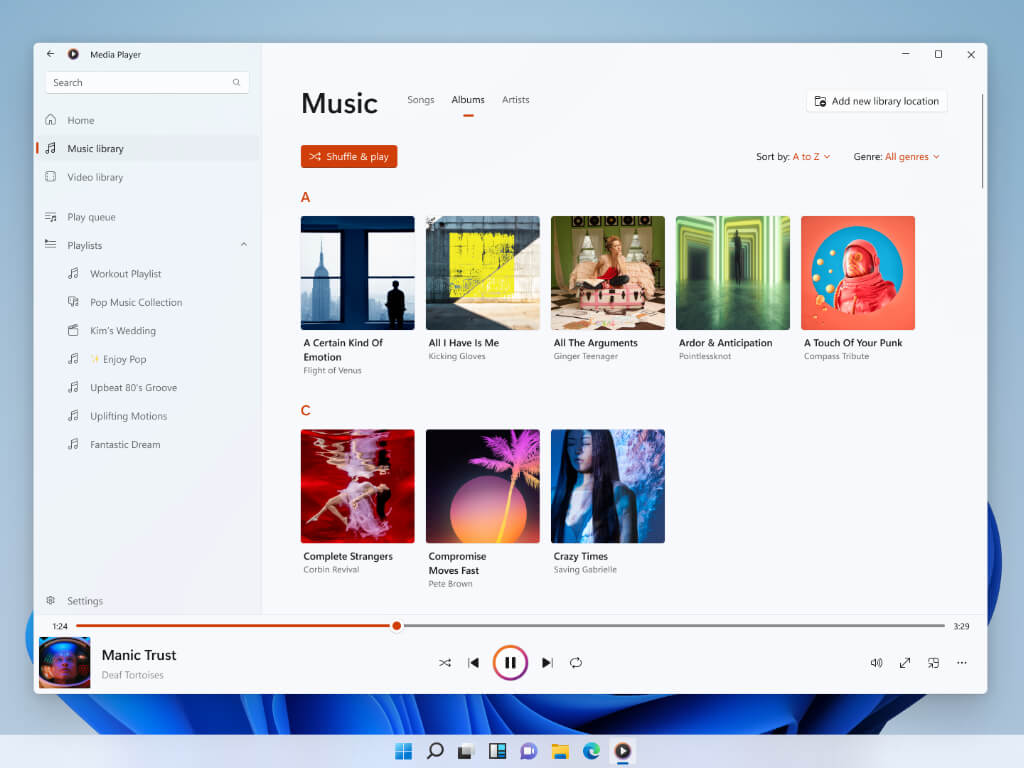


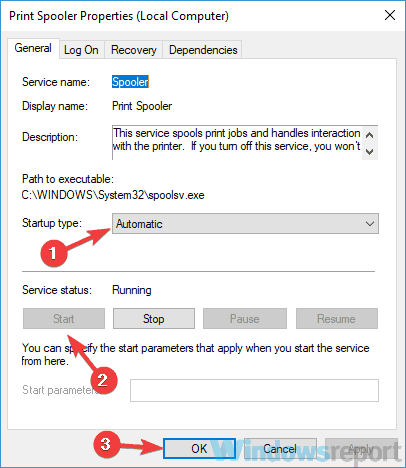
 Software > Microsoft > Windows NT > CurrentVersion” width=”720″ height=”480″>
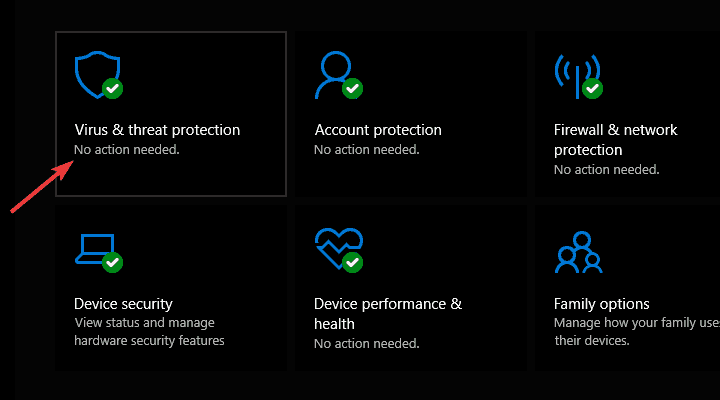

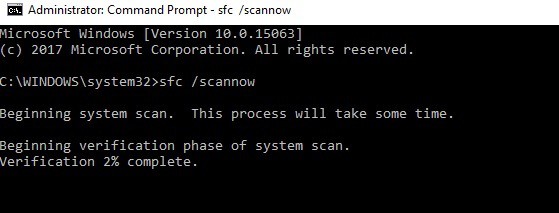











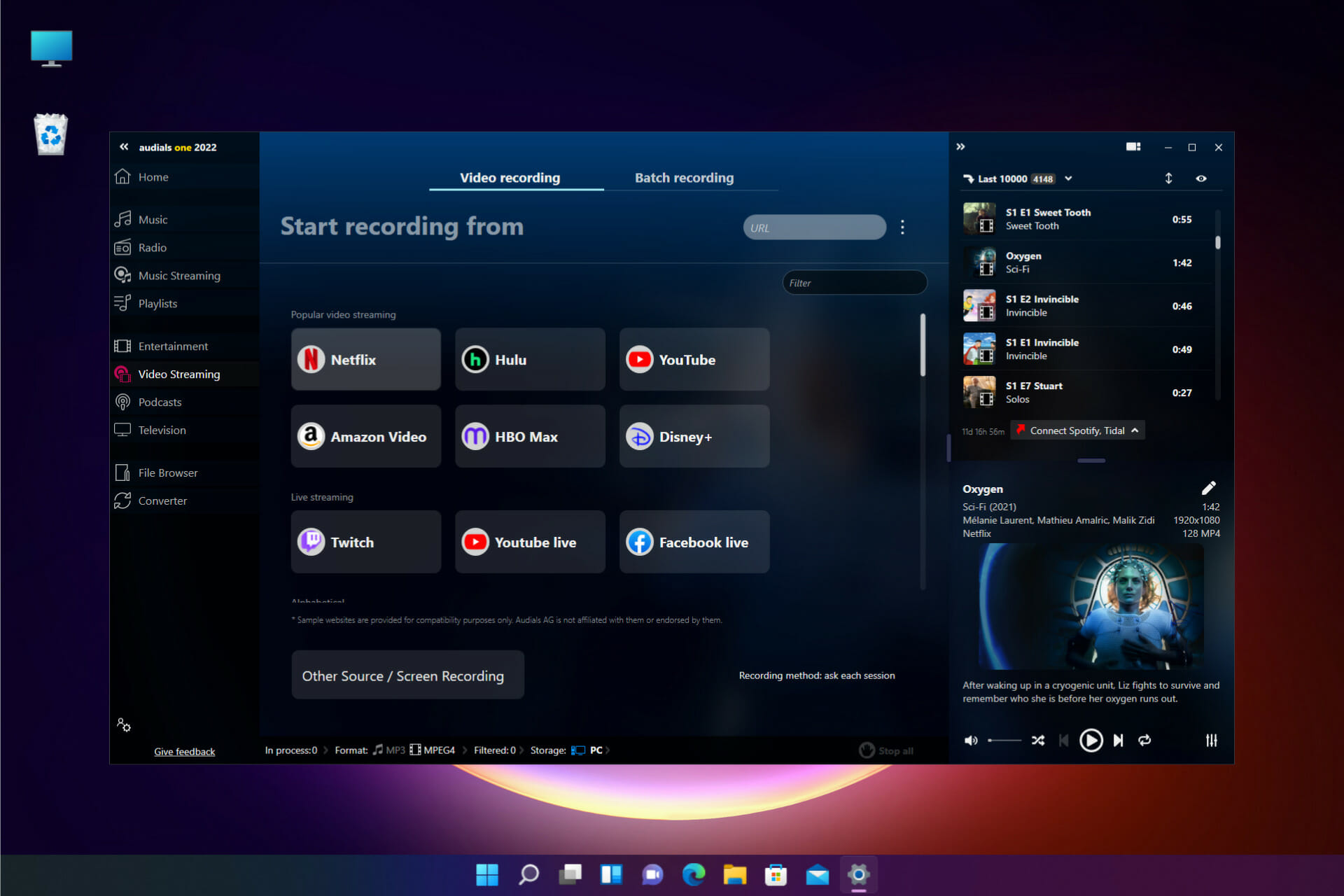


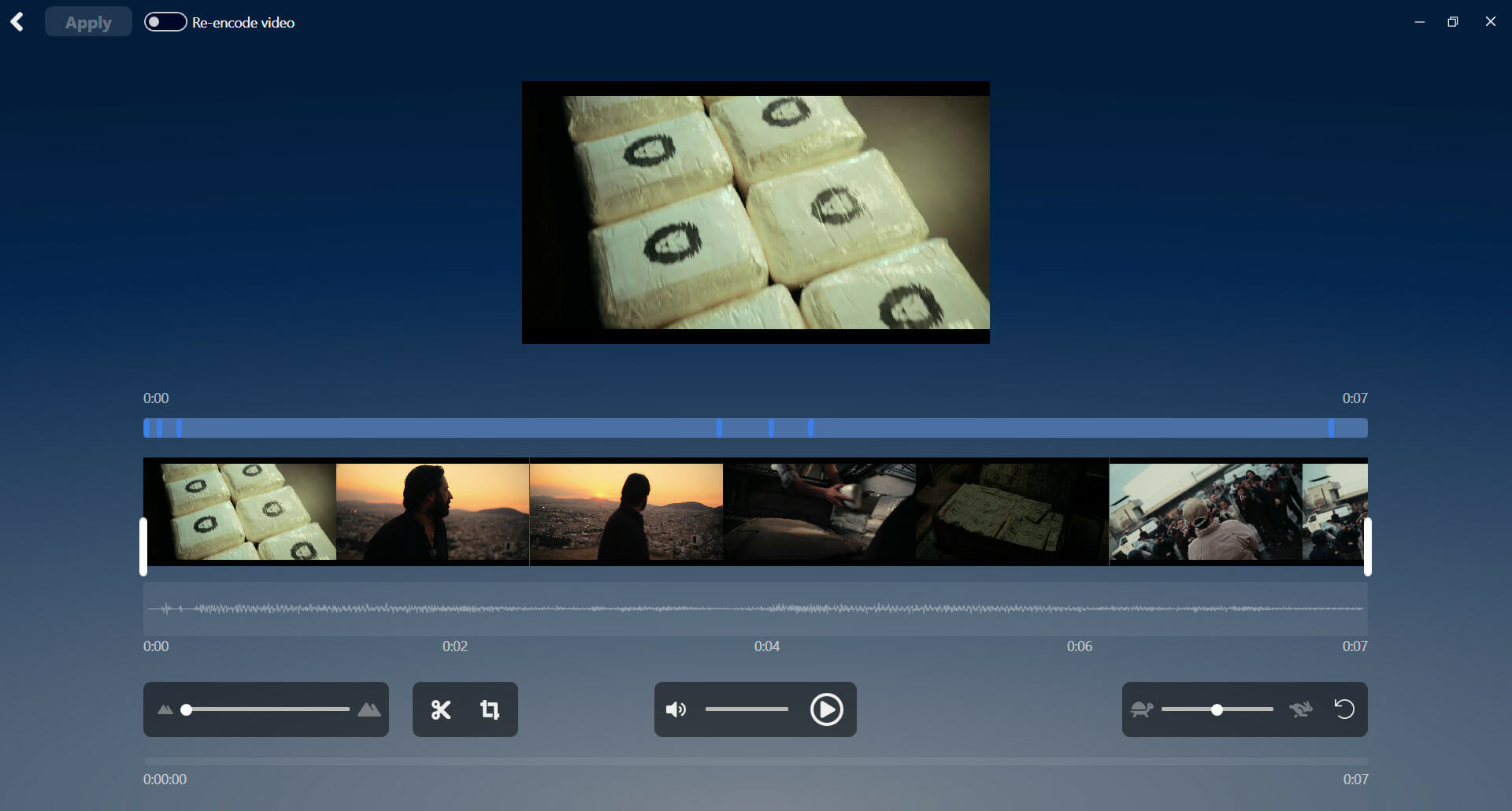
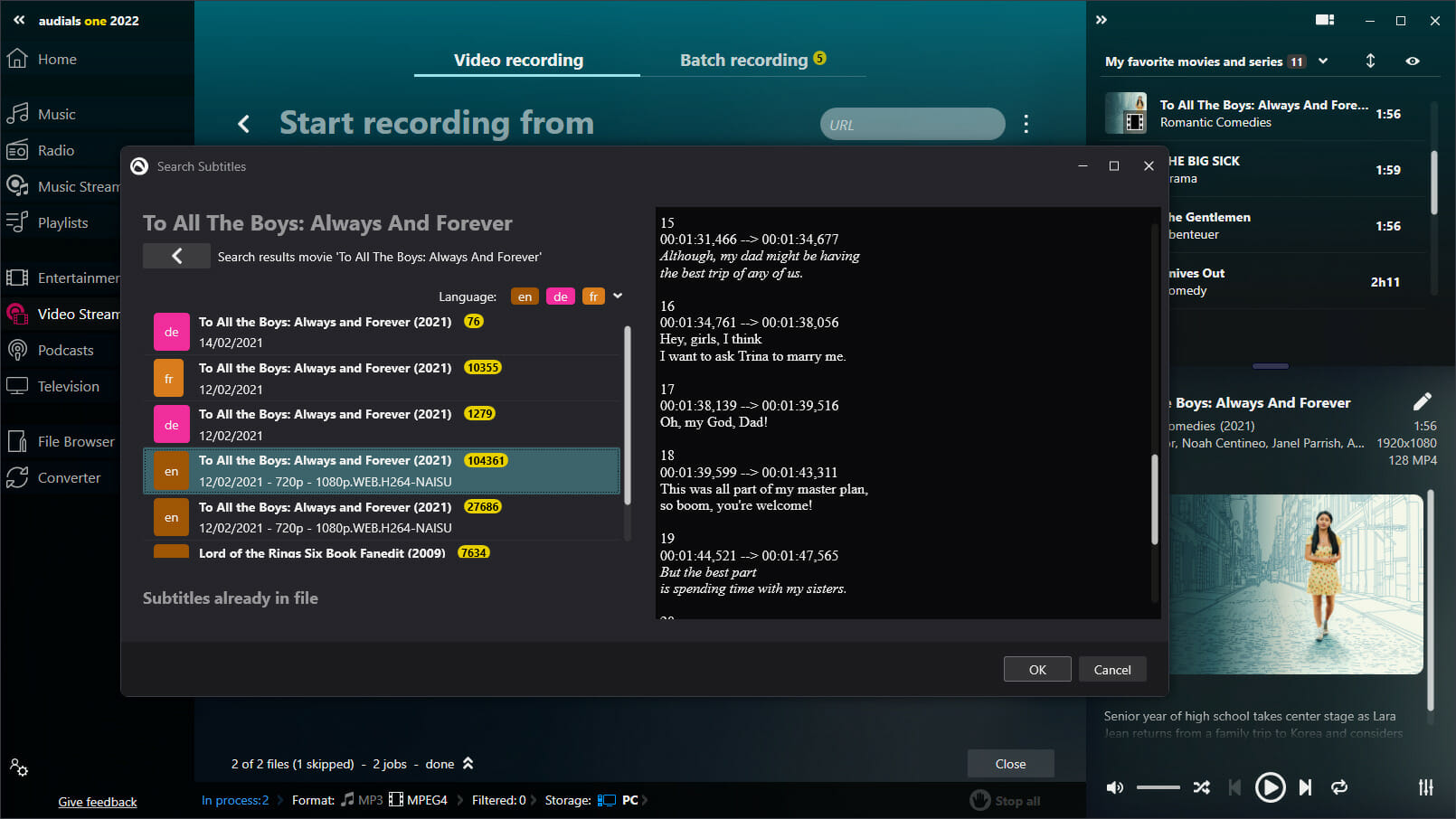
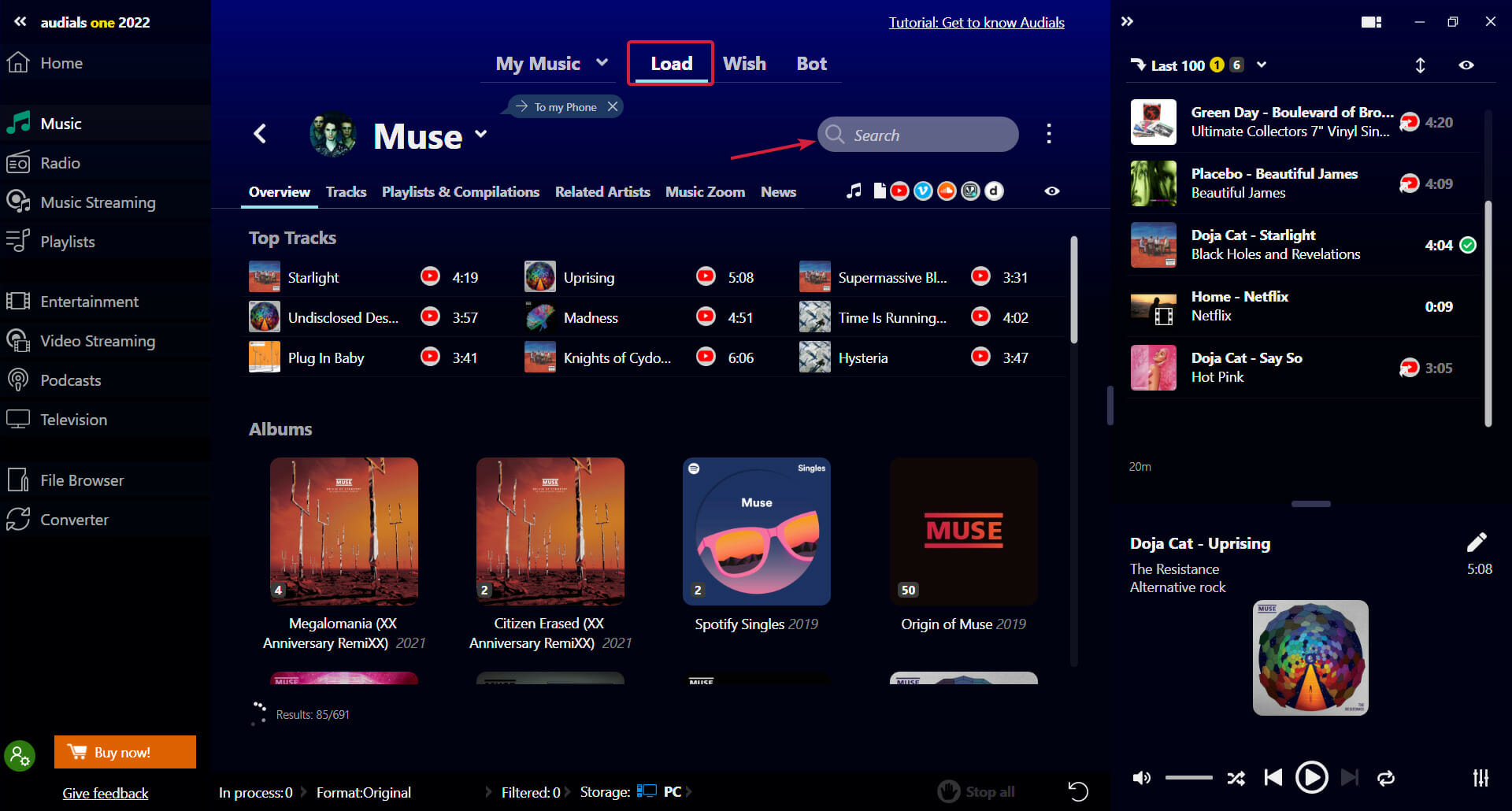



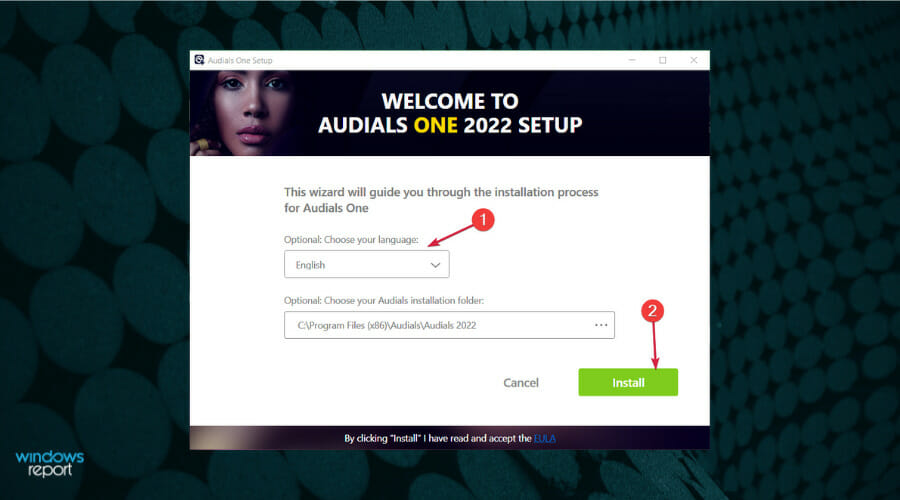
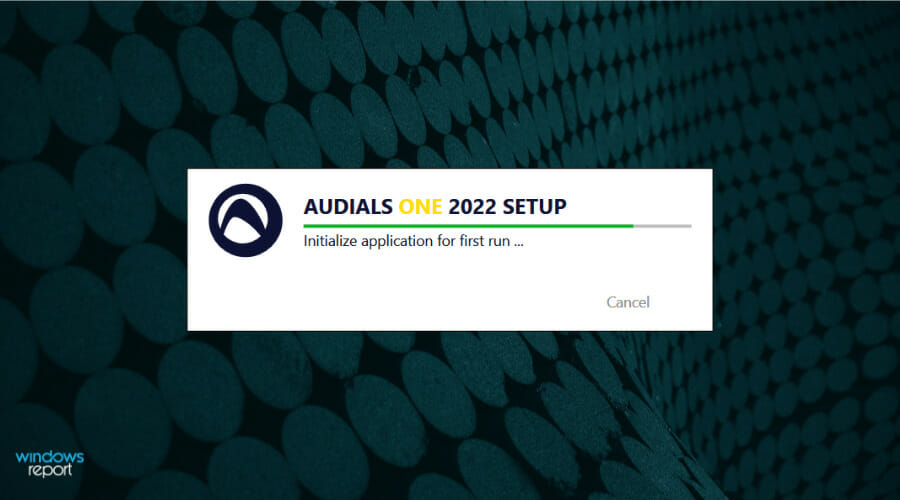


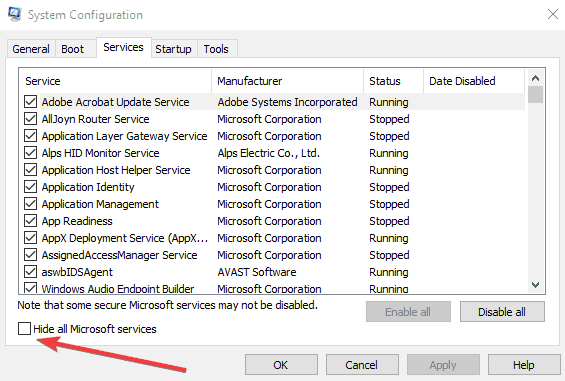
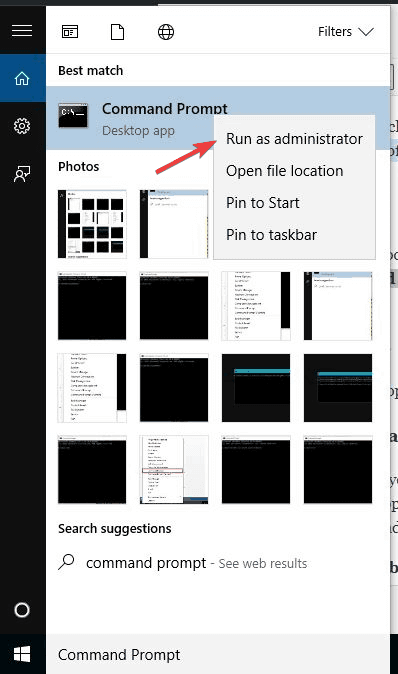
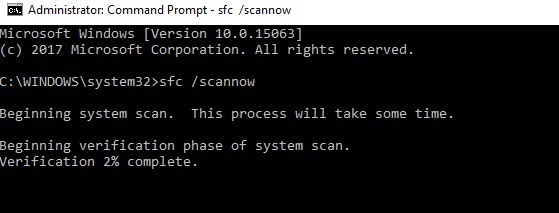
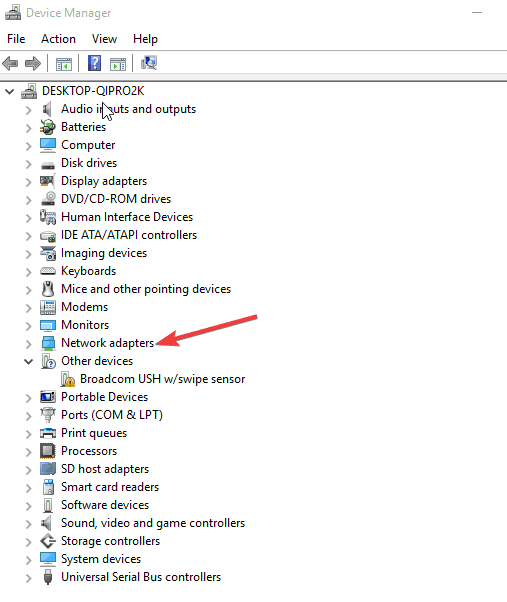
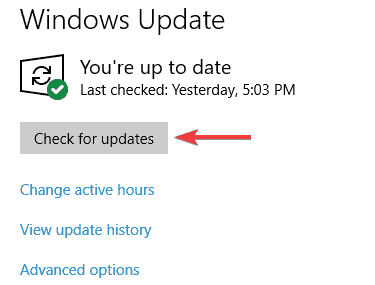
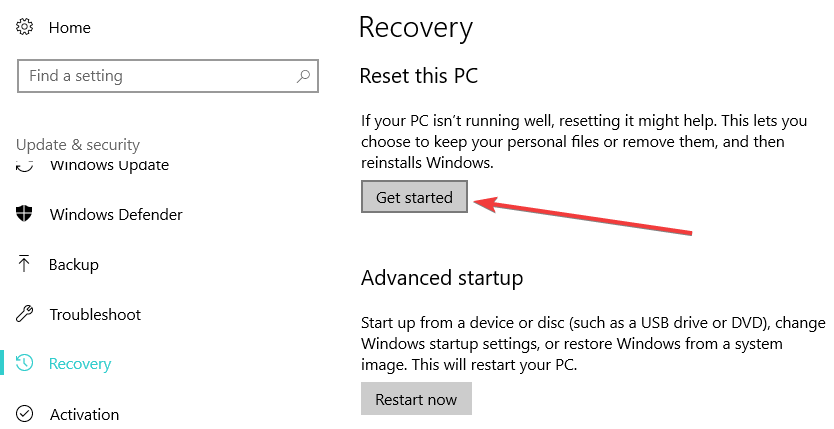



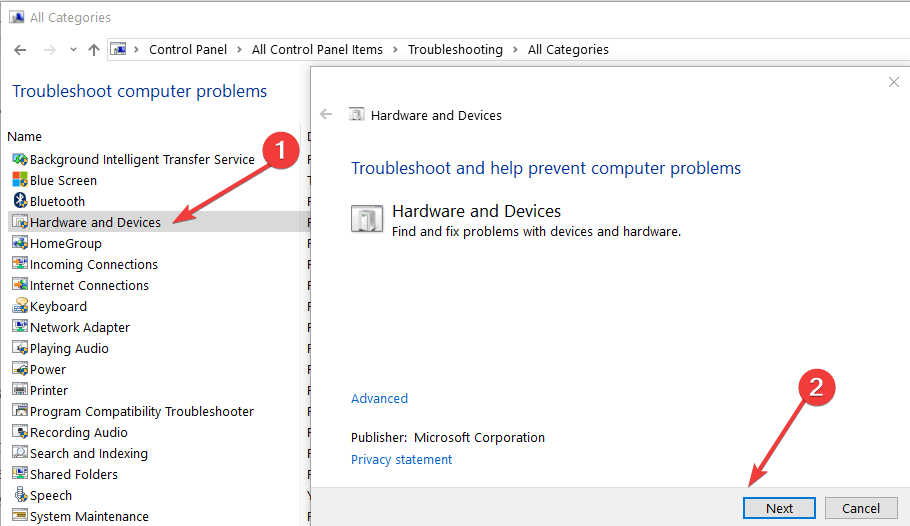




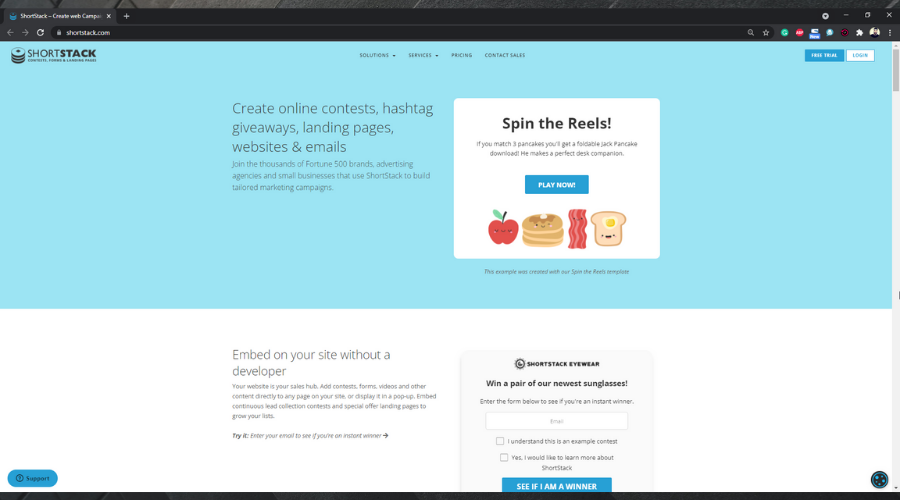








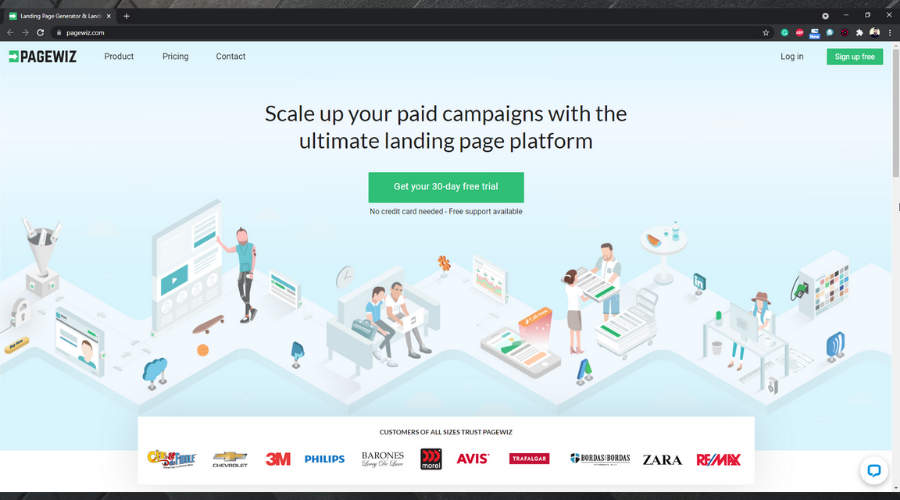




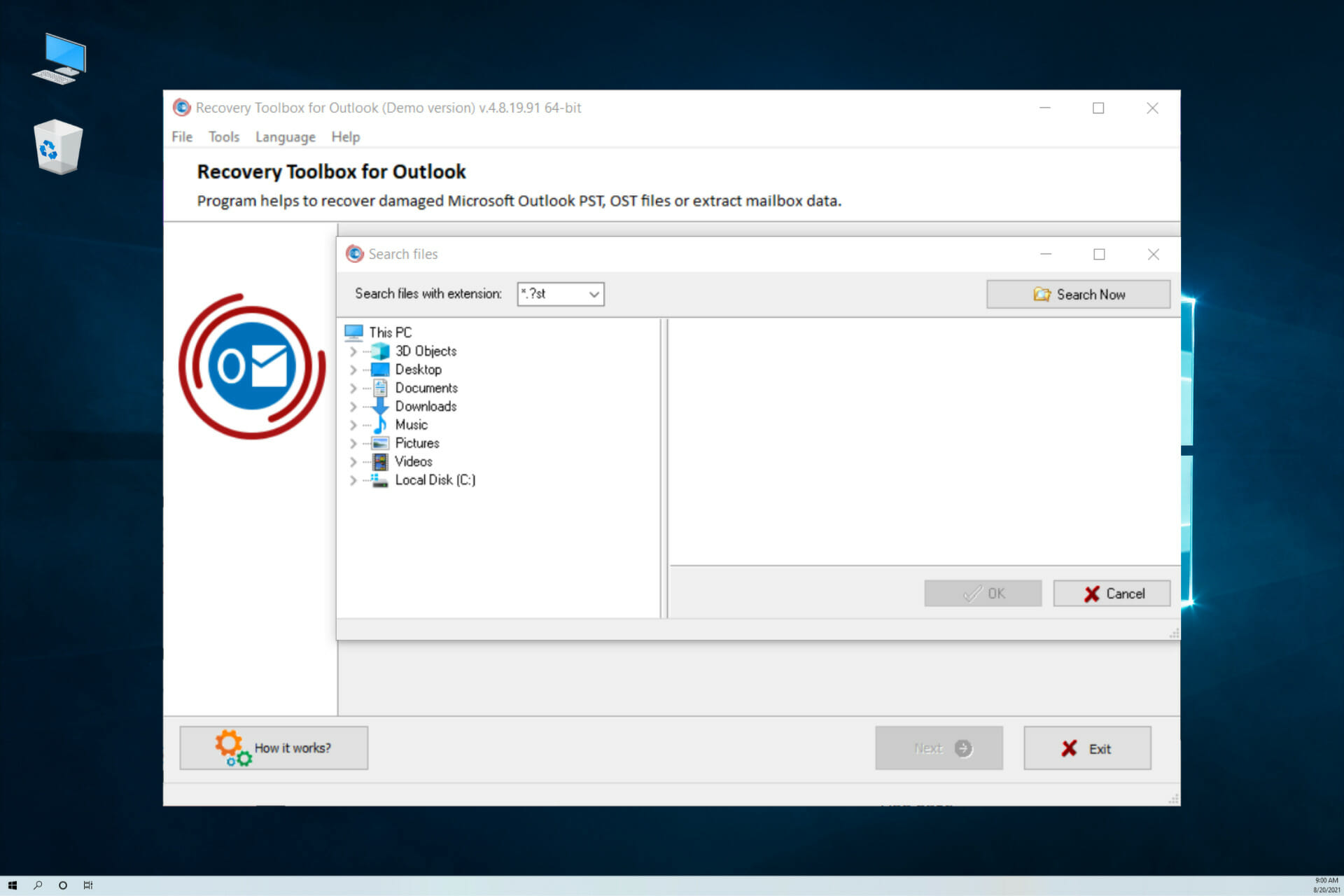
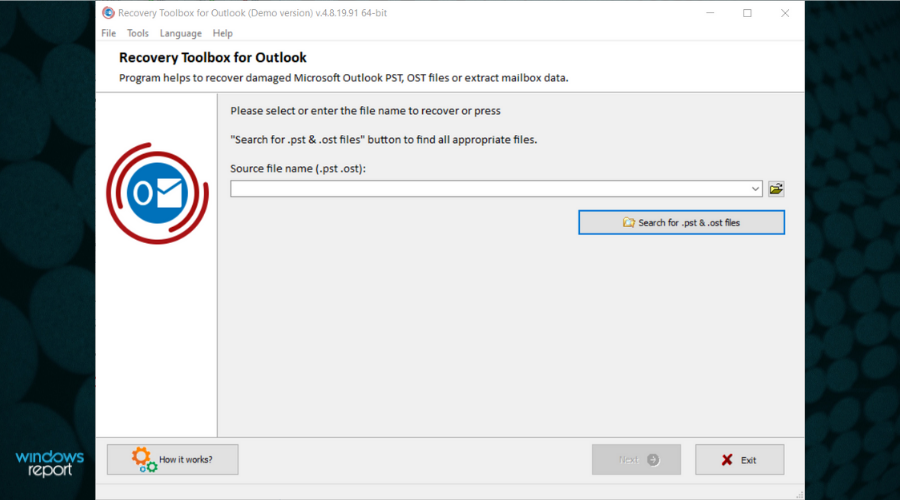
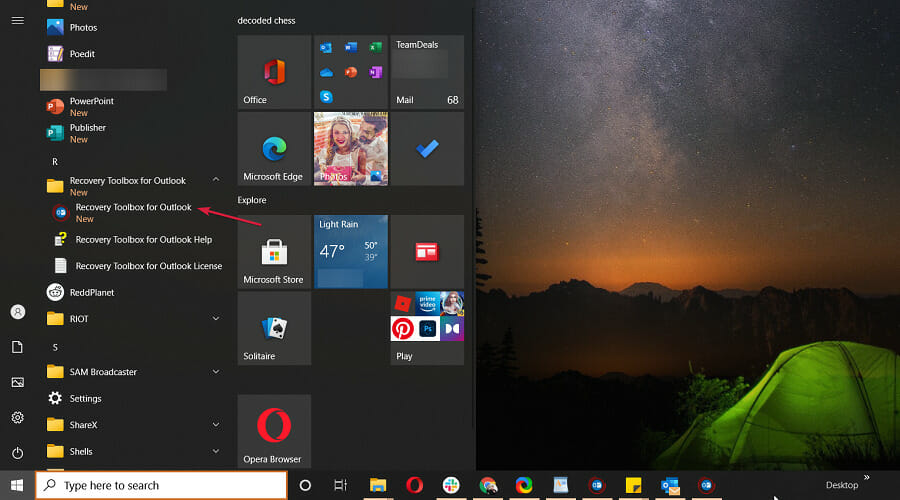
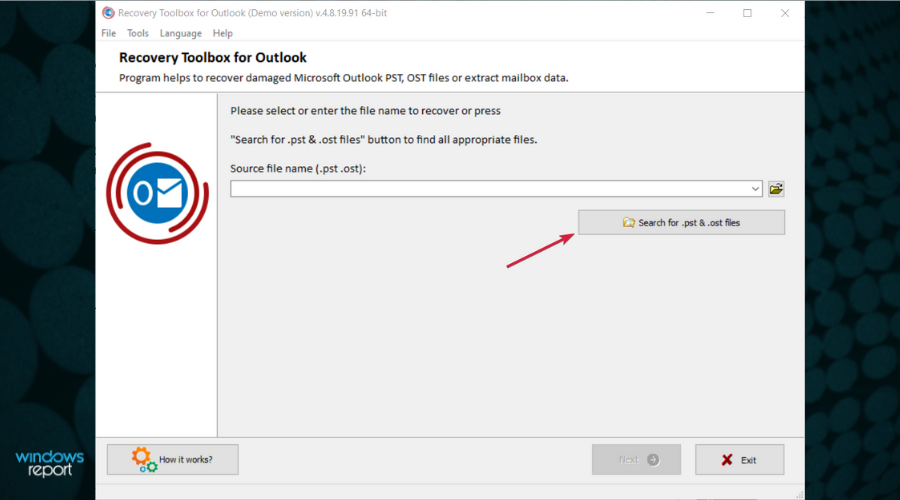
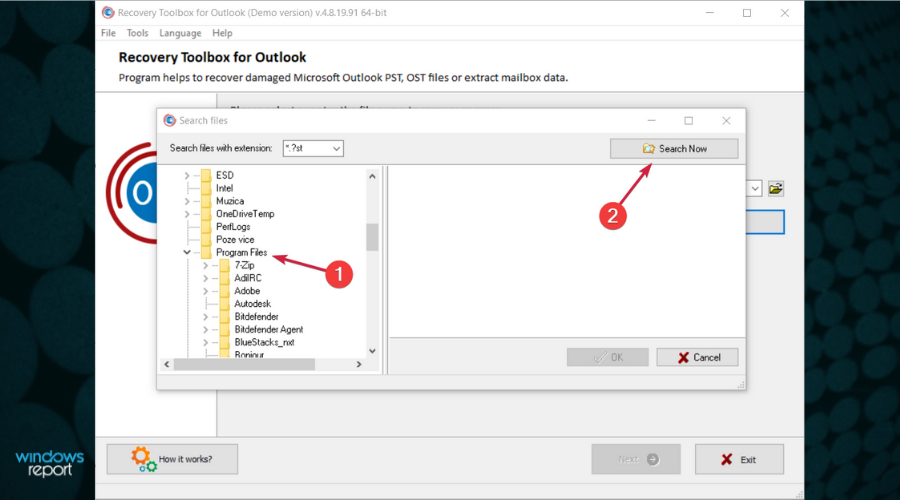
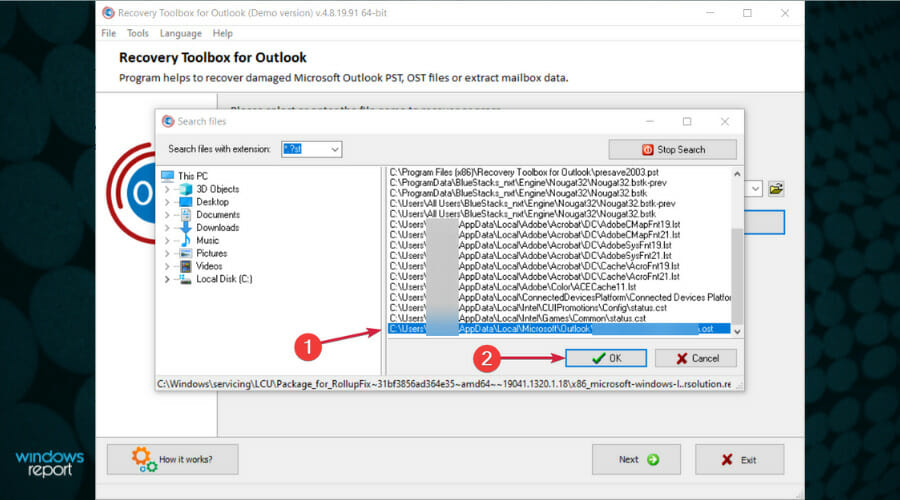
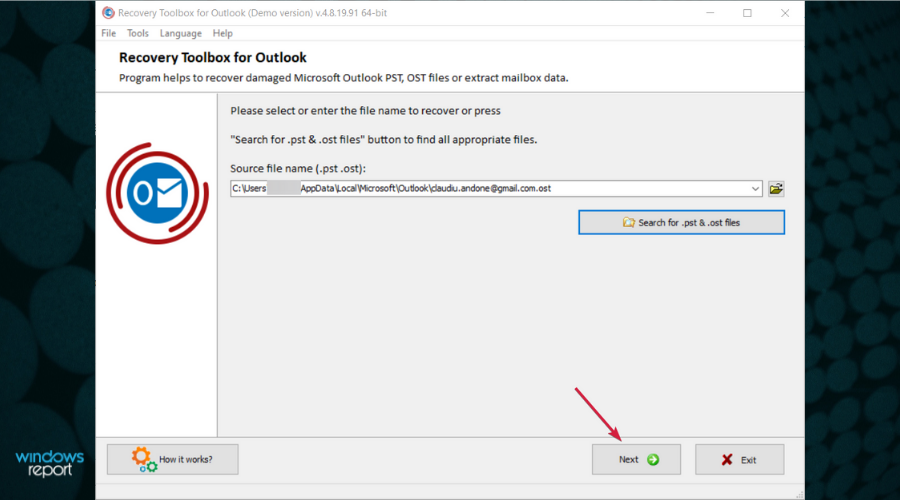
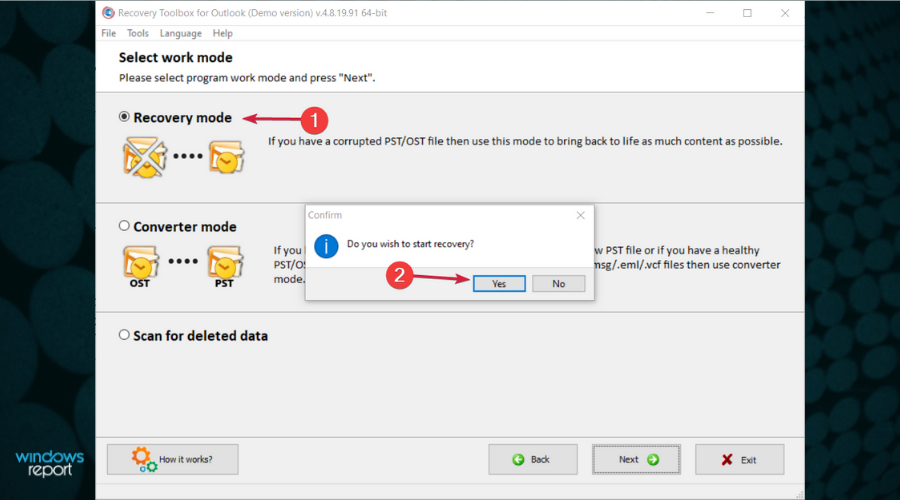
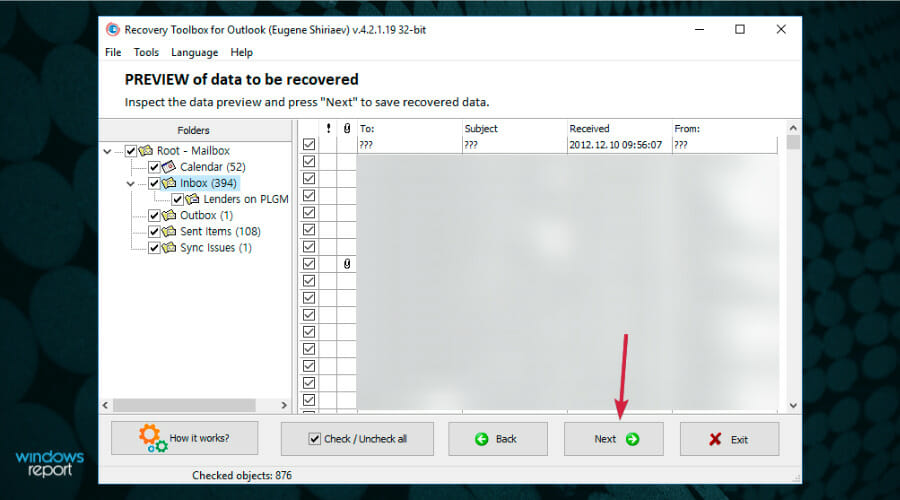
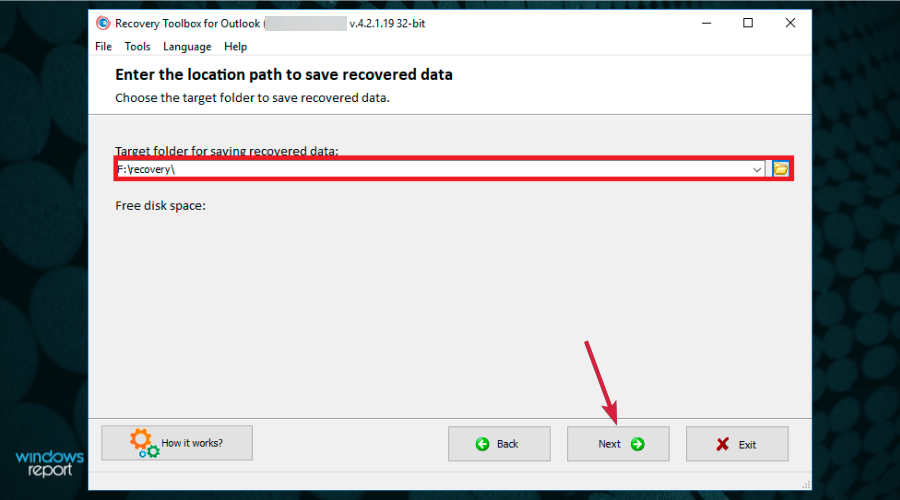
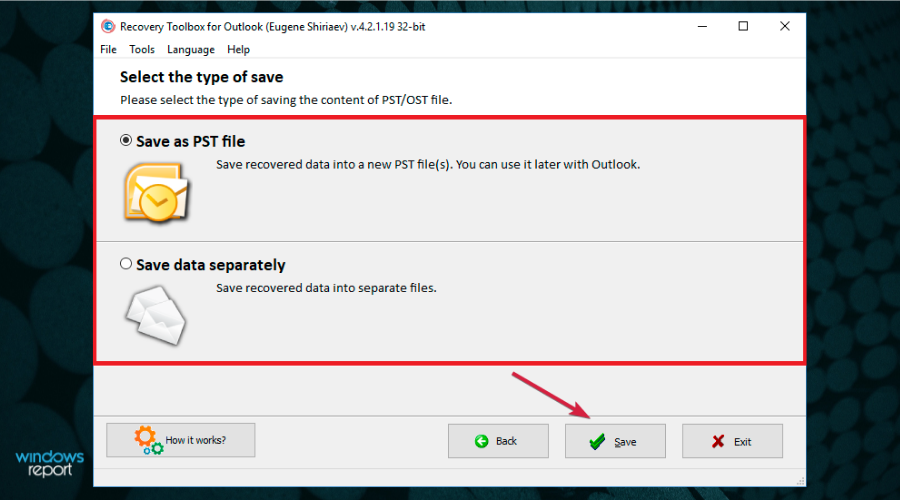
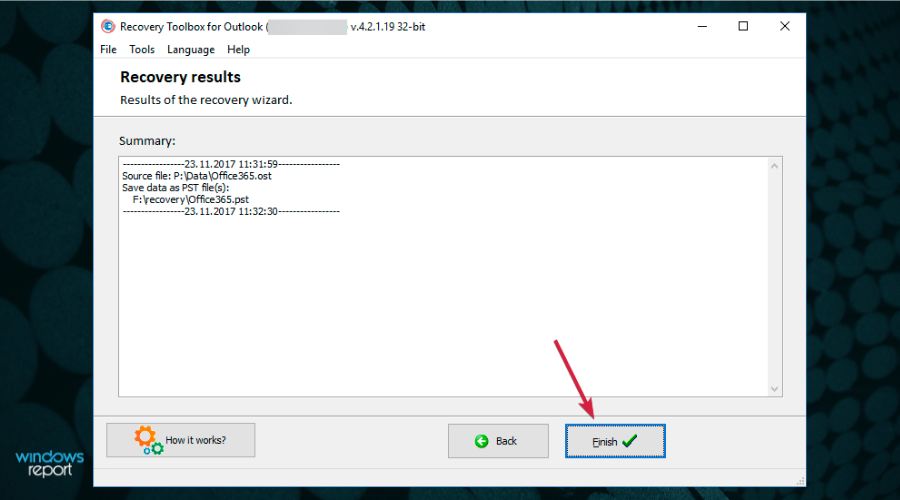
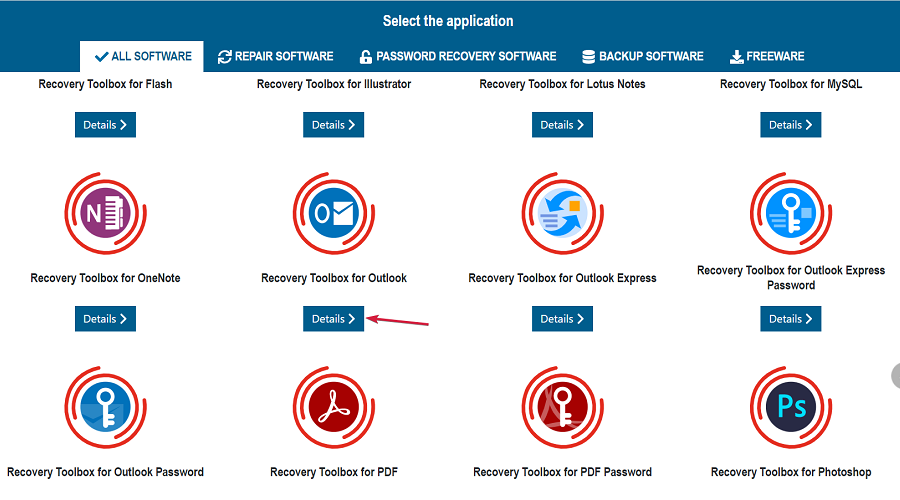
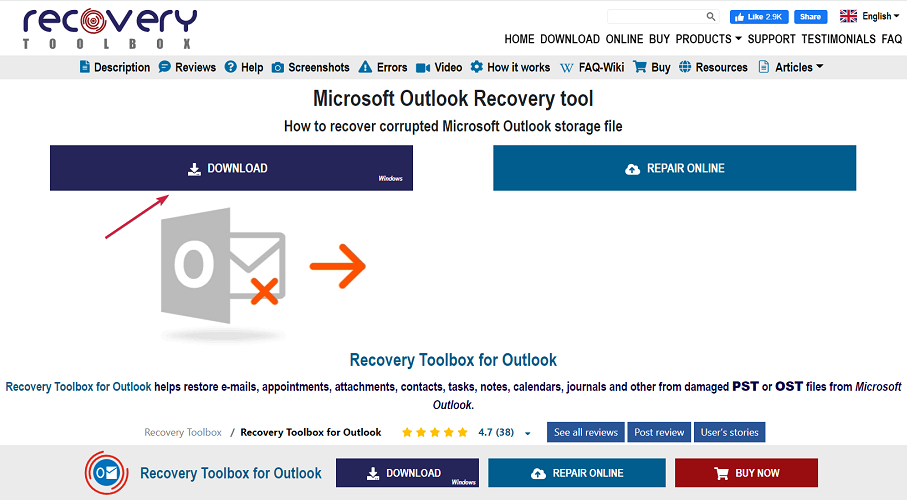
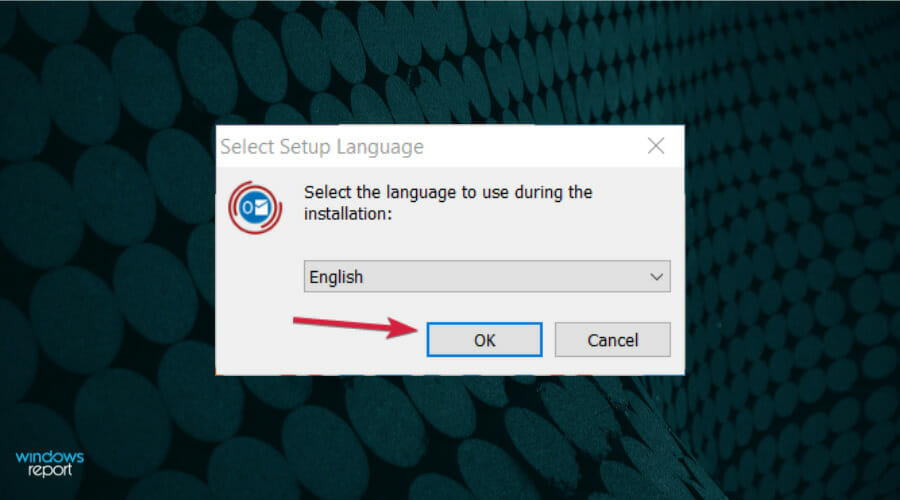
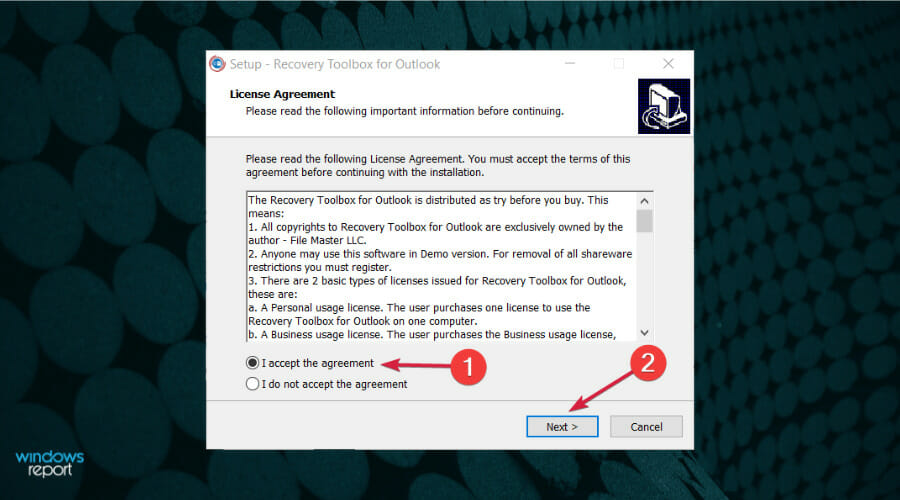
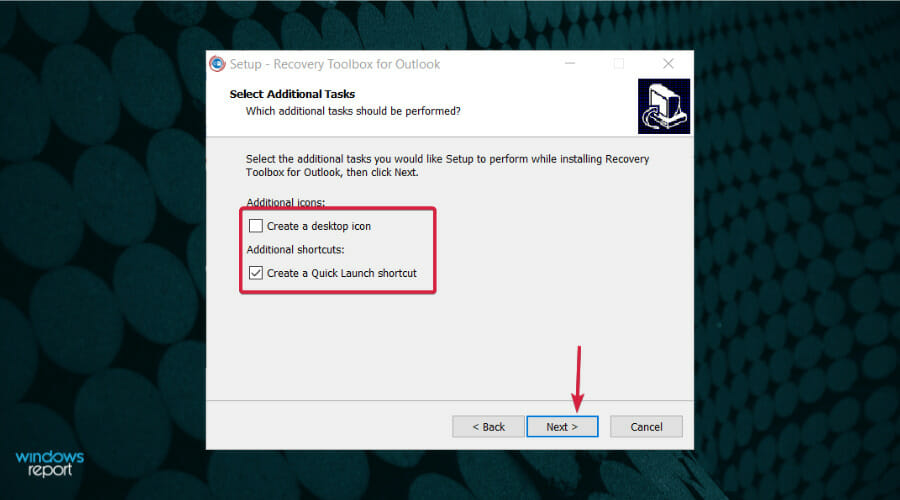
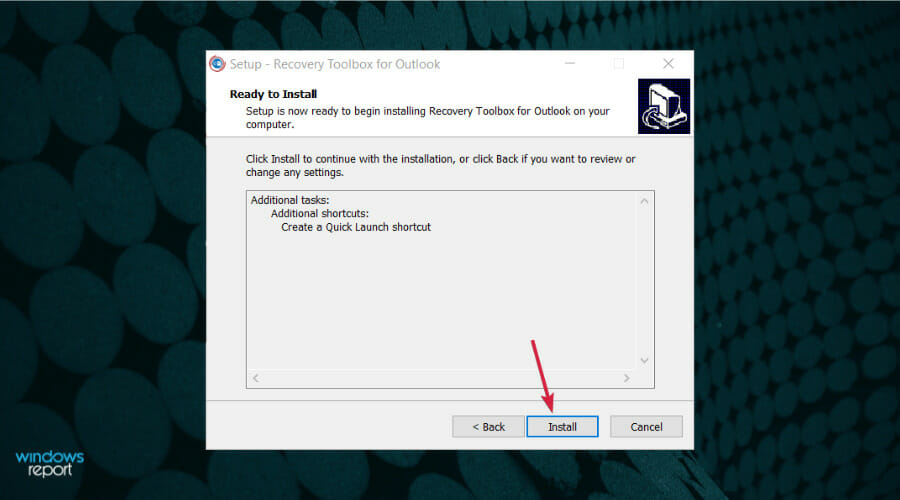
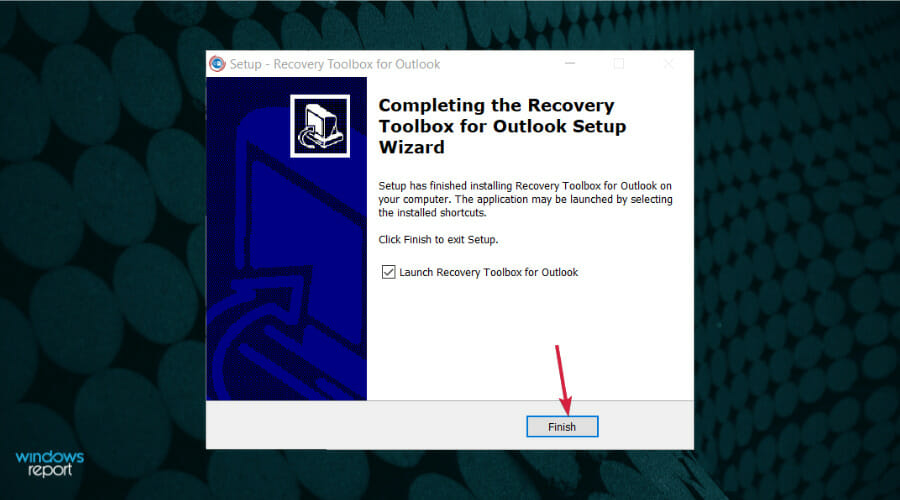



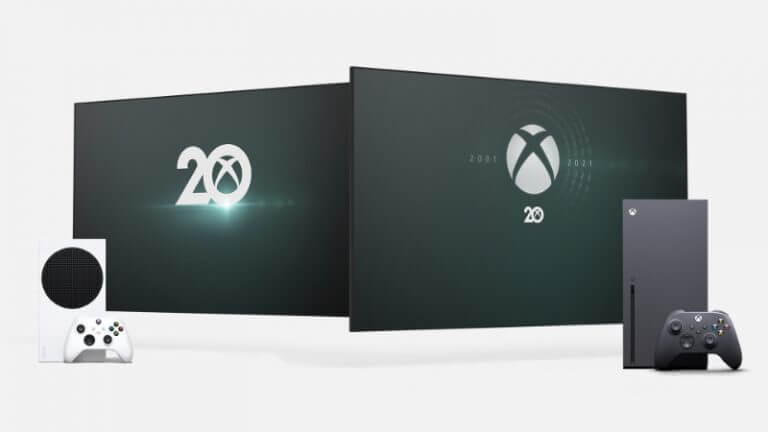
![Solved: Office 365 Known Issues Today [2026 Guide]](https://windowsreport.com/wp-content/uploads/2019/07/Windows-10-Deleted-Microsoft-Office.jpg)



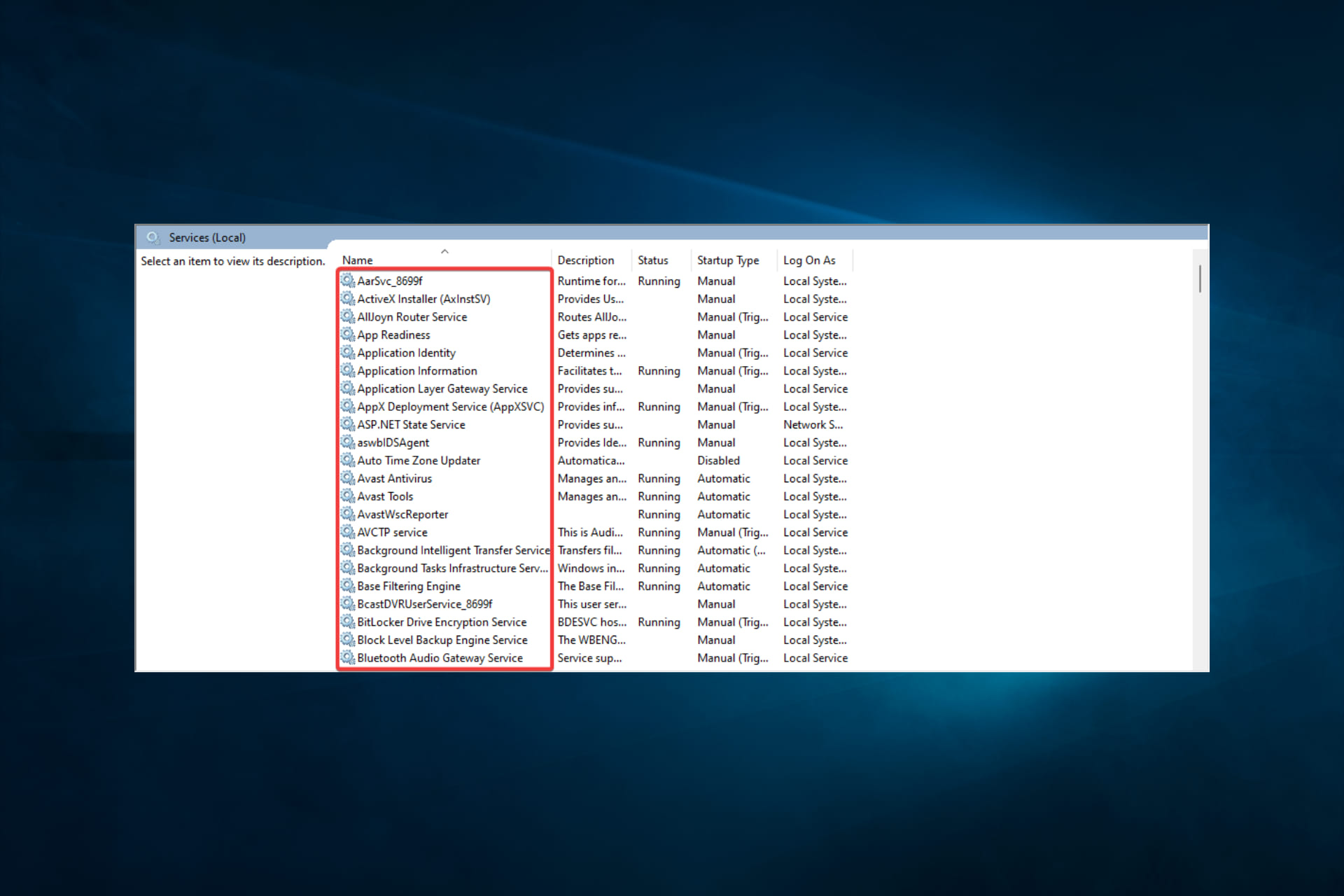

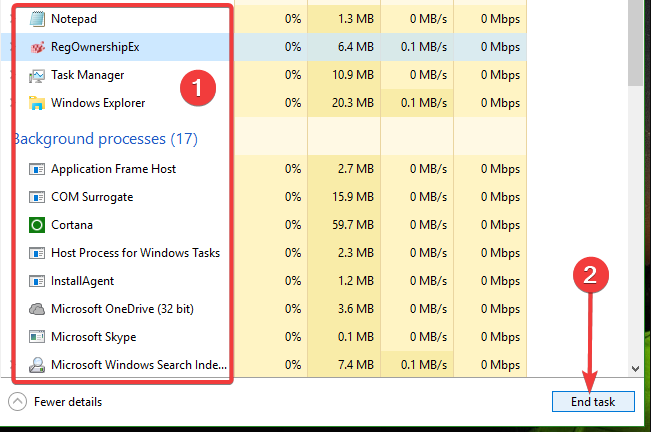


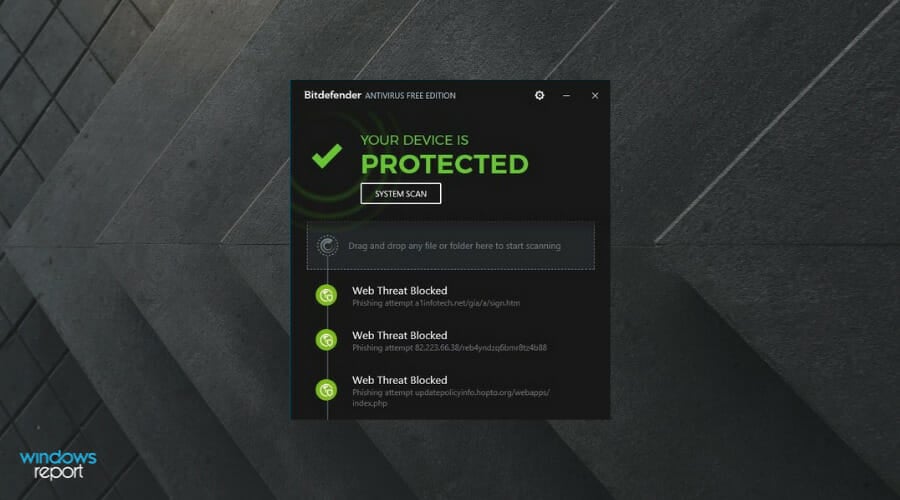
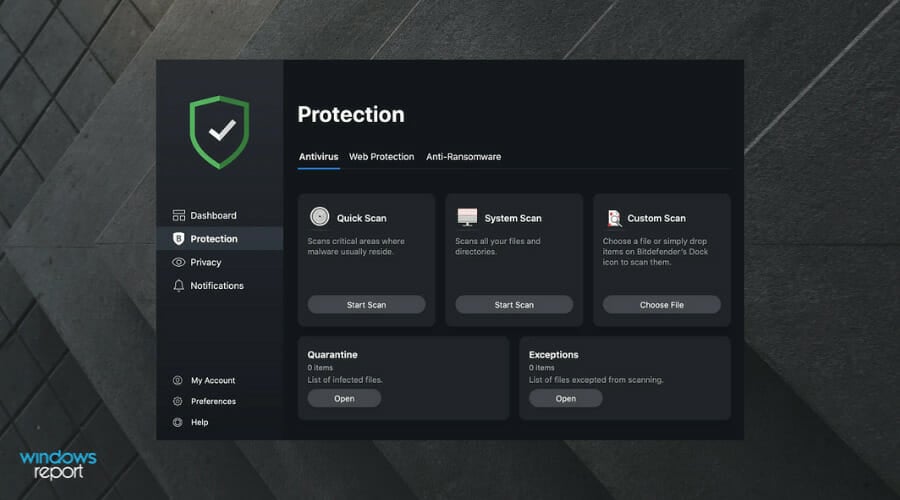
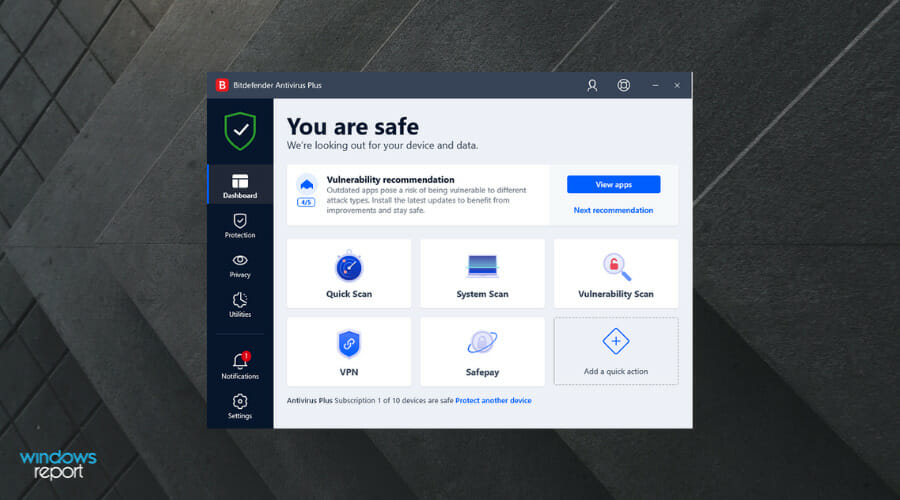
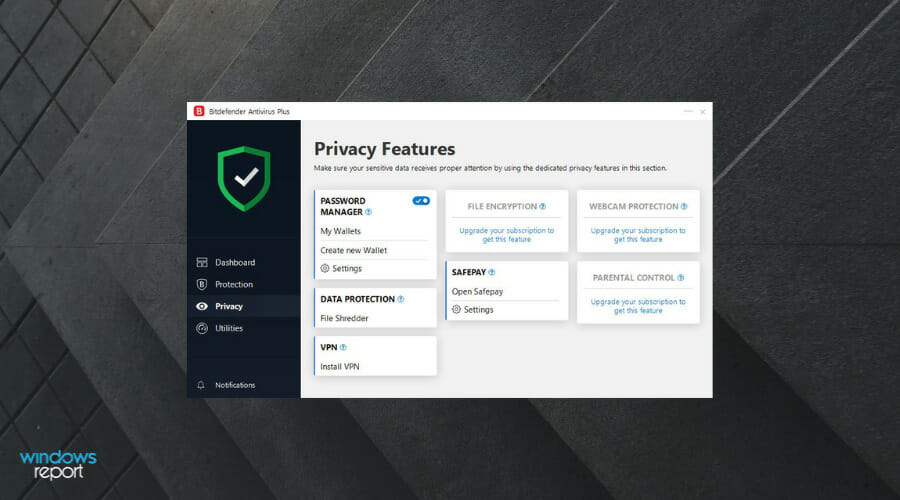


![Windows Slideshow Maker Software [2026 Updated List]](https://windowsreport.com/wp-content/uploads/2021/11/best-photo-slideshow-maker-software.jpg)


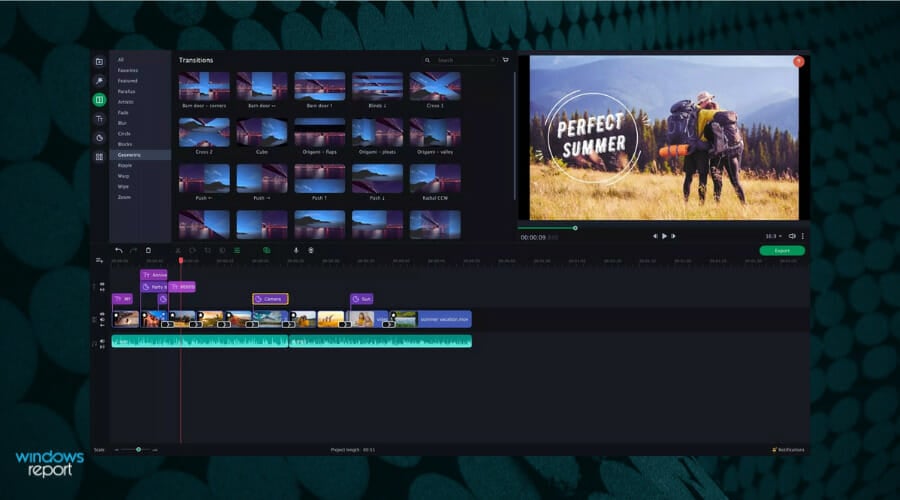

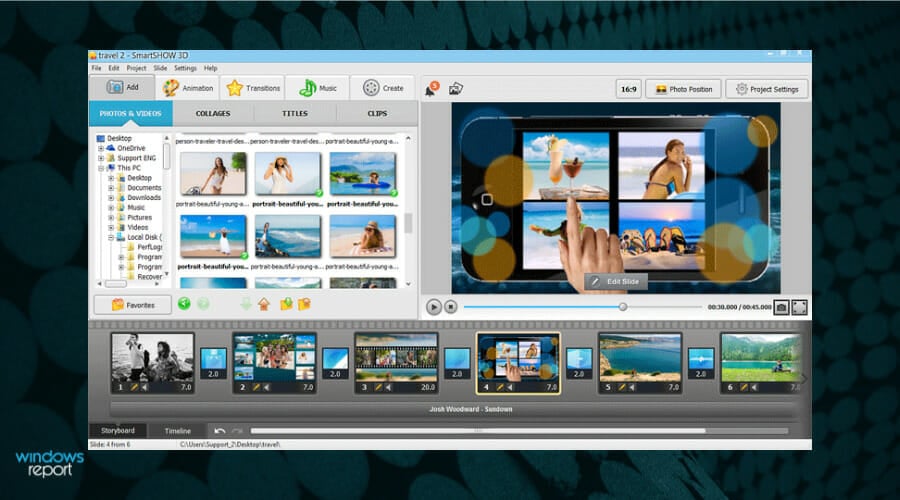

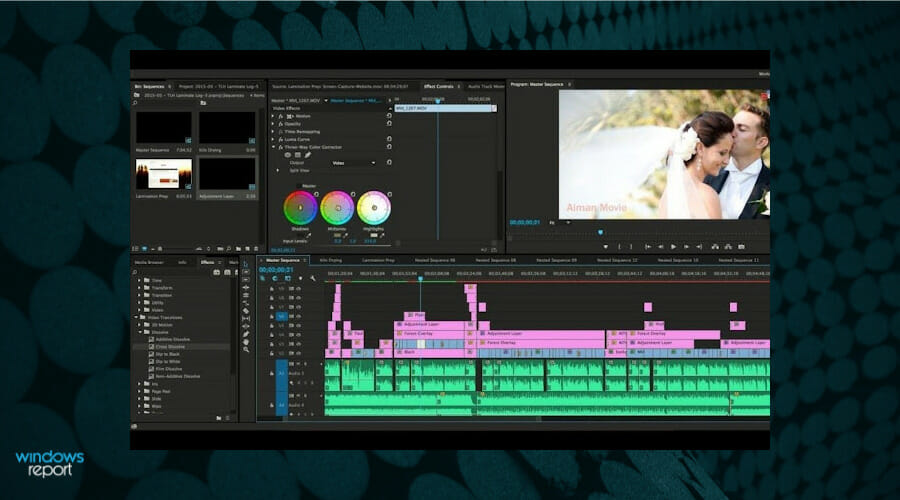
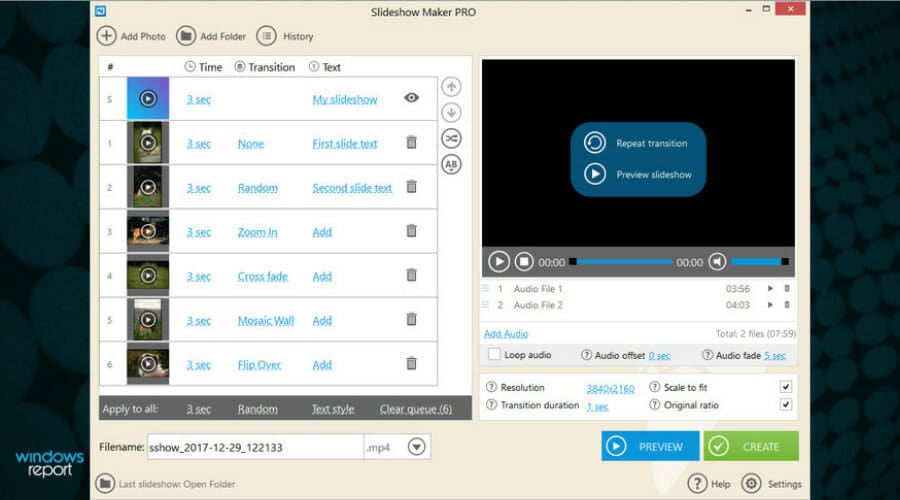

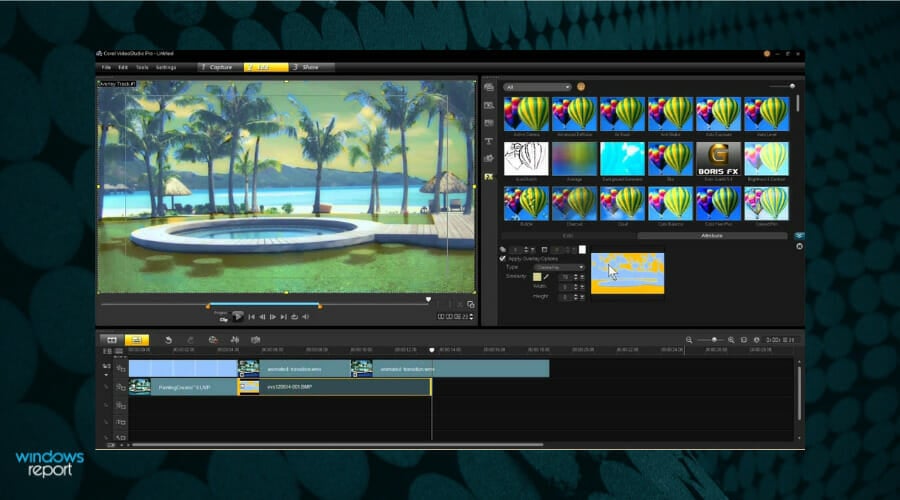

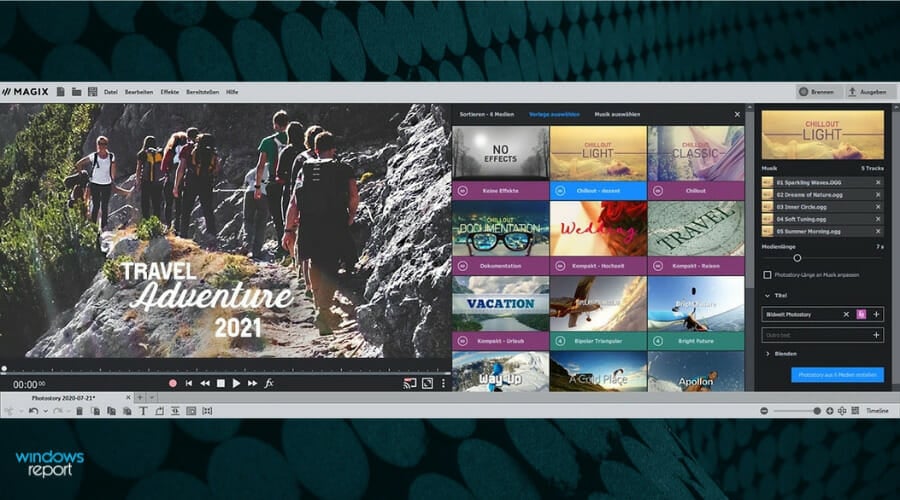

![Microsoft Volume Licensing Login Not Working [Fix Guide]](https://windowsreport.com/wp-content/uploads/2021/11/VLSC-featured-image-windows-11-4.jpg)


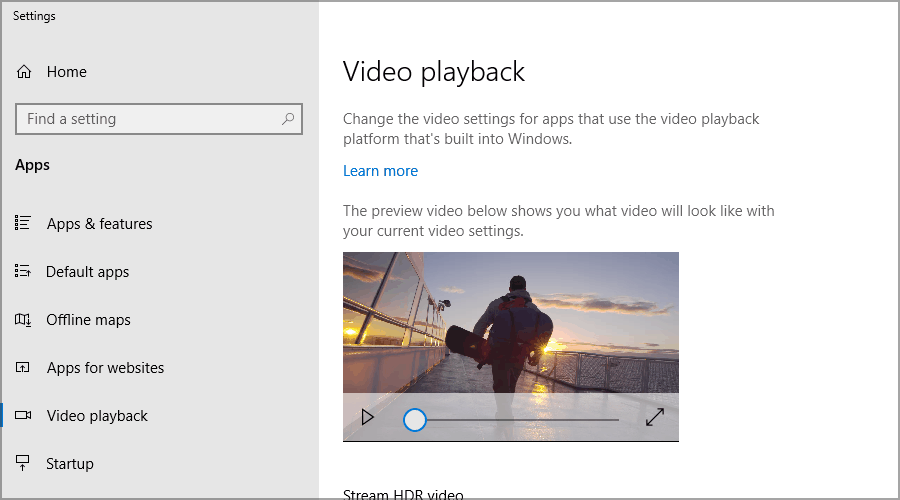


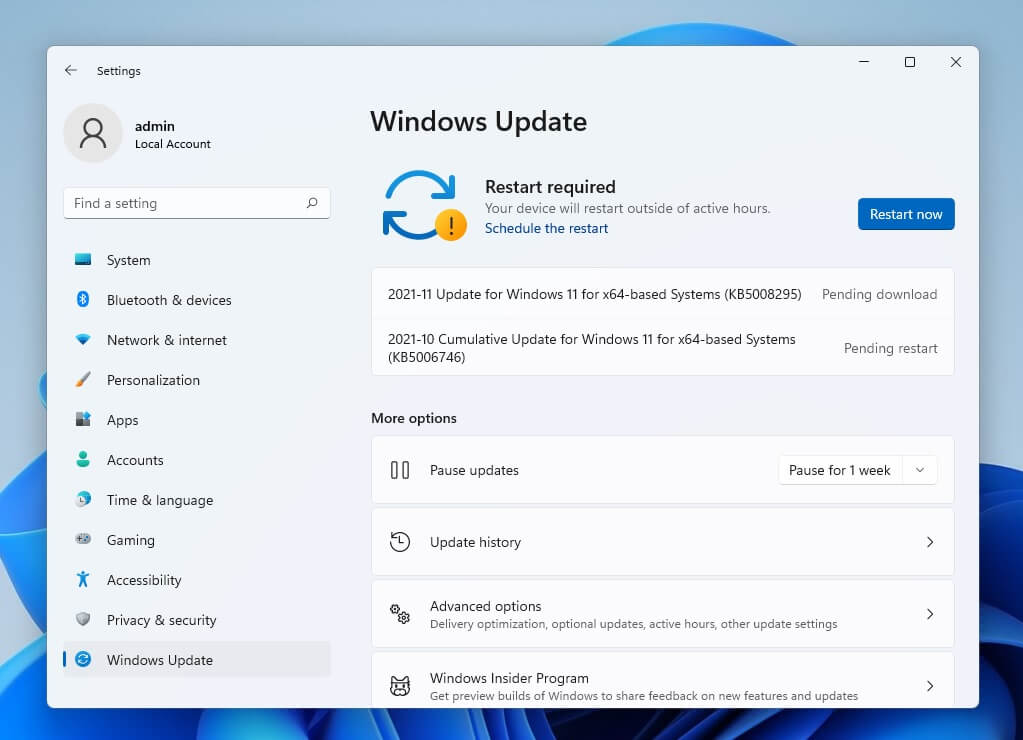





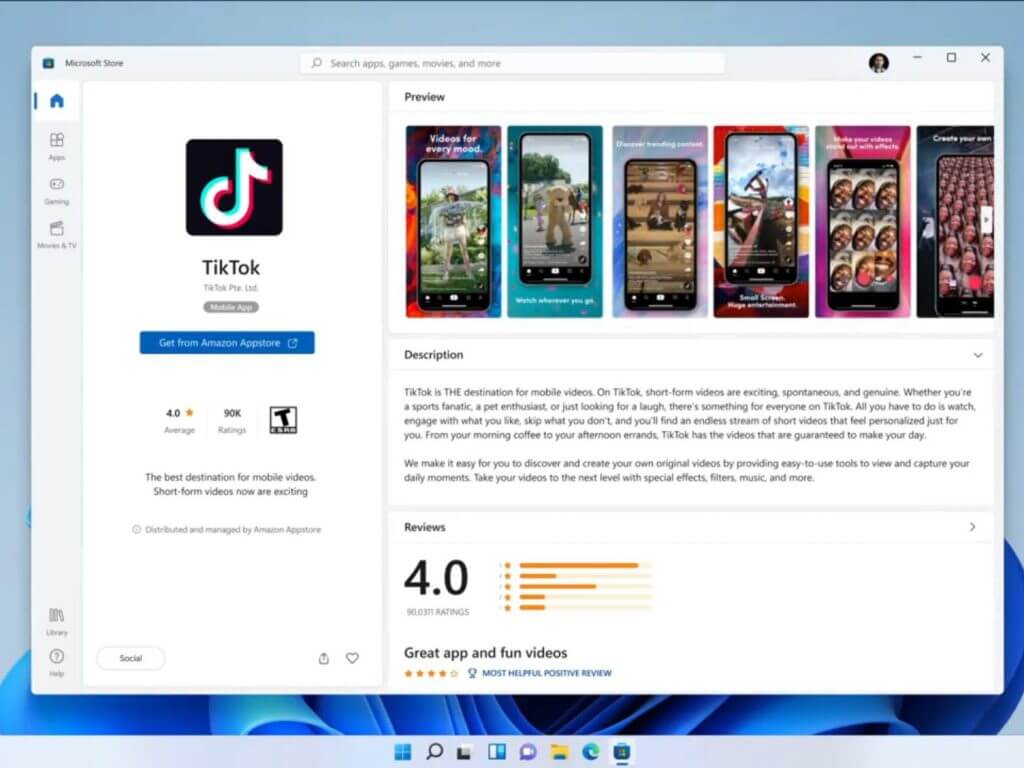

![Photo Calendar Software to Download [Windows + Mac]](https://windowsreport.com/wp-content/uploads/2021/11/best-calendar-software.jpg)