Getting your app into the Microsoft Store: tips and tricks

So you have a great idea for a Windows app, you spent many sleepless nights building it and now its ready for launch. What’s next? well glad you asked because we are going to go through the steps necessary to get your app published and in the hands of your users!

Love them or hate them app stores have given developers a vehicle to get their applications into the hands of hundreds of thousands of users with very little effort, this however comes at a cost. You are restricted to the app stores rules while also having to give them a cut of your sales if your app happens to not be free. Aside from this, the benefits most times outweigh the drawbacks.

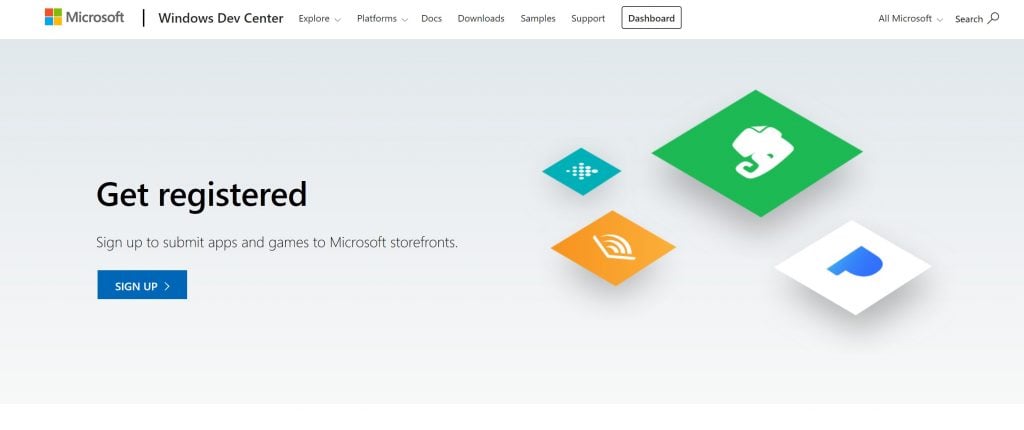
Registering as an app developer

The first step is getting registered as an app developer. Microsoft has made this process extremely easy. You simply head over to their Partner Portal and register using your Microsoft account, if you don’t have one, you will have the opportunity to create one before signing up. The process after that is fairly simple, you provide your name, address and subsequently a payment method to cover your developer account cost. As for the price, well they have made the program very accessible, you pay $19USD as an individual or $99USD as a company. These prices can vary by region.

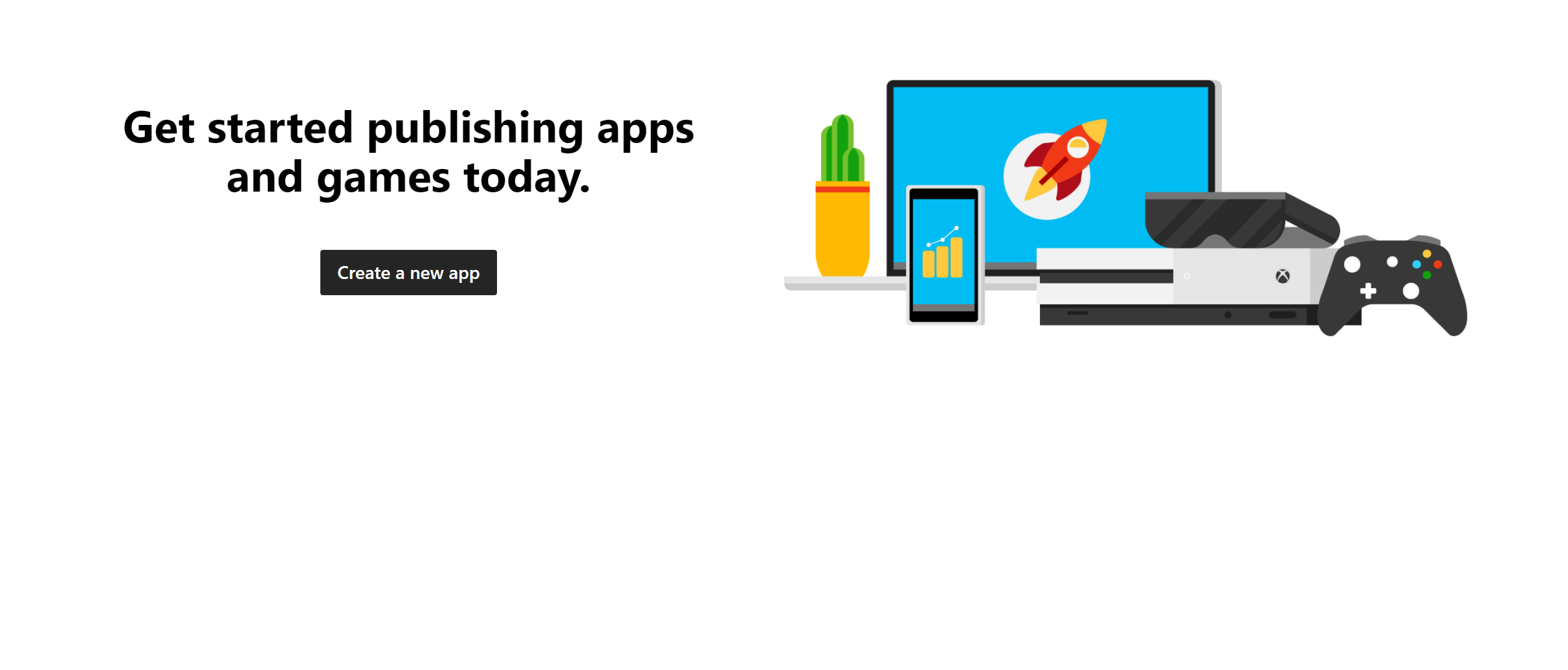
Microsoft Get Started Publishing An App

Creating a new app

After you’ve completed the registration process you will be greeted by the Create an app screen. It is at this point you get to check if your application name is available and reserve it. It is also in this section where you will define things like pricing and market availability, as well as many other properties for your app like which devices it targets, category and any other specific system requirements.

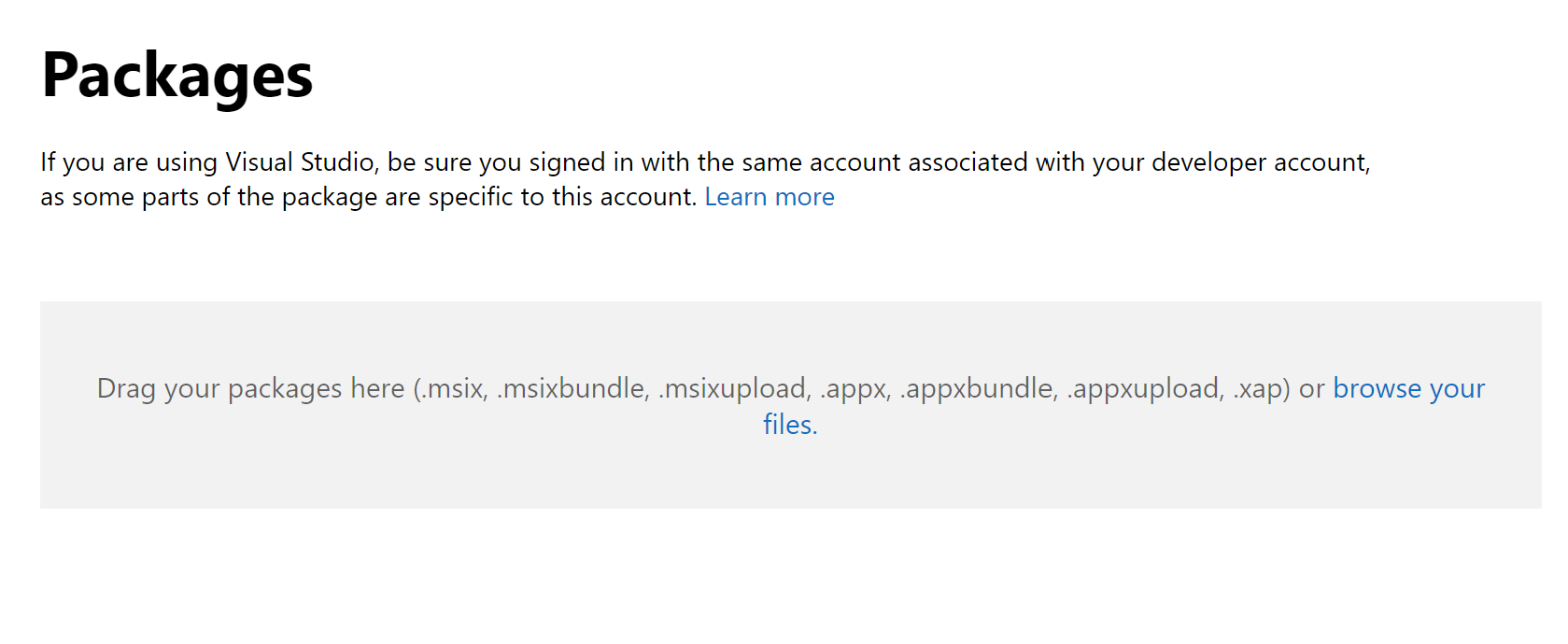
Microsoft App Submission Packages

Uploading your application package

Hopefully you already have an application package ready for submission because one of the steps will require you to upload the package for review. The process is very simple, you simply upload it from your computer. If everything checks out, you will now be able to submit your app for review. This process can take anywhere between 48-72 hours on a first time submission. But subsequent releases will be approved much quicker as the initial verification would have already been, for the most part, done.

Tips and Tricks

Application Name

After you spend hours, weeks or months thinking of the perfect name, you log into the developer portal and try to register your app, only to find out the name is taken. To avoid this heartbreak, make sure you reserve your application name as soon as you figure it out. It is also a good idea to make sure you reserve a domain name to match. This is very important, a name can make or break how successful an application is, don’t risk having to settle for second best.

Pricing

The most successful applications are usually free. If you are thinking about charging for your app, make sure its unique and comparably priced. Your app could be amazing and much better than the competition, but users will usually download free apps first, if they adequately fulfill their needs, more often than not, your app will be overlooked.

In-app advertisements and In-app purchases

As mentioned above, most successful apps are usually free, however there are still ways for you to make money from your hard work. One of those is with in-app advertisements, these are not going to make you rich overnight, but they will provide a steady revenue stream which can help offset your development costs and fees. With that said, be careful, try not to go overboard with these as users tend to shy away from apps cluttered with ads.

Another approach is to provide users with extra features or perks which are activated through in-app purchases. Locking features behind paid tiers in your application can be a sound approach, provided the basic free functionality is robust enough to entice users to feel comfortable about upgrading.

I hope this information, tips and tricks can save you time and help you on your journey to building the next great universal windows application! Tell me if I missed anything in the comments below. Also check the official Microsoft documentation on getting started.

First images of Xbox Cloud Gaming working on the web leak

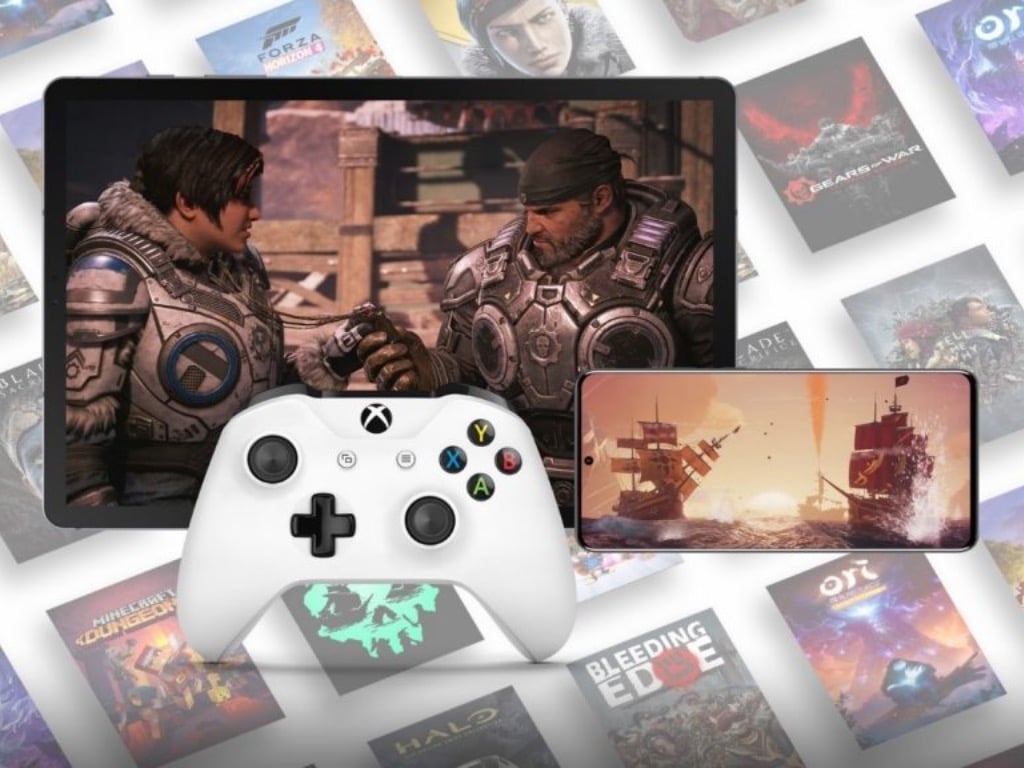
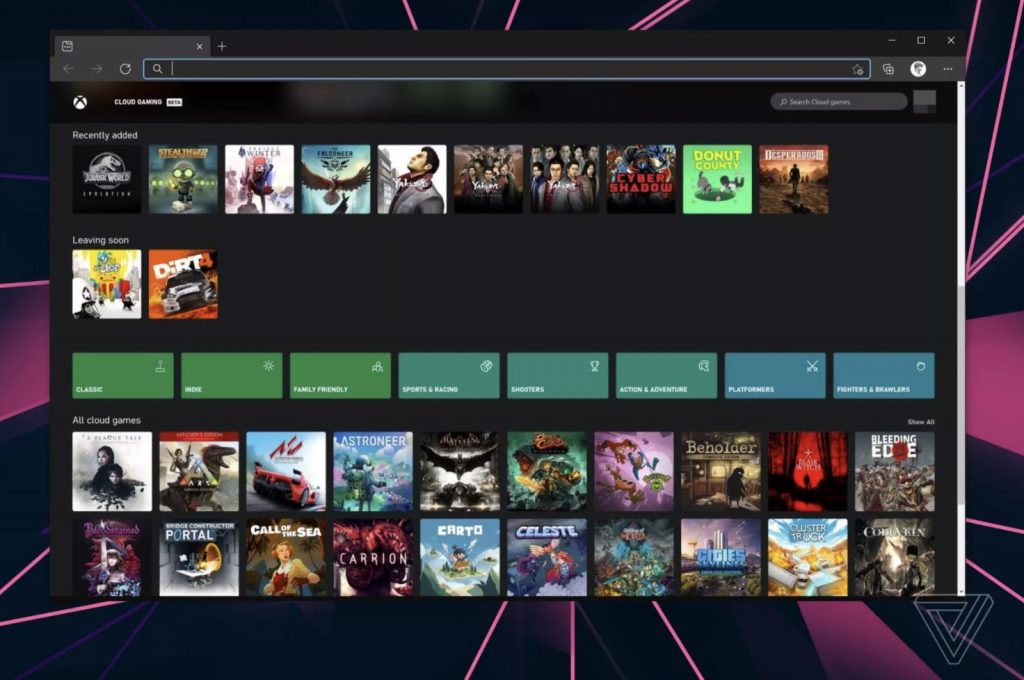
Microsoft is currently testing internally a web-based version of its Xbox Cloud Gaming service, and the first screenshots of the web client have been published by The Verge today. Xbox Cloud Gaming is currently restricted to Android phones and tablets, but a public preview of the web app could be coming later this Spring.

Similar to how the Android app works, Xbox Cloud Gaming on the web will highlight cloud-enabled games from the Xbox Game Pass for Console catalog, which will require an Xbox controller on PC. The Verge is reporting that the current web app only supports Chromium-based browsers including Google Chrome and Microsoft Edge, but Microsoft may integrate the Xbox Cloud Gaming experience to the Xbox app for Windows 10 as well.

Xbox Cloud Gaming On The Web
Image credit: The Verge.

Supporting the web will also allow Microsoft to bring Xbox Cloud Gaming to iOS and Mac devices, something that Apple’s restrictive App Store rules have made impossible so far. If Microsoft announced that Windows 10 was running on over 1 billion devices last year, Apple announced last month that the company now has an active installed base of 1.65 billion devices, which is a sizeable audience for Xbox Cloud Gaming.

Even though Microsoft is adding support touch controls for an increasing list of Xbox Game Pass games on Android, these console games remain better suited for bigger screens. It’s also easier to connect an Xbox controller to a PC or laptop compared to a smartphone, even though there are now various third-party accessories for attaching a smartphone to an Xbox controller.

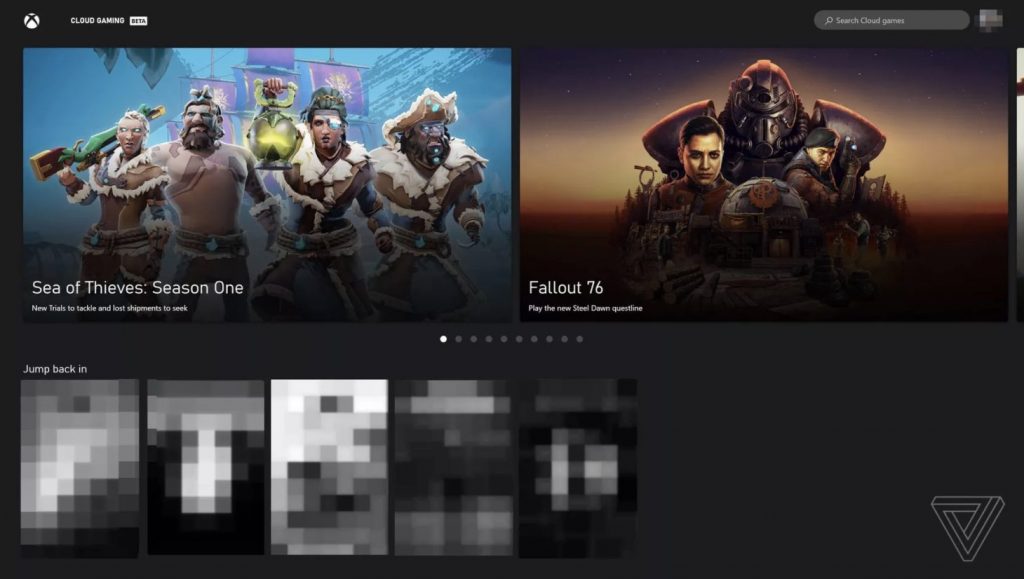
Xbox Cloud Gaming Web App
Image credit: The Verge.

We’re looking forward to hearing more details about the public preview for Xbox Cloud Gaming on the web. As Google’s competing Stadia cloud gaming service has been available on the web since day one, it’s time for Microsoft to finally catch up.

Accessing Xbox Cloud Gaming on Android devices currently requires an Xbox Game Pass Ultimate subscription, though Xbox head Phil Spencer recently said that he was open to the idea of allowing consumers to purchase cloud-enabled Xbox games separately. Microsoft recently announced that it had crossed 18 million Xbox Game Pass subscribers, though we don’t know yet how many of them have tried Xbox Cloud Gaming.

Check Out Lenovo Smart Display Deals

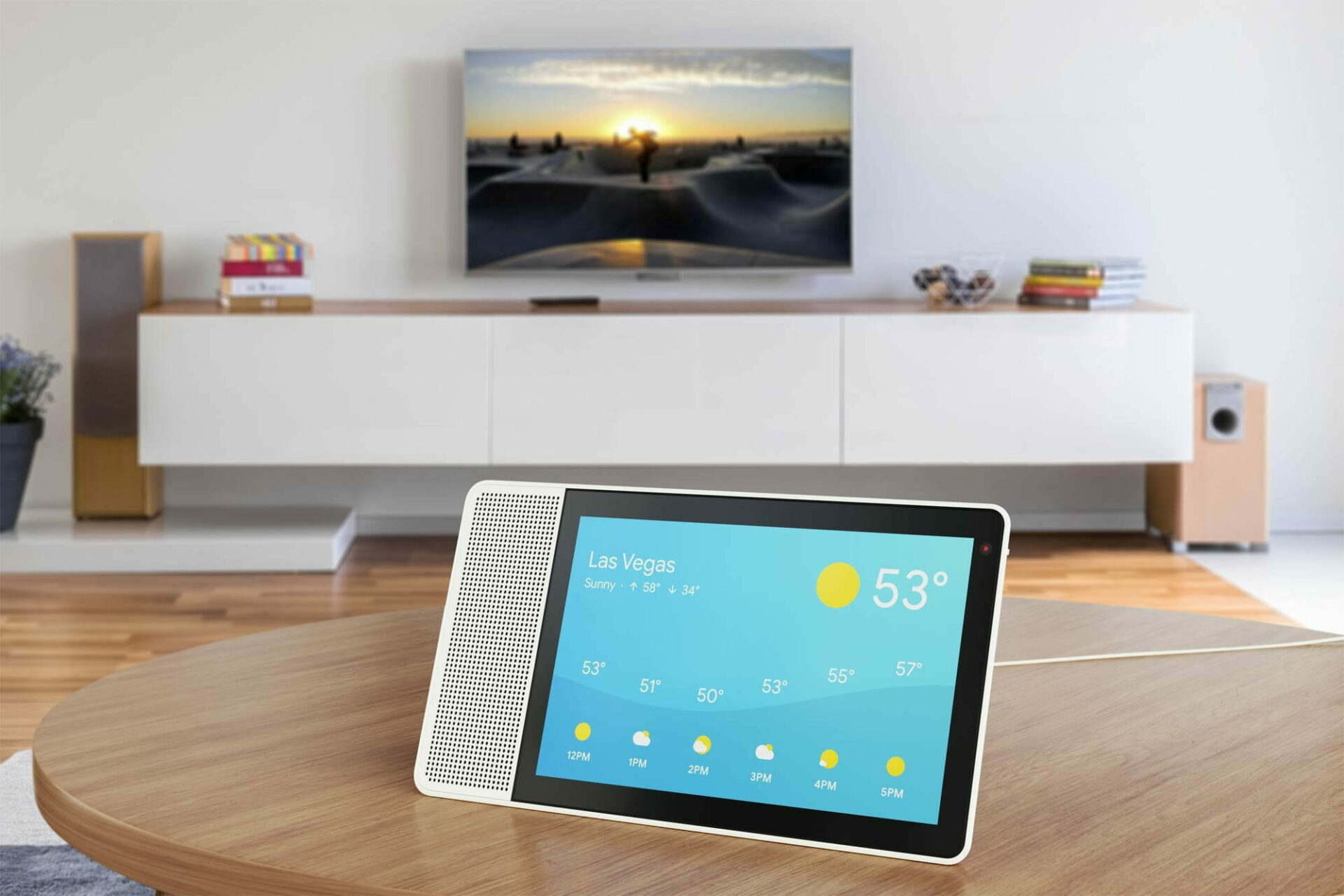
A smart display is a new kind of gadget, with a voice assistant designed for use around the home. These devices have touchscreens that can be used for more than just controls.

The difference between a tablet and a smart display is mobility. A tablet is designed to be carried with you, while a smart display is meant to occupy the same spot for a long time. The Lenovo Smart Display is the first in the smart home category with Google Assistant built-in. It combines all the capabilities of a smart speaker with a beautiful touchscreen.

In this guide, we will present you the features and capabilities of the three smart displays designed by Lenovo, and two other great gadgets.

What are the Lenovo smart displays and smart gadgets?

Lenovo Smart Display 7 – Best overall

Lenovo Smart Display 7 is the most lightweight of Lenovo’s 3 series of smart displays. At only 675 g and 176mm x 155mm, it won’t have any space issues.

Furthermore, it is built on a MediaTek 8167S processor with up to 1.5GHz, which gives you just enough performance for daily tasks.

Lenovo’s Smart Display 7 packs all the smart essentials you need into a beautiful design, making it a great companion for home or office use.

The main features of Lenovo Smart Display 7 are:

  • IPS screen
  • Bluetooth 5.0
  • 2MP Wide Angle for the front camera
  • SD resolution of 1024 x 600

Lenovo Smart Display 7

Ultra-compact and sleek, the Lenovo Smart Display 7 is ideal for any shared space in your home. 
Check price Get it now

Lenovo Smart Display 8 – Google Duo support

If you want a voice assistant with a slightly bigger display, the Lenovo Smart Display 8 has an 8-inch screen.

Google’s virtual assistant works excellently here. The device’s microphones are dual array, which works well enough if you are in the same room.

Smart Display 8 features a 5MP wide-angle front camera, and you can make a video call in 720 pixels. The video calls are excellent, but the quality varies depending on the connection strength.

Here are the main features of Lenovo Smart Display 8

  • Great video and voice quality with Google Duo
  • Snapdragon™ 624 processor
  • HD resolution of 1280 x 800
  • Not far-field microphone

Lenovo Smart Display 8

Make your everyday life easier and your smart home smarter with Lenovo Display 8.
Check price Get it now

Lenovo Smart Tab M8 – Great battery life

Lenovo Smart Tab M8 is another performant voice assistant device from Lenovo. It has the portability of a tablet and the convenience of a smart home hub.

The Smart Tab M8 can be used simply as a tablet or connected to the Smart Charging Station dock. Its Ambient Mode allows users to enjoy all the features and options of the Google Assistant.

It has a simple and modern design, with a premium metal casing and narrow bezels that boast an 83% screen-to-body ratio.

Watching and listening to videos looks and sounds excellent due to the enhanced HD IPS display with TDDI technology and dual Dolby Atmos tuned speakers.

The main features of Lenovo Smart Tab M8:

  • 2MP Fixed-focus and rear 5MP with Autofocus
  • Great battery life, up to 18 hours for web browsing
  • Dual microphones
  • Google Assistant’s Ambient Mode

Lenovo Smart Tab M8

Lenovo Smart Tab M8 makes everything easier, from watching celebrity chefs to speaking with Google Asistant.
Check price Get it now

Lenovo Smart Tab M10 Plus – Comes with large display

Lenovo Smart Tab M10 Plus is a 10″ tablet, and like the smaller one, it can be connected to the Smart Charging Station dock to use Google Assistant’s Ambient Mode.

Kids love playing with gadgets, but are they safe? No worries about the Smart Tab M10; it incorporates parental controls and built-in eye-care protection technology.

Lenovo Smart Tab M10 FHD Plus has a larger-than-average display, with narrow bezels that give you 10.3 inches of usable screen space and FHD visuals. 

The main features of Lenovo Smart tab M10 Plus:

  • Full metal body cover for a modern look
  • Dual speakers expertly tuned with Dolby Atmos
  • Facial recognition, used to unlock the tablet
  •  Google Assistant’s Ambient Mode

Lenovo Smart Tab M10

Buy one of the safest tablets for child use, with Google Assistant and a great display to watch videos.
Check price Get it now

Lenovo Smart Frame – Perfect for your wall

The Lenovo Smart Frame enables you to review every photo you want easily and stylishly.

It has a canvas-like display measuring 15 X 24 inches. It has a matte finish and a color-tone sensor that can dim and lighten depending on the light in the room. 

You can synchronize it with your Google Photos or phone, and the smart frame lets you showcase your favorite photos quickly and easily.

Here are the main features of the frame:

  • IPS Panel with Anti-Glare Coating
  • Android 10 OS
  • The exterior frame can be swapped
  • No voice assistant built-in

Lenovo Smart Frame

Brighten up any room of your house with a stylish smart frame from Lenovo.
Check price Get it now

Lenovo smart displays and the Smart Clock are some of the best gadgets for your smart home. Everything is done using Google Assistant and voice commands.

If you like voice assistant devices to help you start your day, then you will love the smart displays from Lenovo. They are very easy to use even if you have never had a voice assistant, just talk to them.

The Smart Frame will make your home look elegant and high-tech. If you’re looking for more devices from Lenovo, you might be interested in our guide on Lenovo Thinkpad L15 Gen 4 price and hardware specs.

FIX: Browser back button doesn’t reload page in JavaScript

Quite a few users, and especially programmers encountered an issue when working in JavaScript. They want to be able to reload the webpage the user is observing by using the back button inside the browser.

If the code fails to update the cached data from the initial page, the back button will show the cached data, but without the latest data updates applied.

This can cause a lot of confusion especially if the webpage you’re working on is a complex project with a lot of complicated commands.

If the browser back button persists and the page is not working, you will be able to fix it with our solutions below.

Even though each browser manages cache differently, the fix we’re discussing in this article will be using JavaScript, so it applies to any browser. Read on to find out how to do it.

The solutions also cover the Safari back button does not reload page issue so make sure you read them carefully.


What can I do if the back button doesn’t reload the page?

1. Try a different browser

Even the most famous browsers can prove to be prone to errors and bugs and the back button issue is just one of the examples.

If you got tired of your current browser and you’re looking to switch to a new and better one, try Opera One. It’s fast, secure, privacy compliant, fully customizable, and, most of all, it’s free.

More so, it is frequently updated, and therefore improved upon, so any bug you may happen to find will never stay there for long anyway.

It comes with an ad blocker, built-in social network shortcut buttons for Messenger, Instagram, and WhatsApp, and also a built-in VPN. It also brings you a built-in AI.

Opera One

Choose this browser and never have to worry about coding problems like JavaScript-related issues. Available for download for free!
Free Download Visit website

2. Create a command for the List layer

Because Maintenance applications have two pages – the List and Maintain view, we will tackle this issue focusing only on the List page.

In order to achieve reloading cached data when users press the back button of a web-page inside a browser, you will need to copy-paste this command directly before the </head> tag, inside the source view of the List layer: 

<script type="text/javascript">
       jQuery(document).ready(function()
        {
                var d = new Date();
                d = d.getTime();
                if (jQuery('#reloadValue').val().length == 0)
                {
                        jQuery('#reloadValue').val(d);
                        jQuery('body').show();
                }
                else
                {
                        jQuery('#reloadValue').val('');
                        location.reload();
                }
        });
   </script>

After this code is added to your List layer, you will also need to add a line of code after the End data Table text:

<input id =''reloadValue'' type =''hidden'' name =''reloadValue'' value=''/>

After this process is done, the user that is browsing your website will be able to reload the previous page with the updated live cache data, by simply clicking the back button.

Speaking of JavaScript issues, we recently covered Unable to get property ‘msie’ of undefined or null error, so don’t miss it.

Please feel free to let us know if this short guide helped you solve your issue in JavaScript.

There was an error downloading the file in Dropbox [SOLVED]

Dropbox is an efficient tool for storing, managing and sharing documents. The app is very popular among users because it offers a quick way to send and receive important files.

However, nothing is perfect and this tool is no exception. Several users encountered There was an error loading the file error message in Dropbox.

Not being able to download a file is a major issue in Dropbox and today we will show you how to solve this in no time.

What to do if Dropbox won’t load files?

1. Try using your web browser

If you’re having this issue, try accessing Dropbox with your web browser. You can use any browser for this purpose, but we recommend using Opera One.

Opera One is a feature-rich browser that has recently been overhauled into one of the most optimized and customizable browsers on the market. The developers included data-restriction settings and an AI.

Moreover, the browser has a free included adblocker that will keep you safe, and it barely takes a tool on your system’s hardware, so it is great for gamers and people with a low-end machine.

Let’s take a look at Opera One’s main features such as:

  • Built-in Adblocker
  • Free, unlimited VPN
  • Integrated messengers in the sidebar
  • A lot of customization options to make it truly yours
  • Highly optimized
  • Native AI

⇒ Get Opera One Browser

2. Use an alternative cloud service

If you are having issues with Dropbox and this is not the first time, then it’s a good moment to think of an alternative cloud service provider.

If you also care about privacy and if you store sensitive information using Dropbox, you should know that they aren’t very private.

There are various top cloud service providers these days that are excelling rapidly in their growth phase with a variety of current features, but each has advantages and disadvantages depending on the needs of the majority.

Nonetheless, some are superior to others because they prioritize quality above quantity and privacy and safety over public access.

Take a look at this complete list of cloud and hosting services for contrasts on ease of use, pricing, and technical support for each provider that will help you narrow down your options.

3. Clear your browser cache

Sometimes, you can solve this issue by clearing your browser temporary files. To do that in Google Chrome, click on the three vertical dots in the upper-right corner of the window.

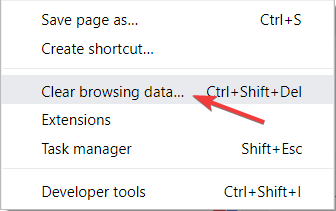
  1. Go to More tools and select Clear browsing data.clear browsing data There was an error loading the file in Dropbox
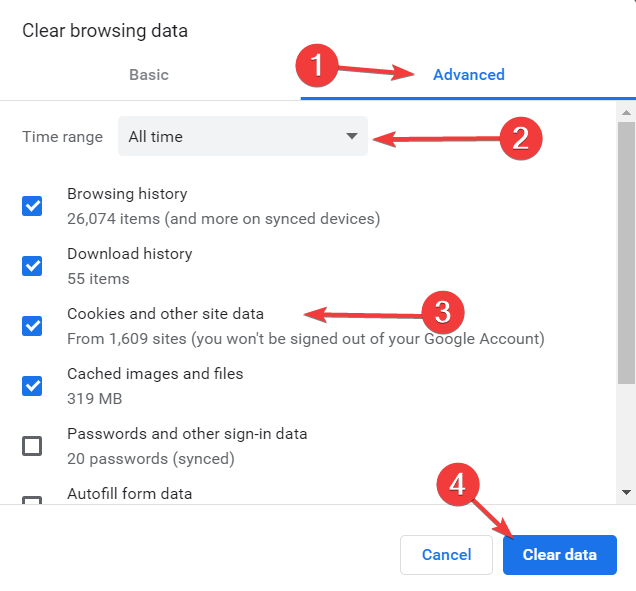
  2. Go to the Advanced tab, select All time and check the first four boxes.
  3. Click on Clear data.chrome clear browsing data There was an error loading the file in Dropbox

4. Check the names of the files

It is well known that you can’t name the files shared in Dropbox whatever you want. There are some restrictions on this app that you should take notice of.

For example, if the name of the file is too long, you might encounter There was an error loading the file error message. Also, this issue appears if the name of the document contains characters such as “#”.

So, make sure you name your files properly before you upload them in Dropbox.

As you can see, renaming your files might solve the problem. Avoid special characters and keep the names of your files and folders as simple as possible.

Note: Also, keep in mind to clear your browser cache regularly.

Luckily, this is just a simple restriction of the app and not a real issue with Dropbox that requires an update or some special fix.

Also, you can choose one of these cloud software with encryption. So, you can share documents efficiently, while your data is protected.

Did our solutions help you solve the error? Do let us know in the comments section below.

Gmail Slow/Stuck on Loading Forever: Why & How to Speed It Up

Some users have stated on Google forums that Gmail gets stuck on the load screen, or takes ages to load when they sign in.

One user stated in a forum post: Gmail is stuck on the load screen… It just sits on the load screen.  In other cases, Gmail won’t load at all in Chrome.

Thus, those users can’t open their emails with Google Mail stuck on the load screen.

There are also other issues with Gmail caused by its settings not being updated, but it can be easily resolved.

The solutions below will help you fix Gmail when it gets stuck loading.

How do I fix Gmail if it is stuck or slow?

1. Check if Gmail is down

Although unlikely, it might be the case that Gmail is down for most users. A widespread Google outage has happened before.

For example, in 2020, a Gmail outage affected millions for a few hours. And not just Gmail but almost all Google Suite services.

Google Drive was down for a while in 2017, and there has also been at least one notable Gmail outage.

Users can check if Gmail is down at downdetector.com. It currently highlights that Google Mail is not generally down. However, if Gmail was down, you would need to wait for Google to resolve the issue.

2. Have all your e-mails in one place

  1. First, open Gmail with the Load basic HTML option as outlined above.
  2. Click Settings to open the General options tab shown below.Gmail settings
  3. Then click Forwarding and POP/IMAP to open the settings below.Gmail's Enable IMAP option
  4. Select the Enable IMAP option, and press the Save Changes button.
  5. Then close the browser.
  6. Download Mailbird and install it on your PC.
  7. Click Add account.
    • This option will be prompted the first time you open Mailbird.
  8. Type in the account address and password.
  9. Click Continue.
  10. Configure your Network settings.
  11. Mailbird will detect most of them automatically.
  12. Start using Mailbird.

If you think that Gmail has an issue because of your browser, you could always try using it within a third-party email client, like Mailbird.

In the case at hand, Mailbird will be especially useful especially since importing email addresses and managing them all from within a single inbox is its specialty.

3. Clear browser data

  1. Click the Customize Google Chrome button to open the browser’s menu.
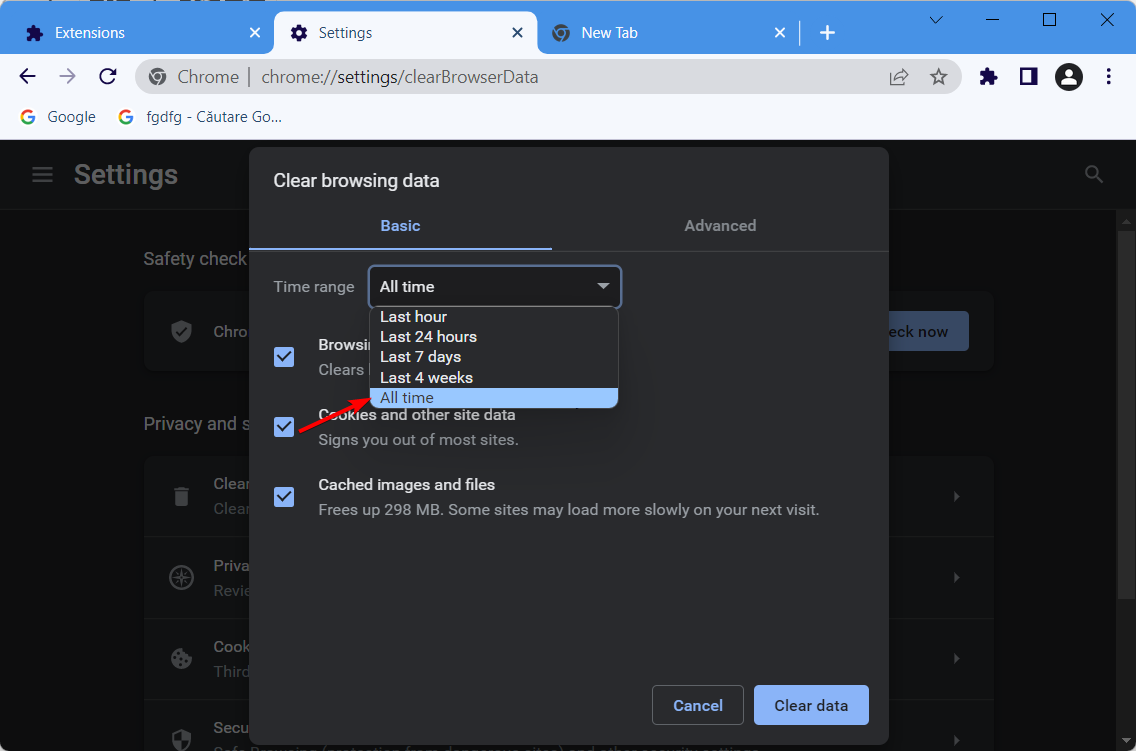
  2. Click More tools > Clear browsing data to open the window shown directly below.Clear browsing data options
  3. Select All time on the Time Range drop-down menu.
  4. Select the Browsing history, Cookies , and other site data and Cached images and files options.
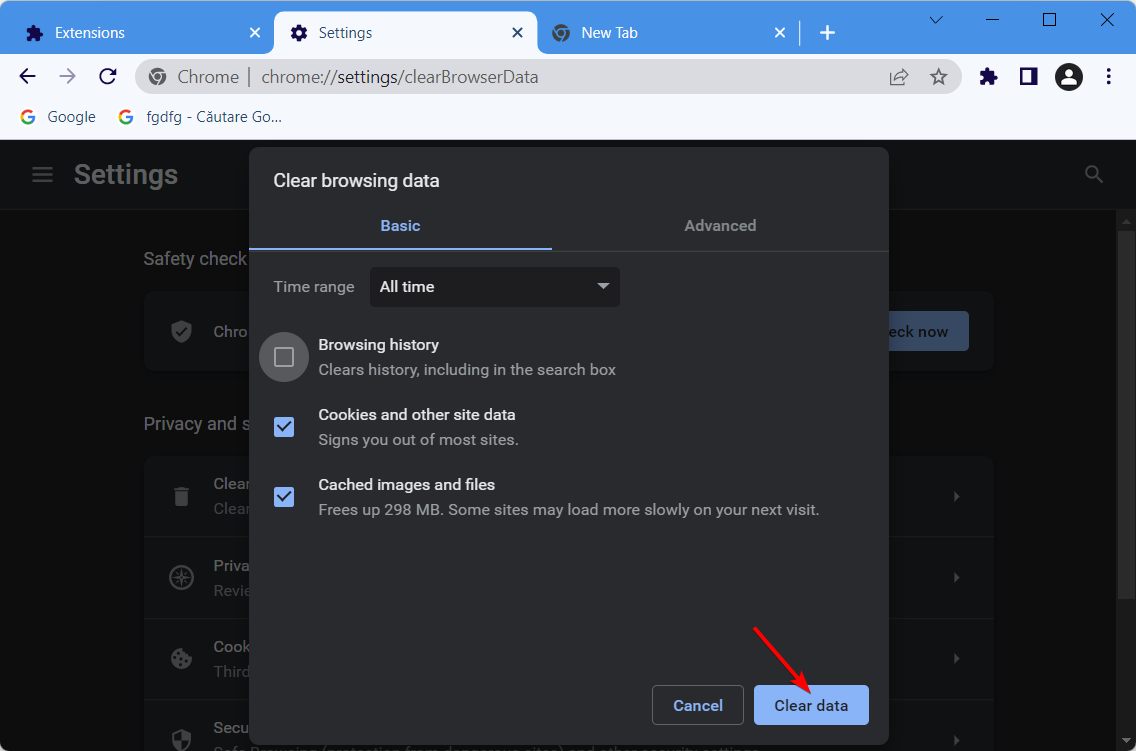
  5. Click the Clear data button.

Cookies are a necessary part of web browsing, they let websites remember you, your website logins, and more. Deleting them will make the browser think you have never visited the website.

4. Turn off browser extensions

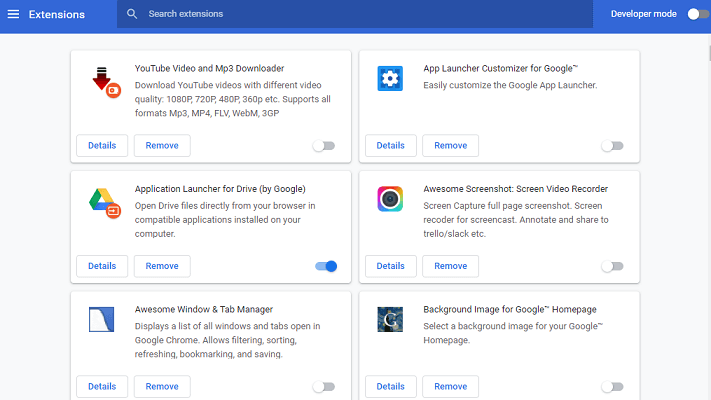
Chrome extensions

Gmail might get stuck loading because of a few browser extensions. Adblockers are among the more likely browser add-ons to break Googe’s webmail. So turning browser extensions off could fix Gmail.

Google Chrome users can turn off extensions by entering chrome://extensions/ in the browser’s URL bar. Then users can turn off add-ons on the Extensions tab.

Alternatively, they can click Remove to eliminate them entirely.

5. Open Gmail in an alternative browser

Some users find that Gmail gets stuck loading within a specific browser. So, opening Google Mail within another browser is a potential workaround, but not exactly a fix.

One good browser alternative to whatever you may be currently using is Opera One. This web browser is built using the Chromium engine, just like Google Chrome and Microsoft Edge.

More so, it can be customized to have better integration with a variety of web services, including Gmail.

All in all, if you prefer Gmail as a web client, then Opera One is the browser that you need. plus, this browser comes with built-in AI, VPN and Ad blocker.

⇒ Get Opera One

6. Reset the browser

  1. Input chrome://settings/ in Chrome’s URL bar and press Enter to open the tab shown directly below.Chrome's Settings tab
  2. Scroll down to and press the Advanced button.
  3. Click Restore settings to their original defaults to open a dialog box window.The Reset settings button
  4. Press the Reset settings button to confirm.

7. Select the Load basic HTML option

Gmail's basic HTML view

The Load basic HTML option certainly does fix Gmail loading issues and speeds up the webmail app. However, that option also opens Gmail with a somewhat basic view as shown directly below.

So it’s not an ideal resolution, but users can at least open their emails.

Gmail’s loading page includes the Load basic HTML option at the bottom right corner of the page tab. Thus, users can click that option when they try to sign in to Gmail.

That will open Gmail as shown just above, and users can then click a Set basic HTML as default view option.

Those are a few resolutions and workarounds that will ensure Gmail users can still open their emails even when the web app gets stuck loading.

A few users reported that Gmail will not accept keyboard input, but we have a guide that addresses this issue, so don’t miss it.

Some of the resolutions might also speed up Gmail’s load times. Feel free to write us in a comment if our solutions worked for you, or there is a new one we should include.

Fix Google Chrome When Unresponsive & Relaunch Is Not Working

The Google Chrome is unresponsive, relaunch now message can appear in Chrome usually when you try to open a link.

This error will force you to restart Chrome and potentially lose your data, therefore today we’re going to show you how to solve the Google Chrome not responding issue on Windows 10.

Why is Chrome suddenly unresponsive?

If you are using an outdated version of the browser, which lacks some of the most recent and crucial patches and upgrades, and if your browser becomes sluggish, this may signal that you are using an outdated version of the browser.

It’s possible that this is the factor that contributes to your Google Chrome browser regularly being unresponsive. Another typical problem is that you have browser extensions installed, which interfere with the functionality of your browser as well as your browsing history.

What does Chrome relaunch mean?

When you restart the browser, all of the tabs and windows that you now have open will be saved and brought back up automatically, once you hit the Relaunch button.

When you restart Chrome, the Incognito windows you have open will not be restored. Click the Not now button if you’d rather not restart the computer straight away. The update will be deployed when you have restarted your browser the next time.

Quick Tip:

If you keep having problems with Chrome, consider using Opera One. The Chromium engine makes it compatible with all Chrome and Edge extensions and it includes all the standard features you need.

The built-in ad-blocker and absolutely free VPN make it hard to be rivaled by other browsers already.  It’s also well current technologies due to it’s built-in AI and social media and messaging apps integration.

Opera One

Opera One is a great overall browser that you can rely on. Install it within seconds and make it your own.
Free Download Visit website

How do I fix an unresponsive browser?

1. Update Chrome to the latest version

  1. If Google Chrome stops responding, make sure that Chrome is running then click the Menu button in the top right corner. Navigate to Help, then click on About Google Chrome.
  2. Chrome will now automatically download updates and install them.

2. Close all running Chrome processes

  1. Press Ctrl + Shift + Esc to open Task Manager then locate all Chrome processes and right-click each process and choose End Task from the menu (The Chrome processes will be located in both Apps and Background processes groups).
  2. Restart Chrome and check if the problem still persists.

Keep in mind that this is just a workaround, so you might have to repeat it in order to avoid this problem.

Can’t open Task Manager? Don’t worry, we’ve got the right solution for you.

In case Chrome is unresponsive on Windows 10, perhaps ending the Chrome process is the only way to fix it.

3. Set up a different default browser

If you still want to fix Chrome, the solution is still to temporarily set another browser as default. While you’re at it, you can do that with Opera.

  1. Press Windows + I to open the Settings app. Now navigate to the Apps section.
  2. Go to Default apps section in the left pane. In the right pane, locate the Web browser and change it from Chrome to any other browser. We strongly recommend Opera.opera-w10-set google chrome unresponsive
  3. Now click on Choose default apps by file type, locate .html and .htm and set the default application to Opera (If you already set Opera as the default browser, it’s most likely set already).choose-defautl google chrome unresponsive


By following the steps above, you’ll set a different browser as a default. Few users reported that you can fix the problem by setting Opera as a default browser and then setting Chrome as the default again.

In addition, a few users are also recommending setting your email client as a default email app instead of Chrome.

So if you’re getting Page unresponsive error in Chrome, change your default browser and check if that helps.

You can’t open Control Panel? Take a look at this step-by-step guide to find a solution.

4. Run your email client as an administrator

One time

  1. Locate your email client’s shortcut, then right-click the shortcut and choose Run as administrator from the menu.

Permanently

  1. Locate your email client’s shortcut. Right-click it and choose Properties from the menu.
  2. Navigate to the Compatibility tab and check Run this program as an administrator option. Now click OK and Apply to save changes.

After doing that, your email client will always start with administrative privileges so you won’t have to do it manually.

Several users reported that this problem occurs if Chrome is set to run with administrative privileges.

Therefore if you’re already running Chrome as an administrator, try disabling Run this program as an administrator option.

On the other hand, if Chrome isn’t running with administrator privileges, you can try running it as an administrator and check if that solves the issue.

This is a simple workaround, but it can come in handy if Chrome won’t open.

If nothing happens when you click on Run as administrator, check this expert guide to fix the problem.

5. Disable problematic extensions

  1. Click the Menu button in the top right corner and choose More Tools > Extensions.
  2. Disable all extensions by clicking on Enabled checkbox next to the extension’s name.
  3. Restart Chrome and check if the Chrome page unresponsive popup is disabled.
Note icon NOTE
If the problem doesn’t manifest, you need to go back and enable extensions one by one. After enabling each extension you need to restart Chrome and check if the problem appears again.

After you find the problematic extension, disable it or remove it. If you need to use that extension, you might have to update it to the latest version and check if that solves the issue.

Several users reported that Norton Security Toolbar extension was causing the problem for them, but after disabling it the issue was resolved.

Other users reported this problem after disabling Google Docs extension, so if you have Google Docs disabled, be sure to enable it.

If Chrome is unresponsive on Windows 10, extensions can be the main culprit, so be sure to disable them by following the steps above.

6. Turn off the Automatically send usage statistics and crash reports option

  1. Click the Menu button in the top right corner and choose Settings from the menu.
  2. Scroll all the way down and click on Show advanced settings.
  3. In the Privacy section locate the Automatically send usage statistics and crash reports to Google option and disable it.
  4. Restart Chrome and check if the problem appears again.

7. Delete your Chrome profile and create a new one

  1. Click the Menu button in the top right corner and choose Settings.
  2. In the People section locate your profile and select it. Now click the Remove button.
  3. The confirmation message will now appear. Click the Remove button.
  4. Restart Chrome and navigate back to the Settings tab.
  5. In the People section click on Add person button.
  6. Select the desired picture, enter the name and click the Add button.
  7. A new Chrome window will now appear. Click the name of your profile at the top and choose Sign in to Chrome.
  8. Now enter your email and password and you’ll have your account available again.

If you get the Profile error occurred in Chrome, you can solve it by following the simple steps from our expert guide.

Note icon NOTE
If your account isn’t synced online, you might want to back up your profile beforehand.

Modify the localappdata folder

  1. Close all Chrome processes by following the steps mentioned in the Solution 5.
  2. Press Windows + R and enter %localappdata%. Press Enter or click OK.
  3. Navigate to Google\Chrome\User Data
  4. Locate Default folder and rename it to Default backup.
  5. Start Chrome again and check if the problem is resolved.

Renaming the Default folder is one of the quickest methods that can help you if Chrome won’t open.

8. Uninstall Malwarebytes

  1. Press Windows + I to open the Settings app.
  2. Navigate to the System section.
  3. In the left pane choose Apps & features. Now select Malwarebytes in the right pane and click on Uninstall button.
  4. Follow the instructions on the screen to remove Malwarebytes.

In case you need to use Malwarebytes, we suggest that you download and install the latest version and check if that solves the problem.

If you need additional info on how to uninstall programs and apps in Windows 10, check out our article. If Chrome won’t open, the third-party apps could be a problem, so be sure to find and remove the problematic applications.

9. Close Chrome then open the link

If the Google Chrome is unresponsive, relaunch now message appears only when opening links in email messages, you can fix it by performing this workaround.

Apparently this message appears if you click a link in your email client while Chrome is running.

One simple workaround is to close Chrome completely and then click the link in the email message. After doing that, Chrome will start normally and you’ll be able to access the link without issues.

Once again, this is just a workaround, so you’ll have to repeat it every time the issue appears.

Alternatively, you can just copy and paste the link from your email client to Chrome as a temporary workaround. This isn’t the most effective solution, but it should help you with this problem, so be sure to try it.

10. Add -process-per-site parameter to Chrome

  1. Locate Chrome shortcut, right-click it, and choose Properties from the menu.
  2. Go to the Shortcut tab and in the Target field add –process-per-site. Click Apply and OK to save changes.

After doing that, Chrome won’t start any additional processes for every opened tab, and the issue should be resolved. Keep in mind that you need to use this shortcut to start Chrome every time.

By using this shortcut you’ll ensure that Chrome is running with the necessary parameters.

Keep in mind that this isn’t the best long-term solution, but it will help you with Page unresponsive error in Chrome.

11. Clear your cache

  1. In Chrome click on Menu button in the top right corner and choose Settings.
  2. Next, use the following shortcut to open the Clear browsing data menu: Shift + Ctrl + Delete. Select All time as the time range.all-time-chrome images not loading in chrome
  3. Select the Cookies other site data and Cached images and files options.
  4. Click Clear Data.clear-data images not loading in chrome
  5. Restart Chrome and check if the problem is resolved.

12. Reinstall Chrome

If the Google Chrome unresponsive issue still persists, you might be able to fix it simply by reinstalling Chrome. Sometimes the installation can become corrupted and that can cause this and many other errors.

To fix the problem, simply uninstall Chrome and then download the latest version.

If you need more info on how to uninstall Google Chrome in Windows 10, take a look at our in-depth guide.

Few users are also recommending downloading Chrome Canary, so you might want to try that as well. Keep in mind that Canary is an experimental version of the browser, so although it offers many bug fixes, it can also be unstable to use.

How often should I restart Chrome?

It is recommended that Chrome be restarted at least a couple of times each week, if not daily, for optimal performance and to avoid issues such as Google Chrome unresponsive one.

Google Chrome is unresponsive, relaunch now message can cause certain inconvenience, but you should be able to fix it by using one of our solutions.

Feel free to tell us in the comments section below what worked for you or any other solution that helped you.

5 cool Valentine’s Day gifts for the geeky girlfriend

With Valentine’s Day fast approaching, love is in the air. It’s that much-awaited time of the year, when people celebrate with their loved ones, spend quality time, and make memories.

If you’re planning something special, you might get a few ideas by using these great Valentine’s Day apps for Windows.

While it’s much easier to look for a tech gift for him, finding Valentine’s Day gifts for a geeky girlfriend is pretty challenging.

But, for those running out of Valentine’s Day tech gift ideas for her, here are some cool gadgets to choose from.

How do I pick a good Valentine’s Day gift for a geeky girlfriend?

The most important thing when picking a perfect gift is to pay attention to your loved one’s interests. If she’s into gaming, a suitable gift would be something related to her favorite video game series.

In this guide we picked a couple of great items that every nerdy girlfriend might like, so be sure to consider all of them.

What are the best Valentine Day tech gift ideas for her?

TIJN Blue Light Blocking Glasses

  • Lightweight
  • 100% efficient when blocking UV and blue light
  • Elegant design
  • Lens/bridge/arm width: 53/18/140mm
  • Available in multiple colors
  • Some users might not like the plastic look

If your significant other spends a lot of time in front of the PC, why not surprise her with a pair of geeky glasses that can block the blue light?

With the 100% efficacy in blocking the UV and blue light from your screen, this is a perfect gift for anyone that needs to protect their eyes.

The glasses are made from a super-light material, and with a low friction coefficient, you can wear them for hours without any issues.

As for the design, the transparent model looks elegant and minimalistic, but there are other colors available as well, so it’s a perfect Valentine’s Day nerd gift.

Silicone Floppy Disk Coaster

  • Made from high-quality silicone
  • Resistant to water, temperature, and sunlight
  • 3.54×3.54x 0.2 inches
  • Comes with 6 colorful coasters
  • Color might transfer to hot cups

Floppy disks are a thing of the past, but they were heavily used 30 years ago for file transfer, way before flash drives and CDs became a thing.

However, if your loved one is a computer geek, she might appreciate these Silicone Floppy Disk coasters. Each coaster measures 3.54×3.54x 0.2 inches.

There are 6 coasters in the package and they are made from high-quality silicone which makes them resistant to water, temperature, and sun. The color won’t fade away, so they will look great even after having them for years.

We also have to mention that the coasters come in several different colors, so they are a perfect gift for your geeky girlfriend for this Valentine’s Day.

Paladone Gameboy Heat Changing Coffee Mug

  • 10oz mug
  • Officially licensed
  • Has a beverage heat indicator on the side
  • Comes with a retro design
  • Minor issues with the heat indicator

Nintendo GameBoy was one of the first handheld consoles in the world, and if your significant other is a Nintendo fan or she used to own a GameBoy, then this coffee mug is one of the best nerdy Valentine’s Day gifts for her.

This is a 10oz mug and it’s not safe for microwave use, so keep that in mind. As for the design, you can find a GameBoy printer on the side, but that’s not all.

When you pour a hot drink, the side of your mug will light up, and it will look as if your GameBoy is running a game. This is a pretty awesome effect, and it allows you to keep track of how hot your drink is.

Master Yoda Force Metal Bookend

  • Attractive design
  • Anti-slip surface
  • Can hold up to 7 books
  • Perfect for Star Wars fans
  • Weighs 500gr
  • It doesn’t look too sturdy

If your geeky girlfriend is a fan of Star Wars and reading, then this Star Wars bookend might be a perfect gift for her. This bookend has a Yoda pattern and when books are placed it looks like he’s holding them with Force.

It’s important to mention that patterns are available on both sides, so you can position it any way you want. The bookend uses anti-slip material, so it won’t move when having multiple books on it.

Regarding the weight, this stand weighs around 500 grams and it can hold about 7 books or multiple DVDs, so if your significant other is a Star Wars geek, this might be the best nerdy love gift for her.

Coffee Mug Warmer

  • Three different temperature settings
  • Automatic shutdown after 4 hours
  • Incredibly simple to use
  • Measures 3.54×4.33 inches
  • Works best with flat mugs

There’s nothing better than a hot beverage, and if you’re looking for a Valentine’s Day gift for your geeky girlfriend, then this device might be right for you.

This is a simple device and to keep your drink warm, just place it on it and press the power button. There are three different heat levels, so you can adjust how hot you want your drink to be.

To prevent overheating the device will automatically turn itself off after four hours, but you can also turn it off manually if you want.

It’s important to mention that this device is heat and fire-resistant, and with a spill-proof design, you can rest assured that it will keep working even if you accidentally spill your drink.

Are nerdy love gifts expensive?

No, a good gift doesn’t have to be expensive, and the intent behind the gift is what’s more important. As for the gifts themselves, they don’t have to be expensive, and it all depends on what you’re looking for.

Some smaller and practical gifts can be more affordable, while the gifts that have a special theme might be more expensive.

While there are umpteen gadgets out there worth the attention, these are some of the most interesting Valentine’s Day nerd gifts.

If you’re looking for something different, then you might want to check the best Valentine’s Day gifts for geeky guys instead.

So, grab any of these Valentine’s Day gifts for the geeky girlfriend, and make it a memorable day for both of you.

5 nerdy Valentine’s Day gifts for geeky guys [Special offers]

Valentine’s Day is all about celebrating love. And what’s better than to gift your loved one a present that he will always remember?

Mentioned here are some cool gift ideas for that geeky guy that will become the symbol of your love for years to come.

How can I pick nerdy Valentine’s gifts for him?

First off, you need to know what your partner’s interests are. If he’s passionate about gaming, DIY, home repair. After you figure that out, you just need to think of something that he doesn’t have and it will surely use.

We compiled a list of products that most guys can find useful, so be sure to check it out for some geeky suggestions.

What are the best Valentine’s gifts for nerdy guys?

Jelly Comb electronics organRAK Multi-Tool 2Pc Pen Set

  • Multifunctional ballpoint pen
  • Built-in LED and bubble leveler
  • Bottle opener and screwdriver
  • Can work as a stylus pen
  • Aluminum metal body
  • A bottle opener could be better

If your partner isn’t into crafts and DIY, then this might be a perfect gift for him. This is a multifunctional ballpoint pen, and it comes with a strong aluminum body.

Additional features include two rulers, both metric and imperial, bubble level, and a flathead and Philips screwdriver. It’s important to mention that this pen can also work as a bottle opener, LED light, and stylus.

Overall, this is a unique ballpoint pen, and if your geeky boyfriend is into DIY, then this will be a perfect gift for him.

ONXE USB LED Clock Fan

  • PVC soft fan blades for safety, mental flexible neck.
  • Simply plug into any USB port on a notebook or PC to create a gentle refreshing breeze.
  • Gently adjust the flexible neck to position the cool breeze anywhere you wish.
  • Real-time Clock display. No driver installation required.
  • Not a gift that's meant to last

This makes for a nice gift option that your geeky partner will no doubt love to have. Basically, it’s a fan that plugs into any USB power source.

It comes with soft fan blades made of plastic while the gadget’s neck is made of flexible yet sturdy material.

However, the story does not just end here as once the blades start spinning, there is an analog clock complete with hours, mins, and seconds that becomes visible.

Overall, a trendy yet essential thing that your partner will love to add to his workplace.

Magnetic Pickup Tool

  • 3 super light LEDs
  • 360-degree soft neck
  • Magnetic base for secure mounting
  • Magnetic head for picking up metallic objects
  • Can be extended up to 22 inches
  • No major flaws

This is a must-have for your partner if he is into a home repair or PC building. This tool comes with a telescopic neck and a powerful LED battery that can help you illuminate the project you’re working on.

The neck can be rotated any way you want, so it’s perfect for those hard-to-reach places. It’s important to mention that this device has a magnetic base, so you can set it in place on any metallic surface while you work.

Regarding the size of this tool, it can be extended from 6.6 inches up to 22 inches, so it’s perfect if you need to find a screw, a bolt, or any other metal piece.

Electronic Word Clock

  • 7.75 x 1.13 inches
  • Minimalistic design
  • Powered by a single USB cable adapter
  • Sharp image
  • Tells time in 5-minute intervals

If your boyfriend is a fan of word games, perhaps he would find this unique clock interesting. Unlike regular clocks that use numbers to tell time, this one uses words.

The clock measures 7.75 x 1.13 inches, so it will fit perfectly on your desk. Regarding the design, the clock looks sleek with its dark background and white letters, so it’s a perfect choice for minimalistic.

Regarding connectivity, this model is powered by a USB cable adapter. It’s important to mention that the word clock tells time in five-minute intervals, so it’s not as accurate as a regular clock, but it’s far more stylish.

If you’re looking for unusual Valentine’s Day gifts for him, then this clock might be a perfect choice.

KLIM Wind Laptop Cooling Pad

  • Maximizes the life expectancy of your PC and boosts its performance
  • Covers the following sizes : 11 11,3 12 13 14 15 15,6 16
  • Compatible with the following sizes: 17,3 18 and 19 inches
  • 4 fans spinning up to 1400 rotations per minute
  • KLIM Wind has 2 USB ports in order to leave you with one free port.
  • The RGB lights can't be turned off

The last item on our list is yet another gaming-oriented gadget, although non-gamers will certainly find it useful as well.

The cooling pad features 4 different fans, all of which are positioned to target your laptop’s most common hot spots so that cooling is done evenly and efficiently, all thanks to the 1400 RPM speeds.

The design also makes it ideal for laptops of all sizes, from mall 11-inch models to big 17.6-inch gaming monsters, and the quality materials that it’s built from make it as long-lasting as the laptop itself.

Are nerdy Valentine’s gifts expensive?

A good Valentine’s Day gift doesn’t have to be an expensive one and sometimes casual Valentine’s gifts for guys can be a better option.

If you’re planning to purchase something gaming-related, that can be costly, but there are many gifts that you can give that won’t break the bank.

Be sure to carefully consider all the models list in this guide and pick something that you think your partner will like.

This concludes our list of best nerdy Valentine’s gifts for your boyfriend. If you need something different, we also have a guide on the best Valentine’s Day gifts for geeky girlfriends, so be sure to check it out.

Are there any more suggestions that you consider should have made this list? Let us know by answering the comments section below, and we’ll update the article accordingly.

Comcast Internet connected but not working [Fix]

Having a stable Internet connection is a must nowadays. Maybe you are trying to watch a movie, socialize on Facebook, check the news, or play a video game.

Having connection problems frequently can be a real nuisance. Comcast (also known as Xfinity) is one of America’s largest Internet providers.

If your Internet is provided by them and you are having issues with it, you shouldn’t worry. There is always a solution to these problems.

Today we will be discussing and providing quick fixes for all of those pesky issues that are stopping you from enjoying your time on the world wide web.


How do I fix my Comcast Internet connection?

1. Check for Internet outages

  1. Sign in to your Xfinity account.
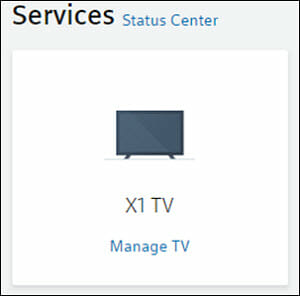
  2. Navigate to the Services tab and click it.
  3. Click on Status Center.
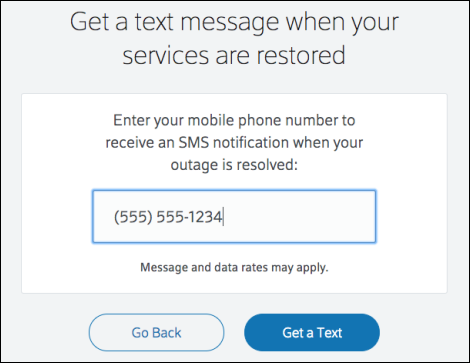
  4. If it is an outage, a pop-up will notify you. Click on Text me when it’s resolved.

  5. Type in your phone number, then select Get a Text.

Before we dive into hardware-related stuff, we should make sure that your issue isn’t caused by your Internet provider.

Sometimes your Internet problems do not actually have anything to do with you. Outages are really common, especially during bad weather, or during construction work.

Fortunately, Xfinity has got you covered, providing with an interface that allows you to check for your service’s availability.

You can get more help confirming service interruptions by checking this detailed guide on Xfinity outages in my area for additional outage troubleshooting steps.


2. Check if you paid for the service

  1. At first, sign in to your Xfinity account.
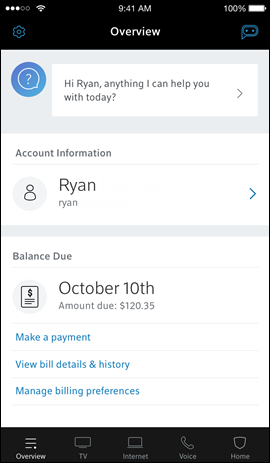
  2. You should see Balance Due on the home screen.
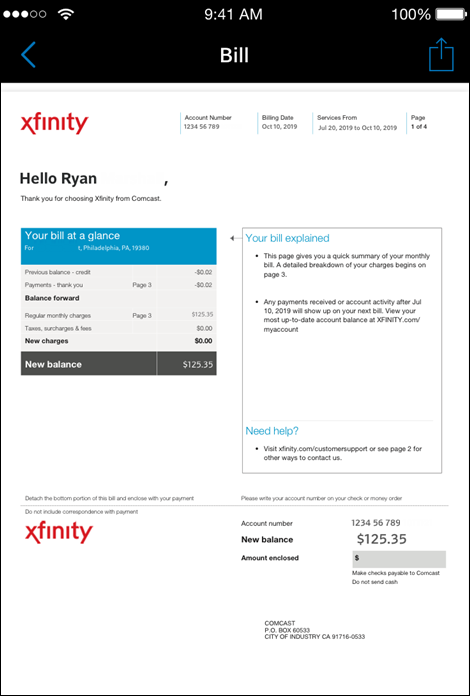
  3. Tap on View bill details & history. 
  4. If you haven’t paid your bill, contact your service provider.

Sometimes you forget about paying for yourservices, which will make your provider cut your internet supply until the problem has been settled.

Use this method to make sure you pay the monthly fee to the provider, otherwise you could be charged extra for not paying in time.

For related issues, you can also check this guide on Comcast email not working.


3. Check the power and connection of your devices

  1. Check if your coax cable is properly connected to your wall outlet and to your desktop.
  2. Make sure that your Ethernet cable is properly connected to both your desktop and your wireless.
  3. See if your power cord is connected to your wall outlet.

Even if your devices are connected, it is always good to unplug and plug them again. Moreover, make sure you apply a bit of pressure when plugging them back in.


Ethernet not working even when the cable is properly connected? Count on us to solve the problem.


4. Restart your Xfinity Gateway

Xfinity Gateway
  1. Start by signing in to your Xfinity account.
  2. Scroll until you see Manage Internet and click on it.
  3. Click on Restart Modem.
  4. Select Start Troubleshooting and wait for your modem to restart.

Sometimes your modem’s information can get messed up, resulting in abnormal behavior. If this is the case, following the steps should fix the problem in no time.


5. Restart your wireless router and modem manually

restart your router manually
  1. Unplug your modem and router from their Internet and power sources.
  2. Leave them unplugged for approximately one or two minutes.
  3. Plug them back in.
  4. Wait for the modem and router to configure themselves.

Similar to the 4th step, sometimes all you need to do is just restart your router. You can do this manually, as presented above.


Internet problems are really common. Most of the time, the issue comes from your provider, or from a faulty or malfunctioning device. This article covered all these potential issues.

If you are a Telus user and face similar issues, check this full guide: Telus internet not working.

Most of them should be easily fixed. However, if the problem persists, use the official Xfinity contact form. And, as always, don’t hesitate to use the comments area to let us know which fix worked for you.

Windows 10 news recap: Intel takes on Apple’s M1 Macs, VLC Media Player teases version 4, and more

Welcome back to our Windows 10 news recap, where we go over the top stories of the past week in the world of Microsoft’s flagship operating system.

Intel reignites the PC vs Mac feud with new “Go PC” ads that take on Apple’s M1 Macs

Intel is going after Apple’s M1 Macs with its new range of “Go PC” ads which highlight the weaknesses of M1-based Mac devices.

VLC Media Player teases version 4.0 and other new projects for its 20th anniversary

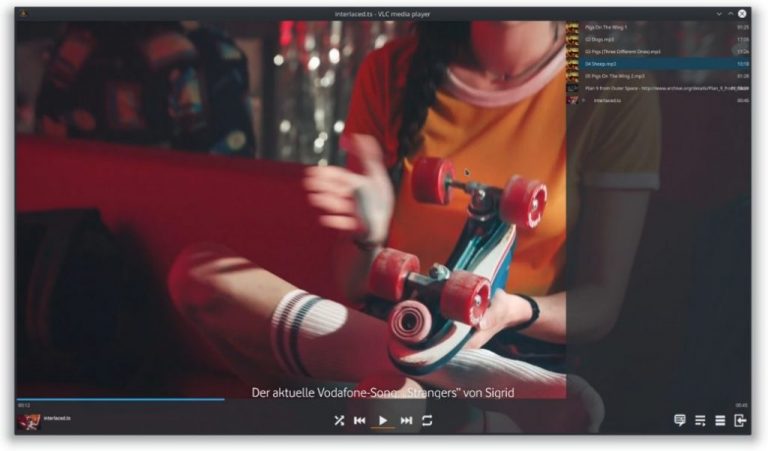
VLC Media Player is having its 20th anniversary this month, and to help celebrate, it has teased its upcoming version 4 update, as well as other new projects being worked on. Of version 4, it has been noted that “we modified the interface to be a bit more modern”.

Vlc 4.0

Windows 10 November 2019 Update gets new patch to address WPA3 Wi-Fi connection issues

A new patch has been released for the Windows 10 November 2019 Update that addresses an issue that caused WiFi connection issues when connecting to a WiFi network using WPA3.

That’s it for this week. We’ll be back next week with more Windows 10 news.

Microsoft news recap: Xbox OS update adds social media profiles to Gamer Profile, attempted acquisition of Pinterest, and more

Microsoft news recap is a weekly feature highlighting the top Microsoft news stories of the past week. Sit back, grab some coffee, and enjoy the read!

Microsoft’s surprise funding of climate change denial campaigns in 2020 uncovered

Despite claiming itself as an industry leader in fighting climate change, Microsoft is coming under fire for funding climate change deniers. This comes a week after Microsoft had to change its political donations strategy over controversy of donations to Congresspeople that denied the results of the 2020 presidential election.

Climate Change

Microsoft to open new datacenter in Atlanta, Georgia area

Microsoft has announced plans to open a new datacentre in Atlanta, Georgia, its East US 3 datacentre. It will be situated in Georgia’s Fulton and Douglas counties.

Midtown Hdr Atlanta

New Xbox OS update brings linked social media accounts on Gamer Profiles

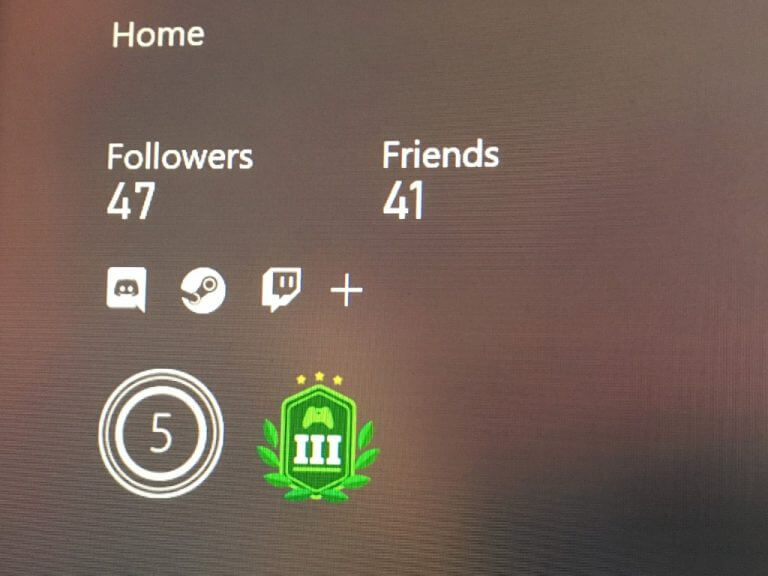
Quietly, a new Xbox OS update arrived this week. Whilst a relatively small update, one visible change is that linked social media accounts now show on Gamer Profiles. Replicating what is seen on the Xbox app for PC, where gamers can link their accounts, such as Steam or Discord, and display them on their Xbox profile.

Xbox Profile Linked Account

Microsoft reportedly tried to acquire social media platform Pinterest

A new report claims that Microsoft attempted to acquire image-based social media website Pinterest recently. But the talks are suspected to have ended with no agreement.

Pinterest

That’s it for this week. We will be back next week with more Microsoft news.

File Manager not showing files? Here’s the solution

Worried that the File Manager is not showing files? There are a few causes that might lead to this problem, and in this article, we will take a closer look at what you can do to solve it.

If you can’t find the files in their initial location, it might be due to the fact that they were modified or, worst-case scenario, you deleted them.

One solution to this problem can be recovering those missing files from a backup (this implies that you are already using Windows Backup).

Another method to recover them is by restoring the files to a previous version.

In this article, we will show you what actions you can take and how you can successfully fix this File Manager issue in no time, so keep on reading.

How do I recover a file that cannot be found?

1. Download a third-party software tool

Retrieving deleted files can be a complex operation and you want to avoid crashing your system while performing the required steps.

The best way to ensure that the process will run smoothly is to download a professional software tool like Stellar Data Recovery.

The Stellar Data Recovery tool is a DIY easy to use program with a wide range of abilities. You can use it to recover files from systems that are completely crashed or unbootable or from empty Recycle Bins

You may even get back data from partitions that were lost or deleted, as well as files from RAW hard drives, SSDs, and USB drives

Among other useful features, the Stellar Recovery Tool is able to retrieve files from partially scratched or burnt DVDs or recover deleted email files.

The Stellar software also comes with a SMART Drive Monitoring and Cloning feature that prevents any permanent data loss caused by a drive failure.

⇒ Get Stellar Data Recovery

2. Restore missing files from a backup

  1. Select the Start button and open Control Panel.
  2. Choose System Maintenance, then click Backup and Restore.
  3. Select Restore my files and follow the given steps.

As expected, it’s incredibly simple to restore all missing files from a previous backup. You only need to apply the above procedure in that regard.

Before proceeding, just make sure to check that the drive or the media that you saved your files on is in full function.

3. Restore missing files from a previous version

  1. Click the Start button then select Computer.
  2. Go to the folder where the missing files used to be and right-click it. Select Restore previous versions.
  3. If the folder was located on the top level of a drive, right-click the drive and chose Restore Previous Versions. You will notice a list of previous versions of that particular file or folder, saved on a backup (if you are using Windows Backup) or as restore points.
  4. Select the previous versions of the folder that contains the file you want to restore.
  5. Drag the folder to the location of your choice where it is automatically saved.

If the File Manager is not showing files you can also try to restore them to a previous version.

If you want to do so for a file that is included in a Library, you should restore it from the folder where that file was actually stored. Right-click on the folder and select Restore Previous Versions.

For example, you restore a file that was placed in the My Pictures folder as well as in the Picture Library by right-clicking the My Pictures folder.

You can also search for the missing file by typing part of its name in the Documents library, in case you don’t remember the exact name of that file.

We hope that our article gave you the info you needed to solve the File Manager files issue. Just let us know in the comments which solution suited you best.

16% of VPNs leak your IP address. It’s time to take action

Privacy is a big issue in today’s world. Every time you connect to the Internet, a plethora of trackers activate and watch your every move.

Many users installed various software solutions that block third-parties and prying eyes from following their online activities. VPN tools are probably the most popular privacy solution but did you know that 16% of VPNs are actually leaking your IP address?

Some VPNs fail to protect your privacy

Security researcher Paolo Stagno recently analyzed a hundred VPN providers and found that quite a significant percentage of them fail to mask your location.

16% of the tested VPNs and Proxies services disclosed the real IP address of the visitors making the users traceable.

Stagno also revealed the list of the VPN tools that fail to protect user privacy, which includes:

  • BolehVPN (USA Only)
  • ChillGlobal (Chrome and Firefox Plugin)
  • Glype (Depends on the configuration)
  • hide-me.org
  • Hola!VPN
  • Hola!VPN Chrome Extension
  • HTTP PROXY navigation in browser that support Web RTC
  • IBVPN Browser Addon
  • PHP Proxy
  • phx.piratebayproxy.co
  • psiphon3 (not leaking if using L2TP/IP)
  • SOCKS Proxy on browsers with Web RTC enabled
  • SumRando Web Proxy
  • Windscribe Addons

If your VPN is not on this list but you feel it might somehow leak your IP address, go to this page and check if the tool detects your IP and hostname. If this is the case, install better VPN software.

In case you want to be secure while surfing the internet, you will need to get a full-dedicated tool to secure your network.

Install Private Internet Access

Private Internet Access
Finding the right tool that fits your needs is not an easy task, especially when the very software that was supposed to protect your privacy, gives you away, and leaks your personal data.

A world-leading, trusted VPN provider such as PIA can deliver what it promises and that is extreme privacy, and zero records of your online activity.

Through high powered IP cloaking, your IP address is effectively masked on your entire network and up to 10 devices simultaneously. Tracking devices are thus stopped right on their track.

By hiding your IP address and proactively protecting your identity from being exposed or compromised, PIA helps to keep all unwanted access at bay including hackers, malicious software or people, phishing attacks, and more.

It does this by coupling its IP cloaking function with a huge network of globally spread secure gateway tunnels through which your data is routed, best-in-class encryption, integrated firewalls, and malware blockers.

Fully packed with a DNS Leak Test, IPv6 Leak Test, and Email Leak Test, this trusted VPN solution has nothing to hide or to share. Literally.

Due to its strict no-logs policy, you can browse, download content, stream, enjoy gaming, and any other online activity you might think of without worrying about data leaks or your activity being monitored or tracked.

Since there are no records stored, there is nothing to share, not with your ISP, not with the government, not with anyone.

Let’s quickly look at its key features:

  • Secure VPN Account
  • Encrypted WiFi
  • P2P and Streaming support
  • Supports WireGuard, PPTP, OpenVPN, L2TP/IPSec, and SOCKS5 Proxy included
  • Protects up to 10 devices simultaneously
  • Block ads, trackers, and malware
  • Multiple VPN gateways (3292 servers spread across 46 countries)
  • Unlimited Bandwidth
  • No traffic logs
  • Instant setup and easy to use interface

Private Internet Access

Private Internet Access

No data leaks, no logs, no compromise. Surf the web and experience true privacy with PIA VPN!
$2.69/mo. Buy it now

If you want to keep your private information private, then you should really use the best security software available on the market, such as Private Internet Access.

To enhance your protection, you can also use DuckDuckGo as your search engine and download the Tor browser.

What’s your weapon of choice to keep snoopers at bay? Reach out for the comment section below and share your experience with us.

Google Account Deleted? Here’s How to Recover Your Docs

Google is a part of your daily routine when surfing the Internet. You use its services and applications for different purposes, like searching for information or emailing documents.

You can access many applications like Google Drive and Google Docs by creating a Google account.

These two apps allow you to save personal documents to the Cloud to access and manage them across all your devices.

Moreover, you can share them with others, making collaboration more engaging and accessible.

Google also offers these services to companies as an integrated platform called Google Workspace. Here, employees can share and work on documents by editing them simultaneously.

That’s why recovering your docs if your account was deleted is mandatory. Do not hesitate to apply the steps below if you see the error: This account was deleted and is no longer recoverable.

How can I recover docs if my account was deleted?

1. Restore your personal Google account

  1. Go to the official Google Account Recovery page.
  2. In the box, type your email address and click Next.Google-account-recovery
  3.  Click the Next button.recover google account
  4. Type the last password you remember for your account and click the Next button.google password
  5. If you forgot your password or recovery address, click Try another way for other options, like security questions.
    try another option google recovery
  6. Once you get your password, you’ll have access to all your documents.

The only way to recover any data is to restore your Google account. Once restored, you can unarchive emails important to you and get on with your business. However, there are times when solving the problem isn’t possible.

If the message you’re getting is this one: Couldn’t find your Google Account. Try again, and if you are sure the address is correctly spelled, you can’t get it back. 

2. Restore your company Google account

  1. Sign in with the Super Administrator account.
  2. From the home page, go to Users.
  3. Above the Users’ list, click on Add filter and choose Recently deleted.
  4. Go to the user you want to recover and click Recover.
  5. Click on Continue after reviewing the confirmation note.
  6. Assign the user to an organizational unit and click on Recover.

The process can take about 24 hours. You can’t restore the account if the username has been assigned to someone else, it is used as a group email address, or you don’t have a user license.

Never forget to check the files you have uploaded to your Google account before deciding to delete it. There is a short amount of time after deletion when you can restore it and recover your lost data.

After a few weeks, all documents connected to your account are permanently deleted from Google’s servers, and there is nothing to recover anymore.

If you administrate the Google accounts for your company, consider checking the user’s documents before deleting it.

After 20 days, the account is permanently deleted, and not even Google Workspace Support can’t help out.

Have you completed the above procedures as well? Let us know if you’ve successfully recovered your docs by using the comments area below.

How to Hide Your IP Address in Windows 7 (3 Tested Methods]

Even though Windows 10 is slowly moving to the top, Windows 7 is still the most used Microsoft-produced OS.

And, due to a lack of proper support for Windows 7, tech folks are more Windows 10-oriented regarding privacy and security.

We’re not keen to overlook that, especially with the current state of internet privacy threatened like never before.

The first step to protect your privacy is to hide your IP address. That’s your trace on the World Wide Web, and you don’t want to leave it to data-thirsty ISPs or advertisement companies.

Hiding your IP address has many more benefits than mere privacy, and today, we will try to explain why it’s important to stay anonymous and how to do it in Windows 7.

Make sure to check the story below and choose one of the presented tools to stay in the clear.

But first, let us explain why exactly it is paramount to hide your IP address and why many users neglect the importance of privacy that’s condemned in the current state of the World Wide Web.

What’s your IP address? Think of it as the digital version of your home address. It’s an essential part of networking and communication, unique for every user. It’s your personal internet ID.

And, just like your ID card, your IP address contains sensitive data, like your exact location or network details that can be used for tracking by the site you visit or some third-party snoops, like government or hackers.

That also enables various advertisers to track you and create your profile. With all your interests and browsing preferences included. Moreover, the constant switching of your IP address also denies access to anyone trying to access your PC remotely.

Another valid reason for you to hide your IP address is geo-targeting imposed by specific providers and sites. The site reads your IP address and won’t let you in due to a location blockade.

Also, it’s a valid way to avoid censorship by certain governments. That should be it regarding the Why? factors. Now, let’s move to How? and try to answer how to hide your IP address in Windows 7.

How can I hide my IP address in Windows 7?

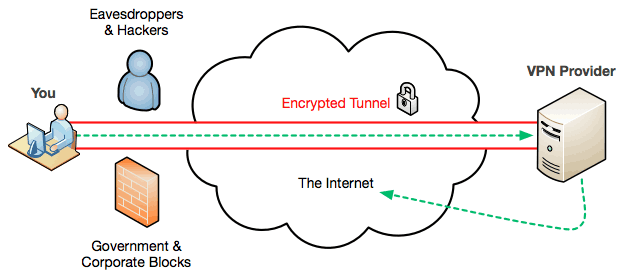
1. Use a VPN

The popularity of VPN (Virtual Private Network) solutions has reached the sky lately, especially after various whistleblower leaks informed the vast internet society of privacy infringements.

VPNs let you choose the preferred server with various geo-locations, enabling you to stay anonymous online.

Beyond that, many VPN services offer additional privacy-related tools (e.g., military-grade encryption) and can be used on various devices, both PCs and smartphones.

We gave our 2 cents on the paid vs free VPN solutions, if you are looking to get premium protection, you should consider investing in a premium tool.

Our VPN of choice is Private Internet Access, a world-class VPN that brings all those professional privacy and security-oriented features to the table without you having to break the bank to acquire a subscription. It’s actually very affordable.

Private Internet Access

Get the latest privacy features with Private Internet Access VPN service.

2. Try Proxies

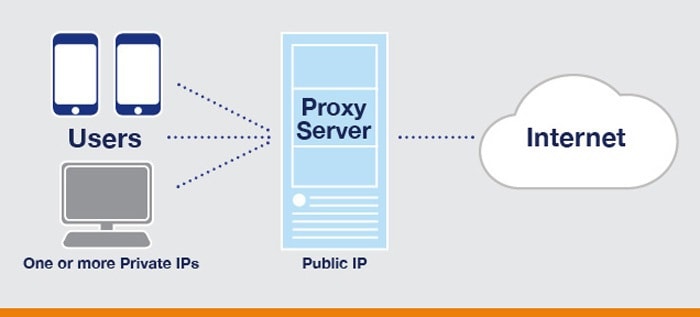
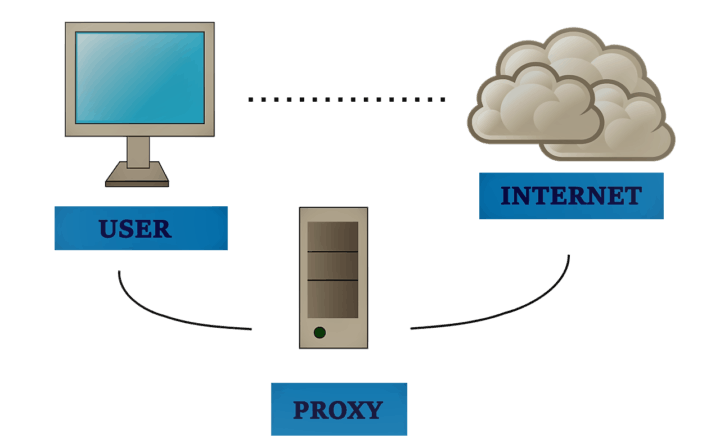
While VPNs cover everything, proxies are more browser-related services. The simplest way to explain how a proxy works is to imagine it as a mediator between you and the website you want to access.

hide ip address windows 7

It changes your private IP address with a random public IP, obscuring your ID in the process. There are also various proxy solutions, both online and offline, with both proxy and reverse proxy traits.
For the IP-hiding reasons, we’ll need to look for Anonymous proxy servers and use them to hide the IP address.

Two main things you’ll need to focus on when searching a reliable proxy solution for your Windows 7 are speed (some of those slow down connections substantially) and reputation.

Performance-wise, the paid proxy solutions are also much better than the free ones, but it all depends on how often you use a proxy.

There are so many more similar solutions online and many of those offer better service for a monthly fee. Make sure to check all the related information before you decide to pay for a proxy server.

You can change your address without third-party tools. Learn how to change your IP address in Windows 7 to refresh your connection and minimize tracking risks.

3. Tor Browser

All major third-party browsers will, at some point, let you know that they care about your privacy and that it’s completely safe to use them.

No tracking, no privacy intrusion, no selling your browsing history to a higher bidder.

hide ip address windows 7

For example, Firefox Quantum uses privacy protection as its go-to card.
However, that’s not completely true. Especially if we compare any given browser out there with the Tor browser. Tor is an embodiment of safe browsing for ages, and it’s still the best way to access the Dark Web if that’s your cup of tea.

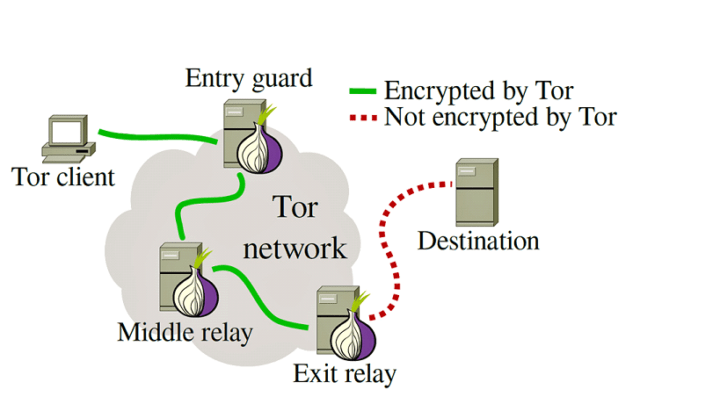
The Onion Router (TOR) got its name thanks to multi-layered encryption which it uses to grant users complete anonymity. On the other hand, Tor is best when combined with a VPN, as it doesn’t check all the boxes on its own.

Also, some sites use Anti-Tor blockers, so you won’t be able to access them using the Tor browser.

You can download the Tor browser for Windows here, free of charge. We’re certain you’ll get to know its positive sides within minutes.

That should do it. We hope this article shed some light on ways how to hide your IP in Windows 7.

You can also try using the extensions for the VPN services if you want to stay anonymous just while browsing the internet.

For additional inquiries or alternative ways to make your IP address invisible to third-party sites, reach out to the comments section. It’s just below.

How to backup your Microsoft SharePoint online

Microsoft SharePoint is the number one data-sharing tool used by countless worldwide organizations. It promotes teamwork through dynamic and productive team sites.

With SharePoint, you can share data, news, resources, and files between co-workers. For instance, you can collaborate with members of your organization across platforms such as PC, mobile devices, and Mac.

As a result, not only does SharePoint make data transfers easier but it also helps the users find information faster, thus increasing efficiency.

Unfortunately, not everything goes according to plan. Sometimes data gets corrupted, lost, or deleted by accident.

To prevent such a thing from happening in the first place, rest assured that there are ways that allow you to backup your online files and data on SharePoint.

How can I backup my Microsoft SharePoint online?

1. Give a try to a reliable third-party program

The native backing options that SharePoint offers are not the most efficient, nor the simplest ways of ensuring your data is safe.

For this reason, we recommend you try reliable Windows backup software that will save you plenty of time and hassle.

Such tools are created to make the user’s job easier and also create safe and secure backups, preventing loss of data.

Backup software are generally versatile and let you save your data to multiple platforms, such as a cloud, NAs, disks, SAN, or tapes.

They also use powerful encryption so no one will be able to open the backup and see your data without your permission.

2. Use the built-in recovery option

Versioning

  1. Navigate to Library/List settings.
  2. Modify the number of versions to the one you’d like.

Compliance Retention

  1. Go to Microsoft 365 Compliance.
  2. Navigate to Policies, then to Retention.
  3. Create a new policy and apply it to the SharePoint you want.

Alongside setting up retention policies, you may also want to learn how to move files in SharePoint so your libraries remain organized and easier to protect.

After you’ve successfully applied the new policy, it may take a while for it to take effect. When it’s done, all the files added to the specific SharePoint sites will be retained by the policy.

How many days SharePoint online sites are backed up? Assuming that’s your question too, let us tell you that versioning only supports native Office 365 formats, and data is only stored for no more than 93 days.

Also, let us tell you from the start that the search and export operations are lengthy, sometimes taking hours or even days to process.

These are the main solutions for backing your data on SharePoint. Using both methods should ensure that your files are safe, thus making work easier for both you and your colleagues.

We hope this guide helped you. Do not hesitate to tell us your opinion in the comments below.

How to hide your IP address when abroad

Protecting your privacy and anonymity is important both at home and while you’re globetrotting your way around the world. The best way to be 100% sure that you’re a ghost on the grid is to hide your IP address.

The risk of potential attacks, phishing, ransomware, or simple geo-restrictions is much higher in some countries and you’ll need to react accordingly.

That’s why we prepared an in-depth explanation and the reasoning behind why you should be hiding your IP address while traveling abroad. In addition, we enlisted a few fastest ways to protect your identity, and do so with as little effort/spending as possible. Make sure to check it out.

How can I keep my IP address hidden while traveling abroad?

1. About the IP address

Firstly, let’s explain what exactly is your IP address and why you’ll probably want to hide it while abroad. The IP address is a digital signature for every device trying to access the network.

It’s granted by your ISP (Internet Service Provider) and, to put it simply, it’s somewhat analog to your home address or unique ID number. You can have a dozen devices connected to one network, and still, every single one of them will have a different IP address.

Unable to Change Static IP Address and DNS Server in Windows 10? Check out this guide.

What’s the use of an IP address? Well, Internet Protocol addresses are the essential link between your system and various interconnected networks (also known as the Internet).

It’s used to send requests and receive wanted results. Every time you open a website, that’s really your IP address that’s communicating with the dedicated servers on the network.

However, by doing so, the IP address can present your sensitive data to the other side — third-party sites, advertisers, hackers, or government spooks. It can pinpoint your exact location with precision or create a digital trace some might use to track you on the interwebz.

Now, knowing this, there are multiple reasons why you’ll probably want to hide (or rather switch or fake) your IP address while abroad:

  • Privacy. Some countries’ laws on internet privacy allow various third-parties to track your internet activity. Google Fourteen eyes countries for better insight.
  • Safety. Hiding your IP address will make things much harder for cybercriminals.
  • Avoiding geo-location boundaries. Some content is restricted to various countries, and also there’s China and the Great Firewall of China.
  • Torrenting. We won’t endorse piracy in no manner, but it’s still your right to stay anonymous if you decide to do so.
  • Public networks. Also, if you’re using a public network (which is common while traveling and rather dangerous, for that matter), changing your IP address after some time will help you stay safe.

Those were the points. Now, here’s how to hide your IP address.

2. Use VPN

VPN is, for all intents and purposes, the best-suited tool for this job. Virtual Private Networks arise in market shares lately with all the fuss concerning the privacy controversies that marked the past years.

Why are VPNs the best for the job? Well, premium VPN solutions are much faster and more reliable than proxies or Tor browser. Furthermore, they offer a large variety of available servers spread around the world so you can choose a country or sometimes even the city with their distinctive IP addresses.hide ip address when abroad
That way, you can mask your current location. Now, there’s a distinctive difference between paid and free-to-use solutions in regards to speed and features, but your choice will heavily depend on your needs.

When abroad, you can use a VPN to access limited or inaccessible content. Moreover, you’ll avoid the marketers and prevent tracking.

As we already stated, some countries have strict policies on foreign sites. If you’re, say, spending some quality time in China — Facebook, YouTube, or Google– is a no-no.

There are many available solutions, both premium and free of charge, but our pick is PIA.

⇒ Install Private Internet Access

Private Internet Access
In a nutshell, PIA is all about unlimited bandwidth, super-fast download speeds, no online censorship, extreme privacy, best-in-class encryption, an impressive network of servers with global coverage, and genuine simplicity.

The powerful IP cloaking function that PIA comes packed with is designed to anonymize browsing and keep your identity and location hidden.

Speaking about hiding or better said changing IP addresses, this is a feature that comes very handy when traveling abroad because it also allows you to bypass restrictions of all kinds (including ISP throttling, national infringements, geo-targeting, and so on) so that you can unblock all those websites that would be otherwise off-limits in particular countries or regions.

With PIA, there is no such thing as online censorship, data tracking, or revealing your personal data.

You can try it out for 30 days completely free of any risk thanks to its money-back guarantee, and see for yourself.

Private Internet Access

Private Internet Access

Business or pleasure, the purpose of your voyage is a private matter. Trust PIA VPN with your privacy while traveling abroad.
$2.69/mo. Buy it now

3. Use Proxy

Now, a proxy is another way to hide your IP address and it works in a similar manner as a VPN does. However, Proxy is mostly run through the dedicated browser of choice, while VPN can cover one or multiple devices.

Proxy servers are there to mediate between you and the designated website, using an alternative IP address in the process. That way, the end result is that only the proxy server (hopefully, trustworthy one) will have knowledge of your real personal IP address.hide ip address when abroad
There’s a large variety of proxy servers and services out there, but for the sake of hiding our IP address, we’ll be looking for anonymous proxies. A lot of add-ons for browsers that are presented as VPNs are actually proxies you can use to switch your IP address to the one enlisted.

Most of them offer rather lackluster features and speeds for free, but with a monthly subscription, you’ll have a much better time.

We still prefer a VPN over Proxy, but if you’re bound to use it for the fairly limited amount of time — they’ll serve you justice.

4. Tor browser

Finally, another free solution that can’t be overlooked is the Tor browser. An open-source project specially designed to ensure maximum privacy and top-notch encryption.

It got its name (The Onion Router) due to onion-like multi-layered encryption and it surely upholds the standards in this dark ages of internet privacy and safety.hide ip address windows 7
Albeit, even though it’s the safest browser out there, it will affect your bandwidth speeds. Especially when compared with the rest mainstream browsers that aren’t all that privacy-friendly.

Obviously, you can use it abroad and access any geo-restricted site, including the infamous Deep web. Furthermore, it should provide you with a new IP address every time you start it, making you the ghost of the interwebz.

You can download Tor for Windows here.

When combined with a good VPN service, Tor basically offers military-grade protection against the prying eyes.


With that, we can conclude this article. We hope it gave you valuable insight on the importance of anonymity — while home or traveling abroad — and ways how to hide your IP address.

Don’t forget to share your experience or post questions in the comments section below.

How to hide IP address on Local Area Network

There’s a thin line between a technological paranoia of online surveillance and the real reasons you need to worry about your privacy while roaming online.

Things have changed, and not for the good in the privacy department, so we, users, need to take matters into our own hands and protect ourselves. Hiding your IP address on both LAN or Wi-Fi, trusted or public networks is the first step on the long road of online anonymity.

We already covered a lot of privacy-sensitive subjects, and today is the day reserved for LAN. Local Area Network or LAN is usually the safest, fastest way to access the internet.

However, there are still valid reasons why one would want to hide their IP address while surfing online, or creating, accessing, and downloading content.

We made sure to explain everything while focusing on the best ways to hide your IP address. Make sure to check out those in the continuation of the article.

Why should you hide your IP address on LAN?

In comparison to, let’s say public Wi-Fi networks, Local Area Network (wired internet connection) is much safer, faster, and more reliable. Nonetheless, don’t let that undermine the fact that hiding IP is still something you should seriously take into consideration.

You’re indeed less exposed to hackers, but there are still more than enough arguments to hide your IP address while using the trusted home network.

Here are the most common reasons why one would want to hide IP address even with the modestly-secure Local Area Network:

  • Anonymity. Your browsing history, habits, patterns, and interests should be private. Don’t let third-party sites, marketers, and government spy on you.
  • Safety. Hackers and cybercriminals can take advantage of your IP address.
  • Avoiding geo-location boundaries. A lot of online content is under geo-restrictions. Since the IP address is the only way to determine visitors’ geo-location, you can visit any site with the hidden/masked IP address.
  • Torrents and other not-exactly-legal activities. No one in their right mind will promote piracy, but if peer-2-peer multimedia downloading is your cup of tea, hiding your IP address is something you should take seriously.

Ten years ago this IP address tweaks didn’t have too much importance but in the current meta-state of the World Wide Web, things work in a different manner.

Censorship, hand-loose ISPs with access to your browsing history that’s later sold to the highest bidder, government privacy infringements, content elitism, etc. It seems that the only way to fight it is to turn to one of the steps we provided below.

How can I hide my IP address while using Local Area Network?

1. Use VPN tools

Most certainly the easiest or, at least, the most reliable and user-friendly way to stay anonymous online is using VPNs (Virtual Private Networks).

hide ip address local area network

Imagine a VPN as a mediator between you and the internet. Once active, VPN will let you change your native IP address with one of the many others available around the world.

Therefore, they mask your IP address and replace it with an alternative of your choice. Besides that, some of the VPN solutions offer encryption and extra features, but we reckon that the main differences rest between free and premium options.

Speed differences and server availability are the key differences between paid and free-of-charge solutions. For those who want real online privacy, VPNs are certainly worthwhile.

VPN clients offer easy-to-use, intuitive apps. You don’t have to be in the know to configure and use one. One of the best VPNs out there that offer high-quality servers and a simple setup is ExpressVPN.

Putting your privacy first, ExpressVPN comes packed with numerous features designed to anonymize your browsing and keep your traffic secure and encrypted as well as your data monitoring-free.

One of its most convenient features for this job is the IP cloaking function that hides your location and replaces it with an IP from its impressive network of worldwide placed gateways.

Make sure you enable the kill switch that prevents your IP from being exposed in case of the connection drops down and also pay attention to the records policy.

ExpressVPN

Mask your IP address and encrypt all your traffic data for truly private and secure LAN connections.
Free trial Visit website

2. Use Proxy services

Now proxy servers are basically browser-focused solutions. With that out of the picture, they’re fairly similar to VPN solutions. Of course, bandwidth speeds and levels of encryption are of lesser value on proxies.

hide ip address local area network

In addition, they are often countered with reverse proxies that stop the mirroring effect proxy server does in order to mimic your own IP’s activity. Which means that some sites will still remain geo-restricted. Check out the best privacy protection software for Windows 10.

Nonetheless, even if they’re not as good as VPNs, they can certainly come in handy for simple operations like avoiding geo-restrictions and retaining acceptable levels of privacy.

So, you can indeed use a proxy to hide your IP address while using LAN, but don’t expect miracles. It depends on your needs. Furthermore, some users are quite satisfied with browser extensions that are often marketed as VPN solutions.

They’re just proxy solutions (for obvious reasons), but some of those are a valid choice for undemanding users. If you’re more site-oriented, here’s the list of proxies that will temporarily hide your IP:

3. Try out Tor Browser

We can’t possibly make a list of ways how to hide your IP and avoid mentioning Tor Browser. In the era when every browser developer advertises as pro-privacy, there’s one browser that’s above and beyond the mainstream competition.

hide ip address local area network

And that’s Tor (The Onion Router) browser that offers multi-layered encryption and it’s completely free and open-source.
Check out this complete guide on how to download and use Tor Browser on Windows 10.

You can use it as your daily driver or run Tor only when you need that extra privacy and safety. It employs the DuckDuckGo search engine, albeit it slows the bandwidth speed a bit.

In addition, you can use the Tor browser to access the Deep Web, which seems to be the thing for some users. Another thing in favor of Tor is, obviously, a preferential selection of security.

hide ip address local area network

You can let it only hide your IP and work like any other browser or use its full protective potential and utilize military-grade security.
Either way, the best results will come by combining VPN and Tor, making you the ghost on the grid. You can download Tor for free by following this link.

4. Reset IP with the Command Prompt

Finally, the last way we decided to enlist doesn’t have too many similarities with the ones we presented above. Namely, it includes Command Prompt and resetting of your current IP address.

However, this solution is only there if you want to change your IP address once if your IP got banned or blocked. Should your PC not acquire IP address, here’s how to solve the issue.
It’s not a permanent privacy solution, not by a long stretch, but since it’s practically a way to hide your IP, we decided to put it with the rest. Of course, you’ll need to have a wired connection in order to perform it.

Here’s how to reset your IP address with the little help of Command Prompt:

  1. Connect your PC to a router or modem via a LAN cable.
  2. In the Windows Search bar, type cmd.
  3. Right-click on Command Prompt and run it as an administrator.
  4. In the command line, type the following commands and press Enter after each:
    • ipconfig /release
    • ipconfig /renewhide ip address local area network
  5. Restart your modem and PC and check for changes on ShowIp.net

This workaround also depends on your ISP’s policy, so some users won’t be able to repeat it too often.

With that, we can conclude this article. We hope that this was an insightful and informative read.

In case you have an alternative way to hide your IP while using LAN, or questions regarding the ones we already noted above, there’s the comments section below.

BBC iPlayer detecting/blocking VPN [How to fix]

VPNs are commonly used for security as they provide the privacy most people seek online through encrypted tunnels across the open internet architecture.

For people who travel a lot and for long periods of time, VPNs come in handy to keep data secure while being able to access geo-restricted content whenever they want to watch their favorite shows on streaming media such as Netflix, Hulu, BBC iPlayer, or Amazon Prime, among others.

The primary reason for using a VPN, however, is to bypass internet censorship and country-level filtering, where there are severe censorship regulations. VPNs do this by hiding your current location and IP address such that the website you visit only sees that of your VPN and not your real one.

If you’re a BBC fan and you’d like to access the content from a different location other than the UK, sometimes you’ll find your VPN blocked by BBC, and there are reasons why this happens.

One reason is that BBC blocks VPN connections from accessing the iPlayer application. However, it is hard to completely block out VPN access, which can involve manual intervention because a strong, well-configured VPN can go undetected.

In fact, some reports have said that about 60 million people outside the UK can access BBC’s iPlayer via VPN connections or other unblocking tools, which is a more significant population than those living in the UK.

This is probably why the BBC is actively stopping unauthorized users from accessing the content.

To resolve the VPN blocked by BBC issue, try the solutions below.

Has BBC blocked VPN? Here’s how to unblock it

1. Preliminary checks

  • Sometimes, the VPN blocked by BBC issue happens because your VPN account may have expired, so you’re unable to connect. Confirm if your account is still valid or has expired.
  • Check third-party app settings like your security software settings, which sometimes block the PPTP and L2TP protocols, especially when you set them higher than the normal level. Disable them and try connecting again, then allow PPTP, L2TP, and IPSec through your antivirus and firewall and reenable the security software.
  • Check your router settings if you’re connected to a WiFi router.
  • Check for PPTP, L2TP, and IPSec pass-through options under the Router Firewall/Security tab and enable them. If these options don’t exist, disable the router firewall and try again, then reenable the firewall.
  • Check that you entered the correct user credentials – username and password for logins.
  • If you get an error message saying: You seem to be using an unblocker or proxy or You’ll need to disable your anonymizer, contact your VPN tech support team for help.
  • Check your IP address for information, such as your city or region (country) next to your selected location. If it shows a location near you, you’re not connected to a server location associated with your VPN, so try connecting again.
  • Check your internet connection by first disconnecting from your VPN and trying to access websites normally. If you cannot access it even when disconnected from the VPN, check your internet connection.
  • Try connecting to a different UK VPN server.
  • Try switching the web browser you’re using.
  • Contact your VPN’s support team and see if they can help you bypass the VPN block.

2. Change your VPN

Private Internet Access


For guaranteed access, go for a VPN that is optimized for streaming, such as Private Internet Access.

When it comes to fighting online censorship, PIA is unmatched. According to its statement, this world-leading VPN provider has made it its mission to liberate the internet for you, as it was always intended.

With unlimited bandwidth and the highest download speeds, PIA is your best bet to unblock BBC content and enjoy all your favorite shows, buffering-free and without worrying about ISP throttling.

In addition, all the servers composing PIA‘s impressive network of worldwide gateways are streaming and P2P sharing compatible, which takes out the question of having to blindly search for a server location that the BBC does not block.

Activate your VPN, choose the server closest to you to rule out proximity-related issues, and enjoy a smooth, reliable, and stable connection for as long as you want.

Private Internet Access

Get Private Internet Access and solve this BBC iPlayer issue in no time.
Free Trial Visit Website

3. Download the latest version of your VPN

Uninstall the VPN app you’re running, sign in to your VPN account, and set up the VPN. Find the latest version for your device and reconnect, then see if you can access BBC.

To set up the VPN in Windows 10, do the following:

  • Right-click Start and select Apps and Features
VPN blocked by BBC
  • Find your VPN from the list and select Uninstall
  • Click Uninstall, then click Close to exit
  • Connect again to your VPN and see if you can access BBC

4. Get a dedicated IP address

This may cost you a bit more, but go for one if you want uninterrupted streaming. A dedicated IP address is more complicated to blacklist because the shared ones are already on BBC’s radar.

But with a dedicated IP, you won’t be sharing with many other people, just a few selected users, which makes you look like a regular household compared to a big company.

5. Download the latest version of your VPN

Uninstall the VPN you’re running, then sign in to your VPN account and run the setup again. Find the latest version for your device and reconnect.

6. Flush the DNS

Flushing your DNS cache allows your computer to automatically access your VPN’s DNS for the proper/correct entries. To do this:

  • Click Start
  • Select All Apps
  • Click Accessories
  • Right-click Start and select Command Prompt (Admin)
VPN blocked by BBC
  • Type ipconfig /flushdns and press Enter. A confirmation that says: Windows IP Configuration Successfully flushed the DNS Resolver Cache will be displayed

7. Manually configure DNS settings

Configure your computer with your VPN’s DNS servers’ IP addresses so that it automatically connects to your VPN’s DNS servers. Manually configuring your computer with other DNS server addresses helps you access BBC and enjoy faster connection speeds. To do this:

  • Open Network Connections settings by right-clicking Start and select Run
VPN blocked by BBC
  • Type ncpa.cpl and click OK
  • In the Network connections window, find your usual connection, either LAN or Wireless network connection.
  • Right-click the connection and select Properties
  • Set the DNS server addresses by double-clicking Internet Protocol Version 4 (IPv4) or just Internet Protocol
  • Select Use the following DNS server addresses
  • Type these Google DNS server addresses: Preferred DNS server 8.8.8.8; Alternate DNS server 8.8.4.4
  • If Google DNS is blocked, try the following: Neustar DNS Advantage (156.154.70.1 and 156.154.71.1) enter and press OK; Level3 DNS (4.2.2.1 and 4.2.2.2) enter and press OK
  • Once configured, flush old DNS entries again, as described in the previous solution.

8. Manually configure proxy settings

A proxy server hides your real location so you can access websites such as BBC. Ensure your browser is set to auto-detect proxy or no proxy, then use the instructions to configure proxy settings for your browser manually. To do this:

  • Click Tools
VPN blocked by BBC
  • Select Internet Options
VPN blocked by BBC
  • Go to the Connections tab
  • Click LAN settings
  • Uncheck all the options except Automatically detect settings and click OK for all

You can apply the same fixes when encountering the BBC iPlayer error code 02050 or error code 02062.

Let us know if these solutions helped fix the VPN blocked by BBC error by leaving a comment in the section below.

Windows 10 Insider build 21313 expands news and interests in the Taskbar to more markets

This is a bit unexpected, but Microsoft has just released a new Windows 10 preview build for Insiders in the Dev channel. If you’ve been unable to try news and interests in the taskbar until now, the build 21313 expands the experience to more markets and languages, with China being left out.

“News and interests will automatically detect your language and location, and deliver a localized experience consisting of content from local publishers and data providers,” the Windows Insider team explained today. Unfortunately, this is still a gradual rollout, and not all Dev Channel Insiders will see news and interests in the taskbar after installing this build.

News and interests on the Windows taskbar as seen from a Windows Insider’s PC in Japan.

Today’s build also replaces the legacy Microsoft Edge with the new Chromium-based Edge. The legacy Edge will be removed from all Windows 10 versions in April, so Dev Channel Insiders will be the first Windows users to say goodbye to the original version of Edge that shipped with Windows 10 back in 2015.

The build 21313 also introduces a redesigned IME candidate window, which is the pop up window that allows Windows users to insert characters from other languages. The updated design brings dark theme support, optimized performance, and quick access to emoji.

The new UI design will be available for a total of 17 languages including Japanese, Chinese (Simplified and Traditional), Korean, Hindi, and Tamil, though only a subset of Dev Channel Insiders will see the redesigned IME candidate window after installing the build 21313.

New Japanese IME candidate window design, in light and dark mode. Design now follows Fluent Design principles.

Today’s flight also brings other minor changes, bug fixes, and known issues, and you can check out the full list below:

Changes and Improvements

  • Based on feedback, and to align with the fact that Dev Channel builds are not matched to a specific Windows 10 release, we have updated the displayed version name to now be Dev.
  • We heard feedback that it wasn’t clear how to turn off news and interests if this was your preference. To help address this, we changed the “Hidden” option in the taskbar context menu to now say “Turn off” to make this functionality clearer.
  • Based on feedback, we’ve made some small adjustments to the new app launch animation to improve speed and make it a little smoother.
  • The improvement to the candidate bar on the touch keyboard announced last week where it displays 5 candidates maximum and centers them into position above the keyboard has begun rolling out.
  • The new voice typing experience that was announced back in September has begun rolling out to all Insiders in the Dev Channel. Press the Windows key plus H if you’d like to try it out in one of the supported languages.
  • The change to enable pinning items in our updated clipboard history design (inside the emoji picker) is now rolling out to all Insiders in the Dev Channel.
  • We’ve made a few more updates to our emoji search teams based on feedback, including that programming will now return the 3 technologist emojis and RIP will now return the tombstone emoji. We’ve also updated the search in Russian so that emoji with the letter ё in their keywords can now also be found by using the letter e. Please keep the feedback coming!
  • We are removing the capability to copy and paste a screen snip directly into a folder in File Explorer for now due to an issue discovered thanks to the feedback from Windows Insiders. We hope to re-enable this capability in a future update after we address this issue. (This change was also released to Windows Insiders in the Beta Channel as part of the recent Windows Feature Experience Pack update.)
  • As part of our continued iconography work, this build introduces a new design for our Narrator icon.

The essence of the icon is the same (a computer with a speech bubble), but now the speech bubble is brightly colored rather than just white lines on a blue background.

Fixes

  • We fixed an issue resulting in some Insiders experiencing an IRQL_NOT_LESS_OR_EQUAL bugcheck when attempting to upgrade to a newer build.
  • We fixed an issue resulting in Miracast users experiencing very low frame rates.
  • [News and interests] We fixed an issue where the taskbar button would highlight on hover and click was larger than the content being shown on the taskbar.
  • [News and interests] We fixed an issue where the text on the taskbar button could look pixelated on high resolution screens.
  • [News and interests] We fixed an issue where the flyout would show content in a single column before quickly switching to double column.
  • [News and interests] We fixed an issue where in certain situations, the flyout might not dismiss until the taskbar button was clicked or the hover effect might have appeared stuck.
  • [News and interests] We fixed multiple issues impacting performance and reliability.
  • [News and interests] We fixed an issue where the taskbar might show stale weather information immediately after signing into your Windows session.
  • [News and interests] We fixed an issue where the flyout would show an error/offline message when the device was connected to the internet.
  • [News and interests] We fixed an issue where if you attempted to share content, it would dismiss the flyout.
  • [News and interests] We fixed an issue where resizing your taskbar would cause size and alignment issues for the button.
  • [News and interests] We fixed an issue where the flyout would not close when the user pressed the Esc button.
  • [News and interests] We fixed an issue where a taskbar set to auto hide would not be shown until the news and interests flyout had opened.
  • We fixed an issue where clicking restart in the notification prompt after enabling or disabling core isolation would not actually result in your PC restarting.
  • We fixed a race condition that could result in notifications unexpectedly not appearing sometimes.
  • We fixed an issue impacting ALT + Tab reliability in the previous flight.
  • We fixed an issue resulting in acrylic disappearing on secondary monitors when the UI with the acrylic was spanned across multiple monitors.
  • We fixed an issue that could result in the taskbar becoming invisible after minimizing certain apps.
  • We fixed an issue that could result in an unexpected black area appearing at the bottom of Outlook sometimes.
  • We fixed an issue where the /remoteguard option for Remote Desktop Connection wasn’t working.
  • We fixed an issue where changing VPN profile authentication method to certificate in the VPN settings would not actually change it.
  • We fixed a handle leak in MsSense.exe, resulting in unexpected system resource usage over time.
  • We fixed an issue where if you tried to schedule a restart (for Windows Update) it might erroneously tell you “That time is in the past” even though it wasn’t.
  • We fixed an issue where a couple files might remain after cleaning up the Windows.old folder.
  • We fixed an issue where the mouse was not working on the dual boot menu.
  • We fixed an issue impacting Settings app reliability, which could also make the Settings app hang when opening Settings > Ease of Access > Narrator.
  • We fixed an issue resulting in some Insiders not seeing the search box appear in the Set Defaults by App, Set Defaults by Protocol, and Set Defaults by File Type Settings pages.
  • We fixed an issue that could result in some apps failing to launch after using the option in Settings to reset them.
  • We fixed an issue where if you searched for Meet Now, it wasn’t returning the settings for turning system icons on and off.
  • We fixed in issue from recent flights that could result in some unexpected flickering after launching the Xbox Game Bar while playing certain games.
  • We fixed an issue that could result in ctfmon.exe unexpectedly crashing while typing in certain applications.
  • We fixed an issue that could result in the text flickering in some apps while inserting text with the handwriting panel.
  • We fixed an issue where the IME candidate window, IME toolbar, touch keyboard, voice typing, emoji panel, and clipboard history might not launch well on East Asian language systems. Thank you to the Insiders who gave us detailed information and trace logging etc. to help our investigation!
  • We fixed an issue with the Japanese IME where pressing Caps Lock (Eisu) key wouldn’t switch modes according to what you’d previously used for Alphanumeric conversion, so it wouldn’t go to Full-Width Alphanumeric input mode if that’s what you preferred.
  • We fixed an issue where if you use ALT + Shift to switch the active input method, the Japanese IME wasn’t working.
  • We fixed an issue with the touch keyboard where when using the Bopomofo IME, the candidate window wouldn’t be shown if you started typing right after switching between English and Chinese modes.
  • We fixed an issue resulting in the touch keyboard hanging and crashing when typing with the Japanese IME.
  • We fixed an issue that could result in the screen unexpectedly going black while typing with the touch keyboard.
  • We fixed an issue where Narrator was reading each key in the touch keyboard twice.
  • We fixed an issue where selecting GIFs via the touch keyboard could result in unexpected flashing.
  • We fixed an issue where if you were using the touch keyboard gesture to move the text cursor in a table in OneNote it might unexpected exit out of this mode.
  • We fixed an issue where the microphone button on the touch keyboard wouldn’t work when using the traditional keyboard layout.
  • We fixed an issue where the consent dialog for enabling voice typing from the touch keyboard could show up behind the touch keyboard.
  • We fixed an issue where if you use WIN + H to pause voice typing while it was running, it could result in an infinite loading state, or could result in voice typing immediately un-pausing.
  • We fixed an issue that could result in voice typing suddenly finishing even though you were still speaking.
  • We fixed an issue where the new emoji panel didn’t work with the Xbox game bar.
  • We fixed an issue where if you closed and re-opened the emoji panel, the keyboard focus wouldn’t be on the first emoji in the list.
  • We fixed an issue where if you pressed ESC to close the emoji panel it would get passed through to the app you were using and cause other UI to unexpectedly close.
  • We fixed an issue impacting clipboard history and emoji panel launch reliability.
  • We fixed an issue where the “couple with heart” emojis unexpectedly had flesh-colored hearts instead of red.

Known issues

  • We’re investigating an issue where if you access an Azure Active Directory (AAD) joined device via Remote Desktop (RDP), it will fail to connect after updating to Build 21313. To resolve the issue, please add the following registry key:

Key: [HKEY_LOCAL_MACHINESOFTWAREMicrosoftIdentityStoreLoadParameters{B16898C6-A148-4967-9171-64D755DA8520}]

Value: “Enabled”=dword:00000001

  • Reset my PC with the Keep my files option is failing and then returning to its previous state. The Remove everything option will work as expected. We appreciate your patience as we work on a fix.
  • We’re looking into reports of the update process hanging for extended periods of time when attempting to install a new build.
  • We’re investigating an issue impacting the reliability of Start and other modern apps, which started in recent Dev Channel flights. If you are impacted, you may experience the Start menu layout resetting.
  • Live previews for pinned sites aren’t enabled for all Insiders yet, so you may see a grey window when hovering over the thumbnail in the taskbar. We’re continuing to work on polishing this experience.
  • We’re working on enabling the new taskbar experience for existing pinned sites. In the meantime, you can unpin the site from the taskbar, remove it from the edge://apps page, and then re-pin the site.
  • [News and interests] Sometimes the news and interests flyout cannot be dismissed with pen.
  • [News and interests] News and interests uses more taskbar space on the left than expected.
  • Users may notice Domain networks appearing with the wrong firewall profile which may block some local network services. As a workaround, users may configure the network as private to allow local network traffic. This will be fixed in a future release.
  • We’re investigating reports from Insiders that the Chinese text for the lunar calendar in the clock and calendar flyout is no longer displaying properly as of the previous flight.
  • After installing this build, you may notice an issue wherein it is not possible to unpin apps from the Start menu. We are working on a fix.

If you were planning to install today’s build on a Windows 10 on ARM PC, be aware that it won’t be offered on your device due to an app compatibility issue. “We hope to flight to ARM64 devices with the next flight once the issue is fixed,” the team said today.

Windows 10 network adapter is missing [Fixed]

If you have upgraded your PC to Windows 10, network problems may occur from time to time. If your PC fails to recognize the adapter, you won’t be able to see it in the Device Manager.

In the event of Internet failures or network problems, a quick check of the network adapter often helps.

This way you can rule out that this is the cause of the problem. In the following lines you will find sure ways to fix your problems with network adapters.

How do I fix the Windows 10 network adapter missing error?

1. Change the adapter settings

  1. Open the Windows Settings app.
  2. Select Network and Internet, and click on Ethernet.
  3. Look for a wireless adapter that is currently running.
  4. Right-click on it and select Properties.
  5. Search for the Internet Protocol Version 6 (TCP/IPv6).
  6. Uncheck IPv6 to disable it, and click on OK.
  7. Restart your PC.

A network adapter is an interface between the Windows operating system and a network connection.

2. Update your drivers

The error is often caused by outdated or missing drivers. In this case, you may not appear in the Device Manager panel which is why we recommend you use dedicated software to update it.

The software uses its own comprehensive database to find the newest driver version for your hardware. It is light and simple. Just let it run a scan and it will find and fix all driver-related issues on your whole PC.

⇒ Get Outbyte Driver Updater

3. Activate and deactivate network adapter

  1. Open the Windows Settings app.
  2. Select Network and Internet, and click on Status.
  3. Under Advanced network settings on the right, you will find the Change adapter options.
  4. Click on Network adapters.
  5. Choose the network adapter or Ethernet port of your Windows PC.
  6. Right-click on it and select Deactivate.
  7. For activation, right-click on the network adapter or Ethernet port, and select Activate.

Activation and deactivation is done via the context menu. If you want to disable the network adapter or Ethernet port of your Windows PC, this is possible, by following the above-mentioned steps.

4. Reset the network adapter

  1. Open the Windows Settings app, and go to Network & Internet.
  2. Click on Status.
  3. Under the Advanced network settings, click on the Network reset.
  4. Select Reset now, and click Yes.

After you complete the steps, the computer will restart automatically, and on reboot, you should now be able to connect to the internet.

5. Uninstall the network adapter

  1. Open the Windows Settings app.
  2. Select Network and Internet.
  3. Click on Status on the left.
  4. Under Advanced network settings on the right, you will find Change adapter options.
  5. Click on Network adapters.
  6. Right-click the problematic network adapter and select the Uninstall device option.
  7. Click the Uninstall button.
  8. Restart your PC.

After you complete the steps, Windows 10 should automatically detect and reinstall the driver again, fixing the network problem.

6. Use the Network troubleshooter

  1. Open the Windows Settings app.
  2. Go to Update & Security, and select Troubleshoot. 
  3. Click on Internet Connections.
  4. Go to Run the Troubleshooter.
  5. Follow further on-screen instructions and let the process finish.
  6. Restart your PC.

The first thing you are going to do is also the easiest one. You are simply going to run the network troubleshooter and let it do the job for you.

In the above lines it’s shown how to run the network troubleshooter in Windows 10.

FIX: Sorry, there was a problem communicating with Netflix

Netflix displays error messages whenever there’s something wrong with the online streaming service.

Thankfully, most errors are accompanied by a code that you can use to look up solutions in the Netflix Help Center.

Sorry, there was a problem communicating with Netflix. Please try again (T1.) is an error that occurs on Windows 10 computers.

The official website provides a few troubleshooting steps: restart your computer and router, enhance your Wi-Fi signal, switch to wired mode, and restore your default connection settings.

According to Netflix, it usually indicates a network connectivity issue. But we don’t think these instructions go deep enough to help users find a resolution to this matter.

If you have wondered how you can communicate with Netflix to solve different issues, the Help Center is the main contact point.

How do I fix the communication problem with Netflix?

1. Run an Internet speed test

Fast.com speed test without Avast VPN
  1. Make sure you’re connected to the Internet.
  2. Visit Fast.com.
  3. Wait until the website measures your connection speed.
  4. Click Show more info.
  5. Review your download speed.

Here are the Internet connection speed recommendations made by Netflix:

  • 0.5 Mbps – Required for broadband
  • 1.5 Mbps – Recommended for broadband
  • 3.0 Mbps – Recommended for SD quality
  • 5.0 Mbps – Recommended for HD quality
  • 25 Mbps – Recommended for Ultra HD quality

If your Windows 10 PC doesn’t fulfill the requirements, try these solutions:

  • Go to Task Manager and disable any unused processes and services that consume the network bandwidth (additional web browsers, torrent clients, gaming clients, etc.).
  • Update your network drivers.
  • Temporarily switch from Wi-Fi to wired mode to see if your Wi-Fi adapter or router is faulty.
  • Reboot your router.
  • Disable QoS (Quality of Service) in your router admin panel.
  • If you have a Gigabit router, connect to the 5GHz network instead of 2.4GHz (you might have to move closer to the router).

2. Check web browser settings.

Various browser settings can interfere with Internet streaming, preventing your computer from reaching Netflix.

Here’s what you can try:

  1. Disable browser extensions.
  2. Clear cache and cookies.
  3. Restore browser settings to default.
  4. Try using a different web browser.

If you’re looking for a web browser recommendation, consider using Opera.

It delivers excellent performance and comes with its own free VPN, which can sometimes unblock Netflix libraries unavailable to your region.

Opera

Use this reliable web browser with a free, built-in VPN service to watch Netflix movies and TV shows.

3. Use a VPN that won’t get blocked by Netflix.

The Netflix Help Center recommends disabling any VPN or proxy server you might be using. That’s because the streaming service is quite successful at detecting and blocking region circumvention tools.

Since most free VPNs for Netflix use public IP addresses, it’s easy to see why they fall in this category. But a premium VPN is more reliable.

Plus, if your ISP is throttling your bandwidth due to streaming, using a VPN is necessary to hide the fact that you’re watching Netflix.

Private Internet Access is a great example. You can explore more than 12 US cities to unblock the biggest Netflix regional catalog, no matter where you’re living or traveling.

Besides Windows 10, you can set up PIA on Mac, Android, iOS, Linux, and even routers. It also works with other streaming services apart from Netflix, such as HBO Max and Peacock.

If you want to subscribe, you can pay with a credit card, PayPal, or crypto. There is no free trial, but there is a 30-day money-back guarantee policy. Also, you’ll get 24/7 live chat support.

If you believe that PIA is not the VPN for you, we suggest browsing our article with the best VPNs for Windows 10 and choosing one that you prefer.

3. Update your device drivers

  1. Right-click the Windows 10 Start button and click Device Manager.
  2. Expand the Display adapters menu.
  3. Right-click your display adapter and select Update driver.
  4. Click Search automatically for updated driver software.
  5. Follow the on-screen instructions.

Netflix might be experiencing streaming issues due to your outdated graphic driver. If Microsoft fails to find a newer version for your GPU, you have to manually look it up on your manufacturer’s website.

But there’s always the risk of installing an incompatible driver, which could result in serious computer issues.

A safer way to do this is by turning to a software application that automatically finds, downloads, and installs drivers for all your devices.

A computer cannot manage video cards, computer programs, sound cards, or other hardware; they must be managed by a driver. You can manually update drivers if you have a thorough understanding of the drivers your PC requires.

The driver updater utility is the best alternative to ensure you have the most suitable drivers for your device.

4. Lower your Netflix video quality

  1. Sign in to Netflix in your web browser.
  2. Go to the Account section.
  3. Scroll down to Profile & Parental Controls.
  4. Select a profile.
  5. Find Playback settings and click Change.change Netflix playback settings
  6. Set Data usage per screen to Auto.manage Netflix data usage per screen
  7. Click Save.

Note: If the Sorry, there was a problem communicating with Netflix error is caused by network connectivity issues, you can set up a poorer quality for all Netflix videos if it doesn’t bother you.

5. Use the Netflix app


Instead of watching Netflix in your web browser, download the official app from the Microsoft Store. It should solve any streaming issues caused by your web browser.

On the other hand, if you’re encountering the Netflix communication issue on the Netflix app, you can reinstall it. It might also be necessary to update your video driver.

6. Get the latest updates for Windows 10

download Windows updates
  1. Click the Start button and type Windows Update.
  2. Open the tool and click Check for Updates;
  3. Download any available updates;

It’s essential to keep Windows 10 updated with the latest features, improvements, and security patches. Also, Netflix needs Silverlight to work properly, which is covered by Windows Update.

If Windows 10 fails to retrieve updates, we have an awesome troubleshooting guide prepared for you.

To summarize, you can repair the Sorry, there was a problem communicating with Netflix error by running an Internet speed test and troubleshooting network connectivity issues.

It’s also a good idea to check browser settings, as well as to ditch your free VPN and replace it with a premium service that won’t get blocked by Netflix.

Additionally, you can update your device drivers to the latest version, decrease the Netflix video quality, use the dedicated Netflix app instead of your web browser, and regularly use Windows Update.

Did we fail to mention something important? How did you manage to fix the Netflix communication issue on your Windows 10 computer? Let us know in the comment section below.

Volkswagen will use Microsoft’s cloud technologies to create new Automated Driving Platform

Last week, Microsoft’s business inadvertently made headlines as Ford, a previous infotainment partner opted to Google’s Cloud services over that of Azure or even AWS. Most of the headlines were drawn from conclusions of the former Microsoft and Ford Sync agreements from a few years ago.

However, Microsoft’s business is once again in the headlines in a more direct correlation as it and the Volkswagen Group announce a partnership to build out an Automated Driving Platform.

Microsoft and the Volkswagen Group have been quietly cultivating the Volkswagen Automotive Cloud since 2018, but yesterday’s announcement is new, in that, the VAC will now be officially powered by Microsoft’s Azure Cloud services.

The partnership unveiled yesterday is meant to help Volkswagen accelerate the performance and scale of its Automated Driving Platform and presumably keep it up to pace with competitors such as Ford, Tesla and Toyota.

The Group’s software company Car.Software Organisation will collaborate with Microsoft to build a cloud-based Automated Driving Platform (ADP) on Microsoft Azure and leverage its compute and data capabilities to deliver automated driving experiences even faster at global scale. With ADP running on Azure, Car.Software Organisation will increase the efficiency of the development of advanced driver assistance systems (ADAS) and AD functions for passenger cars across Volkswagen Group brands.

Aside from using generic marketing boilerplate talking points, Volkswagen is specifically looking to increase its ability to develop in-house software for its vehicles and connect car experiences. The company already implores an internal software arm called Car.Software Org and will leverage data captured and analyzed through Microsoft Azure compute and machine learning to better rapidly deploy new or updated software experiences, according to a press release.

Vwag Automated Driving Platform Microsoft En

In addition, leveraging Microsoft’s Azure, Volkswagen’s Automotive Cloud (VW.AC) wants to streamline over-the-air features updates to drivers, independent of vehicle model or year.

Volkswagen’s partnered timeline starts as early as 2021 for test fleets making use of Azure with a more concerted consumer-facing rollout in 2022

Planning for a virtual Valentine’s Day? Spread some love with these Microsoft Teams & Skype backgrounds

Valentine’s Day is just around the corner, and many people may not be able to visit their loved ones due to the travel restrictions related to the ongoing pandemic. If you’re planning on staying this Valentine’s Day indoors, it means it’s time to look for some interesting and creatives ideas to make the day stand out.

By now, a lot of people are probably a pro at Microsoft Teams and Skype events. However, while planning virtual activities, invitations, and catching up with your crush, best friends, or family, many tend to forget to decorate their personal space. To help you host your virtual party, we have compiled a list of the best Valentine’s day backgrounds currently available online.

These backdrops are published by some third-party sites, including 1-800-Flowers, POPSUGAR, C Boarding Group, and Good Housekeeping. From hearts to flowers to chocolate, there’s a Teams background to help you spread the love.

1-800-Flowers.com

DOWNLOAD HERE

C Boarding Group

DOWNLOAD HERE

Good Housekeeping

DOWNLOAD HERE

POPSUGAR

DOWNLOAD HERE

Don’t forget to bookmark this page and take votes on whose background spreads the most love. If you have not done it yet, you can check out our separate post for easy instructions on setting a virtual background in Teams. We remind you that we’ve even got some picks for some of the most exotic backgrounds, too. Check out our full list of Teams backgrounds, here.

FIX: Chrome error ERR_CERT_SYMANTEC_LEGACY

The ERR_CERT_SYMANTEC_LEGACY error can arise when users try to open website pages in Google Chrome.

In many cases, that issue is due to users trying to open webpages with Symantec certificates that more recent Chrome versions no longer support.

However, it can also be due to a few other factors that some users might be able to fix with the resolutions below.

How can I fix the NET::ERR_CERT_SYMANTEC_LEGACY error?

1. Open the page in another browser

switch to opera browser

As mentioned, if the page error arises due to antiquated Symantec certificates that Chrome (and Firefox) no longer support, there isn’t that much you can do to solve the issue.

However, the same page will probably still work just fine in Opera One, so, try opening the webpage in this browser.

Opera One is a great browser when it comes to fast browsing, online security, and customization features.

Your device will be all-time protected from malware and annoying ads with the free VPN and built-in ad blocker. Plus, it also features a built-in AI.

The way you can manage the opened tabs is pretty amazing as well. The workspace features, Search in tabs, and integrated Facebook and Instagram messenger allow you to optimize your work and keep everything only one click away.

Opera One

If you want a reliable browser, a fast connection with a flexible and easy-to-customize interface then this is your best choice!
Free Download Visit website

2. Check Windows 10’s date and time settings

  1.  Double-click the system tray clock.
    The calendar clock chrome error net err cert symantec legacy
  2. Press the Windows key + S keyboard shortcut.
  3. Enter the keyword date in the search utility.
  4. Select Date & time settings to open Settings.Date & time options chrome error net err cert symantec legacy
  5. Turn on the Set the time automatically option if that setting is off.
  6. If Set the time automatically is selected, turn off that setting.
  7. Next, click Change.
    Change the date and time window chrome error net err cert symantec legacy
  8. Enter the right time and date.
  9. Click the Change button.

3. Turn off Chrome extensions

  1. Click the Customize and Control Google Chrome button.
  2. Select More tools and Extensions.The Extensions tab chrome error net err cert symantec legacy
  3. Turn the toggle switch for each browser extension off.

4. Turn off antivirus utilities

The ERR_CERT_SYMANTEC_LEGACY error might sometimes be caused by third-party antivirus utilities.

Try temporarily turning off third-party antivirus software. You can usually do that by right-clicking the antivirus utility’s system tray icon and selecting a disable option.

Thereafter, try opening the same website page in Chrome with the antivirus utility disabled.

5. Contact the website’s webmaster

If you can open the same webpage ok in an alternative browser, get in touch with the website’s webmaster.

The website might include a contact link somewhere with which you can send an email to the webmaster.

Tell the webmaster that you can’t open his website’s pages with Google Chrome due to an ERR_CERT_SYMANTEC_LEGACY error.

Then the webmaster will probably realize that he needs to replace the certificate on the site with a new one to fix the issue.

Those are a few potential fixes for when you can’t open web pages in Google Chrome.

Do you have any other fixes for this? If so, you can state what they are in the comments section below.

Division 2 keeps crashing on PC? [Startup, Update]

The Division 2 players are facing numerous game crashes while playing it on PC, and this is a really annoying problem.

Of course, you can not really possible to find a reason or even a pattern when the game hangs, shows a black screen and crashes.

But fortunately there are solutions to solve this issue, and you only have to try the following methods one by one to resolve the problem.

How can I fix Division 2 if it keeps crashing on my PC?

1. Update graphics card drivers

Updating the drivers for your PC can be a long process in which you try to ensure that your found the right drivers, that their version is updated, and that you install them correctly.

To avoid going through this trouble, you can also use specialized software like Outbyte Driver Updater.

2. Check the game files

Check the game files in Steam

  1. Start Steam, and select the Library tab.
  2. Right-click on Division 2 on the Games List.
  3. Click Properties, and go to the Local files tab.
  4. Select the Verify integrity of game cache option.
  5. Click Close when completed.

Check the game files in the Epic Game Launcher

  1. Click Library in the Epic Game Launcher.
  2. Select the Division 2 Settings icon, and click Verify.
  3. Follow the on-screen instructions to complete the process.
  4. Start your game.

3. Change the compatibility settings

Change the compatibility Division 2 keeps crashing on PC

  1. Find the file path of Division 2.
  2. Right-click TheDivision.exe in the installation folder.
  3. Select the option from Properties.
  4. In the window go to the Compatibility tab.
  5. Click the Change High DPI Settings button.
  6. On the following window, check the Override High DPI Scaling option.
  7. Go back to the Properties window.
  8. Check the Disable Full Screen Optimization option.
  9. Start the game.

4. Change the settings from the swap file

Change the settings Division 2 keeps crashing on PC

  1. Press the Windows hey + R to open Run.
  2. Type Control, and click OK to open the Control Panel.
  3. Type Advanced in the search box, and select Show advanced system settings.
  4. In the Performance section, click on Settings.
  5. Now switch to the Advanced tab, and click on Change in the Virtual Memory section.
  6. Select the Automatically manage file size for all drives option.
  7. Click OK to save the settings, and start the game.

Outdated or faulty graphics card drivers are a common factor that causes many problems in video games.

If your Division 2 continues to crash, you need to check if there is something wrong with the driver.

You can follow the above mentioned instructions to update the driver.

Posted in PC

FIX: Unable to process your request Netflix error

Netflix is a popular online streaming service that is used by billions of users all around the world. You can use it to watch short features, movies, TV series, and documentaries.

However, issues such as the Netflix Site Error often restrict people from watching their favorite content.

This error message goes as follows:

Netflix Site Error
We were unable to process your request.
Please go to the Netflix home page by clicking the button below.

There are many reasons that can cause this error. In this guide, we are going to discuss some quick solutions that can help you solve the issue without breaking a sweat.

How can I fix the Netflix Site error?

1. Use a different browser

The problem can be specific to your browser itself and trying an alternate browser can resolve the issue. Before closing your existing browser, download a new one. Our suggestion is Opera One.

Why Opera One? Because it is a privacy-focused browser that comes packed with great features for users. For instance, it has video pop-outs that play in floating windows while you are browsing various other websites.

Furthermore, you use Workspaces to separate work from fun or split different project ideas. It’s a neat way to group tabs together that have something in common. Less clutter, more productivity.

It also comes with a built-in ad blocker, a free VPN and a native AI.. These are only a couple of reasons to love this browser.

⇒ Get Opera One Browser

2. Sign in on another device

  1. Use the same network to sign in to Netflix on a different device.
  2. Make sure that you sign out of Netflix and sign in again if your account is already logged on that device as well.
  3. The issue might be from the Netflix service.
  4. You will have to wait until Netflix resolves the issue.
  5. Try again after some time in that case.

You can try out these troubleshooting solutions if the error message does not appear on your screen but you are still unable to access the site properly.

3. Delete the Netflix cookie from your browser

  1. Delete the Netflix cookie by navigating to netflix.com/clearcookies.
    • Once you clear the cookie, you will be signed out of your account.
  2. Click the Sign In button and type your Netflix email and password to log in to your account.
  3. Check if the problem is solved.

Note: simply going to the website will delete your Netflix cookies and sign you out of your account. Make sure you remember the account’s password and email if you want to log back in afterward.

4. Restart your browser

  1. Log out of your Netflix account.
  2. Close the web browser that you are using to watch Netflix.
  3. Navigate to the Start menu and relaunch it.
  4. Head to Netflix.
  5. Sign in to your Netflix account again and check if the problem is solved.

Sometimes, simply restarting your browser can restore the balance of things and solve many underlying issues.

Thus, if you notice that you can’t exactly use Netflix anymore because of the pesky Netflix Site Error, just follow these steps:

5. Restart your system

  1. Close the web browser.
  2. Press the Windows Key and select restart.
  3. Wait for your system to finish restarting.
  4. Launch the browser once more.
  5. Head over to Netflix.
  6. Check if the error persists.

Sometimes your device needs a simple reboot to set things straight once again. Therefore, if you encounter any kind of issue, let alone the Netflix Site error, your first course of action should be rebooting your PC.

6. Restart the home network

  1. First and foremost, power off your system.
  2. Unplug your modem for around 30 seconds.
    • If you are using a separate wireless router, repeat the same process for the router as well.
  3. Plug the network equipment in (Modem & Router) again.
    • Wait until the indicator lights on both the devices are back to the normal state.
  4. Turn on your system, launch the browser, and try using Netflix again.

7. Check your VPN

A VPN interfering with various online services is not exactly unheard of, so you may want to consider switching it off, even temporarily.

To do that, you simply need to bring the VPN client’s main window into view and disconnect from the VPN server.

Note that some VPNs come with built-in kill switches that cut off your Internet access if no VPN traffic is detected.

So you might want to make sure that the kill switch is disabled before disabling your VPN. You may even want to try switching to a different server or using your VPN’s split tunneling feature.

To wrap things up, if you suddenly encounter the dreaded Netflix Site Error, there are many ways you can fix it, as you can see in our guide.

We hope that at least one of these solutions worked for you. Comment down below if you managed to find another working solution.

FIX: Your file system isn’t supported by Box Sync

Many users have encountered the error Your file system is not supported by Box Sync, whenever they try to upload some files to the Box servers.

This error doesn’t give you too many details that you can do research on, so users end up feeling like they are using a service that only works sometimes.

This can cause frustration in the long run, considering that the reason for using Box at all, is the need to have access to your files whenever and wherever.

The error is most likely caused due to a conflict between the Box application and some of your computer’s registry data.

In today’s fix article we will discuss the best methods you can try to solve this issue once and for all. Please follow the steps carefully to avoid any other issues.


How to fix the Your file system isn’t supported by Box Sync error?

1. Try using the web version

If you keep getting this error, try using the web version of Box Sync to upload files as a workaround.

You can do this with any browser, but we recommend using Opera One since it’s privacy and security-oriented. It also includes advanced tab management features that other browsers don’t offer.

The browser offers privacy and tracking protection features, as well as a built-in malware scanner and VPN. Plus, it also comes with a built-in AI.

Opera One

Organize your work, and manage the workspace videos with the My Flow feature.
Free Download Visit website

2. Check if the file type is actually supported

Box website community - Your file system is not supported by Box Sync

The error message Your file system is not supported by Box Sync can be caused by an actual error inside the software, but it can also happen if the file you’re trying to upload is unsupported.

The type of files that Box Sync ignores or blocks are files that are invisible in Windows Explorer (temporary or system files).

Here are some of the most common examples of files that can’t be uploaded:

  • temporary files or folders (.tmp)
  • backup copies of files (.bak)
  • shortcuts created in Windows Explorer
  • system and hidden files
  • file names that contain special characters
  • web-based documents

If you want to see a complete list of formats and file types that are compatible with the Box Sync app, you can visit the official Box community forums.

3. Uninstall and reinstall Box Sync

Box website - your file system is not supported by box sync


To uninstall:

  1. Press the Win+X keys.
  2. Next, select Apps and features.
  3. Search for Box Sync in the list and click on the Uninstall button.
  4. Delete the remaining Box Sync folders found at these locations on your hard-drive: C:\Users\USERNAME\BoxSync and C:\Users\USERNAME\AppData\Local\BoxSync

Note: It is recommended that you do not delete the Box Sync folder if it contains files that haven’t already been synced to the servers. If you don’t want to delete the folder, you can simply rename it as ‘Box Sync Old’ to avoid confusion.

To reinstall:

  1. Download either Box Sync 64 BIT, or the 32 BIT version.
  2. Open the installer and follow the on-screen instructions to complete the setup.

In today’s article, we explored the best troubleshooting methods to deal with the Your file system is not supported by Box Sync error. We hope that these methods managed to solve your issue.

Please feel free to let us know if it did, by using the comment section found below this article.

5 Best Software for Perspective Drawing [Online & Offline]

Digital apps are easier and easier to use for creating perspective drawing simplifying the process when compared to traditional hand drawing.

You may wonder what is perspective drawing and how such tools help you. Well, this drawing style involves shapes and horizontal or vertical lines that create 3D illusions and perception results.

This is possible thanks to how the app has evolved and the built-in features available that come to transform the process of an architectural drawing for the better.

We’ve gathered in this article a list of software that we recommend using for perspective drawing so make sure to have a look and chose the best one for you.

What is the best software for perspective drawing?

Adobe Photoshop – Creative drawings

Adobe Photoshop - Best Painting Software

Adobe Photoshop is a good tool, even if you are a beginner, that will help you create perspective drawings within a few clicks.

The interface is easy to use once you become familiar with all the built-in features and with the workflow.

The latest Adobe Photoshop comes with an improved AI that will help you color the landscape, zoom in on specific parts of the image, remove scratches from objects, and many more.

Apart from all this, you will have at your disposal masking and portrait features, and customizable brushes with different styles and textures.

Key features of Adobe Photoshop:

  • Customizable brushes and drawing tools.
  • Adobe Sensei and improved AI
  • Tutorials and introductive guides.
  • Cross-platform compatibility and cloud storage.
Adobe Photoshop

Adobe Photoshop

The best tool for perspective drawing that simplifies the entire process thanks to the available features and workflow.
Free trial Visit website

Clip Studio Paint – Concept painting tool

Clip Studio Paint is an excellent software for perspective drawings artists, especially if they are on a budget.

Although this software is low cost, it still offers plenty of vectors and tools to create professional perspective drawings.

If this is the first time you’ll be using this tool, know that the workflow and the interface are easy to use and you won’t find it difficult to work with them.

With the powerful available brush engine you can create drawings exactly as you picture them in your imagination.

Key features of Clip Studio Paint:

  • Excellent value for money with high level features.
  • Powerful software with easy to use interface.
  • Compatible with drawing tablets.
  • Highly customizable painting brushes.
Clip Studio Paint

Clip Studio Paint

An excellent choice if you are looking for a reliable and intuitive software that will help you create fantastic perspective drawings.
Free trial Visit website

Corel Painter – Natural media emulation

Corel Painter is another fantastic software that you can use in order to create perspective drawings that will stand out.

This popular program offers a large selection of drawing tools, and customizable brushes that will help your art look like the traditional one.

Moreover, with this software you can sketch, paint, illustrate, and make art without using an overcomplicated workflow process.

Corel Paint also supports drawing tablets and offers you a stylus title, pressure control and rotation bearing.

Key features of Corel Painter:

  • Easy-to-navigate user interface with improved performance
  • Customizable tools and brushes.
  • A multitude of color selections.
  • Professional blank canvas available.
Corel Painter

Corel Painter

Use this high-quality software to create one of the most complex perspective drawings you’ve ever done.
Free trial Visit website

Krita – Concept art or animations

Krita is an open-source desktop application that is designed for illustrators, painters, and texture artists.

It’s also a very affordable option if you are on a budget that offers many common and innovative features.

Krita comes with a brush engine for sketching and painting, stabilizers, and even assistants for complex scenes. You can use the canvas mode where you can draw without borders, clone layers, or filters.

This software is perfect for perspective drawings and is one of the most used tools by artists in the field.

Key features of Krita:

  • Onion skinning animation
  • Comic book tools and storyboards
  • Clone layers with layer styles
  • Python scripts
Krita

Krita

An open-source desktop application that will help you enhance your perspective drawings.
Check price Visit website

Autodesk SketchBook – Sketch to art opera

This is yet another tool preferred by artists especially those that are primarily creating perspective drawings.

Autodesk SketchBook comes with more than 190 customizable brushes and tools that will allow you to create anything you want.

This software focuses mostly on drawings and sketches as opposed to other software. You will have at your disposal a drawing engine that can handle 100Mpx canvas and a distraction-free UI.

Moreover, with this tool you can export your work in various media formats and you can also work with imported PSD files.

Key features of Autodesk Sketchbook:

  • More than 190 customizable brushes.
  • Easy to use interface and excellent UI.
  • Compatible with drawing tablets and other creative software.
  • Import hand-drawn sketches to digital conversion.
Autodesk SketchBook

Autodesk SketchBook

Autodesk SketchBook focuses on drawing and sketches which make it the perfect choice for perspective drawings.
Check price Visit website

With this software, we will conclude our recommendations of the best software for perspective drawings.

All the above-mentioned software is perfect and will help you create stunning projects.

Please let us know in the comments section below if you have additional suggestions and which of the above tool you have already tried it.

What is Driver Tonic and is it safe to use? [Windows 10]

Third-party driver updater software for Windows 10 scans for outdated drivers on your PC and updates them.

The best driver updater utilities provide a quick and straightforward way to update your drivers. However, Driver Tonic is a driver updater utility held in some suspicion.


Is Driver Tonic a virus and should I uninstall it?

Is Driver Tonic safe to use?

Driver Tonic isn’t a virus, and it most likely won’t cause any damage to your system. However, Driver Tonic is unwanted software that comes bundled with other applications.

The application basically works as an advertisement, and it requires you to purchase a license if you want to use it. Many users claim that Driver Tonic won’t fix computer problems, so it’s basically a scam.

Although the application won’t cause damage to your PC, it can become tedious with its aggressive advertising, so it’s recommended that you uninstall it using the following solutions.

Driver Tonic is system maintenance software for updating drivers and cleaning registries. It also includes a system startup manager and web protection feature.

The virus misconception surrounding Driver Tonic has largely arisen over its distribution. Some users spot Driver Tonic installed on their PCs when they didn’t install it themselves. One user said this:

I’ve tried to use the Win10 App menu from Control Panel to attempt to uninstall Driver Tonic, an adware/malware app that was accidentally installed on my Surface Pro. When I click the uninstall box, it pops a message that says, This app has been blocked for your protection.


Is Driver Tonic legitimate software?

There can be little doubt Driver Tonic is adware (sometimes confused as malware). Therefore, users who choose to install Driver Tonic get bombarded with ads recommending they install other software.

Another thing to note is that Driver Tonic’s free download is only a demo. Its demo package is not an entirely genuine system maintenance utility as it only does a 25 percent scan.

It incorporates ads that tell users to upgrade to the Pro version, which is available for a price/month.

Driver Tonic window what is driver tonic

Some reviews for Driver Tonic claim that the demo version’s pop-up alerts for outdated drivers aren’t always entirely genuine.

Such claims highlight Driver Tonic might not be entirely trustworthy, as it gives users misleading outdated driver notifications for drivers they can’t update with the trial version.

So, some users might be convinced Driver Tonic is a scam software. It’s not entirely surprising users have that conviction for a driver updater utility that includes false positive pop-up notifications along with ad banners.

Yet, Driver Tonic has been reviewed on software download websites. Softpedia rates DT at three out of five stars.

So, Driver Tonic is legitimate software that’s safe to use at least. However, it’s claimed DT’s system scanning detects items that don’t impact system performance.


How can I uninstall Driver Tonic?


  1. Press Windows Key + I to open the Settings app.
  2. Navigate to the Apps section.
    apps section what is driver tonic
  3. Select Driver Tonic from the list and click on Uninstall.
    uninstall software what is driver tonic
  4. Follow instructions on the screen to remove the software.

Few users reported that Driver Tonic blocks its uninstaller from running. If that’s the case, you need to do the following:

  1. Press Ctrl + Shift + Esc to open Task Manager.
  2. Locate Driver Tonic, right-click it, and choose End Task.
  3. Open File Explorer and go to the following folder: C:\Program Files\
  4. Locate the Driver Tonic folder and delete it.
  5. Now try to uninstall Driver Tonic again

Driver Tonic gets bundled with custom installers for other software, and it will no doubt be an unwanted program for most users who didn’t install it themselves.

If you don’t want Driver Tonic and its misguiding pop-up notifications, uninstall the demo package as follows.


Note: If you can’t uninstall Driver Tonic as outlined above, try removing the software with a third-party uninstaller utility.

So, if you never chose to install Driver Tonic, and aren’t impressed with its demo package, you might as well uninstall it to free up some HDD space.

However, don’t be alarmed if you discover Driver Tonic on your PC as it’s not a virus.

5 Valentine’s Day laptop deals for the gearheads [Special offers]

Valentine’s Day is just the right time for couples to expect their favorite gifts. There could be no better feeling than partners exchanging gifts among the fragrance of fresh flowers.

This is the time of the year when everyone is eagerly waiting for their partners to unveil the surprise. While there are hundreds of gift options out there, people can also look for the super Valentine’s Day laptop deals for the gearheads.

Whether for work purpose or for personal use, laptops are essential these days. People don’t mind having one extra either. Therefore, grabbing the latest model from the cheap Valentine’s Day laptop deals would be a smart idea.

Here we have listed some of our favorite picks from the Valentine’s Day offers on laptops.


Which are the best laptops to get this Valentine’s Day?


Acer Aspire 5 Slim

  • AMD Ryzen 3 3200U Dual Core Processor (Up to 3.5GHz); 4GB DDR4 Memory; 128GB PCIe NVMe SSD
  • 15.6 inches full HD (1920 x 1080) widescreen LED backlit IPS display; AMD Radeon Vega 3 Mobile Graphics
  • 1 USB 3.1 Gen 1 port, 2 USB 2.0 ports & 1 HDMI port with HDCP support
  • 802.11ac Wi-Fi; Backlit Keyboard; Up to 7.5 hours battery life
  • Windows 10 in S mode. Maximum power supply wattage: 65 Watts
  • Comes with Microsoft Windows 10 S by default

The first laptop on our list is a good overall device that will suit both his or her tastes, since it is both elegant and powerful, so watching movies, doing work, or playing games is possible.

The price is quite acceptable, and this Valentine’s Day it also benefits from a significant discount, so not taking advantage of it would be a real shame.

If you like Windows 10 S, you’ll be delighted to find out that that is the default OS for this device, although it can be changed if you wish.

Whether it’s Dell, Lenovo, or Acer, you can choose from any of them offering a pleasant surprise to the gearhead you love. So, grab these super Valentine’s Day offers on laptops this V-day and you would love that smile on your partner’s face.


MSI GL65 Leopard

  • 15.6-inch FHD IPS-Level 144Hz 72%NTSC Thin Bezel close to 100%Srgb NVIDIA GeForce RTX 2070 8G GDDR6
  • Intel Core i7-10750H 2.6-5.0GHz Intel Wi-Fi 6 AX201(2 x 2 ax)
  • 512GB NVMe SSD 16GB (8G*2) DDR4 2666MHz 2 Sockets Max Memory 64GB
  • USB 3.1 Gen2 Type C 1 USB 3.2 Gen1 3 Steel Series per-Key RGB with Anti-Ghost key+ silver lining 720p HD Webcam
  • Win10 Multi-language Giant Speakers 3W x 2 6 cell (51Wh) Li-Ion 230W
  • The battery life isn't all that long

The next entry on our list is a laptop dedicated to hardcore gamers, so if both of you share this passion, or if you just want to make your better half have better gaming performances, the MSI Leopard is indeed a monster.

Boosting a thin-bezel screen for better immersiveness, powerful i7 CPU, and  8 GB of VRAM, their gaming prowess will be taken to an entirely new level.

Another great thing about it is that it features an advanced cooling system, so even if you’re gaming with it in your bed or on your lap, you won’t feel it heat up or see it suffer from lag spikes.


Acer Nitro 5

  • 9th Generation Intel Core i7-9750H 6-Core Processor (Up to 4.5GHz)
  • 17.3-inch Full HD Widescreen IPS LED-backlit Display | 144Hz Refresh Rate | 3ms Response Time | NVIDIA GeForce RTX 2060 Graphics with 6 GB of dedicated GDDR6 VRAM
  • 16GB DDR4 2666MHz Memory | 256GB NVMe SSD (2 x PCIe M.2 Slots - 1 Slot Open for Easy Upgrades) & 1 - Available Hard Drive Bay
  • Wireless: Intel Wireless-AC 9560 802.11ac Gigabit WiFi 5 | LAN: 10/100/1000 Gigabit Ethernet LAN (RJ-45 port)
  • Prone to overheating

If the previous gaming laptop didn’t impress you, this next entry that is part of the Acer Predator family truly will, since it puts a lot of other models from the same price range to shame.

Boasting the latest 9th-generation i7 Intel CPU and 6 GB of GDR6 VRAM, this laptop will make all games, both present, and past, run as smoothly as an 8-bit Super Mario title.

The laptop can also be acquired together with a gaming backpack, a set of headphones, or with a mouse, so if you want to give your significant other a complete package deal, now’s your chance.


Acer Chromebook Spin 311

  • It comes with built-in virus protection
  • Updates automatically, boots up in seconds, and continues to stay fast over time
  • All the Google apps you know and love come standard on every Chromebook
  • Get access to more than 2 million Android apps from Google Play
  • Comes with 11.6-inch HD Touch and up to 10-hour battery life
  • You need to handle it gently

Moving to more down-to-Earth laptops, we also have an entry for those that are busy and need a device for work, one that can also be converted easily between tablet and laptop mode.

That’s where the Acer Chromebook Spin 311 comes into play, combining a supreme sense of elegance with surprising specs, especially when you’ll be using it in tablet mode.

Because it runs on the Chrome OS, there are more than 2 million Android apps from Google Play, but you can also perform basic tasks that can come in handy.

This includes editing, downloading, and converting Microsoft Office files in Google Docs, Sheets, and Slides.


Microsoft Surface Pro 7

  • Faster than Surface Pro 6, with a 10th Gen Intel Core Processor
  • Wireless : Wi-Fi 6: 802.11ax compatible. Bluetooth Wireless 5.0 technology
  • More ways to connect, with both USB-C and USB-A ports
  • Ultra-slim and light Surface Pro 7 starts at just 1.70 pounds.
  • Aspect ratio: 3:2, and all-day battery life up to 10.5 hours
  • Comes with Windows 10 Home

One cannot make a list of best laptops, be them for Christmas or Valentine’s, without mentioning at least one Microsoft Surface product, because they make just excelent gifts, especially for the professionals in your life.

Because it can be easily converted between tablet and laptop mode, you can use it for a wide range of things. For example, you can type, touch, draw, write, work, and play more naturally.

Besides, you won’t have to worry about performance or lag-spike, because the size/ performance ratio is incredible. From a performance standpoint, suffice it to say that it is an above-average laptop, but a lightning-fast tablet.


This concludes our list of the best Valentione’s Day laptops that you can gift to your special someone. As you can see, we tried choosing laptops froma wide range of price tags, as well as laptops that can be used in various purposes.

Keep in mind that these laptops are currently up for sale, so if you’re thinking about buying them, get them now while there’s still a bargain.


Do you know of any other laptops that should have deserved a spot on our list? Let us know by leaving feedback in the comments section below.

5+ best gaming headsets for Windows 10/11

A headset can make the difference between victory and defeat during competition.

Whether it’s a shooter, a MOBA, or any other kind of game, a player must have perfect sound to fully understand the situation at hand while enjoying flawless communication with teammates.

It is hard to say what the best headset on the market is because it depends on budget, user preference, and what expectations the user has.

Despite the challenge, we made a list with the best headphones from which you can choose a headset according to your preferences.

What are the best budget and high-end gaming headsets?

SteelSeries Arctis 3

  • Recognized as the best mic in gaming
  • 48 dB microphone sensitivity and 98 dB headphone sensitivity
  • 20 to 22000 Hertz frequency response
  • High-performance fabric air weave ear cushions
  • Not too comfortable for extensive usage

The SteelSeries Arctis 3 headphones are unofficialy recognized in the gaming world as having a very good quality microphone so if you want to be heard loud and clear by your team, then this pair should be on your list.

The mic is retractable and the cable is detachable for better portability. These headphones are fully compatible with Windows 10 and Xbox native surround sound.

Razer Kraken Gaming Headset

  • Lightweight aluminum frame
  • Immersive, 7.1 surround sound
  • Cooling gel-infused cushions
  • Retractable unidirectional microphone
  • The mic can be too short for some

Razer is well known for gaming accessories so it’s easy to think highly about the Razer Kraken headphones.

Their 7.1 surround sound not only that will completely immerse you into the game but you will also be able to perfectly pinpoint any sound into the virtual space.

No matter the long hours you will stay in the game, the cooling gel-infused cushions will be extremely confortable to wear. The microphone is retractable so it won’t get in the way when you don’t need it.

HyperX Cloud Flight

  • Wireless headphones with up to 30 hours of use
  • Detachable noise-cancelling microphone
  • Comfortable memory foam cushions
  • Gaming-grade 2.4 GHz wireless connection
  • The mic can suffer after repetitive connect/ disconnect cycles

Gamers usually prefer cable headphones to counter any sound lag but HyperX Cloud Flight headphones work on a 2.4 GHz band for seamless connectivity and the 30 hours autonomy is good for any gaming session.

As you’re probably not using the mic all the time, you can simply detach it and keep it safe for later use. The only problem is that the HyperX Cloud Flight only offer stereo sound and not surround sound.

Razer Kraken Ultimate RGB USB Gaming Headset

  • THX certified 7.1 spatial surround sound
  • Chroma RGB lighting
  • Retractable active noise-cancelling mic
  • Syncs with Razer hardware, Philips Hue, and gear from 30+ partners
  • Pretty expensive

The Kraken Ultimate headphones bring THX certified 7.1 spatial surround sound to any game and that is plenty enough to give them a pretty high place on your gaming acquisition list.

If you pair that with extremely comfortable cushions, a retractable, active noise-canceling mic, and the Chroma RGB lighting that can sync with any Razer hardware, you’ve got the perfect mix for the ideal gaming session.

Razer Nari Wireless 7.1 Surround Sound Gaming Headset

  • THX 7.1 channel audio
  • Auto-adjust headband and swivel cups
  • Chroma RGB
  • Retractable mic
  • Slight problems with the mic

With THX Spatial Audio, the Razer Nari headphones deliver an amazingly immersive sound that is created in a sphere around you. This way you will experience greater spatial awareness of the virtual environment.

A plug-and-play wireless USB transceiver helps you enjoy a wireless range of up to 12 meters without disconnection and adjust controls on the fly. 

And the cooling gel-infused cushions will ensure no heating, perfect comfort experience for your ears.

Logitech G933 Artemis Spectrum

Since it is a wireless model, many of you will say that the sound quality will be affected mid-game, but this model has passed this test easily and proved that it can maintain high sound quality in any condition.

Pro-G audio drivers provide high-quality sound playback. This product is very reliable and takes gaming to a new level as it can run on any device.

It will give you an extraordinary experience irrespective of the device on which you play: a computer or a console, or just listening to music on your smartphone.

The design is very attractive. The headset comes in two models: the standard black edition or the limited edition white pair.

Both have customizable RGB LEDs which offer you a palette of over 16 million colors. The headset is equipped with three customizable buttons, as well.

⇒ Check price

Creative Sound BlasterX H7 7.1

Choosing a gaming headset can be a huge challenge because there are many products on the market that may promise a lot but after using them, you realize the performance is not up to snuff.

In a creative and inspired move, the well-known audio card producer for computers introduced a high-performance headset to the market.

The SoundBlaster H7 model, a part of the company’s lineup of audio solutions, is intended for PC gamers.

This model combines comfort and durability with the best performance. The Blaster X comes with two ports for controlling your sound: an analog one for mobile devices and a USB one for PC.

⇒ Check price

LucidSound LS30

This headset gets out of the gaming headsets line through its unique design.

The LucidSound developers used a sharp, elegant and minimalist design for this model, totally different from the design you have been used to until now.

Its revolutionary design allows easy access to several functions for sound configuration: game volume, chat volume, and microphone volume.

It is very easy to use those buttons because the volume is controlled by rotating a dial on the ear cup and the mute function is performed by pressing a button in the center of the dial.

⇒ Check price

This was our selection with the best gaming headsets for Windows 10. If you have any additions or suggestions, don’t hesitate to leave us a comment in the dedicated section below.

5 Best Software For Symmetrical Drawings [2026 Guide]

Many artist are using symmetrical drawing or mirror drawing for their projects due to the fact that human kind has always been attracted toward symmetry and art is no different.

There are many apps that you can use for symmetrical drawings but it can be time consuming testing them all to see which are the best.

So, we have already tested the available software for symmetrical drawings and in this article we will offer more details about the best of them.

What is the best software for symmetrical drawings I can use?

Adobe Photoshop CC – Great set of image manipulation tools

Adobe Photoshop CC allows you to paint symmetrically while using the paintbrush, pencil, and eraser tools.

With Paint Symmetry feature you can paint multiple brushes at once in order to create mirrored, symmetrical designs and patterns.

Thanks to the integrated process and workflow, painting with symmetry in Adobe Photoshop CC is fairly simple.

If you are a beginner you will find many tutorials and help guides that will help you get started with using the tool.

Adobe Photoshop CC comes with more features as well, which makes it not only the perfect tool for creating symmetry drawings but for pretty much any type of art.

Key features of Adobe Photoshop CC:

  • Fantastic set of image manipulation tools.
  • Highly customizable brushes and tools.
  • Adobe Sensei and improved AI.
  • Easy to use and has lots of helpful tutorials.

Adobe Photoshop CC

Enhance your creativity with this powerful tool that will take your art to the next level thanks to the symmetry drawing option.
Free trial Visit Website

Clip Studio Paint – Very easy to use and intuitive

try out Clip Studio Paint

Clip Studio Paint is our next software recommendation that has the option for symmetrical drawing.

The symmetry ruler will allow you to draw symmetrical images alongside other available tools.

What makes Clip Studio Paint a great choice is that the software is perfect when you are on a budget or just starting to work on symmetry projects.

This software also detects up to 8192 levels of pen pressure and offers over 1000 new materials monthly within the Assets section.

It’s software that allows for highly customization actions with the brushes in order to create the exact one that you need.

Key features of Clip Studio Paint:

  • Perfect if you are on a budget.
  • Symmetrical ruler feature.
  • Powerful editing tools and highly customizable.
  • Easy to use and intuitive control.

Clip Studio Paint

With the help of the symmetry rules you will create stunning works of art that will make your projects stand out from the rest.
Free trial Visit Website

CorelDRAW Graphics Suite – Browser-based vector illustration

coreldraw graphics suite

CorelDRAW Graphics Suite 2020 is another powerful tool that has been used successfully by many artists.

The software comes with a Symmetry mode that definitely makes creating symmetrical objects fairly simple and fun.

You can create objects from scratch or use the existing models and perform the desired changes to them.

Using the symmetry mode is simple, and you also have access to extensive tutorials and guides on the support page.

Moreover, CorelDRAW Graphics Suite 2020 allows you to create symmetry groups, fuse curves, and many more.

Main features of CorelDRAW:

  • Browser-based vector illustration
  • Font exploration and management
  • Vector illustration and page layout
  • Image editing and pixel-based design

CorelDRAW Graphics Suite

Use CorelDRAW Graphics Suite 2020 to benefit from the special symmetry mode that will enhance your productivity.
Check price Visit Website

Krita – Highly Customizable

pixel painting software

This open-source desktop software is another great tool for symmetry drawing thanks to the incorporated symmetry options.

The software features great brush engines for sketching and painting alongside an accurate pen pressure.

Moreover, you can also have access to features such as stabilizers, clone layers, filters, and masks.

Although this is an open-source program, it can be supported by purchasing it from the Microsoft Store.

Key features of Krita:

  • Good value for the included features.
  • Excellent brush engines and painting tools.
  • Highly customizations available.
  • Easy to use interface.

Krita

Your symmetry drawings can be created using this high-quality software that also comes with other fantastic drawing features.
Check price Visit Website

Autodesk SketchBook – Streamlined UI design

drawing software for Manga

Autodesk SketchBook is a software that offers some pretty impressive features that you can benefit of.

In terms of symmetry drawing this tool is the perfect choice for it. You can use the integrated symmetry option and have the software mirror what you draw.

There are several types of symmetry that you can choose from, depending on what you are drawing.

Autodesk SketchBook is a software that comes with a huge pallet of brushes, that include pencil, pen, and marker brush types for drawing.

Key features of Clip Studio Paint:

  • Streamlined UI design to reduce menu clutter.
  • A drawing engine that supports 100 Mpx canvas.
  • Stylus Responsiveness window for stylus pens.
  • Sketchbook’s Layer Editor includes layer tools.

Autodesk SketchBook

Autodesk SketchBook is the perfect choice for symmetrical drawings and it can also be used on tablets.
Check price Visit Website

With the increased number of digital offers, spotting the right symmetry drawing software can be challenging at times.

We hope that you will find the right software based on your needs in our article. If you have additional recommendations, please let us know about them in the comments section below.

What is TWINUI in Windows 10? [Complete Guide]

Windows 10 is filled with programs and files and data libraries that are both actively used by the OS, or just leftovers from previous incarnations, like Windows 7 or Windows 8.

Because of this, users may sometimes stumble upon programs that they can’t properly identify, and they end up wondering whether it actually serves a purpose, or whether it’s just a virus taking up memory.

One such program is TWINUI, and we will be discussing what it is, where it came from, what it does, whether it is harmful or not, and if you should remove it.


What is TWINUI?

Those of you that are more curious in nature may have stumbled upon a program called TWINUI, especially when opening links and files.

Many users often think that TWINUI may be an email client or a PDF reader, but for those of you asking yourselves What is TWINUI?, the answer is simple: It is a core component of the Windows shell.

This component has been available since Windows 8 when they first introduced the concept of tablet-mode to the Windows OS.

In fact, TWINUI actually stands for Tablet Windows User Interface.


Is TWINUI a virus?

While the question itself is understandable, the short answer would be No, TWINUI is not a virus or malware of any kind.

In fact, it is actually a system of libraries that is part of the Windows Shell, and it mainly handles the opening of files and links for other programs.

This confusion further stems from the fact that this system of libraries hasn’t been properly named, and anyone that stumbles upon it may understandibly think that it may be a virus.

Another reason why many users may mistake TWINUI for a virus is that they may end up seeing the name when opening a PDF file from their browsers.

A second scenario where a user may seem TWINUI is when they click on a mailto:, call:, or another protocol link recognized by the Windows app launcher.

The third scenario that may make users question the legitimacy of TWINUI is mostly caused by a Windows 10 UI error where all of your program defaults have been reset to show TWINUI as the file opener.

This issue is usually caused by a registry corruption, and the only way to fix it is to either perform a backup since before the corruption occurred, or use a registry repair tool.


How do I access TWINUI?

  1. Press Start.
  2. Type in run to open the Run console.
  3. type in regedit and press Enter to open the Registry Editor.
  4. Look for the twinui.dll library, and check out all of its components.

By doing so, you will notice that all the function names within this library refer to Tablet Windows UI or Touch Windows UI, both of which are clear signs of the duality of Windows’ desktop and tablet mode existing side-by-side within the same PC.


Should I remove TWINUI?

If for some reason the above-mentioned solutions don’t work, removing TWINUI entirely from your PC will do the trick, and there aren’t any long-term consequences or drawbacks either.

  1. Press Start
  2. Type in PowerShell and open PowerShell with elevated rights
  3. Insert the following line:Get-AppxPackage *Maps* | Remove-AppxPackage
  4. Once this is done, press Start and open the Settings menu
  5. Go to App, and then select Default App
  6. You will notice that your file default App is now blank.
  7. Click the button and choose a new default program to take its place.

This wraps up our article about TWINUI, and we hope that after you finished reading, you know more about the app, and whether or not you should keep it on your PC.

Let us know if you found this article helpful and whether we should write more like this by leaving your feedback in the comments section below.

5 Best PS4 Gaming Headset Under 100$ [Budget-Friendly]

Having a PlayStation 4 is a great way to play games while sitting on your couch, alone or with your friends.

While a modern TV comes with built-in speakers, sometimes people want higher-quality audio, so they look for a gaming headset.

Some also want to communicate with their teammates, meaning they need a headset that has an included microphone.

Fortunately, there are many products out there suited for everyone. This article will show you a list of the best headphones you can get for under 100$.

What are the best PS4 headsets under 100$?

Turtle Beach Recon 70P

  • Lightweight design for long gaming sessions
  • High quality 40 mm speakers
  • Multiplatform compatibility with PS5, PS4, Xbox, Nintendo, and PC
  • Underwhelming bass

Our first headset is the Turtle Beach Recon 70P, that comes with an included retractable microphone, and leather earmuffs.

The headset is a solid choice if you’re on a tighter budget, offering comfortable ear cups, decent sound when gaming, and a clear-sounding microphone. These headphones are wired and have stereo mode, allowing you to hear distinct sounds from all directions.


Turtle Beach Stealth 600

  • Latest headset firmware available at Turtle Beach website
  • 15 hours of battery life
  • Amazing sound quality
  • Deep bass
  • Superhuman Hearing Function that enhances the mid and low sounds
  • Mediocre build quality

Our premium choice of this list is the Turtle Beach Stealth 600, a wireless gaming headset with a flippable microphone. The small wireless adapter doesn’t stand out, and it has low latency so there is no delay between sounds.

These headphones were made especially for PS5 and PS4, and they include rechargeable batteries. In addition, the headband is covered in a leathered cushion, and the hearing pads are covered in a mesh fabric which manages the heat well during long gaming sessions.


HyperX Cloud

  • 53mm drivers provide enhanced bass-reproduction
  • Headphone Frequency response is 15Hz–25,000 Hz
  • 50Hz-18,000 Hz microphone frequency
  • Detachable, noise-canceling microphone
  • HiFi capable
  • Absence of EQ controls

The HyperX Cloud is an extremely affordable, high-quality wired stereo headphones that are Officially Licensed for PlayStation. The set is equipped with soft memory foam cushions, and the smooth faux-leather headband fits any head.

The headset has 53mm drivers, creating an excellent sound with clear mids and highs. Moreover, the slim and minimalist design makes the headphones light, which is perfect for long gaming sessions.


ASTRO Gaming A10

  • Memory foam ear-cushions for extended comfort
  • Immersive and accurate audio
  • Durable anodized aluminum headband
  • Adjustable, noise-canceling microphone
  • No simulated surround sound

The Astro Gaming A10 is a fantastic headset for its value. Although it is an entry-level headset, it delivers powerful highs and solid low sounds. Moreover, it is great for competitive games where you need to hear your enemy’s footsteps.

The headset is relatively small and slim, so the ear cups fit on your ears, but they are comfortable even after wearing them for a long time. Lastly, the microphone is retractable.


RUNMUS Gaming Headset

  • 50mm neodymium driver built-in each ear cup
  • Large, over-ear cups
  • High-end noise-canceling
  • RGB lights can only be used with the USB adapter

The RENMUS Gaming Headset is our RGB choice, featuring a bulky and sturdy look.

These headphones are big, but they are made out of light, flexible plastic. The ear cups are made out of memory foam and the rest band sits comfortably on your head.

The headphones are equipped with a surround sound system and high-quality audio drivers for the best musical and gaming experience. In addition, the microphone is adjustable and it does not pick up random noises.


All of the aforementioned headsets will be perfect for your PS4, so make sure you check them all out and buy the one that you like the most.

If you have something to say in regards to PlayStation headphones, feel free to tell us in the comment section below.