How to fix Arduino problems on Windows 10/11

If you’re an advanced user, you might be familiar with hardware and software project called Arduino.

Arduino is similar to Raspberry Pi in a way, but users reported problems with Arduino on Windows 10, so today we’re going to show you how to fix problems with your Arduino on Windows 10.


Steps to fix Arduino issues on Windows 10

  1. Run IDE as Administrator
  2. Install the driver manually
  3. Change your date
  4. Connect the device to a different PC
  5. Install the necessary certificates
  6. Reinstall Arduino drivers
  7. Check if the proper board is selected
  8. Turn on/off Compatibility mode
  9. End LVPrcSrv.exe process
  10. Run Arduino bat file
  11. Don’t run cygwin
  12. Disable certain devices
  13. Check if your device is working properly

In most cases, you can quickly fix Windows 10 Arduino bugs by installing the latest drivers manually. If this method fails to fix your issues, try using compatibility mode.

Now, if the issue persists, just follow the instructions listed below and we’re sure one of these solutions will help you fix the technical glitches you’re experiencing.


1. Run IDE as Administrator

Users reported Serial port ‘COM4’ already in use try quitting any programs that may be using it error message on their Windows 10 PC.

Arduino comes with its own IDE tool that allows you to program it, but it seems that users are unable to start the IDE due to this error.

To fix this problem on your Windows 10 PC, you need to start the IDE tool as administrator. To do that, simply right click the IDE and choose Run as administrator from the menu.

If running the IDE as administrator fixes the problem you’ll have to use this method every time you want to start the application.

If you want, you can set the application to always run with administrative privileges by following these steps:

  1. Right click Arduino IDE and choose Properties from the menu.
  2. Go to Compatibility tab and check Run this program as an administrator option.
    arduino-problem-properties-2
  3. Click Apply and OK to save changes.

After running Arduino IDE as an administrator, the problem should be completely resolved.


2. Install the driver manually

Users reported that they can’t connect to Arduino with IDE, and that can be a major problem. In order to fix this issue, you need to install Arduino drivers manually, and you can do that by following these steps:

  1. Press Windows Key + X to open Win + X menu and choose Device Manager from the menu.
    arduino-problem-device-1
  2. When Device Manager opens, locate the Arduino device that doesn’t have its driver installed.
  3. Right click the device and choose Update Driver Software from the menu.
    arduino-problem-device-2
  4. Choose Browse my computer for driver software.
    arduino-problem-device-3
  5. Select Let me pick from a list of device drivers on my computer.
    arduino-problem-device-4
  6. Click the Have Disk button.
    arduino-problem-device-5
  7. Click the Browse button and locate the driver.
    arduino-problem-device-6

Few users reported that they are unable to install the driver because it’s unsigned. This is a security measure by Windows designed to protect you from potentially malicious drivers.

By using this feature you can only install drivers that are digitally signed and genuine to your PC. Unfortunately, few users reported that this feature caused the problem with Arduino drivers.

If you can’t install Arduino drivers on your Windows 10 PC we recommend that you turn off driver signature enforcement feature by following these steps:

  1. Open the Start Menu and click the Power button.
    arduino-problem-restart-1
  2. Hold the Shift key on the keyboard and click Restart.
  3. You’ll see three options available on the screen. Choose Troubleshoot.
  4. Now choose Advanced options > Startup Settings and click the Restart button.
  5. When your computer restarts you’ll see a list of options available on the screen. Press F7 or 7 on your keyboard to select Disable driver signature enforcement option.

Now Windows 10 will start normally and you’ll be able to install unsigned drivers without any problems.

You might encounter a warning while trying to install an unsigned driver, but you’ll still be able to install Arduino driver without any problems.


3. Change your date

Few users reported issues while installing Arduino drivers on their system, and it seems that the problem was caused by an expired certificate.

This can prevent the driver from being installed, but you should be able to fix the problem simply by changing your date.

To do that on Windows 10, follow these steps:

  1. Right click the clock in the Taskbar and choose Adjust time/date option.
    arduino-problem-time-1
  2. When Date and time window opens make sure that Set time automatically and Set time zone automatically options are disabled. Now click the Change button.
    arduino-problem-time-2
  3. Change date and time dialog will now appear. Set an earlier date, for example few days or months earlier and click Change.
    arduino-problem-time-3
  4. After your date is changed try to install the driver again.
  5. After you install the driver, go to Date and time window again and set the correct date. You can also turn on Set time automatically and Set time zone automatically options.

4. Connect the device to a different PC

According to users, if Windows 10 can’t recognize your Arduino you might want to connect it to a different PC that runs an older version of Windows. Users reported that their device was recognized after connecting it to a different PC.

After finding the Arduino model, they were able to download the driver and install the device on their Windows 10 PC.


5. Install the necessary certificates

If you can’t install Arduino drivers on your Windows 10 PC, you might have a problem with driver certificates. You can easily fix that by installing the necessary certificates on your PC. To do that, you need to follow these steps:

  1. Open Arduino/drivers directory.
  2. Locate arduino.cat, right click it and choose Open.
  3. When new window opens, click the View Signature button.
  4. Now click Install Certificate button.

After the certificate is installed you should be able to install Arduino drivers without any problems.


6. Reinstall Arduino drivers

Users reported that they keep getting Can’t open device message when they try to start their Arduino.

Apparently, this issue is caused by your drivers, and one of the simplest ways to fix this problem is to reinstall your drivers. To do that, follow these steps:

  1. Open Device Manager.
  2. Locate your Arduino in Device Manager and right click it. Choose Uninstall.
    arduino-problem-uninstall-1
  3. Check Delete driver software for this device and click OK.
  4. After the driver is removed, restart your PC.

After deleting the driver, simply download the latest version of the driver and install it on your PC. By doing that all driver-related issues with Arduino will be resolved.


7. Check if the proper board is selected

According to users, you can get Can’t open device error message if you don’t select the proper board from Arduino IDE. To avoid this problem be sure to go to Tools section and select the appropriate board.


8. Turn on/off Compatibility mode

Users reported No serial port name defined error message in Arduino IDE, and according to them, this issue is caused by Compatibility mode.

This feature is extremely useful if you want to run older software on Windows 10, but sometimes using the Compatibility mode can lead to certain issues.

To fix this problem with Arduino, you need to disable Compatibility mode by doing the following:

  1. Locate Arduino IDE shortcut, right click it and choose Properties.
  2. Navigate to Compatibility tab and make sure that Run this program in compatibility mode for isn’t checked.
    • If this option is checked, uncheck it and click Apply and OK to save changes.

Some users claim that you can fix this problem by running Arduino IDE in Compatibility mode for Windows 98/Me.

To do that, repeat the steps above and make sure that you check Run this program in compatibility mode for option. Select an older version of Windows, and click Apply and OK to save changes.

arduino-problem-compatibility-1


9. End LVPrcSrv.exe process

Users reported that Arduino software freezes when they try to upload a program, and this can be a major problem for users.

Apparently, Logitech process called LVPrcSrv.exe is causing this error to appear and in order to fix it you need to end this process from Task Manager. To do that, follow these simple steps:

  1. Press Ctrl + Shift + Esc to open Task Manager.
  2. When Task Manager opens, go to Details tab and look for LVPrcSrv.exe.
  3. If you find this process, right-click it and choose End task from the menu.
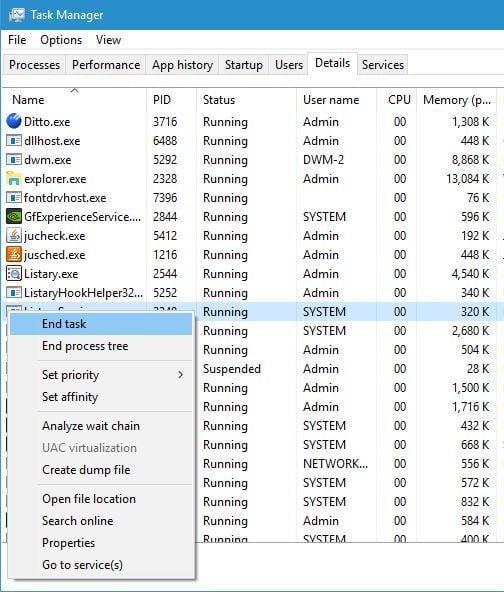
    arduino-problem-task-1
  4. After the process is closed, close Task Manager and try to run Arduino software again.

If LVPrcSrv.exe is causing this problem on your PC, you’ll have to end this process every time you want to run Arduino software on your PC.


10. Run Arduino bat file

According to users, they are getting Arduino has encountered a problem and needs to close error message on their PC when trying to start Arduino by running the arduino.exe file.

To avoid this problem you can simply start Arduino by double clicking the run.bat file. Keep in mind that Arduino environment can be sometimes slow to start, so you’ll have to be patient.


11. Don’t run cygwin

Users reported that certain issues can occur if you try to compile a sketch in Arduino while having cygwin running in the background. To avoid this problem on your PC, you can simply turn off cygwin while using Arduino.

If that doesn’t help, you might have to delete cygwin1.dll from the Arduino directory and replace it with a cygwin1.dll from your cygwin directory.


12. Disable certain devices

Few users reported that Arduino software takes a long time to start and it seems frozen when you try to open Tools menu. This issue is caused by other devices that can create COM ports on your PC.

A good example of these devices are Bluetooth devices, so if you one of these devices available, be sure to disable it from Device Manager. To do that, you need to follow these steps:

  1. Open Device Manager.
  2. Locate the device that you want to disable, right-click it and choose Disable from the menu.
    arduino-problem-disable-1

After disabling these devices the loading time of Arduino software should improve.


13. Check if your device is working properly

According to users, issues with Arduino board can occur if your device is broken, therefore it’s advised to try it on a different PC. If you can, be sure to try the device on different computers with different operating systems.

If the issue appears on all devices, it means that your Arduino board is faulty and you should replace it as soon as you can.

As you can see, there are all sorts of problems with Arduino and Windows 10, but in most cases, you should be able to fix these problems simply by installing the proper driver or by checking your security certificates.


[wl_navigator]

Bang & Olufsen to make high-end premium audio products for Microsoft’s Xbox consoles

Premium consumer company, Bang & Olufsen, announced today that they are partnering with Microsoft to produce high-end audio products for their Xbox video game consoles.

Few specifics were detailed in the announcement but it was confirmed that these upcoming products would feature connectivity with Xbox consoles and would be aimed at gamers with a fair bit of disposable income.

“The gaming industry has grown significantly over the last few years across age groups, gender and countries, and we expect this trend to continue,” Bang & Olufsen’s Christoffer Poulsen said in a statement. “The technology has advanced significantly in gaming, and enhancing the sound experience offers a place for us to play a key role. By entering the gaming industry, we want to do what we do best: delivering outstanding sound performance wrapped in astonishing design and solid craftmanship. We see a big commercial potential within gaming, and in Xbox we believe we have found the ideal partner to realise that potential.”

While Xbox-branded Band & Olufsen headphones are likely a safe bet, it’s not hard to imagine the Xbox logo atop the Beoplay speaker (see above image) or maybe even on a smaller Bluetooth speaker. Whatever they make, the partnership does seem to be a natural fit given the recent effort to transform Xbox into more of a lifestyle brand.

“We’re excited for the launch of Xbox Series X later this year and ushering in the next generation of gaming,” Xbox’s Matt Kesselring enthused. “As we march towards release – we’re excited to partner with Bang & Olufsen to bring a new premium tier of gaming audio to market for Xbox and Bang & Olufsen fans around the world that travels with you everywhere you love to play Xbox”

Are you a fan of Bang & Olufsen? What kind of Xbox products would you like to see them release? Let us know in the comments below and then follow us on Pinterest and Facebook for more Xbox news.

Destiny 2 to get 60fps on Xbox Series X, PS5 crossplay coming, and years of future content planned

A number of major announcements were made earlier today in regards to the popular online multiplayer video game, Destiny 2, and its future on both of Microsoft’s Xbox One and Xbox Series X consoles.

Destiny 2 Will Support 4K and 60fps on Xbox Series X

While we already knew that Destiny 2 was coming to Microsoft’s next gen Xbox Series X console, it was confirmed today that the Xbox Series X version of the game would indeed support 60 frames-per-second (FPS) in addition to 4K resolution. Destiny 2 already plays in 4K on the Xbox One X console but it’s currently restricted to 30FPS due to the current gen hardware. Xbox Series X players should get a much smoother gameplay experience.

Xbox One and Xbox Series X Crossplay

At launch, the Xbox Series X version of Destiny 2 will support crossplay with the current gen Xbox One version. Cross-save will also be supported which means that those who already have progress and content on the Xbox One version will be able to continue where they left off on the Xbox Series X. All content will transfer to the Xbox Series X version of Destiny 2.

Crossplay between Xbox and PlayStation players is expected to come sometime in 2021.

A Free Xbox Series X Destiny 2 Upgrade

Destiny 2 will also support Microsoft’s new Smart Delivery system which will enable current owners of Destiny 2 on Xbox One to have the game for free on Xbox Series X. All downloadable content and in-game purchases will transfer as well.

No Destiny 3 Video Game is Planned

Instead, Bungie has committed themselves to adding new content to Destiny 2 for at least the next few years. Three new expansions were announced with Beyond Light coming September this year, The Witch Queen set for 2021, and Lightfall locked in for 2022.

Destiny 2: Beyond Light is currently available for digital pre-order on Xbox One consoles in both a regular version (which unlocks instant access to the new Exotic Rimed Ghost Shell and a new Legendary Emblem), a Destiny 2: Beyond Light + Season version (which unlocks the same two items plus the No Time to Explain Exotic Pulse Rifle and catalyst), and a Destiny 2: Beyond Light Deluxe Edition (includes the Freeze Tag Exotic emote, access to Seasons 12-15, the No Time to Explain Exotic Pulse Rifle, ornament, catalyst, and the Any Other Sky Exotic Sparrow.)

Plans to cycle out stale content and replace it with old content is also planned with locations and weapons from the original Destiny game confirmed to be making a return. “To create a sustainable ecosystem where the world can continue to evolve in exciting ways, and where we can update the game more quickly, we’re going to adopt a new content model that we’re calling the Destiny Content Vault (DCV),” the official announcement explains. “Each year, usually at the expansion boundaries, we will cycle some destination and activity content out of the game (and into the DCV) to make room for new experiences.

“The first cycle of Destiny 2 content going into the DCV begins this fall, with the appearance of the Pyramid ships in Season of Arrivals and the Beyond Light expansion, which we revealed today. Those events will usher in dramatic changes to the Destiny universe, affecting characters, destinations, and Guardians for years to come.”

Are you a Destiny 2 player and does this news get you hyped? Share your thoughts with the community in the comments below and then follow us on Pinterest and Twitter for more Xbox gaming news.

Destiny 2
Destiny 2
Developer:
Bungie
Price:
Free


Destiny 2: Beyond Light
Developer:
Bungie
Price:
Free


Destiny 2: Beyond Light + Season
Developer:
Bungie
Price:
Free


Destiny 2: Beyond Light Deluxe Edition

Want to Play Hearts Online? Check out These 6 Great Options

Hearts is a great trick-taking card game played between three to six players. Hearts is not as widely played as Poker online, but there are plenty of websites where you can play this popular card game.

General card game websites widely include Hearts among their games. There are also a few dedicated Hearts websites for players to play at.

How can I play Hearts games online?

VIP Hearts

VIP Hearts online hearts games

VIP Games is a website where you can play numerous cards and board games online. Its VIP Hearts site has a thriving community of Hearts players.

At VIP Hearts, you can play beginner, custom, or tournament Hearts games with quality high-definition graphics. You’ll need to register on the site to play real players, but you can play bots without registering.

When registered, you can play Hearts with the same account on any device. The VIP Hearts site also includes handy playing guides for the game on its blog.

⇒ VIP Hearts

WorldofCardGames.com

WorldofCardGames.com online hearts games

WorldofCardGames.com is a site where you can play Hearts, Gin Rummy, Sergeant Major, Spades, Euchre, and 29. You can play against bots and real players without registering on this site. However, you’ll still register to play ranked and tournament Hearts matches.

The great thing about this site is the wide range of wallpapers and avatars it includes for players to choose from. Players can select assorted, fabric, walls, and floor backgrounds for Hearts match.

The website includes fun alien and animal avatars to select. Players can also select eight alternative deck designs to play with.

⇒ WorldofCardGames.com

Cardgames.io

Cardgames.io is a throwback to the old-school card game websites with somewhat basic designs. There you can play various card games, such as Hearts, Solitaire, Gin Rummy, Spades, Go Fish, and Euchre.

This website’s UI design is a little basic compared with other card game sites, and it doesn’t include a huge range of customization settings. However, you don’t need to register on it to play multiplayer Hearts. So, you can start playing multiplayer Hearts matches straight away at Cardgames.io.

⇒ Cardgames.io

HeartsGame

HeartsGame is a free online game of Hearts where you play against 3 bots. You can change the game difficulty from the Settings and also the deck style and background of the cards.

The objective of the game is to accumulate as few points as possible and avoid getting hearts and the Queen of Spades in the process.

The best part about HeartsGame is that you don’t need to create an account or sign up anywhere. Just hit the link below and play the game in any browser.

⇒ HeartsGame

Trickster Hearts

Trickster Hearts online hearts games

At Trickster Cards, you can play the Hearts, Spades, Euchre, Pitch, Bridge, 500, and Whilst card games. Players can select to play standard Hearts and it Jack of Diamonds variant at Trickster Hearts.

This website includes a good number of options to configure Hearts matches with as players can adjust scoring, passing, and time settings. It also has a decent UI design and a good range of theme customization options. Players can even add their own photos to cards, which is something of a novelty.

If you sign up for a Trickster account, you can accumulate chips. With those chips, you can buy into more competitive Hearts games. In addition, Trickster includes ranked leaderboards for Hearts and its other card games.

⇒ Trickster Hearts

Cardzmania.com

Cardzmaina.com is another of the best card game websites where you can play Hearts. This is a good website for Hearts as you can play four alternative variations of the game with up to six players. Furthermore, you don’t need to register on this website to play multiplayer matches against real players.

Cardzmaina also includes a ranked Hearts leaderboard and weekly cup for its registered players. So, there’s enough here to satisfy most Hearts players even though the website lacks customization options for themes.

⇒ Cardzmania.com

These are six decent websites to play Hearts at. Of those selected, WorldofCards.com, Cardzmaina, and Tricker offer the widest range of playing options for players.

However, all the sites are worth noting for Hearts fanatics.

FIX: CLR20r3 error (not available/stopped working)

While trying to run an application on your system including a game or server application, you may encounter a clr20r3 error. Most of the time this is a non-fatal and a common error.

However, it can leave your computer unusable as it can affect many applications installed on your system.

Several users have reported that they are unable to run or use some third-party and Windows applications due to the clr20r error in the Microsoft Community Forums.

Stopped working CLR20r3
When I try to start Spacechem, hotline miami or Eador a window pops up telling me the application stopped working. I get this error:
I believe it is a problem with .net framework 3.5. Since all of this applications use .net framework 3.5.

Fix this error on your Windows 10 computer with these reliable solutions.

How can I fix the CLE20r3 error on Windows 10?

1. Reregister Windows Media Components

  1. Type cmd in the search bar.
  2. Right-click on Command Prompt and select Run as Command Prompt.
    re-register Windows Media Components
  3.  In the command prompt, type the following command one by one and press Enter after each command:
    regsvr32 atl.dll
    cd C:WINDOWSeHome
    ehSched /unregServer
    ehSched /service
    ehRecvr /unregServer
    ehRecvr /service
    ehRec.exe /unregServer
    ehRec.exe /regserver
    ehmsas.exe /unregServer
    ehmsas.exe /regserver
  4. Exit the command prompt and reboot the system.
  5. After the restart, try to open the app that was giving the error and check if it is resolved.

Learn how to configure and play old games on Windows 10 today and avoid errors for good


2. Reinstall Windows Media Center

  1. Press the Windows Key + R to open run.
  2. Type control and press OK to open Control Panel.
  3. In the Control Panel, go to Programs > Programs and Features.
  4. From the left pane, click on Turn Windows features On and Off.

  5. In the Windows Features window, expand the Media Features section.
  6. Uncheck the Windows Media Center option.
  7. Click OK to save the changes and close the Windows Features window.
  8. Reboot the system and again open the Windows Features window from the Control Panel.
  9. Expand the Media Features section and check the Windows Media Center option.
  10. Close the window and reboot the system. Now try to run the program that was giving the error again and check for any improvements.

You may apply the above steps for earlier Windows versions.

  1. Open Windows Features window from the Control Panel.
  2. Expand the Media Features section and then uncheck the Windows Media Player option.
  3. Click OK to save the changes and close the window.
  4. Reboot the system. After the restart again open Windows Features and check the Windows Media Player option.
  5. Again try to open the app that was giving the error and check for any improvements.

Complete the above procedure on Windows 10 computers.


3. Repair .Net Framework

  1. Press Windows Key + R.
  2. Type control and press OK.
  3. In the Control Panel, go to Programs > Programs and Features.
  4. Click on Turn Windows Features on or off option.
  5. Check if the  .NET Framework 3.5 and .Net Framework 4.7  Advanced Services option is enabled.
    Repair Net Framework
  6. If it is enabled, uncheck the options and click OK.
  7. Reboot the system.
  8. After the restart, check the .NET Framework 3.5 and .Net Framework 4.7  Advanced Services again.

If the Windows Server Manager failed to open, rest assured that this quick guide will help you out.

[wl_navigator]

KB4561645 not installing on some Windows Server 2008 PCs

Microsoft uses Patch Tuesday to release feature improvements and fixes for security issues affecting Windows PCs. Today, the company shipped multiple updates, including KB4561645, a security-only patch for Windows Server 2008.

However, some users are getting an error when they try installing the latest fix on their PCs. Fortunately, Microsoft has revealed the reason why.

KB4561645 not installing on some Windows Server 2008 PCs

As you may remember, Windows Server 2008 already reached its end of support. That means Microsoft no longer delivers free feature improvements or security updates for devices running on the operating system.

However, premium extended support for the OS is still available. Therefore, according to Microsoft, only ESU-supported devices can successfully install KB4561645.

In other words, you have to be running an OS edition that’s eligible for ESU. If you try installing on a non-supported PC, you’ll get an error after restarting your machine.

After installing this update and restarting your device, you might receive the error, “Failure to configure Windows updates. Reverting Changes. Do not turn off your computer”, and the update might show as Failed in Update History.

If you’re encountering that issue, confirm that you’re running a supported OS. If you are, make sure your add-on key is installed and working on your PC.

The above issues may not be the only thing preventing you from securing your machine with KB4561645, though.

Therefore, verify that you installed the necessary updates for Windows Server 2008 ESUs to install smoothly without any issues.

For example, do you have servicing stack update KB4493730 installed? Microsoft shipped the SSU back in 2019.

Similarly, be sure you have the ESU Licensing Preparation Package or KB4538484, which rolled out on February 11, 2020.

Windows 7 users without ESU support are also unable to install the latest security update available for the OS this Patch Tuesday.

Have you migrated from Windows Server 2008 yet? Feel free to let us know or ask any questions via the comments section below.

[wl_navigator]

Windows 7 Update KB4561643 fails to install for some users

Patch Tuesday for June 2020 is already here. It brings a whole bunch of fixes to multiple security issues affecting Windows PCs. KB4561643 is one of the updates you can download right away to secure your computer.

The patch is meant to address a problem that makes it impossible to update files with the .msi extension from a network folder. But it also has a issue that Microsoft just acknowledged.

KB4561643 may not install on some PCs

Microsoft has confirmed that installing KB4561643 may not have the expected outcome for some users. Instead, they’re getting an error suggesting that their system failed to configure the update.

You’re likely to receive the error message when you restart your machine after updating.

After installing this update and restarting your device, you might receive the error, “Failure to configure Windows updates. Reverting Changes. Do not turn off your computer,” and the update might show as Failed in Update History.

If you check in Update History, the patch appears as Failed.

There’s some good news, though, for users getting this error after installing this particular Patch Tuesday update.  

For starters, this is an ESU for Windows 7 and Windows Server 2008. So, you may be experiencing the problem if your PC isn’t supported for this type of update.

Microsoft withdrew free support for Windows 7 earlier this year, so its users have to pay to receive security updates for the nearly obsolete OS.

You could also get the update error if you don’t have an ESU Mak add-on key running on your PC. You may need to first install and activate it to address the issue.

It appears that you may still be unable to update even if you’re installing on an ESU-supported PC. Users that bought an ESU key and are encountering the problem may have to verify they’ve activated the key.

How’s your experience so far with the latest Windows security updates, especially KB4561643? Feel free to share your thoughts in the comments section below.

[wl_navigator]

KB4560960 patch for Windows 10 might disconnect your modem

Microsoft released the June Patch Tuesday and for the moment, it seems uneventful.

However, there might be a problem with the KB4560960 patch for Windows 10 that might create some problems if you have an LTE modem.

KB4560960 might cause Internet connectivity issues

Microsoft lists a single known issue with the KB4560960 patch on the release page:

After installing this update on a Windows 10 device with a wireless wide area network (WWAN) LTE modem, reaching the internet might not be possible.

However, the Network Connectivity Status Indicator (NCSI) in the notification area might still indicate that you are connected to the internet.

This issue might affect Windows 10 version 1903 OS Build 18362.900 and version 1909 OS Build 18363.900.

How can I fix the LTE modem internet connection problem?

Microsoft specified that they are working on a resolution and will provide an update in an upcoming release.

However, if you’re not willing to wait this long, you might try some quick fixes:

  • Press the ON/OFF button on your modem to turn it off, wait for at least 10 seconds, then power it off again.
  • If your modem doesn’t have a power button, disconnect the power cable from the modem, wait for at least 10 seconds, then plug the power cable back on.
  • Try resetting your modem.

How can I download the new June Windows 10 patch?

If you want to download the latest Windows 10 June patches, you can manually download them from our June Patch Page.

Before installing them, read up on the best way to apply them. Also, remember to always back up your data before installing updates like the ones from Patch Tuesday.

The best ways to download the latest Patch Tuesday updates, recommended by Microsoft are

  • Windows Update and Microsoft Update
  • Microsoft Update Catalog
  • Windows Server Update Services (WSUS)

If you don’t want to install the whole patches and you are interested only in some of the cumulative updates, go for the Windows Update Catalog.

[wl_navigator]

Windows 10 June Patch Tuesday [DIRECT DOWNLOAD LINKS]

The 6th round of major feature updates have just hit live, and they are called the June Patch Tuesday Updates.

As always, Microsoft managed to deliver these updates, bringing new security features, fixing old bugs, and improving their level of security.

This round of Patch Tuesday updates is also special in the sense that they are the first to contain updates for the new Windows 10 v2004, which has just been launched on 27 May 2020.

We’ve compiled a list of some of the new features that each cumulative update brings, along with any known issues, and a direct download link.

That being said, check out the list below, look for your own version of Windows 10, and get the latest cumulative update.


Cumulative updates included in June Patch Tuesday Updates

Windows 10, version 2004

This is the latest major feature version of Windows 10 available. This means that it has all the newest features and the highest level of security among all versions of Windows 10.

That being the case, make sure that you try installing it as soon as it becomes available, and if your hardware allows it.

Cumulative update name:

Improvements and fixes 

  • Addresses an issue that prevents users from updating .msi files from a network folder.
  • Addresses an issue that prevents you from using some voice commands in Windows Mixed Reality when the preferred Windows display language is English (Canada) or English (Australia).
  • Improves the reliability of voice assistants that use Windows voice activation (Settings > Privacy > Voice Activation) for keywords.
  • Improves the reliability of Cortana’s voice activation when using the “Cortana” keyword on devices that support low-power keywords.
  • Security updates to the Microsoft Scripting Engine, Microsoft Edge, Internet Explorer, Windows App Platform and Frameworks, Windows Media, Windows Kernel, Microsoft Graphics Component, Windows Input and Composition, Windows Shell, Windows Silicon Platform, Microsoft Xbox, the Microsoft Store, Windows Cloud Infrastructure, Windows Fundamentals, Windows Management, Windows Authentication, Windows Cryptography, Microsoft HoloLens, Windows Virtualization, Windows Peripherals, Windows Storage and Filesystems, Windows File Server and Clustering, Windows Hybrid Storage Services, the Microsoft JET Database Engine, and the Windows Update Stack.

Known Issues

  • Microsoft is not currently aware of any issues with this update.

[DIRECT DOWNLOAD LINK]


Windows 10, version 1909

Windows 10 version 1909 and versions 1903  share a common core operating system and an identical set of system files.

As a result, all major changes that apply to one version will be present in the other.

Cumulative update name:

Improvements and fixes 

  • Addresses an issue that prevents users from updating .msi files from a network folder.
  • Security updates to the Microsoft Scripting Engine, Microsoft Edge, Internet Explorer, Windows App Platform and Frameworks, Windows Media, Windows Kernel, Microsoft Graphics Component, Windows Input and Composition, Windows Shell, Windows Silicon Platform, Microsoft Xbox, the Microsoft Store, Windows Cloud Infrastructure, Windows Fundamentals, Windows Management, Windows Authentication, Windows Cryptography, Microsoft HoloLens, Windows Virtualization, Windows Peripherals, Windows File Server and Clustering, Windows Hybrid Storage Services, and the Microsoft JET Database Engine.

Known Issues

  • After installing this update on a Windows 10 device with a wireless wide area network (WWAN) LTE modem, reaching the internet might not be possible. However, the Network Connectivity Status Indicator (NCSI) in the notification area might still indicate that you are connected to the internet.

[DIRECT DOWNLOAD LINK]


Windows 10, version 1903

Windows 10 version 1909 and versions 1903  share a common core operating system and an identical set of system files.

As a result, all major changes that apply to one version will be present in the other.

Cumulative update name:

Improvements and fixes

  • Same as Windows 10, version 1909

Known Issues

  • Same as Windows 10, version 1909

[DIRECT DOWNLOAD LINK]


Windows 10, version 1809

According to Microsoft, the last security update for most editions of Windows 10, version 1809 will be released on November 10. The include the Home, Pro, Pro Education, Pro for Workstations, and IoT Core editions.

Cumulative update name:

Improvements and fixes

  • Addresses an issue that prevents users from updating .msi files from a network folder.
  • Addresses an issue that causes the promotion of a server to a domain controller to fail. This occurs when the Local Security Authority Subsystem Service (LSASS) process is set as Protected Process Light (PPL).
  • Security updates to the Microsoft Scripting Engine, Microsoft Edge, Internet Explorer, Windows App Platform and Frameworks, Windows Media, Windows Kernel, Microsoft Graphics Component, Windows Input and Composition, Windows Shell, Microsoft Xbox, the Microsoft Store, Windows Cloud Infrastructure, Windows Fundamentals, Windows Management, Windows Authentication, Windows Cryptography, Microsoft HoloLens, Windows Virtualization, Windows Storage and Filesystems, Windows File Server and Clustering, Windows Hybrid Storage Services, the Microsoft JET Database Engine, and the Windows Update Stack.

Known Issues

  • After installing KB4493509, devices with some Asian language packs installed may receive the error, “0x800f0982 – PSFX_E_MATCHING_COMPONENT_NOT_FOUND.”

[DIRECT DOWNLOAD LINK]


Windows 10, version 1803

For those of you keen on having the best that’s security has to offer, remember that Windows 10, version 1803 (the April 2018 Update) Home and Pro editions have reached the end of service.

As such, if you currently own any of these two editions, try to update as soon as possible.

Cumulative update name:

Improvements and fixes

  • Addresses an issue that prevents users from updating .msi files from a network folder.
  • Security updates to the Microsoft Scripting Engine, Microsoft Edge, Internet Explorer, Windows App Platform and Frameworks, Windows Media, Windows Kernel, Microsoft Graphics Component, Windows Input and Composition, Windows Shell, Microsoft Xbox, the Microsoft Store, Windows Cloud Infrastructure, Windows Fundamentals, Windows Management, Windows Authentication, Windows Cryptography, Microsoft HoloLens, Windows Virtualization, Windows Storage and Filesystems, Windows File Server and Clustering, Windows Hybrid Storage Services, Windows Update Stack, and the Microsoft JET Database Engine.

Known Issues

  • Microsoft is not currently aware of any issues with this update.

[DIRECT DOWNLOAD LINK]


Windows 10, version 1709

Like all the previous versions of Windows 10, 1709 has also been updated, bumping the build number to OS Build 16299.1932.

However, remember that this version of Windows 10 has also reached the end of service for Home, Pro, Pro for Workstation, and IoT Core editions.

As such, try to update as soon as possible if you want to benefit from the latest features and bug fixes.

Cumulative update name:

Improvements and fixes

  • Addresses an issue that prevents users from updating .msi files from a network folder.
  • Security updates to the Microsoft Scripting Engine, Internet Explorer, Windows App Platform and Frameworks, Windows Media, Windows Kernel, Microsoft Graphics Component, Windows Input and Composition, Windows Shell, Microsoft Xbox, the Microsoft Store, Windows Cloud Infrastructure, Windows Fundamentals, Windows Management, Windows Authentication, Windows Cryptography, Microsoft HoloLens, Windows Virtualization, Windows Storage and Filesystems, Windows File Server and Clustering, Windows Hybrid Storage Services, Windows Update Stack, and the Microsoft JET Database Engine.​

Known Issues

  • Microsoft is not currently aware of any issues with this update.

[DIRECT DOWNLOAD LINK]


Windows 10, version 1703

Note: Windows 10, version 1703 has reached the end of service for all of its available editions.

Thus, if you want to continue receiving security and quality updates, Microsoft recommends that you update to the latest version of Windows 10.

Cumulative update name:

Improvements and fixes

  • Addresses an issue that prevents users from updating .msi files from a network folder.
  • Security updates to the Microsoft Scripting Engine, Internet Explorer, Windows App Platform and Frameworks, Windows Media, Windows Kernel, Microsoft Graphics Component, Windows Input and Composition, Windows Shell, the Microsoft Store, Windows Cloud Infrastructure, Windows Fundamentals, Windows Management, Windows Authentication, Windows Cryptography, Microsoft HoloLens, Windows Virtualization, Windows Peripherals, Windows Storage and Filesystems, Windows File Server and Clustering, Windows Hybrid Storage Services, and the Microsoft JET Database Engine.

Known Issues

  • Microsoft is not currently aware of any issues with this update.

[DIRECT DOWNLOAD LINK]


Windows 10, version 1607

Note: Windows 10, version 1607 has reached the end of service for all of its available editions.

That being the case, if you want to continue receiving security and quality updates, you should update to the latest version of Windows 10.

Cumulative update name:

Improvements and fixes

  • Addresses an issue that prevents users from updating .msi files from a network folder.
  • Addresses an issue that prevents you from installing some .msi apps. This occurs when a device is managed by a Group Policy that redirects the AppData folder to a network folder.
  • Security updates to the Microsoft Scripting Engine, Internet Explorer, Windows App Platform and Frameworks, Windows Media, Windows Kernel, Microsoft Graphics Component, Windows Input and Composition, Windows Shell, the Microsoft Store, Windows Cloud Infrastructure, Windows Fundamentals, Windows Authentication, Windows Cryptography, Windows Virtualization, Windows Storage and Filesystems, Windows File Server and Clustering, Windows Hybrid Storage Services, the Windows Update Stack, and the Microsoft JET Database Engine.

Known Issues

  • After installing KB4467684, the cluster service may fail to start with the error “2245 (NERR_PasswordTooShort)” if the group policy “Minimum Password Length” is configured with greater than 14 characters.

[DIRECT DOWNLOAD LINK]


Windows 10, version 1507

Note: Windows 10, version 1507 has reached the end of service for all of its available editions, so if you want to continue receiving security and quality updates, you should update to the latest version of Windows 10.

Cumulative update name:

Improvements and fixes

  • Addresses an issue that prevents users from updating .msi files from a network folder.
  • Security updates to the Microsoft Scripting Engine, Internet Explorer, Windows App Platform and Frameworks, Windows Media, Windows Kernel, Microsoft Graphics Component, Windows Input and Composition, Windows Shell, the Microsoft Store, Windows Cloud Infrastructure, Windows Fundamentals, Windows Authentication, Windows Virtualization, Windows Peripherals, Windows Storage and Filesystems, Windows File Server and Clustering, Windows Hybrid Storage Services, the Windows Update Stack and the Microsoft JET Database Engine.

Known Issues

  • Microsoft is not currently aware of any issues with this update.

[DIRECT DOWNLOAD LINK]


Patch Tuesday list of CVEs

Of course, Patch Tuesday isn’t just about new features, bug fixes, and performance improvements, as their main focus is actually security updates.

That being said, the June Patch Tuesday Updates bring fixes to over 139 CVEs.


How else can I download Patch Tuesday updates?

If you prefer alternative ways of getting the latest updates, then you might as well try the three typical means of doing so:

  • The Windows Update menu
  • The Windows Update Catalog
  • The Windows Server Update Service (WSUS)


These are all the cumulative updates for all versions of Windows 10 released this month. If you want to check out more information about past cumulative updates, check out our dedicated article covering Windows 10’s Changelog.

Note: Always remember to  have a backup of all of your data before performing a big set of updates like the ones on Patch Tuesday.

While most of the times these updates go smoothly, there have been rare occasions where updates would damage your PC to the point of you losing your data.

Editor’s Note: Patch Tuesday is an amazing time of the month, so if you want to know about it, check out this in-depth guide.

Mordhau packet loss: What is it and how to fix it?

Mordhau is a popular, multiplayer medieval hack’n’slash first/third-person video game. Wow, that’s a rich description. Anyway, imagine you’re on a medieval battlefield with a proper weapon in your hand.

You have to hack your way through your enemies and survive. Although you might think it’s easy, playing the game will show you that you’re so, so wrong.

Aside from it still needing some improvement combat-wise, you’ll face technical challenges that any other online service puts you through. And that’s more annoying than any hit-and-miss bug you’ll encounter in Mordhau.

Packet loss is still one of the most unwanted issues you might experience in online games. Next to jitter, high ping, and random disconnections, packet loss can easily ruin your game experience in just a few moments.

What is packet loss in Mordhau?

Mordhau fix common bugs

In Mordhau, packet loss is when data bits (packets) you send or receive never make it to their destination. Realistically speaking, packet loss is quite the same regardless of where you encounter it.

This phenomenon might actually slip unnoticed if it happens briefly or doesn’t have a pattern. However, leaking packets leads to other, more noticeable problems in-game.

Mordhau packet loss issues:

  • Rubberbanding
  • High latency
  • Jitters
  • Crashes
  • Connection timeouts, drops, disconnections

How to fix Mordhau packet loss?

1. Use a VPN

  1. Download Private Internet Access and install it on your computer
  2. Launch it and log into your PIA account
  3. Choose a server and connect to it
  4. Launch Mordhau and check if you still leak packets (you’ll know instantly)

Private Internet Access is a great all-round VPN product from Kape Technologies. It has passed all of our tests successfully and offers you 24/7 live chat support.

Private Internet Access

Private Internet Access

Battling high packet loss in Mordhau? PIA can lend you a helping hand.
$2.85/mo. Buy it now

However, note that using a VPN is not a magic fix. Instead, it can take care of the situation only if the problem is on your ISP’s side. Thus, if you leak packets on your home network or if the game server loses packets, using a VPN might only complicate things further.

2. Perform manual troubleshooting of your network

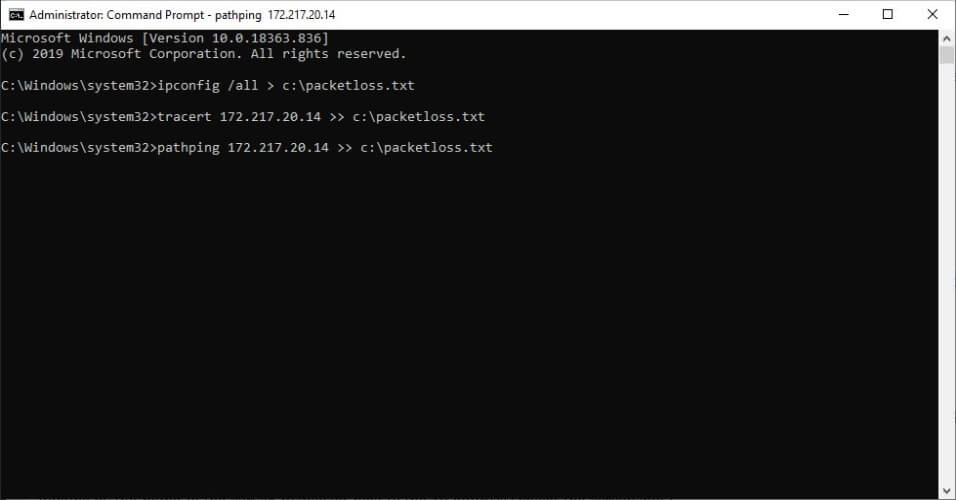
  1. Use our comprehensive guide to run a complete packet loss testPacket loss analysis Windows with tracert and pathping
  2. Notice the hops with ping spikes (packet leaks)
  3. Take the necessary measures to fix the issue according to the test results

If the method above is a bit confusing, we’ll clarify it in a jiffy. For starters, packet loss can occur in one of the following locations:

  • On your home network and its components (PC, router, cables, console, home line)
  • Your ISP’s network/servers (the one that starts where your home line ends)
  • The network distribution company (the one above your ISP)
  • Mordhau’s game servers

If you’re familiar with all of the potential locations, we can keep moving. As we’ve said before, depending on the location, you’ll need to take a different action. Namely:

  • Check/repair/upgrade/update/replace any faulty component on your home network
  • Give a call to your ISP if you notice anything wrong on its side
  • Ask your ISP to call the network distribution company if you notice packet loss on the hops between the ISP and Mordhau server (final hop)
  • Contact Mordhau’s customer support and let someone know about the packet loss situation

Experiencing bugs in Mordhau? Our expert guide will show you how to fix the most common ones.


More often than not, the situation will fix itself. However, you might want to check if there’s something you can do to alleviate the issue, just to be sure.

Mordhau packet loss situations can be fixed

To wrap it up, if you experience packet loss in Mordhau, there might be something you can do about it. However, more often than not, packet loss occurs suddenly and doesn’t last for long, so chances are you won’t even notice it.

However, if you notice prolonged packet leaks or a pattern, you might want to step in. Keep in mind that using a VPN won’t work all the time, especially not if you leak packets on your home network, or if there’s something wrong with the Mordhau game servers.

On the other hand, having a VPN can save you from a lot of headaches. It can give you a privacy boost, secure your connection, and help you bypass geo-restrictions without significant efforts.

UPnP bug exposes Windows 10 devices to RCE attack

Data theft is lucrative business, and has been for a long time. That’s why cyber criminals are making billions of dollars per year by stealing and selling personal data like names, credit card details, and health records. They use different tools and techniques to breach IT networks, and a UPnP bug is one of the latest to get the attention of the National Institute of Standards and Technology (NIST).

How hackers can exploit the UPnP bug to exfiltrate data

Recently, NIST updated the National Vulnerability Database (NVD) with information about the Universal Plug and Play protocol exploit (CVE-2020-12695). The organization is currently analyzing it.

The bug, named CallStranger, has been around since 2019 when a cybersecurity researcher reported it (via Bleeping Computer).

Ideally, UPnP should be a convenient way for devices to register each other’s presence on your network. Windows 10 PCs, routers, printers, and Wi-Fi access points are some of the gadgets that may use the networking technology.

Usually, no authentication is necessary for these devices to discover each other via UPnP. Moreover, they’re usually part of a local, trusted network.

That wouldn’t be a problem except for the possibility of hackers exploiting the CVE-2020-12695 vulnerability in UPnP. In other words, a malicious actor can scan for the connectivity ports and use them to gain entry into a device.

For example, an attacker could remotely leverage the UPnP bug to discover a Windows 10 PC connected to your network. In the case of CallStranger, the malware could sidestep all data loss prevention and network security measures in place.

This way, the bad actor can easily access and steal data stored on your PC. That’s not the only IT risk, sadly.

CallStranger can also be remotely deployed in a Distributed Denial of Service (DDoS) attack. Hackers could also use it to scan internal networks.

Have you had any experience with the UPnP bug? Feel free to share it (or ask any questions) in the comments section below.

[wl_navigator]

Spectrum Packet Loss: What Is It and How to Fix It?

Packet loss is not only annoying but can render your daily activities impossible to perform. More so if you work from home and your whole job revolves around using the Internet.

This unwanted phenomenon can occur out of the blue and disappear just as quickly. Most of the time, packet loss occurs due to network congestion. Thus, if you’re not some network administrator, there’s nothing much you can do about it.

However, sometimes packet loss has other, more specific causes. For instance, your ISP could throttle your bandwidth. Or some part of your home network might be faulty.

In this case, crossing your arms and waiting around won’t be as effective, and you’ll have to step in.

What is Spectrum packet loss?

First of all, Spectrum is a communication services provider. To be more specific, Spectrum, also referred to as Charter Spectrum, is the trade name of the Charter Communications company.

Spectrum offers consumer communication services such as Internet, telephone, wireless, and cable television. Naturally, we’re going to focus on the Internet part in this article.

It’s worth mentioning that, like your home network and the destination server you connect to every time you use online services, the Spectrum network is also a node in your connection.

Packet loss happens when the data packets you transmit or receive never reach their destination. This phenomenon can occur anywhere on your connection, often relying on several nodes.

What causes Spectrum packet loss?

There are a lot of reasons behind leaking packets. If you have no network/IT background, it will be somewhat difficult to comprehend this part, but we’ll do our best to simplify things.

Here are the most common causes of packet loss:

  • Network congestion
  • Faulty equipment either on your, your ISP (Spectrum), or the destination server’s side
  • Software or hardware malfunctions/bugs
  • ISP throttling
  • Outdated hardware (having a gigabit connection and a 100 MBps network adapter)
  • DDoS attacks or similar cyber threats

However, only a bunch of the causes listed above can be directly associated with Spectrum. Provided that Spectrum is your ISP, of course. Namely:

  • Network congestion
  • ISP bandwidth throttling
  • Faulty hardware/software on your ISP’s servers

You’re also likely to run into the self-install not working error if your router does not meet system requirements.

Also, you can check out the Spectrum internet charges and the professional installation charges to sort it out; read this guide to learn more.

How to fix the packet loss Spectrum?

1. Use a VPN

  1. Download Private Internet Access.
  1. Install it on your computer.
  2. Launch it and log into your account.
  3. Connect to the server of your choice.
  4. Check to see if the problem still persists.

Private Internet Access is one of the best VPN services for Spectrum. It’s a great all-around service that passed all our tests with flying colors.

Private Internet Access

Never worry about network issues and packet loss with this powerful VPN solution.
Free Trial Visit Website

However, note that a VPN such as PIA will only work if packet loss occurs on your ISP’s side. This is mainly because VPNs route your connection through their own servers, bypassing ISP servers, thus avoiding things like clutter or throttling.

Therefore, we suggest you isolate the issue and make sure it’s on Spectrum’s side before trying a VPN.

2. Troubleshoot your connection manually

  1. Use our guide on packet loss to run a complete test.
  2. Determine where your connection is leaking packets.
  3. Take the necessary measures to correct the issue.

As we’ve explained in our comprehensive guide, you might experience packet loss in the following locations:

  • Your home network, which includes your PC, router, and even cables
  • The network of your ISP (the one immediately above your home network)
  • Network distribution company’s servers (the ones above your ISP)
  • The destination server (game, streaming, website, email server)

Some potential fixes for the situations mentioned above are:

  • Make sure your home network is in top shape (check cables, your devices, router)
  • Call your ISP and ask them to look into the problem (if the leak happens on their side)
  • Ask your ISP to contact the network distribution company and tell them about the problem
  • Contact the destination server’s support team/owners if they’re the ones leaking packets

If Spectrum leaks packets, try waiting it out first

All things considered, the most common for Spectrum packet loss remains network congestion. This can be somewhat fixed with proper network management, but it’s not in your power to perform this complex operation.

The next best thing is waiting, but who has time for that, right? Our suggestion is to try using a VPN, but only if you’re sure that the packet loss is Spectrum’s (your ISP’s) fault.

Note that using a VPN can improve packet loss, but it can also boost your privacy, secure your connection, and dodge geo-blocking.

Alternatively, you could try troubleshooting your connection manually and take the necessary steps to fix the issue according to your findings.

Minecraft Dungeons gets a first patch on Xbox One and Nintendo Switch to address multiplayer issues, more

If you’re playing Minecraft Dungeons, its time to download the game’s first patch, which addresses multiplayer problems and many more issues. This update only covers the Xbox One and Nintendo Switch versions of the game, and comes in at around 2GB in size.

On Xbox, Mojang has corrected the problem where players might get an infinite loading screen when accepting a game invite while the title was suspended during online gameplay. They’ve also fixed the issue where the game might crash during online multiplayer. Along with the stability improvements, the final fix is for an issue that caused the Corrupted Cauldron boss not to spawn in the Soggy Swamp mission when you played it in multiplayer.

As for the Nintendo Switch version, there are just two fixes: Data collection has been improved to help identify game crashes, and the game now has the correct naming across all languages. No word yet about patches for the PC and PlayStation 4 versions of the game, but hopefully these platforms will get some love soon. If you experience any issues, you can keep reporting them on bugs.mojang.com to bring them to the addition of the developers.

Windows 10 PCs target for Ransomware as a Service attacks

You know how tech companies use SaaS or PaaS to deliver IT solutions to enterprises at scale? Well, cyber criminals have developed a model of their own called RaaS, which they’re using to efficiently distribute malware in massive waves. They recently targeted Windows 10 PCs for ransomware attacks, according to a Bleeping Computer report.

Windows 10 users targeted in Avaddon ransomware attack

In the recent Avaddon attacks, users receive an email enticing them to open a photo, which is actually not real. The body of the email contains a wink emoji.

But according to cyber security company Appriver, the photo is a cover for malware. In that case, the people behind the attacks are taking advantage of the fact that Windows doesn’t reveal file extensions by default.

So, unsuspecting victims end up clicking on the photos only to unleash a JavaScript file that triggers ransomware activity on their machines.

All of the messages contain an attachment that arrives in the IMG<number>.jpg.js.zip format. Once the zip is extracted, there is a small 1 kilobyte javascript file inside. This is much smaller than last year’s campaign of 8 kilobytes, largely because the latest version does not contain any additional obfuscation techniques.

When the malware is executed in Windows 10, it encrypts all files, from images to documents. Then, the attackers leave a ransom note on the victim’s desktop.

The note informs the user about the encryption of all their files by the Avaddon ransomware.

Next, the cyber criminals offer software the victim can buy to decrypt and access their computer files. So, they direct the user to a Tor payment portal where the transaction should takes place.

Avaddon is a Ransomware as Service (RaaS) actor running an affiliate program. Affiliates acquire the malware from Avaddon for distribution to targeted PC systems.

You can minimize the risk of falling victim to such attacks by using email scanning tools. Also, updating and activating Windows Defender can help prevent ransomware from executing on your machine.

Feel free to share your views or ask any questions via the comments section below.

[wl_navigator]

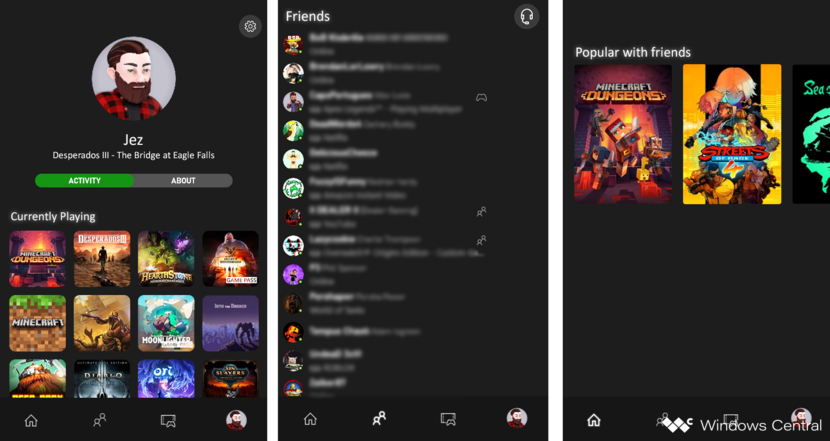
Microsoft is reportedly working on a redesigned Xbox app for iOS and Android

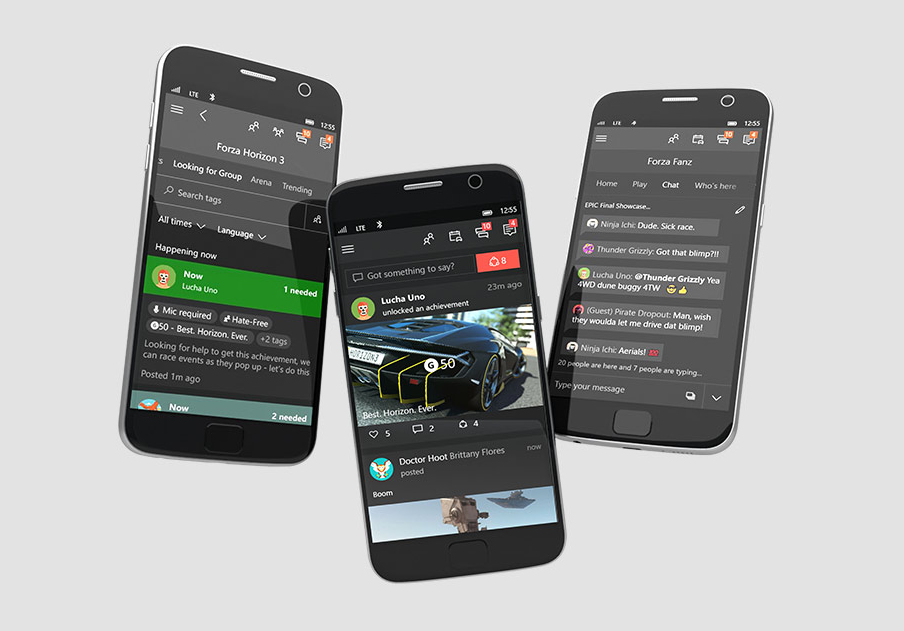
Microsoft could be working on a new Xbox app for iOS and Android devices that has been rebuilt from scratch, according to a report from Windows Central. The report includes mock-ups of what the new Xbox app could look like, and it does look quite different with a new bottom navigation bar that replaces the current hamburger menu.

The app is said to be in early stages of development, and it’s currently missing several features social features including the Activity Feed and Xbox Live Clubs. Still, the overall design looks to be more in line with the Xbox Game Pass Pass for mobile devices, which also uses a bottom navigation bar.

Mockups of the redesigned Xbox mobile app (source: Windows Central).

As of today, the Xbox app for iOS and Android can be used to chat with friends on Xbox Live, check your Activity feed, see your latest achievements, and purchase games from the Xbox Store. The app can also act as a remote for your Xbox One console instead of using your Xbox controller. It may have become a bit bloated and slow over the years, and maybe the upcoming launch of the Xbox Series X will be a good opportunity for the Xbox team to rethink its mobile strategy.

Microsoft’s new AI editors already facing backlash over racism story

For the past decade, various tech industries have extolled the virtues of artificial intelligence and its place in the future of humanity. Unfortunately, not all benefits have extended equally to everyone and a recent Microsoft gaffe once again highlights a continued AI blindspot for people of color.

As tensions run high in the US following the murder of several people of color by police officers in recent months, Microsoft’s new AI publishing software pushed out a story dealing with the personal effects of racism on bi-racial singer Jade Thrilwall but featured the wrong mixed-race performer.

While the story was about Jade and her reflections on racism, the featured image was of band member Leigh-Anne Pinnock, another mixed-race singer of the band Little Mix. While apparently a reoccurring incident according to Jade, Microsoft’s gaffe was called out by Jade in particular on social media.

“@MSN If you’re going to copy and paste articles from other accurate media outlets, you might want to make sure you’re using an image of the correct mixed race member of the group.”

“This shit happens to @leighannepinnock and I ALL THE TIME that it’s become a running joke,” she said. “It offends me that you couldn’t differentiate the two women of colour out of four members of a group … DO BETTER!”

The blunder comes a few days after news that Microsoft was in the midst of firing hundreds of human editorial staff in favor of its own AI editing platform.

Despite the tech industry’s bullish ambitions about AI, the software continues to have a spotty relationship when dealing with people of color with reports of the best algorithms struggling to recognize black faces equally, or even Microsoft’s own AI bot Tay using racially insensitive rhetoric comparing black people to monkeys.

When confronted by The Guardian about the bungled article in light of its recent editorial downsizing, a Microsoft spokesperson responded with, “As soon as we became aware of this issue, we immediately took action to resolve it and have replaced the incorrect image.”

Unfortunately, Microsoft’s AI editorial mistake doesn’t seem to give the company pause in continuing to shift its new news publishing process, and instead, the remaining staff is being instructed to clean up the mess caused by its AI replacements.

Because they are unable to stop the new robot editor selecting stories from external news sites such as the Guardian, the remaining human staff have been told to stay alert and delete a version of this article if the robot decides it is of interest and automatically publishes it on MSN.com. They have also been warned that even if they delete it, the robot editor may overrule them and attempt to publish it again.

As news continues to highlight protests, race, and injustice in the United States and particularly around black lives, Microsoft’s new AI will be definitely working overtime to correctly match black faces with new stories that surface, the question is, how often will it be successful?

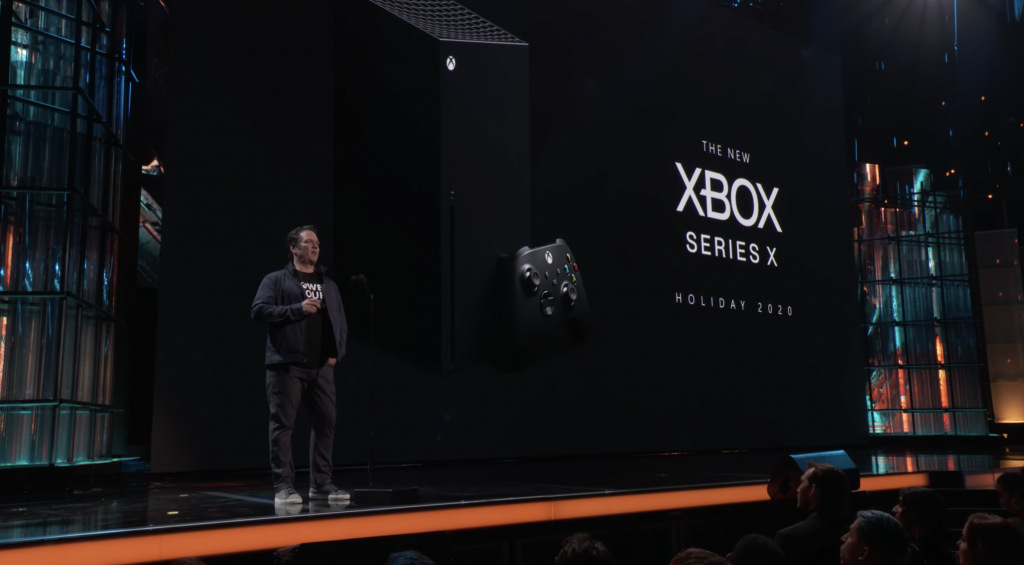
Don’t expect a new Inside Xbox digital event this month, but team is “working hard” on July’s first-party games showcase

Last month, Microsoft announced a series of “Xbox 20/20” monthly moments to share some next-gen news ahead of the launch of the Xbox Series X later this year. For the May Xbox 20/20 update, Microsoft did an Inside Xbox live stream to reveal some trailers of upcoming games running on Xbox Series X, and the Xbox team has since admitted that the showcase didn’t exactly meet fans’ expectations.

With Microsoft promising monthly updates throughout the rest of the year, there has been some confusion about a potential Xbox digital event this month. Yesterday, Jeff Grub from VentureBeat wrote that “The company was aiming to show off the long-rumored, more-affordable Xbox Lockhart around June 9. But it pushed those plans all the way to August — at least for now. Microsoft doesn’t want to go before Sony’s Thursday event.” ”

However, Xbox marketing exec quickly denied on Twitter yesterday that Microsoft had delayed this rumored June event to August. “We have not pushed anything back, our plan remains to have our next digital show in July and teams are working hard on that,” Greenberg tweeted.

Actually, Greenberg announced in a series of tweets on May 5 that there wouldn’t be an Inside Xbox digital event in June. “There will be news we are planning to revel/release, but not an Inside Xbox show next month, Greenberg said in a reply to a question about a June event. In another tweet, the exec said that “June will be done a bit differently than an Inside Xbox show.”

While we should get some Xbox news this month, this will likely come in the form of a blog post on Xbox Wire. Microsoft still has a lot of things to discuss, including the availability of Project xCloud on Windows 10 PCs, or new Xbox Series X features that probably deserve a bit more attention, such as Smart Delivery.

Anyway, Microsoft better comes up with something substantial this month to make the wait before the July digital event more bearable. With Sony planning to reveal the first PlayStation 5 games on Thursday, June 11, the Japanese company has a big opportunity to claim back the next-gen gaming narrative before Microsoft can strike back next month with its first-party games showcase.

How to delete a chat in Microsoft Teams

Sometimes, you just want to delete a chat you had in Microsoft Teams. It could be because you said something embarrassing, or it could be because you want to clean up your conversation list. Currently, it is not possible to delete a chat in Microsoft Teams, but there are some ways around it that can do the same thing. Here’s a look at those workarounds to delete a chat in Microsoft Teams.

Hide the chat

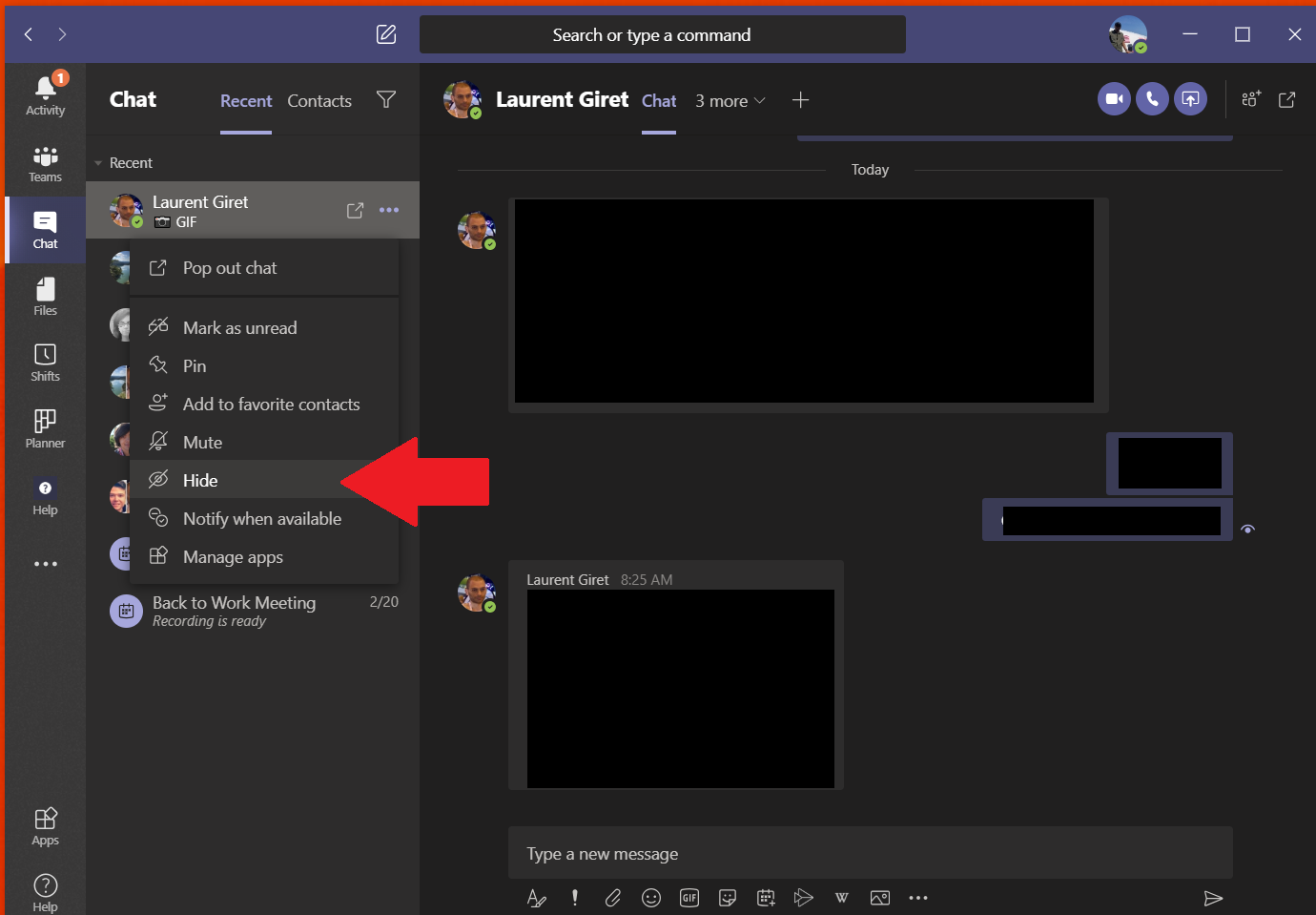
Deleting a chat usually removes it from the list of messages, but since it’s not currently possible to delete a chat, you’ll need to hide it instead. This will keep it out of your way, just as deleting it would. You can do this by right-clicking on the chat, and clicking the hide button. Once you hide the chat, it won’t show up again until someone posts a new message to it. You can bring it back by searching for the name of the person or the chat in the search box, and clicking it. The chat will then reappear in the location you last left it, and you can bring it back to the list by right-clicking again and choosing to unhide. 

Mute a chat

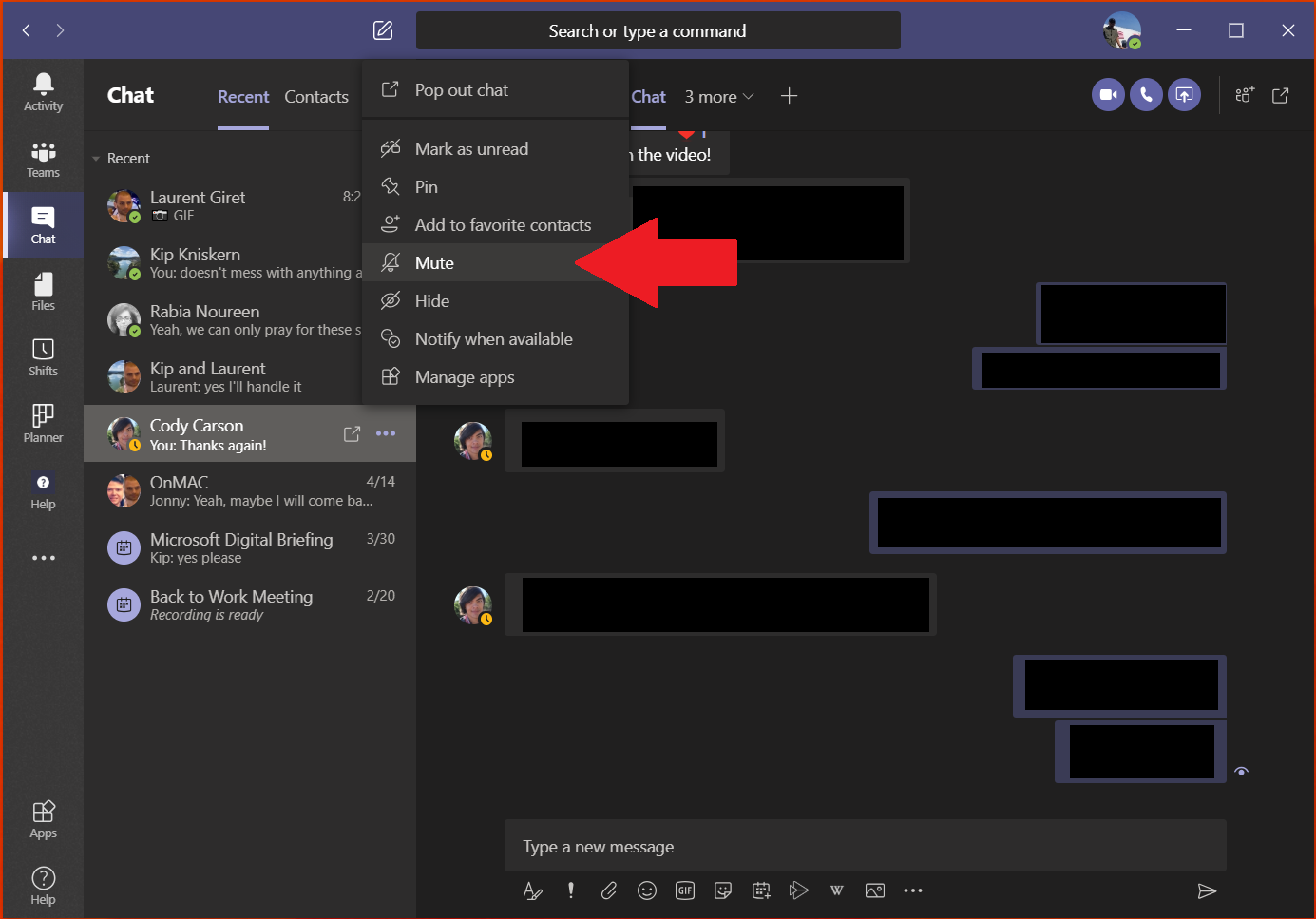
Along with hiding a chat, you can try to mute a chat to get it out of your way and “delete” it in Microsoft Teams. Muting a chat still includes you in the conversation, but you just won’t get notifications from it. You can do this by selecting the chat, right-clicking it, and then choosing Mute. You can always unmute via the same process. Used in combination with the hide function, this is a good way to get rid of the chats you no longer want to see anymore.

Other tips and tricks for chats

While it currently isn’t possible to completely delete a chat, you can still delete a certain message from a chat if you want, by right-clicking the message and choosing Delete. There’s still a lot more to chat in Microsoft Teams. You can use formatting, apps, and so much more in chats in Teams. We’ve covered all these topics, so feel free to check out our Microsoft Teams news hub for tips, tricks, and other guides relating to Teams. And, let us know your thoughts in the comments below.

Fix: Runtime error r6025 in Visual C++ [Skyrim, Fallout]

The Microsoft Visual C++ runtime library error r6025 occurs on Windows platforms when running software that relies on Visual C++ libraries.

When software calls a pure virtual function with an invalid call context, you can get an error message stating, Runtime Error! Program: C:Program FilesProgram Name R6025 – pure virtual function call. This is a runtime error that crashes software, and these are a few resolutions that might fix it.

How to solve Microsoft Visual error r6025

  1. Scan System Files
  2. Repair Microsoft NET Framework 3.5
  3. Install Visual C++ Redistributable Packages
  4. Clean Boot Windows
  5. Erase Junk Files and Reinstall the Software

1. Scan System Files

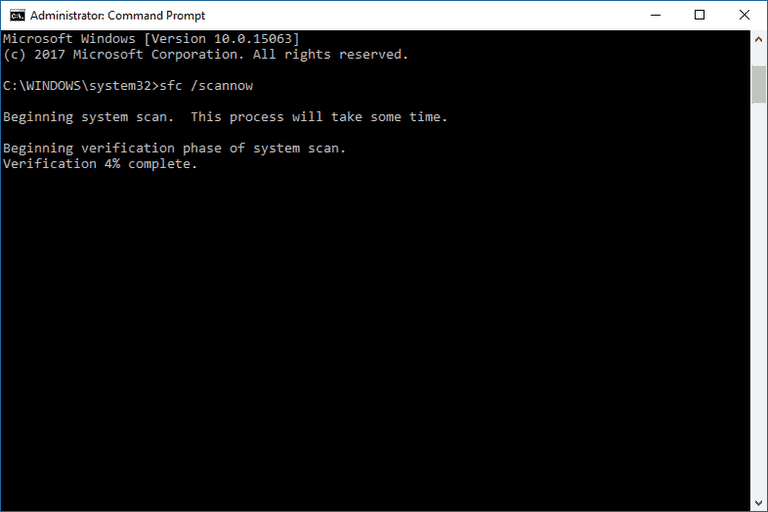
Runtime errors can often be due to corrupted system files. As such, running a System File Checker could repair pertinent system files and fix this issue. You can run an SFC scan as follows.

  1. Press the Win + X hokey, and select Command Prompt (Admin) on the Win + X menu.
  2. Input ‘Dismissive /Online /Cleanup-image /Restore health’ and press Enter before running the SFC scan.
  3. Then enter sfc /scannow and press Return to run the SFC scan.installation error 0xc000021a sfc/scannow
  4. The SFC scan can take between 20-30 minutes. If the Command Prompt states that WRP repaired some files, restart the Windows OS.

2. Repair Microsoft NET Framework 3.5

  1. It might be the case that you need to repair the Microsoft NET Framework installation. To do that, press the Win key + R keyboard shortcut, enter ‘appwiz.cpl’ in Run and press the OK button.
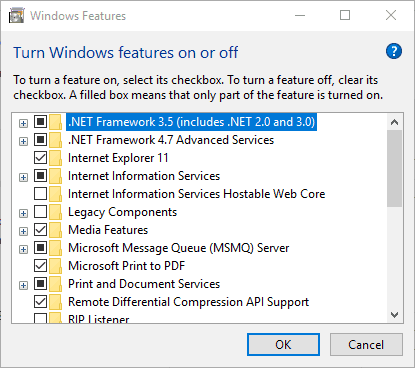
  2. Click Turn Windows features on or off on the Programs and Features tab to open the window directly below. net framework 3.5
  3. Now uncheck the NET Framework 3.5 checkbox, and press the OK button.
  4. Restart the Windows OS.
  5. Open the Windows Features window again.
  6. Select the NET Framework 3.5 checkbox, and click the OK button.
  7. Then restart your desktop or laptop.

3. Install Visual C++ Redistributable Packages

It might be the case that your laptop or desktop is missing a Visual C++ redistributable package and its run time components required by the software. Those are usually automatically installed on Windows.

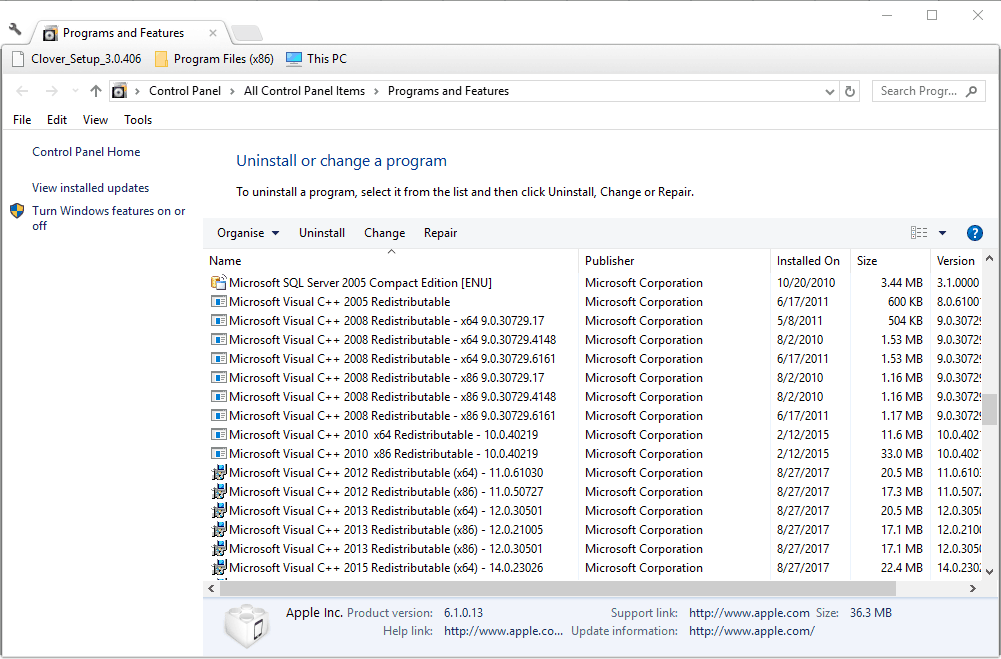
The Programs and Features tab lists your installed Visual C++ packages as shown in the snapshot directly below.

control panel programs and features uninstall a program

If your desktop or laptop lacks some C++ redistributable packages, you can manually install 32 and 64-bit versions. Make sure you add the 32-bit packages to a 32-bit Windows platform. You can download the more recent Visual C++ redistributable packages from these website pages:


4. Clean Boot Windows

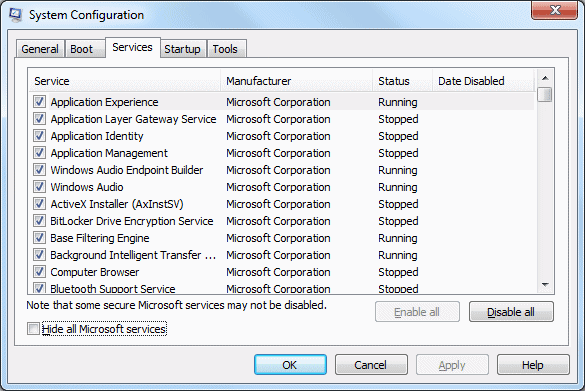
Error r6025 could be due to antivirus and system maintenance software conflicts. To ensure that isn’t the case, you can disable all non-Microsoft services. That selective startup is a clean boot, which can resolve software conflicts.

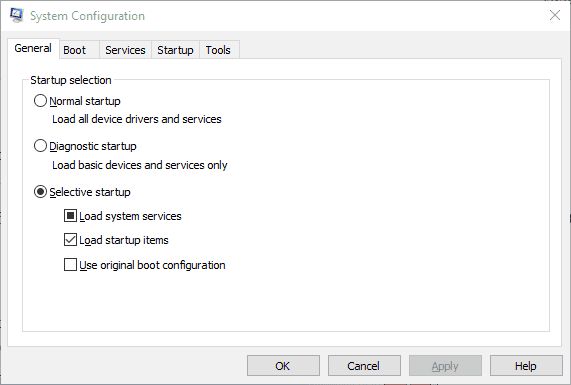
  1. First, open MSConfig by entering ‘msconfig’ in Run. That will open the window shown directly below when you press the OK button.msconfig
  2. Select the Selective startup option on the General tab if that isn’t already selected.
  3. Select the Services tab shown directly below.msconfig
  4. Select the Hide all Microsoft services option.
  5. Press the Disable all button to stop all the services.
  6. Press the Apply and OK buttons.
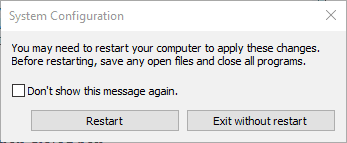
  7. Then select the Restart option on the System Configuration dialog box.

restart after msconfig changes


5. Erase Junk Files and Reinstall the Software

Erasing junk files and reinstalling the program that’s returning the r6025 error is another potential resolution for the issue. Erase the junk files before installing the program again. This is how you can erase junk files and reinstall software in Windows.

  1. First, open the Programs and Features tab by entering ‘appwiz.cp’ in Run.
  2. Select the software to remove, and press its Uninstall button. Then press the Yes button to confirm.disk cleanup
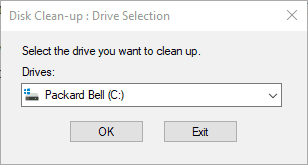
  3. Next, enter ‘cleanmgr’ in Run; and press the OK button.
  4. Select to scan the drive where you installed the program, which would usually be the C drive.
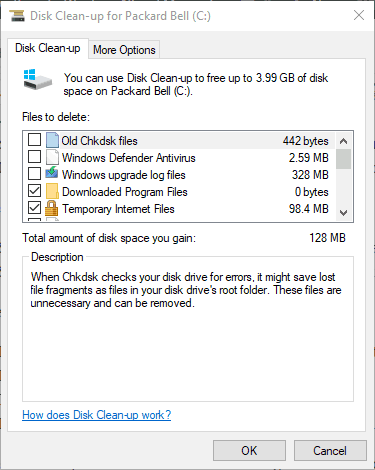
  5. Select all the file checkboxes on the Disk Clean-up window directly below.disk cleanup
  6. Press the OK button and click Delete Files to erase the selected file categories.
  7. Restart Windows after erasing the junk files.
  8. Then reinstall the software that you uninstalled.
  9. In addition, check if there are updates available for the preinstalled software.

Those are a few potential fixes for error r6025 that don’t require any extra third-party utility software.

Aside from the resolutions above, there is numerous third-party system optimization software that could feasibly fix error r6025 with their registry cleaners and system file repair tools. Check out this software guide for further PC repair kit details.

Here are some similar issues that users encounter and that should have the same steps applied to fix them:

  • Skyrim runtime error r6025 – The error occurs while playing Skyrim and updating the framework components will fix the issue.

  • Runtime error r6025 Fallout 4 – This runtime error happens when opening Fallout 4. Either reinstall the game or update the Redistributable package to make the problem go away.

  • Runtime error r6025 pure virtual function call – Follow the steps from this guide to fix this issue.

  • Microsoft Visual C++ runtime error r6025 – The main culprit, Microsoft Visual C++ Redistributable package that has to be fixed.

[wl_navigator]

Disable Fast Startup on Windows 10 with these simple steps

The Fast Startup has a few positive things going for it. However, since its introduction, many users switched to SSD storage or have a dual-boot system configuration.

Especially if you want to shut down your PC instead of putting it into a hibernate mode (which Fast Startup does).

However, even though users disable it, Microsoft boldly re-enables it with a new major upgrade.

To make things even worse, some users can’t find the Fast Startup feature in the Shutdown settings. Thus, they can’t disable Fast Startup in Windows 10.

We made sure to shed some light and show you how to get it back or, even better, disable it with 3 different methods ignoring the missing UI option.

Make sure to check the solutions we listed below if you can’t disable Fast Startup.

How to definitely disable Fast Startup on Windows 10?

  1. Try with the standard approach
  2. Check BIOS
  3. Try with Local Group Policy Editor
  4. Check whether Hibernation is enabled
  5. Run SFC and DISM
  6. Use the BAT file
  7. Disable Fast Startup via Registry Editor

1. Try with the standard approach

You’ve probably tried it already but we should give it another go. Firstly, reboot your PC as the problem might be caused by a temporary bug.

This wouldn’t be the first time for a system feature to go missing, especially if you’ve only recently installed the system. Also, the same can happen if you’ve made upgrades to the latest Windows 10 version.

Those usually re-enable Fast Startup by default but nothing is certain when it comes to Windows 10 and optimization.

On the other hand, if the Fast Startup option is still missing from the Shutdown settings section, move to additional steps.

2. Check BIOS

The next step is to inspect related BIOS/UEFI settings. There might be something related to Fast Startup and it’s disabled by default. If you can’t see the Fast Startup option, you can be sure it’s disabled.

However, if you want to utilize the system UI to tweak your boot settings, we’ll need to start from BIOS.

If you’re not sure how to boot into BIOS/UEFI settings, follow these steps:

  1. Press Windows key + I to open Settings.
  2. Choose Update & Security.
  3. Select Recovery from the left pane.
  4. Under the Advanced startup, click Restart now.
  5. Choose Troubleshoot.
  6. Select Advanced options.
  7. Choose UEFI Firmware Settings and click Restart.
  8. Once there, enable Fast Boot and save changes.
  9. Exit and reboot your PC.

3. Try with Local Group Policy Editor

The second method besides BIOS (only applicable on Pro and Enterprise versions of Windows 10) concerns changing some Local Group Policy settings.

The Local Group Policy Editor allows you to take complete control over almost anything on your PC in order to limit permissions.

This, of course, requires the users to have administrative permission in order to make changes.

Here’s how to disable Fast Startup within the Local Group Policy Editor:

  1. In the Windows Search bar, type Group Policy and open Edit group policy.
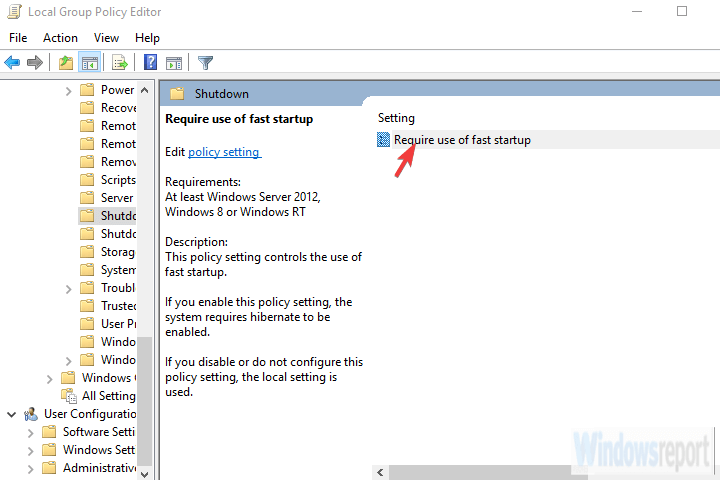
  2. Navigate to Computer Configuration > Administrative Templates > System > Shutdown.local GPE disable fast startup disable fast startup windows 10 registry
  3. Right-click on the Require use of fast startup line and click Edit.
  4. Make sure that you choose either Disabled or Not configured in order for Fast Startup to be accessible in local settings.
  5. Confirm changes and navigate to Power Options > Choose what power buttons do > Change settings that are currently unavailable and disable Fast Startup.
  6. If you set it to Enabled, the Fast Boot will be enabled by default and you won’t be able to disable it from within the System settings.

4. Check whether Hibernation is enabled

As you might know, Fast Startup won’t work if you’ve disabled Hibernation. Without the ability to hibernate, Windows 10 won’t be able to utilize the Fast Startup feature.

There’s a simple way to check whether Hibernation is indeed enabled or not on your PC. It requires Command Prompt run as administrator.

Follow these steps to re-enable Hibernation if disabled:

  1. In the Windows Search bar, type Command.
  2. Right-click on the Command Prompt and run it as admin.run command prompt as admin can't disable Fast Startup on Windows 10
  3. In the command line, type the following line and press Enter:
    • powercfg.exe /hibernate on
  4. Close the Command Prompt and disable Fast Startup through the Windows UI.

Once you’ve enabled hibernation, navigate to Power Options > Choose what power buttons do > Change settings that are currently unavailable and disable Fast Startup. Just uncheck the box beside it and you’re good to go.

5. Run SFC and DISM

This solution is more of a precautionary measure. In the case of system corruption, even some essential power settings might get unavailable. And there’s always a possibility something broke, especially after a major update.

If that happens, there’s a well-known combo, System File Checker and Deployment Image Servicing and Management tools. Both tools check for corruption in system files.

DISM is more reliable in applying fixes, while SFC will provide you with a better general insight into the problem.

Here’s how to run SFC and DISM in a succession:

  1. Type cmd in the Windows search bar, right-click on the Command Prompt and run it as an administrator.
  2. In the command line, type sfc /scannow and press Enter.sfc scannow windows 10 fast startup missing
  3. After that, copy paste these lines one by one and press Enter after each:
    • DISM /online /Cleanup-Image / ScanHealth
    • DISM /Online /Cleanup-Image /RestoreHealth
  4. Wait until the procedure ends (it might take up to 10 minutes).
  5. Restart your PC.

6. Use the BAT file

And now, we have finally come to 2 different methods to disable Fast Startup despite the option is not available in Shutdown settings. The first and probably the easiest method is utilized by running a preset BAT file which will do everything for you.

You won’t need to meddle with Registry on your own in order to disable it.

Here’s how to disable Fast Startup with the BAT file:

  1. Download the BAT script file, here.
  2. Right-click on the file and run it as an administrator.
  3. Wait until the changes are made and reboot your PC.

7. Disable Fast Startup via Registry Editor

Finally, the second method we can suggest relies on disabling Fast Startup by editing the Registry. Now, we strongly suggest backing up your Registry before making any changes to it.

Also, make only recommended changes and don’t meddle with the Registry unknowingly.

Follow these instructions to disable Fast Startup via Registry Editor:

  1. In the Windows Search bar, type Registry and open Registry Editor.open registry editor disable fast startup windows 10 registry
  2. Navigate to
    • HKEY_LOCAL_MACHINESOFTWAREPoliciesMicrosoftWindowsSystem
  3. Right-click in the right pane and create a new DWORD.
  4. Name it HiberbootEnabled and set its value to 0.
  5. Exit Registry and you should be good to go.

With that said, we can conclude this article. In case you have any questions or suggestions, feel free to tell us in the comments section below. We look forward to hearing from you.

Microsoft Wireless Display Adapter app: All you Need to Know

Microsoft’s Wireless Display Adapter is a valuable tool that connects your Windows 10 device to a TV screen, monitor, or projector.

So, you can stream movies, view photos, or display a presentation on a big screen without cables, and in this guide we’ll show you how to perform Microsoft Wireless Display Adapter setup.

Microsoft Wireless Display Adapter Explained

What is a wireless display adapter app?

A wireless display adapter app is a software application that allows you to wirelessly display the screen of one device on another device, such as a TV or a monitor.

It allows you to project the screen of one device onto another without needing any physical cables.

Typically, you install the wireless display adapter app on both devices and connect both devices to the same Wi-Fi network.

Once the app is installed and the devices are connected, you can use the app to connect the devices and begin mirroring the screen. In addition, many wireless display adapter apps are available, including popular options such as Google Chromecast, Microsoft Wireless Display Adapter, and Apple AirPlay.

These apps are often used for presentations, gaming, and other applications where displaying content from one device to another is helpful without any physical connections.

How does the Microsoft Wireless Display adapter work?

The Microsoft Wireless Display adapter is a device that allows you to wirelessly display the screen of one device, such as a laptop or a smartphone, on another device, such as a TV or a monitor. Here’s how it works:

  1. The Microsoft Wireless Display adapter connects to the HDMI port of your TV or monitor.
  2. The adapter uses Wi-Fi Direct technology to create a direct wireless connection between your device and the adapter.
  3. You connect your device to the adapter using the Miracast wireless display standard. Miracast is a wireless display standard allowing you to stream video and audio content from one device to another.
  4. Once your device is connected to the adapter, you can wirelessly display your device’s screen on your TV or monitor. You can do this for various purposes, such as watching movies, playing games, or giving presentations.

How can I download the Microsoft Wireless Display adapter app?

  1. Open the Microsoft Store app on your Windows 10 device by clicking the icon on your Taskbar.
    wireless display adapter app
  2. Type Microsoft Wireless Display Adapter in the search bar; press Enter, then click on the Microsoft Wireless Display Adapter app from the search results.
    wireless display adapter app
  3. Click on the Get button to download and install the app.

How do I use the Wireless Display Adapter app?

  1. Launch the app, and a pop-up message will appear on the screen asking you to help Microsoft improve the next version of the software. In addition, you can specifically send Microsoft information about your system and how you use the software. The company pledges to respect user data privacy.
    Help improve wireless adapter app
  2. Plug the USB and HDMI from the Microsoft Wireless Display Adapter into your big-screen device. You can then connect your Windows 10 computer to your big screen.
  3. Go to Action Center, and select Connect. Your computer will start searching for wireless displays and audio devices. Then, select the Microsoft Wireless Display Adapter.
    search wireless devices windows 10
  4. If the adapter fails to connect, go to Settings by pressing Windows + I.
  5. Select Devices, click on Bluetooth & other devices, choose Add Bluetooth or other devices, and select Microsoft Wireless Display Adapter.
  6. You can then go to Adapter Settings, name the adapter, select the language, and adjust the screen. You can also secure your device and set a password to prevent unauthorized access.
  7. If you want to install the latest updates for Microsoft’s Wireless Display Adapter, navigate to Firmware and check for updates.
    update microsoft wireless adapter
  8. If you want to refresh the connection, select the Restart Adapter option in the left-hand corner.

You can use this app to name the adapter, adjust the screen, change the TV or monitor language, set a password to lock the adapter so that nobody can use it without your acceptance, change the adapter pairing mode, and more.

Now that the Microsoft Wireless Display Adapter setup is finished, you should be able to stream content to other screens wirelessly.

Is it possible to download the Microsoft Wireless Display Adapter app without the Store?

Officially, this process is not straightforward, but a couple of services will help you download MS Store apps like the Wireless Display Adapter app without using the Store.

We have written a comprehensive article on how to Download the MS Store apps without the Store.

FAQs

What is the Microsoft Wireless Display Adapter?

The Microsoft Wireless Display Adapter is a device that lets you mirror or extend your PC, tablet, or smartphone screen to an HDTV or monitor wirelessly using Miracast technology.

How do I set up the Microsoft Wireless Display Adapter?

Plug the adapter into your TV’s HDMI and USB ports. On your Windows device, press Windows + K, select your TV from the list, and choose Connect. Your screen will appear on the TV in seconds.

Why won’t my PC connect to the adapter?

Make sure both devices support Miracast, the adapter’s firmware is updated, and you’re within range. Try restarting your PC and TV, then reconnect. Also, verify that Bluetooth and Wi-Fi are enabled.

Can I use the adapter without Wi-Fi?

Yes. The Microsoft Wireless Display Adapter creates a direct wireless connection between your PC and TV, so you don’t need an internet connection for screen mirroring.

Still having trouble with pairing, black screens, or random disconnects? Follow our full Microsoft Wireless Display Adapter not working guide to fix common Windows 10 issues step by step.

There you go; we hope this quick guide helped you connect your Windows 10 computer to a bigger display device.

Now that you know how this feature works, don’t miss our guide on how to cast Windows to a TV for more information.

⇒ Get Wireless Display Adapter 

User profile error after Windows 10/11 Update [QUICK FIX]

Many users reported that a pop-up alert appears when they turn on the computer after Windows 10 v1903 was installed. The message states that something is wrong with the user profile.

The screenshot is posted below, followed by this message:

Can someone tell me what this means? And how can I fix whatever it is. When I turn on my pc I keep getting this pop up, that I need to contact my administrator. But I am the administrator!!

pop up image event properties

As the message box from the pop-up window states, the error might be caused by some network issues.

Also, as an independent advisor responding to the message says, the problem might appear if the PC thinks it is a server.

Moreover, the same user comes with a possible solution:

Try creating a new Local Admin account, sign into it, test if the problem persists. 

Creating a new Local Admin account is probably the simplest way to solve this error. The procedure is relatively easy, and you can check our complete guide.

Of course, another solution is to revert to the Windows v1809 OS. This could not be an option for some, because they need the new features that the May 2019 Update has to offer.

Have you encountered issues with your user profile after the update? Let us know in the comment section below.

  • How do I reset my user profile?
There is no actual reset button for your user profile. You will need to delete it and create it again. If you don’t know how to do that, just read our step-by-step guide.
  • What causes a corrupt user profile in Windows 10?
Sometimes this is caused by a problem with your registry. If your user profile is corrupted, you won’t be able to load it, and sometimes, you won’t even be able to log in toWindows 10.

[wl_navigator]

Windows 10 Unigram Telegram app updates to 4.0 with major new features and changes

The popular third-party Telegram app, Unigram, received a massive update this week that brought it up to Version 4.0 and added several new features that users should be excited about such as chat folders for organizing conversations and media streaming.

Here’s the full release notes:

Chat folders

  • Organize chats into Chat Folders if you have too many chats.
  • Create custom folders with flexible settings, or use default recommendations.
  • Pin an unlimited number of chats in each folder.
  • Right click on a chat in your chat list to add it to a folder.

Stream Videos and Audio files

  • You can now play any Videos and Audio files without having to download them.

Improved stickers, GIFs and emojis

  • Stickers and GIFs are now animated in the sticker panel and inline bots results.
  • Enjoy greatly enhanced loading times for GIFs.
  • Quickly find GIFs in emoji-based sections covering the most popular emotions.
  • Check the Trending Tab for the top reactions of the day.
  • Right click on any GIF in search results to save it to your collection.
  • Pinned stickers panel
  • Emoji sets have been updated to Unicode 12.1.
  • Inline bots got a lot of love as well: all results are now displayed correctly.

Improved files sender and media editor

  • New files sender optimized for desktop.
  • Choose whether to send your photos and videos as media, files or albums.
  • Send uncompressed videos and GIFs.
  • New media editor to crop, rotate, flip images and to draw on them.

Improved storage optimization

  • Storage optimization screen got a slick redesign and a more polished UX.

… and more!

  • This release also includes more than 300 between bug fixes and improvements plus UI polishing in the whole app.

Unigram rose to popularity among Windows users a while ago due to frequent updates and support for Windows 10 Mobile Windows phones. While support for the mobile version has since been discontinued, the PC version continues to iterate with new features and added functionality. It’s even available to use on Xbox One consoles though it’s unclear how many do.

Do you use Unigram or do you prefer the official Telegram app? Share your thoughts with the community in the comments below and then follow us on Pinterest for more Windows app content.

Unigram—Telegram for Windows

5 best laptops under 3lbs [Updated List]

Laptops have become increasingly smaller and more lightweight over the years. Very lightweight laptops are known as Ultrabooks.

Those are laptops that are under an inch thick and typically have 13 or 14-inch displays. Most laptops that weigh in at under three pounds are Ultrabooks.

However, there are also some lightweight 2-in-1 convertible laptops that are lighter than three pounds. Check out these super lightweight laptops.

Deals are subject to change. Sometimes, some of the deals listed in our guides may no longer be available by the time you hit the buy button. So, hurry up and grab them while they’re hot.

What are the best light laptops on the market?

LG Gram 17

  • Plenty of storage space
  • Excellent battery life
  • Expansive QHD 17-inch display
  • Lots of ports
  • Graphical performance isnu2019t great

LG gram 17 is the most lightweight 17-inch laptop in the world. Furthermore, its expansive display also boasts a very decent 2,560 x 1,600 QHD resolution.

The IPS panel covers 95.1 percent of the sRGB color gamut. It’s a quality VDU with excellent colors few Ultrabooks can match.

Aside from its great 17-inch display, the LG gram 17 packs in a 10th generation Intel Core i7 processor, 16 GB RAM, and one TB storage.

Those are pretty solid specs, but its Intel UHD Graphics 620 GPU’s graphical performance doesn’t compare that favorably to the best NVIDIA GPUs.

The portability of the LG gram is enhanced with its terrific battery. The LG gram’s battery can last up to 17 hours. So, this is an ideal choice for users who take their laptops out and about.

Dell XPS 13 9310

  • Top-notch performance
  • Minimal monitor bezels
  • Quality 4K or Full HD displays
  • An alternative 2-in-1 convertible XPS 13 model is available
  • Long-lasting battery that lasts up to 15 hours
  • Small number of ports

The Dell XPS 13 is among the most high-rated ultraportable laptops, which incorporates a cutting-edge 11th generation Intel Tiger Lake processor that delivers serious performance.

Its best model has 16 GB RAM, expansive one TB SSD storage, and a 13.4-inch display with a great 4K resolution.

As a Dell laptop, the XPS 13 comes with the Dell Mobile Content software. That’s a handy addition for users who need to transfer files from smartphones to laptops with regularity.

Its power button’s integrated fingerprint scanner is also a handy login feature.

Surface Laptop 3

  • Plenty of storage space
  • Good battery with fast recharging
  • Classy design
  • Sharp QHD (2,496 x 1,664) display
  • AMD Ryzen model delivers superior graphics performance
  • Lacks a Thunderbolt 3 port

Surface Laptop 3 is a good value Ultrabook with an elegant design that’s available with 13 and 15-inch monitors and various color options.

With a 10th gen Intel i7-1065G7 processor, 16 GB RAM, one TB SSD, and an integrated Intel Iris GPU, and QHD display this is a strong productivity laptop.

There’s also an AMD Surface Laptop 3 model that’s better for gaming. That packs in an AMD Ryzen 7 3780U processor and Radeon RX Vega 11 GPU and supports DirectX12 and FreeSync.

Since we’re talking about it, have a look at our comprehensive list of the best FreeSync monitors that you can buy right now.

However, that AMD model weighs a bit more than three Ibs (about a 0.7 Ibs difference with the lighter one).

Another good thing about this laptop is its all-day battery that lasts up to 11 hours. That battery also recharges very quickly. So, you don’t have to wait around much longer than an hour for this laptop to get fully charged.

HP Elite Dragonfly

  • Top-notch 4K resolution VDU
  • Decent battery that can last about 12-13 hours without a recharge
  • Fast multitasking performance
  • Good variety of ports
  • Itu2019s quite pricey

The HP Elite Dragonfly is a productivity laptop that’s had rave reviews. Its best configuration has a sharp 4K resolution display with an IPS panel for better viewing angles and colors.

With a 4.6 GHz Intel Core i7-8565U CPU and 16 GB RAM, this laptop can handle heavy multitasking with aplomb.

If you’d like to upgrade your RAM, take a look at our nice list of the best 16 GB RAM you can buy in 2021.

The HP Elite Dragonfly is also a flexible 2-in-1 convertible laptop you can utilize as a tablet. With its 360-degree hinge, users can lie this laptop flat or in its stand or tent mode.

A stylus pen comes included with Dragonfly, which will come in handy for design software.

Razer Blade Stealth 13

  • Includes a dedicated NVIDIA GPU for superior graphics
  • Includes a Thunderbolt 3 port
  • A 4K resolution model is available
  • Can run the best Windows games
  • Minimal bezels
  • Battery life doesnu2019t compare favorably with other Ultrabooks

This is the world’s first Ultrabook gaming laptop. The Blade Stealth has a Full HD 13-inch VDU with a fast 120 Hz refresh rate.

It also packs in an 11th generation Intel i7 processor and a GTX 1650 Ti GPU, which gives it better graphical performance than Ultrabooks with integrated GPUs.

This laptop is also compatible with the Razer Core X external graphics thanks to its Thunderbolt 3 port.

Core X is an external graphics card unit you can connect with the Stealth to supercharge it with desktop graphics cards. So, the Stealth is akin to a desktop gaming rig when hooked up with a Razer Core X.

These are some of the best laptops available that are lighter than three Ibs. If you want to check out some beefy laptops, check out this great list of the best gaming laptops on the market.

These options are extremely portable laptops with solid system specs that have great lightweight designs and long-lasting batteries.

Windows 10 2004 drawing app bug has an easy workaround

Despite the many useful features Windows 10 2004 brings, the OS is associated with dozens of update bugs. Some of the issues are so serious that Microsoft put affected PCs on a compatibility hold, effectively preventing them from upgrading to the latest OS version from the company.

A significant chunk of these bugs have something to do with Windows 10 drivers incompatibility.

Still, Microsoft has acknowledged yet another glitch affecting Windows 10 May Update users. While the bug doesn’t block updates, it causes external display issues in laptops and tablets.

Workaround for the Windows 10 2004 drawing app problem

The bug affects Windows 10 2004 devices that have a built-in display, for example a laptop.

So, if you connect your laptop or tablet to an external monitor that’s set to mirror the built-in display, both monitors will have a flickering problem.

More so, the external display goes dark if you try drawing in any Office app. The bug affects MS Word, Whiteboard, and other applications that support drawing.

Additionally, a quick review in Device Manager shows a warning sign next to your graphics controller.

There’s good news for affected users: You can fix the issue by simply restarting your Windows 10 machine.

The external monitor should recover if you restart your device. Microsoft has confirmed that this is a problem in Windows 10 version 2004. We are working to fix the issue in a future version of the operating system.

Plus, Microsoft  said that it’s working to fix the issue. The only not-so-optimistic news coming out of that announcement is that only a future version of Windows 10 can address the bug.

While the external display problem doesn’t prevent users from using their Windows 10 PCs, it seems too severe to fix with a minor update.

What Windows 10 2004 bugs have you encountered so far while using your PC? Feel free to let us know (or ask any questions) via the comments section below.

Windows 10 search for Chrome yields Microsoft Edge promo

There was a time when a browser from Microsoft, Internet Explorer, dominated usage. IE required no aggressive pushing because it faced no serious competition then. Well, things changed, and that isn’t the case with the new Microsoft Edge.

Another browser, Chrome, is the most popular now. So, Microsoft is employing all manner of tricks to bring Edge to the attention of Windows 10 users looking for rival browsers.

Microsoft Edge Windows search promo

According to Bleeping Computer, Windows 10 users are encountering Microsoft Edge ads whenever they try searching for a rival browser. So, when you launch Chrome or another browser by searching it first in Windows 10, you’ll likely get an ad recommending Edge.

This is neither the first nor the last time the Redmond-based tech giant is pushing ads for its new Chromium-based browser to Chrome or Firefox users.

For example, some OneDrive users have been getting a similar promo when they access their accounts via a competing browser. However, at least you can get rid of the banner ad in OneDrive by clicking the close button.

However, there’s no way to remove or close the Windows 10 search Edge ads that Bleeping Computer reported recently. Users have in the past complained about potentially intrusive promos that Microsoft likes to push across its platforms from time to time.

The latest Edge campaign is likely to attract the same negative sentiments, especially if it’s impossible for users to disable or close the ads. Nonetheless, the new Microsoft Edge is much improved, compared to legacy Edge that Windows 10 isn’t supporting.

Microsoft isn’t the only tech company promoting its browser through in-app ads, though. In fact, Google is delivering a similar promo for Chrome to Edge users with Gmail accounts.

As always, feel free to share your thoughts or ask any questions via the comments section below.

Firefox 78 offers a quicker way to reopen closed tabs

Everyone has accidentally closed a web browser tab at some point in their life. It’s easy to make that mistake and close the wrong tab, especially when you’ve got many open tabs. While the ability to reopen closed tabs is not something new, Firefox 78 will change how you can use it.

Firefox 78 offers a quicker way to reopen closed tabs

Firefox 78 will let you open multiple closed tabs by going to the Tab content menu and choosing Undo Close Tabs (via Techdows). You’ll be able to download the browser by June 30, 2020.

It appears that this feature only works after you’ve closed more than one tab using the Close Multiple Tabs submenu. For example, you can close multiple tabs by right-clicking on a tab and selecting Close other Tabs.

If you did it accidentally, you can quickly fix the mistake in Firefox 78 by first right-clicking on the active tab. The context menu that comes up will show the Undo Closed Tabs option. Selecting it reverses the inadvertent closure of multiple tabs.

Any browser feature that fast tracks your access to the web is certainly welcome all the time.

But users have to be moderate with the use of the Undo Closed Tabs update coming with the next version of Mozilla Firefox. It appears that using that capability on too many closed tabs at once can cause the browser to crash.

The latest Firefox browser, version 77, allows you to reopen closed tabs too. But the process is a bit longer.

The version has a host of impressive new features, though, such as the availability of WebRender to more Windows 10 users. Hopefully, the upcoming Firefox 78 improves these native capabilities further.

The ability to reopen closed tabs is not unique to Firefox. Chrome, Chromium-based Edge, Opera and others have it too. So, we created a guide to show you how to do it in these browsers. You can check it out anytime!

In case you have any questions or thoughts about the upcoming Firefox 78 or any other browser, you can always reach for the comments section below!

[wl_navigator]

Intel working to fix Windows 10 2004 Optane memory bug

Windows 10 2004 finally came out on May 27 with plenty of new features. It introduced a much-revamped Cortana app with enterprise-oriented capabilities, reserved storage improvements, and even the ability to troubleshoot your PC in safe mode by signing in via Windows Hello.

But Windows 10 2004 installation didn’t go smoothly for some users. Multiple issues caused (and still are causing) update failure, with Microsoft putting many of the affected devices on a compatibility hold.

An Intel Optane memory is the latest to affect users of the Windows 10 May 2020 Update.

According to Windows Latest, the microchip maker acknowledged the existence of the compatibility issue.

Intel to fix the Windows 10 2004 Optane memory issue

An Intel spokesperson who spoke with Windows Latest confirmed that the company, in partnership with Microsoft, is developing a solution.

On May 31, 2020, Microsoft acknowledged the problem after a user had tweeted about it.

The company confirmed the likelihood that the Intel Optane may be incompatible with the May 2020 update. It also suggested to the user that installing the latest Intel driver for the hardware might help.

According to Intel, it appears the Optane memory compatibility issue hasn’t affected a lot of users, though.

The company’s spokesperson added that users of Optane SSDs or server products didn’t experience the issue.

As a rule of thumb, you can always uninstall any application that causes compatibility problems with otherwise healthy hardware or hardware drivers. That can be an option as you wait for Intel and Microsoft to roll out a permanent solution.

Alternatively, users that have noticed an Optane M10 or H10 issue after updating to Windows 10 2004 can try to repair the system.

To do that, go to Programs and Features and choose Intel Optane Pinning Explorer Extensions. Next, click Repair.

Have you encountered any driver compatibility issue while updating to Windows 10 2004? You can always share your experience in the comments section below.

[wl_navigator]

Microsoft offers free Samsung Galaxy Watch Active 2 when you purchase a discounted Galaxy Note10

The US Microsoft Store is currently offering a free Samsung Galaxy Watch Active 2 with every purchase of a Galaxy Note 10 smartphone (via SamMobile). The offer is available with both the 6.3″ Note10 and 6.8″ Note10+ devices, and you will get a $279 Galaxy Watch Active 2 absolutely free of charge.

In addition to the pretty hefty freebie, the Samsung Galaxy Note10 is now available starting at $849 with 256GB of storage, while the Galaxy Note10+ starts at $999 for the 256GB version. These smartphones are currently available in Aura Glow, Aura White, Aura Black colors, and we invite you to check the Microsoft Store listing to make your choice.


Samsung Galaxy Note10 series deal

Smartphones aren’t exactly front and center on the Microsoft Store, and Microsoft is actually only selling Samsung phones as of this writing. The Korean company has a special partnership with Microsoft, with the premium Galaxy smartphones enjoying an exclusive “Link to Windows” feature that makes interacting with a Windows 10 PC really seamless.

Do you think this deal a good opportunity to make the jump to a Galaxy Note10, or is a free smartwatch not enough to tempt you? Sound off in the comments below.

Green Browser: Here’s everything you need to know

The history of web browsers is quite rich, and while today’s market is dominated by a couple of browsers, in the past there were more viable solutions.

One such browser is the Green Browser, and in today’s article, we’re going to show you some of its features and let you know if the browser is still viable.

What is Green Browser and should I use it?

1. What is Green Browser?

greenbrowser main window

Green Browser was made by a Chinese company, quicker and it’s based on Internet Explorer’s Trident rendering engine.

One highlight of this browser is its low memory requirement, so it should work on any older PC. The browser is similar to Maxthon and some of Maxthon addons will work with Green Browser.

The browser supports mouse gestures and it has its own adblocker. Thanks to the collector feature, you can easily save snippets of text from pages for later use.

Additional features include a page manager, a quick menu for elements, and a floating video player that stays on top of other applications.

Green Browser is discontinued and the latest version was released in December 2016.

⇒ Get Green Browser

2. What are Green Browser alternatives?

Green Browser uses Trident’s rendering engine which is outdated by today’s standards, and since the application is discontinued, it’s vulnerable to attacks.

This is why a browser such as Opera would be a better choice. Opera is humble in terms of requirements, so it should be able to handle any website.

The browser also has a built-in ad blocker, as well as tracking protection that will block tracking scripts and cookies, and make web pages load faster.

For an extra layer of protection, there’s a built-in VPN that you can use. The VPN is completely free and it offers unlimited bandwidth.

Additional features include a pop-out video player, the ability to take screenshots, integrated messenger and Instagram, the ability to organize tabs into workspaces, and much more.

Opera

An excellent web browser that offers many useful tools, including the ability to save and print your web pages.

Green Browser had its place in the early 2000s, but nowadays, it has been completely outperformed by Opera and all other modern web browsers.

Xbox One bundles make use of new “Digital Direct” feature to redeem free content

It seems that Microsoft may soon stop including digital codes to redeem free content in Xbox One bundles. Instead, the company has debuted a new “Digital Direct” feature that allows consumers to redeem all digital content included with an Xbox One bundle during the setup process.

This new Digital Direct feature recently spotted by consumers who purchased the Limited Edition Xbox One X Cyberpunk 2077 bundle (via Thurrott.com). As the game won’t be released until September, consumers can already use Digital Direct to redeem the game by signing in with their Microsoft account after booting up the console.

No More Digital Codes With Console Bundles, First Account Linked To New Xbox Gets License from xboxone

Microsoft explains this new Digital Direct feature on this page, though Brad Sams from Thurrott.com reported on it first back in December 2018 when it was codenamed “Roma.” While this new feature is more convenient for consumers, it’s also less flexible than digital codes that used to be included in Xbox One bundles: With Digital Direct, all digital content (Games, Xbox Game Pass and Xbox Live Gold subscriptions) included in an Xbox One bundle will be attached to the first Microsoft Account that redeems it. In other words, you can no longer gift this content to friends, as you could do with digital codes.

It’s not clear if all Xbox One bundles now use Digital Direct to redeem free content instead of digital codes. Anyway, all Xbox One bundles are currently sold out on the Microsoft Store, and the  45,000 units of the aforementioned Limited Edition Cyberpunk 2077 bundle sold out really quickly.

Lunascape browser for Windows 10: What you need to know

The browser market is dominated by major web browsers, but there are many lesser-known web browsers that offer some amazing features.

One of these browsers is Lunascape, and in today’s article, we’ll take a closer look at its browser and see how it compares to modern browsers.

What is Lunascape browser and should I use it?

1. What is Lunascape?

Lunascape was first released in 2001, and unlike other browsers, it used not one but three rendering engines. This was an amazing feature since it allowed you to switch the rendering engine on the fly.

Of course, an option for auto-switching was available as well, so the browser would always choose the most suitable rendering engine for a specific website.

The browser has the ability to display tabs in multiple rows, as well as support for mouse gestures. It’s also worth mentioning that the browser has a wide array of tab management features.

Overall, Lunascape offers some interesting features, but the browser hasn’t been updated since 2018.

⇒ GetLunascape

2. Should I use Lunascape?

lunascape browser for windows 10

Lunascape gained popularity with its ability to switch the rendering engine on the fly. In the past, not all browsers followed the same standards, so the ability to switch rendering engines was more than useful.

Nowadays, browsers follow web standards more closely, so there’s no need to focus on rendering engines. The largest problem of the modern Internet is security, and this is where Opera One shines.

Opera One has its own tracking protection, so it will block tracking cookies and scripts and make your web pages load faster. In addition, Opera One has a built-in ad blocker and an AI.

For more security, there’s a free VPN with unlimited bandwidth available. Other features include the ability to organize tabs into workspaces, a pop-out video player, and instant messenger integration.

Opera One is built on the Chromium engine, so it supports Chrome extensions, and with availability on all mobile and desktop platforms, there’s no reason not to try it.

Opera One

Go for a web browser that is fast, secure, stable, and built using the best engine available: the Chromium engine
Free Download Visit website

Lunascape was a great browser in the early 2000s, but after browsers started following web standards more closely, Lunascape was replaced and forgotten.

Have you ever used Lunascape before? Let us know in the comments section below.

FIX: Visit google.com/device and enter this code

Certain devices can give you a message saying Go to google.com/device on any browser and enter this code.

This message isn’t anything to worry about, and today we’ll show you what to do if you encounter it.

How do I fix google.com/device code message?

1. Follow instructions in the message

  1. Go to google.com/device page.
  2. Now enter the code that is displayed on your device and click Next.
    connect a device connect to device google.com/device on any browser and enter this code
  3. After doing that, your account should be verified and ready to use.

Go to google.com/device on any browser and enter this code message is just a security feature that will protect certain devices and services. It works as a two-factor authentication of sorts.

By entering this code on Google’s device page, you’ll confirm the authenticity of your account and you’ll be allowed to log in.


Although you can do this in any web browser, we’d recommend using Opera One. The browser has its own ad blocker that will block ads and tracking scripts and make websites load faster.

The browser also has a VPN that can be used for circumventing geo-restrictions or as an extra security layer. Of course, the VPN is completely free and it offers unlimited bandwidth.

Opera One is also light on your resources, so it should be able to handle any task with ease. The browser also has the ability to organize tabs into workspaces, and there’s even a built-in messenger and AI.

Opera One is built on Chromium engine, and it works with Chrome apps, so if you’re using any Google device, Opera One will be the perfect choice for it, so feel free to try it.

Opera One

Enter your codes safely knowing that your data is protected by several layers of protection.
Free Download Visit website

Go to google.com/device on any browser and enter this code is just a security measure, and we hope that you understand better why this message appears and how to handle it after reading this article.

Windows 10 news recap: Xbox app could add mod support for PC games, Xbox Game Bar adds support for third-party widgets, and more

Welcome back to our Windows 10 news recap, where we go over the top stories of the past week in the world of Microsoft’s flagship operating system.

Microsoft’s GroupMe app updates on Windows 10 devices with support for Dark Mode

The GroupMe app on Windows 10 has received a new update that adds support for dark mode, allowing it synchronise with your system-wide setting for the theme.

Microsoft GroupMe app icon.

Xbox app on Windows 10 shows traces of incoming mod support for PC games

The new Xbox app on Windows 10 has been found to show traces of mod support for PC games arriving in the future, such as enabling easy access to a game’s mods folder.

Xbox Game Bar on Windows 10 now supports third-party widgets

Those looking to customise their Xbox Game Bar experience on Windows 10 can now do so, thanks to the support of third-party widgets. A new Widgets Store provides access to the available widgets, including some from Razer and XSplit.

Xbox Console Companion UWP app to be replaced with the new Game Pass-focused Xbox app

The Xbox Console Companion app on Windows 10 is set to be replaced shortly by the newer Xbox app, which focuses more on Xbox Game Pass.

That’s it for this week. We will be back next week with more Windows 10 news.

Microsoft Teams free lifts meeting length and size limit

Between now and when COVID19 became a global menace, Microsoft Teams has undergone a significant transformation.

As over 44 million people sign into the Office 365-powered tool daily, Microsoft has been improving it to empower millions of remote workers that can no longer report to their former physical offices.

For example, the platform’s Meetings feature has expanded in capacity to support up to 250 participants per session. At the same time, Microsoft is working to extend that limit to 300.

However, only paying customers have been leveraging the best of Microsoft Teams features, including Meetings. That’s set to change with the Redmond giant rolling out extra features to Teams free users.

Microsoft Teams lifts meetings length restrictions

For now, Microsoft Teams free users can have meetings of any length and size on the platform. Microsoft said it made that change in response to the corona virus pandemic.

Significant benefits that started rolling out to Teams free users on June 2, 2020 include the ability to create Meetings.

As such, any number of non-paying users can now set up and hold video or audio conferencing sessions in Teams.

Not only can these users create instant meetings, but they can also schedule future conferencing events.

Similarly, you can share the content on your screen with others for free. That may include a specific app window, the entire desktop, or a PowerPoint file.

However, it appears that Microsoft hasn’t removed storage restrictions in place for Teams free users.

The non-premium version allows up to 2GB per user and 10GB in the event of shared storage. This limitation can impact the ability to store recorded Meetings sessions.

Nonetheless, this move by Microsoft may pay back when more users upgrade to the commercial version of Teams after sampling some of its premium features.

What do you think of the extra Microsoft Teams free features now available to users? You can always reach for the comments section below to share your thoughts or ask any question.

[wl_navigator]

Microsoft Edge supports controversial deep-linking feature

Back in February, Google announced it was implementing a feature called scroll to text fragment in Chrome. The capability debuted with version 80, before several other Chromium-based browsers followed suit, including Microsoft Edge.

Scroll to text fragment allows developers or website owners to deep link a text snippet in the URL to any part of a web page.

When the user clicks this type of link, it leads them to a specific block of text or phrase on the target web page. This way, deep-linking lets web visitors navigate to what they’re after much faster.

Scroll to text fragment works in Microsoft Edge

Recently, the folks at Techdows experimented on the deep-linking feature in Microsoft Edge. They found that the capability is supported in the new Chromium-based browser.

However, it appears that the implementation of scroll to text fragment in Edge isn’t perfect yet.

It is surprising to learn that Scroll to Text Fragment works in the New Microsoft Edge browser, but Google search isn’t creating Scroll to text links for featured snippets in the Edge browser and that’s why Edge is also not highlighting text on websites when a user comes from by clicking a featured snippet.

The main issue is that Google search isn’t generating deep links for featured snippets in Microsoft Edge.

So, when you click a featured snippet, Edge will not highlight the intended block of text or phrase on the target web page.

Why scroll to text fragment is controversial

Right now, Chrome, new Microsoft Edge, and Opera are some of the browsers that support scroll to text fragment. But Firefox isn’t joining them anytime soon.

Those opposed to deep-linking argue that the capability is open to abuse. For example, a bad actor may send such links to a web page looking to retrieve potentially confidential data or information.

What’s your take on the user privacy issues stemming from deep-linking browser capabilities? You can always ask any question or share your thoughts in the comments section below.

[wl_navigator]