Outlook.com beta now has a redesigned “People” section

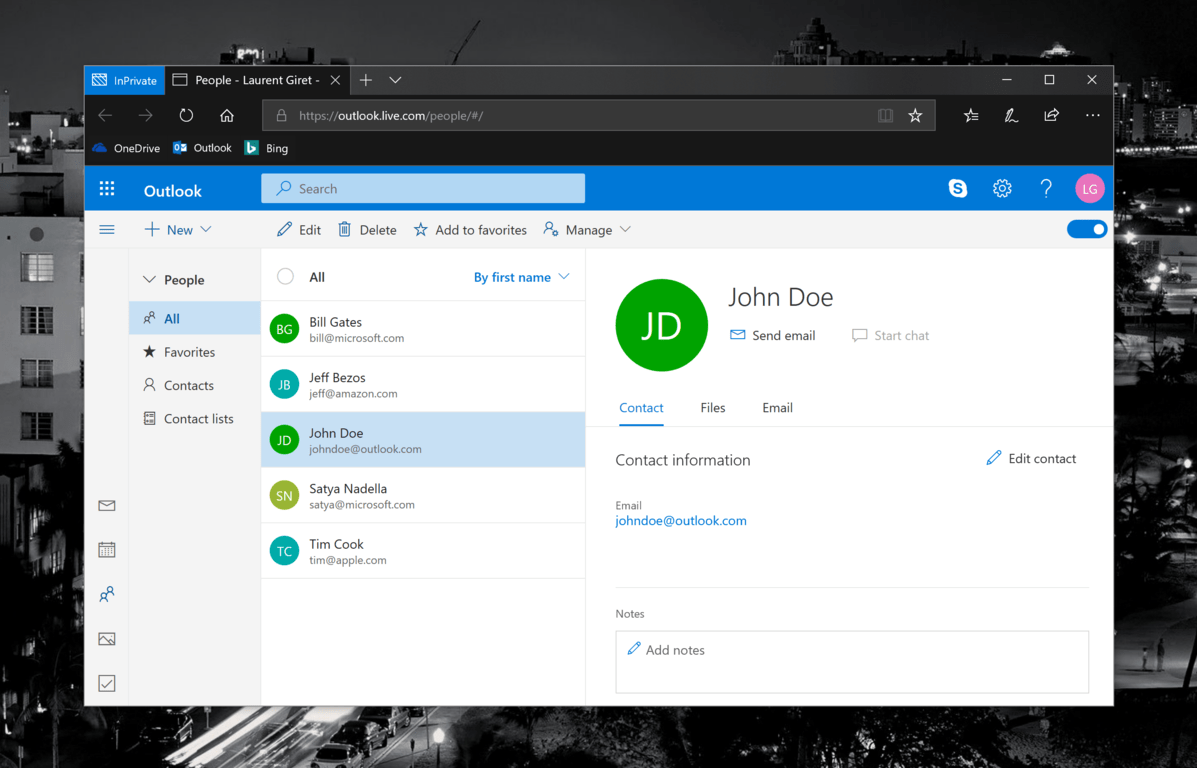
Over the past couple of months, Microsoft has been busy working on a redesigned version of its Outlook.com webmail, now available in beta. After revamping the Mail and Calendar sections and bringing back the Skype integration, it’s now time for the People section to receive some love.

The redesigned address book now uses the same design language as the other sections of the web app. The contact cards are also more useful, and you can quickly check all recent interactions you had with a specific contact, included shared files. Moreover, it’s still possible to create contact lists or add select contacts to your favorites.

There is a lot to like about Outlook.com beta, and we would love to see it become a full-fledged Progressive Web App with Windows 10 version 1803. For Outlook.com users, it already works pretty much like a lightweight version of the Outlook desktop app, with the Skype integration as a bonus. We’ll see what happens in the coming months, but in the mean time you can still give your feedback and help Microsoft prioritize new features by visiting the Outlook Feedback website.

Enter for your chance to win a custom Air Jordan III Inspired Xbox One X Console

Microsoft has previously given away special Xbox Consoles to celebrities but now is your chance to win one for yourself. To celebrate the reveal of the iconic Air Jordan III sneakers, the company will be giving away an Xbox One X console inspired by the upcoming Air Jordan III releases.

One of the consoles is inspired by the Air Jordan III Free Throw Line, released on February 14, the second by Air Jordan III Black Cement, and the final by the Air Jordan III Tinker. As noted by Microsoft’s Aaron Greenberg, each console pays tribute to a special moment in Air Jordan history.

The Free Throw Line Xbox One X pays homage to the unforgettable dunk by Michael Jordan in 1988. The Black Cement Xbox One X is inspired by the sneakers with all the same detailing which made these, considered by many, the greatest sneakers of all-time, and the Tinker Xbox One X showcases Tinker Hatfield’s original design for what the shoe was going to be.

You can enter to win one of the consoles by heading to Xbox’s Twitter Page and retweeting the special tweet above. The contest is open from Friday, February 16 at 6 a.m. PT to Wednesday, February 21 at 10 p.m. PT. You never know if you can win, so be sure to try your luck at winning this one of a kind console!

Microsoft pulls installer for “classic” Skype for Windows desktop app due to security issue

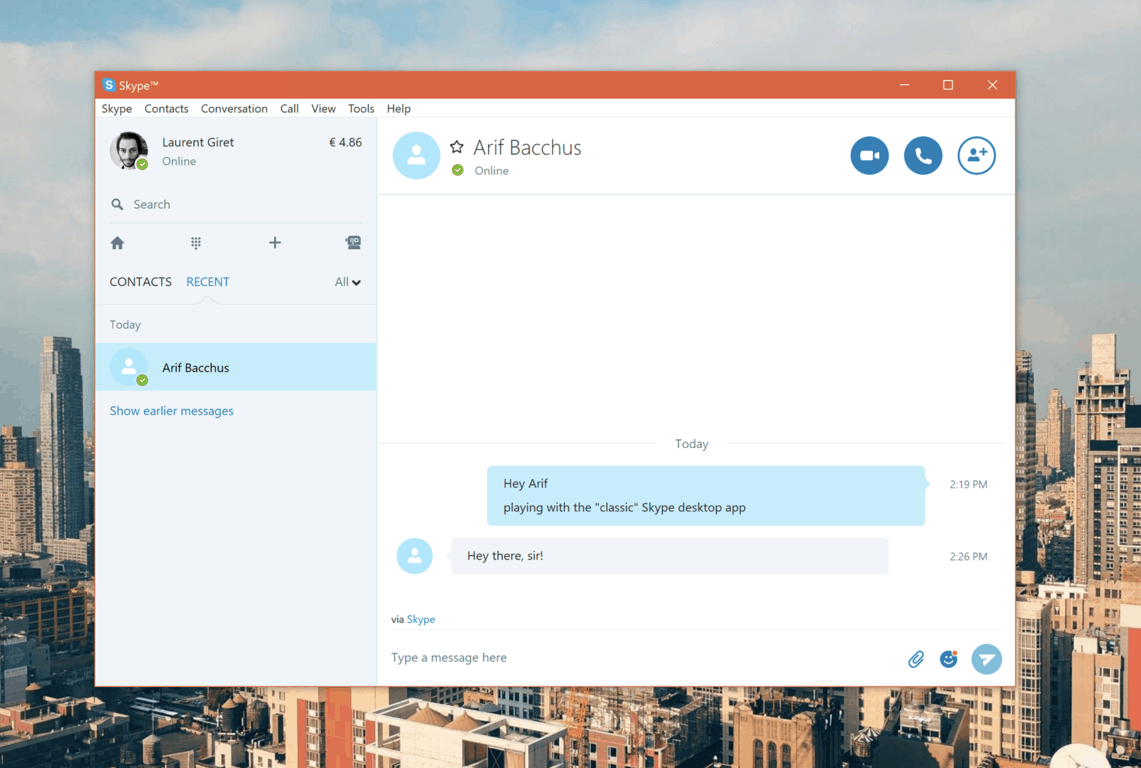
If you still prefer using the “classic” Skype desktop app for Windows over its more modern alternatives, then it looks like Microsoft may sunset this app earlier than expected. Indeed, the company has just pulled the installer for this old version of Skype, citing a security issue with the installer. Ellen Kilbourne, Program Manger at Skype shared the following message on Skype’s community website:

At Skype, we take security very seriously.

There was an issue with an older version of the Skype for Windows desktop installer – version 7.40 and lower. The issue was in the program that installs the Skype software – the issue was not in the Skype software itself. Customers who have already installed this version of Skype for Windows desktop are not affected. We have removed this older version of Skype for Windows desktop from our website skype.com.

The installer for the current version of Skype for Windows desktop (v8) does NOT have this issue, and it has been available since October, 2017.

Consumers who have already installed this “classic” Skype app on their Windows PC can continue to use it just like before, for now at least. When checking for updates, the app will invite you to try “the new version of Skype,” which depending on the version of Windows you’re running will either be the new cross-platform Electron-based app (version 8.x) or the UWP app for Windows 10. Unfortunately, both of them still lack power user features such as the ability to open multiple chat windows, be notified when your contacts go online and more.

Yes, Microsoft has two separate “modern” Skype apps for Windows: Skype UWP (left) and the new Electron-based app (right).

Even if the installer for “classic” Skype is no longer available to download from Skype’s website, Microsoft watcher Rafael Rivera noted that you can still find it on the Internet, though you may want to act fast before it disappears. Proceed with caution, however, as Microsoft pulled the installer due to a security flaw.

https://twitter.com/WithinRafael/status/964386715606515712

Do you still use the old Skype desktop app for Windows, and are you worried that Microsoft may force you to switch to its new desktop apps at some point? Sound off in the comments below.

Grab the Tokyo Ghoul anime’s first season for free on Xbox One & Windows 10

The first season of the popular anime series, Tokyo Ghoul, is now available to claim for free via the Microsoft Store on Windows 10 devices and Xbox One video game consoles. Here’s its official description.

Tokyo lives in fear of creatures called Ghouls. By day, they live as ordinary humans, but by night, they become flesh-eating monsters. When a young man becomes the first Ghoul-human half breed, he must learn to harness his deadly, newfound powers.

This anime series is definitely one for older viewers as it features a significant amount of gore and sexual references. If this sort of anime is your bag, make sure to grab it here. The offer expires in six days.

The Microsoft Store has a large number of anime movies, series, and video games on sale right now so it’s worth having a look if you’re an anime fan. Have you bought anything in the anime sale this month? Share your recommendations with the community in the comments below.

Microsoft is Yet to Introduce VPN Support for Windows 10 on Phone

Windows 10 for phones is in it’s earliest testing phase, which means that a lot of features are missing from it. And one of the issues of Windows 10 Technical Preview for phones is lack of Virtual Private Network connectivity.
install windows 10 for phones on non-supported devices
In case you’re not familiar with the term ‘VPN,’ it means Virtual Private Network and it allows you to create your own private network within a bigger public network, like the Internet. VPN connections are especially useful for business people or other people who are often on the move.

It allows them to easily access necessary files from their ‘main’ computers on their laptops or smartphone devices. VPN connections are available on PC, Android and iOS devices, and Windows 8.1 phones, but it still isn’t available for Windows 10 Technical Preview users.

But lack of VPN connectivity in the first build of Windows 10 Technical Preview for phones shouldn’t worry us. Just as a reminder, Windows 8 for phones didn’t have VPN support on its release, and users had to wait for the VPN feature to be added. And since this is just the earliest build of Windows 10 for phones, we should expect this feature to be added if not in some of the next builds, then in the final release of the operating system.

People from Microsoft announced that we’ll get new builds of Windows 10 Technical Preview for Windows Phone devices almost every month, which means that more and more bugs and issues will be fixed and more features will be added. And we hope that Microsoft will feature a VPN connectivity in its new mobile operating system very soon.


A VPN tool can be crucial for you and your privacy while surfing the internet. You can secure yourself by installing Cyberghost (77% flash sale), a leader in the VPN market. It protects your PC from attacks while browsing, masks your IP address and blocks all unwanted access.


Do you use a VPN connection right now, and will you use it on your Windows 10 device to transfer files through your private network? You already know what to do, tell us in the comments, we would love to hear it.

We would also recommend you to check out some of the best VPN tools for Windows 10 that you can try out. Or, if you are still on Windows 7, we’ve got you covered. Even on Windows XP, although we would highly recommend you upgrade to the latest Windows version.

Update – you can now Connect to a VPN in Windows 10 Mobile, here’s the official guide from Microsoft.

Read Also: Fix: Wireless Network Shows ‘Not Connected’ but Internet Works

How to enable Windows Projected File System on Windows 10

Microsoft recently rolled out a new Windows 10 build to Fast Ring Insiders. So, if you already got bored with the previous build, you can now install build 17604.

This new release adds a very interesting feature to the table, namely the Windows Projected File System.

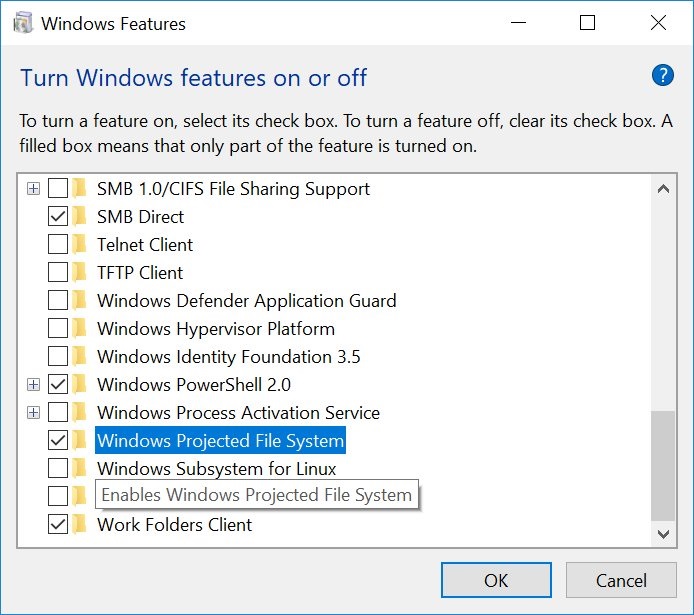
Insiders can already enable this feature by going to Windows Features > Turn Windows features on and off. All you need to do is check the Windows Projected File System box and that’s it.

Windows Projected File System

Tero Alhonen also noticed this change and shared the screenshot above with the whole world on Twitter.

On the other hand, Walking Cat suggests that Microsoft renamed the GVFS (Git Virtual File System) to ProjF (Windows Projected Filesystem).

Anyway, we’ll dig more into this and update the article as soon as new information is available.

So, if you installed the latest Windows 10 build on your computer and tested the Windows Projected File System feature, tell us more about your experience in the comments below.

UPDATE:

As one of our readers explained, instead of having developers install GVFS, the Redmond giant is now including it as a feature of Windows. This corroborates Walking Cat’s hypothesis.

For more information, you can check out our reader’s comment below. Thank you, Josedolf.

Windows Projected File System is not security-related as Windows Security is focusing on Virtualization-Based Security. Windows Projected Filesystem is likely similar to what they did with OneDrive: the files are on a remote server, and you can see “placeholders”, but they’re not actually on your machine unless you open them (thus a “projected” file system).
UPDATE
: Just checked some Windows Insider and other developers’ Twitter accounts, and Windows Projected File System is what powers GVFS, allowing for very large repositories with little performance impact. It is marked “Beta” because there is no documentation yet.

RELATED POSTS TO CHECK OUT:

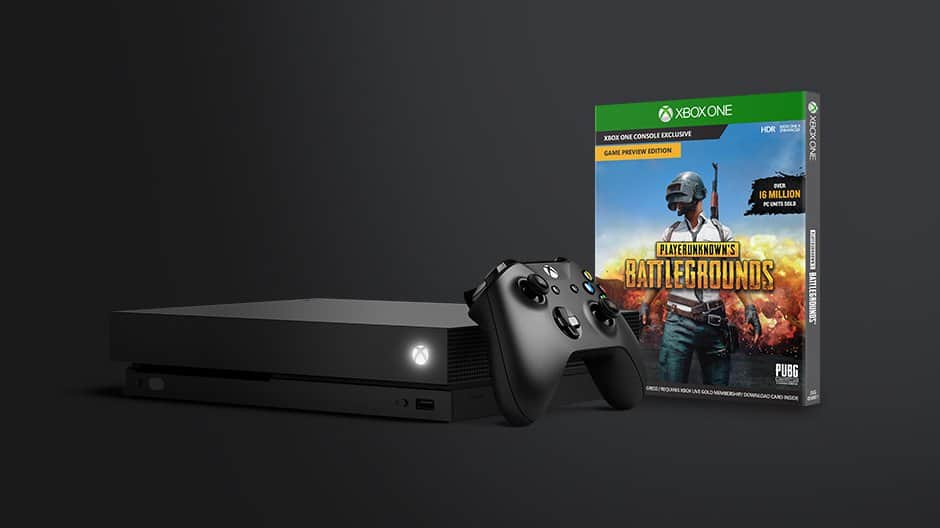
Microsoft once again offers PUBG copy with new Xbox One X purchases, savings on Xbox One S

During the holiday season, Microsoft bundled Player Unknown’s Battlegrounds (PUBG) with the Xbox One X. The promotion was a great way to enjoy the power of Xbox One X and the multiplayer fun of PUBG together as one. If you missed that initial deal, please be aware that Microsoft is once again offering a free PUBG copy with any new Xbox One X purchase.

The new offer is valid in most Xbox One markets starting February 18 through March 4. Here in the United States, the promotion will run from February 18- February 24, and it’s best to check with your local retailer or the Microsoft Store for more. You can also see below for the days when the promotion is valid in other countries:

  • Available in Canada, Ireland, the United Kingdom, the United States and select Latin American countries starting February 18
  • Available in Australia, India, Korea, New Zealand, Singapore and select European, Middle Eastern and African countries starting February 20

In addition to the above deal, Microsoft is also offering savings on Xbox One S bundles. Here in the United States, you can save $50 on Xbox One S from February 18 through March 3. In Canada, you can save $60 CAD on Xbox One S Bundles from today until February 23.

It remains interesting to see that Microsoft is marketing PUBG so heavily, even though it’s still in a preview and not a first-party title. Regardless, these latest deals are sure to save you a few bucks, so be sure to check it out and let us know your thoughts in the comments.

It’s official: Xbox Live Free Play Days set for this weekend

As leaked by WalkingCat a couple of days ago, Free Play Days starts today and lasts all weekend long on Xbox Live. Xbox is unlocking Xbox Live Multiplayer for everyone with an Xbox One or Xbox 360 console, so you don’t even need an Xbox Live Gold subscription to play online.

In addition, all Xbox One gamers can play Rainbow Six Siege and NBA 2K18 for free through Sunday, February 18 at 11:59 p.m. PST. Any progress you get in any of the unlocked multiplayer games will be saved and you can continue your progress should you decide to sign up for Xbox Live Gold. Something tells me this is just the first of many Free Play Days for All on Xbox Live and we should see more Xbox One games available free to play later this year.

Download Rainbow Six Siege and NBA 2K18 and start playing today!

Free to Play: Rainbow Six Siege
Developer:
UBISOFT
Price:
Free


Free to Play: NBA 2K18
Developer:
2K
Price:
Free

Don’t forget to grab Assassin’s Creed Chronicles: India and Crazy Taxi, now free with Xbox Live Gold

Xbox Live Gold subscribers can download the two remaining Games with Gold titles for February a day early: These are the 2.5D side-scrolling platformer Assassin’s Creed Chronicles: India and the Xbox 360 score attack game Crazy Taxi (also backward compatible on the Xbox One). Both games represent $19.98 in value, and we’ve added download links, official descriptions and video trailers below.

Assassin’s Creed Chronicles: India ($9.99 ERP): Available today through March 15

Embody Arbaaz in his quest for retribution through a colourful depiction of 19th century Colonial India in 2.5D stealth gameplay. Zip-line across the streets of Amritsar, hide in the shadows of the palace, and hunt legendary artifacts, following in the footsteps of Alexander the Great.

Crazy Taxi ($9.99 ERP): Available today through February 28

Hey hey, come on over and have some fun with Crrrrrazy Taxi! Barrel through traffic packed streets, hurdle off parking garages, and Crazy Combo your way to Crazy Money in a wild frantic race to scare up the most fares. In Crazy Taxi, time is money, and only the Craziest Cabbies come out victorious.

If you haven’t done it it yet, we remind you that you have until the end of the month to grab the FPS Shadow Warrior for free with your subscription.

Windows 10 KB4074588 install fails for many

Microsoft rolled out a bevy of interesting updates on Patch Tuesday. Unfortunately, not all Windows 10 users have managed to install the latest patches. Many Windows 10 Fall Creators Update users reported that KB4074588 often fails to install due to various error codes.

KB4074588 won’t install

If you successfully downloaded KB4074588 on your computer but you got error 0x80070bc2 after restart, well you’re not the only one.

Judging by the number of user reports, it seems that this is the most common error that’s preventing users from updating their OS. Unfortunately, fixing it is not an easy task, as this Windows 10 user reports:

I have done everything that the Microsoft Computer has told me to do to correct this problem except the last one which is a clean install! None of them have worked. I did send an work order to my virus protection company. Will be waiting to hear back from them. Reason: It was said the some virus programs may not have been updated by them yet and should ask them!
This is the update in question put out on Feb. 13, 2018. Which is really new (2018-02 Cumulative Update for Windows 10 Version 1709 for x64-based Systems (KB4074588))
I really do not understand this problem because this is the first time I have had a problem. [..] Would ask Microsoft but they really make it hard to talk to them!

Other users reported that the update didn’t initialize despite several attempts.

Update will not initialize. I’ve tried ten times. 2018-02 Cumulative Update for Windows 10 Version 1709 for x64-based Systems (KB4074588) – Error 0x80070422

There is also a third error that we identified scouring user reports: ‘Couldn’t complete the updates, undoing changes‘.

Once i got the update KB4074588, i restarted my pc like normal and upon startup, the update got to 90% and then it said  “couldn’t complete the updates, undoing changes”.

Fortunately, this time we’ve got a good piece of news for you. You can quickly fix this error by following the steps available in this troubleshooting guide.

We’ll end this list with error 0x800f0922.

I tried to install this file but when I restart, it goes to 100% but the it shows “We couldn’t complete update KB4074588.

WindowsReport has a dedicated troubleshooting guide on how to fix Windows update error 0x800f0922. Do let us know if the instructions available in the respective guide helped you fix the problem.

So, as you can see, KB4074588 triggered quite a few install errors on users’ computers.

For more information on how to fix various update issues and errors, check out the troubleshooting resources available below:

Hotspot Shield VPN fixes vulnerability that reveals user information

One of the main roles of a VPN service is to protect user privacy. There are many companies fighting to collect as much user data as possible and this fact is a major concern for Internet and technology users.

As a result, many decided to install a VPN software on their computers in order to block such attempts.

Unfortunately, recent news revealed that a particular VPN software bug allowed hackers and attackers to pinpoint user location.

Hotspot Shield VPN location vulnerability

The VPN in question is Hotspot Shield VPN and the man who spread the news is Paulos Yibelo, a specialist in application security and client side offensive exploit research.

Lately, I’ve been interested in VPN clients. I was focusing my research on paid commercial VPN clients with 2M+ installs. one of the clients that stood out was Hotspot Shield […] While analyzing this application, I noticed its riddled with bugs that allow sensitive information disclosure and easy compromise

He discovered that this vulnerability could reveal mainly location data which includes the country where users are located, the Wi-Fi network name, and in some extreme cases, even the IP address.

location VPN vulnerability

Obviously, this piece of news embarrassed AnchorFree, the company behind Hotspot Shield VPN but they reacted quickly.

Fortunately, they already patched this severe vulnerability last week, so everything’s back on track now.

If you haven’t updated your VPN software in a while, this means that your computer is still vulnerable. Hurry up and check for updates as soon as possible to make sure that you’re running the latest Hotspot Shield version available.

Speaking of VPN and user data privacy, check out the articles below to find out how you can better protect your privacy while online:

Best 15 Windows 8, 10 Tower Defense Games

Tower defense games have taken birth on the more popular platforms of iOS and Android but more people are looking for them in the Windows Store for their Windows 8, Windows 10 tablets and PCs, as well. Here are top 15 tower defense games for you to play on your Windows 8, 10 device.

We have mentioned some of these apps in our list with the best 18+ Windows 8, Windows 10 games to play, so head over there if you are interested in more awesome games for your Windows 8, 10 tablet. It’s hard to say which was the first game to introduce the tower defense style of games, but what is sure is that it has become a loved genre.

So, here’s the top 15 tower defense games to play in Windows 8, 10. As always, if you play or know another reliable tower defense game, then do share the information with us by leaving your comment at the end of the article.

Best tower defense games for Windows PCs

  1. Pirates Love Daisies
  2. Defense Zone 2
  3. Royal Revolt
  4. Radiant Defense
  5. Hills of Glory 3D
  6. Vikings Tower Defense
  7. Immune
  8. Paper Defense
  9. Siegecraft Defender
  10. Prime World: Defenders
  11. Last Hope – Heroes Zombie TD
  12. Swamp Attack
  13. Defend Your Life!
  14. Epic Incursion
  15. Bloons TD5

1. Pirates Love Daisies

pirates love daisies windows 8 tower defenseI couldn’t say why exactly, but this is my favorite Windows 8 tower defense game. Maybe it has to do with the cartoonish graphics, but overall, it just feels like one great Windows 8 game that I gladly recommend.

Davey Jones is sending his minions to collect your most precious resource, your Daisies!! Hire a crew, and use them to thwart the creeps. Fast paced Tower Defense action! Block legions of minions from collecting your precious daisies. Multiple maps and game modes. Post your scores on a global leaderboard!

2. Defense Zone 2

defense zone 2 windows 8 gameDefense Zone 2 is a game that will keep you carying your Windows 8, 10 tablet anywhere you go. A lot of awesome weapons and ongoing fire are bound to make you ask for more.

The new, engaging levels are even more stunning and impressive. New weapons have been added, along with new opponents, and even more action and tactics. The game settings are balanced to meet the goals of different players. If you want to test your skills and strategy, you can play the difficult level. If you are just playing for fun, then choose easy or medium level. Greater variety of weaponry and landscape types gives you huge freedom in choosing your battle tactics. Choose the right weapon type and position to make sure your defense is effective. Airstrikes and the possibility of temporarily increasing weapon power can give you the advantage, and guarantee you will never get bored in the battle process.

Update: Defense Zone 3 is now available for download. The long-awaited sequel to Defense Zone 2 brings new weapons, landscapes, and options. The core of the game is still the same, but now everything happens at a larger scale.

3. Royal Revolt

windows 8 tower defense game royal revoltNow, this is a more advanced Windows 8 tower defense game. It’s not a regular one, and it comes with a 3D environment. For the truly passonat ones for this kind of game.

Royal Revolt is a brand new reverse T-defense game for Windows with beautiful 3D graphics and intuitive touch and/or mouse controls! Lead your soldiers to victory against your greedy relatives who have stolen your father’s throne.

Read Also: Play Pacman in Windows 8: Five Best Games

4. Radiant Defense

radiant defense windows 8Aliens have landed in this Windows 8 tower defense game, and your mission is to reject them. Great background music, as well. What are you waiting for? Get playing!

Radiant Defense is a tower defense game set in a vibrant universe invaded by countless alien hordes. Build your space fortress any way you wish, set up wide variety of weapons and traps and let the invasions begin! Radiant Defense is free to play without any ads, supported only by in-app purchases. Each in-app purchase greatly enhances your tactical options.

5. Hills of Glory 3D

hills of glory windows 8 tower defenseIf you have previously looked for games in the Windows Store, then most likely you have heard about this game. Hills of Glory 3D is a WW2 reverse tower defense game with lots of fun.

“It’s time to save Europe and make History. We’ll land in Italy, fight many battles to reach Germany and end this War. We need you to maintain our most critical positions!”. Lose yourself in Hills of Glory 3D, a WW2 reverse tower defense game with stunning 3D graphics. In this war game, defend your bunker against hordes of enemies with the military arsenal at your disposal. Rifle, mortar, flamethrower, air strikes… don’t hold back!

6. Vikings Tower Defense

I always found something mysterious about vikings…But this game doesn’t have to do anything with that, as it’s all fun and entertaining spending of your time!

vikings windows 8 tower defense game

Vikings! Tower Defense lets you take control of the Celts and repel the encroaching horde from both the sea and land. Bright, inviting graphics and animation as well as intuitive mechanics reveal a fiendish, hectic game of strategy. Players must gather money and place characterful units such as the hefty Caber Tosser and even Nessie herself to win and triumph over the Viking menace.

7. Immune

A very original Windows 8 tower defense game, Immune is a game where you have to protect your organism against viruses. Speaking of which, I’ve got a naughty cold right now…

immune windows 8 tower defense game

Prepare your vitamins, take your pills, This is a tower defense game based in the immune system against viruses. – 40 Rounds, -5 Scenarios, – 9 Towers with 4 evolutions each one, – 12 types of viruses. New scenarios and play modes soon.

Read Also: 8 Windows 8 Board Games to Play With Friends

8. Paper Defense

Paper Defense seems like a very basic Windows 8 tower defense game, but you will be surprised at the amount of fun you can actually have by playing. Download it at once!

paper defense windows 8 game

Paper Defense is a Tower Defense game. Buy towers to protect yourself against waves of enemies.

9. Siegecraft Defender

This game is highly addictive and will hook you in front of your computer’s screen for hours on end. As a player, you’ll build your own castle defense and protect the Knights from the evil Lizardmen.

siegecraft defender

After nearly 2 years of peace from the great wars of Siegecraft, the usually reclusive Lizardmen have risen up against the Knights of Freemoi. Where are your allies, the Vikings and Samurai of Freemoi?

Here’ what to expect from this game:

  • Classic TD game play set in the beautiful world of Siegecraft.
  • Over 1 Million people have enjoyed the world of Siegecraft to date!
  • Dozens of enemies on screen at once, all rendered in amazing 3D!
  • Real-time shadows and pixel shaders for your visual pleasure!
  • 15 unique towers and 18 unique units
  • Over 30 levels and more than 10 hours of campaign mode
  • Endless single player maps for infinite game play
  • Multiplayer for fun combat against your friends in local hotseat.

10. Prime World: Defenders

Prime World: Defenders features fantastic graphics and a bevy of magic tricks that you can use to protect your towers and fend off the attackers.

prime world defenders tower defense

Enter the Prime’s World Universe and destroy countless enemies with towers and magic. Make your own unique cards collection and fuse your towers to get them even more powerful! Enhance your hero, your spells and your skills, be strategic and don’t forget to try Heroic Mode to become the greatest Defender.

Key elements of this game include:

  • Stunning 3D-graphics with amazing effects
  • Over 26 towers with up to 25 levels of upgrades and 13 kinds of spells
  • Share your progress via Facebook
  • 36 types of violent monsters and mighty bosses with unique abilities
  • 23 missions, extra boss levels, and randomly generated missions.

11. Last Hope – Heroes Zombie TD

If you like playing zombie games and tower defense games, then Last Hope – Heroes Zombie TD is the perfect game for you.

Last Hope - Heroes Zombie game

Join the ongoing war, in an open world, against the zombie horde, scavenging raiders and other threats roaming the wasteland! Choose between multiple powerful heroes all with unique epic gear and skills! With the wide variety of towers you can create your own perfect strategy.

Here’s what this game offers you:

  • Over 140 levels which will challenge your defense and strategy.
  • 8 Special Heroes to choose between, the precious Princess, mighty Barbarian, mysterious Scout, gun crazy Mechanic, support Soldier, Mech warrior, experimenting Scientist or the righteous Sheriff.
  • 12 Different Towers to defend yourself with, each with a unique research tree to make them even more powerful, including a Tesla Tower.
  • Endless mode

12. Swamp Attack

Swamp Attack game

Swamp Attack is not your regular tower defense, but it follows the same pattern. As a player, you need to protect your swamp cottage against hordes of crazy animales and zombies that are out to get you.

The game has more than 300 different levels, 8 episodes and Quick Missions for instant action. You can use more than 30 awesome defense tools to defend your house, including shotguns and the super A-bomb!

13. Defend Your Life!

This awesome game challenges you to fight for your life in the human body. As a player, you’re in charge of keeping bacteria and viruses at bay using your immune system.

defend your life

Think tactically, construct and upgrade buildings, reinforce troops, support them with special upgrades and annihilate the enemy with mighty powers. Battlefields are situated in 17 human body organs like aorta, appendix, stomach and you will fight even in brain.

14. Epic Incursion

Epic Incursion is a tower defense game that’s perfect for everyone. It features a n Easy Mode for children, a Normal Mode for experienced players and a Hard Mode for those who are up to the challenge.

Epic Incursion tower defense game

DARKNESS is on the way to enslave this lands. Stop it now or never!
Use strategy, manage 27 unique warriors, upgrade their abilities and battle against final boss Xyllos – The Demon of DARKNESS

15. Bloons TD5

This tower defense game features  unrivaled depth and replayability. The game features HD graphics, original Tracks and Special Missions, and much more. You’ll have a lot of fun playing this game.

Build awesome towers, choose your favorite upgrades, hire cool new Special Agents, and pop every last invading Bloon in the best ever version of the most popular tower defense series in history. […] Bloons TD 5 delivers hours of fun and challenging play to fans and new players alike.

There you go, there are the best tower defense games that you can download from the Microsoft Store.

If you’ve played other similar games that you think we should add them to this list, let us now in the comment section below.


RELATED ARTICLES:

Fix: ”The folder can’t be displayed” in OneDrive

Windows 10 and OneDrive go hand in hand, and it seems that the cloud services are something Microsoft finds especially lucrative. However, there are so many variations of OneDrive and, even though the most preferred one is the UWP native app, the software is plagued with various issues. One of the errors is ”The folder can’t be displayed”, which prevents users to access one or more synced online folders in OneDrive.

For that sake of resolving this issue, we provided a few most commons solutions that should help you address it. If you’re in doubt on how to tackle this problem, make sure to check them out below.

How to address OneDrive’s ”The folder can’t be displayed” error on Windows 10 app

  1. Run automatized troubleshooter
  2. Update the app
  3. Check the connection settings
  4. Sign out/sign in again
  5. Reinstall the app

1: Run automatized troubleshooter

This procedure is the part of basically any troubleshooting procedure concerning Windows 10. The success rate isn’t exactly sky high, but since we’re addressing the issue regarding the UWP app, it should be more helpful than usual. Furthermore, there’s only so much you can do when the native app starts misbehaving due to various complex factors, so the unified Windows App troubleshooter is within the group of the scarce options the end-user can use.

Here’s how to run Windows 10 App troubleshooter in Windows 10:

  1. Right-click Start and open Settings.
  2. Choose Update & Security.the folder can't be displayed onedrive
  3. Select Troubleshoot from the left pane.
  4. Scroll to the bottom and expand Windows Store Apps troubleshooter.
  5. Click on the ”Run the troubleshooter” button.the folder can't be displayed onedrive

2: Update the app

As you can conclude on your own, the possibility that one of the updates for OneDrive break it is fairly high. Luckily, since updates are somewhat frequent, you can hope to resolve the ”The folder can’t be displayed” error by obtaining the latest update. Most updates include minor changes and fixes, so there’s a hope in that.

Here’s how to update OneDrive app on Windows 10:

  1. Open Microsoft Store.
  2. Click on the 3-dot menu and select Downloads & updates.the folder can't be displayed onedrive
  3. Click on the ”Get updates” blue button.the folder can't be displayed onedrive
  4. Wait for the updates to install.

3: Check the connection settings

In comparison to the standard OneDrive desktop app, the UWP app accesses only online files. With that in mind, you can access the locally stored files with the former, but not with the latter. Thus, you’ll need the proper connection in order to access the files online. Now, there are various steps you can take to confirm that your connection is working as intended. We’ll try and stick with segments which can affect the OneDrive access and invoke the aforementioned error.

Here’s what to do:

  • Restart PC, modem, and router.
  • Disable third-party firewall temporarily.
  • Turn off VPN and Proxy and try accessing OneDrive without them.

4: Sign out/sign in again

”Sign out and sign in again” is a frequently advised solution when OneDrive starts misbehaving. We’re aware that this seems to simple to address the complex errors reoccurring on OneDrive app. But it shouldn’t take too much of your time and it can certainly help in some scenarios. We can’t reproduce the error and thus it’s hard to tell whether this will restore your missing files and resolve the error, but you can try it out.

Here’s how to sign out and back in the OneDrive app for Windows 10:

  1. Open OneDrive app and click on the sandwich menu to expand options.
  2. Click on the Accounts icon and expand your Microsoft/OneDrive account.the folder can't be displayed onedrive
  3. Click Sign out.the folder can't be displayed onedrive
  4. Close the app and reopen it.
  5. Follow the same path and sign in again.

5: Reinstall the app

Back when Windows 10 was introduced, OneDrive was the indelible part of the platform. However, that changed over time and now you can uninstall OneDrive just like any other third-party app. This is more than useful when things go astray as in this case. With that in mind, you’ll need to enter your credentials again and select the sync folder. However, this should resolve the ”The folder can’t be displayed” error.

Here’s how to reinstall OneDrive in Windows 10:

  1. Press Windows key + I to open the Settings app.
  2. Open Apps.the folder can't be displayed onedrive
  3. Under the Apps and features tab, navigate through the list and locate OneDrive.
  4. Expand it and click Uninstall.the folder can't be displayed onedrive
  5. Navigate to Microsoft Store and install OneDrive again.

That should do it. As a side note, if you’re using Bussines account, we advise you to inform your network administrator about the issue, as they can impose certain limitations upon the usage of the stored data. In case you have questions, suggestions, or alternative solutions, be so good to share them with us and our readers in the comments section below.

RELATED STORIES YOU SHOULD CHECK OUT:

Download Windows 7 KB4074598, KB4074587 to fix browser crashes

It’s Patch Tuesday, folks! If you haven’t updated your Windows 7 computers yet, it’s time to check for updates and install the latest patches available for the OS.

Windows 7 Monthly Roll-up KB4074598 and KB4074587 focus mainly on security, addressing a series of issues that could affect the following Microsoft components: Windows Graphics, Windows Kernel, Common Log File System driver, Microsoft Windows Search component, and Windows storage and file systems.

Monthly rollup KB4074598  also fixes some bugs that could cause input issues in Internet Explorer and prevent users from properly using their browser.

Also, if you often experience crashes on Internet Explorer, this update will fix them. Microsoft addressed a script-related issue that caused Internet Explorer to stop working. Thanks to this update, IE freezes and crashes should now be history.

Speaking of this browser, it is worth mentioning that Microsoft also fixed the issue with launching a new page in Internet Explorer. Sometimes, when users tried to launch a new page nothing happened or the respective page would quickly close.

Download KB4074598, KB4074587

You can automatically download and install Windows 7 KB4074598 and KB4074587 throughWindows Update.  You can also download the standalone package from the Microsoft Update Catalog website.

As a quick reminder, Microsoft warns Windows 7 users that these patches won’t install on computers on which the antivirus ISV have not updated the ALLOW REGKEY.

You should contact your antivirus manufacturer to verify that they set the following REGKEY: Key=”HKEY_LOCAL_MACHINE"Subkey="SOFTWAREMicrosoftWindowsCurrentVersionQualityCompat"Value Name="cadca5fe-87d3-4b96-b7fb-a231484277cc”
Type=”REG_DWORD”
Data=”0x00000000”

KB4074598 issues

KB4074598 issues

Some users reported that KB4074598 fails to install due to error 80073701. However, it seems that this error is not related to the antivirus ALLOW REGKEY requirement that we mentioned above.

My computer is running Windows 7. Recently, I received a bunch of updates to Windows and Office which I have installed, except for KB4074598. Whenever I tried to install it, either automatically or manually, it returned error 80073701. I have tried to reset Windows Update components but it didn’t solve my problem.

If you’re also experiencing this error, try running the Windows Update Troubleshooter and then rename the SoftwareDistribution folder.

Go to Start, search for cmd and launch Command Prompt as administrator. Run the following command: Ren %systemroot%SoftwareDistribution SoftwareDistribution.bak

When this command completes, enter a new one: Ren %systemroot%system32catroot2 catroot2.bak
Restart your computer and check for Windows Updates again.

Have you installed KB4074598 and KB4074587 on your Windows 7 computer? Tell us more about your update experience in the comments below.

RELATED STORIES TO CHECK OUT:

[wl_navigator title=”Find out more”]

Microsoft announces Windows App Preview Program, giving early access to Windows 10 app updates

To pair up with Windows 10 Insider Preview Build 17101 for Fast & Build 17604 for Skip Ahead, Microsoft today officially announced the Windows App Preview Program. The announcement comes several days after reports indicated the company may be considering such a program.

With the Windows App Preview Program, Microsoft will make it easier for Windows fans to try out the latest app updates with Insider Preview builds. “We heard feedback from Windows Insiders that having to opt-in to Skip Ahead to receive the latest app updates wasn’t ideal,” noted Dona Sarkar in today’s announcement post.

Indeed, this means any Windows Insider (regardless of which Ring they are enrolled in) can now opt-in to preview new versions of individual Windows 10 apps. According to Microsoft, the following apps will be in the first-wave of the program, with previews rolling out in the next few days.

  • Feedback Hub
  • Microsoft Photos
  • Microsoft Sticky Notes
  • Microsoft Tips
  • Paint 3D
  • Windows Alarms & Clock
  • Windows Calculator
  • Windows Camera
  • Windows Mixed Reality Viewer
  • Windows Voice Recorder
A look at app previews in settings.

Windows Insiders who already opted into Skip Ahead won’t need to opt-in to the program to preview these apps. Microsoft will be pushing app updates to Skip Ahead Insiders just like before. Other Insiders in the other rings can opt-in to preview an app by going to the settings or about page for the app and clicking “Join Preview” (Seen above.)

Microsoft, though, appears to be limiting the number of Insiders who can preview apps but is also allowing Insiders to leave the preview at any time. ” If the limit has been met for that app preview for the app you will get a notification on clicking the button and as more slots open up you can join the preview,” writes Dona Sarkar.

This program is currently only for Windows Insiders, and Microsoft will be gathering feedback from how the program is going. It is likely to grow over time, so be sure to check it out!

Here are the fixes, general changes, and known issues with Windows 10 RS4 build 17101

It’s shaping up to be a lovely day to be a Windows Insider. Microsoft today released Windows 10 Build 17101 to the Fast Ring and Redstone 5 Build 17604 for those who opted to Skip Ahead. As always, neither of these builds is perfect and will have a set of issues. We’re dividing up the releases today, so have a look below for the known issues and fixes in Build 17101.

Known issues (Build 17101)

  • We have observed seeing longer-than-normal delays during install at the 88% mark. Some delays are as long as 90 minutes before moving forward. Please be patient as the install will complete successfully.
  • Plugging in an external optical drive (DVD) will cause an Explorer.exe crash.
  • Settings will crash if you open the Themes Settings page.
  • Buttons on Game bar are not centered correctly.
  • Selecting a notification after taking a screenshot or game clip opens the Xbox app’s home screen instead of opening the screenshot or game clip

General changes, improvements, and fixes for PC (Build 17101)

  • We fixed an issue from the last flight were some PCs failed to resume from hibernate (requiring a hard reboot to recover).
  • We fixed an issue resulting in 3 and 4 finger gestures on the touchpad being unresponsive in the last two flights.
  • We fixed an issue after upgrading to the last flight where Start didn’t work for Insiders who’d had HomeGroup added as a folder to appear on Start.
  • We’ve updated the touch keyboard so that if you try to shapewrite in an unsupported text field or when the typing resources aren’t installed, you won’t see the shapewriting trail as you swipe your finger over the keys.
  • We fixed an issue where the touch keyboard showed an English layout with no IME on/off key when an East Asian keyboard is the only input method on your system.
  • We fixed an issue where if you install a font product from the Microsoft Store, then later install a new build (feature update), the Store package will remain installed, but the fonts within the package are not installed. Until this is fixed, the temporary workaround is to uninstall the product from the Apps page in Settings, then re-acquire the product from the Store.
  • We fixed an issue where the touch keyboard might stop invoking automatically after locking the PC and then unlocking the PC by using the touch keyboard to enter your PIN or password.
  • We fixed an issue where the Japanese IME sometimes wouldn’t turn on correctly.
  • We fixed an issue where the floating dictation UI could be unexpectedly tiny.
  • We fixed an issue that could result in the mouse cursor suddenly jump to screen corner while mouse was moving in a List Control.
  • We fixed an issue that could result in tabs hanging and not loading content recently in Microsoft Edge after using the browser for a few days with an adblocker enabled.
  • We fixed an issue resulting in newly installed Microsoft Edge extensions not appearing in the Extensions pane in the last two flights.
  • We fixed an issue in Microsoft Edge where favicons in light theme were unexpectedly getting black backgrounds.
  • We fixed an issue that could result in UWP apps sometimes launching as small white rectangular boxes.
  • We fixed an issue resulting in certain fingerprint readers not working in recent flights.
  • We fixed an issue where Windows Hello failed to work on Surface Laptops with the last build.
  • We fixed an issue that could result in the labels for files on the desktop overlapping their icons.
  • We’re updating the “Advanced graphics settings” link on the Display Settings page to now just say “Graphics Settings”.
  • When your volume is muted, the volume icons in the Sound Settings page will also now appear muted.
    If you click the Reset button on the App volume and device preferences page, it will now also reset any app specific volumes you’ve set back to default (100%).
  • We fixed an issue resulting in app updates failing in the Microsoft Store with error 0x80070057 in recent builds.
  • We fixed an issue resulting in app updates failing in the Microsoft Store with error 0x803FB005 in recent builds.
  • We fixed an issue where bringing up Game bar using the Xbox button on an Xbox One controller didn’t work in some games.
  • We fixed an issue where in the text box for the Mixer stream title using non-character keys (e.g. Tab, Delete, Backspace, etc.) might cause the game to hang for a few seconds.
  • We fixed an issue where keyboard and mouse input might not work correctly in the Game bar when playing a first person game (e.g. Minecraft).
  • We fixed an issue where in some games—such as Destiny 2 and Fortnite—mouse and keyboard input would still go to the game while Game bar was open.
  • We fixed an issue during first shutdown/boot, or reboot, where for some users the device goes into a boot loop and the OS never loads.

As you can tell, lots of fixes in this build. With the release of Redstone 4 coming in a few months, you can expect many more fixes to come soon. Keep your feedback coming to Microsoft via the FeedbackHub and let us know your thoughts on this build by dropping us a comment in the section below.

Here’s what’s new in Windows 10 RS4 build 17101 and RS5 build 17604

In quite a surprise announcement, Microsoft released today the Windows 10 Insider build 17101 for Fast Ring Insiders as well as the Insider build 17604 for Insiders who opted into Skip Ahead. The first one is the latest Redstone 4 build from the current development branch, while the second one is the first Redstone 5 from the new RS_PRERELEASE branch.

“Please be aware that builds from RS_PRERELEASE will get less stable as teams start checking in new code”. So, things will likely be a little rough as they normally are at the beginning of the development cycle for a new Windows 10 release,” the Windows Insider team explained. “If this concerns you or makes you uncomfortable, you may want to consider opting out of Skip Ahead and simply wait for the Fast ring to transition back to RS_PRERELEASE down the road.”

For now, the RS4 build 17101 and the RS5 build 17604 come with the same list of new features and improvements: there are some important updates for Windows 10 Emojis, Windows App Permissions as well as new features for users running the Workstation or Enterprise edition of Windows 10. You can learn everything about what’s new below:

Input Improvements

Emoji design updates: Based on your feedback and to improve consistency, we’ve made adjustments to the design of some of our emoji. Examples of updated emoji include:

Before:
Before emoji update.

After:

After emoji update.

Emoji search comes to more languages: Earlier in RS4, we updated the Emoji Panel to support browsing and picking emoji in many new locales. With today’s build, we’re bringing search support to more locales too! Now you can find an emoji by keyword in over 150 locales, including English (Great Britain), French (France), German (Germany), Spanish (Spain), and more. This will help you get the emoji you want easily and quickly. As a reminder, to bring up the Emoji Panel set focus to a text field and press WIN + (period) or WIN + (semicolon).

Emoji Panel in view above Sticky Notes, with the text “chat” in French searching for cat emoji

Windows App Permissions

UWP File System Access: With this build we’re giving you more control so you can now decide which UWP apps can access your full file system. Particular UWP apps will be granted permission to have broad file system access. This capability will be granted on a per app basis by Microsoft. If a UWP app has the broad file system access restricted capability, you will receive a consent dialog prompting you to accept or deny the request. If at any time you change your mind about the decision, you can go to Settings > Privacy where you’ll find a new Settings page for File System Access. On this page, you can turn access on or off globally, and if it’s on you can also turn it on or off for each app that has requested the capability. UWPs with broad file system access will not appear in the Photos, Videos, or Documents privacy settings pages. If you grant broad file system access, this includes Photos, Videos and Documents.

New features for Windows 10 Pro for Workstations

Last year, as part of the Windows 10 Fall Creator’s update, we announced a new edition of Windows designed for demanding mission critical scenarios targeting advanced users. As part of RS4, we are adding two more features for our most advanced users running these mission critical scenarios:

A new power scheme – Ultimate Performance: Demanding workloads on workstations always desire more performance. As part of our effort to provide the absolute maximum performance we’re introducing a new power policy called Ultimate Performance. Windows has developed key areas where performance and efficiency tradeoffs are made in the OS. Over time, we’ve amassed a collection of settings which allow the OS to quickly tune the behavior based on user preference, policy, underlying hardware or workload.

This new policy builds on the current High-Performance policy, and it goes a step further to eliminate micro-latencies associated with fine grained power management techniques. The Ultimate Performance Power plan is selectable either by an OEM on new systems or selectable by a user. To do so, you can go to Control Panel and navigate to Power Options under Hardware and Sound (you can also “run” Powercfg.cpl). Just like other power policies in Windows, the contents of the Ultimate Performance policy can be customized.

The Ultimate Performance Power plan is selectable either by an OEM on new systems or selectable by a user. To do so, you can go to Control Panel and navigate to Power Options under Hardware and Sound (you can also “run” Powercfg.cpl).

As the power scheme is geared towards reducing micro-latencies it may directly impact hardware; and consume more power than the default balanced plan. The Ultimate Performance power policy is currently not available on battery powered systems.

We’ll continue to tune and evaluate the power plan settings. To submit feedback please use the Feedback Hub and file your feedback under Power & Battery > Setting category.

Productivity focused out of box applications: In the Windows 10 Fall Creators Update, the out of box experience for Windows 10 Pro for Workstations draws from the Pro edition of Windows 10. One area where this is noticeable is the suite of applications installed out of the box visible as tiles in the start menu. In the next release for Windows, you will see for Windows 10 Pro for Workstations productivity and enterprise focused applications in place of consumer applications and games. This was one of the top feedback shared with us by our partners and users and we’re delivering this in our next update.

In the next release for Windows, you will see for Windows 10 Pro for Workstations productivity and enterprise focused applications in place of consumer applications and games.

If you’re a Windows Insider running the Workstation or Enterprise edition, you can see these features in Builds 17079 or greater.

If you’re a Fast Ring Insider, be aware that the Windows Insider team will allow a “small subset” of you to opt in to Skip Ahead in the Settings app. “If we open Skip Ahead up for more Insiders, we’ll let you know,” the blog post reads, without giving more details. In the meantime, Insiders who already opted into Skip Ahead can enjoy the first Redstone 5 build today. “Once we’ve finished RS4, we will move everyone in the Fast ring back to the RS_PRERELEASE branch and then the Fast ring and Skip Ahead will be back to receiving the same builds again,” the team explained.

Instagram Apps for Windows 8, 10: The Best to Use

Do you want to share your special moments with your friends, colleagues or family? If you do, then the best service you can use is, of course, Instagram.

Instagram, as we all know, can be easily used on any device that is running on Windows 8, 10 Android, iOS or any other platforms.

As for Windows 8, 8.1 and Windows 10 users, in this article, I will try to resume the best Windows 10 Instagram apps that are currently available on Windows Store, so don’t hesitate and check them all out.
windows 8 instragram apps
Since Facebook decided to buy Instagram, the software had become the best and one of the most popular photo sharing app. With Instagram you can easily capture images using your Windows 8, 8.1, Windows 10 portable device and share your photos with your friends that are also using the same app on their own devices. You can also change the images you take, you can add effects and you can play with numerous features that can be used for modifying your pictures.

Now, if you want to use Instagram on your Windows 8, 8.1 or Windows 10 as well as Windows RT device, you can use the official Instagram app or a client or app that can be downloaded from Windows Store. As usually, you will find many tools, though some of the apps will be buggy and inappropriate for a daily use. That’s why I have decided to develop this review on which you will be able to learn which the best Windows 8 Instagram apps are.

Enjoy Instagram on Windows 10 with these apps

  1. Instagram
  2. InstaPic
  3. TLVstagram
  4. WinGram
  5. Milligram
  6. Pictastic

1. Instagram

Instagram

Instagram arrived in the Windows Store in 2016, after it had been available on other platforms for quite a while.

The social app lets you connect to your friends and family and see what they’re up to. The Instagram community counts over 500 million people, so you’ll definitely going to find something that interests you.

You can use the app to post photos and videos and share wonderful moment of your life with your friends. You can also edit your content, add various, combine multiple clips into one video.

If you don’t want the whole world to see what’s going on in your life, you can send private messages, photos, videos and

2. InstaPic

InstaPic

InstaPic is definitely one of the best Instagram app developed for the Windows 8, 8.1, 10 system. With InstaPic you can upload photos to your Instagram account, browse photos and videos from people you follow, as well as download Instagram content to your Windows 8, 10 PC or tablet.

The app is stable and works without lags and can be installed on any Windows 8, 10 and Windows RT device. InstaPic can be anytime downloaded for free from Windows Store; the app had received five stars ratings from the users who have tested it.

3. TLVstagram

TLVstagramAnother free Instagram app for Windows 8, 10 is TLVstagram. This tool brings only basic features as you can use this software if you want to view photos by #tags, set best #tags for your Main page, share photos with your friends, or set your favorites picture as your Lockscreen Image. You can test the app anytime you want as TLVstagram can be downloaded for free from Windows Store.

4. WinGram

WinGramWinGram app for Windows 8, 8.1 and Windows 10 can be somehow seen as an improved version of TLVstagram as there are new features added in adition to the ones mentioned above. So, with WinGram you can also log in to your Instagram account and view photos of users you follow.

You can leave a comment, you can like photos and of course you can search for #tags, similar as with TLVstagram.

5. Milligram

MilligramMilligram is an Instagram client for Windows 8, 8.1 and Windows 10 which can be downloaded for free from Windows Store. The best is that this tool is coming with all the features you need for enjoying a proper Instagram experience on your own Windows 8, 10 device. Thus, with Milligram you can easily pin any search tag to your home screen for live feeds, you can leave comments, like and also share images and lot more.

6. Pictastic

Pictastic

Pictastic’s creator proudly say that the app offers the most complete Instagram experience on Windows Phones.

You can check out your friends’ stories, send them messages, create photo collages and see who has followed or unfollowed you recently.

Pictastic perfectly mimics the official Instagram app, allowing users to choose filters and transform their look, tag  photos with location information or limit people’s access to your photos and select only a few people from your friend list that can follow your latest post.

So, there you have it; that was what we think that is the best Windows 8, 10 Instagram list of apps that can be anytime checked on Windows Store. All the tools described above are stable and can be used for daily use on any Windows 8, 10 laptop, tablet or phone.

Test the apps and then use the comments field from below for sharing your experience with us. Also, don’t hesitate and share your favorite Instagram apps with us and with other users who might want to hear a second opinion on that matter.


RELATED STORIES TO CHECK OUT:

9 best Windows 10/11 drum apps for your entertainment

Windows 10 is a wonderful OS if you know the right approach towards it. Finding interesting apps in the Windows Store is something that we do here and this time, we want to share with you some of the best Windows 10 drum apps for entertainment purposes.

windows 8 drum apps
Transforming your Windows 10 tablet, tablet or any other Windows 10 device into a real musical instrument is a lot of fun. In the past, here on WindowsReport, we shared with you some apps that you could use to play guitar on your Windows 8, 10 tablet, and two piano apps – Piano8 and Piano Time. Now, it’s time to have a look at some of the best drum apps to be played on your Windows 10 device.

Best best drum apps to get the party started

  1. Drums
  2. DrumKit
  3. Electro Beat Drum
  4. Drum Time
  5. Djembe
  6. Bongo
  7. Drum Teacher
  8. Rock Drums Lite
  9. Majestic Drums

1. Drums

windows 8 drumsRead Also: Windows 8, 10 App Check: LinkedIn HD

With a name that doesn’t get any simpler than that, the Drums app for Windows 10 turns your tablet into a real drum set. Drums comes with 12 different drum sounds that you can play by using your fingers or with keyboard and mouse, since there’s support for desktop devices, as well. The app has recently been updated for performance improvements and various other bugs have been taken care of.

2. DrumKit

windows 8 drumkitDrum Kit for Windows 10 is another interesting app for your Windows 10 tablet or non-touch device. Use it to play a virtual set of drums, with high quality sounds. You can also choose to play it with your keypads, in the alphabetical order. The app features high quality drum sounds, low latency, animated drums and customizable drum layout.

3. Electro Beat Drum

windows 8 electro beat drumThis is not a regular drum set to be played on your Windows 10 tablet, but rather an emulation of an electronic drum pad. The isn’t too complicated and can be used equally by those who know who to master such a dedicated instrument – professional musicians and for even for those who just want to have a little fun in their daily lives.

4. Drum Time

windows 8 drum timeDrum Time isn’t rated as good as the other drum apps in this Windows 10 app top, but it comes with some interesting features. Besides the traditional touch screen, keyboard, or mouse input, there’s also the option to record and playback your creations. The live tile option also lets you keep track of the beats played. And with less than 2MB, it’s as light as a feather for your storage.

5. Djembe

windows 8 djembe Not a drum app per se, this basic Windows 10 app will let you play the popular Djembe instrument; so, now you can take your Windows 10tablet with you at parties and just start the app to get those nice African rhythms going. The app has five different sounds, is DirectX accelerated and also support for nultitouch, which means you can use ore fingers to play this nice Djembe app in Windows 10.

Read Also: Best Windows 10 GPS Apps to Use

6. Bongo

bongo drum app windows 10

If you like the sound of the Cuban bongo drums, check out this app. You can play the different sounds of the bongo with your fingers or your keyboard.

Playing the bongo on this app is very fun. If you need some time alone but the house if full of kids, just give them a Windows 10 tablet, install the app on it and let them play all day long.

7. Drum Teacher

drum teacher app

Now, if you want to learn how to play drums, the Drum Teacher app is the right thing for you.

This simulation software can help you learn some simple rhythm using the Teaching function. Sound is nice and clear and you won’t experience any delays while drumming.

Keep in mind, Drum Teacher is a challenging app. So, if you have no musical flair it will be difficult for you to follow the instructions. You can polish your skills with a simpler app and then install Drum Teacher.

8. Rock Drums Lite

Rock Drums Lite

Rock Drums Lite is a multi-touch drum app for Windows 10. The app is highly responsive thanks the low latency and delivers high-quality sounds.

It also comes with a bunch of settings that you can change to play with sounds and find the right sound combo for you.

9. Majestic Drums

Majestic Drums is a virtual drum set that’s suitable both for education and fun. If you’ve always wanted to make some noise, plug your headset and start playing.

The app is very responsive and you can easily use on keyboard as well.

Best drumset app out there! I plugged into a speaker and jammed with a guy who plays guitar. I can play on the keyboard and hear myself in real time. The sounds are top notch and I am very happy!

There you go, there are the best drum apps that you can download from the Microsoft Store. Have fun!

By the way, if you used other drum apps that you think we should include to this list, let us know in the comments below.


RELATED STORIES TO CHECK OUT:

Party Chat comes to the Xbox app for iOS and Android

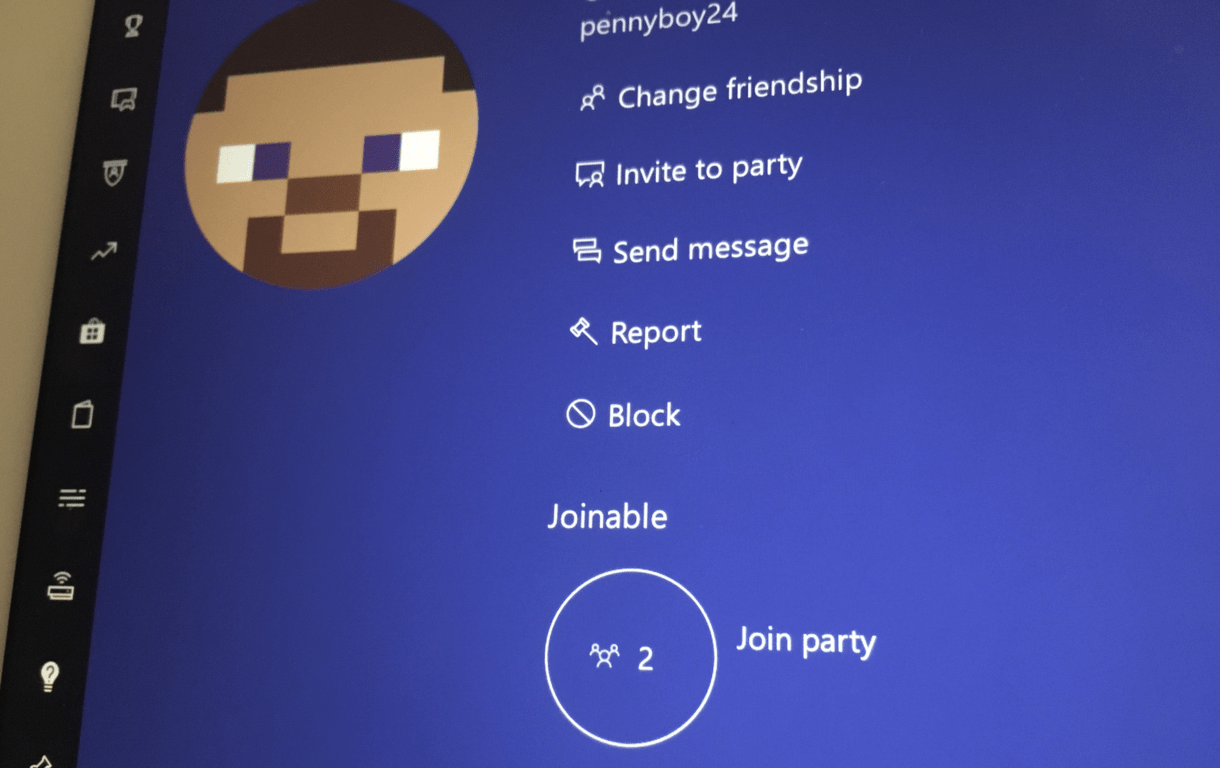
Party Chat, the Xbox Live feature that allows for voice chat between Xbox gamers is now available on the Xbox app for iOS and Android. The feature first appeared two months ago in the Xbox beta app on both mobile platforms, and we’re glad to see it rolling out to everyone.

To use Party Chat, you’ll have to visit the Xbox profile of one of your friend and then tap “Invite to Party.” In case your friend is already in a joinable party, you’ll be able to see it and join the voice chat right from his or her profile. When you’re a party, you’ll be able to access party controls (including a mute option) and text chat.

PartyChat on iOS

Overall, this is a nice option for gamers needing to keep up with their Xbox Live friends on the go. Party Chat is also available on the Xbox app for Windows 10, but it has yet to make its way to Windows 10 Mobile. You can get the Xbox app for iOS and Android from the download links below.

Xbox
Xbox
Price:
Free


‎Xbox
‎Xbox
Price:
Free

Microsoft for Startups launched with $500 million to spend in next two years

Microsoft today announced Microsoft for Startups, a program which aims to help startups grow their customer base and also gain better access to technology. The company will commit $500 million over the next two years to the program and will offer joint sales engagements with startups, and more.

Under the program, Microsoft will provide the “dedicated resources” necessary to help startup marketing and sales teams sell their solutions to enterprises. Microsoft will also create new community spaces that “promotes collaboration across local and global ecosystems.”

Some other areas and benefits of the program are listed below.

  • The program provides startups with up to $120,000 in free Azure credits, enterprise grade technical support and development tools.
  • Qualified startups also get access to productivity and business applications, including Office 365 and Microsoft Dynamics 365.

The Microsoft for Startups program is an addition to many other programs which already are helping companies, startups, and businesses. Microsoft Reactors, Microsoft ScaleUp, and Microsoft Ventures are all examples of how Microsoft is empowering its partners and businesses around the world. You can learn more about Microsoft Startups by checking here.

Internal Hard Drive Won’t Power On? 3 Ways to Fix it

Of all the main PC components, the HDD is the most prone to malfunctions. In fact, many reported that internal hard drive won’t power on at all.

To avoid issues such as these, it’s crucial to use data backup software and ensure that your files are safe, it issue such as this appears.

It might be possible to fix this problem, and in today’s guide, we will show you the best ways to do that.

Why won’t my internal hard drive won’t power on?

  • Connection problems – If the hard drive isn’t properly connected, it won’t be able to power on.
  • Damaged hard drive – In case the drive isn’t showing in BIOS, it’s possible that it’s damaged.

What can I do if the internal hard drive won’t power on?

1. Check if the hard drive is spinning

  1. Open your computer case and locate the hard drive.
  2. Power on the PC and listen if the drive is spinning.
  3. If it is, it means that it’s getting power.

2. Check cables

  1. Open the computer case.
  2. Locate your hard drive and make sure that all cables are tightly connected.
  3. If that doesn’t help, connect a different data and power cable to your HDD and try again.

You can also try replacing cables from a different hard drive or SSD and check if they work.

3. Check BIOS

  1. Restart your PC and press Del or F2 to enter BIOS.
  2. Check if your drive appears in BIOS.
  3. If not, the hard drive may be faulty.

There’s only so much you can do when HDD won’t power up, but we advise you to get it to professionals to avoid data loss. Even though the HDD won’t power up, the chances are good that you’ll be able to preserve your data.

For more solutions, we suggest reading our internal hard drive won’t show up guide, since it covers a similar subject matter.

That should do it. If you have a question or suggestions regarding the HDD power issues, post them in the comments section below.

Best cryptocurrency price tracker extensions [Chrome & Firefox]

Looking for an easy way to track cryptocurrency prices? Try using cryptocurrency price tracker extensions! These extensions are extremely easy to use, because they are attached to your web browsers. Since they are extensions, you can quickly access them at any time while you are browsing the internet.

Now what are some of the best cryptocurrency related extensions? Well, for your convenience, I’ve compiled a list of some of the best extensions available for both Chrome and Firefox. Hopefully, these extensions will give you an edge when it comes to making money off of cryptocurrencies. 

Cryptocurrency price tracker extensions for Chrome

  1. Bitista
  2. CryptoVision
  3. Cryptocurrency Price Tracker

Chrome is the most popular web browser these days. Therefore, it is only natural that we start with Chrome extensions. It is important to note that since these extensions work on Chrome, you can use them on almost every type of platform.

In other words, they will most likely work on Windows, Mac, Android, iOS, etc, as long as they have a Chrome browser installed on it. That’s the beauty of browser extensions. Okay, without further ado, let’s get started.

1. Bitista

Bitista is a lightweight Bitcoin exchange rates converter extension that not only works on the Chrome browser, but also on Firefox. Furthermore, there is an android version of Bitista that you can download for your mobile device. There are rumors that this cryptocurrency tracker will soon be available for the iOS and Windows systems.

In addition, you have the ability to access all of the information online, if you don’t feel like downloading or installing anything.

However, while Bitista is flexible it only shows the current price for Bitcoin. In other words, there aren’t any graphs or portfolios that you can use. You also can’t see the price of other cryptocurrencies.

On the hand, it does have an extremely impressive list of fiat currencies. You will be able to track the price of Bitcoin in anything from the Zimbabwean Dollar to the US Dollar. There are 157 currencies to choose from to be exact. You also have the function to edit what currencies are displayed on your featured list. (1)

So, the bottom line is that this extension is ideal for people who usually trade Bitcoin in more than one currency. The user interface is both minimalist and easy to use. There aren’t any advertisements or anything, clogging up your screen space. It is a highly recommended extension.

Find it Here: Bitista

  • Check Out: 2 best cryptocurrency mining computers for beginners

CryptoVision – Portfolio Tracker

Next up the line is a more popular price tracker available for the Chrome browser called CryptoVision. As you can see in the picture above, it is highly convenient to track your favorite crypto coins. All you have to do is click on the extension and you will see live, up-to-date information of your coins of choice.

One of the best things I like about CryptoVision is that it has a very easy to use system. All you have to do to add a cryptocurrency to your portfolio or “watch list”, is to click on a button. Furthermore, you can drag and drop the coins to rearrange them.

All in all, if you want an easy and simple extension to keep track of your coins, then I recommend CryptoVision.

Find it Here: CryptoVision

2. Cryptocurrency Price Tracker

Okay this one is also quite easy to use. All you have to do to access your list of coins and their respective prices is to click on the extension. The prices are updated every 5 minutes and information is gathered from coinmarketcap.

This extension also has an unique function that allows you to not only see the price in one currency but two. In other words, if you want to see the price of Ethereum (ETH) in let’s say EUR, then you will also have USD underneath it. You can see how it is set up in the picture above.

In addition to the USD, you can choose to see the value in EUR, GBP, CNY, CHF, CAD, and AUD. You will need to change to currency in the options page. Remember, whatever currency you choose, the USD will always be there for convenient comparison.

You of course also have the option to choose which coins are shown on the popup window. You have hundreds of cryptocurrencies to choose from, and more are added frequently. Select the coins you want to see in the options menu. You will also be able to compare any cryptocoin with Bitcoin. To do this , click on a coin in the drop down menu.

Finally, there is a timer at the bottom of the pop up that indicates when the next update will happen.

In conclusion, Cryptocurrency Price Tracker is one of the best extensions you can use for Google Chrome. I especially how easy it is to compare coins to both USD, other currencies, and Bitcoin.

Find It Here: Cryptocurrency Price Tracker

Cryptocurrency price tracker extensions for Firefox

  1. Cryptocurrency Price Tracker
  2. Crypto Ticker

Firefox is also a highly popular web browser that can be used on multiple platforms. If you are a Firefox user, then you will find the list below helpful.

Cryptocurrency Price Tracker – Bitcoin, Ethereum (By Louis Baker)

This FireFox extension looks easy to use, but it is also packed with features. With this extension you can easily keep track of the prices of most of the major cryptocoins.

You will also have easy access to other information such as Market Cap, Max Supply, circulation, graphs, and more.

While you do have a limited amount of coins to choose from, you can also choose which coins are allowed to be seen on the drop down menu.

Personally, I like the user interface of this extension. It has a “night”theme and is easy on the eyes.

The extension also receives regular updates and maintenance.

I recommend this Firefox price tracker extension for people who enjoy having flexible settings. The extra features on this extension also makes it ideal for more experienced traders.

Find It Here: Cryptocurrency Price Tracker

Crypto Ticker

Crypto Ticker is an unique price tracker extension. This extension keeps things simple by showing the live update of only one cryptocoin at a time. However, the great thing about this is that you don’t have to click on anything to see the price of your favorite coin. Instead, the price of the coin is shown right in your FireFox’s toolbar.

You can of course change which cryptocurrency you want to see. In fact, there are over one thousand cryptocurrencies you can choose from.

As for fiat currencies, there are over 30 to choose from.

Price changes are updated every minute.

Who is Crypto Ticker ideal for? Well, this extension is great for people who like to browse the internet and keep an eye on their favorite cryptocurrency while they are at it.  Obviously, since you can only view one coin at a time, this extension is ideal for individuals who only have invested in one type of coin. Honestly, not having to click on a button to check on your coin is a highly convenient feature.

Find It Here: Crypto Ticker

Conclusion

There you have it, the list of the best cryptocurrency price tracker extensions For Chrome and Firefox. The extensions aren’t ordered from the best to worst. All of these cryptocurrency trackers are great and it is up to you to decide which one fits your taste.

See Also:

Windows Analytics Service adds Meltdown / Spectre insights for IT Pros

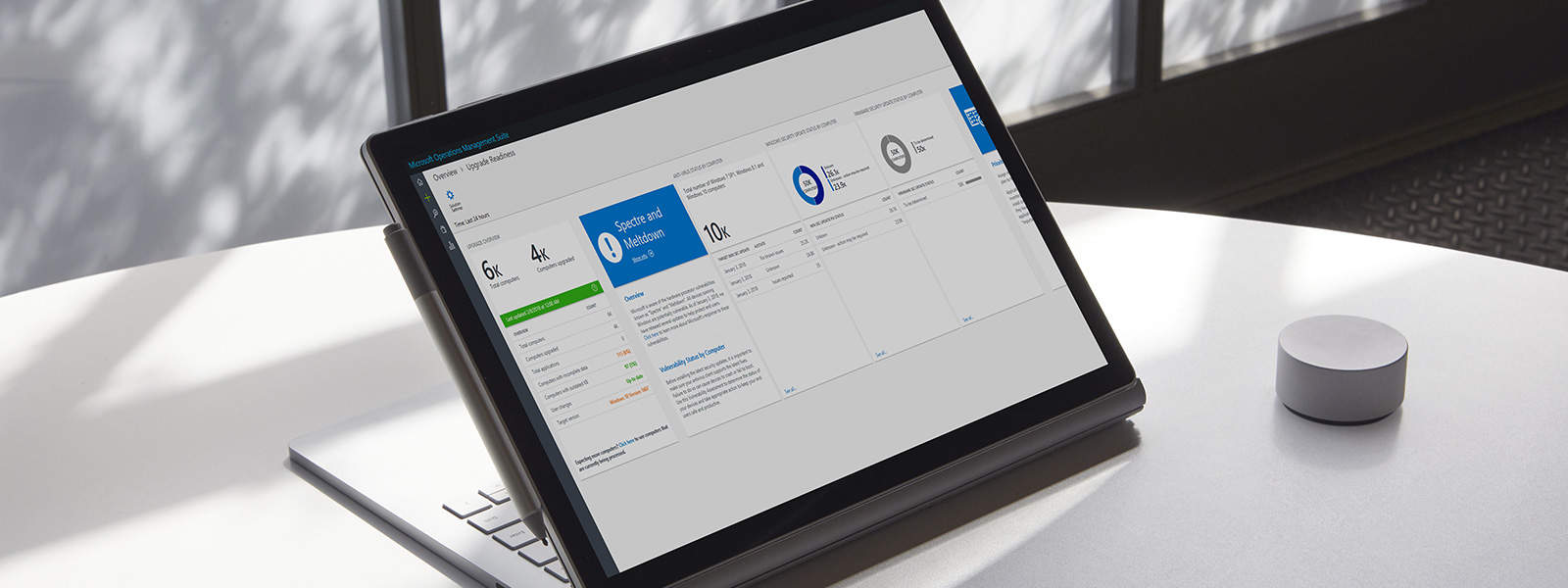
Microsoft previously shared how the average Windows user can protect themselves from the Spectre and Meltdown security flaws, but today the company explained how IT Pros can do the same with all Windows PCs across their enterprise. Indeed, the Redmond giant is now adding more capabilities to the free Windows Analytics service to give professionals detailed insights on the Windows 7, 8.1 and 10 PCs they manage.

There are now new Anti-Virus Status, Windows Operating System Security Update Status, and Firmware Status sections in Windows Analytics: Anti-virus Status will help indicate if a device’s anti-virus software is compatible with the latest Windows Updates. Windows Operating System Security Update Status will help display which Windows updates are running on any device and if any of these updates have been disabled.

A look at firmware status in Windows Analytics service

Finally, Firmware Status shows more information about the specific firmware running on any given device. Moreover, it lists if the firmware includes specific protections required by CPU manufacturers. This feature is currently limited to security updates from Intel, but Microsoft says more CPU partner data will be added soon. IT Professionals can get started with these new capabilities today by visiting this website.

Microsoft Edge helps Virgin Galactic showcase new age of space exploration

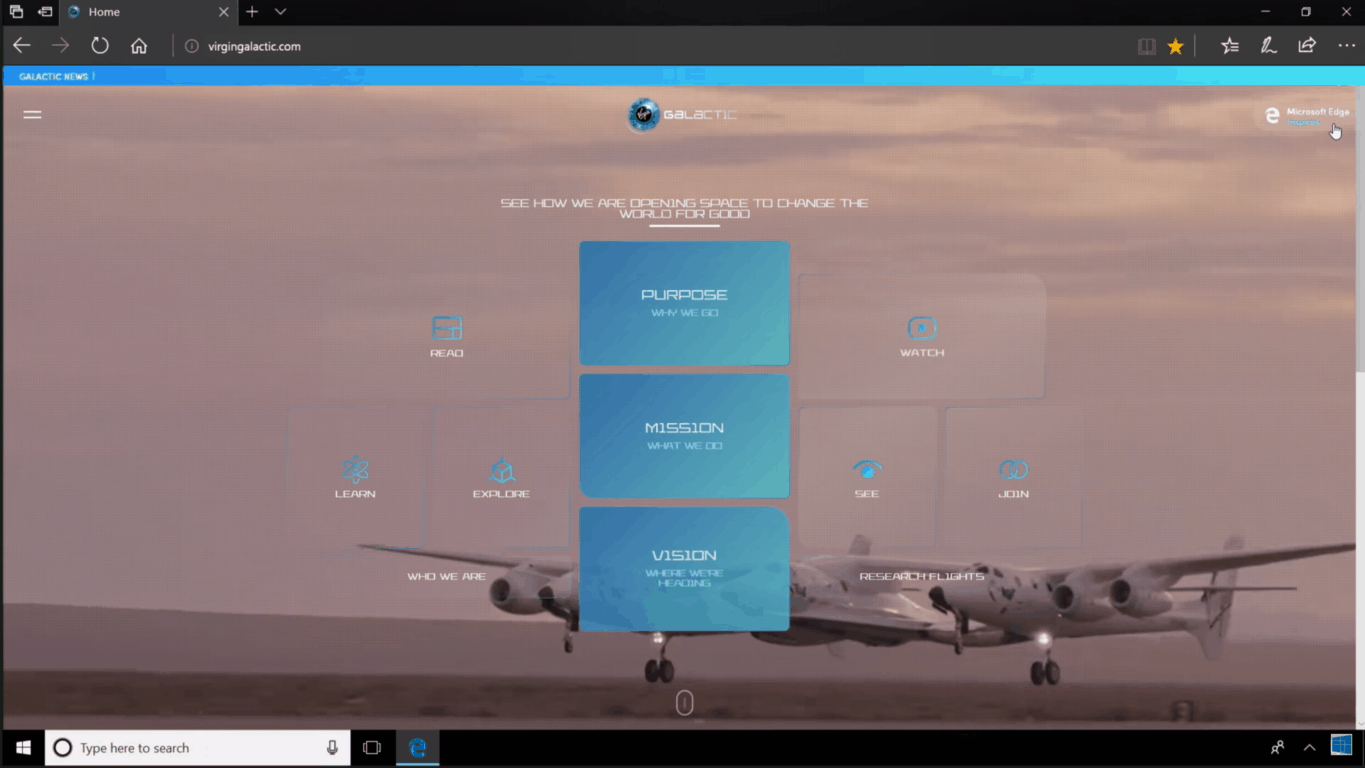
Microsoft today is highlighting a new partnership with Virgin Galactic which is helping the spaceflight company showcase the newest age of space exploration. The two companies developed a mobile-friendly and touch-optimized Virgin Galactic website which is accessible to all, highlighting the journey ahead for aspiring astronauts.

According to Microsoft, the website is meant to help the public connect with space travel by showing off how “space exploration, research, and transportation has the potential to improve life for everyone.” Anyone on a mobile device or a PC can visit the website (obviously best viewed in Edge) by clicking here, and experiencing modern spaceflight discoveries firsthand for themselves.

The Virgin Galactic website uses the latest web technology and supports WebVR for those with Windows Mixed Reality devices. There is even a 3D tour for those who aren’t lucky enough to experience Mixed Reality. Other features of the website are listed below.

  • With immersive browser WebVR, and anyone can tour the space fleet using Windows Mixed Reality devices. Hotspots provide key details about the WhiteKnightTwo mothership, spaceship VSS Unity and the Virgin Galactic team
  • Enjoy a fluid site experience by interacting with a variety of VSS Unity features, the sensation of views in parallax, and animations that enhance your discovery.
  • Mobile-friendly and touch-optimized – In keeping with the goal of a captivating venture, the site is mobile-friendly and touch-optimized for intuitive use.

This is definitely a cool experience, and we’re hoping it may inspire many more to sign up with Virgin Galactic, become an astronaut, or explore the wonders of our universe. Feel free to check out the website for yourself and let us know your thoughts in the comments below.

Rare opens up about PC specs for upcoming Sea of Thieves release

After gathering feedback from beta testers over the past couple of months, Rare’s pirate game Sea of Thieves will be released on March 20 on both Xbox One and Windows 10 PC. This will be Rare’s first PC release, and because the game will be a Microsoft Store exclusive, the game studio has a lot of pressure on its hands to meet the expectations of hardcore PC gamers. Today, Rare expounded a bit on just what that PC experience will be like.

“We know that as PC gamers, having the ability to change the field of view, unlock or lock the frame-rate, rebind keys, change video settings, resolution, and graphics options, as well as offering extra functionality like full ultra-wide support and a dedicated FPS Counter, is all part of the expectation,” explained Rare’s PC Design Lead Ted Timmins. “It’s with great pleasure then for us to announce that after all of the above, and more than a year of working with our partners at AMD, Intel and NVIDIA, it’s time to smash a bottle of rum against our PC specifications so that you can see how your rig will fare.”

First of all, you should know that Sea of Thieves on Windows 10 will ship with an auto-detect experience that will give PC gamers “the Rare-certified spec based on your hardware.” The game studio detailed six different sets of specs, going from the “Cursed” 540p at 30FPS to the “Mythical” 4K at 60FPS.

“The game is perfectly playable at 540p,” explained Timmins, which means that PCs with Intel Integrated GPUs (Intel Iris Pro Graphics 6200 or Intel Iris 540) and 4G of RAM should have a pretty good experience. Sea of Thieves isn’t the most photorealistic game to be released this year (except for the gorgeous water effects), but playing the game in 4K at 60 FPS will require a high-end Intel Core i7 or AMD Ryzen processor, 16GB of RAM and an Nvidia Geforce GTX 1080 or AMD Radeon RX Vega 64 GPU.

Sea of Thieves will also require the Windows 10 Anniversary Update or higher, and it will be a 60GB download. The game is already available to pre-order from the Microsoft Store, though we remind you that it will also be available for free with Xbox Games Pass on launch day. It remains to be seen if Sea of Thieves will be the smash it that Microsoft’s Xbox division desperately needs, but at least the company will be making the Xbox Play Anywhere game more accessible than ever.

Sea of Thieves
Sea of Thieves
Developer:
Microsoft Studios
Price:
Free

Chalkup co-founder Justin Chando joins Microsoft, plans to expand their education offerings

Microsoft today announced Chalkup co-founder Justin Chando has joined Microsoft Education. The move is part of the company’s plans continued investment to “help save teachers time, build collaborative classrooms and drive better learning outcomes for students.”

After spending time with Chando, the Redmond giant is planning on working with Chalkup, educators, and students to bring elements of Chalkup into Microsoft Teams, including a rubric system. According to Microsoft, Chalkup customers will have continued support through the end of June and can then transition into Microsoft Teams.

Justin Chando originally founded Chalkup back in 2013, and it has since grown in popularity. In a note on the company’s website, Chando mentions educators & students from 1 in 3 universities and 1 in 5 high schools in the United States have used the Chalkup Class Collaboration Platform. He also issued the following statement to Microsoft.

“In spending time with the amazing people at Microsoft, it was clear that we were completely aligned in our mission for connecting classrooms, sparking student collaboration, and finding new and innovative ways to work together. We knew Microsoft would be a great fit and we’re thrilled for what the future holds for our customers,”

Existing users should keep in mind that Chalkup will shut down on June 30, 2018, so the company can shift focus to building Microsoft Education products. New signups are also closed, and Chalkup users are being urged to sign up for Microsoft Teams, free and included with Office 365 for Education.

Update: An earlier version of this article incorrectly stated that Microsoft acquired Chalkup. We’ve since updated to clarify Chalkup CEO Justin Chando has joined Microsoft.

Leaked video suggests Xbox Live Free Play Days coming this weekend

A new video tweeted out by notorious Microsoft Leaker WalkingCat suggests Xbox Live Free Play Days is coming this weekend.

https://twitter.com/h0x0d/status/963414577961553922

The video shows that Free Play Days will run from February 15-18th. It also highlights the several benefits of Free Play Days, including playing Rainbow Six Seige, NBA 2K18, and enjoying multiplayer for free on any game you already own (that is if you’re not already a paid Xbox Live member.)

Microsoft has yet to announce Xbox Live Free Play Days for this month, but we’re assuming an announcement may be coming soon. As always, be sure to stay tuned for more information, as we will update this post with more information once things become more official.

We’d also like to remind you that this week’s Deals with Gold is now live, including big savings on Call of Duty WWII and Destiny 2. These titles are Xbox One X enhanced, so sure to check it out if you’re looking to enjoy new games this week.

Outlook is down: some users can’t log in or send messages [February 2018]

Recent reports suggest that Outlook is down for many users. More specifically, users are experiencing login issues which prevent them from connecting to their accounts for more than a few seconds.

outlook issues bugs

There are also some lucky users who can connect to their Outlook accounts but are unable to send or receive messages.

Can’t send or receive mail on — constantly asking me to re-enter password for outlook account

Judging by the outage map, it seems that the issue is prevalent for European users.outlook issues february 2018

Also, it seems that mobile users are more affected by this problem than desktop users.

For the time being, there is no information available about this issue on the official Office page. Users already contacted Microsoft on Twitter but the company has yet to reply.

outlook down

We’ll update this article as soon as new information is available.

UPDATE: Judging by the number of reports available on DownDetector’s website, it seems that the issue has been partially resolved. However, some Outlook users may still experience login issues on mobile devices.

outlook connection issues

Are you still affected by this problem? Tell us more about your experience in the comments below.

No Running Apps in Task Manager: 5 Ways to Get Tem Back

Task Manager is a Windows utility that shows you all the running applications on your PC, however, many reported no running apps in Task Manager.

This can be a big problem because you won’t be able to end Windows processes that you don’t need, or close an application that is frozen.

Luckily, there are a few solutions that you can use to fix this.

Why is an app not showing on Task Manager?

  • Your Windows installation might be damaged causing Task Manager not to work properly.
  • In some rare instances, incorrect date and time will cause this problem on your PC.
  • A corrupted user profile can cause this and many other problems.

How do I fix Task Manager if there are no running apps?

1. Run an SFC scan

  1. Click Start
  2. Go to the search field box and type CMD
  3. Go to Command Prompt then right click and select Run as Administrator
    Empty task manager/Task manager is empty/Nothing shows up in task manager
  4. Run the following command sfc/scannow
    Empty task manager/Task manager is empty/Nothing shows up in task manager

Some users may still experience errors after running the SFC scan. Thus, if this is the case for you, we recommend a trustworthy repair app to take care of it.

2. Check Time and Language settings

  1. Click Start and select Settings
  2. Select Time and Language
    Empty task manager/Task manager is empty/Nothing shows up in task manager
  3. Click Region and Language
    Empty task manager/Task manager is empty/Nothing shows up in task manager
  4. Under Country or Region, click on English (United Statesdf), and if not there, you can add it using Add a Language button
    Empty task manager/Task manager is empty/Nothing shows up in task manager
  5. Restart and check if Task Manager is empty or nothing shows up in Task Manager after this.

3. Run DISM tool

  1. Click Start
  2. In the search field box, type CMD
  3. Click Command Prompt in the search results list
    Empty task manager/Task manager is empty/Nothing shows up in task manager
  4. Run the following commands:
    Dism /Online /Cleanup-Image /ScanHealth
    Dism /Online /Cleanup-Image /CheckHealth 
    Dism /Online /Cleanup-Image /RestoreHealth

4. Create new user profile

  1. Click Start
  2. Select Settings
  3. Select Accounts
  4. Click Family and other users
    Empty task manager/Task manager is empty/Nothing shows up in task manager
  5. Click Add someone else to this PC

  6. Fill in the form with the user name and password. Your new user account will be created.
    Empty task manager/Task manager is empty/Nothing shows up in task manager
  7. Click on Change account type
  8. Click the drop down arrow and choose Administrator to set the account to administrator level
  9. Restart your computer
  10. Login to the new account you just created

If Task Manager is restored in the new profile, then it may mean your other user profile is corrupted, so do the following:

  1. On your new account, use it to downgrade your usual account
  2. Click Apply or Ok
  3. Raise back your old account to its default admin level
  4. Rinse and repeat a few times as this will help to remove any corruption
  5. Leave your account on as Administrator

If the problem disappears, then you can either fix the old user account or migrate to the new account.

5. Perform a system restore

  1. Click Start
  2. Go to the search field box and type System Restore
  3. Click Create a Restore Point in the list of search results
    Empty task manager/Task manager is empty/Nothing shows up in task manager
  4. Enter your administrator account password or grant permissions if prompted to
  5. In the System Restore dialog box, click System Restore
    Empty task manager/Task manager is empty/Nothing shows up in task manager
  6. Click Next
  7. Click a restore point created before you experienced the problem
  8. Click Next
  9. Click Finish

To go back to a restore point, do the following:

  1. Right-click Start
  2. Select Control Panel
  3. In the control panel search box, type Recovery
  4. Select Recovery
    Empty task manager/Task manager is empty/Nothing shows up in task manager
  5. Click Open System Restore
    Empty task manager/Task manager is empty/Nothing shows up in task manager
  6. Click Next
  7. Choose the restore point related to the problematic program/app, driver or update
  8. Click Next
  9. Click Finish

This isn’t the only issue and many reported that Task Manager won’t end the task, but we covered that in a separate guide. Another similar error is when programs won’t show up in your Control Panel so be sure to check that out too.

Has any of these solutions helped you with no running apps in Task Manager? Let us know in the comments below.

Get the latest Dolby version for Windows 10/11 [QUICK GUIDE]

Dolby Audio Driver represents a dedicated utility that can be used on any Windows based device for improving the sound quality of your laptop, tablet, or desktop.

Now, in order to get the best experience you need to use the latest version of Dolby, which means that you need to download the latest release of the software.

download dolby windows
Unfortunately, a common problem is related to some incompatibility issues between Dolby and Windows 10 OS. Basically many users reported Dolby issues after updating to Windows 10 from Windows 7, or to Windows 10 from Windows 8.

Well, all these are problems related to the Dolby driver, or to the sound driver that is installed on your device; so for fixing the incompatibility issues you just have to uninstall the current drivers and to download the latest versions.

You can then normally, or in compatibility mode, re-install the sound and Dolby drivers as everything will work without problems on your Windows 10 device.

You can’t really download some of Dolby’s software separately for Windows 10

Therefore, if you have to use the latest version of your Dolby as provided by your OEM.

Now, installing Dolby is easy as all you have to do is to download the proper drivers while then you just have to follow the on-screen prompts that will be provided by the installation wizard.

How can I download Dolby drivers for Windows 10?

1. Go to your computer manufacturer website

The company explains that you can find and download the latest Dolby audio drivers on your computer manufacturer’s support page. Keep in mind that every computer is custom-tuned to deliver the best possible audio experience.

Dolby doesn’t have access to these custom audio drivers.

The list below includes some of the most popular computer manufacturers among Windows 10 users. Go to their support page to download the latest Dolby drivers:


Did you know that the majority of Windows 10 users have outdated drivers? Be a step ahead using this guide.


2. Update Windows 10

When you install the latest OS updates on your computer, you also download and install the latest driver version for your device.

So, if you want to get the newest Dolby driver for Windows 10, simply go to Settings > Update & Security > and click on the ‘Check for updates’ button.

update dolby drivers

If you’re having trouble opening the Setting app, take a look at this article to solve the issue.


Having trouble updating your Windows 10? Check out this guide that will help you solve them in no time.


Of course, if you have further issues and if you can’t still use your Dolby Audio Driver on your Windows based device, don’t hesitate and share your problems with us – use the comments field in that matter.

Then we will develop a dedicated tutorial that will show you how to easily address your incompatibility problems.

Here’s what Dolby wants you to know if you have recently updated to Windows 10 and you are having some problems. Also, do check out our article on how to solve problems with Dolby Sound in Windows 10, if you do encounter any.

Important notice regarding Dolby Advanced Audio and Home Theater

Dolby Advanced Audio v2 is designed into select PC models and is not available for direct purchase or download. Our experts work with PC manufacturers to custom-tune each model for the best possible audio performance.

Dolby Home Theater v4 is designed into select PC models and is not available for direct purchase or download. Our experts work with manufacturers to custom-tune each model for the best possible PC audio performance.

If you’ve got additional tips and suggestions related to this post, let us know in the comments below.

RELATED ARTICLES:

Fix: Your Developer License has Expired in Windows 10/11

Windows 10 and Windows 8, 8.1 platforms are offering access to numerous apps, all thanks to the Windows Store client which comes pre-installed on the mentioned systems. But, you can download and install apps from Windows Store only as long as you have a valid Windows 10 8 license.

That’s not a problem, but what should you do when you will be prompted with the following alert: ‘Your Developer License has Expired’?

expired windows license
As you can already tell, this is an error message that might be issued by your Windows 10 or Windows 8, 8.1 based device. Unfortunately, the alert has nothing to do with your license which means that you don’t have to panic or worry because you still have your license and you can still download and install apps from Windows Store.

All you have to do is to address the ‘Your Developer License has Expired’ system error and that’s it, you are back on track.

So, if you are experiencing the mentioned issue, don’t hesitate and check the guidelines from below, where I will show you how to easily fix your Windows 10 / Windows 8, 8.1 OS.

First, you should know that the ‘Your Developer License has Expired’ message is usually displayed after you apply a system restore operation or even a disk scan. These are the most common situations which are causing the License error, thus when dealing with the same, apply the steps from below.

How to fix ‘Your Developer License has Expired’ system error in Windows 10?

  1. Reinstall each app
  2. Sync app licenses
  3. Update Windows 10

1. Reinstall each app

The first thing you can do for addressing this issue is to reinstall each of your app individually. Of course, in case you have numerous tools, this job isn’t recommended, but it works; so after reinstalling an app the same will run without showing the ‘Your Developer License has Expired’ message.

2. Sync app licenses

If you want to use a better solution and if you also want to restore your Windows Store access, follow the steps from below.

  • Open Windows Store on your Windows 10 / Windows 8, 8.1 device by clicking on the Windows Store icon located on your Start Screen.
  • With your mouse swipe to the right edge of your display in order to display the main panel from Windows 8.
  • From there, click on Settings.
  • Within settings choose “App updates”.
  • And from the bottom of the following page select “Sync license”.

sync app licenses

3. Update Windows 10

Make sure that you’ve installed the latest Windows 10 updates on your computer. Many users confirmed that the problem went away after they downloaded and installed the latest OS version.

Go to Settings > Update & Security and click on the ‘Check for updates’ button to install the available updates.

install windows 10 updates

That all, now you can successfully use Windows Store and you can run, download and install your favorite apps without dealing with the ‘Your Developer License has Expired’ Windows 10 or Windows 8, 8.1 system error.

If you’ve got additional tips and suggestions related to this post, let us know in the comments below.


[wl_navigator]

Fix: Can’t Set a Custom Ringtone in Windows 10/11

We love customizing our smartphones and an important part of customization are our ringtones. Unfortunately, there are users who report that they can’t set custom ringtones on their Windows 10 phones, so let’s see if we can fix this issue somehow.

Can't Set a Custom Ringtone in Windows 10

What to do if you Can’t Set a Custom Ringtone in Windows 10

Users report trying to use both .mp3 and .wav files as ringtones but without any luck, so how to fix this issue?

  1. Set the genre of mp3 to ringtone
  2. Change the file extension of your ringtone
  3. Try a different ringtone app
  4. Update your phone

Solution 1 – Set the genre of mp3 to ringtone

This is quite unusual solution, but according to users it really works, so here’s how to set the genre of your mp3 files.

  1. Find your mp3 file and right click it.
  2. Choose Properties from the list.
  3. Next navigate to Details tab.
  4. You should see a list of tags, you just need to find the Genre tag and change it to ringtone.
  5. Then just click Apply then OK to save the changes.
  6. After you’ve done that you need to transfer the mp3 file to the ringtone folder on your phone. The folder location should be something like:
    • Settings/Personalization/Sounds/Ringtone

This is it, your custom ringtone should now appear in the list of ringtones. For some users the custom ringtone doesn’t appear under custom section, it just appears in the list.

Solution 2 – Change the file extension of your ringtone

  1. Convert your custom ringtone to .m4a file. To do so you can use many free online converters or use any conversion software.
  2. After you’ve converted your custom ringtone to .m4a you need to rename it to .m4r file. To do so, you’ll need to show file extensions of your files. If this options is turned on for you you may go to step 4. If not, go to Step 3 to see how to show file extensions for your files.
  3. In File Explorer go to View option to open the Ribbon menu. After that you just need to check File name extensions option and you’ll revel file extensions for all your files.Can't set custom ringtone
  4. Find your .m4a ringtone file, right click it and choose Rename.
  5. Change its name from ringtone_name.m4a to ringtone_name.m4r. Basically, you just need to change .m4a to .m4r in the file name and you’ll change its extension.
  6. You’ll have to confirm if you want to change the file extension, so click Yes.
  7. After that you just need to move your ringtone .m4r file to your Ringtone folder on your phone, and that’s it.

Solution 3 – Try a different ringtone app

If you can’t set a custom ringtone on your Windows 10 phone, maybe the ringtone app that you’re using is the culprit. Try installing a new ringtone app and check if this workaround solves the problem.

There are many such apps that you can you download from the Microsoft Store. For example, one of the most popular ringtone apps for Windows 10 Mobile is Free Ringtones.

This app allows you to download thousands of ringtones for Windows phone for free. You can search ringtones by artist, preview them online and then download them on your phone.

Other reviews ringtone apps that received positive reviews on the Microsoft Store include Ringtone Hub, Mega Ringtones or Ringtone +. They are also free to download.

Solution 4 – Update your phone

Outdated OS versions may trigger various technical issues. Make sure that you’re running the latest Windows 10 Mobile version on your device. Go to Settings > Phone update > install the available updates.

There you go, we hope that one of these four solutions helped you fix the custom ringtone issue. Let us know which one worked for you.

If you’ve got additional tips and suggestions on how to fix this problem, you can list them in the comments below.


Read Also: 

Download UltraSurf for Windows 11, 10 & 7

If privacy is extremely important for you, and it should be, then you should try the Ultra Surf platform on your Windows 8, or Windows 8.1, 10 based device.

Ultra Surf is a great tool that can be used in order to keep your web browsing activity anonymous. In case you want to learn more about this platform and for downloading the latest version of the same, don’t hesitate and check the following lines.ultra-surf
The most annoying thing nowadays is that anyone with some advanced internet knowledge can track and register our online activity. So, if you are not paying attention you can end up in losing precious data and you can deal with other risky situations. Therefore, if you are spending most of your time online, browsing and accessing various websites, the best will be to use a dedicated tool that can guarantee full protection and an anonymous state of your account.

In that matter you should download Ultra Surf on Windows 10 or Windows 8, 8.1. By using this app no one will know from where you are connecting to the network or who you are.

Moreover, Ultra Surf hides your IP address and changes it for another one that has nothing to do with the original one. It also clears your web browsing history and the cookies that are usually stored on your web browser client. So, in a few words, with Ultra Surf you are secured and also anonymous.

At the same time, the tool uses strong end-to-end encryption to protect your data transfer from being collected and analyzed by third party entities.

Download UltraSurf on Windows 10, 8, 8.1 [Latest version]

The best is that UltraSurf can be easily used on any Windows 10, or Windows 8.1 device. All you have to do is to download the tool on your laptop, tablet or desktop and that’s it. You don’t need to install the program, as it will start once you launch the software. This means that you can easily place it on an USB stick and take it with you without any kinds of problems.

So, UltraSurf is easy to use without installing anything on your device and ensures secured web browsing activity. You can learn more about this tool by accessing its official web page, from where you can also download the latest version of UltraSurf for Windows 10 or Windows 8, 8.1 systems.

UltraSurf 17.04

At the time of writing this article, the latest UltraSurf release is version 17.04. Unfortunately, the official changelog is not available yet, but we’ll update this article accordingly as soon as the information is available. Users confirmed that the software is now faster and more reliable.

Fix UltraSurf issues on Windows 10

While Ultrasurf runs smoothly on Microsoft Windows and the default browsers of the OS, you may encounter various issues when using the tool on other browsers. To fix that, you need to manually set up proxy and you should be able to use Ultrasurf without any problems.

UltraSurf is also available as a Chrome extension and you can use it on all platforms, Linux included. You can download the UltraSurf Chrome extension from the Chrome Store.

Keep in mind that certain antivirus programs may block Ultrasurf from downloading or launching. To fix this issue, add Ultrasurf as an exception, or you can simply disable your antivirus. Turn it back on as soon as you’ve downloaded or launched UltraSurf.

More about UltraSurf for Windows 10, 8, 8.1

UltraSurf is a proxy service, designed to enable users inside countries with heavy Internet censorship to visit any public web sites in the world safely and freely. If you are not located in such a country, you can also use the software to hide your real IP address to protect your privacy. UltraSurf is a standalone application (no installation needed) that automatically configures Internet Explorer to use UltraSurf whenever you run the program and displays a lock icon on the desktop to indicate that anonymous browsing is active. You can also use UltraSurf with Firefox, Chrome or other browsers, however you need to configure the proxy settings manually (localhost:9666) or use the available Firefox add-on tool to do this (in addition to this download).

We hope this article helped you find and download the latest UltraSurf version on your computer. If you’ve got additional questions regarding this post, let us know in the comments below.


RELATED ARTICLES:
New patent provides clues to Windows 10 Cloud Clipboard features

Microsoft has been working on a better Windows clipboard for quite a long time now. Back in 2015, we first heard about an internal Microsoft Garage experiment called OneClip, which reappeared a year later as “Cache.” If this previous attempt at creating a universal clipboard never materialized, Microsoft did unveil a new Cloud Clipboard feature back at Build 2017, which will leverage the Microsoft Graph, the Project Rome APIs as well as Microsoft’s Swiftkey keyboard on mobile devices.

In case you don’t remember it very well, you can watch Microsoft’s Joe Belfiore discuss this new Cloud Clipboard feature in the video below (starting around 45’45):

A Cloud Clipboard prototype was recently discovered in the Windows 10 Insider build 17004, but it wasn’t connected to the Microsoft Graph. It’s been quite some time now since Microsoft publicly discussed the feature, but a recently published patent titled “Interacting with a Clipboard Store” seems to reveal more details about this Cloud Clipboard.

The patent was originally filed in August 2016, and it explains how “a multi-item clipboard store” would work. The various drawings show a UI that looks similar to what Microsoft showed during Build 2017, with a pop-up window displaying the latest content items recently added to the clipboard.

Interestingly, this patent also mentions a “cross-device transfer operation” to transfer content from one device to other devices specifically targeted by the user. This specific feature is also described in the drawing below:

The patent actually describes nine different copy modes, including ones where the cloud clipboard would tag the selected content item as being private, favorites, or temporary items that disappear after a certain amount of time. There are really a lot of good ideas in this patent, but as with all patents, it’s not clear if those smart features will eventually make their way to Windows 10. Anyway, Cloud Clipboard likely won’t make it to the Redstone 4 release, so we may have to wait until Build 2018 to learn more about the feature.

Microsoft again ranked one of the world’s most ethical companies

For the eighth year in a row, Microsoft has been chosen as one of the world’s most ethical companies by the Ethisphere Institute. To create its annual ranking, the organization uses its Ethics Quotient framework, which takes different variables into account such as corporate citizenship and responsibility, culture of ethics and more.

This year, 135 companies spanning 23 countries have been honoured by the Ethisphere Institute. In the technology sector, other honorees include Dell, Intel, Adobe, Nokia and LinkedIn, now a Microsoft subsidiary. The full list of honorees can be seen on this page.

“Over the last 12 years, we have repeatedly seen that those companies who focus on transparency and authenticity are rewarded with the trust of their employees, their customers and their investors,” explained Ethisphere CEO, Timothy Erblich. “While negative headlines might grab attention, the companies who support the rule of law and operate with decency and fair play around the globe will always succeed in the long term.”

Microsoft President Brad Smith echoed this sentiment in a statement published by the Ethisphere Institute. “At Microsoft, trust and integrity are core to our values and critical to our success. We’re passionate about applying the power of technology to improve our world, and that starts with doing business in a way that builds and maintains trust with our customers,” Smith said.