Microsoft and SAP announce partnership to use each other’s tech internally

Microsoft just added another bell and whistle to its Azure offering for enterprises looking to take advantage of a fully integrated cloud solution upgrade.

Recently announced, Microsoft and leading application management software company SAP have partnered to give enterprise customers a cloud solution that is both expansive in flexibility as well as robust in product support. SAP is the market leader in application software management that enables businesses to find efficiencies in their everyday workloads that include back office, warehouse, storefront, internal and external program optimizations to list a few.

Perhaps, as a show of good faith or a bit of dogfooding, both SAP and Microsoft Azure will internally fuse their respective solutions, the result should be the better guidance of reps when presenting architecture integration and deployment options for both SAP and Azure solutions. Starting soon, Microsoft will be using the new SAP S/4HANA platform in a secure and managed cloud, in part, to transform the company’s internal financing systems, AI analytics and a few other business-critical applications. 

“As technology transforms every business and every industry, organizations are looking for the right platforms and trusted partners to help accelerate their digital transformation,” said Satya Nadella, CEO of Microsoft. “Building on our longtime partnership, Microsoft and SAP are harnessing each other’s products to not only power our own organizations, but to empower our enterprise customers to run their most mission-critical applications and workloads with SAP S/4HANA on Azure.”

To their credit, SAP has over 365,000 businesses and public sector customers it’s bringing to the table to accompany Microsoft Azure’s ballooning portfolio. The combined efforts of Microsoft and SAP already have big names such as Costco Wholesale, The Coca-Cola Company, and Columbia Sportswear Company excited at the new level of cloud integration proposed by the partnership.

Microsoft drops Windows 10 Delve app, to be replaced with improved taskbar search experience

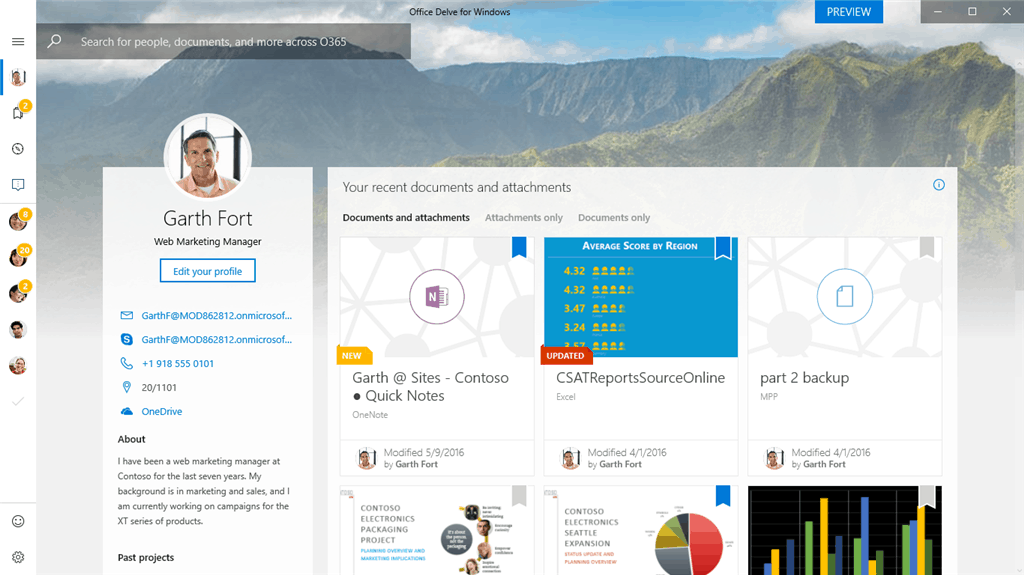
Delve, the Office 365 data visualization and discovery tool that incorporates elements of social networking and machine learning, recently was removed from the Windows 10 Store. Noted by ZDNet, it turns out that Microsoft is planning on replacing the app by integrating Delve into the Windows 10 taskbar search.

A statement on the Delve support page does not explain why and when the Delve app was removed from Windows 10, instead urging those who are looking for the app to use the Web version instead. A Microsoft spokesperson also did not explain when the Delve app was removed but gave a more interesting explanation of what may be the replacement for it.

“As we announced at Ignite, we continue to enhance the search and discovery experiences across Microsoft 365. As part of this, we’re focusing our efforts on the Windows taskbar search experience which includes content and people inside your organization, as well as content on your local device, and on the rich web search experience including Delve and other search bars within Office 365.”

Combined with Microsoft looking to make Cortana more like Apple’s macOS Spotlight feature, and Cortana soon supporting searching contacts and emails, it’s apparent that Microsoft is looking to revamp the way searches work in Windows and Office 365. Definitely interesting, so best to keep tuned for more in the months ahead.

Xbox One X owners are getting a free movie from Microsoft

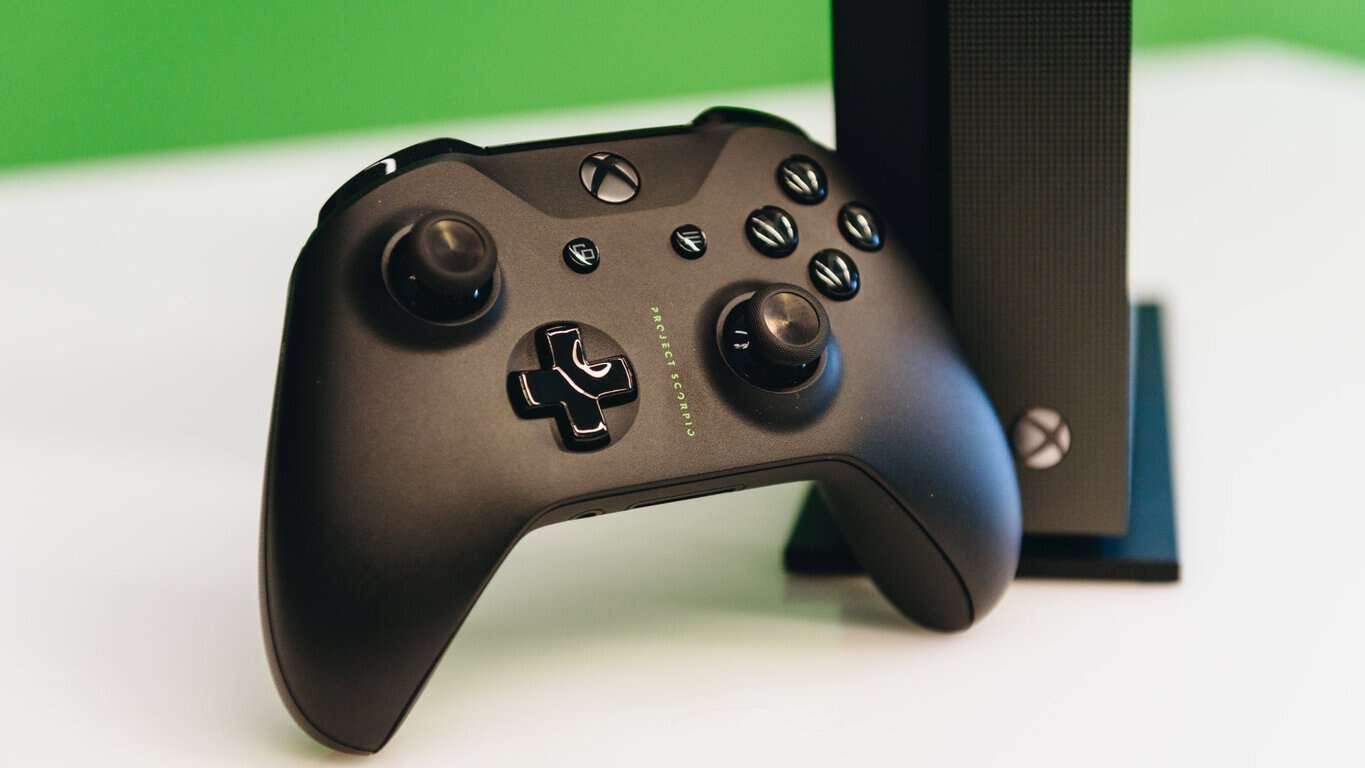
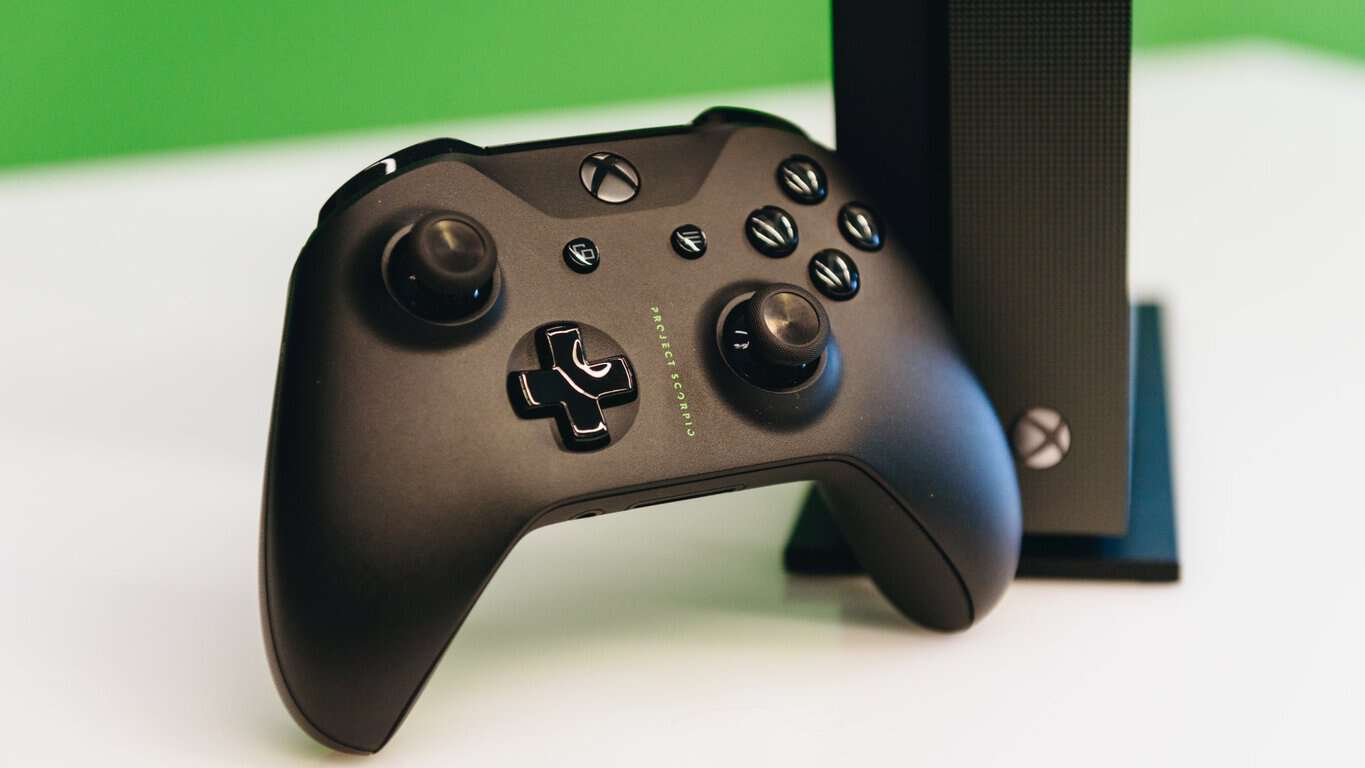
If you’re one of the Xbox One X early adopters out there, you may well get a freebie from Microsoft as a thank you for purchasing the company’s new console. Indeed, it seems that Microsoft is currently offering the Lego Batman movie to select Xbox One X customers, as recently reported by Reddit user ster1ing:

Just got a free movie for buying a One X. Anyone else get one? from xboxone

According to comments on the Reddit thread, Microsoft may be sending the codes in waves as some people who pre-ordered the Xbox One X Project Scorpio Edition have yet to receive one. Additionally, it seems that you don’t need to have purchased your console from the Microsoft Store to get the chance to get the free movie.

Microsoft is offering the 4K HDR version of the Lego Batman movie ($29.99 value), which is great if you already have a TV that supports both technologies. If you recently purchased an Xbox One X, let us know in the comments if you also received this message in your Xbox Live inbox.

How to Change Windows 10, 8 or 7 Logon Screen

Lots of Windows 8, Windows 10 users are complaining about the lack of customization options that are offered by default. However, Windows 8, Windows 10 does have some notable features that allow users to customize their devices. Changing the Windows 8, Windows 10 logon screen is one of these features, and because many are not quite clear on how to do this, today I’ll show your exactly how you can change your logon screen on any Windows 8, Windows 10 device.

Apart from the classic lock screen, Windows 8, Windows 10 does have some other methods of authentication, like picture passwords. We’ll be taking a look at all of these changes you can make to your Windows 8, Windows 10 computer.

Want to change your Windows logon screen? Here’s how to do it on Windows 10 and Windows 8

Changing logon screen settings is rather simple in Windows 10 and 8.1, and in this article we’re going to cover the following topics:

  • Windows logon screen background, picture – If you want to change your logon screen background, you can do that easily from Windows 10. You can choose one of many available backgrounds or you can use your own custom background.
  • Windows logon screen blank – Many users reported that their logon screen is blank. This can be a big problem and prevent you from logging in to Windows.
  • Windows logon screen upside down – This is an unusual problem that can appear on some PCs. If you have this problem, the cause is most likely your display driver.
  • Windows login screen not appearing – Sometimes your logon screen might not appear at all. We already wrote a guide on how to fix a missing Windows 10 login screen, so be sure to check it out.
  • Windows login black screen with cursor – According to users, some of them are getting black screen with cursor while trying to login to Windows 10. We already covered this issue in the past, so you should be able to fix it.
  • Windows logon screen remove – Some users don’t want to see a login screen while starting Windows. You can’t remove the login screen, but you can always remove your password or set your PC to automatically log in.
  • Windows logon screen takes a long time, stuck – Sometimes you might get stuck on Windows logon screen. In one of our previous articles we explained what to do if Windows 10 is stuck on a Welcome screen, so be sure to check it out.
  • Windows logon screen flashing, disappears – Several users reported that their logon screen keeps flashing. In some cases, the logon screen can completely disappear. This is most likely caused by a bad driver or a corrupted Windows 10 installation.
  • Windows 10 login screen loop – In some rare cases you might get stuck in a Windows 10 login screen loop. This is an unusual problem, but you should be able to fix it by creating a new user account.

Changing the default logon screen on Windows 8

If you’ve recently installed, Windows 8, you will probably have the simple picture lock screen that shows you different apps. This screen ca be customized by adding other pictures and other apps, as well as adding a completely new logon screen.

Windows logon screen background

If you want to change your Windows 8 logon screen picture to another one, you just have to follow these steps:

  1. Open the Settings charm and click or tap on Change PC Settings.
  2. From here, navigate to the Personalize tab.

There you will find the option to choose another logon image or browse your computer for a custom picture. In the same window, you have the Start Screen tab, which allows you to change the background style and color of the Modern UI screen.

Windows logon screen blank

If you want to change your Windows 8 logon screen to a picture password, all you need to do is to the Users window and click or tap on Create a Picture Password.

From here, you will enter a wizard where you have to browse your computer for the picture you wish to set as your picture password, then add the three actions that will unlock your computer.

Windows logon screen upside down

These actions can be a line, a point or a circle, and you have to input them in the same order and direction as you originally made them, otherwise it will not allow you to log on to your computer.

As you can see, the process of changing the Windows 8 logon screen is pretty easy. It does not require the users to waste too much time on this task, and it also adds to the feel of the device, making it reflect the user’s personality better.

Windows login screen not appearing

Another thing you can do is delete the password from your computer. While I strongly advise you to not do this, some users want their computers to open without needing a password. Nevertheless, here’s how you do it:

  • Open the Settings Charm
  • Click or tap on Change PC Settings
  • Click on Users
  • Switch to a Local Account

Note: Removing your computer’s password is not possible when using the Microsoft account, therefore you need to use a local account

  • Click on Change Password
  • After you input your current password, it will prompt you for the new one
  • Leave the Password field black and click OK
  • Now, you log on to your computer, you will have the Windows 8 logon screen that you’ve modified earlier and in the User screen, you won’t be prompted for a password.

Change the default logon screen on Windows 10

On Windows 10 changing the logon screen process is slightly different. If you want to change the background picture on your login screen, you just need to do the following:

  1. Open the Settings app. You can do that quickly by pressing Windows Key + I shortcut.
  2. Now navigate to the Personalization section.
    Windows logon screen stuck
  3. In the left pane, select Lock screen.
    Windows logon screen disappears

Now you can customize the appearance of your lock screen. For example, you can choose a background image that you will use for your lock screen. There are several pictures available to choose from, but you can also browse your PC for your own pictures.

Windows login black screen with cursor

In addition to a single picture, you can also have a slideshow on your PC while your PC is locked. Or if you always want a different picture on your lock screen, you might want to use Windows spotlight feature.

If you want, you can enable fun facts and tips from Windows and Cortana. This is just an optional feature but it might provide you with some interesting information once in a while. Of course, you can see detailed status from certain apps right on your lock screen which is useful if you need to check your calendar or email.

The lock screen also allows you to see quick status of your apps, so you can easily check the number of new emails or missed messages. Speaking of quick statuses, you can see quick statuses from up to 7 different apps on your lock screen.

In addition to visual customization, Windows 10 allows you to change how you sign in to Windows 10. To access these settings, you need to do the following:

  1. Open the Settings app and go to Accounts section.
    Windows logon screen remove
  2. From the left pane, select Sign-in options.
    Windows logon screen takes a long time

From here you can change various sign-in settings. For example, you can set your PC to automatically lock if you’re away. This feature is rather useful if you want to protect your PC from unauthorized access. By using this feature you’ll prevent your coworkers or roommates from using your PC when you’re not around.

Windows 10 also supports Windows Hello feature, and if you want to configure your PC to sign in with your fingerprint, you can do that from here. In addition to fingerprint, you can also sign in by scanning your face. Keep in mind that in order to use Windows Hello you need to have appropriate hardware.

Windows logon screen flashing

You can also easily change your account password right from this section. If you want, you can set up a PIN and use it instead of your password to sign in to Windows.

You can also use your PIN to sign in to other applications on your PC. Using a PIN has its advantages, and if you don’t want to memorize your password or if you want to quickly sign in to Windows 10, PIN might be the right choice for you.
Windows logon screen picture

Of course, picture password feature is still there and you can unlock your PC by performing gestures on the lock screen.

Windows 10 login screen loop

You can also use a Dynamic lock feature and pair your PC with your smartphone or any other Bluetooth device. By enabling this feature, your PC will automatically lock itself whenever your phone moves out of the Bluetooth range.

This is a great feature because it will automatically lock your PC once you step away from it. Keep in mind that different phones and Bluetooth adapters have a different range, so your PC might not get locked as soon as you move away from it.

Lastly, there’s a privacy option available. If you want to hide your account details, such as your email address, from the lock screen be sure to disable this feature.

As you can see, the process of changing the Windows 8, Windows 10 logon screen is very simple and anyone can do it with next to no effort.


READ ALSO:

Vivaldi Browser update improves tab management and download

Vivaldi just launched v1.13 of the company’s customizable third-party browser that brings a bunch of new features designed to make organizing the tabs much easier.

The browser brings along Windows Panel which will offer a superior tab management. You will see that now, the panel opens to the side of your browser and it provides you a tree-style view of the tabs.

You’ll be able to navigate them using your keyboard and group them into Tab Stacks. The list will show all tabs without also compacting their size. You will notice that sorting or tracking down a tab becomes much more comfortable than ever.

Vivaldi browser v1.13 new features

Here’s what you’ll be able to perform in the latest version of Vivaldi browser:

  • You can drag tabs to change their order.
  • You will be able to group tabs by topic in order to save space.
  • You can Tile Tab Stacks to compare several web pages side by side.
  • You can put unused tabs or Tab Stacks to hibernation for enhanced performance.
  • You can pin tabs to make sure that they always remain open.
  • You will be able to mute sound in particular tabs.

Improved downloads and new download-related features

vivaldi browser

The latest version of the browser also enhances downloads, and you will be able to try out the following new features:

  • You will see a warning dialogue box when you are closing the browser before a download is complete.
  • You will get the ability to pause and then resume downloads.
  • You can see the download speed in the download progress bar.
  • All these new features and functionalities come together with the usual performance improvements and bug fixes for the browser.

Download the latest version of the Vivaldi browser from Vivaldi official website.

RELATED STORIES TO CHECK OUT:

Xbox news recap: Xbox users warned against using power strips, Gears of War 4 heading to Xbox Game Pass and more

Welcome to our weekly Xbox news recap series, where we go over the top stories of the past week in the world of Xbox. Let’s get started.

Xbox users warned against using power strips

If you’re like most people, you’re probably using your Xbox One plugged into a power strip. It’s a super common thing to do in a world where you need several power outlets for your entertainment center. Surprisingly, according to the Xbox team, this is not something you’re supposed to do. Apparently, the Xbox One (and this is everything in the Xbox One family, up to and including the X) is meant to be plugged into a wall, since there’s a surge protector built in. If you’re using a surge-protected power strip, you run the risk of hurting your console.

Gears of War 4 heading to Xbox Game Pass

Simple but big news here – Gears of War 4 will be among the games arriving to the Xbox Game Pass this December. The game is relatively recent and a pretty great time, so it’s a pleasant surprise to see it coming for free to people who are Game Pass members. Joining Gears of War 4 is Mass Effect (the original) and a plethora of other titles that you’ll be able to enjoy at no additional cost so long as you’re subscribed to the Game Pass.

Microsoft, Xbox, Gears of War, 4K

Improving social sharing is a top priority for the Xbox team

Apparently, sharing gameplay on social media is a big priority for the Xbox Team. Jason Beaumont, the experience lead for Xbox, has recently tweeted about upcoming improvements to sharing when grilled about it by some fans. He says that details have come when “we’ve planned it out and talked to our partners.” Specifically, this addresses a request to add in a “quick share” feature, and give users a way to share clips and screenshots to Facebook and Twitter without too much thought.

Man uses Xbox One X on a CRT TV

When’s the last time you saw a CRT TV? Whether it was 5 years ago or earlier this week when you visited your older family members for Thanksgiving, I can guarantee you didn’t see it running an Xbox One X. One person on YouTube actually managed to make the Xbox One X run on one of these ancient TV sets using a series of adapters, and it looks… Relatively okay. It’s definitely not something that you’re going to want to do for any reason other than “because you can,” but it’s fun to watch nonetheless.

Thanks for joining us. To keep up to date with all the latest Xbox news, keep a close eye on our Xbox One tag.


Windows 10’s Game Bar is being reworked in Redstone 4

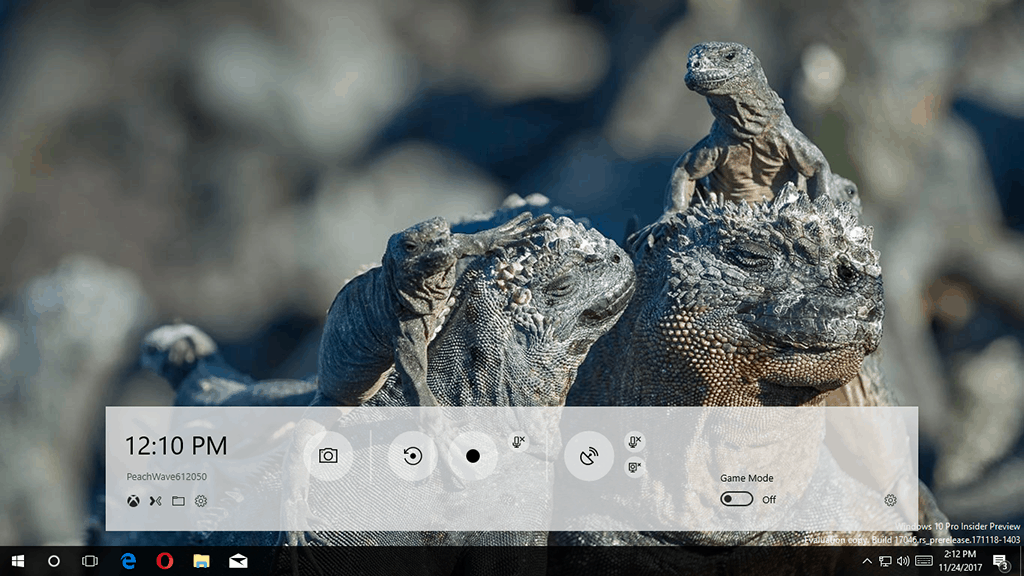
Microsoft looks to be focusing some attention to Windows 10’s Game Bar feature in Redstone 4. Game Bar is a feature built for those who play games on PC, with it supporting features such as game recording.

In Redstone 4 build 17046, some code has been found (via Thurrott) that shows some of the changes that Microsoft is making to the Game Bar. Changes include removing the Xbox Live avatar and replacing it with the players’ Gamertag, as well as the addition of shortcuts to areas such as the Xbox app, Mixer and settings, support for light and dark themes, improved animations, and more.

The new and improved Game Bar aims to take advantage of Microsoft’s Universal Windows Platform (UWP).

Are these the changes you’ve been wanting? Let us know in the comments!

Here are the best games under $10 to buy right now

The Christmas shopping season is now open across the globe, as people make a mad dash to different stores hunting for bargains on stuff they like.

Games are one of the top pastimes for millions of people around this time. In fact, there’s an online games store whose site has crashed because of the massive demand.

We have the hottest deals for the best games under $10, both for PC and Xbox use, right here so you don’t have to get caught up in the online melee.

Best games under $10.00

Xbox One games under $10.00

Sunset overdrive

Enjoy this awesome game today for an amazingly low price of just $9.93.

Watch Dogs

Immerse yourself into a new gaming experience with just one swipe. Get this game for only $9.31 now.

Deus Ex: Mankind Divided 39% off

Purchase this dope game now for $9.99, down from $13.32. Save $6.33 today!

NBA 2K15 68% off

Play the NBA for just $9.72 on this Xbox game and save $20.27 while you’re at it.

best games under $10

Battleborn

Let your inner badass out to play by getting this game for only $7.40 now.

WWE 2K15

For only $8.96, you can play this next generation WWE game sought by fans for generations.

Pro Evolution Soccer (PES) 2015

Get this game for $7.95 and enjoy an exhilarating soccer experience today!


PC games under $10.00

Rocket League 50% off

Save $10 on this futuristic sports action game, by getting it now for $9.99, down from $19.99.

Medieval II Gold Pack 50% off

Another game rich with intense combat can be yours for only $9.99, down from $19.99.

best games under $10

Baldur’s gate box (set)

This set of 4 games contains Baldur’s Gate: Tales of the Swordscoast, Baldur’s Gate II: Shadows of Amn, Baldur’s Gate III: Throne of Bhaal, and Baldur’s Gate. Grab it for $8.85 today.

Spore Galactic Adventures

Explore an all-new adventure packed world with this game. Buy it now for only $6.99.

Nancy Drew: Shadow at Water’s Edge

If you love detective games with rich sinister plots along the way, this is your game. Buy it now for $8.68.

Amazing Adventures: The Lost Tomb

There’s lots of adventure and hidden mysteries in an Egyptian location with this exciting game. Get it now for only $7.53.

Alien: Isolation 75% off

This award winning game of survival is up for grabs at only $9.99. Get it now and save $39.99.

best games under $10

Call of Duty: United Offensive

Enjoy hours of thrills and combat excitement with this game for only $10 today. Buy it now.

Peggle Nights

For only $8.93, experience hours of fun with this popular, chaotic pachinko-style pinball game.

Star Wars: The Force Unleashed II

The Star Wars saga continues with this thrilling game for only $11.30. Buy it now.

Have you found your favorite among these best games under $10? Don’t miss out on these great deals. Get yours now!

Best Windows 10 laptops under $500 to buy this Holiday Season

You’ve probably been looking for the best laptops under $500, but held back because you’re short on cash or it wasn’t available on offer.  Well, here’s your golden chance to get one of the best laptops for less.

Check out the best laptops under $500 you can buy today!

Best aptop deals for under $500

These are the hottest deals on the best laptops under $500 to buy this Holiday Season.

1. Acer Swift (recommended)

best laptops under $500
Get this ultra-thin, superfast, 14” HD laptop for only $488.35 today.


2. HP 17-inch Notebook (recommended)

best laptops under $500
This 17” HP Notebook comes with all the packed features you need to tackle daily tasks. Get it now for $499.98.


3. Lenovo ThinkPad

best laptops under $500
Save a whopping $399 by getting this powerful laptop with SSD at a highly discounted price of only $299.99 today.


4. Lenovo ThinkPad 11E

best laptops under $500
This ultra-portable, 11” HD laptop is up for grabs today. Get it for only $458.90 now.


5. HP Notebook

best laptops under $500
Another powerful laptop in HD, with powerful backlit touchscreen display. Buy it now for only $479.99.


6. Dell Latitude

best laptops under $500
For only $246.65, you can get this great laptop with HDMI, webcam, plus many more amazing features. Buy it today.


7. Lenovo ThinkPad Yoga

best laptops under $500
This touchscreen laptop with powered USB ports, webcam, HDMI and multi-touch display, is available today for only $379.99.


8. Asus

best laptops under $500
Make this your main device with all the speed and features you need. Buy it now for $484.99.


9. HP Elitebook

best laptops under $500
This laptop could be yours for only $289.43. Grab it today and start enjoying the amazing features!

You can’t get any better offers for best laptops under $500.

New patent shows Microsoft Edge could automatically switch to private mode on certain websites

Private web browsing has become a routine feature these past few years in web browsers from all kind of companies, but Microsoft may be looking to shake things up a bit. Noted by MSPoweruser, in a new patent, Microsoft is looking to help a user automatically switch a web browser to private mode when navigating certain websites.

The full patent can be seen here, though it does not specifically mention Microsoft Edge by name. Importantly, though, the patent is titled “Automation of Browsing Mode Switching.” As the name suggests this might help make it easier for those times when a user would like to hide their web history, or if they’ve forgotten to enter InPrivate mode when doing questionable activities on the web.  Explained in the patent:

Techniques for automation of browsing mode switching are described. According to various implementations, a web browser is operable in multiple different browsing modes, including a normal browsing mode and a private browsing mode. Techniques described herein enable automatic switching between browsing modes based on different mode triggers, and enable user configuration of various mode change behaviors.

Seen above, there is a diagram which attempts to explain how the system works, including the detection of a website which is associated with a mode change trigger. It is, however, not clear how exactly the web browser will be able to save websites which will be associated with the change trigger, be it a list saved on the computer, or on Microsoft’s cloud services.

There’s no telling if this is a feature coming to Microsoft Edge or not, but it might as well become a reality, especially since the patent is filed by Microsoft. As usual, best to keep tuned for more in the months ahead, as patents usually hold up to become real products and features, as we saw with Paint 3D well ahead of it’s reveal.

Microsoft Launcher offers revamped home screen experience with latest beta release

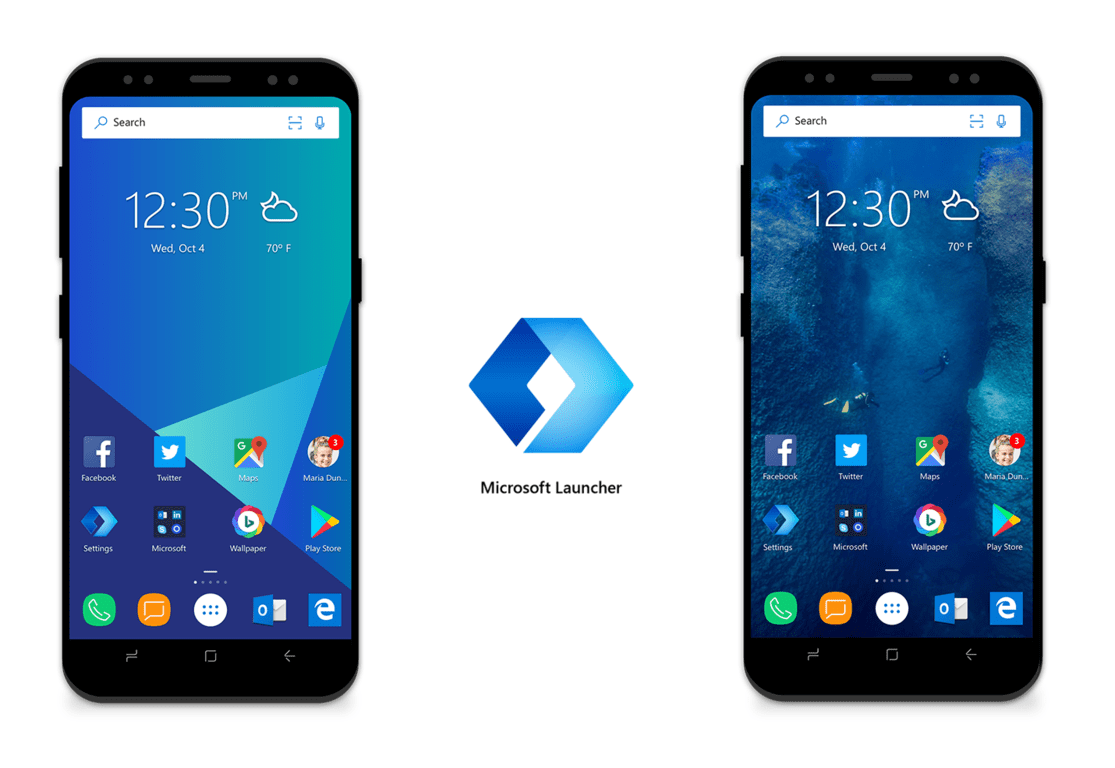
The new Microsoft Launcher is slowly but surely becoming a must-have app for Microsoft fans moving to Android, and the latest beta release introduces some of the most-requested features from users. Indeed, the freshly released version 4.3 brings a 12×12 grid view, better sub-grid positioning, support for more than 5 apps in the dock and plenty more improvements.

Here are the full release notes:

  • Support more apps grid layout: now you can get maximum 12X12 grid view for apps page;
  • Sub grid support: now you can move apps/widget half grid;
  • First time user experience enhancement: Support migration from other launcher and backup / restore or manual setup home screen during welcome page;
  • Apps font fine tune: avoid text wrap and improve truncation logic;
  • Now drag/drop apps will not enter edit mode;
  • Support long press apps icon popup menu when you in app drawer;
  • Support folder icon/shape edit;
  • Dock: support more than 5 apps in the dock;
  • Search bar: by default show search bar on the bottom for new users;
  • Theme: support theme on settings page;
  • Weather / time widget UI improvements;
  • Settings page restructure;
  • Crash fix, bug fix & performance tuning;

If you want to try this latest beta release, you’ll have to open this Google Play link and then select “Become a tester.” The Microsoft Launcher recently passed one million active users on Android, which is not bad for app that officially launched a month ago. We really like this fast release cycle and we hope to see many more features and improvements to be added in the coming weeks.

Microsoft Launcher
Microsoft Launcher
Price:
Free

FIFA 18 players sign petition for EA to fix in-game issues

AFIFA 18 player, Stuart Holmes, recently created a petition on Change.org demanding EA Sports to fix various in-game issues. The petition received a solid public attention, as more than  22,000 players have signed it over the past few days.

Here’s what Holmes and other players want EA Sports to work on:

  • “Input Delay/EA Servers during online seasons/any online game mode including WL causing button delay ( Always been a problem but certainly does need addressing. )

  • Freezing when trying to access ‘Featured Squad’ in Squad Battles

  • Change of kit numbers

  • Bug where when the ball goes out of play power bar/player name vanishes

  • Catalogue XP not working – UPDATE FIXED 23/11/17

  • Matchmaking ( A new WL Format and Matchmaking would do wonders )

  • Sending invites on Pro Clubs does not work, some state it does sometimes by following steps but many cannot confirm this.

  • 40 games in a weekend is both mentally and physically unhealthy. To encourage a child or even adult to play.”

Holmes also criticizes EA’s customer support, practically saying that making a petition is the only way for the company to hear what players have to say. We’ll see if this action will cause any reactions from EA.

Indeed, EA forums are flooded with various complaints about the game. But that’s actually the case with just about any game today. Only the number of complaints differs from title to title. It’s just how games are made today.

We recently wrote a roundup article with some of the most common FIFA 18 issues, along with recommended solutions. It will be helpful for resolving some problems, but unfortunately, not all of them.

For additional solutions, we’ll have to wait and see if EA will take into account this petition and all the complaints that come with it.

Have you experienced some issues while playing FIFA 18 yourself? Let us know in the comments below.

Gobble up 100 free MS Rewards points from Microsoft for Thanksgiving

To celebrate Thanksgiving, Microsoft is giving away 100 free points to Microsoft Rewards members. As usual, these points are a great way to cash in and spend on Microsoft Store gift cards, Amazon gift cards and more.

Microsoft Rewards members should be finding the free 100 points now on their Rewards dashboard, right alongside the day’s quizzes and other points-paying quests. Microsoft also sent out an email to Rewards members about the free gift, and we included a copy below. We must say the email is pretty thoughtful and is themed perfectly for the Thanksgiving holiday.

The 100 free points email

This is not the first time Microsoft has given away free Rewards points. Previously the company refunded points for those who spent towards Groove Music passes, and for telling Microsoft-related stories. There even was a time when the company offered up double points in the month of August.

If you’re new to Microsoft Rewards, feel free to check out our guide on how to pile up those points. Enjoy the free points and Happy Thanksgiving from all of us here at OnMSFT!


Fonts and additional language resources for Windows 10 start to appear in the Microsoft Store online

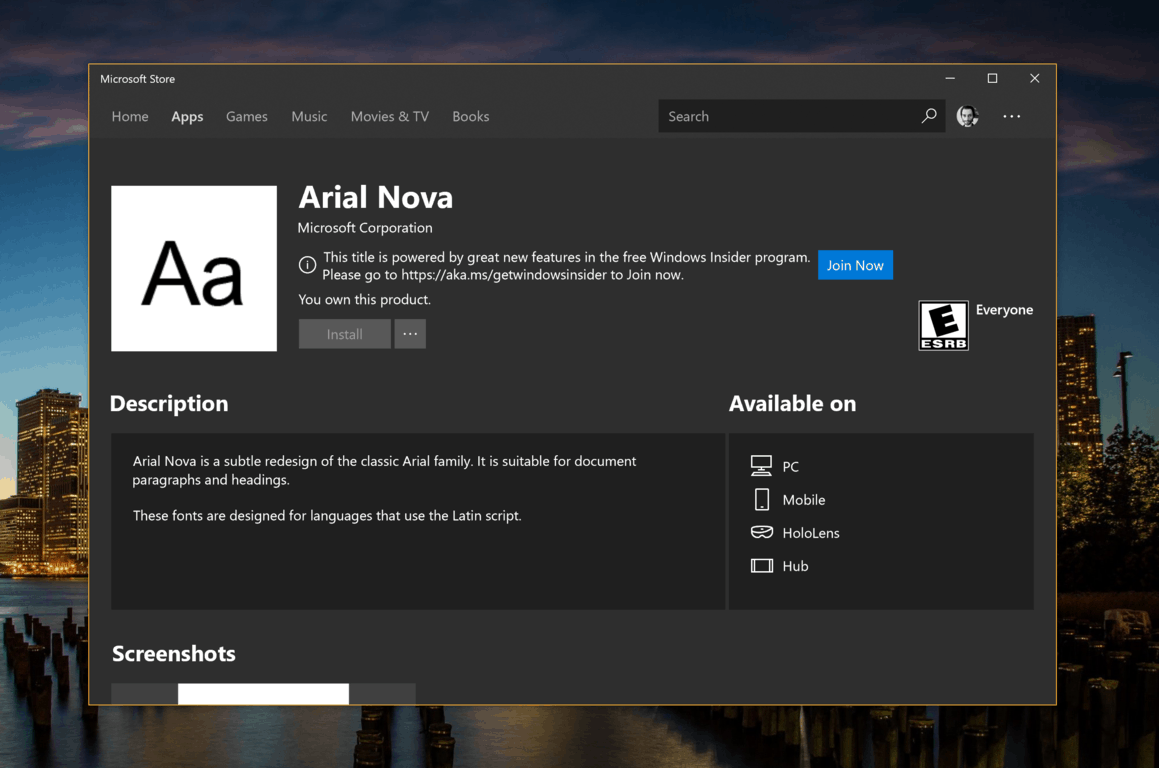
The Microsoft Store is increasingly becoming the one stop shop for everything you need to customize Windows 10. Following the addition of Edge extensions and Windows themes, Italian blog Aggiornamenti Lumia recently discovered new fonts and language packs from Microsoft on the digital distribution platform.

For now, you need to run the Windows 10 preview build 17040 or higher to install new fonts from Microsoft like Arial Nova, and we couldn’t test it at the time of our writing. However, we had no trouble installing a Valencian language pack, which did show up in the Region & Language section of the Windows 10 Settings app after proceeding.

Fonts and additional language packs are an interesting addition to the Windows Store, even though they’re not easily discoverable as of today. Perhaps Microsoft should create a new sub-category including everything you need to customize your Windows 10 PC, including Windows Themes, Fonts, Language packs and Edge extensions. For Microsoft, this is probably the way to go to push more users to visit the Microsoft Store.

Microsoft backtracks on Xbox One console surge protector issue… kind of

A tweet from the official Xbox Support Twitter account caused a bit of a ruckus earlier this week when it reminded all of its followers that Xbox One consoles should be plugged directly into a wall socket and not into an adapter with surge protection.

This recommendation has been public since the launch of the first Xbox One console back in 2013 but it seems many weren’t aware of this and so this news went viral and was reported on via several major tech sites. The reasoning for this recommendation is that all Xbox One consoles have a built-in surge protector and, according to Microsoft, plugging it into an additional surge protector can potentially restrict its power availability and prevent it from running as smoothly as possible.

This might seem like strange logic but it is something that a lot of original Xbox One owners may have been told if they ever had issues with the Kinect sensor. A common problem with the Kinect can be it randomly shutting down and this is often caused by a console that’s plugged into an adapter and not directly into the wall. The hard-to-find Kinect Adapter for the Xbox One S and X actually fixes this problem by using a separate power cable for the Kinect itself.

Many Xbox One X owners also had similar problems this month and found that their consoles wouldn’t turn on properly. This issue was apparently caused by the adapter issue which is likely why the Xbox Support account decided to tweet about the power recommendation again.

https://twitter.com/BlackThunderX4/status/931650803361660928

Despite the apparent truth behind this advice, a Reddit user noticed earlier today that the following text had been removed from the Xbox Support webpage, likely due to all of the attention it was getting.

Note: Because the console has a built-in surge protector, you should not connect it to an external surge protector. If you connect the console to another surge protector, the console cannot reach the full power that is needed for optimal performance.

It’s definitely a strange move but it’s also understandable given that the controversy had begun to paint the Xbox One family of consoles as one that had a serious (kind of) design flaw. It’s also questionable how many users actually follow this advice. Even though I’m personally aware of this problem, I still keep my Xbox One plugged into a surge protector and most people I know do the same as well. It’s simply just an extra layer of precaution.

How is your Xbox One console set up? Let us know in the comments below.

Fix: Windows Class Name is Not Valid Error in Windows 10/11

Anyone who has ever tried launching an old or new project in visual studio and it fails (“VS 20xx/ C#” error code)? will identify with this tutorial easily.

In real terms, when an attempt is made to open any another program and Microsoft .NET Framework (4.5.2, 4.5.3, or any other version) there might be  an error message that says “Windows class name is not valid”?

Why the error message?

“Windows class name is not valid,” may occur for some reasons, which include:

  • A corrupted component of .Net Framework
  • faulty drivers
  • damaged files
  • TreeView issues in Visual Studio
  • DLL and antivirus software interference
  • or a problem with the particular software.

Components of Windows .Net Framework can become corrupted if the computer is routinely does not shutdown properly.

These abrupt computer shutdowns could be as a result of on-grid/off-grid power failures or a power problem with the computer itself.

It could also result in the creation of multiple corrupted files which can initiate the “Windows class name is not valid” error.

In some cases,users may experience this error after updating some components of a particular program.

Windows class name is not valid [FIX]

Below are some tips that will help you fix this issue completely.

1. Uninstall and re-install the particular software

This is the most straightforward fix, and it works in some cases. Just locate the program in Add/Remove Programs and click Uninstall. Follow the prompts to complete the process.

After removing the software, restart the computer and initiate a fresh installation of the particular software.

After completing the installation process, launch the program, and Windows class name is not valid error should be fixed.

2. Run a System File Checker scan

SFC scan is used to verify the state of protected system files using the sfc /scannow option in Command Prompt. Sfc /scannow is the most popularly utilized form of the sfc command.

This will inspect all critical Windows system file on the machine, with the inclusion of DLL files.

If SFC finds a problem with any Windows System files, it will repair it.

Using the sfc /scannow option will require about 5-15 minutes to complete the inspection and repair process.

Follow these procedures to fix Windows system files using System File Checker:

  1. Hold WinKey + S or Q to bring up Windows search bar
  2. Type in cmd, right click on the result and launch as an administrator. This is often called “elevated” Command Prompt
  3. After launching Command Prompt, type in sfc /scannow and then press Enter to initiate the verification phase.sfc scannow
  4. SFC will now inspect and verify the integrity of all protected Windows system files. This process might take a while to complete.

As soon as the verification attains 100 percent, any of these  might apply:

  1.  If SFC found no issues with protected OS files on the machine
  2. Or the issues were found with system files and got fixed. Any user can also check the full Log File here: C:\\\Windows\\\Logs\\\CBS\\\CBS.log (provided that Windows is installed on drive C:).
  3. This Log could be useful as a resource for technical support personnel that might help out with advanced troubleshooting.
  4.  If SFC scan found issues with the system files and repaired them, there might be prompted to restart the machine. Otherwise, just go on with a restart.
  5. After restarting, retry launching the particular process or program that caused the “Window class name is not valid” error to see if SFC has fixed the problem.

If this procedure does not seem to work for you, we suggest you try a specialized repair app that can automatically find healthy files as replacements for all corrupt system elements.

3. Re-install or repair .Net Framework

If the error message displayed has something to do with .Net Framework, then a repair or re-installation might just do the magic.

To repair .Net Framework issues, go to Microsoft’s website and follow the prompt to download NetFxRepairTool.exe.

This tool will help detect and attempt to repair problems associated with the setup of .Net Framework or its updates.

After installing it, follow the in-app instructions to initiate the .Net Framework repair procedure.

After completing the process, restart this computer, and try running the process causing the “window class name is not valid” error, it should now be fixed.

To uninstall and install Microsoft .Net framework, follow these procedures:

1. Close all open application software
2. Press WinKey + R to bring up the run dialog box.
3. Type in Control Panel and press Enter
4. Click on Add/Remove programs or Uninstall a program
5. Select the version of .Net Framework installed on your computer, and select Change/Uninstall, Repair or Remove
6. A setup wizard will come up, select Remove/Uninstall, and click Next
7. Restart your computer after completing the process.
8. After restarting this computer, go to Microsoft’s support page to download a compatible version of Microsoft .Net Framework.

In this case, it is Microsoft .Net Framework version 4.7.1.

.Net Framework version 4.7.1

Once the installation process is complete, the user might be prompted to restart the computer. If no prompt occurs, go ahead with a  restart.

9. After restarting the computer, try launching the software that is causing the error “Window class name is not valid,” and it should work just fine.

4. Initiate debugging on Microsoft Visual Studio without its hosting process

“Windows class name is not valid” might occur whenever a user tries to debug or launch an existing project/create a new one in Microsoft Visual Studio and it throws on this line.

If the  Visual Studio  was re-installed with the most recent service pack, and the problem persists.  To disable hosting process, follow this procedure:

1. Open a class library or service project (projects that don’t produce executables)
2. Click Properties on the Project Menu
3. Click the Debug tab in the Properties window
4. Uncheck the Enable Visual Studio hosting process box

Note: Disabling the hosting process makes several debugging features unavailable and you might decrease performance.

Debugging without the use of the VS hosting process has been found to eliminate Windows class name is not valid error. Having tried out these steps, the VS should be free of issues.

5. Check for machine power issues

Applying the already outlined fixes will only work for a short period if the computer has power problems.

When abrupt shutdowns occur due to power failures, several corrupted files could be generated, which will in turn cause the error under consideration.

Diagnose and fix power issues with your machine, and everything will work just fine.

Xbox video game Pinball FX2 VR launches on Windows Mixed Reality

After being playable on other VR marketplaces for a while now, Pinball FX2 VR, has finally come to Microsoft’s Windows Mixed Reality experience in the Windows Store.

Pinball FX2 VR is a virtual reality version of Pinball FX2, a popular pinball video game available on Windows 10, Xbox One, and other consoles. In addition to being able to play many of the Pinball FX2 pinball tables, this special VR version of the game also lets players explore a virtual space fitted with visual themes based on each table. Here’s the official game description:

Experience digital pinball as never before in Pinball FX2 VR, a groundbreaking new pinball game from the digital pinball pioneers Zen Studios! Pinball FX2 VR features advanced physics, detailed 3D graphics, and original tables from the pinball wizards at Zen. Pinball FX2 VR replicates the atmosphere of real-life pinball machines in a virtual play space, while presenting gameplay features and effects that you simply cannot recreate on a physical machine. Additionally, the game’s rich scoreboards will track your Pro Score, Team Score, table stats and more to let you compete against players from all over the world!

Creating a brand new way to play pinball that deftly combines the look and feel of digital pinball with the sensation of a real-world experience, Pinball FX2 VR is the premiere place for pinball action on Windows MR! Pinball FX2 VR comes with three tables: Secrets of the Deep, Mars and Epic Quest. Additional tables may be purchased as add-on content.

Pinball FX2 VR supports online leaderboards powered by Microsoft’s Xbox Live gaming network however other Xbox connectivity appears to be limited. Do you have a Windows Mixed Reality headset? Let us know what your favorite games are in the comments below.

Pinball FX2 VR
Pinball FX2 VR
Developer:
Zen Studios
Price:
$14.99

Windows 10 Redstone 4 could pick up a Bluetooth Quick Pair feature

According to a report from Thurrott.com, Microsoft could be adding a Bluetooth Quick Pair feature to Windows 10 in the upcoming Redstone 4 update. Touches of the feature are supposedly already showing up in Insider preview builds, and it could dramatically cut down on the time a user has to spend on pairing Bluetooth devices with a Windows 10 PC.

As the name of the feature implies, a user will simply need to hold a Quick Pair compatible accessory near a Windows 10 PC to initiate a pairing process. A notification will then pop up and the user can click on it and take the set up process automatically from there. This eliminates the need to press buttons on the Bluetooth device, or even navigate through menus in Windows 10.

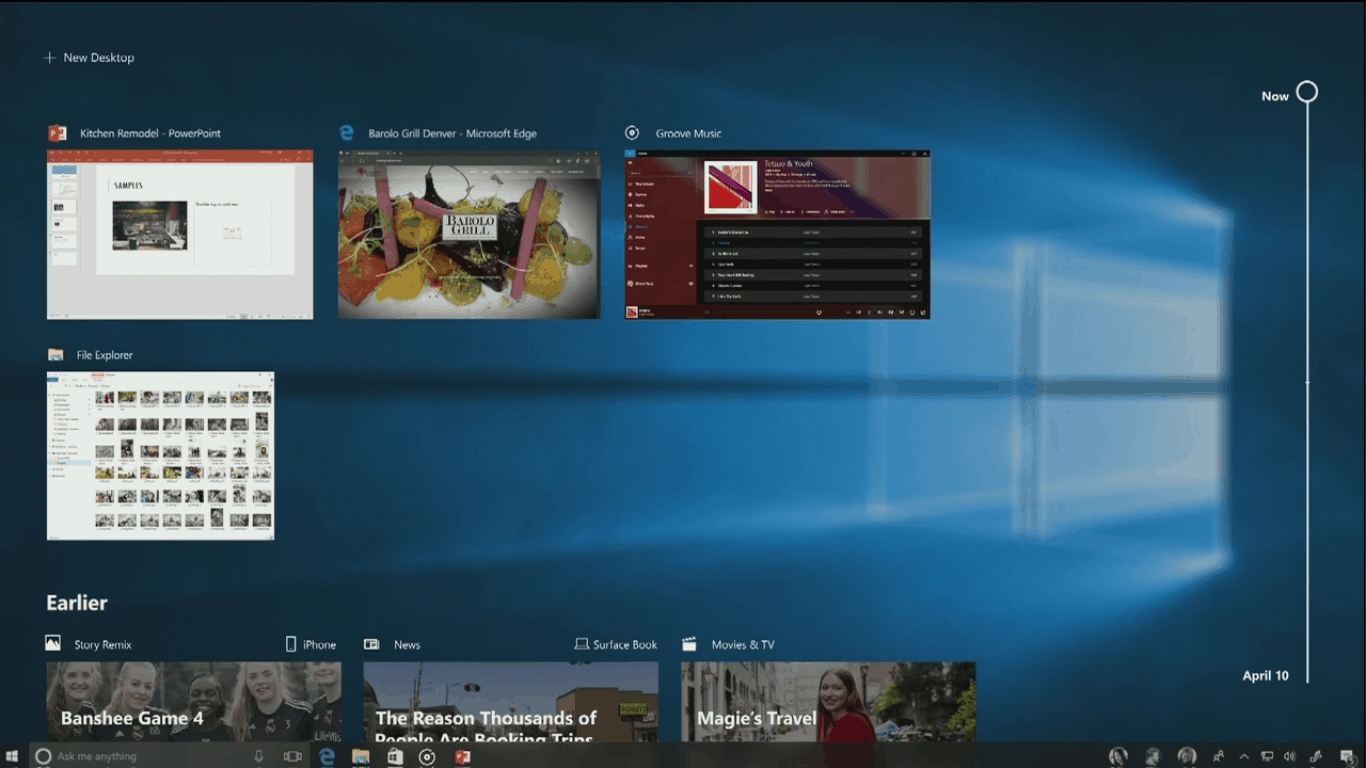
Again, this is just based an early report, so there’s no telling on what type of technology this feature will be depending on—but it can be assumed that it may be Bluetooth Classic and Bluetooth LE. There’s also no telling if the tech will be used with Microsoft’s own hardware, or only for other third-party accessories. Best to stay tuned for more, as given recent leaks about a new Cortana UI, and touches of Windows Timeline showing up in build 17040, a new build may be coming soon with the feature in tow.

Microsoft may be adding tabs to UWP apps on Windows 10

If we’re seeing more and more quality UWP apps land on the Windows Store these days, it’s safe to assume that most Windows 10 users are still ignoring most of them, except probably for stock apps like Mail and Calendar. Truth is, your web browser is probably the app you use the most on your PC: pretty much every service is accessible from the web, and the ability to quickly switch between browser tabs is more efficient than using dedicated apps.

Moreover, UWP apps are pretty limited compared to legacy desktop apps as of today. You can’t run multiple instances of the same UWP app, as an example, though OneNote is a rare exception. The Windows 10 Maps is another notable exception as it now supports tabs, though the implementation is not as simple as what you can find on any web browser.

Tab support is something that would make UWP apps much more usable, especially for the Office Mobile and other apps like OneDrive, Skype or Twitter. Fortunately, it seems that this is something that Microsoft is currently working working on, though details are pretty scarce for now.

Microsoft leaker WalkingCat recently shared some details about a new feature called “Windows Sets,” which was first discovered in the Windows 10 Preview build 16237. “Sets” is apparently Microsoft’s solution for bringing tab support to UWP apps, and WalkingCat revealed that it would be possible to open new app tabs as well as web tabs powered by Microsoft Edge in any UWP app.

https://twitter.com/h0x0d/status/933116000626622466

https://twitter.com/h0x0d/status/933139407917293568

It’s not clear where these two images do come from, but you can clearly see web tabs being accessible from Word Mobile and the Outlook Mail app, and they look just like any browser tab in Microsoft Edge. Moreover, the usually reliable Microsoft watcher revealed some code related to the new tab feature in the latest Redstone 4 build 17040.

https://twitter.com/h0x0d/status/933207412424577024

It remain to be seen if tab support for UWP apps could be introduced in future Redstone 4 builds, but this would definitely be a great addition for the next major Windows 10 update. Would tab support be something that makes you use UWP apps much more on your Windows 10 PC, or do you think this isn’t the killer feature that Microsoft’s UWP platform desperately needs to appeal to consumers and developers? Let us know what you think in the comments below.

Latest version of Vivaldi browser introduces Windows Panel to manage multiple tabs at once

Vivaldi, the popular alternate browser for Windows, released version 1.13 today which introduces a new Windows Panel feature that makes managing multiple tabs easier.

The Window Panel offers an easy way to manage multiple tabs at once by opening a ‘tree-style view of tabs’ on the side of the browser window. The panel gives an easy overview of all open tabs as a list. You can drag tabs to change their order, group tabs by topic to save space, and tile Tab Stacks to compare several web pages side by side. You can also pin tabs to ensure they always stay open or hibernate unused tabs or Tab Stacks for better performance.

Vivaldi offers more built-in options for managing tabs than any other modern browser. Users can choose where they want to position the tabs; they can navigate to them via their keyboard; group them and so on. The new Window Panel takes tab management to the next level.

– Jon von Tetzchner, CEO, Vivaldi Technologies

The latest release also brings several improvements in downloading files. There’s a warning dialog when closing the browser before a download is complete now, ability to pause and resume downloads, and the download speed is displayed in the download progress bar. The company claims that these features were top requests in the Vivaldi user community.

The new Window Panel feature is quite useful for people like me who work with a number of tabs. There’s also the complete rewrite of the window handling code that provides performance benefits, especially noticeable on older, slower hardware. You can read more about the v1.13 here.

How to use a PC as a TV for the Xbox

Xbox is a versatile gaming solution meaning you can play your games remotely from your console on any computer or even your TV on your home network.

Commonly referred to as game streaming, this feature lets you use PC as TV for Xbox so you can play from anywhere, not necessarily your living room, and play your favorite games with access to your home network.

Game streaming uses the console’s power so as to manage the games you play.

Your PC thus becomes a remote second screen, giving you the freedom to roam around the rooms in your home and still enjoy your games.

However, in order to use PC as TV for Xbox, there are a few system requirements you need to have in place to take advantage of game streaming.

These include:

  • An Xbox console with game streaming enabled in Settings
  • A Windows 10 PC, plus you need to be signed in to Xbox with the gamertag that matches the one on the console
  • Internet connection that connects both the PC and console in the same home network either through a wired or Ethernet connection, or a wireless 802.11 N/AC connection.

Other requirements for your PC include:

  • Minimum 2GB RAM
  • 5 GHz CPU or faster
  • Internet connection to home network. The best performance will be from an Ethernet wired connection (recommended), but you can get a good performance with a wireless connection of 5GHz 802.11 N or 11 AC wireless access. In connections with limited performance, the network connection should be about 2.4 GHz 802.11 N or 802.11 AC wireless access.

If you cannot have a wired Ethernet connection, either because of the distance between your console and networking device, you can try and use a PowerLine network adapter so you can take advantage of the electrical wiring in your home as a high speed wired network, or a Multimedia over Coax adapter to use the coaxial cable wiring as a high speed wired network.

Now that you have the requirements needed to use PC as TV for Xbox, you’re all set to start game streaming from your console to your PC.

How to use PC as TV for Xbox

In order to set off the game streaming process and use PC as TV for Xbox, you need to do the following:

  1. Enable settings on your Xbox
  2. Connect your PC to your Xbox

1. How to enable settings on Xbox

In order to use PC as TV for Xbox, you need to first enable game streaming from your Xbox settings. Here’s how to do this:

  • Press Xbox button to open the guide
  • Select Settings
  • Select Preferences
  • Select Xbox app connections and do the following:
    • Go to This Xbox and enable Allow game streaming to other devices
    • Go to Other devices and enable Allow connections from any device or Only from profiles signed in on this Xbox

How to connect your PC to your Xbox

Once your Xbox settings for game streaming are in order, the next step is to establish a connection from your PC to your Xbox console from the Xbox app on your computer.

Here’s how to do this:

  • Go to your PC and launch Xbox app
  • Select Connect from the left pane. Xbox app will scan your network for available consoles.
  • Select the console you want to connect to. Most consoles are pre-named MyXboxOne, so if you have more than one console, rename each accordingly that way it is easier to identify the console you want to connect to. In order to rename the console, press the Xbox button to open the guide, select System>All Settings>Console info, and then select your console’s name in the Name box
  • Once you’re connected, the icons will change to show that you are connected. New options will show for streaming, media remotes, and power. This means you can now control your console remotely.

You can also set up game streaming from the Connection panel by clicking Stream once your console is connected.

The next step is to launch your games from the Xbox app.

How to launch games from Xbox app on PC

In order to use PC as TV for Xbox and play your games, after establishing a connection and enabling game streaming on your console, the next thing to do is launch your games from the Xbox app.

Here’s how to go about this:

  • Connect your Xbox console to the PC as described above
  • Click on any game in the Xbox app
  • Initiate streaming from the game hub
  • Click Play from console in the top right hand side of the screen. This will immediately be launched on the console and streaming will begin.

There are other settings you can do to enjoy game streaming while you use PC as TV for Xbox, including changing streaming quality, or playing using Oculus Rift on your PC.

If you want to change the game streaming quality, you have to first connect your PC to your Xbox console, and select a quality level for the videos, which you can do before you start streaming, or while you’re at it. Setting to the highest quality level will give a great gaming experience.

Follow the steps below to change game streaming quality:

  • Go to Xbox app
  • Click Settings
  • Select Game streaming
  • Go to Video encoding level and select streaming quality. You can use either:
    • High quality: if your console and PC are connected to a wired Ethernet connection or are in the same room as the wireless router. You can start with this level then adjust till you get the best performance for your home network.
    • Medium quality: for wireless connections of 5 GHz, for a networked PC and console in different rooms
    • Low quality: for wireless 2.4 GHz networks and low end PC and tablet

If you want to play games using Oculus Rift, your console and PC need to be on the same wireless network based on the system requirements described at the beginning of this article.

Use the steps below to play games using Oculus Rift:

  • Turn on your Xbox console and sign in
  • Go to your PC and sign in to the Xbox app with the same gamertag on the console
  • Open Oculus app and sign in with your Oculus account
  • Search for Xbox
  • Install Xbox One streaming
  • Open Xbox One streaming and choose your Xbox. If only one Xbox is turned on, it will be chosen automatically, otherwise if there’s none, you need to turn on your console and sign in. if, however, you need an IP address to sign in, check Settings>Network>Network settings>Advanced on your Xbox.
  • Wear your Rift headset and start playing games

While streaming from your console to Oculus, the Xbox button opens Oculus universal menu instead of Xbox home. You can move your head to aim the cursor at the virtual Xbox button, then press A or long press A to act on notifications and/or open the power menu.

Need to switch the account you use with the Xbox app or your console? Learn how to change email on Xbox to keep sign-in and streaming seamless.

In order to adjust the quality of game streaming, move your head and aim the cursor at the Network icon at the bottom of the screen then select a preferable level.

Have you managed to use PC as TV for Xbox and play games on your console? Let us know your experience by dropping your message in the comments section below.

RELATED STORIES TO CHECK OUT:

iTunes Doesn’t Recognize iPhone on Windows 10/11

Even if you’re using iCloud to store pictures, music, videos, and documents form your iPhone device, you’ll occasionally have to connect it with your PC, as well.

So, if you’re using a Windows 10 PC, and you’re not able to connect it with your iPhone, you’re not alone, as people are reporting this issue since the launch of the system.

We prepared a couple of solution for the problem with connecting iPhone and Windows 10, and we hope it will be helpful, in case you’re encountering this problem, as well.

What can I do if iTunes doesn’t recognize iPhone in Windows 10?

Not being able to connect your iPhone with your PC can be a big problem, but users reported the following issues as well:

  • iPhone not showing up in iTunes Windows 10 – According to users their iPhone is detected by Windows, but they can’t access it in iTunes at all.
  • iPhone won’t connect to iTunes invalid response – Sometimes you might get Invalid response error message while using iTunes. If you’re having this problem, be sure to try one of our solutions.
  • iTunes doesn’t recognize iPhone 7, iPhone 6s, iPhone 5, iPhone 4, iPhone 3GS – Many users reported this problem on their PC, and according to them, this issue can affect almost any iPhone model.
  • iTunes doesn’t recognize iPhone recovery mode, WiFi – Several users reported this issue while using recovery mode or Wi-Fi on their iPhone. This can be a big problem since you won’t be able to access your files at all.
  • iTunes iPhone Operation timed out, doesn’t show up, won’t sync – There are various problems that can occur with iTunes, and many reported that their iPhone doesn’t show up or sync with iTunes.
  • iTunes iPhone keeps disconnecting, cannot be found – Several users reported that their iPhone keeps disconnecting. In some serious cases iPhone can’t be found by iTunes at all.
  • iTunes iPhone not showing, not detected – These are common problems with iPhone and iTunes. Many users reported that their iPhone isn’t showing, but in some cases your iPhone might not be detected at all.

Solution 1 – Check if Apple Mobile Device Support is running

Apple Mobile Device Support is a software needed for synchronizing between iTunes on your computer and iPod or iPhone.

So, if this software doesn’t work properly, the connection between devices is not possible. This software is installed along with iTunes, so you don’t have to install it separately.

To make sure Apple Mobile Device Support works properly, do the following:

  1. Go to Search, type services.msc, and open Services.
    iPhone not showing up in iTunes Windows 10
  2. Find Apple Mobile Device Service, right-click on it, and choose Properties.
    iPhone won't connect to iTunes invalid response
  3. Make sure that Startup type is set to Automatic, and Service status is set to Running.
    iTunes doesn't recognize iPhone 6s
  4. Restart your computer, and try to connect your iPhone with your Windows 10 PC again.

If you’re still unable to connect the two devices, try some of the solutions listed below.

Solution 2 – Update Drivers

There are two ways to update iPhone drivers on your Windows 10 computer. First, we’re going to try easier, regular way:

  1. Go to Search, type device manager, and open Device Manager.
    iTunes iPhone not detected
  2. Find Apple iPhone, and right-click on it. Choose Update driver.
    iPhone not showing up in iTunes Windows 10
  3. Select Search automatically for updated driver software.
    iPhone won't connect to iTunes invalid response
  4. Wait for the installer to install all necessary updates, if any are found.

If you’re still unable to connect your iPhone, try the second way:

  1. Plug in the iPhone into your Windows 10 computer, and wait until Safely remove hardware and eject media icon appears (if the icon doesn’t appear, try different USB port).
  2. Right-click on the icon, and choose Open Devices and Printers.
  3. Under Unspecified, find your iPhone device.
  4. Right-click on it, and choose Properties.
  5. Go to Hardware > Properties > Driver.
  6. Choose Update Driver.
  7. Now select Choose browse my computer for driver software.
    iTunes iPhone Operation timed out
  8. Enter C:Program FilesCommon FilesAppleMobile Device Support in the Search for drivers in this location. Check Include subfolders option and click on Next.
    iTunes iPhone cannot be found
  9. Missing drivers will now automatically install.

Update drivers automatically (suggested)

The safest way to update drivers on a Windows computer is by using an automatic tool. We strongly recommend using dedicated driver updater software.

A dedicated tool will automatically identify each device on your computer and matches it with the latest driver versions from an extensive online database.

This way you will avoid mismatching your drivers with your devices which can cause additional problems.

There are many good driver management software. Many users report great results from using Fortect Driver Updater. Not only can it update your drivers, but it can also fix any problematic files within them.

After you install the software and update your drivers, check to see if iTunes detects your iPhone.

Solution 3 – Disable VPN

Some users also say that they’re not able to connect their iPhone devices with the Windows 10 PC, when the VPN is turned on. So, in order to solve the problem, we’ll try disabling VPN on your iPhone device.

To disable VPN on your iPhone, do the following:

  1. Open Settings on your iPhone device.
  2. Tap General.
  3. Tap VPN
  4. Tap on Delete Profile.
  5. Confirm that you would like to delete this profile by tapping Delete again

Solution 4 – Reinstall iTunes

And finally, if you’re using an older version of iTunes, there’s a chance it isn’t compatible with Windows 10.

So, make sure you have the latest version of iTunes (which also means the latest version of Apple Mobile Device Support) installed on your computer.

You can download the latest version of iTunes from this link, and you can see how to install it from the link below.

Solution 5 – Install Media Feature Pack

Many users reported that iTunes doesn’t recognize iPhone on their PC. If you’re having this problem, the issue might be related to the missing Media Feature Pack.

This feature is missing from N and KN versions of Windows, but you can easily install it on your own. To do that, follow these steps:

  1. Go to the Media Feature Pack download page.
  2. Click on Download button.
    iTunes iPhone keeps disconnecting
  3. Select x64 or x86 version depending on the system you use and click on Next.
    iTunes iPhone not showing
  4. After you download this tool, install it.

Once you install Media Feature Pack the issue should be completely resolved.

Solution 6 – Make sure that your iPhone is unlocked

If iTunes doesn’t recognize iPhone on your PC, the problem might be because your iPhone is locked. This is just a minor problem, and in order to fix it, you just have to unlock your iPhone’s screen prior to connecting it to your PC.

Simply unlock your iPhone and then connect it to your PC using the USB cable. After your iPhone is unlocked, iTunes should be able to recognize it without any problems.

If your iPhone is unlocked but you still cannot finish the initial transfer, the issue may be with Quick Start. In that case, see how to fix Quickly Set Up iPhone not working for detailed steps.

Solution 7 – Connect your iPhone to a USB 2.0 port

Several users reported that iTunes doesn’t recognize iPhone on their Windows 10 PC. According to users, the problem is USB 3.0 port. Even though USB 3.0 is faster, many users reported issues while connecting iPhone to it.

If you’re having this problem, just connect your iOS device to USB 2.0 port on your PC and the problem should be resolved. Keep in mind that USB 2.0 offers lower transfer speed, but it should recognize your iPhone without any issues.

Few users reported that disconnecting other USB devices from your PC can also help you fix this problem. If you’re using a USB hub, disconnect your device from it and connect it directly to your PC.

Solution 8 – Check your cable

Many users reported that iTunes doesn’t recognize iPhone on their PC. According to them, the problem might be your USB cable. Users report that using a third-party cable can cause this problem to occur.

If you have this issue, be sure to replace your cable and check if that solves the problem. Users reported that they can use third-party cables for charging, but they are unable to use them for file transfer.

To fix this problem, try using the original iPhone cable and check if that solves the issue.

Solution 9 – Reinstall your iPhone drivers

If iTunes doesn’t recognize iPhone, you might want to try reinstalling its drivers. This is rather simple and you can do it by following these steps:

  1. Connect your iPhone to your PC.
  2. Now press Windows Key + X to open Win + X menu. Select Device Manager from the list.
    iTunes doesn't recognize iPhone 7
  3. Locate your iOS device on the list and right click it. Now choose Uninstall device from the menu.
    iTunes doesn't recognize iPhone recovery mode
  4. If available, check Delete the driver software for this device and click on Uninstall button.
    iTunes iPhone Operation timed out

After deleting the driver, simply reconnect your iOS device and Windows 10 will reinstall the missing drivers. After doing that, your iPhone should be recognized.

Solution 10 – Install the latest updates

If you’re having problems with your iPhone, you might want to install the latest Windows updates. Sometimes iTunes doesn’t recognize iPhone because certain drivers are missing or outdated, but you can easily fix that by installing the missing updates.

By default, Windows 10 automatically installs the missing updates, but you can also install them manually by doing the following:

  1. Open the Settings app. You can do that quickly by pressing Windows Key + I shortcut.
  2. When Settings app opens, navigate to Update & security.
    iTunes doesn't recognize iPhone recovery mode
  3. Now click on Check for updates button.

Windows will now check for available updates and install them. After the updates are installed, check if the problem is resolved.

Solution 11 – Reset Location & privacy

According to users, you might be able to fix this problem simply by resetting location and privacy settings on your iPhone. To do that, follow these simple steps:

  1. Go to Settings > General.
  2. Now select Reset.
  3. Select Reset Location and Privacy.
  4. You might be asked to enter your passcode. After doing that tap on Reset Settings.

After you reset your location and privacy settings, the issue should be resolved.

That’s about it, at least one of these solutions solved the problem for the majority of users who faced the issue with connecting their iPhone and Windows 10 devices.

If you have any suggestions or questions, just write them down in the comments section below.

Watch this guy use the Xbox One X on an old CRT TV

There are some things in this world that happen for no worldly reason, but you can’t help but want to see. One of those things, you may realize, is watching the Xbox One X being played on an old CRT television. This clunker of a display is a relic of years’ gone by, and there’s no reason you should be trying to use such an advanced piece of hardware on it — but the YouTube channel My Mate VINCE did it anyway.

It took a series of adapters to get the console to function with the CRT TV, considering the Xbox One X only outputs in HDMI. Additionally, even if you get it to work, the picture still looks a little bit off. The One X is displaying content at a higher resolution than the poor CRT can handle, so it’s struggling to show you anything good. If you have these adapters and absolutely must try your curiosity of what the Xbox One X would look like on a TV from 15 years ago, this video is your jam.

Object Theory releases Prism, a HoloLens collaborative experience

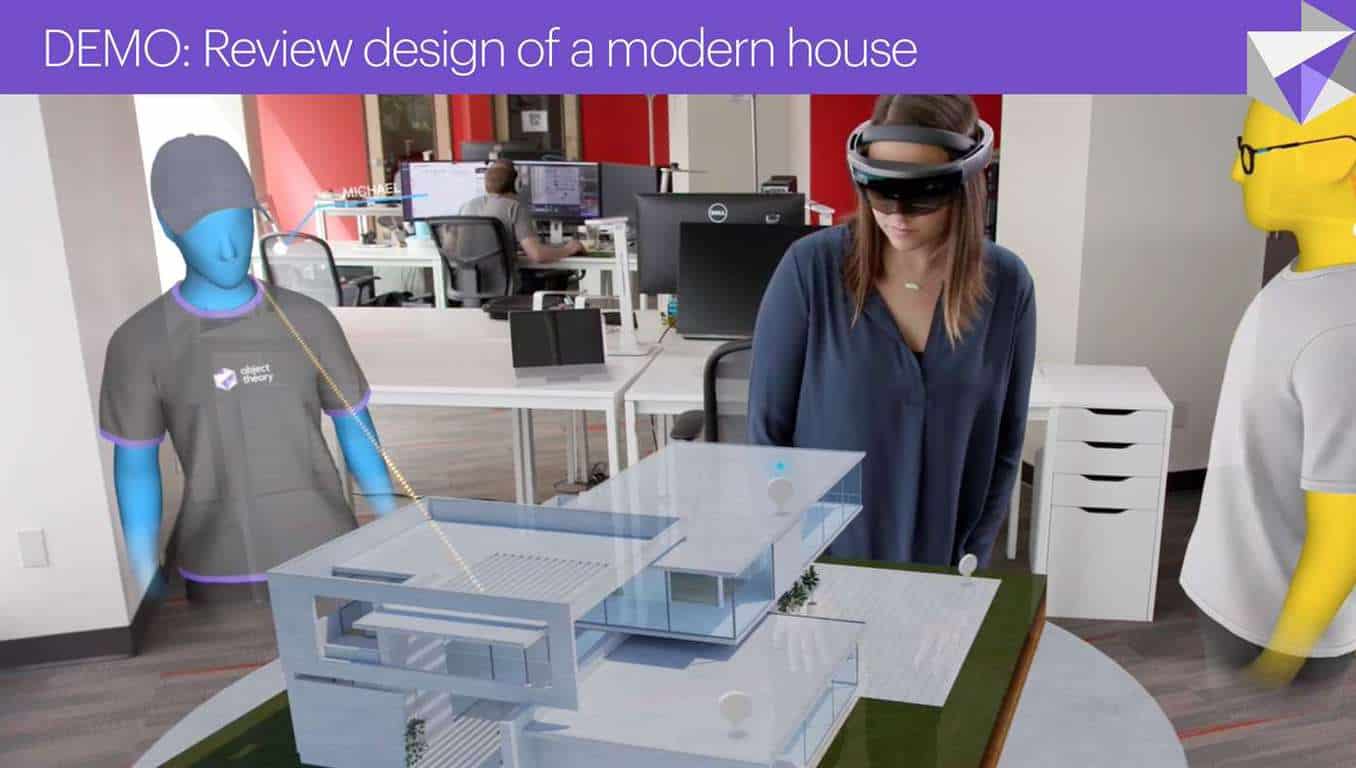
Object Theory, the world’s first HoloLens company, and member of Microsoft’s Mixed Reality Partner Program, announced today the release of Prism, a HoloLens collaborative experience. Also a core part of Microsoft’s Alex Kipman’s vision for HoloLens, Prism represents a step forward in collaborative computing since it is an avatar based holographic telepresence application.

At heart, Prism demonstrates the power of the Object Theory Mixed Reality Collaboration Service, helping organizations design and build holographic shared experiences by allowing collaboration in real time from remote locations. With Prism, four participants can participate per session via HoloLens, and a demo experience is included in the HoloLens app now on the Windows Store— designing a modern house and planning a mountain hike on Mount Hood, Oregon’s highest peak.

Other features of the application can be seen below.

  • Avatar-based holographic telepresence
  • Spatial audio chat
  • Shared experience supporting up to four networked users at a time
  • Demo experiences – designing a house and planning a mountain hike
  • Display of 3D models at tabletop and true-scale sizes
  • Annotations in 3D space

Object Theory works with organizations across multiple industries to design and build experiences for Microsoft HoloLens and Windows Mixed Reality. They are known for providing end-to-end services, from envisioning through delivery, with a focus on strategy, user experience, and development. The company was founded on the belief that mixed reality will have a transformative impact on the way we work, live, and play.

Prism by Object Theory
Developer:
Object Theory
Price:
Free

Lenovo Explorer Windows Mixed Reality headset now on sale at Microsoft Store for $299

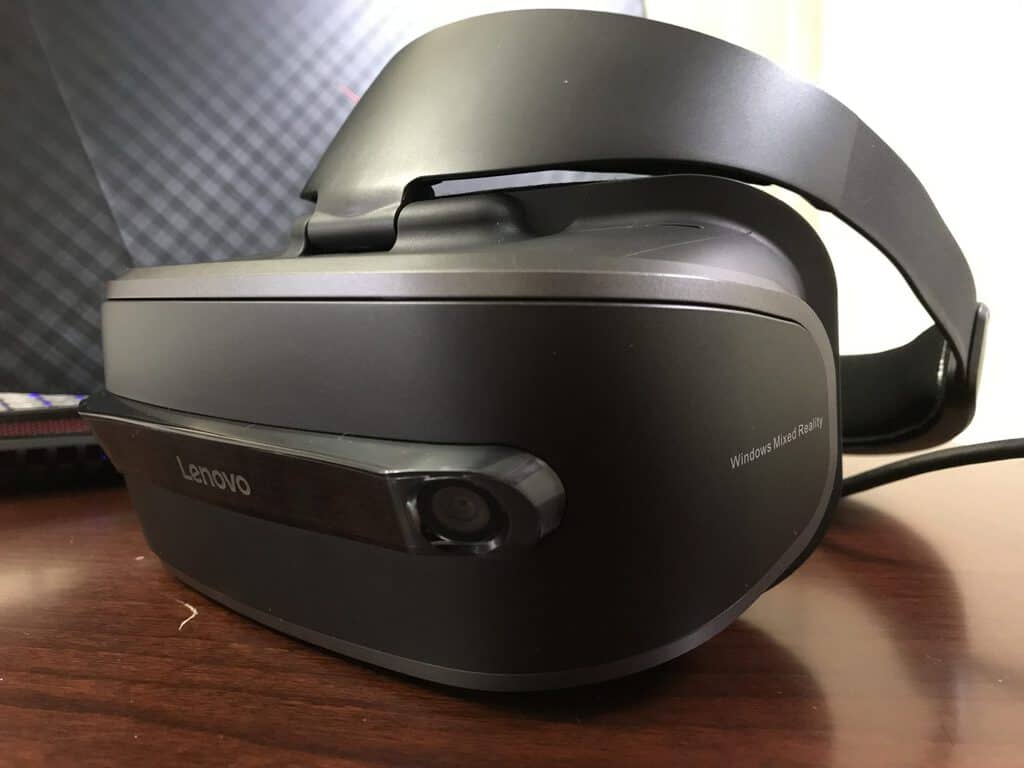
One of the cheapest ways to enter the world of Windows Mixed Reality is by purchasing the Lenovo Explorer, but it’s now even cheaper. From now until November 27, the Lenovo headset is on sale for $299, a nice $100 discount from the regular $399 selling price at the Microsoft Store.

Similar to the other Windows Mixed Reality headsets, the Lenovo Explorer plugs into a compatible PC running the Windows 10 Fall Creators Update via HDMI and USB 3.0 ports. As we highlighted in our unboxing last week, the Lenovo headset is sleek, comfortable, and light, and features 12 feet of cable length allowing you to move around the room and your PC to experience Windows Mixed Reality. As standard, the headset also packs inside out tracking, and two 2.89-inch LCD displays at 1440×1440 resolution, for up to 105 degrees horizontal field of view.

This is just one small part of Microsoft’s upcoming Black Friday sales. There will be other great deals on Surface, Xbox, PCs, and more, so be sure to head over to the Microsoft Store today and check out all the deals before it’s too late.

Strap on your headsets: latest Minecraft update adds support for Windows Mixed Reality

The Minecraft for Windows 10 app has received an important update today, especially if you own one of the first Windows VR headsets released last month. While the game could already be played as a 2D app in Windows Mixed Reality, today’s update brings the full Minecraft VR experience which was already available on other VR platforms.

“We’ve already dabbled in VR with our support for the Oculus Rift and Gear VR. Now, Windows Mixed Reality brings you even more options to 3D-ify your crafty fun, and requires next to no set-up,” explained developer Mojang. “Just plug the headset into the USB slot and you’re good to go.”

In addition to full VR support, the version 1.2.5 of Minecraft also brings built-in support for Mixer live-streaming on Windows 10, Xbox One and Android today. You can now launch a Mixer broadcast from within Minecraft and easily interact with other players, and the Mixer team has created a dedicated map to try this new feature.

The Jackbox Party Quadpack video game bundle out now on Xbox One

The Jackbox Party Quadpack is now available to download and play on Microsoft’s family of Xbox One consoles. This special bundle contains You Don’t Know Jack 2015 and The Jackbox Party Packs 2 through 3. Here’s the list of the full content.

  • YOU DON’T KNOW JACK 2015: Fibbage, Drawful, Lie Swatter, Word Spud
  • The Jackbox Party Pack 2: Quiplash XL, Fibbage 2, Earwax, Bidiots, Bomb Corp
  • The Jackbox Party Pack 3: Trivia Murder Party, Guesspionage, Tee K.O., Fakin’ It, Quiplash 2
  • From The Jackbox Party Pack 4: Fibbage 3 (with new game mode Fibbage: Enough About You), Survive the Internet, Monster Seeking Monster, Bracketeering, Civic Doodle

The Jackbox games are designed for groups of friends and can be played locally or online via smartphones that are connected to unique online rooms generated by the Xbox One game. Are you a Jackbox game fan? Let us know your favorites in the comments below.

The Jackbox Party Quadpack

The Sims 4 not saving on Xbox One? Here’s a possible solution

The Sims 4 is now available on the Xbox One, but many gamers already regret purchasing the game due to one game-breaking bug: progress won’t save. As a matter of fact, this problem pushed many gamers to write negative reviews about the Xbox One edition of The Sims 4.

At the time of writing this article, the game has a 2.1 score on Metacritic. That says a lot!

the sims 4 xbox one


EA’s working on a fix

The good news is that EA officially acknowledged the issue and confirmed that a hotfix would be rolled out as soon as possible.

Thanks to everyone who answered my questions to help us investigate this problem. We do not need more information at the moment, but again, thanks for taking the time to explain what you did in your games before it stopped saving! For those of you who are wondering, in case you missed my previous posts – yes, the team is working on this, that’s why I asked you for information

How to fix The Sims 4 saving issues

Meanwhile, a resourceful gamer found a workaround that you can use to solve the problem. Here are the steps to follow:

  1. Instead of saving your game progress, select “Manage worlds” > go to Worlds without saving.
  2. Press the menu button and return to the main menu without saving.
  3. Go back and load the autosave for your character.
  4. You should now be able to save your game progress.

Many players confirmed that this solution works. So, if The Sims 4 won’t save on your Xbox One, do follow the steps listed above and let us know if you managed to solve the problem.

Should you encounter the same problem on PC, we have a dedicated article on how to fix this issue.

RELATED STORIES TO CHECK OUT:

Fix: ‘Get Windows 10 App’ Icon Disappears

Microsoft released Get Windows 10 app for all genuine Windows 7 and Windows 8 users to reserve a free copy of Windows 10 for themselves. But what if somehow ‘Get Windows 10’ icon disappears from the taskbar? Don’t worry, there are a couple of solutions that could fix this issue.

Get Windows 10 App Icon is missing, here’s how to restore it

Many users reported that Get Windows 10 app is missing on their PC, and in this article we’ll show you how to fix the following problems:

  • Windows 10 update icon not showing – Many users reported that Windows 10 update icon isn’t showing at all on their PC. If you’re having this problem, you might be able to fix it by using one of our solutions.
  • Get Windows 10 app icon not working, appearing, visible, loading, opening, displayed, currently active – Users reported various problems with Get Windows 10 app, and according to them, the app isn’t working at all on their PC.
  • Get Windows 10 icon missing, disappeared – Several users reported that Get Windows 10 icon is missing from their PC. According to users, it seems that the icon has disappeared completely.
  • Get Windows 10 app white screen – Several users reported only a white screen while using Get Windows 10 app. This is a big problem that will prevent you from upgrading to Windows 10.
  • Get Windows 10 app taking a long time – Many users reported that Get Windows 10 app is rather slow on their PC. If you have this problem, you might want to try some of our solutions.
  • Get Windows 10 app opens then closes – Users reported that Get Windows 10 app crashes on their PC. This can be a big problem and prevent you from upgrading to Windows 10.

Solution 1 – Show all icons on the taskbar

There’s a possibility that Get Windows 10 icon is still there, but hidden. To check if this icon is hidden, do the following:

  1. Right-click on date/time section in the right corner of taskbar.
  2. Select Customize notification icons.
  3. Check Always show all icons and notifications on the taskbar.

If your Get Windows 10 icon is hidden, it will show up now, otherwise try some other solutions listed below.


Solution 2 – Enable Get Windows 10 in Registry Editor

There’s a registry tweak which enables or disables Get Windows 10 app and its icon. It might be that a registry settings on your computer is set to hide the icon. To perform this registry tweak, follow the instructions listed below:

  1. Press Windows Key + R. Enter regedit and press Enter or click OK.
    Windows 10 update icon not showing
  2. Navigate to the following path:
    • HKEY_LOCAL_MACHINESOFTWAREPoliciesMicrosoftWindowsGWX
  3. Find DWORD named DisableGWX and set its value to 0. Click OK to save changes.
    Get Windows 10 app icon not appearing
  4. You maybe don’t have GWX folder in your Registry, in that case go to the following path:
    • HKEY_LOCAL_MACHINESOFTWAREMicrosoftWindows NTCurrentVersionAppCompatFlagsUpgradeExperienceIndicators
      Get Windows 10 icon disappeared
  5. Find UpgEx and UpgExU and make sure their values are set to Green.
  6. Also make sure that the value of Genuine is set to 1.
  7. Close the Registry Editor and restart your computer

Solution 3 – Manually Run Get Windows 10 App

If none of above workarounds did the job, you can try to manually run Get Windows 10 App. Here’s what you need to do:

  1. Press Windows Key + R and enter cmd. Press Enter or click OK.
    Windows 10 update icon not showing
  2. Enter the following command and press Enter:
    • C:WindowsSystem32GWXGWXConfigManager.exe /RefreshConfig
      Get Windows 10 app icon not working
  3. Now add this command and press Enter:
    • C:WindowsSystem32GWXGWX.exe /taskLaunch
      Get Windows 10 icon missing

Solution 4 – Make sure that your Windows is compatible for Windows 10 upgrade

If Get Windows 10 App icon is missing from your Taskbar, you need to be sure that your Windows is eligible for Windows 10 upgrade. In order to upgrade to Windows 10, you need to have a genuine copy of Windows 7 or Windows 8. If your Windows isn’t genuine, you won’t see Get Windows 10 App icon at all.

In addition to having a genuine Windows, you need to have the latest major update installed. If you’re on Windows 7, you need to have Service Pack 1 installed in order to upgrade. As for Windows 8, you’ll need to install Windows 8.1 upgrade before you can upgrade to Windows 10.

If your Windows is genuine and you have Windows 7 Service Pack 1 or Windows 8.1, the Get Windows 10 App icon should appear soon.


Solution 5 – Download the latest updates

If Get Windows 10 App is missing, that might be due to missing updates. As previously mentioned, in order to upgrade to Windows 10, you need to have Windows 7 Service Pack 1 or Windows 8.1 installed.

However, that’s only one requirement. Get Windows 10 App is distributed via Windows Update, and in order to install it, you need to download and install the latest Windows updates.

If your Windows isn’t up to date, be sure to download the latest updates. After installing the missing updates, restart your PC and check if the Get Windows 10 App icon appears.


Solution 6 – Check your hardware

Windows 10 has certain software requirements, but there are also hardware requirements you need to fulfill in order to upgrade to Windows 10. If Get Windows 10 App icon is missing, the reason might be your hardware.

According to users, Get Windows 10 App icon won’t appear unless your PC meets the hardware requirements. If your PC doesn’t meet the hardware requirements, you might not be able to upgrade. If that’s the case, you might want to consider upgrading your hardware.

Few users also reported that Get Windows 10 App icon will become available even if your hardware isn’t fully compatible, so you just have to be patient.


Solution 7 – Install the latest version of Internet Explorer

Many users reported that Get Windows 10 App icon is missing from their Taskbar. If you have the same problem, the issue might be Internet Explorer. If you’re using Windows 7, you need to install Internet Explorer 11 before you can upgrade to Windows 10.

If you don’t have the latest version of Internet Explorer, be sure to download it and check if that solves the problem. Keep in mind that this issue affects only Windows 7 users. If you’re using Windows 8.1, you already have Internet Explorer 11, so there’s no need to update it.

Solution 8 – Check if Internet Explorer is enabled

As previously mentioned, Get Windows 10 App requires Internet Explorer, and if Internet Explorer is disabled, you won’t be able to upgrade. To check if Internet Explorer is enabled on your PC, you need to do the following:

  1. Open Control Panel.
  2. Once Control Panel opens, navigate to Programs and Features.
    Get Windows 10 app white screen
  3. When Programs and Features window opens, click on Turn Windows features on or off from the menu on the left.
    Get Windows 10 app taking a long time
  4. When Windows Features window opens, locate Internet Explorer and make sure that it’s checked. Now click on OK to save changes.
    Get Windows 10 app opens then closes

After making these changes, be sure to run Windows Update in order to update Internet Explorer to the latest version. Once Internet Explorer is updated, check if the issue appears.


Solution 9 – Install the required updates manually

If Get Windows 10 App is still missing, you might be able to fix the problem simply by manually installing the required updates. In order to upgrade to Windows 10, you need to download KB3035583 update first.

The update is available for free, and you can download it right from the Microsoft’s website. There are two versions available, for Windows 7 and Windows 8. In addition, both versions are available for 32-bit and 64-bit systems, so be sure to download the version that matches your system’s architecture.

If you already have this update installed on your PC, be sure to reinstall it and check if that solves the problem.


Solution 10 – Use Get Windows 10 App Troubleshooter

If the Get Windows 10 App doesn’t appear on your PC, you might be able to fix the problem by using the Get Windows 10 Troubleshooter. Microsoft is aware of this problem, and it has released a troubleshooter that can help you to diagnose and fix the issue. To use the troubleshooter, do the following:

  1. Download Get Windows 10 App Troubleshooter.
  2. Once you download the file, double click it to run it.
  3. When the troubleshooter opens, click on Next.
    Get Windows 10 app white screen
  4. Troubleshooter will now scan for problems and try to fix them.

After the troubleshooting process is finished, check if the issue still appears.


Solution 13 – Create a Command Prompt script

If the issue still appears, you might be able to solve it simply by creating a Command Prompt script. To do that, just do the following:

  1. Open Notepad.
  2. Paste the following lines:
    • REG QUERY “HKLMSOFTWAREMicrosoftWindows NTCurrentVersionAppCompatFlagsUpgradeExperienceIndicators” /v UpgEx | findstr UpgEx
    • if “%errorlevel%” == “0” GOTO RunGWX
    • reg add “HKLMSOFTWAREMicrosoftWindows NTCurrentVersionAppCompatFlagsAppraiser” /v UtcOnetimeSend /t REG_DWORD /d 1 /f
    • schtasks /run /TN “MicrosoftWindowsApplication ExperienceMicrosoft Compatibility Appraiser”
    • :CompatCheckRunning
    • schtasks /query /TN “MicrosoftWindowsApplication ExperienceMicrosoft Compatibility Appraiser”
    • schtasks /query /TN “MicrosoftWindowsApplication ExperienceMicrosoft Compatibility Appraiser” | findstr Ready
    • if NOT “%errorlevel%” == “0” ping localhost >nul &goto :CompatCheckRunning
    • :RunGWX
    • schtasks /run /TN “MicrosoftWindowsSetupgwxrefreshgwxconfig”
  3. Click on File > Save as.
    Get Windows 10 app taking a long time
  4. Choose a save location for your file. The best location might be a root directory, such as C:, since you’ll need to run the script. Set Save as type to All Files and enter w10.cmd as the File name. Now click the Save button.
    Get Windows 10 app opens then closes
  5. Start Command Prompt as administrator. To do that, press Windows Key + X and choose Command Prompt (Admin).
    Windows 10 update icon not showing
  6. When Command Prompt starts, you need to navigate to the directory where w10.cmd is saved. If you saved the file in C: directory, you need to enter the following:
    • cd C:
    • w10.cmd
      Get Windows 10 app icon not visible

After running the script, it will take about 10-30 minutes for the process to finish. If using this script doesn’t solve the problem, your PC probably doesn’t have the necessary software requirements to install Windows 10.


Solution 12 – Use Media Creation Tool

If you still have this problem and you can’t access Get Windows 10 App, you might want to try using a different application. Microsoft released a standalone tool for upgrading to Windows 10 called Media Creation Tool.

This is a free and simple tool that will download the necessary files and upgrade your PC to Windows 10 without affecting your files. If the previous solutions didn’t work for you, be sure to try using Media Creation Tool to upgrade to Windows 10.

That’s it, at least one of these workarounds should solve your problem with the missing Get Windows 10 app, otherwise, reach for the comments, and we’ll try to provide you with additional support.


READ ALSO:


Latest Windows 10 Insider build 17040 includes Windows Timeline features

Back at Build 2017, Microsoft’s Joe Belfiore demoed Windows Timeline, a feature intended for the Windows 10 Fall Creators Update, meant to help a user resume apps and content from their other (iOS, Android, and Windows) devices. Unfortunately, the feature didn’t make the cut and instead is being developed for the upcoming Spring Redstone 4 release.

As expected, the latest Windows 10 Insider build includes some functions for Windows Timeline, putting in place the necessary settings and links to control future Timeline content (via ITPro.)

In Windows Insider build 17040, these settings are accessible by navigating to Privacy, and then selecting activity history from the sidebar. There’s a helpful explainer on the page, detailing the settings are for Activity History, eventually allowing the user to “jump back into what you were doing with apps, docs or other activities on your PC or your phone.”

Seen below, the user can turn this off from, or clear a device’s activity history altogether. Again, to be clear, there is still no user interface elements for Windows Timeline, but just a settings page for it, likely meaning the final feature could be coming soon.

Activity History settings

Interestingly, the setting page also includes a link to manage activity information, which takes the user to an updated Microsoft Privacy Dashboard. This page shows all information which the user granted permission for Microsoft to collect, including the full audio playback of Cortana searches, Bing searches, and location history. The data can be deleted, and this is not some jaw-dropping stuff, but it is obviously the content which will be a crucial part of Windows Timeline in the future.

Privacy Dashboard

Given these settings and the updated Privacy Dashboard, one can hope that Windows Timeline will come to its full fruition soon in the Spring. For now, users interested in continuing their experiences across devices can try out the Edge app on iOS and Android, the Continue on PC app, or the new Near Share feature for Windows Insiders.

Microsoft Launcher reaches one million active users, was the #1 trending app in Google Play Store last week

The Microsoft Launcher has gone a long way since its debut as the “Arrow Launcher” under the Microsoft Garage banner. The app is now a key part of Microsoft’s new mobile strategy, which aims to better integrate its various services on iOS and Android devices.

A little more than a month after Microsoft officially unveiled it, the new Microsoft Launcher now has 1 million active users according to Microsoft UX Designer Joshua Bradley. Even better, the launcher was the #1 trending app in the Google Play Store last week, though that’s no longer the case at the time of this writing.

https://twitter.com/jshbrdly/status/931611673269374976

According to the store listing on Google Play, the app launcher has been downloaded more than five million times and it currently has a 4.6 rating. The app can be a nice replacement for your default Android home screen, offering Bing wallpapers that refresh daily, a personalized feed to check the news, events, and contacts you want to see and plenty more customization options. More importantly, the Microsoft Launcher can link your Android phone to your Windows 10 PC, letting you instantly push photos or documents to the bigger screen.

One million active users doesn’t seem much compared to the 2 billion monthly active users on the Android platform, but it’s still impressive considering that Microsoft has just started to actively promote this app to Android users. The company is also iterating fast with frequent updates, and the app should soon become a must-have for the Microsoft fans moving to Android.

Do you already use the Microsoft Launcher on your Android phone? If you don’t, we invite you to give it a try with the download link below.

Microsoft Launcher
Microsoft Launcher
Price:
Free

Speech therapy/language training software for Windows

Language training or speech therapy software assists individuals to regain their speech skills that have been impaired due to brain injury, strokes or learning difficulties.

Fortunately, these days our computers are able to help us with communication, and they can provide necessary therapy to those in need who have issues with their communicating and understanding abilities.

Such speech therapy programs are able to maintain progress following speech therapy, and they can also help patients boost their self-esteem which is an essential factor to consider.

There are various speech therapy tools out there, and we gathered five of the best ones.

Speech therapy software for better articulation skills

  1. Bungalow software

The Bungalow speech and language software works pretty similar to the way a speech therapist provides this kind of therapy.

The program is based on clinically proven therapy techniques, and until now, it managed to help more than 20,000 patients.

Take a look at the most important features of this speech therapy software:

  • The program prompts the patient with a cue that can be a picture, a spoken question, a movie or a story.
  • The patient will respond by answering a question.
  • The software evaluates the answer, and it provides feedback.
  • The patient can try again and again until they provide the right answer.
  • This program can help patients improve their speech and language skills as well.
  • The program is interactive, and it provides feedback and helpful hints for the patient.
  • Patients can work with Bungalow at the limit of their ability to make some real progress.
  • Patients are able to work at their own pace.
  • The program can be used both at home or in the clinic.
  • Bungalow can provide fantastic home therapy practice.
  • The software can help extend speech therapy.

Bungalow’s programs mimic perfectly the practice speech therapy that experts use with their patients.


2. Video Voice Speech Training System

The Video Voice Speech Training System is able to turn your computer into a robust, comprehensive speech development tool.

Its therapist-defined content and the adaptable operation of this service make it really useful for ages ranging from early childhood to geriatric.

Take a look at the most impressive features that come along with this software:

  • This is an innovative and flexible speech therapy software.
  • You will get regular software updates for free.
  • The latest release includes a new International/Simplified operating mode.
  • This service offers a wide variety of entertaining, motivational, and graphics displays.
  • It also includes lots of games and many apps for developing speech skills.
  • There is visual feedback on volume, pitch, vowel production and more.
  • The multi-frequency displays will help work on high-frequency sound distortions.
  • This software is easy to learn and navigate.
  • It comes with built-in documentation.
  • The mouse tool tips and more visual cues make using this tool effortlessly.
  • It also provides recommended strategies for success.

The displays and games improve therapy results with speech issues that are related to apraxia, autism, head injuries, strokes, hearing impairment, cerebral palsy, mental or emotional challenges, oral motor articulation deficits and more disabilities.


3. lingWAVES

This is a leading tested product for voice and speech analysis, documentation, and biofeedback. lingWAVES managed to become one of the most popular systems for professional voice and speech analysis on the market.

Check out the service’s most important features below:

  • The program is a combination of standard and the latest technical analysis.
  • It mixes processing together with an easy handling.
  • This system includes different modules that are managed by this software’s user interface.
  • A client manager will allow a patient based analysis and documentation, comparing the results over time.
  • A wide range of users is able to use this system’s speech and language therapy.

The program comes with a really easy to use interface, and this is one of the reasons for which the service has become so popular. lingWAVES includes modules that are all managed by the single Voice Diagnostic Centre interface.


4. React 2

React 2 is created by a team of professional speech therapists and also IT experts who all combined their medical experience and software development skills. The program successfully addresses real-life challenges that people are facing with aphasia after a stroke or a head injury. Take a look at the program’s most important features below:

  • It allows users to work at their own pace and also in their own time.
  • The program is an interactive online tool that works for home users and healthcare professionals.
  • It provides more than 8,000 exercises to choose from.
  • It can be used by patients at all levels, and everyone can get a tailored program of activities.
  • Patients are able to monitor their own progress with how their speech therapy is coming along.
  • Patients are also able to see their results in the result section, and they can see exactly how they are doing.

React 2 provides speech therapy exercises for Aphasia after stroke or brain injury, Communication Disorders, Learning and language difficulties in both adults and children, Autism, Down’s syndrome, Dementia and more.

The program is designed for every patient’s needs, and they can get frequent and intensive therapy exercises in their own home created by experienced professional therapists.


5. Fast ForWord

This speech therapy software provides extra processing and listening practices. The software targets the processing-based deficits that cause speech delays in children. Take a look at the most helpful features that are included in this program:

  • It is excellent for speech-sound disorders that involve problems with articulation, sound patterns, inability to relate stories and so on.
  • The program can also help patients overcome childhood apraxia of speech which is a motor speech disorder.
  • It can help children who know what they want to say but are not able to do it, overcome their problems.
  • The system can also eliminate stuttering which affects the fluency of speech.
  • More benefits if using the software include better reasoning, perception, and knowledge.
  • Improved listening will allow the child to enhance the ability to hear how others communicate and over time this will translate into better overall communication with the others.

Speech and Language pathologists have adopted the Fast ForWord software as a speech therapy program. Now it can also be found online, and it is able to improve language processing skills by using self-paced exercises that will work great. Patients who use this software will find it easier to participate in conversations, will experience significant vocabulary gains, improved articulation and conversational skills as well.

These are the five best speech therapy programs that are compatible with Windows and that are able to be used at home by the patients themselves and by their families.

All of them come with their own features targeted at specific speech issues that have developed due to all kinds of reasons. You will have to take into consideration the exact speech problem you or a member of your family have before being able to pick the ideal speech therapy software for helping you/or loved one overcome the current health-related issues.

Good luck!

RELATED STORIES TO CHECK OUT:

Windows 10 news recap: Apple hits back at Satya Nadella, Apple fangirl unboxes the Surface Book 2 and more

Welcome back to our Windows 10 news recap. We are continuing the trend of our weekly “Windows 10 news recap” series where we go over the top stories of the past week in the world of Microsoft’s flagship operating system.

Windows Insiders can take these LinkedIn Learning Courses for free, but act fast

As a small gift to Windows Insiders, Microsoft has sent an email newsletter out offering up some select LinkedIn Learning Courses through its video-on-demand learning platform for free.

An external drive for all your games, the Seagate Backup Plus Hub 8TB for Windows 10 and Xbox One

In need of more storage space? Seagate has launched its Seagate backup Plus Hub, delivering 8TB of storage, with support for Windows 10 and Xbox One.

Microsoft, Windows 10, Xbox, Xbox One X

Apple hits back at Satya Nadella jab with “What’s a computer?” video

After Satya Nadella made a comment that an Apple computer isn’t a real computer, instead recommending Windows-based PCs, Apple has hit back with a video called “What’s a computer?” that shows off the iPad Pro.

Self-proclaimed Apple fangirl iJustine unboxes the Surface Book 2 and comes away impressed

YouTuber iJustine, who is known and self-proclaimed to be an Apple fangirl, unboxed a Surface Book 2 and has said she is impressed with the device.

That’s it for this week. We’ll be back next week with more Windows 10 news!

Xbox news recap: Gifting is now live, Xbox One X had an “amazing first week” and more

Welcome to our weekly Xbox news recap series, where we go over the top stories of the past week in the world of Xbox. Let’s get started.

Gifting now live for everyone on Xbox One

People have been wanting gifting as an Xbox Live feature for years. Now, near the 15th anniversary of Xbox Live, the feature is finally live. You can see the option to “buy as gift” when you hover over a game in the Microsoft Store, and get those games out to whoever you’re trying to treat. The feature comes just in time for the holidays, so Microsoft will almost certainly make a killing off of it.

Xbox One X had an “amazing first week”

According to Aaron Greenburg, the Xbox One X is enjoying a ton of success in its first week out on shelves. The console ended up reaching 80,000 units sold in the UK alone – a number that the PS4 Pro took nearly a month to reach. Greenburg’s tweet tells us that the console has been getting “similar results” across the globe, with North America’s numbers being “much bigger.” We thought that the console was pretty great, and it’s exciting as Xbox fans to see people rally behind the premium console.

Xbox Live turns 15

Xbox Live has turned 15 years old this week, giving all of us an anniversary that makes us feel really, really old. While Microsoft didn’t have any kind of formal celebration to commemorate our favorite online gaming service, a ton of Twitter users enjoyed taking to Twitter and sharing a screenshot of their profile. For people who have been around since the start, a proud “15” was plastered on their page for everyone to see.

Xbox Insiders now have more filtering options in the Store

Xbox Insiders now have a quality of life update that will help them find games on the Store a bit faster. Insiders can now filter out games by price, star rating, and some capabilities. You also have access to things like ESRB ratings if you’re buying games for a family, and a few more basic filters that you may be more used to. The new filters are enabled on all Insider rings, so anyone who’s an Insider can play around with them.

Thanks for joining us. To keep up to date with all the latest Xbox news, keep a close eye on our Xbox One tag.

Grocery Shopping List Apps: 6 Best to Use in 2026

Have you tried shopping for groceries lately? You must have misplaced your paper grocery list. This post is for you.

It is usually difficult to use paper grocery lists because they easily get misplaced or lost. This makes it necessary to use grocery list software on your Windows PC or Windows mobile.

However, there are a lot of features on your Windows devices that can help you organize your shopping, create master lists of things you wish to buy when you go to a store and even share lists with your with a friend.  But, we have compiled this grocery list software for you.

Here are six great grocery list apps you can use on your Windows PC:

  • Free Grocery List Maker
  • Google Keep
  • Wunderlist: To-Do List & Tasks
  • Grocery List Organizer
  • The Grocery List
  • Shopping List

Best grocery list software for Windows

  1. Free Grocery List Maker

grocery list softwareOne of the easiest ways to create grocery lists is to use the Free Grocery List Maker software. As its name suggests, this Windows software is free. Free Grocery List Maker helps you keep track of items you intend to purchase at the physical market.

Key features include:

  • speech recognition to ease data input
  • share grocery lists with friends by email or SMS
  • grocery and shopping mall templates

You may decide to share the lists with friends or other members of your household. Items on the list can be added or deleted as needed. And also, you can create as many lists as you desire. However, Free Grocery List Maker software is only available on Windows Phone 8, Windows Phone 8.1, and Windows 10 Mobile.

Download Free Grocery List Maker here

Read Also: These 8 secure online shopping tips are so simple, your kids can do it


  1. Google Keep

google keep shopping list

Google Keep is a web based grocery list application which can be used in keeping grocery list, as its name suggests. However, Google Keep is not compatible with Windows OS but it can accessible online even on your Windows devices

Unfortunately, you can’t share your grocery list with this app, because it synchronizes your lists to your Gmail account. However, you can share your list using your Gmail account.

Your grocery list can be accessed on the web through Google Keep. So, you can easily update your grocery list using a computer.

Go to Google Keep’s website here


  1. Wunderlist: To-Do List & Tasks

grocery list softwareThis is another great software which you can use to create grocery lists on both Windows PC and Windows mobile devices. Wunderlist allows you create to-do lists with alarms and due dates.

Also, you can create and also use one or more lists for your groceries. It is designed for organizations and businesses, with more advanced collaboration features.

Some key features of Wunderlist: To-Do List & Tasks include:

  • My Day planner
  • Access grocery lists on your mobile devices and on the web
  • Syncs with Microsoft Outlook

Read Also: Microsoft Store is set to reach Windows 10 Mobile

Your lists can be shared with others who make use of the Windows mobile app, and they can check, add and edit items. Once you are done shopping, delete the items you would not need again and uncheck the completed items you will need on your next trip to the grocery store.

In addition, Wunderlist: To-Do List & Tasks grocery list software is compatible with Windows Phone 8.1, Windows 10 Mobile, and Windows 10 PC.

Wunderlist: To-Do List & Tasks displays an auto-complete list immediately you start typing to add a new item. When the auto-complete list is displayed, tap an item to add it.

Download Wunderlist: To-Do List & Tasks from Microsoft Store


  1. Grocery List Organizer

grocery list softwareThis premium software is very good for making a grocery list; break down your grocery list by store section.

Grocery List Organizer is useful if for saving time, money, and food; you do not want a separate app just for groceries

In addition, Grocery List Organizer groups items in your list by store sections: Dairy, bakery, frozen food, meat and so on. You can create several lists—one for each store you usually visit—your list can be shared with others who use the app.

Recipes can also be included, so each item needed gets added to your grocery list. However, Grocery List Organizer is only available on Windows 10 OS.

Buy Grocery List Organizer from Microsoft Store for just $2.99


  1. The Grocery List

grocery list softwareThe Grocery List software is user-friendly grocery list software with drag-and-drop interface. It can be used for creating grocery lists and can save you a lot of money.

One of the intriguing feature of this grocery list software is that, you get a “Shopping” list for all the items you need right now, and also you get a “Saved” list for items you need later.

Read Also: 5 best free PDF reading software for Windows 10

In addition, The Grocery List software is cloud enabled; hence, you can get to use the software online and also offline as well. However, items you saved while offline will be synced to the cloud storage immediately you are get an Internet connection.

Also, this software is not intrusive unlike other grocery list software that display ads and prompts you to install unwanted software during installation. You can use The Grocery List software on Windows devices such as Windows 10 Mobile and Windows 10 PC.

Download The Grocery List software here

  • ALSO READ: Amazon’s browser extension for Microsoft Edge helps you make better decisions when shopping

  1. Shopping List

grocery list softwareSaving the best for the last, Shopping List software is one of the best grocery list software on the market. This software helps organize all your shopping lists and check lists in an easy and mobile way.

As its name suggests, you can prepare shopping lists for groceries that you intend to purchase.

Some features of Shopping List include:

  • Setup grocery list on your PC
  • Create shopping lists via dictation
  • Search and Sort function
  • Edit any shopping list
  • Add items through barcode scan
  • Synchronize grocery list through vpFriends or mail
  • Share between different Windows Phones

With Shopping List, it is possible to share lists with your friends via vpFriends. Also, if you desire to share your grocery list with someone who doesn’t have the app, it can be emailed.

Whether you are cooking or shopping, you’re better off using Windows mobile devices when making use of this app. Furthermore, Shopping List is only compatible with Windows Phone 8, Windows Phone 8.1, and Windows 10 Mobile

Download Shopping List here


In conclusion, with all these grocery software we mentioned above, you can totally keep away those paper lists that you keep forgetting.  These grocery lists software are very easy to use and they allow you share your lists with family and friends.

Your grocery lists are virtually safe for use whenever you need them even when your shopping app is not working.

Also, some of them contain recipes which can help your cooking to improve greatly. Lastly, most of them are free for the basic services and only cost a little for more advanced services.

Put all your grocery lists on your Windows mobile devices or PC and make your groceries shopping much easier.

RELATED STORIES TO CHECK OUT:

Xbox Insiders now have more options to filter by in the Store

Microsoft has enabled new filtering options for all of their Xbox Insiders. Those on the Xbox Insider Preview Program will now be able to fine-tune their searches in the Xbox Store to find exactly what they’re looking for.

Announced by Larry Hryb (“Major Nelson”) on Twitter, Xbox Insiders now have access to the following filtering options:

  • Price
  • Star rating
  • Capabilities
  • Number of players
  • ESRB rating

These new options should make it far easier for all users to find what they’re looking for, be it a family-friendly game, a low-cost game or 4K HDR enabled games.