If you ever wondered what it was like interning for Microsoft, then you should look no further. The Redmond giant has just posted a story to the Firehose blog which describes how Microsoft Garage interns spend their summer as “doers, not talkers,” and how they make an impact through their projects.
Overall, the Microsoft post highlights the story of Maddy Leger, who completed a 12-week winter internship at Microsoft as a software developer. After initial success, the Northeastern University junior was invited to stay longer and take on a program manager role. She learned about the importance of beta programs, time management and much more. While at the Microsoft internship, Leger also learned about the legal, privacy, security, accessibility review processes, and will even have the chance to watch the products she helped create ship at the end of her internship. She says,
Coming out of this internship, I have a really solid understanding of the entire product lifecycle, from the perspective of all three roles… In 16 weeks. Beyond the software skills, I learned a lot about how to pitch/demo a product, how to use customer research to make informed decisions about features and a whole lot of other soft skills.”
Microsoft highlights that at end of their internships, most interns will see the projects they’ve worked on get released to the public through the Microsoft Garage. Close relationships between the students and their mentors, teamwork, and a close relationship between the students and sponsoring business groups also highlight the internship at Microsoft Garage.
Microsoft Garage internships are also heavily involved, for example, software engineers are involved in the design decisions, user research and sprint planning. Designers even lead a lot of the user research and work on multiple projects, and some of them write code for the projects. Ben Fersenheim, who runs The Garage Internship Program in Cambridge, put the Microsoft internship program best, and said,
For students, I think the program demonstrates in a very tangible way that Microsoft is a place where they can have true impact on people’s lives. We have a motto in the Garage: ‘Doers, not talkers,’ and I think we live that motto – students get a chance to deliver working code to real people.
The Microsoft Garage internship program pulls undergraduate and graduate students from 20 different universities in the US and Canada. Candidates come from various majors, including computer science, engineering, design, and even fine arts. In Canada, 50 interns a year are hired from universities and help source out projects from Microsoft’s internal business groups.
Users of Outlook.com might have been a bit confused lately about the recent updates concerning the migration towards the new experience. Microsoft had been teasing its users for a while now about migrating the old Outlook.com infrastructure to a newer one. Originally announced in spring of last year, the ‘new Outlook.com experience’ will be on par with the features and accessibility that Office 365 offers.
We know that accounts have been upgraded since February this year with rollouts occurring each week. A Twitter statement even confirmed that users could be looking out for the upgrade towards the end of the summer this year.
But a Microsoft message popped up a few days ago gave some startling news. “We expect the upgrade to be finished in the first half of 2017,” it read in the statement adding that shared calendars were having difficulty during the transition. Nearly half a year was a big difference, so ZDNet reached out to the company for an official statement. What they got was a complete debunk of that earlier message.
Here’s the official statement, from that spokesperson:
“The error message incorrectly stated the date as the first half of 2017; we’re updating this message to reflect the latest migration schedule. We are in the final stages of the Outlook.com migration, with nearly 90% of our active users already migrated. A small percentage of our active users will take additional time to migrate based on certain features they are using like shared calendars.”
It seems the Outlook.com migration will in fact be rolling out in the year, but what is more interesting is that the reply didn’t give any clearer explanation on when it can be expected.
Microsoft’s in-house Mail app for Windows 10 is one of the best email clients for the system, supporting all the big email services including Outlook, Gmail, and Yahoo.
Syncing an email account with Windows 10 Mail is a piece of cake for the majority of users, but can be tougher for others. For example, most Gmail and Outlook users have no problems connecting their accounts with the Mail app, but Yahoo users often have trouble signing in.
While it may seem like an error, in actuality users logging in with Yahoo are required to enable a certain setting in Windows 10’s Mail app first.
If you’re using Yahoo mail and have problems syncing it with the Windows 10 Mail app, here’s what you need to do:
Click on your name in the upper-right corner of the screen, and choose Account Info
Now go to Account security, and turn on Allow apps that use less secure sign in
Save the changes.
After doing this, try logging in with your Yahoo mail account to Windows 10’s Mail app and you should have no problems.
For some reason Yahoo recognizes Windows 10’s Mail app as an app that is less secure than other email clients. So, turning this option off is required to be able to normally sync the two services. A lot of people didn’t know about this which is why they reported it as a problem.
If you experience other problems with Windows 10’s Mail app, check this article out for potential solutions.
In case you have any comments or questions, let us know in the comments below!
The HP Elite X3 is one of this year’s stars, with the potential of millions of buyers considering buying this smartphone. We know what the specs for this phone are and we also know how much it costs, but very few people have had the opportunity to get their hands on this terminal.
We’ve gathered all the information we could find about the experiences of the lucky few who’ve tested the HP Elite X3 first hand, and we’ll sum it up for you in this article.
HP Elite X3: Everything you need to know
The bottom speaker is not as loud as the top speaker, and there is no equalizer to correct that. The overall sound quality is rather poor. Compared to the Lumia 950 XL model, HP still has work to do, but the company will possibly fix this bug with a future update.
HP Elite X3’s camera doesn’t render details as well as Lumia 950 XL’s camera. Overall, the photos taken with the Lumia 950 XL model are clearer, purer and have less-noise than the pictures taken with the Elite X3. Also, it seems it exaggerates levels of color saturation. The X3’s flash leaves much to be desired, and pictures taken in dark environments are just that — dark.
The body quality feels goods, but there is still space for improvement.
Its battery life is pretty good. Under normal circumstances, this phone can power you through the day without any problem.
Its touchscreen responsiveness is similar to the Lumia 950XL.
The Elite X3 is powered by a Snapdragon 820 processor while the Lumia 950XL is equipped with a Snapdragon 810 processor. The Elite X3 is indeed faster than the Lumia 950 XL, but the difference is not really that huge. If you don’t need the power of HP’s top notch phone, you should stick to Microsoft’s good old Lumia 950XL.
Other issues include: sharing to WhatsApp crashes, a sluggish keyboard, opening the camera app reboots the phone, and sometimes the SD card is not recognized.
At E3 2016 this year, Microsoft confirmed 2 new successors to the original Xbox One, namely Project Scorpio and Xbox One S. The Xbox One S will be the immediate successor, plugging the gap whilst the company works on its next-generation of console, known only as Project Scorpio. The improved Xbox One brings a smaller overall body, an internal power supply, IR blaster and 4K video output.
On top of all these improvements, we also reported that the Xbox One S will upscale games to 4K, however, it won’t support native 4K gaming. That role is left to Project Scorpio, arriving in 2017.
Last week, reports began to surface from several different media outlets that claimed the Xbox One S would not support 4K pass-through. 4K pass-through allows a connected device, such as Amazon Fire TV stick, to push 4K content through the console and display it in native 4K on the display. These reports were unconfirmed and unverified, until now.
Today, Microsoft reached out to us with a statement that confirms the Xbox One S does not support 4K pass-through for the time being, however, they aren’t ruling out adding support for it in the future:
Xbox One S does not currently support 4K pass-through via HDMI-in. We will continue to explore making the changes needed for the hardware to support pass-through as 4K broadcasts become more widespread.
Through the statement given by the spokeswoman, we can see that Microsoft is not completely ruling out adding 4K pass-through to the Xbox One S, however, it believes that the content available for the technology is not widespread enough to warrant implementing it just yet, although, they do state that they’re exploring options for the future, for if or when the technology is more widespread.
What do you think of the lack of 4K pass-through support? Let us know in the comments!
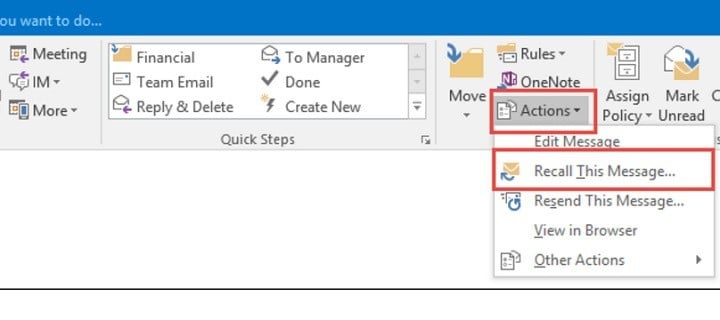
Microsoft Outlook is one of the most popular email services in the world, with millions of users relying on this platform to deliver their messages every day. And as with all email, when you are in a hurry and you’ve got little time to reply to an important email, you can sometimes address it to the wrong recipient. The question is: can you recall it?
In theory, the latest versions of Microsoft Outlook allows users to recall their emails. In practice, this almost never works because there are a series of requirements that must be met. Long story short, users can recall their emails as long as:
the recipient is on the same Exchange Server environment
the message is still in the inbox and not moved by an inbox rule
the message hasn’t been read
If these criteria are not met, the recipient receives a message informing him/her that you want to recall the email. If you’re lucky, they will delete it but unfortunately, recall messages only spark the recipient’s curiosity. In most cases, they will open the email because it’s very hard resisting the temptation.
It only works if the recipient double clicks the recall notification and they haven’t already read the message you want to recall. Pretty useless.
Secondly, most Outlook users are connected to their inbox around the clock and it’s very unlikely that any of your emails remain unread.
Another possibility is to set timer to send your email one to five minutes after you hit the Send button, but doing this could cause various bugs.
Many Outlook users wish Microsoft would really bring back the recall feature. On previous Outlook versions such as Outlook 97, this feature worked very well and helped users avoid embarrassing situations at work.
What’s your take on this situation? Have you ever had an issue with the recall feature?
A Reddit user by the username fmarx1 spotted a new feature in the non-beta MyTube Universal Windows App allowing you to continue watching your current video on other Windows 10 devices with the app installed. The feature is using the new “continue app experiences” API that allows developers of apps like Readit to let you continue doing whatever you were doing on one device and transfer it to other devices by simply pressing a button.
A screenshot of the feature, provided by the abovementioned user, can be seen below:
All you have to do to get the feature up and running is to download MyTube on both (or more) devices you are planning to use it on, press share, then select devices, and you’re almost done. Now select the device you want to watch the video on and viola.
You can go ahead and download the YouTube client below. Let us know in the comments what you think about this new functionality.
Back on August 17th, Microsoft announced that it would be changing Bing Rewards to Microsoft Rewards. At the time the Redmond giant was relatively vague as to when the switch over to the new rewards program would begin happening, but it appears now that steps are in place and the changeover has begun (via WinSuperSite):
WinSuperSite, running a Windows 10 machine with Build 14393.82, received Microsoft Rewards notifications in the Action Center under the title “From Microsoft.” While “notifications From Microsoft” is not necessarily new, the Rewards notifications are new. They also apparently showed up after a Windows Store purchase, and when clicked, linked to the Microsoft Account homepage and a new tab called Rewards.
So, have you noticed any notifications from Microsoft Rewards in your system’s Action Center? As always, please let us know what you think by dropping us a comment below.
Sleep Number, the manufacturer of smart and adjustable beds, has released a new update to its SleepIQ app for iOS and Android devices, according to WinSuperSite. If you’re not familiar with it, the company’s SleepIQ technology tracks your sleep patterns to “empower you to make changes for your best possible sleep.” With this new update, the app now integrates with several health and wellness apps such as Microsoft Health, Fitbit, Withings and more. Here is the full changelog:
– Connect SleepIQ® to the following health & wellness apps: Fitbit, MapMyRun, Withings, Microsoft Health, Nest
– Track your Sleep Number® bed order delivery (for new accounts)
– WiFi control available for Sleep Number setting
– General bug fixes
According to the new app description, the app is now able to “learn how life affects your sleep, and sleep affects your life.”
What should you change to sleep better? Over time, SleepIQ® will help you know. Whether you’re tracking steps, indoor temperature, hours of activity or more, SleepIQ will pair the data from these apps to your personalized sleep data and help you understand how what you do during the day affects how you sleep at night. By simply doing what you already do – and sleeping on your SLEEP NUMBER® bed with SleepIQ® technology – you’ll be on your way to optimizing your sleep for the best days possible.
If you own a Sleep Number bed, you can download the SleepIQ app from the download links below. Let us know in the comments if you will use these new integrations with popular quantified health apps to learn more about what’s impacting your sleep.
Microsoft is offering a new Outlook add-in for China’s Didi Chuxing ride-sharing service. It all is part of efforts to ease the pains of business customers who use the ride-sharing service to get around town and from their offices to appointments.
As part of the Outlook add-in, DiDi Enterprise customers in China can arrange for business transportation with a simple click or tap from the command bar from within their Outlook email screen. This ultimately eliminates the hassle of payments and paperwork which companies usually face when it comes to providing transportation. According to Microsoft, The add-in itself is also able to recognize keywords in email subject lines or the body of emails, such as “meeting” or “airport,” and instantly issue a prompt to an employee with a link to the DiDi add-in.
The add-in itself is available exclusively in China for Outlook 2016, Outlook 2013, and Outlook on the web users with Office 365, Exchange 2016 and Exchange 2013 mailboxes. Use of the service requires a DiDi Enterprise account, which can be accessed here.
A similar Outlook add-in with command buttons on the ribbon
Derk Du, Vice President of Didi Chuxing and general manager of DiDi Enterprise, nonetheless, expressed appreciation for the power of Office 365. He also looks forward to what the add-in will offer to the company’s reach, and said:
“Office 365 is the leading and open platform supported by all the mainstream operating systems and devices, and the add-in is easy to integrate… Together with Microsoft, DiDi Enterprise will be able to reach a vast global customer base… This innovative partnership will be a lighthouse attracting more independent software vendors to be part of our new, thriving ecosystem, and help our Office 365 customers save operation costs, improve productivity and reinvent business processes.”
DiDi Enterprise is a relatively new service in China, and it was originally launched about a year ago. According to Derek Du, DiDi Enterprise has served about 30,000 active corporate customers and had provided for more than 5 million employees.
While HP is getting ready to start shipping its Elite x3 Windows 10 Mobile handset in select markets in the next few weeks, the manufacturer is reportedly working on a new firmware update to improve the experience for early adopters of the premium Windows phone. According to Windows Central, the upcoming firmware update should improve the Windows Hello experience in several ways, bringing support for double tap to wake and more.
The HP Elite x3 supports Windows Hello through an iris scanner on the front as well as a fingerprint sensor on the back of the handset. However, HP plans to make the iris scanner more useful by bringing two new exclusive features:
an anti-spoofing feature which will protect users against spoofing attempts as well as a camera preview feature which will ease the identification process by displaying what the iris scanner can see on the handset’s lock screen.
The iris scanner on the HP Elite x3 will get some exclusive settings.
According to the report, the new firmware will also bring support for double tap to wake on the handset with some exclusive features as well. As you can see in the screenshot below, HP has added new settings for adjusting double tap sensitivity and duration between taps.
More exclusive settings for double tap to wake (credit: Windows Central).
Additionally, the LED light located next to the handset’s iris scanner will light up when the phone is charging, and this feature will be quite handy as the HP Elite x3 doesn’t support the glance screen feature found on some Lumia phones. The LED light will display an orange color when the handset is charging and then become green when the phone is completely charged.
The HTC Windows Phone 8X (released in 2012) also used an LED charging light which was hidden in the speaker.
Lastly, Windows Central reports that the new firmware will bring some welcome bug fixes and stability improvements including a fix for a camera crashing issue. It is not clear yet when HP plans to roll out this new firmware update for the Elite x3 so we’ll have to wait to see if it happens near the release of the Anniversary Update which is expected to hit the handset starting September 13th. As a reminder, installing the Windows 10 Mobile Anniversary Update will be necessary to enable the fingerprint sensor on the HP Elite x3. Let us know in the comments if you think this upcoming firmware update will help the HP Elite x3 stand out next to Microsoft’s Lumia 950 and 950XL.
It was February 4, 2014. Bill Gates, co-founder of Microsoft, announced that Steve Ballmer would be standing down as CEO of Microsoft, following an initial press release, and that Satya Nadella would be taking up the reigns of one of the largest technology giants. The change of leadership was met with optimism from Microsoft enthusiasts – citing a change from the somewhat harsh and what some would call an abusive leadership, into one more aligned to the modern working environment. Ballmer was known for his strong leadership, taking control when needed and being forceful to make changes, but he also brought Microsoft back to the top. He ensured that its product portfolio succeeded in all aspects – including Windows Phone.
When Nadella stepped in, he made a bold statement. That statement outlined the vision for his leadership, a term we’ve all come too familiar with, “Mobile-first, cloud-first,” a term that once gave hope to fans of the Windows phone ecosystem, one that enlightened enterprises looking for an alternative to Amazon’s cloud offerings and one for the greater Microsoft crowd – a renewed direction and a renewed focus. During the announcement of Nadella’s appointment as CEO of the company, Gates uploaded a YouTube video, in which he made the following statement:
Satya’s got the right background to lead the company during this era. There’s a challenge in mobile computing, there’s an opportunity in the cloud.
That statement follows the outlined vision that Nadella also made – mobile and cloud. Gates was correct in his statement, there was a challenge in mobile computing, both in the 2-in-1 space, the tablet space and the smartphone market. He was also right about the cloud, there was need for a third rival to Amazon and Google, someone that could offer something more, something different and meet the needs of enterprises.
More than 2 years on, where are we – as Microsoft enthusiasts, Microsoft as a company and consumers of its products? Actually, it seems we’re not much further forward.
Many believed that the company would succeed in the tablet market. Unfortunately, that has not been too successful. Android and even iOS are seeing growth in those areas, whereas Windows is having a slow paced walk behind them.
The company originally set a target of 1 billion devices running Windows 10 in 2 years; the company later shelved that target, citing reduced optimism in the tablet and mobile markets. That reduced optimism has proven accurate so far. Windows 10 itself has seen its own fair share of problems, from issues with privacy, security flaws and issues with certain devices such as Kindle Paperwhites. Not to mention the delays in rolling out Windows 10 Mobile to Windows Phone 8.1 devices and backtracking on which devices would receive it, followed by a further delay in rolling out the Anniversary Update. On top of these issues is also the big contender – the continuing decline in PC sales, as claimed by Gartner.
So, that leaves the question – is Satya Nadella hurting Microsoft in the long-run or is he the saviour that Bill Gates initially believed?
Bill Gates stated Nadella had “the right background to lead the company,” and that there’s a “challenge in mobile computing,” has Nadella lived up to the challenge? Does Nadella’s background help him in running the company?
MSFT – 5-year share price
Microsoft’s share price is at an all-time high. Investors are clearly happy with the company’s performance since the change of leadership. That is great news, the company is doing well. The fear we have, however, is that this high share price is a bubble – the share price suddenly rose around mid-July and had risen fairly consistently with minimal dips until the end of August, however, it looks like it is reaching its peak, with the line becoming smoother as the days go by. A large amount of the increased share price currently is based on Microsoft’s cloud offerings, its other product lines contributed minimally – Windows and PC sales are down, mobile has plummeted, tablets and 2-in-1s are barely gaining traction and even the Xbox division has been beaten by PlayStation consistently, although, it is still profitable and has made changes in an attempt to counteract this, with the Xbox One S, OS upgrades and Project Scorpio. It would be a fair assumption to say that the share price is based on current Azure performance, followed by expected performance in Windows 10 and Xbox. It is the expected performance that could be worrying.
The problem with the share price being mostly based on the cloud is problematic for 2 reasons – for one, Microsoft is not the leader in cloud, Amazon is, and that doesn’t look set to change. For all we know, Amazon could come out with something amazing that would entice Azure customers to Amazon’s service, this would plummet Microsoft’s shares immediately. While Microsoft does have some well-performing divisions that still make money, such as Xbox and Surface, it still detracts from the areas it is well-known for – Windows and PCs. Xbox has struggled over the last couple years, with Sony’s PlayStation leading in sales. Could the Xbox One S and Project Scorpio change this? We’ll have to wait and see.
Resentment from consumers about Nadella’s leadership is rife. On a daily basis comments are seen saying how he’s “Mr Retrenchment” or he’s setting up Microsoft for a fall. This marks a stark change from the original perception where people believed he would be the one to bring real change, the one to bring what consumers wanted. Consumers are clearly not happy with Nadella’s stance, and rightly so. In fact, the CEO seems perfectly content with turning the company into an enterprise-only machine. The consumer side has fallen through, with several issues with Windows 10, slow rollout of updates and retrenchment for consumers in the mobile space.
Microsoft’s focus is enterprise, not consumers. Consumers are just a bi-product of being a public-facing company from its previous ancestry.
One of our contacts at Microsoft informed us that Microsoft is committed to the enterprise space, stating that is where the money is – not the consumers. This alone shows why consumers have a valid reason to be discontent with what they’re currently receiving.
At the end of the day, it would appear that Nadella has met only one of Gates’ goals – the cloud. On the other side of the coin, mobile computing, Nadella has fallen flat on his face with empty promises of being “mobile-first” when we haven’t really seen anything mobile arrive, with the exception of Microsoft’s app portfolio being on competing platforms such as Android and iOS, ignoring its customers on its own platform, followed by slow traction in the tablet market. Windows phones have received a little bit of love, indirectly, thanks to the Universal concept of Windows 10, with some OS features making their way down to the mobile platform.
With all this in mind, Satya Nadella has failed in his leadership so far to meet Bill Gates’ vision for where Microsoft should be headed. Microsoft is stood on rocky ground, with which its competitors could, in theory, place a crack in quite easily. Could Nadella turn things around? Certainly. With the right priorities being set, Microsoft could once again win the hearts of consumers, however, whether Nadella is willing to do so is a different story.
Let us know what your thoughts on Nadella’s leadership are in the comments below!
Microsoft is planning to fully merge the Windows 10 PC and Xbox One platforms, so that PC users can access Xbox One games, and console owners can access more Windows 10 apps. While this transition is not yet completed, there are many common apps and games which can already be accessed by users of both platforms.
Windows 10 Mobile seems to be the only platform neglected in this fusion process. Fortunately, thanks to a couple of resourceful users, this is no longer the case.
Thanks to a bug in the Windows Store, it is now possible to stream Xbox One games to your Windows 10 phone. The Xbox Dev Mode Companion app is the key element for this achievement. This app is mainly used by developers creating Xbox apps, and lets users stream Xbox content to their PCs. The apps has also been compiled for Windows 10 Mobile, allowing users to steam Xbox content to their mobile devices as well.
If you’re a tech savvy user, here are the steps to follow to stream Xbox One content on your Windows 10 phone:
Once the app listing is opened in the Windows Store > search for a free app
Install the free app, but then quickly hit the back button on your phone. In this manner, you’ll trick the Windows Store to install the Xbox Dev Mode Companion app.
Now open the app to connect to your Xbox One. If your console doesn’t show up, connect to it manually using its IP.
Once again, this trick works as long as Microsoft doesn’t fix the bug allowing you to install the Xbox Dev Mode Companion app on your phone. Also, it appears that this feature works only on the new Bluetooth controllers. Users have reported that cable connection doesn’t support Xbox One streaming on Windows 10 phones.
Judging by the users’ feedback, this app could help Microsoft to increase the popularity of its Windows phones. Nobody knows for sure if the tech giant has even considered releasing it to the public, but this would definitely make many gamers happy.
Anyway, Microsoft has probably learnt this feature got leaked to the public, and maybe it will soon issue a comment on the situation, offering users more information about a possible official Xbox streaming app for Windows 10 phones.
Welcome back to our weekly “Windows 10 news recap” series where we go over the top stories of the past week in the world of Microsoft’s latest operating system. Let’s get started.
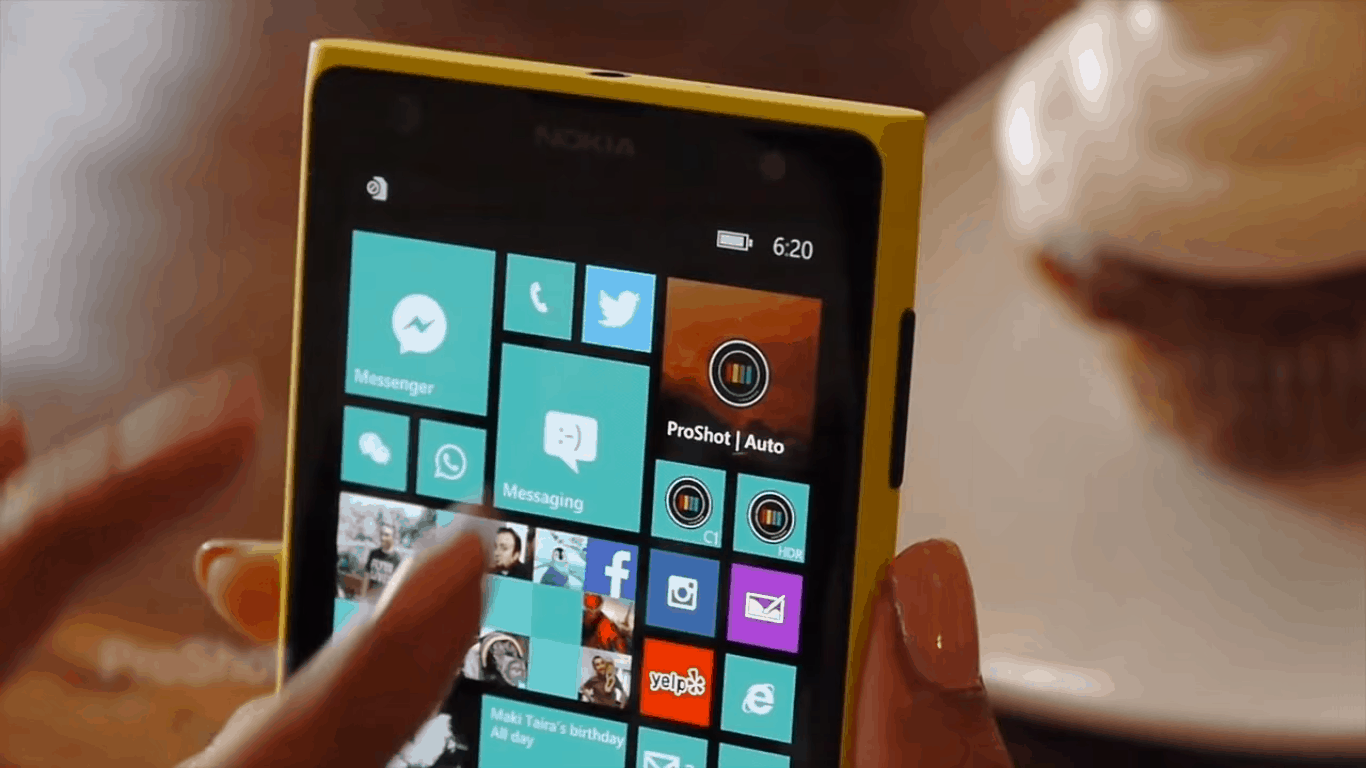
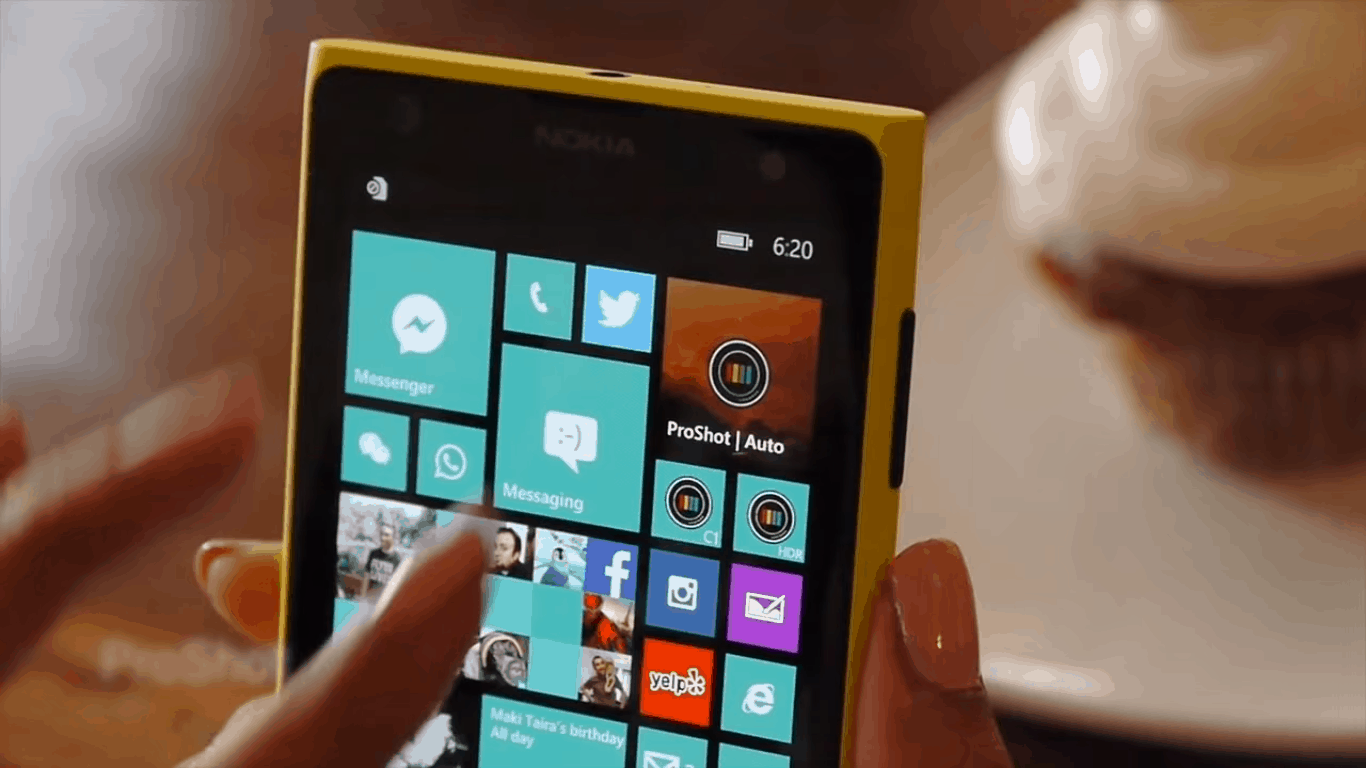
ProShot’s new app for Windows 10 pulled from the store due to “distribution issues”
343 Industries provides more details on Halo app for Windows 10 PC, coming September 8th
343 Industries is working on a Halo app for Windows 10, allowing players of the game to become closer to the game and the community surrounding it. The developers have released further information on the app, which arrives on September 8th.
Windows 10 Insiders on build 14905 can’t change Settings, a fix is in the works
6tin is the unofficial Tinder app for Windows developed by Rudy Huyn. It seems that the developer is working feverishly on this 3rd party application as new versions of it are released pretty frequently and we really like all the changes that the developer is bringing to the application.
The latest version of 6tin was recently released for Windows Phones. Its developer noticed that many users were complaining about a Facebook Login issue on his app and as soon as he noticed how serious the problem was, he replied via his Twitter account saying that he is currently working on a fix. Twelve hours after Huyn posted that tweet, the new version of the application was reviewed and published on the Windows Store. You can now download version 3.3.2 of 6tin from the official Microsoft Store and install it on your Windows Phone.
It seems that the new 6tin only fixes the Facebook login issue and doesn’t come with any new major changes or features. However, we’re sure the developer will keep on working on this application and bring some new features and options sometime in the near future.
Since Huyn is very active on his Twitter account, we suggest you leave suggestions and you may see some changes brought to the application thanks to your feedback.
TIP: Always keep the 6tin application updated in order to make sure that all features and options are working without any problems.
Have you updated 6tin to version 3.3.2 yet? Tell us your thoughts about this popular 3rd party application.
ProShot, a camera app which adds a pretty insane amount of features to the camera experience on Windows 10, is something that photographers on the Windows 10 platform have been wanting. After facing a considerable amount of problems when they were first trying to release the app, we reported that the team behind ProShot – Rise Up Games – had finally released the app. Unfortunately, it only took about a day before Proshot was pulled off of the Windows store.
ProShot for Windows 10 has been pulled from the Store. Too many distribution issues. We will be talking w/Microsoft on Monday. Disappointed.
The news was announced on Twitter, where Rise Up Games told everyone that the app was pulled because of a number of distribution issues. We don’t have details yet on just what those issues were, but they must be serious if they got the team at Rise Up to pull their latest new app. There are no more details available at the moment, but Rise Up is going to be speaking with Microsoft come Monday in an effort to smooth things over and try launching again.
Hopefully this is a one-time thing, and not an issue that a large portion of Windows 10 developers are running into. If we want to keep attracting new developers to the Windows 10 scene in order to make UWP applications, we’re going to need to make sure that the process is as easy as possible. Here’s hoping things smooth over soon.
Lumia 535 is definitely one of the most popular Windows Phone devices on the market, mostly because of its affordable price, and solid specs for a budget smartphone. This phone is also, according to our experience, one of the most stable Windows Phone 8.1/Windows 10 Mobile devices.
But, even the Lumia 535 has its own share of issues. One of the issues that are bugging many users is the Wi-Fi connection problem. Various factors can cause this flaw, so in this article, we’re going to explore possible causes of the Wi-Fi problem with the Lumia 535, and of course, offer the proper solutions.
How to fix Wi-Fi problems on the Lumia 535
Solution 1 – Delete a Wi-Fi network, and try again
The simplest solution for Wi-Fi problems on Windows 10 Mobile devices, could also be the most effective one sometimes. That solution is to simply turn off a Wi-Fi network you want to connect to from a list of available Wi-Fi networks, and let your phone find it again. One your Lumia 535 finds a desired network, it will recognize it once again, and potential problems could be solved.
If you don’t know how to delete a known network in Windows 10 Mobile, follow these steps:
Go to Settings > Network & wireless > Wi-Fi (or simply press and hold the Wi-Fi quick action icon from the Notification center)
Find a Wi-Fi network you’re having problems connecting to
Hold your finger on it, and tap on Delete
Once you delete the network, a list of available networks will refresh, and you’ll be able to try to connect once again.
Hopefully this simple solution will solve the problem, but in some cases, just refreshing a list of available networks is not enough. So, if this didn’t solve the problem, try some of the workarounds listed below.
Solution 2 – Turn off Mobile Data
Mobile data connection often conflicts with Wi-Fi. So, if you have some extra data on your SIM card, and Data connection is turned on, there’s a chance you won’t be able to connect to Wi-Fi. So, all you need to do is to simply turn off Data connection, and try to connect to Wi-Fi once again.
You can simply turn off data connection by toggling off Cellular data from the Notifications center. Or if you want to do it the hard way, you can go to Settings > Network & wireless > Cellular & SIM, and just toggle Data connection off.
If, however, turning off Data connection wasn’t effective, try some of the other solutions from this article.
Solution 3 – Turn off Bluetooth
The same thing that applies for Data connection also applies for Bluetooth connection. Bluetooth connection and Wi-Fi connection often use the same frequency, so having Bluetooth turned on might conflict with your Wi-Fi. To turn off Bluetooth connection on your Lumia 535 device, go to Settings > select Devices > Bluetooth > turn it off. You can also turn it off by toggling off the Bluetooth quick action icon from the Notifications center.
Solution 4 – Check if your router uses the 5GHz band
Some users switched their routers to the 5GHz band, because this band is far less crowded than the 2.4GHz band, and therefore has higher data throughput speeds. But, as much as the 5GHz band is a good solution for some gadgets, other other devices simply don’t support it, and the Lumia 535 is one of them.
So, if you use a router set on the 5GHz band, and have the Lumia 535, these two things simply won’t work together. Obviously, the solution for this problem is to change your router’s band from 5GHz to 2.4GHz, and your Lumia 535 should be able to connect to the Wi-Fi network normally.
If you already set your router to the 5GHz band, you probably know how to bring it back to 2.4GHz, but just in case, we’ll show you instructions for that, once again. Here’s what you need to do to change your router’s band from 5GHz to 2.4GHz:
Log into your account. To do that, enter your router’s default IP adress into a browser, and enter your username and password. If you don’t know you’re routers default IP adress, probably the best option is to google it
Once you’re logged in, open Wireless settings, and go to the Basic (or equivalent) tab.
Change the 802.11 band from 5GHz to 2.4GHz
Click on Apply.
Once you set your router’s band back to 2.4GHz, try connecting to the Wi-Fi network with your Lumia 535 once again. If you’re still unable to connect, try the final solution from below.
Solution 5 – Check if your rouiter is alright
Maybe there simply are some wrong settings of your router that prevent your Lumia 535 from connecting to the Wi-Fi network. In that case, perhaps the best solution is to simply reset your router.
Most routers come with a reset button that will restore them to factory settings. In order to reset your router, you need to press and hold the Reset button for a few seconds. Also keep in mind to check your router’s manual, just to make sure you don’t do anything wrong.
That should be all for our article about Wi-Fi problems on the Lumia 535. As we said, these issues are not a common thing on this device, but you never know when the problem may occur. All in all, if you’re have this problem, we hope our article helped you resolve it. If you also have problems connecting to a Wi-Fi network on your computer, check out this article.
If you have any comments, suggestions, or questions, just let us know in the comments below.
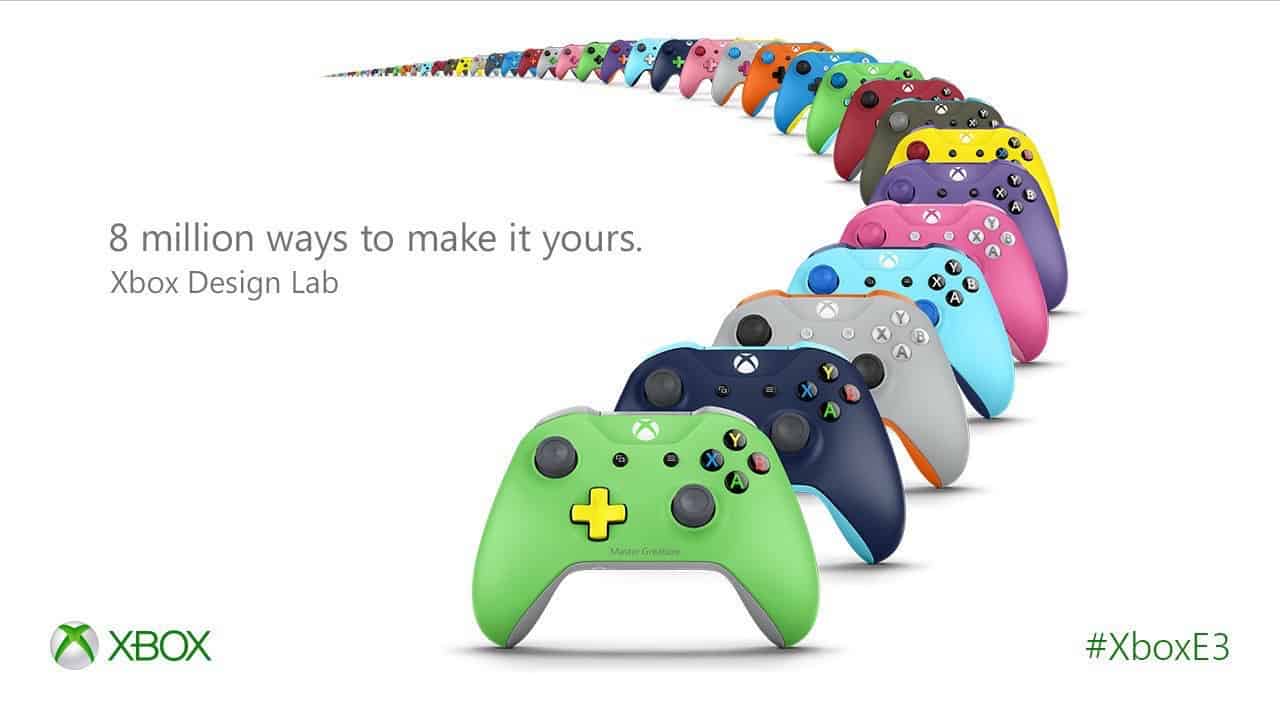
At E3 this year, Microsoft announced several new products, including the Xbox One S, Project Scorpio and more. One of those announcements was the Xbox Design Lab – a website where Xbox One owners can create a custom controller and have it built and shipped to them from Microsoft.
Up until now, any orders placed on Xbox Design Lab were a pre-order. It has now been discovered that some of these orders have begun shipping, with the first batch set to be received by customers by the end of August.
Those who have pre-ordered a controller will receive an email from Microsoft if their order has been dispatched. There is no information on when, or if, the Xbox Design Lab will arrive to markets outside the United States.
Recently, the Windows 10 Mobile OS has claimed 14% of the Windows Phone market. This may not seem much when compared to Windows Phone 8.1 OS which owns 77% of said market, but given that the former had a 11% market share in July when it was first released, it actually means that it has gained almost 3%.
This info comes from a Windows Device Statistic report published by AdDuplex which also mentions that the Windows 10 Mobile Anniversary Update now has a 52% market share. In other words, it has taken over the Windows 10 Mobile Version 1511 which, at this point, claims approximately 41% of the market share.
It’s impressive enough that the Anniversary update now dominates the Windows 10 Mobile market, but this result is even more surprising since this OS version was released about a week ago.
When compared to how Windows 10 Mobile fared, it’s pretty good. At the same time, the Windows 10 Mobile Redstone 2 version for Insiders can be found on approximately 6% of the Windows 10 Mobile based smartphones out there and this specific version was released last week.
Windows Device Statistic also covers the most widely used Windows Phone devices and it appears that the Lumia 535 is the most used device in this category with 12% of market share.
The report focuses on non-mobile devices as well and revealed the Windows 10 PC Version 1511 claims 77% of market share, whereas the initial release of the Windows 10 PC Version powers about 6% of the devices in question. Windows 10 Anniversary Update for PC has a 16% market share and analysts believe that it will gain more influence starting next month when Microsoft begins to roll out a new update. The Redstone 2 version for Insiders is used at less than 1% which is very unimpressive when compared to the mobile statistics.
Microsoft just issued a new update for its Sticky Notes app for Windows 10. The update, however, is available to Windows Insiders on the Fast Ring only, and it brought a couple of improvements and bug fixes. It also updates the Sticky Notes version to 1.1.24.0.
According to Donovan Lange, the Engineering Manager for Sticky Notes, the updated version of Sticky Notes introduced a smaller minimum window size, so if you don’t have much text in your notes, you can resize it to take less space on your display. Additionally, the update also brings better boot performance, and some other bug fixes.
@dolange startup time my #1 issue with this app (at least before this update) – too slow w/ ink, defeats purpose of app. will check it out
Although this update is for now only available to Insiders on the Fast Ring running the Redstone 2 build 14905, it probably won’t be released to regular users as a part of the next major update for Windows 10. Microsoft is probably just testing the update in Windows 10 Preview, until it pushes it to regular users, So, expect this update for Sticky Notes to land on every Windows 10 computer in the near future.
Users are not satisfied with the revamped version of Sticky Notes in Windows 10. A lot of people reported various issues with the app, and Sticky Notes’ rating in the Windows Store is pretty low. That should be an alert for Microsoft to release more updates like this one, and try to improve the app as much as possible.
What’s your experience with the new Sticky Notes app in Windows 10? What are the issues that still need to be resolved by Microsoft? Tell us in the comments.
RELATED STORIES YOU NEED TO CHECK OUT:
Microsoft will integrate Genee into Office 365 to make it smarter
PlayStation Now is a cloud gaming service developed by Sony Interactive Entertainment. This platform allows users to access a selection of original titles released for the PlayStation 3. And soon, the company will make this feature available for games released for the PlayStation 4 or even for previous PlayStation consoles. Fans who want to play games from the PlayStation Now library on their PC will have to pay a monthly subscription.
The PlayStation Now game streaming subscription is here and the gamers can now pick from more than 200 PS3 games in order to play them on their computers.
Keep in mind that PlayStation Now for Windows PC is available in Europe, but will also be released soon in North America. You will be able to use the DualShock 4 USB Wireless Adaptor in order to connect a DualShock 4 controller to your computer wirelessly. By doing this, you will also enable every feature of the controller, such as analog sticks, touch pad, light bar, motion sensors, vibration, stereo headset jack and more. The DualShock 4 USB Wireless Adaptor will be released in September 2016 and will cost $24.99.
The recommended specifications for running PlayStation Now on your Windows PC are:
Windows 7 (SP1), 8.1 or 10
3.5 GHz Intel Core i3 or 3.8 GHz AMD A10 or faster
2 GB or more of RAM
Sound card; USB port.
You can still use your DualShock 4 controller via an USB cable on your computer, but if you want to stay far from your screen while playing games, you will surely want to purchase the DualShock 4 USB Wireless Adaptor. You can get a PlayStation Now seven-day free trial right now, but if you want to keep using this service, you will need to pay $19.99 per month or $44.99 every three months.
At the end, we’d like to add that if you want a more natural way to play PlayStation games on your Windows 10 computer, we advise you to use your PS3controller. See our guide on how to connect your PS3controller to your PC.
What are your thoughts about PlayStation Now? Will you use it to play games that have been released for PlayStation consoles on your Windows PC?
Description
Welcome to ProShot, the world’s most advanced camera app.
— CAMERA FEATURES —
+ Auto, Program, Manual, and two fully configurable Custom modes, just like a DSLR
+ Manual, semi-manual, or automatic control over exposure, flash, focus, ISO, shutter speed, and white balance
+ Shoot in JPEG or RAW (saved as uncompressed TIFF)
+ Shoot full resolution in 16:9, 4:3, and 1:1
+ Video and Timelapse / Intervalometer modes, all with full manual controls
+ HDR and auto-HDR modes
+ ISO priority and shutter priority modes – set either ISO or shutter to Auto and ProShot will handle the rest
+ Manual focus assist
+ Live histogram
+ Front-facing camera with full manual control support
+ Zoom with just one finger
+ Grid overlay
+ Horizon level with 3 modes
+ Adjust JPEG/TIFF quality, Noise Reduction, contrast, saturation, sharpness and more
+ Most innovative camera UI ever created
— VIDEO FEATURES —
+ Up to 4K (3840×2160)
+ Up to 60fps
+ Manual, semi-manual, or automatic control
+ Record video in any mode (Auto, P, M, C1, or C2)
+ Adjustable resolution, frame rate, and bitrate
+ Industry-standard options for 180 degree rule
+ Zoom and change any camera parameter, even during video recording
+ Real-time audio input levels
Leave the heavy DSLR at home, ProShot’s got your back.
+++ Due to bugs in Windows, Light Painting and Bracketing are disabled for now
+++ Please note that certain features depend on available hardware support
Less
Version notes
Version number: 1.0.4.0
Initial release! Known bugs: – Sometimes the Photos app won’t show recent pics taken with ProShot. This is a bug with the Photos app. Force close and re-open the Photos app to fix. If you find any other bugs, please contact us [email protected].
You can download the app from the link below and give it a try. Let us know in the comments how well the developer has made the transition to the Universal Windows Platform.
Every month, various Microsoft divisions and services teams dole out updates, security patches, feature additions, and fixes to a multitude of platforms and offerings. Fortunately for users, the separate teams behind the bulk of Microsoft’s software solutions take to their respective blogs to host a cumulative post about all the updates that have hit the various apps and programs.
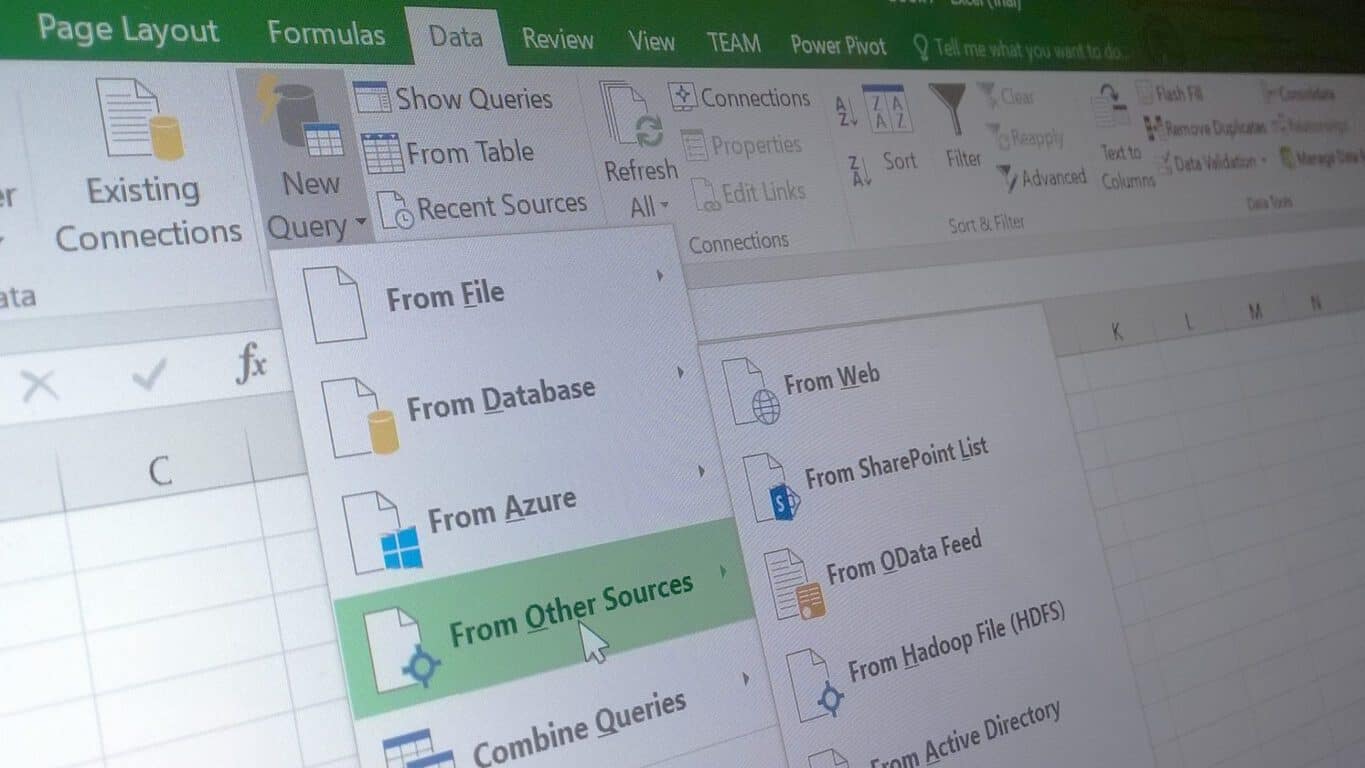
Today, we are pleased to announce eight new data transformation and connectivity features that have been requested by many customers.
These updates are available as part of an Office 365 subscription. If you are an Office 365 subscriber, find out how to get these latest updates. If you have Excel 2010 or Excel 2013, you can also take advantage of these updates by downloading the latest Power Query for Excel add-in.
These updates include the following new or improved data connectivity and transformation features:
Enhanced SAP HANA connector—allow multi-select of values for variables and parameters.
Enhanced OData connector—option to import Open Type columns from OData feeds.
Enhanced Access DB connector—new Select Related Tables button to “” in the Navigator dialog.
Option to generate Step Names in English within the Query Editor.
Description for Query Steps within the Query Editor.
Extract Week, Day or Month name from a Date/Time column from the Query Editor.
Merge Dates and Times into a Date/Time column from the Query Editor.
Extract Start/End of Hour from a Date/Time or Time column from the Query Editor.
To get more details on the each and every individual updated feature, users can either head to their closest Excel application of either 2010, 2013 or Office 365 variety or visit today’s highlighted Office Blogs post.
While this isn’t something that’s been a problem for me, a number of users across the web have been running across problems visiting some Microsoft.com sites in Chrome, getting 400 Bad Request errors, which certainly can be annoying.
However there’s a fairly simple fix, and that’s to clear your cookies. Mary Jo Foley posted a link to a quick video on how to do just that, and it’s cleared up the problem (apparently some corrupted cookies) for her:
As you might expect, there are a number of ways to clear your cookies in Chrome (and in all other major browsers, varying a bit with each one). You can go to Settings>Advanced Settings, and under Privacy either just clear all your cookies (might not be a bad idea) or drill down into Content settings and only clear cookies for the sites that are giving you problems.
You can reach the Clear Browsing Data dialog box quickly by clicking on the hamburger menu and finding it under More tools, or you can even navigate to a site that’s giving you trouble, open up the Developer Tools (again under More tools), click on Application, and get a granular dialog for clearing data on a per site level:
Chrome Dev Tools
Are you having problems with Microsoft sites in Chrome? Does clearing your cookies help? Let us know in the comments below.
After Microsoft recently announced that they would be shutting down the Xbox Fitness service on the Xbox One console, official Microsoft support and social media employees assured fans who had recently purchased downloadable content (DLC) for it that they would be refunding purchases that were made within 30 days of the closure announcement and that for further refunds, they would need to contact Microsoft directly.
Two months later, it appears that Microsoft has rethought their refund strategy and is now refunding all Xbox Fitness purchases ever made to all users.
Last week, I personally noticed several random deposits in my Microsoft account that amounted to around AU$350. Each deposit was given an expiry date (about a year after the deposit was made) and the only reference information listed was “Xbox Live Rewards”. At first I assumed there had been either some sort of error or I had won some random Xbox Live Rewards competition (the points-earning system of that program is extremely convoluted and complex afterall). After thinking about all of my Xbox Fitness DLC purchases over the past few years though, I realised that these deposits could likely be refunds due to the closure of Xbox Fitness.
Upon re-checking the support page for Xbox Fitness this morning after talking to a friend who just heard about what was happening, I noticed that it had been updated to reflect the new refunds which were now being distribute to everyone. Here’s the new information:
Customers who purchased Xbox Fitness content will be eligible to receive a credit into their Microsoft account equivalent to the content amount they purchased. Credits will be deposited directly to their Microsoft account and can be used to make purchases in the Xbox and Windows Stores. Credits will vary for each customer. Your credit will be for an equivalent amount to your purchases in Xbox Fitness – i.e., if you bought a $12 workout video you will receive a $12 credit.
Xbox Fitness: ATHLETE30 from MOSSA on Xbox One
The page goes on to mention that the credit will expire one year after it is deposited and all users should have received their refunds within 90 days from the end of June 2016.
This afternoon, numerous Xbox Fitness users received either an email or an Xbox Message about their refund but many also haven’t. I still haven’t received any official communication concerning my refund from over a week ago for example. In short, if you’ve ever made an Xbox Fitness purchase, it’s a good idea to log into your Microsoft account on the Microsoft or Xbox website right now and check your balance on the left-side menu. You could be in for a nice surprise.
So What Happens Now?
Right now, Xbox Fitness is still functional on Xbox One. No DLC can be purchased anymore but any content already bought can be used until June 30th 2017.
A variety of workouts are available to use for free for Xbox Live Gold members as part of a “Free with Gold” promotion. These will be available until December 15th 2016. Users who happen to have purchased these freebies outright for download on their console will still be able to use them until June 30th.
Xbox Fitness will cease all functionality on July 1st 2017 and it, along with all related content, will be removed from the Windows Store.
As someone who uses Xbox Fitness every day, the closure of the program will definitely create a hole in my schedule come July 1st 2017 and I’m hoping Microsoft manages to launch some sort of replacement app or game for the Xbox One console. The crew behind the fantastic Mossa workouts have already announced that they’re working with Microsoft to re-release their workouts. These will likely be DVDs and digital video downloads instead of a game with leaderboards, tracking, and scoring though.
Are you disappointed by the closure of Xbox Fitness and have you received your refund yet? Share your experience with us in the comments below.
Windows 10 collects information about its users and sends it back to Microsoft so that developers can improve future versions of Windows. Many users are concerned about their privacy, therefore today we’re going to show you how to opt out of Microsoft Customer Experience on Windows 10.
What is Microsoft Customer Experience and how to turn it off in Windows 10?
Microsoft Customer Experience Improvement Program was designed to collect information on how you use certain Microsoft programs so that Microsoft can improve them in the future. According to Microsoft, they don’t collect your personal information such as your name, address or phone number with Customer Experience Improvement Program, therefore your personal information is safe. Unfortunately, there’s no way to verify what data this feature collects, therefore many users feel like this feature is violating their privacy. If you’re concerned about your privacy, you should know that you can turn this feature off.
How to – Opt out of Microsoft Customer Experience on Windows 10
Solution 1 – Use Group Policy
According to users, you can turn off this feature simply by using Local Group Policy Editor. To turn Microsoft Customer Experience off, follow these steps:
Press Windows Key + R and enter gpmc.msc. Press Enter or click OK.
When Local Group Policy Editor opens, go to Computer Configuration > Administrative Templates > System > Internet Communication Management > Internet Communication settings in left pane.
In right pane locate Turn off Windows Customer Experience Improvement Program and double click it to open its properties.
Select Enabled option and click Apply and OK to save changes.
Solution 2 – Disable Customer Experience Improvement Program in Word
As we previously mentioned, many Microsoft’s applications use Customer Experience Improvement Program, and Office tools are no exception. If you’re using any of the Office tools on your PC, you’ll have to disable this feature for every tool. To disable this feature in Word, follow these steps:
Go to File and choose Options from the menu.
Navigate to the Trust Center tab.
Click the Trust Center Settings button.
Now go to the Privacy Options tab.
Locate Sign up for the Customer Experience Improvement Program option and uncheck it.
Disabling this feature in Office tools is easy, but you’ll have to repeat this procedure for every Office tool that you use.
Solution 3 – Disable Customer Experience in Task Scheduler
Task Scheduler is a useful application that allows to create all sorts of custom tasks and schedule them. In addition to creating your own tasks, you can also control certain Windows 10 tasks by using this application. To disable Customer Experience in Task Scheduler, follow these steps:
Press Windows Key + S and enter task. Select Task Scheduler from the menu.
When Task Scheduler opens, go to Task Scheduler Library > Microsoft > Windows > Application Experience in left pane.
In the right pane you should see three options: Microsoft Compatibility Appraiser, ProgramDataUpdater and StartupAppTask. Select all these tasks, right click them and choose Disable from the menu.
Go to the Task Scheduler Library > Microsoft > Windows > Customer Experience Improvement Program in left pane.
In the right pane, select all three tasks, right click them and choose Disable from the menu.
Go to Task Scheduler Library > Microsoft > Windows > Autochk and disable Proxy task.
After disabling all these tasks the Customer Experience service should be permanently disabled.
Solution 4 – Disable Customer Experience in Windows Media Player
As we already mentioned, many applications from Microsoft have this feature enabled by default, and one of those applications is Windows Media Player. To disable this option in Windows Media Player, you need to do the following:
Open Windows Media Player.
When Windows Media Player opens, press Alt + T shortcut. Choose Tools > Options from the menu.
Go to Privacy tab and uncheck I want to help make Microsoft software and services even better by sending Player usage data to Microsoft in Windows Media Player Customer Experience Improvement Program section.
Click Apply and OK to save changes.
Microsoft Customer Experience is used to collect information regarding certain applications, and if you think that this feature is invading your privacy, you can easily turn it off by following the instructions from this article.
EA officially confirmed that the FIFA Mobile game, previously named FIFA 17 Mobile, will grace Windows 10 Mobile devices this fall. This is great news for all the fans who were waiting for any piece of information to confirm the rumors and hopes they had.
The game will bring a new mode called Attack Mode, an asynchronous mode that pits your team against other teams in a match where you have to take turns. Players have to take turns and attempt to score as many goals as they can in each half. The action focuses 100% on attacking, which also gives the name of this mode. For every goal you score, you’ll get more fans, which further helps you to climb up the ranks.
The upcoming game will also offer another feature called Leagues. Leagues are formed of your friends and allow you to compete against them in inter-league matches and tournaments, friendlies and so on. Also, you will be able to finish co-op achievements, present gifts to each other and form a team together against other Leagues.
Loyal fans that played previous FIFA Mobile games may be slightly disappointed by the fact that the game has no content that appeared on its previous versions and that it doesn’t offer a career mode. What it does offer though is a Season Mode, where you can play a Season schedule against any of the Leagues found in the game.
The game will total more than 30 leagues and 650 teams, which means around 17,000 players. Also, you will be able to play mini-games so that you earn tokens. You can use the tokens to buy more card packs with new players for your own team.
Microsoft’s phones have never been very popular among users. Actually, the company’s decision to acquire Nokia is one of the less inspired decisions it’s ever taken. As a result, Microsoft wisely let go of the Nokia brand this year and is now betting it all on the upcoming Surface Phone.
Let’s assume the Surface Phone becomes very popular and convinces users to give the Windows Mobile platform a second chance. While this smartphone packs impressive specs and features, not all users will afford to buy it. Of course, this won’t help Microsoft bite a bigger chunk off the phone market.
How about the previous Windows phone models? Could Microsoft make them more appealing to users? We believe the answer is yes. If Redmond becomes more flexible and installs Android on its phones, chances are more potential buyers will purchase them.
Of course, doing so means that Microsoft would give up on its ambition to deliver a unique OS and experience on all its platforms. After all, this is one of the main goals of the Windows 10 Anniversary Update OS. But according to NetMarketShare, Windows Phone has a 2.79% market share, while Android dominates the mobile market with a solid 66% market share.
Second, Android on Microsoft’s phones doesn’t look bad at all. A recent experiment performed by a hacker revealed what Android Marshmallow looks like on Lumia 525. Apart from the slow bootup sequence, which is normal, Android is pretty fluid on Lumia 525.
Third, thanks to the Secure Boot leak, it’s only a matter of time until tech savvy users will be able to install Android themselves. Microsoft is trying hard to patch this vulnerability, but hackers say the tech company can’t revoke the leaked Secure Boot policies. It seems that Pandora’s box has been opened for Microsoft.
Fourth, others do it. Take a look at RIM, a company that has been struggling for years to survive on the market. RIM launched its first Android phone last year, the BB Priv — even if it hasn’t been very successful.
Fifth, by installing Android on its phones, Microsoft solves the app barrier problem. Users will be able to download any app they wish and this also means that developers will have it easier.
What do you think about this thought experiment? Is it possible that Microsoft will ever install Android on its phones? Would you buy such a phone?
The Windows 10 Anniversary Update is not all about complaints and issues. The latest Windows 10 update brings a series of interesting new features aimed at improving the user experience, with no less than 85 changes for PCs and 140 new features and improvements for Windows phones.
The four-finger switch on touchpads replaces the annoying CTRL+ Wondows key + arrow shortcut, and is one of the most popular Anniversary Update features. Users simply love it:
Thank you Microsoft for adding “4 fingers switch between virtual desktops”, like I have with my old and heavy MBP !
It’s so great, I use it a lot everyday and I’m glad I won’t use the shortcut (ctrl + win key + arrow) anymore ! Don’t know if it’s new or not, but about 1 month ago I didn’t have this feature.
It is worth mentioning that the four-finger switch on touchpads is not available on all the devices running the Anniversary Update. This new gesture won’t work on non-precision touchpads, which rely on third-party drivers, unless the drivers include the four-finger gesture.
To check if your touchpad supports the four-finger feature, go to Settings > Devices > Mouse & touchpad. If you see only an option to change the delay before clicks work, this means you have a non-precision touchpad.
Speaking of touchpads, there are many reports about touchpad issues on Windows 10. In case you ever encounter such issues, check out our fix articles below:
Unfortunately, the Anniversary Update also comes with some annoying problems for Windows 10 Mobile devices. According to user reports, devices such as the Lumia 635, 636, 638 and Acer’s Liquid M330 are plagued by scaling issues — and there is a high chance other devices are affected by this issue as well.
It seems that this scaling issue is cutting off the bottom of applications on these devices, blocking access to any buttons that may be located there. The problem is that most of the applications usually have their buttons located at the bottom of the screen, which means Microsoft should fix this as soon as possible or else many users will be very disappointed.
Windows 10 Mobile Anniversary Update breaks scaling on many phones
I have a Lumia 635 with Windows 10, which recently updated (24th August 2016), although it provided a few new features it has also caused problems with the Messaging and Outlook Mail apps in that the ‘new message / people / settings’ icons are hidden by the navigation bar along with the text box where I type messages and the send button, there is a similar problem with the Outlook app where the ‘move / delete’ icons are hidden.
To make things even worse, this problem also affects some of Microsoft’s apps. For example, while using the Phone App, you can’t see the voicemail or the search button. The same issue is found in the People App where you can’t access the “New Contact” button on the app bar. However, this issue can be easily fixed and we think Microsoft is already working on a patch to fix this problem.
If you are experiencing this issue on your device, we suggest you roll back to Windows 10 Mobile Version 1511 until Microsoft fixes this bug.
RELATED STORIES TO CHECK OUT:
The Anniversary Update reinstalls bundled apps you removed
CBS All Access has launched on Xbox One, bringing an end to the long wait to Xbox One users who have been looking at CBS’s Windows 10 Mobile and Windows 10 PC app with envy for a while now. The app lets users watch live CBS broadcasts and on-demand video easily through their Xbox One, bringing the service out for the relatively competitive fee of just $5.99. You may have to watch ads every once in a while despite your subscription fee, but it shouldn’t be anything terribly invasive.
CBS All Access Menu guide
If the current CBS library isn’t enough for you, you may be interested to know that the new Star Trek series – Star Trek: Discovery – is going to be making its exclusive debut on CBS All Access in early 2017. Whether you’re a hardcore Trekkie or a recent convert that just saw Star Trek: Beyond, you’ll definitely want to consider signing up for the service to catch the first episode in a few months.
Game performance matters, and it matters a lot. Arguably, if you want to gain the respect of gamers, you need to be able to put out a product that can consistently reach 60FPS and look good while doing it. The folks at Digital Foundry have been analyzing the performance of many PC games for years now, and their latest piece was done on Square Enix’s Deus Ex: Mankind Divided. Long story short the game is performing relatively well on all platforms, although some are fairing a bit better than others.
While PC resolutions depend on your hardware, Xbox One’s hit 900p and PS4’s are hitting a solid 1080p. Both consoles are given solid anti-aliasing, although they tend to be plagued by an odd, unappealing sharpening effect – an effect that PC users get to turn off if they choose to. Consoles also get the disadvantage of generally being stuck at 30FPS, which could definitely disappoint a lot of gamers who are used to very strong game performances. On the other side of that coin the 30FPS guarantees a fairly stable experience for console users, so if you don’t care much about the 30FPS/60FPS difference you’re going to be just fine.
There’s a certain trade-off that you have with either the console versions or the PC versions when it comes to loading times. When you’re on PC, initial loading times in an area tend to be a bit longer, but your loading screen after death is significantly shorter afterwards. Console users enjoy a shorter initial load time, but your time in a loading screen will stay at that same length when you die. You won’t die often if you’re playing on an easy difficulty and aren’t trying to do a stealth/non-lethal playthrough, but if you’re planning on a challenge then you’ll probably have a better experience on PC.
All around, the most stable experience is on PC, with consoles performing admirably enough in their own right. The PS4 slightly outperforms the Xbox One, bringing out a better resolution and slightly shorter loading screens, but you’ll be able to get a good experience out of any platform that you choose.
One of the main reason that enterprises switch to cloud-based services is for enhanced security. That’s a word that Microsoft knows all too well, and as reported by many security firms lately, enterprise owners and IT admins have been gravitating towards Microsoft Azure for their infrastructure.
Even the SADA Systems Public Cloud survey revealed a strong and growing support for Azure Cloud. As the struggle between the three top cloud providers runs neck-to-neck, IT admins agree that their number one concern is keeping their data private and impenetrable. In fact, news of data breaches or downtime is one of the leading reasons that customers would leave one cloud provider for another.
Perhaps that’s what prompted the blog post released by Microsoft Azure just yesterday. Chief Strategist James Staten for Cloud + Enterprise took the time to express gratitude towards those that already support the product. But he also made a point to advertise exactly why Azure was so popular: it’s all about security!
“Of the nearly $12 billion Microsoft spent on research and development last year, $1 billion was focused on our cybersecurity efforts,” Staten explained. Microsoft makes significant efforts to responsibly handle private information through the use of new technologies such as the homomorphic encryption. This is how Microsoft is able to perform operations without decrypting the data.
Microsoft also puts a global effort towards maintaining productive cybersecurity:
The Secure Development Lifecycle makes it possible for developers to work together creating safer software.
Digital Crimes Unit work closely with law enforcement and officials to monitor and stop cyber attacks and digital criminals.
Microsoft holds more certifications globally than any other cloud service provider.
James followed up the post with the mention that Microsoft Azure will be sharing more about their thoughts on security at Ignite 2016 next month.
Azure isn’t the only branch focusing on security for the four-day conference. For some lucky few, Microsoft Office 365 teams will be available with experts to host sessions for Enterprise Mobility & Security solutions. Learn more about how you can nominate your organization.
Keeping your computer protected against threats is vital, and a good antivirus program can save you much trouble. Many Windows users rely on Windows Defender to keep their systems safe. However, recent reports are suggesting the Windows Defender Auto Scan feature doesn’t always work in the Anniversary Update.
Windows Defender issues usually occur when running a second antivirus, but this possibility can easily be dismissed as the user who first reported this issue has confirmed there has never been another antivirus program on his computer other than Windows Defender.
Windows Defender Auto Scan doesn’t work in Anniversary Update
On Friday, Aug. 19 I noticed that Windows Defender never performed its daily Auto Scan. I rebooted my PC thinking that may cause it to do so but to no avail. The good news is it did update its definition files automatically and I could perform the scan manually. Just wondering if anyone else has noted this behavior. I have made no recent changes to my PC other than the recent Windows 10 Anniversary Update […].
Windows Defender still runs on demand scans and updates its definition files without error, but despite having its Auto Scan feature set to run with the highest privileges, the antivirus doesn’t perform this task.
It appears this Windows Defender behavior actually affects many users, since more than a thousand people have viewed the forum thread where this issue is reported.
Also, recent reports have revealed there’s a new Windows Defender shield overlay available in the form of a red circle and a white X. For the time being, nobody knows what this new icon means. Could it be related to the Auto Scan failure reported by so many users?
Microsoft hasn’t issued any comments about these bugs, but we’ll keep an eye on the forum and update this article as soon as new information is available.
Playing games on Facebook is a guilty pleasure for many users, with some achieving the kind of success that propelled them to pop culture history. One such game is FarmVille, which ranked as the most popular Facebook game for two years in a row only to lose its popularity later on. If you’re longing for some modern farm action, you can try out the upcoming Farming Simulator 17 on your Xbox One console.
Farming Simulator 17 is a Xbox One farming game scheduled for release on October 25. This game invites you into the challenging world of a modern day farmer. If you thought being a farmer was an easy job, think again. As you take on all the challenges of farming life, including animal husbandry, crops, sales, and woodcutting, you’ll soon learn that being a farmer is actually hard work.
This game also tests your managing skills as you decide how you want to manage and grow your farm in a huge, open world. Farming Simulator 17 includes many new features, including a new map, new brands and vehicles, new animals to breed, and loads of other gameplay features.
If you pre-order Farming Simulator 17 now, you’ll receive two bonus tractors: the Challenger MT700E Field Viper and Valtra T-Series Cow Edition. These vehicles will help you work your fields faster than ever before. Farming Simulator 17 can hosts two to six players in co-op mode.
If you used to play FarmVille on Facebook and you want a more challenging game, Farming Simulator 17 is the right choice for you. The excellent game graphics actually give you the impression you’re on a real field.
If your team or organization is needing an extra boost towards building a solution between Office 365 and Enterprise Mobility & Security (EMS) suite, then going to this year’s Microsoft Ignite might be the best option for you. Selected organizations will be allowed to meet with experts and Office 365 team members during the four-day conference for short 60 minute sessions.
During the sessions, the relevant Microsoft teams will help establish and give advice for your complications. To be able to participate, your organization must be registered to attend the Ignite 2016 event, be licensed for Office 365 and EMS, and plan to implement the solutions into your full plan.
There are a limited amount of sessions available, and so be sure to submit your nominations by September 7, 2016. Send an email to [email protected] with the following information:
Name of your company or organization.
Contact information (name and title or role in your organization).
The focus area(s) you are interested in and any specific questions you have.
Brief description of your solution goals and the challenges you’d like to discuss in the session.
For more information on the security and mobility assistance from the Office 365 team, check out the full details from the blog post. Let us know in the comments if you plan to attend Ignite 2016.