Overwatch 2 Season 18 (Mid-Season) Patch Notes: Phantom Thieves crossover, Anniversary 2026, Hero updates & more

Blizzard’s September 16 update kicks off Season 18 (mid-season) in Overwatch 2. The patch introduces the Phantom Thieves crossover, the Anniversary 2025 event, competitive improvements, and sweeping hero balance changes. Players also get Stadium upgrades with bots and custom rules. Here’s complete overview of patch notes for the game sourced from official website.

Phantom Thieves crossover event

Overwatch 2 patch notes confirm a limited-time Phantom Thieves collab running September 16–29. The event adds Persona 5–inspired skins, UI changes, and secret map interactions.

Overwatch 2 Anniversary 2025 returns

Anniversary 2025 runs September 16–October 13. Classic modes like Junkenstein’s Lab and Mirrorwatch return, with rotating rewards, Legendary loot boxes, and Mythic Prisms. Below are all the changes coming up for you:

  • Week 1 kicks off with Mischief & Magic and Overwatch Classic Launch Meta where you can earn a Legendary and Epic Loot Box, a Legendary Lifeweaver Skin, souvenirs, icons, and more!
  • Week 2 dive back into the Mirrorwatch and Overwatch Classic Moth Meta and earn a Legendary and Epic Loot Box, weapon charms, and other exciting rewards.
  • Week 3 doubles down on chaos with Totally Normalwatch and Overwatch Classic Goats Meta and earn another Legendary Loot Box alongside player icons, sprays and other surprises!
  • Week 4 closes strong with Junkenstein’s Laboratory and Overwatch Classic Golden Meta and get Mythic Prism bonuses alongside more souvenirs, sprays, icons, weapon charms, XP, a namecard, and an epic lootbox!

Competitive play updates

The September 16 Overwatch 2 patch notes highlight a new Leaver Compensation system. Players lose less rank if a teammate abandons. Higher ranks get reduced protection, while leavers still face full penalties.

Hero balance changes in patch notes

The Overwatch 2 Season 18 patch brings notable hero updates. Here’s quick rundown:

  • Hazard: Damage trimmed across Spike Guard and Violent Leap.
  • Ramattra: Gains extra armor in Nemesis Form.
  • Roadhog: Stronger Scrap Gun crits and faster Breather regen.
  • Wrecking Ball: Ammo reduced, Minefield duration cut.
  • Genji & Hanzo: Nerfs to Deflect and Storm Arrows.
  • Torbjörn: Longer Overload, stronger Molten Core.
  • Tracer: Higher perk cost, but now officially added to the Stadium roster with a huge kit of new powers and items.
  • Widowmaker: Shorter Grappling Hook cooldown and deadlier Venom Mine.
  • Brigitte: More Shield Bash damage.
  • Lucio & Wuyang: Slight nerfs to firepower and healing.

Stadium patch notes updates

The September 16 patch for Overwatch 2 Season 18 lets players host custom Stadium matches with bots and new rulesets. AI teammates and opponents make it easier to test comps or play casually.

Bug fixes

The pattch notes also includes dozens of fixes address progression errors, UI glitches, and mislabeled skins. Stadium also gets polish across visuals and mechanics. Here’s everything detailed on the official website:

General

  • Fixed an issue that caused the Spectate and Join Game options to disappear from the Social tab.
  • Fixed an issue with the “Leave as Group” option that prevented players from leaving with their group.
  • Fixed an issue with the Gladiator: LXXVI skin being incorrectly labeled as a legendary.
  • Fixed an issue where Baptiste’s progression rewards were not awarded correctly.
  • Fixed an issue that sometimes caused charms and souvenirs to not appear in the Hero Gallery.
  • Fixed an issue that displayed incorrect prices in certain regional stores.
  • Fixed an issue where you could not use certain cosmetics with the Nerf Weapon Skin equipped on Baptiste.
  • Fixed a bug that caused some player progression levels to be higher than intended. Some players may see their level reduce.

Heroes

D.Va

  • Fixed an issue with D.Va’s Defense Matrix drain rate reduction when using the Precision Fusion perk.

Venture

  • Fixed an issue with Venture’s Burrow ability that caused a delay when attempting to use subsequent abilities after emerging.

Wuyang

  • Fixed an issue with Wuyang’s “autofire after controlling orb” setting, which should now respond appropriately.

Stadium

General

  • Fixed an issue where players near stadium rank convergence started to gain extremely low SP.
  • Fixed an issue where some Stadium rewards were being incorrectly unequipped on logout.

Junkrat

  • Fixed an issue with Junkrat’s Concussion Mine not increasing damage when using the “Champion’s Kit” mod.

Moira

  • Fixed an issue with the damaging orb deployed from Moira’s “Optimal Overflow” power that could bounce off unintended surfaces.

Orisa

  • Fixed an issue with visual effects on Orisa’s spear when the “Spynstem Update” power was equipped.
  • Fixed an issue with deflected shots from Orisa’s Javelin Spin not aligning with the reticle when using the “Spynstem Update” power.

Pharah

  • Fixed an issue with Pharah’s primary fire rocket that could visually follow the same path as the homing rocket after using the “Heat Seekers” power.

Solider: 76

  • Fixed an issue with Soldier’s “Super Visor” power that could incorrectly reduce Ultimate charge after firing a Helix Rocket.

How to Share Games on Steam with Family Sharing

Steam offers Family Library Sharing so trusted friends or family can access your games, and in this guide we’re going to show you how to easily share gamse on Steam with others.

How to Share Games on Steam?

1. Enable Steam Guard Security

Before you share your library, make sure your account is protected.

  1. Open the Steam client.
  2. Click Steam > Settings > Account.
  3. Enable Steam Guard Security by email or the mobile app.

2. Authorize a Computer

You need to authorize the computer that will access your shared games.

  1. Log in to your Steam account on the target computer.
  2. Go to Steam > Settings > Family.
  3. Under Family Library Sharing, check “Authorize Library Sharing on this computer.”
  4. Select the account or accounts you want to authorize.

3. Access Shared Games

Once authorization is complete, the other account can see and use your library.

  1. The authorized user logs into their own Steam account on that computer.
  2. Shared games appear in their Library, marked as borrowed.
  3. They can download and play if the lender is not currently playing.

If you also want to control your online presence, check out how to appear offline on Steam so you can stay private while sharing your library.

Key Rules and Limitations

Keep these important conditions in mind when using Family Sharing.

  • You can authorize up to 10 computers and 5 accounts.
  • Only one person can play from the shared library at a time.
  • Some games with third party keys, subscriptions, or region locks cannot be shared.

If you need to manage your account, see how to change your Steam region or how to unhide Steam games so they stay visible in your library.

FAQs

Can two people play the same shared game at once?

No. Only one person can use the shared library at a time.

Can I share only certain games?

No. You share your entire library, but not every game may be available due to restrictions.

Is Family Sharing safe?

Yes, as long as you only authorize computers and accounts you fully trust.

Can I still use Big Picture Mode with shared games?

Yes. If you need to disable it, follow this guide to exit Big Picture Mode in Steam.

Conclusion

Steam Family Library Sharing helps you maximize your game collection across trusted accounts. Enable Steam Guard, authorize the right computers, and remember that only one person can play at a time.

Users who maintain their own dedicated servers can check this guide on how to use SteamCMD to manage server downloads and updates more efficiently.

Microsoft busts Telegram-based phishing hub RaccoonO365 and links it to Nigerian programmer

Microsoft’s Digital Crimes Unit (DCU) has uncovered the operator behind RaccoonO365, a subscription-based phishing service targeting Microsoft users. The leader of tge group, Joshua Ogundipe from Nigeria, allegedly ran the scheme with associates who sold access to criminals through Telegram.

According to Microsoft, the service had more than 850 members and generated at least $100,000 in cryptocurrency. Each subscription allowed customers to send thousands of phishing emails daily, adding up to hundreds of millions annually. Microsoft says this business-like structure highlights how accessible large-scale cybercrime has become.

Ogundipe and his team handled development, sales, and even customer support for fellow criminals. They registered domains under false names and addresses across multiple countries. An operational mistake, revealing a cryptocurrency wallet, enabled investigators to link transactions back to the group. Microsoft has referred Ogundipe’s case to international law enforcement.

To dismantle RaccoonO365, Microsoft worked with partners like Cloudflare and used blockchain analysis tools such as Chainalysis Reactor. The joint effort cut off revenue streams and took down malicious infrastructure. Still, Microsoft warned that international legal gaps allow actors to rebuild quickly, urging governments to align cybercrime laws and close loopholes.

Microsoft recommends that organizations and individuals enable multi-factor authentication, use updated anti-phishing tools, and remain vigilant against evolving scams. The company says collaboration across tech firms, governments, and civil society is critical to disrupting the global cybercrime ecosystem.

Steam Big Picture Mode Exit Options Explained

Big Picture Mode gives Steam a console-like interface for TVs and controllers. If you want to switch back to the regular desktop view, follow the methods below to learn how to exit Big Picture Mode.

How to Exit Big Picture Mode on Steam?

1. Use the Exit Button

The quickest way is to exit directly from the interface.

  1. Move your mouse to the top-right corner.
  2. Click the power icon.
  3. Select Exit Big Picture Mode.

2. Use Keyboard Shortcut

If your mouse isn’t responding, you can fall back on keyboard commands.

  1. Press Alt + Tab to bring up your desktop.
  2. Close the Steam Big Picture window.

3. Change From Settings

You can also prevent Steam from starting in Big Picture Mode automatically.

  1. Open Steam Settings.
  2. Go to Interface.
  3. Uncheck Start Steam in Big Picture Mode.
  4. Restart Steam.

If you’re changing more than just this preference, you might also want to learn how to change your Steam account name.

If you also want to let others access your titles, see how to share games on Steam for a clear walkthrough of Family Sharing.

While managing your interface settings, you can also learn how to appear offline on Steam to stay private when gaming.

4. Controller Shortcut

For those using controllers, exiting Big Picture Mode is just as simple.

  1. Press the Guide button on your controller.
  2. Choose Exit Big Picture Mode from the menu.

If you’re managing Steam’s display settings, you may also find it useful to learn how to change your region on Steam.

FAQs

Why does Steam keep starting in Big Picture Mode?

Because the “Start Steam in Big Picture Mode” option is enabled under Interface. Disable it in Settings.

Can I use Big Picture Mode only with a controller?

Yes, it’s designed for controllers, but you can still use a mouse and keyboard.

Is Big Picture Mode required for Steam Deck?

Yes, the Steam Deck runs a customized version of Big Picture Mode.

Does exiting Big Picture Mode close Steam entirely?

No, it only switches back to the desktop client, leaving Steam running.

Conclusion

Exiting Big Picture Mode on Steam is straightforward whether you use a mouse, keyboard, or controller. By adjusting settings, you can stop Steam from opening in this view by default. If you’re reorganizing your library, you may also want to unhide games on Steam to keep everything accessible.

Microsoft again urges users to switch to the new Outlook for Windows

Microsoft is once again pressing Windows users to move from the classic Outlook client to the updated Outlook for Windows. The company says the modern version offers improved performance, better consistency across devices, and new features powered by AI.

What’s new in Outlook for Windows

The updated Outlook includes long-requested tools such as pinned emails, colored mailbox folders, improved attendee tracking, and shared mailbox support. Users also get access to Copilot for email drafting and prioritization, plus the ability to design professional newsletters directly in the app.

Microsoft further highlights that the new Outlook is built for hybrid work. Features like support for up to 21 time zones, hybrid RSVP options, and improved scheduling aim to make managing meetings across global teams easier. Outlook also integrates more tightly with Windows and Microsoft Teams, enabling drag-and-drop attachments, OneNote sharing, and native file handling.

Availability and transition

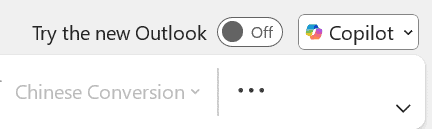
The new Outlook is available to all users on Windows 10 and later. Switching is as simple as toggling “Try the new Outlook” within the app.

Image: Microsoft

Microsoft says the rollout is gradual, giving users time to adjust, but stresses that the modern client is the future of Outlook on Windows

How to Unhide Games on Steam in 4 Easy Steps

If you’ve hidden a game in your Steam library, you might wonder how to make it visible again. The process is simple and only takes a few clicks. Follow the steps below to restore hidden games.

How to Unhide Games on Steam?

1. Open Steam Library

Start by launching the Steam client on your PC to access your games.

  1. Open the Steam app.
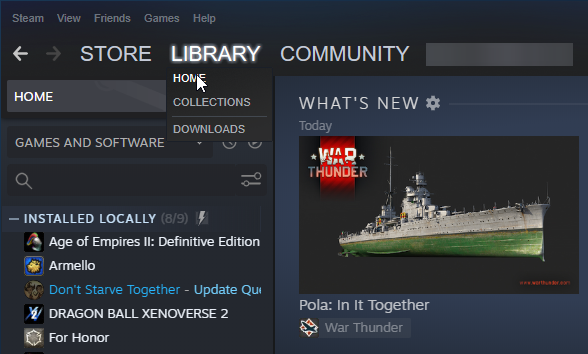
  2. Click on Library from the top menu.

If you’re just starting with Steam, you may also want to know how to redeem a code on Steam to activate new games.

Running Steam in Big Picture Mode? Switch back to the desktop client before managing hidden titles by following this guide on how to exit Big Picture Mode on Steam.

2. Access Hidden Games

Now you need to locate the section where hidden games are stored.

  1. In the left sidebar, click the drop-down menu above your game list.
  2. Select Hidden to display games you’ve previously hidden.

3. Unhide a Game

Once you’ve found your hidden titles, remove them from the hidden list.

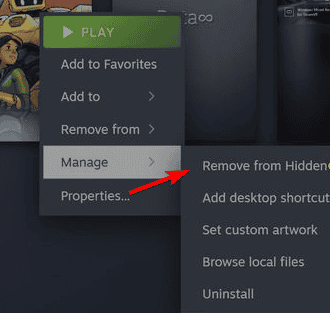
  1. Right-click on the game you want to unhide.
  2. Select Manage > Remove from Hidden.
  3. The game will return to your main library list.

4. Check Collections (Optional)

Finally, make sure your game appears in the right place within your library.

  1. Go to your Collections tab if you use it for organization.
  2. Add the unhidden game to your desired category.

If you’re also reorganizing your account, you can see how to change your Steam account name to personalize your profile.

Another way to organize your library is by letting family members or friends play your titles. See how to share games on Steam for detailed instructions on enabling Family Sharing.

Prefer to control your visibility while organizing your library? Learn how to appear offline on Steam to hide your status from friends.

FAQs

Why can’t I see my hidden games?

You must enable the Hidden filter in your library to display them.

Will unhiding a game reinstall it?

No. It simply restores the title to your visible library list.

Can I hide and unhide games multiple times?

Yes. There are no limits; you can toggle hidden status anytime.

Does unhiding affect my saved data?

No. Your progress, achievements, and settings remain intact.

Conclusion

Unhiding a Steam game only takes a few steps and doesn’t affect your save data or installations. You can toggle hidden status anytime to keep your library organized. For more account management tips, check out how to change your Steam region.

You can also check this guide on Steam password reset issues to fix cases where the platform will not let you change your account password.

How to Change Your Steam Region in Easy Steps

Moving to a new country or just curious about different Steam store prices? Changing your Steam region is possible, but you’ll need to follow a few rules. Here’s how you can do it safely without running into account issues.

How to Change Region on Steam?

1. Check When You Can Change

Before you start, make sure you actually qualify for a region change.

  1. Steam allows region changes only when you are physically in the new country.
  2. Your payment method must match the new region (local billing address or card).
  3. Steam may limit how often you can switch.

2. Open Steam Settings

Next, open your Steam client and head into the settings menu.

  1. Launch the Steam app on your PC.
  2. Click on Steam in the top-left corner.
  3. Go to Settings > Store & Purchase.

Using Steam in Big Picture Mode? Switch back to the desktop view before changing store settings by following this guide on how to exit Big Picture Mode on Steam.

While managing your store or account settings, you might also want to know your unique Steam identifier. Learn how to find your Steam ID easily using this quick guide.

3. Update Country in Store

Now, update your store country to match your current location.

  1. Under Store Country, click Update store country.
  2. Steam will detect your current location automatically.
  3. Confirm the country and enter a valid local payment method.

If you’re here because you’re dealing with other account changes, you might also want to learn how to change your Steam account name.

You can also set up Family Library Sharing to let trusted people access your titles; see how to share games on Steam for step by step instructions.

4. Make a Purchase to Finalize

To lock in the change, Steam requires a local purchase.

  1. Steam usually requires you to make a purchase using a payment option from that country.
  2. Once the transaction is complete, your store region updates.

5. Use Wallet Codes (Alternative)

If you don’t have a card from the new country, try wallet codes.

  1. If you don’t have a local card, you can redeem a Steam Wallet code in the new region.
  2. The wallet currency must match the target country.

Need help with this step? Here’s a quick guide on how to redeem a code on Steam.

Important: Steam may block or flag accounts that change regions with VPNs or mismatched payment details. Only change your region if you have genuinely relocated.

FAQs

Can I change my Steam region with a VPN?

No. Steam detects mismatched IPs and payment methods, which can lead to account restrictions.

How often can I change my Steam store country?

Steam does not allow frequent changes. It may require support approval if abused.

What if I moved permanently?

Provide a local billing method or Steam Wallet code from the new country to update successfully.

Conclusion

Changing your Steam region isn’t hard, but it does require the right conditions. As long as you’re in the new country and have a matching payment method, the process is straightforward. Stick to the official steps, and you’ll unlock the correct regional store without risking your account.

And if you ever change your mind about a purchase after switching countries, you can also check out this guide on how to return a game on Steam.

If you also want to better organize your library, here’s how to unhide games on Steam with just a few clicks.

Chrome and Edge Will Soon Use Windows 11’s GPU Power for Video Calls

Google is adding a new feature in Chrome that lets the browser use “D3D12 video encoding” on Windows 11. In simple terms, this means Chrome (and Microsoft Edge, since it’s also based on Chromium) will soon handle video calls and screen sharing with improved performance.

Right now, Chrome mostly relies on your computer’s CPU for video calls or sharing your screen. With D3D12, that heavy lifting shifts to the GPU, the same chip that powers games and graphics. This makes video calls and sharing smoother, uses less power, and can even improve video and audio quality.

D3D12 Video Encoding Brings Faster Video Calls

D3D12 video encoding has actually been in development for the last two years. Now, Google is making it easier for users to try by adding a new flag in Chrome’s early release versions. This flag will soon appear in Chrome Canary, allowing anyone to test the new feature before it rolls out to everyone.

Here’s what the new “D3D12 video encoder” flag does:

  • Enables D3D12 video encoding
  • Falls back to the older Media Foundation video encoder if D3D12 isn’t supported or fails to start

How D3D12 Video Encoding Works

For everyday users, this means:

  • Smoother Google Meet, Teams, or Zoom calls in the browser
  • Better battery life during long meetings on laptops
  • Less lag and sharper video when sharing your screen

Chrome and Edge will automatically try to use D3D12 encoding if your PC supports it, and will switch to the older system if not. It’s being tested now and should roll out more widely once graphics card makers improve support in their drivers.

This update might sound technical, but the idea is simple: make video calls in Chrome and Edge smoother, more reliable, and less demanding on your computer. Over time, users should notice better performance and longer battery life during meetings.

That’s not all. Google will use prefetching in Chrome to load bookmarks and the New Tab page more quickly. The company is also making incognito mode harder for websites to track.

Additionally, Chrome could use Google Gemini AI to extract the checkout amount for BNPL payments.

How to Change Account Name on Steam (Quick Profile Fix)

If you’re searching for how to change account name on Steam, remember that your Account Name (login ID) is permanent. However, you can easily update your Profile Name, which is what other players see.

How do I change my Steam account name?

1. Log In to Steam

  1. Open the Steam client or go to Steam in a browser.
  2. Enter your account credentials.

2. Access Your Profile

  1. Click your username at the top-right corner.
  2. Select View my profile.

3. Edit and Save Profile Name

  1. Click the Edit Profile button.
     
  2. Under General, find the Profile Name field.
  3. Enter your new display name.
  4. Scroll down and click Save.

You can also customize your appearance further by following this guide on how to change your Steam profile picture.

Using Steam on a TV interface and cannot find profile settings? Exit Big Picture Mode to return to the desktop client by following this guide on how to exit Big Picture Mode on Steam.

Key Limitations

  • Your Steam Account Name (login ID) cannot be changed once created.
  • You can update your Profile Name as often as you want.
  • Changing your profile name does not affect your games, progress, or friends.

FAQs

Can I change my Steam login ID?

No. The Account Name you created at signup is permanent.

How often can I change my profile name?

There’s no limit, as you can change it anytime.

Will changing my profile name affect my saved games?

No. Your games, achievements, and friends list stay linked to your account.

Can I hide my real name on Steam?

Yes. Just use a Profile Name that doesn’t reveal personal details.

Conclusion

You cannot change your Steam Account Name, but updating your Profile Name is quick and unlimited. This allows you to refresh your identity on Steam without losing access to your account or games.

For more Steam tips, see how to return a game on Steam or redeem a code on Steam.

If you’ve moved countries or need different store pricing, here’s how to change your Steam region safely and correctly.

You can also manage your library visibility, and here’s how to unhide games on Steam in a few simple steps.

Consumer Reports’ open letter to Microsoft CEO demands extension of Windows 10 support deadline

If you’re frustrated by the fact that Microsoft is killing off Windows 10, let me tell you that there are many who feel the same. One of the names in that list is an American nonprofit organization, Consumer Reports, which has now stepped in, saying the October 14, 2025, deadline will leave millions of users with no protection against new threats.

In a letter sent to CEO Satya Nadella, the group argued that nearly half of all PC users worldwide still depend on Windows 10. Of those, up to 400 million devices cannot be upgraded to Windows 11 due to hardware restrictions. Consumer Reports says this hard stop is unfair and puts consumers at risk.

The letter also blasts Microsoft’s paid extension model, which charges $30 for only one year of extra protection. Consumer Reports called this “hypocritical,” pointing out that the company constantly advises users to stay updated while simultaneously charging for basic security as an additional cost.

While Microsoft offers an Extended Security Updates program, the group argues that this is not enough. Without a broader extension, many consumers will either pay more or use unsupported devices.

For now, Microsoft hasn’t addressed the demands sought by Consumer Reports. We’ll update this piece if we hear anything from the company.

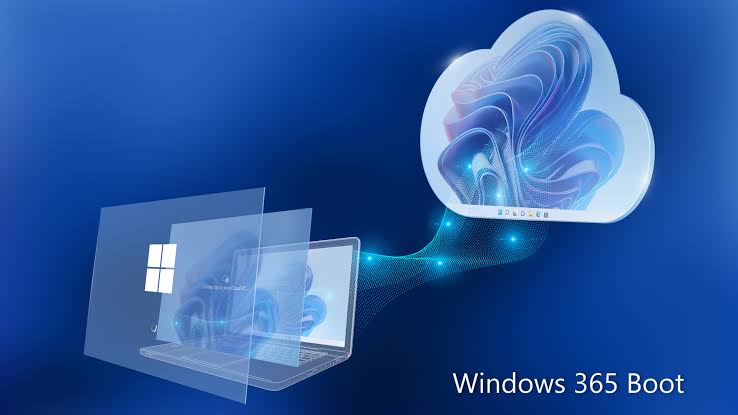
Microsoft updates Windows 365 Boot with connection center and disaster recovery

Microsoft has announced the general availability of new features for Windows 365 Boot, making it easier for users to connect to their Cloud PCs directly from any Windows 11 device. The service, widely praised for simplicity, now delivers smoother login experiences, advanced troubleshooting, and disaster recovery support.

One of the most notable additions from this update is the integration of Windows 365 Connection Center at logon. Users managing multiple Cloud PCs can now select their preferred PC and take actions such as restart, troubleshoot, or manage settings without leaving the login process.

MultiCPC1
Image: Microsoft

Microsoft has also introduced enhanced diagnostics. If login errors occur, users can instantly jump into the Connection Center to restart or check the status of their Cloud PC. This direct pathway reduces downtime, allowing employees to return to work faster without waiting for IT intervention.

Error1
Image: Microsoft

The update also brings built-in cross-region disaster recovery. With the proper license, organizations can automatically failover to a backup Cloud PC hosted in another region during an outage. Microsoft said this feature is designed to maintain productivity and business continuity even if a primary data center experiences disruption.

ConnectingWindowsBlur
Image: Microsoft

Besides resilience and troubleshooting, Microsoft has improved connection logic to cut login delays and disconnections. Users also gain the ability to adjust display settings for Windows 365 Boot directly from the Windows 11 Settings app, offering more flexibility for multi-monitor setups.

MultiCPC-WithActions
Image: Microsoft
Picture5
Image: Microsoft

The new features require Windows 11 Pro or Enterprise endpoints, a Windows 365 license, and Intune administrator rights. Microsoft confirmed that the rollout of the Windows App version 2.0.704.0 has already begun and is expected to reach all users within two months.

Microsoft Invests $30 Billion in UK’s AI Push Backed by PM Starmer

Microsoft has announced $30 billion in investment to expand its artificial intelligence presence in the United Kingdom. The tech giant said the move reflects its confidence in Britain’s role as a global leader in science, technology, and responsible innovation.

The company highlighted that more than one million people in the UK have already been trained in AI skills through Microsoft programs. It also pointed to its research hubs in Cambridge and London as proof of its long-term commitment to the country’s innovation ecosystem.

Microsoft said its decision was enabled by recent government efforts to reform planning rules, expand electricity capacity, and build a more stable regulatory framework. These changes, the company stressed, provide businesses with the clarity and predictability needed to make major AI investments.

Microsoft stated:

For AI to fully realize its potential, businesses need clarity and predictability in how they can deploy their investments, and people need confidence that these technologies are being developed and deployed responsibly.

Prime Minister Keir Starmer welcomed Microsoft’s commitment, calling it a vote of confidence in the UK economy.

Britain has the talent, the research strength, and the ambition to lead the world in artificial intelligence. By working alongside trusted partners like Microsoft, we can deliver new jobs, stronger growth, and a more innovative economy.

skate. Launches in Early Access Today: Check Release Time, Minimum PC Requirements, Supported Platforms & More

EA has officially opened the doors for skate. Early Access today (September 16, 2025). Meaning, you can now dive into San Vansterdam’s open playground two years before the game’s full launch.

The earky access gives fans a chance to explore the city, try multiplayer skating, and experience new content updates as they roll out regularly.

skate. is designed to keep friends connected, no matter their platform. From day one, the game offers both cross-play and cross-progression. That means you can skate with players on other systems and keep your progress synced everywhere you log in. Whether you switch from console to PC, your achievements and unlocks follow you seamlessly.

The Early Access version of skate. is available on a wide range of systems. Supported platforms include:

  • PlayStation 4 and 5
  • Xbox One and Xbox Series X|S
  • PC

Sadly, mobile platforms are not supported at launch.

skate. Minimum PC requirements

EA has also shared the minimum PC requirements needed for Early Access:

  • OS: Windows 10 or 11 (DirectX 12)
  • Processor: Intel Core i5 6600K / AMD Ryzen 3 3100
  • Graphics: Nvidia GTX 1050 Ti / AMD RX 460
  • VRAM: 4GB
  • RAM: 8GB
  • Storage: 25GB free space
  • Controller: Required (DualShock, DualSense, or Xbox controller)

Keyboard and mouse controls are not supported during Early Access. These requirements target 1080p, 30fps at low settings. Advanced upscaling tools like FSR and XeSS are already planned, while DLSS support will arrive later.

skate. Early Access Release Time

The release times are varied by region. For example, the Early Access launches at 10 AM PDT on the West Coast, 1 PM EDT on the East Coast, 5 PM GMT, 6 PM CET, and 10:30 PM IST. For players in Japan and Australia, the launch will kick off in the early hours of September 17, at 2 AM JST and 4 AM AEDT, respectively.

EA Sports FC 26 Web App Release Date, Time, and All the Details

EA SPORTS FC 26 fans can get a head start on building their Ultimate Team with the new Web App releasing on Wednesday, September 17.

The EA FC 26 Web App release time is expected to be around 6 PM BST / 1 PM EDT / 10 AM PDT, giving players early access two days before the full game release.

The Web App will also allow players to manage squads, complete objectives, and plan transfers before diving into the full EA FC 26 experience on consoles and PC. Players should expect heavy server traffic at launch, similar to previous years, which may cause login delays. Patience will pay off as access opens fully throughout the day.

Using the EA FC 26 Web App, players can:

  • Manage Football Ultimate Team squads remotely.
  • Access player transfers and market items.
  • Prepare for Early Access content and daily events.

For those who pre-ordered the Ultimate Edition, this is a perfect opportunity to plan your team, claim FC Points, and unlock exclusive content ahead of the game’s official launch.

EA FC 26 worldwide release is scheduled for September 26 on consoles and September 25 on PC, with Early Access starting September 19 for Ultimate Edition owners.

The FC 26 Web App provides a convenient way to get started early, ensuring players can hit the ground running on launch day.

Article feature image source: EA Sports

Microsoft releases Windows 11 Preview Build 22631.5984 and Windows 10 Preview Build 19045.6390 with fixes

Microsoft has rolled out new cumulative updates for Windows 11 and Windows 10, bringing important fixes and improvements for users in the Release Preview Channel. These updates focus on enchancing stability, address bugs, and improve overall system performance.

For Windows 11, version 23H2, Build 22631.5984 (KB5065790) resolves multiple issues. The update fixes authentication problems that caused the sign-in screen to stop responding after entering a SIM PIN during mobile broadband sign-in. Profiles for select mobile operators have also been updated via the Country and Operator Settings Asset (COSA). Last week, the same KB build was pushed with Build 22631.5982.

The update also fixes display issues during Remote Desktop Protocol (RDP) sessions with multiple monitors are addressed, preventing unexpected shutdowns when disconnecting from docking stations. Input problems in the Chinese Input Method Editor (IME) have been fixed, including instances where characters appeared as empty boxes in apps like Connection Manager Administration Kit. Printer queue crashes for shared printers and the missing description in the McpManagement service are also fixed.

For Windows 10, version 22H2, Build 19045.6390 (KB5066198) brings minor general improvements and fixes that enhance device stability and reliability. Though smaller in scale, this update continues Microsoft’s efforts to refine the Windows 10 experience for insiders. For tge uninitiated, Mocrosoft rolled out similar update last week with same KB number, but with Build 19045.6388.

Both updates are now available for users in the Release Preview Channel. Microsoft urges users to install these updates and enjoy improvements and smoother performance on Windows 11 and Windows 10 PCs.

Google tests new desktop Search app for Windows featuring AI Mode and Lens

It’s no secret that Google experiments a lot around its apps and services to offer the best experience it can. Now, the tech giant is taking search to Windows in a new way.

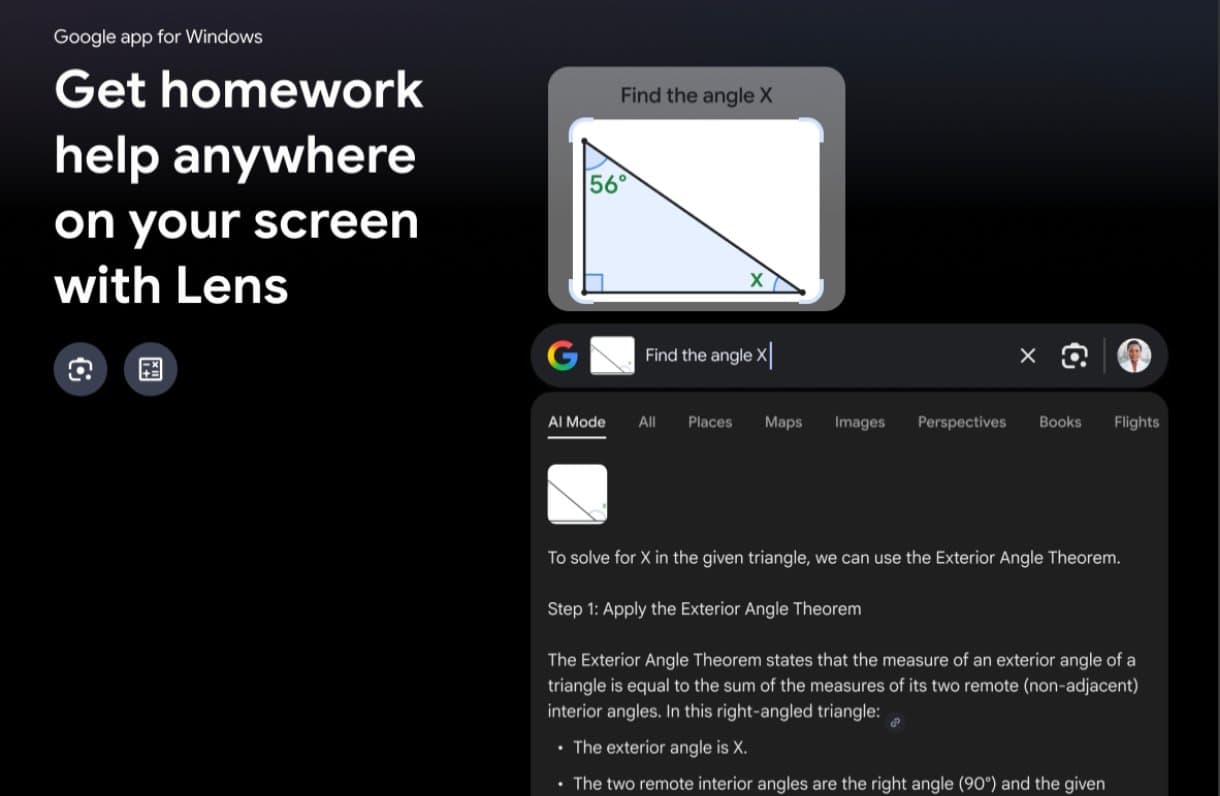
Google, in its The Keyword blogpost, announced the launch of a test version of its search app for Windows PCs. And it’s currently available for personal accounts via Google Search Labs.

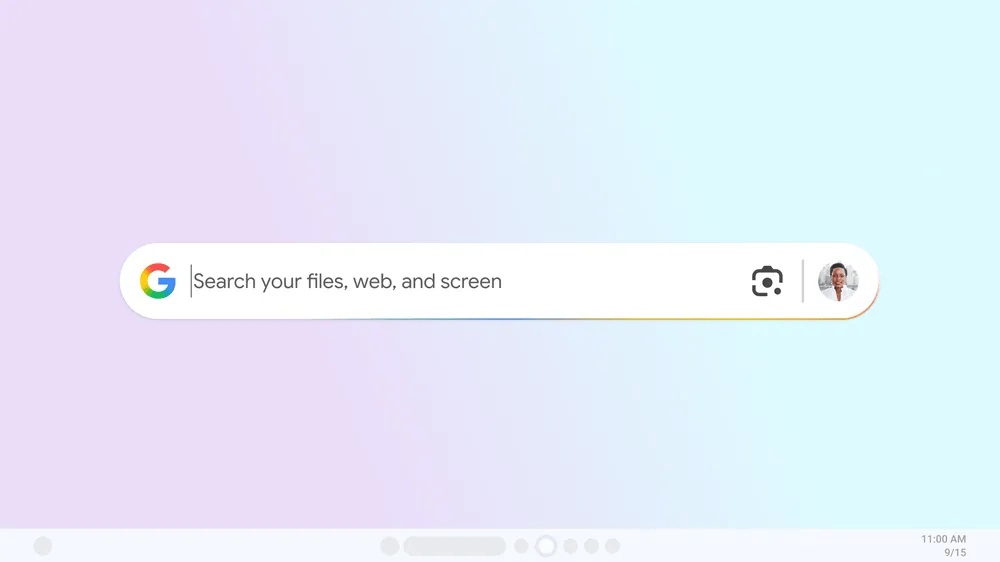
The app brings more than just a typical search bar. Once installed, a floating search bar appears on your desktop, which you can drag anywhere and resize to fit your workflow. You can simply hit Alt + Space to minimize or open the app instantly.

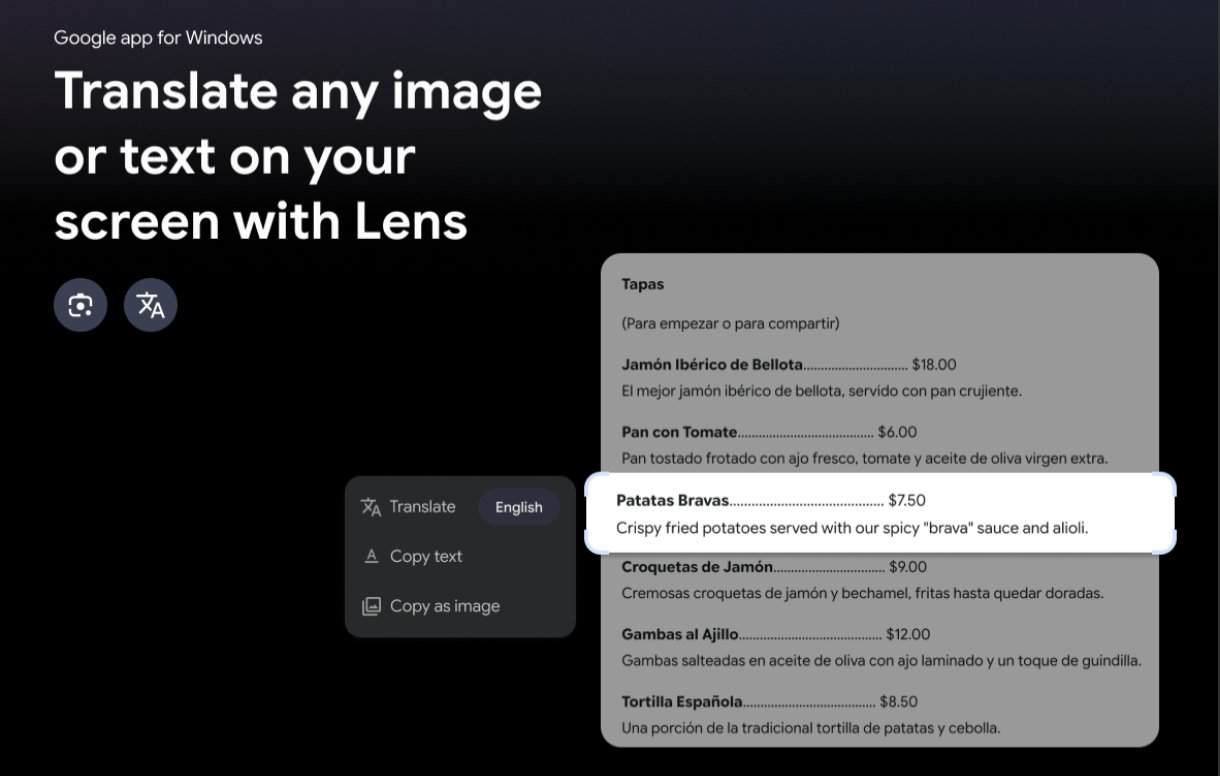
Google’s new Windows app isn’t limited to the web. You can search your local files, Google Drive, and the web, all from one place. What’s interesting is that the app also includes Lens, Google’s visual search tool. It lets you select images on your screen, translate text, or even highlight a math problem in homework and use AI Mode to find answers instantly.

Image: Google

Well, switching between result types is equally easy. As on the web version, you can toggle between AI Mode, Images, Shopping, Videos, and standard search results. You can further switch between light and dark mode for a more comfortable visual experience. If you’ve thought of Mac’s Spotlight, well it’s kindof… but Google’s approach integrates AI and visual search from the start.

Image: Google

Google has built in customization options as well. You can enable or disable AI Mode entirely and even change the shortcut for opening the app by going to your profile picture and selecting Configurations. The app’s Chrome-like installation makes setup simple, requiring a sign-in to your Google account.

As of now, this experiment is limited to English language and U.S. users, running on Windows 10 or newer. If you are eligible, you can enable it on Google Search Labs to try it out today itself.

Microsoft confirms WMIC removal in Windows 11 25H2 to boost security and block malware

Late last month, Microsoft released Windows 11 version 25H2, and removed legacy tool like the Windows Management Instrumentation Command-line (WMIC) utility. These changes are part of Microsoft’s ongoing efforts to streamline the operating system and enhance security.

Now, in a recent Microsoft 365 Message Center update spotted by folks at Bleeping Computer, the company has urged admins to transition from using WMIC to more modern tools, confirming its removal.

To be precise, Microsoft recommends using PowerShell and other alternative utilities for tasks previously handled by WMIC. With this move, Microsoft is looking to reduce the attack surface and improve system integrity. You can check the WMIC’s deprecation timeline published by Microsoft below.

Image: Microsoft

Now, you may ask: why is WMIC being removed? Well, WMIC has long been considered a “living-off-the-land binary” (LOLBIN), a Microsoft-signed executable that threat actors exploit for various malicious activities during attacks.

For example, ransomware attakers commonly use the WMIC command to delete Shadow Volume Copies, ensuring that victims can’t use them to recover encrypted data. That’s not all; Malware has also been observed using WMIC to add exclusions to Microsoft Defender, evading detection when launched.

By removing WMIC, Microsoft aims to thwart these attack tactics and bolster overall security. The tool’s removal will make it more challenging for malicious actors to execute certain commands, thereby enhancing the system’s defense mechanisms.

AMD Launches Ryzen 5 5600F, Ryzen 5 9500F, and Ryzen 7 9700F as New “F-Series” CPUs for AM4 and AM5

AMD has officially launched new F-series desktop CPUs to its Ryzen family, expanding support for both AM4 and AM5 platforms. For the uninitiated, the F-series refers to CPUs without integrated graphics, designed for users who rely on discrete GPUs.

One if the surprise announncement was of the Ryzen 5 5600F (via X/@momo_us). It’s a Zen 3-based processor that breathes new life into the AM4 socket. It offers six cores, 12 threads, a 3.0 GHz base clock, and boosts up to 4.0 GHz. With 35 MB of cache and a 65 W TDP, it’s a cost-efficient for older builds.
Besides refreshing the AM4 platform, AMD launched two new Zen 5-based processors for its latest AM5 platform: the Ryzen 5 9500F and Ryzen 7 9700F.

The 9500F packs six cores and 12 threads, with speeds reaching up to 5.0 GHz. Whereas, the 9700F offers eight cores and 16 threads with boost clocks up to 5.5 GHz. Both operate at 65 W TDP and feature expanded L3 caches for gaming and productivity workloads.

The Ryzen 5 5600F confirms that AM4, now in its ninth year, is still relevant for budget and mid-range users. Meanwhile, the Ryzen 9000F series expands AMD’s AM5 lineup with more affordable options in the new Zen 5 family.

As of now, there’s no information about the price of any of these new CPUs. However, it’s worth noting that the Ryzen 5 9500F has been listed for “global” availability. For Ryzen 7 9700F, it’s “N/A”. While we don’t know what it means, we speculate it to be US-only launch. Only time will tell, if it’s true. If we receive any comment from AMD, we’ll update this section for you.

Microsoft Fabric adds Extensibility toolkit, OneLake upgrades, and Azure Foundry integration

Microsoft Fabric is quickly becoming the go-to platform for data developers. Given the ongoing success, Microsoft has now announced the Fabric Extensibility Toolkit, which streamlines architecture and automation.

The company says that this helps ensure that every solution built on Fabric is secure, scalable, and aligned to business needs.

That’s not all; the conpany also announced the preview of the Fabric Model Context Protocol (MCP). With MCP, developers can benefit from AI-assisted code generation and content authoring directly inside familiar tools like Visual Studio Code and GitHub Codespaces.

At the center of Fabric is OneLake. That’s a unified data foundation designed to power AI and analytics. Microsoft says that it is now enhancing it with mirroring support for Oracle and Google BigQuery, along with shortcuts to Azure Blob Storage. These additions make it easier to bring all data together in one place.

Teams can now transform JSON and Parquet files into Delta tables for instant analysis. On Additionally, governance has also been improved with a new Secure tab for permissions and a Govern tab for oversight. All combined gives businesses greater control and transparency over data.

Last but not least, Microsoft is also deepening the integration between Fabric and Azure AI Foundry. This integration unifies data, models, and operations, enabling enterprises to design and scale AI agents more efficiently. Developers can continue working in GitHub, Visual Studio, and Copilot Studio, while IT admins maintain visibility into governance and performance.

All in all, Microsoft is trying its best to align Fabric with Azure AI Foundry, for reducing complexity and helping organizations move from experimentation to enterprise-scale AI impact.

ChatGPT for Teens: OpenAI Adds Teen Safety Tools and Parental Controls

OpenAI is understandably quite serious to make ChatGPT safer for teens. The company today announced a series of features designed to protect teens while giving parents more control over how AI shows up in their homes.

Age Prediction System Coming Soon

OpenAI is developing a system to identify whether a user is over or under 18. If ChatGPT detects someone is a teen, the app will automatically apply age-appropriate rules. These include blocking graphic sexual content and, in rare emergencies, alerting law enforcement to ensure safety.

More importantly, when there is uncertainty about the age, OpenAI says it will “take the safer route and default to the under-18 experience.” In such case, adults will have the option to verify their age to unlock full access.

Parental Controls to Roll Out Soon

As promised earlier, parents will get new parental tools to guide their teen’s ChatGPT experience by the end of this month. These include:

  • Linking their own account with their teen’s (minimum age 13).
  • Choosing which ChatGPT features to disable, such as memory and chat history.
  • Receiving alerts when the system detects their teen may be in acute distress.
  • Setting blackout hours when their teen cannot use ChatGPT.

These controls are designed to help parents establish healthy boundaries while keeping AI useful and supportive.

OpenAI further says it will continue to prioritize teen safety over privacy and freedom when conflicts arise, explaining that the stakes are higher for younger users. The company also acknowledged that predicting age is difficult but believes this cautious approach is the right path forward.

Black Ops 7 Early Access Beta Detailed for Xbox Game Pass Players

The wait is almost over. Call of Duty: Black Ops 7 is gearing up for its Early Access Open Beta, and Xbox Game Pass subscribers are among those getting first dibs.

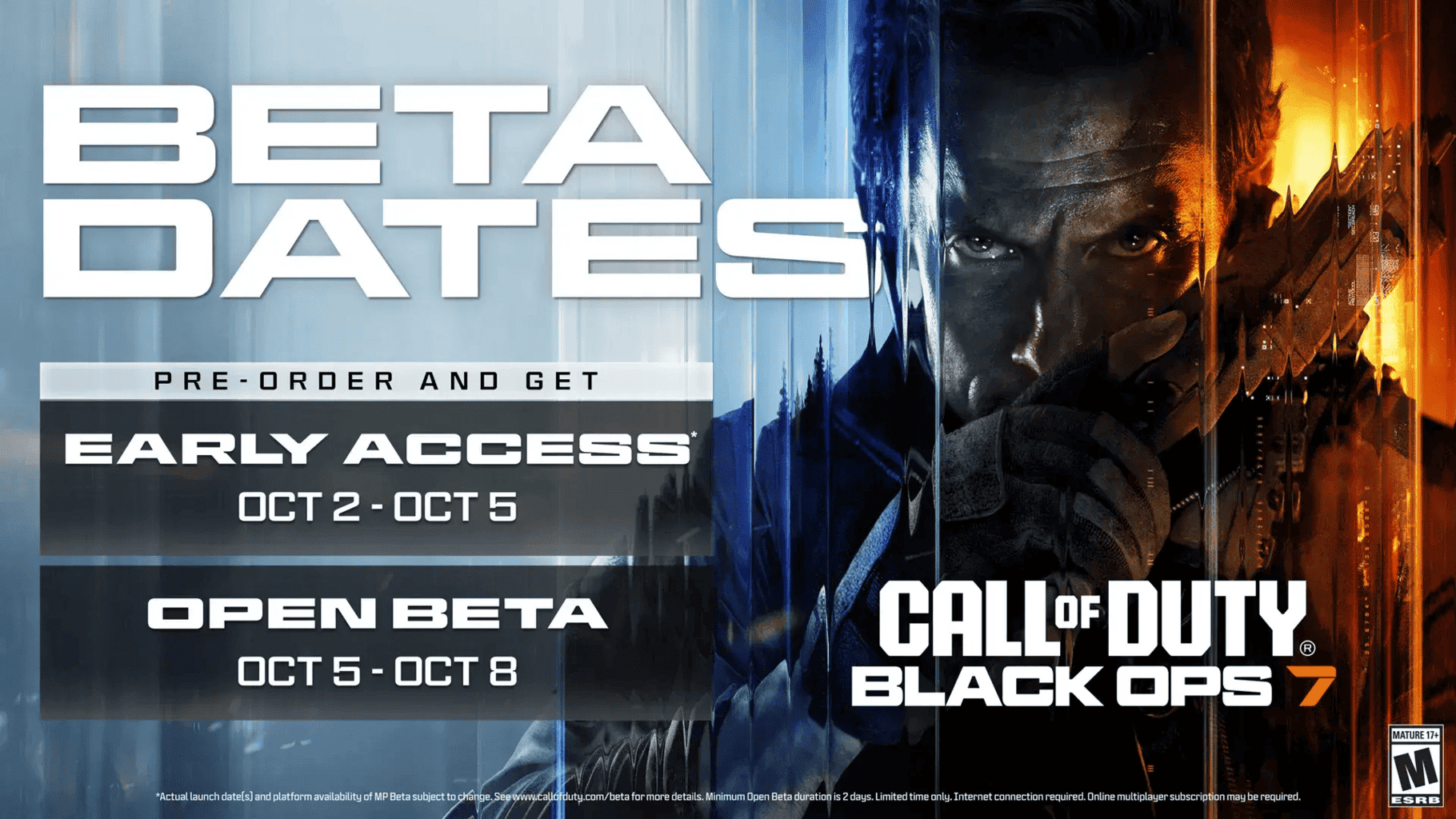
The beta runs from October 2 to October 8, with an Early Access window from October 2–5, followed by an Open Beta phase from October 5–8.

How to Join the Black Ops 7 Early Access Beta

Players can grab a spot in Early Access by preordering the game through participating retailers or digital stores. Eligible editions include the Vault Edition, Cross-Gen Bundle, Standard PC Edition, or any physical version.

Those who preorder via the Microsoft Store, PlayStation Store, Battle.net, or Steam are automatically validated and don’t need a separate code. The same goes for active subscribers of Game Pass Ultimate, PC Game Pass, or Game Pass Console, making the process seamless for Xbox users.

What About Beta Codes?

If you preordered from a retailer, you’ll receive a 13-character Early Access code. This must be redeemed at callofduty.com/betaredeem using your Activision account. Once registered, Activision will email you a token before the beta begins.

What to do if you lose your code? You’ll need to contact your retailer directly. Keep in mind, codes only apply to retail preorders, and not digital store purchases or Game Pass access.

Keep these in mind, too

  • Beta tokens will be distributed close to the start date.
  • Access is tied to the console you select when redeeming.
  • Availability will vary by region and retailer.
  • Pre-load details are expected soon.

Microsoft has also noted about the Early Access in its Xbox Wire coverage by noting, “Master a cutting-edge arsenal and outmaneuver your enemies with the next level of Omnimovement during the Black Ops 7 Beta. Jump into brand-new 6v6 multiplayer maps coming at launch on November 14, all combining a new level of visual fidelity along with refined Multiplayer design for the most engaging Black Ops MP ever.”

These Games are Joining & Leaving Xbox Game Pass Soon

Microsoft has announced fresh lineup of games coming to Xbox Game Pass for rest of September. But, first of all, let’s talk about Call of Duty: Black Ops 7 Early Access.

As you may know, The Black Ops 7 Early Access Open Beta kicks off October 2 for preorders and eligible Game Pass subscribers. With that, players can test new 6v6 multiplayer maps and refined Omnimovement mechanics ahead of the full launch on November 14.

The company has also announced that fans can start playing RoadCraft today on Cloud and Xbox Series X|S, managing over 40 construction vehicles to rebuild infrastructure after disasters. You can pick from either solo or in cooperative mode.

Meanwhile, September 17 adds Call of Duty: Modern Warfare III to console, putting Captain Price and Task Force 141 against the ultranationalist threat. The same day King II and the Game Preview of Overthrown, and Deep Rock Galactic: Survivor land across Cloud, PC, and Xbox Series X|S.

September 18 brings Frostpunk 2 and Wobbly Life, giving players strategy-driven post-apocalyptic survival and vibrant physics sandbox experiences. On September 19, Hades returns to Game Pass for its five-year anniversary, allowing players battle out of the Underworld with mythic powers.

Following that, Endless Legend 2 (September 22) and Sworn (September 23) offer strategy and co-op rogue-like action. Whereas, Peppa Pig: World Adventures and Visions of Mana release on September 25. Finally, Lara Croft and the Guardian of Light arrives on September 30, with Sopa – Tale of the Stolen Potato debuting on October 7.

Several games leave the Xbox Game Pass library on September 30. Those games are Ninja Gaiden Sigma and Terra Invicta.

How to Redeem Code on Steam Step by Step (Full Guide)

Learn how to redeem a code on Steam in just a few steps. Whether you received a game gift, wallet credit, or DLC code, here’s the fastest way to activate it.

How to redeem a code on Steam?

1. Use the Steam client

Follow these steps to redeem your code in the Steam client:

  1. Open the Steam client on your PC and sign in.
  2. Click Games in the top-left menu.
  3. Select Activate a Product on Steam.
     
  4. Press Next, then click I Agree on the license window.
  5. Enter your 15–25 character code exactly as shown.
  6. Click Next to confirm.
  7. Find the game in your library and click Install to download.
  8. If it’s a wallet code, the balance updates in your account instantly.

If you later decide the purchase isn’t for you, you can return a game on Steam within the refund policy window.

You can also redeem digital purchases outside Steam by learning how to redeem a code in the Microsoft Store to keep all your game credits organized.

2. Redeem Codes via the Steam Website

If you can’t use the client, redeem codes directly on the web:

  1. Open store.steampowered.com/account/registerkey.
  2. Log in with your Steam account details.
  3. Enter the product code into the field.
  4. Confirm and check your library or wallet balance.

This works for both games and DLC, but keep in mind that if you run into issues, you may need to refund DLC on Steam separately.

When managing your Steam account on the web, it’s also helpful to know your unique profile identifier. Check out this quick guide on how to find your Steam ID to access it easily.

Common Issues When Redeeming Steam Codes

Here are the most frequent problems you might face:

  • Invalid Code: Check for typing errors like 0 vs O.
  • Region Restrictions: Some codes only activate in specific countries.
  • Already Used: Keys cannot be redeemed twice, contact the seller if so.
  • Server Error: Try again later when Steam servers are stable.

If you activated a code as a present, remember that Steam also allows you to refund a gifted game under certain conditions.

FAQs

Where do I find my Steam code?

Codes are sent by retailers, gift cards, or digital stores.

Can I redeem a code on mobile?

Yes, open the Steam app, go to Library, tap “+”, then choose Redeem a Wallet Code.

Do Steam codes expire?

Game codes usually don’t expire, but wallet cards should be used promptly.

What happens if I lose my code?

Contact the retailer with proof of purchase or check your email receipt.

Conclusion

Redeeming a Steam code is simple with either the desktop client or the website. Once activated, your game or wallet funds appear instantly.

If you want to manage your library afterward, here’s how to unhide games on Steam so you never lose track of activated titles. Advanced players who host dedicated servers can use this guide on how to use SteamCMD to install and update server files more efficiently.

After activating your code, you might also need to change your Steam region if your purchase is tied to a different country. You can refresh your identity by learning how to change account name on Steam for a quick profile update.

You can hold off redeeming Microsoft Reward points now and grab discounted Xbox & Amazon gift cards in Fall savings sale

If you’ve been hoarding Microsoft Rewards points, October might be the month to finally redeem them. Microsoft has started teasing a Fall savings gift card sale on the Rewards dashboard.

And as reported by Windows Central, a banner spotted in both the US and UK version of the dashboard shows popular options like Amazon, Xbox, Starbucks, and Roblox gift cards in the mix.

While Microsoft hasn’t shared all the details yet, the fact that it’s highlighted under “Redeem” suggests discounts or boosted value compared to the usual exchange rates. Ususlly, gift cards are already the most popular way to use Rewards points. But sales events like this one often make them an even better deal.

As you may know, Microsoft already allows you to swap points for everything from sweepstakes entries to movies, but gift cards remain the most reliable choice. They can be spent instantly on Xbox credit, hardware in the Microsoft Store, or even on coffee and games from third parties. It’s not hidden anymore that Microsoft Store and Xbox cards give the most value per point, which makes them the safe pick for regular shoppers.

Having all that said, not all of you earn points at the same speed. Rewards levels mentioned by Microsoft changes the whole thing. While Level 1 members earn only one point per dollar spent and max out at 30 points a day with Bing, Level 2 raises that to ten points per dollar and up to 150 daily search points.

The best part is that when you pair Level 2 with Xbox Game Pass Ultimate, it gets boosted even further to twenty points per dollar. That means if you buy a $1,499 Surface Laptop 7 at the top tier could pocket nearly 30,000 points, enough for multiple gift cards once the sale kicks in.

It’s worth noting that Rewards offers are region-based, so what’s discounted in the US might not appear the same way in the UK or elsewhere. In some countries, you’ll even see rental vouchers or different retailer cards. For now, though, the teased sale graphic is only appearing in US and UK dashboards.

If you’re aiming for gift cards, holding off until October is the best decision. Microsoft usually reserves its best redemption ratios for these events, and the teased brands cover both essentials and fun extras.

All in all, you should do your part by keep checking in your Rewards dashboard, and say on the toe to swap points for gift cards at a better rate once the sale begins.

How to Return a Game on Steam in 4 Easy Steps

Wondering about how to return a game on Steam ? If a title isn’t what you expected, Steam makes the refund process simple. Here’s how to get your money back step by step.

How to Request a Refund on Steam?

1. Check Eligibility

Before you start, make sure your game qualifies for a refund:

  1. Refunds are available within 14 days of purchase.
  2. You must have played the game for less than 2 hours.
  3. Some DLCs and in-game purchases may also qualify.

For details on returning add-ons, see this guide on how to refund DLC on Steam.

2. Open the Steam Help Page

Next, go to the official Steam support page to start the process:

  1. Visit help.steampowered.com.
  2. Log in with your Steam account credentials.
  3. Select the game you want to return from your recent purchases.

If you run into login or browsing problems, you may need to fix Steam age verification not working. Need to activate a key instead of requesting a refund? Learn how to redeem a code on Steam to add the game to your library.

3. Choose the Refund Option

Once on the game’s support page, you’ll see the option to request a refund:

  1. Click “I would like a refund.”
  2. Select “I’d like to request a refund.”
  3. Fill out the refund form with your reason.

4. Confirm Payment Method

Finally, confirm how you want your refund to be processed:

  1. Choose whether you want the money returned to your Steam Wallet or the original payment method.
  2. Submit your request.
  3. Wait for a confirmation email from Steam.

Why Steam Refunds Work This Way

The 14 day and 2 hour limit prevents abuse of the system while still giving users a fair chance to test their purchase. Steam usually processes refunds quickly, often within a few days.

FAQs

Can I return a game after 14 days?

No. Refund requests made after 14 days are usually declined.

How long does it take to get my money back?

Steam refunds are typically processed within 7 business days.

Can I refund a game I received as a gift?

Yes, but the refund goes to the buyer’s payment method, not the recipient. Learn more in this guide on how to refund a Steam gift.

Do refunds affect my Steam account?

No, normal refunds do not affect your account standing. Abuse may lead to restrictions.

Conclusion

Returning a game on Steam is quick if you meet the refund rules. By checking eligibility, submitting your request, and confirming payment, you can get your money back with little effort. And if your situation involves DLCs or gifted games, the linked guides above will walk you through those cases too.

Want to update your display name on Steam? Learn how to change account name on Steam for a quick profile refresh before or after submitting your refund request.

Returning a game on Steam is quick if you meet the refund rules. If you’ve also moved to a new country, you may need to change your Steam region to make sure your store settings and payment options are correct.

Microsoft reportedly favors Anthropic’s Claude Sonnet 4 over GPT-5 in Visual Studio Code

Aa OpenAI is looking beyond Microsoft for cloud services, Microsoft is quietly updating its AI strategy inside Visual Studio Code. As reported by TheVerge, a new feature called automatic model selection is rolling out to GitHub Copilot users, which focuses more on Anthropic’s Claude Sonnet 4 rather than OpenAI’s GPT-5.

The auto-selection system is designed to pick the “best model for optimal performance,” but internal communications confirm that paid Copilot users will “primarily rely on Claude Sonnet 4.” Free-tier users will see a rotation of models, including GPT-5, GPT-5 mini, and Claude.

Windering why Microsoft is choosing Anthropic’s one over OpenAI’s? Well, in June, Microsoft’s developer division told employees that Claude Sonnet 4 is the recommended model for GitHub Copilot, citing internal benchmarks.

Desoite the arrival of GPT-5, that guidance hasn’t changed. Thanks to The Information’s report from last week, we knew that Microsoft’s engineers have been instructed to default to Claude Sonnet 4 for coding work.

While it may sound like a strategy shifyt, it has more of Microsoft’s realization that Anthropic’s models are excelling at developer workflows like code generation, debugging, and inline suggestions.

That’s not all; early tests within the company reportedly showed stronger results from Claude in complex Excel and PowerPoint tasks as well, which is why some Microsoft 365 Copilot features will soon use Anthropic models too.

How to Exclude Terms in Bing for Cleaner Search Results

Want cleaner results on Bing? You can remove unwanted words to narrow what you see. Follow these quick methods to learn how to exclude terms in Bing search.

How to exclude terms in Bing?

1. Use the minus operator to remove a word

This method lets you quickly block a single term from appearing in results.

  1. Type your topic, then add a minus sign directly before the word you want to exclude, like windows update -error.
  2. Press Enter and scan the results to confirm pages containing the excluded word are filtered out.

If you’d like to see how Bing’s AI features can change your search experience, here’s a full guide on how to turn off AI in Bing.

2. Exclude multiple words at once

When one exclusion isn’t enough, you can block several terms in one query.

  1. Add several minus terms to the same query, for example bing search tips -ai -ads -news.
  2. Refine further by removing additional repeated distractions until the first page matches your intent.

3. Keep an exact phrase while excluding other terms

This option helps you focus on precise wording while filtering out the noise.

  1. Wrap the must-have phrase in quotation marks, such as “microsoft edge”, to keep those words together.
  2. Add minus terms after the phrase, for example “microsoft edge -download”, to avoid specific result types.

If you want to dig deeper into phrasing searches, check this guide on how to search for exact phrases in Bing.

4. Target a site and still exclude noise

You can narrow results to a specific website while blocking sections you don’t need.

  1. Limit results to a domain using the site filter, for example site:windowsreport.com bing.
  2. Append exclusions to remove sections you don’t need, such as site:windowsreport.com bing -sync.

5. Filter by file type and exclude drafts or duplicates

This trick is useful when you only want specific documents but not early versions.

  1. Restrict results with a file type, for example report filetype:pdf, to focus on documents.
  2. Add an exclusion like -draft or -v2 to avoid preliminary or duplicate versions.

6. Combine exclusions with OR groups

Use grouping when you want variations included while still excluding irrelevant results.

  1. Group synonyms in parentheses to broaden meaning, such as guide (setup OR install).
  2. Remove unwanted angles at once, for example guide (setup OR install) -beta -preview -deprecated.

Troubleshoot when exclusions seem ignored

If Bing doesn’t seem to respect your exclusions, try these fixes.

  1. Remove special characters or punctuation from your excluded words and try again, as symbols can break matching.
  2. Simplify the query by testing one exclusion at a time, then stack them once you confirm each filter works.

Pro tips for precise exclusions

Small adjustments make your searches even more efficient and accurate.

  1. Exclude brand or product names that dominate results to surface independent reviews and documentation.
  2. Remove common intent modifiers like download, price, or tutorial if you’re researching concepts rather than how-tos.

Conclusion

Excluding terms in Bing makes it easier to focus on the results you actually want. Whether you’re removing single words, exact phrases, or file types, these tricks help you cut through irrelevant content and find accurate information faster.

If you also want to optimize your Bing experience, you can check out guides like how to shop with Bing to make your searches even more effective.

FAQs

How do I exclude multiple terms in Bing?

Add a minus sign before each word you want to remove, like bing search -ads -news -ai.

Can I exclude whole phrases in Bing?

Yes. Put the phrase in quotes, then add a minus sign, for example -“beta version”.

Why are my exclusions not working?

Punctuation and symbols can interfere. Try removing them or test exclusions one at a time.

Can I combine exclusions with other Bing filters?

Yes. You can use them alongside site, filetype, or time filters for more precise results.

Windows Secure Boot Certificates Expire in 2026, Microsoft Warns of Update Risks

The first batch of Windows Secure Boot certificates, issued in 2011, is set to expire in June 2026. Now, Microsoft is warning users about the consequences.

While Secure Boot has long been a requirement for Windows 11, expired certificates could prevent systems from installing critical updates, leaving them exposed to BootKits and other malware threats.

According to Microsoft’s updated FAQ, the expiring certificates affect any device still relying on the original 2011 set. For most Windows 11 and supported Windows 10 PCs, the renewal process will happen automatically via Windows Update.

However, users running Windows 10 beyond its October 14, 2025 end of support will need to enroll in the Extended Security Updates program to continue receiving new certificates.

The issue becomes even more critical when dealing with firmware resets. Some users could find their PCs refusing to boot if the system defaults back to an older boot manager without the 2023 Secure Boot certificate.

Microsoft explains in its support document that recovery steps are available, but they require applying the updated certificate manually using a recovery USB.

How to Turn Off AI in Bing and Microsoft Edge

AI features like Copilot and Bing Chat are integrated into Bing and Microsoft Edge. If you prefer classic search without AI prompts, you can reduce or disable them using a few settings.

How to Turn Off AI in Bing?

1. Hide Copilot in the Sidebar

Follow these steps to remove the Copilot button from Edge:

  1. Open Microsoft Edge.
  2. Click the three dots (…) > Settings.
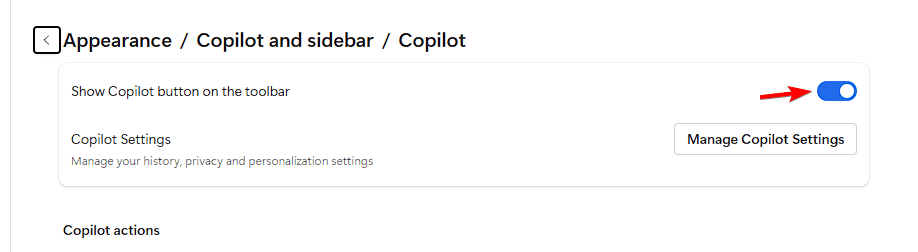
  3. Go to Sidebar > Copilot.
  4. Toggle off Show Copilot button.

This removes the Copilot icon and sidebar from Edge.

2. Change the Default Search Engine

Switching the search engine ensures your searches bypass Bing’s AI results:

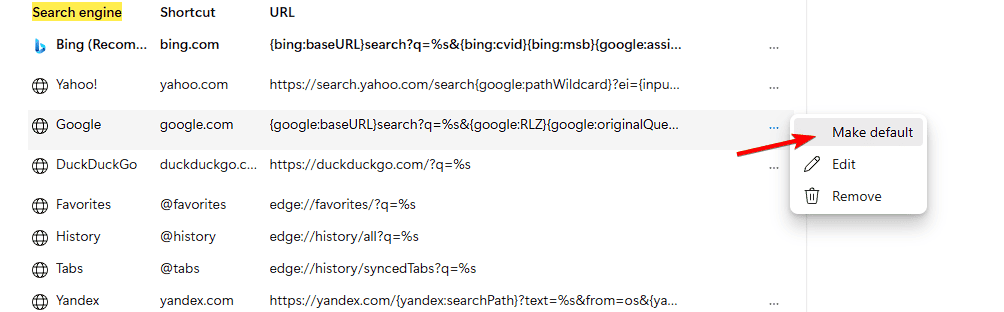
  1. In Edge, go to Settings > Privacy, search, and services > Address bar and search.
  2. Under Search engine used in the address bar, pick Google, DuckDuckGo, or another provider.

If you want Bing results to stay consistent across your devices, you can also enable Bing Sync for search data and preferences.

3. Avoid Bing Chat

To prevent AI answers from appearing:

  1. Search on Bing.com.
  2. Stay on the Web tab.
  3. Do not click the Chat tab, since it triggers AI responses.

4. Adjust Bing Search Settings

To reduce AI-driven suggestions:

  1. On Bing.com, open Settings > Search.
  2. Turn off personalization.
  3. Clear search history.

While adjusting your preferences, you may also find it useful to learn how to shop on Bing and use its built-in features more effectively.

For cleaner, more targeted results, see our guide on how to exclude terms in Bing.

5. Use Bing Without AI on Mobile

On mobile, you can either limit AI features in the Bing app or use a browser instead.

  1. Open the Bing app on iOS or Android.
  2. Go to Profile > Settings.
  3. Turn off features like Chat or Personalized feed, if available.
  4. Use Bing in a browser to fully avoid AI features.

FAQs

Can I completely disable AI in Bing?

No, but you can hide Copilot and avoid AI chat for a traditional search experience.

Does disabling Copilot in Windows turn off Bing AI?

No. Group Policy and Registry only affect Windows Copilot, not Bing in Edge or Bing.com.

What is the easiest way to remove AI from Bing?

Hide Copilot in Edge, avoid the Chat tab, and use the Web tab only.

Can I switch to another search engine in Edge?

Yes. You can change the default search engine to Google or DuckDuckGo.

Conclusion

You cannot fully disable AI in Bing, but you can limit its presence. By hiding Copilot in Edge, avoiding the Chat tab, and tweaking search settings, you keep the browsing experience closer to classic search. On mobile, disabling chat features or using a browser gives you even more control. For more precise queries, it also helps to know how to search for an exact phrase in Bing.

Windows 11 September update KB5065426 reportedly won’t install for some users

The September 2025 Patch Tuesday update, KB5065426, has been causing issues for many users. While the update has been reported for causing havoc around file and print sharing, some users have also reported that the KB5065426 update isn’t installing correctly on some Windows 11 24H2 systems.

According to posts from the Microsoft Community and Windows Latest’s report, the installation failure is accompanied by multiple error codes, including 0x800F0991, 0x800F0922, 0x80071A2D, 0x800F081F, 0x80070302, 0x80070306, and 0x8000FFFF.

In many cases, the update either loops with a “Retry” button or stops partway with messages like “The update was not installed”. Some admins even noted that manual installation through the Microsoft Update Catalog fails, often installing just above 50% before reporting an error.

One user even reported that even after trying to install the September update from Windows Update 9 times, they get 0x800f0805 error. While the common troubleshooting commands such as SFC and DISM work generally in these cases, this time, it isn’t even working.

A temporary workaround is to update using Microsoft’s Media Creation Tool. Running the tool with the “Upgrade this PC” option has allowed affected systems to install KB5065426 successfully, while preserving files. If that does not work, Microsoft’s Update Assistant Tool can be tried as an alternative.

Microsoft has not yet confirmed a server-side fix, but based on previous rollouts, we hope to see a patch released soon. Until then, the Media Creation Tool remains the most reliable option to bypass KB5065426 installation failures.

How to Use Bing Shopping for Better Online Deals

Bing makes online shopping easier by showing product prices, reviews, and comparisons in one place. You can use Bing Shopping to save money and find trusted sellers quickly. Here’s how to do it.

How do I shop on Bing?

1. Access Bing Shopping

Start by opening Bing’s dedicated shopping platform to browse a wide range of products.

  1. Open Bing Shopping in your browser.
  2. Browse categories such as electronics, fashion, or home goods.
  3. Sign in with your Microsoft account to save searches and items.

To make sure your experience runs smoothly, you can also sync Bing settings across devices so your preferences stay consistent.

2. Search and Refine Results

Use search terms and filters to find exactly what you want.

  1. Type the product name into the search bar.
  2. Use quotation marks for exact matches, like “wireless noise cancelling headphones”.
    bing shop search
  3. Apply filters for brand, price, seller, or customer rating to narrow results.

If you want to improve search accuracy, check this guide on how to search for an exact phrase on Bing. For even more precise results, see our guide on how to exclude terms in Bing.

3. Compare and Evaluate Products

Check details to make sure you’re getting the best deal from trusted sellers.

  1. Check price listings across multiple sellers for the same product.
  2. Look at shipping costs, delivery estimates, and return policies.
  3. Read customer reviews and ratings directly from the product card.

4. Save Items and Track Deals

Take advantage of Bing’s tools to keep track of products and discounts.

  1. Click “Save” to keep items in your shopping list.
  2. Turn on alerts to get notified of price drops.
  3. Use Bing Rewards to earn points while shopping and searching.

5. Complete the Purchase

Finalize your order safely by following Bing’s secure links to retailers.

  1. Select the product listing you want.
  2. Finalize the order securely on the retailer’s website.
  3. Look for “Trusted Store” badges to confirm safe sellers.

Extra Shopping Tips

These tricks help you maximize savings and avoid mistakes when shopping online.

  • Try image search if you have a photo of the product.
  • Enable deal alerts during seasonal or holiday sales.
  • Use exact phrase search for specific models to avoid duplicates.

For a more classic browsing experience, you can also turn off AI in Bing to keep search results focused and distraction-free.

FAQs

Is Bing Shopping free to use?

Bing Shopping is free and only charges for items you buy from retailers.

Does Bing Shopping show trusted sellers?

Yes, listings often include “Trusted Store” badges for verified sellers.

Can I track prices on Bing Shopping?

Yes, you can save products and get notified when prices drop.

Are reviews on Bing Shopping reliable?

Reviews are aggregated from multiple sources to provide balanced feedback.

Can I use Bing Rewards while shopping?

Yes, you earn points for searches and purchases that can be redeemed later.

Conclusion

Shopping on Bing is quick, reliable, and secure. With filters, reviews, and price comparisons, you can make smarter buying decisions and find the best deals online while also taking advantage of Bing Rewards and deal alerts. If something doesn’t look right when browsing, clearing old data can help. Here’s how to clear cache on Bing to refresh your shopping results.

SMBv1 shares broken by September Patch Tuesday update, Microsoft confirms

Microsoft has confirmed that the September Patch Tuesday updates are breaking connections to SMBv1 shares for some users.

The problem reportedly affects both Windows client and server platforms, including Windows 11 (24H2, 23H2, 22H2), Windows 10 (22H2, 21H2), Windows Server 2025, and Windows Server 2022.

According to a report by Bleeping Computer, the issue occurs when connecting to SMBv1 shares over the NetBIOS over TCP/IP (NetBT) protocol. Microsoft notes that failures may happen whether the update is installed on the client or the server side.

Until a full patch is released, Microsoft is recommending a workaround. Affected organizations can allow traffic on TCP port 445, which forces connections to use TCP instead of NetBT, restoring access to SMB shares.

As noted by the news outlet, the risks of using SMBv1 were highlighted in 2017, when leaked NSA-developed exploits like EternalBlue and EternalRomance were weaponized in major cyberattacks.

These exploits powered WannaCry and NotPetya, along with malware families such as TrickBot and Emotet, leading to widespread damage.

Microsoft says it is actively working on a permanent fix. For now, admins who still have SMBv1 enabled should apply the TCP workaround or, where possible, upgrade systems to SMBv2 or newer for long-term security.

How to Search for an Exact Phrase on Bing (Quick Guide)

Searching for an exact phrase on Bing helps you filter results and get precise answers. Here are the best methods to use.

How to search for an exact phrase on Bing?

1. Use Quotation Marks

Quotation marks are the simplest way to find an exact phrase.

  1. Open Bing in your browser.
  2. Type your phrase inside quotes. Example: “climate change report 2024“.
  3. Press Enter to see results that contain the full phrase in the same order.

If your SafeSearch settings prevent some results from showing, you can learn how to turn off SafeSearch on Bing in a few steps.

You can also apply this method when looking for products by checking How to Shop on Bing for practical tips.

For even more control over your browsing, you can turn off AI in Bing to keep results focused on traditional search output.

2. Combine Multiple Exact Phrases

You can search for two or more phrases at the same time.

  1. Type both phrases inside quotation marks.
  2. Separate them with a space. Example: “artificial intelligence” “healthcare industry“.
  3. Bing will return results containing both phrases, even if they appear in different places on the page.

3. Search Within a Specific Website

To narrow your search to one site, combine exact phrases with the site filter.

  1. Type your phrase inside quotes.
  2. Add site: followed by the domain you want.
  3. Example: “annual revenue report” site:apple.com.
  4. Bing will only show results from that website.

4. Use Wildcards in Exact Phrases

An asterisk (*) acts as a placeholder for unknown words in a phrase.

  1. Place an asterisk inside your quoted phrase.
  2. Example: “best * in New York”.
  3. Bing will return results with different variations that fit the structure.

If searches look outdated or incomplete, you may want to clear your Bing cache before trying again.

5. Narrow Searches With File Types

You can find documents by combining phrases with file filters.

  1. Put your phrase inside quotes.
  2. Add filetype: followed by the format you want.
  3. Example: “business strategy 2025” filetype:pdf.
  4. Results will only show files of that type containing the phrase.

To refine results even further, check out our guide on how to exclude terms in Bing.

FAQs

How do I search for a sentence on Bing?

Place the whole sentence in quotation marks for an exact match.

Can I use wildcards in phrase searches?

Yes, an asterisk inside quotes replaces one or more words.

Can I search for exact phrases inside one site?

Yes, combine the phrase in quotes with site:domain.com.

Can I combine more than one phrase?

Yes, add multiple quoted phrases in one search.

Does Bing care about capitalization in exact phrase searches?

No, capitalization does not affect results.

Conclusion

Using exact phrase searches in Bing makes it easier to find the information you want. Quotation marks, wildcards, and filters like site or file type give you full control over your results. If you use Bing on multiple devices, you might also want to check how to sync Bing across platforms to keep your search preferences consistent.

September Patch Tuesday Update KB5065426 Breaks File and Print Sharing

Windows 11’s September Patch Tuesday update, KB5065426, is reportedly breaking file and print sharing across networks. According to posts on the Microsoft Community forum, the latest update is disabling sharing options and switching networks from private to public without warning.

IT admins say that even after restoring the settings, sharing remains broken. In many cases, the only way to get functionality back has been to uninstall the update. One user described the situation as “chaos,” noting that thousands of computers in their company could no longer access shared printers or files.

Other reports mention login issues when accessing shared folders. That too, even with correct credentials, Windows is rejecting usernames and passwords as invalid, leaving an error message “The username or password is incorrect.”

While the exact cause of this issue is unknown, some hint at the fault to user SIDs, with duplicate SIDs blocking authentication until new users are created or the system is reset with Sysprep.

The issue is even worse for those who rely on file and print sharing in offices, schools, and enterprises. Microsoft has yet to comment on this matter. At the time of writing, Microsoft has not issued an official fix or workaround beyond uninstalling KB5065426.

We advise users who depend heavily on file and print sharing to hold off installing the update until further clarification arrives.

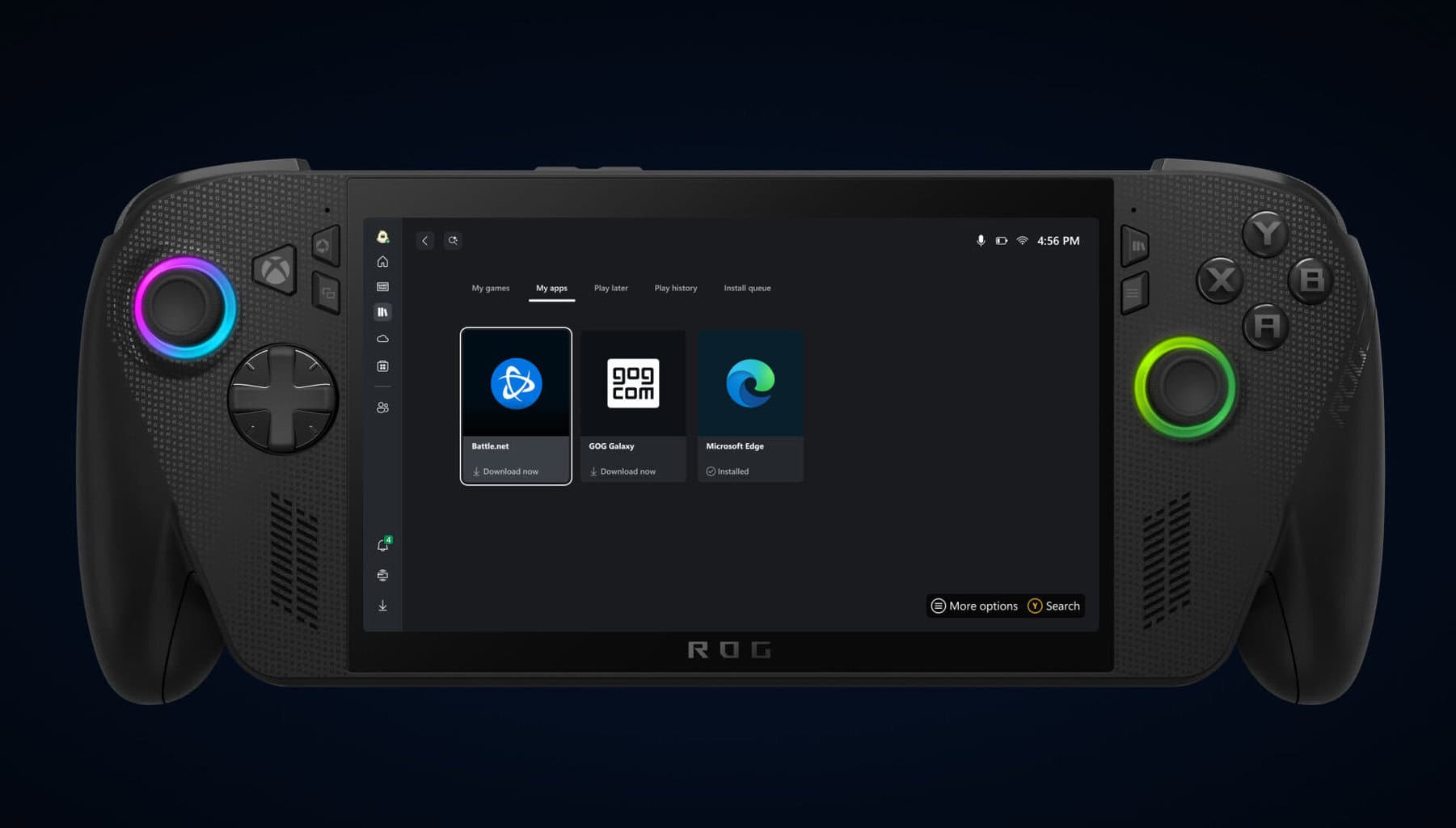
Xbox Brings Aggregated Gaming Library to Windows PCs and Handhelds

Microsoft has announced major updates to the Xbox app on Windows PCs and handheld devices, ensuring to simplify how you access games and apps. One of the notable additions of this update is the aggregated gaming library.

As the name suggests, it keeps all titles from multiple storefronts, including Xbox Game Pass, Battle.net, and other leading PC platforms, into one place. Once a game is installed from a supported store, it automatically appears in My Library and the Most Recent sidebar list, making it easier to jump back into play.

That’s not all; you can also customize what appears in your gaming library. To customize, you must go to Settings > Library & Extensions. From there, you can toggle storefronts on or off, ensuring only the titles they want are visible.

The update also introduces My Apps, a new tab that pulls together third-party apps and storefronts. This makes finding, downloading, and launching games simpler, without the need to switch between apps or desktops.

My apps Xbox
Image: Microsoft

Microsoft also says that later this month, it will expand functionality further with cross-device play history and cloud-playable game syncing. Meaning, you’ll be able to filter their libraries by “cloud playable” titles, and a new Jump back in list will appear across console, PC, and handheld devices. This will allow you to resume the most recent sessions seamlessly.

Jason Beaumont, VP of Experiences at Xbox, said that the goal is to offer “more control over how and where you play,” while making it easier to return to favorite titles.

How to Enable Bing Sync on Windows, Mac, iOS, and Android

Syncing Bing makes your search experience seamless across Windows, Edge, and mobile. Whether you want bookmarks, browsing history, or search preferences, Bing sync ensures your data follows you wherever you go. Here’s how to set it up.

How do I enable Bing Sync?

1. Sign in with a Microsoft Account

  1. Open Microsoft Edge.
  2. Click the profile icon in the top-right corner.
  3. Sign in using your Microsoft account credentials.

This connects Bing search data with your account.

2. Turn on Sync in Edge Settings

  1. Go to Settings > Profiles > Sync.
  2. Enable sync for favorites, history, passwords, and open tabs.
  3. Ensure Search data (Bing) is toggled on.

If you also want to clear cached browsing data in Edge, here’s a guide on how to clear Bing cache.

3. Verify Sync Across Devices

  1. On another PC, sign in to Edge with the same account.
  2. Repeat the steps above.
  3. Your Bing search history, preferences, and bookmarks will now be synced.

To refine your searches across all synced devices, learn how to search for an exact phrase on Bing.

Once your data is synced, you can also explore How to Shop on Bing to make the most of your connected experience.

Sync Bing on Mobile (iOS & Android)

Here’s how you can enable Bing sync on your phone or tablet.

1. Download Microsoft Edge or Bing App

  1. Open the App Store or Google Play Store.
  2. Install either Microsoft Edge or the Bing app.

2. Log in to Your Microsoft Account

  1. Open the app and tap Sign in.
  2. Enter your Microsoft account credentials.

3. Enable Sync Options

  1. In Edge mobile settings, toggle on sync for favorites, search history, and passwords.
  2. In the Bing app, ensure “Search history sync” is enabled under preferences.

You can also manage browsing settings and set Bing as the default search engine in your browser.

Why Bing Sync Matters

Here are some reasons why enabling Bing sync is a good idea:

  • Seamless experience: Your search preferences and results adapt on any device.
  • Cross-platform continuity: Switch from PC to mobile without losing context.
  • Security & backup: Your data is encrypted and stored safely in the cloud.

If you want more control over what appears in your results, you can adjust your settings with this guide on how to turn off Bing SafeSearch.

For broader control over Bing features such as Copilot and chat, learn how to turn off AI in Bing to keep results focused on classic search.

FAQs

How do I know if Bing is syncing?

Check Edge > Settings > Profiles > Sync. If the toggle is on, sync is active.

Can I sync Bing without Microsoft Edge?

Yes, by using the Bing app and signing in with your Microsoft account.

Does Bing sync work on Mac?

Yes. Install Microsoft Edge on macOS, sign in, and enable sync.

Can I choose what to sync?

Yes. You can toggle specific options like history, favorites, or passwords in Edge.

Is Bing sync secure?

Yes. All synced data is encrypted and linked to your Microsoft account.

Conclusion

Bing sync ensures your preferences, history, and saved data follow you across devices. Whether you’re using Windows, macOS, or mobile, enabling sync makes your browsing faster, more consistent, and more secure. For even better control, explore related settings like SafeSearch, cache clearing, and trying out the Bing browser for a more integrated experience.