Much has been said about Microsoft and its latest operating system in these last months, both good and bad. Users are slowly starting to get accustomed to Windows 11 and many have already upgraded.
Although the new OS still lacks some of the key functionalities that users have appreciated on Windows 10, people are not so against the new operating system anymore.
However, much like in a political campaign, the Redmond tech giant has made some promises to entice people into embracing Windows 11 but still hasn’t delivered.
Now, users are wondering if these small, yet extremely annoying details, will ever change and if going through an OS upgrade is even worth the trouble.
Users still waiting ages for updates to finish installing
We’re talking about Windows Updates and how they still have users sitting around their PCs, wondering if it’s going to be another five minutes, or half an hour before it finishes downloading and installing.
Even though one of the selling points for Windows 11 was much shorter update times, not all users seem to agree with this statement.
For some, in fact, update times haven’t changed a bit and they are getting fed up with idly hanging around their PCs for ages.
Back then, the company announced that new Windows Updates would be 40% smaller, and thus take less time to be applied to your device.
Also mentioned was the fact that older updates would expire, ensuring much shorter scan times. Users, however, strongly disagree with what Microsoft said and are taking to social media and forums to express their frustration.
Microsoft, we need to agree on a definition of 100% complete, because staring at this for 10 minutes isn’t it.
For many of them, it feels like they haven’t moved on from Windows 10 yet, as they are forced to wait around these updates for who knows how long.
Truth be told, looking at a screen that says 100% complete and having to give it an extra 10-15 minutes is not ideal for most of us, especially because time is the most valuable resource we, as humans, have.
Many of us thought we wouldn’t have to deal with endless updates in 2022, especially after moving on to a newer, faster experience.
Users that found a way to speed things up a bit shared their insight with fellow community members and the solution, as you might have expected, is easier than ever.
Get a nvme m.2 SSD. My windows updates are done before I’m even done drinking water lol.
Everyone is hoping that Microsoft will take a bit more time off from imagining Windows 12 and fiddling with the taskbar, to finally fix Windows Updates once and for all.
The Start menu is one of the most important additions in Windows, and the reason why many people love it. But, out of the blue, many users report that their Start menu is not working.
And the only thing we know, for now, is that this issue needs to be resolved as soon as possible. Actually, there are two possible scenarios.
First: you’re facing a minor Start menu issue, which is probably caused by some third-party software, and could be resolved easily.
Second: your system is affected by widely-reported Start menu bugs, unnoticed by Windows 10 and 11 developers, and they still don’t have a proper solution.
So, let’s talk about both scenarios and see if there’s anything you can do, or you’re just forced to sit and wait for Microsoft to deliver the patch through the Windows Update.
What makes the Start menu stop working?
OK, so before worrying about the broken Start menu, we should go and determine the cause of the problem.
There’s a possibility that your system isn’t affected by the critical bug, and something else is preventing your Start menu from working.
There are two known solutions (if the critical bug is not an issue), a registry tweak and a simple PowerShell command.
How can I fix Start menu problems in Windows 10 & 11?
1 Reinstall Start menu using PowerShell
Type powershell in the Search tab and select Run as administrator to open Windows PowerShell with full privileges.
Type the following command and press Enter to run it: Get-AppXPackage -AllUsers | Foreach {Add-AppxPackage -DisableDevelopmentMode -Register "$($_.InstallLocation)AppXManifest.xml"}
Wait for the PowerShell to execute the command (ignore a few red error codes).
2. Add a new subkey in the Registry
Press the Windows key + R to start Run, type regedit and press Enter or click OK.
Go to the following path: HKEY_LOCAL_MACHINE\SOFTWARE\Microsoft\Windows\CurrentVersion\ImmersiveShell\Launcher
Right click on a free space in the right pane, select New and pick the DWORD (32-bit) Value option, then name the new key UserExperience.
Double-click the newly created subkey and set the value to 0, then hit the OK button.
Close the Registry Editor and then restart your computer.
3. Enter Safe Mode
With Windows 10 running, click the Power button in the bottom right corner,hold Shift on your keyboard, and click Restart.
Your computer should now restart to boot options so click on Troubleshoot.
Now select Advanced options and click on Startup Settings.
Click the Restart button.
Once your computer restarts again, access Safe Mode with Networking. It should be the F5 key but it might be a different one for your system.
While in Safe Mode, check if the Start menu is working fine. If it does, then a software you installed lately is causing this problem. Try uninstalling it temporarily and restart your PC.
4. Disable your antivirus
Click the Start button, type security and pick Windows Security from results. You can also open it by clicking the shield icon in the Status bar.
Select Virus & threat protection.
Now, you should be able to disable Windows Defender from this menu but if you have a third-party antivirus installed, click the Open app option.
Check its menu and find the disable option that you should find within the Security settings. For instance, in Bitdefender, the Shield is located in the Advanced tab from the Antivirus section.
You probably already know by now that third-party antivirus programs can interfere with some Windows 10 features.
So, to make sure it doesn’t render the Start menu unusable, you should try disabling your antivirus temporarily.
Right-click the Start button and select Task Manager from the list of options. You can also open it by right-clicking the taskbar.
Go to the Processes tab and locate Local Security Authority Process. Right-click it and choose End task.
Close Task Manager and restart your computer, then check if the issue is resolved.
6. Disable Internet Explorer
Type windows features in the Windows Search tab and click on Turn Windows features on or off.
Locate Internet Explorer 11 on the list and uncheck it (if you get a warning message just click Yes).
Restart your computer.
You probably don’t use Internet Explorer. This is perfect because Windows 10’s legacy browser may cause the Start menu issues but you can fix that with the solution above.
7. Check for the latest Windows updates
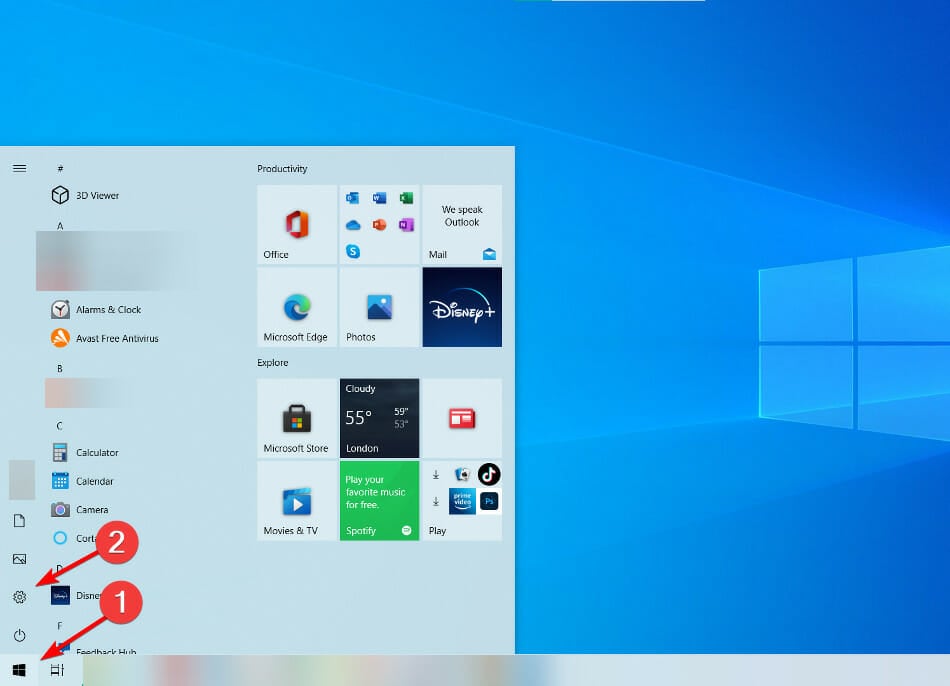
Click on the Start button and select Settings. You can also use the Windows key + I shortcut.
Choose Update & Security.
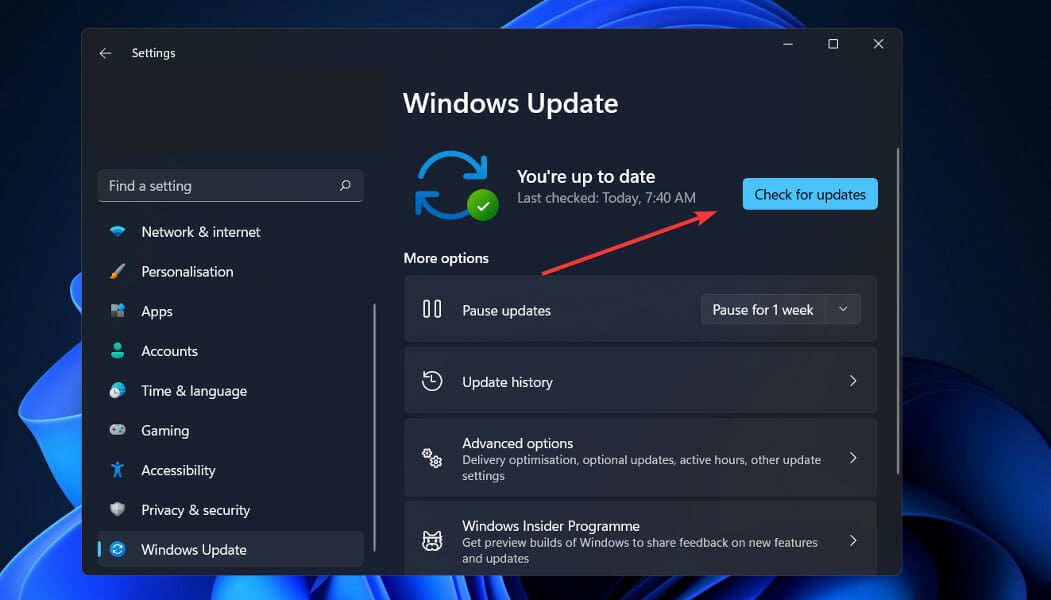
Now hit the Check for updates button.
If the system finds any new ones, it will download and install them. Make sure you also install the optional updates.
As Windows 10 continuously receives updates, Microsoft delivers various patches for various problems through Windows Update. So, just make sure your system is up to date.
8. Switch to an administrator account and delete the TileDataLayer folder
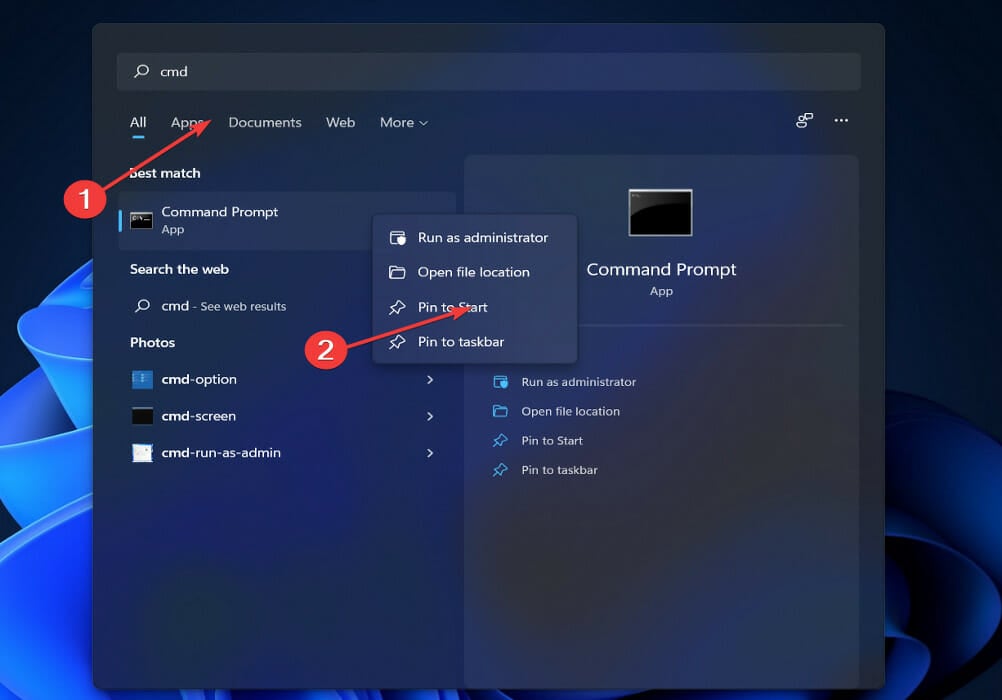
Type cmd in the Search bar and choose Run as administrator from the results.
When Command Prompt starts, enter the following command and press Enter to run it:net user /add admin1 password1
This will create a new user account named admin1 with password password1. You can use any other values for username or password.
Now you need to turn newly added user, admin1 in our example, to administrator by entering the following command and press Enter: net localgroup administrators admin1 /add
Close Command Prompt, sign out of your current account and go to newly created admin1 account. Use password1 to log in.
Press Windows key + R, type %localappdata% and click OK or press Enter.
Locate the TileDataLayer folder and delete it.
Sign out of the admin1 account and switch back to your regular account.
Some users also reported that switching to another administrator account and deleting the TileDataLayer directory also resolves the problem.
The new OS comes with a lot of new features and improved design but the truth is that it’s not so different from Windows 10.
Although the Start menu is central and it looks different in Windows 11, you will discover that a lot of the solutions above will work perfectly here too.
Task Manager can be started identically in Windows 11
All the shortcuts we used for Windows 10 are identical in the new OS and all the menus correspond.
Dropbox is a popular cloud storage service that’s used by numerous users from all around the world. It’s similar to Google Drive and Microsoft OneDrive, but it offers its own features.
You can access your files from any computer or smartphone, and even share them with your friends.
The service has a lot to offer. It has a great reputation, and it is only getting better as the years go by. One of its best features is the automatic syncing between all devices.
This means that you can access your files from any device because they are automatically saved to the cloud.
The only downside is that Dropbox only offers 2GB of storage for free. You can increase the storage and unlock many more advanced features by subscribing to a monthly payment plan.
It has been a great provider for file-sharing and cloud storage. However, the software sometimes acts up, causing problems with syncing between devices or even causing your computer to crash.
These bugs are usually fixed quickly through updates, but if you have trouble such as not syncing on Windows 11, don’t worry – we’ve got you covered.
Why is my Dropbox not syncing?
There can be multiple reasons why Dropbox may not be syncing. If you’ve updated a file but the changes aren’t appearing on your other devices, it’s possible that your internet connection is down or there are problems with the Dropbox server.
Other possible reasons could be:
There are too many files in any specific folder – To get around this problem, you can use selective sync which allows you to select specific folders and files so that only what you want is downloaded to your hard drive.
Your file/folder is too large – The maximum size of a file that can be synced is 20GB. If you have multiple files taking up a large amount of space, consider moving older versions of files into an archive folder. You can also upgrade your plan with more space if needed.
Your firewall or antivirus is blocking Dropbox – If you suspect that the firewall or antivirus software is incorrectly blocking Dropbox, then the best option is to try adding an exception for Dropbox. In most cases, this should solve the issue. You can also try temporarily disabling the software and see if you can connect to Dropbox.
Your Internet connection is being interrupted – If you still cannot sync, try connecting directly to your modem or router with an ethernet cable. If Dropbox works in this configuration, then a setting on your wireless router might be blocking Dropbox. Try adjusting the settings on your router to allow access to Dropbox.
You are using an outdated version of the application – Using an outdated version can cause conflicts in your Dropbox. Some of your files didn’t sync because your version is out-of-date. Updating to the latest version should solve the problem.
Your file type is not accepted – Dropbox syncs whenever there is a change to a file in your Dropbox folder. If you drop a new file into your Dropbox folder and nothing happens, verify if it’s a type of file that can’t be synced. Beware of how you name your files as special characters may also prevent syncing.
Also, check if the file is being used by another program or has locked permissions. If neither of these is true, then it’s time for some more advanced troubleshooting!
What can I do if my Dropbox is not syncing?
1. Add Dropbox as an exception on Firewall settings
Press the Windows + I keys simultaneously to open Settings.
Type Firewall in the search box to find Firewall & network protection then click Open.
Scroll down and select Allow an app through the firewall.
On the dialog box that pops up, check the Dropboxoption, then press OK.
Try syncing again.
2. Do a Hardlink repair
Click on the Dropboxicon present in your system tray.
Click on your Profile picture and select your Preferences.
Under the Account section, press the Alt + H keys, then tap the Fix Hardlinks option.
Now try syncing again.
3. Run a series of commands
Shut down all Dropbox processes on your PC.
Press the Windows key, type CMD in the search bar, and tap Run as administrator.
Enter the following command prompts and press Enter after each one: icacls "%HOMEPATH%\Dropbox" /grant "%USERNAME%":(F)/Ticacls "%HOMEPATH%\Dropbox" /grant "%USERNAME%":(F)/Ticacls "%APPDATA%\Dropbox" /grant "%USERNAME%":(F)/T
Open your Dropbox again and try syncing.
4. Troubleshoot network connectivity
Press the Windows + I keys simultaneously to open Settings.
Type Find and fix network problems in the search box then click Open.
Tap on Advanced in the dialog box.
Select the Apply repairsautomatically option, and click Next.
Wait for the problems to be detected and proceed to repair any found.
Try syncing again.
My computer is not supported by Dropbox, what can I do?
If you see the message Your computer is not supported on Dropbox, your current operating system may no longer be supported by Dropbox. This error can occur if your computer does not meet the minimum system requirements.
While this message is shown in the Dropbox desktop app, it’s important to start by checking the platform system requirements for Dropbox to confirm you have a supported operating system.
You can use your web browser to bypass this issue and access the app or check for any pending updates on Windows 11 and then update to access Dropbox again.
To check for Windows Updates:
Press the Windows key and type Check for updates and click to open.
Click on Check for updates and install any pending updates.
Aside from Dropbox, there are also other cloud backup alternatives you can explore such as Sync with more storage options that allow you to share sensitive files securely.
With the solutions listed above, we hope you were able to successfully sync your files once again with no hiccups.
Should you encounter any issues, feel free to share your thoughts in the comments section below and we’ll get back to you.
U.S. Bank has announced a new deal with Microsoft to help modernize and boost its technology. Under the partnership, Azure has been chosen as the primary cloud provider for U.S. Bank applications.
U.S. Bank believes that this new partnership can help modernize how it works in an increasingly digital world. This includes helping the bank analyze data and “scaling innovative products to customers and partners.” There’s also the goal of helping develop new growth opportunities, as well as improving the security of data, financial assets, and adding to customer privacy. In the words of Microsoft CEO Satya Nadella:
“More than ever, every financial services organization will need to build its own digital capability to meet both evolving customer demands and changing employee expectations. As U.S. Bank’s primary cloud provider, we will apply the power of Azure to help the company adapt and build new, secure experiences for customers and employees in the era ahead.”
For U.S. Bank customers, the partnership opens the gates for more tools that can improve banking experiences. Bigger partners, meanwhile, should get better digital experiences, APIs, and access to real-time data. As for business customers, look out for more ways to generate invoices and to send and receive payments.
Inside U.S. Bank, employees have already begun embracing Microsoft 365 and Microsoft Teams. However, U.S. Bank will still use multiple public cloud providers for redundancy, too.
Roughly a month after teasing it, Sony has come out and revealed a first look at the PlayStation VR2 virtual reality system for PlayStation 5 consoles. The new headset matches the “orb” look of the previously detailed controller and fits well with all the design principles of the PlayStation 5, but with some unique tweaks.
As a reminder, this new headset sports two 2000×2040 OLED displays with a 90 or 120Hz refresh rate that can provide a 110-degree field of view. Other features include inside-out tracking, 3D audio, vibration motors, and eye-tracking technology. When it comes to the design, though, Sony was aiming to add emphasis on roundness to the headset, as well as creating a product that can “become an attractive part of your living room decor.”
In doing so, you’ll notice some familiar features from the first-gen headset like an adjustable headband, adjustable scope. New features on PlayStation VR2, though, include lens adjustment dials, a built-in motor for the headset feedback, and a slimmer design with slight weight reduction, plus air vents above the front surface of the scope for increased ventilation. Sony even went with a single-cord design, so it’s easier to get up and running.
No launch date was announced, but the virtual reality and headset space has become hotly contested as of recently, especially with the metaverse coming into play. Microsoft might have drama in its HoloLens team, but Apple’s long-talked-about mixed reality headset is said to have completed production tests and could launch this year.
Microsoft has made it possible for users to run Android applications in Windows 11. For the user base, this is really encouraging news, as it means that customers may now download and utilize apps not only on their smartphones but also on the enormous screen of their Windows 11 desktop computer.
When it comes to running Android apps on Windows 11, Microsoft has implemented a sophisticated framework to make this feasible. This is referred to as WSA, which is an abbreviation for Windows Subsystem for Android.
As previously said, the technology that underpins the operation of Android applications is extremely sophisticated, and there is a good probability that you will encounter problems such as apps not working on Windows 11.
Following our identification of the root cause of our current issue, we will provide you with a list of possible solutions to try in order to resolve the problem. Follow along!
What caused WSA not to work?
After doing comprehensive research into this particular issue, it was discovered there are really a number of different scenarios that might ultimately result in this type of behavior on Windows 11.
Here is a list of scenarios that could result in the WSA (Windows Subsystem for Android) feature not working:
➡ Corrupted WSA installation – You may notice that this problem occurs shortly after an antivirus program has been forced to quarantine some files associated with the WSA infrastructure. Taking the opportunity to reinstall the Android subsystem is highly recommended in this situation. ➡ Virtual private network (VPN) software interference – While it may seem implausible, VPN software interference is actually one of the most common causes of this particular issue on Windows 11. Several third-party products have been shown to interfere with the program. ➡ Overprotective antivirus software – As it turns out, VPN software is not the only thing that could potentially interfere with the WSA functioning on Windows 11 if it is installed. There are various third-party antivirus suites that will simply prohibit the Windows Subsystem for Android from functioning. ➡ WSA temporary files that have been corrupted – If you’ve previously utilized the WSA infrastructure and have successfully run some Android apps before you started having this problem, it’s likely that you’re dealing with some leftover temporary files. ➡ Outdated Microsoft Store Framework – In fact, it turns out that this particular issue may be traced back to an outdated Microsoft Store foundation. You should keep in mind that Microsoft has released a vital update for the WSA integration that must be deployed in order for the Subsystem to function.
Following our discussion of possible causes for this type of problem, let’s move on to the real fixes that should be able to help you resolve the Windows Subsystem for Android problem in Microsoft’s latest operating system.
What can I do if WSA isn’t working in Windows 11?
1. Uninstall your VPN
Press the Windows key + R to open a new Run box, then type or paste in appwiz.cpl and hit Enter.
Now locate your VPN app, right click on it, and hit Uninstall.
And if you want to be sure there are no leftovers after removing, you can use CCleaner, which will not only uninstall any useless apps but also clean your device of any junk or residues.
It is unclear why this issue is occurring, and we have not received an official explanation from Microsoft, but the connection is evident because we have located scores of impacted individuals who have reported that the problem was resolved soon after they uninstalled the VPN package.
2. Repair the app
Press the Windows key + I to open the Settings app then go to Apps, followed by Apps & features.
You can search for Windows Subsystem for Android in the search box once you are within the Apps & features window. Then, click on the three dot menu next to it, followed by Advanced options.
Scroll down until you reach the Reset section, and then click on the Repair button to begin the process.
Let the Repair process complete, then proceed with a computer reboot to apply the changes made. Restart the WSA app to see whether its functionality has been restored.
3. Reset the app
NOTE
When you reset the WSA application, all of the information that was previously stored in the program will be lost. As a result, we strongly advise that you create a backup of any important data before commencing the process of resetting your device to factory settings.
Press the Windows key + I to open the Settings app then go to Apps, followed by Apps & features.
Once you are inside the Apps & features window, search for Windows Subsystem Android in the search bar, then click on the three dot menu next to it followed by Advanced options.
Scroll down until you find the Reset section, then click on the Reset button.
4. Update the Microsoft Store Framework
Press the Windows key + R to open a new Run box, then type or paste in msi-windows-store: and hit Enter.
Once you’re inside the Home page, click on Library in the left-bottom corner.
Now click on Get updates in order to update the entire Microsoft Store Framework including WSA.
5. Update Windows
Press the Windows key + I then click on the Windows Update option from the left panel in order to access all the updates.
If you need to download any new updates, click the Install now option and wait for the procedure to complete; otherwise, click the Check for updates button.
You could be experiencing this issue because you’re using an older version of Windows, which could be resolved by updating your operating system to the most recent version. It is almost guaranteed that the bug will be fixed in a future software release.
6. Temporarily disable your antivirus
Click the expand arrow from your taskbar and right-click on your antivirus icon then choose Avast shields control followed by Disable for 10 minutes.
If you have other antivirus programs installed, you can disable the app temporarily following the same steps as above, or similar steps.
If the WSA service is still not working on your computer, the efficient alternative would be an Android emulator like LD Player.
You can emulate helpful Android apps on your computer using this software and enjoy favorite games from your mobile directly on the PC.
Even though the platform is specially designed for running games, you can easily install other practical applications you need to use on your Windows 11 computer.
Android APK sideloading is supported in Windows 11, allowing users to install any Android program that is currently accessible, both within and outside of the Play Store, on their computer.
However, sideloading is not enabled by default on Windows, and the process might indeed be time-consuming if you are unfamiliar with the command line.
Microsoft has developed its own virtual machine container to allow Android apps to run on the desktop as natively as possible, and the installation process is fairly simple if you have access to the Amazon AppStore, which is highly recommended.
Let us know in the comments section below which solution worked best for you as well as how many Android apps you have already installed on your Windows 11 PC. Thanks for reading!
Millions of users take Cox services, and they are now the third-highest service provider in the telecommunications sector, cable TV, etc.
Many Cox users started complaining that they cannot use the Cox Internet service on their devices suddenly and are not sure what can be done.
Why is the Internet not working on Cox?
There are many reports regarding issues related to the Cox internet, Cox cable TV, etc. This issue could possibly be because of the factors mentioned below:
An issue with the Windows system – When there are issues with the Windows system, it tends to throw such problems with the Internet, cable TV service, etc.
A corrupted browser’s cache – If the browsing data in the browser installed on the system gets corrupted due to some obvious reasons, such problems occur on the system.
Subscription of Cox service account – This kind of problem arises when the subscription to a service provider like Cox is invalid or not upgraded
Problem with modem – When the router or modem is defective or damaged for some reason, such issues are bound to happen
Virus or malware attack – When you browse various websites, there might be some unsafe websites; this can cause virus attacks like trojan, etc., on the device, which causes this type of issue. That’s why we recommend using a safety-oriented browser.
This article guides you on resolving the issue where Cox stopped working using the seven best possible fixes.
How do I fix Cox app if it’s not working?
Before we start making changes, here are a few quick tips and tricks to get things working:
Restart the modem or router and check whether the issue is resolved. Also, you may use another router/modem to verify whether the problem lies with the previous one.
Make sure all the Cox bills are paid.
Check if the Cox servers face an outage using Downdetector, a reliable service. In this case, wait a while, and the servers should automatically be up and running.
If these don’t work, head to the solutions listed next.
1. Clear the browser’s cache
Open the web browser on your system like Google Chrome, etc.
Once the Chrome browser is open, press the Alt + F keys together to view the More options list.
Then press the S key on the keyboard once, which opens the Settings page on the browser.
Now on the Settings page, go to the Privacy and security option on the left menu and choose Clear browsing data on the right-hand side.
Under the Basic tab, select All time from the Time range dropdown menu.
Afterward, select the Browsing history, Cookies and other site data, Cached images and files checkboxes.
Finally, click Clear data.
We have shown you how to clear the Chrome cache and cookies, but the process is very similar in all major browsers.
For a faster and safer way to make sure all temporary and junk data is deleted, we recommend using CCleaner, which is specialized in cleaning and optimizing your computer.
Hit the Check for updates button and install any new one.
Restart your system after the updates are installed.
On Windows 11, after you go to Settings, click the Windows Update option from the left and hit the Check for updates button.
If the problem is with the system, we recommend our users try updating the Windows system and then restarting it several times to see if this worked for you.
Many users have claimed to have resolved this issue by following this technique of restarting the system a few times. It is also a best practice to keep the system updated regularly.
3. Scan the system for viruses or malware
Click the Start button, type security, and select Windows Security from the results.
Choose Virus & threat protection.
Select Scan options and check the Full scan box, then hit the Scan now button below.
Above, we have indicated how to perform a full scan using Windows Defender on Windows 10.
If you have a third-party antivirus, open it and select the full scan option from its menu. If you switched to Windows 11, the solution will work the same, so try it out.
Whenever there is a virus attack or malware attack on the system because of browsing unsecured websites, through data transfer from some pen drives, or internet downloads.
So, try connecting the Cox app by scanning the system for viruses using the antivirus software installed on your system and ensuring the system is safe from the virus attack. It should work, then.
Press the Windows + R keys together to open the Run box.
Type ncpa.cpl in its textbox and press the Enter key.
This opens the Network Connections page on the system.
Right-click on the network and choose Properties from the context menu.
In the Properties window, select Internet Protocol Version 4 (TCP/IPv4) and click Properties.
Click Use the following DNS server addresses radio button.
Enter 8 8 8 8 in the Preferred DNS server and 8 8 4 4 in the Alternate DNS server, and then click OK.
Close all the open windows and restart the system.
How do I reset my Cox?
To reset the Cox router, first, ensure that the Ethernet cable connects the Panaromic Gateway and the HomeLife Router, and then unplug the power cable from both.
Now, wait for around 20 mins, and once the HomeLife Router has 3 solid green lights, the reset is complete.
How do you reset Cox after a power outage?
After a power outage where the power supply was completely cut off, the Cox setup box must be reset by pressing the hard reset button, which is present at the rear of the device.
Another way to reset the Cox box is by going to the Cox account and navigating to My services. Then, go to My internet and select the Reset equipment option.
Alternatively, you can switch off the device by unplugging the power cable, waiting for around 30 seconds or more, and then plugging the power cable back into the machine.
This resets the Cox device, but users would lose the data like favorites set, etc., but the speed would increase, which is a plus point for resetting the device.
How long does it take for Cox to reconnect service?
As soon as you reset the Cox device, or sometimes the user’s payment status is renewed for their subscription, Cox would take around two minutes maximum to reconnect the service.
Hope you have managed to resolve this issue on your device. Please let us know in the comments section below!
SYSTEM PTE MISUSE is a BSoD (Blue Screen of Death) problem that causes your computer to crash and forces you to restart it. A problem with certain files (such as file corruption or mismatched drivers) will almost always cause these types of warnings to appear.
Another cause for the SYSTEM PTE MISUSE error code, in some cases, is the mechanism that is implemented by the firmware. It is possible for this situation to arise as a result of the deployment of two separate types of security technologies: PTT and TPM.
You may remedy this issue quickly by disabling them in the BIOS when the computer is rebooted, or by updating your BIOS.
How can I fix the SYSTEM PTE MISUSE error in Windows 11?
1. Disable PTT security in BIOS
Restart your PC and while your system boots, keep pressing the F2 or Del key to enter the BIOS screen.
Use the arrow keys to navigate to the Security tab or a similar-sounding tab inside BIOS. Inside, select an option named PTT or PTT Security and set it to Disabled.
Navigate to the Exit section and choose to Exit Saving Changes. This will proceed with the computer’s boot.
2. Set TPM as hidden
Restart your PC and while your system boots, keep pressing the F2 or Del key to enter the BIOS screen.
Use the arrow keys to navigate to the Security tab or a similar-sounding tab inside BIOS. Inside, select an option named TPM and set it to Hidden or Disabled.
Navigate to the Exit section and choose to Exit Saving Changes. Now your PC will restart and apply the changes made.
3. Update your BIOS
Looking for the motherboard manufacturer’s website, such as Dell’s official page, and finding the Downloads or Support page for the motherboard model that you are interested in will be the first step to take.
The readers out there who have reported getting the SYSTEM PTE MISUSE error and who use HP computers should instead go to the official HP website for more information.
In a similar vein, for our Lenovo users, we recommend that you visit Lenovo’s official page for drivers and updates.
Download the version of the software to which you wish to make an upgrade and save it to your computer. Unless you have a specific requirement for an earlier version, you should generally go for the most recent one that is currently available on the market.
Your download will almost definitely be in the form of an archive, generally a ZIP file, and will take some time to complete. Once it is downloaded, you will have to unzip it, by right-clicking the file and tapping on the Extract all files option.
The flashing tool you choose will be determined by the motherboard you have. There are many different sorts of such tools available. The readme file that comes with the firmware upgrade should be able to assist you in determining which option is the best fit for your particular hardware setup.
Once the package has been unzipped, copy the documents to a USB drive and restart your computer. After that, navigate to the BIOS screen and select the BIOS update option.
Press the Windows + S key to open the Search bar, right-click on the most suitable cmd result and select Run as Administrator.
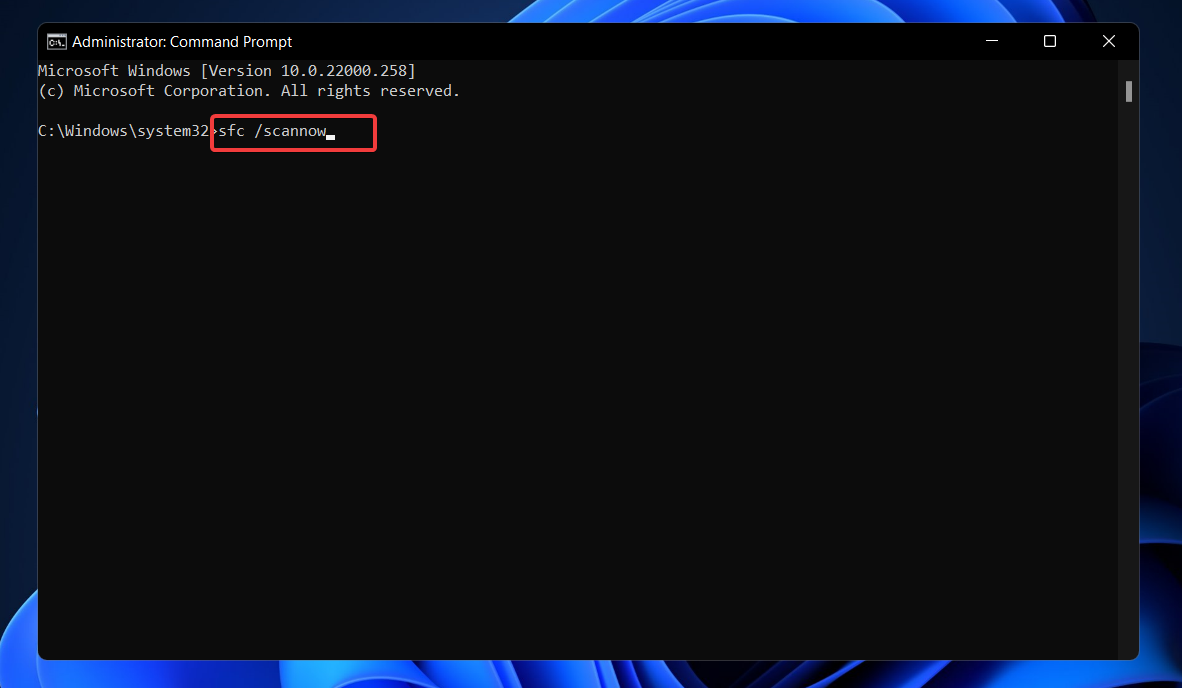
Press Enter after you type or paste in the following command inside your cmd window: sfc /scannow
Restart your computer when the process is completed. Note that it could take some time, make sure not to stop it midway.
5. Update Windows
Press the Windows key + I to open the Settings app, then click on Windows Update in the left panel.
To see if there are any new updates available, click the Check for updates button, otherwise click on the Install now option and then wait for the download to complete.
It is possible that running an older version of Windows is a contributing factor to the SYSTEM PTE MISUSE issue. Luckily it can be remedied by simply updating the operating system.
6. Update drivers
Press the Windows key + I to open the Settings app, and click on Update & Security from the left panel. Now navigate to Advanced options as we’ve shown below.
After you have found the Additional options area, click on Optional updates to proceed to the next step.
Now click on the Driver Updates option, then select all the boxes listed and lastly click on the Download & install button.
When an issue occurs, you can manually seek updates, even though Windows is frequently in charge of driver updates. However, we strongly advocate using a specialized program such as Fortect Driver Updater to do automatic scans of out-of-date drivers.
Can a BSoD hurt my computer?
The answer is a resounding no. In reality, the entire purpose of a BSoD is to safeguard your computer’s hardware. When Windows detects that something has the potential to inflict serious harm, it immediately suspends all operations, culminating in the famed Blue Screen of Death.
A blue screen of death (BSoD) might be a symptom of a hardware failure. In that instance, it may appear as if the error was the root cause of the problem itself.
Despite that it will not harm your hardware, it might make your day miserable. Everything comes to a grinding halt while you’re busy working or playing. You’ll have to restart your computer, then reload any programs or files that were currently open.
And it’s possible that you’ll have to redo some of the work. When Windows fails, it takes with it everything that is currently in RAM. You will lose everything you have written since your word processor last saved it to disk.
After you encountered the SYSTEM PTE MISUSE issue, we bet you could use some help with future BSoD errors, thus we recommend you to use a professional BSoD repair utility.
If you’re running Windows 11 on unsupported hardware through the Windows Insider program, then be prepared to see a new warning from Microsoft. The company is currently testing a new desktop watermark, which lets you know that your system isn’t up to spec with requirements (via Windows Latest.)
A bit like the classic “Windows isn’t activated” messaging, this new warning plainly alerts Windows Insider beta testers that “system requirements not met.” The message shows up in the bottom right of the screen, right above the current Windows edition, as well as the build number and branch. Here’s what it looks like, courtesy of The Verge.
In its current state, the messaging won’t show up top of other apps or windows, and stays on the desktop. It also doesn’t take away from any Windows 11 features, like customizing your wallpaper or choosing different themes. Previously, Microsoft tested similar messaging at the top of the Windows 11 settings app. That message shows up under the name of your device, with an alert that “system requirements not met.”
It should be made clear that this messaging is only being tested with Dev Channel Windows Insiders at the moment. This means it’s not something that could make it to a future version of Windows 11. Features in the Dev Channel have been known to come and go, so don’t expect this to be final, but do hold your breath a bit.
Microsoft’s minimum requirements to run Windows 11 has been a bit of a source of controversy. You need TPM 2.0, an Intel 8th generation or AMD Ryzen 2000 series or newer processor to officially run the operating system. You can unofficially run it by tweaking the registry, but Microsoft has warned doing so could put your PC at risk since it says it won’t deliver security updates on unsupported systems. Of course, so far that hasn’t been true, and people have installed Windows Update just fine, but Microsoft still reserves the right to withhold updates.
Microsoft has not publicly announced any plans to release another version of Windows. That said, it’s likely that the company will eventually release a follow-up to the current operating system.
What it will be called and what features it will include are still unknown.
However, a good number of users are wondering if the company is planning on releasing another version of windows that can be customized.
Limited functionality
Windows 11 is a great operating system and so far Microsoft has done a good job of releasing regular updates that add new features and improve the experience for users.
Nevertheless, there are still a few features that users could use from the good old days of Windows XP and Windows 7, one of which is being able to move the taskbar to any edge of the screen or even multiple edges.
At present, you can only position the taskbar on the bottom of the screen in Windows 10, but as well as being able to drag it to any corner from there, this is also how you can move it to either side or even above the main part of your display.
Is it Necessary?
If this Reddit thread is anything to go by, then Microsoft should definitely release a version of Windows 11 with a customizable taskbar.
This is because most users believe that the taskbar should be an area where people can add and remove icons and move them around as they see fit.
Not only should the taskbar be customizable, but it should also offer a more user-friendly interface.
There are many reasons why Windows 11 needs to be customizable. For example, users who do not want to see certain applications in their taskbar can hide them by right-clicking on them and selecting “Remove from Taskbar”.
Other users may want to rearrange icons so that they appear in different locations on their screens.
Don’t hold your breath
Now, even with most users wanting Microsoft to upgrade Windows, you should not hold your breath for Microsoft to release a future version of Windows 11 with a taskbar that can be repositioned.
While it doesn’t seem like a huge deal to some people, it is a significant change in the user interface paradigm.
The taskbar has been a staple of Windows and moving it from the bottom to somewhere else would send shockwaves through their user base.
If you really want your taskbar elsewhere, there are many programs available that will allow you to reposition it or move it into the title bar area. A quick search on Google for “taskbar” will find these programs for you.
What’s your take on the newly released version of Windows? Do you think Microsoft should release a new version that allows users to move left, right, or above the screen?
With Microsoft’s acquisition of Skype, it seems that the company is looking to bring the popular video calling service to more users, including those using its new Chromium-based Edge browser.
The new Meet Now tool allows users to start a call with anyone, even if they don’t have a Skype account of their own. To use the feature, click on the share button on Microsoft Edge’s address bar and select Meet now.
Users will be able to start up a Meet Now call directly from within the Microsoft Edge browser. This call can then be shared with others, who can then join in via Skype or even Microsoft Teams.
Once started, the call can be converted into an online meeting that all participants can join whether they have Skype or not.
It’s unclear when this feature will roll out more broadly to users, but it seems likely that we’ll hear more about this in the coming weeks and months ahead of its general availability release.
Meet Now makes it simple for users to start a Skype call with one click in the browser. There are no downloads or signups required, and you can invite others to join the call with a link. The tool will likely be useful for business meetings and other group chats.
Enabling the feature
The Meet Now feature can be enabled by navigating to the Appearance page. Alternatively, you can use the ellipsis menu to open the Meet Now option.
It is worth noting that Skype already offers a web-based experience for users, but this new feature will make things even easier for people with Skype accounts.
For now, there are no details about whether or not this feature will only be available for Skype users or if it will be open for other platforms as well.
The meet now option can be useful for Microsoft Edge users who don’t want to use Skype and prefer to not download or install the Skype application. With this feature, they can initiate calls and even invite participants without installing or logging into any app.
The Meet Now tool will likely be integrated directly with Microsoft Edge, allowing users to quickly initiate a Skype call from their web browser. Windows users are currently required to install Skype before they can make calls over the popular video chat service.
Users concerns
Some people liked the idea of a Meet Now button on the New Tab Page, while others disliked it. Microsoft eventually removed the function and disabled the button when it introduced the new Microsoft Edge.
As such, users showed their concerns about this new feature coming to Microsoft Edge, and many are torn between using Microsoft Teams and Skype.
By clicking on the Meet Now button on the New Tab Page, users will be able to start a new conversation right away or schedule a meeting for later.
Microsoft will also be introducing changes on how users can add other people to their conversation and move a group conversation into Teams or Skype.
This feature is quite similar to Google’s Meet Now tool that was introduced last year in Chrome. However, unlike Google’s Meet Now tool, the Microsoft version is not available for everyone just yet.
The tech giant has been testing this tool for some time now, but it never really made its way into the public version of the browser. According to Microsoft, this feature is available for use in the Canary version of Microsoft Edge.
Are you excited about the meet now tool coming to Microsoft edge? Which features would you like to see added to it? Share your thoughts in the comments section.
The visualizations that shipped with Windows Media Player 9 and earlier versions were developed by a company called SoundSpectrum.
When WMP version 10 shipped, the company had been acquired by Apple. (SoundSpectrum’s music visualization software is now used in iTunes.)
Microsoft’s developers have to agree on whether or not the visualizations are worth the money to license them. Obviously, they thought it was time for something new when WMP 10 shipped.
A new design
The new media player is more minimalistic in design, with a few customizations like changing the skin of the player or adding visualizations.
This is because Microsoft has decided to rework the media player and make it better for users that want to listen to music but not always view the visuals.
The visuals were originally designed for people who owned large screen TVs but now that most people own smaller TV screens or monitor screens, Microsoft has decided to minimize them from the new software.
What is really happening?
Many of the visualizations you see in Windows Media Player are implemented as audio plug-ins, which are also called DSPs (digital signal processors).
Plug-ins are shared pieces of code that applications can use to carry out specialized functions. In the case of WMP, the visualizations use plug-ins to generate various patterns based on the streamed audio.
The plug-in architecture was designed by Microsoft and is used in all versions of WMP and other Microsoft applications, such as Media Center Edition (MCE), but it’s not proprietary.
In fact, several third-party visualization makers have written their own DSPs for WMP. The plug-ins give developers a lot of flexibility in terms of what they can do with their creations.
They can, for example, create a program that requires an additional piece of hardware or a unique graphics card.
However, by distributing their programs as plug-ins, they can ensure that they’ll work with any application that supports them — in this case, any version of WMP (although there may be some minor compatibility issues between different versions).
There’s a 50/50 chance that Microsoft will change things up
The visualizations in Windows Media Player have been around for years and years. They’re part of the software, so there’s no reason why they should be outside of a new version.
Some of them are actually pretty cool, and they can be run on a variety of devices. But the fact is that they’re outdated and haven’t changed with the times.
Even though Microsoft has been updating the visualizations in its music player for decades, it just seems like something that isn’t worth doing anymore.
That’s not to say that Microsoft isn’t trying to make them better. It’s possible that the company could include new visualizations in future versions of Windows Media Player, but we wouldn’t hold our breath.
For now, you’ll have to live with what you’ve got!
What do you think about the latest Windows Media Player? Will you be upgrading given the complaints stated by users? Let us know in the comment section.
In Windows 10 or Windows 11 systems, administrators can reset the system either locally or remotely.
This feature allows users to delete data during the process, but a recent report by Microsoft suggests that wiping actually doesn’t delete any data in Windows 10 or Windows 11 version 21H2.
Keep my files remove apps that were installed after you got the device, as well as apps and drivers you installed from other sources. It keeps your personal files including documents, photos, videos, music, desktop programs, and contacts.
Remove everything removes all apps, drivers, and settings except for information about how your device was originally configured at the factory.
All personal files will be removed from your device. You’ll be given an option to erase everything or encrypt it when you sign back into Windows after resetting your device. This option works even if you can’t sign-
Resetting Windows devices
Resetting a Windows device and deleting the data that is on it can be useful in certain situations.
Resetting a device that runs Windows 10 may be done for various reasons. You may want to hand over a device that you no longer need to someone or sell it to another person.
Resetting a device usually deletes all data from it; however, sometimes this may not be enough and you may want to use additional software tools to wipe disks, for example.
The Windows 10 and 11 version 21H2 operating systems come with a Wipe feature that is designed to remove personal data from the device.
Most users keep personal data on their laptops and PCs, and it is clear that this data should not be handed over to the new owner of the device.
The Wipe feature becomes available once you click on about in settings and scroll down to Reset this PC. The feature is offered when you choose to Keep my files from the reset options.
Selecting it removes most personal data from the device, but as it turns out, not all, as Microsoft has found out recently. The company found an issue in Windows 10 and 11 version 21H2 that caused some personal files to stay behind on the device even after running the wiping option.
The latest version
In the latest versions of Windows 10 and 11, it was discovered that Microsoft’s wipe feature left user data behind on the computer.
The Windows.old folder would contain user data, even when a fresh start was used. However, wiping a Windows 10 system from version 21H1 would clear all user data from the Windows.old folder as expected.
If you use a device running version 21H2, it is suggested that you check the size of your Windows.old folder after performing a wipe operation for your device. If it is not empty, you may have to delete the data manually using Disk Cleanup or another tool of your choice.
Neither Windows 10 nor Windows 11 are supposed to do this, as both are supposed to wipe all data from a device when they get a fresh install.
This means that any company using the wipe feature on Windows 10 or 11 devices running version 21H2 may find out that their data isn’t really gone and could be recovered using standard forensic tools.
Microsoft is aware of the issue and has already fixed it in the OS version that will be released soon.
The 21H2 build of Windows 10 and 11 only. Further investigation is warranted to determine the number of users affected by this wiping issue.
At this time, Windows users who need to wipe a device without retaining the user data are advised to make sure that the Windows.old folder is removed after the operation completes in order to eliminate any chance of data leaking into the wrong hands.
Have you used the wipe functionality on windows 11 and 10? How did you see it? Let us know in the comments section.
There’s no doubt that music is one of the most common pastimes for almost everyone in the world today. Whether you’re working at the office or enjoying free Wi-Fi at your local coffee shop, music moves with you wherever you are.
This is why you need to know the best Windows 7 music player to use while you work away or just want to relax in a music-filled atmosphere.
You have exactly what you need to play your most loved tracks and replay classic or modern albums every single time.
Even if there are alternatives such as streaming platforms to listen to countless songs, using one of these music players guarantees complete independence.
You can collect your favorite music in one single place, without paying a monthly subscription, and play different files anytime you need to.
We made that easy for you to choose, so check out our top picks for the best Windows 7 music player here.
VLC player is one of the best Windows 7 audio players commonly used across the globe, not just for audio but also video formats.
This one comes by default with Windows so if you are satisfied with using this one, you’re good to go. The software is a free and open-source multimedia player that can be used to listen or watch diverse files.
It is freely available, and you’re sure of getting most of the features of a media player including visualization, playback optimization, skin and themes, and support for most major audio formats.
You can also drag and drop your audio files onto the player’s interface, plus you can also stream and convert media files using VLC.
Moreover, you can play files on your PC from multiple sources like virtual files, discs, network locations, webcams, and so on.
You also don’t have to install codec packs because this media player includes them already. Plus, it is a light solution that doesn’t require advanced hardware specifications.
Thus, enjoy your most expressive songs without limitations using this practical music player.
This is one of the most popular picks for the best Windows 7 audio player among music lovers, and this would extend to podcasts and other audio files.
With this music player, you can organize as many as 500,000 audio files as you have in your collection, and even import from other libraries and add tags while you’re at it.
It also comes with an Auto DJ feature you can use to play audios from different artists or genres depending on what you like playing.
Besides your music collection, you can also arrange all your podcasts, radio stations, and audiobooks with MusicBee.
It comes with a 5-band visualizer, plug-ins for added customization, equalizer, and cross-fade functions, plus you can change theme colors to suit your tastes and preferences.
Enjoy 5.1 surround sound if you have external speakers, and if you want to go online and download more information on your tracks, you can do it too with MusicBee’s built-in ID3 tag editor.
This Windows 7 music player supports the most popular audio formats including MP3, WAV, WMA, AAC, and OGG, among many others.
Other salient features are the smart playlists, DSP effects, playback optimization, adding artwork such as the artist or band’s logo, and photos from live gigs, plus it also helps you search for lyrics while each audio file is playing especially music.
This player is available for free and you can sync your audio library to your smartphone, USB drives, or other portable music player devices.
This is another popular Windows 7 audio player with amazing features. Firstly, it is open-source and free to use, but a quick glance may put you off – until you try it.
With such a cool name, one can only expect cool features and that’s what this player delivers.
It comes with a basic interface, easy to use, but you can do so much with it including customizing the look, playing any of the major audio formats such as MP3, and WMA among others, tag editing, managing audio files, playback optimization, ripping and converting audios, plus you can also erase duplicate tracks.
Since its introduction in 2002, Foobar has not changed one bit, so you expect a clean lightweight interface without the common bloating among other audio players, so it is big on performance.
This Windows 7 audio player has similar features to those of MusicBee except for a few differences.
You can listen to your music, podcasts, and audiobooks, plus also use the tag editor feature to organize your audio files.
This audio player has its own mind though, as it can identify tracks, sync, and/or fix tags to your files, plus do the looking up of information for you. It also comes with the Auto DJ feature, plus you can do your own music or audio recording with it.
It also comes with a visualizer and supports most popular audio formats such as MP3, AAC, and FLAC, among many others. You can also rip from audio CDs, convert, and even download podcasts using this player.
It also lets you sync to your other devices and/or portable media players.
When looking for the best Windows 7 music player, you’ll probably come across this one often times as it has most of the features in other popular audio players, though it is built differently.
What makes it different from other music players is its connection to Amazon and MusicBrainz, so it is a big deal when it comes to users who have audio files in cloud storage.
It is a versatile music player that manages your audio library perfectly despite the collection you have.
It also does direct searches and adds audio files to your library automatically once you sign in to your cloud storage service.
With this player, you can stream music seamlessly from Spotify or SoundCloud, plus it supports various popular audio formats – this includes conversion of audio files to such formats.
This is a much older audio player than most of the ones listed above as it was introduced in 1997. It’s one of those you just cannot wish away, but it still works with Windows 7 and other versions. I
t supports major audio formats such as MP3, FLAC, and AAC, among many others, plus you get different skins, plug-ins, and you can sync it to your other devices.
It is available for free, and though it doesn’t do as much as the other music players listed above, it is worth the try.
You can also organize your audio file library with this player, do tagging, plus also build playlists from many videos using the YouTube extension.
It also comes with Internet radio support and smart playlist capabilities.
This being said, cherish your personalized music with no constraints on your PC using one of these classic music players.
Have you found your favorite Windows 7 music player among these? Or do you have one that you feel should be part of the list? Share with us in the comments section below.
Important note: Microsoft officially ended Windows 7 support. If you’re planning to upgrade to Windows 10, make sure to check out our wide collection of guides on how to make the transition as smooth as possible.
As most of you may already know, the Redmond-based tech company recently made an important update to the Window Defender Exclusions permission list.
Now, due to the change implemented by Microsoft, it is no longer possible to view the excluded folders and files without administrator rights.
As you can imagine, this is a significant change as cybercriminals often use this information to deliver malicious payloads inside such excluded directories in order to bypass Defender scans.
But, even so, safety is a relative term and whenever we think that we are safe, there are always going to be insidious third parties ready to breach our security.
Beware of the new Kraken botnet
Even with all the safety measures taken by Microsoft, a new botnet called Kraken, which was recently discovered by ZeroFox, will still infect your PC.
Kraken adds itself as an exclusion instead of trying to look for excluded places to deliver the payload, which is a relatively simple and effective way to bypass Windows Defender scan.
The team stumbled upon this dangerous botnet back in October 2021, when nobody was aware of its existence, or the harm it could do.
Though still under active development, Kraken already features the ability to download and execute secondary payloads, run shell commands, and take screenshots of the victim’s system.
It currently makes use of SmokeLoade in order to spread, quickly gaining hundreds of bots each time a new command and control server is deployed.
The security team that made the discovery also noted that Kraken is mainly a stealer malware, similar to the recently discovered Windows 11 lookalike website.
Kraken’s capabilities now include the ability to steal information related to users’ cryptocurrency wallets, reminiscent of the recent fake KMSPico Windows activator malware.
The botnet’s feature set is simplistic for such software. Although not present in earlier builds, the bot is capable of collecting information about the infected host and sending it back to the command and control (C2) server during registration.
The information collected seems to vary from build to build, though ZeroFox has observed the following being collected:
Hostname
Username
Build ID (TEST_BUILD_ + the timestamp of the first run)
CPU details
GPU details
Operating system and version
If you want to find out more about this malicious botnet and how you can better protect yourself against attacks, make sure you read the full ZeroFox diagnostic.
Though it can be one of the more challenging genres for new gamers to get into, role-playing games can also be some of the most rewarding and memorable. Few would argue that many of the greatest games ever made were roleplaying games: Final Fantasy 7; The Legend of Zelda: Ocarina of Time; The Elder Scrolls V: Skyrim are just of few of the most likely mentions in that conversation.
For you gaming newcomers out there, the role playing genre is a very broad one, and there are numerous subgenres out there. But we’ll not get into all that here. All you need to know for now is that role playing games are typically defined by intricate character growth systems (by which I mean growth in terms of their basic attributes and abilities) more than anything else. To be sure, there is much more to the genre than that, but this trait is the one that ties rpgs together and why something like say, Sea of Stars belongs in the same genre as The Witcher 3.
Many rpgs are decidedly not beginner friendly. In fact the bulk of them aren’t. But fear not, for what follows is a quick list of some of the more accessible role playing experiences that will tide you over for quite some time and get you started down the path to geekhood.
(Windows, PlayStation 3, PlayStation 4, PlayStation Vita, Wii U, Switch, Stadia, Xbox 360, Xbox One)
Child of Light is a side scrolling action rpg with semi-turn-based combat, melodic dialogue, a classic storybook vibe and hand-painted visuals that are truly nothing short of breathtaking. You play as a young heroine named Aurora as she endeavors to restore the enchanted kingdom of Lemuria from the clutches of the Queen of the Night.
The game has been widely praised for its gorgeous presentation and story. It also serves as a nice entry point to the genre with its “role playing lite” mechanics.
(Windows, Linux, macOSX, iOS, Xbox 360, Xbox One, PlayStation 4, PlayStation Vita, Switch)
In this beginner-friendly action roleplaying game players take control of a hero known only as “The Kid.” The game features an isometric view (or what is sometimes called a “three quarters” view) which is semi-top-down in the vein of the Diablo series or the old pre-Bethesda Fallout games. The game’s beautifully rendered world consists of a series of floating landforms that often unfold before the player’s feet, a trick which adds a new level of excitement to the exploration aspect of the game.
As an action rpg Bastion leans more toward the action side of the equation, and is an accessible experience for new gamers. It is also not an overly difficult game to complete, making it even more approachable for those new to gaming. The game also employs what it calls a “dynamic narrator,” which delivers exposition during gameplay and is a nice feature for those who get impatient having to sit through dialogue blocks.
(Xbox 360 and backwards compatible with Xbox One, Windows)
While this may at first glance seem like an odd choice given that the Fable series is known for bucking role playing conventions and forging its own path, this is exactly what makes it a prime candidate for gaming newcomers to get their role playing feet wet. This third installment veers more toward action and adventure mechanics, which makes it the best choice of the three mainline Fable games for new gamers. In fact, I’d recommend trying this first as a primer for the two previous entries of this renowned franchise.
This latest mainline installment (at least at the time of this writing) of the legendary series is a bit of a departure from all that came before, but that isn’t always a bad thing. Thanks to gameplay mechanics that are decidedly more streamlined and action-oriented, Final Fantasy XV is known as one of the best games to get into the series for beginners. And not to worry, the game is a standalone title in terms of narrative and lore, as almost all FF games are. It takes the franchise in a much more accessible direction to be sure, and though it little resembles Final Fantasies of old, it is a great entry point for a new generation of fans.
It looks like Minecraft has finally hit the big time by taking its act on the road. The bestselling videogame of all time kicked off what will be a years-long world tour on February 18th at the Liberty Science Center in Jersey City with Minecraft: The Exhibition.
The Liberty Science Center in Jersey City, NJ. Image courtesy of Wikipedia.
What exactly is Minecraft Exhibition, you may be asking? It is a massive 6,000 sq.ft. multimedia experience featuring an entire gallery of interactive content including life-size models of characters from the game such as the Creeper and the Enderman, as well as game stations that allow those who haven’t yet tried the game to do so. The exhibit also displays time-lapse videos of some of the most amazing builds from expert Minecraft players, in addition to dioramas of Minecraft’s biomes and a crafting table where users can use cards representing in-game building materials to create objects.
In short, the exhibit is the game brought to physical life, and is a great example of experiential learning. It was created through a partnership between Mojang Studios and the Museum of Popular Culture. Minecraft Exhibition will be at LSC through September 5th before moving on to other cities. It is not to be confused with a similar exhibit which was presented by the MoPOP in Seattle a few years back.
So you want to install Ubuntu on Windows 10 or Windows 11? Don’t worry, you’re at the right place. You might be surprised to know, but there’s no single, universal way to install and run Ubuntu on Windows.
In this post, we lay out 3 ways to install and run Unbuntu on Windows 10 or Windows 11, including:
WSL includes things like command line tools, utilities, and other applications. But, keep in mind that you won’t get the default GNOME GUI that comes with other methods of installing Ubuntu in Windows 10.
That is to say, you can only run Ubuntu through the Windows Terminal by using WSL. Also, to run WSL, you’ve to meet certain minimum requirements on Windows 10 or Windows 11; here they are:
64-bit operating system.
Windows 10 build 14393 or later.
If you meet the above minimum requirements, you should be able to run Ubuntu on Windows without any difficulties. Here’s how:
On your Windows machine, go to the Start menu search bar, type in ‘windows features,’ and select the Best match. The Windows Features will be launched.
On it, select the Turn Windows Features on or off feature. From there, scroll down to the Windows Subsystem for Linux, select the checkbox and click on OK.
Windows will begin installing the WSL files, so give it a few minutes. After the installation is finished, reboot your PC or let it reboot by itself if you have the option.
After the reboot, launch the Command prompt. Go to the Start menu search bar, type in ‘cmd,’ and select the Best match. In the Command prompt, type bash and hit Enter.
Now you need to install Ubuntu on Windows, so head to https://aka.ms/wslstore. As soon as you enter the website URL in the address bar, Microsoft Store will be launched on your PC.
There, you’ll see a host of different Linux distributions that you are free to run side-by-side on your Windows operating system. Click on Ubuntu. From there, click on Get to download Ubuntu on Windows.
Next, click Install to install Ubuntu on Windows.
The Ubuntu environment installation will begin on your PC. When the installation gets finished, click on Open to open Ubuntu on Windows.
A new window will get launched and the Ubuntu installation will begin in your WSL. The installation might take a few minutes to complete, depending on your internet speed. So don’t worry if it takes a while.
When Ubuntu installation is complete, you’ll be prompted to set a username. Type in a relevant name and hit Enter. Next, you’ll have to set a password. Do that. Once you’re done with all the credentials, Ubuntu will be all set up.
After everything’s set and done, it’s a good idea to do a quick update for your Ubuntu. Run the following command and hit Enter:
# sudo apt update
Wait till the update gets completed and by the time you’re done, Ubuntu will be successfully running on your PC. Now you can access the Ubuntu command line whenever you want on Windows 10 or Windows 11.
2. Install Ubuntu on Windows from a USB stick
Installing Ubuntu on Windows through the above method works. But, it doesn’t really give you the complete feel of the Ubuntu operating system, which nowadays comes with a GNOME GUI.
The second method on our list is designed to get around just this problem. You can run Ubuntu on Windows from a USB stick without any difficulties.
All you need is the Ubuntu ISO installation media, a USB drive, and software to make your USB stick bootable and write the ISO file onto the stick. There’s a plethora of apps online that can help make your USB bootable.
For this example, we’ve chosen Rufus. You can pick whichever you like.
Let’s first download the Ubuntu ISO file. Head to the official Ubuntu download page, and get the file from there. Currently, the latest LTS version is Ubuntu 20.04.3, so we’ll download that.
After you’ve downloaded the relevant file, you now need to download the Rufus app from the official website. When the download is complete, run the application and then insert your USB stick to make it bootable.
On the main menu of Rufus, click on SELECT, and pick the ISO file you’ve just downloaded. Set the Partition scheme to MBR and Target system to BIOS or UEFI. Under the Format Options section, leave everything as default. Then click on START.
You might get a dialog box asking you to download some additional files. Click on Yes and the files will be downloaded, following which, the ISO copying process will also begin. In the next dialog box, select the Write in ISO Image mode (Recommended), and click on OK.
The copying will get completed in a few seconds and when everything’s done, click on Close.
Now whenever you need to run Ubuntu on Windows, simply plug in the USB before starting up your PC and the computer will boot up from your USB drive. You’ll then get taken to the Ubuntu installation menu and from there, click Try Ubuntu.
That’s it! You’ll now be able to run Ubuntu on Windows 10 or Windows 11 whenever you want.
3. Install Ubuntu on Windows from a Virtual Machine (VM)
A Virtual Machine, or just VM for short, is a virtual environment that helps you run a computer within your computer. Think of it as running an operating system inside a specific VM app.
We’ve already covered how you can install Windows 11 on a Virtual Machine, so it’s no surprise that in the third method, we’ll install Ubuntu on Windows 10 or Windows 11 with a Virtual Machine.
We’ll be making use of Virtual Box here, an open-source Virtual Machine developed by Oracle. To get started, head to the official Virtual Box website and download the app from there; then install the app when you’re done with the download.
Now, we also need an Ubuntu ISO file again. You can download it from official Ubuntu download page as we did in the above step. After the download is complete, launch the VirtualBox and select New from the taskbar above.
In the new dialog box, give a specific name to your new virtual machine (I’ll be setting the name as Ubuntu), set the type as Linux, choose the Version as Ubuntu and click on Next.
Then decide a specific amount of RAM, which you want to assign to your virtual machine, and click on Next.
Finally, select the Create a virtual hard disk now radio box and select Create.
In the next dialog box, select VDI (VirtualBox Disk Image) and click on Next. On the next menu, pick Dynamically allocated and click on Next. Finally, set the size for your virtual hard drive and click on Create
If you look at the left-hand side of your VirtualBox Manager, you’ll see the name of your virtual machine. To get it up and running, simply click on Start and your VM will be launched.
Now we’ve to pick the Ubuntu ISO file that you downloaded earlier. Click on Add, choose the Ubuntu image, and select Open. Then click on Choose > Start.
Ubuntu will be launched on your Virtual Machine. From there, select the language of your choice, and you’ll see two options again: you can either ‘try’ Ubuntu or you can simply install it.
Pick the one you like, follow the on-screen instructions, and you’ll be able to run to Ubuntu on Windows through the VM from now on.
Ubuntu on Windows
And that’s it, folks. These are some of the easiest ways to install and run Ubuntu on Windows. Hopefully, you found the method that worked best for you and can run the Ubuntu OS without any hiccups.
HDMI is often used to move your display from a computer to a second monitor or television and from video game consoles to your television, among other things.
However, to ensure that this functions effectively, it is critical to ensure that the cables are properly configured. Otherwise, you will get error messages and bugs, such as Windows 11 HDMI to TV not working properly.
It is our goal in this article to show you how to quickly and efficiently resolve a variety of typical issues that you may have when utilizing HDMI connections on your Windows PC. This includes a lack of drivers, outdated OS, dusty cables, and others.
What can I do if HDMI port is not working in Windows 11?
1. Clean your HDMI port
Consider performing one of the most basic troubleshooting methods for HDMI issues on Windows 11 before becoming overly concerned: disconnecting and reconnecting the cable.
Before you connect it back in, manually or, better yet, blow out any dust accumulated in the port with bottled air. In addition, visually verify the wire to ensure it is not damaged.
If this is the case, you should replace the wire since it is most likely the source of your difficulties. After you’ve completed this, you should reset the cable on both ends. Note that the solution also works for Windows 11 HDMI audio not working errors.
2. Try another HDMI port
When you try to connect your Windows 11 PC to HDMI, do you notice that there are two or more HDMI ports available? If so, it’s most likely a sign that you’re using a graphics card and that your cable is plugged into the incorrect connector.
Some computers are equipped with integrated graphics, which contain an HDMI connector that is connected to the motherboard by a ribbon cable. If you have a graphics card, make sure the wire is plugged into the HDMI port on the graphics card rather than the port on the motherboard.
Hopefully, this will resolve the situation. Also, if your GPU has many HDMI ports, try a different one on each of your computers.
Press the Windows key + I to open the Settings window then tap on Windows Update followed by Advanced options.
Scroll down and navigate to Additional options section then tap on the Optional updates option.
Now click on the Driver Updates option then select all the updates you are presented with, and lastly, click on the Download & install button.
Although Windows is generally in charge of driver updates, you can always rely on specialized third-party software if you encounter difficulty. After quickly scanning your computer, the software will automatically download up-to-date versions of your drivers, including the ones controlling display settings like the HDMI port.
Press the Windows key + I to open the Settings window, then click on Windows Update from the left menu presented to you.
Now click on Check for updates of Install updates depending on what you get.
5. Reset your screen resolution
Right-click on your Desktop then choose Display settings to open all the settings you have for your screens, including the ones connected through an HDMI cable.
Now scroll down until you meet the Scale & layout section and select the recommended resolution from Display resolution. Here you can also find the Windows 11 HDMI settings once you connect your second monitor.
What do HDMI 1.4, 2.0, and 2.1 mean?
The 1.4 specifications were published more than a decade ago, and all HDMI cables are made to at least that level of quality. It was developed to anticipate 4K and set specific criteria to enable support for it in the future (from 2009) by providing enough bandwidth for 4K video at up to 24 FPS.
The HDMI 2.0 specification was first published in 2013 and amended into 2.0a and 2.0b versions in 2015 and 2016, respectively. As a result of this specification, the maximum bandwidth of HDMI cables was increased from 10.2Gbps to 18Gbps.
Having the capacity to handle 4K video at 60 frames per second with all sorts of high dynamic range helped solidify 4K support even further and established the framework for 8K support as well.
As of 2018, HDMI 2.1 has been released. It is designed to enable 8K and greater images while providing a maximum bandwidth of 48Gbps. The HDMI 2.1 protocol can support 4K and 8K video at frame rates of up to 120 frames per second with plenty of headroom.
If you aren’t planning on purchasing an 8K television anytime soon, the 2.1 standard is mostly essential for high-end gaming. Gaming PCs and the latest game consoles can deliver frame rates greater than 60 frames per second in 4K.
These requirements are crucial for ensuring that media streamers and other devices can transmit and that televisions can receive enough data to perform their functions, but they aren’t very important for the cables themselves.
Which HDMI cable is the fastest?
When it comes to HDMI 1.4 and 2.0, the speed ratings specified by the HDMI Forum and the Licensing Administrator are far more important to consider. They mention speeds in conjunction with their maximum bandwidths but do not specify which cables will be used.
As a result, HDMI wires are classified into one of four speed categories: standard, high speed, premium high speed, and ultra-high speed. Standard HDMI cables are the most commonly used type.
Standard ones are the most basic and slowest of the cables available. A total of 4.95Gbps is available, sufficient to transmit a 1080p signal to your television, but not much more.
Even though Standard HDMI cables are hard to find in stores, they can be found in a bucket somewhere or connected to an old home entertainment system that hasn’t been updated in five years if you look hard enough. These devices are entirely incapable of supporting 4K video.
When it comes to bandwidth, High Speed is more than twice as fast as Standard, with a minimum bandwidth of 10.2Gbps. The vast majority of new HDMI cables you purchase will be High Speed or higher, which means they can transmit a 4K signal in most cases.
The problem is that the available bandwidth will only handle 4K24, which is 4K video at a frame rate of 24 frames per second. That’s OK if you only want to view movies on Ultra HD Blu-ray, but if you’re going to watch streaming TV episodes or play games in 4K at 30 or 60fps, your system won’t be able to keep up.
For further information and potential solutions to your issue, check out our article with a full fix for the HDMI port not working error.
For the longest time now, Skype did not allow for emergency calls. It has even a warning that it’s not capable of doing so, right as you launch the app on your device. But all that is about to change as in an announcement made by Microsoft, it was detailed that Skype users can now make emergency calls from their home PCs in the USA.
This new feature was rolled out upon the release of Skype 8.80 and it is in place to serve as an alternative when you do not have close proximity to your other communication devices. Moreover, the new feature also allows users to share their location whenever they make these emergency calls, but only if you have allowed Skype to share your location with the emergency operators.
Essentially, your location will only be shared during an emergency call for the sole purpose of routing your calls. This is for allowing local emergency operators to trace your location easily for immediate response to your pleas for help. It is worth noting, though, that your location will not be automatically shared when using a device that does not have an API for location sharing. The same also applies when you are in a location where location sharing is not available.
If you want to enable location sharing which will help 911 emergency operators to trace your whereabouts you will need to navigate through Profile picture > Settings > Privacy > 911 emergency location sharing to enable it.
As of now, it is unclear when the feature will be released to other regions. We have to wait and see how well users interact with this new feature on Skype.
Are you experiencing MetaMask not showing tokens issue? If so, then you are in the correct place. Because here, we will show you the steps that will help you resolve this problem.
You will be able to see the tokens in the exchange where you purchased them, but MetaMask’s wallet does not show any tokens.
MetaMask is a browser-based crypto wallet that you can use to store your cryptocurrency. If you are interested and want to know about some other crypto wallet options, then you can check out our guide on the best crypto wallets.
You can go for MetaMask, as it is simple, easy to use, lets you store crypto as well as NFTs, offers SWAP technology for swapping cryptos, and many more other features.
Although the list of features is decent, MetaMask not showing tokens has become sort of a troublesome issue for many users. Do not worry, as this guide is here to help you. Let us check out the solution that can help you fix this problem.
What should I do to safeguard my crypto wallet from online thieves?
There are a variety of crypto wallets available. Some focus on providing a better user interface, or exchange mechanism, whereas others are more inclined towards providing better security.
Interestingly, MetaMask brings the best of both worlds. Not only can you securely store your cryptocurrencies and other deliverables in your wallet, but you also get a good layer of security to protect them from online threats.
However, being an online-based crypto wallet, technically known as Cold Wallet, even MetaMask is prone to online attacks.
But if you follow some preventive measures, which we have listed below, you will be able to protect your crypto wallet from prying eyes.
Here are some of the effective protective measures that we recommend every person having a crypto wallet should follow:
Never share your secret recovery phrase or private keys with anyone. If it is out in the open, it becomes a gateway for online thieves to have full access to your crypto wallet.
Maintain the crypto wallet using an email address other than your primary email address.
Do not open documents, videos, software, or any files sent to you by an unknown person, as they might be infected.
Avoid downloading unofficial blockchain software.
Always keep your MetaMask extension up to date.
If you have a large crypto holding, then consider using a hardware wallet.
These are just some measures, that we believe one should keep in mind before maintaining a crypto wallet. Because in a flash, everything hard-earned, could go into the pockets of the attackers, if and only if you are not taking security measures.
Now let us take a look at the steps that you need to follow to fix the MetaMask not showing tokens issue.
How can I fix the MetaMask not showing tokens problem?
1. Browser extension
Click on the MetaMask extension icon and login with your credentials.
Hit the Assets tab to view all your purchased tokens.
Scroll down and under Don’t see your token? click on import tokens button.
You can also click on Refresh list to refresh the token list. However, even after doing it, if the token’s aren’t showing up then you need to manually add the token address.
Switch over to the Custom Token tab.
Under the Custom Token tab, you need to enter some details about your token such as Token Contract Address, Token Symbol, Token Decimal, and more. The good thing is that you do not need to enter every detail manually. MetaMask will automatically fetch the details via your contract address. If you do not know your contract address, then follow the steps below: a) Head over to Etherscan.io and enter the token name. b) Copy the contract address under Profile Summary.
Paste the contract address into the Token Contract Address field in MetaMask.
MetaMask will take about 3 seconds to retrieve the token symbol and details. If it fails, then you copy these details from Etherscan as well.
Click on Add Custom Token button.
Then click on Import Tokens button to add the tokens to the Assets tab.
2. Mobile app
Open MetaMask app on your Android or iOS mobile and click on the Tokens tab.
Click on the Import Tokens button.
Switch over to the CUSTOM TOKEN tab.
Enter the token contract address you copied from Etherscan.io. or as mentioned above in the appropriate field.
MetaMask will automatically fetch the details. Click on IMPORT.
The newly added tokens will show up under the Tokens tab in the homepage of MetaMask app.
What are the other errors related to MetaMask and how to fix them?
MetaMask not showing tokens isn’t the only problem that users have been facing while using this crypto wallet platform.
Some various other problems or errors have troubled the users from time to time. But some of the most common ones that have been reported are issues related to stuck/pending transactions, the undefined error, or the out-of-gas error.
1. Stuck/pending transactions
Open the MetaMask extension on your browser.
Click on the profile icon.
Select Settings.
Select Advanced.
Scroll down and select Reset Account button.
2. Undefined error
If you are seeing an undefined error, then there are multiple reasons behind it. For instance, this error could show up if your wallet is blacklisted from transacting.
Furthermore, it could be because you have reached the transaction limit or surpassed the transaction timers. Do note that the maximum number of transactions that you can make is limited to 100 tokens.
To fix this problem, you can switch over to a different network by clicking the pill-shaped button next to your profile icon in the MetaMask browser extension.
3. Out of gas error
Once you have consumed all the gas allotted to you for transactions, before they are completed, MetaMask will throw up this error.
During the transaction mining process, a certain amount of gas is used for each operation until the transaction is completed.
So, maintain a gas limit that would let you complete your transactions without any issues.
Cryptocurrencies have seen a boom in the recent past, and there are several rags-to-riches stories available to read.
But there is a high risk involved in trading cryptocurrency, which is why we advise you to first understand the operations of cryptocurrencies and also do proper research on the crypto you are willing to purchase.
Scammers have tried to take advantage of trending things, such as Squid Games coins, to lure investors into investing a huge amount of money, only to cheat them.
Let us know in the comments section below what your thoughts are on this topic and if the method mentioned in this guide helped you fix the problem or not.
The invention of email completely revolutionized the way we communicate as messages can be sent in an instant. And from its creation, many developers have sought to bring their spin to the email by creating clients and apps with unique features.
There are tons of apps and clients out there on the market, but the three that stand out as the best on Windows 11 are the Mail app for the OS, Microsoft Outlook, and Mozilla Thunderbird. These clients have the same thing going for them: an engaging user interface and interesting features beyond just doing email.
When choosing an email client, it’s important to consider what do you need in an app. Nowadays, clients don’t just do email anymore. Many have features that support businesses, while others have access to cloud services. But before going into what’s the best of the three, it’s important to list out some ground rules.
What do I need to look for in an email client?
Security and encryption features are among some of the most important aspects to look out for. Some web-based clients have their developers scan private emails and have control of your data. Most desktop clients have a higher degree of security and the ability to encrypt emails.
Another great feature to have is the ability to combine different email accounts into one client. Instead of running around checking all your accounts, it’s best to have everything centered. And finally, you should look out for app integration, which is how well it works with other applications.
Zoom, for example, is an extremely popular video conferencing app used by businesses everywhere. Email clients that allow Zoom to work with their service get major points in usability. With that said, let’s break down the Mail app, Outlook, and Thunderbird on Windows 11, and decide which one is the best for the operating system.
What is the best email client?
➡ Windows 11 Mail app
The Mail app on Windows 11 got a major overhaul for the new operating system, like a lot of the other native apps. In its newest iteration, Mail gained the ability to pin boxes of your choosing to the Start and the ability to mix different accounts into one single account.
This means you can have your Outlook, Gmail, and Yahoo accounts under one roof, eliminating a chaotic situation. It even took cues from social media as you can now tag people like on Twitter, customize your background, and some keyboard shortcuts.
The Mail app is decent enough, but it isn’t a proper client. It’s great at servicing as a central hub to allocate your email, messages, and calendar, but it lacks a lot of features you’d see on a proper email client. There’s no task manager, notes, web browsing capability, or other tools.
But if you want a simple and easy-to-use email service, then the Window 11 Mail app is just fine as it stands. You shouldn’t expect much out of the Mail app, but for some people, that’s a good thing.
➡ Mail app simplicity
The biggest strength of the Windows 11 Mail app is its user interface. It strips everything down its bare basics with no extra fluff. It has an inbox, an outbox, a Calendar, To-do, a section for individual direct messages, and a section for contacts. It’s all under one single heading. Having essentially no clutter on your screen is a great feeling; sometimes you just want to go to your email without having to fight your way throw a maze of menus.
The focus is all about the content and not stuffing as much menu together. Adding new accounts is easy to do with the ‘New mail’ button to the left. Down in the bottom left corner, you have buttons for the aforementioned Calendar, contacts list, and To-do feature. Smaller features include things like flagging emails or marking them as unread, support folders, and the ability to communicate with other select apps.
Admittedly, there isn’t a whole lot to talk about for the Mail app. What you see is what you get: a simple email app for people who just want to check their inbox. But that’s the beauty of this app. However, if you want something more robust and can do more, then Outlook is the way to go.
Microsoft Outlook
Outlook is a lot more feature-rich. It’s a proper email client made with professionals in mind and is a part of the Microsoft Office suite. It can organize your calendars, contacts, and notes, just to name a few. One of the best aspects of Outlook is how many apps it integrates with.
You can connect to other Microsoft apps like Word or Excel and a ton of third-party software. If you created a series of notes on Evert or Todoist, which are some of the best note-taking apps on Windows 11, you can transfer all that text over to Outlook with a few clicks.
Plus, you don’t need to be connected to the internet to use Outlook. As a client, you can use the app to jot down notes or add something to your schedule if the internet ever goes out. Outlook has a lot going for it.
The two major downsides are that you will have to pay to have all the features on Outlook and the user interface can be pretty confusing. Outlook has a lot going on at once, but the app does have a handy guide that teaches you how to use the software. Plus, there are tons of resources online to answer any question.
Outlook supports complexity
Getting into further detail, Outlook is good at dealing with complexity. Modern-day workflows have you deal with multiple accounts and tons of people it can get overwhelming. A ton of information is being thrown at you, but Outlook is prepared with tools to help you out.
First is a folder system that allows you to access any messages you have and deal with attachments efficiently. You can implement filters, labels, and threads to compartmentalize everything, The folders can be configured to automatically collect incoming items that match the criteria you laid out.
The potential mess of emails on Outlook can also be cleaned up with proper threading, flagging, and grouping, all of which are available. There’s also fast message searching if you want to locate that one specific email.
Outlook also has some great junk mail and phishing filters that automatically move that stuff to their appropriate folder, which is something the Windows 11 Mail app does not have.
Barebone features mean barebone features, and if you rely on the Mail app, you’ll have to trust Windows Defender or some third-party virus app to do the job. Outlook is also a frequent target for viruses so Microsoft has put a lot of effort into protecting its userbase.
On top of that, Outlook has the Social Connector which sends out frequent updates on what people are doing while you work. You can get to know what their status is, their activities, and which social media sites they’re on; all without having to open another window.
Best for power users
If you’re someone who lives and dies by their email account, then Microsoft Outlook is highly recommended. Being able to prioritize which tasks are the most important while keeping in constant contact with others on your work team is a game-changer.
You do have to ask yourself how much of a power user you are. Are you someone who doesn’t care about your email account so long as you get the message or are you someone who likes having all the extra bells and whistles? Or perhaps you’re someone who wants complete control over your email client. If this is you, then you should check out Mozilla Thunderbird.
Mozilla Thunderbird
Thunderbird is an open-source email client that is supported by a large community. It carries some similar features as Outlook like the app integration and the ability to work without an internet connection.
It has a chat feature that enables you to talk with your contacts on a variety of platforms, be it Facebook Chat, Google Talk, IRC, what have you.
If you’re someone with the knowledge and patience to customize your client however you please, then Thunderbird is the best one. What features are available are up to you, so for people who want their software to work right from the get-go, this client may not be for you.
Mozilla updates Thunderbird from time to time, but they’re slow on the upkeep and some may find the user interface old and outdated. Plus, some basic features are not included in Thunderbird: you’ll have to add them yourself.
Create your own email client
The biggest boon to Thunderbird is open it is to customization. Because it’s open-source, you configure the client to suit your needs. It supports many different types of protocols be it POP3 for retrieving email, IMAP which allows you to add your extensions, LDAP for address completion, and OPEN PFP for encryption. Thunderbird can also support files up to 2 GB for free and you don’t even need an account.
As for add-ons, the sky’s the limit. There are tons of extensions and themes available that change the color scheme or the button layout. Powerful security features are supported such as digital signing, encryption, password manager, and spam filters. Chat apps like XMPP and Google Talk can be implemented too with the proper extension.
Honestly, there are so many extensions available for Thunderbird that it’s close to impossible to list all the different kinds out there. For the sake of making it easy, below is a small guide that will show you how to add extensions on Thunderbird.
Adding extensions on Thunderbird
Open the Thunderbird email client.
Click on the three lines in the upper right hand corner.
In the drop-down menu, select Add-ons and Themes.
In the search bar at the top, search for an extension you’re interest in, such as a spam filter.
Select a spam filter that looks good to you or based on the reviews. Click the Add to Thunderbird button.
It will ask for your permission to add it.
If you go back to Add-ons and themes, you will see the new extension added.
So, which is the best?
The best one depends on what you as the user needs and want. The best one out of these three is Microsoft Outlook. It has the best of both worlds by having a simple enough user interface, lots of features that you can purchase, and enough business support for the modern professional.
But Outlook has its weakness. It’s cluttered, can be confusing to use, and is filled with necessary features. On the other hand, you can argue that it has too few features; it depends on how you look at things. If you’re looking for something much more casual for personal usage or you don’t need anything complex, then the Windows 11 Mail app is a better fit.
The Mail app is so easy and friendly that you can do all of your work on it with no problem. Sometimes the extra bells and whistles are just junk cluttering your space.
If you want total control over your email client and customize it however you want, then Thunderbird is the best one. It has the potential to have the best security measures out of the main three and the most customization options; all of them free. However, it will take time to figure all this stuff out.
Admittedly, it’s difficult to recommend Thunderbird, because of how much time and technical knowledge you’ll need to make the most out of it. It’s fine, but do you want to spend extra time and energy putting together your email client when you can just use one right out of the box? Most people don’t and would rather use it from the get-go.
So, the ranking is as follows:
First place: Microsoft Outlook
Runner-up: Windows 11 Mail
Worst: Mozilla Thunderbird
Are there apps for Windows 11 that I should look into?
To keep in line with the theme of this review, you should look into getting yourself a good email client. We’ve established that Outlook is the best one, but perhaps you have a situation where it still isn’t. There are tons of options out there. You should look into Flow Mail, Inky, and Mailbird as alternatives.
While you’re improving your office experience, you may want to look into getting a third-party calendar. Most people won’t think much about their Windows 11 calendar, but some apps bring unique features that make event management so much easier.
Feel free to leave a comment below if you have any questions on other Windows 11 apps. Also, leave comments about what reviews you’d like to see or information on other Windows 11 features.
If you feel like Windows 11’s taskbar is taking much space on your desktop, you can consider hiding it and only appearing when you want to use it.
However, it doesn’t mean that your pinned applications will disappear when you hide the taskbar icons. All the icons will remain but only appear when you place the cursor or touch the bottom side of your PC screen.
At the same time, you shouldn’t pin all your apps on the taskbar as some users have reported slow PC speed and, after unpinning them, normal speed is restored.
We’ll also show you how to use the taskbar for various functions. Read on, and let’s hear your experience at the end of this piece.
What do I need to know about the taskbar on Windows 11?
The taskbar appears, by default, at the bottom of your Windows PC screen, which spans from one edge to another. The Start button is located at the right, followed by a group of app icons and the clock and other system icons on the right side.
Windows 11’s taskbar is almost similar to the one from Windows 10; the main difference is that it’s aligned at the center, and you cannot right-click it to open the Task Manager, Start button, or other pinned apps.
The taskbar has four main parts by default, as shown below:
Taskbar section
Function
Start button
It opens the menu
Main taskbar
Displays icons for all open applications and files and all other apps
Quick launch bar
It has all pinned apps and shortcuts that you use to launch instead of cluttering your desktop with apps and shortcuts.
The system tray
It consists of some of the apps running in the background and the clock.
By default, Windows 11 Task has four task items, namely:
➡ Chat: This is a Microsoft Teams shortcut, a messaging application that is now included on Windows 11
➡ Search: It allows you to find files, apps, folders, etc., on your device AND also lets you find anything else on the Internet; if it’s not working, you can see how to fix the Search box on Windows 11
➡ Widget: This opens up to Windows 11 Widgets which is a panel that you can customize to show anything you want like news, weather, calendar, to-do lists, etc.
➡ Task view: This enables you to use multiple virtual desktops to better focus on several tasks simultaneously.
How do I hide the taskbar icons on Windows 11?
Hide taskbar icons manually
Right-click on any empty space on the taskbar and select or tap Taskbar settings.
Go to Taskbar items. Select the items you want to hide from the taskbar and toggle the button Off.
Scroll down to Taskbar corner icons and Taskbar corner overflow. Select the icons you want to see on the taskbar and turn the button off.
After hiding your items on the taskbar, you might be interested in knowing how easy it is to use it. For that reason, we have prepared tips and easy ways on how you can use and customize the taskbar on Windows 11 below.
How do I hide the entire taskbar automatically?
Right-click on any empty space on the taskbar and select or tap Taskbar settings.
Click on the Taskbar behavior.
Click and check the box against Automatically hide the taskbar.
The taskbar will not be visible on your screen.
To show your taskbar, point your cursor at the bottom of your screen, and it will pop up.
When you move your cursor away, the taskbar will disappear again.
How do I use the taskbar in Windows 11?
1. Pin an app to taskbar
Type the app you want on the search box and then right-click on it. Select Pin to taskbar.
To unpin an app on the taskbar, follow the steps above and select Unpin from the taskbar.
Pinning an app on the desktop helps you quickly access it while on the desktop.
2. Change the taskbar alignment
Right-click on the empty space on the taskbar. Select Taskbar settings.
Click on the Taskbar behaviors.
Scroll and find Taskbar alignment and then select Left.
By default, the taskbar icons are aligned at the center; thanks to Windows 11’s personalization, you can align them left as in Windows 10.
3. Rearrange taskbar icons
Rearranging icons on the Windows 11 taskbar is simple. Click on the icon of your choice and drag it to your preferred position. You can do this to any pinned app on your taskbar.
4. Change the color of your taskbar
Click on the Start button and select Settings.
On the settings window, navigate to Personalization.
Click on Colors and then scroll down to Accent color.
Click to turn on Show accent color on Start and Taskbar. This action changes the color of your taskbar to the overall theme color, and it is available if you select Custom or Dark as the color of your windows. If you select Custom, you will need to select Dark for Choose your default Windows mode.
5. Show badges on the taskbar icons
Right-click on any empty space on the taskbar and select Settings.
Click on Task behaviors and then scroll down to Show badges (unread messages counter) in taskbar apps.
A badge on the taskbar icon is an alert that lets you know something is happening or needs to happen on that particular app.
For instance, a bell badge on the Alarms and Clocks app shows an active alarm that will alert you when you set a time.
This feature is selected as turned on by default, but if you want to turn it off or you just want to check if it’s on, use the above process. There are more tips in our earlier article about how to hide the taskbar on Windows 11.
We hope this article helped you to hide taskbar icons on your PC. We would like to hear from you on this topic or any questions concerning the Windows 11 taskbar. Feel free to tell us your story below, in the comments section.
If Decentraland not working on Chrome issue occurs, what would you do? This article will tell you everything about it, including some key information.
Chrome is the most popular web browser for both desktops and smartphones. Browser-based Virtual World games like Decentraland work great on any chromium-based browser. But, Google Chrome is the most preferable to most users.
Sometimes, Users may not get the expected performance from Chrome with Decentraland. In some cases, the game may not work at all. Fortunately, there are ways to fix this issue.
Why may Decentraland not work with Chrome?
In general, if you use the correct version of Google Chrome on a recommended device, you should not encounter any issue loading Decentraland.org.
However, Many people are reportedly noticing that Chrome is struggling to load this game or the game doesn’t work on this browser at all. The reasons can be the following ones.
Chrome is not up to date
Third-party extensions are causing problem
Incorrect settings
The device has less CPU power
These are the most common reasons. However, there may be more. But, By following the proper steps, you can get rid of this problem easily.
How can I fix Decentraland not working on Chrome?
1. Clear cache and temporary files
Open Google Chrome.
Press CTRL + Shift+ Del on your keyboard.
Set All time for the time range.
Check Cache images and files and then click on Clear data.
2. Update Chrome
Open Google Chrome.
Click on three vertical dots on the top right corner of the browser and click on Settings.
Click on About Chrome.
It will automatically update the browser.
Relaunch Chrome.
If any known bug is behind your problem, updating the browser should fix Decentraland not working on Chrome problem.
3. Disable Adblocker
Visit chrome://extensions/ on Chrome.
Toggle the switch next to any active ad-blocking extensions to disable it.
Restart chrome.
Disabling adblockers works in most cases. Because this type of plugin may cause heavy CPU and RAM usage when you visit any heavy websites like Decentraland.org.
4. Disable heavy extensions
If you still notice that Decentraland is not working on Chrome, you should disable all other heavy extensions. In some cases, you may need to disable all the extensions at once.
The idea is to reduce the CPU, RAM, and power usage as much as possible while playing Decentraland. You can do it by following the same way shown in the previous method.
5. Update the OS
Press Win + I to open the Windows 11 settings.
Click on Windows Update.
Click on Download/Install if necessary. It will automatically download and update Windows.
If you have not updated your OS for a long time or used an ancient version, you may not receive the latest update for Google Chrome. As a result, you will face the problem mentioned above.
So, After updating Windows, try to update Chrome again, as shown in method 1.
6. Enable hardware acceleration
Go to Chrome’s Settings like before.
Click on Advanced to expand it, and then go to System.
Toggle the switch to enable Use hardware acceleration when available.
Restart Chrome.
7. Change GPU preference for Chrome
Open Windows Settings like before.
Click on Display.
Scroll down, find and click on Graphics.
Find Chrome in the list and click on it.
Click on Options.
Check High Performance and click on Save.
Sometimes, Windows may not allow using your dedicated GPU that much. Doing the above things will ensure Chrome can utilize much-needed video memory and graphics cores.
If it was the actual reason, you will no longer encounter Decentraland not working on Chrome.
8. Use an alternative browser
If Chrome doesn’t work at all with Decentraland on your computer, try to use other alternatives. We recommend Microsoft Edge, Brave, Opera, or other popular Chromium-based browsers.
If Chromium is not essential for you, Firefox can be an excellent choice for Decentraland.
9. Upgrade device capacity
Decentraland recommends users to have 8 GB RAM, 2 GB video memory, and a Core i3 2nd Gen+ processor for the ideal experience. However, some other factors may increase the requirements for specific users.
If this game doesn’t find any available resources to utilize from your computer, it may not work properly. So, For the best experience, if there is scope, upgrade specs. Especially make sure to have a dedicated GPU that has more than 2 GB of graphics memory.
Ensuring enough CPU and GPU power will fix the Decentraland not working issue not only on Chrome but also on other supported browsers.
Why Chrome is the most recommended browser for Decentraland?
There are many browsers. But, Among them, Google Chrome is considered the best web browser for Decentraland. There are numerous reasons behind it.
Chromium works best for any modern website. It is compatible with almost anything. But, the main advantage is the Chrome web store, where you can find countless extensions.
Metamask wallet works best for Decentraland. Chrome-web store has this one available. Though Firefox also has this extension. But, For better performance and compatibility, Chrome is ahead of other browsers.
There are some other Chromium based-browsers where you can use Chrome extensions. But, the ecosystem of Google makes Chrome the clear winner.
Also, According to our own experience, Chrome works very well with Decentraland or any other browser-based games.
In general, Chrome works very smoothly without any issue with this Virtual World game. However, If you see Decentraland is not working on Chrome, the troubleshooting methods mentioned above are enough to solve the problem.
You are welcome to share any other working solutions you know in the comment box.
Is Decentraland not signing in or having connection issues? If this is a problem that you are experiencing and are looking for solutions to, then you are in the right place.
Because in this guide, we will share with you some effective solutions that will help you resolve the Decentraland not signing in problem.
Decentraland is a virtual world game, where you can purchase plots of land as NFTs using MANAA cryptocurrency. You can interact, explore, and even play games with other players within this virtual world.
It relies on the Ethereum blockchain to track the ownership of the digital piece of land. Developers also have a free hand to bring innovation to the Decentraland platform by designing new animations, games, or interactions within the virtual world.
Lately, this browser-based Decentraland game has seen a lot of transactions and has been profitable for many.
Of course, you can roam around and play this virtual world-based game anytime from anywhere in the world. Well, server load, could very well be one of the reasons why Decentraland is not signing in or having connection issues.
To fix this, we have listed down some of the solutions that you can try and possibly fix Decentraland not singing in problem. Let us take a look at the fixes.
What are the reasons behind Decentraland not signing in?
There is no specific reason why you could experience the Decentraland not signing in issue. One reason could be related to your browser since it is a browser-based game.
After careful research, we have compiled a list of reasons that could be the reason why you are not able to sign in to Decentraland.
Your browser isn’t up to date.
Faulty internet connection.
Interference from ad-blocker.
Problematic browser extensions.
Browser isn’t properly optimized for gameplay.
Corrupt browser cache files.
Low PC specs.
Do note that the above list contains only some of the reasons we believe, could be triggering this issue. However, you may get this error with Decentraland, because of something else altogether.
The listed reasons are the most common things that could mess up something browser-based on your PC. Luckily, you can easily resolve the issue by following the solutions below.
How can I fix Decentraland not signing in problem?
1. Update browser
Open Google Chrome, and click on the 3-dot menu icon. Select Settings.
Click on About Chrome.
The browser will start looking for updates, and if found one, will update automatically.
2. Fix the internet
A problematic internet connection is the root cause of every issue that is web-based. Even if you have upgraded to the latest modem, you could still experience unstable internet speeds.
For this reason, and not being able to provide a stable internet connection for Decentraland, the virtual world game is throwing some errors.
To fix this, you should contact your service provider and check information regarding your internet speed and stability. To play Decentraland smoothly, you need a decent spec’d PC as well as an internet connection with at least 10 Mbps.
For some reason, even after having high-speed internet, you are facing a Decentraland not signing in problem, so we recommend you try some VPN apps such as PIA, NordVPN, and Surfshark.
3. Turn off Adblocker
Adblockers are a blessing. They block the unwanted and annoying ads that interfere while you are adblockers can also block several resources that are important for a website that is dependent on web apps.
Moreover, if a web page fails to load important resources, it will create a hurdle for your browser to load pages smoothly, ultimately resulting in the Decentraland not signing in issue.
So, we would suggest you disable or turn off your adblocker and then try again.
4. Reconnect your wallet
Head to the extensions toolbar and click on the MetaMask crypto wallet icon.
Click on the profile icon, and then select Lock to log out of your account.
Now go to Decentraland website and click the GET STARTED button.
Click on Continue with wallet option.
Select your crypto wallet. In our case, select MetaMask.
In the new pop-up, enter the password for your MetaMask account and see if this helps or not.
5. Clear cache files
Open your browser. In our case, it is the Google Chrome.
Press CTRL + Shift+ Del on your keyboard to open the Clear browsing data settings page.
Select All time from the Time range drop-down menu.
Make sure to check the box for Cached images and files, then hit the Clear data button.
6. Turn on hardware acceleration
Open Google Chrome.
Click on the 3-dots icon and select Settings.
Expand Advanced from the right-side pane and select System.
Enable the toggle for Use hardware acceleration when available option.
Restart the browser and see if this fixes the Decentraland not signing in issue or not.
7. Set graphics preferences to high performance
Press Win + I to open Windows Settings.
Select Display.
Scroll down and under Related Settings section, click on Graphics.
Locate Google Chrome or your preferred browser that you use to run Decentraland and click on it.
Select Options.
Click on High Performance and hit the Save button.
8. Disable browser extensions
Decentraland requires a good amount of your PC’s resources to run smoothly. If you have installed multiple extensions on your browser, then chances are that they are using more resources causing Decentraland not signing in problem.
To fix this, disable all the browser extensions in your browser and check if this lets you sign in to Decentraland without any issues.
9. Change site access preference for Metamask wallet
Right-click on the MetaMask extension icon on the toolbar of your browser and select Manage extension.
Scroll down and under Site access, select On all sites option for Allow this extension to read and change all your data on websites your visit.
You can follow the same steps if you use a crypto wallet other than MetaMask. Since many users make use of the MetaMask wallet, many of them have also come across this Decentraland not signing in problem when using it with MetaMask.
Changing the site access preference has reportedly resolved this issue. So, there is no harm in trying this method and possibly fixing the sign-in issue with Decentraland on your browser.
What are some of the best wallets for playing Decentraland?
Decentraland is a virtual world-based game that is built on the Ethereum network. This means that any wallet that supports Ethereum-based tokens will support the game.
And if you’re involved in the cryptocurrency space, you’re probably aware that there are already a plethora of crypto wallets to choose from.
However, the crypt wallet that you choose from Decentraland will determine what you intend to use it for.
Hardware wallets, for example, are considered the best to store MANA tokens. This is because hardware wallets are specifically designed to securely store your private keys.
The main advantage of using a hardware wallet is that it does not connect to the internet, meaning it is full-proof from internet attacks.
But that does not mean the available software wallets aren’t good enough. If you know what you are looking for, then there is a crypto wallet that would fit right in with your preferences.
Many Decentraland users make use of the MetaMask crypto wallet. There is no compulsion, though. You can check out our dedicated guide and choose among some of the best crypto wallets to keep your Decentraland MANA safe and secure.
At the very least, there is the possibility of evolution. While people were stuck at home during the pandemic, Decentraland gave them options to meet friends and family members, visit galleries, go clubbing, and more, without being physically present in the place.
The Metaverse is also evolving, and new features are added often. There are plenty of new features yet to be introduced, which would determine if this space would become a hit or go down the waters.
Let us know your thoughts on this topic in the comments section below. Also, do let us know which one of the abovementioned methods helped you fix the Decentraland not signing in problem.
Gaming is getting better on Windows 11 with Xbox HDR Calibration app, other optimizations
Microsoft is looking to improve the gaming experience on Windows 11. To achieve this, Microsoft is bringing the Xbox HDR Calibration app to Windows, whilst adding support for Auto HDR and Variable Refresh Rate for games running in windowed mode to reduce input lag.
Microsoft is retiring Xbox Live services on Windows Phone on May 16, 2022
On May 16th Xbox Live services on Windows Phone will shut down, Microsoft has announced. This will mean that, after that date, some games may stop working if they rely on Xbox Live services, whilst some features may stop functioning, such as earning achievements.
Android apps, more begin rolling out to Windows 11 non-Insiders
The time has finally come: Android apps have begun rolling out this week to Windows 11 users. Other updates have also been released, including a redesigned Media Player app, a redesigned Notepad app, and the ability to get clock and date on taskbars in multiple monitors.
That’s it for this week. We’ll be back next week with more Windows news.
Microsoft news recap is a weekly feature highlighting the top Microsoft news stories of the past week. Sit back, grab some coffee, and enjoy the read!
Microsoft plans to fully reopen Redmond campus on February 28th after more than 2 years of pandemic closures
After more than 2 years of closures due to the pandemic, Microsoft is planning to reopen its Redmond campus on February 28th. This plan comes after several previous dates to reopen that were then subsequently pushed back.
Microsoft Teams is coming to OneDrive with new “Your Teams” section
A new “Your Teams” section for OneDrive is being worked on, aiming to make it quicker to get to your Microsoft Teams whilst in OneDrive.
Microsoft’s Soundscape technology helps power Sony’s latest set of earbuds
Some users like having a multi-screen setup with up to three monitors. A docking station allows you to turn your laptop into a desktop computer. Your system connects to a printer, monitor, backup drives, mouse, storage, local area network, and a mouse simultaneously.
You can experience docking hitches when you upgrade to Windows 11 or when you connect to the second monitor.
The major issues with this problem are screen resolution, monitor display, charging, connection, and audio. Many users have reported different specific problems.
You might be asking yourself why you experience docking station issues and how to fix them. Well, this article will give you answers to these questions and resolve all your docking nuisance. Let’s get started.
Why does Windows 11 fail to detect the docking station?
Various things can cause docking station issues on Windows 11. For example, dust and particles in the system, external devices, and the computer itself often lead to connection problems.
Sometimes, a simple hitch may be the cause which can be resolved by just rebooting your system, disconnecting and connecting your cables, or you just need to buy the best docking station for Windows PCs.
A second monitor that is not connected to power or poor cable connection will affect your dock, and it won’t work.
Random bugs, settings on your computer, or issues with your monitor may cause detection problems on your Windows 11 PC.
What can I do if Windows 11 is not detecting the docking station?
1. Restart your PC
As we stated earlier, if Windows 11 is not detecting the docking station, this can be caused by temporary bugs.
This issue may be fixed by restarting your system. It is a general rule for simple problems on any system that you turn off and then on and see if the issue is solved.
If the problem is not resolved, you might be dealing with a more complicated hitch that needs more skills and time.
2. Reinstall the graphics driver
Type device manager on the search box and press Enter.
Double-click on Display adapters. This will open the graphic cards list on your system.
Right-click on each graphic card and select Uninstall device. This will uninstall the graphic drivers.
Reboot your PC.
Open Device Manager using step 1. Hit the Action tab and click on Scan for hardware changes. This will install back your graphic drivers on your computer.
3. Remove the dock and reconnect it
Press Windows key + I to open the Settings and select Bluetooth & devices.
Click on Devices.
Under Wireless displays & docks, choose the More options tab, which is found on the three vertical dots next to the dock, adapter, or wireless display you want to disconnect. Select Remove device.
Click on Yes to confirm the action.
Reconnect your device again and see if working.
4. Check your monitor
Checking the second monitor you want to connect to is also important. First, apply simple procedures like connecting the monitor to power.
Cable connection is so essential to the docking station. The commonly used cables are VGA, USB Type-C, HDMI, etc. Verify the connection on your monitor and PC, and see whether it’s working.
If your computer monitor has different connecting ports, you need to exchange the cable to another port. For example, some systems and monitors have two HDMI ports. You might consider changing your HDMI cable from one port to another in the monitor or the laptop.
5. Update your graphics driver
Type device manager on the Search box and press Enter.
On the Device Manager, double-click on Display adapters. This will open a list of all the graphics on your computer.
Right-click on each graphic card on the list and select Update driver.
Once you update all of them in step 3, restart your PC.
Manually updating the driver can be time-taking. That’s why we recommend using a dedicated tool, as it will scan the web for the latest version and install the proper updates for every single driver on your system.
Before moving on, you can also confirm that Windows detects your dock correctly by checking this guide on how to find your docking station in Device Manager. It helps ensure the system recognizes your dock before you continue troubleshooting.
Can I use a docking station for the desktop?
If you want to use a docking station for a desktop computer, it’s pretty the same procedure as you apply when using a laptop.
However, you might need to consider some other things. For instance, you will need to think about placing your docking station on your computer desk.
Desktop computers have multiple ports, making docking stations less unnecessary. However, some users get away with this by acquiring simple adapters to get the extra ports they need.
Users have reported that the above fixes worked for them to resolve the issue of Windows 11 not detecting the docking station.
A popular name in the printing sector, Canon is best known for its highly optimized low-cost personal printing solutions, which are available at an affordable price. However, some printer owners have expressed concern about an issue in which Windows 11 is not detecting their Canon printer.
Having your own printer can save you significant time and money in the long run. When you print your documents at home, you might save the money you would have spent on printing over the years.
You don’t need to be concerned if you are a user who has had problems with your printer as well. You can resolve the situation with a few straightforward methods that we have listed below right after we see why you should get a home printer. Follow along!
Should I get a home printer?
There’s no doubt that technology has improved significantly in a relatively short period of time. Our information, from images to vital documents, can now be stored in our pockets; our bills are now all paperless, and legal documents may even be signed online.
Though physical copies of vital papers are becoming increasingly rare, it is still critical that they are produced and kept in a secure location.
Consider the following scenario: You have a car accident and need to find your insurance documents in a hurry, but it has been so long since you renewed that you can’t remember the company’s name to search through your inbox.
Having these documents printed and stored together in a safe place at home will significantly reduce the amount of stress you will feel during this situation.
It is simple and convenient to store and edit documents on the Internet. Because of this, it is rather simple for someone who knows how to gain access to and edit your papers on the internet. This has the potential to generate a slew of issues. Hardcopy documents are by far more difficult to modify.
We can now carry around all of our most precious memories in our pockets at all times. Even though the vast majority of us will back up these priceless images on our laptops or USB sticks, what would we do if the files were to become corrupt?
Home printers are ideal for generating tangible copies of our most prized memories, which can then be preserved in scrapbooks and photo albums, protecting them from any potential technological concerns and conserving them so that they can be cherished for years.
They are also helpful if you want to make a unique gift for someone special on a particular occasion. A handcrafted scrapbook filled with memories for someone’s birthday is a thoughtful and memorable gift to make.
What can I do if Windows 11 is not detecting the Canon printer?
Now go to the Drivers section, select the Windows 11 OS, and download any drivers that you are being shown.
Users recommended that you double-check the printer model that you select as they have made the mistake of not paying enough attention resulting in their printer not being detected. In case that does not help, we recommend using a specialized driver updating tool that will scan your PC and update missing or outdated drivers.
2. Run the printer troubleshooter
Press the Windows key + I to open the Settings app, and click on System in the left panel, followed by Troubleshoot from the right side of the window. Here, you will find a list with all the troubleshooters.
Now that you are inside the Troubleshoot menu, tap on the Other trouble-shooters option to open the full list.
Scroll down to the Printer troubleshooter then click Run next to it in order to start the process.
As soon as it has finished searching for problems, the troubleshooter will display the specific bug that has occurred, along with detailed instructions on how to resolve it. Remember to carefully read and follow the directions displayed on your computer screen at all times.
3. Update Windows
Press the Windows key + I to open the Settings app. Now navigate to Windows Update from the left-hand navigation bar.
You may either use the Install now option to determine whether or not any new updates are necessary to be downloaded or you can use the Check for updates button to discover whether or not any new updates have been provided.
If you are encountering this problem, it is likely that you are using an older version of Windows, which is what is causing the problem. It is possible that upgrading to the most recent version of the OS will address the problem.
Is it worth it to get a printer?
It’s time to close your eyes, take a big breath, and stop expecting printers to work because it would make sense in a world where a touchscreen supercomputer can fit in your shirt pocket. You’ll be happier if you embrace printers for what they indeed are: janky money holes.
Like most things in life that you have no control over, accepting printers for what they truly are will make you happier. There will be something about any printer you purchase that you will despise, and you can do nothing to change it.
There will be times when your printer won’t print and you can’t do anything about it.
Your printer is worth significantly more than you currently pay for it. Seriously, your printer has incredibly complex equipment, including printheads, ink, and mapping software, which a computer must manage.
You take your printer for granted, but in a matter of seconds, that box can cover a piece of paper with millions of dots of precisely positioned, color-matching ink perfectly matched to the paper.
Most likely, you’re purchasing the printer to cover the cost of parts and distribution, which means the manufacturer is effectively subsidizing the device on the assumption that you’ll recoup your research and development expenditures (as well as the rest of their overhead) from your ink purchases.
You should not expect a positive experience if you use counterfeit ink cartridges. A research and development component is the development of ink with the appropriate physical qualities to work with printheads.
It is possible that knockoff ink does not possess certain characteristics and, as a result, does not perform as well. Furthermore, as we just discovered, the printhead for most inkjet printers marketed for household use is really incorporated within the cartridge itself.
The majority of low-cost printers don’t have a permanent printhead. Thus, you may be purchasing substandard ink and printheads. Attempting to refill a cartridge with imitation ink will almost certainly result in the introduction of inferior ink into a container with a burned-out printhead.
Also, let’s get back to the subsidy issue. According to what we’ve read, some printer manufacturers purposefully design their printers to shut down if you attempt to use third-party cartridges completely. You may not agree with them, but from their point of view, they are safeguarding their investment.
Dragon Age 4, or whatever it ends up being called, was first announced at the game awards, but we haven’t really heard anything about it since then.
It didn’t feature during EA Play Live last July, though the company did say that the team “didn’t want to rush a demo” and would only share more information when the time was right.
But it seems that the developer is making some good progress with the upcoming sequel. The news comes from a recent report that claims that things are going well for the project.
That said, Dragon Age 4 has had its own issues, with a variety of delays since it was first announced.
It’s now believed to be releasing soon on both current and next-gen platforms, which would make sense given that the developer said recently that it needs a little more time with the game.
There are new insights about Dragon Age 4’s development in the latest podcast. According to the podcast, work on the game is now sufficiently advanced that it may even be released earlier than expected.
The gamer
At The Gamer, its story also notes that the potential release window aligns with what we’ve heard from other reports concerning the project.
There’s a lot to take in there. For one thing, it would seem that Dragon Age 4 is finally in good shape and on track for a release window.
It would also appear that Dragon Age 4 is going to be a cross-gen game, which means it’s going to be releasing on Xbox Series X/S and PS5 as well as Xbox One and PS4. It’ll likely make the jump to PC too, given the popularity of the franchise on PC.
It’s not that we don’t know anything about Dragon Age 4; it’s just that the only reports we’ve seen so far are rumor-based. There are, however, plans to drop multiplayer.
We don’t have many details on Dragon Age 4 at this point, but we’re looking forward to seeing more.
We will keep you posted about any official new information about EA Play Live.
What do you think about all this? Are you excited for Dragon Age 4? When do you expect to see it release? Let us know in the comments.
Browser numbers are usually unimportant, but with Chrome and Firefox both hitting the century mark at the same time, the big question is: will websites cope?
The problem is that many sites are hard-coded with the assumption that if a browser is over 99 it must be very old indeed. In fact, some may go even further and assume that if a browser has a major version number greater than 99 it will not support certain modern features at all.
Over time websites have been able to progressively add new features because older browsers simply ignored code they didn’t understand. But now developers have to think about how to use JavaScript feature detection rather than relying on browser numbers to know what a site can do.
For end-users, this means that websites should work consistently across the three main browsers. But for developers and webmasters, this means something else entirely: they have to make sure their sites are ready for the new versions.
Website memory
Memory is short in the web industry; remember when Opera reached version 10 in 2009, causing problems, and just three years later, Firefox 10 faced similar issues.
One issue is that websites often explicitly block older versions of browsers. Some are blocked because they are simply too old to be secure, but others are blocked because they do not support features that the websites need to work properly.
In some cases, the website will tell a user that their browser is out of date and offer a link to download a new version. However, if an older browser cannot run newer versions of Flash or Java, that link may be broken as well.
Each time a major version number changes, websites find new ways to break. On some sites, you can’t log in; on others, critical functions just stop working. These problems are almost always minor and temporary, but they happen every time the major version number changes.
Web testing
Web developers are unlikely to want to change all their code – even though the change required would be simple – so the issue will likely persist.
One web developer who is already testing a 100-version browser has already run into problems with sites that check for browser versions.
In some cases, the browser changed its user agent string from 99 to 100 but was still unable to load sites that checked for a specific version number.
If you’re a web developer or just a very keen browser user, you may have noticed that the release schedules of the major browser vendors are going to be rather exciting in the next few months
The problem is that a lot of websites have been programmed to check which browser users have installed by examining the browser’s string (user-agent) and seeing whether it contains “Firefox/99” or “Firefox/100”, for example.
If it does, then the site might refuse to work with that browser. And as Microsoft now uses a flavor of Chromium, this also affects Edge and the company is checking.
Chrome will soon be updating to a new version, putting it a major version ahead of Firefox and Safari. However, by the time all three browsers are on the same major version, most sites should have updated their software to work with the new version.
Are you excited to see how the new browsers will work on the website? Let us know in the comments section.
In the past, malicious emails were a common way for hackers to infect corporate networks with malware. Today, more and more companies use collaboration tools such as Microsoft Teams for internal communication.
In addition, these tools are increasingly used by companies for remote work during the COVID-19 pandemic.
Now, attackers have recognized the potential of this tool (and others) and are using it to spread malware. Because employees rarely expect to be targeted through these channels, they tend to be less cautious than usual, which makes them easy targets.
This blog post describes how attackers are exploiting these vulnerabilities and what users can do to protect themselves and their organizations against such attacks.
How they attack
Microsoft Teams, a collaboration platform included in the Microsoft 365 family of products, allows users to do audio and video conferencing, chat in multiple channels, and share files.
Many companies around the world have adopted the use of Microsoft Teams as the core tool for their remote employee collaboration during this pandemic.
There are no known vulnerabilities in the channel chat that could be exploited to inject malware into a user’s system. However, there is an existing method that could be used for malicious purposes.
Microsoft Teams allows file sharing as long as the file size does not exceed 100 MB. An attacker can upload any file to any public channel in Microsoft Teams and anyone having access to the channel will be able to download it.
From a cybersecurity perspective, it sounds like a goldmine: From any one Team channel, you can access all conversations and information, including sensitive information or intellectual property.
Since Teams allows you to access all the conversations across different channels that might contain very sensitive information or intellectual property. It also might contain sensitive files shared between its users.
Yet financially motivated cybercriminals can also benefit from Teams, since they might be able to catch interesting data inside Teams, which might allow them to commit more fraud, like obtaining credit card information for example.
The attackers are said to begin with targeted spear phishing emails that contain malicious links. If those are clicked on by members of organizations using.
When an attacker is trying to access a company’s enterprise resource planning system, the only thing needed for access is valid credentials for one of the employees. A common way to gain such credentials is by running a phishing campaign on users that are in the target organization.
Once an attacker has gained access to a victim’s email account, they can log in via Microsoft Teams and then use the feature that allows users to import documents from other sources.
The attacker can then upload an HTML document that contains malicious JavaScript and link it to another document that will run when opened by other employees who have access to it.
Attacks may also be carried out against users by purchasing valid credentials from an initial access broker or through social engineering.
Users infected via Teams
The attacker can directly access all confidential communication channels between employees, customers and partners. In addition, the attackers are also able to read and manipulate private chats.
The attacks come in the form of malicious emails that contain an image of an Invoice document. This image contains a maliciously crafted hyperlink that is invisible to the naked eye but is active when clicked.
Microsoft Teams has seen thousands of attacks every now and then. The attacker drops executable malicious files into different Teams conversations. These files are trojans and can be very malicious to computer systems.
Once the file is installed on your computer, the computer can be hijacked to do things that you didn’t intend it to do.
We do not know what the attackers’ ultimate goal is. We can only suspect that they want to get more information about their target, or full access to computers in the targeted network.
This knowledge might have given them the ability to pull off some kind of financial fraud or cyberespionage.
No link detection
What makes Microsoft Teams vulnerable is that its infrastructure is not built with security in mind. As such, it does not have a malicious link detection system and only has a common virus detection engine.
Because users tend to trust what’s on the platform their companies provide, they can be vulnerable to sharing malware and getting infected.
A surprising level of trust makes users feel safe about using a new platform. Users can be much more generous with their data than they usually would be.
Attackers can not only trick people by putting infecting files or links into chat channels, but they might also send private messages to users and trick them with social engineering skills.
Most users will not care about saving the files on their hard drives and running antivirus or threat detection products on them before opening the files.
The number of cyber-attacks on a daily basis will continue to increase as more organizations become involved in this type of activity.
Protection plan
For starters, users should take precautions to protect their email addresses, usernames and passwords.
In order to help address the Team structure threat, it is suggested that you;
Enable two-step verification on the Microsoft accounts you use for Teams.
If files are dropped on the Teams folders, add more security to those files. Send their hashes to VirusTotal to make sure they aren’t malicious codes.
Add extra security for links shared on Teams and make sure to use reputable link-checking services.
Make sure employees are aware of the risks involved in using communication and sharing platforms.
Is your organization using Microsoft teams? Has anyone experienced cyberattacks on the platform? Share your views in the comments section.
Most of us have witnessed firsthand how this project went from a dream to a dream come true. And yes, we are talking about native Android support for Windows 11.
Now that the feature is available for users everywhere, there are some compatibility facts that we have to take into consideration if we are planning to download and install our favorite Android applications.
Yes, towards the end of January, Microsoft promised a major upgrade for Windows 11, and a couple of days ago, the company delivered on that.
Among the several other features that this February update brought, is the introduction of the Amazon Appstore Preview, which is now available on the Microsoft Store.
Android apps can now be downloaded on Windows 11 via the Amazon Appstore but the feature sadly is only available in the U.S., for now.
And according to the tech giant’s decision, Android support for Windows 11 will require at least 8GB of RAM. But if you want to have the smoothest experience, then 16GB of RAM is recommended.
RAM
8 GB (minimum) 16 GB (recommended)
Storage type
Solid State Drive (SSD)
Processor
Intel Core i3 8th Gen (minimum) or aboveAMD Ryzen 3000 (minimum) or aboveQualcomm Snapdragon 8c (minimum) or above
Recent benchmark scores have been published on Geekgench, giving users their first glimpse at the performance of Microsoft’s long-rumored Android Subsystem.
As you know, this whole setup is based on Windows Subsystem for Linux and Microsoft’s Project Astoria (for enabling Android apps support on Windows Phones).
We don’t know for sure yet, but these tests, along with Microsoft’s Store listing also seem to indicate that a high-end configuration is required to run mobile apps smoothly on Windows 11.
Redmond officials are also planning to use unknown virtual machine technology to address issues with Android Open Source Project (AOSP) and eliminate the need for Google Play Store services.
That being said, during last year’s Game Awards, Google took to the stage to reveal that Google Play games are coming to Windows next year.
But now only for Windows 11 users, as Windows 10 will also get this interesting feature, thus introducing Android software to the latest OS’ predecessor as well.
With the helo of AOSP, integration, most applications will work fine on the desktop operating system, so we don’t have to worry too much, hopefully.
What we do know is that Android apps will work on Intel, AMD, and Qualcomm (ARM) devices.
As far as Intel PCs go, Microsoft is planning to use Intel’s Bridge Technology feature, which is a run-time post compiler to enable applications that are not compiled to run natively on x86-based devices.
Excited about this new functionality for your Windows PC? Share your thoughts with us in the comments section below.
Yes, we are always on the lookout for some new and inspiring games, ones that would lead us on an adventure of a lifetime. We’re talking about titles that keep gamers hooked until the last second.
But, unfortunately, one game is not as good as the other, and although there are tons of awesome titles to choose from, a truly remarkable game is a bit harder to come by.
Now, however, gamers worldwide are hoping that Elden Ring will fill the void left by legends such as Elder Scrolls, Gothic, The Witcher, and others.
But there’s one question that lingers. Can you play Elden Ring with players from other platforms? You’ll find the answer today, and an extra tip we have for gamers who like specialized browsers.
No cross platform gameplay for Elden Ring
Unfortunately, the answer is no, you can’t. While Elden Ring does offer crossplay support, it does not offer a cross-platform option.
We’re about to explain what that means so that there isn’t any confusion. In principle, this means PlayStation 4 and PlayStation 5 players can game together, same as Xbox One and Xbox Series X|S co-op support.
However, PS gamers will not be able to co-op with PC or Xbox players, as an example of Elden Ring’s cross-platform limitations.
Thus far, neither Bandai Namco nor From Software have confirmed this might change. However, there is always a chance the developer could add a feature like cross-platform in Elden Ring through an update.
We know that exploring the vast, dangerous open world of Elden Ring can be scary alone, and you would rather do it with one or multiple friends.
That’s why we urge you to make sure you make the right decision on which platform you are getting Elden Ring so that you can actually play with your friends.
The co-op side of Elden Ring allows you to summon other players into your game using summoning signs, similar to what you might have experienced in the Dark Souls series.
When you use the Furlcalling Finger Remedy, found in the multiplayer menu, you’ll see summoning signs on the floor, which represent other players who are willing to connect with you online.
However, the future could still hold surprises for us and you never know when something like this will become possible.
Also, if you were wondering about the crossplay features that Diablo 2 Resurrected has, we got your back.
Will you be snatching Elden Ring from the shop on day one? Share your opinions with us in the comments section below.
Opera Software released Opera 84.0 final today to the Stable channel of the web browser. The new version is available on the official Opera website and through the built-in update functionality of Opera.
Opera users who run a manual check for updates right now will receive an update to version 84 of the browser right away.
The new version includes improvements to the browser’s Cookie dialog, Paste Protection, and more extensions in the sidebar.
Opera users who run a manual check for updates right now will receive an update to version 84 of the browser right away. The new version includes improvements to the browser’s Cookie dialog, Paste Protection, and more extensions in the sidebar.
The new stable version is not an urgent update from a security perspective, but it does introduce a new option that improves security in the browser.
Paste protection
Opera blog highlights paste protection as one of the main features of the new browser. In short, it prevents websites from accessing text that users copy to the clipboard; it limits the feature to select inputs only so that text can be pasted into those elements but not read by scripts on sites.
The main use case for Paste Protection is password fields; the feature is enabled on all password fields by default and prevents the automatic pasting of passwords into those fields.
The new feature is available in the stable version of Opera Stable which users can download from opera.com or update using the browser’s built-in update functionality.
How it works
Paste Protection is enabled by default in Opera 84; users who copy data such as banking account numbers or crypto wallet identifiers are informed by the browser if the content is manipulated.
Malware may target these specifically so that transactions are hijacked if the user does not pay attention to the target addresses. Paste Protection warns users only so that they are aware of potential manipulations.
Paste Protection informs users about potential manipulations when attempting to paste data such as banking account numbers, crypto wallet identifiers, or other sensitive data on websites in the browser.
The information popup contains details about the data that is pasted, and what it was changed to if it was modified before it was pasted in the browser.
Opera Software plans to add more functionality and options to Paste Protection in future versions of Opera. It notes that it is still work-in-progress and not all scenarios are covered yet at this point in time.
The changelog
Opera provides a link to the complete Opera release notes but does not reveal additional information about the release itself.
The feature works by checking the pasted text against a list of data types and patterns. If a match is found, the user will be alerted with a pop-up window. This feature can be disabled in Settings if needed.
Other improvements in the release include the added support for Windows 11 snap layout popups and there appear to be some changes in regards to the DRM system Widevine as well in the release.
Naturally, Chromium, the base that Opera shares with browsers such as Chrome, Vivaldi, Edge or Brave, has been updated to a new version.
Opera now includes support for Windows 11 Snap Mode and updates Chromium to a new version.
Otherwise, the new version is comparable to the previous one. The changelog lists reductions of crashing and leaking memory.
Have you installed the new version of Opera? If so, what are your initial impressions? Share your views in the comments section below.
Halo Infinite has had some issues since its launch. More than anything, this has been a result of the game’s engine, which was delayed and then rushed into release.
After a series of setbacks, 343 Industries released a patch for Halo Infinite recently. The patch is intended to address several problems that players have encountered while playing the game, including issues with syncing games in Big Team Battle mode.
A few modifications were made on the Custom Browser to help players find games with their preferred settings. Players can now filter by name, description, or map name using specific key words or phrases.
An advanced search option was also implemented, which allows players to filter by map type, game mode and other parameters such as score limits and rounds per match among others.
No setbacks
The game was hit by various bugs and performance issues at launch, though 343 Industries has been quick to respond with several new updates that fix these problems and make other improvements.
The update brings several improvements, including fixes for the BTB server browser and an issue that could cause players to become stuck in the matchmaking flow after a matchmaking session ends.
Some of the issues that have been resolved include;
Local Area Network multiplayer, a new feature in the game, takes effect when a match begins.
To prevent crashes in Radeon RX 500 series-enabled games, Radeon Software will automatically turn on the Async Compute feature for supported configurations.
Players can now play the latest version of Halo Infinite offline, and then connect to the internet once they reach the main menu in order to continue playing online.
Additionally, the game now shows the correct border decorations when you launch it in windowed mode from Steam.
A phenomenon may occur that could affect gameplay when you connect to the Internet in some scenarios after launching the game. The only fix is to restart the game.
Halo update
The Xbox 360 and PC versions of the game will each receive a 1.1 GB update. Steam users will receive a 142 MB update.
The latest Halo Infinite update is not yet live on Steam, but the team says that it will be there soon.
In addition to addressing the issues with Battle Tank Blast, adjustments will also be made to Scorpion Tanks and Wrath spawn rates in Battle Tank Blast maps. In return, this will create room for more frequent drops to be made onto the battlefield.
Improvements to the Battlefield are being made with the recent update. The changes include adjustments to the Scorpion Tank and adjustments to the Wrath spawn rates on the Battlefield maps. In addition, players will see an increase in drops across the board.
The update is aimed at fixing some of the issues that had been reported by the game’s community. The most notable one is regarding the Big Team Battle issues. These include frequent disconnections and balancing.
In addition to gameplay changes, there are some controller fixes players can look forward to as well. While 343 Industries says it will continue making changes like these on a regular basis, there’s still no word on when Halo Infinite will be released.
What feature would you most like to see in BTB? Share your thoughts with us in the comment section below.



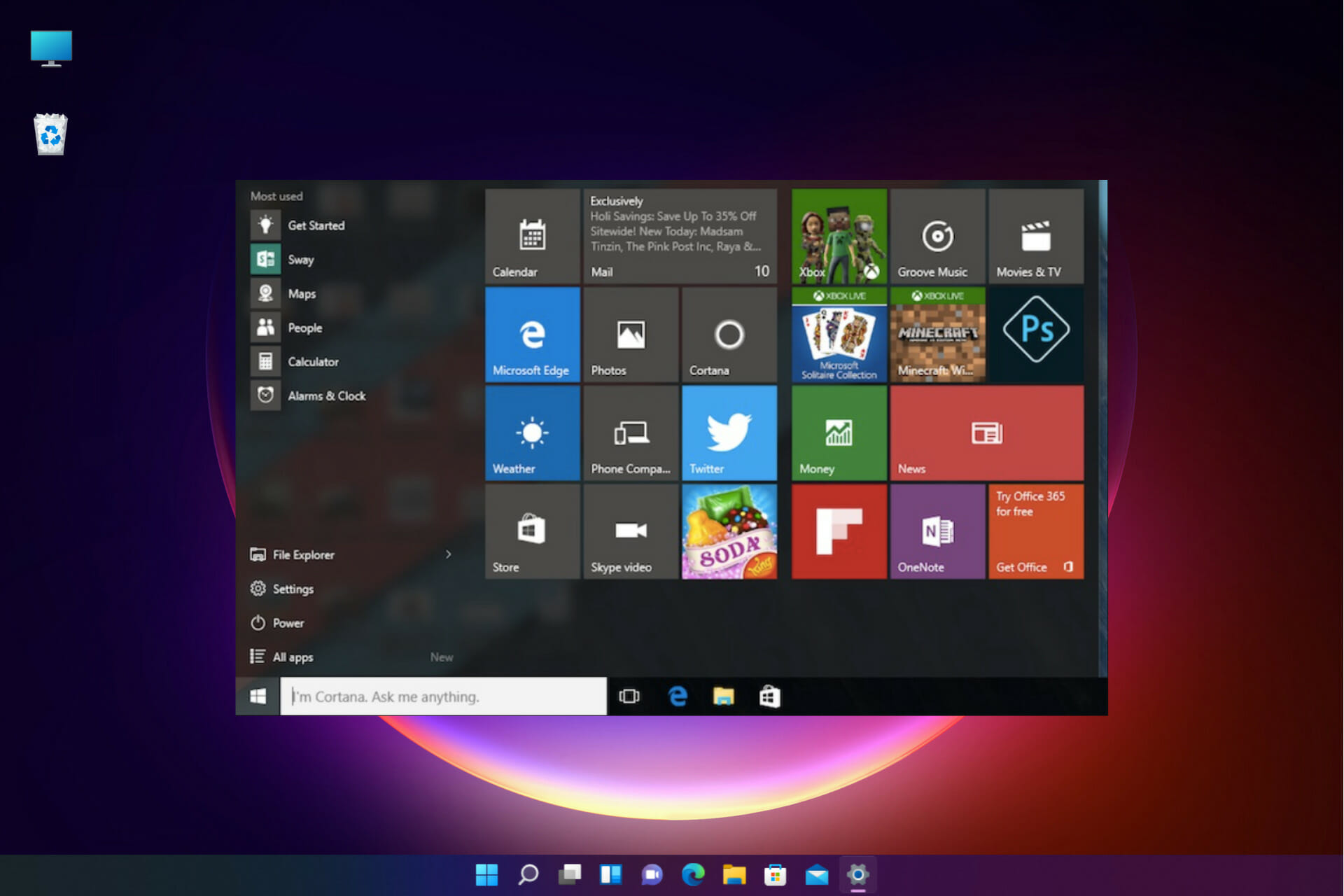
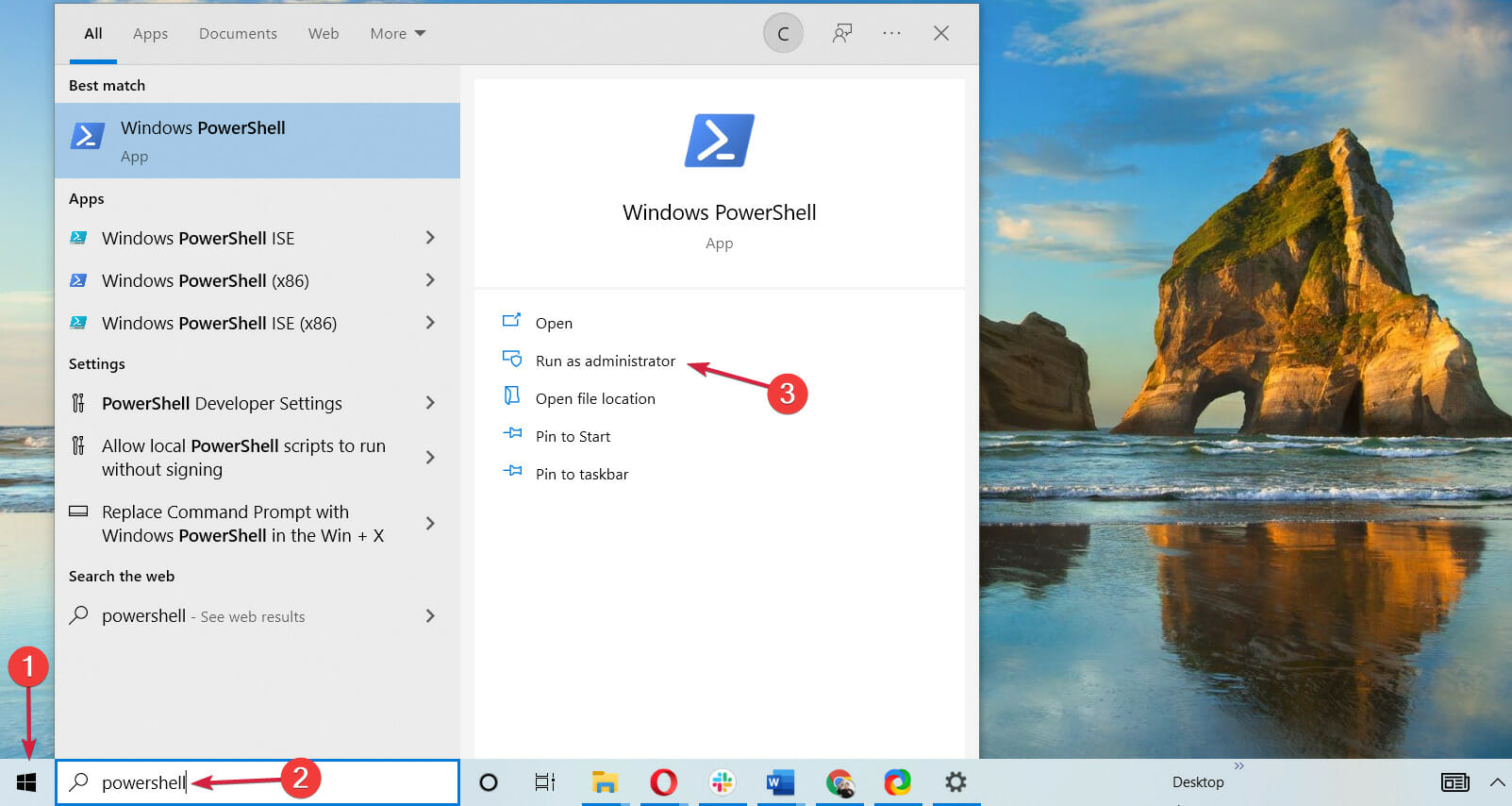
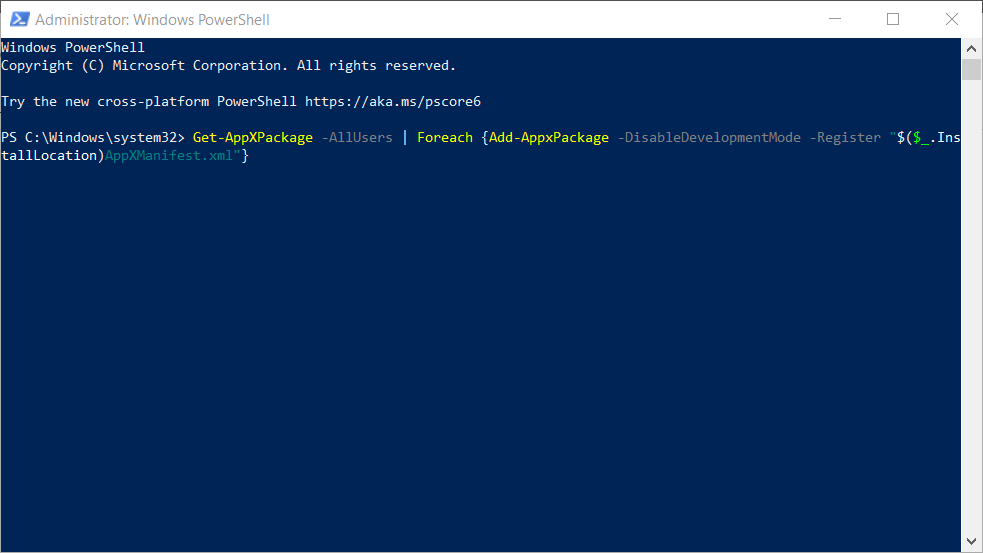
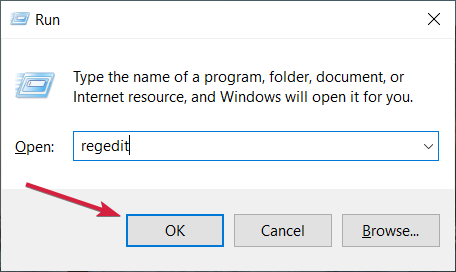
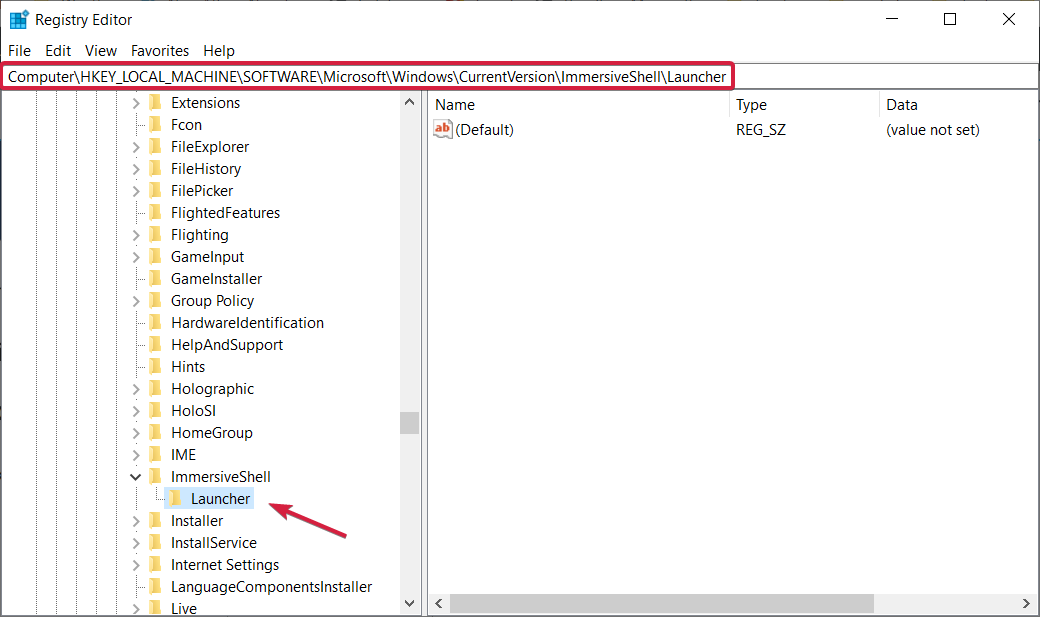
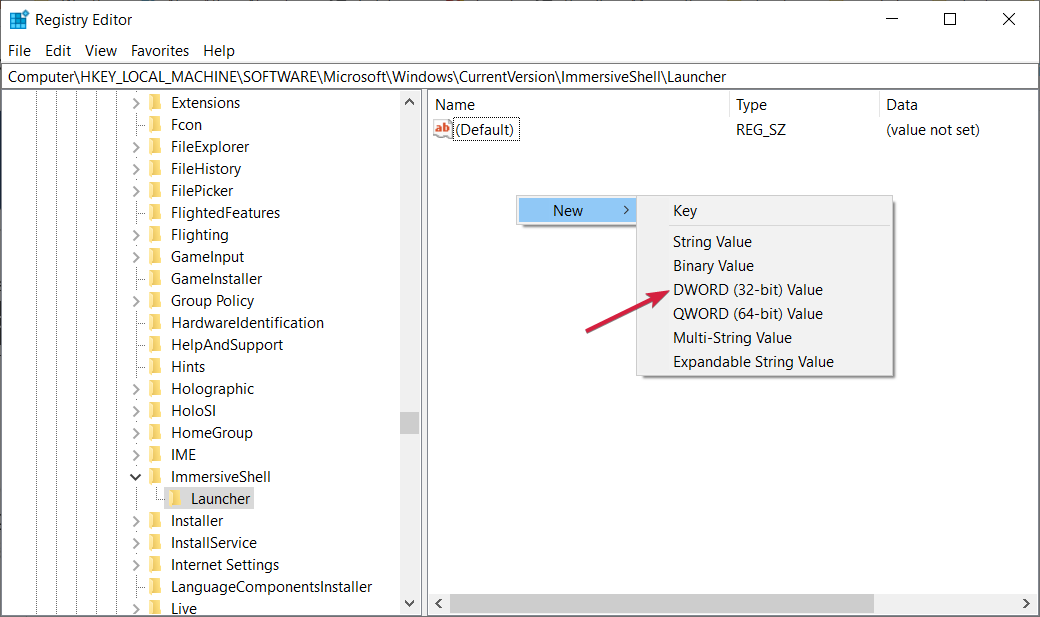
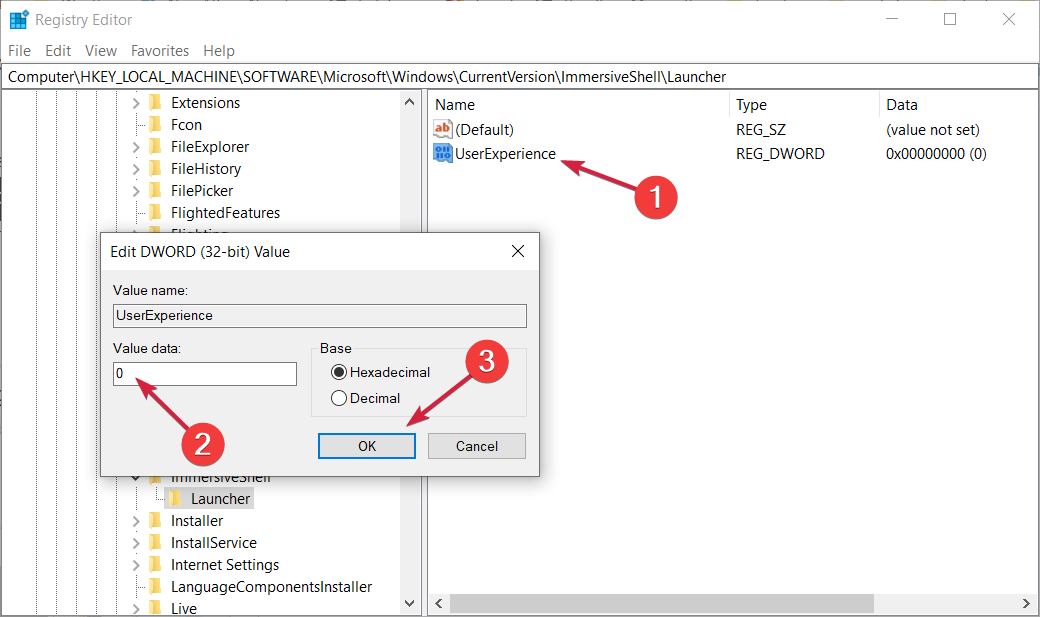
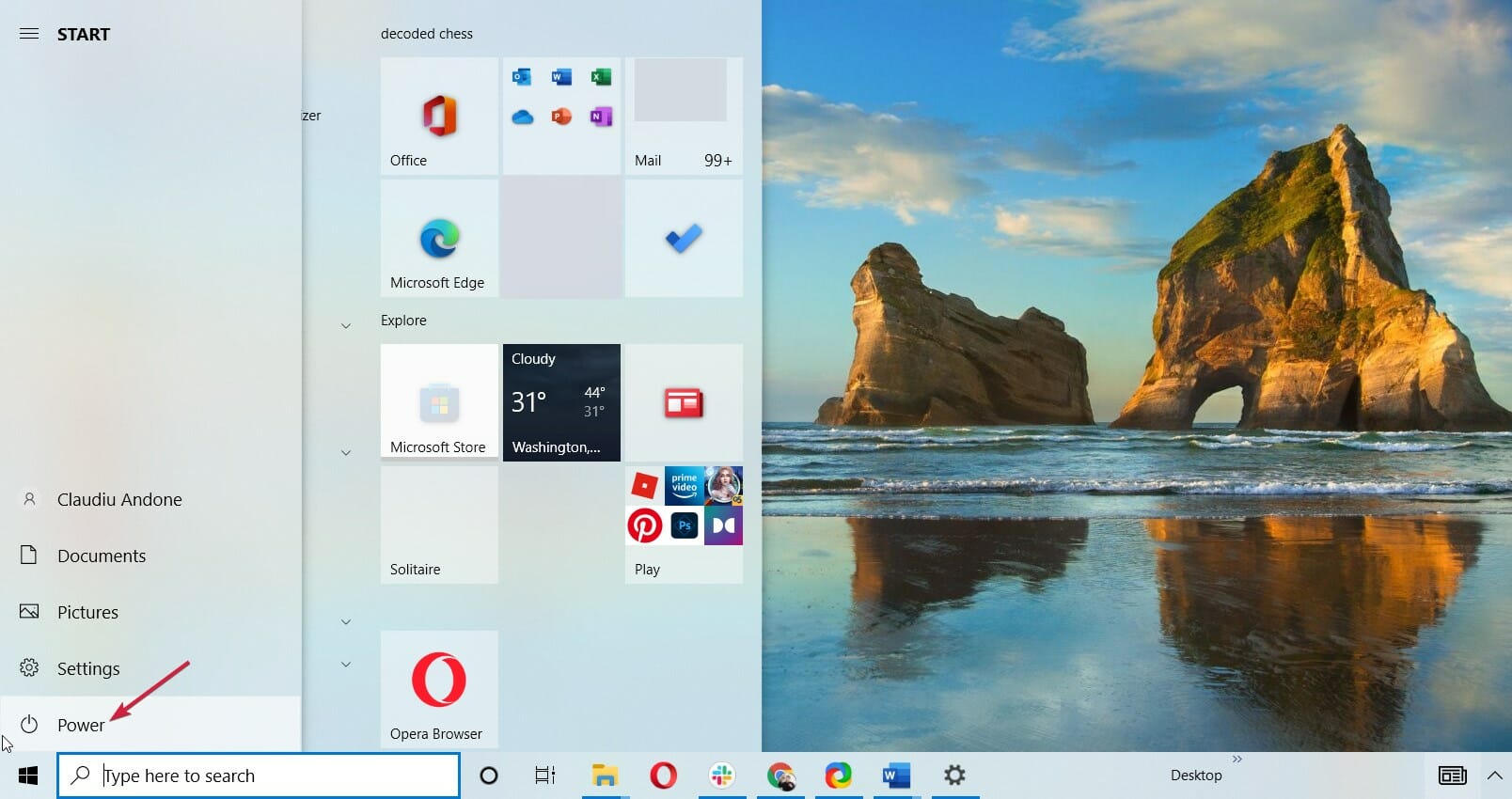
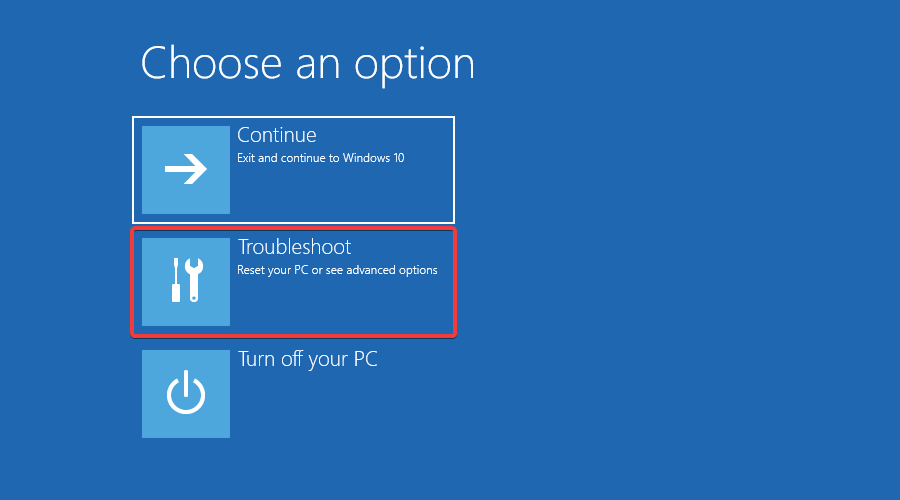
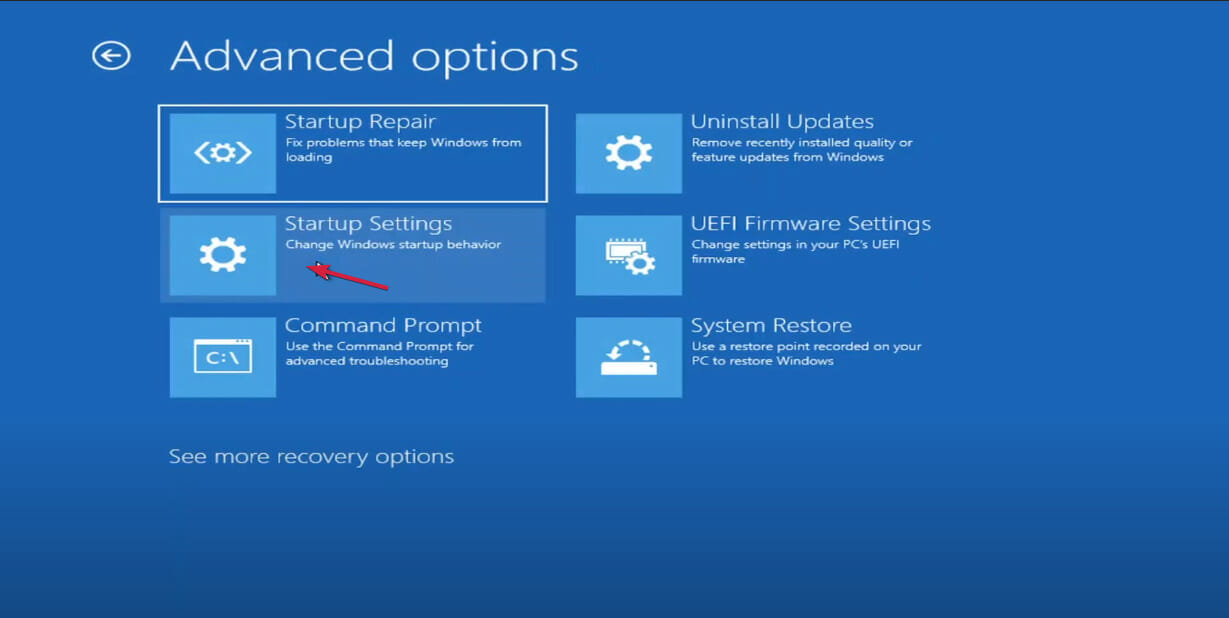
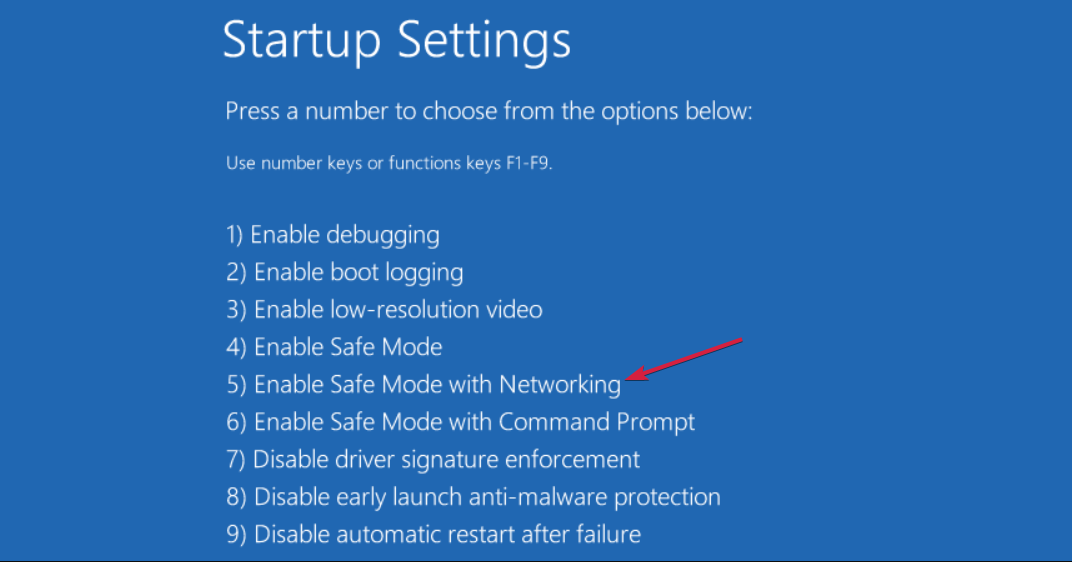
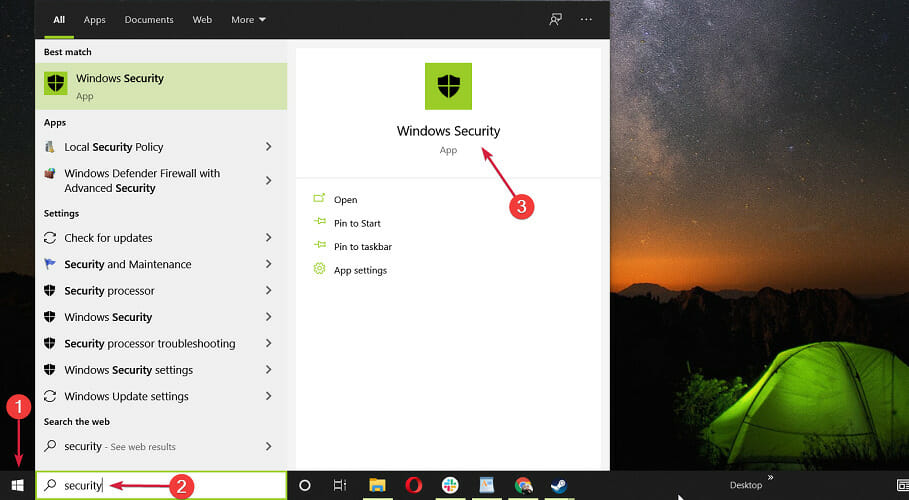
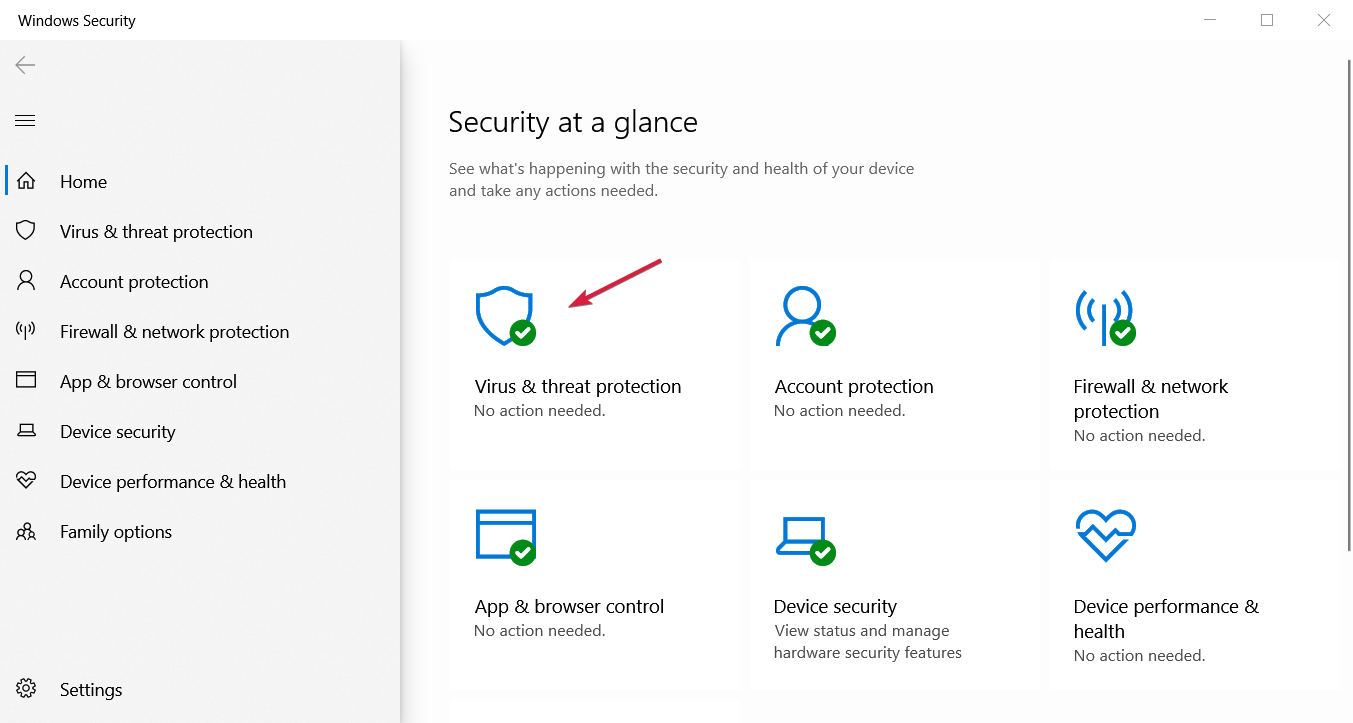
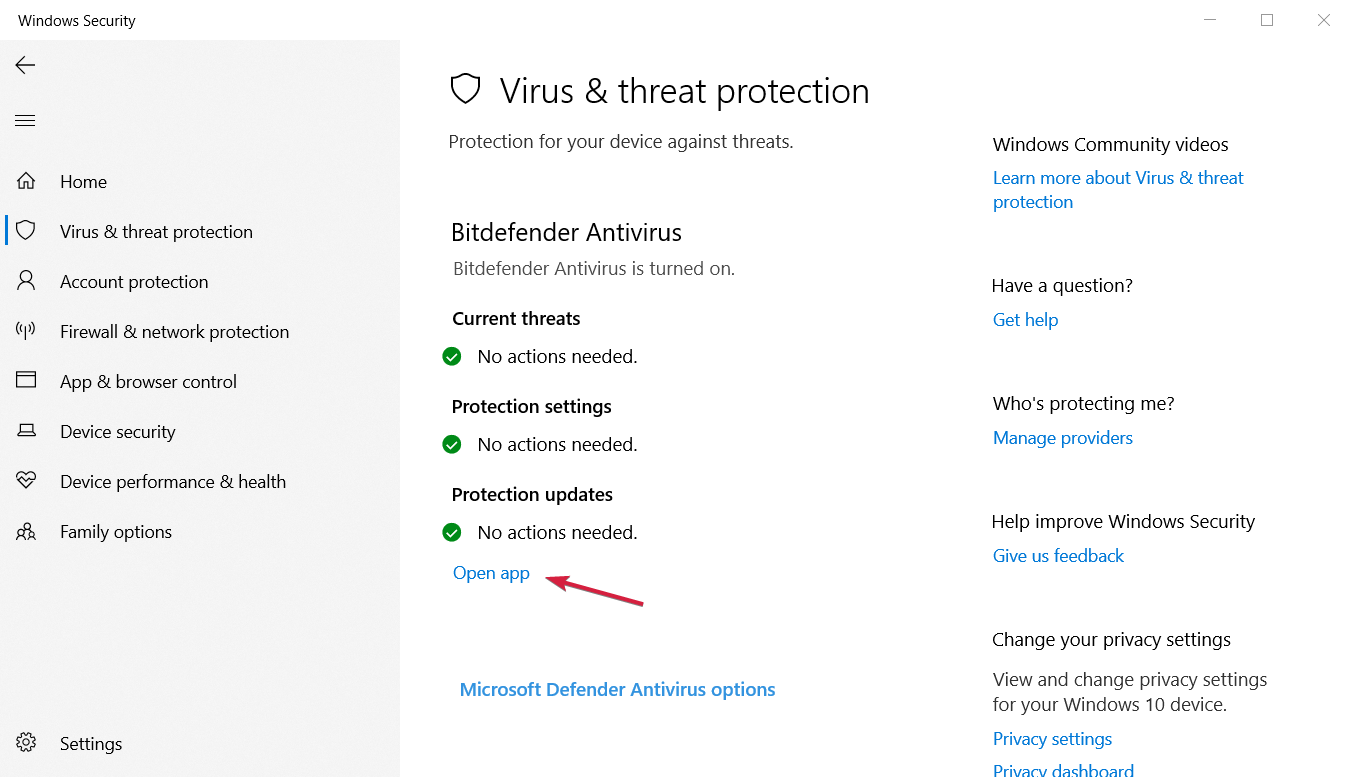
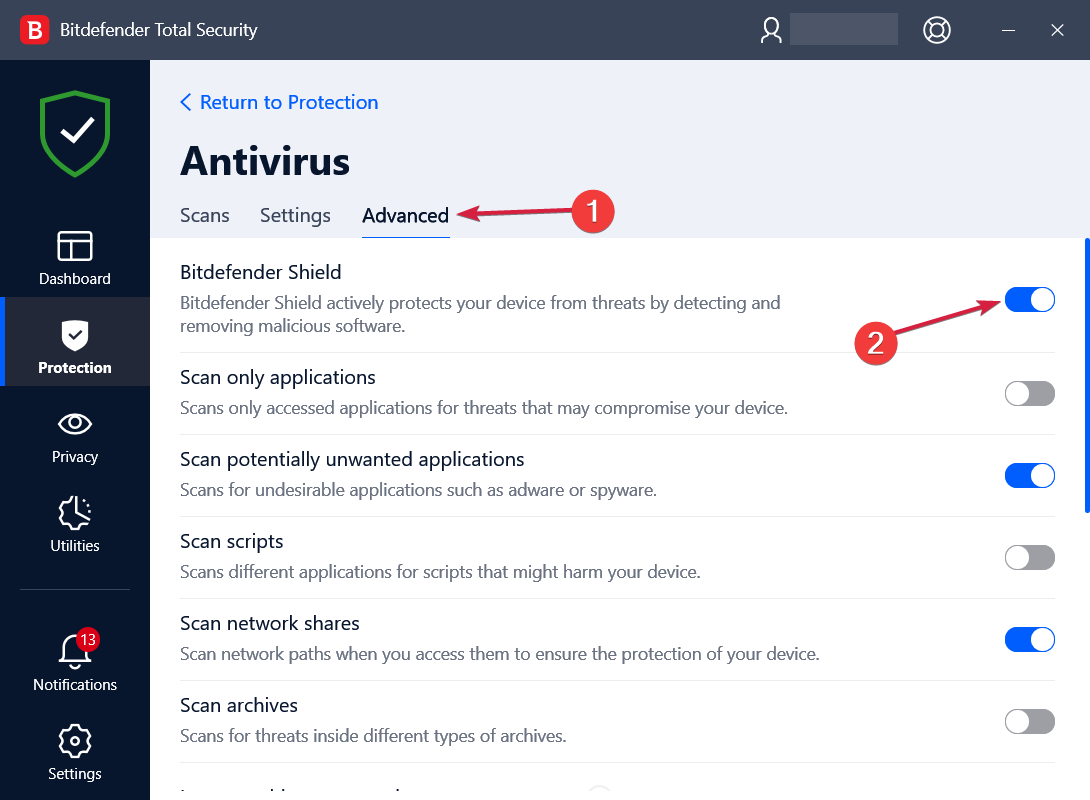
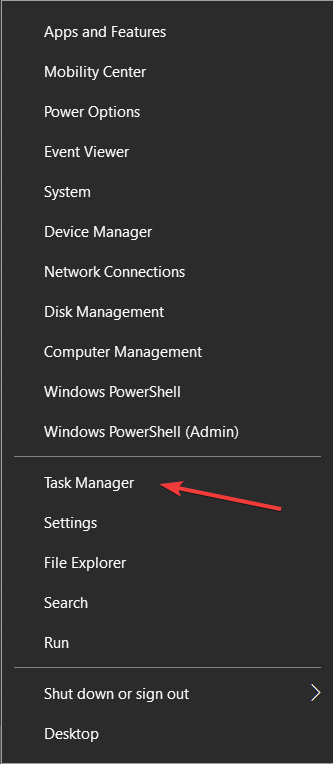
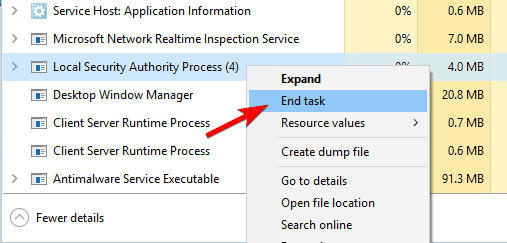
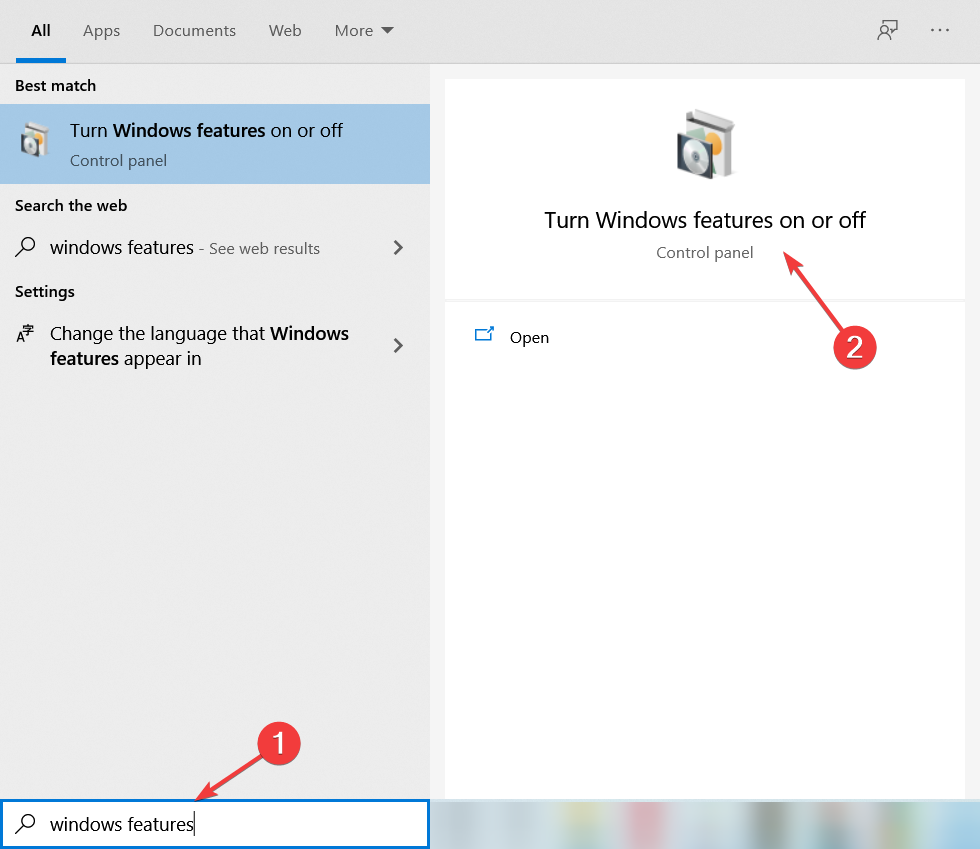
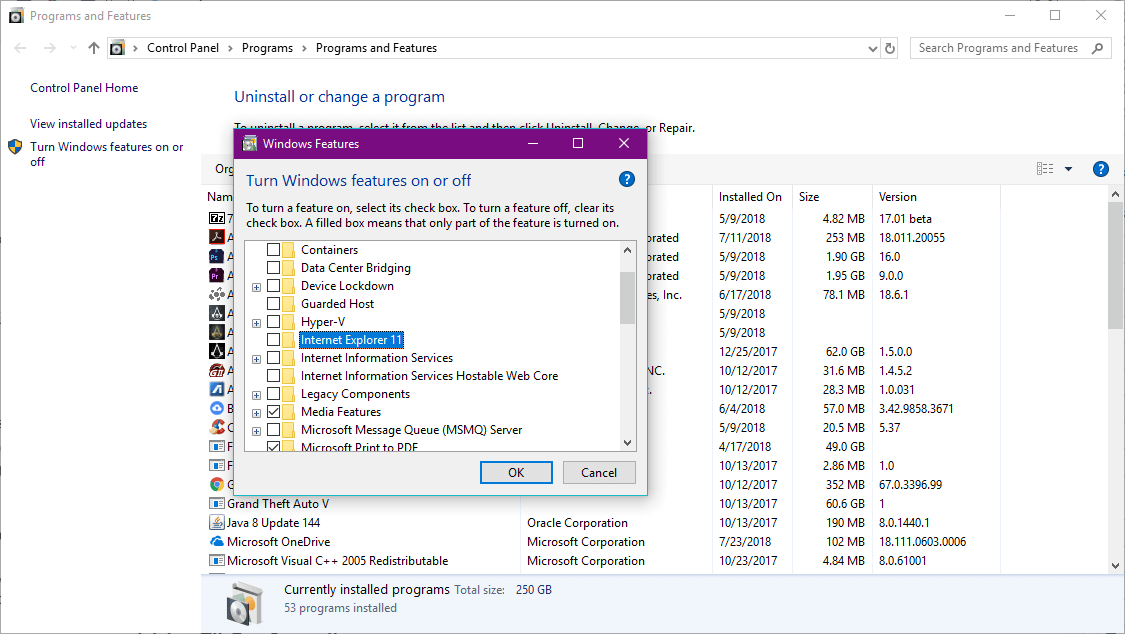
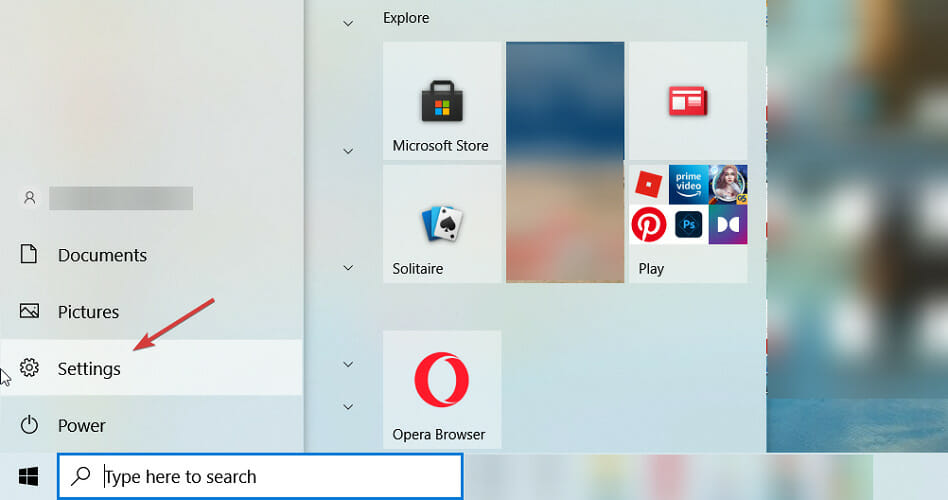
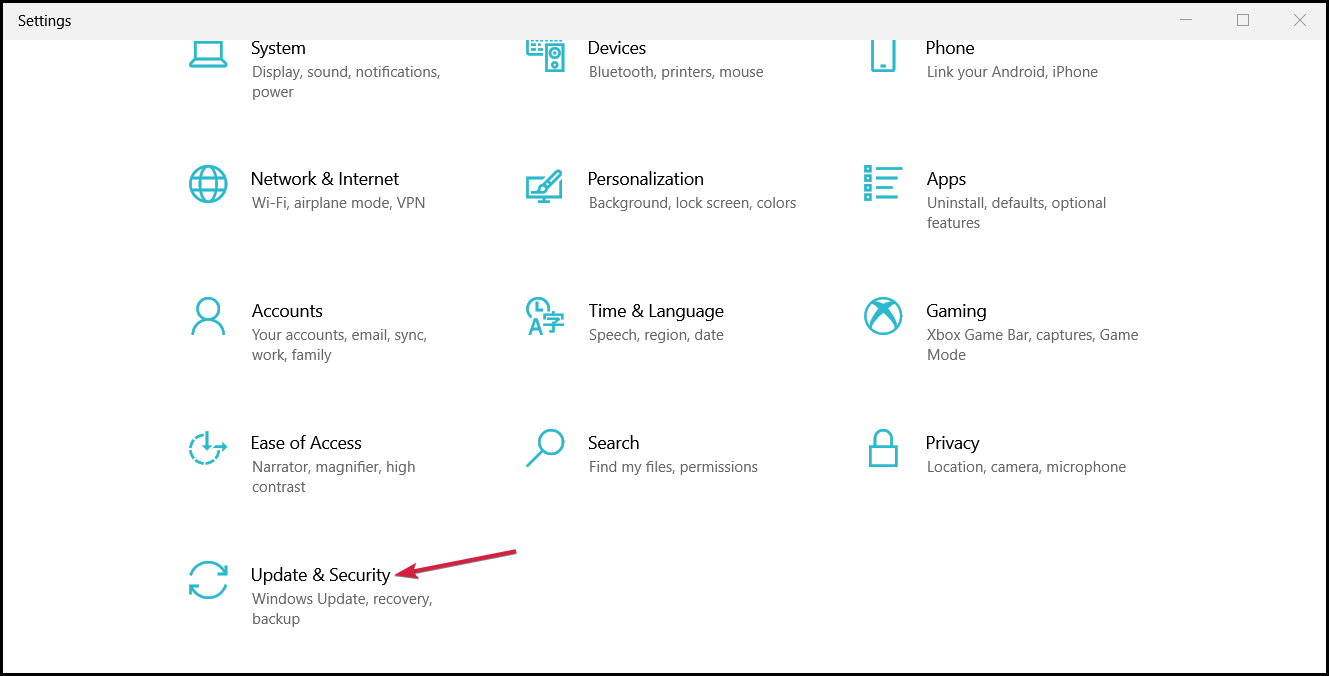
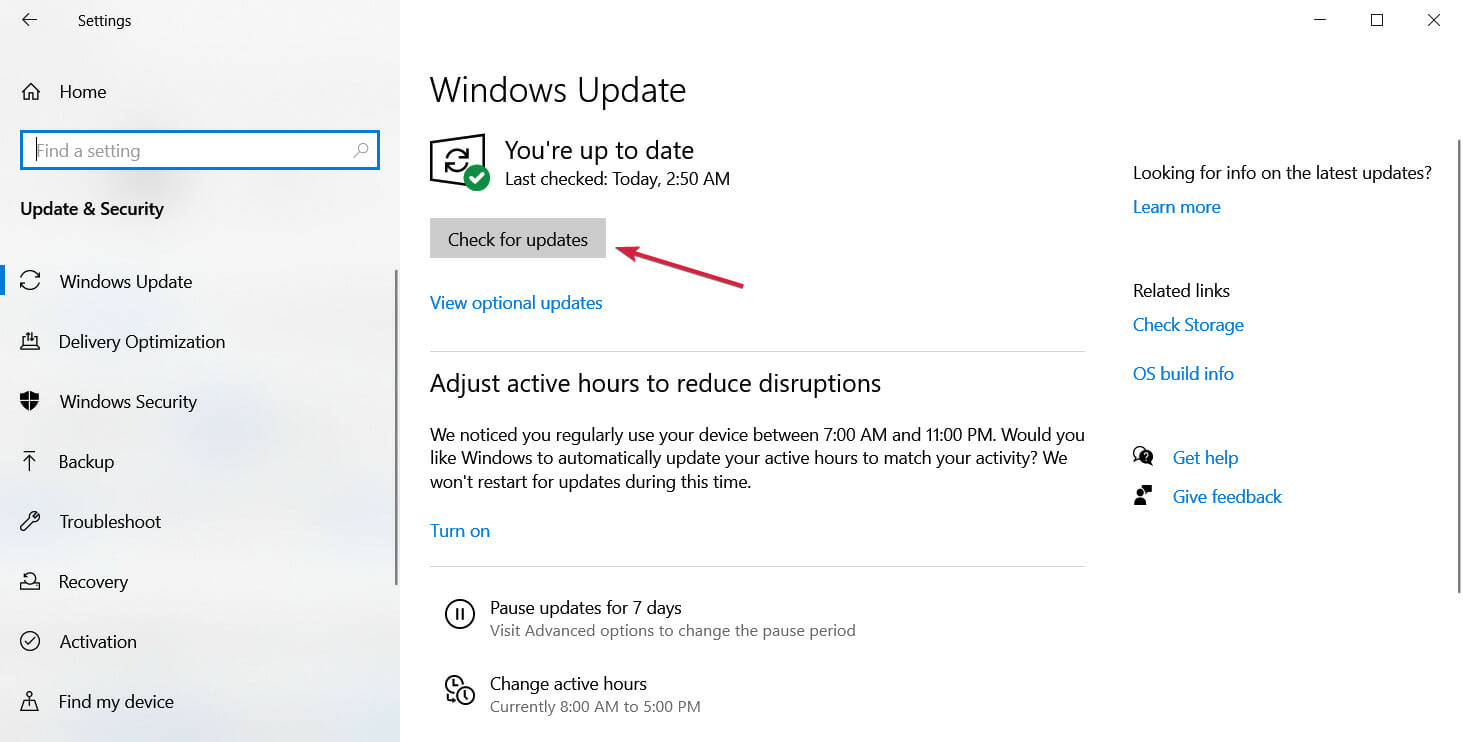
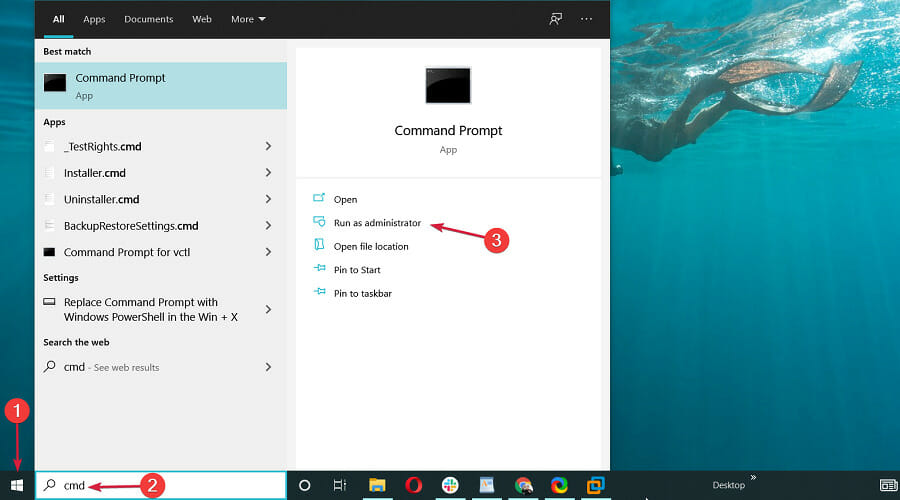
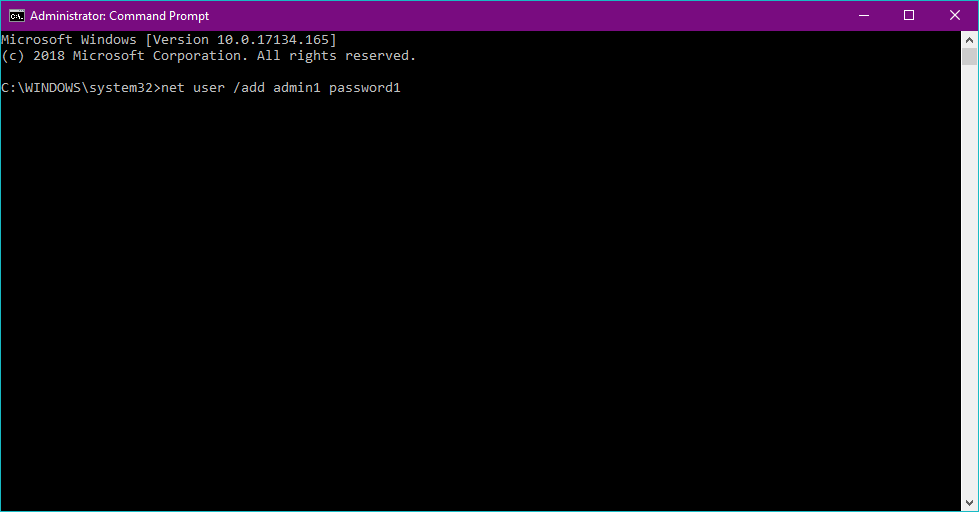
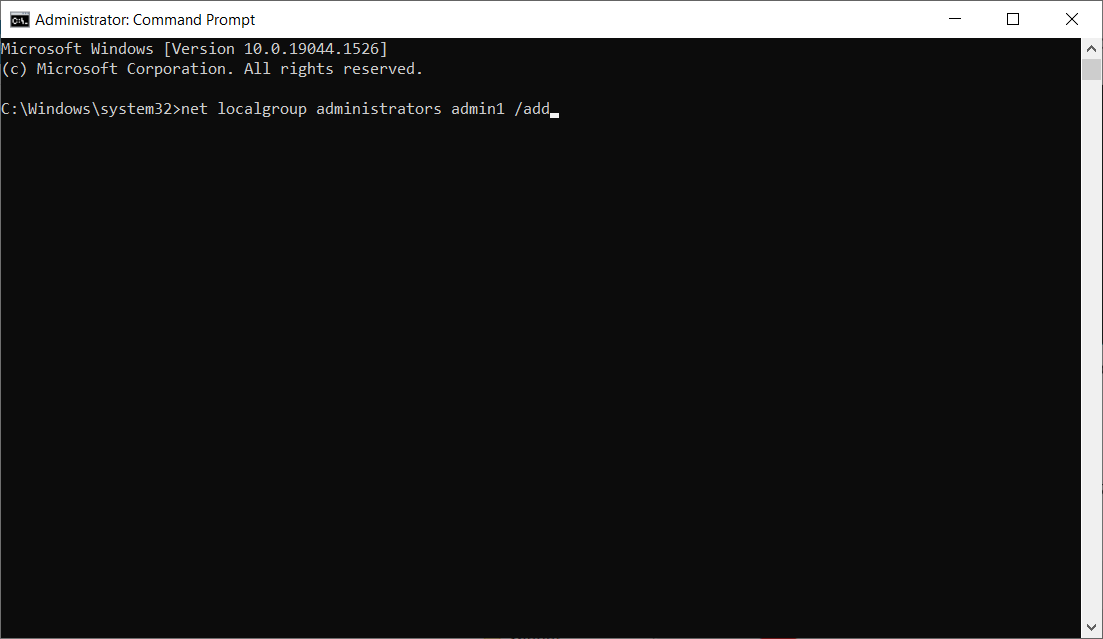
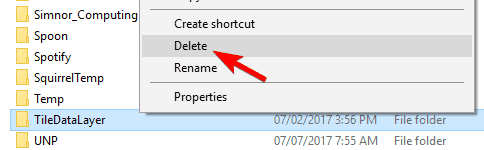
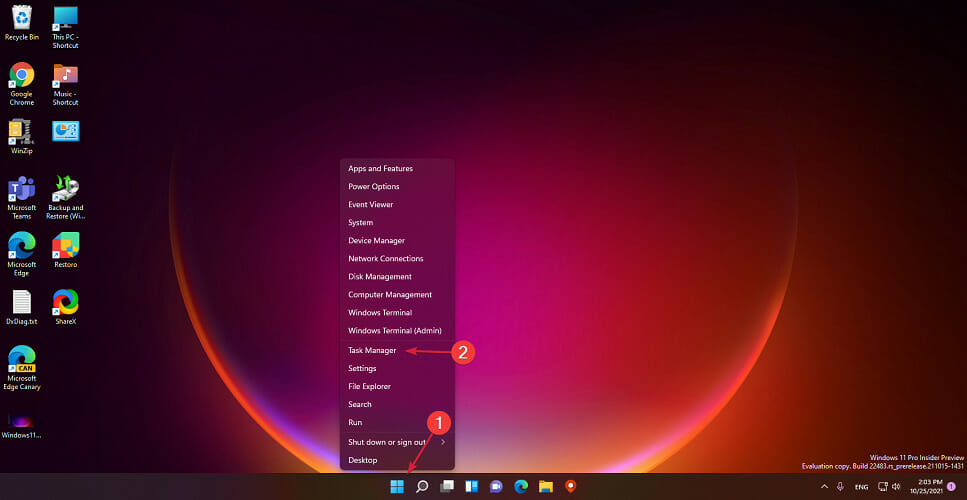
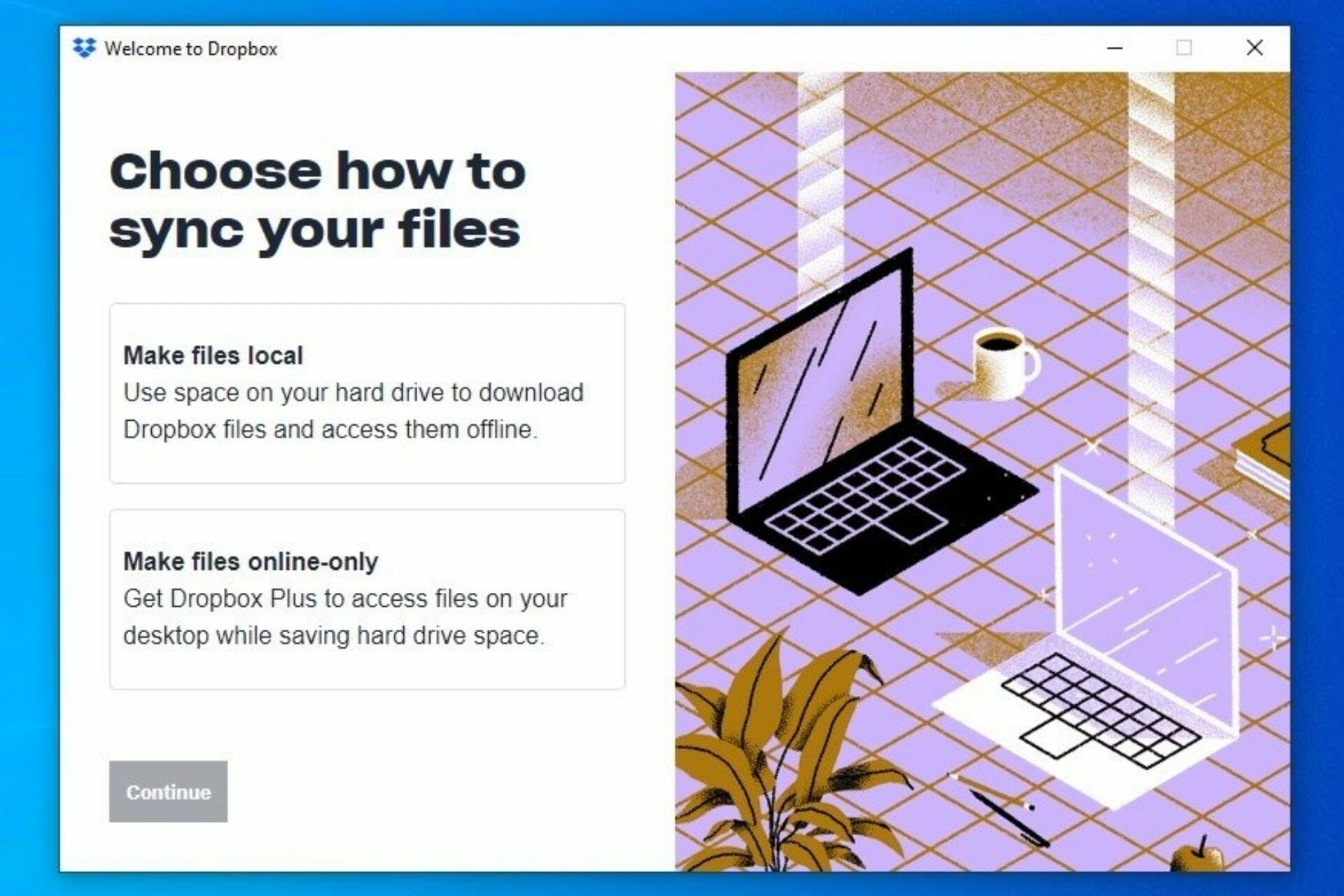

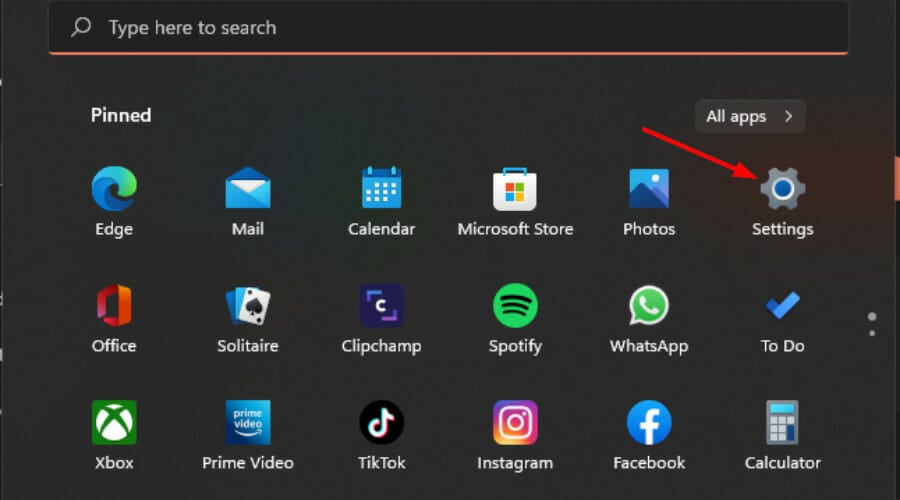
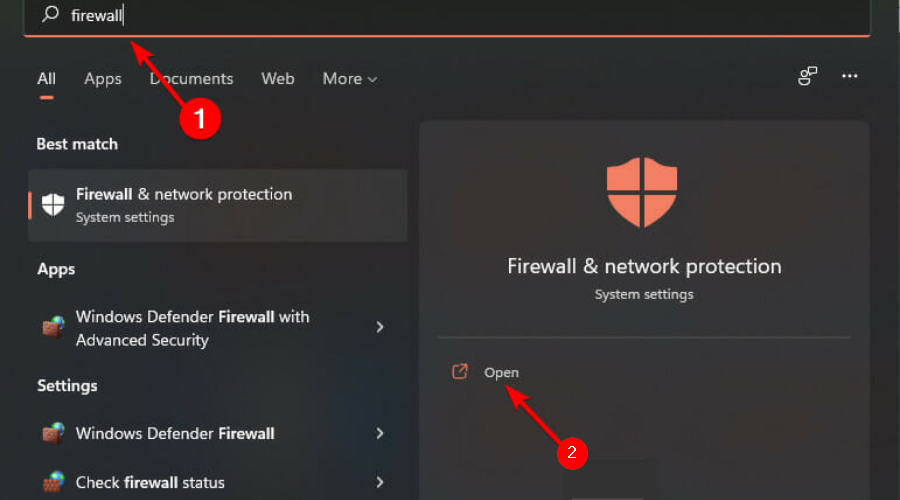
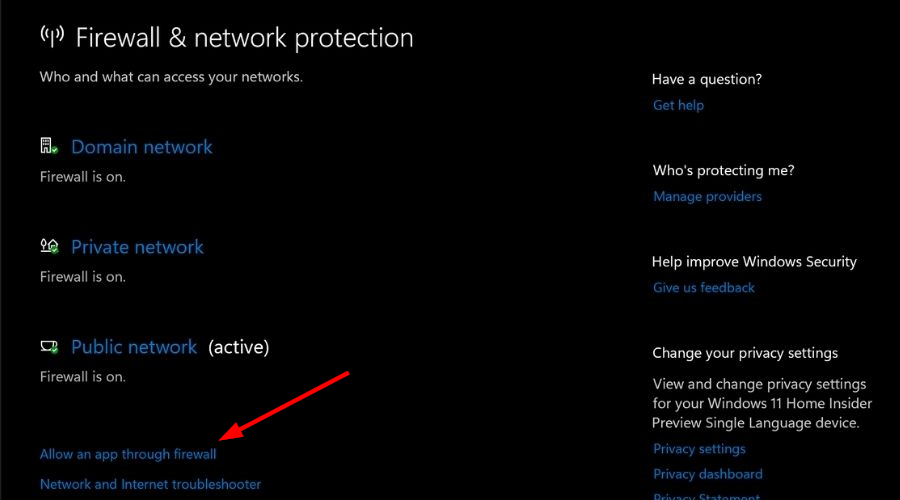
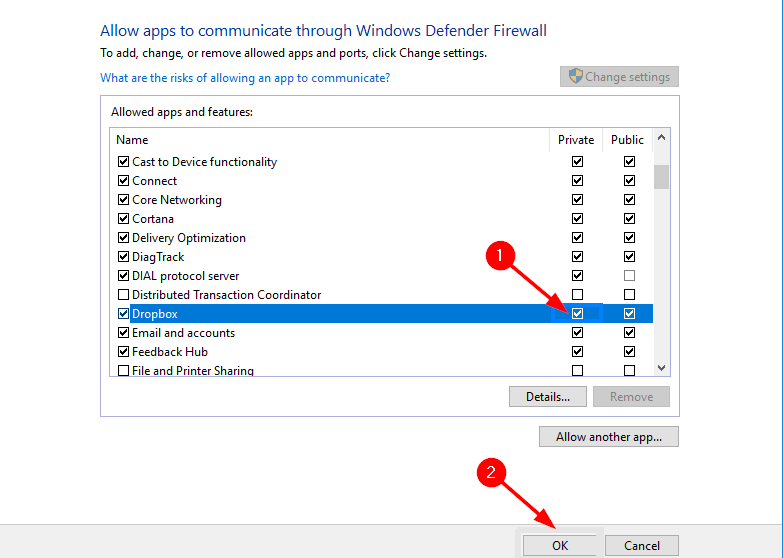
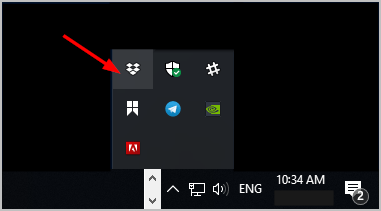
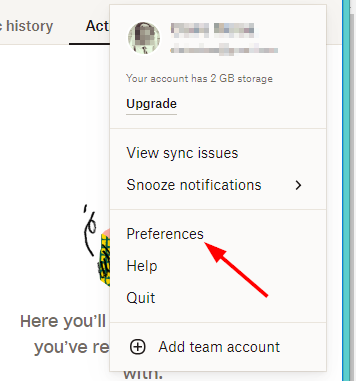
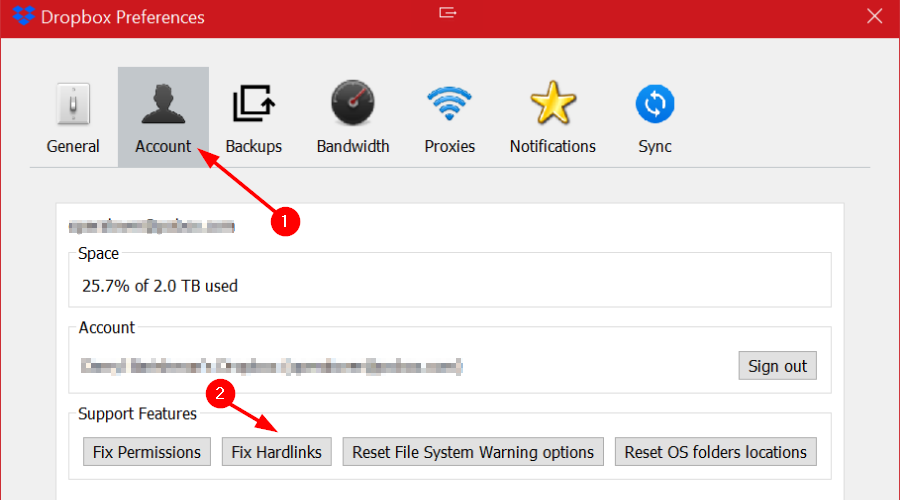
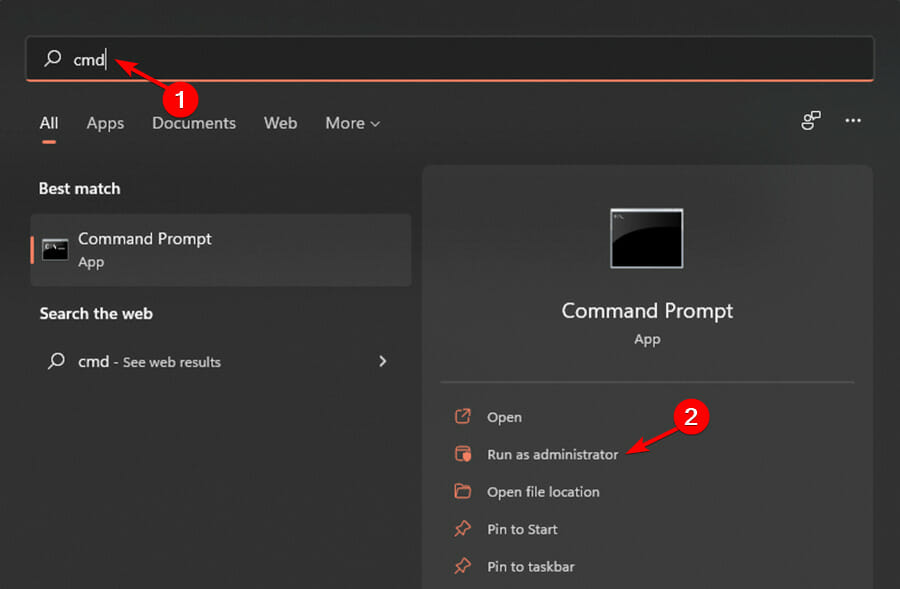
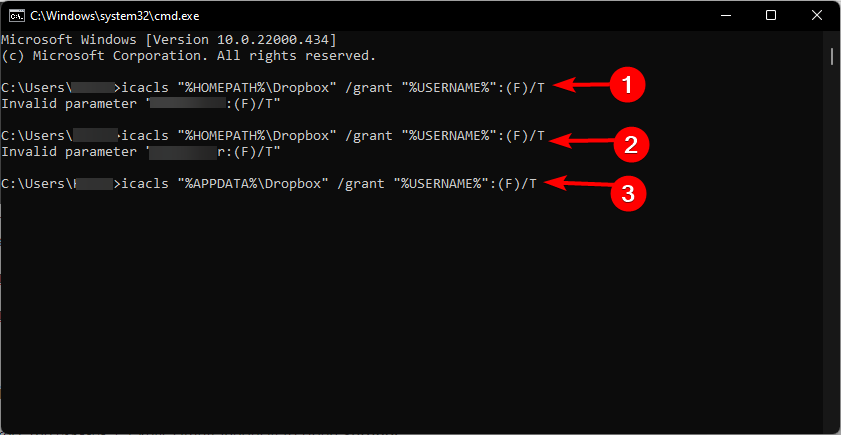
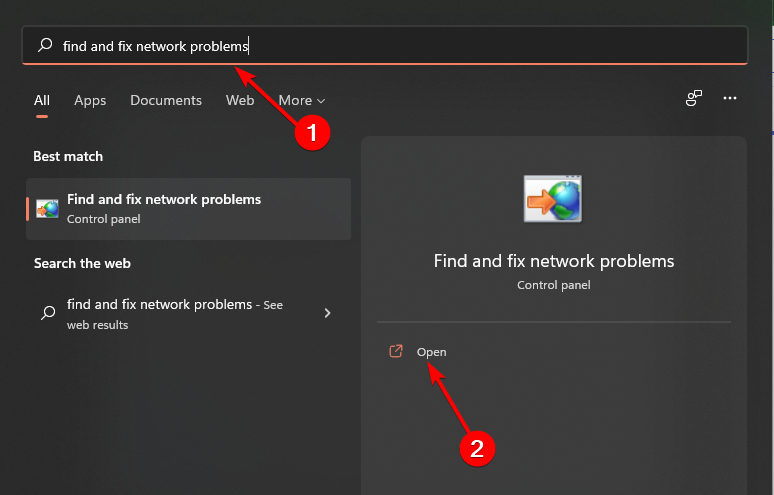
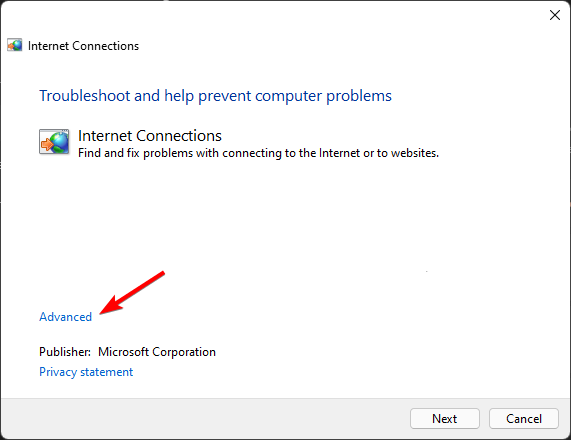
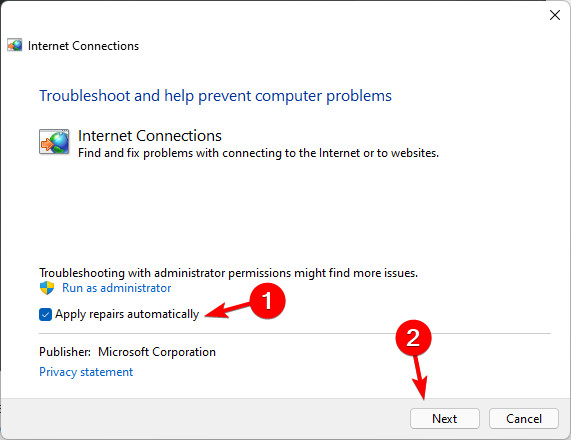
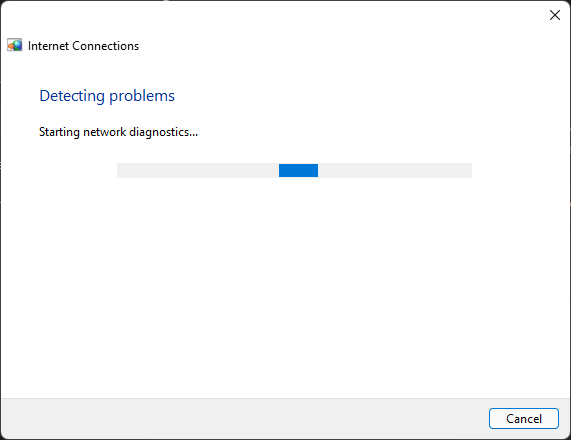
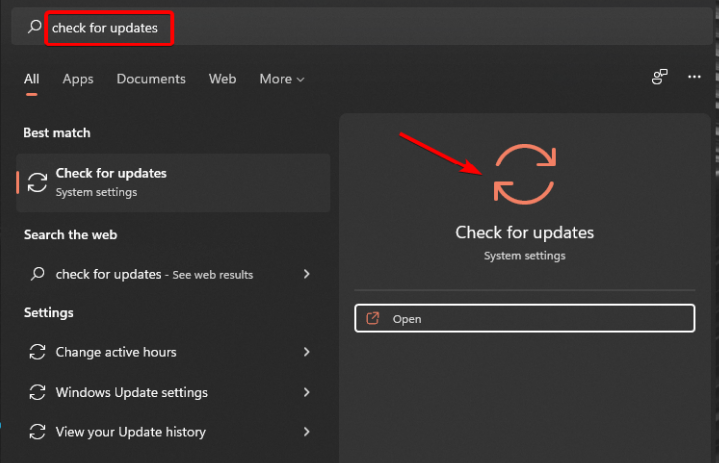
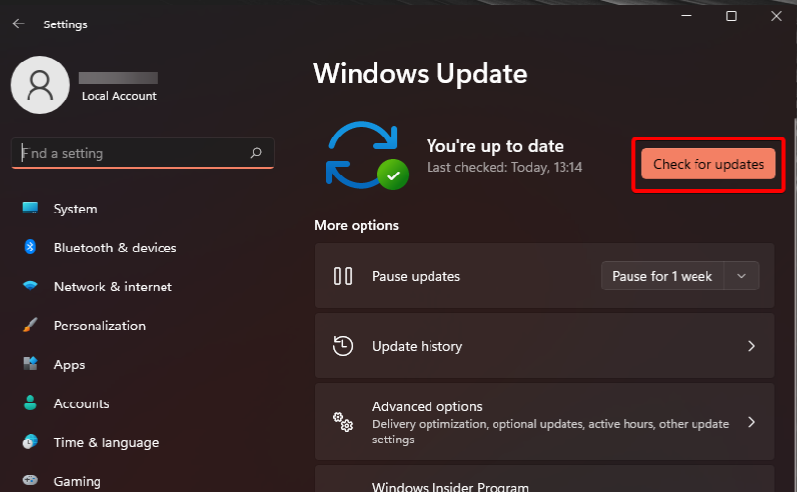
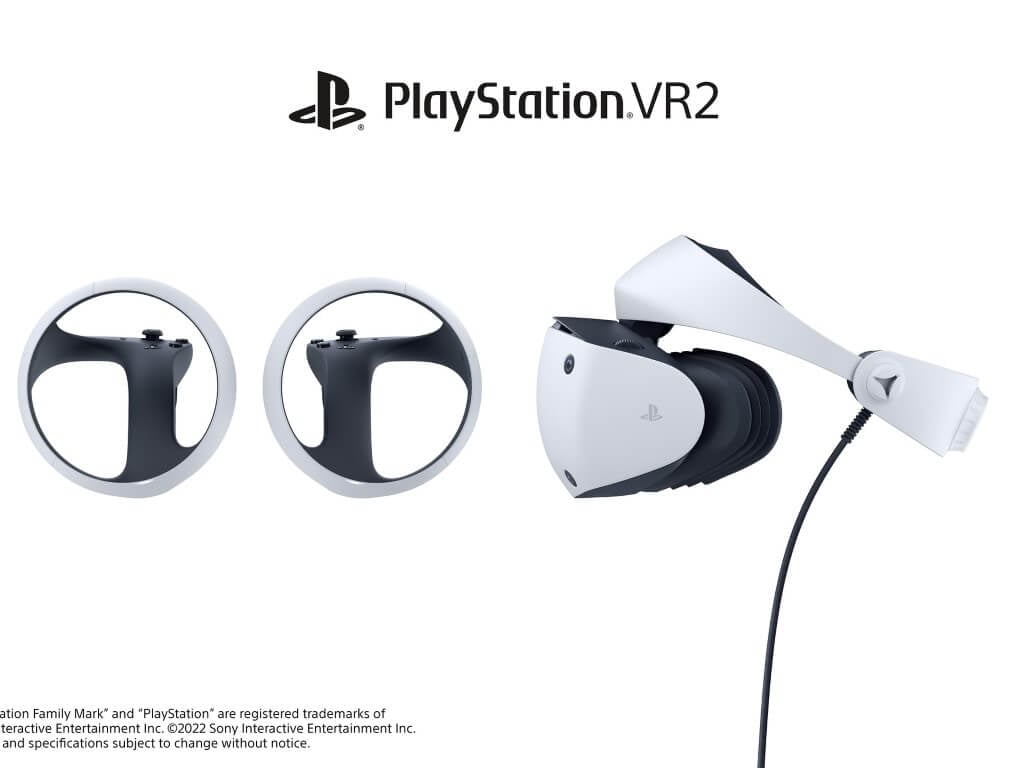
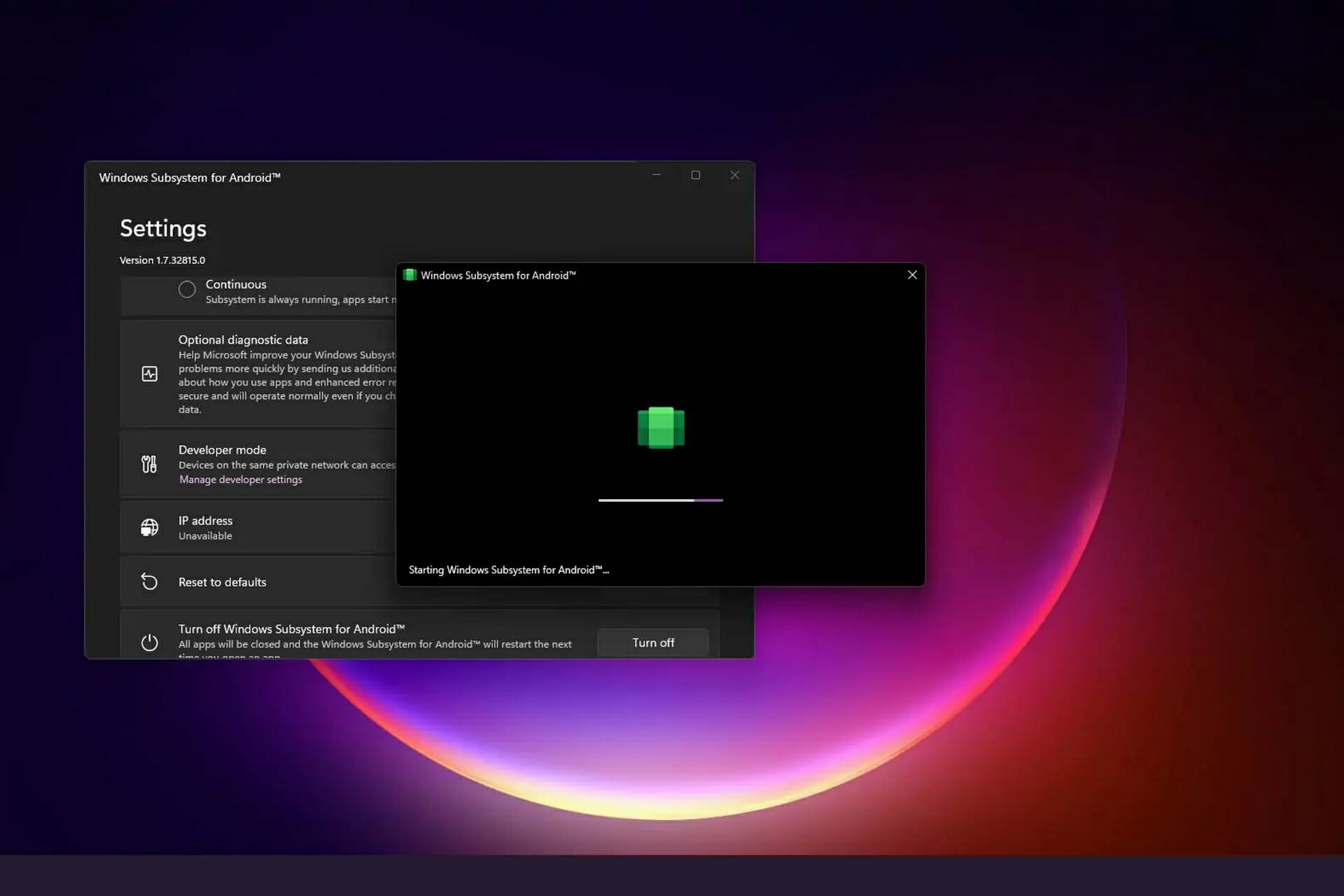


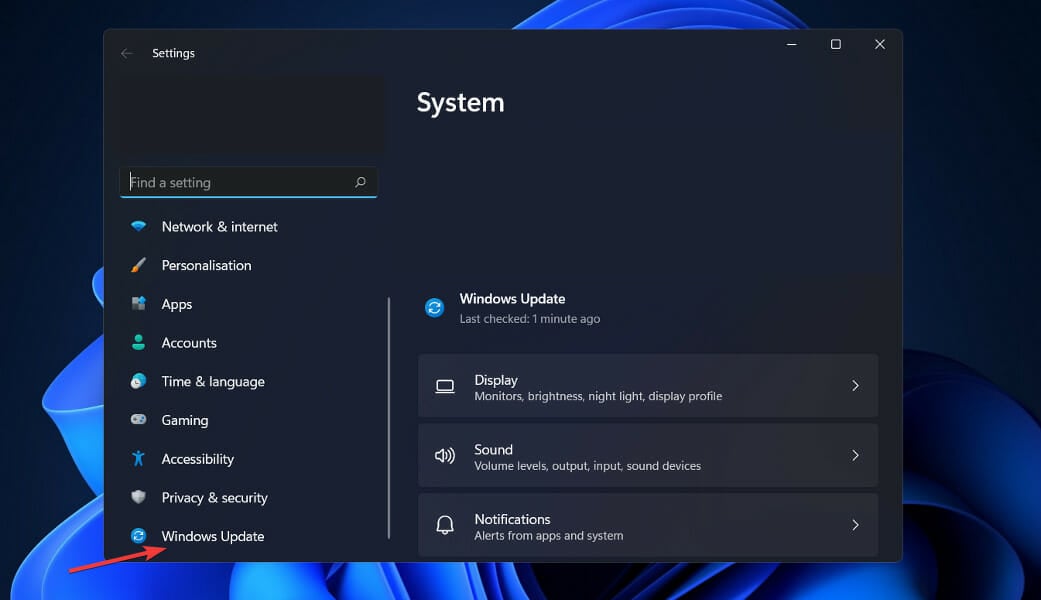
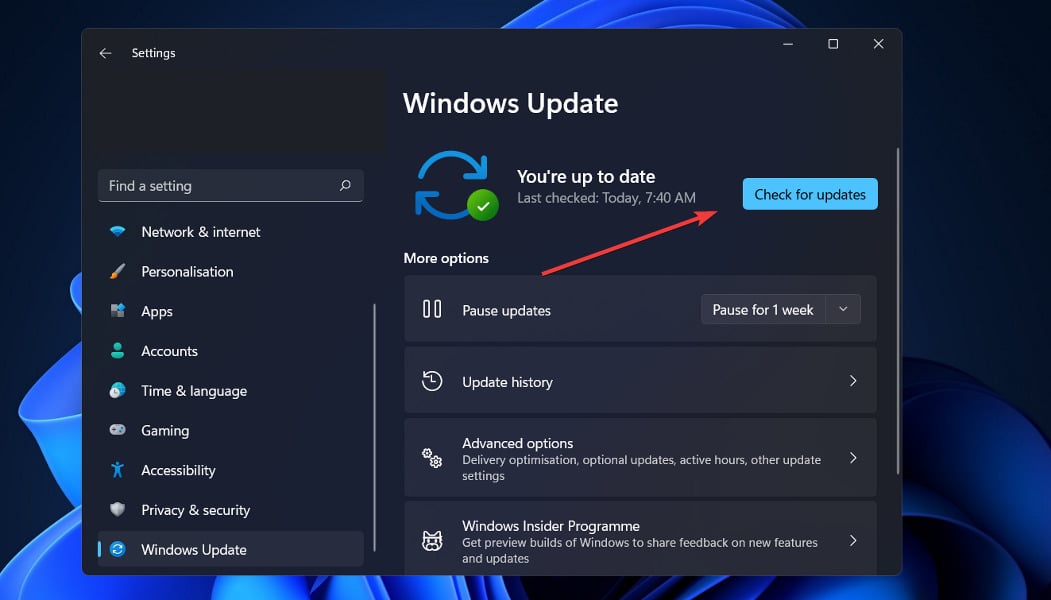
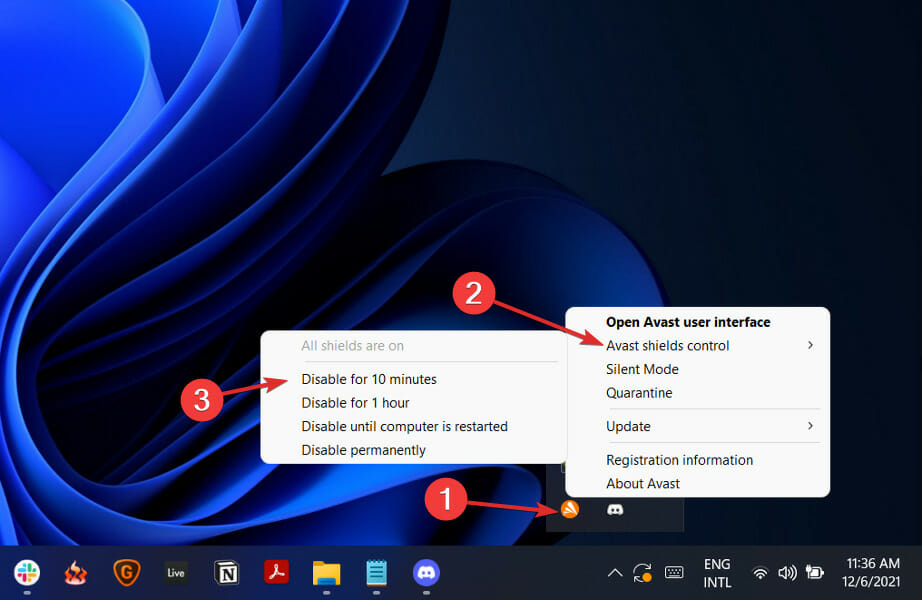
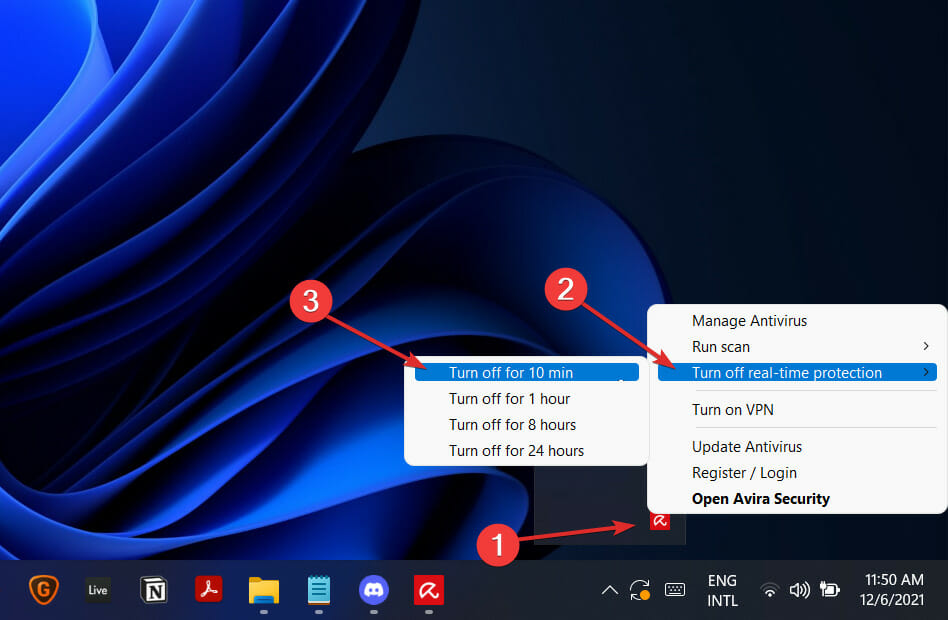

![4 Ways to Fix Cox When It’s Not Working [App, Wi-Fi, Cable]](https://windowsreport.com/wp-content/uploads/2022/09/cox-app-featured-image.png)


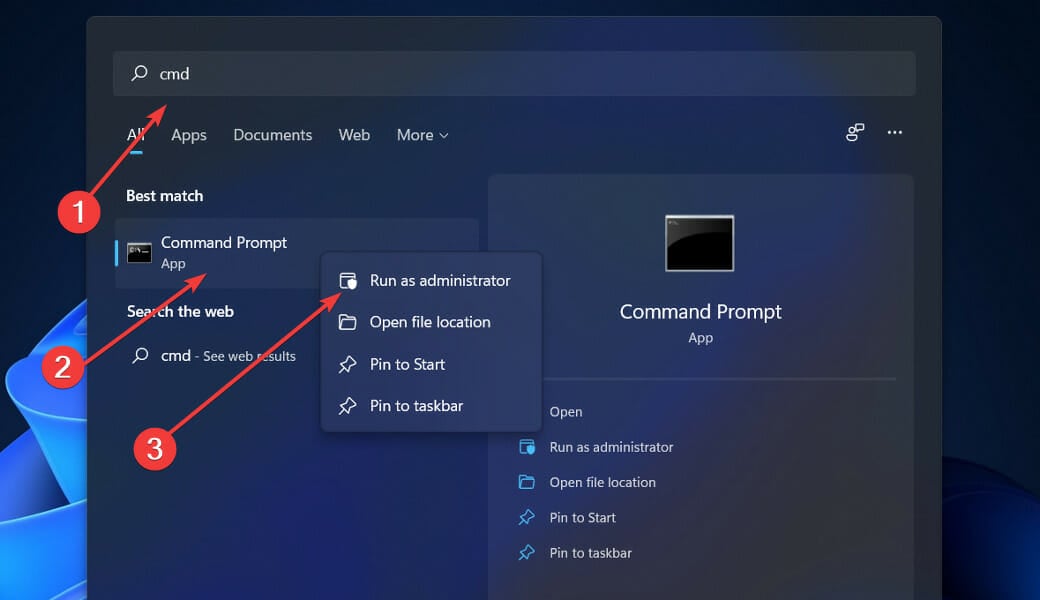
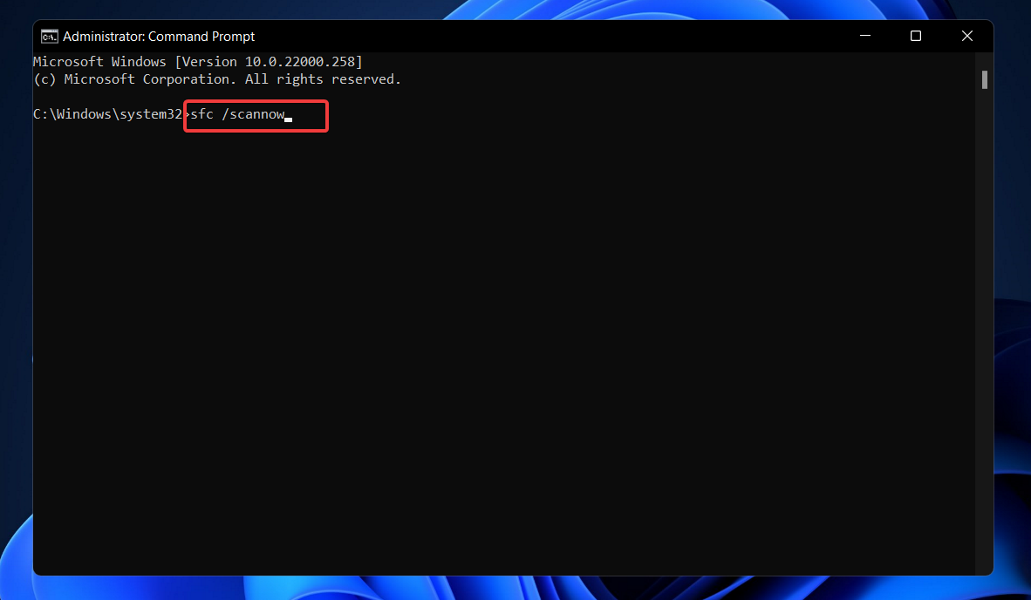


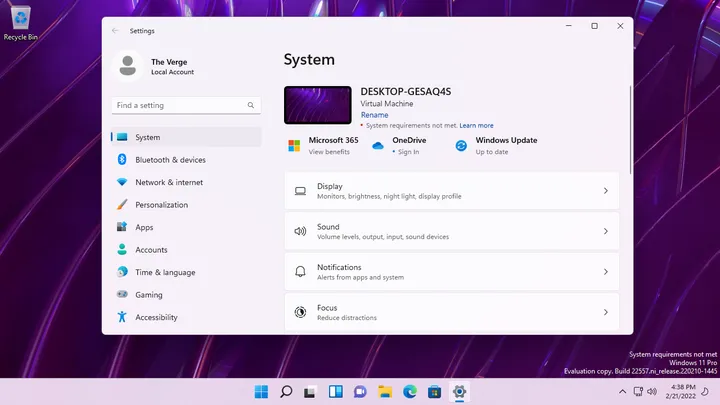




![Best Music Player for Windows 7 [Out of 15 Tested in 2026]](https://windowsreport.com/wp-content/uploads/2017/11/windows-7-audio-players.jpg)


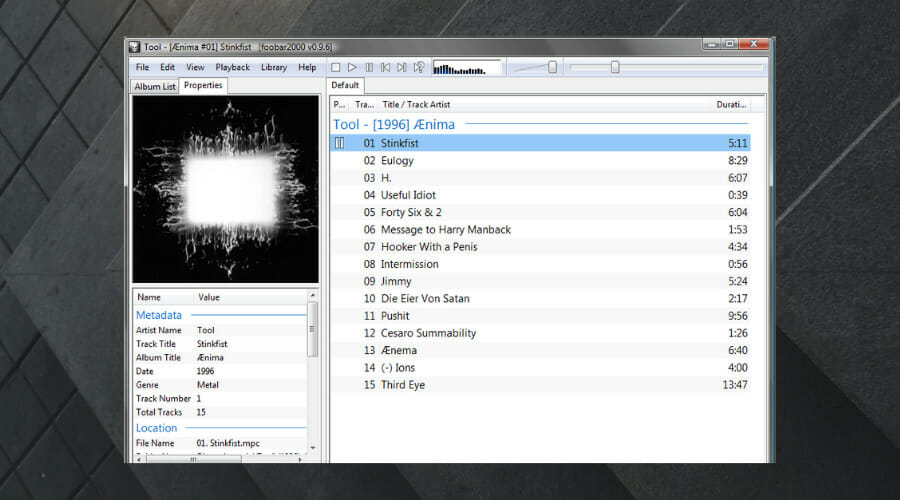
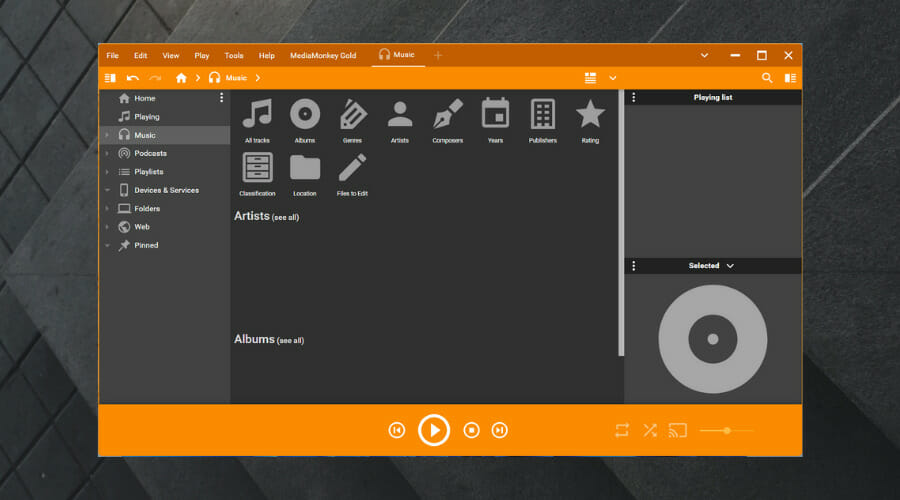






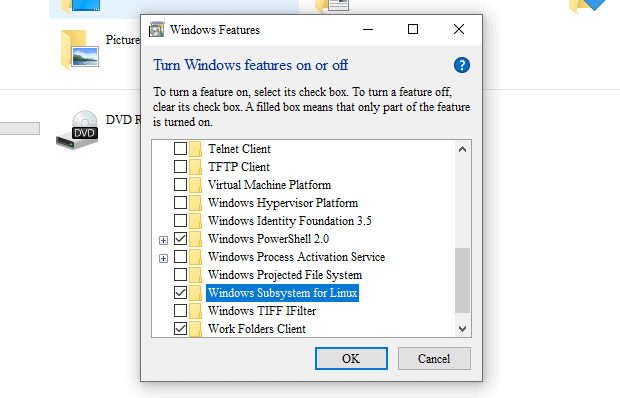
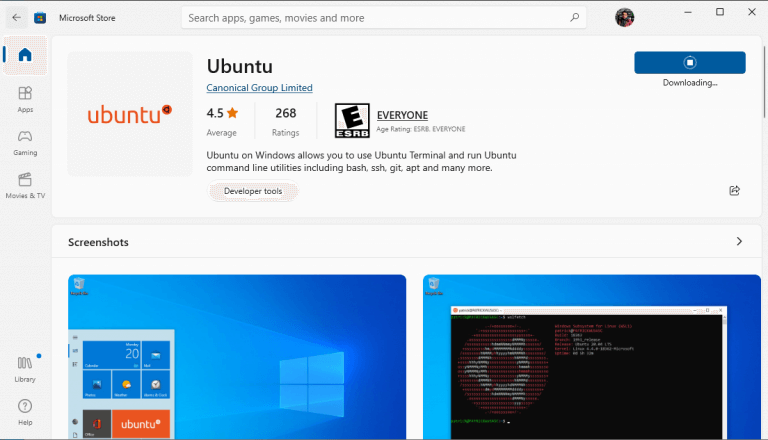
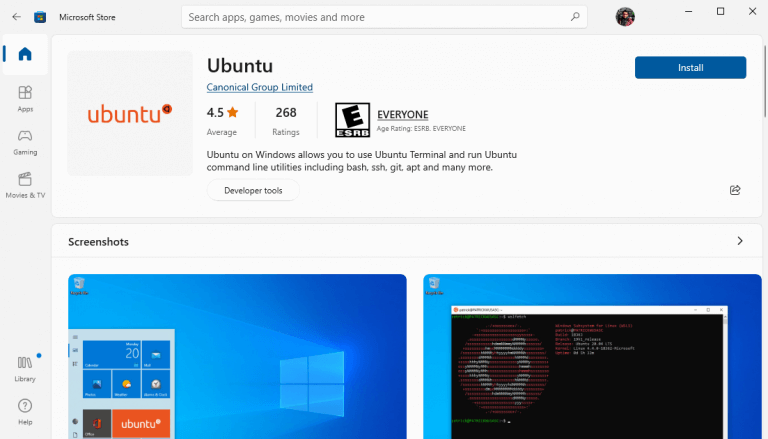
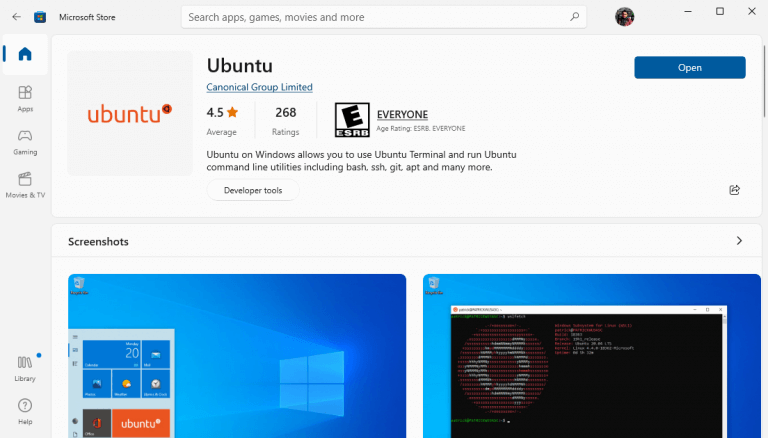
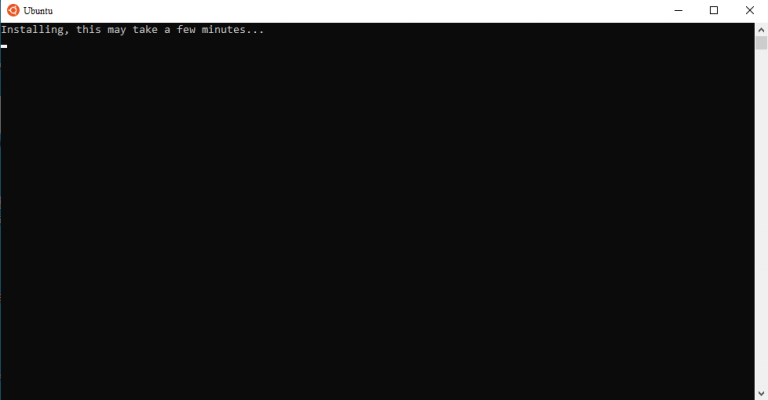
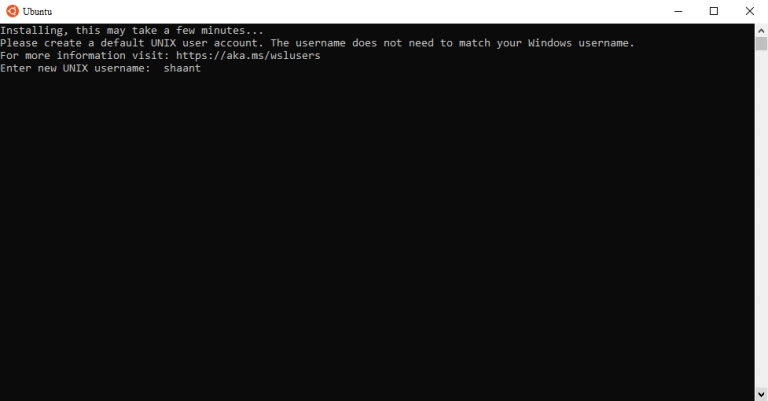
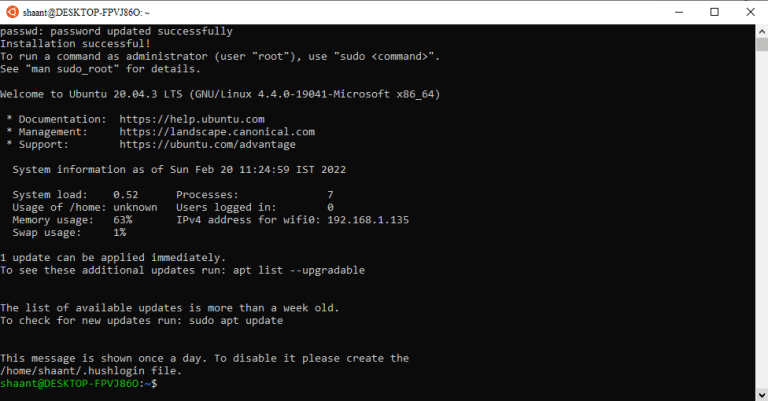
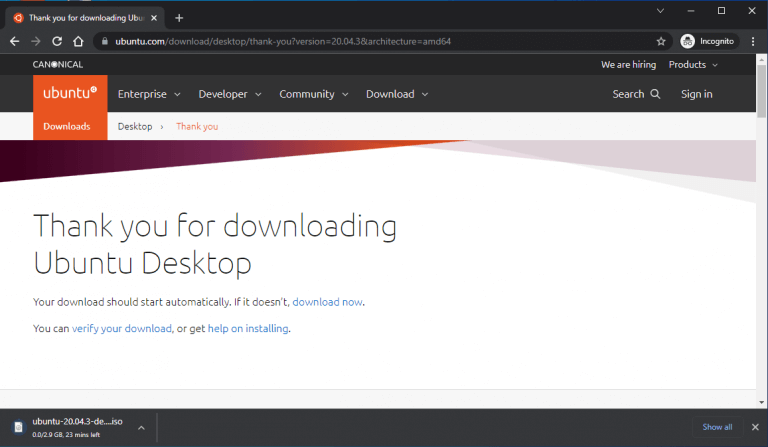
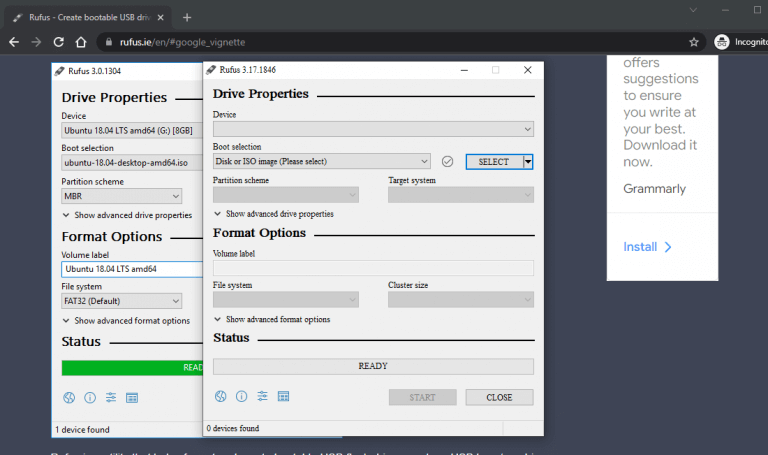
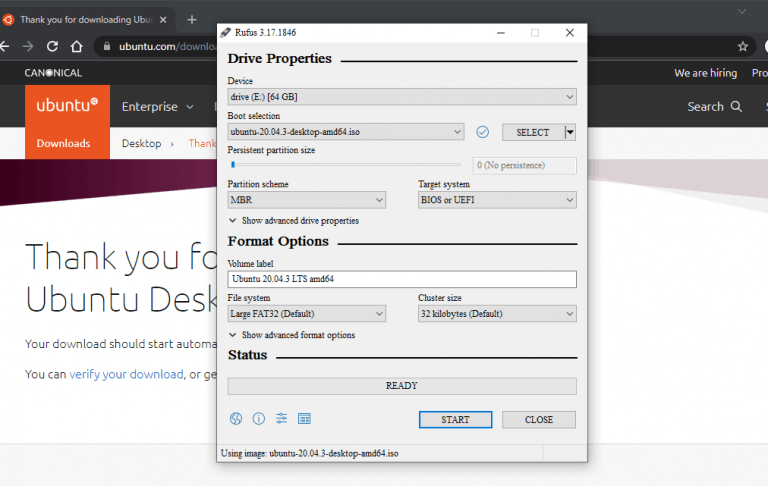
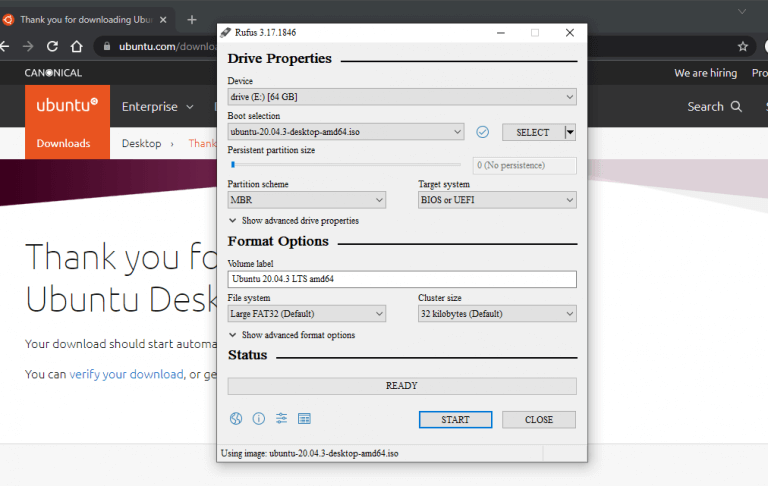
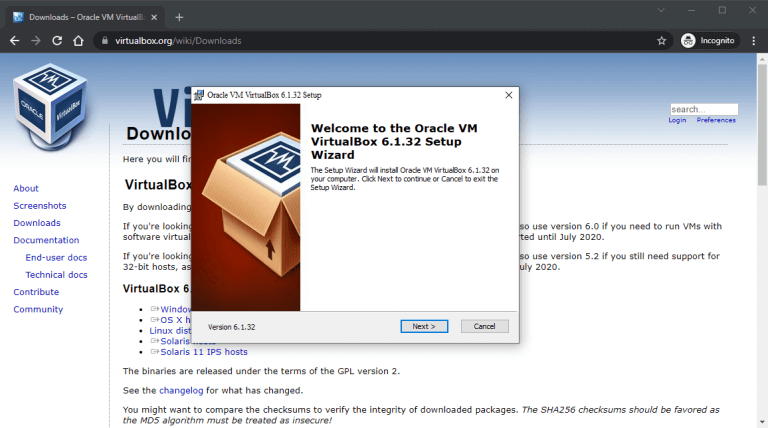
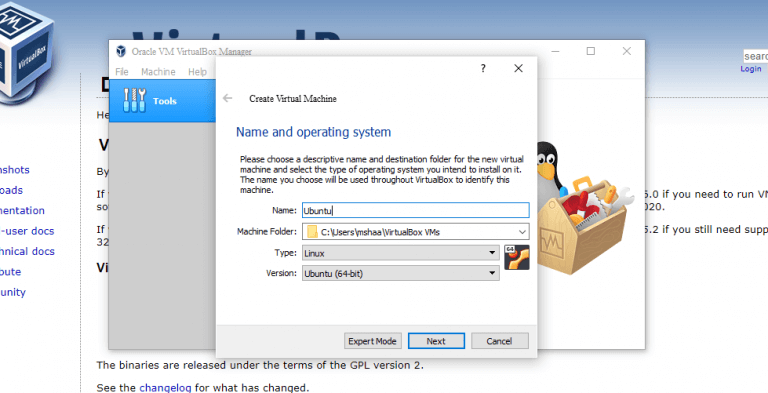
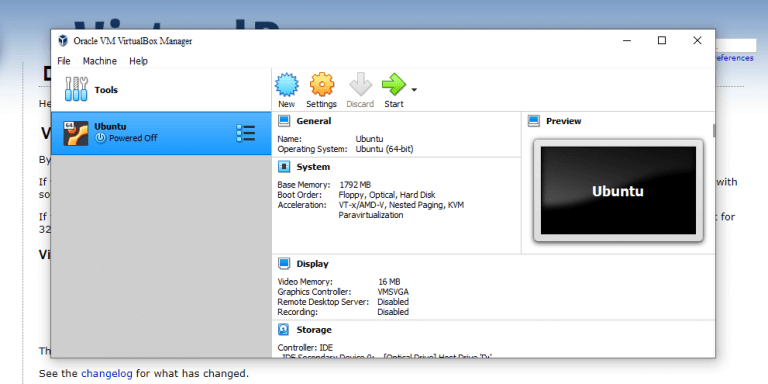
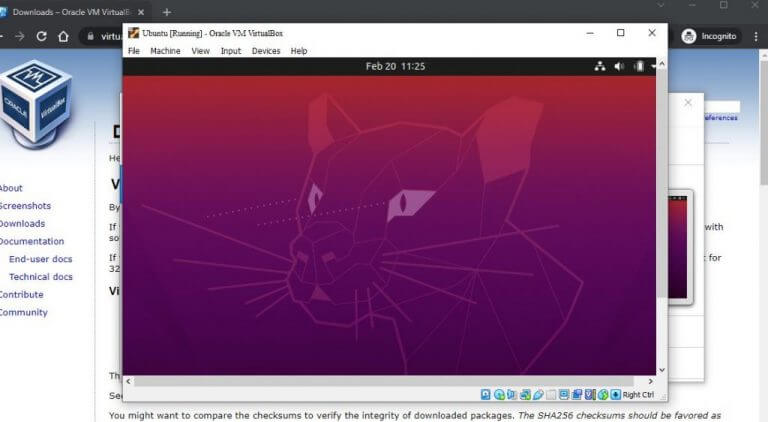
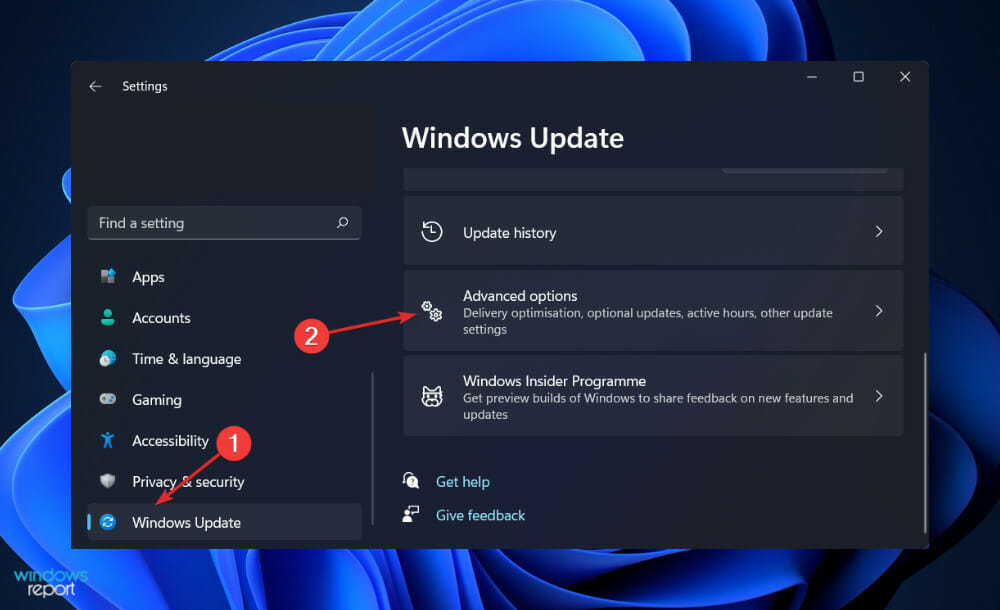
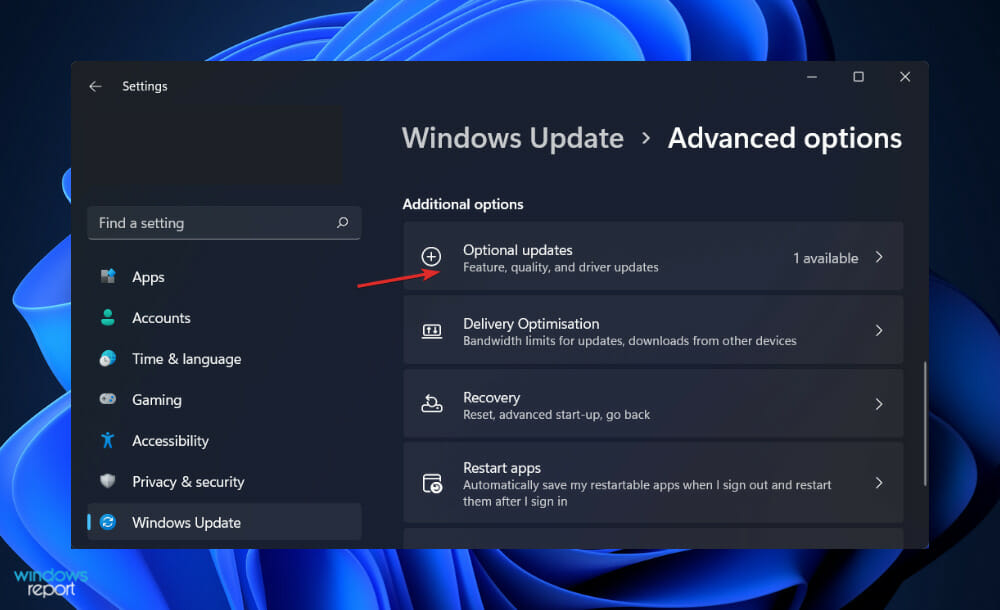
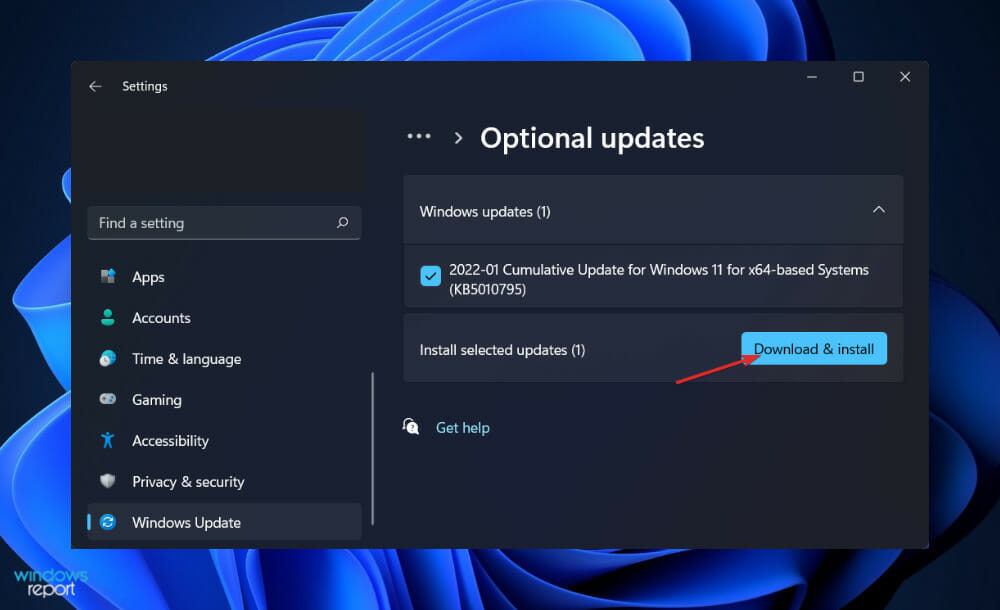
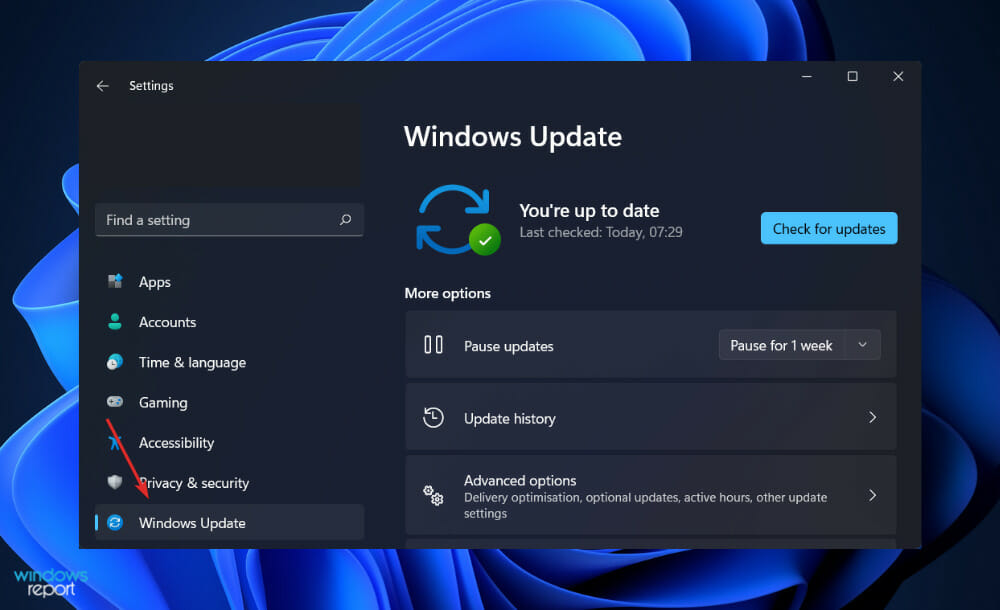
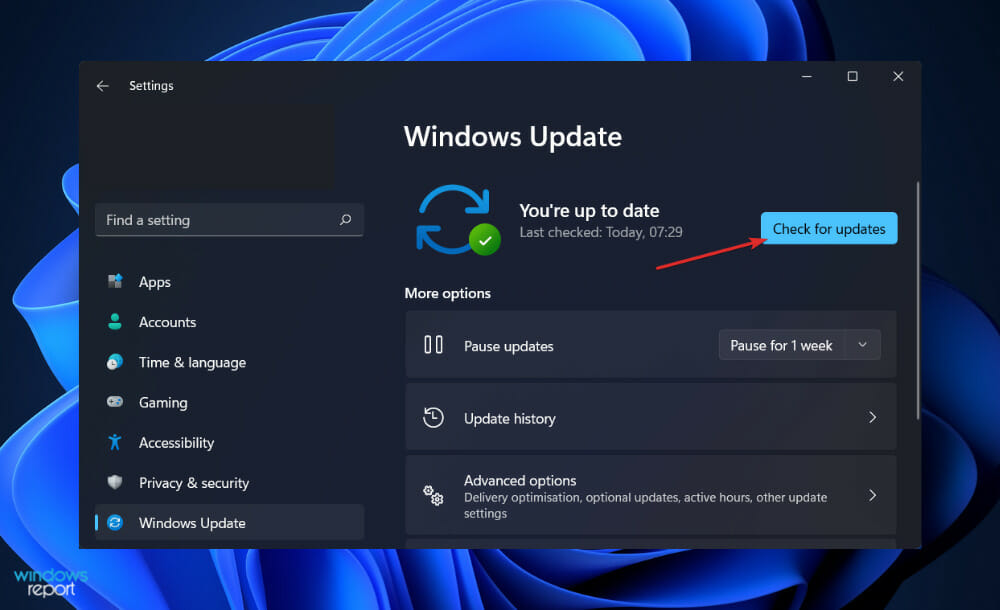


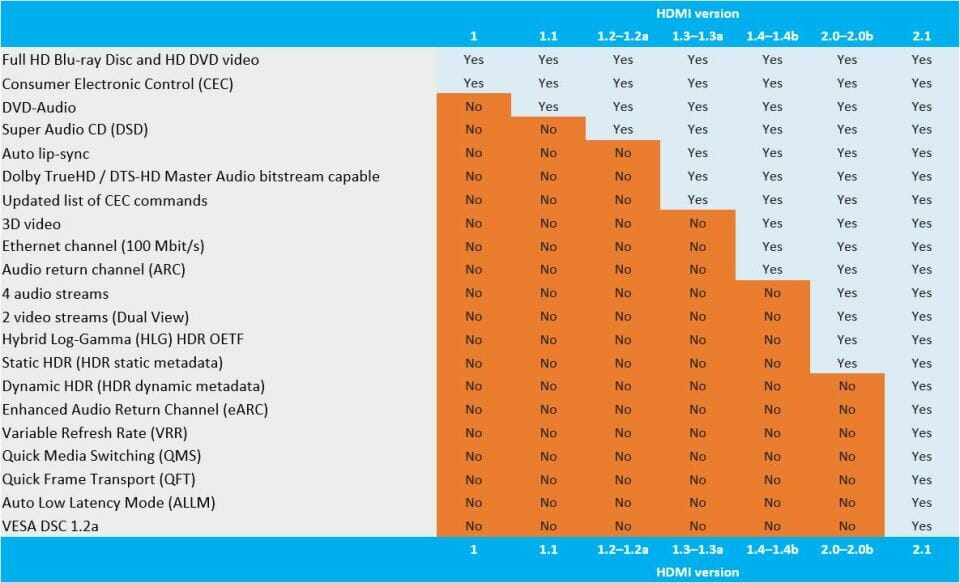



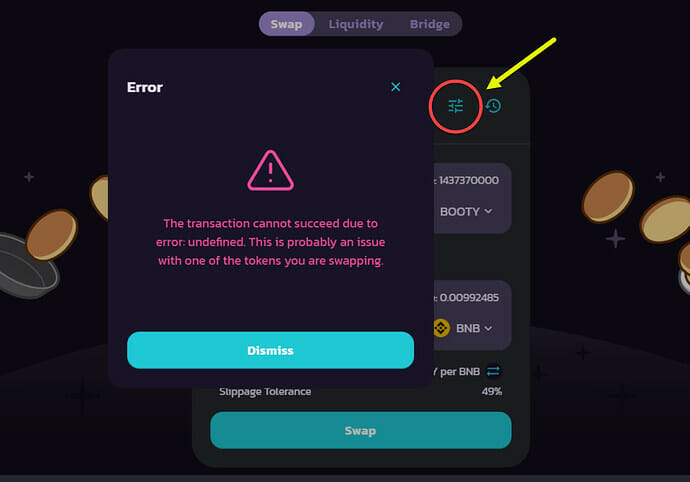

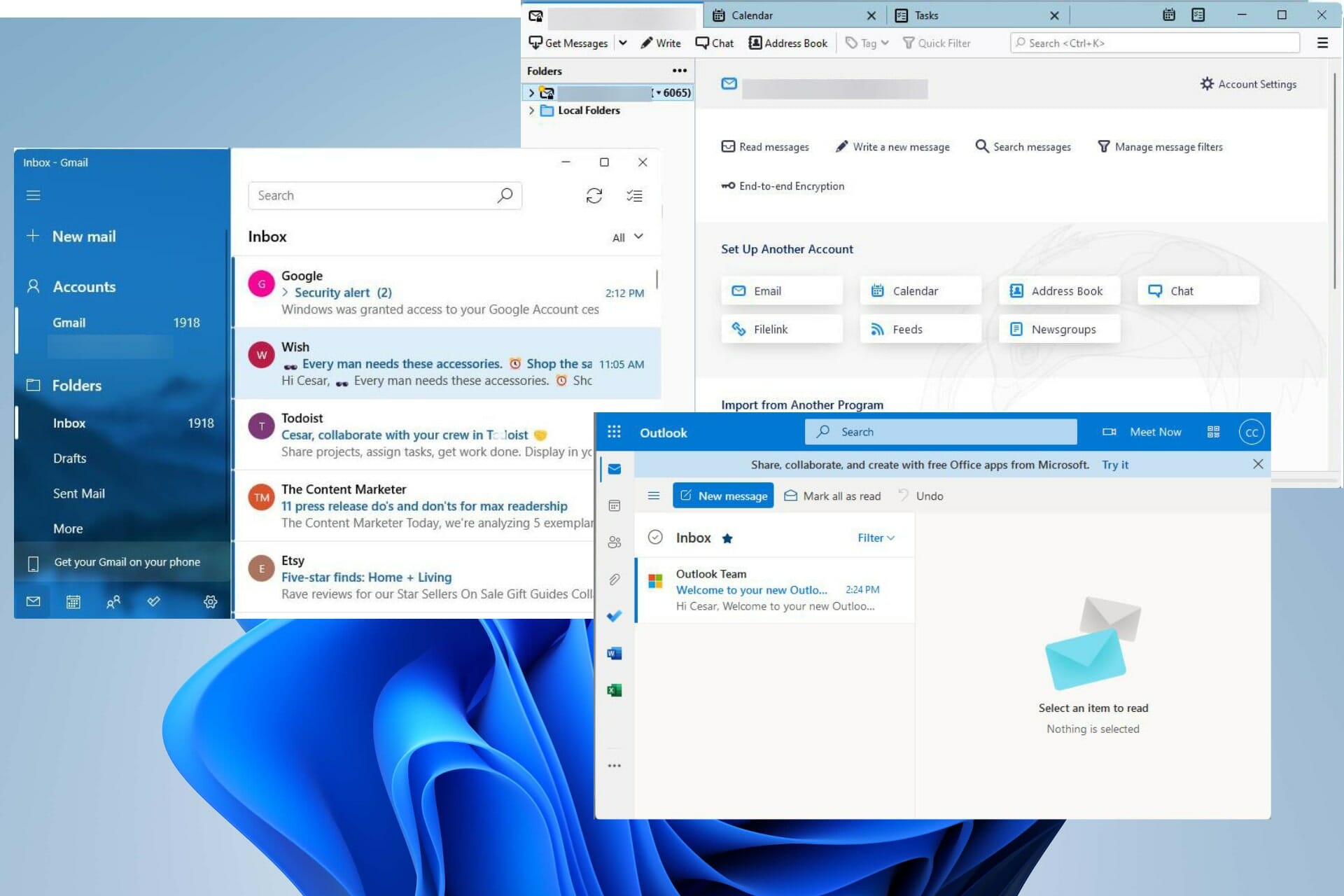
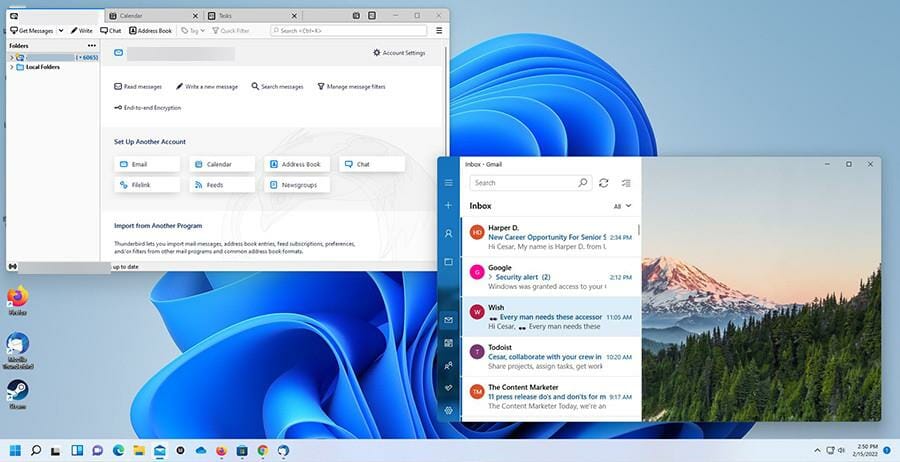
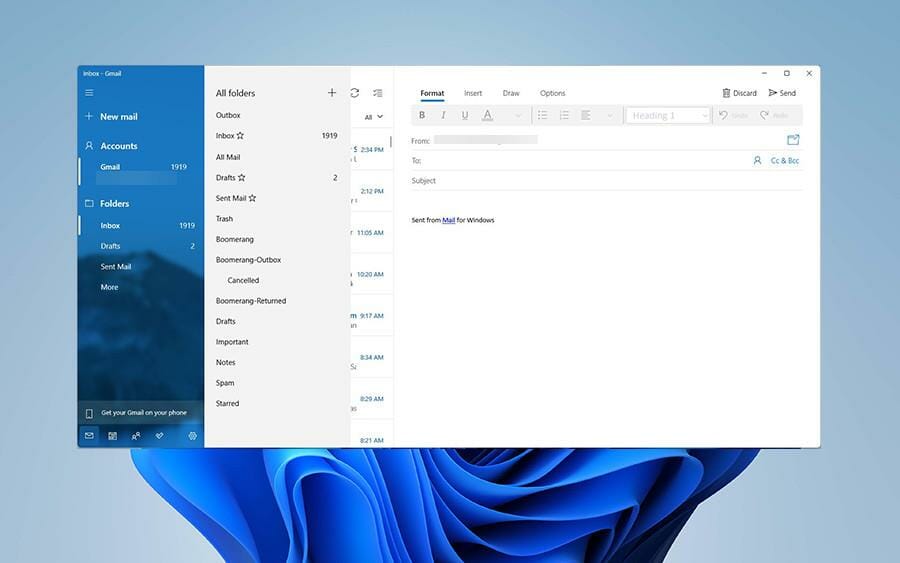
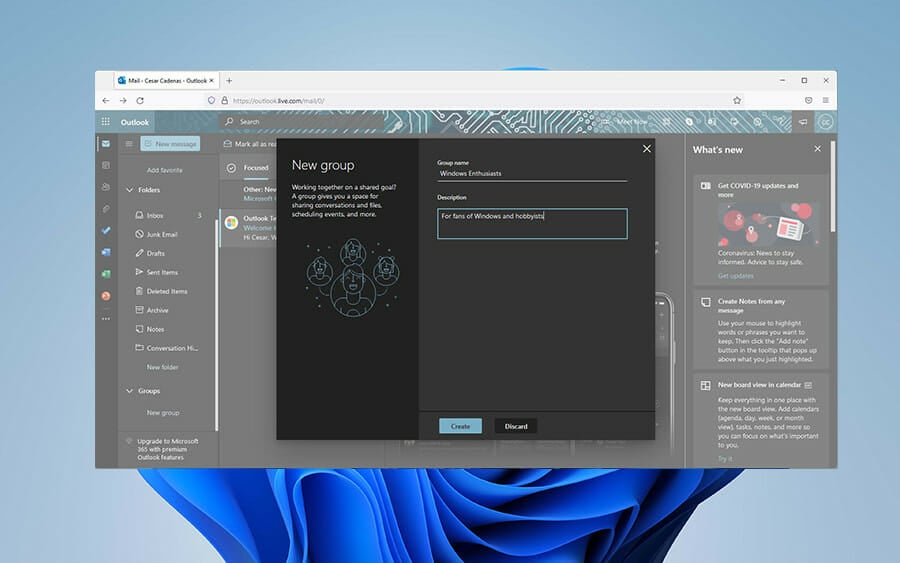
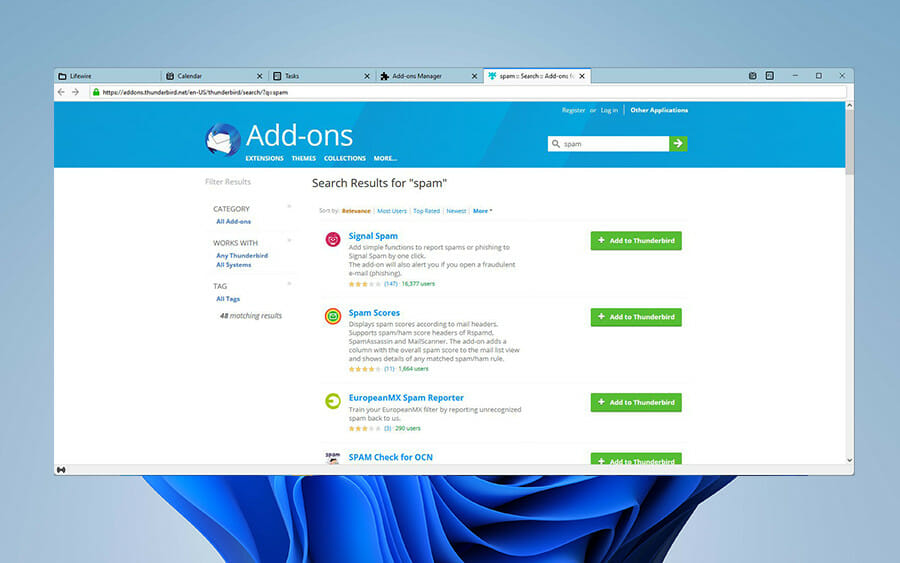


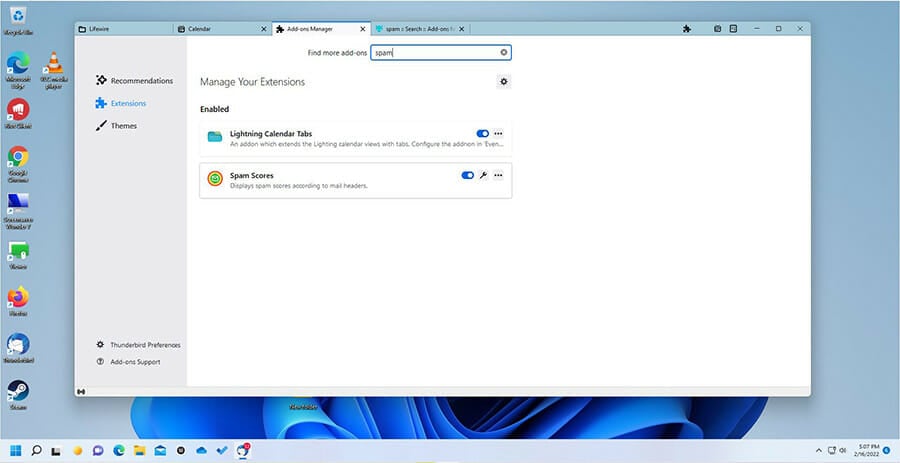
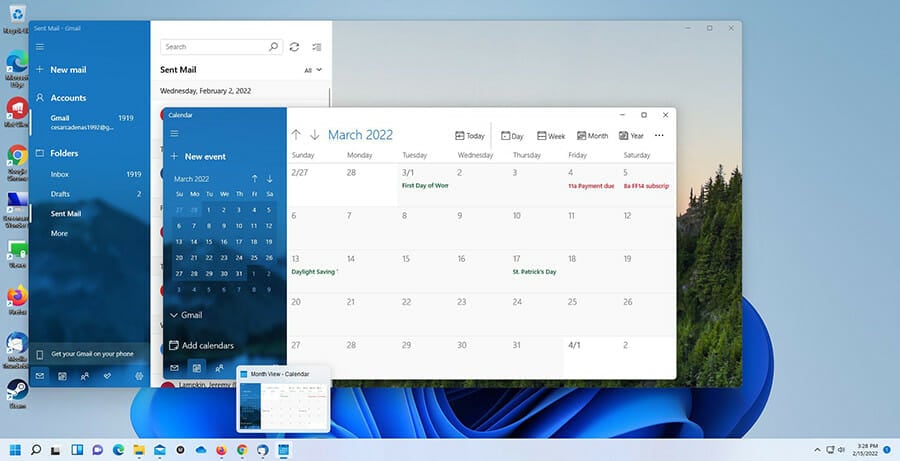
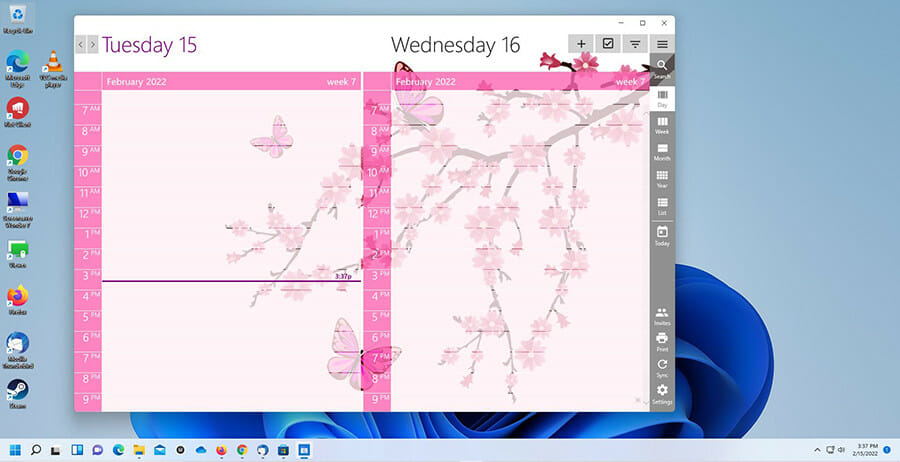
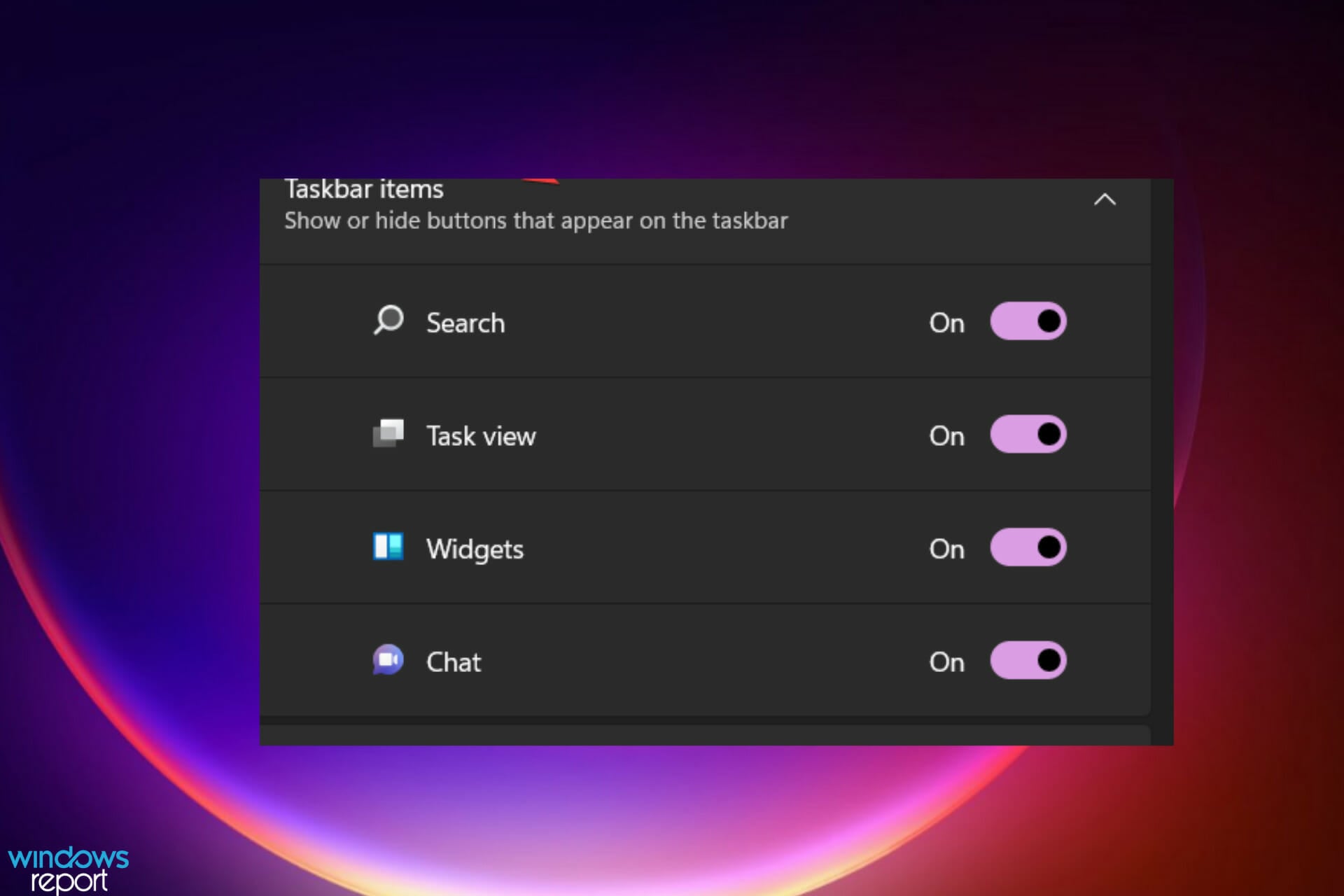


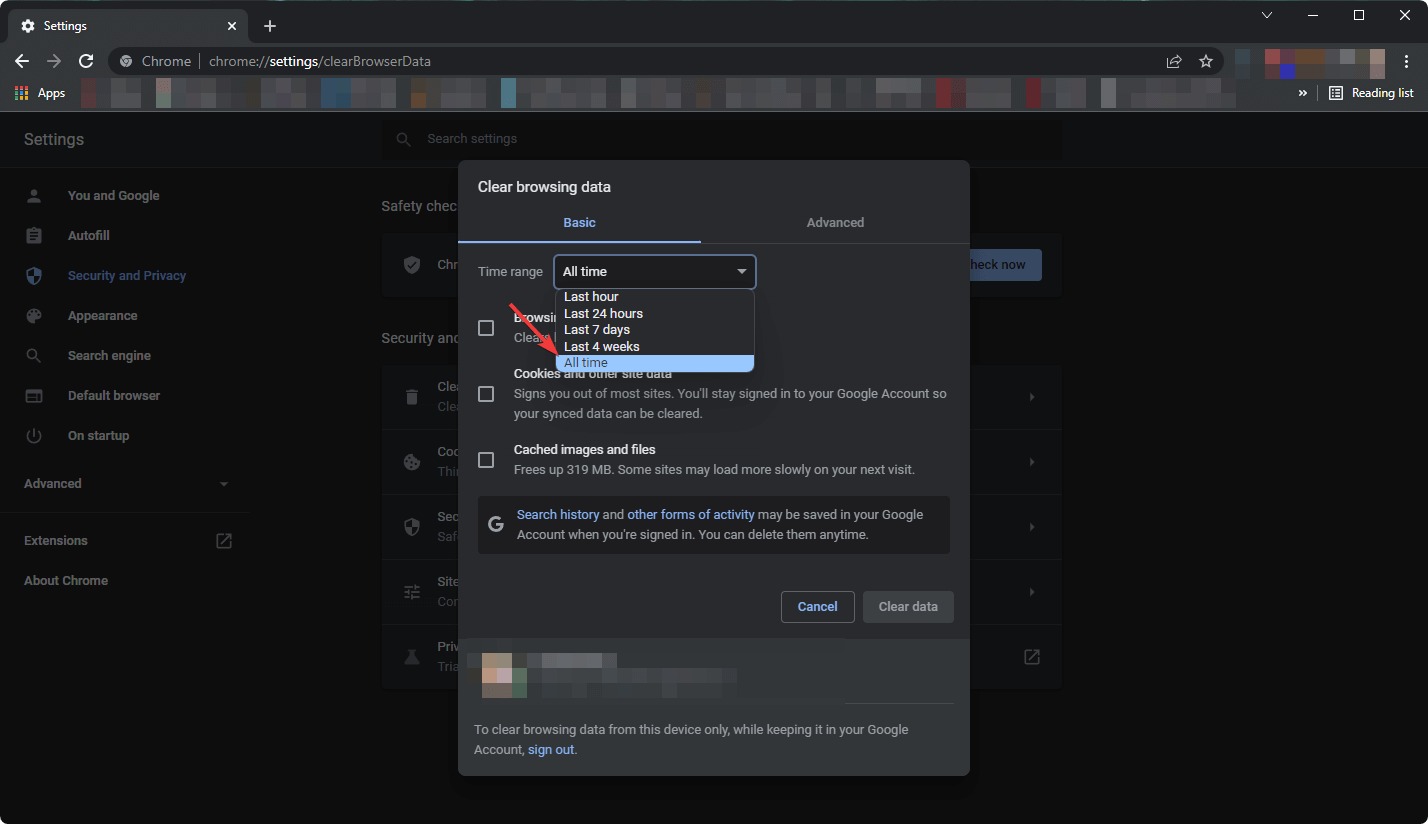

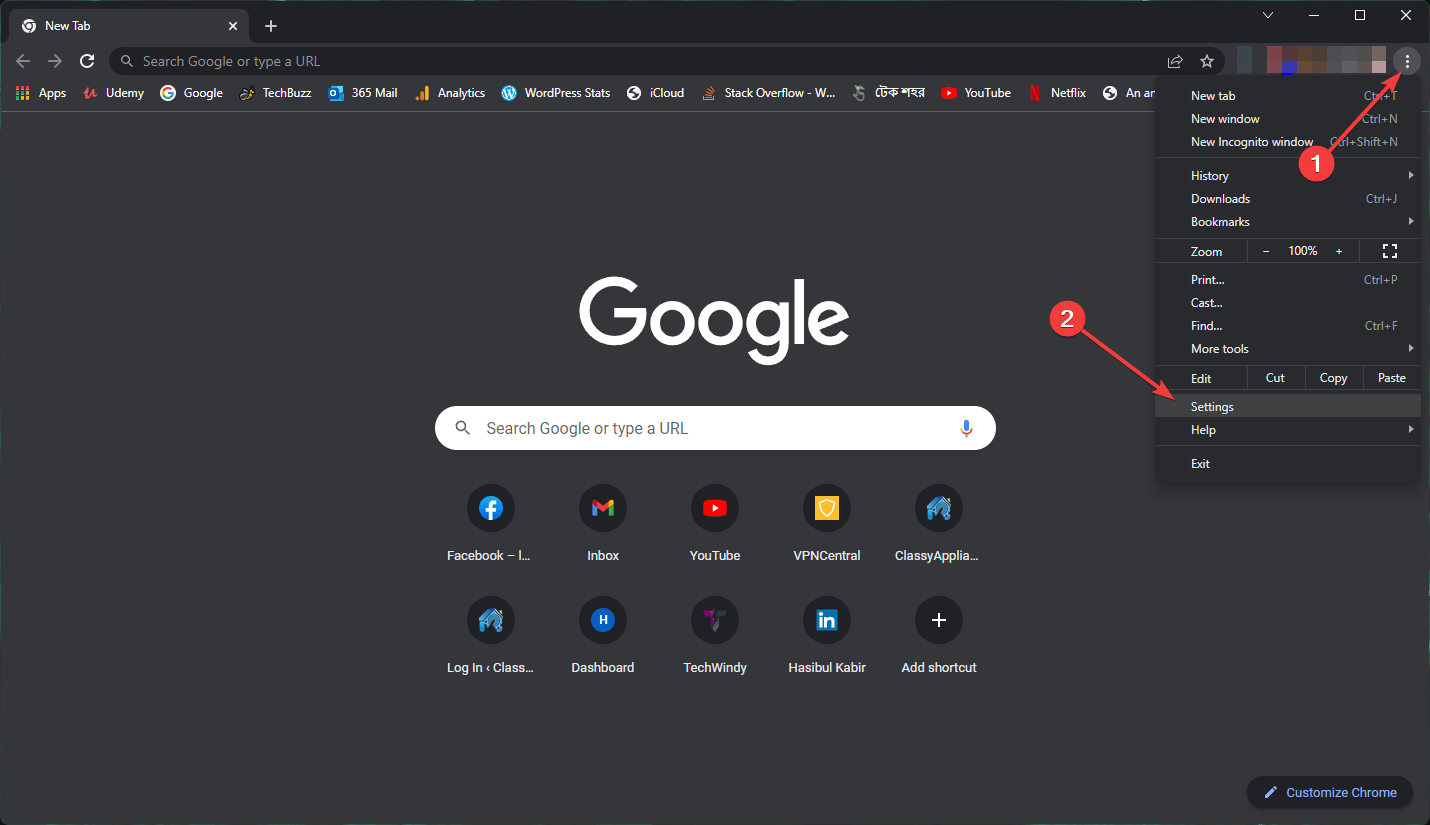
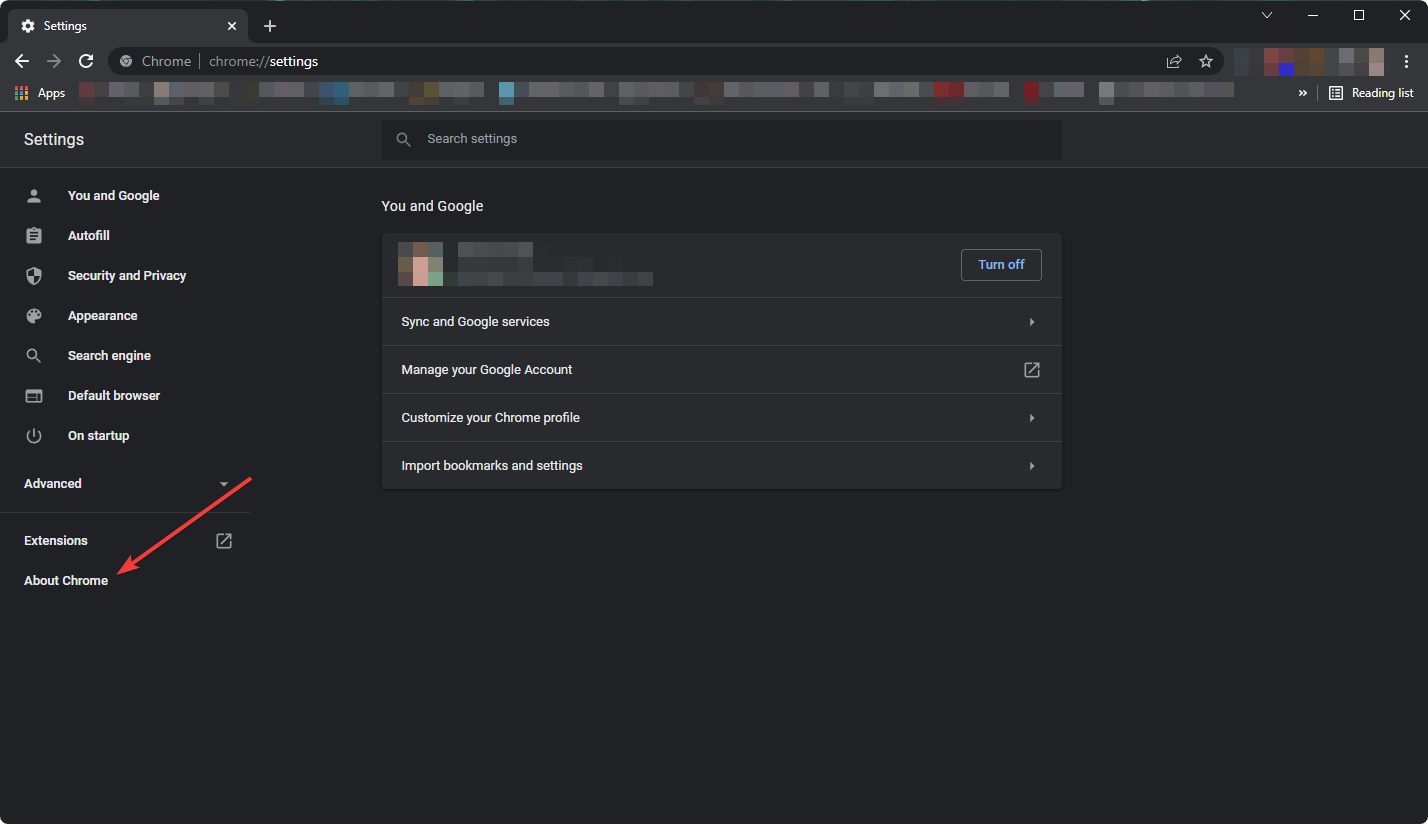


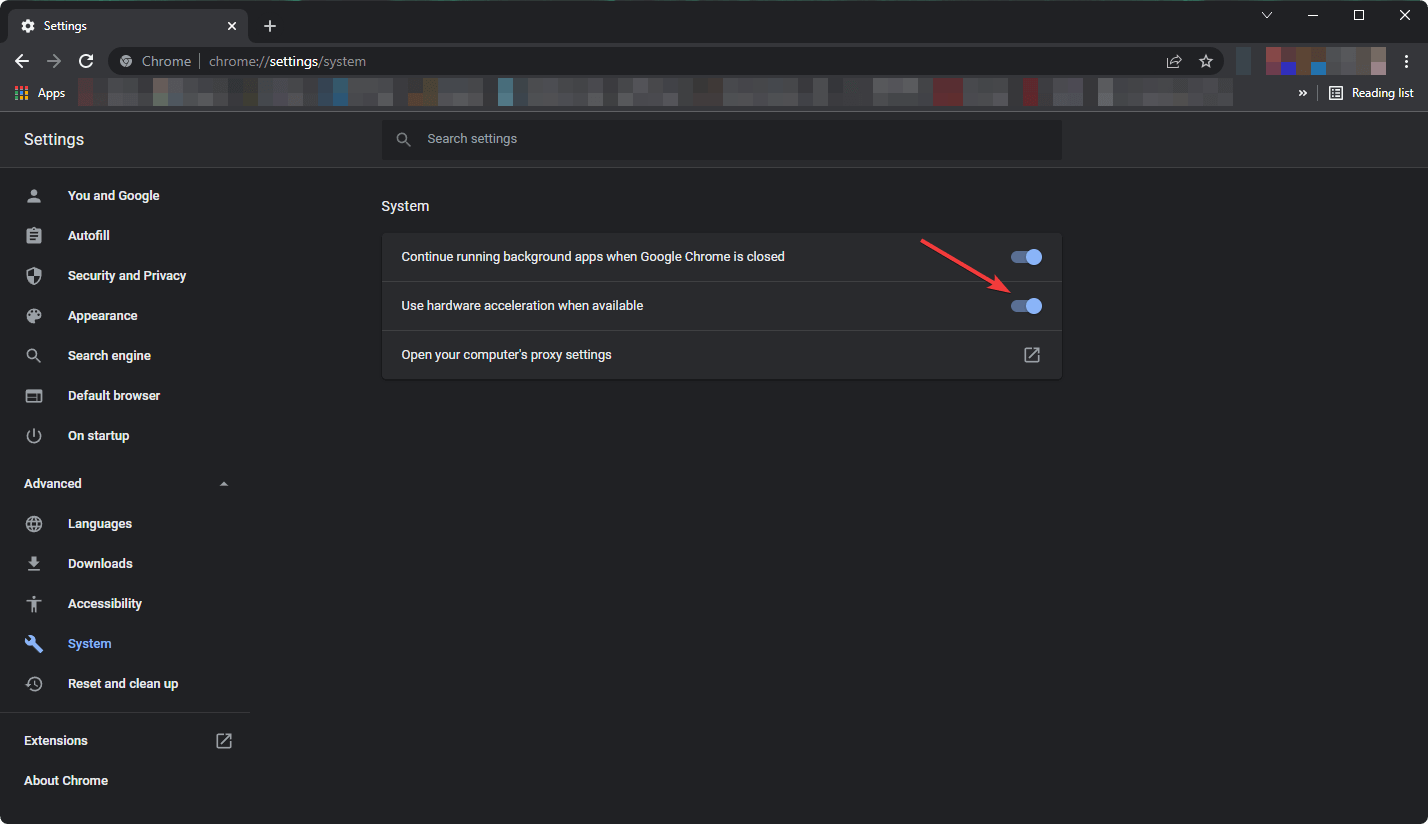





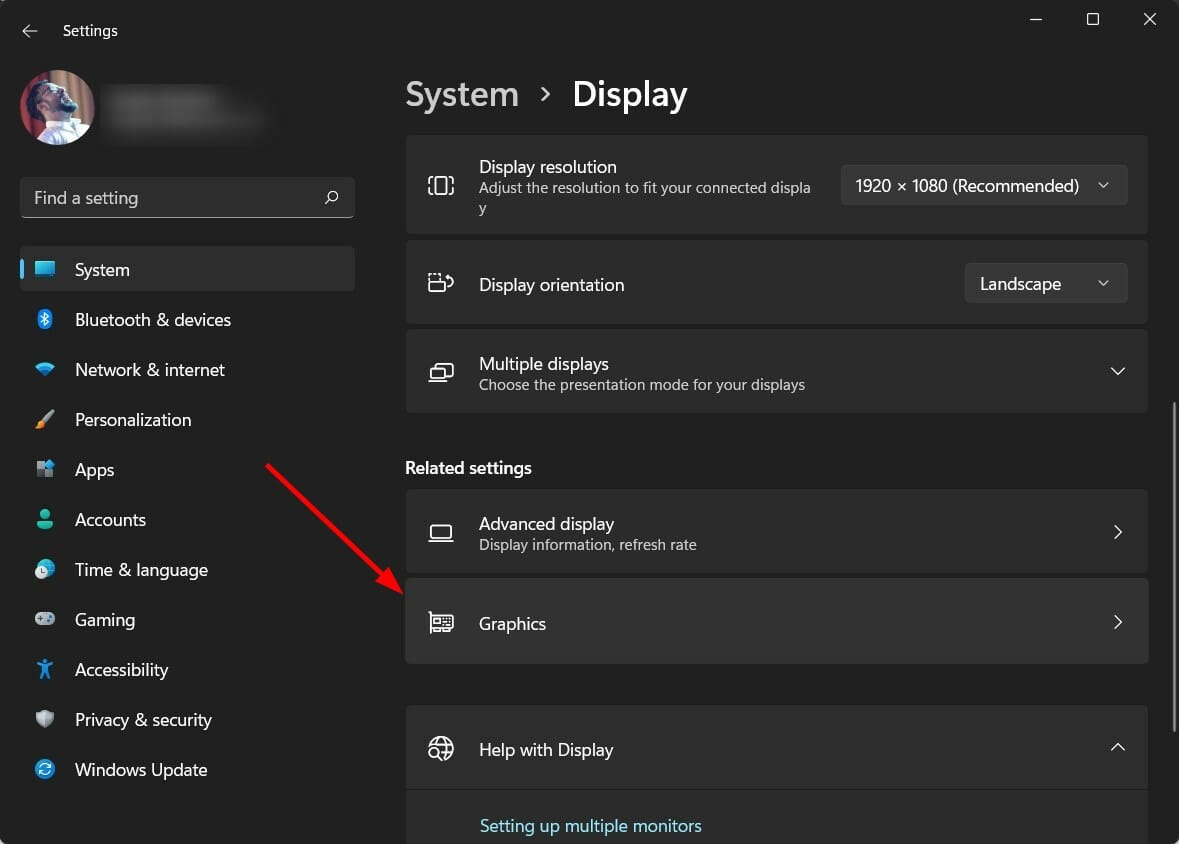


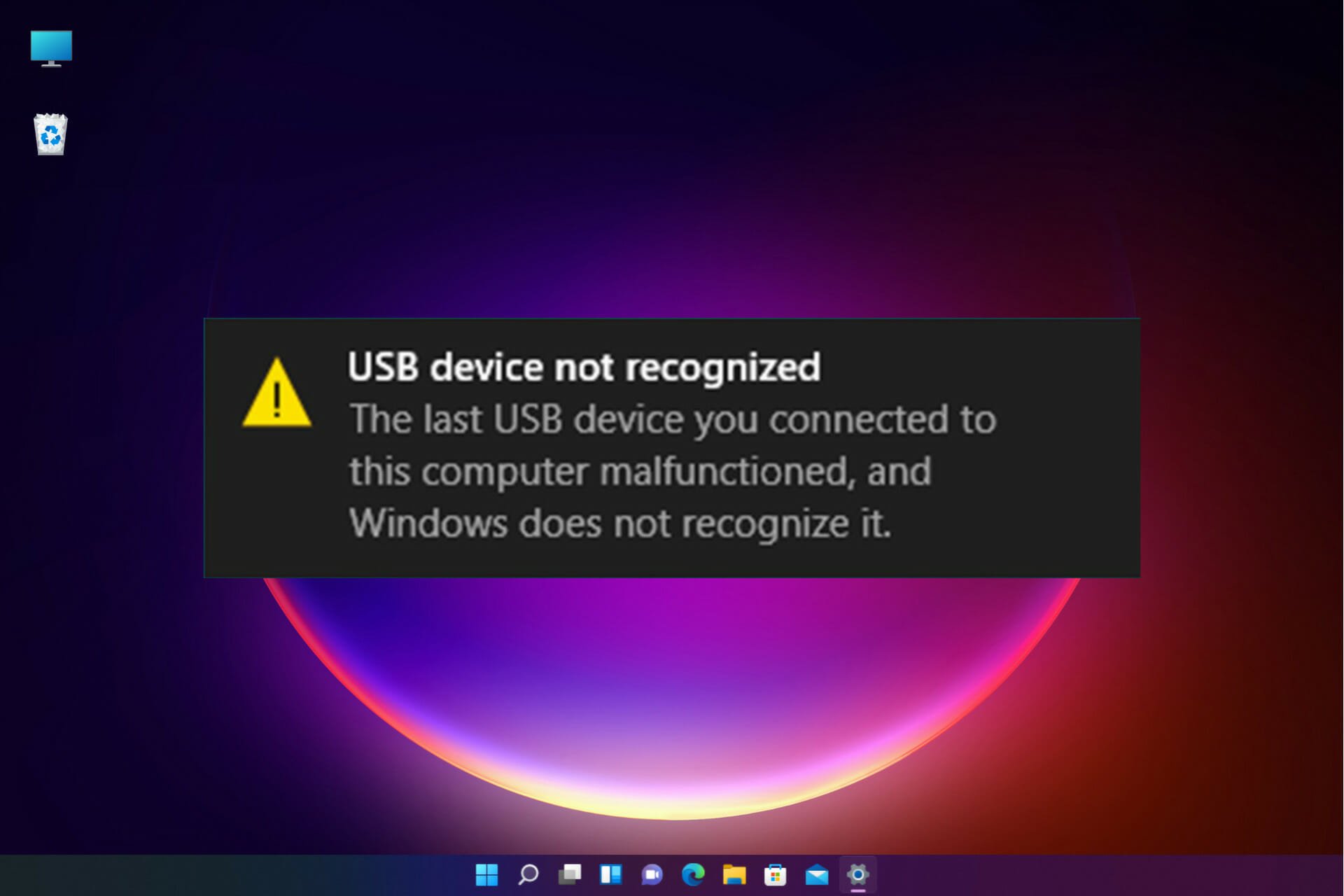
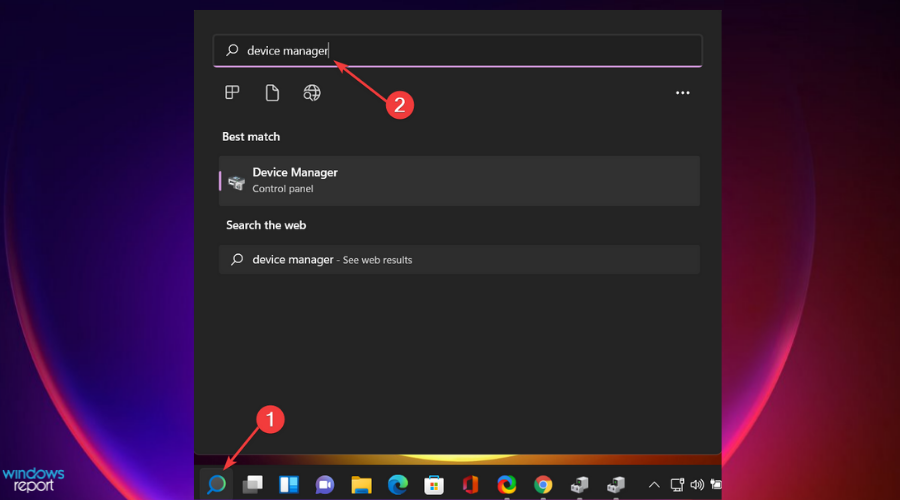
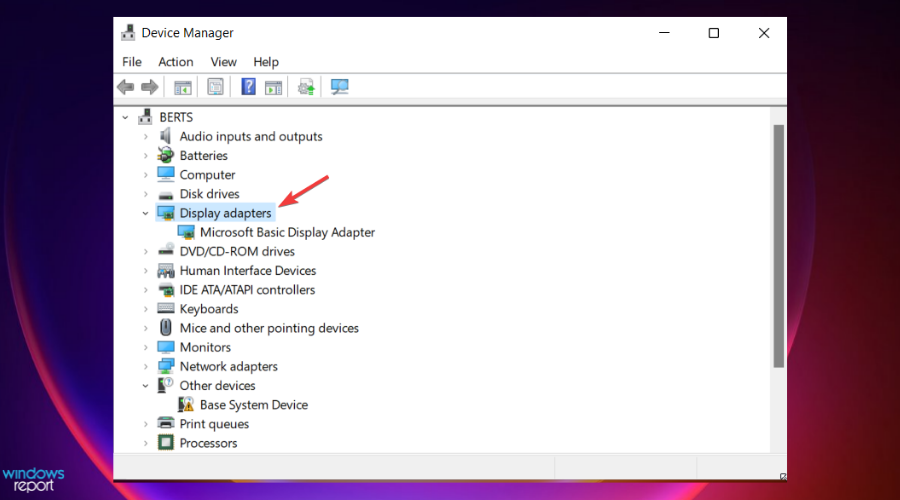
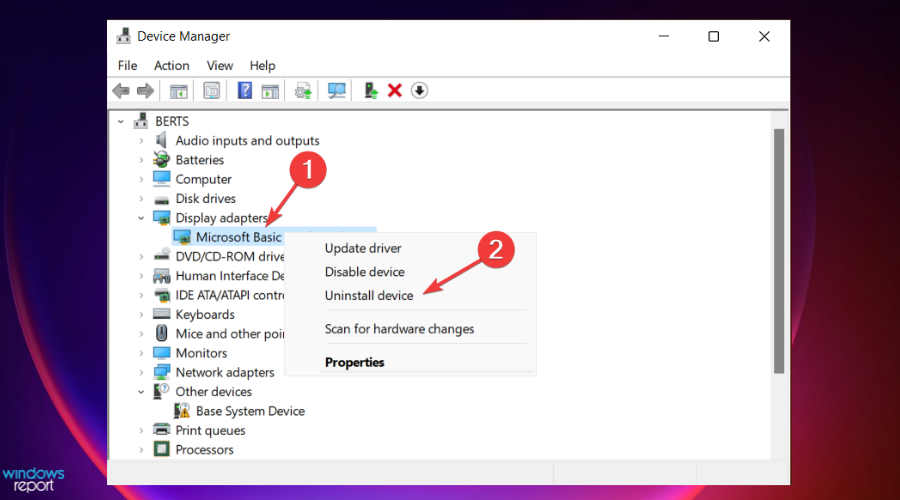
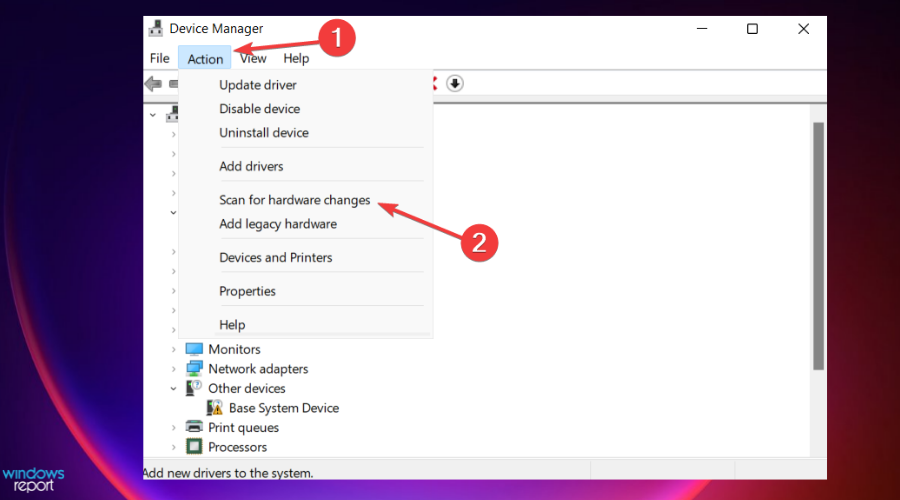
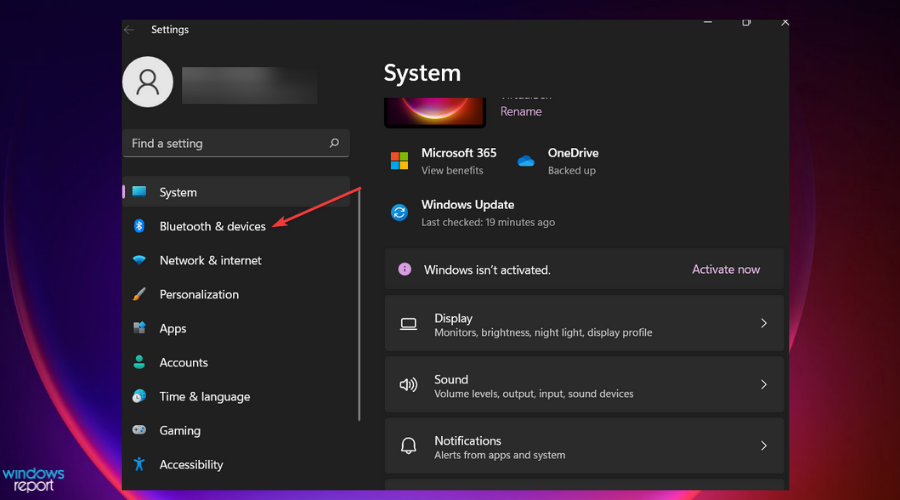
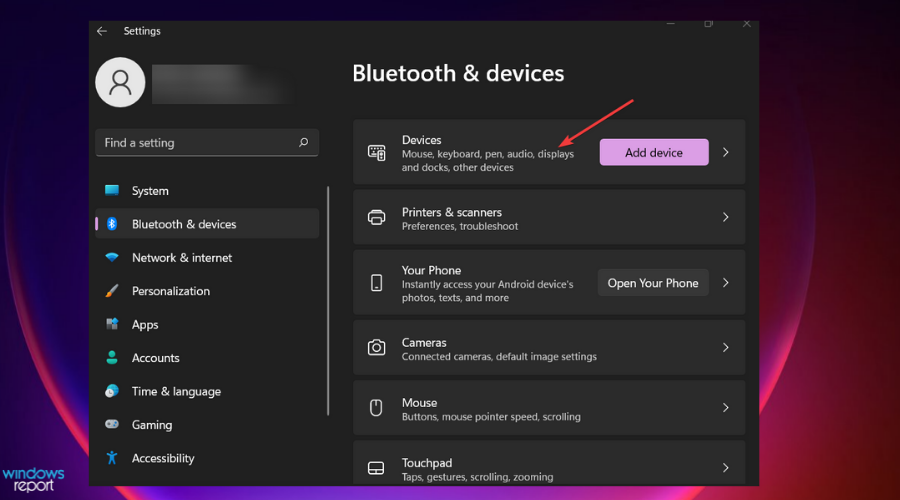
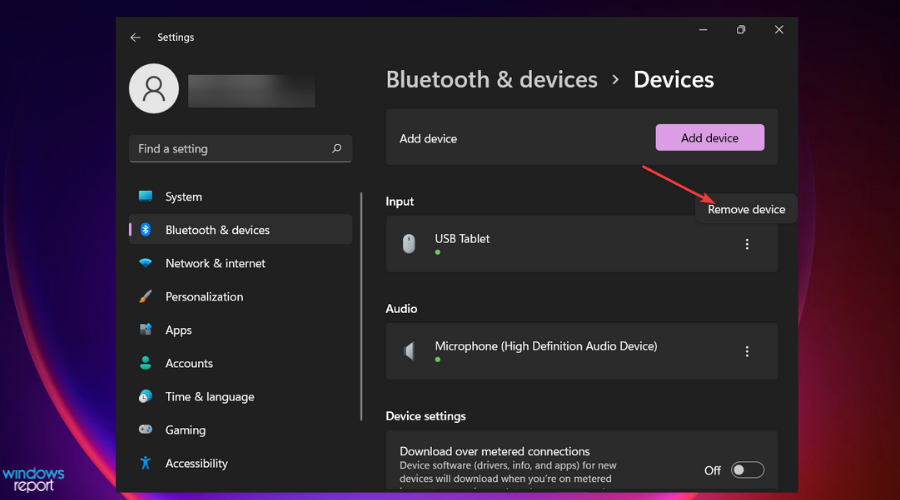
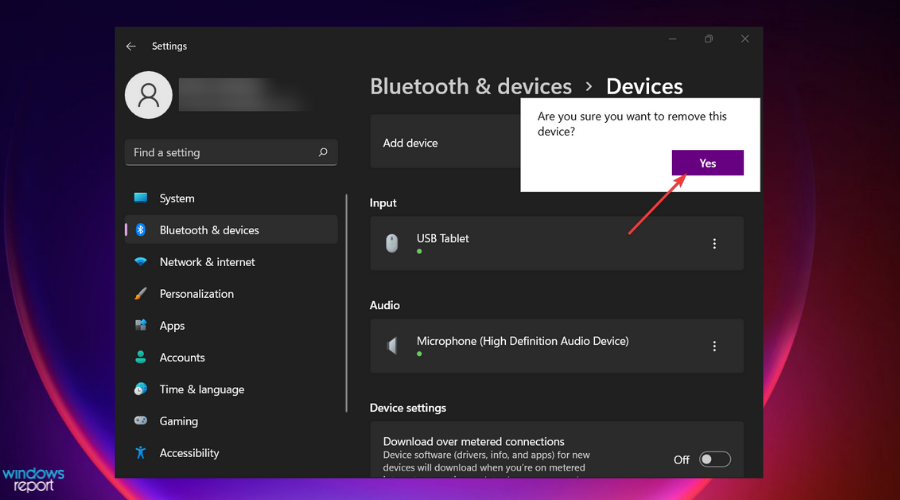
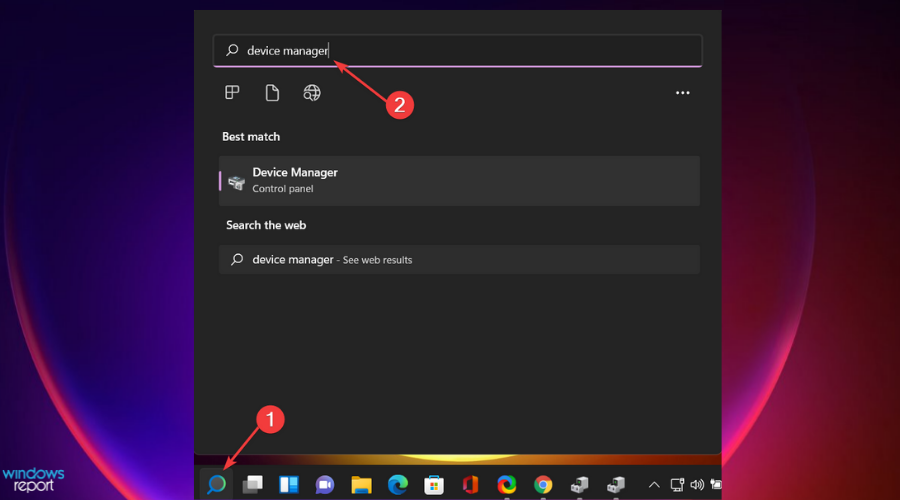
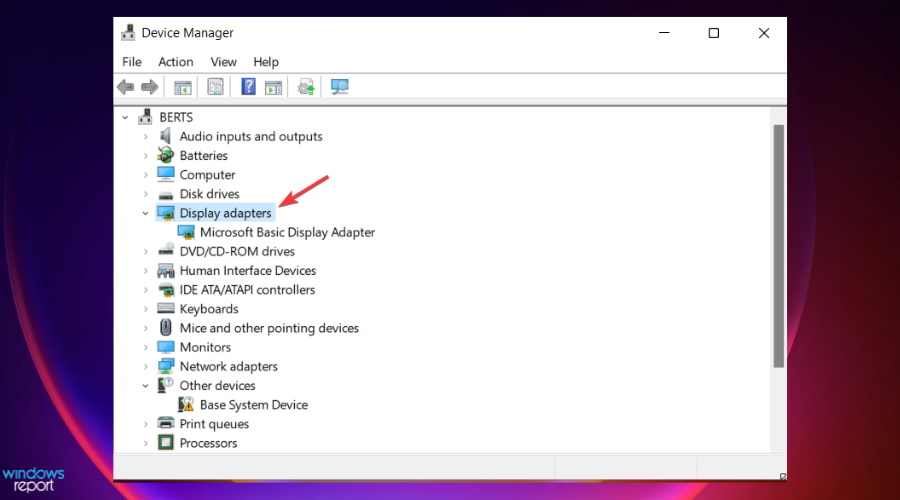
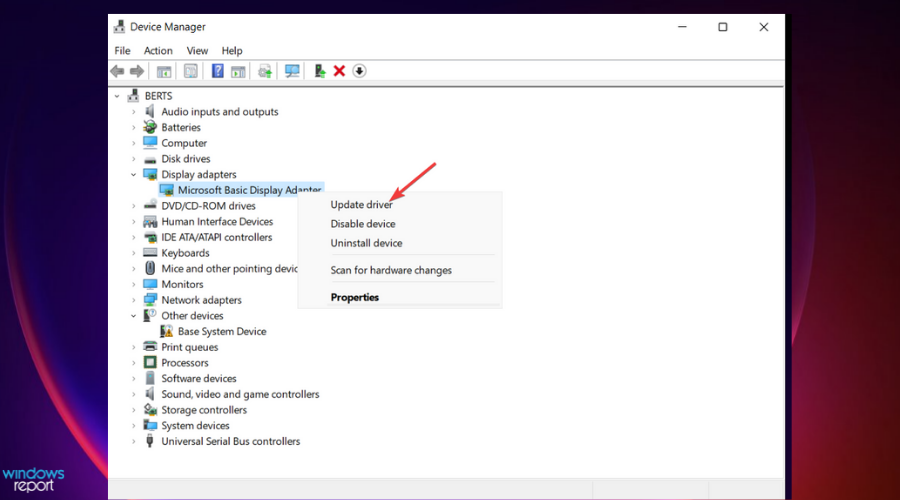
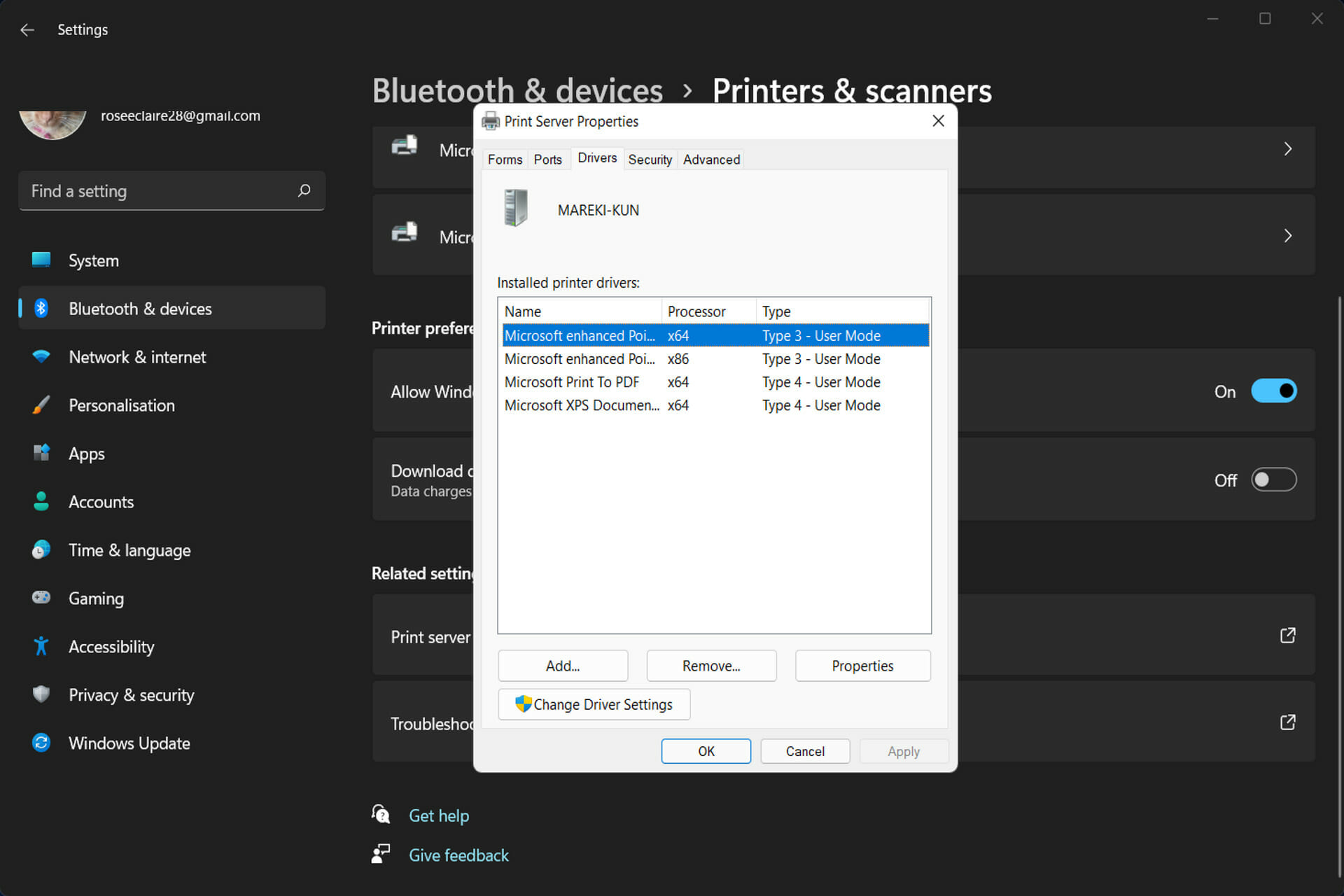
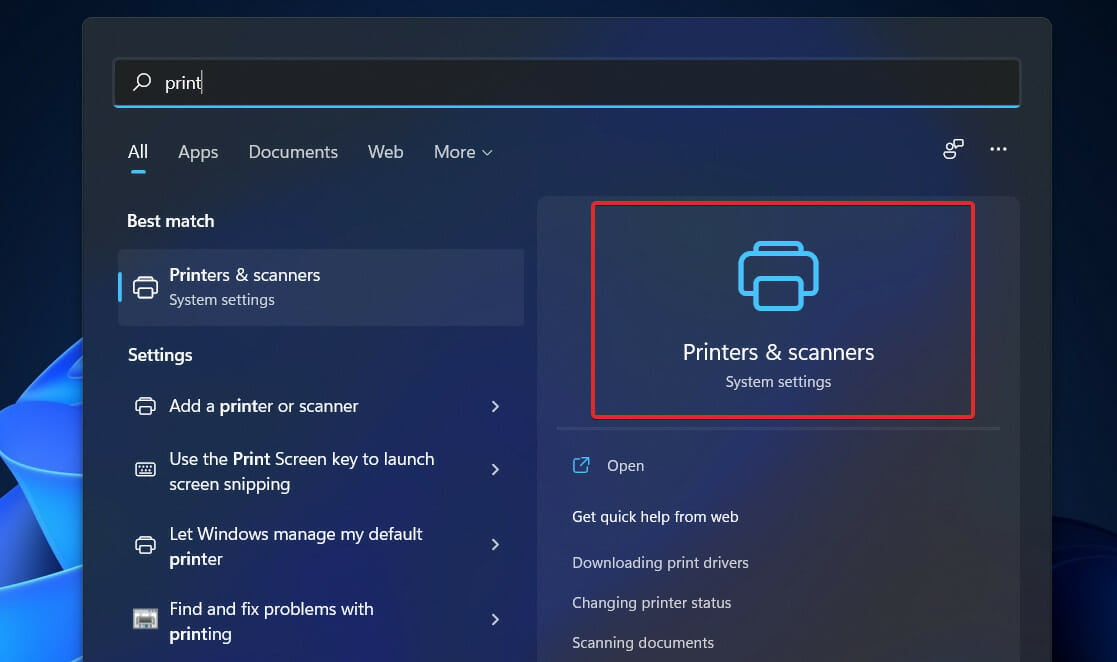


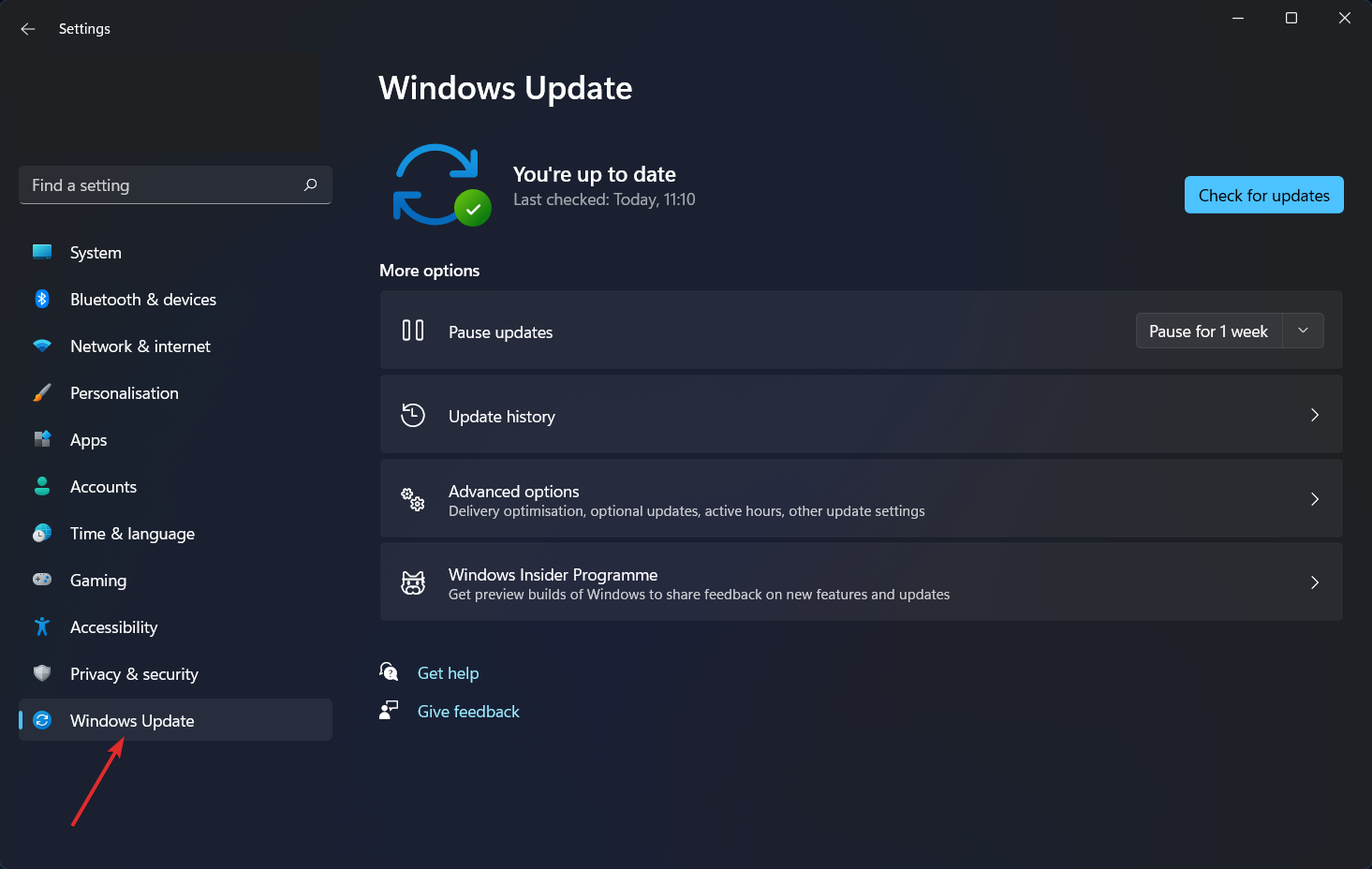
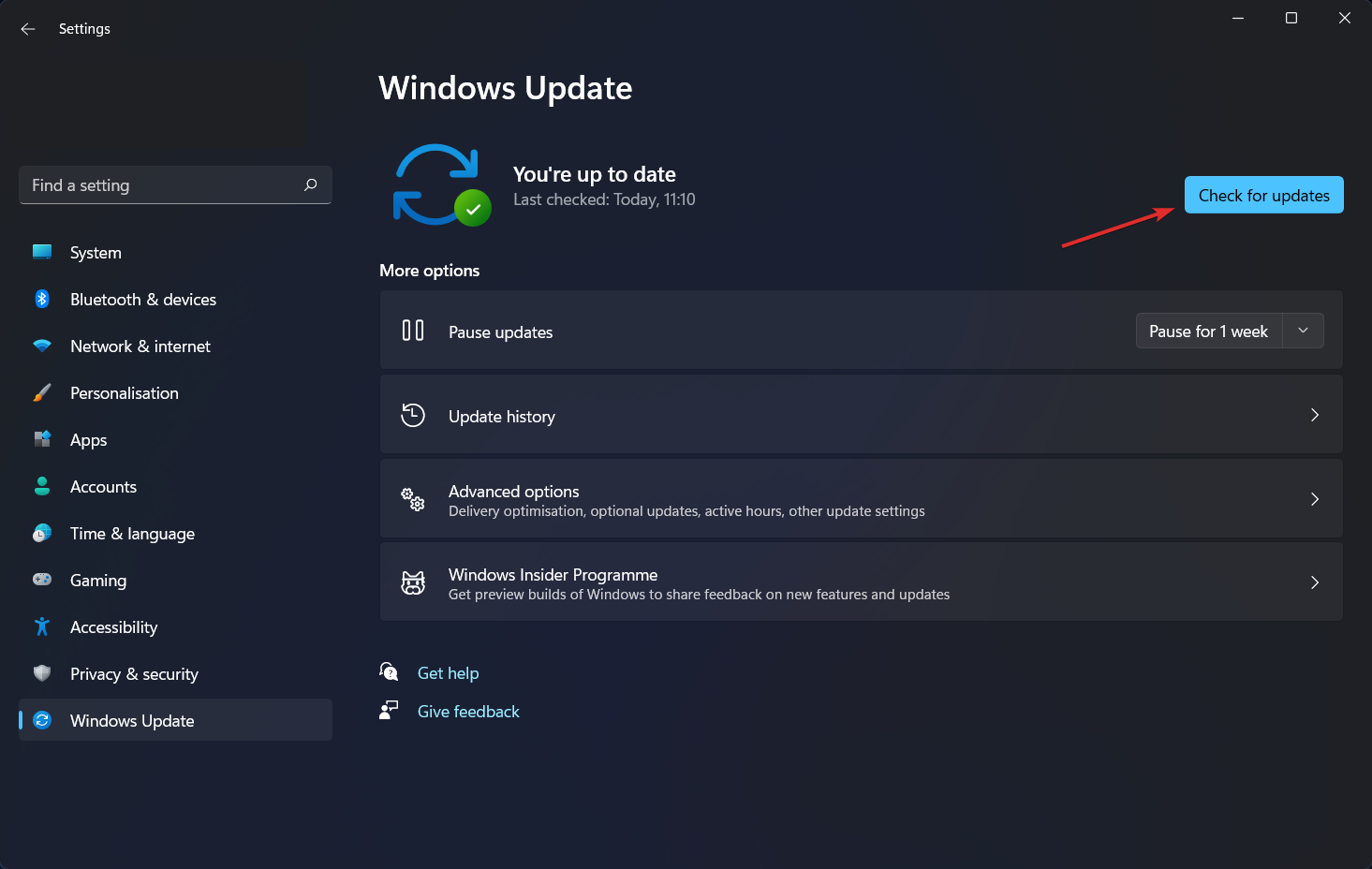
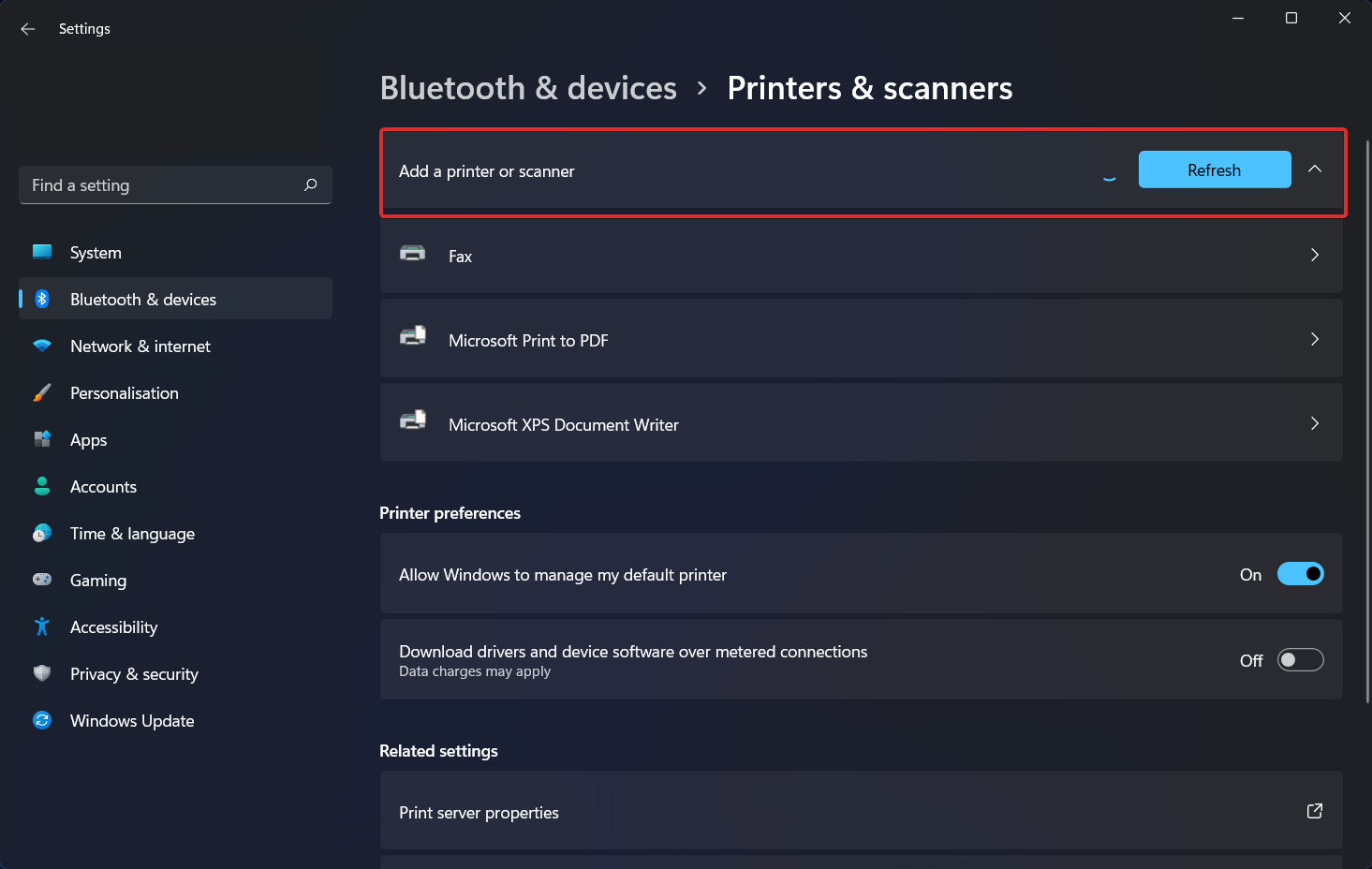


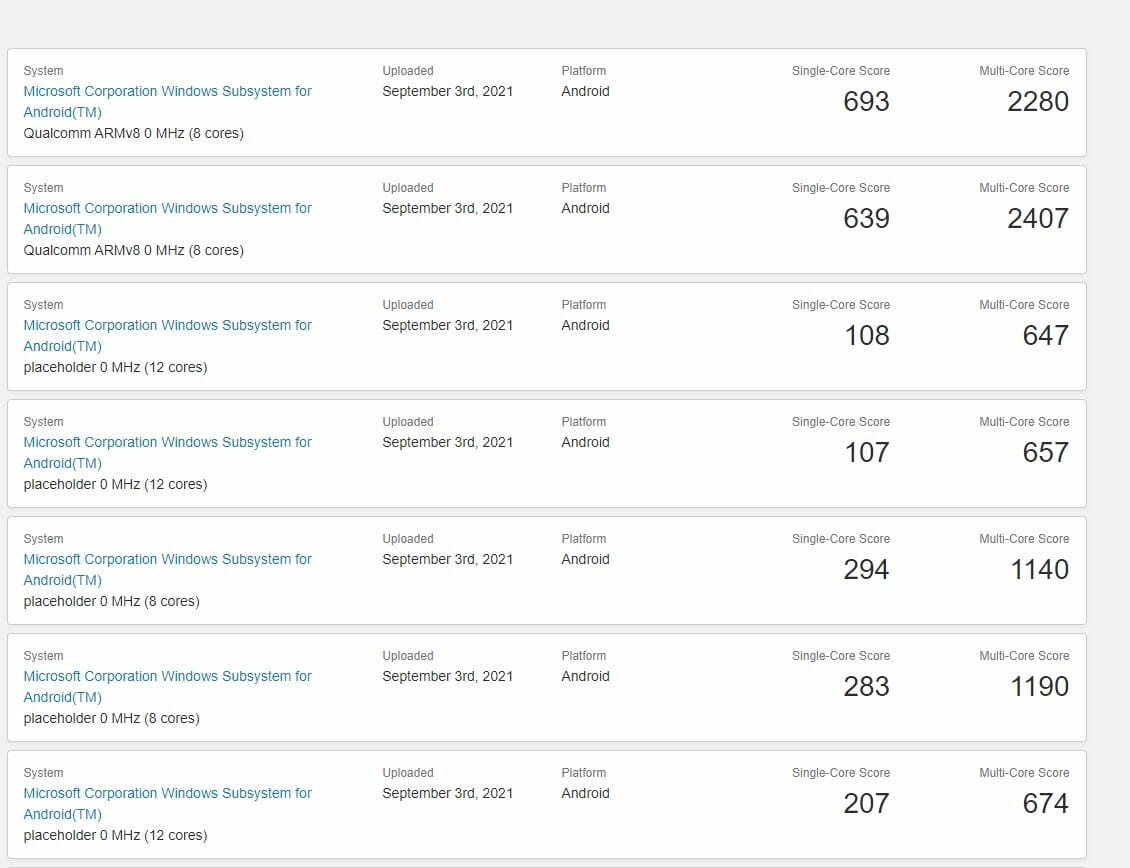
![Can you play Elden Ring with friends from different platforms? [Answered]](https://windowsreport.com/wp-content/uploads/2022/02/elden-ring-cross-play.jpg)