Lately, many users have been complaining about different forums that they are having issues with their touch screen, and reinstalling the driver is necessary.
As you already know, a faulty or missing driver will impact the good function of the associated program, causing even additional issues in the long term.
We will explore in this article the most efficient and reliable way of reinstalling and reconnecting the HD-compliant touch screen driver, so make sure to keep on reading.
How can I reinstall the HID-compliant touch screen driver?
1. Run the Troubleshooter
Go to the Search bar and type in Troubleshoot settings.
Next, click View all and locate Hardware and Devices.
Clin on the Run the troubleshooter option.
Finally, click Next and follow the on-screen instructions.
2. Use Device Manager
Press the Windows key and X simultaneously.
Locate and click on Device Manager.
Search for your Touch screen device in the list and right-click on it.
Select Uninstall and follow the prompted indications.
Restart your device and go back to the Device Manager.
Click on Scan for hardware changes at the top and wait for the results.
Install the detected Touch screen and restart your device at the end.
3. Use a dedicated software
Although you can reinstall the HID compliant touch screen driver manually, it is not necessary the most recommended and safest method.
Manually uninstalling and reinstalling a driver can have some negative effects on your device, in case you are reinstalling the wrong driver for example.
This is why using a reliable third-party tool not only will ensure this will not happen but will also be less time-consuming and you can rest assured that your drivers will be automatically updated.
With this last one recommendation we will conclude our list of suggestions on how you can reinstall and reconnect HID compliant touch screen.
As always, if you have additional recommendations and suggestions you can leave them in the dedicated section below, we would love to read them.
The big Xbox Bethesda event from E3 is about to start – if you’re unfamiliar, E3 is again virtual this year, but like years past, Microsoft is holding its own event to kick things off. Expectations are high for this one, including news and some early looks at the delayed Halo: Infinity, and possible news about everything from Elder Scrolls VI, a Fallout 76 update, and Fable to more on Starfield and Avowed, and hopefully some more surprises beyond that.
E3 just posted a pre-event message from Phil Spencer, just to get the juices flowing a bit more:
We’ll of course hear some more about Xbox Game Pass – Phil Spencer announced last week that the plan is to release one major game per quarter to Game Pass, so it’s time to start filling in the lineup. The event will be livestreamed on YouTube, Twitch, Facebook, and Twitter, but you can settle in and watch it right here. As explained in the Xbox Wire post announcing ways to watch, the event will be livestreamed at 1080p at 60fps, but you may want to plan to watch the rebroadcast on the Xbox YouTube Channel, with a 4k / 60fps version will be posted asap after the show.
So sit back and enjoy the show, and don’t worry about missing anything, we’ll be Tweeting out all the important news and have a full recap of all the news right after the event is over. This should be a good one, enjoy!
Installing the drivers for your new mainboard isn’t always simple, and many are wondering how to do so without a CD.
Most hardware comes with a driver CD, but many PCs don’t have an optical drive, so installing the drivers from the CD won’t work.
However, there are several methods that you can use to install the latest MSI motherboard drivers, and in this guide, we’re going to show you how to do that.
How can I install MSI motherboard drivers without a CD?
1. Use the Device Manager
Press Windows Key + X and select the Device Manager from the list.
Find the device whose driver you want to update, right-click it and choose Update driver.
Now select Search automatically for updated driver software.
Windows will now try to find and install the appropriate driver.
Repeat these steps for all motherboard components.
Although this method is pretty simple, it has a couple of drawbacks. For instance, the database of drivers that Microsoft uses isn’t regularly updated, so you most likely won’t get the latest drivers.
In addition, you’ll need to repeat this process a couple of times to update all drivers that are associated with your motherboard.
However, there’s a faster and simpler way to install MSI motherboard drivers without a CD.
2. Use specialized software
Updating drivers manually can be a tedious task, but luckily some applications can update all your motherboard drivers automatically, with just a couple of clicks.
Among our top recommendations for such software is Outbyte Driver Updater because it is very light and easy to use. It is proven to always find the best driver version for your specific hardware.
Using automatic software removes the risks that are imposed by installing a mismatched driver. This mistake can severely affect your system and is pretty difficult to remediate.
You can let Outbyte Driver Updater run in the background and regularly scan, update and repair your drivers so you won’t have to worry about this issue in the future.
Now select motherboard from the list of devices and choose your motherboard model.
Once you do that, click the Search button to search for the driver.
Navigate to the Driver section and select your operating system from the menu.
Expand all available sections and click the Download icon on the right.
Download the drivers for all components that are listed on the website.
Now run the downloaded files and follow the instructions on the screen to install the drivers.
This is a relatively simple method, and to do it, you just need to know the model name of your motherboard and follow the instructions listed in this guide.
One advantage of this method is that you’re downloading the drivers from the official source, and as a result, you’ll always get the latest drivers for your motherboard.
However, this method takes the most time since you need to manually find, download, and install each driver.
This short guide showed you how to install MSI motherboard drivers without a CD, and we hope that you find it helpful.
Even more, it’s mandatory to constantly back up your drivers. Therefore, we can only encourage you to use the best driver backup software for Windows 10 in that regard.
Apple’s FaceTime video calling app will soon support Android devices and PCs via the web
At its WWDC event, Apple announced that FaceTime will be coming to other devices, including Android and web, through the use of shareable links. Users will be able to schedule a FaceTime call and send a link to others, allowing participants who don’t have an Apple device to join via the web. This opens up FaceTime for use on Windows, at least partially, making it work more like Zoom or Google Meet.
That’s it for this week. We will be back next week with more Windows 10 news!
Users all over the world complain about the fact that Forza Horizon 4 rewind is not working, and this can be extremely annoying. Gamers explain the following experience:
It seems like the rewind functionality randomly stops working altogether. It’ll tell me to press the Y key to rewind, but after I press it, nothing happens.
In today’s article we will explore a few options you should consider to fix this crashed rewind option as soon as possible.
What can I do if Forza Horizon 4 rewind is not working?
NOTE
Before trying our recommended methods, you should consider the following aspects:
You can’t rewind once an opponent has crossed the finish line
You can’t rewind within 10 secs of starting a race
If you have a bad network connection and it keeps switching offline and online, you won’t be able to rewind
Once you switch between offline and online, there is a small amount of time where you will not be able to rewind
1. Check if rewind is turned off
Go to the game settings.
Click on Difficulty Settings.
Look at Rewind, and if the option is OFF, click on the arrow button and turn it on.
Windows will automatically update your entire operating system.
2. Restart the game
Restart the race.
Quit it, so you’ll be right at the start of the race.
Drive around randomly while continuing to press the Y key, until the rewind works.
Considering the error can be related to a bug, you should try to quit and restart the game. This can be a useful option to make the rewind work.
3. Uninstall and reinstall the game
Uninstall the game
Open Settings.
Go to Apps.
On the left side, select Apps & features.
On the right side, scroll down to the Search this list bar and type the game’s name.
Locate and select the game, then click on Uninstall.
Verify if you’re logged in. This should be evident at the top right of the screen.
Click on the … button, then selectRedeem a Code.
Enter your code, then selectNext.
SelectConfirm to add the game to your account.
Once redeemed, go toMy Library, which is available from the drop-down at the top right-hand corner.
Select the game title.
Then, selectInstall.
Follow the shown steps to reinstall the game.
We made sure we selected the best methods you can try to remove this annoying issue. If you ever notice that you can’t play Forza Horizon 4 online on PC, don’t hesitate to check a full guide regarding this subject.
Share your opinion and tell us which option worked best for you. So, feel free to leave a comment in the section below.
Keeping your PC safe from malware should be your priority, and one of the best tools for that task is Malwarebytes.
This is a well-known malware removal software that comes in Free and Premium versions. Both versions are highly effective when it comes to malware removal, but what are their differences between the two?
In today’s guide, we’re going to test Malwarebytes Free and Premium and see what does each version have to offer, and is Malwarebytes Premium worth buying.
Malwarebytes Free vs Premium, which one should you use to protect your PC?
A quick history lesson
Malwarebytes first appeared in 2006, and over the years it became one of the better malware removal applications on the market.
The software is available on Windows, macOS, Android, iOS, and Chrome OS. There are two pricing models available, Free and Premium, and the Free version comes with a 14-day Premium trial.
User interface
Malwarebytes has an incredibly simple user interface thus offering only the essential functionality to its users.
The interface is divided into three sections, allowing you to easily check the detection history, configure your protection or perform a system scan.
As for notifications, you can quickly access them from the toolbar and can click each notification to see the full detection report.
With its clean interface, large icons, and buttons, the software is friendly to use, and since there are no extensive configuration options, even first-time users won’t have any problems with it.
Regarding the interface, it’s worth mentioning that some basic customization is available, allowing you to switch to the dark mode or use one of the two available backgrounds.
We do have a couple of complaints when it comes to the interface. During a scan, you’ll get a banner at the bottom asking you to upgrade to the Premium version, if you’re a Free user.
This doesn’t affect the application in any way, but some users might not like this. We didn’t find this banner too intrusive, but we can understand why some users might not like it.
Also, the news section feels a bit out of place. While it’s important to keep up with the cybersecurity news, having a news section in the application itself feels a bit unnecessary.
This feature might come in handy to some users, especially less tech-savvy ones that don’t follow the latest cybersecurity news, however, we didn’t find too much use for it.
Fortunately, the Security news section appears only in a single part of the application, so it’s not too intrusive, and you’ll most likely forget that it exists.
The stats section is also something that we didn’t find too useful. Having a quick overview of how many malicious websites or unwanted applications Malwarebytes stopped on your computer is always useful.
You can even expand each section and see a detailed report for each detected item. However, there’s no need to have global statistics in the application since they can’t benefit you as an end-user.
Malwarebytes features
Malwarebytes Free: Simple but solid malware scanner
The basic version of Malwarebytes is completely free and it comes with a reliable malware scanner. The software can detect and remove both malware and unwanted applications from your PC.
You can perform a regular scan that will scan your memory and startup objects for any malicious content. After the malicious content is detected, you can choose to ignore it, remove it, or quarantine it.
You can also set up your custom scan and choose the destinations that you want to scan. You can scan for rootkits, archives, registry entries, and memory objects.
Of course, you can choose which folders or drivers you want to scan from this section as well. Lastly, you can configure how the software will react if it detects unwanted programs.
You can choose to treat them as malware or ignore them. You can also get a prompt asking you what would you like to do with each unwanted application that is detected on your PC.
The software also offers detailed reports, and you can see all detected threats that were found on your PC. If you want, you can learn about each threat by clicking its name on the report page.
Regarding reports, the Detection History section allows you to view all your reports, along with all the quarantined and whitelisted items.
If needed, you can easily delete or restore items from the quarantine, and you can also add files, folders, websites, and applications to the list of exclusions.
We also have to mention that Malwarebytes comes with an optional Browser Guard extension. This extension should protect you against unwanted applications, trackers, scams, and online malware.
The extension can also detect unwanted software websites and warn you before you visit them, so you won’t ever install any unwanted software on your PC.
It’s important to mention that you can run Malwarebytes and Windows Defender at the same time, which can be useful if you want to make your PC even more secure.
However, to achieve this, you need to make few small changes in your settings and disable the option to register Malwarebytes in the Windows Security Center.
Overall, Malwarebytes Free offers some great features, and it will provide solid protection to any PC.
Malwarebytes Premium: Malwarebytes, but more advanced
The Premium version of Malwarebytes offers the same features as the Free one, so everything that we mentioned in the previous section applies to the Premium version of Malwarebytes.
However, the Premium version has several features that separate it from the Free version. While the Free version offers a great malware scanner, the Premium version has Real-Time Protection.
Real-Time Protection consists of four features: Web Protection, Malware and PUP Protection, Ransomware Protection, and Exploit Protection.
Why is this important? The Free version doesn’t have real-time protection, and if you visit a malicious website or download a malicious file, your PC will get infected.
Once you run the scan in the Free version, the scan will detect the malware and then try to remove it. As you can see, this can be problematic, and if you don’t scan your PC frequently, your PC will have malware on it.
When using the Premium version of Malwarebytes, the malicious files will be detected automatically as soon as you try to run them and your PC will remain protected.
The same applies to harmful websites or websites that host unwanted software, so you’ll remain protected at all times.
Scan scheduling is also available only in the Premium version, and you can choose between three different scan types: Threat Scan, Quick Scan, and Custom Scan.
Regarding the scheduling, you can choose the start date and start time and choose if you want to perform the scan daily, weekly, monthly, or on every reboot.
There’s also a useful option that allows you to perform a scan at the first opportunity if for some reason the scheduled scan wasn’t able to perform.
As for advanced options, you can choose to quarantine all threats automatically or even restart your computer to remove persistent malware threats.
All your scheduled scans are easily visible in the Scan Scheduler section and you can edit or remove them with just a single click.
Here is a quick comparison of the features that the Free and the Premium version Malwarebytes offer that should help you pick the best option for your needs.
Feature
Malwarebytes Free
Malwarebytes Premium
Malware removal:
✅
❌
Real-time protection:
❌
✅
Protection from malicious websites:
❌
✅
Exploit protection:
❌
✅
Ability to disable notification while in game:
❌
✅
Scan scheduling:
❌
✅
Malware detection rate
Malwarebytes: Almost perfect antivirus protection
According to the Malwarebytes Premium testing by AV Test, Malwarebytes offered 100% effective protection against 0-day malware attacks and widespread malware.
When it comes to false detections, Malwarebytes performed almost perfectly and it had zero false warnings or blockages when visiting websites.
However, there was a single false detection when performing a system scan, which isn’t alarming. As for false warnings when using legitimate software, there was only a single warning, which is slightly above the industry average.
Regarding the false blockages of legitimate software, there were only 2 false blockages. Again, this isn’t too concerning, but it’s a bit over the industry average.
While Malwarebytes offers a 100% detection rate for malware, it might on some rare occasions falsely detect certain legitimate applications as a threat, however, most users shouldn’t be too concerned about it.
Requirements and resource usage
If you’re concerned about Malwarebytes memory usage, our tests showed that the application was using only 79MB on our PC while being idle. As for CPU usage, it remained around 0% at all times.
As for the Malwarebytes Service, while being idle it used only 210.8MB of RAM and no CPU.
The situation was slightly changed when we performed the scan, and the resource usage for the application remained almost the same in terms of memory.
The CPU usage went up to 3.7%, but that’s nothing to worry about. Regarding the Malwarebytes service, it was using up to 80% at times during our scanning and RAM usage went up to 530MB.
Keep in mind that we tested the application on the low-end PC, and the scanning process somewhat affected our performance, most notably while multitasking.
As you can see, the memory usage of Malwarebytes isn’t a problem, but CPU usage might cause minor inconvenience on some older low-end PCs. However, this shouldn’t be a problem if you have a PC that is 4 or 5 years old, so you shouldn’t worry about it.
As for the requirements, here’s the list of hardware requirements for PC:
Operating system:
Windows 10
Windows 8.1
Windows 8
Windows 7 SP1
CPU:
800MHz with SSE2 technology
RAM:
2GB for 64-bit OS
1GB for 32-bit OS
Storage:
Minimum 250MB
Network:
Active Internet connection
Conclusion
Malwarebytes Free: Simple, and easy to use malware removal software
If you suspect that your PC is infected with malware or you have potentially unwanted software installed, Malwarebytes Free should be able to detect it and remove it.
The software is incredibly simple to use, and even first-time users should be able to handle it. The Free version has its drawbacks, and the largest one is the lack of real-time protection.
Without it, your PC will get infected, and only if you manually scan your PC, you’ll be able to find and remove the malware or unwanted applications.
It’s worth noting that this version doesn’t support scheduled scanning, so you’ll have to start each scan manually. This isn’t a major issue, but it can get tedious especially if you scan your PC daily or if you simply want to automate the scanning process.
This is a problem since it makes it inevitable for your PC to get infected. There are few ways to work around this issue, and the first one is to use common sense and avoid shady websites.
To help you with that, we suggest using the Malwarebytes Browser Guard extension for your browser. You can also use Malwarebytes alongside Windows Defender without the interface, which is a plus.
By doing so, Windows Defender can do real-time scanning while Malwarebytes can be used for manual or scanning.
The Free version also offers reminders to upgrade to the Premium version, and while we didn’t find them too invasive, some users might not see it that way.
Overall, Malwarebytes Free is a great malware removal tool, and if you haven’t tried it yet, this might be the perfect time to do so.
Pros
Completely free
Can remove malware and unwanted applications
Simple to use
Can work alongside Windows Defender
Fast scanning
Cons
No real-time protection
Reminders to upgrade to the Premium version
Malwarebytes Premium: Is it worth the price?
Malwarebytes Premium offers the same features as the Free version, and it enhances it with real-time protection.
This can come incredibly handy if you’re visiting websites that are hosting unwanted software since they will be detected automatically and you’ll be prevented from visiting them.
The same goes for malware and ransomware threats, you just install Malwarebytes Premium and it will keep your PC protected in real-time.
As for scan scheduling, this feature is available only in the Premium version, so if you want to automate scanning, you’ll need to purchase the Premium subscription.
Pros
Real-time protection
Can detect all types of malware
Protection against identify theft
Ransomware protection
Ability to detect malicious websites
Cons
Not many configuration options
The Premium version has a one-year subscription, so you’ll need to keep renewing it if you want to have maximum protection. Keep in mind that the Free version comes with a 14-day Premium trial, so you can try it free of charge.
Is the Malwarebytes Premium worth it? Yes, since it will provide you with real-time protection, so you can rest assured that your PC is protected 24/7.
Keep in mind that some features are missing from the Premium version, such as firewall and advanced configuration, and these are some of the features that more advanced users might need.
Overall, Malwarebytes offers great protection from all sorts of online threats, and if you’re looking for new antivirus software or you just want to make sure that your PC isn’t infected by malware, we suggest you download and try Malwarebytes.
Some players have posted on Steam’s forum about a War Thunder video driver-hung issue that arises for that game. Chances are you’re no stranger to this problem either.
When that issue arises, an error message appears in the game that says: Video driver hung and was restarted. Consequently, War Thunder briefly freezes and then reduces graphical/texture quality.
Assuming that you want to get rid of the issue as soon as possible, don’t hesitate to take a closer look at the troubleshooting tips mentioned below.
How can I fix the War Thunder video driver hung error?
1. Update your PC’s GPU driver
Try updating your PC’s GPU driver. The best way to do that is to scan your PC with driver updater software. Your driver updater utility will tell you if your GPU’s driver needs updating.
2. Undo GPU overclocking
War Thunder’s video driver hung issue can arise because of players overclocking their GPU or CPU. If you’ve overclocked your PC with third-party overclocking software, undo any overclocking you’ve applied.
Restore your PC to its default clocks with your overclock software and see if the issue persists.
3. Select the openGL test option
First, open the War Thunder launcher shown directly below.
Click the Toggle Advanced Settings button (the small cog icon) on the right side of the graphical presets.
Next, select the Debug settings section.
Click the Render drop-down menu.
Then select the openGL (test) option.
4. Lower the game’s graphics settings
Open the War Thunder launcher window.
Select a low or min graphics preset option there. At the very least, select a graphical preset that’s lower than your current one.
Alternatively, click the Custom button to open the options shown below.
Select the low texture quality setting.
Also, select a lower option on the Anti-aliasing drop-down menu.
5. Update War Thunder
If your War Thunder game isn’t configured for automatic updates, you’ll need to manually download the latest patch update for it.
You can download the latest patch updates from the Changelog section of War Thunder’s website. If a new patch is available, download and install it to update War Thunder.
6. Clean boot Windows 10
First, open Run by right-clicking the Start button and selecting the shortcut for that accessory on the Win + X menu.
Then you can open MSConfig by entering this command in Run and clicking OK: msconfig
On the General tab, select the Selective startup option so you can configure those settings.
Uncheck the Load startup items checkbox.
Select the Use original boot configuration and Load system services checkboxes if they’re not checked.
Next, click the Services tab within MSConfig.
Select the Hide all Microsoft services checkbox before disabling any services.
Click the Disable all button.
Make sure you click the Apply button to save the new boot configuration.
Select the OK option to close MSConfig’s window.
Finally, press the Restart button on the dialog box that pops up.
After that, try playing War Thunder after clean-booting Windows.
If clean-booting Windows fixes the video-hung driver issue, the error was likely due to conflicting programs or too much background software.
Clean booting removes superfluous startup software and services, frees up system resources, and reduces potential software conflicts.
You can restore your original boot configuration by selecting the Load startup items and Enable all options within MSConfig.
If you do that, however, you’ll need to identify what programs conflict with the game or free up system resources by closing background software before playing.
7. Uninstall Razer Surround and Synapse
First, open Run as outlined within the first step of the previous resolution.
Type this command within the Open box: appwiz.cpl
Click OK to open the Programs and Features Control Panel window.
Select Razer Synapse if it’s listed in Programs and Features.
Then click Uninstall and Yes on confirmation prompts to remove Razer Synapse.
Restart your PC after uninstalling Razer Synapse.
Repeat the above steps to uninstall the Razer Surround software.
You can also uninstall software with third-party uninstaller utilities, some of which also erase leftover files more thoroughly than the default uninstaller in Windows.
If you still need more troubleshooting suggestions, sign in to the War Thunder help page to submit a support ticket for the game.
Moreover, we encourage you to use the best driver backup software for Windows 10. Constantly backing up your drivers is mandatory if you want a flawless gaming experience.
Those are some fixes for the War Thunder video driver hung error that users have confirmed to work. If it’s other connection-related issues, such as the incompatible server error, we also have an answer to that in our detailed guide.
In the comments area below, let us know which did the trick for you.
Most drivers you download from company websites have setup.exe installers. However, not all driver packages come with EXE installer files.
If a driver package doesn’t have an EXE installer, you’ll need to install it with its INF (setup information) file. This is how you can install drivers without EXE files.
How to install drivers that lack setup.exe installers?
1. Install drivers with driver updater software
You can easily install drivers with driver updater software. A driver updater utility scan will show you devices on your PC that have outdated drivers.
Then you can automatically download and install the drivers for your PC at the click of a few buttons.
Moreover, using this specialized tool will correctly update old drivers, without causing other system issues due to driver incompatibility.
This being said, give a try with this driver expert to improve your system functionality using the latest driver devices from the official database with multiple drivers.
Next, open the folder that includes your driver package.
Right-click the INF file for the driver and select the Install option.
Select the Yes option on UAC (User Account Control) confirmation prompts.
NOTE
If you canu2019t see the INF file extension, click the View tab in File Explorer. Then, select the File nameextensions checkbox on that tab.
4. Install drivers with Command Prompt
To open a Windows search tool, press the Windows key + Shotkey.
Type the keyword cmd in the search tool.
Right-click Command Prompt within the search results and select its Run as administrator option.
Next enter this command: pnputil.exe -a <driver folder path\file name.inf>
Press the Enter key to install the driver. Thereafter, Command Prompt should display a message saying Driver package added successfully.
You’ll need to replace the above command with the full folder path of the driver file. For example, if the driver file was in C:\Program Files, the command would be:
pnputil.exe -a C:\Program Files\file name.inf
So, you don’t need to install drivers with setup.exe files. If you can’t find a setup.exe file for a downloaded driver, install it with one of the methods above instead.
There are many documents and papers that are still needed to be printed although a lot of actions can now take place online, in the cloud, or thanks to the sharing services.
Users are looking for how to connect their Chromebook to the Canon printer, and although is not quite as simple as in case of using another device, we have simplified the process for you.
Make sure to keep on reading as we will explore in this article the exact steps you need to make in order to successfully connect and print from your Chromebook.
How can I connect my Chromebook to the Canon printer?
1. Connect to the Internet
Turn on your printer and connect it to the Internet.
At the bottom right, select the time and select Not Connected.
Turn on Wi-Fi and Chromebook will automatically look for available networks.
Connect your Chromebook to the same network as your printer.
2. Add the printer manually
Locate and click on the time and battery indicator.
Next, click on the gear icon to open the settings window.
Scroll down and click on the Settings option.
Next, click on Printing and then Printers.
In here, manually add your printers’ name and click on Add.
Next, make sure that under Your saved printers you can see the one you just added.
3. Connect via USB
You can also connect your printer using a USB cable and once you connect it, you will see that there is a notification that appears on your screen.
Make sure to follow the on-screen indication as they will allow for the back processes to complete successfully. Once you see that the process is finished, then you can start using the printer.
4. Use a dedicated tool
In case you have undergo the above steps and managed to connect your printer to the Chromebook it’s also a good thing to ensure that the driver is also functioning properly.
There are several ways of checking this manually but the best and most recommended way is by using a third-party tool that has been designed for this exact purpose.
Well, this is about all. As you can see you can easily connect your Chromebook to the Canon printer as well as ensuring you have the right canon driver for Chromebook installed.
As always, if you have additional recommendations or suggestions, we would love to hear them so don’t hesitate to leave us a comment in the dedicated section below.
The Zimbra Collaboration Suite is a collaborative software suite that includes an email server and a web client.
Regardless of whether you want to use both services or only one of them, you will need to log in via an account.
This account is made up of a username and a password of your choosing. However, no account credentials are 100% foolproof.
There is one thing that plagues everyone at one point or another: a faulty memory. You can sometimes forget your credentials, or somply mix them up with others.
As such, if you don’t have your Zimbra account credentials written down somewhere, it is good to know how you can recover them.
For those of you that have been using Zimbra for some time but have stopped, the service introduced an account recovery method along with update 8.8.9.
As such, if you stopped using Zimbra because you forgot your login information, now’s a good chance to hop back in and recover it.
How do I recover my Zimbra password?
1. Use the Zimbra Web Client
Open the Zimbra Web Client.
Click on Preferences.
Go to Accounts.
Go to the Password Recovery Account Settings sub-category.
Enter a password recovery email address.
A verification code will be sent to the email address.
If no verification code is received, you may have written the email address wrong.
More so, it may be that no account was made using that address.
Enter the verification code.
2. Use the Zimbra app
Click the Forgot Password option on the login window of any of the Zimbra products.
Enter your username.
Click Request Code.
An email with a reset code will be sent to the email address associated with the username.
Enter the reset code received.
Click Continue with Session.
There is also the option of performing these tasks from within one of the downloadable Zimbra products. However, in order to do this, you must know your username and have admin rights.
You can now start using Zimbra services in an unrestricted manner because you won’t have to worry about forgetting your account details.
Keep in mind that Zimbra services do not store any account-related data on your PC. This means that no password recovery tools will be able to help you recover your login credentials.
This can only be music to the hears of the die-hard Overwatch fans, who have been waiting for such an opportunity for quite some time now,
And even though it’s taken a while, cross-play will be finally available for players on Xbox One, Xbox Series X/S, PS4, PS5, Nintendo Switch, and Windows PC.
Overwatch expands cross-play to all gaming platforms
Although no official release date has been set for the rollout of this new feature, some details are available on the cross-playing requirements.
Cross-play will indeed allow players from various platforms to play Overwatch with and against one another.
However, cross-saving, which is the ability to carry your progress and account information from one platform to another, still has a long way to go before it is completed and available.
Even more good news for Overwatch players is that, with the launch of the cross-play feature, everyone who logs in to the game by the end of 2021 will receive a Golden Loot Box to celebrate.
How do I cross-play Overwatch?
According to a blog post, all console players, that want to play with users from other platforms, will be required to have a Battle.net account, which they will link to their console accounts.
The PC players don’t need to take this step, as they already a Battle.net account, from which they play this awesome game.
For them, when the game is launched, they will be prompted to link their console account to a Battle.net account.
In order to create a Battle.net account, you can follow the steps listed below.
The QR code may be scanned with a mobile app to take you to the linking webpage, which will be pre-populated with the code provided in-game
Log in with your Battle.net account credentials to finalize the connection between your console game and Battle.net accounts
You will receive an in-game message that your account is now successfully connected.
All that remains now is for the developers to finish with the process so we can all enjoy some good old-fashioned competition, spanning across all gaming platforms.
Haven’t picked your console yet? Read our Xbox Series S vs PS5 guide and find out which is the best console for you. And a few users claim that Palworld crossplay works in specific cases, so find out all about this topic from our dedicated article.
What are your thoughts on this initiative? Share your opinion with us in the comments section below.
If VirtualBox stopped working on your Windows 10 system, you need to find the right fix without losing your recently saved files.
Most problems are related to recently applied Windows updates, which mean that we are discussing compatibility issues, certain Windows 10 settings that must be adjusted, or outdated drivers.
The overall idea is that VirtualBox can stop working on Windows 10 without any apparent reasons. However, this is a common problem that can be addressed easily and without losing your files.
So, if VirtualBox is no longer opening on Windows 10, don’t panic! You just have to apply the workarounds that are explained and detailed below.
What to do if VirtualBox is not opening in Windows 10?
From the list that will be displayed, choose Control Panel.
Switch to category and then, under Programs, click on Uninstall.
Find the VirtualBox entry and uninstall the program from your computer.
Make sure you keep all the recently saved files.
Afterwards, reboot your Windows 10 device.
Next, download the latest version of VirtualBox and install it by following on-screen prompts.
That should be all; in the end, you should be able to use VirtualBox on Windows 10 without further problems.
Usually, VirtualBox stops working because of an incompatibility problem. In most situations, you might experience such malfunctions right after a Windows 10 update.
Thus, the right thing to do is to reinstall VirtualBox on your machine, by following the above steps.
From Device Manager extend the Display adapters entry.
Right-click on your graphic drivers, and choose Update.
We strongly suggest you update your driver automatically by using a dedicated tool. It will keep your system away from permanent damage caused by the installation of the wrong driver version.
After the installation, Outbyte Driver Updater will start running automatically so you don’t need to find its shortcut or the source folder. Outbyte Driver Updater will scan your system for any problems or missing drivers and it will provide a report in just a few seconds.
Choose Properties, and go to the Compatibility tab.
Click on Run compatibility troubleshooter or just check the Run this program in compatibility mode for field.
Save your changes, and run the program with admin rights.
VirtualBox should now open on your Windows 10 system.
If reinstalling VirtualBox isn’t working for you, a good idea will be to run the program with Administrator rights and in Compatibility mode.
Better stability after Windows 10 updates often comes from proper integration between the host and the virtual machine, so you should install VirtualBox Guest Additions to enable features like display resize, clipboard sync, and smoother startup in VirtualBox.
4. Turn off 3D graphics acceleration feature
Right-click on any blank space from Desktop.
Select Graphics properties from the list that will be open.
Choose Basic Mode, and pick Ok.
Navigate towards 3D option.
Disable 3D graphics acceleration from this screen.
Additionally, follow:
Right-click on the Windows Start logo.
Choose Programs & Features.
From the next window, click on Turn Windows Featues On or Off.
In the list that will be displayed, find the Hyper-V entry.
Expand Hyper-V, and turn it On.
Reboot your Windows 10 system in the end.
Also, remember that VirtualBox can run only if you have a virtualization-capable CPU while the virtualization feature must be enabled from BIOS.
There you go; that’s how you can try to fix the VirtualBox not opening problem in Windows 10.
As mentioned, this error usually occurs after certain Windows 10 updates, so another workaround might be to uninstall the implied update.
You can also roll out your system to a previous release, and uninstall certain patches that you need.
You can tell us which method resolved your problem by filling out the comments form available below – in that way, you can help other users fix their own VirtualBox malfunctions.
Robotics is an engineering branch that pretty much brings together elements from all other engineering branches. Because of this, not everyone can understand it as easily.
That’s precisely why robotics kits exist, so that people may get started out with robotics in a way that is fun and engaging.
Of course, while there are robotics kits for children, there are also robotics kits for adults that let you build more complex robots that can perform more complicated tasks.
We’ve compiled a list of what we think are the best robotics kits for adults to try out.
NOTE
Note: Deals are subject to change. Keep in mind that the price tag often varies. We recommend going on the vendor’s website to check the price. Some products may be out of stock by the time youu2019ve made your purchasing decision. So, hurry up and hit the buy button.
What are the best robotics kits for adults that I can buy?
If you want to engage in hands-on STEM learning, you can do so by programming the JIMU robots that you can find in the UBTECH JIMU Robot Builderbots Kit.
You can use the Blockly coding platform, or you can even create entirely new, custom actions with the PRP (Pose, Record, Play) function.
This kit has 387 parts and connectors so it will make an exciting build. Moreover, you can recompose it in various shapes.
It also contains 1 infrared sensor, 1 speaker, 2 LEDs, and 5 smooth motion robotic servo motors that you can use for the robot movements.
Even though it looks pretty complicated, you will not need any tools because the 3D, 360° animated building instructions that come with the robot will guide you through the steps.
After you build it, you will have to install a free app that works with both Android and iOS devices.
It’s worth mentioning that the kit doesn’t include the battery so you will have to provide your own Lithium – Polymer battery for the robot to function.
The Makeblock mBot Ranger 3-in-1 Transformable Educational Robot Kit is one of the top of our list simply because it caters very well towards beginners.
By following the instructions, you can either build a robot tank or a three-wheeled robot car with this kit, and programming them is done via mBlock Software.
The kit comes with the Arduino Mega 2560 processor and the main parts are made of high-quality aviation aluminum alloy. Also, you will benefit from two powerful encoder motors with metal gears.
You will also find some nice modules in the kit like an ultrasonic sensor, line-tracking sensor, 2 light sensors, gyroscope sensor, 12 RGB LEDs, a buzzer, temperature Sensor and a Bluetooth module.
With these modules, the programming and the functionalities of the robot become more interesting and interactive.
mBot ranger can be only the base kit for something a lot more complex. You can expand it with mechanical, electronic, and coding elements.
The robot is sturdy so if you’re gifting it to a kid, it will be a long-lasting piece of machinery even if he decides to put it to the test.
If you want to create a robotic car that can dodge obstacles and perform complex stunts, then you can get the SunFounder Smart Video Car Kit.
Not only will it move in an incredibly flexible manner, but the wide-angle camera makes it great for filming tight spaces and even certain reconnaissance missions.
The kit is ideal if you want to learn Raspberry Pi but the PiCar-V is also an exciting way for teens and parents to work together in building and using it.
The robot car has a high quality, wide-angle USB webcam to real-time image and video transmission.
It comes with multiple and interesting online tutorials and relevant materials that will help you get started easily.
You can program the car using Python but you can also program and debug it with Dragit, a Snap-based graphical interface that is based on drag-and-dropping the cone blocks.
You can control the robot with the app on PC or you can use a web browser and that means that you can use any device, including a smartphone or a tablet.
If you want to build a tank that can intelligently track over obstacles or avoid them entirely then the Yahboom Professional Tank Robot Kit is the best choice for you.
The vehicle is perfect at line tracking but it also use its ultrasonic sensor to dodge obstacles and it has real-time video transmission.
But that’s not all because it also has advanced AI functions like face detection and tracking, and it can also recognize color, objects, gestures, and QR codes.
Not only is the tank incredibly sturdy, but it can be controlled through a wide variety of methods, including through a mobile app that is Android and iOS compatible.
However, there’s a pretty bad downside to this robot. It doesn’t come with the Raspberry Pi so you will have to buy your own, separately.
The tank is equipped with 2DOF camera PTZ that are capable of real-time 5G transmission of HD video through the Raspberi Pi’s Wi-Fi hotspot.
The camera supports 480P resolution with manually adjusted focal length and two camera formats: MJPEG, YUYV(default).
If you want to use your robotics skills to create something that is intelligent, fun to play with and adorable, then the ELEGOO Penguin Bot Kit is the right choice for you.
This kit allows you to build a programmable walker bot that can move, dance, and avoid obstacles, and the software isn’t all that hard to comprehend at all.
You can choose from the 3 color versions: red, black and transparent. It also comes with 6 head covers which will make Penguin Bot cuter. Of course, you can draw and apply your own pictures.
Even if you’re just starting robotics programming, you will find a great user manual that will guide you through the build and a CD tutorial on how to program it.
The kit also contains all the tools needed for the build like tweezers, magnetic screwdriver, servo motors and spare screws, which are stored neatly in zip-lock bags.
You can control the bot by using a Bluetooth enabled Android or iOS app, then you can use the smartphone to make the robot sing, dance, avoid obstacles, and auto-follow.
As a surprise, the kit also comes with a TF card so you can upload any music you want for the robot to dance on.
What do you need when you’re starting to build robot kits?
Robotic kits are ideal creative, fun ways to spend time and the fun never ends because you can expand and program the robots in a lot of ways.
Whether you’re a beginner that want to pick up a kit to spend time with their kids or a seasoned robotics veteran, you should take into consideration the following aspects when buying such a kit.
Make sure you have the right tools
Beginner kits don’t need any tools necessary for the build. They have snap-on parts that you will be able to get in place easily.
There are also kits, like one in our list that come with the right tools, so you don’t need anything else.
However, the advanced kits won’t include any tools so make sure you read the characteristics and make sure that you have all you need before buying or order them.
However, a pair of pliers and a screwdriver will do in most cases so don’t think at some complicated and costly ones.
Make sure you have all the parts
There are mase kits and there are expansion kits. The first ones have the base set of components while the expansions will make use of the base elements to extend them.
So, make sure that you already have the base kit before getting an expansion. Also, some kits don’t include a crucial component like the Arduino or the Raspberry board, or the battery.
Of course, you will have to order them separately or take them from other projects if you already have more at home.
In any case, you don’t want to look at a robot that can’t move a joint because some crucial component like these.
If you need to upload software to your board, here’s a great article on how to download Arduino IDE to help you do that.
Start learning about programming the robots
Most of the kits come with detailed guides about programming the robots and mostly all of them can be programmed with blocks-like drag-and-drop commands.
However, if you want to move to more complex programming, you will probably need to take on some real coding and Python would be a great start.
Most of the robots come with Arduino or Raspberry boards that support a lot of programming languages so get on board with the one that you feel more comfortable one and find some online tutoring.
Adults can be creative as well, and a good robotics kit is a great way to stimulate their creativity.
More so, they make for a good learning experience, since robotics kits are a good steppingstone towards more complex projects.
Lastly, they are also great for learning how to program Arduinos, Raspberry Pi’s, and other similar micro-controllers.
While you’re looking for programmables, you should also check our list including the best coding robots that you can get right now.
How do you feel about robotics? Tell us about your experience in a comment from the dedicated section below.
Calling a hotel or a restaurant in order to make a reservation is so last decade. Nowadays, these actions are simply a few clicks, or a few taps away.
Since the invention of online booking software, our lives have become much easier. All you need now is, of course, an Internet connection.
You, as many other users, have certainly wondered: What are the best tools that I can use for by booking business?
We know that time is money and saving as much as you can means earning as much as you can. Thus, we have compiled a list of the best booking software that will definitely suit your needs.
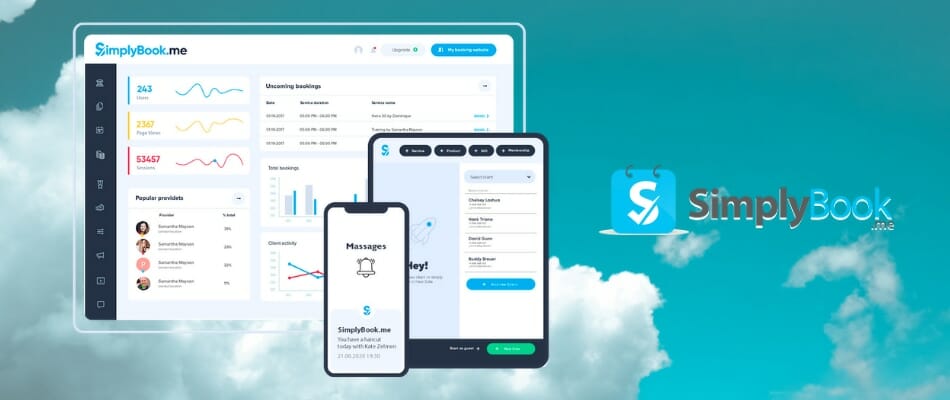
SimplyBook.me has some of the best reviews online, even more than its competitors. With all the facilities it offers and all the integrations available, it’s understandable why it has become one of the favorites.
This system easily integrates with Google, allowing you to add a booking widget to Facebook and Instagram pages.
Keeping in mind that there is a free version, if you want to benefit from everything this software has to offer, you have to select one of the three pricing plans available.
In case you opted for the free option, you are limited to 50 bookings per month and with that you can provide this service for a small company.
The first plan will give you the possibility to perform 100 bookings, the second one will raise the number to 500, while the priciest one goes up to 2000 bookings per month.
On the off-chance you want to use SimplyBook.me on your phone, as an app, it’s only available on Windows Mobile.
If you are experiencing issues, support methods include email, phone, and live chat options.
Some of its key features include:
Cash and credit card payment
Email/SMS confirmations and reminders
Flexible membership duration period
Google Calendar sync
Web or mobile booking interface
Coupon codes and gift cards
SimplyBook.me
This great tool offers the complete booking package with social network integration and payments!
With more than 47 million bookings processed and over 40,000 thousand active users, Bookeo climbed among the first contenders on this list.
It also features a booking widget for Facebook pages and integrations for online calendars.
Its structure makes it simple to navigate, as it is split into easy-to-use categories. You can book anything, from yoga classes to cooking school courses, to escape rooms,
There is a free trial but, of course, for the full package, you will have to pay a monthly subscription. Customer support is available through email, phone and tickets.
All in all, it has good reviews from users and most people that have used this online booking software seem to be pretty content.
The trial period is for 30-days and you don’t need to use your credit card so you can see how it goes before committing to any plan.
When you will get to their main website, you will be greeted by a sales representative chat window so you can start to customize your experience right away.
Users that have made it a habit of working with 10 to 8 don’t limit their use to booking vacations only.
In fact, with its Zoom Video Conferencing and Microsoft Teams integrations, you can host video appointments of all kinds.
The app is also available on iOS, with an Android version currently in development.
More software integrations that 10 to 8 offers are Mail Chimp, Slack, WordPress, Google Calendar, Salesforce, Insightly, Xero, Pipedrive, Weebly, and Twitter.
Besides the free version, you can pay a monthly fee for the extra features you desire.
Aside from the standard packages, you have the Bespoke choice, which allows you to create a custom experience, tailored to your needs and financial resources,
If you are in need of support, it can be reached by phone only. Alternatives are the in-app help tool, online knowledge database, or the FAQ page.
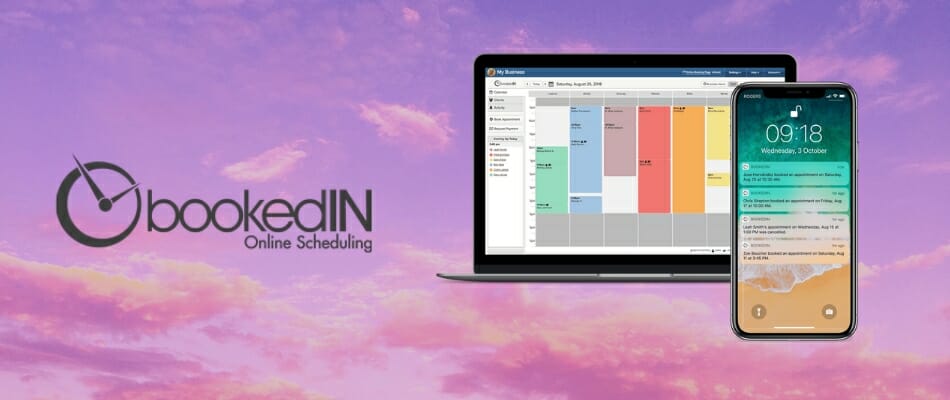
BookedIN has the most integrations out of all the other options we have listed in this article but is also a bit more expensive than some of them.
It can be used on your phone, whether you have an Android or iOS mobile device, making it easy to access with just a few taps.
Schedule conflicts have also been transformed into a thing of the past, with the 2-Way Calendar Sync. This feature can be used with Google Calendar, Outlook, Apple Calendar, Office365, and MS Exchange.
Integrations such as Instagram, Zoom, Skype, WordPress, Wix, Squarespace, Weebly, and 1&1 make it easier and more interactive to use.
There is, of course, a free trial for BookedIN. In order to get all the other features though, you will have to pay a monthly subscription fee.
Live customer support is available for via phone, or if you book a one-on-one session with a BookedIN Support Specialist.
Other options are the FAQ page, YouTube tutorial videos, or the helpful information that the company shares on Facebook.
BookedIN prides itself on the fact that it can be used across the world, allowing you to use any time zone or currency you want.
There are, certainly, more options you can explore. These are the best that we picked for you.
Make your life easier and your vacations more pleasant by picking the one that best suits your needs and expectations.
What should you look for when picking up the best booking software?
There are a lot of considerations to take into account when you start to implement a solution for your booking business.
That’s why you should first establish what are your immediate needs and consult your business plan to decide accordingly. However, you should take into consideration the following important aspects.
Establish the scale of your services and offerings
Probably the most important question of all is how many bookings do you expect to sell in a month? Most of the tools have plans that cater to the number of booking.
Also, the possible number of booking that you will sell will also give you the extent of your whole extent of your services.
So, try to plan ahead and try to estimate that number as best as you can. In fact, try to negotiate a margin and see what the possibilities are if you actually sell more than your designated plan.
Decide on a plan of services for your clients
Assess all of the tools from our list and see what are the services you need for your clients. Does your business extend to social networks?
If yes, then you should choose a solution that allows you to sell and make bookings on those platforms too. If you only have a website and other means of advertising, then only concentrate on the website offerings.
Some of the services from our list can be greatly customized on many aspects so if your business is not structured traditionally, you can choose the ones that are more flexible.
Try to include a scheduling service
Do you have a business that implies HR or scheduling? Trip planning and booking also do need a very good scheduling platform.
One of the tools in our list is focused on that and the higher the booking volume, the more important will be to ensure a great scheduling service for your business.
We hope that our guidance and advice helped you pick the best solution for your business and clients.
And while you are on the leisure topic, you might also be interested in our selection of the best apps to plan your trips.
Keep in mind that some services might experience issues. Our full guide on Rightmove not working explains how to solve these problems.
If you’re using other booking trips that you think they are better, let us know in the comments section below.
The new and improved Microsoft Graph connectors will grant enterprises the ability to connect internal, as well as external data sources to Microsoft 365, making it possible for end-users to access data in various ways.
As a response to the growing enterprise demand for improved access to the vast amounts of data that business processes generate, Microsoft came up with a new way to change the game.
This means that the company managed to implement a system that will onboard, index, and surface bodies of data, making it available through Microsoft 365 applications and services.
Graph connectors will expand access to key data sources
If you remember, the new Microsoft Graph connectors were announced at the Microsoft Build conference, an event that took place last month.
Basically, the Microsoft Graph connectors will give admins the possibility to map properties from Microsoft Graph connectors to Microsoft 365 user cards.
They will also be able to expand search results to Microsoft Teams mobile, as well as desktop clients, and the Windows Search Box.
A very important factor is that the Microsoft Graph connectors don’t treat enterprise-generated data in any way, shape, or form, as they are an asset created within the Microsoft ecosystem.
Keep in mind that there is already a third-party connector gallery containing solutions, from Go1, Adobe Sign, eCare Vault and LumApps.
Also, the Graph connectors’ access is important due to the new realities of hybrid work, and the dynamics being experienced by team members working remotely.
This affirmation was made by the general manager for Microsoft Teams, Nicole Herskowitz, who also stated that access to business data is critically important to any business’ success.
One of the most common requests we’ve heard from customers and partners is now to bring their data into Microsoft Graph to surface it across Microsoft 365
What are Graph connectors and why are they so important?
In a nutshell, a Microsoft connector is a proxy, or a wrapper if you want, around an API that allows an underlying service to communicate with Microsoft Power Automate, Microsoft Power Apps and Azure Logic Apps.
These Graph connectors provide a neat way to assimilate all the data and metadata resulted from business processes.
Once it becomes available, the data can then be indexed and made available within Microsoft 365 products and services, such as Microsoft Search and eDiscovery.
At this moment, there are just nine Microsoft Graph connectors available directly from Microsoft, for customer use.
Eight of the Microsoft Partners are currently providing third party connectors, as follows: Accenture, BA Insight, Raytion, Adobe, Box, Cognizant, Go1 and LumApps.
Know that there is a developer preview for early access to the new and improved Search and Advanced eDiscovery tools, through Microsoft Graph connectors.
The company has indicated that this early sneak peek also contains access to developer APIs to add their own app content to discovery options in the Office Hub.
Another important update is also in developer preview, one that will enable integration with other Microsoft Cloud services, and third-party data sources.
This will make it possible to share all that data across various Search results used by the companies in Microsoft 365.
What is your take on this whole situation? Tell us all about it in the comments section below.
When you boot up your PC or restart it, you will hear the Windows 11 startup sound. It’s not much, but that means the OS started up, and you’re ready to go.
However, many of our readers want to change the Windows 11 startup sound to something more suitable for their preferences. We prepared a selection of the best ones to download and use.
How do I change the Windows startup sound in Windows 11?
Windows 11, like any other version of the OS, has a collection of system sounds. So, changing the startup sound is just a matter of changing the Windows Logon sound from Settings.
On the other side of the scale from the motorcycle crank up, there is the Lovely boot sound that it’s just that: lovely.
It’s a relaxing sound that won’t bother even a lazy cat sleeping near the PC speakers. At most, it would trigger a soft purr. From the cat, not the PC.
We hope that our selection of free Windows 11 startup sounds provided you with enough choices to change the default one.
You should also know that the sounds must be in WAV format to work. Some of the sounds from our list can be directly downloaded as WAV, but if you stumble on an MP3 or other format, you will need an audio converter to change the format.
We only gave you a list of options, but if you have audio recording software or an audio editing app, you can create your own Windows 11 startup sound from scratch.
Let us know which sound you like best or if you have other interesting ones in the comments section below.
Even though only a couple of days have passed since Microsoft released KB5003637 for Windows 10, as a part of this month’s Patch Tuesday, and already the company issued a warning regarding this cumulative update.
Apparently, after installing this particular update, apps that are accessing event logs on remote devices might be unable to connect.
KB5003637 causes apps to not work properly
The root of this annoying issue originates from apps that make use of legacy Event Logging APIs.
Microsoft states that the behavior is expected and that you might receive an error when attempting to connect, such as:
error 5: access is denied
error 1764: The requested operation is not supported.
After installing KB5003637 or later updates, apps accessing event logs on remote devices might be unable to connect. This issue might occur if the local or remote has not yet installed updates released June 8, 2021 or later. Affected apps are using certain legacy Event Logging APIs
How do I fix this issue?
Due to security hardening changes relating to Event Tracing for Windows (ETW) for CVE-2021-31958, the tech giant expected this to happen, to a certain degree.
Thankfully there is a simple way to put all this behind us. In order to properly deal with this situation, you have to ensure that both the local and remote devices have KB5003637 installed.
Pretty simple, right?
Have you been experiencing such issues after installing this cumulative update on your PC? Let us know in the comments section below.
Just like the majority of features in Windows 10, Windows Defender also gets improved with almost every update of the OS.
The most notable feature is the ability to perform an offline computer scan, even before your computer is booted.
However, the new offline scan feature is exactly what gives some people headache in Windows 10.
Namely, one user reported that Windows Defender constantly asks him to perform an offline scan, but when he does, no malicious software is found.
Although this is not a serious issue that could prevent your computer, or even Windows Defender from working, constantly receiving notifications about performing a scan can be very frustrating and annoying.
Luckily, there’s a simple solution that will remove all unwanted scanning prompts, and all other potentially annoying Windows Defender notifications.
However, if Windows Defender is constantly scanning, you should think about getting a better antivirus solution.
What can I do if Windows Defender keeps asking me to scan?
1. Disable the security messages
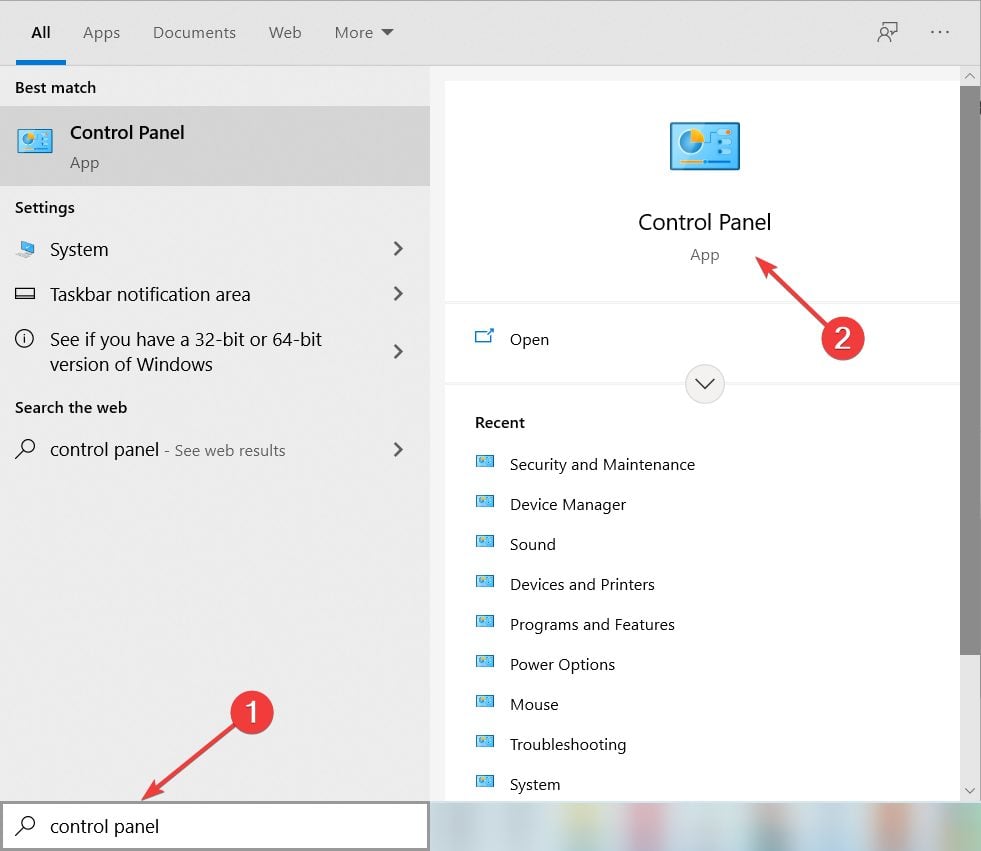
Type control panel in Windows search and click on Control Panel from the results.
Select Security and Maintenance.
Now click on Change Security & Maintenance settings.
Uncheck Spyware and unwanted software protection, and Virus protection.
Restart your computer.
There you go, after turning off these options, you won’t be bothered by unwanted Windows Defender notifications.
However, we advise you to actually have these notifications turned on because if you turn them off, you might miss some important security notification from Windows Defender, which you certainly don’t want.
2. Try a better antivirus instead
Mending Windows Defender is OK if you really like the default Windows default antivirus but unfortunately, it’s not the best tool to protect your PC.
If you want to be absolutely sure that your computer and data are secure, you should definitely think about getting yourself a dedicated security solution.
And once you install a third-party antivirus, it will take over and will no longer send you annoying messages like this one.
The tool below has multi-layered protection, and it will also watch over your router and webcam, so they don’t get hijacked or cracked.
TotalAV
Get rid of annoying messages and step on to the next level of protection with this excellent tool.
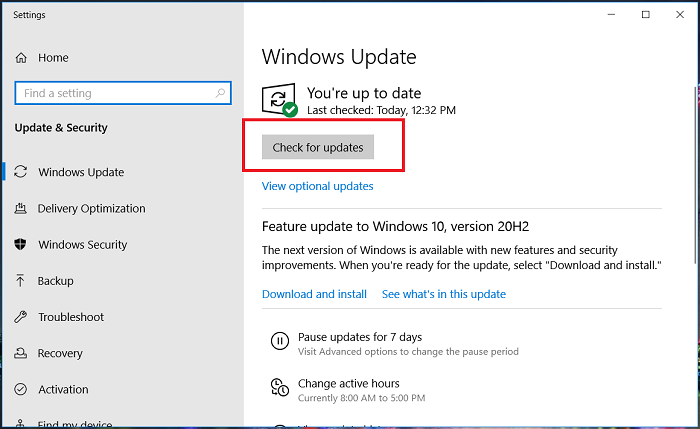
Type update in Windows search and click on Check for updates from the results.
If you don’t see already some updates starting to download, click on the Check for updates button.
Restart your PC for the changes to take effect.
Sometimes, this problem can be fixed with a simple update of your OS, since Windows Defender is part of Windows. Check if you have new ones by performing the steps above.
We hope that you managed to get rid of this nagging message from Windows Defender, or we convinced you to switch to a better security solution.
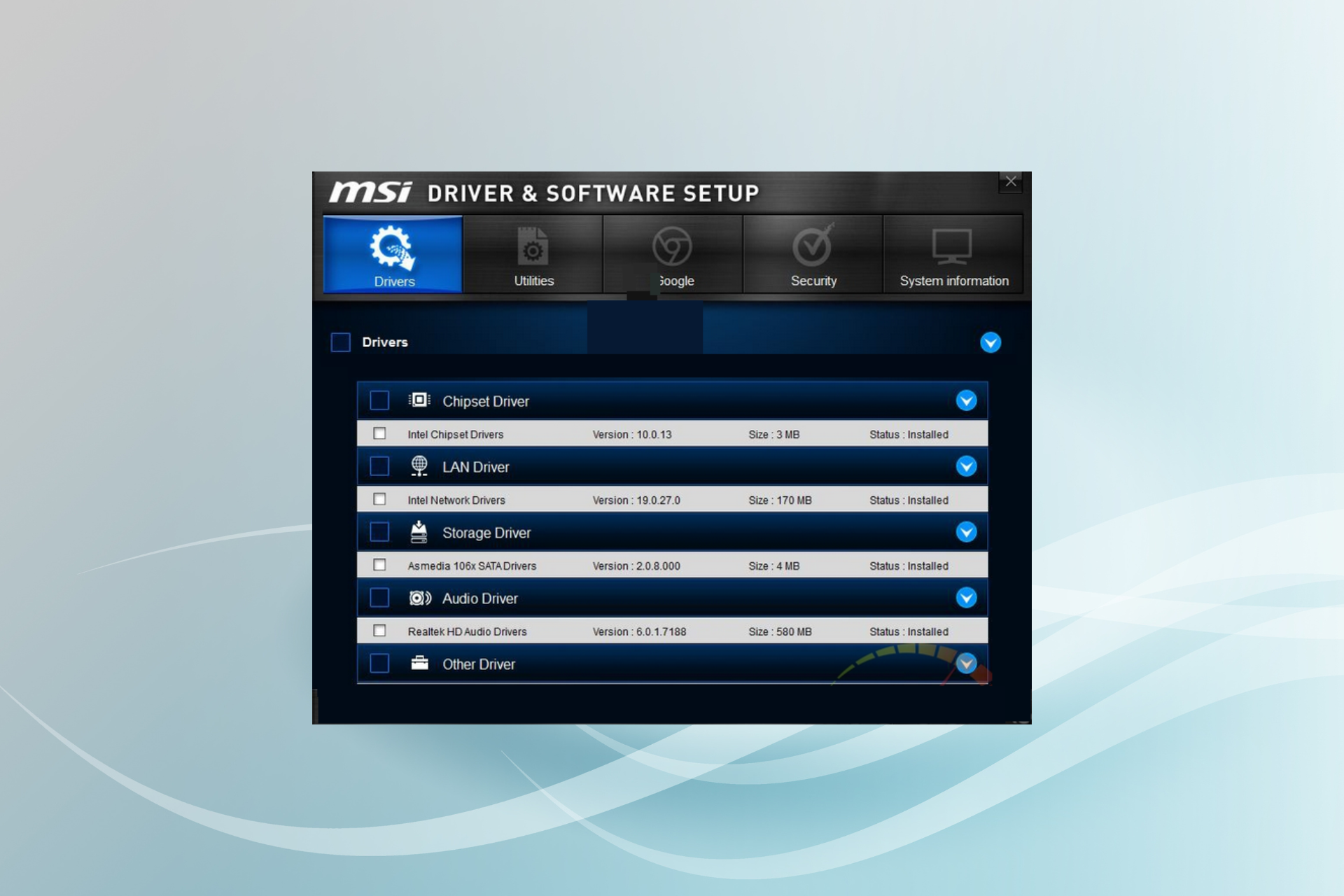
MSI offers its drivers and software for its PC components like GPU and peripherals. However, when installing the required drivers, you may find that the MSI Driver and Software setup is stuck.
Driver installation issues are uncommon in Windows, but when these do appear, it indicates a conflict. So, let’s find out how you can get things up and running in this case.
Why is MSI Driver and Software setup stuck?
Here are a few reasons you are unable to run MSI Driver and Software Setup:
Issues with the installer: When the installer itself is malfunctioning or the CD it’s stored on is damaged, the setup may be stuck.
Missing permissions: Whenever running an installer for any program or driver, users need administrative privileges for the process to complete effectively. So, make sure to run as administrator.
Problems with the Windows installation: If it’s a new custom-built PC and the OS came installed on the drive, chances are you would have to install it all over again due to compatibility and other issues.
What can I do if MSI Driver and Software setup is stuck?
Before we move forward, here are a few quick things you can try:
Restart the computer and then try the installation.
Run the installer with administrative privileges. For that, you need to right-click on the setup and choose Run as administrator.
Check for the UAC prompt that appears and click Yes on it. The prompt may be hidden behind a couple of windows, so make sure to look for it.
Check for pending Windows updates and install them all since running an outdated version of the OS will lead to the MSI Driver and Software setup being stuck.
Disable the antivirus, be it the built-in Windows Security or third-party software. And if that works, we recommend you switch to a Windows-friendly antivirus to get rid of such issues in the future.
If none work, head to the solutions listed next.
1. Terminate the process
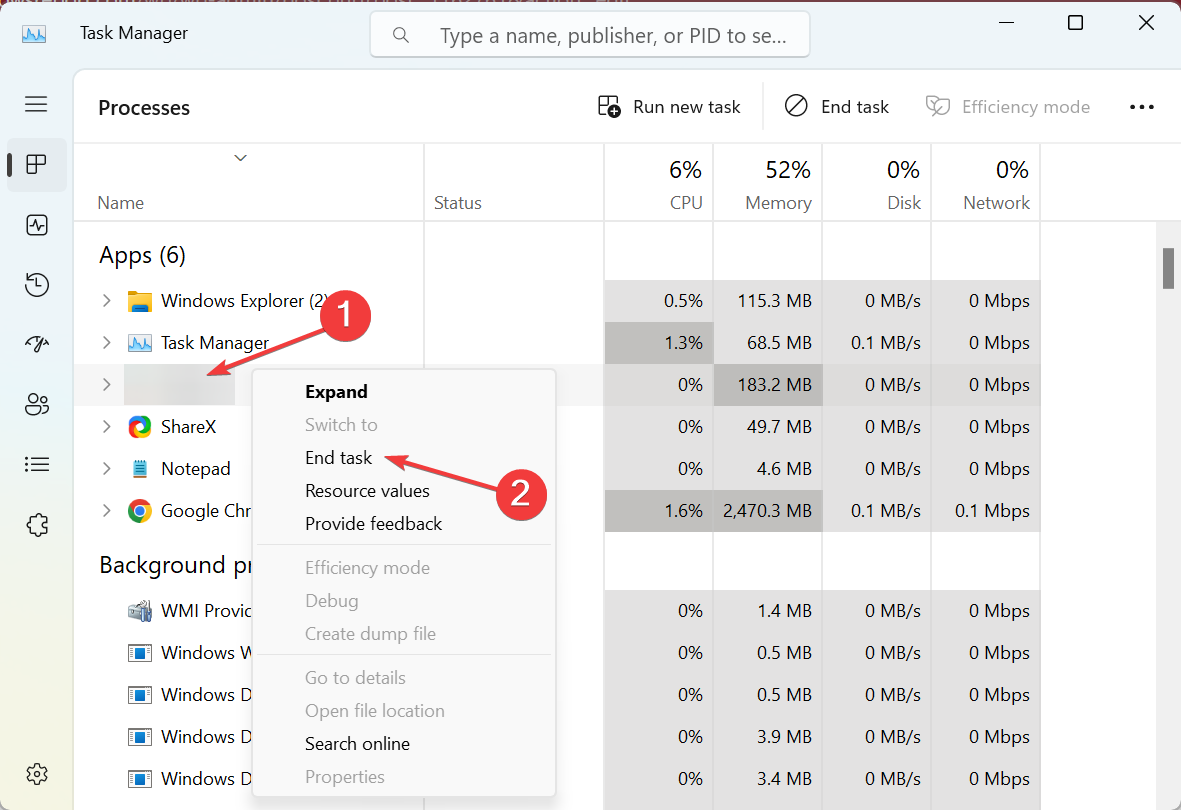
Press Ctrl + Shift + Esc to open Task Manager, and locate the MSI setup’s process.
Right-click on the process and choose End task.
While here, also terminate any non-critical programs and processes that are running.
Once done, relaunch the setup and try installing the driver(s).
One of the simplest fixes when the MSI Driver and Software Setup is stuck, is to relaunch the installer and terminate any background processes or programs that might conflict with it.
2. Update the existing drivers
When facing driver installation issues, check if the existing system drivers are outdated. Missing and corrupt device drivers can prevent the new drivers from installing.
Windows 10 offers a way to update the driver manually from the Device Manager. However, if multiple device drivers are out of date, finding them may take time. Software Update utilities like Outbyte Driver Updater can simplify this task by downloading and installing outdated and missing drivers with a single click.
3. Uninstall the existing driver
NOTE
The steps listed here walk through the case when MSI GPU drivers are stuck. Though the idea remains the same for the other drivers as well.
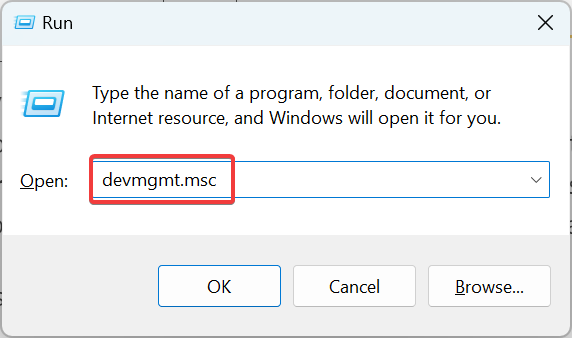
Press Windows + R to open Run, type devmgmt.msc, and hit Enter.
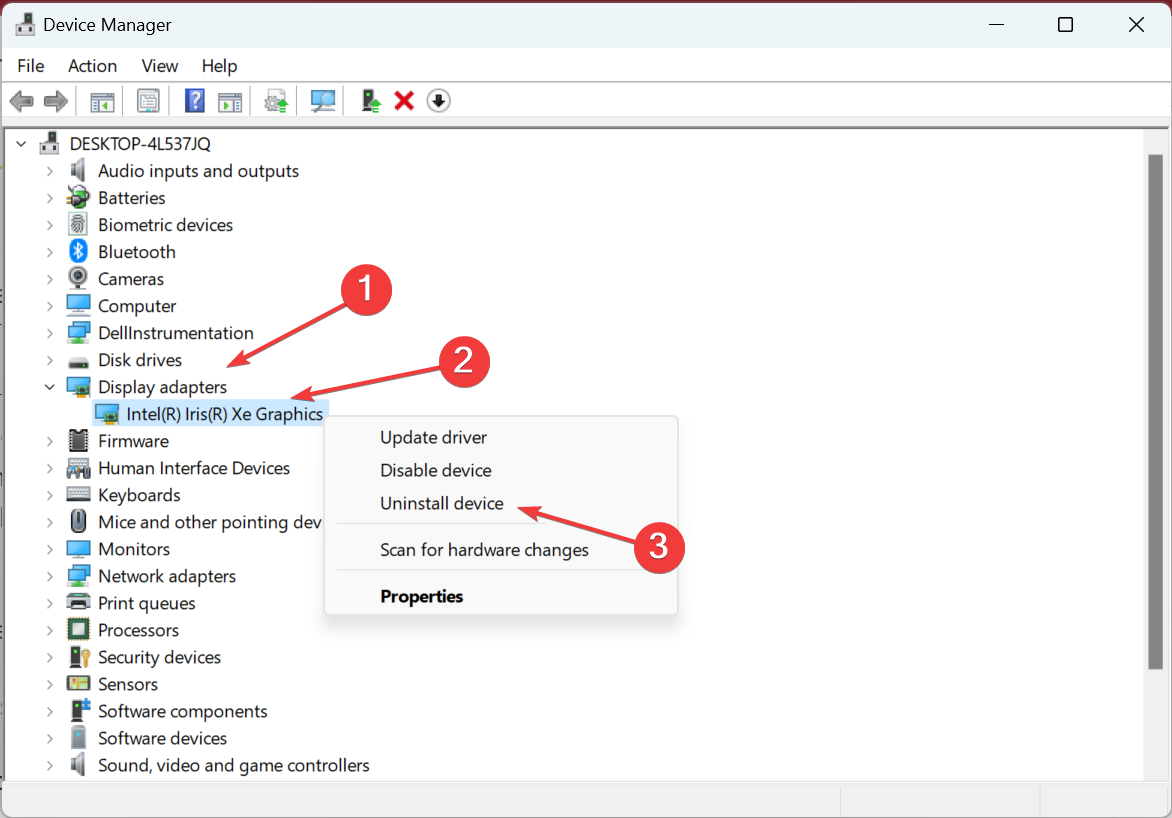
Expand the Display Adapters section, right-click on the graphics adapter, and select Uninstall device.
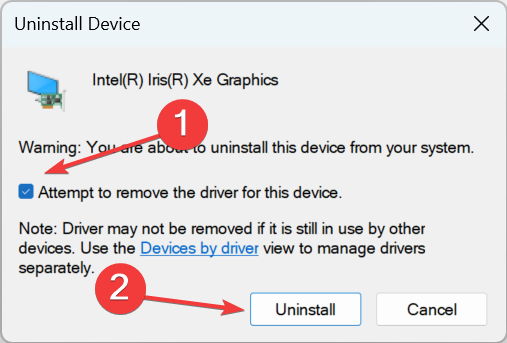
Tick the checkbox for Attempt to remove the driver for the device, and click Uninstall.
Now, run the driver software setup and check if the MSI driver is installed without any issues.
In some cases, the existing driver may prevent the installation of the new one, and as a result, the MSI Driver and Software Setup is stuck. Simply uninstalling the driver should do the trick here.
Open the MSI official website. Enter the name of the product you want to download the driver for, such as the motherboard model name or GPU name.
Click the Download button on the right product from the search result. It will take you to the download center, where you can choose the operating system.
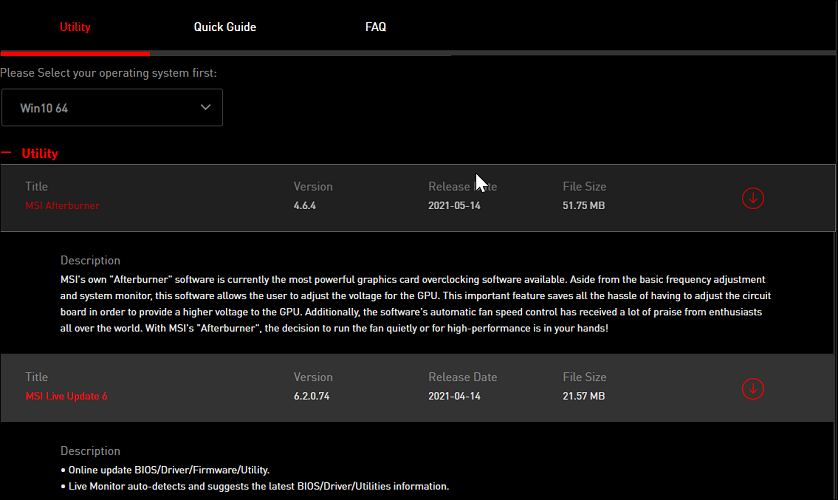
Download MSI Live Update or any other update utility available. Once downloaded, run the installer and follow the on-screen instructions to update the driver software.
If uninstalling and reinstalling the driver did not work, try to download the driver directly from the MSI official download center. Manufacturer websites usually have the latest version of the driver available with bug fixes and performance improvements.
5. Download the driver from the chip manufacturer
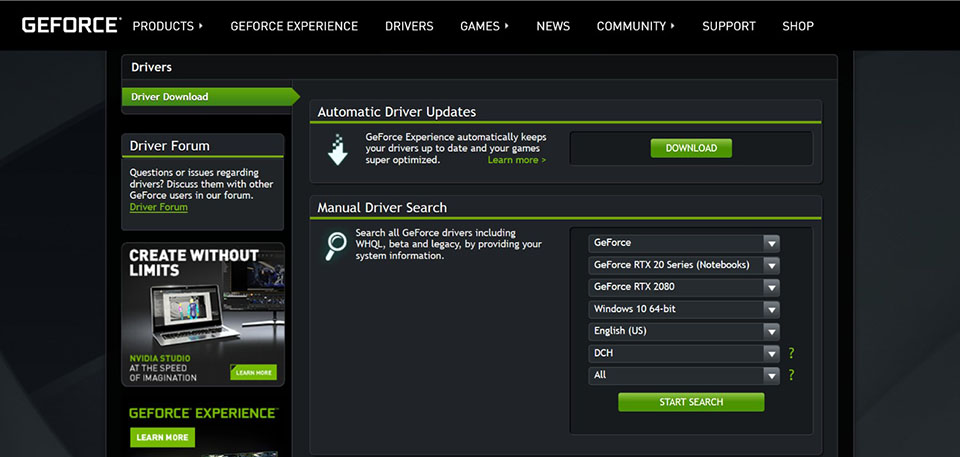
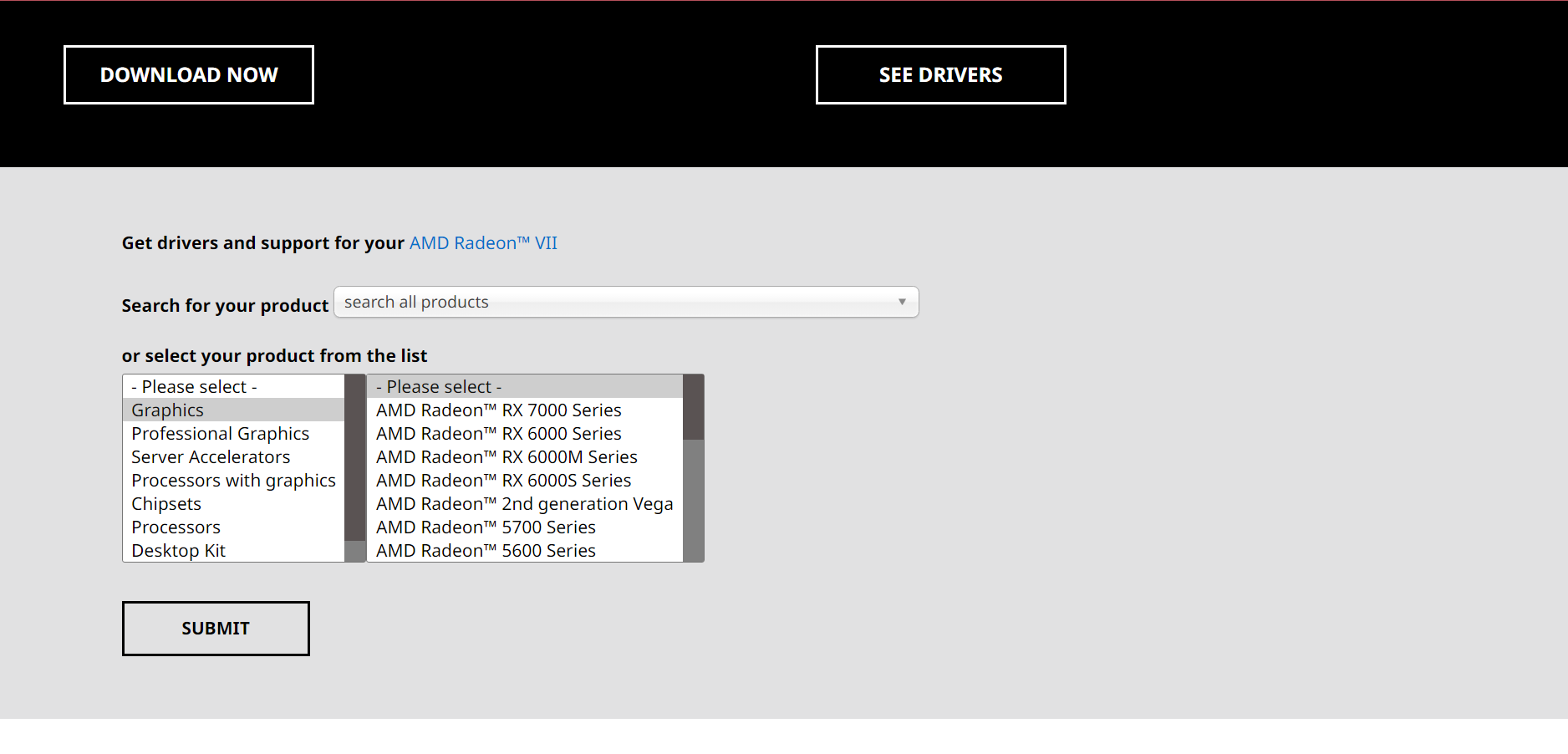
Visit the AMD or Nvidia website to download the latest driver directly from the supplier.
In the download center, search for your GPU model or any other device, and download the latest driver version available.
Make sure to disable the antivirus program installed on your system before running the driver installer.
Downloading directly from the chip supplier is one way to get the latest updates installed. In addition, OEMs like GeForce and AMD can have the newer version available before MSI, which can help you fix any glitches in earlier device driver versions.
Despite the fact that we’re still waiting for an official Nero App for Windows 10, you can use the desktop version as it is compatible with Windows 10 and older versions too.
A long while ago, we used Nero only for burning CDs and DVDs, as it was the best tool for the job.
However, when we migrated towards Windows 10 we were not so sure if the burner will work as well on the new platform.
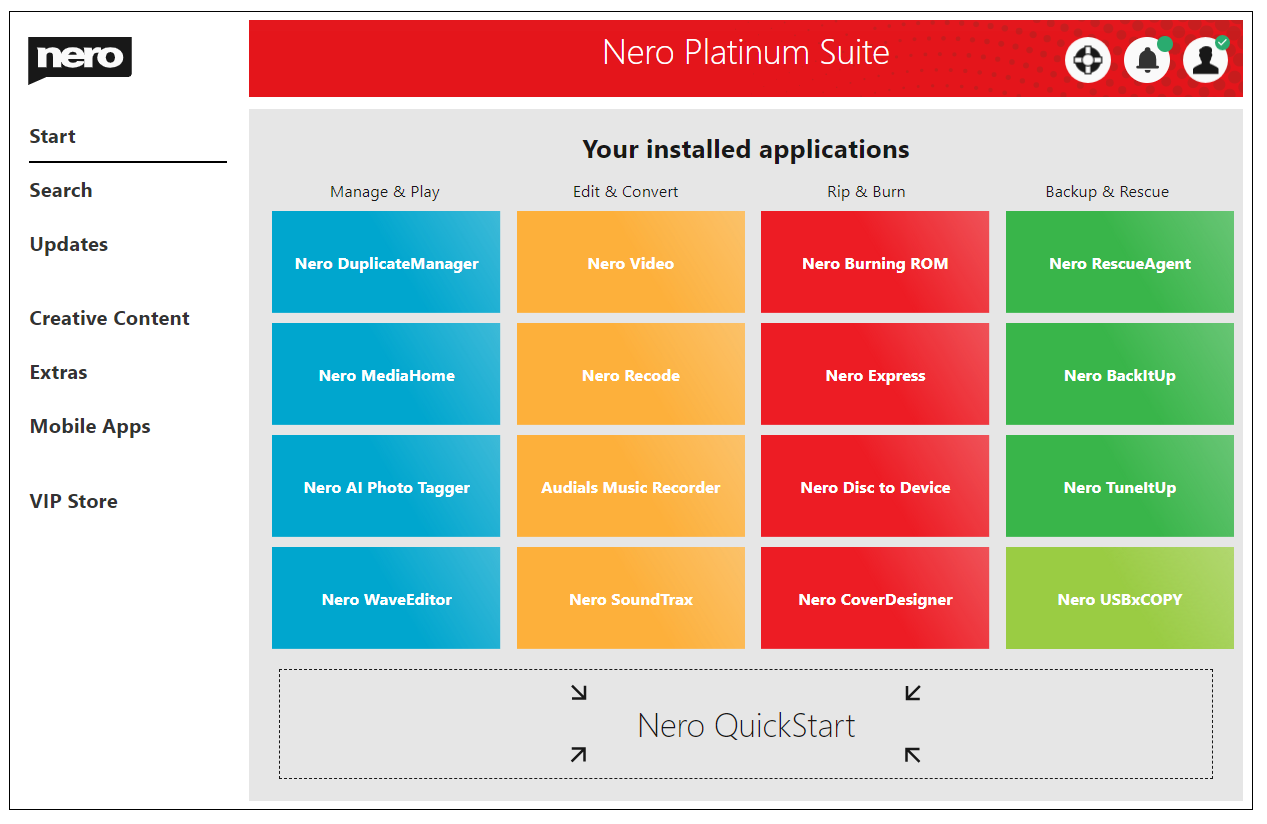
We were wrong, Nero Platinum Suite works beautifully on Windows 10, and even has an inspired start screen for the different features it has.
Nero Platinum Suite for Windows 10 is much more than a program to burn some old discs with ISO images.
As you will see below, Nero Platinum Suite for Windows 10 offers users a complete multimedia experience, having all the tools one might need on his computer.
Nero Platinum Suit transforms your multimedia experience
With over 1M downloads per month, Nero software has reached 100M users and offers support in 23 languages. You can upgrade now to Nero Platinum Suite for a discounted price, and get a great bundle of 7 programs:
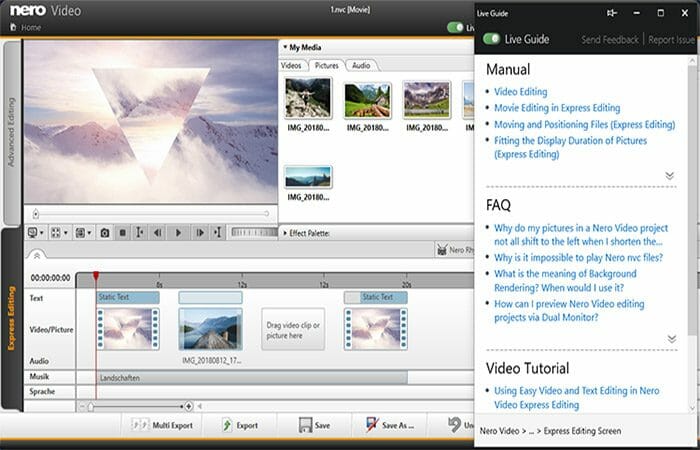
Nero Video – A creative video editing program with an intuitive interface, easy handlings, over 800 effects, and new movie templates to captivate your audience.
Nero Burning ROM – Burn, copy and archive, maximum security provided by SecurDisk 4.0 and 256-bit encryption, so you can keep your data private.
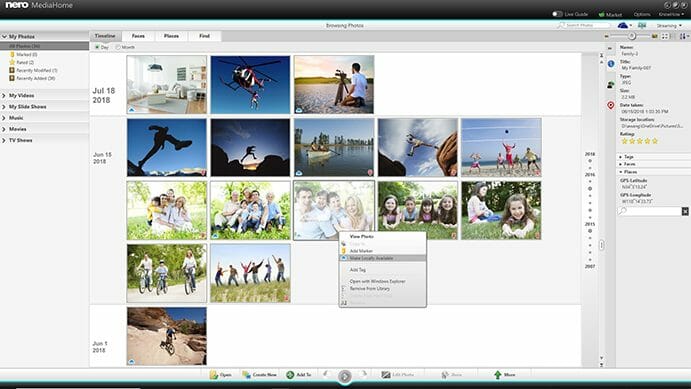
Nero Media Home – Organize your photo collection, videos, music, and movies, TV series, slideshows, anything you want to play – even 360-degree pictures with Nero 360 VR Player.
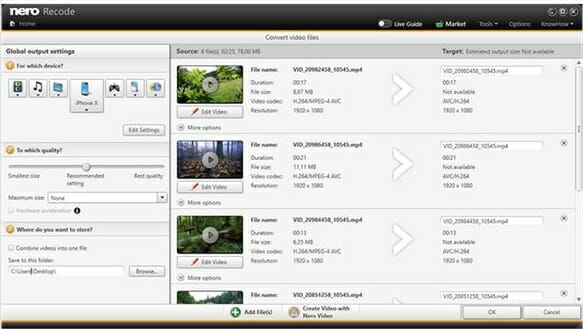
Nero Recode – Rip&Convert – with 1-click conversion you can send audio CDs directly to your mobile device connected. All video formats are supported.
Nero BackitUp 2020 – Secure, Encrypt &Compress – you can set up a preferred backup interval to continuously backup your memories in case of updates or breakdowns.
Nero Duplicate Manager – A powerful and fast duplicate finder for your photos that will help you free a lot of space on your drive.
Nero TuneItUp Pro – A tune-up utility that will empty your drive from unuseful files and programs and also fix problems with your Registry.
You can get some of them separately or buy the full package from the link below.
Nero Platinum Suite
This suite is the ultimate media experience package that you can have on your PC.
Optimise, repair, and speed up your PC with Nero TuneItUp
If you notice any problems or a slow PC, you can solve them automatically one by one or all at once with this Power PC-Tunning.
This tool works well on optimizing internet settings and browser configuration, giving you a faster speed to surf the net. It also updates your drivers and switches off unnecessary processes for your Windows to start faster.
Nero Platinum Suite for Windows 10 – All the multimedia tools needed
Let’s start off by saying again that Nero Platinum Suite works on Windows 10 without a hitch!
Also, users of Nero that will run it on Windows 10 will also see a custom start screen that is designed in Modern UI look, with tiles for each tool and a short description of each of them.
From here, you can access any of the 7 tools that you have as well as a short tutorial that shows users all the things Nero can do on Windows 10.
Now, you might be curious as to what tools do you get from Nero 12. I’ll give you a list of what these are, and I’m sure you are pretty familiar with some of them, as they have been around for some time now:
Nero Burning ROM – The old Burning ROM has not changed too much, allowing users to create all kinds of disks.
Nero MediaHome – This tool is a media organizer, which allows users to scan their computer and organize and access all their media files.
Nero Video – A video editor that is simple to use and provides lots of tools and effects for those who want to create stunning videos and burn them to disks or upload them to the web.
Nero BackItUp – As the name suggests, this is a backup tool that you can use to make secure copies of your files. Users can also set an automated backup so they won’t have to worry about it.
Nero Recode – Converting files into different formats can be done easily with Nero Recode. This tools works on both videos as well as audio and image files.
Nero Start – This is the main console of the Nero Platinum Suite. From here, you can check the state of each tool and upgrade different features if needed. Now you can also access a VIP store for more third-party apps.
Nero AI Photo Tagger – This is a great new tool that will automatically analyze all your photos using AI technology and tag them according to what it can find in the image.
These tools will be at home on your multimedia computer, as they provide users with lots of utilities and the possibility to manage their computers very easily.
However, some of these tools are pretty resource-intensive, and you might see a slight lag on your computer, but apart from this, there’s nothing that can be labeled as a problem.
Most of them also communicate with each other, allowing the user to jump between them if needed.
Here’s a list of system requirements for Nero Platinum Suite:
Windows 10 (32 and 64 bits), Windows 7 SP1 Home Premium, Professional or Ultimate (32 and 64 bits), Windows 8 (32 and 64 bits), Windows 8.1 (32 and 64 bits)
5 GB of hard disk space
1 GB of RAM
2 GHz processor
Microsoft DirectX 9.0 compatible graphics card
Ultra HD (4K) editing requires 64-bit operating systems
Some services require an Internet connection
Video editing requirements
Nero recommends that especially for editing, transcoding, exporting, and playback of 4K video a high-performance PC with minimum Intel Core i7-2600K (3,4 GHz) or AMD FX 8320 (3,5 GHz) processors.
They also specify that you should have at least 4 GB of RAM equipped on your PC or laptop although more would be better.
Moreover, for the HEVC (High Efficiency Video Coding) format you should mount an Intel Core i7-6700 (4 GHz) and at least 8 GB of RAM.
New features in Nero Platinum Suite
Nero has a new start page or launcher that we presented above. The page has new graphics but it also has new features.
On the left pane, you will be able to access the Updates section that you can use to get all your products up to date individually or all at once.
You will also find a bran-new VIP Store where you will find exclusive packages and discounts from partner companies.
From the apps page, you will also see a new function called AI Photo Tagger that we also presented above. It uses AI to analize your photos and tag them so that you can group them accordingly.
Also, the Nero Video app supports now 4K video resolution and the hardware decoding has been also improved.
We hope that our review cleared any questions you might have but if you have any other questions, you can write it in a comment below.
Star Wars Jedi: Fallen Order, the critically-acclaimed action-adventure game from Respawn Entertainment is getting a free next-gen upgrade for Xbox Series X|S and PlayStation 5 consoles today. The game will leverage Microsoft’s Smart Delivery system on Xbox Series X|S consoles, which means that all game saves and unlocked achievements will carry over to the next-gen version of the game once it’s installed.
As you may know, Star Wars Jedi: Fallen Order received a previous update to improve backwards compatibility performance on next-gen consoles, but this new native port goes the extra mile. “This next-gen release provides the best possible way to experience Star Wars Jedi: Fallen Order on consoles, bringing the following technical improvements: higher resolution textures & assets, 4K/HDR Resolution, improved 60 FPS performance, significantly faster loading times,” Respawn explained
We're proud to announce that the next-gen upgrade of #StarWarsJediFallenOrder is available starting today.
Get it now on PlayStation 5 and Xbox Series X|S.
Already own a copy of the game on console? Your next-gen upgrade is free.
On Xbox Series X and PS5, players can choose between a 1440p/60FPS Performance mode and a 4K/30FPS “Normal” Mode. Even with improved backward compatibility, the last-gen version of the game used a dynamic resolution that could drop to 1512p on Series X in “Normal Mode,” so the push to native 4K in the next-gen version should make a big difference.
There is no graphical setting on Xbox Series S, as performance is locked at 1080p/60FPS. However, the less powerful Xbox console will also benefit from the improved textures and faster loading times thanks to its modern components. The digital version of Star Wars Jedi: Fallen Order is 50% off during Microsoft’s Deals Unlocked Sale, which also offers big discounts on other cross-gen games optimized for Xbox Series X|S consoles.
Microsoft has decided to not only to shake up the way it’ll present the next iteration of Windows, but also how the OS will look and feel going forward.
Over the last five years, Windows 10 has seemingly been leaped frog in mindshare as the company seeded the operating development spotlight to competitors while it chased the future-forward pivot of cloud computing.
In that time, Apple took the wraps off its decade-long macOS refresh called Big Sur and Google’s cloud-powered browser-focused ChromeOS chomped away at Microsoft’s education market share.
Perhaps, as a result of visually cohesive designs and the modernization of legacy workflows presented in Big Sur and ChromeOS, for the first time in a decade, Windows market share dipped below its hallmark 80 percent marker worldwide.
In the last five years, Apple’s macOS has reached a new peak of 15 percent and ChromeOS exited its traditional rounding error percentage to 2.29 percent worldwide.
When looking at things from a North American lens, things look a bit more turbulent for Microsoft’s aging operating systems market and mindshare with macOS accounting for 25.49 percent and ChromeOS at 6.43 percent, leaving Windows with a declining majority share of 62.7 percent.
I note all this to put Microsoft’s upcoming June 24, 2021, “What’s Next for Windows” event, into perspective. Microsoft has chosen, for the first time to pull apart the symbiotic relationship its developer conference BUILD had with its 40-year-old operating system Windows and this move feels indicative of the importance of the moment.
While Microsoft’s future is undoubtedly in the cloud, it seems it took the company sometime to begrudgingly acknowledge that its Windows operating system is still a pivotal springboard to said future and needs some sprucing up.
With that in mind, Microsoft CEO Satya Nadella and head of Windows development Panos Panay are about to shoulder five years of rumors and expectations to not only stem its market share bleed but miraculously increase its mindshare in the industry.
What we know
Let’s start with what we know about the June 24th event and that is to say, not much. Both Nadella and Panay have spoken to a notable change coming to Windows but used rather vague marketing speak to outline what’s planned.
Thanks to leaked documentation we do know there is a UI refresh effort for Windows 10 with the code name ‘Sun Valley’ being internally testing.
In addition to leaks, both Nadella and Panay have acknowledged the upcoming changes to Windows. Nadella has gone as far as expressing that he is currently running this new version of Windows as his daily driver (in testing) and Panay during a fireside chat reiterated his ‘pumpediness’ for the changes in store.
Windows 10 Insiders have seen bits and pieces of the proposed UI efforts of Sun Valley come in updates to select core-apps and Windows Explorer settings. However, as June 24th quickly approaches, there has been little to no actual testing of Microsoft’s grandiose design overhaul of Windows 10; this should worry some people.
The other thing we know is that whatever is discussed during the June 24th event will not be competing for the spotlight as previously reported. Until about four weeks ago, it was becoming common place for journalists to put into context both Microsoft’s Sun Valley update and the unveiling of a new variant of Windows dubbed Windows 10X, together.
Instead of Microsoft having to explain both a refreshed UI and possible UX in its next version of Windows and its weird ChromeOS competitor later this fall, the company can now pour its efforts into a single focus now that Windows 10X is dead.
Despite its untimely demise, Windows 10 engineers have vowed to bring Windows 10 X features, designs and workflows to Windows 10. The fruits of those secretive labors could be showcased as soon as June 24, 2021.
Another thing we know is that Android is coming to Windows 10. Its appearance isn’t as straightforward as going to the Microsoft Store and downloading your favorite Android app, but more of embedding the framework for Android app development on Windows.
Despite Windows 10 Your Phone app mirroring Android app usage through some slick trickery with selected Samsung devices, the operating system isn’t yet designed to host full Android app emulation.
However, three days ago, the Microsoft/wslg repository on GitHub posted Linux GUI support 1.0.23 was in active development. The Linux GUI was something Microsoft championed during its BUILD conference a few weeks ago and paves the way for easier Android development via the Windows 10 operating system.
Some are speculating that this could be a precursor to Android apps being coalesced in the Microsoft Store, and with enough time and personal ingenuity I’m sure some overzealous developer will probably make it a reality. However, the reality, as it stands today, is that Microsoft is at least making Windows 10 a more viable multiplatform development operating system that can cater to Android developers who may have been previously using Linux distros to get work done.
The Uknown
Moving on to the larger unknown about Microsoft’s “What’s Next with Window” event, we’re still in the dark about the name of the next version of Windows.
Many have speculated that Microsoft could win an award of simplicity by just calling the operating platform Windows or Windows 11. Quickly after Microsoft released a teaser GIF of its June 24th invite, the internet took to tea-leaf-reading and many claimed to have found visual clues hinting towards 11 being the follow up to Windows 10.
As light shifts through the Windows logo, the middle crossbar appears to be omitted, leaving two straight bars that resemble the number 11.
I personally don’t take much stock in the image as a prophetical foretelling of Windows 11, but as an amateur graphic designer myself, the omission of the crossbar shadow is glaring perspective misstep.
In the grand scheme of things, the name is least of the operating systems issues, but does carry weight on how Microsoft approaches the operating system and the proposal of a steady flow of future updates.
The naming scheme plays into a much larger conversation about how and where a Windows 11 could be distributed. Microsoft’s marketing and sales team will need to be ready with answers to questions such availability and support.
Other unknowns include pricing and release dates for this potentially new operating system. Executives within Microsoft have made some lofty claims about Windows 10 being ‘the last ‘version’ of Windows leading many to conceptualize Windows pivoting towards a Windows-as-A-Service Platform.
Even though Windows 10 came as an apologetic free upgrade from Windows 8, there exists a possibility that Windows 11 returns to the glory days of figurative box purchasing.
As a way to parse feature development from standard operating feature support, Microsoft could charge its standard tiered Windows pricing of $119 to $200 for Home, Pro and Enterprise editions of this latest operating system.
Or, more likely, Microsoft could stick to the current free structure to increase adoption, but allow IT Admins to opt out of any of the new features. A last possibility is that Microsoft evolves Windows 10/11 into a Microsoft 365 subscription model that operates similarly to Office 365. Windows 10/11 can serve as the free standard edition of the latest (non-enterprise destructive) features coming to the platform while a subscription version ensures those who seek that model get monthly updates and features.
It’s also unclear when the next version of Windows will ship. Microsoft has worked on a Spring/Fall cadence of software rollouts, with the Fall being reserved for the more substantial releases. Most presume the next version of Windows will appear in the Fall, alongside new hardware, especially with the head of Surface hardware Panos Panay being in charge of both the operating system and the hardware it’ll run on.
Panos Panay Surface Laptop
Windows could learn from others
Perhaps, the biggest unknown is what’s coming to the next version of Windows. As previously discussed, we know Linux GUI is coming, we know there are going to be a certain level of UI tweaks, but beyond that, the rest of Windows 10/11 is a mystery.
Based on what Microsoft has revealed about it plans for the now defunct Windows 10 X, there was supposed to be adjustments to the way the Action Center, Taskbar and Start Menu behaved, and now some of that will be worked into the next version of Windows. To what extent we see Windows 10 X worked into Windows 10/11 this year remains unclear.
Aside from shuffling the deck chairs with some UI tweaks, there have been some intuitive innovations that have been created on competing operating systems that the next version of Windows could be inspired by.
Following the demos done by Apple during its WWDC conference earlier this week, Microsoft’s Windows engineers could take inspiration from the way Windows works with touch.
Since the rollback of Windows 8’s touch-first focus, Windows 10’s touch experience has been lacking, to put it euphemistically. Yes, Microsoft may be the only well know Windows tablet maker in the market right now with its Surface Pro 2-in-1 but there have been some solid efforts by its partners in Lenovo, Dell and HP this year that could help push the needle on greater adoption.
Paired with an equally impressive consumption interface in touch, Windows powered 2-in-1 could see offshoots that compete directly with the iPad in terms of engineering. As it stands, the Windows 10 interface is a productivity heavy experience with lackluster touch UI tacked on to justify selling touch panels.
Hopefully, Microsoft focuses on intuitive gesture-based UIs that incorporate accessibility scenarios with as much care as the team takes in rendering new fonts for operating system.
Next up is cloud sync. For a company as heavily invested in cloud computing and security, it’s a shame that cloud settings were pared back as much as it was in Windows 10. To compete with Chromebooks without rehashing another failed operating attempt, Microsoft could simply invest in its cloud profile and settings sync.
Aside from the impressive educational tools Google provides for ChromeOS in education, it’s the company’s ability to transfer personal data and settings across the cloud.
Microsoft could focus on cloud-based user profiles that allow customers to bring all their previously used apps, themes, desktop setups and preferences to new devices with a simple 2FA login. The two-fold enforcement of 2FA and cloud sync would help Microsoft secure more data as well as push OneDrive adoption as well as subsequent storage subscriptions.
The laundry list of wish list items for the next version of Windows could go on for a while as many users have longed waited for a significant update to the operating system for years.
But if Microsoft took the lead on the simply extending its theming platform to older menus and settings panes as well as created a universal DPI setting for text and images in older UI elements, that may be all the company needs to do to make June 24th’s event a hit.
Microsoft has kicked off today its massive Xbox Deals Unlocked Sale, offering up to 75% discounts on digital Xbox games on other gaming accessories through Thursday, June 17. The sale goes live right ahead of Microsoft’s Xbox & Bethesda games showcase on Sunday, June 13, where we should see images of Halo Infinite and many other titles in the Xbox Game Studios pipeline.
The full list of deals is available on Major Nelson’s blog. You can also check out the Microsoft Store where the company is offering up to 25% discounts on select gaming accessories including external drives, gaming headsets, or mobile game controllers. The online store also offers a selection of gaming PC or laptops from Lenovo, Asus, and more manufacturers starting at $699.
In March, Microsoft Teams launched a new live transcription with speaker attribution feature for scheduled meetings. The AI-powered live transcription support is currently available for select enterprise subscribers, but this capability will expand to more customers later this month.
The live transcription with speaker attribution feature identifies each speaker and delivers real-time transcriptions of the conversation during a Teams meeting. As of now, Live transcription in Microsoft Teams is only available for enterprise customers with licenses for Microsoft 365 E3/E5, Business Standard, and Business Premium SKUs.
The company has recently added a new update to its Microsoft 365 roadmap to indicate that it’s making the transcription service available to additional SKUs to make meeting content more accessible to people challenged by hearing issues. The feature is currently being developed and will be rolled out on the Teams desktop clients globally later this month.
With this update, Live transcription with speaker attribution will be supported on the app in English (US) for scheduled Microsoft Teams meetings under the following licenses:
Office 365 E1
Office 365 A1
Office 365/Microsoft 365 A3
Office 365/Microsoft 365 A5
Microsoft 365 F1
Office 365/Microsoft 365 F3
Microsoft 365 Business Basic SKUs
The live transcription experience in Teams should help to improve the accessibility of the app and the productivity of meeting participants. It also enables people to join a meeting in noisy environments. In case you missed it, Microsoft is also planning to expand live transcription support to unscheduled and channel meetings in Teams in July.
Microsoft has continued to fuel the Windows 11 rumors with the publication of an 11-minute video of remixed Windows Startup Sounds. The Slo-fi Remix video features the Windows 95, XP, and 7 startup sounds slowed down to “a meditative 4,000% reduced speed,” with some beautiful background images of clouds and landscapes to match the default wallpaper for each OS.
The software giant sees this video as a must-watch in case you’re “Having trouble relaxing because you’re too excited for the June 24th Microsoft Event.” This is a pretty funny way to tease some upcoming big Windows news, and a nice way to pay homage to popular versions of the OS.
Microsoft will reveal the next generation of Windows on June 24, and there are already several things hinting at a Windows 11 announcement. The event will kick off at 11AM ET, and the imagery Microsoft used in the event invite includes what looks like the reflection of a “11” symbol below the Microsoft logo.
The company will likely keep teasing us in the days leading to the event, and we’ll need to keep an eye out for more Windows 11 clues on the company’s various communications channels. We still have a lot of unanswered questions about what Windows 11 could be, especially what this would mean for the future of Windows 10, but we won’t have to wait much longer to see what the big “Sun Valley” redesign effort will lead to.
The investments being made by Microsoft to enhance the tooling and improve the experience for its developers keep on coming this year. Just when you think they’ve put the lid on Visual Studio 2019 and shift their focus to the new version they surprise us with numerous new features and enhancements.
The .NET Productivity team (aka. Roslyn) continues to enhance your developer productivity with the latest tooling updates in Visual Studio 2019.
Mika Dumont, Product Manager for .NET productivity
In this article we are going to cover what I consider to be the most impactful to the developer community and frankly features that should have been in the IDE years ago.
Removing Unused References
As projects grow and direction changes, many unused and forgotten project or package references are left scattered throughout your code. In the past, developers were left to remove these references manually as they ran into them. That is no more, now we are given the ability to remove unused references across entire projects with a single click. Doing so helps reclaim wasted space, as well as improve the overall performance of the resultant application as well as the project itself within Visual Studio.
Automatically Added Using Directives
We undoubtedly reuse code in our work, whether from our own previous work or from help we got from others on the internet. Pasting code is a very real part of the development process. Now Visual Studio will automatically add any missing using directives when code is pasted into your files. Previously a missing using directive error would be displayed and it was up to developers to add the missing references manually, now that is a thing of the past. This feature is not turned on by default, but taking advantage of it is very easy! You can enable it by opening Visual Studio then going to Tools > Options > Text Editor > C# or Basic > Advanced and select Add missing using directives on paste.
Blazor Improvements
As Blazor becomes a first class citizen in the .NET ecosystem, so does the functionality of the Visual Studio when it comes to MVC, Razor Pages and Blazor. Improvements to IntelliSense for MVC and Razor Pages had improved through out the years, but the arrival of Blazor has really pushed Razor forward. Now developers are getting support for Find All References even in closed Razor files. Razor intrinsic completions along with various improvements to stability and performance when working with large MVC, Razor or Blazor projects.
I have personally suffered from Visual Studio unreliability issues when working on large MVC projects. Broken IntelliSense across views, crashed instances and random slow downs both while coding and debugging. To enable this new feature you must go to Tools > Options > Environment > Preview Features > select Enable experimental Razor editor, followed by a restart of Visual Studio.
The first trailer for the highly-anticipated Elden Ring video game finally dropped this morning during the Summer Game Fest 2021 online event.
The trailer, which can be watched below, showcases a surprising amount of the title’s world, creatures, characters, and gameplay and even gives a fairly solid glimpse at the story Elden Ring players can expect to unravel.
Arguably an even bigger surprise than the trailer drop was the mention of Elden Ring’s release date at the end of it, January 21st 2022. It’s now also been confirmed to be launching on the Xbox Series X console generation in addition to Microsoft’s Xbox One family of consoles though it’s still unclear at this point if this means that there’ll be two separate versions of Elden Ring or just the one for Xbox One that will be playable on the Xbox Series X with some enhancements.
While digital pre-orders have yet to go live, an official game page is now online on the official Xbox website along with a new description for the title.
Elden Ring developed by FromSoftware, Inc. and BANDAI NAMCO Entertainment Inc., is a fantasy action-RPG adventure set within a world created by Hidetaka Miyazaki – creator of the influential Dark Souls video game series; and George R.R. Martin – author of The New York Times best-selling fantasy series, A Song of Ice and Fire. Danger and discovery lurk around every corner in FromSoftware’s largest game to-date.
Elden Ring was first announced back during 2019’s E3 and is a collaboration between George R. R. Martin, the creator of the popular Game of Thrones franchise, and Hidetaka Miyazaki, creator of the Dark Souls video game series.
Avira Operations GmbH & Co. KG is a German multinational and family-owned company that comes with IT security software for computers, smartphones, networks, and servers.
The company has been founded in 1986, but it became more popular in the last years, thanks to its Avira antivirus application.
It seems that Avira has released Avira Free Security, a bundle that came with antivirus, antiphishing, VPN, and other products that would make sure your computer stays safe.
The package came with four products which are Avira Free antivirus, Avira Browser Safety, Avira Phantom VPN, and Avira System Speedup.
What does the package bring?
If you are a fan of Avira, then you already know about these packages, but the 2017 edition came with improved anti-ransomware protection.
Additionally, the packages can be managed and controlled directly from the revamped Avira Connect Launcher.
It is good to know that the packages also come with some issues. For example, the Avira Phantom VPN free build works fine, but it comes with a 500MB/month data limit, which sometimes can’t be enough for users.
At the same time, the Avira System Speedup free edition comes with some good tools such as memory, privacy tweaks, speed along with and online history management.
However, in order to use encryption, boot optimization, and secure deletion you will have to purchase the commercial version.
When it comes to the antivirus engine, we can say that Avira is able to protect your computer against many viruses and the Browser Safety feature will make sure that doesn’t get malware while browsing the internet.
Avira Free Security can be downloaded and installed on any computer that runs on Windows 10. As soon as you install it on your computer, you will be able to download and install any package that’s available on it.
Avira Free Security
Keep your data and files away from threats at all times thanks to this trusted antivirus software.
A summed-up answer would be because you have to. In a world where everything is tied to technology, security is a must. Do you not know why you should be protecting yourself? Because of malware.
The term malware is used to describe certain variants of malicious software, mainly viruses, ransomware, and spyware. All of those will be harmful to your device and were created with ill intent.
Precisely, the malware consists of a specialized file that was coded to do specific tasks under certain conditions. Usually, these files are transmitted without the victim’s knowledge, through the internet.
As mentioned before, the purpose of these files is to damage, corrupt, steal, and coax people into giving away their information, money, and other sensitive data.
Here’s a graph of the different types of malware and how frequent they are:
Viruses
Similar to its real-life counterpart, a virus infects a device, and it starts corrupting files and multiplying. The outcome is disastrous for the user, more often than not resulting in a compromised system.
As is the case with other malware, the virus needs to infect a working operating system to do its thing. Capable antivirus software will detect and stop it from entering your device.
Since we are talking about viruses, we should also include worms and Trojan horses. Worms are spread through software vulnerabilities and can infect your an entire network.
Trojan horses are files that seem to be harmless at first when in reality, they will bring destruction to your system once they manage to enter it. More so, since they seem harmless, most antivirus tools won’t detect them.
Spyware
Spyware doesn’t actually harm your device. Instead, it just sits there and keeps track of key logs, mouse clicks, and other actions. Sometimes they even search for your passwords and other confidential files.
After the spyware finds something interesting, it will steal it and send that data to a designated place, where it will be used for unauthorized access. Imagine getting your credit card info or your account credentials stolen!
Ransomware
Ransomware, also known as Hoax software, will lock the device and prevent you from using it unless you pay a ransom. Sometimes, its creators try to trick the user into thinking something legitimate is happening.
For example, one would get a message saying that the Federal Bureau has detected some illegal activity on the user’s device and is requesting a fee to restore access to it.
Phishing
Phishing is another type of malware, which is usually transmitted through fake emails that look like authorized ones from different brands. These are filled with links that will ask for your credentials and steal your data.
For example, a user might receive an email that looks exactly like one from Amazon, signaling that their account was blocked and they need to log in to start the recovery process.
Obviously, this is a scam, and once you enter your credentials, nothing will happen. You’ll be left wondering what’s going on when in reality, the data was stolen by the hackers.
What other ways are there to protect against malware?
The most succesful way of defending yourself from cyberattacks is using third-party software. There are many such choices, but not all of them are as good as Avira. Here’s a chart with it’s efficiency compared to other popular apps:
Besides downloading the best antivirus tool on the market, which usually has multiple layers of protection, and should keep you safe under normal conditions, there are other ways that will help.
Visit only official sites
For example, you should only visit official sites, which are trusted by millions of people. Also, make sure you don’t accidentally visit fake sites. Pay close attention to their URLs!
Don’t click on random links
Next, you should not click random links from people, especially from strangers that you don’t know unless you know for sure that the link is safe.
Don’t click on suspicious adds
Don’t click on suspicious ads! Using an Adblock will prevent any ads from appearing at all, so make sure to add one to the browser. Additionally, some antivirus apps come with built-in adblockers.
Don’t download suspicious files
Since we’re talking about clicking suspicious stuff, we should mention that it applies to files and software as well. Don’t download anything from an untrusted website.
Always be careful
Here’s an intersting graph showing the amount of malware attacks that happened during different years:
Vigilance is key when it comes to cyberattacks. Unfortunately, even if the security measures are constantly evolving to keep us safe, so is malware.
Hackers keep coming up with different ways to bypass systems and steal our data. Therefore, we should always take care when browsing the internet, since we don’t know what lurks around the corner.
Users are still dwelling on the previous Microsoft Patch Tuesday announcement, which was pretty bad in their opinion, with six in-the-wild vulnerabilities patched.
Not to mention the one buried deep within the vestiges of Internet Explorer’s MSHTML web rendering code.
14 security fixes in one single update
Now, Google releases Chrome security advisory, which you might want to know includes a zero-day patch (CVE-2021-30551) to Chrome’s JavaScript engine, amongst its other 14 officially listed security fixes.
For those who are still not familiar with the term, Zero-day is an imaginative time, as this type of cyberattack happens in less than a day since the awareness of the security flaw.
Therefore, it doesn’t give the developers nearly enough time to eradicate or mitigate the potential risks associated with this vulnerability.
Similar to Mozilla, Google also clusters together other potential bugs it has found using generic bug-hunting methods, listed as Various fixes from internal audits, fuzzing, and other initiatives.
Fuzzers can produce if not millions, hundreds of millions of test inputs over the span of the proving run.
However, the only information they need to store is in the cases that cause the program to misbehave, or crash.
This means that they can be used later on in the process, as starting points for the human bug hunters, which will also conserve a lot of time and manpower.
Bugs are being exploited in the wild
Google starts by mentioning the zero-day bug, stating that they are] aware that an exploit for CVE-2021-30551 exists in the wild.
This particular bug is listed as type confusion in V8, where V8 represents the part of Chrome that runs JavaScript code.
Type confusion means that you can provide V8 with one data item, while tricking JavaScript into handling it as if it were something totally different, potentially bypassing security or even running unauthorized code.
As most of you might know, JavaScript security breaches that can be triggered by JavaScript code embedded in a web page, more than often result in RCE exploits, or even remote code execution.
With all this being said, Google isn’t clarifying whether the CVE-2021-30551 bug can be used for hardcore remote code execution, which usually means that users are vulnerable to cyber-attacks.
Just to get an idea of how serious this is, imagine surfing a website, without actually clicking on any popups, could allow malicious third parties to run code invisibly, and implant malware on your computer.
Thus, CVE-2021-30551 only gets a high rating, with merely a bug that isn’t in the wild (CVE-2021-30544), classified as critical.
It could be that the CVE-2021-30544 bug had the critical mention attributed to it because it could be exploited for RCE.
However, there’s no suggestion that anyone other than Google, as well as the researchers that reported it know how to do that, for the moment.
The company also mentions that access to bug details and links may be kept restricted until a majority of users are updated with a fix
What is your take on the latest zero day patch by Google? Share your thoughts with us in the comments section below.
For all those times when you’re offline and without internet, you’ll now be able to have more fun in Edge, but better! Microsoft has rolled out some improvements to the Edge Surf game in the Edge Canary channel. At the same time, the company also launched a new podcast themed towards Microsoft Edge.
According to William Devereux, a senior program manager on the Edge team, there are a couple of different improvements here, mainly focused on gameplay. In Edge Canary when doing to edge://surf, you should now see some new obstacles, a simpler character selection menu, and an easier way to share with friends. Of course, also new are the usual bug fixes and performance improvements.
As for the news about the podcast, Microsoft is planning to use its new Edge podcast to talk about how people are using the web to innovate. Episode 1 talked about using Bitcoin for good, and features Jordan Harbinger, and Alex Gladstein. Episode 2 is all about NFTs, featuring Jordan again, and Cassius Marsh. If you’re interested, you can check out the podcast here.
In other Edge news, the latest Dev Channel update is bringing improvements to fingerprint authentication on MacOS. Check out the full changelog for that release here. Also feel free to let us know how you’re liking the improved Edge surf game by dropping us a comment in the section below.
If you run into an issue during the boot with an error informing you about the corrupt restoration data, just use a power button to power it off.
Whatever else you do, the only way to boot into Windows is to hard reset your PC. If you have a dedicated reset button, go with that.
On the other hand, if the problem occurred on a laptop, just press and hold the Power button for a couple of seconds until it shuts down.
After that, you should be able to boot in Windows 10 without any problems. However, this won’t fix the corruption so move onwards with the enlisted steps.
If Windows 10 failed to resume from hibernation, check out our detailed guide to fix it in no time.
2. Run SFC and DISM
In the Windows Search bar, type cmd.
Right-click click on Command Prompt, and run it as admin.
In the command-line, type the following command, and hit Enter: sfc/scannow
After it’s done, type the following command and press Enter after each:
DISM /online /Cleanup-Image /ScanHealth
DISM /Online /Cleanup-Image /RestoreHealth
When the procedure ends, restart your PC and try using the Hibernation mode again.
This kind of system corruption requires the of built-in utilities. There are two similar tools that are run through the elevated Command Prompt.
The first tool is System File Checker, which is used to locate and fix the corruption of system files. Since this is the probable cause for the hibernation file corruption, we suggest running it.
They work best when running in succession, so that’s what you need to do. Follow the above steps to run SFC and DISM on Windows 10 and fix the hibernation corruption.
3. Check HDD
Open Command Prompt as admin.
In the command line, type the following command and hit Enter: chkdsk /f /r
Wait until the tool scans and resolves possible HDD errors.
Restart your PC.
An HDD corruption of some kind is another possible culprit for the error at hand.
If your HDD has corrupted sectors, it might affect the execution of the essential system processes. Including the restoration image.
The restoration image is basically a configuration save which allows your PC to boot faster after it’s been in the Hibernation mode.
Which means that, if it’s corrupted, you won’t be able to restore the last system functions.
With that said, we suggest either using a third-party tool to check for errors or relying on the built-in HDD checkup utility.
4. Update Windows
Open the Settingsapp.
Choose Update & Security.
Click on the Check for updates option in the right pane.
And, besides regular security patches and Windows Defender definitions, you can expect cumulative updates which address certain system bugs.
These might bring the solution for the issue at hand, and thus we suggest checking for updates manually.
If you’re still experiencing an error after restoring from the Hibernation mode, move to the next step.
5. Disable Hibernation temporary and delete a certain file
Open Command Prompt as admin.
In the command line, type the following command, and press Enter: powercfg -h off
Close the Command Prompt, and restart your PC.
Now, open Command Prompt again, enter the following command, and press Enter: powercfg -h on
Now, try out the Hibernation mode again, and look for changes.
Disabling the Hibernation mode and re-enabling it again might help, as well.
The hiberfil.sys file is the file where Windows writes the memory, and it’s used to boot from the Hibernation mode. It’s usually enormous, and it’s our prime suspect when it comes to corruption.
By disabling the Hibernation mode, this file gets deleted automatically, and you get two flies with one hit. You reset the Hibernation and relief your storage of a substantial space-consuming behemoth of a file.
Also, if you encounter an unexpected shutdown after hibernation in Windows 10, take a closer look at our helpful guide to fix it with ease.
6. Reset Windows 10 to factory settings
In the Search bar, typereset, and open Reset this PC.
Under the Reset this PC option, clickGet started.
Choose to retain your files and apps, and continue with the resetting process.
If the problem is persistent, the only remaining fix we can suggest is resetting Windows 10 to factory values.
Of course, avoiding Hibernation is also an option, as you can choose Sleep or Hybrid mode instead. But if you deem it necessary, resetting Windows 10 should help.
This is a great recovery option which allows you to keep your files and settings while restoring the system.
It’s not as effective against the most persistent errors as a clean reinstall, but that’s the last resort.
And on that note, we can conclude this article. If you have any additional questions, suggestions, or remarks, feel free to share them with us and other readers in the comments section below.
Following the release of Windows 10 Dev Channel build 21390.1000 (KB5004071) on June 7, Microsoft is yet again pushing out another similar update. That means this build is minor once again, and doesn’t include anything new, rather being designed for testing Microsoft’s servicing pipeline instead.
When you download this update, you should see it under Windows Update as Cumulative Update Build 21390.1010 (KB5004092). Reaction to this build has been mixed, since Microsoft confirmed that builds will be smaller in scope over the next few weeks while the pipeline is tested. We remind you of Microsoft’s explanation for this below.
“We have been testing our servicing pipeline with Cumulative Updates to the builds released to the Dev Channel. Each week, we would release a new build and then follow up with a Cumulative Update on top of that build before moving to the next build. However, we need to test the process of releasing multiple Cumulative Updates on top of each other on top of the same build. As a result of this, over the course of the next several weeks, our focus will be on releasing multiple Cumulative Updates on top of Build 21390. Having Insiders in the Dev Channel test this will be immensely helpful, and we’ll be back to flighting normally again soon.”
Since the June 24 “what’s next for Windows” event is now on the horizon, it won’t be too long until Insiders get to test new builds packed with features. Until then, Microsoft looks to be keeping things secret, and you’ll have to be patient and enjoy smaller builds for the next few weeks to keep your Insider machines active.
Error while transferring data is common, and users come across them occasionally. One such is Error 0x800701E3: The request failed due to a fatal device hardware error.
This happens when copying or moving files to an external SSD, but some users also get Micro SD card Error 0x800701E3. So, let’s find out all about it and the solutions that worked for others.
What is error 0x800701e3?
The error is encountered when copying or moving files. Some even came across Error 0x800701E3 while installing Windows due to the setup’s inability to install the relevant files to the drive. Here are a few reasons users encounter the error:
Improper connections: One of the most likely causes behind the problem, improper connections, trigger the error and lead to cases where the external drive doesn’t show at all.
Failing storage drive: Physical damage or other major issues can also cause the error code external hard drive 0x800701E3.
Bad sectors: When you have bad sectors on the drive, data can’t be written to it, and neither the one stored can be read.
How do I fix error 0x800701E3?
Before we head to the slightly complex solutions, here are a few quick ones:
Restart the computer and then try the operation.
Make sure the connections are in order. If you have a spare cable, use it to connect the drive. Use another card reader for the job in the case of an SD card.
If the drive has an indicator light that turns on after it’s plugged in, check whether it lights up.
In some cases, being persistent is all it takes. So we recommend you give it a few more shots because, for some, the transfer went through after a couple of attempts.
If none work, move to the fixes listed next.
1. Run Check Disk
NOTE
Before you proceed, make sure the external drive or SD card, whichever is throwing the error, is connected to the PC.
Press Windows + E to open File Explorer, right-click on the affected storage device, and select Properties.
Go to the Tools tab, and click on the Check button.
Select the Scan drive option.
The Check Disk utility is a built-in tool that identifies issues with storage devices and bad sectors and takes the necessary measures to minimize their effects. And it should work when you get Error 0x800701E3.
2. Use dedicated software to repair your system
We recommend using dedicated software that will scan your device automatically, find corrupted or damaged files, and repair them in just a few seconds with spectacular results.
3. Use a Health Check Software
Before we move forward, it’s important to check the drive’s health and identify what percentage of storage on it is available, amongst other critical factors. And that’s where a reliable drive’s health check software comes into the picture.
It will run many tests on the hard drive, identify issues, and present them to you. This helps users figure out when a drive is about to fail to take the necessary action.
Press Windows + R to open Run, type cmd, and hit Ctrl + Shift + Enter.
Click Yes in the UAC prompt.
Paste the following commands individually and hit Enter after each:DISM /Online /Cleanup-Image /CheckHealthDISM /Online /Cleanup-Image /ScanHealthDISM /Online /Cleanup-Image /RestoreHealth
Now, run the following command for the SFC scan:sfc /scannow
Once done with both scans, restart the computer.
Though unlikely to fix the problem, you can check for corrupt system files, as it has helped a few users. The DISM commands and the SFC scan will identify such files and replace them with the cached copy stored on the system.
5. Format the external drive
Press Windows + E to open File Explorer, right-click the affected external drive, and select Format from the context menu.
Choose the desired File System from the dropdown menu, tick the Quick Format checkbox, and click Start.
Wait for the format to complete. It shouldn’t take more than a few minutes.
Once done, try moving files to SSD or Micro SD card, as the case may be.
In some cases, you will need to format the external storage device when getting Error 0x800701E3 in Windows. You will lose out on the stored data, but it’s the only solution left.
Tip
If nothing so far works, we recommend you take the storage device to a professional or get an effective recovery software to retrieve the stored data and replace the device.
Microsoft is adding a new feature in Word for Windows that will bring the ability to proof selected text in documents. The company has announced that this update is currently available for Office 365 subscribers enrolled in the Insider program.
“When you work in a large document in Word, you may want to focus on revising or finalizing a specific section before getting input and feedback from others. In cases like this, you’ll often want to use Editor to check the grammar and spelling, and to make refinements to ensure clarity and conciseness for just that part of the document. Word now makes it easy for you to do so,” the Office Insider team explained.
To use this feature, users will need to open the Word document and select the text they want to proof. Once done, right-click the selected text, and then choose the “Review selection in Editor” option from the context menu. Finally, follow the suggestions provided by the Editor in the right pane to review and address all the issues in the selected text.
The new proof selected text feature is gradually rolling out to Office Insiders running Current Channel (Preview) Build 13929.20216 or later of Word for Windows, so it may not show up on your PC right away. The software gaint noted that it’s one of the most requested features from the community, and the team will continue to gather feedback to finetune the changes.
And even though we know that changes will be made to the look and features of the OS, the name of this product still remains a mystery to us all.
There might not be a Windows 11 after all
Lately, speculations have led to quite a number of possible OS names, among which Windows 365, or Windows OS, but the most plausible remains Windows 11.
Labeling the new product as Windows 11 wouldn’t be such a bad thing after all, considering the fact that, if it performs amazing, it could help lift some of the negative feelings some users still have about Windows 10.
But, judging by what the company said in the past, the plan is to move away from the Windows era. Microsoft officials already expressed the fact that Windows 10 will be, in fact, the last variation of this beloved OS.
Are you ready? Brace yourselves! The next Microsoft OS can actually be called simply Sun Valley. Does this name ring any bells?
It rightfully should, as everybody has been talking about this Windows update, which will change the face of the OS, giving it a more fresh and futuristic look.
NOTE
In fact, half of the participants to our exclusive Windows 11 survey seem to expect a completely new design & faster interface. No less than 6056 readers completed our opt-in online survey over the course of seven days and you might be surprised to see what they think of the new OS.
Accidental leak or just an internal name?
The fact that the data we mentioned above was quickly removed after being found can actually suggest two things.
The first one would be that the company realized they posted the name of the future product by mistake and erased it fast, so they can still keep somewhat of a secret.
The second theory would be that Sun Valley could just be an internal name for the new product, just a codename that Microsoft developers use to describe the next version of the OS.
Which ever it is, we are soon about to find out so the silver lining is that we won’t live in doubt for a very long time.
What do you think the new operating system from Microsoft will be called? Let us know in the comments section below.
Mice come in all shapes and sizes, but all are not created equal. Some are wireless, some need batteries, some are big, some are small, some need dongles and some do not.
But what if you’re looking to a mouse that can do it all, yet still stay compact? That’s where the Dell Premier Rechargeable Wireless Mouse, MS7421W, can help you out. We were provided one for review, and here’s a look at why it is a comfy mouse for all your devices.
Design
If you’re spending $70 on a mouse as you are with this one, then the design should be quite unique. That’s why you won’t be disappointed here. This mouse looks a lot like a XPS laptop, with a soft woven platinum-colored silver grip on the outside and silver-colored top for the buttons. Even the weight is slim like a XPS would be, coming in at 0.18 pounds, and just 1.4 inches thick.
Cool as that is, it is what is on the inside that matters. Instead of having to remove the bottom of this mouse, to get inside this one, you pull the top off from the sides. Once you do, you get in to find the USB-dongle. Everything is held in place magnetically, and it is a strong hold as the cover never fell off during my regular usage. Having room for a dongle inside the mouse is important, too, as it means you won’t lose it easily.
It should also be noted that this mouse features USB-C on board for recharging. It is nice to see USB-C as this type of port is becoming more common over micro USB. You’ll also find USB-C on rechargeable mice from Logitech, like the Logitech MX Master 3. And, since this is USB-C, you end up 6 months of battery life, with a full charge in just 3 hours.
Dell includes a USB-C to USB-C cable in the box for you, but you’ll need to supply your own charger brick to charge things up. Just note that only charging happens via USB-C. It won’t carry data via the USB-C port, as this is what the dongle is needed for.
Dell says a two-minute charge can get you through a days work. In my time with the mouse, I haven’t experienced any battery issues, and a full charge has lasted me more than two weeks thus far.
Tracking, buttons & connectivity
There’s more to a mouse than just the design, and tracking and connectivity are also important. Here, Dell has you covered. The mouse offers up to 4,000 DPI, and it is adjustable at three other levels: 1,000, 1,600, and 2,400. You can change the DPI from within Dell’s Peripheral Manager App, which installs once you plug the dongle into your PC. The app also lets you program shortcut buttons, check the battery life, and get firmware updates, too.
As far as tracking performance goes, I was able to use the mouse on many surfaces without a mouse mat. It worked on a wooden table, a glass table, a plastic table, and even tracked on the leather of my jeans. That’s all thanks to the optical LED tracker.
But what really makes this mouse cool is it’s ability to connect to different devices at the same time. You can connect and switch across three different devices at once. One connection happens via the 2.4 GHz wireless dongle, and two are reserved for Bluetooth. You can switch between them with a click of a button at the top of the mouse. No need to flip the mouse over, like on a Logitech MX Master 3.
Another thing that’s great about this Dell mouse is the scroll wheel in the middle. Not only does it let you scroll up and down, but the wheel also tilts to the left and the right, allowing you to move left and right in webpages when you have windows open side by side. Paired with the side buttons, this makes navigating the web so easy.
Note that this mouse is certified to work on Windows 7, Windows 8.1, Windows 10, Mac, Linux, Chrome, Android and iOS. Basically, take it anywhere you go.
A nice mouse to buy
If you need a premium mouse, then the Dell Premier Rechargeable Wireless Mouse is one to buy. The comfy design of this mouse is quite unique, and USB-C connectivity makes it easy to charge. Bluetooth and the USB dongle also means that you can use it no matter where you go. You can buy it today from Dell for $70, but it is usually on sale for around $60.



![Install MSI motherboard drivers without a CD [Easy Guide]](https://windowsreport.com/wp-content/uploads/2021/06/how-to-install-msi-motherboard-drivers-without-cd.jpg)
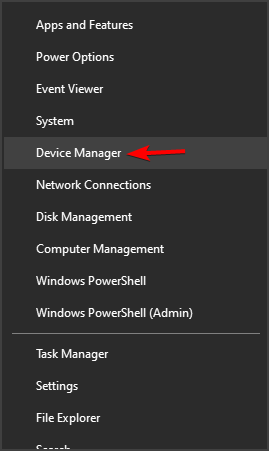
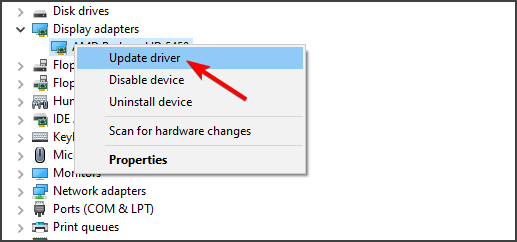


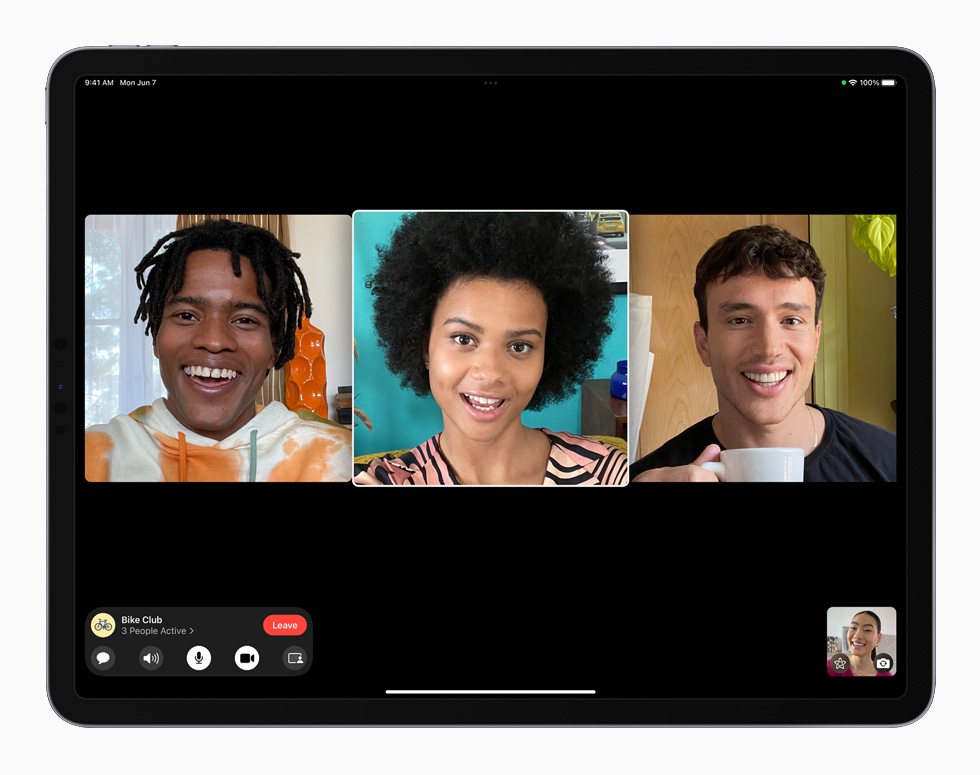



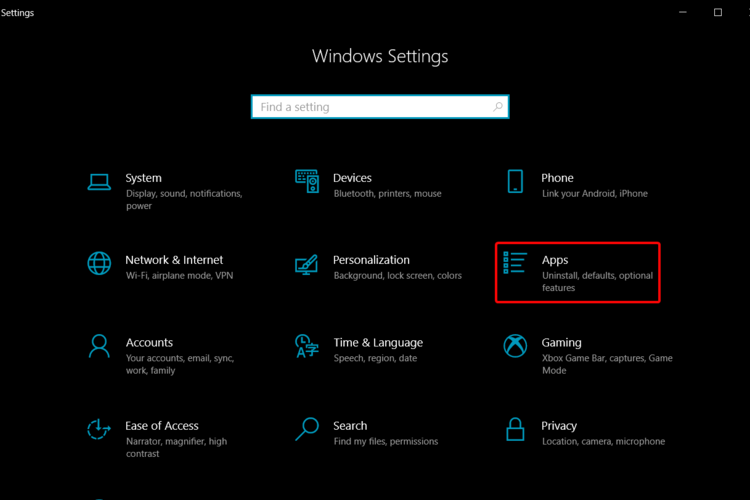
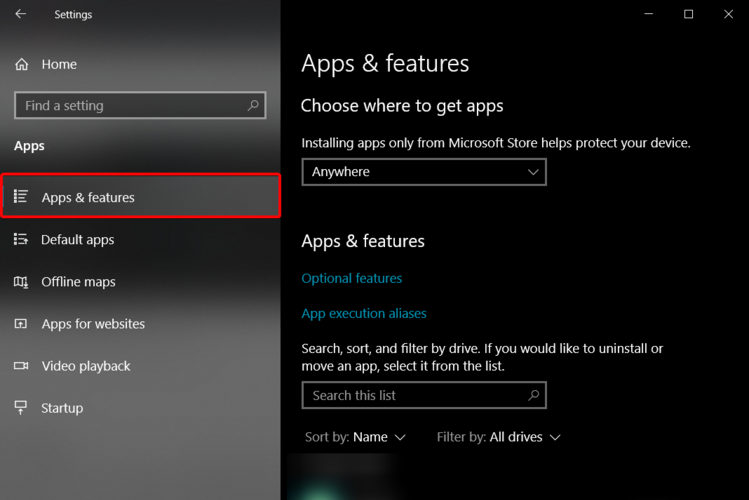


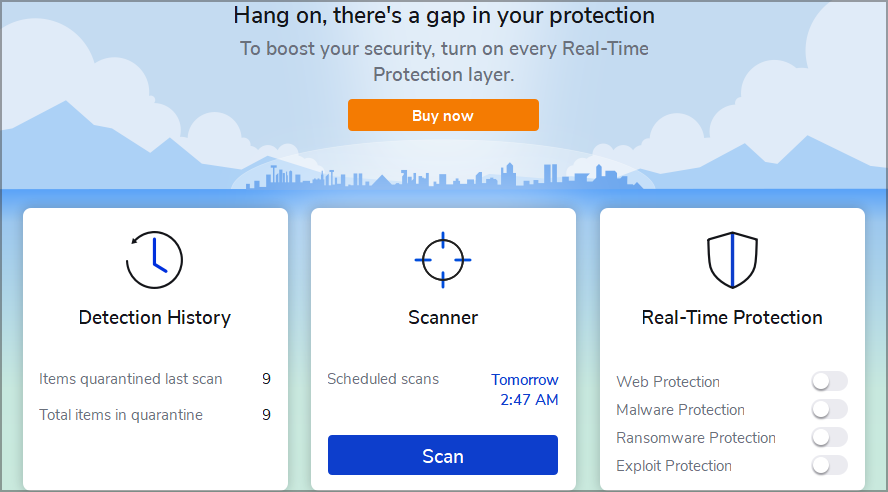
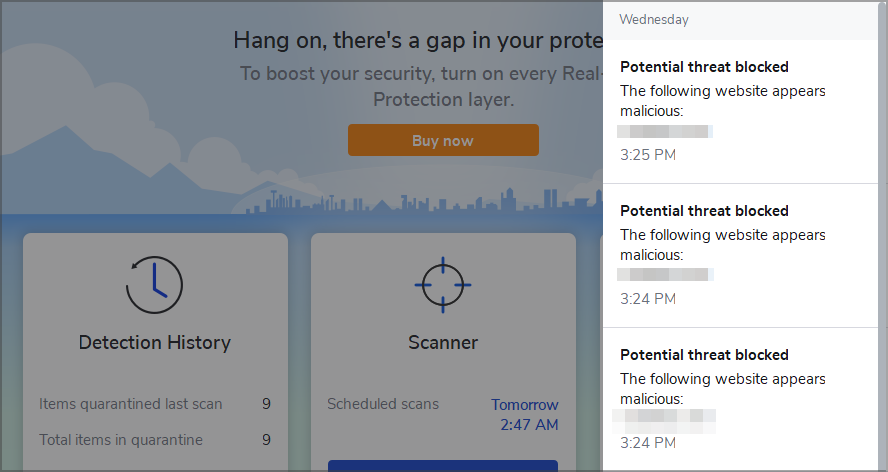

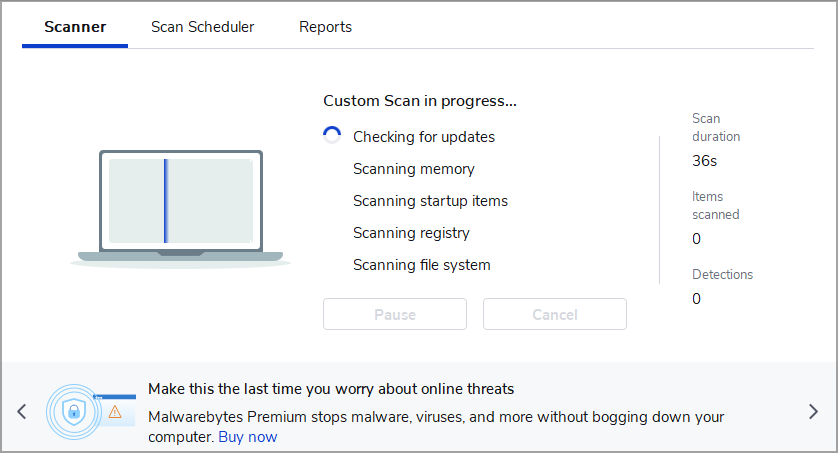
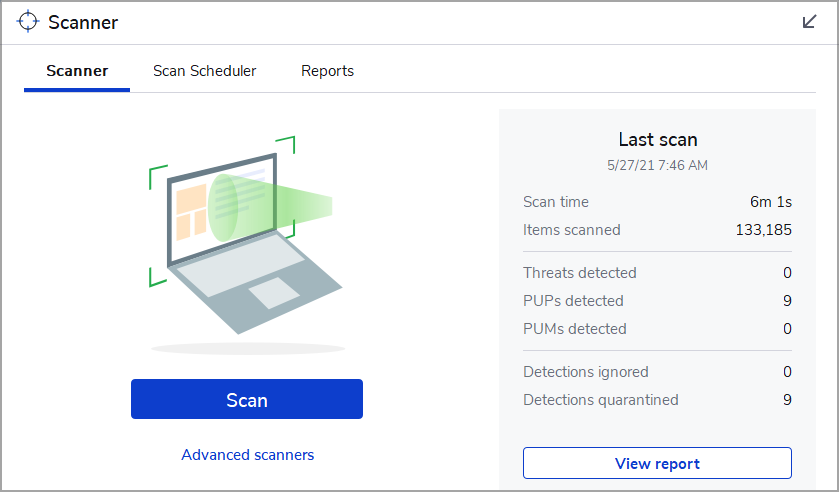
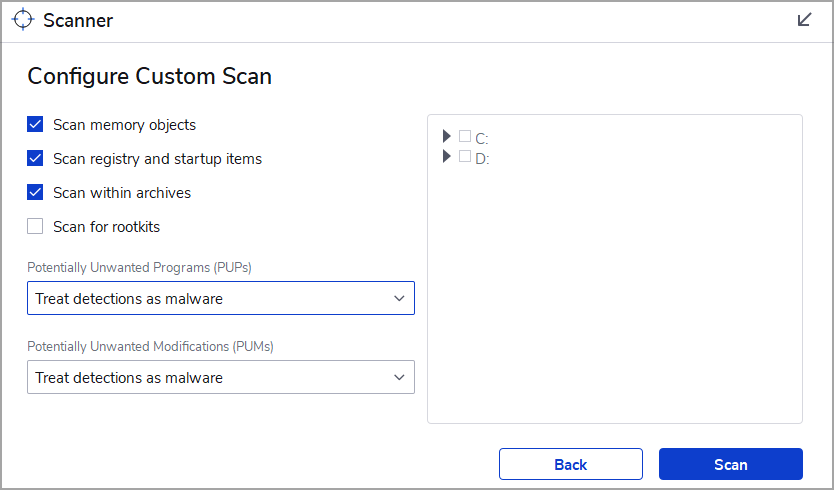
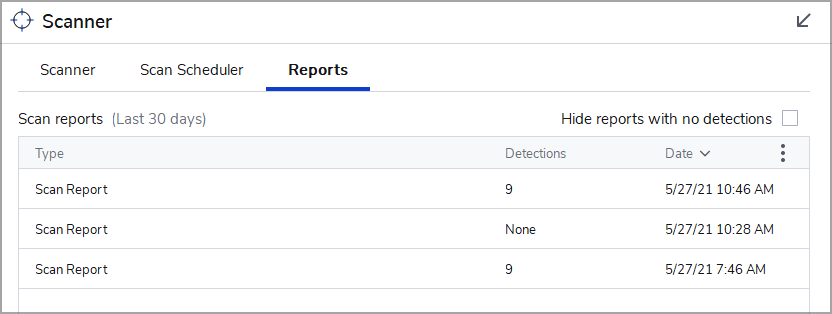

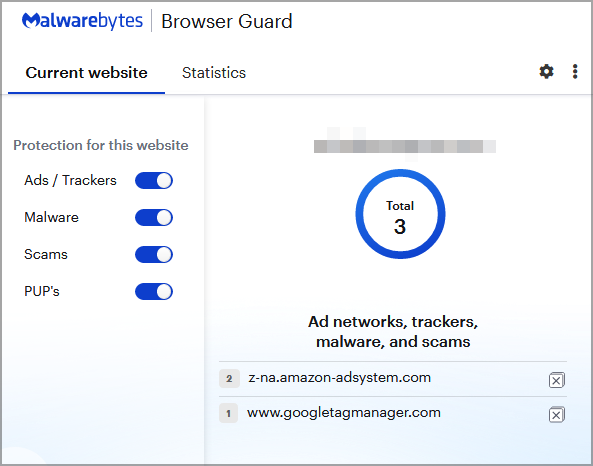
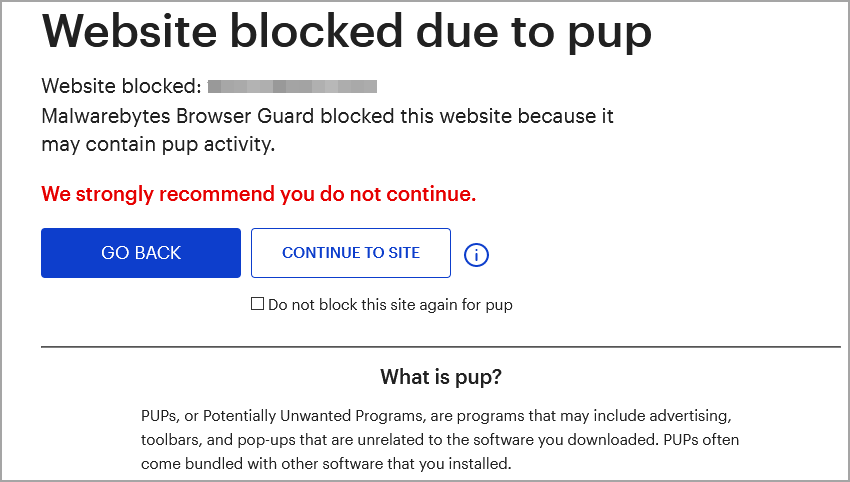
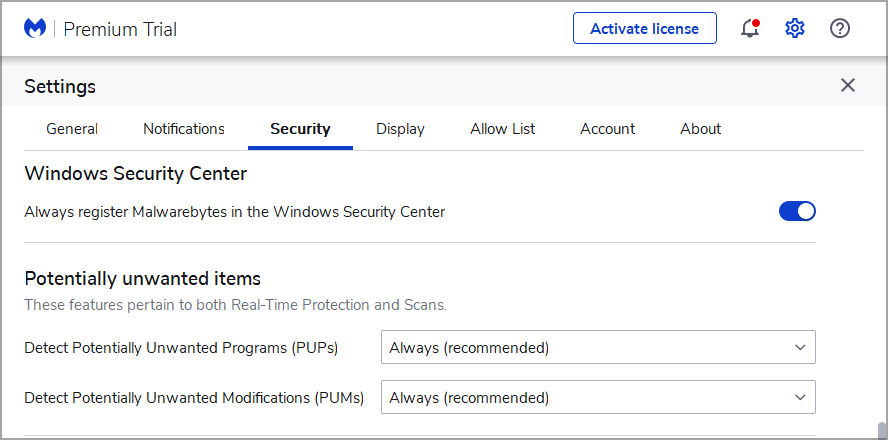
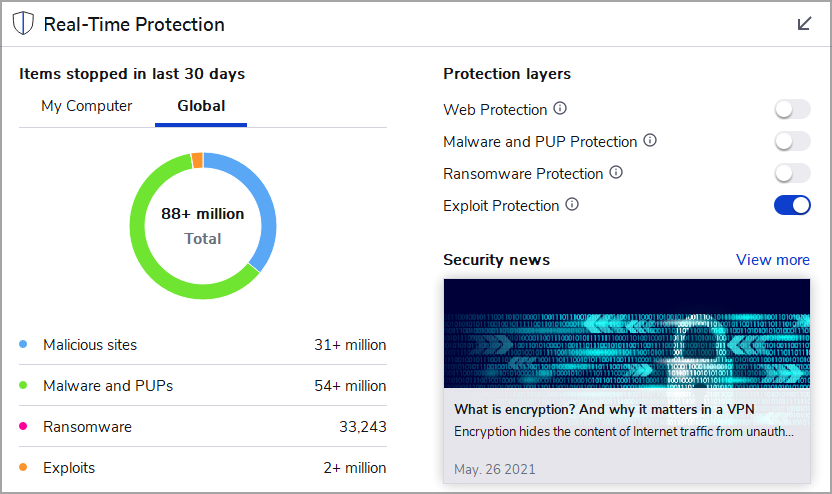
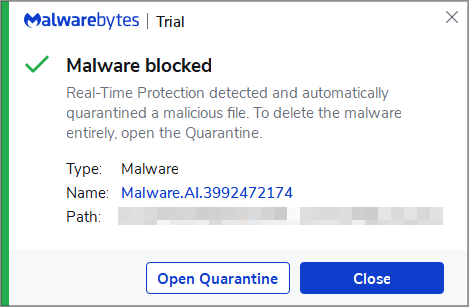
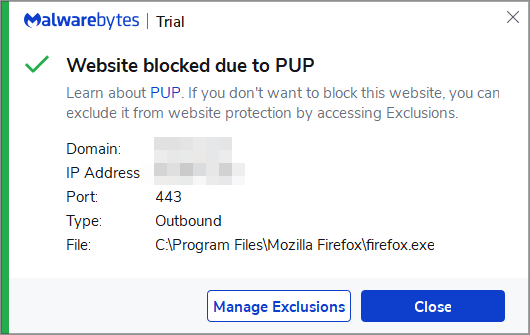

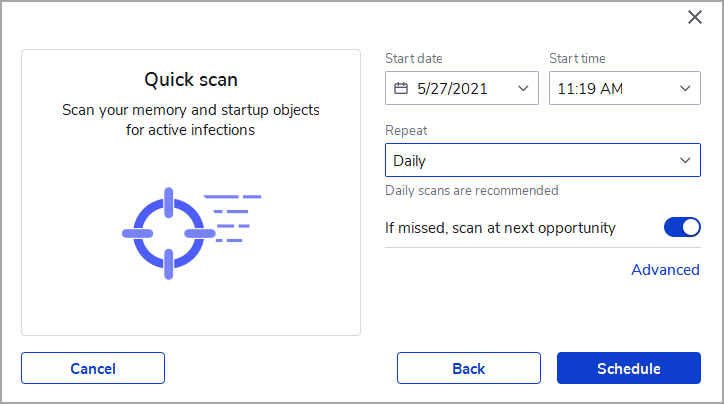
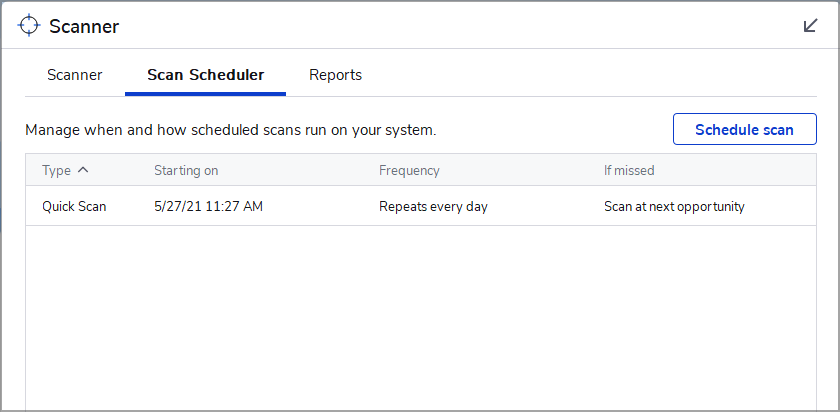





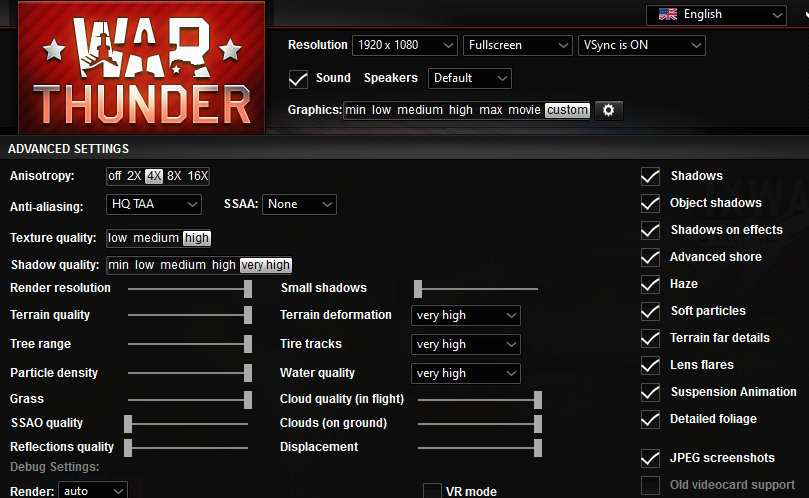
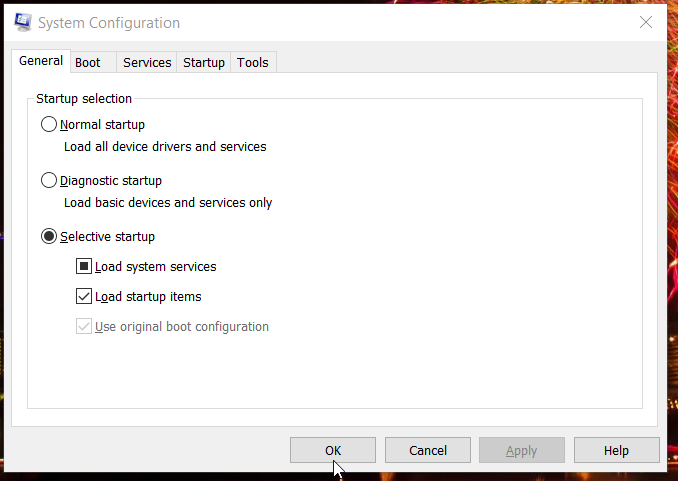
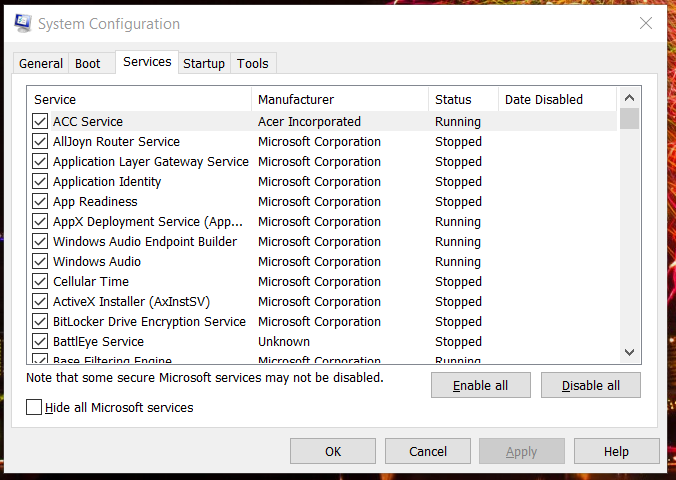


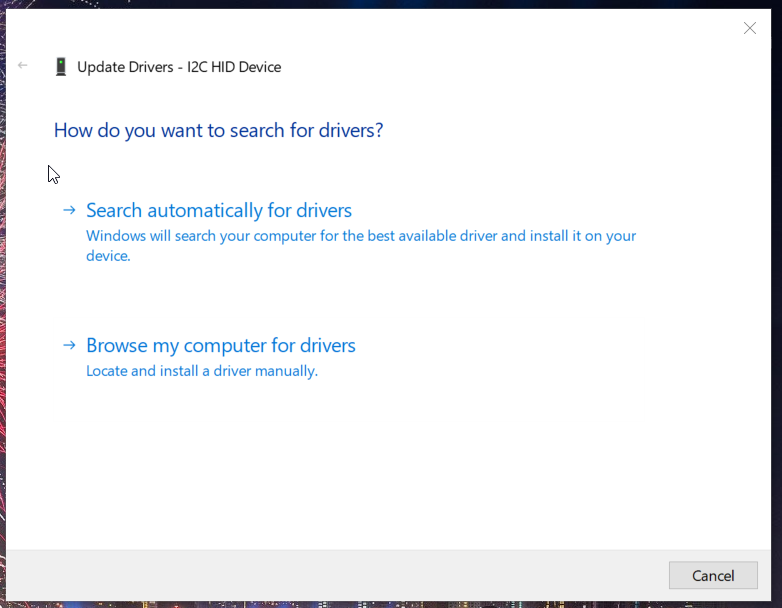
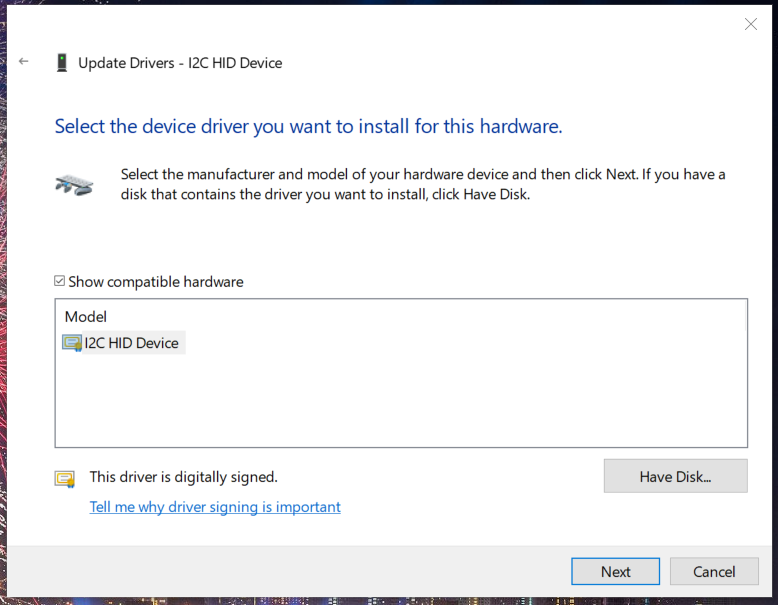
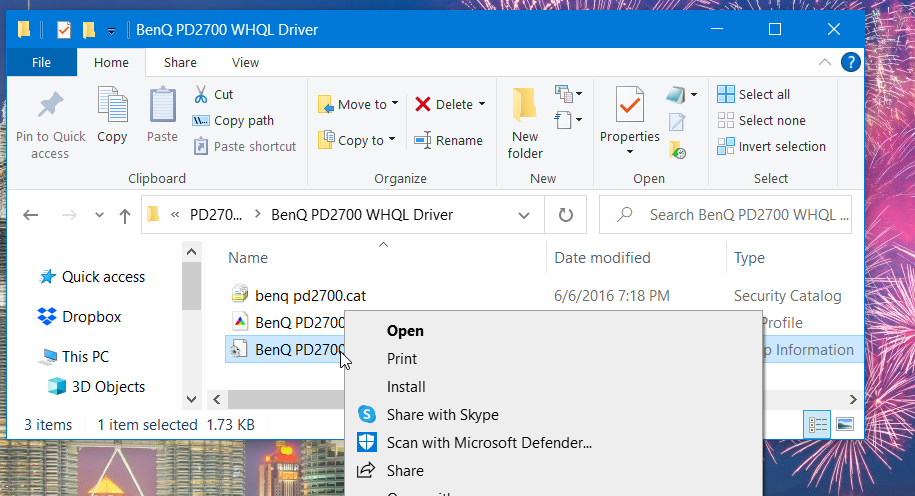
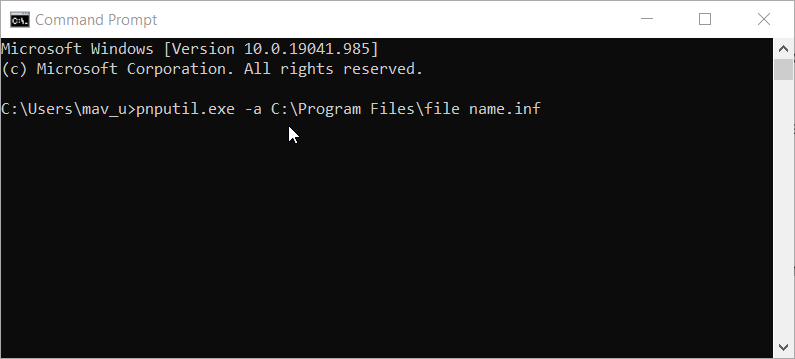
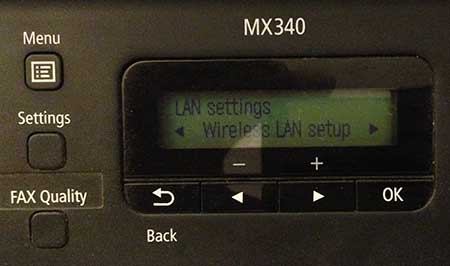


![How to recover your Zimbra login details [Quick Guide]](https://windowsreport.com/wp-content/uploads/2019/10/zimbra.jpg)



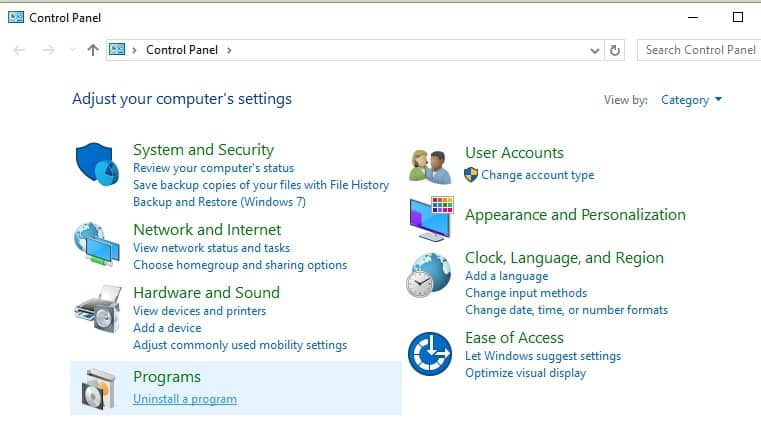


![4 best robotics kits for adults to buy [2020 Guide]](https://windowsreport.com/wp-content/uploads/2019/12/Best-robotics-kits-for-adults-to-buy.jpg)