How to use the Alt+Tab shortcut after Windows 20H2 update

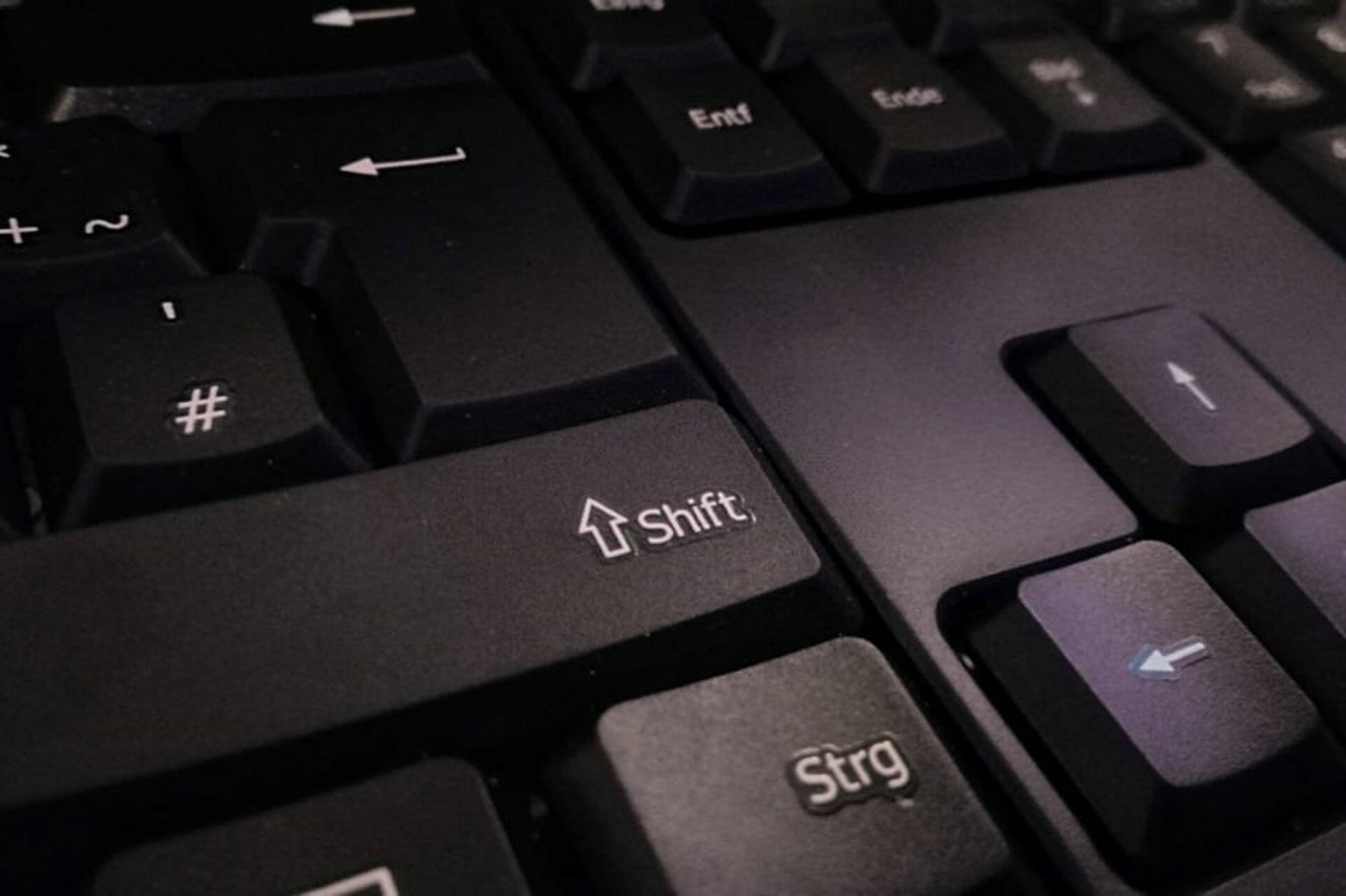
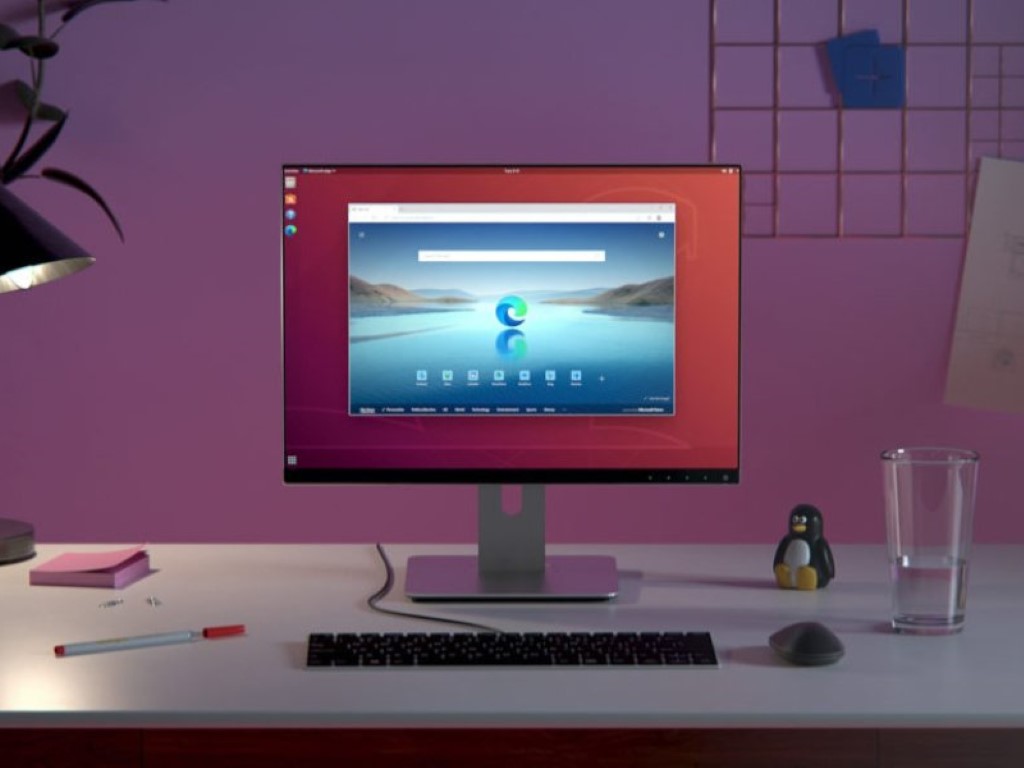
One of the novelties that Microsoft introduced along with the Windows 10 October 2020 update is a new functionality for the Alt+Tab shortcut.

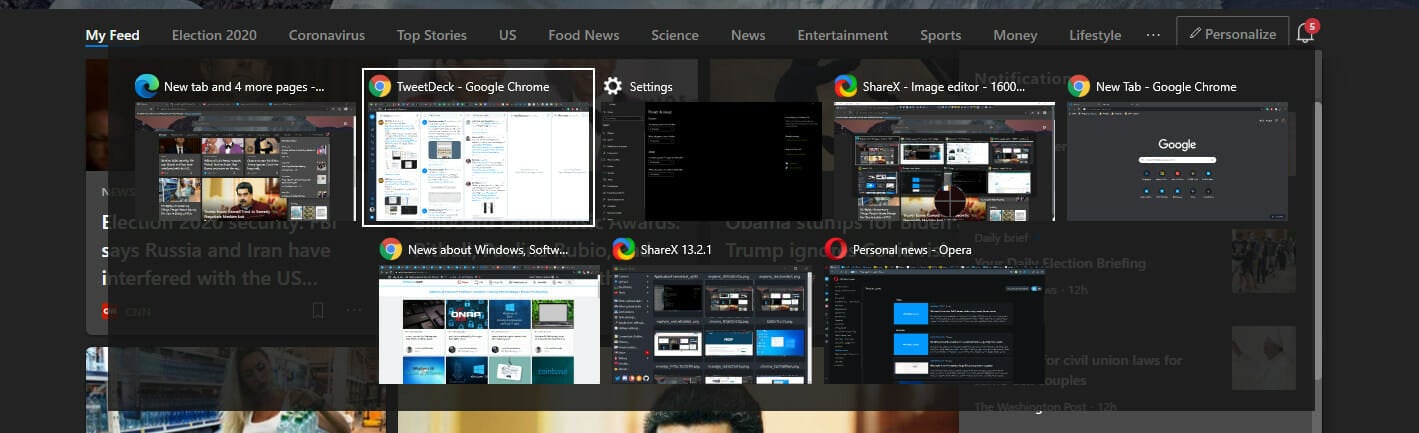
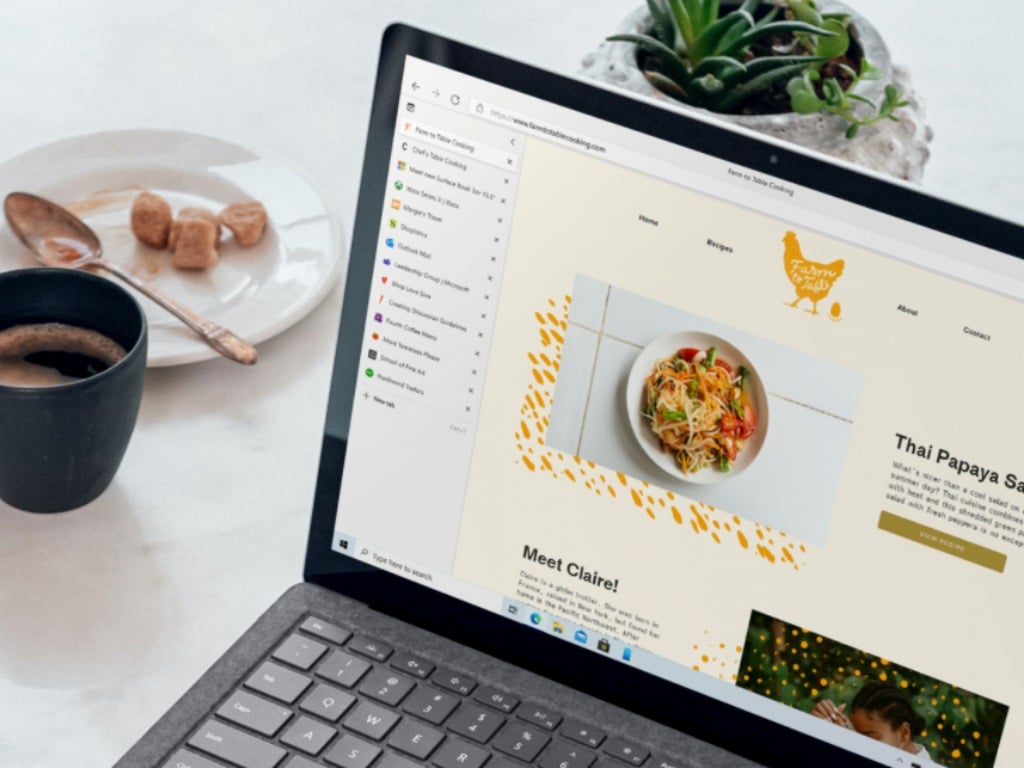
Namely, if until now the Alt+Tab hotkey allowed you to switch between multiple running apps or tasks, starting version 20H2 the multitasking panel will also include your open Edge tabs.

According to Microsoft, much of what has been implemented in this update was as per users’ feedback. However, the users are now confused about the mentioned multitasking feature.

Or, as one user puts it on the official Microsoft Edge forum:

My problem is Edge appear so many tabs when I press Alt+Tab.

Luckily, there’s also a little trick that you can use to customize the Alt+Tab hotkey behavior after this update.

How can I see only a few tabs when using the Alt+Tab shortcut?

switch tabs desktop
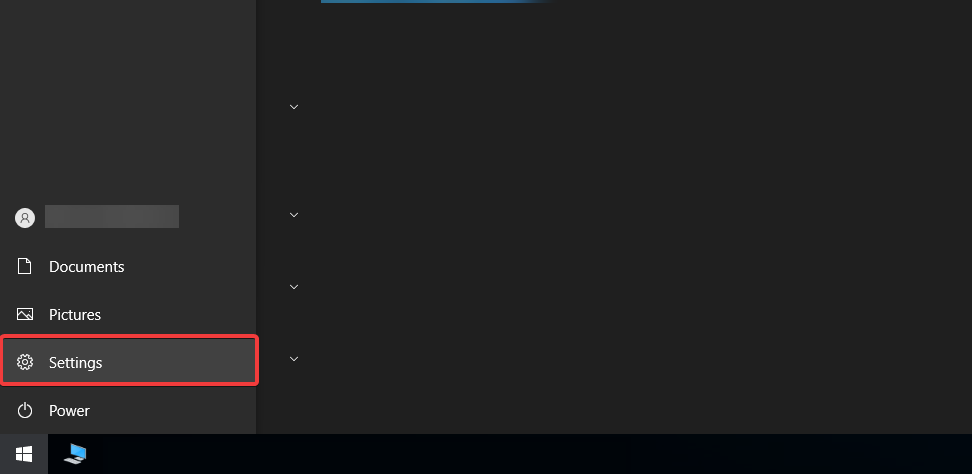
  1. Open the Windows settings.
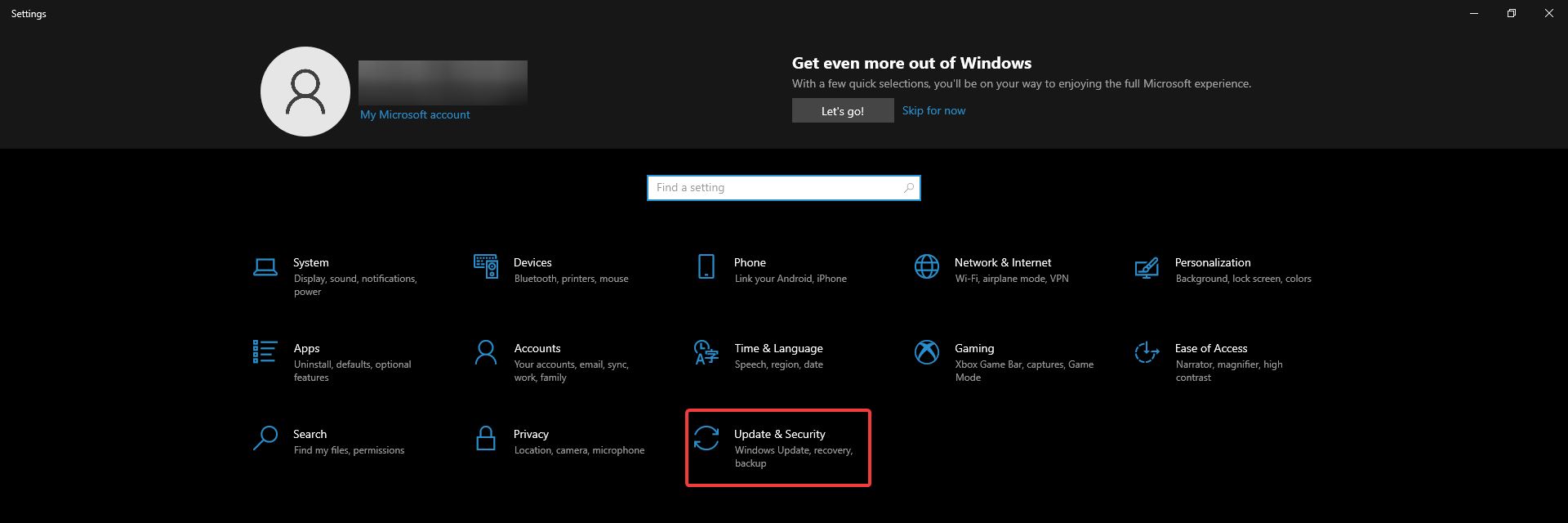
  2. Choose System.
  3. In the left pane, go to Multitasking.
  4. Look for the option that says Pressing Alt+Tab shows… and open the drop-down menu.user alt tab after windows update
  5. Here, choose from one of the options:
  • Open windows and all tabs in Edge
  • Open windows and 5 most recent tabs in Edge
  • Open windows and 3 most recent tabs in Edge
  • Open windows only.

And this should do the trick and limit the number of tabs you see when using the Alt+Tab shortcut.


Alt+Tab shortcut not working at all in Windows? Here are 7 handy solutions.


Mind that apart from this kind of confusion after installing the latest Windows 10 update, a lot of users reported various issues.

On this note, you might find useful our exhaustive article that tackles some of the blockers reported on the forums so far as well as useful fixes.

What’s your take on the updates that Microsoft has implemented in version 20h2? Tell us in the comments section.

[wl_navigator]

You’ll need a Microsoft account to play Minecraft: Java Edition

When it comes to voxel games, few have left their mark in a more profound way than Minecraft, and it is still going strong today, which is the best-selling game of all times as of the writing of this article.

Fans of the game are probably familiar with the fact that the game exists in two versions:

  • Minecraft: Java Edition
  • Minecraft for Windows 10

Well, ever since Mojang was bought by Microsoft, many changes have come to the game, and it seems a new one will be landing next year that will improve security.


Minecraft: Java Edition will be played only via Microsoft accounts

Up until now, playing Minecraft: Java Edition still required you to log in with the account you purchased the game on, the only difference was that that account could be of any kind, such as Yahoo or Gmail.

However, according to a post on the Minecraft forums, this will all change by next year since Microsoft accounts will now be mandatory in order to play the game.


All players now need to migrate to a Microsoft account

Apparently, this change was done to benefit the player, since Mojang stated that Microsoft offered more features compared to any other type of account:

  • Increased security for your account with two-factor authentication. In other words, it’s harder for someone to access your account without your permission.   
  • All your PC Minecraft games will be connected to the same account. Currently, that’s Minecraft and Minecraft Dungeons, but who knows what we’ll do next?   
  • Improved parental controls to help keep kids safe when playing online.   
  • Chat and invitation blocking.  

The migration will be as seamless as possible

The good news is that the migration itself will be the only change that players will actually feel, since all mods will still be functional, they will be able to keep their skins, and even their usernames.

On the other hand, Mojang also wanted to underline the fact that the transition is mandatory, and there won’t be any workarounds to the process.

The bright side to all of this is that Microsoft is preparing a small prize for those that go through the migration in the form of an in-game cape that they can use.

However, since Minecraft: Java Edition is played by so many players (~30 million), the transition will not be done in one single move.

Instead, it will be done in batches, and everyone that owns the game will get detailed instructions on how to migrate to a Microsoft account once their turn is up.


What’s your take on this change to one of the world’s most popular video games? 

Let us know what you think by leaving us your thoughts in the comments section below.

[wl_navigator]

Developers can now release Chromium-based PWAs on the Windows 10 Microsoft Store

After replacing its legacy Edge browser with a new Chromium-based version this year, Microsoft is now allowing app developers to submit Chromium-based Progressive Web Apps (PWAs) to the Windows 10 Microsoft Store. The PWABuilder team has just announced the preview release of the new Edge PWA platform, providing developers a straightforward way to package Chromium-based PWAs for the Microsoft Store.

Microsoft started welcoming PWAs to the Windows 10 Microsoft Store two years ago, and at some point the company experimented with crawling and indexing quality PWAs from the Web to automatically list them in the Microsoft Store. This plan never really took off and quality PWAs remain a rarity on the Store, with Twitter being one of the rare exceptions.

By embracing the Chromium open source project, Chromium-based PWAs can leverage new Web Standards APIs to make PWAs behave even more like native apps. These PWAs will still run in their own window without the browser UI, appear in the Start Menu, in the taskbar (if you want to), as well as the Apps & Features section of the Settings app.

One of the advantages of the transition to Chromium is that PWAs available in the Microsoft Store will be automatically updated via Microsoft Edge. this is a key advantage for PWAs over Electron or Webview based apps, as there is nothing the developer needs to do for their PWA to be running on an up-to-date version of Edge”, explained Justin Willis, Program Manager on the PAX Web team.

In this first preview release of the new Edge PWA platform, some features that were supported for EdgeHTML PWAs are currently missing. The list includes Live Tiles support and splash screens, and the PWABuilder team isn’t confirming yet if they will be added later. “We will keep the community updated as we continue to iterate on the preview,” Willis wrote.

To get started with the new PWABuilder preview, you’ll just need to visit pwabuilder.com where you can submit the URL of your PWA. The online tool will then analyze your PWA and then package it so you can submit it to the Microsoft Store or other app stores. It remains to be seen if the Microsoft Store will soon get many more quality PWAs, but Microsoft is now making it really easy for developers to have a presence on its app store.

Former Windows chief Terry Myerson announces Truveta, his new healthcare data company

Terry Myerson, former Microsoft’s Windows and Devices chief, announced his new healthcare company “Truveta” today. Myerson says that he has launched this new initiative to drive innovation and develop new patient-care therapies.

“Today is an exciting day as we begin our journey as Truveta. Our inspiration is our vision – Saving Lives with Data. As the COVID-19 pandemic continues to impact our world, loved ones, and daily lives, the opportunity to apply data in the development of breakthrough health solutions has never been clearer. We will pursue this vision in close collaboration with health systems, life science researchers, physicians, and others in the health community. We are energized by our compassionate vision and humbled by the complexity ahead,” said Myerson.

Thanks to his candid post on Truveta blog, we get a bit of insight into what his audience can expect to see him doing next in the healthcare industry. Myerson noted that the amount of health data had grown dramatically over the last few years. Due to the COVID-19 pandemic, the healthcare industry is expected to generate around 2,314 exabytes of new data in 2020. However, the data is currently unstructured and inaccessible for insights across diagnosis, treatments, geographies, or demographics.

With this new company, Myerson aims to develop solutions for generating insights to improve diagnoses and patient care. He also added that his team plans to collect feedback from the health care industry to guide their efforts. Right now, Myerson is rapidly building a team, and there’re several open positions for job seekers. If you are interested, feel to check out the official website to learn more.

How to Fix Error 42127 Cab Archive is Corrupted the Easy Way

When installing a new app or working on your computer, randomly, you may come across the 42127 cab archive is corrupted error. This error occurs when the system fails to access the files of the application you are trying to run.

Now, the aforementioned error can occur due to two reasons. The first is your Antivirus, suspecting the files are malicious and blocking them to protect your system.

In other instances, it can be a virus that has corrupted the cab archive required by the application.

If you are also experiencing this error, here are some troubleshooting steps to help you resolve the 42127 cab archive corrupted error in Windows.

How can I fix error 42127?

1. Check for broken Windows update

42127 cab archive corrupted

If you notice the error when scanning with your Antivirus, the error can be triggered due to a broken Windows update. You may not have to take any action provided you can verify that the CAB file is valid.

To check the digital signature of the CAB file, right-click on the file and select Properties. No further action is required if you are sure the file is legit.

However, if the file is suspicious, delete the file to be on the safer side. Manually navigate to the specified directory and delete the file to fix the error. Run your Antivirus again to see if the error is resolved.

2. Check for malware issues

Sometimes, an error can occur when installing an application on your computer. Apart from failing to install, you may also notice some system functionalities, like the Internet not working.

In this case, you may have system file corruption or malware changing the cab files, blocking the use.

To identify the problem, you can scan your computer using Windows Defender, but we recommend you use a third-party tool for better and more accurate results.

Luckily, the antivirus market has plenty of worthwhile anti-malware software. Make sure to use a tool like ESET HOME Security Essential that leaves no weak points and has multi-layered protection.

This software is constantly updated as threats are constantly emerging, and you want to ensure that your security system keeps up.

After you decide to install it, run a full PC scan. Remove any threats found and reboot your PC. See if the error persists.

If interested, read this guide to explore .cab files and how to install them.

⇒ Get ESET HOME Security Essential

3. Restore PC with Restore Point

antivirus errors
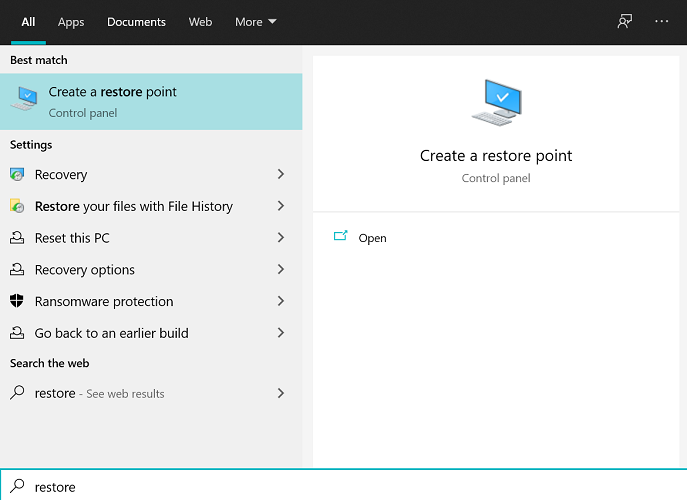
  1. Press the Windows key, type Restore, click on Create a Restore Point.
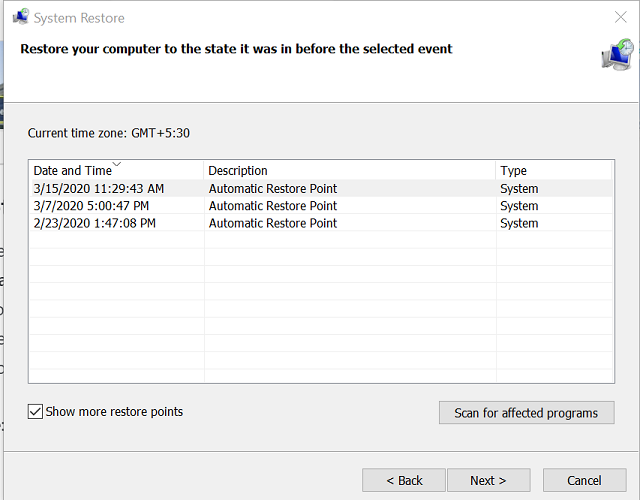
  2. Click the System Restore button in the System Properties window.
  3. Click Next.
    42127 cab archive corrupted
  4. Select the most recent restore point and click Next.
  5. Read the description and click Finish.
  6. System Restore needs to restart your computer to apply changes. Make sure you have saved all the open files and close programs.

After the PC is restored to the earlier point, check if the error is resolved. The System Restore point does not delete files stored on your computer. However, it may uninstall or reinstall some apps depending on when the Restore Point was created.


4. Clean install Windows

Roll back to the previous version of Windows

42127 cab archive corrupted
  1. Press the Windows key + I.
  2. Click on Update & Security.
  3. Open the Recovery tab from the left pane.
  4. Click the Get Started button under the Go back to the previous version of Windows 10 section.
  5. If the button is greyed out, it means the option is no longer available.

If you are unable to fix the error, you may have to clean install Windows 10. You can get a clean install of Windows 10 with the Refresh Tool as well.

The 42127 cab archive is corrupted error is triggered due to missing or corrupted cab archives of the app you are trying to install. You can fix the error by deleting the archives. Scan the system with your antivirus software to look for any malware infection.

Microsoft Teams new Meetings experience adds full screen support and meeting options

Microsoft Teams has recently received a new update on the desktop that includes two new features that should help to improve productivity at work. These features were spotted by Tero Niemi, a User Adoption Consultant who focuses on Microsoft Teams.

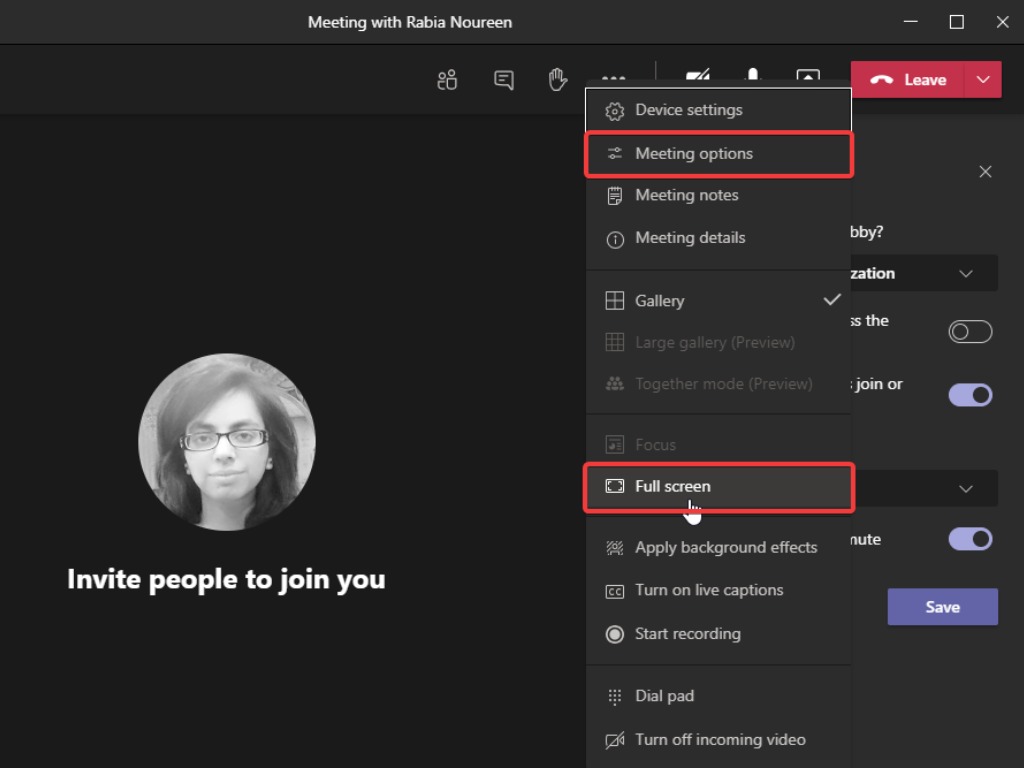
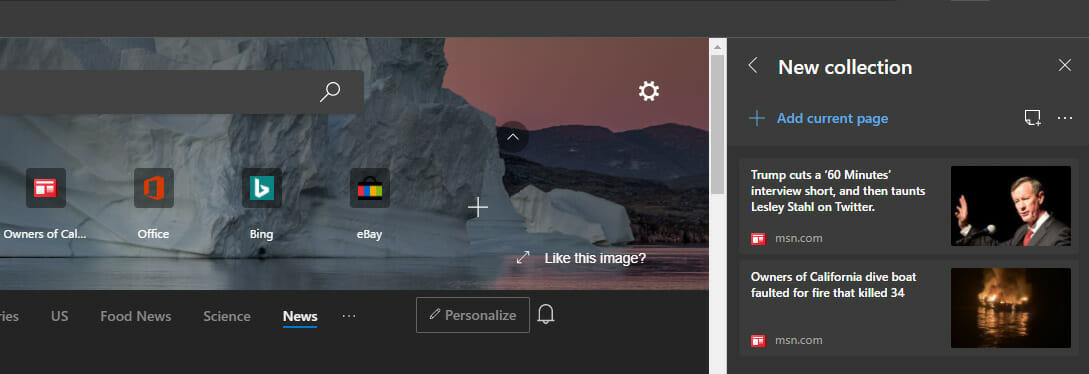
First and foremost, the app now allows Teams users to enable the Full screen mode in the new meetings experience. The “Full screen” option is available in the More actions menu (…), as shown in the featured image. Once clicked, the meeting window should fill up the whole screen. As a result, the app will automatically hide the title bar on the top and task bar on the bottom of the window.

Additionally, beginning with this new update, Teams meeting organizers can now view and manage meeting options directly in the new meeting experience. This new meeting options panel supplements the current meeting options webpage, and it brings the ability for organizers to open meeting options as a sidebar during the meeting.

In the Teams meeting window, click the More actions menu (…) to access the Meeting options. The new experience makes it faster and easier to control settings such as who can present, allow attendees to unmute, and more.

It is worth noting that both features are currently available in the Teams desktop app with the new meeting experience. Classrooms and Webinars can have a large number of people, and at times it’s hard to manage meeting options while the meeting is in full swing.

This change has been made based on user feedback, and it’s good to see Microsoft is now focusing on shipping updates for Teams at a much faster pace. Additional improvements are also on their way to Microsoft Teams, and more information is available on our dedicated Teams Hub.

Edge gets new “axe” accessibility tester extension from Deque Systems

Accessibility, the ability for people with “visual, auditory, motor, speech or cognitive disabilities and their various assistive technologies” to interact with websites, is a too often overlooked area of web development. There are a number of tools to help devs make sure their sites are accessible, and now one of the best of them is available as an extension for the Microsoft Edge browser.

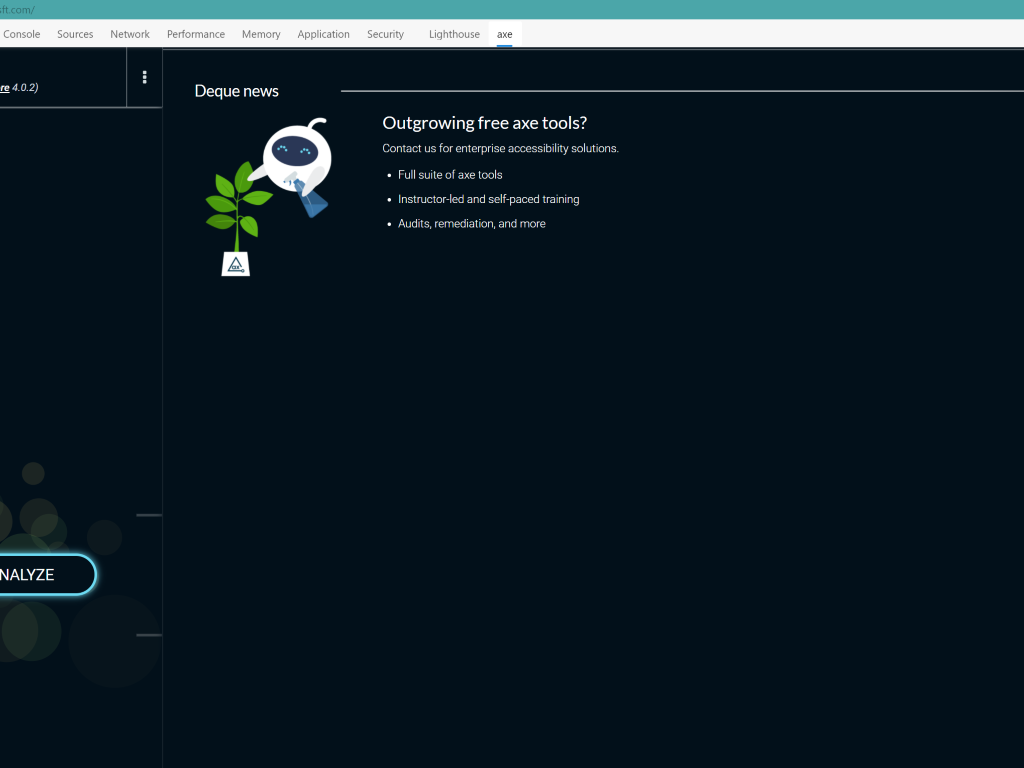
Deque Systems makes axe, a tool that installs in a browser’s developer console (axe is already available to Chrome and Firefox), and can then analyze a web page for accessibility issues, providing a list of issues that could hinder accessibility.

A blog post on Deque System’s web page announced the new Edge Extension today, noting that over 135,000 people each week use the extensions, and promises “zero false positives,” concentrating their tests on problems that can accurately be detected via automation.

“The axe extension helps developers catch over 50 percent of accessibility problems while coding, dramatically reducing the time and cost of manual accessibility testing,” says Dylan Barrell, Chief Technology Officer at Deque Systems. Now development teams using Chrome, Firefox or Edge can easily check for accessibility defects right from the browser.”

We’ll be using the axe extension to identify and correct accessibility concerns, and running the tool shows that we have some work to do, including making sure to label page content with landmarks, provide unique title attributes, and improve color contrast. It’s something that we, like most small (and some large) developers overlook, but can place unintended barriers by not following some simple rules.

You can install the axe extension for Edge from the Microsoft Store and try it out for yourself, just open the F12 developer tools on a page you want to check, navigate to the “axe” tab, and click Analyze.

Android users can now play 10 new Xbox Cloud Gaming titles using touch controls

Last month, Microsoft allowed Xbox Game Pass Ultimate subscribers to play over 100 games from the catalog on Android devices via Project xCloud, which the company now calls “Cloud Gaming.” You need an Xbox Wireless controller or third-party controllers to play Xbox games on Android phones or tablets, though Microsoft is working hard to add touch controls for games in the catalog.

Minecraft Dungeons was the only game that supported touch controls on Android at launch, but 10 new Xbox Game Pass games are getting touch controls starting today. The list includes Dead Cells, Guacamelee! 2, Hellblade: Senua’s Sacrifice, Hotshot Racing, Killer Instinct, New Super Lucky’s Tale; Slay The Spire, Streets of Rage 4, Tell Me Why, and UnderMine.

Cloud gaming Touch Controls

“Touch controls have been one of the top-requested features for cloud gaming, so to build this collection we worked closely with players and game designers to create a familiar experience, and support a level of play that you’re used to with a physical controller. For each title that uses Xbox touch controls we’ve worked to create an experience designed specifically for that game on mobile devices,” explained Catherine Gluckstein, GM & Head of Product, Project xCloud.

Microsoft plans to bring touch controls to more Game Pass titles available on Android over time, and it’s good to see that each game can have customized buttons that don’t necessarily reflect the different buttons on the Xbox Wireless Controller. Google’s competing Stadia cloud gaming service also added touch controls support earlier this year, though the company simply started by adding all buttons from the Stadia controller on smartphone screens.

Best Mini DV To MP4 Converter [2026 Guide]

Not many people use camcorders nowadays, but if you’re still using one, you might want to convert MiniDV to MP4 and store your recordings in a digital format.

This isn’t hard as you think, as long as you have a proper tool for the job, and in today’s article, we’re going to show you the best software to convert MiniDV to MP4.

What is the best software to convert MiniDV to MP4?

WinX HD Video Converter Deluxe

If you need to convert MiniDV to MP4, then you might want to consider using WinX HD Video Converter Deluxe. What makes this software stand out from the rest is the support for a wide array of formats and devices.

Regarding the supported devices, the software works with action cameras, drones, DSLRs, mirrorless cameras, camcorders, surveillance cameras, computers, tablets, and smartphones.

In terms of supported formats, WinX HD Video Converter Deluxe supports over 370+ input formats and over 420+ output formats, allowing you to easily convert any file type to MP4.

It’s worth mentioning that the software also supports basic video editing, allowing you to cut, crop, merge the videos, or adjust their volume levels. You can also add or correct subtitles if needed.

WinX HD Video Converter Deluxe is a great tool for file conversion, and it should be able to handle almost any file type with ease.

WinX HD Video Converter Deluxe features:

  • Support for over 370+ input and over 420+ output formats
  • Basic video editing features
  • Supports a wide array of different devices
  • Ability to download online videos
  • Uses Level 3 hardware acceleration for conversion
WinX HD Video Converter Deluxe

WinX HD Video Converter Deluxe

If you need to convert MiniDV to MP4 or to any other 420 output formats, WinX HD Video Converter Deluxe is the right tool for you.
Free trial Visit website

Any Video Converter

Converting MiniDV to MP4 is simple especially if you’re using tools such as Any Video Converter. Speaking of supported formats, the software can work with over 200 different video formats.

It’s worth mentioning that this software offers 30 times faster speed compared to other multimedia converters. Another feature that is worth mentioning is hardware acceleration.

Any Video Converter supports NVIDIA NVENC, AMD AMF, and Intel QSV hardware acceleration allowing you to get maximum performance while converting your files.

If needed, you can also convert DVDs and CDs to digital format, and there’s also support for HEVC codec out of the box.

Any Video Converter Ultimate offers great features, and it’s a perfect choice if you need to convert MiniDV or any other multimedia format.

Any Video Converter Ultimate features:

  • Support for over 200 video formats
  • Video editing feature
  • Ability to download online videos
  • 30x faster file conversion
  • Screen recording
Any Video Converter

Any Video Converter

Any Video Converter is a powerful video conversion software that can convert MiniDV to MP4 30x faster than other tools.
Free trial Visit website

Movavi Video Converter

Movavi Video Converter supports over 180 formats, and it can easily convert MiniDV to MP4 or any other multimedia format.

According to the developers, thanks to the SuperSpeed technology, the software is up to 70 times faster than other tools on the market. Of course, the hardware acceleration feature is available as well.

The software supports NVIDIA NVENC, NVDEC, Intel HD Graphics, and AMD hardware acceleration, and there’s also full support for multicore processors for maximum performance.

If you’re looking to transfer files to other devices, you’ll be pleased to hear that the software has over 200 presets for all popular devices such as smartphones, TVs, consoles, etc.

Movavi Video Converter is a great multimedia converter, and if you need to convert MiniDV files, be sure to try it out.

Movavi Video Converter features:

  • Support for over 180 formats
  • Hardware acceleration and multiprocessor support
  • Presets for over 200 devices
  • Simple to use interface

Movavi Video Converter

Movavi Video Converter lets you convert MiniDV to MP4 or one of many other supported formats.
Free Trial Visit Website

Prism Video Converter Software

Another great tool that can convert MiniDV to MP4 with ease is Prism Video Converter Software. Regarding the number of supported formats, the software works with more than 130 file types.

The application works with individual files, but it also supports batch conversion, allowing you to convert multiple files simultaneously. If needed, you can also convert videos from an ISO file using this tool.

Prism Video Converter Software supports basic video editing, allowing you to add video effects or trim and split your videos with ease.

As for conversion, you can easily adjust the compression rate as well as the encoder. If needed, you can change the resolution and frame rate of the output file with just a couple of clicks.

Prism Video Converter Software is incredibly simple to use, and if you’re looking for a simple but powerful file converter, be sure to try it out.

Prism Video Converter Software features:

  • Lightning-fast conversion
  • Batch conversion
  • Support for more than 130 file types
  • DVD converter
  • Basic video editing

=> Download Prism Video Converter Software

Audials One

Audials One might not be a standard multimedia converter, but it can still convert MiniDV to MP4 with ease. The software works with over 100 file formats, but it also has various presets for a wide array of devices.

The application also has support for lyrics, albums covers, and ID3 tags, allowing you to organize your music collection with ease. Of course, the software allows you to edit tags on multiple files simultaneously.

The software also allows you to record audio, and it supports recording from various online streams. Of course, all major formats are supported in 320kbps quality.

It’s worth mentioning that video recording is also supported, and the process relies on your graphics card, so you’ll get video recordings in the best possible quality.

Audials One is first and foremost a multimedia recording app, but it does offer a multimedia conversion feature, so you might want to try it out.

Audials One features:

  • Ability to record online video and music
  • Built-in file converter
  • Incredibly simple to use
  • Music tagging and organizing
  • Advanced multimedia management

=> Download Audials One

Converting MiniDV to MP4 is simple as long as you have the proper tools, and we hope that our guide has helped you pick the right software for this task.

[wl_navigator]

4 Ways to Fix Your GIMP Eraser When It’s Not Working

GIMP is a great freeware alternative to Photoshop, and although it doesn’t have certain features, it’s still one of the best image editors on the market.

This occurring issue on your editing software can be very unpleasant when you need to erase any elements on your picture or composition.

In any case, the good news is that you can fix the error with the eraser in GIMP with a few changes to your settings.

Many users reported that the GIMP eraser is not working for them. This can be a problem, and in today’s article, we’re going to show you how to fix that once and for all.

How do I erase to transparency in GIMP?

If you need to edit your photos frequently and erase certain sections, you must learn the way to erase to transparency.

The first step would be to check the color channels on your image. Basically, you have three colors on the software that will color the image if you don’t set an alpha channel.

Using an alpha channel will help to remove the image pixels and achieve transparency with your eraser tool.

More exactly this fourth channel is a transparency layer that removes color pixels and replaces them with transparency.

Why is my eraser not working in GIMP?

What to do if GIMP eraser is not fully erasing?

If GIMP Is not fully erasing, it’s advised that you check your eraser settings and make sure that the opacity of the eraser is set to 100.

In case that doesn’t work, be sure to try one of the solutions below.

1. Add an alpha channel

  1. Select the layer whose contents you want to erase.
  2. Right-click the layer and choose Add Alpha Channel.
    add alpha channel gimp eraser not working
  3. After doing that, try to erase the content again.

This solution is pretty simple, and it can help you if the GIMP eraser is not erasing to transparent.

2. Check the layer and eraser settings

  1. Make sure that the proper layer is selected.
     layers gimp eraser not working
  2. Check the layer and make sure it’s not locked for editing. For the layer to be completely unlocked, all of these three icons need to be deselected.
    lock layer gimp eraser not working
  3. Make sure that you don’t have an area selected on your layer. Press Shift + Ctrl + A to deselect everything.
  4. Check eraser opacity, size, and hardness. Also, make sure that the Anti erase option is disabled.
    eraser settings gimp eraser not working

These are just some general guidelines, but they might be helpful if GIMP eraser is not working with the alpha channel.

3. Reset the eraser tool to default settings

  1. Select the eraser tool in GIMP.
  2. Now click the Reset to default values icon.
    reset eraser gimp eraser not working

After doing that, the eraser settings will be restored to the default and the problem should be resolved. Keep in mind that this solution works only if the problem was caused by modifying the eraser settings.

4. Restart GIMP

  1. Close GIMP completely.
  2. Now, wait for a couple of moments.
  3. Start GIMP again.

Several users reported that certain glitches prevented them from using the eraser in GIMP, but after restarting the software, the problem was resolved for good.

If your want to learn more about GIMP, you can use a dedicated GIMP article.

Do you have additional problems with the software? Our PC Software Hub has all the fixes that you need.

An eraser is a pretty important tool in GIMP, and if the eraser is not working for you, hopefully, one of these solutions should help you fix the problem.

File Shrinking Software: 8 Best to Use in 2026

Shrinking file size is a great method to use less storage space on your PC. A compressed file keeps the same quality as the original one, but the unneeded data in the file is removed.

By compressing files, you’ll be able to store more files in your available storage space. Another benefit that comes as a result of compressing data involves bandwidth and transfer speed.

There are many file shrinking programs out there, and you might find it difficult to choose one.

This is why we created a list of the best file compression tools that will surely make your work easier and more efficient.

What are the best file-shrinking tools for Windows 10?

WinZip

Our first recommendation would be WinZip – an extremely popular file encryption and compression tool.

This software is useful to share, compress and backup files.

Additionally, you can also use WinZip for other file management operations such as finding, opening, editing, or moving files stored on PCs, networks, or cloud services.

The tool comes fully integrated with Dropbox, G-Suite, or OneDrive.

Some of the key features of WinZip are:

  • File compression & file merge
  • Data Backup
  • Cloud support
  • Data protection
  • PDF conversion & watermarking

”WinZip”

”WinZip”

”Compress,
”Free
&aff_sub2=Native” current_url=”true” button_text=”Get it now” image=”https://windowsreport.com/wp-content/uploads/2017/11/WinZip-button-210×160.png”]

WinRAR

This archiver is quite a powerful tool that allows you to create, control and manage archive files.

The program supports RAR and ZIP 2.0 archives, algorithms optimized for text, graphics, audio, 32-bit, and 64-bit Intel executable compression.

You can manage archives straight from Windows Explorer due to the shell integration.

The tool also features the drag-and-drop facility and cascaded context menus.

More of the main advantages this tool brings:

  • Wizards for beginners; command-line interface for the most advanced users.
  • A compression ratio of 10% to 50% over the standard methods.
  • Multivolume and self-extracting archives options.
  • Valuable extra tools including scan, convert, hardware test, and benchmark.
  • Lock, test, repair, or recover physically damaged archives or volumes.
WinRAR

WinRAR

Compress, encrypt, package and backup your most important documents with this efficient tool.

7-Zip

There is nothing to complain about this file shrinking tool as it works very reliably and will not cause any crashes or performance issues.

This program creates files up to 40% smaller than those of more common zipping techniques.

Some of the most important features of 7Zip are:

  • 7z-compression format with LZMA compression
  • Supported formats for packing are ZIP, GZIP, BZIP2, and TAR; unpacking formats are RAR, CAB, ARJ, LZH, CHM, Z, CPIO, RPM, and DEB.
  • Self-extracting capability for 7z format.
  • Integration with Windows Shell.
  • Powerful File Manager.
  • Plugin for FAR Manager.
  • Localizations for 59 languages.

⇒ Download 7Zip

PKZIP

These days, everyone stores data in the cloud in order to access all of their files remotely.

But not everyone likes this option or is willing to pay for cloud storage.

You can now compress files by up to 98% with PKZIP. This tool allows you to save valuable storage space and also to perform transfers easier.

Check out its most important features:

  • Compress and encrypt files straight from Microsoft Office using SecureZIP.
  • Support for AES or 3DES strong encryption.
  • Integration with Microsoft Outlook as well, and automatic encryption of any email or attachment.
  • Option to forward encrypted emails without the need to download and resave files.
  • The Professional edition features high-security support; Outlook integration; and command line integration.

⇒ Download PKZIP

FILEminimizer PDF by Balesio

best file shrinking tools

With the help of this tool, you will be able to compress your existing PDF files and documents by 40-75% and to preserve their original visual quality as well.

The tool will not create a zip or a RAR archive, and there will be no unzipping needed.

The optimized PDF files will be much smaller, and they’ll turn out perfect for sharing online and via email. You also have the opportunity to compress more PDF files at once with the help of the batch process.

More key features of the program:

  • Optimize pictures, graphics, objects and internal PDF structure.
  • Edit, view and change it without the need to unzip.
  • Search and find all PDF files via the integrated search assistant.

⇒ Download FILEminimizer PDF

ZipGenius

zipgenius

In case you have a cluttered hard disk, purchasing additional storage is not always the best solution, even if the larger hard drives are becoming more affordable these days.

ZipGenius is perfect for Windows, and it’s a freeware as well.

Some of the most important features:

  • It handles over 20 compressed archive types.
  • User-friendly, especially for novices.
  • Multi-language support.
  • Five different compression levels.
  • Full customization and integration in Windows Explorer.
  • Self-extracting exe files, complete with custom setup launch and icon.
  • Extra features such as encryption, scanner support, backup features, statistics, a download time calculator, disk spanning, file export and more.

⇒ Download ZipGenius

PeaZip Portable

best file shrinking software

PeaZip Portable is the perfect package in case you want to use a free file archiver and compressing tool without having to modify your system.

The tool is perfect when you prefer natively portable software as a replacement for installable programs.

You can also take it with you on a USB stick. The program is also ideal in case you want to try it without having to install anything on your system. All you have to do is extract and use it and delete its folder when you decide to remove the app. It’s that simple!

Other essential features:

  • Compress to 7Z, ARC, BZ2, GZ, *PAQ, PEA, QUAD/BALZ, TAR, UPX, WIM, XZ, ZIP format.
  • Read (open, view, extract) 150+ archive types.
  • Support for a vast array of advanced file and archive management features (search, bookmarks, thumbnail viewer, verify the hash, find duplicate files, file converter).
  • Strong encryption (AES, Serpent, Twofish), two-factor authentication, encrypted password manager, secure data delete.

⇒ Download PeaZip

BitZipper

In case you need help opening ZIP and RAR files, this compression tool targeted at Windows will enable you to open 47 different compression and encoding formats extremely easy.

Check out the key features of this compression program below:

  • Open a multitude of compressed files like ZIP, ZIPX, and RAR.
  • Built-in file viewer for viewing pictures and text files.
  • Protect data with strong AES 256-bit encryption.
  • Bulk file extraction using the Batch Tool.
  • Compatiblity with Windows XP, Vista, 7, 8 and Server editions.

⇒ Download BitZipper

These were the top file shrinking tools for Windows that we picked for you. They may come in handy when you want to reclaim space but can’t shrink a volume with unmovable files.

Check them all out and stick with the one that fits your data compression needs best.

[wl_navigator]

Is your USB 3.0 transfer speed slow? Fix it with 6 methods

Some users have said that their Windows 10 USB 3.0 transfer speeds are very slow for the USB 3.0 drives they’re utilizing.

Here is what one user stated in a Microsoft forum post:

Since updating to Windows 10, regardless of which stick I use… I get very slow transfer rates compared to when I was on Windows 7.

To fix slow USB 3.0 transfer speeds, check out these potential resolutions.

How can I fix a slow USB 3.0 transfer speed?

1. Update the USB drive driver

Let us tell you the first thing that you should do when your USB 3.0 transfer speed is slow. You should definitely try updating the USB 3.0 stick’s driver.

As you can already guess, driver updates are as important as Windows updates. To make that happen with ease, simply document and consider updating driver tools.

This offers you a convenient method to immediately update your USB 3.0 stick’s driver or all outdated drivers at once.

Plus, if you need to update specific drivers rapidly, you can do this and renew outdated drivers in a few clicks. Hence, to achieve that you only have to use the best update drivers software on your Windows 10 PC.

2. Reinstall your USB 3.0 controller driver

  1. At first, right-click the Start button in Windows 10 and select Device Manager.
  2. Next, click Universal Serial Bus controllers to open the window shown directly below.
    Device Manager usb 3.0 transfer speed slow
  3. Right-click your USB 3.0 controller and select Uninstall device.
  4. Then restart Windows 10, which should automatically reinstall the driver for the USB 3.0 controller.
  5. Alternatively, you can click the Scan for hardware changes option in Device Manager to reinstall drivers.

One confirmed resolution is to reinstall your USB 3.0 controller driver. To do so, simply complete the above procedure.

3. Turn off Windows Security

  1. At first, press the Windows+ S hotkeys.
  2. Input Windows Security as the search keyword in the text box.
  3. Click Windows Security to open that app’s window.
    The Real-time protection setting usb 3.0 transfer speed slow
  4. Click the shield button on the left of Windows Security.
  5. Click Manage Settings to open the options shown directly below.
  6. Turn off the Real-time and Cloud-delivered protection options there.

Some users have said they’ve fixed slow USB 3.0 file transfer rates by disabling Windows Security. Check the above steps in order to do that as well.

4. Select the Better Performance option for your USB drive

  1. First of all, insert the USB stick into one of your PC’s USB 3.0 slot.
  2. Open the Device Manager window.
  3. Double-click the Disk drives category.
  4. Right-click your listed USB 3.0 stick to select Properties.
  5. Select the Policies tab shown directly below.
    Policies tab usb 3.0 transfer speed slow
  6. Select the Better Performance option there.
  7. Press the OK button.

Users can boost their USB 3.0 drives’ transfer speeds by selecting the Better Performance option. To do that, simply complete the above procedure.

5. Clean boot Windows

  1. Open Run by pressing the Windows key + R at the same time.
  2. Input msconfig in the Open box, and click the OK option.
  3. Click Selective Startup on the General tab.
    MSConfig window usb 3.0 transfer speed slow
  4. Deselect the Load startup items check box.
  5. Select the Load system services and Use original boot configuration settings.
  6. On the Services tab, select the Hide all Microsoft services check box.
    The Services tab usb 3.0 transfer speed slow
  7. Click Disable all to deselect the third-party services listed.
  8. Click the Apply and OK options.
  9. Next, click Restart on the dialog box window that opens.

You can also try clean-booting Windows to ensure that no third-party software (such as antivirus utilities) can slow down the USB transfer speeds.

Need more info on how to access MsConfig in Windows 10? Check out this detailed guide.

6. Convert a FAT32 USB drive to NTFS

  1. Plug your USB drive into the laptop or desktop.
  2. As converting a USB stick to NTFS will erase all the drive’s content, you should back up files on the USB stick before doing so.
  3. Next, open the Run accessory.
  4. Input cmd in Run’s Open box, and press Ctrl + Shift + Enter to open an elevated Command Prompt.
    Command Prompt usb 3.0 transfer speed slow
  5. Enter this command in the Prompt’s window: X: /fs:ntfs. Replace X with your actual USB drive letter.

Changing the file system of the USB stick to NTFS can also speed up its data transfer speed. Refer to the above procedure in that regard.

Those are some of the ways you can fix slow data transfer speeds for a USB 3.0 drive. Some of the above resolutions should also fix USB 2.0 drives’ file transfer speeds.

Which one worked in your case? Don’t hesitate to let us know by using the comments section below.

Latest Windows update comes with lots of pro features

As Windows October Update rolls out to PCs all over the world, we sneak-peeked at some of its features, and they don’t fail to deliver. Aside from features that cater to regular Windows PC users, Microsoft also reserved a bunch of perks for IT professionals.

Some of these pro-oriented features include MDM, Windows Autopilot, but also some security-related goodies. It seems like Windows 10 20H2 promises to be a release we’re all going to enjoy, regardless of PC operating skills or professional expertise.

Deployment and security updates ahead

Windows Autopilot receives many enhancements

Windows Autopilot is a bundle of technologies used to pre-configure new devices and get them ready for productive usage. This feature is predominantly used for repurposing old devices, but also reset or recover them.

The feature has been around for a while now, and is constantly being perfected by the Microsoft team.

The Windows October update (20H2) sees it enhanced with the following perks:

  • HoloLens integration
    • HoloLens 2 are already commercial-ready and feature support for various services, including MDM, BitLocker, Azure AD, MDM, and Windows Store/Update for Business. Windows Autopilot makes setting up HoloLens easier by bringing a self-deployment module to the table.
  • Co-management driven Autopilot
    • You can now set co-management policies during the deployment phase of Autopilot, so as to ensure easier and more efficient workload management.
  • Task sequences and ESP
    • Now it’s possible to use task sequences within Windows Autopilot. This enhancement lets you make the most of the Configuration manager, and even recycle sequences for easy device configuration. Furthermore, task sequences can block desktop access until they complete by integrating into the ESP (Enrollment Status Page).
  • Deployment reporting enhancements
    • Lets you monitor Autopilot deployment status in the admin center of Microsoft Endpoint Manager. Later on, you might even get to see app installation status, ESP duration, and policy status.

Security updates: an important part of 20H2

Windows‘ October Update encompasses some important IT pro-reserved security updates, including more biometric sign-on options. More specifically, the enhancements implemented virtualization-based security features in Windows Hello, in regards to certain face and fingerprint sensors.

This feature aims to isolate, and secure biometric authentication data from end-users.

One of the other security enhancements seen by Windows October Update is related to Microsoft Defender, which now supports the Office suite. This means you can now open and view suspicious Office documents in safe environments (similar to how sandboxes work).

The isolated environment will protect your PC from any malware component that might be embedded in the suspicious document.

Chromium-based Edge and simplified deployment

The 20H2 version of Windows 10 introduces Chromium-based Edge web browser for both regular users and IT pros. This means easier synchronization, compatibility over various operating systems, and a faster web browsing experience.

Furthermore, Windows October Update brings easier deployment to the table by means of combining LCUs and SSUs into single cumulative monthly updates. The update can be accessed from Windows Server Update Services or via the Microsoft Catalog.

If you’re curious about the Windows October update everyone talks about, check out our guide on how to download and install it easily.


What do you think about the new IT Pro-oriented features of the new Windows October Update? Share your thoughts with us below, in the comments section.

[wl_navigator]

FIX: Dragon Age Inquisition crashes on launch

Dragon Age Inquisition is a highly-rated RPG for Windows. That game is not immune from software hiccups, however, as it also crashes for some players when launched.

Numerous players have posted on EA’s forum about how DA Inquisition crashes when they start the game. This is how you can fix Dragon Age crashing on launch.

How can I fix Dragon Age Inquisition crash on startup issues?

1. Update your graphics card driver

The first thing you should try is to check if your graphics card driver needs updating. In most cases, that’s the core of the issue, so don’t skip this essential step.

In order to get the correct answer and properly update the driver, don’t hesitate to give a try to Outbyte Driver Updater.

That’s the ultimate tool for the task. You simply need to download and install it, then rest assured that Outbyte Driver Updater will solve this issue.

Just make sure to choose only the graphics card driver to update or do so for all out-of-date device drivers at once.

Outbyte Driver Updater updating drivers

After the procedure is complete, remember that Outbyte Driver Updater has a database of 18 million driver files, so you’ll definitely find it useful in the near future as well.

Outbyte Driver Updater

Keep your drivers up to date and keep playing with Outbyte Driver Updater.
Free Trial Download now

2. Turn off your third-party antivirus utility

One of the most widely confirmed fixes for Dragon Age crashing when launched is to disable any third-party antivirus software.

Numerous DA Inquisition players have said that disabling AVAST and AVG antivirus utilities (or adding the game to their exceptions lists) resolved the issue for them.

You can turn off third-party antivirus software by right-clicking their system tray icons to select a disable shield setting of some kind.

Select to disable the antivirus utility until restart, and then try launching Dragon Age again.

The Avast antivirus utility's context menu dragon age inquisition crashes on launch

3. Clean boot Windows

  1. At first, press the Windows + R hotkeys.
  2. Then, input msconfig in the Open text box, and click the OK option.
    MSConfig window dragon age inquisition crashes on launch
  3. Click the Selective startup radio button on the General tab if it’s not selected.
  4. Deselect the Load startup items check box.
  5. Select the Load system services and Use original boot configuration options if they’re not selected.
  6. Select the Hide all Microsoft services check box shown in the shot directly below.
    The Services tab dragon age inquisition crashes on launch
  7. Click the Disable all button.
  8. Press the Apply button.
  9. Click OK to exit the MSConfig window.
  10. Press the Restart button on the dialog box that opens.

Other third-party software tools, such as Razer Cortex and TeamViewer, are also confirmed to conflict with Dragon Age. To ensure that there aren’t any conflicting programs, complete the above steps.


Need more details on how to access MsConfig in Windows 10? Follow the steps from this dedicated guide.


4. Turn off Origin’s in-game menus

  1. Open Origin’s window, and log in if you need to.
  2. Click the Origin menu to select Application Settings.
  3. Select the Origin In-Game tab.
  4. Then toggle the Enable Origin In-Game option off if required.
    Origin In-Game setting dragon age inquisition crashes on launch

Players who got Dragon Age from Origin should also try to disable the game client’s in-game menus to fix DA Inquisition.

This was confirmed to work, so take a closer look at the above steps if you’re one of them as well.


5. Uninstall the 3D Vision driver

  1. Open the Run accessory’s window.
  2. Type appwiz.cpl in Run and click OK to open Windows’ uninstaller applet.
    Windows uninstaller dragon age inquisition crashes on launch
  3. Then select NVIDIA 3D Vision Driver on the software list.
  4. Click Uninstall and Yes to remove 3D Vision.
  5. Restart your desktop or laptop after uninstalling NVIDIA 3D Vision.

Some users have reputedly fixed Dragon Age crashing by uninstalling the NVIDIA 3D Vision driver. This could also be your case, so feel free to refer to the above procedure.


6. Select Origin’s Repair option

Origin also includes a Repair option that can fix games not starting. Right-click Dragon Age in Origin’s My Game Library to select the Repair option for it. Our video below shows you how to select that option.

Those are some of the confirmed resolutions that players have fixed Dragon Age startup crashing with. In addition, reinstalling Dragon Age might also be worth a shot if the above resolutions aren’t enough.

Let us know which of these solutions worked for you as well in the comments area below.


[wl_navigator]

How to delete Win setup files in Windows 10 [Safe Guide]

You may have noticed that after updating to Windows 10, in the drive folder you can find a Windows.old folder.

Many users have reported that the files do occupy too much disk space and this can become an inconvenience in time.

Can I delete Windows 10 setup files?

Yes, you can, and this guide will provide the advantages of doing so, and also the step-by-step information on how to do it.

There are a few reasons why having the old Win setup files is a good idea:

  • You can restore the operating system in case anything goes wrong during the update.
  • If you are not happy with the new system you can easily revert to the old one.

In case none of the above seem good enough reasons for you to keep the old setup folder, then you can just as easily delete it.

There are a few easy steps that you can do in order to complete this action efciently, and it this article we will give you more details.

How can I delete Win setup files in Windows 10?

1. Give CCleaner a try

In order to remove efficiently unwanted files from your device, you can either delete them manually or use a dedicated tool.

After we tested the available software out there, we would like to recommend that you try CCleaner.

This amazing tool has won some prestigious prizes and it’s really fast allowing you to clean your device in just a few minutes.

it comes with advanced features, that will free up space on your PC, clear your online tracks including the browsing history and cache in order to speed up your system.

Additionally, it will remove all superfluous or corrupted files on your device that occupy the hard drive space.

Your confidentiality could not be more protected with this tool, since it will delete all your browsing history in order to ensure it remains intact.

Nevertheless is always a great idea to have an antivirus installed on your device as well, to be entirely assured that there could be no leaks in regard to your data.

The patented registry cleaner will eliminate useless entries while you can also run a complete PC Health Check.

Therefore, this trusted registry cleaner will optimize your system by removing faulty files in a few moments.

⇒ Get CCleaner

2. Delete the Win setup from the Settings

  1. Pressing the Win + I key to open the Settings window.
  2. Next, select the System option.
  3. Shift to the Storage option in the left sidebar.
  4. Go to the Local storage and click on This PC (C:).
  5. Under Storage usage choose the Temporary files option.
  6. Go to Remove temporary files and click on Previous version of Windows.
  7. Click on the Remove files button and wait for it to finish.

3. Use Command Prompt

  1. In the Search bar type cmd.
  2. Right-click on command prompt and select Run as administrator.
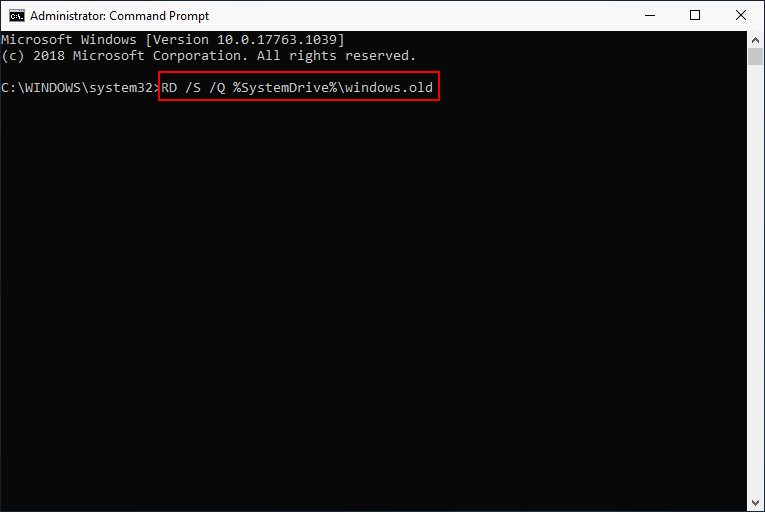
  3. Type the following command and press enter:

RD /S /Q %SystemDrive%windows.old

Make sure that you keep your device open and wait for the command to complete.

This command should delete all the Win setup file without leaving any trace of its existance.

With this last step we conclude our list of steps to make.

As you can see deleting the Win setup file once you decided there is no use in keeping it, can be done fairly easily.

You can use a dedicated tool and simply wait for the process to complete by its own while also benefiting of the additional amazing features of the software.

Or, you can manually delete the files either from the Settings or by simply entering the above command in the command prompt.

Whichever one you choose, it will do the work just fine.

Please feel free to let us know if your issue was solved by any of these troubleshooting steps. You can send us a message by using the comment section below.

Windows 10 20H2 brings more security and new Edge features

As expected for some time now, Microsoft announced yesterday that they have started rolling out the Windows 10 October 2020 update (also known as version 20H2 or v2009) for all users.

Until now, the updates have been available only for the users in the Insider program.

Many of these updates are requested features from you to help make your experience on Windows even better, as the announcement puts it.

The unrolling process will most probably take several weeks to ensure a smooth update for everybody.

What’s new in Windows 10 20H2?

1. Shortcuts and Price comparison feature in Edge

Microsoft’s Edge will come as the default browser with this latest update. Until now, Windows 10 included a legacy version that would have been updated further on.

New features or improvements to this browser will be released every 6 weeks from now on.

To add to the user experience, you will be able to switch between browser tabs and running tasks at the same time, using the Alt + Tab shortcut. It’s the same shortcut now used to navigate only between desktop apps and programs that you’re currently using.

In preparation for the holiday season, Microsoft encourages the use of the handy Collections feature to which a Price comparison was added, for easier decision-making when shopping online.

2. New Start and Taskbar design

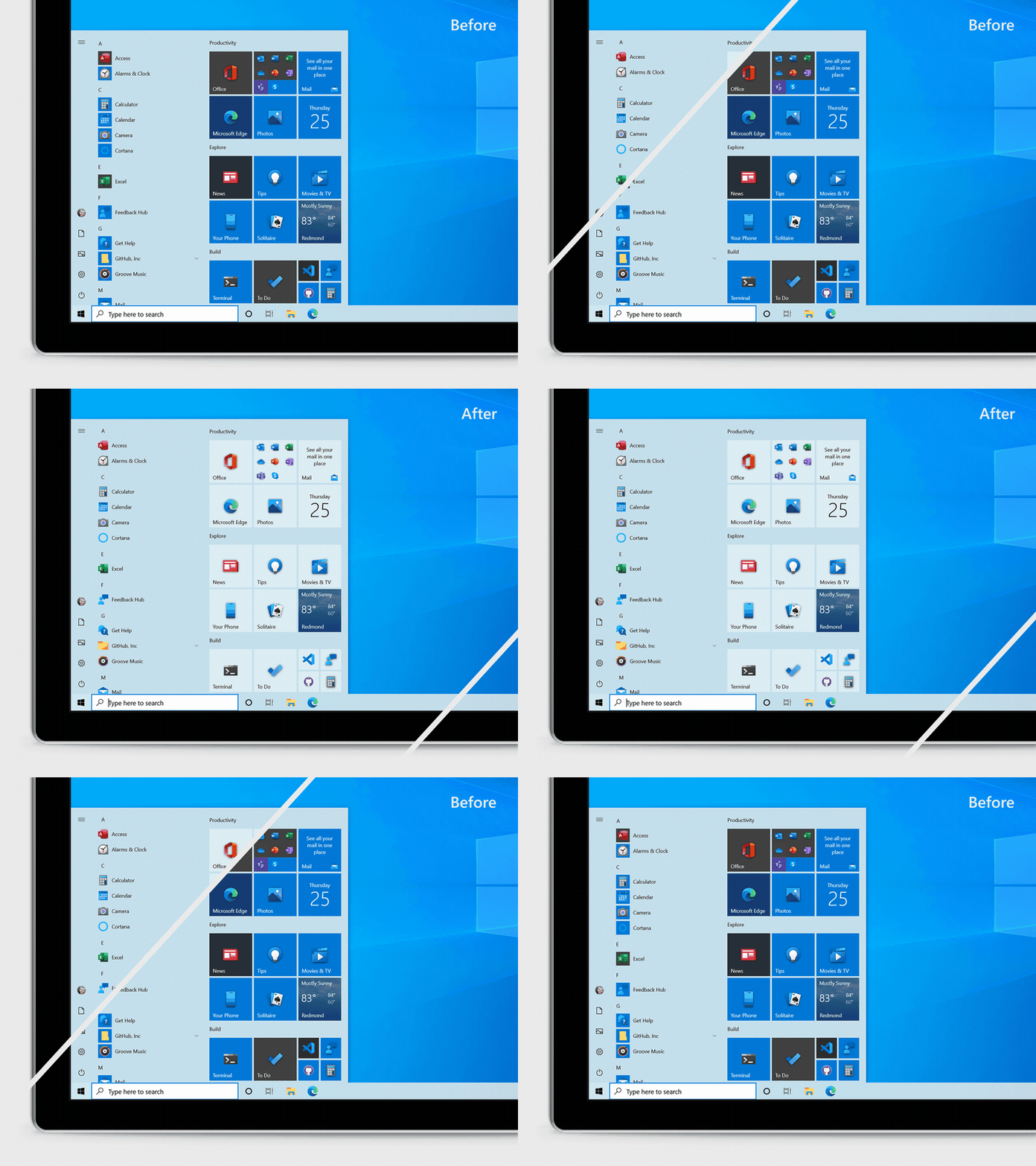
Once you install the Windows 20H2 version, you’ll notice a slight change in the color design of the Start menu, to enhance the icons and improve visibility in both light and dark mode.

Similarly, the Taskbar will be more customizable, to appeal to the users’ needs.

3. Increased security for companies

The 20H2 update will bring stronger app protection for companies only. Namely, the Windows Defender Application Guard will secure against possible external attacks not just websites opened in Edge, but also the Office suite apps.

4. Custom display refresh rate

refresh display rate

Starting version 20H2, users can change the refresh rate of their displays, using the Advanced display setings.

Keep in mind that the quicker an image refreshes on the screen, the better the viewing experience. A slower refresh rate might cause flickering, eye strain, and headaches.

To customize the refresh rate, once you have the October 2020 update:

  1. Open Settings and choose System.
  2. Stay in the Display menu and scroll down to Advanced display settings.
  3. Choose the display (if applicable).
  4. Open the Refresh rate drop-down menu and choose a new value.

The entire list of the improvements that come with the October 2020 update are included in the official Microsoft announcement.

The Windows 10 October 2020 update is available for users with devices running Windows 10, versions 1903, and higher. We offer a full installation guide to make sure you get the update right.

As it always happens with Windows 10 updates sooner or later, some things might go wrong. Be prepared beforehand with our guide for the most common October update issues reported so far.

Do you find these changes useful? Leave us a comment in the section below.

[wl_navigator]

How to fix Windows 10’s October Update 20H2 issues

The Windows 10 October 2020 Update (version 20H2) is finally available for users of compatible devices running Windows 10, versions 1903, and higher.

This new update comes with some new features including the improved Alt + Tab experience, the latest version of the new Microsoft Edge, more secure biometric sign-on, and more, yet a few issues are part of the package as well.

They include driver issues, receiving a stop error with a blue screen, problems during or after updating devices with Conexant ISST audio drivers, issues when using Microsoft IME for Japanese or Chinese languages, and more.

Rest assured that you’re about to find out what your next steps should be in case of encountering any of the previously mentioned Windows 10 problems.

How do I fix common Windows 10 20H2 issues?

1. Windows can’t verify the publisher of a driver software

When installing a third-party driver, as Microsoft reveals, you may encounter the following error message: Windows can’t verify the publisher of this driver software.

Installing drivers wasn’t an issue before, yet things have changed as a result of deploying this Windows 10 October 2020 Update.

Windows will require the validity of DER encoded PKCS#7 content in catalog files. They must be signed per section 11.6 of describing DER-encoding for SET OF members in X.690.

How do I unblock third-party drivers in Windows 10?

Getting the Windows can’t verify the publisher of this driver software or No signature was present in the subject messages is no joy.

If you happen to encounter one of these errors while attempting to install a third-party driver, you are advised to ask the driver vendor or device manufacturer for a correctly signed and updated driver.

If you want to speed up the process, rest assured that we can help you out. Well, you could install Outbyte Driver Updater and update those drivers with ease.

More precisely, simply download, install, and launch the tool. Outbyte Driver Updater will perform a thorough scan of your system and identify all your out-of-date drivers.

Then, it will reveal the results, so you may immediately install them within the program itself.

You’ve seen that Outbyte Driver Updater makes updating drivers simple. However, you should also keep in mind that it creates a restore point before installing a driver in the event something goes wrong.

Outbyte Driver Updater

Keep drivers up to date for a smooth running operating system.
Free Trial Download now

2. Windows key doesn’t function in games

Gamers have identified a bug related to the latest Windows 10 October Update as well. Here’s what one of them says:

With the new windows update whenever I’m in game If I hit the windows key nothing will happen, I can alt tab but can’t hit the windows key

How can I solve Windows key issues in games?

In order to quickly return to gaming, simply press the Ctrl+Esc keyboard shortcut to bring up the Windows menu. That’s should do the trick, at least until the glitch is solved.


Windows key or button not working? Count on us to solve the issue right away!


3. Stop errors with a blue screen for Conexant or Synaptics audio devices

Synaptics

Synaptics and Microsoft have also discovered severe incompatibility issues with a few versions of drivers for Conexant or Synaptics audio devices.

If that’s your case as well, you most likely know all about the annoying stop error with a blue screen during or after updating to Windows 10 version 20H2.

How do I prevent getting a stop error with a blue screen?

While Microsoft and Synaptics are working together on a resolution, their current recommendation is to not manually update using the Update now button or the Media Creation Tool.

They already applied a compatibility hold on Windows 10 devices with affected Conexant or Synaptics audio drivers installed from getting the update.

4. The update takes too long to complete

This isn’t one of those Windows 10 updates that are supposed to take hours downloading and installing itself correctly on your PC.

Updating should take between 5 and 20 minutes, assuming that you own a modern PC with solid-state storage.

However, that’s not the case for some users. Here’s what one of them claims:

The update was sitting at 19% for about 45 minutes and then went to 21% for another 45 and that’s where it has been since then. Does the update usually take this long?

How can I speed up the Windows 10 October Update?

Firstly, you should make room for the update, so feel free to use one of these great tools to delete junk files. If this makes no difference, run the Windows Update Troubleshooter to get further answers.

5. Errors and various issues related to Conexant ISST audio drivers

Conexant ISST audio drivers

Compatibility issues have also been confirmed for certain versions of Conexant ISST audio drivers. Owners of Windows 10 devices with affected drivers might receive an error.

Others describe experiencing all sorts of issues while installing the update or after the device has updated.

How do I solve issues related to Conexant ISST audio drivers?

An update is already in the cards for an upcoming release, as Microsoft reveals:

Microsoft and Synaptics are working on a resolution and will provide an update in an upcoming release.

Until then, since it’s a driver problem, you should install the latest version from the manufacturer support website using their instructions.

If you cannot find a new version, you could check with your device manufacturer (OEM) to see if an updated driver is available or simply use Outbyte Driver Updater to correct the issue, as described above.

6. Input issues on Microsoft IME for Japanese and Chinese

input issues on Microsoft IME

After the Windows 10 October 2020 Update installation process, you might experience issues as a user of the Microsoft IME for Japanese or Chinese languages.

Input may not work properly all the time, you may not be able to input text at all, and the examples continue.

How can I solve Input issues on Microsoft IME for Japanese/Chinese?

  1. Select Start, type Settings, and select it.
  2. Up next, type IME settings into the search box within Settings.
  3. Select the IME settings that are appropriate to your language, for example, Japanese IME Settings.
  4. Then, select General.
  5. Finally, turn on Use previous version of Microsoft IME.

If you happen to need extra guidance on how to install the Windows 10 October 2020 update, check out this detailed guide.

Have you already encountered one of these errors when or after updating to Windows 10 version 20H2? Let us know in the comments area below.

[wl_navigator]

How To Install The Windows 10 October 2020 Update

Microsoft just released the second major feature update of the year 2020, and it is called the Windows 10 October update, Windows 10 20H2, or Windows 10 v2009.

Unlike the last major feature update called Windows 10 v2004, this one brings fewer new features, and it is more of a major utility update that fixes more of the mistakes from the past.

At first, the update is now available for devices running Windows 10, version 1903 or later, and it is mostly aimed at users who are interested in experiencing the latest feature updates and are ready to install this release on their device.


How do I get the Windows 10 October 2020 update?

Because this update is very important for the stability of your PC, Microsoft itself expressed an interest in showing users exactly how they can get the latest feature update on their PC.

In fact, they went ahead and created a step-by-step video where they explained exactly how you can get the latest update, and what you can do if it isn’t available yet in your region.

Here’s how to get the latest feature update:

  1. Press Start
  2. Go to Settings
  3. Select Update & Security
  4. On the Windows Update page, click on Check for updates

If the update appears, and you are running Windows 10 v 1903 or later, you can simply select Download and install to get started. 

Once the update has been downloaded and installed, simply reboot your device to apply the changes, and you’re all done.

One aspect that Microsoft wanted to emphasize regarding the update is that not everyone may see it available to download as of now.

That is because the company is now taking extra precautions so that the latest update is indeed 100% compatible with your current system.

According to the video:

If one or more compatibility safeguard holds have been identified on your device, we may need to delay your move to version 20H2.

To speed up the process, Microsoft even provided a link for the users to check what what compatibility safeguards they may still be having, so that they can fix them faster, and get Windows 10 v2009 right away.

Lastly, those of you that have the Windows 10 May update, also known as Windows 10 v2004, you should know that the update to Windows 10 v2009 should be faster and more seamless than it is for the other versions.

This is because, similarly to Windows 10 v1903 and V1909, the two OS versions share the same core operating system.


That pretty much wraps up our guide on how you can get the Windows 10 October update on your PC.

What’s your take on this latest OS update? Let us know if you installed it already and what your thoughts about it are by leaving us your feedback in the comment section below.


[wl_navigator]

Windows 10 Insider build 202141 is out with theme-aware splash screen for some UWP apps

Microsoft has just released the Windows 10 preview build 20241 for Windows Insiders in the Dev Channel, which brings support for theme-aware splash screens for some UWP apps, as well as an enhanced defrag experience. After Microsoft introduced theme-aware tiles in the Start menu in the Windows 10 October 2020 Update, the splash screen color of select UWP apps will now match your default app mode.

Insiders using the light theme on their PC will now see a light theme splash screen when launching apps like Settings or the Microsoft Store, while Insiders using the dark theme will see a dark theme splash screen instead of the previous blue color. You can see an example in the GIF below:

Settings splash screen before and after in light theme.

For now, only 14 stock UWP apps will support theme-aware splash screens, and the list includes Settings, the Microsoft Store, Calculator, Maps, Movies & TV, Microsoft To Do, and Office. This feature will only roll out to a subset of Insiders installing this build, and more apps will support theme-aware splash screens over time.

The second new feature in this build is related to the Optimize Drives page (Settings > System > Storage > Optimize Drives) in the Settings apps. Microsoft has added a new “Advanced View” checkbox to list all volumes including hidden ones, though this checkbox may not be entirely functional for now. Moreover, Insiders can now see more details in the “Current status” column when volumes are not available for defrag, and hit F5 to refresh the Optimize Drives page.

The Windows Insider team has also mentioned a minor change for the Narrator, as well as a long list of fixes and known issues. You can find the full details below:

Changes and Improvements

  • To help ensure Narrator users are aware of notifications on the screen, if a high priority notification appears while the computer is locked and stays on the screen, we will now also read it out when unlocking your PC and not just at arrival time.
  • We’re removing the Japanese Address and Rinna candidate suggestion services from the Japanese IME – thank you Windows Insiders who’ve shared feedback on them.

Fixes

  • We fixed an issue resulting in some Insiders experiencing APC_INDEX_MISMATCH bugchecks in recent builds.
  • We fixed an issue where scrolling and pinch to zoom were not working correctly on devices with touch such as the Surface Pro X, Surface Pro 7 and others.
  • We fixed an issue where selecting an IME candidate or hardware keyboard text prediction candidate was sometimes inserting the candidate adjacent to the one selected.
  • We fixed an issue where new applications will fail to install with a Windows Installer service error on x86 systems.
  • We fixed an issue where when attempting to perform a Reset this PC using the Keep My Files option will fail with the error, “There was a problem resetting your PC. No changes were made”.
  • We fixed an issue where robocopy wouldn’t preserve the directory dates when using the move command.
  • We fixed a high hitting dwm.exe crash from the last few flights.
  • We fixed an issue resulting in the System Information window (msinfo32) crashing on launch.
  • We fixed an issue resulting in the System Information window (msinfo32) unexpectedly having a blank icon in the taskbar.
  • We fixed an issue that could result in Bitlocker encryption failing with error 0x803100b2.
  • We fixed an issue resulting in flickering in certain apps when the media controls pop-up was visible on screen and you moved your mouse.
  • We fixed an issue resulting in the screen flickering on certain devices when accessing the power options on the login screen.
  • We fixed a recent issue where closing a tab in Microsoft Edge while Task Manager was up and running could result in Task Manager crashing.
  • We fixed an issue resulting in some Insiders seeing a “Sorry, something went wrong” message when running through the workflow to improve recognition for Windows Hello Face.
  • We fixed an issue from recent builds where if Settings was open when the PC went into hibernation, connected pens may fail to reconnect until Bluetooth was toggled off and back on.
  • We fixed an issue that could result in Windows Sandbox showing a 0x80070003 error.
  • We fixed an issue where a non-functional link to Rename your PC was displaying for non-admin users on the Projecting to this PC page in Settings.
  • We fixed an issue where the Activation page in Settings would crash if you navigated to it recently while not connected to the internet.
  • We fixed an issue in Printers & Scanners Settings, where clicking the Get App button available for some printers was resulting in Settings crashing recently.
  • We fixed an issue where clicking the Copy button under “View hardware and connection properties” in Network Settings would result in extraneous lines saying “Proxy Auto Detect” appearing on the settings page.
  • We fixed an issue impacting certain VPN connections, where clicking the entry in the Network flyout wasn’t doing anything.
  • We fixed an issue that could result in Windows updates failing with error 0xc0000005.
  • We fixed an issue that could result in windows.old being expectedly large for some Insiders.
  • We fixed an issue resulting in the new gesture to control the text cursor position using the spacebar on the touch keyboard wasn’t working for some Insiders.
  • We fixed an issue that could result in Internet Explorer crashing when typing certain combinations into websites with the Dayi IME.
  • We fixed an issue where incorrect characters were being inserted into passwords fields when typing using the Japanese IME in Kana mode.
  • We fixed an issue where when using the previous version of the Japanese IME, if you set the IME to off mode during a composition, then immediately starting typing, it could result in the underlying app crashing.

Known issues

  • We’re looking into reports of the update process hanging for extended periods of time when attempting to install a new build.
  • Live previews for pinned sites aren’t enabled for all Insiders yet, so you may see a grey window when hovering over the thumbnail in the taskbar. We’re continuing to work on polishing this experience.
  • We’re working on enabling the new taskbar experience for existing pinned sites. In the meantime, you can unpin the site from the taskbar, remove it from the edge://apps page, and then re-pin the site.
  • We’re working on a fix for an issue causing some devices experiencing a KMODE_EXCEPTION bugcheck when using certain virtualization technologies.
  • We’re looking into reports where some devices are still experiencing a DPC_WATCHDOG_VIOLATION bugcheck after taking build 20236.
  • We’re investigating reports that some devices are receiving a DRIVER_IRQL_NOT_LESS_OR_EQUAL bugcheck on tcpip.sys.
  • We’re working on a fix where after taking build 20236 devices running Malwarebytes Web Protection are no longer able to connect to the network. Users can roll back to 20231 and pause updates or disable Web Protection as a workaround.
  • We’re investigating an issue reported by some Insiders wherein the taskbar is obscuring the Power button in the Start menu. If this is happening on your PC, you may need to use the Windows key plus X menu to shutdown for the time being.
  • We’re investigating GPU Compute scenarios, such as using CUDA and DirectML, not working inside of the Windows Subsystem for Linux (WSL).
  • Windows Insiders on ARM PCs such as the Surface Pro X will notice that Windows PowerShell will fail to launch on this build. As a workaround, please use “Windows PowerShell (x86)” or “Windows PowerShell ISE (x86)” from the Start menu if you need to use PowerShell. Or download the new and modern PowerShell 7 which takes advantage of ARM by running natively. Plus the icon is prettier.

Overall, this is another build with very minor changes, and we hope that exciting new features will land soon in the Dev Channel. With the October 2020 Update now rolling out to all Windows 10 users, the Windows Insider team can now focus on the next major Windows 10 Update (21H1) which will ship in the first half of 2021.

Sims 4 Video Card Error: 6 Expert-Tested Fixes

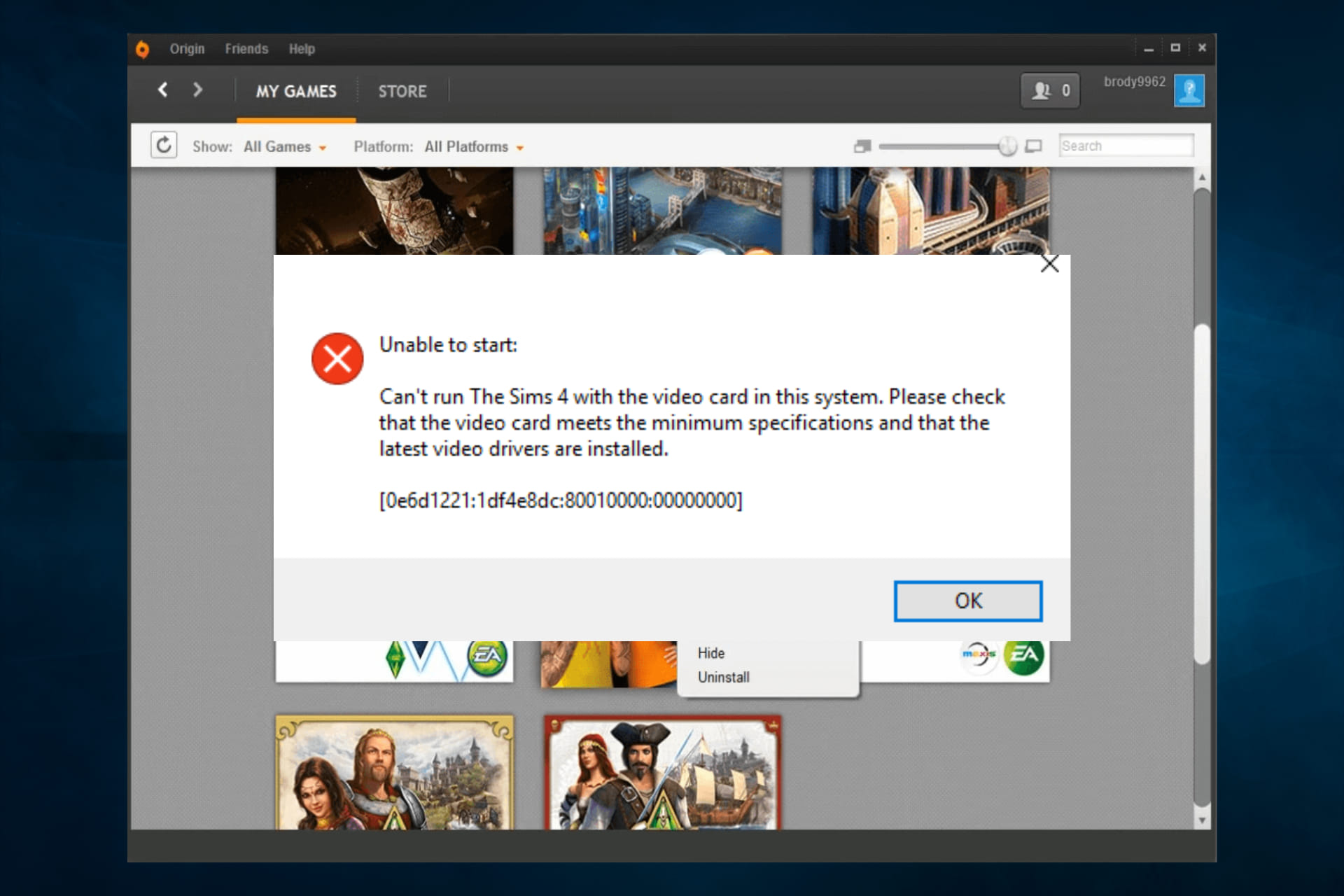
Some players have posted about an unrecognized video card Sims 4 error on EA’s forum. It can occur for some players when they try to launch the game. The full error message reads:

Can’t run The Sims 4 with the video card in this system.

What causes the Sims 4 video card not supported error?

This Sims 4 video card error is usually caused by an incompatible GPU card that doesn’t meet the game’s minimum system requirements. Make sure to check the requirements before installing the game.

However, the issue can occur even when players have a graphics card that meets the game’s system requirements. In that case, read on to find out how to fix this issue and get back to playing your favorite game in no time.

How do I fix the unsupported video card Sims 4 error?

1. Update the video card driver

The Sims 4 video card error might be due to an antiquated or corrupted graphics card driver.

Therefore, make sure that your graphics card driver is up to date by using a dedicated tool such as Outbyte Driver Updater for a quick scan.

You simply need to download the software, open it and it will start scanning for the latest drivers.

Outbyte Driver Updater automatically update drivers

Outbyte Driver Updater is very fast and efficient at finding specific updates for your system. When using this great software, you’ll be able to use your time in a more time-efficient manner and also avoid researching online for drivers manually.

The software starts by analyzing your system’s driver requirements, and then it compares the results with a thorough database filled with the latest releases for each of your drivers.

Check out the amazing capabilities of Outbyte Driver Updater for yourself, by clicking the button below.

Outbyte Driver Updater

Outbyte Driver Updater

With just a few clicks of the mouse, this amazing software ensures that your PC's drivers will always be up to date.
Free trial Visit website

2. Use the Repair option in Origin

  1. Open the Origin game client software.
  2. Then click My Games.
  3. Right-click on Sims 4 to open its context menu.
    Repair Game options sims 4 video card error
  4. Then select the Repair game context menu option.

3. Disable Origin in-game

  1. Open the Origin window.
  2. Click the My Games library option.
  3. Next, right-click the Sims 4 game and select Properties.
    Enable Origin in Game option sims 4 video card error
  4. Deselect the Enable Origin in Game for Sims 4 option on the General tab.

4. Run Sims 4 in compatibility mode

  1. Right-click the Sims 4 shortcut or .exe file, and select Properties.
  2. Select the Compatibility tab.
    Compatibility tab sims 4 video card error
  3. Click the Run this program in compatibility mode for option.
  4. Then select Windows 8 on the OS drop-down menu.
  5. Select the Apply option to save settings.
  6. Click OK to exit the window.

5. Open Sims 4 in windows mode

  1. Right-click a desktop shortcut for Sims 4 and select Properties. (If you don’t have a shortcut for the game, add one to the desktop.)
  2. Add a -w to the end of the target path box as shown directly below. (Alternatively, you can also add the -window switch to the end of that path.)
    Shortcut tab sims 4 video card error
  3. Then click the Apply and OK buttons.
  4. Click the Sims 4 shortcut to launch the game.

Alternatively, you can right-click Sims 4 in Origin to select Game Properties. Then enter -w in the Command line arguments box on the Advanced Launch options tab, and click the Save button.


6. Disable mods for Sims 4

  1. Open File Explorer (press the Windows + E hotkeys).
  2. Open the Sims 4 folder.
  3. Then, look for Sims 4’s Mods folder.
  4. Select the Mods folder, and click the Move to button.
    Move to button sims 4 video card error
  5. Select Desktop inside the Move to menu.
  6. Next, restart Windows.
  7. Then try running Sims 4 again.

The above resolutions should fix the Sims 4 video card error for lots of players. Feel free to tell us which solutions worked for you, using the comments section below.

FIX: Pinnacle Driver Check Detected Problems

Incorrectly configured system settings or irregular entries in the Windows registry could be the cause of the Pinnacle Driver Check Problems.

The usual cause for getting this error is a failure to correctly run one of Windows registry normal operations by a system or application component.

There are many users reporting to get a message error concerning the Pinnacle Driver every time they restart the PC.

Some of them report getting this error only after updating their device to Windows 10.

Regardless of the cause, there are some easy ways to fix this issue and in this article we will show you exactly what you need to do.

Make sure to follow our presented steps in the exact order you will find them in this article.

How can I fix the Pinnacle Driver Check detected problems?

1. Give Outbyte Driver Updater a try

Most of the time, these kinds of errors, have to do with some faulty or missing drivers.

The best way to solve it is to update the Pinnacle drivers either manually or automatically.

Updating the drivers manually could become an issue, in case you will install the wrong ones. This could cause some almost irreversible damage to your device.

In order to avoid this from happening, we recommend that you use dedicated software that will do exactly that.

After we tested all of them, we recommend that you use Outbyte Driver Updater.

This software is reliable and very efficient. It will scan your PC in no time and find any faulty or missing driver.

Once this is done, then Outbyte Driver Updater will compare all the scan results with its built-in database and install the latest versions on your device.

Upon the scan completion, you will also get a detailed report on all your up-to-date or out-of-date drivers.

However, a program like Outbyte Driver Updater not only downloads and installs drivers, but also manages them by troubleshooting, backing up, and restoring them.

Of course, there is the option to select all the drivers and update them all at once, or simply select the ones you want to be updated now.

All in all, this is great software that you can use to keep your device updated at all times and ensure that it works at its highest performance.

⇒ Get Outbyte Driver Updater

2. Start Windows in Clean Boot mode

  1. Click Start and in the Search programs bar type msconfig.
  2. Go to Services tab and check Hide All Microsoft Services.
  3. Next, click the Disable All option.
  4. Switch to the Startup tab and then click Disable all.
  5. Next, click OK and restart your device.

There you have it. By following the steps described in any of the solutions above you should be able to fix the Pinnacle Driver Check Problems.

You can either use a dedicated tool and scan for your drivers, making sure they are up to date and working properly.

Or, simply start Windows in clean boot mode and follow our indicated steps.

If you’ve fixed this issue with an alternative resolution, feel free to share it below.

FIX: Windows has recovered from an unexpected shutdown

Several users have posted on forums about an unexpected shutdown error in Windows: the system shuts down unexpectedly.

More specifically, after the restart, an error message pops up stating:

Windows has recovered from an unexpected shutdown.

If the issue becomes a recurring error, you should definitely address it. So here are some of the potential fixes for the Windows unexpected shutdown error.


How can I fix the unexpected shutdown error?

1. Scan device drivers with a dedicated tool

Outbyte Driver Updater automatically update drivers

  1. Download Outbyte Driver Updater (a third-party tool that is extremely efficient in finding corrupted or outdated drivers that might cause system errors).
  2. Use the installer and set up the tool.
  3. Launch Outbyte Driver Updater.
  4. The software will start scanning right away.
  5. Scan the list of problematic drivers that the tool process returns and decide on the next action (updating the drivers).

Afterward, monitor your device to see if the shutdown error occurs again.

Outbyte Driver Updater

Outbyte Driver Updater

Keep your drivers up-to-date and avoid unexpected system shutdowns when you least expect it.
Free trial Visit website

2. Clean boot Windows

  1. Open Run by pressing the Windows key and R at the same time.
  2. Enter msconfig in Run’s text box.
    The General tab windows has recovered from an unexpected shutdown error
  3. On the General tab, select the Selective startup radio button.
  4. Select the Load system services and Use original boot configuration options if they aren’t selected.
  5. Uncheck Load startup items so that option isn’t selected.
  6. On the Services tab, select the Hide all Microsoft services option.
    The Services tab windows has recovered from an unexpected shutdown error
  7. Click the Disable all option.
  8. Select the Apply option, and click the OK button.
  9. Click Restart to initiate the clean boot.

If that fixes the issue, you can leave the startup configuration as it is. Alternatively, you can try to figure out what startup program or service was triggering the error by re-enabling one at a time until the issue returns.

That will help identify which one is triggering the error.


3. Run a system file scan

  1. Type cmd in the home screen search box.
  2. Right-click Command Prompt within the search tool to select its Run as administrator option.
  3. Before initiating the system file scan, input the following and press Enter: DISM.exe /Online /Cleanup-image /Restorehealth
  4. Next, enter the sfc /scannow command; and press the Return button.
    sfc /scannow command windows has recovered from an unexpected shutdown error
  5. When the scan is done, the Command Prompt might tell you that it repaired system files. If so, restart Windows.

4. Restore Windows to a restore point

  1. Launch the Run accessory.
  2. Next, input rstrui in the blank box; and click the OK button.
  3. Click Next to proceed.
  4. If it isn’t greyed out, select the Show more restore points setting.
    System Restore window windows has recovered from an unexpected shutdown error
  5. Select a restore point that will roll Windows back to a time that predates the unexpected shutdown error on your desktop or laptop.
  6. Check what software will get deleted for a restore point by clicking the Scan for affected programs button.
    The scan for affected programs window
  7. Press the Next button, and then click Finish to restart.

The above resolutions have fixed the unexpected shutdown error for many users.

Let us know which of the troubleshooting steps did you use to get rid of this error by leaving us a message in the comments section below.


[wl_navigator]

New file sharing experience is now rolling out in Microsoft Teams

Microsoft Teams now has a new file sharing experience that’s currently available across OneDrive, Outlook, and Office. According to the Microsoft 365 Admin center, the feature is rolling out now, and it should be generally available by the end of November.

As a recall, the new file sharing experience was initially announced in July 2020. The company began rolling out this feature in August before pausing it to make some additional code changes. With the new file sharing experience, Microsoft Teams now gives users the option to create different sharing links while composing a private chat or starting a channel conversation.

Animated image of Teams sharing integration.

The link allows users to specify who can access the file and configure the appropriate permission (edit or read-only) directly in the chatbox. When users share a file from within Teams, they will have the option to create a sharable link which will give access to one of the following audiences; Anyone, People in their organization, People with existing access, or Specific people, including those in a 1:1 chat, group chat, or channels.

When the chat participant uploads a file, it is automatically saved in the Teams chat files folder in their OneDrive for Business account. To be clear, all the chat participants will have view-only access to the newly uploaded file. The sender will have to manually add people to the permissions list who join the chat later.

This change is a part of Microsoft’s effort to better streamline the file-sharing process in Teams. In other words, Office 365 now has a consistent file sharing experience across all its major apps. Just keep in mind that if external sharing is disabled within SharePoint, it’ll be automatically disabled within Microsoft Teams as well.

FIX: No bootable device found [Acer, Dell]

The No bootable devices found (or No bootable device) problem is a startup issue that can arise on Acer, Dell, and other PC models.

When this error arises, your PC can’t find its hard drive (or device) to boot from. Consequently, Windows doesn’t boot up.

As Windows doesn’t boot up, fixing the No bootable devices found the issue isn’t especially straightforward. Users will usually need to enter the BIOS (Basic Input Output System) or open the Command Prompt from Windows 10’s Advanced Startup Options menu to resolve the issue.

You can access the Advanced Startup Options menu with a Windows 10 installation disk or recovery drive on USB stick. On some PCs, you can also access that menu by pressing the F11 key just after turning them on.

How can I fix the No bootable devices error on Acer and Dell PCs?

1. Enable Legacy Boot

  1. Turn on your PC.
  2. You can enter the BIOS setup on most Acer and Dell PCs by pressing the F2 hotkey just after turning them on. However, you might need to press the Delete key to enter BIOS on some Acer and Dell PCs.
  3. Select the Main tab in BIOS.
  4. Enable the F12 Boot Menu setting if it’s disabled.
  5. Then select the Boot tab shown directly below.
  6. Change the Boot Mode setting to select Legacy.
  7. Press the Enter key to confirm.
  8. Press F10 to save the settings and exit BIOS.
  9. Press the Enter button again to confirm.

2. Reset the primary boot partition

  1. Insert a Windows 10 installation disk or recovery drive into a USB slot on your PC.
  2. Then power on your desktop or laptop.
  3. If you inserted a Windows 10 installation disk, you’ll need to select a language setting and click the Repair your computer option to access the Advanced Startup Options menu shown directly below.
  4. Select Troubleshoot and Advanced options to open the menu in the snapshot directly below.
  5. Select Command Prompt to open the command-line utility.
  6. Input these separate commands into the Prompt, pressing Enter after each one:
    lit disk
    select disk 0:
    list partition
    select partition 1:
    active

Note: Your PC won’t boot from USB drives if not configured to do so. To boot from a flash drive, you’ll need to change the boot order for it on the PC’s Boot tab in BIOS or UEFI settings. USB flash drive must be placed first in the boot order priority on the Boot tab.

Also, note that the No bootable device error can arise when your hard drive isn’t first in the boot order. For example, the issue would arise on a PC configured to boot from CD drive that includes a blank DVD. Ejecting the DVD or selecting your hard drive as the first boot device would then fix the issue.


3. Run a Check Disk scan

  1. Open the Advanced Startup Options menu with your bootable media or F11 hotkey as outlined for the first three steps of the second resolution.
  2. Go to the Advanced options menu by selecting Troubleshoot > Advanced.
  3. Select Command Prompt to open its window.
  4. Then type this command into the Prompt’s window: chkdsk c: /f /x /r
  5. Press the Enter key.

4. Fix corrupted MBR

  1. Open the Command Prompt from the Advanced Startup Options menu as outlined for resolutions two and three.
  2. Then type the following separate commands (press the Return key after each one) in the order they’re listed:
    Bootrec /fixmbr
    Bootrec /fixboot
    Bootrec /scanos
    Bootrec /rebuildbcd

  3. Thereafter, restart your PC.

Those are some of the more probable fixes for the No bootable devices found error.

If these fixes don’t resolve the error, however, there might be a hard drive hardware issue. In which case, you might need to check your HDD’s connection or get a replacement drive.

You can learn more about resolving missing boot drive problems by checking our Boot Device Not Found guide.

[wl_navigator]

Microsoft Cloud powers at-home COVID-19 test study

Microsoft yesterday announced that it is now offering its new self-swab kits to help people collect their coronavirus (COVID-19) samples at home, and then mail them for testing to labs. The company has collaborated with Stanford University, Gates Ventures, and other private and public institutions to develop this system, now it testing in the San Francisco Bay area.

The service leverages the power of the Vera Cloud Testing Platform to aggregate test results and data about symptoms submitted by the participants. Specifically, Vera includes a self-swabbing kit, a customizable enrollment and testing system, as well as a participant portal for test results reporting and follow-up. It’s completely scalable and customizable. In the past few weeks, Stanford Medicine has conducted a pilot study called CATCH (Community Alliance to Test Coronavirus at Home) to test the new platform initially.

“Being able to do that by sending kits to your home is a very powerful way of ensuring that you can actually have a much better understanding of the pandemic, and also do it in a much more equitable way,” said Vikram Dendi, general manager of Microsoft Health NExT. “The design of CATCH as a study intends to try to overcome those kinds of inequities and really develop a very clear and comprehensive picture of how things are evolving,”

A hand holds a blue envelope

To no surprise, the researchers have used Microsoft’s cloud, including the Microsoft Healthcare Bot, Azure, Power BI, and Power Platform, for creating both Vera and CATCH. Furthermore, the company’s Microsoft’s AI for Good program has also helped the project team in the scale-up process. Microsoft believes that the new testing kit could have a broader impact on providing testing not only for coronavirus but also for other diseases.

How to install Microsoft Edge Dev on Linux

Microsoft’s Chromium-powered Edge browser is now available on Linux. Although yet to reach general availability, you can install Edge from the “Dev Channel” today, giving Linux desktop users a new browsing option.

Microsoft is currently packaging Edge for Ubuntu, Debian, Fedora and OpenSUSE. The Microsoft Edge Insider site contains up-to-date download links for the prebuilt .deb and .rpm packages. Package manager installation is also supported via Microsoft’s Linux Software Repository.

Installing from downloaded packages

This is given as the quickest way to get up and running. Head to the Microsoft Edge Insider site and grab the right package for your system – the .deb for Ubuntu/Debian, or the .rpm for Fedora/OpenSUSE.

Screenshot of Microsoft Edge Linux download links

You’ll usually be able to double-click the downloaded file to begin the installation. Alternatively, you can use the dpkg -i edge.deb command on Ubuntu/Debian, or rpm -i edge.rpm on Fedora, replacing edge with the path to the downloaded package.

Once installed, Edge will automatically configure your system to download browser updates as they’re released. You’re now ready to start using Edge.

Installing from Microsoft’s Linux Software Repository

As an alternative to the manual download, Edge packages are published in Microsoft’s Linux package repository.

Screenshot of installing Microsoft Edge Dev on Ubuntu

You’ll need to install Microsoft’s package signing key and add the repository to your package manager. Refer to the Microsoft Edge Insider site for detailed instructions.

Once you’ve added the repository, you’ll be able to install the microsoft-edge-dev package using your distribution’s package manager (e.g. apt install microsoft-edge-dev on Ubuntu/Debian, dnf install microsoft-edge-dev on Fedora, or zypper install microsoft-edge-dev on OpenSUSE).

Screenshot of Microsoft Edge Dev on Linux

Microsoft Edge will now be installed from the Dev channel on your Linux machine. Updates will be released weekly and may be unstable. The Linux Dev build will correspond with the Dev channel build for Windows and macOS. More stable Beta and eventually Release builds will be made available in the future.

Windows 10 versions 1909 and 1903 get Meet Now button in the Taskbar with new optional patch

Microsoft is starting to bring its new Meet Now Taskbar button to older versions of Windows 10 this week. Yesterday, the company released new optional patches yesterday for the Windows 10 November 2020 Update (version 1909) and the May 2019 Update (version 1903) which will add this new Meet Now button to the system tray.

For those unfamiliar, Meet Now is a new Skype feature that makes it easy to set up a video call with other people without requiring to download or sign up for Skype. Microsoft first tested this new Meet Now button with Windows Insiders last month, and the company is now getting ready to bring it to regular Windows 10 users. It’s a relatively unobtrusive feature that can help Windows 10 users stay in touch during this ongoing pandemic.

Here are the changes Microsoft highlighted for this optional update (KB4590836) for Windows 10 versions 1909 and 1903:

Introducing Meet Now in the Windows 10 Taskbar

Earlier this year we introduced Meet Now in Skype. Meet Now makes it easy to connect with anyone in as little as two clicks for free and each call can last up to 24 hours. Today, we’re excited to share that we will be extending this capability in Windows 10 by bringing Meet Now right to the taskbar. In the coming weeks, you will be able to easily set up a video call and reach friends and family in an instant by clicking the Meet Now icon in the taskbar notification area. No sign ups or downloads needed.

  • Updates an issue that might prevent a Microsoft Xbox Game Pass user from playing certain games that are eligible for play.
  • Updates a reliability issue that causes the screen to flash constantly.
  • Updates an issue that causes a USB printer port to disappear after restarting when the printer device is turned power off.

As usual, all the changes included in this new optional patch will end up in next month’s Patch Tuesday. We expect this new Meet Now button to also make its way to the Windows 10 May 2020 Update (version 2004), which could get it with an optional patch before the end of the month. The October 2020 Update, which started rolling out yesterday, also doesn’t have this new Meet Now Taskbar button yet.

Fix: The Volume is too Fragmented to Complete This Operation

If you see, The volume is too fragmented to complete this operation, it’s a system error caused by storage problems.

This can happen when you try to convert your disk from FAT32 to NTFS or even when performing other operations. Keep reading to find out how to reduce the fragmentation and get things running!

What can I do when the disk is too fragmented to complete operation?

Before we start with the slightly complex solutions, try these quick ones:

  • Many system errors can occur due to bugs and glitches. Windows 10 has a couple of bugs and compatibility issues, but if you want to keep your system free from errors, it’s advised to keep your Windows updated.
  • Disable any third-party antivirus installed on the PC.
  • According to users, navigate to Web Publishing settings in ISA server, and tick the Send the original host header to the publishing server instead of the actual one (specified above) checkbox
  • Try connecting to a different network and check if that solves the problem. Use a guest network, if there’s one.

If none work, head to the fixes listed next.

1. Recover your files with a specialized tool

First, you can fix this problem by recovering your files to another hard drive. To complete this process, we recommend using a specialized tool such as Stellar Data Recovery.

Stellar Data Recovery is the go-to solution for recovering lost or deleted files in any format (documents, emails, photos, videos, and more) across multiple Windows devices and storage media.

You can even use it on severely corrupted or formatted drives or RAW drive volumes, and it will still work like a charm.

So, if you’re looking for data recovery software that is both reliable and efficient, this Stellar-powered solution is your best bet.

Let’s quickly look at its key features:

  • Retrieve any file format from all Windows-running devices and external media
  • Scan an entire hard drive or a specific location (Deep Scan and Quick Scan modes available)
  • Recover data from severely corrupt hard drives and formatted partitions
  • Native support for all storage media, including mobile or camera memory cards, Flash cards, SD cards, hard disks, and more

Stellar Data Recovery

Recover deleted files in any format from any Windows device or storage media be it corrupted, encrypted or formatted.
Try it now Visite website

2. Perform a Clean boot

  1. Press Windows + R, type msconfig, and press Enter.
  2. Navigate to the Services tab and check Hide all Microsoft services. Then, click on Disable all.
  3. Navigate to the Startup tab and click on Open Task Manager.
  4. Select the first item on the list and click on the Disable button. Now repeat the same steps for all entries on the list.
  5. After you disable all entries on the list, close Task Manager. Now go back to the System Configuration window and click on Apply and OK to save changes.

Third-party applications can often start automatically with your PC and cause this and other errors to appear.

To fix this issue, many users suggest performing a Clean boot. To do that, you need to disable all startup applications and services.

After doing that, you need to restart your PC to apply changes. When your PC restarts, check if the problem still appears.

If not, one of your startup apps or services was certainly causing the issue. To find the problematic application, you need to repeat the same steps and enable apps and services one by one or in groups.

Keep in mind that you need to restart your PC after enabling each group of apps or services to apply changes. After you find the problematic app, you need to disable it or uninstall the program.

Alternatively, you can try to update the application to the latest version and check if that solves the problem.

3. Run the chkdsk scan

  1. Press Windows + X and choose Command Prompt (Admin).
  2. Paste the following command, replace X: with the affected drive letter, and hit Enter: chkdsk /f X:
  3. Wait for the scan to complete.

If you’re still getting The volume is too fragmented to complete this operation error message, it’s possible that your files are corrupted. File corruption can occur due to malware or power loss, but you might be able to fix your files using the Check Disk scan.

4. Perform an SFC scan

  1. Open Command Prompt as administrator.
  2. When Command Prompt starts, execute the following command: sfc/scannow

The scanning process will now start. The scanning process can take a while, so don’t interrupt it. After the scanning is complete, check if the problem still persists.

5. Format your removable storage

  1. Connect your removable storage and go to This PC.
  2. Locate the removable storage, right-click it and choose Format from the menu.
  3. The format window will now appear. Select the desired formatting options and click on Start.
  4. Wait for the formatting process to finish.

If The volume is too fragmented to complete this operation message appears while using removable storage, you might be able to fix it by reformatting it.

You should know that formatting your storage will remove all your files from it, so be sure to back them up in advance.

6. Defragment your drive

  1. Press Windows + S and enter defragment. Select Defragment and Optimize Drives from the menu.
  2. You’ll see a list of all your drives. Select the problematic drive and click on Analyze. Windows will now scan your drive and check its fragmentation.
  3. After the scanning is finished, select the same drive and click Optimize.

If you’re getting this error, you might want to try defragmenting your hard drive. Defragmentation is a useful procedure that optimizes all your stored data allowing you to access it faster.

Defragmentation can take a while, depending on the size of your hard drive, so don’t interrupt it. After the process is finished, check if the error message still appears.

If you want, you can also use a third-party defragmentation software instead. Many users prefer third-party tools because they offer more features, so feel free to use one of these tools if you want.

7. Use System Restore

  1. Press Windows + S and enter system restore. Choose Create a restore point from the menu.
  2. Click on System Restore button.
  3. Select Choose a different restore point and click on Next.
  4. Check Show more restore points option and select the desired restore point. Now click on Next.
  5. Follow the instructions on the screen to complete the restoration.

Another way to fix The volume is too fragmented to complete this operation error is to use System Restore. Windows usually creates restore points automatically. So if this error started appearing recently, you might be able to solve it by restoring your PC.

8. Reset Windows 10

When nothing else works, you have no option but to reset Windows to the factory defaults.

This will wipe all the data on the PC but should help get rid of The volume is too fragmented to complete this operation error.

Before you leave, find out how to speed up Windows 10.

Let us know what worked for you by reaching for the comments section below.

Doom Eternal’s first campaign expansion is now live on Microsoft’s Xbox One consoles

The Ancient Gods: Part One, the first expansion for Doom Eternal’s campaign, is now available to play on Microsoft’s family of Xbox One consoles and, once released, the Xbox Series X and Xbox Series S as well.

The Ancient Gods: Part One adds a host of new single-player story content in addition to new enemies and locations to experience for owners of the main game. Here’s the official description and trailer:

The Ancient Gods – Part One is the first campaign expansion for the critically acclaimed DOOM Eternal. Your war is not over… The legions of Hell have razed the heavens, threatening to expand across dimensions. Battle your way back to Urdak and decide the fate of the cosmos. Your mission is now your own.

  • NEW MISSION: Experience a new mission in your eternal fight against evil. Unleash your vengeance and face your greatest test; restore order to the heavens and unearth the corruption that has thrown the universe into chaos.
  • NEW LOCATIONS: From the decks of the UAC Atlantica on Earth to the Blood Swamps of Hell to the demon-infested Urdak, you will visit epic new locations to battle the armies of Hell.
  • NEW ENEMIES: Change your tactics as you face Hell’s newest threats that add more depth and challenge to combat. Face the demon buffing Spirit and the deadly Blood Maykr.

Doom Eternal came to Xbox Game Pass earlier this month which means that subscribers of the subscription service can now play the base game for free. Subscribers wanting to play The Ancient Gods: Part One can also grab it with a $2 discount as all Game Pass users can buy it for $17.99 instead of the usual $19.99.

Are you a fan of Doom Eternal and are you going to play this new DLC? Let us know in the comments and then follow us on Pinterest and Facebook for more Xbox gaming news.


DOOM Eternal: Year One Pass

Fix: The Wizard Could not Start Microphone on Windows 10

Some users have discussed the wizard could not start the microphone on Windows 10 error on Microsoft’s support forum.

This error often happens when a user tries to set up a Microphone on their device. Consequently, users can’t utilize the Microphone Setup Wizard when that issue arises.

Let us go through some common causes; then we will show you the best solutions.

Why is my microphone setup wizard not detecting my mic in Windows 10?

From our findings, there could be a few reasons for this error. The following are the most common triggers:

  • Connection issues – In the case of wired microphones, you may be dealing with a loose connection.
  • Microphone muted or off – Many users will get this error message if the microphone they need to connect to is not switched on.
  • Driver issues – Most users may be battling incorrect or outdated computer drivers.
  • Poor settings – A few settings on the computer are known to trigger this problem. One example is when the microphone is not set as the default recording device.
  • Bad hardware – There is also the chance that your microphone has been damaged; in this case, you may consider looking for a compatible mic replacement. So, if the wizard could not start, ensure your audio hardware is working properly.

Now let us show you what to do if the Microphone wizard could not launch on Windows 10.

What can I do if the wizard could not start the microphone on Windows 10?

1. Reinstall the microphone driver

  1. Launch Run with the Windows key + R hotkey.
  2. Type devmgmt.msc in the open box and click OK to open Device Manager.
    the wizard could not start microphone windows 10
  3. Expand Audio inputs and outputs, right-click your microphone, and select Uninstall device.
  4. Restart Windows after uninstalling the driver for the microphone. After restarting, Windows will initiate an installation service to reinstall a microphone driver.

Alternatively, you could use a dedicated driver solution, as this method is much faster, more reliable, and requires less input.

Simply download and install it, let it run, and it will scan your hardware for old, broken, or missing drivers.

2. Run the Recording Audio troubleshooter

  1. Press Start, type troubleshooting, and select Troubleshoot settings.
    the wizard could not start microphone windows 10
  2. Select the Recording Audio in Settings, and click the Run the troubleshooter button.
    the wizard could not start microphone windows 10
  3. Then select the Microphone option and click Next.
    the wizard could not start microphone windows 10
  4. Finally, click Apply Fix if the troubleshooter provides a resolution.

3. Turn on Allow apps to access your microphone

  1. In the Start menu, type microphone and click Microphone privacy settings.
  2. Toggle on the Allow apps to access your microphone option if it’s off.
    the wizard could not start microphone windows 10
  3. Lastly, restart Windows.

Turning on the Allow apps to access your microphone setting is among the most widely confirmed fix for the Wizard could not start microphone error.

4. Check if the microphone is enabled

  1. Right-click the Speaker’s Taskbar icon and select Open sound settings.
    the wizard could not start microphone windows 10
  2. Scroll to Related Settings and click Sound Control Panel.
    the wizard could not start microphone windows 10
  3. Select the Recording tab, right-click the microphone you need to be enabled, and select Enable.
    the wizard could not start microphone windows 10
  4. Make sure it is Set as default.
  5. Click the Apply option.
  6. Finally, click OK to exit the Sound window.

Many users have confirmed these resolutions to fix the Wizard could not start microphone error. With the error fixed, you can configure your microphone with Microphone Setup Wizard.

Let us know in the comments section below what worked for you.

FIX: Fallout 3 doesn’t work in Windows 10/11

Fallout 3 is the third addition to the Fallout series that Bethesda released in 2008. Therefore, the game predates both Windows 7 and 10 and was primarily designed for Vista.

So, Fallout 3 doesn’t always work when some players try to play it in Windows 10. For some players, the game crashes when they click New in Fallout 3.

How do I make Fallout 3 run on Windows 10?

1. Check if you need to update your graphics card driver

Games are GPU-intensive apps, so any problems with your video drivers will translate into bad gameplay experiences or even errors during gameplay.

That being said, if you experience any of the above while playing Fallout 3, proceed to update your graphics drivers as soon as possible.

The fastest way to do so is with a dedicated driver updater like Outbyte Driver Updater, as it will guarantee the latest drivers for your current hardware.

Outbyte Driver Updater automatically update drivers


This product is extremely lightweight and will find all of your outdated, broken, or missing drivers within seconds of scanning your PC.

You can then opt to install the latest drivers either automatically, manually, or semi-manually.

Outbyte Driver Updater

Outbyte Driver Updater

This lightweight and portable tool will detect all of your missing drivers by itself, and update them as soon as possible.
Free trial Visit website

2. Run Fallout 3 in compatibility mode

  1. Open File Explorer with the Windows key + E hotkey for it.
  2. Open Fallout 3’s Steam folder within File Explorer.
    • The default path for Fallout 3’s Steam folder will be:
    • C: Program Files (x86)SteamsteamappscommonFallout 3.
  3. Then right-click the Fallout 3 EXE file to select Properties.
  4. Next, select the Compatibility tab on the game’s properties window.
    Compatibility tab fallout 3 windows 10
  5. Select the Run this program in compatibility mode for the setting.
  6. Then select Windows XP (Service Pack 3) on the platform drop-down menu.
    • You can try selecting other Windows XP service pack platforms and Windows 7 if the XP Service Pack 3 option doesn’t do the trick.
  7. In addition, select the checkbox for the Run this program as an administrator option.
  8. Click Apply to save settings.
  9. Click the OK button to exit.

When Fallout 3 doesn’t work in Windows 10, it’s often a compatibility issue that can be resolved with compatibility mode.

3. Edit the Falloutprefs.ini config file for Fallout 3

  1. Editing the game’s Falloutprefs.ini file can also fix Fallout 3 not working in Windows 10. Open File Explorer.
  2. Click My Documents > My Games > Fallout 3 to open that folder path.
  3. Double-click the falloutprefs.ini file to open it in Notepad.
  4. Next, look for the bUseThreadedAI=0 setting in the falloutprefs.ini file.
  5. Change the bUseThreadedAI=0 setting to bUseThreadedAI=1.
  6. If the bUseThreadedAI=0 isn’t in the file, enter bUseThreadedAI=1 on a new line within the file.
  7. Then add iNumHWThreads=2 to another new line within the falloutprefs.ini file.
  8. Click File and Save to save the new settings within the file.
    Save As window fallout 3 windows 10
  9. Thereafter, try running Fallout 3 again.

4. Install Windows Game Live

Fallout 3 needs the antiquated Games for Windows – Live software to run.

  1. Enter Games for Windows Live in Google as in the shot directly below.
    Games for Windows Live search fallout 3 windows 10
  2. Then click the GWFL – Microsoft link near the top of the search results.
    • Doing so will download the installer for Games for Windows Live.
  3. Open the folder Games for Windows Live downloaded to.
  4. Then click gfwlivesetup.exe to open the installer for that software.
  5. Go through the setup wizard to install Games for Windows Live.
  6. Launch the Games for Windows Live software when you’ve installed it.
    • Then it will start downloading some files.

Those are some of the more likely resolutions that will kick-start Fallout 3 so that you can play the game in Windows 10. Our How to Play Old Games article also provides further tips for running antiquated games in Windows 10.

How to fix the can’t play video or music 0x887c0032 error

The 0x887c0032 error arises for some users when they try to play media files in Movies & TV or Groove Music.

In one MS forum post, a user stated:

For the past few days, whenever I try to play video on the Movies and TV app, and music on Groove app, it says CAN’T PLAY and shows an error code 0x887c0032 for every MP4 and MP3.

So, users can’t play media content in those apps when that error arises. These are some of the potential 0x887c0032 error resolutions for those who need to fix them.

In addition, this media error type can be encountered on more Windows versions, including older platforms such as Windows 7 or 8.1 versions.

To discover valuable insights on how to resolve this video and audio issue on your PC, follow along with practical guides from this article.

What causes the Can’t play error code 0x887c0032?

Before getting into the solutions, you probably need to be aware of the causes that determine the 0x887c0032 error on your PC.

It’s worth mentioning that such types of media errors can be generated by specific factors that come around unavailable media files, not working services, or outdated GPU drivers.

For example, it may happen that your file is no longer available due to renaming or moving it to another location.

Another factor causing this problem may be the Windows Audio Endpoint Builder service. If this essential service is blocked or not working properly, it’s most likely you will encounter this error.

This problem occurs as well due to corrupted apps, in case it only shows up when you try to use UWP (Universal Windows Platform) applications like Media Player or Groove.

The last but surely not least factor should be outdated or wrong GPU card driver on your computer. If that’s the case, you can resolve it by getting the latest driver version using Windows Update or another dedicated software.

How can I fix error 0x887c0032?

1. Update video card drivers

  1. Type in Device Manager in the Windows Search bar.
  2. Right click on Display adapters and then select Update the driver.
  3. Select Search automatically for update driver software option.
  4. Restart your PC to complete the process of updating your driver.

Error 0x887c0032 could be caused by a corrupted or antiquated video card driver that needs replacing. Thankfully, we’ve got the best solution for that.

We are talking about a tool that can automatically scan your PC and look for outdated device drivers. Then, Outbyte Driver Updater provides a detailed report of all identified issues.

At this point, the choice is all yours. You can simply update the video card driver or see the bigger picture here and download and install all of your out-of-date device drivers.

Outbyte Driver Updater has a generous database of no less than 18 million driver files, so accuracy is guaranteed. Moreover, it discovers all the outdated drivers in mere seconds.

⇒ Get Outbyte Driver Updater

2. Check out the video and audio troubleshooter

  1. To open those troubleshooters, click the Type here to search button.
  2. Next, input troubleshoot as the search keyword.
  3. Click Troubleshoot settings to open the window directly below.
  4. Select Video Playback and click Run the troubleshooter to open the window directly below.
  5. To open Playing Audio, select that troubleshooter and click its Run the troubleshooter button.
  6. Then you can go through those troubleshooter’s suggested resolutions.

As Movies and TV and Groove are Windows 10’s default media apps, the platform’s video and audio troubleshooters might come in handy for fixing error 0x887c0032.

3. Reset the Windows Audio Endpoint service

  1. Open Windows 10’s search tool.
  2. Enter services as the keyword.
  3. Next, click Services to open the window in the image directly below.
  4. Then double-click the Windows Audio Endpoint Builder to open the properties window directly below.
  5. Select the Automatic startup option if that’s not the current configuration.
  6. If the service isn’t already running, click the Start button.
  7. If the service is running, however, click the Stop button.
    • Then click Start to restart the service.
  8. Select the OK option to exit the properties window.

Restarting the Windows Audio Endpoint service is a potential remedy for error 0x887c0032. Don’t hesitate to refer to the above procedure in that regard.

4. Reset the app

  1. Open the search utility in Windows 10.
  2. Enter apps to search for Apps & features.
  3. Click Apps & features to open Settings as in the snapshot directly below.
  4. Select the app error 0x887c0032 arises for.
  5. Click Advanced options to open further options.
  6. Press the Reset button.
  7. A dialog box window will open. Click Reset on that window to provide confirmation.

You might need to fix a corrupted Movies & TV or Groove Music app to resolve error 0x887c0032. Just complete the above procedure in that regard.

5. Use another media player

In case the above answers didn’t work out for you, we suggest that you approach more efficient media player applications.

Using such media tools will offer you great advantages such as playing different files without installing codecs, streaming or downloading YouTube videos, or a straightforward interface with organized tools.

A performant media tool is VLC Media Player because it will provide you with error-free support for playing video or audio files for free.

Otherwise, if you prefer to look further for a media player that works smoothly on your PC, we advise you to consider the most reliable media player software.

Those resolutions might fix error 0x887c0032 for some users. If not, however, you can always try playing videos and music in some great third-party media player software tools.

For more information about the topic, don’t hesitate to visit this Groove Music section as well. If you need help with other app errors, simply check out our PC Software Troubleshooting Hub.

Massive July Twitter hack aided by stolen VPN credentials

Reportedly, the infamous Twitter hack that took place in July was made possible with the help of stolen VPN credentials. Reportedly, the perpetrators targeted a few Twitter employees with a phishing attack.

The attackers created a page that was identical to the genuine VPN login page that home working Twitter employees used to connect to the work systems. After successfully retrieving the employees’ VPN credentials, the hackers used them to connect to the Twitter network.

Twitter’s security took a serious blow

What happened during the Twitter hack in July?

The notorious Twitter hack that occurred earlier this year in July targeted approximately 130 high-profile Twitter accounts, including those of Elon Musk, Joe Biden, Apple, Barack Obama, and Jeff Bezos.

The hackers managed to steal VPN credentials from Twitter remote working employees and use them to infiltrate the Twitter network.

Once in, they started to post on verified accounts, suggesting that donations worth $1,000 in Bitcoin transferred to specific wallet addresses would be doubled in a 30-minute timeframe. Needless to say, some of the followers got scammed.

microsoft edge phishing protection results

Despite Twitter‘s repeated attempts to remove the malicious messages, many more would appear on several other accounts. Reportedly, the attack managed to rake nothing short of $118,000 in Bitcoin.

Cybersecurity, a real reason for concern

Given the current situation and the steadily increasing number of work-from-home employees, companies might need to consider enforcing even stricter policies regarding permissions and privileges.

Business VPNs open previously unavailable opportunities to hackers, which are getting more dangerous by the day. Without proper cybersecurity awareness, just about anyone could fall for hackers’ increasingly creative schemes.


Do you believe remote working without proper training can turn big companies into easy targets for hackers? Tell us what you think in the comments section below.

[wl_navigator]

FIX: Function address caused a protection fault error

Some MS Office users have discussed a Function address caused a protection fault error on software forums.

This is a printer error that arises when they try to print from within MS Office. The error can arise on the Windows 10, 8, and 7 platforms.

Luckily, there are some confirmed fixes for the mentioned error.

How can I fix the function address protection fault error?

1. Update the printer driver

Outbyte Driver Updater automatically update drivers
  1. To update the printer driver, download Outbyte Driver Updater.
  2. The tool will download for free.
  3. Install the software following the setup wizard.
  4. Launch Outbyte Driver Updater and it will start scanning automatically.
  5. You’ll get a list of outdated or faulty drivers that need replacing. If there are any printer drivers listed, update them on the spot.

You can rest assured that Outbyte Driver Updater will only recommend new compatible software for your device.

Outbyte Driver Updater

Outbyte Driver Updater

Tired of vague printer errors? Make sure your printer driver is up to date and tick one possible cause off the list.
Free trial Visit website

2. Change the default printer

  1. Press the Windows key + R hotkey.
  2. Enter control /name Microsoft.DevicesAndPrinters in the Run box, and click OK.
    Devices and Printers printer properties function address caused a protection fault error
  3. Right-click the printer you need and select Set as default printer.
    Set as default printer printer properties function address caused a protection fault error
  4. It might also be a good idea to deselect the Allow Windows to manage my default printer option in Windows 10:
    • Open Run.
    • Input ms-settings:printers in the Run box, and press the Enter key.
    • Deselect the Allow Windows to manage my default printer option if applicable. Allow Windows to manage my default printer option printer properties function address caused a protection fault error
  5. Then open the MS Office application, and try to print a document.

3. Roll Windows back to a System Restore point

  1. Open Run’s window.
  2. Input rstrui in the text box and click OK to open System Restore.
  3. Press the Next button to open a list of restore points.
  4. Select the Show more restore points checkbox.System Restore utility printer properties function address caused a protection fault error
  5. Select a restore point that will roll Windows back to a time when MS Office didn’t return the error. (If in doubt, just select the earliest restore point you can).
  6. Restoring Windows to a previous date will remove software installed after the selected day.
    • To check what software gets removed for a restore point, click the Scan for affected programs button.System Restore software removal list printer properties function address caused a protection fault error
  7. Click Close to exit the Scan for affected programs window.
  8. Click the Next and Finish options to roll back Windows to the restore point selected.
  9. Restart Windows.

If the error is caused by corrupted system files, a System Restore could fix it by rolling the platform back to an earlier time.

By following these steps you will fix the Function address caused a protection fault error and resume printing from MS Office.

If you have fixed the same issue with an alternative resolution, feel free to share it in the comments section below.

[wl_navigator]

Overwolf Not Recording [Easy Fix]

Overwolf is software that provides users with various apps and enhancements for their games. A lot of users utilize Overwolf recording apps, such as Replay HUD, to record gaming clips.

However, those recording apps might not always record games as players expect. Overwolf users can’t get any recorded output when recording error messages pop up.

Here are a few troubleshooting tips for fixing Overwolf recording error messages.

How can I fix Overwolf recording errors?

1. Update graphics and sound drivers

Some users might need to update their graphics and sound card drivers to fix Overwolf recording issues. That’s might be your case as well.

The most straightforward way to update drivers is to use a specialized driver updating software. You just need to download and install it.

Upon installation, the tool will automatically scan your PC for missing and out-of-date device drivers.

2. Check the minimum system requirements

First, check that the laptop or desktop meets the minimum system requirements for Overwolf recording. Users will need PCs with at least four GB RAM.

NVIDIA and AMD graphics cards that support NVENC or AMF beta encoders are another requirement. Furthermore, an Intel i3 processor that supports Intel QuickSync is the minimum CPU required for Overwolf recording.

Users can upgrade desktops that don’t meet the minimum system requirements for Overwolf recording. Add a new graphics card that supports NVENC or AMF encoding to the desktop.

In addition, desktop users can expand their RAM with new RAM modules.

3. Check that Overwolf supports the game

Recording will only work for games that Overwolf supports. So, check that Overwolf supports the game you’re trying to record.

Users can check what the supported games are at the Overwolf Supported Games page.

Overwolf's supported games page overwolf not recording

4. Check that the Replay HUD app is enabled

Some users might need to enable their Overwolf recording apps to record with them. To enable the Replay HUD, open the Replay HUD app to adjust its settings.

Then, simply toggle the Replay HUD and Auto launch Replay HUD settings on if they’re off.

Replay HUD options overwolf not recording

5. Select Lower Video Settings

  1. If the Selected video settings are too high error message pops up, try reducing the Overwolf recording settings by clicking the arrow beside the wolf head button at the top left of the Overwolf window.
  2. Then, just click Settings on the menu.
  3. Click Capture on the Settings window.
  4. Select a lower resolution setting.
  5. Then select a lower frame rate option.
  6. In addition, check that the right graphics card codec is selected in the Codec drop-down menu. For example, users with NVIDIA graphics cards should select the NVIDIA NVENC option.

6. Reinstall Overwolf

  1. Reinstalling Overwolf might also fix some of the software’s recording errors. To open the Windows uninstaller, launch Run with its Windows key + R hotkey.
  2. Enter appwiz.cpl in Run and click OK.
  3. Select the Overwolf software.
  4. Then click the Uninstall button.
  5. Select the Yes option to confirm and remove the software.
  6. Before reinstalling Overwolf, restart the desktop or laptop.
  7. Thereafter, click Download on Overwolf’s Softpedia page to add the latest software version to Windows.

The above resolutions might fix Overwolf recording errors for some users. If necessary, you can also get further fixes by contacting Overwolf support at its contact page.

Microsoft’s new Edge browser officially lands on Linux in preview, now runs on all the major platforms

After a tease earlier this year at Ignite 2020, Microsoft is officially rolling out Microsoft Edge Dev to Linux. This marks a big moment for the web browser, as, with Linux included, it now runs on all the major desktop and mobile platforms, including Windows, Android, iOS, and MacOS.

This initial Edge Dev release on Linux will support the Ubuntu, Debian, Fedora, and openSUSE distributions. According to Microsoft, this Linux release is also designed for web developers. The company wants to provide the same web platform and developers tools as macOS or Windows, but on Linux. This is so that developers can “can build and test in the preferred environment and be confident in the experience customers will have on other devices.”

As a result, this version of Edge on Linux lacks some consumer features. The initial release doesn’t support signing into Edge via a Microsoft Account or an Azure Active Directory Account. It also doesn’t support the syncing of favorites or settings. Microsoft says this will be coming in a later preview.

Just like on Windows, Edge Dev on Linux will get weekly builds. You can install Edge today on Linux by going to the Edge Insider website and downloading a .deb or .rpm package. Of course, you also can download the packages manually too via the terminal after setting up Microsoft’s repository, as Microsoft explains step by step, here.

In other news, if you’re running Edge Dev on Windows 10 and the other desktop platforms, you’ll see a new build today, too. Coming in at version 88.0.673.0, this week’s release adds a few things. New is the ability to take a screenshot of a webpage and add ink to it. New is extra error information to tabs when they crash due to sandbox conflict. There are also some new management policies, too. You can learn more about everything that’s changed here, at Microsoft.